
Send customized email notifications and autoresponders whenever an entry is submitted, updated, or deleted. Automatically send email to any email address and receive a copy of that email after a user submits the form.
If you're having trouble sending or receiving emails, you can find our most common solutions to the following:
- Emails not received
- Gmail ignoring the Reply-to address
- Fix email deliverability issue with SMTP plugin
- HTML showing in email
Upgrade your WordPress site with powerful, flexible forms.
Send email notifications from forms
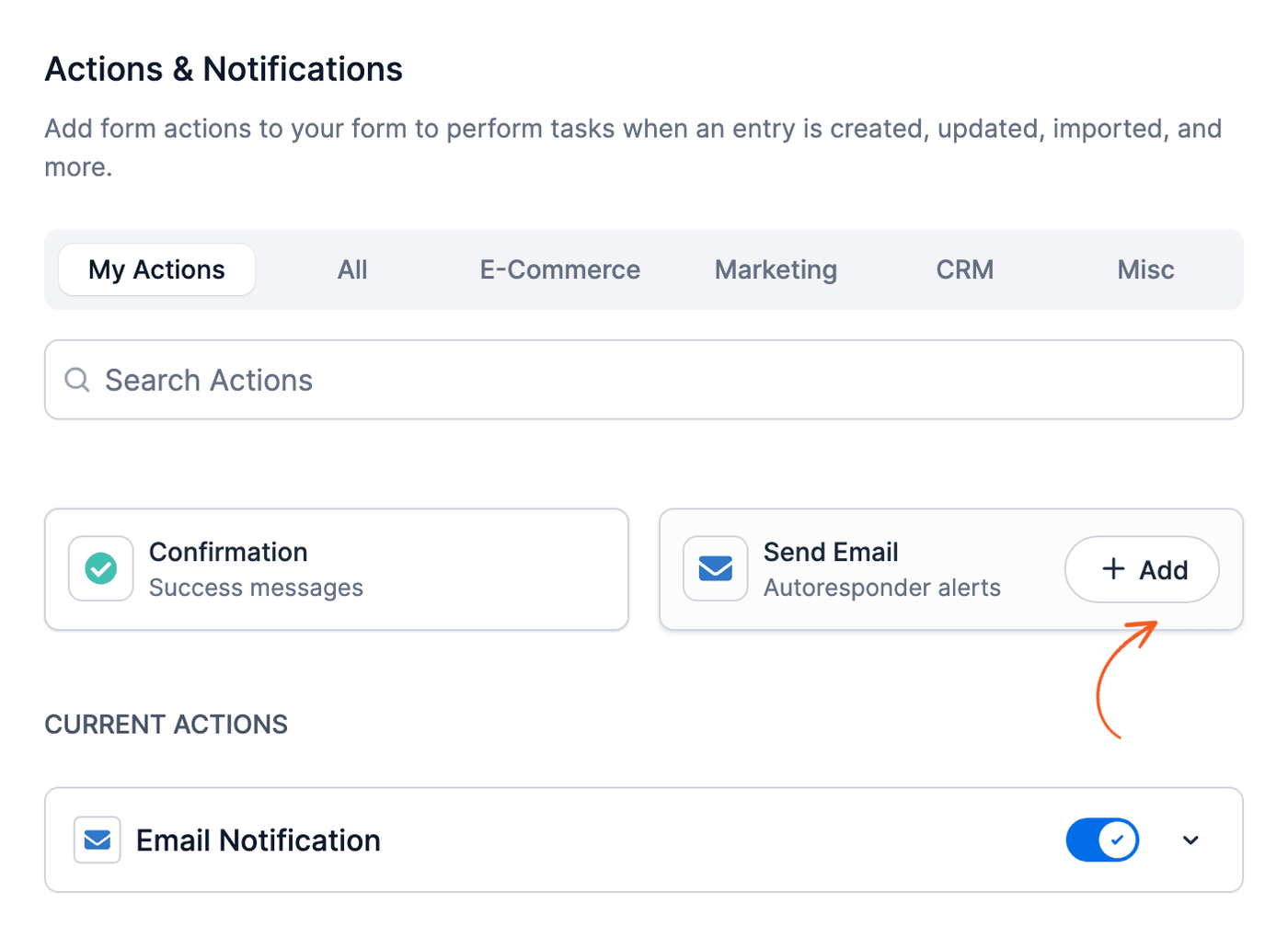
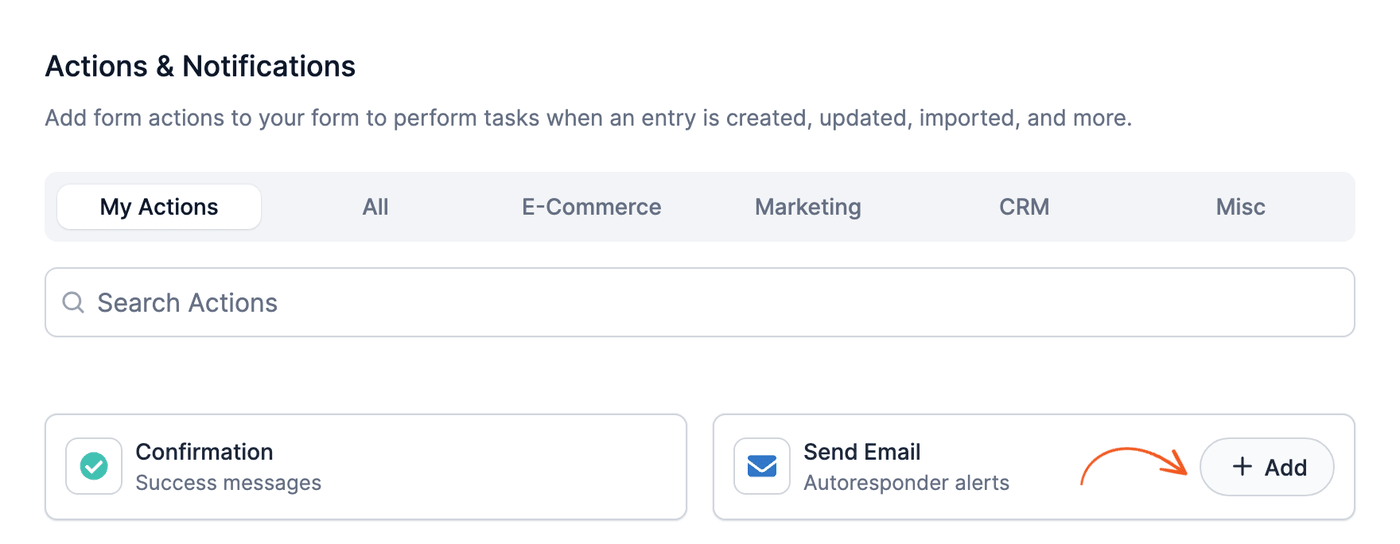
- Go to your form and click Settings → Actions & Notifications. By default, there will already be an email notification set up, listed under Current Actions. It's named Send Email in a blank form, or Email Notification in a form made from a template. Click it to edit it, or hover over the Send Email card and click Add to add another notification.

- Give your email notification an Action Name for easy reference. This action name will only be seen on the back-end.
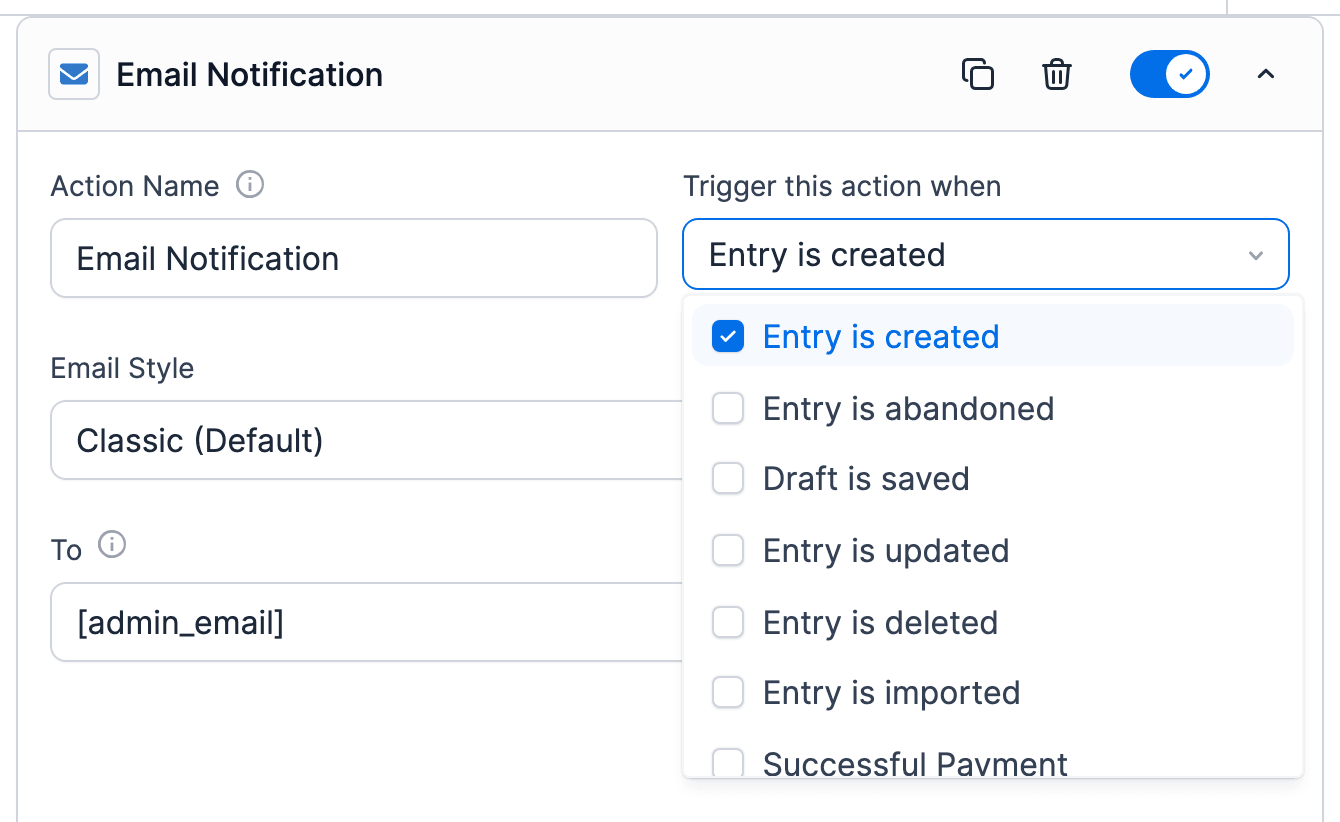
- To configure when the email is sent, select one or more of the following from the Trigger this action when dropdown options: Entry is created, Draft is saved, Entry is updated, Entry is deleted, or Entry is imported. Scroll down the list for the payment triggers: Successful Payment, Failed Payment, Processing Payment, Canceled Subscription, Subscription Canceled and Expired, and Refunded Payment. Some add-ons add more triggers, such as Entry is abandoned from the Form Abandonment add-on. In Formidable Forms Lite, the list has Entry is created and the payment triggers.
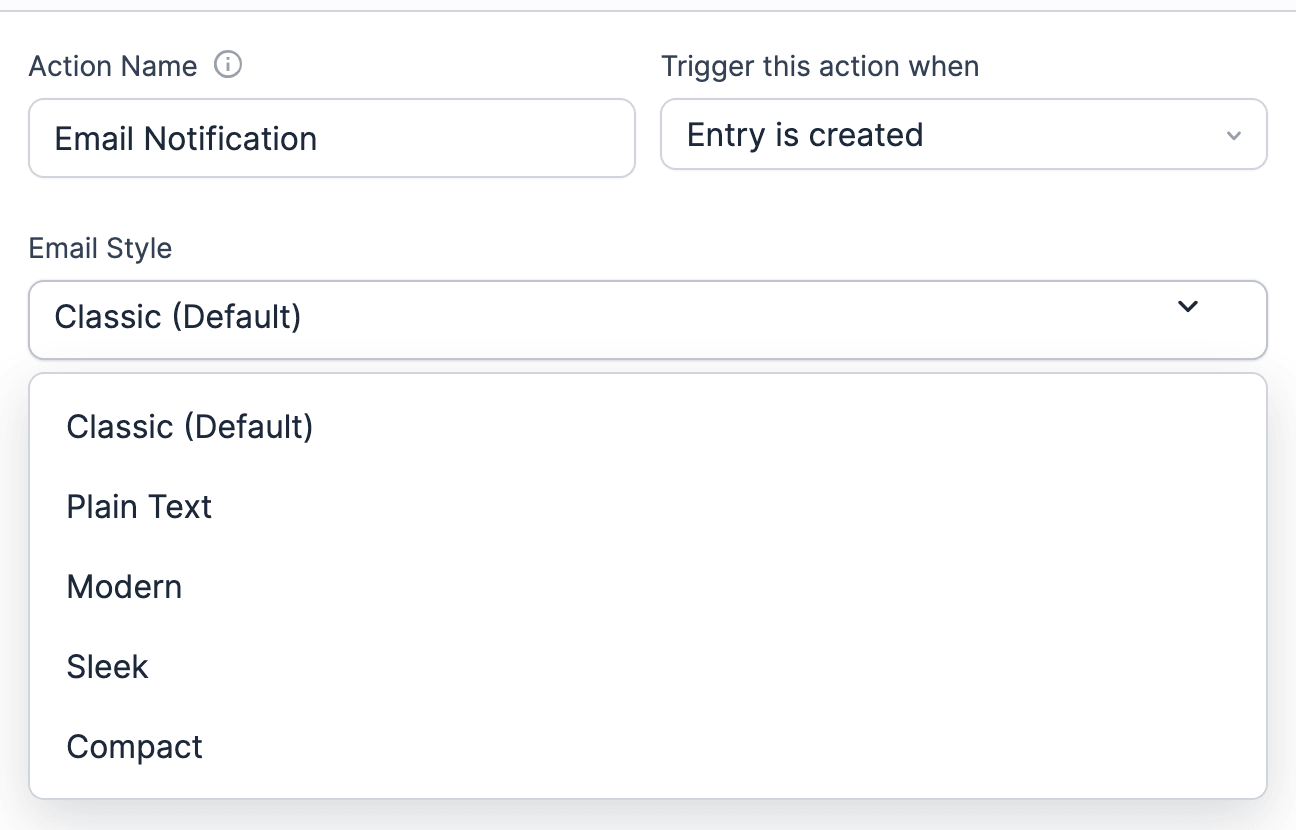
- (Optional) To change how the email looks, select a style in the Email Style dropdown under Action Name. Choose Classic, Plain Text, Modern, Sleek, or Compact. The style set in Formidable → Global Settings → Email is marked (Default). With Plain Text, the email is sent as plain text: HTML formatting is removed. Learn more about the email styles. The Modern, Sleek, and Compact styles are a premium feature.
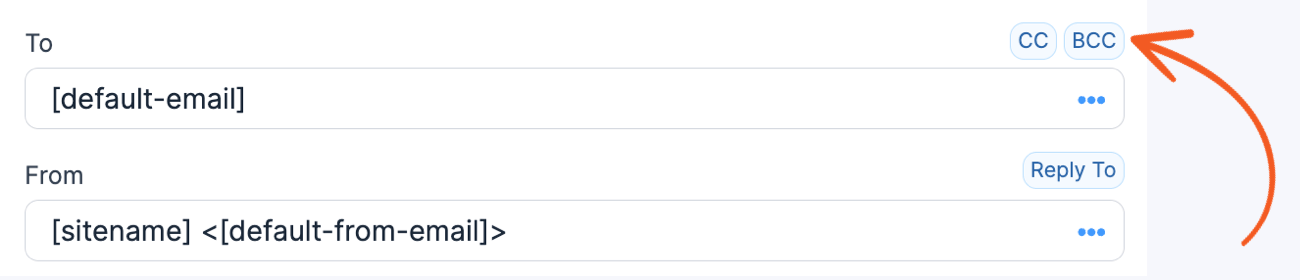
- Enter one or more email addresses in the To box. When you create new email actions, the [default-email] shortcode will be inserted in the To box, as defined in the Global Settings when configuring the default email settings.
The default email notification in a form made from a template uses the [admin_email] shortcode instead. When the default email is unavailable, the [admin_email] shortcode is used. The admin email address can be configured in your WordPress General Settings page. The only formats that can be used are name <name@email.com> and name@email.com. To send the same notification to multiple recipients, separate them with a comma. Clicking in the box also opens the list of fields and shortcodes. To close it, click the X icon at the right of the box. - To send others a copy of the message, click CC and insert the email(s) in the CC box that appears. To copy others without showing them to the recipients, click BCC and insert the email(s) in the BCC box that appears.
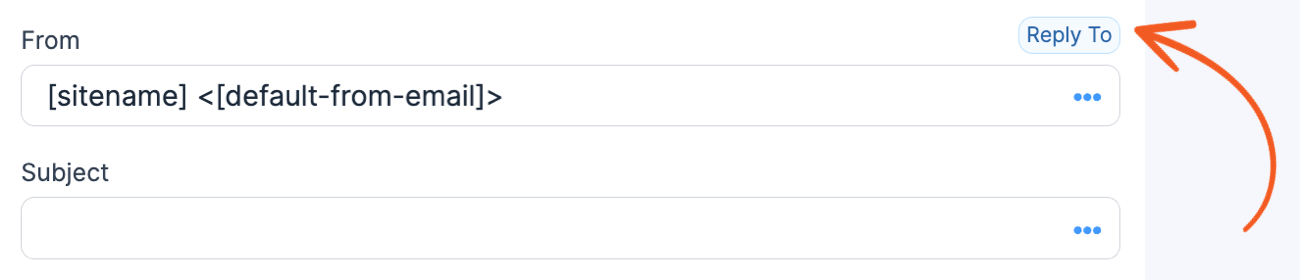
The only formats that can be used are name <email@example.com> and email@example.com. Separate multiple email addresses with a comma. - Insert the sender's name and email address in the From box. When you create new email actions, the From box is prefilled with [sitename] <[default-from-email]>. The default from email is set in the Global Settings when you configure the default email settings.
The default email notification in a form made from a template uses [sitename] <[admin_email]> instead. When the default From email is unavailable, your website name and admin email address from your WordPress General Settings page will be used by default. - To have replies go to a different address than the From address, click Reply To and enter the Reply To email address. If the list of fields and shortcodes covers the button, close the list. To do this, click the X icon at the right of the box above it. The formats that can be used are name <email@example.com> and email@example.com.
Want to set the Reply to option to the email address of the sender? See how to reply to the visitor.
- Add a subject in the Subject box. If no subject is entered, emails will use '[Form name] Form submitted on [Your site name]'.
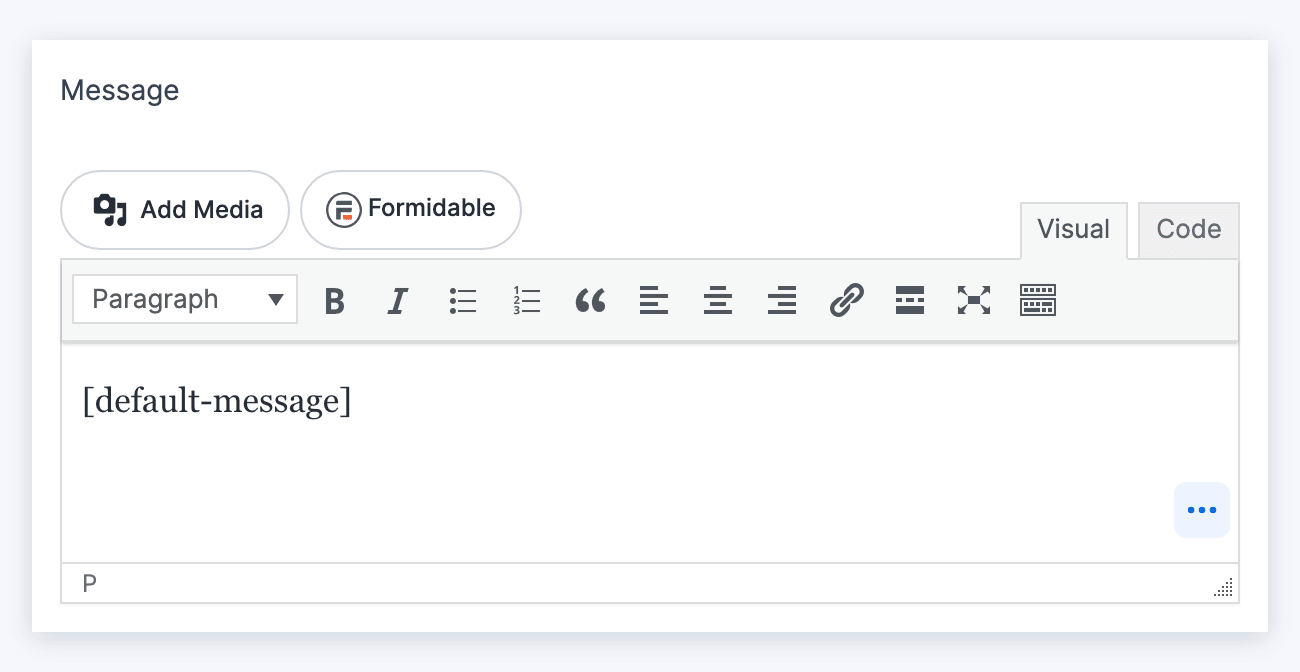
- By default, the [default-message] shortcode will be inserted in the Message box.
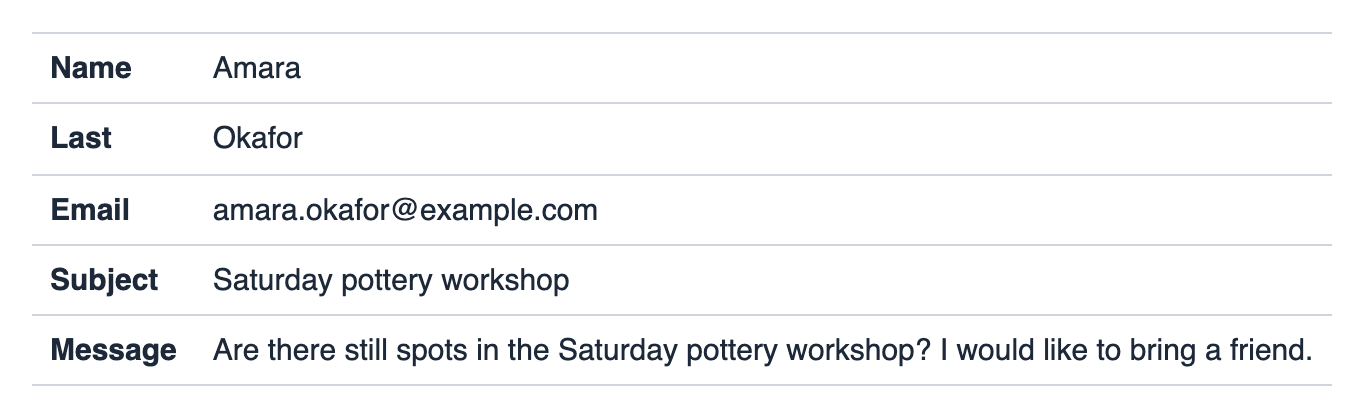
This will display all completed fields in the email notification, which will look like this:
To customize the email message, jump to Customize the email message. - Click Update to save your changes.

![Using [default-email] shortcode in TO field of email notifications](https://s3.amazonaws.com/fp.strategy11.com/images/knowledgebase/email-notification_default-email.png?v=404bbce4 "Using [default-email] shortcode in TO field of email notifications")

![Using [default-from-email] shortcode in FROM field of email notifications](https://s3.amazonaws.com/fp.strategy11.com/images/knowledgebase/email-notification_default-from-email.png?v=8afa95d7 "Using [default-from-email] shortcode in FROM field of email notifications")

After setting up your notification, test it out by submitting an entry in your form. Email notifications are sent to all To, CC, and BCC email addresses. If the email notification does not show up in your inbox, see why your form isn't sending emails to find a solution.
How to find the email ID
To find the email ID, go to your form's Settings → Actions & Notifications page and look for Action ID at the bottom right corner of the email action.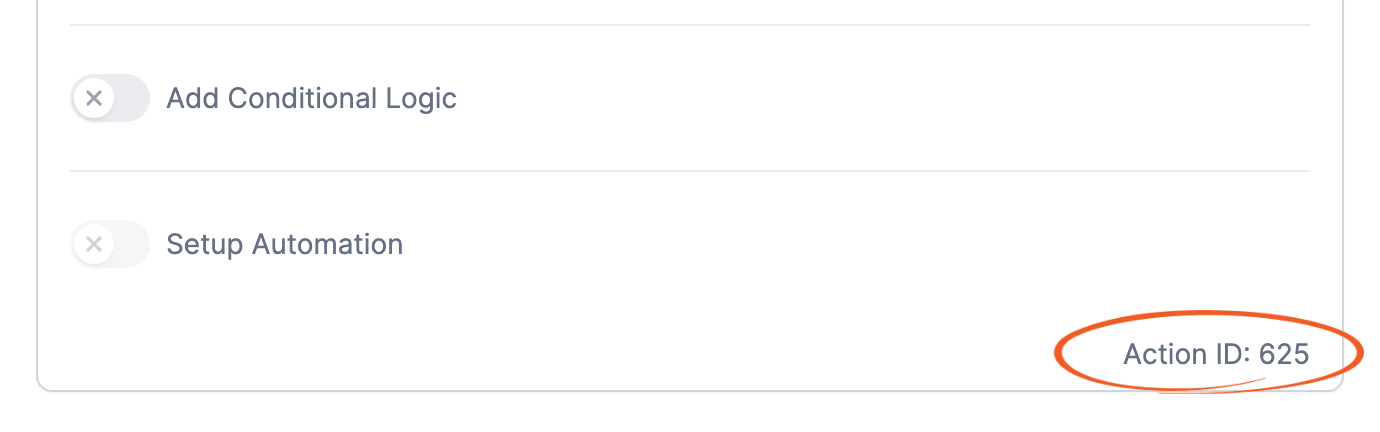
From Idea to Reality in Minutes. Build Powerful Forms, Dashboards, Apps and More.
Formidable Forms makes advanced site building simple. Launch forms, directories, dashboards, and custom WordPress apps faster than ever before.
Reply to the visitor
To maximize the chances of email deliverability, it's best to use the same From address on all emails. To use the name and email address that was submitted in the form, you can do the following:
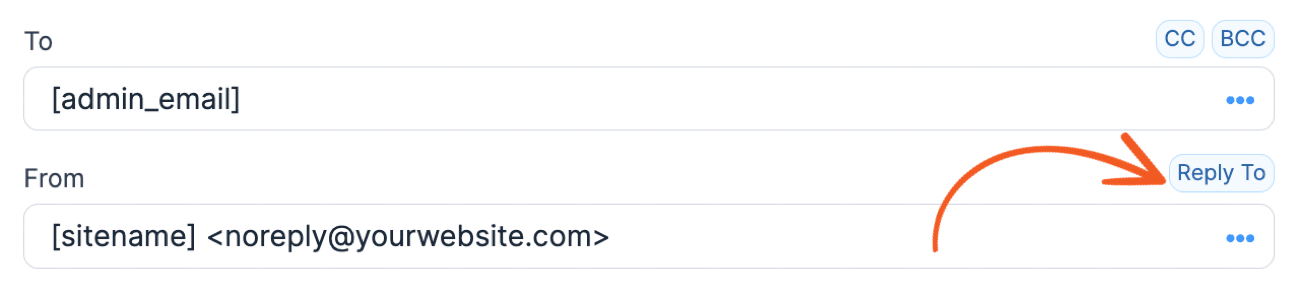
- Click the Reply To button in the email form action.
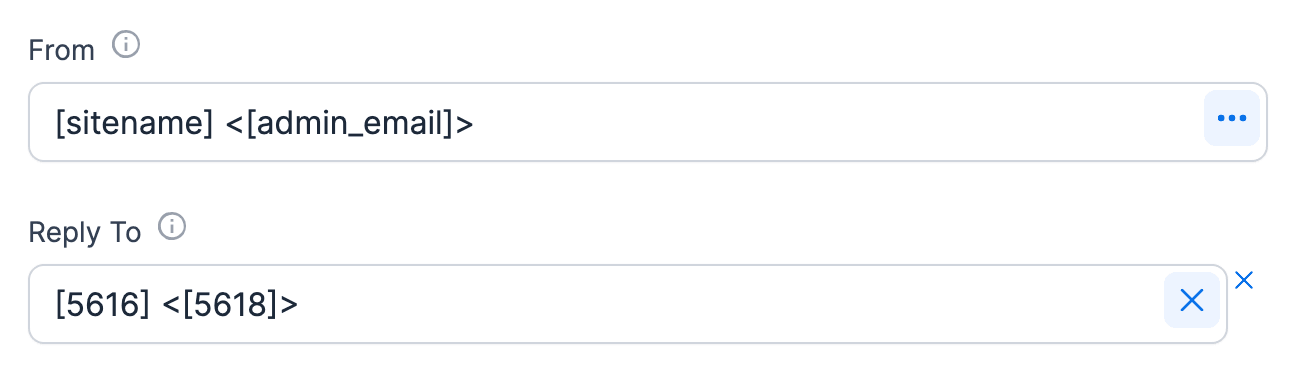
- In the Reply To field, you can have a format like [5616] <[5618]>. Replace 5616 with your sender's name field ID, and 5618 with your sender's email address field ID.
Set up an autoresponder
- Follow steps 1 to 3 in the Send email notifications from forms section.
- If users will be logged in when they fill out the form, insert [113 show="user_email"] in the To box. Replace '113' with the ID of the UserID field in your form.
If your users will NOT be logged-in when they submit this form, put [112] in the To box. Replace '112' with the ID of the email address field in your form. - Follow steps 5 to 11 in the Send email notifications from forms section to finish the email and save it.
Set up multiple email notifications
To send a different email to each recipient, create a separate form action for each one. For example, send a Thank you message to your users and a copy of the completed form data to your admin with two email actions.
To send the admin a copy of the submitted form user data:
- Add an email notification form action.
- Set the To field to send it to [admin_email].
- Add the [default-message] shortcode in the Message box which will send all the completed fields to the admin.
For the Thank you message sent to the users:
- Add another email notification form action.
- Set the To field to the user's email address field ID/key in your form. See more information on how to set up automated messages to the user email address.
- In the Message box, remove the [default-message] shortcode and replace it with your own Thank you message.
Manage file attachments
To attach uploaded files to your email notifications, follow the instructions for the File Upload field.
If you only want to receive an email with the file attachments without storing the files on your site, attach them to the email and delete them after it's sent.
- Enable email attachment by selecting Attach this file to the email notification in your File upload settings.
- Use this code example to automatically delete uploaded files from your site immediately after the entry is created and the email notification is sent.
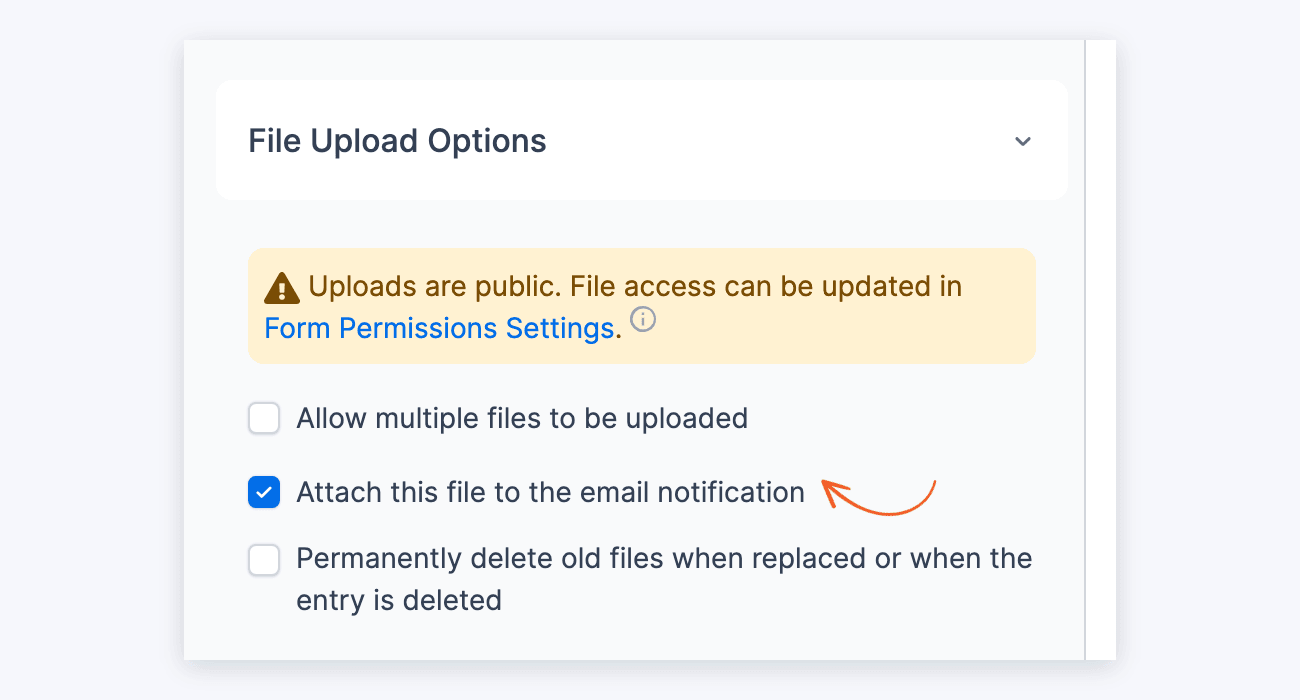
To automatically delete files after the entry is deleted or when they are removed or replaced, select Permanently delete old files when replaced or when the entry is deleted in your File upload settings.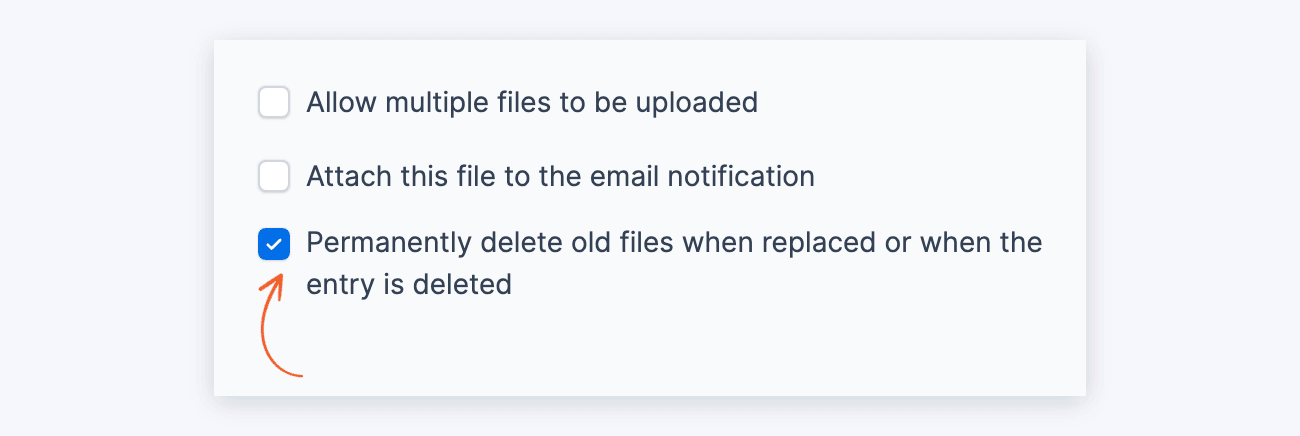
Add file attachment
Attach a file, such as a PDF or an image, to every email the action sends.
- Go to your form Settings → Actions & Notifications.
- Click your email action under Current Actions to edit it, or hover over the Send Email card and click Add to add a new notification.
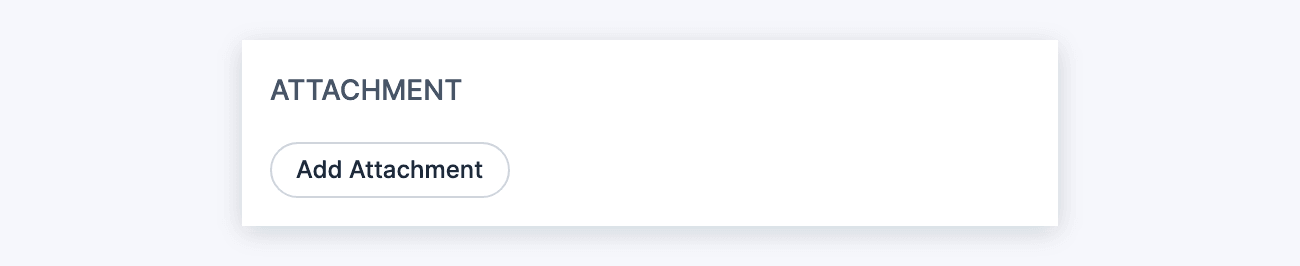
- Scroll down and click the Add Attachment button.
- Upload your file or choose from existing files in the Media Library. Click the Select button.
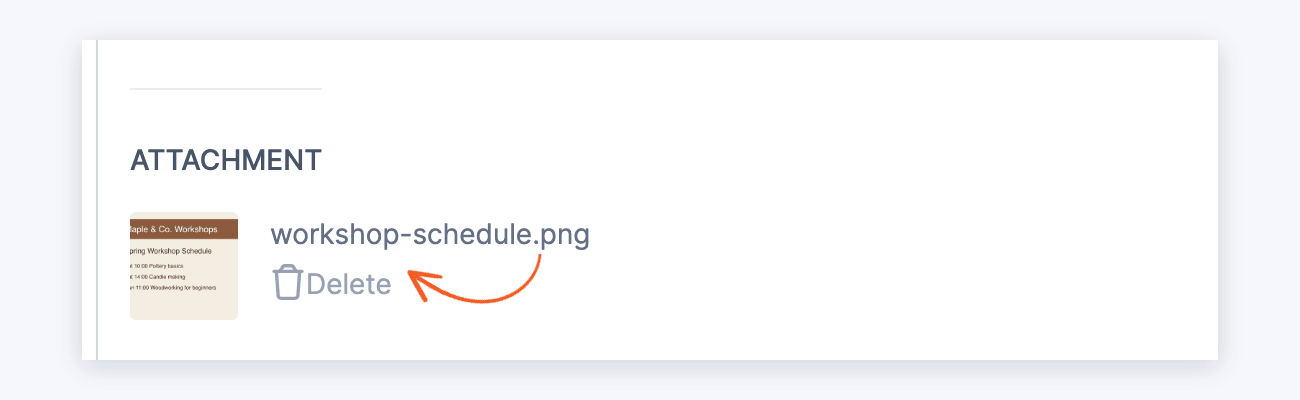
- (Optional) Click the Delete icon to upload a different file or remove it. You can upload one file at a time.
- Click Update to save your changes.
Add CSV attachment
Attach a CSV export of the submitted entry to the email notification.
- Go to your form Settings → Actions & Notifications.
- Click your email action under Current Actions to edit it, or hover over the Send Email card and click Add to add a new notification.
- Scroll down and toggle the Attach CSV export of entry to email option.
- Click Update to save your changes.
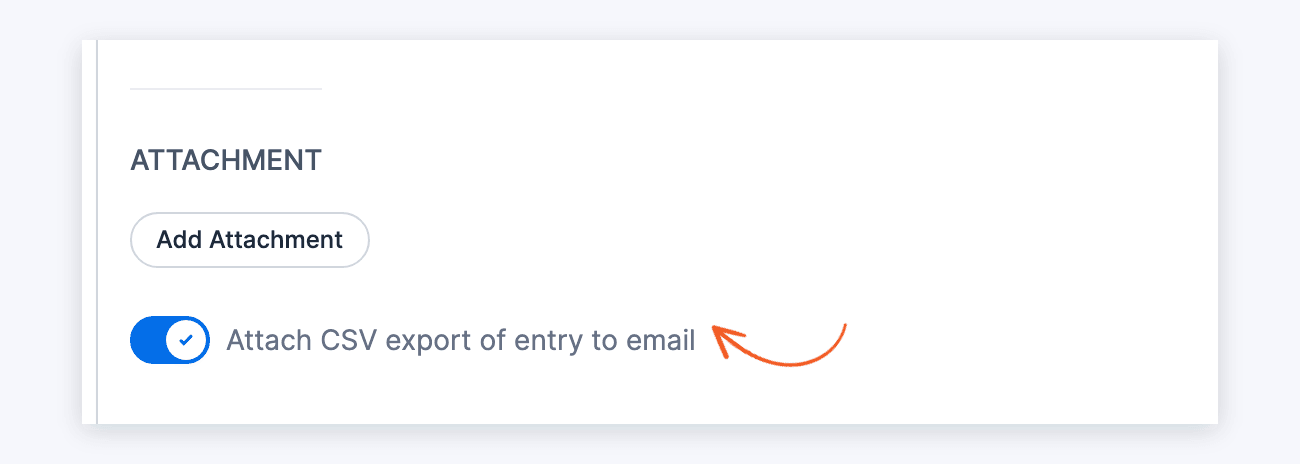
To set a custom filename for the generated CSV attachment, use the frm_csv_filename hook.
Customize the email message
You have three main options for customizing your email notification content.
- Add anything you want before or after the [default-message] shortcode. The default message includes any completed fields in the form. To modify the default message, jump to the default message parameters section.
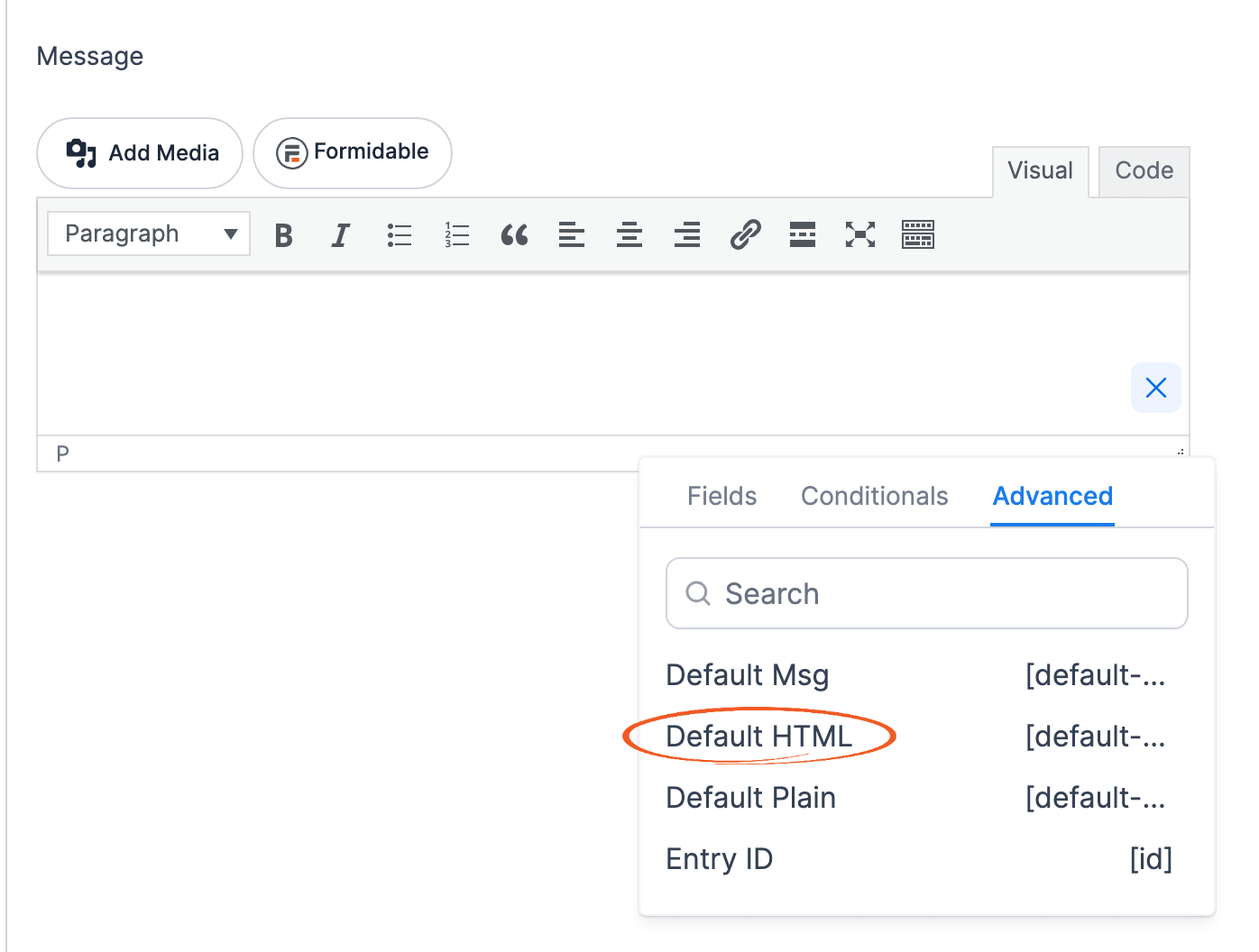
- Customize the default message with its HTML. First, delete the [default-message] shortcode from the Message box, so the fields aren't listed twice in the email. With the Visual tab of the box active, clicking in the box opens the list of fields and shortcodes. If the list isn't open, click the three-dot icon in the box. Then open the Advanced tab and click Default HTML or Default Plain. This inserts the HTML and shortcodes for the current default message at the cursor. In the Visual tab, the HTML shows as code text you can edit. In the Code tab, its < and > signs show as < and >. Either way, the email shows the fields the way the default message does. This code is not dynamic and will not update automatically if fields are added to or removed from your form.
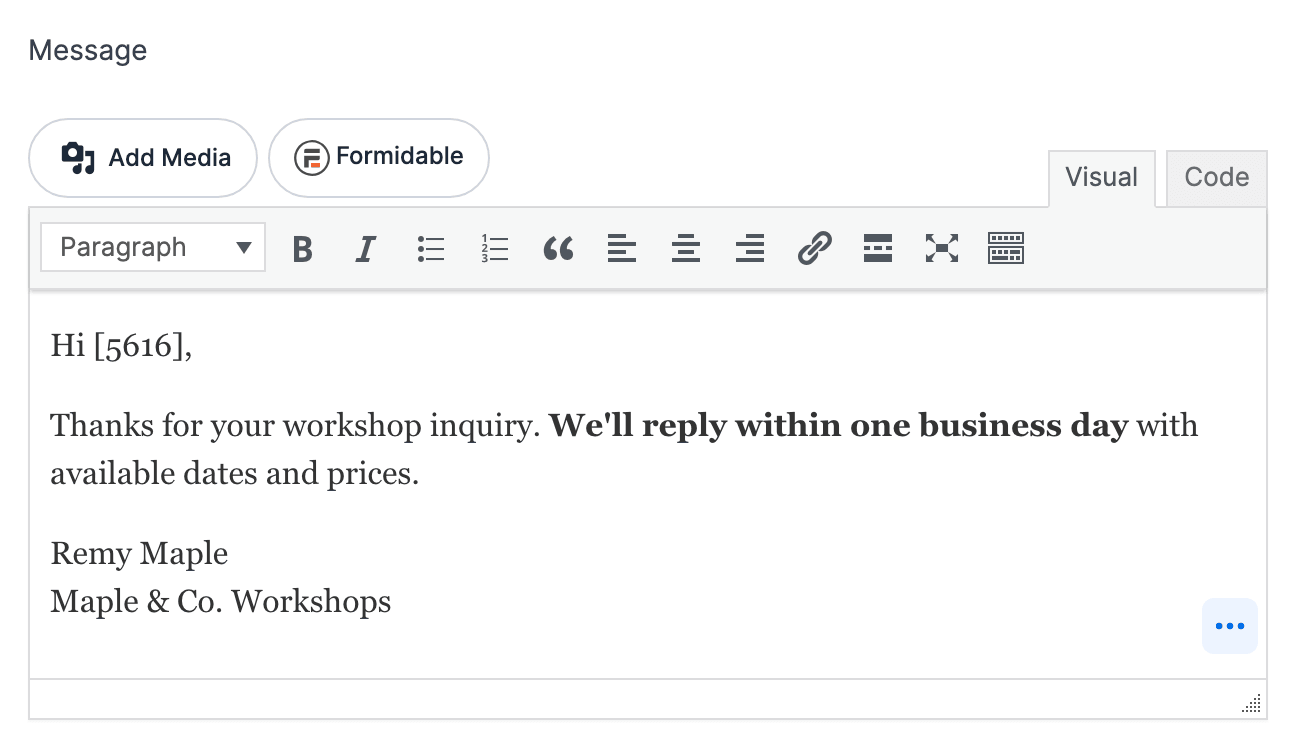
- Remove the [default-message] shortcode and create your own message from scratch. If you prefer to create your own message from scratch, add your custom content to the 'Message' box. You can use the built-in Rich text editor to customize your message.
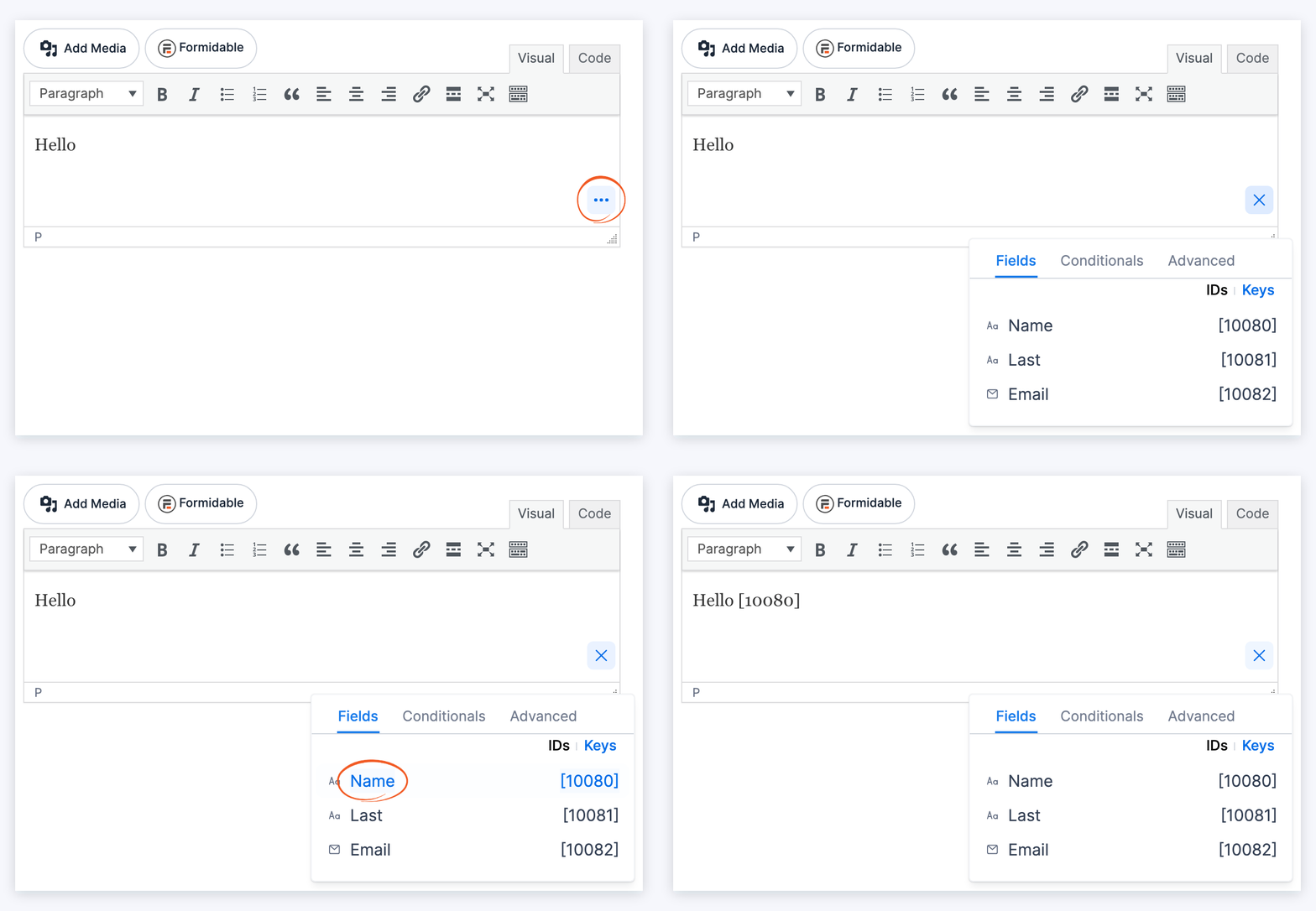
- You can add text, HTML, and inline CSS in this box, but keep in mind that email clients don't support all types of HTML and CSS. For guidelines to follow when using HTML and CSS to generate emails, click here. Line breaks in the Message box are kept in HTML emails, so you don't need to add
<br>tags. To add a value submitted in the form, click the three-dot icon in the Message box and click the field on the Fields tab. This inserts the field's ID shortcode, such as [10080], into the message:
The received email displays the name that was entered into the form. To add the title or label of a field to your email message, you will need to take this process one step further. If the ID of your 'First Name' field is 25, then add the following shortcode to your email message:[25 show="field_label"] : [25]
This is translated to your field label and the value that was entered, which looks like this:What is your name?: John
Customize the colors
The default email notification gets the border, background, color, and font size from your form's style. Go to Formidable → Styles and open the style your form uses. Next, click Show advanced settings to see the Field Colors and Field Labels sections. Then change the following style settings:
- Border color: Styles → Field Colors → Border
- Background colors: Styles → Field Colors → Default → Background and Styles → Field Colors → Active → Background
- Text color: Styles → Field Colors → Field Text
- Border width: Styles → Field Colors → Border Width
- Font size: Styles → Field Labels → Font Size
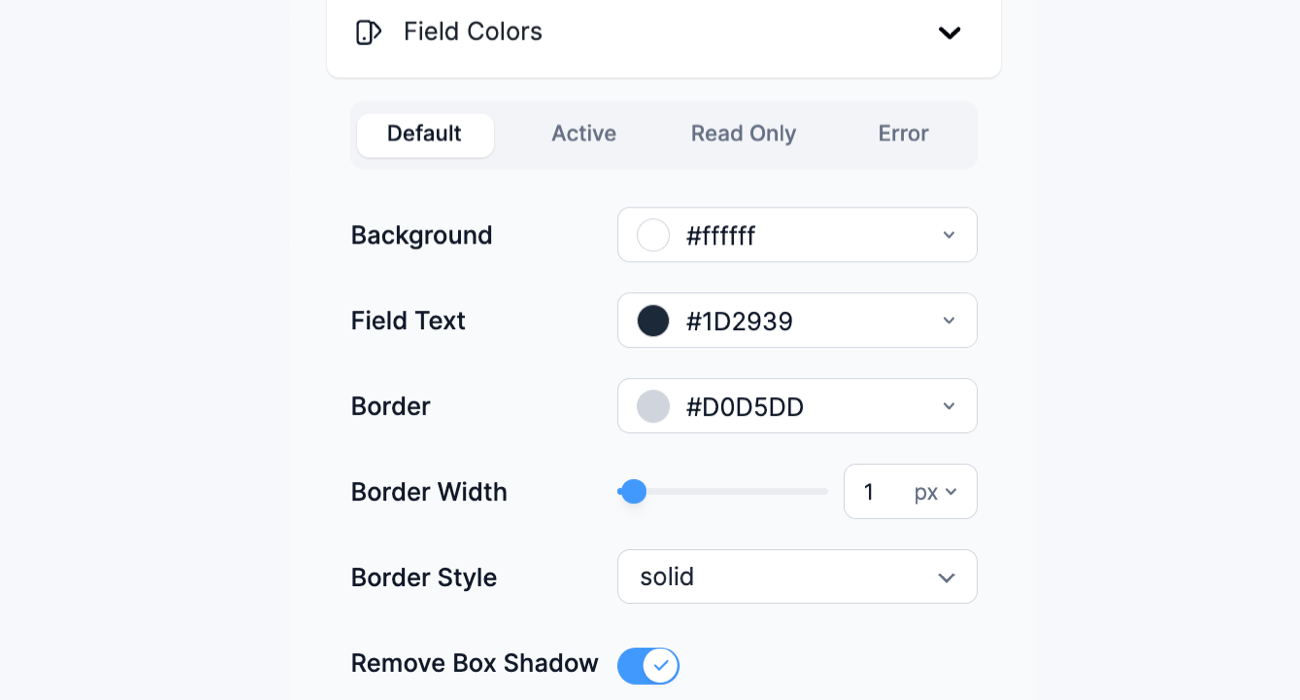
These style settings apply to the [default-message] shortcode in the Classic email style, which is the default. The other email styles use the Color Scheme settings in Formidable → Global Settings → Email instead. HTML inserted with Default HTML keeps the colors it had when you inserted it.
Default message parameters
The following parameters can optionally be used to alter the output of the [default-message] shortcode.
- plain_text - By default, the default message displays the content in a table. You can remove the HTML and display only the text by including plain_text=1.
[default-message plain_text="1"]
- user_info - Display user information in the default message, including IP address, browser, and referring URL.
[default-message user_info="1"]
- include_blank - Include blank fields in the default message.
[default-message include_blank="1"]
- include_extras - By default, page breaks, headings, and HTML fields aren't included in this shortcode. You can include any/all of them as shown here:
[default-message include_extras="page, section, html"]
Only the HTML field content is included in this shortcode. Since the form doesn't show the HTML field label, it is not included in the email either. - include_fields - Only include specific fields in the displayed content.
[default-message include_fields="10,15"]
- exclude_fields - Exclude specific fields in the displayed content.
[default-message exclude_fields="10,15"]
- direction - By default the entry is displayed field names in the left column and entries in the right column. Switch those columns by using this shortcode:
[default-message direction=rtl]
- font_size - Determine the size of the font, in pixels.
[default-message font_size="25px"]
- text_color - Determine the color of the text, in hexadecimal form.
[default-message text_color="b642f4"]
- border_width - Determine the width of the border in pixels.
[default-message border_width="1px"]
- border_color - Determine the color of the border in hexadecimal form.
[default-message border_color="000000"]
- bg_color - Determine the color of the background in hexadecimal form.
[default-message bg_color="ffffff"]
- alt_bg_color - Determine the background color of the alternating rows in hexadecimal form.
[default-message alt_bg_color="eeeeee"]
- format - Specify which format the entry is returned in. By default, the entry will be returned in a table (format=text). The other options include format=json and format=array. These alternative formats are best to use directly in php instead of using the shortcode on a page.
- array_separator - Use a different separator for multiple checkboxes or dropdown values. By default, this will be a comma separator.
[default-message array_separator=""]
Use the Rich text email editor
With the rich text email editor, you can format text, change its color and heading size, and add links and images to your message. Rich text HTML emails automatically use wpautop. When the Email Style is Plain Text, the editor stays the same, and the formatting is removed when the email is sent.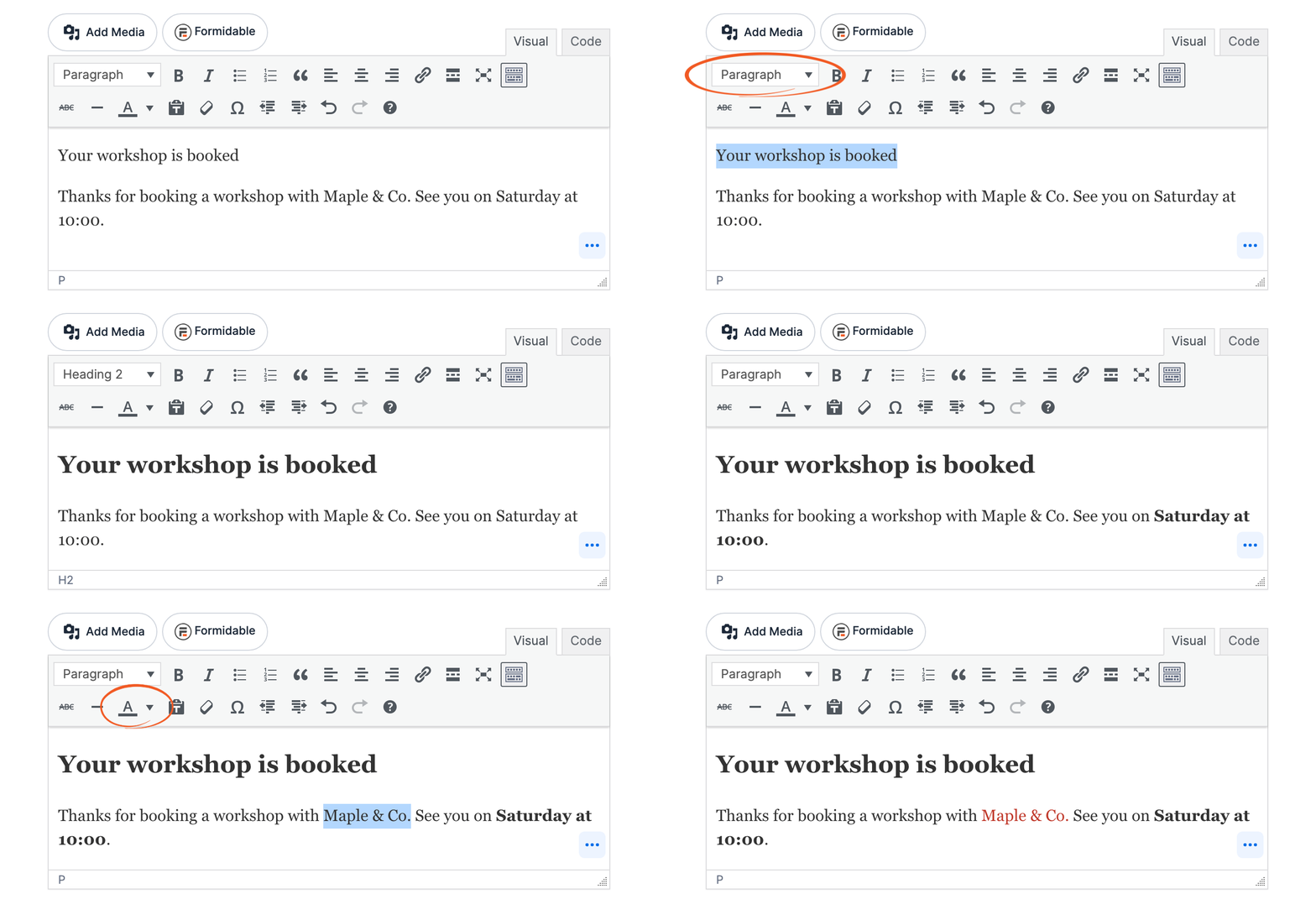
To use a plain textarea instead of rich text for all your forms, a specific email action, or a specific form, use the frm_rich_text_emails hook.
Add a logo in message
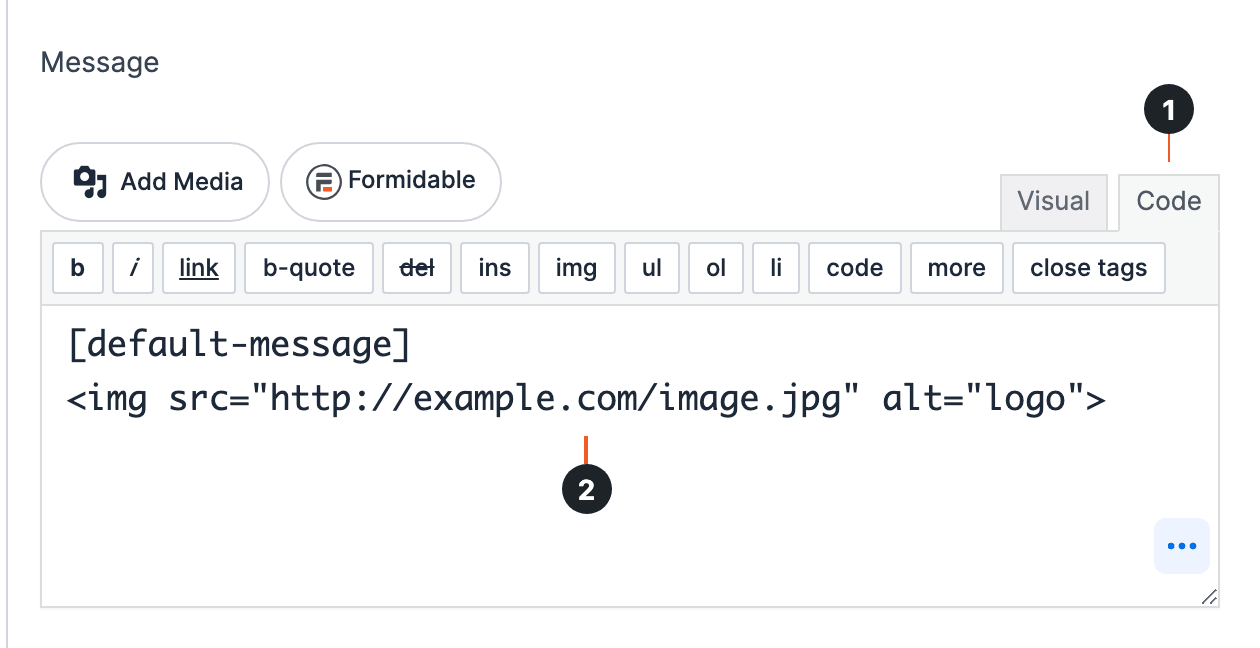
You can add an image or a logo to your email message using the img HTML tag.
- Open your email action in Settings → Actions & Notifications.
- Click the Code tab (1) in the Message box. At the location where you want the image in your email, insert the img tag (2):
<img src="http://example.com/image.jpg" alt="logo">
- Change http://example.com/image.jpg to the location of your image and logo to a descriptive alternate text.
Add a preheader
To add a preheader that displays a visible summary in your email, use this code snippet.
Email routing
There are three ways to route emails, depending on what you want to accomplish.
- Conditional Logic: Send a different email to all recipients, using the Conditional logic approach.
- Separate Values: Send the same email to all recipients, using the Separate values approach.
- Dynamic Field: Send the same email to all recipients using email addresses that were entered in another form with the Dynamic field approach.
To further customize email routing, refer to the frm_to_email page for commonly requested custom code examples.
Conditional logic
To send a different message to each recipient, use Conditional Logic. Suppose you have three departments in your company: human resources, housekeeping, and billing. You also have a form on your website for people to leave an inquiry. You want to send human resources an email notification regarding the inquiry only if it is applicable to them. The same is true for billing and housekeeping.
- Go to build your form. Add a dropdown, radio, or checkboxes field called Departments. In this example, add the options Human resources, Billing, and Housekeeping. When your users fill out the form, they will select the department related to their inquiry.
- Go to your form Settings → Actions & Notifications. Hover over the Send Email card and click Add three times to add a new notification for each of the three departments.
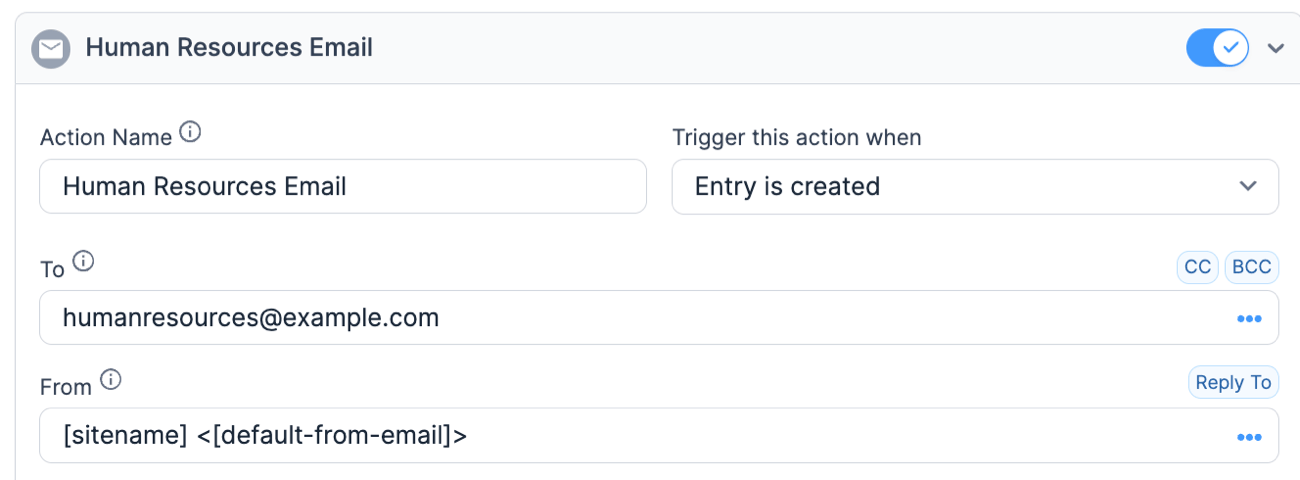
- Enter the desired recipient email address in the To box and message in the Message box. In this example, it's the email address for human resources:
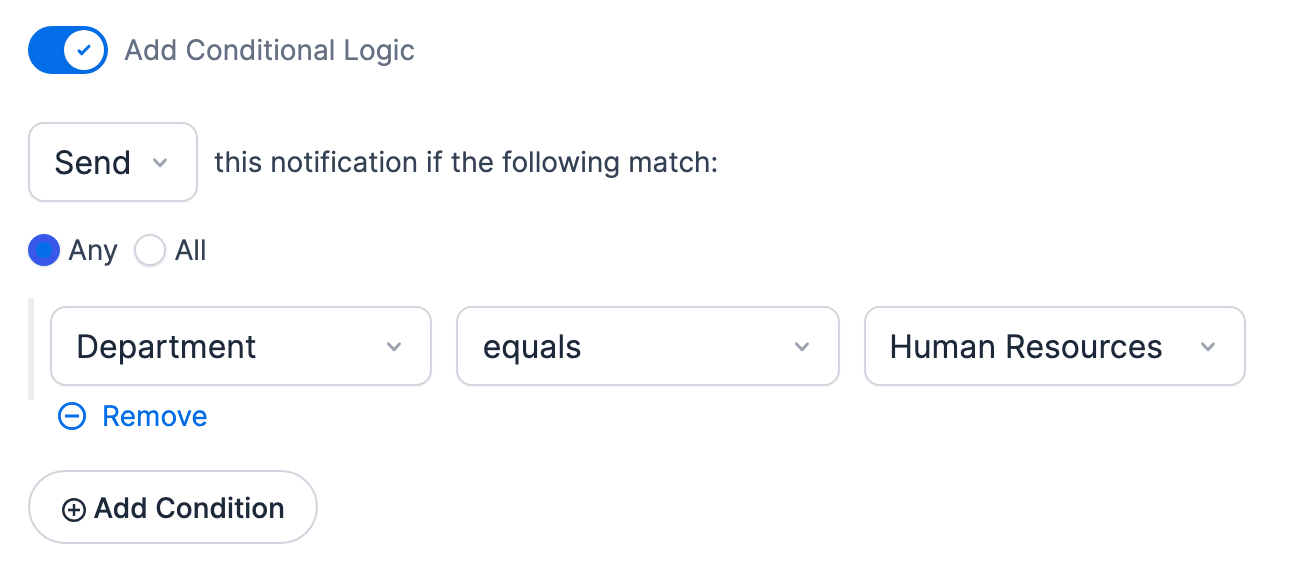
- Select Add Conditional Logic. In this example, set Department equals Human Resources
- Now, human resources will get an email notification only when the submitted inquiry is relevant to their department and the email content will be unique for each department.
Separate values
To send the same email notification to all recipients, but change the recipient based on a field in your form, use Separate Values. Suppose you have three departments in your company: human resources, housekeeping, and billing. You also have a form on your website for people to leave an inquiry. You want to send human resources an email notification regarding the inquiry only if it is applicable to them. The same is true for billing and housekeeping.
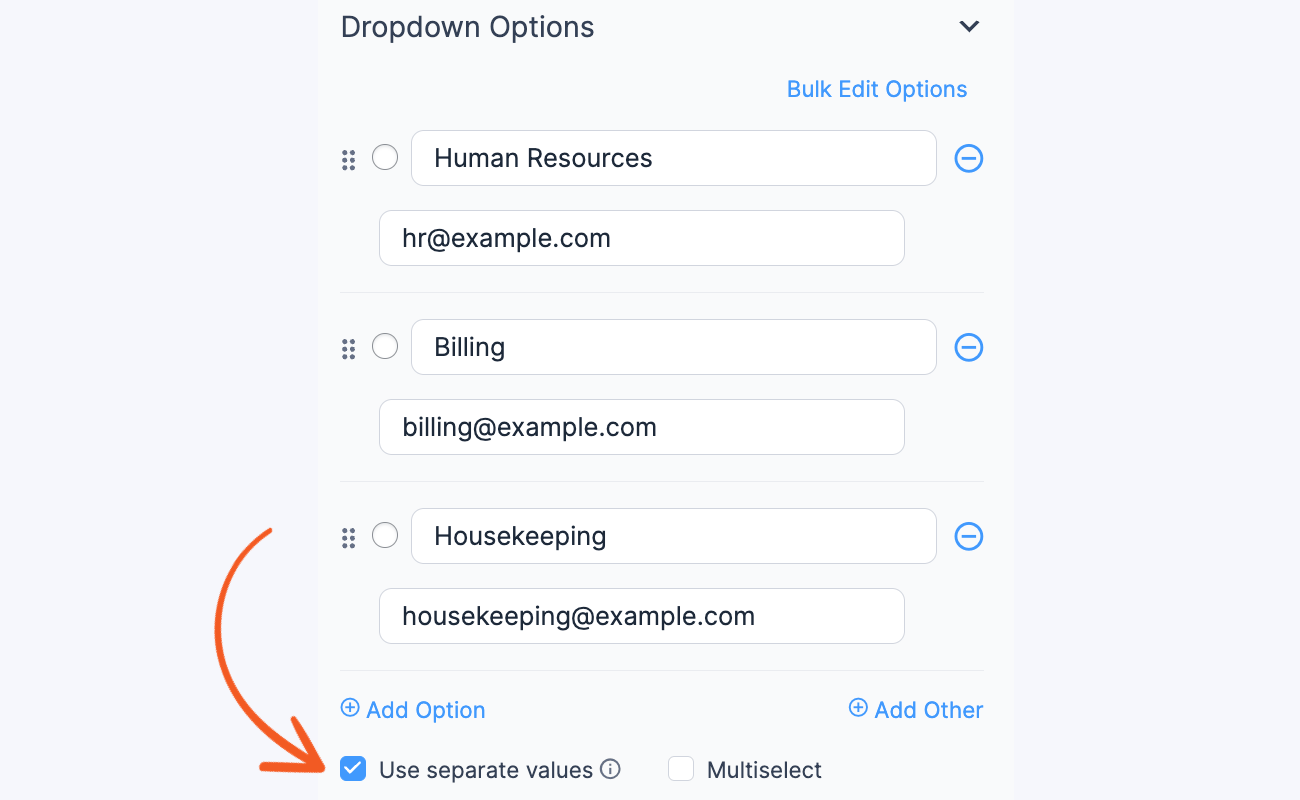
- Add a drop down or radio field to your form. Check the box to 'Use separate values' in the field options.
- Add the department for the displayed value and the email address for the saved value.
When your users fill out the form, they will select the department related to their inquiry. - Update your form and go to Settings → Actions & Notifications.
- Add a new notification and click the three-dot icon in the To box. Then click your dropdown or radio button field in the modal box to add the field to the To box. Add show="value" to the field id that was added to your To box.
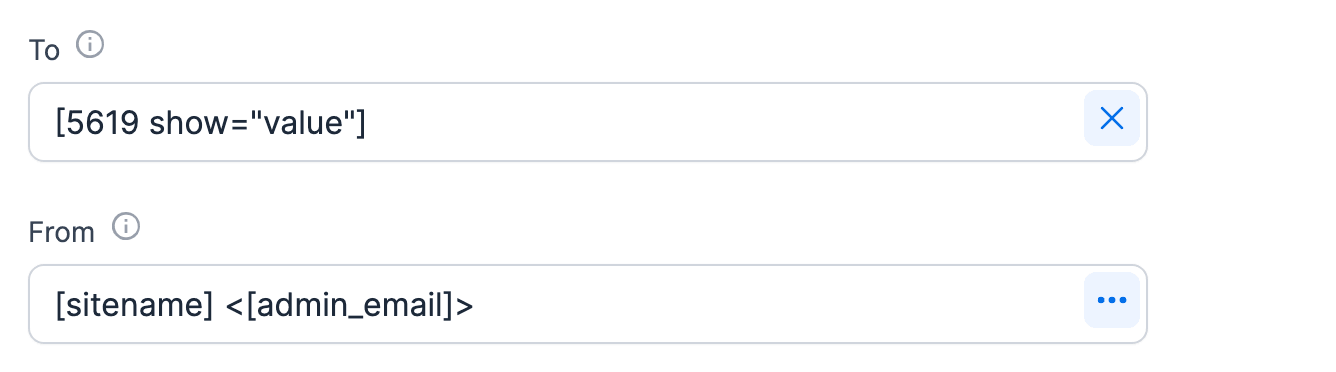
Now, if the user selects human resources as the department, the email notification will be sent to human resources.
Dynamic field
To send the same email notification to all recipients and change the recipient based on a field in your form, you can also use a Dynamic Field. One advantage of this approach is that there is no way to see the email addresses, even when inspecting the page. Another advantage of this approach is that it is dynamically populated using entries from another form.
Suppose you have three departments in your company: human resources, housekeeping, and billing. You also have a form on your website for people to leave an inquiry. You want to send human resources an email notification regarding the inquiry only if it is applicable to them. The same is true for billing and housekeeping.
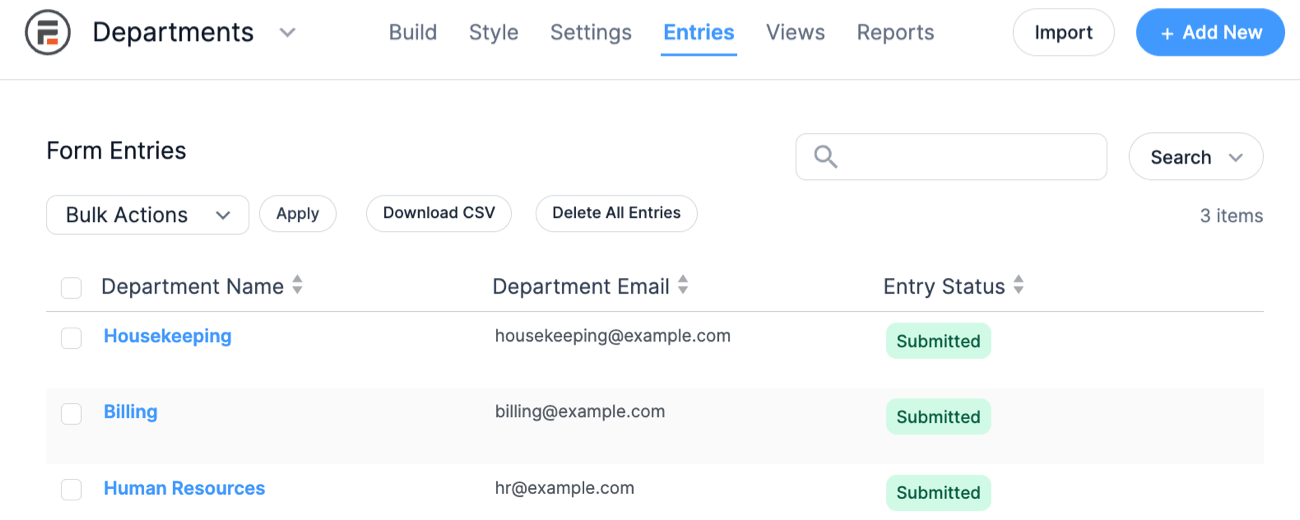
- Create a new form titled 'Departments' for this example. Add two fields to this new form: one Single Line Text field for the Department Name, and one Email Address field.
- After your form is created, go to the 'Entries' page and add one entry for each option you want your users to select from. For example, add entries like this:
- 'Human Resources' in the text field and 'hr@example.com' in the email field
- 'Billing' in the text field and 'billing@example.com' in the email field
- 'Housekeeping' in the text field and 'housekeeping@example.com' in the email field
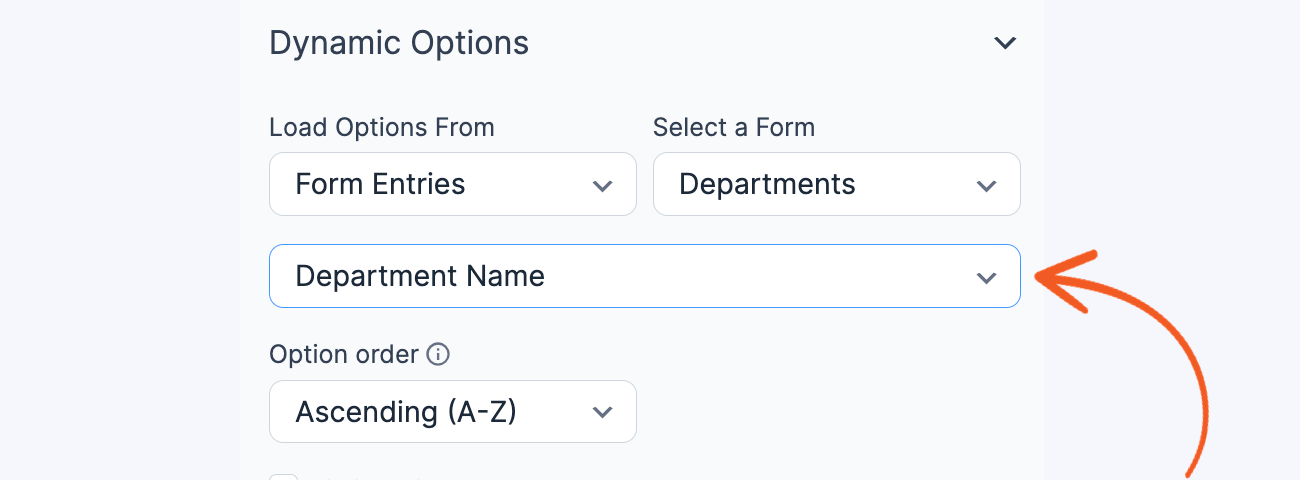
- Now, return to the form your users will be filling out and add a 'Dynamic Field'. Go to Load Options From: and select 'Form Entries', 'Departments', and 'Department Name'. Select to display as Dropdown, Radio buttons, or Checkboxes. When your users fill out the form, they will select the department related to their inquiry.
- Update your form and go to Settings → Actions & Notifications.
- Add a new notification and click the three-dot icon in the To box. Then click the Department Email field in the modal box to add this field to the list of email recipients.
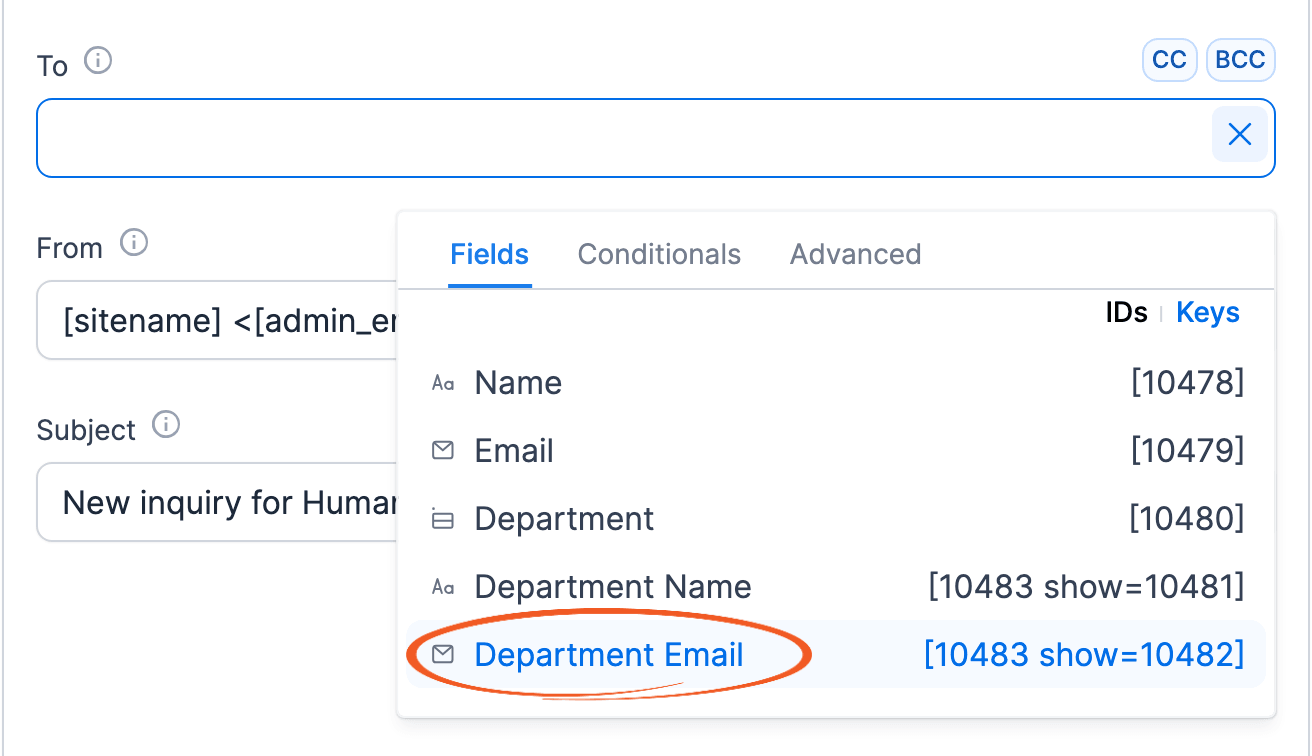
Now, if the user selects human resources as the department, the email notification will be sent to human resources.
Hidden email address
There may be times when you want users to be able to email another user on your site while keeping the To email address completely hidden. To let your users send a message without ever seeing the email address, set up a hidden recipient.
- Create a new form called "Send a Message". Add a Dynamic field with the following settings:
- Dynamic Default Value: [get param=to_name]
- Load options from: the form where a name/email will be added - Name field
- Display as: dropdown
- Visibility: Administrator (only you or other administrators will see this. Your users will not see this field)
- Add any other fields that you want, including a paragraph field for entering a message.
- Go into your Send a Message form's Settings → Actions & Notifications → Email Notification. Insert [x show=y] in the To box. Replace x with the ID of the Dynamic field in the "Send a Message" form. Replace y with the ID of the email field in the linked form.
- Publish the "Send a Message" form on a page.
- If you have not already done so, create a View where users will be able to select an individual to email. Add any information you want to your View. You must also add a link which will send users to the page where your 'Send a Message' form resides. Add a parameter to the end of the link in your View. This will attach the entry ID to the url. To insert the form inside of the View instead, publish it like this: [ formidable id=x to_name="[id]"].
Email settings
Label
This is the Action Name, the label or title for the email notification. It will only be seen by the admin on the back-end.
When to Send Notifications
Email notifications can be sent by selecting from the trigger options in the Trigger this action when dropdown. You can further customize when a notification will be sent by using conditional logic.
To
The email address where you want notifications to be sent. When you create new email actions, the [default-email] shortcode will be inserted in the To box, as defined in the Global Settings. When unavailable, the admin email address from your WordPress General Settings page is used. If you do NOT want to receive email notifications, remove the [default-email] or [admin_email] shortcode from this line. To send the same notification to multiple recipients, separate them with a comma.
If you want the user submitting the form to receive the email notification, select the email address field from the options in the modal box for the To field. If your users are logged in, you can insert the User ID field here to send the email notification to the email address in their account.
CC
To send others a copy of this message, click on 'CC', then insert their email(s) in the box. Multiple emails can be used but must be separated with a comma.
BCC
To copy others without showing them on any other recipient's copy, click on 'BCC' and insert their email(s) in the box. Multiple emails can be used but must be separated with a comma.
From
The name and email address the email notification will be sent from. When you create new email actions, the [default-from-email] shortcode will be inserted in the From box, as defined in the Global Settings. When unavailable, your website name and admin email address from your WordPress General Settings page will be used by default. Test the email with your selected From address.
Emails will be much more reliable if you do not use a user-provided email address. For example, Yahoo does not allow PHP to send emails from yahoo.com accounts. To help increase deliverability, Formidable will send the email from wordpress@yoursite.com instead of a Yahoo address that will fail.
Reply To
If you want the user to reply to a different email address other than the one the message was sent from, then insert it here.
Subject
The subject line for your email notification.
Message
The content of your email notification. If you want the email to contain a copy of the completed form, then the easiest option is to use the [default-message] shortcode. To modify the default message, jump to the default message parameters section.
Append IP Address, Browser, and Referring URL to message
Append the user IP address, browser information, and referring URL to the email notification. This will also include user tracking information if you checked the box in the Formidable → Global Settings to 'Track referrer information and pages visited.' The user IP address, browser information, and referring URL is automatically stored when the entry is submitted and is accessible with the entry as well.
Email Style
Choose how this email looks. The style set in Formidable → Global Settings → Email is selected by default and marked (Default). Learn more about the email style settings.
- Classic: Uses the colors from your Formidable styles. Learn how to customize the colors.
- Plain Text: Sends the email as plain text, with no formatting.
- Modern, Sleek, and Compact: Styled layouts that use the Header Image, Color Scheme, and Typography settings in Formidable → Global Settings → Email. These styles are a premium feature.
Plain text emails don't support bold, italic, colored fonts, or other text formatting, but plain text emails are universally supported by all email clients. HTML can increase the chances of email being flagged as spam, so if you are having trouble with spam blockers, try sending the email as plain text.
Add Conditional Logic
Conditional logic for emails is a premium feature. Send a notification only if certain conditions in your form are met. For step-by-step instructions on how to use conditional logic to route email notifications, jump down to Email Routing.
Resending emails
Resending emails is available on the Basic, Plus, Business, and Elite licenses.
Resend the emails for an entry that was already submitted.
- Go to the Formidable → Entries page.
- Select "view" or "edit" under the entry you want to resend.
- Click the Resend Emails option in the right sidebar. This will send all email Form Actions that are set to be triggered when an entry is created.
- After clicking Resend Emails, a list of email addresses will be displayed. Each of these email accounts receives an email. If the email is sent to "no one", check the conditional logic on the email you are having trouble with.
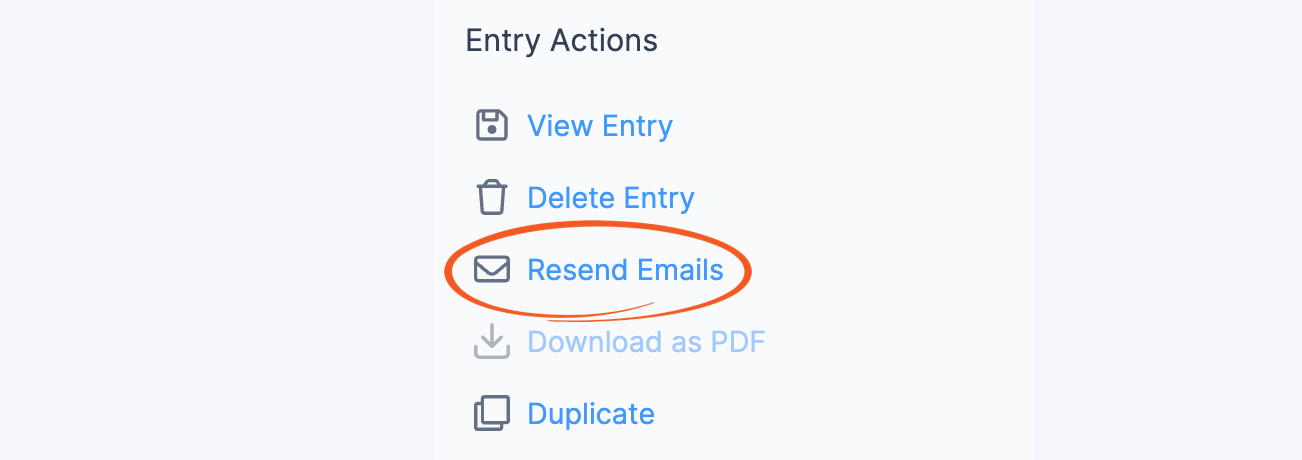
The Resend Emails option isn't shown for spam entries. To send the emails for an entry on the Spam tab, mark it as not spam and check the email actions to run in the window that opens. Learn more about how to mark an entry as not spam.
Trigger email actions
Trigger emails for registered subscribers
Send an email to subscribers who have already registered by importing them into a form with an email action.
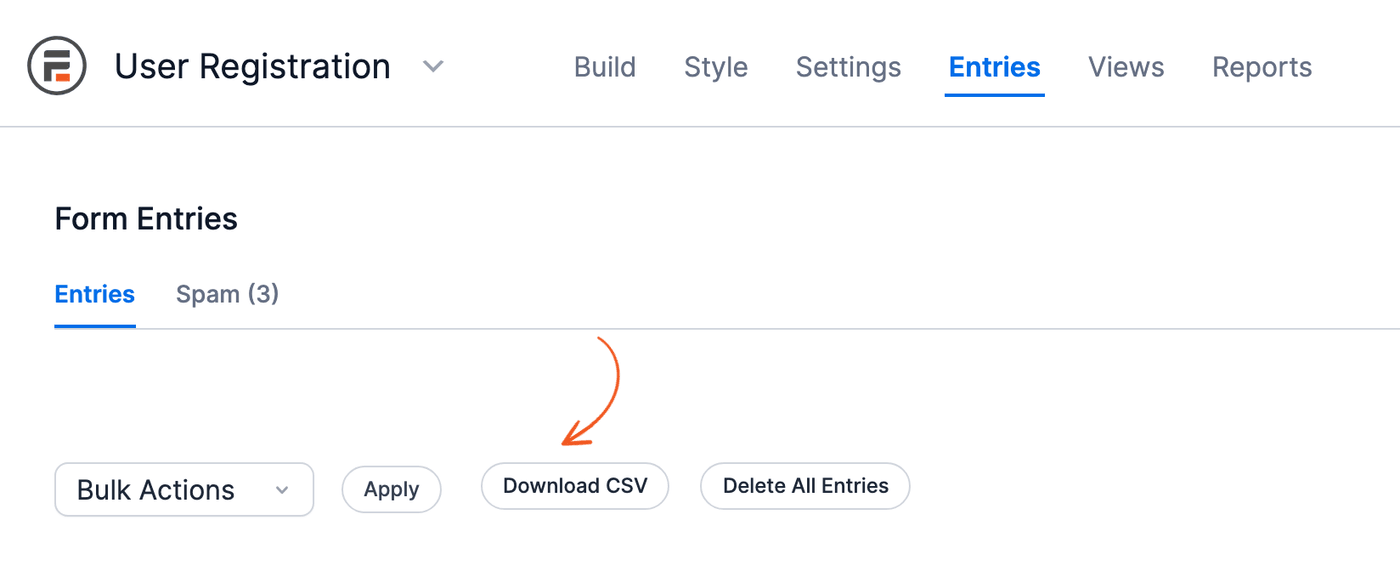
- Go to your User Registration Form → Entries page, and click the Download CSV button to export your registered subscribers into a CSV file. Remove other columns that you don't want to include except for Name, Username and Email field.
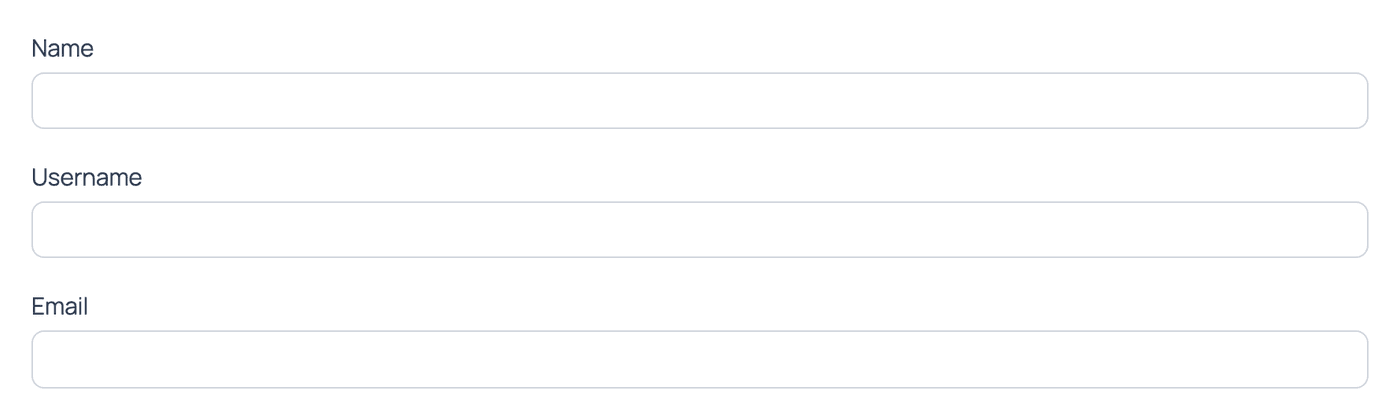
- Create a new form with the following fields: Name, Username, and Email field.
- Go to the form's Settings → Actions & Notifications page and create an email notification. Add the content that you want to be included in the email message.
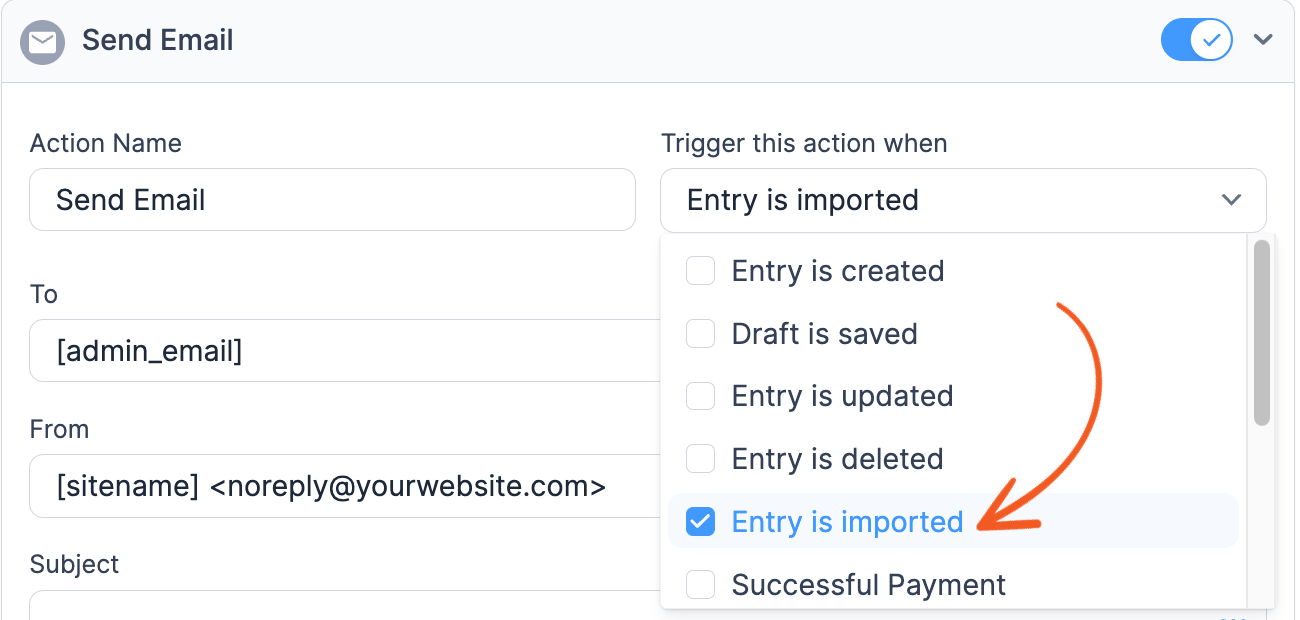
- In the Send Email form action, select the Entry is imported option from the Trigger this action when dropdown field and click Update to save your changes.
- In the Formidable → Import/Export page, import the registered subscribers that you exported in Step 1. An email will then be sent to each subscriber as part of the importing process.
Trigger emails based on entry count
Send an email notification based on the number of entries submitted to a specific field.
- Add a hidden field to your form.
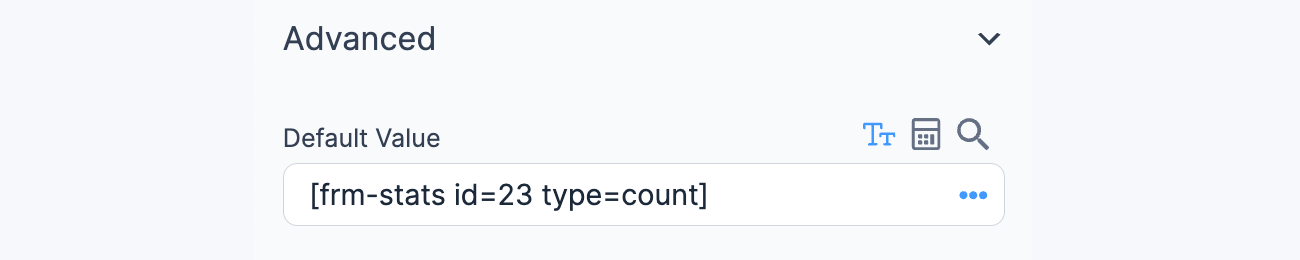
- Create a stat to count how many times an entry has been submitted for a field. Look for the field options and select the Default Value box to insert the stat shortcode.
[frm-stats id=23 type=count]
Replace 23 with the ID of the field with the entry count. - Add another hidden field to your form.
- Compare the value returned in the field above using conditional calculation. In the field options, select the calculator icon in the Default Value box and insert something like this:
([24] > 5) ? 1 : 0
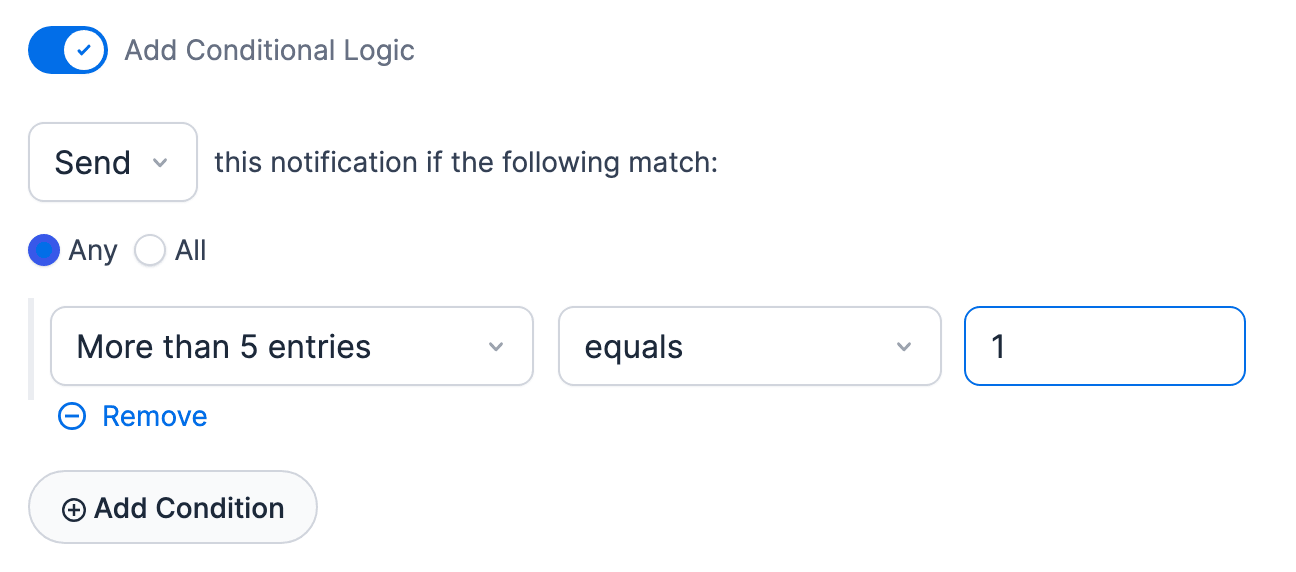
Replace 24 with the ID of the field with the stats. This field will return 1 if the stat is greater than 5 and 0 if it is 5 or less. - Go to the form's Settings → Actions & Notifications page and create an email notification. Add the content that you want to include in the email message.
- In the Send Email form action, add conditional logic to check if the value in the field with conditional calculation is 0 or 1.

Troubleshooting
Not receiving emails?
First, check whether the entry was saved as spam. Go to Formidable → Entries and click the Spam tab. When a spam check saves a submission as a spam entry, its form actions don't run, so no email is sent, even though the visitor sees the normal success message. Learn how to review spam entries.
In most cases we discover that emails leave the website correctly, but are sanitized or deleted before delivery by internet spam protection measures. Because spam protection rules are constantly getting stricter, a form that previously worked can sometimes stop working out of the blue, even if nothing has changed on your website.
To check if your Formidable emails are actually being sent, you can install a logging plugin such as WP Mail Logging.
If the emails are not being sent and don't arrive in your inbox, follow the steps to fix a form that isn't sending emails.
Reply-to address ignored by Gmail
There are a few different scenarios where the new Gmail interface will ignore the Reply-to address in the email header.
- If the To address is the same as the From address, Gmail ignores the Reply-to header information. This looks unusual and can trigger spam deletion. To get this working, you will either need to change the From address or the To address in your email form action.
- If the From address is a registered sending account in Gmail, the Reply-to is ignored.
Ensure email deliverability using SMTP
To avoid email messages being marked as spam, configure your site to send all emails using an SMTP server. SMTP sends messages in a way that looks more legitimate than the built-in WordPress mail service, and helps your messages pass spam filters.
To make sure that your email messages are configured properly, here are important things to check:
- Your From address must match the domain of your website. It is often best to set up a dedicated email for this, like noreply@mydomain.com.
- Never let your To address match your From address. This looks unusual and can trigger spam deletion.
- If you specify a Reply To address, then never let it match your To address.
- While you can include multiple addresses in your To field, it is best to use the CC and BCC fields for additional recipients.
- Many spam filters are triggered by too many recipients in one email. For large lists (50 or more recipients), consider a service like Sendgrid or Brevo.
- Minimize the links you include. Email messages with lots of links may trigger spam filters.
Email shows HTML
If there is code showing in your email, see the steps to get rid of HTML in the email.
Using the wrong From email
There are times when the email you receive comes from a different email address than you have included in your email settings. If the email is sent from wordpress@yoursite.com, this means you are trying to send email from a Yahoo address. See more detail on this issue above.
Another possibility is that you are using an SMTP plugin. This type of plugin is designed to send from a single email address configured in the SMTP settings. We recommend that you use the Reply To option to set the email address you want.
The From email address may also change if you are sending emails through a transactional email service like SendGrid. This is similar to SMTP, where the from email address is not generally dynamic.
Your host may have disabled the mail() function
There are two common solutions if you see the error message: The email could not be sent. Possible reason: your host may have disabled the mail() function.
- Contacting your host and asking for this function to be enabled may be the quickest way to resolve your issue.
- If your host will not enable this function, using an SMTP plugin allows your website to send email without it. SMTP plugins use the mail() function by default when first installed, so you must configure your SMTP plugin with your mailserver settings.
Duplicate emails received
If you have set up an email action to trigger after multiple events, it may result in duplicate emails. For example, when the email is set to trigger on creation, update, and after a successful payment, emails will be sent every time one of these events is triggered.
To avoid duplicate emails, unselect the Entry is created and choose only one action trigger like Successful payment.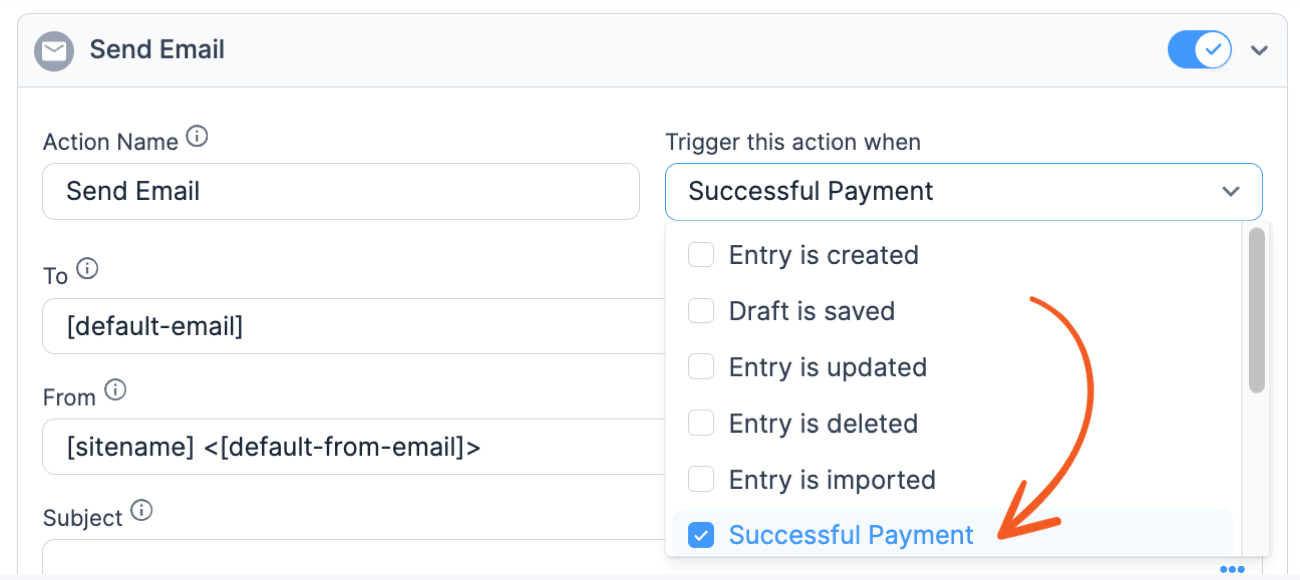
Seeing on behalf of in email
There are times when the email that you receive displays a notation like:
info=mysite.com@mail.mysite.com <info=mysite.com@mail.mysite.com>;
On behalf of; mysite.com <user@mysite.com>
If you are using Mailgun or another transactional email service, you might see an on behalf of in your email. This means that your From address doesn't match the site domain. See more detail on this issue above.
