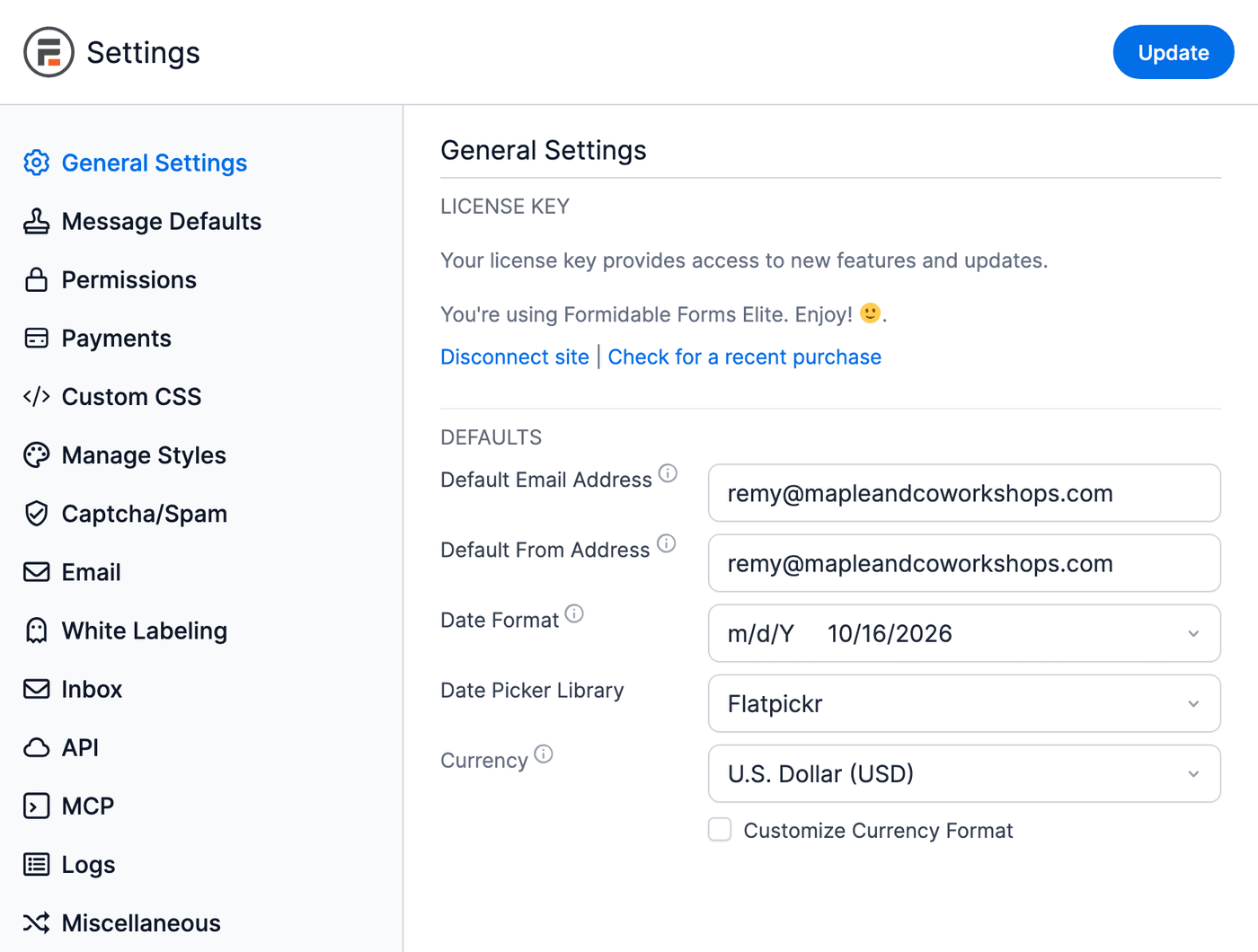
The Global Settings page sets the default behavior that applies to all forms. Some of these global settings can be overridden in an individual field's options or on the form settings page. Each tab of the Global Settings page is described below. Some add-ons, such as Mailchimp and User Registration, add their own tab. Their settings are described in each add-on's article.
Upgrade your WordPress site with powerful, flexible forms.
General Settings
License Key
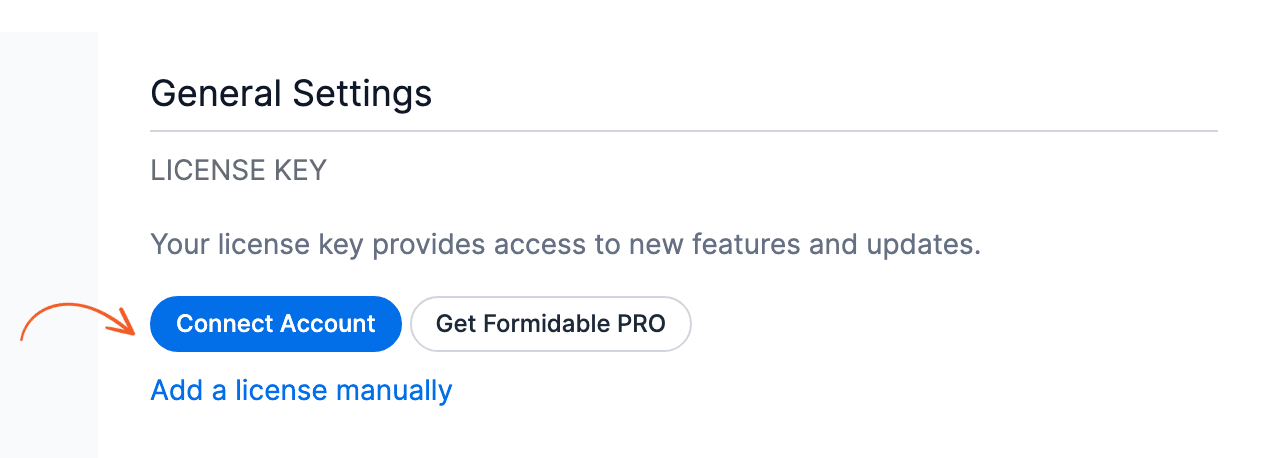
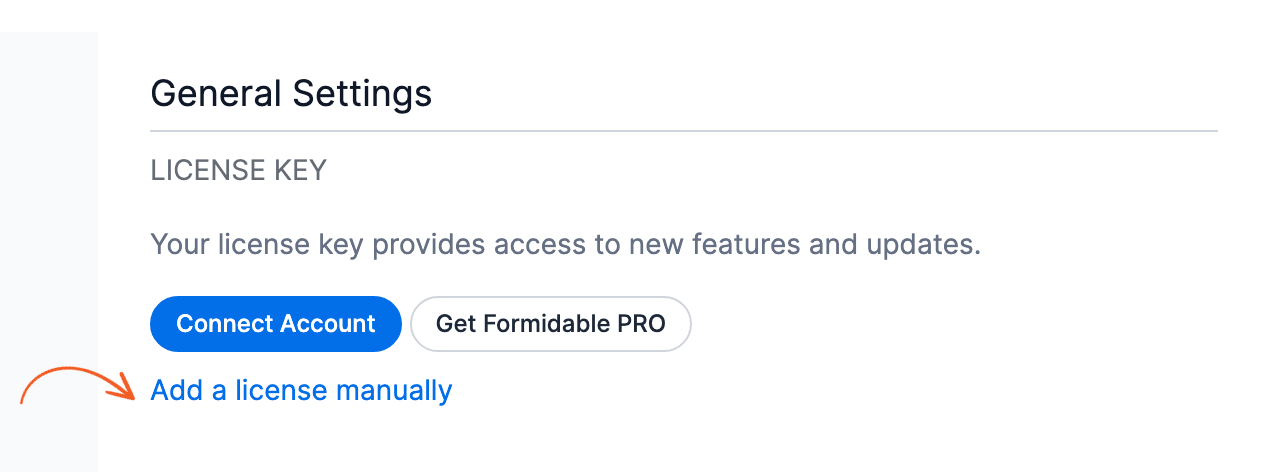
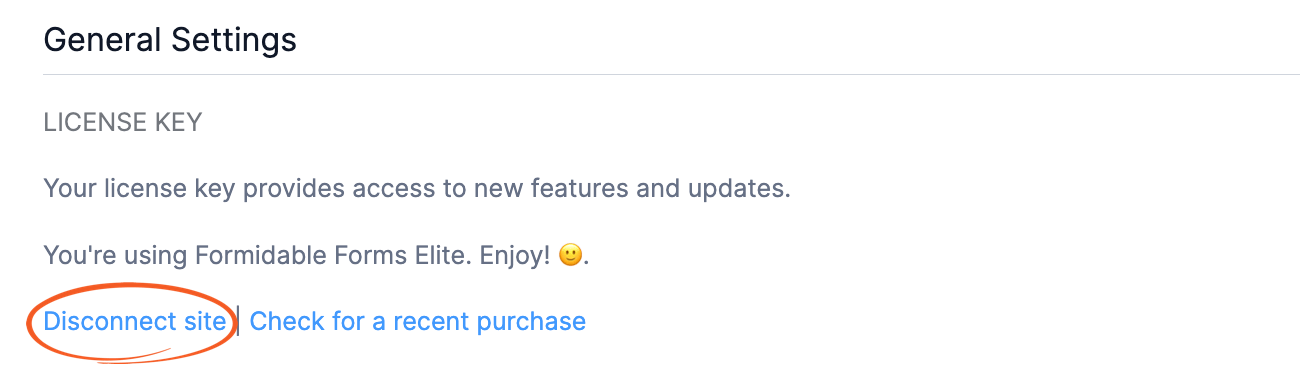
Use this section to enter your license key and activate all the premium features of Formidable Forms. You can also use this section to deauthorize or remove your credentials from a site. Before a license is active, the section shows Connect Account, Get Formidable PRO, and Add a license manually. After it's active, it shows Disconnect site and Check for a recent purchase.
- Connect Account. Click this button if you have an existing Formidable Forms account. You'll be redirected to FormidableForms.com to connect your account. On a site with only Formidable Forms Lite, this button is Connect an Account.

- Add a license manually. Enter your license key to activate Formidable Forms Pro. This key was sent to you when you purchased your license. Learn more about finding your license key on your Account page.
- Disconnect site. This link deactivates your license key on the current site. It's helpful when you deactivate or replace a site.
- Check for a recent purchase. Click this link to refresh your license details on the site, for example right after you buy or upgrade a license.
Default Email
Set the default email addresses that new email notifications use for sending and receiving.
- Default Email Address. The email address to receive notifications about new form submissions.
- Default From Address. The email address the notification is sent from.
Date Format
Use this setting to control the default date format for all date fields in your forms. It doesn't affect the default format when date field values are displayed in your Entries tab, emails, or Views. That format comes from WordPress Settings → General → Date Format.
Date Picker Library
This setting is available on the Basic, Plus, Business, and Elite licenses.
Choose the library that shows the calendar in your Date fields: Flatpickr (the default) or jQuery. Switching to jQuery disables date range selection. Learn more about how to set up a date range.
Currency
Select the currency and its format for your form fields. These adjustments automatically apply to all fields formatted for currency.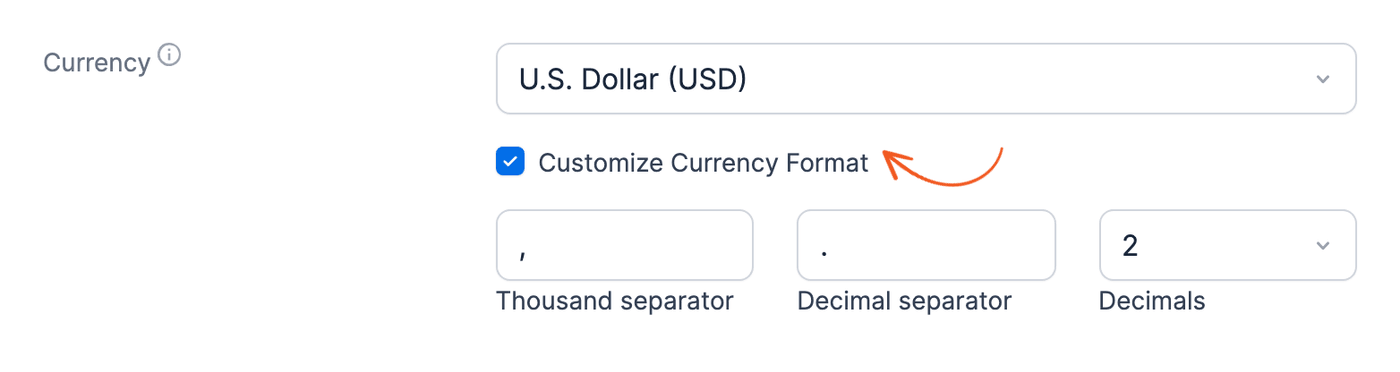
- Currency: The currency used by Formidable globally.
- Customize Currency Format: Check this box to show the Thousand separator, Decimal separator, and Decimals (0 or 2) fields, and set your own format. Customizing the currency format is a premium feature.
Use the frm_currency hook to set a different currency for each form.
GDPR
Check the Enable GDPR related features and enhancements box to activate features and improvements related to GDPR compliance. Learn more about the GDPR compliance settings.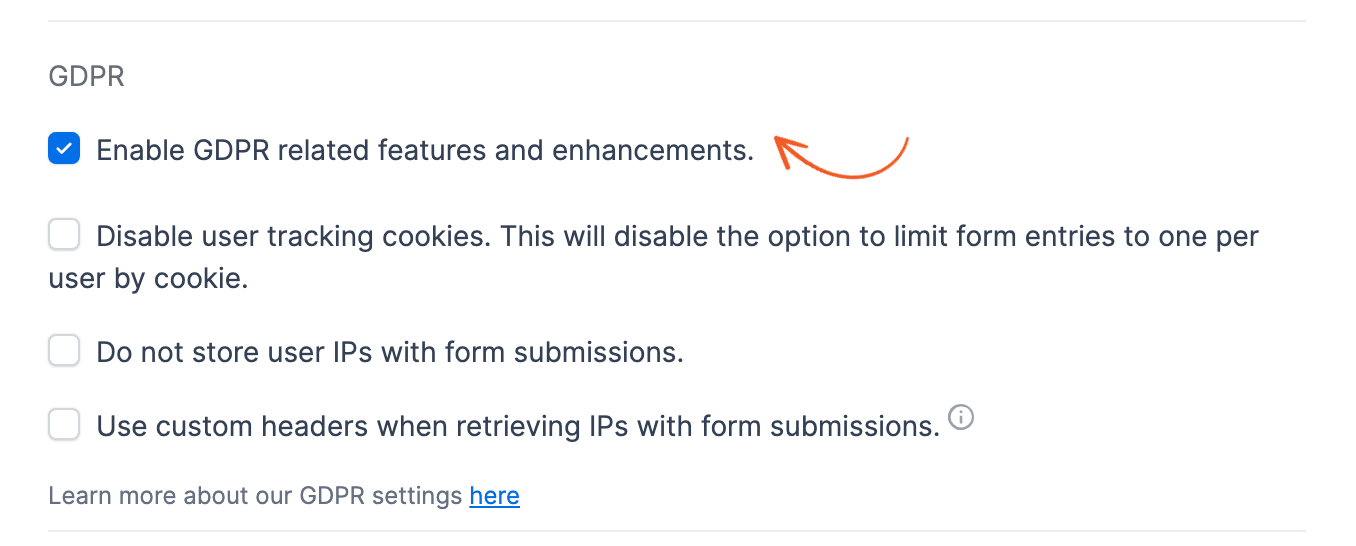
Fade in forms
A form at the top of the page may have fields hidden with conditional logic. You might see those fields displayed for a moment. With this option selected, the whole form fades in.
From Idea to Reality in Minutes. Build Powerful Forms, Dashboards, Apps and More.
Formidable Forms makes advanced site building simple. Launch forms, directories, dashboards, and custom WordPress apps faster than ever before.
Message Defaults
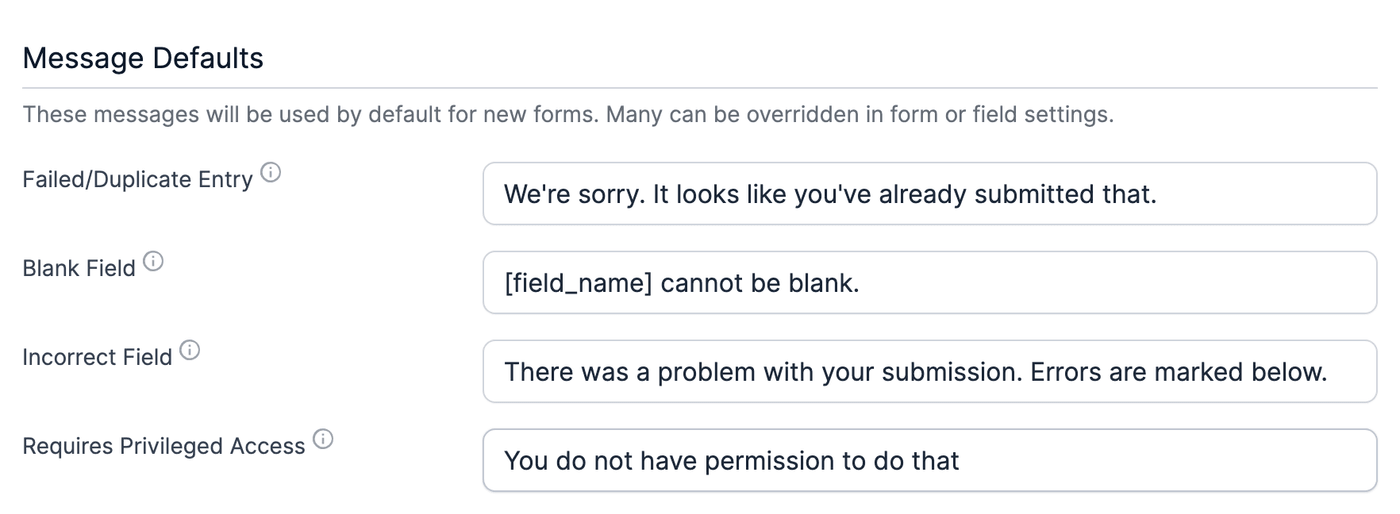
Set the default validation and success messages. These messages are used when they aren't overridden in your form settings or field options.
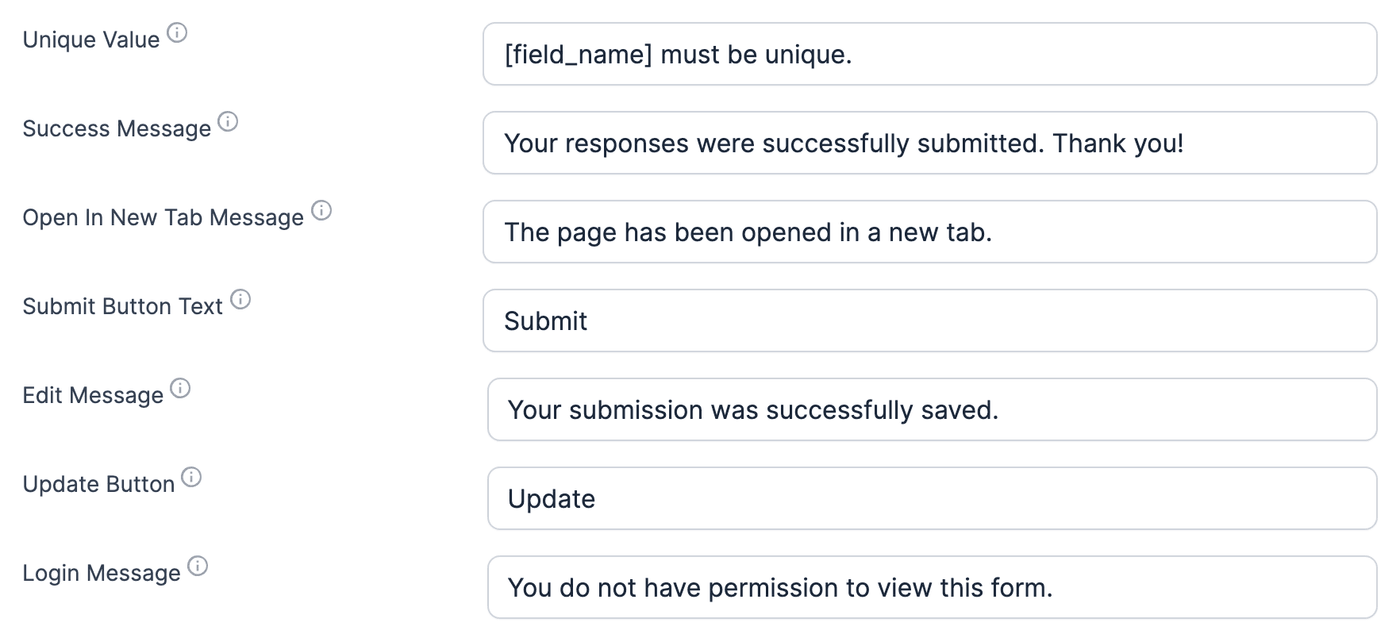
The tab includes these messages:
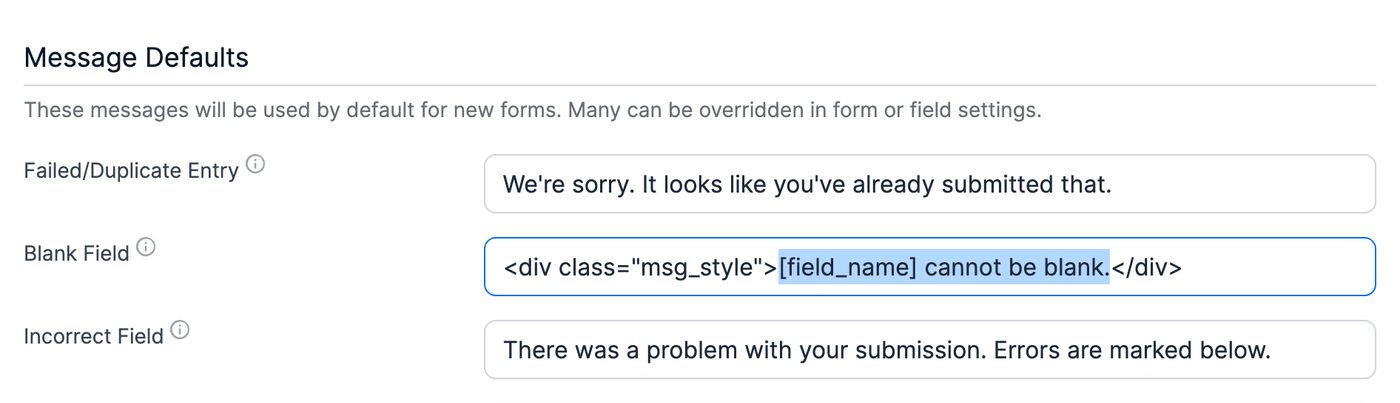
- Failed/Duplicate Entry: Shown when a form is submitted and passes validation, but something goes wrong.
- Blank Field: Shown when a required field is left blank.
- Incorrect Field: Shown when a field response is either incorrect or missing.
- Requires Privileged Access: Shown to users who don't have access to a resource.
- Unique Value: Shown when a user enters a value in a unique field that has already been used.
- Success Message: The default message seen after a form is submitted.
- Open In New Tab Message: Shown after a form opens its redirect URL in a new tab.
- Submit Button Text: The default label for the submit button.
- Edit Message: Shown after an entry is updated.
- Update Button: The label on the submit button when an entry is edited.
- Login Message: Shown when a user who isn't logged in views a form that only logged-in users can submit.
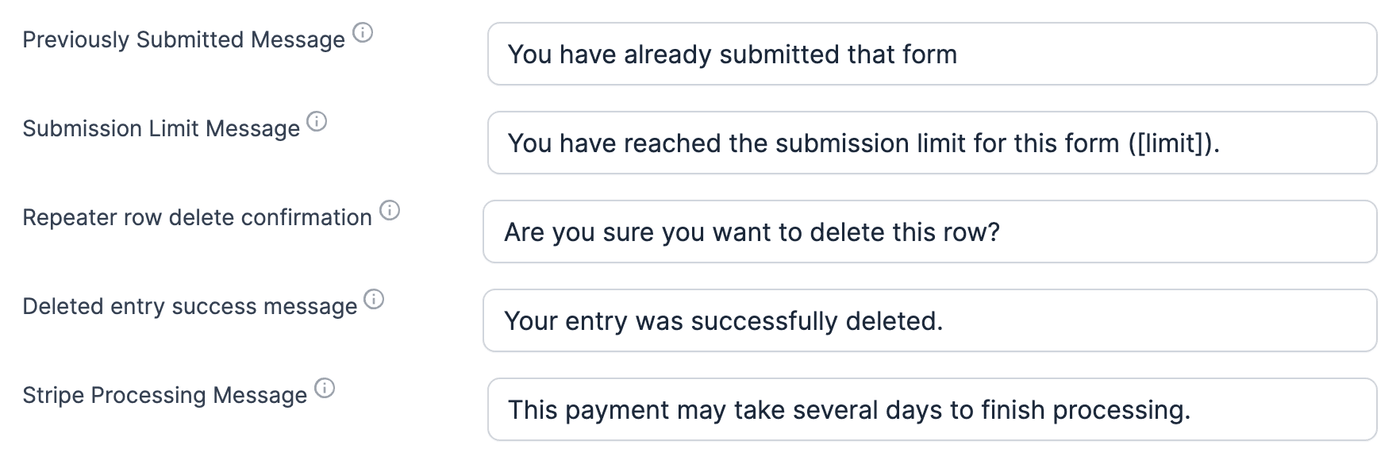
- Previously Submitted Message: Shown when a user tries to submit a form a second time and submissions are limited.
- Submission Limit Message: Shown when a submission count or time period limit is reached. See below.
- Repeater row delete confirmation: The confirmation shown when a Repeater row is deleted.
- Deleted entry success message: Shown when an entry is deleted successfully.
- Stripe Processing Message: Tells users that a Stripe payment is still processing and won't be finalized for several days.
Unique Value, Edit Message, Update Button, Login Message, Previously Submitted Message, Submission Limit Message, Repeater row delete confirmation, and Deleted entry success message need Formidable Forms Pro.
Submission Limit Message
This setting is available on the Basic, Plus, Business, and Elite licenses.
This message shows when a form's entry limit is reached and the limit is anything other than the default of 1 entry in total. The default is "You have reached the submission limit for this form ([limit])." The [limit] shortcode shows the limit, such as "3" or "3 per 1 week".
For the default one-entry limit, the Previously Submitted Message shows instead. Learn more about how to limit the number of form entries.
Customize previously submitted message
Use the code example below to customize the "You have already submitted that form." message for a specific form. The message shows when a user tries to submit a form a second time. This happens when the form's permissions limit entries to 1 in total per logged-in user, IP address, or saved cookie.
function change_already_submitted_message() {
	$settings                    = FrmProAppHelper::get_settings();
	$settings->already_submitted = 'Custom message';
}
$target_form_id = 854; // Change 854 to the ID of your form.
add_action( 'frm_display_form_action', function( $params, $fields, $form ) use ( $target_form_id ) {
	if ( $target_form_id === (int) $form->id ) {
		change_already_submitted_message();
	}
}, 9, 3 );
add_filter( 'frm_validate_entry', function( $errors, $values ) use ( $target_form_id ) {
	if ( $target_form_id === (int) $values['form_id'] ) {
		change_already_submitted_message();
	}
	return $errors;
}, 14, 2 );
Customize failed/duplicate entry message
The "We're sorry. It looks like you've already submitted that." message is used when a form is submitted and passes validation, but something goes wrong. Use the frm_global_failed_msg hook to change this message for a specific form.
Customize incorrect field message
The "There was a problem with your submission. Errors are marked below." message is used when a field response is either incorrect or missing.
A list of the fields with errors follows the message. Each item in the list links to its field, so the user can jump straight to it. To turn the list off, use the frm_show_clickable_field_errors hook.
Use the frm_global_invalid_msg hook to change this message for a specific form.
Set custom message style
To change the styling of a default message, add a custom class and use it in the message.
- Add your custom class in the Formidable → Global Settings → Custom CSS tab, the form's style custom CSS area, or your theme's style.css. You can rename the custom class and adjust the styling as needed. In the Custom CSS tab, click Update to save your changes.
.msg_style { font-weight:bold; color: blue; } - Go to Formidable → Global Settings → Message Defaults and find the message where you want to apply the styling. Wrap the message text in a
divwith your class, as shown below. Then click Update to save your changes.<div class="msg_style">[field_name] cannot be blank.</div>
Permissions
Determine which user types have access to the features of Formidable Forms. These permissions only apply to the back-end features. If a user type is restricted from viewing forms, the entire Formidable menu is hidden for this user type.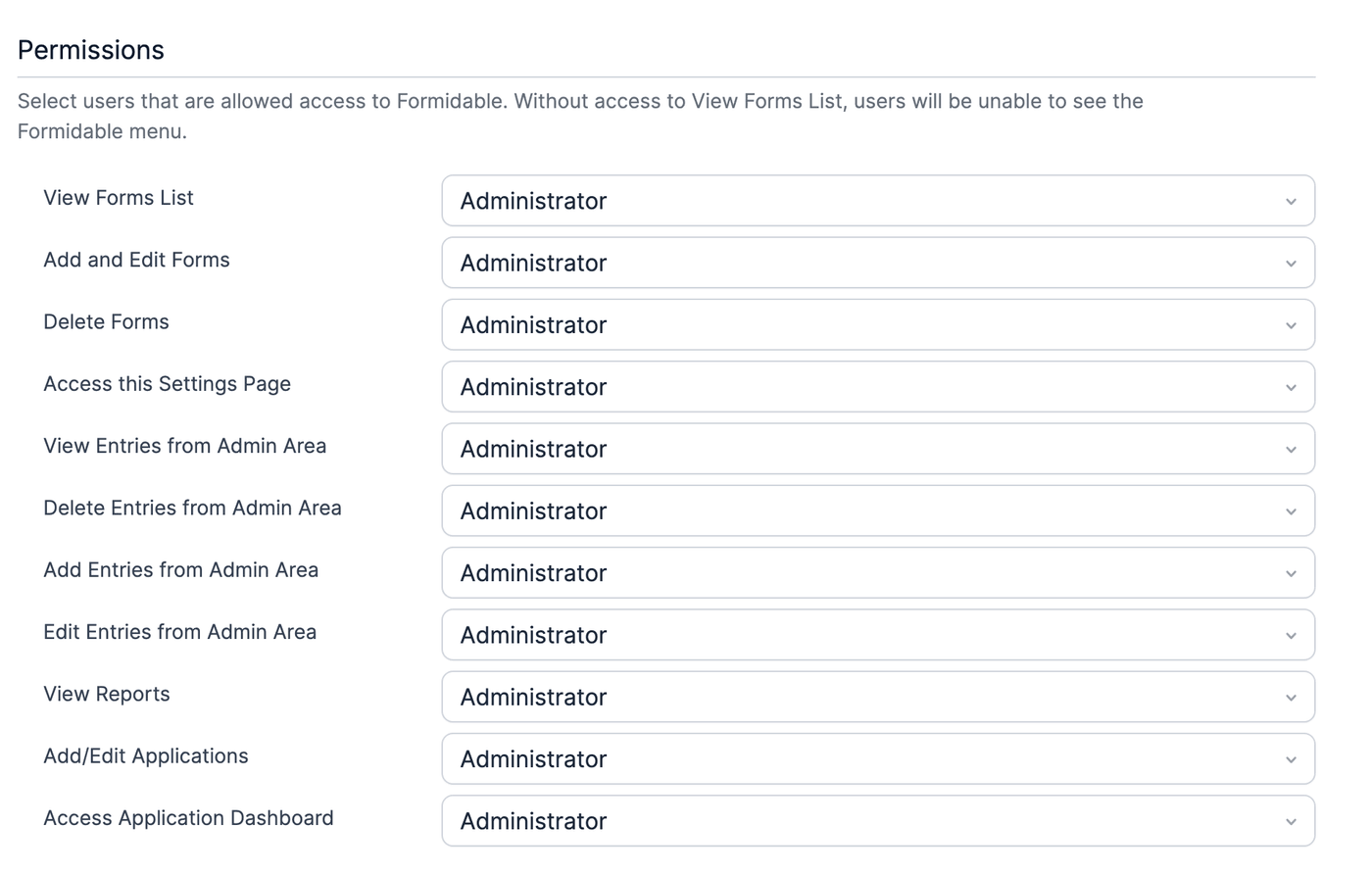
If you're using a role editor plugin, you can use the Formidable capabilities there.
- frm_view_forms: View Forms List
- frm_edit_forms: Add and Edit Forms
- frm_delete_forms: Delete Forms
- frm_change_settings: Access this Settings Page
- frm_view_entries: View Entries from Admin Area
- frm_delete_entries: Delete Entries from Admin Area
- frm_create_entries: Add Entries from Admin Area
- frm_edit_entries: Edit Entries from Admin Area
- frm_view_reports: View Reports
- frm_edit_displays: Add/Edit Views. This row shows when the Formidable Views add-on is active.
- frm_edit_applications: Add/Edit Applications
- frm_application_dashboard: Access Application Dashboard
Payments
The Payments settings are your central spot for managing all your payment methods. There's a tab for each service, so you can control how you handle transactions and their settings. Set up and manage payment options such as Stripe, Square, and PayPal here. When the Authorize.Net add-on is active, the tab also shows Authorize.Net.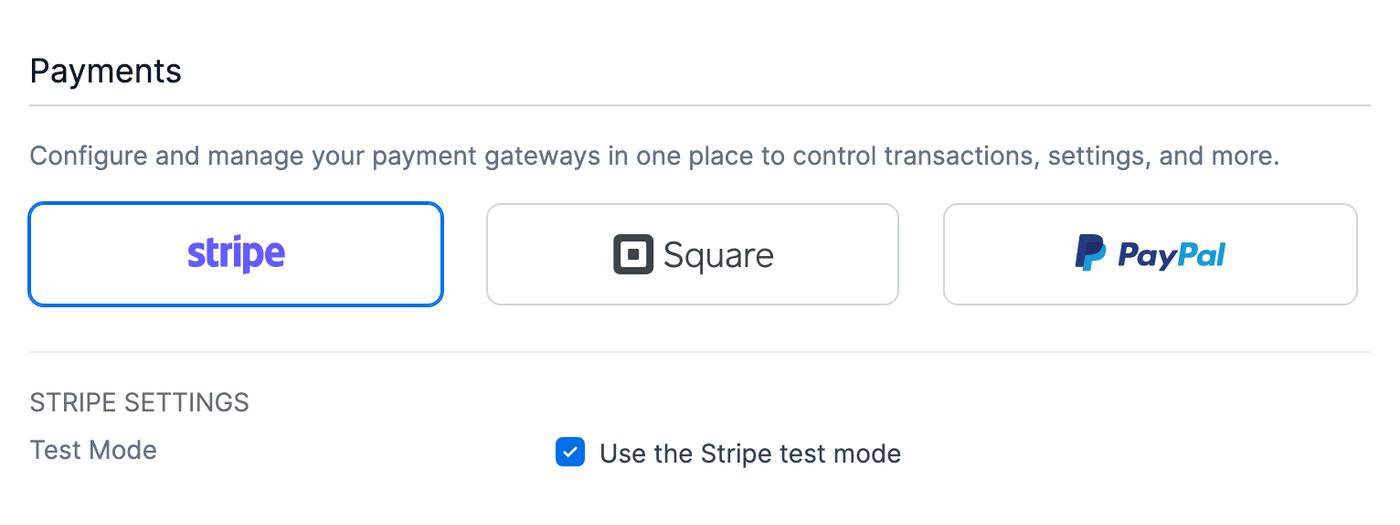
Custom CSS
If you need more styling options than the visual form styler allows, add custom CSS to the Custom CSS tab or your theme's style.css. Styling in the Custom CSS tab is used on every Formidable form that uses Formidable styling.
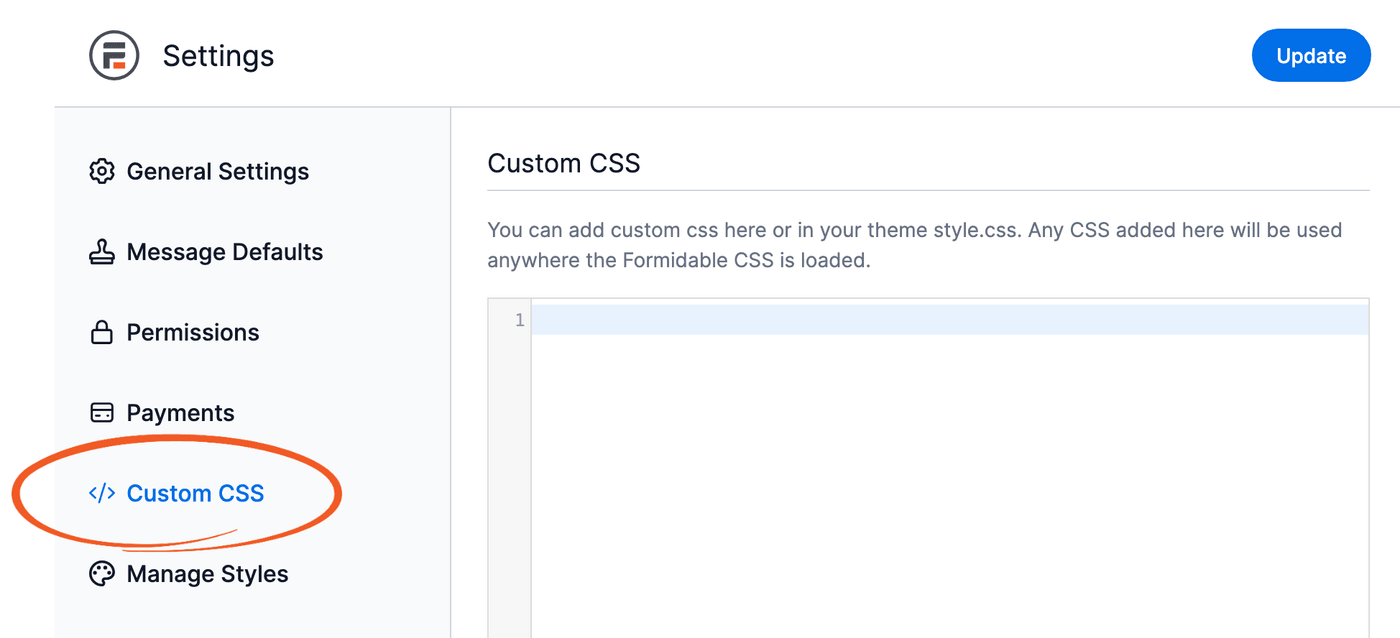
To apply the CSS to only one form style, go to the Styles tab of your form and edit your style. Add the code in the custom CSS area.
Manage Styles
Use Manage Styles to manage the style templates applied to each form and change the styling on all forms that use Formidable styling.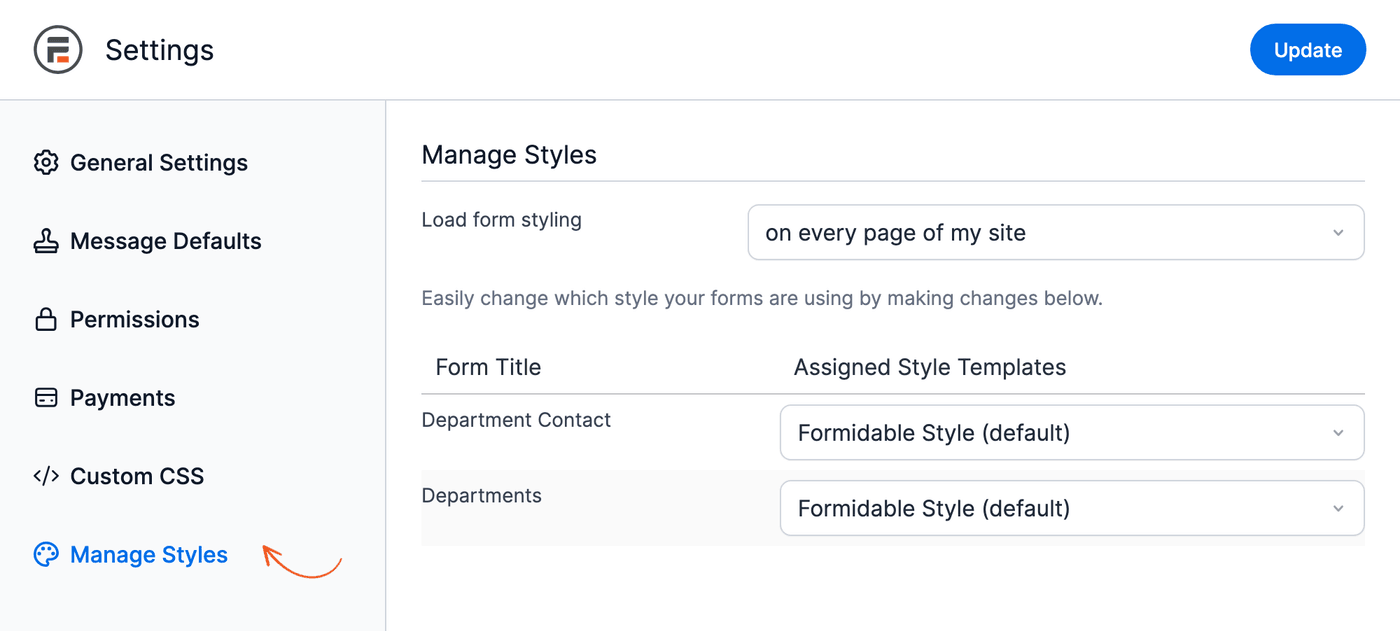
Load form styling
Choose whether to enable or disable the Formidable styling on your site. Select from the following options:
- on every page of my site: Loads the Formidable stylesheet on every page of your site. With this option selected, the CSS is loaded from the head before any forms or Views.
- only on applicable pages: Loads the Formidable stylesheet only on pages containing a Formidable form, View, or another Formidable shortcode. The CSS is loaded in the page content, right before the first form on the page.
- Don't use form styling on any page: None of your Formidable forms receive any Formidable styling. They also don't have access to form layout and grid classes or any other built-in styling. The styling selection on a single form will not override this option.
Captcha
The Captcha/Spam tab holds the captcha and spam protection settings for your forms.
Under Select captcha type, choose reCAPTCHA, hCaptcha, or Turnstile (Cloudflare Turnstile). Changing the captcha type here replaces it in every form that uses it. Then enter the Site key and Secret key in the settings section for that service. For reCAPTCHA, also choose the reCAPTCHA type (Checkbox (V2), Invisible, or v3), the reCAPTCHA language, and whether to Allow multiple reCAPTCHAs to be used on a single page. With v3, set the reCAPTCHA threshold between 0.0 and 1.0. A higher threshold blocks more submissions. The default is 0.5.
Get more information on setting up Google reCAPTCHA, hCaptcha, or Cloudflare Turnstile in your forms.
Spam checks
Expand Customize how spam submissions are handled to choose which checks run and what happens when one flags a new submission. For each check, choose Save as a spam entry or Reject with an error message.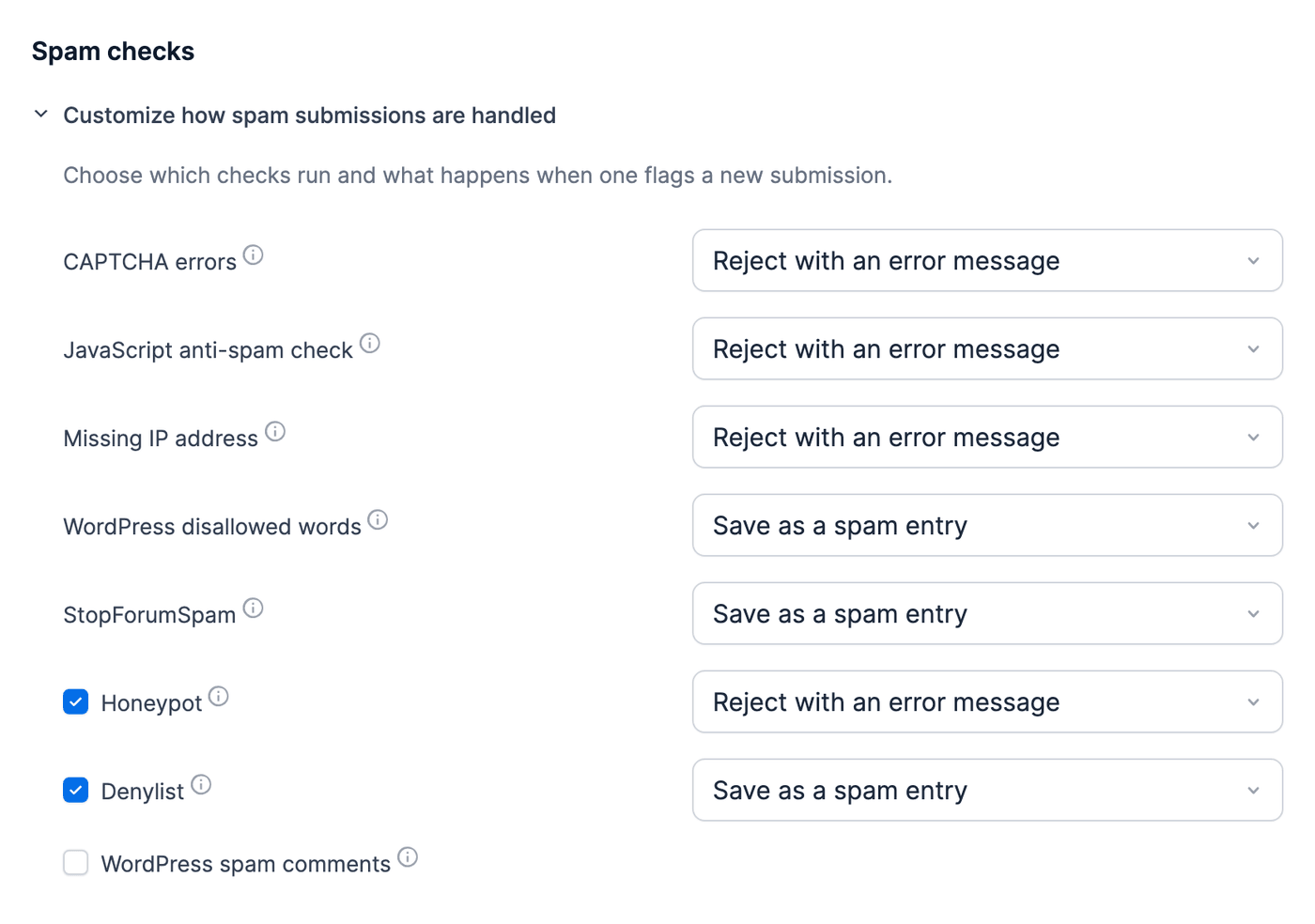
- CAPTCHA errors, JavaScript anti-spam check, Missing IP address, WordPress disallowed words, and StopForumSpam always run.
- Honeypot, Denylist, and WordPress spam comments can be turned off with their checkbox.
- When the Akismet plugin is active, the list also shows Akismet spam and Akismet blatant spam.
Expand Customize denylist words to add Custom disallowed words and Custom allowed words, one word or phrase per line. Allowed words are never flagged, even when they're on the denylist. This section shows while the Denylist check is on.
Spam entries
Saved spam entries go to the Spam tab of the entries list. They never trigger form actions, and the submitter sees the normal success message.
Use Delete spam entries automatically to permanently delete older spam entries: Never, or after 7, 15, 30, 60, or 90 days. The default is After 30 days. Deleting spam entries automatically is a premium feature.
Learn more about the spam settings on this tab in Add Spam Protection.
Choose how your email notifications look, and send a test email.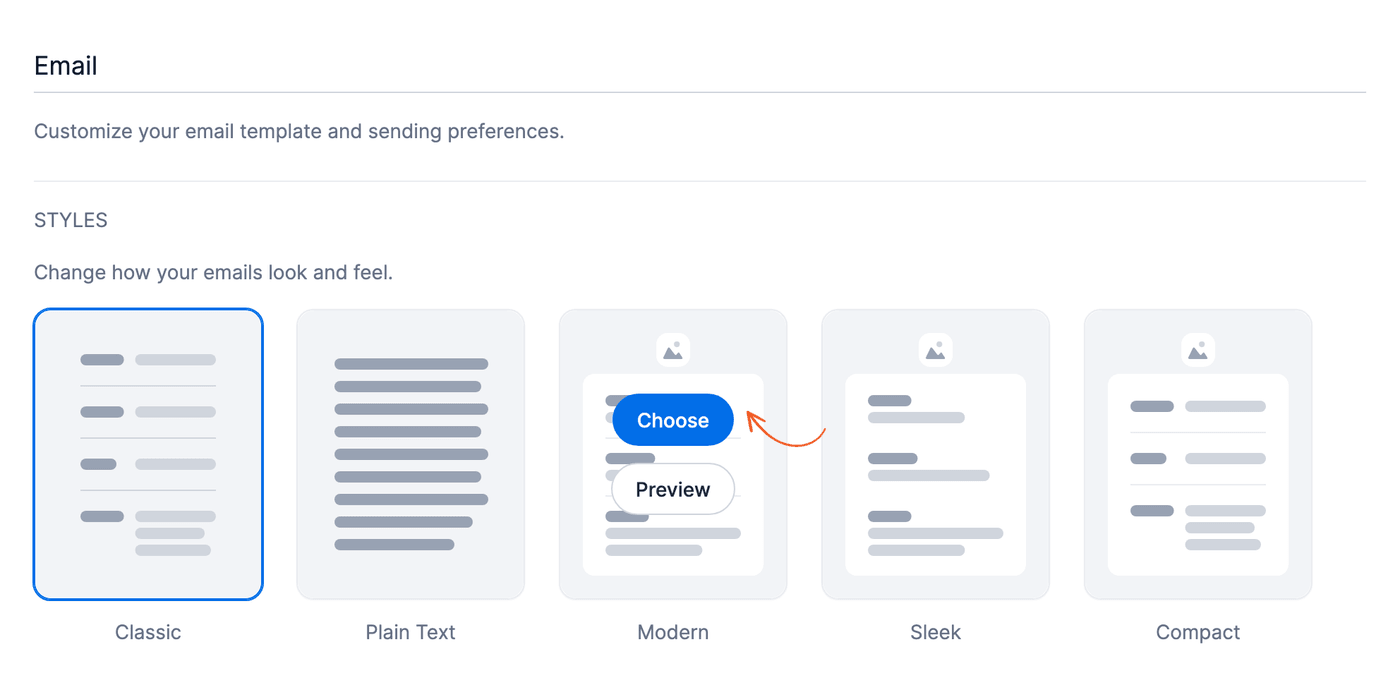
Styles
Choose the default style for your email notifications:
- Classic: The default style. It uses the colors from your Formidable styles.
- Plain Text: Sends the email as plain text, with no formatting.
- Modern, Sleek, and Compact: Styled layouts that use the Header Image, Color Scheme, and Typography settings below. These styles are a premium feature.
Hover over a style to show its buttons. Click Choose to select the style, or Preview to see a sample email in a new tab. Then click Update to save your changes. The selected style is marked (Default) in the Email Style dropdown of each Send Email action, where you can choose a different style for that email. Learn more about customizing the email message.
Header Image, Color Scheme, and Typography
These settings are available on the Basic, Plus, Business, and Elite licenses.
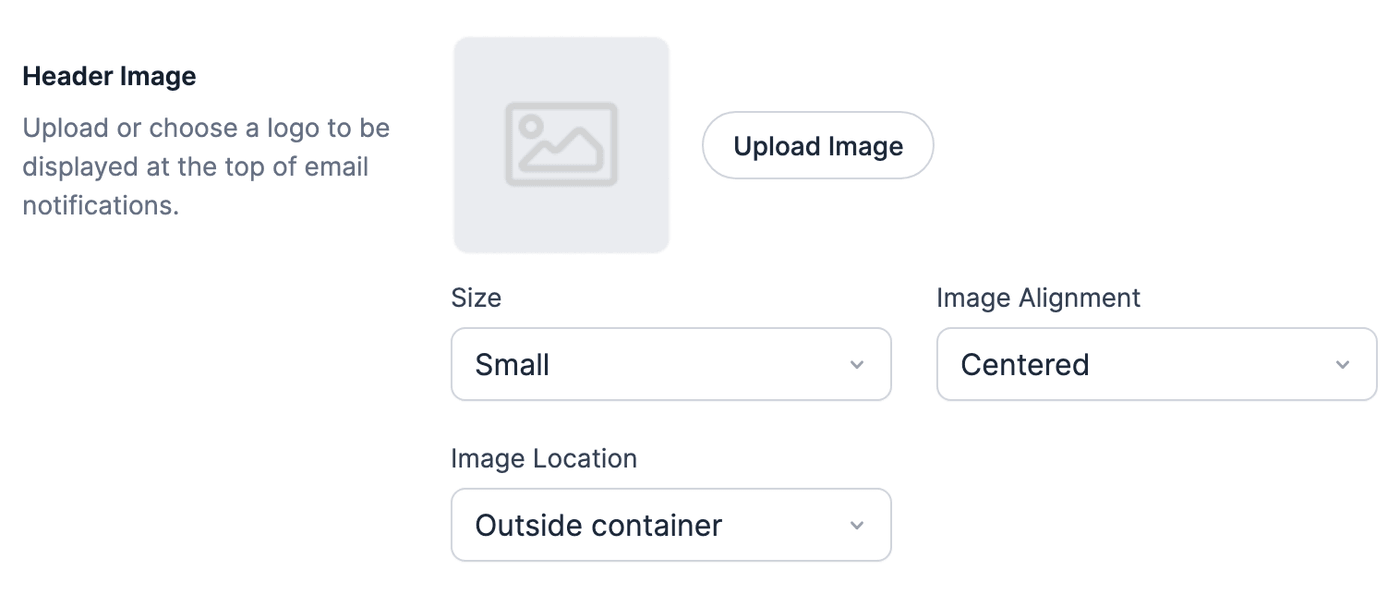
These settings apply to the Modern, Sleek, and Compact styles.
- Header Image: Upload or choose a logo to show at the top of email notifications. Set its Size (Small, Medium, or Large), Image Alignment (Centered, Left, or Right), and Image Location (Outside container or Inside container).
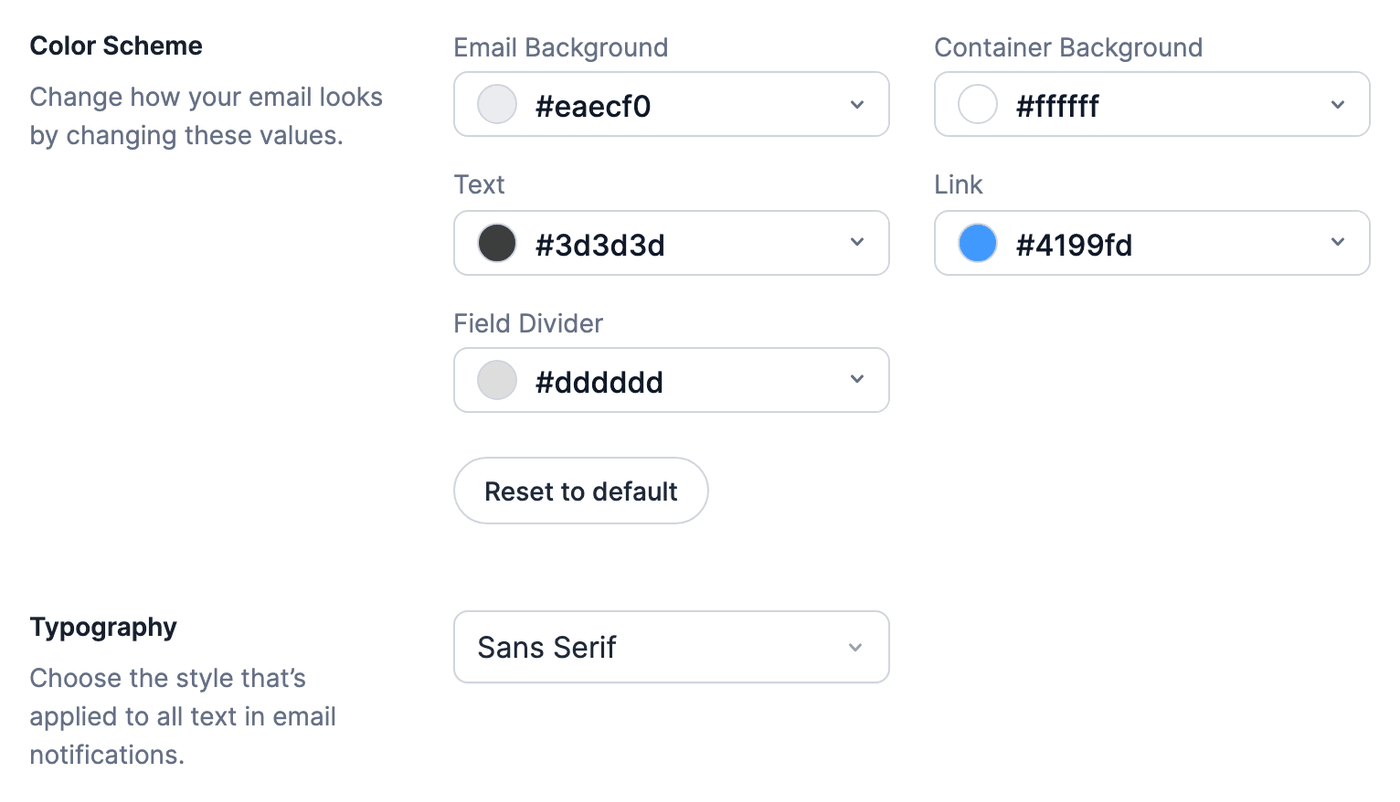
- Color Scheme: Set the Email Background, Container Background, Text, Link, and Field Divider colors. Click Reset to default to go back to the default colors.
- Typography: Choose Sans Serif or Serif for all text in email notifications.
Send a test email
Click Send a test email, enter one or more email addresses separated by commas, and click Send Email. The test email uses the saved email style, so click Update first if you changed it.
White Labeling

Plugin label
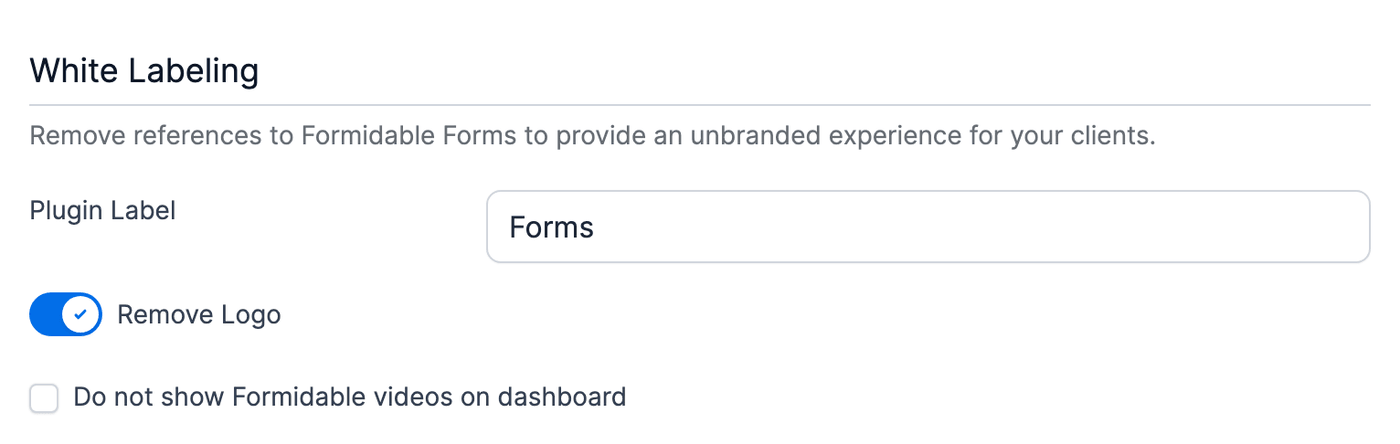
This option changes the name of the Formidable menu item in your admin section. Replace Formidable with the name you want for the menu item.
Plugin icon
White label your forms by removing the icon for the Formidable plugin. When the Remove Logo toggle is selected, the Formidable logo is replaced in the block icons in the WordPress Block editor. It's also replaced in the admin menu and the shortcode builder button in the Classic editor.
Formidable videos
When you white label your website, you can also hide the Formidable Forms videos on the dashboard. This option appears only after Remove Logo is turned on and saved.
- Toggle on Remove Logo and click Update.
- Select the Do not show Formidable videos on dashboard checkbox, and click Update again.
Inbox
Get notified when there are new features, sales and promotions, database upgrades, critical notices, or requests for a review or feedback. Never miss any important messages from Formidable.
In the Inbox settings, choose which messages to show. By default, all options are enabled. Not all types of messages can be disabled.
- Show unread message count in menu
- Sales and promotions
- New features
- Requests for feedback
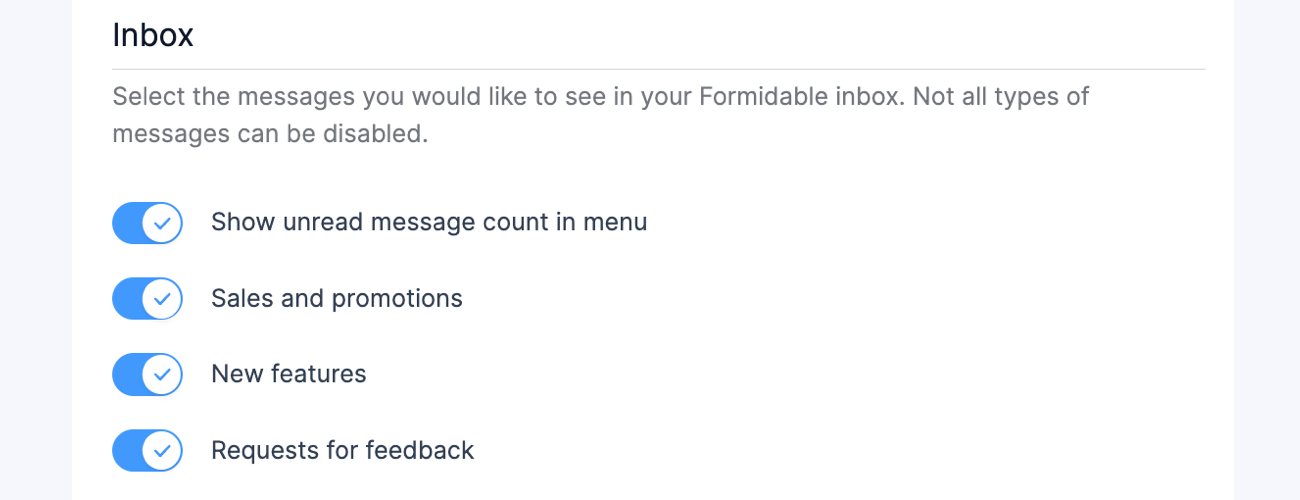
Site administrators and users with permission to change Formidable settings get notified when there is a new message. To keep a user type from seeing it, give those users a lower role.
Find the messages in your inbox on your Dashboard.
API
These settings need the Formidable API add-on, which is available on the Business and Elite licenses.
Use the API settings to control REST API access and embeds. Install and activate Formidable API under Formidable → Add-Ons before you use these settings. Until the add-on is active, the API tab says the API settings aren't installed. If your license includes the add-on, click Activate on the tab to install and activate it. Otherwise, the tab shows a button to upgrade.
REST API
Turn on REST API to register the Formidable REST API routes. Turn it off to disable the Formidable REST API v2 and v3 routes.
- API Key: Copy this value only when an integration requires the legacy Formidable API key. This key gives the request administrator access.
- Generate Key: Replace the current API key. After you generate a new key, update any integration that used the old one.
For REST API v3, Abilities API, and MCP requests, use a WordPress Application Password for a dedicated user with only the required Formidable permissions.
See the Formidable REST API endpoint reference for the current REST routes.
Embeds
Turn on Embeds to permit Formidable forms and Views to appear on other domains.
- Limit where forms and views are embedded: Restrict embeds to approved domains.
- Allowed Domains: Add each domain that can embed your forms or Views. This list appears after you check Limit where forms and views are embedded.
MCP
Use the MCP settings to connect an AI assistant, such as Claude Code or Codex, to your site. MCP is the Model Context Protocol. A compatible AI client uses it to discover and run approved Formidable operations.
The MCP settings are part of Formidable Forms 7.0 and newer, including Formidable Forms Lite. They don't need a license or the API add-on.
If Formidable API add-on 2.0.1 or older is active, the MCP tab doesn't appear. Versions 2.0 and 2.0.1 keep the MCP toggle on the add-on's API tab instead. Update the add-on to version 2.0.2 or newer to manage MCP from the MCP tab.
Enable the Formidable MCP server
Toggle on Enable the Formidable MCP server to register the Formidable MCP server and the Formidable abilities. When it's off, Formidable doesn't register its MCP server or its abilities.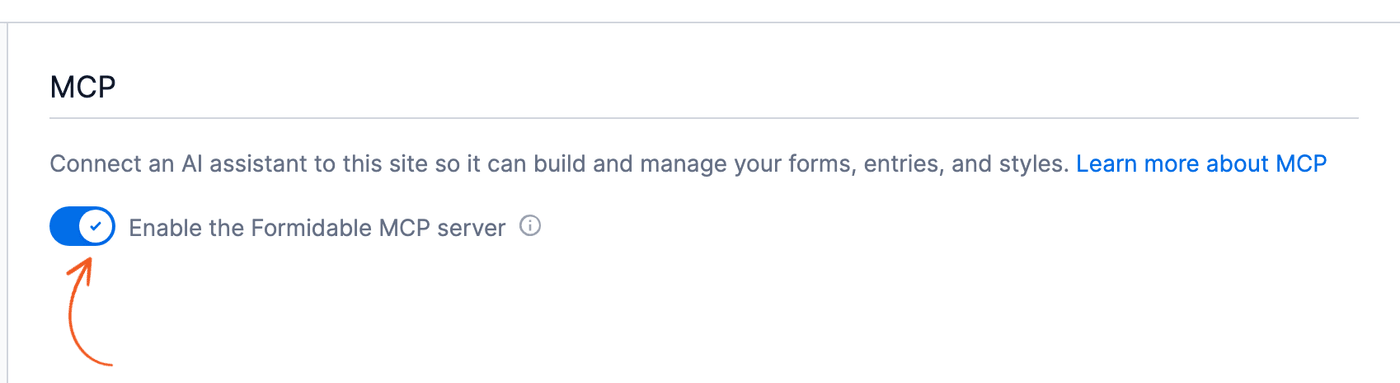
When you toggle it on, the tab shows the settings below. Click Update to save your changes before you download a connection file.
- 1. Download your connection file: Click Download frm-mcp.env to download a connection file with a new Application Password for your account. After the first download, the button reads Download a new file. The password only works with the Formidable MCP server. After a download, reload the page to see the Manage 1 connection file link. The number in the link matches your connection files. Click it to see when each file was created and last used, and click Revoke to disconnect its assistant.
- 2. Connect your AI assistant: Select Claude Code or Codex, then click Copy setup prompt and paste the prompt into your assistant. The prompt installs the Formidable skill, adds your connection file, and tests the connection. To install the skill yourself, open Install the skill manually and click Download the skill.
- MCP Connections: Who has connected, and what they asked for most recently. The table shows the Client, the User (the WordPress user), Last Active, and Recent Requests. It shows No connections yet until an HTTP client connects. It doesn't include local WP-CLI connections, and it's a recent activity summary, not a complete audit log.
Learn more about how to connect Formidable Forms to your AI agent with MCP.
See Use the Formidable Abilities API for the ability catalog and direct WordPress Abilities API requests.
Logs
This tab needs the Formidable Logs add-on, which is available on the Business and Elite licenses.
The Logs tab appears when the Formidable Logs add-on is active. Learn more about logging.
- Automatically delete log entries every 30 days: Check this box to delete old log entries once a month. The logs from the last week are kept. While it's on, the tab shows the date of the next cleanup. To keep a different period, use the frm_logs_cron_remains hook.
Miscellaneous
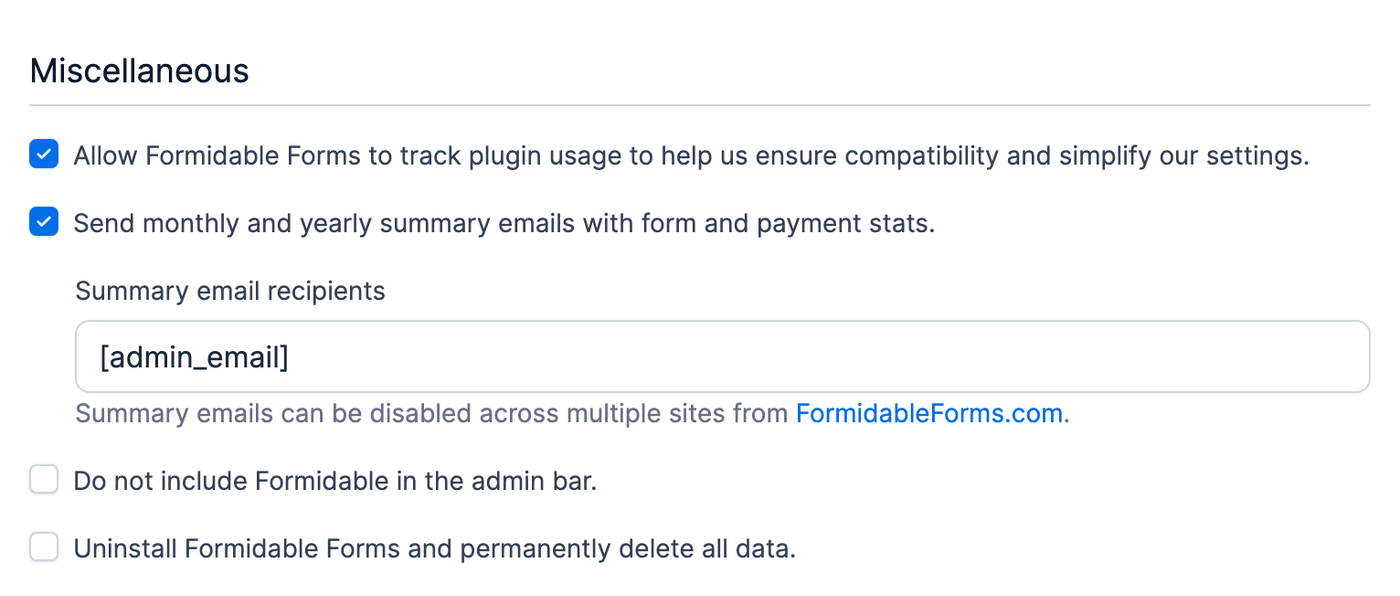
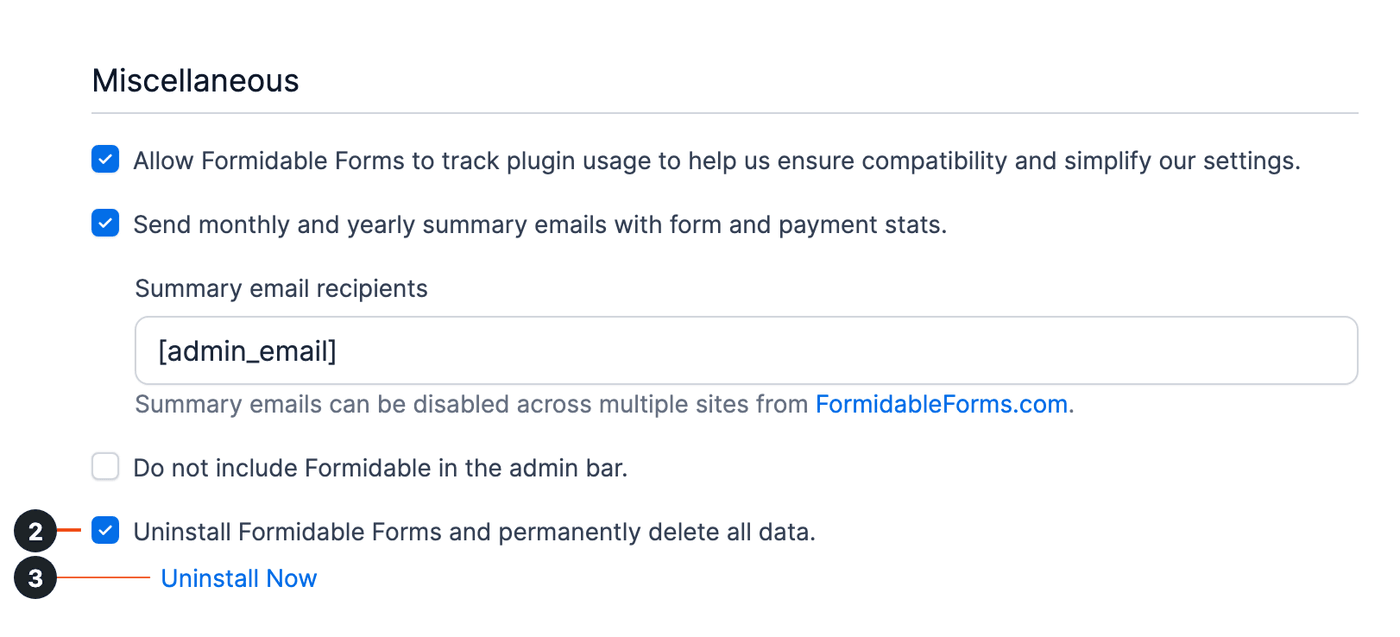
Usage Tracking
Usage tracking for Formidable Forms helps us better understand our users and their website needs by looking at a range of server and website environments. It's completely anonymous and allows us to continuously improve our product as well as our Q&A and testing process.
Formidable Forms collects this information as part of the usage tracking:
- PHP version: so we know which PHP versions to test against (no one likes white screens or log files full of errors).
- WordPress version: so we know which WordPress versions to support and test against.
- Formidable Forms version: so we know which versions of Formidable Forms are potentially responsible for issues when we get bug reports. This helps us identify issues and release solutions much faster.
- Theme and plugin names and versions: so we know which themes and plugins to support and test against. While we can't test with all 50,000+ plugins, we do our best to test against the top plugins from this list.
- Formidable Forms settings: so we know which settings people are using. This shows us which new settings or areas of Formidable Forms people want us to expand on, and which settings aren't being used. No sensitive settings are collected.
If you don't want to share this data with us, opt out at any time. Go to Formidable → Global Settings → Miscellaneous and uncheck Allow Formidable Forms to track plugin usage to help us ensure compatibility and simplify our settings.
Admin bar
Since WordPress 5.4, the admin bar is loaded before all of the content for accessibility reasons. This makes it very difficult to reliably get a list of forms and Views for the admin bar without a lot of extra processing. If you require the admin bar accessibility feature, check the Do not include Formidable in the admin bar box.
Summary Email
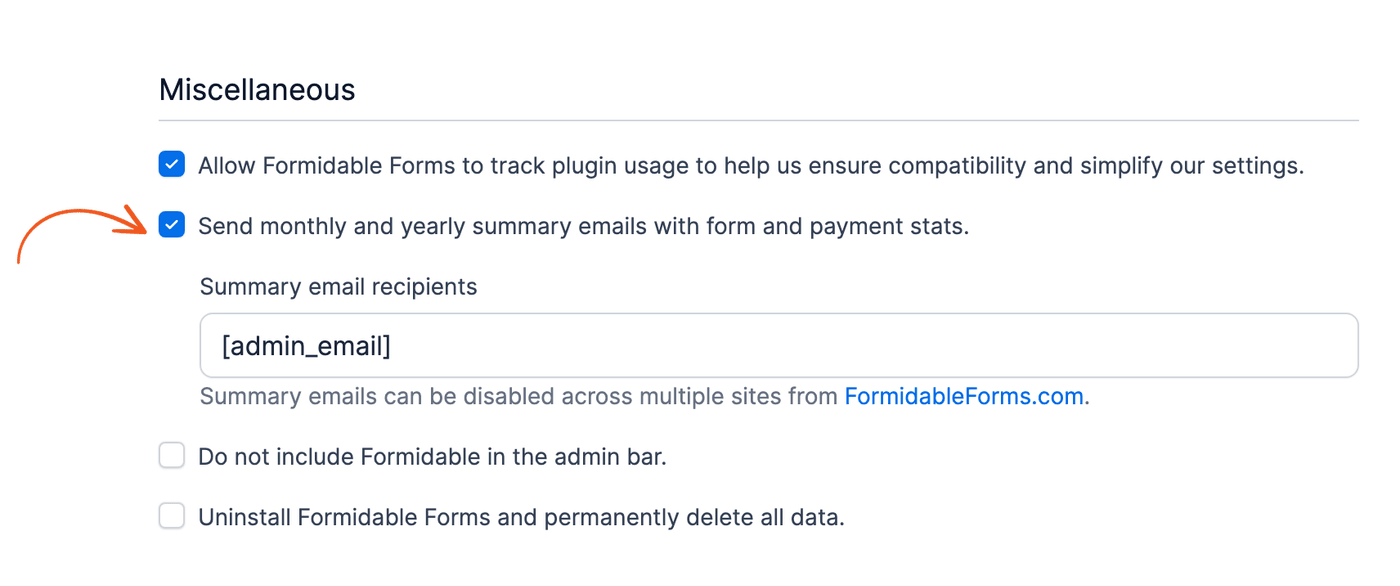
Summary emails are sent automatically each month, with relevant Formidable data from the previous month or year. A summary email also alerts you when your license is about to expire, so you can take timely action to avoid any interruptions.
By default, the Send monthly and yearly summary emails with form and payment stats checkbox is enabled. With it checked, the Summary email recipients field appears below it. Add more email addresses there, separated by commas. On the Business and Elite licenses, a line under the field links to FormidableForms.com, where you can turn off summary emails for several sites at once.
A summary email has 3 parts:
- Main content. This varies based on the email type.
- Formidable Signature. It remains the same for all the summary emails. However, if the white label in the Global settings isn't set as Formidable, this section isn't displayed.
- Unsubscribe link. Directs users to the Miscellaneous section in Formidable → Global Settings. Every link included in the summary email contains tracking data.
There are 3 types of email:
- Expired license email. After the license expires, you receive a "License Expired" email. It arrives the same day if the daily event for that day hasn't run, or the next day if it has already run. This email contains a link to renew the license and is sent only once.
- Monthly email. The monthly email is triggered 15 days after updating the plugin. It continues to be sent every 30 days after that, provided the daily event runs daily. It includes the number of entries created, payments collected, top submitted forms, and out-of-date plugins.
- Yearly email. There is one special monthly email each year. The yearly email is triggered when the date for sending that email falls in one of these cases:
- At least 365 days from the last yearly email sent.
- Less than 45 days until the license renewal date. The renewal date is either the actual renewal date or 365 days after the first form was created.
Uninstall Formidable
To uninstall Formidable and delete all forms, entries, Views, styles, and all other Formidable data:
- Go to Formidable → Global Settings → Miscellaneous.
- Select the Uninstall Formidable Forms and permanently delete all data option (2).
- Click the Uninstall Now link that appears below the checkbox (3). A prompt asks you to confirm this action.