
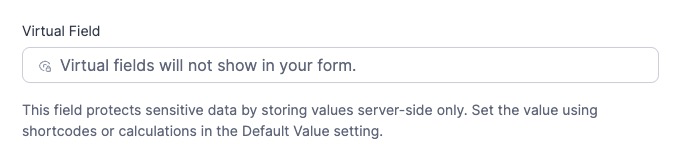
The Virtual Field stores values server-side only and never renders any HTML on the front end of your form. Unlike hidden fields or read-only fields, the data is completely invisible to users and cannot be viewed or edited through browser DevTools. Use Virtual Fields to securely store default values, calculations, and lookup data that must remain protected from manipulation.
Upgrade your WordPress site with powerful, flexible forms.
How to add a Virtual Field
To add a Virtual Field to your form:
- Go to your form in the Form Builder.
- Click the Add Fields tab on the left sidebar.
- Scroll down to the Advanced Fields section or type "virtual" in the search box.
- Click Virtual Field to add it to your form.
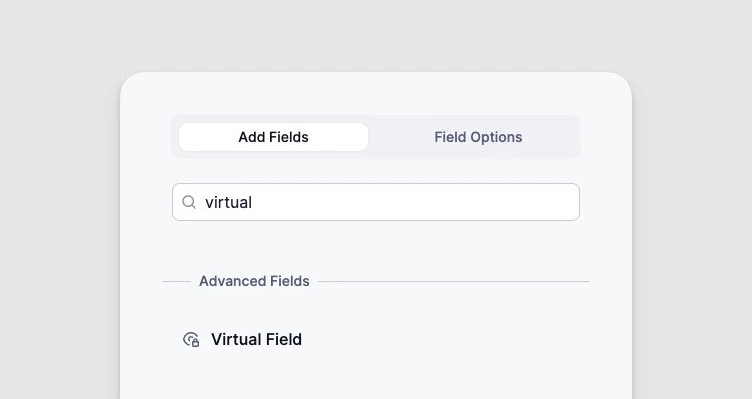
The field will appear in the form builder with a disabled textbox and a message: "Virtual fields will not show in your form." This is expected behavior. The field only processes and stores data on the server when the form is submitted.
From Idea to Reality in Minutes. Build Powerful Forms, Dashboards, Apps and More.
Formidable Forms makes advanced site building simple. Launch forms, directories, dashboards, and custom WordPress apps faster than ever before.
Field options
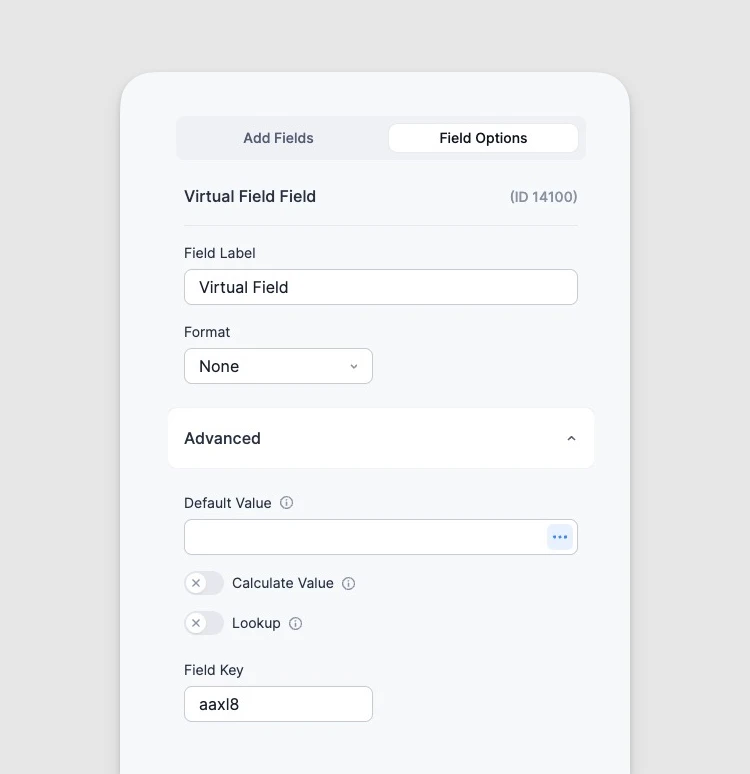
A Virtual Field has the following options:
- Field Label: Used to identify the field in the admin entry list, email notifications, and Views.
- Format: Set the format for the stored value (e.g., None, Number, Currency).
- Default Value: Set a static value or use shortcodes to populate the field dynamically.
- Calculate Value: Build a server-side calculation based on other fields in the form.
- Lookup: Pull a value from entries in another form.
- Field Key: A unique identifier for referencing this field in shortcodes and custom code.
Because Virtual Fields do not render on the front end, the following settings are not available: Required, Label Position, CSS Layout Classes, Field Size, Unique, Read Only, Visibility, Conditional Logic, and Description.
How it works
The Virtual Field has three ways to set its value. All processing happens on the server during form validation, so values are never exposed in the browser.
Default value
Set a static value or use dynamic default value shortcodes. Common examples include:
- Securely store the logged-in user's ID:
[user_id]
- Capture a URL parameter without exposing it in a hidden field:
[get param=source]
- A fixed value like a discount percentage or internal reference code.
Calculate value
Use field calculations to compute a value based on other fields in the form. The calculation runs on the server during form validation, so the result is never visible in the browser. This is useful for computing totals, scores, or derived values that should not be exposed.
Lookup
Use the Lookup option to pull a value from entries in another form. For example, you could look up a student's grade level based on their student ID or retrieve a customer's account balance from a separate data form.
Use cases
Protect pricing from manipulation
Store product prices or discount percentages as a Virtual Field so users cannot inspect or edit the values through browser DevTools. A regular hidden field renders as an <input type="hidden"> in the HTML source and can be changed by anyone with basic browser knowledge.
Secure server-side totals for payments
Calculate an order total using a Virtual Field instead of a front-end Total field when you need to guarantee the amount cannot be tampered with before submission. Combine this with a payment action for tamper-proof checkout flows.
Store the logged-in user ID securely
Capture who submitted the form by setting
[user_id]
as the default value. Unlike a User ID field or hidden field, the Virtual Field value cannot be spoofed by modifying the HTML.
Internal scoring or grading
Build a calculation that assigns a score based on form responses. For example, a quiz form could calculate the total correct answers in a Virtual Field without revealing the answer key or scoring formula to the person filling out the form.
Auto-populate account data via lookup
Use the Lookup option to pull related records from another form. A school enrollment form could look up the student's advisor name, or an order form could retrieve the customer's shipping address from a contacts form.
Tax or commission calculations
Compute tax amounts or sales commissions on the server based on form inputs. The formula and intermediate values stay hidden, and the final value is stored with the entry for use in emails, Views, or exports.
Secure role-based routing
Store a value that drives email routing or redirect logic in your form actions. Since the value is not in the front-end HTML, users cannot manipulate it to change which email is sent or where the form redirects after submission.
Display Virtual Field values
Display the value stored in a Virtual Field in a form's confirmation message, email notification, or View.
Shortcode options
- Display value: Show the stored value. Replace x with the ID or key of the Virtual Field.
[x]
Virtual Field values are included in the
[default-message]
shortcode, so they will appear automatically in email notifications that use the default message content.
Where Virtual Field data appears
- Admin Entries page: The value appears on the View and Edit Entry pages. On the Edit Entry page, it is displayed as a disabled textbox and cannot be edited.
- Email notifications: The value is included in
[default-message]
and can be referenced with the field's shortcode.
- Views: Use the field shortcode to display the value in any View.
- CSV exports: The field is included as a column when you export entries to CSV.
- Formidable API: The value is accessible through the Formidable Forms API like any other saved field.
Virtual Field vs Hidden Field vs Read Only
Use the table below to decide which field type fits your needs.
| Feature | Virtual Field | Hidden Field | Read Only |
|---|---|---|---|
| Visible in HTML source | No | Yes | Yes |
| Users can manipulate via DevTools | No | Yes | Yes |
| Shows on the form | No | No | Yes (disabled input) |
| Supports front-end conditional logic | No | Yes | Yes |
| Saves data to entries | Yes | Yes | Yes |
| Available in emails and Views | Yes | Yes | Yes |
| Editable on admin entry page | No (read-only) | Yes | Yes |
When to use a Virtual Field: Choose this when the stored value must not be visible or editable on the front end, such as pricing data, internal scores, or secure user identifiers.
When to use a Hidden Field: Choose this when you need a non-visible field that can still participate in front-end conditional logic or be prefilled via URL parameters.
When to use Read Only: Choose this when you want the user to see the value on the form but not change it, such as displaying a calculated total before submission.
Known limitations
- Virtual Fields cannot be used as a trigger in field conditional logic because there is no front-end element to evaluate. They can still be used as conditions in email and other form action settings, since those run on the server.
- The value cannot be edited on the admin Edit Entry page. It is always displayed as a disabled textbox.
- Front-end CSS and layout classes do not apply since the field does not render any HTML on the form.
- The Required, Unique, Visibility, and Description settings are not available for Virtual Fields.
