
Formidable Forms makes it easy to perform calculations using values entered in your form. You may perform basic numeric calculations, separate value numeric calculations, or text calculations in a calculated field. Since Formidable is also a WordPress calculator plugin, you've got all the powerful and flexible options available for any project.

Upgrade your WordPress site with powerful, flexible forms.
Numeric calculations
To create a calculated fields form with numeric values shown in the form, follow the directions below.
- Go into edit your form.
- Add the Number fields you want to use in the calculation, such as a length and a width.
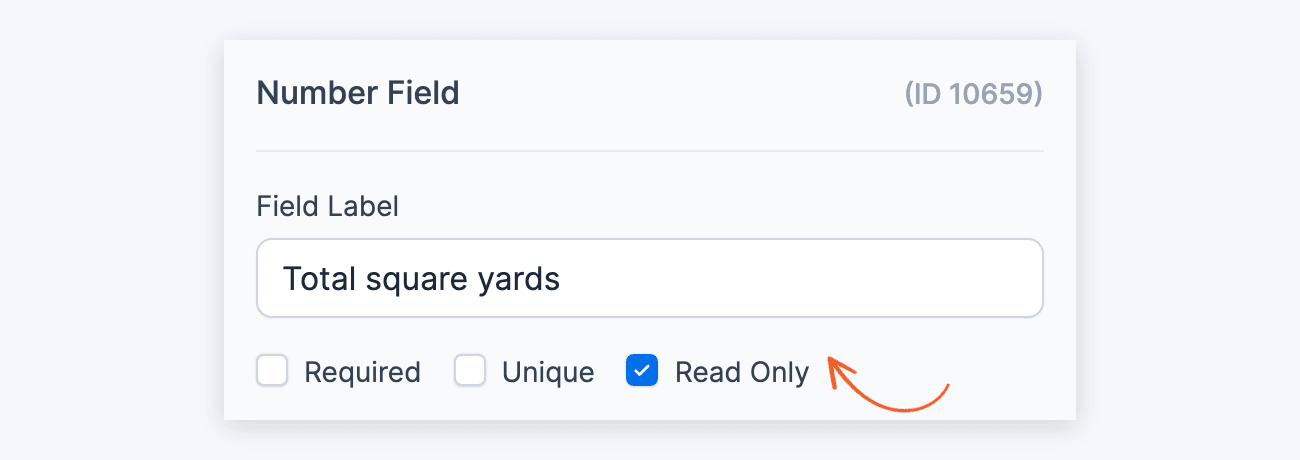
- Add a Number field to calculate the total. Set it to Read Only if you want users to see, but not edit, the total.

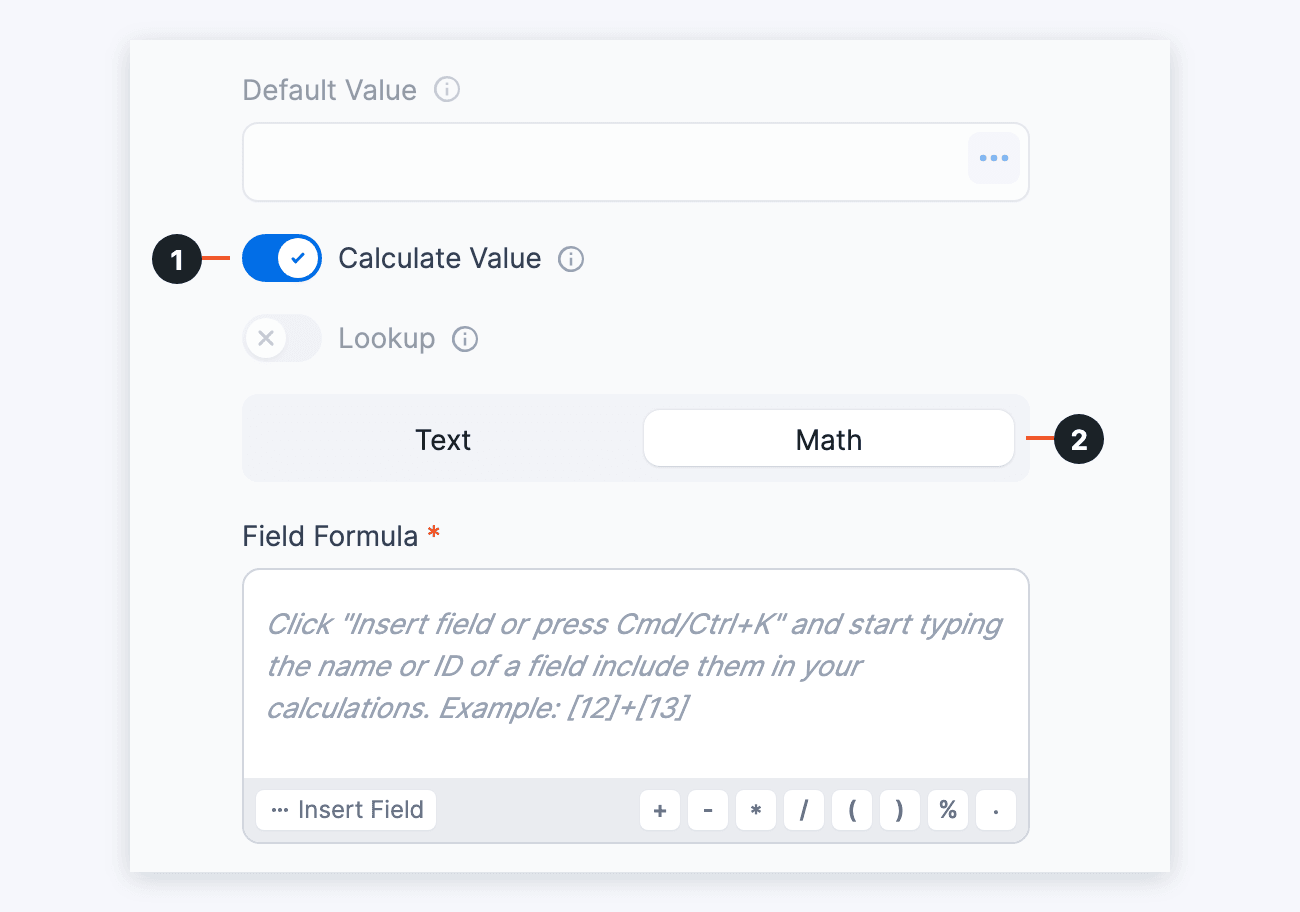
If you do not want users to see the total, open the Advanced section and set Visibility to Administrator. - In the Advanced section of the Total field's options, toggle on Calculate Value (1) and select Math (2). The Field Formula box appears below.
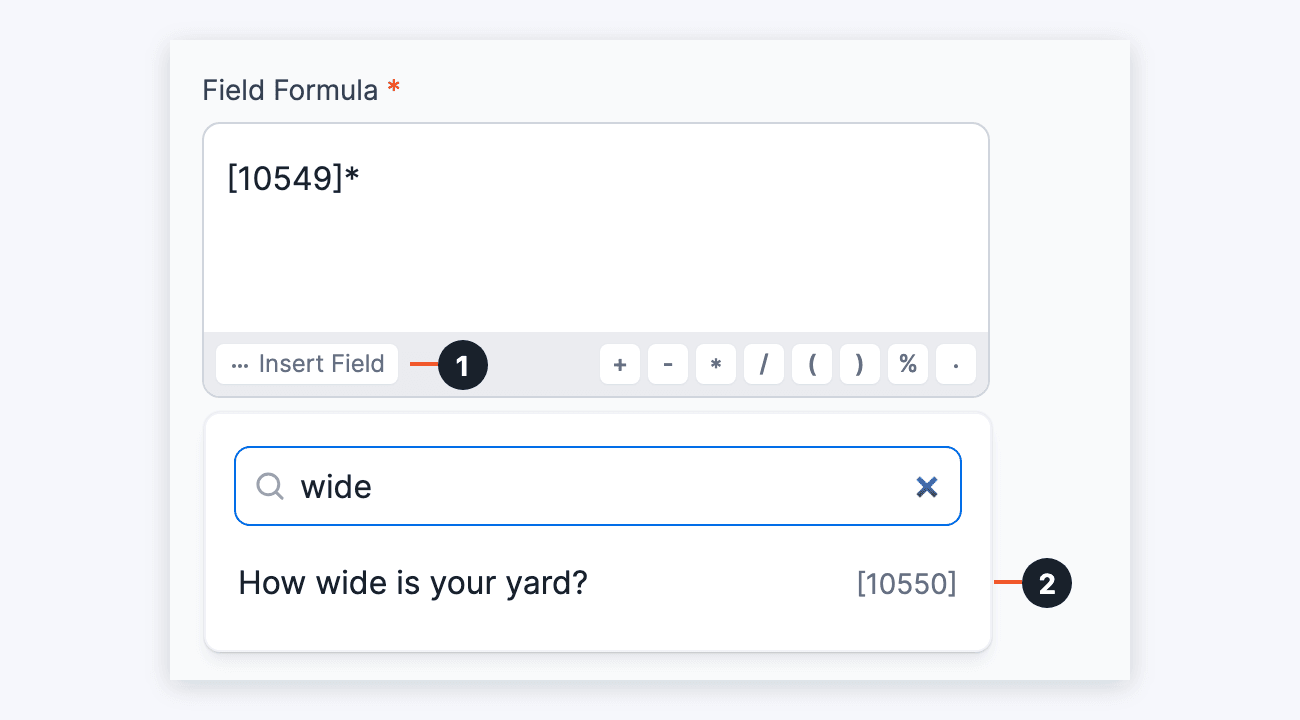
- Click Insert Field (1) below the Field Formula box and search for a field you want to include. Click it (2) to add it to the formula. Type the math operators between the fields, or click the operator buttons next to Insert Field. You can use the field ID or key in a calculation. Your calculation might look something like: [25]+[26]+[27] or ([25]*8)+([27]/2). In the example below, the length field and the * operator are already in the formula. The search finds the width field to multiply it by:
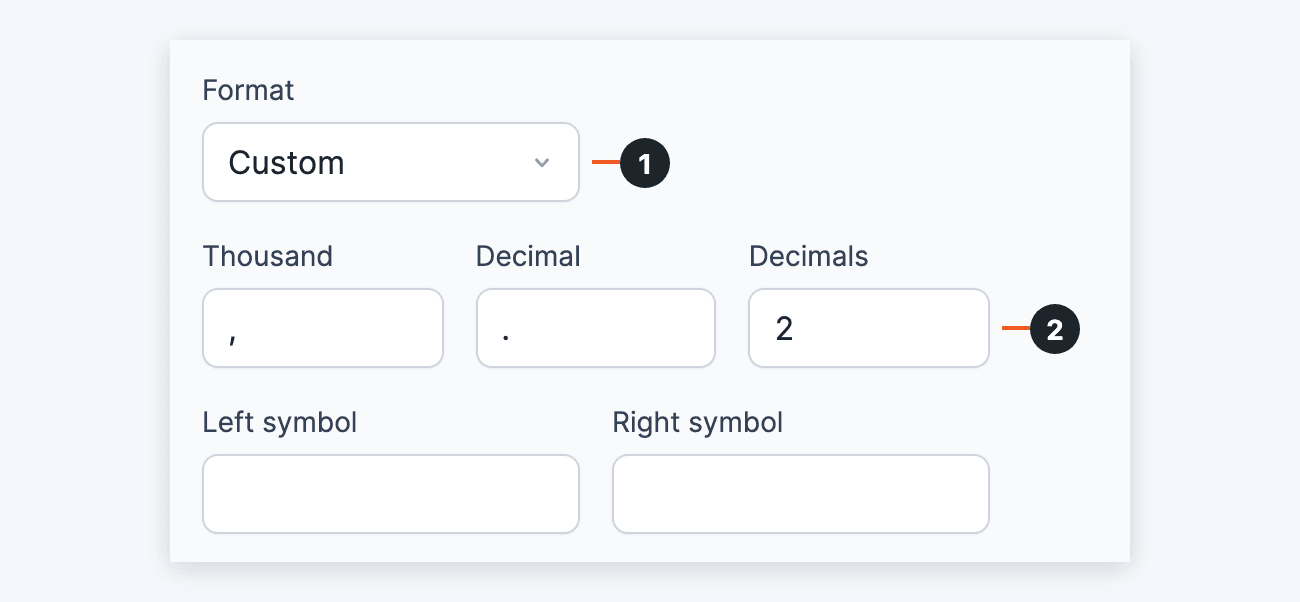
- Scroll up to Format, select Custom (1), and enter the number of Decimals (2) for your total.
- Click Update to save your changes. Then click Preview → On Blank Page. The total is updated each time a field that is used in your calculation is changed.
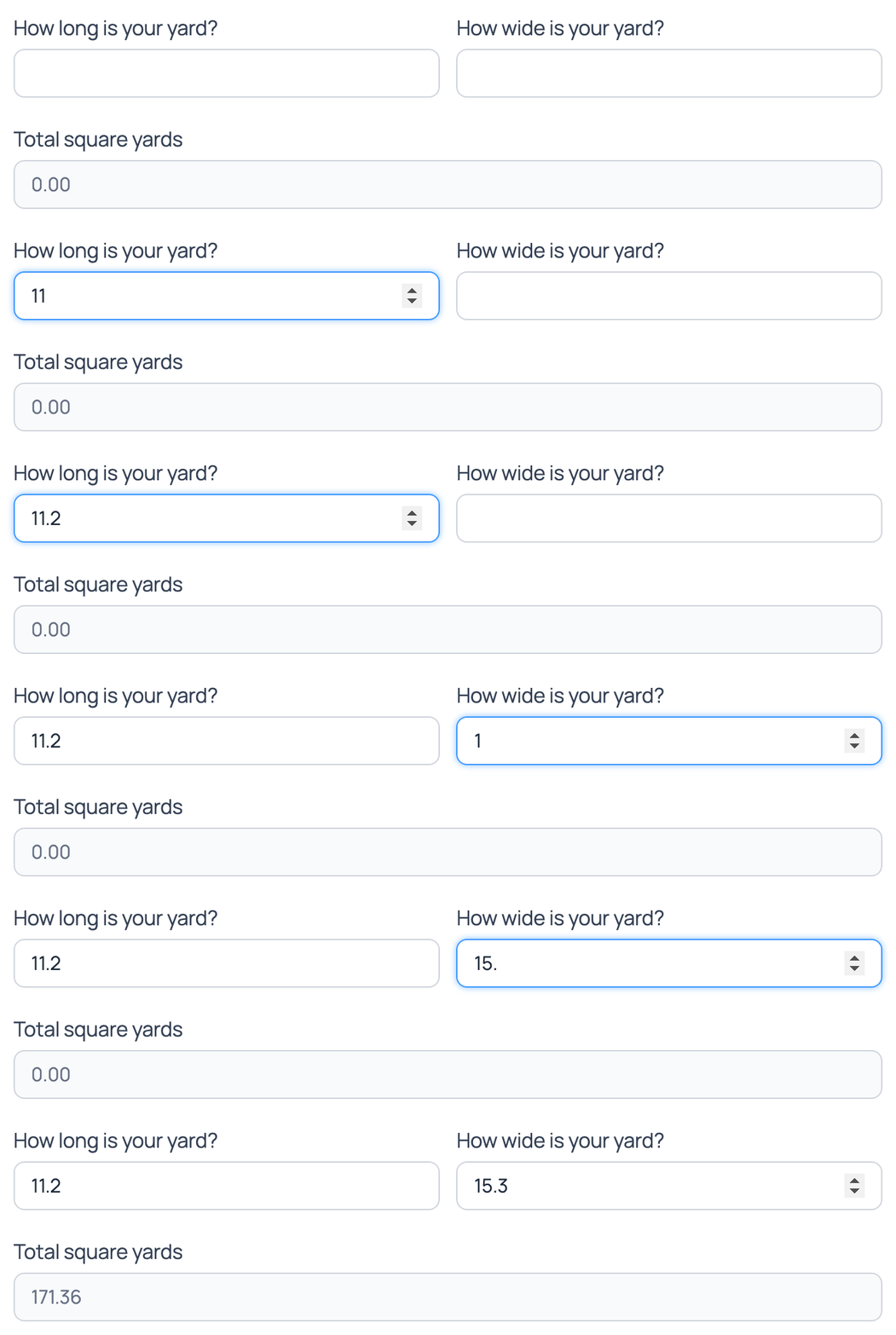
You can use the total field value in your success message, email, or View. To let your users make a payment with this total, you can pass the total amount to PayPal or Stripe.
From Idea to Reality in Minutes. Build Powerful Forms, Dashboards, Apps and More.
Formidable Forms makes advanced site building simple. Launch forms, directories, dashboards, and custom WordPress apps faster than ever before.
Separate value calculations
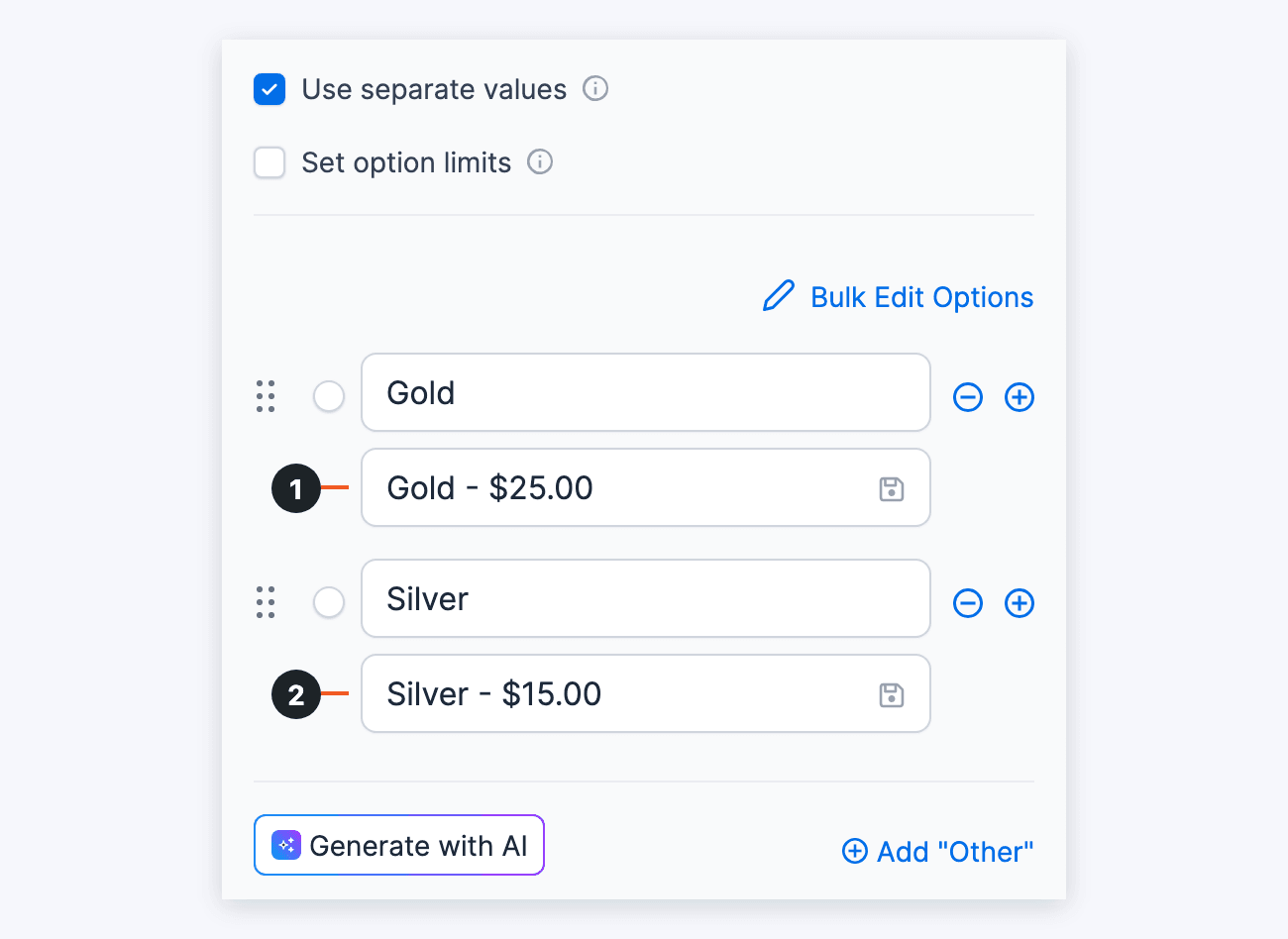
To set up a calculation where the value used in a calculation is not seen by the user, follow the directions below. For example, if you have a radio button field with two options (Gold, Silver), then the text must be converted to numbers before calculating the total.

- Go into edit your form.
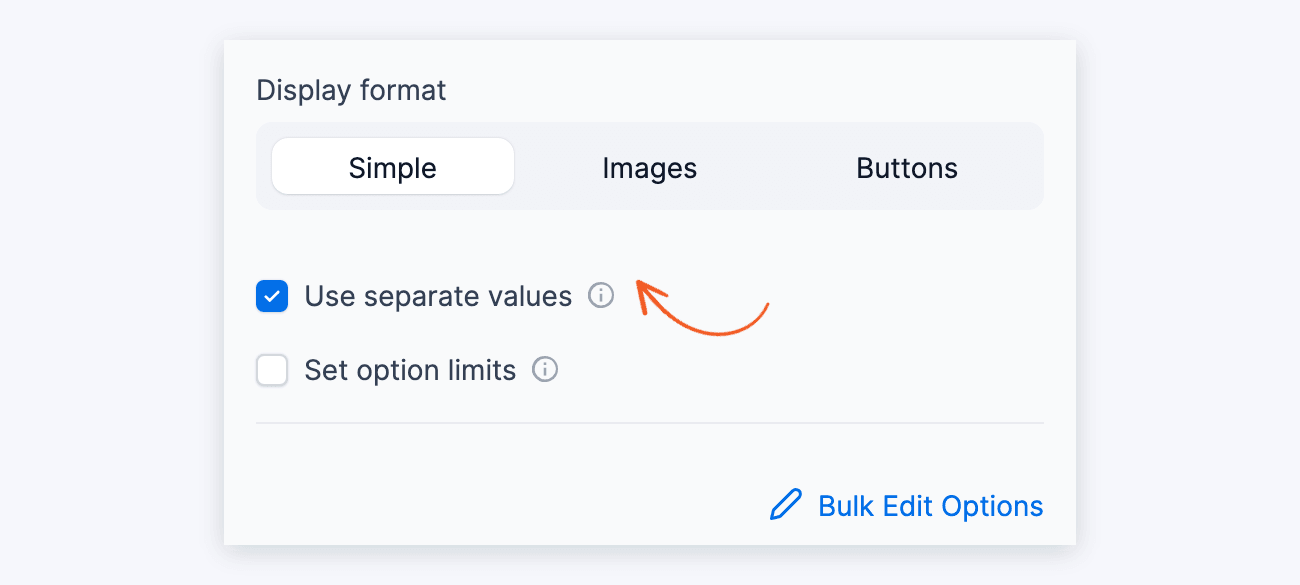
- Check Use separate values for each field that will be used in your calculation (this can be found in the Field Options for Dropdown, Radio Button, and Checkbox fields).
- Add the number that will be used in your calculation to the end of each saved value. The saved value is the box below each option label (1 and 2 in the image). The calculation will only use numbers and decimals from the end of each saved value. Any other text or numbers before this will be ignored.
Please note that the saved value cannot be identical to any other saved value. If you have saved values that must have the same numeric value, they need to be entered like this: Gold - $25.00, Silver - $25.00. - Add a Number field to calculate the total. Set it to Read Only if you want users to see, but not edit, the total.
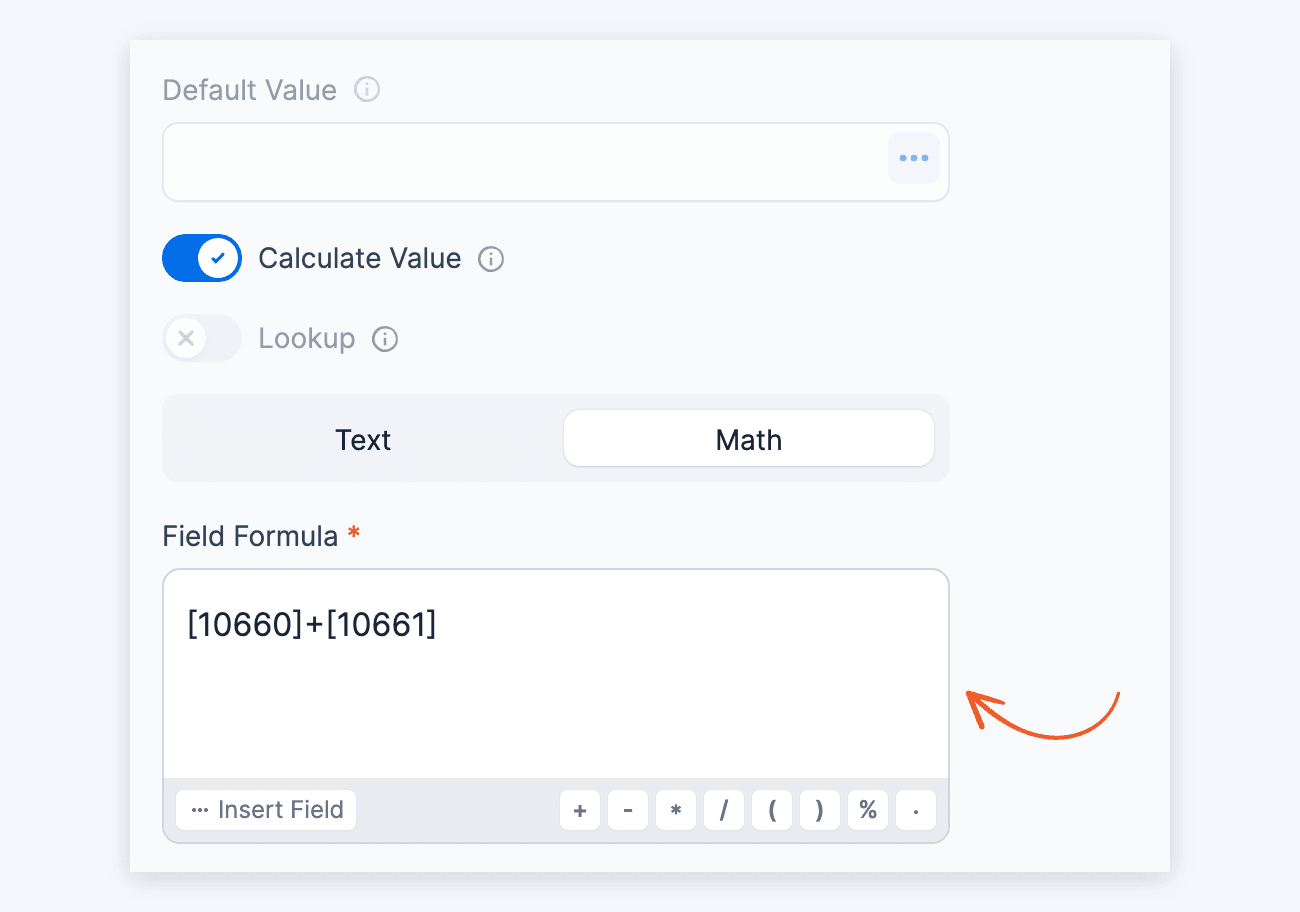
If you do not want users to see the total at all, open the Advanced section and set Visibility to Administrator. - In the Advanced section of the field options, toggle on Calculate Value (1) and select Math (2).
- Click Insert Field below the Field Formula box and search for the fields you want to include in your calculation. You can use the field ID or key in a calculation. Your calculation might look something like: [25]+[26]+[27] or ([25]*8)+([27]/2). In the example below, two fields are added together:
- Scroll up to Format, select Custom (1), and enter the number of Decimals (2) for your total.
- Click Update to save your changes. Then click Preview → On Blank Page. The total is updated each time a field that is used in your calculation is changed.

Text calculations
To combine text from multiple fields into a single field in your form, use Formidable's text calculations. Follow the directions below to concatenate multiple field values into a text field.
- Go into edit your form.
- Add a Text field to your form. This field will contain the combined text.
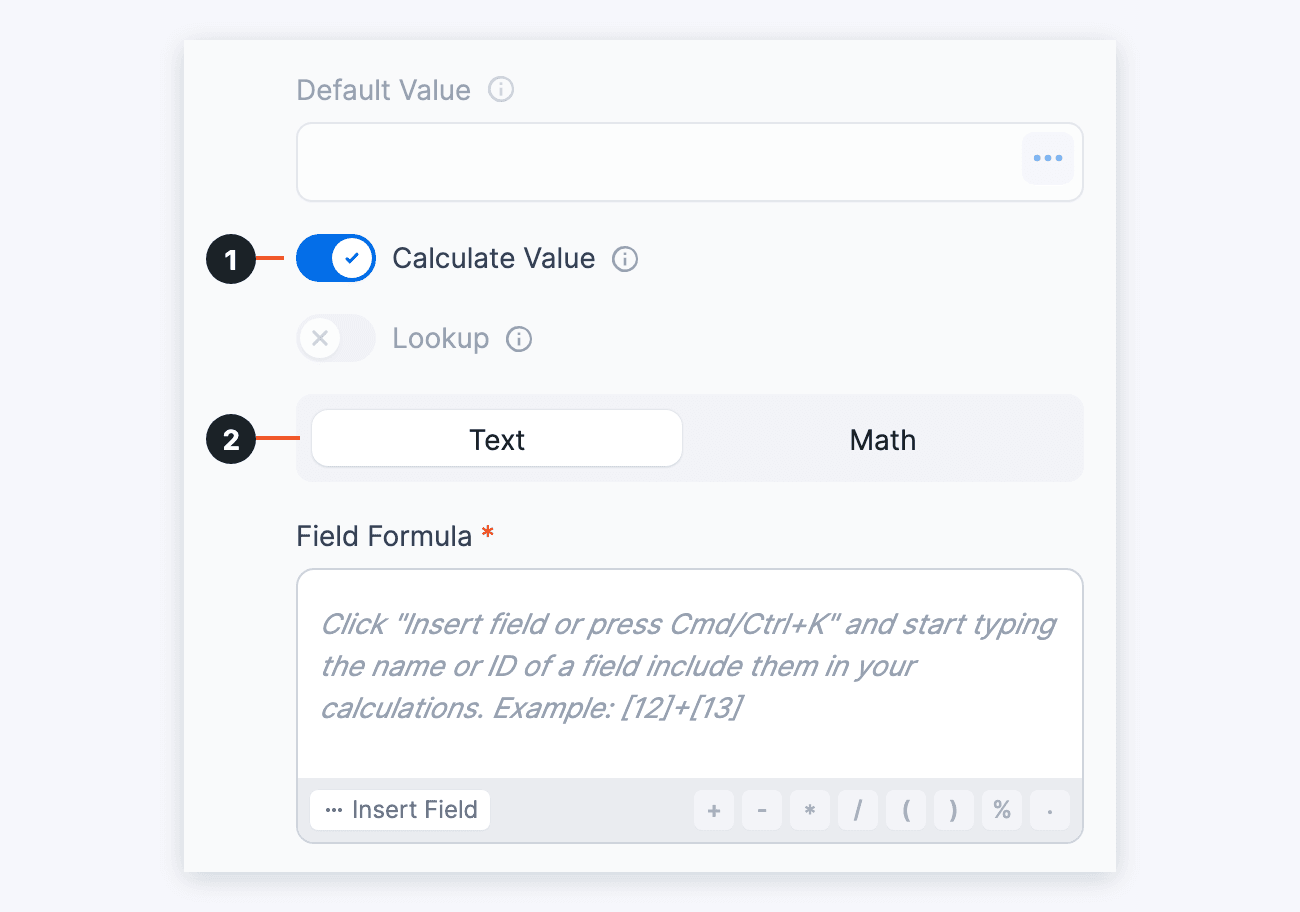
- Expand the Advanced field options, toggle on Calculate Value (1), and select Text (2).
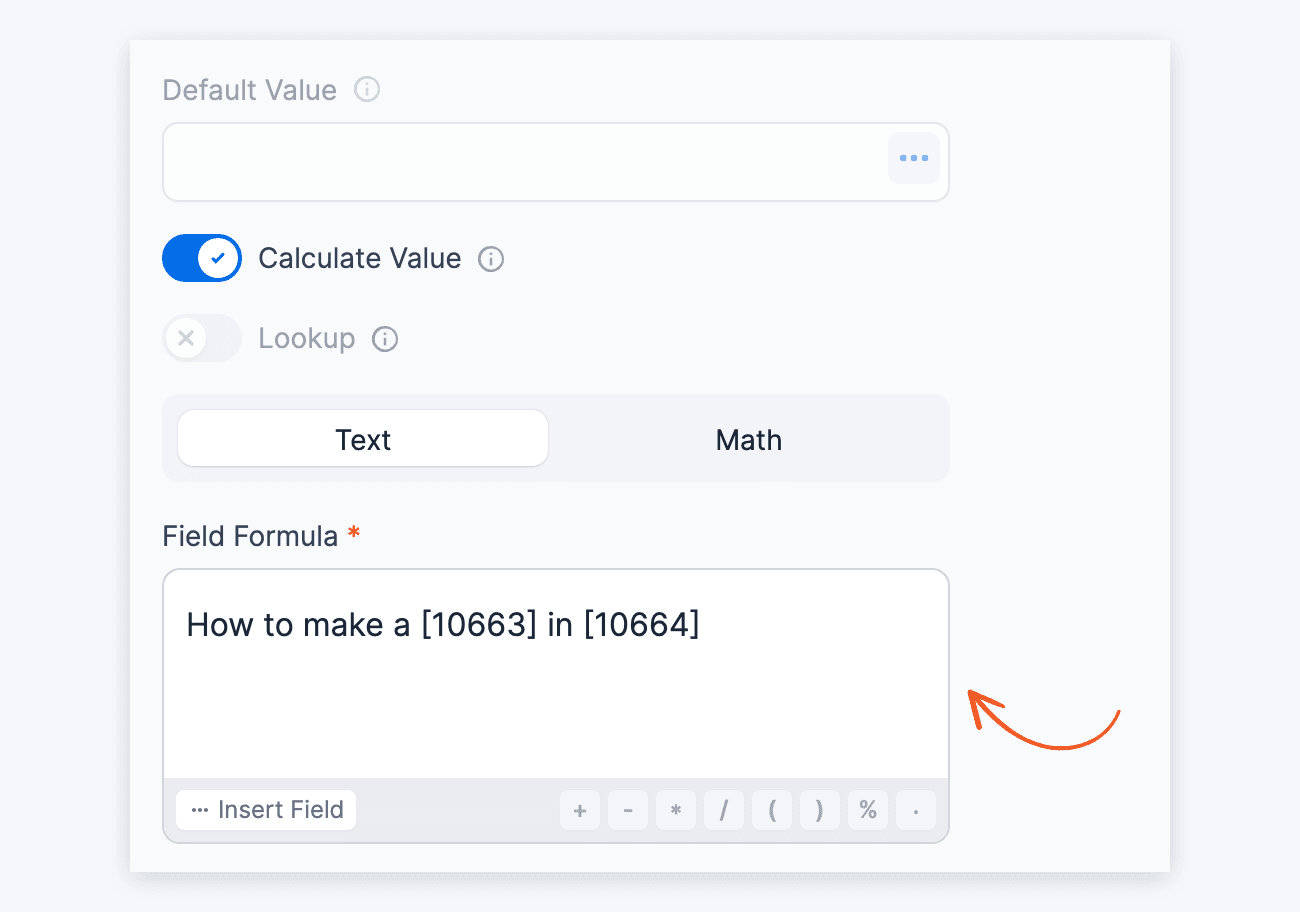
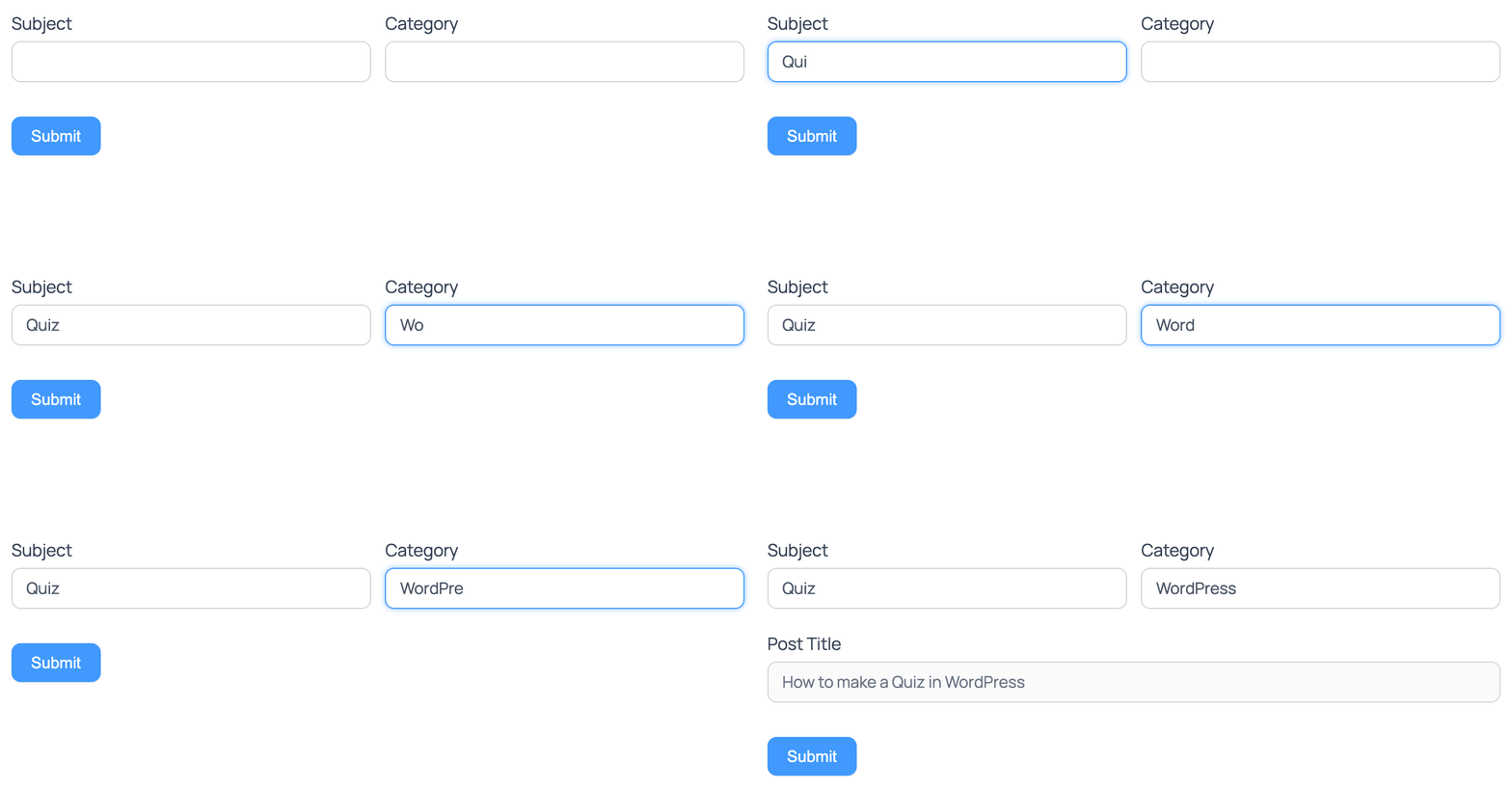
On a Text field, Calculate Value clears and disables the field's Max Characters setting. If Max Characters had a value, a Max Characters Removed message tells you it was removed. - Click Insert Field below the Field Formula box and search for the fields that you want to include in your calculation. You can use the field ID or key in a calculation. Any spaces or characters used in this box will show in the final value.
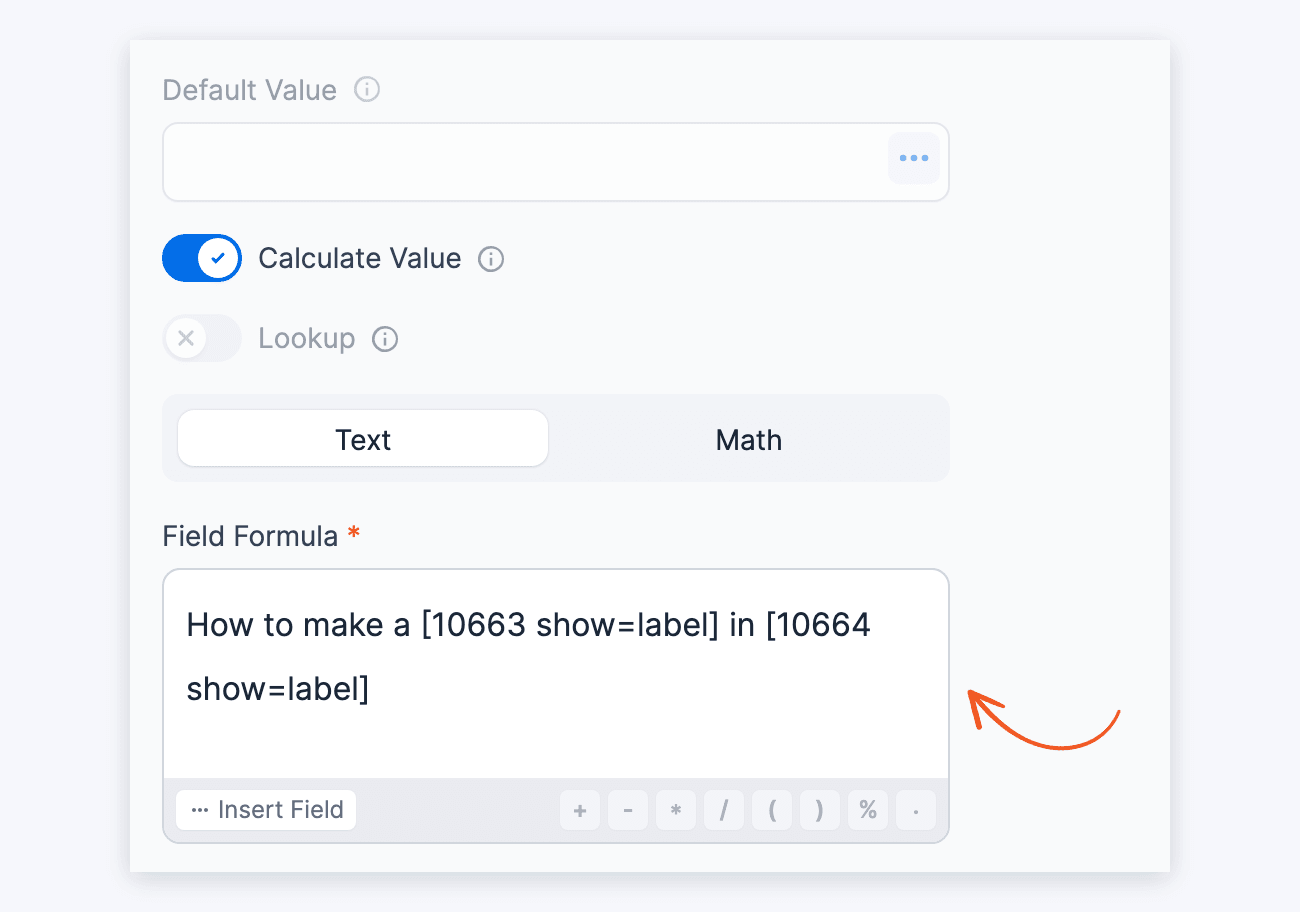
If you've enabled separate values and want to retrieve the label of radio, checkbox, and dropdown fields, then use the [x show=label] shortcode option. - Click Update to save your form. Then click Preview → On Blank Page. The value is updated each time a field that is used in your calculation is changed.
Display subfields of name
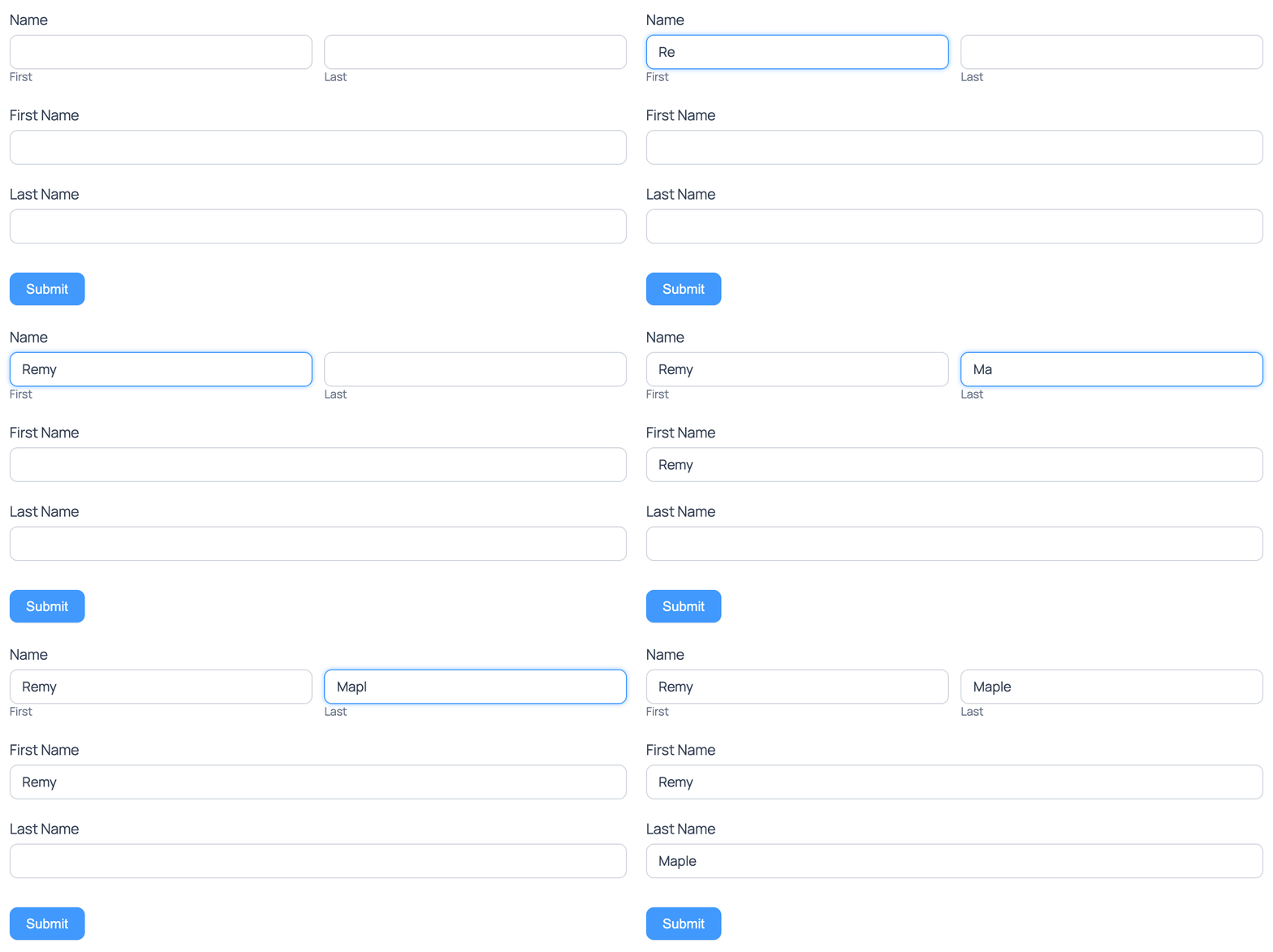
If you have a name field, you can use [x show=first], [x show=middle], or [x show=last] shortcode options to display specific data. For example, follow the instructions below if you only want to show the first name in the calculated field.
- Add a Name field.
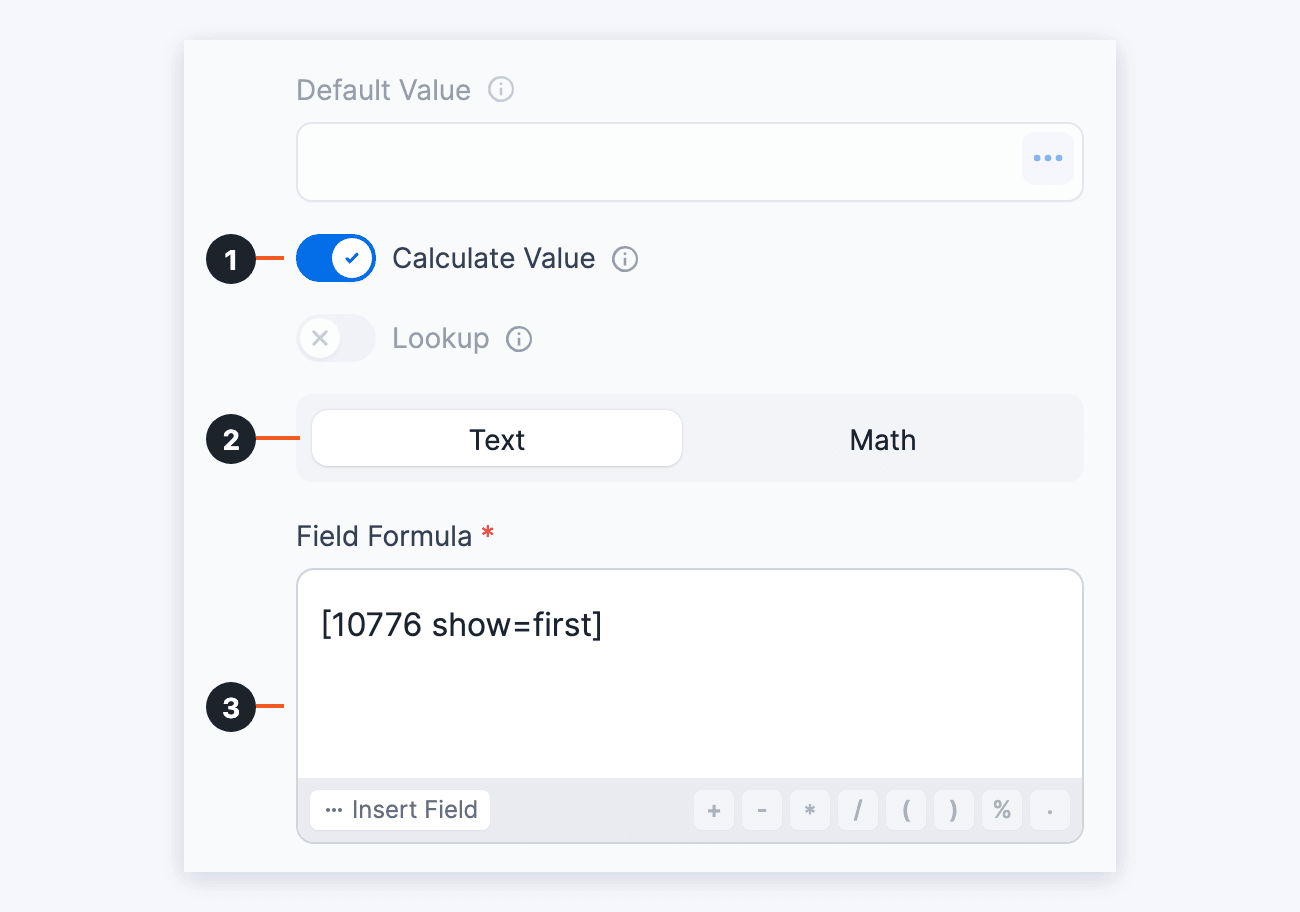
- Add a Text field for the first name. In its Advanced options, toggle on Calculate Value (1), select Text (2), and enter [x show=first] in the Field Formula box (3). Replace x with the ID of your Name field.
- Click Update. Then click Preview → On Blank Page. The calculated value is updated automatically when the first name is entered in the Name field.
Set a field's value from another field's value
Conditional shortcodes, such as [if x equals="P6"]Monday[/if x], don't work in form fields or calculations. They work in Views, emails, confirmation messages, and redirect URLs. Learn more about conditional statements.
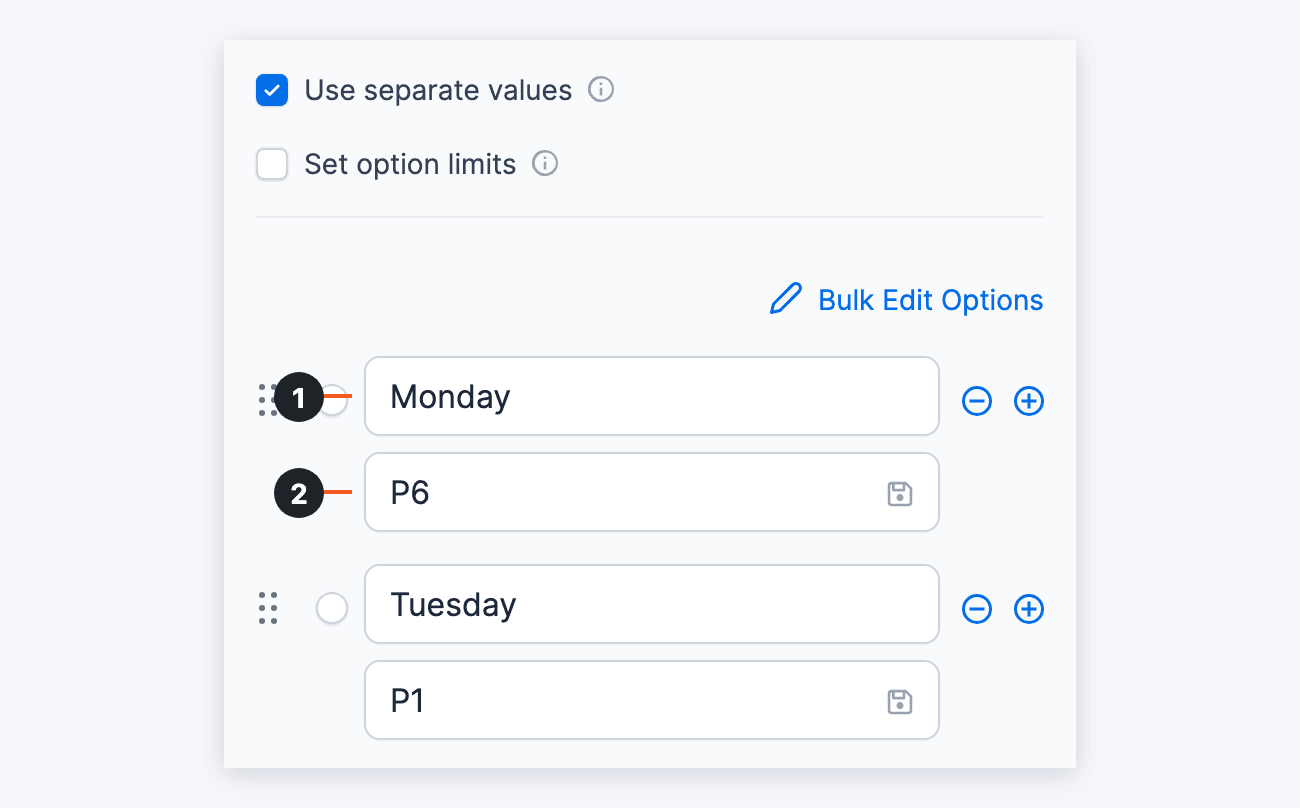
To fill a field with a word that depends on the option a user selects, use separate values with a text calculation. In this example, users choose a workshop day. The Dropdown field saves a code, such as P6, and a Text field stores the day name, such as Monday.
- In the Dropdown, Radio Buttons, or Checkboxes field, check Use separate values. For each option, enter the word to copy as the option label (1) and the code to save as the saved value (2). For example, enter Monday as the label and P6 as the saved value.
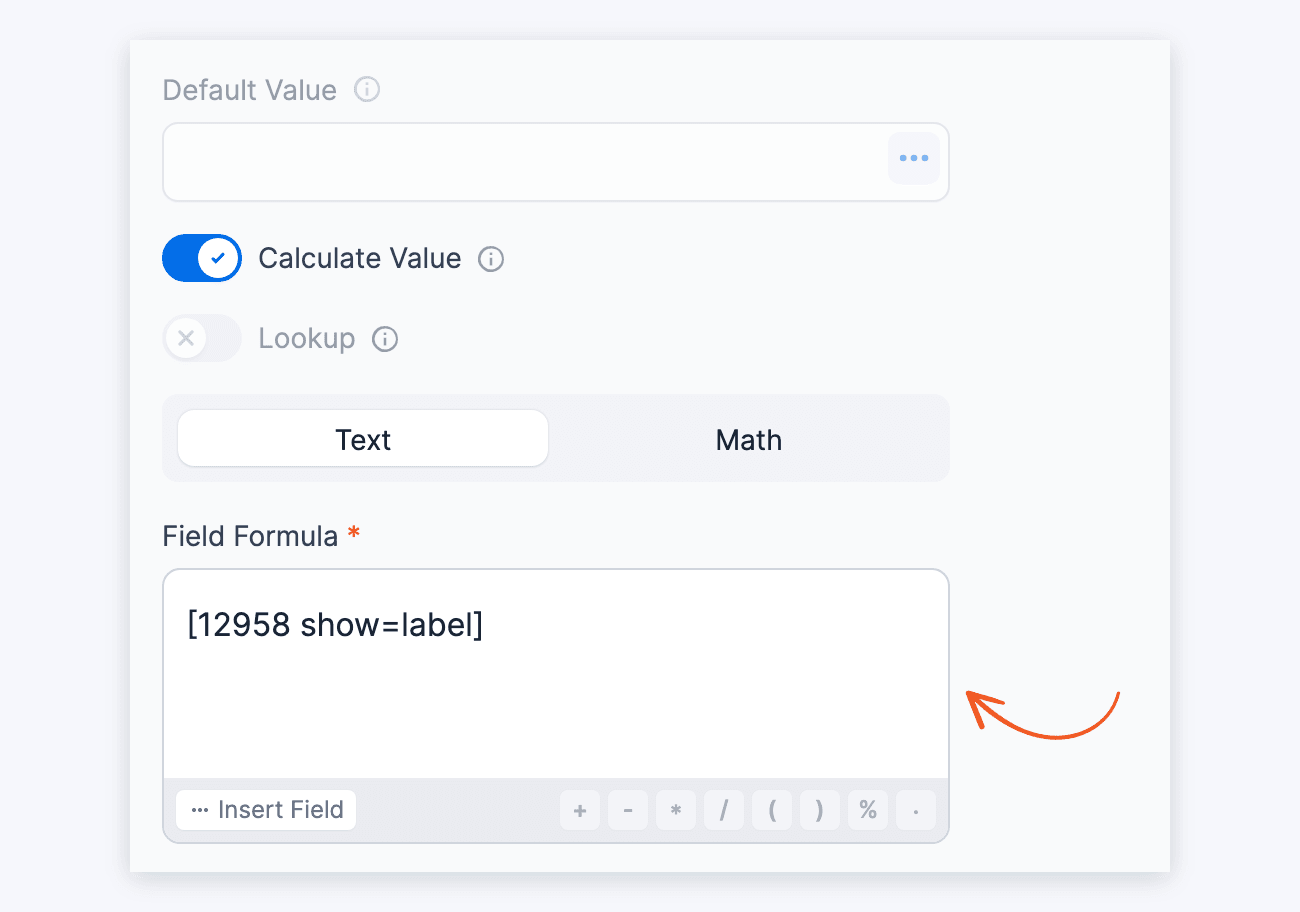
- Add a Text field. In its Advanced options, toggle on Calculate Value, select Text, and enter [x show=label] in the Field Formula box. Replace x with the ID of the field from step 1.
- Click Update. Then click Preview → On Blank Page. When a user selects Monday, the Text field shows Monday, and the Dropdown field saves P6.
Users see the labels in the form. To show users the codes instead, or to keep a long list of pairs that changes often, store the pairs in another form and fill the field with a Lookup.
- Create a form with Code and Day fields, and submit an entry for each pair.
- In your form, add a Lookup field that gets its options from the Code field. If users type the code, choose Single Line Text in its Display Type dropdown.
- Click Update. Until the form is saved, the new field shows as "Lookup" instead of its label in the watch dropdown.
- Add a Text field and turn on its Lookup toggle. Set it to search in the Day field and watch the Lookup field.
- Click Update. Then click Preview → On Blank Page. When a user selects or types a code, the Text field shows its day.
Learn more about how to populate fields with values from a selected entry.
Currency calculations
Any calculated value can be shown as a read-only result, formatted as currency. Take a look at the example below from our car payment calculator.
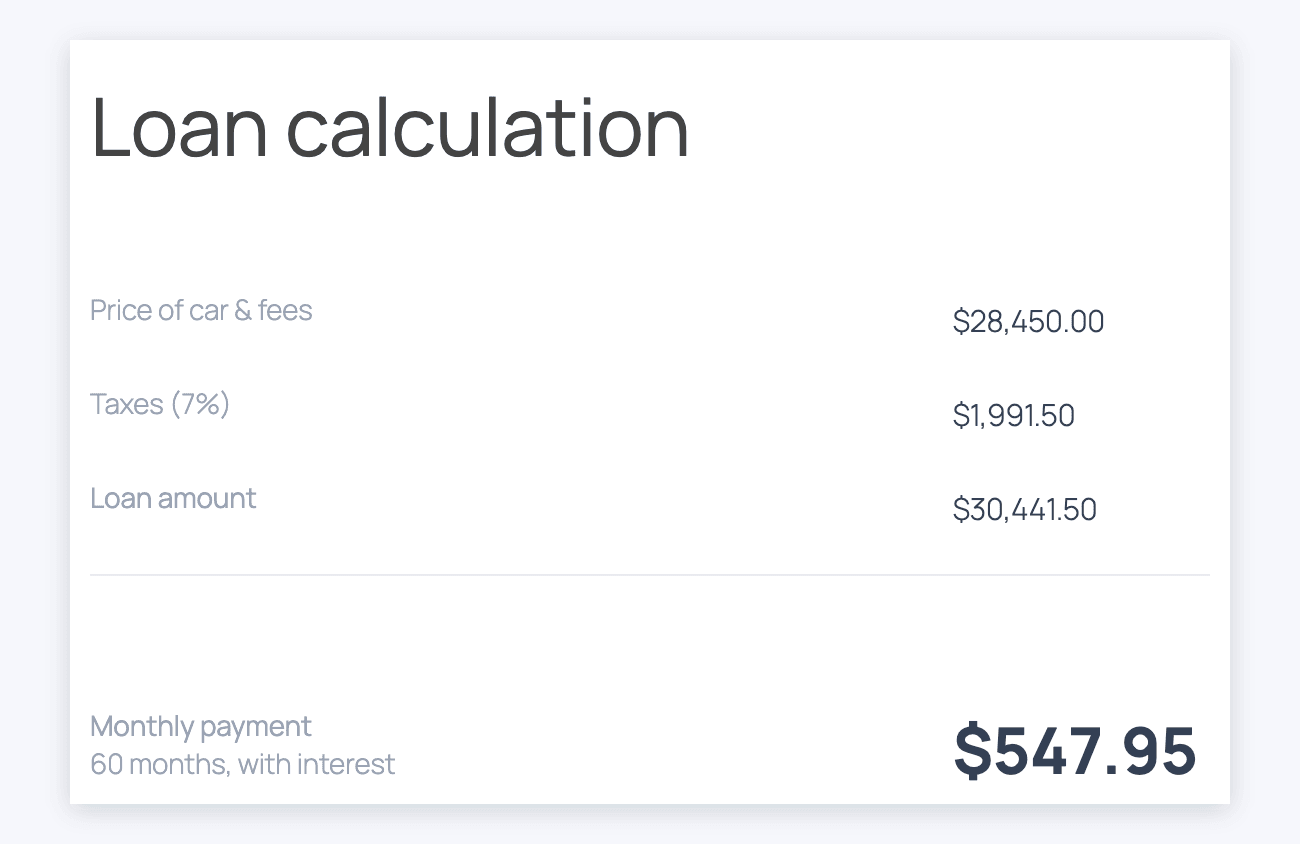
To set up similar calculations, follow the steps below.
- Go to the Formidable → Global Settings and select the currency you want to use.
- Add a field to your form and set it to calculate a result.
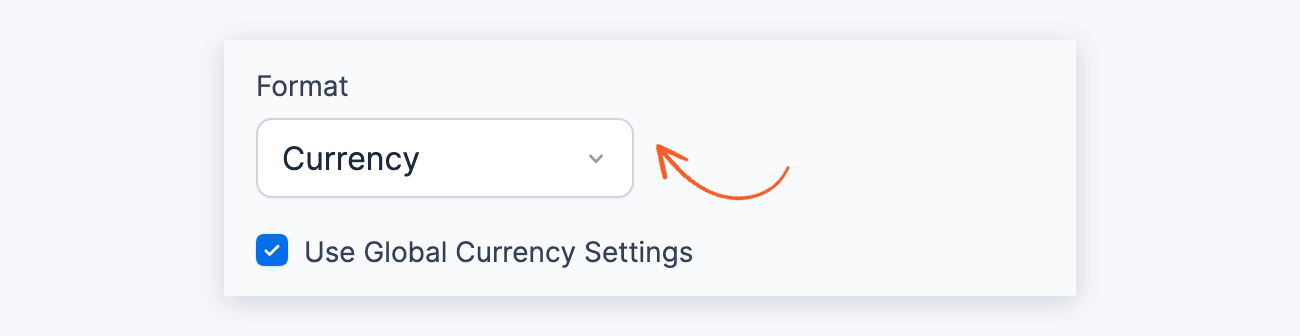
- In the Format dropdown, select Currency as the number format. By default, it will use the Global Currency settings that you have configured.
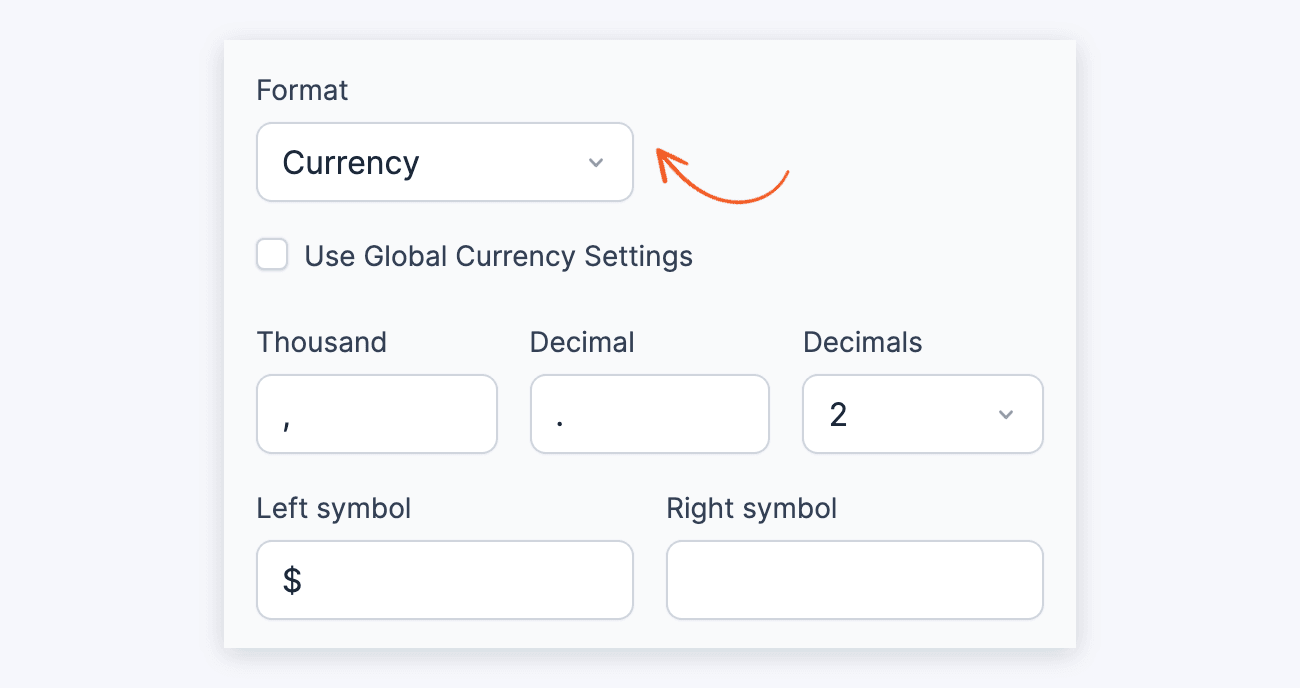
- (Optional) The currency format adds two decimal places to the value by default. To apply a currency format specific to this field, uncheck the Use Global Currency Settings box. Then set the Thousand and Decimal separators, the number of Decimals, and the Left symbol or Right symbol. The Left symbol box starts with the global symbol, so clear the symbol you don't want.
Display calculated currency
Display the calculated values as currency when it is displayed in summaries, emails, entry listing page, views and more.
- Display value: When a calculated value is displayed, it will be formatted as currency.
[x]
Replace x with the ID or key of the calculated field.
- Format number: Prevents the currency formatting added to the calculated value.
[x format=number]
Replace x with the field ID or key of the calculated field.
Calculate sales tax
If you need to add sales tax to a total amount, follow the instructions below.
- Add a Number field for the tax. Your form already has a Subtotal field with the amount to tax.
- In the Format dropdown, select Currency, or select Custom and enter 2 in Decimals, so the result uses 2 decimal places.
- In the Advanced section of the field options, toggle on Calculate Value, select Math, and insert this in the Field Formula box:
[x] * 0.065
Where x is the Subtotal field ID, and 0.065 is equivalent to 6.5% sales tax.
- Add another Number field for the total, with the same Format. Toggle on Calculate Value, select Math, and insert this in the Field Formula box to add the tax to the subtotal:
[x]+[y]
Replace x with the Subtotal field ID and y with the ID of the tax field. For example, a subtotal of 100 shows a tax of 6.50 and a total of 106.50.
Calculate a user's age
Pro tip: Use our Age calculator template we have already built for you.
To calculate a user's age (in years) when they enter their date of birth, follow the instructions below.
- Add a Date field to your form. This will be the 'Date of birth' field.
By default, the date picker shows only the 10 years before and after the current year. In the Date field's Year Range, set the start to -100 or to a year such as 1920 so older birth years can be picked. - Add a Number field to your form and title it 'Age'. This is the field where the age will be calculated.
- If you want the user to see the age, select Read Only.
If you do not want the user to see the 'Age' field, then open the Advanced section and set Visibility to Administrator. - In the Advanced section of the field options, toggle on Calculate Value and select Math. Insert this calculation into the Field Formula box:
[age id=25]
Replace '25' with the ID or key of your 'Date of birth' field.
- If you want the user to see the age, select Read Only.
- Now when the user inserts their birthday, the age will show up in the 'Age' field.
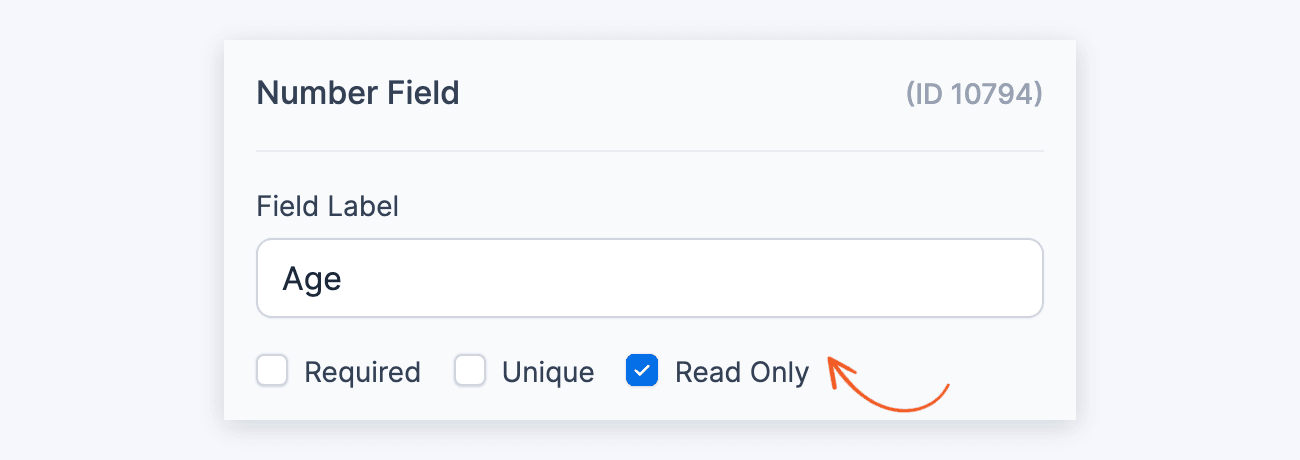
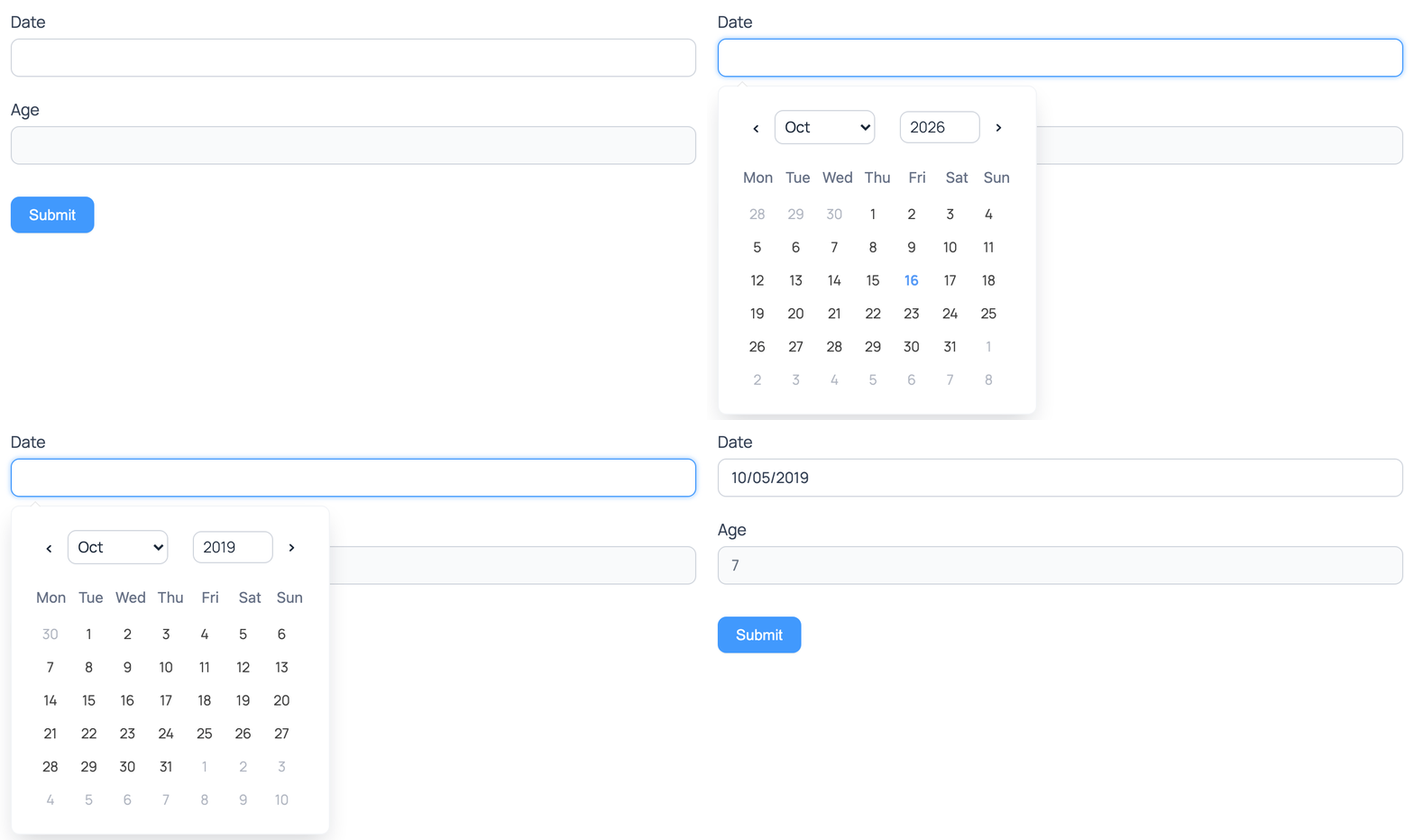
Note: Leave the Decimals box of the Age field empty when calculating an age.
To show the current age in a View, use the date field instead of a calculation so it's always up to date. Follow the instructions on how to show an age in real time.
Calculate time between dates
Date calculations can be added to a form with at least two date fields. To calculate the number of days between two dates, follow the instructions below.
If only one date field is included in the form, date calculations can be displayed after the form is submitted. Read more on adding time to dates.
- Add a Date field to your form and title it 'Start Date'. Expand the Advanced section of the field options and set the Field Key to 'start-date'. This will be your starting date field.
- Add another Date field to your form and title it 'End Date'. Expand the Advanced section and set the Field Key to 'end-date'. This will be your end date field.
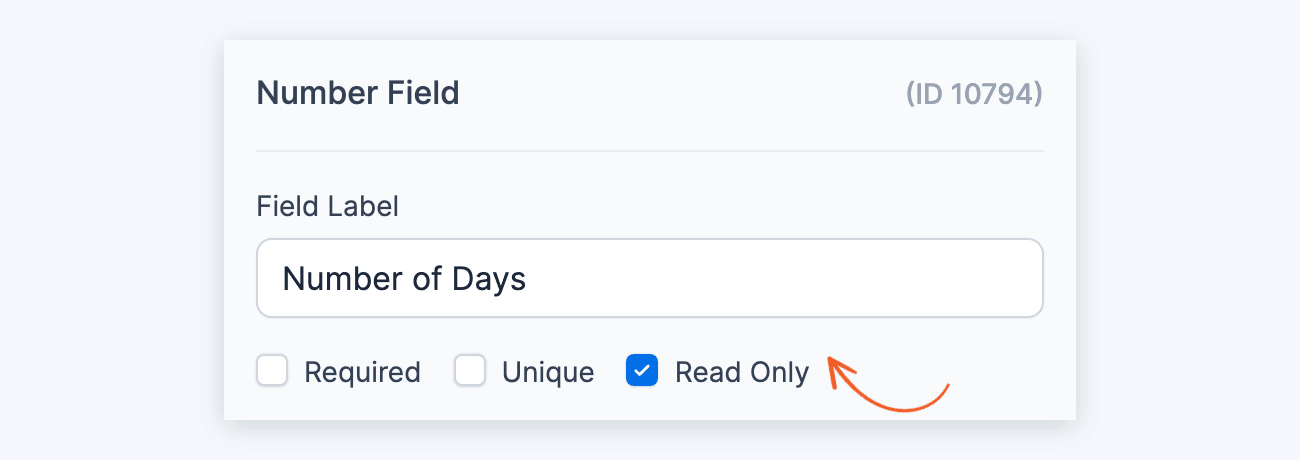
- Add a Number field to your form and title it 'Number of Days'. This is the field where the number of days will be calculated.
- If you want the user to see the 'Number of Days' field, select Read Only.
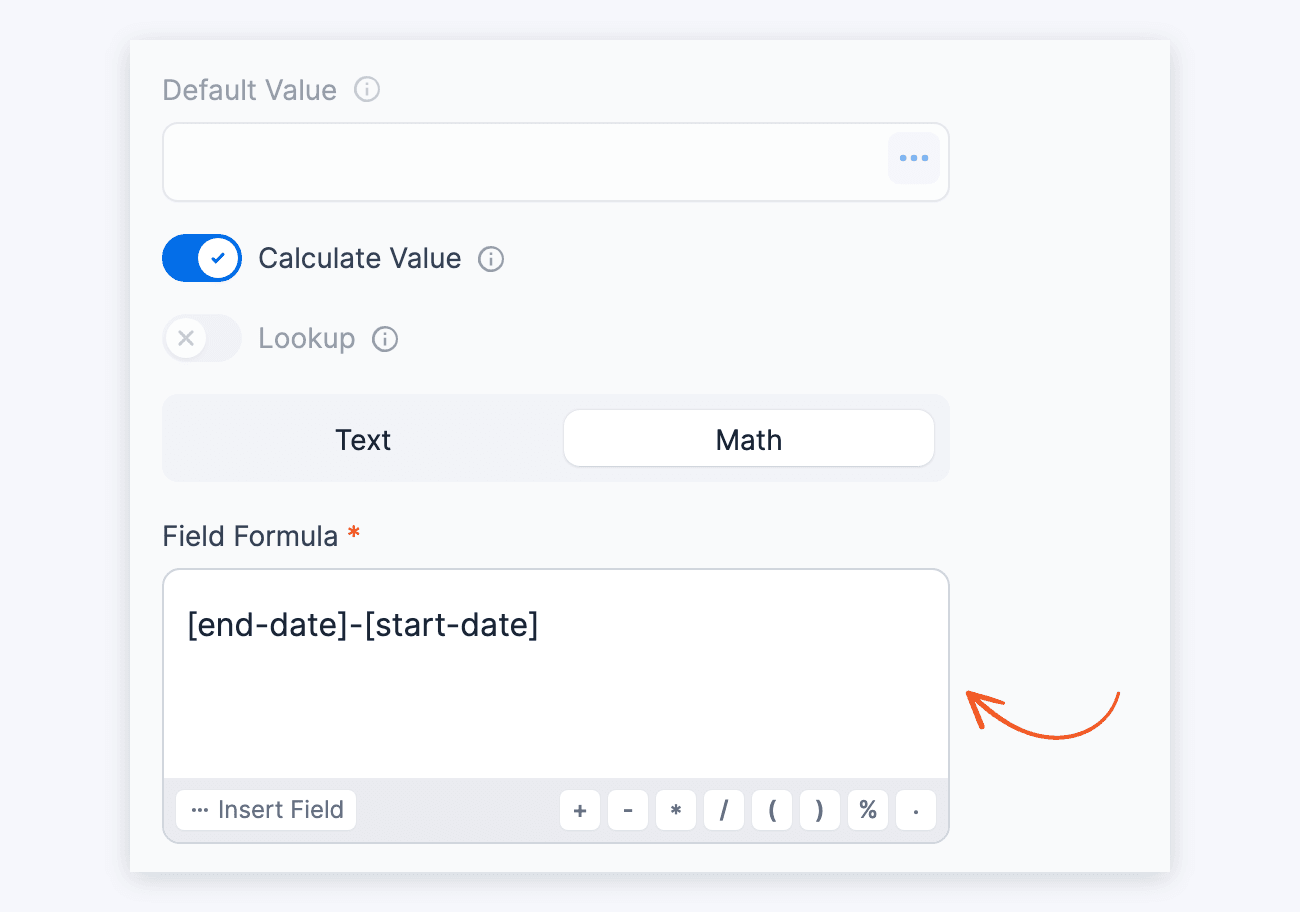
If you do not want the user to see the 'Number of Days' field, open the Advanced section and set Visibility to Administrator. - In the Advanced section of the field options, toggle on Calculate Value and select Math. Insert this calculation into the Field Formula box:
[end-date]-[start-date]
You can also click Insert Field below the Field Formula box to search for the fields to include in your calculation. You can use the field ID or key in a calculation.
- If you want the user to see the 'Number of Days' field, select Read Only.
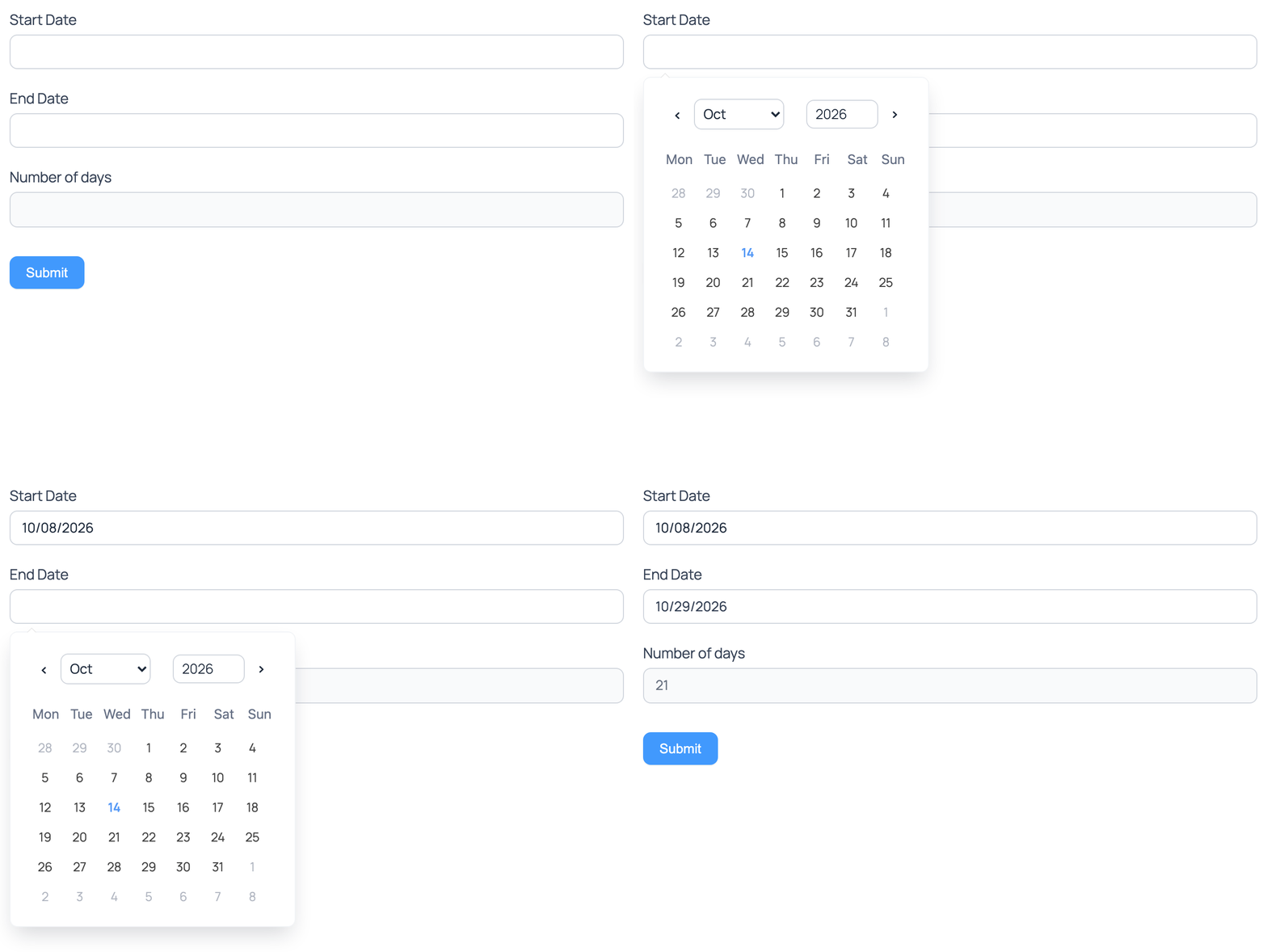
- As a result, when the user selects their chosen dates, the number of days between those two dates will be displayed in the 'Number of Days' calculated field.



Get the total of the values of a Repeater
If you are using calculations in a repeater, follow the instructions on how to get the total of the values in a field in a repeater.
Unique calculated field combination
Do you need the combination of two fields to be unique? There is a custom code route, but it's possible you may be able to do this without custom code.
- Add the two fields to combine to the form. For one entry per user per date, add a User ID field and a Date field.
- Add a hidden field to your form.
- Check the Unique box. To change the error message, expand Validation Messages and edit the Unique message.
- In the Advanced section of the field options, toggle on Calculate Value and select Text.
- In the Field Formula box, insert a calculation that includes the two fields. So if you are limiting the form to one user per date, include the user ID and date fields in the calculation. For best results, include a dash between the two field values like [25]-[26].
- Open the Date field's options and check Required, so every entry has a date. The User ID field has no Required box: it's filled in automatically with the ID of the logged-in user.
- Click Update to save your changes.
Now when a logged-in user submits a date they already submitted, the form shows your Unique message and the entry isn't saved.
Number Format
In the calculated field's options, set Format to Custom to show the Decimals box. Then:
- To round your total to 2 decimal places, enter 2 in the Decimals box.
- To round the total to the nearest whole number, enter 0 in the Decimals box.
- To add 2 decimal places in a single calculated field by default, enter 2 in the Decimals box and [x] in the Field Formula box (where x is the field ID or key).
Conditional calculations
To conditionally perform calculations using values entered in your form, you can use the ternary operator in calculated fields. Read more on how to use conditional calculations.
Advanced numeric calculations
Math.pow()
Use this if you want to add exponents to an equation.
Math.pow([x],2)
Replace x with a field ID for the base and replace 2 with the exponent amount.
Math.random()
Use this if you want to generate a random number. This example will return a four-digit random number.
Math.floor(Math.random() * (9999 - 0001) + 0001)
Math.max()
Use this if you want to return the highest value.
Math.max([x], 200)
Replace x with a field ID or key for the entered number, and replace 200 with the number you want to compare.
Math.min()
Use this if you want to return the lowest value.
Math.min([x],200)
Replace x with a field ID or key for the entered number, and replace 200 with the number you want to compare.
Math.floor
Add this to the beginning of your calculation if you want to round a number down to its nearest integer.
Math.floor([25]+[26]+[27])
Math.ceil
Add this to the beginning of your calculation if you want to round a number up to its nearest integer.
Math.ceil([25]+[26]+[27])
Identify if a number is even or odd
You can determine whether a number is even or odd using a calculation field in your form. By applying a simple formula with the modulo operator, users can check the parity of any given number.
- Add a text or number field into your form.
- In the Advanced section of the field options, toggle on Calculate Value, select Math, and enter the following formula in the Field Formula box:
[45] % 2
Replace 45 with the ID of the field containing the number you want to check. - This method uses the modulo operator %, which shows the remainder when the field value is divided by 2. The results can be interpreted as follows:
- Even: If the remainder result is 0, then the number in the field is even.
- Odd: If the remainder result is 1, then the number in the field is odd.
