What a pleasure to have support within minutes. Brillant, accurate answer, and solved the question. Thanks to the Formidable Team. Eric


Last updated on August 12, 2026 by Kyle Cash
How To Set Up a Campaign Tracker for WordPress Sites [2 Easy Ways!]
Looking to set up a campaign tracker for WordPress? Tracking your marketing campaigns helps improve them. And this guide will show you how to set one up easily.

Approximate read time: 7.5 minutes
Tired of being left in the dark?
Your marketing campaigns aren’t doing well, and you need more data to improve them.
Well, you’re in luck.
Using a simple tracker, you can find out how your ad campaigns perform, which landing pages are doing best, which emails work…or which ones don’t.
And this guide will show you how to set it up on your WordPress website. You can measure your campaigns and change them for maximum results!
Let’s get started.
Upgrade your WordPress site with powerful, flexible forms.
What is a campaign tracker, and why is it important?
A campaign tracker tracks marketing performance across multiple channels.
With a quick look, you can tell which campaigns are working and which aren’t. And that’s useful for WordPress sites because it allows you to make informed changes.
For example, imagine you’re selling a product and sending out marketing emails. It is crucial to know what visitors come from your emails and how much they convert. You can use this information to focus on the most successful emails and fix the less successful ones.
This is great for Facebook ads, Google AdWords, and more!
This data also tells how visitors engage with your content and what they enjoy most. That way, you can make more of it!
Data is power in the website world. Get as much of it as you can.
What information can I track with a campaign tracker?
Luckily you can track every essential campaign metric you need.
And a few of the top options are:
- Response rate
- Conversion rate
- Click-through rate (CTR)
- Cost per Acquisition
- Audience demographics
This data helps you find your best campaigns and most effective channels if you use it correctly.
And all you need to do is set up a campaign tracker to track your visitors.
From Idea to Reality in Minutes. Build Powerful Forms, Dashboards, Apps and More.
Formidable Forms makes advanced site building simple. Launch forms, directories, dashboards, and custom WordPress apps faster than ever before.
How to set up a campaign tracker for WordPress sites with Google Analytics
The most popular way is to use Google Analytics.
Most people already use it on their WordPress site, and it doesn’t take much to set up. All you need to use is an Urchin Tracking Module (UTM).
While this sounds complicated, it’s actually simple.
It’s simply a tag you add to the end of your URL, which adds a particular tag to it. So, all traffic from that link will receive that tag.
Even better, Google makes it easy to create with a Campaign URL Builder!
So, it’s only two steps to create:
- Create your URL with the Campaign URL Builder
- Insert the link and collect data
Step 1: Create your URL with the UTM generator
First, head to the Google Campaign URL Builder.

Next, in the website URL field, type your website. For example, we would enter “https://formidableforms.com”.
There are three campaign form fields you must fill out:
- Source. Your traffic’s referrer (Facebook, YouTube, etc.)
- Medium. How the traffic gets to you. (Social, email, etc.)
- Name. A reason why the traffic is coming to you. (Spring sale, Product launch, etc.)
The more descriptive you make these, the better. They’ll be easier to find in your Google Analytics with descriptive tags.
Using dashes and underscores is essential, as you shouldn’t have spaces in your URLs.
You can set other campaign variables (like campaign term and content), but it’s unnecessary.
The tool will automatically generate a link once you’ve entered this information.
You can easily see the information you entered. If you want another link, you can use this same pattern and replace the information without the tool.
So, now that that’s out of the way, let’s move on to the next step.
Step 2: Insert the link where you want it and collect data
Now head to where you want to paste the URL.
This can be your email newsletter, social link, or YouTube video. Once there, copy the link you created in the first step and paste it.
And that’s it. Once you send out your email, send the social post, or post the video, your link will start gathering data.
The only thing you need to do is head to your Google Analytics account to view it.
In your dashboard, go to Acquisition → Campaigns → All Campaigns. All the information will load under that tag when people click your link.
Bounce rate, session duration, and conversion tracking — all with a simple UTM tracker.
Now, just sit back and wait for the data to roll in, then make changes as you need.
So, that’s one way to track your campaigns.
But if you want even more data in one simple report, check out the WordPress plugin below.
Set up a campaign tracker for WordPress with Formidable Forms

That’s right. It’s Formidable Forms.
The most advanced WordPress form plugin you can find. And it also makes campaign tracking simple.
There are plenty of form builders (like WPForms or Gravity Forms), but none offer a powerful feature like Formidable’s User Flow.
With a simple User Flow report, you learn:
- How your visitors get to your page
- What they did on the page (clicks, scrolls, and more)
- How long they spent on each page
- What page they filled out your form
If you have a form on your website, you get a report on exactly what brought visitors to it. And knowing your exact user journey is powerful.
With this information, you can use a contact form, order form, or other type and gather tons of helpful information about your visitors to improve your entire process. Move your form to a high-performing page, put it in a sidebar, or simply post it more.
Either way, you increase conversions and continue to help visitors.
So, let’s show you how Formidable Forms can help your business.
It’s just three simple steps:
- Install and activate Formidable Forms & the User Flow add-on
- Create your form
- Display your form and collect data

Step 1: Install and activate Formidable Forms & the User Flow add-on
First, get Formidable Forms installed and activated.
It’s just an easy digital download to get started.
For the User Flow add-on, you’ll need Formidable’s Plus plan. But we think you'll like it once you see how powerful the User Flow add-on is (and all the other amazing features you get).
So, once it’s installed, we need to activate User Flow.
Head to your WordPress admin dashboard, and go to Formidable → Add-ons → User Tracking and click Install, then Activate.
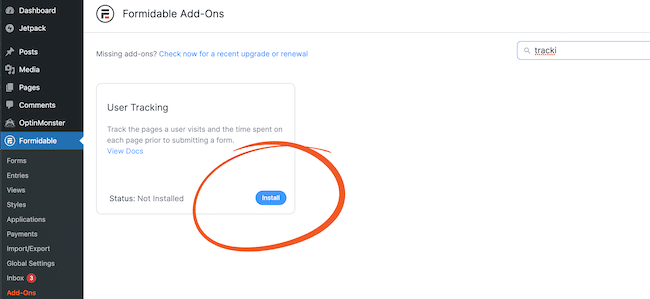
Once it’s finished, you’re set up and ready to create your form.
Step 2: Create your form
In your Formidable settings page, head to Formidable → Forms → Add New.
As a Plus plan subscriber, you get access to 90+ form templates, so feel free to choose one to get you started quickly.
If you’d prefer to create your own, choose Blank Form to start from scratch.
Next, give your form a name, then click Create.
The plugin will take you to our drag-and-drop form builder, where you can customize the form exactly how you want.
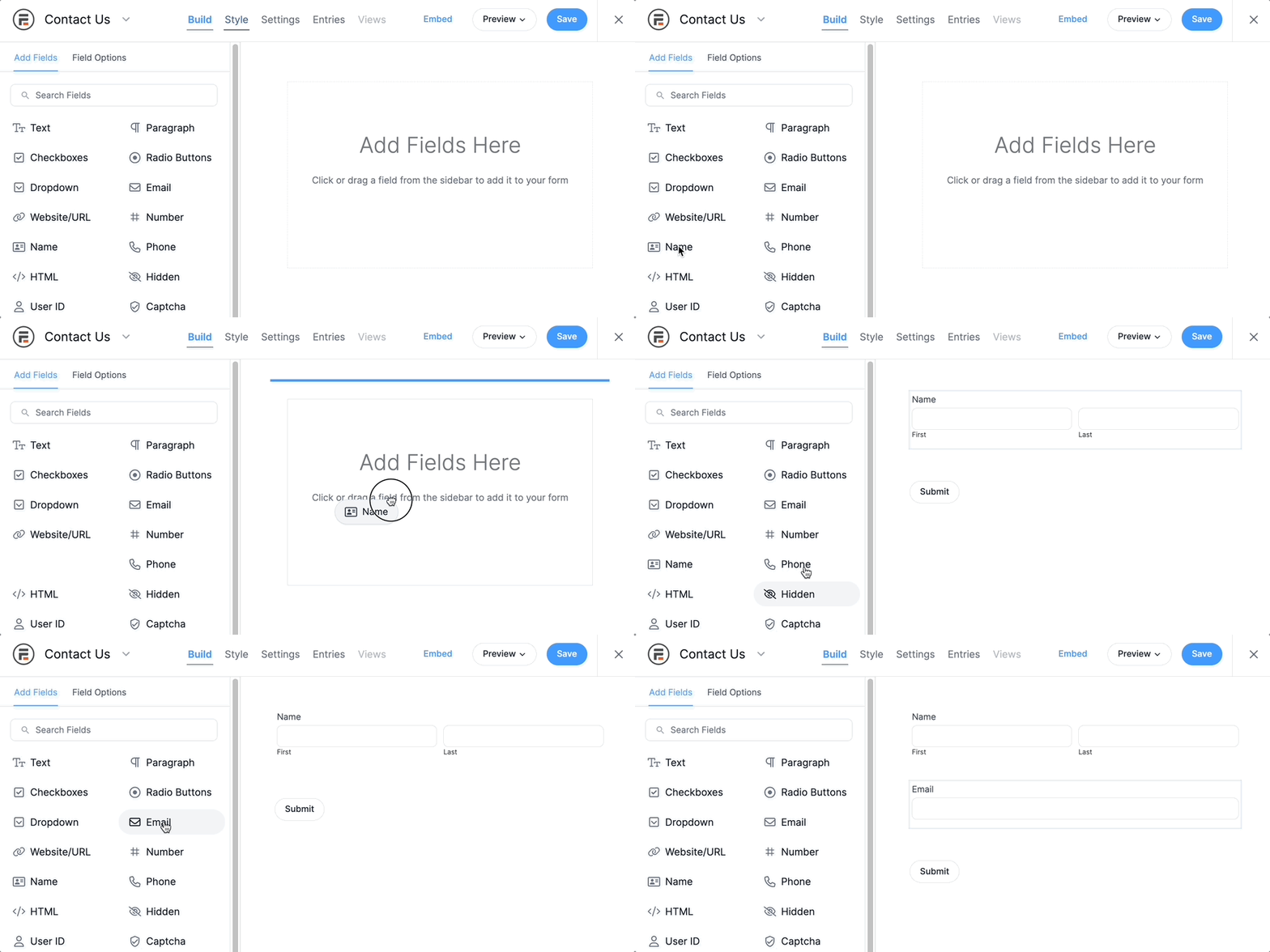
Add different options like text, paragraph, or hidden fields, customize the label text, and more from this dashboard.
Feel free to customize the form to your needs, then click Update whenever you’re finished.
Now that your form is ready, we need to display it to start collecting data!
Step 3: Display your form and view your data
Head to the page where you want to show your form first.
Then, add a new WordPress block, and find the Formidable Forms block.
Next, choose your form from the dropdown menu, and it’ll show your form.

Last, update your page, and your form is live. Whenever someone fills out the form, you’ll get a user report of how they arrived there.
To view it, head to Formidable → Entries. Then, highlight an entry and click View.
Under the User Flow section, you’ll have an entire step-by-step report of that user’s visit to your site.

The referrer, what page, how long, any actions — all in this one effective report.
So, while Google Analytics gives you a general overview of your visitor's actions, Formidable dives in and looks more closely.
So, it would be an excellent time to dive into the differences between these two and who they’d be good for.
Which should you choose: Google Analytics or Formidable Forms
Google Analytics and Formidable Forms have their obvious differences.
And depending on your situation, one may be better for you than the other.
Formidable Forms is excellent for people who want:
- A more detailed report of each user
- A lot of forms on their website
- Better conversion tracking
- More integrations with other apps to share the data
- Insights to for goal tracking
However, there are downsides.
For example, Google Analytics is great for people who want:
- Tracking beyond just their website (email, social media, etc.)
- A general overview of their traffic behavior
- Easy tracking codes/tracking URLs
- Metrics like bounce rate, new users, etc.
So, depending on your usage, one may be better than the other.
It’s best to look at your situation and make a decision.
What campaign tracker for WordPress will you use?
Tracking your visitors is like having a superpower.
And with these two options, you’ve got more than enough to start.
But if you’re looking for more, these plugins to track user activity are right up your alley.
If you’re ready to get started, we suggest giving Formidable Forms a try so you can get all its user-tracking powers.
And follow us on Facebook, Twitter, and YouTube for more great user-tracking tips and tricks!
Read more from the Formidable blog
 How to Add a Timer to Your WordPress Quiz
 Sell Products on Your WordPress Site for Free (No WooCommerce Needed)
 Forms vs Apps in WordPress: Where Simpler Tools Collapse
Did you know that Formidable Forms is one of the fastest WordPress form builder plugins available today? If you're not already using it, get started with our free plugin or the full-featured pro version!
This article may contain affiliate links. Once in a while, we earn commissions from those links. But we only recommend products we like, with or without commissions.