Any data submitted in a Formidable form can be displayed on your WordPress site using Views. A View can display a listing of all submitted entries and a detailed page for individual entries if wanted. With Views, your options are virtually limitless. You could create a real estate listings site, a job board, a journaling app, an event calendar, etc. You may also use a View to search and filter entries from the front-end of your site.
If you would like to create a table that displays WordPress form entries on the front-end of your site, follow the instructions below.
Go to Formidable → Views. Click the Add New button at the top of the page.
Select Table as the View type: hover over its row and click the + icon on the right. For more information on these formats, please see the Visual View Settings page.
In the Use Entries from Form dropdown, select the form that will be used as the data source. Enter a name in the View Name box. If you start from the form's Views tab, it's filled in with the form's title and the View type.
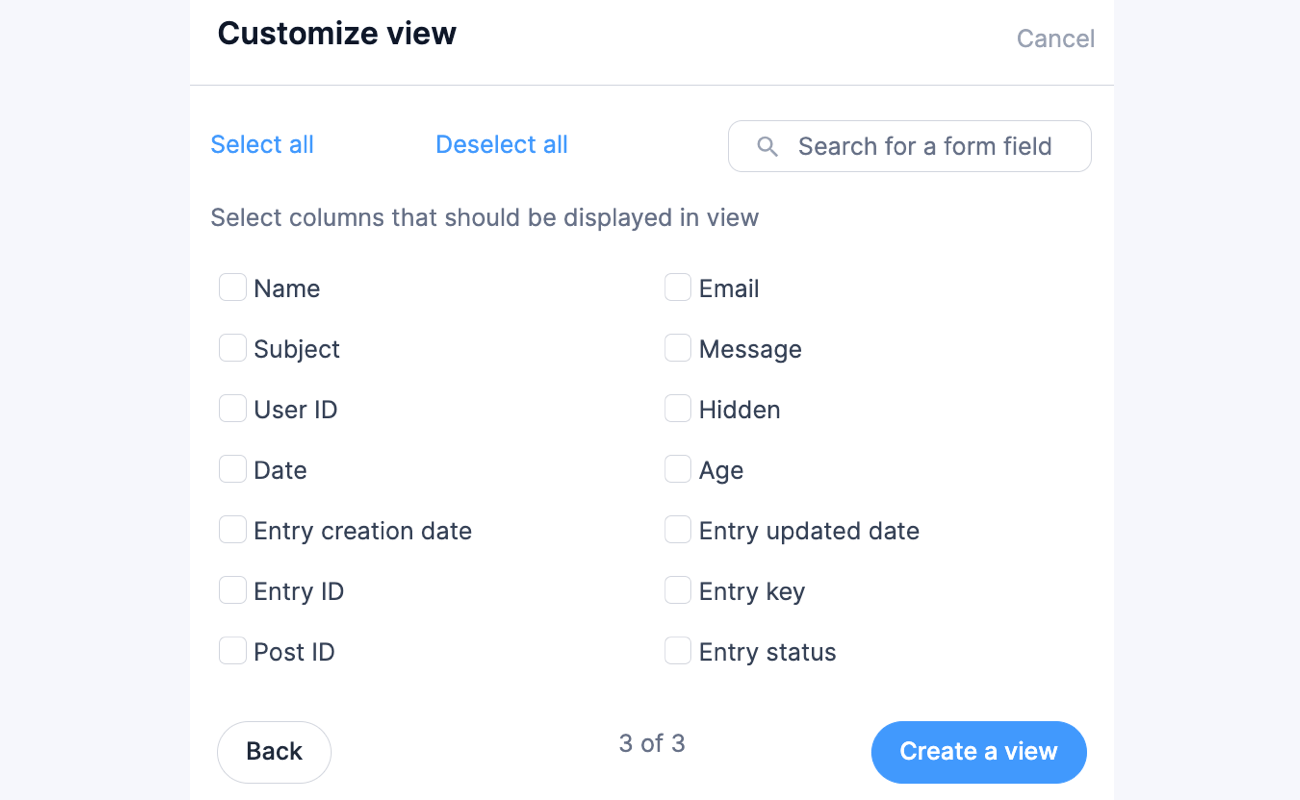
Click Create a view to go to Customize view. Select the columns that you want to display in the View. You have the option to select all columns, deselect all columns, or search for a specific form field.
Click the Create a view button and the Table View will be automatically generated.
In the Advanced Settings, set the Page Size to 50 or less.
Click Update to save your View.
Publish your View on a page. When the page is visited, it should look something like this:
To customize your table View, go to the Table Settings and choose from the different styling available from the Row Style dropdown. You can also add a custom class by inserting it on the Custom Classes box.
Match theme settings - Show table that matches the theme settings.
Zebra stripes - Show table in alternating rows.
Grid - Show table in a grid layout.
To Make table responsive, select this checkbox in the table settings. If you don't see this option right away, go to your Formidable → Styles page and click the Update button to update the style settings.
If you would like to make your table sortable from the front-end, check out these instructions. You can insert "tablesorter" in the Custom Classes box to allow for JS-side table sorting.
If you would like to create a bulleted list of entries for the front-end of your site, follow the instructions below.
Go to Formidable → Views. Click the Add New button at the top of the page.
Select Classic for the View type: hover over its row and click the + icon on the right. For more information on these formats, please see the Visual View Settings page.
In the Use Entries from Form dropdown, select the form that will be used as the data source. Enter a name in the View Name box. If you start from the form's Views tab, it's filled in with the form's title and the View type.
In the Before Content box, add the following HTML:
<ul>
Click the Listing Page Content box (the box with a plus icon between Add Before Content and Add After Content). Select the Code tab and add the following HTML:
<li>[874]</li>
Replace '874' with the field ID or key from your form. If you have set up a detail page, you can add a link to this by replacing [874] with:
<a href="[detaillink]">[874]</a>
In the After Content box, add the following HTML:
</ul>
Click Update to save your View.
Publish your View on a page. When the page is visited, it should look something like this:
If you would like to create a numbered list of entries for the front-end of your site, follow the instructions below.
Go to Formidable → Views. Click the Add New button at the top of the page.
Select Classic for the View type: hover over its row and click the + icon on the right. For more information on these formats, please see the Visual View Settings page.
In the Use Entries from Form dropdown, select the form that will be used as the data source. Enter a name in the View Name box. If you start from the form's Views tab, it's filled in with the form's title and the View type.
In the Before Content box, add the following HTML:
<ol>
In the Listing Page Content box, select the Code tab and add the following HTML:
<li>[874]</li>
Replace '874' with the field ID or key from your form. If you have set up a detail page, you can add a link to this by replacing [874] with:
<a href="[detaillink]">[874]</a>
In the After Content box, add the following HTML:
</ol>
Click Update to save your View.
Publish your View on a page. When the page is visited, it should look something like this:
You can add HTML and CSS to completely customize your View. Add the CSS to your Formidable → Global Settings → Custom CSS.
If you would like to display a list of entries in a format similar to this Trails demo, follow the instructions below.
Go to Formidable → Views. Click the Add New button at the top of the page.
Select Grid for the View type: hover over its row and click the + icon on the right. For more information on these formats, please see the Visual View Settings page.
In the Use Entries from Form dropdown, select the form that will be used as the data source. Enter a name in the View Name box. If you start from the form's Views tab, it's filled in with the form's title and the View type.
Create the layout you would like. For this example, we'll skip the layout and click the link to start adding content.
In the Listing Page Content box, select the Code tab and add the following.
<h3>[100]</h3>
<strong>[101]</strong>
<hr>
Replace 100 and 101 with the field IDs or keys from your form. If you have set up a detail page, you can add a link to this by replacing [100] with:
<a href="[detaillink]">[100]</a>
In the Advanced Settings, set the Page Size to 50 or less.
Click Update to save your View.
Publish your View on a page. When the page is visited, you should see something like this:
If you would like to display a list of entries with images, follow the instructions below.
Go to Formidable → Views. Click the Add New button at the top of the page.
Select Grid for the View type: hover over its row and click the + icon on the right. For more information on these formats, please see the Visual View Settings page.
In the Use Entries from Form dropdown, select the form that will be used as the data source. Enter a name in the View Name box. If you start from the form's Views tab, it's filled in with the form's title and the View type.
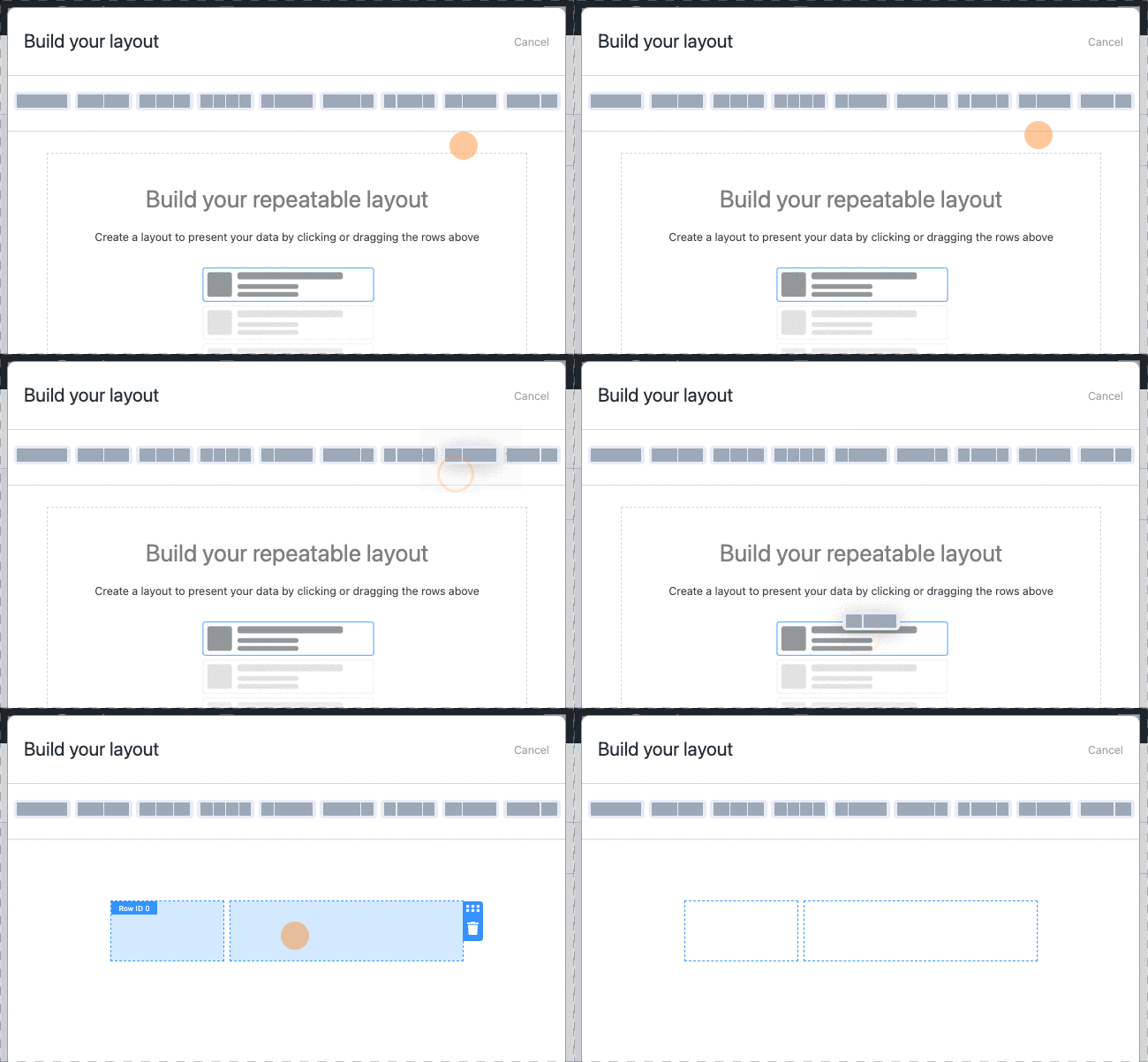
Click the Layout Builder button and add a two column row. You can add more rows and columns if you prefer.
Click Save Layout.
Click the plus to add content in the first box. This box is for the image, so insert:
[home-image show_image=1 size=medium]
If you would like a detail page, you can add a link to this by replacing this shortcode with:
Replace home-image with your File Upload field ID. Replace city, state, listing-price, blurb, bedroom, bathroom, and sqft-living with the field IDs/keys from your form.
In the Advanced Settings, set the Page Size to 50 or less.
Click Update to save your View.
Publish your View on a page. When the page is visited, you should see something like this:
If you would like to display your entries in a gallery format, follow the instructions below.
Go to Formidable → Views. Click the Add New button at the top of the page.
Select Grid for the View type: hover over its row and click the + icon on the right. For more information on these formats, please see the Visual View Settings page.
In the Use Entries from Form dropdown, select the form that will be used as the data source. Enter a name in the View Name box. If you start from the form's Views tab, it's filled in with the form's title and the View type.
Click the start adding content link to add a content box. Then click the box and add the following content:
Replace 100 with the ID or key of the file upload field in your form. Replace 101 with a field ID or key from your form. If you would like a detail page, you can add a link to this by replacing <img src="[100 size=thumbnail]" alt=""/> with:
If you want to display calendar entries, follow the instructions below.
Go to Formidable → Forms. Navigate to your form and proceed to edit.
Click the Views tab, then click the Add New button at the top of the page.
Select Calendar as the View type: hover over its row and click the + icon on the right.
Enter a name in the View Name box. If you start from the form's Views tab, it's filled in with the form's title and the View type, and you can change it.
Several calendar options will appear where you can customize your Calendar View.
Title: Select the text field to use as each event's title. If you leave it set to Select, the Listing Page shows an empty content box instead of the calendar until you add content.
Description: The paragraph field will be considered an event short detail in the popup. If the field is missing, the details won't be displayed in the popup content.
Thumbnail: The image attachment to a file upload field will be taken as a thumbnail. If no file upload field is added or the attachment image is missing, the thumbnail won't be displayed in the popup.
Location: The address field will be provided as an option for the Event location. If the form does not include an existing address field, the location will not appear in the popup content.
Event Date: Select the date field which will determine the date or start date of each event. If you leave it set to Select, the entry creation date is used. Only one date will be displayed if only a single date field has a value.
End Date or Day Count: If you have any multi-day events, select the date field, which will determine the end date or day count (which can be a number field) for the event. By default, the second date field will be considered the end date.
Event Time: Select the time field which will determine the time or start time of each event. By default, the first time field will be considered as the event start time. Only one time will be displayed if only a single time field has a value.
Event End Time: If you have multi-day events, select the time field to determine the end event time. Only the event start time will be displayed if no field is selected.
Click the Create a view button in the overlay to proceed.
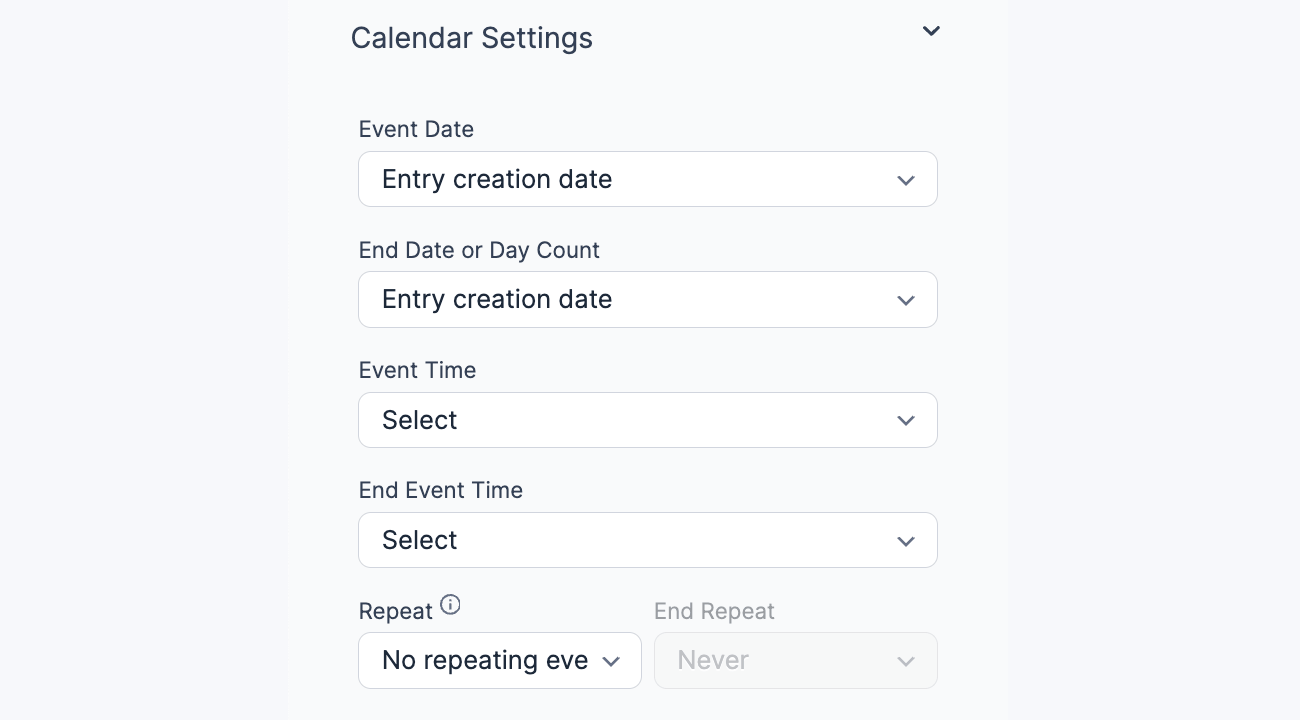
In the Calendar Settings, you can change the settings you chose when you created the Calendar View. You can also set the Repeat and End Repeat settings here.
Repeat: If you would like to have repeating/recurring events, select a dropdown or radio button field from your form that contains values like Daily, Weekly, Monthly, or Yearly. Select the Use separate values option for this field if you want more repeat options. Then you can add text like Every other week with a saved value of +2 weeks or even just 2 weeks. Here is an example of what your dropdown/radio button field may look like:
End Repeat: If you have repeating events and would like to set an end date for some or all of them, select the date field, which will determine the end date for each repeating event.
Once you select a Title field, the Listing Page box shows a preview of the calendar. To start editing the content, click the calendar.
To customize the text displayed on the calendar for each event, click the calendar on the Listing Page to open the Edit Listing Page Content window. Then select the Code tab and insert your preferred text. You can use the field ID/key to display the data dynamically. If you want to show more details when a user clicks on an event, you can add the following:
<a href="[detaillink]">[2330]</a><br/>
Replace 2330 with the ID of one of the fields from your form, most likely the event title.
Click on the Detail Page tab. Click the content box to open the Edit Detail Page Content window. Then use the Customization panel on its right to add a few fields. A few helper tags, such as [event_date], are available in a Calendar View's listing content. Your content for the detail page may look something like this:
Click Update to save your View.
Publish your View on a page. When the page is visited on desktop, you should see something like this:
When the page is viewed on mobile, clicking on an event will display the details below the calendar.
To show the event details in a popup window when you hover over an event in the Calendar, follow the instructions below.
In the Visual Views editor, go to the Calendar Settings on the left sidebar and select the Show Event Details Pop-up checkbox.
When you select this checkbox, several dropdown fields will appear where you can assign a field for each option.
Pop-up Title: Choose a title for the popup. All the text fields from the form will be available as options for this field.
Pop-up Description: Choose a description for the popup. All the paragraph fields from the form will be available as options for this field.
Pop-up Thumbnail: Choose a thumbnail for the popup. All the file upload fields from the form with an attached image will be available as options for this field.
Pop-up Location: Select an address for the popup. All the address fields from the form will be available as options for this field.
Click the Update button to save your settings. When you preview the Calendar, you should see a popup window when you hover over an event.
Container width: Set the container width from the block toolbar. The supported values are Full Width and Wide Width.
Colors: Set the stroke, event color, text color, and background color from the Color section.
Font size: Set the font size from the Typography section. There are two ways to change the font sizes. Choose from the available options: S (12px), M (14px), L (16px), or by adding a custom font size.
If you haven't yet, install and set up the Geolocation add-on on your site.
Go to Formidable → Forms. Navigate to your form and proceed to edit.
In your form, insert a text field that can be used as the place name. Insert an address field and select the Add address autocomplete checkbox. Save your changes by clicking the Update button.
Navigate to the Views tab, then click the Add New button at the top of the page.
Select Map as the View type: hover over its row and click the + icon on the right.
Enter a name in the View Name box. If you start from the form's Views tab, it's filled in with the form's title and the View type, and you can change it.
Select an address field to use on the map. Note that you must use the Geolocation add-on on your address field before you create the entries.
Click the Create a view button in the overlay to proceed.
Once you're in the Visual Views editor, the map settings are on the left sidebar. A preview of the Map will be shown in the Listing Page box. To start editing the content, click the map.
Click the map on the Listing Page to open the Edit Listing Page Content window. Then select the Code tab and insert the ID or key of the text field. If you want to show more details when a user clicks on the map, you can add the following:
<a href="[detaillink]">[18989]</a><br/>
Replace 18989 with the ID of the text field, most likely the place name.
Click on the Detail Page tab. You can insert the ID/key of the address fields to display the map details. Read more on displaying the Geolocation data.
Click Update to save your View.
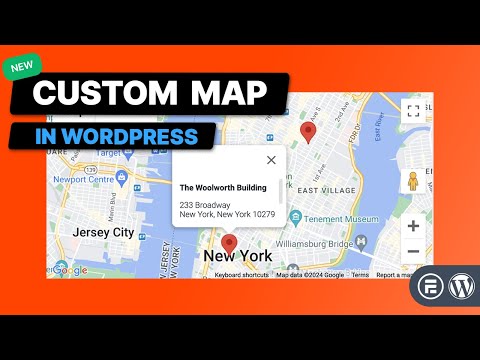
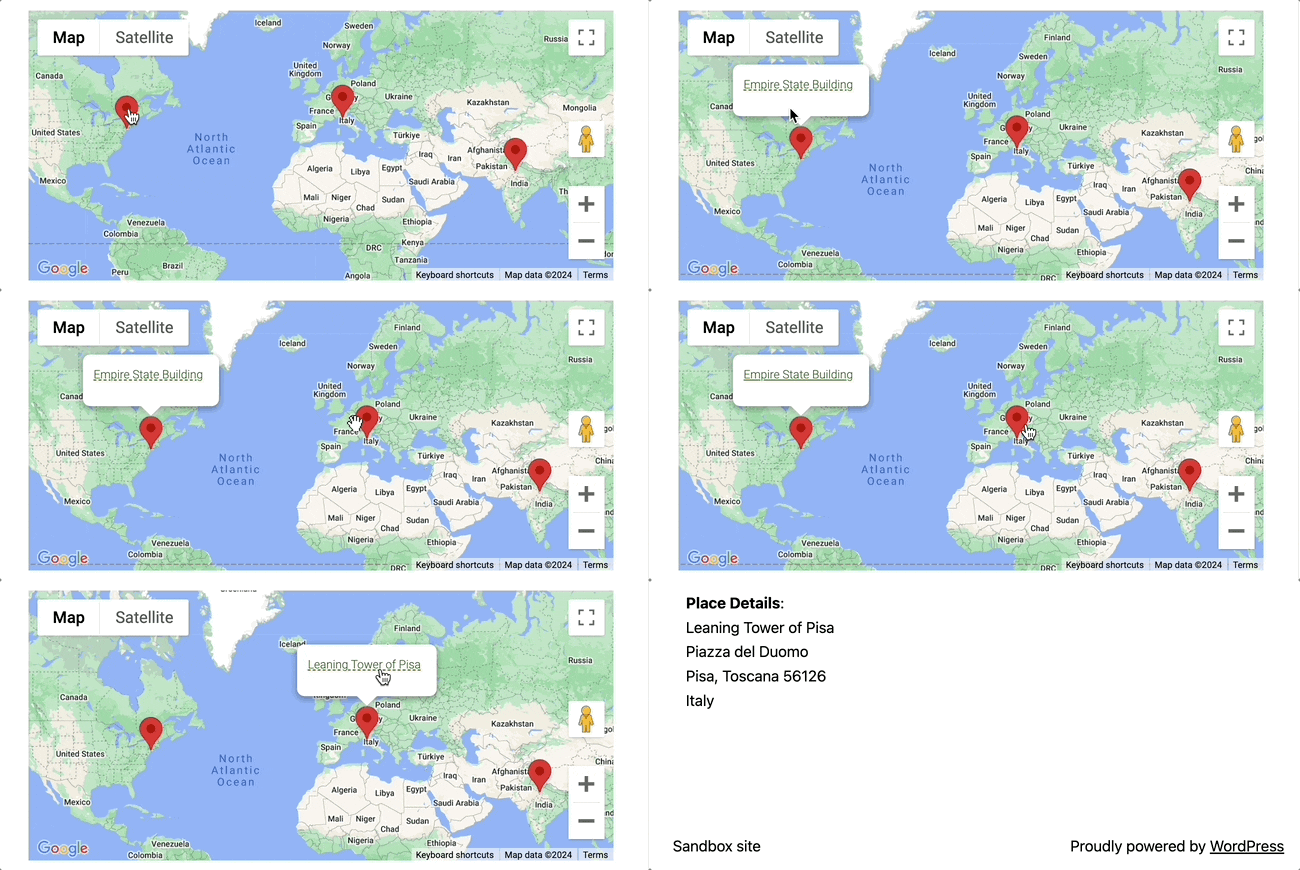
Publish your View on a page. When the page is visited, you should see something like this:
If you want to display your form entries as a visual timeline, follow the instructions below.
Go to Formidable → Forms. Navigate to your form and proceed to edit.
Click the Views tab, then click the Add New button at the top of the page.
Select Timeline as the View type: hover over its row and click the + icon on the right.
Enter a name in the View Name box. If you start from the form's Views tab, it's filled in with the form's title and the View type, and you can change it.
Several timeline options will appear where you can connect your form data to the timeline.
Title: Select a text field to use as the card title. If no text field is added, there won't be a title on the card.
Description: Select a paragraph field to use as the card description. If the field is missing, the description won't be displayed on the card.
Thumbnail: Select a file upload field to use as the card image. If no file upload field is added or the image is missing, the thumbnail won't be displayed on the card.
Date: Select the date field that determines where each event appears on the timeline. By default, the first date field will be used.
Click the Create a view button in the overlay to proceed.
Once you're in the View builder, the Timeline Settings and Style Settings panels are on the left sidebar. You can adjust the settings you configured during creation, and you can also enable additional options like Show Details Popup, Natural Timeline, and Add Dividers. For more information on these settings, see the Visual View Settings page.
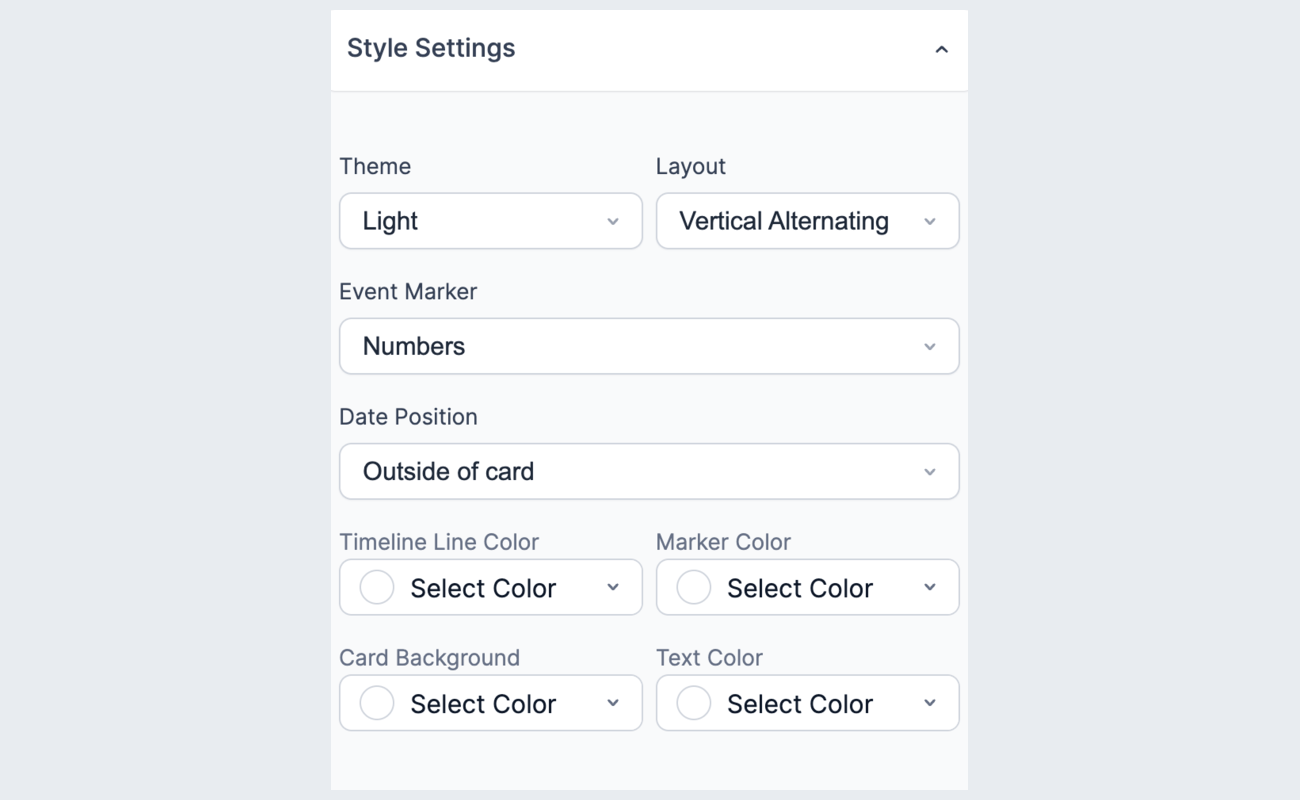
Use the Style Settings panel to customize the look of your timeline. You can change the theme, layout, event marker style, date position, and colors without writing any code.
If you want to show more details when a user hovers on a timeline card, make sure the Show Details Popup checkbox is selected in the Timeline Settings. You can also click on the Detail Page tab to add content for the pop-up. Click the content box to open the Edit Detail Page Content window. Then use the Customization panel on its right to add field IDs or keys.
Click Update to save your View.
Publish your View on a page. When the page is visited, you should see your entries displayed along a timeline.
You can customize the appearance of your Timeline View directly from the Style Settings panel in the View builder. Here are a few things you can change:
Theme: Choose from Light, Dark, No Background, or Life Events. The Life Events theme uses the thumbnail as a full card image, which is great for milestones or personal history timelines.
If you would like to display a single entry from your form, follow the instructions below.
Go to Formidable → Views. Click the Add New button at the top of the page.
Select Grid for the View type: hover over its row and click the + icon on the right. For more information on these formats, please see the Visual View Settings page.
In the Use Entries from Form dropdown, select the form that will be used as the data source. Enter a name in the View Name box. If you start from the form's Views tab, it's filled in with the form's title and the View type.
In the Advanced Settings, set the Limit to 1.
Click Start adding content. Then add a few field IDs using the Customization panel on the right of the content window.
Now you need to choose which entry to display. You can control which entry shows up by setting sorting or filtering entries in the View builder.
If you want to display only the most recent submitted entry, click Sort entries and set the first row to 'Entry creation date' and 'Descending'.
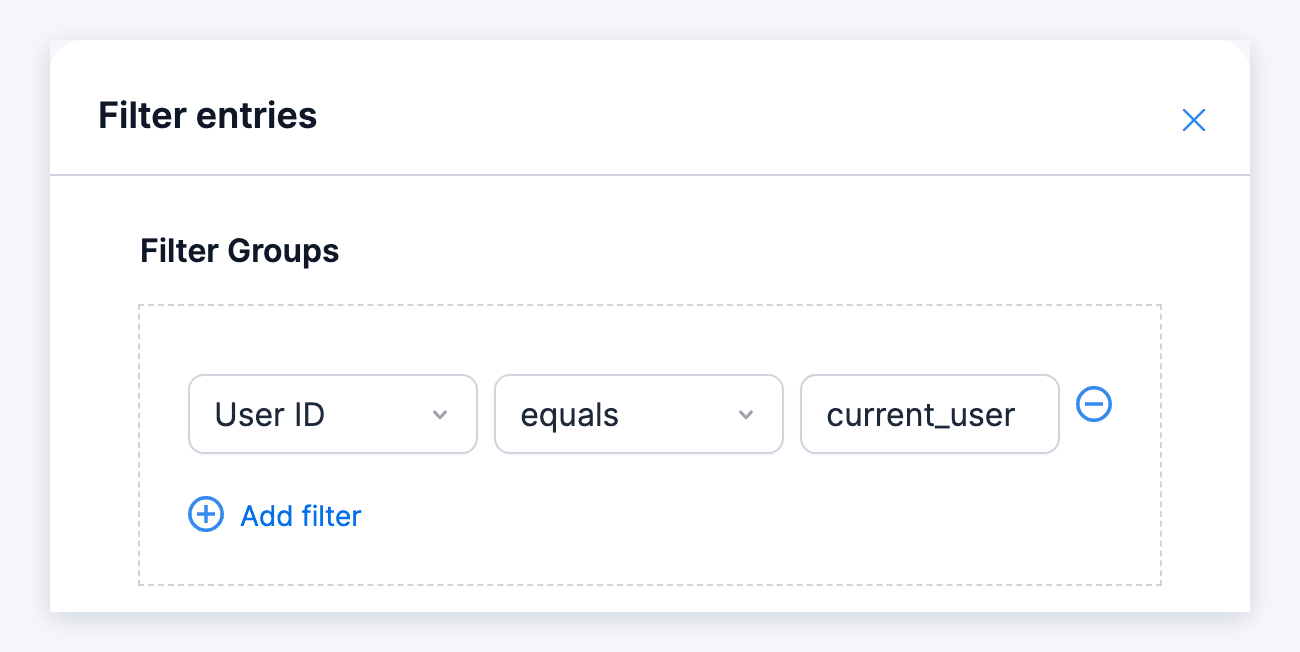
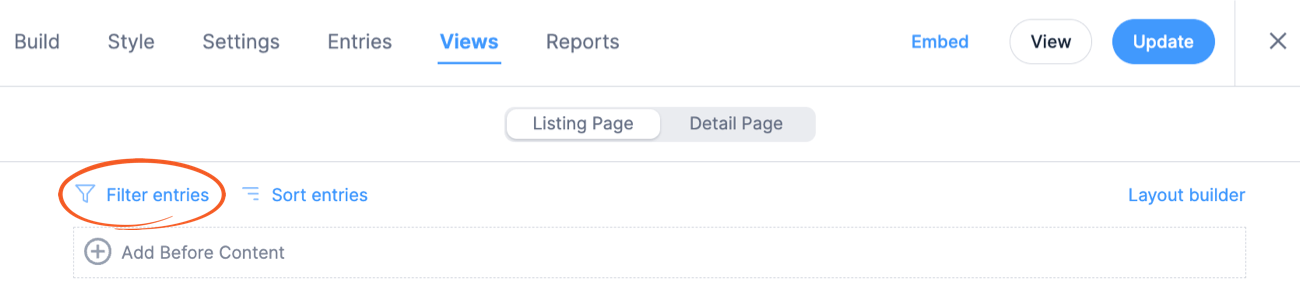
If you want to display only the current user's entry, click Filter entries and add a filter that says 'User ID equals current_user'.
To display a specific entry, click Filter entries and add a filter that says 'Entry ID equals 12345'. Replace 12345 with the ID of the entry you want to display.
To display a random entry every time the page is visited, click Sort entries and select 'Random' in the first dropdown.
Click Update to save your View.
Publish your View on a page. When the page is visited, you should see values from a single entry.
If you would like to create a basic detail page for a View, follow the instructions below.
Go to Formidable → Views and click the name of the View you want to edit.
In the Listing Page Content box, select the Code tab and add a link to the detail page:
<a href="[detaillink]">[100]</a>
Replace 100 with a field ID/key from your form.
Click on the Detail Page tab. Click the content box to open the Edit Detail Page Content window. Then use the Customization panel on its right to add field IDs or keys. It may look something like this:
Replace 100, 101, and 102 with field IDs/keys from your form. If you would like to use a shortcode to insert all the fields for a single entry in the detail page, you can use the frm-show-entry shortcode and replace x with [id].
Click the Update button to save your View.
Publish your View on a page if you have not done so already. When the detail page of your View is shown, it will look something like this,
If you like to show a list of entries that link to a more detailed page, follow the instructions below. Before proceeding with the instructions, make sure you already have a Classic or Calendar View created.
Go to Formidable → Views and click the name of a View that has Classic or Calendar selected for the View type.
In the Listing Page Content box, select the Code tab and include something like this:
<a href="[detaillink]">[872]</a>
Replace '872' with a field ID from the form.
Make sure you have added content to your Detail Page. If you have not added content yet, you may follow the instructions here.
Click the Update button to save your View.
Publish your View on a page if you have not done so already. When the page is visited, it will work like this:
If you would like to create a View that only displays the current user's entries, follow the instructions below. Before proceeding, you will first need to create a View.
Go to Formidable → Forms and edit the form that is connected to your View. Add a UserID field if it doesn't already have one.
Go to Formidable → Views and click the name of your View.
In the View Builder, click the Filter entries link. Set up the filter so it says User ID equals current_user. Please note that for this to work you must have the User ID (hidden) field in your form.
Click the Update button to save your View.
Publish your View on a page if you have not done so already. When the page is visited, the View will only display the entries that the logged-in user submitted.
Display the user's most recently submitted information in a graph. Please note that your users must be logged in when submitting entries in order for this to work.
Go to Formidable → Views. Click the Add New button at the top of the page.
Select Classic or Grid for the View type: hover over its row and click the + icon on the right.
In the Use Entries from Form dropdown, select the form that will be used as the data source. Enter a name in the View Name box. If you start from the form's Views tab, it's filled in with the form's title and the View type.
In the Advanced Settings, set the Limit to 1.
In the Listing Page Content box, select the Code tab and insert the following shortcode:
[frm-graph fields="x,y,z" entry="[id]"]
Replace x, y, and z with a field IDs or keys from the form. Leave [id] as is. This shortcode will get the entry ID dynamically. For more graphing options, see the graphs documentation.
In the View Builder, click the Filter entries link. Set up the filter so it says User ID equals current_user. Please note that for this to work you must have a User ID (hidden) field in your form.
In the View Builder, click the Sort entries link. Set the order to Entry ID and Descending.
Click Update to save your View.
Publish your View on a page if you have not done so already. Now when the page is visited, it will show a graph with the current user's most recent entry.
When you create a repeatable section in a form, it technically creates a new form. This form is considered a child form, and the parent form is the form which holds the repeatable section.
You may need to create a View from your Repeatable Section if you want to sort or filter by a field in the Repeatable Section. In these cases, you can directly choose the Repeatable Section from the 'Use Entries from Form' dropdown menu in a View. The naming of the child form will be the name of your Repeatable section in your form with '(child)' next to it. If you would like to include any values from fields outside of the Repeatable Section, you may use this shortcode in your View Content:
[frm-field-value field_id=x entry="[parent_id]"]
Replace x with the ID of any field outside of the Repeatable Section.
Since Formidable Forms 7.0, the logged-in user who submitted the parent entry sees this value. So do users who can view entries in the admin area (administrators by default). Everyone else, including logged-out visitors, sees it blank. Values from fields inside the Repeatable Section still show. If the View is public, show that field's value to every visitor with the frm_field_value_requires_ownership hook.
Repeater entries are edited through their parent entry. To include an edit link in the Repeater View that will link to the parent entry, use the frm-entry-edit-link shortcode.
Replace y with the Page ID where the form is published.
The link shows only when front-end editing is turned on for the parent form in Settings → Form Permissions → Allow front-end editing of entries. Learn more about how to set up front-end editing.
If you create a View directly from the Repeating Section and you insert it inside of the main View, then you can search values inside and outside of the repeating section. You'll insert the child View like this:
[display-frm-data id=x p_id="[id]"]
You will also need to add a filter in the Child View that says
Parent entry ID equals [get param=p_id]
Then, if you are searching entries and want to search values outside of the repeating section, add a filter on the main View. If you want to search values inside of the repeating section, add a filter on the main View and on the Child View.
If you are creating posts with your form, you may want to create a View that only shows posts that are published, or posts that are still drafts. If you would like to create a View that displays only draft posts for example, follow these instructions.
If you would like to show a user the details from their submitted entry immediately after form submission, follow the steps below.
Go to Formidable → Views. Click the Add New button at the top of the page.
Select Classic or Grid for the View type: hover over its row and click the + icon on the right.
In the Use Entries from Form dropdown, select the form that will be used as the data source. Enter a name in the View Name box. If you start from the form's Views tab, it's filled in with the form's title and the View type.
In the Advanced Settings, set the Limit to 1.
In the Listing Page Content box, select the Code tab and start adding content. Use the Customization panel on the right of the content window to add a few field IDs or keys. Your content may look something like:
Email: [181]
Phone Number: [182]
In the View Builder, click the Filter entries link. Add a filter that says Entry key equals [get param=entry_key default="none"].
Save the View then publish it on a page. Copy the URL of the page.
Go into edit the form that users will be filling out. Click on the Settings → Actions & Notifications. Under Current Actions, click the Confirmation action to open it.
Select the Redirect to URL button. In the Redirect URL box, paste the URL of the page where your View is published, followed by ?entry_key=[key].
Click Update to save your form.
Now when a user fills out the form, it will immediately redirect to the View where the user can see the details from their submitted entry.
A variety of helpful advanced customization shortcodes like entry ID, entry key, and post ID can be used in your View. For more information on these available shortcodes, visit the Helpers page.
In the Legacy Views, the Customization box in the sidebar scrolls with the page to make it easy to click and add content into your View. If a box gets moved into the sidebar it will be hidden under the Customization panel. Click the Unlock icon to let the panel move with the page.
If you encounter an error message displaying 403 Forbidden: You do not have permission to access this document, you can reach out to your web host to disable rule 214420 in Mod Security. This should allow you to access the document without issue.
If the page slides when you click a previous or next month link, and the page does not change, this indicates a conflict with your theme (like Divi). The easiest solution is usually to turn off smooth scrolling in your theme.
Generate slug for the View detail page using the frm_validate_entry hook.
You must log in to vote
Was this article helpful? *
This article may contain affiliate links. Once in a while, we earn commissions from those links. But we only recommend products we like, with or without commissions.
In this article
Get More Done In Less Time With Better
WordPress Forms
Upgrade your
workflow with advanced WordPress forms and integrated Views.
We use cookies to improve your experience on our site. By using our site, you consent to cookies.
This website uses cookies
Websites store cookies to enhance functionality and personalise your experience. You can manage your preferences, but blocking some cookies may impact site performance and services.
Essential cookies enable basic functions and are necessary for the proper function of the website.
Name
Description
Duration
Geolocation Config
This cookie is used to store the consent settings based on the visitor's location.
90 days
Cookie Preferences
This cookie is used to store the user's cookie consent preferences.
90 days
These cookies are needed for adding comments on this website.
Name
Description
Duration
comment_author
Used to track the user across multiple sessions.
Session
comment_author_email
Used to track the user across multiple sessions.
Session
comment_author_url
Used to track the user across multiple sessions.
Session
Easy Digital Downloads is a complete eCommerce solution for WordPress.
Name
Description
Duration
edd_items_in_cart
Stores information about the cart.
Session
edd_session_
Stores information about the current user session.
Session
Formidable Forms is used to manage forms on this website.
Name
Description
Duration
frm_form_
Saves the ID of the form and the time the entry was submitted.
2 hours
These cookies are used for managing login functionality on this website.
Name
Description
Duration
wordpress_logged_in
Used to store logged-in users.
Persistent
wordpress_sec
Used to track the user across multiple sessions.
15 days
wordpress_test_cookie
Used to determine if cookies are enabled.
Session
Statistics cookies collect information anonymously. This information helps us understand how visitors use our website.
Google Analytics is a web analytics service offered by Google that tracks and reports website traffic.
Used to determine if the user is in a new session/visit.
Session
__utmt
Used to throttle request rate.
10 minutes
__utmv
Used to store visitor-level custom variable data.
2 years
__utmz
Stores the traffic source or campaign that explains how the user reached your site.
6 months
LinkedIn is a professional networking platform for job seekers, employers, and industry connections.
Name
Description
Duration
fcookie
Used for bot detection.
7 days
AnalyticsSyncHistory
Used to store information about the time a sync with the lms_analytics cookie took place for users in the Designated Countries
30 days
ccookie
To remember if a user received a captcha challenge.
20 minutes
lissc
Pending
1 year
ABSELB
This is Load Balancer Cookie for affiliate marketing
2 years
spectroscopyId
These cookies are set by LinkedIn for advertising purposes, including: tracking visitors so that more relevant ads can be presented, allowing users to use the 'Apply with LinkedIn' or the 'Sign-in with LinkedIn' functions, collecting information about how visitors use the site, etc.
session
brwsr
This cookie is used to Affiliate Marketing Cookie for LinkedIn
2 years
UserMatchHistory
These cookies are set by LinkedIn for advertising purposes, including: tracking visitors so that more relevant ads can be presented, allowing users to use the 'Apply with LinkedIn' or the 'Sign-in with LinkedIn' functions, collecting information about how visitors use the site, etc.
session
lihc_auth_
Used by LinkedIn HelpCenter Live Chat to store language and chat start timestamp. Example names of this cookie include lihc_auth_en, lihc_auth_es, depending on language preference.
Session
lang
Used to remember a user's language setting
session
li_a
Used to authenticate enterprise users on Sales Navigator and Recruiter
30 days
li_gc
Used to store guest consent to the use of cookies for non-essential purposes
2 years
li_ep_auth_context
User to authenticate LinkedIn enterprise customers
30 days
li_rm
Used as part of the LinkedIn Remember Me feature and is set when a user clicks Remember Me on the device to make it easier for him or her to sign in to that device
1 year
bscookie
Used by LinkedIn to track the use of embedded services.
1 year
lms_ads
This cookie is used to identify LinkedIn Members off LinkedIn for advertising
30 days
trkCode
This cookie is used by LinkedIn to support the functionality of adding a panel invite labeled 'Follow Us'
1 year
_guid
This cookie is used to identify a LinkedIn Member for advertising through Google Ads
90 days
trkInfo
This cookie is used by LinkedIn to support the functionality of adding a panel invite labeled 'Follow Us'
1 year
BizographicsOptOut
This cookie is used to determine opt-out status for non-members
10 years
li_oatml
Collects information about how visitors use our site.
30 days
IRLD
This cookie is used for Affiliate Marketing Cookie for LinkedIn
2 years
liap
Cookie used for Sign-in with Linkedin and/or to allow for the Linkedin follow feature.
90 days
l_page
This cookie is used for measuring conversion metrics on LinkedIn
6 months
pushPermInfo
Used across multiple LinkedIn services to determine cool off for push notification prompts
365 days
pushPermState
Used across multiple LinkedIn services to determine the user's push notification permission preference
30 days
ln_or
Used to determine if Oribi analytics can be carried out on a specific domain
1 day
chp_token
Used to denote whether the user has gone through two factor authentication or solved a Captcha.
Session
li_sugr
Used to make a probabilistic match of a user's identity outside the Designated Countries
90 days
lidc
Used by the social networking service, LinkedIn, for tracking the use of embedded services.
1 day
sdsc
This cookie is used for signed data service context cookie used for database routing to ensure consistency across all databases when a change is made. Used to ensure that user-inputted content is immediately available to the submitting user upon submission
Session
bcookie
Used by LinkedIn to track the use of embedded services.
1 year
li_mc
This cookie is used as a temporary cache to avoid database lookups for a member's consent for use of non-essential cookies and used for having consent information on the client side to enforce consent on the client side
6 months
PLAY_FLASH
Used by some LinkedIn services to facilitate the display of messages on page transitions . Users include notifying a user when a form is successfully submitted or fails , and to provide other similar notifications.
Session
li_referer
Used to detect bots. Cookie remembers the referring website before redirecting the user to captcha for authorization
15 minutes
f_token
Used to detect bots for anti-scraping
3 minutes
li_apfcdc
Used for triggering the abuse prevention features on member device.
10 hours
li_odapfcc
Used to control the number of abuse prevention features collected from member device.
2 Years
ac_L
Counts the number of times the account center banner, which is displayed to inform users with an incomplete profile how to complete their profile, was closed by a user to determine display logic
180 days
ac_LD
Contains the date when the account center was displayed to a user to determine display logic
180 days
recent_history_status
Used to determine whether a user enabled or disabled the Guest Recent History Setting
10 years
all_u_b
To know if a user has opted in to viewing LinkedIn on an unsupported browser
21 days
uh
Used to set the user preference for the mobile web platform via a user's settings
Session
abiRedirect
Enables import of address book during onboarding flow for users who choose to import their address book
Session
wwepo
Used to ensure that useres who choose to sign up using phone only have that setting and preference respected
90 days
li_cu
Used to map a user to a captcha challenge page
15 minutes
li_ec
Used to store unbound enterprise users' cookie consent
6 months
denial-client-ip
Stores user IP address for anti-scraping and DOS prevention
5 seconds
li_gpc
Used to remember a user's preferences on LinkedIn's Global Privacy Control
1 hour
denial-reason-code
Used for anti-scraping and DOS prevention
5 seconds
li_gp
Stores privacy preferences for guests to LinkedIn
1 year
rtc
Used as part of anti-abuse processes on LinkedIn
120 seconds
redirectFromM2MInviteSent
Used to notify and provide the appropriate profile display logic when the user sends an invitation to connect on LinkedIn from a LinkedIn member via email.
Session
queryString
This cookie is used to persist marketing tracking parameters
15 days
cookie.policy.banner.eu
Used to display cookie banner in LinkedIn Lite
365 days
cookie.policy.banner.nl
Used to display cookie banner in LinkedIn Lite on the Netherlands site.
365 days
appName
Used to identify the source as the LinkedIn Lite app to send the right service worker to the app
Session
appLang
Used to set the right language on the LinkedIn Lite app
Session
lls-integration
Validates whitelisted partners for content integrations
30 days
feed-sort
Used to remember a member's preference how the feed should be sorted
1 day
integration_type
Used to determine which integration traffic is coming from to render the profile namecard experience
30 days
li_theme_set
Remembers which users have updated their display / theme preferences
6 months
PLAY_LANG
Used by some LinkedIn services to remember a user's language preference
Session
lms_analytics
Used to identify LinkedIn Members off LinkedIn for analytics
30 days
PLAY_SESSION
Used by some LinkedIn services to store session information
Session
li_fat_id
Member indirect identifier for Members for conversion tracking, retargeting, analytics
30 days
redirectFromM2MInviteAccept
Determines the appropriate profile display logic when a user accepts an invitation to connect on LinkedIn from a LinkedIn member via email.
Session
li_giant
Indirect indentifier for groups of LinkedIn Members used for conversion tracking
7 days
sharebox-suggestion
Displays a banner that provides help text to first time users of the Elevate share box
Session
li_cc
Used to ensure a user's phone number is inputted in China
1 week
lss_bundle_viewer
Stores consent when a user agrees to view a Smartlinks link
1 month
interstitial_page_reg_oauth_url
Stores the referring page to ensure the Authentication screen displays correctly
1 day
df_ts
Device fingerprinting sampling for performance optimization
1 day
lil-lang
Stores user's selected language setting for LinkedIn Learning
Session
li_alerts
Used to track impressions of LinkedIn alerts, such as the Cookie Banner and to implement cool off periods for display of alerts
1 year
li_theme
Remembers a user's display preference/theme setting
6 months
li_feed_xray
Used to show new items in developer option 'Feed X-ray'
Session
VID
ID associated with a visitor to a LinkedIn microsite which is used to determine conversions for lead gen purposes
1 year
recent_history
Used to remember URLs visited by the guest to show the pages back where they left off
90 days
Marketing cookies are used to follow visitors to websites. The intention is to show ads that are relevant and engaging to the individual user.
Name
Description
Duration
affwp_campaign
Stores the affiliate campaign name for tracking purposes.
30 days
affwp_ref
Stores the referring affiliate ID for commission attribution.
30 days
affwp_ref_visit_id
Stores the visit ID linked to the referring affiliate.
30 days
LinkedIn Insight is a web analytics service that tracks and reports website traffic.