What a pleasure to have support within minutes. Brillant, accurate answer, and solved the question. Thanks to the Formidable Team. Eric


Last updated on September 28, 2026 by Emma Wells
How to Build a WordPress Customer Feedback Portal
Your customers are telling you how to improve. The problem? Their feedback is scattered across emails, support tickets, review sites, and survey links. Insights get buried. Patterns go unnoticed. Good ideas vanish.
Most companies solve this by paying $50-300/month for a specialized feedback platform. But here's what they don't tell you: you already have everything you need to build a WordPress customer feedback portal all within your own server.

Approximate read time: 9 minutes
Instead of feeding customer insights into another third-party service, Formidable Forms users build feedback portals directly into WordPress—centralized systems that aggregate input from multiple channels, organize by urgency, and actually get reviewed. The result? Faster responses, earlier trend spotting, and customers who feel heard.
Upgrade your WordPress site with powerful, flexible forms.
The Hidden Cost of Scattered Feedback
Typeform, Surveymonkey, and Qualtrics charge per response, per user, or per month—sometimes all three. Small businesses might pay $25 monthly. Mid-size companies? $200-500. But cost isn't the real problem.
Your feedback never talks to the rest of your business. A customer reports a bug in Typeform. Your product team never sees it. Support gets a separate ticket about the same bug. You ship fixes based on incomplete information because your customer voice is fractured across platforms.
Then there's vendor lock-in: your feedback lives on their servers, follows their export rules, and lives by their terms. Change your mind? Good luck extracting your data.
WordPress customer feedback portals eliminate these friction points. Your data stays yours. Costs don't scale with volume. And you can connect feedback directly to your CRM, support system, and project management tools.
From Idea to Reality in Minutes. Build Powerful Forms, Dashboards, Apps and More.
Formidable Forms makes advanced site building simple. Launch forms, directories, dashboards, and custom WordPress apps faster than ever before.
How a WordPress Customer Feedback Portal Actually Works
Most companies think of feedback collection as one-directional. Customer submits feedback, it disappears into a form, maybe they get a "thank you" email. Done.
A real feedback portal is different. It's an entire ecosystem:
Inbound Collection: Multiple feedback channels—embedded surveys, contact forms, email replies, even imported feedback from external sources—all feeding into a single database.
Internal Triage and Discussion: Your team sees incoming feedback immediately, categorizes it, assigns ownership, adds internal notes, and discusses what to do about it. This isn't hidden from leadership; it's the business logic of your company.
Outbound Communication: Customers see their feedback was received, they get visibility into status, and they find out when their suggestion becomes reality. This closes the loop and builds loyalty.
Intelligence and Reporting: Executives see trends without needing a data analyst to query three different platforms. What's your NPS? What feature request came up seventeen times this month? Which product area is frustrating customers most?

Formidable Forms creates all of this without complexity. Forms capture data, Views organize and display it, and a few smart configurations turn raw feedback into actionable intelligence.
Step 1: Design Your Feedback Collection Form
Start by deciding what you're collecting and why.
Are you after general product feedback? Specific bug reports? Feature requests? Customer experience insights? Pricing feedback? Most successful portals collect multiple types, but you need to tag them differently so your team can process each type appropriately.
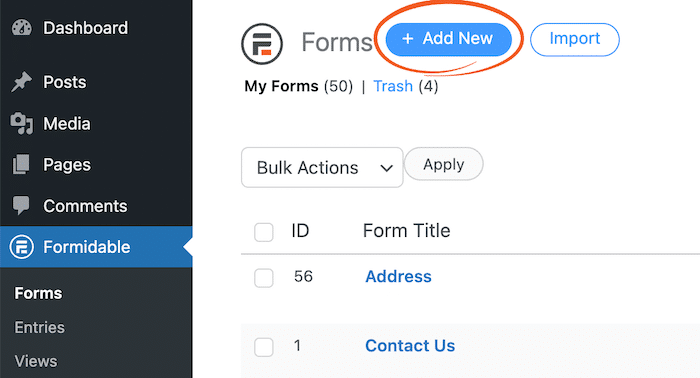
Go to Formidable → Forms and create a new form called "Customer Feedback."
For structure, think about what someone actually needs to know to act on this feedback:
The Basics: Name, email, company (optional), and when the experience happened. This seems obvious, but you'd be surprised how many feedback systems don't capture when something occurred. That matters for identifying if you fixed it already.

What Kind of Feedback: Use a dropdown: Bug Report, Feature Request, UI/UX Issue, Documentation Feedback, Performance Problem, Billing/Pricing, Customer Service Experience, General Comment, Other. This categorization is your first sorting mechanism.

The Heart of It: A subject line (short, searchable), then a detailed description in a text area. Optional: allow file uploads so customers can attach screenshots, error logs, or videos demonstrating the issue.
Context That Helps: How badly does this affect them? Dropdown with Slightly, Moderately, or Severely. What parts of your product does this touch? Multi-select for Product Area. These fields feel like metadata, but they're your filtering and prioritization engine.
Response Preferences: Would they like a response? If yes, how should you contact them and when? Time zone matters if you're scheduling follow-ups.

Each field becomes a column in your database. You're not just building a form—you're architecting how your company will organize and think about customer feedback.
Step 2: Lock Down Who Can See What
Not every team member needs to see every piece of feedback. Your sales team shouldn't read internal bug reports. Your support reps shouldn't see billing feedback meant for the finance team.
Formidable Forms has built-in permission controls. Use them.
First, decide on your team structure:
- Support Reps can view feedback in their assigned category and respond to customers, but can't change status or reassign to other departments.
- Product Managers can see all feedback, categorize and prioritize it, and decide what gets worked on.
- Marketing needs access to customer testimonials and positive feedback for case studies and messaging.
- Executives get high-level reports: sentiment trends, volume by category, what's broken most often.
In your feedback form settings, navigate to Form Permissions. Decide who can submit (all users, logged-in only, or specific roles). Enable draft saving so customers can write detailed feedback without losing their work.
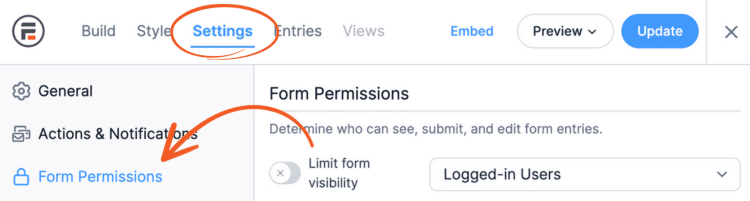
Then configure Form Visibility so team members only see feedback relevant to them. This is done at the View level (we'll get there next), but it starts with clear role definitions.
Step 3: Build the Team Dashboard That Actually Gets Used
Raw feedback data is overwhelming. Feedback with organization, prioritization, and clear next steps? Teams actually use that.
Create a Formidable View called "Feedback Inbox." This is where your team lives.

Use a table layout because speed matters. Your team needs to scan incoming feedback in seconds. Columns should include: Customer Name, Feedback Type, Subject, Sentiment, Severity, Status, and Assigned To.
Here's the trick: set up sorting so that feedback automatically surfaces in priority order. The most frustrating bug affecting multiple customers should jump to the top. A feature request from a single user sits lower. Use Formidable's built-in sorting to make high-severity feedback appear first by default—give reviewers options to re-sort by type, date submitted, or sentiment if needed.
Add conditional visibility so team members only see feedback meant for their department. A Support Manager view shows all feedback. A specific Support Rep's view shows only feedback assigned to them plus unassigned feedback from their category.
When someone clicks a feedback submission, they land on a detail page showing everything: full customer description, attachments, conversation history, and what's already been done. No clicking between platforms. No missing context.
Step 4: Create Your Team Member Database
Before you can assign feedback, you need a database of who can receive assignments.
Create a new form called "Team Members." This becomes your staff directory specifically for feedback management.
Add these fields:
- Team Member Name (Text field)
- Email Address (Email field)
- Department (Dropdown: Product, Engineering, Support, Sales, Marketing, Executive, Operations)
- Role (Dropdown: Manager, Individual Contributor, Executive)
- Specialization (Multi-select: Bugs, Feature Requests, UX Issues, Pricing, Billing, Documentation, Performance, Integrations)
- Active Status (Radio buttons: Active, On Leave, Inactive)

Have your admin populate this form with every team member who might review feedback. This becomes your assignment directory.
Now, back in your main "Customer Feedback" form, add two admin-only Lookup fields (set visibility to "Administrator" only):
Status (Lookup field)
- Set the data source to your "Team Members" form
- Display format: Status
- Default value: "Active"
- Set as admin-only so customers don't see internal assignments

Assigned To (Lookup field)
- Set the data source to your "Team Members" form
- Display format: Team Member Name
- Watch a Lookup field
- Select "Status"
- Also set as admin-only

When your admin views feedback in the team dashboard, they can now assign it to specific team members from your staff directory. The Lookup field pulls directly from your Team Members form, so when someone joins the team, you just add them once and they immediately appear in assignment options.
This workflow becomes your transparency layer. Internally, your team knows exactly who owns each piece of feedback. Customers who submitted feedback can log in and watch their suggestion move from idea → planned → shipped, even if it takes six months.
Step 5: Let Your Team Collaborate Without Customers Watching
Here's where many feedback portals fail: internal discussion gets mixed with customer-facing communication.
Your product manager needs to say "this is a known issue that affects 40% of power users, let's prioritize it." Your CEO needs to comment "can we launch this in Q3?" These are important conversations, but customers shouldn't see them.
Create a third form called "Feedback Discussion." Link it to your main feedback form with a Dynamic field.

This form captures:
- Links back to the original feedback
- Internal comments (only your team sees this)
- Response to customer (optional, and only this part shows in the public view)
- Discussion type: Planning Note, Escalation, Customer Update, Implementation Detail
Your team uses Discussion entries to brainstorm, argue, align, and decide. The customer sees only what you explicitly flag for them to see.
In your team dashboard, display all discussions. In the public customer view, only show discussions where "Share with Customer" is checked.
Step 6: Make Feedback Searchable and Analyzable
A hundred pieces of feedback is useful. Ten thousand becomes noise unless you can actually search and analyze it.
In your Feedback form, add categorical fields strategically:
Affected Product Areas: Multi-select of Features, Pricing, Performance, Integrations, Documentation, Security, UX, etc. When someone reports an issue, they tag it. You can now instantly ask "what's frustrating users about our integrations?"
Feature Categories: For feature requests specifically, tag whether it's small polish, a medium feature, or a big strategic capability. This helps product planning.
Use Formidable's search bar functionality in your Feedback Inbox view, as well as filterable tags. Make sure the search indexes text fields so team members can find feedback by searching "checkout" or "mobile app."
Better yet: create a Feedback by Category view that groups feedback by type, showing counts of each. Your product manager now knows "we have 47 feature requests, 23 bug reports, and 8 pricing questions—here's what to focus on."
Step 7: Reports That Actually Change Decisions
Feedback isn't valuable until someone acts on it. Reports make action possible.
Create a "Feedback Trends" view that displays:
- Volume by Category: How many bug reports versus feature requests are you getting? Is that ratio changing month-to-month?
- Sentiment Breakdown: What percentage of feedback is positive, neutral, and negative? Which product areas get the most negative feedback?
- Response Time: How long does feedback typically sit in "New" status before getting reviewed? If it's weeks, you have a resourcing problem.
- Resolution Status: How much feedback are you actually shipping against? How much gets marked "Won't Do"? Are you acting on customer input or just collecting it?
Build a "Feature Request Impact" view that counts how many times each feature has been requested across all submissions. Your most-requested feature should bubble to the top and influence product roadmap.
If you have Formidable's Charts add-on, visualize these trends as graphs. Executives understand "feedback sentiment improved 15% last quarter" when they see the line going up. Dashboard reports make the invisible visible.
Step 8: Connect Feedback to Action
Feedback sitting in a database is just data. Feedback connected to shipped features is strategy.
Create a "Shipped in Response To" view that displays: Which features or bug fixes you shipped this quarter, which customer feedback prompted them, and how many customers requested each item.
Display this to customers. "Version 2.3 shipped these improvements based directly on feedback from customers like you." This closes the loop and shows you're listening.
Link your feedback portal to your project management system via Zapier or webhooks. When product managers mark feedback as "Planned," it automatically creates a card in your development backlog with customer feedback attached. When that card ships, it feeds back as a status update in the feedback portal.
This connection transforms feedback from interesting data into business fuel.
Beyond the Basics: What Separates Good Portals From Great Ones
Once you've built the core system, these features elevate it:
Public Roadmap View: Create a Formidable View of your features and their status (Planned, In Development, Shipped). Let customers vote with their feedback. This reduces duplicate requests and shows transparency.
NPS Tracking: Build a specialized survey form that asks "How likely are you to recommend us?" Track this monthly and correlate it to your feedback patterns. When NPS drops, which feedback themes increase?
Notification Triggers: Email product managers instantly when critical feedback arrives. Email customers when their feedback status changes.
Why This Approach Works
Formidable Forms feedback portals work because they're not trying to be a specialized tool. They're leveraging WordPress's foundation to create something custom to your business:
You keep your data. Export it whenever, however you want.
It scales. Hundred submissions or hundred thousand—your costs stay the same.
Your team already knows WordPress. No learning curve, no onboarding time.
You can build it in a day and start collecting feedback immediately.
You own your workflow. If you decide feedback needs to flow through a different approval process, you change it—no waiting for a platform vendor to add that feature.
Getting Your Portal Live
Start narrow. Don't build the perfect system. Build a working system.
Launch with basic feedback collection and a simple team dashboard. Get feedback flowing. Let your team actually use it for a week. Then enhance based on what you learn.
Talk to your team about what they wish they could do with feedback currently. That usually reveals what your system needs.
Test the visibility rules thoroughly. Make sure customers can't see other customers' feedback. Make sure the sales team isn't accidentally seeing product team conversations.
Document your status workflow so everyone agrees what "In Progress" actually means. Ambiguity breaks these systems.
Your Feedback Is Worth More Than You Know
Every customer who takes time to tell you what's broken or what's missing is handing you a competitive advantage. The companies that lose are the ones who don't listen. The companies that win listen systematically, act quickly, and tell customers what they did.
WordPress gives you the infrastructure. Formidable Forms gives you the tools. This guide gives you the framework.
Build your own WordPress customer feedback portal. Make customers feel heard. And watch what happens when you actually act on what they tell you.
This article may contain affiliate links. Once in a while, we earn commissions from those links. But we only recommend products we like, with or without commissions.