What a pleasure to have support within minutes. Brillant, accurate answer, and solved the question. Thanks to the Formidable Team. Eric


Last updated on August 12, 2026 by Emma Wells
How to Build Custom Database Applications in WordPress
What if your WordPress site could do more than display content? What if it could track customer relationships, manage inventory, coordinate projects, or handle maintenance requests—all without expensive enterprise software or custom development?
That's exactly what Formidable Forms' WordPress application builder makes possible. Today, I'm going to show you how to transform WordPress into a fully functional database application tailored to your exact business needs.
Approximate read time: 10 minutes
Here's the secret most businesses miss: WordPress already has everything you need for powerful database applications—a robust MySQL database, user authentication, and flexible content management. The missing piece has always been an intuitive way to create custom database structures and interfaces without coding.
I've spent the last few years watching Formidable Forms users build CRM systems, inventory managers, project trackers, customer portals, and asset management systems that rival software costing thousands per month. They're doing it in hours instead of months, with no developers required.
Whether you're running a small business or managing enterprise operations, this guide will show you the exact framework for building database applications that keep your data under your control while eliminating expensive SaaS subscriptions.
Upgrade your WordPress site with powerful, flexible forms.
Why Build Database Applications in WordPress with Formidable Forms?
Before diving into the technical process, let me address the question I hear most often: "Why not just use a dedicated database platform like Airtable or a custom-built solution?"
I've watched countless Formidable users struggle with this exact decision, and here's what I consistently observe:
Third-Party Database Platforms Are Expensive: Most database-as-a-service platforms charge per user per month. With Airtable, you're looking at $20-45 per user monthly once you need any real functionality. For a 10-person team, that's $200-450 monthly forever.
Custom Development Is Slow and Costly: Building a custom database application from scratch costs tens of thousands of dollars and takes months. Every change request means more billable hours.
Spreadsheets Don't Scale: Excel and Google Sheets work until they don't. Once you need user permissions, relational data, or public-facing interfaces, spreadsheets fall apart.
Generic Software Doesn't Fit: Off-the-shelf solutions force you to adapt your workflows to their structure instead of the other way around.
WordPress database applications built with Formidable Forms solve all of these problems:
You Own Everything: Your data lives in your WordPress database with no vendor lock-in. Export it anytime, modify anything, no permission needed.
Unlimited Users, One Price: Whether you have 5 users or 500, your costs don't increase beyond your Formidable Forms license and existing WordPress hosting.
Deploy in Hours, Not Months: What takes developers weeks to build can be configured and deployed in an afternoon using Formidable Forms.
Perfect Customization: Every field, workflow, and interface adapts to your exact business processes rather than forcing you to change how you work.
Familiar Interface: Your team already knows how to use WordPress. No training required for basic data entry and management.
From Idea to Reality in Minutes. Build Powerful Forms, Dashboards, Apps and More.
Formidable Forms makes advanced site building simple. Launch forms, directories, dashboards, and custom WordPress apps faster than ever before.
Understanding How Formidable Forms Creates Database Applications
Let me break down how Formidable Forms database applications actually work, because understanding how it functions is crucial to building effectively.
Every database application has three core components:
Data Structure (Formidable Forms): This defines what information gets captured—the fields, relationships, and validation rules that ensure data quality.
Data Entry Interface (Formidable Forms Again): The user-facing screens where people input information. This could be internal staff, external customers, or automated processes.
Data Display & Management (Formidable Views): The interfaces where users browse, search, filter, update, and analyze stored information.
In traditional database development, these components require extensive coding. With Formidable Forms in WordPress, you build all three components visually:
Formidable Forms create your database tables and capture data Formidable Views transform that data into searchable, filterable displays WordPress pages tie everything together into complete applications
The breakthrough is that these aren't separate systems requiring integration—they're different aspects of Formidable Forms working together seamlessly.
Step 1: Design Your Data Structure in Formidable Forms
The foundation of any database application is a well-designed data structure. This determines what information you capture and how different pieces of data relate to each other.
Let's build a Customer Relationship Management (CRM) system as our example using Formidable Forms. This will demonstrate all the key concepts you need for any database application.
Navigate to Formidable → Forms and create a new form called "CRM - Customer Records."
Now, let's add the following fields:
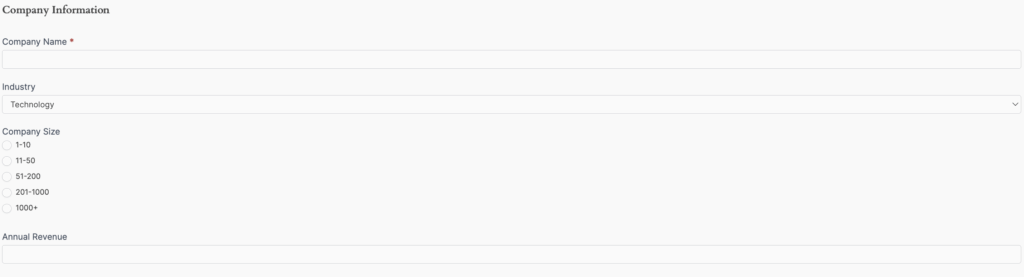
Company Information
- Company Name
- Industry
- Company Size
- Annual Revenue
- Website
Contact Details
- Primary Contact Name
- Email Address
- Phone Number
- Title/Position
- LinkedIn Profile

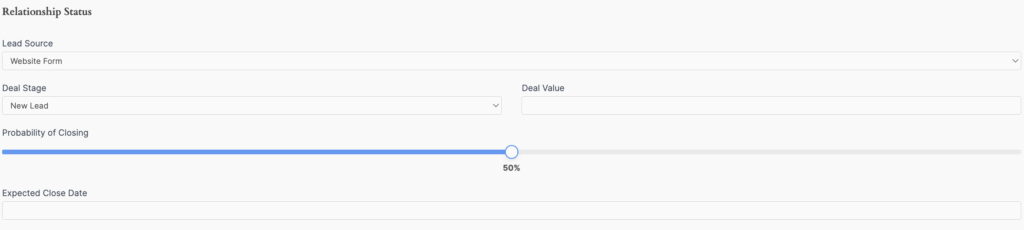
Relationship Status
- Lead Source (where they came from)
- Deal Stage
- Deal Value (estimated revenue)
- Probability of Closing (percentage)
- Expected Close Date
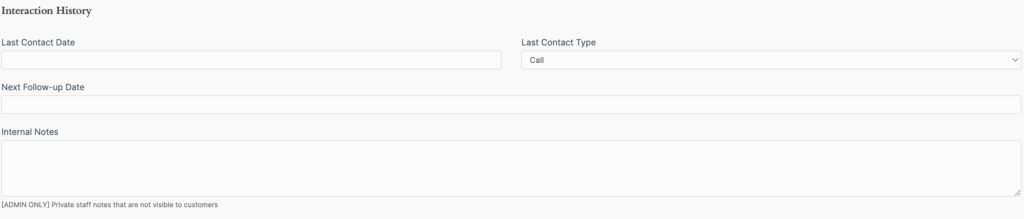
Interaction History
- Last Contact Date
- Last Contact Type (Call, Email, Meeting, Demo)
- Next Follow-up Date
- Internal Notes
The beauty of Formidable Forms is that each field you add automatically creates a corresponding database column. You can even use our AI add-on if you'd like to automatically generate your fields.
You're not just building a form—you're architecting a custom database table tailored to your exact business needs.
Step 2: Configure Formidable Forms Permissions and Access Control
Database applications require sophisticated access control. Different users need different permissions—some can only view data, others can edit their own records, and admins need full access.
Formidable Forms excels at this with its built-in user permission system.
Setting Form-Level Permissions
In your CRM form settings, navigate to the Form Permissions section:
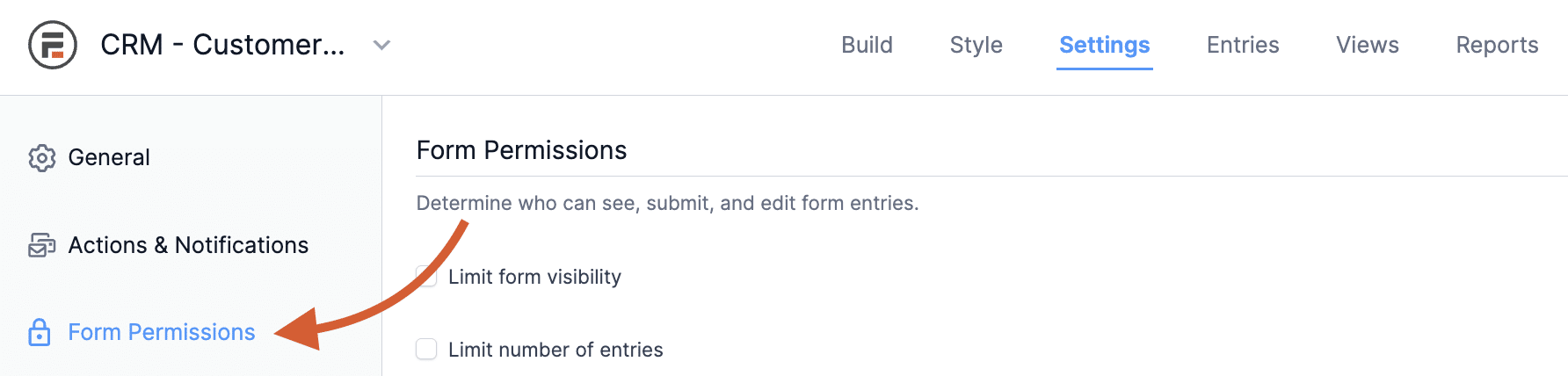
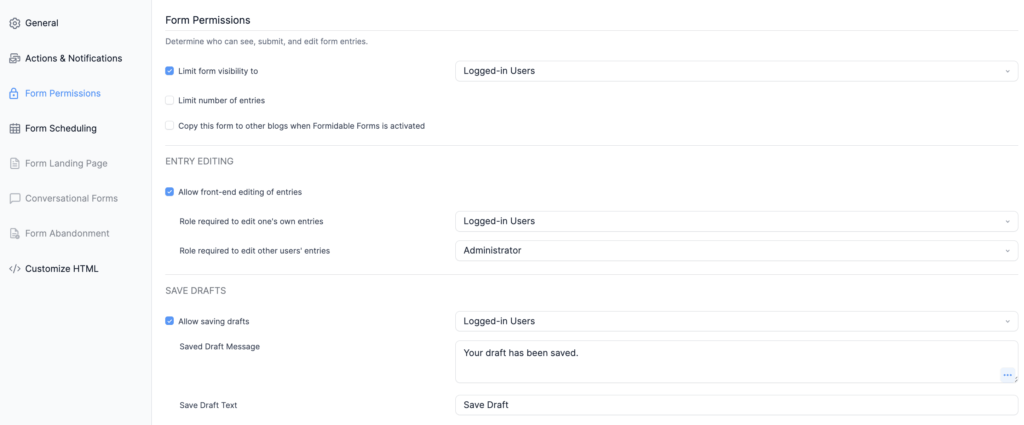
Limit Form Visibility: Check the box and select "Logged-in Users" to restrict access to authenticated staff members only. You can also get more specific by choosing particular user roles like Administrator, Editor, or custom roles you've created for your sales team.
Limit Number of Entries: Control how many times users can submit this form. For a CRM, you typically want unlimited entries, but this is useful for applications like contest entries or resource bookings where you want to limit submissions per user.
Entry Editing: Enable "Allow front-end editing of entries" so sales reps can update customer records without accessing the WordPress admin. This is critical for database applications—users need to update records as deals progress.
Save Drafts: Enable "Allow saving drafts" so users can start entering customer information and return to complete it later without losing their work.
Creating User Roles
For a CRM, you might create these WordPress user roles:
Sales Rep: Can create and edit their own customer records, view pipeline reports
Sales Manager: Can view and edit all records, access revenue reports
Admin: Full access to everything including system configuration
Formidable Forms respects WordPress user roles, so you can configure exactly who sees what based on their role. This means your sales reps can't see each other's deal values, but managers can see everything.
Step 3: Build Your Database Display with Formidable Views
Creating forms is just the beginning. The real power comes from Formidable Views—dynamic displays that transform your database into searchable, filterable interfaces.
Creating Your Main Database View
Navigate to Formidable → Views and create a new view called "CRM Dashboard."
Select your "CRM - Customer Records" form as the data source.
Choose Your Layout Format
Formidable Views offers several layout options:
Table Layout: Perfect for database-style displays with sortable columns. Use this for your main CRM dashboard showing company name, contact, deal stage, and deal value.
Grid Layout: Great for visual databases like product catalogs or employee directories with photos.
List Layout: Ideal for detailed record displays like support tickets or project summaries.
For our CRM, I recommend the Table layout because it mimics traditional database views that sales teams expect.
Configuring Table Columns
In the View editor, select which Formidable form fields appear as columns:
- Company Name (clickable to detail page)
- Primary Contact Name
- Industry
- Deal Stage
- Deal Value
- Probability
- Next Follow-up Date
Then, add the class tablesorter to the "Custom Classes" if you would like your table to be sortable.
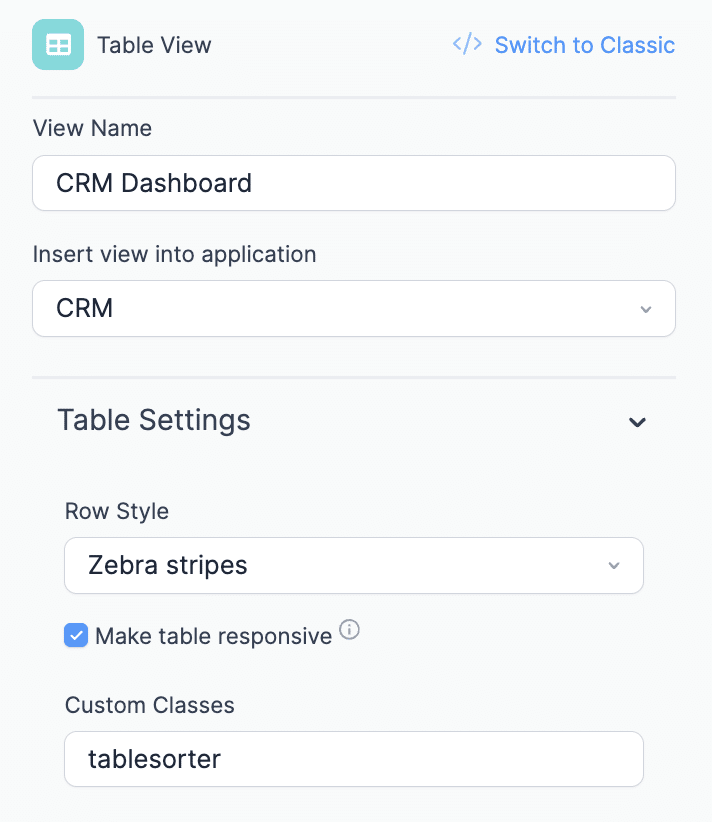
This creates a professional database table where every column is sortable. Click the "Deal Value" header to sort by revenue, or click "Next Follow-up Date" to see urgent tasks.
Creating Detail Pages in Formidable Views
When users click a company name, they should see complete details. Configure the Detail Page in your Formidable View to display:
- All company and contact information
- Complete interaction history
- Related records (we'll cover this in Step 5)
The Detail Page uses Formidable's field shortcodes to display any information from your form. You control exactly what appears and how it's formatted.
Making Your View Accessible
Create a WordPress page called "CRM Dashboard" and add the Formidable Views block. Select your "CRM Dashboard" view.
Now your database application has a professional interface accessible at yoursite.com/crm-dashboard.
Step 4: Implement Relational Data with Formidable Forms
True database power comes from relating different types of data. In our CRM, each customer should have multiple related records: interaction logs, documents, contracts, or support tickets.
Formidable Forms handles this through Dynamic Fields that create database relationships.
Creating Related Forms
Build a new form called "CRM - Interaction Log" with these Formidable fields:
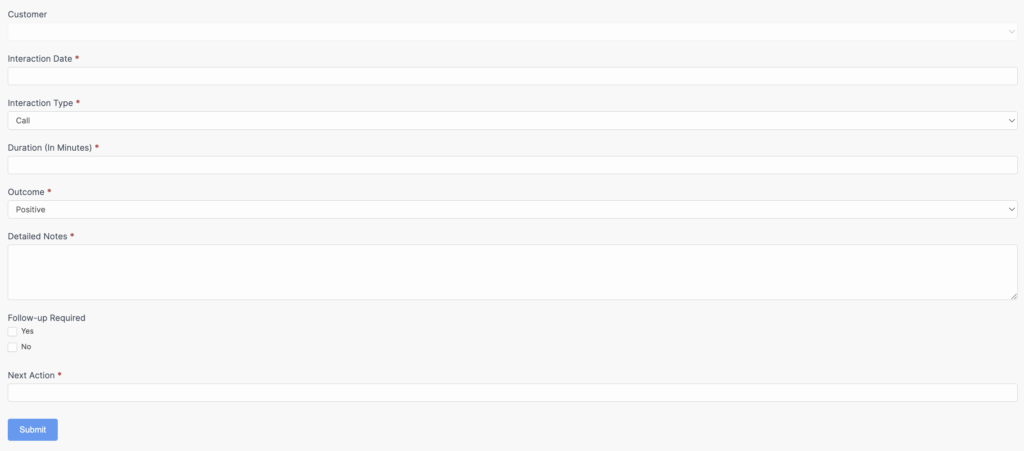
Customer (Dynamic field)
- Links to your main CRM form
- Auto-populates from customer detail pages
Interaction Date (Date field)
Interaction Type (Dropdown)
- Options: Call, Email, Meeting, Demo, Proposal Sent
Duration (Number field)
- Minutes spent
Outcome (Dropdown)
- Positive, Neutral, Negative, Next Steps Required
Detailed Notes (Paragraph Text)
Follow-up Required (Checkbox)
Next Action (Text field)
Connecting the Relationship
The magic happens in the Customer Dynamic field. Configure it to:
- Pull data from your "CRM - Customer Records" form
- Display the Company Name field
When sales reps log an interaction from a customer's detail page, pass the customer ID via URL:
<a href="[siteurl]/interaction-log?customer_id=[id]" class="frmcrm-button">Log New Interaction</a>Set the Dynamic field's default value to [get param=customer_id], and Formidable Forms automatically links the interaction to the correct customer.
Displaying Related Records
Now you need to create a View that displays all interactions for each customer. Navigate to Formidable → Views and create a new view called "Customer Interactions."
Select your "CRM - Interaction Log" form as the data source.
Choose Table Layout for this view since you want to display interaction history in a clean, chronological format. Configure your table to show these columns:
- Interaction Date
- Interaction Type
- Duration (minutes)
- Outcome
- Next Action
- Detailed Notes (truncated)
In the View's filtering settings, add a filter where the Customer Dynamic field equals [get param=customer_key]. This ensures the view only shows interactions for the specific customer being viewed.
Embedding the View in Customer Detail Pages
Back in your main "CRM Dashboard" View, edit the Detail Page template. Add a section for interaction history and insert your new view using this shortcode:
<h3>Interaction History</h3>
[display-frm-data id=crm-interaction-log-table customer_key=[key]]
Replace crm-interaction-log-table with the actual key of your "Customer Interactions" view (you can find this in Formidable → Views by looking at the View ID number).

This creates a complete relationship view. When sales reps open any customer's detail page, they see every interaction logged for that customer in a clean table format, plus a button to quickly log a new interaction. The new interaction automatically links to the correct customer and appears in this history instantly.
This same pattern works for any related data:
- Customer → Contracts → Payments
- Projects → Tasks → Time Logs
- Assets → Maintenance Records → Parts Used
- Employees → Skills → Certifications → Projects
Formidable Forms creates true relational database functionality without requiring SQL knowledge.
Step 5: Add Calculation Fields and Business Logic
Database applications often need to calculate values, track totals, or enforce business rules. Formidable Forms handles this with calculation fields and conditional logic.
Automatic Calculations
Let's add these powerful features to your original "CRM - Customer Records" form. Navigate back to Formidable → Forms and edit your CRM form to add these enhancements.
Create a Number field (admin-only, hidden) Set it to "Calculate Value" Formula: [deal_value_id] * ([probability_id] / 100)
This automatically calculates the probability-weighted value of each deal, giving you accurate revenue forecasting.
Conditional Logic in Formidable Forms
Add fields that appear only when certain conditions are met:
Show "Reason for Loss" field only when Deal Stage = "Closed Lost" Show "Contract Send Date" only when Deal Stage = "Proposal Sent" or beyond Require "Next Follow-up Date" only for active deals
Navigate to the field settings in Formidable Forms and configure "Conditional Logic" rules. This keeps your forms clean while ensuring you capture necessary information at the right moments.
Step 7: Create Reports and Analytics with Formidable Views
The final component of a complete database application is reporting. Your team needs to understand what the data means.
Building Dashboard Reports
Create separate Formidable Views for different analytical needs:
Sales Pipeline Report
Use a Formidable View with filtering to show:
- Total deals by stage
- Total value by stage
- Win rate percentage
- Average deal size
Configure this view to group entries by the Deal Stage field, then use Formidable's Statistics add-on to calculate totals and averages.
Sales Rep Performance
Create a Formidable View that groups by the entry creator (sales rep) and shows:
- Number of active deals
- Total pipeline value
- Weighted forecast
- Activities logged this month
Revenue Forecast
Build a Formidable View showing:
- Expected revenue this quarter (sum of weighted values where close date is within quarter)
- Deals requiring immediate attention (follow-up date in past)
- Pipeline velocity (average time between stages)
Visual Analytics
While Formidable Views creates powerful table-based reports, you can enhance them with chart visualization:
Use the Formidable Charts and Graphs add-on to display:
- Deal stage distribution (pie chart)
- Revenue trends over time (line graph)
- Lead source effectiveness (bar chart)
- Win rate by industry (bar chart)
These visual reports make your Formidable Forms database application feel like enterprise business intelligence software.
Advanced Database Features with Formidable Forms
Once you master the core concepts, Formidable Forms offers advanced functionality that rivals custom-developed database systems:
Import/Export
Bulk import existing data from spreadsheets directly into your Formidable Forms database. Export filtered results to CSV for external analysis. Your data remains portable and accessible.
API Integration
Connect your Formidable Forms database to external services using webhooks and Zapier integration. When a deal closes in your CRM, automatically create the customer in QuickBooks. When inventory reaches reorder point, automatically email suppliers.
Allow authorized users to edit database records directly from the frontend using Formidable Forms' edit entry functionality. Sales reps update deals without accessing WordPress admin, improving adoption and data accuracy.
Approval Workflows
Implement multi-step approval processes. Maintenance requests get submitted by employees, reviewed by supervisors, approved by managers, and completed by facilities—all tracked within your Formidable Forms database application.
Custom User Dashboards
Create personalized views for each user role. Sales reps see only their deals, managers see team performance, executives see company-wide metrics—all from the same Formidable Forms database with different Views configured for each role.
Mobile Access
Because Formidable Forms is built mobile-first, your entire database application works perfectly on phones and tablets. Field technicians update maintenance records from job sites, sales reps log calls during commutes, managers review reports from anywhere.
Why Formidable Forms Works for Database Applications
Having watched hundreds of database applications built with Formidable Forms, I can confidently say this approach succeeds because it removes the traditional barriers to custom database development:
Very Little Coding Required: Almost everything uses visual builders. Click, configure, deploy.
Rapid Iteration: Change database structure, add fields, modify views—all in minutes without developer involvement.
WordPress Integration: Leverage existing WordPress user management, security, and hosting infrastructure.
One Platform: Forms, views, permissions, calculations, and reports all work together seamlessly without integration complexity.
Scalable: Start simple and add sophisticated features over time. Your first version can be live today, and you can enhance it continuously.
Cost-Effective: One Formidable Forms license replaces multiple expensive SaaS subscriptions while giving you more control and customization.
Getting Started with Your Database Application
The fastest way to see Formidable Forms database capabilities is to start building. Here's my recommended approach:
Start with a Template: Browse our complete application template library to find pre-built applications you can customize. We offer 30+ templates for dozens of use cases. Each template includes working forms and views that you can deploy immediately or modify to fit your specific needs.
Start Small: Pick one specific database need. Don't try to replace your entire tech stack on day one. Build your CRM, then add inventory management later.
Build for Users: Talk to the people who'll use your database application daily. What information do they need? What frustrates them about current tools? Design your Formidable Forms structure around their actual workflow.
Test Thoroughly: Create sample data and walk through every workflow before going live. Formidable Forms makes changes easy, but launching with solid foundations prevents confusion.
Iterate Based on Feedback: Your first version won't be perfect. That's okay—Formidable Forms makes improvements fast. Add fields, create new views, refine searches based on real usage patterns.
Document Your System: As your database grows, document what each form does, how views are filtered, and how different pieces relate. Future you (and your team) will appreciate this.
Your Database Application Awaits
WordPress is already running on your server with a robust MySQL database ready to store your business-critical information. Formidable Forms gives you the interface to turn that database into a custom application tailored to your exact requirements.
Whether you need a CRM, project tracker, inventory system, or something entirely unique, the framework I've outlined here applies. Forms create structure, Views display data, and WordPress ties it all together into applications your team will actually use.
The businesses that thrive are the ones that adapt their tools to their needs rather than adapting their needs to available tools. Formidable Forms makes that possible.

Ready to transform WordPress into your custom database application? Start with Formidable Forms and discover why thousands of businesses choose this approach over expensive enterprise software and limiting SaaS platforms.
This article may contain affiliate links. Once in a while, we earn commissions from those links. But we only recommend products we like, with or without commissions.