What a pleasure to have support within minutes. Brillant, accurate answer, and solved the question. Thanks to the Formidable Team. Eric


Last updated on September 27, 2026 by Formidable Team
How To Add an Events Calendar in WordPress [4 Steps!]
Learn how to add an events calendar in WordPress today! This step-by-step guide shows how to add a calendar to any WordPress site in a few simple steps.
Approximate read time: 7 minutes
Creating a professional-looking event calendar without any code sounds impossible, right?
Other alternatives exist, like Google Calendar, but they look bad. And, if we're being honest, looks matter with event calendars.
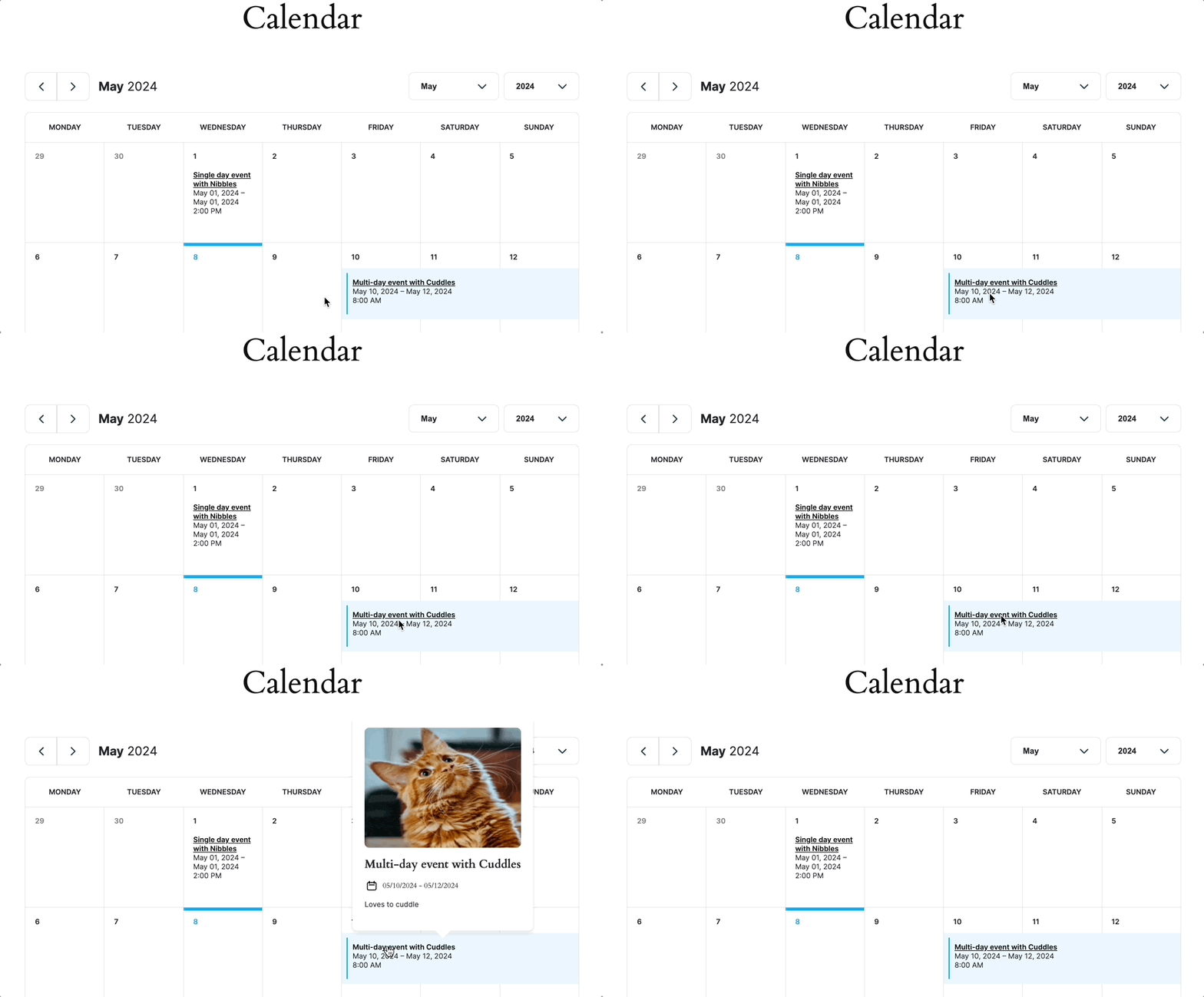
That's why I created this guide. Using one plugin, I'll show how to add a beautiful and functional events calendar to any WordPress site — and you don't have to know how to code to do it! Whether it's for upcoming webinars, workshops, or sporting events, this guide is for everyone.
So, let's get into it.
Upgrade your WordPress site with powerful, flexible forms.
Why use a plugin to create an events calendar in WordPress?
Sure, coding a custom calendar is possible.
But it's also time-consuming, more complex, and potentially more expensive. But that's where WordPress plugins fit perfectly.
There are a few reasons to consider a plugin to save time:
- Save time and resources: Creating custom calendars takes awhile. Plugins are a simple solution, freeing up time for other projects.
- Features: Most plugins include features like recurring events, maps, and RSVP management. These features take years to develop.
- Customizable: Plugins offer different ways to customize a calendar's style, layout, and integrations. This makes it easy to match a website's theme or brand.
- Support: The best plugins have consistent updates and support for it. That's time saved on taking care of a custom calendar.
Overall, the biggest advantage is simply time savings. A plugin quickly adds an events calendar to WordPress, freeing up resources for more important things.
From Idea to Reality in Minutes. Build Powerful Forms, Dashboards, Apps and More.
Formidable Forms makes advanced site building simple. Launch forms, directories, dashboards, and custom WordPress apps faster than ever before.
How to add an events calendar in WordPress
The best way to add an events calendar in WordPress is by using Formidable Forms.
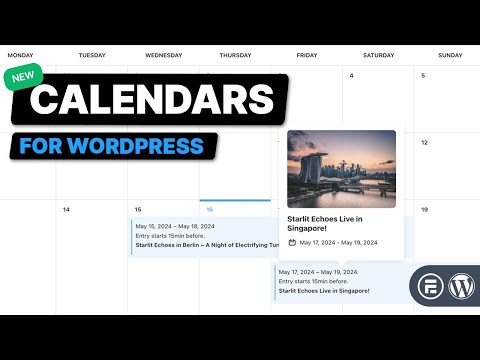
Formidable Forms is the best WordPress form builder, and its Formidable Views add-on allows anyone to display form data on a website easily. That includes showing events in a beautiful calendar. From events to an appointment booking calendar, Views handles it all.
Plus, it has a drag and drop form builder to save time and integrations like Google Calendar and Stripe to be a complete event solution.
Sure, there are event calendar plugins that handle calendars and events, but that's where their abilities end. With Formidable, it's a form builder that can serve multiple purposes—contact, registration, payment forms, and even quizzes and surveys. It's a complete solution for a website instead of a one-use solution.
So, grab a Formidable Forms Pro plan, then it's only 4 steps to get started:
Step 1: Install Formidable Forms and Formidable Views
For this example, I'm building an event calendar for a local high school.
People didn't know when different fundraising events were scheduled, so Formidable Forms was used to solve this problem.
Before I can start, I need two tools:
- Formidable Forms Pro
- Formidable Views
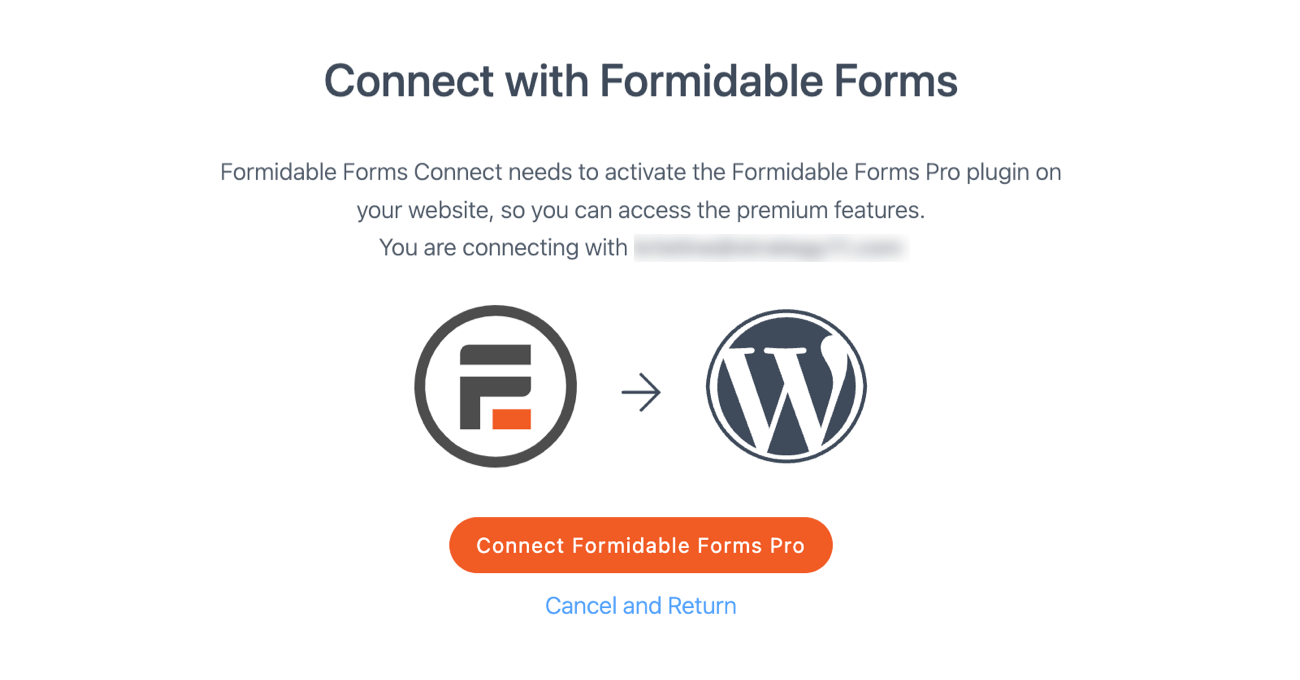
First, I'll install and activate Formidable Forms. Then, I'll connect WordPress to Formidable Forms Pro in WordPress.
Next up is Formidable Views. So, I'll go to Formidable → Add-Ons and search for the Visual Views add-on. Then, I'll click Install.
And now I'm ready to start.
Step 2: Build an event entry form
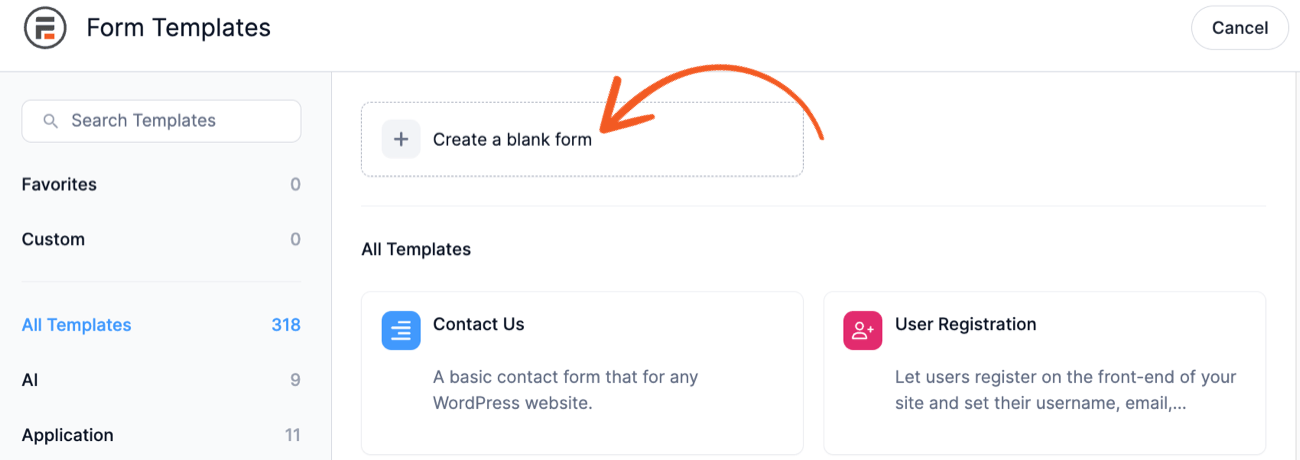
In the WordPress dashboard, I'll go to Formidable → Forms and click the Add New button in the top right.
Next, I can create a form from scratch or choose one of Formidable's pre-built WordPress form templates. I'll start the form from scratch and design it to fit the needs of each event.
So I'll click Create a blank form.
The plugin opens the drag and drop form builder to start building the form.
This form builder saves a lot of time because it's as easy as dragging the field to the form canvas and customizing the Field Options on the left-hand side.
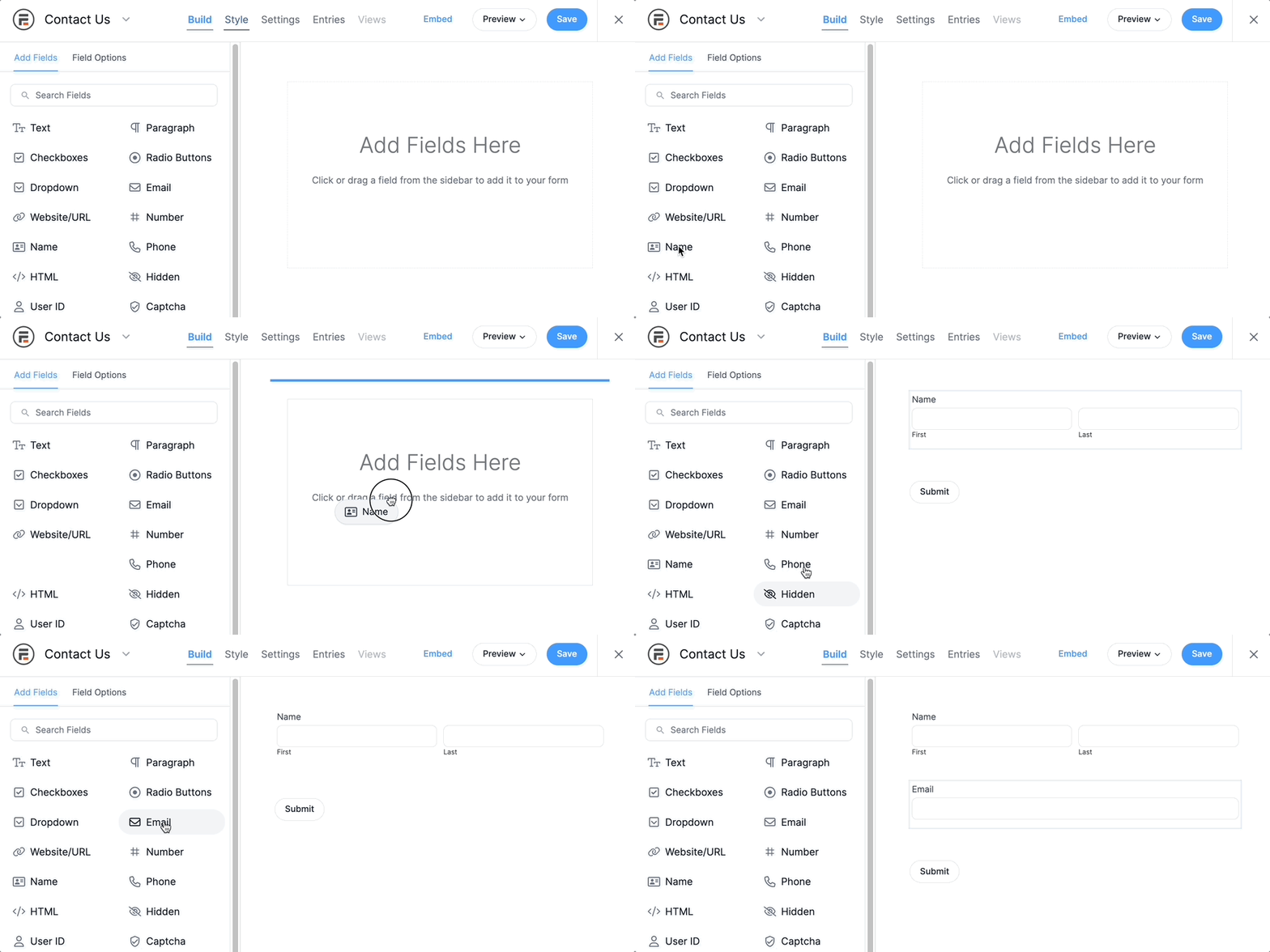
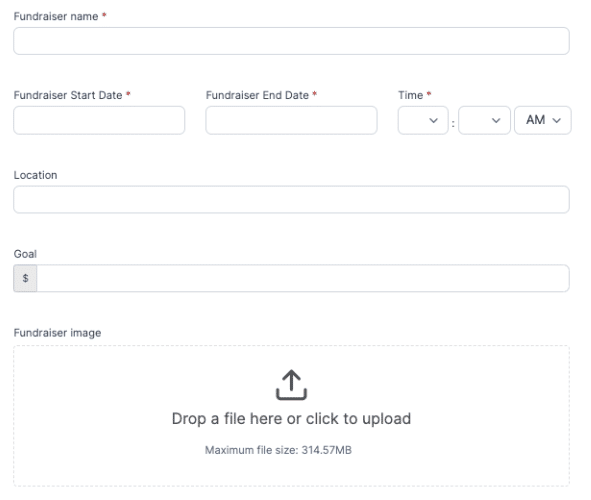
I'll add seven total fields:
- Two Text fields: Fundraiser name and location
- Two Date fields: Start and end date
- A Time field: For the event time
- A Number field: For the total fundraising goal
- One File Upload field: For an image to attach for the event
I could add another field for event cost or the price of event tickets, but I'm keeping it basic for now.
So, my form ultimately looks something like this.
Now that the form is ready, I need a test entry to see what it will look like on the calendar.
So I'll go to Entries at the top of the form builder and click Add New. The Entries tab is where I'll handle all my event management.
I can enter upcoming events, get the calendars set, and add any other information needed.

Then, I'll fill out the form to create the first event.
Some of this information creates a small popup when someone highlights the event on the calendar.
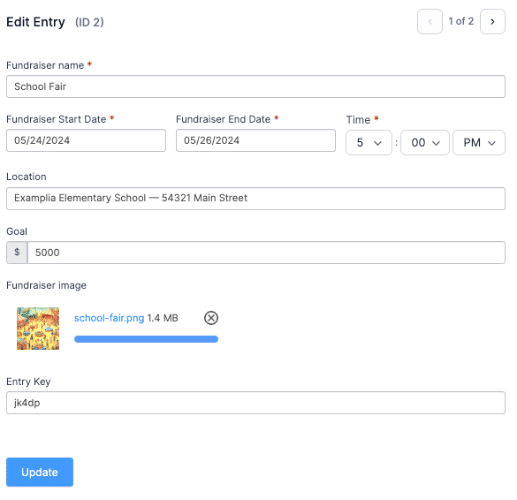
So, I'll save this information, and now it's time to create the calendar.
Step 3: Create the Calendar View
I'll head to Formidable → Views and click Add New to start.
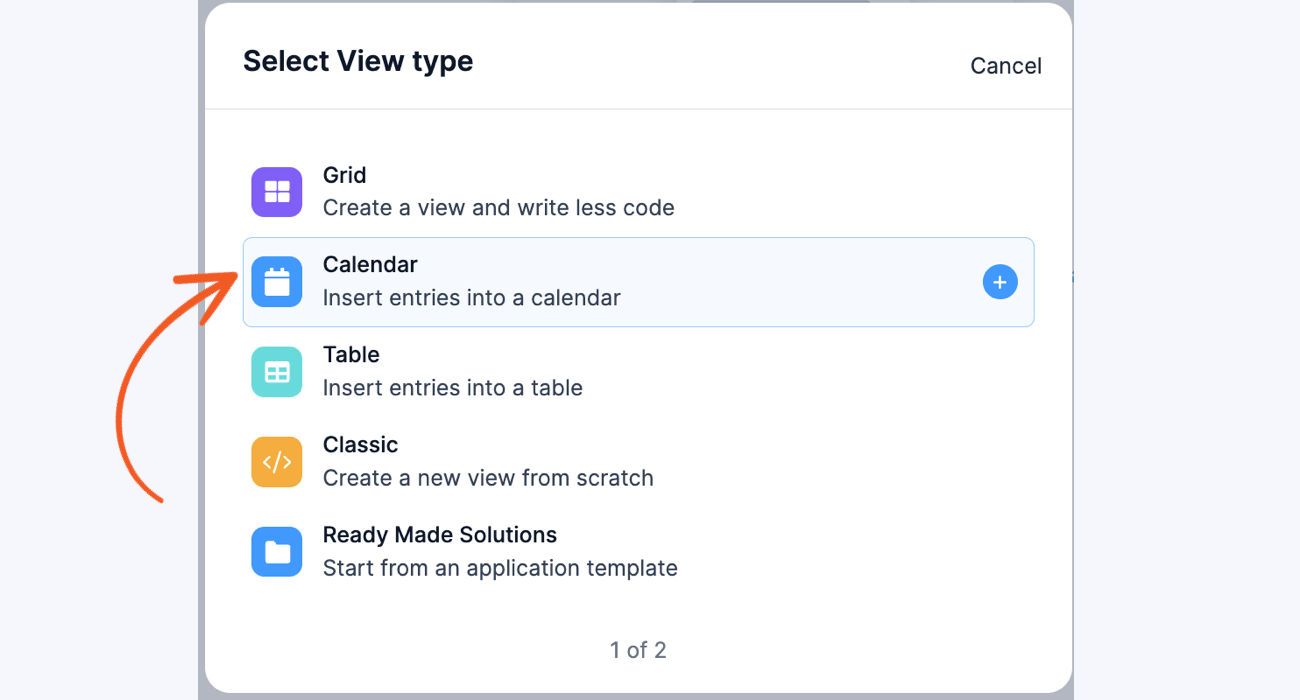
The first thing I have to choose is the View type. There are a few different choices, but I need the Calendar view.
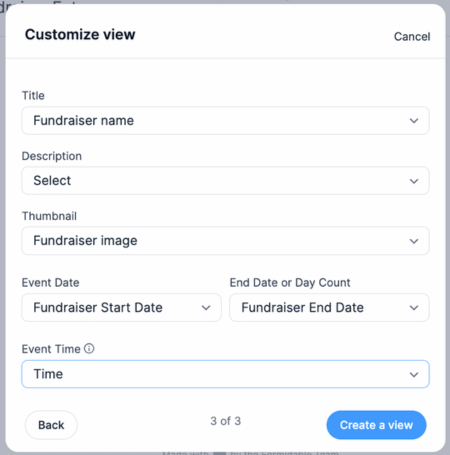
Next, I'll name the view and customize it to ensure the Date and Time fields correctly import the data.
Once I've set it up, I'll click Create a View, which takes me to the View editor.
The View editor has two tabs/pages: Listing Page and Detail Page.
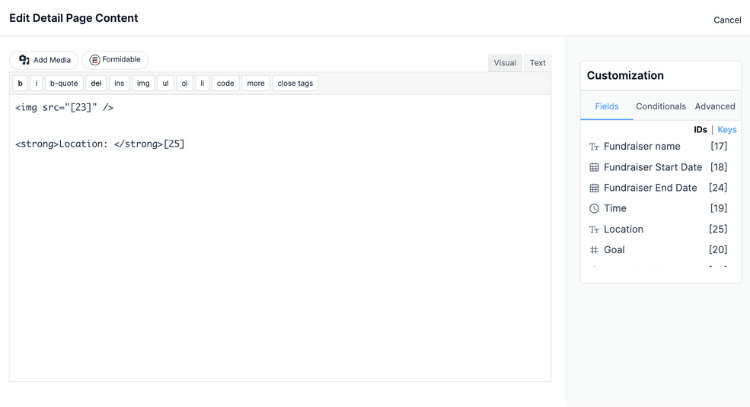
The Listing page shows when looking at the calendar in a monthly view. The Detail Page is extra details when a user hovers over an event. It can show more details about the event or anything else needed. Currently, it only supports Text, File Upload, Time, Date, and Paragraph fields.
So, I'll customize the Listing Page first. I can click on the calendar, which opens the Visual/Text editor to customize the view.
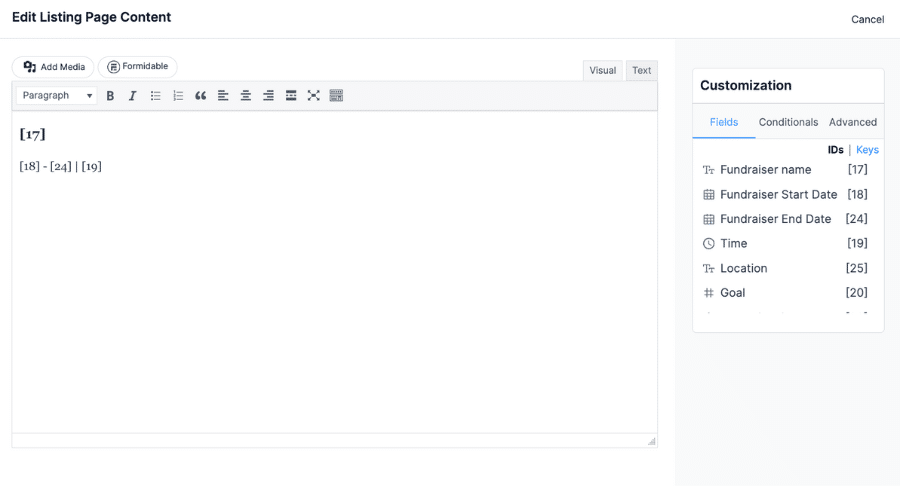
This will show the Fundraiser name in bold, along with the Fundraiser Start Date, End Date, and Time.
So, I'll click the Update button to save it. I'll do the same for the Detail Page to customize the popup. I'll use the Text editor to type in some basic HTML for this part. This isn't required, but I like how it makes the popup look.
Now, all that's left is putting the calendar on a page for people to see!
Step 4: Publish the view on a page
Last, the calendar needs a place to call home.
So, I'll head to where I want to add the events calendar to a WordPress page I created specifically for the calendar. Then, I'll add a new block and search for the Formidable Views block.
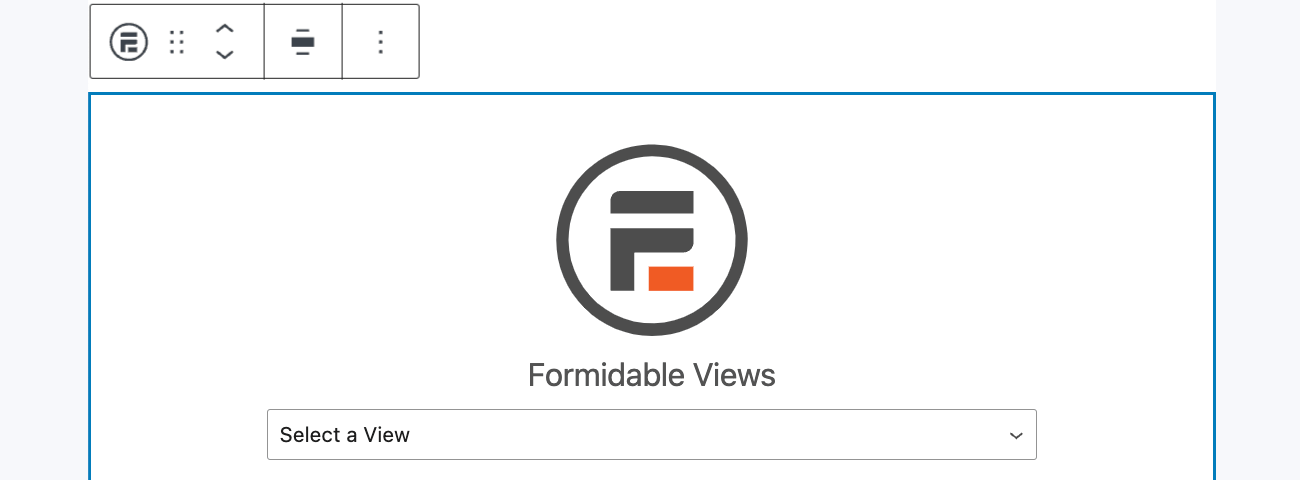
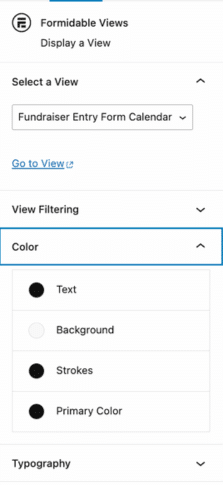
It will show a preview of my calendar, and I can customize the settings in the right-hand bar. I can adjust the text color, background color, and other settings.
Once that's finished, I can preview it to see how it looks. If I need to make any changes, I can do so in the WordPress block editor or head back to the view to adjust it.
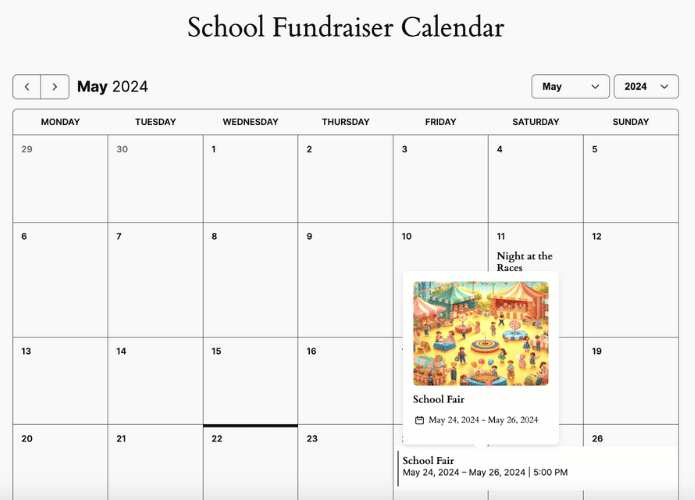
Once everything looks good, I'll hit the Publish button, and the calendar is live!
Ready to add an event calendar to WordPress?
Only a few steps and a plugin stand between you and a beautiful custom events calendar.
So, don't wait any longer. Use the button below to grab Formidable Forms Pro.
And don't worry — it has a 14-day money-back guarantee. If you don't like Formidable Forms, you can get your money back, no questions asked.
And join our community on Facebook, Twitter, and YouTube for more WordPress tips and tricks!
Read more about calendars!
 5 Best WordPress Calendar Plugins [Compared]
 How To Add an Appointment Calendar in WordPress [No Code!]
 Creating a WordPress Event Calendar with User Submissions
This article may contain affiliate links. Once in a while, we earn commissions from those links. But we only recommend products we like, with or without commissions.