
What a pleasure to have support within minutes. Brillant, accurate answer, and solved the question. Thanks to the Formidable Team. Eric


Last updated on September 16, 2026 by Emma Wells
How to Add a Timer to Your WordPress Quiz
Give a quiz with no time limit and people just look up the answers, so the scores stop meaning anything. Formidable Forms now lets you put a real time limit on any scored quiz with one toggle, and records exactly how long each person took to finish. Here's how to set it up.

Approximate read time: 4 minutes
Upgrade your WordPress site with powerful, flexible forms.
A quiz time limit makes the score mean more
Run a 20-question module quiz with no time limit, and the student who knew the material in two minutes looks identical, on paper, to the one who spent twenty minutes looking up answers. There's no way to tell who actually learned anything.
Building a timer yourself usually means hiring a developer, and even then, a timer that only runs in the browser doesn't stop someone from submitting late anyway.
A real time limit matters anywhere the stakes are attached to the clock, not just the score:
- An employee compliance test needs it finished inside a set window because it's the proof of training you keep on file.
- A pre-employment skills test needs it because the hiring agency wants score and time side by side.
- A trivia contest needs it because the entire prize goes to the fastest entry that's also correct.
Turn on Time this quiz? in the Scored Quiz action and set a limit. That compliance test now finishes inside its required window on its own, with the timestamp to prove it, no developer required.
From Idea to Reality in Minutes. Build Powerful Forms, Dashboards, Apps and More.
Formidable Forms makes advanced site building simple. Launch forms, directories, dashboards, and custom WordPress apps faster than ever before.
What you'll need for a timed quiz
You'll need the Quiz Maker add-on, included with a Business license or higher. The Timer lives inside the Scored Quiz form action, so start with our guide to creating a quiz in WordPress if you don't have a scored quiz set up yet.
How to add a timer to a WordPress quiz
Step 1: Activate the Quiz Maker add-on
In your WordPress dashboard, go to Formidable → Add-Ons and activate the Quiz Maker add-on (included with Business and Elite licenses, so there's nothing extra to buy if you're already on one of those licenses).
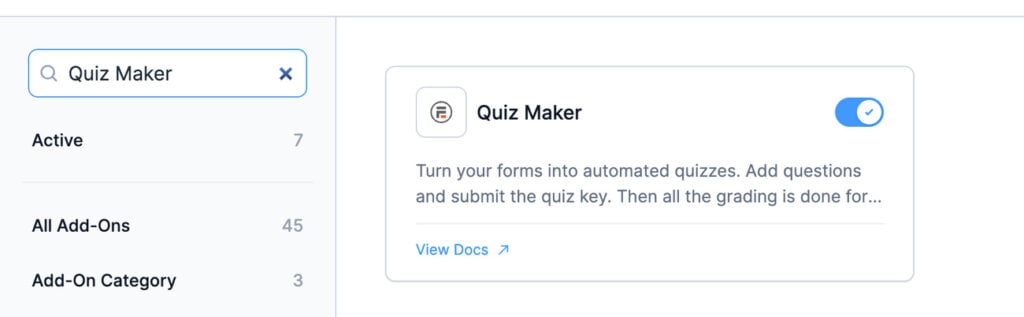
This unlocks the Scored Quiz and Quiz Outcome form actions, including the quiz timer setting.
Step 2: Open the Scored Quiz action
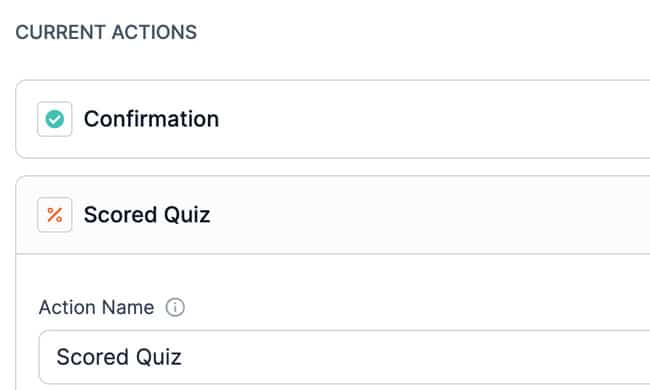
Go to your quiz form's Settings → Actions & Notifications and open the Scored Quiz action (add one if you haven't already).
Step 3: Turn on the Timer
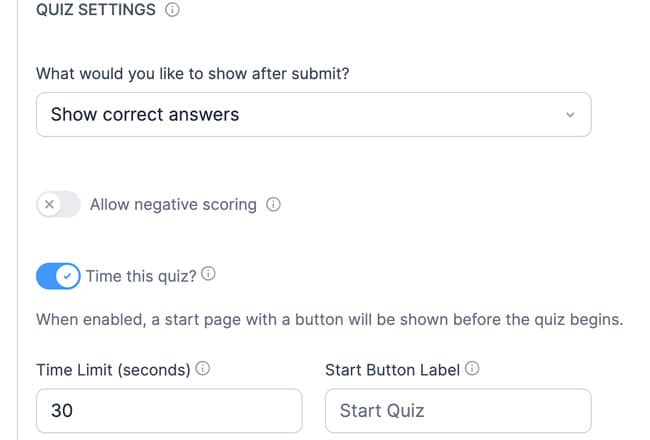
Turn on Time this quiz? and enter a value in the Time Limit (seconds) field.
Step 4: Publish and test
Add the quiz to a page and open it as a visitor would. Instead of jumping straight into the questions, they'll see a start screen with a Start Quiz button, so the clock begins when they're ready, not the second the page loads.

Once they click Start, a countdown appears below the form title and runs while they work through the questions.
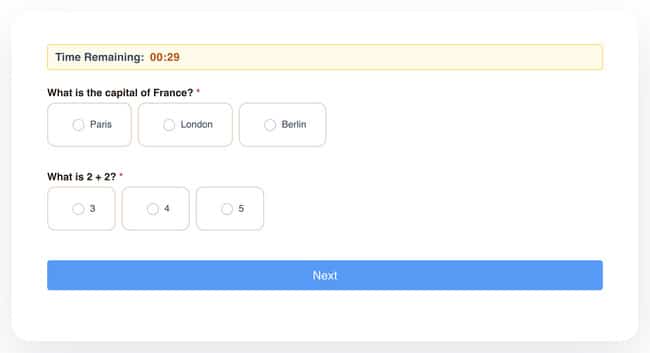
If the clock hits zero, the quiz submits automatically with whatever's been answered so far. A developer can also add a short grace period for slow connections, so a late-arriving answer still counts.
If the quiz taker makes a mistake and has to fix it, the clock doesn't pause. It only stops if they save their answers as a draft instead of submitting.
Where the time shows up
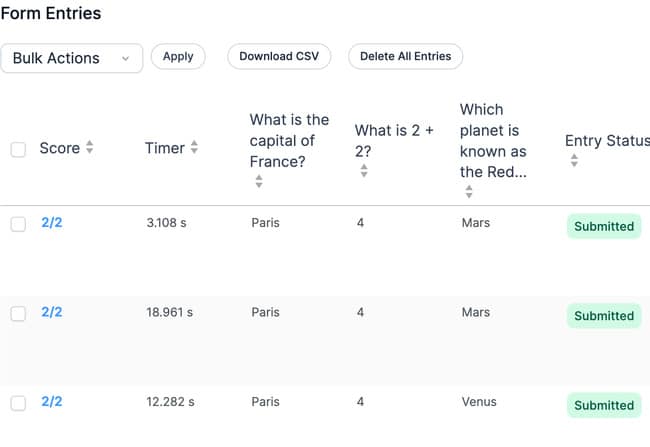
Every entry records how long the person took, right next to their score in the entries table. That's the part a basic timer can't give you: a confident pass and a last-second scramble finally look different, and if two people tie on score, the recorded time breaks the tie.
Give your quiz a real deadline
A time limit is what turns a quiz into a true exam. Turn on Time this quiz? in your Scored Quiz action, set a duration, and every entry from then on tells you not just what someone got right, but how long it took them to finish.
If you haven't built your quiz yet, start with our guide to creating a quiz in WordPress, then get Formidable Forms and set the clock.
How do I add a time limit to a WordPress quiz?
Activate the Quiz Maker add-on under Formidable → Add-Ons, then open your quiz form's Scored Quiz action under Settings → Actions & Notifications. Switch on Time this quiz? and set a duration in seconds.
Does the countdown start as soon as the page loads?
No. Visitors see a start screen with a Start Quiz button first, and the countdown only begins once they click it, so the clock reflects their actual time on the questions.
What happens if time runs out before someone finishes?
The quiz submits automatically with whatever has been answered so far, so you keep partial results instead of losing the entry. A developer can also add a short grace period to protect answers that are still submitting on a slow connection when the clock hits zero.
Can I see how long each person took?
Yes. Every timed entry records the time taken right next to the score in the entries table, so you can compare a confident pass against a last-second scramble, or use time as a tiebreaker when scores match.
Can I use a timed quiz on an embedded form?
No. The timer and quiz scoring don't currently work on embedded forms.
This article may contain affiliate links. Once in a while, we earn commissions from those links. But we only recommend products we like, with or without commissions.