What a pleasure to have support within minutes. Brillant, accurate answer, and solved the question. Thanks to the Formidable Team. Eric


Last updated on August 25, 2026 by Formidable Team
How to Create a Ranking Survey in WordPress (No Code)
Asking people to pick a favorite only tells you what wins. Ask them to rank every option instead, and you'll see what almost won, what barely registered, and everything in between. Formidable Forms has a dedicated ranking field for this, and setting it up only takes minutes.
Approximate read time: 6 minutes
Upgrade your WordPress site with powerful, flexible forms.
What is a ranking survey?
A ranking survey gives respondents a list of options and asks them to order it, first choice to last. Instead of asking which single feature someone wants most, you learn how they'd rank all of them against each other. That ordering is the useful part, because it tells you what people prefer relative to everything else, not just their top pick.
You'll see ranking questions used for a few common jobs:
- Product and feature prioritization. Ask customers to rank the features on your roadmap so you build the ones that matter most first.
- Event and menu planning. Have attendees rank session topics, dates, or catering options.
- Content and marketing decisions. Let readers rank the topics they'd actually read next.
- Ranked-choice polls. Run a quick vote where people order the candidates or ideas rather than choosing one.
The format only works well if it's easy to answer, and dragging items into order is far friendlier than typing "1, 2, 3" into boxes. That's exactly what the Formidable Forms ranking field does.
From Idea to Reality in Minutes. Build Powerful Forms, Dashboards, Apps and More.
Formidable Forms makes advanced site building simple. Launch forms, directories, dashboards, and custom WordPress apps faster than ever before.
What you'll need
The ranking field is included with the Surveys and Polls add-on, and that add-on first appears on the Business license ($199.50 for the first year, then $399 on renewal).
If you're on Business or Elite, you already have everything this guide requires.
The free Formidable Forms Lite version and the Basic and Plus licenses include the drag and drop builder and conditional logic, but not the ranking field itself.
How to create a ranking survey in WordPress (step by step)
Here's the full walkthrough, from installing the plugin to reading your results. The example ranks product features, but the same steps apply to any question you want to ask.
Step 1: Install Formidable Forms and activate your license
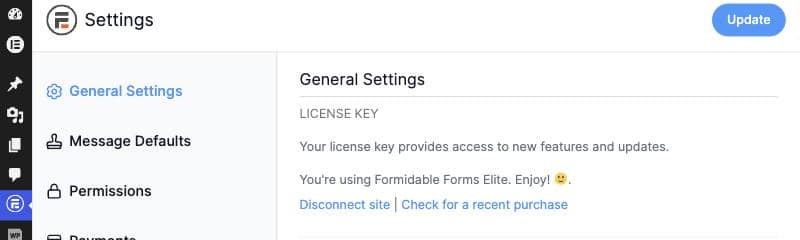
Install the Formidable Forms plugin from your WordPress dashboard under Plugins → Add New, then activate your Business or Elite license key so the survey field types unlock.
Step 2: Turn on the Surveys and Polls add-on
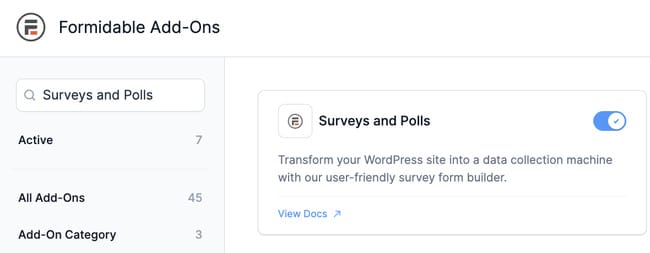
Go to Formidable → Add-Ons, find the Surveys and Polls add-on in the list, and activate it.
Once it's enabled, the ranking field becomes available in the form builder alongside the other survey fields.
Step 3: Create your survey form
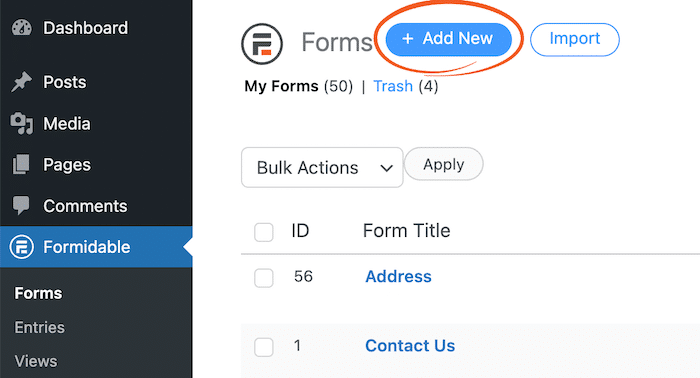
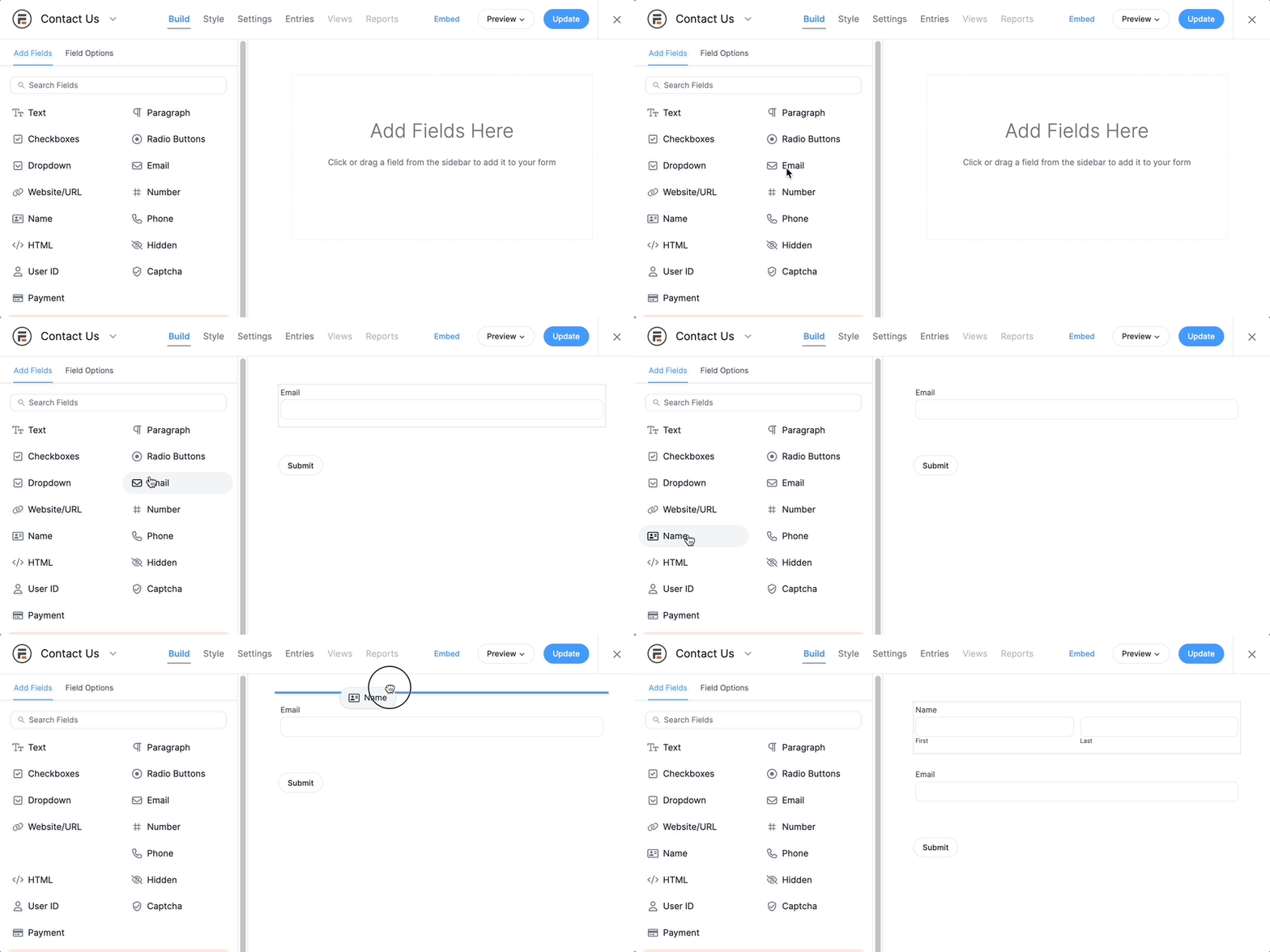
Go to Formidable → Forms → Add New and start from a blank form, then give it a name like "Feature Ranking Survey." Add any context fields you want first, such as a Name field or an Email field if you plan to follow up with respondents.
Step 4: Add the ranking field
From the field panel on the left, drag the Ranking field onto your form. This is the field that lets respondents drag options into their preferred order on the front end.
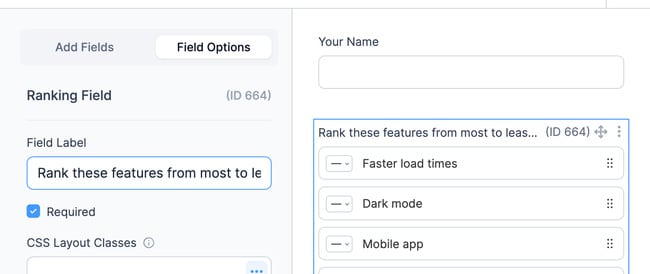
Click the field to open its settings and set the Label to your question, for example "Rank these features from most to least important."
Step 5: Add your ranking options
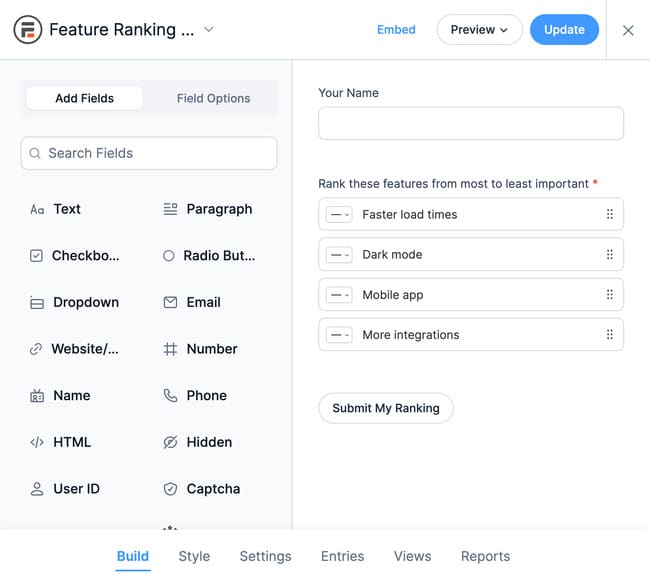
In the field's Options list, replace the placeholder choices with the items you want people to rank. Add one option per line, and add or remove rows until the list matches your question.
- Option 1 labeled "Faster load times"
- Option 2 labeled "Dark mode"
- Option 3 labeled "Mobile app"
- Option 4 labeled "More integrations"
Keep the list short enough to be answerable. Five to seven options is a comfortable maximum, because ordering a long list gets tedious and people start dropping off.
Step 6: Publish the survey
Add the form to any page or post with the Formidable Forms block or the form shortcode, then publish. Open the page and try it yourself: you can drag each option up or down into order.
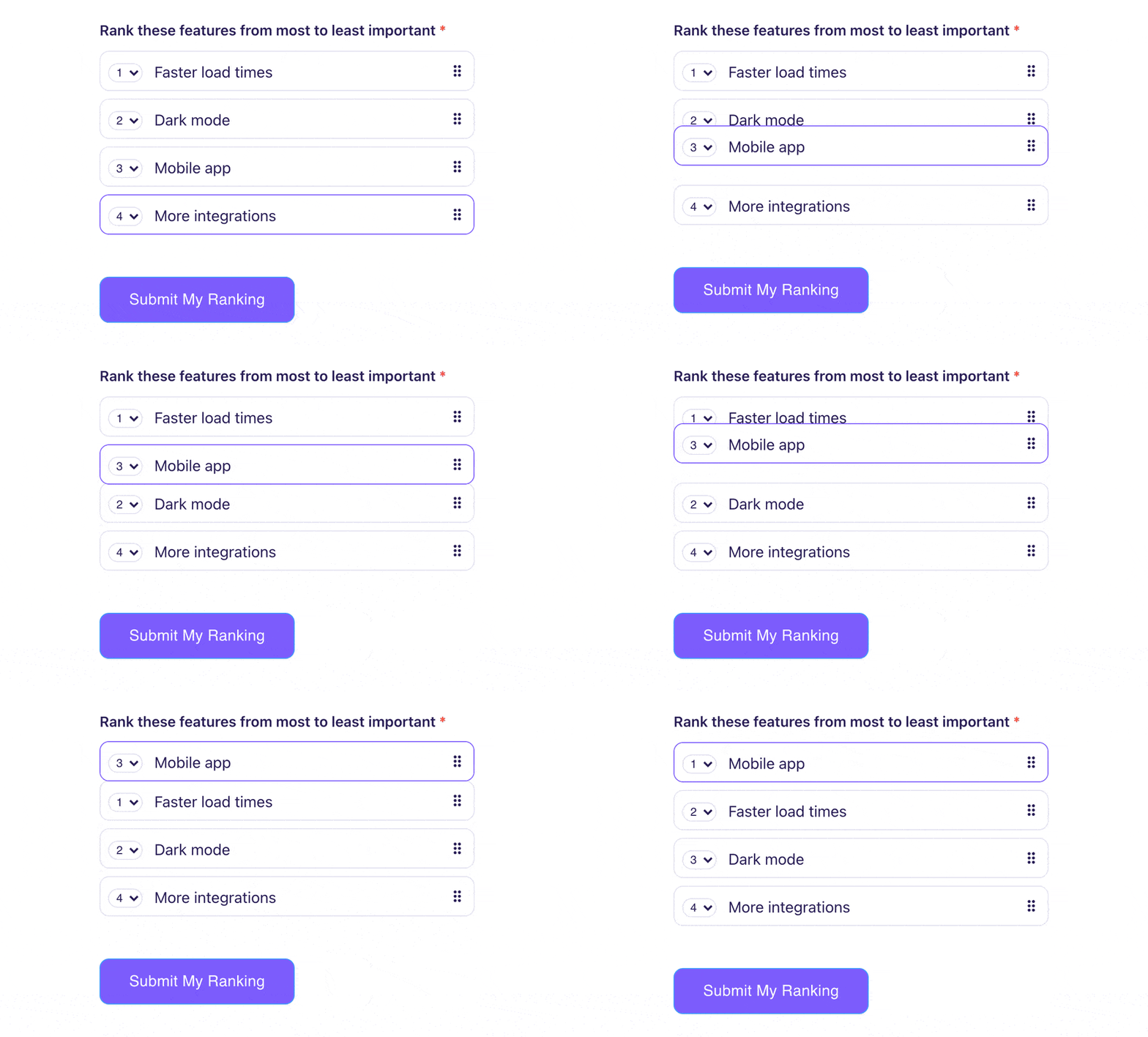
That's a working ranking survey. The next two sections cover the variations people ask about most: turning it into a ranked-choice poll, and reading the results.
Turn it into a ranked-choice poll
A ranked-choice poll is just a ranking survey with a lighter setup and a quick way to show results. If you're running a public vote, where people order the candidates or ideas instead of picking one, the ranking field is already doing the work. A few tweaks make it feel more like a poll:
- Drop the identity fields. For an open poll, you usually don't need a name or email, so keep the form to the single ranking question.
- Limit repeat votes. Under the form's settings, you can require users to be logged in, or limit entries so one person can't stuff the ballot.
- Show a thank-you and the tally. Set the post-submit message in the Confirmation form action, and point voters to a results page (more on that next).
The result is a ranked-choice poll that lives natively on your WordPress site, with no third-party voting app and no export step.
Analyze your ranking results
Collecting the rankings is half the job. Reading them is the other half, and Formidable Forms gives you a couple of ways to do it.
Every submission lands under Formidable → Entries, where you can open any single response and see exactly how that person ordered the options.
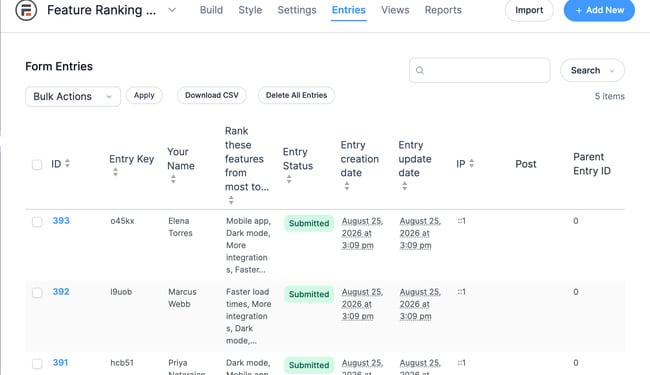
To see the overall picture rather than one entry at a time, the Surveys and Polls add-on builds a survey report that aggregates the responses, so you can see how the group ranked each option on average.
For a fully custom results page, Formidable Views (included on the Plus license and above) lets you display and summarize the ranking data anywhere on your site, which is handy when you want voters or stakeholders to watch the tally without logging in to the dashboard.
The point of a ranking survey isn't the raw numbers. It's the priority order those numbers reveal, so you know what to build, plan, or publish first.
Pick your options, then let people order them
Creating a ranking survey comes down to one friendly interaction: a list respondents drag into the order they actually prefer. Add the ranking field, write four to five clear options, publish, and you've got priority data you can act on, plus a ranked-choice poll whenever you want one.
If a plain single-answer survey is a better fit for your question, our guide to how to create a survey in WordPress covers that path, and the Surveys & Polls hub rounds up every survey type Formidable supports.
Pick the question, decide the options, and publish. The whole thing fits into one afternoon. Get Formidable Forms and build it.
Which Formidable Forms license includes the ranking field?
The ranking field comes with the Surveys and Polls add-on, which first appears on the Business license ($199.50 for the first year, then $399 on renewal). The Elite license includes it too. The free Lite version and the Basic and Plus licenses don't include the ranking field.
Can I create a ranked-choice poll in WordPress?
Yes. Build a form with a single ranking field, drop the name and email fields, and limit repeat entries in the form settings so one person can't vote twice. Set your thank-you message in the Confirmation form action, and use Formidable Views to publish a live results page so voters can watch the tally.
How do I read the results of a ranking survey?
Open individual responses under Formidable → Entries to see how each person ordered the options. The Surveys and Polls add-on also builds an aggregated survey report so you can see the group's average ranking, and Formidable Views (Plus and above) lets you display a custom results summary anywhere on your site.
This article may contain affiliate links. Once in a while, we earn commissions from those links. But we only recommend products we like, with or without commissions.