
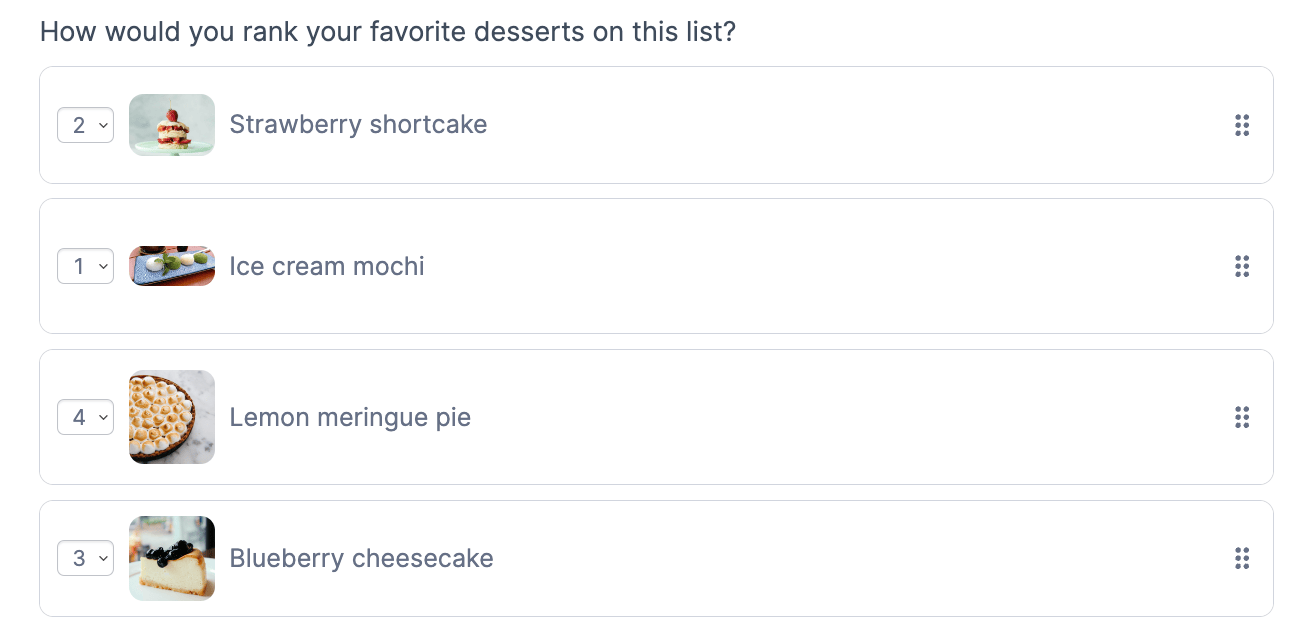
Ranking survey questions is an important tool in surveys or questionnaires. The Ranking field allows users to rank the items in order of preference or importance by selecting a position number or clicking an option. With an active selection, they can drag and drop each item in the list in their desired order.

Upgrade your WordPress site with powerful, flexible forms.
Standard field options
Ranking fields have the following standard options:

- Required
- CSS Layout Classes
- Dynamic default value
- Visibility
- Label position
- Field Key
- Conditional logic
From Idea to Reality in Minutes. Build Powerful Forms, Dashboards, Apps and More.
Formidable Forms makes advanced site building simple. Launch forms, directories, dashboards, and custom WordPress apps faster than ever before.
Field-specific options
In addition to the standard field options, Ranking fields have a few field-specific options. Browse the sections below to learn more about the options specific to Ranking fields.
Use separate values
Check this box if you would like to store an entry as a value distinct from the selected value. For example, if your user selects black t-shirt, you can store the value as black t-shirt $25.00. Read more about separate values.
Randomize options
Select Randomize options to show the options randomly each time the form is loaded.
Limit selections
Select the Limit selections box and specify a number to limit the number of items that can be selected in one entry. When the maximum number of boxes is selected, unselected boxes will be disabled.
Ranking Options
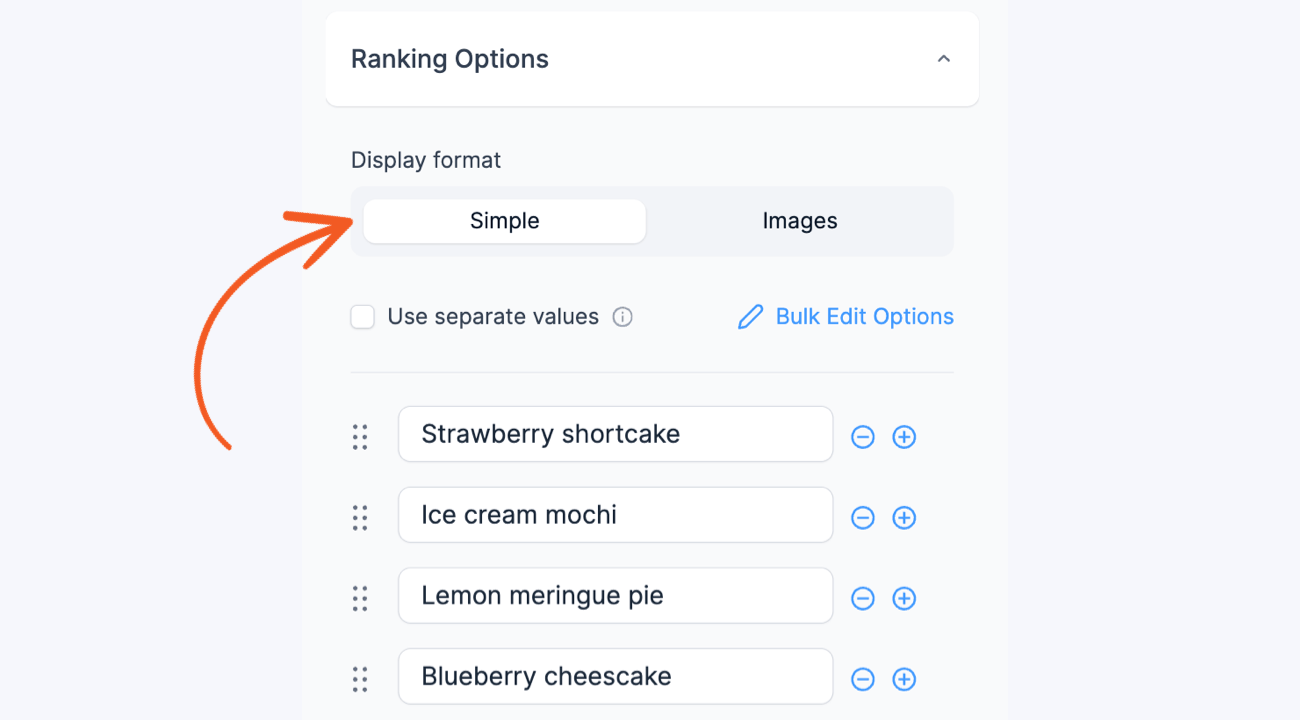
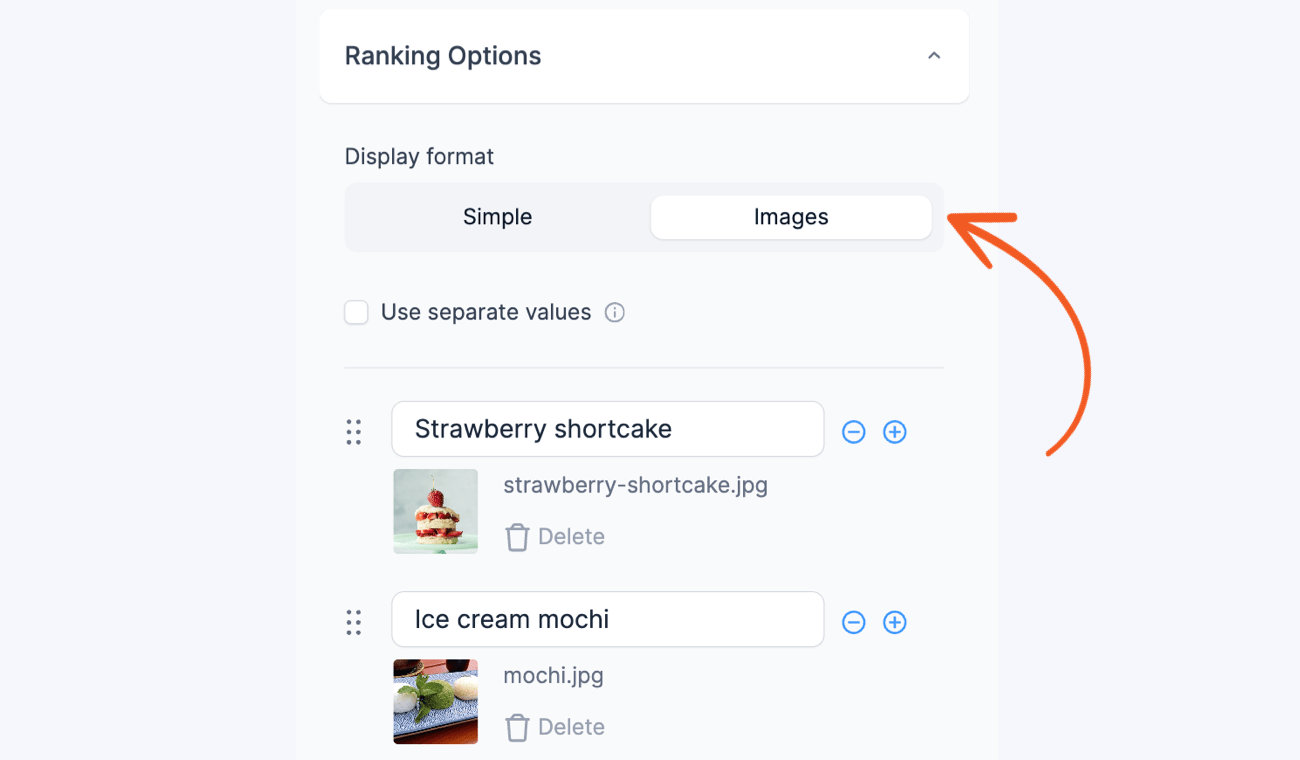
Choose the display format for your ranking options. You can choose between using a simple text or including an image for each item.
Field icons
Field action icons allow you to delete, duplicate, or move a field on the form builder page. See field action icons for more information.
How to create a ranking survey
In this guide, we'll walk you through the steps of creating a ranking survey questionnaire. This will allow your respondents to rank items by level of importance.
- If you haven't yet, create a new form or edit an existing form. Select the Ranking field.

- In the field options, select your preferred display format. Choose between using plain text or adding an image for each item.
- Select Simple to list the items in plain text format.
- Select Images to list the items with images and text.
- Select Simple to list the items in plain text format.
- If you want to specify the maximum number of items a user can choose, select the Limit selections checkbox.
- If you want to display the items randomly each time the form is loaded, select the Randomize options checkbox.
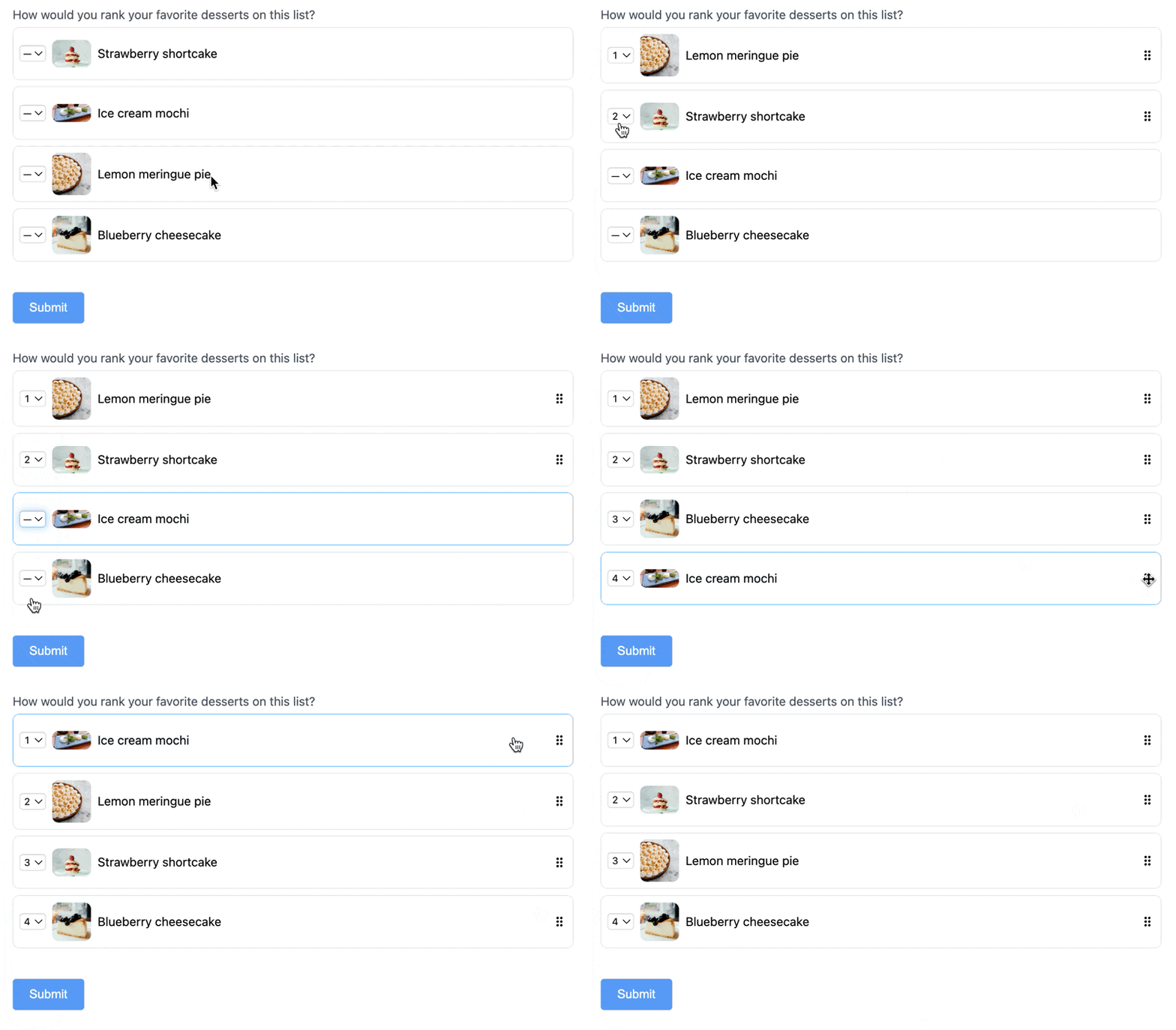
- That's it! When the form is published, users can rank the items by selecting a position number from the dropdown. You can also click an option where it will automatically detect the missing order. When a rank has been selected, you can drag and drop the items to move it around.

Display ranking field
Display the value submitted in a Ranking field in a form's confirmation message, email, or View.
-
Display value
Display the value submitted in a Ranking field.
[x]
Replace x with the ID or key of the Ranking field.
View ranking survey results
To view the results of your ranking survey questions, go to the Reports page on your form. You'll be able to see a graph and statistics that showcase the ranking data.
Related customizations
Get a single option HTML template
Use this hook to get a single option HTML template in the builder page when the Add option is taking place.
frmAdminBuild.hooks.addFilter(
 'frm_admin.build_single_option_template',
  function( singleHtml, args ) {
    const { opt, type, id, fieldId, classes } = args;

    if ( 'ranking' !== type ) {
      return singleHtml;
    }

    return '<div class="frm-custom-field-option">' + opt.label + '</div>';
  }

);
Display ranking data in a listing format
By default, the ranking data is displayed in a horizontal format. To display the entries in a list style, follow the instructions below. Note that this will not work if you have selected images as your displayed format.
- Add the code snippet below. Learn where to put the code when adding a custom PHP function to your site.
function format_ranking_field( $atts ){ if ( ! isset( $atts['field_id'] ) && ! isset( $atts['entry_id']) ) { return; } $field_id=$atts['field_id']; $entry_id=$atts['entry_id']; $value=FrmProEntriesController::get_field_value_shortcode(array('field_id' => $field_id, 'entry' => $entry_id)); $response = explode("," , $value); $show=""; foreach($response as $val) //loop over values { $show.= $val."<br/>"; } return $show; } add_shortcode( 'rank_list', 'format_ranking_field' ); - In your View Listing page content, display the ranking field value using this shortcode.
[rank_list field_id=65 entry_id=[id]]
Replace 65 with the ID of your ranking field.
