
The Color Picker field lets visitors choose a color in your form. They pick it from a popup with a color square, sliders, a code box, and the preset colors you set. The entry saves the color as a hex code, such as #7c3aed.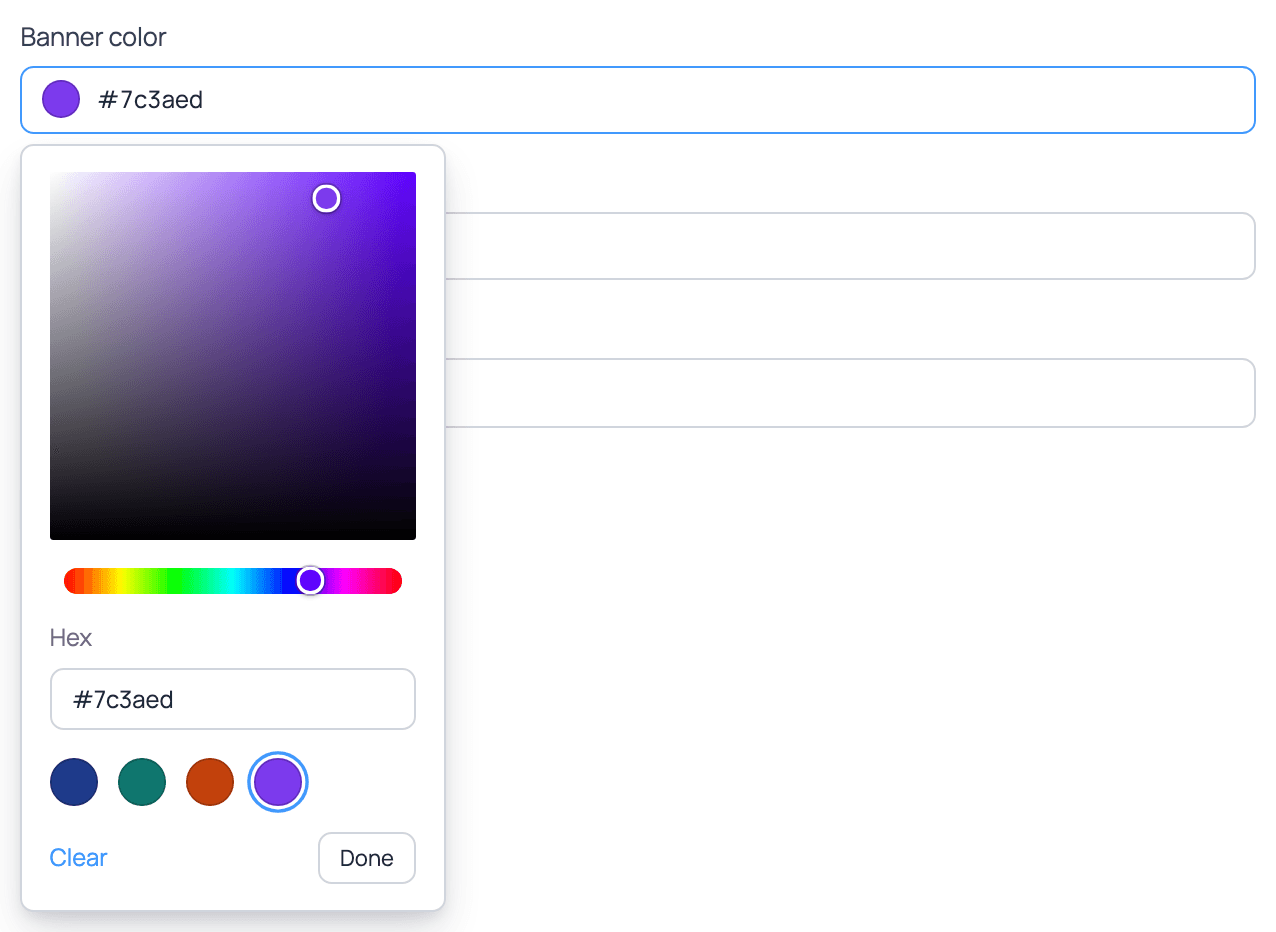
Upgrade your WordPress site with powerful, flexible forms.
Download and install
- If you haven't already, install and activate the current version of Formidable Forms Premium on your WordPress site.
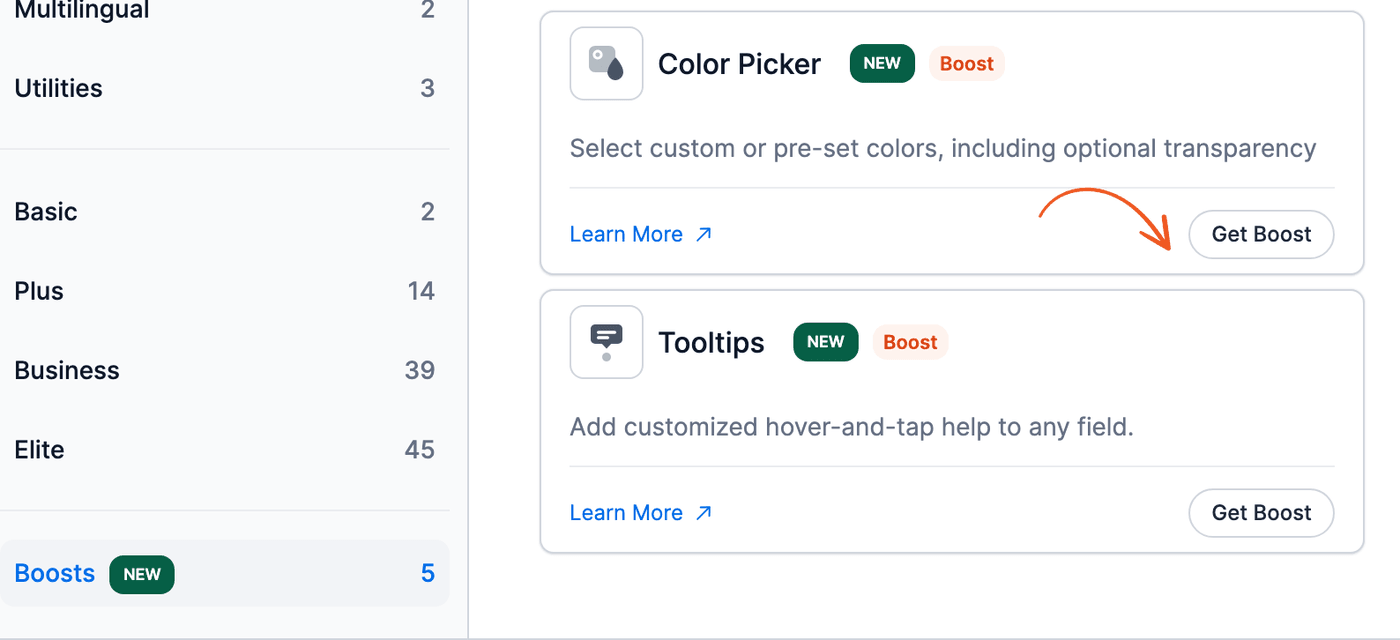
- Go to Formidable → Add-Ons/Boosts and click Boosts in the list on the left.
- On the Color Picker card, click Get Boost to buy the add-on.

- After you buy it, go back to Formidable → Add-Ons/Boosts and click Boosts. Turn on the toggle on the Color Picker card to install and activate the add-on.
If Formidable Forms Pro is not active, the Color Picker field turns off. A notice in the WordPress admin says that Formidable Color Picker needs active Formidable Forms and Formidable Forms Pro, with a valid license for Pro.
If Pro is active but its license is not activated, the field turns off too. For example, this happens when the license was deactivated or revoked. The Color Picker notice shows on the Dashboard and Plugins pages.
Formidable pages also show a message that lists each add-on on your site that needs an active license, such as Color Picker. The message asks you to activate your license.
If your license expires, Color Picker fields that are already on your forms keep working. After the grace period ends, the form builder treats the Color Picker field like other premium fields. You can't add one or change the ones on your forms.
You also don't get new features or security updates for the Boost. You can't get new Boosts until you renew.
From Idea to Reality in Minutes. Build Powerful Forms, Dashboards, Apps and More.
Formidable Forms makes advanced site building simple. Launch forms, directories, dashboards, and custom WordPress apps faster than ever before.
Add a Color Picker field
- Go to Formidable → Forms and click the form you want to add the field to.
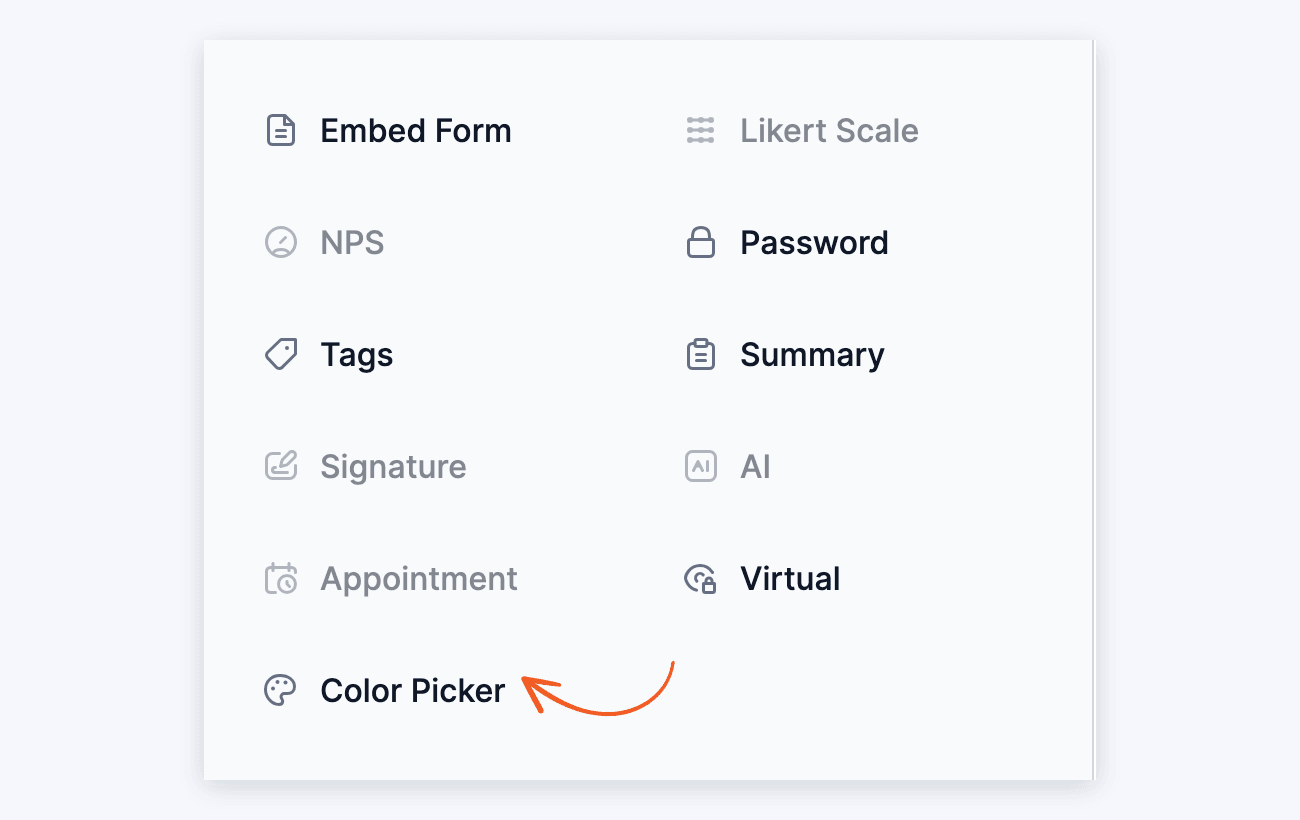
- In the Add Fields tab, find Color Picker in the Advanced Fields section. Click it or drag it onto your form.
- Click the new field to open its Field Options. A new field has the label "Color" and shows "Select a color" until a color is chosen.
- Set the options you need. The options are explained below.
- Click Update to save the form.
To see the field on a page, publish the form, or click Preview → On Blank Page in the form builder.
Standard field options
Color Picker fields have these standard options:
- Field Label
- Required
- Read Only: the field shows its color on a button that does not open.
- CSS Layout Classes
- Default Value: enter a hex code, such as #1e3a8a.
- Field Description
- Label Position
- Field Key
- Field Type: see Change a Color Picker field to a Text field.
- Invalid Format message, in the Validation Messages section. A new field starts with "Please enter a color, like #3366ff or rgb(51, 102, 255)."
- Conditional Logic
These are all the standard options of a Color Picker field. In place of placeholder text, the field shows "Select a color" until a color is chosen.
Field-specific options
In addition to the standard field options, Color Picker fields have a Color Picker Options section in the field options. The builder shows the field with your settings as you change them.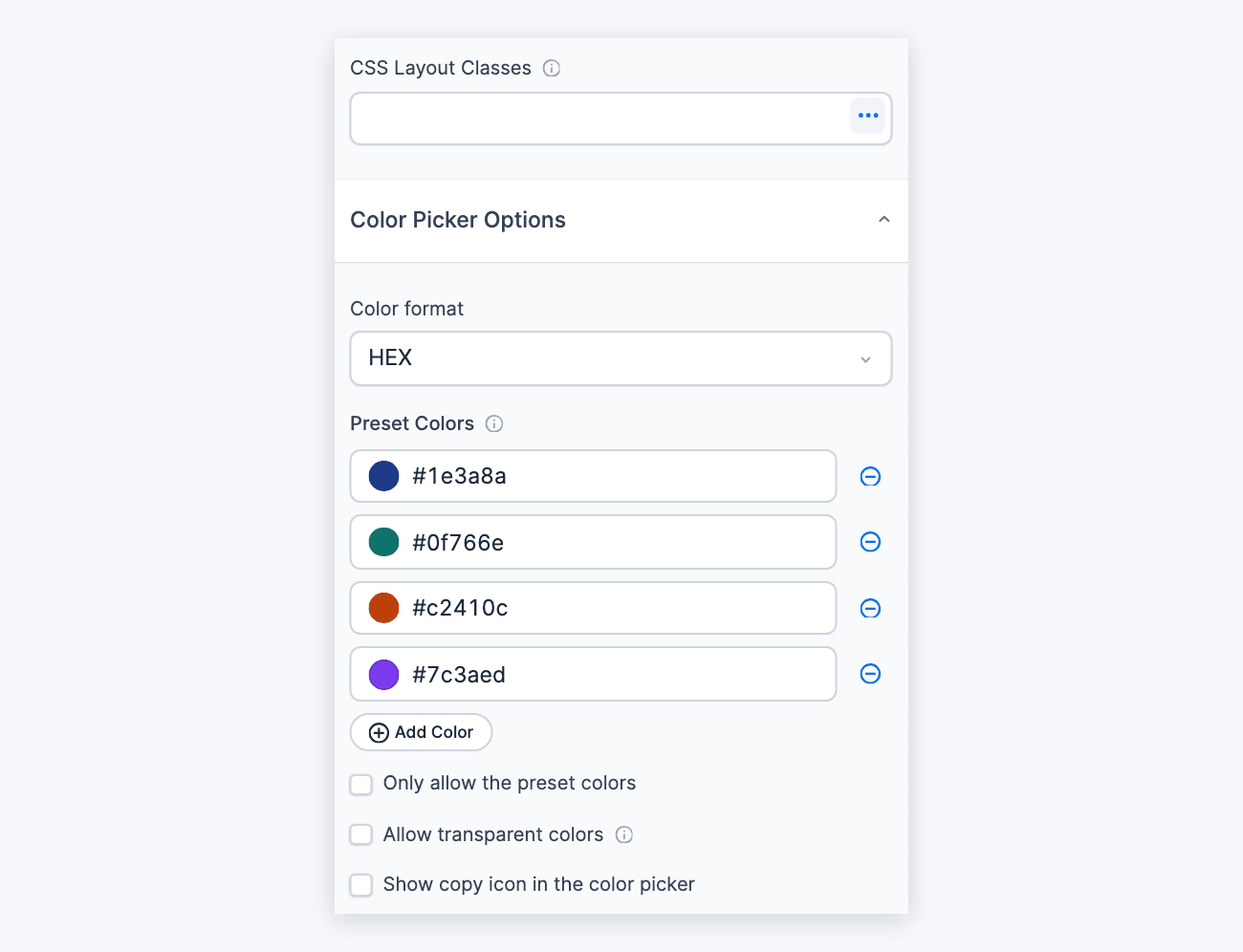
After you change an option, click Update to save the form. Then click Preview → On Blank Page to try the field.
Color format
Color format sets how the field shows the color to visitors. The field button and the code box show the color in the format you choose. The code box label names it.
- HEX: shows a hex code, such as #3366ff. This is the default. Choose this if your visitors work with hex codes.
- RGB: shows
rgb(51, 102, 255). Choose this if your visitors work with RGB values. - HSL: shows
hsl(225, 100%, 60%). Choose this if your visitors work with HSL values.
If you are not sure, keep HEX. This setting changes only what visitors see.
The entry always saves a hex code, such as #3366ff. To show a saved color in another format, use the display options.
Preset Colors
Preset colors are one-click choices under the code box in the popup. They suit your brand colors or the only colors you offer.
- Click Add Color. A new row is added.
- Click the row to open its color picker. Pick a color, or type a hex code in its Hex box.
- To delete a preset, click the minus icon next to its row.
Short codes are fine: #36F is saved as #3366ff. With Allow transparent colors on, 8-digit codes such as #3366ff80 also work.
A preset that is not a hex code the field accepts is outlined in red and listed under the rows. It is left out of the form. For example, color names such as navy are not accepted.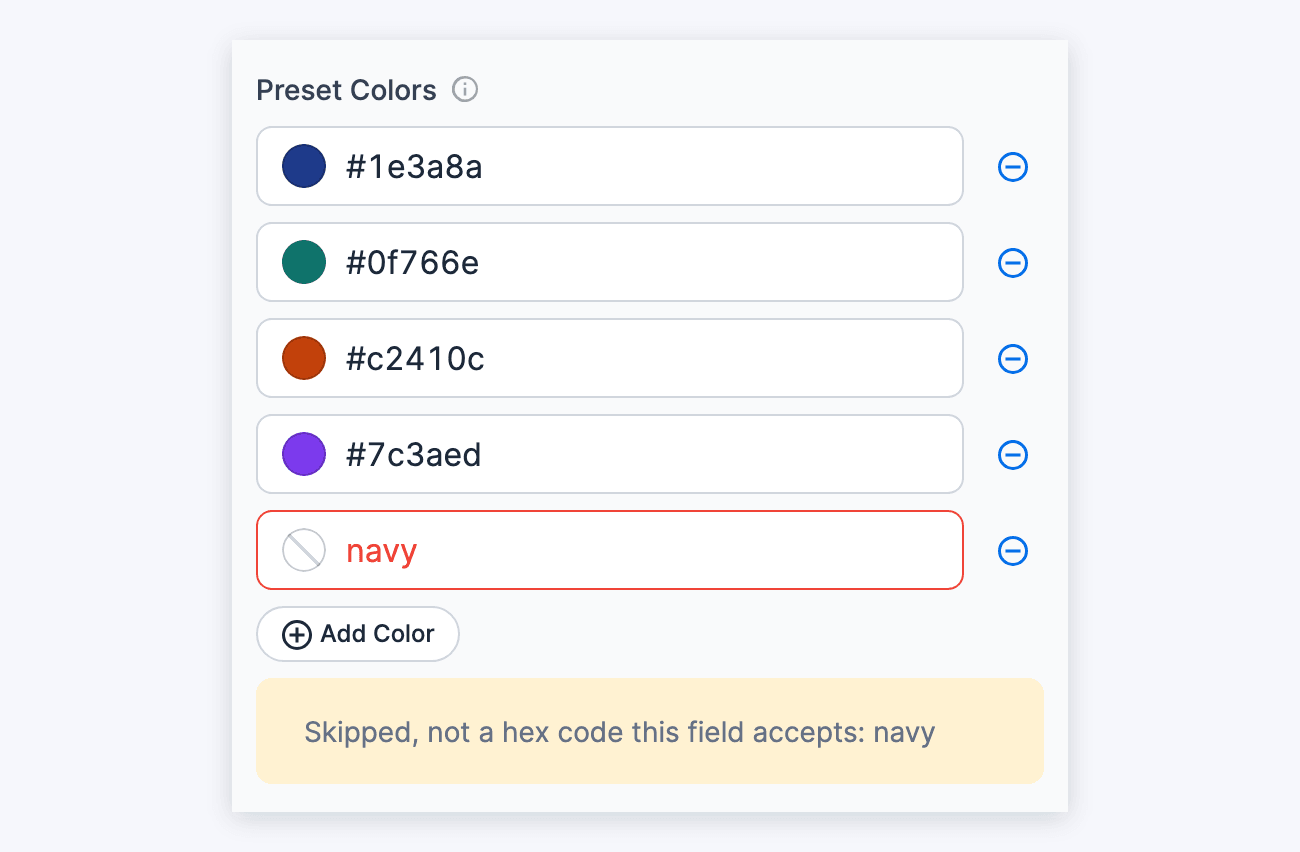
Only allow the preset colors
By default, visitors can pick any color. When you check Only allow the preset colors, the popup shows only the preset colors and the Clear and Done buttons. When the form is submitted, a value that is not one of the presets is rejected with the Invalid Format message.
Visitors click a preset to choose it. To clear the field, they click the chosen preset again. An optional field can then be left empty.
This setting has no effect until you add at least one preset color.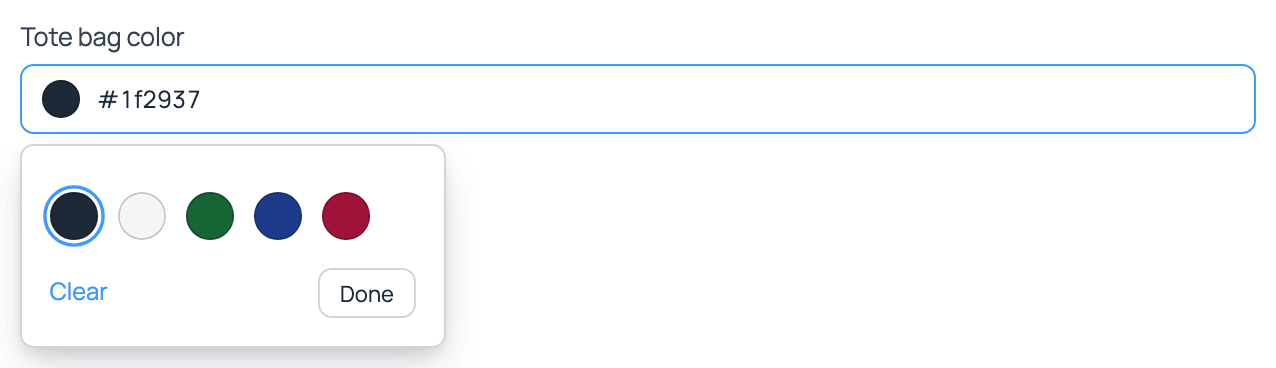
Allow transparent colors
By default, colors are solid, and the field rejects 8-digit hex codes. When you check Allow transparent colors, the popup gets an opacity slider under the color slider. This option helps when visitors need a see-through color, such as a text overlay on an image.
A transparent color is saved with 8 digits, such as #0f172a99. A fully solid color keeps 6 digits.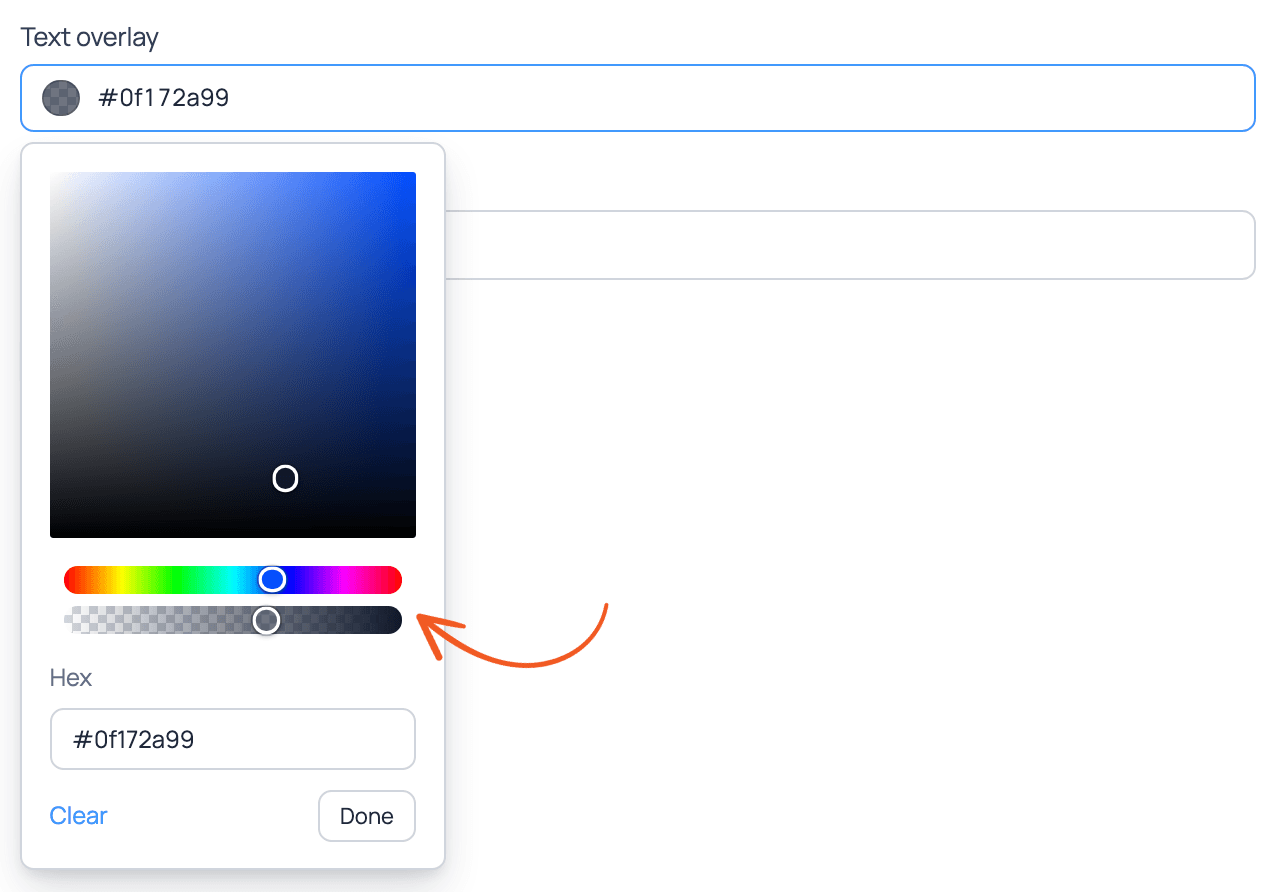
Show copy icon in the color picker
To add a copy icon next to the code box in the popup, check this box. Visitors click it to copy the color code. When the box is not checked, the popup has no copy icon.
Choose a color on the form
On the form, the field is a button with a color circle and the color code. Before a color is chosen, it shows "Select a color". Visitors click the button to open the popup.
The popup has these parts:
- A color square and a color slider. Visitors drag in them to pick a color.
- An opacity slider, only when the field allows transparent colors.
- A code box. Visitors can type a hex code, with or without the #. Codes in rgb() or hsl() form also work. When the visitor leaves the box, the code is changed to the field's format, such as #0F172A99 to #0f172a99. To use the code and close the popup, press Enter in the box.
- The preset colors. The preset in use has a ring around it.
- Clear empties the field. Done closes the popup.
Visitors don't need to save the color in the popup. The color is set as soon as they pick it. The popup also closes when they press Escape or click outside it.
With the keyboard, visitors can tab to the button and press Enter or Space to open the popup. In the popup, Tab moves to the color square, the sliders, the code box, the preset colors, and the buttons.
The arrow keys move the color square and the sliders, 10 steps at a time with Shift. Home and End move a slider to its start or end.
In the preset colors, the arrow keys move between the presets. Enter or Space chooses one.
If a visitor types a value that is not a color, the form shows the field's Invalid Format message when it is submitted. With Validate this form with javascript on, the message shows as soon as the visitor leaves the code box.
View the saved colors
The entry saves the color as a lowercase hex code with a #. It has 6 digits, such as #7c3aed, or 8 digits for a transparent color, such as #0f172a99.
A value typed in another way is changed before it is saved. For example, #7C3AED, 7c3aed, and rgb(124, 58, 237) are all saved as #7c3aed.
On the entry page, in the entries list, and in a Summary field, each color shows with a small color chip next to its code.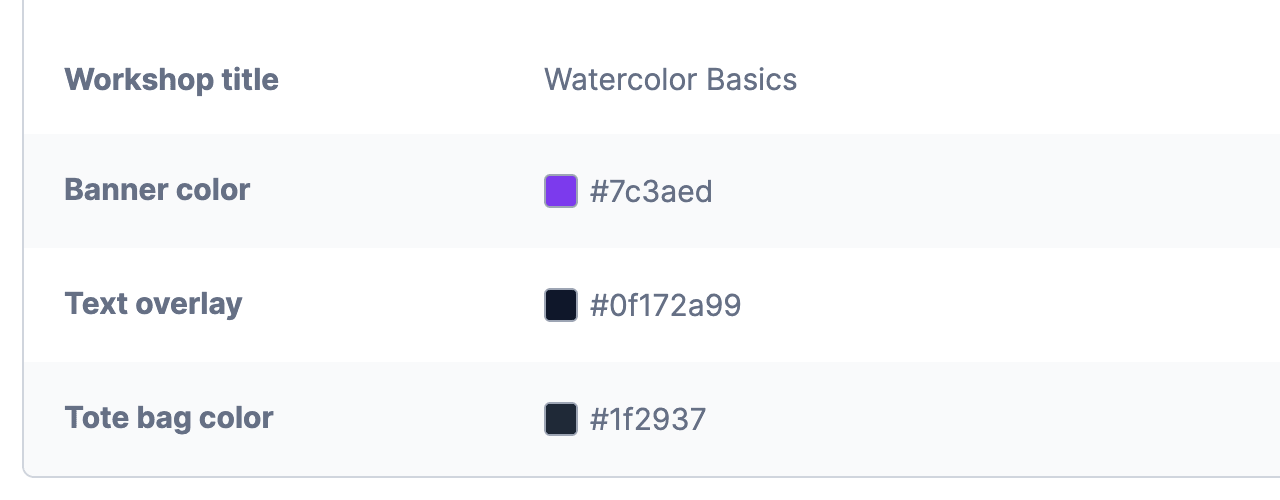
The chip always shows the solid color. For a transparent color, the code shows the transparency, but the chip does not.
A CSV export and the REST API give the code only, such as #7c3aed.
Entries that you import or add with the REST API get the same check as the form. An rgb(), rgba(), hsl(), or hsla() value is saved as a hex code. For example, rgb(51, 102, 255) is saved as #3366ff.
In an import, a value that is not a color is saved empty. A transparent color in a field that does not allow transparent colors is saved empty too.
For such a value, the REST API does not save the entry and returns the Invalid Format message.
Display Color Picker fields
A field ID shortcode, such as [25], displays the color saved in a Color Picker field. It works in a confirmation message, an email, or a View. Replace 25 with the ID of your field.
[25] shows only the code, such as #7c3aed. You can also use it inside a style attribute:
<div style="background-color: [25];">Watercolor Basics</div>In an email that uses [default-message], each color shows with a chip and its code. In a plain-text email, it shows as the code only.
Shortcode options
Options on the field ID shortcode change what it shows. The examples use a saved color of #7c3aed, and #0f172a99 for the transparent examples.
| Shortcode | Shows |
|---|---|
[25 show=swatch] | A color chip and the code. |
[25 show=chip] | The color chip without the code. |
[25 show=hex] or [25 show=value] | The code only, without a chip. With format, the code in that format: [25 format=rgb show=value] shows rgb(124, 58, 237). |
[25 show=contrast] | #000000 or #ffffff, whichever is easier to read on the color. It suits the text color on a colored background. For #7c3aed, it shows #ffffff. |
[25 show=r], [25 show=g], [25 show=b] | The red, green, or blue part of the color, from 0 to 255. For #7c3aed: 124, 58, and 237. |
[25 show=alpha] or [25 show=opacity] | The opacity, from 0 (transparent) to 1 (solid). For #0f172a99, it shows 0.6. |
[25 format=rgb] | The color as RGB text: rgb(124, 58, 237). A transparent color shows as RGBA: rgba(15, 23, 42, 0.6). |
[25 format=hsl] | The color as HSL text with whole numbers: hsl(262, 83%, 58%). |
[25 format=hsl decimals=2] | The color as HSL text with up to 2 decimal places: hsl(262.12, 83.26%, 57.84%). Allowed values are 0 to 4. |
[25 format=hsl show=swatch] | A color chip and the HSL text. |
The format option accepts hex, hex8, rgb, rgba, hsl, and hsla. The hex8, rgba, and hsla formats always include the opacity, also for a solid color. For example, [25 format=hex8] shows #7c3aedff.
These options change only what is shown. The saved code stays the same.
To show a color from a specific entry, use the frm-field-value shortcode. It shows the code only. To show the chip and the code, add show=swatch.
With entry, the value shows only to users who can view entries in the admin area and to the person who submitted the entry. Other visitors see nothing. Learn more in Who can see the value.
[frm-field-value field_id=25 entry=123 show=swatch]
Compare colors in conditional statements
In conditional statements, equals, not_equal, and not_equals match the same color in different forms. The color can be a hex code with a #, in any letter case, or an rgb() color. For a saved color of #7c3aed, all of these statements match:
[if 25 equals="#7C3AED"]Purple banner[/if 25]
[if 25 equals="rgb(124, 58, 237)"]Purple banner[/if 25]
[if 25 format=hsl equals="hsl(262, 83%, 58%)"]Purple banner[/if 25]
Always type the # in a hex code. Without it, such as 7C3AED, the color does not match.
To compare an HSL color, add format=hsl and type the color as [25 format=hsl] shows it. HSL text is rounded. Without format=hsl, hsl(262, 83%, 58%) does not match #7c3aed.
Add show or format to compare the shown value instead. For example, [if 25 show=r greater_than="100"] checks the red part of the color.
Show or hide fields based on a color
Conditional logic shows or hides other fields based on the chosen color. For example, an HTML field with a printing note can appear when a visitor chooses the dark tote bag color.
- In the form builder, click the field you want to show or hide.
- In its field options, click Conditional Logic. This turns on Enable Conditional Logic.
- Select the Color Picker field. Next, select equals.
- In the value box, type the color as a lowercase hex code, such as #1f2937. Use 8 digits for a transparent color.
- Click Update to save the form.
Field conditional logic compares the exact code. Always use the lowercase code that the field saves.
Change a Color Picker field to a Text field
A Color Picker field can become a Text field. The field keeps its label, default value, and saved entries. The entries then show the hex codes as plain text, without the color chip.
- In the form builder, click the Color Picker field.
- Open the Advanced section of its field options.
- In Field Type, select Text.
- When Formidable asks to reload the page, click Save and Reload. The form is saved. The field then has the options of a Text field, Placeholder Text included.
This change works one way. To use a Color Picker field again, add a new Color Picker field to the form.
Limitations
- Visitors and preset lists can't use color names such as navy. Instead, use a hex code, or an rgb() or hsl() color in the code box.
- Preset colors have no names. Screen readers read the hex code of each preset.
- The color chip in entries, emails, and
show=swatchshows the solid color, also for a transparent color. - Text fields can't be changed into Color Picker fields.
- The field needs Formidable Forms Pro with a valid license.
Troubleshooting
Please enter a color, like #3366ff or rgb(51, 102, 255).
This is the default Invalid Format message. The form shows it when the value in a Color Picker field is not accepted:
- The value is not a color, such as a color name or a hex code with the wrong number of digits.
- The value is an 8-digit transparent color, and Allow transparent colors is not checked.
- Only allow the preset colors is checked, and the value is not one of the preset colors.