
Split a large form into smaller forms that work together. Each form builder page then has fewer fields to load, and each form is easier to manage. This works well for long applications, registrations, and intake forms where the fields fall into clear groups.
You can keep one submission by embedding the smaller forms in a main form. Or send users from one form to the next and link their entries.
Upgrade your WordPress site with powerful, flexible forms.
When splitting helps
Splitting a form is worth it when the form builder is slow to load or save because the form has many fields. It also helps when parts of the form make sense on their own.
- Before you split a slow form, open its Settings → General and check Load and save form builder page with AJAX. Then click Update. Formidable recommends it for long forms. If fields at the end of a long form stop saving, see why the options at the end of a large form stop saving.
- If the form builder is slow on every form, not just a large one, follow the steps to find a conflict.
- If you only want users to see fewer fields at a time, add Page Break fields instead. The form stays one form with one entry, but the builder still loads every field.
From Idea to Reality in Minutes. Build Powerful Forms, Dashboards, Apps and More.
Formidable Forms makes advanced site building simple. Launch forms, directories, dashboards, and custom WordPress apps faster than ever before.
Which option should I use?
| Option | What users fill out | What is saved | Use it when |
|---|---|---|---|
| Embed Form field | One form, submitted once | One entry in the main form, plus one in each embedded form, linked automatically | You want one submission, or you reuse a group of fields in several forms |
| Linked forms | Form A, then Form B on the next page | One entry in each form, linked by the Form A entry key | The process has clear steps, such as an application followed by a proposal |
How it works
In this example, a workshop studio has one large Instructor Application form with 3 sections: About you, Teaching experience, and Workshop proposal. It's split into 2 linked forms:
- Instructor Details (Form A): the About you and Teaching experience fields. Its Full Name field has the ID 13649, its Email field 13650, and its City field 13652.
- Workshop Proposal (Form B): the Workshop proposal fields, plus a Hidden field named Application key with the ID 13655. Its Workshop title field has the ID 13656, and its Seats field 13659.
When an instructor submits Form A, they're sent to the page with Form B. The page address includes the entry key of their Form A entry, a random code that's hard to guess. The Hidden field in Form B saves that key, so each proposal is linked to its application. A View of Form A then shows each application with its proposal in one row.
Your field IDs will be different. Replace the IDs in this example with the IDs from your own forms.
Before you begin
- You'll need Formidable Forms Pro for the Embed Form field. It's available on the Basic, Plus, Business, and Elite licenses.
- To show the linked entries in a View, you'll need the Visual Views add-on, which is available on the Plus, Business, and Elite licenses.
- Decide which fields go in each new form. Keep each field in the same form as the fields its conditional logic or calculation uses. Conditional logic and calculations only use fields from their own form.
Move fields into a new form
Make each new form from a copy of the large form, and delete the fields that belong somewhere else. The original form keeps its fields and entries.
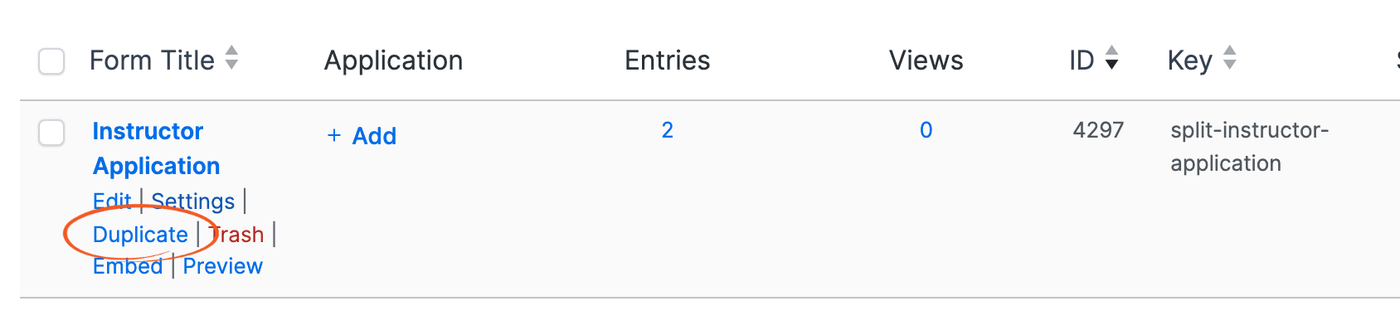
- Go to Formidable → Forms. Hover over the large form. Then click Duplicate. The copy opens in the form builder.

- Give the copy a new name, such as Instructor Details. Learn more about how to change the title of a duplicated form.
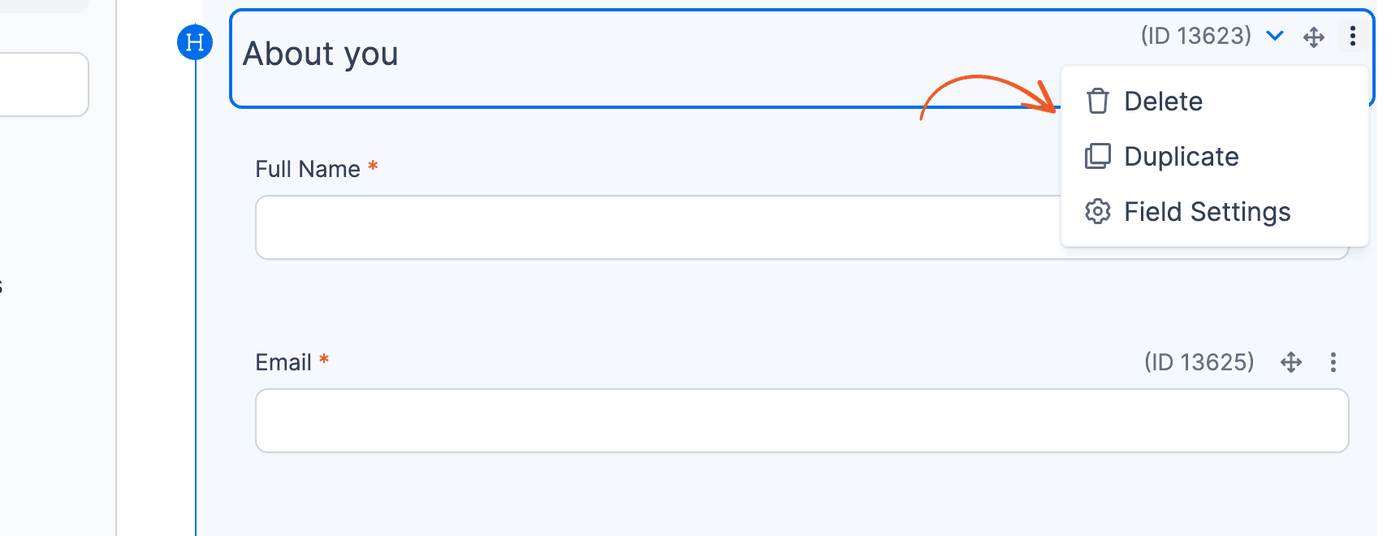
- Delete the fields that belong in another form. To delete a whole section, click the More Options icon (⋮) on the Section field. Next, click Delete. Then click Confirm. The section and the fields inside it are deleted right away, with no need to click Update.
- Repeat these steps for each new form. In this example, the second copy becomes Workshop Proposal and keeps only the Workshop proposal section.
What changes in the copies
- Entries: Duplicating a form doesn't copy its entries. The existing entries stay in the original form, so keep that form to see them. To also have them in a new form, export the entries to a CSV file and import the file into the new form. Match each column to a field. Imported entries in Form A and Form B aren't linked to each other. The View below pairs a Form A entry with a Form B entry only when their keys match. The Form B entry's Application key must match the Form A entry's key.
- Field IDs and keys: Each copy gets new field IDs and keys. In the copy, the conditional logic, calculations, and email actions already use the copy's own field IDs.
- Deleted fields: Deleting a field also deletes the values saved in it. Delete fields only in the copies, not in the original form.
- Settings that used a deleted field: Deleting a field doesn't change the settings that use it. In an email, its shortcode prints as typed, such as [13531]. A field whose conditional logic was based on it always shows, and a calculation keeps the old field ID. Remove or replace these after you delete fields.
- Views and shortcodes: Views and shortcodes on pages that use the original field IDs still show the original form's entries. Create new ones for the new forms.
Embed the smaller forms in a main form
An Embed Form field shows another form inside the main form. Users fill out and submit everything at once. In the form builder, the main form shows each embedded form as a single field, so the builder doesn't load the embedded fields.
- Move a group of fields into a new form, such as Contact Details, with the steps above.
- In a copy of the large form, delete that group of fields. Then add an Embed Form field from the Advanced Fields. It's added at the bottom of the form with the label Embed Form.
- Click the new field to open its options. Change the Field Label, such as to Contact details, and drag the field to where the group of fields was.
- In the field options, select the new form in Insert Form.
- Click Update to save your changes.
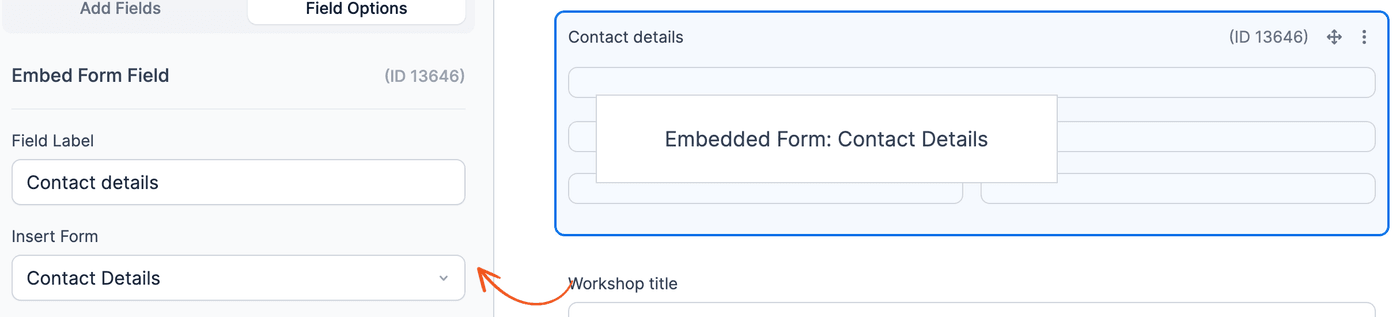
Each submission saves an entry in the main form and an entry in the embedded form, linked together.
In the main form's email and confirmation message, show an embedded field's value with its own shortcode, such as [x]. Replace x with the ID of the field in the embedded form.
Actions set up in the embedded form don't run by default, so add them to the main form.
Learn more about the Embed Form field and its limitations.
Link separate forms
With linked forms, users submit Form A first and then Form B. A Hidden field in Form B saves the entry key of the Form A entry it belongs to.
Send users from Form A to Form B
- Put Form A on the page where the large form was. Replace the large form's shortcode or block with Form A. Learn more about how to publish a form.
- Publish Form B on another page and copy the page's address.
- In Form A, go to Settings → Actions & Notifications. Under Current Actions, open the Confirmation action.
- Select Redirect to URL. In the Redirect URL box, paste the address of the Form B page. Then add
?application=[key]to the end. The [key] shortcode adds the entry key of the entry that was just submitted. For example:https://example.com/workshop-proposal/?application=[key] - Click Update to save your changes. The Redirect URL box then shows
?application=[key sanitize_url=1]. Formidable adds sanitize_url=1 to shortcodes in a URL, so leave it as it is.
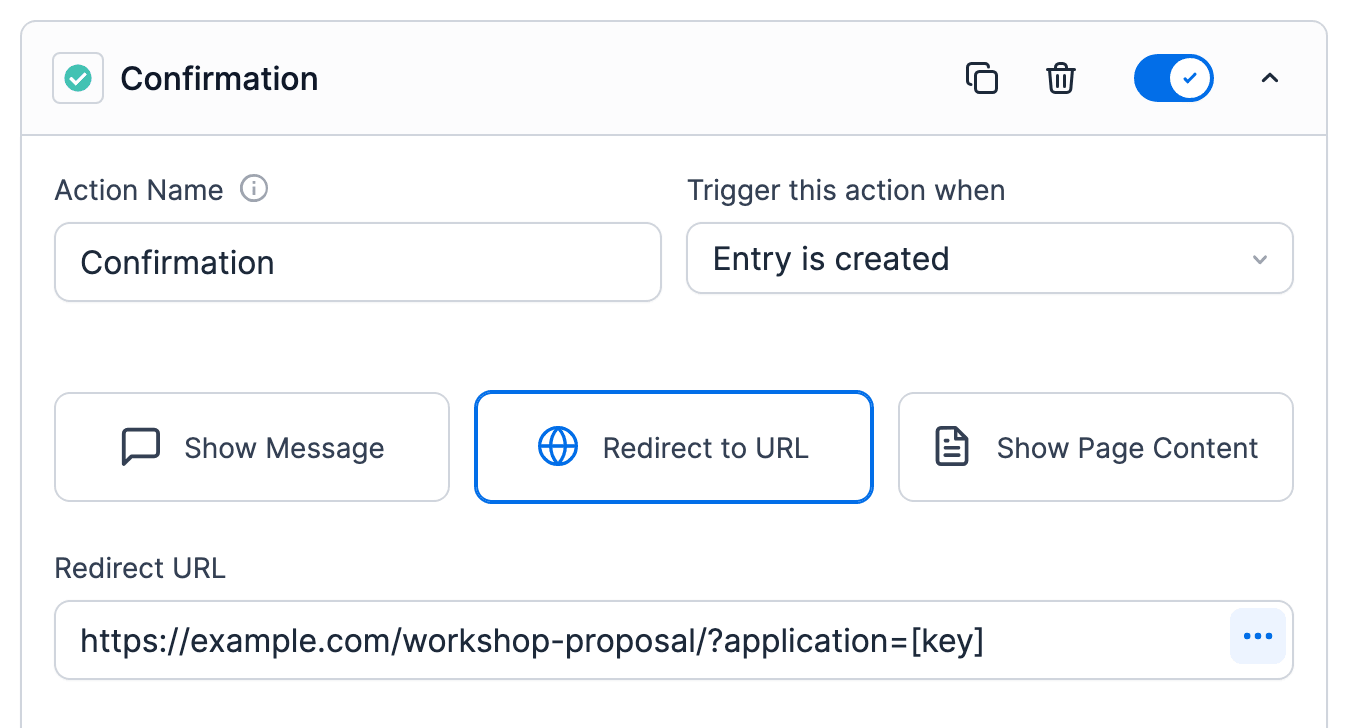
This is the same entry key that the method to pass values from Form A to Form B uses. Use that method if Form B also needs to show values from Form A.
Save the Form A entry key in Form B
- In Form B, add a Hidden field, such as Application key.
- Click the field to open its options. Open the Advanced section and enter
[get param=application]in Default Value. If you used a name other than application in the Redirect URL, use that name here. Learn more about how to get a parameter from the URL. - Click Update to save your changes.
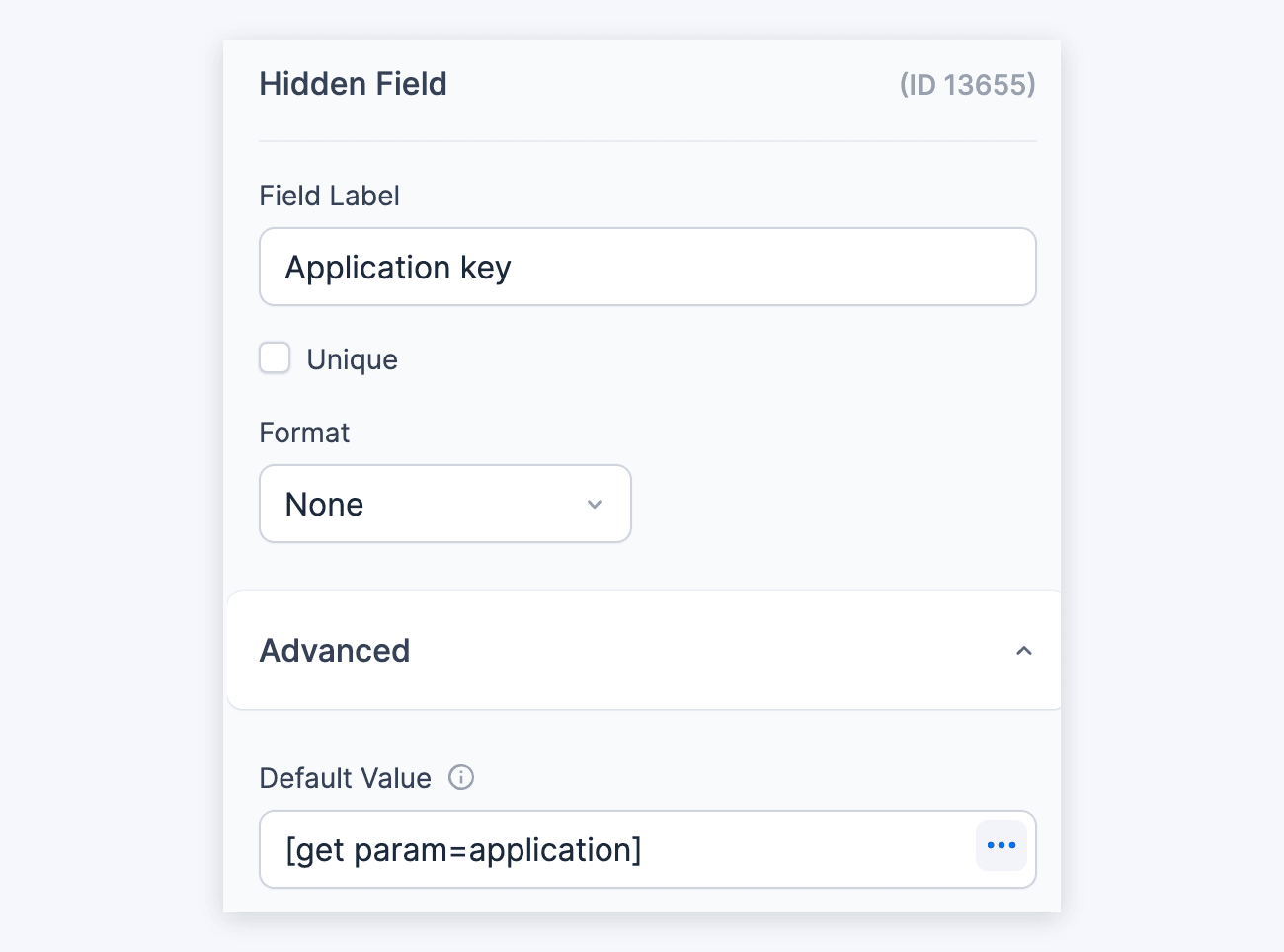
Form B now saves the Form A entry key with each entry. Visitors don't see the field, and nothing from other Form A entries is added to the page.
Show both parts of each submission together
To see both parts together, set up a nested View: a View of Form A that shows the matching Form B entry in each row.
Learn more about how to set up a nested View.
- Create a View of Form B and select Classic. Click the box with the plus icon below Add Before Content to open the content editor. In the content, add the Form B fields to show, such as
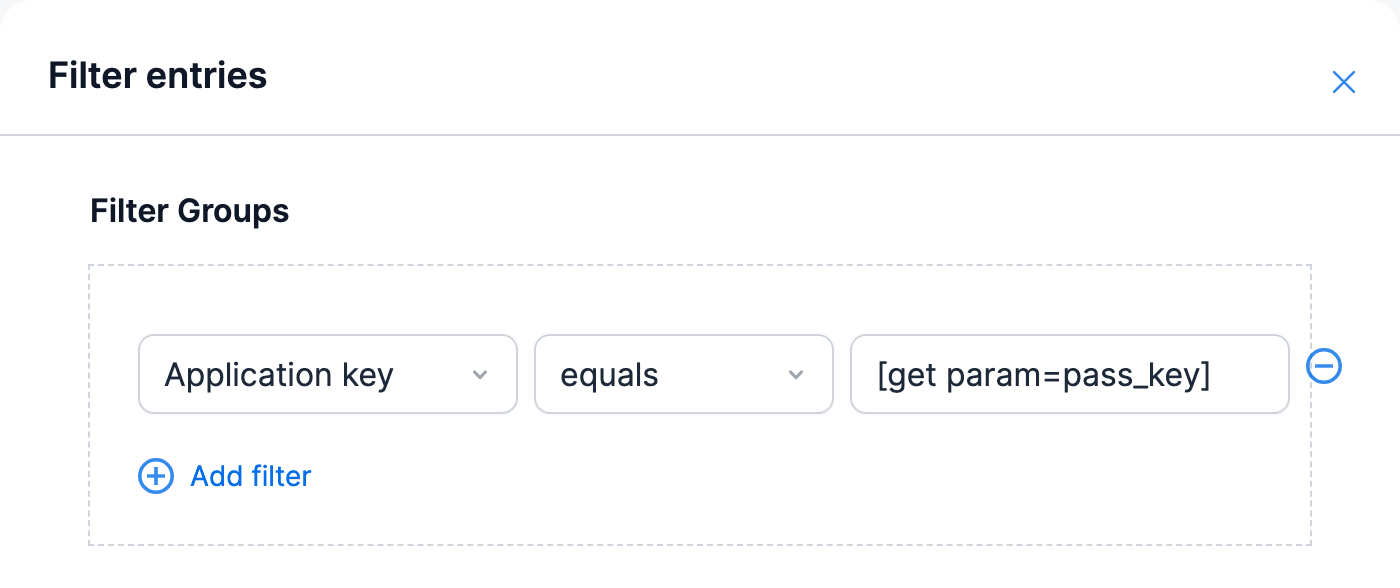
[13656] ([13659] seats). Under No Entries Message in the left settings panel, remove the default message. An application without a proposal then shows an empty cell instead of "No Entries Found". This View is meant to be shown only inside the Form A View: on its own, it ignores the filter below and shows every proposal. - Above the content, click Filter entries. Then add the filter Application key equals
[get param=pass_key]. Click Update in the dialog, then Update at the top of the page. - Create a View of Form A and select Classic. In Add Before Content, add
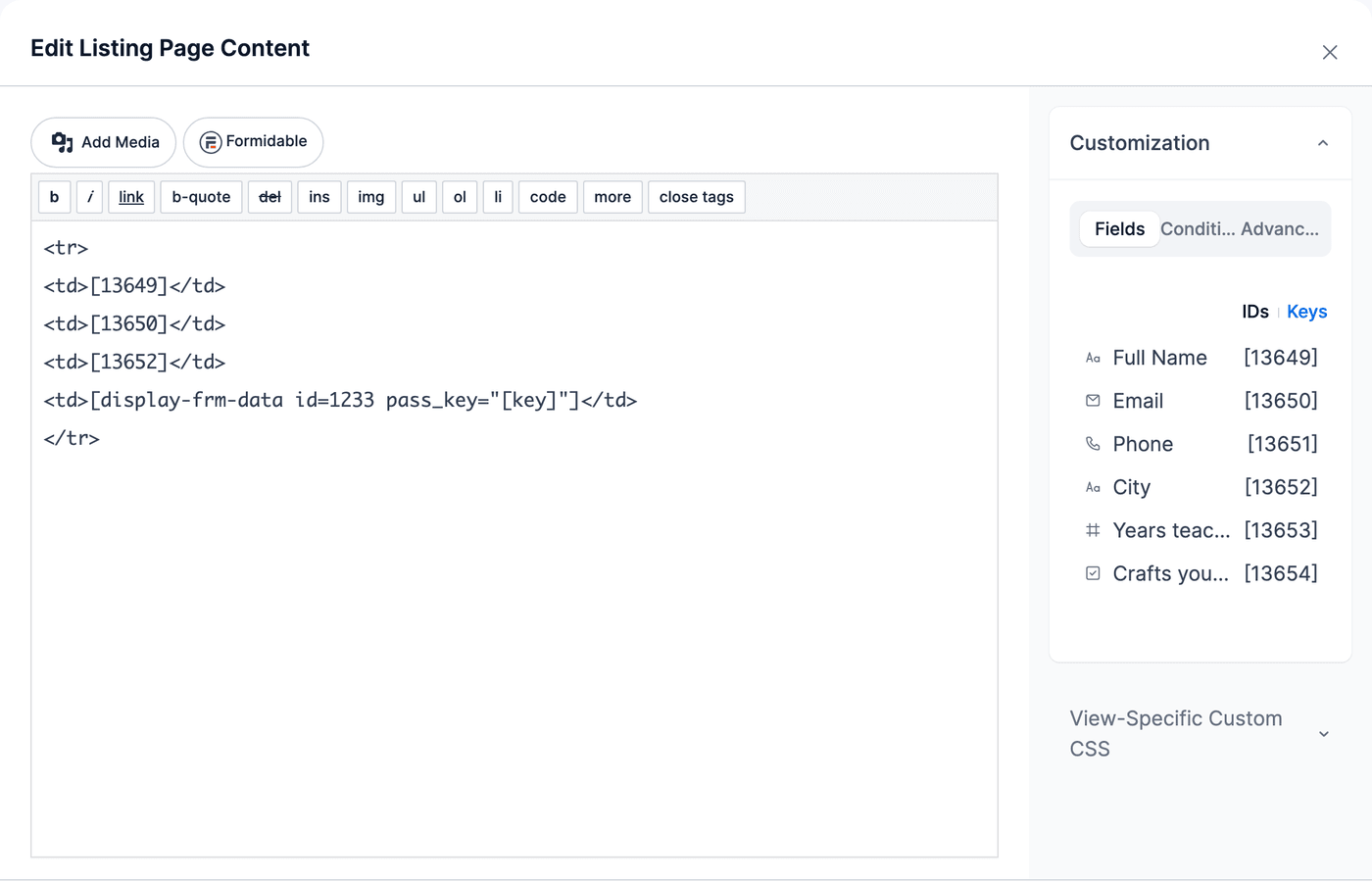
<table>, a header row with Instructor, Email, City, and Workshop, and<tbody>. In Add After Content, add</tbody></table>. - Click the box with the plus icon below Add Before Content to open the content editor. Add a table row with the Form A fields, and this shortcode in the cell where the Form B values go:
[display-frm-data id=x pass_key="[key]"]
Replace x with the ID of the Form B View, shown in the ID column on the Formidable → Views page. The [key] shortcode passes the entry key of each Form A entry to the Form B View. - Publish the Form A View on a page. Include
filter=limitedin its View shortcode. Each row shows the values from both forms.
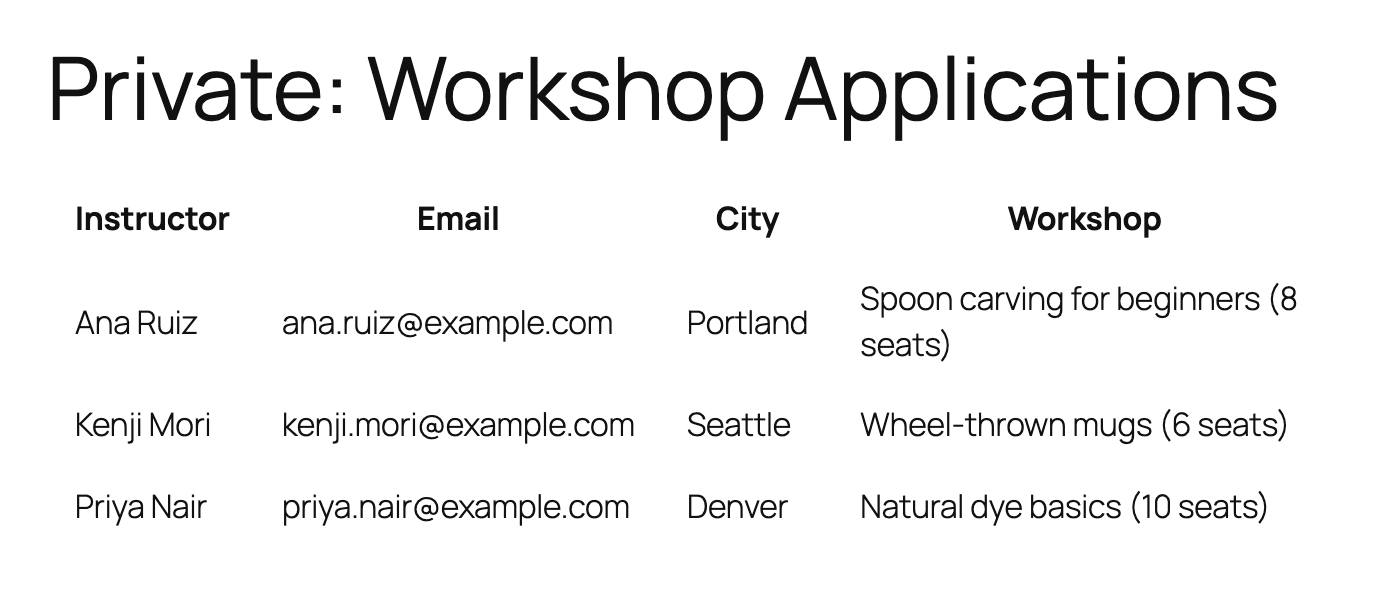
This View shows contact details, so keep it for your team. Keep both Views private: in Formidable → Views, hover over each View and click Quick Edit. Check Private and click Update, or click Cancel if it's already checked. New Views are private by default. If Status shows Scheduled, leave it as it is. A private View still shows its entries on any page it's added to, so add it to a private page too.
Learn more about who can see your entries.
Limitations
- The Form A entry key is in the page address of Form B. Anyone who has that address can submit Form B entries linked to that Form A entry. Each of those entries, including a second submission by the same person, shows in that Form A entry's row of the View.
- Embedded forms can't include a Repeater, a Page Break, or another Embed Form field.
Troubleshooting
The Application key field in Form B is empty
If Form B entries are saved without a Form A entry key, check these:
- The Redirect URL in Form A: It ends with
?application=[key sanitize_url=1]after you click Update. - The parameter name: The name in the Hidden field's Default Value, such as application, matches the name in the Redirect URL.
- How users reach Form B: The value comes from the page address. Users who open the Form B page without submitting Form A first have no entry key to save.
An email shows a field ID in brackets
If an email from a new form shows a shortcode such as [13531] as plain text, that field was deleted from the form. Open the email action and remove or replace the shortcode.
