
What a pleasure to have support within minutes. Brillant, accurate answer, and solved the question. Thanks to the Formidable Team. Eric


Last updated on October 21, 2026 by Formidable Team
How To Add AI to Your Website [Fast + Easy]
Want your site to do more than sit there and wait for visitors to act? Adding AI to your website gives visitors a faster way to get answers, fill out forms, and get personalized content, without you writing a single line of code. In this guide, we'll walk through five practical ways to add AI to your WordPress website today.
Approximate read time: 5 minutes
Upgrade your WordPress site with powerful, flexible forms.
The 5 ways to add AI to a WordPress website
You don't need a developer or a big budget to start. Here's what actually works:
- Build forms with AI instead of dragging fields one by one
- Connect a full AI agent to your site with MCP
- Let AI respond to what people submit, right in the form
- Score and personalize quiz results with AI
- Generate first-draft content with AI writing tools
Let's go through each one.
From Idea to Reality in Minutes. Build Powerful Forms, Dashboards, Apps and More.
Formidable Forms makes advanced site building simple. Launch forms, directories, dashboards, and custom WordPress apps faster than ever before.
1. Build your forms with AI
Instead of manually dragging every field onto a form, you can describe what you want and let AI draft it for you.
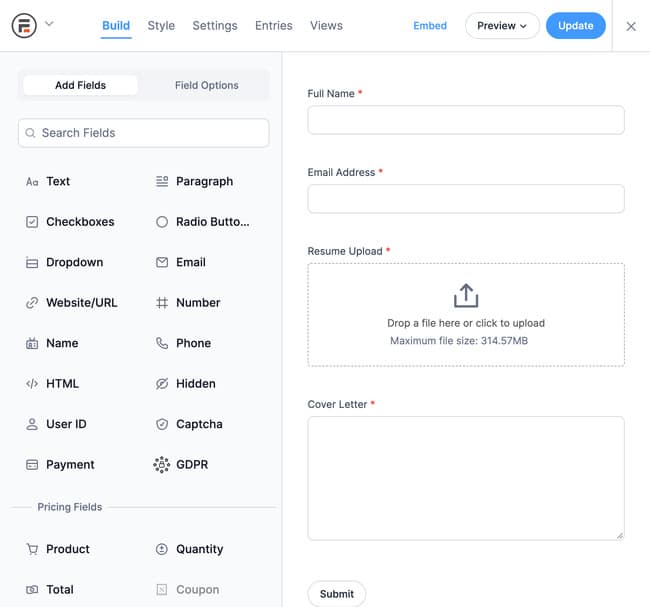
In Formidable Forms, go to Formidable → Forms → Add New, then choose the AI option. Describe your form in plain language, for example "a job application form with name, email, resume upload, and a cover letter field," and the AI form builder creates the fields, labels, and field types for you.
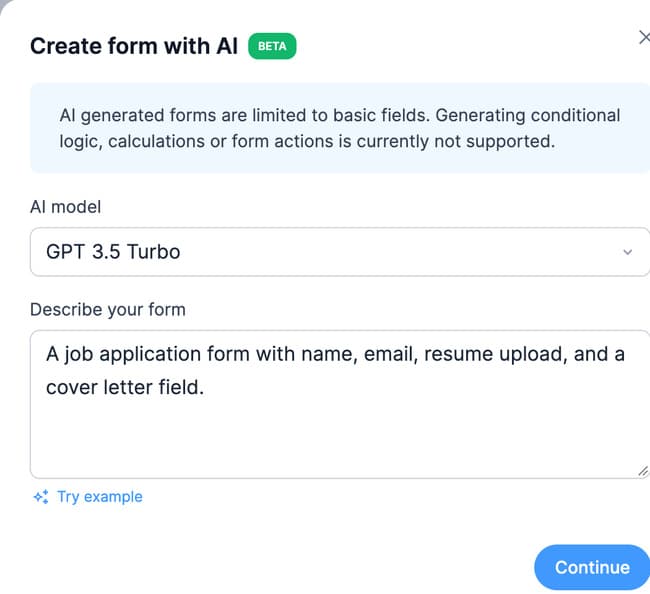
You still land in the normal drag and drop builder afterward, so you can adjust anything the AI got wrong before publishing.
This built-in generator is best for basic forms with common field types. It's included with the Business license and up, no separate add-on required.
2. Connect a full AI agent to your site with MCP
The form builder's AI option is quick, but it only goes so far: basic fields, one form at a time.
For anything bigger, Formidable connects to AI agents like Claude, ChatGPT, and Cursor through MCP (Model Context Protocol), an open standard that lets an AI assistant work with your site directly instead of just suggesting what to click.
Describe what you need the way you'd brief a coworker, and the agent builds it for real: full forms with conditional logic and calculations, entries you can search and filter by asking a question, and entire Views and applications, like a directory, dashboard, or booking system.
Ask for a change afterward, like adding a field to an existing directory card, and it edits the existing build in place instead of starting over.
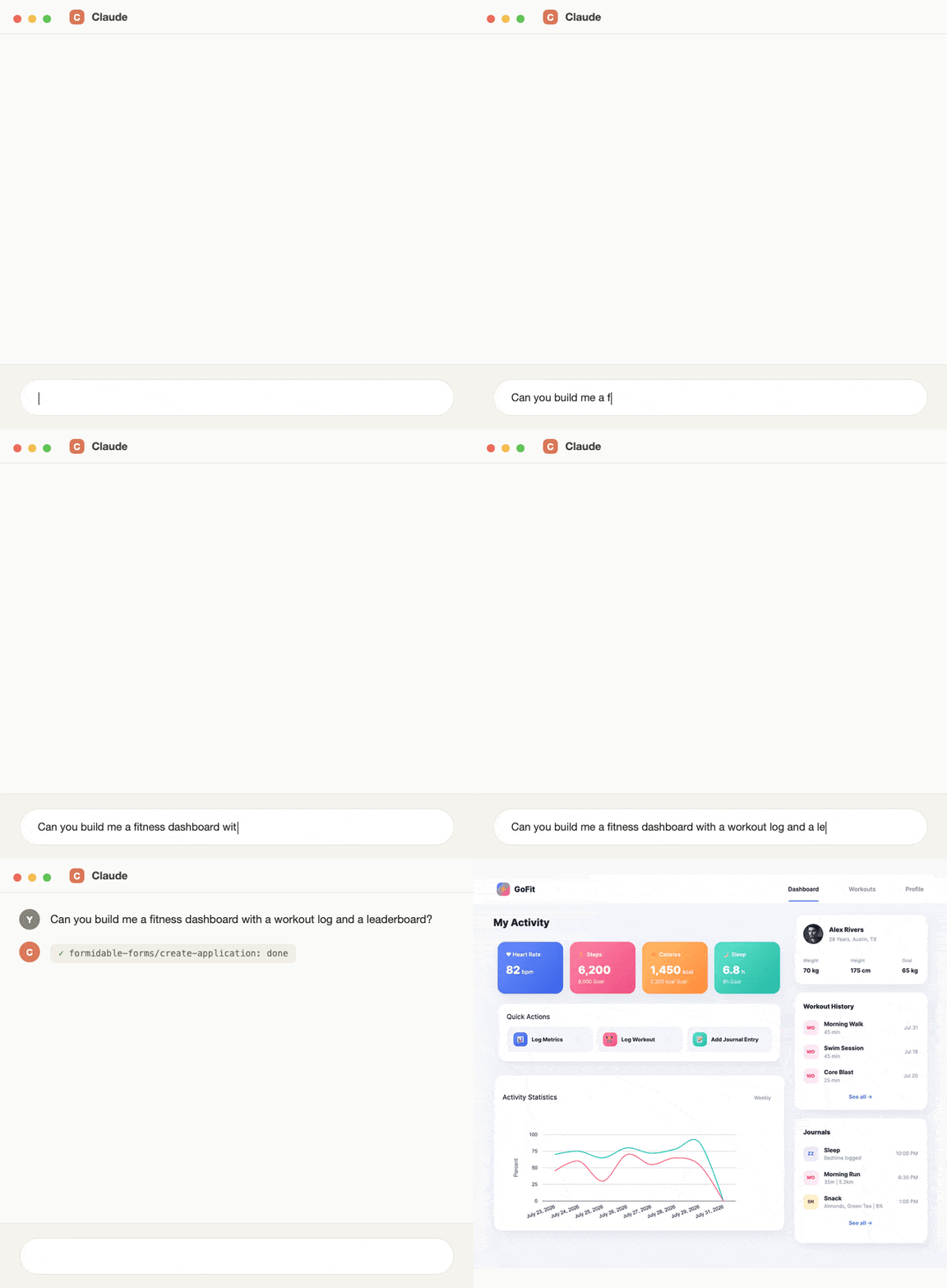
Everything the agent builds is a normal Formidable form, View, or application underneath, open it in the builder and every field and setting is there to edit by hand, the same as anything you built yourself.
The connection uses a revocable WordPress application password (or WP-CLI for local sites), not your real login, and it only has access to Formidable itself: forms, entries, Views, styles, and applications. It can't touch your theme, other plugins, or site settings.
This is the deepest AI integration Formidable offers, and it works on every Formidable license, including Lite. The agent can only build with the features your license includes, so Views, applications, conditional logic, and calculations still need a paid license.
For the full walkthrough, including setup and a real multi-View build, see our guide to connecting an AI agent to Formidable with MCP.
3. Let AI respond to what people submit, right in the form
MCP is for building and managing your site. This one is for the person filling out the form.
Formidable's AI Field watches a prompt field on your form and generates a live response inside the same submission, no page reload and no separate chatbot widget to install.
Add the field that collects what someone's asking, add an AI field to generate the response, point the AI field at the prompt field, and add a short guide prompt to steer the tone and content. You don't need your own OpenAI account or API key. It works out of the box, and it's included with the Business license and up.
Common uses include answering routine support questions before they become a ticket, helping a shopper decide between two products, or giving someone a nudge to finish a longer registration form.
See the ChatGPT integration for WordPress for the full setup steps and ready-made AI templates.
4. Personalize quiz results with AI-assisted scoring
If you're running an interactive quiz, AI can help write more natural, varied outcome descriptions instead of the same static text every time someone gets a given result.
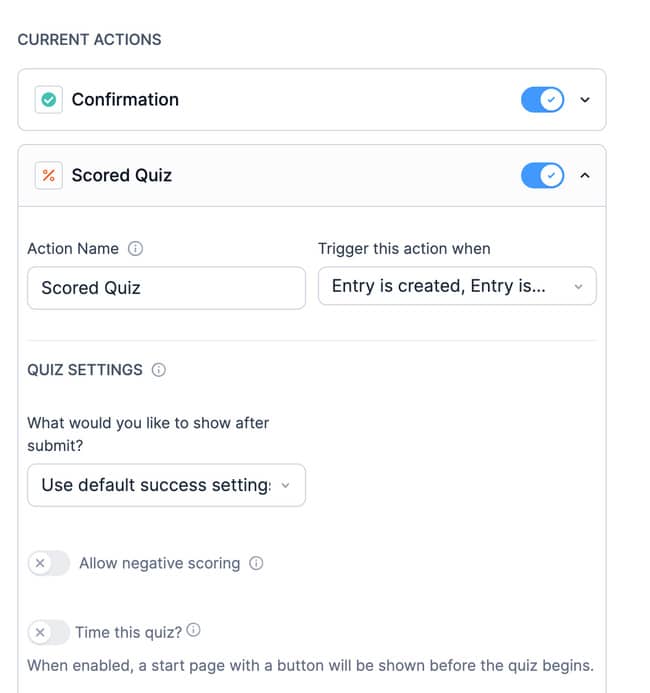
Formidable's Quiz Maker add-on (Business license and up) handles the scoring logic itself: you set the outcome conditions, and each visitor sees a result tailored to their answers the moment they submit.
For the full build, see our guide to making an interactive quiz in WordPress.
5. Generate first-draft content with AI
For the content itself, whether that's form field labels, confirmation messages, or email notification text, use an AI writing tool like ChatGPT or Claude to draft a first pass, then edit it in your own voice before publishing.
This works for any text field in Formidable Forms: confirmation messages, email templates, and PDF content all accept plain text you can paste in after drafting it with AI.
Start small, then build on it
Adding AI to your website doesn't require a developer or a rebuild. Start with one piece, an AI-built form, a connected AI agent, or a smarter quiz, and layer in more as you see what your visitors actually respond to.
If you're weighing which WordPress AI plugins are worth adding alongside Formidable, our roundup of AI plugins for WordPress covers the rest of the landscape.
Get Formidable Forms and build your first AI-powered form today.
How do I add AI to my WordPress website for free?
You can build and publish a form with the free Formidable Forms Lite plugin, and the MCP connection works on Lite too, so you can connect an AI agent without paying. It can only build with the features Lite includes, though. The built-in AI form builder and the AI response field require the Business license or higher.
Do I need to know how to code to add AI features to my site?
No. Formidable's AI form builder works by describing your form in plain language, connecting an AI agent through MCP is a few clicks in Formidable's settings, and the AI response field is added the same way as any other form field. All three are built for site owners, not developers.
What is MCP, and how is it different from the AI form builder?
MCP, short for Model Context Protocol, is an open standard that lets AI assistants like Claude, ChatGPT, and Cursor connect to other software and take action inside it. The built-in AI form builder generates one basic form from a prompt, right in Formidable's builder. MCP goes further: an external AI agent can build and manage entries, Views, styles, and entire applications, not just forms, and it can edit an existing build instead of only creating new ones.
Does the AI response field need my own OpenAI account?
No. Formidable's AI field works without your own OpenAI account or API key, so there's nothing extra to sign up for or configure outside of Formidable itself.
This article may contain affiliate links. Once in a while, we earn commissions from those links. But we only recommend products we like, with or without commissions.