
We have used eveything formidable has to offer from basic forms to advnaced froms, views, reports you name it we have used it. Probally even things the developers of this amazing app did not intend it to be used for 5 out of 5


Last updated on January 24, 2023 by Formidable Team
How to Add a Contact Form in a Footer in WordPress
Want to learn how to add a contact form in a footer in WordPress? This guide will show you exactly how to set up your footer with a contact form today!

Approximate read time: 3.5 minutes
Looking for an easy way to add a contact form to a footer in WordPress?
No plugin makes it easier than Formidable Forms. And we’ll show you exactly how to do it in this guide.
Let’s get started.
Upgrade your WordPress site with powerful, flexible forms.
Why add a contact form to your footer?
Contact forms are one of the only ways visitors can contact you.
And, if they don’t see your contact form, they’ll never know it exists. But if you have a form that exists across your site, there's always a chance they'll see it!
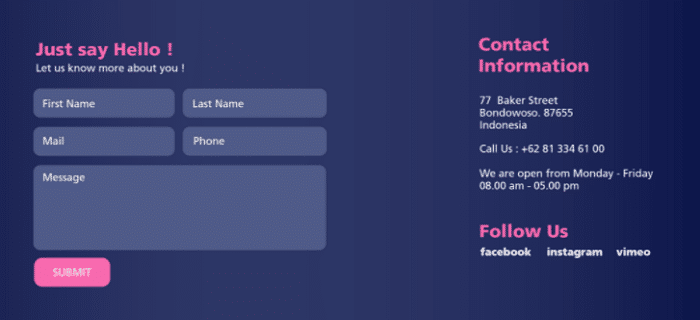
This increases your chances of getting in touch with any visitors or customers to improve your relationship with them.
Instead of hiding it on its own page, you spread it across your site, which will encourage more people to fill it out.
From Idea to Reality in Minutes. Build Powerful Forms, Dashboards, Apps and More.
Formidable Forms makes advanced site building simple. Launch forms, directories, dashboards, and custom WordPress apps faster than ever before.
How to add a contact form to a footer in WordPress
To get started, you must install and activate Formidable Forms, the best contact form plugin and form builder for WordPress.
While Formidable has a premium version that offers some awesome features, you can use the free version to save some cash.
So, once Formidable is ready to go, it’s two easy steps:
Let’s get into it.

Step 1: Create your WordPress footer contact form
First, go to Formidable → Forms in your WordPress dashboard to create your form.
Next, click Add New button at the top, and choose one of Formidable’s pre-made templates (premium version) or a Blank Form. Then, give your form a name and click Create.
The plugin will take you to its drag-and-drop form builder, where you can create your contact form.
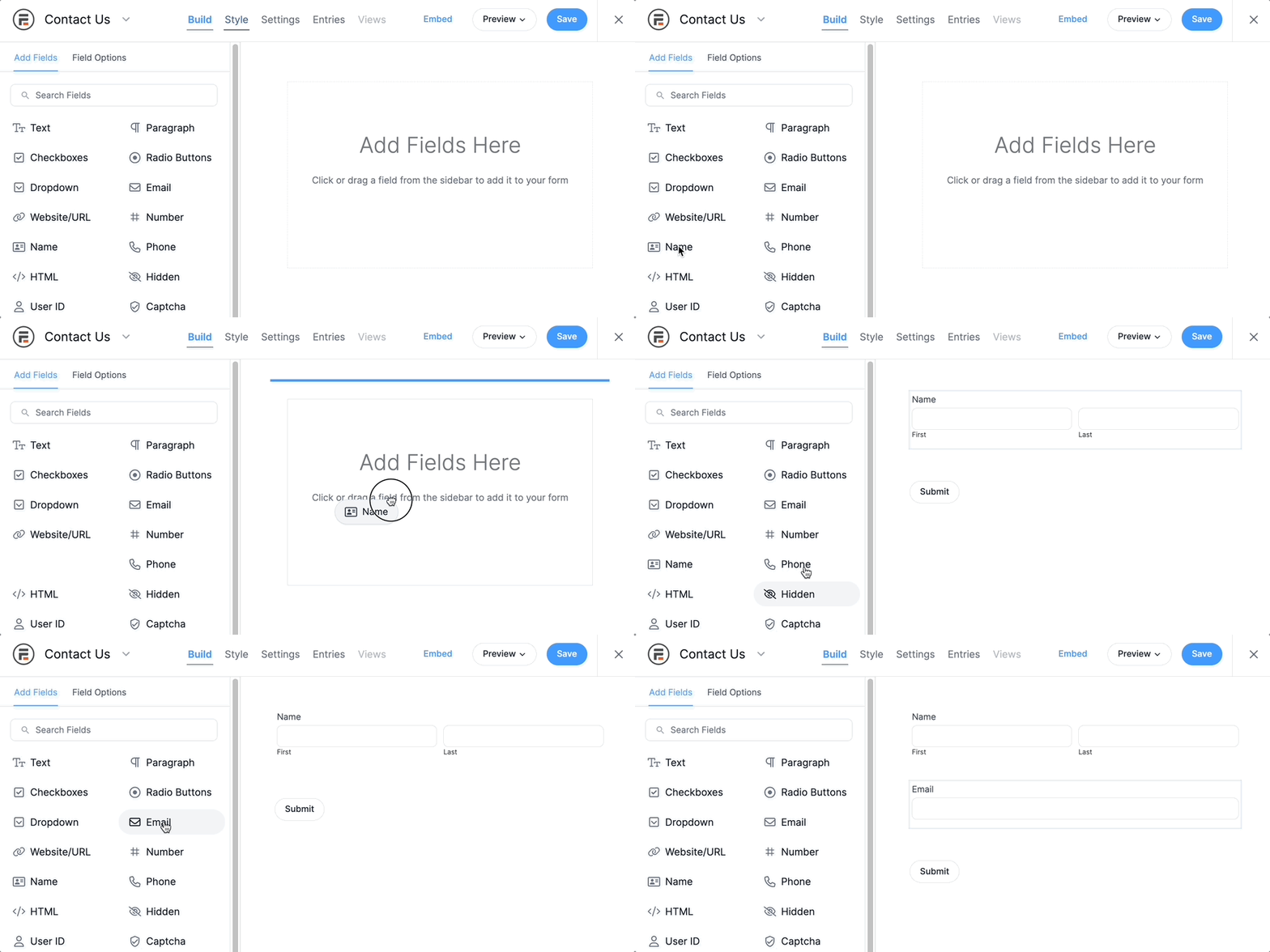
For example, you can drag:
- 2 Text form fields for a first and last name
- An email address field
- A Paragraph field for the visitor’s message
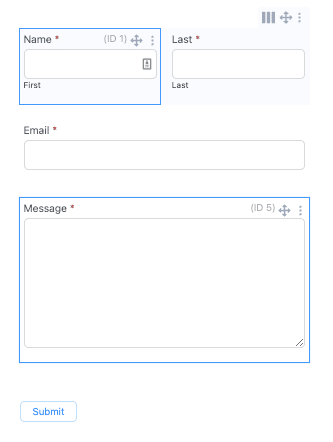
Once you’ve finished customizing your contact form for WordPress, click the Update button to save your changes.
With Formidable, you can add certain actions that happen after the form is submitted. For example, you can automatically email the user when they click the submit or subscribe button.
But it's not necessary for the form to work.
Now we need to add it to your WordPress site.
Step 2: Add Formidable Forms widget to your WordPress footer
First, go to Appearance → Widgets in your WordPress dashboard.
Here you can customize your sidebar, footer, and more.
Find your Footer section, and click the + button to edit your website footer design. Next, search for Formidable and add the Formidable Forms block.

Then, you’ll choose your contact form from the dropdown to display your form.
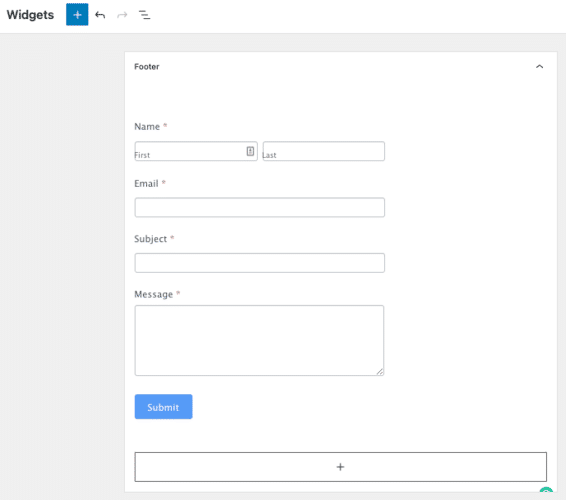
Last, click the save button to update your footer widget area, and your form is ready!
It’ll be displayed on any post or page you set for your footer on your website. And it’ll look great no matter your WordPress theme, whether Elementor, Astra, or another.
Awesome extras with Formidable Pro

Adding a basic contact form template to a footer widget is great.
But there are some amazing features you get in the pro version, like:
- 150+ form templates
- Email service integration (Mailchimp, Constant Contact, etc.)
- Landing pages for your forms
- Payment service integration (PayPal, Stripe, and more)
- Conversational forms
- Advanced form UI design
That’s just a few of them. For a complete list, check out our feature page to learn how Formidable can help you even more!
Ready to upgrade your footer contact form design?
Formidable makes your forms easy.
From adding a contact form widget to accepting payments, Formidable does it all. And we showed you how to add a contact form to your WordPress footer for website visitors today!
If you want to learn more, check out our guide on contact form design!
Last, follow us on Facebook, Twitter, and YouTube for more great form tips & tricks!
Learn more about contact forms
 How to Send SMS Text Messages from Your WordPress Forms
 Transform Your WordPress Forms with Custom CSS
 How to Make Constant Contact Signup Forms in WordPress
This article may contain affiliate links. Once in a while, we earn commissions from those links. But we only recommend products we like, with or without commissions.