
What a pleasure to have support within minutes. Brillant, accurate answer, and solved the question. Thanks to the Formidable Team. Eric


Last updated on August 12, 2026 by Formidable Team
How to Create Gated Content in WordPress and Sell Downloads
Want to sell a download or lock premium content on WordPress without running a membership plugin, a download manager, and a payment tool all at once? Formidable Forms handles the whole gate from a single form. In this guide, we'll show you how to create gated content in WordPress step by step.

Approximate read time: 8 minutes
Upgrade your WordPress site with powerful, flexible forms.
What is gated content?
Gated content is anything on your site a visitor has to earn access to, usually by filling out a form and, for paid content, completing a payment.
Instead of a public link that anyone can share or guess, the content sits behind a gate and opens only for people who have a valid access link.

Site owners usually reach for one of three gates:
- An email gate. Visitors trade their email address for the content. It's the classic lead magnet and a reliable way to grow your list fast.
- A membership gate. Visitors register for an account to unlock the content, which adds a sense of belonging and exclusivity.
- A paywall. Visitors pay for access, so your best content becomes a revenue stream, not just a lead generator.
Formidable Forms handles all three from a single form action. Here's what you can lock:
- A WordPress post, private or password-protected, that unlocks after the buyer submits and pays. This works in the free Formidable Forms Lite version.
- An uploaded file, like a worksheet, template, or guide. File gating is the one most sellers want, and it comes with the Business license and higher.
- A generated PDF, protected with the same access system through the PDFs add-on.
- Several items at once (all the same type), where one access link unlocks the whole set.
Behind every gate is a single-use access token, which is just a secret key built into the buyer's link. Formidable Forms creates it when the form is submitted and adds it to the email. Anyone who tries the content without that key is sent to a page you choose or sees an access denied error (a 403). Your file URL stops being a public secret and becomes a real gate.
From Idea to Reality in Minutes. Build Powerful Forms, Dashboards, Apps and More.
Formidable Forms makes advanced site building simple. Launch forms, directories, dashboards, and custom WordPress apps faster than ever before.
Why sell gated content from your form?
Your form already collects the payment. The question is what happens next, and the usual answer is where things get complicated:
- Selling protected content usually means bolting a separate membership or download plugin onto your forms, which turns a simple sale into a multi-plugin build.
- Those services carry an ongoing cost, often $10 to $50 a month, on top of your form plugin.
- Most of them are built for developers, so setting up paid content is harder than it needs to be for a coach, consultant, or educator.
- Payment happens in your form, but access is handled elsewhere, so neither you nor the buyer gets one smooth flow.
Gated content keeps all of it in one place. The buyer pays and receives access in the same step, and you never install or renew a second plugin. That's the whole point: sell and deliver protected digital content straight from Formidable Forms, with no separate membership or download plugin to buy or maintain.
What's the best gated content plugin for WordPress?
There are plenty of WordPress gated content plugins out there, but most only handle one piece of the puzzle: a popup tool shows the gate but can't take a payment, and an opt-in tool captures the email but can't lock the file itself.
That's why our top pick is Formidable Forms. We might be a little biased since we make it, but it builds the form, locks the content, collects the payment, and emails the access link from one place, which is exactly why we use it for the rest of this guide.

How to create gated content in WordPress (step by step)
Let's build the most common setup: a coach or consultant selling a single downloadable product, like a worksheet, template, guide, or report. The whole thing takes an afternoon at most, with no code.
You'll need the Business license or higher for this build, because it gates an uploaded file. Want to start free? Gate a WordPress post instead. The same steps work in the free Lite version.
Step 1: Build a form with a payment field
You'll build two forms in this step: an order form your buyers fill out, and a small form that stores the file you're selling. Keeping them separate is what lets the gate work.
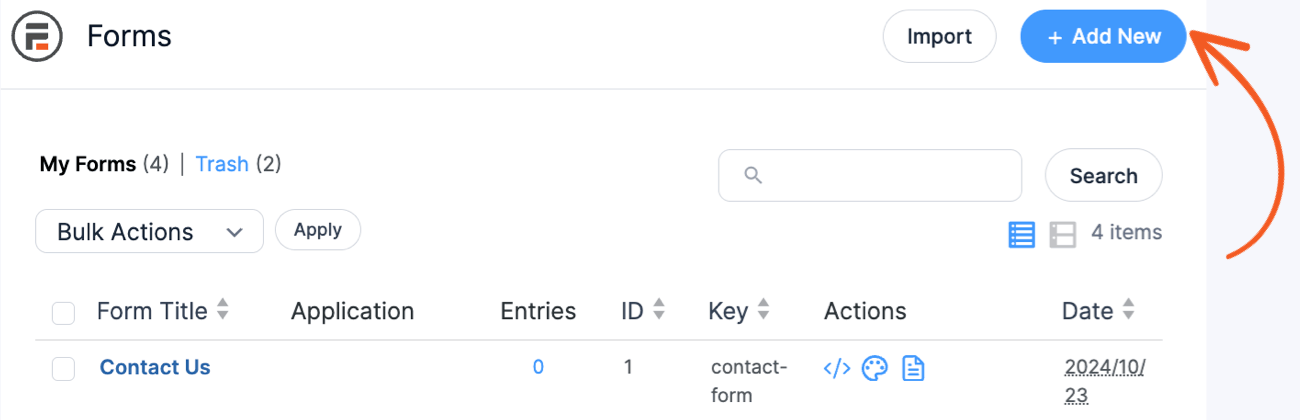
First, the order form. Go to Formidable → Forms → Add New and build a simple form with the buyer's name and email, plus a payment field connected to Stripe, PayPal, or Square.
Add the price of your download to the payment field, and give the form a clear name like Worksheet Order Form. This is the form buyers see, and it's where the gate will live.

Next, you need somewhere to keep the actual download. Create a second form (we'll call ours Product Files) with a single File Upload field, then submit that form once with your file attached, which stores the file.
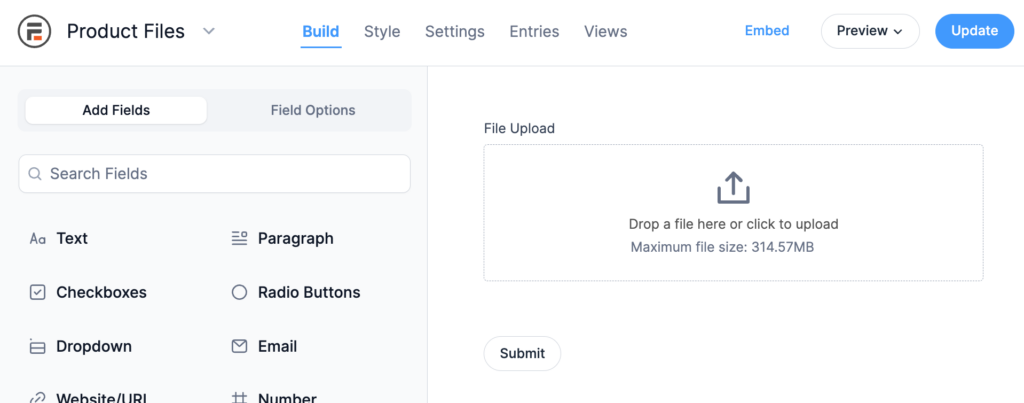
Buyers never interact with this form. Its only job is to hold the file your gate unlocks.
Step 2: Add the Gated Content action
Open your order form, go to Settings → Actions and Notifications, and add a Gated Content action. That's the whole feature, right in your form settings. No extra plugin, no complicated setup.
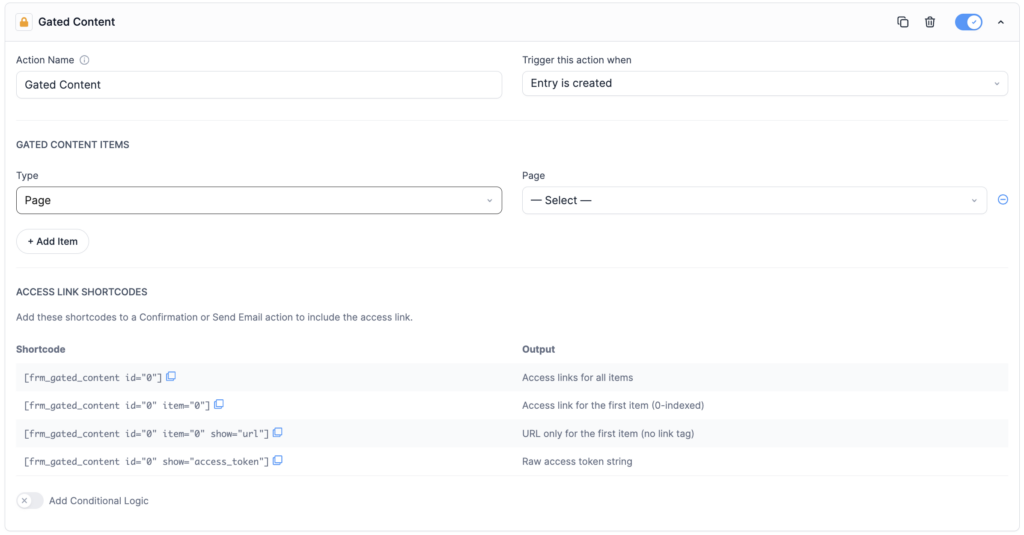
Set it up like this:
- Set the item type to Formidable File, then use the two-step Form → File picker to select your Product Files form and the File Upload field holding your download.
- Set the trigger to Successful Payment, so the content only unlocks after the payment clears. (The Create trigger is available on every plan; the Successful Payment and Update triggers come with the Business license and higher.)
That's the gate. When a payment clears, Formidable Forms creates the access key for the file and ties it to that buyer.
Step 3: Deliver the link by email
Now hand the buyer their link.
Still on the order form's Actions and Notifications screen, open the Send Email action (the same one that confirms the purchase) and paste the shortcode where you want the download link to appear: " show="url"].
The shortcode takes a few attributes:
- id is your Gated Content action's ID (required).
- entry is the entry ID. Use [id] for the submission the buyer just made, or last for the most recent entry.
- show picks the format: link (a ready-made link, the default), url (the raw URL), or expiry (the formatted expiry date).
- item links one item when the action gates several. Counting starts at 0, so the first item is item="0".
For the full list of options and attributes, see our gated content documentation.
When the buyer pays, the email arrives with a working link tied to their token. After they click it once, a cookie remembers their access, so they can return to the content later without digging up the original email.
Step 4: Publish the order form
Your gate is ready, so put the order form where buyers can find it. Open the page or post where you want to sell, add the Formidable Forms block, and pick your Worksheet Order Form from the dropdown. The Please select a valid form shortcode works too.
Update the page. That's what buyers visit to purchase.

Step 5: Test the gate
Run through the order form as a buyer: submit, pay with a test payment, and open the link in the email. You'll land on the file. Then copy the file's URL, open it in a private browser window, and confirm you're sent to your access page or blocked. That's the gate doing its job. Anyone who tries the file without a valid link is denied.
That's a full paid download, protected end to end and running entirely inside Formidable Forms.
More you can gate
The worksheet sale is just the start. The same action does more as you grow:
- Gate a WordPress post (free in Lite). Lock a premium article or case study behind a private or password-protected post.
- Gate a PDF (PDFs add-on). Lock a generated PDF, like a premium report, behind the same secure link as any other download.
- Bundle several items. Unlock a whole set of files or posts from a single link.
- Set a time limit (Business and up). Turn a download into a limited-time offer, or leave access permanent.
- Choose the fallback page (Business and up). Send anyone without a valid link somewhere helpful instead of an error.
- Buy once, log in anytime (Registration add-on). Create an account at checkout so members log back in instead of hunting for the email.
Conditional logic works here too, so you can gate different content by form data, like one post for payments over $100 and another for less.
New to the rules? Our conditional logic guide walks through them.
Gated content, minus the plugin stack
Selling protected content has always meant running several plugins at once. Gated content collapses that into one form action: build the form, add the Gated Content action, drop in the shortcode, and every buyer gets a secure, single-use link the moment they pay. No membership plugin, no download service, no monthly bill, nothing to maintain but the form you already know how to build.
That's the whole point of gated content in WordPress: sell and deliver in one place. Get Formidable Forms and lock your first download behind a form this afternoon.
Read more about gated content
 5 Best WordPress File Sharing Plugins for Exclusive Content
 How To Know If You Need a Membership Plugin
 How To Require Email To Download Files in WordPress
How do I create gated content in WordPress?
Build a Formidable Forms form, then add a Gated Content action under Settings, Actions and Notifications. Choose what to lock: a WordPress post on the free version, a file with the Business license and higher, or a PDF with the PDFs add-on. Pick the trigger, then paste the "] shortcode into the confirmation email. Buyers who submit and pay get a secure, single-use link, and anyone without a valid link is redirected or blocked.
Can I gate content for free in WordPress?
Yes. Gating a WordPress post (private or password-protected) works in the free Formidable Forms Lite version, with the Create trigger. Gating an uploaded file, token expiry, and the access page require the Business license or higher, and gating a generated PDF uses the PDFs add-on.
What stops someone from sharing the download link?
Each link carries a single-use access token, a secret key that proves the buyer paid. Anyone who opens the content without it is sent to a page you choose or blocked, so a copied file URL won't work on its own. On the Business license and up you can also set the link to expire after a set number of hours for limited-time offers.
How do I sell a downloadable file?
Add a payment field to your form, then add a Gated Content action with the item type set to Formidable File and the trigger set to Successful Payment. Point it at the uploaded file and put the " show="url"] shortcode in the confirmation email. The buyer pays and receives a single-use download link. File gating needs the Business license or higher.
How does gated content work with SEO?
Search engines can't index what sits behind a gate, so give them something to crawl. Keep your landing page's title, meta description, and a teaser of the content public, and gate only the premium part. Do keyword research on your gated topics so the public page still ranks, and use an SEO plugin like AIOSEO to handle the metadata and schema markup for you.
This article may contain affiliate links. Once in a while, we earn commissions from those links. But we only recommend products we like, with or without commissions.