
Do you want to hand out a download or a private page only to the people who fill out your form? Formidable Forms lets you lock that content behind a form action and send each person their own access link. In this doc, we'll show you how to set up Gated Content.
Set up the Gated Content action
The Gated Content action lives with the rest of your form actions. Follow the steps below to add it.
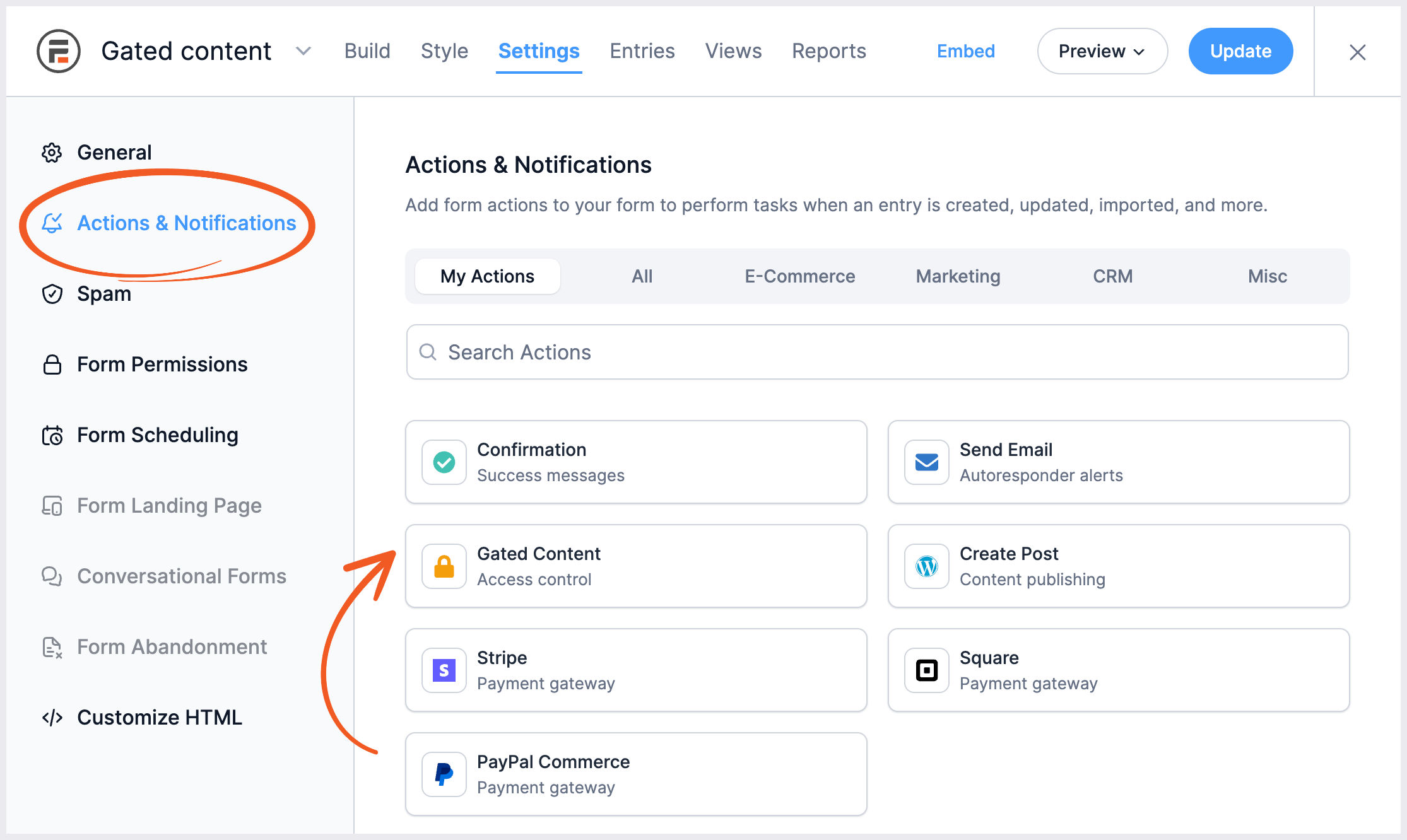
- Go into your form. Click on Settings → Actions & Notifications.
- Click the Gated Content icon to add the action.
- Enter an Action Name for easy reference. This action name will only be seen on the back end. It is set to Gated Content by default.
- To configure when the action is triggered, select one or more options from the Trigger this action when dropdown.
- Add at least one item to gate.
- Click on the Update button to save the changes.
Trigger options
The Trigger this action when dropdown lists different options depending on what you have installed and which license you have.
- Entry is created is always available.
- Successful Payment is always listed. Use it when your form collects a payment, so access only goes out once the payment clears.
- Entry is updated needs a paid license.
- Successful user registration appears when the User Registration add-on is active. This add-on is available on the Business license.
Pick Successful user registration to hand out access only after someone actually creates an account, instead of the moment they submit the form. Formidable ties the access to the new account, so that person keeps their access whenever they log in, even without the original link. Learn more about how to set up a registration form.
Gated content items
Click + Add Item under GATED CONTENT ITEMS, then pick what kind of item it is from the Type dropdown. The rest of the row changes to match the type you pick.
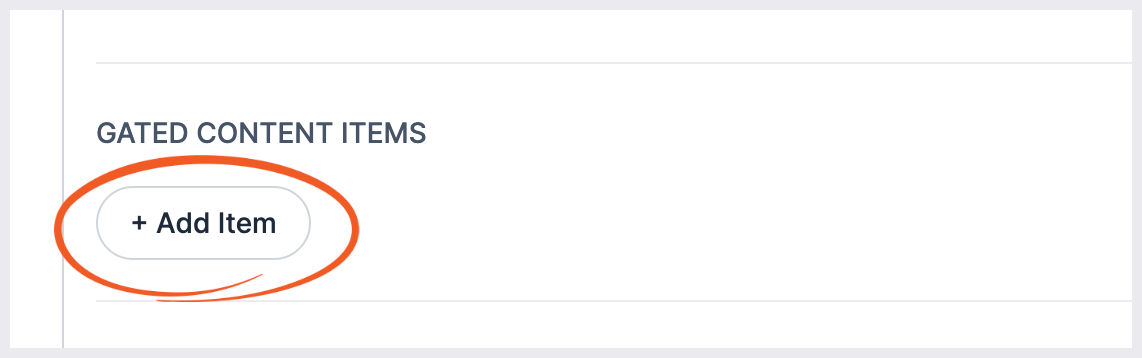
There are four types: Page, Post, Formidable file, Formidable PDF and Formidable Vew. Types you don't have access to are greyed out in the dropdown.
Page
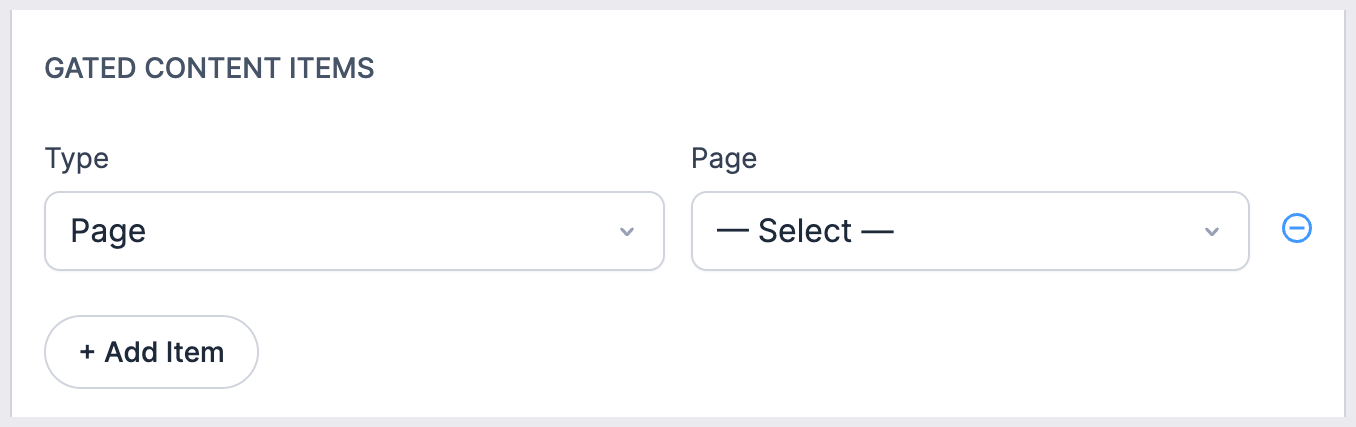
Select Page in the Type dropdown, then pick the page you want to lock from the Page dropdown.
Post
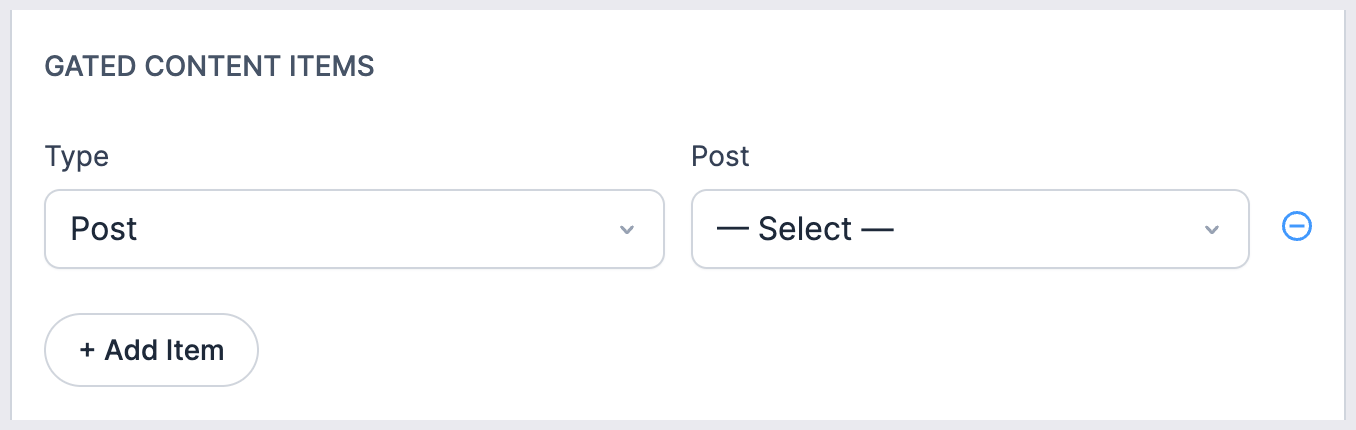
Select Post in the Type dropdown, then pick the post you want to lock.
Formidable file
— Premium Feature —
This type is available on the Basic, Plus, Business, and Elite licenses.
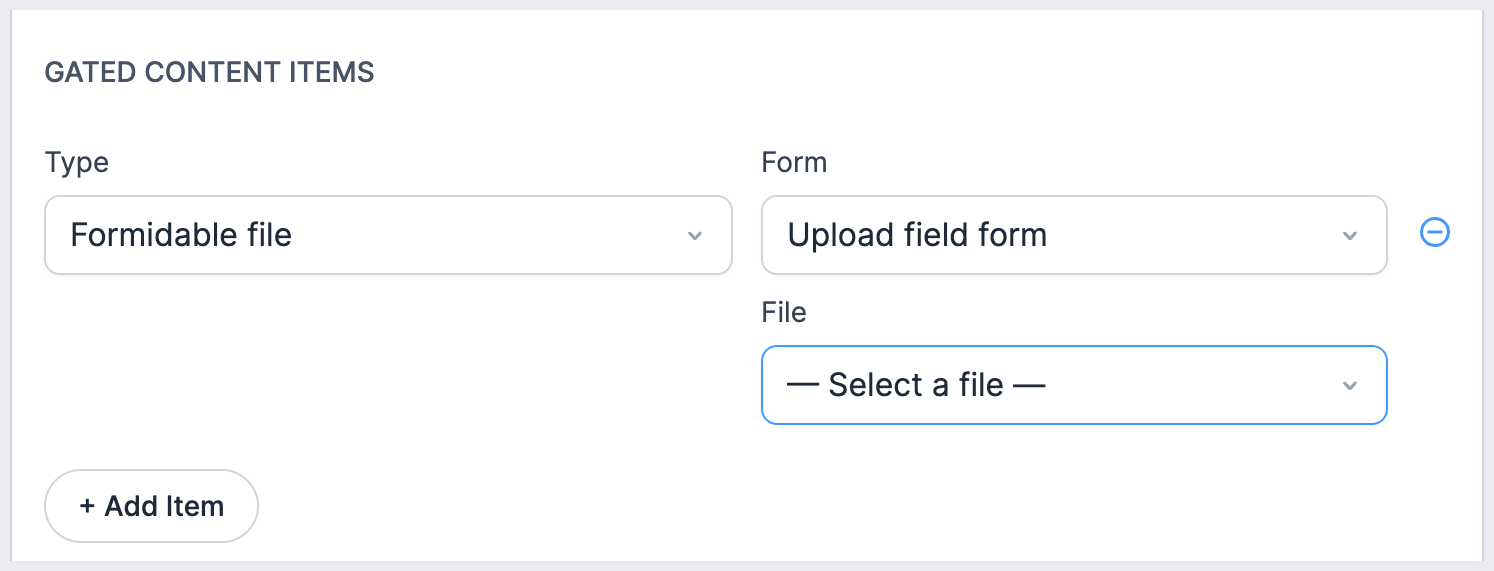
Select Formidable file in the Type dropdown. Two dropdowns appear. Pick the form that holds the upload in the Form dropdown, then pick the file in the File dropdown.
Formidable PDF
— Premium Feature —
This type needs the Formidable PDFs add-on, which is available on the Business and Elite licenses.
Select Formidable PDF in the Type dropdown, then paste your [frm-pdf] shortcode into the PDF shortcode box. Learn more about how to build a PDF shortcode.
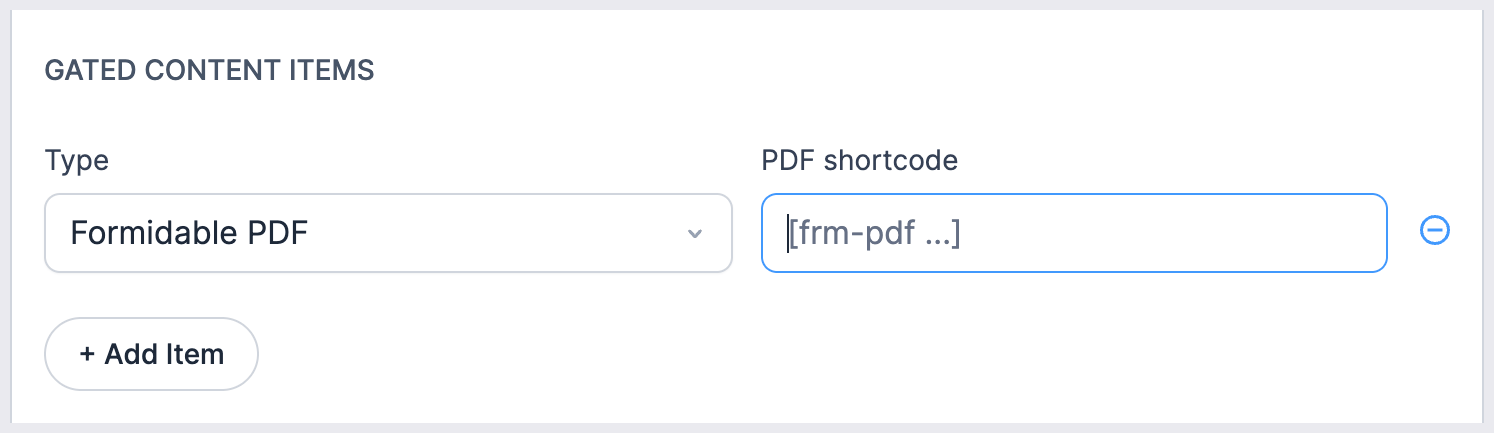
If your shortcode doesn't name a specific entry, then each person's link generates the PDF for their own submission. Name an entry in the shortcode and everyone with a link gets that same PDF.
The link text comes from the label attribute in your shortcode. Leave it off and the link reads Download PDF.
View
— Premium Feature —
This type appears when the Views add-on is active. The Formidable Views add-on is available on the Plus, Business, and Elite licenses.
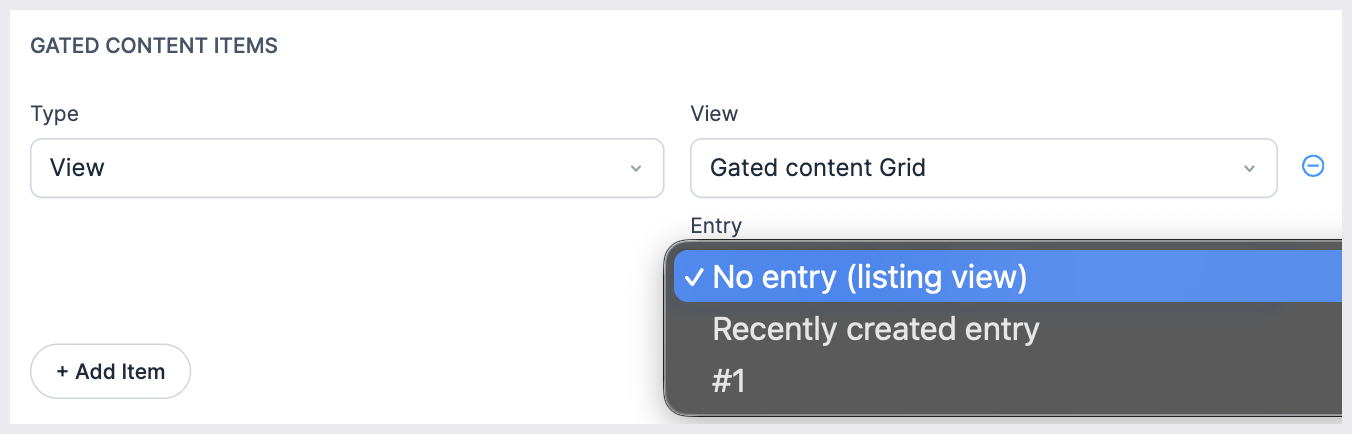
- Select View in the Type dropdown.
- Pick the View you want to lock from the View dropdown. Only Views set to Private or Password protected appear in this list.
- Pick what the View shows in the Entry dropdown.
Your Entry options are:
- No entry (listing view) shows the View the way you built it, with every entry it's set to display.
- Recently created entry shows only the entry from the submission that generated that person's access link. Everyone gets a link to their own submission.
- A specific entry number pins the View to one entry. Everyone with an access link sees that same entry.
Access links for a listing View point at the View itself. Links for a single entry point at that entry's detail page, using the detail page slug you set in the View.
Add more than one gated items
Click + Add Item again to gate more than one thing with the same action. To take an item back out, click the minus icon at the right end of that item's row.
Access link shortcodes
Setting up the action locks the content. Add one of these shortcodes to a Confirmation or Send Email action, and Formidable swaps it out for a working link.
You'll find the shortcodes listed under ACCESS LINK SHORTCODES inside the action. Click the copy icon next to any of them to grab it. The id is filled in with your action ID already, so use the ones in your own form settings instead of typing them from scratch.
| Shortcode | Output |
|---|---|
| Access links for all items |
| Access link for the first item (0-indexed) |
| URL only for the first item (no link tag) |
| Raw access token string |
Access expires after (hours)
— Premium Feature —
This setting is available on the Basic, Plus, Business, and Elite licenses.
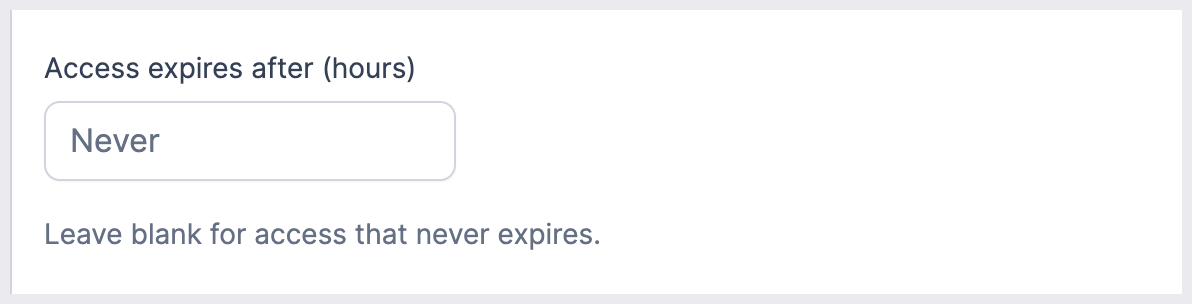
Enter the number of hours the access link stays good for in the Access expires after (hours) box. Leave it blank for access that never expires. The lowest you can set is 1 hour, and only whole numbers are allowed.
The clock starts the moment the form is submitted and the token is created. It does not start when someone first opens the link.
Once you set an expiry, a fifth shortcode appears in the ACCESS LINK SHORTCODES table:
| Shortcode | Output |
|---|---|
| Time until access expires (e.g. "1 day", "3 days") |
Drop that into your email so people know how long they have.
How access works
When your form is submitted, Formidable creates a random access token and saves it with that entry. The access link is just your content's normal address with ?access_code= and the token added to the end.
Here's what happens when someone opens that link.
- Formidable checks the token against the entry that created it.
- If the token is good, the visitor gets in. Formidable stores the token in a cookie in their browser, then reloads the page with the token stripped out of the address bar. That keeps the token out of browser history and server logs.
- On every visit after that, the cookie does the work, so the same person keeps their access without the original link.
One token covers everything in the action. If you gated three items with one Gated Content action, then one access link unlocks all three.
What visitors without a link see
This depends on how you locked the content in WordPress.
- Private content returns a 404 page not found. WordPress hides it completely.
- Password protected content shows the normal WordPress password form. Anyone with the password still gets in that way.
A valid token skips both of these. Token holders never see the password form.
With a paid license you can send these visitors somewhere friendlier instead. See the access page section below.
Access page
— Premium Feature —
This setting is available on the Basic, Plus, Business, and Elite licenses.
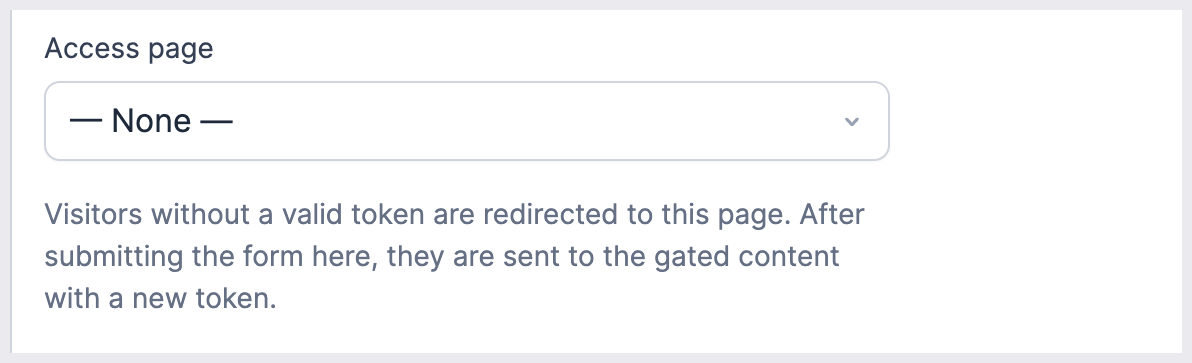
Pick a page in the Access page dropdown to catch anyone who lands on your gated content without a valid token. Visitors without a valid token are redirected to this page. After submitting the form there, they are sent to the gated content with a new token.
Keep old token when entry is updated
— Premium Feature —
By default, updating an entry throws out that entry's old access token and creates a new one. The old link stops working straight away.

Turn on Keep old token when entry is updated to leave the original link working. A new token is still created and sent either way.
This setting only appears once you select Entry is updated in the Trigger this action when dropdown. If you don't see it, then check your trigger first.
Conditional logic
— Premium Feature —
Toggle on Add Conditional Logic to run the Gated Content action only when the entry matches the rules you set. Learn more about how to set up conditional logic. In the free version this toggle appears as Use Conditional Logic and is turned off.
Troubleshooting
My page, post or view is not in the dropdown
The Page, Post or View dropdowns only list content that is locked down in WordPress. Open the page or post in the editor, then set its visibility to Private or Password protected under the Status & visibility panel. Once you save it, it shows up in the dropdown.
The access link in my email is not working
Two things cause this most often. Check your Access expires after (hours) setting to see if the link has aged out. Then check whether the link was already opened in a different browser, since the first visit sets the cookie in that browser.
How do I send a new access link?
Submit the form again to generate a fresh token. If you have a paid license and the Entry is updated trigger turned on, then updating the entry also generates a new token.
The user is logged in but still cannot get in
The account link only happens when the token is created by the Successful user registration trigger. Check three things: the User Registration add-on is active, your Gated Content action uses that trigger, and the person is logging in with the account the form created. Tokens made by any other trigger belong to the link and the browser cookie, not to an account.
The file download still asks for a login
Check that the item Type is set to Formidable file and that the right file is selected. If another plugin controls file access on your site, then it may override Formidable's check.
My access link shows up blank in the email
The shortcode only outputs a link while Formidable still holds the token for that submission, which lasts about five minutes. That covers the confirmation message and any email sent by the same submission, so put the shortcode in a Confirmation or Send Email action on the form that generates the token. It won't work in a View, a page, or a later email built from the same entry.
Can I use the same access link on my phone and my laptop?
Yes, as long as you still have the original link. The cookie only lives in the browser that opened the link first, so the address you see after the page reloads has already had the token stripped out. Open the original link from the email on each device.
How many Gated Content actions can one form have?
Up to 99, the same limit as every other form action.
Do access links unlock other people's entries?
No. When a gated View or PDF isn't pinned to a specific entry, Formidable binds each access link to the entry that created it. Changing the entry number in the address doesn't work.
The one exception is If you pin a specific entry in the Entry dropdown or in your PDF shortcode, then everyone with an access link sees that entry. Use that only for content you meant to share.
Related developer hooks
- Return a custom gated item class for your own item types with the frm_gated_item_make hook.
add_filter( 'frm_gated_item_make', 'my_make_gated_item', 10, 2 );

function my_make_gated_item( $instance, $item ) {

if ( 'my_type' !== $item['type'] ) {

return $instance;

}

return new MyGatedItem( $item );

}- Register or turn on custom item types in the action settings with the frm_gated_content_item_types hook.
add_filter( 'frm_gated_content_item_types', 'my_enable_item_type' );
function my_enable_item_type( $types ) {

    $types['my_type'] = array(

        'label'    => __( 'My Custom Type', 'my-plugin' ),

        'disabled' => false,

    );

    return $types;

}
- Render your own settings inside an item row with the frm_gated_content_item_type_settings hook.
add_action( 'frm_gated_content_item_type_settings', 'my_render_item_settings' );
function my_render_item_settings( $args ) {

    $is_template = ! empty( $args['is_template'] );

    $active_type = $is_template ? '' : $args['active_type'];

    $hidden      = ( $is_template || 'my_type' !== $active_type ) ? 'hidden' : '';

    echo '
';

    // render fields...

    echo '
';

}
- Supply a valid token from a custom source with the frm_obtain_gated_token hook.
add_filter( 'frm_obtain_gated_token', 'my_supply_token', 10, 2 );
function my_supply_token( $token, $item ) {

    if ( null !== $token ) {

        return $token; // already resolved

    }

    // custom lookup...

    $row = my_find_token_row( $item );

    return $row ? new FrmGatedToken( $row ) : null;

}
- Change how a token is validated with the frm_gated_content_validate hook.
add_filter( 'frm_gated_content_validate', 'my_validate_token', 10, 3 );
function my_validate_token( $valid, $token, $item ) {

    if ( ! $valid ) {

        return false;

    }

    // add extra checks, e.g. IP allowlist

    return my_ip_is_allowed();

}
That's it! You've set up a Gated Content form action and locked your page, post, or file behind your form.
