
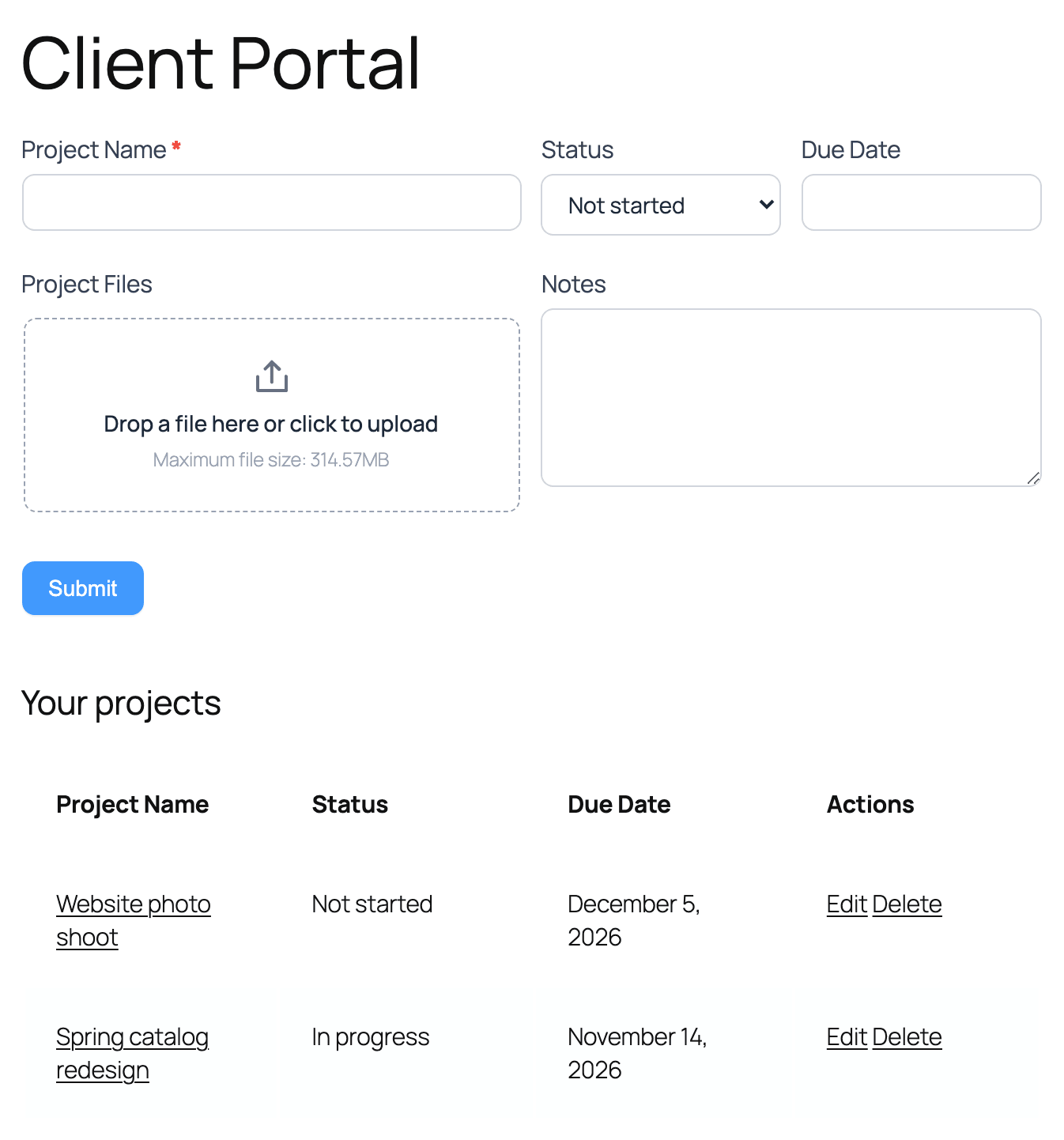
Build a client portal where each logged-in client opens one page and adds, edits, and deletes their own records. Clients can't open, edit, or delete anyone else's records. This works well for client projects, document requests, employee lists, and member listings.
The portal is built with one form, one Table View, and one page. No code is needed.
Upgrade your WordPress site with powerful, flexible forms.
How it works
In this example, a design studio gives each client a portal for their projects:
- Client Projects (the form): Clients add a project with a name, status, due date, files, and notes. A hidden User ID field saves who added each project.
- My Projects (a Table View): It lists the projects of the person who is logged in, with Edit and Delete links. The project name opens a detail page.
- Client Portal (a page): It shows the View. The form sits at the top of the View, so clients add and edit projects on the same page.
Here's what each visitor sees:
- A client with projects: The form and a table of their own projects.
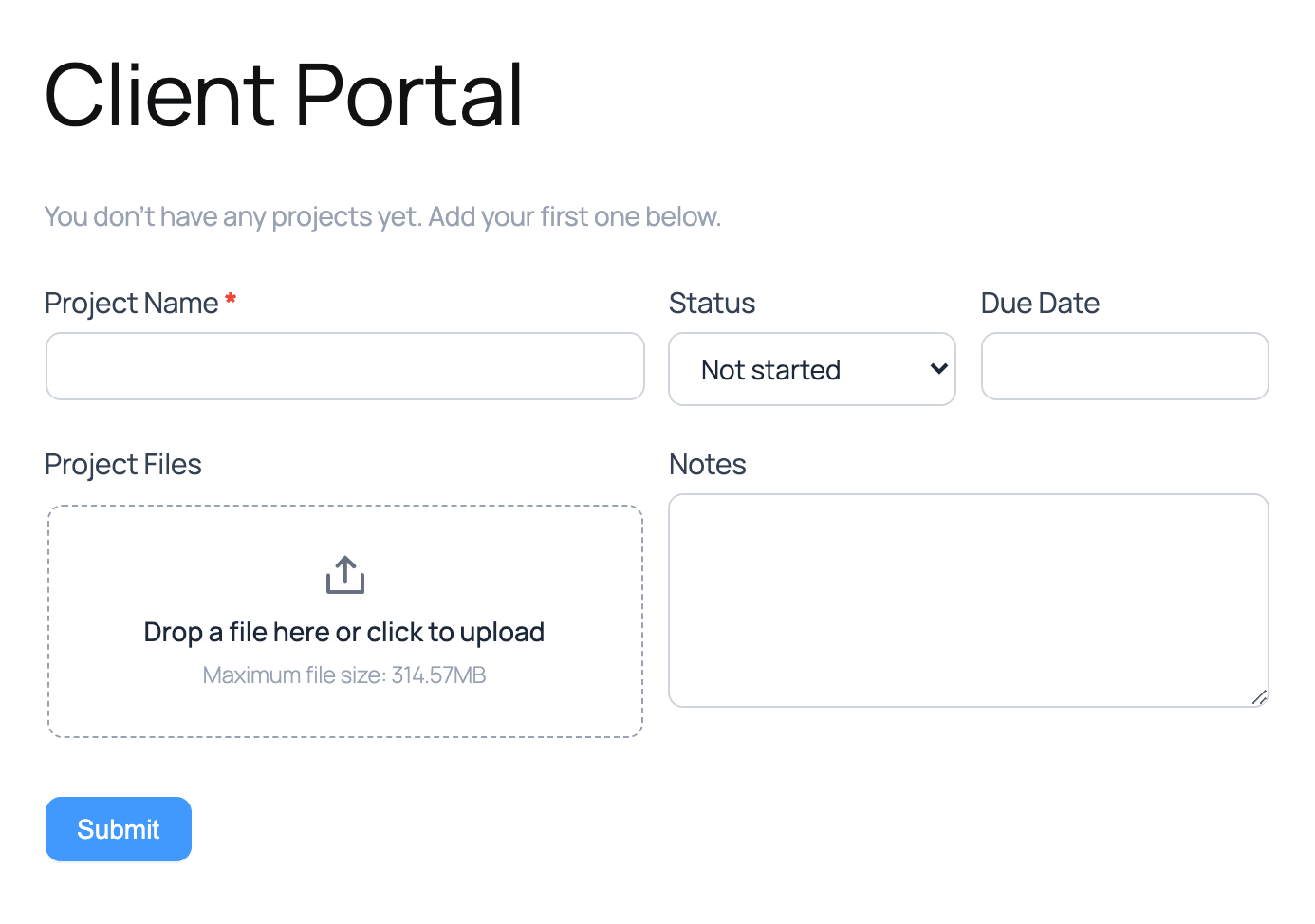
- A new client: The form with a short welcome message.
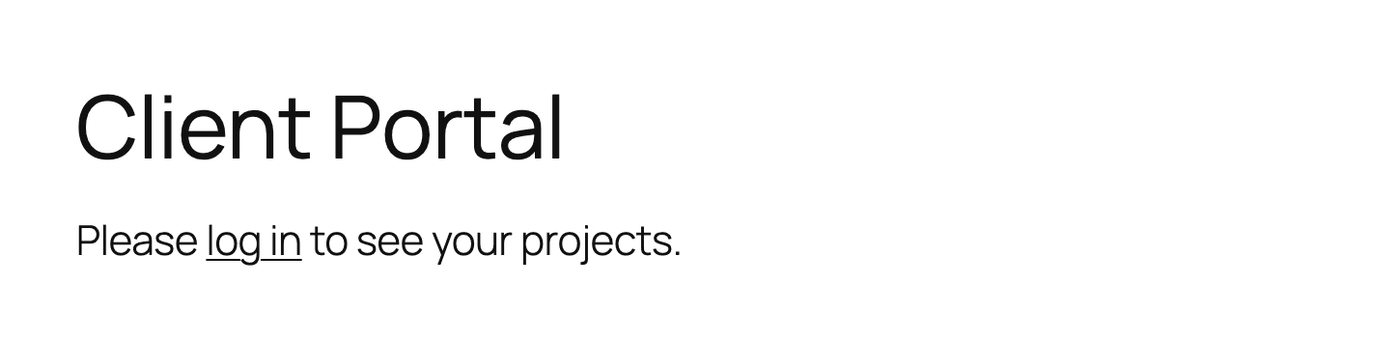
- A logged-out visitor: A message with a link to log in.
In this example, the form ID is 3682 and the page ID is 1389. The field IDs are 11859 (Project Name), 11860 (Status), 11861 (Due Date), 11862 (Project Files), and 11863 (Notes).
Your IDs will be different. Replace them with the IDs from your own form and page.
From Idea to Reality in Minutes. Build Powerful Forms, Dashboards, Apps and More.
Formidable Forms makes advanced site building simple. Launch forms, directories, dashboards, and custom WordPress apps faster than ever before.
Before you begin
- You'll need Formidable Forms Pro with a Plus license or above. Views need the Visual Views add-on, which is available on the Plus, Business, and Elite licenses.
- Each client needs a WordPress user account on your site. The Subscriber role is enough.
- Create a page for the portal, for example Client Portal. Note its page ID. You'll find it after
post=in the address bar when you edit the page.
Create the form
The form collects each client's projects and saves who added each one.
- Go to Formidable → Forms and create a form with the fields your clients fill in. This example uses a Text field (Project Name), a Dropdown (Status), a Date field (Due Date), a File Upload field (Project Files), and a Paragraph field (Notes).
- Make Project Name required. Give the Status dropdown the choices Not started, In progress, In review, and Complete.
- A new File Upload field accepts only images (jpg, png, and gif). To let clients upload other files, such as PDFs, open the field's options. Under Allowed file types, add the types you need to the list, or select Allow all file types. Learn more about allowed file types.
- Add a User ID field. It's hidden on the front end and saves the ID of the logged-in user. The View uses it to show each client only their own projects.
- (Optional) Lay out the fields side by side with layout classes. This example uses
frm_halfon Project Name, Project Files, and Notes, andfrm_fourthon Status and Due Date. - (Optional) In the form's Settings → General tab, enter a Form Description such as You don't have any projects yet. Add your first one below. The portal shows it only to clients who have no projects yet.
- Click Update to save your changes.
Each project a client adds now saves the ID of the client who added it.
Set the form permissions
These settings decide who can use the form, who can open the uploaded files, and who can edit and delete each project.
- In the form, click the Settings tab, then click Form Permissions.

- Check Limit form visibility to (1) and leave it on Logged-in Users. Logged-out visitors then see the Login Message instead of the form. You'll write that message in the next section.
- Check Protect all files uploaded in this form (2). In Role required to access file, select Administrator and the role your clients have, for example Subscriber. With these roles, logged-out visitors can't open the files. We also recommend checking Prevent search engines from indexing uploads, so search engines are told not to index the files. Learn more about protecting uploaded files.
- Check Allow front-end editing of entries (3). Leave Role required to edit one's own entries on Logged-in Users, so every client can edit their own projects. The same permission lets them delete their own projects.
- Leave Role required to edit other users' entries on — Select —. If you choose a role there, users with that role can edit and delete other clients' projects with an edit or delete link. You can still edit every project in Formidable → Entries.
- Click Update to save your changes.
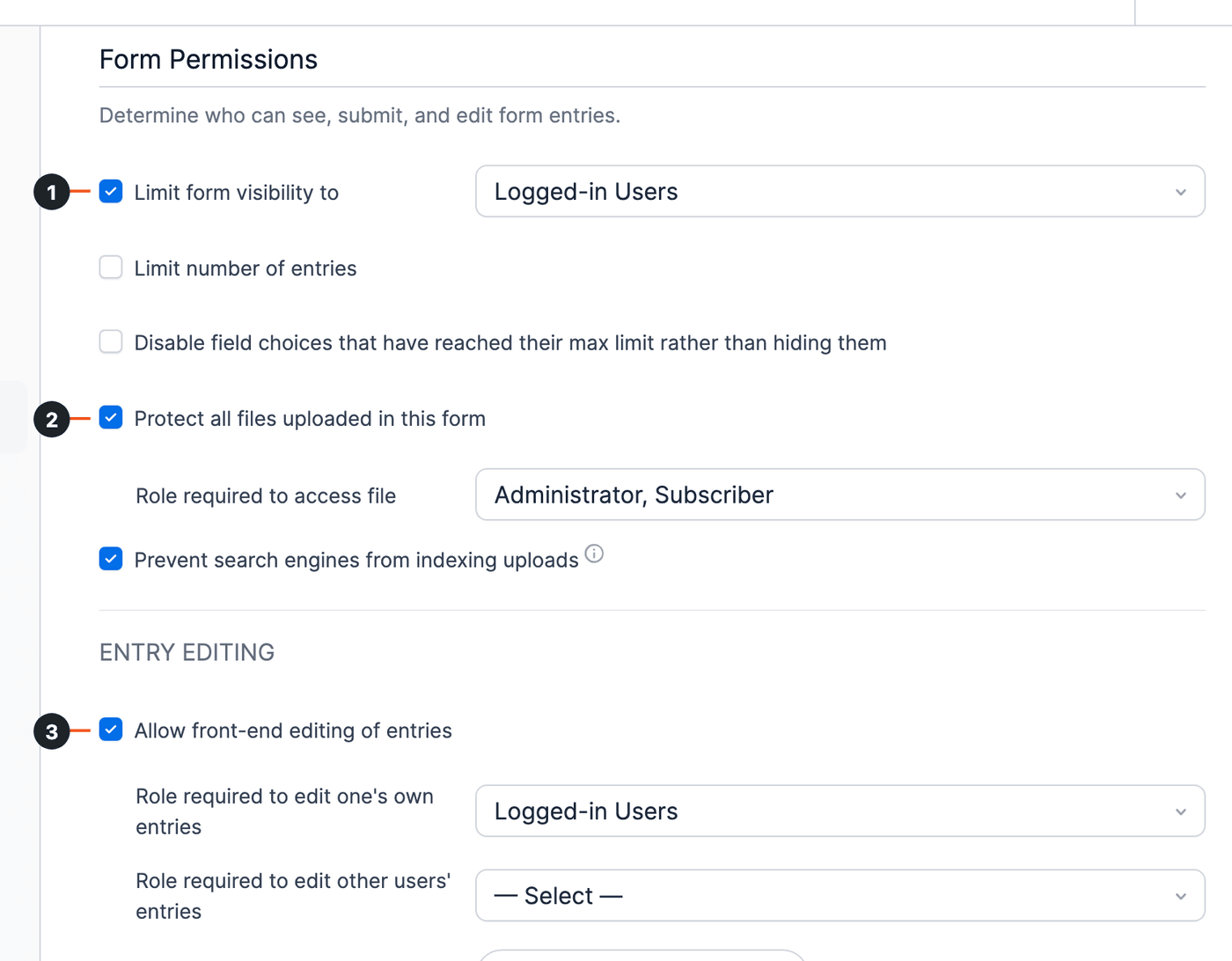
Only logged-in clients can now use the form, and each client can edit only their own projects.
Show the form again after a client adds a project
(Optional) By default, the confirmation message replaces the form after a client adds a project. To show an empty form under the message, so clients can add another project right away:
- In the form's settings, click Actions & Notifications and open the Confirmation action.
- Toggle on Show the form with the confirmation message. You can also change the message, for example to Your project was saved.
- Click Update to save your changes.
The Confirmation action runs when a project is added and when it's updated, so clients see the same message after an edit. Learn more about the Show Message confirmation.
Write the login message
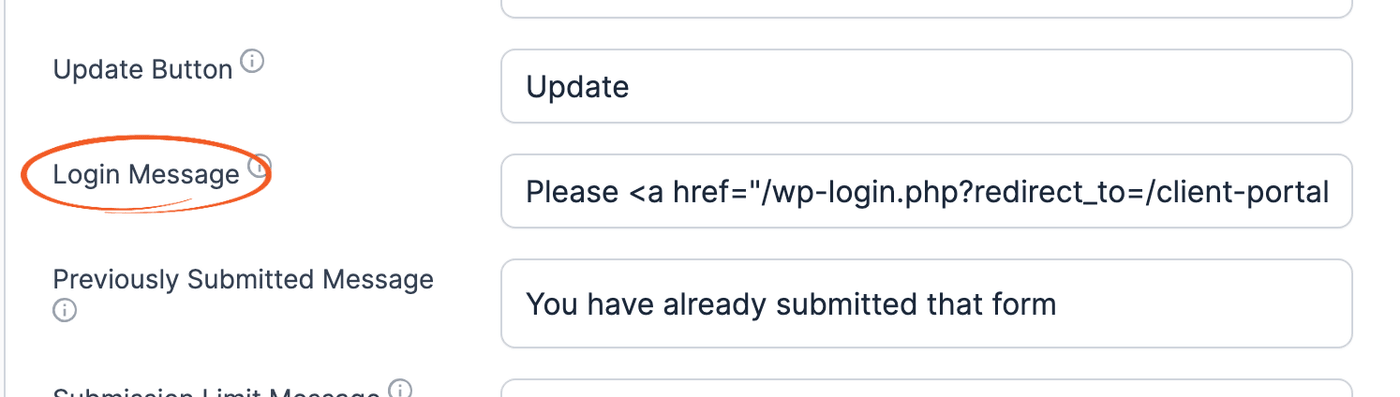
Logged-out visitors see the Login Message from your Global Settings instead of the form. Add a link to your login page so visitors can log in and come back to the portal.
- Go to Formidable → Global Settings → Message Defaults.
- In Login Message, enter a message with a link to your login page. This example uses the default WordPress login page. If your site is in a subfolder or uses another login page, use that address instead. Replace /client-portal/ with the address of your portal page.
After logging in, the visitor goes straight back to the portal.Please <a href="/wp-login.php?redirect_to=/client-portal/">log in</a> to see your projects. - Click Update to save your changes.
Create the View
The View lists each client's projects in a table, with Edit and Delete links and a link to each project's detail page.
- Go to Formidable → Views and click Add New.
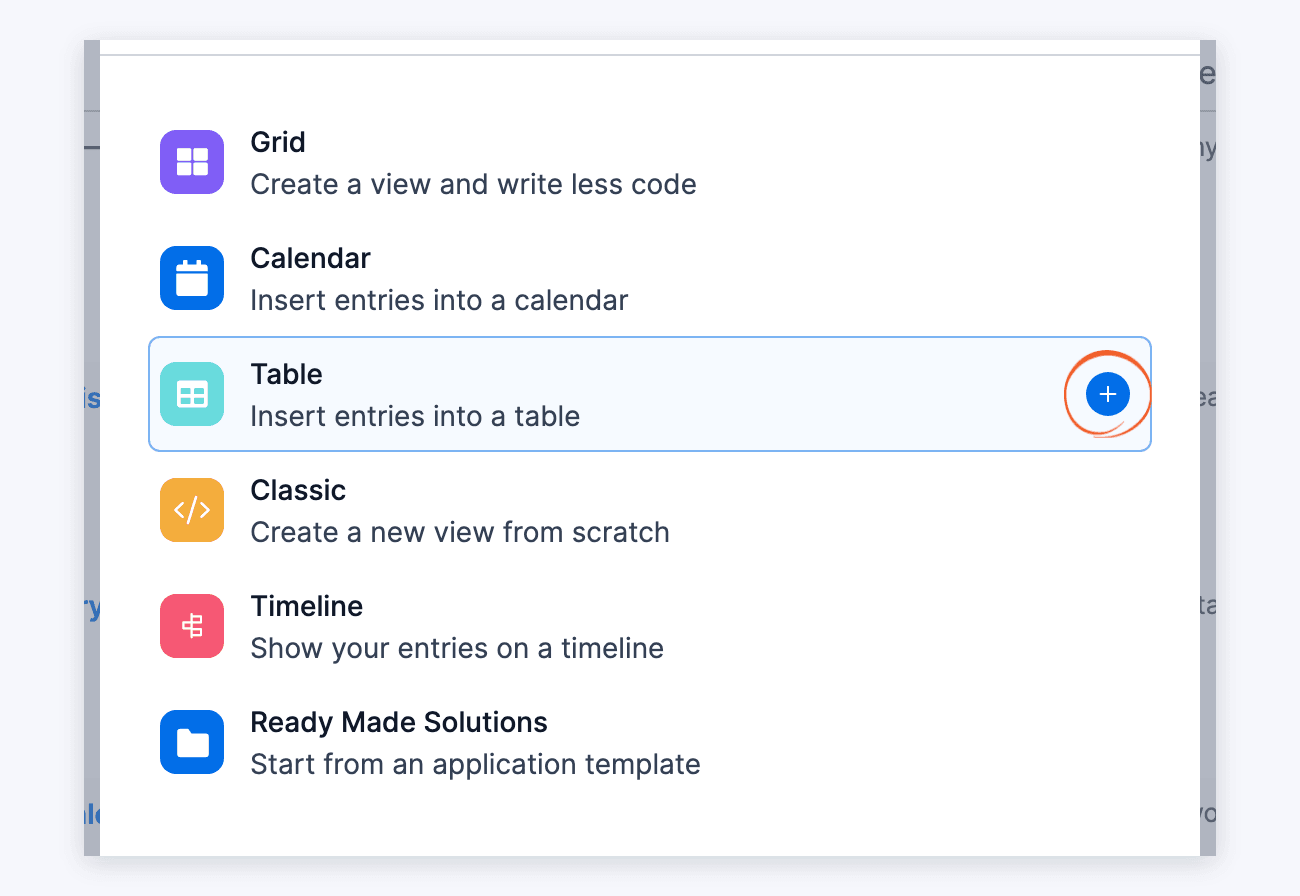
- Hover over Table and click the + icon.
- Enter a View Name, such as My Projects. In Use Entries from Form, choose your form. Then click Create a view.
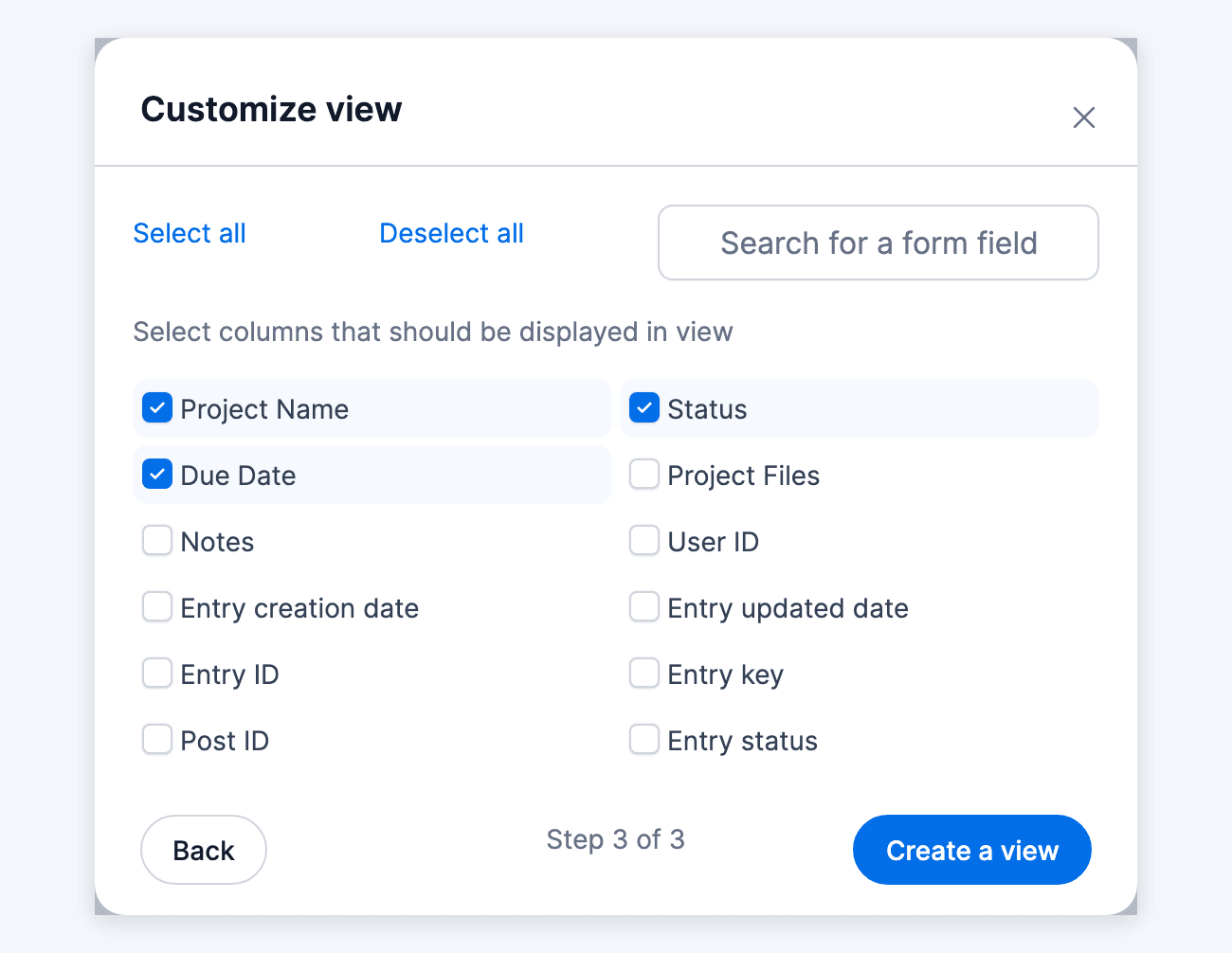
- Check the columns you want in the table, for example Project Name, Status, and Due Date. Then click Create a view.
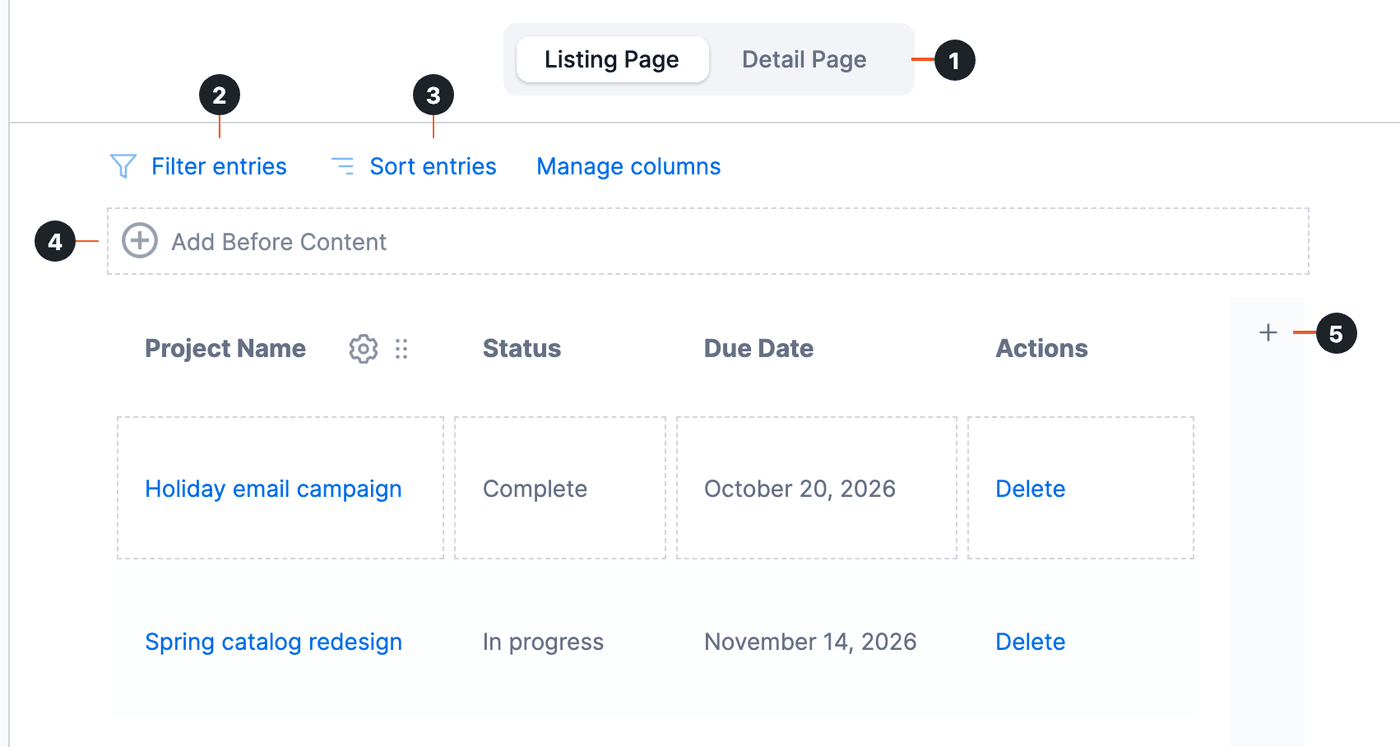
The View builder opens. The next steps use the Detail Page tab (1), Filter entries (2), Sort entries (3), Add Before Content (4), and the + that adds a column (5). Until the form has entries, the builder shows This form has no entries under the column headings instead of project rows.
Learn more about how to display entries in a table.
Link the project name to its detail page
A link on each project name opens that project's detail page.
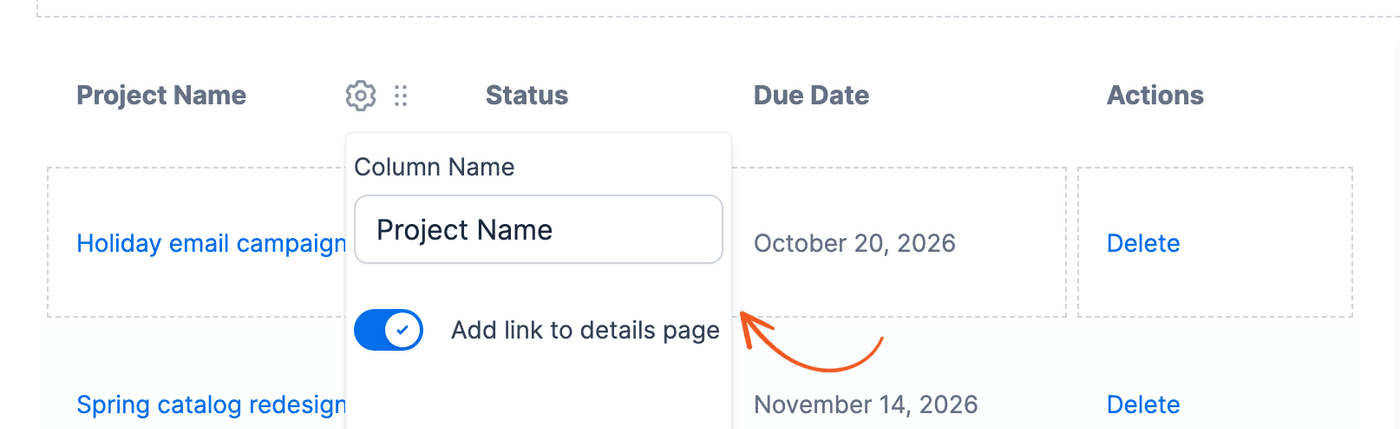
- Hover over the Project Name column header and click its gear icon.
- Toggle on Add link to details page.
Add the Edit and Delete links
An Actions column gives each project its own Edit and Delete links.
- Click the + on the right side of the table (5) to add a column. Set its Column Name to Actions.
- Click the new column's cell to open the Edit Listing Page Content window. Select the Code tab and insert the edit and delete links. Replace 1389 with the ID of your portal page.
[editlink label="Edit" page_id=1389] [deletelink label="Delete" confirm="Delete this project?"] - Click Update in the window to keep the content.
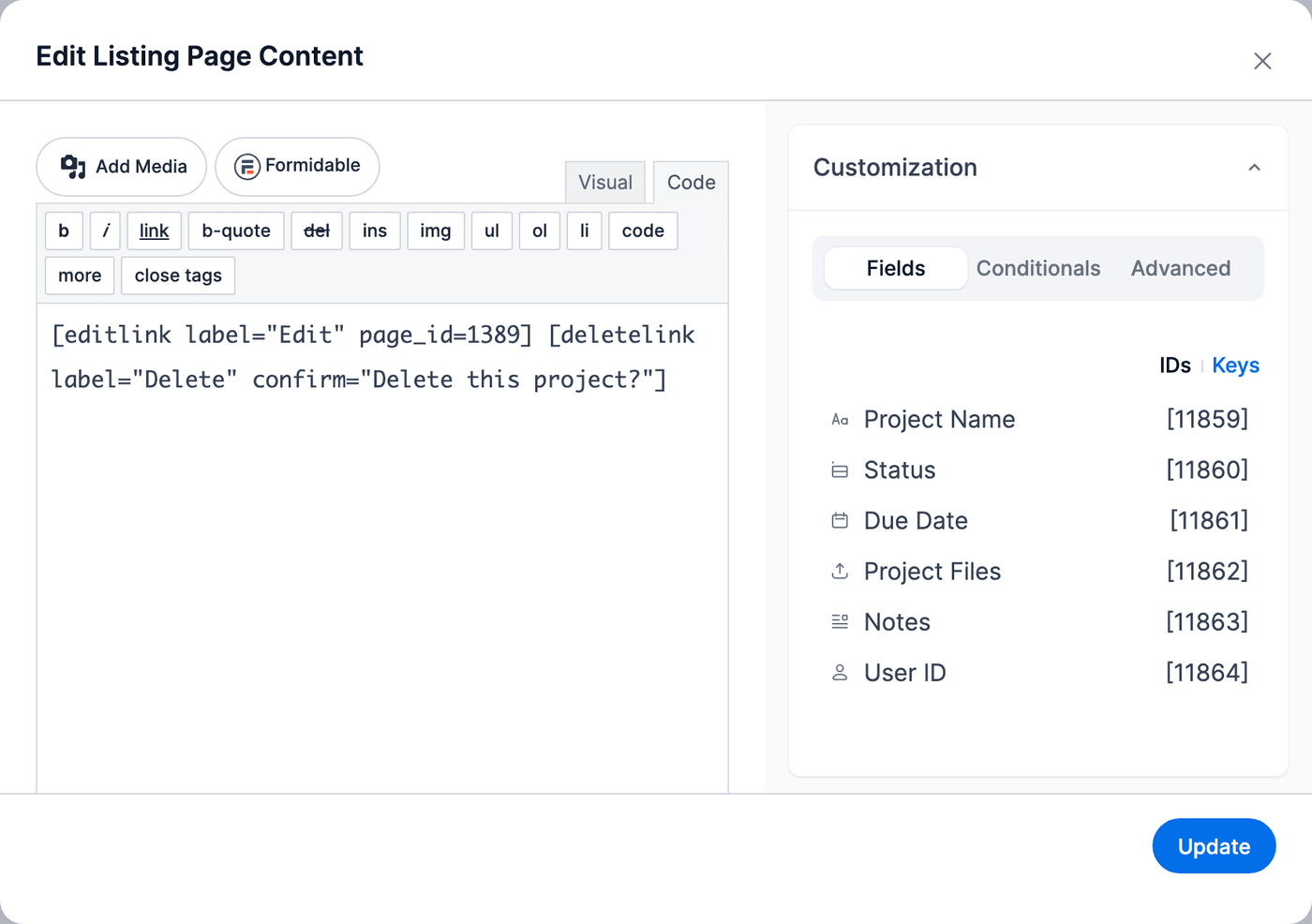
The Edit link opens the project in the form at the top of the portal page. The Delete link asks the client to confirm, then deletes the project and reloads the page. Each link shows only on projects the visitor has permission to edit.
See all editlink parameters and deletelink parameters.
Show each client only their own projects
A filter on the User ID field limits the table to the projects of the client who is logged in.
- Click Filter entries (2) above the table.
- Set the filter so it says User ID equals
current_user. - Click Update in the Filter entries window.
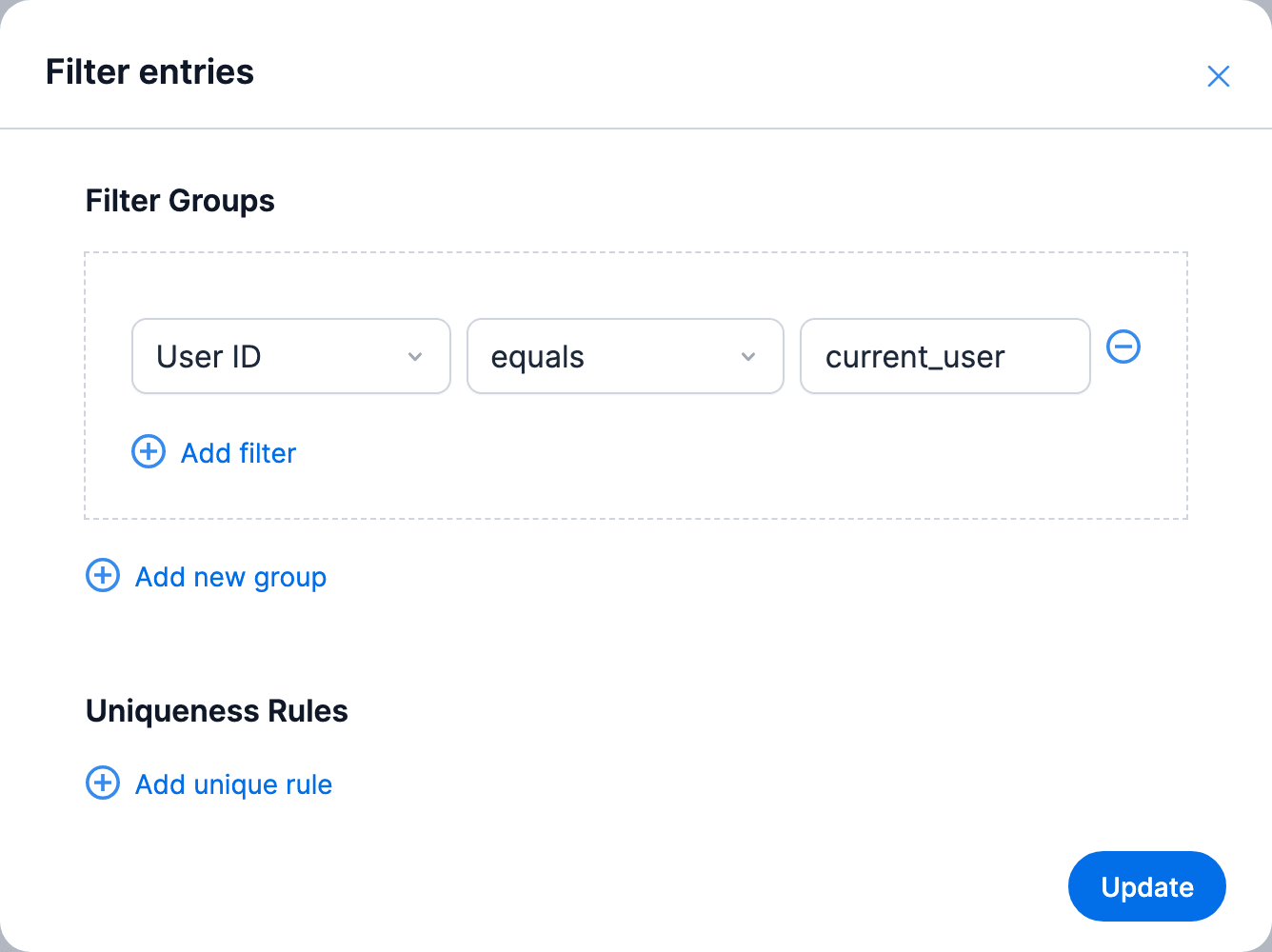
The filter applies to everyone who views the page, administrators too. Learn more about how to create a View for the current user.
Put the form above the table
With the form in the View's Before Content, clients add projects on the same page as their table.
- Click Add Before Content (4) above the table to open the Edit Before Content window.
- Select the Code tab and insert the form shortcode, then a heading for the table. Replace 3682 with your form ID.
[formidable id=3682] <h3>Your projects</h3> - Click Update in the window to keep the content.
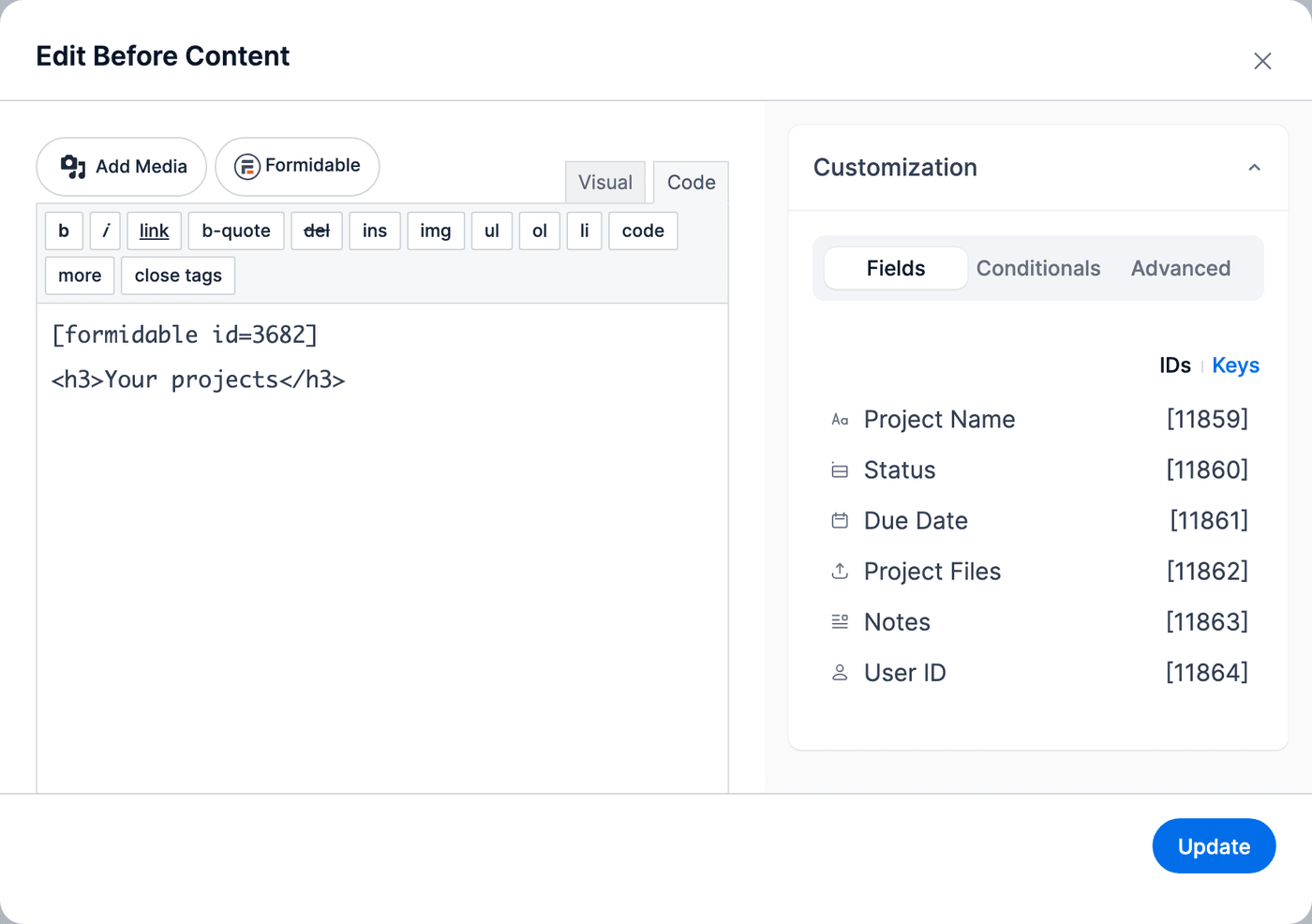
When a client clicks an Edit link, this form loads that project with an Update button. Before Content shows only when the View has entries to list, so the next step adds the form for new clients too.
Show the form to new clients
The No Entries Message shows instead of the table when a client has no projects yet.
- In the left panel, open No Entries Message.
- Replace the default text (No Entries Found) with the form shortcode and
description=1. Replace 3682 with your form ID.[formidable id=3682 description=1]
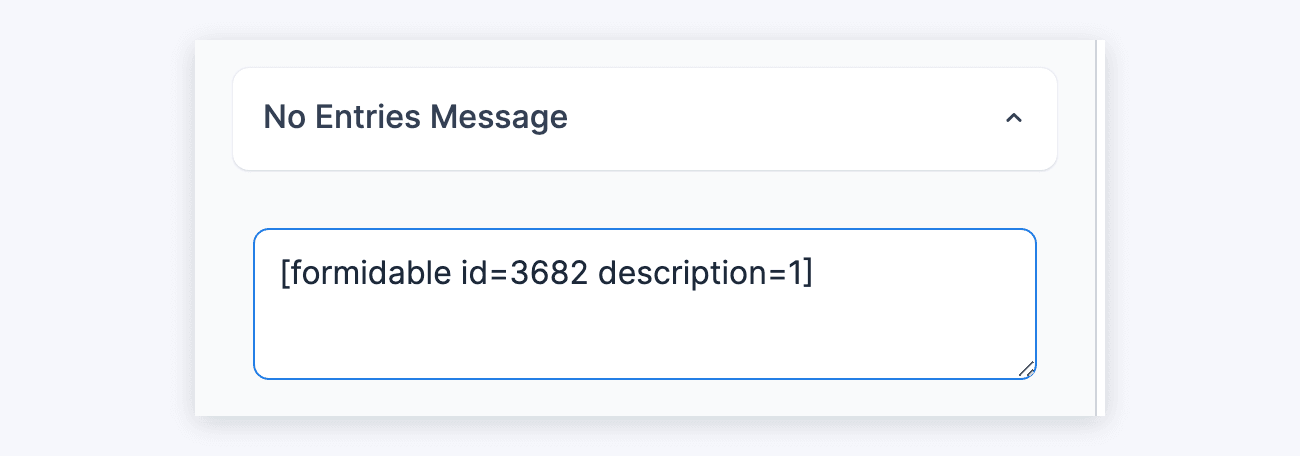
A client with no projects sees the form with its description. A logged-out visitor sees only the Login Message, because the form is limited to logged-in users.
Create the detail page
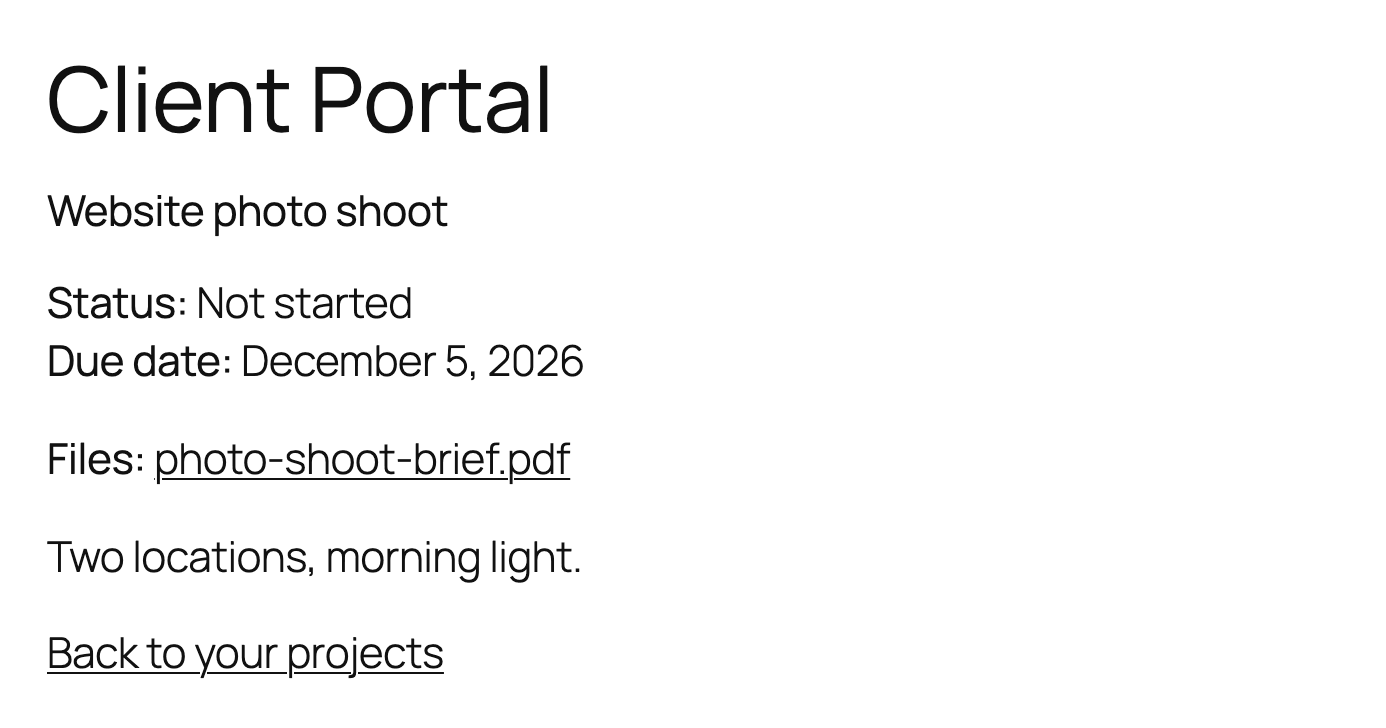
The detail page shows the details of one project, with links to its files.
- Click the Detail Page tab (1) at the top of the View builder.
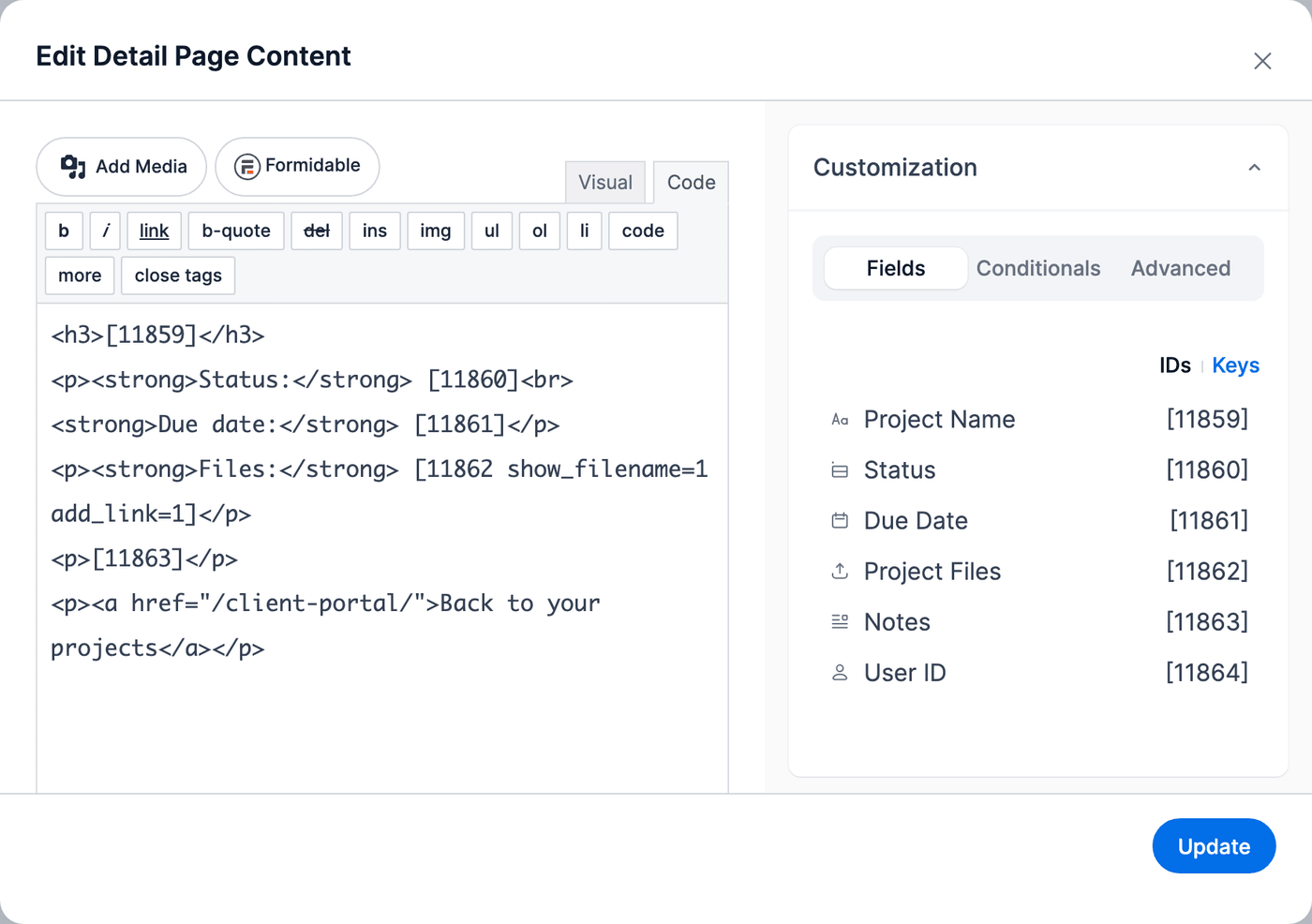
- Click the content box to open the Edit Detail Page Content window. Select the Code tab and insert the fields you want to show. Replace the field IDs with your own, and /client-portal/ with the address of your portal page.
<h3>[11859]</h3>
<p><strong>Status:</strong> [11860]<br>
<strong>Due date:</strong> [11861]</p>
<p><strong>Files:</strong> [11862 show_filename=1 add_link=1]</p>
<p>[11863]</p>
<p><a href="/client-portal/">Back to your projects</a></p>
show_filename=1 add_link=1shows each file's name as a link. Learn more about File Upload shortcode options. - Click Update in the window to keep the content.
The detail page uses the same filter as the table, so a client can't open another client's project, even with its address. A client who tries sees the No Entries Message (the form) instead.
Change the detail page slug
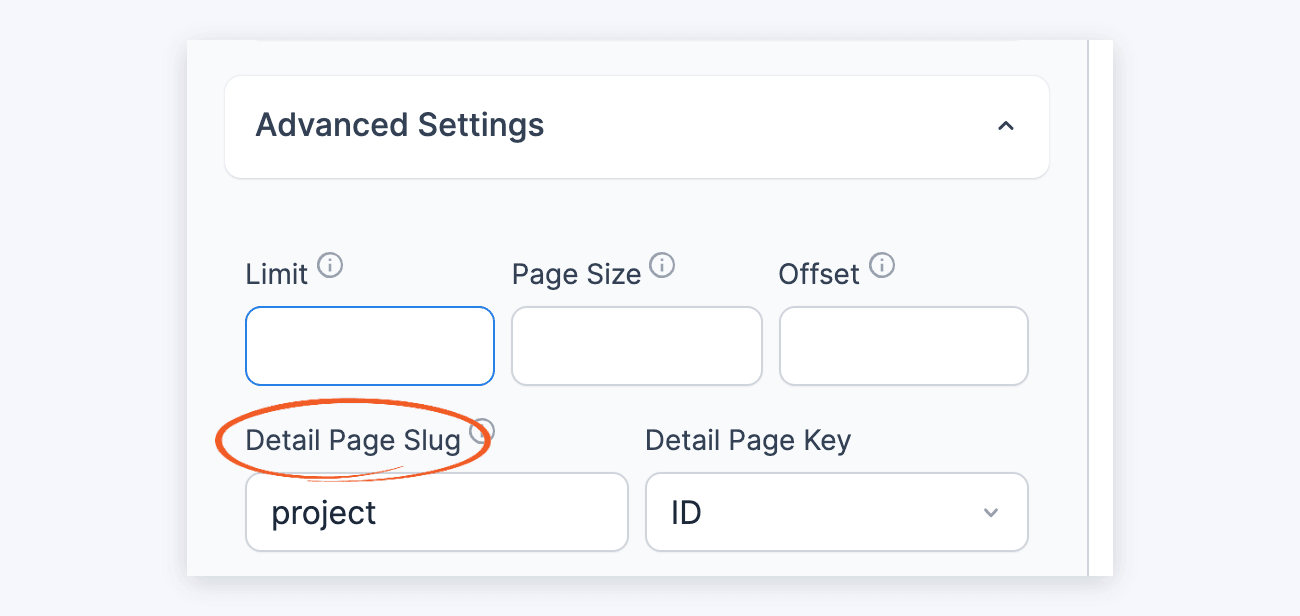
Edit links add entry to the page address. The View's detail page uses entry too, so with the default slug an Edit link opens the detail page instead of the table. Give the detail page its own slug.
- In the left panel, open Advanced Settings.
- In Detail Page Slug, enter project.
- (Optional) To list the newest projects first, click Sort entries (3) above the table and sort by Entry creation date, Descending.
- Click Update at the top of the page to save the View.
The View is now ready to add to your portal page.
Add the View to the portal page
Publish the View on your portal page with the View block, or insert its shortcode. Replace 1388 with your View ID.
[display-frm-data id=1388]
The page needs only the View. The form is already inside it.
Try the portal
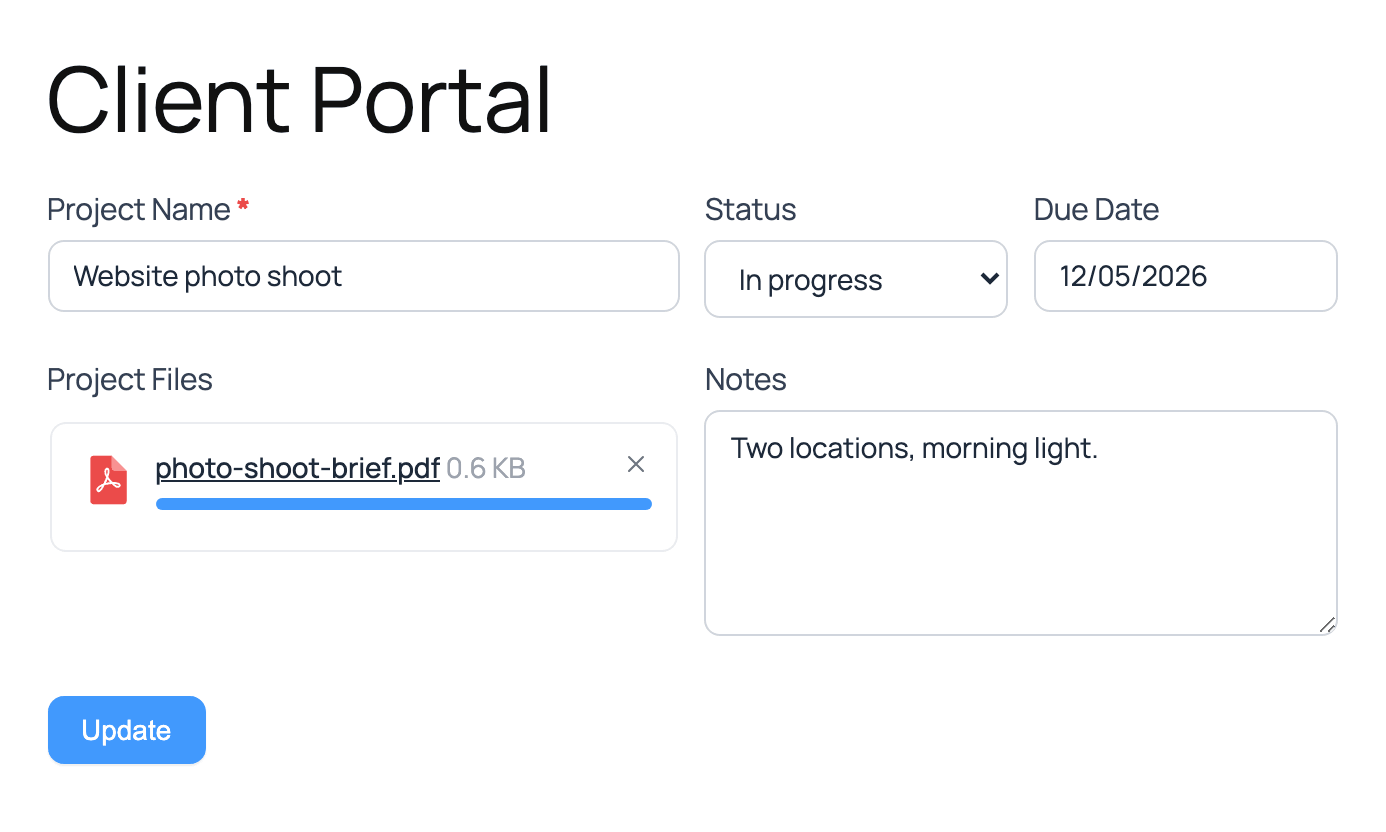
Log in as a client to see the portal. A client with projects sees the form and a table of their own projects.
- Edit: The project opens in the form. The client makes changes and clicks Update.
The page then shows the Confirmation message, and the table shows the new values. - Project name: The project's detail page opens, with links to its files.
- Delete: After the client confirms, the project is deleted and the page shows Your entry was successfully deleted.
Log out and open the page again to see what visitors see. Only the Login Message shows.
As an administrator, the portal shows only your own projects. Manage every client's projects in Formidable → Entries.
Limitations
- File protection checks the visitor's role, not who uploaded the file. A logged-in user with an allowed role can open another client's file if they have its link. The portal itself only shows each client links to their own files.
- The Login Message is shared by every form limited to logged-in users.
- The table lists projects by the value saved in the User ID field. A client can't open, edit, or delete another client's projects, but a client who changes the hidden field's value in the browser can make a project of their own show in another client's table, without Edit or Delete links.
Troubleshooting
Page not found
If a project's detail page shows Page not found, go to Settings → Permalinks in WordPress and click Save Changes. This refreshes the page addresses WordPress knows, including the View's Detail Page Slug.
The Edit link opens the detail page
The Detail Page Slug is still entry. Change the detail page slug to another word, such as project.
Clients see no projects
If the table is empty for a client who added projects:
- The form has no User ID field: Add one. The filter needs it to know who added each project.
- The filter uses another field: Open Filter entries and check that it says User ID equals
current_user.
Edit and Delete links are missing
Check that Allow front-end editing of entries is on in Settings → Form Permissions. Then check that the client's role is in Role required to edit one's own entries. Learn more about allowing front-end editing.
