What a pleasure to have support within minutes. Brillant, accurate answer, and solved the question. Thanks to the Formidable Team. Eric


Last updated on September 27, 2026 by Emma Wells
Automatically Limit Form Choices to Prevent Overbooking
Running an event with limited spots? The last thing you need is manually updating your form every few hours to remove sold-out sessions.
With the new Limit Options feature, set a maximum number of submissions for any dropdown, radio, or checkbox choice. When a workshop hits 20 registrants or a time slot fills up, it disappears from your form automatically. No manual updates. No "sorry, that's full" emails. No refunds.

Approximate read time: 6 minutes
Upgrade your WordPress site with powerful, flexible forms.
The Manual Capacity Problem
You're managing an event with three workshop sessions. Each holds 30 people.
Someone registers for Session A while you're in a meeting. Then another. Then five more. You check your dashboard an hour later and count manually. 28 in Session A. You leave it open.
Two hours later, you check again. 32 registrants for Session A. Three people registered in the last ten minutes. Now you need to email two of them explaining the session is full and offer alternatives.
It happens because forms don't know about capacity. They just collect whatever people submit.
From Idea to Reality in Minutes. Build Powerful Forms, Dashboards, Apps and More.
Formidable Forms makes advanced site building simple. Launch forms, directories, dashboards, and custom WordPress apps faster than ever before.
How Limit Options Works
The new feature adds per-choice capacity management to any dropdown, radio, or checkbox field.
Set the limit once Open your field settings, check "Set option limits", and enter a number for each choice. Session A: 30. Session B: 25. Session C: 20. You can mix limited and unlimited choices in the same field if needed.
The form enforces it automatically When someone submits and picks Session A, Formidable counts it against the limit. The 30th person registers for Session A, fills the last spot. Person 31 opens the form and Session A is gone. They only see Sessions B and C.
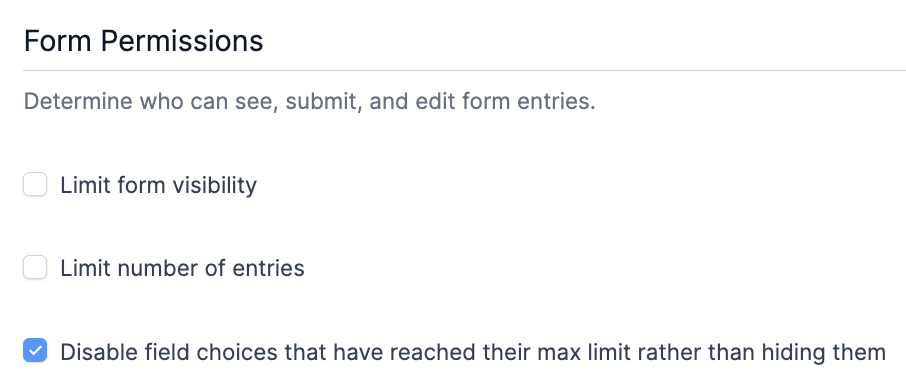
Choose how it appears Full options can hide completely (keeps your form clean) or show as disabled with a "Full" label (shows demand). Toggle this in Form Settings under Form Permissions.
Works in real time Multiple people filling out the form at once? Submissions process sequentially. First to submit wins. Everyone else sees accurate, up-to-date availability.
Handles edge cases Someone starts filling out your form when 1 spot remains. They take 3 minutes. Someone else submits first and takes it. First person clicks submit. They see a clear error message: "The selected option is no longer available." They pick a different option and resubmit successfully.
Real-World Use Cases
Event session registration You're running a conference with five breakout sessions. Session A holds 50 people, Session B holds 30, Session C holds 40. Set the limits once. Each session fills independently. When Session B hits 30, it vanishes from the dropdown. Sessions A and C keep accepting registrants until they hit their own limits.
Appointment time slot booking You offer consultations Monday through Friday, 9am to 5pm, in 30-minute slots. Each slot can book one person. Set up a dropdown with all time slots, each limited to 1. When someone books Tuesday at 2pm, that slot disappears. Everyone else opening the form sees only available times. No double-booking possible. Pair this with a calendar view and you can show bookings on a calendar as they come in, instead of just a list of entries.
Product pre-orders with size limits You're launching a limited edition shirt. You have 30 smalls, 50 mediums, 40 larges, 20 extra-larges. Create a dropdown for sizes with individual limits. Smalls sell out in an hour. The form automatically hides "Small" and continues taking orders for medium, large, and XL.
Volunteer shift management You need 5 people for morning setup, 10 for afternoon registration, 8 for evening breakdown. Radio buttons for each shift with different limits. Morning shift fills up first with 5 volunteers. The other shifts stay open with their own capacity. No one can sign up for an already-covered shift.
Workshop add-ons with limited capacity Your main workshop has unlimited registration, but the VIP Q&A session afterward only fits 15 people. Add a checkbox: "Include VIP Q&A Session (+$25)" with a limit of 15. First 15 registrants who check the box get it. After that, the checkbox disappears for everyone else.
Free giveaway distribution You're offering free sticker packs with the first 100 orders. Create a checkbox: "Add free sticker pack (while supplies last)" with a limit of 100. When the 100th person checks it, the option disappears from the form. Orders 101 and beyond never see the offer.
Course registration by skill level You're running a web development bootcamp with two tracks: Beginner (25 seats) and Advanced (15 seats). Radio buttons for each track with separate limits. Beginners fill up fast. Advanced track shows 8 spots remaining. Everyone sees exactly what's available when they register.
Catering meal choices You're planning an event dinner. The kitchen prepared 40 chicken meals, 30 vegetarian, 10 vegan. Dropdown for meal selection with limits matching inventory. Vegetarian hits 30 first. That option disappears. Chicken and vegan remain available until they hit their own limits.
The pattern is consistent: set precise limits per choice, Formidable enforces them automatically, you never manually track capacity again.
Setup Takes Two Minutes
Here's exactly how to set it up:
Step 1: Open your field settings In the form builder, click on any dropdown, radio, or checkbox field. The field options panel opens on the right.
Step 2: Enable limits Look for the new "Set option limits" toggle. Turn it on. Input fields appear next to each choice in your list.
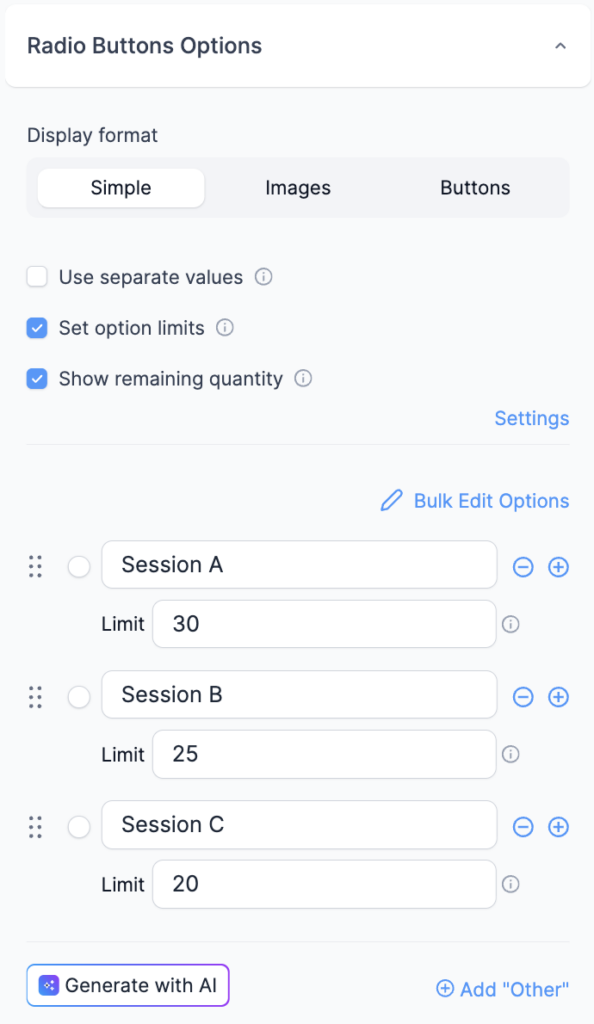
Step 3: Set your numbers Enter the maximum number of submissions for each choice:
- Morning Session (9am-12pm): 25
- Afternoon Session (1pm-4pm): 30
- Evening Session (6pm-9pm): 20
Leave any choice blank if it doesn't need a limit.
Step 4: Choose display behavior (optional) Go to Form Settings, then Form Permissions. Find "Disable field choices that have reached their max limit rather than hiding them." Check the box if you want filled options to show as disabled instead.
Step 5: Save and publish Click Update. Your form is ready.
Getting Started
Limit Options is available now in Formidable Forms Basic plan and above.
But this is only one piece of what Formidable can do. Browse the full list of features to see what else you can build.

Stop tracking capacity manually. Your forms can do it automatically.
This article may contain affiliate links. Once in a while, we earn commissions from those links. But we only recommend products we like, with or without commissions.