What a pleasure to have support within minutes. Brillant, accurate answer, and solved the question. Thanks to the Formidable Team. Eric


Last updated on August 12, 2026 by Emma Wells
How to Add Discount Codes to Your WordPress Forms
Running promotions shouldn't mean creating duplicate forms or manually adjusting prices. With Formidable Forms' new WordPress Coupon feature, you can add discount codes directly to your WordPress payment forms—users enter their code, click apply, and watch the total update instantly.

Approximate read time: 8 minutes
Upgrade your WordPress site with powerful, flexible forms.
The Problem with Promotional Pricing (Until Now)
Running promotions should be simple. Offer a code, people use it, everyone's happy.
But here's what actually happens:
- You create separate forms for each promotion
- Or you adjust prices manually for each customer
- Or you explain discounts in instructions and hope people do the math
- Or you skip promotional pricing altogether
And if you're running multiple promotions at once? With different expiration dates? For different products? Good luck keeping track of which form is which.
It's messy. It's time-consuming. And it creates more room for errors.
From Idea to Reality in Minutes. Build Powerful Forms, Dashboards, Apps and More.
Formidable Forms makes advanced site building simple. Launch forms, directories, dashboards, and custom WordPress apps faster than ever before.
What's New: Discount Codes That Actually Work
The new Coupon feature changes everything. Here's what you can do now with this WordPress form discount solution:
Create discount codes in seconds
Fixed amount ($10 off) or percentage (20% off). Set it once, use it everywhere.
Set them and forget them
Add start and end dates. The code activates automatically and expires on schedule—no manual intervention needed.
Control usage limits
Limit total uses across everyone, or set per-user limits. Perfect for "first 50 customers" promotions or one-time discount links.
Require minimum purchases
Set a minimum order value to prevent discount abuse on small orders.
Apply codes to specific forms
Restrict which forms can use each code. Your Black Friday sale code doesn't need to work on your event registration form.
See instant price updates
The moment someone applies a valid code, the total recalculates. No waiting, no page refresh, no confusion about whether it worked.
Manage everything in one place
New Coupons List page shows all your codes, usage stats, expiration dates, and which forms they're on. Edit any code with one click.
No custom code required
Coupons integrate directly with your existing Total fields and Product fields. Just add the Coupon field and you're done.
Enable or disable anytime
Turn promotional codes on or off without touching your forms. Promotion ended early? One toggle switch.
How It Actually Works
Let's walk through setting up a discount code for an early bird event registration.
Step 1: Create Your Coupon
Navigate to Formidable → Payments and click the new Coupons tab. This takes you to the Coupons List page where you'll manage all your discount codes.

Click Add New and configure your coupon:
- Code: EARLYBIRD2026
- Discount amount: 20%
- Start date: January 1, 2026
- End date: February 15, 2026
- Usage limit: 100 (first 100 people only)
- Minimum order value: $50
- Allowed forms: Select your event registration form
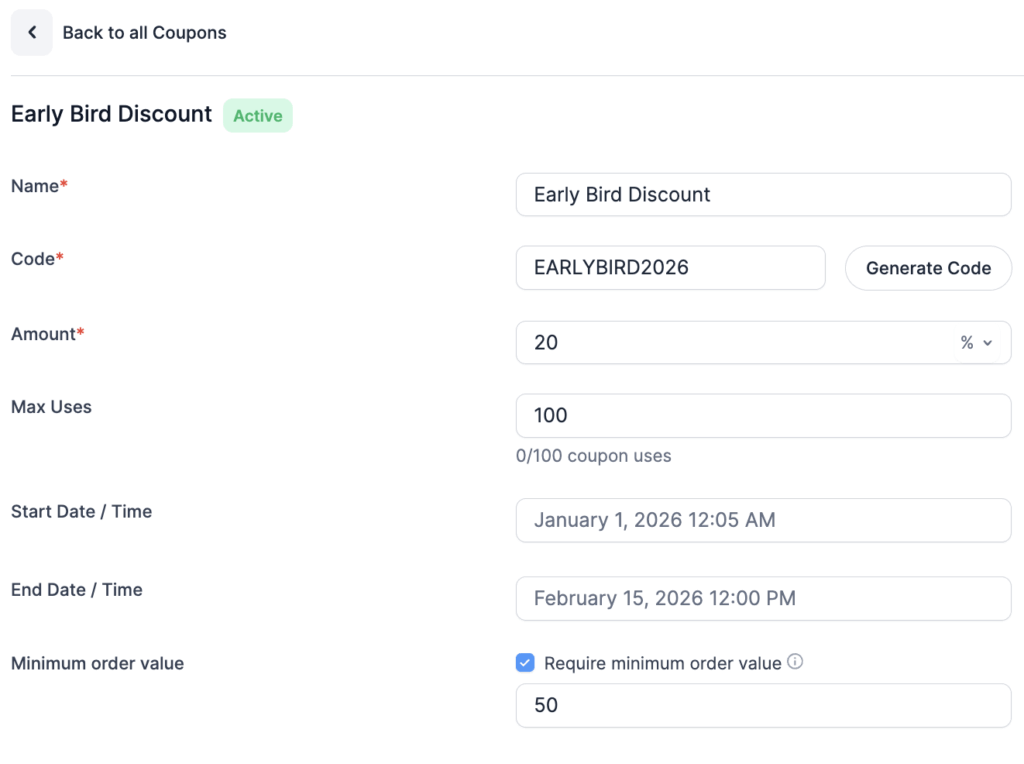
Save it. Your code is ready.
Step 2: Add the Coupon Field
Open your event registration form in the form builder. Under Pricing Fields, you'll see the new Coupon field type.
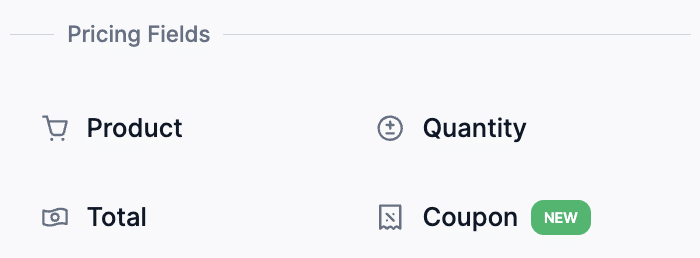
Drag it onto your form—probably right above your Total field so users see the discount apply immediately.
In the field settings, configure the Allowed Coupons: Select EARLYBIRD2026. You can also customize the field label if you want to call it something other than "Coupon."
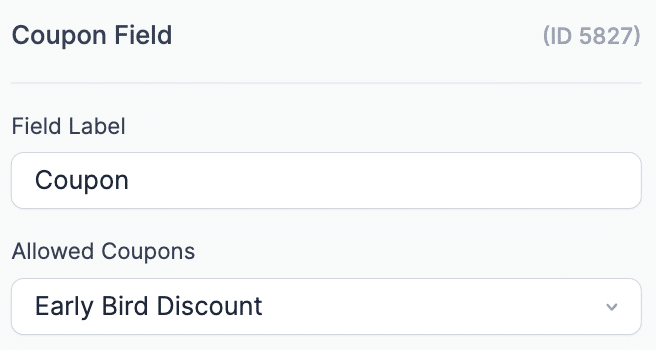
That's it. The field is ready.
Step 3: Test It
View your form, enter EARLYBIRD2026, click Apply. Watch the total drop by 20%.
Try entering an invalid code. You'll see an error message.
Try it again after already using it. You'll see "This coupon has already been used."
Try it before January 1st or after February 15th. You'll see "This coupon is not valid."
Everything works automatically.
Step 4: Manage Your Codes
Back on the Coupons List page, you can track real-time status for each code. For example, you might see:
- EARLYBIRD2026 has been used 47 times
- 53 uses remaining
- Expires February 15, 2026
- Used on: Event Registration Form
These numbers update with every submission. When February 15th arrives, the code stops working automatically. When someone submits the 100th use, it stops working automatically. You don't need to remember to disable anything.
Real-World Use Cases
The Coupon feature works for virtually any WordPress payment form where discounts make sense.
Product sales with promotional codes
Launch a flash sale for your digital download. Create a code, set a 48-hour expiration, blast it to your email list. When the timer hits zero, the code stops working—no manual intervention.
Affiliate program tracking
Give each affiliate their own unique discount code. You'll see exactly how many sales each person drives and how much revenue they're generating.
Event registration early bird pricing
Offer 25% off for the first month of registration. Set the end date, forget about it. The price automatically increases when early bird expires.
Member-only discounts
Create exclusive codes for your membership community. Restrict usage to email addresses from your members list, or keep codes private in your member area.
Limited-time holiday sales
Schedule codes to activate on Black Friday and expire on Cyber Monday. Sleep in on Tuesday—the sale ended itself.
Private customer pricing
Send one-time-use codes to specific customers for service recovery or VIP treatment. They use it once, the code is exhausted.
Bundle deals and package pricing
Offer "buy one get one 20% off" by creating a $20-minimum code with a percentage discount. Only works when customers hit your bundle threshold.
The pattern? Set it up once, let it run automatically, track everything in one place.
Advanced Features You'll Actually Use
Pre-Apply Codes with URL Parameters
Share links with discount codes already applied using URL parameters.
Add a default value of [get param=coupon] to your Coupon field, then share links like:
yoursite.com/register/?coupon=EARLYBIRD2026
Perfect for:
- Email campaigns with segmented offers
- Affiliate links that auto-apply their code
- Social media posts with special follower discounts
- Partner referral programs
When someone clicks the link, the discount is already applied. They just need to fill out the form and submit.
Display Coupon Information in Entries
When viewing submitted entries (or displaying them with View shortcodes), the Coupon field shows formatted information by default: "EARLYBIRD2026 (20% Applied - $40 discount)".
Customize how it displays:
format="number"- Show just the discount amount: "$40"show="code"- Show just the coupon code: "EARLYBIRD2026"
Use this when building custom confirmation emails, entry displays, or admin notifications where you need specific coupon data.
Team Permissions
Only users with the "Access this Settings Page" permission can view and manage coupons.
Translation: Your content editors can build forms all day long without accidentally seeing your promotional pricing strategy or editing active discount codes.
Give coupon access to marketing managers and finance folks. Everyone else doesn't need it.
Using Coupons with WooCommerce
Formidable Forms integrates with WooCommerce, and the WordPress coupon feature works in that setup—with a few things to understand.
What works:
Simple product forms where users configure options through Formidable Fields, then check out through WooCommerce. The discount applies to the Formidable-calculated price that gets sent to WooCommerce.
What to know:
- If someone orders multiple quantities in a Formidable form, coupon usage is tracked as a single use (not one per item)
- If multiple WooCommerce cart items each came from different Formidable forms, each can have its own coupon applied
- There's no way to enforce "only one coupon per WooCommerce cart" across multiple form submissions
For straightforward "configure product → add to cart → checkout" flows, coupons work great. For complex cart scenarios with quantity-based coupon tracking, test your specific setup thoroughly.
Formidable + WooCommerce: Better Together
Speaking of WooCommerce—let's talk about why combining these two plugins makes so much sense.
WooCommerce is fantastic at checkout. Payments, orders, inventory, customer accounts—it handles all of that beautifully.
But here's where WooCommerce struggles: complex product configuration with conditional logic and dynamic pricing.
You know what doesn't struggle with that? Formidable Forms.
The Strategy
Use Formidable Forms for the input. Use WooCommerce for checkout.
That's it. That's the whole strategy.
Let Formidable handle the complicated stuff:
- Multi-step configuration wizards
- Conditional logic that shows/hides options based on previous answers
- Complex pricing calculations with multiple variables
- File uploads for custom specifications
- Quiz-style product finders
- Repeater fields for ordering multiple customized items at once
Then send the configured product and final price to WooCommerce to handle payment and order management.
They're not competitors. They solve different problems and work great together.
When This Makes Sense
Custom furniture
Tables and sofas with exact dimensions, material choices, edge styles, finish options, and delivery preferences. In native WooCommerce? Painful. With Formidable Forms collecting the input? Straightforward.
Made-to-order products
Print-on-demand apparel where users upload artwork, choose sizes, select materials, and pick color combinations across multiple steps. Formidable's conditional logic keeps it simple.
Travel and experience booking
Retreats with different date options, skill levels, accommodation types, meal plans, equipment rentals, and add-on activities. Every choice affects price. Formidable calculates it all, WooCommerce processes payment.
Build-your-own anything
Gift baskets, computer configurations, supplement packs—any product where the final price depends heavily on multiple user selections across several steps.
The common thread? Customization complexity plus dynamic pricing. That's when Formidable + WooCommerce becomes significantly easier than WooCommerce alone.
Learn more in our WooCommerce Product Configurator guide.
Get Started with Coupons
Ready to add discount codes to your WordPress payment forms? The WordPress coupon feature is included in Formidable Forms Business and Elite plans.
Setting it up takes about five minutes:
- Create your first discount code in Formidable → Payments → Coupons
- Add the Coupon field to your payment form
- Assign which coupons the field accepts
- Save and test
That's it. You're running promotions.
No duplicate forms. No manual price adjustments. No custom code. Just clean, professional discount codes that work exactly like you'd expect them to.
Upgrade to Business or Elite to start offering discount codes today.
This article may contain affiliate links. Once in a while, we earn commissions from those links. But we only recommend products we like, with or without commissions.