What a pleasure to have support within minutes. Brillant, accurate answer, and solved the question. Thanks to the Formidable Team. Eric


Last updated on September 29, 2026 by Formidable Team
How to Calculate a 5 Star Rating Average in WordPress
Want to know what your customers really think without making them write a paragraph? A 5 star rating is the simplest way to ask, and the running average is what turns all those one-click answers into something you can actually show off. So the goal is simple: collect 5 star ratings and display the average in WordPress, and Formidable Forms handles both from a single plugin.

Approximate read time: 9 minutes
Upgrade your WordPress site with powerful, flexible forms.
Why collect star ratings (and show the average)
Star ratings work because they ask almost nothing of the reviewer. One click, one signal, no paragraph required. That means you finally hear from the quiet middle instead of only the superfans and the angry ones. The more people who answer, the fuller the picture you get of how your product or service is really doing, and that's data you can actually use to improve.
The average is what makes that data useful to everyone else. Most people look at star ratings before they buy anything, and a visible average is often the first thing they check. Higher averages have a measurable effect on conversions.
There's a catch, though. The Spiegel Research Center found that a too-perfect average of 5 stars actually hurts conversions, because shoppers assume the reviews are fake. An honest average from a broad set of reviews converts better than a suspiciously flawless one.
That's the whole job of this post: collect the ratings, then calculate and display the average.
From Idea to Reality in Minutes. Build Powerful Forms, Dashboards, Apps and More.
Formidable Forms makes advanced site building simple. Launch forms, directories, dashboards, and custom WordPress apps faster than ever before.
Why use a form builder instead of a dedicated star rating plugin
Most dedicated star rating plugins do exactly one thing: drop a row of stars under a post or a product, then average the clicks. Many of them are good at it, with support for schema markup (the code that tells Google how to display your stars), rich snippets, and a few pre-built styles. That's fine if you want stars under blog posts and nothing else.
It falls apart the moment you want something different. Rate individual photos in a gallery. Rate staff members on a directory page. Combine a star rating with a written review and a category dropdown. A form builder gives you a Star Rating field plus a way to display the data, so the same plugin that captures the rating also calculates and shows the average.
With Formidable Forms, that means no second tool slowing your site down and no data living in someone else's database.
What you'll need
- A WordPress site with Formidable Forms installed. The Star Rating field is a Formidable Forms Pro feature, so you'll need a paid license to follow this tutorial.
- About 15 minutes.
That's it. No code and no extra integrations.
Step 1: Create a form with a Star Rating field
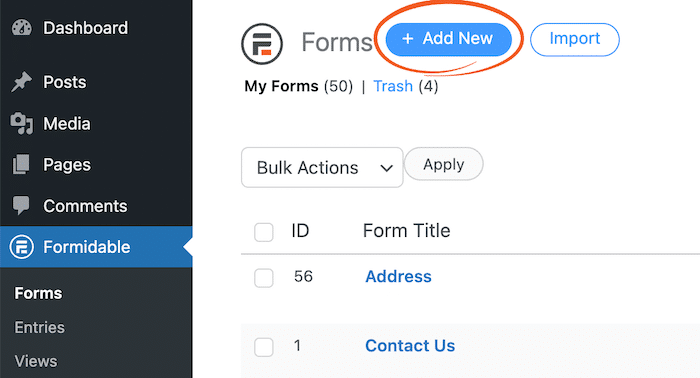
Head to Formidable → Forms → Add New and pick a blank form or one of the templates.
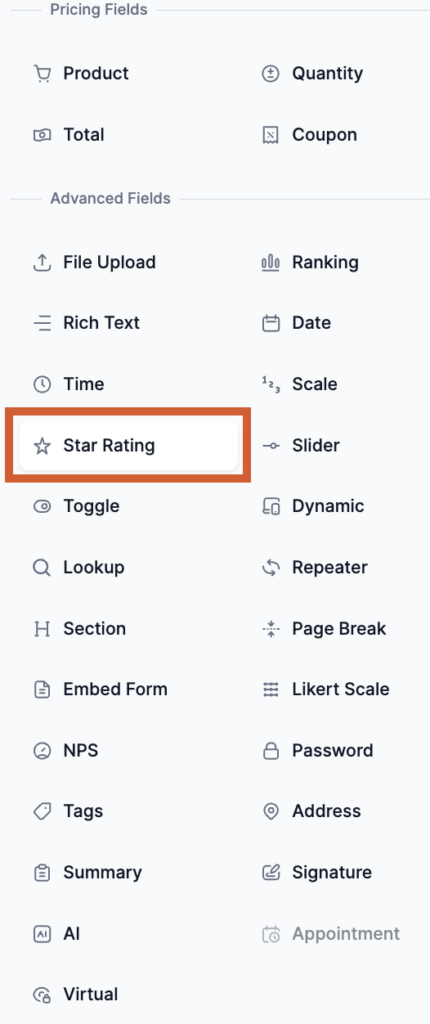
In the form builder, look at the field panel on the right. Find the Star Rating field and drag it onto the form. Adding fields is as simple as dragging and dropping them into place.
Step 2: Customize the Star Rating field
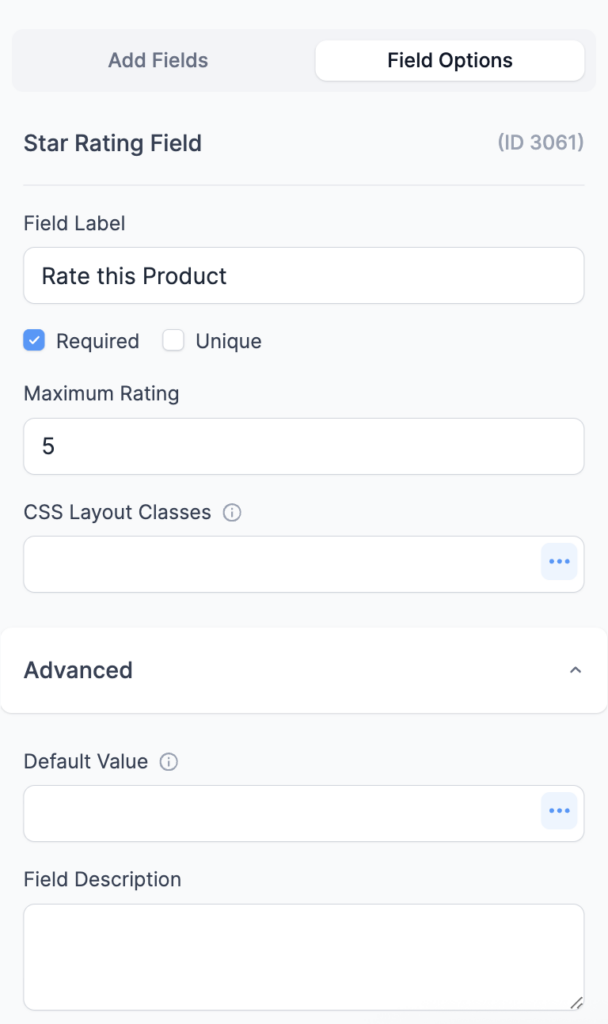
Click the field to open its options. A couple of options are worth setting:
- Maximum rating: defaults to 5 stars, because that's what most people expect. Set it higher for a finer scale or lower for a quick "bad, okay, great" signal.
- Required: toggle this on if the rating is the whole point of the form. If you're also asking for written feedback and the rating is optional, leave it off.
- Field label: rename it to something specific. "How was your visit?" reads better than "Rating."
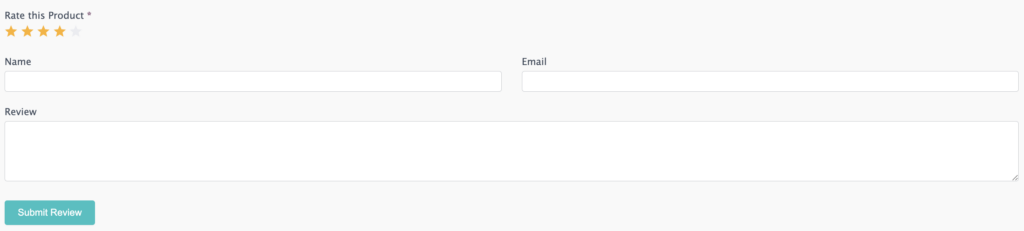
Add any other fields the feedback needs. A Paragraph field for written comments. A Single Line Text field for a name. A Dropdown field for a category. You're only required to include the Star Rating field, but the rest is up to you.
There's one more field to add if you plan to tie each rating to a specific item: a Hidden field. This is what connects each rating to the thing being rated. More on that in step 4.
When you're happy with the form, click Update to save, then publish it and check how it looks on the front end.
Step 3: Display the average rating with a shortcode
This is the part you came for. Once you have a few submissions, you can show the average rating anywhere on your site: posts, pages, sidebars, widgets, or a Formidable View. Anywhere a shortcode works. You can find more detail on the shortcode options in our knowledgebase.
Paste this shortcode where you want the average to appear:
[frm-stats id=x field=y type=average]Replace x with the ID of your star rating form and y with the ID or key of your Star Rating field. This pulls every submitted rating for that field, averages them, and rounds the result to the nearest half star.
If you're placing this inside a Formidable View, add filter=limited so the View scopes the average to the entries it's displaying:
[frm-stats id=x field=y type=average filter=limited]
Without filter=limited, the shortcode shows up as raw text on the page instead of rendering the stars. It's easy to miss and frustrating to debug.
You can also show a single submitter's rating inside a View by referencing the field directly:
[frm-field-value field=x html=1]Replace x with the field ID or key. Use this when you want each entry in a list to show its own rating rather than the overall average.
Get Formidable Forms Pro to add the Star Rating field and start collecting reviews today.
Step 4: Tie ratings to specific posts or entries
The simple case is one form, one average, displayed in one place. That works for a "rate our service" widget in the footer.
The more interesting case is rating individual things: products, blog posts, staff members, photos. Each item needs its own average, and the form needs to know which item is being rated. That's what the hidden field is for.
Add a Hidden field to your form, then set its value depending on where the form lives.
If you're putting the form in a WordPress post or page, insert this into the hidden field:
[post_id]
If you're tying ratings to a specific Formidable Forms entry, like a directory listing, insert this instead:
[get param=entry]
This gets the ID of the entry you're rating. You need that ID to connect each rating to the right item, or the star rating will come back blank.
Now every submission carries a reference to what was rated. When you build a View for that post or entry, you can filter the average by the hidden field so each item shows only its own ratings.
Step 5: Build a rating display with Formidable Views
Shortcodes are great for one-off averages. Views are what you reach for when you want a layout: a list of reviews, a directory of rated items, or a grid of products with their star averages underneath. The application builder lets you display form data anywhere on your site automatically.
Create a View by going to Formidable → Views → Add New, then pick the form you just built as the data source.

In the View's content area, drop in the fields you want to display: the rating, the comment, the name, the date. Format them however you like with HTML and CSS (the code that controls styling).
If you want to embed the rating form on the same page that shows the ratings, paste the form's shortcode in the Detail Page content box:
[formidable id=x]Here x is the form ID. Visitors will see the existing ratings up top and a form to add their own below.
To show the average across the entries in the View, drop the You must include a valid field id or key in your stats shortcode. shortcode anywhere in the View's content. That gives you an "Average rating" in stars at the top of a list of reviews, calculated from the visible entries.

At this point you can preview the View and submit a few test entries through the form to see the ratings and the average fill in.
A few things that trip people up
The shortcode shows as plain text. You forgot filter=limited inside a View, or the field ID is wrong. Double-check both.
The average shows 0 or nothing. There are no entries yet, or the hidden field isn't capturing the post ID. Submit a test entry from the actual page where the form lives, then check the entry to confirm the hidden field was saved.
Every item shows the same average. Your View isn't filtering by the hidden field. Open the View's filter settings and add a rule so the hidden field equals the current post or entry ID.
Collect the clicks, show the average
That's really all there is to it. A Star Rating field plus a shortcode is the whole system: collect 5 star ratings with the form, calculate and display the average with You must include a valid field id or key in your stats shortcode., scope it to a specific item with a hidden field, and build a full review layout with a View when you're ready for more.
We recommend collecting broadly so your average reflects real opinion rather than only the loudest voices. An honest average does more for trust than any single perfect review ever could.
If you want to put those ratings to work, see our guide on how to add reviews to your WordPress website. When you're ready to start, get Formidable Forms Pro and add the Star Rating field to your WordPress site today.

How do I calculate a 5 star ratings average in WordPress?
Collect ratings with a Formidable Forms Star Rating field, then paste the frm-stats shortcode with type=average where you want the result. It pulls every submitted rating for that field, averages them, and rounds to the nearest half star. Inside a Formidable View, add filter=limited so the average is scoped to the visible entries.
Can I add star ratings without a paid plugin?
Formidable Forms Lite is free on WordPress.org and is great for basic forms, but the Star Rating field is part of Formidable Forms Pro. If you want a free-only option, a dedicated star rating plugin will get you stars under blog posts, but you won't get the flexibility to rate individual entries, build a directory of rated items, or display averages anywhere on the site.
Will star ratings show up in Google search results?
Star ratings in search results come from schema markup, the code that tells Google how to display your stars, not from the rating display itself. If you want rich snippets, you'll need to add review schema to the pages showing ratings, either with a schema plugin or by editing your theme. Formidable Forms' Star Rating field handles the collection and display, not the schema.
Can visitors see other people's ratings before they submit their own?
Yes. Build a View that shows existing ratings on the same page as the form. Most people want to see what others said before adding their own opinion, and showing the running average builds trust.
Does this work with WooCommerce product reviews?
Formidable Forms' Star Rating field is independent of WooCommerce's built-in product review system. You can use Formidable Forms to build a custom review form for products if you want more control than WooCommerce's default review fields, then display the averages on your product pages with a shortcode.
This article may contain affiliate links. Once in a while, we earn commissions from those links. But we only recommend products we like, with or without commissions.