
Use the Twilio add-on to send an SMS text message when a form is submitted or when an entry is updated. You can also let users text in their votes for a poll or survey created by Formidable Forms. Each received text message automatically creates a new entry in your form.

Upgrade your WordPress site with powerful, flexible forms.
Download and install
- If you haven't already, install and activate the current version of Formidable Forms Premium on your WordPress site.
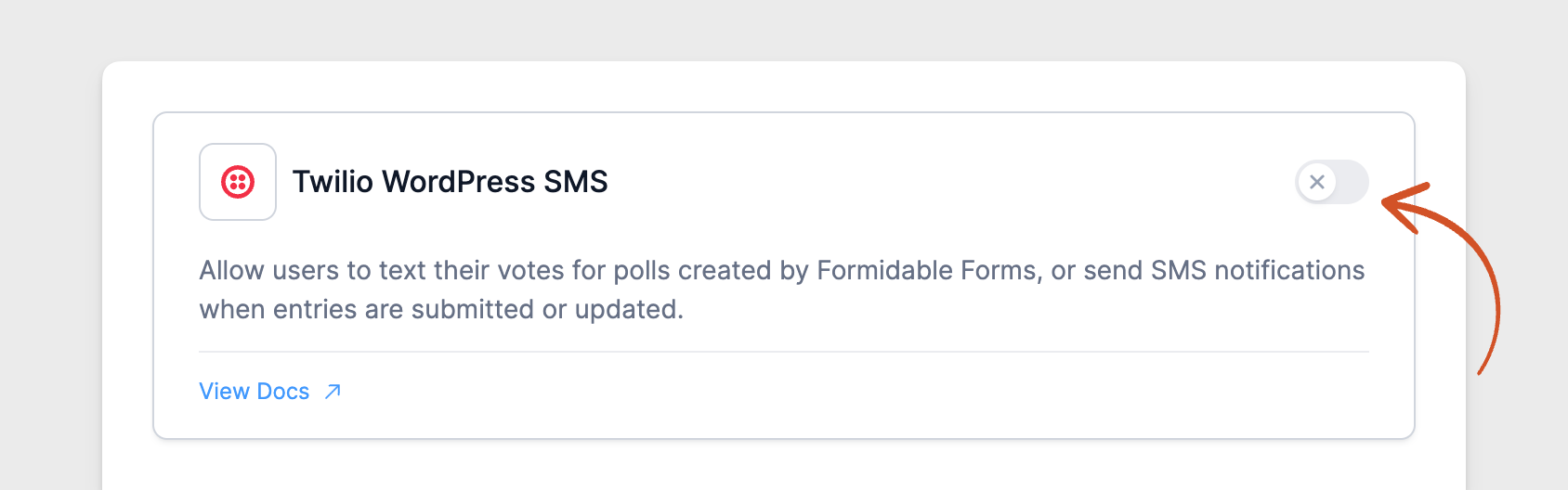
- After confirming your Formidable Forms license, go to Formidable → Add-Ons and toggle on the Twilio WordPress SMS add-on.

From Idea to Reality in Minutes. Build Powerful Forms, Dashboards, Apps and More.
Formidable Forms makes advanced site building simple. Launch forms, directories, dashboards, and custom WordPress apps faster than ever before.
Set up Twilio SMS integration
Step 1: Get your Account SID and Auth Token
The add-on connects to Twilio with your account's Account SID and Auth Token. It doesn't use Twilio API keys, so you don't need to create one.
- After installation, log in to the Twilio Console.
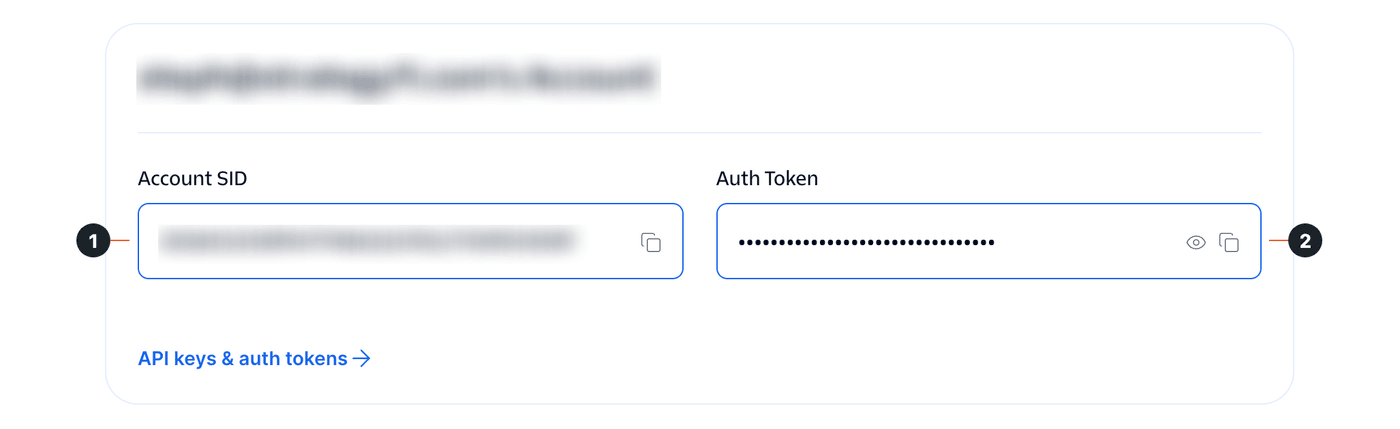
- Copy your Account SID (1) and Auth Token (2). They're in Account Info on the Console home page. If you use a trial account, you must verify the number you are sending to.
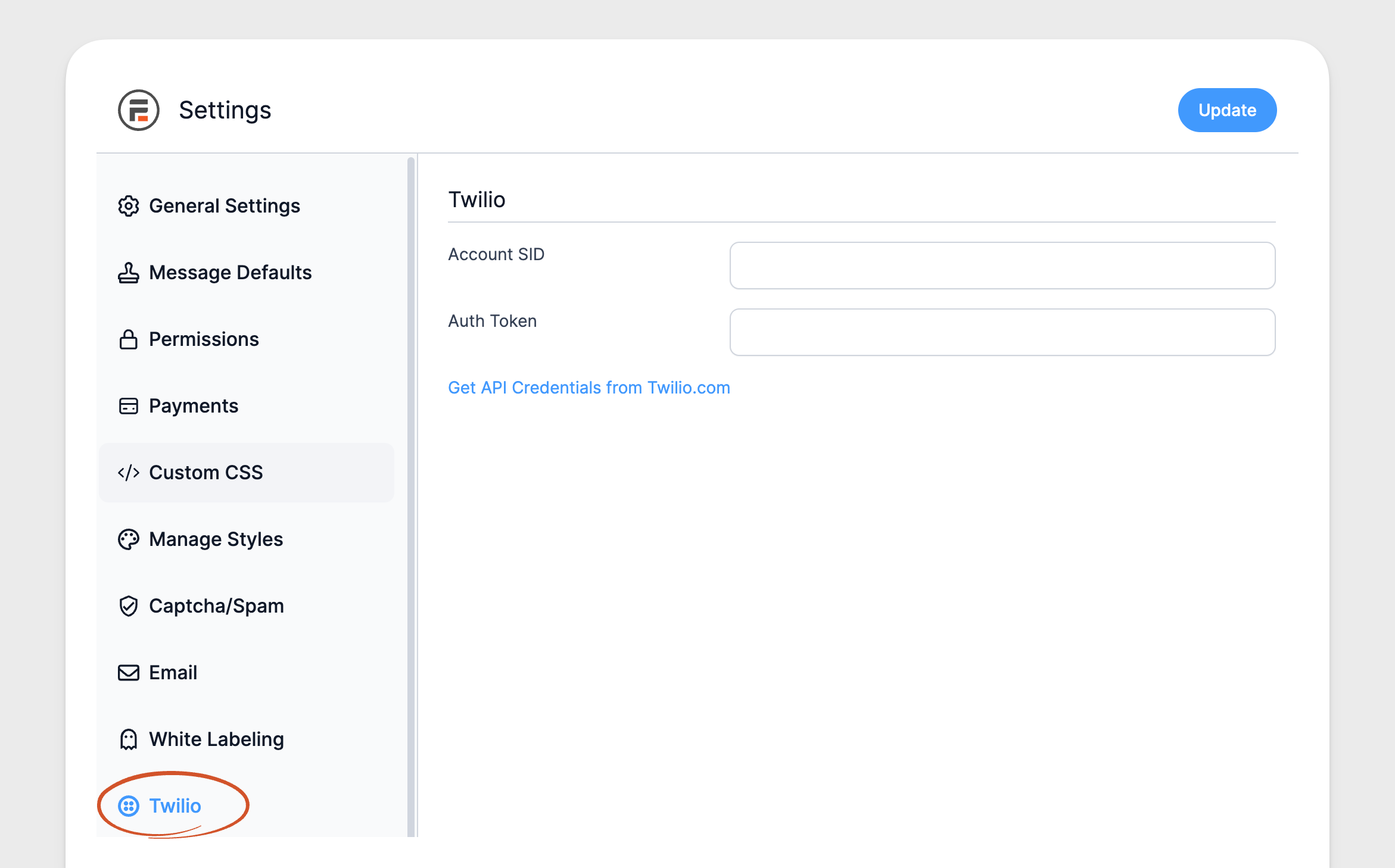
- Go back to your site. Go to Formidable → Global Settings → Twilio. Paste the Account SID in the Account SID box and the Auth Token in the Auth Token box. Then click Update.
Step 2: Set up Geo permissions
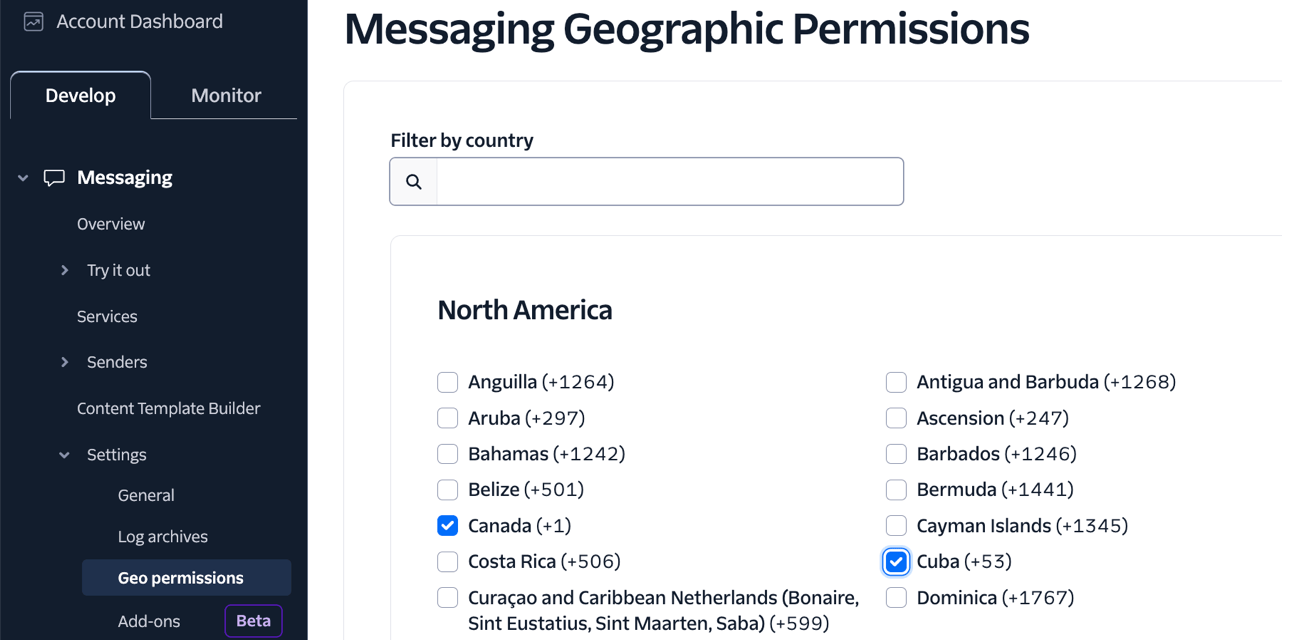
Twilio lets you send text messages to many countries worldwide. By setting up SMS Geo Permissions, you can choose which countries you want to send messages to. To protect against fraud, Twilio recommends turning off message sending to countries your business doesn't use or rarely uses.
When creating an account, you can automatically send messages to the country associated with the phone number you used during signup. To change the SMS Geo Permissions:
- Log in to your Twilio Account where you want to change the permissions.
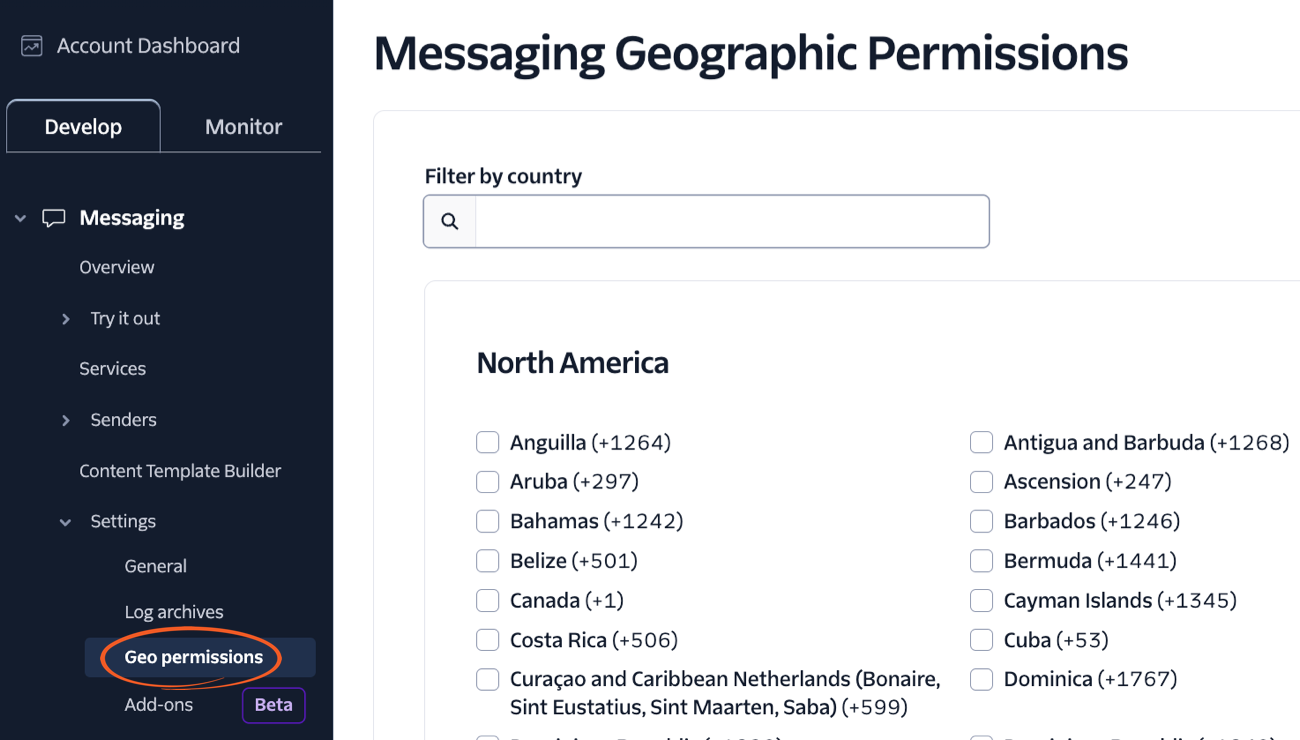
- Go to Console → Messaging → Settings → Geo permissions.
- Scroll through the list and find the country where you want to turn the SMS Geo permissions on or off. When you find the country, select the checkbox next to its name or use the Filter by country search box.
- If you send SMS to United States numbers from a US 10-digit long code number, register the number for A2P 10DLC first. Learn more about registering through a messaging service.
- Click the Save Geo permissions button to save your changes. Learn more about setting up SMS Geo permissions with Twilio.
Create a Twilio SMS form
You can send an SMS text message as an autoresponder when a Formidable form is submitted or when an entry is updated. Before you start, set up your Twilio SMS integration.
- Create a form for sending text messages. To send the message to the user who fills out the form, include a Phone Number field.
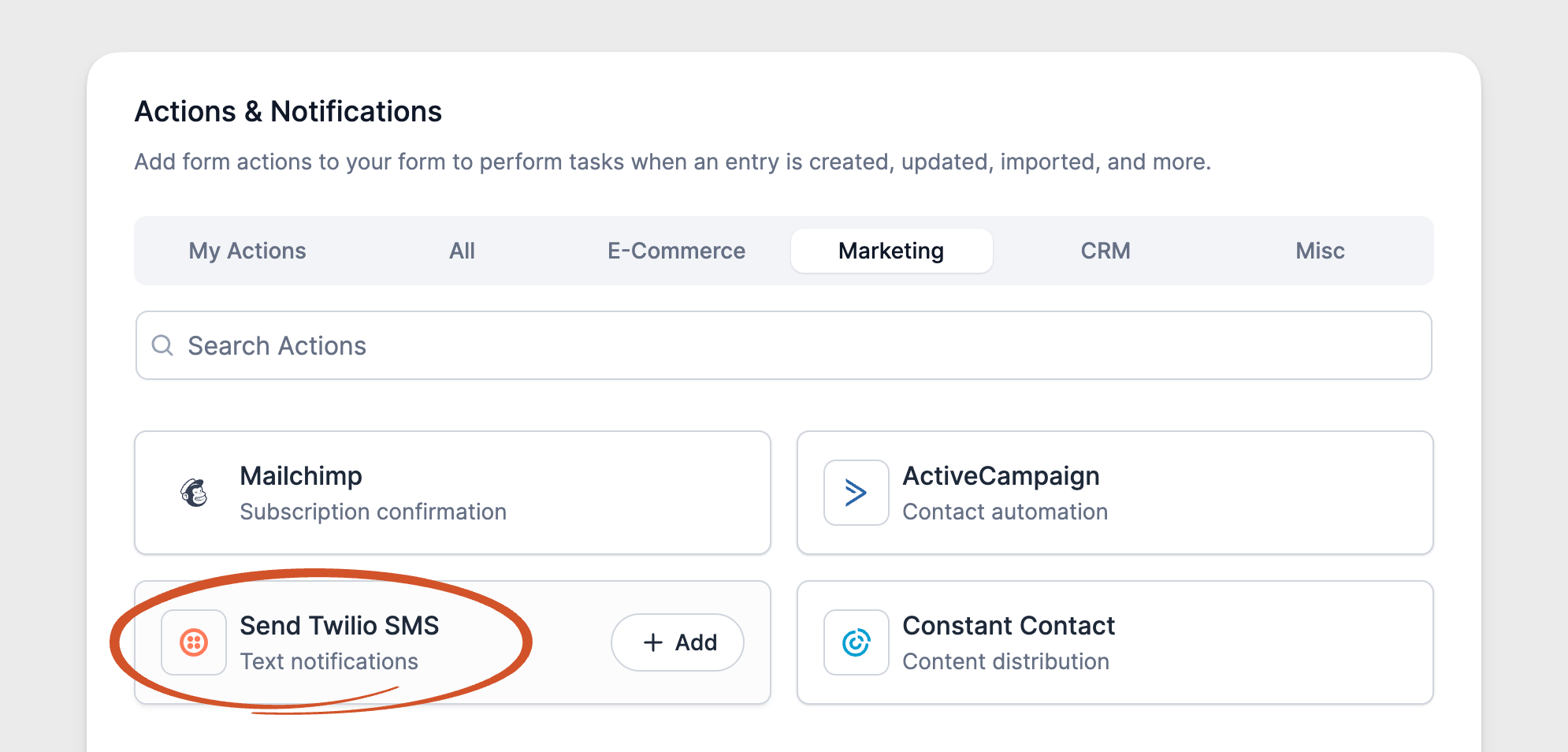
- Go to form Settings → Actions & Notifications. Open the Marketing tab, or search for Twilio. Then hover over Send Twilio SMS and click + Add to add a Twilio action to your form.
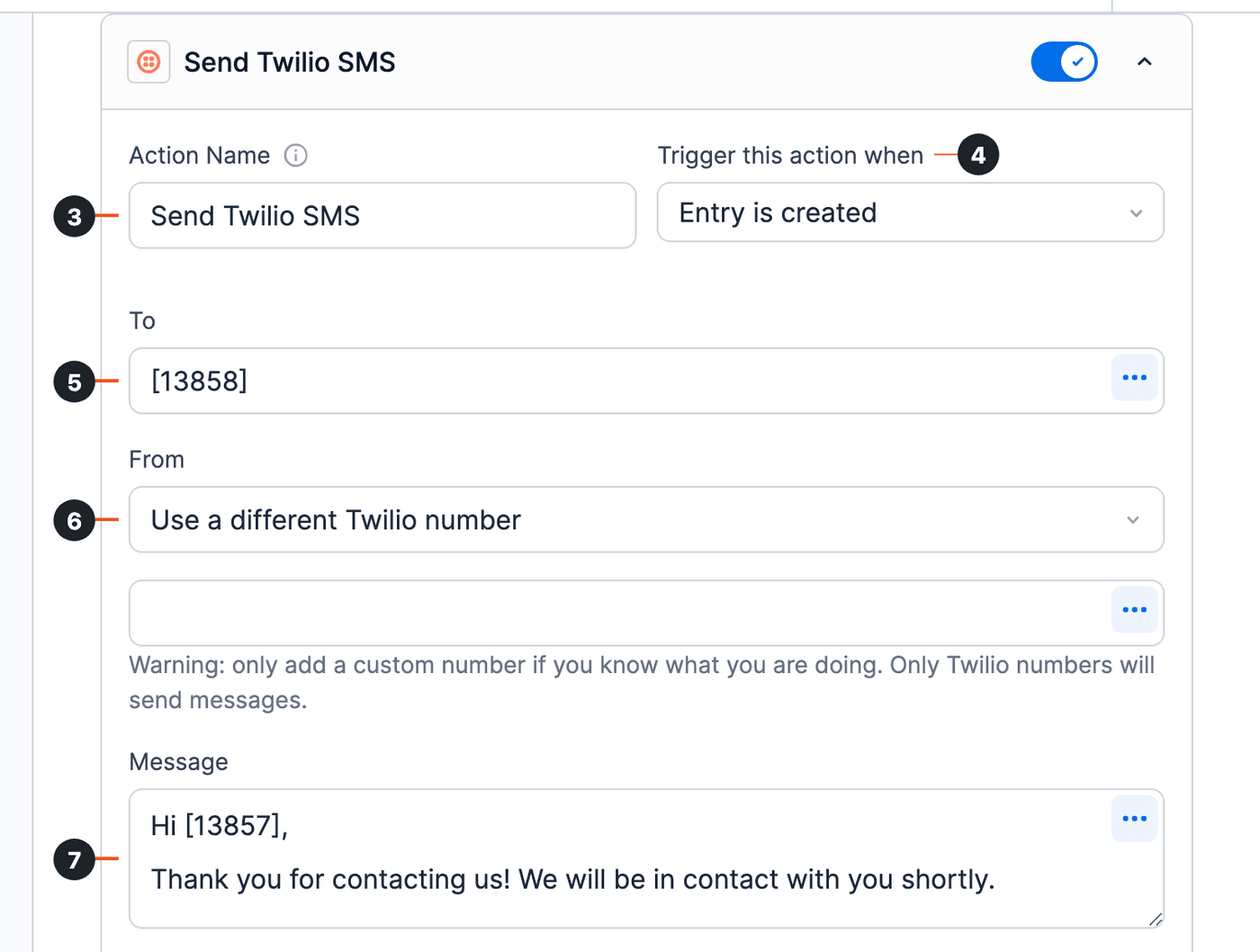
- Give your Twilio form action an Action Name for easy reference. This name only shows on the back end.
- Select one or more actions in the Trigger this action when dropdown. The triggers you see depend on which add-ons are active. The User Registration add-on allows sending a text after a user successfully registers. The PayPal and Stripe forms add-ons allow text messages to be sent when a payment has been completed.
- Insert a phone number or the Phone Number field ID in the To box. You can insert multiple phone numbers separated by a comma. A separate text is sent to each phone number.
- In the From dropdown, choose the number your texts come from. The dropdown starts blank, so choose one of these options.
- All numbers in the linked Twilio account. Choose one of these for live sending. The dropdown keeps the list of numbers for 15 minutes, so a number you just added to Twilio can take up to 15 minutes to show.
- Use a different Twilio number. Then type the number in the empty box that shows below the dropdown. Don't add a custom number unless you know what you're doing. Only Twilio numbers send messages. Include the international code.
- Use the [default-message] shortcode in the Message box to send every field label and value from the entry, one per line. For example:
Name: Ana
Phone Number: +15551110001
Receive text messages: Yes
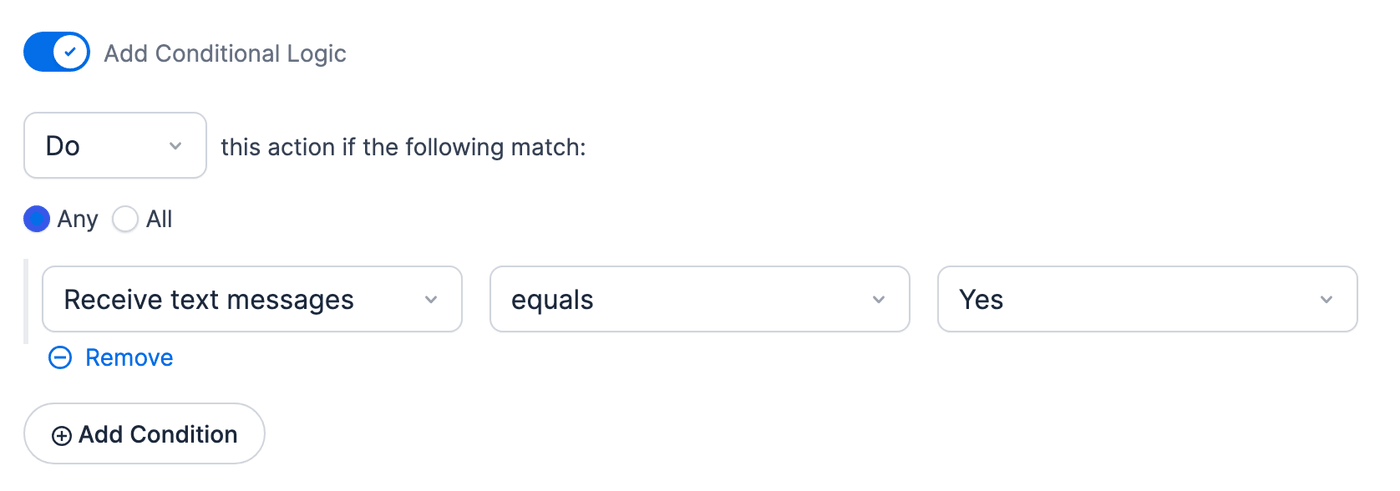
To write your own message, enter it in the Message box. Click fields in the Customization panel to add field values from the entry into your message. - To send a text message only in some cases, toggle on Add Conditional Logic and set the rules. For example, send a text only when a user chooses Yes in a Receive text messages field. Conditional logic is only available in the premium version of Formidable Forms.
- Click Update. Now, when a user submits or updates an entry, a text message is sent to the specified recipient.
Phone formatting
Twilio recommends E.164 number formatting for all To and From phone numbers. It helps your texts get delivered. Use it when you set up your Phone Number field format. Learn more about Twilio Phone Number formatting.
The E.164 formatted phone numbers can be written as:
[+][country code][area code][subscriber number]
For example, this is the recommended format for a US phone number.
+14188884567
Set up text voting
Use Twilio to allow users to text responses to a poll or survey. The responses are stored in your form's entries.
Text voting works through a webhook. When someone texts your Twilio number, Twilio sends the text to a vote URL on your site. The add-on saves the text as a new entry and texts back your form's success message.
So in Twilio, you only need to send the number's incoming messages to that URL. You can set the URL on a messaging service the number belongs to, or on the phone number itself.
Step 1: Create the poll form
Create a poll or survey with Formidable Forms. Add 1 survey question to the form. We also recommend including a text field to act as a catch-all for invalid votes. The text field saves every text exactly as it was sent, so you can see what each voter typed. Keep the poll form to the question and the text field. If another field rejects the text, the voter gets that field's error message back and the vote isn't saved. An Email field or a second required question can reject it.
The poll form doesn't need a Twilio form action, because the vote URL saves the entry and sends the reply. Don't limit the form to logged-in users. Texted votes come in without a login, so a form limited to logged-in users rejects them.
Step 2: Get your vote URL
Twilio sends incoming texts to this URL with HTTP POST:
your-site-url/wp-admin/admin-ajax.php?action=frm_twilio_vote&form=5
Replace your-site-url with your own site's URL. Change 5 to the ID of your form.
Step 3: Send incoming texts to the vote URL
You can set the vote URL on a messaging service or on the phone number:
- A messaging service: use one when your number is a US 10-digit long code (+1) number. Twilio blocks texts from these numbers to US phones until the number is in a messaging service's Sender Pool. That messaging service must be linked to an approved A2P 10DLC campaign. This includes the reply each voter gets. Learn more about Twilio error 30034.
- The phone number: enough for a number that doesn't need A2P 10DLC registration, such as a number outside the US. A US 10-digit long code number can keep the URL on the number too. It still needs a messaging service for A2P 10DLC, set to Defer to sender's webhook.
Use a messaging service
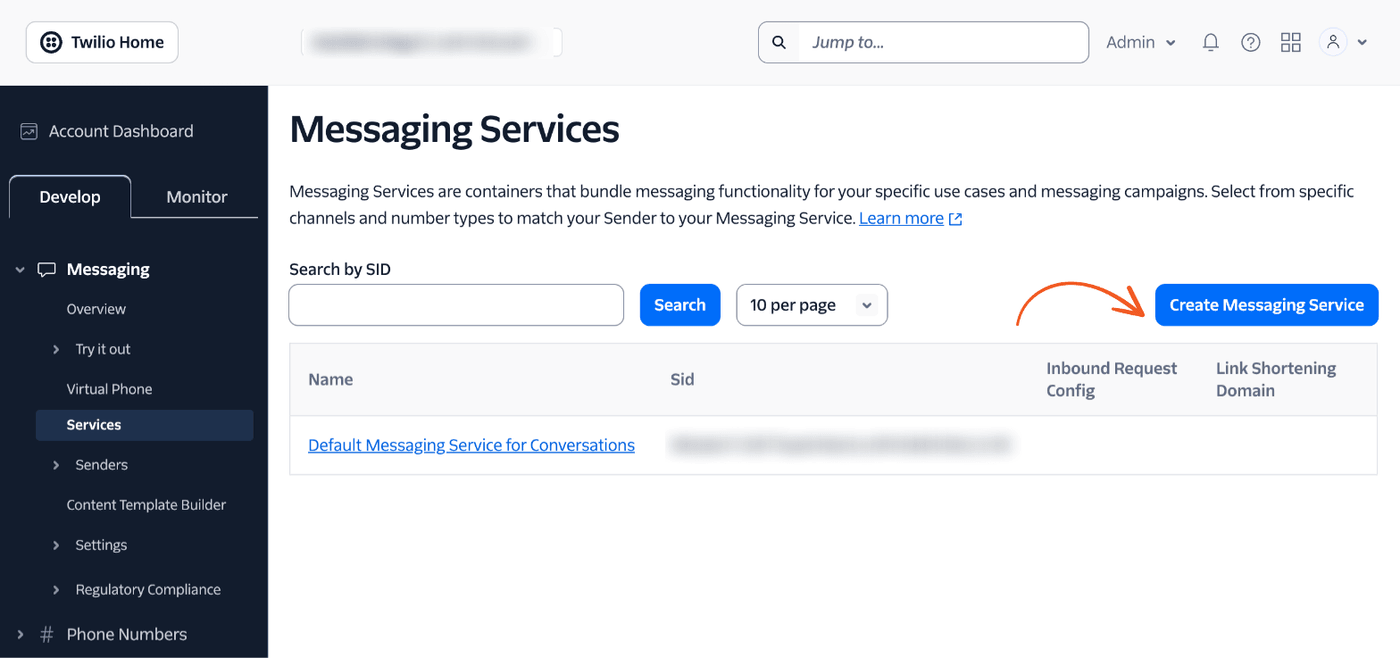
- In your Twilio Console, go to Messaging → Services and click Create Messaging Service.
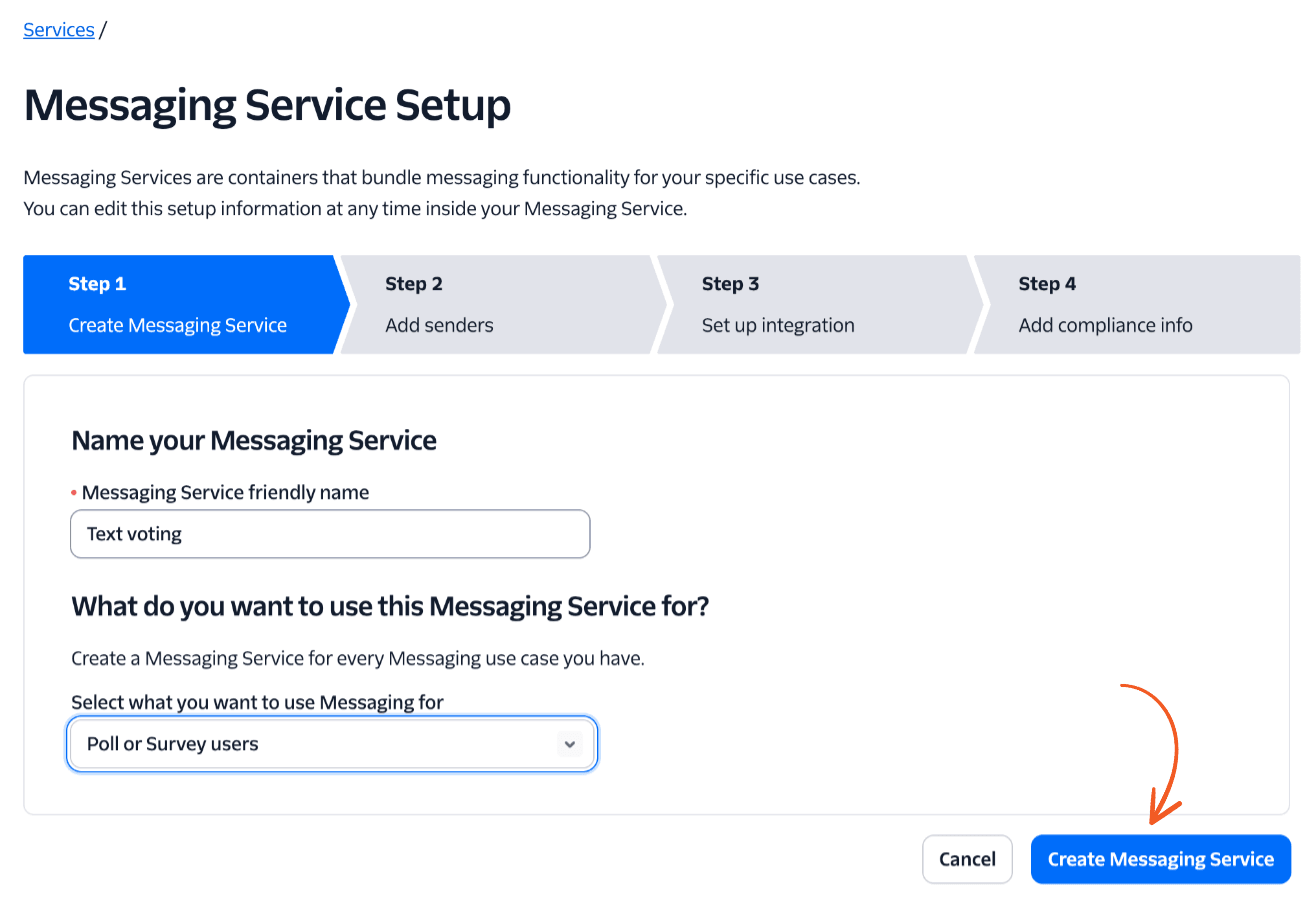
- In Messaging Service friendly name, enter a name for easy reference, such as Text voting. In Select what you want to use Messaging for, choose Poll or Survey users. Then click Create Messaging Service.
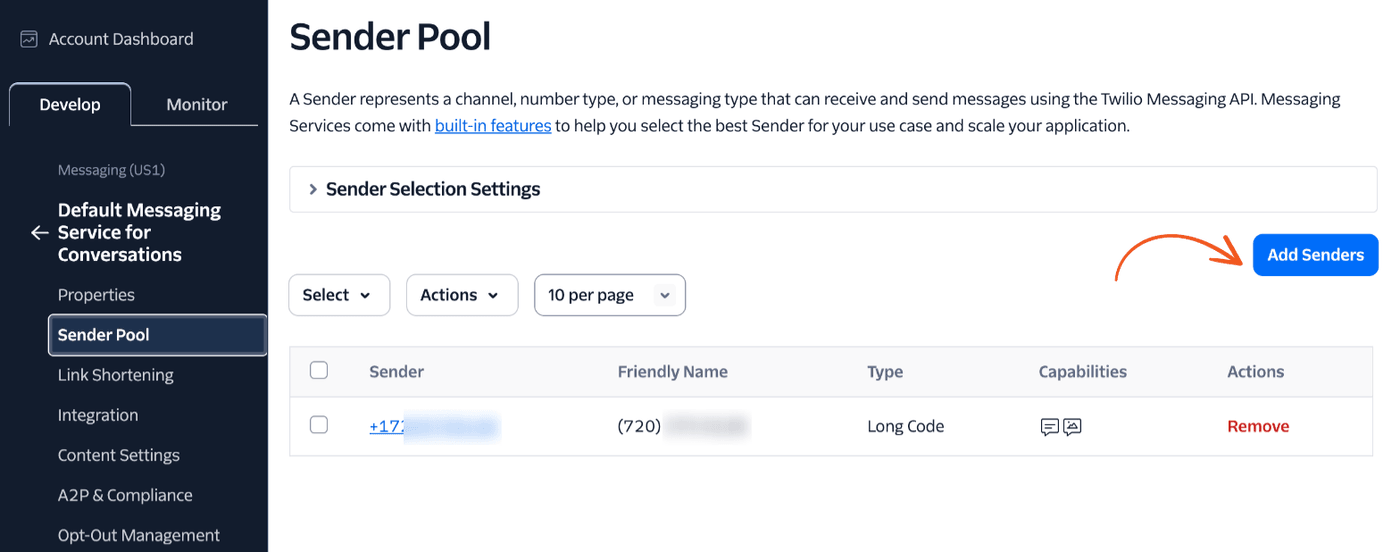
- In the Add senders step, click Add Senders and add the phone number that receives the votes. After setup, you find it on the service's Sender Pool page.
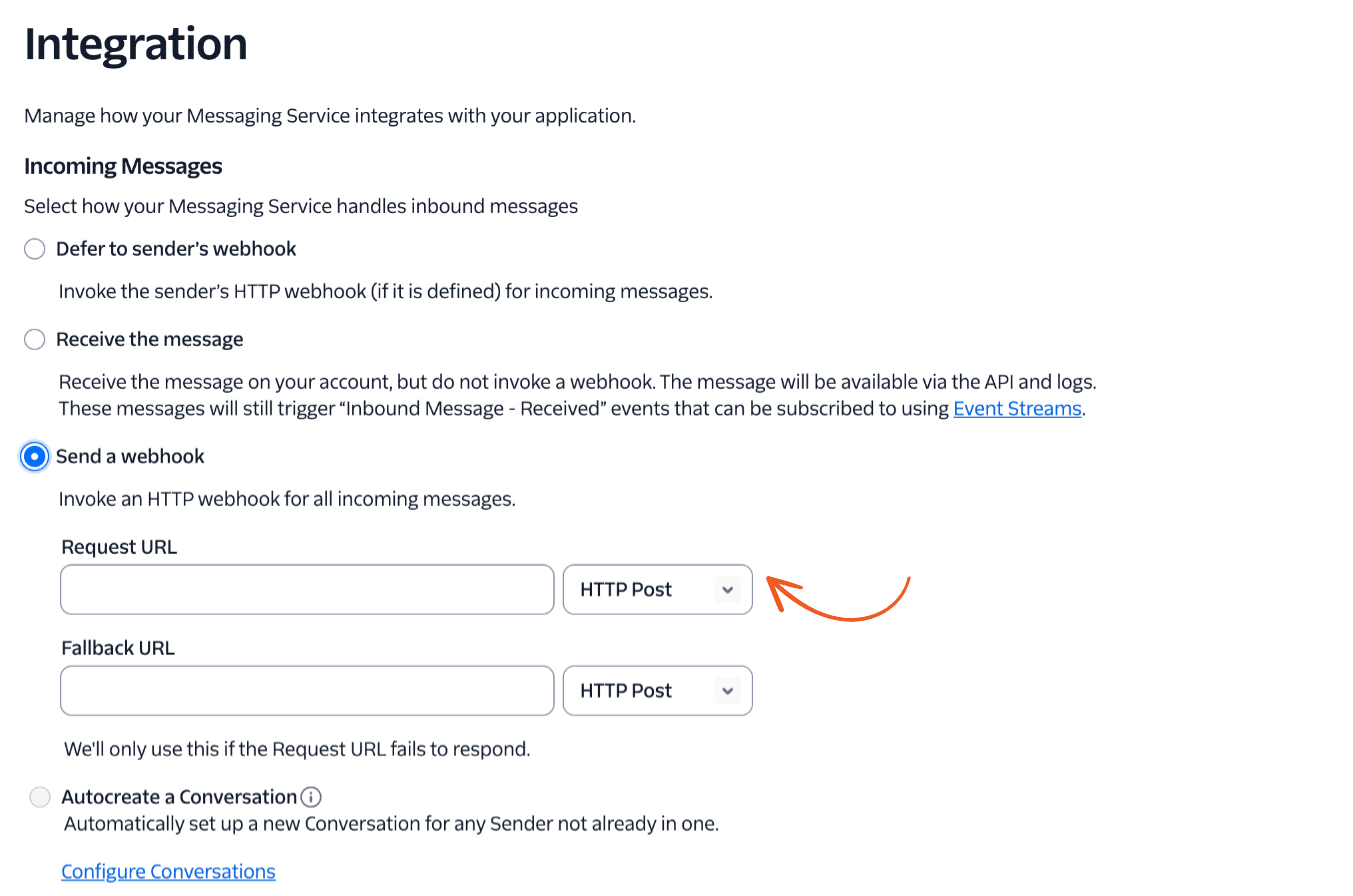
- In the Set up integration step, under Incoming Messages, select Send a webhook. Paste your vote URL in the Request URL box and keep HTTP Post. After setup, you find it on the service's Integration page.
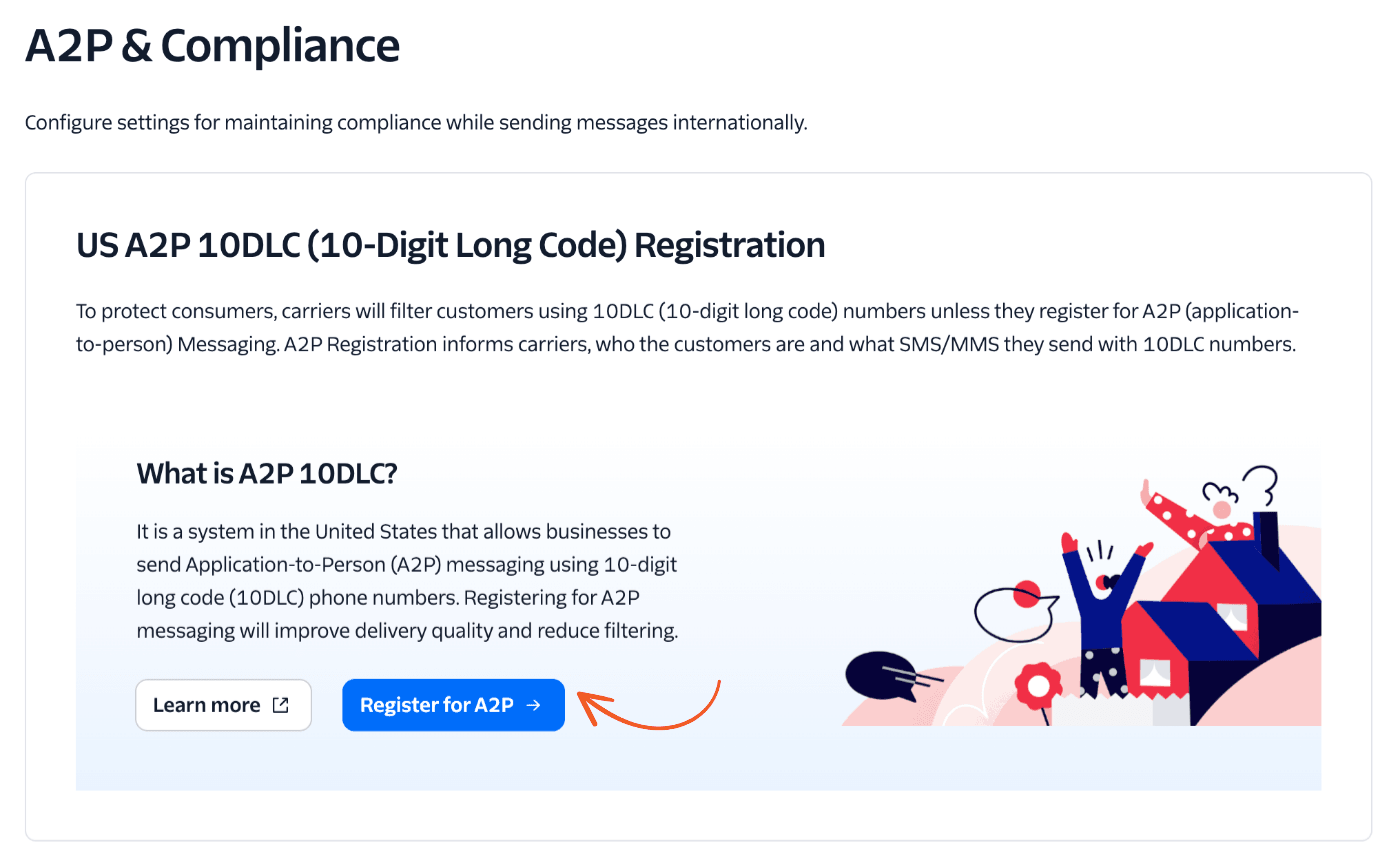
To keep the URL on the phone number instead, select Defer to sender's webhook and set it on the number. - In the Add compliance info step, click Register for A2P if your number is a US 10-digit long code number. After setup, you find it on the service's A2P & Compliance page. Twilio guides you through registering your brand and campaign. Learn more about A2P 10DLC registration.
Use the phone number
- Log in to the new Twilio Console (1console.twilio.com) and go to Numbers & Senders → My Inventory. Click the phone number that receives the votes.
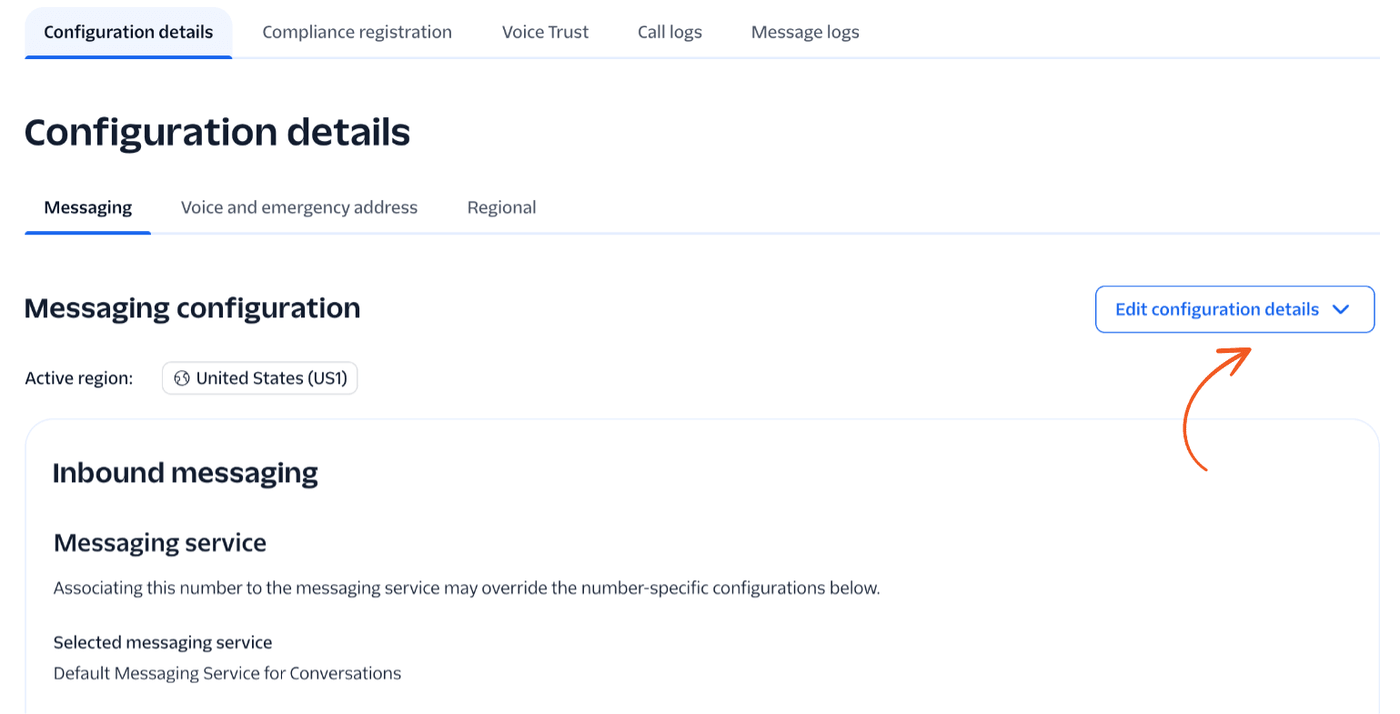
In the legacy Console (console.twilio.com, shown in this article's other Twilio images), go to Phone Numbers → Manage → Active numbers and click the number instead. There, enter your vote URL in the A message comes in box under Messaging Configuration and click Save configuration. - On the number's Configuration details → Messaging tab, click Edit configuration details.
- Under Inbound messaging, set incoming messages to go to a webhook. Enter your vote URL and choose HTTP POST. Then save your changes. If the number is in a messaging service, that service's Integration setting decides where texts go (see the note below).
Step 4: Test a vote
When a user texts their vote to your Twilio phone number, the text message content is saved to your poll or survey form's entries. Users can text either the number position of the choice in your form or the word itself.
For example, say your poll asks for a favorite color, and the choices are Red, Green, Pink, and Blue. To vote for Pink, a user can text any of the following:
- 3
- Pink
- pink
- PINK
To check your setup, text a vote to your Twilio number from your own phone. You get your form's success message back as a text, and the vote shows as a new entry in your form's entries. The voter's phone number is saved as the entry's IP address, in digits only and without the +. If you get a different reply, see Troubleshooting.
Send texts to a phone number list
To send texts to a list of phone numbers entered in a Formidable form, list the numbers in a View. Then use a second form to send the message to everyone in that View.
- Create a Classic View that uses entries from the form where phone numbers are stored. We'll call this the Numbers View.
- Click the Listing Page Content box (the box with a plus icon between Add Before Content and Add After Content). Select the Code tab and insert the ID of your phone number field followed by a comma. Then click Update.
[25],
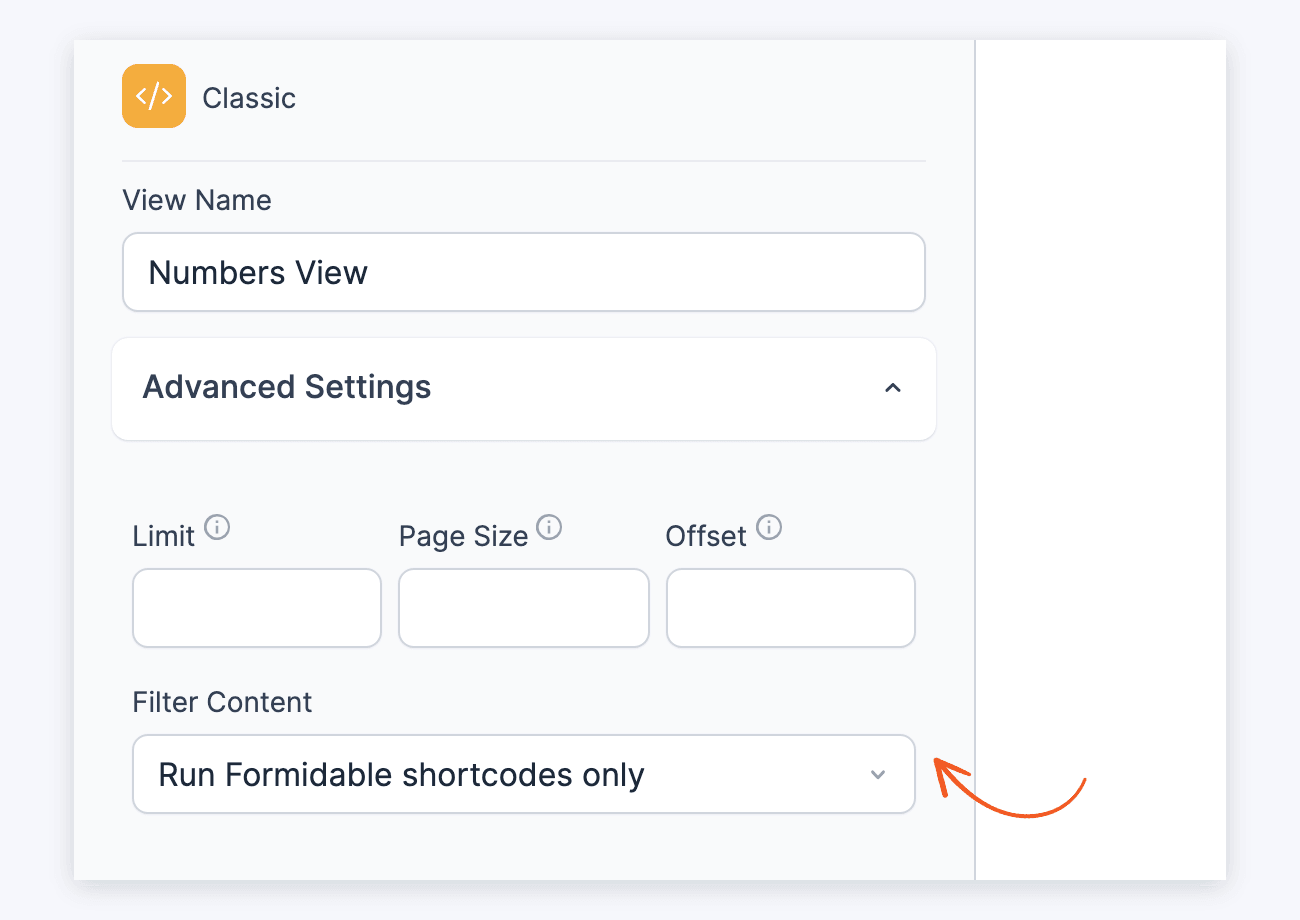
Replace 25 with the ID of your phone number field. The comma separates the numbers in the list. - In Advanced Settings, set Filter Content to Run Formidable shortcodes only. This keeps paragraph tags out of the list. Click Update to save your View.
- Create a new form to send out the messages. We'll call this the Send SMS Form. Add any fields you want to use and click Update.
- Follow the steps in Create a Twilio SMS form to create your Twilio action.
- In the To box, insert the shortcode for the Numbers View.
[display-frm-data id=x]
Replace x with the ID of the Numbers View. - In the Message box, insert the message you want to send when the form is submitted. Use the customization panel to insert field values. Click Update.
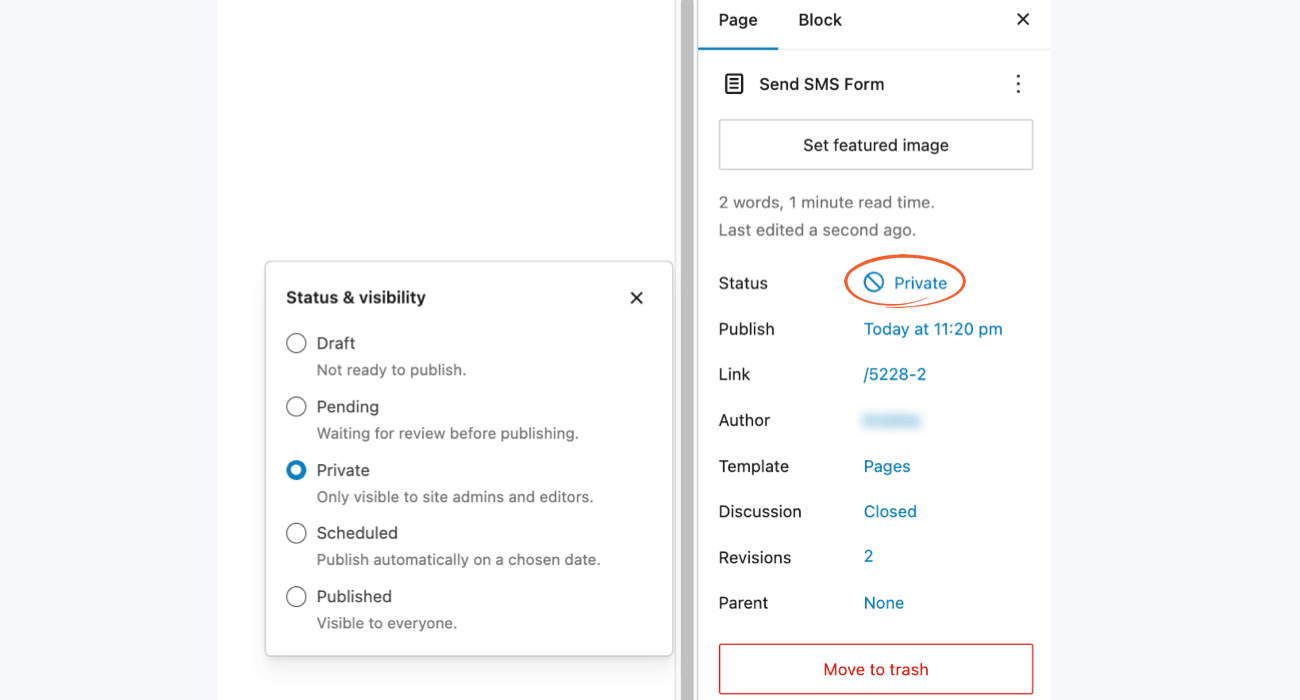
- Publish your Send SMS Form on a page. We recommend changing the page's Status to Private, or turning on Password protected, so only specific users can send texts to the Phone Number list.
Click Save. - Now when you fill out and submit the Send SMS Form, the message goes to all the phone numbers in the Numbers View.
Filtering phone number list
To send text messages to a filtered phone number list, use a parameter. In this example, texts go to users who have more than a certain number of points in their account.
- First, create the Numbers View.
- Go to edit your View.
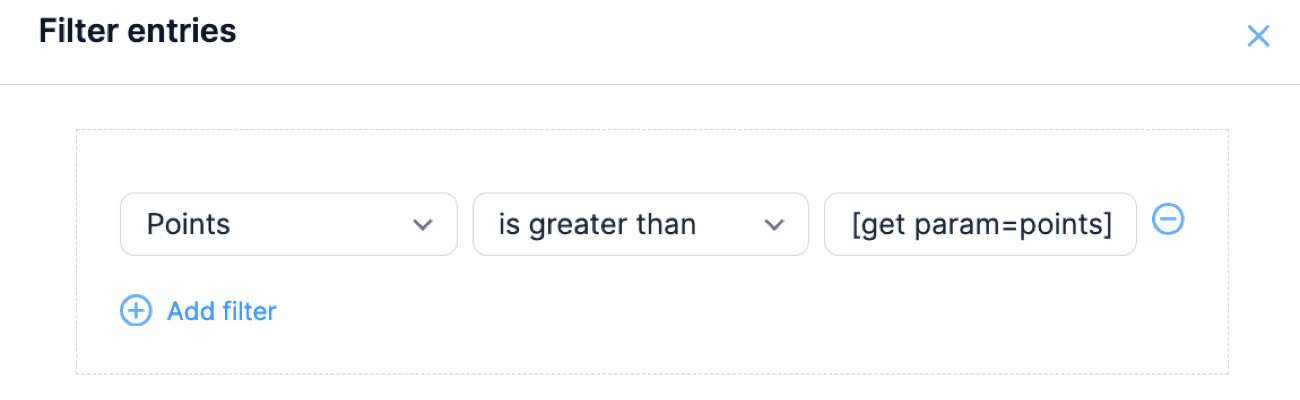
- Above the Listing Page content, click Filter entries. The Filter entries overlay opens with one blank filter row. In that row, choose your Points field, choose is greater than, and enter [get param=points]. Then click Update in the overlay.
- Click Update to save your View.
- When inserting the View shortcode, add a param with the value from the field.
[display-frm-data id=62 points="[100]"]
The value in field 100 is sent to the View and used in the filter. Swap out 62 for the ID or key of your View.
Limitation
- Sending from an alphanumeric sender ID isn't tested or supported, because Twilio doesn't offer alphanumeric sender IDs in the US.
Troubleshooting
No SMS message received
- Are you using a Twilio trial account? If so, did you verify the number you are sending to?
- Does the From number in your form settings match the number in your Twilio account? You must send from a Twilio number.
- If you are outside the USA, you must include an international code on the phone numbers. If these are missing, the USA code is used.
- Are your live Account SID and Auth Token in Formidable → Global Settings → Twilio? SMS messages don't send with Twilio test credentials.
- Do you send from a US 10-digit long code number to US phones? Twilio blocks these texts until the number is registered for A2P 10DLC and added to the Sender Pool of the messaging service linked to the approved campaign.
Sorry, I didn't understand that.
The add-on sends this reply in 2 cases.
- The text is empty or is only 0.
- The sender's phone number is shorter than 10 characters, counting the +.
To vote, text the number of a choice, such as 3, or the exact choice, such as Pink.
Sorry, there was an error saving your vote.
This message is shown in 2 cases.
- The form ID in your Twilio API URL isn't a valid form ID.
- Your form is set to only allow logged-in users to submit.
Sorry, you can only vote once.
This message is returned when your form is limited to 1 response per user, and this phone number already has a submission in this form.
Sorry, your vote doesn't appear to be authentic.
The text came from a different Twilio account than the Account SID in Formidable → Global Settings → Twilio. Use the vote URL with a number in the same Twilio account.
Related customizations
Undo phone formatting
When a phone number is prepared in this plugin, it is forced to be numeric. If you use a Twilio alphanumeric phone number, reverse this automatic formatting with the code below.
add_filter( 'frmtwlo_format_number', 'format_twilio_num', 10, 2 );
function format_twilio_num( $num, $args ) {
  return $args['original'];
}
Save phone number in a field
By default, the phone number is stored as the IP address for Twilio submissions. This example copies the value into another field.
add_filter( 'frm_validate_field_entry', 'copy_twilio_phone_number', 10, 3 );
function copy_twilio_phone_number( $errors, $posted_field, $posted_value ){
  if ( $posted_field->id == 25 && isset( $_POST['ip'] ) ) { //change 25 to the ID of the phone field
    $_POST['item_meta'][$posted_field->id] = $_POST['ip'];
  }
  return $errors;
}