
Single Line Text fields are the most commonly used field type. They are typically used to insert a small amount (or single line) of text, such as a name or a city. To add one to a form, click Text in the form builder's Add Fields tab.
Upgrade your WordPress site with powerful, flexible forms.
Standard field options
Select the field in the form builder to see its options in the Field Options tab. Most of them are in the Advanced section, so click Advanced to show them.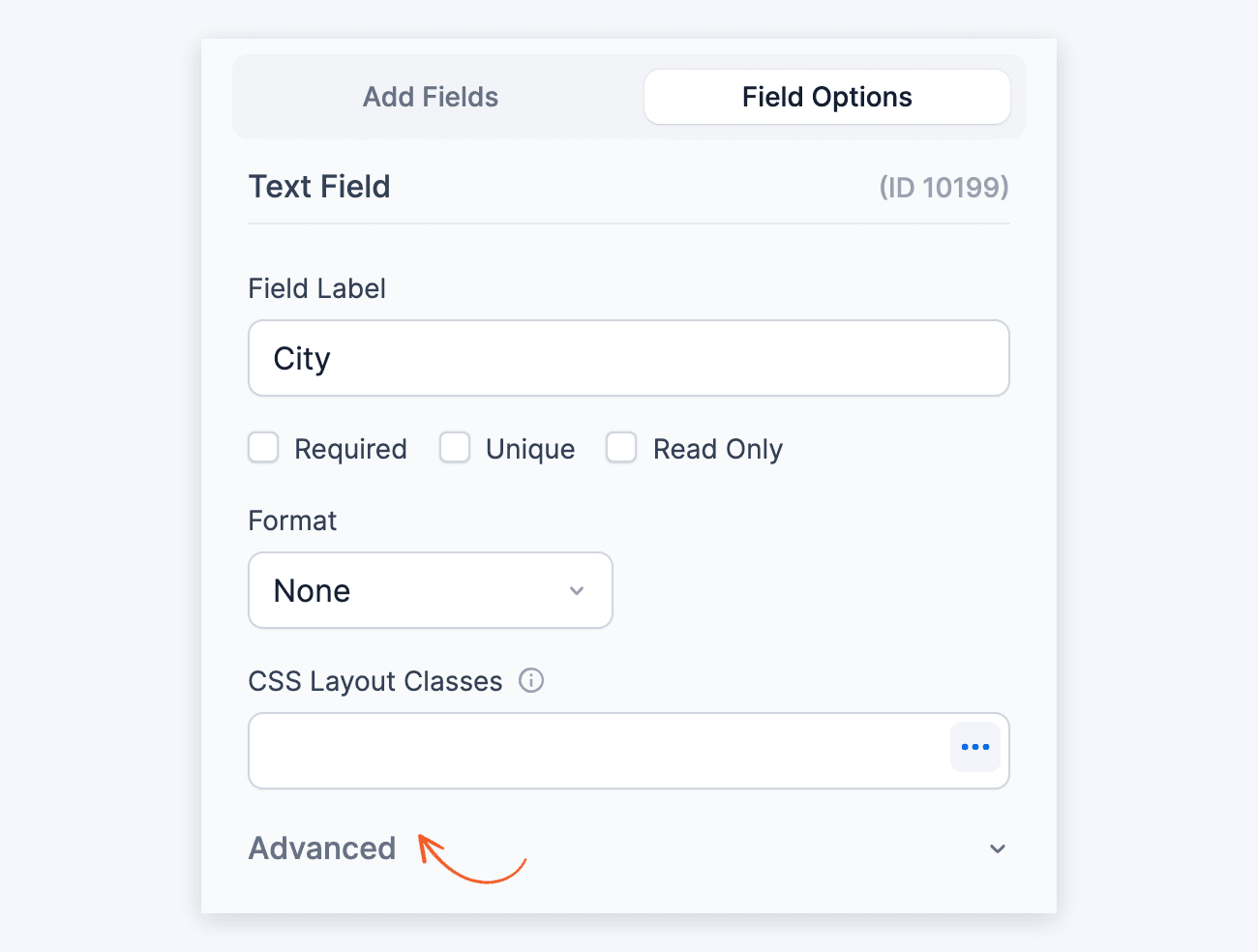
With Advanced open, the panel shows the options below. Conditional Logic is a separate section under it. Click its heading to expand it.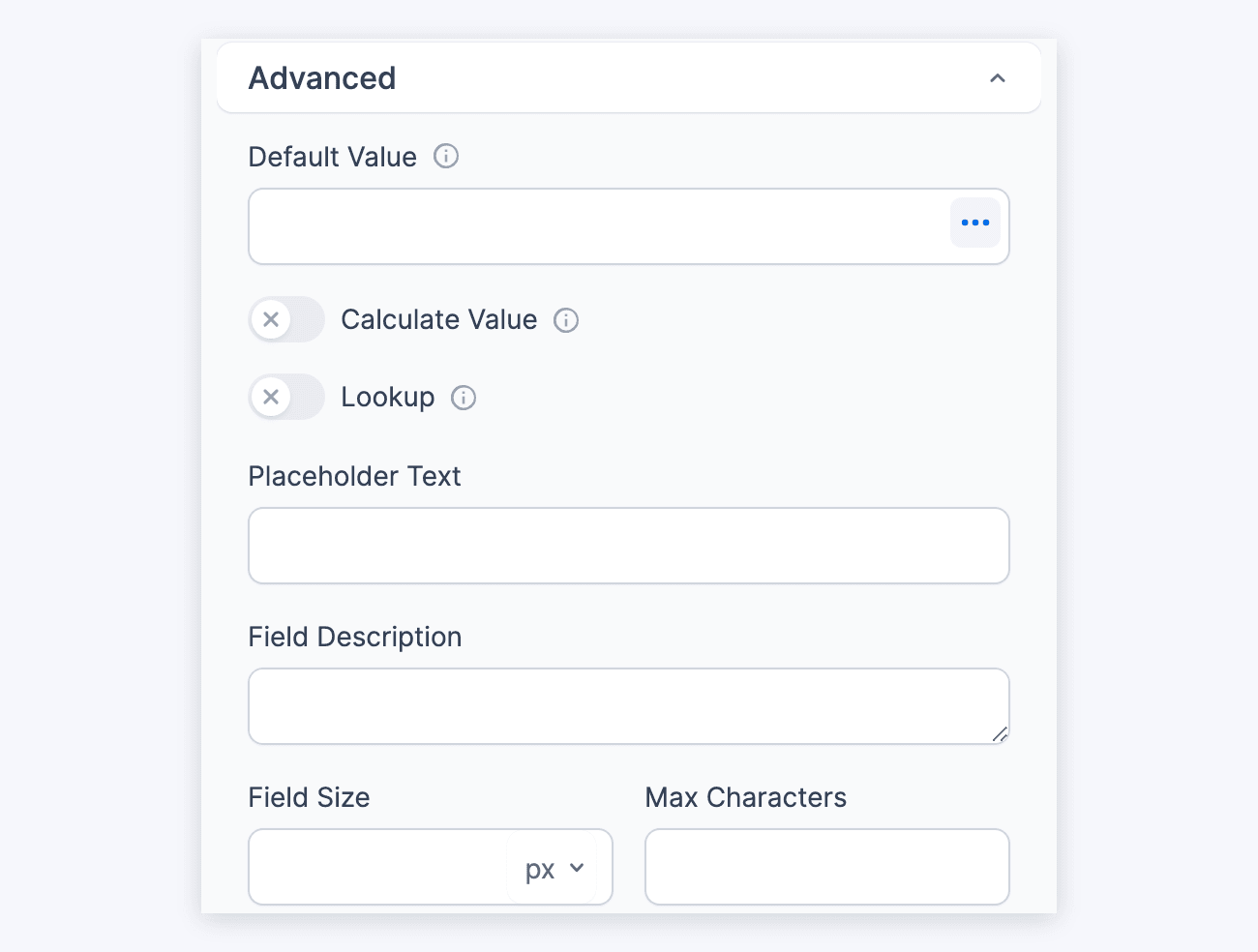
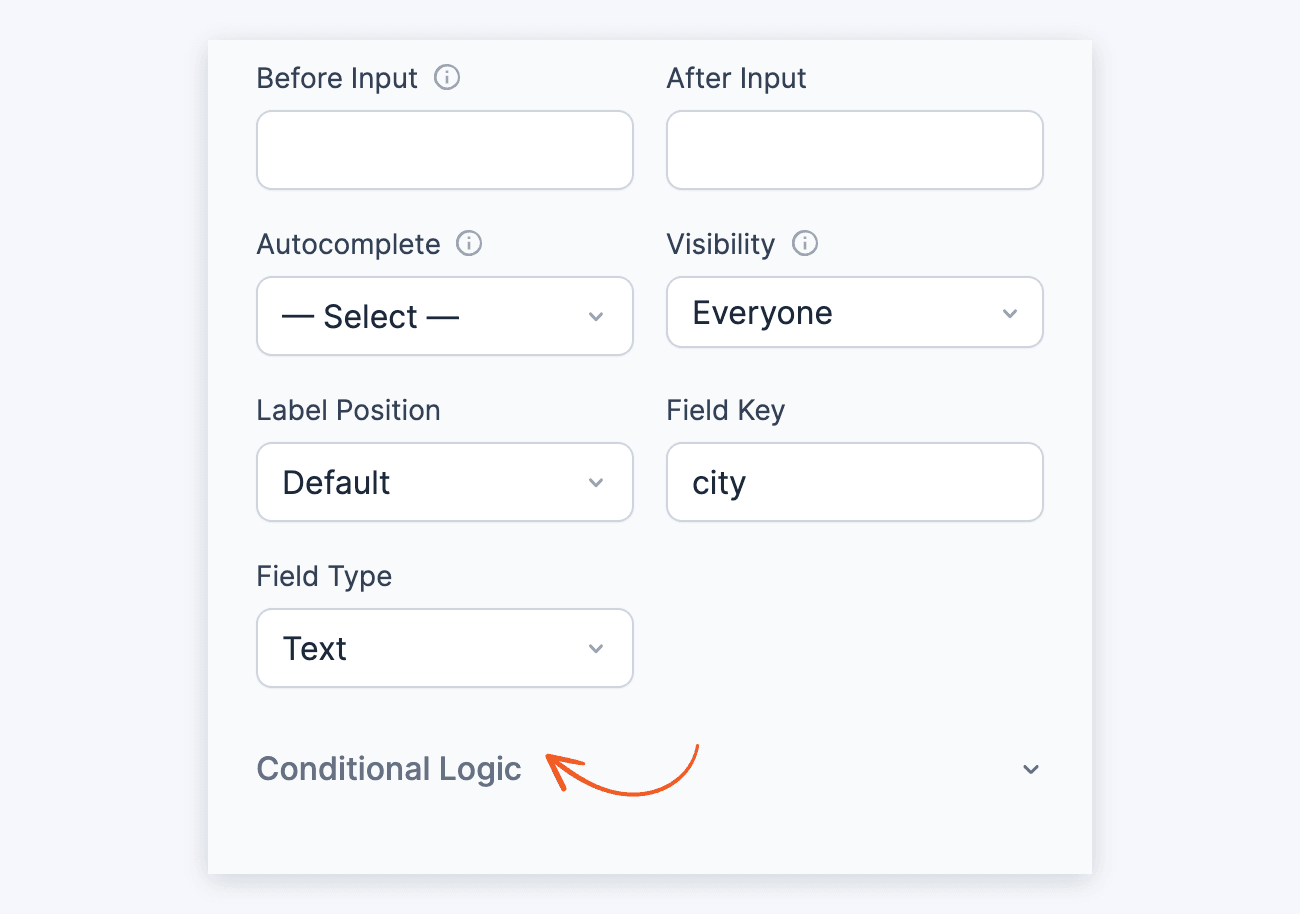
A Single Line Text field has the following options:
From Idea to Reality in Minutes. Build Powerful Forms, Dashboards, Apps and More.
Formidable Forms makes advanced site building simple. Launch forms, directories, dashboards, and custom WordPress apps faster than ever before.
Default values and field icons
Under Advanced, use the Default Value box to prefill the field, or the Placeholder Text box to show hint text inside it. Text in the Default Value box is submitted with the form unless the user changes it. Placeholder text disappears when the user starts typing and is not submitted. The Calculate Value and Lookup toggles sit under the Default Value box. They fill the field with a calculation or with a value from a Lookup field instead.
Learn how to set a default value and how to set a placeholder in a text field.
On the form builder page, drag a field by its move icon to move it. To duplicate or delete a field, click its More Options (⋮) icon. See the field action icons article for more information.
Field-specific options
Max characters
To limit how many characters a user can enter in the field, type a number in the Max Characters box. This box is blank by default, so there is no limit.
Autocomplete attribute
The Autocomplete dropdown sets the field's autocomplete HTML attribute. This attribute asks the browser to fill in the field from the user's saved details. Nothing is selected by default, so the field has no autocomplete attribute.
Read more about the autocomplete attribute.
The options give context to autofill features in browsers. For example, if you choose Birthday as an option, Safari can take your birthday from your profile details and insert it into the form.
Custom format
The Format dropdown is set to None by default. To require a specific format, select Custom in the Format dropdown. Then enter the format you want in the box next to it, such as 999-999 for 6 digits with a dash. The Format dropdown is above the Advanced section.
With Formidable Forms Pro, the box takes an input mask. For more help, check the guide on customizing the format with an input mask.
Max characters and calculations
Max Characters doesn't work with calculations. When you turn on Calculate Value for the field, the Max Characters box is disabled. If it already had a number, that number is cleared and a "Max Characters Removed" message explains why.
Currency format
To show the number in the field as currency, select Currency in the Format dropdown. It follows the currency format set in Formidable → Global Settings by default. This format includes two decimal places and a currency symbol.
To use a different format, uncheck Use Global Currency Settings. Then set the Thousand and Decimal separators, the Decimals, and the Left symbol or Right symbol. The currency formatting is applied when the user leaves the field. For example, if a user types 5000, it changes to $5,000.00.
Number format
To format the numbers in the field, select Number in the Format dropdown. It has options for the thousand separator, decimal separator, decimal places, and symbols on the left and right.
The number formatting is applied when the user leaves the field. Decimals is set to 2 by default. For example, if a user types "There are 1500000 attendees in the event", it changes to "There are 1,500,000.00 attendees in the event". To show "1,500,000", set Decimals to 0.
Display single line text fields
Display the value submitted in a Single Line Text field in a form's confirmation message, email, or View. Insert [x], where x is the ID or key of the Single Line Text field. The field ID shows next to the field name at the top of the Field Options tab. The field key is in the Field Key box under Advanced.
To edit the confirmation message, go to Settings → Actions & Notifications in the form builder. Then open the Confirmation action.
If you haven't created a View before, read more about creating a View.
Related developer hooks
- Capitalize every letter in a text field with the frm_validate_field_entry hook.
- Change the list of autocomplete options with the frm_autocomplete_options hook.
