

Upgrade your WordPress site with powerful, flexible forms.
What is Google reCAPTCHA?
Google reCAPTCHA is a program that judges whether a user is a human or a robot. You have probably seen some variation of reCAPTCHA.
CAPTCHAs are used by many websites to prevent abuse from 'bots', or automated programs usually written to generate spam. Bots cannot easily submit forms protected by reCAPTCHA. Formidable Forms offers one-click reCAPTCHA (V2) and invisible reCAPTCHA. When setting up reCAPTCHA for your site's forms, you will choose between these two options.
From Idea to Reality in Minutes. Build Powerful Forms, Dashboards, Apps and More.
Formidable Forms makes advanced site building simple. Launch forms, directories, dashboards, and custom WordPress apps faster than ever before.
Set up reCAPTCHA
The simplest way to create a reCAPTCHA key is through the reCAPTCHA admin console. If you prefer to use the Google Cloud Console, follow the instructions for the Google Cloud site. To set up reCAPTCHA on your website, follow these steps.
Step 1: Generate reCAPTCHA Keys
Select the appropriate type of reCAPTCHA key for your needs and generate the keys.
- Create a free account for Google reCAPTCHA. Click the Get Started button.

- Register the site where you want to use reCAPTCHA. To identify your site, add a label, such as a nickname or the website's URL.
- Set the reCAPTCHA type to either Score-based (v3) or Challenge (v2). Note that only one type of reCAPTCHA is allowed per site.
- Score-based (v3): Uses reCAPTCHA v3 to verify requests with a score. Learn more about the reCAPTCHA threshold.
- Challenge (v2) - Checkbox: Uses reCAPTCHA v2 to validate requests with the "I'm not a robot" checkbox.
- Challenge (v2) - Invisible: Uses reCAPTCHA v2 to validate requests in the background with the Invisible reCAPTCHA badge.
See reCAPTCHA site types for more details.
- Enter the domain where you intend to use the reCAPTCHA. This includes both the main domain and any subdomains.
- Click the Submit button to save your changes.
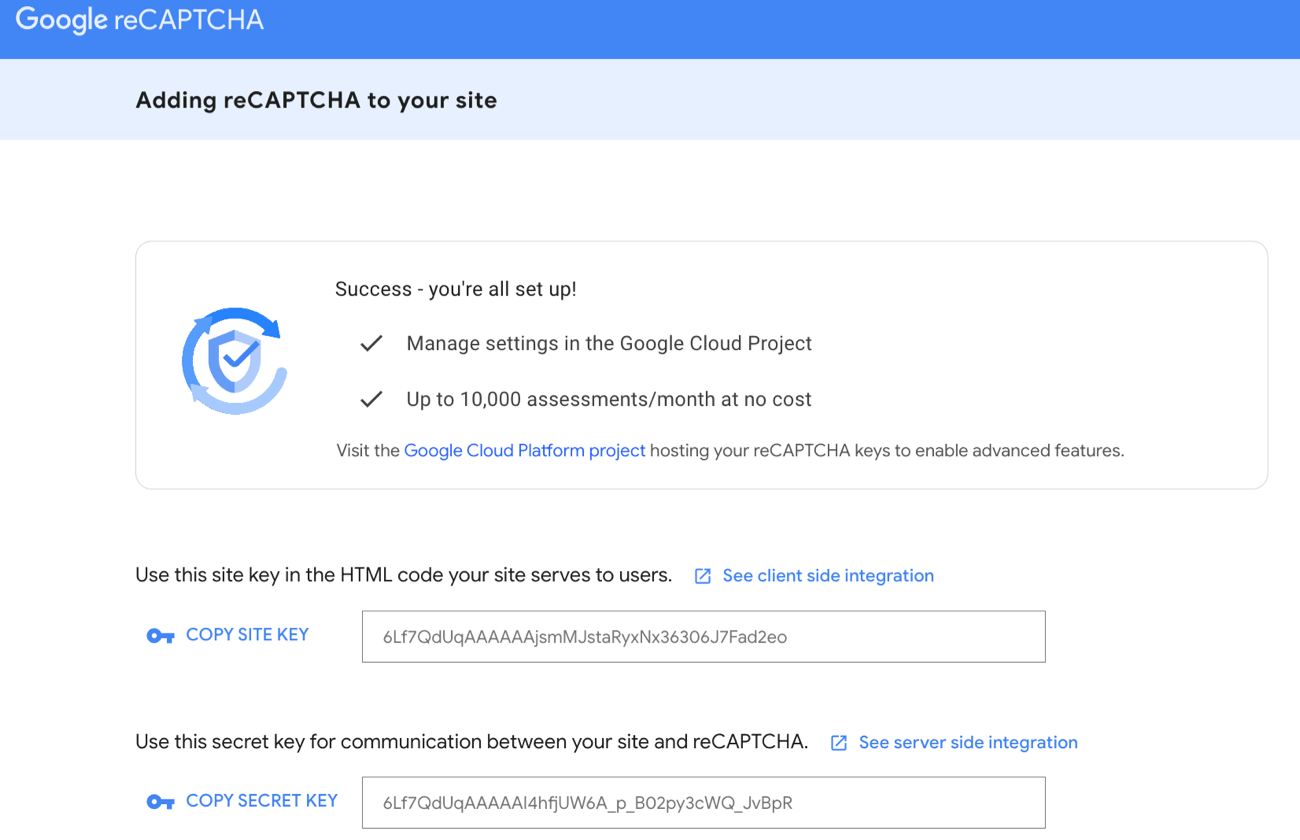
- After setting it up, you will be redirected to the page where you can copy the site key and secret key for the site.


Step 2: Connect reCAPTCHA with Your Site
Add the generated reCAPTCHA keys into your Formidable settings to proceed with the integration.
- Go to your site's Formidable → Global Settings → CAPTCHA. Select reCAPTCHA as the Captcha type.
- Copy and paste your reCAPTCHA site key and secret key.
- Select the reCAPTCHA Type. It should match the type that you selected when you generated the keys.
- Set the default language for your reCAPTCHA.
- If you use multiple reCAPTCHA fields on one page, you must check the option to Allow multiple reCAPTCHAs to be used on a single page.
- Add the reCAPTCHA field to each form you want to protect by following the guide on adding CAPTCHA to WordPress forms.
If the form has multiple pages, place the reCAPTCHA on the last page.


reCAPTCHA V3
You can also protect your forms with Google reCAPTCHA v3. Instead of using the "I'm not a robot" checkbox or the invisible reCAPTCHA badge, reCAPTCHA v3 verifies requests with a score. You can adjust the score using the reCAPTCHA Threshold slider.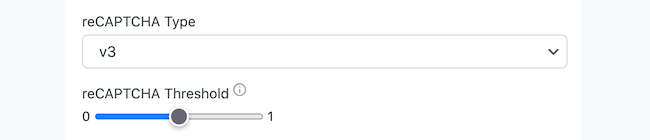
- A score of 0.5 is the current default value. A score of 0 is likely to be a bot, and a score of 1 is likely not a bot.
- Setting a higher threshold will block more spam, but it may also block more real people. Setting a lower threshold will allow more bots and have fewer false positives. It will also stop fewer real users.
- The score value for each entry will be displayed in the entry details.

How to disable reCAPTCHA
If your form includes a reCAPTCHA and you would like to turn it off, delete the reCAPTCHA field from the form builder page. Delete the reCAPTCHA field on any form that includes a reCAPTCHA that you would like to disable. You can also visit the Formidable -> Global settings page and remove the reCAPTCHA keys.
Troubleshooting
Invisible reCAPTCHA is not invisible
If you are using Invisible reCAPCHA on your site, and Google flags you as suspicious (most likely from submitting your form multiple times from the same IP address), it may display an image challenge after the submit button is clicked. This is expected behavior for Invisible reCAPTCHA to ensure you are a human, and not a robot.
ReCAPTCHA was not entered correctly
When the form is submitted, you may see the message "The reCAPTCHA was not entered correctly".
- Your site keys may not be correct. First, reenter the reCAPTCHA site keys and make sure there are no tabs or spaces in them.
- If your site uses SSL on some pages but not others, you may be getting a cross-site scripting error blocking the script. Try forcing the form pages to use SSL.
- If you have another plugin loading a reCAPTCHA on the same page, they are likely conflicting. Disable other reCAPTCHA plugins.
ReCAPTCHA couldn't find user-provided function
This error may be seen when another WordPress plugin is active that loads the reCaptcha in a different way, and included the script on every page. We've specifically seen this with the 'Pie Register' plugin. Learn how to find a conflict in WordPress to prevent the reCAPTCHA from failing.
Google ReCAPTCHA in localhost
If you are working in a local environment, reCAPTCHA will work. However, it will show the message 'The reCAPTCHA is currently running on localhost'. This is normal behavior and the message will disappear when reCAPTCHA is used on a live site.
Cannot contact reCAPTCHA
When a page with a reCAPTCHA is loaded, you may see the error "Cannot contact reCAPTCHA. Check your connection and try again." One reason we have seen for this error, is the reCAPTCHA key is set to v2 but your forms are using invisible reCAPTCHA. Learn how to switch your keys to Invisible reCAPTCHA.
Checkbox reCAPTCHA is not showing
The reCAPTCHA relies on javascript to appear and validate. If nothing appears, this is a common sign of a javascript error on the page. You may also have another reCAPTCHA plugin installed that isn't playing nicely, like Google Captcha (reCAPTCHA) by BestWebSoft.
reCAPTCHA not working in Chrome
We have seen the reCAPTCHA fail in a certain browser. The cases we have seen ended up not being a browser issue, but related to page caching for logged out users. If the reCAPTCHA is working for you in one browser and not another, start by disabling any caching on your site.
Invalid domain for Site Key
If you are using reCAPTCHA on your site and you see the error ERROR for site owner: Invalid domain for site key, this means your site key is no longer valid.
Also, your website url must match exactly what is included in the site key settings. Subdomains don't need to be added separately. Changes to the domains list may take up to 30 minutes to take effect.
Please register a new key to resolve this issue. If you cannot resolve your issue, feel free to open a help desk ticket for further assistance.
Invalid key type
If you are using reCAPTCHA on your site and you see the ERROR for site owner: Invalid key type message, this means that you are using an incorrect reCaptcha key type. For example, V3 keys are not compatible with V2 reCaptcha, and V2 keys are not compatible with Invisible reCaptcha. Key types are not interchangeable.
Please make sure that your generated key type matches with the reCaptcha type you have configured in your Formidable → Global Settings → CAPTCHA. If you cannot resolve your issue, feel free to open a help desk ticket for further assistance.
Invalid site key
If you are using reCAPTCHA on your site and you see the ERROR: Invalid site key message, this means that you are using an incorrect reCAPTCHA site key and it is no longer valid.
Please register a new key to resolve this issue. If you cannot resolve your issue, feel free to open a help desk ticket for further assistance.
reCAPTCHA badge showing
In order to be compliant with the Google terms, the reCAPTCHA badge should be included on the page. To hide this, you can add the custom CSS below on your Formidable → Global Settings → Custom CSS page.
.frm_form_field .grecaptcha-badge {
  visibility: hidden;
}
Google reCAPTCHA verification failed
When the login form is submitted, you may see this error message. If you have another reCAPTCHA plugin like Simple Google reCAPTCHA and reCAPTCHA Lite, they are likely conflicting.
The captcha is missing from this form
If you are using reCAPTCHA on your site and you see this error message, this means that there is a Javascript error on your page or the wp_footer hook is missing from your theme.
