
Subscribe visitors to a Mailchimp list with Formidable for your Mailchimp signup forms. When a form is submitted, automatically add or update subscriber information.
Upgrade your WordPress site with powerful, flexible forms.
Download and install
- If you haven't already, install and activate the current version of Formidable Forms Premium on your WordPress site.
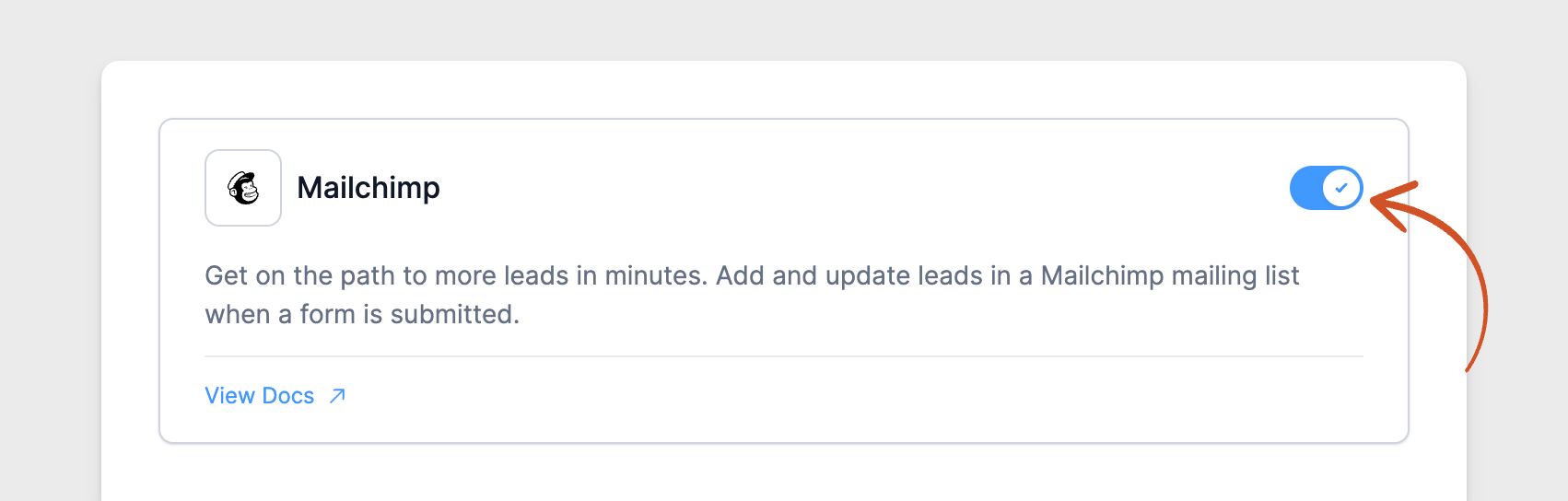
- After confirming your Formidable Forms license, go to Formidable → Add-Ons and toggle on the Mailchimp WordPress plugin.

From Idea to Reality in Minutes. Build Powerful Forms, Dashboards, Apps and More.
Formidable Forms makes advanced site building simple. Launch forms, directories, dashboards, and custom WordPress apps faster than ever before.
Set up a Mailchimp signup form
Now that the Mailchimp plugin is activated, set up a Mailchimp signup form to integrate Formidable Forms with your Mailchimp account.
How to get Mailchimp API key
- You can find your API key by logging into your Mailchimp account.
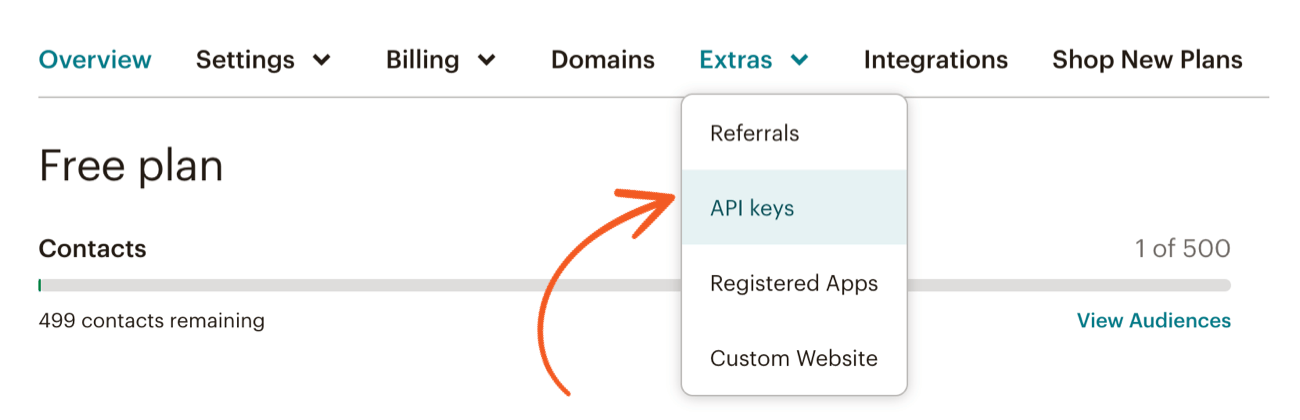
- Go to Account & Billing → Extras → API Keys. Generate a key if you don't have one set up already.
- Add the code snippet below to your site. Formidable Forms 7.0 with the Mailchimp add-on 2.10 needs it to save the API key. Without it, the page shows Settings Saved but the API Key field is empty after the page reloads. Learn where to put the code.
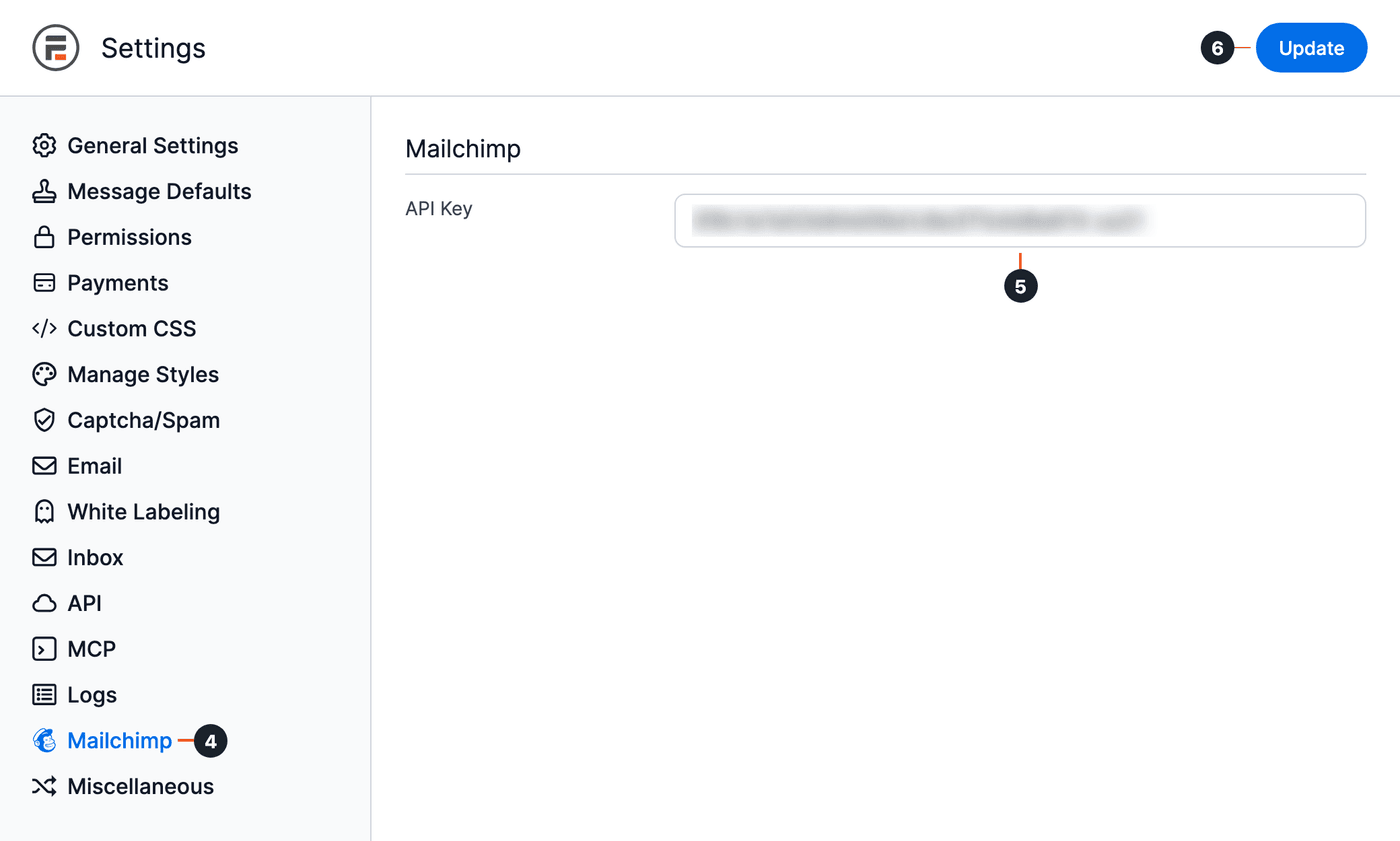
add_action( 'admin_init', 'frm_mlcmp_save_api_key' ); function frm_mlcmp_save_api_key() { if ( isset( $_GET['page'], $_POST['frm_action'] ) && 'formidable-settings' === $_GET['page'] && 'process-form' === $_POST['frm_action'] && ! isset( $_POST['action'] ) ) { $_POST['action'] = 'process-form'; } } - In WordPress, go to Formidable → Global Settings and click Mailchimp.
- Paste your Mailchimp API key into the API Key field. When you click outside the field, a message under it shows whether the key works: Valid API key, or an error such as API Key Invalid. If you see an error, copy the key from Mailchimp again.
- Click Update to save your changes. The key stays in the API Key field after the page reloads.
Set up Mailchimp form settings
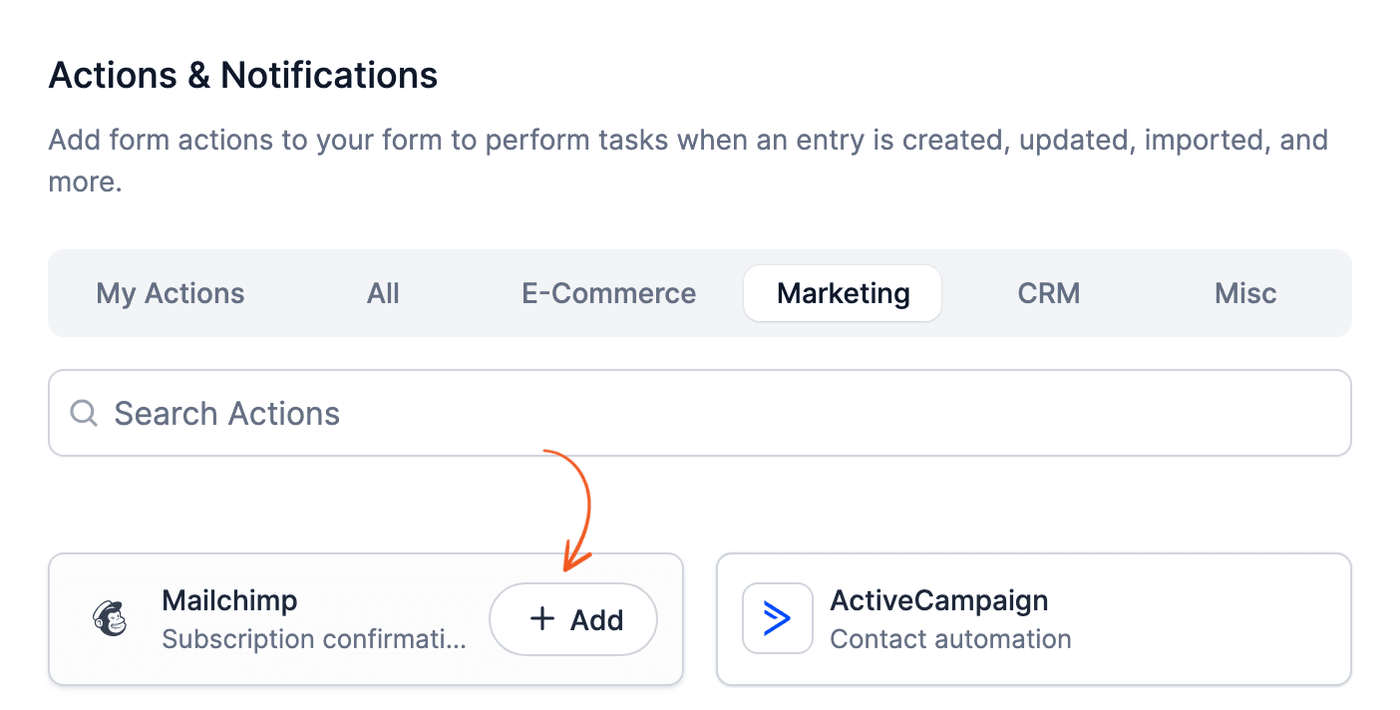
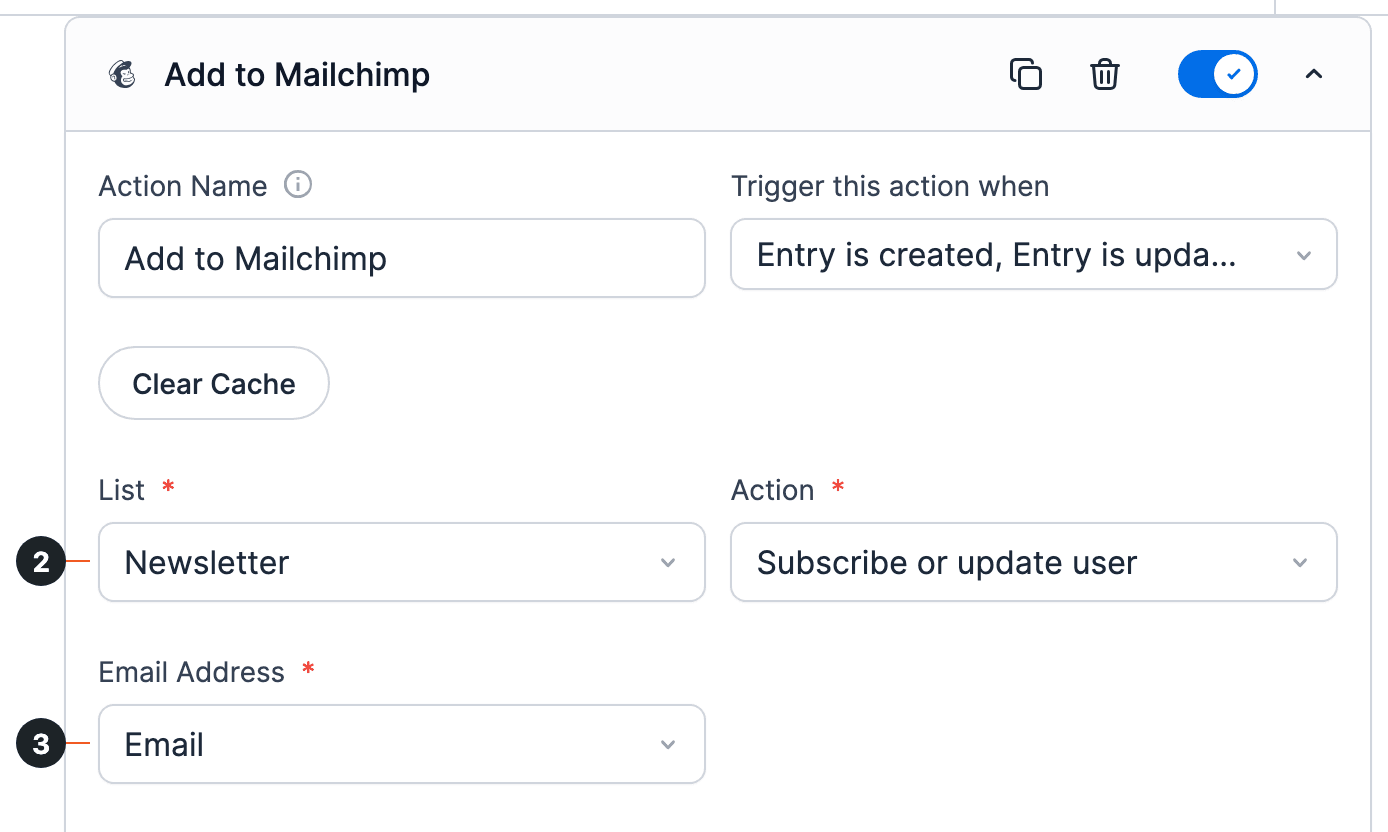
- Go into the form which you will be using to subscribe users to a mailing list. Click on Settings → Actions & Notifications. Select the Marketing tab and search for Mailchimp if needed. Then hover over the Mailchimp card and click Add. An Add to Mailchimp action opens under Current Actions.
- In List, select the Mailchimp list you want to add subscribers to.
- In Email Address, select the email field from your form.
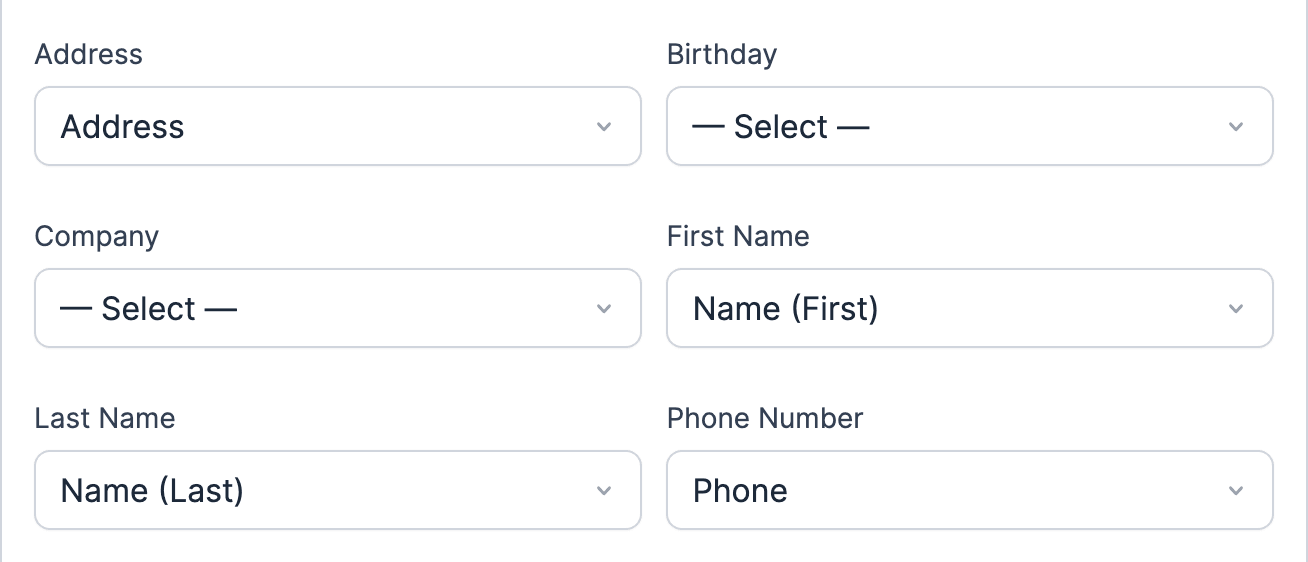
- Map any other fields you want to send to Mailchimp. Each setting is named after a field in your Mailchimp list, such as First Name or Phone Number. The settings you see depend on your list. If a field you just added in Mailchimp is missing, click Update. Then click Clear Cache. The page reloads with the current fields.
- Trigger this action when: Select Entry is created to add the user to the mailing list when they submit the form. Select Entry is created and Entry is updated to also update the user's details in the mailing list when their entry is updated.
- Tags: Add a comma-separated list of tags to include on the subscriber. Learn more about how to add tags to a subscriber.
- Opt in: To add the user's email address to the mailing list automatically, select 'Single'. Select 'Double' to have the user confirm their subscription before they're added to the mailing list.
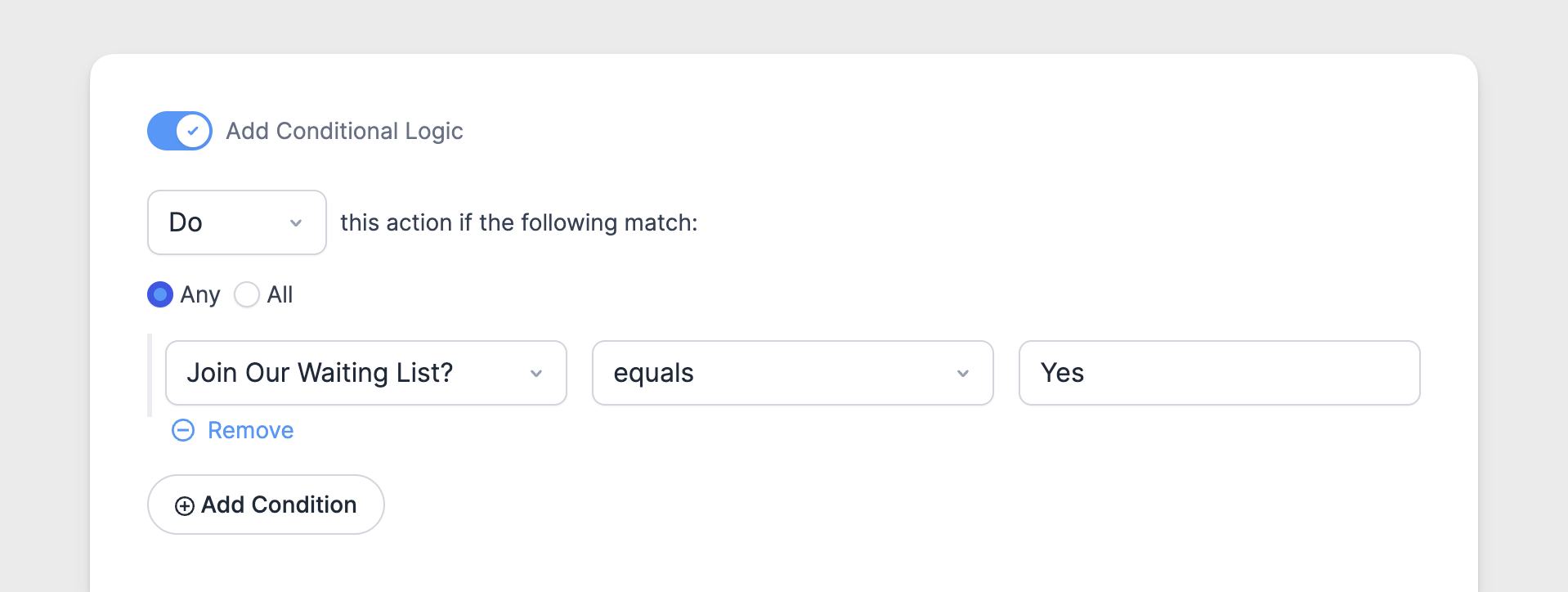
- Conditional logic can be used to add a user to the mailing list only if specific conditions are met. Conditional logic requires a paid Formidable Forms license.
- Click Update to save your changes.
Set up a group field
- Set up a group on your Mailchimp account.
- Once you have set up a group in Mailchimp, go into your form and add a field for the group. If you don't want this field to be seen, you can select a default value and set the field visibility to administrator.
- Go to your form Settings → Actions & Notifications → Mailchimp.
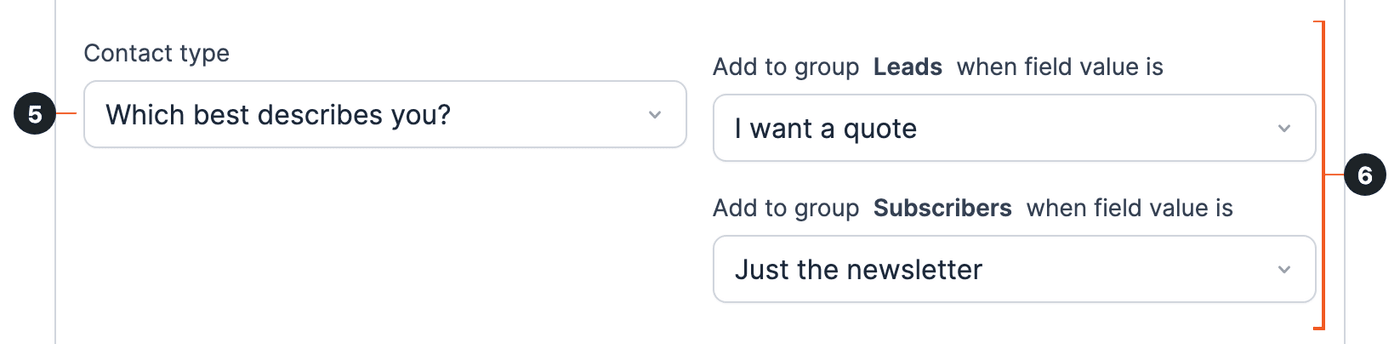
- Select the Mailchimp list and the Email Address field if you haven't already. If your Mailchimp group was set up correctly, a setting with the group's name appears. In this example, the group is 'Contact type', with the options 'Leads' and 'Subscribers'.
- In the group's setting, select the field that you created in Step 2.
- In each Add to group … when field value is setting, select the field value that adds the subscriber to that group. You don't have to select a value for every option in the group.
- Click Update to save your changes.
Add tags to a subscriber
After your Mailchimp form action is set up, you will see a Tags option. This field accepts values from a field, or any tags typed directly into the setting. When adding multiple tags, separate each one with a comma. A few examples of valid tags include:
- lead,from website
- [25],[26]
- [25],lead
When the action runs for an updated entry, Mailchimp adds the new tags to the subscriber and keeps the tags they already have. Groups work differently: the subscriber's groups change to match the updated entry.
Set up a mailing address
Mailchimp has a few specialized types of fields that can be added to each list. An address field is one of these optional fields. To send an address from a contact form to Mailchimp:
- Set up an Address field in your Mailchimp list. Learn how to add fields to a Mailchimp audience.
- Go to the build page for your Formidable form and add an Address field.
- Go to your form Settings → Actions & Notifications and open your Mailchimp action. If you have not created one, create a Mailchimp action now.
- Map the Address option in the Mailchimp action to the Address field in your form.
- Click Update to save your changes.
Set up a phone number field
To pass a phone number from a Formidable form to Mailchimp:
- Set up a Phone field in your Mailchimp list. Learn how to add fields to a Mailchimp audience.
- Once you have set up a Phone Number field in your Mailchimp list, go into your form and add a Phone Number field. If you selected (999)999-9999 for the phone format in Mailchimp, set Format to Custom and enter 999-999-9999 in the box that appears. If you selected International for the phone format in Mailchimp, use any format in the Phone Number field.
- Go to your form Settings → Actions & Notifications and open your Mailchimp action. If you have not created one, create a Mailchimp action now.
- In the Mailchimp action, find the setting named after the phone field in your Mailchimp list, such as Phone Number. Select the Phone Number field from your form there.
- Click Update to save your changes.
Unsubscribing a user
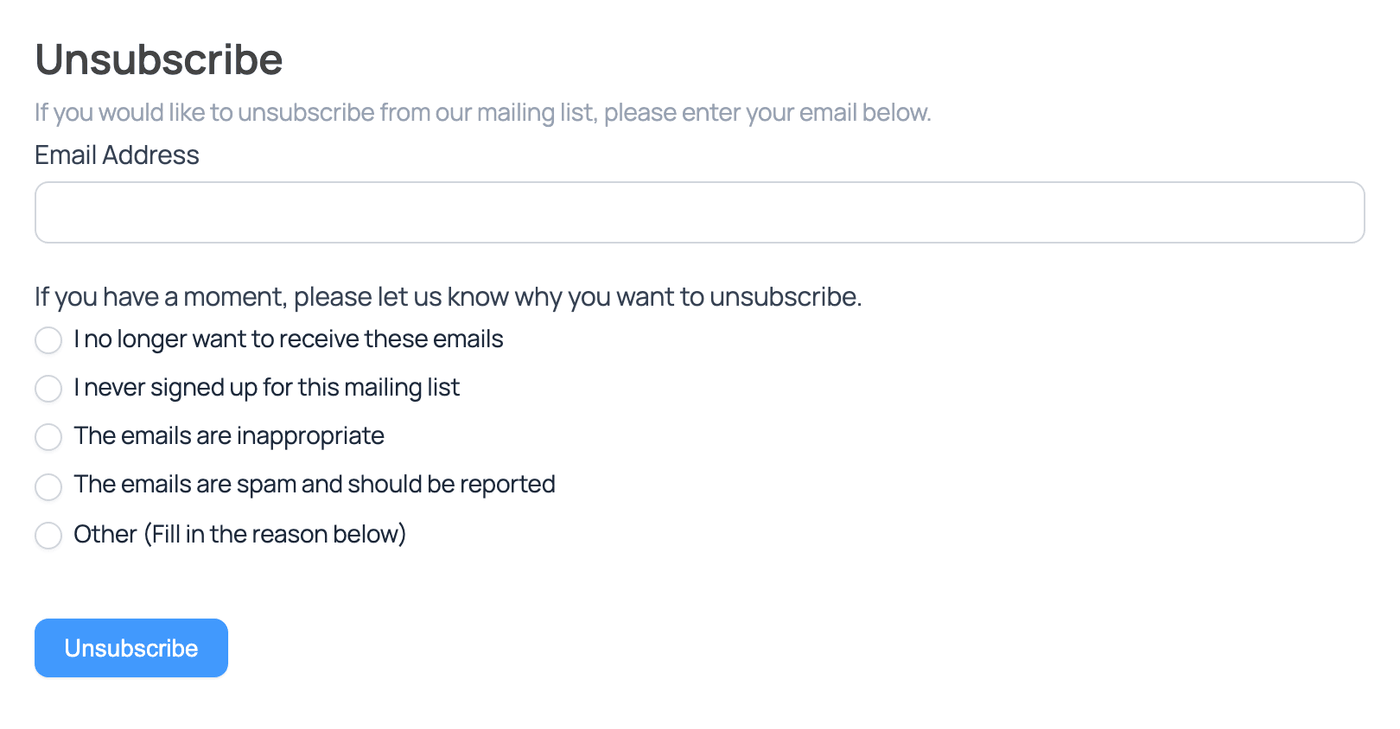
To create a form where users can unsubscribe from your Mailchimp mailing list:
- Create a form and add an email address field. You can build an unsubscribe survey.
- Go to your form Settings → Actions & Notifications. In the Marketing tab, hover over the Mailchimp card and click Add.
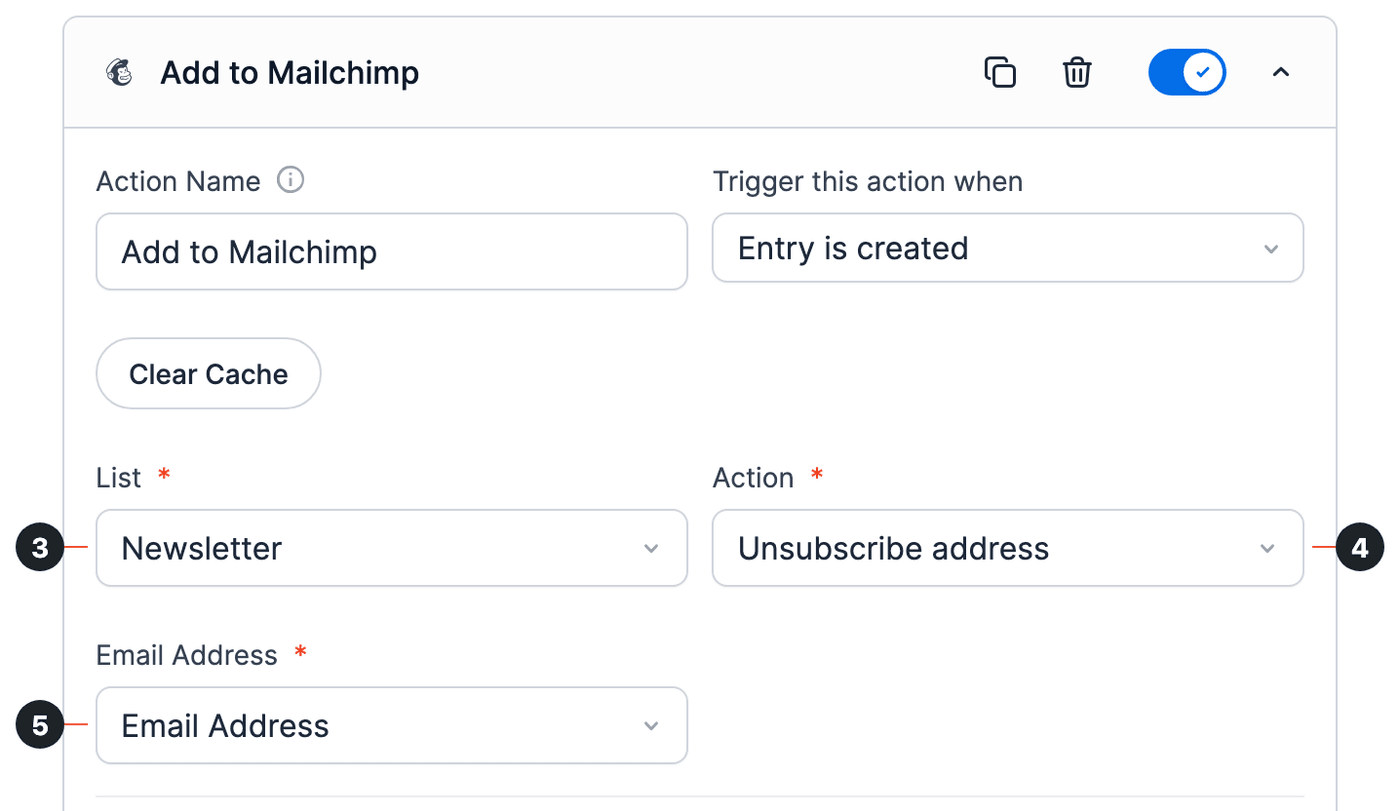
- In the Add to Mailchimp form action, select the Mailchimp List to unsubscribe users from.
- Set the Action to Unsubscribe address.
- In Email Address, select the email field from your form.
- Click Update to save your changes.
Mailchimp GDPR marketing
To set up your forms to stay compliant with the GDPR, enable GDPR fields in Mailchimp.
- Log into your Mailchimp account and go to Audience → Audience Dashboard → Manage Audience → Settings. Click the GDPR Fields and Settings.
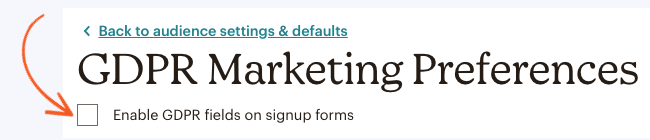
- Select the Enable GDPR fields on signup forms checkbox.
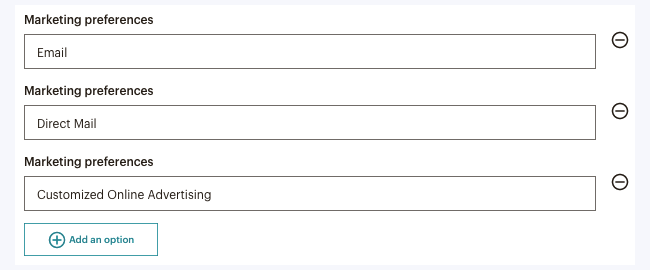
- By default, it will show the Marketing preferences options for Email, Direct Mail, and Customized Online Advertising. For more details on setting up your GDPR fields, see Mailchimp’s documentation.
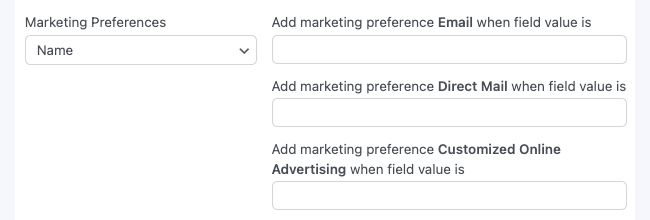
- Go to your form Settings → Actions & Notifications → Mailchimp form action and select a Mailchimp list.
- Select a field in the Marketing Preferences dropdown to display the options. There must be a Contact in the selected list before the settings show in the form action.
Read more: How to Use the Mailchimp GDPR Marketing Options
Additional customizations
Pass email type preference
To let users select their email type preference (either HTML or plain-text), first add a field to your form where the user can select 'HTML' or 'Plain-text'. In the field's options, select 'Use separate values'. Then type 'html' in the saved value box under the 'HTML' option and 'text' under the 'Plain-text' option. Make the field required: if it's left blank, Mailchimp rejects the subscription.
add_filter( 'frm_mlcmp_subscribe_data', 'frm_pass_email_type_preference', 10, 2 );

function frm_pass_email_type_preference( $sending_data, $entry ){

if ( $entry->form_id == 12 ) {

if ( ! empty( $entry->metas[150] ) ) {
  $sending_data['email_type'] = $entry->metas[150];
}

}

return $sending_data;

}
Replace 12 with the ID of your form. Replace 150 with the ID of the field where the email type is selected.
Limitations
When creating Mailchimp custom fields with the Address field type, we recommend setting the form field as required. If the user didn't fill out the full address details (i.e., Line 1 or Line 2 is left blank), Mailchimp ignores the entire address data.
Troubleshooting
Subscribers are not added
After you set up your form action with the instructions above, new subscribers are added to your Mailchimp list. If they are not, start with these steps.
- Mailchimp will not add email addresses that look fake (such as john@example.com) to a mailing list. Are you trying a real email address that has not been used as a subscriber in this account? The form still shows its success message, so the visitor doesn't see this. With the Formidable Logs add-on, Formidable → Logs shows the reason from Mailchimp, for example looks fake or invalid, please enter a real email address.
- Check whether the entry was saved as spam. Go to Formidable → Entries and click the Spam tab. Form actions, including the Mailchimp action, don't run for spam entries. If the entry is real, mark it as not spam and check the Mailchimp action to run it.
- Often the best first step is to install the Formidable Logs add-on to get more details about any errors that might be preventing your data from getting to Mailchimp.
- Turn on double opt-in in the Mailchimp signup form action settings. Then submit the form with an email address you have never used before with Mailchimp. If you receive the email, then you're good to go, and new subscribers will be added. Check your spam email too if you don't see it.
- If you do not receive the email, check the conditional logic settings in your form action. If you have conditional logic there, remove it and submit the form again. If you receive the email, adjust your conditional logic to trigger the subscription at the correct time.
No Mailchimp mailing lists found
If the Mailchimp action shows No Mailchimp mailing lists found instead of the List setting, the API key isn't saved. An error such as API Key Invalid often shows under it.
Go to Formidable → Global Settings → Mailchimp and check that your key is in the API Key field. If the field is empty, add the code snippet and save the key again, as described in How to get Mailchimp API key.
Mailchimp API.cURL error 28
If you see the "Mailchimp API.cURL error 28: Operation timed out" error message, it usually means that the Mailchimp API is timing out before retrieving your lists. You can fix this issue by increasing the WordPress HTTP request timeout, which defaults to 5. Add the following code to the WPCode plugin.
add_filter( 'http_request_timeout', 'frm_custom_timeout_extender' );
function frm_custom_timeout_extender( $time ) {
  return 30;
}
Registered user not receiving email
When an email address is added to the list multiple times, Mailchimp treats it as a duplicate so the email won't be sent again. Learn more about how Mailchimp handles duplicates.
