
The Likert Scale field allows users to select an option from a scale.
Upgrade your WordPress site with powerful, flexible forms.
Standard field options
Likert Scale fields have the following standard options: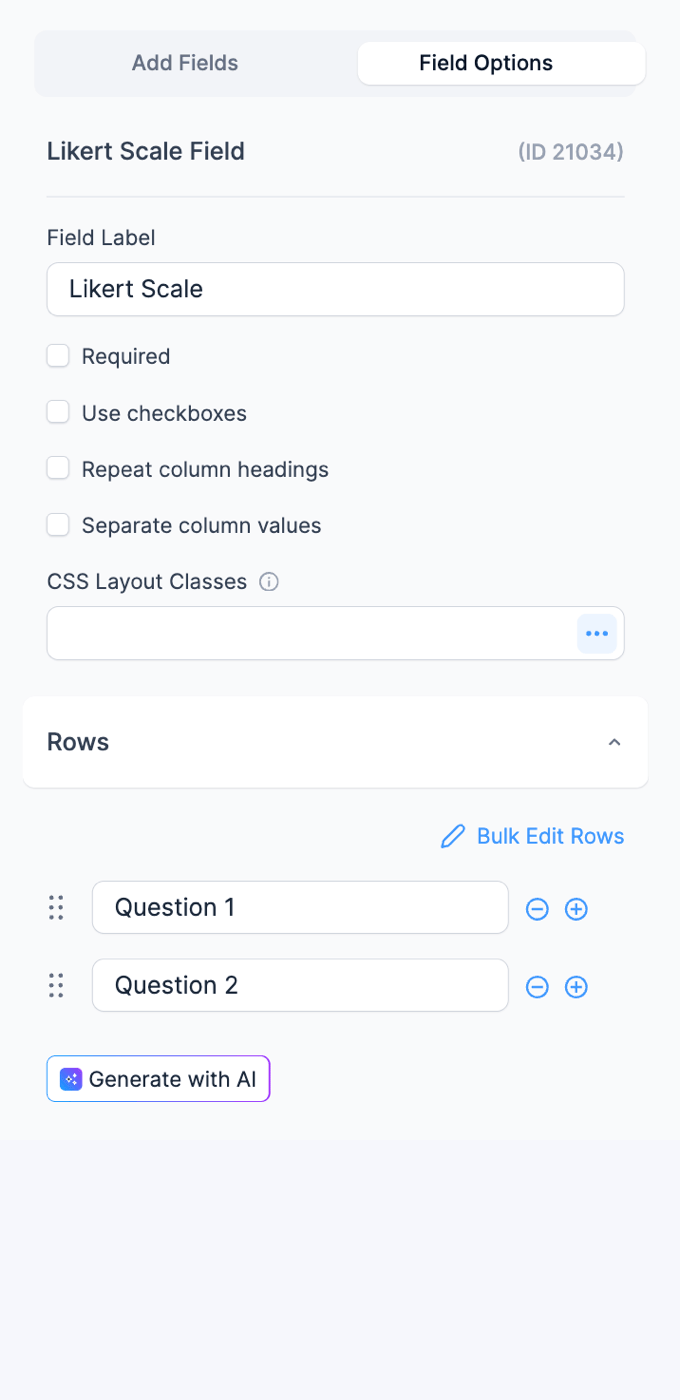

From Idea to Reality in Minutes. Build Powerful Forms, Dashboards, Apps and More.
Formidable Forms makes advanced site building simple. Launch forms, directories, dashboards, and custom WordPress apps faster than ever before.
Field-specific options
In addition to the standard field options, Likert Scale fields have a few field-specific options. Browse the sections below to learn more about the options specific to Likert Scale fields.
Add Row
Click the (+) button to add a new row to your field.
Reorder individual options by moving the drag and drop icon.
Note: Likert fields will hide the question column automatically when there is only a single question.
Bulk Edit Rows
Use the Bulk Edit Rows link to add, edit, or remove row options quickly.
Add Column
Click the (+) button to add a new column to your field.
Reorder individual options by moving the drag and drop icon
Bulk Edit Columns
Use the Bulk Edit Columns link to add, edit, or remove column options quickly.
Use checkboxes
Select Use checkboxes to choose multiple options per row. Each box can be checked and unchecked.
Repeat column headings
Select Repeat column headings if you would like the column headings to be displayed per row.
Separate column values
Select Separate column values if you would like to store a column value different from the column headings displayed per row.
For example, if your user selects Very Good, you can store the value as 10.
Field icons
Field action icons allow you to duplicate, delete, or move a field on the form builder page. See field action icons for more information.
Display Likert Scale fields
Display the value submitted in a Likert Scale field in a form's confirmation message, email, or View.
-
Display value
Display the value submitted in a Likert Scale field.
[x]
Replace x with the ID or key of the Likert Scale field.
-
Row
Determine which row should be included in the displayed Likert Scale value. For example, using [x row="1"] for the first row, [x row="2"] for the second row and so on.
[x row="1"]
Replace x with the ID or key of the Likert Scale field.
Separate column value calculation
If you would like to calculate the values of each selected option in the Likert Scale field, follow the instructions below.
- Go into edit your form.
- In the Likert Scale field, select the Separate column values checkbox.

- In the Columns section, add the number at the end of each saved value. The calculation will only use numbers and decimals from the end of each saved value. Any other text or numbers before this will be ignored.Note: Saved values cannot be identical to any other saved value. If you have saved values that must have the same numeric value, they need to be entered like this: Disagree - 1, Agree - 1.
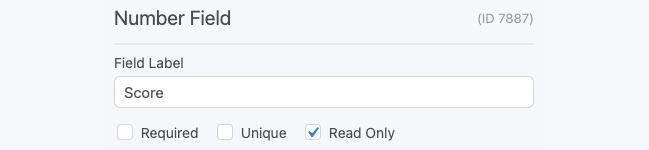
- Add a Number field to calculate the score. Set it to Read Only if you want users to see the score but not edit it.
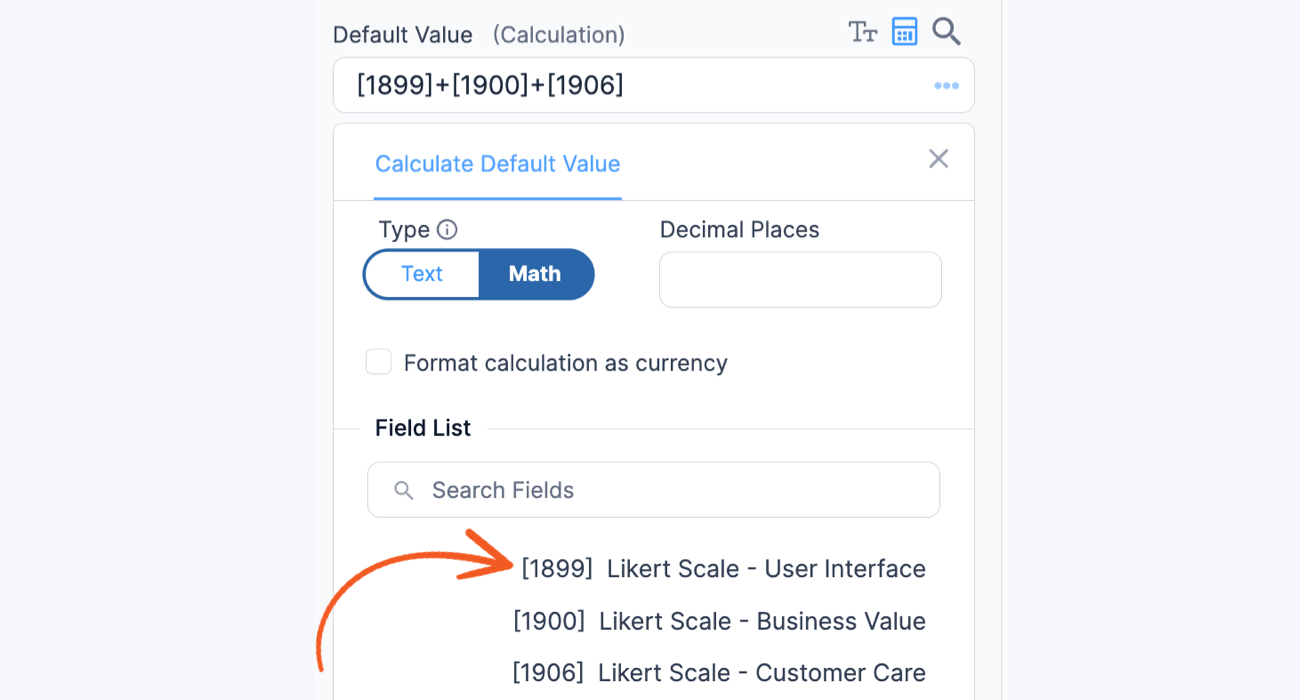
- In the Number field options, toggle on the Calculate Value and select the Math option under the Default Value box.
- Use the Insert Field search box to search the Likert fields you want to include in your calculation. You can use the field ID or key synonymously in a calculation. Your calculation might look something like: [21032]+[21033]+[21036]. In the example below, we added all the Likert Scale field options.
- The score is updated each time a Likert Scale field option is changed.




Related customizations
Display a single question in column
When a Likert scale field contains only one question, the question column will be automatically hidden from view. If you need to change this behavior and show the question instead of always hiding it, use the following custom CSS:
.frm_form_field .frm_likert[data-rows-count="1"] .frm_primary_label {
    display: block !important;
}
If you prefer not to use the custom CSS, add the question as your field label when you only need to use a single question.
Related developer hooks
- Modify the CSS variables of the Likert field with the frm_surveys_likert_css_variables hook.
- Change the HTML of a row in Likert when displaying the Likert value with the frm_likert_html hook.
- Customize the responsiveness point for Likert fields with the frm_surveys_likert_responsive_breakpoint hook.
- Remove all Likert fields from the entries list table on one form with the frm_fields_in_entries_list_table hook.
- Remove all Likert fields from a form with the frm_fields_in_form hook.
- Remove all Likert fields from the Customization panel tags box with the frm_fields_in_tags_box hook.
- Remove all Likert fields from the form builder with the frm_fields_in_form_builder hook.
- Remove all Likert fields from the form settings with the frm_fields_in_settings hook.
