
Import forms, entries, and Views on the Formidable → Import/Export page. If an imported form, entry, or View matches the key and creation date of an existing form, entry, or View, the existing item will be updated.

Upgrade your WordPress site with powerful, flexible forms.
Import forms and data via XML
Import forms, entries, and Views from an XML file. If the key and creation date of an imported form, entry, View, or style match an item on your site, that item is updated. You cannot undo this action.
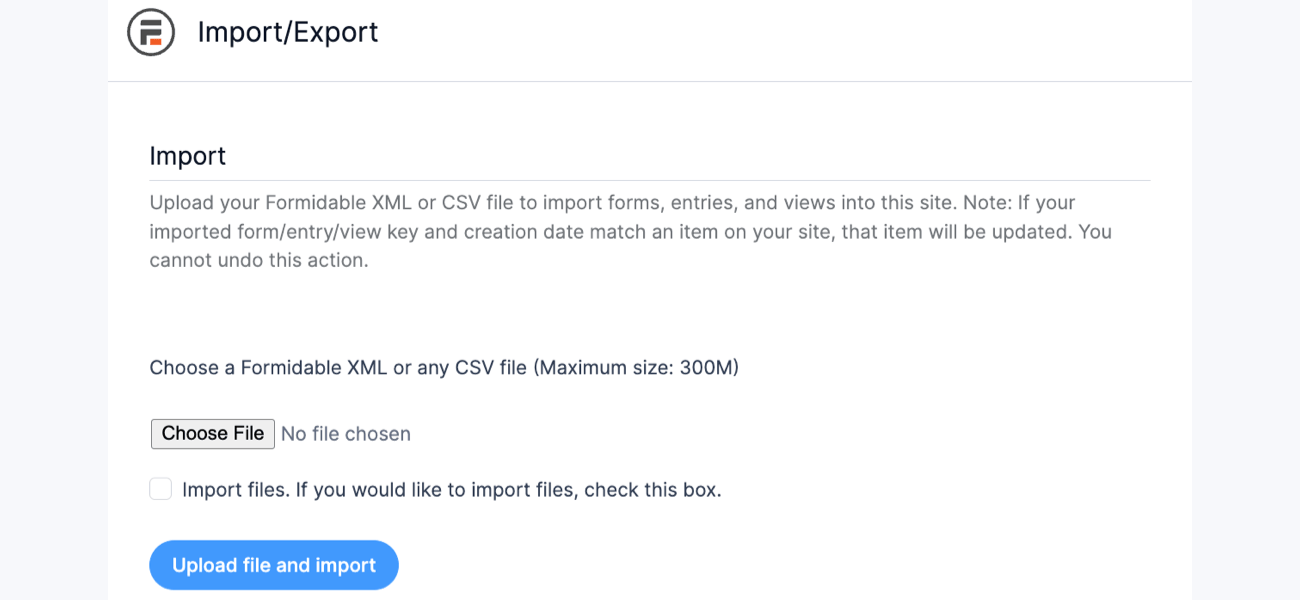
- Go to your Formidable → Import/Export page.
- In the Import section, select an XML file to upload.

- Click Upload file and import. Your forms, entries, Views, and styles are imported or updated.
From Idea to Reality in Minutes. Build Powerful Forms, Dashboards, Apps and More.
Formidable Forms makes advanced site building simple. Launch forms, directories, dashboards, and custom WordPress apps faster than ever before.
Import entries via CSV
Importing entries from a CSV file is available on the Basic, Plus, Business, and Elite licenses.
Import entries into a Formidable form from a CSV file.
- Create your own CSV file or export entries from another site. If you create your own CSV, include a header for each field at the top of your CSV file. The headers link each column to a field in your form. The CSV file needs to look something like this:
"First name", "Last name", "Address", "Phone number"
"John", "Doe", "123 Main St, Apt 4, Austin, TX, 78701, United States", "123-123-1234"
"Jane", "Smith", "789 Center St, Suite 5, Denver, CO, 80202, United States", "321-123-1234"
An Address field needs the whole address in one column, in the format from Import addresses.
Note: If you are a Mac user, save your file as Windows Comma Separated (.csv).
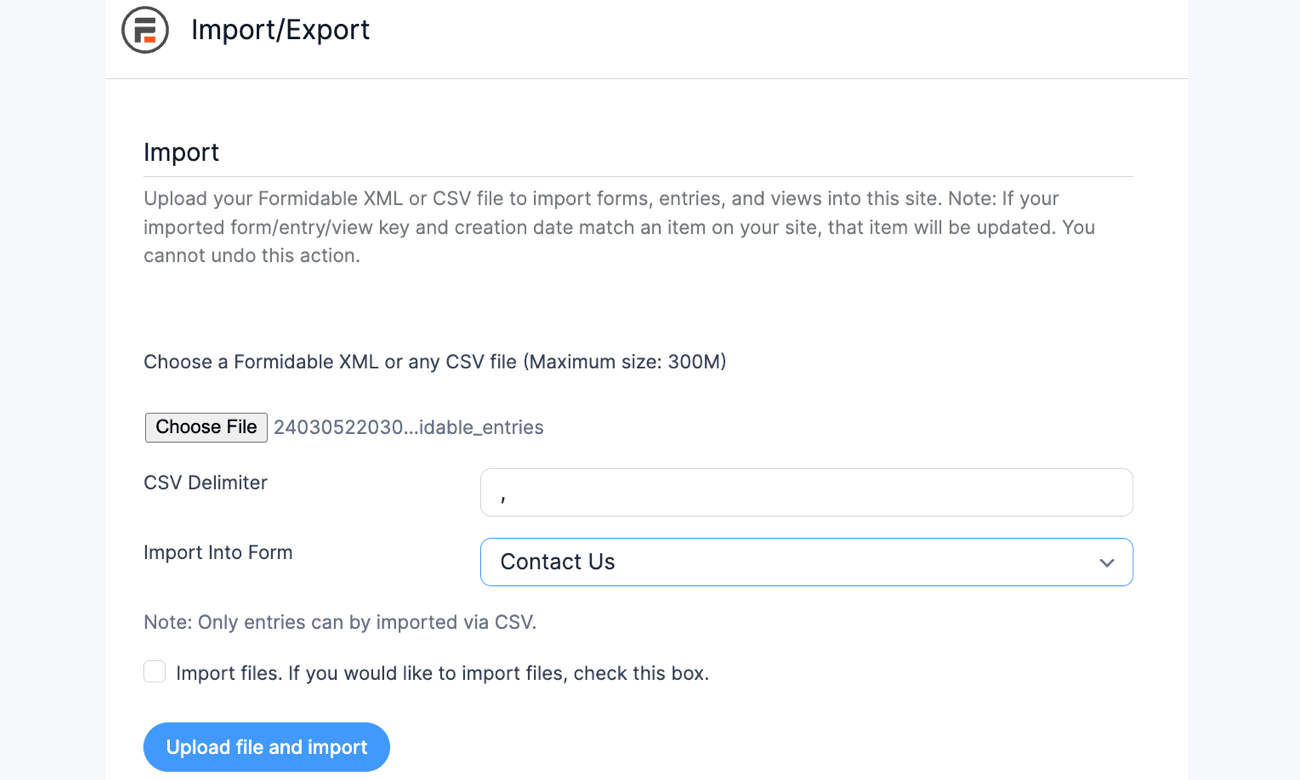
- Go to Formidable → Import/Export and select a CSV file to upload.
- Select your delimiter (often a comma) and the form to import the entries into.
- Click Upload file and import.
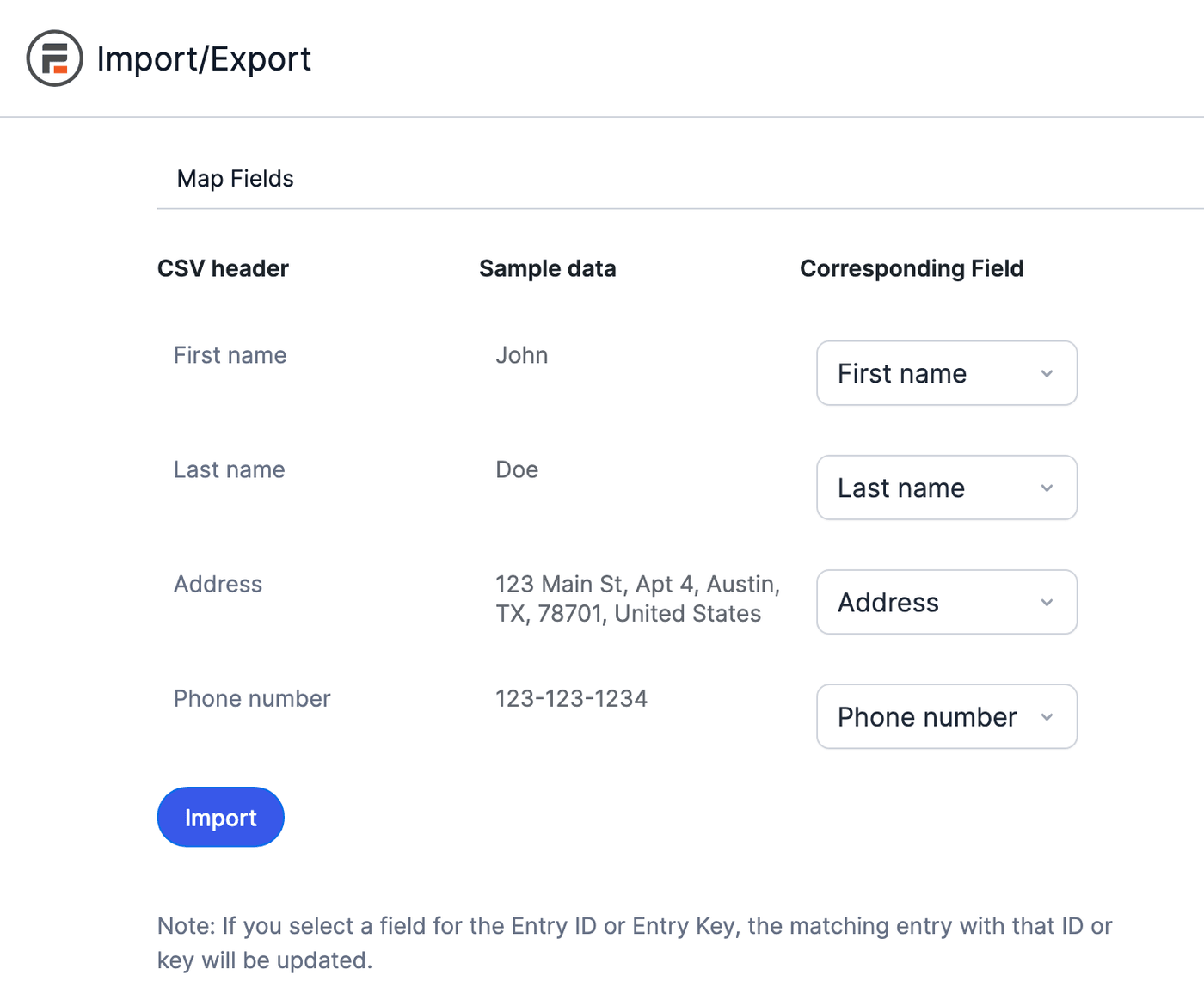
- The Map Fields section has 3 columns. They show the headers in your CSV, sample data from your CSV, and the field each CSV column will go into.
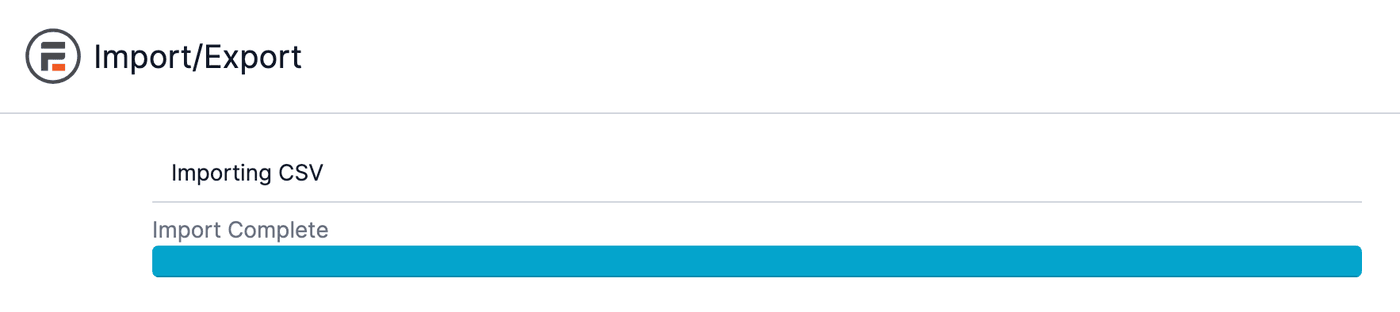
Map each column to the corresponding field. To update existing entries instead of importing new entries, map the Entry ID field to an Entry ID column in your CSV. If the entry ID in the CSV matches an entry ID in the form, the entry will be updated. Otherwise, a new entry will be created. - Click the Import button, and watch the countdown of the number of entries to be imported.
If you have trouble importing your CSV, please follow the import troubleshooting steps.
Link imported entry to user
To assign an imported entry to a specific user, include a column in the CSV to match up with the User ID field. This column will link users by the assigned WordPress user ID, non-numeric login, or email address. A numeric login will not link to the correct user, since this number is assumed to be the user ID.
If the user does not yet exist on your site, learn more about how to import users.
Bulk update entries
When you import a CSV of entries, include a column that holds the entry ID. Then when importing, map this column to Entry ID in the Corresponding Field drop-down. Now, the matching entries will be updated with the details included in the CSV. The update replaces the whole entry, so include a column for every field you want to keep. Fields without a column are left empty.
Import styles
To move a style from one site to another, export the style, then import the XML file on the other site. When you import this XML file onto another site, the form and attached style will be imported. The imported style will be added to your Formidable → Styles.
Import files
Importing files is available on the Basic, Plus, Business, and Elite licenses.
Import files from entries on one site into entries on another site. The files must not be protected on the site you are importing from.
Learn more about protecting uploaded files.
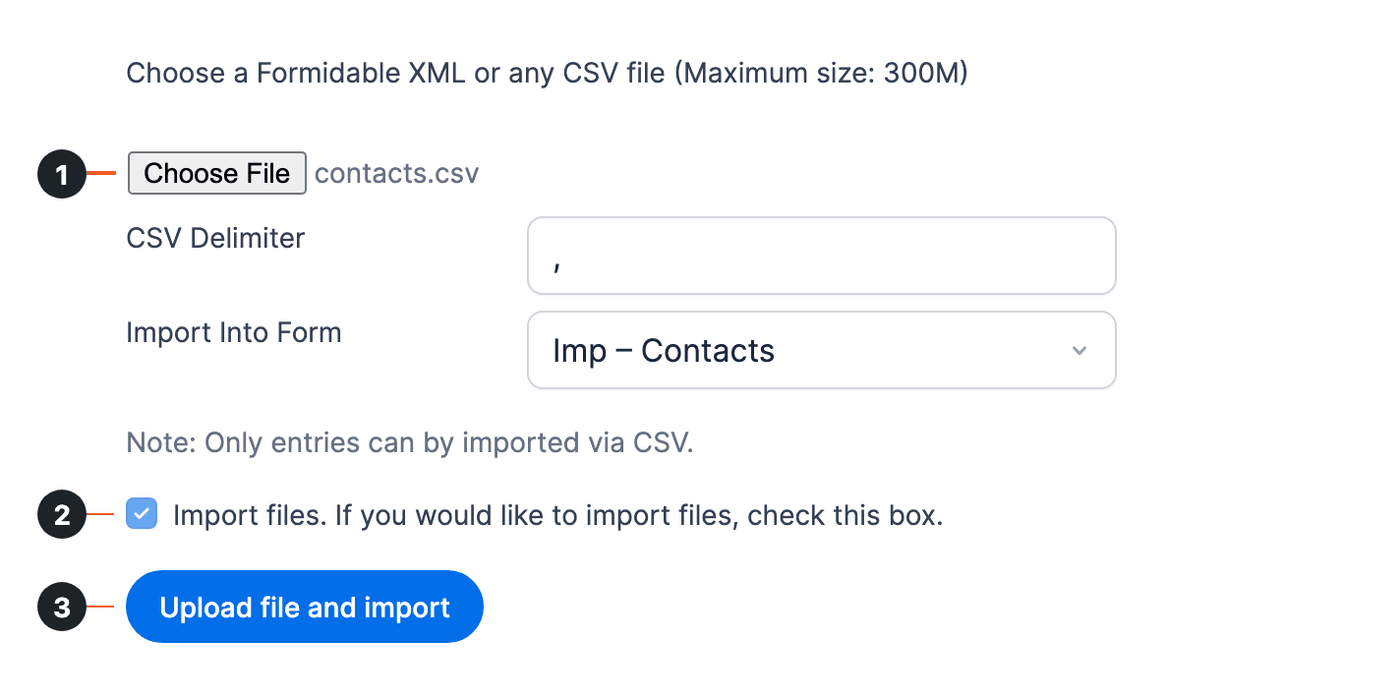
- Go to your Formidable → Import/Export page.
- In the Import section, select an XML or CSV file to upload.
- Select the Import files checkbox to include files in the import. Downloading files can slow down a large import, so leave this box unchecked if you don't need the files.
- Click Upload file and import. Your forms, entries, Views, styles, and files are imported or updated.
Import into checkboxes
When importing from a CSV, 2 formats can be used to insert multiple values into a single field.
- One column with comma-separated values. To import values into a checkbox or multi-select field, use a value like "red, blue, green" to import each of those 3 values as selected options in a field.
- Multiple columns with a single value. If the field you are importing into has options with commas, this format gives a more accurate result. Include several columns in the CSV that are all linked to the same field. For example, a CSV can look like this:
"Checkbox","Checkbox","Checkbox"
"red","green","blue"
On the Map Fields page, select the same checkbox field in the Corresponding Field drop-down for each Checkbox column.
If some rows have fewer choices than columns, use a single Checkbox column with the choices separated by commas instead (for example, "red, blue"). With several Checkbox columns, an empty column clears the choices in the columns before it. A row with an empty last column then imports with no checkboxes selected.
Import repeaters
Repeaters work a bit differently from most field types, as the database stores them as a separate form. To import your data into a repeater:
- Export entries from a form with a repeater.
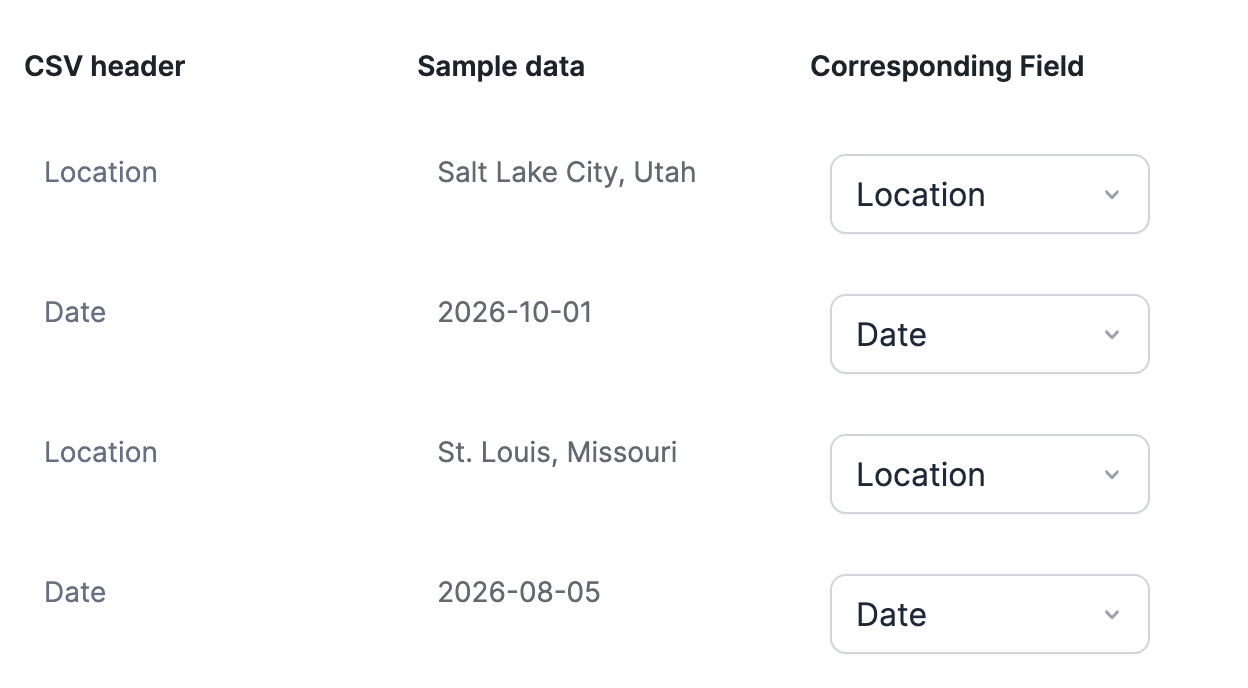
If you are creating the CSV or importing from another service, put each value in a separate column. The format works best when the columns repeat in the same order as the form fields. For example, if your repeater includes 'Location' and 'Date', the columns in your CSV are 'Location, Date, Location, Date, Location, Date'... - When importing, each column from the CSV needs to be mapped to a field in your form. With repeaters, multiple columns will be mapped to the same field in your form.
- Once your fields are all mapped, click the Import button.
Import legacy format
Before Formidable v4.08, values from a field in a repeater were included in a comma-separated list in a single row (such as "red, blue, green"). This format can still be imported.
If you have a CSV file to import using this older format, add '-legacy' in the filename before importing. For example, if the filename is '2021-01-01.csv', change it to something like '2021-01-01-legacy.csv'. The filename tells Formidable to handle the import differently.
Date fields in a repeater don't import with the legacy format. To import them, use the format above, with a Location and Date column for each repeater row.
Import addresses
When importing an address from a CSV, you must have a column with the address in a single line. If it is unavailable, create a new column called Address. Each value must be comma-separated and have a following space. Use this format in the CSV:
line 1, line 2, city, state/province, postal, country
Once you have a correctly formatted address field column in the CSV, map it to an address field in your form for import.
Import dates
Dates in YYYY-MM-DD format, such as 2026-04-03, import correctly on any site. For other dates, Formidable works out from the whole column whether the day or the month comes first. A value above 12, such as 25/12/2026, sets the order for every date in that column.
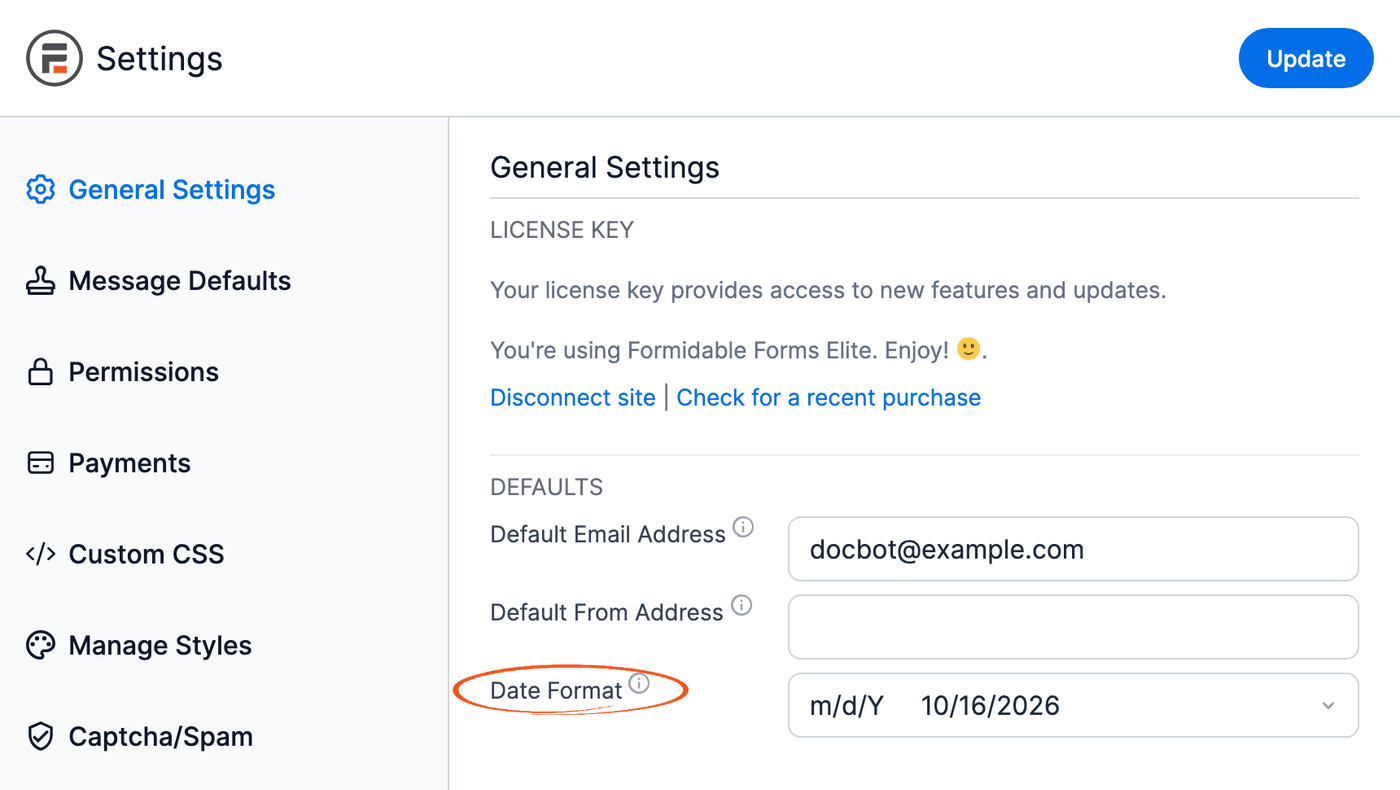
When every date in the column can be read either way, such as 03/04/2026, Formidable reads it with its own date format setting. To import these dates correctly, set it to match your CSV file. The WordPress date format doesn't change how imported dates are read.
- Go to Formidable → Global Settings → General Settings, and set the Date Format option to the same format as your date column in the CSV file.
- Once you have set the date format, start importing and mapping the date fields in your form.
Save CSV in UTF-8 format
You can use several methods to convert a CSV file into UTF-8 format. If you do not have a CSV file for this step, learn how to export forms, entries, and Views.
Convert in Google Sheet
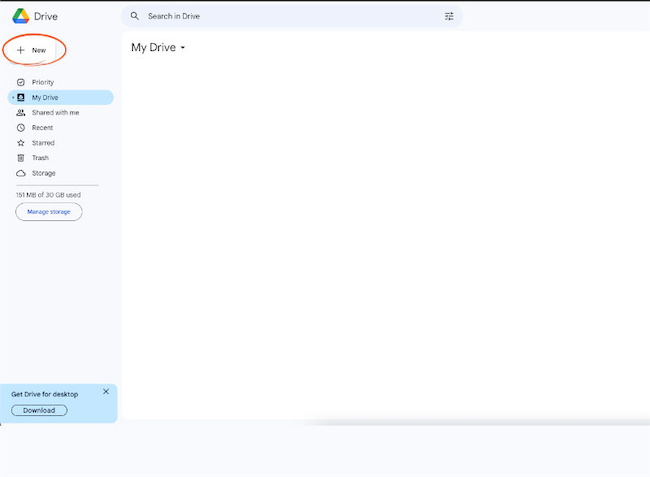
- Open your Google Drive account and click the New button in the top-left corner. Select the Upload files option.
- Find the CSV file you want to convert to UTF-8 format. Select it to begin uploading.
- Open the uploaded CSV file using Google Sheets.
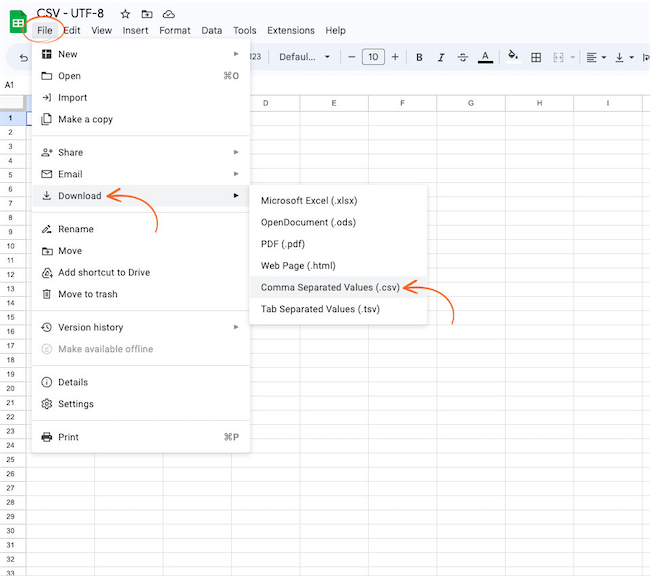
- Go to File → Download, and select the Comma Separated Values (.csv) option.
- The downloaded file is saved in UTF-8 format and is ready to import into Formidable Forms.
Convert in Microsoft Excel
- Open the CSV file in Microsoft Excel.
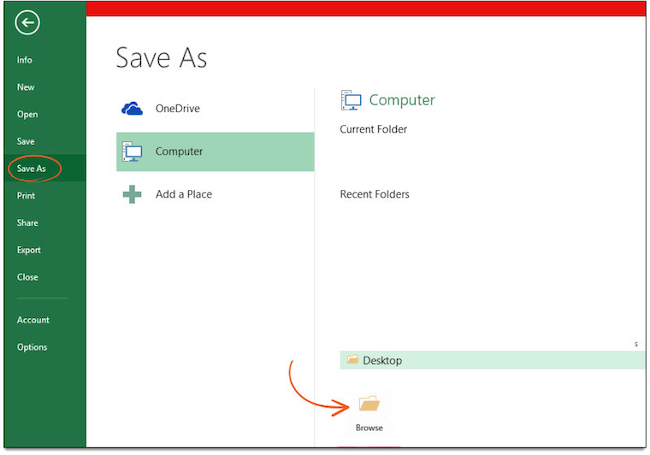
- After the file is open, go to the File menu and click Save As.
- Click the Browse folder icon to select where to save the file.
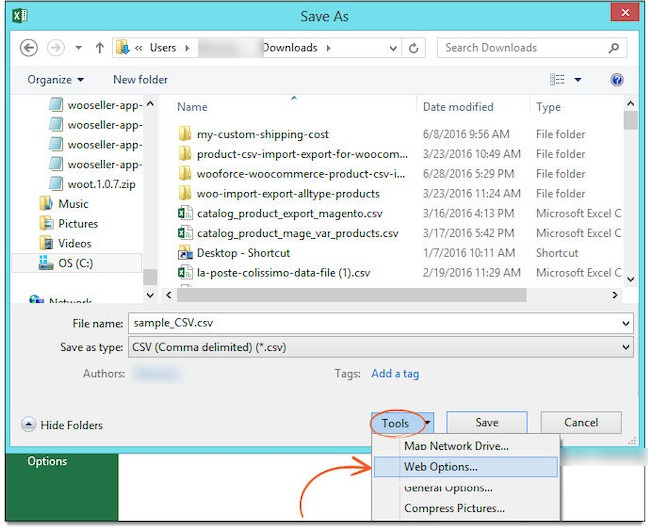
- Enter the name of the file if necessary.
- Select CSV (Comma delimited) (*.csv) from the Save as type drop-down list.
- Click the Tools drop-down box and click Web Options. The Web Options window opens.
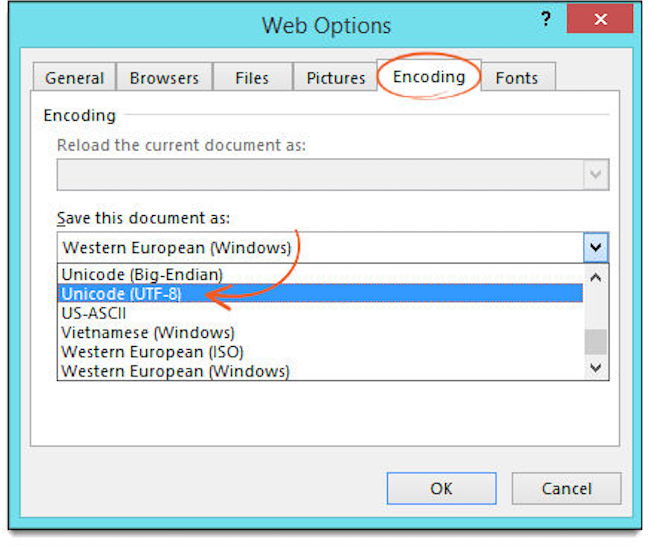
- Select the Encoding tab and choose Unicode (UTF-8) in the Save this document as drop-down list. Once you have selected it, click OK and save your file.
- Import the CSV file into a Formidable form.
Convert in TextEdit
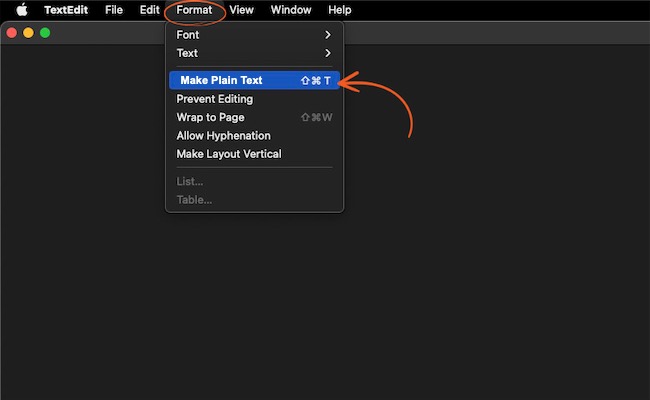
- Open the CSV file with TextEdit.
- Go to Format → Make Plain Text.
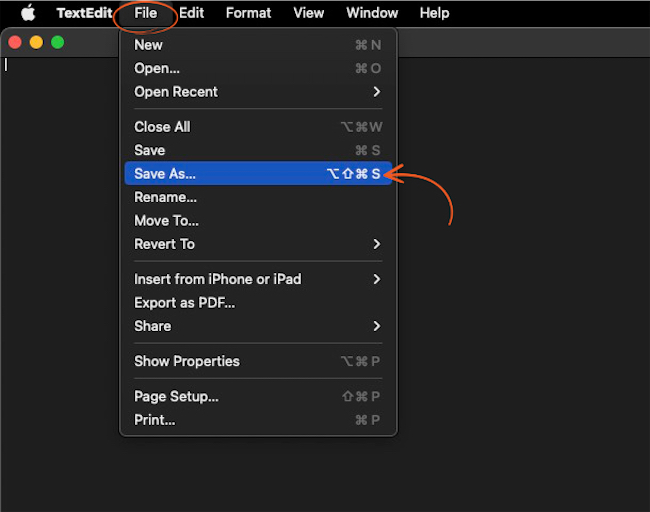
- Click File and hold the Option key on the keyboard to show the Save As option.
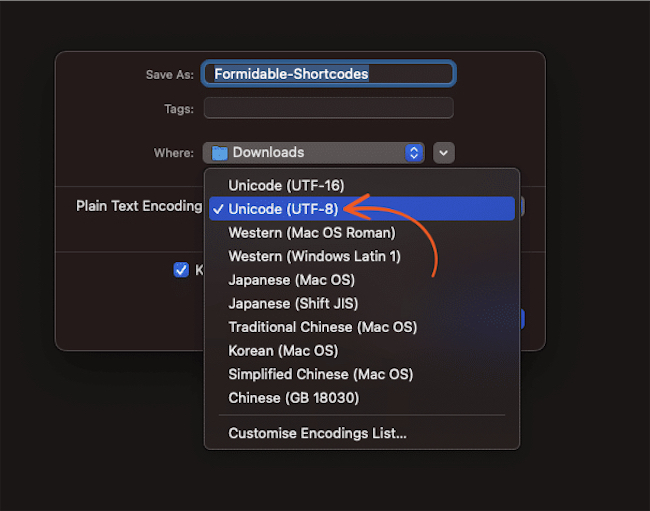
- From the Plain Text Encoding drop-down list, select the Unicode (UTF-8) option.
- Click Save to save the file in the new UTF-8 format.
- Import the CSV file into a Formidable form.
Convert in Notepad
- Open the CSV file with Notepad.
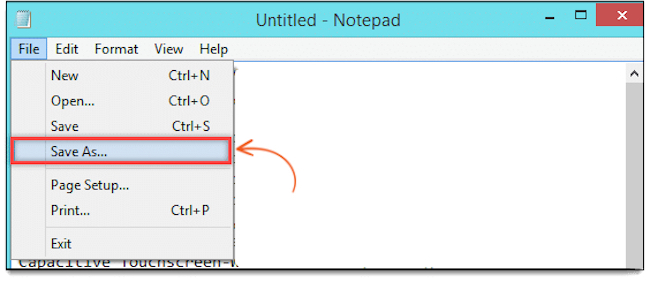
- Go to File → Save As.
- In the Save As window, select where to save the file.
- Specify the file name with the .csv extension.
- Select the UTF-8 option from the Encoding drop-down list.
- Click Save to save the file in the new UTF-8 format.
- Import the CSV file into a Formidable form.
Troubleshooting
SimpleXML_parse_error
When importing an XML file, you may see a message that includes 'SimpleXML_parse_error' and 'XML declaration allowed only at the start of the document.' This means there is white space at the start of your XML file. This space is added by your theme or another plugin. You have 2 options:
- Disable everything else (plugins and theme) on the site you are exporting from and export again.
- Open the XML in a text editor and remove the extra space manually.
Once you have a correctly formatted XML file, import it again.
CSV import is incomplete
Learn more about why a CSV file may not import correctly.
Duplicate entry when importing users
When creating new users or updating existing users with a CSV import, check the User ID column to prevent duplicates. Duplicates are often created because the requirements are not being met to update an entry.
To avoid duplicate entries, map the User ID column in your CSV to the User ID field in your form. Without this mapping, each import creates a new entry for every user.
Your server does not have XML enabled
This error message is shown when DOMDocument is not installed on the server. Ask your web host to install the DOM extension.
Importing non-English characters
When importing an XML file with non-English characters, you may need to convert your file to UTF-8 with BOM using the frm_csv_headers hook.
