
Send your contacts to Brevo, formerly SendinBlue, when an entry is created or updated in your Formidable Form.

Upgrade your WordPress site with powerful, flexible forms.
Step 1: Create your Brevo API Key
- If you don’t have an account, create a new Brevo account.
- Go to the Profile settings and select SMTP & API from the dropdown options.

- Select the API Keys tab and click the Generate a new API Key button to generate your API Key.
- Once you have generated your API key, make sure to save a copy of it right away. For security reasons, Brevo will not show you this key again.


From Idea to Reality in Minutes. Build Powerful Forms, Dashboards, Apps and More.
Formidable Forms makes advanced site building simple. Launch forms, directories, dashboards, and custom WordPress apps faster than ever before.
Step 2: Authorized IP Addresses
To protect your account when making API calls, you can specify which IP addresses are authorized to make API calls using your API keys and block unauthorized IPs to keep your account secure.
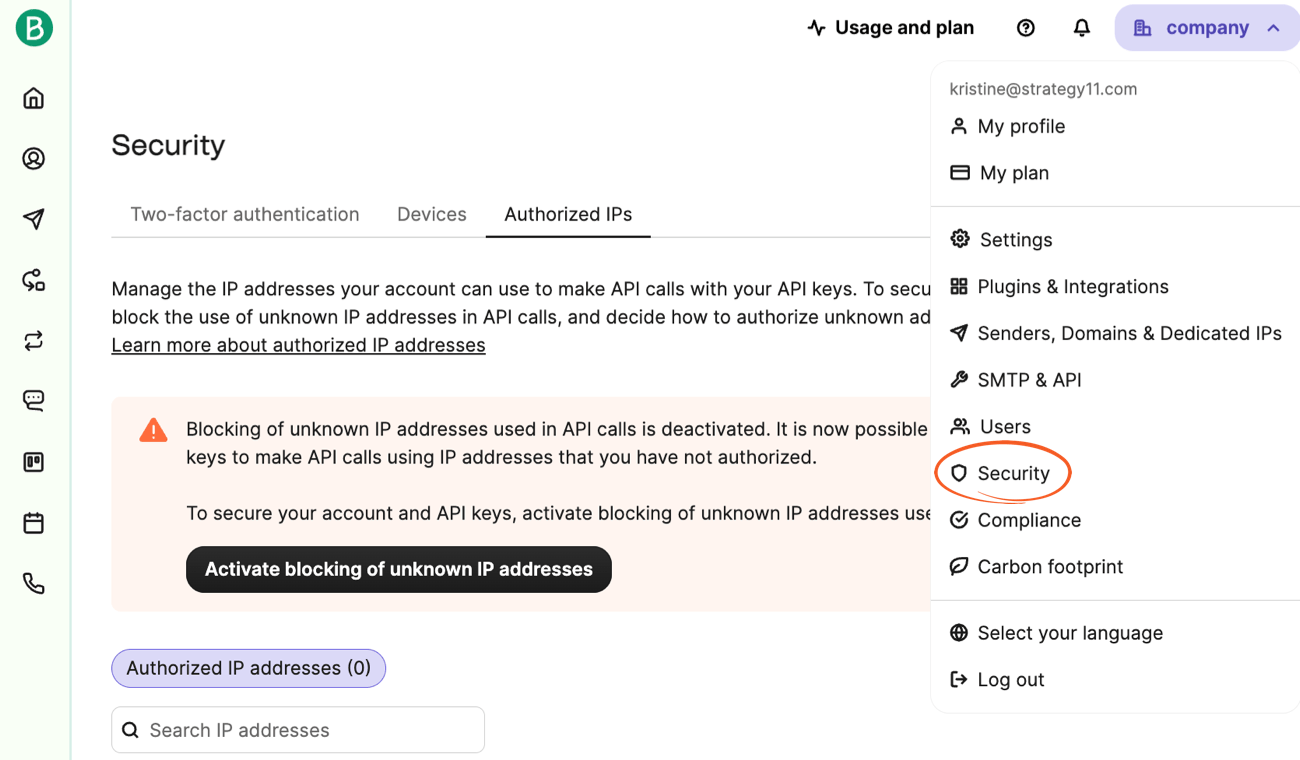
- Go to the Profile settings and select Security from the dropdown options.
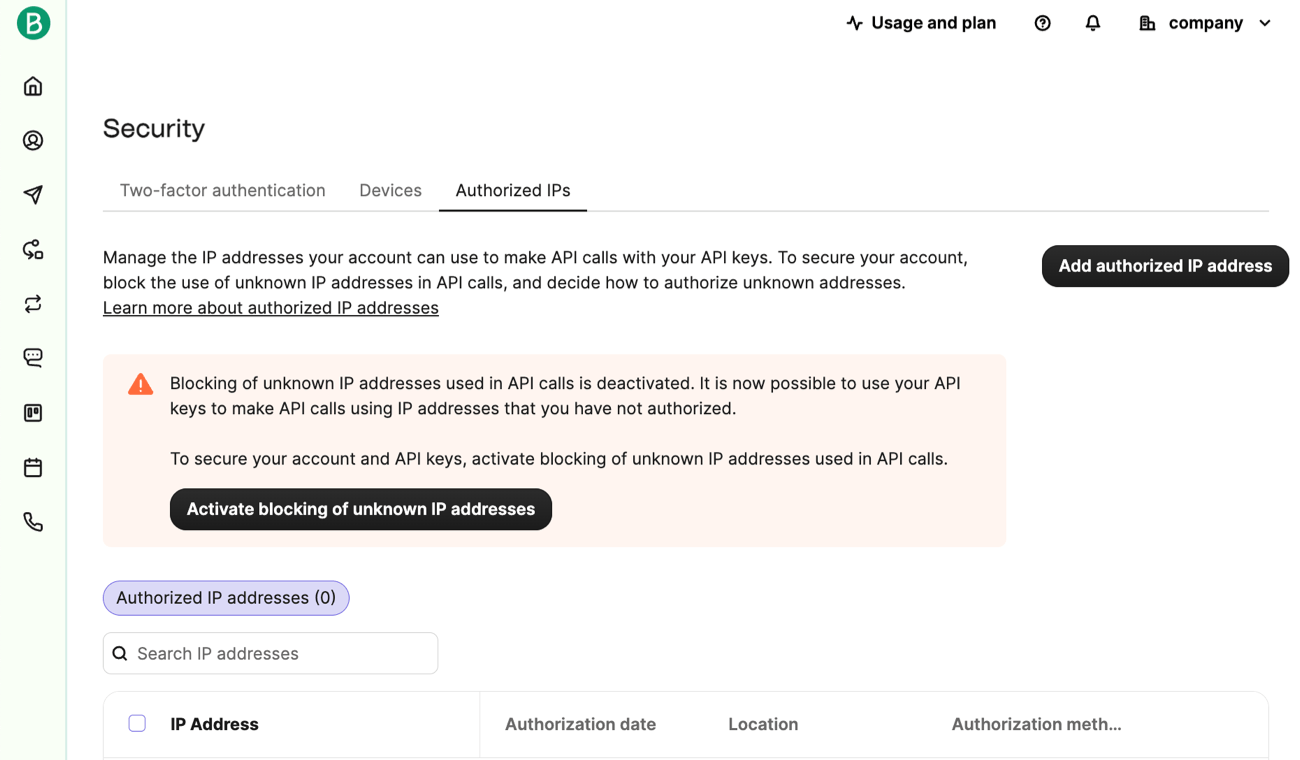
- Go to the Authorized IPs section and click the Activate blocking for unknown IP addresses button to turn on the option to block any IP addresses that aren't authorized. By default, blocking unknown IP addresses is turned off. This means API calls can be made from any IP using your API keys.
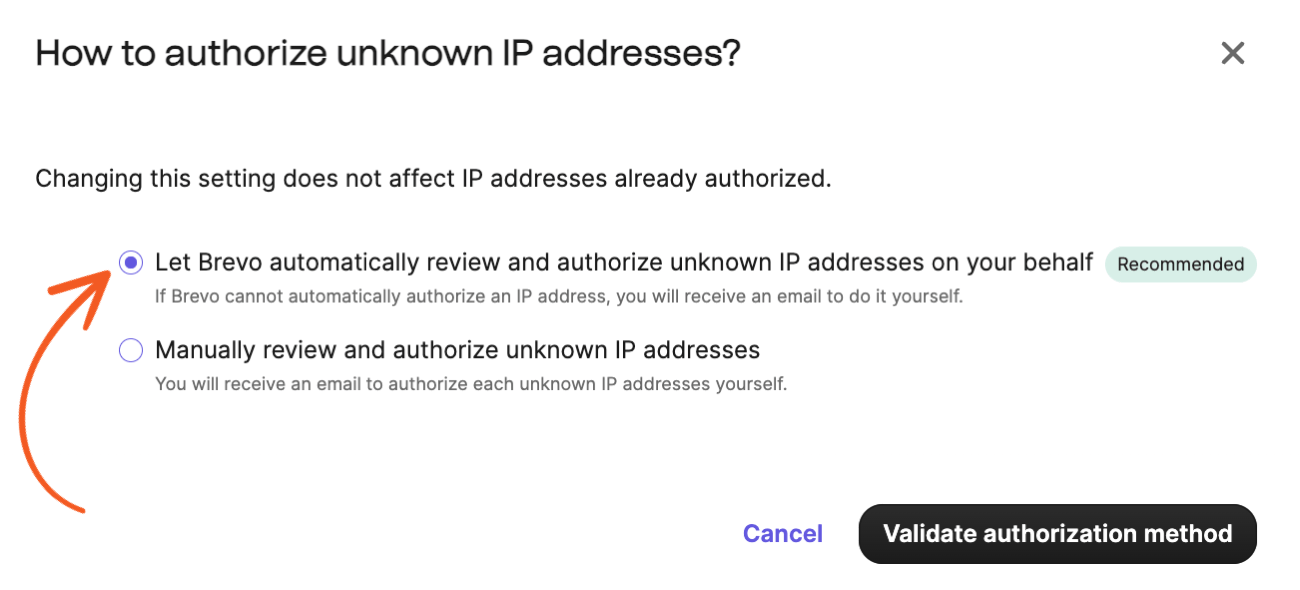
- Select the recommended option. Let Brevo automatically review and authorize unknown IP addresses on your behalf. Then click the Validate authorization method button to complete the process.
- (Optional) You can also authorize specific IP addresses that should be allowed to use your API keys. Click the Add authorized IP address button to start adding these addresses to your list of authorized IPs to ensure that only trusted sources can make API calls.
Step 3: Create your Formidable form
- If you do not already have a Formidable form to collect your leads, create a form.
- Include an Email field, Phone field, or both.
- If you are sending a phone number to Brevo, the number must include the country code. e.g. 91xxxxxxxxxx, +91xxxxxxxxxx, 0091xxxxxxxxxx.
Step 4: Set up your API form action
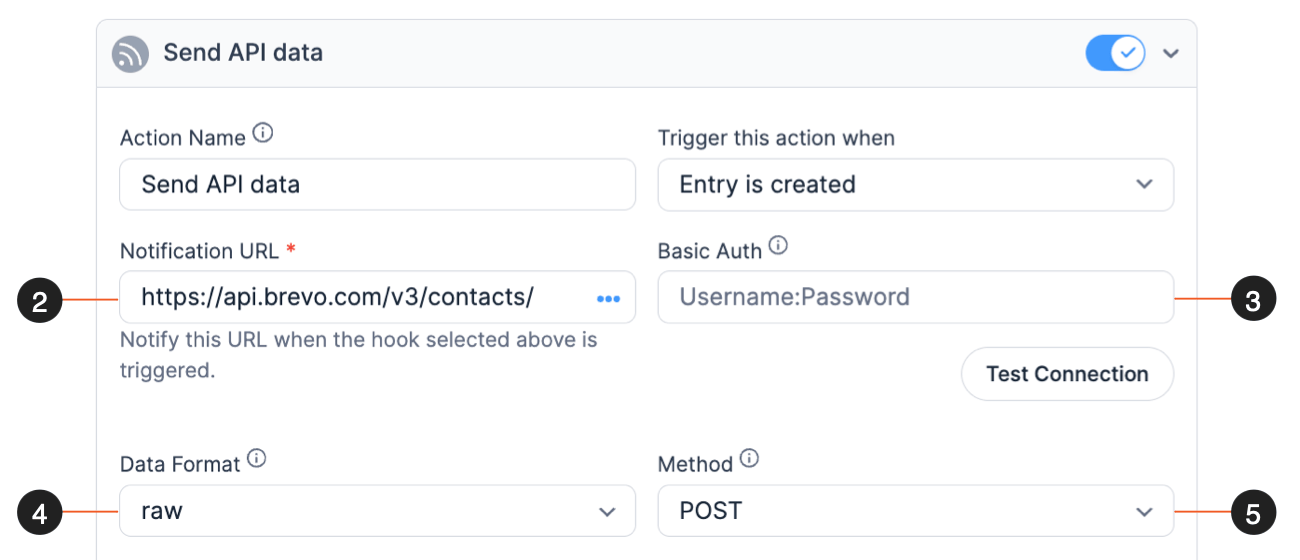
- In your form Settings → Actions & Notifications, select the Send API data action. If you have not installed the Form Webhooks API add-on yet, you will be prompted to install it.
- To add the notification URL, paste https://api.brevo.com/v3/contacts/ in the Notification URL box.
- Leave the basic Auth field empty. We will be using another Formidable hook to add our API Keys to the header.
- Set the Data Format to Raw.
- Set the Method to Post.
- Under Raw Data, add the formatted data below.
{ "updateEnabled": true, "email": "[190]", "emailBlacklisted": false, "smsBlacklisted": false, "attributes": { "FIRSTNAME": "[200]", "LASTNAME": "[210]", "SMS": "[220]" }, "listIds": [4] }- Set updateEnabled to true if you want to enable updates for existing data.
- Replace 190 with the ID of your email field in the form.
- Set emailBlacklisted to true to blacklist the contact for emails. The default value is set to false.
- Set smsBlacklisted to true to blacklist the contact for SMS. The default value is set to false.
- Replace 200 with the ID of the first name field in your form.
- Replace 210 with the ID of the last name field in your form.
- Replace 220 with the ID of the Phone number field in your form.
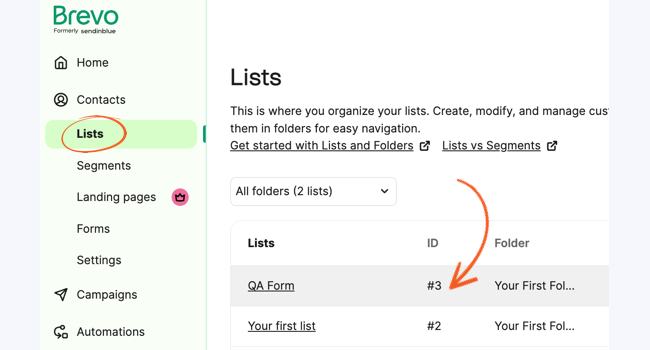
- Replace 4 with the ID of your Brevo contact list. You can use comma-separated values if you want to add multiple list, e.g. [4, 6, 8].
If you need to find the contact list ID in Brevo, go to the Contacts → Lists page and look for the ID column.
If you are using a Name field in your form, it will only retrieve the first name. You can create two single line text fields instead and assign it as your First and Last name fields. - Add your API Keys to the request header using the code snippet below. Learn more about where to put this code.
add_filter( 'frm_api_request_args', 'my_custom_frm_api_request_header', 10, 2 ); function my_custom_frm_api_request_header( $arg_array, $args ) { if ( $args['url'] == 'https://api.brevo.com/v3/contacts/' ) { // the full url where the request is being sent $arg_array['headers']['api-key'] = 'Your-API-Key-Here'; //Replace Your-API-Key-Here with your Brevo API key } return $arg_array; } - You are all set! Go ahead and submit an entry in your form to add a new contact to your Brevo list.

Troubleshooting
Logging
The most challenging aspect of sending API requests using a form action is understanding what's happening. If an API request fails, you can install the Formidable Logs add-on and follow its guide. This tool will show you when an API request is triggered, its destination, and the response received. The frm_message part of the logs provides a simplified response to assist you in adjusting the API call settings.
