
Celebrations plays a sound, shows a short message, and sends up a burst of emoji when someone submits your form. You set it up for each form in its Confirmation action.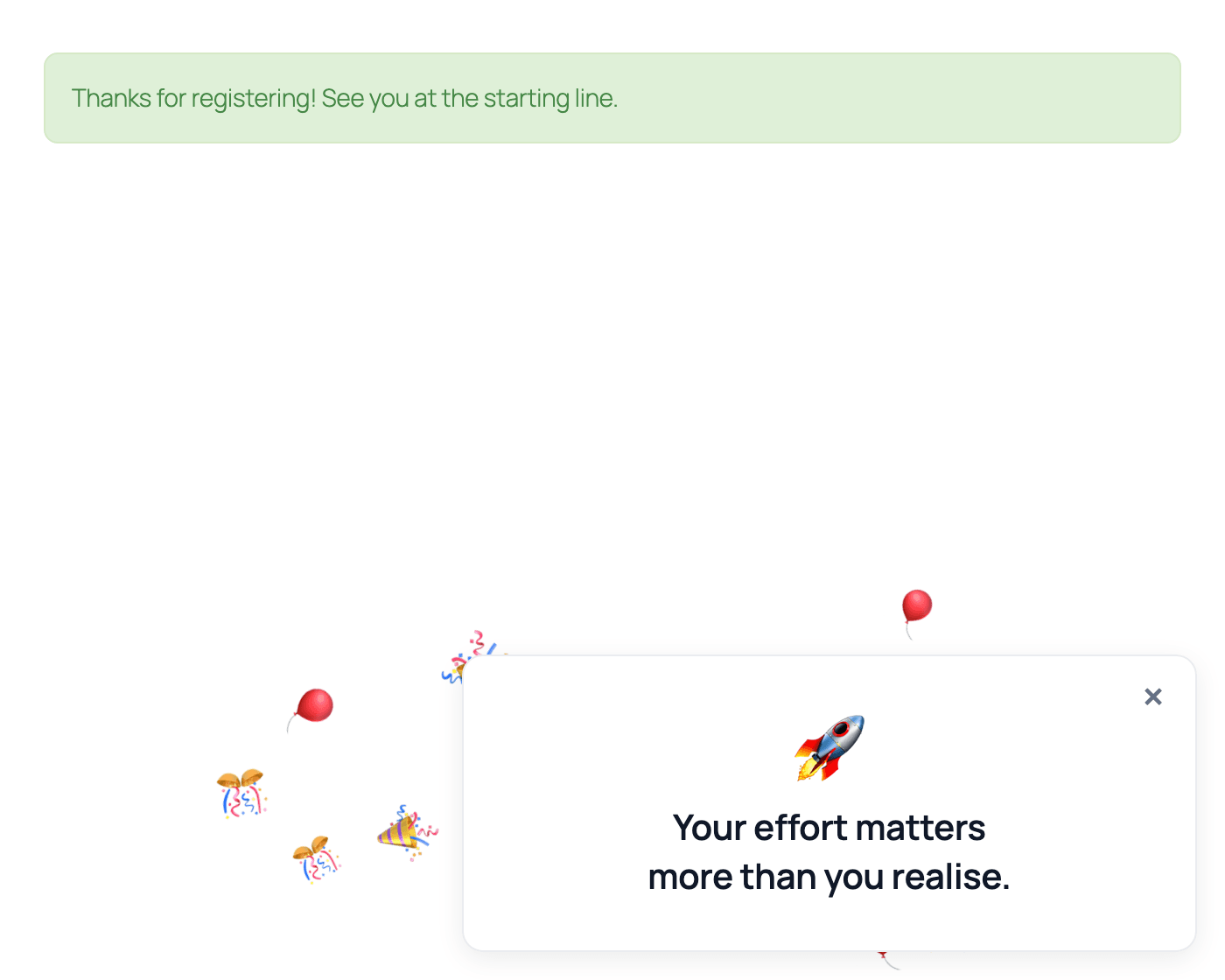
Upgrade your WordPress site with powerful, flexible forms.
Download and install
- If you haven't already, install and activate the current version of Formidable Forms Premium on your WordPress site.
- Go to Formidable → Add-Ons/Boosts and click Boosts in the list on the left.
- On the Celebrations card, click Get Boost to buy the add-on.
- After you buy it, go back to Formidable → Add-Ons/Boosts and click Boosts. Turn on the toggle on the Celebrations card to install and activate the add-on.
If Formidable Forms Pro is active but its license is not activated on the site, Pro turns Celebrations off, and no celebration plays. A Formidable page shows a message with an Activate your license link. Click the link, or go to Formidable → Global Settings, and activate your license.
Celebrations also shows its own notice with a Manage your license link in the WordPress admin. Both messages are explained in Troubleshooting.
If Formidable Forms Pro is deactivated or not installed, Celebrations shows its own notice in the WordPress admin. Install and activate Pro. Only users who can activate plugins see the notice.
If your license expires, you keep Celebrations, and it keeps working. The celebrations on your forms still play, and you can still change their settings in the Confirmation action. As with Pro, you get no updates for the Boost, and you can't get new Boosts until you renew.
From Idea to Reality in Minutes. Build Powerful Forms, Dashboards, Apps and More.
Formidable Forms makes advanced site building simple. Launch forms, directories, dashboards, and custom WordPress apps faster than ever before.
Turn on Celebrations for a form
Each form has its own celebration, so you can give every form a different sound, message, and animation.
- Go to Formidable → Forms and click the form you want to celebrate. Then click Settings → Actions & Notifications.
- Under Current Actions, open the Confirmation action. Click the row in the list, not the tile at the top. Learn more about form actions.
- Choose Show Message or Show Page Content as the confirmation type. Celebrations don't work with Redirect to URL, and the Celebrate on submit toggle is hidden for it. Learn more about confirmation types.
- Turn on Celebrate on submit. It is below the confirmation settings.

- Choose a sound, an affirmation, an animation, or all 3. The settings are explained below.
- Click the Preview celebration button to see and hear the result right away.
- Click Update to save the form.
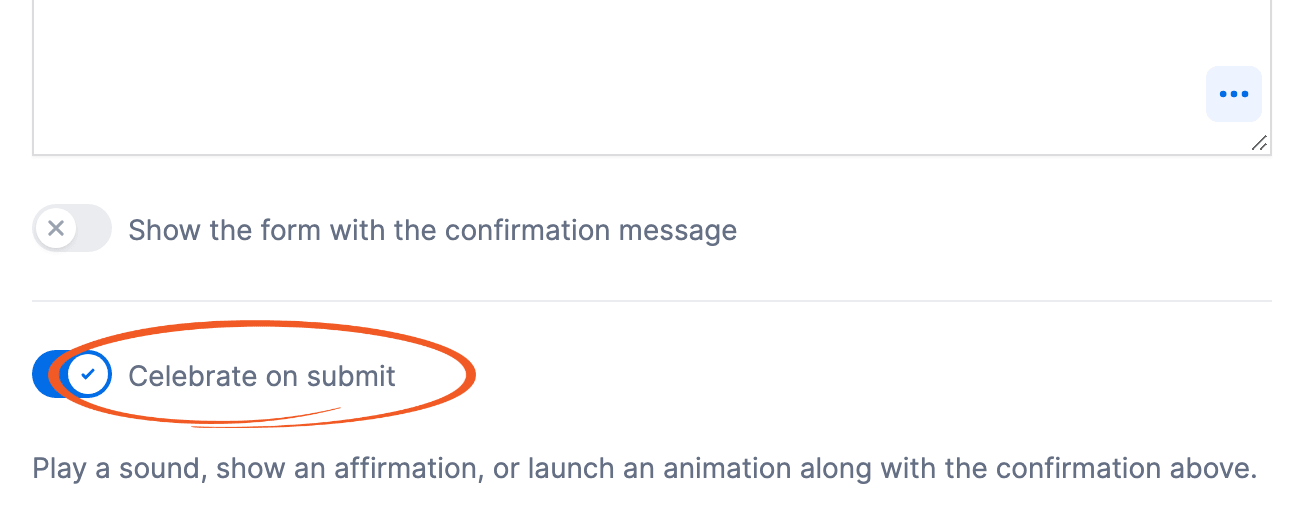
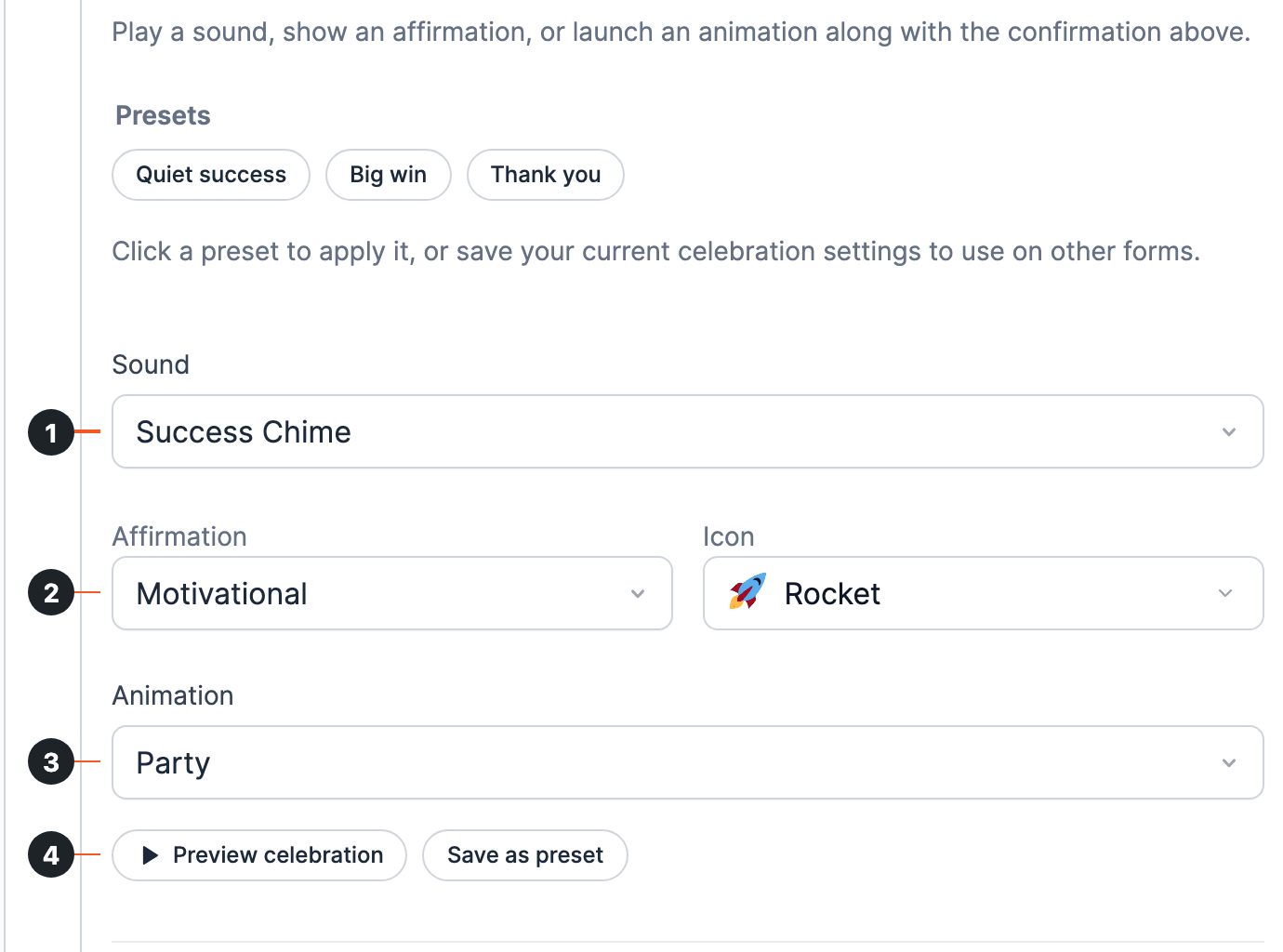
A new celebration has None chosen for the sound, the affirmation, and the animation. Until you choose at least one, nothing plays, and the Preview celebration button is dimmed.
To see the result on your site, publish the form and submit it. When you test more than once, enter a different answer each time. Formidable refuses an entry that matches another entry sent in the last 60 seconds, and no celebration plays for it.
Celebrations settings
Presets
A preset fills in the sound, affirmation, and animation for you. Click one to apply it. Then change any setting you like. If you are not sure what to choose, start with a preset.
- Quiet success: no sound, a Complimentary affirmation, and a Success checkmark animation.
- Big win: the Trumpet Fanfare sound, a Success & Abundance affirmation, and Confetti.
- Thank you: the Achievement Bell sound, a Gratitude affirmation, and Hearts.
To reuse your own mix on other forms, choose your settings and click Save as preset. Enter a name, up to 80 characters, and click Save as preset again.
The button is dimmed until a sound, an affirmation, or an animation is chosen. Each name must be different from the other presets, whatever the letter case.
A saved preset appears next to the built-in ones on every form of your site. You can't delete the 3 built-in presets.
To delete a saved preset, click the x icon next to its name and confirm. This deletes the preset for everyone on the site. Forms that already use it keep their settings.
Sound
The sound plays when the form is submitted. The default is None.
- Random: a built-in sound chosen at random for each submission. It can also pick the joke sounds below.
- A built-in sound: Achievement Bell, Success Chime, Magic Sparkle, Achievement Chimes, Ta-da Fanfare, Arcade Power-up, Party Horn, Crowd Cheer, Drum Roll, Coin Drop, Trumpet Fanfare, Applause, Sad Trombone, Klaxon Alarm, or Fart.
- Upload your own: see Use your own sound, message, or emoji.
Sad Trombone, Klaxon Alarm, and Fart are joke sounds. Use them only on forms where humor fits, such as a team poll or a game.
A sound plays for at most 6 seconds and fades out at the end. It also stops when the visitor closes the message card.
When a sound is chosen and Submit this form with AJAX is off, a notice shows under the sound. Learn more in No sound plays.
Affirmation
An affirmation is a short message in a card on the page. The default is None. When you choose a type, the card shows one of its 20 messages, picked at random for each submission.
- Random: one of the types below, chosen at random for each submission. Random never picks Write your own, but it can pick Disappointing.
- Motivational: for example, "You're capable of more than you know."
- Complimentary: for example, "Your presence makes a real difference."
- Growth Mindset: for example, "Progress over perfection, every single time."
- Gratitude: for example, "Your contribution here is genuinely appreciated."
- Success & Abundance: for example, "You were made for this."
- Disappointing: tongue-in-cheek messages, such as "Believe in yourself. Someone has to."
- Write your own: see Use your own sound, message, or emoji.
Once a type is chosen, an Icon setting appears next to it. The icon is the emoji above the message. Each type has its own icon, such as a rocket for Motivational and a trophy for Success & Abundance.
To pick another one, click the Icon box and search for an emoji, or paste one. Click Upload image to use an image from your Media Library. Click Use default to go back to the icon of the type.
Animation
The animation is a burst of shapes or emoji across the width of the form. The default is None.
Most animations rise from the bottom of the screen. Party popper, Star burst, and Success checkmark start in the middle of the form.
- Random: one of the animations and emoji sets below, chosen at random for each submission. It can also pick the Fart and Disappointing sets.
- Confetti, Party popper, Star burst, Success checkmark, and Floating balloons: animations made of shapes.
- An emoji set: Motivational, Complimentary, Growth Mindset, Gratitude, Success & Abundance, Disappointing, Fart, Party, Hearts, Stars, or Fire. Each set has 3 emoji, and the burst mixes them. The Party set uses a party popper, a confetti ball, and a balloon.
- Pick your own: see Use your own sound, message, or emoji.
Use your own sound, message, or emoji
Each setting has a "your own" choice. Choose it, and the setting shows the options below.
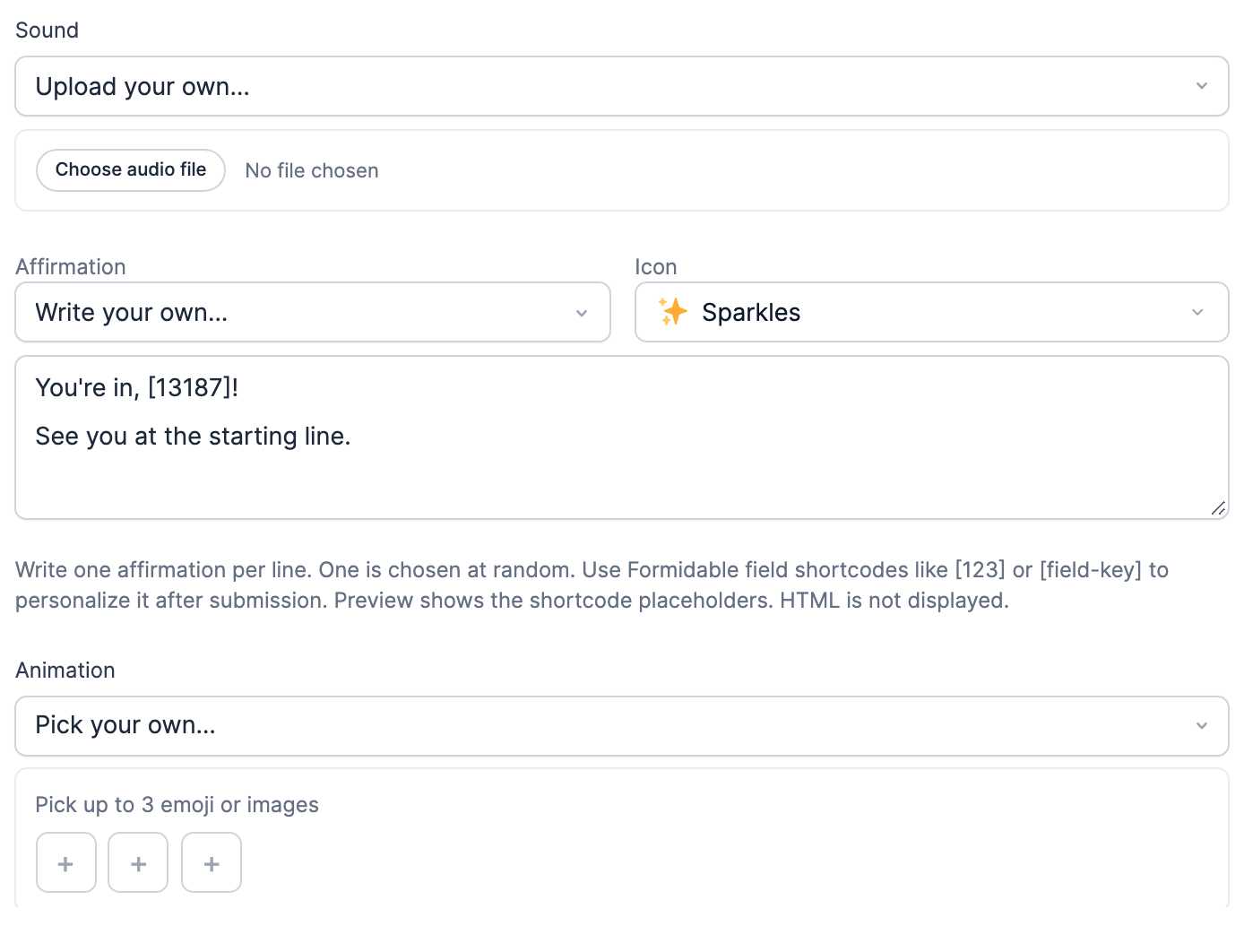
- Sound: choose Upload your own. Then click Choose audio file. Pick an audio file from your Media Library, or upload a new one. The file name shows next to the button. Click Remove to clear it.
- Affirmation: choose Write your own. Then type one message per line. The card shows one line, picked at random for each submission. HTML is not displayed. To use what the visitor entered, add a field ID or field key shortcode to a line. For example,
You're in, [25]!shows "You're in, Remy!" when field 25 is the name field. Replace 25 with the ID of your field. The Preview celebration button shows the shortcode as typed. - Animation: choose Pick your own. Then click one of the 3 + boxes. Search for an emoji, paste one, or click Upload image to use an image from your Media Library. Click Clear to empty a box. The burst mixes up to 3 emoji or images.
Click Update to save the form.
What visitors see
The celebration plays after the entry is saved, so it doesn't slow down the submission.
It plays when the Confirmation action runs for a new entry and for an updated entry. For an updated entry, set the action to run when the entry is updated. Learn more about form actions.
- The sound plays, if you chose one. Before the form is submitted, the page already loads the sound, so it plays without a delay.
- The affirmation shows in a card in the bottom-right corner of the screen, above the page. It stays until the visitor clicks its × button or presses Escape. It doesn't close on its own.
- The emoji or shapes show across the width of the form and are gone within a few seconds.
Forms with no celebration don't load the Celebrations script or sounds.
When a visitor's device is set to reduce motion, the burst of emoji and shapes is skipped, except Success checkmark, which still shows. The sound and the affirmation card still play.
Limitations
- Celebrations don't play when the Confirmation action redirects to a URL.
- The affirmation card doesn't close on its own, unless you add the code in Close the affirmation card after a few seconds.
- Presets are shared by the whole site, not by form.
Troubleshooting
Formidable Celebrations requires Formidable Forms Pro with an active license.
This notice shows in the WordPress admin when Formidable Forms Pro is deactivated, not installed, or active without an activated license. Only users who can activate plugins see the notice. Celebrations stays off until Pro is active and licensed.
If Pro is not active, install and activate it. If Pro is active, click Manage your license in the notice, or go to Formidable → Global Settings, and activate your license.
The following Formidable add-ons require an active Pro license: Celebrations. Activate your license to use them.
This message shows on Formidable pages when Formidable Forms Pro is active but its license is not activated on the site. Pro turns Celebrations off until you activate your license. Click Activate your license in the message, or go to Formidable → Global Settings, and activate your license.
No sound plays
- Check that a sound is chosen in the Confirmation action. The default is None.
- Check that the device isn't muted and its volume is up.
- When you choose a sound and Submit this form with AJAX is off, the Confirmation action shows this notice: "Some browsers block sound after the page reloads. Turn on 'Submit this form with AJAX' in the General settings so the sound plays." In the form builder, go to Settings → General and turn on Submit this form with AJAX. Then click Update. Learn more about submitting a form with AJAX.

Nothing plays
- Check that Celebrate on submit is on, and that a sound, an affirmation, or an animation is chosen.
- Check that the confirmation type is Show Message or Show Page Content. A redirect doesn't play a celebration.
- Click Update after you change the settings.
Related customizations
Close the affirmation card after a few seconds
By default, the card stays until the visitor closes it. To close it on its own, use the frm_celebrations_card_duration filter. It returns the time in milliseconds.
This example closes the card after 2.5 seconds. The sound and the burst keep their own timing.
Close the affirmation card after 2.5 seconds
add_filter( 'frm_celebrations_card_duration', 'frm_close_celebration_card_after_a_few_seconds' );
function frm_close_celebration_card_after_a_few_seconds() {
	return 2500;
}