
Bulk Edit Entries shows the entries of a form in a spreadsheet-style grid in the WordPress admin. Change values in the grid. Then save all of your changes with 1 click, with no CSV export or import.
Before each save, Bulk Edit keeps a snapshot of the entries it changes. If a save goes wrong, revert the snapshot to put the old values back.
Upgrade your WordPress site with powerful, flexible forms.
Download and install
- If you haven't already, install and activate the current version of Formidable Forms Premium on your WordPress site.
- Go to Formidable → Add-Ons/Boosts and click Boosts in the list on the left.
- On the Bulk Edit Entries card, click Get Boost to buy the add-on.
- After you buy it, go back to Formidable → Add-Ons/Boosts and click Boosts. Turn on the toggle on the Bulk Edit Entries card to install and activate the add-on.
If Formidable Forms Pro is not active, the bulk editor doesn't load. A notice on the WordPress Dashboard and Plugins pages says that Formidable Bulk Edit requires Formidable Forms Pro with an active license.
If Formidable Forms Pro is active but its license is not activated, the bulk editor doesn't load either. This happens, for example, when the license was deactivated or revoked. Formidable pages then show a message that lists the add-ons that wait for your license, not a Bulk Edit notice.
In both cases, Bulk edit is gone from the Bulk Actions dropdown.
If your license expires, the Boost keeps working. You don't get new features or security updates for it. You also can't get new Boosts until you renew.
From Idea to Reality in Minutes. Build Powerful Forms, Dashboards, Apps and More.
Formidable Forms makes advanced site building simple. Launch forms, directories, dashboards, and custom WordPress apps faster than ever before.
Open the bulk editor
Open the bulk editor from the entries list of a form. The grid then shows the entries you selected.
- Go to Formidable → Entries. Learn more about how to manage entries from the back end.
- In the form dropdown above the entries list, select the form and click Filter. Bulk edit shows in the Bulk Actions dropdown only when the list shows the entries of 1 form.
- Check the box next to each entry you want to edit (1).
- In the Bulk Actions dropdown, select Bulk edit (2).
- Click Apply (3).

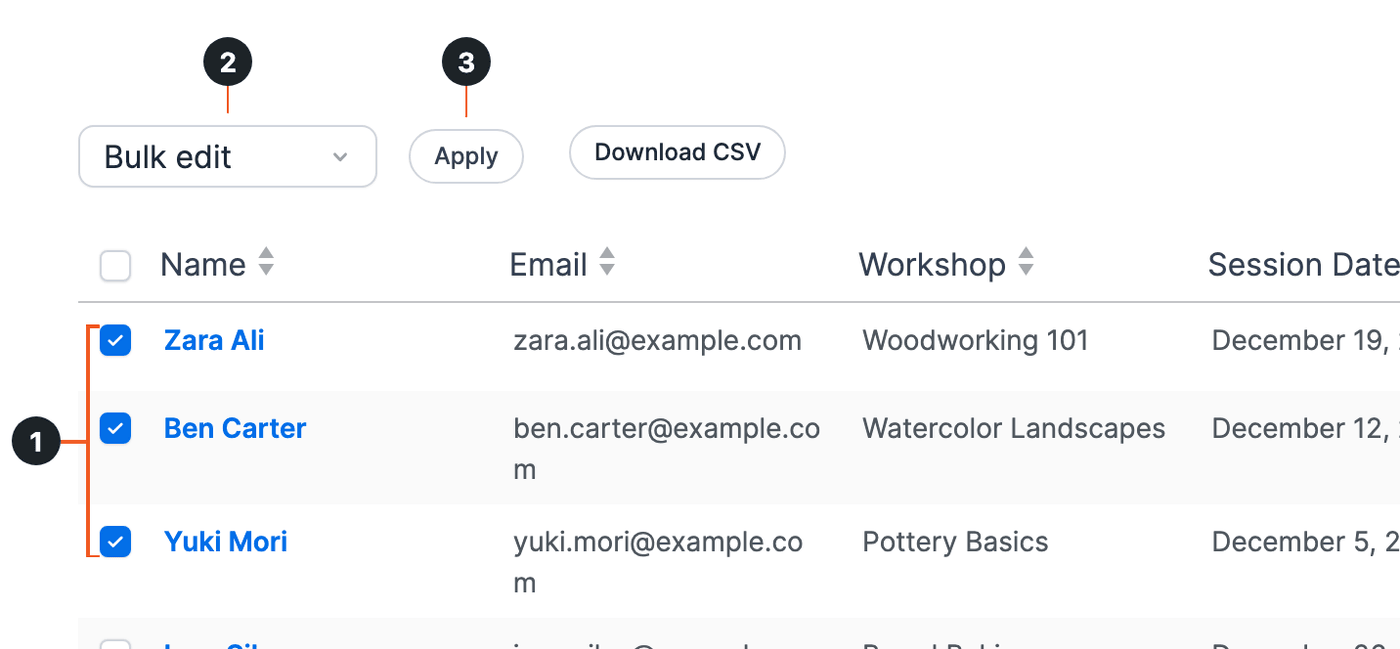
The Bulk Edit Entries page opens. Above the grid, a label such as 3 selected entries shows that the grid has only the entries you checked. Click the X on this label to show all entries of the form.
To edit another form, select it in the Form dropdown. To go back, click Back to Entries.
You can check up to 500 entries at a time. To edit more entries, select all of them:
- Check the box at the top of the entries list. This selects every entry on the page.
- Click Select all [number] entries in the bar above the list.
- In the Bulk Actions dropdown, select Bulk edit and click Apply.
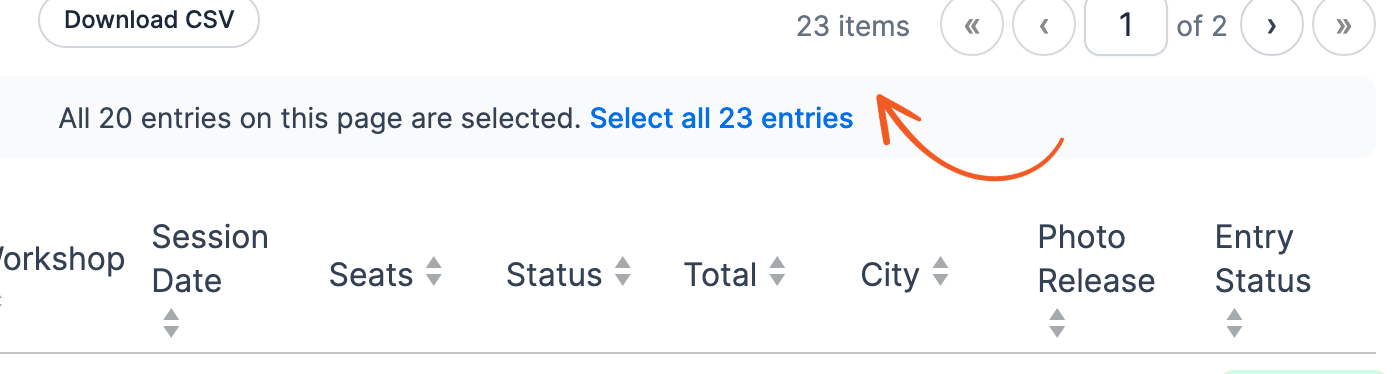
The grid then shows all entries of the form, with no label above it.
If you searched the entries list first, the link says Select all [number] matching entries. The grid then opens with only the entries that match the search. The label above the grid then shows the search, for example Matching "pottery".
Edit entries in the grid
Each row of the grid is an entry, and each column is a field. The ID and Date columns show the entry ID and the date the entry was created. Click an entry ID to open the entry in a new tab.
- Click a cell and change its value. The changed cell is highlighted (1), and the top of the page shows the number of unsaved changes.
- When you finish your changes, click Save Changes (2).
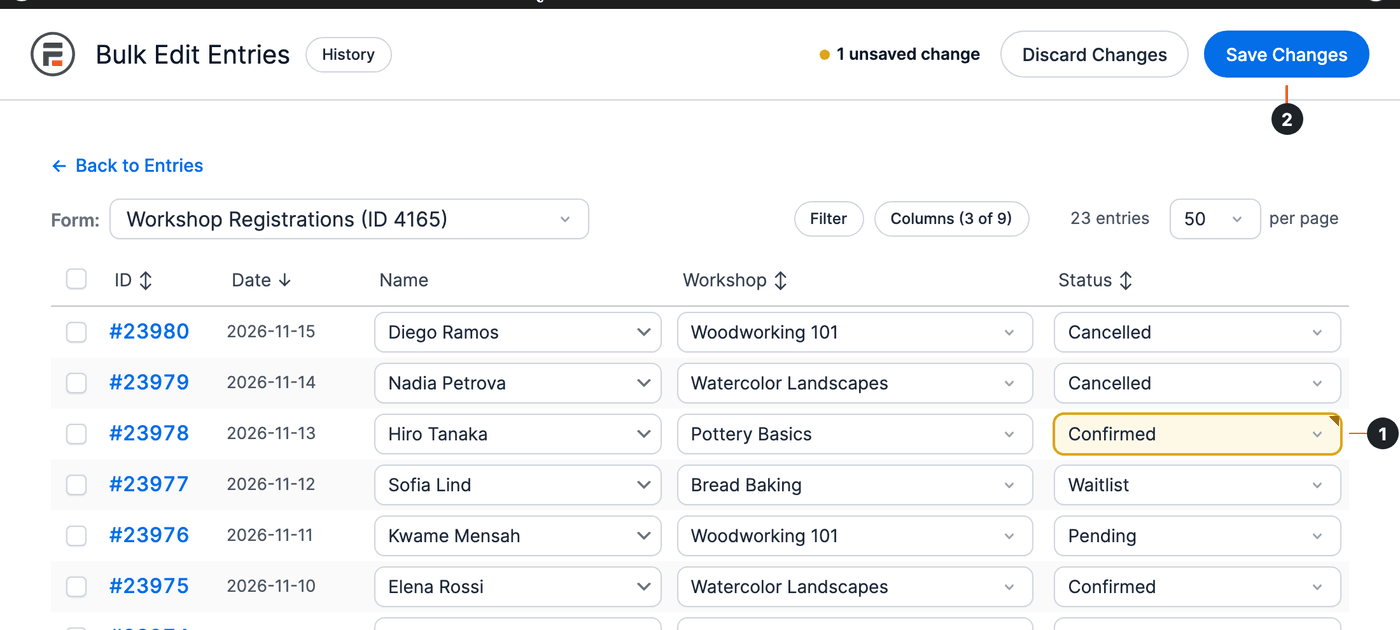
When the save is complete, a green message at the top of the grid shows the number of changed fields. The message says 2 fields updated. A snapshot was saved so you can revert if needed.
Nothing is saved until you save. Discard Changes removes all of your unsaved changes.
Your unsaved changes stay when you go to another page of the grid. If you sort or filter the grid while you have unsaved changes, a message asks you to discard them. The message says Discard 1 unsaved change? This can't be undone.
In the message, click OK to discard the changes and continue, or Cancel to keep them. Discard Changes shows the same message.
A Name or Address field has several parts.
Click its cell to open a small window with 1 box for each part. Change the parts. Then click Done.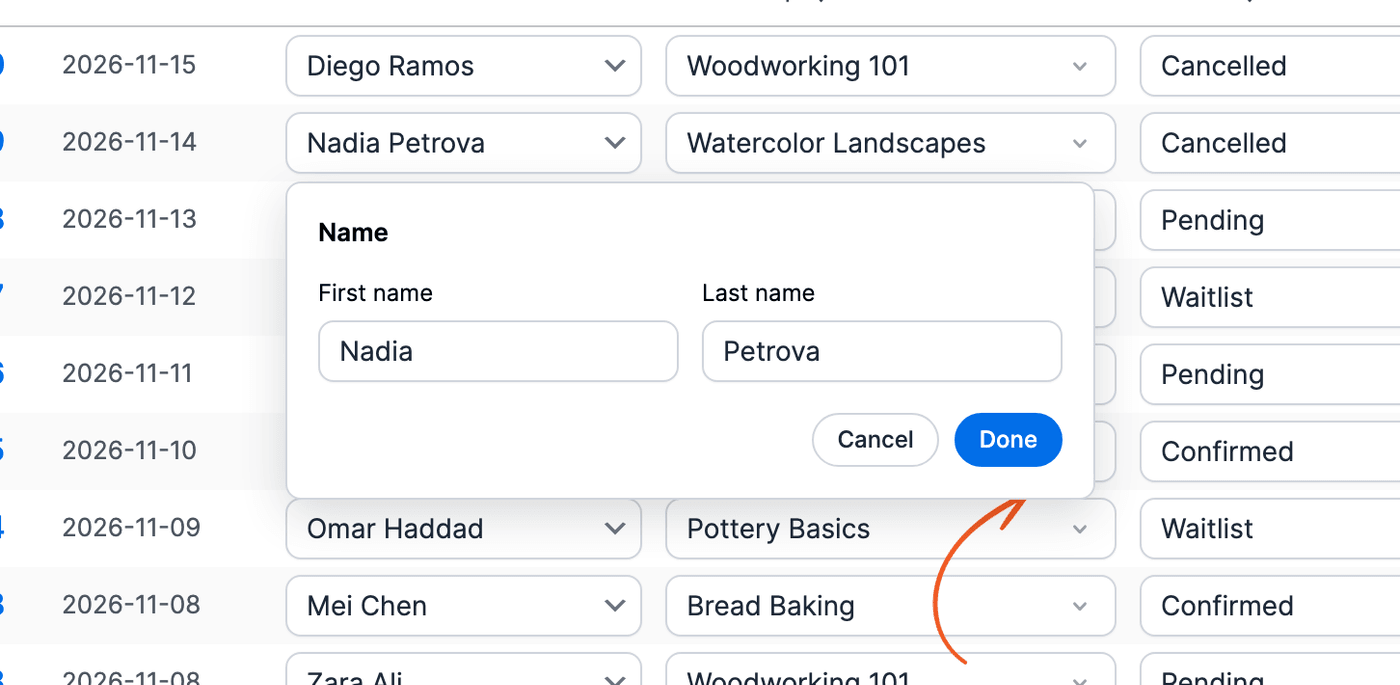
Supported fields
These fields can be edited in the grid: Single Line Text, Paragraph, Email, Website/URL, Phone, Hidden, Number, Date, Time, Dropdown, Radio Buttons, Checkboxes, Toggle, Scale, Star Rating, Slider, Name, Address, Lookup, Tags, and User ID.
Other fields are locked and can't be edited. For example, File Upload, Signature, Repeater, Embed Form, Rich Text, Password, and payment fields are locked.
Locked fields are hidden in the grid until you check them in Columns. Their cells then show Locked.
Choose the columns
When you open a form in the bulk editor for the first time, the grid shows the first 5 fields that can be edited. The Columns button shows how many columns are visible, for example Columns (3 of 9).
- Click Columns. The Show columns list opens at the top of the page.
- Check the fields you want to see, and uncheck the others.
- Click Apply.
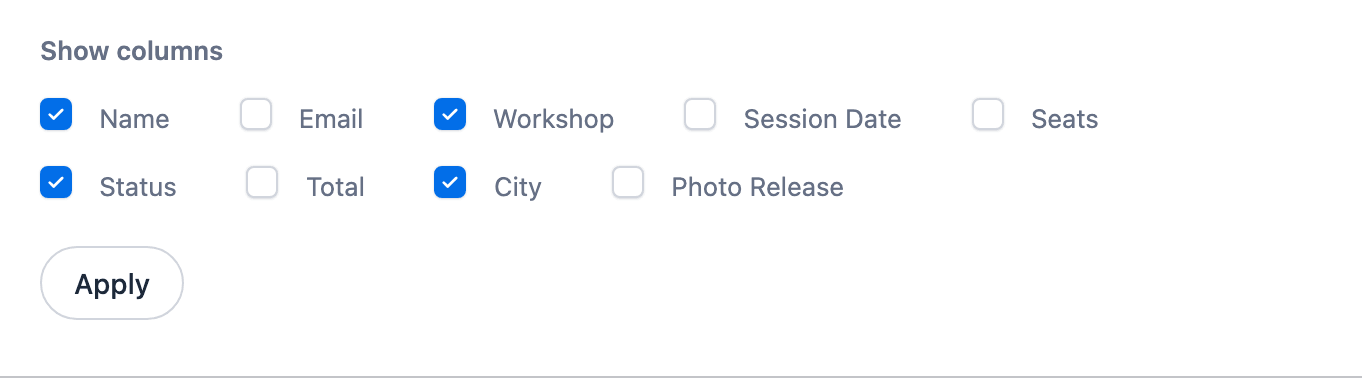
Bulk Edit remembers your columns for each form. Other users keep their own columns.
Sort and page through entries
By default, the grid shows the newest entries first, 50 entries per page. To show more or fewer entries, select 20, 50, 100, or 200 in the per page dropdown. Use the arrows next to it to go to the next or previous page.
Bulk Edit remembers your per page choice for each form.
To sort the entries, click a column header that has an arrow. Click it again to change the order. The sort applies to all pages, not only the page you see.
You can sort by entry ID, date, and most fields. Name, Address, Checkboxes, and Dropdown fields that allow multiple selections can't be sorted.
Save changes
When you click Save Changes, Bulk Edit first checks your new values with the same validation as the form. For example, an Email field must have a valid email address, and a Number field must be within its minimum and maximum. If a value isn't valid, Bulk Edit saves nothing.
When all values are valid, Bulk Edit:
- Saves a snapshot of the entries you changed, so you can undo the save.
- Saves the new values.
- Updates the date each changed entry was last updated.
- Runs the form actions that are set to run when an entry is updated, once for each changed entry.
Bulk Edit doesn't recalculate fields with a calculation. For example, if a Total field calculates Seats × 45 and you change Seats in the grid, Total keeps its old value. Learn more about field calculations.
Fix validation errors
When a value isn't valid, a red message at the top of the grid says Nothing was saved. Fix the validation errors and try again. Below it, each error shows the entry ID, the field, and the problem.
The same error shows under the cell. Click an error in the list to go to its cell.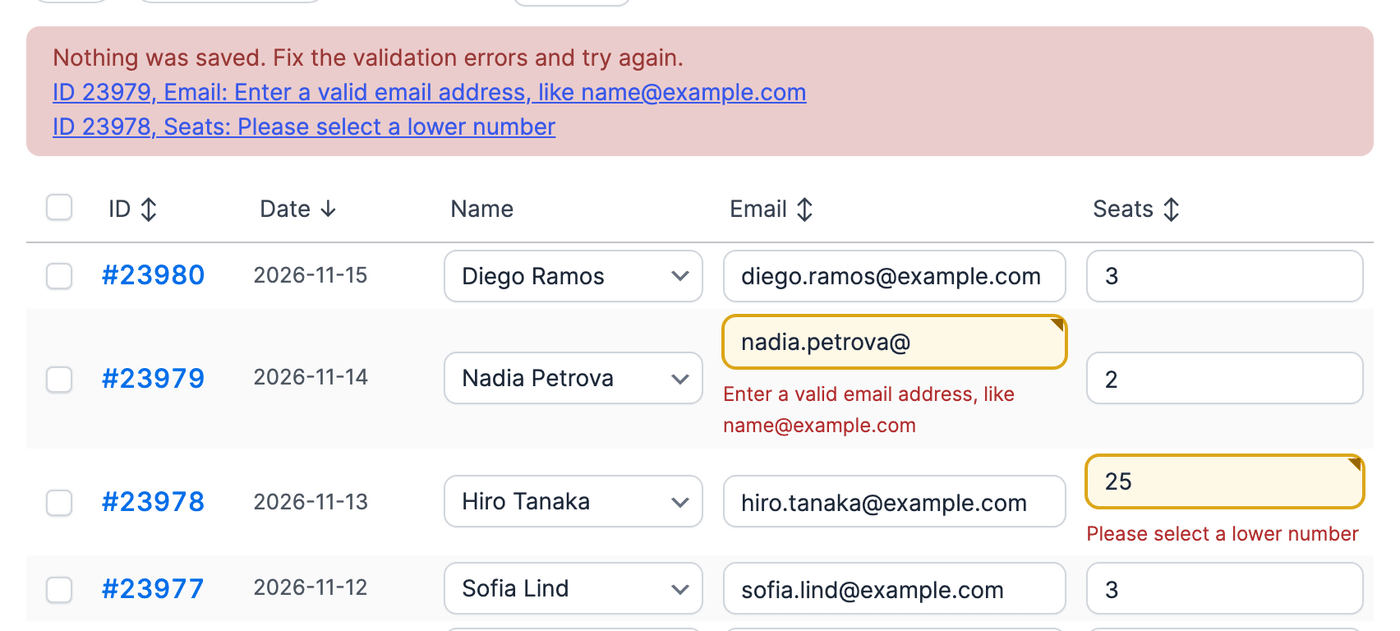
Your changes stay in the grid. Fix each value. Then click Save Changes again.
Change many entries at once
Set the same value in 1 field of many entries, or clean up text, without editing each cell.
- Check the box next to each entry you want to change. To select every entry on the page, check the box at the top of the grid. A bar opens above the grid.
- In the Field dropdown, select the field to change.
- Leave Set value selected, and choose or type the new value.
- Click Apply to [number] entries. The changed cells are highlighted.
- Review the highlighted cells. Then click Save Changes.
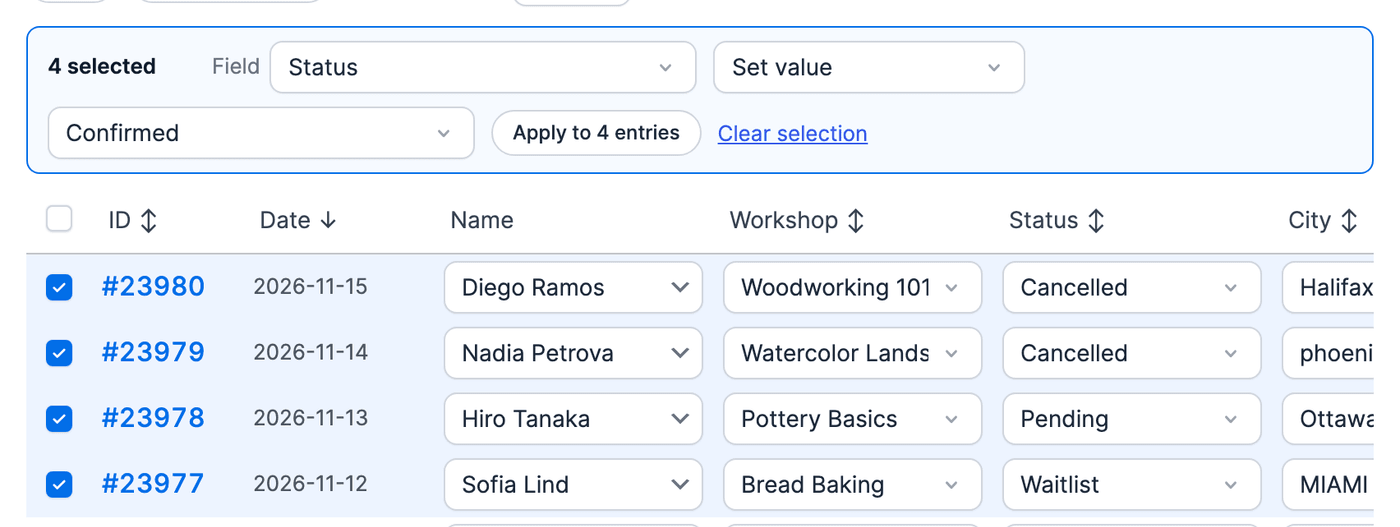
To leave a field empty in the selected entries, leave the new value empty. To uncheck the entries, click Clear selection.
Change all matching entries
If the form has more entries than 1 page, check the box at the top of the grid. The bar then shows Select all [number] entries, or Select all [number] matching entries if the grid is filtered.
Use it to select every entry, on all pages. The bar then says All [number] entries selected, or All [number] matching entries selected if the grid is filtered.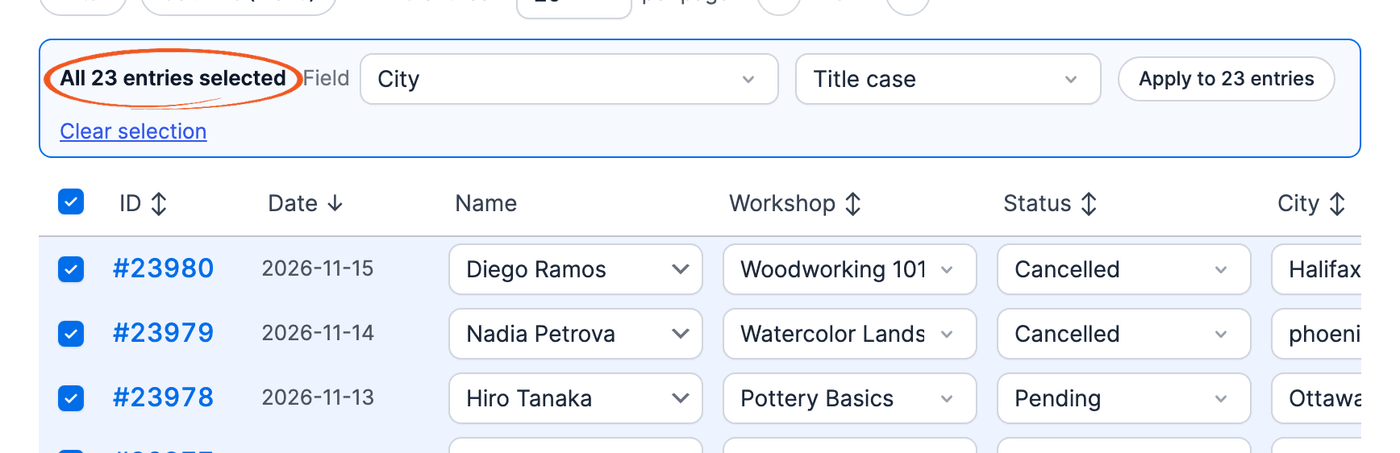
A change to all matching entries works differently from a change on 1 page:
- When you click Apply to [number] entries, Bulk Edit asks you to confirm. Then it saves right away, with a snapshot first. There is no Save Changes step. When the save is complete, a message shows how many entries were updated and that a copy was saved to History.
- Bulk Edit saves every selected entry, even an entry that already has the new value. So form actions set to run when an entry is updated run for every selected entry.
- You can change up to 5,000 entries at a time.
- Save or discard your unsaved changes before you use it.
When more than 100 entries change, the grid shows its progress while it saves. Keep the page open until the update finishes.
Clean up text
Use the Set value dropdown in the bar to clean up text in the selected entries. Select one of these options instead of Set value:
- Find and replace: Swaps the text you type in Find text for the Replacement text. The search is case sensitive. Leave the replacement empty to remove the text.
- Trim whitespace: Removes spaces at the start and end of the value.
- Collapse extra spaces: Changes 2 or more spaces in a row to 1 space, and trims the value.
- Lowercase, Uppercase, and Title case: Change the capitalization of the value.
Text cleanup works on Single Line Text, Paragraph, Hidden, Phone, Email, and Website/URL fields. For other fields, Bulk Edit shows Choose a plain text field for text cleanup.
Filter entries
Show only the entries that match the conditions you set. A filter also limits which entries Select all [number] matching entries changes.
- Click Filter.
- Choose Match all conditions or Match any condition.
- For each condition, select a field, a comparison, and a value. You can also filter by Entry ID and Date Created.
- To add another condition, click Add condition. You can add up to 20 conditions.
- Click Filter at the bottom of the window.
The comparisons depend on the field:
- Most fields have is, is not, contains, does not contain, starts with, ends with, is empty, and is not empty.
- Number fields also have greater than and less than comparisons.
- Date fields also have before and after.
- Name and Address fields have only contains, does not contain, is empty, and is not empty.
The active filter shows as a label next to the Filter button. The entry count shows how many entries match, for example 4 of 23 entries.
Click the label to change the filter. Click the X on the label to clear it.
Save a filter
Save a filter to use it again later.
- Set up and apply the filter.
- Click Filter. Then click Save current filter.
- Type a Filter name and click Save filter.
Your saved filters show at the top of the Filter window. Click a saved filter to apply it again. It also brings back the sort order and the columns you had when you saved it.
Click the X next to a saved filter to delete it.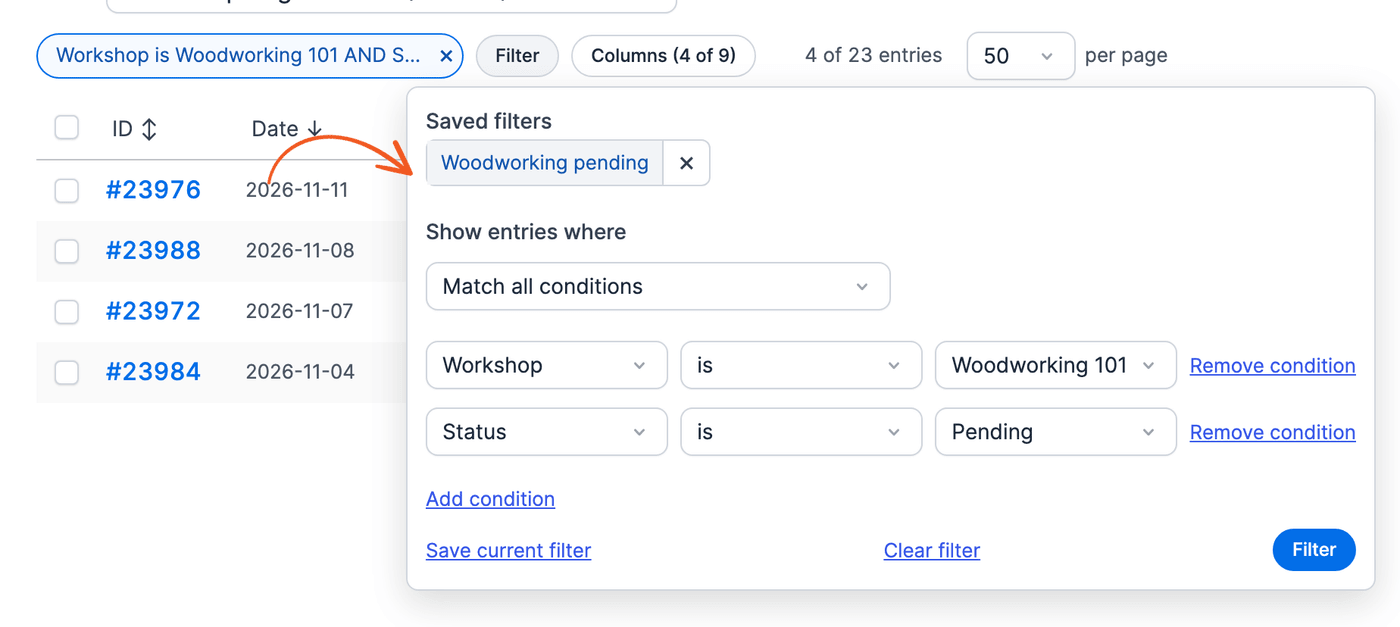
Saved filters are private. Other users don't see them. You can save up to 30 filters for each form.
Undo a save
Each save makes a snapshot of the entries it changes. Revert a snapshot to put back the values those entries had before the save.
- Click History next to the Bulk Edit Entries title. The History window lists the snapshots of the form, newest first. Each snapshot shows the number of entries and the user who saved it.
- (Optional) Click Preview to see the values that a revert puts back. The preview shows only the fields whose values are different now.
- Click Revert. Then click OK to confirm.
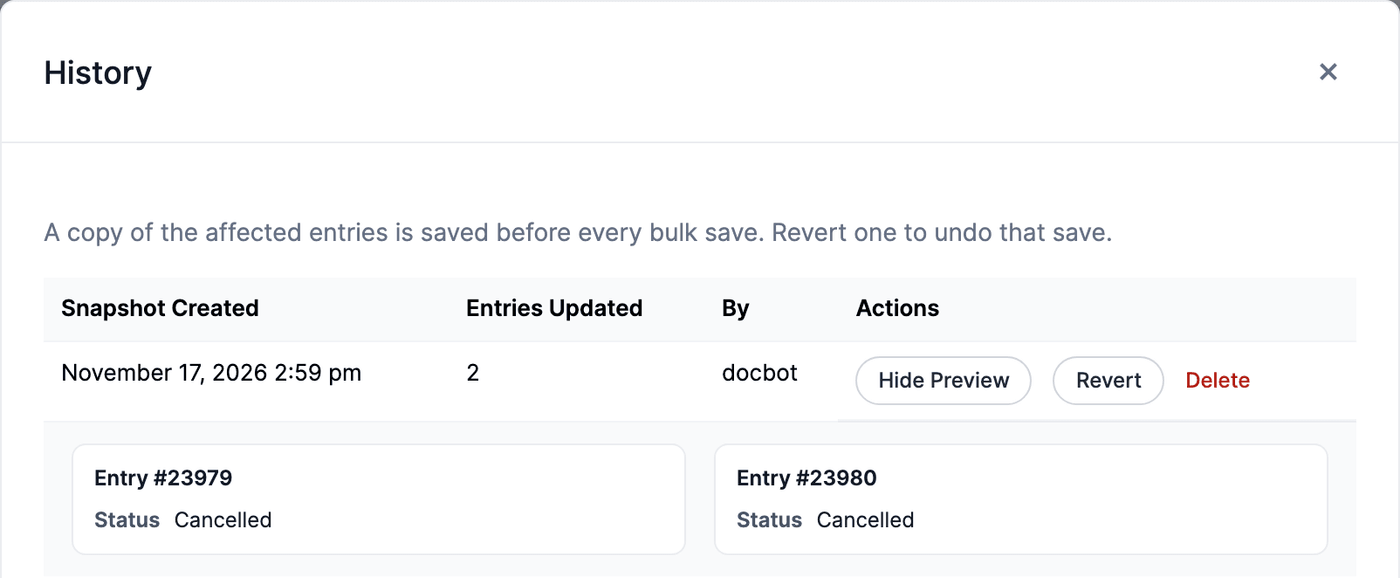
When the revert is complete, a message shows the number of restored entries, for example 2 entries reverted successfully.
Before you revert, keep these points in mind:
- A revert restores every entry in the snapshot. You can't revert only some of the entries.
- A revert restores all fields that Bulk Edit can edit in those entries. It also overwrites changes made to these entries after the snapshot, for example in Formidable → Entries.
- A revert can't be undone. It doesn't make a new snapshot.
- Form actions set to run when an entry is updated run again for each restored entry.
- A revert reloads the grid.
Bulk Edit keeps the 5 newest snapshots of each form and deletes older ones. To delete a snapshot yourself, click Delete next to it. Then click OK to confirm.
Limitations
- Bulk Edit doesn't recalculate fields with a calculation when you change the fields they use.
- Locked fields, such as File Upload, Signature, and Repeater fields, can't be edited in the grid.
- Bulk Edit keeps only the 5 newest snapshots of each form.
- A revert restores all entries in a snapshot. It can't restore only some of them.
- You can open the bulk editor with up to 500 checked entries, and change up to 5,000 matching entries at a time.
- When you delete the Bulk Edit add-on, its snapshots, saved filters, and column choices are deleted too.
Troubleshooting
Formidable Bulk Edit requires Formidable Forms Pro with an active license.
This notice shows when Formidable Forms Pro is not active. Activate Formidable Forms Pro.
The following Formidable add-ons require an active Pro license
Formidable pages show this message when Formidable Forms Pro is active but its license is not activated. For example, the license was deactivated or revoked.
Bulk Edit doesn't load until the license is active. Check your license in Formidable → Global Settings.
Too many entries selected
You checked more than 500 entries in the entries list. Uncheck some entries, or search for the entries and use Select all [number] entries instead.
More than 5,000 entries match. Narrow the filter and apply in smaller groups.
A change to all matching entries can change up to 5,000 entries. Add a condition to the filter, such as an Entry ID range, and apply the change to each group.
Revert failed.
Bulk Edit restored none of the entries in the snapshot. This happens when:
- The entries were deleted after the snapshot was saved.
- Another bulk update is running on the same form, for example a change to all matching entries. Wait for it to finish. Then reload the page and revert again.
Related developer hooks
- Run your own code after a snapshot is reverted with the frm_bulk_edit_after_revert_snapshot hook.
- Run code each time an entry is updated, including each entry a bulk save changes, with the frm_after_update_entry hook.