
Advanced Modals opens a form or any other content in a popup on your pages. You build the modal in the WordPress block editor. It opens on a click, when the page loads, when a visitor is about to leave, or after a visitor has been idle.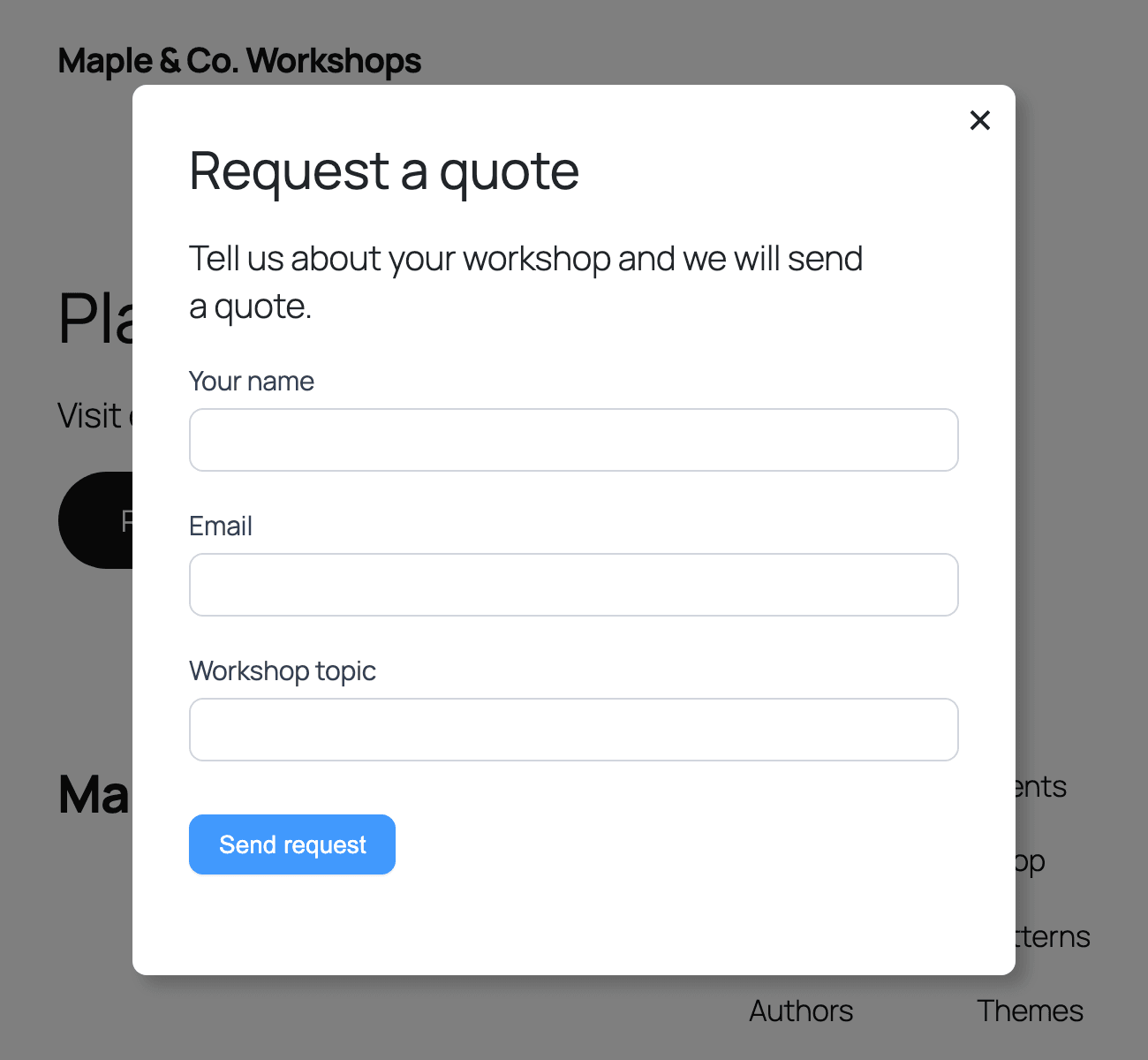
Upgrade your WordPress site with powerful, flexible forms.
Download and install
- If you haven't already, install and activate the current version of Formidable Forms Premium on your WordPress site.
- Go to Formidable → Add-Ons/Boosts and click Boosts in the list on the left.
- On the Advanced Modals card, click Get Boost to buy the add-on.
- After you buy it, go back to Formidable → Add-Ons/Boosts and click Boosts. Turn on the toggle on the Advanced Modals card to install and activate the add-on.
Formidable Forms Pro turns Advanced Modals off when its license is not activated on the site. For example, this happens when the license was deactivated or revoked. A notice on the Formidable pages in the WordPress admin then says that Advanced Modals needs Formidable Forms Pro with an activated license.
If Formidable Forms Pro is not active or not installed, Advanced Modals shows its own notice in the WordPress admin.
In both cases, the Formidable Advanced Modals block is no longer in the block editor. A modal's content then shows on the page as normal content. The Troubleshooting section has the text of each notice.
If your license expires, you keep Advanced Modals and it keeps working. Modals on your pages still open, and the forms in them still submit. You can still add the block in the block editor.
After the grace period ends, Formidable Forms Pro locks some premium features, such as the premium fields. Nothing in Advanced Modals is locked.
As with Formidable Forms Pro, you don't get new features or security updates for the Boost after your license expires. You can't get new Boosts until you renew.
From Idea to Reality in Minutes. Build Powerful Forms, Dashboards, Apps and More.
Formidable Forms makes advanced site building simple. Launch forms, directories, dashboards, and custom WordPress apps faster than ever before.
Add a modal to a page
Before you start, create the form that the modal will show. A modal can also hold other content, such as headings, images, and buttons.
- Open the page or post in the block editor.
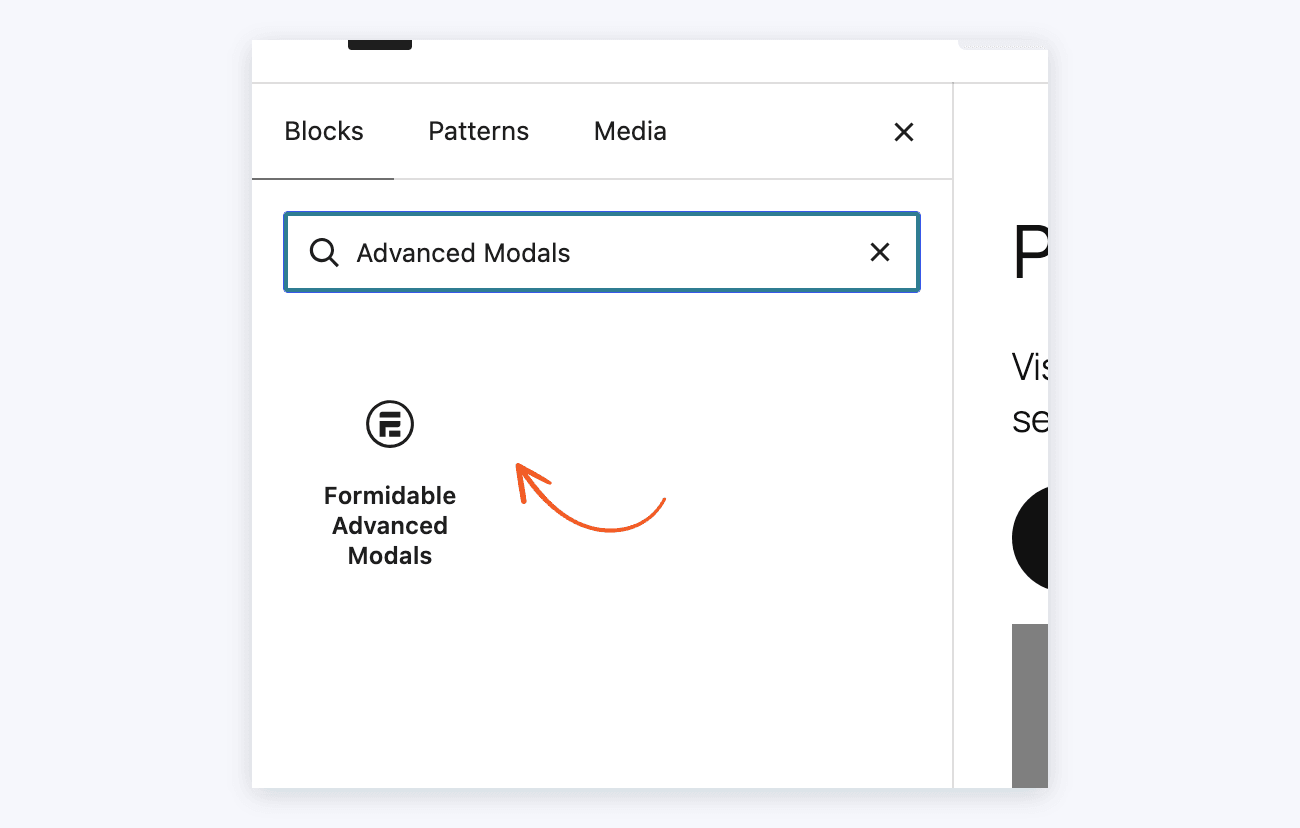
- Click the Block Inserter (+) at the top left, search for Advanced Modals, and click the Formidable Advanced Modals block.

- Click the text of the button, Click here, and type the words that you want visitors to read on it, such as "Request a quote".
- In the modal content below the button, click Popup title and type the title of the modal.
- To show a form, click the empty text line in the modal. Open the Block Inserter, search for Formidable Forms, and click the block named Formidable Forms, not Formidable Forms Modal. The block replaces the empty text line. Then choose your form in the Select a form list. To add an introduction, add a Paragraph block above the form.
- Click Publish, and click Publish again in the panel that opens. On a page that is already published, click Update or Save.
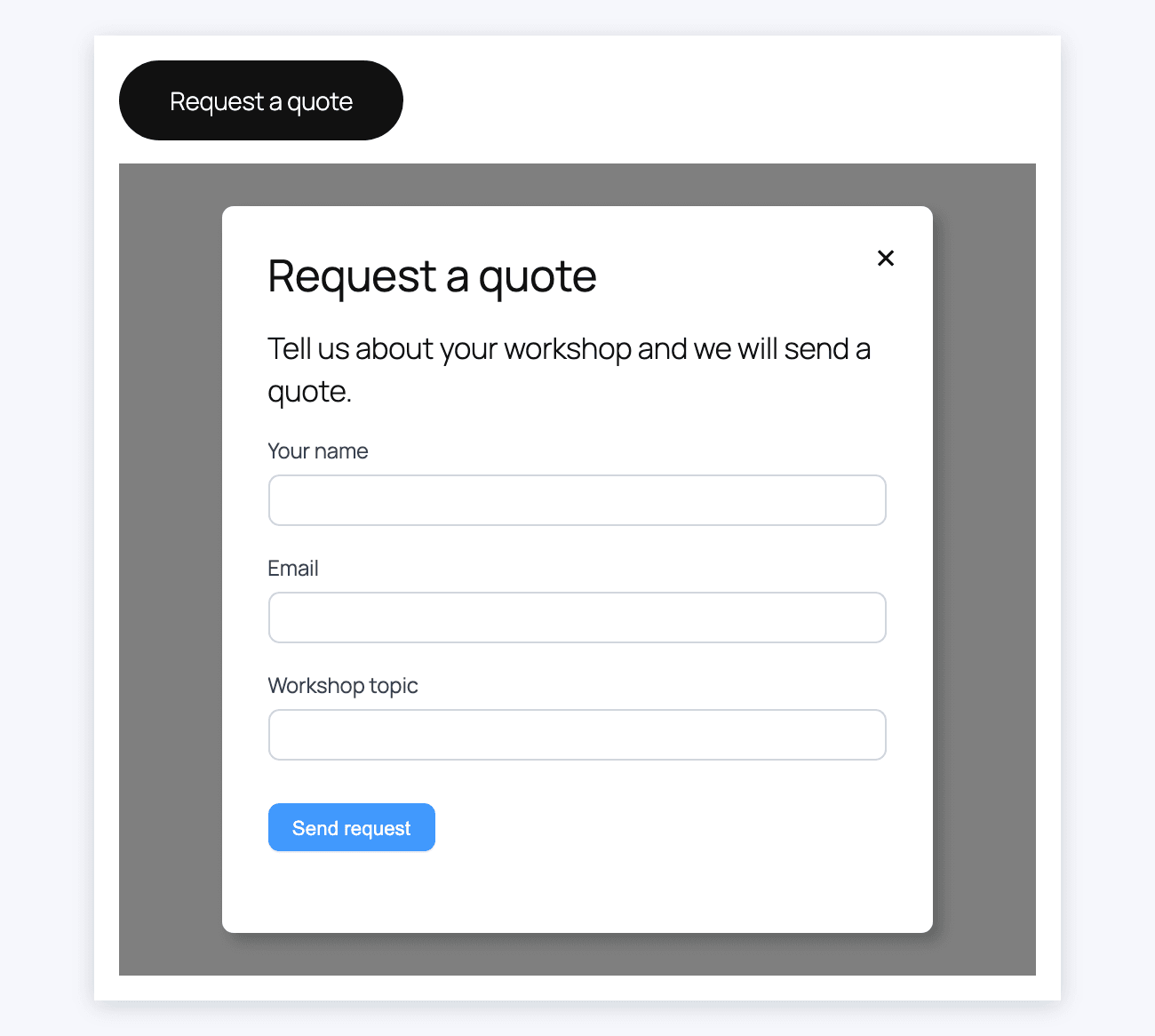
The editor always shows the modal content under the button so you can edit it. On the page, visitors see only the button. The modal opens when they click it.
The modal content is a Group block. Put any blocks in it.
To show a form with a shortcode, use a Shortcode block. A shortcode typed into a Paragraph or Custom HTML block in a modal is not run. It shows as text.
Choose how the modal opens
The trigger sets when the modal opens: when a visitor clicks, or by itself.
Click the Formidable Advanced Modals block. In the block settings sidebar, open Popups Settings. In Select trigger, choose the trigger for the modal.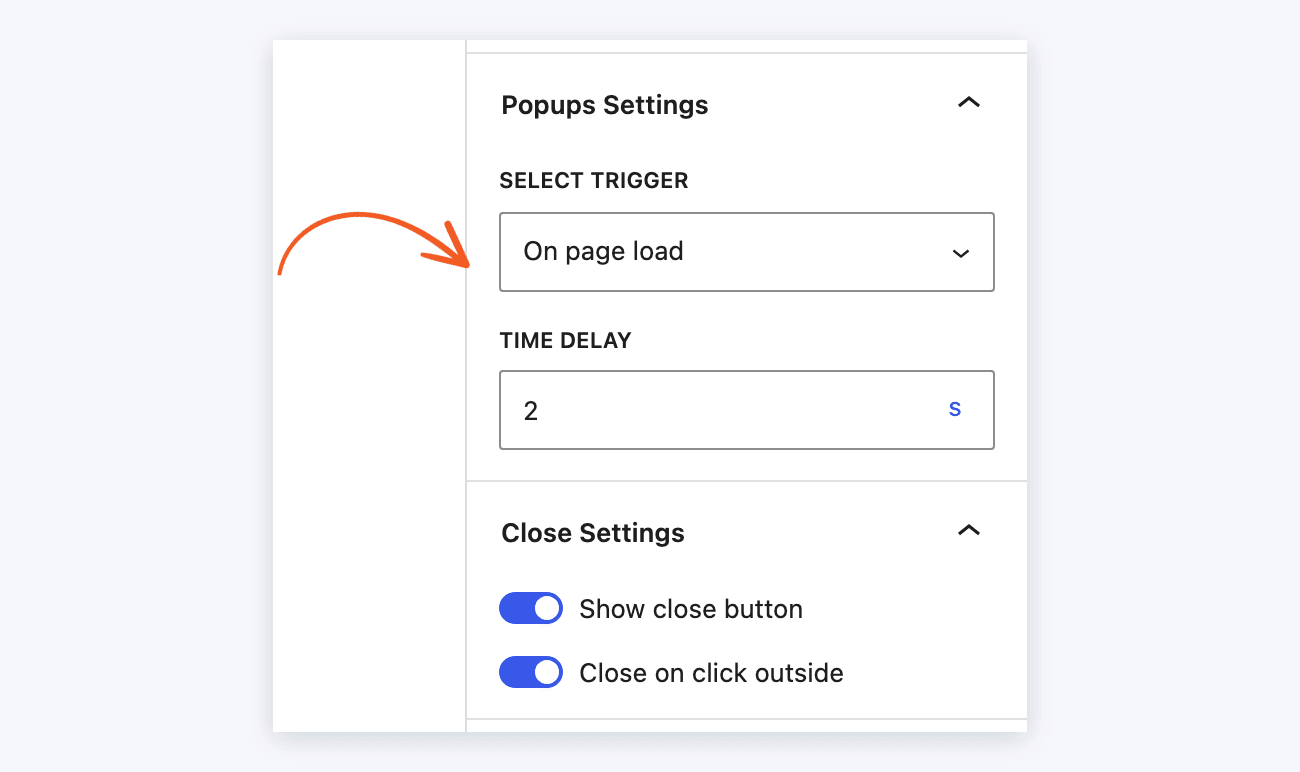
- Button: visitors click a button. This is the default. Style the button like any Button block.
- Link: visitors click a text link. Type the link text in the block.
- Image: visitors click an image. Add the image in the block. A visitor can also tab to the image and press Enter.
- On page load: the modal opens by itself when the page loads. In Time delay, enter the number of seconds to wait. Leave it empty for no delay. The modal then opens at once.
- On exit intent: the modal opens when the visitor moves the mouse out of the browser window. It opens once on each page view.
- After inactivity: the modal opens when the visitor is idle for the number of seconds in Inactive seconds. Idle means no mouse move, click, key press, touch, or scroll. The default is 30. Enter a number from 1 to 86400. After the visitor closes the modal, it does not open again on that page view.
The last 3 options have no button. The block shows only the modal content.
For a form that visitors ask for, such as a quote request, use Button, Link, or Image. To show a form without a click, such as a newsletter signup, use one of the last 3 options and set a display frequency.
Close settings
In the Close Settings section of the block settings:
- Show close button: by default, the modal has an × button in its top corner. When you turn this off, the button is hidden.
- Close on click outside: by default, clicking the dimmed page behind the modal closes it. When you turn this off, that click does nothing.
Visitors can always close a modal with the Escape key. If you turn off both settings, the modal still shows the × button.
Set the size and overlay color
The modal content block sets how wide the modal is and the color of the page behind it.
Click the modal content, which is the Formidable Advanced Modals Content block. You can also select it from the List View. The block settings sidebar then shows its settings.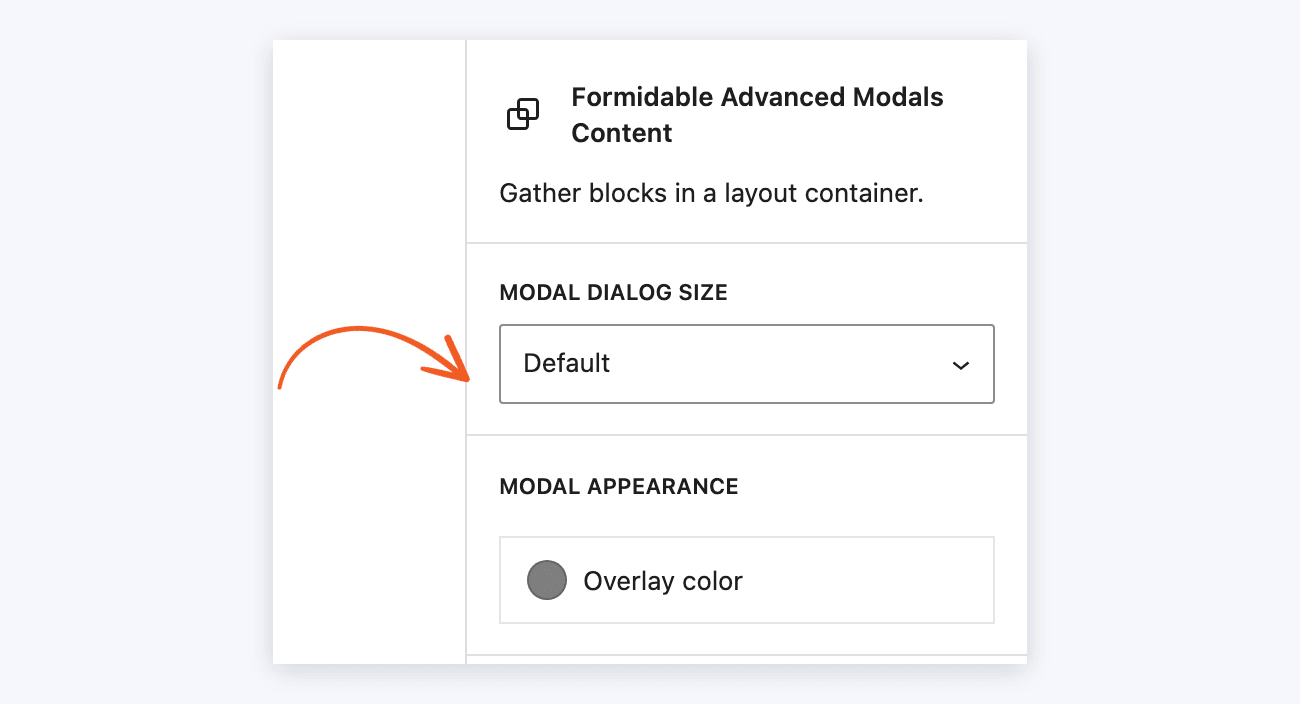
- Modal dialog size: Default is selected at first and is up to 500px wide. Small is up to 300px, and Large is up to 800px on a window 992px wide or wider. With Custom, enter the width in the Modal max width field that appears. Its default is 650px. These are maximum widths. On a narrow screen the modal is narrower. On a window from 576px to 991px wide, Large is up to 500px, like Default.
- Overlay color: the color of the page behind the modal. The default is black at 50% opacity. Pick another color, or change the opacity in the color picker.
Limit when the modal opens
These settings limit how often the modal opens and who sees it.
Set a display frequency
A frequency limit is for modals that open by themselves: On page load, On exit intent, and After inactivity. A visitor who clicks a button, link, or image can always open the modal again.
To set a limit, click the Formidable Advanced Modals block and open the Frequency section of the block settings.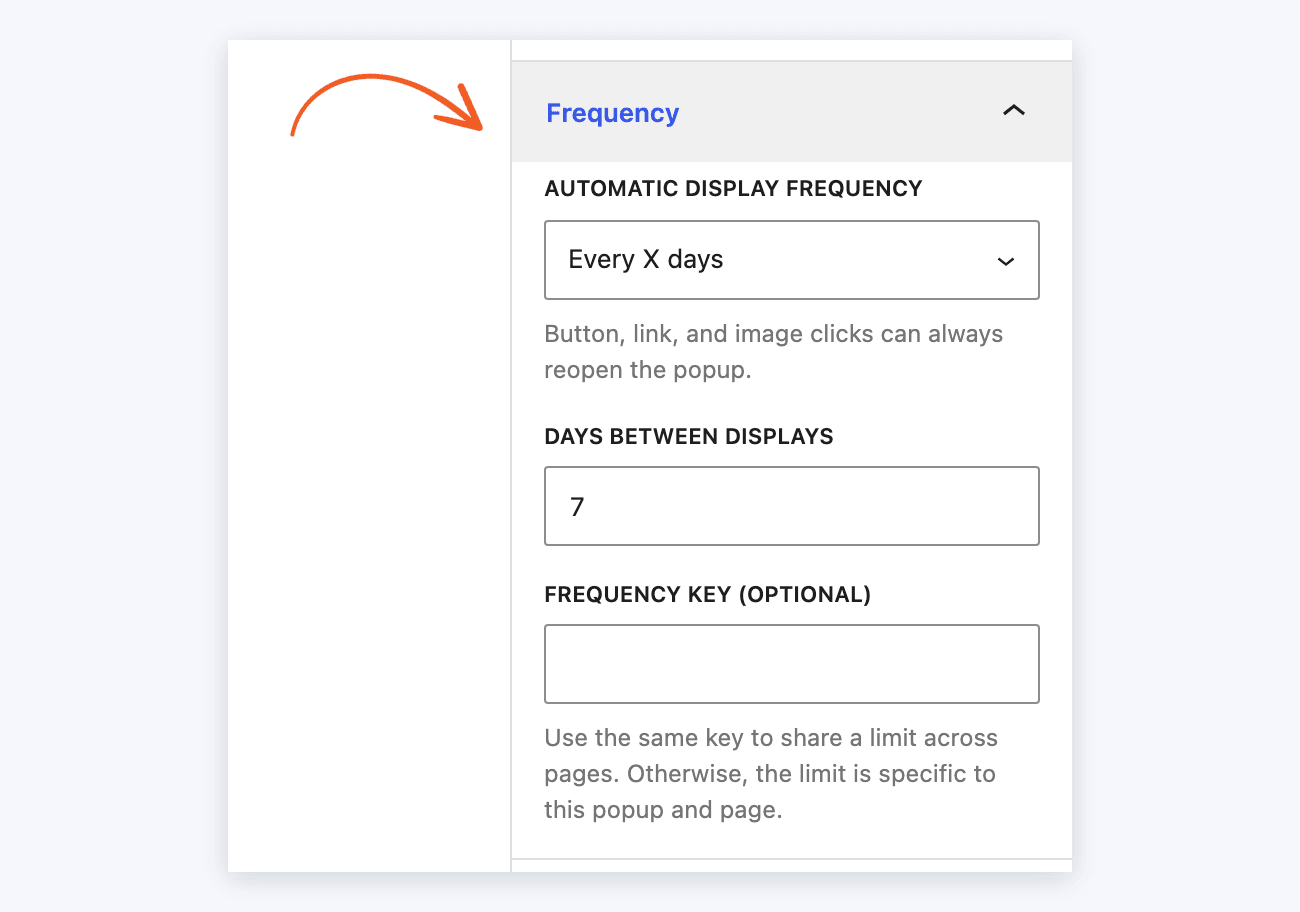
- Every page view: the modal opens every time. This is the default. A modal that opens by itself on each page view can annoy visitors, so for most modals choose Once per tab session or Every X days.
- Once per tab session: the modal opens once in a browser tab. A new tab opens it again.
- Every X days: the modal opens again after the number of days in Days between displays. The default is 7. Enter a number from 1 to 3650.
- Frequency key (optional): pages that use the same key share one limit. A visitor who saw the modal on one page does not see it on another page with the same key. Without a key, the limit is for that modal on that page.
The browser remembers when the modal opened. A visitor who clears the site data in their browser sees the modal again.
Choose who sees the modal
The modal, and its button, link, or image, appear only to visitors who match every audience rule you set. Leave a rule empty to apply no limit.
To set the rules, click the Formidable Advanced Modals block and open the Audience section of the block settings.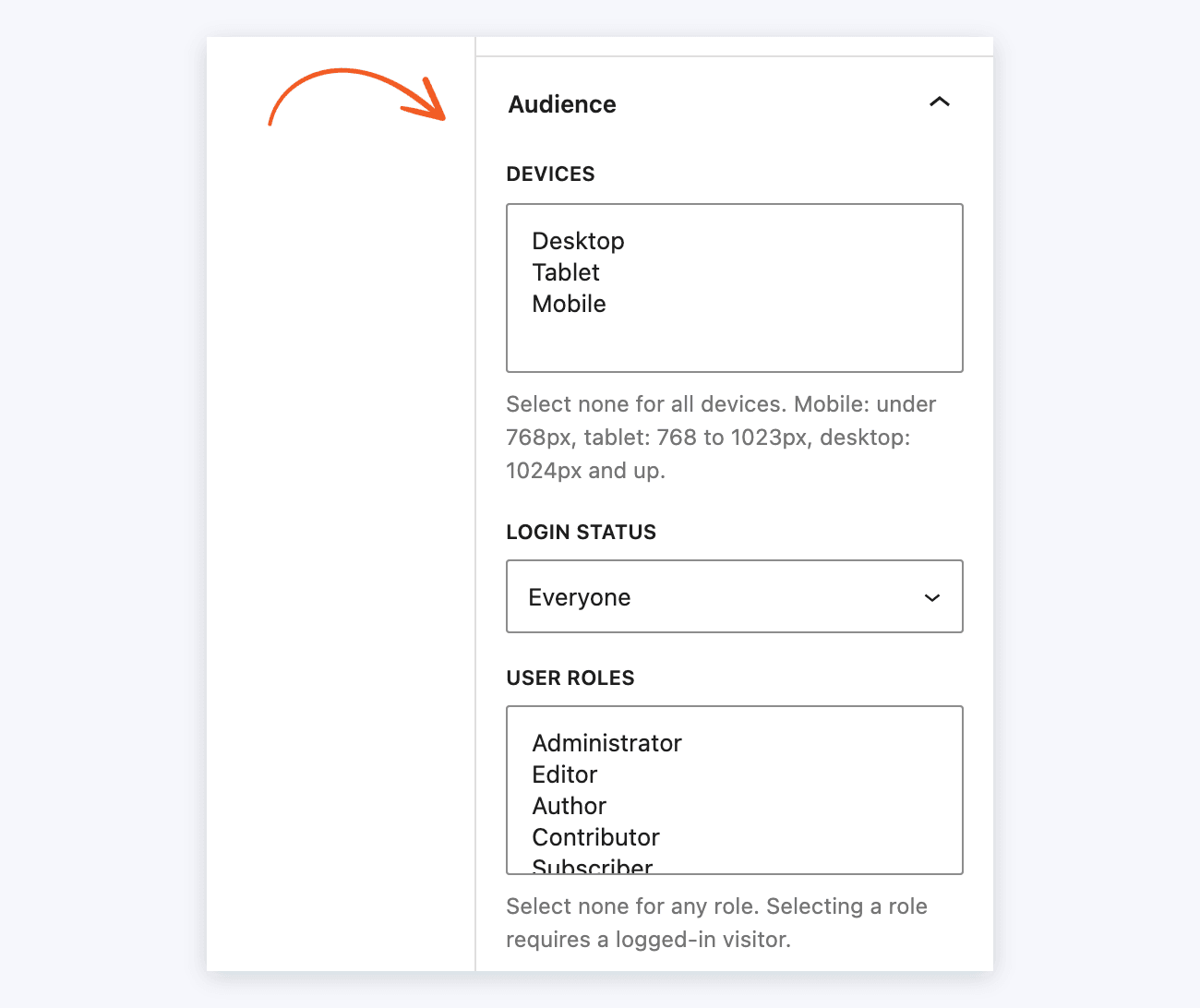
- Devices: choose Desktop, Tablet, or Mobile. A window under 768px wide counts as mobile, 768px to 1023px as tablet, and 1024px and wider as desktop. Select none to show the modal on all devices. To choose more than one, hold Ctrl (Windows) or Cmd (Mac) and click each one. Use the same keys to clear a choice.
- Login status: Everyone (default), Logged in, or Logged out.
- User roles: select one or more roles to show the modal only to logged-in users with one of those roles. To choose more than one, hold Ctrl (Windows) or Cmd (Mac) and click each one. Select none for any role.
- Include page URLs containing: show the modal only on pages whose address contains the text. Enter one text match per line. A page that matches any line qualifies. A comma also starts a new match, so don't use a comma inside a match. The address includes the part after the question mark, so
?promo=1works. - Exclude page URLs containing: hide the modal on pages whose address contains any of the lines. The same comma rule applies.
- Include referrers containing and Exclude referrers containing: the same rules for the address of the page the visitor came from, such as
example.org. A visitor who arrives with no referrer does not match an include rule.
What visitors see
A form in a modal submits without reloading the page, and its error messages show inside the modal. You don't need to turn on Submit this form with AJAX or Validate this form with javascript in the form settings. Formidable does it for forms in a modal, and the form settings stay as they are.
After a successful submit, the confirmation message shows inside the modal. The modal stays open until the visitor closes it.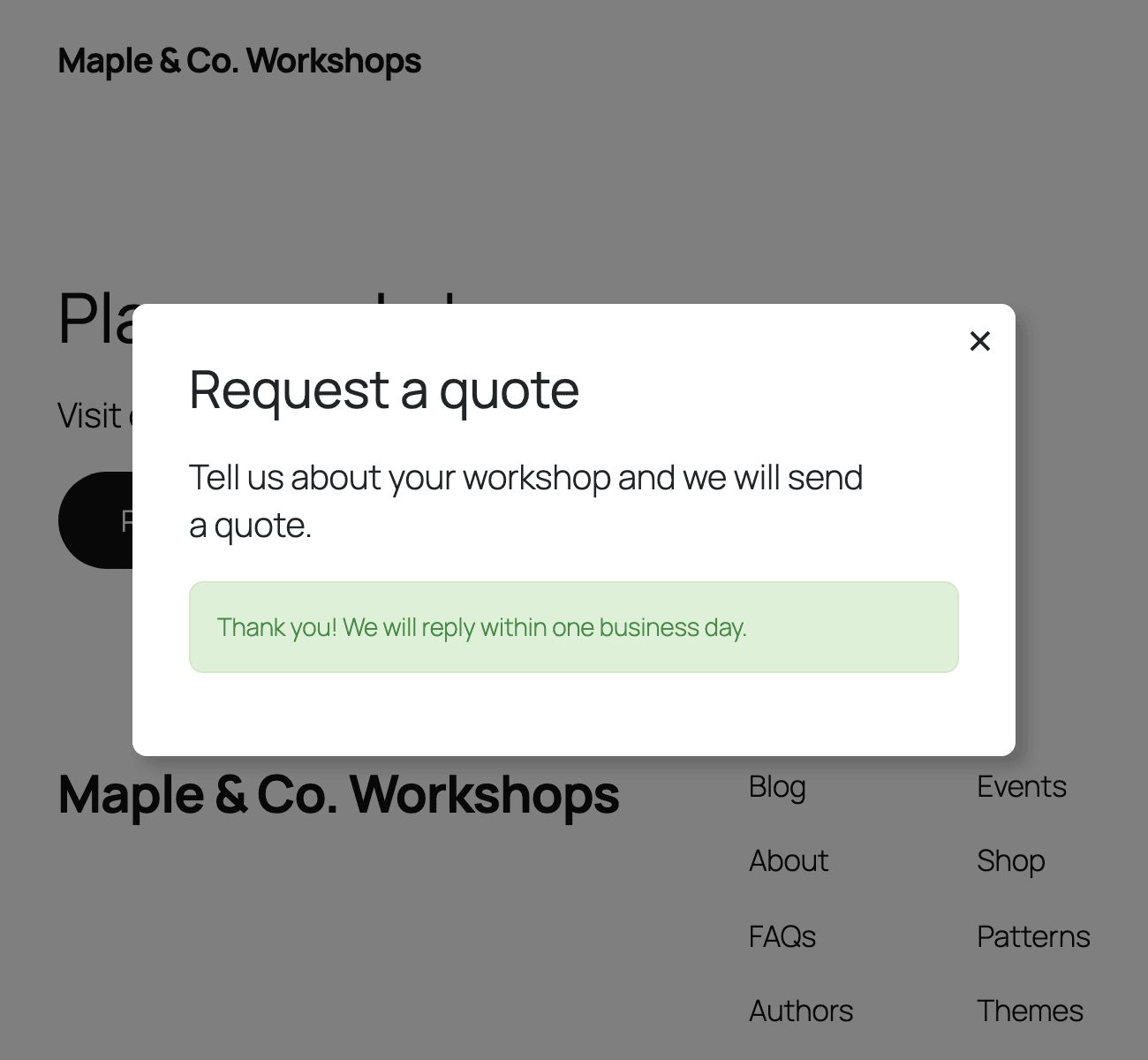
To close the modal after a few seconds, use the code in Close the modal after the confirmation.
While a modal is open, the page behind it does not scroll.
Add a modal with a shortcode
Use the [frm-advanced-modals] shortcode to add a modal without the block editor, for example in a classic editor, a widget, or a View. The shortcode needs a label for the link, your own button_html, or a trigger of load, exit, or inactivity. Without one of them, nothing shows.
Show a form in a modal. Replace 5 with the ID of your form:
[frm-advanced-modals id=5 type="form" label="Request a quote" /]
To show a View, use type="view" and the ID of the View. To show other content, put it between an opening and a closing shortcode. Replace 5 with the ID of your form again:
[frm-advanced-modals label="Request a quote" modal_title="Request a quote"]
<p>Tell us about your workshop.</p>
[formidable id=5]
[/frm-advanced-modals]
When a page has more than one modal shortcode, end each shortcode that has no closing shortcode with / before the last bracket. The first example ends this way.
Without it, WordPress pairs the shortcode with the next closing shortcode on the page. The content of the next modal then shows inside the first one.
The shortcode takes these attributes.
idandtype: the ID of a form or a View, andform(default) orview.label: the text of the link that opens the modal.modal_title: the title at the top of the modal. It uses the label when you leave it out, and "Popup" when there is no label.classandmodal_class: a CSS class for the link, and a CSS class for the modal.button_html: your own HTML for the button or link. Use it instead oflabel.size:small(up to 300px) orlarge(up to 800px). The default is up to 500px.overlay_color: the color of the page behind the modal, such asrgba(30, 58, 138, 0.8).trigger:load,exit, orinactivity. Leave it out to open the modal with a click.delay: forload, the seconds to wait before the modal opens.inactivity: forinactivity, the idle seconds. The default is 30.hide_close="1"andno_click_outside="1": turn off the × button, and turn off closing on a click outside the modal.frequency,frequency_daysandfrequency_key:always(default),sessionordays, the number of days, and the shared key.devices,login,roles,url_include,url_exclude,referrer_includeandreferrer_exclude: the audience rules.devicestakes a comma-separated list in lowercase, such asdevices="mobile,tablet".rolestakes a comma-separated list of role names as WordPress saves them, such asroles="administrator,editor".loginisall,in, orout. The URL and referrer rules take a comma-separated list, so a match can't contain a comma.
Switch from Bootstrap Modal
Advanced Modals shows each modal with its own script and the browser's built-in popup. The older Bootstrap Modal add-on loads Bootstrap's modal script and styles.
The [frmmodal] and [frmmodal-content] shortcodes of Bootstrap Modal also work in Advanced Modals, with their id, type, label, and other attributes. While Bootstrap Modal is active, it keeps those two shortcodes. Deactivate Bootstrap Modal to let Advanced Modals show them, or change the shortcode name to frm-advanced-modals.
Limitations
- Advanced Modals needs Formidable Forms Pro with its license activated on the site. An expired license does not turn it off.
- A shortcode in a Paragraph or Custom HTML block inside a modal is not run. Use the Formidable Forms block or a Shortcode block.
- Frequency limits apply only to modals that open by themselves. A click always opens the modal.
- Frequency limits are saved in the visitor's browser, not on your site.
Troubleshooting
The following Formidable add-ons require an active Pro license: Advanced Modals. Activate your license to use them.
Formidable Forms Pro is active, but its license is not activated on the site. The notice shows on the Formidable pages, and the list can name other add-ons too.
Click Activate your license in the notice, or go to Formidable → Global Settings, and activate your license. Until then, the block is not in the editor, shortcodes show as text, and a modal's content shows on the page.
Formidable Advanced Modals requires Formidable Forms Pro with an active license.
Formidable Forms Pro is not active or not installed. This notice shows in the WordPress admin.
Install and activate Formidable Forms Pro, and then activate your license in Formidable → Global Settings. Until then, the block is not in the editor, shortcodes show as text, and a modal's content shows on the page.
Formidable Advanced Modals requires Formidable Forms to be active.
Install and activate Formidable Forms. Advanced Modals does nothing without it.
The modal does not open by itself again
With Once per tab session or Every X days in the Frequency section of the block settings, the browser remembers that the modal opened. To see the modal again, open the page in a new tab or clear the site data in your browser. While you test, you can also choose Every page view.
The button or the modal does not show
A device, login status, user role, page URL, or referrer rule that does not match the visitor hides the modal and its button. To find the rule, open the Audience section of the block settings and clear all the rules. Then add them back one at a time.
Related customizations
Close the modal after the confirmation
By default, a modal stays open after a form is submitted, until the visitor closes it. Use this code to close it 3 seconds after the confirmation message shows.
Change 3 to the number of seconds that you want. Return 0 to keep the modal open.
add_filter( 'frm_advanced_modals_close_delay', 'frm_close_modal_after_confirmation' );
function frm_close_modal_after_confirmation() {
	return 3;
}