
Publish a WordPress login form on any page, post, or widget on your site. You may:
- Insert the login shortcode with a block
- Insert the login shortcode manually
- Use the shortcode builder
- Use the Login Form widget
Upgrade your WordPress site with powerful, flexible forms.
Insert login shortcode with a block
Follow this guide on adding the login shortcode to a page using the block editor.
- In the block editor, click the (+) add block button, scroll to the Widgets category and search for the Shortcode block. You can also type Shortcode in the search, and it should show up.

- Insert the [frm-login] shortcode in the block.


From Idea to Reality in Minutes. Build Powerful Forms, Dashboards, Apps and More.
Formidable Forms makes advanced site building simple. Launch forms, directories, dashboards, and custom WordPress apps faster than ever before.
Insert the custom login form manually
You may insert the following shortcode on a page, post, or text widget to display a login form.
[frm-login]
This shortcode will display a login form on the front-end of your site.
Label parameters
- label_username: Change the label of the username field.
[frm-login label_username="Username"]
- label_password: Change the label of the password field.
[frm-login label_password="Password"]
- label_remember: Change the label on the remember me checkbox
[frm-login label_remember="Remember Me"]
- label_lost_password: Change the text on the "Forgot your password?" link.
[frm-login label_lost_password="Lost password?"]
- label_log_in: Change the text on the login button.
[frm-login label_log_in="Login"]
- label_log_out: Change the label of the logout link.
[frm-login label_log_out="Logout"]
Field value parameters
- value_username: Insert a default value into the username field.
[frm-login value_username="Username"]
- value_remember: Check the remember me checkbox by default.
[frm-login value_remember=1]
- username_placeholder: Set placeholder text in the Username field.
[frm-login username_placeholder="Username"]
- password_placeholder: Set placeholder text in the Password field.
[frm-login password_placeholder="Password"]
CSS class parameters
- class: Apply a Formidable Style or your own CSS class to the login form. If no class is specified, the default Formidable style will be used.
[frm-login class="class_name_here"]
- class_remember: Replace the default classes on the Remember Me checkbox.
[frm-login class_remember="class_name_here"]
- class_lost_password: Replace the default classes on the Lost Password link.
[frm-login class_lost_password="class_name_here"]
Show elements parameters
- remember: Show the checkbox to remember your users. Defaults to show it. Hide with remember=0.
[frm-login remember=0]
- show_lost_password: Add a 'Forgot your password?' link to the login form.
[frm-login show_lost_password="1"]
- show_labels: Hide the Username and Password field labels.
[frm-login show_labels="0"]
- show_messages: Prevent failed login messages from showing in the login form. By default, messages will appear in the form when login fails.
[frm-login show_messages="0"]
Miscellaneous parameters
- layout: Show the fields either horizontally or vertically.
[frm-login layout=h or layout=v]
- redirect: Redirect users to an internal page after logging in. WordPress security measures require that the redirected page is on the same site. Note: If the redirect doesn't work, you could try removing https://www in the URL. Security settings on some hosting providers see this as an external link and block the redirect.
[frm-login redirect="yoursite.com/page"]
- logout_redirect: Redirect users to an internal page after logging out. WordPress security measures require that the redirected page is on the same site. Note: If the redirect doesn't work, you could try removing https://www in the URL. Security settings on some hosting providers see this as an external link and block the redirect.
[frm-login logout_redirect="yoursite.com/page"]
You can be redirected to a specific page using its page ID when logging out. This feature ensures that you can easily find the page you need and supports the page ID as a number.
[frm-login logout_redirect=page_id]
- slide: Set your form to be hidden and require a click to show it.
[frm-login slide=1]
- style: Use Formidable styling on your form. This is on by default. Disable Formidable styling with style=0.
[frm-login style=0]
Registration link parameters
- register_link: Add a new user registration link to the login page. When clicked, it will redirect users to the User Registration page you have configured in the Global Registration settings.
[frm-login register_link="1"]
- label_register: Change the text on the "New user? Click here to register" link.
[frm-login label_register="Sign up to register"]
- class_register: Apply a custom CSS class to the new user registration link.
[frm-login class_register="custom-css-class-name-here"]
Use the shortcode builder
These instructions are meant to be used when using the Classic Editor. If you are using the Block Editor, please follow these instructions instead.
- Go to a WordPress page or post.
- Click on the Formidable button above the content box.
- Select Login Form from the left sidebar menu.
- Configure the settings you would like for your login form.
- Click the Insert into Post button.


Add a login widget
You may use the Login Form widget to add a login form to your sidebar or footer.
- In your Wordpress Admin, go to Appearance → Widgets.
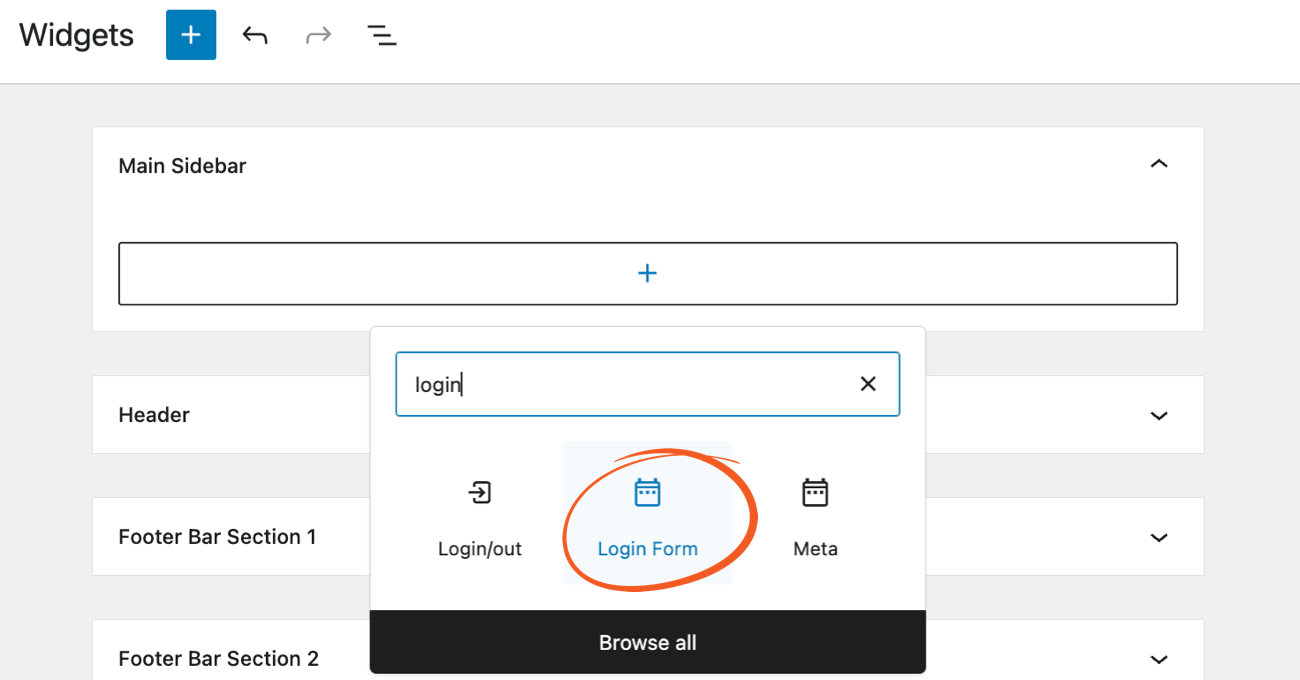
- In the block editor, click the (+) add block button, scroll to the Widgets category, and search for the Login Form block.
- Set the title, labels, styling, and other settings.

Global Settings
After publishing the login form, configure the Global Registration Settings by going to Formidable → Global Settings → Registration. Then select the page where you have added the [frm-login] shortcode.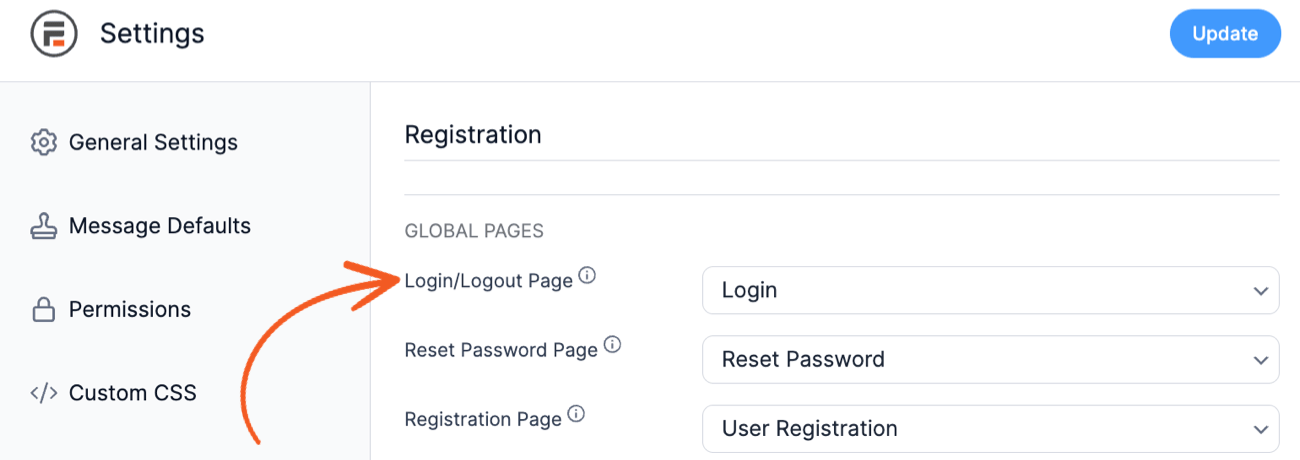
Create a login form style
We recommend creating a Style that is specific to your login form. Follow the instructions below to create a Style for your login form.
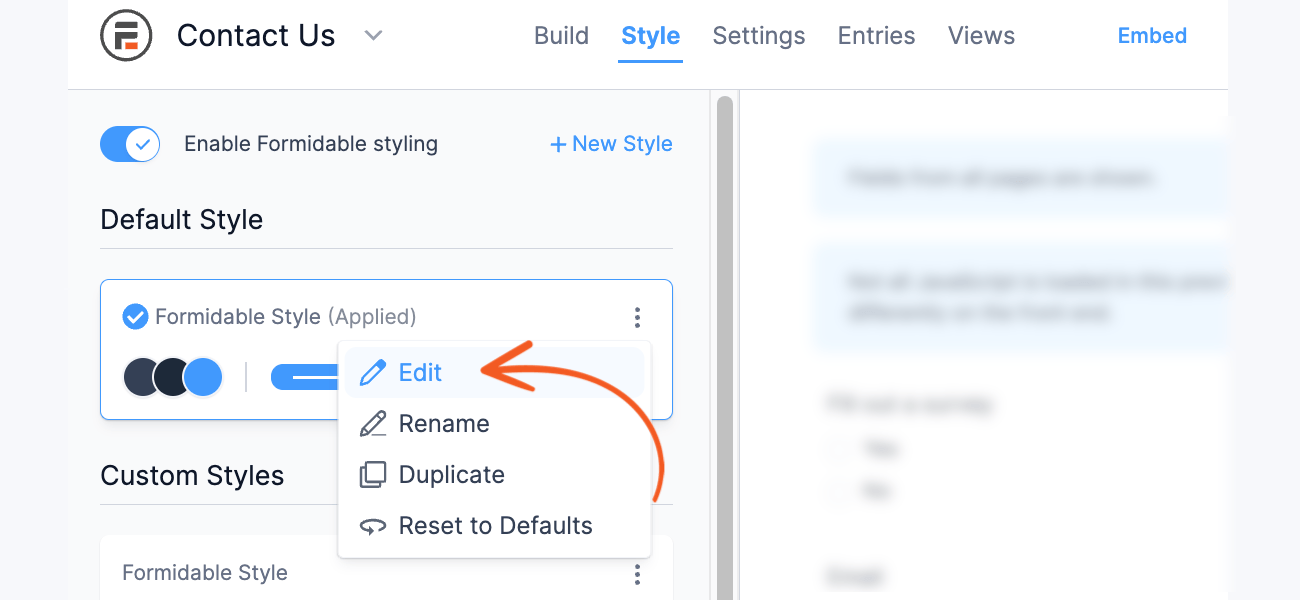
- Go to Formidable → Styles.
- Click the + New Style link to create a new form style.
- In the form styler, navigate to the General section. Look for the Form Width and set the max-width to 600px. This can be adjusted as needed.
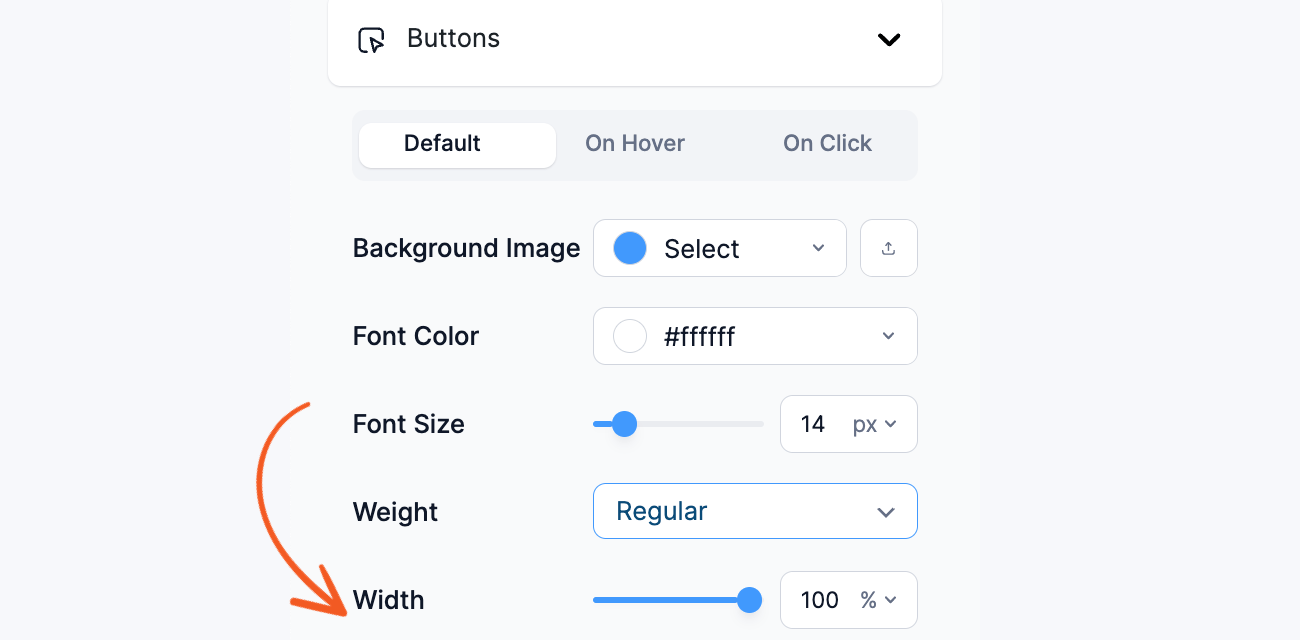
- Navigate to the Buttons section. Set the width to 100%. Adjust the button colors to match your site's colors. Adjust the Hover and Click colors as well.
- Configure other style settings as needed.
- If you are publishing your login form with a shortcode, you can now set the Style to the one you just created.


Enable RTL formatting to login form
For users who prefer right-to-left (RTL) text orientation, you can customize the form styling to support this format. Follow these steps to implement RTL formatting in your login form.
- Create an RTL form style. If you haven't already, create a new style or edit an existing one. Then, follow this guide to configure the form style settings to enable the RTL formatting.
- Locate the style class. In your style builder, navigate to Styles → General and copy the class name from the Style Class section.
- Apply the style class to the login form. Go to your login page and add the copied class name to the shortcode.
[frm-login class="frm_style_rtl-login-style"]


Set the login style
Follow the steps below to set the Style for your login form.
- Go to Formidable → Styles.
- Select the Style you would like to apply to your login form.
- Scroll down to the bottom of the page. Copy the CSS class for your Style.
- Insert the class to your login form shortcode. Replace frm_style_formidable-style with your Style's CSS class name.
[frm-login class="frm_style_formidable-style"]
Do not include the period in the class name

How to set placeholders
You may use the following shortcode to remove the field labels from your login form and set placeholders instead:
[frm-login show_labels="0" username_placeholder="Username" password_placeholder="Password"]
Dynamic redirects
If you'd like to redirect a user to a different page after log in, depending on where they started, you can do so using a custom link to the login page. Add the redirect_to param to the URL and set it to the page to which you want to redirect the user after log in.
https://yoursite.com/login-page/?redirect_to=/special-page
Add reCAPTCHA to login page
If you're using the [frm-login] shortcode to create your login form, it will honor any captcha settings from other plugins that you have configured to work with the regular WordPress login form. However, there isn't yet a way to add a recaptcha with Formidable Forms.
Troubleshooting
Wrong redirect after login
If you are redirected to another page after logging in, it is likely due to a plugin conflict like a security plugin, coming soon plugin, or another plugin that forces login like Jetpack. You can either disable it or change the settings to prevent the redirect.
If you are using Jetpack, go to its Settings → Security page and disable the Allow users to log in to this site using WordPress.com accounts option to prevent the [frm-login] shortcode from redirecting.
PHP Alternative
FrmRegShortcodesController::do_login_form_shortcode( array() );
The [frm-login] shortcode maps to a function. To call the shortcode function directly, use this PHP alternative.
