
Formidable shortcodes work in most of the boxes in your forms, form actions, and Views, but each box accepts a different set of them. To see where shortcodes work and which ones each box accepts, use the chart below. This article also explains how to put a Formidable value inside a shortcode from another plugin.
Upgrade your WordPress site with powerful, flexible forms.
Shortcode groups
The chart sorts shortcodes into 6 groups.
- Field values: a field's ID or key, such as [25] or [first-name]. Learn more about how to insert field values.
- Entry details: [id], [key], [created-at], and the other entry helpers.
- URL parameters: [get param=x] gets a value from the page URL. Learn more about how to get a parameter from the URL.
- User and date values: smart default values such as [user_id], [user_meta key=x], [first_name], and [date].
- Site details: [siteurl] and [sitename].
- WordPress shortcodes: Formidable shortcodes such as [frm-stats] and [frm-field-value], and shortcodes from WordPress and other plugins.
The first 5 groups are Formidable's own shortcodes. Formidable replaces them itself, in the boxes that support them. WordPress runs the last group, in every box that runs shortcodes.
From Idea to Reality in Minutes. Build Powerful Forms, Dashboards, Apps and More.
Formidable Forms makes advanced site building simple. Launch forms, directories, dashboards, and custom WordPress apps faster than ever before.
Which shortcodes work in each place
Yes means the shortcode is replaced with its value. No means it shows as typed.
| Where | Field values | Entry details | URL parameters | User and date values | Site details | WordPress shortcodes |
|---|---|---|---|---|---|---|
| Form actions | ||||||
| Send Email action: To, CC, Subject, and Message | Yes | Yes | Yes | No | Yes | Yes |
| Confirmation action: Show Message | Yes | Yes | Yes | No | Yes | Yes |
| Confirmation action: Redirect URL | Yes | Yes | Yes | No | Yes | Yes |
| Confirmation action: content of the page in Show Page Content | Yes | Yes | Yes | No | Yes | Yes |
| Conditional logic in a form action | Yes | Yes | Yes | Yes | Yes | No |
| Form fields | ||||||
| Default Value | Earlier pages, or after submit | No | Yes | Yes | Yes | Yes |
| Field Label, Field Description, and Placeholder | No | No | Yes | Yes | Yes | Yes |
| HTML field content | No | No | Yes | Yes | Yes | Yes |
| Calculations | Yes | No | Yes | Yes | Yes | Yes |
| Conditional logic in a field | No | No | Yes | Yes | Yes | Yes |
| Customize HTML (form and field HTML) | No | No | No | No | No | Yes |
| Views | ||||||
| Content | Yes | Yes | Yes | Yes | Yes | Yes |
| Before Content and After Content | No | No | Yes | Yes | Yes | Yes |
| Filter value | No | No | Yes | Yes | Yes | Yes |
| Pages and posts | ||||||
| Page or post content | No | No | No | No | No | Yes |
A few things to know when you read the chart:
- User and date values don't work in emails or confirmations. To show when the entry was created, use [created-at]. It takes a format, such as [created-at format="Y-m-d"]. To use the user's ID, add a User ID field and use its shortcode, as shown in Pass the value through another field.
- In the To or CC box of an email, an address with a shortcode that isn't replaced is left out.
- In a Default Value, a field shortcode gets the value of a field on an earlier page of a multi-page form. It also gets the submitted value when the form shows again after it's submitted. Learn more about how to add a default value after form submit.
- Entry details don't exist until the entry is saved. The boxes that are used while someone fills in the form leave them as typed.
- Of the 6 groups, Customize HTML runs only WordPress shortcodes. In a field's HTML, [id] and [key] are the field's ID and key, not the entry's. On a page or post, Formidable's own shortcodes show as typed. To show entry values on a page, use a View.
Use a Formidable value in another plugin's shortcode
Many plugins have shortcodes that take a value, such as the amount in an affiliate or tracking shortcode. A Formidable shortcode works inside them in the boxes where Formidable replaces its own shortcodes first.
How it works
WordPress runs shortcodes only after Formidable is done with the box. Before that, Formidable replaces its own shortcodes. The other plugin's shortcode then gets the value instead of the shortcode. For example, this confirmation message:
Thanks for registering! [example_tracking amount="[25]" reference="[id]"]
reaches the other plugin as [example_tracking amount="49" reference="1042"]. Replace example_tracking with the other plugin's shortcode, and 25 with the ID of your field.
This works in each place where the chart shows Yes for that group. For example, [user_id] works inside another shortcode in a View or a Default Value, but not in a confirmation message.
WordPress shortcodes can't go inside another shortcode
[frm-stats], [frm-field-value], and other WordPress shortcodes can't go inside the options of another shortcode. WordPress reads the outer shortcode only up to the first closing bracket. The other plugin gets an empty value or part of the shortcode text. A stray quote and bracket shows after its output: ”] in a confirmation message, or "] in a plain-text email.
- Paired shortcodes: a shortcode between an opening and a closing tag, such as [example_box]…[/example_box], runs only if the other plugin runs the shortcodes in its content. Formidable still replaces its own shortcodes in that content first.
- Default values: a Default Value can have a WordPress shortcode or a field shortcode from the same page inside another shortcode. If it does, the whole Default Value shows as typed.
Pass the value through another field
To use a value Formidable doesn't replace first, save it in a field. Then put that field's shortcode inside the other plugin's shortcode.
- The user's ID: add a User ID field and use its shortcode with show=id, such as [example_tracking customer="[27 show=id]"]. Replace 27 with the ID of your User ID field. Without show=id, the shortcode shows the user's display name. This works in Formidable Forms Lite and Pro.
- Other values: save a [frm-stats] result, [user_meta key=x], or another value in a Hidden field. This needs Formidable Forms Pro, because the free version doesn't replace shortcodes in a Default Value.
To pass a value through a Hidden field:
- In the form builder, add a Hidden field.
- Click the new field to open its options. In the field's Advanced section, enter the shortcode in Default Value, such as [user_id].

- Click Update to save your changes.
- Go to Settings → Actions & Notifications and open the Confirmation action under Current Actions.
- Select Show Message. In the message box, put the Hidden field's shortcode inside the other plugin's shortcode, such as [example_tracking amount="[25]" customer="[26]"]. Replace 25 with the ID of your field, and 26 with the ID of your Hidden field.
- Click Update to save your changes.
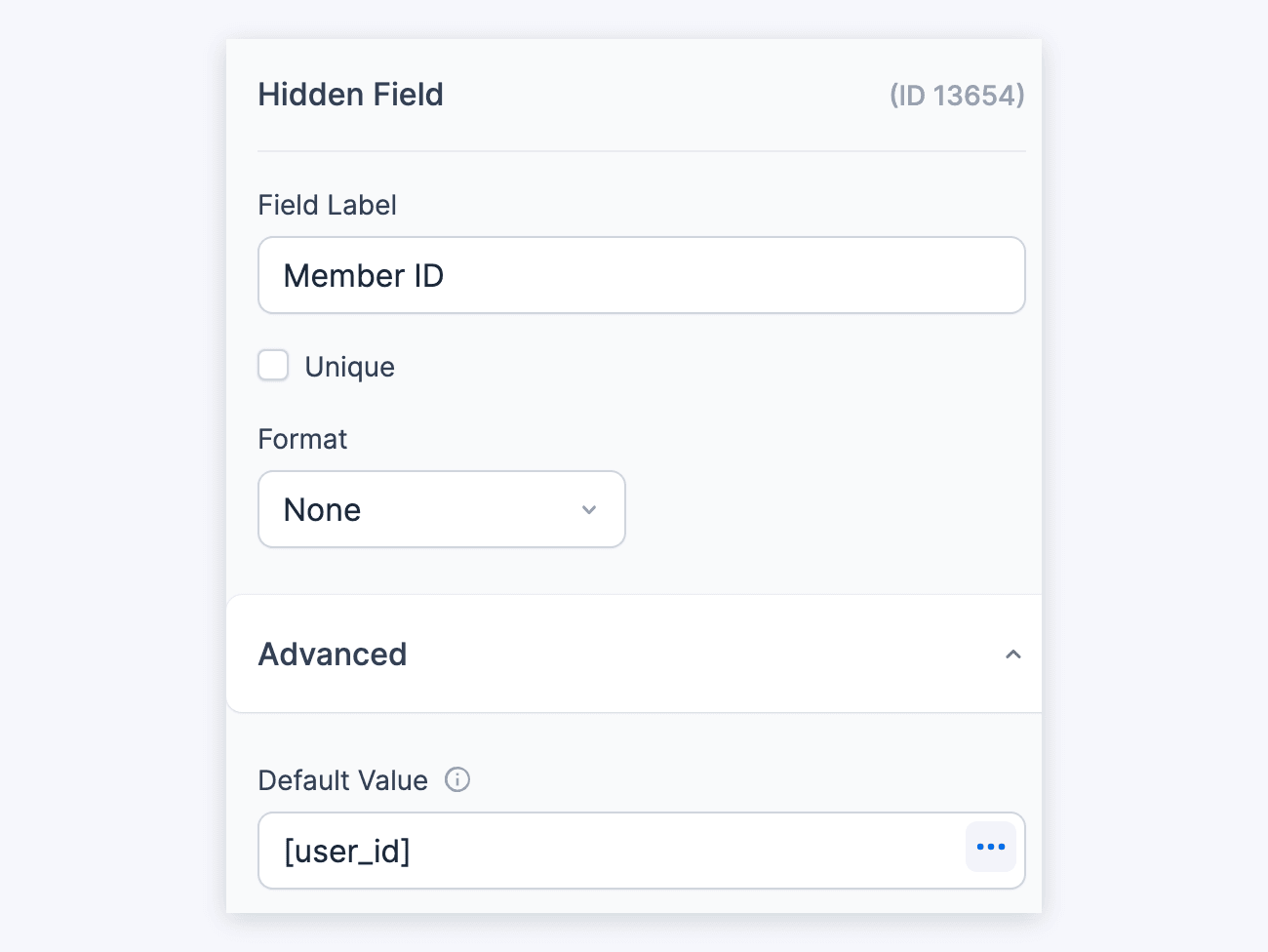
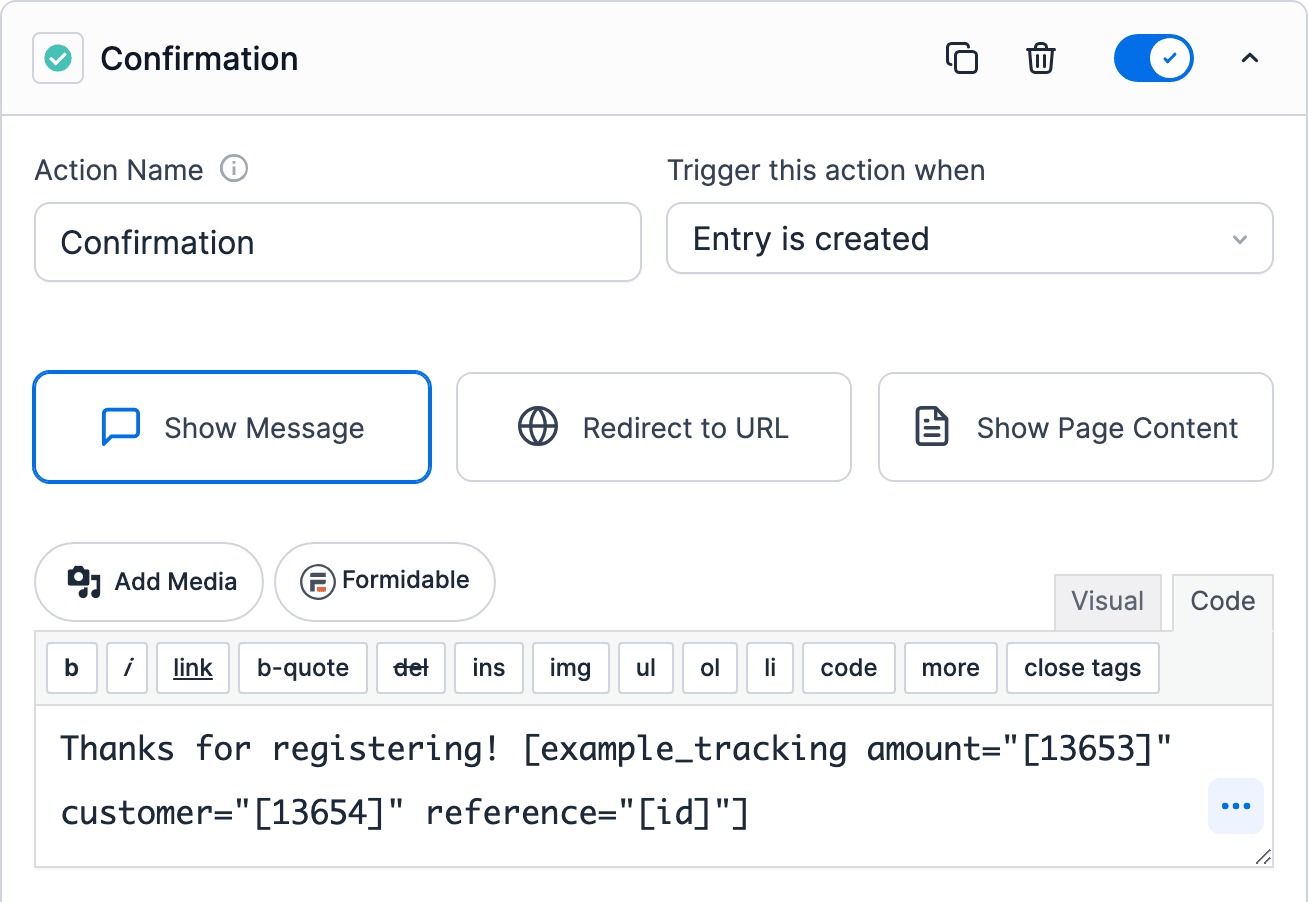
The Hidden field gets its value when the form loads. The entry saves it with the other fields. For a visitor who isn't logged in, [user_id] is empty.
Troubleshooting
A stray "] shows after another plugin's shortcode
A WordPress shortcode, such as [frm-stats], is inside the other plugin's shortcode. To fix it, save the value in a field first. Then use the field's shortcode inside the other shortcode instead. Learn more about how to pass the value through another field.
A shortcode shows as typed
The box doesn't replace that group of shortcodes. To see which groups each box replaces, check the chart above. In a confirmation message or an email, use [created-at] instead of [date], and a User ID field for [user_id].
