
Test Mode is a comprehensive testing toolkit designed to speed up your form development and troubleshooting workflow. It provides you with powerful controls to bypass validation, instantly navigate multi-page forms, preview how forms appear to different user roles, reveal conditionally hidden fields, selectively control which form actions execute, and even auto-fill forms fields with AI-generated data.
This guide demonstrates how to leverage Test Mode for quicker and more efficient form testing.
Upgrade your WordPress site with powerful, flexible forms.
How to Enable Test Mode
Test Mode is accessible through the form preview interface. When activated, it displays a Test Mode controls container at the top of your form preview page with several testing features.
Follow these steps to enable Test Mode:
- Go to Formidable → Forms.
- Hover over your form name and click Edit Form (or click the form name).
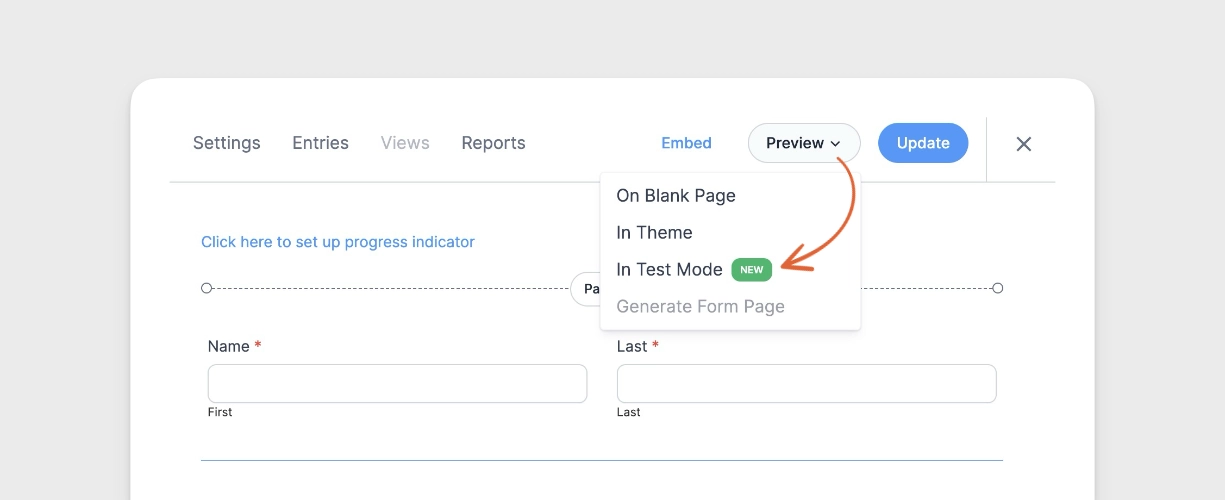
- Click the Preview button in the top right of the screen.
- Click In Test Mode from the dropdown menu.
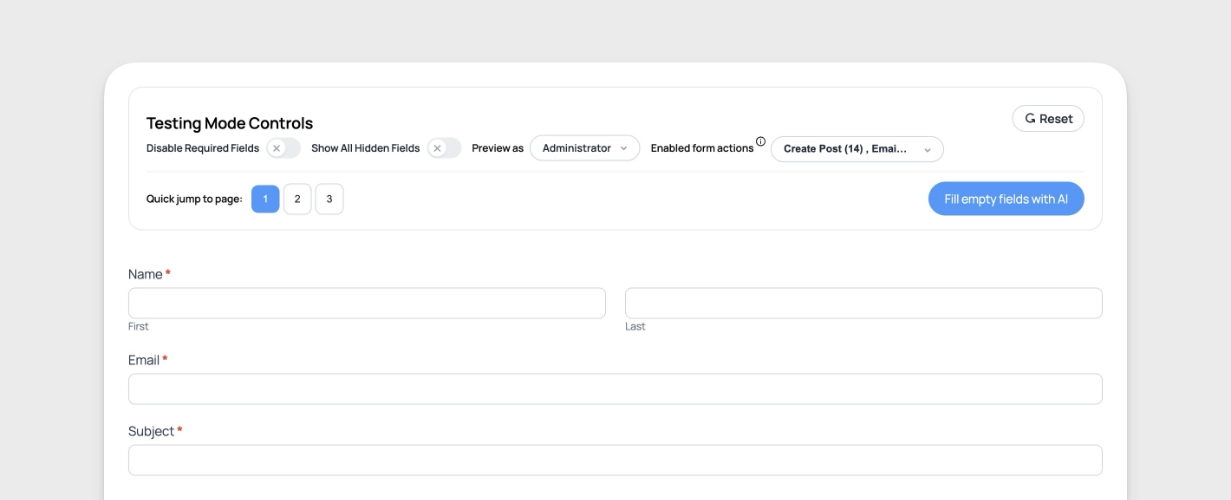
- The form preview loads with Test Mode Controls displayed at the top.
The Test Mode Controls remain visible as you navigate through your form. Controls persist across page loads using URL parameters.
From Idea to Reality in Minutes. Build Powerful Forms, Dashboards, Apps and More.
Formidable Forms makes advanced site building simple. Launch forms, directories, dashboards, and custom WordPress apps faster than ever before.
Test Mode Controls
Test Mode provides several features to help you test forms efficiently. Each option targets a specific testing scenario.
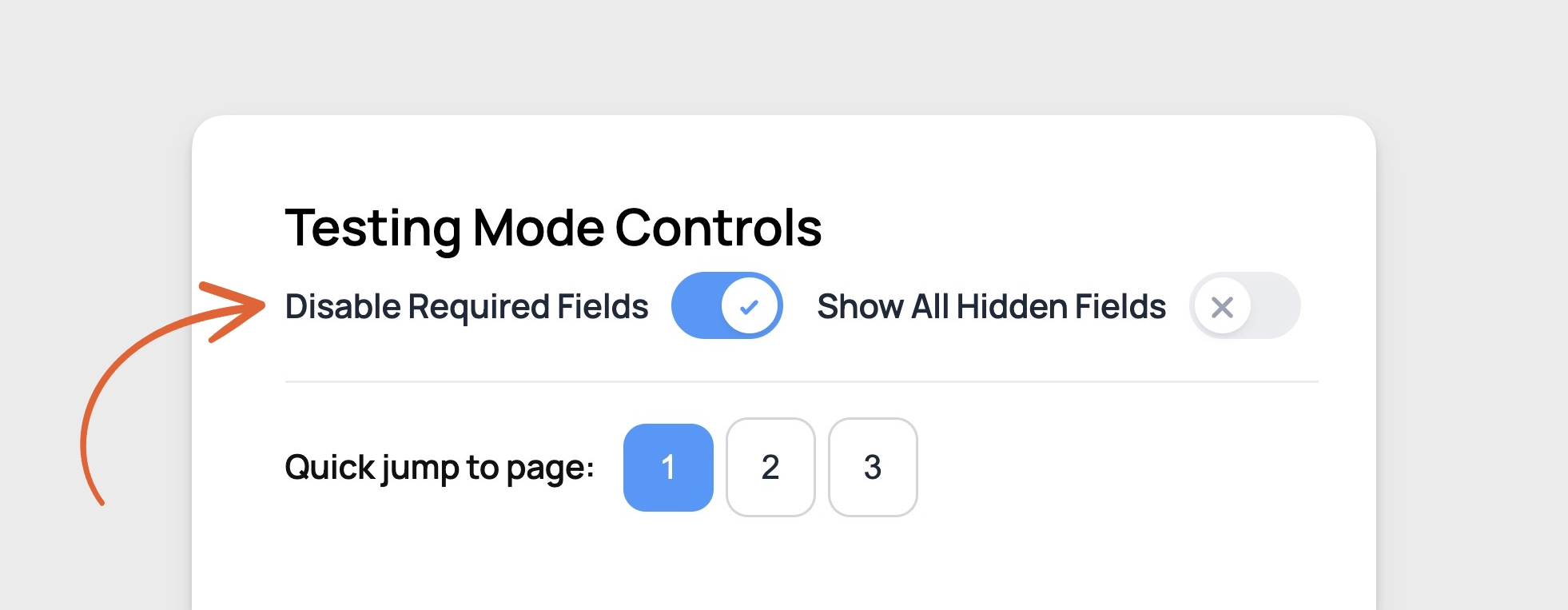
Disable Required Fields
The Disable Required Fields toggle bypasses all field validation. When enabled, you can submit your form or navigate between pages without filling out required fields.
This control works with:
- Required field validation
- Format validation (email, URL, phone)
- Min/max length validation
- JavaScript validation
- Forms with "Submit with AJAX" enabled
Toggle Disable Required Fields ON to skip validation. Toggle it OFF to restore normal validation behavior.
Show All Hidden Fields
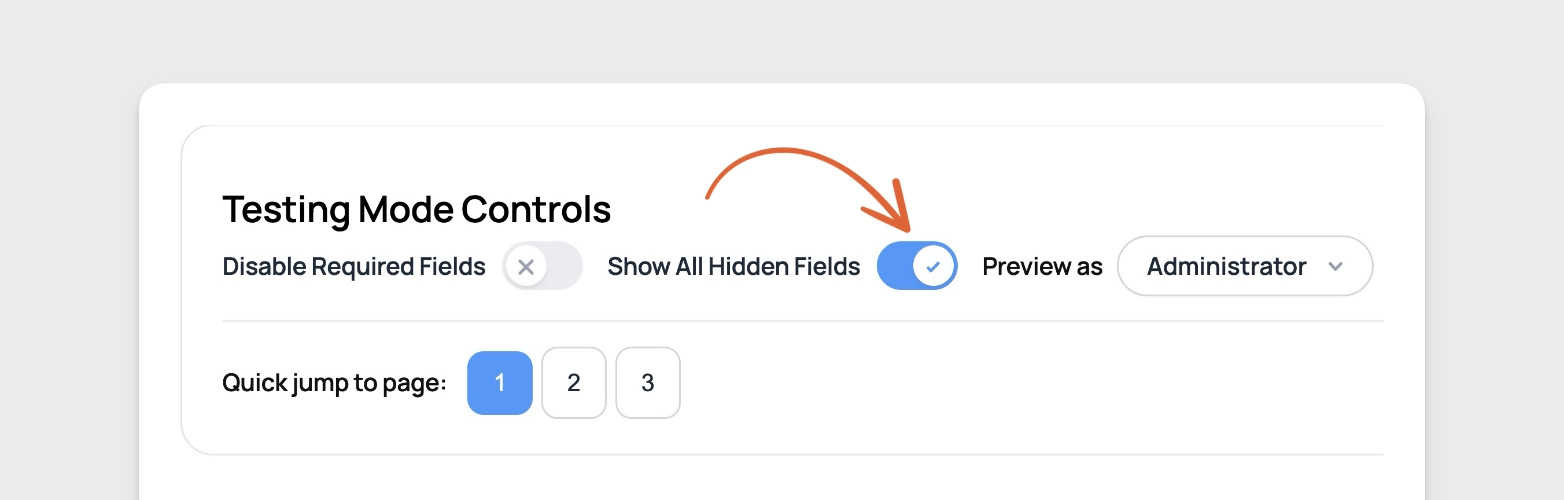
The Show All Hidden Fields toggle reveals fields that are normally hidden. This helps you verify conditional logic and field visibility settings.
When enabled, this control reveals:
- Fields hidden by conditional logic
- Fields hidden using the visibility setting
- Hidden field types
- Fields hidden with the frm_hidden layout class
Preview as Role
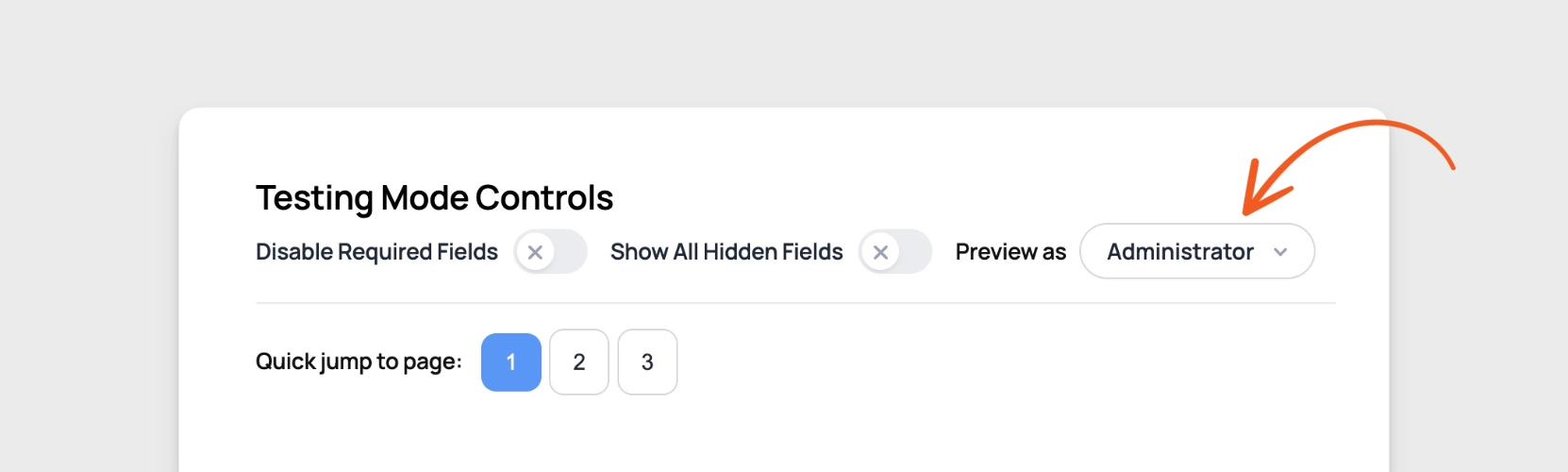
The Preview as dropdown lets you test your form as different WordPress user roles. Select a role to see how the form behaves for that user type.
Available roles include:
- Administrator
- Editor
- Author
- Contributor
- Subscriber
- Logged Out
This control affects:
- Field visibility settings based on user role
- Form visibility settings based on user role
- Spam denylist keyword filtering
Select a role from the dropdown. The page will reload with the selected user role context applied.
Enabled Form Actions
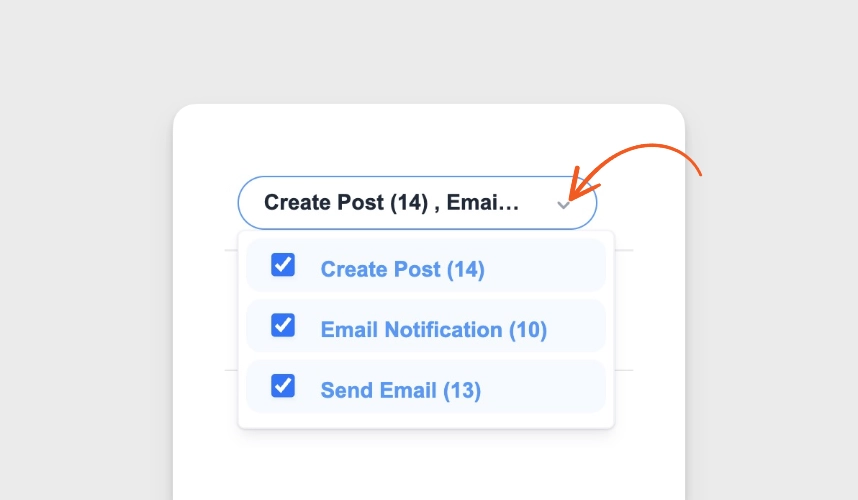
The Enabled form actions control lets you choose which form actions are executed when the form is submitted. Click the button to expand a list of all form actions configured for your form.
Each form action appears with a checkbox:
- Checked: Action will execute on form submission
- Unchecked: Action will be skipped
This works with all form action types:
- Email notifications
- Confirmation messages
- Redirects
- Create Post actions
- Register User actions
- API integrations
- Quiz scoring and outcomes (requires Formidable Quizzes)
Check or uncheck actions as needed. The button text updates to show which actions are enabled.
Quick Jump to Page
The Quick jump to page buttons let you navigate instantly between form pages. These buttons appear for multi-page forms and show the total number of pages.
Click any page number to jump directly to that page. The current page button appears disabled. You can jump forward or backward without filling out required fields when Disable Required Fields is enabled.
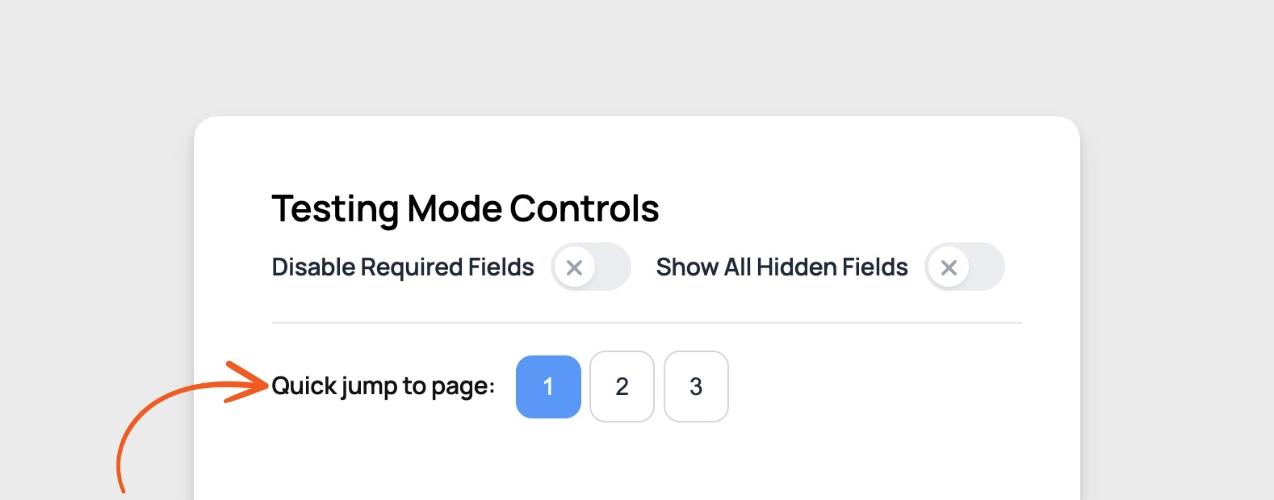
Note: The Quick jump control is hidden for single-page forms.
Reset
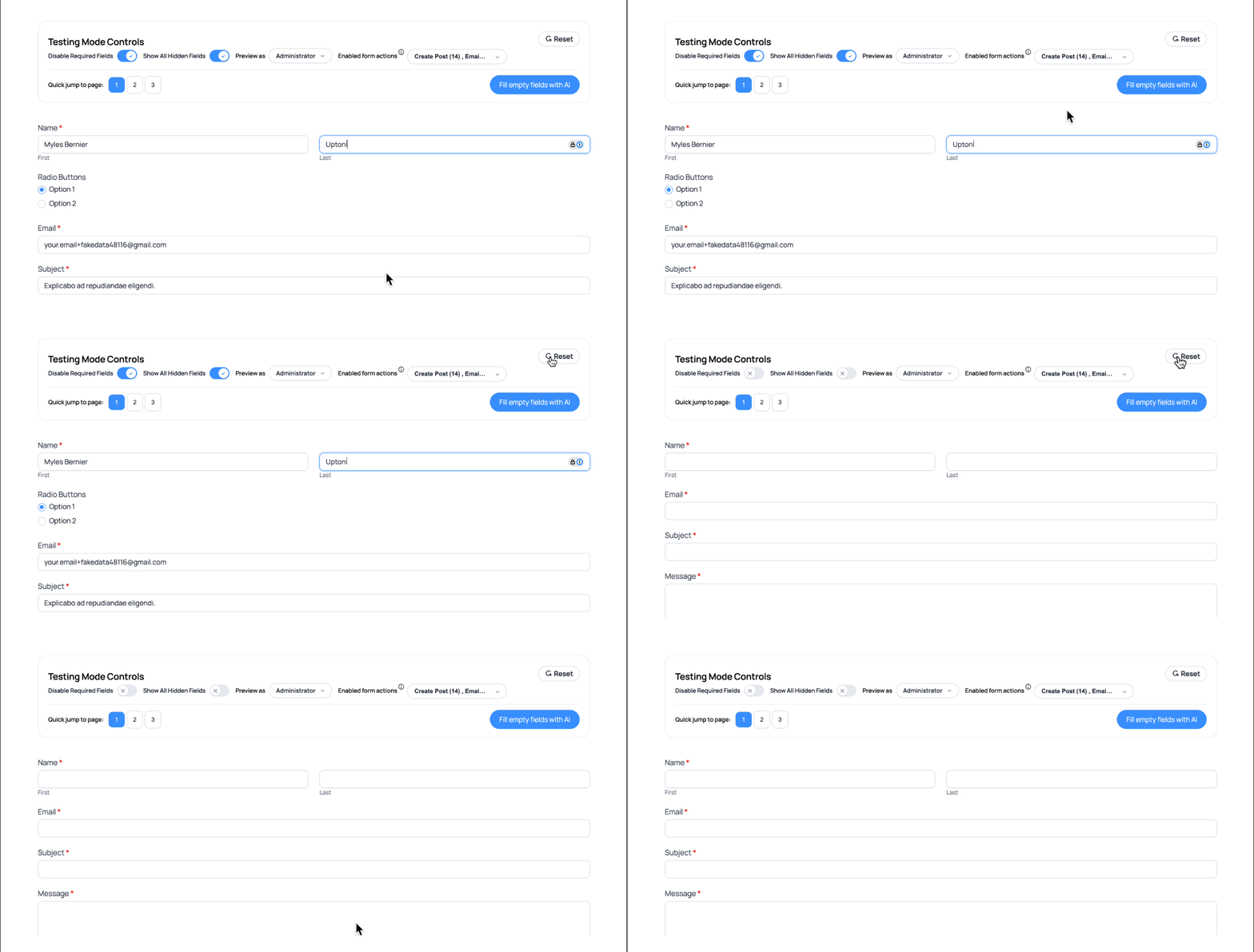
The Reset button returns your form to its initial state. Click it to clear all field values and return to page one (on multi-paged forms).
When you click Reset:
- All form fields are cleared.
- The form returns to page 1 if it is a multi-paged form.
- Test Mode Controls remain active.
- Toggle states (Disable Required Fields, Show All Hidden Fields) reset to OFF.
- The Preview as role resets to your actual user role.
Use the Reset option when you would like to start testing your form in a clean state without refreshing the page.
Fill Empty Fields with AI
The Fill empty fields with AI button automatically populates empty fields with realistic test data. This feature requires the Formidable AI add-on to be installed and configured.
When you click the button:
- Empty text fields receive contextually appropriate values
- Name fields get realistic names
- Email fields get valid email formats
- Dropdown fields select available options
- Number fields receive numeric values
- Already-filled fields remain unchanged
The AI generates unique, context-aware data for each field based on the field type, label and description.
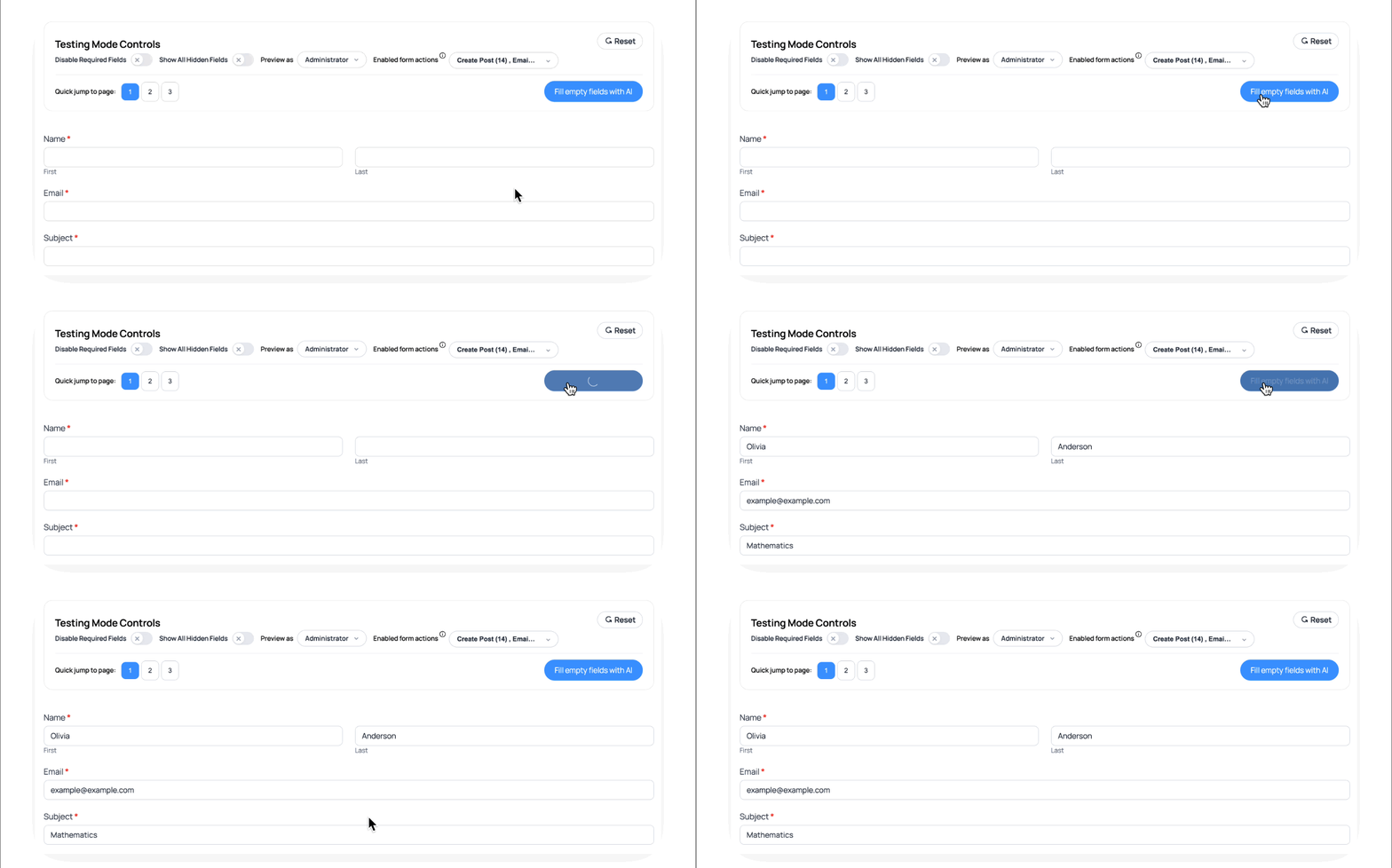
If the Formidable AI add-on is not installed or configured, you'll see an upgrade prompt when clicking this button.
Common Testing Workflows
Test Mode helps you test forms faster by combining multiple controls. Here are common workflows for different testing scenarios.
Testing Multi-Page Forms
Test multi-page forms without filling out every field:
- Enable Test Mode on your multi-page form.
- Toggle Disable Required Fields ON.
- Use Quick jump to page buttons to navigate between pages.
- Fill out specific fields you want to test.
- Submit the form or click Reset to start over.
This workflow lets you test page-specific functionality without completing the entire form each time.
Testing Conditional Logic
Verify that your conditional logic rules work correctly:
- Enable Test Mode on your form.
- Toggle Show All Hidden Fields ON.
- All conditionally hidden fields become visible.
- Toggle Show All Hidden Fields OFF.
- Fill out fields that trigger conditional logic.
- Watch fields show or hide based on your logic rules.
This approach helps you see which fields are hidden and verify they appear when conditions are met.
Testing Form Actions
Test form submissions without triggering live actions:
- Enable Test Mode on your form.
- Click Enabled form actions and uncheck actions you don't want to trigger.
- Leave only the actions you want to test checked.
- Fill out and submit the form.
- Verify that only the enabled actions executed.
Use this workflow to test emails without spamming recipients or test redirects without triggering post creation.
Testing Role-Based Visibility
Verify that fields and forms show or hide correctly for different user roles:
- Enable Test Mode on your form.
- Select a role from the Preview as dropdown.
- The form reloads with visibility rules applied for that role.
- Verify which fields are visible.
- Try different roles to test various permission levels.
This workflow helps you ensure role-restricted fields appear only to appropriate users.
Lite vs Pro Features
Test Mode availability depends on your Formidable Forms plan.
Lite Users
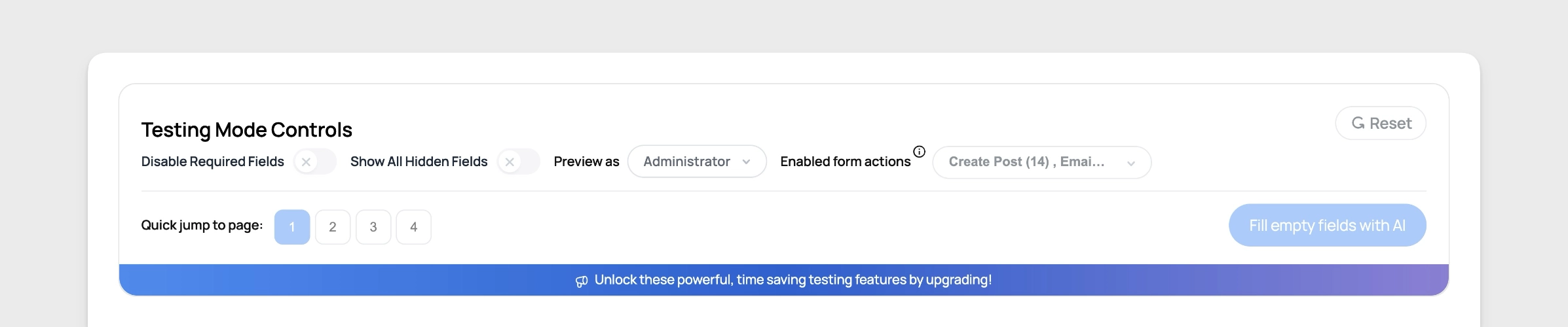
Formidable Forms Lite users can access Test Mode but with limitations:
- The In Test Mode button appears in the preview dropdown
- Test Mode Controls display at the top of the form
- All controls are disabled and show an upgrade prompt
- A clear indicator shows Plus/Business/Elite plan requirement
Lite users can see the Test Mode interface but are unable to utilize any of the testing features.
Formidable Forms Pro users (Plus, Business, and Elite plans) have full access to all Test Mode features:
- All seven controls are functional
- No upgrade prompts or limitations
- Full testing capabilities including AI auto-fill (when Formidable AI is installed)
- Hidden fields in repeater rows work correctly
Consider upgrading to a Pro plan to unlock all Test Mode functionality.
Limitations and Notes
Please keep these points in mind when using Test Mode:
Test Mode is for testing only. Entries submitted in Test Mode are real entries saved to your database. They appear in your entries list with a "(Test Mode)" label next to the timestamp.
Test Mode affects preview only. Test Mode is only available in the form preview interface. It does not work on published forms on your live site.
AI auto-fill requires Formidable AI. The "Fill empty fields with AI" button requires the Formidable AI add-on to be installed and configured. Without it, you'll see an upgrade prompt.
Form styles may affect appearance. Test Mode Controls inherit some styling from your form. If your form uses custom styles, the controls may appear differently.
URL parameters maintain state. Test Mode uses URL parameters to maintain control states across page loads. Your browser's back button may not work as expected when these parameters are present.
Troubleshooting
If Test Mode Controls are not working as expected, try these solutions:
Test Mode Controls Not Appearing
Problem: The Test Mode Controls container does not display when you preview your form.
Solutions:
- Verify you clicked In Test Mode from the Preview dropdown (not just Preview).
- Make sure you're previewing from the form builder, not viewing the published form on your site.
- Check that you have Formidable Forms Pro activated (Lite users see disabled controls).
- Clear your browser cache and reload the page.
- Disable browser extensions that might block JavaScript.
Controls Not Responding
Problem: Clicking toggles or buttons does nothing.
Solutions:
- Check your browser console for JavaScript errors (press F12 and check the Console tab).
- Review custom HTML added to your form's before/after fields section for unclosed tags or conflicting scripts.
- Temporarily disable other WordPress plugins to identify conflicts.
- Clear your site's cache if you use a caching plugin (WP Rocket, W3 Total Cache, etc.).
- Try a different browser to rule out browser-specific issues.
Show All Hidden Fields Not Working
Problem: Hidden fields remain hidden when the toggle is enabled.
Solutions:
- Verify the fields are actually hidden (check field visibility settings or conditional logic rules).
- Remember that fields on other pages won't appear until you navigate to those pages.
- Check if custom CSS is hiding fields with display: none !important (which overrides the toggle).
- Reload the page after enabling the toggle to ensure the URL parameter is applied.
Form Actions Not Executing as Expected
Problem: Form actions execute even when unchecked, or don't execute when checked.
Solutions:
- Verify the form action is active in Formidable → Edit Form → Settings → Actions & Notifications.
- Check that you submitted the form after changing the enabled actions (changes only apply to new submissions).
- Review form action conditions that might prevent execution regardless of Test Mode settings.
- Look for custom code hooks that might override Test Mode settings.
AI Auto-Fill Not Working
Problem: The "Fill empty fields with AI" button shows an error or doesn't populate fields.
Solutions:
- Verify Formidable AI is installed and activated
- Check that you've configured your OpenAI API key in Formidable → Global Settings
- Ensure you have available API credits in your OpenAI account
- Try filling a single field type first to test the connection
URL Parameters Being Stripped
Problem: Test Mode settings reset when you navigate between pages.
Solutions:
- Check if a security plugin is stripping query parameters from URLs.
- Verify your caching plugin isn't removing URL parameters.
- Review your .htaccess file for rewrite rules that might strip parameters
- Try disabling "Pretty Permalinks" from Settings > Permalinks on your WordPress Dashboard to temporarily test if the permalink structure is causing any issues.
If you continue experiencing issues after trying these solutions, contact Formidable Forms support with details about your setup and the specific problem.
Related Features
Explore these related features to enhance your form testing and development workflow:
- Form Preview - Learn about standard form preview options
- Conditional Logic - Set up rules to show or hide fields
- Multi-Page Forms - Create forms with multiple pages
- Form Actions - Configure what happens after form submission
- Formidable AI - Auto-fill forms with AI-generated content
- User Role Visibility - Control who can see fields and forms
