
Offer your users the ability to pay with their preferred Stripe payment methods, such as Wallets, Bank redirects, Bank debits, and Buy now pay later.
Upgrade your WordPress site with powerful, flexible forms.
ACH Direct Debit
Businesses in the US can conveniently collect funds from their customers by setting up direct debit payments, also known as ACH debits. Customers provide their bank account information and authorize the business to debit their account.

| Payment Method | Bank Debit |
| Currency | USD |
| Customer location | United States |
| Payment Confirmation | 4-5 business days |
| Refunds | Yes |
| Disputes | Yes |
How ACH Direct Debit payment works
When a customer wants to make a payment using ACH Direct Debit, they will need to provide their bank account information, such as their account number and routing number. However, before the payment can be processed, the customer must first accept a mandate that gives legal permission to initiate future direct debits for the customer's payments.
To ensure the ownership of the account and prevent fraudulent activity, there are two common methods used for verification: instant verification and micro-deposits.
Once the ownership of the account is verified and the mandate is accepted, you can initiate direct debits from the customer's bank account to receive payments. This payment method offers a convenient way for customers to make payments directly from their bank accounts without the need for a physical card.
Learn more about accepting ACH Direct Debit payments.
Enable ACH Direct Debit payments
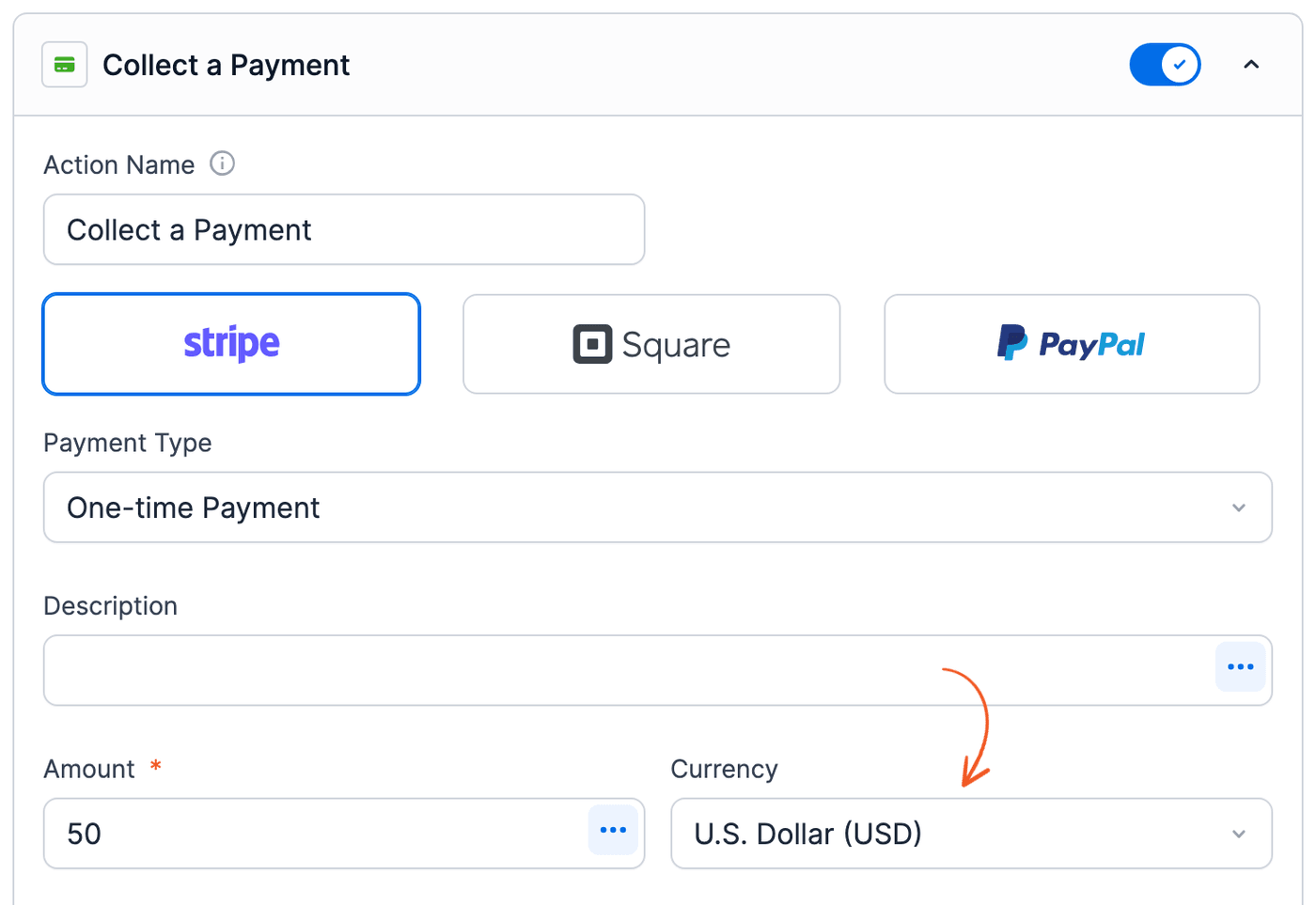
- Go to your form Settings → Actions & Notifications → Collect a Payment action and select U.S. Dollar (USD) as the currency.

- Click Update to save your settings.
- In your Stripe dashboard, go to Settings → Payments → Payment methods. Next to the Payment methods title, select the Formidable Forms configuration. Then hover over the ACH Direct Debit row and click Enable. The row then shows Enabled.
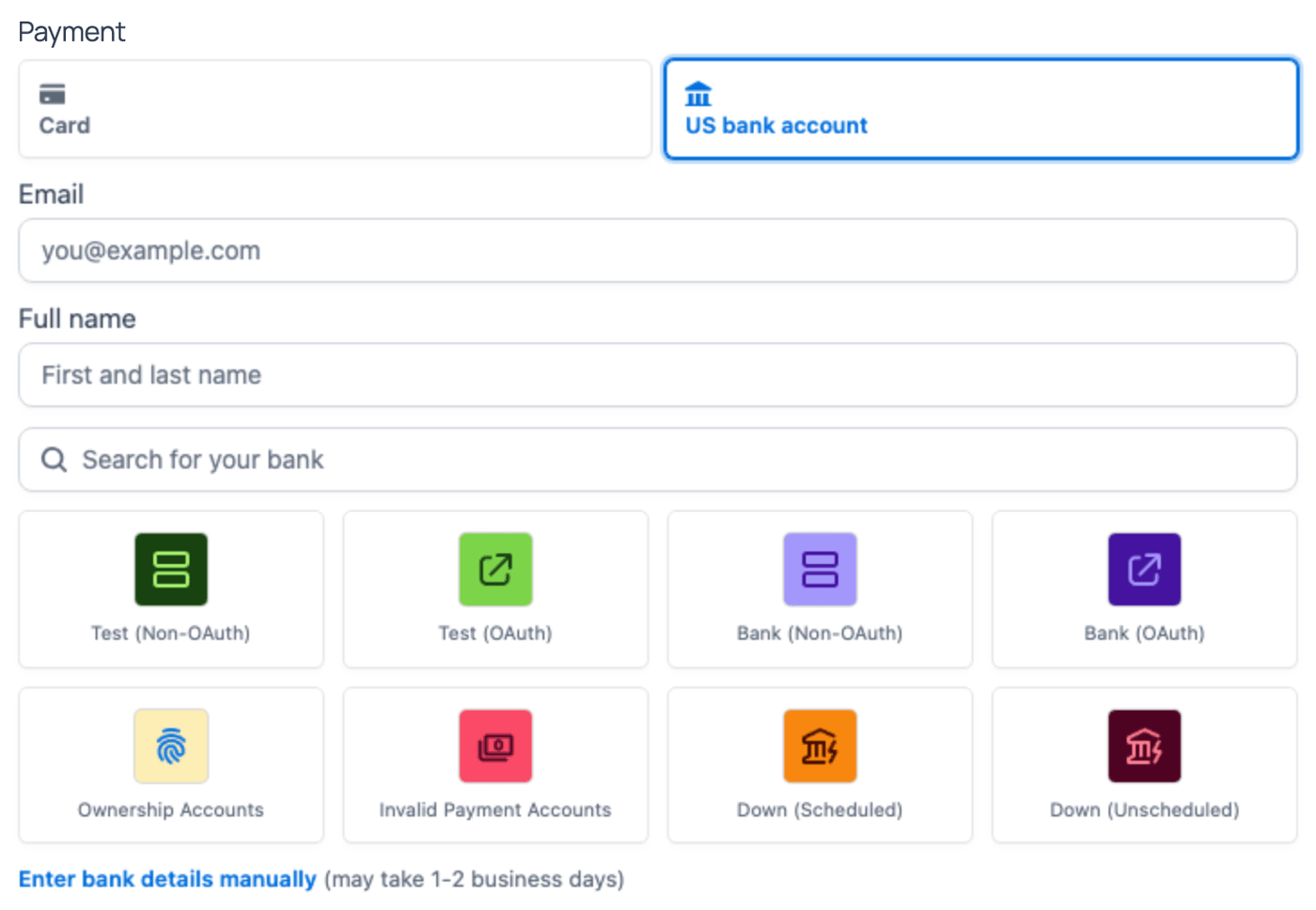
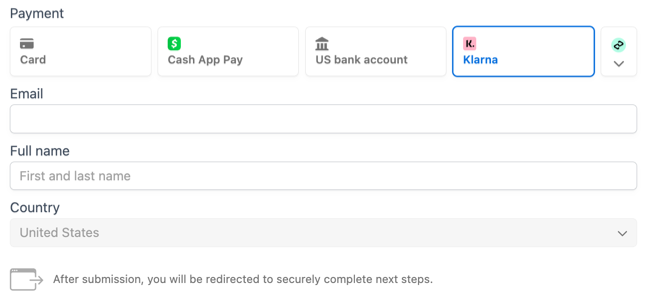
- The ACH Direct Debit payment method shows as the US bank account option in the form.

From Idea to Reality in Minutes. Build Powerful Forms, Dashboards, Apps and More.
Formidable Forms makes advanced site building simple. Launch forms, directories, dashboards, and custom WordPress apps faster than ever before.
Affirm
Affirm is a payment method which is popular in the US and Canada. It offers customers the ability to split their purchases into multiple payments, providing flexibility and allowing them to manage their finances more effectively.
| Payment Method | Buy now, pay later |
| Currency | USD, CAD |
| Customer location | United States, Canada |
| Payment Confirmation | Standard |
| Refunds | Yes |
| Disputes | Yes |
How Affirm payment works
Affirm offers two different payment options depending on the size of the customer's cart order: Pay in 4 and Monthly Installments.
- Pay in 4: Customers can pay for their purchases in four or fewer interest-free installments. These payments are made bi-weekly over an 8-week term. This option allows customers to spread out the cost of their purchase without incurring any interest charges.
- Monthly Installments: For larger purchases, Affirm offers the ability to pay in monthly installments over a longer period of up to 36 months. However, depending on the terms, these monthly installments may include interest charges.
The important thing to note is that Affirm uses an algorithm to present customers with the payment options that are most likely to result in higher conversion rates. This means that instead of you, as the business owner, choosing specific payment options for customers, Affirm determines the most suitable options for each customer based on their purchase and financial profile.
Learn more about accepting Affirm payments.
Enable Affirm payments
- Go to your form Settings → Actions & Notifications → Collect a Payment action and select U.S. Dollar (USD) or Canadian Dollar (CAD) as the currency.
- Click Update to save your settings.
- In your Stripe dashboard, go to Settings → Payments → Payment methods. Next to the Payment methods title, select the Formidable Forms configuration. Then hover over the Affirm row and click Enable.
- The Affirm payment method shows as an option in the form.

Alipay
Alipay is a widely used digital payment solution in China, with over a billion active users worldwide. It allows customers to conveniently make payments from their bank accounts on the web or a mobile device using their login credentials or the app. It offers a user-friendly experience with security features that help reduce fraud and maintain a low dispute rate.
| Payment Method | Wallets |
| Currency | CNY, AUD, CAD, EUR, GBP, HKD, JPY, SGD, MYR, NZD, USD (depending on business locations) |
| Customer location | Chinese consumers, overseas Chinese, and Chinese travelers |
| Payment Confirmation | Immediate |
| Refunds | Yes |
| Disputes | No |
How Alipay payment works
To make a payment, Alipay users have two options.
- Customers can use their login credentials, such as a username and password, to authenticate and complete the payment process directly on a website.
- Alternatively, they can utilize the Alipay mobile app, which provides a seamless interface for making payments on the go.
Learn more about accepting Alipay payments.
Enable Alipay payments
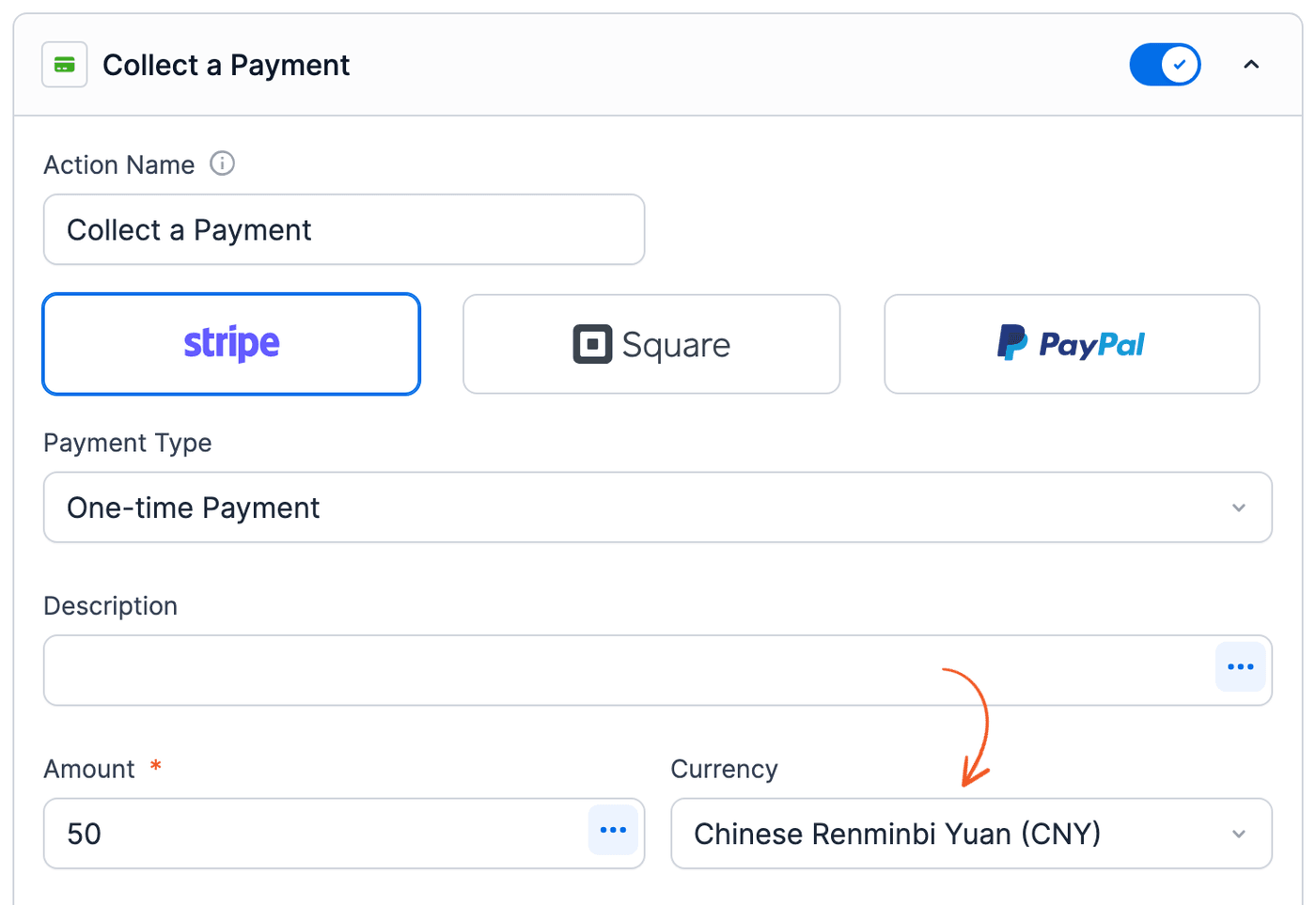
- Go to your form Settings → Actions & Notifications → Collect a Payment action and select one of the currencies listed in the table above.
- Click Update to save your settings.
- In your Stripe dashboard, go to Settings → Payments → Payment methods. Next to the Payment methods title, select the Formidable Forms configuration. Then hover over the Alipay row and click Enable.
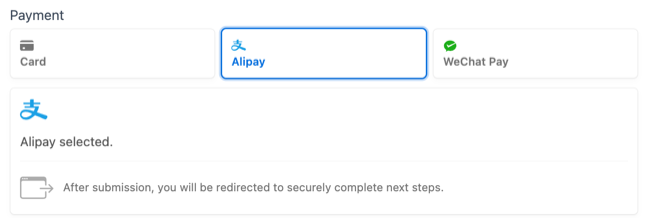
- The Alipay payment method shows as an option in the form.

Bancontact
Bancontact is a popular payment method used in Belgium. When customers want to make a payment, they can use Bancontact to authenticate their payment securely and immediately let your business know.
| Payment Method | Bank Redirects |
| Currency | EUR |
| Customer location | Belgium |
| Payment Confirmation | Immediate |
| Refunds | Yes |
| Disputes | No |
How Bancontact payment works
Customers need to have the Bancontact mobile app installed on their smartphones. Your business will show a QR code when it's time to pay. Customers can then open the Bancontact app to scan the QR code. This action will authenticate and confirm the payment to your business in real-time.
It's a quick and secure way for customers to make payments and for your business to receive immediate confirmation that the payment has been made.
Learn more about accepting Bancontact payments.
Enable Bancontact payments
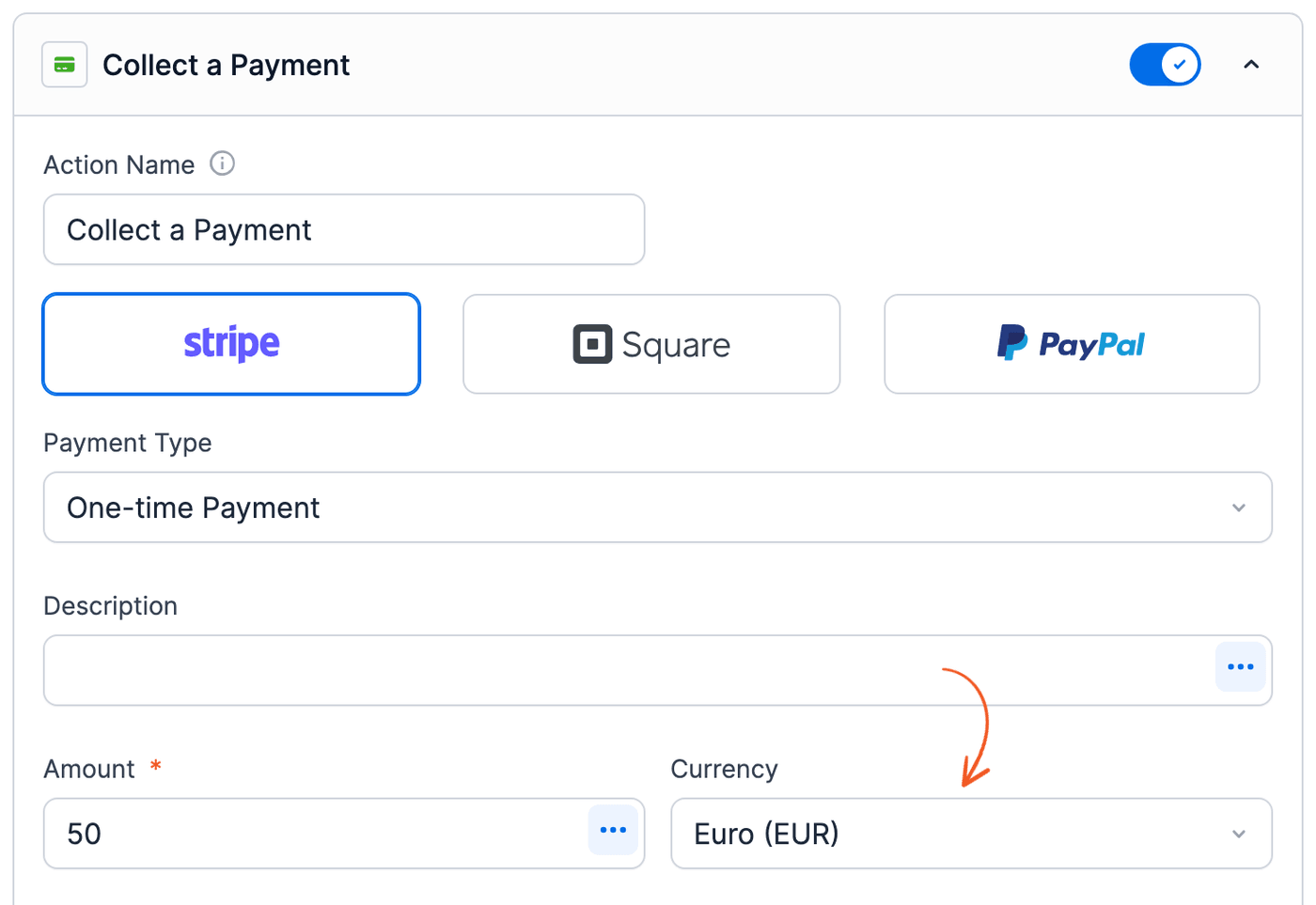
- Go to your form Settings → Actions & Notifications → Collect a Payment action and select Euro (EUR) as the currency.
- Click Update to save your settings.
- In your Stripe dashboard, go to Settings → Payments → Payment methods. Next to the Payment methods title, select the Formidable Forms configuration. Then hover over the Bancontact row and click Enable.
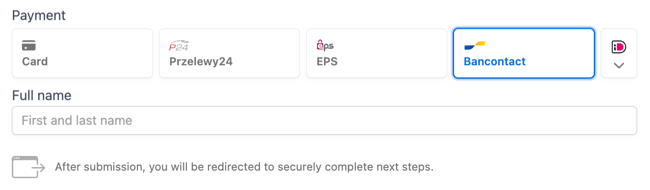
- The Bancontact payment method shows as an option in the form.

Cash App Pay
Cash App is a widely used consumer app in the United States that provides various financial services through a digital wallet. When using Cash App Pay, the payment is funded either through the customer's stored balance within the Cash App or their linked debit card.

| Payment Method | Wallets |
| Currency | USD |
| Customer location | US Customers |
| Payment Confirmation | Immediate |
| Refunds | Yes |
| Disputes | Yes |
How Cash App Pay payment works
To confirm the payment, customers have two options depending on the device they are using:
- Mobile device: If the customer is checking out from a mobile device, your website will redirect them to the Cash App mobile application for authentication. The payment is authenticated during this redirect, and no further action is needed within the Cash App mobile application to complete the purchase. Once the payment is authenticated, the customer is automatically redirected to your website.
- Desktop web application: If the customer is checking out from a desktop web application, they will be prompted to scan a QR code using their mobile device to authenticate the transaction. This ensures the customer's mobile device is securely linked to the transaction. Once the QR code is scanned, the payment is authenticated, and the customer can complete the purchase on the desktop website.
Learn more about accepting Cash App Pay payments.
Enable Cash App Pay payments
- Go to your form Settings → Actions & Notifications → Collect a Payment action and select U.S. Dollar (USD) as the currency.
- Click Update to save your settings.
- In your Stripe dashboard, go to Settings → Payments → Payment methods. Next to the Payment methods title, select the Formidable Forms configuration. Then hover over the Cash App Pay row and click Enable.
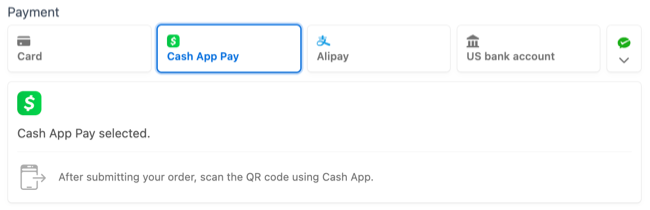
- The Cash App Pay payment method shows as an option in the form.

EPS
EPS (Electronic Payment Standard) is a payment method based in Austria. It allows customers to complete online transactions using their bank credentials. This means customers can securely and conveniently make payments directly from their bank accounts when shopping online.
One of the key advantages of EPS is that it is supported by all Austrian banks, which means that customers of any bank in Austria can use EPS for online payments. Additionally, EPS is widely accepted by over 80% of Austrian online retailers, making it a popular and trusted payment method in the country.
| Payment Method | Bank Redirects |
| Currency | EUR |
| Customer location | Austria |
| Payment Confirmation | Immediate |
| Refunds | Yes |
| Disputes | No |
How EPS payment works
Customers who choose to pay using EPS are redirected to their respective bank's website to authenticate the payment. This ensures the transaction's security, as the bank is responsible for verifying the customer's identity and authorizing the payment.
Once the payment is authenticated, immediate notification is provided to the customer and the merchant about the success or failure of the payment. This allows for transparency and real-time updates on the payment status.
Learn more about accepting EPS payments.
Enable EPS payments
- Go to your form Settings → Actions & Notifications → Collect a Payment action and select Euro (EUR) as the currency.
- Click Update to save your settings.
- In your Stripe dashboard, go to Settings → Payments → Payment methods. Next to the Payment methods title, select the Formidable Forms configuration. Then hover over the EPS row and click Enable.
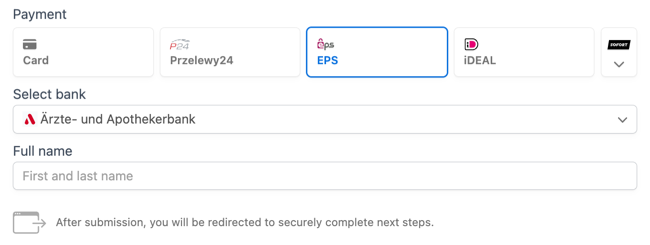
- The EPS payment method shows as an option in the form.

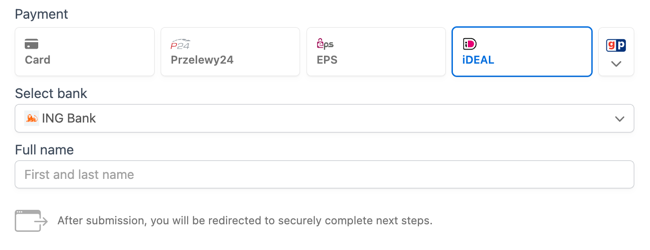
iDEAL
iDEAL is a popular online payment method in the Netherlands that enables customers to make online transactions using their bank credentials. It is specifically designed for customers with accounts with major Dutch banks that are members of Currence, the organization that operates the iDEAL scheme. These banks include ING Bank, Rabobank, ABN AMRO, and others.

| Payment Method | Bank Redirects |
| Currency | EUR |
| Customer location | Netherlands |
| Payment Confirmation | Immediate |
| Refunds | Yes |
| Disputes | No |
How iDEAL payment works
Customers are redirected to their online banking environment when they make a payment to ensure a secure transaction process. Once in their online banking environment, they are prompted to provide a second factor of authentication, which adds an extra layer of security. This second factor can be a one-time password, a secure code generator, or biometric authentication, depending on the customer's bank.
After the customer has completed the necessary authentication steps, there is an immediate notification about the success or failure of the payment. This provides real-time feedback to the customer and the merchant, allowing them to proceed accordingly. The exact experience during the payment process may vary slightly depending on the customer's bank, as each bank may have different authentication methods or user interfaces.
Learn more about accepting iDEAL payments.
Enable iDEAL payments
- Go to your form Settings → Actions & Notifications → Collect a Payment action and select Euro (EUR) as the currency.
- Click Update to save your settings.
- In your Stripe dashboard, go to Settings → Payments → Payment methods. Next to the Payment methods title, select the Formidable Forms configuration. The dashboard lists iDEAL as iDEAL | Wero. Hover over the iDEAL | Wero row and click Enable.
- The iDEAL payment method shows as an option in the form.

Klarna
Klarna offers customers various payment options that cater to their specific needs during the checkout process. The available payment options are determined by the customer's billing address and the total transaction amount. With a wide range of payment options, customers can conveniently purchase items across all price ranges.
| Payment Method | Buy now, pay later |
| Currency | AUD, CAD, CHF, CZK, DKK, EUR, GBP, NOK, NZD, PLN, SEK, USD |
| Customer location | Australia, Austria, Belgium, Canada, Czechia, Denmark, Finland, France, Greece, Germany, Ireland, Italy, Netherlands, New Zealand, Norway, Poland, Portugal, Spain, Sweden, Switzerland, United Kingdom, United States |
| Payment Confirmation | Immediate |
| Refunds | Yes |
| Disputes | Yes |
How Klarna payment works
When customers choose to pay with Klarna, they are redirected to Klarna's website. On Klarna's site, customers can select their preferred payment option from the available choices. Once they have made their selection, they are then redirected back to the original website to complete their order.
After the payment has been accepted, Klarna makes the full amount of the order (except for any applicable fees) available to the business owner's Stripe account right away. This means that the funds will be accessible to the business immediately. Klarna then collects the purchase amount from the customer, including any future installment payments if the customer has opted for that payment method.
Learn more about accepting Klarna payments.
Enable Klarna payments
- Go to your form Settings → Actions & Notifications → Collect a Payment action and select one of the currencies listed in the table above.
- Click Update to save your settings.
- In your Stripe dashboard, go to Settings → Payments → Payment methods. Next to the Payment methods title, select the Formidable Forms configuration. Then hover over the Klarna row and click Enable.
- The Klarna payment method shows as an option in the form.

Przelewy24
Przelewy24 (P24) is a Polish payment method that facilitates the transfer of funds between more than 90,000 businesses and all major Polish banks. It offers customers the ability to complete online transactions using various payment methods, with a particular emphasis on bank transfers. In fact, bank transfers account for 30% of online payments in Poland.
| Payment Method | Bank Redirects |
| Currency | EUR, PLN |
| Customer location | Poland |
| Payment Confirmation | Immediate |
| Refunds | Yes |
| Disputes | No |
How Przelewy24 payment works
When customers choose to pay using Przelewy24, they are redirected to its website to authenticate the payment. This redirection ensures the security of the transaction and allows customers to complete the payment process in a trusted environment.
It provides immediate notification to both the customer and the merchant regarding the success or failure of a payment. This real-time update allows for transparency and timely updates on the payment status.
Learn more about accepting Przelewy24 payments.
Enable Przelewy24 payments
- Go to your form Settings → Actions & Notifications → Collect a Payment action and select Euro (EUR) or Polish Zloty (PLN) as the currency.
- Click Update to save your settings.
- In your Stripe dashboard, go to Settings → Payments → Payment methods. Next to the Payment methods title, select the Formidable Forms configuration. Then hover over the Przelewy24 row and click Enable.
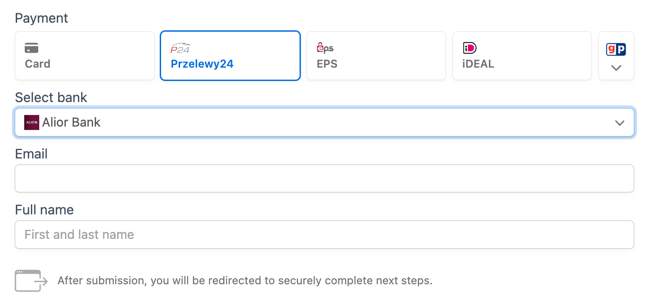
- The Przelewy24 payment method shows as an option in the form.

SEPA Direct Debit
SEPA Direct Debit is a payment method available to customers within the Single Euro Payments Area (SEPA). SEPA consists of European countries that have adopted a standardized system for electronic payments in euros. It provides a convenient and efficient way for customers to make payments, as it eliminates the need for manual bank transfers or card payments.
| Payment Method | Bank Debit |
| Currency | EUR |
| Customer location | Europe |
| Payment Confirmation | 3-6 business days |
| Refunds | Yes |
| Disputes | Yes |
How SEPA Direct Debit payment works
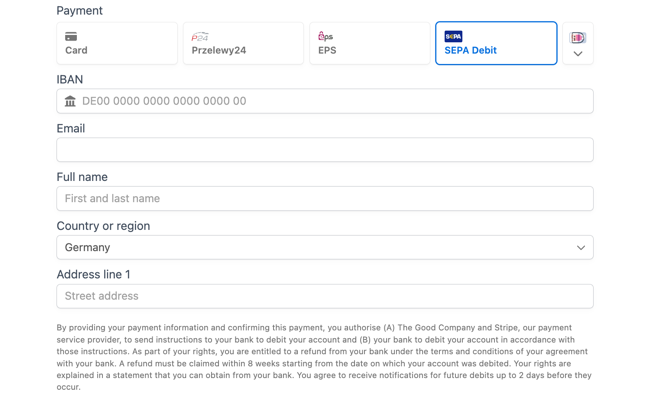
For businesses to debit funds from a customer's account using SEPA Direct Debit, they need to collect certain information from the customer. This includes the customer's name and their bank account number, which must be provided in the International Bank Account Number (IBAN) format. The IBAN format ensures that the payment is directed to the correct bank account.
During the payment process, customers are required to accept a mandate. This mandate serves as the customer's authorization for the business to initiate direct debits from their account. By accepting the mandate, customers give their consent for the specified amount to be deducted from their bank account.
Learn more about accepting SEPA Direct Debit payments.
Enable SEPA Direct Debit payments
- Go to your form Settings → Actions & Notifications → Collect a Payment action and select Euro (EUR) as the currency.
- Click Update to save your settings.
- In your Stripe dashboard, go to Settings → Payments → Payment methods. Next to the Payment methods title, select the Formidable Forms configuration. Then hover over the SEPA Direct Debit row and click Enable.
- The SEPA Debit payment method shows as an option in the form.

WeChat Pay
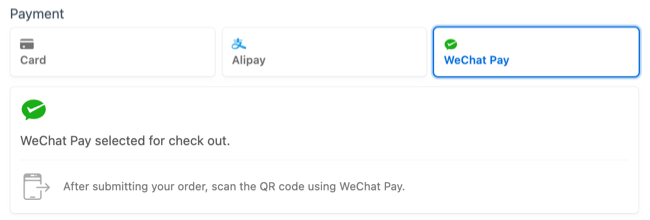
WeChat Pay is a widely-used digital payment service in China, enabling customers to make payments directly from their accounts. The process involves scanning a QR Code using the WeChat mobile application, providing users with a convenient and streamlined payment experience.
| Payment Method | Wallets |
| Currency | CNY, AUD, CAD, EUR, GBP, HKD, JPY, SGD, MYR, NZD, USD (depending on business locations) |
| Customer location | Chinese consumers, overseas Chinese, and Chinese travelers |
| Payment Confirmation | Immediate |
| Refunds | Yes |
| Disputes | No |
How WeChat Pay payment works
Customers are provided with a unique QR Code to initiate a payment in WeChat Pay. They use their WeChat mobile application to scan this QR Code, which launches the payment process. Once scanned, customers can review and approve the payment within the WeChat app itself.
The QR Code scanning process is quick and efficient, making it a popular choice for payments in various online and offline establishments. Customers can quickly authorize payments without needing cash or physical cards by using the WeChat app and scanning QR codes.
Learn more about accepting WeChat Pay payments.
Enable WeChat Pay payments
- Go to your form Settings → Actions & Notifications → Collect a Payment action and select one of the currencies listed in the table above.
- Click Update to save your settings.
- In your Stripe dashboard, go to Settings → Payments → Payment methods. Next to the Payment methods title, select the Formidable Forms configuration. Then hover over the WeChat Pay row and click Enable.
- The WeChat Pay payment method shows as an option in the form.

Related developer hook
- Adjust the attributes of the payment method types in Stripe with the frm_stripe_payment_method_types hook.
