Add Helpful Tooltips to Any Form Field
Keep forms clean. A small icon sits next to the label, and visitors hover or tap it to read your help text only when they need it.
Where Tooltips Help Most
Anywhere a field needs a little explaining, without a wall of description text.
Tricky Fields
Explain VAT numbers, policy IDs, and the fields people usually get wrong the first time.
Long Applications
Create grant, job, and membership forms that stay short and easy to scan.
Views and Pages
The [frm-tooltip] shortcode adds the same help to Views, posts, pages, and HTML fields.
Build Clearer Forms for Any Business
Add a small help icon next to any field label and show your explanation on hover or click. Visitors get answers right where they need them, so they finish more forms with fewer mistakes.

One-Click Setup
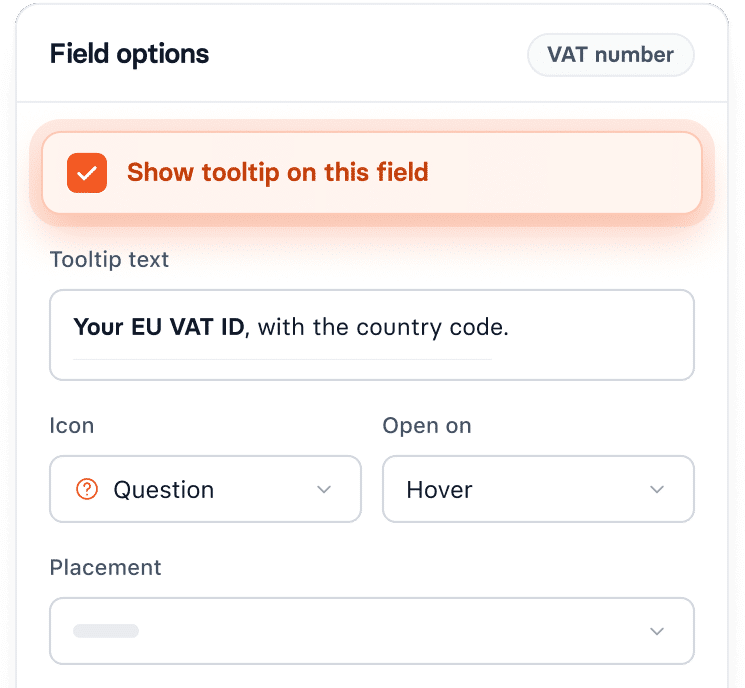
Check "Show tooltip on this field," type your text, and you're done.

Rich Help Text
Use bold, italic, links, and short lists to point visitors to more help.

Eight Built-In Icons
Pick a question mark, info, lightbulb, or upload your own icon.

Styled With Your Form
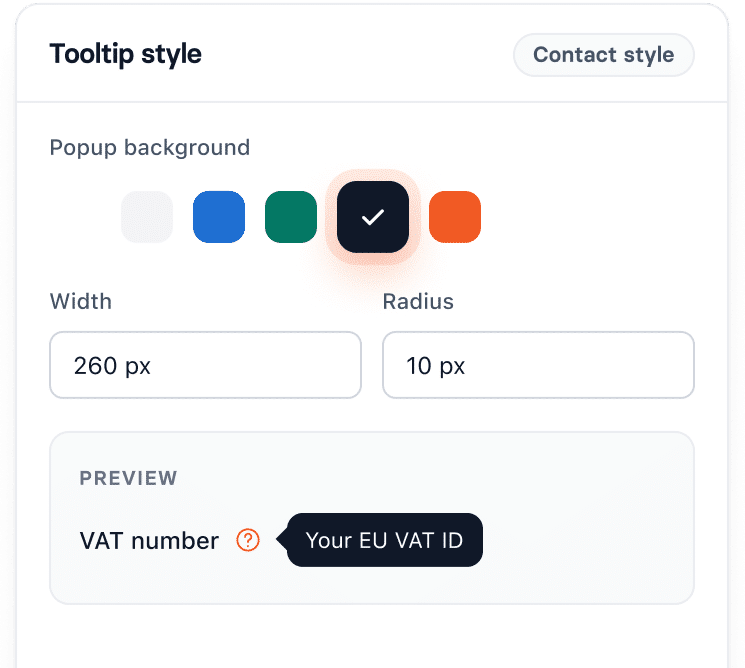
Set icon and popup colors, size, width, radius, and shadow in each style.

Hover or Click
Open tooltips on hover or click and place them on any side of the icon.

Tooltips Anywhere
Use the [frm-tooltip] shortcode in Views, posts, pages, and HTML fields.

Accessible by Default
Full keyboard support and ARIA labels help every visitor read your help text.

Works in Repeaters
Tooltips follow fields into repeaters, including new rows added on the fly.
Turn On Tooltips With One Checkbox
Select a field in the form builder, switch on its tooltip, and write your help text. It shows in the form preview right away, so you see exactly what visitors see.
- Works on every visible field type
- Format help text with bold, italic, and links
- Choose a different icon for any field
Style Tooltips Once, Use Them Everywhere
Tooltip settings live in each Formidable style. Every form that uses that style gets the same look, so your brand stays consistent without extra work.
- Set icon color, hover color, and size
- Adjust popup color, width, radius, and arrow
- Upload a single-color icon and recolor it
Pay Only for the Extras You Use
Tooltips is a Formidable Boost, sold on its own outside your plan. Your plan covers the core form builder, and Boosts add specialist tools only when you need them.
Frequently Asked Questions
Still have questions? Ask our team and we'll help you set it up.
Is Tooltips included in my Formidable plan?
No. Tooltips is a Formidable Boost, so it’s sold on its own, outside your plan. You’ll need a current Formidable Pro license to buy and use it.
Does Tooltips work with all field types?
It works with every field your visitors can see on the front end. The only exceptions are fields with no visible label to attach an icon to: Hidden, User ID, Tag, HTML, Page Break, and Section Break.
Can I use tooltips outside of forms?
Yes. Add the [frm-tooltip] shortcode to Views, posts, pages, or HTML fields. It’s a simple way to explain table columns, pricing terms, or labels anywhere on your site.
Are tooltips accessible for screen reader users?
Yes. Tooltips work with a keyboard and include ARIA labels, so screen readers can read your help text aloud. Visitors who don’t use a mouse can still open and read every tooltip.
Can I change how tooltips look?
Yes. Tooltip settings live in each form style, where you can set the icon color, hover color, size, popup color, width, radius, shadow, and arrow. You can also pick from eight built-in icons or upload your own, and choose whether tooltips open on hover or click.
Can I use HTML in my tooltip text?
Yes. You can use basic HTML like bold, italic, links, and short lists to format your help text or point visitors to more help.
What’s the difference between a Boost and a regular add-on?
Regular add-ons come with your Formidable plan. Boosts are specialist tools you buy separately, so you only pay for the ones your project uses.
Do I need Formidable Pro to use a Boost?
Yes. You need a current Pro license to buy or claim a Boost.
Can I use a Boost on more than one site?
Yes. You can use a Boost on any site your Pro license covers.
Do Boosts expire?
No. Once you buy or claim a Boost, it’s yours for good. It keeps receiving updates as long as your Pro license is up to date.