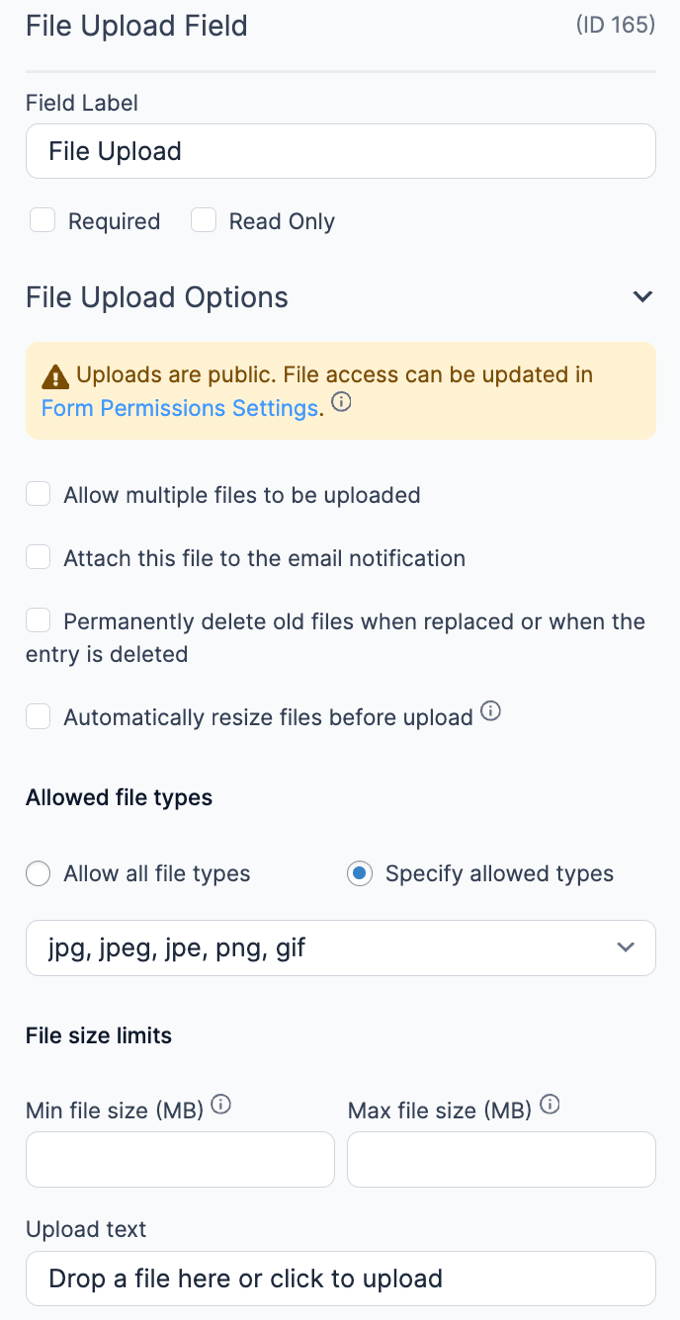
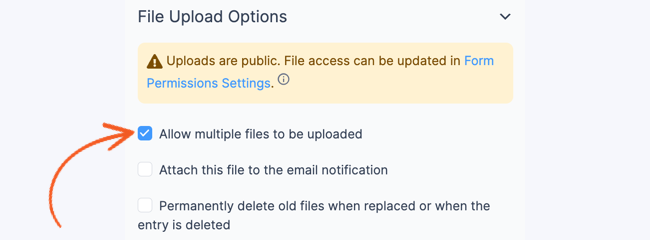
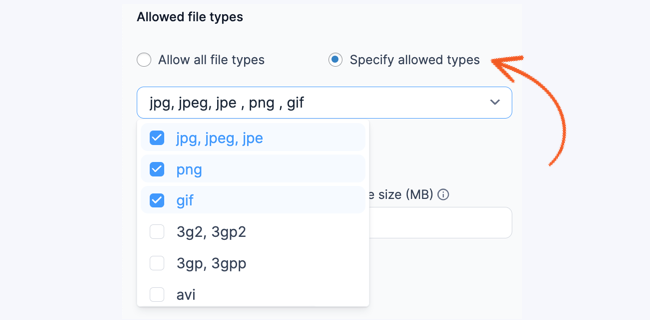
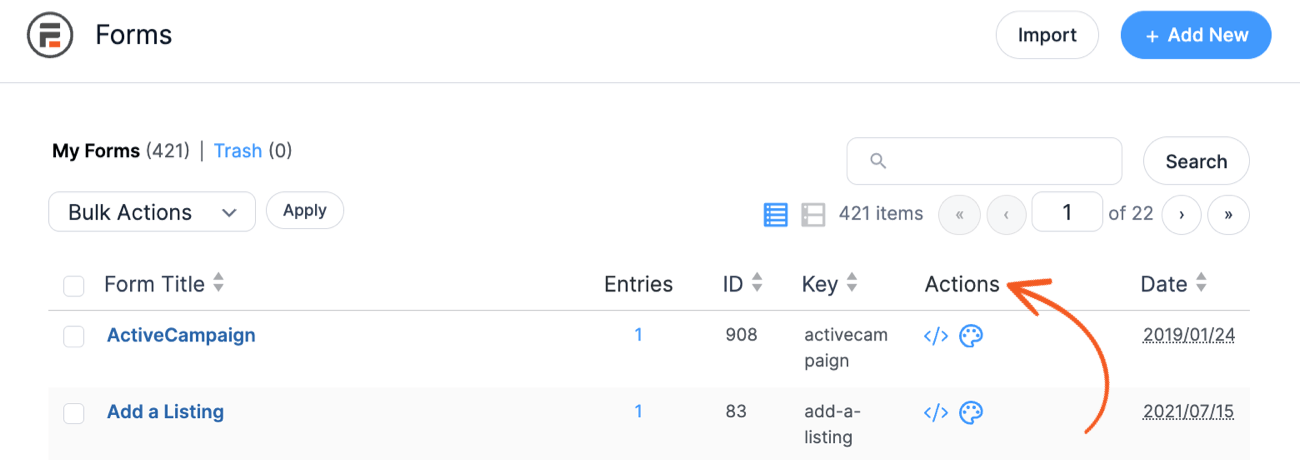
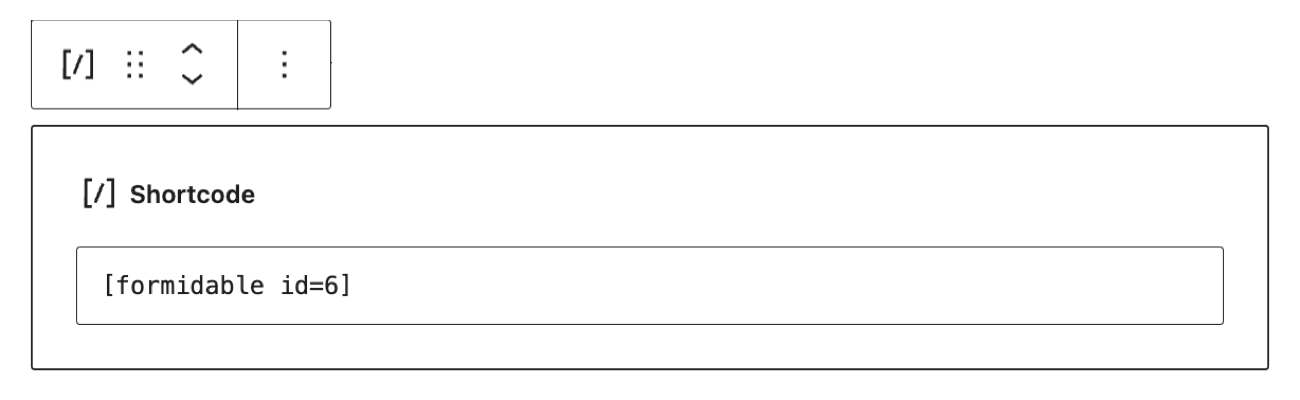
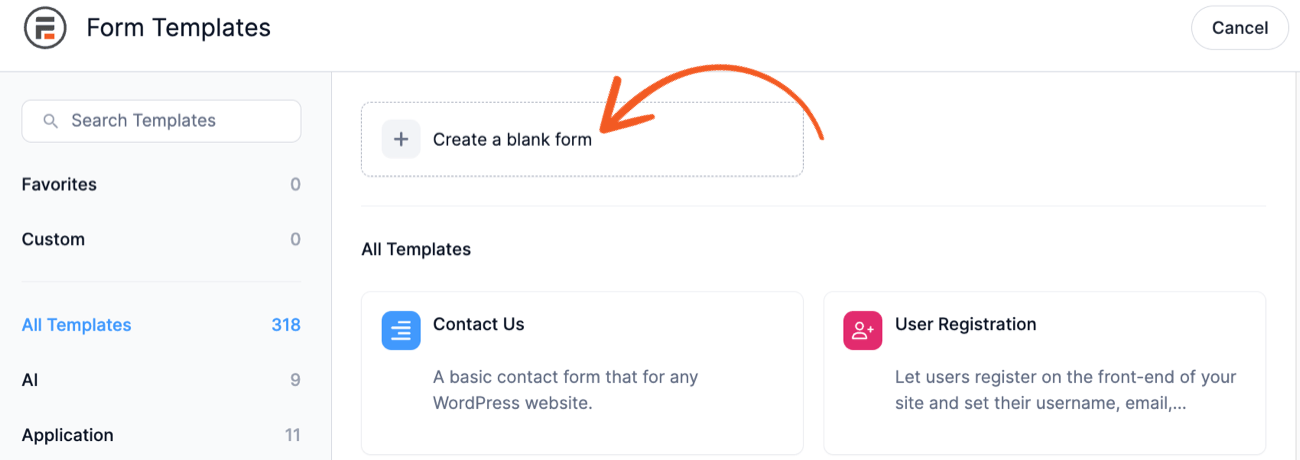
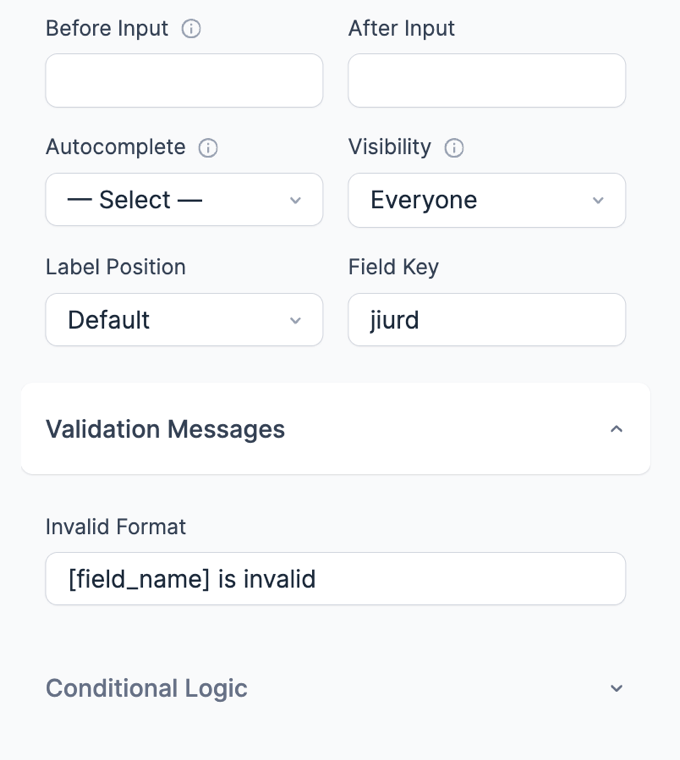
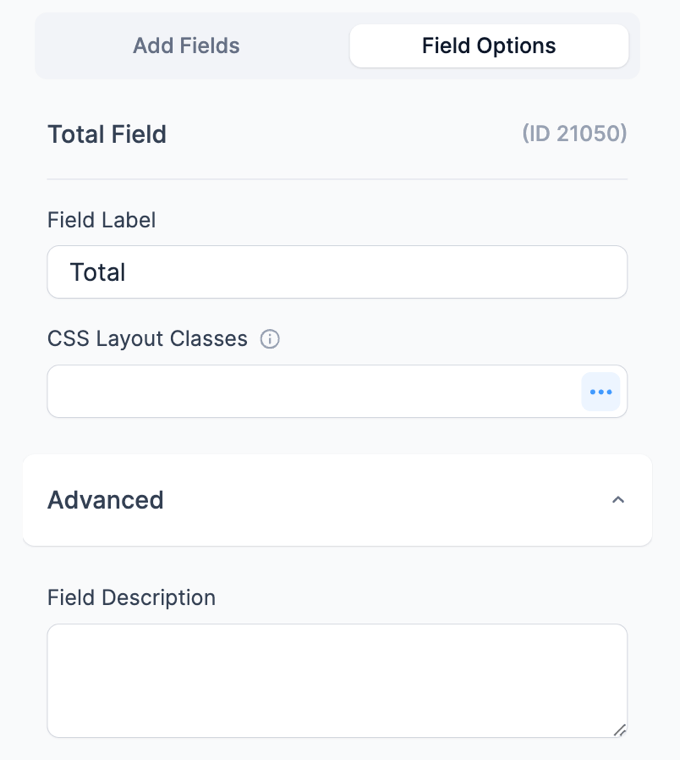
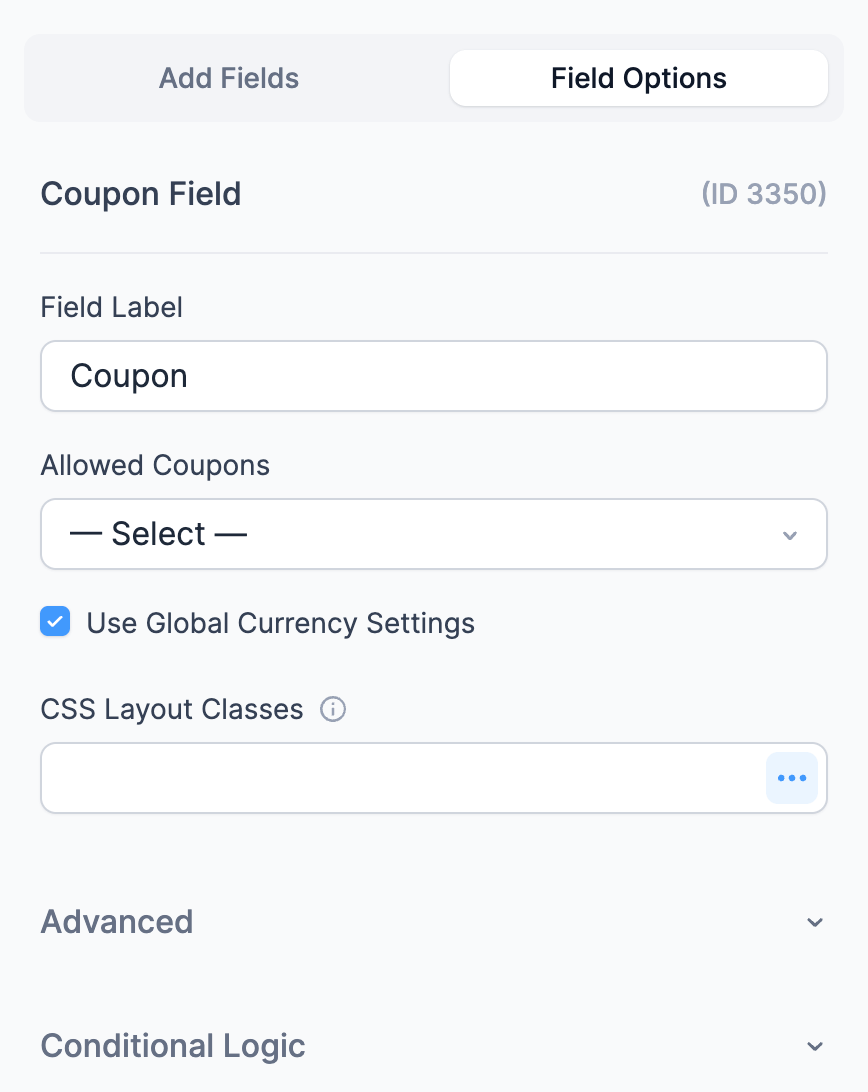
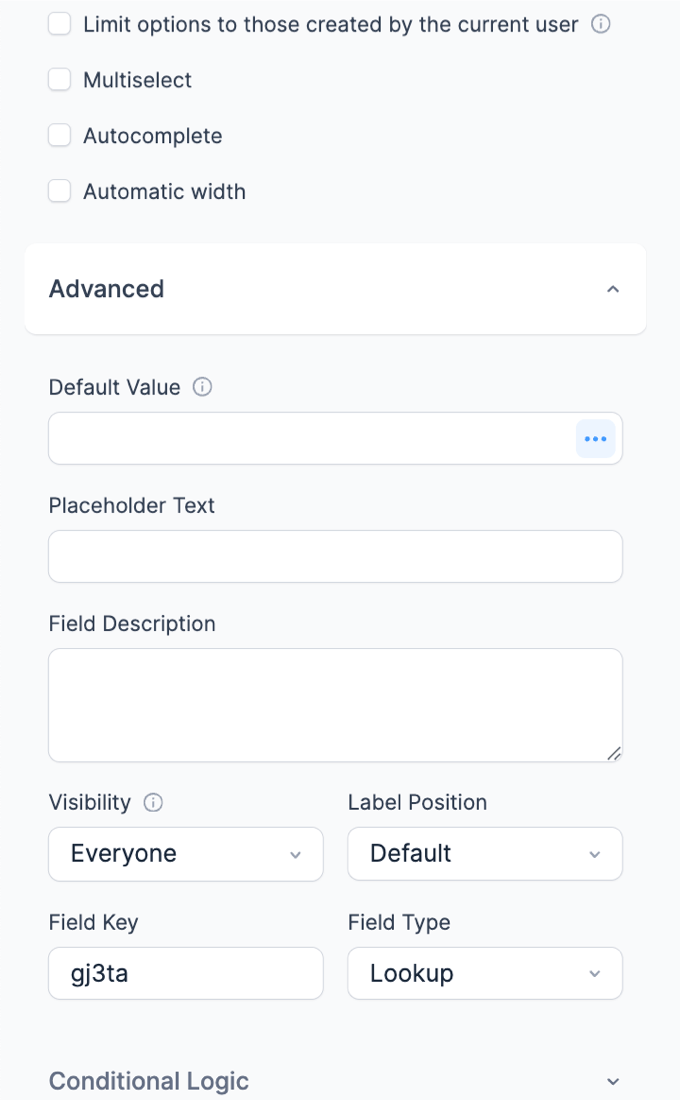
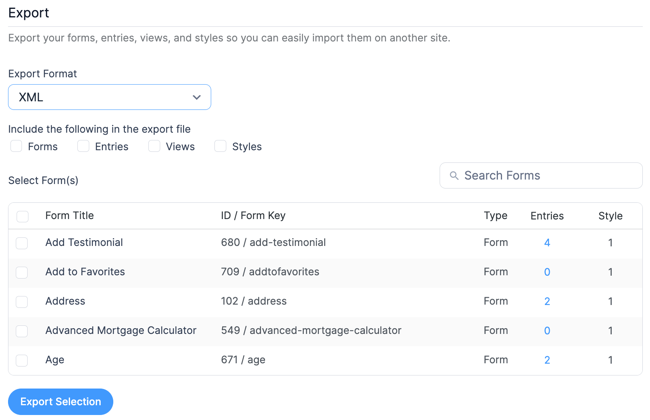
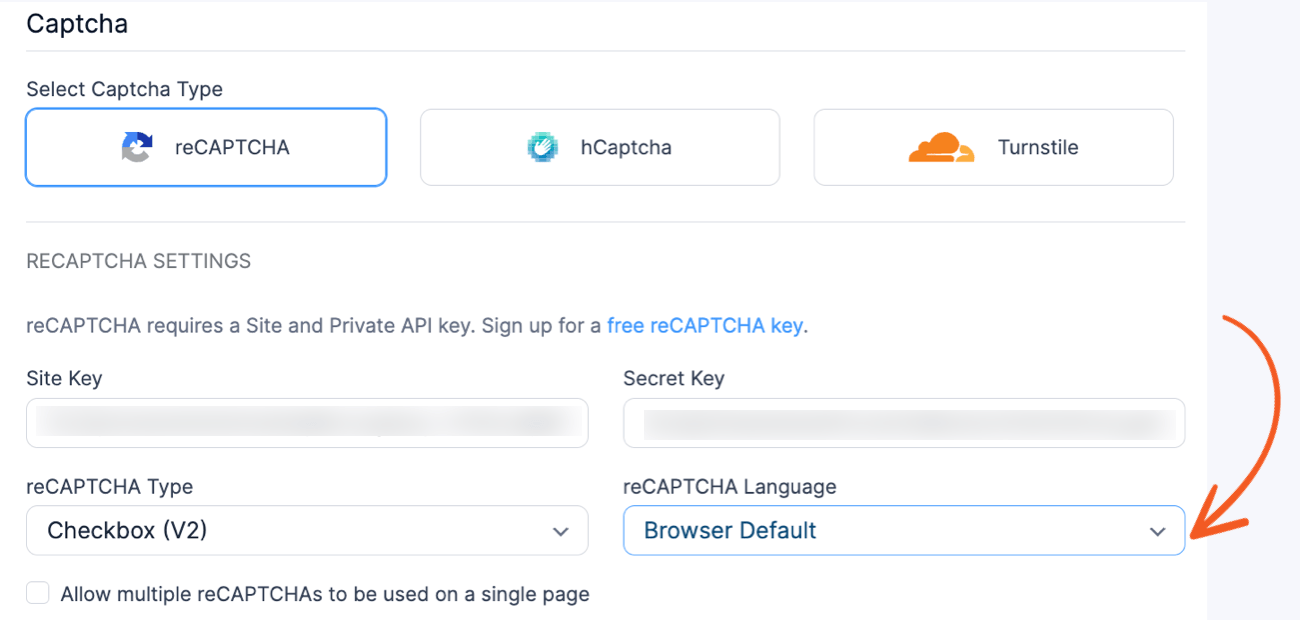
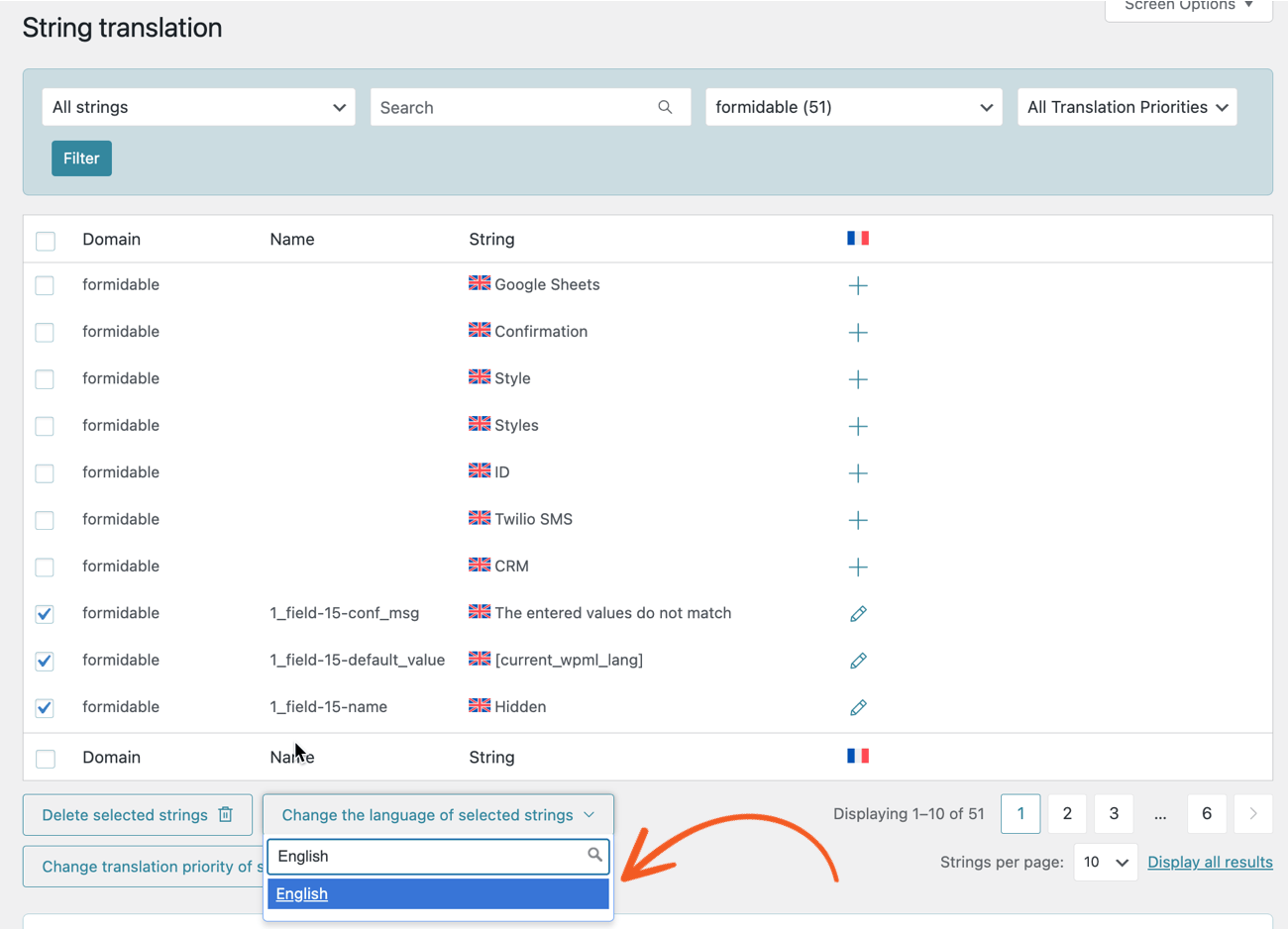
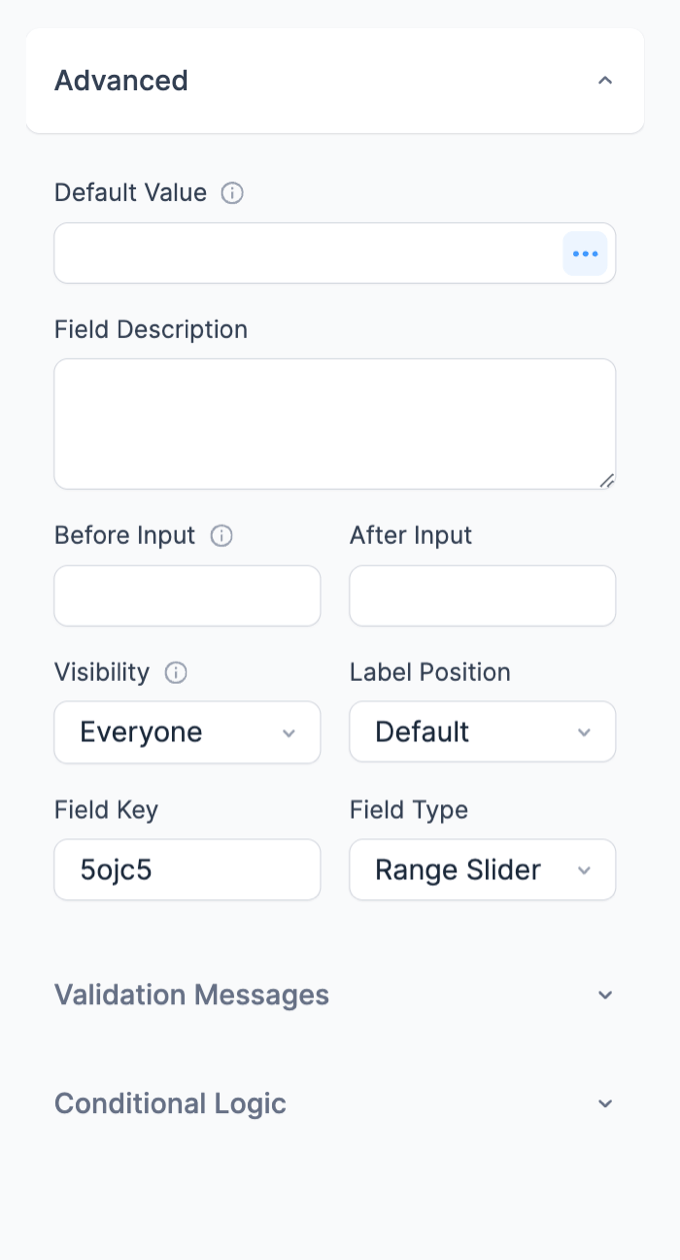
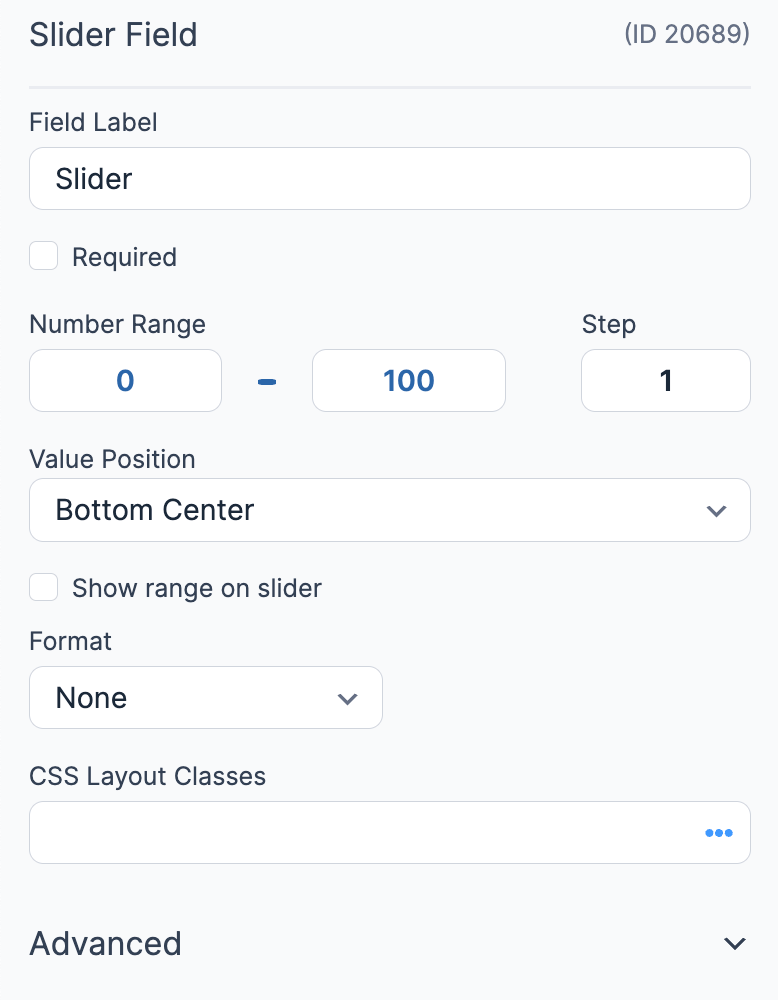
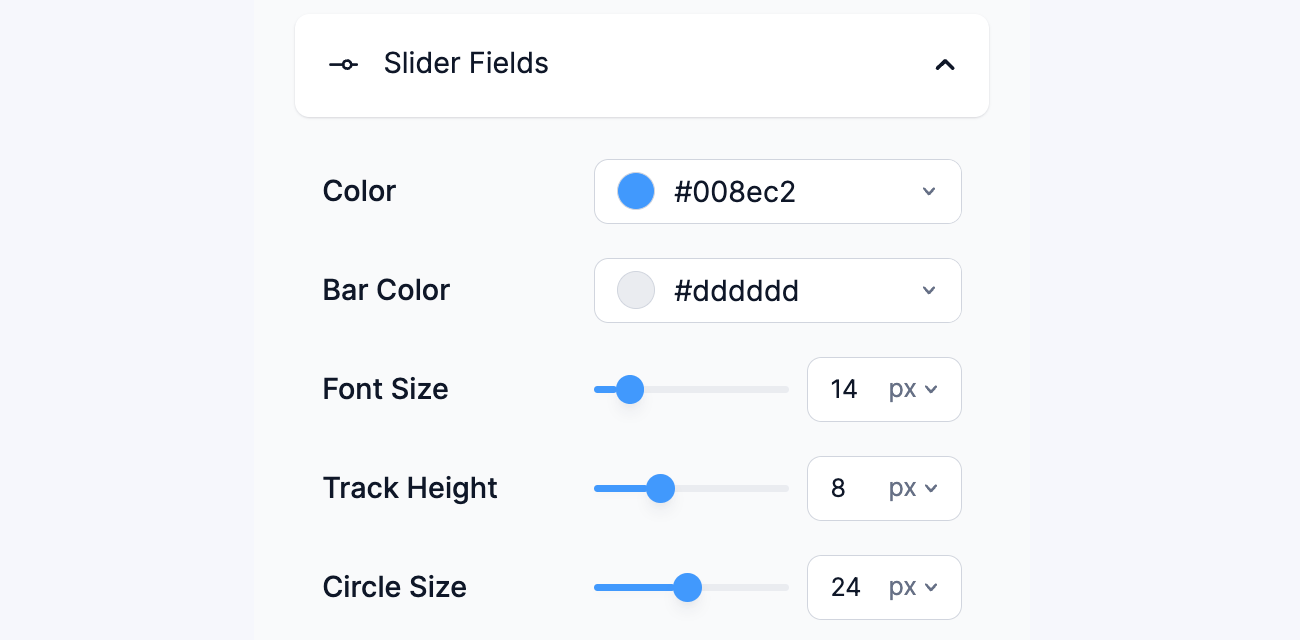
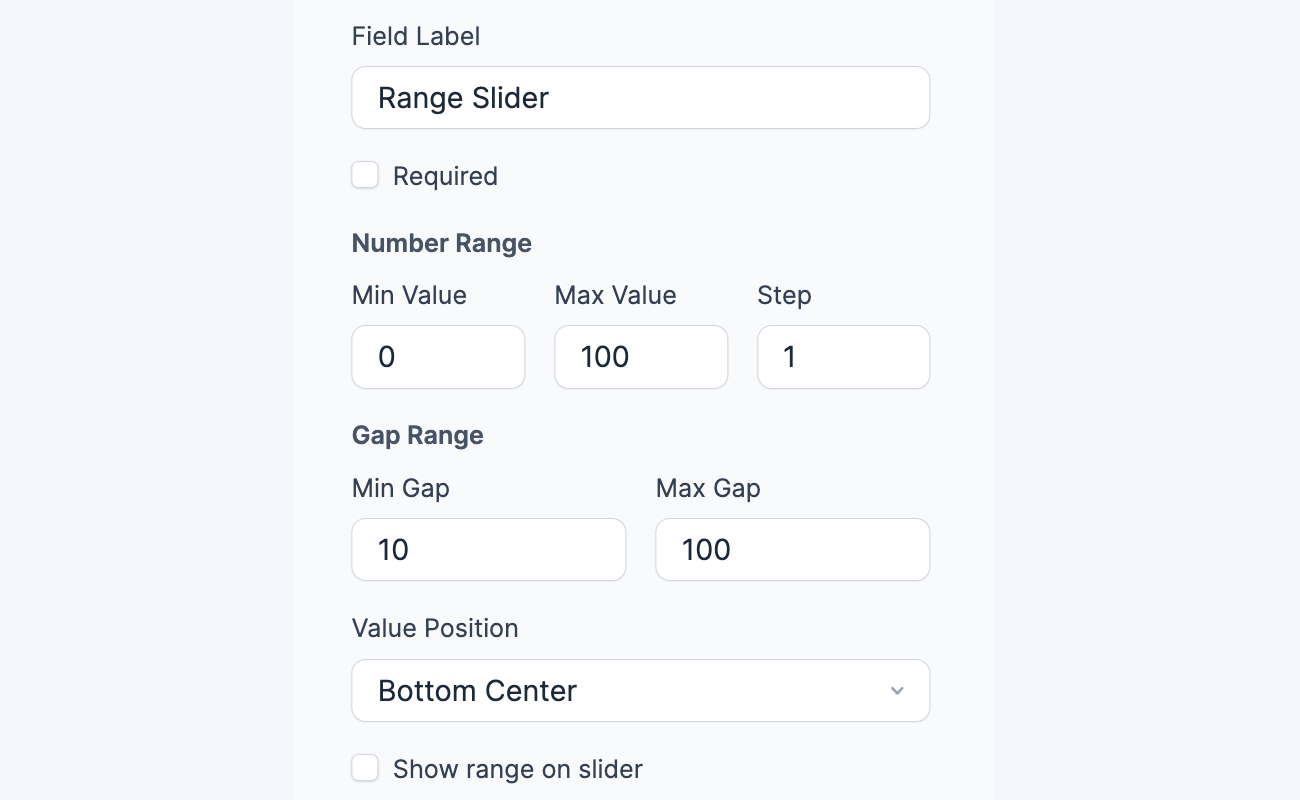
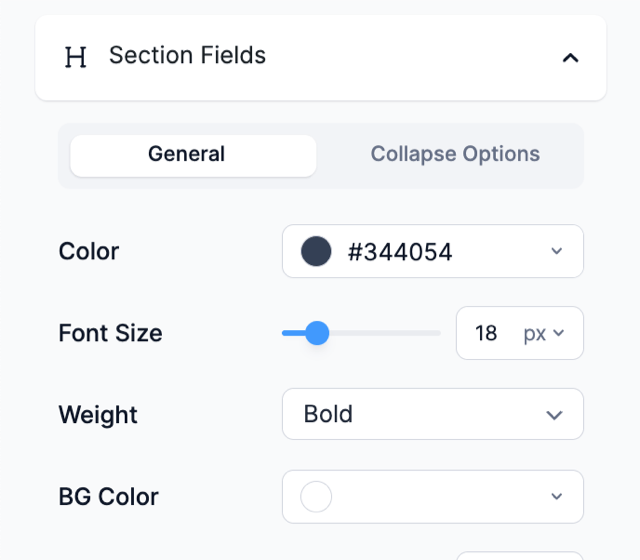
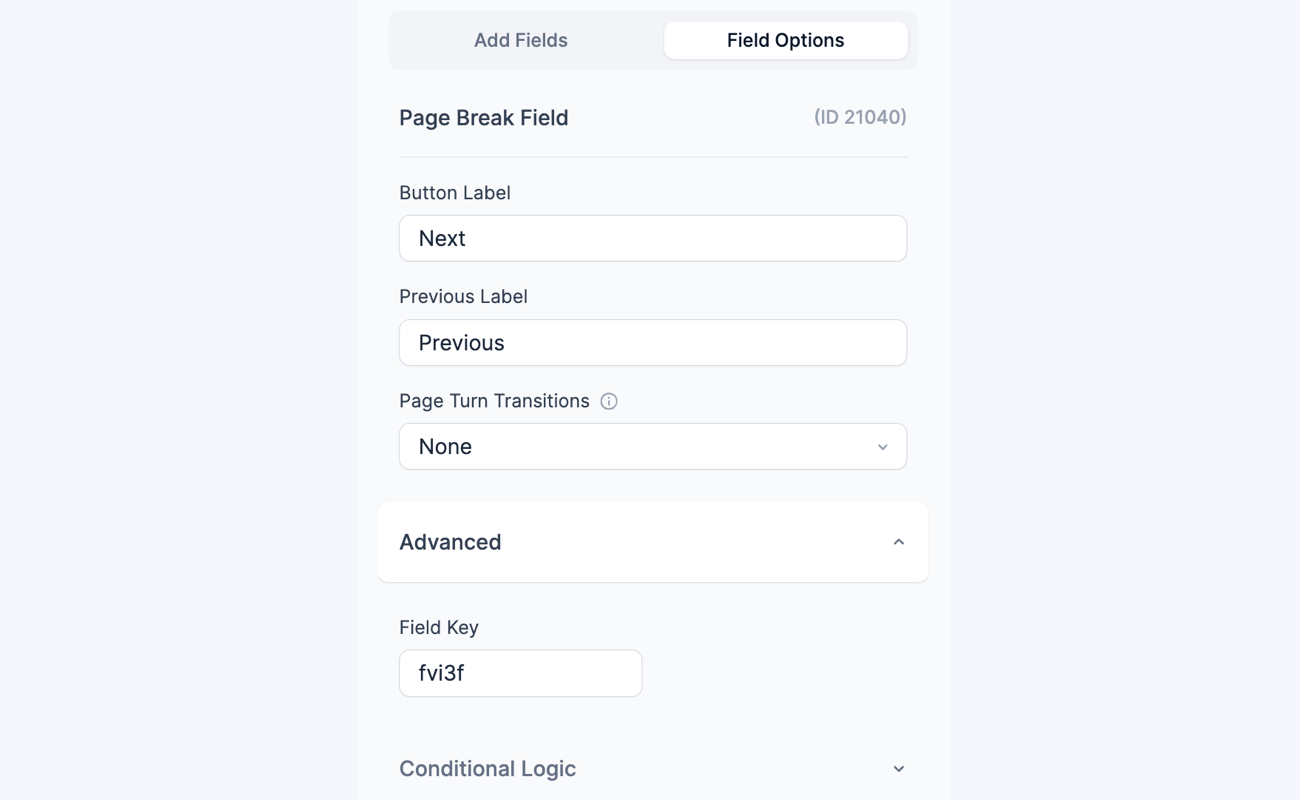
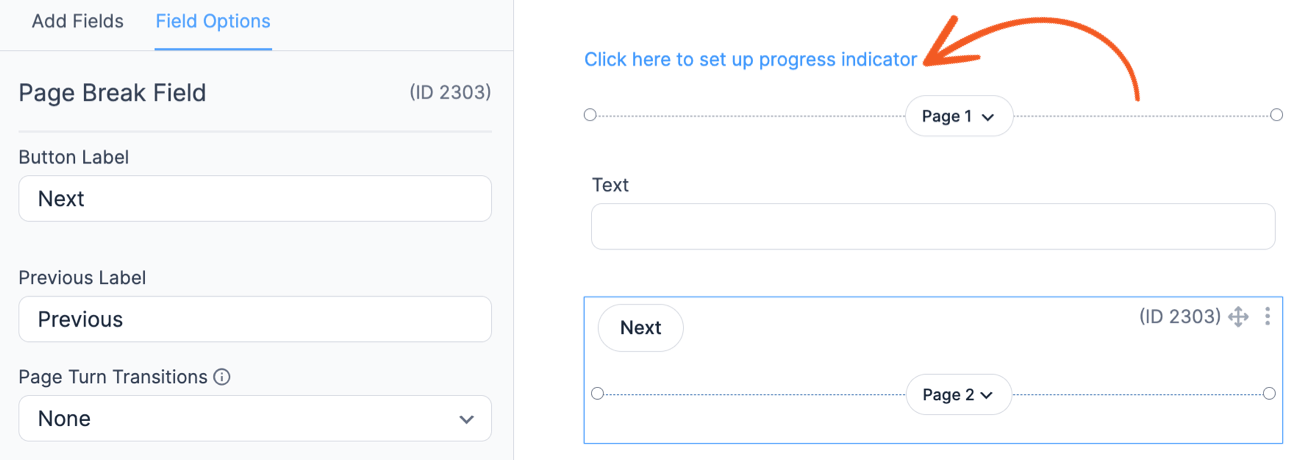
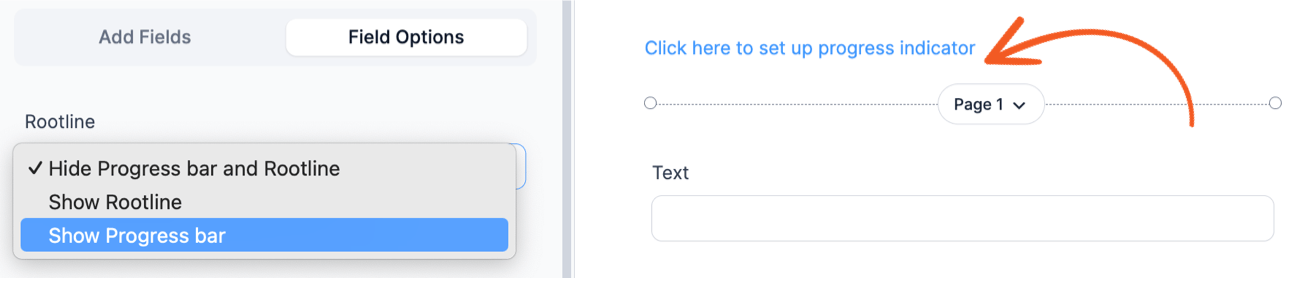
Generated by All in One SEO Pro v5.0.1.1, this is an llms-full.txt file, used by LLMs to index the site. # Formidable Forms The Most Advanced WordPress Forms Plugin and Form Builder ## Posts ### [Formidable Forms Blog](https://formidableforms.com/blog/) **Published:** June 23, 2011 **Author:** stephywells --- ### [How To Create a Number Range Slider in WordPress](https://formidableforms.com/how-to-create-a-number-range-slider-in-wordpress-forms/) **Published:** November 20, 2023 **Author:** Formidable Team **Content:** Picture a visitor dragging a handle to set a budget or a loan amount instead of typing digits into a box. That's a range slider field, and Formidable Forms has one built in, no paid add-on required. In this guide, we'll show you how to add it to your WordPress forms in minutes. ![How to create a number range slider in WordPress](https://formidableforms.com/wp-content/uploads/2021/04/number-range-slider-wordpress.jpg)**Approximate read time**: 8 minutes ## What a range slider field looks like in action A range slider field takes seconds to add to any form, and it turns a plain number box into something visitors actually enjoy using. ![Adding Range Slider Field Builder Demo Formidable Forms](https://formidableforms.com/wp-content/uploads/2026/08/adding-slider-field-builder-demo-4.gif)The minimum value sits on the left, the maximum on the right, and the visitor drags the handle to pick a number in between. The selected value is saved with the rest of the form entry, so you can use it in calculations, conditional logic, and email notifications like any other field. Sliders work best anywhere the answer is a number within a range, not one specific figure: - Loan amounts and terms in a mortgage or car payment calculator - Budget ranges in a quote request or project inquiry form - Guest counts in an event booking form - Donation amounts on a giving form - Satisfaction ratings in a survey (0 to 10 works beautifully) - Bedrooms, square footage, or price range in a real estate search form They're especially good on phones. Tapping and dragging a handle beats typing numbers into a tiny keyboard, which is a big deal now that most form fills happen on mobile. Sliders also feed directly into calculators. If you plan to show a price, payment, or score based on the slider value, the [price calculator guide](https://formidableforms.com/create-price-calculator-for-wordpress/) picks up right where this tutorial ends. ## What you need for a slider form in WordPress The slider field is a premium field in Formidable Forms. It's included in every paid license, starting with Basic. If you want your slider to drive live calculations, like the loan example above, calculator features are part of the Business license. There's no separate add-on to install and nothing to code. Once your license is active, the slider field simply appears in the form builder. [ Get the Slider Field! ](/pricing/) ## How to create a range slider in WordPress (3 steps) There are only three steps between you and a working slider field: install Formidable Forms, drag the slider onto your form, and set it up the way you want it. No code required, and the whole thing takes just a few minutes. ### Step 1: Install Formidable Forms If you don't have Formidable Forms yet, install the free version first. From your WordPress dashboard, go to **Plugins → Add New**, search for **Formidable**, then install and activate it like any other plugin. ![Add and Activate the Formidable Forms Plugin in WordPress](https://formidableforms.com/wp-content/uploads/2026/08/plugins-add-new-formidable-search-2.jpg)Next, add your license. After purchasing a plan, go to **Formidable → Global Settings** in your WordPress admin and enter your license key. ![Formidable Global Settings License Key Section](https://formidableforms.com/wp-content/uploads/2026/08/formidable-global-settings-license-key.jpg)That unlocks the premium fields, including the slider. Every purchase is backed by a 14-day money-back guarantee, so there's no risk in trying it. ### Step 2: Add the slider field to your form Head to **Formidable → Forms** and either open an existing form or click **Add New** to start fresh. ![Add new form](https://formidableforms.com/wp-content/uploads/2022/04/Add-New-Form.png)In the drag and drop form builder, click **Add Fields** on the left to see the full field list. ![WordPress drag and drop form builder](https://s3.amazonaws.com/fp.strategy11.com/images/knowledgebase/create-a-form_drag-drop-fields.gif)You'll find the **Slider** field under the **Advanced Fields** section. Drag it onto your form wherever you want it to appear. You can reorder it any time by dragging it to a new spot. ![Slider Field Advanced Fields Sidebar](https://formidableforms.com/wp-content/uploads/2026/08/slider-field-advanced-fields-sidebar-1.jpg)That's genuinely it. Your form now has a working range slider. The remaining work is telling it which numbers to offer. ### Step 3: Customize your range slider field Click the slider field in the builder and its options open on the left. A few settings do most of the work: - **Field Label**: The title shown above the slider, so visitors know what they are choosing. - **Range**: The minimum and maximum values. For a donation slider, that might be 5 to 500. - **Step**: How far the value jumps with each movement. A loan slider might step by 1,000, while a rating slider steps by 1. - **CSS Layout Classes**: Width and layout options if you want the slider narrower or side by side with another field. ![Range Slider Field Options: Range, Step, Currency](https://formidableforms.com/wp-content/uploads/2026/08/slider-field-options-range-step-currency-1.jpg)If your slider represents money, set **Format** to **Currency** so values display with the right symbol and separators. For finer control, open the **Advanced** settings on the field. ![Formidable Forms Slider Field Advanced Settings - Before and After Input](https://formidableforms.com/wp-content/uploads/2026/08/slider-field-before-after-input.jpg)The **Before Input** and **After Input** boxes add text on either side of the displayed value. Type `%` in After Input, for example, and visitors see 5%, 10%, 15% as they drag. Want to restyle the slider itself? Go to **Formidable → Styles**, open the **Slider Fields** section, and adjust the track and handle colors to match your brand. No CSS required, though you can add your own if you want pixel-level control. ![Formidable Forms Range Slider Styler](https://formidableforms.com/wp-content/uploads/2026/08/formidable-styles-slider-fields-colors-1.jpg)When everything looks right, click **Update** to save, preview the form, then [add the form to a page](https://formidableforms.com/knowledgebase/publish-a-form/) with the Formidable Forms block or shortcode. [ Build Your Slider Form Now! ](/pricing/) Already running slider forms in a different plugin? Here's what switching to Formidable Forms looks like for the two most common ones. ## Using a range slider with Contact Form 7 Contact Form 7 doesn't include a slider field in its core plugin, and it's unlikely to add one. The plugin's maintainer has said development is feature-complete, so gaps like this are permanent decisions, not bugs waiting to be fixed. To get a slider today, you install a third-party extension (there are several on WordPress.org, each with its own settings syntax), then add a slider tag to your form template by hand, something like `[range range-price min:0 max:100]`. Styling the slider means writing your own CSS, and there's no visual preview while you build. That works, but it's fiddly, and every extension you bolt on is another thing to update and troubleshoot. If you're maintaining CF7 slider forms today, moving them to Formidable Forms is straightforward: 1. Install Formidable Forms and rebuild the form in the visual builder. Most CF7 forms are short, so this takes minutes, and you can see the slider as you configure it. 2. Set the same min, max, and step values in the slider options instead of a tag string. 3. Swap the CF7 shortcode on your page for the Formidable Forms one. Your old entries stay in whatever storage CF7 was using, which by default doesn't store entries at all. That's one more reason to switch: Formidable Forms saves every submission automatically. ## Using a range slider with Gravity Forms Gravity Forms also has no native slider field. The usual route is a third-party add-on such as GP Range Slider from Gravity Wiz, which requires a Gravity Perks subscription on top of your Gravity Forms license. It works well, but you're paying two vendors and managing two updates for one field. To bring a Gravity Forms slider form into Formidable: 1. Recreate the form in Formidable Forms' builder and drag in the built-in slider field. No extra purchase, no add-on to activate. 2. Match your range and step settings, and use Before Input and After Input for any prefix or suffix text. 3. If the slider fed a calculation, rebuild the formula in Formidable Forms' calculated fields. The [cost calculator comparison](https://formidableforms.com/best-cost-calculator-plugin-wordpress/) shows what those calculations look like side by side. 4. Replace the embed on your page and retire the old form. The difference in day-to-day use is that the slider is a first-class field in Formidable: it appears in conditional logic, calculations, Views, and exports without any glue code. The slider is just one of dozens of built-in fields and features, so if you're switching over anyway, see the [full feature list](https://formidableforms.com/features/) for everything else that comes standard. ## Slider field ideas worth stealing Once the slider is on your form, a few small touches make it feel polished: - **Pair it with a calculated field.** A slider for loan amount plus a calculation for monthly payment turns a static form into an interactive tool visitors play with, and play time is time on page. - **Use conditional logic on the value.** Show a "Talk to sales" section only when the budget slider passes a threshold, or reveal extra questions when a satisfaction rating comes in low. - **Keep the range honest.** If 90% of your customers order between 10 and 100 units, don't make the slider run to 10,000. A tight range with a sensible step feels precise instead of vague. - **Label both ends.** Before and After Input text, or a short field description, removes any doubt about what the numbers mean. ## Ready to put a slider in your next form? That's the whole process: drag in the slider field, set your range and step, and style it to match your site. In a few minutes, you have a form field that visitors actually enjoy using on both desktop and mobile. The natural next step is to make that slider do something. Connect it to calculated fields and you have an instant quote tool, a mortgage estimator, or a donation form with a suggested-amount slider. Our guide to [building a price calculator in WordPress](https://formidableforms.com/create-price-calculator-for-wordpress/) walks through exactly that, slider included. Grab Formidable Forms, drop in your first slider, and see how much smoother a number question can feel. ### What is a range slider field in WordPress? A range slider is a form field that lets visitors pick a number by dragging a handle along a track instead of typing. You set the minimum, maximum, and step values, and the selected number is saved with the form entry like any other field. ### Does Formidable Forms include a slider field, or is it an add-on? It's built in. The slider field is included with every paid Formidable Forms license, starting with Basic, with no separate add-on to buy or install. If you want the slider to power live calculations, calculator features are included in the Business license. ### Can I add a slider to Contact Form 7 or Gravity Forms? Not without extra software. Contact Form 7 needs a third-party extension and a hand-coded form tag, and Gravity Forms needs a paid third-party add-on like GP Range Slider. Both routes work, but rebuilding the form in Formidable Forms gives you a native slider with visual settings and no additional plugin to maintain. ### Can a slider show a currency or percentage value? Yes. Set the **Format** option to **Currency** for money values, or use the Before Input and After Input settings to add a symbol like $ or % around the number visitors see as they drag the handle. **Categories:** Pro WordPress Form Builder **Tags:** calculators, User experience, wordpress forms --- ### [How To Add Invisible reCAPTCHA to WordPress](https://formidableforms.com/wordpress-anti-spam-invisible-recaptcha/) **Published:** February 9, 2024 **Author:** Formidable Team **Content:** Do you hate spam but also hate CAPTCHAs? We do, too! Luckily, adding invisible reCAPTCHA to WordPress lets you stop bots without bugging your visitors. Let's show you how. ![How to add invisible reCAPTCHA to WordPress](https://formidableforms.com/wp-content/uploads/2017/07/invisible-reCAPTCHA-forms.jpg)**Approximate read time:** 5 minutes Tell us if this sounds familiar: you're sick of spam form entries, but you're scared adding CAPTCHAs to your WordPress forms will kill conversions. What's a developer to do? 🤷 Thankfully, **[invisible reCAPTCHA](https://formidableforms.com/features/invisible-spam-protection/)** means you don't have to choose between security, sales, and user experience. It's surprisingly simple to set up and is **completely free!** But before we jump into our short step-by-step guide to adding invisible CAPTCHA to your WordPress website, let's clear up a couple points of confusion. ## What is CAPTCHA? Is it different from reCAPTCHA & hCAPTCHA? CAPTCHA stands for Completely Automated Public Turing Test to Tell Computers and Humans Apart. 🤖 🧑 reCAPTCHA and hCAPTCHA are based on the same idea but stop spam bots in slightly different ways. ### CAPTCHA This is where it all started. Remember those squiggly, distorted texts you had to type in to prove you weren't a robot? 😵‍💫 That's CAPTCHA. ![Original CAPTCHA example](https://formidableforms.com/wp-content/uploads/2024/02/captcha-example.jpg)The idea was to ask you to solve a puzzle only humans could solve, at least in theory. But as bots became better, this method became less and less effective. You may still run into CAPTCHA Classic every once in a while on older websites. For the most part, though, it's been replaced by the slicker and smarter reCAPTCHA or hCAPTCHA. ### reCAPTCHA Developed by Google, **reCAPTCHA** takes the basic idea of CAPTCHA and turns it up a notch. Over the 15+ years since its initial release, several versions of reCAPTCHA have been released. **V1** of Google CAPTCHA used twisty texts before moving on to trickier image identification tests. ![First version of reCAPTCHA spam protection](https://formidableforms.com/wp-content/uploads/2017/07/unnamed.png)**reCAPTCHA v2** introduced the famous "I'm not a robot" checkbox and removed the puzzles 🧩, except when requiring an extra check. It also lets you display an invisible reCAPTCHA badge instead, so users don't have to solve a CAPTCHA or tick a box. ![Google reCAPTCHA example](https://s3.amazonaws.com/fp.strategy11.com/images/knowledgebase/add-spam_recaptcha-no-robot.gif)**Then came reCAPTCHA v3**, which is truly invisible. 😶‍🌫️ How does invisible CAPTCHA work? This kind of spam protection runs in the background, scoring user interactions and mouse movement to detect bots without impacting the user experience. ### hCAPTCHA hCAPTCHA is the new kid on the block. It's a lot like reCAPTCHA, but isn't owned by Google. This privacy-focused spam protection offers more customization too. Plus, **hCAPTCHA doesn't track users.** [Subscribe on YouTube ](http://www.youtube.com/channel/UCZJWz8M3Khf3YIWaspbv1rA?sub_confirmation=1&feature=subscribe-embed-click) So now that we know more about it, let's see how to add Google's invisible reCAPTCHA option to WordPress forms. **Want a reCaptcha alternative?:** [9 Best reCAPTCHA Alternatives To Try Today!](https://formidableforms.com/best-recaptcha-alternatives/ "9 Best reCAPTCHA Alternatives To Try Today!") ## How to add invisible reCAPTCHA to WordPress - [Step 1: Get your reCAPTCHA keys](#aioseo-step-1-get-new-recaptcha-keys) - [Step 2: Add CAPTCHA keys in WordPress](#aioseo-step-2-enter-your-new-keys-in-formidable-forms) - [Step 3: Insert the reCAPTCHA field in a form](#aioseo-step-3-add-a-recaptcha-field-to-your-form) For this tutorial, you'll need the **Formidable Forms WordPress plugin** installed on your website. If you don't have it already, click below to [get the free form maker](https://formidableforms.com/free-online-form-builder/) 👇. [![Formidable Forms Free online form builder](https://formidableforms.com/wp-content/uploads/2020/02/formidable-free-wordpress-form-plugin.jpg)](https://formidableforms.com/free-online-form-builder/)### Step 1: Get your reCAPTCHA keys To get started, [log in to your Google reCAPTCHA account](https://www.google.com/recaptcha/) or create a new, free account. Open the **v3 Admin Console** and then follow the prompts to register a new site. ![How to create a Google invisible reCAPTCHA key](https://formidableforms.com/wp-content/uploads/2024/02/google-recaptcha-key.png)Next, choose the type of reCAPTCHA you want, accept the terms of services, and hit **Submit**. Once you copy the keys 🔑, you're ready to move on to the next step! ![Google CAPTCHA keys](https://formidableforms.com/wp-content/uploads/2024/02/google-captcha-keys.png)### Step 2: Add CAPTCHA keys in WordPress Back in your WordPress admin panel, go to **Formidable → Global Settings**. Paste your Site Key and Secret Key and choose the correct reCAPTCHA type. You can also adjust the reCAPTCHA plugin's threshold, with 1 being the strongest protection and 0 being the weakest. ![How to enable reCAPTCHA in WordPress](https://s3.amazonaws.com/fp.strategy11.com/images/knowledgebase/add-spam_recaptcha-key.png)Click **Update** when you're done to save your changes. 💾 Way easier than trying to decode the Google reCAPTCHA API, right? *Please note that only one type of reCAPTCHA can be used per site. You cannot use v2 on some forms and v3 on others.* ### Step 3: Insert the reCAPTCHA field in a form Now, let's add reCAPTCHA to our WordPress form! Under **Formidable → Forms**, you can **Edit** an existing form or create a new one by clicking the **+ Add New** button. ![Edit a WordPress form or create a new one with Formidable Forms](https://formidableforms.com/wp-content/uploads/2022/11/user-flow_select-form.png)Next, drag and drop a **reCAPTCHA field** along with any other fields you want into your form. ![Ho to add reCaptcha to a form in WordPress.](https://formidableforms.com/wp-content/uploads/2021/12/User-Registration-reCAPTCHA-Options.png)All that's left is to save and [publish your form](https://formidableforms.com/knowledgebase/publish-a-form/). Bravo! 🙌 You've now installed invisible reCAPTCHA on your WordPress website. **Just think of all the contact form spam you've stopped dead in its tracks!** [ Get Formidable Forms Now! ](/pricing/) ## Common invisible reCAPTCHA errors Even though it's simple to set up, a few things can go wrong with reCAPTCHA. The good news is they're usually quick fixes! **One of the most common problems is how to test invisible CAPTCHA.** When testing a form, you probably submit it multiple times using the same email or IP address. And Google can find this suspicious. As a result, your form may display a reCAPTCHA challenge after you hit the submit button. **This is normal and doesn't mean that your invisible reCAPTCHA isn't invisible!** It's just an extra check to prove that you are indeed human despite the unusual activity. **See our documentation for help with other common CAPTCHA problems:** - [ERROR for site owner: Invalid domain for site key](https://formidableforms.com/knowledgebase/recaptcha/) - [ERROR for site owner: Invalid key type](https://formidableforms.com/knowledgebase/recaptcha/#kb-invalid-key-type) - [reCAPTCHA badge position, visibility](https://formidableforms.com/knowledgebase/recaptcha/#kb-recaptcha-badge-showing) ## Ready to stop spam with invisible reCAPTCHA for WordPress? Now you know how easy it is to enable invisible CAPTCHA on WordPress with Formidable Forms, it's time to say bye-bye to bots and hello to smoother spam protection. 👋 So don't let spam get you down — grab the best form and reCAPTCHA plugin below to take the first step towards a safer and more user-friendly website today! [ Get Formidable Forms Now! ](/pricing/) --- *Try the best WordPress form plugin risk-free for 14 days with a 100% money-back guarantee. [Get the premium form maker](https://formidableforms.com/pricing/) or test the [free version of Formidable](https://wordpress.org/plugins/formidable/).* ## Read more about anti-spam solutions - [ ![Best reCAPTCHA Alternatives](https://formidableforms.com/wp-content/uploads/2024/08/best-recaptcha-alternatives-400x200.png) 9 Best reCAPTCHA Alternatives To Try Today! Read More ](https://formidableforms.com/best-recaptcha-alternatives/) [ ![What is Honeypot Anti-Spam?](https://formidableforms.com/wp-content/uploads/2024/07/what-is-honeypot-anti-spam-400x200.png) What is Honeypot Anti-Spam? \[And How To Use It!\] Read More ](https://formidableforms.com/defeat-spambots-honeypot-spam-protection/) [ ![Cloudflare Turnstile vs. Google reCAPTCHA](https://formidableforms.com/wp-content/uploads/2024/06/cloudflare-turnstile-vs-google-recaptcha-400x200.png) Cloudflare Turnstile vs. Google reCAPTCHA \[Which is Best?\] Read More ](https://formidableforms.com/cloudflare-turnstile-vs-google-recaptcha/) **Categories:** Free Form Builder **Tags:** Anti-spam, hCaptcha --- ### [How to Let Users Submit Photos on Your WordPress Site](https://formidableforms.com/users-submit-photos-wordpress/) **Published:** September 13, 2017 **Author:** Njones35 **Content:** Contact forms with a front-end uploader have been around for years. But you can now do far more with the user-submitted photos. ![How to let users submit photos on your WordPress site](https://formidableforms.com/wp-content/uploads/2017/09/make-the-most-of-user-submitted-images-1024x480.jpg)Back when the internet was young (and I was too), contact forms were invented. Soon after, amazing new upload fields were built. We marveled at the possibilities ahead. At that time, uploaded files were simply attached to the email notification. For the time-being, this was enough. Then sadly, innovation seemed to grind to a halt. It felt like very little happened with the development of upload fields for a long time. ## The issue: How to transfer images from emails to WordPress ![front-end uploader for user photos icon](https://formidableforms.com/wp-content/uploads/2017/09/upload-1118929_960_720-400x400.png) Receiving uploaded files by email made it very hard to automate any use of the images. Sure it was nice that my clients could send me photos. But to use the photo on my website, I either had to manually upload it and insert it into my HTML page, or write a complex script to automate it. The level of work and time involved meant that taking advantage of user-submitted photos and content was often not worth the hassle. I used some pre-made scripts, and even bulletin board/forum scripts on occasion. These were usually very complex, quite limited and rarely updated. They did what I needed (just about) but it wasn't a solution I loved. **>> Running a school? Learn how to build [a college application form in WordPress](https://formidableforms.com/how-to-create-a-college-application-form-in-wordpress/)!** ## The dream: Allow users to submit photos in WordPress for automatic display The dream was a system where uploaded files could be used automatically, and without any admin effort (apart from moderation). Where online photo competitions could be setup and run with almost zero effort. Where user-submitted content could power a website without sucking every minute of the webmaster's life. A system flexible enough to be used on almost any type of website, and updated to keep in touch with the latest [features](https://formidableforms.com/features/) and trends. ## The dream becomes a reality The first glimpse of this becoming a reality came with WordPress. I'll admit, when I first looked at Wordpress circa 2007 I thought it was about as useful as a chocolate toothbrush and instantly dismissed it. I was used to building sites with HTML/CSS and didn't see any advantage in switching. ![user-submitted photos to create WordPress posts](https://formidableforms.com/wp-content/uploads/2017/09/images.png) But as I kept hearing about new features and improvements, I revisited it a few years later and was pleasantly surprised. I dabbled in WordPress and built a few small, simple websites, but still didn't fully commit. **The issue of user-submitted content encouraged me to take the plunge once and for all.** I'd been awarded a project that revolved 100% around using a front-end uploader for images and content. This content needed to be uploaded, held for moderation, and published to the website with a simple click. When I discovered Formidable, I knew that WordPress was the solution. ## What can you do with user-submitted photos? Formidable has many different ways to automatically integrate user-submitted photos and content. Here are my top 5: 1. Images can of course still be [included with emails](https://formidableforms.com/knowledgebase/file-upload/#kb-email-attachment) like other form builder plugins. Formidable makes it easy to [send multiple notifications to dynamic recipients](https://formidableforms.com/contact-form-dynamic-recipients/), and even use conditional logic to define the message content. 2. [Create posts](https://formidableforms.com/knowledgebase/create-posts/) directly from forms where users submit photos with the front-end uploader. Use the uploaded images within the post content or as the [featured image](https://formidableforms.com/knowledgebase/create-posts/#kb-set-the-featured-image). 3. In addition to posts, [create custom post types and pages](https://formidableforms.com/knowledgebase/create-posts/#kb-create-a-post) from form submissions and insert the uploaded images. 4. [Display your front-end form submissions](https://formidableforms.com/wordpress-display-form-submissions/) in customizable grids or lists with [Views](https://formidableforms.com/features/display-form-data-views/). This is perfect for building photo competition galleries. Each item in the main View can link to a detail page with more info about that specific entry. 5. Integrate with 3rd party services. Use the [Zapier add-on](https://formidableforms.com/features/form-entry-routing-with-zapier/) to [send your uploaded images to Dropbox](https://formidableforms.com/how-to-upload-files-to-dropbox-wordpress/), Google Sheets, and Google Calendar. Send photos to Twitter as tweets, and much, much more. Use the submitted photos in hundreds of applications. ## The best part of using WordPress forms to submit images? ![automated user-submitted photos from WordPress forms](https://formidableforms.com/wp-content/uploads/2017/09/zapier-1024x512-1024x512.png) It's all automated! Gone are the days of manually adding user-submitted content. Formidable does it all for you. These features opened up a new world of possibilities for me. [User-generated content](https://formidableforms.com/features/user-submitted-posts-wordpress-forms/) can be used to power an entire website. [Guest blog posts](https://formidableforms.com/user-submitted-posts-wordpress-forms/) are easy to implement. Users can [submit businesses to a directory](https://formidableforms.com/wordpress-directory-plugin/), or pin their travels on a map. All using Formidable! Now it's easier than ever to build forms, collect submissions, and automatically publish them to your website. I've even used Formidable Forms for clients who want to maintain a blog and update their website, but don't feel comfortable with the WordPress dashboard. Custom forms and Views allow them to create and edit posts and pages in a simplified way, without ever needing the dashboard. **>> Read more: [Client-side image resizing for faster form submission](https://formidableforms.com/client-side-image-resizing-fast-uploads/)** ## Do your users submit photos and content on your WordPress site? How do you currently manage the photos your users submit? Do you spend a lot of time transferring photos from one place to another? Don't spend another minute on tasks that can be automated. Start today with a [data management plugin](https://formidableforms.com/pricing/) that can do it for you. ## Read more about submitting photos & files - [ ![How To Use WordPress to Upload Files to Google Drive](https://formidableforms.com/wp-content/uploads/2024/09/use-wordpress-to-upload-files-to-google-drive-400x200.png) How to Use WordPress to Upload Files to Google Drive Read More ](https://formidableforms.com/how-to-create-google-drive-file-upload-form/) [ ![How To Create a WordPress Contact Form with File Uploads](https://formidableforms.com/wp-content/uploads/2024/02/how-to-create-a-wordpres-contact-form-with-file-uploads-400x200.png) How To Create a WordPress Contact Form with File Uploads Read More ](https://formidableforms.com/build-wordpress-form-with-file-uploads/) [ ![Display form submissions in an image carousel in WordPress with Formidable Forms](https://formidableforms.com/wp-content/uploads/2022/03/Display-Form-Submissions-in-Image-Carousel-1-400x200.png) How to Display Form Submissions in an Image Carousel Read More ](https://formidableforms.com/image-carousel/) **Categories:** Application Builder **Tags:** File upload, User-generated content, views --- ### [How to Create a WordPress Image Upload Form (3 Step Guide)](https://formidableforms.com/wordpress-image-upload-form-guide/) **Published:** December 16, 2021 **Author:** Formidable Team **Content:** Create a WordPress image upload form easily! Follow this step-by-step guide to let users upload images without hassle. Perfect for any website! ![How to Create a WordPress Image Upload Form](https://formidableforms.com/wp-content/uploads/2021/12/image-upload.png)User-submitted images can be a valuable addition to your website. However, accepting and processing these visuals manually requires time and effort. This is where an image upload form can be a lifesaver. When visitors can submit files via an automated form, you get all the benefits of user-generated content without any administrative headaches. [ Create a Form Today! ](/pricing/) In this post, we’ll explore why you may want to accept images submitted by your users. Then, we'll show you how to create a WordPress image upload form in three easy steps. Let’s get started! ## Why you might want to create WordPress image upload forms You might enable people to [submit image files](https://formidableforms.com/6-options-to-look-for-wordpress-file-upload-form/) to your website for many reasons. For example, if you run a membership site, subscribers often want to upload profile pictures to their accounts. You may even want users to add profile pictures as part of the signup process. You can do this by creating a registration form with an image upload plugin in WordPress: ![An image upload form.](https://formidableforms.com/wp-content/uploads/2021/12/membership-site-profile.png)Enabling members to personalize their profiles with images can improve the user experience and create a sense of community, as members can see the people they’re interacting with. If you accept guest posts, authors can use a file upload form to add images to their submissions. This can help them create more engaging multimedia content: ![An example of a guest blogging form.](https://formidableforms.com/wp-content/uploads/2021/12/guest-post-blog.png)Lastly, allowing users to upload form submissions into a [space-saving image carousel ](https://formidableforms.com/image-carousel/ "space-saving image carousel ")is a great way to increase user engagement, create a dynamic website, and make your site look sleek and interesting. ## How to create WordPress image upload forms (in 3 steps) If you want to accept product reviews, allow guest posts, or run a membership site, you’ll almost certainly need an image uploader for WordPress. Let’s see how easy it is to create this element using the [Formidable Forms plugin](https://formidableforms.com/pricing/) and it's many [features](https://formidableforms.com/features/). [ Get Formidable Forms! ](/pricing/) ### Step 1: Create a new form In the WordPress dashboard, navigate to **Formidable > Forms**. Then click on the **Add New** button and select **Create a blank form.** ![Create a blank form button in Formidable Forms with a red arrow pointing to it](https://s3.amazonaws.com/fp.strategy11.com/images/knowledgebase/create-form/create-form_blank-form.png)To start, give this form a straightforward name and enter an optional description. When you’re happy with the information you have entered, click **Create**. Now, you can start adding fields to your form. This may vary depending on your desired result. For example, you might build a form where guest authors can submit their text, complete with relevant images. You might collect the author’s name and email address in this scenario. You can even add a Text field where your guest writer can submit the body of their blog post. To complete this step, find the **File Upload** in the left-hand menu of Formidable Forms. When you find it (or any other field you need), drag and drop it onto your form: ![Formidable Forms drag and drop form builder](https://s3.amazonaws.com/fp.strategy11.com/images/knowledgebase/create-form/create-a-form_drag-drop-fields.gif)That's it! However, you should note that since **File Upload** is an **Advanced Field**, you'll need [a premium license](https://formidableforms.com/pricing/) to access it. Once you’ve added all of the supporting fields, it’s time to move on to the main part of the show! ### Step 2: Configure the image upload field There are a few ways you can configure the **File Upload** field. To start, click on it and make sure the **Field Options** tab is selected in the left-hand menu: ![A WordPress image upload form, created using Formidable Forms.](https://formidableforms.com/wp-content/uploads/2021/12/file-upload-options.png)You can now choose whether the user can upload multiple files simultaneously. This can be particularly useful for guest posts and product reviews, which often benefit from featuring multiple images. However, large files can be bad news for your site’s performance and may even eat into your data storage allowance. For this reason, you may want to resize larger files automatically. If you decide to enable this setting, you’ll be prompted to specify a **New file size**: ![An image upload form in WordPress.](https://formidableforms.com/wp-content/uploads/2021/12/automatically-resize-files.png)If you’re concerned that visitors may attempt to upload large, high-resolution images, you may also want to specify a maximum file size. You can set this limit using the **Max file size** field: ![A WordPress image upload form, created using the Formidable Forms plugin. ](https://formidableforms.com/wp-content/uploads/2021/12/max-file-formidable.png)Some files pose a bigger security risk than others. Allowing users to upload any file format to your site can make it more vulnerable to attack and lead to a poor user experience. For example, if a guest author submits images in unsupported formats, you may have to ask them to resubmit their form. With this in mind, you might want to specify the file formats you accept. To start, select the **Specify allowed types** checkbox: ![The Formidable Forms plugin.](https://formidableforms.com/wp-content/uploads/2021/12/formidable-file-types.png)You can now select the permitted file formats from the accompanying drop-down menu. This can also effectively transform a generic file upload form into an image-only form. ### Step 3: Publish your form You can embed your form using a shortcode when ready to go live. In the WordPress dashboard, select **Formidable** and find the form we just created: ![A selection of forms, created using Formidable Forms.](https://formidableforms.com/wp-content/uploads/2021/12/image-upload-shortcode-1.png)Formidable Forms generates the embed shortcode automatically, so copy this information. Then, navigate to the post or page where you want to embed your form and create a new shortcode block. Paste your Formidable Forms embed code into this block. You can now publish or update this page as normal. Then, visitors can upload images to your WordPress website easily. Whenever someone completes this form, you can view their submission by navigating to Formidable → Entries in your WordPress dashboard. Then, hover over the submission you want to examine and click on **View**: ![An example registration form with image upload plugin wordpress](https://formidableforms.com/wp-content/uploads/2021/12/uploaded-file-image.png)*Image credit: [Andrew Schultz](https://unsplash.com/photos/DTSDD968Mpw).*This will open a screen containing all of the information that this person submitted. To view any of their images, click on the accompanying links. ## Ready to create a WordPress image upload form? Visitors may want to submit images to your site in many scenarios. However, manually accepting, processing, and publishing those images can be time-consuming and may require additional email correspondence. Let’s quickly recap how to add a WordPress form for uploading images: 1. Create a new form using [Formidable Forms](https://formidableforms.com/). 2. Configure the image upload field. 3. Publish your form. An image upload form is a WordPress must-have if you accept guest posts, product reviews, or membership registrations. This is just one example of using Formidable Forms – check out [what other forms you can create](https://formidableforms.com/pricing/)! [ Try Formidable Forms! ](/pricing/) ## Get the Formidable Forms Newsletter Newsletter Signup Name Name Name Name Email Address \* Subscribe If you are human, leave this field blank. ## Read more about WordPress upload forms - [ ![Protect WordPress media files](https://formidableforms.com/wp-content/uploads/2020/09/protect-wordpress-media-files-400x200.png) 4 Ways To Protect WordPress Media Files \[Easy Methods!\] Read More ](https://formidableforms.com/protect-wordpress-media-files/) [ ![How to Require Email to Download Files](https://formidableforms.com/wp-content/uploads/2020/03/How-to-Require-Email-to-Download-Files-400x200.png) How To Require Email To Download Files in WordPress Read More ](https://formidableforms.com/file-downloads-after-form-submissions/) [ ![How To Make a Multi-File Uploader in WordPress](https://formidableforms.com/wp-content/uploads/2023/03/How-To-Make-a-Multi-File-Uploader-in-WordPress-400x200.png) How To Make a Multi-File Uploader in WordPress \[3 Steps!\] Read More ](https://formidableforms.com/add-multiple-file-uploads-to-your-wordpress-forms/) **Categories:** Pro WordPress Form Builder **Tags:** File upload, form builder --- ### [How to Export Form Entries in WordPress](https://formidableforms.com/how-to-export-form-entries-in-wordpress/) **Published:** July 10, 2020 **Author:** Ryan Cordoni **Content:** Looking for a way to export form entries in WordPress? With the right plugin, you can export to Excel, CSV, or XML with just a few clicks! ![How to export form entries in WordPress](https://formidableforms.com/wp-content/uploads/2020/07/how-to-export-form-entries-in-wordpress-730x420.png) **Approximate read-time:** 4 mins If you are looking for a way to export form data from WordPress, it pays to use the right [form builder](https://formidableforms.com/). If your form plugin doesn't have easy options to export WordPress form entries, then you may be facing a challenge. Before we show you an easy way to take control of your form submission data, let's see if you can access your existing form data. The first thing is to check your form builder. Many plugins come with the option to export data built-in. Look for that first! If you are using a [free form builder plugin](https://formidableforms.com/best-free-wordpress-form-plugins/), make sure that the [feature](https://formidableforms.com/features/) is included in the free version. It might be that the feature is only included in the premium version of the plugin you are using. Your form data might be saved in your WordPress database, even if there is no export option. Here's the problem: it might be very challenging to crack into the WordPress database and piece it all together. Plus, the risk of breaking your site would be high. Don't worry though - there is a better way. ## How to use WordPress to export form entries As promised, we do have another solution that will work for you going forward. Your WordPress forms can export to Excel, CSV, or XML without any extra work. Read on to learn how you can control your WordPress form submissions the easy way! ## Step 1: Install & activate Formidable Forms This part is easy. Download the [free version](https://wordpress.org/plugins/formidable/) of **Formidable Forms**. You can search for it just like any other plugin you would add from your WordPress admin section. With Formidable, it's easy to export your data. You can export Forms, Entries, Views, and Styles from the Formidable Import/Export page. The exported data can be uploaded to sites that use Formidable as well. If you want your WordPress forms to export to CSV or Excel, you can do that too. We'll show you how below! ## Step 2: Create and publish a form Once you've installed Formidable, we just need to make a [contact form](https://formidableforms.com/simple-contact-forms-wordpress/) for testing purposes. From your WordPress admin, go to **Formidable → Forms** and click **Add New**. ![Create a new WordPress Form](https://s3.amazonaws.com/fp.strategy11.com/images/knowledgebase/create-form_add-new-button.png)From there, click **Create Form** and give your form a name. ![be sure to name your form](https://s3.amazonaws.com/fp.strategy11.com/images/knowledgebase/create-form-name.png)Now you should be in the Formidable form builder. All you need to do here is drag some form fields from the left column over to the right form-building area. ![Add contact form fields](https://s3.amazonaws.com/fp.strategy11.com/images/knowledgebase/create-a-form_drag-drop-fields.gif)You'll probably want to include a **Text** field, an **Email** field, and a **Paragraph** text field if you are building a contact form. Feel free to play around here for a while, then we'll move to the next step! ## Step 3: Attach a form CSV to emails This step is completely optional. Attaching a CSV of the form submission to emails can improve workflows, enable automations, and backup and automatically export data. To include the form export to CSV, go to the form ****Settings → Actions & Notifications**** tab. Select the **Email Notification** action to edit the existing email, or click the **Send Email** icon to add a new notification. Now, click the toggle to **Attach CSV export of entry to email**. The rest will be automatically handled for you. ![WordPress export to text CSV in email](https://s3.amazonaws.com/fp.strategy11.com/images/knowledgebase/email-notification_add-csv-attachment.png)## Step 4: Export your form data In Formidable, we have a dedicated entries page where user data and form submissions are stored. Remember the contact form we just created? Once that has a few entries, they will be stored here too. For testing purposes, we can actually create a few fake entries. Click on the **Entries** tab and click on the **Add New** button. Your contact form will appear - so fill it out a few times! After that, here are the steps to follow to export your data: 1. Go to the **Formidable → Import/Export** page. 2. Choose your **Export Format**. If you want your download your entries to CSV: ![Export Files](https://s3.amazonaws.com/fp.strategy11.com/images/knowledgebase/export-import_export-files.png)3. Pick the type of **Data** you want to export. In the free version of Formidable, you can only export form data (more on that later). 4. Choose your newly created contact form. 5. Click **Export Selection**. Then your browser will download the data as a CSV file. Voila! Your WordPress contact form has exported to CSV (or whatever format you happened to choose). Once you have your exported CSV, you can open or import it in whatever software you need. This includes Google Sheets, Microsoft Excel, and more. ## Want an even simpler way to export your form data? The above method works great. But, what if you want an even simpler way to send your form data to a spreadsheet? [Subscribe on YouTube ](http://www.youtube.com/channel/UCZJWz8M3Khf3YIWaspbv1rA?sub_confirmation=1&feature=subscribe-embed-click) Well, now you can! With Formidable Forms [Google Sheets add-on](https://formidableforms.com/features/google-sheets/ "WordPress Google Sheets Integration"), [sending your form data straight to a custom spreadsheet ](https://formidableforms.com/wordpress-forms-google-sheets-integration/ "How to Send a WordPress Form to Google Sheets [1 Plugin Solution!]")on Google Sheets is easier than ever. Before, you need extra plugins and extra fees. Now, Formidable does it all natively. No extra plugins needed. ## Wrapping up So there you have it. Exporting entries could be as simple as clicking the download button. All you need is a WordPress form plugin with CSV export functionality. Or in the case of Formidable forms, XML and Excel exports too. Alternatively, you can setup a custom listing table on a website to [export entries to Excel](https://formidableforms.com/how-to-export-html-table-to-excel-wordpress/). If you want even more export options, be sure to look into the premium version of Formidable Forms. There's more info about the extended features on our form export [documentation](https://formidableforms.com/knowledgebase/export-forms-entries-views/) page. We hope this article has helped you out. Stay tuned to the Formidable Forms blog for all things WordPress - forms and beyond. ## Read more articles on exporting form entries - [ ![How to allow visitors to export a table to excel in WordPress](https://formidableforms.com/wp-content/uploads/2019/10/How-to-allow-visitors-to-export-a-table-to-excel-in-WordPress-400x200.png) How to Export an HTML Table to Excel in WordPress Read More ](https://formidableforms.com/how-to-export-html-table-to-excel-wordpress/) --- ***Formidable** is a complete [WordPress form building](https://formidableforms.com/) solution that you'll love. Over 400,000 people use Formidable to power their sites. Get started with a [risk-free 14-day trial.](/pricing/)* **Categories:** Free Form Builder **Tags:** exporting, Google Sheets, wordpress forms --- ### [7 Best WordPress Search Plugins](https://formidableforms.com/best-wordpress-search-plugins/) **Published:** March 12, 2021 **Author:** Formidable Team **Content:** Need powerful search on your WordPress site? Here's our list of the best WordPress search plugins for simple & advanced search. ![best WordPress search plugins](https://formidableforms.com/wp-content/uploads/2021/03/best-wordpress-search-plugins-730x420.png) **Approximate read-time:** 6.5 minutes Do you need a search plugin for your WordPress website? The default search functionality of WordPress isn't the greatest. If you have an online store, for example, you may need a more powerful search system. When choosing a search plugin, it kind of depends on your goals. For example, do you want to provide a search bar to your users on the front-end of your site? Or do you want to [create a searchable database](https://formidableforms.com/how-to-create-a-searchable-database-in-wordpress/) in the back-end? In our list of the best WordPress search plugins, we'll show you plugins that cover a range of needs. These plugins also have the support of a large community. That means compatibility with WordPress themes and other plugins as well. Without further ado, let's jump into our list of the best search bar plugins for WordPress sites! ## 1. Search & Filter ### ? Best WordPress search and filter plugin ![search and filter WordPress](https://formidableforms.com/wp-content/uploads/2021/03/search-and-filter-wordpress.jpg)[**Search & Filter**](https://wordpress.org/plugins/search-filter/) claims to be a "simple search and filtering plugin for WordPress" But it's actually quite advanced! The beauty of this plugin is that it's only as complex as you want it to be. And it really does have the best mix of everything you'd want in a search plugin. By default, you can search by category, tag, custom taxonomy, post type, date or combine these variables together for advanced search. Searches can be expanded to include custom fields, post meta, authors, post types, dates, taxonomies, tags, and categories... almost everything! Search & Filter also has a range of search field options and JQuery tools like sliders, date pickets, auto-complete, and multi-select. Load them into the drag and drop editor and you'll be searching in no time. Users are also able to reorder search results (filter) based on whatever variables you allow. When your search bar is ready, you can place it anywhere on your site using shortcodes and widgets. Best of all, the plugin supports AJAX for super-fast search. If you aren't sure how you want to use advanced search features on your site, Search & Filter is a great plugin to start with. Give it a try! ## 2. Formidable Forms ### ? Best database search plugin for WordPress ![Formidable Forms plugin](https://formidableforms.com/wp-content/uploads/2018/01/formidable-forms-wordpress-plugin.jpg)[**Formidable Forms**](https://wordpress.org/plugins/formidable/) isn't a dedicated search plugin per se, it's a form builder. But that doesn't mean you can't build advanced search modules with it. Before we get into front-end search, let's talk about the [database search](https://formidableforms.com/searchable-database-plugin-for-wordpress/) features Formidable has. If you want to collect data that is searchable, filterable, sortable, and exportable from the back-end of your site, the [Formidable Application Builder](https://formidableforms.com/wordpress-application-builder/) is your friend. Formidable has developed a back-end UI that makes navigating your data a breeze. You can sort columns, search fields independently or together, and filter what fields and datasets you want to work with. ![search the database](https://formidableforms.com/wp-content/uploads/2021/03/search-the-database.png)All the back-end stuff is great, but what about an advanced search for users on your site? For that, [creating custom search forms](https://formidableforms.com/how-to-create-a-custom-search-form-in-wordpress/) with Formidable is very powerful as well. Formidable allows you to improve the standard WordPress search with customizable forms and filters. For example, you don't need to rely on a single search field. You can let users search with whatever parameters you choose. And by the way, you can easily create a search widget with Formidable (peaceable anywhere on your site). ![Advanced WordPress Search Forms](https://s3.amazonaws.com/fp.strategy11.com/images/knowledgebase/advanced-search_search-form.png)And if you want to take things a step further, you can use the powerful Formidable Views feature. Views allow you to take whatever data you want and display it based on your conditions. That means you can create search and filter forms + results pages completely tailor-made to the needs of your audience. With a little configuration, you can outclass ever the best search filter plugins for WordPress. ![Advanced Search Forms Gif](https://s3.amazonaws.com/fp.strategy11.com/images/knowledgebase/advanced-search_search-form-gif.gif)## 3. AJAX Search Lite ### ? Best AJAX search plugin for WordPress ![ajax search lite](https://formidableforms.com/wp-content/uploads/2021/03/ajax-search-lite.jpg)[**Ajax Search Lite**](https://wordpress.org/plugins/ajax-search-lite/) is a live search plugin for WordPress. For those who don't know, AJAX is a powerful engine that allows data to be loaded without the need to reload the entire page. This is sometimes called "live search" because the results update as the text in the search bar is changed. Not all AJAX search plugins are created equal. AJAX Search Lite gives users a clean look, responsive design, and a much-improved search function than the default search by WordPress. Like other plugins on this list, you'll find advanced search features. For example, search in posts and pages, custom post types like [WooCommerce](https://formidableforms.com/go-woocommerce "WooCommerce") Products, Events, Portfolio items, and a lot more. And if you need more power, well hold onto your hats! Ajax Search Pro takes things up a notch, adding real-time search, script search, and more speed and accuracy to boot. ## 4. Ivory Search – WordPress Search Plugin ### ? Best advanced search plugin for WordPress ![ivory search WordPress search plugin](https://formidableforms.com/wp-content/uploads/2021/03/ivory-search-wordpress-search-plugin.jpg)[**Ivory Search**](https://wordpress.org/plugins/add-search-to-menu/) calls itself a "simple to use advanced WordPress search plugin". And we concur! The only downside to this plugin is that the UI is slightly less approachable than others on this list. Having said that, it's still very well done and has extremely advanced features. There are no limits either. Users can create an unlimited number of search forms and configure each search form individually. You can display custom search forms anywhere on your site: in the header, footer, sidebar, widget area, navigation menu, pages, posts, or custom post types. And if the above list isn't enough, you can place your search form anywhere on your site using shortcodes. Ivory search also supports AJAX search (live search), includes a search form customizer (to design forms to match your site), and a lot more. ## 5. AJAX Search for WooCommerce ### ? Best product search plugin for WordPress ![ajax search for WooCommerce](https://formidableforms.com/wp-content/uploads/2021/03/ajax-search-for-woocommerce.jpg)[**Ajax Search for WooCommerce**](https://wordpress.org/plugins/ajax-search-for-woocommerce/) is "the most popular WooCommerce product search plugin". If you judge by the number of installs and 5-star reviews, that's very true. This is an AJAX search plugin with a spin towards WooCommerce, the ever-popular eCommerce plugin for WordPress. Think of AJAX in terms of "live product search suggestions". It should go without saying, but the live suggestions are great for online stores. By default, WooCommerce provides a search feature. But as with other WooCommerce features ([WooCommerce forms](https://formidableforms.com/woocommerce-form-builder-add-on/), for example), it comes up a little bit short. The default search doesn't include instant suggestions as you type, for starters. Add to that specific search filters for searching by SKU, by product title, description, and more. Search results include images, prices, and all the other relevant data you'd expect from an eCommerce-ready search bar. ## 6. Relevanssi – A Better Search ### ? Best free search plugin for WordPress ![Relevanssi better search](https://formidableforms.com/wp-content/uploads/2021/03/relevanssi-better-search.jpg)[**Relevanssi**](https://wordpress.org/plugins/relevanssi/) is a long-standing search plugin for WordPress. With many of the best WordPress search plugins, you'll need to get the pro version to really see the power. Not so with Relevanssi. That doesn't mean that there isn't a Relevanssi Premium, which allows users many more customization options (especially when it comes to design and user experience). As for the free features, there's a lot here. The true power of this search plugin is how it revolutionizes the default WordPress search. It doesn't just extend it - it makes it work better than you'd expect. With other plugins, you may need to spend a lot of time configuring how the search engine delivers results. With Relvannssi, the results are just relevant! This is achieved by using fuzzy matching, searching exact phrases using "quotes", single word match, and phrase match search. Another user-friendly feature: Google-style “Did you mean?” suggestions. These are built-up based on successful user searches on your site. How's that for a handy autocomplete! ## 7. SearchWP ### ? Best search WordPress plugin (premium) ![searchwp](https://formidableforms.com/wp-content/uploads/2021/03/searchwp.jpg)**[SearchWP](https://formidableforms.com/go/searchwp)** is yet another great option among the best search WordPress plugins. We gave this one the honor of best premium plugin because of the way it addresses the major issues with the default search function of WordPress. For starters, [SearchWP](https://formidableforms.com/go/searchwp "SearchWP") makes Custom Fields searchable in the easiest way possible. Check a few boxes and you are on your way. It works with the most popular custom field plugins too: Advanced Custom Fields, Meta Box, Toolset, Pods, and more. This great plugin also gives you the power to search for products too. Plus, it integrates with WooCommerce and BigCommerce, among other eCommerce plugins. If you have a lot of documents hosted on your site, you'll love that SearchWP can search your documents: PDF, Office, plain & rich text, and others. After you upload files to the WordPress Media library, you can make that content searchable. You can customize everything too, all the way down to the search icon. You can customize results based on specific search terms too. ## Wrapping up We hope you've found a plugin from the above list! There's one more honorable mention to let you know about before we go. If you are a user of the Advanced Custom Fields plugin, then you might want to check out [ACF: Better Search](https://wordpress.org/plugins/acf-better-search/). We wish you luck in your search! Thanks for stopping by today. ## Read more of our WordPress plugin round-ups - [ ![](https://formidableforms.com/wp-content/uploads/2026/09/How-to-Add-a-Timer-to-Your-WordPress-Quiz-400x200.png) How to Add a Timer to Your WordPress Quiz Read More ](https://formidableforms.com/how-to-add-a-timer-to-your-wordpress-quiz/) [ ![](https://formidableforms.com/wp-content/uploads/2026/08/How-to-Turn-a-Prompt-Into-a-WordPress-App-in-Minutes-2-400x200.png) You Describe the Form, Formidable Builds It in Minutes Read More ](https://formidableforms.com/you-describe-the-form-formidable-builds-it-in-minutes/) [ ![Forms vs Apps in WordPress Where Simpler Tools Collapse](https://formidableforms.com/wp-content/uploads/2026/03/Forms-vs-Apps-in-WordPress-Where-Simpler-Tools-Collapse-400x200.png) Forms vs Apps in WordPress: Where Simpler Tools Collapse Read More ](https://formidableforms.com/forms-vs-apps-in-wordpress-where-simpler-tools-collapse/) --- *Want to try a great [WordPress form builder](https://formidableforms.com/)? Try our [free plugin](https://wordpress.org/plugins/formidable/) or one of our [premium plans](https://formidableforms.com/pricing/)!* **Categories:** Application Builder **Tags:** searching, WordPress plugins --- ### [11 Best Grid Plugins for WordPress](https://formidableforms.com/wordpress-grid-plugins/) **Published:** June 15, 2021 **Author:** Kyle Cash **Content:** Are you trying to choose which of the best grid plugins for WordPress is right for you? We have a few suggestions for the best grid builders in WordPress! ![Best Grid Plugins for WordPress](https://formidableforms.com/wp-content/uploads/2021/06/Best-Grid-Plugins-for-WordPress.png)**Approximate read time:** 7.5 minutes Deciding how to show your blog posts to your website visitors is a big decision. After all, you want to make it easy for visitors to find your content. And a straightforward way to do that is using a post grid layout. But, doing this in WordPress with a blog post grid plugin can be easy. So, we’ve made this list for you to make it easy. Here, you’ll find the best post grid plugins for WordPress that you can use on your site **today**! So, let’s get into it. ## **What is a WordPress grid?** WordPress grid is styling your blog posts and content in a way that’s easy to read and saves space. So, you can show multiple posts instead of always displaying only your most recent post. For example, you can display your blog posts in a small square image with the title, author, and publishing date. This makes it easy for your website visitors to find the post they're looking for quickly. Plus, it allows you to show more posts in one area, which is excellent for increasing visitors' time on your website! So, it’s great for you *and* your visitors. ## **11 best grid plugins for WordPress** A simple search for a blog post grid plugin for WordPress brings up many results. So, we’ve filtered through them to find the best WordPress plugins to [display posts in a grid](https://formidableforms.com/wordpress-application-builder/). Here’s a quick overview: 1. [Formidable Views](#aioseo-1-formidable-views) 2. [Content Views](#aioseo-2-content-views) 3. [The Post Grid](#aioseo-3-the-post-grid) 4. [Essential Grid](#aioseo-4-essential-grid) 5. [Post Grid](#aioseo-5-post-grid) 6. [Display Posts](#aioseo-6-display-posts) 7. [WP Ultimate Post Grid](#aioseo-7-wp-ultimate-post-grid) 8. [PostX](#aioseo-8-postx) 9. [Premium Addons for Elementor](#aioseo-9-premium-addons-for-elementor) 10. [Visual Portfolio](#aioseo-10-visual-portfolio) 11. [Blog Filter](#aioseo-11-blog-filter) ### **1.** [**Formidable Views**](https://formidableforms.com/pricing/?lo=views) ![Formidable Forms Banner Image](https://formidableforms.com/wp-content/uploads/2024/04/Formidable-Forms-Banner-Image.png)**Rating**: 4.7 stars (885+ reviews) | 400,000+ active installations As you might expect from the name, Formidable Forms is a[ form-building plugin](https://formidableforms.com/) at heart. However, that's not all it can do. You can create stunning grids with the combination of[ front-end posting](https://formidableforms.com/front-end-posting-wordpress/) and the [powerful Views feature](https://formidableforms.com/wordpress-custom-application-plugin/). Views is a premium feature for Formidable Forms. It offers limitless flexibility since you can use anything submitted in form in a grid layout with pagination. You can create layouts and [display form submissions](https://formidableforms.com/wordpress-display-form-submissions/) with data. You can easily create a [Link in Bio/Instagram feed](https://formidableforms.com/how-to-create-link-in-bio-page-on-instagram/ "How to Create a Link in Bio Page on Instagram") with our template! All in all, Formidable Forms is a unique multi-tool. You can apply its power to countless situations, especially your blog posts. #### **Top Features** - **Create any layout with Views** - **Easy setup** - **Many templates** - **Handle all your forms in one place** #### **Pricing** Formidable Forms offers a [free plugin](https://wordpress.org/plugins/formidable/ "free plugin") and a premium plugin. [Plans for the Views feature](https://formidableforms.com/pricing/?lo=views) start at $199.50 for the first year. [ Get Formidable Forms now! ](/pricing/) ### **2.** [**Content Views**](https://wordpress.org/plugins/content-views-query-and-display-post-page/) ![A banner for one of the leading WordPress grid plugins, Content Views.](https://formidableforms.com/wp-content/uploads/2021/06/Content-Views-Banner.png)**Rating**: 4.8 stars (315+ reviews) | 100,000+ active installations If you want to apply grid formatting to existing content, consider Content Views. Content Views can help you display pages and posts in interesting new ways. Additionally, it comes full of other features that make it a powerful option. Create a grid or lists for your recent posts, then easily display them using a shortcode. Or, you can organize your posts by category, tag, post type, or author. In addition, it’s fully responsive, so your WordPress post grid will look great on any device. Content Views is a solid decision if you’re looking for a great and easy way to display your post grid block. #### **Top Features** - **100% responsive** - **SEO-friendly** - **Easy-to-use shortcode** - **Filter by title, category, tag, or keyword** #### **Pricing** Content Views offers a free version and a premium version. Premium plans start at $39/year. ### **3.** [**The Post Grid**](https://wordpress.org/plugins/the-post-grid/) ![The main banner for The Post Grid Banner, one of the more popular WordPress grid plugins.](https://formidableforms.com/wp-content/uploads/2021/06/The-Post-Grid-Banner.png)**Rating**: 4.6 stars (110+ reviews) | 30,000+ active installations The Post Grid is another excellent blog grid plugin for your WordPress site. Elegant grids become easy with a simple shortcode. Or, if you’re using [Elementor](https://formidableforms.com/go-elementor "Elementor"), you can use the Post Grid Elementor addon. And the grid looks fantastic on any device. Choose from eight layouts to display your recent posts, and easily customize the number of posts. And it’s easy to choose the specific categories you want to show and customize the title and button color. Don’t let the minimalist appearance fool you. The Post Grid is packed with power. #### **Top Features** - **Fully responsive** - **Eight layouts to choose from** - **Separate Elementor addon** - **Advanced customization options** #### **Pricing** The Post Grid offers a free version and a pro version. Pro plans begin at $21/year. ### **4. [Essential Grid](https://codecanyon.net/item/essential-grid-wordpress-plugin/7563340 "Essential Grid")** **Rating**: 4.7 stars (1,440+ reviews) | 47,000+ sales The Essential Grid plugin for WordPress is one of the most popular plugins. Due to its ease of use, a library of features, and simple customization, users all over the internet turn to the Essential grid gallery WordPress plugin. Quickly sort your recent posts into a grid gallery, or you can do the same with your images, video, or audio. The choice is yours. Plus, with the help of other plugins, you can even connect it to the top social media outlets — Instagram, YouTube, Vimeo, Flicker, Twitter, and more! While it’s only a premium option, it’s hard to pass up the Essential Grid WordPress plugin. #### **Top Features** - **50+ grid starter templates** - **Advanced customization** - **Easy social media connection** - **Visual Skin Editor** #### **Pricing** Essential Grid is a premium-only option. Plans start at $34/year. ### **5.** [**Post Grid**](https://wordpress.org/plugins/post-grid/) **Rating**: 4.3 stars (145+ reviews) | 60,000+ active installations Post Grid is one of the best free post grid plugins for WordPress. This is the plugin for you if you’re looking for something simple to set up and responsive. You get a lot packed into a free plugin by featuring custom post types, filtering, and multiple layouts. Plus, you have the option to customize it yourself if you know how to code. Plus, you can display posts based on post types, categories, and tags. If you’re looking for the best post grid plugin for WordPress for free, Post Grid is a great option. #### **Top Features** - **Fully responsive** - **Custom post types** - **Multiple layout options** - **Search input field** #### **Pricing** Post Grid is a free plugin. But you can upgrade to the premium version for $19/year. ### **6. [Display Posts](https://wordpress.org/plugins/display-posts-shortcode/ "Display Posts")** **Rating**: 4.9 stars (150+ reviews) | 100,000+ active installations Want a simple, no-frills blog post grid WordPress plugin? Then Display Posts is the perfect plugin for you. With the ability to display content from all over your site and with a simple shortcode, this is definitely no-frills. For example, add a simple gallery shortcode, and you can display all your pictures. But that doesn’t mean you can’t add some customization. You can easily adjust the layout, content, and more by simply changing your shortcode. Don’t pass up Display Posts if you want simplicity in your WordPress blog grid plugin. #### **Top Features** - **Simple shortcode display** - **Easy sorting** - **Multiple layout options** - **Easy image customization** #### **Pricing** Display Posts is a completely free WordPress post grid plugin. ### **7. [WP Ultimate Post Grid](https://wordpress.org/plugins/wp-ultimate-post-grid/ "WP Ultimate Post Grid")** **Rating**: 4.3 stars (25+ reviews) | 5,000+ active installations WP Ultimate Post Grid is another simple but powerful WordPress grid layout plugin. Fully responsive and customizable, you get a lot packed into a small package. It has a live preview of your layout, so you can see how your grid looks before posting. This is a feature only some other plugins offer. But that’s not its only feature. You still get all the best features the other plugins offer — shortcode display, sorting options, and more. It can even serve as a great WordPress gallery plugin! Not as well-known, but still a solid WordPress plugin for grid layouts. #### **Top Features** - **Live preview while building your grid** - **Advanced customization options** - **Easy shortcode display** - **Works with all WordPress themes** #### **Pricing** WP Ultimate Post Grid offers a free plugin and a premium plugin. The premium plugin starts at $39. ### **8. [PostX](https://wordpress.org/plugins/ultimate-post/ "PostX")** ![PostX Grid Plugin WordPress Banner](https://formidableforms.com/wp-content/uploads/2021/06/postx-banner-1024x536.png)**Rating**: 4.6 stars (130+ reviews) | 20,000+ active installations If you have a news site, travel blog, food site, or any other related site, PostX is a solid blog grid WordPress plugin for you. The best part about PostX is its simple user interface. With a few clicks, you will have a blog post grid on your website with a few clicks. But it doesn’t stop there. Table of contents, progress bar, and related post options are also available. If you want ease of use and a beautiful design, then PostX is a great grid layout WordPress plugin. #### **Top Features** - **Category and Tag filters** - **Multiple starter packs** - **Easy Gutenberg block integration** - **Fully responsive** #### **Pricing** PostX offers a free and premium plugin. Premium plans start at $39/year. ### **9. [Premium Addons for Elementor](https://wordpress.org/plugins/premium-addons-for-elementor/ "Premium Addons for Elementor")** **Rating**: 4.9 stars (1,300+ reviews) | 600,000+ active installations Okay, Premium Addons for Elementor isn’t specifically a WordPress plugin for post grids. But, it’s one of the included features among the many others it offers. And, if you’re using Elementor, this makes it even easier for you. Whether you want to display a photo gallery, [WooCommerce](https://formidableforms.com/go-woocommerce "WooCommerce") product grid, or simply blog posts, Premium Addons can handle this with ease. So, if you’re already using Elementor, it’s a great choice to get your grid layout, among many other features. #### **Top Features** - **Image Grid widget** - **Built-in Elementor support** - **Easy WooCommerce integration** - **Live Editor tool** #### **Pricing** Premium Addons for Elementor offers a free and pro version. The pro version starts at $39/year. ### **10. [Visual Portfolio](https://wordpress.org/plugins/visual-portfolio/ "Visual Portfolio")** **Rating**: 4.9 stars (210+ reviews) | 60,000+ active installations Looking for an excellent WordPress portfolio plugin that can also display blog posts in a grid layout? Then the perfectly-named Visual Portfolio plugin is for you. Whether you’re an agency, artist, or photographer, you can display all your work quickly and beautifully. Plus, it’s built so you can create your portfolio quickly while ensuring it also runs smoothly on your site. And with Visual Portfolio’s Live Builder, this is the easiest thing you’ll do all day. Plus, you can easily adjust your featured image, title name, and more inside its builder. #### **Top Features** - **Multiple layout types** - **Live grid builder** - **Advanced customization** - **Portfolio post types** #### **Pricing** Visual Portfolio offers a free and paid option. Paid plans start at $39/year. ### **11. [Blog Filter](https://wordpress.org/plugins/blog-filter/)** **Rating**: 4.8 stars (50+ reviews) | 7,000+ active installations Just looking to filter your blog posts? Then Blog Filter is a solid plugin to do it easily. With a simple user interface, you can easily filter your blog posts, add category or tag filters, and much more. In addition, you can continue editing your design further by customizing colors, font types, and button colors. Blog Filter tries to keep it straightforward, and it does it well. #### **Top Features** - **Blog filters** - **Category/tag filters** - **Fully responsive** - **Easily add post links** #### **Pricing** Blog Filter offers a free and premium version. Premium plans start at $39. ## **Wrapping up on WordPress grid plugins** WordPress grid plugins can be handy tools. Beautifully displaying your content makes it easy for visitors to browse your website. Luckily, you have plenty of options, and we highlighted the best ones here. [ Get Formidable Forms now! ](/pricing/) And, if you’re not following us on social media already, be sure to follow our [Facebook](https://www.facebook.com/formidableforms/ "Facebook"), [Twitter](https://twitter.com/formidableforms "Twitter"), and [YouTube](https://www.youtube.com/c/FormidableFormsPlugin "YouTube") for more WordPress plugins and tips! ## More posts about Formidable Views \- [ ![](https://formidableforms.com/wp-content/uploads/2026/08/How-to-Turn-a-Prompt-Into-a-WordPress-App-in-Minutes-2-400x200.png) You Describe the Form, Formidable Builds It in Minutes Read More ](https://formidableforms.com/you-describe-the-form-formidable-builds-it-in-minutes/) [ ![Forms vs Apps in WordPress Where Simpler Tools Collapse](https://formidableforms.com/wp-content/uploads/2026/03/Forms-vs-Apps-in-WordPress-Where-Simpler-Tools-Collapse-400x200.png) Forms vs Apps in WordPress: Where Simpler Tools Collapse Read More ](https://formidableforms.com/forms-vs-apps-in-wordpress-where-simpler-tools-collapse/) [ ![Gravity Forms vs Formidable Forms After Real-World Scale](https://formidableforms.com/wp-content/uploads/2026/03/Gravity-Forms-vs-Formidable-After-Real-World-Scale-400x200.png) Gravity Forms vs Formidable Forms at Real World Scale Read More ](https://formidableforms.com/gravity-forms-vs-formidable-forms-at-real-world-scale/) **Categories:** Marketing with WordPress Forms **Tags:** views, WordPress plugins --- ### [How to Show Business Hours on Your WordPress Website](https://formidableforms.com/show-business-hours-wordpress/) **Published:** September 2, 2021 **Author:** Formidable Team **Content:** Are you looking to display business hours on your WordPress website? Learn how in just three easy steps with our WordPress hours of operation plugin! ![How to show business hours on WordPress site with WordPress hours of operation plugin](https://formidableforms.com/wp-content/uploads/2021/09/wordpress-opening-hours.png)Even if you run a successful business, you're probably not open around the clock. As such, you need to let customers know when they can visit your store or expect prompt [customer service](https://formidableforms.com/good-questions-to-ask-on-your-customer-satisfaction-survey-form/). Fortunately, our [Business Hours Template](https://formidableforms.com/view-templates/business-hours-template/) makes it easy to add company operating hours to your WordPress website. It serves as a WordPress hours of operation plugin. You can customize the form according to your needs, without the need for any business hours HTML code. In this guide, we'll talk about how to show your business hours in WordPress with our Business Hours Template and the [application builder](https://formidableforms.com/wordpress-application-builder/). Let's get started! ## Why display business hours on your website using a WordPress hours of operation plugin? If you have a physical store, customers will need to know when they can visit your shop. Otherwise, they may arrive outside of your operating hours and be disappointed. The same principle can apply to online businesses. For example, [77 percent of online users](https://go.forrester.com/blogs/consumer-expectations-for-customer-service-dont-match-what-companies-deliver/) prioritize speedy online responses above all other customer service actions. If your users don't receive quick replies, they may start looking elsewhere for products and services. However, if customers can see that they are contacting your business outside of its operating hours, they may be more understanding and willing to wait. You can also use business hours to show your availability during festive periods. Here is a [holiday 'out of office' message](https://formidableforms.com/holiday-out-of-office-messages/) example created by the Formidable opening hours plugin: ![Holiday out of office message to display business hours on your website. ](https://formidableforms.com/wp-content/uploads/2021/09/holiday-hours-example.png)Including your business' operating hours on your [contact page](https://formidableforms.com/contact-us-page/) can help set expectations and avoid follow up emails. This is the same method we use to display our support hours (and holidays) in the [Formidable help desk](https://formidableforms.com/new-topic/). ## How to add business hours on your website Before starting this tutorial, you'll need access to [a Formidable Forms + Views account](https://formidableforms.com/pricing/) (Plus tier or higher). You'll also want to download the [Business Hours Template](https://formidableforms.com/view-templates/business-hours-template/) and [upload it](https://formidableforms.com/knowledgebase/import-forms-entries-and-views/) to your WordPress dashboard. ### Step 1: Customize the business hours form details To get started, open up the **Business Hours Template**. It should look like this: ![The Business Hours Template form to display business hours on your website. ](https://formidableforms.com/wp-content/uploads/2021/08/business-hours-template.png)In **Build**, you can customize the general settings of your WordPress hours of operation plugin. You aren't setting any hours here, just making minor changes to the time slot options. Start by hovering your mouse over **Open Time** and selecting **More Options** **→ Field Settings**. You'll then see new adjustable parameters on the left side of the WordPress opening hours form: ![Configuring the time field options to display business hours on your website. ](https://formidableforms.com/wp-content/uploads/2021/08/time-field-options.png)For example, you can select the drop-down menu under **Time Format** to choose if you want your hours to display in 24- or 12-hour time. You can also enter a custom value in the **Step (min)** box. For example, if your store opens at 8:15 am, you'll can adjust the increment to 15 minutes. If you want to change the order of the days, you can hover over the **Weekday** field and choose **More Options →** **Field Settings**. Scroll down to **Dropdown Options**: ![Weekday dropdown options to display business hours on your website.](https://formidableforms.com/wp-content/uploads/2021/08/weekday-dropdown-options.png)You can drag and drop each day to change the overall order. For example, you may prefer to start your week on Monday instead of Sunday. You can also replace all the weekday names here if your site is in a different language. Once you're happy with your changes, click on **Update** and move on to the next step. ### Step 2: Add your business hours to the form In this step, you will add your business' opening hours. Navigate to **Entries** and select **+ Add New**. Then, you can add your opening hours by selecting days from the drop-down menu and choosing the times you need: ![Enter business hours in the template to display business hours on your website. ](https://formidableforms.com/wp-content/uploads/2018/06/show-opening-hours-on-your-WordPress-website-Formidable.png)Note that the week starts with Sunday and ends with Saturday. The hours also display in 24-hour time, and you can choose from increments of 30 minutes unless you made changes in the field settings. After each selection, click on **Add** to insert another line. Select **Submit** when you're finished entering all your details in the business hours WordPress form. Then head to **Views** to see two the different available formats of your business hours: ![Different Views in the Business Hours form to display business hours on your website. ](https://formidableforms.com/wp-content/uploads/2021/09/business-hours-views.png)The **Open Hours** View will display the days and hours your business operates. The **Open Now** View shows whether your company is currently open or closed. ### Step 3: Display your business hours on your website Now you will pick where to display your business hours on your WordPress site. You can choose either the **Open Hours** or **Open Now** View, or both. There are multiple ways to [publish a Formidable View](https://formidableforms.com/knowledgebase/publish-a-view/). For example, you could display a WordPress business hours widget. We're going to show you how to insert a View into your website's [Contact Us page](https://formidableforms.com/contact-us-page/), so customers can find your operating hours easily. Open up the page and choose to insert a new block. Select **Formidable Views** and choose your View from the drop-down menu: ![Insert a Formidable view to display business hours on your website with a WordPress business hours widget](https://formidableforms.com/wp-content/uploads/2021/08/insert-formidable-view.png)Your opening hours will be inserted, and should look something like this: ![Opening and closing times to display business hours on your website.](https://cdn.formidableforms.com/wp-content/uploads/edd/2018/06/show-business-hours.png)If you're not happy with the appearance, [you can customize the View](https://formidableforms.com/knowledgebase/visual-view-settings/) to fit your needs. It's highly customizable, but you can create your own version too. If you want to add the **Open Now** view as well, you can follow the same process. **\*\* Pro Tip \*\*** Great communication is key to any successful business. Consider including your phone number and store address in the "We're Open" message. Also, you could add your email address and social media accounts to the "We're Closed" message, so it's always easy to get in touch. While visitors are contacting you, why not add them to your mailing list? Read how to [connect your Formidable contact forms with MailChimp](https://formidableforms.com/make-mailchimp-contact-form-wordpress/) to turbocharge your online presence! ## Conclusion Accurately displaying your company's operating hours is essential for keeping your customers informed and happy. Fortunately, it's easy to show them on your website with our [Business Hours Template](https://formidableforms.com/view-templates/business-hours-template/). To recap, adding business hours to your website is easy with three steps: 1. Customize your form settings. 2. Add your business hours to your form. 3. Display your business hours on your website. Do you want to improve your company website? Check out how [Formidable Forms](https://formidableforms.com/features/) can streamline your site processes and improve your customer interactions! ## Read more about creating custom apps in WordPress - [ ![Formidable views Just Got a Major Stying Upgrade](https://formidableforms.com/wp-content/uploads/2026/02/Formidable-Views-Just-Got-a-Major-Styling-Upgrade-400x200.png) Formidable Views Just Got a Major Styling Upgrade Read More ](https://formidableforms.com/formidable-views-just-got-a-major-styling-upgrade/) [ ![How to Build a Calculator That Recommends Actions](https://formidableforms.com/wp-content/uploads/2026/02/How-to-Build-a-Calculator-That-Recommends-Actions-400x200.png) How to Build a Calculator That Recommends Actions (Not Just Numbers) Read More ](https://formidableforms.com/how-to-build-a-calculator-that-recommends-actions-not-just-numbers/) [ ![](https://formidableforms.com/wp-content/uploads/2026/01/When-Teams-Outgrow-WPForms-1-400x200.png) When Teams Outgrow WPForms (And What Breaks First) Read More ](https://formidableforms.com/when-teams-outgrow-wpforms-and-what-breaks-first/) **Categories:** Application Builder **Tags:** business website, operating hours, repeater, views --- ### [SendGrid + WordPress: The Ultimate WordPress Email Delivery](https://formidableforms.com/boost-email-delivery-sendgrid-transactional-email/) **Published:** May 22, 2017 **Author:** Njones35 **Content:** Are your email delivery rates less than 100%? Take the 15 minute challenge, setup SendGrid transactional email, and relax knowing you're in good hands. ![ultimate email delivery - Formidable and sendgrid transactional email](/wp-content/uploads/2017/05/formidable-and-sendgrid-1024x480.jpg)## Already using SMTP? Why use a transactional email service? **[Sending your WordPress form emails via SMTP](https://formidableforms.com/wordpress-not-sending-emails-smtp/) means that the worst of your email woes are behind you. But are you hitting email provider limits?** For many Formidable users, EVERY single message is vital. Anything less than 100% email delivery is not good enough! To ensure you get as close to 100% as possible, consider using a transactional email delivery service like [SendGrid](https://sendgrid.com/). ## When does your email provider SMTP fall short? Gmail and other email providers send [reliable emails](https://formidableforms.com/features/email-autoresponders-wordpress/). But only when you are sending less than 500 emails per day. This limit is different for each provider, but once the limit is reached, no emails will be sent. **When a single undelivered message could cost your business money, it makes sense to take extra steps to ensure success.** ## SendGrid VS SendInBlue While there are a ton of SMTP provider options, like [Mailgun](https://formidableforms.com/wordpress-mailgun-subscribe-form/), that will send WordPress emails, I personally use SendInBlue. I don't send many emails, and SendInBlue offers a free plan for users who send less than 300 messages a day. SendInBlue's services are aimed more at sending email lists (like a supercharged [Mailchimp](https://formidableforms.com/go-to-mailchimp/)) than direct SMTP, so new users need to manually request access to send with SMTP. SendGrid's services are aimed more at direct email sending, either via their API or using their optimized SMTP service. This makes setup a bit simpler and quicker. Their main offering starts at $9.95 a month with a limit of 40,000 messages per month on their basic plan. ## Put the SendGrid 15 minute setup to the test **Let's check to see if the famous "15 minute setup" that SendGrid boasts about is realistic. Gather your email details and set your stopwatch.... GO!** ### Step 1 - Signup at SendGrid.com (1:00 pm) ![signup for sendgrid SMTP service](/wp-content/uploads/2017/05/1-2-400x272.jpg) This part is easy. I selected the "Free 30 day trial" option, chose a username & password, entered my email address, completed the reCaptcha, and clicked submit. The next page asks for some additional info, but nothing out of the ordinary - just first name/last name, company name, website address etc etc - the work of moments to complete. ### Step 2 - Verify email address (1:02 pm) As soon as the account page loaded, there was a big prompt at the top of the screen about verifying my email address. Until you verify you are limited to sending max 100 emails a day, so I quickly checked my inbox and clicked the link. ### Step 3 - Choose SMTP setup (1:05 pm) ![chose your setup method, SMTP or API](/wp-content/uploads/2017/05/2.jpg)![copy your credentials to your SMTP plugin and email client](/wp-content/uploads/2017/05/3-400x271.jpg) Next I saw options for sending messages, with a choice of using API or SMTP. My last tutorial covered SMTP, so you should already know how to enter your details into your SMTP plugin. If you use "Postman SMTP", this plugin supports the API directly too, so you can choose either option. I chose the SMTP option. I named my API for the first step, and all the SMTP details I needed were shown below. ### Step 4 - Update settings in my email plugin and email client (1:08pm) I opened up my WordPress dashboard and navigated to the settings for my SMTP plugin, and copied all the info over - but why should the goodness be limited to my website? In just 2 or 3 minutes I'd also opened up my email client (I use Microsoft Outlook - but don't judge - I'm old school) and updated the SMTP settings there too, giving improved delivery rates for ALL my emails! ### Step 5 - Send a test email (1:13 pm) I sent a quick test email from my computer - counted to 10, and hit the "Verify Integration" button on the screen... and hey presto, I'm all setup and ready to go - simple as that! ![success. Formidable messages are sent via sendgrid](/wp-content/uploads/2017/05/4.jpg)### The SendGrid verdict **I'm impressed!** Remember I usually use SendInBlue. *This was my first time ever setting up with SendGrid*. Even so, it was simple, intuitive and very quick to complete - 13 minutes from start to finish, with a couple of short interruptions for screenshots within that time too! If your business relies on email communication, and you've experienced the frustration of undelivered messages - now is the time to act. Check out [SendGrid](https://sendgrid.com/) or any of the multitude of [transactional email alternatives](https://www.ventureharbour.com/transactional-email-service-best-mandrill-vs-sendgrid-vs-mailjet/). Take 15 minutes out of your day to switch. I can tell you from personal experience that you will not regret it! **Categories:** Marketing with WordPress Forms **Tags:** SMTP, WordPress email --- ### [How to Send SMS Text Messages from Your WordPress Forms](https://formidableforms.com/send-sms-messages-from-wordpress-forms/) **Published:** April 18, 2019 **Author:** Formidable Team **Content:** Are you looking for a way to reach your new customers via SMS? Linking up your WordPress website forms to SMS messages can help build the client relationship further. ![How to Send SMS Text Messages from Your WordPress Forms](https://formidableforms.com/wp-content/uploads/2019/04/How-to-Send-SMS-Text-Messages-from-Your-WordPress-Forms.jpg)Is SMS dead? It seems that in a world of [instant messaging and emails](https://formidableforms.com/features/email-autoresponders-wordpress/), the old text message has had its day. However, research shows that SMS certainly has a place for businesses and their customers. Marketing statistics show that the [open rates of SMS messages are far higher than that of emails](https://www.business2community.com/infographics/email-marketing-vs-sms-marketing-stats-infographic-02021390). Just think, how many emails do you see a day and how many do you just ignore and delete? Can you say the same about SMS message? With fewer text messages coming through, you're much more likely to pay attention when one does ping on your phone. That's a golden opportunity for businesses to stand out. Plus, in some scenarios, sending automated texts is more effective than emails for auto-responses anyway. For example, if you book an appointment somewhere, many businesses will send a confirmation or reminder SMS of the booking. Of course there isn't someone sitting there sending out hundreds of text messages a day. So, how do you automate this process and save time? You may be looking for SMS schedulers or a specific WordPress plugin to handle it all for you, but there is a simpler, neater option. Linking SMS messages to your website forms is a simple solution that requires very little set up. In this post, we'll show you how to do it with Formidable Forms. To set this all up, we will be using the [Twilio WordPress SMS plugin](https://formidableforms.com/features/twilio-sms-form-notifications/). Our add-on will connect your Wordpress forms to Twilio so you can send and receive SMS messages related to certain form actions. Before we get started, you’ll need a current [Formidable Forms Pro license](https://formidableforms.com/pricing/) and an [account with Twilio.](https://www.twilio.com/) ## Step 1 – Activate the Twilio SMS plugin for Wordpress In your Wordpress admin area, start by going to **Formidable > Add-ons**. There you’ll find an option for the Twilio plugin. Simply click **Install** and you’re ready to go. ## Step 2 – Set Twilio up Once you’ve activated the plugin, it’s time to set it up and make adjustments. Go to **Formidable > Global Settings** and find the **Twilio** tab. Here, you’ll need to insert your Twilio Account SID and Auth Token. You can find these on your Twilio account page. However, if you’re using a trial version, you must also verify the number you’re sending messages to first. ![Twilio Global Settings](https://s3.amazonaws.com/fp.strategy11.com/images/add-ons/twilio_global-setting-sid-token.png)## Step 3 – Connect Twilio to Wordpress form submissions To set up SMS messages as an auto-response to form submissions, you’ll need to first [create the form](https://formidableforms.com/simple-contact-forms-wordpress/) you will be using for this. When you create a form, you’ll need to include a [Phone Number](https://formidableforms.com/knowledgebase/phone-number/) field. Users will then be able to input their phone number and receive an automated SMS message once they’ve submitted the form. Next, go to your form **Settings** and click on **Form Actions**. You will see a series of icons for add-ons to include in your form. Click on the phone icon, as shown below: ![Twilio New Action](https://s3.amazonaws.com/fp.strategy11.com/images/add-ons/twilio_new-action.png)To make things easier, give your Twilio action a Label. This will only be visible to those with access to the back-end of your website, it's just for easy reference. ## Step 4 – Set your To and From fields In your options, you should see a **To** box. In this box, insert the Phone Number field ID. This will link to the Phone Number Field you added to the form earlier. Alternatively, you can enter specific phone numbers, but if adding multiple ones, you’ll need to separate them with a comma. In this case, a separate text will be sent to each phone number included. ![Twilio To Box](https://s3.amazonaws.com/fp.strategy11.com/images/add-ons/twilio_to-box.png)In the **From** box, you’ll need to insert your Twilio phone number. Be aware that if you’re using an international number, you’ll need to include your international code too. ![Twilio From Number](https://s3.amazonaws.com/fp.strategy11.com/images/add-ons/twilio_from-number.png)## Step 5 – Compose your SMS message Next up is to add the message you want your recipients to receive in the Message box. It’s entirely up to you what you want to include here. An example could be ‘Thanks for submitting an application' or 'Your booking has been confirmed'. ![Twilio Message Box](https://s3.amazonaws.com/fp.strategy11.com/images/add-ons/twilio_message-box.png)## Step 6 – Use conditional logic Once you’ve composed your message, it’s time to apply conditional logic to tie everything together. Scroll down and find the **Trigger this action after** option. This should have a dropdown box with a few options, as shown below. Depending on what add-ons you have activated, different triggers may appear. ![Twilio Trigger Action After](https://s3.amazonaws.com/fp.strategy11.com/images/add-ons/twilio_trigger-action-1.png)**Here’s what each of those options mean:** **Create** - This will send a text when a user submits a form **Update** - This will send a text when a form entry is updated **Delete** - This will send a text when a form entry is deleted If you want to send a text once a form has been submitted, click **Create**. Next, click **Use Conditional Logic.** Here is where you will tell the plugin what to do when this form is submitted. For example, you could send a text message, *only* if the user agrees and ticks 'Yes’ on a checkbox. Read our post on [how to add a signup checkbox to a form](https://formidableforms.com/add-a-mailchimp-signup-checkbox/). In that post, rather than linking it to [MailChimp](https://formidableforms.com/go-to-mailchimp "MailChimp"), you can just set up a checkbox option labelled something like ‘Do you want to receive a SMS response?’. ![Twilio Conditional Logic](https://s3.amazonaws.com/fp.strategy11.com/images/add-ons/twilio_conditional-logic.png)When you’re happy with everything, click **Update.** You should now have a fully functioning SMS auto-response system for your form submissions. When SMS is built into your forms, it will be a nice touch for those looking to make an impression with new customers. They will appreciate the more personal feel than the typical mass email that we’re all used to these days. ## What else can you do with the Twilio SMS plugin? ### Schedule SMS messages for later (optional) Don't want to send SMS messages right away? You can also schedule them for a later date by using our [Scheduled Autoresponders](https://formidableforms.com/features/form-action-automation-scheduling/) add-on. For example, you may wish to add a personal touch to your client relationship by scheduling birthday SMS messages or appointment reminders. Clients will appreciate these gestures as they go above and beyond what they've signed up for. ### Set up automated conversations (optional) If you wish to receive SMS responses to your Twilio number, it helps to have an automated message set up to save you from manually responding to each one. With our Twilio add-on, you can set up conditional responses, based on the contents of the text. That way you barely even have to think about it. ### Set up text voting (optional) Do you want to set up text voting with your community? Setting up GUI-less submissions means you can allow anyone to text in votes to your forms. Users won't have to take time out to visit your site. They can send responses directly from their phones. This boosts conversions because it's minimal effort for them. To do this, you can [follow our instructions](https://formidableforms.com/knowledgebase/twilio-add-on/#kb-set-up-text-voting) in the documentation. **Read More: [How to Create a Mobile WordPress Form That Converts](https://formidableforms.com/mobile-wordpress-form/)** We hope this has helped you do more with your WordPress forms. We've got plenty of new things for you to try out on your website, with [our range of intuitive features](https://formidableforms.com/features/). Not yet using Formidable Pro? [Upgrade in just a few clicks](https://formidableforms.com/pricing/) to get access to a wide range of additional features and add-ons! ## Read more posts about sending SMS messages from WordPress - [ ![how to rsvp via text with a wordpress plugin](https://formidableforms.com/wp-content/uploads/2021/05/RSVP-via-text-1-400x200.png) How to RSVP via Text With a WordPress Plugin Read More ](https://formidableforms.com/how-to-rsvp-via-text/) [ ![the best Twilio plugin for WordPress](https://formidableforms.com/wp-content/uploads/2020/07/best-twilio-plugin-for-wordpress-400x200.png) The Best Twilio Plugin for WordPress Read More ](https://formidableforms.com/twilio-plugin-wordpress/) **Categories:** Pro WordPress Form Builder **Tags:** business website, Contact form, online registration, Twilio --- ### [How to Display Form Submissions in an Image Carousel](https://formidableforms.com/image-carousel/) **Published:** February 22, 2022 **Author:** Formidable Team **Content:** Want to upload and display user-submitted images? Learn how to create a form to upload submissions and display them in an image carousel for WordPress using a gallery shortcode! ![Display form submissions in an image carousel in WordPress with Formidable Forms](https://formidableforms.com/wp-content/uploads/2022/03/Display-Form-Submissions-in-Image-Carousel-1.png)Countless WordPress websites rely on user-submitted images and videos. However, collecting, formatting, and displaying these graphics manually can be time-consuming. That’s where an image submission form can be a life-saver. By giving people the freedom to upload their own images, you can create a more engaging visitor experience without increasing your workload. In this post, we’ll show you how to create a secure and user-friendly file upload form. We’ll then demonstrate how you can display all of these graphics in less space by building a gallery images carousel in WordPress. Let’s get started! ## Why display form submissions in an image carousel A picture really is worth a thousand words. So, it's no surprise that giving your visitors the option to upload images is essential for many types of websites. For example, if you’re running a review website, visitors will want to view user-submitted photos showing the product, services, or locations in question: ![An example of an image carousel for WordPress. ](https://formidableforms.com/wp-content/uploads/2022/02/amazon-product-reviews.png)Even if a site doesn’t rely on user-submitted images, there are plenty of scenarios where this content can improve the overall experience. For example, if you run a forum, you might give visitors the option to upload profile pictures. It’s possible to accept this content manually, via email. However, this means you’re responsible for formatting and uploading the image. It can also result in a delay between the visitor submitting a file and that graphic going live. With this in mind, you may want to create an image submission form instead. You can then automatically display the image anywhere on your website, such as in a user profile. Alternatively, you may want to give visitors the option to submit files that will be displayed in an image carousel or WordPress slider: ![An image carousel for WordPress, on the TripAdvisor website.](https://formidableforms.com/wp-content/uploads/2022/02/image-carousel-example.png)This can be a great way to feature lots of graphics in a smaller amount of space. For this reason, many businesses use image carousels to post product review sections on their WordPress sites. They also use them to display posts and social media reviews on [consumer sites such as TripAdvisor](https://www.tripadvisor.com/Hotel_Review-g29092-d75680-Reviews-Howard_Johnson_by_Wyndham_Anaheim_Hotel_and_Water_Playground-Anaheim_California.html). Many websites even have a [WooCommerce](https://formidableforms.com/go-woocommerce "WooCommerce") product carousel with images that works seamlessly with any WordPress theme. In addition, the ability to condense many images into one WordPress image carousel saves space on mobile devices. With that in mind, an image carousel that displays uploaded submissions can be a great way to engage users. ? **Want an easy way to track form submissions?**: [How to Track Form Submissions in WordPress \[The Easy Way!\]](https://formidableforms.com/how-to-track-form-submissions-in-wordpress-the-easy-way/ "How to Track Form Submissions in WordPress [The Easy Way!]") ## How to display form submissions in an image carousel An automated image submissions form plus a carousel can save you time and improve the visitor experience. Here’s how to create one in four easy steps using the Formidable Forms form-building plugin and a shortcode plugin. Combined, these two downloads give you the equivalent of the perfect WordPress carousel plugin plus so much more! ### Step 1: Install the Visual Views plugin and Shortcodes Ultimate To create an image carousel, you’ll need the [Formidable Forms Pro plugin](https://formidableforms.com/pricing/). You’ll also need the [Formidable Views plugin](https://formidableforms.com/features/display-form-data-views/). This add-on provides a drag and drop [WordPress application builder](https://formidableforms.com/wordpress-application-builder/) that you can use to [display form data](https://formidableforms.com/features/display-form-data-views/) on the front end of your WordPress website. These Views (or different ways to display form entries) are versatile and can be used to display a wide range of submitted content. Views can also help you create everything from [real estate listings](https://formidableforms.com/add-real-estate-listings-to-wordpress/) to [classified advertisements](https://formidableforms.com/flexible-wordpress-classified-ads-forms/), [business directories](https://formidableforms.com/how-to-build-a-business-directory-in-wordpress/), [membership sites](https://formidableforms.com/how-to-create-wordpress-member-directory/), and even [job boards](https://formidableforms.com/wordpress-job-board-plugin/). If you haven’t already installed the Formidable Views plugin, navigate to **Formidable → Add-Ons** in the WordPress dashboard. You can then locate the Visual Views plugin. Select **Install**, followed by **Activate**. Finally, you'll also be using a unique gallery shortcode included in the free [Shortcodes Ultimate](https://formidableforms.com/go/shortcodes-ultimate "Shortcodes Ultimate") plugin. So you'll need to install that tool as well. To do this, go to **Plugins → Add New**. Next, search for and install the plugin. Remember to activate it! ### Step 2: Build an image submission form Next, you’ll need to [create a new form](https://formidableforms.com/create-form-wordpress/) where visitors can upload their images. In the WordPress dashboard, navigate to **Formidable → Forms**. Then, click on **Add New**: ![The Formidable Forms WordPress plugin. ](https://s3.amazonaws.com/fp.strategy11.com/images/knowledgebase/create-form_add-new-button.png)Formidable Forms has a range of built-in templates. We’ll be using the **Blank Form** option: ![Creating a new Formidable Form.](https://s3.amazonaws.com/fp.strategy11.com/images/knowledgebase/create-form_template-search-form.png)You can now give this form a straightforward name and enter an optional description. After clicking on **Create**, you'll be taken to the form editor. Here, you can add a wide range of fields to your form. For example, you might want to [collect the visitor’s email address](https://formidableforms.com/how-to-add-email-subscription-forms-in-wordpress/) or phone number. However, to [create an image submission form](https://formidableforms.com/wordpress-image-upload-form-guide/) you’ll need to use the **File Upload** field: ![Creating an image upload form.](https://formidableforms.com/wp-content/uploads/2022/02/file-upload-field.png)Once you’ve added this field, click on it in your right-hand panel. This will open the settings, where you can configure this **File Upload Field.** It’s worth exploring all of these options in detail, to see what different effects you can create. However, since we’re creating an image carousel, it’s essential that visitors can upload multiple files simultaneously. In the left-hand menu, tick the box next to **Allow multiple files to be uploaded**: ![Creating an image carousel for WordPress. ](https://formidableforms.com/wp-content/uploads/2022/02/multiple-files-upload.png)Keep in mind that by default, anyone can upload files via this form. This can make sites more vulnerable to attack. For this reason, you may want to set some rules about who can upload or access the content. To restrict access to this form, click on the **Settings** tab. In the left-hand menu, select **[Form Permissions](https://formidableforms.com/wordpress-restrict-content-to-specific-user/):** ![The form permissions restricting user access.](https://s3.amazonaws.com/fp.strategy11.com/images/knowledgebase/general-form-settings_limit-visibility.png)You can now use these settings to secure your form. For example, you might make the form visible to logged-in users only. When you're happy with your configuration, click on the **Update** button. ### Step 3: Create a View The next step is creating the View where you’ll display the uploaded images. To start, click on the **Views** tab. Then select **Add New**: ![Creating a View for the gallery shortcode. ](https://s3.amazonaws.com/fp.strategy11.com/images/knowledgebase/create-view_add-new.png)When prompted, click on **Grid**. Then, give this View a descriptive name, and click on **Create a view**. In the subsequent editor, select **start adding content**: ![How to create a View for the gallery shortcode.](https://formidableforms.com/wp-content/uploads/2022/02/start-adding-content-.png)You can now select the block where you want to create your image carousel. This launches an editor where you can add the necessary code. You can create a basic image carousel using the following snippet: ``` [su_image_carousel source="media: [12 show=id sep=',']" limit="20" slides_style="default" controls_style="dark" crop="16:9" columns="1" adaptive="yes" spacing="yes" align="none" max_width="none" captions="no" arrows="yes" dots="yes" link="lightbox" target="blank" autoplay="5" speed="medium" image_size="medium" class=""] ``` In particular, the following section connects this View to your file upload field: **media: \[12 show=id sep=','\]** In the above snippet, the file upload field id is **12**. You can find the exact id that you need to use in your own code directly to the right of the editor: ![The gallery shortcode, inside the Formidable Forms editor. ](https://formidableforms.com/wp-content/uploads/2022/02/file-upload-id.png)For more information about configuring your image carousel using the gallery shortcode, check out the [Shortcodes Ultimate page](https://getshortcodes.com/docs/image-carousel/). Once you’re happy with your code, click on **Update View → Update**. ### Step 4: Publish the image submission form and View Now it's time to add the image carousel and the form on a page. Navigate to the webpage where you want to display your View. You can then add a new block and search for "Formidable": ![A WordPress shortcode block. ](https://s3.amazonaws.com/fp.strategy11.com/images/knowledgebase/publish-view-block_add-view-editor.png)Select the View you just created from the dropdown. Next, you'll need to publish your image submissions form, so visitors have a way to upload files. Navigate to the page or post where you want to add this form. Then, add a new form block: ![Add the image upload form](https://s3.amazonaws.com/fp.strategy11.com/images/knowledgebase/publish-form-block_add-form-editor.png)Now, whenever someone visits this page, they’ll be able to upload image files. This content will then be displayed as an image carousel for WordPress: ![The finished file upload form.](https://formidableforms.com/wp-content/uploads/2022/02/image-files-form.png)## Form submission and image carousel conclusion Whether you run a membership site, business directory, job board, or anything in between, there are lots of reasons to accept user-submitted images. And there are just as many reasons to display these graphics in a WordPress image carousel. But don't stop there, use the carousel to display images, WordPress posts, reviews, and more in a smaller amount of space. Let’s quickly recap how to create an automated file upload form and an image carousel: 1. Install the Formidable Visual Views plugin and Shortcodes Ultimate. 2. Build an image submission form. 3. Create a View. 4. Publish your image submission form and View. You can use Views to display a wide range of user-generated content. [Download Formidable Forms](https://formidableforms.com/pricing/) and see what you can create today! [ Create Submission Form and Image Carousel ](/pricing/) ## More on File Uploads! - [ ![How To Make a Multi-File Uploader in WordPress](https://formidableforms.com/wp-content/uploads/2023/03/How-To-Make-a-Multi-File-Uploader-in-WordPress-400x200.png) How To Make a Multi-File Uploader in WordPress \[3 Steps!\] Read More ](https://formidableforms.com/add-multiple-file-uploads-to-your-wordpress-forms/) [ ![Let Users Submit Photos on Your WordPress Site](https://formidableforms.com/wp-content/uploads/2017/09/make-the-most-of-user-submitted-images.jpg) How to Let Users Submit Photos on Your WordPress Site Read More ](https://formidableforms.com/users-submit-photos-wordpress/) [ ![How to Create a WordPress Image Upload Form](https://formidableforms.com/wp-content/uploads/2021/12/image-upload-400x200.png) How to Create a WordPress Image Upload Form (3 Step Guide) Read More ](https://formidableforms.com/wordpress-image-upload-form-guide/) **Categories:** Application Builder **Tags:** File upload, form images, User-generated content, views --- ### [How to Add Reviews to Your WordPress Website](https://formidableforms.com/add-reviews-wordpress/) **Published:** January 28, 2020 **Author:** Formidable Team **Content:** Looking for a way to add reviews to your website? Trying to make a review website? If you use WordPress, this guide is for you. ![Add Reviews Wordpress Website](https://formidableforms.com/wp-content/uploads/2020/01/add-reviews-wordpress-website.png) **Approximate read-time:** 5.5 minutes In this tutorial, we'll show you how to create a review page on your WordPress site. Whether you are trying to build a review website yourself or you are adding a reviews section to your website, a solid WordPress form plugin has all the flexibility you need to make it happen. Sure, you can add reviews to your site with one of the many WordPress customer review plugins available. But since collecting and displaying reviews revolves around website forms, why not skip the extra plugin and just use a form plugin like Formidable? Before showing you how powerful Formidable can be for customer reviews, let's look at the world of reviews under a microscope. **Post Contents** - [The power of customer reviews](#the-power-of-customer-reviews) - [Why not use a WP customer reviews plugin?](#why-not-use-wp-customer-reviews-plugin) - [Harness the power of reviews: two methods](#harness-the-power-of-reviews) - [Displaying reviews on your website](#displaying-reviews-on-your-website) - [Step 1: Create a form with star ratings](#step-1-create-form-with-star-ratings) - [Step 2: Create a review listing page](#step-2-create-review-listing-page) - [Step 3: Create a random review widget](#step-3-create-random-review-widget) ## The power of customer reviews Customer reviews have become a giant part of the online buyer's journey. One [recent report](https://www.zendesk.com/resources/customer-service-and-lifetime-customer-value) stated that 88% of customers say online reviews influence their purchasing decisions. This means that business owners large and small can gain huge advantage against their competitors just by collecting positive customer reviews for social proof. Reviews are essentially a kind of [user-submitted content](https://formidableforms.com/features/user-submitted-posts-wordpress-forms/). This kind of content is a powerful addition to any website - WordPress site or otherwise. Unless your WordPress theme allows customers to leave reviews by default, you'll need another solution. [![Formidable Forms pro plans](https://formidableforms.com/wp-content/uploads/2020/02/formidable-forms-pro-plans.jpg)](https://formidableforms.com/pricing/)## Why not use a WP customer reviews plugin? As mentioned above, a dedicated [WordPress customer reviews plugin](https://formidableforms.com/best-wordpress-customer-reviews-plugins/) is an option. But before searching for one of those, take a look at your plugin directory. How many plugins do you have? Can you even remember what they all do? Turns out there are some risks involved with having too many plugins on your WordPress site: 1. Decreased Site Speed 2. Security Vulnerabilities 3. Reliability Issues & Site Crashes 4. Difficulty Managing Your Site ![Kissmetrics Site-speed Graph](https://formidableforms.com/wp-content/uploads/formidable/176/kissmetrics-site-speed-graph.jpg)Carefully considering the above is critical to success. It doesn't matter how well curated your customer reviews are if your website crashes due to a bloated plugin directory. One solid form plugin can replace several other plugins, going a long way towards solving the above issues. ## Harness the power of reviews: two methods By now we must be in agreement: customer reviews are powerful. So how do you plan to use them to your advantage? There are two main methods: 1. Adding a reviews section to your website 2. Building a dedicated review website If you are a small business owner, maybe all you want is to add reviews to your website. The good news: [Formidable can help you do that](https://formidableforms.com/wordpress-application-builder/). Now people are learning they can create a review website as a standalone. This kind of site curates reviews about specific products, locations, and experiences. Again, good news! Formidable can help you do that. Luckily, the overall approach is the same no matter which method you are developing. **TIP:** To the end-user, writing a review should be just as simple as leaving a comment. Keep reading to learn how Formidable can turn your website into a review curating machine. ## Displaying reviews on your website Whether you want to build a review website to stand alone, or are interested in simply adding a reviews section to your website, there are a few basic steps involved: 1. Create a Form with Star Ratings 2. Build a Review Listing Page 3. Add a Widget to Display Reviews To properly display and collect reviews on your site, you'll need the [premium version](https://formidableforms.com/pricing/) of Formidable. This is needed to add a [Star Rating](https://formidableforms.com/knowledgebase/star-ratings/) field and access the [Views](https://formidableforms.com/features/display-form-data-views/) feature. ## Step 1: Create a form with star ratings The first thing you'll need to do is to create a new Review form. You will need to include the following three fields: **Your Name** (text field), **Your Review** (paragraph), and a **Star Rating** field. You may want to mark all these fields **Required** as well. Before moving to the next step, try submitting a few sample reviews through your newly created form. To do this, click on the **Form Entries** tab and input your sample reviews. This can also be done anywhere you choose to display the form on your site. ![Input Sample Entries](https://formidableforms.com/wp-content/uploads/formidable/176/input-sample-entries.jpg)## Step 2: Create a review listing page Next, you'll need to create a review listing page. This is a dedicated page where you can display customer or product reviews. In your WordPress admin, go to **Pages** and click **Add New** to create your review listing page. After that, go to **Formidable → Views** section. Once there, select **Add New** and pick a **Grid** view. Give the new View a title for reference and select your review form from the **Use Entries from Form** drop-down. ![Add reviews to website with a WordPress View](https://s3.amazonaws.com/fp.strategy11.com/images/knowledgebase/create-view_use-form-entry.png)Next, either create a grid layout, or click **start adding content** to start adding your fields data. In this case, you would want to add the field id's for **Your Name**, **Your Review**, and another field to display the corresponding **Star Rating** for each review. To display the star ratings properly, use this shortcode: \[x html=1\] and replace **x** with the **Star Rating** field ID. Now that you've done that, you can finally save your newly created View. All that's left is to insert the View on the review listings page using the shortcode found on the Views menu. ![Display reviews with shortcode](https://formidableforms.com/wp-content/uploads/2020/01/display-reviews-shortcode.jpg)## Step 3: Create a random review widget Creating a random review widget is actually easier than you might think. The process is very similar to the above except for a few key differences. To get started, create a new View, only this time, open the **Advanced Settings** and add 1 as the **Limit**. Just as before, add your field values into the content by adding the correct field ID's. Click on the **Sort entries** link, and set the Order to Random so that a different review is generated each time the widget is loaded. After that, you can save your View. ![Create View Layout Sort Entries - Random Order](https://s3.amazonaws.com/fp.strategy11.com/images/knowledgebase/create-view_layout-sort-entries.png)The last step is to copy the shortcode for your View, i.e. There are no views with that ID and then click **Appearance** in your WordPress menu. From there, go to the **Widgets** section and drag a **Text** widget into your sidebar. Insert your shortcode into the text widget and save. Voila! Now every time the page is loaded, a randomly chosen review will load as well. There you have it - who knew adding reviews to your website could be so easy? With a form plugin like Formidable, there's no need for anything else. ## More posts about Reviews and Testimonials in WordPress - [ ![How to add testimonials in WordPress](https://formidableforms.com/wp-content/uploads/2017/02/how-to-add-testimonials-wordpress-site-400x200.png) How to Add Testimonials to Your WordPress Website Read More ](https://formidableforms.com/add-testimonials-wordpress/) [ ![How to Display Star Ratings on Your Site](https://formidableforms.com/wp-content/uploads/2019/04/How-to-Display-Star-Ratings-on-Your-Site-400x200.png) How to Calculate a 5 Star Rating Average in WordPress Read More ](https://formidableforms.com/5-star-ratings-average-wordpress/) --- *If you aren't using Formidable yet, don't miss out! With all the [other features](https://formidableforms.com/features/) that make this plugin shine, it's clear that Formidable Forms can help you build an amazing WordPress website no matter what your goals.* **Categories:** Application Builder **Tags:** Customer Feedback, Reviews, star ratings, views --- ### [The Best GravityView Alternative: Formidable Views vs. GravityView](https://formidableforms.com/formidable-views-vs-gravity-view-which-is-the-best-application-builder/) **Published:** July 1, 2021 **Author:** Formidable Team **Content:** If you’re looking for a GravityView alternative, then we’ve got the comparison for you. Here's a complete comparison between Formidable Views and GravityView. ![GravityView alternative: Formidable Views vs. GravityView](https://formidableforms.com/wp-content/uploads/2021/06/gravityview-plugin-alternative.jpg)**Approximate read time**: 8 minutes GravityView is a great plugin if you’re already using Gravity Forms. But if you’re looking for a complete application builder, you’ll want fewer limitations. And we think you’ll like what Formidable Views offers. So, let’s dive into comparing these two plugins so you can decide which is best for you. - [What is a form view?](#aioseo-what-is-a-form-view) - [Formidable Views vs. GravityView](#aioseo-formidable-views-vs-gravityview) - [Ease of use](#aioseo-ease-of-use) - [Layout Builders](#aioseo-layout-builders) - [View types](#aioseo-view-types) - [View PDFs](#aioseo-view-pdfs) - [Other vital features](#aioseo-other-vital-features) ## What is a form view? Simply put, a form view is a way to display data collected through an online form. A form view lets you build web applications such as a [real estate website](https://formidableforms.com/add-real-estate-listings-to-wordpress/), [staff directory](https://formidableforms.com/wordpress-directory-plugin/), or [online journal app](https://formidableforms.com/wordpress-journal-platform/). ![Formidable Views staff directory](https://s3.amazonaws.com/fp.strategy11.com/images/knowledgebase/directory_create-team-directory.png)## **Formidable Views vs. GravityView** Formidable Forms and Gravity Forms are two of the [most popular WordPress form builders](https://formidableforms.com/best-free-wordpress-form-plugins/). Gravity Forms designed GravityView to display Gravity Form entries on the front end of your site. However, a 3rd-party develops the add-on and is responsible for all support. Formidable Views is a[ highly flexible WordPress application builder](https://formidableforms.com/wordpress-application-builder/) and a great[ alternative to the Gravity Forms](https://formidableforms.com/gravity-forms-alternative-formidable-forms-vs-gravity-forms-compared/)/GravityView combination. We’ll compare Formidable Views and GravityView to determine the best view builder for your project. Let’s dive in. ## Ease of use Both view builders have a similar view-building process: 1. Create a new view 2. Choose a data source (the form with the entries you want to display) 3. Choose how to display your data, e.g., in tables 4. Format your view (where the main differences lie) So, their ease. of use will be fairly similar. ## Layout Builders Although the layout builders are similar, there are some notable differences. ### **GravityView layout builder** The GravityView layout builder provides visual clues to help you understand how the page layout will display. The **Top Widgets**, **Entries Fields,** and **Bottom Widgets** sections show that you can add elements before and after the entries. GravityView also comes with several presets, which help you configure your entry display based on the one you choose. The GravityView layout builder shows you the type of field from your form, e.g., First Name and Last Name. ### **Formidable View layout builder** The Formidable Views layout builder is more advanced and has two advantages over GravityView. 1. Greater design flexibility and customization options 2. Live preview your layout design Creating sophisticated layouts is a cinch with Formidable Views. Just choose the type and number of columns you want and drag them onto the canvas. Do you want 1-column, 2-columns, full-width or alternating widths? It’s up to you. Imagine you’re building a[ real estate listing website](https://formidableforms.com/add-real-estate-listings-to-wordpress/) and want to display two properties side-by-side. Just choose the 2-column icon and drag it onto the canvas. ![grid view layout](https://formidableforms.com/wp-content/uploads/2021/07/build-a-layout-formidable-forms-1-1024x146.png)Formidable Views also makes it quick and easy to see how your changes affect your design. GravityView shows you the field type, while Formidable Views shows you the *actual content* with a live preview. And it gets even better. Not only can you see a live preview, but you can also see your design changes *as you make them.* ![real estate grid view layout](https://formidableforms.com/wp-content/uploads/2021/07/real-estate-grid-1-1024x344.png)For example, you could select a different font style from the **Typography** dropdown on the left. You'll immediately see what your copy will look like with this new font. Pretty neat, hey? With Formidable Views, it’s much easier to see what you'll get. There’s no tedious need to save and publish every time you make a change. This method makes the view-building process much quicker and even more enjoyable. Formidable Views and GravityView offer various layout formats to display your form data. From tables and calendars to grids and lists. ### **Multi-column layouts** Formidable’s user-friendly layout builder lets you easily create sophisticated multi-column layouts. ![grid view column layout faculty directory example](https://formidableforms.com/wp-content/uploads/2021/07/multi-column-formidable-forms-2-1024x245.png)You’ll have to add custom CSS to your design to get multiple columns in GravityView. Formidable’s Grid View also gives you better customization options. You decide what goes where. GravityView is restrictive, only providing a pre-defined layout to work with. The image *must* sit on the left, while the description *must* sit on the right. The only way to place your image on the right is to purchase Gravity View’s All Access plan to access the DIY Layout. In Formidable Views, you can select whether the image sits on the left or right of the description. Just click the plus button in the left or right column. ### **Custom formatting: Classic View and DIY Layout** While there are custom formatting options in GravityView, customization is more complex. Unfortunately, GravityView doesn’t include a visual content editor. It only comes with essential formatting controls such as bold, italics, and bullet points. But simple formatting often means adding HTML and CSS. For example, if you wanted to place some text before a form label, you would need to: 1. **Add a Custom Content field** 2. **Insert your form labels** 3. **Enter the HTML code around your labels** 4. **Save and publish your changes to see them** In contrast, Formidable’s visual content editor gives users many common formatting options without needing to add code. Simply switch to the **Visual** tab. ![Formidable visual editor](https://formidableforms.com/wp-content/uploads/2021/07/visual-views-tab-1-1024x121.png)A Formidable View is much easier for those who don’t know HTML or CSS. And for those who want to use HTML and CSS, there’s a simple code editor. #### **Formidable’s Classic View** Formidable’s Classic View is the perfect layout type if you want complete control over your form design. It doesn’t include any pre-configured options, so you can build your layout the way you want. It also gives you complete control over the HTML and CSS. #### **GravityView’s’ DIY Layout** In contrast, GravityView doesn’t offer an option to build your view from a blank canvas. If you want greater control over your form design in GravityView, you will need the DIY Layout. Gravity Forms designed GravityView’s DIY Layout to offer customization options. It’s targeted at advanced users who know HTML and CSS. A DIY Layout gives you limited HTML tags to format a form label or value. If you want to use a different tag, you would be back to square one, manually entering HTML and CSS. ## View types When choosing your View builder, you must consider the type of Views you'll create. Here are some common types with Formidable and Gravity. ### **Table Views** Table views are ideal for displaying spreadsheet-like data. The table layout works much the same in both plugins. You can add a search bar, sorting, and advanced filtering for your data on the front end. GravityView also offers integration with [WPDataTables](https://formidableforms.com/go/wpdatatables "wpDataTables"), which is basically a Gravity Forms table layout. GravityView Datatables includes exporting the table to a CSV file instead of using Gravity Forms to export entries from the back end. Formidable offers its own[ table for CSV exporting](https://formidableforms.com/how-to-export-an-html-table-to-csv-in-wordpress/) as well. ### **Calendar Views** Calendars work well for birthday lists and other[ WordPress calendars](https://formidableforms.com/wordpress-event-calendar-user-submissions/) to show user event submissions. Formidable’s Calendar View and the GravityView Calendar add-on broadly offer a similar set of features. However, a significant benefit of the Formidable Calendar is how much easier it is to create recurring events. Unfortunately, creating reoccurring events in GravityView is more time-consuming. You'll need to create a form entry for each date the event takes place. That might be ok if something only occurs once but imagine if it’s every week for a year! ### **Formidable Grid View and Gravity List View** Displaying form data in a profile-like view is ideal for information such as news items or a[ user directory](https://formidableforms.com/wordpress-user-directory/) with profile photos. In GravityView’s List View, you can display a listing with a title, subtitle, image, description, and a link to view the entry in more detail. This feature works well for a basic layout to show entries on top of each other. For example, displaying a Gravity Forms[ directory of staff profiles](https://formidableforms.com/the-ultimate-wordpress-employee-directory-plugin/). But it’s pretty limited compared to what you can do with Formidable Views. The Grid view in Formidable allows you to[ display form entries](https://formidableforms.com/wordpress-display-form-submissions/) from a simple list to a rich multi-column layout. It’s one of the best options for[ building grid-based layouts](https://formidableforms.com/wordpress-grid-plugins/) on a WordPress site. Using just a Grid View, you could create: - A purely text-based list, e.g., for a[ recipe site](https://formidableforms.com/wordpress-recipe-plugin/) - A list with images, e.g., for a[ restaurant menu page](https://formidableforms.com/wordpress-menu-plugin/) - A gallery format, e.g., for an image gallery The difference between each web application is just changing a few settings. ![Create form View with Image](https://s3.amazonaws.com/fp.strategy11.com/images/knowledgebase/create-view_list-format-pic.png) ![Create View Gallery Demo](https://s3.amazonaws.com/fp.strategy11.com/images/knowledgebase/create-view_display-gallery.png) The Grid View style settings give you control over how your information will be formatted. You can set a border, a background color, the space between columns, and so much more. A Grid View lets you do things that aren’t possible without custom code in GravityView. [ Get your GravityView alternative now! ](/pricing/) ## View PDFs ### **GravityView PDF** GravityView can easily display PDFs on the front end of your website. Whether it’s an order form, quote request, or a simple sign-up record, it’ll be easy to do. But, what's difficult with Gravity Forms is *choosing* your PDF add-on. As we mentioned earlier, GravityView is built by a 3rd-party. And so are all the Gravity PDF options. So, to get PDFs involves buying another add-on. So you’re not only paying for Gravity Forms and GravityView. You’re also paying for your Gravity PDF option. And those costs add up quickly. ### Formidable PDF With Formidable Forms, you get Formidable Views *and* PDFs with just one subscription! [Subscribe on YouTube ](http://www.youtube.com/channel/UCZJWz8M3Khf3YIWaspbv1rA?sub_confirmation=1&feature=subscribe-embed-click) Then, once your visitor’s form submission goes through, you can display a PDF download link, generated PDF, and more. And all you need is the form entry ID, which is easy to find in Formidable. Whether it’s one or multiple entries, Formidable Forms can display any PDF — in one plugin and for one price. ## **Other vital features** In addition to the layout features mentioned above, GravityView and Formidable Views offer many standard features. Formidable Forms Pro includes some of these features, even without Views. These features include: - **Import entries** - **Export entries from the front-end** - **Update existing entry** - **Create a directory** - **Math calculations with form entries** - **Front-end edit entries with inline editing options** - **Limit entry visibility** [ Get your GravityView alternative now! ](/pricing/) ## What's your best GravityView alternative? Formidable Views and GravityView offer similar features for displaying form data. The presets in GravityView help get started quickly. An extensive range of plugins and extensions are also available to enhance functionality. But with Formidable Views, you can get more done because it’s an all-in-one solution. You won’t need to install another plugin to add new features, such as multi-column layouts. Regarding support, there's a single team behind Formidable Forms and Views, so you’re guaranteed top-notch support. Since GravityView is not from the Gravity Forms team, you may contact the wrong team or face many limitations. Here are a few of the top reasons you might want to consider Formidable Views as a GravityView alternative: - **More features to customize your layout without code** - **Drag and drop layout builder** - **See design changes in real-time** - **Includes basic features such as repeatable events in the calendar view** - **Built by the same team as Formidable Forms – seamless integration, seamless support.** - **All-in-one form entries display solution** - **Edit HTML and CSS if you need it** If you’re using Gravity Forms, you can seamlessly migrate your Gravity Forms data to Formidable Forms with our[ Gravity Forms importer](https://wordpress.org/plugins/formidable-gravity-forms-importer/). Get started building formidable web applications today with our risk-free 14-day[ trial of Formidable Views](https://formidableforms.com/pricing/). ## Read more comparisons between Gravity Forms and Formidable! - [ ![Gravity Forms Google Maps Alternative](https://formidableforms.com/wp-content/uploads/2022/04/Gravity-Forms-Google-Maps-Alternative-400x200.png) The Best Gravity Forms Google Maps Alternative Read More ](https://formidableforms.com/gravity-forms-google-maps-alternative/) [ ![The Best Alternative to Gravity PDF WordPress Plugin](https://formidableforms.com/wp-content/uploads/2022/11/The-Best-Alternative-to-Gravity-PDF-WordPress-Plugin-400x200.png) The Best Alternative to the Gravity PDF WordPress Plugin Read More ](https://formidableforms.com/gravity-pdf-wordpress-alternative/) [ ![Gravity Forms Reset Button](https://formidableforms.com/wp-content/uploads/2022/06/gravity-forms-reset-button-400x200.png) Gravity Forms Reset Button Alternative \[No Code Solution!\] Read More ](https://formidableforms.com/gravity-forms-reset-button/) **Categories:** Marketing with WordPress Forms **Tags:** views, WordPress plugins --- ### [How to Create an Emoji Rating Scale in WordPress [No Code!]](https://formidableforms.com/how-to-create-an-emoji-rating-scale-in-wordpress/) **Published:** July 8, 2020 **Author:** Formidable Team **Content:** Want to use an emoji rating scale on your WordPress site? With the right tools, you'll have your emoji system set up & ready in no time! ![How to Create an Emoji Rating Scale in WordPress](https://formidableforms.com/wp-content/uploads/2020/07/how-to-create-an-emoji-rating-scale-system-in-wordpress-730x420.png)**Approximate read time:** 6.5 mins You probably use emojis every day. On your phone, in emails, and on social media. Now, there's one more place you can use them: on your WordPress website! This post will show you how to create an emoji rating system. If you look into the WordPress.org plugin directory, you'll see many emoji plugins. But our solution takes a different approach. We will use a [WordPress forms plugin](https://formidableforms.com/) to build an emoji rating scale. Forms are an essential part of every website. And since every site needs forms, you can safely skip a dedicated emoji plugin. ## Why use an emoji rating system? This tutorial allows you to create an emoji rating system for any purpose. Maybe you've seen emoji reaction ratings on blog posts before. That's only the tip of the emoji iceberg! There are many ways to use emoji ratings on your WordPress site. Here are a few more ideas: ### Customer satisfaction Do you have a customer service team? Let your customers rate your service staff with an emoji scale instead of a star rating. How does this play out? An easy example is tech support. The customer may have interacted positively with a tech support agent, but their problem may not have been solved. In this case, we can use an emoji rating system to rate the agent and ask customers separately if their problem was solved. This way, we are measuring the agent in two ways: **their customer-service ability** and **their problem-solving ability**. Both are valuable skills. But if you mix up the two using a star rating, you might have murky data. ### Alternative to star ratings Star ratings aren't the only way to gauge a customer's happiness. Star ratings may be better when giving a review but worse when assessing satisfaction. Emoji Likert scales ask people how they feel, whereas star ratings ask people to be objective. It's a subtle difference, but because star ratings and reviews have trained people to think objectively, they might not collect accurate information when used to assess a service agent. ### Surveys & polls If you run [surveys or polls](https://formidableforms.com/wordpress-survey-plugin/), an emoji survey scale is another way to learn how people feel. Since emojis have become popular, your audience will appreciate it. When you ask a customer how they feel, you can give them a range of text options. But could it be that an emoji says "extremely satisfied" better than words can? **Learn what makes Formidable an amazing** [**WordPress Poll Plugin**](https://formidableforms.com/wordpress-poll-plugin/)**!** ## Wait, shouldn't I disable emojis in WordPress? Some people say that you should disable emojis on your WordPress site. Since WordPress 4.2 was released, WordPress has supported emojis in the core installation. And yes, they generate an additional [HTTP request](https://formidableforms.com/8-ways-to-reduce-http-requests-on-wordpress-sites/), which could slow down your site. But for our purpose today, none of this matters. You could disable emojis in WordPress and still use our solution! That's because we will insert emojis as images rather than special characters. This also means that our solution for rating emojis is completely customizable. You won't be limited in what images you can upload so that you can add your chosen emojis. And they will look the same on all mobile devices and operating systems. ## How to make an emoji rating scale Here's what you need to get started with this tutorial: 1. **Formidable Forms (WordPress form builder)** 2. **A WordPress website** 3. **A set of emoji images** Formidable Forms is our WordPress form maker plugin. It will allow us to create our emoji rating scale of 1-5. ![Formidable Forms banner](https://formidableforms.com/wp-content/uploads/2023/03/Formidable-Forms-banner.png)To build it, you'll need the premium version of Formidable to unlock the necessary features. The Basic [premium plan](https://formidableforms.com/pricing/) costs $39.50 for first-time buyers. But if you want to try this tutorial, you can **try Formidable risk-free for 14 days**. If you don't like it, we'll give you 100% of your money back! You can also try our free [WordPress plugin](https://wordpress.org/plugins/formidable/) to see how Formidable works. We hope you do! Here are the steps we'll take to build our emoji rating system: 1. [Install Formidable Forms](#aioseo-1-install-formidable-forms) 2. [Prepare your emoji images](#aioseo-2-prepare-your-emoji-images) 3. [Create a new form in Formidable](#aioseo-3-create-a-new-form-in-formidable) 4. [Add a radio button field to your form](#aioseo-4-add-a-radio-button-field-to-your-form) 5. [Remove the border on the emojis](#aioseo-5-publish-your-emoji-rating-form) 6. [Publish your emoji rating form](#aioseo-6-publish-your-emoji-rating-form) ### 1. Install Formidable Forms The first thing we need to do is to [install Formidable Forms](https://formidableforms.com/knowledgebase/install-formidable-forms/). This is pretty much the same process as installing any other WordPress plugin. ### 2. Prepare your emoji images You may wonder where you can get a set of emojis. Well, downloading emoji images is easier than you might think. Go to a website called FreePik and search for "emojis." You'll find many free resources — and you don't need to sign up for an account! ![Download free emoji set](https://formidableforms.com/wp-content/uploads/2020/07/download-free-emoji-set.jpg)Now, we need to save your emojis as individual images. We want to ensure they are all **the same size** so your rating system looks its best. If you can access Adobe Illustrator or Photoshop, this will be pretty easy. If you don't have Adobe, try using a free app like Inkscape. This app allows you to open AI and EPS files, which your emoji set will probably be if you download it from FreePik.com. Inkscape is fairly easy to use, but if you are having trouble, refer to their [tutorials](https://inkscape.org/learn/) page. There, you will find a series of guides to help you. ### 3. Create a new form in Formidable The first thing we'll do is [create a form](https://formidableforms.com/create-form-wordpress/) to use for your popup. From your WordPress admin, look at the sidebar on the left side of your screen. Go to **Formidable → Forms** and click Add New at the top of the page. ![Create WordPress Form](https://s3.amazonaws.com/fp.strategy11.com/images/knowledgebase/create-form_add-new-button.png)From there, click **Create Form** under 'Blank Form.' Give your new form a name and click **Create** to start building the form. ### 4. Add a radio button field to your form Now, we need to add the emoji rating field. In this case, we want to add a radio button field. Drag and drop a radio button field from the left column to the right form-building area to do this. ![Formidable Forms drag and drop builder](https://s3.amazonaws.com/fp.strategy11.com/images/knowledgebase/create-form/create-a-form_drag-drop-fields.gif)Here's where it all comes together. Click on your radio button field and look into the field options in the column on the left. Under the **Radio Button Options**, check off **Use images for options**. Your radio buttons should now look very different in the form building area. ![Add images to polls with radio buttons](https://formidableforms.com/wp-content/uploads/2017/10/add-images-to-polls-radio-buttons.png)We probably don't want form labels for an emoji rating system, so check the option to **Hide them**. Now, we can add our emoji images by clicking the Upload Image button under each option! Although we hide form labels, give each option a name for tracking purposes. ![upload image](https://formidableforms.com/wp-content/uploads/2017/10/upload-image-option.png)After all that, your radio button field should look something like this: ![Emoji rating scale system](https://formidableforms.com/wp-content/uploads/2020/07/emoji-rating-scale-system.jpg)Click the Update button in the top right corner of the screen to save your form. Then, we'll cover one more detail before publishing your emoji scale of 1-5! Alternatively, you can display these options as buttons too: ![Set of questions with emojis](https://s3.amazonaws.com/fp.strategy11.com/images/knowledgebase/survey_checkbox-radio-buttons-images-form.png)### 5. Remove the border on the emojis By default, the images have a border when we use images instead of radio buttons in Formidable. But for our emoji rating system, we don't need a border. So, we have to do some coding to make that happen. Coding sounds a bit much. It's more like copying and pasting! First, copy this into the **CSS Layout Classes** box in the **Radio Button Field Options**: "frm\_no\_border". ![CSS layout classes box](https://formidableforms.com/wp-content/uploads/2020/07/css-layout-classes-box.jpg)Then, open another tab on your site and go to your WordPress Customizer. From there, click on **Additional CSS**. ![Customize add CSS](https://formidableforms.com/wp-content/uploads/2020/07/customize-add-css.jpg)Finally, copy this piece of code into the code box on the **Additional CSS** tab: ``` .frm_no_border{ --border-color:transparent; } ``` That should remove the borders! Now, all we need to do is publish the form. ### 6. Publish your emoji rating form We can't wait to see your smiley face when it all comes together! Now, all we need to do is return to our form and click the settings tab. There, you will see the form's shortcode. Now, you can place the rating system anywhere on your site. If you want to put it at the bottom of a blog post, you can do that. If you want to put it in any widget area (sidebar or footer), you can do that too! ## Wrapping up That's all there is to it! You now have an emoji rating scale system that you can use anywhere on your site. Of course, you could also use it in any form you want: a survey, poll, or [multi-page form](https://formidableforms.com/multi-step-form-with-progress-bar/). We hope this tutorial has put a smile on your face! Keep it locked to the **Formidable blog** for more WordPress tips and tricks. See ya! ## Read more survey & poll articles - [ ![The Best SurveyMonkey Alternatives](https://formidableforms.com/wp-content/uploads/2024/01/best-surveymonkey-alternatives-400x200.png) 13 Best SurveyMonkey Alternatives for Better Surveys Read More ](https://formidableforms.com/best-surveymonkey-alternatives/) [ ![Best Google Survey alternatives](https://formidableforms.com/wp-content/uploads/2023/12/best-google-survey-alternatives-400x200.png) 8 Great Google Survey Alternatives Anyone Could Use Read More ](https://formidableforms.com/google-survey-alternatives/) [ ![How to Analyze Survey Results](https://formidableforms.com/wp-content/uploads/2021/11/analyze-survey-400x200.png) How To Analyze Survey Results Right in WordPress Read More ](https://formidableforms.com/how-to-analyze-survey-results/) --- **Categories:** Polls & Surveys **Tags:** radio images, Survey --- ### [How to Create a WordPress Photo Rating Form](https://formidableforms.com/how-to-create-a-wordpress-photo-rating-form/) **Published:** July 22, 2020 **Author:** Ryan Cordoni **Content:** Want to learn how to create a WordPress photo rating form? With the right rating plugin, you can easily add star ratings to images on any WordPress site! ![How to create a WordPress photo rating form](https://formidableforms.com/wp-content/uploads/2020/07/how-to-create-a-wordpress-photo-rating-form-730x420.png) **Approximate read-time:** 4 mins Are you looking for a way to add star ratings to your images? There are a lot of reasons to do this. Maybe you want people to rate products. Or, perhaps you are running a photo contest. Whatever your reason, we're going to show you how to set up a WordPress photo rating form the easy way: using a multi-functional WordPress plugin! When you think of a web form, it's normal to think about [contact forms or registration forms](https://formidableforms.com/form-templates/online-contact-us-form/). But a form is really just a tool to collect information from a user. With today's method, we will [create a form](https://formidableforms.com/knowledgebase/create-a-form/) that includes an HTML section for your photos and a star-rating field. The tool we'll be using is one of the [best WordPress photo rating plugins](https://formidableforms.com/wordpress-survey-plugin/) out there. In fact, this plugin will work with any WordPress theme, has tons of customization options, and allows you to publish your photo rating form to any post or page. So without further ado, let's get started! ## Setting up photo ratings in WordPress To set up photo ratings on your WordPress website, we need to follow a simple 5-step process: 1. Install and activate Formidable Forms 2. Upload your photos and/or images 3. Create your new photo rating form 4. Add photo ratings to your form 5. Publish your photo rating form If this feels like a lot of steps, don't worry! Each step takes only a few minutes to complete. Besides, this is a much better option than being locked into a dedicated WordPress photography theme or any photo rating WordPress theme. ### 1. Install and activate Formidable Forms ![Formidable Forms WordPress Plugin](https://formidableforms.com/wp-content/uploads/2018/01/formidable-forms-wordpress-plugin.jpg)The first thing we are going to do is install our WordPress image rating plugin. Rather than go with a plugin that only does one thing, we are installing a drag and drop form builder with a whole lot of [features](https://formidableforms.com/features/). That plugin is called **Formidable Forms**. To install it, click [here](https://wordpress.org/plugins/formidable/), or search for it from the plugin area of your WordPress admin. Simple as that! If you are curious about all the other things this [WordPress form maker](https://formidableforms.com/) can do, check out our blog. We've got a huge number of tutorials there that should give you an idea. Or you could read one of our many case studies like [this one](https://formidableforms.com/patient-management-system/). Long story short, Formidable totally solves the issue of having too many plugins on your WordPress site. Unless you don't want to speed up load times, you should be worried about that! The [premium versions](https://formidableforms.com/pricing/) of our form builder even include a [user-registration](https://formidableforms.com/features/wordpress-user-registration/) system. This would be useful if you only want registered users to give ratings on your images (which is a very common thing to do). We are going to show you how to set up your WordPress photo ratings using a **Star Rating** field. Star ratings are a premium feature, but you can still following this tutorial using our free plugin All you need to do is insert [radio buttons](https://formidableforms.com/knowledgebase/checkboxes-radio-buttons/) instead of a [star rating field](https://formidableforms.com/knowledgebase/display-average-star-rating/)! ### 2. Upload your photos and/or images This part is pretty easy. Just upload your photos or images to your WordPress site using the media library. Once you've uploaded your photos, all you'll need is the URL. We'll be using an HTML field in our photo rating form, so you'll need to use the **Media** button to [insert the images in the form](https://formidableforms.com/how-to-add-an-image-to-wordpress-forms/). ### 3. Create your new photo rating form Now we are going to create our photo rating form. In the WordPress admin area, click on **Formidable**. From there, click the **Add New** button to create your form. Name the form whatever you want and then we can add the fields we need. The first thing we should add is our HTML field. This is where you will put the image code for your image. ![add html field to WordPress photo rating](https://formidableforms.com/wp-content/uploads/2019/05/add-in-html-field-e1558000716700.png)Click to add or drag this to your form in whatever position you want it in the form. Select the field and this should pull up the [field options](https://formidableforms.com/knowledgebase/field-options/) where you’ll find a space to paste your HTML into. ![insert image html into photo rating form](https://formidableforms.com/wp-content/uploads/2019/05/insert-image-html.png)You can have up to six photos per row on your form. To add more photos, add more HTML fields, then insert the correct [CSS layout classes](https://formidableforms.com/knowledgebase/field-options/#kb-css-layout-classes). ![Field Options CSS Layout](https://s3.amazonaws.com/fp.strategy11.com/images/knowledgebase/field-options_css-layout.png)Just be aware that the classes will span the full width of the content area where you place the form. Other than that, feel free to experiment however you want! ### 4. Add photo ratings to your form (star ratings) Next, we'll add our [star rating fields](https://formidableforms.com/knowledgebase/star-ratings/). Simply drag and drop from the left to the right form-building area... that was easy! The only thing you need to make sure: that your star rating fields line up with the images above. Once you've finished setting everything up, don't forget to save your form by clicking **Update**. If you want, you can also take a look at how your form will look using the **Preview** button. ### 5. Publish your photo rating form Now all you need to do is click into your form settings and find the shortcode for your form. The easiest way to publish your newly created rating is to copy and paste this shortcode into any post or page. With Formidable, you can publish a form almost anywhere. That includes any [landing page](https://formidableforms.com/landing-page-forms/), widget area, or custom post type. If you can paste a shortcode into a text editor, you can publish your form there! ## Wrapping up That's all there is to it! Of course, you can make this system a lot more complex - it all depends on you. If you only want users to rate photos/images, then you can hide the star rating field for non-users, for example. If you are creating a public review system, you can add a **Paragraph Text** field. That way, your audience can [add a review ](https://formidableforms.com/add-reviews-wordpress/)along with their rating. A similar system could work for product reviews, photography portfolios, web designers - anything where a rating system is required. We really believe that Formidable is one of the best WordPress plugins for photo ratings and much more! Thanks for your time. If you are interested in more WordPress tips and tricks, be sure to check out our blog. Bye for now! ## Read more articles about customer feedback - [ ![How to Build a Customer Feedback Portal in WordPress](https://formidableforms.com/wp-content/uploads/2025/11/How-to-Build-a-Customer-Feedback-Portal-in-WordPress--400x200.png) How to Build a WordPress Customer Feedback Portal Read More ](https://formidableforms.com/how-to-build-a-wordpress-customer-feedback-portal/) [ ![Questions To Ask On Your WordPress Customer Satisfaction Survey Form](https://formidableforms.com/wp-content/uploads/2024/08/questions-to-ask-on-your-wordpress-customer-satisfaction-survey-form-400x200.png) 14 Customer Satisfaction Survey Questions You Can Steal Read More ](https://formidableforms.com/good-questions-to-ask-on-your-customer-satisfaction-survey-form/) [ ![How To Create a Customer Survey](https://formidableforms.com/wp-content/uploads/2024/05/create-customer-survey-400x200.png) How To Create a Customer Survey \[With Examples and Tips!\] Read More ](https://formidableforms.com/create-a-customer-survey/) - [ ![How to add a feedback form in WordPress](https://formidableforms.com/wp-content/uploads/2020/06/how-to-add-a-feedback-form-in-wordpress-400x200.png) How to Add a Feedback Form in WordPress Read More ](https://formidableforms.com/how-to-add-a-feedback-form-in-wordpress/) [ ![How to add testimonials in WordPress](https://formidableforms.com/wp-content/uploads/2017/02/how-to-add-testimonials-wordpress-site-400x200.png) How to Add Testimonials to Your WordPress Website Read More ](https://formidableforms.com/add-testimonials-wordpress/) [ ![Add Reviews Wordpress Website](https://formidableforms.com/wp-content/uploads/2020/01/add-reviews-wordpress-website-400x200.png) How to Add Reviews to Your WordPress Website Read More ](https://formidableforms.com/add-reviews-wordpress/) - [ ![How to Display Star Ratings on Your Site](https://formidableforms.com/wp-content/uploads/2019/04/How-to-Display-Star-Ratings-on-Your-Site-400x200.png) How to Calculate a 5 Star Rating Average in WordPress Read More ](https://formidableforms.com/5-star-ratings-average-wordpress/) --- *With the Formidable [drag and drop form builder](https://formidableforms.com/features/drag-drop-form-builder/), forms are just the starting point. **Formidable Forms** is truly the most advanced [WordPress form builder](https://formidableforms.com/) on the market. Give it a try risk-free for 14-days - and get 100% of your money back if you don't love it.* **Categories:** Polls & Surveys **Tags:** Customer Feedback, star ratings --- ### [Outgrow vs Typeform, How To Choose](https://formidableforms.com/outgrow-vs-typeform-vs-formidable-forms/) **Published:** April 21, 2023 **Author:** Formidable Team **Content:** Trying to decide whether to go with Outgrow vs Typeform? We’re digging deep into the features of both interactive content builders to help you choose the right tool for you. ![Outgrow vs Typeform comparison](https://formidableforms.com/wp-content/uploads/2023/04/outgrow-vs-typeform.png)**Approximate read time:** 5.5 minutes So, you’re wondering which is better, [Typeform](https://formidableforms.com/best-typeform-alternatives/) or [Outgrow](https://formidableforms.com/outgrow-quiz-maker-limitations/). These two popular marketing tools have a lot in common, but there are quite a few features that separate them too. Not to mention their pricing structures are pretty different. Whether you only need to create a couple online forms to collect email addresses or are looking to make multiple viral Buzzfeed-style quizzes, here’s what to know about these data collection solutions. - [⚖️ Which is better, Outgrow or Typeform?](#aioseo-which-is-better-outgrow-or-typeform) - [⚔️ Outgrow vs Typeform: Feature comparison](#aioseo-outgrow-vs-typeform-feature-comparison) - [? Outgrow vs Typeform: Pricing](#aioseo-outgrow-vs-typeform-pricing) - [?‍⚖️ The final verdict](#aioseo-the-final-verdict) - [? Neither quite right for you?](#aioseo-neither-quite-right-for-you) ## ⚖️ Which is better, Outgrow or Typeform? This article would be pretty short if there were a simple, straightforward answer to this question! Of course, our response is that it really depends on how you want to use your online forms. ### If you’re currently an Outgrow user ![Outgrow form builder](https://formidableforms.com/wp-content/uploads/2023/04/outgrow-form-builder.png)Odds are that you’re looking to save a bit of money or are frustrated by [the limitations of the Outgrow quiz maker](https://formidableforms.com/outgrow-quiz-maker-limitations/). Or perhaps you’re just looking for a better WordPress integration. If that's the case, Typeform may be a good option for you. Keep scrolling ⬇️ to check out our feature comparison and see whether Typeform is [the best Outgrow alternative](https://formidableforms.com/outgrow-alternatives-free-paid/ "7 Outgrow Alternatives to Try Today (Free & Paid)") for you. ### If you’re currently a Typeform user ![Typeform form builder](https://formidableforms.com/wp-content/uploads/2023/04/typeform-form-builder.png)Whether you’re considering changing from Typeform to Outgrow to reduce costs, because you’d like access to more types of interactive content, or because you're collecting more leads than your plan allows (nicely done! ?), there are a few things to know about this [Typeform alternative](https://formidableforms.com/best-typeform-alternatives/ "12 Best Typeform Alternatives (Free & Premium)") before making the switch. Keep reading ? to find out whether Outgrow is really the right solution for you. ## ⚔️ Outgrow vs Typeform: Feature comparison We’ll dive deeper into the main features of Typeform vs Outgrow in a minute, but a quick glance at this feature comparison chart may be all you need to see which tool’s right for you. Want even more details? We've got all the info below ? FeaturesOutgrowTypeformFree versionYes (limited to only forms and surveys)Yes (with limitations)Interactive content typesQuizzes, calculators, surveys, forms, polls, assessments, e-commerce product recommendations, chatbotOne-question-at-a-time quizzes, surveys, and formsLead/response limitsVary by plan: 3,000/year, 12,000/year, 90,000/year, or 600,000/yearVary by plan: 10, 100, 1,000, or 10,000 per month. Can purchase credits up to 50,000/monthAdvanced featuresQuestion branching/logic jumps, hidden fields, email notifications, accept payments, randomization, timerQuestion branching/logic jumps, hidden fields, email notifications, accept paymentsData analysis toolsMultiple results, real-time data, end-to-end analytics with visualizationsBasic analytics and reporting features Branding and customizationBasic customization options Remove Outgrow branding with highest planBasic customization options Remove Typeform branding with Plus plan or higher3rd-party integrations1000+ including Google Sheets, AWeber, [Mailchimp](https://formidableforms.com/go-to-mailchimp "MailChimp"), Salesforce, Stripe, [Hubspot](https://formidableforms.com/go-hubspot "HubSpot (Free)"), GetResponse, and Active Campaign120+ including Zapier, Slack, Mailchimp, Salesforce, Stripe, Airtable, Google Sheets, Google Analytics, and HubspotWordPress integrationNo native integration, just shortcodes and an embed pluginNo native integration, just shortcodes and an embed plugin with some customization optionsSecurity featuresSSL encryption, reCAPTCHA, HIPAA-, CCPA- and GDPR-compliant formsHIPAA-, CCPA- and GDPR-compliant forms Does not support CAPTCHA or reCAPTCHACustomer supportLive chat, documentation, limited support for all but the top tier packageLive chat, documentation, limited support for all but the top tier package### Outgrow vs Typeform: Interactive content types ? Both Typeform and Outgrow are great lead generation tools to create surveys, polls, quizzes, and questionnaires. **Outgrow, does have the upper hand when it comes to versatility** though, offering online calculators, assessments, giveaways, contests, and chatbots too. Access to all of these types of content only comes with Outgrow’s top-tier plan, however, so it will cost you at least $600 a month to be able to use all of these different features. Typeform, on the other hand, only offers a one-question-per-page format (aka conversational forms), meaning you can’t really use it to create complex forms, quizzes, or calculators. ? Looking to create another kind of interactive content for your WordPress website? Give [Formidable Forms](https://formidableforms.com/) a try instead! The possibilities are endless — if you can dream it, you can build it. ### Outgrow vs Typeform: 3rd-party integrations ? With over 1000 integrations, **Outgrow clearly wins out** when compared to Typeform’s more meager 100+ integrations. That being said, depending on the size of your business and the tools you’re already using, Typeform’s 3rd-party integrations may be enough for you. And its integrations with Zapier mean you can still connect Typeform to Mailchimp and other solutions, even if it will take a little extra work. ### Outgrow vs Typeform: WordPress integration ? **Typeform triumphs here**, as Outgrow doesn’t offer much in the way of WordPress integration, although to be honest, neither platform lets you create forms in WordPress. With both tools, you’ll have to go to their websites to make your interactive content. Then, you can insert it into WordPress with the help of their plugins or by simply copying and pasting the embed codes. Typeform’s WordPress plugin offers some basic form customization and styling ?, whereas Outgrow’s integration only provides you with an embed option. ℹ️ If you’re looking for a true [WordPress form builder](https://formidableforms.com/best-free-wordpress-form-plugins/), you may want to check out **Formidable Forms** instead. It's the most advanced form, quiz, and calculator plugin for WordPress. If you're not already using it, get started with our [free plugin](https://formidableforms.com/pricing/) or the full-featured [pro version](https://formidableforms.com/pricing/)! ## ? Outgrow vs Typeform: Pricing Let’s get down to brass tacks… how much do these two tools cost? Here’s a quick price comparison: Outgrow PlansTypeform PlansFree Forms/SurveysFreeFreelancer: $14/month billed annuallyBasic: $25/month billed annuallyFreelancer Pro: $25/month billed annuallyPlus: $50/month billed annuallyEssentials: $95/month billed annuallyBusiness: $83/month billed annuallyBusiness: $600/month billed annuallyThe free versions of Outgrow and Typeform are both **VERY LIMITED**. Don't count on being able to do anything you’ll need to do as a free user of either platform. It’s a bit tricky to do a straight comparison of the various paid plans though, as Typeform and Outgrow have different limits on the amount of content pieces you can create and the number of responses you can collect. But to give you an idea, if you’re expecting (or hoping) to get more than 10,000 form entries per month, you’ll need the top-tier plans. ? A bit out of your budget or aiming to get even more responses? Formidable Forms doesn’t cap form entries and [our premium plans](https://formidableforms.com/pricing/) start at **just $79/year**. And did we mention that we also offer a **14-day money-back guarantee**? Love Formidable or we’ll refund your purchase. ## ?‍⚖️ The final verdict ### Who should choose Outgrow? Outgrow is best-suited to larger organizations or companies looking to make several different kinds of interactive content and generate hundreds of thousands of leads. But know that you’ll probably need the highest-tier package, the Business plan, in order to do everything you want. ### Who should choose Typeform? If you’re just starting out with interactive content and you only want to make conversational forms, Typeform’s the better choice for you. WordPress users who want more control to customize their forms should also opt for Typeform over Outgrow. ## ? Neither quite right for you? Not sure either solution fits your needs? No worries, there’s another, better option! ![Formidable Forms banner](https://formidableforms.com/wp-content/uploads/2023/03/Formidable-Forms-banner.png)Formidable Forms has more features and interactive content types than both Outgrow and Typeform. Formidable also puts **no limits on how many leads you can collect** **or how many forms you can create**. Our plugin is also designed for WordPress, making it easy to create all the quizzes, calculators, forms, and surveys you want right from the backend of your WordPress site. And yes, you can easily [make Typeform surveys](https://formidableforms.com/typeform-survey-examples/ "5 Typeform Survey Examples... That Don't Use Typeform!") with Formidable too! Sounds perfect, right? [Grab your plan now](https://formidableforms.com/pricing/) and start creating fun and engaging interactive content! [ Get Formidable Forms now! ](/pricing/) Be sure to follow us on [Facebook](https://www.facebook.com/formidableforms/), [Twitter](https://twitter.com/formidableforms), and [YouTube](https://www.youtube.com/c/FormidableFormsPlugin) too for more interactive content ideas and assistance! ## Not loving any of the options above? Try these alternatives: - [ ![Gravity Forms Google Maps Alternative](https://formidableforms.com/wp-content/uploads/2022/04/Gravity-Forms-Google-Maps-Alternative-400x200.png) The Best Gravity Forms Google Maps Alternative Read More ](https://formidableforms.com/gravity-forms-google-maps-alternative/) [ ![Stop Using Contact Form 7 and Switch to Formidable Forms](https://formidableforms.com/wp-content/uploads/2026/04/Stop-Using-Contact-Form-7-and-Switch-to-Formidable-Forms-400x200.png) Why You Should Switch From Contact Form 7 to Formidable Forms Read More ](https://formidableforms.com/alternative-to-contact-form-7-features-comparison/) [ ![Best WPForms Alternatives](https://formidableforms.com/wp-content/uploads/2024/07/best-wpforms-alternatives-400x200.png) 9 Best WPForms Alternatives for Any WordPress Site Read More ](https://formidableforms.com/best-wpforms-alternatives/) **Categories:** Quizzes **Tags:** form alternatives, Outgrow, Typeform --- ### [How to Add Testimonials to Your WordPress Website](https://formidableforms.com/add-testimonials-wordpress/) **Published:** March 16, 2020 **Author:** Formidable Team **Content:** Strong testimonials are powerful social proof that drives business. Learn how to easily add testimonials on your WordPress website. ![How to add testimonials to WordPress website](https://formidableforms.com/wp-content/uploads/2017/02/how-to-add-testimonials-wordpress-site.png)Customer testimonials are powerful. It feels great to know your hard work isn't going unrecognized. Not only are testimonials good for your mood, but they're also good for business. In our article on [customer reviews](https://formidableforms.com/add-reviews-wordpress/), we mentioned a [recent report](https://www.zendesk.com/resources/customer-service-and-lifetime-customer-value) where 88% of customers say positive reviews influence their purchasing decisions. That's good news. Because a strong testimonial is like a positive review on steroids. A testimonial serves as an endorsement of your product or service. They are different than reviews in their flexibility. Reviews give a general sense of audience satisfaction, whereas testimonials highlight prominent customer feedback. Did some work for a huge industry player? Set it in stone with a testimonial! Today, we're going to show you how a simple form builder plugin can [add testimonials to your WordPress site.](https://formidableforms.com/wordpress-survey-plugin/) Sure, you could use a dedicated [WordPress testimonials plugin](https://formidableforms.com/best-wordpress-testimonial-plugins/) to do that. But a testimonial plugin is just a form builder in disguise! ## Why not use a WordPress testimonials plugin? As mentioned above, a dedicated WordPress testimonials plugin is an option. But before you look for one, check your WordPress plugin directory. How many plugins are installed? Can you remember what they all do? If you have too many plugins on your WordPress site, there are some risks: 1. Decreased Site Speed 2. Security Vulnerabilities 3. Reliability Issues & Site Crashes 4. Difficulty Managing Your Site ![Kissmetrics Site-speed Graph](https://formidableforms.com/wp-content/uploads/formidable/176/kissmetrics-site-speed-graph.jpg)So really, you should be trying to minimize the number of plugins on your site. One solid [form plugin](https://formidableforms.com/) with a built-in [application builder](https://formidableforms.com/wordpress-application-builder/) can handle the job of several plugins, going a long way towards solving the above issues. With that in mind, let's see how you can add testimonials to your WordPress site in just a few steps. **Still want to use a plugin? Check out our [7 Best WordPress Testimonial Plugins](https://formidableforms.com/best-wordpress-testimonial-plugins/)** ## Step 1: Create a testimonials form ![WordPress testimonial collection form for strong testimonials](https://formidableforms.com/wp-content/uploads/2017/02/testimonial-collection-form.jpg)The first thing to do is create a form where people can input their testimonial. Make it really easy for your website visitors to add new testimonials by keeping this form short and simple. Let's include the following three fields: - Name **(text field)** - Photo **(file upload)** - Testimonial **(paragraph field)** A [star rating](https://formidableforms.com/knowledgebase/star-ratings/) may be worth adding too. You can even take a shortcut and use our [testimonial form template](https://formidableforms.com/form-templates/testimonial-form/). Once your form is built, perhaps modify your forms success message to say "Thank you for the testimonial–you've made our day!" or something similar. ### Insert your testimonials form on a page Next, **create a new page** on your site or choose a spot on an existing page. [Insert your form shortcode](https://formidableforms.com/knowledgebase/publish-a-form/) to display your testimonials form for the world to see. Submit a few example testimonials to help set up the front-end display. These can be deleted later and replaced with new submissions. ## Step 2: Create a testimonials page or widget You'll need to set up a View to display your testimonials. Go to **Formidable → Views** and select **Add New**. ![create easy testimonial application](https://s3.amazonaws.com/fp.strategy11.com/images/knowledgebase/create-view_add-new.png) Choose the **Grid** View type and select your testimonials submission form for the data source in the **Use Entries from Form** box. Let's call this new View "Testimonials View". ![Entries from testimonials form](https://s3.amazonaws.com/fp.strategy11.com/images/knowledgebase/create-view_use-form-entry.png) **? Did You Know?** --- The **[Views](https://formidableforms.com/features/display-form-data-views/)** Panel is where Formidable users decide how to display form data. ### Choose your testimonial layout Next, you'll need to decide how you want your testimonial list to look. For this example, we'll do a customer featured image side by side with their quote. Click the **Layout Builder** button and add a side-by-side layout. ![testimonial grid view layout](https://s3.amazonaws.com/fp.strategy11.com/images/knowledgebase/create-view-build-layout.gif) After you click **Save Layout**, you'll see an example of how this might look with entries. ### Add the content to display your WordPress testimonials Click the plus icon to add content to the first box. ![grid view add content](https://s3.amazonaws.com/fp.strategy11.com/images/knowledgebase/create-view-add-layout-content.png) This one will be for the image, so click on the name of your file field in the sidebar. It should look like this: `[499 show_image=1]` Switch to the box for the content by clicking the blue layout boxes in the top corner. ![switch testimonial grid view layout](https://s3.amazonaws.com/fp.strategy11.com/images/knowledgebase/create-view-switch-box.png) Click on the name and testimonial field names in the sidebar to insert the data. You'll end up with something like this: `[498]- [496]` The ID of the image field is **\[499\]**, the name field is **\[496\]**, and the testimonial field is **\[498\]**. So adding this to the content box works perfectly. Just change the field IDs to suit your form. Create a [testimonials page](https://formidableforms.com/testimonial-page-examples/) on your website and [insert your new View into the page](https://formidableforms.com/knowledgebase/publish-a-view/). Check your post or page and make any styling or layout adjustments needed. This is where having a few dummy testimonials really helps! The display keeps the uploaded photo to the left, the testimonial text to the right of the image, and the name below the main text. Depending on your theme and styling preferences, you may wish to modify the HTML slightly to suit your needs. ![WordPress testimonials display example - add testimonials to WordPress page](https://formidableforms.com/wp-content/uploads/2017/02/wordpress-testimonials-display-example.jpg)## Bonus Option - Create a WordPress testimonial rotator widget ![Add testimonials to website with a Formidable view](https://formidableforms.com/wp-content/uploads/2017/02/wordpress-testimonial-view-example.jpg)A page full of testimonials looks great. But not all of your visitors will go out of their way to visit that page. Sometimes testimonials inserted into your main pages have more impact, simply because they are seen more often. See more [testimonial page examples](https://formidableforms.com/testimonial-page-examples/) to decide where you'd like to start. For this example take what you did above and modify it slightly to display a single, randomly selected testimonial in a sidebar widget. 1. In the **Advanced Settings** box in the **View** sidebar, set the limit to 1 to set the number of testimonials. ![random testimonial Limit](https://s3.amazonaws.com/fp.strategy11.com/images/knowledgebase/create-view_single-entry-limit.png) 2. Click on the **Sort Entries** link and select the **Random** option. ![Create View Layout Sort Entries](https://s3.amazonaws.com/fp.strategy11.com/images/knowledgebase/create-view_layout-sort-entries.png) 3. Modify your layout to use a single box instead of two side-by-side. It looks neater this way when displayed in a narrow sidebar. 4. Save your changes and copy your view shortcode. 5. Go to **Appearance → Widgets**, and add a new text widget to your sidebar. Add your **View** shortcode to this widget and save your changes. That's it! In just 2 or 3 minutes you've created a testimonials widget that displays a single testimonial. Each time the page is loaded a random testimonial appears. Now your visitors get to see a selection of the great feedback for your business. ## Step 3: Ask for strong testimonials! Don't forget the most important step! Let your customers know you value their feedback & would love to have their testimonial displayed proudly on your website. One of our favorite ways to do this is the simplest. Add a line to your email signature that includes a link to your testimonial form and says "Happy with our service? Show your appreciation by leaving a review!" Now there's no need to even think about asking for testimonials! It happens automatically with a simple email reply. ## Easy WordPress testimonials Adding a testimonial widget or page to your WordPress website has never been easier. All the steps above can be completed in about 20 minutes, so stop procrastinating! --- *If you're not taking advantage of the powerful conversions boost that testimonials can provide, you may be loosing out! Schedule a few minutes today & [add this simple feature](https://formidableforms.com/pricing/?plan=view) to your online presence. You'll soon see the difference it can make!* ## Read more of our WordPress testimonial tips - [ ![How to Build a Customer Feedback Portal in WordPress](https://formidableforms.com/wp-content/uploads/2025/11/How-to-Build-a-Customer-Feedback-Portal-in-WordPress--400x200.png) How to Build a WordPress Customer Feedback Portal Read More ](https://formidableforms.com/how-to-build-a-wordpress-customer-feedback-portal/) [ ![Questions To Ask On Your WordPress Customer Satisfaction Survey Form](https://formidableforms.com/wp-content/uploads/2024/08/questions-to-ask-on-your-wordpress-customer-satisfaction-survey-form-400x200.png) 14 Customer Satisfaction Survey Questions You Can Steal Read More ](https://formidableforms.com/good-questions-to-ask-on-your-customer-satisfaction-survey-form/) [ ![How To Create a Customer Survey](https://formidableforms.com/wp-content/uploads/2024/05/create-customer-survey-400x200.png) How To Create a Customer Survey \[With Examples and Tips!\] Read More ](https://formidableforms.com/create-a-customer-survey/) - [ ![How to create a WordPress photo rating form](https://formidableforms.com/wp-content/uploads/2020/07/how-to-create-a-wordpress-photo-rating-form-400x200.png) How to Create a WordPress Photo Rating Form Read More ](https://formidableforms.com/how-to-create-a-wordpress-photo-rating-form/) [ ![How to add a feedback form in WordPress](https://formidableforms.com/wp-content/uploads/2020/06/how-to-add-a-feedback-form-in-wordpress-400x200.png) How to Add a Feedback Form in WordPress Read More ](https://formidableforms.com/how-to-add-a-feedback-form-in-wordpress/) [ ![Add Reviews Wordpress Website](https://formidableforms.com/wp-content/uploads/2020/01/add-reviews-wordpress-website-400x200.png) How to Add Reviews to Your WordPress Website Read More ](https://formidableforms.com/add-reviews-wordpress/) **Categories:** Application Builder **Tags:** Customer Feedback, Reviews, Testimonials, views --- ### [Formidable Forms Nulled: Read This Before You Download](https://formidableforms.com/formidable-forms-pro-nulled/) **Published:** December 24, 2020 **Author:** Formidable Team **Content:** Thinking about downloading a "Formidable Forms Pro nulled" copy to skip the license fee? That free download usually comes with a hidden cost: malware, stolen data, or a hacked site. This guide explains exactly what's inside those nulled copies and how to get Formidable Forms free the safe way instead. ![Formidable Forms Nulled Read This Before You Download](https://formidableforms.com/wp-content/uploads/2020/12/Formidable-Forms-Nulled-Read-This-Before-You-Download.png)**Approximate read time**: 8 minutes ## What is a nulled WordPress plugin? A nulled plugin is a pirated copy of a premium WordPress plugin with its license check removed or bypassed. Someone buys one copy of the paid plugin, strips out the code that validates the license key, and redistributes the modified ZIP through a "free download" site. That means what you get is never the plugin we shipped. It has been opened up, tampered with, and likely had code added to it by someone with every incentive to hide what they changed, and you have no way to check. The same applies to every variation people search for: a nulled license key, a keygen, a "premium unlocked" build, or a "formidable forms free download" of the paid version from anywhere other than formidableforms.com or WordPress.org. Different name, same problem. ## Why a nulled copy of Formidable Forms is a bad deal ### Start with the part that isn't about your site Formidable Forms is built and maintained by a small team. License fees are what pay for it: the development, the support tickets, the security patches, and the documentation. A nulled copy takes every bit of that and pays for none of it. Someone cracked open a paid product and handed it out without permission, and installing it means running work you didn't pay for. "Nulled" is just a softer word for pirated. You already know this. If someone took your work and handed out copies, you wouldn't need an article explaining why that was wrong. The only thing different here is which side of it you're on. ### Malware and backdoors are the business model Nobody runs a nulled plugin site out of generosity. The most common way these sites make money is by injecting code into the plugins they redistribute: backdoors that give the attacker admin access, [spam](https://formidableforms.com/features/invisible-spam-protection/) link injections, credit card skimmers, and cryptominers. Security researchers keep confirming this at scale. In its 2020 threat report, [Wordfence](https://www.wordfence.com/blog/2021/01/the-wordfence-2020-wordpress-threat-report/) found malware originating from nulled plugins and themes on 206,000 sites, more than 17% of every infected site it examined, and its [2025 research](https://www.wordfence.com/blog/2025/09/the-price-of-free-how-nulled-plugins-are-used-to-weaken-your-defense) shows nulled plugins are still being used to weaken site defenses. [Sucuri](https://blog.sucuri.net/2026/03/the-security-risks-of-using-nulled-wordpress-plugins.html) has traced multi-year infection campaigns back to the same source. The malicious code is usually disguised and buried in files that look normal, so scanning the ZIP yourself proves nothing. A form plugin makes this worse. Forms are where your visitors type the sensitive stuff. A backdoored form builder can silently copy every submission, such as emails, phone numbers, uploaded documents, or payment fields, to a third party while your site behaves normally. ### The legal risk lands on you If a tampered plugin leaks the personal data your forms collect, the regulator doesn't fine the download site. Your business collected the data, so your business answers for the breach. Under GDPR, CCPA, and similar privacy laws, blaming a pirated plugin won't protect you. ### No updates means known holes stay open Nulled copies can't receive updates, because the license check that authorizes them is exactly what got removed. So the cracked copy you install today is frozen. Every security patch, bug fix, and compatibility release we ship afterward never reaches you. This matters more than it sounds. Most WordPress hacks exploit known, already-patched vulnerabilities on sites that haven't updated. Running a plugin that can never update means every future disclosure becomes a permanent open door on your site. And when a new WordPress or PHP version breaks the stale copy, your forms simply stop working. ### No support, no accountability A license includes our support team. When your payment form misbehaves the week of a product launch, or an entry export won't run, you open a ticket and a human who works on the plugin helps you fix it. With a nulled copy you're on your own. The site that handed out the download isn't answering questions, and there's nobody to hold responsible if their copy is what broke your site. ### Google can blacklist your whole site Injected spam links and malicious redirects are exactly what Google's Safe Browsing system looks for. When it finds them, your pages get flagged with "This site may be hacked" warnings or dropped from results entirely. Site owners routinely spend months recovering rankings after a nulled plugin infection, which is a strange outcome for something installed to save a few dollars. ## The "license key" and "premium unlocked" traps Two related searches deserve a direct answer, because both lead to the same place. **Nulled or generated license keys.** Some sites promise a working Formidable Forms license key instead of a modified plugin. These don't work. Licenses are validated against our server, keys are tied to real purchases, and shared or generated keys get revoked. The "key generator" download itself is frequently malware aimed at your own computer rather than your site. **"Premium unlocked" builds.** This is the same nulled plugin wearing a friendlier label, common on APK-style download portals. "Unlocked" means someone edited the code to skip license validation. Everything above applies: unknown modifications, no updates, and a stranger's code handling your form data. There's no third path where you get the paid plugin free and safe from an unofficial source. The only genuinely free, genuinely safe option is the one we publish ourselves. ## How to get Formidable Forms free (the safe way) Formidable Forms Lite is free, and it's the real thing: built by us, distributed through the official WordPress.org plugin directory, updated constantly, and safe to run on production sites. With Lite you can: - Build unlimited forms and collect unlimited entries, stored in your WordPress database - Use the drag and drop builder with fields like name, email, dropdowns, checkboxes, and URLs - Accept one-time Stripe, PayPal Commerce, and Square payments at no extra plugin cost (a 3% application fee applies on Lite, Basic, and Plus) - Send email notifications and manage entries from your dashboard - Start from ready-made form templates instead of a blank page [![Formidable Forms Free WordPress Plugin](https://formidableforms.com/wp-content/uploads/2020/02/formidable-free-wordpress-form-plugin.jpg)](https://formidableforms.com/free-online-form-builder/)That covers contact forms, simple order and donation forms, and lead capture, which is most of what many sites need. Install it from your WordPress dashboard under **Plugins** → **Add New**, then search for Formidable Forms. ![Install and activate Formidable Forms Lite from the WordPress plugins tab](https://formidableforms.com/wp-content/uploads/2026/08/backend-01-plugin-install-1024x388.jpg) [ Get Formidable Forms Lite Free! ](/pricing/) ## What the paid licenses add (and which one you actually need) If you were hunting for a nulled copy, you presumably want the premium features. Here's what each real license unlocks, so you can buy the cheapest tier that covers your project instead of overpaying: - **Basic**: conditional logic, multi-page forms, file uploads, entry management extras, and email marketing integrations. The upgrade for smarter standalone forms. - **Plus**: everything in Basic, plus [Formidable Views](https://formidableforms.com/features/display-form-data-views/) and landing pages, so you can display submitted data on the front end as directories, listings, and searchable tables. - **Business**: adds recurring subscription payments, user registration forms, PDFs, calculators, quizzes, signatures, [web application templates](https://formidableforms.com/view-templates/), and our [AI Form Builder](https://formidableforms.com/features/ai-form-builder/). This tier also removes the 3% payment fee. - **Elite**: adds the Authorize.Net and [WooCommerce](https://formidableforms.com/go-woocommerce "WooCommerce") integrations, elevated support, and the highest site limits. The 3% fee is removed here as well. Two things take the risk out of paying. Every license comes with a 14-day money-back guarantee, so you can try it risk-free. And we regularly run discounts on the [pricing page](https://formidableforms.com/pricing/), so check the current price before assuming premium is out of budget. A year of Basic costs less than a single malware cleanup. The math that pushed you toward a nulled ZIP usually assumes the free download costs nothing. Add up a plausible cleanup bill, lost rankings, and the risk of a data incident, and the license is the cheap option. [ See Formidable Forms Pricing! ](/pricing/) ## Skip the cracked copy, keep your site A nulled Formidable Forms download gives you a tampered plugin, no updates, and no one to call when it breaks. It also means running someone else's work without paying for it. No feature is worth either price. Start with the [official free version](https://formidableforms.com/free-online-form-builder/) and see how far it takes you. If you outgrow it, pick the tier that matches your project, lean on the 14-day money-back guarantee, and keep our support team a ticket away. ### Is nulled Formidable Forms safe to use? No. A nulled copy has been modified by an unknown third party, and nulled plugins are one of the most common sources of WordPress malware. Backdoors, spam injections, and data-stealing code are regularly found in them, and because the license check is removed, the copy can never receive security updates. On a form plugin, which handles your visitors' personal data, the risk is even higher than usual. ### Can I get a free Formidable Forms license key? No. License keys are tied to real purchases and validated against our servers, so shared, leaked, or generated keys don't activate updates and get revoked. Key generator downloads are also a common malware delivery trick. If you need Formidable Forms for free, install Formidable Forms Lite from WordPress.org. It's the official free version and safe to use. ### What is the difference between Formidable Forms Lite and a nulled premium copy? Lite is the genuine free version we build and publish through the official WordPress.org directory, with regular updates and clean code. A nulled premium copy is a pirated build from an unofficial site with the license check removed and, often, malicious code added. Lite has fewer features than a paid license, but everything in it is safe. Nothing about a nulled copy is guaranteed to be. **Categories:** Pro WordPress Form Builder **Tags:** Form security, wordpress forms --- ### [How to Make a Donation Page for Your WordPress Website](https://formidableforms.com/how-to-make-a-donation-page-for-your-wordpress-website/) **Published:** April 29, 2021 **Author:** Formidable Team **Content:** Donation pages lie at the heart of the online giving experience. Learn how to make a donation page to get started. ![How to Make a Donation Page in WordPress](https://formidableforms.com/wp-content/uploads/2021/04/make-donation-page.jpg)**Think about it:** Online giving [grew by 12.1% over the last year](https://doublethedonation.com/tips/matching-grant-resources/nonprofit-fundraising-statistics/) and accounted for 23% of the funds raised. Also, about 51% of donors subscribe to recurring giving programs, with most donating monthly. The ease of recurring giving has made it easy for donors to give regularly, without even thinking about it. An effective donation page helps to connect with potential donors, run successful fundraising campaigns, and [collect recurring donations](https://formidableforms.com/how-to-set-up-recurring-donations-wordpress/). When you build your own in WordPress, you don't lose a cut to the big donation websites like GoFundMe. So let's see how to add a high-performing donation page to your WordPress website and improve the results of your online fundraising campaigns. **? Read more: [The Best WordPress Donation Plugins](https://formidableforms.com/best-wordpress-donation-plugin/)** ## Step 1: Create a donation page Once you have a [WordPress donation plugin](https://formidableforms.com/wordpress-donation-plugin/) installed, you can easily create a [good landing page](https://formidableforms.com/landing-page-with-form/). Using the WordPress editor as a page builder, design a donation page for collecting online donations. For design and layout inspiration, check out the donation pages from the most successful charity organizations. For example, you could loosely base your layout on the simple design WHO uses for one of its fundraising campaigns. If you need more options and faster donation pages, download a [WordPress landing page builder plugin](https://formidableforms.com/wordpress-landing-page-plugins/) like [SeedProd](https://formidableforms.com/go-seedprod "SeedProd"). It comes with several templates that can be used for quick and easy donation pages. Check out some beautiful SeedProd landing page examples for more ideas. Ok, so with your donation page ready, it's time to create a donation form to plug into it. ## Step 2: Build a donation form Your donation page will collect both the donor details and their donations! The overall donating experience will make a big difference on the amount of donations collected. For instance, a form that supports multiple donation processing options is both more useful and user-friendly. *Why?* Because donors who prefer to donate online have their own favorite [payment methods](https://formidableforms.com/payments/) ranging from credit cards to PayPal. To [set up a donation form](https://formidableforms.com/create-charitable-donation-form-wordpress/), we'll use Formidable Forms. Formidable is the most advanced WordPress form plugin — with over 400,000 active installs. ### Create a donation from from a template Once you've activated Formidable Forms, check out the [nonprofit templates](https://formidableforms.com/template-category/nonprofit/). For this donation page tutorial, let's go with the pre-built donation form template that is already set up to collect Stripe credit card payments. ![a donation page form for credit card payments](https://formidableforms.com/wp-content/uploads/2021/04/donation-form-template.png)Click the **Plus** sign to open a dialog box to set the form name. Let's call this form our "*Main Donation Page Form.*" ![name your donation form](https://formidableforms.com/wp-content/uploads/2021/04/creating-new-donation-form-1.png)Click the **Create** button to make the donation form and open it in the form builder for customizing. Here you can drag and drop more fields into the form if you'd like. To ensure that online donors can safely enter their credit card details, it's best to use a payment processor like Stripe or PayPal. We'll use Stripe for this example. Either add or turn on the **Collect a Payment** option to set the form to collect payments. Some donation form templates, like this one, have the payment options already built in. ![setting the payment collection option to ON](https://formidableforms.com/wp-content/uploads/2021/04/allow-payment-collection-2.png)Using the **Formidable → Global Settings**, you can easily connect a payment processor with the forms. On the front-end, here's what our form looks like: ![donation page form](https://formidableforms.com/wp-content/uploads/2021/04/donation-form-preview-1.png)## Step 3: Add the donate form to your donation page Adding the donation form to the page is easy. If you're using the WordPress editor, just add a Formidable block in the WordPress editor. You can also copy the form shortcode to add it on the page. ![adding the form to the page block](https://s3.amazonaws.com/fp.strategy11.com/images/knowledgebase/publish-form-block_add-form-editor.png)If you're using SeedProd, take a look at our instructions to add the form to the landing page. With that, your donation page is ready with a form to accept donations. Formidable Forms comes with a bunch of integrations to help you make the most of your form submissions. Our [MailChimp integration](https://formidableforms.com/features/mailchimp-addon/), for example, lets you add the donor emails to specific lists in your email marketing account so that you can communicate via email. So set up all the integrations you need. ### Why is Formidable Forms an ideal donation form plugin? Formidable Forms doesn't just help you create donation pages on your nonprofit website, but also offers a full suite of tools to make your form-based work enjoyable and effortless. This can be anything from **volunteer or sponsor application forms**, to **registration forms for charity events**. Formidable Forms is an all-in-one form solution for nonprofits. Also, Formidable Forms doubles up as a user registration solution. So your registered users' details can auto-populate forms for logged-in users to make them even faster to fill out. ## Wrapping up Good donation pages mean better online fundraising. With the steps listed above, you'll be all set to create winning, branded donation pages. So go ahead and make a donation page for your next campaign on your own WordPress donation website. ## Read more articles about donation forms - [ ![How To Create a Fundraising Thermometer in WordPress](https://formidableforms.com/wp-content/uploads/2024/04/how-to-create-a-fundraising-thermometer-in-wordpress-400x200.png) How To Create a WordPress Fundraising Thermometer \[No Code!\] Read More ](https://formidableforms.com/create-a-wordpress-fundraising-thermometer/) [ ![Best PayPal Donation Plugins for WordPress](https://formidableforms.com/wp-content/uploads/2023/06/Best-PayPal-Donation-Plugins-for-WordPress-400x200.png) 10 Best PayPal Donation Plugins for WordPress Read More ](https://formidableforms.com/best-paypal-donation-plugins-for-wordpress/) [ ![Best Stripe Donation Plugins for WordPress](https://formidableforms.com/wp-content/uploads/2023/01/Best-Stripe-Donation-Plugins-for-WordPress-400x200.png) 7 Best Stripe Donation Plugins for WordPress Read More ](https://formidableforms.com/stripe-donation-plugins-for-wordpress/) *Build a donation page now. [Sign up for our Business or Elite plan at a discounted rate](https://formidableforms.com/pricing/) and try our donation page solution risk-free with our 14-day money-back guarantee.* **Categories:** Payments **Tags:** Donation, Stripe --- ### [How To Use the Mailchimp GDPR Marketing Options](https://formidableforms.com/mailchimp-gdpr-marketing-options/) **Published:** July 23, 2021 **Author:** Formidable Team **Content:** Following GDPR compliance might sound complicated, but it’s also really important! Learn more about the GDPR and how to include it in your [Mailchimp](https://formidableforms.com/go-to-mailchimp "MailChimp") forms. ![Mailchimp GDPR marketing options](https://formidableforms.com/wp-content/uploads/2021/07/mailchimp-gdpr.jpg)Internet privacy is a big deal these days. If you collect personal data through your website, you'll need to ensure that you follow the principles set by the [General Data Protection Regulation (GDPR)](https://gdpr-info.eu/). However, identifying the best way to achieve Mailchimp GDPR compliance can be tricky. Fortunately, [Formidable Forms](https://formidableforms.com/) can make this process simpler. By following a few easy steps, you can make sure that you’re protecting your users through top-notch Mailchimp GDPR compliance. In this article, we’ll explain what the Mailchimp GDPR is and why you might want to add it to your forms. Then we’ll show you how to do so in three simple steps. Let’s dive right in! ## Why use the Mailchimp GDPR marketing options? The GDPR is a set of rules for how organizations should use personal data. These rules are legally binding for companies that cater to audiences within the European Union. Therefore, you'll need to ensure that your company is GDPR compliant, otherwise you might find yourself facing legal issues. This is especially important when using email marketing software such as Mailchimp. Email marketing is a powerful way to connect with your audience and [generate more leads](https://formidableforms.com/10-ways-to-generate-more-leads-on-your-site/). However, if you’re using this strategy to collect personal information, we recommend that you include GDPR fields in your forms. So, just what are GDPR fields? These are form options that ask users for their permission to collect their personal details. As such, they can help you stay in line with GDPR rules. Fortunately, both Mailchimp and Formidable Forms make it easier for you to use these fields. With a few quick steps, you can ensure that all of your forms follow GDPR compliance. ? **Want to add a Mailchimp popup to your WordPress site?**: [How To Make a Mailchimp Popup in WordPress](https://formidableforms.com/how-to-make-mailchimp-popup-in-wordpress/ "How To Make a Mailchimp Popup in WordPress (An Easy Guide)") ## How to use the Mailchimp GDPR marketing options (in 3 steps) Before we get started, make sure you have a [Mailchimp account](https://formidableforms.com/go-to-mailchimp "MailChimp") ready. You’ll also need to [install Formidable Forms](https://formidableforms.com/knowledgebase/install-formidable-forms/) on your WordPress website. ### Step 1: Set up the Mailchimp add-on First, we’ll set up the [Mailchimp add-on](https://formidableforms.com/features/mailchimp-addon/). Thanks to this program, you can easily sort leads and help your audience update their contact information, among other things. For this walkthrough, you’ll need the add-on to create Mailchimp GDPR fields. If you use the [Formidable Plus](https://formidableforms.com/pricing/) plan or higher, the Mailchimp add-on will be included with your plan. To activate the add-on, go to **Formidable → Add-Ons**. Then find the Mailchimp box and click on the **Install** button: ![You will need this add-on to use MailChimp GDPR options.](https://formidableforms.com/wp-content/uploads/2021/07/MailChimp-Addon-Option.png)Once it’s installed, you can link it with an API key. You can find this in your Mailchimp account by navigating to **Account → Extras → API Keys**. Copy the key, and then return to your WordPress dashboard and go to **Formidable → Global Settings → Mailchimp**: ![The screen to add a new MailChimp API key.](https://s3.amazonaws.com/fp.strategy11.com/images/add-ons/mailchimp_api1.png)Next, paste your API key into the field and click on **Update**. Your Mailchimp account should now be connected with your Formidable Forms account. ### Step 2: Change your Mailchimp settings Now that you’ve connected your Mailchimp account, there are a few settings to change. For this step, you’ll need to log in to your Mailchimp dashboard. From there, go to **Audience → Audience Dashboard → Manage Audience → Settings**. Then click on **GDPR Marketing Preferences**: ![GDPR marketing preferences on MailChimp.](https://formidableforms.com/wp-content/uploads/2021/07/GDPR-Marketing-Preferences.png)First, check the box labeled **Enable GDPR fields on signup forms**. This will enable you to edit the fields on the rest of the page. After that, you can scroll down to the **Marketing preferences** section and customize it to meet your needs. You might also want to add a tailored message to the consent description and make the legal text a bit more informative. You can find more information about this process in the [knowledge base](https://formidableforms.com/knowledgebase/formidable-mailchimp/#kb-mailchimp-gdpr-marketing). Remember to save your changes when you're ready. Furthermore, there are other creative ways to use Mailchimp in your forms. For example, you can consider [creating a WordPress Mailchimp Ajax form](https://formidableforms.com/wordpress-mailchimp-ajax-form/) to give your site visitors a smoother user experience. ### Step 3: Apply Mailchimp GDPR marketing options to your form So far you’ve set up your Mailchimp add-on and changed the main settings. All you have to do now is add the Mailchimp GDPR options to your form. You'll start by [creating a new Mailchimp contact form](https://formidableforms.com/make-mailchimp-contact-form-wordpress/). Go to **Formidable → Forms → Add New**: ![The option to add a new form with Formidable Forms.](https://s3.amazonaws.com/fp.strategy11.com/images/knowledgebase/create-form_add-new-button.png)For this example, we’ll be using the [**Newsletter Signup** template](https://formidableforms.com/form-templates/newsletter-signup-form/). However, you can use any setup that you like. Once you’ve tailored the form, go to the **Settings** tab and select **Actions & Notifications → Form Actions → Mailchimp**. This will generate a new option near the bottom of your screen. Then, scroll down and find the **List** field: ![The option to add a List to a MailChimp form.](https://formidableforms.com/wp-content/uploads/2021/07/MailChimp-Add-List.png)Choose your list from the drop-down menu, then select a field under **Marketing Preferences**. This should bring up a few extra fields. Go ahead and fill them out as necessary. This can also be a good time to [add automated email marketing](https://formidableforms.com/grow-your-business-with-automated-email-follow-up/). When you're ready, save your work. Your audience will now see the Mailchimp GDPR fields when they fill out your form. ## Ready to make your Mailchimp forms GDPR-compliant? Audience data can be a crucial part of your marketing strategy. Nevertheless, you have several responsibilities when it comes to using that data. Fortunately, adding a Mailchimp GDPR option can be a simple way to protect your users’ privacy. In this article, we covered three steps to add Mailchimp GDPR fields to your forms: 1. Get the Mailchimp add-on set up with Formidable Forms. 2. Change the marketing settings from your Mailchimp dashboard. 3. [Create a contact form](https://formidableforms.com/simple-contact-forms-wordpress/) that includes Mailchimp GDPR compliance options. Using Formidable Forms is an effective way to ensure that you're handling user data the right way. However, our WordPress form builder can do a lot more! Check out some of our [other features](https://formidableforms.com/features/) to learn what else you can do with our plugin. ## Read more about MailChimp marketing - [ ![How To Add Mailchimp Signup Form to WordPress](https://formidableforms.com/wp-content/uploads/2022/07/How-To-Add-MailChimp-Signup-Form-to-WordPress-1-400x200.png) How to Add a Mailchimp Signup Form to WordPress Read More ](https://formidableforms.com/how-to-add-mailchimp-signup-form-to-wordpress/) [ ![MailPoet vs. Mailchimp](https://formidableforms.com/wp-content/uploads/2023/06/MailPoet-vs-Mailchimp-Cover-400x200.png) MailPoet vs. Mailchimp \[Which is Better for You?\] Read More ](https://formidableforms.com/mailpoet-vs-mailchimp/) [ ![How to Make a Mailchimp Popup in WordPress](https://formidableforms.com/wp-content/uploads/2022/08/How-to-Make-a-Mailchimp-Popup-in-WordPress-400x200.png) How To Make a Mailchimp Popup in WordPress (An Easy Guide) Read More ](https://formidableforms.com/how-to-make-mailchimp-popup-in-wordpress/) - [ ![WordPress Mailchimp Ajax form](https://formidableforms.com/wp-content/uploads/2021/03/wordpress-mailchimp-ajax-form-e1686241726100-400x200.png) How To Create a Mailchimp Ajax Form in WordPress Read More ](https://formidableforms.com/wordpress-mailchimp-ajax-form/) [ ![How to add email subscription forms in WordPress](https://formidableforms.com/wp-content/uploads/2020/12/how-to-add-email-subscription-forms-in-wordpress-400x200.png) How to Add Email Subscription Forms in WordPress Read More ](https://formidableforms.com/how-to-add-email-subscription-forms-in-wordpress/) [ ![How To Add a Checkbox in a Mailchimp Signup Form](https://formidableforms.com/wp-content/uploads/2023/03/How-To-Add-a-Checkbox-in-a-Mailchimp-Signup-Form-400x200.png) How To Add a Mailchimp Checkbox Field in a Signup Form Read More ](https://formidableforms.com/add-a-mailchimp-signup-checkbox/) **Categories:** Marketing with WordPress Forms **Tags:** GDPR, MailChimp --- ### [How to Create Multilingual Forms in WordPress](https://formidableforms.com/how-to-create-multilingual-forms-in-wordpress/) **Published:** March 24, 2021 **Author:** Ryan Cordoni **Content:** Want multilingual forms on your WordPress site? Here's how to easily translate WordPress forms with a form builder & a translation plugin. ![how to create multilingual forms in WordPress](https://formidableforms.com/wp-content/uploads/2021/03/how-to-create-multilingual-forms-in-wordpress-730x420.png)Building a multilingual WordPress site? That's great! And if you're reading this post, you must know already: you need to translate your forms too. Since online forms are the main way users interact with your site, your multilingual site won't be complete until it can handle automatic translations for those too. Here's some good news: with the right WordPress plugins, this can be as easy as clicking a few boxes! We'll use two tools to make this work: 1. Multi-language plugin for WordPress 2. WordPress form builder [Subscribe on YouTube ](http://www.youtube.com/channel/UCZJWz8M3Khf3YIWaspbv1rA?sub_confirmation=1&feature=subscribe-embed-click) ## Choosing your Multi-language plugin for WordPress Picking the right multilingual forms for your WordPress website can be tough. There are a number of choices... so what's the [best translation plugin](https://formidableforms.com/best-translation-plugins-wordpress/)? Our top choices are the [WPML and Polylang plugins](https://formidableforms.com/wordpress-wpml-vs-polylang/). These are two serious translation plugins with several years in the game. We like them so much that we have developed dedicated [integrations](https://formidableforms.com/integrations/) for both of them! ![WPML and Formidable Forms](https://formidableforms.com/wp-content/uploads/2020/06/wpml-and-formidable-forms.png)In this tutorial, we'll use [WPML](https://formidableforms.com/go-wpml "WPML") forms in our example. But you can get the same effect for WordPress forms in multiple languages with Polylang if you are already using that. - Learn more about our [WPML add-on](https://formidableforms.com/features/wpml-translated-forms/) - Check out our [Polylang add-on](https://formidableforms.com/features/polylang-multilingual-forms/) ## Choosing your WordPress multilingual form builder There are actually quite a few solid choices when considering translation-ready [WordPress form builders](https://formidableforms.com/). Plugins like [WPForms](https://formidableforms.com/formidable-forms-vs-wp-forms-compared/), [Gravity Forms](https://formidableforms.com/gravity-forms-alternative-formidable-forms-vs-gravity-forms-compared/), [Ninja Forms](https://formidableforms.com/formidable-forms-vs-ninja-forms/), and [Contact Form 7](https://formidableforms.com/alternative-to-contact-form-7-features-comparison/) (CF7) all have the ability to translate forms when used together with a translation plugin. Today we're going to show you the forms plugin that we think is the best out of all of them. No surprise, it's our own! We're talking about **Formidable Forms**. ![Formidable Forms plugin](https://formidableforms.com/wp-content/uploads/2018/01/formidable-forms-wordpress-plugin.jpg)Is this an open and shut case of shameless self-promotion? That depends! Are you looking for a plugin that can use WPML for full form translation? Then you'll need Formidable. It can translate every element of your forms you choose. Field labels, the form fields themselves - everything! You'll be able to translate a single form or sidebar opt-in, or translate every complex form on your site. Formidable includes [RTL (right-to-left) text support](https://formidableforms.com/features/rtl-right-to-left-text-support/) too. Formidable Forms can help build a multilingual contact form for WordPress sites. But that's just the beginning. Using our built-in integrations, you'll be able to translate [multi-step forms](https://formidableforms.com/features/wordpress-multi-step-form/), custom [MailChimp](https://formidableforms.com/go-to-mailchimp "MailChimp") forms, and so much more. We'll start by showing you how easy it is to translate a basic form. Let's get to it! ## Step 1: Install and activate Formidable Forms To gain access to our plugin and the WPML integration, visit our [pricing](https://formidableforms.com/pricing/) page and select your plan. Follow the on-screen instructions and you'll have Formidable installed on your site in no time flat. By the way, with a Formidable premium plan, you'll be getting access to a huge set of [form-building feature](https://formidableforms.com/features/)s too. These include user registration, calculators, and several integrations for email platforms, CRM, and more. Cold feet? Formidable comes with a **14-day money-back guarantee**. So if you don't love it, we'll give you all your money back. Give it a try, won't you? ## Step 2: Activate the WPML plugin and add-on You'll need a few things from WPML to get started: - [WPML Core Plugin](https://formidableforms.com/go-wpml) - [WPML String Translation add-on](https://wpml.org/documentation/getting-started-guide/string-translation/ "WPML String Translation add-on") After you've got those installed, go to your WordPress admin, then **Formidable → Add-Ons**, and click the Install button for the [Multilingual add-on](https://formidableforms.com/features/wpml-translated-forms/). Note: If you get stuck with the WPML side of things, [check out their documentation](https://wpml.org/documentation/plugins-compatibility/how-to-translate-formidable-forms-with-wpml/ "check out their documentation") for some help. ## Step 3: Create a new multilingual form Now let's [create a form](https://formidableforms.com/knowledgebase/create-a-form/). It could be any form you want! For now, we just want to show you how to enable translation. To get started go to **Formidable → Forms** and click **Add New**. Give your form a name, then use our [drag and drop form builder](https://formidableforms.com/features/drag-drop-form-builder/) to add fields like this: ![WordPress drag and drop form builder](https://s3.amazonaws.com/fp.strategy11.com/images/knowledgebase/create-a-form_drag-drop-fields.gif)## Step 4: Configure form translation settings Time for the magic! Click on **Settings** and click the **Translate Form** button. ![Translate Form button](https://s3.amazonaws.com/fp.strategy11.com/images/knowledgebase/wpml_translate-form-button.png)Then, enter your translations like the example below: ![Example Spanish response](https://s3.amazonaws.com/fp.strategy11.com/images/knowledgebase/wpml_translate-form-enter-translation.png)After that, publish your form on a page. Then, go to **WPML → Translation Management**. Select the page where your form is embedded ![WPML Traslation Managemet page](https://s3.amazonaws.com/fp.strategy11.com/images/knowledgebase/wpml_select-form-for-translation.png)Scroll down and choose the translation method for each target language. You can translate automatically, by yourself, with your team of translators, or with translation services. ![Language settings in WPML](https://s3.amazonaws.com/fp.strategy11.com/images/knowledgebase/wpml_translate-form-content.png)Then, click the **Translate** button to send the page for translation. Last, go to **WPML → Translations** to publish them on your site! That's it! Now all you need to do is publish the form, which can be done using a shortcode or a Gutenberg block. ## Wrapping up multilingual forms We hope that was easy enough! With the right plugins, translating your multilingual WordPress forms can be child's play. For more WordPress tips, keep it locked to the Formidable blog. Until next time! ## Read more about multilingual forms - [ ![WPML vs Polylang translation plugins compared](https://formidableforms.com/wp-content/uploads/2021/06/wpml-vs-ploylang-400x200.jpg) WordPress WPML vs Polylang: Translation Plugins Compared Read More ](https://formidableforms.com/wordpress-wpml-vs-polylang/) --- ***Did you know Formidable has a [free form builder](https://formidableforms.com/free-online-form-builder/) too? Get started today with easy multilingual forms!*** **Categories:** Pro WordPress Form Builder **Tags:** Multilingual forms, Polylang, wordpress forms, WPML --- ### [How to Build a Business Directory in WordPress [3 Steps!]](https://formidableforms.com/how-to-build-a-business-directory-in-wordpress/) **Published:** August 7, 2020 **Author:** Kyle Cash **Content:** Wish you could list every member business on your site without hiring a developer? You can build a searchable, filterable business directory in WordPress in an afternoon. In this guide, we'll compare four ways to build one, then walk through the most straightforward path using a ready-made Formidable Forms directory template. ![How to Build a Business Directory in WordPress](https://formidableforms.com/wp-content/uploads/2020/08/How-to-Build-a-Business-Directory-in-WordPress.png)**Approximate read time**: 11 minutes ## What is a WordPress business directory? A business directory is a searchable list of companies your visitors can browse and filter to find what they need. Each listing can include photos, maps, hours, reviews, and a contact form, everything a visitor needs to reach that business without leaving your site. Directories still pull serious traffic. Local search is how most people find nearby businesses, and a well-built niche directory, such as local restaurants, wedding vendors, certified contractors, or chamber members, can become the go-to resource for its market. Many directory owners also charge for listings, which turns the site into a revenue stream rather than a cost. The same approach works for other listing sites too. If you're listing people instead of companies, see our guides to building a [WordPress user directory](https://formidableforms.com/wordpress-directory-plugin/) or an [employee directory](https://formidableforms.com/the-ultimate-wordpress-employee-directory-plugin/). This tutorial focuses on directories of businesses: local listings, member organizations, and niche business guides. ## 4 ways to create a directory in WordPress Before we build anything, it helps to know your options. There are four realistic ways to create a directory website with WordPress, and the right one depends on how much control you want and how much work you're willing to do. ApproachSetup timeCoding neededSearch & filtersPaid listingsBest forStart from a directory template (Formidable)Under an hourNoneBuilt inBuilt inMost business directoriesBuild it with an AI agent ([Formidable MCP](https://formidableforms.com/knowledgebase/connect-formidable-forms-to-your-ai-agent-with-mcp/))MinutesNone, you describe itBuilt inBuilt inAnyone already using an AI coding assistantBuild your own with forms + ViewsA few hoursNone (optional CSS)You add themYou add themUnique layouts and niche dataManual (custom post types + code)Days to weeksPHP, queries, templatesYou build themYou build itDevelopers with special requirements**The manual route** means registering a custom post type for listings, adding custom fields, writing template files, and coding your own search and filter logic. It's fully flexible, but you're signing up to build and maintain a small application. Unless you're a developer with requirements no plugin covers, it's rarely worth it. **The build-your-own route** uses a form to collect listing submissions and [Formidable Views](https://formidableforms.com/features/display-form-data-views/) to display them in a grid, table, or map layout you design yourself. Views is included on the Plus license and above. Choose it when a ready-made template doesn't fit the layout or data you need, or when you're on Plus, since building with an AI agent requires the Business license and up. **Building it with an AI agent** is the newest option, and it's worth knowing about even if you end up starting from a template instead. Formidable's MCP (Model Context Protocol) is part of the [API Add-on](https://formidableforms.com/features/ai-form-builder/). Connect any MCP client to your site, like Claude, ChatGPT, Cursor, or Codex, and it can create forms, fields, and Views directly from plain-English instructions. Describe the directory you want, such as "a searchable business directory with a category filter, address, hours, and photos," and the agent builds the submission form and the styled listing page for you. ![Animated GIF showing how to use Claude with Formidable Forms MCP for AI WordPress forms and applications](https://formidableforms.com/wp-content/uploads/2026/08/claude-prompt-chat-complex-square.gif)The fully custom directory app pictured later in this guide was built exactly this way. MCP is available on the Business and Elite licenses. **Starting from a template** is the most straightforward path if you'd rather click through a UI, and it's the one we'll walk through below. Formidable Forms ships [ready-made directory applications](https://formidableforms.com/view-templates/?query-templates-s=Directory) you install in one step. Each one arrives with the submission form, the searchable listing page, and the individual profile pages already built and connected, so you're customizing instead of assembling. If you'd like to compare other tools first, our roundup of the [best WordPress directory plugins](https://formidableforms.com/best-wordpress-directory-plugins/) covers the full market. Spoiler: most directory-only plugins aren't as flexible as a forms-based approach, because everything in your directory is just form data you can display, filter, and extend however you want. ## Pick your directory template Formidable Forms has a template for most kinds of listing sites, so the first decision is which one to start from. Here are the directory templates and the license each needs. For a classic business directory with paid listings and reviews, the [Business Directory template](https://formidableforms.com/view-templates/business-directory-template/) is the one we'll build with. TemplateLicenseBest for**Business Directory**ElitePaid business listings with reviews, a contact form, and mapsSearchable DirectoryBusinessA general searchable, filterable directory for any purposeClassifiedsBusinessA site where users post and manage their own classified listingsJob BoardBusinessJob listings displayed across three viewsStaff DirectoryBusinessAn organization's internal staff or department directoryProperty DirectoryBusinessProperty and rental listingsReal Estate ListingEliteListings where logged-in users add and edit their ownMember DirectoryEliteMember profiles that users register for and edit themselvesTeam DirectoryEliteTeam pages in a choice of two layoutsThe Business Directory template sits on the Elite license because it bundles the extras a paid directory needs: user accounts, listing payments, and reviews. If you only need a searchable list of businesses without paid submissions, the **Searchable Directory** or **Classifieds** template on the Business license will get you there for less. [ Build Your Business Directory Today! ](/pricing/) ## How to build a business directory in WordPress (step by step) Here's the full walkthrough using the Business Directory template. Total time is under an hour, and most of that is customizing the ready-made pages to match your brand. ### Step 1: Get Formidable Forms and install it The Business Directory template is included with the Formidable Forms Elite license, which you can grab from the [pricing page](https://formidableforms.com/pricing/). Every license is backed by a 14-day money-back guarantee, so you can try it risk-free. If you don't need paid listings or reviews, a Business license and the Searchable Directory template cover the basics for less. [![Formidable Forms pro plans](https://formidableforms.com/wp-content/uploads/2020/02/formidable-forms-pro-plans.jpg)](https://formidableforms.com/pricing/)Once you've purchased, download the plugin from your account, then install and activate Formidable Forms on your site the same way you would any WordPress plugin, under **Plugins** → **Add New** → **Upload Plugin**. ![Install the Formidable Forms plugin](https://formidableforms.com/wp-content/uploads/2026/08/backend-01-plugin-install-1024x388.jpg)### Step 2: Create your directory from the template In your WordPress dashboard, open **Formidable** and create a new application from the **Business Directory** template. Installing the template builds the whole system at once: - **A listing submission form** where business owners enter the business name, category, address, hours, description, and photos - **A searchable directory page** displaying every listing with search and category filters - **Individual listing pages** for each business, generated from the form data - **A contact form and a review form** so visitors can reach a business or leave a rating ![Formidable template gallery with the Business Directory template](https://formidableforms.com/wp-content/uploads/2026/08/02-template-gallery-business-directory-2.jpg)You don't have to write any code. Each listing is just a form entry, so managing your directory works the same way as managing any other form submission. ### Step 3: Review the generated pages and publish The template's pages start as drafts, so nothing goes live before you've looked at them. Preview the main directory listing page, the submission form, and a sample listing page. ![Front-end preview of the business directory listing page with search bar and category filters](https://formidableforms.com/wp-content/uploads/2026/08/03-directory-listing-search-filter-4.jpg)When everything looks right, publish the pages and your directory is live. Visitors can search and filter listings, business owners can submit their own from the front end, and every submission lands in your WordPress database where you can approve, edit, or export it. See it in action below: searching for a business or clicking a letter in the A-Z filter narrows the listings to match. ![Business Directory Search and Filter Gif](https://formidableforms.com/wp-content/uploads/2026/08/directory-search-and-az-filter.gif)### Step 4: Customize your directory The template's defaults are solid, but a few changes make the directory feel like yours: - **Adjust the submission form.** Open the form in the drag and drop builder and add, remove, or reorder fields. Want a field for years in business or a services checklist? Drag it in. - **Style the listing layout.** The directory page is a Formidable View, so you can edit the layout, switch between grid and list styles, and match your theme's fonts and colors without touching the underlying data. - **Keep the map.** The Business Directory template already shows each listing's location on an embedded map, so visitors can see exactly where a business is. - **Use the built-in reviews.** The review form ships with the template. Decide whether ratings appear on each listing and moderate them from your entries screen. - **Set up listing approval.** If you don't want submissions publishing instantly, hold new entries for review so you approve every listing before it appears. A branded nav bar, category-colored listing art, and star ratings turn the default grid into something that looks like a real product, not a stock template. ![A fully restyled directory listing page with a branded nav bar, category-colored listing photos, and star ratings](https://formidableforms.com/wp-content/uploads/2026/08/04-styled-directory-app-beauty-1.jpg)### Step 5: Charge for listings (optional) If you want your directory to pay for itself, the Business Directory template already includes a payment step on the submission form. Formidable Forms connects to Stripe, PayPal, and Square, so you can charge a one-time listing fee or a recurring subscription that renews annually. One-time payments work even in the free version, with a 3% transaction fee on Lite, Basic, and Plus that's removed on Business and Elite. Recurring subscription billing is included from the Business license up. Offer free basic listings and paid featured listings, and you've got the classic directory business model running on your own site. [ Get Formidable Forms Elite! ](/pricing/) ## Prefer a fully custom directory? If you want a layout or data structure no template quite matches, you can build the directory yourself with a form and a [Formidable View](https://formidableforms.com/features/display-form-data-views/). Create a form with the fields each listing needs, then add a View to display the entries as a searchable grid, table, or map. Views is included on the Plus license and above, so this is also the route if you're on Plus and want a straightforward listing without paid submissions. The trade-off is time: you're designing the listing layout and wiring up the search and filters yourself instead of starting from a finished template. MCP removes most of that trade-off. On the Business license and up, the API Add-on lets a connected AI tool build the form and the Views for you from a simple prompt, so you get a fully custom directory without assembling it by hand. You still review and adjust the result, but you're editing something that already works instead of starting from an empty form. For most business directories the template is the faster win, but either do-it-yourself path gives you total control over every field and pixel. ## Why not just use a directory theme? A common shortcut is buying a WordPress directory theme with listings baked in. It sounds simpler, but it usually costs you later: - **You're locked in.** Your listings live inside the theme's structure. Change themes, and your directory data often doesn't come with you. With a forms-based directory, your data is form entries that survive any redesign. - **Support and updates lag.** Niche directory themes are maintained by small teams, and many go months between updates. A conflict with a WordPress core update can take your whole site down, not just the directory. - **Customization hits a wall fast.** Themes give you the fields and layouts the developer imagined. The moment you need an extra field or a different filter, you're hiring a developer anyway. A directory built on Formidable Forms sidesteps all three problems: the data is portable, the plugin is actively maintained with a real support team behind it, and every field, filter, and layout is editable from your dashboard. ## Your directory, live this afternoon That's how to build a business directory in WordPress: pick your approach, start from the template that fits, review the generated pages, and publish. Listing every member business on your site, the scenario from the top of this post, is an afternoon of work now, not a line on a developer's invoice. And because your directory runs on form data, it grows with you. Restyle it with [Formidable Views](https://formidableforms.com/features/display-form-data-views/), connect payments for featured listings, or expand into a full web app. Our guide to [building web apps in WordPress](https://formidableforms.com/the-complete-guide-to-building-web-apps-in-wordpress-30-examples/) shows how far the same toolkit stretches. Ready to get your listings online? [Get Formidable Forms](https://formidableforms.com/pricing/) and start from the Business Directory template. ### How do I create a directory in WordPress without coding? Start from a ready-made template. With Formidable Forms, you install the Business Directory template and it builds the submission form, the searchable listing page, and the individual listing pages for you. From there you customize fields and styling from the dashboard, with no custom post types, template files, or PHP required. ### Can I charge businesses for directory listings? Yes. The Business Directory template includes a payment step on the submission form using Stripe, PayPal, or Square. You can charge a one-time listing fee, which works even in the free version, or set up recurring annual subscriptions on the Business license and above. Many directory owners offer free basic listings and paid featured listings to grow the directory while still earning revenue. ### What's the difference between a business directory and a user directory? A business directory lists companies, with fields like address, category, hours, and maps. A user directory lists people, usually pulling from your WordPress user accounts, with fields like name, role, and bio. Formidable Forms has separate templates for each, including Business Directory, Member Directory, and Team Directory, so you start from the one that matches your data. ### Which Formidable Forms license do I need for a directory? It depends on the template. The Business Directory template, with paid listings and reviews, is included on the Elite license. Simpler directory templates like Searchable Directory and Classifieds are on the Business license. If you'd rather build your own layout with forms and Views instead of a template, Views is included from the Plus license up. Every license comes with a 14-day money-back guarantee. ### Can an AI tool build my WordPress directory for me? Yes. Formidable's MCP, available through the API Add-on on the Business license and above, connects AI tools like Claude directly to your site so they can create forms, fields, and Views from plain-English instructions. Instead of clicking through the builder yourself, you describe the directory you want and the agent creates the submission form and styled listing page for you. See our [AI form builder](https://formidableforms.com/features/ai-form-builder/) page for how it works. **Categories:** Directory **Tags:** User-generated content, views, WordPress Directory --- ### [How to Display WordPress Custom Post Types From User-Generated Content](https://formidableforms.com/display-custom-post-type-user-generated-content/) **Published:** December 8, 2020 **Author:** Njones35 **Content:** Need a front-end posting system to publish user-generated content and display custom post types? Here's the solution. Enjoy custom post type publishing, searching, and more! ![How to Display WordPress Custom Post Types From User-Generated Content via frontend post](/wp-content/uploads/2017/02/wp-cpt-user-generated-content.png)Are you planning to build a platform powered by users' submitted content? Or maybe a guest posting site? You just need the right tools to make it happen and ensure scalability. Today we're going to share a true story based on such a platform. Let's start! About 8 years back, I worked on a project with Suspended Coffees, a non-profit organization focused on encouraging random acts of kindness. The brief for this project was simple: a raft load of features on a tiny budget! We didn't have funds for any custom coding or development. The project needed a solution that would work straight out of the box. It included front-end publishing, custom post types, member database, and so on. We chose WordPress to add custom post types from the front-end. Formidable had everything we needed. We're going to share those experiences (and mistakes), so that you can hopefully achieve better, in less time, and with less stress. We wanted to utilize the power of user-generated content in the age of Web 2.0. Because user-generated content is not just a trend. It actually helps define Web 2.0 and isn't going away. It shaped our story of WordPress front-end posting for custom post types. ![User Generated Content: Google's definition of Web 2.0](/wp-content/uploads/2017/02/Screen-Shot-2017-02-20-at-11.20.24-AM.png)Google's definition of Web 2.0.## Getting started with front-end posting and displaying custom post types in WordPress Have you ever worked on a project with this kind of requirement? Well, we had several ones! Our basic requirements included the following. - New member **signups** - Members to **update their own listings** - The ability to be **searchable**, and - Users needed to be **displayed on a map** Allowing **users to submit their own stories** was also high on the wish list. With all of this user-generated content, **admin moderation** was going to be an essential feature too. ![WordPress Display WordPress Custom Post Types From User-Generated Content via frontend publishing to populate business directory maps](https://formidableforms.com/wp-content/uploads/2017/02/1-6.jpg)One example of user-generated content is a business directory map.We did some research and discovered the [Create Posts](https://formidableforms.com/knowledgebase/create-posts/) feature in Formidable Forms premium. This feature (in addition to the [Views feature](https://formidableforms.com/knowledgebase/create-a-view/) discovered later) covered everything we needed. So after a lot of planning and pre-sale questions, we took the plunge and started building. **Read more: [Create a WordPress Job Board](https://formidableforms.com/wordpress-job-board-plugin/)** ## Simplest first ![Form settings to create a frontend post](/wp-content/uploads/2017/02/1-5-366x400.jpg)Form settings to display a custom post type.To figure out Formidable Forms for the first time, we decided it'd be good to start with the simplest features first. We figured this was the [user-submitted stories](https://formidableforms.com/features/user-submitted-posts-wordpress-forms/). John Sweeney, the founder of the Suspended Coffees movement already had an active blog. He wanted the option to add guest posts from time to time. Once we'd read all the Formidable [documentation on creating posts or pages from a form](https://formidableforms.com/knowledgebase/create-posts/), we were set to work. We set up a simple post submission form to allow guest blog/story submissions. It included fields for name, email address, post title, the story, category, and an image upload. **Read more: [How to Setup Front-end Posting in WordPress](https://formidableforms.com/wordpress-users-pay-per-post/)** ## Formidable's Post Status feature Two features surprised us immediately. The ability to **create a WordPress front-end post in draft mode** was the first. We set up an email notification so the site admin would always be aware of new submissions. Then these submissions could be checked before appearing on the site. This prevented any unwanted material from being published. We also loved that we could edit user-generated submissions. We could even format them and add images, change the post meta, just the same as with a post created in the back-end of the website. The second feature that really caught our eye was auto-populating the category choice drop-down. We'd expected the set up to be a bit more involved in the first place. We'd also expected to manually update the form any time new categories were added. Not so with Formidable! For this form, we didn't need to set up a custom post type. These submissions would be appearing in the main blog along with all the other posts. The first cup of coffee was still warm when the form was published. We tested it and tweaked the finer details within the next hour. This part of the project was completed much more quickly than we expected. ## Building the member database Encouraged by the early success, we decided to tackle the membership database next. The plan was simple: create another form that created posts in a custom post type. This time the form would include a lot more detail, allowing people signing up to include social media and website links, contact information, and a full write-up/promo of their café. We didn't need any logged-in users or a profile builder. Hence, no complex user roles were required. Formidable handled the member database generation efficiently! ![WordPress form to submit and display custom post types with frontend posting.](/wp-content/uploads/2017/02/1-7-646x1024.jpg)Form to submit & display custom post type with front-end posting.It worked like a [registration](https://formidableforms.com/features/wordpress-user-registration/) form for the café owners- with further reviews of course! ### Utilizing a mapping plugin We'd found a WordPress mapping plugin that could take address fields from a WordPress custom post type and display them on a map ([Codespacing Progress Map](https://codecanyon.net/item/progress-map-wordpress-plugin/5581719)). This was so we could not only build a great directory, we could also have a map view and search function to display all participating cafés. This is where a LOT of trial and error came in. While the initial build was quick, we soon realized our mapping plugin wouldn't do everything we needed, so we had to [re-visit the search function later](#protip) in the build. **Read more: [How to Embed a Google Map With WordPress Form Submissions](https://formidableforms.com/embed-google-map-wordpress-form/)** ### Using a View to display custom post type submissions The next challenge was to get the submitted data to look good in the created post. For this, we chose the **"Customize Post Content"** option to create a new View. Using some HTML along with the field shortcodes, we were able to display all the submitted details in a simple, custom layout that was easy on the eye. It even included a mini-map showing the location of the featured café. With our custom post type set up, our form created, and the mapping plugin configured to accept the submitted addresses, we uploaded our database of members and made the site live. Display custom post type, here we go! Then we sat back and watched happily as new signups came in nearly every day. ### Pro Tip: Don't make this mistake! We had initially planned to use the search function in Progress Maps, so our original form used one long address field. After a LOT of work and frustration, we found it didn't work well for global searches. As many people would be searching for locations near holiday destinations or overseas family, we decided to switch things up and use the more powerful [search and filter functions of Formidable](https://formidableforms.com/knowledgebase/filtering-entries/) instead. At this point, we realized that having separate fields for town/city/state/country, etc. would allow us to filter results much more effectively. Our database of nearly 3000 participating businesses was exported as a CSV and because of the nuances of international addresses, it had to be manually edited. To split up these fields before re-importing the data was a nightmare job that took one very patient team member nearly 3 weeks! The lesson? **It's easy to combine separate fields, so always start that way!** ## Making the user-generated directory searchable By far the most taxing part of the whole process for us was the search function. Not because it's actually hard to do, but because of bad planning ([See the Pro Tip above](#protip)) and simple stubbornness! Yes, you could search Views in Formidable, but we were newbies. So, we spent a couple of weeks going round in circles trying out 3rd party search plugins and finding issues with every single one we tried. Eventually, we admitted defeat and opened a support ticket with Formidable. ### A View is the answer to search submissions [Views](https://formidableforms.com/knowledgebase/create-a-view/) are simply a way to [displaying form submissions in WordPress](https://formidableforms.com/wordpress-display-form-submissions/). A [Dynamic View](https://formidableforms.com/knowledgebase/advanced-view-concepts/#kb-organize-view-by-a-dynamic-field) is what we needed, showing both the [Listing Page with ALL our entries](https://formidableforms.com/knowledgebase/create-a-view/#kb-display-entries-in-a-listing-format). And the [Detail Page showed the specific data](https://formidableforms.com/knowledgebase/create-a-view/#kb-create-a-basic-detail-page) for a single entry. Both the Listing View and the Detail View could be customized to show only the information we needed. (Too much info on the Listing Page could look messy.) The [\[detaillink\]](https://formidableforms.com/knowledgebase/create-a-view/#kb-link-to-the-detail-page-from-the-listing-page) shortcode made entries on the Listing Page automatically clickable to take users to the individual listing. ### Building the search form The final step was to build the [search form](https://formidableforms.com/knowledgebase/create-custom-search-form/). We followed the guide and set ours up to allow filtering by country and state, as well as café name and address. We were amazed at how easy it was to find any entry we needed. Now our users could use the visual interactive map to browse participating locations near them or use the Formidable search for specific café names or locations. The two perfectly complemented each other. ![Search and display custom post type with a WordPress frontend post](/wp-content/uploads/2017/02/1-8-1024x633.jpg)A Formidable View search results for Suspended Coffees.## Displaying custom post type submissions The [Suspended Coffees](https://suspendedcoffees.com/) project is pretty old now and another developer has since taken over maintenance of the site. It was a big challenge for someone completely new to Formidable, and this powerful plugin allowed us to achieve things with WordPress front-end posting that we hadn't thought possible. Since then we've gone on to use Formidable on all sorts of projects where a front-end edit screen was needed. We've even included it on some projects where it wasn't actually necessary, but the site owner simply found the Formidable Forms interface more user friendly than the WordPress interface. Front-end publishing opens the door to user-generated content. It allows your visitors to get involved, while you build communities and the searchable directories to support them. If you need, you can create custom meta boxes, post types, and taxonomies as well. ## Read more about WordPress custom post types - [ ![How to edit posts, pages, and custom post types from the front-end](https://formidableforms.com/wp-content/uploads/2021/06/editing-plugin-400x200.jpg) How to Edit Posts From the Front-End in WordPress Read More ](https://formidableforms.com/edit-posts-from-front-end-wordpress/) [ ![How To Create a WordPress Contact Form with File Uploads](https://formidableforms.com/wp-content/uploads/2024/02/how-to-create-a-wordpres-contact-form-with-file-uploads-400x200.png) How To Create a WordPress Contact Form with File Uploads Read More ](https://formidableforms.com/build-wordpress-form-with-file-uploads/) [ ![How to make a WordPress event calendar from user submissions](https://formidableforms.com/wp-content/uploads/2021/08/wordpress-event-calendar-400x200.png) The Best WordPress Event Calendar Plugin To Show User Events Read More ](https://formidableforms.com/wordpress-event-calendar-user-submissions/) --- ***How could displaying custom post types in WordPress change your online presence? How would a custom post type UI contribute to it? Share with us via comments. And yes, [get started today](https://formidableforms.com/pricing/) with Formidable Forms to begin a new journey with user-generated content!*** **Categories:** Application Builder **Tags:** custom post type, Frontend submission, User-generated content --- ### [How to Upload Files to Dropbox from Your WordPress Forms](https://formidableforms.com/how-to-upload-files-to-dropbox-wordpress/) **Published:** August 24, 2021 **Author:** Formidable Team **Content:** Looking for the easiest way to allow others to upload files from your WordPress Dropbox forms? We have the answer! ![How to Upload Files to Dropbox from Your WordPress Forms](https://formidableforms.com/wp-content/uploads/2021/08/wordpress-dropbox-forms1.png)A [Dropbox](https://www.dropbox.com/) account can be an important resource for your WordPress website. Cloud storage often holds critical documents for your organization, such as your [customer sign-up form](https://formidableforms.com/how-to-add-a-signup-form-to-wordpress/) responses. However, manually uploading each entry individually takes a lot of effort. Fortunately, using automated processes can save you time and energy. Uploading files from WordPress to Dropbox lets you to organize your documents as they’re submitted. If you’re asking yourself "How do I allow others to upload to my Dropbox?", you'll be happy to know you can use the [Dropbox integration](https://formidableforms.com/features/dropbox/) through the free third-party tool Zapier. In this article, we’ll show you how to upload files to Dropbox in just two easy steps. Let’s dive in! ### Step 1: Set up your Formidable Forms trigger Before you begin, make sure you have a [Zapier account connected](https://formidableforms.com/unlock-apps-integrate-zapier-with-wordpress-forms/) to your [Formidable Business plan](https://formidableforms.com/pricing/) or higher. You’ll also need [a Dropbox account](https://www.dropbox.com/plans "https://www.dropbox.com/plans"). Also, you'll need to [create a contact form with a file upload](https://formidableforms.com/build-wordpress-form-with-file-uploads/) field on your WordPress site. This file upload field is the one you'll be sending to Dropbox. Any files uploaded here will also be saved in your WordPress media library. This also means other Dropbox plugins for WordPress would also be able to help you achieve the same goal. When your accounts are all ready, open up Zapier and go to the dashboard. Find the box titled **Create your own Workflow**. In the **Connect this app** field, choose **Formidable Forms**. Then choose **Dropbox** in the second field. This will enable you to create a trigger: ![A new Zapier trigger to upload from WordPress Dropbox forms.](https://formidableforms.com/wp-content/uploads/2021/08/Formidable-New-Trigger.png)For our example, we'll upload each [new form submission](https://formidableforms.com/wordpress-display-form-submissions/) to Dropbox. To do so, select **New Entry** in the first field and **Upload File** in the second. After that, click on **Try it**: ![A Zapier menu with the 'try it' button circled.](https://formidableforms.com/wp-content/uploads/2021/08/Dropbox-New-Action.png)Next, select the name of the upload form that you want to upload to Dropbox in the empty field, and click on **Continue**: ![A screen to select the Formidable trigger for the WordPress Dropbox form upload.](https://formidableforms.com/wp-content/uploads/2021/08/Formidable-Specific-Trigger.png)Finally, you can test your trigger to see if it works correctly. Just click on the blue **Test Trigger** button. Then you'll receive your results: ![A successful Formidable Forms trigger test that shows how to upload files to Dropbox](https://formidableforms.com/wp-content/uploads/2021/08/Trigger-Test.png)If the test fails, you can adjust your settings or try again. When you’re done, click on **Continue** to move to the next step. ### Step 2: Select your Dropbox action Next, you can choose what your trigger will make Dropbox do. We chose **Upload File** in the last step. However, you can also change the action event at this stage: ![A sample of WordPress Dropbox form actions with Zapier.](https://formidableforms.com/wp-content/uploads/2021/08/Dropbox-Change-Action.png)Make your choice and click on **Continue**. You’ll then be asked to link your Dropbox account. Sign in when prompted, and select **Continue** again. You’ll then see a few fields titled **Set up action**: ![The options for setting up WordPress Dropbox form actions.](https://formidableforms.com/wp-content/uploads/2021/08/Dropbox-Set-Up-Action.png)These settings will apply to all future actions related to your trigger. Take some time to consider these crucial fields, such as double-checking where you'll be [saving your entries](https://formidableforms.com/save-form-data-to-database-wordpress/). Customizing this setting could be helpful if you have a specific Dropbox folder for your Dropbox forms. In the **File** setting field, select the name of your file upload field. The Dropbox file name can be whatever you'd like it to be. Alternatively, you can create a file with a combination of the data in the form. After you fill these fields out, you can test the Dropbox connection: ![The option to check a Dropbox connection to allow others to upload files.](https://formidableforms.com/wp-content/uploads/2021/08/Dropbox-File-Test.png)Select either **Test & Review** or **Test & Continue** to see if your connection works. You can also click on **Skip Test** to move on. If you decide to test, you may see a screen similar to the following. If the test was successful, choose **Turn on Zap** to complete the process: ![The results of a successful Dropbox test.](https://formidableforms.com/wp-content/uploads/2021/08/Successful-Dropbox-Test.png)Finally, you should see the following success screen: ![The final success screen after connecting Formidable Forms with Dropbox using Zapier.](https://formidableforms.com/wp-content/uploads/2021/08/Final-Connected-Zap.png)New WordPress form entries should now upload directly to Dropbox. If you want to add more rules, you can repeat this process for different triggers and actions. ## Wrapping up WordPress Dropbox forms Using automated processes between your business platforms can save you a lot of time. For example, you can easily connect your WordPress and Dropbox accounts to store Formidable Forms entries. In this article, we showed you how to upload files to Dropbox using Zapier: 1. Set up your chosen Formidable Forms trigger. 2. Select which action Dropbox will do in response. Uploading to Dropbox isn’t the only way Formidable Forms can streamline your site. Check out a few of our other [powerful integrations](https://formidableforms.com/integrations/) today for the [best WordPress form builder](https://formidableforms.com/)! ## Read more about uploading files in WordPress - [ ![How To Use WordPress to Upload Files to Google Drive](https://formidableforms.com/wp-content/uploads/2024/09/use-wordpress-to-upload-files-to-google-drive-400x200.png) How to Use WordPress to Upload Files to Google Drive Read More ](https://formidableforms.com/how-to-create-google-drive-file-upload-form/) [ ![How To Create a WordPress Contact Form with File Uploads](https://formidableforms.com/wp-content/uploads/2024/02/how-to-create-a-wordpres-contact-form-with-file-uploads-400x200.png) How To Create a WordPress Contact Form with File Uploads Read More ](https://formidableforms.com/build-wordpress-form-with-file-uploads/) [ ![Display form submissions in an image carousel in WordPress with Formidable Forms](https://formidableforms.com/wp-content/uploads/2022/03/Display-Form-Submissions-in-Image-Carousel-1-400x200.png) How to Display Form Submissions in an Image Carousel Read More ](https://formidableforms.com/image-carousel/) **Categories:** Pro WordPress Form Builder **Tags:** automation, dropbox, File upload, wordpress forms, Zapier --- ### [How to Set Up a ManyChat WordPress Integration (With Zapier)](https://formidableforms.com/manychat-wordpress-integration-zapier/) **Published:** May 3, 2022 **Author:** Formidable Team **Content:** Are you looking to integrate your WordPress site with ManyChat? Learn how to set up a ManyChat WordPress integration using Zapier and Formidable Forms! ![ManyChat Formidable Forms Integration](https://formidableforms.com/wp-content/uploads/2022/05/ManyChat-Integration2.png)ManyChat integration enables you to send automated messages to your customers. This can help you increase user engagement and improve customer service. However, the application doesn't take data from WordPress forms by default. Therefore, you might be looking for a way to connect these two platforms. Fortunately, it's easy to set up a ManyChat [WordPress integration](https://formidableforms.com/integrations/). You can design beautiful forms using [Formidable Forms](https://formidableforms.com/). Then, [Zapier](https://formidableforms.com/go/zapier "Zapier") can connect all the different applications. In this post, we'll show you how to connect ManyChat with WordPress, using Formidable Forms and Zapier. ## Why you might consider connecting ManyChat and WordPress [ManyChat](https://manychat.com/ "ManyChat") is a customer engagement platform. It lets you send automated messages via Instagram, Facebook, SMS, and WhatsApp (beta): ![ManyChat homepage. ](https://formidableforms.com/wp-content/uploads/2022/04/manychat-1.jpg)With ManyChat, you can make Sequences. A Sequence is a series of automated messages sent from a chatbot. Here are a few examples of useful ManyChat Sequences: - Sending discount codes and coupons to subscribers - Asking customers to review your business - Sending new blog posts directly to subscribed users - Sending follow-up messages to users who register for events Connecting ManyChat and WordPress can help you target users who fill out specific forms on your WordPress website. You can design message campaigns related to those forms and send them through Facebook, Instagram, or SMS. With this automation, you don't have to manually enter contact details into the ManyChat platform. You can also extend your advertising strategy beyond [email marketing](https://formidableforms.com/wordpress-email-marketing-plugin/). You might also consider [making an RSVP form](https://formidableforms.com/how-to-rsvp-via-text/). This lets you collect RSVPs via text message straight from your WordPress website. ## How to connect ManyChat with WordPress (in 4 easy steps) Before starting this tutorial, you'll need to set up the following WordPress plugins and tools on your site: - [Formidable Forms Pro](https://formidableforms.com/pricing/ "Formidable Forms") - [Formidable Forms API Webhooks Add-on](https://formidableforms.com/features/wordpress-form-api/ "Formidable Forms API Webhooks Add-on") - [ManyChat Pro](https://manychat.com/pricing "Manychat") - [Zapier](https://formidableforms.com/go/zapier "Zapier") Now, let's see how to connect all the different platforms! ### Step 1: Create a form with Formidable Forms First, you'll need to design your WordPress form. We'll make a simple registration form, but you can choose a different template to fit your needs. Start by heading to **Formidable **→** Forms **→** Add New** in your WordPress dashboard: ![Adding a new Formidable Form.](https://formidableforms.com/wp-content/uploads/2021/05/add-new-form-1.png)You can then choose a template or start from scratch. We'll use **User Registration**: ![User Registration Form Template](https://formidableforms.com/wp-content/uploads/2022/04/formidable-user-registration-form-e1651529630266.jpg)Enter a name and description for your form and click on **Create**. You can now drag and drop fields to edit your registration form: ![User Registration form.](https://formidableforms.com/wp-content/uploads/2022/04/registration-form-1.jpg)When you're happy with your form, click on **Update** to save your changes. ### Step 2: Publish your form and test it Next, you can choose where to publish your form. This might be a blog post, page, or even a widget area on your website. To embed your form, simply click on **Embed** in the top menu. Then, you can **Select existing page**, **Create new page**, or **Insert manually**: ![The form Embed options.](https://s3.amazonaws.com/fp.strategy11.com/images/knowledgebase/embed-form-modal_select-existing-page.png)Once your form is published, we recommend adding some test data. This information will help Zapier understand what to do with your WordPress form: ![Test data Formidable Forms](https://formidableforms.com/wp-content/uploads/2022/04/test-data-formidable-form-1.jpg)That's it! You can leave your WordPress dashboard for now. ### Step 3: Connect Formidable Forms with Zapier Next, you'll need to connect your WordPress form from your [Zapier account](https://formidableforms.com/go/zapier "Zapier account"). This way, Zapier can pull information from your registration form and link it with your ManyChat account. In the Zapier dashboard, click on **+ Create Zap** from the left menu: ![Creating a Zap in Zapier. ](https://formidableforms.com/wp-content/uploads/2022/04/zapier-create-zap-1.jpg)Next, choose **Formidable Forms** from the list of apps and select **New Entry** from the dropdown menu: ![Formidable Forms new entry](https://formidableforms.com/wp-content/uploads/2022/04/formidable-forms-new-entry-1.jpg)When you click on **Continue**, you'll be prompted to sign into your Formidable Forms account to access your form data: ![Formidable Forms access permissions. ](https://formidableforms.com/wp-content/uploads/2022/04/formidable-forms-access.jpg)Zapier will ask you for your **Formidable Forms API**. You can find it by navigating to **Formidable ****→**** Global Settings** ****→**** **API** in your WordPress dashboard. You'll also need to enter your website URL. Now, choose your **User Registration** form from the menu and hit **Continue**: ![User Registration trigger. ](https://formidableforms.com/wp-content/uploads/2022/04/user-registration-trigger-1.jpg)Zapier will then ask you to test the trigger. It will search the form for entry data. If the test is successful, hit **Continue** to complete your trigger. ### Step 4: Connect ManyChat and test your integration The next step is to [set up a sequence in ManyChat](https://support.manychat.com/en/support/solutions/articles/36000003042-creating-sequences "set up a sequence in Manychat"). For example, you might create a series of Facebook Messenger reminders. If someone adds their details to your registration form, you can send them follow-up messages on events or promotions. It's now time to connect your ManyChat account and complete the Zapier integration. Choose **ManyChat** as your **app** and then select an **Action Event** from the dropdown menu: ![Setting up a ManyChat action in Zapier. ](https://formidableforms.com/wp-content/uploads/2022/04/manychat-text-message-1.jpg)Hit **Continue,** and Zapier will prompt you to connect your ManyChat account. If you opt to send Facebook messages, you'll also have to confirm the linked Facebook page. Finally, choose your ManyChat sequence and test your integration. Whenever someone enters their contact details, they'll be added to the ManyChat sequence with its series of messages. ## Conclusion Linking [ManyChat](https://manychat.com/) and WordPress can be a very helpful growth tool for any business. You can use visitor data from your WordPress forms to send automated messages through ManyChat. By doing so, you can keep in touch with users, and improve your customer service and marketing efforts. To recap, you can set up a ManyChat WordPress integration by following these steps: 1. Create a form with Formidable Forms. 2. Publish your form and test it. 3. Connect Formidable Forms with Zapier. 4. Connect ManyChat and test your integration. Formidable Forms is compatible with a wide range of automation, e-commerce, and marketing tools. Check out our [full list of features](https://formidableforms.com/features/ "eatures") to learn more! ## Find more great WordPress plugins we recommend \- [ ![Why Most Pricing Calculators Don't Qualify Leads](https://formidableforms.com/wp-content/uploads/2026/01/Why-Most-Pricing-Calculators-Dont-Qualify-Leads-400x200.png) Why Most Pricing Calculators Don't Qualify Leads Read More ](https://formidableforms.com/why-most-pricing-calculators-dont-qualify-leads/) [ ![How to Add Discount Codes to WordPress](https://formidableforms.com/wp-content/uploads/2026/01/Add-Discount-Codes-to-WordPress-Forms-2-400x200.png) How to Add Discount Codes to Your WordPress Forms Read More ](https://formidableforms.com/add-discount-codes-to-your-wordpress-forms/) [ ![Best Timeline Plugins for WordPress](https://formidableforms.com/wp-content/uploads/2026/01/Best-Timeline-Plugins-for-WordPress-400x200.png) Best WordPress Timeline Plugins for Visual Storytelling Read More ](https://formidableforms.com/best-wordpress-timeline-plugins-for-visual-storytelling/) **Categories:** Pro WordPress Form Builder **Tags:** Integrations, wordpress forms, Zapier --- ### [How To Update a Field in ACF From the Frontend [No-Code!]](https://formidableforms.com/update-an-acf-field-from-the-frontend/) **Published:** January 19, 2023 **Author:** Kyle Cash **Content:** Looking to update a field in ACF from the frontend? Then this is the guide for you! This post will show you how to update fields for ACF easily! **Approximate read time**: 4.5 minutes Advanced Custom Forms (ACF) is fantastic. Customizing your form and [expanding its capabilities](https://formidableforms.com/integrations/) can significantly improve your WordPress website. However, editing code each time you want to update a simple field can take a lot of time. **What if there was a better way?** [ Get Formidable Forms! ](/pricing/) Lucky for you, there is. In today’s post, we’ll show you how to easily use ACF to update fields from the frontend. Let’s get into it. **Want to create an ACF Form?**: [How to Create an ACF Frontend Form \[No Code!\]](https://formidableforms.com/create-acf-frontend-form/ "How to Create an ACF Frontend Form [No Code!]") ## **How to use ACF to update fields** With the ACF plugin, you must programmatically update each field change to update your ACF fields. For example, here’s what some basic code to update an ACF field looks like: ![ACF Forms code snippet](https://formidableforms.com/wp-content/uploads/2022/12/acf-forms-code-snippet-1.png)So, you’ll need to edit code every time you want to change something, even if it’s something simple. But not only can it be a hassle, but it can also be time-consuming, and that may not be the time you have. And we’ve got an easier way to use ACF and update fields from the front end. That way, you save time and effort for more important things. ## **How to update an ACF field from the frontend** You’ll need [Formidable Forms](https://formidableforms.com/), the most advanced form builder WordPress plugin, to start. We recommend using Formidable for its flexibility, power, and, of course, its [ACF add-on](https://formidableforms.com/features/acf-form-builder/ "purchase Formidable’s Business Plan"). But to get the add-on, you must purchase [Formidable’s Business Plan](https://formidableforms.com/pricing/?lo=business "purchase Formidable’s Business Plan"). But you get plenty of other great features with that plan, like: - **[Calculators](https://formidableforms.com/wordpress-calculator-plugin/ "Calculators")** - **[Quiz Builder](https://formidableforms.com/features/quiz-maker-forms/ "Quiz Builder")** - **[Conversational forms](https://formidableforms.com/conversational-forms/ "Conversational forms")** - **[Payment integrations](https://formidableforms.com/features/paypal-wordpress-payments/ "Payment integrations")** - **[And much more](https://formidableforms.com/features/ "And much more")** [ Get Formidable Forms now! ](/pricing/) So, head over to our [pricing page](https://formidableforms.com/pricing/?lo=business) and grab Formidable. Then, we’ll get started, and you can follow along with your form. You can also use this tutorial with ACF Pro or Free. It’s a few simple steps: 1. [Create a Formidable ACF form](#aioseo-step-1-create-a-formidable-acf-form) 2. [Map the fields](#aioseo-step-2-map-the-fields) 3. [Update the fields as needed](#aioseo-step-3-update-the-fields-as-needed) 4. [Get the Formidable Forms Newsletter ⬇️](#aioseo-get-the-formidable-forms-newsletter) [![Formidable Forms pro plans](https://formidableforms.com/wp-content/uploads/2020/02/formidable-forms-pro-plans.jpg)](https://formidableforms.com/pricing/)### **Step 1: Create a Formidable ACF form** For example, we have an excellent cheese business called Cheap n’ Cheesy. We have a Testimonials page for customers to leave reviews of our business and products. But we don’t want to edit code to make a simple change, so we’ve downloaded Formidable Forms. Currently, in ACF, we have a **Field Group** with an [ACF **Repeater** field](https://formidableforms.com/update-repeater-fields-in-acf/ "How to Update Repeater Fields in ACF [The Easy Way!]") that has three **Sub Fields** — **Select**, **Range**, and **Text Area**. So, we need to create our form to map the fields. First, we’ll go to our WordPress dashboard to **Formidable → Forms → Add New**. ![Add new form](https://formidableforms.com/wp-content/uploads/2022/04/Add-New-Form.png)With Formidable, you can create a **Blank** form or choose one of [Formidable’s 150+ templates](https://formidableforms.com/form-templates/ "Formidable’s 150+ templates"). Since we have a custom form, we’ll use a **Blank** form to customize it fully. Next, we’ll name our form **Testimonials** and click **Create**. The plugin then takes us to [Formidable’s drag-and-drop form builder](https://formidableforms.com/features/drag-drop-form-builder/ "Drag and Drop Form Builder"), where we can add any field we want. ![Formidable Forms drag and drop form builder](https://s3.amazonaws.com/fp.strategy11.com/images/knowledgebase/create-form/create-a-form_drag-drop-fields.gif)Since we already have our ACF fields, we’ll create a form to match them. We’ll add a **Repeater** field and three sub-fields: **a Dropdown,** **Star Rating,** and a **Paragraph** field. Now that our form looks good, we must map the fields between Formidable and ACF. But first, we’ll click **Update** to save our changes. ### **Step 2: Map the fields** To map our fields, we must go to **Settings** **→ Actions & Notifications**. Next, we’ll add an action with the **Create Post** action. ![The area to create a post for front end WordPress editing.](https://formidableforms.com/wp-content/uploads/2021/06/Contact-Form-Create-Post.png)We can adjust the **Action Name, Post Type,** and other settings, but we want to find the **Custom Fields** section. Here we want to click **Map form fields to Advanced Custom Fields** toggle. ![Map form fields to Advanced Custom Fields toggle](https://s3.amazonaws.com/fp.strategy11.com/images/knowledgebase/acf-form_create-post-action.png)Here, we can choose our ACF field group from the dropdown and match our fields. Now that we have these mapped, we’ll click **Update** to save the post-action changes. And our form is ready to go! ### **Step 3: Update the fields as needed** It’s been a few months since we created our form, and we've considered making changes. We want to grow our company’s email list, *Cheesy Bits* so that we can grow our customer base, too. We want to add two fields to our form: **a checkbox and an email field**. We'll also update the label of our **Comments** field to something more engaging. We’ll head to **Custom Fields → Field Groups** and find our **Testimonials** group. We’ll add two fields: the ACF checkbox and email fields. However, we only need to ask the customer to enter their email, and if they want to subscribe once, we’ll ensure our fields are **outside the Repeater field**. Then, we’ll expand the **Repeater** and **Comments** fields. To simplify things, we’ll leave the **Field Name** the same and change the **Field Label** to **Let us hear from you!** Last, we’ll click **Save Changes** to save the ACF changes. Next, we must make the same changes to our Formidable ACF form. So, we’ll go to **Formidable → Forms** and find our **Testimonials** form. We’ll drag the matching fields to our form in our form builder. We’ll remember to keep them outside the **Repeater** field so it only asks once. Then, we’ll update our **Comments** field label to match the ACF label. Next, we’ll click **Update** to save the changes. And now, we need to map the new fields. So, we’ll go to **Settings → Actions & Notifications → Create Post → Custom Fields**. Then, we’ll click the **+** twice to add two new fields and match the Formidable Fields to the ACF fields. Last, we’ll click **Update** to save our changes and watch our email list grow! ## **Ready to update your ACF fields with ease?** As you can see, Formidable makes updating your custom fields **much** easier. You no longer have to update the field programmatically, keep track of field keys, post IDs, or update field functions. Head to your WP admin and start customizing. And Formidable Forms makes all of it simple for you. Whether customizing user blog posts, [adding WooCommerce fields](https://formidableforms.com/wordpress-custom-t-shirt-order-form/ "How to Create a Custom WooCommerce Order Form"), or [making a basic form](https://formidableforms.com/pricing-lite/ "How to Create a Custom WooCommerce Order Form"), you can do that (and more) with one plugin. So, don’t wait any longer. Head over and [grab Formidable Forms](https://formidableforms.com "grab Formidable Forms") to simplify your ACF workflow! [ Get Formidable Forms now! ](/pricing/) Last, follow us on [Twitter](https://twitter.com/formidableforms "Twitter"), [Facebook](https://www.facebook.com/formidableforms/ "Facebook"), and [YouTube](https://www.youtube.com/c/FormidableFormsPlugin "Twitter") for more great ACF tips & tricks! ## Get the Formidable Forms Newsletter ⬇️ Newsletter Signup Name Name Name Name Email Address \* Subscribe If you are human, leave this field blank. ## Read more about Formidable and ACF! - [ ![How to Update Repeater Fields in ACF](https://formidableforms.com/wp-content/uploads/2022/12/How-to-Update-Repeater-Fields-in-ACF-400x200.png) How To Update Repeater Fields in ACF \[The Easy Way!\] Read More ](https://formidableforms.com/update-repeater-fields-in-acf/) [ ![How to Create an ACF Frontend Form](https://formidableforms.com/wp-content/uploads/2022/12/How-to-Create-an-ACF-Frontend-Form-400x200.png) How To Create an ACF Frontend Form \[No Code!\] Read More ](https://formidableforms.com/create-acf-frontend-form/) **Categories:** Pro WordPress Form Builder **Tags:** ACF, Frontend edit --- ### [How to Send an Automatic Slack Invite from WordPress Forms](https://formidableforms.com/send-automatic-slack-invite-link-wordpress-forms/) **Published:** July 25, 2019 **Author:** Formidable Team **Content:** Want a way to invite new signups to your Slack workspace? We'll show you how easy it is to set up an automatic Slack invite with Formidable and Zapier. ![How to Send an Automatic Slack Invite from WordPress Forms](https://formidableforms.com/wp-content/uploads/2019/07/How-to-Send-an-Automatic-Slack-Invite-from-WordPress-Forms.png) Setting up an automatic Slack invite link creates a seamless way to add new users to your Slack workspace. If that sounds like something you'd like to build on your WordPress website, then this post is for you. [Slack](https://slack.com/), with all the [great apps](https://timezy.com/best-slack-apps/) and [integrations](https://formidableforms.com/integrations/) it has, is a great way to set up a community for your business or to improve team communication. It works like an online forum but acts as an instant messaging service. In fact, it's what the Formidable Forms team uses to communicate with each other. When you're building a Slack community with new signups, it can quickly become a hassle to invite each new member in manually. There’s no need to send out invites to every new member. You can automate this with a little help from Formidable Forms and Zapier. [Zapier](https://zapier.com/) is a great tool for anyone who uses multiple apps and tools. It works very simply by acting as the middle man between two apps, funneling information where it needs to go. In this case, we need data from signup form submissions to make its way to Slack. With Zapier, you can set this to automatically transfer the data. That means no more time wasted doing it all yourself. No more missing information, errors, or simple typos. At Formidable Forms, we offer a very handy [Zapier plugin](https://formidableforms.com/features/form-entry-routing-with-zapier/) to set up any integration you want, seamlessly. Sound good? We’ll show you exactly how to set up an automatic Slack invite through WordPress forms. In no time at all, you’ll have a straightforward, simple way to get new signups onboard with your online community. ## Step 1 – Install and activate Formidable Forms The very first step is to [install and activate Formidable Forms](https://formidableforms.com/knowledgebase/install-formidable-forms/) on your WordPress website. You can download the plugin from your [Account](https://formidableforms.com/account/) page and upload it through **WordPress → Plugins → Add New**. Activate the [Formidable Forms plugin](https://formidableforms.com/) through your license key, which you can also find on your Account page. ## Step 2 - Create a new form to send automatic Slack invitations You will need to either [build a contact form](https://formidableforms.com/simple-contact-forms-wordpress/), use an existing form, or use a [form template](https://formidableforms.com/form-templates/) for this part. Whatever you choose and however your form looks, you need a form with an email field as this will be the information used to send an automatic Slack invite to the form user. ## Step 3 – Set up Zapier and connect with Formidable Forms If you don’t already have a [Zapier account](https://formidableforms.com/go/zapier "Zapier account"), you’ll need to sign up for one for the next part. It only takes a few minutes. Once you’re all set up, head back over to your WordPress dashboard and click **Formidable → Add-ons** and find the **Zapier** plugin add-on. **Install and Activate** this, and now you’re ready to get going. ## Step 4 - Make a Zap to send automatic Slack invite links It's time to start building your Slack and WordPress forms integration. Log into Zapier and find the **Make a Zap** option in the top right-hand corner. A Zap just refers to the connection made between two apps. Click on this and the next screen will ask you to choose a Trigger App. A Trigger App is an app that triggers an action in the Action App. In this case, your Trigger App will be Formidable Forms, because that’s what’s going to trigger the next step. You will have to choose a specific trigger which should be **New Form Entry**. This means when your Formidable form receives a new form submission, it will trigger the action you're about to set up. ![trigger app zapier](https://formidableforms.com/wp-content/uploads/2019/07/trigger-new-entry-min.png) When you set your trigger app, you will be asked to **Connect an Account** so that you can link Formidable Forms to Zapier. This will appear as a popup where you'll have to paste in your Formidable Forms license key and site URL. Next, select your Action app, which is where the information will be sent to. This will be your Slack account, so you’ll also need to set the specific action there too. In order to send an automatic Slack invite, you will need to select **Invite New User**. Alternatively, you can choose **Invite User to Channel** if you want to add them to a specific Slack channel. ![slack automatic invite for wordpress forms](https://formidableforms.com/wp-content/uploads/2019/07/slack-and-formidable-integration.png)You will then need to connect your Slack workspace to complete the connection. This will also appear in a popup window where you can click **Authorize** to give Zapier permission to access your Slack account. When the integration is set up, simply click **Save + Continue.** When everything is set up, it’s time to test it all out to make sure your Slack and WordPress forms integration works as it should. Zapier always gives you the option to send a couple of tests once you've set up a new integration. ## Step 5 - Finalize your Slack workspace connection The last thing you need to do is connect your workspace to finalize your automatic Slack invitation. To do this, you need to set up the email textbox. This refers to the email address of the user who submits the form. Click on the **Insert a Field** icon under **Email** and search for the email field to select it. The next thing you need is a Slack Legacy Token. This works in the same way as an API key and will complete the integration to connect the Slack workspace. You can find the Legacy Token via [Slack's API integration page](https://api.slack.com/custom-integrations/legacy-tokens#legacy_token_generator). Make sure you're signed in and find your workspace. Next to it, you should see an option to **Create Token**. Click this and copy the code back over to Zapier. Click **Continue** to complete the connection. Once again, Zapier will give you the option to send a test which we would recommend doing just to check everything is working. The very last thing to do is check that your Zap is **ON**. Now you should have a fully operational way to automatically invite new form users to your Slack workspace. ## Get the most out of Zapier integrations for WordPress forms Formidable Forms’ Zapier add-on means you can get so much more out of Zapier than just a Slack connection. You can do everything from [set up form entries to create new rows in Google Sheets](https://formidableforms.com/wordpress-forms-google-sheets-integration/) or [create a connection with email marketing platform Infusionsoft](https://formidableforms.com/infusionsoft-contact-form-in-wordpress/). If you want to know more about the kind of connections you can make between Formidable Forms and Zapier, take a look at our recent post: [How to Connect Thousands of Apps: Integrate Zapier with WordPress forms](https://formidableforms.com/unlock-apps-integrate-zapier-with-wordpress-forms/). ## Don't want to use Zapier to invite new users to Slack? An alternative to using Zapier is to send your new users an automatic Slack invite link through Formidable's [email autoresponders and notifications](https://formidableforms.com/features/email-autoresponders-wordpress/). When you click on **Settings** on a form, you should see an option for **Email Notifications**. Here, you can [set up an automatic email that notifies](https://formidableforms.com/new-autoresponder-add-on-for-email-and-sms-notification-scheduling/) or passes on vital information to whoever has just submitted the form. You can include a Slack invitation link here that people can click on whenever they want to join your Slack community. To get this invitation link, open Slack and click on your workspace name in the top left-hand corner. Select **Invite People** in this menu and then click on Members. Next, click on **Get an invite link** to share and this will give you a dropdown option to select your expiration date. You can either select a time period such as 30 days or no expiration date at all. Click **Create Invite Link** and copy this. All you need to do is move this link over to your automated email message in Formidable Forms so it'll get sent out to everyone who submits your signup form. Haven't joined Formidable Forms yet? Take a look at our [full range of features and integrations](https://formidableforms.com/features/) to see why we're the very best [WordPress form builder plugin](https://formidableforms.com/) around. ## Read more about Zapier integrations - [ ![How To Use WordPress to Upload Files to Google Drive](https://formidableforms.com/wp-content/uploads/2024/09/use-wordpress-to-upload-files-to-google-drive-400x200.png) How to Use WordPress to Upload Files to Google Drive Read More ](https://formidableforms.com/how-to-create-google-drive-file-upload-form/) [ ![WordPress forms Zapier](https://formidableforms.com/wp-content/uploads/2019/07/wordpress-forms-zapier-400x200.png) WordPress Forms for Zapier: The Ultimate Integration Read More ](https://formidableforms.com/unlock-apps-integrate-zapier-with-wordpress-forms/) [ ![ManyChat Formidable Forms Integration](https://formidableforms.com/wp-content/uploads/2022/05/ManyChat-Integration2-400x200.png) How to Set Up a ManyChat WordPress Integration (With Zapier) Read More ](https://formidableforms.com/manychat-wordpress-integration-zapier/) **Categories:** Pro WordPress Form Builder **Tags:** wordpress forms, Zapier --- ### [6 Steps to GDPR Compliance: Right to Access and Be Forgotten](https://formidableforms.com/6-steps-gdpr-compliance-right-access-forgotten/) **Published:** May 17, 2018 **Author:** Njones35 **Content:** The internet is buzzing with panic about GDPR compliance at the moment, and rightly so, the deadline is nearly here. But is GDPR compliance really that hard? We've got the info you need to make your Formidable forms GDPR compliant! ![GDPR Compliance Made Easy](https://formidableforms.com/wp-content/uploads/2018/05/GDPR-Compliance.png)## GDPR compliance is all about protecting privacy This is something that we at Formidable support 100%. But protecting privacy in an information-driven world has its complications! Before you continue reading, start with part 1: [how to make GDPR Compliant WordPress forms](https://formidableforms.com/gdpr-compliant-formidable-forms/). You'll learn more about how to get "explicit consent" from users submitting your forms and the basics of the "Right to Access" and "Right to be Forgotten". Today I want to delve deeper into those last two points, and give a step by step guide to meeting those specific requirements. **Please note that GDPR does not apply to forms that do not collect or store personal data. If you're running an [anonymous survey](https://formidableforms.com/how-to-create-anonymous-survey/), poll, or [quiz](https://formidableforms.com/make-a-quiz-wordpress-forms/) that does not collect personal data, your forms are not affected.** ## What do these GDPR requirements mean? **Right to Access.** You must provide a way for users to request access to, and [view the data](https://formidableforms.com/features/display-form-data-views/) you have collected from them. **Right to be forgotten.** You must also give users a way to withdraw consent and delete personal data collected from them. GDPR may be European law, but its reach extends worldwide. GDPR compliance isn't limited to companies within the EU, but also to any company collecting data from users inside Europe. If you are a California-based company, but have users from France filling out your forms - GDPR affects you! ## 6 steps to improve GDPR compliance Formidable's [front-end editing](https://formidableforms.com/features/front-end-editing-wordpress/) is allows you to setup ways for logged-in users to easily edit or delete their data. This covers the "Right to Access" and "Right to be Forgotten". ### 1. Allow front end editing On the settings page for your form, scroll down to 'Permissions'. Check the [Allow front-end editing of entries](https://formidableforms.com/knowledgebase/general-form-settings/#kb-allow-front-end-editing-of-entries) box. Determine which user role can edit their own submissions and which user role can edit responses submitted by other users. ### 2. Build a data management View This [View](https://formidableforms.com/knowledgebase/create-a-view/) will be used to display all data submitted via your form. It gives your users a simple overview of their data and allows them to manage it. You should create an ["All Entries" View](https://formidableforms.com/knowledgebase/create-a-view/#kb-display-entries-in-a-table) and select the correct form to display data from. In the content box, insert fields that allow a user to recognize different submissions at a glance. Fields like a title, date or address should be used so each submission is immediately identifiable from the list. ![GDPR compliance with a View](https://s3.amazonaws.com/fp.strategy11.com/images/knowledgebase/create-view_format-all.png)### 3. Filter your View by the current user Your View needs to be [filtered by the current user](https://formidableforms.com/knowledgebase/create-a-view/#kb-create-a-view-for-the-current-user), so that each user only sees their own entries. **\*\*Pro Tip\*\*** If you haven't already got a [UserID field](https://formidableforms.com/knowledgebase/user-id/) in your form, go to the form builder page for the form that is connected to your View and add one now. Scroll down to the Advanced Settings for your View. In the 'Sort & Filter' section click the '+Add' button next to "Filter Entries". Set up the filter so it says 'User ID is equal to current\_user'. ![GDPR compliance](https://s3.amazonaws.com/fp.strategy11.com/images/knowledgebase/create-view_filter-user-id.png)### 4. Allow editing of submitted data First you will need to make a note of the page ID where your form is published. Your permalinks structure may show the numeric page ID in the browser bar. If not, edit that page, and the ID will be visible in your browser address bar. ![GDPR compliance formidable front-end editing](https://s3.amazonaws.com/fp.strategy11.com/images/knowledgebase/allow-edit_page-id.png)Once you have that page ID, add an edit link to the View's Content box - Replace 'y' with the [Page ID](https://formidableforms.com/knowledgebase/set-up-front-end-editing/#kb-parameters) where your form is published: ``` [editlink label="Edit" page_id=y] ``` ### 5. Allow users to delete their data Formidable also allows users to [delete their own entries](https://formidableforms.com/knowledgebase/allow-users-to-delete-their-entries/). Simply add the deletelink shortcode into your View Content box like this: ``` [deletelink label="Delete"] ``` This shortcode automatically retrieves the appropriate entry ID from the View or form where it is inserted. ### 6. Publish your View on an "Account" page. Once your View is complete, create an "Account" or "Data Management" page on your website. Insert your View shortcode on this page, and link to this page from your privacy policy. You can even add this page to your main navigation if you like. Since the page only loads data for the current user, there is no risk of private data being visible to logged-out or unregistered visitors. Your users can visit this page and see a list of all their previous submissions. They can click the "Edit" link to update any entry they choose or the "Delete" link to remove that data permanently. --- ### Bonus steps **Don't save IP addresses** - Did you now that many forms which do not appear to collect personal information still are not [GDPR compliant](https://formidableforms.com/gdpr-compliant-formidable-forms/)? This is because many forms save IP data by default and Formidable is no exception. [IP address saving](https://formidableforms.com/knowledgebase/create-a-form/#kb-anonymous-forms) can be disabled easily though. Simply go to your Formidable -> Global Settings page and scroll to the bottom. Check the box for "Do not store IPs with form submissions." - and you're done! **Don't save entries** - If you have a contact form that emails the data or a form that sends the data to another site, there may be no reason to store entries on your server. In this case you can [disable storing of entries](https://formidableforms.com/knowledgebase/general-form-settings/#kb-storing-entries) completely. Just check the box on the settings page for your form. **Block spam before it's stored** — Every spam submission that gets through is data you didn't ask for, sitting in your database. If a bot submits a real email address it scraped elsewhere, you're now storing someone's personal data with no consent and no lawful basis for having it. Good [spam protection](https://formidableforms.com/features/invisible-spam-protection/) keeps junk entries out in the first place, which means less data to secure, audit, and delete later. **Auto delete entries** - Did you know you can [auto-delete entries after 30 days](https://formidableforms.com/knowledgebase/schedule-autoresponder/#kb-delete-entry-after-30-days-with-api) with the Form Action Automation and API add-ons? This step may help GDPR compliance in cases where users submitting forms are not logged-in. If users cannot manage their own entries, auto deletion of data can help you comply with GDPR. **The GDPR deadline is almost here so don't delay. Make your WordPress site and data collection 100% compliant today!** Not using Formidable Forms yet? Make the switch to the [WordPress forms builder](https://formidableforms.com/) and get its [WordPress GDPR plugin](https://formidableforms.com/features/wordpress-gdpr-plugin/ "WordPress GDPR Plugin for Compliant Forms") today! ## Read more about GDPR compliance - [ ![GDPR Compliance Update](https://formidableforms.com/wp-content/uploads/2025/03/GDPR-update-400x200.png) GDPR Compliance is Now Easier With Formidable Forms Read More ](https://formidableforms.com/gdpr-field-update/) [ ![How to Create an Anonymous Survey in WordPress](https://formidableforms.com/wp-content/uploads/2021/11/anonymous-survey-400x200.png) How to Create an Anonymous Survey in WordPress Read More ](https://formidableforms.com/how-to-create-anonymous-survey/) [ ![Mailchimp GDPR marketing options](https://formidableforms.com/wp-content/uploads/2021/07/mailchimp-gdpr-400x200.jpg) How To Use the Mailchimp GDPR Marketing Options Read More ](https://formidableforms.com/mailchimp-gdpr-marketing-options/) **Categories:** WordPress Tutorials **Tags:** GDPR --- ### [4 Ways To Protect WordPress Media Files [Easy Methods!]](https://formidableforms.com/protect-wordpress-media-files/) **Published:** October 1, 2020 **Author:** Ryan Cordoni **Content:** Looking for the best way to protect WordPress media files? We’ll show you how to protect media files with WordPress features & plugins! ![4 Ways to Protect WordPress Media Files](https://formidableforms.com/wp-content/uploads/2020/09/protect-wordpress-media-files-730x420.png)**Approximate read time:** 5 minutes Looking for ways to protect WordPress media files? [File sharing](https://formidableforms.com/wordpress-file-sharing-plugins/) is one of the best ways to grow a business or expand an online audience. But sometimes you don’t want to share all your files with everyone. You need to use WordPress to protect media files from being shared in ways you don’t want. You may have gated content that is for paid users or members. Or you may want to use WordPress to password-protect media files in WordPress on your site. Today, we will show you four ways to protect file access on your WordPress site. The good news? You only need one WordPress plugin to do it all: a [WordPress form builder](https://formidableforms.com/) called **Formidable Forms**. Let’s get into it. - [How to protect WordPress media files](#aioseo-how-to-protect-wordpress-media-files) - [1. Use WordPress to password-protect files](#aioseo-1-use-wordpress-to-password-protect-files) - [2. Use WordPress to protect files based on user roles](#aioseo-2-use-wordpress-to-protect-files-based-on-user-roles) - [3. Restrict content for members only](#aioseo-3-restrict-content-for-members-only) - [4. Create a form to protect WordPress files](#aioseo-4-create-a-form-to-protect-wordpress-files) - [How does Formidable Forms protect your files?](#aioseo-how-does-formidable-forms-protect-your-files) ## How to protect WordPress media files ### 1. Use WordPress to password-protect files Did you know you can password-protect a file in WordPress without extra uploads plugins? This method is simple, but it won’t prevent anyone from sharing the URL of the file you want to share. ![Wordpress password protect media files](https://formidableforms.com/wp-content/uploads/2020/09/password-protect-wordpress-media-files.jpg)Still, this is a quick way to restrict access to a post or page containing links to the files you want to protect. Here’s how it works: 1. **Create a new WordPress post or page in your WordPress admin** 2. **Copy and paste a link from your media uploads directory** 3. **Edit the page or post Visibility to Password protected** 4. **Choose a password and update** That’s it! Now users can simply enter the wp-content uploads password to access the page & files. Since this will just be a direct link to your upload folder in wp-content/uploads directory, it won’t be very secure. If somebody can guess the password to the page or if somebody shares the link, your files could be at risk. ### 2. Use WordPress to protect files based on user roles Another way to use WordPress to restrict access to media files? Only allow specific user roles to access them. This can be useful in a variety of ways. For example, you could only enable administrator roles to view all uploaded media files. You could also prevent users from viewing/editing their file uploads. The simplest option would be to prevent direct access to everyone except logged-in users. ![limit form visibility based on user roles](https://formidableforms.com/wp-content/uploads/2020/09/limit-form-visibility.jpg)By default, WordPress has the following user roles: Administrator, Editor, Author, Contributor, and Subscriber. Of course, restricting file access based on user roles is tricky unless you have a plugin like Formidable Forms to help! Not only can you choose which users can access which files, but Formidable also includes an advanced[ user registration add-on](https://formidableforms.com/features/wordpress-user-registration/) to make the WordPress user system much more dynamic. [ Get Formidable Forms now! ](/pricing/) ### 3. Restrict content for members only Of course, you can take the previous concept to the next level using a [WordPress membership plugin](https://formidableforms.com/best-wordpress-membership-plugins/) (like [MemberPress](https://formidableforms.com/go/memberpress "MemberPress"), for example). If you’re unsure about using one of those, check out our article on [how to know when you need a membership plugin](https://formidableforms.com/do-you-need-a-membership-plugin/). ![protect WordPress media files with plugins like memberpress](https://formidableforms.com/wp-content/uploads/2019/03/memberpress-banner.png)A membership plugin will allow you to protect pages, posts, individual files, and more based on a user’s membership level. The only downside is that membership plugins are often expensive. Usually, you’d only use one if you are running a dedicated membership website. ### 4. Create a form to protect WordPress files With Formidable, you can [create a form](https://formidableforms.com/knowledgebase/create-a-form/) and upload your files with our [file upload field](https://formidableforms.com/features/wordpress-multiple-file-upload-form/). Then you can use WordPress to prevent direct access to uploads with Formidable's “protect all files” feature. [Subscribe on YouTube ](http://www.youtube.com/channel/UCZJWz8M3Khf3YIWaspbv1rA?sub_confirmation=1&feature=subscribe-embed-click) Simply put, every file you upload with this form will be virtually invisible to all users and members of search engines (unless you choose otherwise). And if you want to provide the most secure access to these protected files, a download button won’t cut it. But this guide to [requiring an email to download](https://formidableforms.com/file-downloads-after-form-submissions/) protected files will help. It shows how to check if a user has access to the files. ![Protect File Upload - Workflow](https://s3.amazonaws.com/fp.strategy11.com/images/knowledgebase/protect-file-upload_workflow.gif)Why use dedicated file protection plugins for WordPress when you could use Formidable Forms? Finally, you can protect content by requiring a form submission before viewing. We call this the show page content feature. You can mark the page as Private, making it inaccessible to users, but you can still use the content from that page in the success message. ![protect files with Show Page Content](https://s3.amazonaws.com/fp.strategy11.com/images/knowledgebase/general-form-settings_show-page-content.png)So you just need to put your files there for another layer of protection! ## How does Formidable Forms protect your files? ![Protect WordPress media files with Formidable Forms](https://formidableforms.com/wp-content/uploads/2018/01/formidable-forms-wordpress-plugin.jpg)Now that we showed you a few ways to protect your files using WordPress, we want to detail Formidable Forms more and how file protection works in Formidable. Although we’ve always been big on file protection, our newer features take things to the next level! Before, Formidable could protect your files, but it only worked for users running WordPress on an Apache server. That would cover most WordPress websites but left out those sites using NGINX servers. [ Get Formidable Forms now! ](/pricing/) Besides adding NGINX support, Formidable now enhances secure file upload in WordPress by locking direct file access to everyone (by creating URLs that aren’t guessable). It also adds an option to add role restrictions so specific user roles can only download a file that needs the username and password. This can apply to any file type — [PDF files](https://formidableforms.com/wordpress-pdf-generator-plugin/ "Formidable PDF: Custom WordPress PDF Generator Plugin"), media library files, and more! Formidable Forms also prevents files from being indexed by Google (and other search engines). This means your files will never appear in any web search. Protecting files after they're uploaded is only half of it, though. Upload fields attract bots, and every junk submission is another unwanted file sitting on your server. [Spam protection](https://formidableforms.com/features/invisible-spam-protection/) keeps them out before the upload happens, so you're securing files you actually want. ## Ready to protect your media files in WordPress? If you want to use WordPress for private media file management, we hope this article inspires you! For more on file uploads, check out this list of the [best WordPress file upload plugins](https://formidableforms.com/best-wordpress-file-upload-plugins/)! Still not sure whether Formidable is the right option for you? Discover more of the [best WordPress gated content plugins](https://formidableforms.com/best-wordpress-gated-content-plugins/ "5 Best WordPress Gated Content Plugins To Get More Leads!"). Last, follow us on [Facebook](https://www.facebook.com/formidableforms/ "Facebook"), [Twitter](https://twitter.com/formidableforms "Twitter"), and [YouTube](https://www.youtube.com/c/FormidableFormsPlugin "YouTube") for more great tips and tricks! ## Read more of our file upload posts - [ ![Display form submissions in an image carousel in WordPress with Formidable Forms](https://formidableforms.com/wp-content/uploads/2022/03/Display-Form-Submissions-in-Image-Carousel-1-400x200.png) How to Display Form Submissions in an Image Carousel Read More ](https://formidableforms.com/image-carousel/) [ ![How to Create a WordPress Image Upload Form](https://formidableforms.com/wp-content/uploads/2021/12/image-upload-400x200.png) How to Create a WordPress Image Upload Form (3 Step Guide) Read More ](https://formidableforms.com/wordpress-image-upload-form-guide/) [ ![How to Upload Files to Dropbox from Your WordPress Forms](https://formidableforms.com/wp-content/uploads/2021/08/wordpress-dropbox-forms1-400x200.png) How to Upload Files to Dropbox from Your WordPress Forms Read More ](https://formidableforms.com/how-to-upload-files-to-dropbox-wordpress/) --- *If you haven’t tried **Formidable Forms**, our users love it for its [range of features](https://formidableforms.com/features/). It’s much more than just a [drag and drop form builder](https://formidableforms.com/features/drag-drop-form-builder/). See for yourself - try one of our premium plans risk-free for 14 days with our 100% money-back guarantee!* **Categories:** Free Form Builder **Tags:** File upload, Form security, Membership --- ### [How to Create Interactive Forms That Convert: 3 Easy Steps](https://formidableforms.com/create-interactive-forms/) **Published:** February 16, 2022 **Author:** Formidable Team **Content:** Wondering how to create interactive forms for your website? Learn how with Formidable's Conversational Forms online form builder in just a few minutes! Website forms can serve as powerful lead generation tools for any e-commerce business. But, online landing pages and form templates can feel distant and cold to website visitors. Interactive forms can provide a more relaxed and customized experience if you want to make a stronger first impression. With [Formidable Conversational Forms](https://formidableforms.com/conversational-forms/), you can do exactly that. Know what makes this even cooler? Conditional logic leads the user through questions determined by previous responses. These two features create a customized and personal experience for website visitors. This post will explain how interactive forms in WordPress work (no HTML or CSS needed). Then we’ll teach you how to make one with the **Formidable Forms** [drag-and-drop](https://formidableforms.com/features/drag-drop-form-builder/) web form builder in three easy steps. Let’s get started! [![Formidable Forms pro plans](https://formidableforms.com/wp-content/uploads/2020/02/formidable-forms-pro-plans.jpg)](https://formidableforms.com/pricing/)**Post Contents** 1. [What is an interactive form?](#what-interactive) 2. [How to make an interactive form](#how-to) 3. [Conclusion](#conclusion) ## **What is an interactive form?** An interactive form is a form that visitors can, well, interact with! Instead of a classic form, which has people fill out long forms with tons of fields, it’s done in a more natural way. Let’s look at [registration forms](https://formidableforms.com/how-to-create-an-online-registration-form-in-wordpress/ "registration forms"). Typically, they contain a series of form fields the user must fill out in addition to radio buttons, check boxes, drop down lists, combo boxes, or other elements: ![Traditional contact form popup](https://lh6.googleusercontent.com/yhCuvZXDTlH0hmb2fIziY6_AKN_fJJvSe6DtIdO7VZmv5Bae0Jf59dhGUu3-Nev-Dl-wqI0bkrwWh8FvopLYDeqoZNbvLeX4G4u3lYKgXaUrp3LUE_WQTRzQu8gMpQQ36rswaoZEzUbVOFtvDg81J3w)While helpful for gathering and sorting collected data, these fields and buttons can make users feel like they are completing paperwork. It’s just not a [good layout for a contact form](https://formidableforms.com/beautiful-contact-form-design-wordpress-examples/). Even worse, this approach might come off as impersonal. Unlike standard forms, interactive forms have a more [conversational form design](https://formidableforms.com/conversational-form-design/) to create a more natural flow. Most often, interactive web forms will show one question on a page and require users to click through to continue until they reach the end for form submission: ![Interactive online forms example](https://lh5.googleusercontent.com/MAgDvRDqFIL8l9qcUlETbfluAHCR1xS1AHrWv_PTqNs_QcIy_ajQMC-dnnzNesYboKxWMN_HC933JIICXoTFGNSTd5VWfuh9UAxbaV5f4Swq9ZBwWohmiahfoFWmJKem5LKNJmLiki3kX5oxfDtdCiY)This gives users the sense that they are actively talking with you instead of a computer. Plus, you can design your interactive online forms to create [personalized experiences that improves your bottom line](https://www.forbes.com/sites/forbesbusinesscouncil/2021/11/18/how-using-next-gen-personalization-can-wow-your-customers-and-build-your-bottom-line/). Because of conditional logic, powerful forms know what to ask based on the previous answers. And, since it’s one question at a time, visitors are more likely to complete it because they don’t feel overwhelmed. While a classic form may be good for some situations, interactive forms are perfect for [surveys](https://formidableforms.com/how-to-create-a-survey-in-wordpress/), [feedback inquiries](https://formidableforms.com/how-to-add-a-feedback-form-in-wordpress/), and more. It’s even easy to [create an interactive PDF form](https://formidableforms.com/how-to-print-your-wordpress-form-submissions-to-pdf/). After, use that data to import into Excel, Google Sheets, Adobe, and more services. Conversational forms are the future of forms. **Did you know?** Interactive forms can increase lead generation by 400%! Excellent [conversational form design](https://formidableforms.com/conversational-form-design/) is key for that! ## **How to make an interactive form (in 3 easy steps)** Now, let's learn how you can easily create interactive designs with Formidable's Conversational Forms feature! Conversational forms are available in our [Business plan](https://formidableforms.com/pricing/). But, we have a free version to try out so you can see how powerful this plugin is. Formidable Forms isn’t one of the best WordPress form builder plugins; it’s *the best* WordPress form builder plugin. Creating forms (especially interactive forms) with Formidable Forms is easy ?. Here are the three steps: 1. **[Install and activate your interactive forms tools](#install)** 2. **[Create your design and turn on the interactive forms mode](#create)** 3. **[Customize your interactive form using conditional logic](#customize)** ### **Step 1: Install and activate your interactive forms tools** For this tutorial, you'll need to have the Formidable Forms Pro plugin installed and activated on your WordPress site. Then, you'll want to enable our new [form conversations](https://formidableforms.com/form-conversation/). Go to **Formidable → Add-Ons** in your WordPress dashboard. Find the **Conversational Forms** option and click **Install**, then **Activate**: ![Activating the Conversational Forms addon in Formidable Forms Pro.](https://lh6.googleusercontent.com/2FFnjnOTTgJCSGnzPGIaKHFkCE6yj-kGU-sWaYzfSXuxSjn3j8p0OaWRh0qNusp5K-9FeT-lDdXuzEpaJLyE6DjMx2BhhLNbQtv1QDNGsa3CkR--UCSoSYCzB_HGEUTpqPEk9pB8BnxLKjrY-q1FFyg)Now you're ready for the next step. ### **Step 2: Create your design and turn on the interactive forms mode** Let’s create your first interactive form. To do this, go to **Formidable → Forms → Add New**. You can use an existing form if you’d like. Otherwise, we’ll use a **Blank Form**. ![Create new form in Formidable Forms.](https://lh4.googleusercontent.com/ycKGKcxlIw7ajoGErNgwJAyyMfHn6mA7OYNbKkyU1F1YvjsKLNNFRwrjX3EhPWg6Dybpb1Vdw1q0cCKgzg533JsWtHZoCfJ0V9e4EmTVX8ZHIaBrwxpHKiwtsDKpdvcJ7CTLhdIl7AWfjWUz56x3HKo)Next, give your form a name in the text box and add a description. Then, click **Create**. This will automatically take you to the **Build** page for your new form, though we're not quite ready to start designing. First, click on **Settings** at the top of your screen: ![Conversational Forms settings in Formidable Forms.](https://lh5.googleusercontent.com/9K9cDESyDgL_ly5eqd4vv-Bg6LR3YnW88s5FYvb9QZrA3uNSNtYFXDQi30dRYaR1jau8NuBbNMuwACz5FitFZUqms93OH66ar1GMwTno4Bs84uM2Lhxn6KkUDK2muCZjcybYzB5YyDeHfyRBmU_9MfM)On this page, choose **Turn on conversational form mode**. We recommend clicking **Include arrow button navigation**, which makes for a smoother user experience. You can also choose to use a **Progress Bar**. And you can edit form text fields for your **Start** and **Continue** form buttons. We’ll leave them on default for our purposes. When you're finished, click on **Update** in the top-right corner of your screen. ### **Step 3: Customize your interactive form using conditional logic** Our interactive form is now coming together. Finally, let's start inputting questions into our interactive form. On your form page, click **Build**. Under **Add fields**, start making your selections. To keep things simple, let's add a **Text** field. This is easy with our drag-and-drop form builder. Just find **Text** and drag it onto the canvas. Then, select the field itself in the right-hand panel. This will toggle you over to the **Field Options** screen, where you can customize your field: ![Modifying an interactive online form.](https://lh4.googleusercontent.com/OcPRkb-m7EQiEJJixVXfmV_qgqUJnggglge7N--xJBmsOiNnJIT1neaAfbu9tZK5sFBukgtV1IoVDukJjl4kii9AsP9RxQ6sHittZediopDIsaWyJdf37MyXwrOWeYm1BY7PGhnhpUTlrAAscUismAI)Remember that you want to present your fields as questions for interactive forms. Next, let's add a **Checkboxes** field to further personalize this form: ![Adding a checkboxes field to an interactive form.](https://lh3.googleusercontent.com/FCIMbqfQ2QHY8YqGAlbSV4fsQcGKsdCyEhNixRzwewjmv90j4ExMhBQJGTzJlbLr_dqSUxorrMB-Pip7y0Q5MPb5nOH8RYEJPo-RbiQfBbkMUqhpqRyybr3gDJQtsFqtzyvEoI4A422jFzp8aVb9r6c)Under **Field Label**, enter a simple yes-or-no question. Then scroll down to modify the **Checkboxes Options** and enter "Yes" and "No": ![Creating a yes or no question in an interactive online form.](https://lh5.googleusercontent.com/IqKLj2rikuP0vuzLyxE5z68hTtJA6skDVpQED30oVANJVD-nsf27YPeEanRpumAg4tfvIlM4UuUWqOd5gFSFXW1dqNycJyFp0TZxMBbKQrGaoBsRtV-1FXc_VSTs7jBY6O_pXwaquSa6BT3clz7qn90)Now, let's create a follow-up question dependent on the previous response. Enter the question into the text field, and make sure that box is selected. Then scroll down to **Add Conditional Logic**. In our example, we'll input **Show this field if any of the following match: Checkboxes equals Yes**: ![Setting conditional logic limitations for an interactive form.](https://lh6.googleusercontent.com/rrVKpaADbnb2pAW-WjgUXdixTPmqR_DUZB08mthF3OzR__CwvRFusfqG2yD3DffLiHbPTkV495y_iccjXY7Tu51CERD36GZeJjQweN18cZj6l0R_o9Of3XdaKyvoqyq3gFJ4V5zu2UHmrcC4b0AiHts)In other words, this follow-up question is only relevant if the user responds with a "Yes" to the previous question. If they select "No" instead, the interactive form will skip the follow-up. Make sure to select **Update** when you're finished. That's it! Remember to change your existing forms into interactive ones to improve your [conversational marketing](https://formidableforms.com/conversational-marketing/) strategy. ## **Conclusion** Online forms are a fantastic way to improve any e-commerce marketing strategy. But, you may be looking for something more interesting than your standard fill-in form. Interactive, [choose your own adventure-style](https://formidableforms.com/choose-your-own-adventure-google-forms/) forms provide your audience with a more unique and helpful experience. And this quick guide showed you how to create interactive forms. Formidable Forms is much more than just the best WordPress form plugin, though. Check out [our full list of features](https://formidableforms.com/features/) for what makes our plugin *formidable*. Last, if you have social media, follow us on [Facebook](https://www.facebook.com/formidableforms/), [Twitter](https://twitter.com/FormidableForms), [Instagram](https://www.instagram.com/formidableforms/), and [YouTube](https://www.youtube.com/c/FormidableFormsPlugin) for more marketing tips! [ Create Your Interactive Form ](/pricing/) ## Check out these other posts on smart logic! - [ ![How to Restrict Access to WordPress Content to Specific Users](https://formidableforms.com/wp-content/uploads/2021/12/restrict-content-specific-user-400x200.png) How to Restrict WordPress Content to Specific Users Read More ](https://formidableforms.com/wordpress-restrict-content-to-specific-user/) [ ![How to Build a Calculator That Recommends Actions](https://formidableforms.com/wp-content/uploads/2026/02/How-to-Build-a-Calculator-That-Recommends-Actions-400x200.png) How to Build a Calculator That Recommends Actions (Not Just Numbers) Read More ](https://formidableforms.com/how-to-build-a-calculator-that-recommends-actions-not-just-numbers/) [ ![How to Create a WordPress Forms Drop Down List](https://formidableforms.com/wp-content/uploads/2019/10/How-to-Create-Conditional-Drop-Down-Lists-in-WordPress-Forms-400x200.jpg) How to Create Conditional Drop Down Lists in WordPress Forms Read More ](https://formidableforms.com/how-to-create-conditional-drop-down-lists-in-wordpress-forms/) **Categories:** Marketing with WordPress Forms **Tags:** conditional logic, conversational form --- ### [Chatbots vs. Forms: Which Is the Best for Customers?](https://formidableforms.com/chatbots-vs-forms/) **Published:** August 25, 2022 **Author:** Kyle Cash **Content:** Chatbots vs. forms. It’s a debate that may never end. This post compares a chatbot vs. a form to help you decide what is best for your situation. ![Chatbots vs. Forms](https://formidableforms.com/wp-content/uploads/2022/08/Chatbots-vs.-Forms.png)**Average read time**: 6.5 minutes - **Static forms are good for some situations, but have higher abandonment rates.** - **Chatbots create a more natural experience for visitors, which leads to higher completion rates.** - **Conversational forms create a nice balance between the functionality of a static form and the natural feel of a chatbot.** You’ve seen the debate online. Chatbots vs. forms, which is better? *Chatbots are better than forms.* *No, forms are better!* It’s like listening to two sports fans argue with each other, and neither person is 100% correct. So, we wanted to give you a more balanced opinion with this post. We’ll compare chatbots vs. forms to discuss their advantages and disadvantages. This post lets you know which is best for you based on your situation. So, let’s get into it. [Subscribe on YouTube ](http://www.youtube.com/channel/UCZJWz8M3Khf3YIWaspbv1rA?sub_confirmation=1&feature=subscribe-embed-click) - [Chatbots vs. forms: which is better?](#chatbotsvsforms) - [Are conversational forms better?](#conversationalforms) - [Which is right for you?: Chatbots vs. forms](#whichisrightforyou) ## **Chatbots vs. forms: which is better?** In this section, we’ll detail the advantages and disadvantages of chatbots and forms. Each has its pros and cons, as well as specific use cases. So, knowing what each does well can help you make the best decision. Here's what we'll cover: - [What are the advantages of forms?](#formadv) - [What are the disadvantages of forms?](#formdisadv) - [What are the advantages of chatbots?](#chatbotadv) - [What are the disadvantages of chatbots?](#chatbotdisadv) ### **What are the advantages of forms?** **Form advantages** - Familiar to people - Interactive forms reduce abandonment rates - Limits errors from customer responses One of the most significant advantages of forms is that people recognize them. Everyone has filled out a form before, and it’s natural to us. And they’re a crucial part of lead generation. Plus, web forms have gotten smarter. With the introduction of [conversational forms](https://formidableforms.com/conversational-forms/) and [conversational marketing](https://formidableforms.com/conversational-marketing/ "Conversational Marketing: A Quick Guide to Better Customer Service") (which [Hubspot](https://formidableforms.com/go-hubspot "HubSpot (Free)") has made famous), forms have become more interactive and entertaining. In fact, companies have gotten very creative in [how they use conversational marketing](https://formidableforms.com/conversational-marketing-examples/ "7 Amazing Conversational Marketing Examples That Work"). We'll discuss conversational forms later in the post, so be sure to read on ?. [Interactive forms](https://formidableforms.com/create-interactive-forms/ "Interactive forms") have also increased the number of people who complete lead forms on a website. Abandonment rate (as this is called) was one of the largest disadvantages of static forms. But, interactive forms have fixed that. Also, you can tailor your form fields so that your users fill out the form exactly how you want. Dropdowns, radio buttons, and checkboxes make this even easier. This removes the chance of a user providing a response that isn’t understood (which occasionally happens with chatbots). ### **What are the disadvantages of forms?** **Form disadvantages** - Static forms are boring - Doesn't interact with customers like a chatbot - Not an instant response So, first, not *every* form can be a conversational form. And static forms are boring. Just think of the last static form you filled out. Do you even remember what it was? You may not have even completed it. And you’re not unique. Abandonment rate is one of the biggest disadvantages of static forms. In addition, a user has to interact with your form. It doesn’t reach out to the visitor like a chatbot. It’s not a proactive form of marketing, which means missed leads. Lastly, there’s nothing like the instant thrill of receiving a response. Sadly, with most forms, all you receive is a “Thank you for your submission. We’ll contact you as soon as possible.” We can’t deny that chatbots provide more enjoyment in this area. You know it’s not a human, but the *feeling* of chatting with someone is similar. ### **What are the advantages of a chatbot?** **Chatbot advantages** - Greet website visitors immediately - AI helps chatbots adapt answers - Chatbots are flexible The primary advantage of chatbots is their effect on your site visitors as soon as they arrive. A little bubble pops up on the screen with a friendly greeting, instantly creating a positive impression for a visitor. Like a live chat, a chatbot is prepared to help visitors find what they are looking for quickly and efficiently. ![Chatbots proactively greet customers by being one of the first things they see](https://lh5.googleusercontent.com/Azze4gYIUwM4ZRN9bu1WHZA5riChXRZPBe4yfb_2DGa_NMfEk06AZw-ibG4c6jfkRkv0WMjij-wnlFmRwsGaUDKOQIB0xCHJmCWQmulMPu8hz0PT_npsH-50Yia_qGF_oclvsv3luhKcUCXwSR-jX8o)Plus, many chatbots use AI to instantly adapt and respond to visitor responses for better data collection. This creates a better customer experience than a form. Lastly, chatbots are excellent for a variety of purposes. They can support, walk customers through a sales flow, answer basic questions, and be a simple messenger. A chatbot’s flexibility is its greatest strength. ### **What are the disadvantages of a chatbot?** **Chatbot disadvantages** - Conversational AI is limited - Chatbots need forms sometimes - Can lead customers in the wrong direction While we listed AI as a strength, it also comes with a disadvantage. Conversational AI is still relatively new, and it’s not anywhere near perfect. Think of a time when a chatbot didn’t know how to answer a question. What did it do? It probably referred you to a **form** to contact the support team in many situations. So even chatbots rely on forms from time to time. And occasionally, chatbots will send visitors in the wrong direction. As we mentioned, AI in this area isn’t perfect. This leads to errors. Even a small typo could confuse a chatbot. For example, if a customer isn’t clear on what they're looking for, the chatbot may lead them to the wrong solution. And a wrong solution means a dissatisfied customer. You don’t want dissatisfied customers. ## **Are conversational forms better?** Conversational forms are excellent for increasing engagement, lowering abandon rates, *and* raising conversion rates. In fact, [marketing automation could lead to a 400+% increase](https://www.business2community.com/infographics/marketing-automation-by-the-numbers-infographic-0342287#!rFqTU) in leads! So, there’s enormous potential for your website by using conversational forms. And it makes sense. It combines the best of chatbots and forms to give a fantastic user experience (with a good design, of course). And there's a plugin that's best for conversational form design ?. ### **Did you know you can create conversational forms easily with Formidable?** We mentioned how well conversational forms do. And one plugin makes it extremely simple to make a conversational form. **Formidable Forms**. Your conversational form can be on your site and capture leads in a few minutes and a few button clicks. No coding experience is necessary. You just need a mouse and a computer. But we’re assuming you already have that if you’re reading this. Formidable doesn’t only do conversational forms, though. It’s *much* more than that. Here are a few more features you may find interesting: - [Quick and easy form templates](https://formidableforms.com/form-templates/) - [Thousands of integrations](https://formidableforms.com/features/#:~:text=Powerful%20Integrations) ([Mailchimp](https://formidableforms.com/go-to-mailchimp "MailChimp"), Zapier, and more) - [Powerful PDF add-on](https://formidableforms.com/features/form-to-pdf-wordpress-plugin/) Check out our [full list of features](https://formidableforms.com/features/) to see everything that can benefit you. [ Get Formidable Forms now! ](/pricing/) But, let’s look at what’s best for you: **chatbots or forms**. ## **Which is right for you?: Chatbots vs. forms** So, is there one solution that will work for everyone? No, there isn’t. It all depends on your situation. There are situations where chatbots are better than forms. And there are situations where forms are better than chatbots. ### When to use a chatbot - **Chatbot vs. contact form**. A chatbot is more personal than a contact form. So, have a friendly chatbot greet your visitor to capture their email address or phone number. - **Landing pages**. A static landing page form is dull. However, a chatbot guiding your customer through a customer flow in real-time is much more engaging (and effective)! - **Onboarding**. Need to onboard someone to a platform? A chatbot can guide them through the process with pre-set responses. This results in higher completion rates. ### When to use a form - **Customer service/Customer support**. A chatbot can help with customer service, but eventually, a customer will need a form. So, just direct them straight to a form to save time. - **Order forms**. Customers are used to filling out a standard form (like a Google Form). Therefore, stick with what the customer knows. A simple order form is perfect for website orders. - **Surveys and Feedback**. Chatbots are great for this also, but a conversational form is a top option in this situation. You lead the user straight where you want them, and you get the feedback you want (and need)! So, depending on your situation, it may be best to use **both** options on your website for different purposes. Forms and chatbots offer many features that make them useful. Take advantage of them the best you can. **? Did you know?** --- [Building a conversational form](https://formidableforms.com/form-conversation/) with Formidable Forms is easy! A few clicks, and you have a conversational form capturing leads for your website. ## **Ready to get started with conversational marketing?** In the sea of people saying chatbots are the ultimate option, we aimed to give you a more balanced view. Both options are great for automated marketing. You just need to determine what’s best for each need. Today’s post helped you understand chatbots and forms and their best situations. If you’re interested in conversational forms, learn [how to build a conversational form in WordPress](https://formidableforms.com/form-conversation/) today! And one plugin makes it straightforward. **Formidable Forms** makes creating conversational forms (and other forms) easy with its simple interface. [Designing a conversational form](https://formidableforms.com/conversational-form-design/) has never been easier than with our simple drag-and-drop builder. If you enjoyed this post, follow us on [Twitter](https://twitter.com/formidableforms), [Facebook](https://www.facebook.com/formidableforms/), and [YouTube](https://www.youtube.com/c/FormidableFormsPlugin) for more great information about chatbots and forms! [ Get Formidable Forms now! ](/pricing/) ## Read more about conversational forms - [ ![A better option for exporting Typeform to PDF.](https://formidableforms.com/wp-content/uploads/2023/04/typeform-to-pdf-alternative-400x200.png) You Can't Export Typeform to PDF. Here's Something Better! Read More ](https://formidableforms.com/you-cant-export-typeform-to-pdf-heres-something-better/) [ ![Conversational Marketing Examples That Work](https://formidableforms.com/wp-content/uploads/2022/09/Conversational-Marketing-Examples-400x200.png) 7 Amazing Conversational Marketing Examples That Work Read More ](https://formidableforms.com/conversational-marketing-examples/) [ ![Fluent Forms Conversational Forms Alternative](https://formidableforms.com/wp-content/uploads/2022/08/Fluent-Forms-Conversational-Forms-Alternative-400x200.png) A Reliable Fluent Forms Conversational Forms Alternative Read More ](https://formidableforms.com/fluent-forms-conversational-forms-alternative/) **Categories:** Pro WordPress Form Builder **Tags:** conversational form, wordpress forms --- ### [How to Replace Radio Buttons with Images in WordPress Forms](https://formidableforms.com/replace-radio-buttons-with-images-wordpress-forms/) **Published:** May 4, 2020 **Author:** Formidable Team **Content:** Want people to pick an option instantly instead of reading through every choice first? Image radio buttons show a picture next to each option, so the decision is faster. This guide shows you how to add image radio buttons to WordPress forms with Formidable Forms. ![How to Replace Radio Buttons with Images in WordPress](https://formidableforms.com/wp-content/uploads/2020/05/How-to-Replace-Radio-Buttons-with-Images-in-WordPress.png)**Approximate read time**: 6 minutes ## What image radio buttons are (and when to use them) An image radio button is a normal single-select radio field where each option shows a picture instead of, or alongside, a plain text label. The user still picks one option and the form still stores one value, but it's just a set of pictures instead of a list of words. ![Before/after side by side, plain text radio buttons on the left, the same field as clickable image choices on the right](https://formidableforms.com/wp-content/uploads/2026/09/before-after-plain-vs-image-radio.jpg)They're worth reaching for whenever the option is something you can see: - **Products and variations.** Colors, patterns, materials, or sizes people would rather see than read. - **Plans and packages.** A visual card for each tier reads faster than a paragraph. - **Ratings and reactions.** Emoji or icon picture options for a quick "how did we do?" - **Layouts and templates.** Let someone pick the design they want by looking at a thumbnail of each. Some options are abstract, like a date, a yes or no, or a name. Plain radio buttons are still the right call for those, but image radio buttons make more sense when a picture helps someone decide faster. ## What you'll need To turn on image options, you'll need at least a Basic license. Formidable Forms Lite still gives you the drag and drop builder and the radio field itself, just not the image toggle. [![Formidable Forms Pro Feature](https://formidableforms.com/wp-content/uploads/2020/02/formidable-forms-pro-feature.jpg)](https://formidableforms.com/pricing/)If you also want to display what visitors picked in a front-end table or gallery later, Formidable Views is included on the Plus license and above. [ Get Formidable Forms ](/pricing/) ## How to add image radio buttons in WordPress (step by step) Here's the full build, from a plain radio field to clickable picture options on a published page. The example is a product color picker, but the same steps work for plans, layouts, or any visual option set. ### Step 1: Install Formidable Forms and activate your license Install the free Formidable Forms plugin from your WordPress dashboard under **Plugins** → **Add New**, then go to **Formidable** → **Global Settings** and enter your license key so the image options unlock. ![Formidable's General Settings screen showing an active license under LICENSE KEY]](https://formidableforms.com/wp-content/uploads/2026/09/backend-license-key-activated.jpg)### Step 2: Create your form and add a Radio Buttons field Go to **Formidable** → **Forms** → **Add New** and start from a blank form. ![Add new form](https://formidableforms.com/wp-content/uploads/2022/04/Add-New-Form.png)Drag a **Radio Buttons** field onto the form and give it a clear label, like **Choose a color**. ![Formidable drag and drop builder with a Radio Buttons field added to a blank form](https://formidableforms.com/wp-content/uploads/2026/09/backend-builder-radio-buttons-field-added.jpg)### Step 3: Add your options Click into the field and add one option per choice, for example **Red**, **Blue**, and **Green**. Keep the labels short, since they'll sit under each image. ![Radio Buttons field options panel with Red, Blue, and Green entered](https://formidableforms.com/wp-content/uploads/2026/09/backend-radio-buttons-options-entered.jpg)### Step 4: Turn on image options Open the field's **Field Options** and under **Display format**, switch from **Simple** to **Images**. This is the setting that turns each plain option into a slot where you can attach a picture. ![Field Options panel with Display format switched from Simple to Images, showing empty Upload image slots for each option](https://formidableforms.com/wp-content/uploads/2026/09/backend-display-format-images-on.jpg)### Step 5: Attach an image to each option An **Upload image** control now appears next to every option. Click it and either upload a picture or pick one from your WordPress media library. Do this for **Red**, **Blue**, and **Green** so each option shows its own swatch. ![WordPress media library open, selecting an image for the Red option](https://formidableforms.com/wp-content/uploads/2026/09/backend-media-library-select-red-swatch.jpg)Choose an **Image Size** that fits your layout (Small, Medium, Large, or Extra Large). Small works well for a row of swatches. Medium or Large suit fuller cards like plan tiers. ![Field Options panel with Display format set to Images, Image Size set to Small, and the Red option showing its attached swatch](https://formidableforms.com/wp-content/uploads/2026/09/backend-field-options-images-format-active.jpg)### Step 6: Lay the options out Formidable doesn't have a built-in "columns" toggle for image options, so by default they stack. To lay them out side by side, add a class name in the field's **CSS Layout Classes** box (visible in the Field Options panel above), then add a few lines of CSS under **Formidable** → **Styles** → **Custom CSS** targeting that class, for example `.your-class .frm_opt_container { display: flex; gap: 16px; }`. A row of picture options reads best when they line up evenly. ### Step 7: Publish and test Add the form to any page with the Formidable Forms block or shortcode, then run through it as a user. ![Formidable Forms block](https://formidableforms.com/wp-content/uploads/2022/01/formidable-form-block.png)Click each image to confirm the right value gets selected and stored, and check it on a phone too, since Formidable's forms are responsive out of the box and the image options wrap cleanly on a small screen. ![Animated GIF, user clicking through the image radio options, one highlighting as selected](https://formidableforms.com/wp-content/uploads/2026/09/frontend-image-radio-click-through.gif) [ Build Your Image Radio Form ](/pricing/) ## Using WooCommerce variations as image radio buttons [WooCommerce](https://formidableforms.com/go-woocommerce "WooCommerce") shows product variations like color, size, or style as plain dropdowns by default, which hides what shoppers actually want to see. You can bring the same picture-first pattern to a WooCommerce product so buyers pick a picture instead of a menu item. There are two ways to do it, depending on how your store is built: - **On a WooCommerce product page.** Swap the default variation dropdown for image swatches so each color or style shows its own picture. This turns "select an option" menus into clickable picture options that mirror the radio pattern above. - **On a Formidable Forms order or quote form.** If you take custom orders, configuration requests, or quotes through a form rather than the standard cart, build the variation choice as a **Radio Buttons** field with image options, following Steps 2 through 6 above, then connect a **Product** field so the selected variation carries its price into the order total. The second route is useful when you're collecting more than a simple add-to-cart, like a made-to-order product where the shopper picks a fabric image, adds a note, and you follow up with a quote. Either way, the goal is the same: let the picture do the choosing. ![WooCommerce product page with color variations shown as image swatches instead of a dropdown](https://formidableforms.com/wp-content/uploads/2026/09/frontend-woocommerce-color-swatches.jpg)## Styling and accessibility tips A few small touches keep image radio buttons clean and usable: - **Keep images the same shape and size.** Mismatched dimensions make a row of options look messy. Crop to a consistent ratio before you upload. - **Keep a text label under each image.** The picture helps, but the label keeps the option clear for screen readers and for anyone whose images don't load. - **Add a light border or highlight on the selected option** so it's obvious which one is picked. If you're comfortable writing CSS (the code that controls styling), a couple of lines on the checked state do the job. The visual styling built into Formidable Forms handles most of it without any code. ## Give your form a visual upgrade Image radio buttons take a plain WordPress form field and turn it into a set of clickable picture options, which is exactly what you want when the option is something people would rather see than read. Add a Radio Buttons field, flip on image options, drop a picture beside each option, and you've got a friendlier way for people to fill out your form. If you want to take those results further and show them back on your site, check out [Formidable Views](https://formidableforms.com/knowledgebase/create-a-view/), and the [full features overview](https://formidableforms.com/features/) covers every other field type you can mix in. Otherwise, pick the license that fits, upload your images, and give your form the visual upgrade it's been missing. [Get Formidable Forms](https://formidableforms.com/pricing/) and build it. ### How do I add images to radio buttons in WordPress? Add a Radio Buttons field in Formidable Forms, enter your options, then open Field Options and switch Display format from Simple to Images. An Upload image control appears next to each option so you can upload or pick a picture from your media library. Users then click an image instead of a plain text label. ### Is the image options feature free? The radio field itself is in the free Formidable Forms Lite version, but image options for radio buttons are a premium feature. You'll need any paid license, Basic and above, to turn images on. Formidable Views, for displaying the results on the front end, is included on the Plus license and above. ### Can I use image radio buttons for WooCommerce variations? Yes. You can show WooCommerce product variations as image swatches so shoppers pick a picture instead of using a dropdown. For custom orders or quotes taken through a form, build the variation choice as a Radio Buttons field with image options and connect a Product field so the selected option carries its price into the order total. ### Can users still pick only one image option? Yes. Image radio buttons behave exactly like standard radio buttons, so the user selects one option and the form stores one value. If you want people to choose more than one picture, use a Checkboxes field instead, which supports the same image options. **Categories:** Pro WordPress Form Builder **Tags:** Form design, radio images, User experience --- ### [How to Add WordPress Product Options in an Order Form](https://formidableforms.com/wordpress-product-options/) **Published:** August 3, 2021 **Author:** Formidable Team **Content:** You'll be able to add as many WordPress product options in your forms as your heart desires. (Without any hassle!) ![How to Add WordPress Product Options](https://formidableforms.com/wp-content/uploads/2021/07/wordpress-prodcut-options.jpg)Variable products are a great way to offer customers more options while also making sellers some extra money. However, WordPress product options can be complicated to set up. Fortunately, the right tool can make your task a lot easier. With Formidable Forms, you can easily add variable product options that are reflected in the final cost. In this article, we'll discuss a few reasons you might want to add product options. Then we'll show you how to do so in three simple steps. Let's get started! ## Why you might want to use WordPress product options Product options are those items that offer a few selections. For example, a t-shirt may come in different colors and sizes. Your customers may appreciate having more choices, especially if they can customize their orders to meet their needs. As a seller, you might want to charge different amounts for each variation. To do this, you'll need to add these product options with different values. This will result in an accurate final price. If you're using a [WooCommerce order form](https://formidableforms.com/wordpress-custom-t-shirt-order-form/), chances are you've already used its variable product feature. But this may not be helpful if you're trying to produce price estimates through an [order form](https://formidableforms.com/wordpress-order-form-builder/). That's where Formidable Forms comes in. Our powerful form creator has built-in technology to help you add WordPress product options. All you have to do is adjust a few settings. ## How to add product options that change the total price Before we begin, make sure you have the [best order form plugin](https://formidableforms.com/best-wordpress-order-form-plugins/), Formidable Forms, [installed and activated](https://formidableforms.com/knowledgebase/install-formidable-forms/). To use pricing fields, you will need to purchase a [Business Plan](https://formidableforms.com/pricing/) or higher. ### Step 1: Create a new form First, we'll need to create a base form. You can start by navigating to **Formidable → Forms → Add New:** ![The option to add a new form with Formidable Forms.](https://s3.amazonaws.com/fp.strategy11.com/images/knowledgebase/create-form_add-new-button.png)This will bring up a few template options. You can also choose to start from scratch. We'll be using the **T-Shirt Order** template because it comes pre-made with many fields you may need to accept an order: ![An example of a pre-built T-shirt order form, a helpful template for a product that changes the total price.](https://formidableforms.com/wp-content/uploads/2021/07/Tshirt-Order-Form.png)Feel free to customize the form to meet your brand's needs. Additionally, you might want to consider [creating a multilingual form](https://formidableforms.com/how-to-create-multilingual-forms-in-wordpress/) if you have a global audience. If you're creating your own form, make sure you add all the information you'll need to collect. For example, you may want to ask for an email address in case you need to contact a customer. For this walkthrough, we're going to stick with the T-shirt template. This is because it has many fields you may need for an order. However, we'll be deleting the **Order and [Payment](https://formidableforms.com/payments/) Details** section. Instead of it, we'll be adding pricing fields to automatically calculate WordPress product options in the next step. ### Step 2: Add WordPress product options Our calculator tool has a lot of interesting functions. For example, you can use it to [generate leads](https://formidableforms.com/how-to-generate-leads-with-a-calculator-lead-magnet/). However, you won't need it for this walkthrough. Our pricing fields make it easy to add simple product options that change the total price. ![The first step to adding pricing fields.](https://formidableforms.com/wp-content/uploads/2021/07/Add-Pricing-Fields-for-Product-Options.png)Click and drag all three [pricing field types](https://formidableforms.com/theyre-here-pricing-fields-for-wordpress-ecommerce-forms/) into your form. We recommend that you stick to the order of **Product**, **Quantity**, **Total**. You can also choose to make this a **Repeater** field: Next, select the **Product** field. This will bring up a new menu where you can customize your WordPress product options: ![Adding new pricing fields for WordPress product options.](https://formidableforms.com/wp-content/uploads/2021/07/Add-New-Products.png)Choose how you'd like to display the product field. Do you want a dropdown select box, checkbox, text field, or a radio button field? Then add each product option you'd like to include. Enter the product title in the left box and the product price in the right box. Then, repeat this step for other variable fields. You can also select **Bulk Edit Products**. This can be helpful if you have a lot of options to input. When you're done, click on **Update** to save your work. You might also want to take some time to [add front-end editing](https://formidableforms.com/edit-posts-from-front-end-wordpress/) to this form. While this may seem like a minor feature, it can help your customers have more control over their order forms. It can also prevent repeat submissions from shoppers trying to change an order. ### Step 3: Set final style settings Your form is now functional. Users will be able to select their product option and see the correct total price. ![Styling options for a form.](https://formidableforms.com/wp-content/uploads/2021/07/Styling-and-Buttons-for-Product-Options.png)However, you might want to customize the style as well. This can improve your shopper's overall experience. Go to **Settings → Styling & Buttons**: One easy option is to change the default **Submit Button Text**. A phrase like 'Place your order' can help make it clear that clicking this button is the final step. Alternatively, you could navigate over to the **Actions & Notifications** option. From here, you could set up your form to send [order confirmation emails](https://formidableforms.com/send-confirmation-emails/). This can be a valuable way to keep your customers in the loop while also cutting down on messages from confused users. ![The cheapest total as a result of the lowest WordPress product options being selected.](https://formidableforms.com/wp-content/uploads/2021/07/Cheapest-Product-Option.png)When you're done with your style changes, click on **Update**. Then, you can select **Preview** to test it out and make sure it looks correct. Here's what our form looks like when set to the cheapest option: ![A more expensive total thanks to different WordPress product options.](https://formidableforms.com/wp-content/uploads/2021/07/Expensive-Product-Options.png)The product option of a single yellow shirt results in a total price of $8. Different settings will result in a different total. By contrast, here's a more expensive option: The purple shirt is more expensive. In this case, the customer ordered three. As such, the total is $36. If you're happy with the preview results, simply post your form on your site. Now customers will be able to customize their orders and receive an accurate price estimate. ## WordPress product options with WooCommerce Want to tie in the product options we've talked about with a [WooCommerce](https://formidableforms.com/go-woocommerce "WooCommerce") store? You can set this up so the product form is used with a WooCommerce product. Then, when the form is submitted, the product is added to cart, along with the extra product options you've set up. Our [WooCommerce product add-on](https://formidableforms.com/features/customizable-woocommerce-forms/) will let you do just that. Plus, you can let customers upload files, select dates using [date pickers](https://formidableforms.com/wordpress-form-datepicker-calendar/), or fill in custom input fields. If there's a lot of information you need, [conditional logic](https://formidableforms.com/features/conditional-logic-wordpress-forms/) can help improve conversion rates in your product forms. **Learn more:** [How to Create a Custom WooCommerce T-shirt Order Form](https://formidableforms.com/wordpress-custom-t-shirt-order-form/) ## Wrapping up When you're providing customers with a price estimate, you'll want it to be accurate. So it's important to add variable product selections to your order forms. Formidable Forms makes this process simple with easy-to-use pricing fields. In this article, we showed you how to add WordPress product options that change the total price: 1. Create a new [order form](https://formidableforms.com/wordpress-order-form-builder/) or use a template. 2. Add your variable product options. 3. Set any final style settings and preview your work. Formidable Forms is a flexible and [powerful form builder tool](/) for eCommerce stores. If you'd like to learn more, check out some of our [plugin's other features!](https://formidableforms.com/features/) ## Read more from the Formidable blog - [ ![How to Build a Restaurant Take-Out Order Form](https://formidableforms.com/wp-content/uploads/2021/08/food-order-form-400x200.jpg) How to Build a Restaurant Take-Out Order Form in WordPress Read More ](https://formidableforms.com/food-order-form/) [ ![How To Create an Order Form in WordPress](https://formidableforms.com/wp-content/uploads/2023/05/How-To-Create-an-Order-Form-in-WordPress-400x200.png) How To Create an Order Form in WordPress \[Boost Sales Now!\] Read More ](https://formidableforms.com/how-to-create-an-order-form-in-wordpress/) [ ![Pricing Fields WordPress eCommerce Forms](https://formidableforms.com/wp-content/uploads/2020/02/pricing-fields-wordpress-ecommerce-forms-400x200.png) How to Use Pricing Fields in WordPress eCommerce Forms Read More ](https://formidableforms.com/theyre-here-pricing-fields-for-wordpress-ecommerce-forms/) **Categories:** Payments **Tags:** Order form, pricing fields, WooCommerce, WordPress Form Builder --- ### [How to Build a Restaurant Take-Out Order Form in WordPress](https://formidableforms.com/food-order-form/) **Published:** August 5, 2021 **Author:** Formidable Team **Content:** Did you know you can build your own food order form from scratch for ultimate control and customization? ![How to Build a Restaurant Take-Out Order Form and a WordPress restaurant online ordering form](https://formidableforms.com/wp-content/uploads/2021/08/food-order-form.jpg)Creating an easy-to-use [order form](https://formidableforms.com/how-to-create-an-order-form-in-wordpress/) can be beneficial for any restaurant business, but it isn't always easy to know where to start. Between building the food menu, adding prices, and [accepting payments](https://formidableforms.com/payments/), things may become complicated. Fortunately, creating a take-out order form can be simple if you have the right tools. With the help of [Formidable Forms](https://formidableforms.com/), you can create an easy-to-use and effective way for customers to place orders. In this article, we’ll cover a few reasons you might want to build an online food order form. Then we’ll show you how to create one in three steps. Let’s go! ## Why you should consider using a digital food order form Food delivery is a booming industry. According to statistics, [consumers spent $14 billion](https://www.statista.com/statistics/259168/pizza-delivery-consumer-spending-in-the-us/) on pizza delivery orders alone in 2020. So more and more restaurant owners are looking to offer take-out services, or streamline their ordering systems to make life easier for their customers and staff. A simple way to do so is by creating a WordPress restaurant [online ordering form](https://formidableforms.com/wordpress-order-form-builder/). This tool will enable your shoppers to place and pay to order food directly from your website, rather than having to contact the store by phone. There are a few advantages to this strategy. First, a written restaurant order form may be more accurate than an order communicated over the phone. Reducing order errors can improve your customers' experience and secure repeat business. Similarly, some customers don’t like to speak on the phone. As such, an online ordering form can make it easier for them to reach out to your restaurant. Furthermore, online ordering can also help with your advertising efforts. Users will likely provide email addresses to get receipts for their orders. You can use this as an opportunity to build an email list of interested customers you can market to in the future. One solution for moving your take-out ordering online is to use a food ordering app such as GrubHub or UberEats. However, online ordering services such as GrubHub can charge up to a [30 percent fee](https://get.grubhub.com/grubhub-profit-calculator). Thus, you can lose plenty of profits by working with them. Fortunately, Formidable Forms offers an affordable alternative. Check out a [bakery order form demo](https://formidableforms.com/form-templates/bakery-order-form/). It's a simple food order form with delivery options: Formidable Forms offers a simple and effective way to create an online food order form. Plus, with the help of our [PayPal add-on](https://formidableforms.com/features/paypal-wordpress-payments/), you can also accept payments for a seamless experience. ## How to build a restaurant take-out order form Before you begin, make sure to have Formidable Forms [installed and activated](https://formidableforms.com/knowledgebase/install-formidable-forms/). You should also have the PayPal add-on set up. If you don't have a WordPress website yet, check out our recommendations for the best WordPress hosting. ### 1. Create your food order form options First, you’ll need to [create a new form](https://formidableforms.com/create-form-wordpress/). Go to **Formidable → Forms → Add New**. You’ll then see a few template choices: ![A few template choice options for creating a new online delivery form.](https://s3.amazonaws.com/fp.strategy11.com/images/knowledgebase/create-form_template-search-form.png)A template is a pre-made form that you can edit. This can save you time. For example, if you’re building a [pizza order form](https://formidableforms.com/make-a-pizza-order-form-in-wordpress/), you might want to start with the [Pizza Takeout Order](https://formidableforms.com/form-templates/pizza-takeout-order-form/) template. You can take a look at the other [order form templates](https://formidableforms.com/template-category/order-form/) as well. Alternatively, you can choose the **Blank Form** option and start from scratch. Once you've made your choice, you'll be presented with the form editor: ![The editing screen for a simple food order form.](https://formidableforms.com/wp-content/uploads/2021/07/Food-Order-Form-Editing-Screen.png)Next, you’ll need to add fields to collect menu order data. For example, customers should be able to pick the dishes they want and add notes. You’ll also want to include fields for menu items, pricing, and contact information. Simply drag and drop the items from the left-hand menu into **Add Fields Here** space on the right. You can also click on them to customize the contents. Here's an example: ![Item options for a sample online food order form.](https://formidableforms.com/wp-content/uploads/2021/07/Item-Options-Food-Order-Form.png)We used a **Product** field and a **Total** field for our meal options. These will [calculate the final price](https://formidableforms.com/wordpress-product-options/) from the online food order form. We also used a **Repeater** field so users could order more than one of each item. You may also want to click on **Preview** to make sure everything looks the way you want it to. Then save your work. ### 2. Add user information fields Once you’ve added the food options, you can add customer information fields. For user data, you’ll probably need to collect at least a name and contact information. Personal information like this is the main difference between a simple food order form and a [simple restaurant menu](https://formidableforms.com/wordpress-menu-plugin/). However, you can also add other fields such as a **User ID**. This can be useful if you plan on running a loyalty program. You can drag, drop, and customize fields, just like in the last step: ![A preview of some sample user information fields in the food order form.](https://formidableforms.com/wp-content/uploads/2021/07/User-Information-Preview.png)If you're creating an online delivery form, you should also collect a physical delivery address. An email address can even help you build a mailing list and update customers on their orders. However, we recommend that you keep it as simple as possible. Users may get impatient when filling out a long form. Only using the fields you need will help improve their experience. ### 3. Enable your form to accept payments Next, you can add a way for users to pay. We’ll be using the Paypal add-on. If you prefer credit card payments, you can use [Stripe payments in the form](https://formidableforms.com/stripe-add-on-payment-form-wordpress/) instead. Go to **Settings → Actions & Notifications → PayPal**. Then, fill in the form that appears with your info. Be sure to set the **Amount** field to **Total**: ![A PayPal action to enable payment on a food order form.](https://formidableforms.com/wp-content/uploads/2021/07/Sample-PayPal-Action-Form.png)The **Submit** button – or in our case, the **Order Now** button – will direct users to a PayPal form. You may also want to add a [confirmation email feature](https://formidableforms.com/send-confirmation-emails/). This can help keep your customers up-to-date on their order status. If you'd like to include [text SMS message updates](https://formidableforms.com/features/twilio-sms-form-notifications/), go right ahead. Be sure to request a phone number, and a checkbox to get permission. Here’s what our example looks like in its final form: ![A preview of an online food order form. ](https://formidableforms.com/wp-content/uploads/2021/07/Food-Order-Form-Final-Preview.png)If you’re happy with the results, save your work. Then, publish the form. You can now accept digital food order forms through WordPress! ## Conclusion An online food order form can help you reach more customers, but it can also be intimidating to create. Fortunately, [Formidable Forms](https://formidableforms.com/) is the only [WordPress order form plugin](https://formidableforms.com/best-wordpress-order-form-plugins/) you need to make the task easy. With a bit of customization, you can create a stellar take-out form to boost your sales. In this article, we covered three steps to building a WordPress restaurant [online ordering form](https://formidableforms.com/wordpress-order-form-builder/): 1. Create a new form that includes your menu options. 2. Add fields to collect customers’ personal information. 3. Enable your users to pay by PayPal. Formidable Forms can help take your restaurant to the next level in dozens of ways. Check out some of [our other features](https://formidableforms.com/features/) today! ## Read more about restaurant order forms - [ ![How to create an online restaurant menu plugin](https://formidableforms.com/wp-content/uploads/2021/06/online-restaurant-menu-plugin-400x200.jpg) How to Create an Online Restaurant Menu in WordPress Read More ](https://formidableforms.com/wordpress-menu-plugin/) [ ![How to Create a Recipe Database in WordPress](https://formidableforms.com/wp-content/uploads/2021/06/recipe-database-400x200.jpg) How to Create a Recipe Database in WordPress Read More ](https://formidableforms.com/wordpress-recipe-plugin/) **Categories:** Payments **Tags:** Order form, pricing fields, restaurant --- ### [How to Make a Slide-in Contact Form in WordPress](https://formidableforms.com/make-contact-form-slider-wordpress/) **Published:** October 27, 2020 **Author:** Njones35 **Content:** Is your [WordPress contact form](https://formidableforms.com/contact-forms/) taking up too much space on your page? See how to make a slide-in contact form in WordPress with an easy-to-use plugin. ![How to Make a Slide-in Contact Form in WordPress](https://formidableforms.com/wp-content/uploads/2017/07/how-to-make-slide-in-contact-form-in-wordpress-730x420.png)Want to make a contact form slider for WordPress websites? Good idea! Form sliders are a great way to save space and generate leads. But first, what is a contact form slider? You may be thinking about an[ image carousel](https://formidableforms.com/image-carousel/ "You may be thinking about an image carousel"), which is another popular way to display information and images on a WordPress site. But for this article, we're talking about a contact form that floats on the side of your site and looks something like this: ![contact form slider button colors](https://formidableforms.com/wp-content/uploads/2017/04/1-400x259.jpg)Although these are common, people use a few different terms to describe them: - Slide-in contact forms - Contact form sliders - Slide-out contact forms The major difference between a slider and a widget contact form is that a [contact form in the footer](https://formidableforms.com/add-contact-form-in-a-footer/) or sidebar of your WordPress website is always there and this one disappears when the user is done with it. No matter how you slice it, we'll show you how it's done in this post! All you need is a [WordPress forms plugin](https://formidableforms.com/) and a contact form slider WordPress plugin. If you take a look through the WordPress.org plugin directory, you'll find a lot of plugins that can help make a slide-out contact form. But not all of them are free to use. So which is the best? The plugins we will demo today are the free versions of **Formidable Forms** and **WP Contact Slider** - which are both free for basic contact forms! ## Why use slide-in contact forms? In today's world, there are two guarantees when it comes to websites: 1. Visual space is at a premium 2. Users have limited attention spans The trouble is, we need to consider both of these rules when designing a website that really works. This is where using a contact slider to display a simple contact form really helps. With this solution, you can display your contact form on every page load, instead of just on the [contact page](https://formidableforms.com/contact-us-page/). Of course, since it's a sliding contact form, it won't take up too much space on your screen. One more thing, your form has to look great on a massive variety of screen sizes, *especially small phone screens*. ## How to add a Contact Form Slider to WordPress In this step-by-step guide, we'll show you one of my favorite plugins to use in conjunction with Formidable. It's called [WP Contact Slider](https://wordpress.org/plugins/wp-contact-slider/). Normally we suggest against using too many WordPress plugins. But since WP Contact Slider integrates so nicely with Formidable, we can make a rare exception! This simple but effective plugin adds a floating contact button to the side of your screen. When the button is clicked, a panel slides out to display your form. No need to program any CSS. If you can work with widgets, then you can do this. Let's get started. ## Step 1: Build your WordPress contact form If you haven't installed Formidable Forms, the WordPress contact form plugin we are using in this guide, please do so! The [free version](https://wordpress.org/plugins/formidable/) of Formidable will be all you need. I'm going to assume that you already know how to [build a contact form](https://formidableforms.com/simple-contact-forms-wordpress/), so there is no need to go into detail about that. Just bear in mind that the contact slider is probably not suitable for large, overly complex, or multi-page forms. ## Step 2: Install WP Contact Slider Simply go to your WordPress dashboard, click on the plugins tab, and search for WP Contact Slider. Then install and activate it. It's free, so there's no registration/payment or even signup to use it. Or you can get [WP Contact Slider](https://wordpress.org/plugins/wp-contact-slider/) from the WordPress plugin directory and upload it to your site. We'll be using the free version of this plugin today, but definitely check out their pro version. It has a variety of useful features, including the ability to display multiple sliders. ## Step 3: Add your contact form shortcode into the slider ![Add contact form shortcode into the slider](https://formidableforms.com/wp-content/uploads/2017/04/1-1-400x141.jpg)After you install WP Contact Slider, a new menu item will appear in your WordPress dashboard. Select WP Contact Slider > Add New Contact Slider to continue. At the bottom of the page, you'll see the Shortcode box. Simply enter your Formidable Forms shortcode here, and leave the Type option set to 'none' since Formidable shortcodes do not require any special treatment or formatting. You can also select the posts and pages where you would like the button to appear. Select the screen placement (right or left), and decide if you'd like the button included on small screens. Once you choose your preferred options, click 'Update'. Then visit your site to make sure that the slider button is loading correctly. ## Step 4: Choose eye-catching colors for your slider button While you want to free up valuable screen space, you don't want to hide your form completely. Set a bright and eye-catching color scheme for your button that compliments the style of your site. Personally, I often go for a primary color as the background with white text. I find this looks great even on small screens. ## Wrapping up That's it. In fewer than 10 minutes, your beautiful WordPress contact form is accessible in a prominent position on every page and post of your website, without sacrificing loads of screen space. Add a contact form slider to your website today! If you decide to slide in from the bottom, you may want to consider using an [inline form](https://formidableforms.com/how-to-create-inline-form-wordpress/) instead of the stacked version we created above. Enjoy! ## Read more posts about WordPress forms - [ ![Why Recurring Payments Fail in WordPress After Month 3](https://formidableforms.com/wp-content/uploads/2026/03/Why-Recurring-Payments-Fail-in-WordPress-After-Month-3-400x200.png) Why Recurring Payments Fail in WordPress After Month 3 Read More ](https://formidableforms.com/why-recurring-payments-fail-in-wordpress-after-month-3/) [ ![How to Automatically Limit Form Choices](https://formidableforms.com/wp-content/uploads/2026/02/how-to-automatically-limit-form-choices-1-400x200.png) Automatically Limit Form Choices to Prevent Overbooking Read More ](https://formidableforms.com/automatically-limit-form-choices-to-prevent-overbooking/) [ ![Formidable views Just Got a Major Stying Upgrade](https://formidableforms.com/wp-content/uploads/2026/02/Formidable-Views-Just-Got-a-Major-Styling-Upgrade-400x200.png) Formidable Views Just Got a Major Styling Upgrade Read More ](https://formidableforms.com/formidable-views-just-got-a-major-styling-upgrade/) --- *If you haven't tried **Formidable Forms** yet, what are you waiting for? We've got an awesome free version (described above) and our [premium plans](https://formidableforms.com/pricing/) come with a 14-day money-back guarantee!* **Categories:** Contact Forms **Tags:** Contact form, Form design, wordpress forms --- ### [How to Make a Great Contact Us Page (With Examples)](https://formidableforms.com/contact-us-page/) **Published:** July 6, 2021 **Author:** Formidable Team **Content:** Ever wondered how to make the perfect contact us page? We'll show you how in just three easy steps! ![WordPress contact us page](https://formidableforms.com/wp-content/uploads/2021/06/contact-us-page.jpg)A contact us page can be a key part of your website. It can help you reach new customers, answer customer support questions, and hear from real people. However, knowing the best way to make a contact me page can be difficult. Fortunately, the right tool can simplify the process. By using Formidable Forms and following a few rules of thumb, you can create an unlimited amount of impressive contact us pages. In this article, we'll cover a few reasons why having an effective contact page is so important. Then we'll take you through three easy steps to set up an amazing contact us page. Let's get started! ## Why a great contact us page is so important [Over half of consumers](https://www.statista.com/statistics/818566/preferred-channels-customer-service-issues-united-states/) prefer written communication over calling a company on the phone. As such, providing them with a [simple contact form](https://formidableforms.com/contact-forms/) instead of just an email and phone number can encourage more engagement: ![A contact us page example from Media Proper.](https://formidableforms.com/wp-content/uploads/2021/06/contact-page-example-mediaproper.png)A contact [landing page](https://formidableforms.com/landing-page-forms/ "landing page") can also demonstrate professionalism and communicate that you're prepared to provide great customer service: ![A contact us page example from HubSpot.](https://formidableforms.com/wp-content/uploads/2021/06/contact-page-example-hubspot.png)Furthermore, this kind of form can also showcase your responsiveness with multiple contact options: ![A contact us page example from Atlas.](https://formidableforms.com/wp-content/uploads/2021/06/contact-page-example-atlas.png)It can make consumers feel more confident in purchases or site interactions. Understanding your audience can help you perfect your website and offer the most lucrative services. Therefore, direct engagement through contact forms can help both you and your users get the most out of your site. This is why [beautiful contact form design](https://formidableforms.com/beautiful-contact-form-design-wordpress-examples/ "beautiful") is so important! So, where do we start? ## How to make a great contact page (with examples) For this tutorial, all you'll need is a copy of Formidable Forms, the [best free WordPress contact form](https://formidableforms.com/best-free-wordpress-form-plugins/). Once you have the plugin downloaded, installed, and activated, you'll be ready to begin. ### Step 1: Create your new form First, you'll need to [create the contact form](https://formidableforms.com/simple-contact-forms-wordpress/) itself. Our plugin comes with a default Contact Us form. However, you may want to add a new one so you can explore the other templates you might use. You can start by navigating to **Formidable → Forms → Add New**: ![A few of the great contact us form templates available.](https://formidableforms.com/wp-content/uploads/2021/06/Contact-Us-Template-Options.png)You have several options. The basic [Contact Us form template](https://formidableforms.com/form-templates/contact-us-form/) is brief and effective. However, you might have different needs. For example, you may want something to help you chase B2B leads or contact your support team. Alternatively, a form that lets customers [request a quote](https://formidableforms.com/best-wordpress-request-a-quote-plugins/) may also increase engagement. In our contact page examples, we'll use the [Extended Contact Details form template](https://formidableforms.com/form-templates/extended-contact-details-form/): ![An example of an extended form with example fields.](https://formidableforms.com/wp-content/uploads/2021/06/Extended-Contact-Us-Template.png)To get started, drag and drop the fields that you want to include. We recommend that you at least have a spot for the person's name, contact information, and message. You can add extra fields from the left-hand menu. Nevertheless, we suggest that you don't overfill the form. Too many fields can scare away potential messages. This is especially true if you want to provide a way to get in touch with your business quickly. You might also consider a [Wordpress contact form with captcha](https://formidableforms.com/add-recaptcha-wordpress-contact-forms/). This can prevent spam from reaching your records. Also, using [Ajax for multi-step forms](https://formidableforms.com/ajax-multi-step-form-wordpress/) can speed up your User Experience (UX). Click on **Preview** to make sure you're happy with the basics of your Contact Us form. When you're ready, select **Update** to move on to step two. ### Step 2: Set up a style template Now that you have the basic form, you can start styling it. This can make your form more eye-catching to users. You have a lot of options when it comes to a form's style. We'll only cover the basics here, but consider spending some time playing around with the other page design choices. To start, go to **Formidable → Styles → New Style**: ![A new style sheet to apply to a great contact us page.](https://formidableforms.com/wp-content/uploads/2021/06/New-Style-Sheet.png)Give the new style sheet a memorable name. From there, you can go down the menu options in the left-hand menu. In the **General** section, you can change the **Background** and **Border** colors. This can make the form stand out better. However, try to keep them contrasting enough to be in line with [accessibility guidelines](https://www.w3.org/WAI/perspective-videos/contrast/). At Formidable, we place a high priority on making an [accessible form builder](https://formidableforms.com/wcag-forms-a11y-form-builders/). Then continue on and make your choices for **Form Title** and **Form Descriptions**. Consider keeping your font consistent to highlight your brand identity. Next up, field labels like a **Required Indicator** can help your customers speed through the form. You might also want to customize the error and success messages. These can help clarify the process to any users, while also providing customized content. Finally, you have the option to customize individual field types. Making each distinct can keep your users engaged and aware of what they're supposed to enter. As such, this can be especially helpful for long forms that try to [sell your services](https://formidableforms.com/sell-services-online-wordpress/). Click on **Update** to save your work. Next, navigate back to your Contact Us form. Go to **Settings → Styling & Buttons**. Under **Style Template**, select the style form you just made: ![A sample of where to find a contact page's info for a style selection.](https://formidableforms.com/wp-content/uploads/2021/06/Contact-Page-Style-Selection.png)Select **Update** to save your work. Then you can move on to the final step. ### Step 3: Make your contact us page easy to find When you're ready, make sure to put the contact us page in an obvious spot. The easiest way to do this is to use a form block. To find it, go to create or edit your contact us page. Click the **+**, then search for 'form': ![Publish form Block on contact us page](https://s3.amazonaws.com/fp.strategy11.com/images/knowledgebase/publish-form-block_add-form-editor.png)Our contact page example looks like this with a black styling theme: ![A final contact us page example from the walkthrough.](https://formidableforms.com/wp-content/uploads/edd/2018/02/modern-dark-768x750.png)Alternatively, you could put a brief [contact us form in the footer ](https://formidableforms.com/add-contact-form-in-a-footer/)at the bottom of the page to keep it accessible. However, ensure that it doesn't make any pages unnecessarily long. A [mobile contact form in the sidebar](https://formidableforms.com/mobile-friendly-site-responsive-contact-form/) is another great option. Finally, one of the keys to great contact us pages is offering prompt responses. It's smart to actively check your entries and follow up as necessary. If you're afraid of missing any, consider [setting up notifications](https://formidableforms.com/wordpress-form-notifications/) for your form, or even showing opening hours to set expectations. ## Conclusion A contact us form can be an efficient way to reach out to your audience. However, it can be tricky to know how to create the perfect page. Fortunately, you can do so by using Formidable Forms. Let's recap how to create a powerful contact us page in three steps: 1. Create your contact us form fields. 2. Set up a customized style template. 3. Place the contact us page in easy-to-find locations. Formidable Forms can do a lot more than just contact pages. For an idea of what else we can help you with, check out [more features of the best online form builder](https://formidableforms.com/features/)! ## More posts about making great contact pages - [ ![How to Transform Your WordPress Forms with Custom CSS](https://formidableforms.com/wp-content/uploads/2025/12/How-to-Transform-Your-WordPress-Forms-with-Custom-CSS--400x200.png) Transform Your WordPress Forms with Custom CSS Read More ](https://formidableforms.com/transform-your-wordpress-forms-with-custom-css/) [ ![How To Create a Contact Form in WordPress](https://formidableforms.com/wp-content/uploads/2020/04/how-to-add-a-contact-form-in-wordpress-400x200.png) How To Create a Contact Form in WordPress In Under 3 Minutes Read More ](https://formidableforms.com/simple-contact-forms-wordpress/) [ ![How To Embed a Form on Any Website](https://formidableforms.com/wp-content/uploads/2024/11/how-to-embed-a-form-on-any-website-400x200.png) How To Embed a Form on Any Website (Not Only WordPress!) Read More ](https://formidableforms.com/how-to-embed-a-form-on-website/) **Categories:** Contact Forms **Tags:** Contact form --- ### [How to Edit a WordPress User Profile on the Front End](https://formidableforms.com/edit-wordpress-user-profiles/) **Published:** May 24, 2021 **Author:** Formidable Team **Content:** Learn how to let users edit their WordPress profiles on the front end! Discover simple steps and plugins to improve user experience in WordPress user profiles. ![How to edit wordpress user profiles on the front end](https://formidableforms.com/wp-content/uploads/2021/05/How-to-edit-WordPress-user-profiles-on-the-front-end-1.jpg)**Approximate read time:** 6 minutes A registration form can be a simple yet effective tool for encouraging repeat visits to your website and perhaps even monetizing your content. However, after some time, your users will need to edit the details they submitted initially, and they may be reluctant to contact your customer service department to do so. This is where a [front-end editor](https://formidableforms.com/features/front-end-editing-wordpress/) comes in. By allowing website members to edit their personal information, you improve their overall experience. [ Get Front End Editing! ](/pricing/) In this post, we'll discuss the importance of a front-end profile page and how to let users edit their profiles via a simple website form. Let’s get started! ## Why do I need a WordPress user profile page? [Creating a user registration form](https://formidableforms.com/how-to-create-an-online-registration-form-in-wordpress/) is a good way to improve visitor retention on your website. If you plan to build a [revenue-generating membership site](https://formidableforms.com/how-to-create-a-members-only-area-in-wordpress/), registered users must return and edit their custom user profiles. The information in this profile will change over time. This may be due to personal preference, such as adding a new profile picture, or it may be more practical, like changing account passwords or email addresses. If your members cannot edit their profiles and must email you anytime they want to change a small detail, they may abandon your website. Thankfully, there are WordPress user profile plugins that can solve this problem. Formidable Forms gives your members frontend access and lets them edit their user profiles as needed. Providing a WordPress user profile page on your website improves user experience and reduces the strain on your customer service team. ## How do I create a WordPress user profile page on the front end? Now that we’ve explored the benefits of a profile plugin for WordPress let’s simulate the steps you must take to set it up. For this tutorial, we'll use [Formidable Forms](https://formidableforms.com/), the most advanced form builder on WordPress. Thanks to its [WordPress User Registration plugin](https://formidableforms.com/features/wordpress-user-registration/), you can easily handle creating and managing user profiles. From assigning user roles to restricting users to creating a user directory — Formidable handles it all. [Subscribe on YouTube ](http://www.youtube.com/channel/UCZJWz8M3Khf3YIWaspbv1rA?sub_confirmation=1&feature=subscribe-embed-click) ### Step 1: Create and customize a user profile form If you haven't already used it on your website, [download and activate the Formidable Forms plugin](https://formidableforms.com/knowledgebase/install-formidable-forms/#kb-download-and-setup). Once done, go to your WordPress dashboard to create a form. Navigate to **Formidable → Forms** and click on **Add New**. You can either choose a **Blank Form** and add fields to your user profile form or select the [**Edit User Profile** form template](https://formidableforms.com/form-templates/edit-user-profile-form/) shown below: ![form template to edit wordpress user profiles](https://formidableforms.com/wp-content/uploads/2021/05/edit-profile-template.png)In the subsequent popup, give the form a name. You may also enter an optional description to help you identify this form on your WordPress dashboard. Afterward, click **Create**. Using the [drag and drop form builder](https://formidableforms.com/features/drag-drop-form-builder/), create custom form fields as you wish. For example, you may want to allow users to update their phone number, email, and home address. ### Step 2: Make your user profile form dynamic Since the users accessing this form will be editing pre-existing information, you must automatically populate the fields with their details. You can do this by using [dynamic default values](https://formidableforms.com/knowledgebase/using-dynamic-default-values-in-fields/). Add the \[user\_meta key="meta\_name"\] shortcode to the fields you want to auto-populate, as shown in the image below. Replace "meta\_name" with the information that you want to display. For example, \[user\_meta key="home\_address"\] will display the user’s current home address. ![Using dynamic default values to pre-fill fields](https://formidableforms.com/wp-content/uploads/2021/05/default-value-dynamic-form.png)You may repeat this action for the custom fields you want to let your subscribers update from the front end. This allows the user to update the old information. [ Try Formidable Forms! ](/pricing/) ### Step 3: Let only logged-in members edit their user profile Only members will need to edit their profile details. So, it's best to limit the **Edit User Profile** form to logged-in users only. To set this restriction, navigate to **Settings → Form Permissions**. Here, select the checkboxes labeled **Limit form visibility to** and **Limit number of entries to one per**. For both of these settings, choose **Logged-in Users** from the accompanying dropdown: ![Let only logged-in members edit wordpress user profiles](https://formidableforms.com/wp-content/uploads/2021/05/limit-logged-in-users-1.png)Afterward, select **Allow front-end editing of entries**. When the **Role required to edit one's own entries** option appears, open the accompanying dropdown and select **Logged-in Users**. ### Step 4: Map form fields to registration settings Next, you must map the **Edit User Profile** form fields to your registration settings. This ensures that subscribers' changes are updated immediately after they submit the form. Go to **Settings** and select **Actions & Notifications**. Then, click on **Register User**: ![Form action to connect user registration with profile editing](https://formidableforms.com/wp-content/uploads/2021/05/form-action-to-register-user.png)If you haven’t already installed the **Register User** add-on, Formidable Forms will prompt you to do so. On the subsequent page, fill out the form as follows: ![Registration form fields to activate wordpress user profile editing](https://formidableforms.com/wp-content/uploads/2021/05/user-registration-fields.png)Next, you must choose the trigger action to edit users' profile information. You can view all of your available options using the **Trigger this action when** dropdown: ![Setting the edit form action trigger](https://formidableforms.com/wp-content/uploads/2021/05/edit-profile-trigger-action.png)We recommend selecting **Entry is created** and **Entry is updated**. This will update the user’s profile when they submit the form. ### Step 5: Publish your WordPress frontend user profile form When you’re happy with your form, click on **Save**. On your WordPress dashboard, navigate to **Formidable → Forms**: ![Locating the edit user profile form shortcode](https://formidableforms.com/wp-content/uploads/2021/05/edit-user-profile-form-shortcode.png)Copy the shortcode for the **Edit User Profile** form you just created. Then, navigate to the user profile page where you want to display the form. You can create a separate [WordPress registration page](https://formidableforms.com/how-to-create-login-and-registration-page-in-wordpress/) or use the profile page to register. [Publish the form](https://formidableforms.com/knowledgebase/publish-a-form/#kb-insert-the-shortcode-manually) and remember to **Save**. Your WordPress user profile page is now ready to use. Subscribers can edit their profiles from their desktop or mobile devices. **Read more:** [How to create a login page in WordPress](https://formidableforms.com/how-to-create-login-and-registration-page-in-wordpress/). ## Ready to edit WordPress user profiles from the frontend? During your user registration process, you'll collect a lot of information. However, these details are not guaranteed to remain valid forever. It is prudent to give users a way to update their profiles manually instead of always relying on your support staff. A WordPress profile builder plugin provides this functionality. Here is a summary of how your site members can edit their WordPress user profiles with Formidable Forms: 1. Create and customize a new user profile form. 2. Make your profile form smart with default values. 3. Only logged-in members can add and edit their user profiles. 4. Map form fields to registration settings and custom fields. 5. Publish your WordPress user profile page. To create a membership profile for your WordPress site subscribers and leverage other [advanced features](https://formidableforms.com/features/), download Formidable Forms today. Check out [our pricing plans](https://formidableforms.com/pricing/) now to see which packages meet your needs. ## More posts about WordPress user profiles & registration - [ ![Create User Accounts On Your WordPress Site with User Registration Add-On](https://formidableforms.com/wp-content/uploads/2016/02/create-user-acc_19293127_a3ac41bfea3b9ed67773b2e1ead5f575e7739a2c-400x200.png) How to Create WordPress User Accounts \[5 Steps!\] Read More ](https://formidableforms.com/create-user-accounts-on-your-wordpress-website/) [ ![Best Ways to Stop WordPress Registration Spam](https://formidableforms.com/wp-content/uploads/2024/04/best-ways-to-stop-wordpress-registration-spam-400x200.png) 7 Best Ways To Stop WordPress Registration Spam Read More ](https://formidableforms.com/spam-registration-prevention-wordpress/) [ ![How to Enable User Registration in WordPress](https://formidableforms.com/wp-content/uploads/2021/11/enable-user-registration-400x200.png) How to Enable WordPress User Registration \[2 Easy Methods!\] Read More ](https://formidableforms.com/how-to-enable-wordpress-user-registration/) - [ ![How to use the best WooCommerce profile builder plugin](https://formidableforms.com/wp-content/uploads/2021/08/woocommerce-profile-builder-plugin-400x200.png) How to Use the Best WooCommerce Profile Builder Plugin Read More ](https://formidableforms.com/woocommerce-profile-builder-plugin/) [ ![how to create ajax registration form WordPress](https://formidableforms.com/wp-content/uploads/2021/04/how-to-create-ajax-registration-form-wordpress-400x200.png) How To Create an Ajax Registration Form in WordPress Read More ](https://formidableforms.com/ajax-registration-form-wordpress/) [ ![How to create a members only area in WordPress](https://formidableforms.com/wp-content/uploads/2020/12/how-to-create-members-only-area-wordpress-400x200.png) How To Create a Members-Only Area in WordPress Read More ](https://formidableforms.com/how-to-create-a-members-only-area-in-wordpress/) ## Get the Formidable Forms Newsletter ⬇️ Newsletter Signup Name Name Name Name Email Address \* Subscribe If you are human, leave this field blank. **Categories:** Pro WordPress Form Builder **Tags:** Frontend edit, Frontend submission, Membership, smart values, User-generated content, WordPress user registration --- ### [From Registered Nurse to Software Developer](https://formidableforms.com/from-registered-nurse-to-plugin-developer/) **Published:** January 30, 2015 **Author:** stephywells **Content:** Most people don't know much about our team or who we are. Many of us are self-taught. We've seen that anyone who tries building websites and enjoys it can be successful. ## Where I started My success has been a result of my passion for development and seeing others succeed. But you know what? I haven't always been a developer. I worked as a Registered Nurse (RN) for 4 years in a hospital, a nursing home, and finally pediatric home health. Nursing is a rewarding career, but is also high-paced and high-stress. Despite the schedule and pace, I enjoyed it and planned to continue working, but God had other plans. A couple of weeks into maternity leave with my first baby, I didn't know what to do with myself. I spent a lot of time holding my baby girl. I found I could even use two hands to play World of Warcraft if I put her on top of a Boppy on my lap with a bottle propped in her mouth. That could only entertain me for so long and I wondered what else I could do to pass the time. ## An unexpected mentor Then along came my cousin [Blair Williams](http://blairwilliams.com/), author of Pretty Link, Affiliate Royale, and [MemberPress](https://formidableforms.com/go/memberpress "MemberPress"). At the time, he had several Ruby on Rails contracts and was desperate enough in his search for subcontractors that he was willing to recruit anyone who had HTML experience or an interest in web development. Honestly, I had neither. But my husband Steve had learned a bit of HTML in high school and was interested in learning more. So Blair gave us a small training session on how to set up a local computer to work with Ruby on Rails. I tagged along as a potential cure for my boredom, with expectations of it going way over my head. After attending the first training session, setting up my Windows PC, and a memorizing the HTML tags on [w3schools.com](http://w3schools.com), I started on my first Ruby on Rails site for my sister. There was no database connection and other than a dynamic header and footer, the whole site was static HTML. That $400 project ended up being one of the biggest milestones in my life. I learned that I love writing code and craved more. Once I learned I could do it, my confidence grew to the point I felt like I could try something bigger. Blair handed me more and more work and I kept learning and getting better. From Franklin Covey HTML email templates, to an attorney that needed a full site (that has rightfully been rewritten on WordPress since then), to managing a project with a single developer. I was determined to make the deadline on the project I was managing. The developer I was working with must have been less than thrilled with my aspirations. Despite my determination, the deadline was slipping. So I took matters into my own hands. I dug into the code and went after the least-daunting of the bug list in the Ruby on Rails app. And I fixed it! So I tried another and another. This exploration came hand-in-hand with increasing confidence and more projects to work on. ## Pressure makes things happen Enter personal life. Steve took an "exciting" job in San Diego during this time. It was going to be a "great opportunity." Right? Not so much. The company didn't have the investment they claimed. So we came back, desperate and frustrated, two months later. After the moving expenses, California rent, and the mortgage for the house that luckily hadn't sold yet, we were down to $200 left to our names. Not nearly enough to cover the mortgage. Turning down stability for flexibility was a risk that we deemed worth taking. Steve turned down his sole job offer in a down 2008 economy. And I still wasn't ready to leave my 7-month-old to go back to work. Now that we were both unemployed, we hit Blair up for more work. Steve started learning HTML and CSS too, and I got my hands into a new, large-scale Ruby on Rails application for a start-up company. ## An introduction to WordPress After a couple months, we started taking on our own clients. A college buddy of Steve's contacted us looking for cheap development on an existing WPMU site (now WordPress multisite). We bid out the job and agreed to a flat rate. We made it clear this would be a learning job as I started into the unfamiliar territory of WordPress and PHP. I wrote a single, 2000+ line file with no organization, and tried to retreat back to the comfortable organization of Ruby on Rails. Luckily, a platform as incredible as WordPress won't be ignored. We took on more WordPress client sites. Steve created the themes while I wrote the plugins. Formidable started in here somewhere too, but that's another story. WordPress came knocking from every side when our bread-and-butter client decided to convert their large-scale Ruby on Rails site to WordPress. This client then became our employer. We were lucky enough to both have jobs and be able to switch off on who went into the office each day. ## Taking the plunge Aside from my day job responsibilities, Formidable monopolized my days and nights off. A year after the Formidable launch, we replaced the stable paycheck, office politics, and stress of a lame CEO with independence and freedom. We've been completely free of client projects and micromanaging bosses for 11 years now. For me, that is the dream. I'm not great at being managed, as my husband would readily confirm. Getting here has taken a lot of late nights and a periodically neglected family. The cost has been high at times, and the balance between work and being a wife and mother is a constant struggle. Enjoying work makes that balance incredibly difficult to pinpoint and maintain. I have to rebalance over and over and over and over. ![The family](https://formidableforms.com/wp-content/uploads/2022/01/f31c343d3df7112f53461ac2b24a06dd.jpg)My family now## It's never too late to start Discovering my love for writing code has made all the difference for me. I see so many well-known and super savvy developers in the WordPress community and come to learn most of them started much younger than I did. But you know what? It doesn't matter. It takes time, dedication, and probably some world-tuning-out hyper-focusing no matter when you start. But if you think you might possibly like it, there's no reason not to start. Find out if you enjoy it and then do what you enjoy. Then love your work to keep it from feeling like work. **Categories:** Case Studies **Tags:** case study, skip updates --- ### [Create the Perfect Online Lease Agreement Form [5 Steps!]](https://formidableforms.com/5-steps-online-lease-agreement-form/) **Published:** March 22, 2017 **Author:** Njones35 **Content:** Looking for a way to display an online lease agreement form for your WordPress website? This guide will help you create your lease agreement form online today! ![5 Easy Steps to the Perfect Online Lease Agreement Form](https://formidableforms.com/wp-content/uploads/2022/10/Perfect-Online-Lease-Agreement-Form.png)Being a property manager is a tough business. You display the rental properties, respond to customers, create lease agreements, and so much more. If only there were a system to manage it all. Lucky for you, there is. This post will show you how to simplify your life and create a lease agreement form online with Formidable Forms, the best way to handle your real estate website. Let’s get into it. [Subscribe on YouTube ](http://www.youtube.com/channel/UCZJWz8M3Khf3YIWaspbv1rA?sub_confirmation=1&feature=subscribe-embed-click) ## **Creating your online lease agreement form** Creating an online lease agreement form is the easy part. But there’s much more you have to do to ensure you’re abiding by the correct laws. So, we’ve broken this down into five simple steps: 1. [Research local laws](#aioseo-step-1-research-local-laws) 2. [Build your online lease agreement form](#aioseo-step-2-build-your-online-lease-agreement-form) 3. [Configure your signature settings](#aioseo-step-3-configure-your-signature-settings) 4. [Send the document to the client](#aioseo-step-4-send-the-document-to-the-client) 5. [Collect a deposit](#aioseo-step-5-collect-a-deposit) Let’s look at each in more detail. ### **Step 1: Research local laws** Just because your agreement is online doesn't mean it's any less legally binding. And that goes for any type of agreement — a residential lease agreement, a standard lease agreement, or a commercial lease agreement. But in some areas, you may be required to display additional statutory information or disclaimers for an online document, and there may be landlord-tenant laws for you to abide by, such as 30 days' notice for lease violations. Double-check, and add extras to your standard wording to comply with local and state laws. Remember that you can[ use HTML elements](https://formidableforms.com/knowledgebase/html/) to display text within your form and inline styling to highlight the important bits in a bold font or vivid color. Would you like to verify acceptance of your terms and conditions? Add an "I agree" checkbox, and[ conditionally hide sections of the form](https://formidableforms.com/knowledgebase/using-conditional-logic/) until the box is checked. ### **Step 2: Build your online lease agreement form** No doubt you've already got a paper lease agreement form. Copying this to a digital form shouldn't be a huge deal, but it could be a big time saver! After all, creating a simple lease agreement template will save you time in the future. And it's never been easier than with [Formidable's drag-and-drop builder](https://formidableforms.com/features/drag-drop-form-builder/ "Drag and Drop Form Builder"). ![A blank form editor screen titled "Contact Us," with sidebar options to add form fields like checkboxes, text, radio buttons, and more.](https://s3.amazonaws.com/fp.strategy11.com/images/knowledgebase/create-form/create-a-form_drag-drop-fields.gif)You can even utilize the information submitted when you uploaded the property details to [auto-populate many of the fields](https://formidableforms.com/knowledgebase/automatically-populate-fields/#kb-get-values-from-selected-entry) on your lease agreement form. Not only does this make the process quicker, but it also means it's impossible to enter incorrect details, misspell or mix up property specifications. [ Get Formidable Forms now! ](/pricing/) Plus, you want to add specifics regarding the lease. Is it a month-to-month lease? Are you renting out a residential property? What is the due date for paying rent? What’s the amount of time for the lease? All of this should be included in your online lease agreement form. And you can add in the option to purchase if you’d like. ### **Step 3: Configure your signature settings** **A signature is an essential part of any lease agreement or rental application**. The Formidable[ Digital Signature plugin](https://formidableforms.com/features/digital-form-signatures/) allows users to sign the agreement directly within the form. They can either draw their signature with a trackpad/mouse or type it. Offer your clients the ability to sign rental contracts on the spot. This eliminates the need to scan, fax, or return to the office to sign paper forms. Simply add a signature field to your form and then sign forms and contracts online. Or, use [one of our templates](https://formidableforms.com/form-templates/ "one of our templates") to save you time. Rental Application Offered Monthly Rent \* Move In Date \* ### Tenant Information First Name \* Last Name \* Email Address \* Confirm Email Address \* Daytime Contact Number \* Number Of Smokers (If Any) ### Current Rental/Residence History Address \* Address House Number & Street House Number & Street Suburb Suburb City City State/Province State/Province Zip/Postal Zip/Postal Desired Move In Date \* Move Out Date (If Applicable) Reason For Vacating Previous Accommodation \* Current Landlords Name \* Current Landlords Phone \* Previous Landlords Name Previous Landlords Phone ### Present Employment Employers Name \* Employers Phone Number \* Employers Address \* Employers Address Employers Address Employers Address City City State/Province State/Province Zip/Postal Zip/Postal Country AfghanistanAland IslandsAlbaniaAlgeriaAmerican SamoaAndorraAngolaAnguillaAntarcticaAntigua and BarbudaArgentinaArmeniaArubaAustraliaAustriaAzerbaijanBahamasBahrainBangladeshBarbadosBelarusBelgiumBelizeBeninBermudaBhutanBoliviaBonaire, Sint Eustatius and SabaBosnia and HerzegovinaBotswanaBouvet IslandBrazilBritish Indian Ocean TerritoryBruneiBulgariaBurkina FasoBurundiCôte d'IvoireCambodiaCameroonCanadaCape VerdeCayman IslandsCentral African RepublicChadChileChinaChristmas IslandCocos (Keeling) IslandsColombiaComorosCongoCook IslandsCosta RicaCroatiaCubaCuracaoCyprusCzech RepublicDenmarkDjiboutiDominicaDominican RepublicEast TimorEcuadorEgyptEl SalvadorEquatorial GuineaEritreaEstoniaEthiopiaFalkland Islands (Malvinas)Faroe IslandsFijiFinlandFranceFrench GuianaFrench PolynesiaFrench Southern TerritoriesGabonGambiaGeorgiaGermanyGhanaGibraltarGreeceGreenlandGrenadaGuadeloupeGuamGuatemalaGuernseyGuineaGuinea-BissauGuyanaHaitiHeard Island and McDonald IslandsHoly SeeHondurasHong KongHungaryIcelandIndiaIndonesiaIranIraqIrelandIsle of ManIsraelItalyJamaicaJapanJerseyJordanKazakhstanKenyaKiribatiKosovoKuwaitKyrgyzstanLaosLatviaLebanonLesothoLiberiaLibyaLiechtensteinLithuaniaLuxembourgMacaoMacedoniaMadagascarMalawiMalaysiaMaldivesMaliMaltaMarshall IslandsMartiniqueMauritaniaMauritiusMayotteMexicoMicronesiaMoldovaMonacoMongoliaMontenegroMontserratMoroccoMozambiqueMyanmarNamibiaNauruNepalNetherlandsNew CaledoniaNew ZealandNicaraguaNigerNigeriaNiueNorfolk IslandNorth KoreaNorthern Mariana IslandsNorwayOmanPakistanPalauPalestinePanamaPapua New GuineaParaguayPeruPhilippinesPitcairnPolandPortugalPuerto RicoQatarReunionRomaniaRussiaRwandaSaint BarthelemySaint Helena, Ascension and Tristan da CunhaSaint Kitts and NevisSaint LuciaSaint Martin (French part)Saint Pierre and MiquelonSaint Vincent and the GrenadinesSamoaSan MarinoSao Tome and PrincipeSaudi ArabiaSenegalSerbiaSeychellesSierra LeoneSingaporeSint Maarten (Dutch part)SlovakiaSloveniaSolomon IslandsSomaliaSouth AfricaSouth Georgia and the South Sandwich IslandsSouth KoreaSouth SudanSpainSri LankaSudanSurinameSvalbard and Jan MayenSwazilandSwedenSwitzerlandSyriaTaiwanTajikistanTanzaniaThailandTimor-LesteTogoTokelauTongaTrinidad and TobagoTunisiaTurkeyTurkmenistanTurks and Caicos IslandsTuvaluUgandaUkraineUnited Arab EmiratesUnited KingdomUnited StatesUnited States Minor Outlying IslandsUruguayUzbekistanVanuatuVatican CityVenezuelaVietnamVirgin Islands, BritishVirgin Islands, U.S.Wallis and FutunaWestern SaharaYemenZambiaZimbabwe Country Ocupation \* Years In Position \* Less than 1 year1-2 years2-3 years3-4 years4-5 yearsMore than 5 years Current Salary Range \* $0 - $25,000$25,000 - $50,000$50,000 - $75,000$75,000 - $100,000$100,000 + ### Next Of Kin/ Emergency Contact Full Name \* Relationship \* Phone \* Email \* Confirm Email \* ### Additional Documentation Credit Report/Score (optional) Drop a file here or click to upload Choose FileMaximum file size: 516MB Additional Information/Comments By signing below and submitting this form you consent to the collection, use, and disclosure of your personal information for the purpose of determining the creditworthiness of the Applicant for the leasing, selling, or financing of the premises, or making use of the personal information as the Landlord and/or agent of the Landlord deems appropriate. By submitting this form, The Applicant represents that all statements made above are true and correct. The Applicant is hereby notified that a consumer report containing credit and/or personal information may be referred to in connection with this rental. The Applicant authorizes the verification of the information contained in this application and information obtained from personal references. This application is not a Rental or Lease Agreement. In the event that this application is not accepted, any deposit submitted by the Applicant shall be returned. Signature \* - [ signature ](# "Draw It") - [ keyboard ](# "Type It") [Clear](#clear) Date Of Application If you are human, leave this field blank. Submit After submitting the signature, it is saved as an image and stored in your Formidable uploads folder. **Read more:**[ How to collect electronic signatures in online forms](https://formidableforms.com/how-to-collect-electronic-signatures-online-forms/) ### **Step 4: Send the document to the client** When the lease form is filled out, signed & submitted, there is still more to do. The client needs a copy of the lease agreement. But this can be automated too! With [Formidable’s Form to PDF feature](https://formidableforms.com/features/form-to-pdf-wordpress-plugin/ "Form to PDF WordPress Plugin"), you can automatically [send a PDF copy](https://formidableforms.com/wordpress-form-to-pdf/ "How to Convert a WordPress Form to PDF (3 Easy Ways!)") of the lease agreement to the client. Or, create a printable version for you and the client. The option is yours. ### **Step 5: Collect a deposit** In the world of property leasing, a security deposit is a high priority when arranging a lease. Again you'll be happy to know that Formidable can handle this automatically with[ instant online payment processing](https://formidableforms.com/optional-online-payment-processing-wordpress-forms/). If you want your form to collect a deposit, don't forget to modify your form actions to trigger on Payment Success so the lease documents won't be emailed when the submit button is clicked. If you auto-populate the monthly cost of the property back in step 2, you can now add a field to calculate the deposit. In our part of the world, it's usually a month's deposit plus a month's rent in advance. A simple x2 calculation is all that would be required. Want the calculation to include local taxes, service fees, and even utility costs? The final price can be calculated based on your requirements for this lease agreement. The[ Paypal Standard](https://formidableforms.com/features/paypal-wordpress-payments/) or the[ Stripe Payments](https://formidableforms.com/features/stripe-payments-for-wordpress/) add-on will take the calculated total and **submit it for payment on the spot**. Proof of payment is usually emailed to you within moments, and Formidable will automatically trigger the form actions you've set up as soon as payment completes. ## **Are you ready to make your online lease agreement form?** It isn't always easy to keep track of paperwork and property details. And looking disorganized in front of potential clients is never a good thing. Not only can Formidable help you be more efficient and organized, but it can also make you look good in the process. An online lease agreement system helps show that you're a real professional and that you put in the extra effort to make sure everything runs smoothly. And Formidable Forms makes it easy for you to create one — whether it’s a one-page lease or multiple pages. So what's stopping you?[ Create your online lease agreement system today!](https://formidableforms.com/pricing/) [ Get Formidable Forms now! ](/pricing/) And, if you have social media, be sure to follow us on [Facebook](https://www.facebook.com/formidableforms/ "Facebook"), [Twitter](https://twitter.com/formidableforms "Twitter"), and [YouTube](https://www.youtube.com/c/FormidableFormsPlugin). ## Read more about WordPress forms! - [ ![](https://formidableforms.com/wp-content/uploads/2026/09/How-to-Add-a-Timer-to-Your-WordPress-Quiz-400x200.png) How to Add a Timer to Your WordPress Quiz Read More ](https://formidableforms.com/how-to-add-a-timer-to-your-wordpress-quiz/) [ ![How to Sell Products on Your WordPress Site for Free](https://formidableforms.com/wp-content/uploads/2026/04/How-to-Sell-Products-on-Your-WordPress-Site-for-Free-400x200.png) Sell Products on Your WordPress Site for Free (No WooCommerce Needed) Read More ](https://formidableforms.com/sell-products-on-your-wordpress-site-for-free-no-woocommerce-needed/) [ ![Forms vs Apps in WordPress Where Simpler Tools Collapse](https://formidableforms.com/wp-content/uploads/2026/03/Forms-vs-Apps-in-WordPress-Where-Simpler-Tools-Collapse-400x200.png) Forms vs Apps in WordPress: Where Simpler Tools Collapse Read More ](https://formidableforms.com/forms-vs-apps-in-wordpress-where-simpler-tools-collapse/) **Categories:** Case Studies **Tags:** real estate, wordpress forms --- ### [How to Setup Front-End Posting in WordPress](https://formidableforms.com/front-end-posting-wordpress/) **Published:** July 30, 2018 **Author:** Njones35 **Content:** Instantly make use of user-submitted content with front-end posting in WordPress. Build directories, photo galleries, user profile pages, or a site driven by user-submitted articles and blog posts. ![Front-end Posting in WordPress](/wp-content/uploads/2018/07/front-end-posting-in-WordPress.png)**Approximate read time:** 3 minutes I first discovered Formidable while searching for a solution to front-end posting in WordPress. My project needed to turn form submissions into an online directory of participating businesses, and it didn't take much research to realize how perfect Formidable was for this task. Since that initial project, I've used the [best WordPress front-end editors](https://formidableforms.com/best-front-end-wordpress-editors/ "5 Best Front-End WordPress Editors [For Anyone!]") on numerous websites. I've also found it a great content management tool for clients who find the WordPress dashboard overwhelming. Letting them add new posts via a front-end form is often more user-friendly. **Read more: [How to Edit WordPress User Profiles on the Front End](https://formidableforms.com/edit-wordpress-user-profiles/)** ## Two ways to leverage front-end posting in WordPress That's right. This feature is so good we built two different ways to take advantage of it. Each method has its own advantages, but between the two, almost anything is possible. [Create pages and posts from forms](https://formidableforms.com/features/user-submitted-posts-wordpress-forms/), or use [Views to display form submissions](https://formidableforms.com/wordpress-display-form-submissions/) in custom layouts. Using Views is perfect for [photo galleries](https://formidableforms.com/knowledgebase/create-a-view/#kb-display-entries-in-a-gallery-format), [classified ads](https://formidableforms.com/flexible-wordpress-classified-ads-forms/), or [property sales](https://formidableforms.com/add-real-estate-listings-to-wordpress/) websites. ![Front-end posting in WordPress with Formidable](https://s3.amazonaws.com/fp.strategy11.com/images/knowledgebase/create-posts_create-posts-icon.png)### Use form entries to create posts or pages Using WordPress for front-end blog posts is also a great idea. [Guest authors can post](https://formidableforms.com/user-submitted-posts-wordpress-forms/) to your site without extra permissions or access to the WordPress back-end. User-submitted content goes from being an occasional bonus to the driving force of your online presence. As you would expect, all [form submissions can be moderated](https://formidableforms.com/knowledgebase/create-posts/#kb-approve-post-before-publish) and edited before appearing live on your site. This lets you power your site with user-submitted content and frontend post submissions. ![Front-end posting in WordPress custom post content](https://s3.amazonaws.com/fp.strategy11.com/images/knowledgebase/create-post_post-content.gif)If you are building a [directory website](https://formidableforms.com/wordpress-directory-plugin/), you can even charge per listing. [Pay-per-post](https://formidableforms.com/wordpress-users-pay-per-post/) functionality can also be used for classified advert websites. Even better, you can allow [users to edit their own submissions](https://formidableforms.com/edit-posts-from-front-end-wordpress/). For [business directory](https://formidableforms.com/how-to-build-a-business-directory-in-wordpress/) or classified adverts sites, this is especially useful and greatly reduces admin workload. That only works if submissions are tied to an account, which is where [user registration](https://formidableforms.com/features/wordpress-user-registration/) comes in. Let people sign up through a form on your site, assign their role automatically, and every listing they post is theirs to update later without a support request. ### Build a View to display form submissions What if you want to display the form submissions in a different format? Posts are great, but displaying them in different ways can be tricky. [Views allow you to display form entries](https://formidableforms.com/features/display-form-data-views/) in a completely custom way. You can display entries in rows, columns, or in a grid. With some custom CSS you can use accordions or masonry layouts. Create anything from minimalist photo galleries to detailed technical specification sheets, all using the power of Formidable Views. ![Front-end posting in WordPress build a directory](https://s3.amazonaws.com/fp.strategy11.com/images/knowledgebase/create-view_link-to-detail.gif)You can also [display an overview listing](https://formidableforms.com/knowledgebase/create-a-view/#kb-display-entries-in-a-listing-format) of all entries, with [links to more details](https://formidableforms.com/knowledgebase/create-a-view/#kb-link-to-the-detail-page-from-the-listing-page) for each individual item. This lets you highlight the important details on the list page and display the full listing on the detail page. It's perfect for realtor websites or business directories. Make your form entries searchable with a fully [customized search form](https://formidableforms.com/knowledgebase/create-custom-search-form/). Easily customize the look and layout of your View, and even apply custom CSS to elements within your View. ### Combine both methods Want the best of both worlds? When using the [front-end editor in WordPress](https://formidableforms.com/features/front-end-editing-wordpress/ "Frontend Editor for WordPress") with Formidable, you aren't limited to a single method! One way to combine both methods is to build a View that displays an overview of form submissions. Then, build a custom [search form](https://formidableforms.com/knowledgebase/create-custom-search-form/) that allows you to find the entry you want. In your View, [link listings to the pages or posts](https://formidableforms.com/knowledgebase/create-posts/#kb-link-to-post) that were created via your form. This gives you the flexibility and customization options of Views, along with the SEO benefits of posts, combined in a seamless integration. **Categories:** Free Form Builder **Tags:** Frontend submission, User-generated content --- ### [How to Schedule Forms and Limit Number of Responses in WordPress](https://formidableforms.com/schedule-your-forms-limit-responses/) **Published:** January 21, 2019 **Author:** Kara Copple **Content:** Are you looking for a way to limit the number of responses on your forms? Our form scheduling feature makes this simple. ![Schedule Your Forms and Limit Responses](https://formidableforms.com/wp-content/uploads/2019/01/how-to-schedule-your-forms-and-limit-responses-1024x512.jpg)We know that not all forms need to be open indefinitely. So, at the end of last year, we released our [Form Scheduling feature](https://formidableforms.com/features/wordpress-schedule-forms-limit-responses/). It was something that some of our users had requested because they wanted to limit form submissions without manually removing the form. [Subscribe on YouTube ](http://www.youtube.com/channel/UCZJWz8M3Khf3YIWaspbv1rA?sub_confirmation=1&feature=subscribe-embed-click) ## How does form scheduling work? The feature simply allows users to put time limits on their forms to manage the number of responses that come in. This prevents people from trying to sign-up for something which is closed for submissions or has a deadline that has passed. When the form has closed, anyone trying to submit an entry will be shown a message like: “This form is currently closed for submissions” This message can be customized if you wish. Here's how it looks: ![how to schedule your forms](https://formidableforms.com/wp-content/uploads/2019/01/Setting-a-form-schedule-time-1024x373.png)## How to schedule your forms and limit responses This feature gives you a few options to select for your Form Status. The default will always be set as "Open", but you can select one of the following: - **Open** - It means the form will be always open and accept submissions indefinitely. - **Closed** - Set this to manually close the form to submissions at any time. - **Schedule** - Select this to schedule the form's open and close date and time. - **Limit entries** - Close the form after a specified number of entries have already been submitted. This is based on the total count of entries in the form. - **Schedule and Limit Entries** - As well as scheduling, you can also limit the number of submissions in the form. When a close date and a limit are set at the same time, the form will be closed based on which is reached first. It's really simply to set your form to open and close on a specific date and time. To set a specific time, you'll need to use the HH:MM format. For example, to open the form at 8.30am, you will need to type in 08:30. This feature will match the timezone that's set in your Wordpress settings. ## The benefits to limiting form responses If you are only opening submissions and sign-ups to your website for a limited time, this ensures there's a natural cut-off point. That's less data for you to manage, which saves you time. Additionally, without a closed submissions message, users may be unaware that a deadline has passed. They could submit anyway, which can be frustrating if they don't get a response or are told their submission will not be counted. A closed form means that users will know straight away that they're too late. This can reduce upset and confusion. ### Examples that may need schedules and limited responses: - [RSVP forms to an event](https://formidableforms.com/how-to-build-an-online-rsvp-form-in-wordpress/) - [Job application forms ](https://formidableforms.com/employment-application-form-wordpress/)that have a deadline. - Signing up students for a class that has already started. *If you're not already using Formidable Forms and would like a simple way to build forms, take a look at our [drag and drop form builder](https://formidableforms.com/features/drag-drop-form-builder/) and our [other features](https://formidableforms.com/features/).* ## Read more from the Formidable blog - [ ![Why Recurring Payments Fail in WordPress After Month 3](https://formidableforms.com/wp-content/uploads/2026/03/Why-Recurring-Payments-Fail-in-WordPress-After-Month-3-400x200.png) Why Recurring Payments Fail in WordPress After Month 3 Read More ](https://formidableforms.com/why-recurring-payments-fail-in-wordpress-after-month-3/) [ ![How to Automatically Limit Form Choices](https://formidableforms.com/wp-content/uploads/2026/02/how-to-automatically-limit-form-choices-1-400x200.png) Automatically Limit Form Choices to Prevent Overbooking Read More ](https://formidableforms.com/automatically-limit-form-choices-to-prevent-overbooking/) [ ![Formidable views Just Got a Major Stying Upgrade](https://formidableforms.com/wp-content/uploads/2026/02/Formidable-Views-Just-Got-a-Major-Styling-Upgrade-400x200.png) Formidable Views Just Got a Major Styling Upgrade Read More ](https://formidableforms.com/formidable-views-just-got-a-major-styling-upgrade/) **Categories:** Pro WordPress Form Builder **Tags:** form scheduling, Form tracking, sign up forms, User experience, wordpress forms --- ### [How to Add a Constant Contact Form to WordPress (Made Easy!)](https://formidableforms.com/connect-constant-contact-forms-with-wordpress/) **Published:** June 20, 2019 **Author:** Kyle Cash **Content:** There are really only 2 ways to build a [Constant Contact](https://formidableforms.com/features/entries-to-constant-contact/) WordPress form, and which one to use comes down to a single question: do you just need a basic signup box, or do you want control over how the form looks and what it collects? This post walks through both so you can pick in about a minute. ![How to Add a Constant Contact Form to WordPress](https://formidableforms.com/wp-content/uploads/2022/07/How-to-Add-a-Constant-Contact-form-to-WordPress.png)**Approximate read time**: 5 minutes ## Method 1: Use the official Constant Contact plugin If you look at Constant Contact's documentation, there are 3 ways to add a form to your site with their plugin. We'll walk through each one. Before you start, build your form inside the Constant Contact plugin and give it a name. Once the form exists, you can drop it onto your site 3 different ways. ![Constant Contact form builder](https://formidableforms.com/wp-content/uploads/2022/07/Strategy11-Constant-Contact-Image-1.png)### Use the Constant Contact block In your WordPress dashboard, open the post or page where you want the form to show. Add a new block and search for **Constant Contact**. Select the form you want to display and add it to your post or page. The form renders right where you placed the block. ### Use the Constant Contact shortcode Under your **Contact Forms** in the dashboard, copy the shortcode next to the form you want to show. Go to the post or page where you want the form, add a **Shortcode** block, and paste the code inside the text box. Once you update the post, your form appears where you pasted the shortcode. ### Add the form to a footer or sidebar Go to the **Appearance** section of your WordPress dashboard, where you can pick an area to show your Constant Contact form. Select where you'd like the form to appear, then add the Constant Contact form to that area. When you save the page, the form shows in the selected area. That covers the native plugin. It's a fine choice if you simply want a signup form and nothing more. But if you want more control over how your forms look and what data they collect, there's a better way. ## Method 2: Connect Constant Contact with Formidable Forms The official Constant Contact plugin works, but it doesn't offer many extra features. If you want to create forms with a visual editor, style every part of your form, or collect custom fields for your subscriber data, you'll want a more capable form builder. That's where Formidable Forms comes in, with a form builder that more than 300,000 sites already run. Our Constant Contact add-on connects your forms directly to your account, and getting set up takes only 2 steps. Connecting your account also starts importing your contacts. ### What you'll need - Formidable Forms Pro on the Business license or higher, which includes the Constant Contact add-on - A Constant Contact account with at least one list set up ### Step 1: Connect Constant Contact to Formidable Forms After you've installed Formidable Forms, you need to authorize the connection, which only takes a few clicks. In your WordPress dashboard, go to **Formidable → Global Settings** and click the **Constant Contact** tab. Click **Get Authorization Code**. This redirects you to Constant Contact, where you log in to your account and approve the connection. ![Constant Contact Settings Formidable Forms](https://formidableforms.com/wp-content/uploads/2022/07/constant-contact-settings-ff-1024x935.png)After you log in, Constant Contact sends you back to the Formidable Forms settings page, where you'll see your authorization code. Click **Update** to confirm. Your Constant Contact account is now connected, and you only have to do this once per site. ### Step 2: Set up the Constant Contact form action Create a new form, or open one you've already built. ![Add new form](https://formidableforms.com/wp-content/uploads/2022/04/Add-New-Form.png)Inside the form builder, go to **Settings → Actions and Notifications** and click **Constant Contact**. This adds a new Constant Contact action to your form. ![In your form settings, click 'Constant Contact'](https://formidableforms.com/wp-content/uploads/2022/07/constant-contact-form-action-1024x264.png)Now pick the Constant Contact list you want new subscribers added to, then choose the fields in your form to map across. Save the form, and submissions flow straight into your Constant Contact list. [![Formidable Forms pro plans](https://formidableforms.com/wp-content/uploads/2020/02/formidable-forms-pro-plans.jpg)](https://formidableforms.com/pricing/)## Do more with your Constant Contact forms The 2-step setup gets you a working signup form. The reason to build it in Formidable Forms rather than the native plugin is everything you can do next. ### Add custom fields Constant Contact lets you collect more than just an email address. If you want custom fields for your subscriber data, add the matching fields to your form and map them in the Constant Contact action. If a custom field doesn't exist in Constant Contact yet, go to **Constant Contact → Contacts → Manage Custom Fields** to create it first. It then shows up in the field mapping back in Formidable Forms. ### Style the form to match your site The native Constant Contact form looks like a Constant Contact form. With Formidable Forms' visual styler, you can change submit buttons, borders, text, and form fields, so the form looks like part of your site. If you can click on it, you can customize it. ### Trigger a Constant Contact popup Want your signup form to appear as a popup instead of sitting in a sidebar? Build the form in Formidable Forms and trigger it with a popup plugin of your choice. Same data flow into Constant Contact, different presentation. ## Connected in a few clicks That's how you connect Constant Contact to a WordPress form. The native plugin works for a simple signup box, and Formidable Forms is the way to go when you want custom fields, styling control, or a form that does more than collect an email and a name. Once your form is collecting subscribers, you can layer on confirmation messages and admin alerts by setting up your [WordPress form emails](https://formidableforms.com/features/email-autoresponders-wordpress/), so every submission triggers the right notification on top of the Constant Contact sync. When you're ready, get Formidable Forms and connect your Constant Contact list today. [![Formidable Forms pro plans](https://formidableforms.com/wp-content/uploads/2020/02/formidable-forms-pro-plans.jpg)](https://formidableforms.com/pricing/)### Do I need both the Constant Contact plugin and Formidable Forms? No. If you're using Formidable Forms with the Constant Contact add-on, you don't need the native Constant Contact plugin. The authorization in Formidable Forms connects directly to your Constant Contact account. ### Which Formidable Forms license includes the Constant Contact add-on? The Constant Contact add-on is available on the Business license and above. Formidable Forms Lite on WordPress.org doesn't include it, but Lite is a fine way to test out the form builder before upgrading. ### Can I add subscribers to multiple Constant Contact lists from one form? Yes. Add a Constant Contact action for each list inside the form's **Settings → Actions and Notifications** tab. Use [conditional logic](https://formidableforms.com/knowledgebase/using-conditional-logic/) on each action if you want different submissions routed to different lists. ### What happens if Constant Contact is down when someone submits the form? The form submission still gets stored in [Formidable Forms' entries database](https://formidableforms.com/save-form-data-to-database-wordpress/), so you have a record of every entry either way. You won't lose subscriber data because of a Constant Contact outage. ### Can I sync existing form entries to Constant Contact? The Constant Contact action sends new submissions to Constant Contact at the moment they're submitted. For older entries collected before you connected the integration, export them from Formidable Forms as a CSV (a spreadsheet format) and import that file into Constant Contact directly. **Categories:** Contact Forms **Tags:** Constant Contact, email marketing --- ### [How to Make a Job Application Form in WordPress](https://formidableforms.com/how-to-make-a-job-application-form-in-wordpress/) **Published:** September 5, 2019 **Author:** Formidable Team **Content:** Learn to create a job application form in WordPress with all the necessary customization. Now you can let potential employees apply online and keep it all organized. ![How to Make a Job Application Form in WordPress](https://formidableforms.com/wp-content/uploads/2018/07/How-to-Create-an-Employment-Application-Form-in-WordPress.png)Creating a job application form to upload a resume is simple. It just needs the standard contact form details and an option to upload a resume. With the [Formidable Forms plugin](https://formidableforms.com/ "Home"), you can easily create a custom form with the information you need from potential employees. This makes the [employment application forms](https://formidableforms.com/employment-application-form-wordpress/) smarter on your WordPress website. It can help guide the resume to the correct department and help you choose the best person for the job. ## Step 1: Create the job application form online ![Create a WordPress job application form template](https://s3.amazonaws.com/fp.strategy11.com/images/knowledgebase/create-form_template-search-form.png)Looking for [WordPress job board plugins](https://formidableforms.com/wordpress-job-board-plugin-free/ "10 Best WordPress Job Board Plugins Free (The Ultimate List)")? The Formidable Forms plugin isn't just a [contact form plugin](https://formidableforms.com/best-contact-form-plugins-for-wordpress-free-paid/). With its huge features, Formidable Forms can also be your WordPress job application plugin and [create a full job board](https://formidableforms.com/wordpress-job-board-plugin/). The built-in form templates are the fastest way to start since we've already built a [job application template](https://formidableforms.com/form-templates/job-application-form/) for you. You can use it as it is or customize it to make it your own. Go to **Formidable → Forms** menu and click **Add New**. Select the **Job Application** template and click **Create**. ![Create a new job application form in WordPress](https://formidableforms.com/wp-content/uploads/2019/09/Creating-the-Job-Application-Form-2.png)Your online employment application form will include fields for contact information, employment desired, and a file upload field for resume attachment. ## Step 2: Customize your WordPress job application form There are lots of ways this form can be customized for your specific needs. Anything you’d like to include from an application or a resume can be added to the job application form. This includes employment history, skills, education, licenses, certifications, supervisors, reasons for leaving previous jobs, hobbies, desired salary, location, availability, who referred them, and much more. It’s best not to add too many fields and selections. Instead, add only those that can help you and your team filter the applications for your needs. The fewer fields, the more job applications you will get. Let’s look at a few examples. ### Position desired ![WordPress employment application form position](https://formidableforms.com/wp-content/uploads/2019/09/Position-Desired.png)Add a position so applicants can easily identify the type of work they’re interested in. This can be done in several ways. I’ve added a dropdown field with several key roles they can choose. ### Locations ![Office location for WordPress job application form](https://formidableforms.com/wp-content/uploads/2019/09/Locations.png)I’ve added locations with a Checkbox field. This allows job seekers to select multiple locations and shows if they’re willing to relocate. ### Revealing application fields with conditional logic Add [conditional logic](https://formidableforms.com/features/conditional-logic-wordpress-forms/) to display extra fields or questions based on the user’s selections. Click **Add Conditional Logic** in the Advanced section of the options for the field you want to add logic to. For example, their education level could open questions regarding their major, but this will only display if they selected college. Another example would be if they have any special skills in a certain field they’re applying for. Here’s a look at a few examples. In this example, we’ll show a paragraph field only if they’ve selected to tell us about special skills or certifications. ![Skills for job application form](https://formidableforms.com/wp-content/uploads/2019/09/Revealing-Fields-with-Conditional-Logic-2.png)I’ve only shown this paragraph field if the user selected 'Yes' in the Skills radio button. I’ve added a new radio button to ask if they were referred by a current employee. If they select 'Yes', they’ll see a field for their name and email. I’ve made their name required, but it’s only required if they select 'Yes': ![Applicant name in WordPress employment application plugin with resume file upload](https://formidableforms.com/wp-content/uploads/2019/09/Revealing-Fields-with-Conditional-Logic-3.png)Here’s an example that focuses on education. The four fields asking about the college degree only show if they select a 'College Degree' in the Education Level radio buttons. You can do this for each of the education options if you want with different types of questions and fields. ![How to make an application form with conditional fields](https://formidableforms.com/wp-content/uploads/2019/09/Revealing-Fields-with-Conditional-Logic-5.png)**? Running a School?** --- Learn how to build [a college application form in WordPress](https://formidableforms.com/how-to-create-a-college-application-form-in-wordpress/)! ## Step 3: Publish the application form for your job listing Now, let's add the application form on a page. You can add a Formidable Forms block and choose the form from the list using the block editor. ![WordPress block to add employment application to website](https://s3.amazonaws.com/fp.strategy11.com/images/knowledgebase/publish-form-block_select-form-editor.png)The result is a clean form with many expandable sections depending on the user's selections. Here’s the form to submit an application: ![Sample job application form](https://formidableforms.com/wp-content/uploads/2019/09/Add-the-Form-to-Your-Website-3-e1640901594199.png) [Subscribe on YouTube ](http://www.youtube.com/channel/UCZJWz8M3Khf3YIWaspbv1rA?sub_confirmation=1&feature=subscribe-embed-click) ## Step 4: View job applications ![View WordPress job applications](https://formidableforms.com/wp-content/uploads/2019/09/View-Entries.png)Each time the application form for your job opening is submitted, you'll get email notifications. The applications are also saved on the **Formidable → Entries** page in your WordPress dashboard. This page serves as your application manager too. Hover over the form’s name and click **View**. ![WordPress forms plugin entries page](https://formidableforms.com/wp-content/uploads/2019/09/View-Entries-2.png)You can download the entry as a CSV file, which includes a link to the resume as an attachment. ![Job application details from WordPress form](https://formidableforms.com/wp-content/uploads/2019/09/View-Entries-3.png)View the application, download the resume, delete, print, etc. ## Conclusion This is just one way to create a simple employment application form in WordPress. There are lots of options to customize your form. Keep your forms clean and easy to follow, making finding the best person for the job easier. Ready to get started? Look at more [great form builder features](https://formidableforms.com/features/) that can help speed up the hiring process. Get a custom online job application form today. ## Read more about making job application forms - [ ![How To Create a WordPress Application Form](https://formidableforms.com/wp-content/uploads/2021/01/how-to-create-online-application-forms-in-wordpress-400x200.png) How to Create a WordPress Application Form \[Four Steps!\] Read More ](https://formidableforms.com/how-to-create-online-application-forms-in-wordpress/) [ ![The Best WordPress Job Application Plugins](https://formidableforms.com/wp-content/uploads/2022/08/The-best-wordpress-job-application-plugins-400x200.png) 10 Best WordPress Job Application Plugins (Free and Paid) Read More ](https://formidableforms.com/best-wordpress-job-application-plugins/) **Categories:** Free Form Builder **Tags:** Employment, Job application form, wordpress forms --- ### [How to Export an HTML Table to Excel in WordPress](https://formidableforms.com/how-to-export-html-table-to-excel-wordpress/) **Published:** October 3, 2019 **Author:** Formidable Team **Content:** Picture a table of 200 event signups sitting on your site, and a colleague who needs all of it in a spreadsheet by lunch, while you're clicking down the rows copying names into Excel one cell at a time. With Formidable Forms and the [Table View to CSV Converter](https://formidableforms.com/knowledgebase/table-view-to-csv/) add-on, you can export an HTML table to Excel in WordPress without touching code, either with a download link, a shortcode, or an export that runs on its own schedule. ![How to allow visitors to export a table to excel in WordPress](https://formidableforms.com/wp-content/uploads/2019/10/How-to-allow-visitors-to-export-a-table-to-excel-in-WordPress.png)**Approximate read time**: 7 minutes ## What you'll need - Formidable Forms Pro on a Business license or higher - The Table View to CSV Converter add-on (installed from **Formidable → Add-Ons**) - A form with entries you want to export If you haven't built the form yet, do that first. Any field type works. The export pulls whatever data your table View displays. ### 1. Create a table View To control what data gets exported to Excel, you can create a regular Formidable table View. *We'll assume you've already created a form with Formidable Forms that has data you want to export. If you haven't, you can [follow these instructions](https://formidableforms.com/knowledgebase/create-a-form/).* Fortunately, it only takes a few simple clicks to set up a Table with Views. To create a table View, go to **Formidable → View → Add New**. Then, you'll need to choose the form you want the data pulled from. ![Data source for Formidable Table View](https://s3.amazonaws.com/fp.strategy11.com/images/knowledgebase/create-view_use-form-entry.png)Next, look for the **Basic Settings** box and check the boxes you want included for your custom fields: ![Create a table view with Formidable Forms to export data into Excel.](https://s3.amazonaws.com/fp.strategy11.com/images/knowledgebase/create-view_customize-table-view.png)You can then rename columns and rows and use the drag-and-drop feature to customize how they will be displayed on your page. ![Customize the table you wish to export.](https://s3.amazonaws.com/fp.strategy11.com/images/knowledgebase/visual-view_table-column-settings.png)Finally, click the **Create a View** button. The Table View will be automatically generated. Now, you're ready to add the ability to export that data as an Excel file. You can also add filters to show only certain entries, make the table searchable, or sort by any column. The export will respect whatever filters you've applied, so users only download what they're allowed to see. ## Step 2: Turn on the export link Next, you'll scroll down to the **Metabox → Export View Settings** section in View Settings. Click the **Show Export Link** **with View** to add a link to export the table to CSV. This link will appear directly after the View as an export button in the form of hyperlinked text. ![Add export link to real estate view](https://s3.amazonaws.com/fp.strategy11.com/images/knowledgebase/Add-Ons/table-csv/export-view-csv-settings.png)*You can learn more about these settings in [the Table View to CSV knowledge base article](https://formidableforms.com/knowledgebase/table-view-to-csv/#kb-add-export-link-to-download).* Now, when users click the link you created, a file download will automatically start and all the data from your View will be there when opened in Excel: ![Real estate listings exported to Excel](https://formidableforms.com/wp-content/uploads/formidable/176/how-to-export-table-to-excel-6.png)That's the whole setup for the most common use case. Everything from here is optional. ## Step 3: Add an export link anywhere with a shortcode Sometimes you want a download link on a page that doesn't show the table. A dashboard. An email notification. A footer. A members-only resource page. Anywhere a shortcode runs, the export link can go. Use this shortcode: ``` [frm-export-view view=25 label="Download this data in Excel"] ``` Replace `25` with your View's ID, and change the **label** text to whatever you want the link to say. Drop it into a page, a post, a widget, or a form email notification. The shortcode generates the CSV on demand, even if the table itself isn't on that page. ![Export to excel link in blog post](https://formidableforms.com/wp-content/uploads/formidable/176/how-to-export-table-to-excel-7.png)This is the one to use when you want a download button on a landing page but the actual table lives somewhere else, or when you want to send a fresh export attached to a confirmation email every time someone submits a form. ## Step 4: Schedule automatic exports For backups, daily digests, or any workflow where you want a file to land somewhere without anyone clicking anything, set up an automatic export. 1. Go to **Formidable → Global Settings → Export View** 2. Pick the View or Views you want to export 3. Choose how often (in days or months) 4. Set the character encoding and column separator if you need something other than the defaults 5. Enter a custom directory on your server where the files should land ![Open exported CSV file in Excel](https://formidableforms.com/wp-content/uploads/formidable/176/how-to-export-table-to-excel-8.png)From there, Formidable handles it. Each export is a fresh CSV snapshot dropped into the folder you chose. Pair it with a backup tool or a cron job that emails the file, and you have a fully automated data pipeline that doesn't require anyone to remember it's running. ## Why this approach beats the alternatives WordPress has plenty of other table plugins, and most of them come with an export feature, but two problems tend to consistently appear. First, they export what's visible on the page. If your table has a thousand rows and only twenty render at a time, you get twenty rows. For most real datasets, that's useless. Second, the front-end export usually ignores permissions. A logged-in customer should see only their own entries. A staff member should see their team's. Bolt-on export tools don't always respect those rules, which is how private data ends up in the wrong CSV. On the other hand, the Formidable Forms export reads from the View, which already knows your filters and user permissions. If the View is configured to show one user their own entries, that's what their export contains. Nothing else. All three delivery methods come from one add-on: a link under the table, a shortcode you can drop anywhere, and a scheduled file drop. No stacking plugins, no custom code, and no third-party service holding your form data. That all-in-one dependability is part of why Formidable Forms has earned a 4.8 out of 5 rating across 1,369 reviews and more than 300,000 active installations. ## CSV or Excel: which one are you actually exporting? The Table View to CSV Converter generates a `.csv` file, a plain text format that every spreadsheet program on earth understands. When someone clicks the download link, the file opens in Excel by default on most computers. Excel reads CSV natively and shows it as a normal spreadsheet. Prefer Google Sheets or Numbers on Mac? Import the same file there, no conversion needed. So when people ask how to export an HTML table to Excel in WordPress, that's the answer: the format is CSV, and Excel just opens it. ## Three ways, zero copy-paste Three options, one add-on, zero copy-paste. Add a download link under your table, drop a shortcode wherever you need one, or let WordPress export the file on a schedule. Whichever method you pick to export an HTML table to Excel in WordPress, the data your users see is the data they download. Since the export reads from a View, it's worth getting comfortable with everything Views can do, from filtering and sorting to building a full [WordPress application](https://formidableforms.com/wordpress-application-builder/) around your form data. When you're ready, [Get Formidable Forms Pro](https://formidableforms.com/pricing/) and turn any table on your WordPress site into a one-click export. Do I need to be on a specific Formidable Forms plan?Yes. The Table View to CSV Converter add-on is available on the Business license and above. The Lite and Basic licenses don't include it. You can install the add-on from your Formidable dashboard or from **Formidable → Add-Ons** in your WordPress admin. Can I export only the data I've filtered on the front end?Yes. The export reads from your View, so any filters, search queries, or user-specific permissions you've set apply to the file that downloads. If a user is filtering to show only entries from last month, that's what their CSV will contain. Will the scheduled export overwrite previous files?Each scheduled run creates a fresh file in the directory you choose. You can manage retention yourself or pair it with a backup tool that handles versioning. The exports don't pile up automatically, but they also don't delete the older ones, so set up cleanup if you don't want a folder full of CSVs from last March. Can I use the shortcode inside email notifications?Yes. The `[frm-export-view]` shortcode runs wherever WordPress shortcodes are processed, including form email notifications. You can send a download link in a confirmation email so recipients always get the latest data when they click. What if I want a different file format, like XLSX?The add-on outputs CSV, which Excel opens directly. If you specifically need a native `.xlsx` file with formatting, formulas, or multiple sheets, you'd need a custom solution. For the vast majority of use cases, CSV is the right answer because it's portable, universal, and easy to automate. **Categories:** Application Builder **Tags:** exporting, tables, views --- ### [Jetpack Forms Alternative: Formidable Forms vs Jetpack Compared](https://formidableforms.com/jetpack-forms-alternative-formidable-forms-vs-jetpack-compared/) **Published:** April 29, 2020 **Author:** Ryan Cordoni **Content:** Trying to decide between [Jetpack](https://formidableforms.com/go/jetpack "Jetpack") & Formidable Forms? In this post, we compare the two WordPress form builders to help you choose. ![Jetpack Forms Alternative: Formidable Forms vs Jetpack Compared](https://formidableforms.com/wp-content/uploads/2020/04/jetpack-forms-alternative-formidable-jetpack-compared.png) **Approximate read-time:** 6 minutes Looking for a comparison between Jetpack Forms and Formidable Forms? We are asked all the time to talk about the difference between our [WordPress form builder](https://formidableforms.com/) and all the other options out there. In fact, we've already written a number of articles comparing our plugin to other options: ## Form builder plugin comparisons - [ ![Gravity Forms vs Formidable Forms After Real-World Scale](https://formidableforms.com/wp-content/uploads/2026/03/Gravity-Forms-vs-Formidable-After-Real-World-Scale-400x200.png) Gravity Forms vs Formidable Forms at Real World Scale Read More ](https://formidableforms.com/gravity-forms-vs-formidable-forms-at-real-world-scale/) [ ![](https://formidableforms.com/wp-content/uploads/2026/01/When-Teams-Outgrow-WPForms-1-400x200.png) When Teams Outgrow WPForms (And What Breaks First) Read More ](https://formidableforms.com/when-teams-outgrow-wpforms-and-what-breaks-first/) [ ![Best WordPress Form Builder Plugins for Agencies](https://formidableforms.com/wp-content/uploads/2025/12/Best-WordPress-Form-Builder-Plugins-for-Agencies-400x200.png) The Best WordPress Form Builder Plugins for Agencies Read More ](https://formidableforms.com/the-best-wordpress-form-builder-plugins-for-agencies/) - [ ![Gravity Forms Google Maps Alternative](https://formidableforms.com/wp-content/uploads/2022/04/Gravity-Forms-Google-Maps-Alternative-400x200.png) The Best Gravity Forms Google Maps Alternative Read More ](https://formidableforms.com/gravity-forms-google-maps-alternative/) [ ![Stop Using Contact Form 7 and Switch to Formidable Forms](https://formidableforms.com/wp-content/uploads/2026/04/Stop-Using-Contact-Form-7-and-Switch-to-Formidable-Forms-400x200.png) Why You Should Switch From Contact Form 7 to Formidable Forms Read More ](https://formidableforms.com/alternative-to-contact-form-7-features-comparison/) [ ![Best WPForms Alternatives](https://formidableforms.com/wp-content/uploads/2024/07/best-wpforms-alternatives-400x200.png) 9 Best WPForms Alternatives for Any WordPress Site Read More ](https://formidableforms.com/best-wpforms-alternatives/) - [ ![Best Formstack Alternatives](https://formidableforms.com/wp-content/uploads/2024/05/best-formstack-alternatives-400x200.png) 11 Best Formstack Alternatives \[Form Builders Compared\] Read More ](https://formidableforms.com/formstack-alternative-compared/) [ ![Best Fluent Forms Alternatives](https://formidableforms.com/wp-content/uploads/2024/04/best-fluent-forms-alternatives-cover-400x200.png) 11 Best Fluent Forms Alternatives \[Detailed Breakdown!\] Read More ](https://formidableforms.com/fluent-forms-alternatives/) [ ![Best Google Forms Alternatives](https://formidableforms.com/wp-content/uploads/2024/04/best-google-form-alternatives-cover-400x200.png) 12 Best Google Forms Alternatives \[Compared\] Read More ](https://formidableforms.com/google-forms-alternatives/) - [ ![7 Best Form Plugins Alternative to Gravity Forms](https://formidableforms.com/wp-content/uploads/2024/04/7-Best-Gravity-Forms-Alternatives-400x200.png) 10 Best Gravity Forms Alternatives \[Compared\] Read More ](https://formidableforms.com/gravity-forms-alternatives/) [ ![Best LeadQuizzes alternatives](https://formidableforms.com/wp-content/uploads/2023/05/leadquizzes-vs-outgrow-400x200.png) 7 Best LeadQuizzes Alternatives (Free & Paid) Read More ](https://formidableforms.com/leadquizzes-vs-outgrow-how-to-choose/) [ ![The Best SurveyMonkey Alternatives](https://formidableforms.com/wp-content/uploads/2024/01/best-surveymonkey-alternatives-400x200.png) 13 Best SurveyMonkey Alternatives for Better Surveys Read More ](https://formidableforms.com/best-surveymonkey-alternatives/) - [ ![Best Google Survey alternatives](https://formidableforms.com/wp-content/uploads/2023/12/best-google-survey-alternatives-400x200.png) 8 Great Google Survey Alternatives Anyone Could Use Read More ](https://formidableforms.com/google-survey-alternatives/) [ ![Wufoo Alternative Formidable Forms vs Wufoo (Compared)](https://formidableforms.com/wp-content/uploads/2019/06/WPForms-Alternative-Formidable-Forms-vs-WPForms-Compared-1-400x200.png) Wufoo Alternatives: Wufoo vs Formidable Forms Compared Read More ](https://formidableforms.com/formidable-forms-vs-wufoo-compared/) [ ![The best Quiz and Survey Master WordPress plugin alternative](https://formidableforms.com/wp-content/uploads/2023/08/quiz-and-survey-master-plugin-400x200.png) The Best Quiz and Survey Master Plugin Alternative Read More ](https://formidableforms.com/best-quiz-and-survey-master-plugin-alternative/) ## Jetpack Forms Alternative So, today we'll do the same thing with Formidable Forms vs Jetpack. Jetpack has many powerful features that are not limited to form building. But if you've tried Jetpack forms and are looking for an alternative, you're in the right place. Let's compare these two form builders side by side so you can see which one is best for you. **? Read more: [Best Free WordPress Form Plugins](https://formidableforms.com/best-free-wordpress-form-plugins/)** ### What is Formidable Forms? ![formidable forms form builder](https://s3.amazonaws.com/fp.strategy11.com/images/knowledgebase/create-a-form_drag-drop-fields.gif)Formidable Forms is a drag and drop form builder suitable for advanced users and beginners alike. It's designed to be easy-to-use for everyone. So although it has many advanced features, those won't complicate things for those who just need to [create simple contact forms](https://formidableforms.com/simple-contact-forms-wordpress/). Beyond data collection (the main purpose of any form), Formidable gives users the power to create data-driven applications. Formidable affords users more ways to collect and use their data, simply put. ### What is Jetpack? ![Jetpack Forms](https://formidableforms.com/wp-content/uploads/2020/04/jetpack-forms.jpg)Jetpack itself is a plugin with many features. It bills itself as providing "security, performance, and marketing tools for WordPress sites". One of its many features is Jetpack forms. And although Jetpack forms will be useful for some users, it doesn't have many advanced features. One obvious plus is that its form building features are completely free. Jetpack forms is really designed as a value-add to the full Jetpack plugin. ## What should you look for in a form builder? There are many ways to slice a form builder. To keep things simple, we'll be looking at 4 basic areas: - Ease of use - Support - Pricing - Integrations/add-ons To find out who comes on top in the Formidable Forms vs Jetpack comparison, keep on reading. ### Ease of use Formidable Forms has a clean and clear form building interface that's very user-friendly. Everything you need is available within just one or two clicks. Formidable Forms has made a name for itself with its form building interface. Every form field is easily accessible in a single column. This layout helps to streamline the form building experience. Jetpack forms must be built inside a page or a post using a form block. Fans of the WordPress Gutenberg system will like this interface. However, it is limited in one major way: forms are built by adding blocks with an existing Jetpack form block. I know what you are thinking... blocks within blocks? That could get complicated. And it does. Unfortunately for Jetpack, it's hard to compete with a dedicated form building interface like Formidable's. **? Winner: Formidable Forms** ### Support Formidable Forms has an extensive knowledge base where years' worth of documentation can be searched. It also has 24-hour support on its own website and inside the WordPress plugin directory itself. Formidable Forms also has an active [community](https://connect.formidableforms.com/) where users can find answers to their questions, as well as find experienced developers who know Formidable inside and out. Jetpack is no slouch when it comes to the support they offer either. They have a massive knowledge base and support for anybody with a [WordPress.com](https://formidableforms.com/go/wp "WordPress.com") account as well. To be fair, Jetpack only has 2 knowledge base pages dedicated to its form features compared to well over a hundred by Formidable. Since we have the home-field advantage, we'll call this a tie :) **? Winner: Tie** ### Pricing Formidable Forms and Jetpack both have free form building features. Since that's the case, let's compare what's in each free version to see who has the edge. **Formidable Forms** ![Formidable Forms free features](https://formidableforms.com/wp-content/uploads/2020/04/formidable-forms-free-features.jpg)Formidable Forms has a generous 13 form fields in its free Wordpress plugin. One other difference in Formidable is in its data collection ability. All the entries are stored inside the Formidable UI, so you can see, search, and scan through each entry whenever you want. Another notable difference: **hidden fields** and **user ID** fields. With these fields, forms can include data that cannot be seen or modified by users when a form is submitted. There are multiple advanced uses for this, but basic users won't notice much difference. **Jetpack forms** ![Jetpack forms free features](https://formidableforms.com/wp-content/uploads/2020/04/jetpack-forms-free-features.jpg)Jetpack has 11 form fields to choose from, although to be fair, some of those are doubles. The **name field** is really just the same as a text field. And the **checkbox group** is only needed because there aren't very many field options in Jetpack forms. One severe downside to Jetpack forms is that form entries are stored in the WordPress database. This isn't great unless you are a WordPress super expert. And chances are that very few WordPress super experts are using Jetpack forms. That's not to say that the entire Jetpack plugin is a waste though. Just that its form features are not overwhelming. **? Winner: Formidable Forms** ### Integrations and add-ons Formidable Forms has a range of integrations and third-party add-ons to expand on what the form builder is capable of. It offers links with payment options such as PayPal and Stripe. There's also support for plenty of email marketing platforms, CRM systems, eCommerce tools, and more. This allows Formidable to go beyond simple form building. Formidable Forms acts as a multi-faceted tool that simplifies and streamlines different areas of your business. You can manage everything from just one place. Unfortunately, Jetpack forms have no integrations available. **? Winner: Formidable Forms** ## Formidable Forms vs Jetpack Forms: Which one wins? We try our best to be fair and balanced in every way. And we are hard on ourselves to a fault. But we have to give this one to ourselves. Formidable Forms is a much better WordPress form plugin than Jetpack forms. It's not an entirely fair matchup considering that Jetpack includes forms as a throwaway feature. The main focus on their plugin isn't web forms. But still, we are asked enough that we decided to pen this article. ## Why choose Formidable Forms? ![Formidable Forms WordPress Plugin](https://formidableforms.com/wp-content/uploads/2018/01/formidable-forms-wordpress-plugin.jpg)If you want to take advantage of our forever [free WordPress plugin](https://en-ca.wordpress.org/plugins/formidable/), we are glad to have you! But one thing that Formidable has over Jetpack is our [advanced form features](https://formidableforms.com/features/). And seriously, there are a lot of them! ### Top Formidable Forms features #### [Display Form Data with Views](https://formidableforms.com/features/display-form-data-views/) Forms collect data & save it in your WordPress database (also viewable in the Formidable UI). But what if you want to display that data? Formidable Forms is the only WordPress form builder plugin with Views built-in to **display form data** on the front end of your site. #### [Drag and Drop Form Builder](https://formidableforms.com/features/drag-drop-form-builder/) Formidable Forms is the most advanced WordPress form builder plugin that makes building forms simple. The refreshingly simple and easy to use form builder includes an intuitive drag and drop interface. The best part is that there's no coding required. #### [Multi-Page Forms with Progress Bar](https://formidableforms.com/features/wordpress-multi-step-form/) Reduce form friction and increase conversions, you need **multi-page forms**. By splitting your forms into smaller chunks, you can increase form conversions by more than 200%! #### [eCommerce Pricing Fields](https://formidableforms.com/features/pricing-fields/) Do you need to create eCommerce solutions quickly and easily? With Formidable pricing fields, your online shop is mere clicks away! Formidable **pricing fields** make it easy to build and manage your online store. Create responsive, mobile-friendly forms that work across all the devices your customers use. ![WordPress Form Building Features](https://formidableforms.com/wp-content/uploads/2020/04/wordpress-form-builder-features.gif)## Why choose Jetpack forms? ![Jetpack plugin](https://formidableforms.com/wp-content/uploads/2020/04/jetpack-plugin.jpg)### You're a basic/new user If you are a basic or new user, Jetpack forms could be all you need. Maybe you just need to create one contact form for your humble WordPress blog? If that's the case, you'll do fine with Jetpack. ### Jetpack could be the only plugin you need It's fair to say that some WordPress websites could get by with just one plugin: Jetpack. That's kind of what they are going for. This is a great option if you are trying to speed up WordPress or if your site has too many plugins. ## Formidable Forms vs Jetpack: Final Verdict Both form builders will work fine for new or basic users. But if you have something bigger planned for your WordPress website, you'll need a powerful form builder like Formidable. Want to [sell services online with WordPress](https://formidableforms.com/sell-services-online-wordpress/)? Formidable can help. Want to build [multi-step forms in WordPress](https://formidableforms.com/multi-step-form-with-progress-bar/)? Formidable can do that. Unfortunately, Jetpack forms are only suited for the very basic user. Which could be fine if you aren't trying to make money online with your WordPress site. We hope this Formidable Forms vs Jetpack forms comparison has helped you get clear on the differences between the two form builders. Formidable Forms is a great Jetpack forms alternative. To give Formidable Forms a try, take a look at our full list of [features and integrations](https://formidableforms.com/features/). ## More WordPress plugin posts - [ ![](https://formidableforms.com/wp-content/uploads/2026/09/How-to-Add-a-Timer-to-Your-WordPress-Quiz-400x200.png) How to Add a Timer to Your WordPress Quiz Read More ](https://formidableforms.com/how-to-add-a-timer-to-your-wordpress-quiz/) [ ![](https://formidableforms.com/wp-content/uploads/2026/08/How-to-Turn-a-Prompt-Into-a-WordPress-App-in-Minutes-2-400x200.png) You Describe the Form, Formidable Builds It in Minutes Read More ](https://formidableforms.com/you-describe-the-form-formidable-builds-it-in-minutes/) [ ![Forms vs Apps in WordPress Where Simpler Tools Collapse](https://formidableforms.com/wp-content/uploads/2026/03/Forms-vs-Apps-in-WordPress-Where-Simpler-Tools-Collapse-400x200.png) Forms vs Apps in WordPress: Where Simpler Tools Collapse Read More ](https://formidableforms.com/forms-vs-apps-in-wordpress-where-simpler-tools-collapse/) --- *Formidable Forms is one of the leading [WordPress form builder plugins](https://formidableforms.com/) on the market. Try our [free plugin](https://wordpress.org/plugins/formidable/) or our full-featured [premium plans](https://formidableforms.com/pricing/) at no risk with our 14-day money-back guarantee.* **Categories:** Marketing with WordPress Forms **Tags:** form alternatives, WordPress plugins --- ### [How to Create a Custom Login Form in WordPress](https://formidableforms.com/how-to-create-custom-login-form-in-wordpress/) **Published:** June 17, 2020 **Author:** Formidable Team **Content:** Want to use WordPress to create a custom login form for your site? Learn how to create a login form in WordPress that you can add anywhere on your site! ![How to Create a Custom Login Form in WordPress](https://formidableforms.com/wp-content/uploads/2020/06/How-to-Create-a-Custom-Login-Form-in-WordPress.png)**Approximate read time:** 7.5 minutes If you want to create a custom login form in WordPress, you aren’t alone. Having a website where users can register with a username and password is a very popular feature. It’s such a popular feature that it’s actually built into WordPress by default. You’ve probably seen the default WordPress login screen before with the WordPress logo: ![Default WordPress Login Form](https://formidableforms.com/wp-content/uploads/2020/06/default-wordpress-login-form.jpg)That’s the WordPress login page that admins & users log into WordPress sites with. Although it works well in some cases, you want your WordPress site to be customized - don’t you? If you are building a WordPress membership site, having a custom WP login form is a must. For many user-oriented sites, you’d want users to register & edit their profile from the **front-end** of your site, not the **back-end** (also known as the WordPress admin or the WordPress dashboard). Inviting users to your WordPress admin is a little bit like inviting restaurant guests into the kitchen. There might be some stuff there that you wouldn’t want them to see! Depending on what kind of site you are building, this could be a deal-breaker. In this step-by-step guide, we’ll show you how to add a login form in WordPress the easy way. But first, we’ll cover some user registration basics. Let’s get to it! [Subscribe on YouTube ](http://www.youtube.com/channel/UCZJWz8M3Khf3YIWaspbv1rA?sub_confirmation=1&feature=subscribe-embed-click) ## WordPress custom login forms with a plugin In reality, a login form is very basic. There aren’t very many elements involved in the form itself. However, making the entire user registration system work properly is a bit more complicated. So in this tutorial, we are keeping it simple by showing you how to set up a custom login form with a [WordPress forms plugin](https://formidableforms.com/) - **Formidable Forms**. Formidable can also handle every other form on your WordPress site too. ### Create a custom login form in WordPress without a plugin Of course, you could still do this the hard way. WordPress includes user registration features by default. But without a plugin, you’d need to do a bit of coding if you want a custom login form. First, you’d need to work from your wp login.php file and other php files in WordPress. That’s a bit difficult unless you know how to code in PHP... plus, you could end up breaking your site if you make a mistake. And depending on your WordPress theme, you may need to do a lot of coding for your custom WordPress login form. Not all themes are created equal... ![Coding a custom WordPress login form is difficult](https://formidableforms.com/wp-content/uploads/2020/06/coding-wordpress-custom-login-form-is-difficult.jpg)Then there’s the matter of building your custom login form & configuring it to allow user registration and user login. Doing that requires even more coding & customization. Finally, you’d need to style your form to match your site using custom CSS... this is probably starting to sound like a lot of work! Or you could just get Formidable and install our [user registration add-on](https://formidableforms.com/features/wordpress-user-registration/)! And then you can use our built-in [visual form styler](https://formidableforms.com/features/wordpress-visual-form-styler/) to make your login form match your site. ## How to create login forms in WordPress Here are the steps needed to create a custom login form for your WordPress website: 1. Install and activate Formidable Forms 2. Install and activate the user registration add-on 3. Create and publish your custom login form 4. Create a reset password link and page And if you haven’t already, you need to create an [online registration form](https://formidableforms.com/how-to-create-an-online-registration-form-in-wordpress/) so that users can register as well. ### 1. Install and activate Formidable Forms First, let’s install **Formidable Forms**. We do have a powerful [free plugin](https://wordpress.org/plugins/formidable/), but to access the user registration add-on, you’ll need to unlock the [business plan](https://formidableforms.com/pricing/). We really want you to give this tutorial a try. So we made things easy: you can use Formidable risk-free for 14-days. If you don't like it, we'll refund all your money, no questions asked. [Get Formidable Business](/pricing/) ![More than custom login forms](https://formidableforms.com/wp-content/uploads/2020/04/wordpress-form-builder-features.gif)Formidable can handle all your user registration, but it can do much than that. It’s a complete form building solution! We think you’ll like it. ? ### 2. Install and activate the user registration add-on This part is really easy. All you need to do is go to your WordPress admin, then go to **Formidable → Add-Ons** and click the 'Install' button for the User Registration add-on. ![Install user registration add-on](https://formidableforms.com/wp-content/uploads/2020/06/install-user-registration-add-on.jpg)There are a ton of options that can be configured with the user registration add-on, so feel free to explore the settings section in Formidable. We’ll cover a few of them in the following steps, though. **Learn more: [WordPress User Registration Forms](https://formidableforms.com/knowledgebase/user-registration/)** ### 3. Create and publish your custom login form Now we need to create a custom login form for your WordPress site. Here’s the best part... it’s already done! Formidable’s user registration add-on comes with the user login form included. #### Styling your custom login form There is one thing you can do though: style your form with the visual form styler. This is how you can make sure your login form matches your website style. To get started with that, go to **Formidable → Styles**. ![Visual Form Styler Styles](https://s3.amazonaws.com/fp.strategy11.com/images/knowledgebase/visual-form-styler_styles.png)From the form styler interface, you are able to make styling templates that can be applied on a form-by-form basis. Since you make changes visually, you don’t need to know any coding to make your forms look great. ![WordPress Visual Form Styler](https://formidableforms.com/wp-content/uploads/2020/05/wordpress-visual-form-styler.jpg)**Learn more: [Customize Form appearance with the form styler](https://formidableforms.com/knowledgebase/visual-form-styler/)** #### Publishing your login form Once you’ve made your adjustments, there’s one more thing. With Formidable, you can place your forms anywhere on your site and redirect to other pages. The visual form styler allows you to have a different style for each form. With a login form, you might want to place one login form in a sidebar or footer widget. And you might want a different style for your login widget or form. So you should create styles for each area you want to place your login forms. When it’s time to publish your login form, this can be done in a few different ways: - Insert the login shortcode with a block - Insert the login shortcode manually - Use the Login Form widget The shortcode for publishing your login form in Formidable is always the same: ``` Username Password Remember Me ``` In Formidable, there are a bunch of ways to format the above shortcode by adding [**parameters**](/knowledgebase/user-registration/add-login-form-to-your-site/#kb-label-parameters). The most important parameter is the one used to set the login form style. To choose the correct style for each login form shortcode, go back to **Formidable → Styles** and copy the **CSS class** for the style you want to use. ![set login form style](https://s3.amazonaws.com/fp.strategy11.com/images/knowledgebase/register_style-class-arrow.png)Then you just add that CSS class to your login form shortcode like this: ``` Username Password Remember Me ``` Just replace "frm\_style\_formidable-style" with the correct CSS class. That’s it! **Learn more: [How to add a login form to your site](https://formidableforms.com/knowledgebase/user-registration/add-login-form-to-your-site/)** ### 4. Create a reset password link and page The last thing we want to do is create a reset password link and a page where users can reset their passwords. Unless you have a robotic memory, you’ve probably needed to reset one of your passwords before. And you probably took that feature for granted... until now! Luckily, this isn’t too difficult in Formidable. There are a few details needed to make a password reset system work. First, we need to include a **reset password link** on your custom login form. If you are using a widget to display your login form, the link can be added by checking a box in the widget options. ![custom login form widget settings](https://s3.amazonaws.com/fp.strategy11.com/images/knowledgebase/register_login-widget1.png)If you are using a shortcode to display your form, you can add a parameter to your shortcode like this: ``` Username Password Remember Me Forgot your password? ``` Next, you need to **create a reset password page** on your WordPress site. Once you’ve set up your entire user login system, you’ll want to design this page to match your site. For now, we just need to copy and paste this shortcode into the body of the page: ``` Please enter your username or email address. You will receive a link to create a new password via email. Username or Email Address * ``` After that, go to **Formidable → Global Settings → Registration**. In the 'Global Pages' section, set your 'Reset Password Page' to the page you just made. ![Reset Password page settings](https://s3.amazonaws.com/fp.strategy11.com/images/knowledgebase/register_reset-password-page.png)Then, click **Update Options**. Now all your login forms will have a reset password link! When the link is clicked, it will take logged out users to the password reset page. Then, users can reset their password in much the same way they’ve done on other sites a million times before. **Learn more: [Create a Reset Password Page](https://formidableforms.com/knowledgebase/user-registration/create-reset-password-page/)** ## Wrapping up That’s all there is to it. Although there was some setup time, creating a WordPress custom login form with Formidable Forms is a lot easier than learning how to code. We hope you’ve enjoyed this tutorial. For more WordPress tips, check out the **Formidable blog**. ## Read more about user registration - [ ![Create User Accounts On Your WordPress Site with User Registration Add-On](https://formidableforms.com/wp-content/uploads/2016/02/create-user-acc_19293127_a3ac41bfea3b9ed67773b2e1ead5f575e7739a2c-400x200.png) How to Create WordPress User Accounts \[5 Steps!\] Read More ](https://formidableforms.com/create-user-accounts-on-your-wordpress-website/) [ ![Best Ways to Stop WordPress Registration Spam](https://formidableforms.com/wp-content/uploads/2024/04/best-ways-to-stop-wordpress-registration-spam-400x200.png) 7 Best Ways To Stop WordPress Registration Spam Read More ](https://formidableforms.com/spam-registration-prevention-wordpress/) [ ![How to Enable User Registration in WordPress](https://formidableforms.com/wp-content/uploads/2021/11/enable-user-registration-400x200.png) How to Enable WordPress User Registration \[2 Easy Methods!\] Read More ](https://formidableforms.com/how-to-enable-wordpress-user-registration/) --- *If you aren’t using Formidable Forms yet, you’re missing out! Besides user registration, you’ll find [dozens more online form builder features](https://formidableforms.com/features/). Get started with our [free WordPress plugin](https://wordpress.org/plugins/formidable/) or [try Formidable free for 14-days](https://formidableforms.com/pricing/).* **Categories:** Registration Forms **Tags:** WordPress login forms, WordPress user registration --- ### [How to Create a Dynamic Form in WordPress [Step-by-Step!]](https://formidableforms.com/how-to-create-a-dynamic-form-in-wordpress/) **Published:** August 12, 2020 **Author:** Ryan Cordoni **Content:** Tired of long, static forms that ask every visitor the same questions whether they apply or not? A dynamic form reacts, populates, and calculates live based on what the user does, which means shorter forms and cleaner data. In this guide, you'll learn how to build dynamic forms in WordPress step by step with Formidable Forms. ![How to create a dynamic form in WordPress](https://formidableforms.com/wp-content/uploads/2020/08/how-to-create-a-dynamic-form-in-wordpress.png)**Approximate read time**: 8 minutes [ Get the Dynamic Form Builder! ](/pricing/) ## What is a dynamic form? A dynamic form changes while the user fills it out. The change can happen in three ways: - **Fields react.** Conditional logic shows, hides, or requires fields based on earlier answers. Someone who picks "Business" sees a company name field; someone who picks "Personal" never does. - **Fields populate.** Options and values load from somewhere else: a previous submission, a saved pricing table, a user profile, or another form entirely. - **Fields calculate.** Totals, scores, and estimates update instantly as the user types or selects options. ![Form showing dynamic Client dropdown populated from another form's entries.](https://formidableforms.com/wp-content/uploads/2020/08/10-dynamic-field-population-demo-1.gif)Most real-world dynamic forms in WordPress combine all three. Take a booking form, for example: it reacts by showing extra fields for group bookings, populates the location dropdown based on the city someone picks, and calculates a running price as they choose options. Any site can benefit, but dynamic forms do the heaviest lifting for service businesses quoting variable work, eCommerce sites with configurable products, directories and community sites built on user submissions, and membership sites reusing profile data instead of asking for it twice. ## What to look for in a dynamic form builder for WordPress Plenty of plugins call themselves a dynamic form builder, but basic conditional logic is only one piece of it. Make sure yours handles all four features below; most dynamic forms eventually need every one. ### 1. [Conditional fields](https://formidableforms.com/features/conditional-logic-wordpress-forms/) This is the baseline. A real dynamic form builder shows, hides, and requires fields based on any earlier answer, and lets you stack conditions, like showing a field only when A is "Yes" and B is over 100. In Formidable Forms, you set this per field under **Field Options** with no code, and conditional logic is included on every paid plan. ### 2. [Dynamic field population](https://formidableforms.com/knowledgebase/dynamic/) Look for a builder that fills fields automatically from existing data: entries from another form, WordPress user profile data, taxonomies and categories, or values passed in the URL. This is what saves your users from typing the same information twice. ### 3. [Cascading lookup fields](https://formidableforms.com/features/cascading-dropdown-lookup-field/) Dependent dropdowns are the classic dynamic form pattern: pick a country, and the state list updates; pick a state, and the city list updates. Formidable Forms handles this with [Lookup fields](https://formidableforms.com/knowledgebase/lookup/), which chain together as many levels deep as you need and pull their options from data you've already saved. ![Form demonstrating cascading dropdown menus where city options update based on selected state.](https://formidableforms.com/wp-content/uploads/2026/08/09-cascading-lookup-demo-4.gif)### 4. [Live calculations](https://formidableforms.com/wordpress-calculator-plugin/) A dynamic form that quotes a price or scores a result needs math that runs as the user works, not after submission. Look for field-to-field calculations, conditional pricing (a value that changes based on selections), and the ability to display the result inside the form. Formidable Forms covers all four in one plugin, which is why it's our pick for the best dynamic form builder for WordPress. The free version gives you the drag and drop builder and responsive, mobile-ready forms; the dynamic field types come with the paid plans. [![Formidable Forms pro plans](https://formidableforms.com/wp-content/uploads/2020/02/formidable-forms-pro-plans.jpg)](https://formidableforms.com/pricing/)## How to create a dynamic form in WordPress (step by step) Here's the full build, from install to a working dynamic form on a published page. The example below is an "Instant Project Quote" form for a service business, but the same steps apply to registrations, bookings, surveys, and applications. ### Step 1: Install Formidable Forms Install the free Formidable Forms plugin from your WordPress dashboard under **Plugins** → **Add New**, then activate your paid license to unlock the dynamic field types. Any paid plan includes conditional logic, calculations, Dynamic fields, and Lookup fields. ![Formidable Forms WordPress plugin search result with Install Now button and 5-star rating.](https://formidableforms.com/wp-content/uploads/2026/06/install-formidable-forms-lite-1024x935.png)### Step 2: Create your base form Go to **Formidable** → **Forms** → **Add New**. Start from a blank form and drag in your standard fields first: a **Name** field (First and Last), an **Email** field, and any other fields your form needs. ![Instant Project Quote form with fields for name, email, account type, and company name.](https://formidableforms.com/wp-content/uploads/2026/08/01-dynamic-form-base-fields-1-1024x933.jpg)### Step 3: Add conditional logic Add an **Account Type** radio field with two options, **Business** and **Personal**, then drag in a **Company Name** text field below it. Click the **Company Name** field, open **Conditional Logic** in its Field Options, and click **Enable Conditional Logic**. Set the rule to **Hide** this field if Account Type equals **Personal**. Business accounts still see it; Personal accounts skip straight past it. ![Formidable Forms form builder showing conditional logic setup to hide Company Name field when Account Type equals Personal.](https://formidableforms.com/wp-content/uploads/2026/08/backend-02-company-name-conditional-logic-1-1024x732.jpg)Repeat the pattern for any other field that only applies to some visitors. Your form instantly gets shorter for most people, without needing to maintain a second version. ![Two "Instant Project Quote" forms side-by-side demonstrating conditional logic: Business account type hides Company Name; Personal account type shows State and Service Package fields.](https://formidableforms.com/wp-content/uploads/2026/08/conditional-logic-comparison-1024x592.jpg)### Step 4: Add cascading Lookup fields Drag in a **State** dropdown, then a **City** Lookup field right below it. Open the City field's settings, set **Get Options From** to your city data source, and set **Filter by Lookup Fields** to the State field above it. ![City lookup field configuration showing dropdown display type filtered by state in form builder interface.](https://formidableforms.com/wp-content/uploads/2026/08/backend-03-city-lookup-filter-by-state-2-1024x732.jpg)Now the City dropdown only shows cities in whichever state the visitor just picked. Choose Texas, for example, and City narrows to Austin, Dallas, and Houston instead of every city in your list. The same Lookup pattern works for any parent-child data: category then subcategory, country then region, or a product line then its specific models. ### Step 5: Add live calculations Add a **Product** field for Service Package, set to radio buttons, with a price on each option. Add a second **Product** field for Add Rush Delivery, set to checkbox, with its own price. Then add a **Quantity** field so visitors can adjust how many they need. Last, add a **Total** field. It automatically calculates based on the **Product** and **Quantity** fields already in the form, no formula required. The total updates the moment the visitor changes any input, no page reload required. ![Live updating total estimate calculator showing service packages, rush delivery option, quantity selector, and real-time price calculation.](https://formidableforms.com/wp-content/uploads/2026/08/08-live-total-demo-1.gif)For deeper math, including conditional pricing and rounding, see our guide to building a [WordPress calculator](https://formidableforms.com/wordpress-calculator-plugin/). ### Step 6: Publish and test Add the form to any page with the Formidable Forms block or shortcode, then run through it as a visitor. Leave a required field blank to confirm validation, switch Account Type and State a few times to make sure the conditional and cascading fields reset cleanly, and adjust Service Package and Quantity to check the total. ![Formidable Forms block](https://formidableforms.com/wp-content/uploads/2022/01/formidable-form-block.png)Every Formidable form is responsive out of the box, so test on a phone too; the dynamic behavior works the same on every screen size. ## Formidable Forms Dynamic field: how it works Alongside Lookup fields, Formidable Forms has a field type called the **Dynamic field**, and it's worth understanding on its own because it does something most form plugins can't. A [Dynamic field](https://formidableforms.com/knowledgebase/dynamic/) creates dropdowns, checkboxes, or radio buttons whose options are populated from submitted entries in another form, or from your site's categories and taxonomies. The key difference from a Lookup field is the live link: the value a user selects stays connected to the original entry. Update the source entry, and every form that references it updates too. That link is what makes Dynamic fields the backbone of real applications built on forms: - **Client and project trackers.** A "Client" form feeds a Dynamic dropdown in the "Project" form. Rename the client once, and every project reflects it. - **User-generated directories.** Submissions populate categories and listings automatically, no admin re-entry. - **Front-end data displays.** Combine Dynamic fields with Formidable Views to show data from a selected entry anywhere on your site. Dynamic fields and Lookup fields are premium field types included with every paid Formidable Forms plan. If you want to display the connected data in front-end tables, directories, or dashboards, Formidable Views is included on the Plus plan and above. If you're deciding between the two: use a **Lookup field** when you need cascading options or to copy a value from saved data, and use a **Dynamic field** when the relationship between entries needs to stay live after submission. For a closer look at when to use each, see our [Dynamic vs. Lookup fields](https://formidableforms.com/knowledgebase/dynamic-vs-lookup-fields/) comparison. [ Create Your Dynamic Form Now! ](/pricing/) ## More ways to make WordPress forms dynamic The four core features above cover most builds, but Formidable Forms includes a few more dynamic behaviors worth knowing: - **[Automatically populated fields](https://formidableforms.com/knowledgebase/automatically-populate-fields/).** Autofill fields with logged-in user data such as name and email, capture data like the user's IP behind the scenes, or pass values between forms through the URL and entry key. - **[Repeater fields](https://formidableforms.com/knowledgebase/repeatable-section/).** Let users add rows on demand: travelers in a group, line items in an order, employees in an application. The form grows exactly as much as each user needs. - **Multi-page forms with conditional pages.** Break long forms into steps and skip entire pages that don't apply, so a 40-field form feels like 12. Each one follows the same principle: collect exactly what you need from each user, and never make anyone type what your site already knows. ## Build your first dynamic form today Dynamic forms come down to three behaviors: fields that react with conditional logic, fields that populate from data you already have, and fields that calculate as the user works. Formidable Forms gives you all three in one plugin, so your forms get shorter, your data gets cleaner, and your visitors never type something you already know. Stop asking visitors to fill out forms that don't know who they are. [Get Formidable Forms](https://formidableforms.com/pricing/) and build a form that reacts, populates, and calculates on its own. What is a dynamic form in WordPress?A dynamic form changes while the user fills it out. Fields appear or hide based on earlier answers, dropdowns populate from saved data or other submissions, and totals recalculate live. Static forms show every user the same fields; dynamic forms adapt to each person. Can I create dynamic forms in WordPress without coding?Yes. Formidable Forms handles conditional logic, cascading Lookup fields, Dynamic fields, and live calculations from the visual builder, with no PHP or JavaScript. You configure rules in each field's settings and the plugin generates the behavior on the front end. What is the difference between a Dynamic field and a Lookup field?A Lookup field populates options from saved data and is best for cascading dropdowns and auto-filling values, like pulling a price from a pricing table. A Dynamic field also populates from other entries, but it keeps a live link to the source entry, so if the original data changes, the connected value updates everywhere it's used. Does the free version of Formidable Forms include dynamic fields?The free version includes the drag and drop builder and responsive forms, which adapt to any screen size. Conditional logic, calculations, Dynamic fields, and Lookup fields are premium features included with the paid plans, and Formidable Views for displaying the connected data starts on the Plus plan. **Categories:** Pro WordPress Form Builder **Tags:** lookup, repeater, wordpress forms --- ### [How to Create a Donation Form in WordPress [4 Easy Steps!]](https://formidableforms.com/create-charitable-donation-form-wordpress/) **Published:** August 17, 2020 **Author:** Kyle Cash **Content:** Want to collect donations on your WordPress site without sending supporters off to a third-party platform? With Formidable Forms, you can build a WordPress donation form that accepts PayPal, Stripe, and credit cards right on your own site, and have it live in an afternoon. **Approximate read time**: 8 minutes This guide walks you through the whole build, from connecting your payment processor to designing the form, setting up the payment action, and publishing it. ## What a WordPress donation form needs At its core, a donation form does three things: it collects an amount, it gathers the donor's details, and it processes the payment. Everything else builds on those three jobs. But the extras are what turn a one-time gift into a lasting supporter. A receipt makes donors more likely to give again, [recurring options](https://formidableforms.com/how-to-setup-recurring-payments-for-memberships-in-wordpress-without-coding/) raise more than one-time asks, and offering both PayPal and a credit card removes friction for the donors who don't want to log in to PayPal. Formidable Forms handles all of it from one plugin, with a drag and drop builder and no code, which is part of why it holds a 4.8 out of 5 rating across more than 1,300 reviews. Before you start, you'll need a WordPress site, a [PayPal](https://formidableforms.com/features/paypal-wordpress-payments/) or [Stripe](https://formidableforms.com/stripe-add-on-payment-form-wordpress/) account (or both), and Formidable Forms installed. Both PayPal and Stripe work in the free Lite version, so you can [try Formidable Forms free](https://formidableforms.com/free-online-form-builder/) before you commit. On Lite, Stripe and PayPal add a 3% Formidable Forms fee on top of their own rates, and that 3% fee is removed once you move up to a Business or Elite license, which is the main reason fundraisers upgrade. With that in place, let's build the form in four steps. ## Step 1: Connect your payment processor Formidable Forms works with PayPal and Stripe (plus Authorize.Net and [WooCommerce](https://formidableforms.com/go-woocommerce "WooCommerce") Products), and you can offer more than one on the same form. Most fundraising forms do well with both, since donors like having a choice. Connect whichever you plan to use, and the rest of the guide works the same either way. ### Connect PayPal In your WordPress admin, go to **Formidable → Add-Ons**, find the **PayPal** add-on, and toggle it to **On**. ![Formidable Forms Payments Paypal](https://formidableforms.com/wp-content/uploads/2026/06/formidable-forms-payments-paypal-1024x262.png)Then open **Formidable → Global Settings → Payments** and select **PayPal**. Enter your PayPal email, set the **PayPal Environment** to **Live**, and click **Update**. ### Connect Stripe For Stripe, go to **Formidable → Global Settings → Stripe** and click **Connect to Stripe**. Log in to your Stripe account when the gateway opens, or create one, and approve the connection. There are no API keys to copy and paste. ![Stripe Formidable Forms Global Settings](https://formidableforms.com/wp-content/uploads/2026/06/stripe-formidable-forms-global-settings-1024x608.png)Stripe is worth turning on even if PayPal is your main option. With **Enable Stripe Link** switched on, a single field lets donors pay with Apple Pay, Google Pay, Cash App, a bank transfer, or a regular card, which covers nearly every way your donors already pay. ## Step 2: Build your donation form Go to **Formidable → Forms → Add New**. You can start from a ready-made donation template, which loads the usual fields already arranged, or pick **Blank Form** to build from scratch and see how each piece fits. ![How to create a new form in Formidable WordPress form plugin](https://formidableforms.com/wp-content/uploads/2022/12/create-new-form-formidable.png)Name your form and click **Create** to open the drag and drop builder. ![A blank form editor screen titled "Contact Us," with sidebar options to add form fields like checkboxes, text, radio buttons, and more.](https://s3.amazonaws.com/fp.strategy11.com/images/knowledgebase/create-form/create-a-form_drag-drop-fields.gif)Now drag on the fields a donation form needs: - **Radio Buttons** labeled **Donation amount**, with preset options like $50, $100, $250, $500, $1,000, and **Other** - **Single Line Text** labeled **Other amount**, for custom gifts - **Single Line Text** fields for the donor's first and last name - An **Email** field for the receipt - An **Address** field (most credit card payments need a billing address) - **Radio Buttons** to choose a one-time or recurring gift If you're offering both PayPal and credit cards, add one more dropdown at the top labeled **How would you like to donate?** with **PayPal** and **Credit Card** as the choices. Then drag a **Credit Card** field in below the donation amount. A second field appears automatically beneath it, which you can leave alone, since it only holds the gateway settings. PayPal Donation Full Name \* First Last \* Last Email Address \* Mailing Address Mailing Address Street Address Street Address Apt./Building/Suite # Apt./Building/Suite # City City State/Province State/Province Zip/Postal Zip/Postal Country AfghanistanAland IslandsAlbaniaAlgeriaAmerican SamoaAndorraAngolaAnguillaAntarcticaAntigua and BarbudaArgentinaArmeniaArubaAustraliaAustriaAzerbaijanBahamasBahrainBangladeshBarbadosBelarusBelgiumBelizeBeninBermudaBhutanBoliviaBonaire, Sint Eustatius and SabaBosnia and HerzegovinaBotswanaBouvet IslandBrazilBritish Indian Ocean TerritoryBruneiBulgariaBurkina FasoBurundiCôte d'IvoireCambodiaCameroonCanadaCape VerdeCayman IslandsCentral African RepublicChadChileChinaChristmas IslandCocos (Keeling) IslandsColombiaComorosCongoCook IslandsCosta RicaCroatiaCubaCuracaoCyprusCzech RepublicDenmarkDjiboutiDominicaDominican RepublicEast TimorEcuadorEgyptEl SalvadorEquatorial GuineaEritreaEstoniaEthiopiaFalkland Islands (Malvinas)Faroe IslandsFijiFinlandFranceFrench GuianaFrench PolynesiaFrench Southern TerritoriesGabonGambiaGeorgiaGermanyGhanaGibraltarGreeceGreenlandGrenadaGuadeloupeGuamGuatemalaGuernseyGuineaGuinea-BissauGuyanaHaitiHeard Island and McDonald IslandsHoly SeeHondurasHong KongHungaryIcelandIndiaIndonesiaIranIraqIrelandIsle of ManIsraelItalyJamaicaJapanJerseyJordanKazakhstanKenyaKiribatiKosovoKuwaitKyrgyzstanLaosLatviaLebanonLesothoLiberiaLibyaLiechtensteinLithuaniaLuxembourgMacaoMacedoniaMadagascarMalawiMalaysiaMaldivesMaliMaltaMarshall IslandsMartiniqueMauritaniaMauritiusMayotteMexicoMicronesiaMoldovaMonacoMongoliaMontenegroMontserratMoroccoMozambiqueMyanmarNamibiaNauruNepalNetherlandsNew CaledoniaNew ZealandNicaraguaNigerNigeriaNiueNorfolk IslandNorth KoreaNorthern Mariana IslandsNorwayOmanPakistanPalauPalestinePanamaPapua New GuineaParaguayPeruPhilippinesPitcairnPolandPortugalPuerto RicoQatarReunionRomaniaRussiaRwandaSaint BarthelemySaint Helena, Ascension and Tristan da CunhaSaint Kitts and NevisSaint LuciaSaint Martin (French part)Saint Pierre and MiquelonSaint Vincent and the GrenadinesSamoaSan MarinoSao Tome and PrincipeSaudi ArabiaSenegalSerbiaSeychellesSierra LeoneSingaporeSint Maarten (Dutch part)SlovakiaSloveniaSolomon IslandsSomaliaSouth AfricaSouth Georgia and the South Sandwich IslandsSouth KoreaSouth SudanSpainSri LankaSudanSurinameSvalbard and Jan MayenSwazilandSwedenSwitzerlandSyriaTaiwanTajikistanTanzaniaThailandTimor-LesteTogoTokelauTongaTrinidad and TobagoTunisiaTurkeyTurkmenistanTurks and Caicos IslandsTuvaluUgandaUkraineUnited Arab EmiratesUnited KingdomUnited StatesUnited States Minor Outlying IslandsUruguayUzbekistanVanuatuVatican CityVenezuelaVietnamVirgin Islands, BritishVirgin Islands, U.S.Wallis and FutunaWestern SaharaYemenZambiaZimbabwe Country Donation Amount \* $50.00 $100.00 $250.00 $500.00 $1000.00 Other amountOther amount Donation Comments Donate If you are human, leave this field blank. Once your fields are in place, click **Update** to save. ### Show fields only when they're needed A little conditional logic keeps the form clean, so donors only see what applies to them. Click the **Other amount** field, open its **Field Options**, click **Add Conditional Logic**, and set it to "Show this field if any of the following match: Donation amount equals Other." If you added the payment-method dropdown, do the same on the **Credit Card** and **Address** fields so they appear only when "How would you like to donate? equals Credit Card." Click **Update** when you're done. ![Enable Conditional Logic for PayPal](https://formidableforms.com/wp-content/uploads/2020/08/paypal-conditional-logic.png)## Step 3: Set up the payment action Connecting a gateway and adding the fields isn't quite enough on its own. You also need an action that tells Formidable Forms to process the payment when someone submits the form. Open **Settings → Actions and Notifications**, and add one action for each gateway you're using. ### PayPal action Click **PayPal** to add the action, then fill in its settings: - **Label**: a reference name only you see - **Item Name**: what appears on the donor's PayPal receipt, like your campaign name - **PayPal Email**: the address tied to your PayPal account - **Amount**: your **Donation amount** field, so the donor's choice is what gets charged - **Payment Type**: **Donation**, or **Subscription** for recurring gifts - **Currency**: the currency you'll accept - **Return URL** and **Cancel URL**: where donors land after paying or if they cancel If your form offers both gateways, click **Add Conditional Logic** so this action fires only when "How would you like to donate? is equal to PayPal." ![Formidable Forms Payment Action - Enable conditional logic for PayPal](https://formidableforms.com/wp-content/uploads/2026/06/paypal-action-conditional-logic-1024x207.png)### Stripe action For Stripe, click **Collect a Payment**, which is Formidable Forms' Stripe action, then fill in its settings: - **Action Name**: a reference name - **Amount**: your **Donation amount** field - **Payment Type**: one-time, or subscription for recurring gifts - **Currency**: the currency you'll accept - **Email**, **Address**, **First Name**, and **Last Name**: map each to the matching field on your form This is also where you switch on **Enable Stripe Link** for those extra payment methods. If you're offering both gateways, click **Add Conditional Logic** so it fires only when "How would you like to donate? is equal to Credit Card." ![Formidable Forms Payment Action - Enable conditional logic for Stripe](https://formidableforms.com/wp-content/uploads/2026/06/stripe-action-conditional-logic-1024x209.png)For recurring donations, set the action's Payment Type to Subscription, and Stripe and PayPal handle the recurring billing automatically once it's set. When your actions are ready, click **Update** to save everything. ## Step 4: Publish your form Head to the post or page where you want the form. Add a new block, search for the **Formidable Forms** block, and pick your donation form from the dropdown. ![Formidable Forms block](https://formidableforms.com/wp-content/uploads/2022/01/formidable-form-block.png)Before you go live, open the page in an incognito tab and run a test donation through each payment method. PayPal's sandbox and Stripe's test mode both let you do this without moving real money. Once you've confirmed the receipts arrive and the payments show up in your gateway dashboard, switch to live mode. Ready to launch your donation form? [Get Formidable Forms](https://formidableforms.com/pricing/) and start collecting donations today. ## Going further: what to do with your donation form Once the form is live, the real work is keeping donors engaged. A few features that make Formidable Forms worth more than a basic donation plugin: ### PDF receipts on autosend Most donors want a receipt, especially in January when tax season starts and they're hunting for proof of every gift. Formidable Forms' [Form to PDF](https://formidableforms.com/features/form-to-pdf-wordpress-plugin/) feature generates a receipt automatically when the form is submitted and emails it to the donor. You set the template once and forget it. ### A live fundraising thermometer That "we've raised $14,200 of our $20,000 goal" graphic on every campaign page exists because progress fuels giving. Formidable Views can pull your form's donation totals and display them as a running counter, a thermometer graphic, or a leaderboard of recent donors. The data updates as new donations come in, no manual edits. If you want a head start, the [prebuilt Charity Tracker template](https://formidableforms.com/view-templates/charity-tracker/) has three different display options ready to install and customize, so there's no building from scratch. ![Formidable Forms application template views](https://formidableforms.com/wp-content/uploads/2026/06/image-1024x638.png)### A donor directory or recurring-supporter wall If you want to thank monthly donors publicly (with their permission), Views can turn submitted entries into a searchable directory or a scrolling supporter list. You decide what's visible and what stays in the admin. ### Other payment integrations PayPal and Stripe cover most fundraising needs, but Formidable Forms' [payments](https://formidableforms.com/payments/) support also includes Authorize.Net, Square, and WooCommerce Products if your nonprofit already runs on one of those. Same form, different processor, no rebuild required. ## Build it once, let it work A donation form is one of the few things on your site that has a job to do every single time it loads. Build it once, build it right, and let it work. Formidable Forms gives you the payment integrations, the conditional logic, the receipts, and the views to do all of it from one plugin. If you'd rather compare dedicated tools first, see our roundup of the [best WordPress donation plugins](https://formidableforms.com/best-paypal-donation-plugins-for-wordpress/). When you're ready, [try Formidable Forms free](https://formidableforms.com/free-online-form-builder/) and have your donation form ready before your next campaign launch. Can I accept donations without a separate donation plugin?Yes. A form builder with payment integration handles donations natively. You get more control over fields, conditional logic, and what happens after submission than a [dedicated donation plugin](https://formidableforms.com/best-paypal-donation-plugins-for-wordpress/) usually offers, and you don't pay for two tools that overlap. Can Stripe be used for donations?Stripe is one of the most widely used payment processors in the world and works well for one-time and recurring donations. With Stripe Link enabled, donors can pay by credit card, debit card, Apple Pay, Google Pay, Cash App, or bank transfer from a single field. Do I need a Stripe API key to set this up?No. Formidable Forms connects to Stripe with a secure login, so you log in to your Stripe account from inside WordPress and approve the connection. No copy-pasting API keys, no developer required. Can I let donors choose between one-time and recurring giving on the same form?Yes. Add a radio button or checkbox asking donors if they'd like to make it recurring, then create two payment actions (one one-time, one subscription) with conditional logic so the right one fires based on their answer. What does Formidable Forms charge per transaction?On Formidable Forms Lite, PayPal and Stripe payments include an additional 3% Formidable Forms fee. Upgrading to the Business or Elite license removes that fee. Your payment processor's own fees still apply, the same as with any donation tool. Is the donor's payment info stored on my site?No. When using Stripe and PayPal, payment data is tokenized and handled by the processor, not stored in your WordPress database. That keeps you out of PCI (Payment Card Industry) compliance scope and keeps donor data secure. **Categories:** Payments **Tags:** Donation, PayPal, wordpress forms --- ### [How to Add Password Fields in WordPress Registration Forms](https://formidableforms.com/how-to-add-password-fields-in-wordpress-registration-forms/) **Published:** September 30, 2020 **Author:** Ryan Cordoni **Content:** Wondering how to add password fields in WordPress registration forms? Do it the easy way - use a form builder plugin with user registration forms built in! **![how to add password fields in WordPress registration forms](https://formidableforms.com/wp-content/uploads/2020/09/how-to-add-password-fields-in-wordpress-registration-forms-730x420.png) Approximate read-time:** 5 minutes Do you want to add a password field to the default WordPress registration form? You know, the one that looks like this? ![default WordPress registration form](https://formidableforms.com/wp-content/uploads/2020/09/default-wordpress-registration-form.jpg)Unless you are a developer, that’s going to be tough. For some developers, creating a custom WordPress registration system might sound fun. But at some point, it doesn’t make sense to re-invent the wheel! Our plugin was created to help all kinds of users save time when developing new WordPress sites. Each and every feature of our WordPress forms plugin has been created with both **developers** and **WordPress users** in mind. So today, we want to show you the easiest way to add password fields in WordPress registration forms. All you’ll need is our plugin, **Formidable Forms**. And if you are a developer, don’t worry! Our plugin can be white labeled. That means you can take all the credit for building a custom user registration system. We promise we won’t tell. ? ## User registration forms + more If all you need is a plugin to [create a registration form](https://formidableforms.com/how-to-create-an-online-registration-form-in-wordpress/) with a password field, that’s easy. Many free WordPress forms plugins can do that. But user registration doesn’t end with a form. Sure, you need a place where users can choose and type passwords. But you also need a user registration system to manage the entire process. A quick search of the WordPress.org plugin directory will reveal there are many plugins that can help with user registration. The trouble with most of those plugins? They just do one thing. If you want users to register and set their password all at once, all you need is **Formidable Forms** + our [user registration add-on](https://formidableforms.com/features/wordpress-user-registration/). This add-on features everything you need to create a custom registration system for your WordPress website. But Formidable Forms also does a lot more than user registration. Let’s take a closer look! ## The Formidable user registration form template Want to add a password field to your WordPress registration form? Cut out the middle man and use our [user registration form template](https://formidableforms.com/form-templates/user-registration-form/)! Here’s what it looks like: ![WordPress registration form template](https://formidableforms.com/wp-content/uploads/2020/09/wordpress-registration-form-template.jpg)The best part of this template? You can expand it with custom fields to collect whatever data you want. Need to know where users are located? Add a **dropdown field** with cities in your area. Want to let users add an optional description? Add a **paragraph text** field. There’s more options too. For example, maybe you need to collect a large amount of data during the registration process. If so, you could turn your registration form into a multi-page form. Dividing up long forms into multiple pages can help conversions a lot. Do you use an email platform like [MailChimp](https://formidableforms.com/go-to-mailchimp "MailChimp"), ActiveCampaign, or Aweber? You can set up your registration form to pass relevant data to your email platform using the dozens of 3rd party integrations built-into Formidable. And of course, you could even trigger a notification email to send from your email service when a registration form is filled out. Or you could just send the confirmation email directly from Formidable Forms - whatever works best! ## The Formidable user registration system Of course, since Formidable is a drag and drop form builder, you can create WordPress forms however you like. But our user registration add-on makes things even easier by including even more form templates for user registration. Login forms and password reset forms are also included in Formidable’s user registration system. Starting with these templates, it will be a lot easier to create a custom login form. Unless you want to use the default WordPress one: ![Default WordPress Login Form](https://formidableforms.com/wp-content/uploads/2020/06/default-wordpress-login-form.jpg)We didn’t think so! Anyways, our add-on makes creating a user simple. It builds on the existing WordPress user roles so you don’t need to tweak anything to make it work. Just install and activate Formidable, place the forms where you need them, configure a few settings, and you’re done! No need to manually code class inputs, input types, text names, user logins or anything else. We’ve got all that covered! And if you are building an eCommerce site, our user registration system can be really helpful too. For example, if you are building a [WooCommerce](https://formidableforms.com/go-woocommerce "WooCommerce") site, you can add custom fields to your registration forms and make things really easy for customers. ## Getting started with Formidable Forms Getting started with Formidable Forms is easy. All you need is the Business plan to unlock user registration and many more features. If you aren’t sure if Formidable will work for you, you can try it risk-free for 14 days. If you don’t like it, we’ll give you all your money back. And if you’re still not sure, why not give our free WordPress plugin a try? The free version of our plugin doesn’t include user registration, but you’ll be able to see how easy it is to make forms with our form builder. ## Wrapping up There you have it! Turns out adding a password to a WordPress registration form is easy with the right tools. While WordPress definitely has their reasons for leaving it out by default, many of our users love the flexibility Formidable gives them. If you'd like to make your forms more secure, check out how to make passwords visible in Formidable! We hope you’ve enjoyed today’s post. For more like this, stay tuned to the **Formidable blog**. Adios! ## Read more of our user registration posts - [ ![Create User Accounts On Your WordPress Site with User Registration Add-On](https://formidableforms.com/wp-content/uploads/2016/02/create-user-acc_19293127_a3ac41bfea3b9ed67773b2e1ead5f575e7739a2c-400x200.png) How to Create WordPress User Accounts \[5 Steps!\] Read More ](https://formidableforms.com/create-user-accounts-on-your-wordpress-website/) [ ![Best Ways to Stop WordPress Registration Spam](https://formidableforms.com/wp-content/uploads/2024/04/best-ways-to-stop-wordpress-registration-spam-400x200.png) 7 Best Ways To Stop WordPress Registration Spam Read More ](https://formidableforms.com/spam-registration-prevention-wordpress/) [ ![How to Enable User Registration in WordPress](https://formidableforms.com/wp-content/uploads/2021/11/enable-user-registration-400x200.png) How to Enable WordPress User Registration \[2 Easy Methods!\] Read More ](https://formidableforms.com/how-to-enable-wordpress-user-registration/) --- *Even if you’re just looking to add a password to a registration form, it won’t take long to realize how much more Formidable has to offer. Give **Formidable Forms** a try risk-free with one of our premium plans now.* **Categories:** Registration Forms **Tags:** password, registration forms, WordPress user registration --- ### [Make a 'Choose Your Own Adventure' Form with Google Forms (+ More!)](https://formidableforms.com/choose-your-own-adventure-google-forms/) **Published:** November 10, 2020 **Author:** Formidable Team **Content:** Want to make a Google Forms choose your own adventure story? Here’s how to make a smart form using Google Forms - and another form builder too! ![Choose your own adventure Google Forms](https://formidableforms.com/wp-content/uploads/2020/11/choose-your-own-adventure-google-forms-730x420.png)Want to create a choose your own adventure with Google Forms? We’ll show you the way! Also, if you are a WordPress user, we’ve got another solution that might be even better. Google Forms is a [great free form builder](https://formidableforms.com/best-free-wordpress-form-plugins/) for personal use. In this post, we’ll show you how to make a form that features a choose your own adventure story. With Google Forms, this is pretty easy! After that, we’ll show you another method using a [WordPress form builder](https://formidableforms.com/). If you aren’t using WordPress, feel free to skip it. But if you are using WordPress, this method will be much more powerful. ## Google Forms how-to: Choose your own adventure You can create a go-to section based on answer experience in several ways. To build a basic interactive story, you can use a free Google tool. Don’t worry, you don’t need to maintain a huge spreadsheet, rich Google Docs, or complex Google Slides for this. Simply, create a new blank form using Google Forms. Then add your multiple-choice questions following some intro text. Choose "Go to section based on answer" from the 3-dot button at the bottom right corner. Now, beside each question, you will see a dropdown to choose the destination section. Add as many sections and questions as you need. Then link them to each other. That’s it! Google Forms is great for making choose your own adventure forms. But it does have its shortcomings: - **Less customization:** All Google Forms look similar and lack a variety of features. - **Not truly interactive:** Users need to click “Next” to move to the next section. - **Data storage:** Your data will be stored in the cloud, not on your website. - **Limitations:** For example, file uploads are affected by the form owner's [Google Drive](https://formidableforms.com/how-to-create-google-drive-file-upload-form/) storage, among other limitations. ? **Learn More: [3 Powerful Google Forms Alternatives](https://formidableforms.com/google-forms-alternatives/)** ## Creating a choose your own adventure story with WordPress When you have a WordPress website, it’s easy to create a choose your own adventure experience. We will see this using Formidable Forms, the best [WordPress form builder plugin](https://formidableforms.com/pricing/). **You can [create interactive smart forms](https://formidableforms.com/create-interactive-forms/ "create interactive smart forms,")**[,](https://formidableforms.com/create-interactive-forms/ "create interactive smart forms,") adventure books, conversational forms, and much more with it. Let’s check out the process step by step. ### Step 1: Get Formidable Forms First, we need to get the Formidable Forms plugin. If you’ve installed a plugin in WordPress before, this should be easy! To unlock all the features needed for a choose your own adventure form, you’ll need the [Basic](https://formidableforms.com/pricing/) plan, which starts at **just $99 a year**. ### Step 2: Create a form with Formidable Forms Login to the WordPress admin panel and go to **Dashboard** → **Formidable**. Click the **Add New Form** button to get started. The form building interface looks like this. ![Formidable Forms editor blank](https://formidableforms.com/wp-content/uploads/2020/11/blank-form.jpg)### Step 3: Add form fields and enter the story content We’ll use the Radio Buttons field to build our conversational form (pick a path story). Adding a field is just a matter of a click or a simple drag and drop. ![The Radio Buttons field added to a Formidable form](https://formidableforms.com/wp-content/uploads/2020/11/radio-buttons-added.jpg)If we click any particular form field on the right, we’ll get the field settings interface in the left sidebar. ![Formidable Forms Radio Buttons field options](https://formidableforms.com/wp-content/uploads/2020/11/field-options.jpg)For this tutorial, we'll use the following story. It’s simple and short to make the process easily scannable. **Scene 1:** You are in a room with a door, a window, and a rabbit hole. Which one do you want to go through? 1. The door 2. The window 3. The rabbit hole \[The user will choose an option in scene 1. Then scene 2 will arrive with more potential options. Thus, the story will go on.\] We’ve added the story and the initial options to the form. ![Scene 1 added to the form](https://formidableforms.com/wp-content/uploads/2020/11/first-scene-added.jpg)There are 3 options in the Radio Buttons field. Once the user selects an option, the subsequent content will appear. **Scene 2 consists of the following:** - If the first option is selected, this is next: “Awesome! Have a great outing :)” - If the second option is selected, this is next: “Oops! Are you sure you can go through the window?” - If the third option is selected, this is next: “You must be funny! You’ve chosen the wrong exit, you know!” ![Scene 1 and Scene 2 options added to the form](https://formidableforms.com/wp-content/uploads/2020/11/all-options-included.jpg)We’ve added the subsequent responses for our three initial options (A, B, C). Now we will add [conditional logic](https://formidableforms.com/features/conditional-logic-wordpress-forms/) to these 3 new form fields. This will make them appear based on which initial option is selected. ? **Want a breakdown of Google Forms vs. Typeform?**: [Google Forms vs Typeform \[Which Form Builder is Best?\]](https://formidableforms.com/google-forms-vs-typeform/ "Google Forms vs Typeform [Which Form Builder is Best?]") ### Step 4: Adding Conditional Logic to the story fields We will add conditional logic to the fields with the following titles: - Awesome! Have a great outing 🙂 - Oops! Are you sure you can go through the window? - You must be funny! You’ve chosen the wrong exit, you know! Let’s start with the “Awesome! Have a great outing :)” field. Click on it and go to the field options. ![Conditional logic system](https://formidableforms.com/wp-content/uploads/2020/11/conditional-form-logic-system.jpg)In the above screenshot, you can see, we’ve opened the field options for the “Awesome…” form field. Now, look at the left side. At the bottom left corner, there’s the Conditional Logic section. **Learn More: [The Ultimate Conditional Logic WordPress Plugin](https://formidableforms.com/conditional-logic-wordpress-plugin/)** For this field, in this particular tutorial, we will choose “Show this field if any of the following match: “You are in a room…..” equals “A. The door”. Check out the following screenshot. ![Conditional logic added to a form field](https://formidableforms.com/wp-content/uploads/2020/11/conditional-logic-added.jpg)We’ve set our conditional logic targeting the very first radio button. So, if the first radio button option is pressed, the “Awesome! Have a great outing :)” field will appear. By following this method, you can add more fields and conditions easily. After updating the form, we can see a preview using the top right option. Here is an animated preview of our interactive story we’ve just built. ![Animated preview of our interactive story](https://formidableforms.com/wp-content/uploads/2020/11/cyoa-animation.gif)It’s working! ### Step 5: Publish the story and check out more configurations You can easily publish your interactive story built using Formidable Forms on a post or page. The easiest way to do this is by copying the shortcode of your form into any page or post. There are other ways too! Learn more here: [publishing a form](https://formidableforms.com/knowledgebase/how-to-publish-a-form-with-a-block/). Also, you might want to learn more about the [form settings](https://formidableforms.com/knowledgebase/general-form-settings/) to configure your forms. ? **Learn More:** [SurveyMonkey vs Google Forms vs Formidable Forms - How to Choose](https://formidableforms.com/surveymonkey-vs-google-forms-vs-formidable-forms/ "SurveyMonkey vs Google Forms vs Formidable Forms - How to Choose") ## Wrapping up A conditional logic form powered by Formidable Forms is so innovative. You can use it to create an interactive story. Also, build a smart experience for any survey, bank form, game, etc. Plus, you’ll find it useful while teaching complex topics like math and arranging a [quiz](https://formidableforms.com/features/quiz-maker-forms/) for students. ## Read more posts about conditional logic forms - [ ![How to Build a Calculator That Recommends Actions](https://formidableforms.com/wp-content/uploads/2026/02/How-to-Build-a-Calculator-That-Recommends-Actions-400x200.png) How to Build a Calculator That Recommends Actions (Not Just Numbers) Read More ](https://formidableforms.com/how-to-build-a-calculator-that-recommends-actions-not-just-numbers/) [ ![Why Most Pricing Calculators Don't Qualify Leads](https://formidableforms.com/wp-content/uploads/2026/01/Why-Most-Pricing-Calculators-Dont-Qualify-Leads-400x200.png) Why Most Pricing Calculators Don't Qualify Leads Read More ](https://formidableforms.com/why-most-pricing-calculators-dont-qualify-leads/) [ ![Advanced Date & Lookup Field Logic](https://formidableforms.com/wp-content/uploads/2025/05/Advanced-date-and-lookup-field-logic-400x200.png) Unlock Advanced WordPress Form Date Logic & Lookup with Formidable Read More ](https://formidableforms.com/unlock-advanced-wordpress-form-date-logic-lookup-with-formidable/) --- *So, what are you waiting for? Get [Formidable Forms](https://formidableforms.com/) and start creating choose your own adventure stories today! Or, try our [free plugin](https://wordpress.org/plugins/formidable/) to get started even faster.* **Categories:** Pro WordPress Form Builder **Tags:** conditional logic, google forms, wordpress forms --- ### [How to Create a Touchless Kiosk for Mobile Forms](https://formidableforms.com/how-to-create-a-touchless-kiosk-for-mobile-forms/) **Published:** February 5, 2021 **Author:** Ryan Cordoni **Content:** Time to go contactless! Here's how to create a touchless kiosk for mobile forms. Keep your customers safe & save time with touchless forms. ![how to create touchless kiosk mobile forms](https://formidableforms.com/wp-content/uploads/2021/02/how-to-create-touchless-kiosk-mobile-forms-730x420.png) **Approximate read-time:** 5 minutes These days, everyone is keen to stay safe. One way to make your customers safer? Set up a touchless kiosk so customers can give you data from their own devices. It sounds complicated, but it doesn't take much to get your business into contactless kiosk mode. Here's what you need for today's quick tutorial: - WordPress site - Form builder for WordPress - A QR code - Access to wifi-internet That's it! Truth be told, you can set this up with online form builders too. But the main advantage of a WordPress form builder is this: you control your data. There are many businesses that can benefit from contactless kiosks. Japan Airlines was one of the first to offer [contactless check-in](https://simpleflying.com/japan-airlines-contactless-check-in/). Here are some more easy ideas: - Curbside restaurant take-out orders - Gym sign-in or sign-up - Security check-ins for the workplace and beyond - [Online application forms](https://formidableforms.com/how-to-create-online-application-forms-in-wordpress/) of any kind - Event admission (or anything that requires tickets or check-in) - Medical in-take forms & questionnaires at clinics and hospitals - Temperature check logging and COVID-19 screening - Any form that requires an [electronic signature](https://formidableforms.com/wordpress-e-signature-plugin/) - Airline boarding passes and flight check-in at airports ## Why build contact-free forms? When you consider the above list, collecting data with mobile devices seems like a huge opportunity! Even when public health is less of a concern, a touch-free kiosk is a very valuable thing. If you've already decided to go digital and [use paperless forms](https://formidableforms.com/reasons-to-switch-to-paperless-forms/), contactless forms for your customer-facing storefront are the next logical step. Want to save big on hand sanitizer? Stick around! This technology works just like a mobile app. As long as your customers have an **iPhone** or an **Android** smartphone, you're set. To fill out your form, they need only scan a **QR code**. Once scanned, the QR code takes users directly to your form. It really is that easy! ## Building a touchless kiosk for mobile forms For the sake of brevity, let's assume you already have a WordPress website. Here are the steps we'll follow today: 1. Set up your kiosk 2. Create your WordPress form 3. Get a QR code 4. Publish your form ### 1. Set up your kiosk Thanks to modern technology and websites like Amazon, it's easy to set up a touchless kiosk for your mobile forms. ![touchless kiosk QR code](https://formidableforms.com/wp-content/uploads/2021/02/touchless-kiosk-qr-code.jpg) There are a ton of low-cost options available. When shopping for one, consider these features: - Can they hold your device? (An iPad or a mobile phone would be best) - Are they mountable? (to the wall, to the ground, to a table) - Do they lock your device in place? (so that your device won't be stolen) - Does the kiosk stand allow for charging? (so your device won't run out of battery) If you check out the specs on some of the top models in Amazon, you'll see that these features are becoming standard. ### 2. Create your WordPress form If you thought the first two steps were easy, wait till you see this one! To create a form in WordPress, you just need to download one plugin. We recommend [Formidable Forms](https://formidableforms.com/) - of course! It's our very own plugin, it makes sense that we'd suggest it. You can use our **free plugin** if you're feeling sheepish. Just keep in mind you won't be able to use all the features as you would with our [premium plans](https://formidableforms.com/pricing/). ![Formidable Forms plugin](https://formidableforms.com/wp-content/uploads/2018/01/formidable-forms-wordpress-plugin.jpg) A version of this will still work with our free plugin though, so give it a try! Going premium will give you access to all the following key features (perfect for touchless kiosks): - Electronic signatures - Full-page form previews - Automatic data collection and storage - [Searchable database](https://formidableforms.com/how-to-create-a-searchable-database-in-wordpress/) built-into WordPress admin - Plus, a vast array of [form building features](https://formidableforms.com/features/) Simply put, if you use Formidable, collecting & managing data becomes very simple. Creating a form is also very easy. Just use our [drag and drop](https://formidableforms.com/features/drag-drop-form-builder/) form builder to add form fields: ![WordPress drag and drop form builder](https://s3.amazonaws.com/fp.strategy11.com/images/knowledgebase/create-a-form_drag-drop-fields.gif) **Need help with your Forms? Check it out:** [**How to Create a Form in WordPress**](https://formidableforms.com/knowledgebase/create-a-form/) #### Electronic signatures plug a lot more One of those form fields may be an **Electronic Signature Field**. Here's a quick look at how our own [Formidable Signatures](https://formidableforms.com/knowledgebase/formidable-signature/) work... ...they are just as simple as they should be! Sign your name from any touch-ready device (pretty much all mobile phones these days). Users can also type their name as text. Here's a demo - sign here please: Signature - [ signature ](# "Draw It") - [ keyboard ](# "Type It") [Clear](#clear) If you are human, leave this field blank. One more idea: [add a star rating field](https://formidableforms.com/how-to-add-star-ratings-in-wordpress/) and ask customers to rate your contact-free form kiosk! Once you've made your form, click the **Update** button to save it. Now click on the **Preview** button and choose the **On Blank Page** option. Your browser will be redirected to a URL containing your form. **Keep this link handy!** We'll need it in the next step when making our QR code. This is what your customers will see on their mobile devices when they scan your code. ### 3. Get a QR code A QR code functions just like a web link. Scan the code with your mobile device, and it will take the user to a website URL. QR codes look complicated, but they are really easy to create. Check out our [**QR code generator**](https://formidableforms.com/dynamic-wordpress-qr-code-form-tracking/) tutorial to get started. ![QR code generator](https://formidableforms.com/wp-content/uploads/2021/02/qr-code-generator.jpg) The only consideration is whether or not the QR code has limits. Sometimes QR codes can only be accessed a limited number of times. This might make collecting multiple submissions more challenging. Remember the form we just made? **Copy the preview URL** and make it the target link for your QR code. Anybody who scans your QR code with their phone will be taken to your form!. ### 4. Publish your form This is a bit different than how we'd normally do this, but it's also the secret to making our touchless kiosk form a winner! **First**, create a blank post or page in WordPress. **Then**, add your QR code to the page. Feel free to include any on-screen instructions within this page as well. Just keep it simple and make sure your QR code stands out and that it is scannable. **Next**, publish the post or page. **Finally**, navigate to the page on your kiosk iPad and place it into your kiosk stand. Test that everything is working one more time and voila! You are done. ## Wrapping up I know what you are thinking: this is really achievable. Now that you know how easy it is to set up contactless forms, what are you waiting for? Good luck! ## Read more about Formidable Forms - [ ![](https://formidableforms.com/wp-content/uploads/2026/09/How-to-Add-a-Timer-to-Your-WordPress-Quiz-400x200.png) How to Add a Timer to Your WordPress Quiz Read More ](https://formidableforms.com/how-to-add-a-timer-to-your-wordpress-quiz/) [ ![How to Sell Products on Your WordPress Site for Free](https://formidableforms.com/wp-content/uploads/2026/04/How-to-Sell-Products-on-Your-WordPress-Site-for-Free-400x200.png) Sell Products on Your WordPress Site for Free (No WooCommerce Needed) Read More ](https://formidableforms.com/sell-products-on-your-wordpress-site-for-free-no-woocommerce-needed/) [ ![Forms vs Apps in WordPress Where Simpler Tools Collapse](https://formidableforms.com/wp-content/uploads/2026/03/Forms-vs-Apps-in-WordPress-Where-Simpler-Tools-Collapse-400x200.png) Forms vs Apps in WordPress: Where Simpler Tools Collapse Read More ](https://formidableforms.com/forms-vs-apps-in-wordpress-where-simpler-tools-collapse/) --- *Try **Formidable Forms** risk-free today. Give it a spin for 14-days and if you don't love it, we'll give you all your money back. Check out our [premium versions](https://formidableforms.com/pricing/) to get started.* **Categories:** Free Form Builder **Tags:** mobile forms, wordpress forms --- ### [The Best WordPress PayPal Plugin (3 Ways to Sell)](https://formidableforms.com/wordpress-paypal-plugin/) **Published:** February 24, 2021 **Author:** Formidable Team **Content:** There's no single right way to sell on WordPress with PayPal, which is exactly why so many people get stuck. A creator with one ebook, a consultant taking custom orders, and a full-catalog shop each need something different. Below, we'll walk through the three best ways to do it, from native buttons to the right WordPress PayPal plugin for your store. ![Ultimate WordPress PayPal Plugin](https://formidableforms.com/wp-content/uploads/2021/02/Ultimate-WordPress-PayPal-Plugin.png)**Approximate read time**: 10 minutes ## Why offer PayPal as a checkout option PayPal is one of the most popular payment processors in the world, with hundreds of millions of people using it to make purchases every year. That kind of reach matters at checkout, because it lets customers pay with the money already in their digital wallets instead of digging out a card. The numbers back it up. According to PayPal, stores that accept it convert buyers at a rate of 87.5% during checkout, which means a shopper who spots PayPal as an option is far more likely to follow through. PayPal also handles debit and credit card transactions, so offering it rarely costs you a sale. ## The three ways to sell with PayPal on WordPress There is no single "best" method here. The right one depends on what you're selling, how much control you want over the buying experience, and whether you need anything to happen after the payment lands. MethodBest forSetup difficultyWhat you needPayPal buttonsA few products, donations, a single subscriptionEasiestA PayPal accountFormidable Forms PayPal add-onCustom order forms, calculations, automated follow-upsEasyFormidable Forms (free Lite works)[WooCommerce](https://formidableforms.com/go-woocommerce "WooCommerce")Catalog stores with inventory, shipping, and many productsHardestWooCommerce plus the PayPal extensionThe good news is that you can start with the simplest method and move up to a more advanced one whenever your store outgrows it. Let's walk through all three. ## Option 1: Sell with PayPal buttons Luckily PayPal makes it easy to add payment buttons no matter what website platform you use. WordPress is no exception. There are several PayPal buttons to choose from: - Add to cart button - Buy now buttons - PayPal donation buttons - Subscribe buttons - And more! To access them, log in to your PayPal account and visit [PayPal's button creation page](https://www.paypal.com/buttons/). Take a look at the screenshot below to see what PayPal buttons are up for grabs: ![Simple PayPal button](https://formidableforms.com/wp-content/uploads/2021/02/simple-paypal-button.png)Each button requires some setup using a wizard on the PayPal site. Then, you'll copy and paste the code into your site where you want the button to appear. Keep in mind that these are only buttons. You'll still need to build your pages in WordPress. Depending on what you are selling, this could work very well. For more control over the selling process, look into the next two options. Buttons can't capture extra information at checkout, run [conditional logic](https://formidableforms.com/knowledgebase/using-conditional-logic/) on the order, or pass customer data to a CRM (customer relationship management) tool. If those things matter, the next option gives you a lot more control without any code. ## Option 2: Sell with the Formidable Forms PayPal add-on ![WordPress PayPal Plugin and Advanced Form Builder Formidable Forms Banner](https://formidableforms.com/wp-content/uploads/2018/01/formidable-forms-wordpress-plugin.jpg)If you want to take full advantage of PayPal [payments on WordPress](https://formidableforms.com/payments/), you'll need more than buttons, because eCommerce really runs on forms. A form is how customers hand over their details, choose options, and change what they're buying before they pay. Formidable Forms gives you a drag and drop form builder plus a PayPal add-on, so you can build anything from a simple PayPal shopping cart to a full custom checkout on your own site. More than 300,000 active installs and a 4.8 rating from 1,300+ reviewers put it among the most trusted form builders for the job. PayPal handles the cash. Formidable Forms handles everything that happens before, during, and after, including calculations, email confirmations, and connections to the rest of your tools. ### What you'll need - Formidable Forms (the PayPal add-on works even in the free Lite version, with a 3% fee that's waived on Business and Elite licenses, on top of PayPal's standard processing fees) - A PayPal account ### Step 1: Install Formidable Forms and turn on the PayPal add-on Start by installing Formidable Forms on your WordPress site. The PayPal add-on works in the [free Lite version](https://formidableforms.com/free-online-form-builder/), so you can build and launch a working order form without buying a license. On Lite you'll just pay a 3% Formidable fee per transaction, on top of PayPal's standard processing fees. Upgrading to Formidable Forms Pro removes that additional fee and adds conditional logic, multiple payment actions, and the rest of the integrations, all backed by a 14-day money-back guarantee. In your WordPress admin, go to **Formidable → Add-Ons**, find the **PayPal** add-on, and toggle it to **On**. ![PayPal Standard add-on enabled in Formidable Forms with toggle switch activated for payment collection.](https://formidableforms.com/wp-content/uploads/2020/08/paypal-enable-plugin-1024x423.png)### Step 2: Connect Formidable Forms to your PayPal account Open **Formidable → Global Settings → Payments** and select **PayPal**. ![Formidable Forms payment gateway settings showing PayPal configuration options with Live and Test modes.](https://formidableforms.com/wp-content/uploads/2026/06/formidable-forms-payments-paypal-1-1024x219.png)Under PayPal Settings, make sure **Test Mode** is unchecked so you're setting up live payments. Then click **Connect** in the Live box, enter the email address for your PayPal account, choose your country or region, and click **Next**. ![PayPal account connection form for Formidable Forms with email input and country selector](https://formidableforms.com/wp-content/uploads/2026/06/paypal-connect-live-account-732x1024.png)There are no API keys, no developer console, and no credentials to copy between tabs. You enter an email address and you're done. ### Step 3: Build your order form Go to **Formidable → Forms → Add New**. You can start from one of the ready-made [PayPal form](https://formidableforms.com/template-category/payment/) templates, which load the usual fields already arranged, or pick **Blank Form** to build from scratch. ![PayPal Donation form template search result.](https://formidableforms.com/wp-content/uploads/2026/06/paypal-form-template.png)Name your form and click **Create** to open the drag and drop builder. ![WordPress drag and drop form builder](https://s3.amazonaws.com/fp.strategy11.com/images/knowledgebase/create-a-form_drag-drop-fields.gif)Now drag on the fields an order form needs: - A **Dropdown** or **Radio Buttons** field labeled **Product**, with your items and prices as the options - A **Number** field labeled **Quantity** - A **Total** field, which calculates the final amount PayPal will charge - A **Name** field for the buyer's first and last name - An **Email** field for the receipt Add any pricing fields you need (product options with surcharges, quantity inputs, shipping choices) and let the **Total** field calculate the final amount. When your fields are in place, click **Update** to save. ### Step 4: Add the PayPal action Connecting the gateway and building the form isn't quite enough on its own. You also need an action that tells Formidable Forms to process the payment when someone submits the form. Inside the form builder, open **Settings → Actions and Notifications** and click **PayPal** to add the action. ![PayPal Commerce payment gateway action option in E-Commerce category for Formidable Forms](https://formidableforms.com/wp-content/uploads/2026/06/paypal-form-action-1024x174.png)Then fill in the action's settings: - **Label**: a reference name only you see - **Item Name**: what appears on the buyer's PayPal receipt - **PayPal Email**: the address tied to your PayPal account - **Amount**: your **Total** field, so the buyer's choices are what gets charged - **Payment Type**: **Payment** for one-time orders, or **Subscription** for recurring billing - **Currency**: the currency you'll accept - **Return URL** and **Cancel URL**: where buyers land after paying or if they cancel Click **Update** to save the form. ### Step 5: Publish and test Head to the page where you want the form. Add a new block, search for the **Formidable Forms** block, and pick your order form from the dropdown. ![Formidable Forms block](https://formidableforms.com/wp-content/uploads/2022/01/formidable-form-block.png)Before you go live, run a test order using PayPal's sandbox so no real money moves. Confirm the payment shows up in your PayPal account and the receipt arrives, then switch to live mode and start selling. [![Formidable Forms Free WordPress Plugin](https://formidableforms.com/wp-content/uploads/2020/02/formidable-free-wordpress-form-plugin.jpg)](https://formidableforms.com/free-online-form-builder/)### Extra moves once the basics work The form is just the start. Because Formidable Forms is a form builder with a lot of integrations, you can wire up the rest of your stack without writing any code: - **Email confirmations.** Send a custom receipt to the buyer and an internal notification to your team after PayPal confirms the payment. - **Conditional logic.** Show a "gift wrap" upsell only when an order total goes over a set amount, or hide a shipping field for digital products. - **CRM and email marketing.** Connect to [Mailchimp](https://formidableforms.com/go-to-mailchimp "MailChimp"), [Constant Contact](https://formidableforms.com/go-constantcontact "Constant Contact"), [MailPoet](https://formidableforms.com/go/mailpoet "MailPoet"), AWeber, ActiveCampaign, [HubSpot](https://formidableforms.com/go-hubspot "HubSpot (Free)"), or Salesforce, and push every paying customer to the right list automatically. - **Calculations.** Formidable Forms' calculator handles simple or advanced math, so the **Total** field always charges the correct amount. - **Formidable Views.** Display submitted orders as a private order log, a customer-facing dashboard, or a searchable directory anywhere on your site. - **Other payment methods.** Add a Stripe option to the same form and let buyers pick the wallet they prefer at checkout. Stripe also makes it easy to [accept credit card payments in WordPress](https://formidableforms.com/accept-credit-card-payments-in-wordpress/) directly, without routing through PayPal. ## Option 3: Sell with WooCommerce and the PayPal extension If you're running a real catalog with dozens or hundreds of products, inventory counts, shipping zones, and tax tables, WooCommerce is the right tool. It's the most popular WordPress eCommerce plugin on the market, it turns WordPress into a full store, and PayPal is one of its default payment options. The PayPal extension is also free. ### How to add PayPal to WooCommerce Install WooCommerce from **Plugins → Add New** and run the setup wizard. ![WooCommerce plugin page showing description and download button for eCommerce platform.](https://formidableforms.com/wp-content/uploads/2022/06/WooCommerce-can-boost-your-online-store.png)Then go to **WooCommerce → Settings → Payments** and enable **PayPal**. Enter your PayPal email address (and your PayPal API credentials if you want WooCommerce to process refunds for you), then save. WooCommerce is excellent at what it does. The limits show up when you want anything beyond a standard product page. You can't add form fields to product forms without a paid extension, and custom checkout fields, dynamic pricing, and complex calculations usually mean buying add-ons that add up fast. If you're selling ebooks, software, or other [digital downloads](https://formidableforms.com/the-simple-way-to-sell-digital-downloads-make-money/), there are lighter alternatives worth considering. If you love WooCommerce for the catalog management but you also want Formidable Forms' form power, the [Formidable Forms WooCommerce add-on](https://formidableforms.com/features/customizable-woocommerce-forms/) lets you attach a full Formidable Forms form to any product. You get inventory and shipping from WooCommerce and conditional logic, calculations, and integrations from Formidable Forms. ## Which one should you pick? There's no single best answer. The right tool depends on what you're selling and how much complexity you actually need. - **Three or fewer products with no variations:** Use PayPal buttons. Setup takes minutes and you'll never outgrow it for that use case. - **Custom orders, donations with options, services, ticket sales, or anything that needs follow-up automation:** Use the Formidable Forms PayPal add-on. You get a real checkout on your own site and every order flows into the rest of your stack. - **A large catalog with stock levels, shipping rates, and tax rules:** Use WooCommerce. Layer Formidable Forms on top of it if you also need form-driven product customization. ## The right PayPal setup for your store Selling on WordPress with PayPal comes down to picking the tool that matches your store. Use buttons for the simplest cases, WooCommerce for full catalogs, and Formidable Forms for everything in between, especially when the order needs to do more than collect a payment. And if you want to give buyers a choice at checkout, you can add Stripe payments to the same form alongside PayPal. When you're ready to build your own, [try Formidable Forms free](https://formidableforms.com/free-online-form-builder/) and have a PayPal order form live in an afternoon. Do I need a PayPal account to sell on WordPress?Yes. You'll need a PayPal account so payments have somewhere to land. PayPal offers different account types, so choose the one that suits your business before you start connecting it to WordPress. Can I take recurring payments and subscriptions through PayPal on WordPress?Yes. PayPal buttons include a **Subscribe** type for simple recurring billing. The [Formidable Forms PayPal add-on](https://formidableforms.com/features/paypal-wordpress-payments/) also supports recurring payments and subscriptions, so you can set up monthly donations, membership renewals, or subscription products with conditional logic and CRM integration built in. Do I need to write code or set up an API to connect PayPal and Formidable Forms?No. The Formidable Forms PayPal add-on connects with just your PayPal email address. There's no code to install and no API credentials to copy and paste, so you can be ready to take payments in a few minutes. Can customers pay with a credit card if they don't have a PayPal account?Yes. PayPal handles debit and credit card transactions, so buyers can pay with a card on the PayPal checkout page without creating a PayPal account. Is there a free way to sell on WordPress with PayPal?PayPal buttons are free to generate from your PayPal account, and WooCommerce's PayPal extension is free as well. If you want the form builder approach, [Formidable Forms Lite](https://formidableforms.com/free-online-form-builder/) is free on WordPress.org and includes the PayPal add-on, so you can build a full PayPal order form at no cost. Can I offer both PayPal and Stripe at checkout?Yes, and this is one of the strongest reasons to use Formidable Forms for selling. Add both a PayPal action and a Stripe action to the same form, then let buyers choose their preferred payment method on the checkout page. **Categories:** Payments **Tags:** Payment form, PayPal, WordPress plugins --- ### [How to Create an Online Restaurant Menu in WordPress](https://formidableforms.com/wordpress-menu-plugin/) **Published:** June 24, 2021 **Author:** Formidable Team **Content:** Are you looking for a responsive WordPress restaurant menu plugin? Formidable Forms has you covered! ![How to Create an Online Restaurant Menu in WordPress](https://formidableforms.com/wp-content/uploads/2021/06/online-restaurant-menu-plugin.jpg) Five star restaurant websites have unique needs. From making reservations to [accepting reviews](https://formidableforms.com/add-reviews-wordpress/), your WordPress website may have a lot of functionality. An easily-accessible restaurant menu is therefore a very important feature. However, you may not want to invest in a dedicated WordPress menu plugin that can't do much else. Fortunately, you don't have to settle. By choosing Formidable Forms as your WordPress restaurant menu plugin, you can get a flexible yet powerful option for your website. In this article, we'll explore why Formidable Forms is an effective way to show off your stunning food and drink menu. Then we'll take you through two simple steps to get your online menu up and running. Let's get started! [Subscribe on YouTube ](http://www.youtube.com/channel/UCZJWz8M3Khf3YIWaspbv1rA?sub_confirmation=1&feature=subscribe-embed-click) ## Why Formidable Forms is a powerful WordPress restaurant menu plugin When it comes to WordPress restaurant menu plugins, you have many options. Some programs decide to specialize. As such, they might be excellent for creating menus, but not useful beyond that. This may help you get the job done, but it also has some downsides. For example, too many plugins can slow down your site. As such, choosing new specialized software for everything your restaurant page needs can result in a less than speedy site. Furthermore, buying many plugins can be expensive. Quality programs often come with a price tag. So, you might not have the budget to afford a new plugin for every purpose. Fortunately, you don't need to specialize. Instead, you can choose a single tool that solves many problems. Formidable Forms is one such option: ![The banner for Formidable Forms.](https://formidableforms.com/wp-content/uploads/2021/06/Formidable-Forms-Banner.png) Formidable Forms is a [powerful form builder](https://formidableforms.com/) at heart, but it can also do much more. With the use of the [grid views](https://formidableforms.com/wordpress-grid-plugins/), you can easily create a beautiful display of your restaurant menu. Additionally, that's not all it can do. Since our tool is flexible and easy to use, it can support your restaurant in many other ways. Tasks like [collecting Stripe payments](https://formidableforms.com/features/stripe-payments-for-wordpress/) for reservations are simple. They also don't require a single line of code! As such, you don't need to get an individual WordPress food menu plugin. Instead, you can stick to a single effective tool to meet countless website needs. ## How to use Formidable Forms as a WordPress restaurant menu plugin Creating a stunning and responsive menu for mobile devices doesn't have to be hard. Here's how you can use Formidable Forms to do so in two easy steps. What to skip the tutorial and have it done for you? Check out our [restaurant menu template](https://formidableforms.com/view-templates/restaurant-menu-template/). ### Step 1: Create a data form to list menu items First, you'll need to create a data form. This will be where you upload your menu information. To get started, navigate to **Formidable → Forms → Add New**. You'll then be able to choose a template: ![A sample of the user's template options. Some may choose to use the recipe template as it will help the program act as a WordPress restaurant menu plugin.](https://formidableforms.com/wp-content/uploads/2021/06/Template-Options.png) You may choose to start with the **Recipe Catalog** option. We recommend this because it comes with many fields you might want for a menu, such as a dish category and cuisine. However, you can also start from scratch with a blank form. After you make your choice, click on **Create.** For our purposes, we'll be including four important fields for each item: the name of the dish, a brief description, an image, and the price. We'll also add a dish category to keep things organized: ![An example of what a form designed to act as a WordPress restaurant menu plugin may look like.](https://formidableforms.com/wp-content/uploads/2021/06/Sample-Menu-Data-Form.png) Once you're happy with your form, hit **Update** in the upper-right corner to move on. Next up, we'll populate the data form with the menu information. You can do this either manually or through the [import function](https://formidableforms.com/features/importing-exporting-wordpress-forms/). We recommend using the import function if you have a lot of items, as this can save you time. You can upload a Formidable XML or any CSV file. To start this process, stay on the page where you've just created the form. Navigate to the **Entries** tab at the top, and select either **Add New** or **Import** depending on your preferences. If you decide to do this manually, you'll see your new form: ![A sample of an entry for a single food item.](https://formidableforms.com/wp-content/uploads/2021/06/Individual-Menu-Entry.png) Fill out the fields with the correct information and click on **Submit**. If you don't fill in the **Entry Key** field, it will be automatically generated. Repeat these steps for each of your menu items. Once you've uploaded all of your food items, you can move on to step two. ### Step 2: Add a new grid view to display the restaurant menu Formidable Forms had a lot of potential before, but our [new grid views](https://formidableforms.com/wordpress-custom-application-plugin/) make it a top-tier WordPress responsive menu plugin, and practically a page builder. You can create a view to display your information stylishly and easily. To get started, navigate to **Formidable → Views → Add New.** Select the **Grid** option: ![A selection of available view types, with "grid" annotated.](https://formidableforms.com/wp-content/uploads/2021/06/Annotated-View-Type.png) You'll then see a drop-down menu titled **Use Entries from Form**. You'll want to use that data form that we created in step one. Select that as your data source and click on **Create a view**. That will take you to a new creation screen: ![The default generated screen for creating a new grid view. Users can fill it in with the right formatting to have it act as a WordPress restaurant menu plugin.](https://formidableforms.com/wp-content/uploads/2021/06/Default-Grid-View.png) We'll begin by changing a few settings. You can start by navigating to **Advanced Settings** and setting **Page Size** to anything under 50. You might also choose to change the menu's design under **Grid Style Settings**. Next, head over to the right side of the screen. Click on **Layout Builder** and drag and drop rows to create the layout you would like: ![restaurant menu plugin content](https://formidableforms.com/wp-content/uploads/2021/06/menu-layout.png) Now, click on each box to add the content. From there, you can drag and drop the fields where you want them. ![restaurant menu custom layout](https://formidableforms.com/wp-content/uploads/2021/06/menu-layout-builder.png) If you'd like to include images, you'll need a quick extra step to make sure they display correctly. From the right-hand **Customization** box, select **Advanced** and find the **Show image** option. Drag that onto your form where you want the image. After you're done, click on **Update view.** You should now be able to preview what your menu will look like with your settings applied. ![The location of the grid view's shortcode, which users can paste into posts to create a functional WordPress restaurant menu plugin.](https://formidableforms.com/wp-content/uploads/2021/06/restaurant-menu-builder-plugin.png) If you like what you see, go to edit any page or post and [add a View block](https://formidableforms.com/knowledgebase/how-to-publish-a-view-with-a-block/). Here's an example of our end result: ![An example of using Formidable Forms as a WordPress restaurant menu plugin.](https://formidableforms.com/wp-content/uploads/2021/06/restaurant-menu-plugin.png) If you want to edit any of your work, you can always go back to your new grid view and tweak it to fit your needs. ## Wrapping up Running a restaurant can be a huge challenge. You might not want to add finding a WordPress menu plugin on top of your other responsibilities. Fortunately, you can use [Formidable Forms](/) to easily create a beautiful menu (and a lot more!). Here are a few more features that may help with a restaurant website: - [How to make a food order form](https://formidableforms.com/food-order-form/) (add delivery options). - [How to create a recipe database](https://formidableforms.com/wordpress-recipe-plugin/). In this article, we covered how to create an online restaurant menu in WordPress in two steps. This should help you decide if Formidable is the best WordPress restaurant menu plugin for you. 1. Create a data form and add your food options. 2. Add a new grid view to display your information. ## More posts about Formidable Views - [ ![How a Freelancer Manages 30 Websites with Formidable Forms](https://formidableforms.com/wp-content/uploads/2025/11/Managing-30-Websites-with-Formidable-Forms-400x200.png) How One Freelancer Manages 30 Websites with Formidable Forms Read More ](https://formidableforms.com/how-one-freelancer-manages-30-websites-with-formidable-forms/) [ ![How to Build Custom Database Application to WordPress](https://formidableforms.com/wp-content/uploads/2025/10/custom-database-applications-400x200.png) How to Build Custom Database Applications in WordPress Read More ](https://formidableforms.com/how-to-build-custom-database-applications-in-wordpress/) [ ![The Complete Guide on Building Web Apps in WordPress](https://formidableforms.com/wp-content/uploads/2025/10/Building-Web-Apps-in-WordPress-400x200.png) The Complete Guide to Building Web Apps in WordPress (30+ Examples) Read More ](https://formidableforms.com/the-complete-guide-to-building-web-apps-in-wordpress-30-examples/) Formidable Forms can do a lot more than create simple restaurant menus. Check out more [online form builder features](https://formidableforms.com/features/) for an idea of what else our [application builder](https://formidableforms.com/wordpress-application-builder/) can do for you! **Categories:** Application Builder **Tags:** restaurant, views --- ### [How to Create an Inline Form in WordPress](https://formidableforms.com/how-to-create-inline-form-wordpress/) **Published:** August 13, 2021 **Author:** Formidable Team **Content:** An inline form can be a simple way to get great, professional looking results. Learn how to create a horizontal layout! ![how to create an inline form in WordPress](https://formidableforms.com/wp-content/uploads/2021/08/inline-form.png) [Online forms](https://formidableforms.com/) are a great way to collect customer information and [get more leads](https://formidableforms.com/10-ways-to-generate-more-leads-on-your-site/). However, it isn't always easy to create attractive and professional forms that encourage conversions. Fortunately, by opting for an inline form layout, you can improve your designs and make them more user-friendly. A tool such as our own Formidable Forms layout builder can help you to do this quickly and easily. In this article, we’ll cover why you might want to use inline forms on your website. We’ll also take a look at how you can create them in just two steps. Let’s get started! ## Why you might want to use an inline form If you’re asking ‘what is an inline form?’, you’re in the right place. An inline form contains elements that are all neatly aligned with each other. In other words, they're 'in line'! Basically, you get a contact form with two fields on same line. Inline formatting can help improve the flow of your forms and get [higher form conversion rates](https://formidableforms.com/research-based-tips-improve-contact-form-conversions/). When using an inline layout, your form labels will appear next to each field instead of stacked on top. Similarly, an inline submit button will be placed next to the relevant field instead of beneath it. This can be a great design choice for certain features like [datepicker calendars](https://formidableforms.com/wordpress-form-datepicker-calendar/). For example, to view dates in a non-inline calendar, users will have to select the field before they can choose the date. However, an inline calendar will automatically display these dates: ![An inline calendar example.](https://s3.amazonaws.com/fp.strategy11.com/images/add-ons/dates/datepicker-options-inline.png) To beginners, this kind of formatting may look complicated. However, it's actually easier than you might think to apply it to your own forms. With the help of Formidable Forms, you can add inline forms to your WordPress website faster and easier than ever before. ## How to create an inline form (2 steps) Before you begin this walkthrough, be sure to [install and activate](https://formidableforms.com/knowledgebase/install-formidable-forms/) Formidable Forms on your WordPress site. ### Step 1: Use the layout builder to create inline fields First, you’ll need to build your basic form. You can start by going to **Formidable → Forms → Add New** and choosing a **Blank Form**. Alternatively, you can start with a template: ![A few template choice options for a new form. ](https://s3.amazonaws.com/fp.strategy11.com/images/knowledgebase/create-form_template-search-form.png) When you create your form, you’ll then be presented with our editing interface. Click to add a **Name** field and an **Email** field. By default, the fields will be stacked instead of inline. Next, we’ll add inline formatting. Mouse over the field you want to edit. Then click and hold the directional arrows: ![The symbol to drag-and-drop fields into a row to get a contact form with two fields on same line](https://formidableforms.com/wp-content/uploads/2021/07/Side-by-Side-Move-Field-Inline.png)Now you can simply drag the Email field next to the Name field: ![inline form builder example for contact form two fields on same line](https://formidableforms.com/wp-content/uploads/2021/08/Inline-Form-Editing.png) Repeat these steps for each field that you'd like to make inline. Now, to make room for the submit button, we'll need to size down the fields so they don't take up the whole row in our 12 column grid. To do so, hover over the row and click the layout icon right above the row. Then, click **Custom Layout**: ![The field proportion options for each column.](https://formidableforms.com/wp-content/uploads/2021/08/Custom-Field-Proportions.png)We'll change each field from 4 to 3. That will leave 3 for the submit button too. ### Step 2: Change your button settings Next, you can also make an inline submit button. This can make a form more compact, so it fits in small spaces and is easier for your users to fill out. While on the form builder screen from the last step, click on the **Settings** tab and select **Stylings & Buttons**. Under **Buttons**, find the **Submit Button Alignment** option. Choose **Inline** from the drop-down menu: ![The settings to make a Submit button for an inline form.](https://formidableforms.com/wp-content/uploads/2021/07/Inline-Button-Alignment.png)Afterward, save your work. You can then preview your form or make other adjustments as necessary. For example, the newly inline email field will look like this for our final contact form: ![An example of a contact page inline form using an inline email field and inline submit button](https://formidableforms.com/wp-content/uploads/2021/08/inline-form-subscribe-example.png)These are the formatting basics. However, there's a lot of potential! You can add inline formatting to many advanced fields. Consider using this feature along with other formatting tools like a [slide-in contact form](https://formidableforms.com/make-contact-form-slider-wordpress/). Here's another inline form example used as an [email subscription form](https://formidableforms.com/how-to-add-email-subscription-forms-in-wordpress/). ![Subscription form with email and submit box inline for a horizontal layout](https://formidableforms.com/wp-content/uploads/2021/08/email-inline-form-demo.png)The above example takes a couple extra tweaks. We set the button width to 100% on the **Formidable → Styling** page. Then, in the **Settings → Customize HTML → Submit Button** box for the form, we replaced **class="frm\_submit"** with **class="frm\_submit frm6"**. The **frm6** class makes the button take 6 of the 12 columns in the form grid layout. Since Formidable supports HTML changes, you can really create whatever vertical or horizontal layout you need. ![Make HTML changes in the form](https://s3.amazonaws.com/fp.strategy11.com/images/knowledgebase/css-layout_align-submit-html.png)You can use features like these to create a complex form that meets your exact needs. The form can be even more compact if you use the placeholder option and hide the labels. ## Wrapping up inline forms If you want your website's forms to attract attention and drive conversions, they have to look good and be easy to use. Fortunately, [Formidable Forms](https://formidableforms.com/) makes it easy to create inline forms. To do this, you can: 1. Use our drag-and-drop layout builder to add fields in a row. 2. Adjust your settings to generate an inline submit button. Inline formatting is just the beginning of what Formidable Forms can help you achieve. Check out some of our other [powerful features](https://formidableforms.com/features/) today! ## Read more about form design in WordPress - [ ![Contact Form Best Practices for High-Converting Forms](https://formidableforms.com/wp-content/uploads/2024/11/contact-form-best-practices-400x200.png) 9 Contact Form Best Practices for High-Converting Forms Read More ](https://formidableforms.com/research-based-tips-improve-contact-form-conversions/) [ ![beautiful contact form design](https://formidableforms.com/wp-content/uploads/2022/01/Contact-Form-Design-400x200.jpg) Beautiful Contact Form Design in WordPress (with Examples) Read More ](https://formidableforms.com/beautiful-contact-form-design-wordpress-examples/) [ ![How to Change the WordPress Block Background Color](https://formidableforms.com/wp-content/uploads/2022/10/How-to-Change-the-WordPress-Block-Background-Color-400x200.png) How To Change the WordPress Block Background Color Read More ](https://formidableforms.com/change-wordpress-block-background-color/) **Categories:** Free Form Builder **Tags:** datepicker, Form design, subscription form --- ### [How to Use the Best WooCommerce Profile Builder Plugin](https://formidableforms.com/woocommerce-profile-builder-plugin/) **Published:** August 17, 2021 **Author:** Formidable Team **Content:** With Formidable Forms, you don’t need to invest in a separate [WooCommerce](https://formidableforms.com/go-woocommerce "WooCommerce") profile builder plugin. Check out how to create custom profile fields in just three steps! ![How to use the best WooCommerce profile builder plugin](https://formidableforms.com/wp-content/uploads/2021/08/woocommerce-profile-builder-plugin.png)Using WooCommerce is a powerful way to run an online store. There are many [WooCommerce plugins](https://formidableforms.com/best-woocommerce-plugins/ "20 Best WooCommerce Plugins to Increase Sales") to extend the built in functionality. One common need is for more than the default profile form can offer. You could buy a separate WooCommerce profile builder plugin for WordPress. Still, it might have limited functionality and be quite expensive. Fortunately, you can also choose Formidable Forms. Our flexible plugin can help you build a wide variety of forms for your website, including WooCommerce user fields. By choosing our multipurpose program, you can efficiently personalize your registration page. In this article, we’ll cover a few reasons why you might want a WooCommerce profile builder plugin. Then we’ll go over three simple steps to create a custom user profile form for your shop. Let’s go! ## Why you might want a WooCommerce profile builder plugin It's no surprise that WooCommerce can be a valuable tool. After all, it's the [most popular eCommerce software](https://www.statista.com/statistics/950591/united-states-ecommerce-platforms-market-share/) in the United States. Yet, this popularity can have some drawbacks. With so many users, the default settings are unlikely to fit every store's needs. If you've built a [custom WooCommerce registration form](https://formidableforms.com/how-to-build-a-custom-woocommerce-registration-form/), you may already be aware of this. However, you may not know that you can personalize the WooCommerce customer profile too. Building a custom profile form can help you collect the information your store needs most. For example, if you run a clothing shop, you might want to know a user's preferred sizes so you can send them more relevant offers. Personalized fields can also give you more creative freedom. You can keep it simple with paragraph fields, or use more advanced options such as [number range sliders](https://formidableforms.com/how-to-create-a-number-range-slider-in-wordpress-forms/). Simple changes such as these can help you collect the important customer data that’s unique to your store. As such, you may also find that the information helps to boost your sales. ? **Need a Thank You Page plugin for WordPress?**: [6 Best Thank You Page WordPress Plugins to Boost Sales](https://formidableforms.com/thank-you-page-wordpress-plugins/ "6 Best Thank You Page WordPress Plugins to Boost Sales") ## How to create a custom WooCommerce customer profile form You can follow these three steps to create a personalized customer profile form. ### Step 1: Install Formidable Forms and the User Registration add-on Before you get started, you'll need a tool to help you. While there are some dedicated WooCommerce profile builder plugin options, they don't tend to do much beyond this one task. This can be an ineffective use of your website's budget. Furthermore, using too many plugins can slow down your site. As such, you might want to invest your time and installation space in a multipurpose tool instead. That's one of the reasons why we developed [Formidable Forms](https://formidableforms.com/): ![The banner for Formidable Forms, a multitool that can also act as a WooCommerce profile builder plugin. ](https://formidableforms.com/wp-content/uploads/2021/06/Formidable-Forms-Banner.png)Our [form-building plugin](/) is a versatile tool for any website. In addition to being a WooCommerce profile builder plugin, it can also do other things such as [creating a searchable database](https://formidableforms.com/how-to-create-a-searchable-database-in-wordpress/). Because of this flexibility, Formidable Forms has the potential to support your online store in many different ways. You can even expand its functionality with our many add-ons. In fact, we'll be using two for this walkthrough: the [User Registration](https://formidableforms.com/features/wordpress-user-registration/) and the [WooCommerce Product Customizer](https://formidableforms.com/features/customizable-woocommerce-forms/). You can start by purchasing a [premium version of Formidable Forms](https://formidableforms.com/pricing/). Both necessary add-ons come with our Elite plan. Afterward, [install and activate](https://formidableforms.com/knowledgebase/install-formidable-forms/) Formidable Forms. Once you've set up the program, you can move on to adding the WooCommerce custom user fields. ### Step 2: Create a profile form Next, you'll need to create your custom profile form. Start by going to **Formidable → Forms → Add New**. You'll then see a few template options: ![A few template choices for a new form. The many options make it an effective WooCommerce profile builder plugin.](https://s3.amazonaws.com/fp.strategy11.com/images/knowledgebase/create-form_template-search-form.png)You can choose any of these to kick-start your unique WooCommerce customer profile. Don't worry if a template doesn't fit your exact needs, because you can always add or remove fields as necessary. The [**Edit User Profile** template](https://formidableforms.com/form-templates/edit-user-profile-form/) comes with a lot of useful fields from the start. However, you can also choose **Blank Form** to start without any presets. Click on your template and name the form to reach our editing interface. To add a field, simply drag any option from the left-hand menu to the right side of the screen. Then, click on it to edit it: ![An example of the User Registration template used with the Formidable Forms WooCommerce profile builder plugin.](https://s3.amazonaws.com/fp.strategy11.com/images/knowledgebase/create-a-form_drag-drop-fields.gif)If you need to delete a field, hover over it with your mouse. Click on the three vertical dots to access **More Options → Delete**. You've also got full control over field visibility, Facebook or Twitter social fields, and any other custom user fields. This **Edit Profile** template already includes a user registration form action that syncs fields with the user profile. Learn more about how to [create edit profile forms](https://formidableforms.com/edit-wordpress-user-profiles/) with custom fields. ![Limiting the Edit User Profile form to logged in users with WooCommerce custom user fields](https://formidableforms.com/wp-content/uploads/2021/05/limit-logged-in-users-1.png)### Step 3: Replace your default WooCommerce customer profile form After you've updated your form, the last step is to make it available to users. To do this, you'll need to replace the default customer profile with your new customized one. Start by going to **WooCommerce →Settings →Accounts & Privacy.** Make sure the **Allow customers to create an account on the "My account" page** box is checked. Then, go to **Formidable → Global Settings → Registration**. Scroll down to the **WooCommerce** section. For **Select Profile Form**, choose your new profile form: ![The option to select a custom WooCommerce profile form with the WooCommerce profile builder plugin.](https://s3.amazonaws.com/fp.strategy11.com/images/add-ons/woocommerce/woocommerce-registration-form.png)Finally, click on **Update**. Your users will now see your new profile form with the unique member profile fields. ## Conclusion While WooCommerce is an impressive tool, you may need profile information that goes beyond the default settings. Fortunately, you don't need to invest in yet another program. By using [Formidable Forms](https://formidableforms.com/) as a WooCommerce profile builder plugin, you can efficiently create register and edit profile forms. Formidable includes [login forms](https://formidableforms.com/how-to-create-custom-login-form-in-wordpress/) and password recovery forms as well. In this article, we covered three steps to help you personalize your WooCommerce profile form: 1. Install Formidable Forms with the [User Registration](https://formidableforms.com/features/wordpress-user-registration/) and [WooCommerce Product Customizer](https://formidableforms.com/features/customizable-woocommerce-forms/) add-ons. 2. Use the drag-and-drop interface to create your ideal user profile form. 3. Replace the default WooCommerce customer profile form with your custom one. Formidable Forms can help your online store grow in many more ways, too. Check out some of our other [impressive features](https://formidableforms.com/features/) today! ## Read more about WooCommerce forms - [ ![how to create a WordPress custom order form](https://formidableforms.com/wp-content/uploads/2017/03/how-to-create-a-wordpress-custom-order-form-400x200.png) How To Create a Custom WooCommerce Order Form \[4 Easy Steps\] Read More ](https://formidableforms.com/wordpress-custom-t-shirt-order-form/) [ ![How to Start an Online Store with WordPress](https://formidableforms.com/wp-content/uploads/2022/06/How-to-Start-an-Online-Store-with-WordPress-400x200.png) How To Start an Online Store with WordPress \[Step-By-Step\] Read More ](https://formidableforms.com/how-to-start-an-online-store-with-wordpress/) [ ![Best WooCommerce Plugins to Increase Sales](https://formidableforms.com/wp-content/uploads/2022/04/Best-WooCommerce-Plugins-1-400x200.png) 20 Best WooCommerce Plugins For Your Online Store \[Free & Paid!\] Read More ](https://formidableforms.com/best-woocommerce-plugins/) **Categories:** Pro WordPress Form Builder **Tags:** Frontend edit, WooCommerce, WordPress user registration --- ### [The 5 Best Multisite Plugin Options](https://formidableforms.com/best-multisite-plugin-wordpress/) **Published:** January 4, 2022 **Author:** Formidable Team **Content:** Looking for the best way to manage your network? Here are five of our favorite multisite plugin options! ![Best Multisite Plugin Options](https://formidableforms.com/wp-content/uploads/2022/01/multisite-plugins.png)Multisite networks can be a smart choice if you're a WordPress administrator. You might use them to connect a user base or share programs across websites. However, finding the right tools to do this can be a real challenge. Fortunately, you don't have to manage your network alone. There are plenty of useful plugins available to help you out. By understanding your multisite plugin options, you can select the perfect tools. This article will introduce you to our favorite WordPress multisite plugins. We'll walk you through their features, costs, and why you might want to use them. Let's get started! ## 1. [Formidable Forms](/) Regarding contact forms and web applications, you may want the same forms to be auto-created on each site in the network. For example, the multisite functionality in Formidable Forms was designed for a [real estate website](https://formidableforms.com/add-real-estate-listings-to-wordpress/) network. Each time a new agent signed up for a site, the customized contact form and widget to [show listings](https://formidableforms.com/knowledgebase/use-formidable-pro-for-real-estate-listings/) needed to be created with zero effort. Formidable offers a simple way for network administrators to check a box in any form or view that should be copied to other sites. This way, it only has to be created once and for all. ![Multisite plugin to copy forms and applications](https://s3.amazonaws.com/fp.strategy11.com/images/knowledgebase/general-form-settings_multisite-form-permissions.png)Additionally, with the Formidable [User Registration plugin](https://formidableforms.com/features/wordpress-user-registration/), new users can create new sites when they sign up. ![Multisite plugin to create new sites and register users](https://s3.amazonaws.com/fp.strategy11.com/images/knowledgebase/register_multisite.png)## 2. [WordPress Multisite Content Copier/Updater](https://wordpress.org/plugins/wp-multisite-content-copier/) If you're running a multisite network, chances are each website isn't completely separate. You may need to transfer data between sites from time to time. Unfortunately, this can be dull if you're doing it manually, especially if you have to perform this task often. That's where [WordPress Multisite Content Copier/Updater](https://wordpress.org/plugins/wp-multisite-content-copier/) comes in. This plugin makes data transfer easier by centralizing the process. You won't have to leave your dashboard to take advantage of lots of features, including: - The freedom to transfer tags, categories, and media - The ability to update custom post types across websites - Bulk copying and updating from one site to many We recommend that you check out WordPress Multisite Content Copier if you run a large network. The interface is available straight from your dashboard, so it's easy to get a bird's eye view: ![The interface for WordPress Multisite Content Copier Updater: a great multisite plugin WordPress networks](https://formidableforms.com/wp-content/uploads/2021/12/WordPress-Multisite-Content-Copier-Updater-Interface.png)This tool can also be helpful if your sites are very similar. For example, some schools organize different [student departments](https://formidableforms.com/student-survey-questions-examples/ "6 Best Survey Question Examples for Students") on distinct sites. This multisite plugin WordPress offers makes it easy to share data and add some consistency to your related content. WordPress Multisite Content Copier comes in a free version. However, this only includes basic features. You can pay a [one-time fee](https://codecanyon.net/item/wp-multisite-content-copier-pro/19166406 "one-time fee") of $30 for full functionality for the pro version. ## 3. [Multisite Language Switcher](https://wordpress.org/plugins/multisite-language-switcher/) Next, let's take a look at a plugin that can widen your audience - [Multisite Language Switcher](https://wordpress.org/plugins/multisite-language-switcher/ "https://wordpress.org/plugins/multisite-language-switcher/"). The beauty of a digital network is that you can post unique content on each site. This plugin can help expand that by letting you customize the language as well: ![The interface for the Multisite Language Switcher Interface.](https://formidableforms.com/wp-content/uploads/2021/12/Multisite-Language-Switcher-Interface.png)Multisite Language Switcher can help you translate posts, pages, categories, tags, and more. That means nearly all your content is covered. In addition to this core feature, you might also appreciate a few other capabilities, such as: - Language packs created by community members – not robots - 28 available languages to choose from (and counting) - Customizable languages for admin panels We recommend Multisite Language Switcher if you're appealing to an international audience. This program makes it easy to communicate with more people. It's also a simple way to create more [multilingual content](https://formidableforms.com/how-to-create-multilingual-forms-in-wordpress/). Multisite Language Switcher is free to use. However, you can still contribute to the open-source project. If you speak a language that isn't currently available, consider submitting a language pack to the developers. ## 4. [Dropdown Multisite Selector](https://wordpress.org/plugins/dropdown-multisite-selector/) Clear navigation is an important trait in websites these days. The right menus can help visitors find your content more easily. A multisite network doesn't have to get in the way of that. With [Dropdown Multisite Selector](https://wordpress.org/plugins/dropdown-multisite-selector/), you can make every site [accessible](https://formidableforms.com/why-is-web-accessibility-important/): ![The Dropdown Multisite Selector Interface.](https://formidableforms.com/wp-content/uploads/2021/12/Dropdown-Multisite-Selector.png)Dropdown Multisite Selector helps you customize and configure drop-down menus across your network. That makes redirecting users to other sites simple. You can even add custom links that go beyond your own sites. Other stand-out features include: - Custom sorting by traits, such as alphabetical order - The option to only show links to sites where the user has a [registered account](https://formidableforms.com/how-to-enable-wordpress-user-registration/) - Generation of menu options based on your admin settings You might want to use Dropdown Multisite Selector if your sites target similar yet not exactly the same visitors. Direct links can make it easy for them to explore your other websites without intrusive advertising. In a nutshell, we believe that pretty much everyone will enjoy enhanced navigation. As such, you might want to give this plugin a chance no matter what your network looks like. Furthermore, it's free, so you don't have to invest anything but your time. ## 5. [The WP Remote WordPress Plugin](https://wordpress.org/plugins/wpremote/) Let's face it; running a multisite network can be tough. There are usually a lot of different content and admin tasks to manage. That's why you might appreciate a centralized approach. If this sounds like you, consider using [The WP Remote WordPress Plugin](https://wordpress.org/plugins/wpremote/) (or WP Remote for short): ![The WP Remote WordPress Plugin for multisite plugins installation.](https://formidableforms.com/wp-content/uploads/2021/12/WPRemote.png)WP Remote's main function is to collect all of your network's information in one place. That way, you can see everything you need straight from your dashboard. It does this with a few impressive features, including: - The option to view the current status of plugins across your network - The ability to install and activate programs from one location - Management of required updates across each site We highly recommend WP Remote if you run many websites on your network. Updates are important to site safety, so forgetting even one site can lead to a security breach. This plugin can help prevent that. Nevertheless, this can be a helpful plugin even if you only run a few websites. It's simple, easy to use, and gets the job done. It's also free, so you may want to consider checking it out. ## Conclusion When you're administrating a network, finding the best multisite plugin options can be tough. Fortunately, there are a few that make the cut. By understanding your options, you can greatly improve your management process. In this article, we covered five of the top multisite plugins: 1. Formidable Forms to copy forms and applications and create new sites. 2. WordPress Multisite Content Copier/Updater if you have many sites sharing information. 3. Multisite Language Switcher to help you reach a broader, international audience. 4. Dropdown Multisite Selector for improving your navigation across the board. 5. The WP Remote WordPress Plugin to centralize your management. If you're running a network, Formidable Forms can help you gather all the data you need from each site. Learn more about the [top online form features](https://formidableforms.com/features/) today! **Categories:** Pro WordPress Form Builder **Tags:** multisite, WordPress plugins --- ### [How To Change the WordPress Block Background Color](https://formidableforms.com/change-wordpress-block-background-color/) **Published:** October 27, 2022 **Author:** Kyle Cash **Content:** Looking to change the WordPress block background color? It’s surprisingly easier than you think! And this guide will show you how to do it. ![How to Change the WordPress Block Background Color](https://formidableforms.com/wp-content/uploads/2022/10/How-to-Change-the-WordPress-Block-Background-Color.png)**Approximate read time:** 5 minutes Sometimes the simple things don’t seem so simple. You’ve searched and searched in WordPress to change the background color of a block. But you haven’t had any luck. So, you’ve come to the right place. We’ll show you exactly how to use the WordPress block editor as a background color changer so you can customize your site **today**! Let’s get started. ## **Why change a WordPress block’s background color?** Designing your website to your liking is one of the best parts about owning a website. You decide what colors will be used, the layout of your website, and so much more. Background color is just one of the many decisions you’ll make. But little decisions like this will make your website stand out or fade into the crowd. So, having customization options is a huge deal. But changing your background color in WordPress can be more than just a design choice. Contrast colors to draw attention to your forms or call-to-action (CTA), it can make your text stand out more for better readability, or you may even want to change to a background image to stand out truly. So, why change a WordPress block’s background color? **Because you can**. ## **How do I change the background color of a block in WordPress?** There are a few different ways to change the background color of a block. And it will mostly depend on which theme editor you’re using. So, we’ll cover two of the top ways: - [Change the background color of a block with Gutenberg Blocks](#aioseo-change-the-background-color-of-a-block-with-gutenberg-blocks) - [Change the background color of a block with Elementor](#aioseo-change-the-background-color-of-a-block-with-elementor) ### **Change the background color of a block with Gutenberg Blocks** Gutenberg is the classic WordPress editor and one of the most commonly used editors. If you’re using a WordPress theme like Twenty-Twenty, or a similar free WordPress theme, then you’re most likely using the Gutenberg Editor. So, go to the post/page where you want to change the block background color. For our example, we’re going to add a **Group Block.** ![Add a WordPress Group Block](https://formidableforms.com/wp-content/uploads/2022/10/add-a-group-block.png)We want to display a form on our Spaceship business website. We’re having a huge sale, and we’re very excited. For our form builder, we chose **[Formidable Forms](https://formidableforms.com/)** because of its excellent [order form template](https://formidableforms.com/form-templates/order-billing-form/ "Order/Billing Form Template"). You can get the [free WordPress plugin](https://wordpress.org/plugins/formidable/ "free WordPress plugin") for basic uses if you want to follow along. [Install and activate](https://formidableforms.com/knowledgebase/install-formidable-forms/) the plugin, and you’re ready to go. So, click inside the **Group Block** and search **Formidable**. Now, select your order form from the dropdown menu. ![Choose the Formidable WordPress block to easily display your order form.](https://formidableforms.com/wp-content/uploads/2023/04/formidable-forms-block.png)Looking great! So, we want the form to stand out. These people are getting the discount of a lifetime on some top-notch spaceships. This doesn’t happen often. So, let's make the background color bright red. To do this, click the **Background** button in the right-hand menu. ![In the right-hand menu, there is a background color tab for you to change the block's color](https://formidableforms.com/wp-content/uploads/2022/10/change-background-color-for-block.png)You can select whatever color you want from the color palette or choose a gradient! It's your choice. **Another quick tip**: you’ll see the text color tab above the background tab. You can click this to change the font color of your block. ![Select a color or gradient. You can also choose your text color.](https://formidableforms.com/wp-content/uploads/2022/10/change-text-color-block.png)Finally, we ended up with a great form to sell some spaceships. And the bright red will catch some eyes. You may need to change the color of our font in Formidable Forms, but you've got a [basic order form](https://formidableforms.com/how-to-make-paypal-order-form-wordpress/ "How to Make a PayPal Order Form in WordPress") for now. Don't need an order form? No problem! This same process can be used with any type of block. So, follow the basic steps, and you're good to go ?. ### **Change the background color of a block with Elementor** [Elementor](https://formidableforms.com/go-elementor "Elementor") is one of the most popular WordPress editors, with around **8% of all websites** using it. And part of that is because it offers advanced options that are easy to use. So, to change the background color of a block with Elementor, go to your post/page and choose the block or add one. Using the same example, we will add an order form with Formidable Forms. So, search **Formidable.** ![Formidable's Elementor widget](https://formidableforms.com/wp-content/uploads/2024/01/formidable-widget-elementor.png)Now we’ll select our order form, so it’s added to our page. At the top of the left-hand menu, you'll see **Advanced**. Choose it and click on the **Background** tab to add a background color. Here, you can choose the color you want to use. Our internal research has shown the red background color option has been effective for spaceship sales. So, we’ll stick with red in the color picker. And now our form is ready to be published! Pretty easy, right? ## **Wrapping up** We hope this guide helped you out! We know we’re excited about Sally’s Spaceship Emporium and the possibilities for our website using **Formidable Forms**. If you’re interested in supercharging your forms, we recommend trying out our plugin and checking out our [pricing page](https://formidableforms.com/pricing/) to see everything you can get at a great price! [ Get Formidable Forms now! ](/pricing/) Don’t stop here, though. Learn how to [change contact form button colors in WordPress](https://formidableforms.com/how-to-change-contact-form-button-color-in-wordpress/ "How to Change Contact Form Button Color in WordPress"), also! We’ll have you designing buttons like you’re Louis-Vuitton! ## Read more about form design! - [ ![Contact Form Best Practices for High-Converting Forms](https://formidableforms.com/wp-content/uploads/2024/11/contact-form-best-practices-400x200.png) 9 Contact Form Best Practices for High-Converting Forms Read More ](https://formidableforms.com/research-based-tips-improve-contact-form-conversions/) [ ![beautiful contact form design](https://formidableforms.com/wp-content/uploads/2022/01/Contact-Form-Design-400x200.jpg) Beautiful Contact Form Design in WordPress (with Examples) Read More ](https://formidableforms.com/beautiful-contact-form-design-wordpress-examples/) [ ![how to change contact form button color in WordPress](https://formidableforms.com/wp-content/uploads/2022/07/how-to-change-contact-form-button-color-in-wordpress-1-400x200.png) How to Change Contact Form Button Color in WordPress Read More ](https://formidableforms.com/how-to-change-contact-form-button-color-in-wordpress/) **Categories:** Pro WordPress Form Builder **Tags:** Basic, Form design, wordpress forms --- ### [How To Track Form Submissions in WordPress [The Easy Way!]](https://formidableforms.com/how-to-track-form-submissions-in-wordpress-the-easy-way/) **Published:** February 23, 2023 **Author:** Kyle Cash **Content:** Want to track form submissions in WordPress? This guide will show you how to see your form submissions and form conversion data easily! ![How to Track Form Submissions in WordPress](https://formidableforms.com/wp-content/uploads/2023/02/How-to-Track-Form-Submissions-in-WordPress.png)**Approximate read time**: 3.5 minutes Tracking your form submissions doesn’t have to be complicated. And with a simple form builder plugin, you can get everything you need to know about your submissions. In this article, we’ll show you exactly how to do it. Let’s get started. - [Why track form submissions in WordPress?](#aioseo-why-track-form-submissions-in-wordpress) - [How to track form submissions in WordPress](#aioseo-how-to-track-form-submissions-in-wordpress) - [Track everything with Formidable’s User Flow](#aioseo-track-everything-with-formidables-user-flow) ## **Why track form submissions in WordPress?** Getting a detailed look at your contact form submissions helps you improve the experience! Whether learning more about your audience, improving your website, or improving your marketing, your form submissions give you valuable information. [Subscribe on YouTube ](http://www.youtube.com/channel/UCZJWz8M3Khf3YIWaspbv1rA?sub_confirmation=1&feature=subscribe-embed-click) Here are some reasons you would track form submissions: - **Conversion tracking**. See how your [lead generation](https://formidableforms.com/10-ways-to-generate-more-leads-on-your-site/ "10 Ways to Generate More Leads on Your Website [Lead Generation Made Easy!]") and conversion efforts are working out. This data can help you optimize to get more. - **Personalization**. People love personalization, and you can use your form submissions to make your user’s experience more personal. - **Optimization**. Get a deep look into your forms. Is one form performing better? Or maybe one field is causing people to abandon the form? This data gives you the information you need to fix it. With the right form plugin, all of this is made easy. And we’ve got one that will do the job perfectly. ## **How to track form submissions in WordPress** First, you’ll want to download the [most advanced form builder for WordPress](https://formidableforms.com "most advanced form builder for WordPress"): **Formidable Forms**. Formidable makes form building easy for beginners and powerful for advanced users. Plus, it has a built-in bonus option if you want the premium option. [ Track Your Form Submissions Now! ](/pricing/) For now, though. Get Formidable installed and activated, then it’s three simple steps: 1. **Create your form** 2. **Publish the form** 3. **Check the submission information** So, install the WordPress plugin then we’ll get started! ### **Step 1: Create your form** First, go to **Formidable → Forms** and click **Add New** to set up form tracking in your WordPress dashboard. ![Add new form](https://formidableforms.com/wp-content/uploads/2022/04/Add-New-Form.png)Next, you can choose one of Formidable’s pre-built templates or a **Blank Form** to start from scratch. The templates will save you a ton of time, but they’re a part of our premium plans. So we recommend checking out the list of features to find something that suits your needs! Then, give your form a name and click **Create**. The plugin will take you to its [drag and drop builder,](https://formidableforms.com/features/drag-drop-form-builder/ "Drag and Drop Form Builder") where you can start building your form. ![A blank form editor screen titled "Contact Us," with sidebar options to add form fields like checkboxes, text, radio buttons, and more.](https://s3.amazonaws.com/fp.strategy11.com/images/knowledgebase/create-form/create-a-form_drag-drop-fields.gif)Drag a text, email, or any other field to customize your form to your needs. Once you’ve got all the form fields you need, click **Update** to save your changes. Now, we just need to get your form on your site so people can fill it out! ### **Step 2: Publish the form** Head to the post or page where you want to show your form. Next, add a new WordPress block and search for the Formidable block. Then, choose your form from the dropdown menu. ![Formidable Forms block](https://formidableforms.com/wp-content/uploads/2022/01/formidable-form-block.png)Your form will be displayed, and you can click **Update** to save your changes! Now it’s time to wait for some submissions and check the results. ### **Step 3: Check the submission information** Once you receive some form submissions, you can check them by going to **Formidable → Forms → Entries**. Next, click one of the entries, and you can view the details of your submission. ![entry options](https://formidableforms.com/wp-content/uploads/2021/03/entry-options.jpg)A quick look at the information can give you the details you need to adjust your form. Does one form field need to be more helpful? Is there a form that’s converting more than others? And that’s the easiest way to track your form submissions in WordPress. Now, if you want an advanced WordPress form tracking feature, check out the user journey addon below. ## **Track everything with Formidable’s User Flow** ![Formidable Forms banner](https://formidableforms.com/wp-content/uploads/2023/03/Formidable-Forms-banner.png)You can stick with basic form entry data or choose to supercharge your data. And the way to do that is with [Formidable’s User Flow](https://formidableforms.com/features/user-tracking/ "User Flow Add-on") feature. While it's a [premium feature](https://formidableforms.com/pricing/?lo=user-flow "premium feature"), the power you get with this add-on is worth it. You get [form conversion tracking](https://formidableforms.com/ways-to-set-up-wordpress-conversion-tracking/ "5 Ways to Set Up WordPress Conversion Tracking"), events tracking, and more with one report. And with these insight reports, you can improve your user journey! ![Tracking user behavior in WordPress](https://formidableforms.com/wp-content/uploads/2022/11/user-flow-example-formidable.png)Move your form to a more popular page, change the color to make it more noticeable, or simply add it to more places on your site! You’ll see your conversion rates improve instantly! This report gives you a quick look into what you need to do. [ Get User Flow Now! ](/pricing/) ## **Wrapping Up** You can set up form tracking in Google Analytics, but it doesn’t give you the information Formidable’s User Flow does. And it always requires you to connect it with a Google Analytics account, a Google Analytics plugin, or using Google Tag Manager. With Formidable, you get a simple and powerful option that’s simple to set up. Plus, if you want to [show form data in WordPress](https://formidableforms.com/wordpress-custom-application-plugin/ "Formidable Views: The Best WordPress Custom Application Plugin"), Formidable Views can do that, too! It’s simply a better option. (But maybe we’re biased ?) So, you learned how to see responses to your WordPress forms today in a few simple steps. If you want more tips and tricks like this, follow us on [Facebook](https://www.facebook.com/formidableforms/ "Facebook"), [Twitter](https://twitter.com/formidableforms "Twitter"), and [YouTube](https://www.youtube.com/c/FormidableFormsPlugin "YouTube")! ## Read more about form submissions! - [ ![How To Redirect After Registration in WordPress](https://formidableforms.com/wp-content/uploads/2023/03/How-To-Redirect-After-Registration-in-WordPress-400x200.png) How To Redirect After Registration in WordPress Read More ](https://formidableforms.com/redirect-after-registration-in-wordpress/) --- *Did you know that Formidable Forms is one of the fastest [WordPress form builder plugins](https://formidableforms.com/) available today? If you're not already using it, get started with our [free plugin](https://wordpress.org/plugins/formidable/) or the full-featured [pro version](https://formidableforms.com/pricing/)!* **Categories:** Marketing with WordPress Forms **Tags:** form submission, User Flow, wordpress forms --- ### [The Ultimate WordPress Table Plugin for Your Site](https://formidableforms.com/wordpress-table-plugin/) **Published:** December 3, 2024 **Author:** Formidable Team **Content:** Discover the best WordPress table plugin to create responsive, user-friendly tables for your site. Perfect for beginners and pros alike. ![WordPress table plugin](https://formidableforms.com/wp-content/uploads/2021/02/wordpress-table-plugin-e1628802267454.png)**Approximate read time:** 5.5 minutes Tables are a great way to organize and show information on a WordPress site. Whether it's a pricing list, a product catalog, or a custom report, a table is an easy way to show it. And the [best WordPress table plugins](https://formidableforms.com/best-wordpress-table-plugins/ "best WordPress table plugins") make it easy. But there are some limits to what you can do. You might only get a few templates or have trouble working with your data. *Formidable Forms is different.* [ Try it out! ](/pricing/) It gives you powerful tools to build tables that fit your needs and save time. You can create tables with data from forms, make them sortable and mobile-friendly, and even let users download them as Excel or CSV files. Best of all, there's no need to know how to code. So, in this post, we'll show you why Formidable Forms is the ultimate table plugin for WordPress. You'll learn how it: - **Makes it easy for *anyone* to collect, display, and share data** - **Helps you build responsive, searchable, and sortable tables** - **Lets you export data automatically to share with others** Ready to see how it can help you save time and headaches? Let's get started. - [The problem with generic table plugins for WordPress](#aioseo-the-problem-with-generic-table-plugins-for-wordpress) - [Why is Formidable the ultimate WordPress table plugin?](#aioseo-why-is-formidable-the-ultimate-wordpress-table-plugin) - [The best WordPress plugin for collecting table data](#aioseo-the-best-wordpress-plugin-for-collecting-table-data) - [Create tables and table apps with Formidable Views](#aioseo-create-tables-and-table-apps-with-formidable-views) ## The problem with generic table plugins for WordPress Many WordPress table plugins promise to help you build tables quickly. But most fall short when it comes to flexibility and advanced features. This leaves people frustrated, especially if you want more control. Here are a few common issues with other WordPress table plugins or page builders: 1. **Limited templates** to work with, so there's little variety in how you [display your data](https://formidableforms.com/features/display-form-data-views/ "display your data") 2. **Static data** doesn't let you collect new or update data, so you must manually update it 3. **Advanced features** like sorting, filtering, or searching are often missing or difficult to set up 4. **The tables aren't responsive**, so it's a bad experience for mobile users If you've ever had these issues, you know how frustrating and time-consuming they are to fix. But Formidable Forms is here to solve those problems (and more!). ## Why is Formidable the ultimate WordPress table plugin? ![Formidable Forms plugin](https://formidableforms.com/wp-content/uploads/2018/01/formidable-forms-wordpress-plugin.jpg)By itself, Formidable is an [online form builder with a database](https://formidableforms.com/online-form-builder-with-database/). It can build any [type of form](https://formidableforms.com/types-of-forms/ "20 Types of Forms To Make Your Site More Successful") you need using its [drag and drop form builder](https://formidableforms.com/features/drag-drop-form-builder/ "Drag and Drop Form Builder"), which saves users tons of time. But when you add [Formidable Views](https://formidableforms.com/features/display-form-data-views/) for [building WordPress applications](https://formidableforms.com/wordpress-application-builder/), a new world of possibilities opens up. Here's how it works: - **Formidable Forms** builds forms and collects data. - **Formidable Views** displays the data beautifully on any post or page. And, unlike other WordPress table plugins, Formidable Forms allows you to build table layouts that match your vision. You can collect data through forms and automatically update your tables, saving you the hassle of manual edits. ![Formidable Forms Table example for an employee directory](https://formidableforms.com/wp-content/uploads/2021/07/formidable-views-table-plugin-768x433.png)Plus, it has features like sorting, filtering, and searching to create dynamic tables. You automatically get a [responsive table](https://formidableforms.com/how-to-make-a-responsive-table-wordpress/ "responsive table") (like all the forms and views you create!). **Learn more:** [**How to create a searchable database in WordPress**](https://formidableforms.com/how-to-create-a-searchable-database-in-wordpress/) With this (and other features we'll get to below), it's not just about building tables. It's about simplifying your workflow and saving you time. ## The best WordPress plugin for collecting table data Formidable Forms has been the best [WordPress form builder](https://formidableforms.com/ "WordPress form builder") for 11+ years. Why? Because it's easy to use but powerful enough to handle big tasks. And it all starts with the [drag and drop form builder](https://formidableforms.com/features/drag-drop-form-builder/): ![WordPress drag and drop form builder](https://s3.amazonaws.com/fp.strategy11.com/images/knowledgebase/create-a-form_drag-drop-fields.gif)Each field in your form works like a table cell. When someone fills out the form, their data is saved in your WordPress database. You can even publish the form on your website so users can add data for you. And you can show the form (and the View) simply using a Gutenberg block! Have your data in Google Sheets or Excel? Formidable handles importing/exporting as well. Just save it as a CSV or XML file and upload it to your site. All the data is ready to use in a few minutes. Once the data is ready, you can turn it into interactive tables with Formidable Views 👇 [ Get Formidable Forms ](/pricing/) ## Create tables and table apps with Formidable Views With all your data easily accessible, it's time to use it. The power of Table Views allows you to easily create tables with columns and rows styled however you want them. It's like a bridge between your form entries and how they're displayed on your site. [Subscribe on YouTube ](http://www.youtube.com/channel/UCZJWz8M3Khf3YIWaspbv1rA?sub_confirmation=1&feature=subscribe-embed-click) Need a table that updates automatically with new data? Connect your form to a View, and check a few boxes. It'll update as new entries come in. ![Visual table views - create a table](https://s3.amazonaws.com/fp.strategy11.com/images/knowledgebase/create-view_customize-table-view.png)Once a table is created for you, you can rename columns, drag and drop columns, or add new ones. Beyond that, Formidable allows you to customize the content in each row. ![wordpress table plugin manage columns](https://s3.amazonaws.com/fp.strategy11.com/images/knowledgebase/visual-view_table-column-settings.png)You can also choose a **Row Style** for the Table View. You can now choose between table styling using the WordPress theme, zebra style, or grid style. Here's an example of the zebra table style: ![Create Table View Zebra Stripes](https://s3.amazonaws.com/fp.strategy11.com/images/knowledgebase/create-view_frm-alt-table.png)Then, just insert the table on a page or post and you're good to go. ## Get started with the best WordPress table plugin Then, if you still need more control over the table HTML, click to **Switch to a Classic View**. This gives you full access to all the table HTML instead of just the content. The table app lets you create [comparison tables](https://formidableforms.com/knowledgebase/side-by-side-product-comparison/), data tables, league tables, and more with customization options. Here's an example of a [sortable table](https://formidableforms.com/knowledgebase/make-sortable-table/) made with the Classic Formidable WP table builder: ![Create View Table](https://s3.amazonaws.com/fp.strategy11.com/images/knowledgebase/create-view_tablesorter.png)Table Views can help you manage, display, and search data on the front end of your site. Use your data in virtually limitless ways! You can even allow visitors to export the [HTML tables to Excel](https://formidableforms.com/how-to-export-html-table-to-excel-wordpress/) or [export the table to a CSV](https://formidableforms.com/how-to-export-an-html-table-to-csv-in-wordpress/) from the front end. Formidable isn't just another WordPress table plugin. It's a customer service-oriented, all-in-one option. And while the features above are in the [Pro Version](https://formidableforms.com/pricing/), you can try it risk-free for 14 days. If you don't love it, we'll return your money! [ Try Formidable Forms ](/pricing/) We hope this post helped you understand how powerful Formidable Forms can be for your site. For more WordPress tips and tricks, follow us on [Facebook](https://www.facebook.com/formidableforms/), [Twitter](https://twitter.com/formidableforms), [LinkedIn,](https://www.linkedin.com/company/formidableforms/) and [YouTube](https://www.youtube.com/@FormidableForms). Or, sign up for our newsletter and get it straight to your inbox 📨. ## Get the Formidable Forms Newsletter Newsletter Signup Name Name Name Name Email Address \* Subscribe If you are human, leave this field blank. ## Read more about Formidable Views - [ ![](https://formidableforms.com/wp-content/uploads/2026/08/How-to-Turn-a-Prompt-Into-a-WordPress-App-in-Minutes-2-400x200.png) You Describe the Form, Formidable Builds It in Minutes Read More ](https://formidableforms.com/you-describe-the-form-formidable-builds-it-in-minutes/) [ ![Forms vs Apps in WordPress Where Simpler Tools Collapse](https://formidableforms.com/wp-content/uploads/2026/03/Forms-vs-Apps-in-WordPress-Where-Simpler-Tools-Collapse-400x200.png) Forms vs Apps in WordPress: Where Simpler Tools Collapse Read More ](https://formidableforms.com/forms-vs-apps-in-wordpress-where-simpler-tools-collapse/) [ ![Gravity Forms vs Formidable Forms After Real-World Scale](https://formidableforms.com/wp-content/uploads/2026/03/Gravity-Forms-vs-Formidable-After-Real-World-Scale-400x200.png) Gravity Forms vs Formidable Forms at Real World Scale Read More ](https://formidableforms.com/gravity-forms-vs-formidable-forms-at-real-world-scale/) **Categories:** Marketing with WordPress Forms **Tags:** Features, tables, views --- ### [10 Best Gravity Forms Alternatives [Compared]](https://formidableforms.com/gravity-forms-alternatives/) **Published:** April 8, 2024 **Author:** Formidable Team **Content:** Still trying to find the best alternative to Gravity Forms? Explore our guide to the 10 best Gravity Forms alternatives and find your best choice. ![10 Best Gravity Forms Alternatives](https://formidableforms.com/wp-content/uploads/2024/04/7-Best-Gravity-Forms-Alternatives.png)**Approximate read time:** 9 minutes Struggling with the limitations of Gravity Forms on your WordPress site? You’re not alone. Luckily, you’ve got plenty of options for [plugins alternative to Gravity Forms](https://formidableforms.com/best-free-wordpress-form-plugins/). Whether you need a better fit with features, budget, or user experience, this list has you covered. Because I know finding the right form plugin can make a huge difference for your WordPress website. We get it. Not everyone wants to dive deep into code. You need something easy to use that will make your clients happy. Let's look into some of the best Gravity Forms alternatives out there. ## 10 Best Gravity Forms alternatives 1. [Formidable Forms](#aioseo-best-alternative-to-gravity-forms-formidable-forms) 2. [WPForms](#aioseo-an-user-friendly-choice-wpforms) 3. [SurveySparrow](#aioseo-an-engaging-choice-surveysparrow) 4. [Ninja Forms](#aioseo-the-feature-rich-free-option-ninja-forms) 5. [Forminator](#aioseo-multi-purpose-forms-and-more-forminator) 6. [Fluent Forms](#aioseo-the-lightweight-choice-fluent-forms) 7. [Contact Form 7](#aioseo-the-classic-free-choice-contact-form-7) 8. [Jotform](#aioseo-a-user-friendly-alternative-to-gravity-forms-jotform) 9. [Typeform](#aioseo-engaging-forms-made-simple-typeform) 10. [Involve.me](#aioseo-the-interactive-form-solution-involve-me) ### 1. Formidable Forms ![Promotional banner for a WordPress form builder, Formidable Forms, showcasing various form field icons such as checkboxes, radio buttons, and text fields, with the title 'The Most Advanced WordPress Form Builder' — a powerful alternative to Gravity Forms.](https://formidableforms.com/wp-content/uploads/2024/03/Formidable-Forms-Banner-Image.png)[Formidable Forms](https://formidableforms.com/pricing/) goes beyond most simple form plugins. Our team prides itself on providing the perfect balance between efficiency and user-friendliness. Formidable aims to save you time and money when developing your WordPress website. Our WordPress plugin is easy to use. Formidable Forms makes you effortlessly make simple contact and complex forms with conditional logic. With our plugin, you don't have to worry about outgrowing it as your needs change. It's designed to grow with you. This means you can focus on what's important, engaging with your audience without needing to be a tech expert. Just use our [drag and drop form builder](https://formidableforms.com/features/drag-drop-form-builder/ "Drag and Drop Form Builder") to pick the form field you want, then drag it into your blank form to add the fields and settings you want. ![An example of the drop and drop from Formidable Forms. ](https://s3.amazonaws.com/fp.strategy11.com/images/knowledgebase/create-form/create-a-form_drag-drop-fields.gif)On top of that, you can personalize practically every aspect of your form to match your branding. And did I mention you can use it as a white-label form builder? Yes, even with the free version! Formidable Forms can also handle [complex form-building](https://formidableforms.com/features/) needs without any coding. Create powerful forms, quizzes, polls, and so much more. The options are endless! **Formidable Forms features:** - **Drag and drop form builder** offers quick, no-code solutions - **Advanced features like** conditional logic, file uploads, and multi-step forms - **Accept payments** through Stripe, PayPal, and Authorize.net - **Built-in spam protection** and priority support for users - **Integrations** with email marketing services, CRMs, and more **Main drawback:** - **Learning curve:** While powerful, the advanced options can overwhelm beginners. **Pricing:** Free - $299.50 per year [ Get Formidable Forms now! ](/pricing/) ### 2. WPForms ![Header image featuring the WPForms logo followed by text 'The Most Beginner Friendly WordPress Form Builder Plugin' with a screenshot of a simple contact form being edited, emphasizing user-friendliness as an alternative to Gravity Forms.](https://formidableforms.com/wp-content/uploads/2024/03/WPForms-Banner-Image-1024x329.png)[WPForms](https://formidableforms.com/go/wpforms) is a great alternative to Gravity Forms. It’s known for its easy drag and drop setup, which makes creating forms super simple. With tons of ready-made templates, you can start quickly without building forms from scratch. This is perfect for newbies and experienced developers who want something powerful but easy to use. [WPForms](https://formidableforms.com/go/wpforms "WPForms") also makes it easy to look at form responses with its clear layout and many features. Here's a quick look at what it offers: **WPForms features:** - **Simple setup:** Create basic forms with an intuitive interface. - **Essential features:** Contact forms, surveys, and polls with conditional logic. - **User registration:** Enhance your site's functionality and security. **Main drawback:** - **Few design options:** Fewer options for complex forms. **Pricing:** $49.50 - $299.50 per year ### 3. SurveySparrow ![Surveysparrow banner](https://formidableforms.com/wp-content/uploads/2023/02/surveysparrow.jpg)Looking for a way to talk to your audience with engaging forms? [SurveySparrow](https://surveysparrow.com/ "SurveySparrow") might be your go-to. This Gravity Forms alternative focuses on turning surveys into engaging conversations, which can help improve response rates. This survey plugin is a bit different from the others on this list. However, it is worth considering if engagement is high on your priority list. Its focus on talking with users makes it a good choice for projects needing user feedback. **SurveySparrow features:** - **Friendly format:** Create surveys that feel more like talking to a friend. - **Design options:** Personalize the look and feel to match your brand perfectly. - **Form** **templates**: Get started quickly with easy-to-use templates. - **Form insights**: Easy-to-understand reports help you make smart decisions. **Main drawback:** - **Few options:** Focuses more on surveys, less on complex form types. **Pricing:** $19 - $249 per month ### 4. Ninja Forms ![Banner for Ninja Forms, a WordPress form builder plugin, displaying the Ninja Forms logo and a partial view of the user interface featuring a 'Contact Me' form with fields for name, email, and message, illustrating a user-friendly alternative to complex form builders.](https://formidableforms.com/wp-content/uploads/2024/03/Ninja-Forms-Banner-Image.png)Users know [Ninja Forms](https://ninjaforms.com) for its flexibility and ease of use. They have an easy-to-use interface for both beginners and professionals. You get the basic plugin for free, and you can add extra features. The more you pay, the better the features. Ninja Forms grows with you, whether you're making simple forms or needing more information. It's easy to learn and helps you finish the job quickly. **Ninja Forms features:** - **Free version:** Offers basic form creation, conditional logic, and email notifications. - **Paid add-ons:** Unlock advanced features like file uploads and payment integrations. - **Simple form builder**: Easily create forms without coding. - **Form templates**: Jumpstart form creation with pre-designed templates. **Main drawback:** - **Harder to learn:** Setting up complex forms might require some technical know-how. **Pricing:** Free - $499 per year ### 5. Forminator ![Promotional graphic for Forminator, a free WordPress form plugin, depicting its logo and mockups of forms, quizzes, and poll features, with a tagline 'The unbelievable free form plugin that you have been looking for', presented by WPMU DEV.](https://formidableforms.com/wp-content/uploads/2024/03/Forminator-Pricing-2-1024x319.png)[Forminator](https://wordpress.org/plugins/forminator/ "Forminator") introduces an exciting twist to form building by including elements like quizzes and polls. This makes your forms more fun and adds a special touch to your website. It may not have all the bells and whistles of other Gravity Forms alternatives, but its price point makes it a good option. Forminator can easily link with other services to gather form data, engage with your audience, and attract potential customers. It's fun and flexible, making it a great alternative to Gravity Forms. **Pricing:** Free **Forminator features:** - **Form options:** Build forms, create engaging polls, and conduct quizzes. - **Plan options:** The free version offers basic features, while paid plans unlock advanced options. - **Drag and drop building**: Crafting forms is as simple as dragging elements into place. - **Quizzes and polls**: Engage visitors with interactive content and so much more. **Main drawback:** - **Mixed user reviews:** Some WordPress users report a few bugs and glitches. ### 6. Fluent Forms ![Collage featuring Fluent Forms logo with various interface screenshots of the plugin's form fields and analytics, highlighting the software's capabilities for creating custom forms and analyzing data as an intuitive form solution.](https://formidableforms.com/wp-content/uploads/2024/03/Fluent-Forms-Banner-Image.png)For those who value speed and efficiency, [Fluent Forms](https://formidableforms.com/go/fluent-forms) is a great choice. They are well known as one of the best Gravity Forms alternatives. It's a lightweight plugin that ensures your website is fast and responsive, even as you add complex forms. Its simple interface and powerful features offer a perfect blend of simplicity and efficiency. [Fluent Forms](https://formidableforms.com/go/fluent-forms "Fluent Forms") is great for users who want high performance without losing online form quality. Their features are why they are included in our list of the best Gravity Forms alternatives. **Fluent Forms features:** - **Fast loading times:** Ensure your form fields don't slow down your website. - **Plan options:** The free version offers basic features, while paid plans add new options. - **User-friendly**: Drag and drop form building is easy for anyone to learn. - **Form templates**: Quickly kickstart form creation at the click of a button. **Main drawback:** - **Few integrations:** Fewer third-party app integrations than other Gravity Forms alternatives. **Pricing:** $63 - $239 per year ### 7. Contact Form 7 ![Header image for Contact Form 7 showcasing a traditional Japanese ukiyo-e style illustration with figures looking towards Mount Fuji, representing the plugin's cultural theme, coupled with the Contact Form 7 logo and download button.](https://formidableforms.com/wp-content/uploads/2024/03/Contact-Form-7-Pricing-1024x465.png)A long-standing favorite, [Contact Form 7](https://wordpress.org/plugins/contact-form-7/ "Contact Form 7") is a free plugin for basic contact forms. This alternative to Gravity Forms may not have all the fancy features of other options. However, its simple design and wide range of add-ons make it a good option for Gravity Forms alternatives. Ideal for those who want a simple plugin that works well without slowing down their website with extra features. Their features and pricing stand out among the Gravity Forms alternatives. **Contact Form 7 features:** - **Completely free:** A great option if you need a simple contact form. - **Simple setup**: Easy for anyone to create and manage forms. - **Basic** **design options**: Tailor forms with simple markup. **Main drawbacks:** - **Limited options:** Mostly used for basic contact forms, not ideal for complex forms. - **Coding needed:** Making your forms often requires editing code. **Pricing:** Free ### 8. Jotform ![Banner showcasing Jotform as a user-friendly and secure platform, highlighting key features like 'Easy to Embed,' 'Customizable,' 'Secure,' and 'Full-Featured,' with an illustration of a 'Contact Us' form, positioning it as one of the best Gravity Forms alternatives.](https://formidableforms.com/wp-content/uploads/2024/03/JotForm-Banner-Image-1.png)If you're looking for a straightforward solution for your form needs, [Jotform](https://formidableforms.com/go-Jotform) is the way to go. [Jotform](https://formidableforms.com/go-Jotform "Free Online Form Builder & Form Creator | Jotform") stands out as a solid alternative to Gravity Forms because of its ease of use and complete form-building tools. Its user-friendly platform makes form creation accessible for users of all skill levels. Anyone can quickly design, customize, and deploy forms in no time. Jotform is perfect for users seeking flexibility and efficiency in their form-building experience. They ensure high-quality results without complicating the process. **Jotform features:** - **Templates:** Jumpstart your form design with hundreds of ready-to-use templates. - **Form fields:** Anything from basic text inputs to complex calculations. - **Quick connections:** Connect your forms to many third-party services for more functionality. **Main drawbacks:** - **Can't customize much:** Not many ways to make forms your own. - **Clunky drag and drop:** Moving things around isn't smooth. **Pricing:** Free - $129 per month ### 9. Typeform ![Close-up of a hand holding a smartphone displaying an interactive question 'What’s your email, Alex?' with a blurred figure in the background wearing lab goggles, next to the Typeform logo, emphasizing a personalized user experience in online forms.](https://formidableforms.com/wp-content/uploads/2024/03/TypeForm-Banner-Image.png)[Typeform](https://www.typeform.com/ "Typeform") simplifies form creation and focuses on creating engaging, interactive forms that captivate users. It is on the list of best Gravity Forms alternatives for good reason. With its unique approach, Typeform provides a memorable user experience. It's an ideal choice for those looking to add a touch of creativity and interaction to their forms. Typeform is a great choice for anyone looking for alternatives to Gravity Forms. They make data collection an easy experience for everyone involved. **Typeform features:** - **Friendly forms:** Transform your forms into engaging conversations. - **Design options:** Personalize the look and feel of your forms to match your brand. - **Simple analytics:** Gain insights into your form performance with analytics and reports. **Main drawback:** - **Limited options:** Typeform's WordPress plugin doesn't allow form creation. Forms must be made on Typeform first, then added to WordPress. **Pricing:** $29 - $99 per month ### 10. Involve.me ![A banner featuring the involve.me logo with key benefits such as 'Drag & Drop', 'Easy Embed', 'Responsive', and 'Customizable'. A sample personalized coaching call sign-up form is displayed, highlighting the platform’s ease of creating engaging online forms. It is shown as one of the best Gravity Forms alternatives. ](https://formidableforms.com/wp-content/uploads/2024/03/Involve.me-Banner-Image.png)[Involve.me](https://wordpress.org/plugins/involve-me/ "Involve.me") is a great alternative to Gravity Forms. They specialize in creating interactive and personalized forms, quizzes, and surveys that drive user engagement. With its focus on personalization and user interaction, [Involve.me](https://formidableforms.com/go/involveme.firstpromoter "involve.me | online no-code builder for interactive content") stands out as a good alternative to Gravity Forms. It's good at collecting info but also ensures people have fun and get a personalized experience when filling out your forms. If you want to make your forms more interactive and personalized, Involve.me is a smart pick. It turns every form into a chance to engage with people. That's what makes it a great alternative to Gravity Forms. **Involve.me features:** - **User specific:** Easily adjust the form experience based on different users. - **Form templates:** Get started quickly with many templates for different use cases. - **Drag and drop forms:** Easily build your forms and quizzes with a user-friendly editor. - **Data analytics:** Track your forms entries and gather valuable insights. **Main drawback:** - **Limited options:** Like Typeform, this plugin only supports embedding pre-made projects. **Pricing:** $49 - $399 per month ## Which is the best alternative to Gravity Forms? Choosing the best alternative to Gravity Forms comes down to your specific needs. Do you want simple, engaging, or complex forms with fancy features? Finding the right Gravity Forms alternatives can improve the forms on your WordPress site. It's about choosing a tool that fits your needs and makes things better for your users. With the right tool, you can simplify the form building process. When used right, you can improve engagement and get better project results. Now, you’re sure to find the[ best Gravity Forms alternatives](https://formidableforms.com/). So, take your time to explore these options and choose the one that best fits your needs. Keep trying these options, and you'll find the best WordPress form builder plugin. Ready to take your forms to the next level? [Try Formidable Forms for free today!](https://formidableforms.com/pricing/) [ Try it out! ](/pricing/) --- ## Read more from the Formidable blog - [ ![Gravity Forms vs Formidable Forms After Real-World Scale](https://formidableforms.com/wp-content/uploads/2026/03/Gravity-Forms-vs-Formidable-After-Real-World-Scale-400x200.png) Gravity Forms vs Formidable Forms at Real World Scale Read More ](https://formidableforms.com/gravity-forms-vs-formidable-forms-at-real-world-scale/) [ ![](https://formidableforms.com/wp-content/uploads/2026/01/When-Teams-Outgrow-WPForms-1-400x200.png) When Teams Outgrow WPForms (And What Breaks First) Read More ](https://formidableforms.com/when-teams-outgrow-wpforms-and-what-breaks-first/) [ ![Best WordPress Form Builder Plugins for Agencies](https://formidableforms.com/wp-content/uploads/2025/12/Best-WordPress-Form-Builder-Plugins-for-Agencies-400x200.png) The Best WordPress Form Builder Plugins for Agencies Read More ](https://formidableforms.com/the-best-wordpress-form-builder-plugins-for-agencies/) **Categories:** Free Form Builder **Tags:** form alternatives, wordpress forms, WordPress plugins --- ### [The Best WordPress Form Builder Plugins for Agencies](https://formidableforms.com/the-best-wordpress-form-builder-plugins-for-agencies/) **Published:** December 22, 2025 **Author:** Emma Wells **Content:** Managing forms across multiple client sites shouldn’t eat up your budget or slow your team down. But for many WordPress agencies, that’s exactly what happens—plugins charge per site, lock key features behind higher tiers, or just don’t scale well as your client list grows. This guide breaks down which WordPress form builders actually make sense for agencies, so you can spend less time fighting tools and more time delivering value to clients. ![Best WordPress Form Builder Plugins for Agencies](https://formidableforms.com/wp-content/uploads/2025/12/Best-WordPress-Form-Builder-Plugins-for-Agencies.png)*Approximate read time: 9 minutes* Running a WordPress agency means juggling multiple client sites, each with unique form requirements. From lead generation forms for B2B clients to complex registration systems for membership sites, you need a form builder that can handle anything—without eating up your billable hours. The right form plugin can make or break your agency's efficiency. Choose wisely, and you'll deliver professional results faster. Choose poorly, and you'll spend hours struggling with limitations and support tickets. This guide breaks down the [best WordPress form builders](https://formidableforms.com/best-free-wordpress-form-plugins/) specifically for agencies. We'll cover what matters most: white-labeling capabilities, client management features, scalability, and pricing that makes sense when you're managing dozens of sites. ## Quick Comparison: Best Form Builders for Agencies **Plugin****Best For****Key Agency Features****Pricing****[Formidable Forms](https://formidableforms.com/pricing/)**Full-service agenciesWhite label options, unlimited sites, advanced customization, client data managementPro plans start at $39.50/year**[Gravity Forms](https://www.gravityforms.com/pricing/)**Agencies needing complex workflowsDeveloper-friendly, conditional logic, workflow automationPlans start at $59/year**[WPForms](https://wpforms.com/pricing/?gad_source=1&gad_campaignid=22825962884&gbraid=0AAAAACpHsfQ1nw28tQx0C_Y74PscakscG&gclid=Cj0KCQiA6Y7KBhCkARIsAOxhqtPqLydBctZWwI-vd8hRQiJzzxYk9QCY3grsITWe-5-dRyph6YrpNv4aAor6EALw_wcB)**Agencies focused on speedQuick deployment, clean interface, template libraryPlans start at $49.50/year**[Ninja Forms](https://ninjaforms.com/pricing/)**Agencies with diverse client needsFlexible add-on system, multi-step forms, conditional logicPremium plans start at $59/year**[Fluent Forms](https://fluentforms.com/pricing/)**Performance-focused agenciesLightweight, fast loading, conversational formsPremium plans start at $79/year## What Agencies Need in a Form Builder Before diving into specific plugins, let's talk about what actually matters when you're building forms for clients: ### 1. License Flexibility You need either unlimited site licenses or affordable multi-site options. Paying per-site gets expensive fast when managing 20+ client websites. ### 2. White Label Capabilities Clients shouldn't see another company's branding in their WordPress dashboard or form notifications. Professional agencies need white label options. ### 3. Client Handoff Features Eventually, clients want to manage their own forms. The plugin needs to be intuitive enough that you're not fielding support calls six months after launch. ### 4. Development Speed Time is money. Pre-built templates, reusable form configurations, and efficient builders mean you can deploy faster and take on more projects. ### 5. Advanced Capabilities Basic contact forms are just the beginning. Agencies need conditional logic, calculations, multi-page forms, integrations, and data management features. Now, let's look at the top contenders. ## 1. Formidable Forms ![WordPress Form Builder - Formidable Forms Banner](https://formidableforms.com/wp-content/uploads/2024/03/Formidable-Forms-Banner-Image.png)**Rating:** 4.8 stars (1,395+ reviews) | 300,000+ active installations [Formidable Forms](https://formidableforms.com/pricing/) is the go-to choice for agencies that need power and flexibility. ### Why Agencies Choose Formidable Forms **Unlimited Site License:** Unlike many competitors, Formidable's Elite plan includes unlimited site installations. This is a game-changer for agencies managing multiple client accounts—no per-site fees, no license juggling. **Advanced Data Management:** What sets Formidable apart is Formidable Views. Your clients don't just collect data—they can display it. Build job boards, real estate listings, directories, event calendars, and more. This transforms Formidable from a form plugin into an application builder. **White Label Ready:** Remove Formidable branding from forms and the dashboard. Your clients see your agency's professional touch, not third-party logos. **Developer-Friendly:** With hooks, filters, and extensive documentation, your development team can customize anything. The learning curve exists, but it's worth it for the control you gain. **Client Empowerment:** The drag-and-drop builder is intuitive enough that clients can make minor updates themselves, but powerful enough that they'll still need you for complex implementations. ### Agency Use Cases - **Real Estate Sites:** Build property listing forms that display on searchable, filterable property directories - **Membership Sites:** Create registration forms with conditional pricing and member management - **Service Businesses:** Build quote calculators with dynamic pricing based on form selections - **Job Boards:** Let employers submit listings that automatically populate on a searchable job board ### Key Features - Unlimited site installations (Elite plan) - [300+ Form Templates](https://formidableforms.com/form-templates/) - White label capabilities - Spam protection - Formidable Views for displaying form data - [30+ Application Templates](https://formidableforms.com/view-templates/) - Advanced conditional logic - Repeater fields for complex data collection - Payment integrations (Stripe, PayPal, Authorize.net) - Front-end form editing - Calculations and formulas - Extensive integration options - Multi-step forms ### Pricing Formidable Forms offers a free plugin with basic features. Pro plans start at $39.50 for the first year. Formidable Elite (recommended for agencies) is $299.50 for the first year and includes unlimited sites. [![Formidable Forms Free WordPress Plugin](https://formidableforms.com/wp-content/uploads/2020/02/formidable-free-wordpress-form-plugin.jpg)](https://formidableforms.com/free-online-form-builder/)## 2. Gravity Forms ![Gravity Forms Banner](https://formidableforms.com/wp-content/uploads/2025/12/Screenshot-2025-12-16-at-4.15.43-PM.png)**Recommended For:** Agencies building complex workflows and automation Gravity Forms has been the enterprise standard for WordPress forms for years, and for good reason. ### Why Agencies Choose Gravity Forms **Developer Oriented:** Gravity Forms is beloved by developers for its extensive documentation, robust API, and predictable behavior. If you need custom functionality, you can build it. **Advanced Workflows:** The conditional logic and workflow automation features are top-tier. Route form submissions to different teams, trigger specific actions based on responses, and create multi-step processes with ease. **Strong Integration Ecosystem:** Connect to virtually any service through native add-ons or Zapier. CRMs, email marketing platforms, payment processors—it's all covered. **Agency-Focused Licensing:** The Elite license covers unlimited sites, making it cost-effective for growing agencies. ### The Limitations Gravity Forms is premium-only (no free version) and has a steeper learning curve than some alternatives. The interface feels more business-focused than modern, which isn't necessarily bad—just different. Like most form builders, Gravity Forms only collects data—it doesn't display it on your site. If you need to show form submissions publicly (directories, job boards, real estate listings), you'll need GravityView, which is a separate paid add-on. GravityView starts at $119/year for a single site and goes up to $399/year for up to 1,000 sites, adding significant cost to your tech stack. ### Key Features - Unlimited site license (Elite plan) - Advanced conditional logic - Workflow automation - Partial entry saving - Multi-page forms with progress indicators - User registration forms - Post creation forms - Quiz and survey features - Comprehensive integrations - File upload capabilities ### Pricing Gravity Forms is premium-only. Plans start at $59/year (1 site), with the Elite plan at $259/year for unlimited sites. ## 3. WPForms ![WP Forms Banner](https://formidableforms.com/wp-content/uploads/2024/03/WPForms-Banner-Image-1024x329.png)**Recommended For:** Agencies prioritizing quick deployment and client simplicity [WPForms](https://formidableforms.com/go/wpforms "WPForms") is the most beginner-friendly option on this list, which is exactly why some agencies love it. ### Why Agencies Choose WPForms **Speed of Deployment:** With 1,700+ pre-built templates and an incredibly intuitive builder, you can launch professional forms in minutes. When timeline is tight, WPForms delivers. **Client-Friendly Interface:** If client training time is a concern, WPForms wins. The clean, simple interface means fewer support calls after handoff. **Solid Template Library:** The form template collection covers almost every common use case, saving significant design and planning time. **Smart Integrations:** While not as developer-focused as Formidable or Gravity Forms, WPForms integrates smoothly with major marketing and payment platforms. ### The Limitations WPForms is intentionally simple, which means advanced users may hit limitations. For complex applications or heavy data manipulation, you'll want Formidable Forms instead. WPForms collects and stores form entries, but it can't display that data on your website. If clients need user directories, job boards, property listings, or any public-facing database, you'll need a separate plugin or custom development. ### Key Features - 1,700+ form templates - Drag-and-drop builder - Payment integrations (Stripe, PayPal, Square) - Geolocation tracking - Conversational forms - Form abandonment tracking - Entry management - Spam protection - Email marketing integrations - Offline form submissions ### Pricing WPForms offers a free plugin. Pro plans start at $49.50/year. The Agency plan (unlimited sites) is $299.50/year. ## 4. Ninja Forms ![Ninja Forms Banner](https://formidableforms.com/wp-content/uploads/2023/02/Ninja-Forms.png)**Recommended For:** Agencies needing flexibility and modular functionality Ninja Forms takes a different approach with its modular add-on system, letting you pay only for features you actually use. ### Why Agencies Choose Ninja Forms **Flexible Licensing:** The add-on model means you can customize each client's implementation differently without paying for features they won't use. **Multi-Step Form Excellence:** Ninja Forms handles multi-page forms particularly well, with smooth transitions and excellent user experience. **File Upload Capabilities:** If clients need robust file upload features (document submissions, photo galleries, etc.), Ninja Forms handles it well. ### The Limitations The modular approach means more complex pricing. For full-featured implementations across many sites, you might pay more than with Formidable Forms' unlimited license. Like most competitors, Ninja Forms doesn't include any way to display collected data on the front end. You can collect information but can't build directories or listings without additional tools. ### Key Features - Modular add-on system - Multi-step forms - Conditional logic - File uploads - Email notifications - Submission management - Payment processing - Marketing integrations - Mobile-responsive designs - Developer-friendly hooks ### Pricing Ninja Forms has a free version. Premium plans start at $99/year, with agency bundles available. ## 5. Fluent Forms ![Fluent Forms banner](https://formidableforms.com/wp-content/uploads/2024/07/fluent-forms-banner-image.png)**Recommended For:** Performance-obsessed agencies If site speed is a top priority for your agency (and it should be), [Fluent Forms](https://formidableforms.com/go/fluent-forms "Fluent Forms") deserves consideration. ### Why Agencies Choose Fluent Forms **Lightweight Performance:** Fluent Forms is built for speed. It loads faster than most competitors, which matters for SEO and user experience. **Conversational Forms:** The conversational form style (one question at a time) increases completion rates significantly—great for client conversion goals. **Modern Interface:** The builder feels contemporary and intuitive, making it easy for both your team and clients to use. **Strong Value:** The pricing is competitive, especially considering the feature set. ### The Limitations Fluent Forms excels at collecting data but offers no built-in way to display form submissions on your website. For directories or listing sites, you'd need additional plugins or custom development. ### Key Features - Fast, lightweight code - Conversational form style - 45+ form fields - Conditional logic - Payment integrations - Email marketing connections - Multi-step forms - Entry management - Spam protection - Form analytics ### Pricing Fluent Forms has a free version. Premium plans start at $79/year, with unlimited site options available. ## Making Your Choice Here's how to pick a WordPress Form Builder based on your agency's specific needs: ### Choose Formidable Forms if: - Clients want to display and manipulate form data (directories, listings, etc.) without buying additional plugins - You build complex applications beyond basic forms - White label presentation matters - You want the most flexibility and power ### Choose Gravity Forms if: - You have a development-heavy team - Complex workflows and automation are essential - You prefer established enterprise tools - Budget allows for premium-only licensing - You're okay paying extra for GravityView ($119-$399/year) if you need data display features ### Choose WPForms if: - Speed of deployment is your top priority - Clients need simple, intuitive interfaces - You want minimal training time - Basic to intermediate forms cover most use cases - You don't need to display form data publicly on the site ### Choose Ninja Forms if: - You like paying per feature rather than flat licensing - Multi-step forms are a primary use case - You want modular flexibility ### Choose Fluent Forms if: - Site performance is critical - Conversational forms fit your client base - You want modern design aesthetics - Budget is a consideration ## Agency Tips for Form Success Regardless of which plugin you choose, here are some pro tips for agency form implementations: ### 1. Build a Template Library Create reusable form templates, or use [pre-made ones](https://formidableforms.com/form-templates/), for common client needs: contact forms, quote requests, registration forms, etc. This saves hours on every new project. ### 2. Document Everything When you hand off a site, include clear documentation on how to edit forms, view submissions, and handle common scenarios. This reduces support requests dramatically. ### 3. Set Up Proper Notifications Configure email notifications carefully. Clients need to know when forms are submitted, but they shouldn't be overwhelmed with duplicate emails or unclear messages. ### 4. Test on Mobile Over 60% of web traffic is mobile. Always test forms on phones and tablets before launch—especially multi-step forms. ### 5. Implement Spam Protection Set up [spam protection](https://formidableforms.com/features/invisible-spam-protection/) from day one. reCAPTCHA, honeypot fields, or both. Clients get frustrated fast when they're sorting through spam submissions. ### 6. Plan for Growth Consider what happens when clients need more complex forms later. Choose a plugin that can scale with client needs rather than forcing a migration. ## The Bottom Line For most WordPress agencies, Formidable Forms offers the best combination of power, flexibility, and value. The unlimited site license eliminates per-project calculations, and the advanced features mean you rarely hit limitations. If you're a developer-first agency that lives in code, Gravity Forms remains the gold standard. For agencies prioritizing speed and simplicity over advanced features, WPForms delivers solid results with minimal training time. The best form builder is the one that fits your agency's workflow, technical capabilities, and client base. Most of these plugins offer free versions or trials, so test them on real projects before committing! **Categories:** Pro WordPress Form Builder **Tags:** form alternatives, views, wordpress forms, WordPress plugins, wpforms --- ### [The Fastest Way to Test WordPress Forms Accurately](https://formidableforms.com/the-fastest-way-to-test-wordpress-forms-accurately/) **Published:** October 29, 2025 **Author:** Emma Wells **Content:** WordPress form testing shouldn't slow you down. But if you've ever built a complex form, you know the frustration: filling out dozens of fields just to test one conditional rule. Creating fake accounts to check role-based visibility. Temporarily disabling required fields. Commenting out email actions to avoid spam during testing. It's tedious. It's time-consuming. And honestly? It shouldn't be this hard. That's why we built [Testing Mode](https://formidableforms.com/features/test-mode/) - a powerful new feature that transforms how you test and preview your WordPress forms. ![How to Speed up Your WordPress Form Testing](https://formidableforms.com/wp-content/uploads/2025/10/Testing-Mode-FF.png)**Approximate read time: 6 minutes** ## The Problem with Traditional Form Testing Let's be honest about what form testing usually looks like: You've built a multi-page registration form with conditional logic, required fields, and email notifications. Now you need to test if page 3 displays correctly when someone selects "Business" instead of "Individual" on page 1. So you fill out page 1. Then page 2. Then finally reach page 3 to see... it's not working right. Back to the form builder. Make a change. Now test again. Fill out page 1 again. Page 2 again. Page 3 again. And heaven forbid you need to test something that requires admin permissions, or test with email actions disabled, or see what happens when hidden fields are visible. Traditional WordPress form testing means: - Manually filling out long forms repeatedly - Temporarily removing required field validation - Creating test user accounts for different roles - Disabling form actions to prevent unwanted emails or redirects - Losing time on repetitive tasks instead of building better forms There has to be a better way. ## Introducing Test Mode for Formidable Forms Test Mode is a game-changing [feature](https://formidableforms.com/features/) that puts powerful testing controls right at your fingertips. When you preview any form in Test Mode, you get a sleek control panel at the top of the page with seven essential testing tools: ![WordPress Form Testing - Formidable Forms Test Mode Controls](https://formidableforms.com/wp-content/uploads/2025/10/Test-Mode-Controls-1024x416.webp)### 1. Disable Required Fields Skip validation entirely. No more filling out every required field just to test something on the last page. Toggle this on, and suddenly that 50-field form becomes testable in seconds instead of minutes. ![Formidable Forms Test Mode controls and settings shown in a form](https://s3.amazonaws.com/fp.strategy11.com/images/knowledgebase/disable-required-fields-toggle.webp)### 2. Show All Hidden Fields See every field at once - including conditionally hidden fields, fields hidden via visibility settings, actual Hidden field types, and fields hidden with custom CSS classes. Perfect for debugging why a field isn't appearing when it should. ![Formidable Forms Test Mode - Show All Hidden FIelds](https://s3.amazonaws.com/fp.strategy11.com/images/knowledgebase/show-all-hidden-fields.webp)### 3. Preview as Role Test your form as if you were any WordPress user role - Administrator, Editor, Subscriber, or any custom role. No need to create test accounts or log out and back in repeatedly. ![Formidable Forms Test Mode - Preview as Role](https://s3.amazonaws.com/fp.strategy11.com/images/knowledgebase/preview-as-role.webp)### 4. Enable/Disable Form Actions Control which actions fire when you submit the form. Disable email notifications during testing so you don't spam yourself. Turn off redirects to stay on the success message. Or disable API connections to avoid creating test data in your CRM. ![Formidable Forms Test Mode - Enable/Disable Form Actions](https://s3.amazonaws.com/fp.strategy11.com/images/knowledgebase/enable-form-actions.webp)### 5. Quick Jump to Page Multi-page form? Jump directly to any page without filling out the previous ones. Test page 7 of your 10-page form without touching pages 1-6. ![Formidable Forms Test Mode - Quick Jump to Page](https://s3.amazonaws.com/fp.strategy11.com/images/knowledgebase/quick-jump-controls.webp)### 6. Reset Form One-click form reset. Clear all data and start fresh instantly. No page refresh needed. ![A recording of using the "Reset" button to reset all the fields and selected settings in the form with Formidable Forms Test Mode](https://s3.amazonaws.com/fp.strategy11.com/images/knowledgebase/test-mode-reset-toggle.gif)### 7. Fill Empty Fields with AI Here's where Testing Mode becomes truly powerful for high-volume form builders. If you upgrade to our Business or Elite plan, you unlock AI-powered auto-fill that generates realistic test data instantly. [![Formidable Forms Pro Feature](https://formidableforms.com/wp-content/uploads/2020/02/formidable-forms-pro-feature.jpg)](https://formidableforms.com/pricing/)Think about how much time you spend typing fake names, addresses, phone numbers, and email addresses during testing. Now imagine eliminating that entirely. Click one button and watch every empty field populate with contextually appropriate, realistic test data. This feature alone can save you hours every week if you regularly test forms. ![A recording of using the "Fill empty fields with AI" button to populate the fields in the form with Formidable Forms Test Mode](https://s3.amazonaws.com/fp.strategy11.com/images/knowledgebase/fill-empty-fields-with-ai.gif)**Important:** AI auto-fill requires two things: 1. A Business or Elite plan (Plus does not include this feature) 2. The AI add-on configured on your site **Example:** You're building a complex job application form for a client with 40+ fields including work history, references, education details, and certifications. You need to test the form with 10 different scenarios to verify calculations, conditional logic, and data formatting. **Without AI auto-fill:** You manually type fake data for 400+ fields total (40 fields × 10 tests). This takes hours and is mind-numbingly tedious. **With AI auto-fill (Business/Elite):** Click the AI button once per test. All 40 fields populate with realistic data in seconds. Test 10 complete scenarios in the time it used to take to test one. You've just saved 3-4 hours of manual data entry. For agencies, freelancers, or anyone testing forms regularly, upgrading to Business or Elite for AI auto-fill pays for itself immediately in time saved. ## Real-World Testing Scenarios ### Scenario 1: Event Registration Form **The Challenge:** You've built a conference registration form with early bird pricing (ends March 1st), multiple ticket types, meal preferences, and workshop selections. You need to test how the form behaves after early bird pricing expires. **Without Testing Mode:** Temporarily modify the early bird date, fill out the entire form, submit, check the results. Then modify the date back and test again. Repeat for different ticket types and meal combinations. **With Testing Mode:** Adjust the date in your conditional logic, disable required fields, toggle between different form scenarios instantly, disable email actions so you don't receive dozens of test confirmations. Test thoroughly in minutes instead of hours. ### Scenario 2: Membership Application **The Challenge:** Your membership form shows different fields for individual vs. corporate memberships, requires admin approval for certain membership tiers, and sends different email sequences based on membership level. **Without Testing Mode:** Create multiple test user accounts at different membership levels, fill out long applications repeatedly, manually delete test submissions, filter through dozens of test emails. **With Testing Mode:** Use "Preview as Role" to test the admin approval workflow instantly. Disable email actions to avoid spam. Show all hidden fields to verify conditional logic. Jump between pages to test specific scenarios. Complete comprehensive testing without creating a single test account or receiving a single test email. ### Scenario 3: Multi-Step Calculator **The Challenge:** A mortgage calculator form with 8 pages collecting income info, property details, and down payment information before showing calculations on the final page. **Without Testing Mode:** Fill out all 8 pages every single time you want to test a calculation adjustment. Probably takes 5-10 minutes per test. **With Testing Mode:** Jump directly to page 8, disable required validation, see the calculations instantly. Make adjustments and retest in seconds. What used to take hours now takes minutes. ## Why Testing Mode Matters for Your Business ### Save Time Form testing that used to take hours now takes minutes. Spend less time on repetitive tasks and more time building better forms. ### Build with Confidence Thorough testing catches issues before your users do. Test every scenario, every conditional rule, every user role - quickly and easily. ### Faster Debugging When something goes wrong, Test Mode helps you identify the issue immediately. Show hidden fields, check different roles, and isolate problems in seconds. ### Better Client Projects If you build forms for clients, Test Mode means faster turnaround and more polished deliverables. Test comprehensively before handoff, demonstrate different scenarios easily, and make quick adjustments during client reviews. ## Getting Started with Test Mode Testing Mode is available for **Formidable Forms Plus plans and above**. Here's how to start using it: ### Step 1: Upgrade to Plus or Higher Testing Mode requires a Plus, Business, or Elite plan. If you're currently using Formidable Lite or Basic, upgrading takes just minutes. **Note:** The AI auto-fill feature specifically requires a Business or Elite plan (along with the AI add-on configured). ### Step 2: Activate Testing Mode Once you've upgraded, activate the Testing Mode add-on from your WordPress dashboard. ### Step 3: Preview Any Form in Testing Mode Navigate to any form in your form builder and click the preview dropdown. Select "In Test Mode" and you'll see the testing control panel at the top of your preview. ![Formidable Forms - Preview drop down with "In Test Mode" highlighted](https://s3.amazonaws.com/fp.strategy11.com/images/knowledgebase/enter-test-mode.webp)That's it! You're ready to test faster and smarter. ## Common Testing Tasks Made Easy TaskWithout Testing ModeWith Testing ModeTest page 5 of multi-page formFill out pages 1-4 every timeClick "Jump to Page 5"Test as different user roleCreate test accounts, log in/outClick "Preview as Role" dropdownCheck hidden field logicInspect element or modify CSSToggle "Show All Hidden Fields"Test without email spamComment out code or edit actionsToggle email action offTest with realistic dataType everything manuallyClick "Fill with AI" *(Business+)*Test again with fresh formRefresh page, clear cacheClick "Reset"## Tips for Effective Form Testing **Test Early and Often:** Don't wait until your form is complete to start testing. Use Testing Mode throughout your build process to catch issues early. **Test All Conditional Paths:** Use "Show All Hidden Fields" to see every possible field, then test each conditional path to ensure logic works correctly. **Test Different User Roles:** If your form has role-based visibility, test as each role to verify the experience is correct for every user type. **Disable Actions During Development:** Keep email, redirect, and integration actions disabled while building. Enable them only for final testing to avoid creating test data in connected systems. **Use AI Fill for Stress Testing:** If you have Business or Elite with the AI add-on, use AI auto-fill to quickly generate multiple test submissions and verify your form handles various inputs correctly. ## Start Testing Smarter Today Stop wasting time on tedious form testing. With Testing Mode, you get professional-grade testing tools that speed up your workflow, catch issues faster, and help you build better forms. **Ready to transform your form testing experience?** Upgrade to Formidable Forms Plus or higher and activate Testing Mode today. Your future self will thank you. [![Formidable Forms pro plans](https://formidableforms.com/wp-content/uploads/2020/02/formidable-forms-pro-plans.jpg)](https://formidableforms.com/pricing/)Already have Plus or higher? [Learn more about Testing Mode →](https://formidableforms.com/knowledgebase/testing-mode/) **Categories:** Pro WordPress Form Builder **Tags:** AI plugins, test mode, testing, testing mode, wordpress forms, WordPress plugins --- ### [How To Make a Multi-File Uploader in WordPress [3 Steps!]](https://formidableforms.com/add-multiple-file-uploads-to-your-wordpress-forms/) **Published:** March 7, 2019 **Author:** Kyle Cash **Content:** Want to make a multi-file uploader in WordPress? Allowing visitors to upload multiple files makes things easier, and this guide will help you set it up! ![How To Make a Multi-File Uploader in WordPress](https://formidableforms.com/wp-content/uploads/2023/03/How-To-Make-a-Multi-File-Uploader-in-WordPress.png)**Approximate read time**: 6.5 minutes Want to accept uploaded files on your WordPress site easily? It may seem difficult at first. After all, there are different file upload types, multiple numbers of files, and different max file sizes — how do you accept them all? Luckily, it doesn’t have to be complicated. [ Make a Multi-File Upload Form Now! ](/pricing/) And with this guide, we’ll show you how to create a multi-file uploader in WordPress that accepts **all** file types and sizes. So, let’s get into it. ## **Why make a multi-file uploader in WordPress?** You can use a multi-file uploader for many different purposes. Whether uploading images, videos, PDFs, or other file attachments, allowing different files makes getting the information you need easier. ![File upload form example](https://s3.amazonaws.com/fp.strategy11.com/images/knowledgebase/file-upload-drag-drop.png)And that’s beneficial for: - **[Job application forms](https://formidableforms.com/employment-application-form-wordpress/ "Job applications")**: An easy way for applicants to upload their resumes, cover letters, or certifications. - **[Customer support](https://formidableforms.com/good-questions-to-ask-on-your-customer-satisfaction-survey-form/ "Customer support")**: Visitors can attach screenshots or other files to help staff solve the issue. - **[User-submitted content](https://formidableforms.com/user-submitted-posts-wordpress-forms/ "User-submitted content"):** Users can submit images, blog posts, and more for your website! - **[Collect data or feedback](https://formidableforms.com/how-to-add-a-feedback-form-in-wordpress/ "Collect data or feedback")**: Users can submit data or research to make viewing easier. These are just a few ways a multi-file upload form can benefit your website! And creating one only takes a few simple steps. So, let’s dive into how to get one on your website. ## **How to make a WordPress multi-file uploader form** To get started with your WordPress file upload form, we recommend using **Formidable Forms**. Formidable is the [most advanced WordPress form builder](https://formidableforms.com "most advanced WordPress form builder"), making building the perfect form simple. Plus, it has many [other features](https://formidableforms.com/features/) to take your form to the next level and help your business shine! So, to get file uploads in your forms, you’ll need at least [Formidable’s Basic plan](https://formidableforms.com/pricing/). [ Set Up Your Multi-File Uploader! ](/pricing/) Once you get Formidable installed and activated, it’s three simple steps: 1. [Create your form](#aioseo-step-1-create-your-form) 2. [Add and customize your file upload fields](#aioseo-step-2-add-and-customize-your-file-upload-fields) 3. [Publish your form](#aioseo-step-3-publish-your-form) [![Formidable Forms Pro Feature](https://formidableforms.com/wp-content/uploads/2020/02/formidable-forms-pro-feature.jpg)](https://formidableforms.com/pricing/)### **Step 1: Create your form** In your WordPress dashboard, go to **Formidable Forms → Forms** and click **Add New**. Next, choose one of our pre-made templates or **Blank Form** to start from scratch. For our example, we’ll use the **Job Application** template. The plugin will take you to its d[rag-and-drop builder](https://formidableforms.com/features/drag-drop-form-builder/ "Drag and Drop Form Builder"), where you can customize your form. Add the fields you need, then adjust the labels and settings to match your site’s needs. ![Formidable's drag and drop form builder](https://s3.amazonaws.com/fp.strategy11.com/images/knowledgebase/create-a-form_drag-drop-fields.gif)Most importantly, you must add a **File Upload** field if you don’t have one already. ### **Step 2: Add and customize your file upload fields** You should see the **File Upload** field in your sidebar, which you can drag to any area of your form. ![File upload fields](https://formidableforms.com/wp-content/uploads/2023/03/Fiile-Upload-Fields.png)Add one or a couple of **File Upload** fields depending on your needs. Then, you can rename them to make them clearer to users. ![File upload fields on form](https://formidableforms.com/wp-content/uploads/2023/03/Multiple-File-Upload-Fields.png)However, you don’t *have* to include more than one to have multiple file uploads. Click on your **File Upload** field to customize the field settings. ![File upload field settings](https://s3.amazonaws.com/fp.strategy11.com/images/knowledgebase/file-upload_field-options.png)You can customize the settings to your liking by adjusting the following: - **Attachment file extension/file format** **(jpg, zip files, etc.)** - **Upload limit** - **Bulk upload** - **Maximum upload size/Maximum file size limit** - **Resizing options** We want to focus on the **Allow multiple files to be uploaded** checkbox. ![Allow multiple files checkbox](https://s3.amazonaws.com/fp.strategy11.com/images/knowledgebase/file-upload_multiple-files.png)This will allow users to upload as many files as they want. Or, if you’re uploading files from the back end, you can choose the WP content you want from your WordPress media library. So, you can separate the user’s documents by using two **File Upload** fields, or you can simplify it by putting them into one and using the multiple files option. The choice is yours! But once it’s set up, it’s as simple as dragging and dropping multiple file uploads to work! Once you customize your file upload fields, click **Update** to save your changes. Last, let’s get that form on your site so people can fill it out! ### **Step 3: Publish your form** First, head to the post or page where you want to show your file upload form. Next, add a new WordPress block and search for **Formidable Forms**, then add the **Formidable** WordPress block. ![Formidable WordPress block](https://s3.amazonaws.com/fp.strategy11.com/images/knowledgebase/publish-form-block_select-form-editor.png)Next, choose your form from the dropdown menu, and you’ll see your form displayed. Last, update your post or page, and your file upload form is ready! [ Set Up Your Multi-File Uploader! ](/pricing/) ## **Improve your forms even more** ### **Use conditional logic to personalize your form** Too many form fields can get overwhelming. So, simplify them with [conditional logic](https://formidableforms.com/conditional-logic-wordpress-plugin/ "The Ultimate Conditional Logic WordPress Plugin"). And you’ll see your [form conversions improve](https://formidableforms.com/research-based-tips-improve-contact-form-conversions/ "10 Expert Tips to Improve Contact Form Conversions") instantly! To do this, click on any field in your form and find the **Conditional Logic** field in the form field settings. ![Conditional Logic setting](https://formidableforms.com/wp-content/uploads/2023/03/Conditional-Logic-Setting-Field.png)Next, you can customize your form fields to only show when a specific condition is met. For example, we only want full-time employees to upload their certifications. So, we can set up a conditional logic statement to only show the **Certifications** field if the **Employment Desired** equals **Full-Time**. ![Conditional logic example](https://formidableforms.com/wp-content/uploads/2023/03/Conditional-Logic-Statement.png)When users select full-time, they’ll see the **Certifications** file upload appear below the **Resume** field. ![File upload form gif](https://formidableforms.com/wp-content/uploads/2023/03/Conditional-Logic-Example-Gif.gif)Simple and clean means your visitors are more likely to complete your form. ### **Increase engagement with conversational forms** Conversational forms (or [one question at a time forms](https://formidableforms.com/show-one-question-at-a-time/ "How to Show One Question at a Time (6 Top Ways!) ")) are all the rage online. And that’s because they improve the chances of your visitor filling out your form. Just like [conditional logic](https://formidableforms.com/features/conditional-logic-wordpress-forms/ "Smart Forms with Conditional Logic"), the idea is to keep things simple for your visitors. [Subscribe on YouTube ](http://www.youtube.com/channel/UCZJWz8M3Khf3YIWaspbv1rA?sub_confirmation=1&feature=subscribe-embed-click) And we’ve made it simple to help your visitors. All you have to do is enable the [**Conversational Forms** add-on](https://formidableforms.com/conversational-forms/ "Conversational Forms"), then turn it on in the **Settings** tab of your form. ![Conversational form setting](https://s3.amazonaws.com/fp.strategy11.com/images/knowledgebase/conversational-form_settings.png)And that’s it! With a simple toggle, your entire form becomes conversational and ready to increase conversions! ![Conversational form example](https://s3.amazonaws.com/fp.strategy11.com/images/knowledgebase/conversational-form_progress-bar.png)### **Generate revenue with payment collection** You don’t have to stop making things look great for your visitors. You can also turn them into paying customers! And this is great for directories, job listing sites, and more! With Formidable Forms, you can [access multiple payment methods](https://formidableforms.com/add-payment-gateways-in-wordpress-without-woocommerce/ "How to Add Payment Gateways to WordPress") to receive payment from all your customers — no matter their service. ![Payment add-ons](https://formidableforms.com/wp-content/uploads/2023/03/Formidable-Payment-Integrations.png)[PayPal](https://formidableforms.com/how-to-make-paypal-order-form-wordpress/ "How to Make a PayPal Order Form in WordPress"), [Stripe](https://formidableforms.com/how-to-wordpress-stripe-integration/ "How to Integrate Stripe with WordPress (In 3 Steps)"), and [Authorize.net](https://formidableforms.com/how-to-create-authorize-net-payment-forms-in-wordpress/ "How to Create Authorize.Net Payment Forms in WordPress") are all available, so you can start accepting payments immediately. ### **Export your form entries to a PDF** PDFs are great for your records, sending them to customers, or even printing them out to file away. And [form to PDFs](https://formidableforms.com/features/form-to-pdf-wordpress-plugin/ "Form to PDF WordPress Plugin") is another thing Formidable helps you with. Like the other features, it’s as simple as enabling the add-on and then choosing how to get your PDF in the **Entries** tab. ![Attach PDF entry example](https://s3.amazonaws.com/fp.strategy11.com/images/knowledgebase/email-pdfs_attach-pdf-email.png)So, whether you’re creating order forms or logging survey answers, a PDF is a great way to keep a record of it. ## **Ready to make your multi-file uploader in WordPress?** If you’ve been wondering how to upload multiple files to your website, you now have your answer! This guide taught you how to use Formidable Forms, the best form builder and WordPress plugin for multiple file uploads. So, your WordPress site is ready, no matter the form or file type. So, if you’re ready to get started, grab this [form maker](https://formidableforms.com/pricing/ "form maker") now so you can begin accepting file uploads! [ Set Up Your Multi-File Uploader! ](/pricing/) If you want more on file uploads, check out how to create a [contact form with file uploads](https://formidableforms.com/build-wordpress-form-with-file-uploads/). Last, follow us on [Twitter](https://twitter.com/formidableforms "Twitter"), [Facebook](https://www.facebook.com/formidableforms/ "Facebook"), and [YouTube](https://www.youtube.com/c/FormidableFormsPlugin "YouTube") for great WordPress form tips! ## Read more about file uploads! - [ ![How To Use WordPress to Upload Files to Google Drive](https://formidableforms.com/wp-content/uploads/2024/09/use-wordpress-to-upload-files-to-google-drive-400x200.png) How to Use WordPress to Upload Files to Google Drive Read More ](https://formidableforms.com/how-to-create-google-drive-file-upload-form/) [ ![How To Create a WordPress Contact Form with File Uploads](https://formidableforms.com/wp-content/uploads/2024/02/how-to-create-a-wordpres-contact-form-with-file-uploads-400x200.png) How To Create a WordPress Contact Form with File Uploads Read More ](https://formidableforms.com/build-wordpress-form-with-file-uploads/) [ ![Display form submissions in an image carousel in WordPress with Formidable Forms](https://formidableforms.com/wp-content/uploads/2022/03/Display-Form-Submissions-in-Image-Carousel-1-400x200.png) How to Display Form Submissions in an Image Carousel Read More ](https://formidableforms.com/image-carousel/) --- *Did you know that Formidable Forms is one of the fastest [WordPress form builder plugins](https://formidableforms.com/) available today? If you're not already using it, get started with our [free plugin](https://wordpress.org/plugins/formidable/) or the full-featured [pro version](https://formidableforms.com/pricing/)!* **Categories:** Pro WordPress Form Builder **Tags:** File upload, wordpress forms --- ### [How To Save Form Progress in WordPress [4 Steps!]](https://formidableforms.com/how-to-save-form-progress-in-wordpress/) **Published:** February 14, 2024 **Author:** Formidable Team **Excerpt:** Make filling out forms on your site easy with a WordPress form save progress feature. Learn how to allow visitors to save form progress and start again easily! **Content:** Fill out forms on your site easily with a WordPress form save progress feature. Learn how to allow visitors to save form progress and start again quickly! ![How To Save Form Progress in WordPress](https://formidableforms.com/wp-content/uploads/2024/02/how-to-save-form-progress-in-wordpress.png)**Approximate read time:** 5.5 minutes Allowing people to create WordPress forms and save their progress isn't just a nifty feature. It's a feature that can easily raise your conversion rates. Think about it. Is anything more frustrating than completing something to 80%, then losing it all? We don't think so. And that's why we're here to help you add this feature to your website. By the end of this tutorial, you'll have a save progress feature on your WordPress forms. Plus, you'll even have the option to send a link to visitors so they're more likely to return. If that sounds good, let's dive in! ## Why allow people to save form progress There are many reasons people don't complete a form. Time, complexity, long forms, or sometimes they don't feel like it. As much as we get excited about forms here at Formidable, they're not the most exciting for visitors to fill out, even if it's something they want or need. So, enter a save form progress feature. ![Save draft example](https://formidableforms.com/wp-content/uploads/2024/02/save-draft-form.gif)People can resume the form at their own pace and when they have time. That means those missed opportunities turn into conversions. And that's the entire point of your form, right? It creates a better user experience and grows your business or website, so everyone wins! ## How to save form progress on WordPress The easiest way to allow people to save form progress is to use a form builder WordPress plugin. And we recommend **Formidable Forms**, the best [WordPress form plugin](https://formidableforms.com/ "WordPress form plugin"). Its drag and drop form builder is perfect for quickly creating a form. And its [Save and Resume add-on](https://formidableforms.com/features/save-and-continue-partial-submissions/ "Save and Continue add-on") will increase your conversion rates. [Subscribe on YouTube ](http://www.youtube.com/channel/UCZJWz8M3Khf3YIWaspbv1rA?sub_confirmation=1&feature=subscribe-embed-click) Plus, it's just a few simple steps: 1. [Install Formidable Forms and activate the Form abandonment add-on](#aioseo-step-1-install-formidable-forms-and-activate-the-form-abandonment-add-on) 2. [Create your form](#aioseo-step-1-create-your-form) 3. [Turn on the save progress settings](#aioseo-step-2-enable-the-save-progress-feature) 4. [Publish your form](#aioseo-step-4) ### Step 1: Install Formidable Forms and activate the Form abandonment add-on First, you need Formidable Forms. ![Formidable Forms banner](https://formidableforms.com/wp-content/uploads/2023/03/Formidable-Forms-banner.png)Formidable has a free and paid version. But to get the save and resume add-on, you need Formidable's Business plan. So, head over and grab our [form maker](https://formidableforms.com/pricing/?lo=form-abandonment "form maker"). [ Get Formidable Forms Now! ](/pricing/) Then, follow these docs to [get Formidable installed and activated](https://formidableforms.com/knowledgebase/install-formidable-forms/ "get Formidable installed and activated"). Afterward, go to the **Formidable **→**** **Add-ons** page in your WordPress dashboard. Then, click **Install** on the [Form Abandonment WordPress plugin](https://formidableforms.com/features/form-abandonment-wordpress-plugin/). ![Form abandonment add-on with an arrow pointing to the Install button](https://s3.amazonaws.com/fp.strategy11.com/images/knowledgebase/form-abandonment_install.png)### Step 2: Create your form Next, go to your WordPress dashboard, then **Formidable →** **Forms**, and click **Add New** at the top of the page. ![Add new button in Formidable Forms](https://s3.amazonaws.com/fp.strategy11.com/images/knowledgebase/create-form/create-form_add-new-button.png)Next, you can choose to use one of our form templates. You can also start from scratch by choosing **Create a blank form**. For our example, we're using the [**Small Business Loan Application** template](https://formidableforms.com/form-templates/small-business-loan-application-form/ "Small Business Loan Application template"). ![Formidable's form templates page with an arrow pointing at the Small Business Loan Application template](https://formidableforms.com/wp-content/uploads/2024/02/small-business-loan-application-template-example.png)After this, the plugin takes you to the [drag and drop form builder](https://formidableforms.com/features/drag-drop-form-builder/ "Drag and Drop Form Builder"), where you can customize your form. If you use a [WordPress form template](https://formidableforms.com/form-templates/ "WordPress form template"), you will already have many input fields. But add more to suit your needs by dragging and dropping them. ![Formidable's drag and drop form builder](https://s3.amazonaws.com/fp.strategy11.com/images/knowledgebase/create-form/create-a-form_drag-drop-fields.gif)Once you finish, click the **Save** button in the top-right to save your progress and name your form. ### Step 3: Turn on the save progress settings Next, go to **Settings** at the top of the form builder and click the **Form Permissions** tab. ![Formidable's form permissions page under settings](https://formidableforms.com/wp-content/uploads/2024/02/form-permissions-settings.png)Here, you'll find all of your WordPress form save progress settings. You can also limit form entries from this area, but we'll focus on the **Save Drafts** sections. ![Formidable Forms settings for saving drafts](https://formidableforms.com/wp-content/uploads/2024/02/form-permission-settings-save-draft.png)Under the **Save Drafts** section, we'll **Logged-In Users** and **Logged-out Users** under the **Allow to save drafts** dropdown. This adds a save draft button on our form. Next, customize your **Saved Draft Message** and the **Save Draft Text**. And you can choose to allow an autosave or not using the Autosave draft toggle. ![Logged-out draft settings](https://formidableforms.com/wp-content/uploads/2024/02/logged-out-save-draft-settings.png)Last, you can create a unique link for users to save and continue. ![A button for people to copy the link to resume their form entry](https://formidableforms.com/wp-content/uploads/2024/02/save-draft-link-button.png)All users must do is click the button to copy the link. Then they can paste it and resume filling out your form! You can also email the link if you have the user's email. To do this, click the **Create a form recovery email**. The plugin will take you to the **Actions & Notifications** section, where you can edit your draft form recovery email. ![An example form recovery email](https://formidableforms.com/wp-content/uploads/2024/02/draft-form-recovery-email.png)The shortcodes are for the different fields in your form (such as email address, name, etc.). So, they will vary depending on your form. After adjusting your settings, click the **Update** button to save your progress. ### Step 4: Publish your form The last step is to publish your form on your website so people can fill it out (at least partially 😉). So, go to the post or page where you want to show your form and add a new block. Search for the **Formidable** block and add it. Next, choose your form from the dropdown menu, and that's it! ![Formidable's WordPress block](https://s3.amazonaws.com/fp.strategy11.com/images/knowledgebase/publish-form-block_select-form-editor.png)Your form will appear, and you can update your page so it's live! Now, users can begin using your form. When you preview it, you'll see something like this (with the **Save Draft** next to the submit button before form submission): ![The Save and Continue feature in Formidable Forms example](https://formidableforms.com/wp-content/uploads/2024/02/save-and-continue-feature.png)## Ready to increase your conversions? So, are you ready to add save and resume forms to WordPress? With a few simple steps (and a save and resume option), you're ready to skyrocket your conversions. And that's even before you get to Formidable's other form abandonment [features](https://formidableforms.com/features/)! But don't stop here. Check out how to [use form abandonment tracking](https://formidableforms.com/how-to-use-form-abandonment-tracking/ "use form abandonment tracking") on your website today. So, don't wait any longer. Grab Formidable Forms now and start! After all, you have 14 days to try it. And if you don't like it, get your money back — no questions asked. [ Get Formidable Forms Now! ](/pricing/) And be sure to follow us on [Facebook](https://www.facebook.com/formidableforms/), [Twitter](https://twitter.com/formidableforms), and [YouTube](https://www.youtube.com/c/FormidableFormsPlugin) for more great WordPress tips and tricks! ## Read more about form conversions - [ ![Contact Form Best Practices for High-Converting Forms](https://formidableforms.com/wp-content/uploads/2024/11/contact-form-best-practices-400x200.png) 9 Contact Form Best Practices for High-Converting Forms Read More ](https://formidableforms.com/research-based-tips-improve-contact-form-conversions/) [ ![How to add form abandonment tracking](https://formidableforms.com/wp-content/uploads/2023/10/add-form-abandonment-tracking-400x200.png) How To Use Form Abandonment Tracking To Stop Losing Leads Read More ](https://formidableforms.com/how-to-use-form-abandonment-tracking/) [ ![Ways to Set Up WordPress Conversion Tracking](https://formidableforms.com/wp-content/uploads/2023/01/Ways-to-Set-Up-WordPress-Conversion-Tracking-400x200.png) 5 Ways to Set Up WordPress Conversion and Lead Tracking Read More ](https://formidableforms.com/ways-to-set-up-wordpress-conversion-tracking/) **Categories:** Marketing with WordPress Forms **Tags:** Form Abandonment, Form conversions --- ### [5 Best WordPress File Sharing Plugins for Exclusive Content](https://formidableforms.com/wordpress-file-sharing-plugins/) **Published:** February 17, 2022 **Author:** Formidable Team **Content:** Want to drive conversions? Try offering exclusive members-only downloads or accepting submission uploads. Transform your WordPress site with these five WordPress file sharing plugins. ![File-Sharing plugins for WordPress - file share](https://formidableforms.com/wp-content/uploads/2022/02/Copy-of-google-analytics.png)**Approximate read time:** 5 minutes Want to add file hosting and sharing to your WordPress website? File hosting and file sharing in WordPress allow you to accept and give users digital content. Adding file sharing to your website has many benefits. [ Share Files Today! ](/pricing/) This post will cover five of the best WordPress file sharing plugins. And to fit every budget, we’ve included a mix of free and paid WordPress file hosting/sharing plugins. Let’s get started! ## Can WordPress share files? **Unfortunately, WordPress doesn’t support downloadable media without WordPress plugins or add-ons.** You can upload files to your WP media library, but it simply acts as a file manager in WordPress. So, you need a WordPress plugin to help bridge the gap between you and your visitors. And that’s why we have the best plugins here for you. ## Best WordPress file sharing plugins 1. [Formidable Forms](#aioseo-1-formidable-forms) 2. [Download Monitor](#aioseo-2-download-monitor) 3. [WordPress File Upload](#aioseo-3-wordpress-file-upload) 4. [Easy Digital Downloads](#aioseo-4-easy-digital-downloads) 5. [Download Manager](#aioseo-5-download-manager) ### 1. Formidable Forms ![Formidable Forms banner](https://formidableforms.com/wp-content/uploads/2023/03/Formidable-Forms-banner.png) [ Try Formidable Forms Now! ](/pricing/) **Rating:** 4.8 stars (1,220+ reviews) | 400,000+ active installations First, we have Formidable Forms, the best [WordPress form builder](https://formidableforms.com/ "WordPress form builder"). With over 400,000 trusted users, Formidable handles much more than building forms. Its multi-file uploader makes uploading and sharing multiple files easy. You can upload your files to WordPress and then use Formidable's file management capabilities to organize, secure, or show them on the front end with [Formidable Views](https://formidableforms.com/features/display-form-data-views/ "Display Form Data with Views"). This makes Formidable Forms the perfect [WordPress plugin for gated content](https://formidableforms.com/best-wordpress-gated-content-plugins/ "5 Best WordPress Gated Content Plugins To Get More Leads!") and [membership websites](https://formidableforms.com/do-you-need-a-membership-plugin/) offering file downloads as a lead. And the best thing about Formidable is that the plugin's [features](https://formidableforms.com/features/) go far beyond managing gated content with a file explorer. You can build countless forms and landing pages that store member data straight from your WP admin. **Features:** - Upload documents, files, music, and photos for avatars, galleries, or email attachments. - [Password-protect your files](https://formidableforms.com/protect-wordpress-media-files/). - Display downloaded files after successful form submission. - Monetize your gated content by placing it behind a payment form. - [Convert form entries to PDFs](https://formidableforms.com/wordpress-form-to-pdf/) for payment forms, survey forms, and more. - Integrate with [WooCommerce](https://formidableforms.com/go-woocommerce "WooCommerce"). **Pricing:** An annual Formidable Forms license starts at $39.50 per year. [ Get Formidable Forms! ](/pricing/) ### 2. Download Monitor ![Download Monitor is one of the top WordPress file sharing plugins.](https://formidableforms.com/wp-content/uploads/2022/02/Download-Monitor-plugin.png)**Rating:** 4.5 stars (490+ reviews) | 90,000+ active installations Next is [Download Monitor](https://wordpress.org/plugins/download-monitor/ "Download Monitor"). This file management plugin provides a user-friendly interface to share files easily. It's also easy to insert a download link for uploaded files on your website's pages or posts. It also logs your total number of successful downloads and download attempts to see your best-performing content. You can then change your strategy to get better results. In addition, Download Monitor has everything you need to sell access to your downloadable files if you want to monetize your content. For example, if you’re running a membership site, you might restrict downloads to logged-in users only. **Features:** - Add, edit, or remove downloadable files using WordPress. - Offer multiple versions of each file. - Provide ‘mirror’ links for each version. **Pricing:** You can download the plugin for free. There are also several paid extensions. ### 3. WordPress File Upload ![WordPress File Upload is one of the top file sharing plugins.](https://formidableforms.com/wp-content/uploads/2022/02/wordpress-file-upload.png)**Rating:** 4.5 stars (115+ reviews) | 20,000+ active installations [WordPress File Upload](https://wordpress.org/plugins/wp-file-upload/ "WordPress File Upload") lets users submit files to a WordPress website. Add a shortcode to any page, post, or widget. Then, your visitors can upload files from that location. You can also display files on the back end of your WordPress dashboard. It also gives you a file browser to access and manage all private files in your document library. It's a relatively straightforward file sharing plugin for WordPress. **Features:** - This plugin is [General Data Protection Regulation (GDPR)](https://formidableforms.com/gdpr-compliant-formidable-forms/) compliant. - It supports additional form fields, including checkboxes and dropdowns. - Automatically redirect to another URL after upload. **Pricing:** WordPress File Upload starts with a free version. ### 4. Easy Digital Downloads ![The Easy Digital Downloads WordPress website for WordPress file share](https://formidableforms.com/wp-content/uploads/2022/02/easy-digital-downloads.png)**Rating:** 4.7 stars (540+ reviews) | 50,000+ active installations Fourth on our list is [Easy Digital Downloads](https://formidableforms.com/go/edd) (EDD). If you want to monetize your content, EDD is perfect for you. This e-commerce plugin helps you sell many file types, including PDFs, music, software, and e-books. The free [Easy Digital Downloads](https://formidableforms.com/go/edd "Easy Digital Downloads") plugin supports Stripe and Amazon Payments. With free and premium extensions, you can add other payment gateways. Even when you’re monetizing your files, it may make sense to offer some content for free. For instance, you may want to provide teaser content or a complimentary gift. But if you want to skip standard checkout forms, you'll need the Free Downloads extension. **Features:** - A complete e-commerce system. - Place file restrictions on your content. - Track your downloads, sales, and refunds with detailed e-commerce reports. **Pricing:** You can download this plugin for free. A pro version is also available, starting at $99.50 per year. ### 5. Download Manager ![Download Manager banner](https://formidableforms.com/wp-content/uploads/2024/02/download-manager-banner.png)**Rating:** 4.1 stars (955+ reviews) | 100,000+ active installations [Download Manager](https://wordpress.org/plugins/download-manager/ "Download Manager") is fifth on the list. This plugin is handy for digital content. It lets you restrict access to your files for gated content. Download Manager lets you control the download speed and limit the number of downloads per user. You can use this plugin's CAPTCHA lock and IP blocking features. This prevents malicious third parties and bots from accessing your content or uploading some of their own. Download Manager also supports many popular file-sharing services for hosting your content, including Google Drive, Dropbox, and OneDrive. A downside to this plugin is that it is limited to downloading and managing content. It doesn't allow you to build forms like other plugins. However, you can access more features using WordPress Download Manager Pro, which requires a subscription. **Features:** - Integrated document viewer. - Attach files directly from your server using the file browser. - Use an easy drag-and-drop file upload. - View your total download count, thanks to the built-in counter. **Pricing:** You can download this plugin free from official WordPress. ## Which WordPress file sharing plugin will you pick? As you can see, countless reasons exist to give visitors a WordPress file sharing portal. You can offer gated content on your membership site or accept resumes on your [job board](https://formidableforms.com/wordpress-job-board-plugin/ "How to Create a Job Board on WordPress Sites"). Either way, a file-sharing plugin is a fantastic choice for offering digital content freebies or [selling](https://formidableforms.com/sell-digital-downloads-wordpress/)[ digital downloads on WordPress](https://formidableforms.com/sell-digital-downloads-wordpress/)! [ Get Formidable Forms! ](/pricing/) No matter the circumstance, you'll need a dependable tool. And with this list, you've got everything you need to start. Of course, we recommend using Formidable Forms for its powerful features. But let us know what your choice is in the comments below! ## See more about downloading files in WordPress - [ ![How to Require Email to Download Files](https://formidableforms.com/wp-content/uploads/2020/03/How-to-Require-Email-to-Download-Files-400x200.png) How To Require Email To Download Files in WordPress Read More ](https://formidableforms.com/file-downloads-after-form-submissions/) [ ![How to Know When You Need a Membership Plugin](https://formidableforms.com/wp-content/uploads/2019/04/how-to-know-when-you-need-a-membership-plugin-400x200.png) How To Know If You Need a Membership Plugin Read More ](https://formidableforms.com/do-you-need-a-membership-plugin/) [ ![How to create gated content on WordPress](https://formidableforms.com/wp-content/uploads/2023/10/how-to-create-gated-content-in-wordpress-400x200.png) How to Create Gated Content in WordPress and Sell Downloads Read More ](https://formidableforms.com/how-to-create-gated-content-on-wordpress/) **Categories:** Marketing with WordPress Forms **Tags:** Digital Downloads, file download, file sharing, gated content, WordPress plugins --- ### [Transform Your WordPress Forms with Custom CSS](https://formidableforms.com/transform-your-wordpress-forms-with-custom-css/) **Published:** December 15, 2025 **Author:** Emma Wells **Content:** Formidable Forms' [Visual Styler](https://formidableforms.com/features/wordpress-visual-form-styler/) has always made form styling incredibly easy—no code required. But what if you want to go even further? What if you need that perfect gradient effect, those exact brand styles, or a completely unique design that sets your forms apart? Now you can. Custom CSS support in Formidable Forms gives you unlimited creative freedom while maintaining all the convenience you already love. ## The Best of Both Worlds You already know the Visual Styler: quick settings, style templates, drag-and-drop simplicity. It's perfect for most styling needs, and it's still the fastest way to create beautiful forms. But sometimes you need more: - Exact brand colors with complex gradients - Advanced animations and transitions - Glassmorphism, neumorphism, or other modern effects - Pixel-perfect spacing that matches your design system - Custom hover states and interactive elements That's where Custom CSS comes in. And here's the genius part: it works seamlessly with the existing Visual Styler [feature](https://formidableforms.com/features/). ## How Custom CSS Transforms Your Forms Let's look at the same basic contact form styled 12 completely different ways using a mix of the Formidable Styler options and custom CSS. Each demonstrates what's possible when you combine Formidable's solid foundation with unlimited styling freedom. Even better? All 12 of these are complete [style templates](https://formidableforms.com/style-templates/) with custom CSS already built in. Apply them to any form with one click, or use them as inspiration for your own designs. **Note:** While the Visual Styler is available in the free version of Formidable Forms, these 12 pre-built style templates are included in all Pro plans. [![Formidable Forms Pro Feature](https://formidableforms.com/wp-content/uploads/2020/02/formidable-forms-pro-feature.jpg)](https://formidableforms.com/pricing/)### 1. **Soft Purple** ![Formidable Forms Soft Purple Style - White and gray tones with a soft lavender accent.](https://formidableforms.com/wp-content/uploads/2025/12/soft-purple-thumbnail-1024x853.png)Lavender accents with neutrals for a gentle, elegant touch. **What custom CSS achieves in this template:** - Custom purple checkbox checkmarks using SVG data URLs - Purple accent color blocks with rounded corners for results display - Custom styling for calculation totals with larger, bold fonts - Precise color matching for unit labels and form elements - Rounded form corners ### 2. **Twilight UI** ![Formidable Forms Twilight UI Style - Deep navy background with white, lavender, and dark accent tones.](https://formidableforms.com/wp-content/uploads/2025/12/twilight-ui-styling-1024x853.png)Deep navy with purple accents for a dramatic night-mode aesthetic. ****What custom CSS achieves in this template:**** - Custom toggle switches with precise sizing and purple accent color - Enlarged slider handles for better interactio - Rounded form corners and refined spacing adjustments - Custom purple slider track color ### 3. **Modern Pastel** ![Formidable Forms Modern Pastel Style - Soft gradient purple background with white, black, and dark purple accents.](https://formidableforms.com/wp-content/uploads/2025/12/modern-pastel-style-thumbnail-1024x853.png)Soft purples and gentle tones for a calm, airy, contemporary feel. ****What custom CSS achieves in this template:**** - Multi-color gradient background - Purple slider track color customization - White color blocks with rounded corners for total breakdowns ### 4. **Blush Modern** ![Formidable Forms Modern Blush Style - Soft white tones paired with light pink accent colors.](https://formidableforms.com/wp-content/uploads/2025/12/blush-modern-thumbnail-1-1024x853.png)Soft, trendy pinks paired with muted neutrals for a light, modern feel. ****What custom CSS achieves in this template:**** - Pink circular accent element (using border-radius and custom padding) - Rounded form corners with soft drop shadow for depth - Custom flexbox layout for centered heading elements - Refined spacing between form elements ### 5. **Dark Navy Professional** ![Formidable Forms Dark Navy Professional - Soft gradient purple background with white, black, and dark purple accents.](https://formidableforms.com/wp-content/uploads/2025/12/dark-navy-professional-thumbnail-1024x853.png)Deep navy tones paired with crisp neutrals for a polished, executive, and highly refined look. ****What custom CSS achieves in this template:**** - Rounded form corners for modern appearance ### 6. **Modern Minimalist** ![Formidable Forms Modern Minimalist Style - Split CSS layout with deep blue accent colors.](https://formidableforms.com/wp-content/uploads/2025/12/modern-minimalist-style-thumbnail-1024x853.png)Dark neutrals with a single bold accent for a sleek, modern minimal style. ****What custom CSS achieves in this template:**** - Split-screen CSS layout - Integrated brand imagery - Scale rating customization - Rounded corners with overflow hidden for clean edges ### 7. **Warm Beige** ![Formidable Forms Warm Beige Style - Cream and brown tones creating a warm, soft beige palette with a image border.](https://formidableforms.com/wp-content/uploads/2025/12/warm-beige-style-thumbnail-1024x853.png)Cream and brown tones creating a warm, soft beige palette with a custom image border. ****What custom CSS achieves in this template:**** - Border-image property with custom photo URL - Custom radio button borders for brand consistency ### 8. **Modern Forest** ![Formidable Forms Modern Forest Style - Deep green background with white, lime yellow, and forest-green accents.](https://formidableforms.com/wp-content/uploads/2025/12/modern-forest-thumbnail-1024x853.png)Deep greens with earthy accents for a grounded, nature-inspired vibe. ****What custom CSS achieves in this template:**** - Radio button border customization to maintain consistency - Custom "Start Over" button with green background and generous padding ### 9. **Aqua Glow UI** ![Formidable Forms Aqua Glow UI Style - Bright aqua and teal tones paired with a white background for a vibrant, glowing interface style.](https://formidableforms.com/wp-content/uploads/2025/12/aqua-glow-styling-1024x853.png)Bright aqua and teal tones paired with a white background for a vibrant, glowing interface style. ****What custom CSS achieves in this template:**** - Increased border-radius (for extra rounded corners) - Clean, modern appearance with minimal styling ### 10. **Classic Blue** ![Formidable Forms Classic Blue Style - White background with dark and medium blue accents for a clean, classic look.](https://formidableforms.com/wp-content/uploads/2025/12/classic-blue-thumbnail-1024x853.png)White background with dark and medium blue accents for a clean, classic look. ******What custom CSS achieves in this template:****** - Blue header background - Custom negative margins to create full-width header effect - Rounded top corners (16px) for modern appearance - White text on blue background for high contrast - Semi-transparent description text - Overall rounded form corners ### 11. **Citrus Modern** ![Formidable Forms Citrus Modern Style - A palette with white, black, and bright yellow beside a bold green background.](https://formidableforms.com/wp-content/uploads/2025/12/citrus-modern-thumbnail-1024x853.png)A palette with white, black, and bright yellow beside a bold green background. **What Custom CSS does in this template:** - Light gray color blocks with rounded corners - Custom text colors for labels and totals - Rounded form corners - Refined spacing for calculation results ### 12. **Classic Clean** ![Formidable Forms Classic Clean Style - A group of white and gray tones with bold green accents.](https://formidableforms.com/wp-content/uploads/2025/12/classic-clean-thumbnail-1024x853.png)A group of white and gray tones with bold green accents. **What Custom CSS does in this template:** - Clean, minimal styling approach - Classic rounded corners - High readability with ample white space ## The Power of Style-Based Custom CSS Here's what makes Formidable's Custom CSS implementation so powerful: ### Apply Once, Style Everywhere Custom CSS lives inside your style templates. Simply toggle it on, add your CSS code, and every form using that style automatically gets the design. Launch a rebrand? Update the CSS once in the style template, and all your forms transform instantly. This isn't just convenient—it's a game-changer for agencies managing multiple client sites or businesses with dozens of forms. ### Simple Toggle Control Inside each style template, you'll find a Custom CSS toggle in the Quick Settings panel. Turn it on, paste your CSS below, and you're done. The CSS applies to every form using that style—no manual copying, no individual form editing. ![Toggle on Custom CSS in the Formidable Forms Form Styler](https://formidableforms.com/wp-content/uploads/2025/12/custom-css-styler-toggle.png)### Start with Visual Styler, Enhance with CSS You don't need to choose between the Visual Styler and Custom CSS—use both! **The workflow:** 1. Build your form structure 2. Create or select a pre-existing style 3. Use Visual Styler Quick Settings for base styling (colors, fonts, spacing) 4. Toggle Custom CSS on in the style 5. Add CSS in the code editor for advanced effects (gradients, animations, unique layouts) 6. Save the style 7. Apply to unlimited forms This hybrid approach gives you speed AND flexibility. The Visual Styler handles the fundamentals, Custom CSS adds the finishing touches that make your forms truly unique. ## Use ChatGPT to Generate Your Custom CSS Not a CSS expert? No problem. AI tools like ChatGPT can generate production-ready CSS based on simple descriptions. Since the Visual Styler already handles colors, fonts, spacing, and basic styling, Custom CSS is perfect for those finishing touches that make your forms stand out. **The easiest workflow:** 1. Publish your form on a page 2. Save the webpage (Right-click > Save As > "Webpage, Complete") 3. Upload the HTML file to ChatGPT along with your prompt 4. ChatGPT can now see the exact div names and class structure **Example prompt with file upload:** > I've uploaded my Formidable Form HTML. Create CSS for the submit button with a smooth hover animation. When hovering, the button should slightly grow and add a soft glow effect with a 0.3 second transition. Use the actual class names from my form. By uploading your form's HTML, ChatGPT can target the correct Formidable Forms classes like `.frm_submit_button`, `.frm_inline_box`, `.frm_color_block`and other specific selectors instead of guessing generic class names. **More specific prompt examples (with uploaded HTML):** *"Looking at my form HTML, add a subtle gradient background that goes from light blue at the top to white at the bottom"* *"Using the class names from my uploaded form, create a pulsing animation for the submit button"* *"Add a frosted glass effect to the input fields using the correct Formidable Forms field classes"* *"Create custom focus states for input fields with a glowing border that fades in, targeting the right field wrappers"* Copy the generated CSS and paste it into your style template's Custom CSS editor—no class name adjustments needed! **Pro tip:** Be specific about what you've already styled with the Visual Styler. For example: "I've already set my button color to `#FF7185` using the Visual Styler. Now add a hover effect that darkens it slightly and adds a shadow." . ## When to Use Visual Styler vs. Custom CSS **Use Visual Styler when:** - You need fast results - Standard customization is sufficient - You want simple color and font changes - You're building straightforward forms - You prefer a no-code solution **Add Custom CSS when:** - You need exact brand matching - You want modern visual effects - Your design requires complex layouts - You need custom animations - You want to create a signature style **Use both when:** - You want the perfect balance of speed and customization - You're building a complete form system - You need consistency across many forms with unique touches ## Getting Started with Custom CSS in Formidable Forms 1. **Build your form** using Formidable's drag-and-drop builder 2. **Open your style** in the Visual Styler 3. **Toggle Custom CSS on** in the Quick Settings panel 4. **Add your CSS** in the code editor that appears below 5. **Save your style template** 6. **Apply the style** to any form—they all inherit the custom CSS automatically Every form using that style template automatically gets your custom design. Need to refine it? Edit the CSS in the style template once, and all forms using that style update everywhere. ## Transform Your Forms Today The Visual Styler made form design accessible to everyone. Custom CSS takes it to the next level—unlimited creative freedom with the same ease of use you expect from Formidable Forms. Whether you want the clean professionalism of the calculator interface, the bold impact of the cyan-bordered survey, or the sophisticated elegance of the dark feedback form—it's all possible now. Your forms are often the first interaction users have with your brand. Make them unforgettable. [![Formidable Forms Free WordPress Plugin](https://formidableforms.com/wp-content/uploads/2020/02/formidable-free-wordpress-form-plugin.jpg)](https://formidableforms.com/free-online-form-builder/)Get started with Formidable Forms and discover what's possible when Visual Styler meets Custom CSS. **Categories:** Pro WordPress Form Builder **Tags:** Contact form, form styler, style template, wordpress forms --- ### [How to Secure Your WordPress Forms Against Spam and Attacks](https://formidableforms.com/secure-wordpress-forms/) **Published:** April 30, 2019 **Author:** Formidable Team **Content:** One leaked contact form can hand an attacker your customers' names, emails, and payment details, and the cleanup costs you the trust you spent years earning. On a self-hosted WordPress site, preventing that is on you, and most of it comes down to a short list of habits you can finish this afternoon. This guide shows you how to secure WordPress forms by fixing the biggest risks first, and what Formidable Forms handles for you out of the box. ![How to Secure Your WordPress Forms Against Spam and Attacks](https://formidableforms.com/wp-content/uploads/2019/04/How-to-Secure-Your-WordPress-Forms-Against-Spam-and-Attacks.png)**Approximate read time**: 9 minutes ## Is WordPress actually secure? WordPress runs roughly 40% of the web, which is exactly why hackers like it. Find one vulnerability in a popular plugin and you've found it on thousands of sites at once. Security firm Sucuri has reported that WordPress sites make up the majority of their cleanup requests year after year. This number is skewed, though, because Sucuri offers a free security plugin on WordPress and naturally sees more WordPress sites than any other platform. It doesn't mean WordPress is dangerous. What Sucuri did find is that most compromised sites weren't taken down by a flaw in WordPress core. They were taken down by simple mistakes and a lack of basic maintenance: an outdated plugin, a nulled theme, or a missing SSL (Secure Sockets Layer) certificate. WordPress is built with strong security in mind, but your install is only as secure as the choices you make around it. The sections below cover the choices that matter most for forms. ## 1. Switch to HTTPS (this is non-negotiable) If your site still loads over `http://`, every form on it is sending data in plaintext. Email addresses, passwords, billing details, anything a visitor types into a field can be read by anyone sitting between their browser and your server. Back in 2017, Chrome started showing a "Not Secure" warning on forms that weren't using HTTPS and an SSL certificate, and that warning now covers any page on a non-HTTPS site. Visitors notice, and they especially notice on a checkout or payment page. Switching to HTTPS is probably the single most important thing you can do to protect your form data. WordPress is written to work with both HTTP and HTTPS, so making the switch isn't generally complicated. Every host, theme, and set of plugins is a little different, but the process is roughly the same across the board. **The easiest route for most people:** many hosts now switch your site to HTTPS for you, and a free plugin like [Really Simple SSL](https://wordpress.org/plugins/really-simple-ssl/) detects your certificate and moves the whole site over, redirects included, in a click or two. If that covers you, you can skip ahead to the next tip. If you'd rather do it yourself, or your host doesn't automate it, here's the manual process. It assumes you don't have extra modifications in your `.htaccess`, `php.ini`, or Nginx config file. ### Doing it manually Prefer to handle it yourself? The process is short: 1. **Get an SSL certificate.** Most hosts offer one free, usually through Let's Encrypt, with a one-click option in their control panel under **SSL/TLS** or **AutoSSL**. You no longer need a dedicated IP address. If you can't find the option, your host's support can switch it on. 2. **Back up your site first**, with a backup plugin or your host's one-click backup, so you can roll back if anything goes wrong. 3. **Update your URLs.** In **Settings → General**, change **WordPress Address (URL)** and **Site Address (URL)** from `http` to `https`, then re-save your permalinks (**Settings → Permalinks → Save Changes**) to flush the rules. 4. **Redirect everything to HTTPS.** Add a 301 redirect from `http://` to `https://`. Really Simple SSL does this for you, or you can add a rewrite rule to your `.htaccess` if you're comfortable editing config files. If a page looks broken afterward, it's almost always mixed content. Search your theme and custom code for hard-coded `http://` links, and clear any server or CDN (content delivery network) cache. A note on Formidable Forms: you don't need to change anything in Formidable Forms' settings for your forms to work over HTTPS. As long as your WordPress site is properly switched over, data going to and from your forms will be secure. Keep in mind that HTTPS protects data in transit, not data at rest, so you still need the rest of this list. A note on search rankings: when Google's tools re-crawl and reindex your new URLs, you may see a brief dip. Long term, the move toward an encrypted internet is well established, and getting HTTPS done is a one-time job you can check off and stop thinking about. ## 2. Keep WordPress, your theme, and every plugin updated When a vulnerability is found in a version of WordPress or a plugin, it gets disclosed publicly so authors can patch it. The trouble is that the same disclosure works as a free attack guide for anyone targeting installs that haven't updated yet, and news like that travels fast. Sucuri found that over a third of cleanup requests came from sites running outdated software. Even trusted plugins can have vulnerabilities, which is why staying current matters so much. Updates only take a couple of minutes, so don't put them off. A few specifics worth checking: - WordPress core, both major and minor releases. - Every active plugin, including ones you forgot you installed. - Your theme, and any child theme you've customized. While you're in there, delete any plugin or theme you're not actively using. Inactive code is still code sitting on your server. ## 3. Only install plugins from sources you trust Following on from updates: when you download plugins and themes, they need to come from legitimate sources. The WordPress.org repository, reputable commercial plugin shops, and the developers' own sites are fine. Sites offering "nulled" copies of paid plugins are not. A nulled plugin is a pirated copy, and the people distributing it aren't doing it out of kindness. They often hide a "back door" inside it: malicious code buried among the genuine code, usually in the PHP files on your server, that's very hard to spot. Once that plugin is active, the back door gives an attacker access to the files in your hosting account, which they can use to run malware against your site or post spam content. The same goes for themes. If a premium theme is being given away somewhere that isn't the developer's site, assume it's been tampered with. ## 4. Stop spam before it stops you Spam doesn't threaten your site the way malware does, but it's the problem most form owners actually deal with day to day. Left alone, spam submissions can slow your site down as it works through all that junk content, and sorting it out pulls your attention away from everything else, including security. This is one reason more than 300,000 sites run their forms on [Formidable Forms](https://formidableforms.com/features/): the protection that takes other builders an add-on or two is built in. Honeypot fields, Akismet, and reCAPTCHA all ship with the plugin, so you can layer several defenses without bolting on extra tools. You get several layers of [spam protection](https://formidableforms.com/knowledgebase/add-spam-protection/) that are essentially [invisible to real visitors](https://formidableforms.com/features/invisible-spam-protection/), so they don't disrupt anyone's experience filling out your form. We'd always encourage you to turn on more than one. They work in tandem, and the overlap is what catches bots that have learned to slip past any single method. ### Custom JavaScript token Formidable Forms can add a custom JavaScript token to your forms that confirms a real browser submitted the form. Most spam bots don't run JavaScript the way a real browser does, so the token quietly weeds them out without the visitor ever knowing it's there. ### Honeypot fields A [honeypot](https://formidableforms.com/defeat-spambots-honeypot-spam-protection/) is a hidden field that real visitors never see and so never fill in, while bots fill in every field they find. Formidable Forms includes honeypot protection, and any submission that completes the hidden field gets flagged as spam. ### reCAPTCHA A CAPTCHA is a small test that's easy for a person to pass but hard for a bot, and reCAPTCHA is Google's version of it. Formidable Forms integrates with reCAPTCHA so you can require it on your forms, adding another check between the bots and your inbox. ### Akismet Akismet is the same spam-filtering service that screens comments on millions of WordPress sites. Formidable Forms integrates with it so your form submissions get checked against Akismet's database of known spam. ### WordPress comment blocklist Formidable Forms can also apply WordPress's disallowed comment keywords (the comment blocklist) to your form submissions, so words and patterns you've already flagged as spam in your comments get caught on your forms too. [![Formidable Forms Free WordPress Plugin](https://formidableforms.com/wp-content/uploads/2020/02/formidable-free-wordpress-form-plugin.jpg)](https://formidableforms.com/free-online-form-builder/)## How Formidable Forms handles security under the hood A few of the things Formidable Forms does that you don't have to think about: - **Data sanitization.** JavaScript and questionable HTML are stripped out before any submission is displayed, so a malicious user can't store a harmful script in a form entry and run it on whoever views that entry. - **Nonce verification.** Before any back-end action runs, Formidable Forms verifies a nonce (a one-time security token) tied to the logged-in user, just to confirm the action was actually intentional. - **PCI DSS readiness for payments.** If you collect payments through your forms, staying on top of Payment Card Industry Data Security Standards (PCI DSS) matters. Formidable Forms' payment integrations are built to meet current standards and to keep up as those standards change, with gateways like Stripe, PayPal, and Authorize.Net. If you want to keep especially sensitive data off the page entirely, Formidable Forms also supports virtual fields. Calculated values, internal-only data, and anything you don't want a curious visitor finding in the page source can live server-side instead. ## A short checklist before you close this tab If you only do four things today, do these: 1. Confirm every page on your site loads over HTTPS with a valid certificate. 2. Update WordPress, your theme, and every plugin to the current version. 3. Delete any plugin or theme you installed from somewhere other than WordPress.org or the developer's site. 4. Turn on at least two spam protection methods on your forms. That handles the most common ways forms get attacked. The more advanced measures help too, but none of them matter if the basics aren't in place first. ## Four habits, none of them hard Securing your forms comes down to four habits: encryption in transit, current software, clean install sources, and active spam protection. None of them are technically demanding. They just have to actually get done. Formidable Forms handles the rest, the sanitization, the nonce checks, the PCI readiness for payments, and a spam stack you can switch on with a few clicks. If you want to take one of those ideas further, you can [keep sensitive data off the page with virtual fields](https://formidableforms.com/introducing-virtual-fields-keep-sensitive-data-off-the-page/) and tighten things up even more. [![Formidable Forms Free WordPress Plugin](https://formidableforms.com/wp-content/uploads/2020/02/formidable-free-wordpress-form-plugin.jpg)](https://formidableforms.com/free-online-form-builder/)### Do I have to change anything in Formidable Forms to work over HTTPS? No. Once WordPress itself is serving over HTTPS, your forms transmit securely without any changes to Formidable Forms' settings. HTTPS protects data while it's in transit between the visitor's browser and your server. It doesn't add any extra protection to data once it's stored. ### Will switching to HTTPS hurt my search rankings? You may see a brief dip while Google re-crawls and reindexes the new URLs, since its Change of Address tool doesn't fully support the HTTP to HTTPS transition. Long term, the push toward an encrypted internet is well established. Set up 301 redirects from `http://` to `https://` so visitors and search engines land on the secure version. ### Is free SSL from Let's Encrypt as secure as a paid certificate? The encryption is the same. A free Let's Encrypt certificate takes a bit more technical know-how to set up, while a certificate purchased through your host can often be installed for you. For most WordPress sites, either one secures your forms equally well. ### Which spam protection should I turn on? We recommend turning on more than one. Formidable Forms offers a custom JavaScript token, honeypot protection, reCAPTCHA, Akismet integration, and the WordPress comment blocklist, all of which are essentially invisible to real visitors. Running several together is what catches the bots that have learned to defeat any single method. ### My site already got compromised. What now? If you're not sure what you're doing, don't try to clean it yourself. Take the site offline, restore from a clean backup taken before the compromise, and change every password (WordPress admin, hosting, database, and FTP). If the cleanup is beyond you, a security service like Sucuri can handle professional incident response. **Categories:** Marketing with WordPress Forms **Tags:** Form security, wordpress forms --- ### [How to Preview Form Answers Before Submitting a WordPress Form](https://formidableforms.com/how-to-preview-form-answers-before-submitting-a-wordpress-form/) **Published:** September 30, 2019 **Author:** stephywells **Content:** Do you want your visitors to preview and confirm their responses before submitting a form? We've got great news! ![How to Preview Form Before Submitting in WordPress](https://formidableforms.com/wp-content/uploads/2019/09/How-to-Preview-Form-Answers-Before-Submitting-a-WordPress-Form-1024x512.png)## What is preview before submit? Have you ever filled out a form that lets you review your info and go back and change it? For auto insurance quotes, [mortgage applications](https://formidableforms.com/form-templates/mortgage-application-form/), payment forms, order forms, registration forms, quizzes, and calculators, you need the most accurate data possible. For important forms, it's critical that the details are correct. A form confirmation page allows users to see what they have submitted in previous pages of a form. They can then go back and modify values on previous pages before the submission is final. ![WordPress form review before submit](https://s3.amazonaws.com/fp.strategy11.com/images/knowledgebase/summary/review-before-submit-form.png)## How can it help me to review forms before submitting? Many multi-paged forms collect a lot of data. When accuracy is critical and time is valuable, you can let the form submitter do the double-checking for you. When they can check their own answers, everyone is better off. It eliminates the back-and-forth of getting typos corrected to save you tons of time. Are you using WordPress forms to [collect user-generated content](https://formidableforms.com/display-custom-post-type-user-generated-content/)? If your guests don't have permission to edit, you can make sure they verify their posting before it goes live. ## How can I setup entry preview before submit? We've got a lot of questions over the years about how to show an overview of entered responses. They have wanted to show a preview at the end of a [multi-page form](https://formidableforms.com/features/wordpress-multi-step-form/). In the past, it's been a manual process that takes a lot of time. I'm excited to announce that reviewing form responses before submit is now a built-in option. This makes creating advanced multi-paged forms more enjoyable and simplifies the form creation process. **Learn more: [How to Build a Multi-Step Form in WordPress (with Progress Bar!)](https://formidableforms.com/multi-step-form-with-progress-bar/)** We've made it simple without sacrificing flexibility. The simple way to add a review/summary page takes just one click. When a **Summary** field is added, it makes an educated guess about which fields you'll want to show. It excludes the fields most forms won't need: HTML fields, hidden fields, user ID fields, password fields, and fields hidden with visibility. This means that if the visitor doesn't have permission to see a field, it won't appear in the default summary. The form summary before submit only includes fields on previous form pages. So when you add a Summary field, you'll automatically get a page break too if it's missing. Summary fields include a couple options to maximize flexibility. Although several field types are excluded, you can include any of them that you need. Plus, individual fields can also be excluded. If you have a field you don't really want your guests to see, hide it. Have a field you need to show? You choose the combination of fields to show and hide to work for your exact use case. ![Summary Field Options to review and preview answers](https://s3.amazonaws.com/fp.strategy11.com/images/knowledgebase/summary/summary-settings.png)## Where should I add the summary field? After you add a Summary field to your form, another won't be allowed. Since only one Summary/Review page is allowed per form, it usually makes sense to add at the end. But we don't think it simplifies anything to always force it to be the last item in the form. Want a [terms field](https://formidableforms.com/knowledgebase/checkboxes-radio-buttons/#kb-include-a-link-to-agree-to-terms), reCaptcha, credit card, or another option *after* the summary? Go for it. We won't cripple the flexibility of your advanced WordPress forms like other online form builders do. Ready to add a summary page for entry preview before submit? Just update to the latest version of Formidable Pro. This [feature](https://formidableforms.com/features/) is included with all of our premium plans. Not using Formidable Forms yet? [Get started today!](/pricing/) **Categories:** Pro WordPress Form Builder **Tags:** Frontend submission, Multi-step form, review before submit, User-generated content --- ### [How to Insert Images in WordPress Forms to Increase Engagement](https://formidableforms.com/how-to-add-an-image-to-wordpress-forms/) **Published:** December 27, 2021 **Author:** Formidable Team **Excerpt:** Is the process of adding images to your forms a nightmare? It's now a piece of cake to insert images without touching a line of HTML! **Content:** Adding images to your forms is now a piece of cake! See how to add form images without touching a line of HTML! ![How to Add Forms Images in WordPress](https://formidableforms.com/wp-content/uploads/2019/05/add-image-wordpress-form-increase-engagement.png)**Approximate read time:** 6 minutes Building forms is relatively simple if you have access to the right tools and [features](https://formidableforms.com/features/). However, getting users to fill out those forms is another entirely different matter. For that to happen, you'll need to figure out ways to make your forms feel more engaging. One effective way to increase form conversion rates is by adding form images. Most [WordPress form plugins](https://formidableforms.com/best-free-wordpress-form-plugins/) don't offer easy ways to add images to the forms you create. However, using the right plugin makes uploading a photo to a form easy. This article will discuss why you should use form images to increase user engagement. Then, we'll show you how to insert an image in HTML using Formidable Forms. Let's get to it! [ Build a For! ](/pricing/) ## Why use images in WordPress forms Creating user-friendly forms is simple if you have access to a [drag-and-drop builder](https://formidableforms.com/features/drag-drop-form-builder/). The form editor enables you to customize every aspect of your contact forms and [registration forms](https://formidableforms.com/how-to-create-an-online-registration-form-in-wordpress/) with almost any type of field that you can imagine. The problem with forms is that they're fully text-based. That's not necessarily bad, but plain text doesn't make for the most engaging website elements. [Studies show](https://blog.hubspot.com/marketing/visual-content-marketing-infographic/) that adding images can increase engagement with your posts and forms by 37 percent. Adding images to a form can [make it more visually appealing](https://formidableforms.com/features/wordpress-visual-form-styler/). You can add images wherever you want. You can easily place images at the top of a survey to draw attention throughout your form to break up blocks of text, or you could make images interactive to make your forms more enjoyable to complete. To conserve space, you could also consider adding them to an [image carousel in WordPress](https://formidableforms.com/image-carousel/ "image carousel in WordPress"). But that's not all. The types of form images you use can make a big difference. For instance, you can: - Include images that enhance your brand (such as a logo) - Add graphics that show users how to interact with the form - Enhance or point out the form's Call-To-Action (CTA) - Break up long forms into more manageable sections - Add clickable images to [replace radio selection buttons](https://formidableforms.com/replace-radio-buttons-with-images-wordpress-forms/) **Image Selection** Choose your images **intentionally.** Images should always make sense in context and enhance the elements around them. ## How do you upload a photo to a form? Adding images to WordPress forms is easy using the right plugin. For this tutorial, we'll show you how to add a form image using Formidable Forms. With the drag and drop builder we mentioned earlier, you can add an image to a Formidable Form in a few quick steps. Let's get to it. 1. [Create a new form](#aioseo-step-1-create-a-new-form) 2. [Upload a photo to a form](#aioseo-step-2-upload-a-photo-to-a-form) ### Step 1: Create a new form Formidable Forms offers plenty of options when it comes to creating new forms. You can design forms from scratch or take advantage of one of the [many form templates](https://formidableforms.com/form-templates/): ![Creating a new form using Formidable Forms ](https://s3.amazonaws.com/fp.strategy11.com/images/knowledgebase/create-form_template-search-form.png)During this step, we recommend considering how best to incorporate form images. What image you use will depend on the type of form you want to build and the fields it contains. Once you choose a type of form to create, select it, and the editor will open. Now, let's see how to upload a photo to a form. ### Step 2: Upload a photo to a form When you open the form editor, you'll get access to a blank slate or a template, depending on your chosen option. To the left, you have a menu that enables you to add new fields and configure existing ones. To the right, you have a preview of your form: ![Example of a Formidable Forms template](https://formidableforms.com/wp-content/uploads/2021/12/form-example.png)In that example, you can see a [user information form template](https://formidableforms.com/form-templates/user-information-form/). That template already includes an HTML field, precisely what we need to add form images. If you're starting from scratch or using a template that doesn't include an HTML field, go ahead and add one: ![how to insert and image in HTML form field](https://formidableforms.com/wp-content/uploads/2019/05/add-in-html-field-e1558000716700.png)After adding the HTML field, click on it to open the **Field Options** menu. On the left, you'll see a small editor with an option to add media files. To add an image, click on the **Add Media** button. At this point, you can upload a new image to WordPress or choose one from your library: ![how do you upload a photo to a form](https://s3.amazonaws.com/fp.strategy11.com/images/knowledgebase/html_field-options.png)After you upload an image, it will appear in the text editor to the left of the screen. The HTML field to the right won't reflect that image yet. Before that can happen, you'll need to click on the **Update** button in the top-right corner of the screen. After you update the form, the HTML field will display the image. If you preview the form, that image will show up wherever you placed the HTML field: ![Placing a contact page image in a form](https://formidableforms.com/wp-content/uploads/2021/12/form-images-example.png)Now, add it to a page, like a contact page, and you're done. Go to **Pages** and **Add new** to create a [contact us page](https://formidableforms.com/contact-us-page/), or simply open one that's already been created. Keep in mind that this is just an example. Formidable Forms enables you to place any image you want anywhere within the forms you create. You can even add multiple images inside a single form. Or if you're looking for an images survey, check out our [radio buttons images](https://formidableforms.com/replace-radio-buttons-with-images-wordpress-forms/) tutorial: ![insert images as radio buttons](https://formidableforms.com/wp-content/uploads/2019/05/radio-button-images-400x279.jpg)## Conclusion Most [WordPress contact form plugins](https://formidableforms.com/best-contact-form-plugins-for-wordpress-free-paid/) don't offer a simple way to add images to your forms. Usually, you need to use HTML to insert images manually. However, Formidable Forms simplifies that process by enabling you to add images using the form builder. With Formidable Forms, you can upload new images or choose existing ones from your media library and add them to your forms. All you have to do is add an HTML field where you want the image to go and use the **Add Media** button to select a file. We hope this step-by-step guide on using Formidable with images on WordPress forms has helped you do more with your forms to increase engagement and conversions. Adding an image can be just the thing to draw the eye and encourage people to sign up. And if you want to customize your forms even more, try [adding a color picker field](https://formidableforms.com/adding-a-color-picker-field/ "try adding a color picker field") to make designing a breeze! If you're ready to start creating forms that aren't just plain text, [get started with Formidable Forms today](https://formidableforms.com/pricing/). With Formidable Forms, you get access to dozens of templates. You can also add images to any of your forms! ## Read more about great form design - [ ![Contact Form Best Practices for High-Converting Forms](https://formidableforms.com/wp-content/uploads/2024/11/contact-form-best-practices-400x200.png) 9 Contact Form Best Practices for High-Converting Forms Read More ](https://formidableforms.com/research-based-tips-improve-contact-form-conversions/) [ ![beautiful contact form design](https://formidableforms.com/wp-content/uploads/2022/01/Contact-Form-Design-400x200.jpg) Beautiful Contact Form Design in WordPress (with Examples) Read More ](https://formidableforms.com/beautiful-contact-form-design-wordpress-examples/) [ ![How to Change the WordPress Block Background Color](https://formidableforms.com/wp-content/uploads/2022/10/How-to-Change-the-WordPress-Block-Background-Color-400x200.png) How To Change the WordPress Block Background Color Read More ](https://formidableforms.com/change-wordpress-block-background-color/) **Categories:** Marketing with WordPress Forms **Tags:** Contact form, Form conversions, Form design, form images --- ### [10 Best WordPress Job Application Plugins (Free and Paid)](https://formidableforms.com/best-wordpress-job-application-plugins/) **Published:** August 16, 2022 **Author:** Formidable Team **Content:** Tired of good applicants' resumes getting buried in your inbox? The right WordPress job application plugin catches resumes, posts your openings, and keeps your hiring in one place. Below, we've rounded up the 10 best, free and paid, so you can pick the right one for your site. ![The Best WordPress Job Application Plugins](https://formidableforms.com/wp-content/uploads/2022/08/The-best-wordpress-job-application-plugins.png)**Approximate read time**: 18 minutes ## How we picked these plugins A job application plugin should do more than look nice in a screenshot, so we weighed each one on a few practical things: - Whether it actually collects applications, or just posts openings and sends applicants off to an email link - Resume and file upload that handles real PDFs and cover letters - Search and filter options for both you and your visitors - Clear pricing, with a free version where possible - Whether the plugin is still actively maintained A few of these started life as job board plugins, and a few are form builders that double as application tools. We've noted which is which so you can match the plugin to what you're actually building. The ratings and install counts below come from WordPress.org and were current when we last checked in June 2026. ## The 10 best WordPress job application plugins 1. [Formidable Forms](#formidable-forms) 2. [WP Job Manager](#wp-job-manager) 3. [Simple Job Board](#simple-job-board) 4. [WPForms](#wpforms) 5. [Apply Online](#apply-online) 6. [Everest Forms](#everest-forms) 7. [WP Job Portal](#wp-job-portal) 8. [WPJobBoard](#wpjobboard) 9. [WP Job Openings](#wp-job-openings) 10. [Gravity Forms](#gravity-forms) ## 1. Formidable Forms ![Formidable Forms](https://ps.w.org/formidable/assets/banner-772x250.png)**Rating**: 4.8 stars (1,300+ reviews) | 300,000+ active installations Full transparency: Formidable Forms is our own plugin, so we're the ones putting it at the top of our list, but it earns its spot on its own merits. It's the only tool here that handles the entire hiring pipeline from one place: the application form, a public job board, and a private applicant dashboard, all built from the same submissions. A drag and drop builder gets a form live in seconds, with a file upload field for resumes and cover letters. And you don't have to start from scratch, since there's a ready-made [job application form template](https://formidableforms.com/form-templates/) to build on. ![WordPress drag and drop form builder](https://s3.amazonaws.com/fp.strategy11.com/images/knowledgebase/create-a-form_drag-drop-fields.gif)However, what really sets it apart is **Views**, our feature for displaying form data on the front or back end of your site. With Views you can run a job board for visitors and an applicant dashboard for your hiring team off the same entries from the same form, which no other form builder on this list can do. And if you want to archive an application as a PDF, our PDF add-on handles it in a few clicks. ![Job Board Card View](https://formidableforms.com/wp-content/uploads/2025/10/job-board-card-view-1024x755.png)**[Features](https://formidableforms.com/features/):** - Simple drag and drop form builder - Visual Form Styler for complete control of the design - Unique Views feature for displaying job listings and applicant data - 150+ pre-made templates, including job application and registration forms - Multiple field types so you can customize the form exactly how you need **Pricing:** [Formidable Forms Lite](https://wordpress.org/plugins/formidable/) is free on WordPress.org. Paid licenses start at $39.50 for the first year (then $79 on renewal), and Views is available on any paid license. [![Formidable Forms pro plans](https://formidableforms.com/wp-content/uploads/2020/02/formidable-forms-pro-plans.jpg)](https://formidableforms.com/pricing/)## 2. WP Job Manager ![WP Job Manager](https://ps.w.org/wp-job-manager/assets/banner-772x250.png)**Rating**: 4.4 stars (235+ reviews) | 80,000+ active installations WP Job Manager, built by Automattic, sits at the top of most job board plugin lists, and for good reason. You add, manage, and categorize listings right inside the familiar WordPress editor, and because the whole plugin is shortcode-based, it drops into almost any theme without a redesign. It's deliberately lightweight, so it won't slow your site down, and it ships with a front-end employer dashboard where logged-in users post and manage their own listings. That makes it a natural fit for a community board or a multi-company careers site rather than a single hiring page. The catch is that the free core doesn't collect applications on its own. That lives in the premium Applications add-on, and a real board usually means a few more add-ons on top, for resume management, job alerts, or paid listings through WooCommerce. The pieces are well built and widely supported, but two things are worth knowing going in: the default listing design looks dated without a premium theme, and the add-on costs stack up the more you bolt on. **Features:** - Shortcode-based, so it works with almost any theme - Front-end employer dashboard for managing listings - Job alerts and strong category and job-type filters - Optional WooCommerce add-on for paid listings **Pricing:** WP Job Manager's core plugin is free. Application collection and other advanced features come as paid add-ons. ## 3. Simple Job Board ![Simple Job Board](https://ps.w.org/simple-job-board/assets/banner-772x250.png)**Rating**: 4.7 stars (130+ reviews) | 10,000+ active installations Simple Job Board does what its name promises: adding listings and accepting applications is genuinely straightforward, and the plugin stays light and quick. PressTigers keeps it well supported, and the free version covers more than you'd expect, including customized application forms per posting, shortcode display, multilingual compatibility, and the ability to read applications and leave notes right from your dashboard. For a small team that just needs a careers page with a real apply flow, it's a clean fit. The trade-off is reach and depth. With around 10,000 installs it's a smaller community than the big job boards here, and the more advanced pieces, like accepting applications by email or attaching multiple files, are paid add-ons you buy as you need them. For basic application forms, though, the free core handles the job. **Features:** - Customized application forms - Useful shortcode for displaying forms - Compatible with WordPress multilingual plugins - Good job filtering options **Pricing:** Simple Job Board's core is free with its basic features. You pay for add-ons as you need them, like email applications, each with a year of support. ## 4. WPForms ![WPForms](https://ps.w.org/wpforms-lite/assets/banner-772x250.png)**Rating**: 4.9 stars (14,000+ reviews) | 6 million+ active installations WPForms is one of the most popular form builders in WordPress, with more than 6 million installs and a near-perfect rating, and it doubles as a solid job application tool. A drag and drop builder and a library of templates get a form live in minutes, and you get the full range of fields you'd want, including name, email, phone, and a file upload for resumes, plus easy control over fonts, button styles, and colors so the form matches your brand. It's about as beginner-friendly as form builders get. Like the other form builders here, WPForms collects applications well but doesn't publish job listings on its own, so it's the right call when you need a clean form on a careers page rather than a browsable board. File uploads and the more powerful features sit on the paid tiers, and the entry price is a first-year promotional rate that renews higher, so it's worth checking the renewal before you commit. **Features:** - Simple form builder - Responsive design - Many integrations - Good spam protection **Pricing:** The free plugin gives you basic form-building options. Paid plans start at $49.50 for the first year for the more powerful job application features. ## 5. Apply Online ![Apply Online](https://ps.w.org/apply-online/assets/banner-772x250.png)**Rating**: 4.1 stars (40+ reviews) | 2,000+ active installations Apply Online sets up application forms with a drag and drop builder that takes no time to learn. Its real differentiator is multiple ad types: you can run careers, classes, registrations, and admissions side by side from one plugin, which makes it a good fit for schools and training programs that collect more than just job applications. A dedicated AOL Manager user role lets someone handle incoming applications without giving them the run of your whole WordPress admin. The core plugin is free, with paid add-ons like an Application Tracker, Applications Exporter, conditional fields, and Captcha sold individually or bundled. It's a smaller plugin, with around 2,000 installs and some mixed reviews about support response times, so it suits a specific multi-program use case more than a high-volume hiring pipeline. **Features:** - Drag and drop form builder - Lightweight and fast - Easy integration with your WordPress site - Email notifications when an application comes in **Pricing:** The plugin is free, and you pay for the add-ons you need. ## 6. Everest Forms ![Everest Forms](https://ps.w.org/everest-forms/assets/banner-772x250.png)**Rating**: 4.9 stars (370+ reviews) | 100,000+ active installations Everest Forms is another WordPress form builder that handles job applications well, and its free version is unusually generous. File uploads, Stripe and PayPal payments, survey fields, and pre-built templates are all included at no cost, so applicants can attach resumes and portfolios without an upgrade, something most competitors gate behind a paid plan. The drag and drop builder is quick to learn, and the form designer gives you real control over layout. It's a form builder, though, not a job board, so it collects applications rather than publishing listings. Conditional logic, the bigger CRM (customer relationship management) and email integrations, and multi-step forms move to the paid plans, but for a straightforward careers-page form the free version covers more ground than you'd expect. **Features:** - Drag and drop form builder - File uploads in the free version - Advanced form designer - Spam protection **Pricing:** Everest Forms has a capable free plugin with file uploads, templates, and Stripe and PayPal payments. Paid plans add conditional logic, more integrations, and survey fields. ## 7. WP Job Portal ![WP Job Portal](https://ps.w.org/wp-job-portal/assets/banner-772x250.png)**Rating**: 4.3 stars (30+ reviews) | 8,000+ active installations WP Job Portal is a full recruitment system that doubles as an application tool, and it's leaned hard into AI lately, with add-ons for AI-powered job search and resume matching. Even the free version is genuinely featured: separate employer and job seeker dashboards, a resume builder, a Quick Apply option that lets visitors upload a resume without creating an account, and a setup wizard that configures the plugin as either a single-employer careers page or a public board. It can even import your existing listings straight from WP Job Manager. The catch is that the strongest pieces are gated. AI search, paid listings, the credit and membership system, and the advanced resume tools all live in premium add-ons, and with around 8,000 installs and a smaller pool of reviews, it's less battle-tested than the biggest names here. If you want a feature-dense recruitment hub and don't mind assembling add-ons, it goes deep. **Features:** - Employer and job seeker dashboards - Resume builder and Quick Apply - AI-powered job and resume search (add-on) - Imports existing listings from WP Job Manager **Pricing:** You can download the free plugin from WordPress.org. Paid plans start at $49 per year. ## 8. WPJobBoard ![JobSearch WP Job Board WordPress plugin](https://formidableforms.com/wp-content/uploads/2020/04/jobsearch-wp-job-board-wordpress-plugin.jpg)WPJobBoard is primarily a standalone job board, but it has genuinely capable form-building through a drag and drop builder, and its customization options go further than most application plugins here. It's premium only, so you can't test it for free first, but a purchase includes a job board theme, which saves you a separate design project when you're standing up a board from scratch. You get a lot in one package: a strong built-in applicant tracking system, PayPal and Stripe integrations for paid listings, resume and CV uploads, and direct support. Because it isn't on WordPress.org there's no public rating to point to, and the up-front cost is higher than the add-on-based boards, but for a dedicated, monetized job site you want running out of one well-supported plugin, it's a serious option. **Features:** - Drag and drop form builder - Upload CVs and resumes - Included WordPress theme - Advanced application tracking system **Pricing:** WPJobBoard is premium only. A single-site Personal license starts at $97 per year, which includes a year of upgrades, support, and the WordPress theme. ## 9. WP Job Openings ![WP Job Openings](https://ps.w.org/wp-job-openings/assets/banner-772x250.png)**Rating**: 4.8 stars (190+ reviews) | 40,000+ active installations WP Job Openings (recently rebranded HireZoot) is a job board plugin that looks great out of the box, and its version 4 redesign added grid, list, and stack layouts, instant filtering, and a resume preview built into the free core. You list jobs, take applications, and manage every applicant from inside your WordPress dashboard, which makes it a strong, low-fuss choice for a company careers page. There's one thing to know upfront: the custom application-form builder is a Pro feature, so the free version uses a fixed default form until you subscribe. Pro also adds the ability to shortlist and rate candidates, attach files to notifications, and export applications, so the tools that turn it into a real applicant-tracking workflow are the paid ones. For a clean, modern listings page you manage in WordPress, though, it's hard to beat. **Features:** - Easy setup - Responsive layouts - Advanced search and filter - Application management inside WordPress **Pricing:** A free version is available. The Pro version adds a custom application form builder, candidate rating, and application exports. ## 10. Gravity Forms ![Gravity Forms banner](https://formidableforms.com/wp-content/uploads/2024/03/Gravity-Forms-Banner-Image.png)Gravity Forms is our last general-purpose form builder, and a long-time favorite among WordPress developers for its reliability and deep add-on ecosystem. The drag and drop builder is straightforward, there's a wide set of fields for building a thorough application form, and a large library of official and third-party add-ons connects it to almost any CRM, payment, or email tool you already use. If you're comfortable writing CSS (the code that controls styling), you can push the design as far as you like. Like the other form builders here, it collects applications but doesn't publish job listings on its own. The bigger thing to weigh is that Gravity Forms has no free version at all, so it's best suited to teams already invested in it, or developers who want its add-on flexibility and don't mind paying from day one. **Features:** - Responsive plugin - Many integrations - Drag and drop builder - Easy file upload **Pricing:** Gravity Forms doesn't have a free version. Paid pricing starts at $59 per year. ## Comparison table PluginFree versionStarting priceBest forFormidable FormsYes$39.50 first yearForm-first careers pages and full job boards with ViewsWP Job ManagerYesPaid add-onsStandard public job boardSimple Job BoardYesPaid add-onsSmall teams on a budgetWPFormsYes$49.50 first yearSimple application forms, no listingsApply OnlineYesFree plus add-onsSchools and admissions workflowsEverest FormsYesFree coreA generous free form builder with file uploadsWP Job PortalYes$49 per yearRecruitment sites that want a resume builderWPJobBoardNo$97 per yearStandalone job board with included themeWP Job OpeningsYesPaid ProPolished company careers pagesGravity FormsNo$59 per yearTeams already on Gravity Forms## How to choose The right plugin depends on what kind of job application problem you actually have. A few quick paths: **You need a careers page on a company site.** A few openings, applications coming in, a hiring manager reviewing them. Formidable Forms or WP Job Openings both set up fast and look good. Formidable Forms wins if you want applications feeding into a private dashboard for your team. **You're building a public job board.** Formidable Forms with Views gives you the most control over front-end design, WP Job Manager is the safest off-the-shelf option, and WPJobBoard saves you a separate theme project. **You're a school, training program, or admissions team.** Apply Online or Formidable Forms both fit, and Formidable Forms handles unlimited form types under one license without weighing down your site. **You only need a form, not a board.** WPForms, Gravity Forms, Everest Forms, or Formidable Forms all work. But if you might add job listings later, Formidable Forms is the only one that grows with you without a second plugin. **You want to build it yourself.** Formidable Forms with Views is the only plugin here that lets you design the whole job board from scratch: your forms, your listings, your search, your [detail pages](https://formidableforms.com/wordpress-display-form-submissions/), and your applicant dashboard. ## How to build a job board in WordPress with Formidable Forms You don't actually need a dedicated job board plugin to run a job board. With Formidable Forms and **Views**, you can build the whole thing yourself: the listings, the search, the detail pages, and the application form, all from one lightweight plugin that won't bog down your site the way a stack of single-purpose plugins can. If you'd rather not start from a blank page, we have a ready-made [job board template](https://formidableforms.com/view-templates/job-board/) that comes with the Business license. The steps below build the same thing from scratch so you understand each piece, but the template gets you most of the way there in a fraction of the time. A complete job board comes down to 4 parts, and we'll build them in order: the listings form, the View that displays them, the search, and the application form. ### Step 1: Create the job listings form Start with the form you'll use to post a new opening. In your WordPress dashboard, go to **Formidable → Forms → Add New**, choose **Blank Form**, give it a name like "Job Listings," and click **Create**. ![Add new form](https://formidableforms.com/wp-content/uploads/2022/04/Add-New-Form.png)With the form open, drag in the fields a listing needs from the field panel on the left: a **Single Line Text** field for the **Job title**, a **Dropdown** for the employment type (Full-time, Part-time) and department, and fields for **Salary**, **Job description**, **City**, and **State**. Add any others your board calls for. ![Job Board Form Fields](https://formidableforms.com/wp-content/uploads/2026/06/job-board-fields-2-1024x194.png)One tip while you build: make the fields people will filter by, like location and job type, **Dropdown** fields. That lets the search form match them cleanly in Step 5. ### Step 2: Create a View to display the listings Next, put those submissions on the front end with a **Formidable View**. Go to **Formidable → Views → Add New**, select your **Job Listings** form as the data source, and choose the **Grid** layout so each opening shows up as a card. ![WordPress job board grid view builder](https://formidableforms.com/wp-content/uploads/2023/04/create-view_format-grid.png)A View has three parts: the **Before Content** and **After Content** sections render once per page, while the **Content** box in the middle repeats for every entry. Add the fields you want each listing to show, like title, location, and salary, into the **Content** box. ![View Builder Content Areas](https://formidableforms.com/wp-content/uploads/2026/06/view-builder-content-areas-1024x437.png)### Step 3: Set up the detail page Open the **Detail Page** to design the single-job view that opens when someone clicks a listing. Because it shows one job rather than a list, it has no Before or After content, just that entry's full details. The Layout builder in the top right lets you set up the grid, and from there you can add your content inside each box. ![WordPress Job Board Application Detail Page](https://formidableforms.com/wp-content/uploads/2026/06/Screenshot-2026-06-04-at-11.47.23-AM-1024x583.png)Once this is set up, your board displays new openings automatically the moment a listing form is submitted. For a deeper walkthrough, see our guide to [displaying form submissions](https://formidableforms.com/wordpress-display-form-submissions/). ### **Step 4: Add search functionality** First, add a few sample jobs through your form so you have something to search. Once the View is displaying them correctly, you can make that list searchable. Formidable has a built-in search shortcode for this: ``` [frm-search] ``` This adds a search box that looks through the entries shown in your View. The simplest setup is to place it in the **before content** of your View, so the search bar appears right above your job listings. One thing to know: this search box searches the text shown in your View entries. It won't search categories, taxonomies, or custom fields, so make sure the fields people search on (like Job Title and Company) are actually displayed in the View. Add the shortcode, then run a few searches with different terms to confirm the right jobs appear. For more options, including styling the search bar and the full list of parameters, see Formidable's guide on [inserting a search bar](https://formidableforms.com/knowledgebase/make-your-front-end-data-searchable/). ### Step 5: Build the application form The last thing you need to build is the form people use to apply. You have 2 options. The quickest is to start from Formidable's [Job Application template](https://formidableforms.com/form-templates/job-application-form/), which already includes the standard fields applicants expect. Go to **Formidable → Forms → Add New**, select the Job Application template, and customize it to fit your openings. Or you can build it from scratch the same way you built the listings form. In **Formidable → Forms → Add New**, add fields for the applicant's name and email, a **File Upload** field for the resume, and a **Paragraph** field for a cover letter. Then embed the application form's shortcode in the **Detail Page** content of your View so an **Apply** button shows up on every individual job. ![Job Applications Form](https://formidableforms.com/wp-content/uploads/2026/06/job-applications-form-1024x432.png)You can also pre-fill the application form with the job title by passing it through the URL with the `[get param=...]` shortcode, so applicants don't have to retype which role they're applying for. For more on this, see Formidable's guide on [default values and placeholders](https://formidableforms.com/knowledgebase/using-dynamic-default-values-in-fields/#kb-get-a-parameter-from-the-url). ### Step 6: Smooth out the experience One small touch goes a long way. Open the **Confirmation** action on both the listing form and the application form, edit the success message, and add a link back to the listings page so a submission doesn't dead-end. ![Job Application Confirmation Message](https://formidableforms.com/wp-content/uploads/2026/06/job-application-confirmation-message-1024x383.png)## Match the plugin to the hire A WordPress job application plugin should make your hiring easier, not turn into a second job. Pick based on the actual scope of what you're building, because a single careers page is a different tool than a public job board, and paying for features you don't need is a fast way to regret the choice in 6 months. Formidable Forms covers more of that spectrum than any other plugin here, from a basic application form to a full filterable job board with Views. Once you've picked your plugin, you can get started with our functional job board template in minutes. Start free, add a paid license when you need it, and never migrate to a different plugin when your needs grow. [![Formidable Forms pro plans](https://formidableforms.com/wp-content/uploads/2020/02/formidable-forms-pro-plans.jpg)](https://formidableforms.com/pricing/)### What's the difference between a job board plugin and a job application plugin? A job board plugin focuses on posting and displaying openings, usually with employer accounts and category filters. A job application plugin focuses on collecting and managing applications. Many plugins do both, but they lean one way or the other. If you only need to collect applications for your own company's openings, a form-first plugin like Formidable Forms is enough. If you're hosting other companies' job postings, you want a full job board plugin. ### Can I build a job board without a dedicated job board plugin? Yes. Formidable Forms combines a form builder with Views, which lets you create the job listings, the search, the detail pages, and the application form using a single plugin. That avoids the bloat and theme conflicts that dedicated job board plugins sometimes introduce. You build 2 forms (job postings and applications) and use Views to display them on the front end. ### Do these plugins handle resume uploads? Most of them. File upload is a standard feature in Formidable Forms, WPForms, Gravity Forms, WP Job Manager (with the Resume Manager add-on), Simple Job Board, and others. Check the file size limits and supported file types before committing, especially if you expect large PDFs or portfolios. ### Can I charge employers to post jobs? Yes, with the right plugin. WP Job Manager (with its WooCommerce Paid Listings add-on), WPJobBoard, and WP Job Portal (through its premium credit system) all support paid listings. With Formidable Forms, you can build a paid posting flow using the Stripe or PayPal integrations and conditional logic on the job submission form. ### Are there free WordPress job board plugins that actually work? Yes. WP Job Manager and Simple Job Board both have functional free cores, though you'll likely pay for an add-on or two once you need application collection or premium filtering. Formidable Forms Lite is free on WordPress.org and handles job application forms well, though Views (for displaying listings) is a paid feature. ### Will a job board plugin slow down my site? It can. Job board plugins typically register custom post types, add styling, and queue scripts on every page. That's fine on a dedicated jobs site, but on a general business site, it's overkill for a careers page. A lightweight form-and-views setup with Formidable Forms keeps the footprint small. **Categories:** Application Builder **Tags:** Job application form, WordPress plugins --- ### [How to Redirect After Form Submit in WordPress [3 Steps!]](https://formidableforms.com/redirect-after-form-submit-in-wordpress/) **Published:** December 8, 2022 **Author:** Formidable Team **Content:** Want to set up WordPress redirect after form submit? This guide will show you how to easily redirect to another page after form submit in WordPress. ![How to Redirect After Form Submit in WordPress](https://formidableforms.com/wp-content/uploads/2022/12/How-to-Redirect-After-Form-Submit-in-WordPress.png)**Approximate read time:** 4.5 minutes Wouldn’t it be cool to direct your website visitors to another page after they submit a form? **Luckily, you can**! [ Set Up Redirects Now! ](/pricing/) So, if you’ve been wondering how to redirect after submission, you’ve found your guide. This guide will show you exactly how to set up your WordPress form to redirect after submit. Let’s get started. ## **Why use redirects after form submission?** Redirecting visitors to a specific page based on their needs has multiple benefits. You can send them to a: - **Thank you page**. Thank visitors for signing up for a newsletter or service. - **Support page**. If visitors want to support, allow them to submit their problems and take them to the correct support page. - **Customer dashboard login**. Give registered users a login and redirect them to a customized dashboard easily. - **Exclusive content**. Keep the best content behind a registration wall and only allow users to access it if they register. Whatever you choose, it’s a great way to improve the user experience and build a better relationship with visitors. And all you need is a simple WordPress plugin. ## **How to redirect after form submission in WordPress** Formidable Forms gives you an easy (and free) option to set up redirects for a form. It’s an advanced [WordPress forms plugin](https://formidableforms.com), and an all-in-one solution for your website. And, using its [drag-and-drop builder](https://formidableforms.com/features/drag-drop-form-builder/ "Drag and Drop Form Builder"), you’ll have a form published and redirecting in minutes. So, to start, [download and install Formidable Forms](https://formidableforms.com/knowledgebase/install-formidable-forms/ "download and install Formidable Forms"). [ Get Formidable Forms now! ](/pricing/) Then, there are three easy steps to follow: 1. [Create a landing page](#aioseo-step-1-create-your-landing-page) 2. [Make a form and add up redirect settings](#aioseo-step-2-make-your-form-and-set-up-redirect-settings) 3. [Display the form](#aioseo-step-3-display-your-form) ### **Step 1: Create a landing page** You first need a page to send site visitors to after form submission unless you use an external URL. ![Create a new page for your landing page](https://formidableforms.com/wp-content/uploads/2022/12/page-creation.png)So, head to the WordPress dashboard and create a new page. It can be a thank you page, user information page, or anything else you need. Customize the page to your liking, and copy the URL. You will need this in the next step. ### **Step 2: Make a form and add up redirect settings** Now it’s time to create some magic. So, head to the WordPress dashboard, go to **Formidable** → **Forms,** and click **Add New** to create a new form. ![Click Add New to create a new form](https://s3.amazonaws.com/fp.strategy11.com/images/knowledgebase/create-form_add-new-button.png)You can choose a template to get started faster or a **Blank Form** to start something more custom. Next, give the form a name, click **Create,** and the plugin will take you to the form builder. You can add whatever fields you want to the form here. We’ll create a basic contact form and add an email and name field. Keep in mind that you have the power. You can add [conditional logic](https://formidableforms.com/features/conditional-logic-wordpress-forms/), payment fields, and [other features](https://formidableforms.com/features/) to the form to make it do whatever you need it to—and all without any code. ![Formidable's simple drag-and-drop builder makes things easy](https://s3.amazonaws.com/fp.strategy11.com/images/knowledgebase/create-a-form_drag-drop-fields.gif)Once you’ve customized the form, click **Update** to save your changes. Next, go to the **Settings** tab at the top of the page. Under **Actions & Notifications**, find the **Confirmation** button. ![Confirmation button](https://s3.amazonaws.com/fp.strategy11.com/images/knowledgebase/on-submit_form-action.png)Then scroll down to the **Confirmation** section, where you'll see three options: 1. **Show Message** 2. **Redirect to URL** 3. **Show Page Content** Choose the **Redirect to URL** option and enter the target URL after form submission to redirect to in the **Redirect URL** box. ![form redirect after submit settings](https://s3.amazonaws.com/fp.strategy11.com/images/knowledgebase/on-submit_redirect-to-url-box.png)If you want to redirect to another page on the site automatically, you can simplify this by choosing the **Site URL** shortcode. This makes it easy to export and import to another site later. ![Site url setting to after form submit redirect to another page](https://s3.amazonaws.com/fp.strategy11.com/images/knowledgebase/on-submit_redirect-url-different-page.png)If you'd like to open a new tab when redirecting users to a page, go ahead and flip on that toggle, too. You can have multiple **Confirmation** form actions to show a success message on the original page. You can set up a delayed redirect as well, which allows you to [redirect users to a page after 10 seconds](https://formidableforms.com/how-to-use-wordpress-to-redirect-to-a-page-after-ten-seconds/ "How To Use WordPress to Redirect to a Page After 10 Seconds") (or another length of time). Once you're finished, click **Update** to save your changes. Now, it's time to let that form shine! ### **Step 3: Display the form** A form is no good if no one can fill it out. So, let’s get it displayed on the WordPress site you are creating. Go to the post/page where you want the form to show. Next, add a new WordPress block and search **Formidable**. Add the Formidable WordPress block, then choose the form from the dropdown menu. ![Display the redirect after form submission with the Formidable WordPress block](https://s3.amazonaws.com/fp.strategy11.com/images/knowledgebase/publish-form-block_select-form-editor.png)Update the post or page, and the redirect form is live! Now, whenever someone clicks the submit button, the redirect action will fire and redirect users to another page. Pretty neat, right? ## Ready to set up your WordPress redirect after form submit? Who knew doing amazing things in WordPress could be so easy? But, with your hard work and Formidable Forms, you can create any form or application you and your clients can think of. This post showed you how to redirect after form submission in WordPress. But don’t stop here. Now, you can learn [how to set up conditional redirect after form submission](https://formidableforms.com/conditional-redirect-after-form-submit/ "How to Get WordPress Conditional Redirect on Form Submit")! [ Get Formidable Forms now! ](/pricing/) Last, if you want more top WordPress tips and tricks, follow us on [Facebook](https://www.facebook.com/formidableforms/ "Facebook"), [Twitter](https://twitter.com/formidableforms "Twitter"), and [YouTube](https://www.youtube.com/c/FormidableFormsPlugin "YouTube")! ## Read more from the Formidable blog - [ ![How To Use WordPress to Redirect to a Page After 10 Seconds](https://formidableforms.com/wp-content/uploads/2025/02/how-to-use-wordpress-to-redirect-to-a-page-after-ten-seconds-400x200.png) How To Use WordPress to Redirect to a Page After 10 Seconds Read More ](https://formidableforms.com/how-to-use-wordpress-to-redirect-to-a-page-after-ten-seconds/) [ ![Delayed Redirects Feature Update](https://formidableforms.com/wp-content/uploads/2025/01/delayed-redirect-update-400x200.png) Delayed Redirects Are Here \[And They're Free!\] Read More ](https://formidableforms.com/delayed-redirects-feature-update/) [ ![How to create a thank you page in WordPress](https://formidableforms.com/wp-content/uploads/2023/04/how-to-create-thank-you-page-wordpress-400x200.png) How To Create a Thank You Page in WordPress Read More ](https://formidableforms.com/how-to-create-a-thank-you-page-in-wordpress/) **Categories:** Free Form Builder **Tags:** Form conversions, Form Redirect, wordpress forms --- ### [How to Create WordPress Forms with a Custom Form Layout](https://formidableforms.com/wordpress-forms-custom-form-layout/) **Published:** September 7, 2017 **Author:** Njones35 **Content:** Custom form layout has a huge impact on conversion rates. Create a natural path through the form fields for users to follow. ![How to create a custom form layout in WordPress forms](https://formidableforms.com/wp-content/uploads/2017/09/Custom-form-layouts-1024x480.jpg)As someone who specializes in front-end web design, wasted screen space is one of my biggest pet peeves. This is never more apparent than in badly designed forms. Unfortunately, there is no magic formula for the perfect form layout. Forms are too diverse for one simple solution. However, you may want to research designs that improve conversion rates and apply those same principles. In this tutorial I'll cover the basics of building layouts and designs. This will give you the skills to build a custom form layout that is a perfect fit for your unique needs. ## The basic form layout with rows and columns Formidable includes built-in field layouts as part of the [WordPress form builder](https://formidableforms.com/). They allow you to build row and column layouts simply and quickly. Just drag any of your form fields next to another field. Then, use the **Row Layout** options to get the layout you want. ![custom form layout CSS ](https://s3.amazonaws.com/fp.strategy11.com/images/knowledgebase/css-layout_2-columns.png)These form fields are [mobile friendly and responsive](https://formidableforms.com/mobile-friendly-site-responsive-contact-form/) so they will adjust depending on screen size. On small screens the form layout will automatically rearrange to a single column of 100% width fields to maintain usability. This is automatic and does not require any setup. For a full list of available CSS layout classes and their functions, see our [form layout knowledgebase article](https://formidableforms.com/knowledgebase/form-layout-and-css-classes/#kb-available-classes). If you use the [Bootstrap add-on](https://formidableforms.com/features/bootstrap-form-styling/), you can use [Bootstrap form layout classes](https://formidableforms.com/features/bootstrap-form-styling/) too for even more custom form layout options. ## Advanced custom form layout with sections Basic layouts have one small limitation. When you split a row into columns, you can only have one form field in each column. Paragraph text fields and upload fields are a lot taller than radio button fields. Arranging these fields [side-by-side](https://formidableforms.com/place-fields-side-by-side/) can look messy. **Section fields are the answer!** When using sections for form layouts, apply the CSS layout classes to the sections, instead of the individual fields. Also, when using sections, set the **Label Position** to **None** unless you would like a heading displayed. Even though the paragraph text field is the only item in my first column, I still placed it inside a section. This is because section padding would make the two columns look uneven if only half the row was inside a section. ![Sections used for custom form layout](https://formidableforms.com/wp-content/uploads/2017/09/sections-for-advanced-layouts.png)As you can see, the [Radio Button, Single Line Text and Website/URL](https://formidableforms.com/features/) fields (that are contained in a section) stack in the same column below each other. This allows them to match the height of the Paragraph Text field. It's a simple way to avoid messy white-space in your form. Combine the [side-by-side fields](https://formidableforms.com/place-fields-side-by-side/) with sections to build almost unlimited form layouts. Forms can be designed to perfectly fit the available space, neatly and without wasted space. So what are you waiting for? **Use the power of Formidable to [build your perfect WordPress form today](https://formidableforms.com/pricing/)!** **Categories:** Free Form Builder **Tags:** Contact form, Form design --- ### [How To Create a Repeater Field in WordPress [3 Easy Steps!]](https://formidableforms.com/allow-users-dynamically-duplicate-repeating-field-groups/) **Published:** December 29, 2016 **Author:** Formidable Team **Content:** Looking to create a repeater field in WordPress? This guide will show you exactly how to create a WordPress form with repeatable fields today! ![How to Create a Repeater Field in WordPress](https://formidableforms.com/wp-content/uploads/2023/01/How-to-Create-a-Repeater-Field-in-WordPress.png)**Approximate read time**: 5 minutes Having a repeater field in WordPress is great for customizing your form for each visitor. [ Get a Repeater Field Now! ](/pricing/) Not only do they make your form look great, but it’s also more functional. But how do you create a repeater field in WordPress for your site? This guide will show you how to do that in three simple steps! x Let’s get into it. ## What is a repeater field in WordPress? Repeater fields are form fields where you can add or remove an unlimited number as you need. Typically, a user will click an **Add** or **+** button to add more fields. For example, if you were listing your pets and had more than one, you could use it like this: ### List your pets Pet Name \* Type \* DogCatBirdFishHorsePigGoat [ plus1 Add](#) [ minus1 Remove](#) If you are human, leave this field blank. ![Sending](http://formidableforms.com/wp-content/plugins/formidable/images/ajax_loader.gif) You’ll see a repeater field in WordPress go by many names — repeating, repeatable, and repeater fields, to name a few. But they all refer to the same things, so don’t worry. Repeaters are important because they help your form in various ways: - **Increase form conversion** - **Decrease form load time** - **Improves data flexibility** - **Saves time** - **Looks better** But you may wonder how you'd use a repeater field in WordPress. Here are some of the most common examples. ## Ways to use a WordPress repeater field Event planners needing easy event registration aren’t the only ones who can use repeater fields. You could use repeaters to get multiple entries on your website in many ways. Here are a few: - **[Testimonials page](https://formidableforms.com/add-testimonials-wordpress/ "How to Add Testimonials to Your WordPress Website") where users can add repeater fields for different product or service reviews** - **[Contact page ](https://formidableforms.com/contact-us-page/ "How to Make a Great Contact Us Page (With Examples)")to add contact information for different teams or departments in your business.** - **User-submitted news site where visitors can add as many stories as they’d like** - **[Job application](https://formidableforms.com/how-to-make-a-job-application-form-in-wordpress/ "How to Make a Job Application Form in WordPress") for applicants to add additional fields for job history or education** - **Pair with [Advanced Custom Fields](https://formidableforms.com/features/acf-form-builder/ "Advanced Custom Fields (ACF) Form Builder") (ACF) to upgrade your field functions, create a Custom Fields repeater (ACF repeater) or nested repeater, and much more** No matter the industry, a form and a repeater field can give your forms more power. So, now that you know what repeaters are and why you'd use them, let’s learn how to create one for your form. [Subscribe on YouTube ](http://www.youtube.com/channel/UCZJWz8M3Khf3YIWaspbv1rA?sub_confirmation=1&feature=subscribe-embed-click) ## How to create a repeater field in WordPress The first thing you need is Formidable Forms. Formidable is the most advanced form builder for WordPress, and it comes with Repeater fields (and plenty of [other features](https://formidableforms.com/features/)) in its [Basic plan](https://formidableforms.com/pricing/?lo=basic "Basic plan"). [ Get Formidable Forms now! ](/pricing/) So, head to [Formidable Forms](https://formidableforms.com "Formidable Forms"), get it installed and activated, and we’ll be ready. It’s three easy steps to create your repeater field in WordPress form: 1. **Create a form** 2. **Add repeater fields** 3. **Customize form layout (optional)** [![Formidable Forms pro plans](https://formidableforms.com/wp-content/uploads/2020/02/formidable-forms-pro-plans.jpg)](https://formidableforms.com/pricing/)### Step 1: Create a form For example, we’ll create a wedding RSVP form for our wedding planning website, *Married Memories*. So, let’s start with our form. We’ll go to our WordPress dashboard, go to **Formidable → Forms,** and click **Add New** at the top left. ![Click Add New to create a new form](https://s3.amazonaws.com/fp.strategy11.com/images/knowledgebase/create-form_add-new-button.png)We could start with a **Blank** form, but since we’re using Repeaters, we can access [50+ templates ](https://formidableforms.com/form-templates/ "50+ templates ")included with [Formidable’s Basic Plan](https://formidableforms.com/pricing/?lo=basic "Formidable’s Basic Plan"), like [contact forms](https://formidableforms.com/simple-contact-forms-wordpress/ "How to Add a Simple Contact Form in WordPress"), [registration forms](https://formidableforms.com/how-to-create-an-online-registration-form-in-wordpress/ "How to Create a Custom WordPress Registration Form for Site Users"), and more. And one of those happens to be a **[Wedding RSVP Form Template](https://formidableforms.com/form-templates/wedding-party-rsvp-form/ "Wedding Party RSVP Form")**! So, we’ll find the template, give it a name, then click **Create**. The plugin will take us to its user-friendly [drag and drop form builder](https://formidableforms.com/features/drag-drop-form-builder/ "Drag and Drop Form Builder"), which makes it easy to get our form up and running quickly. ![Create a WordPress form drag-and-drop builder](https://formidableforms.com/wp-content/uploads/2023/04/create-a-form_drag-drop-fields-1024x570.gif)Most fields have been created since we have the Wedding RSVP Form Templates. But you can drag and drop the **Repeater** field if it's not on the form already. Wedding Party RSVP Example Name \* First Last Name Last Are you attending? \* Yes No Your meal selection Chicken Fish Salad Are you bringing a guest? \* Yes No Guest Name \* First Last Name Last Guest meal selection Chicken Fish Salad Comments or Questions If you are human, leave this field blank. Submit We just want to make one change before adding our Repeaters: We need to ask if the guest is bringing a gift to the wedding. So, we’ll add a **Radio** field and change the label to **Are you bringing gifts?** and the radio buttons to **Yes** and **No**. We’ll also make it a required field. Now, let’s get to our repeater fields. ### Step 2: Add repeater fields So, we want to add two sets of repeater fields to our form. There will be one for the guests (because our customers don’t mind a big party) and one for the gifts if they bring more than one. So, first, let’s delete the **Guest Name** field. Next, we’ll replace it with a **Repeater** field, adding a **Name** and **Radio** field. This way, we can collect guests’ names and preferred meal selections. Then, there’s a nice **Add Button** and **Remove Button**. The add row button allows you to easily add rows of data about the guest, regardless of field type. ![Guest Details Repeater](https://formidableforms.com/wp-content/uploads/2023/01/Guest-Details.png)Then, we’ll update the labels and radio field options to match the form. Also, we want to add a repeater field to the gifts, so we’ll drag another **Repeater** field group beneath the **Are you bringing gifts?** field. A simple description will do, so we’ll add a **Text** field so guests can enter the type of gift. ![Gift details repeater](https://formidableforms.com/wp-content/uploads/2023/01/Gift-Details.png)Now, our form is ready to go. However, when we checked the **Preview**, it was a bit bloated. So, we’d like to simplify things for the guest. ### Step 3: Customize the form’s layout (optional) Keeping things simple is best with your online forms. So, we want to adjust a few settings on our form to customize it even more for the guest. And for this, we’ll use Conditional Logic. Another amazing feature you get with Formidable’s Basic Plan. If you’re unfamiliar with it, it’s an easy way to show or hide different fields based on a user’s selections, like this: ![Demo of conditional logic with repeater fields for the number of guests](https://formidableforms.com/wp-content/uploads/2023/08/conditional_how-many.gif)First, we’re adding **Conditional Logic** to both **Repeaters**, so the repeater field won’t show unless the guest selects **Yes**. Also, we’ll add **Conditional Logic** to the main fields so that they only display if the guest decides to attend the wedding. Otherwise, they’ll remain blank. All of this is easily done by selecting the field and choosing **Add Conditional Logic** in the field settings. So, for our main fields, we set up the conditional logic like this: ![Repeater field conditional logic](https://formidableforms.com/wp-content/uploads/2016/12/repeater-field-conditional-logic.png)And, for our repeater fields, it looks like this: ![Main fields conditional logic](https://formidableforms.com/wp-content/uploads/2016/12/main-fields-conditional-logic.png)So, now our form has a much cleaner look based on the guest's settings, making it much easier for the guest to complete. ![RSVP form using conditional logic Step 1](https://formidableforms.com/wp-content/uploads/2016/12/basic-form-conditional-logic.png)If the guest chooses they’re coming, the form will show more options for them. This way, we keep things simplified unless we need more information. ![RSVP conditional logic form](https://formidableforms.com/wp-content/uploads/2016/12/rsvp-conditional-logic-form.png)And if they choose to bring a guest or gift, the repeater fields will show. Then, guests can add as many guests and gifts as they want. ![RSVP form for guests with repeater fields and conditional logic](https://formidableforms.com/wp-content/uploads/2016/12/form-conditional-logic-repeater-guests.png)There are plenty more customization options within Formidable Forms, but this guide helped give you the basics. [ Try Formidable Forms now! ](/pricing/) ## Are you ready to get your repeater field WordPress plugin? And there you have it. WordPress form repeatable fields are powerful tools that can be used in various ways. We’re excited to see what you come up with. If you use Advanced Custom Fields (ACF) and want an easy way to update your repeater fields, check out this [guide on ACF repeater fields](https://formidableforms.com/update-repeater-fields-in-acf/ "How to Update Repeater Fields in ACF [The Easy Way!]"). Last, follow us on [Facebook](https://www.facebook.com/formidableforms/ "Facebook"), [Twitter](https://twitter.com/formidableforms "Twitter"), and [YouTube](https://www.youtube.com/c/FormidableFormsPlugin "Youtube") for more WordPress tips and tricks! ## Get the Formidable Forms Newsletter ⬇️ Newsletter Signup Name Name Name Name Email Address \* Subscribe If you are human, leave this field blank. ## Read more about repeaters! - [ ![How To Send Emails to Multiple Addresses in WordPress](https://formidableforms.com/wp-content/uploads/2024/06/how-to-send-emails-to-multiple-addresses-wordpress-400x200.png) How To Use WordPress to Send Emails to Multiple Addresses Read More ](https://formidableforms.com/send-emails-to-multiple-addresses-in-wordpress/) [ ![How to Update Repeater Fields in ACF](https://formidableforms.com/wp-content/uploads/2022/12/How-to-Update-Repeater-Fields-in-ACF-400x200.png) How To Update Repeater Fields in ACF \[The Easy Way!\] Read More ](https://formidableforms.com/update-repeater-fields-in-acf/) [ ![How to show business hours on WordPress site](https://formidableforms.com/wp-content/uploads/2021/09/wordpress-opening-hours-400x200.png) How to Show Business Hours on Your WordPress Website Read More ](https://formidableforms.com/show-business-hours-wordpress/) **Categories:** Pro WordPress Form Builder **Tags:** repeater, wordpress forms --- ### [How to Automate a Service Business in WordPress](https://formidableforms.com/how-to-automate-a-service-business-in-wordpress/) **Published:** June 15, 2020 **Author:** Formidable Team **Content:** Want to run an online service business without hiring a developer or writing a single line of code? Richard Camara did exactly that by using [Formidable Forms](https://formidableforms.com/pricing/) and [Zapier](https://formidableforms.com/features/form-entry-routing-with-zapier/) to automate his entire order and fulfillment workflow from scratch. Here's how he built it, and how you can set up the same system for your own business. ![How to Automate a Service Business in WordPress](https://formidableforms.com/wp-content/uploads/2026/04/How-to-Automate-a-Service-Business-in-WordPress.png)## From hobby to business idea Richard Camara is a medical student with a love of gaming. One evening in the spring of 2016, he was watching Twitch when an idea hit him. Even though he had spent most of his adult life studying medicine, he had a different idea: starting his first online business. "Looking back, I had no idea what I was signing up for," Richard recalls. The idea was simple: turn his love of video games into a profitable business His plan was to create a service that helped players achieve in-game goals in the popular online game series Destiny. In this game, there are objectives that could take the average player weeks to accomplish. Richard's service helped players reach those same goals in just a few hours. ## Starting a website from scratch Through a friend, Richard connected with a developer named Jon. The two began meeting each evening to work on the new website. Richard quickly came to appreciate Jon's skills as a WordPress expert. Though Jon was very skilled in HTML, CSS, and graphic design, it became clear that his weakness was PHP. "To be fair, Jon would only dabble in PHP when absolutely necessary," Richard remarks. As the project moved forward, Richard realized how a simple idea can quickly become a complicated one. He and Jon found they were spending a lot of time trying to simplify the website, testing numerous WordPress plugins and hoping that one of them would do the trick. Despite the struggles, they finally finished a barebones version of the site and opened for business. "We almost jumped out of our seats with excitement when a notification for the first purchase came through," said Richard. But that first purchase turned out to be a double-edged sword. Revenue was exciting, but it came with new responsibilities. "We had to improve the efficiency and functionality of the website." With more and more customers coming in, it became clear the back-end wasn't built to scale. ## Something had to change After fighting through customer service and management issues, Jon and Richard agreed something had to change. They decided to step back and find a better plugin solution. "We agreed all the issues stemmed from a poorly designed back-end." Shortly after they began their search, they discovered something they didn’t expect.. "Keep in mind that when Jon and I were originally building the website, we had already done an extensive search for plugins," Richard remembers. "At the time of the initial launch, I had been confident that Jon and I had tried every plugin possible. But I was wrong!" ## How they automated everything with Formidable Forms and Zapier "The solution we found was built around Formidable Forms and Zapier." Richard found that Formidable Forms "allows for extremely versatile creation of forms within WordPress." But what really made a difference was WordPress form automation through [integrations](https://formidableforms.com/integrations/). Formidable Forms lets you link form submissions to built-in features and third-party apps through Zapier, all without touching a line of code. Using Formidable Forms and Zapier, Richard and Jon built a fully automated system that: - Collected orders via a custom checkout form - Processed [payments](https://formidableforms.com/payments/) through [PayPal](https://formidableforms.com/features/paypal-wordpress-payments/) - Sent email notifications to both the customer and manager - Logged all order data to [Google Sheets](https://formidableforms.com/features/google-sheets/) - Pushed real-time alerts to [Slack](https://formidableforms.com/features/slack/) Some of these features, like email notifications, were built directly into Formidable Forms. Others were connected through Zapier in just a few clicks. ![Trigger Zapier Formidable Event](https://formidableforms.com/wp-content/uploads/2026/04/zapier_choose-formidable-event-1024x567.png)"The most beautiful thing about Formidable Forms and Zapier was that none of this required coding." Richard said the solution was entirely built using Formidable’s drag-and-drop interface. "That made things simple and quick for Jon and me to set up and troubleshoot." By fall of 2016, Richard and Jon had the company back on track with a streamlined, automated back-end. "We have to give credit specifically to Formidable and Zapier. Without these two tools, I would've been forced to close down my website and look elsewhere for custom development." Richard says these tools are the main reason he was able to keep running a web business while continuing his medical studies. "As with any website, improvements can always be made. But I know the ongoing development will be made easier with the help of Formidable Forms." ## How to build the same system for your business Richard's setup isn't complicated, and it's not unique to the gaming niche. Any service business that takes orders, collects payments, and needs to keep a team in the loop can replicate it. Here's the basic approach using Formidable Forms and Zapier. **Step 1: Build your order form.** Use Formidable's drag-and-drop builder to create a checkout form that collects the customer details and service options you need. No coding required. ![WordPress drag and drop form builder](https://s3.amazonaws.com/fp.strategy11.com/images/knowledgebase/create-a-form_drag-drop-fields.gif)**Step 2: Connect PayPal.** Add Formidable's PayPal add-on to your form so customers are sent to a PayPal payment page on submission. You can accept one-time payments or set up recurring subscriptions. **Step 3: Set up email notifications.** Formidable's built-in notification system lets you automatically send a confirmation email to the customer and an alert to your team the moment a form is submitted. **Step 4: Connect Zapier.** Install Formidable's Zapier add-on to complete your WordPress form automation setup and link your form submissions to any other app in your stack. Richard used Google Sheets for order tracking and Slack for team alerts. You can use whatever tools your business already runs on. **Step 5: Test and launch.** Submit a test order and confirm that each connection fires correctly. Once everything works, you have a fully automated order and fulfillment workflow that runs without you. That's the entire system. No custom development, no need for a separate, complex automation platform, and no manual data entry. ## Advice for those in a similar position After his experience, Richard wanted to share a few things he'd do differently: 1. **Be patient as you look for a developer.** "Even though Jon was not the perfect developer, I get along with him well and this has made a huge difference. We've worked hundreds of hours together. Trusting and getting along with your developer is extremely important." 2. **Don't launch before all the pieces are in place.** "Launching earlier might generate revenue sooner, but this early revenue will be spent fixing bugs and adding new features that are easier to resolve prior to launching." 3. **Take your time finding the right technology.** "Prior to launching my website, I should have spent more time searching for different software options like Formidable Forms and Zapier. If I had done this, I might have found Formidable Forms and Zapier before launching my website." As plugin developers, we couldn't agree more. ## Read more Formidable case studies - [ ![How a Freelancer Manages 30 Websites with Formidable Forms](https://formidableforms.com/wp-content/uploads/2025/11/Managing-30-Websites-with-Formidable-Forms-400x200.png) How One Freelancer Manages 30 Websites with Formidable Forms Read More ](https://formidableforms.com/how-one-freelancer-manages-30-websites-with-formidable-forms/) [ ![Clio Websites Case Study](https://formidableforms.com/wp-content/uploads/2025/03/clio-websites-case-study-400x200.png) How Formidable Forms Saves Clio Websites Time \[And Headaches\] Read More ](https://formidableforms.com/clio-websites-case-study/) [ ![OT Potential Case Study](https://formidableforms.com/wp-content/uploads/2025/02/ot-potential-case-study-400x200.png) How Formidable Forms Powered A Life-Changing Directory Read More ](https://formidableforms.com/ot-potential-case-study/) - [ ![Build a patient management system like a surgeon](https://formidableforms.com/wp-content/uploads/2020/07/build-a-patient-management-system-like-a-surgeon-400x201.png) Build a Patient Management System Like a Surgeon Read More ](https://formidableforms.com/patient-management-system/) [ ![Case Study - How Smart Forms Cut Our Support Load by 20%](https://formidableforms.com/wp-content/uploads/2017/05/How-Smart-Forms-Cut-Our-Support-Load-by-20-400x200.png) How Smart Forms Cut Our Support Load by 20% Read More ](https://formidableforms.com/wordpress-smart-forms-cut-20-off-working-day/) [ ![Case Study: Dance Studio Goes Digital with online payment and registration form](https://formidableforms.com/wp-content/uploads/2017/01/Dance-Study-400x200.jpg) Case Study: Dance Studio Goes Paperless with Online Registration Read More ](https://formidableforms.com/dance-studio-online-registration/) - [ ![My family](https://formidableforms.com/wp-content/uploads/2022/01/f31c343d3df7112f53461ac2b24a06dd.jpg) From Registered Nurse to Software Developer Read More ](https://formidableforms.com/from-registered-nurse-to-plugin-developer/) Richard's story shows what's possible when the right tools handle the busywork. Formidable Forms and Zapier gave him a fully automated backend with no custom code required. Ready to build your own? [Get started with Formidable Forms today.](https://formidableforms.com/) **Categories:** Case Studies **Tags:** case study, Zapier --- ### [The Only WordPress Goal Tracking Plugin You Need](https://formidableforms.com/wordpress-goal-tracking-plugin/) **Published:** November 1, 2022 **Author:** Formidable Team **Excerpt:** Goals are a huge part of our lives. But tracking them is just as important. With Formidable Forms, you have the only WordPress goal tracking plugin you need. And its new User Flow feature can take your marketing strategy up another level! **Content:** Discover the best WordPress goal tracking plugin to monitor and achieve your goals. Easily set, track, and manage objectives from your WordPress dashboard. ![Best WordPress Goal Tracking Plugin](https://formidableforms.com/wp-content/uploads/2022/11/Best-WordPress-Goal-Tracking-Plugin.png)**Approximate read time:** 5.5 minutes Running a goal-tracking WordPress website isn’t easy. You’re probably also busy setting things up, responding to emails, and trying to attract new customers. It’s **a lot** to deal with. You need something simple and easy. You need a WordPress goal-tracking plugin. So, meet our friend: **Formidable Forms**. - [Why you need a way to track goals](#aioseo-why-you-need-a-way-to-track-goals) - [Multiple WordPress goal tracking plugins in one](#aioseo-multiple-wordpress-goal-tracking-plugins-in-one) - [Why Formidable Forms is the best WordPress goal-tracking plugin](#aioseo-why-formidable-forms) ## **Why you need a way to track goals** Whether you’re tracking personal, business, or client goals, having a goal tracker on your website makes your job easier. It handles the heavy lifting of taking users’ goals and showing them in a way that is great for both you and the user. But what kind of goals can you track with a goal-tracking plugin? - **Business objectives -** Track your marketing goals using a goal-tracking system. The best goal trackers provide insights from [campaign tracking](https://formidableforms.com/set-up-campaign-tracker-for-wordpress/ "How to Set Up a Campaign Tracker for WordPress Sites [2 Easy Ways!]") so you can take action to achieve your goals. - **Client success** - If you want a goal tracker, you likely have clients. Using a goal tracker is the best way to track their goals. Plus, if your goal tracker can show the data to them uniquely, even better! - **Fundraising** **goals** - Whether it’s crowdfunding or for a charity, fundraising is always beneficial. A goal tracker can easily help you (or your clients) keep track of their fundraising efforts. Sounds great, right? But where can you get all of that in one package? Formidable Forms originally created [**User Flow**](https://formidableforms.com/features/user-tracking/) to help track marketing goals, but it also works for a wide range of objectives and use cases. Today, we will show you how our goal-tracking feature works and what it can do. We'll also look at a couple of bonus ‘goal tracking’ features that Formidable comes with. **Want to create a BMI calculator for WordPress?** This handy [BMI Calculator template](https://formidableforms.com/wordpress-bmi-calculator-plugins/ "7 Best WordPress BMI Calculator Plugins for Fitness Experts!") is for you! ## Multiple WordPress goal tracking plugins in one You could waste time downloading loads of different plugins for your website (and slow down your WordPress site in the process). There is one for logging your client's goals, another for tracking them, and yet another for visual progress tracking. **Or, you can choose one plugin that does it all**. That's a better option. ### Simplify your marketing goals with User Flow [Subscribe on YouTube ](http://www.youtube.com/channel/UCZJWz8M3Khf3YIWaspbv1rA?sub_confirmation=1&feature=subscribe-embed-click) First, what is **User Flow**? User Flow is the path your customer takes to complete your goal on your WordPress site. And that goal can be selling a product or getting sign-ups for your Ancient Beans-Only Recipe Collection. Making it easy for a visitor or customer to access your WordPress form means **more people will** **complete it**. This idea is called reducing customer resistance. And the best way to reduce customer resistance is with [**User Flow** from Formidable Forms](https://formidableforms.com/features/user-tracking/). ![User behavior tracking in WordPress](https://formidableforms.com/wp-content/uploads/2022/11/user-flow-timing-example.jpg)A simple report allows you to answer four simple questions: 1. **Who are your visitors?** 2. **Where do your visitors come from?** 3. **What did your visitors do on your website?** 4. **How did your site visitors convert into customers?** And with the answers to these four questions, you can take your marketing strategy from good to **FANTASTIC**! It’s like entering a cheat code [into your conversion tracking](https://formidableforms.com/wordpress-plugins-to-track-user-activity/ "into your conversion tracking"). These examples only involve installing and activating Formidable Forms on your WordPress admin. Seems too easy. #### Optimize your customer journey You may know your most popular pages from Google Analytics or Search Console. But that only tells part of the story. You put a sign-up form on your goal tracking website to attract clients. You figure anyone who’s tracking goals may be interested in coaching. However, customers are overlooking your sign-up form. You just haven’t figured that out yet, though. Recently, you’ve started using Formidable Forms and noticed its User Flow feature. ![A contact form user flow report](https://cdn.formidableforms.com/wp-content/uploads/2022/10/user-flow-email-notification.png)You turn it on to see how it can help. A few days later, you check back. There’s a sign-up on your form, and you receive a report of the user’s path! But, all along the path are breadcrumbs. They tell you what your visitor clicked, how long they spent on a page, and any other actions they take. Now, you realize the problem. It’s taking **way too long** for visitors to find your form. So, you add one front-and-center on your homepage. And you include one in all your top blog posts. Immediately, you see sign-ups start rolling in. That’s just a small example of the benefits of improving your User Flow. **Want the best visitor tracking plugin?** [9 Best WordPress Visitor Tracking Plugins \[Free & Paid!\]](https://formidableforms.com/wordpress-visitor-tracking-plugins/ "9 Best WordPress Visitor Tracking Plugins [Free & Paid!]") ### **Create a complete fitness tracker solution** Thanks to better sign-up form placement, your client list has grown faster than your clients' muscles. Let's say you have one particular client, Veronica, who is excited about running her first marathon. She’s ready to start her fitness journey, and you’re ready to help her reach her goal. But you want her to get the best experience. Goal-setting and following her progress [via a fitness tracker](https://formidableforms.com/create-a-fitness-tracker-wordpress/ "How to Create a Fitness Tracker in WordPress") must be easy and unique. So, you [create a form](https://formidableforms.com/create-form-wordpress/ "How to Create a Form in WordPress") so she can enter her runs and other activities. ![Goal tracker activity entry form example](https://formidableforms.com/wp-content/uploads/2022/11/activity-entry-form-goal-tracker.png)This information helps you change her training plan as needed, which you can view in Formidable Forms. ![Track activity in WordPress views](https://formidableforms.com/wp-content/uploads/2022/11/activities-in-views.png)Having this information is great for you. But how does it help Veronica? You can use **[Formidable Views](https://formidableforms.com/wordpress-custom-application-plugin/ "Formidable Views: The Best WordPress Custom Application Plugin")** to create a personal habit-tracking calendar for her. Veronica can click on a goal objective and view it using the calendar. People love seeing their consistency over time. And a calendar is an awesome way to do it! So, you create a [BMI fitness calculator](https://formidableforms.com/bmi-fitness-calculator-wordpress/ "How to Make a Fitness Calculator in WordPress"), and Veronica gets an excellent motivation tool. Win-win! ![A goal-tracker activity calendar with Formidable Views](https://formidableforms.com/wp-content/uploads/2023/07/goal-tracker-calendar-view.png)And to make it even more powerful and complete, you include a weight tracker. You might think you’d need a few different plugins for all this. But it only takes one: **Formidable Forms.** And it doesn’t matter the type of goal. With you + Formidable, all objectives are attainable. [ Get Formidable Forms now! ](/pricing/) ### Support your small business A few months later, you’ve decided to invest in and open a gym ?️. But it would help if you could raise some money to fund it. So, it’s fundraising time. You’ve seen the success crowdfunding has had for people and businesses all over the world. And now you have enough website traffic, social media followers, or clients to spread the word. But you want a way for people to track your crowdfunding goal's progress. Sure, most crowdfunding websites have their own methods. But you want to create your own to continue driving traffic to your website. The hustle never stops, right? Luckily, you've got **Formidable Forms**. You don't need to use a crowdfunding site that takes a hefty percentage of your earnings. You can do it all with the plugin you already have! Check out this example of a donation form that you can adapt to fit whatever funding objectives you need: PayPal Donation Full Name \* First Last \* Last Email Address \* Mailing Address Mailing Address Street Address Street Address Apt./Building/Suite # Apt./Building/Suite # City City State/Province State/Province Zip/Postal Zip/Postal Country AfghanistanAland IslandsAlbaniaAlgeriaAmerican SamoaAndorraAngolaAnguillaAntarcticaAntigua and BarbudaArgentinaArmeniaArubaAustraliaAustriaAzerbaijanBahamasBahrainBangladeshBarbadosBelarusBelgiumBelizeBeninBermudaBhutanBoliviaBonaire, Sint Eustatius and SabaBosnia and HerzegovinaBotswanaBouvet IslandBrazilBritish Indian Ocean TerritoryBruneiBulgariaBurkina FasoBurundiCôte d'IvoireCambodiaCameroonCanadaCape VerdeCayman IslandsCentral African RepublicChadChileChinaChristmas IslandCocos (Keeling) IslandsColombiaComorosCongoCook IslandsCosta RicaCroatiaCubaCuracaoCyprusCzech RepublicDenmarkDjiboutiDominicaDominican RepublicEast TimorEcuadorEgyptEl SalvadorEquatorial GuineaEritreaEstoniaEthiopiaFalkland Islands (Malvinas)Faroe IslandsFijiFinlandFranceFrench GuianaFrench PolynesiaFrench Southern TerritoriesGabonGambiaGeorgiaGermanyGhanaGibraltarGreeceGreenlandGrenadaGuadeloupeGuamGuatemalaGuernseyGuineaGuinea-BissauGuyanaHaitiHeard Island and McDonald IslandsHoly SeeHondurasHong KongHungaryIcelandIndiaIndonesiaIranIraqIrelandIsle of ManIsraelItalyJamaicaJapanJerseyJordanKazakhstanKenyaKiribatiKosovoKuwaitKyrgyzstanLaosLatviaLebanonLesothoLiberiaLibyaLiechtensteinLithuaniaLuxembourgMacaoMacedoniaMadagascarMalawiMalaysiaMaldivesMaliMaltaMarshall IslandsMartiniqueMauritaniaMauritiusMayotteMexicoMicronesiaMoldovaMonacoMongoliaMontenegroMontserratMoroccoMozambiqueMyanmarNamibiaNauruNepalNetherlandsNew CaledoniaNew ZealandNicaraguaNigerNigeriaNiueNorfolk IslandNorth KoreaNorthern Mariana IslandsNorwayOmanPakistanPalauPalestinePanamaPapua New GuineaParaguayPeruPhilippinesPitcairnPolandPortugalPuerto RicoQatarReunionRomaniaRussiaRwandaSaint BarthelemySaint Helena, Ascension and Tristan da CunhaSaint Kitts and NevisSaint LuciaSaint Martin (French part)Saint Pierre and MiquelonSaint Vincent and the GrenadinesSamoaSan MarinoSao Tome and PrincipeSaudi ArabiaSenegalSerbiaSeychellesSierra LeoneSingaporeSint Maarten (Dutch part)SlovakiaSloveniaSolomon IslandsSomaliaSouth AfricaSouth Georgia and the South Sandwich IslandsSouth KoreaSouth SudanSpainSri LankaSudanSurinameSvalbard and Jan MayenSwazilandSwedenSwitzerlandSyriaTaiwanTajikistanTanzaniaThailandTimor-LesteTogoTokelauTongaTrinidad and TobagoTunisiaTurkeyTurkmenistanTurks and Caicos IslandsTuvaluUgandaUkraineUnited Arab EmiratesUnited KingdomUnited StatesUnited States Minor Outlying IslandsUruguayUzbekistanVanuatuVatican CityVenezuelaVietnamVirgin Islands, BritishVirgin Islands, U.S.Wallis and FutunaWestern SaharaYemenZambiaZimbabwe Country Donation Amount \* $50.00 $100.00 $250.00 $500.00 $1000.00 Other amountOther amount Donation Comments Donate If you are human, leave this field blank. This [donation form](https://formidableforms.com/how-to-create-a-stripe-donation-form-in-wordpress/ "How to Create a Stripe Donation Form in WordPress [4 Steps!]") is incredibly quick to make, thanks to Formidable’s [pre-built form templates](https://formidableforms.com/form-templates/ "How to Create a Stripe Donation Form in WordPress [4 Steps!]"). And it only takes a couple of clicks to publish it on your own website. You can create a fundraising thermometer/progress bar using Formidable Views on a landing page. As the donations come in, it’ll automatically reflect your progress. For good measure, you can also [add a contact form at the bottom of the page](https://formidableforms.com/add-contact-form-in-a-footer/) to connect with donors or answer potential contributors' questions. Last, you check the User Flow in Formidable to ensure your donation form and landing page are easy to find. No issues yet, but you’ll keep an eye on it and make any changes if needed. [ Get Formidable Forms now! ](/pricing/) ## **Why Formidable Forms** is the best WordPress goal-tracking plugin ![Formidable Forms WordPress goal-tracking plugin](https://formidableforms.com/wp-content/uploads/2021/06/Formidable-Forms-Banner.png)Formidable Forms is the best [form plugin for WordPress](https://formidableforms.com/ "Build Better Forms Fast with the New Formidable Form Builder"). Hold on... how is a form builder the best WordPress plugin for setting up goals? It's our goal to make it so that people only need a single WordPress plugin to do everything they need. That’s how Formidable has evolved over the years. Sure, it started out as a simple form builder for WordPress, but we've evolved and adapted it to meet our users' needs. **All of them**. Now, it does so much more than form building. Here are just a few of the cool things Formidable can create and do: - Amazing applications - [Engaging conversational forms](https://formidableforms.com/form-conversation/ "How to Build a Conversational Form in WordPress (3 Steps!)") - [Viral quizzes](https://formidableforms.com/how-to-make-wordpress-viral-quiz/ "How to Make a WordPress Viral Quiz") - [Collect payments](https://formidableforms.com/wordpress-paypal-integration/ "How to Set Up a WordPress PayPal Integration for Easy Payments") - Export form entries to a PDF - [Application](https://formidableforms.com/wordpress-application-builder/) templates (like a [WordPress fundraising thermometer](https://formidableforms.com/create-a-wordpress-fundraising-thermometer/ "How To Create a WordPress Fundraising Thermometer [No Code!]")) - Make you dinner Okay, the last one was a joke. But you get the point. Formidable Forms is the best plugin you can download today. ## **Make the changes you need with User Flow** Formidable Forms was already powerful in your hands. User Flow is just another tool in your belt so you can provide the best experience possible. This is just one way you can use these WordPress progress tracker plugin features. And we love seeing the inventive ways our customers use Formidable to achieve their goals. So, let us know how you've been using User Flow in the comments below! [ Get Formidable Forms now! ](/pricing/) Finally, don't forget to follow us on [Facebook](https://www.facebook.com/formidableforms/), [Twitter](https://twitter.com/formidableforms), and [YouTube](https://www.youtube.com/@FormidableForms) for more WordPress tips and tricks! ## Read more about Formidable! - [ ![](https://formidableforms.com/wp-content/uploads/2026/08/How-to-Turn-a-Prompt-Into-a-WordPress-App-in-Minutes-2-400x200.png) You Describe the Form, Formidable Builds It in Minutes Read More ](https://formidableforms.com/you-describe-the-form-formidable-builds-it-in-minutes/) [ ![Forms vs Apps in WordPress Where Simpler Tools Collapse](https://formidableforms.com/wp-content/uploads/2026/03/Forms-vs-Apps-in-WordPress-Where-Simpler-Tools-Collapse-400x200.png) Forms vs Apps in WordPress: Where Simpler Tools Collapse Read More ](https://formidableforms.com/forms-vs-apps-in-wordpress-where-simpler-tools-collapse/) [ ![Gravity Forms vs Formidable Forms After Real-World Scale](https://formidableforms.com/wp-content/uploads/2026/03/Gravity-Forms-vs-Formidable-After-Real-World-Scale-400x200.png) Gravity Forms vs Formidable Forms at Real World Scale Read More ](https://formidableforms.com/gravity-forms-vs-formidable-forms-at-real-world-scale/) **Categories:** Application Builder **Tags:** User Flow, views --- ### [9 Best WordPress Map Plugins Compared](https://formidableforms.com/best-wordpress-map-plugins/) **Published:** May 31, 2024 **Author:** Formidable Team **Content:** Looking for the best WordPress map plugins? This guide reviews top WordPress map plugin options, helping add interactive maps to any site with ease. ![Best WordPress Map Plugins](https://formidableforms.com/wp-content/uploads/2024/05/best-wordpress-map-plugins.png)**Approximate read time:** 6.5 minutes Think adding a map to a WordPress website is complicated and expensive? **Think again.** With a simple WordPress map plugin, it's easy to add WordPress interactive maps for users to add business locations, create itineraries, and so much more. [ Get WordPress Maps Today! ](/pricing/) So that's what this post is here for. I've gathered the best WordPress map plugins for every website and compared them. From their top features to pricing, I've made it easy for anyone to find a map plugin that works for them and their site. So, let's jump into the list. Best forTop featuresPricing**Formidable Forms**Advanced custom mapsDrag and drop form builder, Display custom maps with Views, Geolocation add-on, Google Maps integrationFree and paid versions. Pro plans start at $39.50/year**[WPForms](https://formidableforms.com/go/wpforms "WPForms")**Beginner-friendly map creationDrag and drop form builder, Draggable map marker, Address autocompleteA free plugin and a paid version. Paid plans start at $49.50/year**WP Go Maps**Custom maps with markersCustomizable map markers, Multiple map types (road, satellite, terrain), Store locator functionalityFree and paid versions. Paid plans start at $39.99 one time**MapPress**Embedding interactive mapsGoogle Maps and Open Street Map integration, Interactive, customizable maps, Custom map markers and layersA free plugin and a paid version. Paid plans start at $39/year**[SeedProd](https://formidableforms.com/go-seedprod "SeedProd")**Do-it-all plugin with map featuresDrag and drop page builder, Google Maps integration, Customizable map stylesFree and paid versions; Paid plans start at $31.60/year## 9 Best WordPress map plugins ### 1. Formidable Forms ![Formidable Forms banner](https://formidableforms.com/wp-content/uploads/2023/03/Formidable-Forms-banner.png)**Rating:** 4.7 stars (1,165+ reviews) | 400,000+ active installations Formidable Forms may seem odd because it's not a map-specific plugin. But it belongs at the top because of its Formidable Views feature. Formidable Forms is the most advanced [WordPress form plugin](https://formidableforms.com/ "WordPress form plugin"). It takes form data and can show it in multiple ways with Formidable Views. Calendars, tables, [custom applications](https://formidableforms.com/wordpress-application-builder/), and responsive maps — name it. [Subscribe on YouTube ](http://www.youtube.com/channel/UCZJWz8M3Khf3YIWaspbv1rA?sub_confirmation=1&feature=subscribe-embed-click) With Formidable Views and its Geolocation add-on, creating a custom map for any website is possible without a bit of code. Formidable can add markers to show attractions or locations, add custom text or fields to get the necessary information, and even more map features. [Adding a Google map to the WordPress form](https://formidableforms.com/add-google-maps-wordpress-forms/ "Adding a Google map to the WordPress form") to help with autofill is also possible—and no HTML or code is necessary! ![Formidable Forms map views example](https://s3.amazonaws.com/fp.strategy11.com/images/knowledgebase/create-view_map.gif)Plus, Formidable comes with [WordPress form templates](https://formidableforms.com/form-templates/ "WordPress form templates") for faster website solutions. So whether needing something advanced or fast, Formidable can do both. **Top features:** - Drag and drop form builder - Display custom maps with Views - Geolocation add-on - Google Maps integration **Pricing:** Formidable has a free and paid version. [Formidable Forms Pro](https://formidableforms.com/pricing/ "Formidable Forms Pro") plans start at $39.50/year. [ Try Formidable Forms Now! ](/pricing/) ### 2. WPForms ![WPForms Banner](https://formidableforms.com/wp-content/uploads/2023/03/WPForms.png)**Rating:** 4.9 stars (13,825 reviews) | 6+ million active installations [WPForms](https://formidableforms.com/go/wpforms) is one of the most beginner-friendly WordPress form plugins. But it's not just for creating forms. Like Formidable, it's also a top choice for adding maps to any WordPress site. Its drag-and-drop form builder makes it easy to collect information for the map. Whether collecting location data or providing directions, WPForms has it covered. And that's why it's a great choice for anyone needing WordPress maps. Not to mention, its other form-building features make it a great all-around plugin. **Top features:** - Drag and drop form builder - Draggable map marker - Address autocomplete **Pricing:** WPForms has a free and paid plugin. Paid plans start at $49.50/year. ### 3. WP Go Maps ![WP Go Maps banner](https://formidableforms.com/wp-content/uploads/2024/05/wp-go-maps-banner.png)**Rating:** 4.8 stars (2,855+ reviews) | 400,000+ active installations WP Go Maps, formerly WP Google Maps, is a popular WordPress map plugin. It's user-friendly and great for beginners *and* advanced users. Creating custom maps with markers, routes, and layers is simple. Plus, it integrates with Google Maps and Open Street Map for better map functionality. WP Go Maps is perfect for businesses that want to show multiple locations, give directions, or display other regional data. **Top features:** - Customizable map markers - Multiple map types (road, satellite, terrain) - Store locator functionality **Pricing:** WP Go Maps has a free version and paid versions. Paid versions start at $39.99 one time. ### 4. MapPress ![MapPress banner](https://formidableforms.com/wp-content/uploads/2024/05/mappress-banner.png)**Rating:** 4.6 stars (145+ reviews) | 50,000+ active installations MapPress is a great option for embedding interactive maps on a site. It supports Google Maps and Open Street Map, so there are multiple options for map providers. The maps are responsive and customizable, making matching a website easy while looking good on every device. It's even possible to upload custom markers. In its Pro version, users can generate maps from custom fields, which is great for businesses entering custom data. **Top features:** - Google Maps and Open Street Map integration - Interactive, customizable maps - Custom map markers and layers **Pricing:** MapPress has a free version and paid versions. Paid plans start at $39/year. ### 5. SeedProd ![SeedProd banner](https://formidableforms.com/wp-content/uploads/2023/03/SeedProd.png)**Rating:** 4.9 stars (4,640 reviews) | 900,000+ active installations [SeedProd](https://formidableforms.com/go-seedprod) is a plugin that seems like it can do anything. It creates stunning landing pages, builds websites, and adds 'Coming Soon' pages. But it also handles maps. In its editor, a **Google Maps** block lets users quickly add a map to their website. SeedProd handles everything from interactive world maps to interactive geo maps. With its drag-and-drop builder, beginners and advanced users can easily create custom maps from scratch. Best of all, there's no need to know how to code! While it's missing some features users may find useful in other plugins, including more advanced options, it's a great "do-it-all" option. **Top features:** - Drag and drop page builder - Google Maps integration - Customizable map styles **Pricing:** SeedProd has free and paid versions. Paid plans start at $31.60/year. ### 6. MapGeo ![MapsGo banner](https://formidableforms.com/wp-content/uploads/2024/05/mapgeo-banner.png)**Rating:** 4.8 stars (50+ reviews) | 30,000+ active installations MapGeo is another user-friendly WordPress map plugin. It is designed to embed detailed maps on any website, so it's great for municipalities, real estate, and businesses. Plus, its interactive maps are completely customizable — from markers to border colors. One interesting feature is its heat maps. Users can create heat maps (choropleth maps) to show information based on density or frequency. This is great for voting maps, density maps, or other data visualizations. **Top features:** - Customizable map layers - Responsive design - Advanced heat maps **Pricing:** GeoMaps has free and paid versions. Paid plans start at $29.99/year. ### 7. Maps Widget for Google Maps ![Maps Widget for Google Maps banner](https://formidableforms.com/wp-content/uploads/2024/05/maps-widget-for-google-maps-banner.png)**Rating:** 4.6 stars (505+ reviews) | 40,000+ active installations Maps Widget for Google Maps is a simple but effective WordPress map plugin. It focuses on ease of use and speed, allowing anyone to create and embed maps with just a few clicks. It does have some customization options, but they're a bit limited compared to other plugins on this list. But that's perfect for users who want a straightforward plugin that doesn't need a complex setup. If you need a Google Maps plugin, this is one of the better options. **Top features:** - Google Maps integration - Customizable map size and appearance - Mobile-responsive design **Pricing:** Maps Widget for Google Maps has a free and premium version. Premium plans start at $29/year. ### 8. Maps Marker Pro ![MapsMarker Pro banner](https://formidableforms.com/wp-content/uploads/2024/05/maps-marker-pro.png)Maps Marker Pro is a complete map solution for WordPress. It's designed for creating and managing maps easily. Maps Marker Pro is a versatile tool with multiple map choices (Google, Open Street Maps, Bing, and more) and advanced customization. It can display routes, locations, and other geographic information. It also supports custom markers and marker clustering, which are great features for clearing things up for users. Maps Marker Pro is great for businesses, travel, and real estate websites. **Top features:** - Multiple map integrations (Google, Bing, Open Street Maps) - Custom markers and layers - Advanced geolocation and route planning **Pricing:** Maps Marker Pro is a premium-only plugin. Plans start at $49/year. ### 9. WP Maps Pro ![WP Maps Pro banner](https://formidableforms.com/wp-content/uploads/2024/05/wp-maps-pro.png)WP Maps Pro is a powerful WordPress maps plugin to create advanced maps. It has extensive customization, integrates easily with Google Maps, and can even add driving routes and directions. It also supports Advanced Custom Fields (ACF) so users can create custom fields to gather specific data. WP Maps Pro is a great plugin for directories, businesses, real estate websites, and more. **Top features:** - Google Maps integration - Customizable markers - Store locator functionality **Pricing:** WP Maps Pro is a premium-only plugin. The plugin costs $89 one-time. ## Ready to add a map to WordPress? Any of these plugins are fantastic choices for a website. So I hope this guide has helped find the one that fits your situation. Now, you may be interested in learning how to embed a map in WordPress. And I've got the perfect guide on [embedding a Google map with WordPress form submissions](https://formidableforms.com/embed-google-map-wordpress-form/ "How to Embed a Google Map with WordPress Form Submissions")! With these simple steps and Formidable Forms, embedding a map is easy. So, grab Formidable Forms using the button below and get started now! [ Get Formidable Forms Now! ](/pricing/) And join our community on [Facebook](https://www.facebook.com/formidableforms/), [Twitter](https://twitter.com/formidableforms), and [YouTube](https://www.youtube.com/@FormidableForms) for the latest WordPress tips & tricks! ## Read more about WordPress maps! - [ ![How To Embed Google Maps in WordPress](https://formidableforms.com/wp-content/uploads/2018/05/form-entries-google-map-400x200.png) How To Embed Google Maps in WordPress \[2 Methods!\] Read More ](https://formidableforms.com/embed-google-map-wordpress-form/) [ ![How To Add Google Address Autocomplete Fields in WordPress](https://formidableforms.com/wp-content/uploads/2024/11/add-google-address-autocomplete-fields-wordpress-400x200.png) How To Add Google Address Autocomplete Fields in WordPress Read More ](https://formidableforms.com/google-geolocation-wordpress/) [ ![Best WordPress Geolocation Plugins](https://formidableforms.com/wp-content/uploads/2022/04/Best-geolocation-plugins-400x200.png) 8 Best WordPress Geolocation Plugins \[Free & Paid!\] Read More ](https://formidableforms.com/best-wordpress-geolocation-plugins/) **Categories:** Application Builder **Tags:** google maps, views --- ### [How To Create Maps from Form Entries in WordPress [No Code!]](https://formidableforms.com/how-to-create-maps-from-form-entries/) **Published:** July 11, 2024 **Author:** Formidable Team **Content:** Learn how to create maps from form entries with our easy guide. For real estate or business listings, turn form data into fun and interactive maps in no time. ![How To Create Maps from Form Entries in WordPress](https://formidableforms.com/wp-content/uploads/2024/07/how-to-create-maps-from-form-entries.png)**Approximate read time:** 6 minutes Imagine turning form entries into interactive maps with a few clicks. Sounds pretty cool, right? This is perfect for real estate, business listings, or showing a simple set of locations. And it can make a HUGE difference for a website. But creating a map in WordPress usually involves complex code, which can be difficult *and* time-consuming. Setting up APIs, entering information, mapping out points — it's a lot. But there is an easier way to set up maps in WordPress. [ Create a Map Now! ](/pricing/) And that's why this post is here. This step-by-step tutorial will show you how to create a map from form entries in WordPress in a few steps. That way, you can start impressing website visitors today. And, best of all, there's no coding knowledge necessary. So, let's get started. ## How to create maps from form entries 1. [Install Formidable Forms](#aioseo-step-1-install-formidable-forms) 2. [Install the Geolocation and Views add-ons](#aioseo-step-2-install-geolocation-and-views-add-ons) 3. [Create a form](#aioseo-step-3-create-a-form) 4. [Enter a form entry](#aioseo-step-4-create-a-form-entry) 5. [Create a map view](#aioseo-step-5-create-map-view) 6. [Add a link to a details page (optional)](#aioseo-step) 7. [Publish the view](#aioseo-step-6-publish-the-view) ### Step 1: Install Formidable Forms First, set up Formidable Forms on the WordPress site. Formidable Forms is the best [WordPress form plugin](https://formidableforms.com/ "WordPress form plugin"). It easily creates contact forms, calculators, quizzes, and every other [type of form](https://formidableforms.com/types-of-forms/ "20 Types of Forms To Make Your Site More Successful"). But it also has [powerful features](https://formidableforms.com/features/) like the [application builder](https://formidableforms.com/wordpress-application-builder/) that help it go beyond being a simple form builder. And its [Geolocation](https://formidableforms.com/features/wordpress-geolocation-plugin/ "Geolocation") and [Views](https://formidableforms.com/features/display-form-data-views/ "Views") add-ons are great examples of that. The **Geolocation** add-on powers the address field and pulls location information. **Formidable Views** displays the map with the form entries without any code. [Subscribe on YouTube ](http://www.youtube.com/channel/UCZJWz8M3Khf3YIWaspbv1rA?sub_confirmation=1&feature=subscribe-embed-click) [ Get Formidable Forms! ](/pricing/) You get both in the Business plan of [Formidable Forms Pro](https://formidableforms.com/pricing/?lo=geoloation "Formidable Forms Pro"). So grab Formidable Forms and get started with easy map-making. If there's any trouble, check out our support docs for help [installing and activating Formidable Forms](https://formidableforms.com/knowledgebase/install-formidable-forms/ "installing and activating Formidable Forms"). ### Step 2: Install the Geolocation and Views add-ons Once installed, go to **Formidable ****→****** **Add-Ons** in the WordPress dashboard. Next, find the **Visual Views** add-on and click **Install** and wait for it to say **Active**. And that's it for Views. Then, find the **Geolocation** add-on and click **Install**. This pulls in the Google Maps location information. But, you'll need a [Google Maps API key](https://developers.google.com/maps/documentation/javascript/get-api-key "Google Maps API key") (which you can get for free). Once you have the key, enter it in the **Google Maps API Key** field under **Geolocation** under **Global Settings**. ![Formidable Forms Geolocation Google Maps API Key](https://s3.amazonaws.com/fp.strategy11.com/images/knowledgebase/geolocation_global-settings-api-key.png)Check out our [Geolocation support docs](https://formidableforms.com/knowledgebase/geolocation/ "Geolocation support docs") for a more in-depth explanation of how to get a key and setting it up. ### Step 3. Create a form Next, let's create the form for the map entries. First, go to **Formidable** ******→****** **Forms** and click **Add New**. Then, click the **Create a blank form** to start from scratch. Or, choose one of the pre-built [WordPress form templates](https://formidableforms.com/form-templates/ "WordPress form templates") to get a head start. This opens the [drag and drop form builder](https://formidableforms.com/features/drag-drop-form-builder/ "Drag and Drop Form Builder"), where it's easy to configure the form. ![Formidable Forms drag and drop form builder](https://s3.amazonaws.com/fp.strategy11.com/images/knowledgebase/create-form/create-a-form_drag-drop-fields.gif)Formidable has many form field types. These include text (single-line text), paragraph (multi-line text), checkboxes, and a phone field. Simply click it and drag it onto the form canvas to add a field. But make sure to add an **Address** field for the map. This collects the address information to show on the map. Then, click the **Add address autocomplete box** in the field settings. ![An image shows a form interface with an orange arrow pointing to a checked box next to the text "Add address autocomplete." The form also includes a dropdown menu labeled "Address Type" with "International" selected, and other checkboxes labeled "Show map" and "Use visitor location," both of which are also checked.](https://formidableforms.com/wp-content/uploads/2024/07/address-autocomplete-checkbox.png)This controls all the address entries you'll need for future steps. ### Step 4: Enter a form entry Without a form entry, nothing will show on the map we'll create in the next step. So, whether it's real or just a test, let's create a form entry. First, go to the **Entries** tab in the form builder and click **Add New**. Then, fill out the form, including the address field. If there's more than one entry, return to the **Entries** screen and click **Add New** again. You will be able to display all of these on one map. ### Step 5: Create a map view To start, head to **Formidable ****→****** **Views**. A View is how Formidable shows the data users enter. It's a way for users to customize how they show their data in a way that works for them. And, best of all, it's super customizable. Click the **Add New** button at the top right, then choose **Map**. ![An arrow points to the Map view option in Formidable Forms](https://s3.amazonaws.com/fp.strategy11.com/images/knowledgebase/create-view_map-format.png)Next, enter a View name (only you see this). Then, choose the data source from the **Use Entries from Form** (the form you created), and click **Create a view**. The plugin opens the View editor and displays the map in the map viewer. It opens the **Listing Page**, where you can see the different point(s) from the form entries. ![The Formidable Forms view editor with an example map display](https://s3.amazonaws.com/fp.strategy11.com/images/knowledgebase/create-view_map-settings.png)To customize it, click the map to open and edit the **Listing Page** content. Here, you can add extra information from the form. For example, our form has two fields: **Business Name** and **Address**. ![Formidable Forms listing page example code](https://formidableforms.com/wp-content/uploads/2024/07/edit-listing-page-content-maps.png)Here, insert the data using the shortcode or click the field name in the right tab titled **Customization**. On the map, it looks something like this: ![A map showing New York City with pins marking different locations. A red arrow points to a pin labeled "Brooklyn Branch," indicating its location in Brooklyn. The map highlights areas such as Manhattan, Queens, and the surrounding regions.](https://formidableforms.com/wp-content/uploads/2024/07/map-pin-details.png)### Step 6: Add a link to a details page (optional) Adding a link to more information is easy. To do this, we must add some code to the **Listing Page**. Go to the editor first, then click the **Text** tab at the top right and enter this code: ``` [(insert shortcode here)] ``` This code will only work if it's entered into the Text editor. Then, insert the shortcode or text in the area where it says **Insert shortcode here**. This will be the text where the link is attached. ![A screenshot of a webpage editor interface for editing listing page content. The editor shows HTML code with a link tag: [44]. On the right side, there is a "Customization" panel listing two fields: "Business Name [44]" and "Address [28]".](https://formidableforms.com/wp-content/uploads/2024/07/listing-page-detail-link-example.png)Next, return to the View editor and choose the **Detail Page** tab at the top. On the detail page, enter any information relevant to users/customers. This can be things like address information, hours of operation, or even prices, depending on your needs. ![A screenshot showing the settings for a map view in a web editor. The left panel includes "View Name" set to "Address Map," "Map Settings" with the "Address Fields" set to "Address," and various advanced settings. The right panel displays a preview of the detail page with an arrow pointing to the "Detail Page" tab. The detail page shows "Brooklyn Branch," followed by the address "123 Main St, Brooklyn, New York 11217."](https://formidableforms.com/wp-content/uploads/2024/07/detail-page-example.png)### Step 7: Publish the view The last thing is to publish the view on the WordPress site. Go to the post/page where you want to display the map, then add a new WordPress block. Next, find the **Formidable Views** block and add it to the page. Then, choose the view from the dropdown menu. ![The Formidable Views WordPress block](https://s3.amazonaws.com/fp.strategy11.com/images/knowledgebase/publish-view-block_select-view.png)The map will automatically load, and then you have to publish/update the page, and the map is live! ## Find the best WordPress map plugins And that's it! Creating maps from form entries using Formidable Forms is simple. And it's huge for websites with many locations to show. And that's why we say it's the best WordPress map plugin. And if you'd like to compare, check out our post on the best [WordPress map plugins](https://formidableforms.com/best-wordpress-map-plugins/ "9 Best WordPress Map Plugins Compared")! We break down the best plugins and their pros and cons so you can decide which fits the WordPress site. But if you're ready to start today, grab [Formidable Forms Pro](https://formidableforms.com/pricing/?lo=geolocation "Formidable Forms Pro") using the button below! Try it out for 14 days. And if you don't like it, get your money back, no questions asked. [ Try Formidable Forms Now! ](/pricing/) And be sure to join our community on [Facebook](https://www.facebook.com/formidableforms/), [Twitter](https://twitter.com/formidableforms), and [YouTube](https://www.youtube.com/@FormidableForms) for more WordPress map tips & tricks! ## Learn more about using maps in WordPress! - [ ![How To Embed Google Maps in WordPress](https://formidableforms.com/wp-content/uploads/2018/05/form-entries-google-map-400x200.png) How To Embed Google Maps in WordPress \[2 Methods!\] Read More ](https://formidableforms.com/embed-google-map-wordpress-form/) [ ![How To Add Google Address Autocomplete Fields in WordPress](https://formidableforms.com/wp-content/uploads/2024/11/add-google-address-autocomplete-fields-wordpress-400x200.png) How To Add Google Address Autocomplete Fields in WordPress Read More ](https://formidableforms.com/google-geolocation-wordpress/) [ ![Best WordPress Geolocation Plugins](https://formidableforms.com/wp-content/uploads/2022/04/Best-geolocation-plugins-400x200.png) 8 Best WordPress Geolocation Plugins \[Free & Paid!\] Read More ](https://formidableforms.com/best-wordpress-geolocation-plugins/) **Categories:** Pro WordPress Form Builder **Tags:** google maps, views, wordpress forms --- ### [How To Create a Searchable Database on a WordPress Site](https://formidableforms.com/how-to-create-a-searchable-database-in-wordpress/) **Published:** February 3, 2021 **Author:** Formidable Team **Content:** Want to create a searchable database on a WordPress site? The right WordPress plugins make adding a searchable database to WordPress easy! ![How to create a searchable database in a WordPress site with database forms](https://formidableforms.com/wp-content/uploads/2021/02/how-to-create-a-searchable-database-in-wordpress-730x420.png)****Approximate read time:**** 5.5 minutes If you're like most business owners, you receive a **lot of data** from users on your website every day. Hidden inside those numbers and statistics are the secrets to potential income. But what's the best way to manage all that data? **Build a searchable database website!** [ Create a Database Now! ](/pricing/) But before we proceed, let's discuss the differences between a standard WordPress database and a searchable database. ## Differences between a WordPress database and a searchable database All WordPress sites have a database built into every installation. However, the basic database has few tools for searching or analyzing your database stores. In other words, WordPress collects and holds the data for a website, but making heads or tails of it is up to you. **What is a WordPress database?** A WordPress database is a digital storage bank of information. When a user fills out a form, the responses are stored in the website's backend. A searchable database allows you to **store, search, and connect** all information. It is the best way to take all the valuable data pouring into your website and turn it into actionable trends. That leads to the following question: How do you add a custom database to WordPress websites? After all, what good is a database of information if you can't do a database search in WordPress? 👉 **Want to know more?** [This is the best relational database plugin for WordPress](https://formidableforms.com/searchable-database-plugin-for-wordpress/) ## Searchable database options for WordPress The easiest solution? A searchable database plugin for WordPress! Or at least a plugin that will help you make one! A good WordPress database search plugin will have these core elements: - **Methods to input data (forms or data import)** - **A user interface or dashboard to search, sort, and filter data through forms, fields, and search functions** - **Tools to visualize data and create data relationships** - **Search and Replace for WordPress** So, to get you started, we'll show you three of the most common ways to create a searchable database in WordPress. Let's get to it! ## How to make a searchable database in WordPress [Subscribe on YouTube ](http://www.youtube.com/channel/UCZJWz8M3Khf3YIWaspbv1rA?sub_confirmation=1&feature=subscribe-embed-click) To start, here are the database creation methods we'll cover today: 1. **[Code the database yourself from scratch](#code-yourself)** 2. **[Use a powerful form-building plugin](#form-builder)** 3. **[Install a WordPress database plugin](#database-plugin)** ### 1. Code the database from scratch Ready to test your coding skills? **Fair warning:** it takes a lot of expertise to code a searchable database in a WordPress website. **You must ask yourself:** Will your database be as huge as websites like Facebook, Twitter, or YouTube? Or are you building something smaller in scale? If you're not planning to scale, custom coding may not be worth the hassle or money to hire a programmer to set up everything. We guess you’re looking for an easier way to create a website with a searchable database! After all, why spend time and money reinventing the wheel? Let's move on to the next method for creating a WordPress search database: **plugins.** ### 2. Use a form-building plugin to create a database ![Formidable Forms is a searchable database plugin](https://formidableforms.com/wp-content/uploads/2021/02/formidable-is-a-wordpress-searchable-database-plugin.png)As mentioned above, making a searchable database website might be challenging unless you are a big-time code wizard. There is another way to set up your WordPress website with the online database you're hoping for: use an advanced [WordPress form builder plugin](https://formidableforms.com)! But first, **what's the difference between form builders and database plugins?** Form builders do more than just databases! You can create contact forms, [conversational forms](https://formidableforms.com/conversational-forms/), landing pages, and more with an all-in-one form plugin. On the other hand, WordPress database plugins can only do one thing: **be a database management system**. So save yourself a ton of time and effort, and download the best [application](https://formidableforms.com/wordpress-application-builder/), form, and database-building plugin: **Formidable Forms**. And you don't have to take it from us; the experts agree! ![Testimonial from J. Marnell, a former Oracle database employee](https://formidableforms.com/wp-content/uploads/2023/07/Formidable-Forms-Database-Testimonial.png) [ Get Formidable Forms Now! ](/pricing/) The [free version](https://wordpress.org/plugins/formidable/) gives you many of the WordPress searchable database plugin features you need, and it works with any WordPress theme. Or, go premium to take advantage of all the plugin's powerful features. For example, here's more about Formidable's approach to database management: #### Methods to input data Form builders are all about data collection. So you can be sure Formidable has you covered there. Create a form, add your fields, and publish it on any WordPress blog post or page. You're done! Making forms is simple, too. Just drag and drop form fields in the visual builder. ![WordPress drag and drop form builder](https://s3.amazonaws.com/fp.strategy11.com/images/knowledgebase/create-a-form_drag-drop-fields.gif)#### Search, sort, and filter data Wondering where to find the information collected from your forms? In Formidable, all input data is stored in your WordPress database. But don't worry about having to hack the code in your WordPress site to find it. The Formidable Forms plugin has a user interface where you can [manage entries](https://formidableforms.com/features/form-entry-management-wordpress/ "manage entries") from the back end. You can even use a search bar to get a better search experience. That creates a WordPress database with an interface that can: - View data - Sort, filter, and search results - Show/hide data - Add, edit, or delete entries And that's all you need, at least for most WordPress users looking to create a searchable database. It's almost like the simplicity of having a database in Excel. **But what if you're using forms to create posts, pages, or other post types?** What happens with the data then? Good news! Formidable hates database duplication as much as you do, so it stores the entries with WordPress posts and custom fields. [ Try Formidable Now ](/pricing/) That means you can view and edit the data from anywhere; it'll be the same no matter how and where you use it. Formidable's interface lets you view data tables, import data from CSV files, and filter to help you find data. And if you're looking for even more customization, check out Formidable's tools for advanced data visualization below. 👉 **Learn more: [How to create a custom search form in WordPress](https://formidableforms.com/how-to-create-a-custom-search-form-in-wordpress/)** #### Visualize data & build data relationships when you create a searchable database With features like [**Lookup Fields**](https://formidableforms.com/features/cascading-dropdown-lookup-field/), Formidable simplifies building dynamic field relationships. For example, lookup fields create **cascading fields** for long lists (sometimes called [chained-selects](https://formidableforms.com/chained-select-wordpress-forms/) or **dependent drop-down lists**) like an auto dealership form: ![Lookup Year Make Model for searchable database forms](https://s3.amazonaws.com/fp.strategy11.com/images/knowledgebase/look-up_year-make-model.gif)In addition, every searchable database needs different methods of retrieving and displaying data. You can easily do this with Formidable's [Dynamic Fields](https://formidableforms.com/how-to-create-a-dynamic-form-in-wordpress/). Take this example of a student database that filters by class: ![Pass Values Auto Fill in WordPress searchable database plugin](https://s3.amazonaws.com/fp.strategy11.com/images/knowledgebase/pass-values_auto-fill.gif)And there are more ways to make dynamic relationships. For starters, you can input data into database forms with dependent fields. Furthermore, you can create a searchable database to access the data and perform calculations. You can also build data relationships between multiple forms. #### Real-time updates and frontend charts and listings But one more tool that Formidable has makes it easy to visualize your data. It's called [**Formidable** **Views**](https://demos.formidableforms.com/). This handy feature allows you to take any data and display it visually however you see fit. For example, you can show your data in listings, menus, and charts. ![Formidable listing demo](https://formidableforms.com/wp-content/uploads/2022/02/Formidable-Forms-Demo.png)Even better, your data is updated in real-time based on form submissions. Congrats! You can now create a personalized or targeted experience for each user! With Formidable's unique Views, you can create a WordPress searchable database better and faster than you thought possible. ****Formidable Views - Your data, your way****--- With **Views**, create relationships that automatically [display form data](https://formidableforms.com/features/display-form-data-views/) as soon as it enters your database. ### 3. Install a WordPress database plugin The final option takes us back to the WordPress.org plugin directory. This time, you'll look for a WordPress database plugin. Guess what? There are a lot of them! Some honorable mentions include the **Participants Database** and **[wpDataTables](https://formidableforms.com/go/wpdatatables "wpDataTables")**. If we had to choose, it would be the latter. Fortunately, wpDataTables has a Formidable Forms add-on that makes it easy to combine the plugins. Formidable's data collection tools are great, and wpDataTables has options to display your data. For more info, check out this awesome video: [Subscribe on YouTube ](http://www.youtube.com/channel/UCZJWz8M3Khf3YIWaspbv1rA?sub_confirmation=1&feature=subscribe-embed-click) ## How will you build your WordPress database? So, which method will you choose? Be sure to leave a comment and let us know! Good luck using WordPress to create a database for your site! If you're eager to learn even more, read up on [how to save form entries to a database](https://formidableforms.com/save-form-data-to-database-wordpress/) easily. [ Get Started With Formidable Forms! ](/pricing/) For more WordPress tutorials and tips, follow us on [Facebook](https://www.facebook.com/formidableforms/), [Twitter](https://twitter.com/formidableforms), and [YouTube](https://youtube.com/@FormidableForms)! ## Get the Formidable Forms Newsletter ⬇️ Newsletter Signup Name Name Name Name Email Address \* Subscribe If you are human, leave this field blank. ## Learn more about WordPress database possibilities - [ ![How to Build Custom Database Application to WordPress](https://formidableforms.com/wp-content/uploads/2025/10/custom-database-applications-400x200.png) How to Build Custom Database Applications in WordPress Read More ](https://formidableforms.com/how-to-build-custom-database-applications-in-wordpress/) [ ![Best WordPress Custom Application Plugin](https://formidableforms.com/wp-content/uploads/2024/10/best-wordpress-custom-application-plugin-400x200.png) The Best WordPress Custom Application Plugin Read More ](https://formidableforms.com/wordpress-custom-application-plugin/) [ ![save custom form data to database WordPress](https://formidableforms.com/wp-content/uploads/2021/03/save-form-data-to-database-wordpress-400x200.png) How To Save Custom Form Data Into a Database in WordPress Read More ](https://formidableforms.com/save-form-data-to-database-wordpress/) **Categories:** Application Builder **Tags:** database, lookup, searching, T1, views, wordpress forms --- ### [How to Create a WordPress Company Timeline with Formidable Forms](https://formidableforms.com/how-to-create-a-wordpress-company-timeline-with-formidable-forms/) **Published:** August 5, 2025 **Author:** Emma Wells **Content:** Want to showcase your company's journey and build trust with visitors? This step-by-step guide will show you how to create a stunning WordPress company timeline that highlights your milestones, achievements, and growth story! **Approximate read time:** 7 minutes Your company has a story worth telling, but are you presenting it in a way that captivates visitors and builds credibility? A professional company timeline is one of the most powerful tools for establishing trust, showcasing growth, and demonstrating your expertise. Whether you're a startup highlighting rapid progress, an established business celebrating decades of success, or anywhere in between, a well-designed timeline transforms your company history into an engaging visual story. That's why I'm going to show you how to create a professional company timeline in WordPress easily and efficiently using the [Formidable Application Builder](https://formidableforms.com/wordpress-application-builder/). So, let's get started! ## What is a company timeline? Think of a company timeline as your business biography brought to life in an interactive, visually compelling format! It's a chronological display of your most important milestones, achievements, and pivotal moments that shaped your organization. Unlike static "About Us" pages, a timeline creates an engaging journey through your company's evolution, making your history both memorable and meaningful to visitors. Here's where company timelines are making a powerful impact: - **Startups and growing businesses** use them to showcase rapid development, funding rounds, product launches, and team expansion to build investor and customer confidence. - **Established companies** highlight decades of innovation, market leadership, and community impact to reinforce their industry authority. - **Service providers** demonstrate their evolution from small beginnings to trusted experts, showing potential clients their growth trajectory. - **Product companies** trace their innovation journey from initial concepts to market-leading solutions, building credibility with prospective customers. They're essential tools for transforming corporate history into compelling storytelling that builds trust and connection. ## Why create a company timeline in WordPress? Traditional "About Us" pages often fail to capture the full scope of your company's journey and achievements. Building your timeline directly in Formidable Forms creates a dynamic storytelling platform that keeps visitors engaged. Instead of overwhelming visitors with dense paragraphs about your history, a timeline presents your journey in digestible, visually appealing segments that naturally guide them through your story. With Formidable's WordPress company timeline, you get complete design control. You can match your brand aesthetics, highlight the achievements that matter most to your audience, and update your story as new milestones occur. Unlike static content, you own your narrative completely and can customize every aspect of the presentation. Creating an engaging company timeline typically requires either hiring designers and developers or settling for generic templates that don't reflect your unique brand story. While various WordPress plugins offer timeline functionality, most provide limited customization options or require editing in the backend. Fortunately, there's a complete solution that handles every aspect of company timeline creation, just fill out a simple form to create a fully customizable company timeline using a ready-made template. That solution is the Formidable Application Builder. ## How to create a WordPress Company Timeline Formidable Forms is the most versatile WordPress form builder available, and when combined with the Application Builder, it becomes a powerful platform for creating custom WordPress applications without code! Here's how to build your company timeline in six straightforward steps: 1. Install and activate Formidable Forms Pro 2. Toggle the Visual Views add-on to "On" 3. Install the "[Company Timeline](https://formidableforms.com/view-templates/company-timeline/)" template 4. Customize your milestone submission form 5. Configure your timeline display 6. Publish your company timeline ### Step 1: Install and activate Formidable Forms Pro Formidable Forms is the best WordPress application builder available, especially when you need to create professional presentations like company timelines. With Formidable, you can easily create milestone entry forms, generate dynamic timeline displays, and build a complete company story management system - all from the front-end! The Company Timeline template provides a solid foundation, requiring only customization to reflect your unique brand and journey. Start by purchasing one of the premium plans (Plus plan or above) to access the Timeline Views functionality. [![Formidable Forms pro plans](https://formidableforms.com/wp-content/uploads/2020/02/formidable-forms-pro-plans.jpg)](https://formidableforms.com/pricing/)### Step 2: Toggle the Visual Views add-on to "On" The Visual Views add-on is essential for displaying your company milestones in timeline format. This powerful feature transforms your milestone data into beautiful, interactive timeline displays that captivate visitors. To install and activate Views, go to **Formidable → Add-Ons** in your WordPress dashboard. Find the Visual Views plugin and click on the corresponding toggle to enable it. ![Formidable Forms visual views add-on](https://lh7-rt.googleusercontent.com/docsz/AD_4nXeTzQPXNo1pzlKfyFXZissSd6l4kQTtTPgEsEhKsQvxqa-M9S6EGheDiT8lI7U9OituOTnkZrhslesfj0vNNh8oyXMO3sHJnnLRfcpuZ8XEGVtOTyiibh6jHyYtRFm_8r7CMx7UjA?key=MJ0w3DRtwxVUba3MS3hHUgCz)Next, you'll need to access the Application Builder, which organizes your forms and views into a cohesive timeline application that works seamlessly together. To access it, navigate to **Formidable → Applications** after activating Formidable Forms Pro. The Application Builder dashboard shows your existing applications and available templates. This is where you'll find the Company Timeline template in the next step. ![Picture of Formidable settings with an arrow pointing towards "Applications".](https://lh7-rt.googleusercontent.com/docsz/AD_4nXe4hFnSEELzjHMzjep4xemRnFC-54niUuA2jUECrY99gokeo1DxS6cfE9lrUSvRBeT79ty_qFB_oT1r1WFx62b4YfS26l7BRGvA1ZH9sISbsnIlC6E351vDNPm3lrvmORT5h0O2Eg?key=MJ0w3DRtwxVUba3MS3hHUgCz)### Step 3: Install the company timeline template The company timeline template provides a pre-built solution that saves you hours of development time. Instead of creating timeline components from scratch, you can use this template as a foundation and customize it to tell your unique company story. From the Applications page, locate the "Company Timeline" template in the Application Templates section. Click on the template, then select "Install Application." ![Install WordPress Company Timeline Application in Formidable Forms](https://formidableforms.com/wp-content/uploads/2025/08/company-timeline-installation-pop-up-712x1024.png)Give your application a name (like "Our Company Journey" or "\[Company Name\] Timeline") and click "Install Application" again. The system will now create all the necessary components for your company timeline. These components work together to create a complete milestone management system: - **Add a Company Timeline Event Form**: This form allows you or team members to add new milestones to your timeline. - **Company Timeline View**: This displays all your milestones in an elegant timeline format with interactive features. - **Company Timeline Display Page**: This pre-built page has the timeline view already embedded, making it easy to publish your company story quickly. Once installation completes, click "Open Application" to begin customizing your timeline! ### Step 4: Customize your milestone submission form The Company Timeline Event form collects all the important information about your company milestones. It comes pre-configured with essential fields, but you can easily customize it to capture the specific details that matter for your company story. Click on the "Add a Company Timeline Event" form to open it in the form builder. Review the default fields that come with the template: - Event title - Description - Date - Event category - Featured image - Additional details The form is designed to capture the essential information needed to create compelling timeline entries, but you can customize it extensively based on your needs. Consider adding fields that enhance your company story, such as: - **Key personnel involved** in the milestone - **Impact metrics** (revenue, customers, team size, etc.) - **Related links** to press coverage or blog posts - **Department or division** responsible for the achievement - **Location** where the milestone occurred - **Awards or recognition** received Adding fields is simple – just drag the desired field type from the left sidebar onto your form. You can rearrange fields by dragging them into new positions and use conditional logic to show or hide fields based on previous selections. For example, you might only display award details if a milestone is categorized as "Recognition," or only show location information for physical expansion milestones. ### Step 5: Configure your timeline display Now it's time to customize how your company milestones will appear to visitors. The timeline view transforms your milestone data into an interactive, visual story that showcases your company's journey. Return to your application dashboard by going to **Formidable → Applications** and selecting your company timeline application. You'll see the pre-built timeline view: **Company Timeline**. Click on the view to customize its appearance and functionality in the Formidable Views editor. The Timeline Settings panel in the left sidebar provides comprehensive customization options for your company timeline. You can select your preferred theme, choose between vertical or horizontal layouts, customize event markers, configure spacing, add interactive popups, and organize long timelines with automatic dividers. ### Customizing popup information One of the most engaging features of your company timeline is the ability to display detailed information when visitors click on milestone entries. To customize what appears in these popups, navigate to the [Detail Page Content](https://formidableforms.com/knowledgebase/visual-view-settings/#sts=Detail%20Page%20Content) section in the view editor. Here you can design exactly what information appears when someone clicks on a timeline entry. Add rich descriptions, include additional images, display metrics and achievements, or provide links to related content like press coverage or case studies. This popup content is where you can really dive deep into the story behind each milestone without cluttering your main timeline view. For detailed guidance on all available timeline customization options, check out our complete [Timeline Views feature guide](https://formidableforms.com/formidables-timeline-views-a-powerful-wordpress-timeline-plugin/), which covers every setting and styling option in depth! ### Step 6: Publish your company timeline With your timeline configured, it's time to make it accessible to your visitors. The Application Builder makes this incredibly simple by providing several options for publishing your timeline. **Using the Pre-created Page:** The Company Timeline Display page comes pre-created with your timeline view already embedded, so you can simply publish it without any additional setup. By default, this page is set to draft status, so you'll need to publish it before visitors can see it. From your application dashboard, you'll see the Company Timeline page listed. To publish it, click on the page name to open it in the WordPress editor, then change the status to "Published." **Embedding the Timeline on Your Own Pages** If you prefer to place your timeline on a different page (like your main About Us page), you have several options: **Option 1: Using the Embed Button** Click the "Embed" button next to the Company Timeline view and choose from: - Select an existing page where you want to embed the timeline - Create a new page specifically for your timeline - Copy the shortcode to paste manually wherever you need it ![Picture of embed options.](https://lh7-rt.googleusercontent.com/docsz/AD_4nXcao8eWTmTzclrdW3wgn32nbczJTzWwy_kg_MshqsFhDyS-9vBLXEHQ5ZShbZ2zJS23oshBUya0nHw9RauNepSXkQKZVZMOvDTKb2c1t4GnfRmI_YvBfj4VIIq9P9-5R2-apje_?key=MJ0w3DRtwxVUba3MS3hHUgCz)**Option 2: Using WordPress Blocks** While editing any page: - Add a new block and search for "Formidable" - Select the "Formidable Views" block - Choose your Company Timeline view from the dropdown menu ![Screenshot of Formidable block options.](https://lh7-rt.googleusercontent.com/docsz/AD_4nXeUroykR6D5pwGBs0PcRid97hCPe1exCpI376uKvw-7aROWiHVQrAemDDo2afObRUDgNeFVpV1yB4Gnut48-z_o5A1r0eoEoHxrbHqwgSH2gxnxRP850bfKjO1L6dvRxIf2f8dGXw?key=MJ0w3DRtwxVUba3MS3hHUgCz)**Option 3: Using Shortcodes** For more advanced placement needs, copy the shortcode from your application dashboard and paste it using the WordPress shortcode block wherever you want your timeline to appear. Once published, your company timeline is ready to tell your story! Visitors can now explore your company's journey in an engaging, interactive format that builds trust and demonstrates your growth. ## Transform your company story today Your company's journey is unique and valuable, make sure you're presenting it in a way that builds trust, demonstrates growth, and engages your audience. The Formidable Forms Company Timeline application template gives you everything you need to create a professional, interactive company story that works as hard as you do to build credibility and connection with your visitors. Ready to showcase your company's amazing journey? The Formidable Application Builder makes it simple to create timelines that tell your story with style and impact. ## More about the Application Builder The Formidable Application Builder is what makes creating professional presentations like company timelines easy without coding. With the Application Builder, you can create applications from scratch or use one of our 35+ pre-built templates like the company timeline. You can organize related forms and views in one central location, and update everything from the front end using our intuitive forms, making management simple! Embedding application components on your WordPress site is easy, and you can update and maintain all parts of your application from one dashboard. Using the Formidable Application Builder saves you time and eliminates the frustration of trying to piece together different plugins or services to create a professional company timeline. Everything you need is in one place, with a consistent interface and seamless integration between components. To learn more about the Application Builder's capabilities beyond company timelines, check out our comprehensive [Application Builder guide.](https://formidableforms.com/knowledgebase/applications/?gad_source=1&gad_campaignid=22472391734&gbraid=0AAAAAC4VBrMqykIvNi9-KmCrq5igTpoLQ&gclid=Cj0KCQjwrPHABhCIARIsAFW2XBNmxTejwe39yFjtpswoH1fpdqJ_ZVzEZZ3jk5zrCN6ArukPG41A2MEaAhgoEALw_wcB) **Categories:** Application Builder **Tags:** company timeline, formidable applications, timeline views, views --- ### [How To Create a Fitness Tracker in WordPress](https://formidableforms.com/create-a-fitness-tracker-wordpress/) **Published:** April 22, 2020 **Author:** Formidable Team **Content:** Are you a fitness buff running a community site? This step-by-step guide will show you how to make a fitness tracker for your WordPress website. ![How to Create a Fitness Tracker in WordPress](https://formidableforms.com/wp-content/uploads/2020/04/how-to-create-a-fitness-tracker-in-wordpress.png)**Approximate read time:** 8 minutes Looking for a way to take your fitness website to the next level? With a WordPress fitness tracker, you can inspire & motivate your audience to achieve their goals! Let's face it: the online fitness community is competitive. With many websites, you need exciting content to stand out. [ Create a Fitness Tracker Now! ](/pricing/) As a health and fitness enthusiast, you should know **no pain, no gain.** But in this article, we'll show you how to easily create a fitness tracker for your WordPress site! Once we cover some of the basics, we will show you how to make a simple weight loss tracker step by step. Let's get into it! ## **Why create a WordPress fitness tracker?** A fitness tracker can help tremendously if you want to generate a loyal following and drive tons of traffic to your WordPress site. And if you're looking for ways to make money online with your fitness blog or gym management system, a fitness tracker with a large user base could generate a lot of income. ![Different fitness tracking tools](https://formidableforms.com/wp-content/uploads/2020/03/fitness-calculator-examples.jpg)**Think about it!** More search engine traffic means more opportunities to promote your business. You could place more advertising, sell more affiliate products, and build your brand awareness. Eventually, you could even sell your own branded fitness products. You could even create your own **fitness community**. Offer a free version to existing gym members, or sell it as a paid upgrade. ### **Fitness trackers in action** Scaling up your business opportunities might seem like a lofty goal, but fitness tracking can lay the foundations for an entire health-focused website. Take the example of [MyFitnessPal](https://www.myfitnesspal.com/) by Under Armour or the Fitbit app. ![myfitnesspal by Under Armour](https://formidableforms.com/wp-content/uploads/2020/04/my-fitness-pal-under-armour-1024x568.jpg)They built an entire community around a series of fitness trackers. Users can track calories and determine how many they should burn to reach their goal weight. This website integrates into an Android and iOS fitness app, but it can be simple and work well (as we'll show you below). **Here's the bottom line:** it can be pretty powerful when users can see and track their health data directly. From daily calorie intake to body mass index, people can better themselves. The result? More traffic & more chances to grow your online fitness business. ## **What kinds of fitness trackers are there?** There are many options for fitness tracking. You can track everything from weight loss to meal planning. As long as it relates to fitness goals, there's a way to do it! Here are a few goal-based fitness trackers you could use on your WordPress site: - **[Fitness calculators](https://formidableforms.com/bmi-fitness-calculator-wordpress/ "How To Make a Fitness Calculator in WordPress (In 2 Steps)")** - **Meal trackers** - **[BMI calculator](https://formidableforms.com/wordpress-bmi-calculator-plugins/ "7 Best WordPress BMI Calculator Plugins for Fitness Experts!")** - **Workout log/activity tracker** - **Calorie counters** - **Exercise log** - **Workout diary** - **Sleep tracking** As you can see, many ways exist to collect and display fitness data. It could be as simple as a platform where users can plan **workout schedules**. Another no-brainer idea is meal planning. Creating a **meal planner** could be as straightforward as configuring a WordPress form builder plugin to display form data in a calendar. This setup could also incorporate a **macro** **calorie counter**, allowing users to adjust their diet's balance of fat, protein, and carbohydrates. If carbs are the enemy, a [calorie calculator](https://formidableforms.com/wordpress-calorie-calculator-plugin/ "The Ultimate WordPress Calorie Calculator Plugin") makes removing them much easier. Wrap things up by collecting body measurements so users can see their progress over time. A graph that displays a user's weight with the progress tracker data can show whether they are gaining or losing weight over time. **Learn more:**[ **How to Make a Fitness Calculator in WordPress**](https://formidableforms.com/bmi-fitness-calculator-wordpress/) ## **Who can benefit from creating a fitness tracker?** If you run a health and fitness business, nothing stops you from using fitness trackers. We've already discussed fitness community sites, but that's just the tip of the iceberg. - **Crossfit clubs** - **Fitness centers** - **Gyms** - **Personal trainers** - **Nutritionists** - **Sports medicine** - **Exercise bloggers** - **Fitness influencers** The list goes on and on. These days, businesses need great content to grow and attract new customers. Blog articles, guides, and videos are a great start. But WordPress goal trackers give your audience a reason to return to your site repeatedly! You must be convinced by now, so let's get to it! [ Get Formidable Forms! ](/pricing/) ## **Create a WordPress fitness tracker in 5 steps** [Subscribe on YouTube ](http://www.youtube.com/channel/UCZJWz8M3Khf3YIWaspbv1rA?sub_confirmation=1&feature=subscribe-embed-click) This example shows you how to make a simple yet effective fitness tracker that displays daily progress across key fitness metrics using the Formidable Forms [WordPress application builder](https://formidableforms.com/wordpress-application-builder/). 1. [Download and install Formidable Forms](#aioseo-1-download-and-install-formidable-forms) 2. [Create a fitness tracking form in WordPress](#aioseo-2-create-a-fitness-tracking-form-in-wordpress) 3. [Input some test entries](#aioseo-3-input-some-test-entries) 4. [Publish your fitness tracking form](#aioseo-4-publish-your-fitness-tracking-form) 5. [Display fitness tracking graphs](#aioseo-5-display-fitness-tracking-graphs) [![Formidable Forms pro plans](https://formidableforms.com/wp-content/uploads/2020/02/formidable-forms-pro-plans.jpg)](https://formidableforms.com/pricing/)### **1. Download and install Formidable Forms** You'd think you need a WordPress fitness tracker plugin. But you need the [best form plugin for WordPress](https://formidableforms.com/ "best WordPress form plugin") to create a fitness tracker in WordPress. And our Formidable Business plan is all that's required! This is worth it if you're serious about upgrading your fitness business. For new users, Formidable Business starts at just **$199/year.** With a Formidable Business plan, you'll be able to take on fitness tracking and much more: - Build any form with our user-friendly form builder - Display form data with eye-catching **WordPress graphs** - Fully integrate with dozens of third-party services (by using our **[Mailchimp](https://formidableforms.com/go-to-mailchimp "MailChimp") WordPress add-on**, for example) - Make your forms match your WordPress theme with our **visual form styler** Formidable Business unlocks dozens of powerful WordPress form-building features! ![WordPress form builder features](https://formidableforms.com/wp-content/uploads/2020/04/wordpress-form-builder-features-1.gif)Here's what you need to get started with a Formidable Business plan: - An updated WordPress site - Formidable Business license - Formidable's lite WordPress plugin (installed automatically with Business) - Around 5 minutes of your time ### **2. Create a fitness tracking form in WordPress** Once Formidable is up and running, the next thing to do is create a form. With Formidable's drag-and-drop form builder, this could not be easier! All you do is drag in the fields you need, click the update button, and voila! ![Formidable's drag and drop form builder](https://s3.amazonaws.com/fp.strategy11.com/images/knowledgebase/create-form/create-a-form_drag-drop-fields.gif)For this example, we will boost body shapes with a simple weight loss tracker. To do this, we only need a form that tracks weight and the date. For this tutorial, let's add the following fields to our form: - Date field - Number field - OR - Number slider (weight) - User ID field One thing to point out: we need a **User ID** field so that the form data will be associated with the logged-in user. Be sure to look into the field options to give your number field the appropriate label. In this case, you'd want to specify that users can input **weight** in kilos or pounds. If you want to update the colors, fonts, styles, or any other UI design, visit our Formidable Form Styler. Once you've done that, click **Update** and move on to step 3. **Did you know?** In Formidable, you can create exercise trackers too. Users can select different activity types like cycling, swimming, or hiking! And, of course, you can graph the results, too. ### **3. Input some test entries** This part is straightforward. Click the **Entries** tab above the form builder, then click the **Add New** button. Your newly created form will pop up, giving us test data to display later. Now, add a few entries and move on to step 4. ### **4. Publish your fitness tracking form** Next, we need to publish our fitness tracking form. The perfect place to publish this on a fitness community site would be on a user's profile page. If you haven't already set up your community website, this might be a challenge. However, for testing purposes in this tutorial, we can create a new post or page in the WordPress admin as usual. Once you've created a new post or page, we can publish our form using one of the following methods: 1. [Use the shortcode builder](https://formidableforms.com/knowledgebase/publish-a-form/#kb-use-the-shortcode-builder) 2. [Insert the form shortcode manually](https://formidableforms.com/knowledgebase/publish-a-form/#kb-insert-the-shortcode-manually) 3. [Use a form block](https://formidableforms.com/knowledgebase/publish-a-form/#kb-use-a-form-block) ![How to insert a Formidable Forms date calculator into a WordPress page or post](https://formidableforms.com/wp-content/uploads/2023/08/formidable-forms-block.png)### **5. Display fitness tracking graphs** Here's where it all comes together! In theory, there are a lot of places where we might want to display our users' fitness data: - Public user profiles - Forum signature section - Leaderboards section - Private profile area Once you have the data, it can be displayed in many exciting ways! In this quick example, we'll show you how to display a simple graph on the same page or post you created in the last step. In Formidable, graphs come with a ton of options. So tweaking things to look just how you want them isn't too hard. Consider a few things, like which graph style you want to display. ![Formidable Graphs and Charts](https://formidableforms.com/wp-content/uploads/2019/03/graphs-charts.png)All you need is the [WordPress Charts and Graphs plugin](https://formidableforms.com/features/wordpress-charts-and-graphs-plugin/ "WordPress Charts and Graphs plugin") from Formidable Forms, which is under the **Add-ons**. Then, you can simply add the **Formidable Chart** block to insert a chart on your post or page: ![Formidable Charts block](https://formidableforms.com/wp-content/uploads/2024/01/add-formidable-graph-block.png)The resulting graph should look something like this: ![Weight loss tracker graph](https://formidableforms.com/wp-content/uploads/2020/04/weight-loss-tracker-graph.jpg)## Get a fitness form builder now After you've tweaked your graph to perfection, you'll have a fitness tracker that community members can proudly show off on their profiles. Hopefully, this guide inspired you to see how much is possible with Fitness + Formidable, your best fitness tracker plugin. Stay tuned to the Formidable blog for more WordPress tips on forms, fitness, and everything. Have a great day! [ Try Formidable Forms! ](/pricing/) --- ## Read more about everything Fitness and Formidable! - [ ![How to Make a Fitness Calculator in WordPress](https://formidableforms.com/wp-content/uploads/2020/04/how-to-make-fitness-calculator-wordpress-400x200.png) How To Make a Fitness Calculator in WordPress \[2 Easy Steps\] Read More ](https://formidableforms.com/bmi-fitness-calculator-wordpress/) **Categories:** Application Builder **Tags:** calculators, data visualization, Fitness --- ### [How to Create a Private WordPress Journal Platform](https://formidableforms.com/wordpress-journal-platform/) **Published:** July 27, 2021 **Author:** Formidable Team **Content:** Have you ever wanted to host your own private WordPress journal? It can be pretty simple! We’ll show you how in just four steps. ![How to Create a Personal Journal Platform in WordPress with Diary app](https://formidableforms.com/wp-content/uploads/2021/07/wordpress-private-journal-platform.jpg)For some users, journals were the backbone of the early internet. These forums helped people connect and bond over similar interests. Over time, forums made way for social media platforms like Instagram. You may be wondering if there’s an easy way to replicate this with a private WordPress journal or diary app. Fortunately, the right tool can make this easy. By using a few simple settings in [Formidable Forms](https://formidableforms.com/), you can create a beautiful online journal. In this article, we’ll look at the reasons you might want to create a WordPress journal. Then, we’ll walk you through four steps to do so. Let’s get started! ## Why you might want to create a WordPress journal A WordPress journaling app can be an effective way to build a community. Users can read each other’s entries and find a sense of connection with each other. Sometimes a private WordPress journal is preferable. You might want to create a safe space like Penzu where users can feel comfortable writing their thoughts. However, WordPress journals don’t all need to be personal. You can build an online community for users to discuss topics and new products. This can also be a way to make money online. For example, you might create an online journal that focuses on the best new computers. You could then make some money by inserting affiliate links to relevant products. ## How to create a private WordPress journal platform Before we start, make sure you have [Formidable Forms installed](https://formidableforms.com/knowledgebase/install-formidable-forms/) on your WordPress site. You’ll also need the [Views plugin](https://formidableforms.com/features/display-form-data-views/). ### Step 1: Create a form with a User ID field To kick things off with this powerful piece of journal software, we’ll create a new form. Go to **Formidable → Forms → Add New**. You can either use a form template or a blank form. Once you’ve chosen your template, you’ll be taken to the creation page. In the side menu, find the field labeled **User ID**: ![The new form page with the User ID option circled to help you get started with your WordPress diary.](https://formidableforms.com/wp-content/uploads/2021/07/New-Form-User-ID.png)Click on the item and drag it over to your form. Make sure you have a **Paragraph** field or **Rich Text** field too. If you'd like a photo journal, add a **File Upload** field as well. Daily photos will make the digital journal more endearing and personal. Then, press the **Update** button in the upper right-hand corner to save your work. This digital diary form will automatically adapt to your screen size. ### Step 2: Turn on editing in the form settings Next, navigate to the **Settings** tab at the top of the screen and select **Form Permissions**: ![The option to allow front-end editing for a WordPress journal.](https://formidableforms.com/wp-content/uploads/2021/07/Allow-Front-End-Editing.png)The only thing you’ll need to do here is to check **Allow front-end editing of entries**. This will allow users to change what they’ve written even if they’ve already submitted the form. You also have a few other options. For example, you could limit form visibility for [logged-in users](https://formidableforms.com/how-to-create-login-and-registration-page-in-wordpress/) only. If you’re creating a private online diary, this is the best way to keep journal entries private with password protection. When you’re ready, click on **Update**. ### Step 3: Create a view for editable WordPress journal entries Now, we’ll need to [create a new View](https://formidableforms.com/wordpress-application-builder/). Head to **Formidable → Views → Add New**. Here, you have three pre-made choices for how you’d like to display your diary entries: as a grid, a table, or a calendar. You can also work from scratch with the **Classic** option: ![The options for a new view type for an online journal.](https://s3.amazonaws.com/fp.strategy11.com/images/knowledgebase/visual-view_select-view-type.png)After selecting your view, you can choose your journaling form from the **Use Entries from Form** option. This will ensure that your view uses data from the right location. Name your view and click on **Create a view**. Next, you can style your view to display editable entries. Click the link to **start adding content**. Use the sidebar to insert the paragraph field you added in the form and the entry creation date. It'll look something like this: ``` [created-at] [25] ``` You may also want to add a link to edit. This makes it easy for users to edit a WordPress journal. You'll need to add the following shortcode in the View content where you want the link: ``` [editlink label="Edit" page_id="y"] ``` In this example, replace "y" with the ID of the page where you published your journal form. Also, add the shortcode for the digital diary form in the **Before Content** box, and in the box for the **No Entries Message**. This way, the form will always be available on the page for journal writing. ![Personal journal software builder](https://formidableforms.com/wp-content/uploads/2021/07/personal-journal-software.png)You can find more information on how to create a view in our [knowledge base](https://formidableforms.com/knowledgebase/create-a-view/#kb-download-and-install). Remember to save your work when you're done. ### Step 4: Add a filter for user ID Finally, we’ll add a filter for the **User ID** field. Filters have many uses. For example, you could make it so that users can only view their own posts. This may be ideal if you want your WordPress journal to be private. To add this feature, click on **Filter entries** in your View settings: ![The option to filter entries by User ID for a personal online journal.](https://s3.amazonaws.com/fp.strategy11.com/images/knowledgebase/create-view_filter-user-id.png)In the first drop-down, select **User ID**. The middle drop-down should read **is equal to**. Finally, enter **current\_user** into the third field. Click on **Update view** to save your work. Here’s a basic sample of our result: ![An example of a simple online journal display form.](https://formidableforms.com/wp-content/uploads/2021/07/online-diary-example.png)You might also want to add a special WordPress journal theme styling at this stage. A more personal feel is great. This can help set your site [apart from competitors](https://formidableforms.com/testimonial-page-examples/). Additionally, getting as specific as a daily journal WordPress theme might be more effective. ## Conclusion A WordPress journal can serve many purposes. It can help people get to know each other, or it can be a personal space for users to gather their thoughts. However you want to style your journals, Formidable Forms makes it easy. In this article, we covered four steps to set up an online WordPress journal: 1. Create a journal form that includes a user ID field. 2. Make sure front-end editing is set up for your form. 3. Set up a view to show editable entries. 4. Add a filter for user IDs. Formidable Forms is a flexible, powerful product. Learn more about [our online software features](https://formidableforms.com/features/) to see what else you can do! ## Read More from the Formidable Blog - [ ![](https://formidableforms.com/wp-content/uploads/2026/08/How-to-Turn-a-Prompt-Into-a-WordPress-App-in-Minutes-2-400x200.png) You Describe the Form, Formidable Builds It in Minutes Read More ](https://formidableforms.com/you-describe-the-form-formidable-builds-it-in-minutes/) [ ![Forms vs Apps in WordPress Where Simpler Tools Collapse](https://formidableforms.com/wp-content/uploads/2026/03/Forms-vs-Apps-in-WordPress-Where-Simpler-Tools-Collapse-400x200.png) Forms vs Apps in WordPress: Where Simpler Tools Collapse Read More ](https://formidableforms.com/forms-vs-apps-in-wordpress-where-simpler-tools-collapse/) [ ![Gravity Forms vs Formidable Forms After Real-World Scale](https://formidableforms.com/wp-content/uploads/2026/03/Gravity-Forms-vs-Formidable-After-Real-World-Scale-400x200.png) Gravity Forms vs Formidable Forms at Real World Scale Read More ](https://formidableforms.com/gravity-forms-vs-formidable-forms-at-real-world-scale/) **Categories:** Application Builder **Tags:** Frontend edit, Frontend submission, views --- ### [How To Embed Google Maps in WordPress [2 Methods!]](https://formidableforms.com/embed-google-map-wordpress-form/) **Published:** January 9, 2025 **Author:** Kyle Cash **Content:** Discover how to embed Google Maps in WordPress in a simple way. Follow this guide to add custom maps to your site without coding! ![How To Embed Google Maps in WordPress](https://formidableforms.com/wp-content/uploads/2018/05/form-entries-google-map.png)**Approximate read time:** 9 minutes Ever wanted to show visitors exactly where to find you but don't know how to code? Adding a map can make your website more engaging and user-friendly, whether you're a small business owner, event organizer, or travel blogger. And the good news? You don't need to be a tech expert to make it happen. [ Create a Map Now! ](/pricing/) This guide will show you the simplest way to embed Google Maps in WordPress step by step. So, before we start, there are two ways to embed a Google Map in WordPress: 1. **Use the HTML code from Google Maps** 2. **Use a form plugin** We'll show you how to do both so you can choose the best option. For the form plugin, we'll use Formidable Forms, the most advanced [WordPress form builder](https://formidableforms.com/ "WordPress form builder") on the market. But first, let's show the simplest way to use WordPress to embed a Google Map: **using a piece of HTML**. ## Embed a Google Map with HTML There's a good chance you've seen this method and never realized it was so easy to use. First, go to [Google Maps](https://www.google.com/maps/ "Google Maps") and find the location you want to show on your WordPress site. ![A Google Maps interface showing the Eiffel Tower location highlighted with a red pin. A sidebar displays details about the Eiffel Tower, including its rating of 4.7 stars and historical landmark status. The map shows nearby points of interest and streets in the area.](https://formidableforms.com/wp-content/uploads/2025/01/eiffel-tower-google-maps-example.png)Next, click the **Share** button, and a popup will appear. Then, click the **Embed a map** tab and click **Copy HTML** to get the embed code. ![Google Maps "Share" interface with an arrow pointing to the "Copy HTML" button for embedding a map. The interface displays the Eiffel Tower map with its location marked and nearby landmarks highlighted.](https://formidableforms.com/wp-content/uploads/2025/01/google-maps-copy-html-button.png)Next, head to your WordPress site and go to the post or page where you want to show the map. Then, add a new WordPress block in the Block Editor and find the **Custom HTML** block. ![A WordPress block editor interface showing the customization of a "Contact Us" form. An arrow points to the "Custom HTML" block in the options panel for adding custom code to the form.](https://formidableforms.com/wp-content/uploads/2025/01/custom-html-block.png)Paste the HTML from Google Maps into the block, and click the **Save/Update** button to show the changes on your site. This is an excellent way to show a basic map on your website. But if you'd like a more customizable method that allows you to add custom information, multiple pins, and even improve your SEO, check out the following method. ## Embed a Google Map using a form plugin As mentioned above, the best way to do this is using Formidable Forms. With its [Geolocation add-on](https://formidableforms.com/features/wordpress-geolocation-plugin/ "Geolocation Add-on") and [Formidable Views,](https://formidableforms.com/features/display-form-data-views/ "Display Form Data with Views") you can take your form entries and show them on a map in a few simple steps. Whether you need to display a business location or the best unknown restaurant in a city — Formidable Forms can help you. [Subscribe on YouTube ](http://www.youtube.com/channel/UCZJWz8M3Khf3YIWaspbv1rA?sub_confirmation=1&feature=subscribe-embed-click) [ Get Formidable Forms ](/pricing/) So, to get started, grab the Formidable Pro version (Business plan or above) to get the tools you need. Then, it's six steps: 1. [Install and activate Formidable Forms](#aioseo-step-1-install-and-activate-formidable-forms) 2. [Get and enter your Google Maps API key](#aioseo-step-2) 3. [Create a form with an autofill address field](#aioseo-step-2-create-a-form) 4. [Enter a sample form entry](#aioseo-step-4-create-a-sample-form-entry) 5. [Create a Map View](#aioseo-step-5-create-a-map-view) 6. [Publish the view](#aioseo-step-6-publish-the-view) ### Step 1: Install and activate Formidable Forms First, we must install and activate Formidable Forms and the add-ons. So, assuming you already grabbed a plan, go to your WordPress dashboard, click **Plugins** **→** **Add New,** and search for **Formidable Forms**. Click **Install**, then **Activate**. Next, go to **Formidable** ****→**** **Global Settings** and click the **Connect an Account** button to connect your Formidable Forms Pro account. ![The "General Settings" page for Formidable Forms Lite showing a section to enter a license key. The text mentions features available with the free version and prompts to upgrade to Pro for additional functionality.](https://s3.amazonaws.com/fp.strategy11.com/images/knowledgebase/global-settings_enter-license-key.png)Follow the setup wizard to finish linking your account (or click the **Get Formidable Now** button to get one). Once that's finished, we need add-ons to do the dirty work. So, go to **Formidable** ****→**** **Add-ons** and click the toggle button for the **Geolocation** add-on. ![A settings page for enabling the Geolocation feature in Formidable Forms. The interface includes a toggle button for enabling or disabling the feature, with a description about using address autocomplete.](https://s3.amazonaws.com/fp.strategy11.com/images/knowledgebase/geolocation_install.png)Do the same for the **Visual Views** add-on. This will create the map and show your locations on the map. Once those are ready, it's time to get your Google Maps API key. ### Step 2: Get and enter your Google Maps API key The Google Maps API key communicates with Formidable and Google Maps. If you already have this, you can skip ahead in the tutorial. If not, here's how to get one for free. First, go to the [Google Cloud Platform Console](https://console.cloud.google.com/ "Google Cloud Platform Console") (Google Developers Console) and choose an existing project or create a new one. Once ready, go to the **API & Services** dashboard using the menu icon in the top-left corner. **Note:** This process requires a credit card, though it's free as long as you stay under the limit. ![The Google Cloud Platform dashboard with a menu expanded to show options like "Billing," "Marketplace," and "APIs & Services." An arrow points to the APIs & Services section, guiding users to manage API credentials.](https://s3.amazonaws.com/fp.strategy11.com/images/knowledgebase/geolocation_api-services.png)Then, click on the **+ Enable APIS and Services** button and find the following APIs in the library: - **Geocoding API** - **Maps JavaScript API** - **Google Places API** Enable all three, then go to **APIs & Services → Credentials**. Here, click the **+ CREATE CREDENTIALS** button and select **API Key**. Your new API key will appear in the popup. Then, you can click the **Edit API key** to set restrictions. ![Google Cloud Platform API key creation screen showing a newly generated API key. A warning advises users to restrict usage and includes a link to edit API key restrictions.](https://s3.amazonaws.com/fp.strategy11.com/images/knowledgebase/geolocation_generate-api-key.png)To use the key with Formidable, choose **Application Restrictions → HTTP referrers (web sites)**. You can also restrict domains by using the key if you want. To do this, click **Website Restrictions** **→** **Add an Item**, and enter your website's domain. ![A Google Cloud Platform interface for setting website restrictions on an API key. An arrow points to the "Add an Item" button for specifying allowed websites, with instructions visible above the input field.](https://s3.amazonaws.com/fp.strategy11.com/images/knowledgebase/geolocation_website-restrictions.png)Once finished here, go to your WordPress dashboard, go to **Formidable → Global Settings**, and find the **Geolocation** tab. Then, enter your Google Maps API key in the box: ![A settings page for Formidable Forms showing the Geolocation API Key field. The interface includes a blurred-out API key and an update button at the top.](https://s3.amazonaws.com/fp.strategy11.com/images/knowledgebase/geolocation_global-settings-api-key.png)### Step 3: Create a form with an autofill address field Now, we can create your form to enter the addresses you want to show on the map. So, go to **Formidable → Forms** and click the **Add New** button. ![The Formidable Forms dashboard showing a list of forms with titles, entries, and actions. An arrow highlights the "+ Add New" button for creating a new form.](https://s3.amazonaws.com/fp.strategy11.com/images/knowledgebase/create-form_add-new-button.png)Here, you have three options to create your form: 1. Create a form from scratch 2. Use a pre-built [form template](https://formidableforms.com/form-templates/) 3. Use the [AI form builder](https://formidableforms.com/features/ai-form-builder/) We'll create a form from scratch by clicking **Create a blank form** and the [drag and drop form builder](https://formidableforms.com/features/drag-drop-form-builder/) will open. This is where you can start customizing the form to match what you need. ![A contact form builder interface with a sidebar for adding fields like text, checkboxes, and email. The main canvas says "Add Fields Here," indicating where users can drag and drop form elements.](https://s3.amazonaws.com/fp.strategy11.com/images/knowledgebase/create-form/create-a-form_drag-drop-fields.gif)Most importantly, you need an address field, which can be a **Text** or **Address** field. **Text** is great for single-line addresses, and **Address** is great for showing multi-line addresses. For either field, click on it and select both **Add address autocomplete** and **Show map** in the **Field Options**. You can turn on **Use visitor location** if you'd like, but it's not necessary. ![A settings interface with options for address type and additional features. An arrow points to a checkbox for enabling "Add address autocomplete," with options to "Show map" and "Use visitor location."](https://formidableforms.com/wp-content/uploads/2024/07/address-autocomplete-checkbox.png)With these two features, the field will show a generated list of options as the user fills in the address. They can also use the map to move the pin around or view where it is before entry. Feel free to add any other fields you may need. When you're done, you can click the Preview button to get an idea of what it looks like. Last, click the Save button and give the form a name once it's finished. ### Step 4: Enter a sample form entry With no form entry, nothing will show on the map we'll create in the next step. So, let's create a test entry to preview what it looks like for easy customization. First, go to the **Entries** tab for your form and click **Add New**. ![A dashboard for managing form entries with bulk action buttons to download CSVs or delete entries. An arrow highlights the "+ Add New" button for creating a new form entry.](https://s3.amazonaws.com/fp.strategy11.com/images/knowledgebase/entry_add-new-button.png)Then, fill out the form with a sample address and click **Submit**. If there are multiple locations, repeat the process until you have entered them all. You can display all of these on one map. ### Step 5: Create a Map View Now, we'll create the view showing the map with the pins for the locations using the [application builder](https://formidableforms.com/wordpress-application-builder/). So, go to **Formidable** **→ Views** and click the **Add New** button in the top right. Then, click **Map**. ![An interface for selecting a view type in Formidable Forms, featuring options like grid, calendar, table, and map. An arrow points to the "Map" option for displaying entries on a map.](https://s3.amazonaws.com/fp.strategy11.com/images/knowledgebase/create-view_map-format.png)Next, give the View a name (you're the only one who can see this), choose a data source from the **Use Entries from Form** (the form you created), and click **Create a view**. This is where you can start customizing the map's appearance. The plugin will open the **Listing Page** for the view, and you'll see the pins for your form entry from the previous step. ![A map view setup screen showing a Google Map with multiple location pins. Settings include naming the view, inserting it into an application, and specifying address fields.](https://s3.amazonaws.com/fp.strategy11.com/images/knowledgebase/create-view_map-settings.png)To customize it, click the map to open and edit the Listing Page content. This allows you to add extra information manually or import it from other fields on your form. It has a Visual/Text editor, so you can customize it using HTML or simple text. For example, if you're showing a set of business locations, you could include the **Business Name** and **Address** field information. These shortcodes match the Field ID (which you can see in the panel on the right under **Customization**). ![A page editor interface for customizing listing page content. The content area includes shortcodes, with a sidebar showing fields like "Business Name" and "Address" for customization.](https://formidableforms.com/wp-content/uploads/2024/07/edit-listing-page-content-maps.png)On the map, it will look like this: ![A Google Map interface with location pins and a pop-up showing a branch name. An arrow points to the pop-up, emphasizing the feature for highlighting specific locations.](https://formidableforms.com/wp-content/uploads/2024/07/map-pin-details-400x205.png)So this gives you a lot of power and customization options to design how you want your pins and information to look on your site. So play around here and familiarize yourself with what you can do. You can even create a Details page to add more information about a location. ![A global map displaying location pins across North America, Europe, and South Asia. The map is labeled with “Map” and “Satellite” options in the upper-left corner.](https://s3.amazonaws.com/fp.strategy11.com/images/knowledgebase/create-view_map.gif)Be sure to check out our [Map View documentation](https://formidableforms.com/knowledgebase/visual-view-settings/#sts=Map "Map View documentation") for help. Also, save your view when you're done customizing it. Then, we'll move on to the next step. ### Step 6: Publish the view The last thing to do is publish the map view on a page or post it on your website (aka embed the map on your site). So, go to the page where you want to show it and add a new WordPress block. Then, find the **Formidable Views** block and add it to the page. Next, choose the map view you created from the dropdown list. ![A Formidable Views interface displaying the logo and a dropdown menu labeled "Select a View." The screen is designed for creating or managing data views within the platform.](https://s3.amazonaws.com/fp.strategy11.com/images/knowledgebase/publish-view-block_select-view.png)The map will load, and you'll just have to publish/update the page — you're ready to go! ## Allow users to update their map pin We hope this tutorial on how to add a Google Maps to your site has helped you. Whether using the basic HTML map from Google or Formidable Forms helps you do bigger things, we hope this step-by-step tutorial helps you do exactly what you need. If you want more, we have something we think you'll like. After all, contact details and [business hours](https://formidableforms.com/show-business-hours-wordpress/) change, and local businesses occasionally move locations. So, it is essential to include a way for users to update their own data. Data management is also an essential component of [GDPR compliance](https://formidableforms.com/6-steps-gdpr-compliance-right-access-forgotten/). [Front-end editing](https://formidableforms.com/features/front-end-editing-wordpress/) makes it easy for users to manage their own data and map multiple locations. So, you can take the work off your back and let people update their details—all without access to the backend. So, if you're ready to get started, grab Formidable Forms using the button below. [ Try Formidable Forms ](/pricing/) And follow us on [Facebook](https://www.facebook.com/formidableforms/), [Twitter](https://twitter.com/formidableforms), [LinkedIn](https://www.linkedin.com/company/formidableforms/ "LinkedIn"), and [YouTube](https://www.youtube.com/@FormidableForms) and join 50,000+ others in hearing the latest updates from Formidable Forms each month! 👇 ## Get the Formidable Forms Newsletter Newsletter Signup Name Name Name Name Email Address \* Subscribe If you are human, leave this field blank. ## Read more about Google Maps - [ ![How To Add Google Address Autocomplete Fields in WordPress](https://formidableforms.com/wp-content/uploads/2024/11/add-google-address-autocomplete-fields-wordpress-400x200.png) How To Add Google Address Autocomplete Fields in WordPress Read More ](https://formidableforms.com/google-geolocation-wordpress/) [ ![Best WordPress Geolocation Plugins](https://formidableforms.com/wp-content/uploads/2022/04/Best-geolocation-plugins-400x200.png) 8 Best WordPress Geolocation Plugins \[Free & Paid!\] Read More ](https://formidableforms.com/best-wordpress-geolocation-plugins/) [ ![Gravity Forms Google Maps Alternative](https://formidableforms.com/wp-content/uploads/2022/04/Gravity-Forms-Google-Maps-Alternative-400x200.png) The Best Gravity Forms Google Maps Alternative Read More ](https://formidableforms.com/gravity-forms-google-maps-alternative/) **Categories:** Application Builder **Tags:** Frontend submission, google maps, views --- ### [How To Create a WordPress Contact Form with File Uploads](https://formidableforms.com/build-wordpress-form-with-file-uploads/) **Published:** February 7, 2024 **Author:** Formidable Team **Content:** Need to create a WordPress contact form with file uploads? Whether for businesses or blogs, learn how to make one today for your WordPress website! **Approximate read time:** 6 minutes Creating a [WordPress contact form](https://formidableforms.com/contact-forms/) with file uploads shouldn't be hard. But if you don't have any coding experience, then it may seem more difficult than you can handle. That is until you use a WordPress plugin to simplify your job. [ Create a Contact Form Now! ](/pricing/) This post is for that purpose. This tutorial will show you how to create a form to accept file uploads in a few simple steps. So, let's dive in. ## Why accept file uploads through WordPress contact forms? There are several reasons to accept file uploads through a contact form. But the main reason is that it makes your life easier. You won't have to email attachments back and forth or upload them to the cloud. Just fill out the form and attach the file, and that's it. ![Drag and drop file upload form](https://s3.amazonaws.com/fp.strategy11.com/images/knowledgebase/file-upload-drag-drop.png)And this helps many people in different situations, like: - **Business documents:** Submit resumes, application forms, portfolios, applications, or signed forms to create a smoother process. - **Customer support:** People can upload screenshots, logs, or other files to help your customer service team fix their problem faster. - **Content:** Websites can accept User Generated Content (UGC), such as blog posts, artwork, or photos, much faster. - **eCommerce:** If you offer customized products, this is an easy way to get customers' exact designs! If you fall into one of these categories, creating a contact form with file uploads is perfect. ## How to create a WordPress contact form with file uploads To get started, you need a [WordPress form plugin](https://formidableforms.com/ "WordPress form plugin") to help create your form. For that, we recommend our [WordPress form plugin](https://formidableforms.com/ "WordPress form plugin"), Formidable Forms. With its [drag and drop form builder](https://formidableforms.com/features/drag-drop-form-builder/ "Drag and Drop Form Builder"), you can create a form in minutes. And its file upload field turns your simple contact form into a [file upload form ](https://formidableforms.com/features/wordpress-multiple-file-upload-form/ "file upload form ")quickly. [ Try Formidable Forms now! ](/pricing/) So, head over and grab the Basic plan of our [form maker](https://formidableforms.com/pricing/ "form maker") and get it [installed and activated](https://formidableforms.com/knowledgebase/install-formidable-forms/ "installed and activated"). Then, it's just a few easy steps: 1. [Create a WordPress contact form for file uploads](#aioseo-step-1-create-a-wordpress-contact-form-for-file-uploads) 2. [Add a file upload field to your WordPress contact form](#aioseo-step-2-add-a-file-upload-field-to-your-wordpress-contact-form) 3. [Change the file upload form settings](#aioseo-step-3-change-the-file-upload-form-settings) 4. [Save and publish your WordPress file upload form](#aioseo-step-5-save-and-publish-your-wordpress-file-upload-form) [![Formidable Forms pro plans](https://formidableforms.com/wp-content/uploads/2020/02/formidable-forms-pro-plans.jpg)](https://formidableforms.com/pricing/)### Step 1 - Create a WordPress contact form for file uploads First, you need to [add a contact form](https://formidableforms.com/simple-contact-forms-wordpress/ "How To Add a Simple Contact Form in WordPress [4 Steps!]") to your site. So, open your WordPress dashboard, go to **Formidable → Forms**, and click **Add New** at the top of the page. ![Formidable Forms add new button to create a new form](https://s3.amazonaws.com/fp.strategy11.com/images/knowledgebase/create-form/create-form_add-new-button.png)Next, you can choose to start from scratch using a **Blank Form or** use one of our [form templates](https://formidableforms.com/form-templates/) to get started faster! For this example, we'll use the [**Contact Us** form template](https://formidableforms.com/form-templates/contact-us-form/ "Contact Us form template"). The plugin takes you to our form builder, where you can add or remove form fields. ![Formidable's drag and drop builder](https://s3.amazonaws.com/fp.strategy11.com/images/knowledgebase/create-form/create-a-form_drag-drop-fields.gif)Some fields will already be added if you use one of our templates. But feel free to add any other useful fields. Last, click the **Save** button and give your form a name so you don't lose any progress. ![Enter a name for the form](https://s3.amazonaws.com/fp.strategy11.com/images/knowledgebase/create-form/create-form-name.png)### Step 2 - Add a file upload field to your WordPress contact form The next step is to add the **File Upload** field to your form. Our drag and drop design means you can add or remove any field you want from your form. In this case, you'll need to add a field called **File Upload**. You can find this in the sidebar list in the **Add Fields** box under **Advanced Fields**. ![Formidable Forms file upload field](https://formidableforms.com/wp-content/uploads/2024/02/file-upload-field.png)Add the file upload field by clicking it or dragging and dropping it into the contact form, wherever you want it. ![file upload field in form](https://formidableforms.com/wp-content/uploads/2019/05/file-upload-field-in-form-e1559236882660.png)You can even drag and drop multiple file upload fields to your form if you need more than one. ### Step 3 - Change the file upload form settings Now it's time to change the settings so the file uploader works exactly how you want. To change all the settings for the file upload field, click on it in your contact form. You should now see your **Field Options** on the left. ![Formidable Forms file upload advanced settings](https://s3.amazonaws.com/fp.strategy11.com/images/knowledgebase/file-upload_field-options.png) ![Formidable Forms file upload settings](https://s3.amazonaws.com/fp.strategy11.com/images/knowledgebase/file-upload_field-options1.png) This will pull up plenty of different options ready for you to customize. **Don't skip this part!** Controlling exactly how the file uploader works can save you a lot of time. Here are some important settings to check: - **Required**: Don't let anyone submit the form without uploading their file. - **Allow multiple files to be uploaded**: Make it so people can [add multiple file uploads](https://formidableforms.com/add-multiple-file-uploads-to-your-wordpress-forms/ "add multiple file uploads") instead of just one. - **File size limits**: Huge files in your WordPress media library can slow things down quickly. Limit the file upload size based on what files you accept, with a minimum or maximum file size. - **Upload text**: Change the text to clarify what you're looking for to your users. Last, it'd help specify what file extension types you accept. If you're looking for PDFs only, you don't want people to upload images. ![multiple image upload in a file upload form](https://s3.amazonaws.com/fp.strategy11.com/images/knowledgebase/file-upload_allow-file-type.png)Changing the file attachment options is entirely up to you and your needs. So take a look through them and choose the best ones for you. By getting your settings correct, you can potentially save yourself a lot of time. So, once you're finished, click **Save** to update your form. **Read More: [6 Options to Look for in a WordPress File Upload Form](https://formidableforms.com/6-options-to-look-for-wordpress-file-upload-form/)** ### Step 5 - Save and publish your WordPress file upload form The last step is to put your contact form with file uploads on your site! First, go to the post or page where you'll display your form. Then, add a new WordPress block, search for **Formidable Forms,** and choose it. ![WordPress block editor](https://s3.amazonaws.com/fp.strategy11.com/images/knowledgebase/publish-form-block_add-form-editor.png)Next, choose your form from the dropdown menu. You can easily find it using the name you gave it in Step 1. ![Formidable Forms Wordpress block](https://s3.amazonaws.com/fp.strategy11.com/images/knowledgebase/publish-form-block_select-form-editor.png)Once you choose it, your form will show in your post, ready to go! The last thing to do is to update your post or page so it shows to your visitors And that's it! Your WordPress contact form with file uploads is ready to accept form submissions. It's that easy! ## Need to change the contact form email in WordPress? It's important to ensure emails are reaching the correct email or team. The best way to do that is by [changing the contact form and ](https://formidableforms.com/change-the-email-address-in-a-wordpress-contact-form/)email address in WordPress. This prevents it from being sent to a default email no one uses or a notification being sent to spam. And if you haven't yet, grab a [Formidable Forms license](https://formidableforms.com/pricing/ "Formidable Forms license") to get started! [ Try Formidable Forms now! ](/pricing/) ## Read more about file uploads! - [ ![How To Use WordPress to Upload Files to Google Drive](https://formidableforms.com/wp-content/uploads/2024/09/use-wordpress-to-upload-files-to-google-drive-400x200.png) How to Use WordPress to Upload Files to Google Drive Read More ](https://formidableforms.com/how-to-create-google-drive-file-upload-form/) [ ![Display form submissions in an image carousel in WordPress with Formidable Forms](https://formidableforms.com/wp-content/uploads/2022/03/Display-Form-Submissions-in-Image-Carousel-1-400x200.png) How to Display Form Submissions in an Image Carousel Read More ](https://formidableforms.com/image-carousel/) [ ![How to Create a WordPress Image Upload Form](https://formidableforms.com/wp-content/uploads/2021/12/image-upload-400x200.png) How to Create a WordPress Image Upload Form (3 Step Guide) Read More ](https://formidableforms.com/wordpress-image-upload-form-guide/) **Categories:** Contact Forms **Tags:** Contact form, File upload, Frontend submission, User-generated content --- ### [How One Freelancer Manages 30 Websites with Formidable Forms](https://formidableforms.com/how-one-freelancer-manages-30-websites-with-formidable-forms/) **Published:** December 8, 2025 **Author:** Emma Wells **Content:** Meet António from [Ajoscoa](https://ajoscoa.com/), a Portugal-based freelancer who's been building websites since 2005. With 30 active client sites under management, he's found his secret weapon for staying efficient — and it's not custom code. *Approximate read time: 6 minutes* Managing dozens of client websites as a solo freelancer isn't easy. Every site needs forms, data collection, and [custom features](https://formidableforms.com/features/). But coding everything from scratch? That's a time drain no freelancer can afford. António from [Ajoscoa](https://ajoscoa.com/), a Portuguese web professional who's been in the business for nearly two decades, knows this challenge intimately. With around 30 websites currently under his management, he needed a solution that could handle complexity without requiring deep programming knowledge. That solution came in the form of Formidable Forms. "Formidable is one of the three, four, or five plugins that I use every time," António explains. For him, it's become an essential tool — one of the handful of plugins he installs on virtually every project. But what makes Formidable Forms stand out in a crowded marketplace of WordPress form plugins? António's experience reveals exactly why this tool has become indispensable to his freelance business. ## The Freelancer's Dilemma: Power vs. Simplicity As a freelancer since 2005, António has seen the WordPress ecosystem evolve dramatically. He's tried countless tools and plugins, always searching for solutions that balance power with usability. The problem? Most tools force you to choose between simplicity and capability. Simple form plugins are easy to use but can't handle complex requirements. Advanced solutions require programming expertise that not every freelancer possesses — or has time to apply on every project. António needed something different. He needed a tool that could scale from basic contact forms to sophisticated data collection systems without requiring him to become a full-stack developer. "I'm not a programmer," António admits candidly. "Without it, I couldn't offer what I offer." This is the reality for many freelancers and small agencies: the features clients want often require technical skills beyond their expertise. António was looking for a tool that could bridge that gap — something that would empower him to build complex solutions without writing complex code. ## Why António Chose Formidable Over the Competition When António was evaluating form builders years ago, he looked at several options. One popular alternative was Gravity Forms, a well-known player in the WordPress forms space. But there was a dealbreaker. "Gravity didn't have the Views," António explains. "Views for me are very important." This single feature — [Formidable's Views](https://formidableforms.com/features/display-form-data-views/) functionality — made all the difference. Views allow users to display form submissions as customizable lists, directories, or databases on the front end of a website. For António's clients who needed directories, listings, or searchable databases, this was essential. Beyond Views, António found that Formidable offered the most complete solution available. "I think Formidable is the more complete solution. Everything is customizable." That completeness meant António could handle nearly any client request with a single tool, rather than juggling multiple plugins or resorting to custom development. ## From Simple Forms to Complex Solutions: Formidable's Range One of the aspects António appreciates most about Formidable Forms is its versatility across different use cases. ### For Beginners: The Free Version Delivers António doesn't believe in overselling. When someone needs just a basic contact form, he's quick to recommend starting simple. "If someone wants to create a simple form, I will say, yeah, go to the Formidable free version. A lot of fields there. You can do a normal form for the contact form stuff and so on." The free version of Formidable Forms includes entry management — a feature that António points out isn't always available in other free form plugins. This means even users on the free tier can collect, store, and review form submissions without upgrading. ### For Professionals: Pro Unlocks Possibilities When projects get more complex, António upgrades to Formidable Forms Pro. And that's where the real power emerges. "If you go along with it and you need more complex stuff, you go to Formidable Forms Pro, and then you have many solutions in your hands." With the Pro version, António can build: - Custom directories and listings using Views - Conditional forms that adapt based on user input - Front-end form editing for clients - Complex data relationships and calculations - User registration systems and member portals [![Formidable Forms pro plans](https://formidableforms.com/wp-content/uploads/2020/02/formidable-forms-pro-plans.jpg)](https://formidableforms.com/pricing/)These capabilities transform Formidable from a simple form builder into a complete application development platform — all accessible through a visual, no-code interface. ## No-Code Power: Building Without Programming António describes Formidable Forms as a "no-code tool" that lets him create sophisticated solutions without writing custom code. "I'm using a no-code tool right, to create complex things. Some developers can look at this and say, 'Yeah, I would create this more easily programming and everything.' Yeah, I'm not a programmer." This is a crucial point. António acknowledges that experienced developers might build certain features faster with custom code. But that's not his path — and it doesn't need to be. For freelancers like António who focus on delivering results rather than reinventing the wheel, Formidable provides all the power they need without the overhead of custom development. The result? António can compete with larger agencies and offer sophisticated features to his clients, all while working solo. ## World-Class Documentation Means Less Support Needed Another standout feature for António is [Formidable's documentation](https://formidableforms.com/knowledgebase-category/getting-started/) quality. "In one year, I use support like one or two times. I don't use support very much because the documentation is very good from my experience." As someone who's worked with dozens of WordPress tools over the years, António has a basis for comparison. "Comparing with the many other tools that I have access to, your documentation is top of the line." For a busy freelancer managing 30 websites, this is invaluable. Self-service documentation means António can find answers and solve problems quickly without waiting for support responses. Time saved on troubleshooting is time available for billable work or new projects. ## Formidable: The Freelancer's Best Friend For António, Formidable Forms has become more than just a plugin — it's a fundamental part of his business model. "It's been my best friend," he shares. "Thank you to you for creating these tools that allow us to build stuff. Without these tools, this only would be available to programmers and so on. This is great." This sentiment captures something important: tools like Formidable Forms democratize web development. They allow skilled freelancers and agencies to deliver professional solutions without requiring a computer science degree. António can focus on understanding his clients' needs, designing effective solutions, and delivering results. Formidable handles the technical complexity behind the scenes. ## The Bottom Line: 30 Websites, One Essential Tool Managing 30 active websites as a solo freelancer requires efficiency, reliability, and powerful tools. António has found all three in Formidable Forms. From simple contact forms on the free version to complex directories and applications on Pro, Formidable scales to meet whatever challenge his clients present. The comprehensive documentation keeps him moving fast, while the no-code form builder interface means he's not blocked by programming limitations. For António, the choice is clear: "Formidable is one of the three, four, or five plugins that I use every time." If you're a freelancer or small agency looking to deliver more sophisticated solutions without drowning in custom code, António's experience offers a blueprint. Formidable Forms might just become your best friend, too. --- **Ready to build better, faster, smarter? Try Formidable Forms today and see how it can transform your freelance or agency workflow.** [Get Formidable Forms →](https://formidableforms.com/pricing) **Categories:** Case Studies **Tags:** case study, views, wordpress forms, WordPress plugins --- ### [How to Send Emails to Dynamic Recipients from a WordPress Contact Form](https://formidableforms.com/contact-form-dynamic-recipients/) **Published:** January 16, 2018 **Author:** Njones35 **Content:** Do you need to route messages to different departments? Wish you could conditionally set dynamic recipients based on choices in your form? Formidable Forms does all this and more! ![how to send emails to dynamic recipients in WordPress](https://formidableforms.com/wp-content/uploads/2018/01/dynamic-recipients-730x420.jpg)Need a contact form that sends emails to dynamic recipients? Every contact form plugin that I've ever used sends emails. Nearly all allow you to define CC or BCC recipients as well as your TO address. Formidable Forms does more! Built-in features allow you to [dynamically control where messages are routed](https://formidableforms.com/features/email-autoresponders-wordpress/) depending on each individual form entry. [Subscribe on YouTube ](http://www.youtube.com/channel/UCZJWz8M3Khf3YIWaspbv1rA?sub_confirmation=1&feature=subscribe-embed-click) ## This control of dynamic recipients makes Formidable Forms special **Today I'll examine three main aspects of this feature, and their real world applications.** 1. Send different messages to each recipient using [conditional logic](https://formidableforms.com/knowledgebase/email-notifications/#kb-conditional-logic). 2. Route the same email to a list of dynamic recipients, using the [Separate values](https://formidableforms.com/knowledgebase/email-notifications/#kb-separate-values) approach. 3. Send the same email to all recipients using email addresses that were entered in another form with the [Dynamic field](https://formidableforms.com/knowledgebase/email-notifications/#kb-dynamic-field) approach. ## Send a different message to each recipient with Conditional Logic Suppose you have three departments in your company, and a form on your website for people to leave an inquiry. You want to send each department a notification about the inquiry only if it is applicable to them. Additionally, each message can be individually [customized](https://formidableforms.com/knowledgebase/email-notifications/#kb-customize-the-email-message), so each department only receives the details applicable to them, and some information can be excluded for privacy reasons if required. 1. In your form, add a field for users to choose the Department they wish to contact. For this example, I'm going to add the options Human resources, Billing and Housekeeping in a Dropdown. 2. Next, in your form go to Settings → Form Actions. Then click the Email Notification icon to add new notifications - one for each department. ![Email Notification conditional logic](https://s3.amazonaws.com/fp.strategy11.com/images/knowledgebase/email-notification-icon.png) 3. Enter the recipient email address in the To box. Then enter your message in the Message box. Repeat this for each department, customizing each message if you wish. 4. In each of your email actions, click "Use Conditional Logic". Define the conditional logic so that each email action is only triggered when the matching selection is made by a user in the form. In this example, the email is triggered only when the 'Department' selection is equal to 'Human Resources'. Repeat this for each of your email actions. ![Email Routing dynamic recipients conditional logic](https://s3.amazonaws.com/fp.strategy11.com/images/knowledgebase/email-routing_conditional-logic.png) 5. Now, each department will get an email notification only when the submitted inquiry is relevant to their department. Also, when configured, the email content can be unique for each department. ## Use Separate Values to route email messages **To send the same email to everyone, but have the recipients change based on a field in your form, you should use Separate Values.** [Subscribe on YouTube ](http://www.youtube.com/channel/UCZJWz8M3Khf3YIWaspbv1rA?sub_confirmation=1&feature=subscribe-embed-click) Let's take the same scenario with a company that has three departments. You want to send human resources an email only if it is applicable to them; the same is true for your billing and housekeeping departments. Since the email message will be identical no matter the chosen department, this is simpler to setup. You only need to set up one email action with dynamic recipients. 1. ![Email Routing Septerate](https://s3.amazonaws.com/fp.strategy11.com/images/knowledgebase/email-routing_seperate-values.png)As described in the first example, add a dropdown or radio field to your form. Check the option to "Use separate values" in the field options. 2. Add the department for the displayed value and the email address for the saved value. When your users fill out the form, they will select the department related to their inquiry. ![Email Routing Saved Value](https://s3.amazonaws.com/fp.strategy11.com/images/knowledgebase/email-routing_saved-value.png) 3. In your Form actions, add a new notification and click on the To box. Then click on your dropdown or radio button field in the 'Customization' sidebar to add this field to the To box. Next, add show="value" to the field ID in your To box. Now, selecting "Human Resources" in the department dropdown routes the email only to hr@example.com. ![Email Routing To Saved Value](https://s3.amazonaws.com/fp.strategy11.com/images/knowledgebase/email-routing_to-saved-value.png) ## Use Dynamic Fields to set email recipients **Use this method to send the same email notification to all recipients, and have the recipient change based on a field in your form.** A big advantage of this method is that email addresses are hidden. Even when inspecting the code on the page, there is no way to see them. Email addresses dynamically populate using entries from another form. Again we'll base this example on the same company with three departments. For this method, we require two forms - the Contact Form as usual, and also a Data Form which will hold the list of departments and corresponding email addresses. ![Email Routing Dynamic Field](https://s3.amazonaws.com/fp.strategy11.com/images/knowledgebase/email-routing_dynamic-field.gif)1. Create a new form titled "Departments" - this is the Data Form. Add two fields: A Single Line Text field for the Department Name, and an Email Address field. 2. Add an entry for each option you want your users to select from. For example, 'Human Resources' in the text field and 'hr@example.com' in the email field![Email Routing Custom](https://s3.amazonaws.com/fp.strategy11.com/images/knowledgebase/email-routing_customizations.png) 3. Next, go to your inquiry form and add a 'Dynamic Field'. In the "Import Options From" box select "Entries from a form field", choose your Data Form, and select your "Department Name" field. You can choose to display as Dropdown, Radio buttons, or Checkboxes. 4. In your Form Actions, add a new email notification. Select the To box, then click on the "Department Emails" field in the Customization sidebar to add this field to the list of email recipients. Now selecting human resources as the department routes the email notification to the HR inbox. **Read more:** [Why you should replace HTML email links with email contact forms](https://formidableforms.com/email-contact-forms-html-email-link/) ## Next up: Send emails to multiple addresses **This is just the start of what you can do with Formidable Forms.** You can also [send emails to multiple addresses in WordPress](https://formidableforms.com/send-emails-to-multiple-addresses-in-wordpress/ "How To Use WordPress to Send Emails to Multiple Addresses") using Formidable Forms. This is great for registration forms, booking forms, and so much more! So don't wait any longer, get started with Formidable now! [ Get Formidable Forms Now! ](/pricing/) Did you know that Formidable Forms also has amazing [Conditional Redirect](https://formidableforms.com/conditional-redirect-after-form-submit/) features? Combine the two and make your contact forms work harder! ## Read more about WordPress email - [ ![How to Make your WordPress Form Emails Look Professional with Formidable Forms](https://formidableforms.com/wp-content/uploads/2025/10/Make-Your-WordPress-Form-Emails-Look-Professional-400x200.png) Make Your WordPress Form Notification Emails Look Professional Read More ](https://formidableforms.com/make-your-wordpress-form-notification-emails-look-professional/) [ ![How to Schedule Email Autoresponders in WordPress](https://formidableforms.com/wp-content/uploads/2023/01/How-to-Schedule-Email-Autoresponders-in-WordPress-400x200.png) How to Schedule Email Autoresponders in WordPress \[No Code!\] Read More ](https://formidableforms.com/new-autoresponder-add-on-for-email-and-sms-notification-scheduling/) [ ![How To Use WP Mail SMTP with the WP Mail SMTP Plugin](https://formidableforms.com/wp-content/uploads/2024/06/how-to-use-wp-mail-smtp-400x200.png) How To Use WP Mail SMTP with the WP Mail SMTP Plugin \[Guide\] Read More ](https://formidableforms.com/how-to-solve-wordpress-email-problems-wp-mail-smtp/) - [ ![How To Change the Email Address in a WordPress Contact Form](https://formidableforms.com/wp-content/uploads/2024/04/how-to-change-the-email-in-a-wordpress-contact-form-400x200.png) How to Change the Email Address in a WordPress Contact Form Read More ](https://formidableforms.com/change-the-email-address-in-a-wordpress-contact-form/) [ ![How To Send WordPress Confirmation Emails](https://formidableforms.com/wp-content/uploads/2024/03/how-to-send-wordpress-confirmation-emails-400x200.png) How To Send a WordPress Email Confirmation \[Only 2 Steps!\] Read More ](https://formidableforms.com/send-confirmation-emails/) [ ![WordPress Mailgun subscribe form](https://formidableforms.com/wp-content/uploads/2022/02/Send-WP-Emails-with-SMTP-400x200.png) How To Create a Mailgun Subscribe Form in WordPress Read More ](https://formidableforms.com/wordpress-mailgun-subscribe-form/) - [ ![How to verify email addresses in WordPress](https://formidableforms.com/wp-content/uploads/2017/09/how-verify-email-addresses-in-wordpress-400x200.png) How to Verify Email Addresses in WordPress \[3 Steps!\] Read More ](https://formidableforms.com/verify-email-address-wordpress/) [ ![Reasons to use contact forms not mailto links](https://formidableforms.com/wp-content/uploads/2018/06/Reasons-to-use-contact-forms-not-mailto-links-400x200.png) Why You Should Replace HTML Email Links with Email Contact Forms Read More ](https://formidableforms.com/email-contact-forms-html-email-link/) [ ![SendGrid + WordPress: The Ultimate WordPress Email Delivery](https://formidableforms.com/wp-content/uploads/2017/05/formidable-and-sendgrid.jpg) SendGrid + WordPress: The Ultimate WordPress Email Delivery Read More ](https://formidableforms.com/boost-email-delivery-sendgrid-transactional-email/) --- *Try [Formidable Forms](https://formidableforms.com/pricing/) risk-free with our 14-day money-back guarantee!* **Categories:** Contact Forms **Tags:** Contact form, WordPress email --- ### [How to Add a Mailchimp Signup Form to WordPress](https://formidableforms.com/how-to-add-mailchimp-signup-form-to-wordpress/) **Published:** December 29, 2023 **Author:** Formidable Team **Content:** Wondering how to add a Mailchimp signup form to WordPress? Follow these four simple steps to get a Mailchimp form on your website today! ![How To Add Mailchimp Signup Form to WordPress](https://formidableforms.com/wp-content/uploads/2022/07/How-To-Add-MailChimp-Signup-Form-to-WordPress.png)**Approximate read time:** 6 minutes You're not alone if you struggle to add a Mailchimp signup form in WordPress! Mailchimp’s documentation isn't very clear. We looked at it ourselves and were left scratching our heads. You shouldn't need HTML and CSS skills to get a Mailchimp form onto your website. [ Get a Form Plugin! ](/pricing/) In this article, you'll learn how to embed a Mailchimp signup form on a WordPress site. And we'll also show you a way to create a Mailchimp signup form in WordPress that makes things even easier. Ready to grow your mailing list and [generate more leads](https://formidableforms.com/10-ways-to-generate-more-leads-on-your-site/)? Let's get started! ## Add a Mailchimp subscribe form to WordPress There are two different ways to add a WordPress Mailchimp signup form to your site: - Copy and paste Mailchimp’s embed code - Use a WordPress form plugin ### Copy and paste the Mailchimp embed code Each time you create a form in Mailchimp, it generates HTML code that you can insert into your website to display the form. Uh oh, code. Don’t worry; you only need to know how to copy and paste! *This method is quick and easy but doesn’t make the prettiest forms.* First, log into your Mailchimp account, and then under the Mailchimp **Audiences** tab, select **Signup Forms**. Next, choose **Embedded Forms**. Once you’ve customized your form, click **Continue** in the upper right corner. ![sample Mailchimp signup form embed code](https://formidableforms.com/wp-content/uploads/2022/07/Mailchimp-embedded-form.png)Now, you can paste this into any post or page on your website to display your Mailchimp embed signup form on WordPress. People who subscribe via this form will automatically be added to the Mailchimp list you chose. **Not loving the look of your form?** You may want to use a [WordPress form builder](https://formidableforms.com/) to integrate a Mailchimp signup in WordPress instead. It’ll give you a lot more control over your form’s design. So, if more customization sounds cool, you will want to keep reading. ### Use a WordPress form plugin There is an official [Mailchimp plugin for WordPress](https://formidableforms.com/best-mailchimp-plugins-for-wordpress/), but it hasn't been tested with the last few versions of WordPress and hasn't been updated in over a year. Yikes! *That means you'd be taking a big risk by installing it on your site.* So, we have a better solution… and it’s the method Mailchimp recommends over using their clunky code. **Use a WordPress form plugin to make your Mailchimp signup form!** And the #1 form plugin? Well, that would be **Formidable Forms**! But you don’t have to take our word for it. More than 950 happy users have left 5-star [reviews of the Formidable Forms WordPress plugin](https://wordpress.org/plugins/formidable/#reviews). ![Formidable Forms best Mailchimp WordPress plugin testimonial from a developer reading that Formidable "is worth every penny".](https://formidableforms.com/wp-content/uploads/2023/12/formidable-forms-worth-every-penny-testimonial.png)Enough about us, though! Let’s connect your Mailchimp forms to WordPress. And why don’t we make them look amazing while we're at it?! [Subscribe on YouTube ](http://www.youtube.com/channel/UCZJWz8M3Khf3YIWaspbv1rA?sub_confirmation=1&feature=subscribe-embed-click) So, here are the steps to add a Mailchimp form: 1. [Install and activate Formidable Forms](#aioseo-step-1-install-and-activate-formidable-forms) 2. [Get your Mailchimp API key](#aioseo-step-2-get-your-mailchimp-api-key) 3. [Create your WordPress signup form](#aioseo-step-2-create-your-wordpress-signup-form) 4. [Configure your form settings](#aioseo-step-3-configure-your-form-settings) 5. [Style your form to match your site](#aioseo-step-5-style-your-form) #### Step 1: Install and activate Formidable Forms If you don’t already have the Formidable Forms plugin, first pick up our [WordPress form maker.](https://formidableforms.com/pricing/?lo=mailchimp) [ Get Formidable Forms Now! ](/pricing/) Once you have your license, it's time to install Formidable’s [WordPress Mailchimp integration](https://formidableforms.com/features/mailchimp-addon/ "Mailchimp WordPress Integration Add-On"). From the WordPress dashboard, go to **Formidable → Add-ons**. Use the search bar or scroll down until you find the **Mailchimp Add-On**. ![You will need this add-on to use Mailchimp GDPR options.](https://formidableforms.com/wp-content/uploads/2021/07/MailChimp-Addon-Option.png)All that’s left is to click the blue button to **Activate** and then **Install**. #### Step 2: Get your Mailchimp API key To find your Mailchimp API key, log in to your Mailchimp account. ![Input your API key into Formidable Form's settings](https://formidableforms.com/wp-content/uploads/2022/07/mailchimp_api-key-wordpress.png)Once you're there, go to **Account → Extras → API Keys**. Click **Create A Key** if there isn’t one already. Copy your key, and then pop back over into WordPress. In the Formidable Forms plugin, go to **Global Settings → Mailchimp** and paste your API key in this field. #### Step 3: Create your WordPress signup form *Already made your signup form in Formidable? Go ahead and skip to the next step!* For everyone else, let’s start by heading to **Formidable →** **Forms** your WordPress dashboard. Here, click on the **Add New** button. Now, you can choose whether to use one of our handy [WordPress form templates](https://formidableforms.com/form-templates/) or build your own from the ground up by choosing **Create a blank form**. ![How to create a new form in Formidable WordPress form plugin](https://formidableforms.com/wp-content/uploads/2022/12/create-new-form-formidable.png)And that's it! You're ready to start building your Mailchimp signup form right in WordPress. Simply drag your fields to the form and customize them. The same drag and drop steps work for any form, so if you add a message field you've built a [WordPress contact form](https://formidableforms.com/contact-forms/) that subscribes people to Mailchimp on submit. You're not limited to signups. ![Formidable Form's drag-and-drop builder makes adding Mailchimp signup forms to WordPress simple](https://s3.amazonaws.com/fp.strategy11.com/images/knowledgebase/create-a-form_drag-drop-fields.gif)*Need a little help? Check out this [step-by-step guide on how to create a form](https://formidableforms.com/knowledgebase/create-a-form/).* When you're done, don’t forget to hit **Update** to save your changes. Still with us? Awesome! We’re only two short steps away from getting your subscription form online. #### Step 4: Configure your form settings Next, click **Settings → Actions & Notifications → Mailchimp**. ![Choose Mailchimp in the form settings](https://formidableforms.com/wp-content/uploads/2023/03/form-actions_mailchimpicon-1.png)Now pick the email list to add subscribers to and then match the fields of your form to the fields in your Mailchimp mailing list (i.e., email address, first name, and any other contact information you need). From this menu, you can also adjust the form options for your Mailchimp opt-in form in WordPress and automatically [add Mailchimp tags to keep your contacts organized](https://formidableforms.com/mailchimp-tags-from-wordpress-forms/). ![Customize your Mailchimp form with the settings you want subscribers to have](https://formidableforms.com/wp-content/uploads/2022/07/mailchimp-settings.png)And that’s it! Your form is ready to go! You can add it to any page or post by inserting the Formidable block and selecting the Mailchimp email signup form for WordPress you created. ![Choose the Formidable block to easily display your Mailchimp signup form on WordPress](https://formidableforms.com/wp-content/uploads/2023/04/formidable-forms-block.png)**Want to [add your Mailchimp signup form to the WordPress footer](https://formidableforms.com/add-contact-form-in-a-footer/) or sidebar instead?** Not a problem! You can use the Formidable block in widget areas too. #### Step 5: Style your form to match your site This is where a form plugin beats Mailchimp's embed code. Your form already inherits your theme, but you can make it match your brand exactly, with no CSS required. Open the **Style** tab at the top of the form builder and adjust the colors, fonts, spacing, and button styles. ![Formidable Forms Styler Template Examples](https://formidableforms.com/wp-content/uploads/2026/06/style_switcher_smooth.gif)You'll see a live preview as you go, so you can match your signup form to your site in a couple of minutes. When it looks right, save, and the change updates everywhere the form appears. ## All set to add your Mailchimp subscribe form to WordPress? If you've been struggling to get Mailchimp signup forms into WordPress, we hope this quick tutorial helped! We have a ton more Mailchimp tips too, from adding GDPR checkboxes to [how to create a Mailchimp subscriber popup form](https://formidableforms.com/how-to-make-mailchimp-popup-in-wordpress/ "How To Make a Mailchimp Popup in WordPress (An Easy Guide)"). But Formidable does so much more than make Mailchimp forms. This plugin does it all: [Buzzfeed-style quizzes](https://formidableforms.com/how-to-make-wordpress-viral-quiz/), online calculators, [creating custom PDFs from form entries](https://formidableforms.com/wordpress-pdf-generator-plugin/), and even charts and graphs. So check out [all the features of Formidable Forms](https://formidableforms.com/features/) for more inspiration. Then [pick up your plan](https://formidableforms.com/pricing/?lo=mailchimp) and get started! [ Get Formidable Forms Now! ](/pricing/) ## Learn more about Mailchimp signup forms for WordPress - [ ![How To Add a Checkbox in a Mailchimp Signup Form](https://formidableforms.com/wp-content/uploads/2023/03/How-To-Add-a-Checkbox-in-a-Mailchimp-Signup-Form-400x200.png) How To Add a Mailchimp Checkbox Field in a Signup Form Read More ](https://formidableforms.com/add-a-mailchimp-signup-checkbox/) **Categories:** Registration Forms **Tags:** MailChimp, mailchimp signup, wordpress forms --- ### [Build a Patient Management System Like a Surgeon](https://formidableforms.com/patient-management-system/) **Published:** July 17, 2020 **Author:** Ryan Cordoni **Content:** Did you know Formidable Forms can be used to create a patient management system? Learn how surgeon Saqib Noor did more for his patients than they realize! ![Build a patient management system like a surgeon](https://formidableforms.com/wp-content/uploads/2020/07/build-a-patient-management-system-like-a-surgeon-730x420.png) **Approximate read-time:** 5 mins *Below is the story of Saqib Noor, a British orthopedic surgeon and the founder of* [*One.Surgery*](https://one.surgery/)*. He’s also a self-taught web designer who has been working on websites since he was 16. When we began our interview, Saqib said that Formidable “turns WordPress into anything”. We soon learned he wasn’t exaggerating.* *In this case-study, Saqib recounts how a chance introduction to Formidable led to the creation of critical medical systems for those who needed them the most - a feat he accomplished working day and night as a surgical fellow in a Cambodian hospital.* **Key features: [Views](https://formidableforms.com/features/display-form-data-views/) • [Graphs and Charts](https://formidableforms.com/features/wordpress-charts-and-graphs-plugin/) • [User Registration](https://formidableforms.com/features/wordpress-user-registration/) • [File Upload Forms](https://formidableforms.com/features/wordpress-multiple-file-upload-form/) • [Multi-Page Forms](https://formidableforms.com/features/wordpress-multi-step-form/)** • **[Application Builder](https://formidableforms.com/wordpress-application-builder/)** --- ## The Formidable surgeon Since his early days in medical school, Saqib has been moonlighting as a freelance web designer. The story of how he found Formidable is quite unique - especially since he used to be an advocate of Joomla! “I’ve traveled around the world and been lucky enough to have had surgical residencies in some amazing places,” Saqib recalls. He first landed in Cambodia in 2013 - grateful for the opportunity but shocked by the suffering he soon witnessed. “When I was training in lower-income countries, the neglect I saw was heartbreaking. Some of these scenes you can never forget.” Whilst there, he started investigating bone cancer in Cambodian patients. The stark reality of underfunded healthcare systems pushed Saqib to innovate. His research found that in Cambodian patients, the 5-year bone cancer survival rate was only 8%. By contrast, the 5-year survival rate in high-income countries was as high as 77%. This discrepancy wore heavy on Saqib, but he wasn’t stagnant. ![cambodian hospital](https://formidableforms.com/wp-content/uploads/2020/07/cambodian-hospital.jpg)## Solutions mindset “I started a network where I could connect medical professionals around the world to help provide the complex care each bone cancer patient deserves to hopefully improve their outcomes. Eventually, I found a developer who recommended we used Formidable to build this system.” Although Saqib’s background in web design meant he could take on the project himself, he decided to hire the developer to execute on his vision. The goal of the site was to create an international community of bone cancer experts. Users in low resource settings would join the site and be able to get advice on specific patients they were working with and the international network could help provide resources, monitor patient outcomes, and expand research through a collaborative approach. “Some centers have great radiology coverage but lack in other areas, whilst others may have pathology or oncology expertise. The site was meant to bridge that gap and pool multi-disciplinary resources.” The project was eventually finished, but Saqib never found the time to launch it. “Although I wasn’t able to fully launch the website, the process gave me insight into Formidable Forms as a tool.” But the reason Saqib failed to launch the site wasn’t that he gave up. ## The patient management system He returned to Cambodia for a second time in 2017 with the intention of finally launching the Bone Cancer Network. Though Saqib soon realized that the hospital had a more pressing need - they were operating without a patient management system. By building a system locally, he would be able to see immediate results and get direct feedback from his peers in Cambodia. “The hospital was doing amazing work, performing around 5000 operations and 20,000 consultations per year. They had a good IT system, but their patient management system needed work.” It didn’t take long for Saqib to connect the dots. “In the evenings, I started building their patient management system myself using Formidable.” This project started small, but it grew to become a huge piece of the hospital network. - **Booking System:** Where doctors & administrations could book surgeries and recovery rooms, assigning staff & patients to daily scheduled operating rooms. - **Waiting List Management:** Allowing waiting lists to be carefully coordinated for planned trips from international visiting surgeons. - **Safer Surgery:** Creating patient-specific safe surgery checklists prior to their operation. - **Patient Tracking:** Operation notes for surgery cases, as well as continuing post-op updates from physicians & nursing staff. - **Instant Research:** Prospective medical research studies are created and analyzed instantly. - **Live Charts:** Live reports and charts are generated automatically based on the data entered into the system. ![hospital website](https://formidableforms.com/wp-content/uploads/2020/07/hospital-website-1024x463.jpg)## Life-saving & cost-effective It’s worth pointing out that the system Saqib put together was equivalent to something a hospital would purchase for tens of thousands of dollars per year. In fact, it’s possible that Saqib’s custom system was actually more invaluable than the ones created by teams of developers. “The trouble with a lot of corporate patient management systems is that they require a consultant to properly configure and they don’t meet specific needs. Many features can be redundant or confusing. In less-developed nations, there are a lot of potential gaps that can emerge despite everyone’s best intentions.” Saqib’s combined exposure to the world of surgery, medical systems, and web development gave him the unique ability to create a system that would be as simple as it was effective. “My goal was to create an interface that was easy enough that anybody could use, yet more powerful than other commercial patient management systems.” To achieve that, the system needed to be low bandwidth and accessible on mobile phones & laptops. Most importantly, it needed to make the working lives of all staff members easier (not just the doctors), otherwise, there would be no uptake. After testing the system for a month, Saqib found that the more he developed, the more the staff embraced it and the more features they would request. “I thought most staff would be reluctant to change their practice and would want to go back to their old systems, but it caught on instantly. I ended up performing surgery all day and developing all night to make the system even better for everyone”. ![surgery schedule view](https://formidableforms.com/wp-content/uploads/2020/07/surgery-schedule-view.jpg)## More feedback, more features As the feedback came in, the system evolved. Saqib created a **logbook**, which is a valuable tool in the medical field all by itself. He found a need to retrieve donor reports, so they built a button into the system that would generate an **instant PDF** of monthly & annual reports with a single click. “It sounds simple, but this addition ended up saving hours of administrative paperwork per month,” Saqib says. The system was such a success that it expanded beyond its original focus around patients. “Even the hospital maintenance team wanted an electronic solution, and now the staff can log tickets with photographs whenever they need anything repaired!” After spending months perfecting the system, Saqib’s fellowship in the hospital was concluding. Would that spell the end of the patient management system he created? “The test of time for me was whether or not the system would stay running after I left. I’m happy to say it has logged over 9000 operations since we launched at the end of 2017.” Saqib was worried that the system would fall apart if left unmaintained, but it’s still working to this day. “Formidable & WordPress are very stable at their core. I was so happy with the system that I presented it at a medical conference in the UK.” ![report example](https://formidableforms.com/wp-content/uploads/2020/07/report-example.jpg)## Only the beginning Creating systems for a hospital isn’t the first thing most of our users think of when using Formidable. With doctors as users, medical info as data, and patient profiles as reports though, it’s not that far from a typical user-based system. Of course, the atypical factor here is Saqib. In fact, this is only one part of Saqib’s Formidable story! Building the patient management system was just a warm-up. At Formidable, we are always pleased to learn what our users create and this case is no exception. This story has inspired us to do more & give back - and we hope it’s had an impact on you as well. ## Read more Formidable case studies - [ ![How a Freelancer Manages 30 Websites with Formidable Forms](https://formidableforms.com/wp-content/uploads/2025/11/Managing-30-Websites-with-Formidable-Forms-400x200.png) How One Freelancer Manages 30 Websites with Formidable Forms Read More ](https://formidableforms.com/how-one-freelancer-manages-30-websites-with-formidable-forms/) [ ![Clio Websites Case Study](https://formidableforms.com/wp-content/uploads/2025/03/clio-websites-case-study-400x200.png) How Formidable Forms Saves Clio Websites Time \[And Headaches\] Read More ](https://formidableforms.com/clio-websites-case-study/) [ ![OT Potential Case Study](https://formidableforms.com/wp-content/uploads/2025/02/ot-potential-case-study-400x200.png) How Formidable Forms Powered A Life-Changing Directory Read More ](https://formidableforms.com/ot-potential-case-study/) - [ ![How to Automate a Service Business in WordPress](https://formidableforms.com/wp-content/uploads/2026/04/How-to-Automate-a-Service-Business-in-WordPress-400x200.png) How to Automate a Service Business in WordPress Read More ](https://formidableforms.com/how-to-automate-a-service-business-in-wordpress/) [ ![Case Study - How Smart Forms Cut Our Support Load by 20%](https://formidableforms.com/wp-content/uploads/2017/05/How-Smart-Forms-Cut-Our-Support-Load-by-20-400x200.png) How Smart Forms Cut Our Support Load by 20% Read More ](https://formidableforms.com/wordpress-smart-forms-cut-20-off-working-day/) [ ![Case Study: Dance Studio Goes Digital with online payment and registration form](https://formidableforms.com/wp-content/uploads/2017/01/Dance-Study-400x200.jpg) Case Study: Dance Studio Goes Paperless with Online Registration Read More ](https://formidableforms.com/dance-studio-online-registration/) - [ ![My family](https://formidableforms.com/wp-content/uploads/2022/01/f31c343d3df7112f53461ac2b24a06dd.jpg) From Registered Nurse to Software Developer Read More ](https://formidableforms.com/from-registered-nurse-to-plugin-developer/) --- *There really are no limits to what **Formidable Forms** can do for your business. With our simple [drag and drop form builder](https://formidableforms.com/features/drag-drop-form-builder/), forms are only the beginning. Take a look at the [features](https://formidableforms.com/features/) that make Formidable the most advanced [WordPress form builder](https://formidableforms.com/) on the market.* **Categories:** Case Studies **Tags:** case study, views --- ### [Best WordPress Timeline Plugins for Visual Storytelling](https://formidableforms.com/best-wordpress-timeline-plugins-for-visual-storytelling/) **Published:** January 5, 2026 **Author:** Emma Wells **Content:** Want to showcase your company's journey, project milestones, or event history in a way that actually engages visitors? A WordPress timeline plugin can help. ![Best Timeline Plugins for WordPress](https://formidableforms.com/wp-content/uploads/2026/01/Best-Timeline-Plugins-for-WordPress.png)*Approximate read time: 7 minutes* Displaying information chronologically doesn't have to mean boring bullet points or walls of text. A well-designed timeline transforms your story into a visual experience that keeps visitors engaged. Whether you're showing company growth, product launches, or historical events, the right plugin makes it simple. But here's the challenge: some plugins require you to manually update every single entry, while others offer automation but lack the features you need. In this post, we've rounded up the top WordPress timeline plugins to help you create beautiful, professional timelines without the headache. From automated solutions to drag-and-drop builders, there's something here for every need and budget. Let's explore your options. ## **Best timeline plugins for WordPress** 1. [Formidable Forms](https://formidableforms.com/pricing/) 2. [Cool Timeline](https://cooltimeline.com/pricing/) 3. [Post Timeline](https://agilelogix.com/product/post-timeline/#pricing) 4. [ElementsKit](https://wpmet.com/plugin/elementskit/pricing/) 5. [Event Timeline](https://rich-web.org/wp-event-timeline/) ## **1. Formidable Form**s ![Formidable Forms Banner](https://formidableforms.com/wp-content/uploads/2024/03/Formidable-Forms-Banner-Image.png)**Best for:** Business owners, developers, and content creators who want timelines that update automatically with new data. Formidable Forms is famous for its form-building capabilities. You can create any form you need with its drag-and-drop builder (plus a library of 300+ [form templates](https://formidableforms.com/form-templates/)). But where it really stands out as a timeline plugin is its ability to turn form data into dynamic, automatically updating timelines. Here's how it works: instead of manually adding each timeline entry, you create a form that collects the information you need (dates, descriptions, images, categories). Then, [Formidable Views](https://formidableforms.com/features/display-form-data-views/) displays that data as a beautiful timeline. Every time someone submits the form, your timeline updates automatically. For example, team members could submit project milestones through a form, and your timeline updates without you touching the backend. You can control who can submit entries, what information is required, and how it displays on your site. No need to give everyone WordPress admin access and risk security issues. This approach works perfectly for: - [Company milestone tracking](https://formidableforms.com/view-templates/company-timeline/) - Product development roadmaps - Employee journey timelines - Event calendars and schedules - Client project histories And you can take this further with Formidable Views and the [application builder](https://formidableforms.com/wordpress-application-builder/). This feature lets you display the same data in multiple ways — as a timeline, list, grid, calendar, or custom layout. Create the data once, display it however you want. ### **Key Features** **Four beautiful themes and six layout options** - Choose from Light, Dark, No Background, or Life Events themes. Pick from vertical or horizontal layouts (alternating, left, right, top, or bottom positioning). **Interactive detail popups** - Visitors can click timeline entries for expanded information without leaving the page. Keeps users engaged with your timeline story. **Smart dividers and natural spacing** - Automatically group entries by year or month. Enable natural spacing to adjust distances between events based on actual date differences. **Complete customization** - Customize colors, choose between number, dot, or image markers, and arrange card content with drag-and-drop ordering. Match your brand perfectly. **Visual timeline editor** - See your changes in real-time as you design your timeline. No guessing what it will look like. **Dynamic data updates** - Your timeline pulls data automatically from forms, user submissions, or custom post types. Set it up once, and it keeps working. **Multiple display options** - Show the same data as a timeline, calendar, list, or custom view. Maximum flexibility from a single data source. **Form integration** - The real power here. Collect timeline data through user-friendly forms that anyone can fill out. Perfect for teams or user-generated content. For a complete guide on creating timelines with Formidable Forms, check out [how to create a WordPress company timeline](https://formidableforms.com/how-to-create-a-wordpress-company-timeline-with-formidable-forms/). These features make Formidable Forms the best WordPress timeline plugin when you need more than just a static display. ### **Pricing** Formidable Forms has a free form builder. But timeline views are available in the Plus plan or above. Plans start at $99.50/year for up to 3 sites. ## **2. Cool Timeline** ![Cool Timeline Banner](https://formidableforms.com/wp-content/uploads/2025/12/cooltimeline-banner-2-1024x271.png)**Best for:** Users who want timeline tools built specifically for their preferred page builder. Cool Timeline offers four different timeline plugins, each designed for a specific WordPress builder. This specialized approach means better integration with your chosen builder and the ability to pick exactly what you need without paying for extras. ### Key Features **Four specialized plugins** - Cool Timeline Pro (standard WordPress/shortcodes), Timeline Widget Pro ([Elementor](https://formidableforms.com/go-elementor "Elementor")), Timeline Block Pro (Gutenberg), and [Divi](https://formidableforms.com/go-divi "Divi Theme, Bloom") Timeline (Divi builder). Get individual plugins at $19-29 or all four for $50 on one site. **20+ timeline styles** - Multiple color schemes, typography settings, and layout options including vertical, horizontal, and one-sided designs. **Font Awesome icons and media support** - Add icons, images, and videos to timeline entries. **Tag-based or date-based navigation** - Help visitors find timeline content with flexible navigation options. **Shortcode generators** - Easy placement across your site with simple shortcodes. ### Pricing Individual plugins cost $19 for Gutenberg and Divi, or $29 for Elementor and Cool Timeline Pro (1 site each). You can get all four plugins for $50 on a single site, which makes sense if you use multiple builders. The modular approach works well if you're committed to one ecosystem and prefer tools designed specifically for it. ## **3. Post Timeline** ![Post Timeline banner](https://formidableforms.com/wp-content/uploads/2025/12/post-timeline-banner-1.png)**Best for:** Users who need multiple timeline styles and don't mind adding content manually. Post Timeline gives you something unique: seven different timeline layout styles. This variety means you can match your timeline format to your content type and design needs. ### Key Features **Seven timeline styles** - Vertical (standard, left-side, or right-side), Horizontal, Notification, Chat, and Block timelines. Match your timeline format to your content type. **50 pre-designed templates** - Start quickly with ready-made templates you can customize. **Light and dark color schemes** - Choose the scheme that fits your website design. **Custom icons and animations** - Select icons from multiple libraries and add animation effects for timeline entry appearances. **Rich media support** - Add images, videos, and rich text to timeline entries with a straightforward interface. ### Important Note Unlike Formidable Forms, you'll need to add each timeline entry manually. This works fine for small timelines or content that doesn't change often. But for growing timelines or frequent updates, it becomes more time-consuming. ### Pricing $25/year for 1 site or $60/year for 3 sites. A free version is available to test features before purchasing. ## **4. ElementsKit** ![ElementsKit Banner](https://formidableforms.com/wp-content/uploads/2025/12/elementskit-1024x332.jpg)**Best for:** Elementor users who want timeline capabilities plus dozens of other widgets. ElementsKit is a comprehensive widget collection for Elementor, and the timeline widget is just one tool in the package. If you're already using Elementor extensively, ElementsKit adds significant value beyond timelines. ### Key Features **Timeline widget for Elementor** - Create chronological displays with vertical, horizontal, or one-sided layouts directly in the Elementor editor. **Advanced styling controls** - Detailed customization for timeline lines, content boxes, backgrounds, borders, spacing, typography, colors, icons, and animations. **80+ additional widgets** - Includes image boxes, testimonial sliders, pricing tables, progress bars, countdowns, Google Maps integration, social share buttons, and more. **Native Elementor integration** - Follows Elementor's design system for a seamless workflow. ### Important Note You'll configure each timeline entry manually — adjusting content, styling, and positioning for each event. There's no form builder or automated data collection like Formidable Forms offers. For small timelines or content that rarely changes, this works fine. For dynamic or collaborative timelines, it's limiting. ### Pricing $39/year for 1 site, $83.30/year for 5 sites, or $124.50/year for unlimited sites. Higher tiers include more widgets and premium support. ## **5. Event Timelin**e ![Event Timeline Banner](https://formidableforms.com/wp-content/uploads/2025/12/event-timeline-banner-1024x273.png)**Best for:** Budget-conscious users who need basic timeline functionality across multiple sites. Event Timeline is one of the most affordable options while still delivering solid functionality. ### Key Features **12 pre-designed themes** - Choose from a variety of visual styles to match your content. **Unlimited website usage** - Use the plugin across unlimited sites (uncommon at this price point). **Responsive layouts** - Timelines work perfectly on all devices with responsive design. **Shortcode generation** - Easy placement across your site with simple shortcodes. **Image and video support** - Add rich media to timeline entries for visual engagement. ### Important Note Documentation could be clearer for some features, and customization options are more limited than premium plugins. It's best for straightforward timelines rather than complex implementations. ### Pricing Free version available. Pro version starts at $10 for advanced features and unlimited sites. ## **Which timeline plugin meets your needs?** Choosing the right WordPress timeline plugin depends on your workflow and goals. **Choose Formidable Forms if you:** - Want timelines that update automatically - Need team members or users to submit timeline entries - Value flexibility and additional features beyond timelines - Plan to build complex timelines with filtering and categories - Prefer solutions with strong support and regular updates **Choose Cool Timeline if you:** - Are committed to Elementor, Gutenberg, or Divi - Prefer specialized tools built for your page builder - Want solid timeline functionality at a mid-range price - Don't need automated data collection **Choose Post Timeline if you:** - Need multiple timeline style options - Are comfortable manually adding entries - Want a balance of features and affordability - Like having 50+ templates to choose from **Choose ElementsKit if you:** - Already use Elementor for site building - Want many widgets beyond just timelines - Prioritize design customization - Don't mind manual content entry **Choose Event Timeline if you:** - Are working with a tight budget - Need basic timelines across unlimited sites - Don't require advanced features ## **Our recommendation: Formidable Form**s For most users, [Formidable Forms](https://formidableforms.com/pricing/) offers the best combination of power and ease of use. The key advantage is automation. When your timeline updates automatically from form submissions, you save hours of manual work. This matters more as your timeline grows or as more people need to contribute. Think about a growing company documenting its journey. With traditional plugins, someone manually adds each milestone, formats it, and keeps everything consistent. With Formidable Forms, team members submit milestones through a form, and the timeline updates automatically with consistent formatting. This scales beautifully. Whether you have 10 entries or 1,000, the effort stays the same. Plus, you're getting more than a timeline plugin. Formidable Forms is a complete data management system that can power forms, directories, calculators, booking systems, and much more. So if you're ready to create dynamic timelines that actually save you time, give Formidable Forms a try! [![Formidable Forms pro plans](https://formidableforms.com/wp-content/uploads/2020/02/formidable-forms-pro-plans.jpg)](https://formidableforms.com/pricing/) **Categories:** Pro WordPress Form Builder **Tags:** timeline views, views, WordPress plugins --- ### [How to Calculate a 5 Star Rating Average in WordPress](https://formidableforms.com/5-star-ratings-average-wordpress/) **Published:** April 4, 2019 **Author:** Formidable Team **Content:** Want to know what your customers really think without making them write a paragraph? A 5 star rating is the simplest way to ask, and the running average is what turns all those one-click answers into something you can actually show off. So the goal is simple: collect 5 star ratings and display the average in WordPress, and Formidable Forms handles both from a single plugin. ![How to Display Star Ratings on Your Site](https://formidableforms.com/wp-content/uploads/2019/04/How-to-Display-Star-Ratings-on-Your-Site.png)**Approximate read time**: 9 minutes ## Why collect star ratings (and show the average) Star ratings work because they ask almost nothing of the reviewer. One click, one signal, no paragraph required. That means you finally hear from the quiet middle instead of only the superfans and the angry ones. The more people who answer, the fuller the picture you get of how your product or service is really doing, and that's data you can actually use to improve. The average is what makes that data useful to everyone else. Most people look at star ratings before they buy anything, and a visible average is often the first thing they check. Higher averages have a measurable effect on conversions. There's a catch, though. The Spiegel Research Center found that a too-perfect average of 5 stars actually hurts conversions, because shoppers assume the reviews are fake. An honest average from a broad set of reviews converts better than a suspiciously flawless one. That's the whole job of this post: collect the ratings, then calculate and display the average. ## Why use a form builder instead of a dedicated star rating plugin Most dedicated star rating plugins do exactly one thing: drop a row of stars under a post or a product, then average the clicks. Many of them are good at it, with support for schema markup (the code that tells Google how to display your stars), rich snippets, and a few pre-built styles. That's fine if you want stars under blog posts and nothing else. It falls apart the moment you want something different. Rate individual photos in a gallery. Rate staff members on a directory page. Combine a star rating with a written review and a category dropdown. A form builder gives you a Star Rating field plus a way to display the data, so the same plugin that captures the rating also calculates and shows the average. With Formidable Forms, that means no second tool slowing your site down and no data living in someone else's database. ## What you'll need - A WordPress site with Formidable Forms installed. The **Star Rating** field is a Formidable Forms Pro feature, so you'll need a paid license to follow this tutorial. - About 15 minutes. That's it. No code and no extra integrations. ## Step 1: Create a form with a Star Rating field Head to **Formidable → Forms → Add New** and pick a blank form or one of the templates. ![Add new form](https://formidableforms.com/wp-content/uploads/2022/04/Add-New-Form.png)In the form builder, look at the field panel on the right. Find the **Star Rating** field and drag it onto the form. Adding fields is as simple as dragging and dropping them into place. ![Star Ratings Field](https://formidableforms.com/wp-content/uploads/2026/06/star-ratings-field-430x1024.png)## Step 2: Customize the Star Rating field Click the field to open its options. A couple of options are worth setting: - **Maximum rating**: defaults to 5 stars, because that's what most people expect. Set it higher for a finer scale or lower for a quick "bad, okay, great" signal. - **Required**: toggle this on if the rating is the whole point of the form. If you're also asking for written feedback and the rating is optional, leave it off. - **Field label**: rename it to something specific. "How was your visit?" reads better than "Rating." ![Star Ratings Field Info](https://formidableforms.com/wp-content/uploads/2026/06/star-ratings-field-info-608x1024.png)Add any other fields the feedback needs. A **Paragraph** field for written comments. A **Single Line Text** field for a name. A **Dropdown** field for a category. You're only required to include the **Star Rating** field, but the rest is up to you. There's one more field to add if you plan to tie each rating to a specific item: a **Hidden** field. This is what connects each rating to the thing being rated. More on that in step 4. When you're happy with the form, click **Update** to save, then publish it and check how it looks on the front end. ![Frontend Leave A Review Star Rating Form](https://formidableforms.com/wp-content/uploads/2026/06/frontend-leave-a-review-star-rating-form-1024x231.png)## Step 3: Display the average rating with a shortcode This is the part you came for. Once you have a few submissions, you can show the average rating anywhere on your site: posts, pages, sidebars, widgets, or a Formidable View. Anywhere a shortcode works. You can find more detail on the shortcode options in our [knowledgebase](https://formidableforms.com/knowledgebase/shortcodes/). Paste this shortcode where you want the average to appear: ``` [frm-stats id=x field=y type=average] ``` Replace `x` with the ID of your star rating form and `y` with the ID or key of your Star Rating field. This pulls every submitted rating for that field, averages them, and rounds the result to the nearest half star. If you're placing this inside a Formidable View, add `filter=limited` so the View scopes the average to the entries it's displaying: ``` [frm-stats id=x field=y type=average filter=limited] ``` ![Display Star Ratings in a Row with Formidable Forms](https://formidableforms.com/wp-content/uploads/2026/06/display-star-ratings-3.png)Without `filter=limited`, the shortcode shows up as raw text on the page instead of rendering the stars. It's easy to miss and frustrating to debug. You can also show a single submitter's rating inside a View by referencing the field directly: ``` [frm-field-value field=x html=1] ``` Replace `x` with the field ID or key. Use this when you want each entry in a list to show its own rating rather than the overall average. [Get Formidable Forms Pro](https://formidableforms.com/pricing/) to add the Star Rating field and start collecting reviews today. ## Step 4: Tie ratings to specific posts or entries The simple case is one form, one average, displayed in one place. That works for a "rate our service" widget in the footer. The more interesting case is rating individual things: products, blog posts, staff members, photos. Each item needs its own average, and the form needs to know which item is being rated. That's what the hidden field is for. Add a **Hidden** field to your form, then set its value depending on where the form lives. If you're putting the form in a WordPress post or page, insert this into the hidden field: ``` [post_id] ``` ![Add Star Ratings by WordPress Post ID](https://s3.amazonaws.com/fp.strategy11.com/images/knowledgebase/star-rating_post-id.png)If you're tying ratings to a specific Formidable Forms entry, like a directory listing, insert this instead: ``` [get param=entry] ``` ![add Star Ratings by Entry ID](https://s3.amazonaws.com/fp.strategy11.com/images/knowledgebase/star-rating_entry-id.png)This gets the ID of the entry you're rating. You need that ID to connect each rating to the right item, or the star rating will come back blank. Now every submission carries a reference to what was rated. When you build a View for that post or entry, you can filter the average by the hidden field so each item shows only its own ratings. ## Step 5: Build a rating display with Formidable Views Shortcodes are great for one-off averages. Views are what you reach for when you want a layout: a list of reviews, a directory of rated items, or a grid of products with their star averages underneath. The [application builder](https://formidableforms.com/wordpress-application-builder/) lets you display form data anywhere on your site automatically. Create a View by going to **Formidable → Views → Add New**, then pick the form you just built as the data source. ![Formidable Add View](https://formidableforms.com/wp-content/uploads/2026/06/formidable-add-view.png)In the View's content area, drop in the fields you want to display: the rating, the comment, the name, the date. Format them however you like with HTML and CSS (the code that controls styling). If you want to embed the rating form on the same page that shows the ratings, paste the form's shortcode in the **Detail Page** content box: ``` [formidable id=x] ``` Here `x` is the form ID. Visitors will see the existing ratings up top and a form to add their own below. To show the average across the entries in the View, drop the `You must include a valid field id or key in your stats shortcode.` shortcode anywhere in the View's content. That gives you an "Average rating" in stars at the top of a list of reviews, calculated from the visible entries. ![Display Star Ratings in a Product Listing Page](https://formidableforms.com/wp-content/uploads/2026/06/display-star-ratings-1.png)At this point you can preview the View and submit a few test entries through the form to see the ratings and the average fill in. ## A few things that trip people up **The shortcode shows as plain text.** You forgot `filter=limited` inside a View, or the field ID is wrong. Double-check both. **The average shows 0 or nothing.** There are no entries yet, or the hidden field isn't capturing the post ID. Submit a test entry from the actual page where the form lives, then check the entry to confirm the hidden field was saved. **Every item shows the same average.** Your View isn't filtering by the hidden field. Open the View's filter settings and add a rule so the hidden field equals the current post or entry ID. ## Collect the clicks, show the average That's really all there is to it. A Star Rating field plus a shortcode is the whole system: collect 5 star ratings with the form, calculate and display the average with `You must include a valid field id or key in your stats shortcode.`, scope it to a specific item with a hidden field, and build a full review layout with a View when you're ready for more. We recommend collecting broadly so your average reflects real opinion rather than only the loudest voices. An honest average does more for trust than any single perfect review ever could. If you want to put those ratings to work, see our guide on how to [add reviews to your WordPress website](https://formidableforms.com/how-to-add-reviews-to-your-wordpress-website/). When you're ready to start, [get Formidable Forms Pro](https://formidableforms.com/pricing/) and add the Star Rating field to your WordPress site today. [![Formidable Forms pro plans](https://formidableforms.com/wp-content/uploads/2020/02/formidable-forms-pro-plans.jpg)](https://formidableforms.com/pricing/)### How do I calculate a 5 star ratings average in WordPress? Collect ratings with a Formidable Forms Star Rating field, then paste the frm-stats shortcode with type=average where you want the result. It pulls every submitted rating for that field, averages them, and rounds to the nearest half star. Inside a Formidable View, add filter=limited so the average is scoped to the visible entries. ### Can I add star ratings without a paid plugin? Formidable Forms Lite is free on WordPress.org and is great for basic forms, but the Star Rating field is part of Formidable Forms Pro. If you want a free-only option, a dedicated star rating plugin will get you stars under blog posts, but you won't get the flexibility to rate individual entries, build a directory of rated items, or display averages anywhere on the site. ### Will star ratings show up in Google search results? Star ratings in search results come from schema markup, the code that tells Google how to display your stars, not from the rating display itself. If you want rich snippets, you'll need to add review schema to the pages showing ratings, either with a schema plugin or by editing your theme. Formidable Forms' Star Rating field handles the collection and display, not the schema. ### Can visitors see other people's ratings before they submit their own? Yes. Build a View that shows existing ratings on the same page as the form. Most people want to see what others said before adding their own opinion, and showing the running average builds trust. ### Does this work with WooCommerce product reviews? Formidable Forms' Star Rating field is independent of [WooCommerce](https://formidableforms.com/go-woocommerce "WooCommerce")'s built-in product review system. You can use Formidable Forms to build a custom review form for products if you want more control than WooCommerce's default review fields, then display the averages on your product pages with a shortcode. **Categories:** Calculator **Tags:** Customer Feedback, data visualization, Reviews, star ratings --- ### [How To Save Custom Form Data Into a Database in WordPress](https://formidableforms.com/save-form-data-to-database-wordpress/) **Published:** August 3, 2023 **Author:** Formidable Team **Content:** Want to learn how to save custom form data into a database in WordPress? Then this step-by-step guide is for you! ![how to save custom form data into a database in wordpress](https://formidableforms.com/wp-content/uploads/2021/03/save-form-data-to-database-wordpress.png)**Approximate read time:** 7 minutes Saving custom form data in WordPress can feel like a headache if you’re unsure where to start. But don’t worry — it’s not as complicated as it seems. In this post, we'll show how to save form data to a WordPress database. Whether building a simple contact form or something more advanced, knowing how to store that data will help keep everything organized and accessible. Let’s dive in and learn how to do it! - [Can I save entries from a WordPress form to a database?](#aioseo-how-do-i-save-entries-from-a-wordpress-form-to-a-database) - [How to save form data in a WordPress database with Formidable Forms](#aioseo-how-to-save-form-data-in-a-wordpress-database-with-formidable-forms) - [How do I view forms submitted to the database in WordPress?](#aioseo-how-do-i-view-forms-submitted-to-the-database-in-wordpress) - [Do more with your WordPress custom forms database](#aioseo-do-more-with-your-wordpress-custom-forms-database) ## Can I save entries from a WordPress form to a database? There are two different ways to get WordPress form data into a database. You could manually connect a WordPress form to its MySQL database using PHP. But, if you don’t have much experience with HTML, SQL databases, and SQL queries, we’d warn against using this method as it’s easy to break your site. If you understand the phrase Global WPDB Insert, you’ll be okay. Did that all sound like gibberish to you? Then, take the easy route and let Formidable Forms handle the tough stuff. Formidable has a built-in database that collects all your submitted data in one place. That means as soon as a user submits a form, Formidable automatically stores entries in a database in the backend of your WordPress website. You must make your form, and Formidable takes care of the rest. ![View your WordPress form entries right in the backend of your website](https://s3.amazonaws.com/fp.strategy11.com/images/knowledgebase/entry_detail.png)Formidable automatically saves data from every form field into a searchable database in WordPress.And yes, you even get this with [Formidable’s free plugin](https://wordpress.org/plugins/formidable/). **Wait, so you’re saying that having WordPress store form data in a database saves me tons of time and doesn’t cost me anything?** That’s right! Click the button below to try it out now! [![Formidable Forms Free WordPress Plugin](https://formidableforms.com/wp-content/uploads/2020/02/formidable-free-wordpress-form-plugin.jpg)](https://wordpress.org/plugins/formidable/)Today, we’ll show you how to use our WordPress plugin to save form data to a database. And we’ll also give you some ideas for getting more out of your data. So go ahead and [install and activate Formidable Forms](https://formidableforms.com/knowledgebase/install-formidable-forms/), and let’s get started! ## How to save form data in a WordPress database with Formidable Forms With our [WordPress form builder](https://formidableforms.com/), saving to a database only takes two simple steps: 1. **Create your WordPress form** 2. **Publish your form and collect data** [Subscribe on YouTube ](http://www.youtube.com/channel/UCZJWz8M3Khf3YIWaspbv1rA?sub_confirmation=1&feature=subscribe-embed-click) Keep reading to follow along with our WordPress form to database tutorial. ### Step 1: Create your WordPress form Once you have Formidable Forms installed on your WordPress site, head to your WordPress admin, then go to **Formidable → Forms** and click **+ Add New**. ![Click Add New to create a new form](https://s3.amazonaws.com/fp.strategy11.com/images/knowledgebase/create-form_add-new-button.png)You can use one of our form templates or choose **Create a blank form** to start from scratch. Name your form, and click **"Create"** to build or edit it. Next, customize your form however you want with the user-friendly [drag and drop builder](https://formidableforms.com/features/drag-drop-form-builder/). For this example, we’ll make a basic contact form with an email and text field. ![Formidable's drag-and-drop form builder makes form building quick](https://s3.amazonaws.com/fp.strategy11.com/images/knowledgebase/create-a-form_drag-drop-fields.gif)When you’re done adding form fields, click **Save** to save your changes. Now, let’s get it on your website! [ Get Formidable Forms now! ](/pricing/) ### Step 2: Publish your custom form First, go to the WordPress post or page where you want to display your form. Add a new WordPress block in the editor. Search **Formidable** and click the Formidable logo to insert the Formidable block. ![You can display your form using Formidable's WordPress block](https://s3.amazonaws.com/fp.strategy11.com/images/knowledgebase/publish-form-block_select-form-editor.png)Choose your form from the dropdown menu, then click **Update** or **Publish** on your post/page. And that’s it! Visitors will now see your form on your website! Want to insert your form into a sidebar, footer, or widget area instead? Go to **Formidable → Forms** to find your form ID, and then copy and paste the shortcode wherever you want. ![Click the button under Actions to copy and paste the shortcode todisplay your form](https://s3.amazonaws.com/fp.strategy11.com/images/knowledgebase/embed-form-modal_action-icon.png)When a user completes your WordPress custom form, it automatically saves to the database! ## How do I view forms submitted to the database in WordPress? What’s the point of using WordPress to create a form and save it to a database if you can’t view and use your data? Luckily, Formidable makes it easy to find and filter form data. From your WordPress dashboard, go to **Formidable → Entries.** Here, you can easily filter and search the information stored in the searchable database table. ![Filter through your database entries](https://formidableforms.com/wp-content/uploads/2021/03/search-the-database.png)Or upload any existing data by going to **Formidable → Import/Export**. All you need is the XML or CSV file: ![How to import form entries into Formidable Forms](https://s3.amazonaws.com/fp.strategy11.com/images/knowledgebase/import_upload-import.png)Then, adjust and add to any of the inserted data — all from Formidable’s WordPress dashboard. ## Do more with your WordPress custom forms database So, now you’ve created your form in WordPress and saved it to your database, what’s next? Well, with the [Pro version of our form maker](https://formidableforms.com/pricing/?lo=pdf), there’s a lot more you can do with your form data. Here are a few of the most popular features of Formidable Forms Pro: - **View and display results as charts and graphs** - **Build a directory from form entries** - **Automatically create custom PDFs from form entries** - **Instantly export WordPress forms to Google Sheets** And that’s just the tip of the iceberg. Discover all the features of [the best online form builder.](https://formidableforms.com/features/) ### View and display results as charts and graphs Easily add eye-catching infographics and reports to your website. Show survey takers real-time results on form submission or quickly get the graphics you need for professional presentations. ![Display WordPress custom form data as charts and graphs](https://formidableforms.com/wp-content/uploads/2017/09/graph_type-examples.png)Learn more about Formidable’s [WordPress charts and graphs](https://formidableforms.com/features/wordpress-charts-and-graphs-plugin/). ### Build a directory from form entries Did you know you can use the form data stored in the database to **create entire websites**? For example, think of an employee directory. ![Team directory built with the WordPress custom application builder](https://formidableforms.com/wp-content/uploads/2021/05/team-directory-using-grid-view.png)Thanks to [**Formidable Views**](https://formidableforms.com/wordpress-custom-application-plugin/) and the [Application Builder](https://formidableforms.com/wordpress-application-builder/), you can automatically collect employee information with an onboarding form and display these responses as a beautiful employee directory! You can make an entire directory website **using only a form builder**. 🤯 And that’s only one small example of how Formidable Views puts your data to work. You can also use it for [real estate listings](https://formidableforms.com/add-real-estate-listings-to-wordpress/), business directories, registration forms for class rosters, and just about anything else you can imagine! Learn more about [what Formidable Views can do for you](https://formidableforms.com/features/display-form-data-views/). ### Instantly export WordPress form data to Google Sheets Wish you could quickly connect your WordPress forms to Google Sheets? Formidable’s [WordPress forms - Google Sheets integration](https://formidableforms.com/features/google-sheets/) makes it simple. ![Export WordPress forms to Google Sheets with Formidable Forms](https://formidableforms.com/wp-content/uploads/2022/10/Google-Sheets-Demo.png)You can send your contact form data, order history, and more directly to Google Sheets with a click. ### Automatically create custom PDFs from form entries Sometimes, having a paper copy is better. It doesn’t get corrupted or deleted. It’s just there. Maybe it's collecting dust in your filing cabinet. But it’s there. And that’s another mouse click with [Formidable's Form to PDF feature](https://formidableforms.com/features/form-to-pdf-wordpress-plugin/). You can send all your [form entries to a PDF](https://formidableforms.com/wordpress-form-to-pdf/) that you can download, print, or send as an email. The choice is yours. [Subscribe on YouTube ](http://www.youtube.com/channel/UCZJWz8M3Khf3YIWaspbv1rA?sub_confirmation=1&feature=subscribe-embed-click) You can also automatically [create custom PDFs from form entries](https://formidableforms.com/wordpress-pdf-generator-plugin/), including certificates, invoices, and signed contracts. Instantly send them as an email attachment to users or co-workers, or save them for your own recordkeeping. ## How will you use WordPress forms to save to a database? Having a database is essential for keeping your data organized and safe. If you are unsure how to store form data in a database in WordPress, the best and easiest option is to use a WordPress form plugin to save to a database. Plenty of plugins are available. But, none offer all the advanced features of Formidable Forms. [ Get Formidable Forms now! ](/pricing/) Now that you know how to get WordPress to save data to a database, leave a reply below and let us know what you’re doing with your data! We love hearing what you create with our plugin! Ready to go a step further? Learn [how to create a searchable database in WordPress](https://formidableforms.com/how-to-create-a-searchable-database-in-wordpress/)! ## Get the Formidable Forms Newsletter ⬇️ Newsletter Signup Name Name Name Name Email Address \* Subscribe If you are human, leave this field blank. ## Read more about databases! - [ ![How to Build Custom Database Application to WordPress](https://formidableforms.com/wp-content/uploads/2025/10/custom-database-applications-400x200.png) How to Build Custom Database Applications in WordPress Read More ](https://formidableforms.com/how-to-build-custom-database-applications-in-wordpress/) [ ![Best WordPress Custom Application Plugin](https://formidableforms.com/wp-content/uploads/2024/10/best-wordpress-custom-application-plugin-400x200.png) The Best WordPress Custom Application Plugin Read More ](https://formidableforms.com/wordpress-custom-application-plugin/) [ ![How to Create a Recipe Database in WordPress](https://formidableforms.com/wp-content/uploads/2021/06/recipe-database-400x200.jpg) How to Create a Recipe Database in WordPress Read More ](https://formidableforms.com/wordpress-recipe-plugin/) **Categories:** Free Form Builder **Tags:** database, views, wordpress forms --- ### [How to Create a To Do List in WordPress [4 Easy Steps!]](https://formidableforms.com/how-to-create-to-do-list-wordpress/) **Published:** February 26, 2020 **Author:** Formidable Team **Content:** A to do list isn't just a task organizer. It helps you prioritize, delegate, save time, & boost productivity too! Here's how to make a to do list in WordPress. **Approximate read time:** 6.5 minutes Interested in task management solutions? Do you use WordPress? Ever thought about creating a WordPress project management solution? The dream of collaboration, productivity, and organization is closer than you think. There are a lot of WordPress to do list apps, but who wants to download another app? If you are already a WordPress user, all you need to create a to do list in a solid form plugin with an [application builder](https://formidableforms.com/wordpress-application-builder/). WordPress themes and even plugins allow users to create a front-end checklist. But think about what an online to-do list is. It's just a pre-built form! And since every WordPress site needs a form builder plugin, adding a WordPress checklist plugin feels redundant. Why complicate your site with another management plugin? [![Formidable Forms pro plans](https://formidableforms.com/wp-content/uploads/2020/02/formidable-forms-pro-plans.jpg)](https://formidableforms.com/pricing/)You know what else? More WordPress plugins usually [lead to slower load times](https://www.wpbeginner.com/wp-tutorials/how-wordpress-plugins-affect-your-sites-load-time/). So, it's always best to avoid installing too many of them! With all that in mind, why not build your front-end to-do list on your WordPress site? If you work with your website daily, this could be a great way to maximize productivity. This guide will show you how to use Formidable Forms, the best [WordPress form plugin](https://formidableforms.com/ "WordPress form plugin"), to build and manage a WordPress frontend to-do list. As you can see, a few steps are involved, but don't worry—each step is easy as pie. With your new WordPress frontend to-do list, you'll be more organized and productive before you know it! 1. [Create a to do list form in WordPress](#step-1-create-new-form) 2. [Add fields to your to do form](#step-2-add-to-do-list-fields) 3. [Publish your to do list](#step-3-publish-to-do-list) 4. [Create a view to list tasks](#step-4-add-due-date-field) ## Step 1: Create a to do list form in WordPress Log in to your WordPress admin panel and [create a new form](https://formidableforms.com/knowledgebase/create-a-form/). Go to **Formidable** **→** **Forms****,** click the **Add New** button, and click the **Create a blank form** button. ![Create a blank form button](https://s3.amazonaws.com/fp.strategy11.com/images/knowledgebase/create-form/create-form_blank-form.png)A pop-up window will open, asking for a **Form Name** and **Description**. If you want, you can give it a name and description. ## Step 2: Add fields to your to do form Only a handful of fields are needed for a basic to do form. All of these are added via the Add Fields menu on the left of your screen. Soon, you'll have a fully functional interactive checklist! ![Add fields to To Do form](https://formidableforms.com/wp-content/uploads/formidable/176/Formidable-Forms-the-add-fields-menu.png)Go ahead and add the following fields to your to do list form. We recommend using the field keys mentioned below, so you can quickly copy and paste the View content later. - **[Text Field](https://formidableforms.com/knowledgebase/single-line-text/):** This field will be your to do list items. Set the field key to **to-do-name**. - **[Paragraph Field](https://formidableforms.com/knowledgebase/paragraph-text/):** Here we can add notes or instructions to our to-do list items. Use **to-do-notes** for the field key. - **[Date Field](https://formidableforms.com/knowledgebase/date/):** This will be the due date field. Set the **Year Range** appropriately, and use **to-do-date** for the field key. - **[Dropdown Field](https://formidableforms.com/knowledgebase/dropdown/) 1:** This will serve as the priority field. Leave the first option blank, then **Normal** & **Urgent** as the next two options. Insert **to-do-priority** for the field key. ![WordPress to do form with priority field](https://formidableforms.com/wp-content/uploads/formidable/176/Formidable-Forms-priority-fields-in-drop-down.png) - **Dropdown Field 2:** This will serve as the status field. Enter **Pending** as the first option and **Completed** as the second. Set the field key to **to-do-status**. ![WordPress status field options](https://formidableforms.com/wp-content/uploads/formidable/176/Formidable-Forms-status-fields-in-drop-down.png) - **[User ID field](https://formidableforms.com/knowledgebase/user-id/):** This hidden field will capture the ID of a logged-in user to see who added the task to your to-do list. And that's it! Your WordPress frontend to do list is finished... Almost! Your to do list form may be finished, but neither the form or the to do list itself is visible anywhere by default. There are two more steps needed to bring your to do list into the world. ## Step 3: Publish your to do list The first thing to do is [publish the to do list entry form](https://formidableforms.com/knowledgebase/publish-a-form/) by adding it to a page or post. That's where you'll enter new tasks. To do that, create a new page or post and add your to do list form. The easiest way to do this is by adding it with your [shortcode manually](https://formidableforms.com/knowledgebase/publish-a-form/#kb-insert-the-shortcode-manually). ## Step 4: Create a view to list tasks Then you'll [create a view](https://formidableforms.com/knowledgebase/create-a-view/) so you can see the list on your site. Go to the **Formidable → Views** page and click **Add New** to get started. Choose **Table** for the View type and choose your to do list form as the data source. ![Create View Format Table](https://s3.amazonaws.com/fp.strategy11.com/images/knowledgebase/create-view_format-table.png)Next, select the fields you want to display in the table in the **Customize View** step. For this example, we'll use the **Status**, **Item name**, **Due date**, and **Priority** fields. ### Check off to do items Now, you've got a table created for you. But we're missing the option to check off a to do. So, let's add it. You'll see a few content areas. Here's the code to add to each one. You can copy and paste: **Before content:** (before the existing content) ``` ``` **Content:** Replace the first \[something\] with this: ``` [if to-do-status equals="Pending"]You are missing options in your shortcode. A field_id is required. field_id=to-do-status value="Completed" label="✗" message="✔"][/if to-do-status] [if to-do-status equals="Completed"]You are missing options in your shortcode. A field_id is required. field_id=to-do-status value="Pending" label="✔" message="✗"][/if to-do-status] ``` **Quick note:** You need to [allow front-editing of entries](https://formidableforms.com/knowledgebase/general-form-settings/#kb-allow-front-end-editing-of-entries) for the You are missing options in your shortcode. A field\_id is required. shortcode to work. Only users who have the proper editing permissions will see the Update link. With those bits of code inserted, add some tasks into the form you should see something that looks like this: ![WordPress To-do list maker view template](https://formidableforms.com/wp-content/uploads/2020/02/to-do-list-view-template.jpg)## Finishing up your WordPress to do list Now you're truly finished and ready to use your new organizational tool. Aren't you glad you skipped the checklist plugin? ## Read more from the Formidable blog - [ ![](https://formidableforms.com/wp-content/uploads/2026/08/How-to-Turn-a-Prompt-Into-a-WordPress-App-in-Minutes-2-400x200.png) You Describe the Form, Formidable Builds It in Minutes Read More ](https://formidableforms.com/you-describe-the-form-formidable-builds-it-in-minutes/) [ ![Forms vs Apps in WordPress Where Simpler Tools Collapse](https://formidableforms.com/wp-content/uploads/2026/03/Forms-vs-Apps-in-WordPress-Where-Simpler-Tools-Collapse-400x200.png) Forms vs Apps in WordPress: Where Simpler Tools Collapse Read More ](https://formidableforms.com/forms-vs-apps-in-wordpress-where-simpler-tools-collapse/) [ ![Gravity Forms vs Formidable Forms After Real-World Scale](https://formidableforms.com/wp-content/uploads/2026/03/Gravity-Forms-vs-Formidable-After-Real-World-Scale-400x200.png) Gravity Forms vs Formidable Forms at Real World Scale Read More ](https://formidableforms.com/gravity-forms-vs-formidable-forms-at-real-world-scale/) **Categories:** Application Builder **Tags:** productivity, views --- ### [The Best Online Form Builder with a Database](https://formidableforms.com/online-form-builder-with-database/) **Published:** February 12, 2021 **Author:** Ryan Cordoni **Content:** Want an online form builder with a database included? There is no better choice than Formidable Forms. Check out these advanced features! ![online form builder with database](https://formidableforms.com/wp-content/uploads/2021/02/online-form-builder-with-database-730x420.png)If you are looking for an online form builder with a database, look no further. **Formidable Forms** is here and it has an advanced [application builder](https://formidableforms.com/wordpress-application-builder/) perfect for displaying data! Today we are going to take you on a tour of our [form builder plugin](https://formidableforms.com/). Our free plugin has tons of advanced features to help you create custom web forms with ease. And our premium plugin gives you even more power. What they both have in common though? A built-in database for your form data. You can skip the HTML, CSS, and PHP - our form building software is plug and play. Design forms that look great and perform flawlessly - without any custom coding. Our forms don't even require complicated embed codes either. Copy and paste a simple shortcode and you are good to go. If you want an online form builder with a database built-in, all you need is a WordPress site & Formidable Forms. Intrigued? Let's get some basics out of way before we dive into the database features that set Formidable apart from the competition. ## How does Formidable Forms work? Formidable makes creating forms a breeze. We created a form builder that allows you to build forms by [dragging and dropping form fields](https://formidableforms.com/features/drag-drop-form-builder/) from left to right. Just like this: ![online form building made easy](https://s3.amazonaws.com/fp.strategy11.com/images/knowledgebase/create-a-form_drag-drop-fields.gif)Even our [free form builder](https://wordpress.org/plugins/formidable/) has a ton of features to choose from. It's something we've covered in detail here: [Best Free WordPress Form Plugins](https://formidableforms.com/best-free-wordpress-form-plugins/). There are many decent form plugins (like [Ninja Forms](https://formidableforms.com/formidable-forms-vs-ninja-forms/), Google Forms, or [WuFoo](https://formidableforms.com/formidable-forms-vs-wufoo-compared/) for example) with great [features](https://formidableforms.com/features/). The problem with most? You need to pay a lot to get those features. Formidable's free online form builder packs in a ton: 13 form fields (up to 28 with premium) and additional tools like [visual form styling](https://formidableforms.com/features/wordpress-visual-form-styler/) and [form notifications](https://formidableforms.com/wordpress-form-notifications/). And if you go with one of our premium plans, you can take advantage of even more features: - [Conditional logic](https://formidableforms.com/features/conditional-logic-wordpress-forms/) to streamline forms for any customer - Create advanced [survey forms](https://formidableforms.com/how-to-create-a-survey-in-wordpress/) and [poll forms](https://formidableforms.com/how-to-create-polls-in-wordpress/). - Access 100+ [form templates](https://formidableforms.com/form-templates/) to create application forms, contact forms, order forms, and more. - Connect to email marketing platforms like [MailChimp](https://formidableforms.com/go-to-mailchimp "MailChimp") & CRM platforms like [Hubspot](https://formidableforms.com/go-hubspot "HubSpot (Free)") ## Your form submission database awaits If you want to [create a searchable database](https://formidableforms.com/how-to-create-a-searchable-database-in-wordpress/), Formidable Forms has you covered. It's simple: every time a form is submitted on your website, the data goes into your WordPress database on your server. Many online form builders actually keep your data in the cloud - on their servers. This makes it difficult to put your data to use. Not only that, but many online form builders have restrictions on exporting the data too. Formidable has a powerful back-end interface to make sorting, filtering, searching, and exporting your data simple. There's no use storing your form entries in a database unless you can access them, right? What's more, a database is critical if you want to build websites that depend on user submissions. If you want **user-generated content** (like blog posts), **file uploads** (like user profile photos), or **registration forms** (to auto-generate user profiles), you need total control of your data. ## Now that you control your data... use it! Collected data can even be used with Formidable [Views](https://formidableforms.com/features/display-form-data-views/) to generate entire websites. If you want to [create a job board](https://formidableforms.com/wordpress-job-board-plugin/) or [create custom search forms](https://formidableforms.com/how-to-create-a-custom-search-form-in-wordpress/), you need direct access to your data. There are tons of applications for this. For example, calendars: ![display form data with Views](https://s3.amazonaws.com/fp.strategy11.com/images/knowledgebase/create-view_calendar.gif)And [real estate listings](https://formidableforms.com/add-real-estate-listings-to-wordpress/): ![display real estate listings with Views](https://s3.amazonaws.com/fp.strategy11.com/images/knowledgebase/create-view_list-format-pic.png)And really... anything that uses data from your form submissions! Many of our users build custom directory listing sites, membership profiles, and we've even had a doctor create a [patient management system](https://formidableforms.com/patient-management-system/)! ## What more could you want from an online form creator? Formidable is more than a form builder. It's web design software. It allows you to create forms, manage data, and use your data all at once. With a little effort, Formidable Forms can help you handle all your business processes directly from your website. Connect your forms to everything: your database, payment gateways, your CRM, email marketing services, and much more. Plus, you can use our [Zapier integration](https://formidableforms.com/features/form-entry-routing-with-zapier/) to make virtually anything happen after a form is submitted. ***So what are you waiting for? Give our free plugin a try or get [Formidable premium](https://formidableforms.com/pricing/) now. All plans come with a 14-day money-back guarantee, so there is no risk. See you soon!*** **Categories:** Free Form Builder **Tags:** database --- ### [How to Display Form Submissions in WordPress (3 Steps)](https://formidableforms.com/wordpress-display-form-submissions/) **Published:** July 8, 2021 **Author:** Formidable Team **Content:** Still trying to use WordPress to display form submissions? Have no fear, it's simple! We’ll show you how to display form submissions in WordPress in three easy steps! ![How to Display Form Submissions in WordPress](https://formidableforms.com/wp-content/uploads/2021/07/display-form-submissions.jpg)**Approximate read time:** 5 minutes If you've looked for a way to reach out to your audience, chances are you've heard of using forms. Users can easily fill out [premade templates](https://formidableforms.com/form-templates/) to get in touch. However, while collecting these can be simple, using WordPress to display form submissions can be tricky. Fortunately, our plugin makes it easy. With Formidable Forms, you can quickly navigate WordPress [display form entries on the front end](https://formidableforms.com/wordpress-application-builder/) of your site in whatever way you like. [ Show Form Submissions Now! ](/pricing/) In this article, we'll explain why you might want to do this and then walk you through three easy steps to getting started. Let's dive right in! ## Why you might want WordPress display form submissions Forms gather important information from your audience. You might want to keep some of these to yourself. An example of a private submission might be a customer's request for a quote. However, there are other times when you might want to display entries on the page. For example, you might want to show off your business with [customer testimonials](https://formidableforms.com/add-testimonials-wordpress/). Using WordPress to display form entries like this can create a sense of community. Other users will see [user submitted posts](https://formidableforms.com/user-submitted-posts-wordpress-forms/) from people like them, which can make you appear more trustworthy and authoritative. This can also be a hands-off way to fill your site with interesting content. ## How to display form submissions in WordPress (3 steps) Fortunately, you can display form submissions for almost any purpose in just three steps. Before we start, you'll need the [premium Formidable form maker](https://formidableforms.com/pricing/) installed and activated. ### Step 1: Collect WordPress form entries to display The first step is to create a form. This is where you'll get your submissions from. To get started, go to your WordPress dashboard. Navigate to **Formidable → Forms → Add New**: ![Adding a new Formidable Form. The first step to using WordPress to display form submissions.](https://formidableforms.com/wp-content/uploads/2021/05/add-new-form-1.png)From there, you can use our drag-and-drop interface to create the form you want. Formidable Forms makes it easy to tailor each field to your exact needs. For example, let's say you want to [add real estate listings](https://formidableforms.com/add-real-estate-listings-to-wordpress/). A few possible features you'd want to include might be a photo of the home, the number of bedrooms, and the real estate agent's contact information. When you're done editing your form, click on **Update** to save your work. [ Get Formidable Forms Now! ](/pricing/) Next, you'll want to post this form where users can fill it out. The easiest way to do so is with a form block. Go to edit or create a WordPress page and search for "Formidable." ![A form block is helpful to use WordPress to display form submissions.](https://s3.amazonaws.com/fp.strategy11.com/images/knowledgebase/publish-form-block_add-form-editor.png)Once your form is running, you should start getting user entries. However, you'll need to follow a few more steps to display these entries on your site. ### Step 2: Create a new view Next, you'll create a View to display these entries. First, go to **Formidable → Views → Add New** and choose a View type to get started. We'll use a **Grid** view for this example. You can also choose a **table** view, **calendar** view, or **classic** view to use all your own HTML. Select the form you'd like to collect data from in the **Use Entries from Form** dropdown: ![Add a new view in Formidable Forms, the first step to display form entries on WordPress.](https://s3.amazonaws.com/fp.strategy11.com/images/knowledgebase/create-view_use-form-entry.png)Now, you can click start adding content or create whatever layout you want. ![grid view layout](https://s3.amazonaws.com/fp.strategy11.com/images/knowledgebase/create-view-build-layout.gif)Next, let's add content to the View. Click the + in a layout box and then click the form field types in the sidebar to add them into the content box. Since this program is so flexible, you can also adjust formatting if you wish. ![display entries on page in WordPress](https://formidableforms.com/wp-content/uploads/2021/06/restaurant-menu-builder-plugin.png)Finally, you'll reach the **Advanced Settings** section. There, you can adjust options such as the page size and limit the number of entries shown. Additionally, you might want to [filter entries](https://formidableforms.com/knowledgebase/filtering-entries/). Moreover, we also recommend that you add your own **No Entries Message**. The default message will work, but this is an easy way to customize your website for your users. Once you've finished formatting your submissions, click on **Publish**. This display view will automatically collect submissions from the form you created in the first step. Afterward, move on to the last step to use WordPress to display form submissions. ### Step 3: Publish your view Finally, you can publish your new view. To get started, you'll need its shortcode. Go to **Formidable → Views**, and find your view in the list. Take a look in the left sidebar to find the shortcode quickly. Alternatively, you can also find it on the editing page. To do this, navigate to the view's **Settings → General** area and find the **Embed Shortcode** section. You can now use this shortcode to display form submissions on your site. Just paste it wherever you like, whether on a page, post, widget, or menu. Visitors can see your form submissions, which will also be filtered and formatted according to your settings. You can also use PHP. The PHP insert code is right beneath the View sidebar shortcode. You have another posting option as well. You can [use a Formidable Forms widget](https://formidableforms.com/knowledgebase/formidable-entries-list/) to display your form submissions automatically via the Block Editor. ## Let Formidable Forms help When creating a website, showing user input can be helpful. To do this, you'll want to enable WordPress display form submissions automatically. Fortunately, Formidable Forms makes this process easy, no matter what kind of entries you'd like to post. [ Try Formidable Forms! ](/pricing/) In this article, we covered three simple steps to display form entries on the front end: 1. Create a form that will collect the form data you'd like to display. 2. Set up a new View to format and filter those entries. 3. Use a shortcode, widget, or PHP to publish the View with its submissions. Formidable Forms can give you even more flexibility regarding user submissions and displaying front-end posts. If you want to take your site to the next level, look at some of our [other features](https://formidableforms.com/features/ "other features")! ## Get the Formidable Forms Newsletter Newsletter Signup Name Name Name Name Email Address \* Subscribe If you are human, leave this field blank. ## More about displaying form submissions in WordPress - [ ![Formidable views Just Got a Major Stying Upgrade](https://formidableforms.com/wp-content/uploads/2026/02/Formidable-Views-Just-Got-a-Major-Styling-Upgrade-400x200.png) Formidable Views Just Got a Major Styling Upgrade Read More ](https://formidableforms.com/formidable-views-just-got-a-major-styling-upgrade/) [ ![How to Build a Calculator That Recommends Actions](https://formidableforms.com/wp-content/uploads/2026/02/How-to-Build-a-Calculator-That-Recommends-Actions-400x200.png) How to Build a Calculator That Recommends Actions (Not Just Numbers) Read More ](https://formidableforms.com/how-to-build-a-calculator-that-recommends-actions-not-just-numbers/) [ ![](https://formidableforms.com/wp-content/uploads/2026/01/When-Teams-Outgrow-WPForms-1-400x200.png) When Teams Outgrow WPForms (And What Breaks First) Read More ](https://formidableforms.com/when-teams-outgrow-wpforms-and-what-breaks-first/) **Categories:** Application Builder **Tags:** User-generated content, views --- ### [Forms vs Apps in WordPress: Where Simpler Tools Collapse](https://formidableforms.com/forms-vs-apps-in-wordpress-where-simpler-tools-collapse/) **Published:** April 1, 2026 **Author:** Emma Wells **Content:** Has your WordPress form turned into something your form tool can't actually handle? When workflows grow beyond simple data collection, most form plugins start to break down. Here, we'll show you exactly where forms end and applications begin, and how to tell which one you're building. ![Forms vs Apps in WordPress Where Simpler Tools Collapse](https://formidableforms.com/wp-content/uploads/2026/03/Forms-vs-Apps-in-WordPress-Where-Simpler-Tools-Collapse.png)**Approximate read time:** 8 minutes Maybe you added a status field to a submission so your team could track where it stood. Then you added a way to update that status later. Then you needed different people to see different entries. Then someone asked for a dashboard showing all the open items. You added each piece because it made sense at the time. And at each step, the form tool you were using technically accommodated you. But now it feels wrong. Every new requirement makes it more brittle and harder to maintain. That's not a tooling problem. It's a structural one. You crossed a line somewhere. The tool you're using was never designed for what's on the other side. ## Why forms get pushed this far No one wakes up and decides to build a business application on top of a contact form plugin. It happens gradually. Forms are everywhere in WordPress. Most teams already have one installed for leads, registrations, or simple data collection. When a new internal need emerges, the form tool is the obvious first reach. It's familiar. It's already there. It "almost" does the thing you need. That almost is the problem. The first few additions feel natural. You add conditional logic. You add a notification to a second email address. You add a field that wasn't in the original spec. The form handles it fine, and you ship it. Then the next requirement comes in, and the form handles that too. Each addition is easy to justify. None of them feels like a big structural decision. And then you're managing a vendor approval process, a client intake system, or an internal request tracker. You're using a tool that was designed to collect a name and an email address and send it somewhere. This isn't a mistake you made. It's a pattern every team follows when they're moving fast and working with what they have. The question isn't how you got here. The question is whether you recognize what you've built. ## The obvious signs you've crossed the line There are specific signals to watch for. When you see these patterns in your own work, you're past the boundary between form and application. **You're tracking statuses by hand.** Someone on your team has a spreadsheet, a Trello board, or a notes document to track where submitted entries stand. The form collects the data, but the workflow lives somewhere else because the form can't hold state over time. **You need to edit submissions after they're submitted.** Your process requires updating information in an existing record. Maybe a reviewer needs to add notes. Maybe a status changes. Maybe new information surfaces after the initial submission. If you've ever exported data to edit it and reimport it, or granted admin access just so someone could edit an entry directly, this is the signal. **You want to show data, not just collect it.** You're asking questions like: can we display these entries on the front end? Can we build a directory from this? Can users see their own submissions? Can we show a list that filters by status? These are application questions, not form questions. **Multiple people interact with the same entry.** The person who submitted something isn't the only person who needs to act on it. A manager reviews it. A different team member updates it. A client sees its status. When a single record moves through multiple hands, it has a lifecycle. Forms don't model lifecycles. **Your logic depends on past submissions.** If what happens in your form depends on something that happened before in the same record, or on a related record, you're evaluating logic across time. Form tools evaluate logic once, at submission. If more than one of these describes something you've built, you're not using a form. You're running a process on top of one. ## Why forms collapse under these demands The reason forms struggle here isn't a missing feature. It's a design assumption baked into how form tools work. Forms assume a single event: someone fills something out, submits it, and that's the end of their interaction with the data. The form collects. The system stores. Something gets notified. The form's job is finished. That assumption works perfectly for contact forms, newsletter signups, event registrations, and quote requests. The data goes somewhere, someone acts on it, and the form is done. But it breaks down the moment you need continuity. When a submission needs to be revisited, updated, and acted on by multiple people over multiple days, you're no longer dealing with an event. You're dealing with a record that has a state. It's open or closed. Pending or approved. In review or complete. That state changes based on actions taken by different people at different times. Forms don't hold state. They store data, but that data doesn't know what stage it's in unless you add a separate tool to track it. Conditional logic in a form fires once, at submission. It doesn't re-evaluate when circumstances change. The consequences are real. You end up maintaining a parallel system just to track where things stand. Your team can't tell what's been handled and what hasn't without checking something outside the form. One person updates an entry while another is looking at it, and nobody knows. Someone needs information from two related records, and there's no clean way to connect them. None of these problems exist because your form plugin is bad. They exist because a form is the wrong model for what you're trying to do. ## What makes an app an app The distinction isn't really about features. It's about a different mental model. A form is a data collection event. Someone submits. Data is created. The form's relationship with that data ends at submission. An application is a system of persistent records. Data doesn't just arrive. It lives, changes, and relates to other data over time. The record of a client onboarding request isn't finished when the client submits it. It moves through review, gets updated, triggers other actions, and eventually reaches a resolution. That entire process is part of the record. Four things separate this model from a form: **Persistent records, not submissions.** The data doesn't expire after the initial event. It stays active, editable, and available for as long as the process needs it. **Explicit states and transitions.** Records have statuses. Something moves from "submitted" to "under review" to "approved" or "rejected." Those states are built-in concepts, not just fields someone filled in. **Logic that runs across time.** Rules and conditions aren't evaluated once at submission. They re-evaluate as the record changes, as related records change, or as time passes. **Interfaces beyond the submission form.** The people who interact with a record aren't always the people who created it. Reviewers, approvers, managers, and clients may all need views of the same data from different angles, with different permissions. When you need all four of those things, you don't need a better form. You need a different kind of tool. ## How to decide what you actually need The honest test is simpler than it sounds. **Ask whether users return to the same data after submission.** If the only person who ever touches a record is the person who submitted it, and the only action they take is clicking submit, you have a form use case. If someone else needs to act on the data, or if the submitter needs to come back and change something, you have an application use case. **Ask whether your business logic depends on previous actions.** If what happens next in your process depends on what happened before in the same record or in a related one, you need state management. Forms don't provide this. You'll end up simulating it with hidden fields, spreadsheets, or manual review. **Ask whether anything beyond the submission form matters.** If the only interface you need is the form itself, you have a form use case. If you need admin views, user-facing dashboards, searchable listings, or filtered displays, you're describing an application. **Ask whether non-submission interactions are part of the process.** If internal team members need to update records, or if the process requires input from multiple parties at different stages, you need a system that supports those interactions natively. None of these questions are about whether your form tool has a specific feature. They're about whether the model fits. A form tool with every add-on in its ecosystem will still fall apart under application-level demands, because the underlying data model doesn't support what you're trying to build. ## The tool has to match the model The frustration you've been feeling with your current setup isn't a sign that you're doing something wrong. It's a sign that what you've built has outgrown the model it was built on. Forms collect data, but applications store, update, and connect using that data. Those aren't the same job, and no amount of add-ons bridges that gap. Formidable Forms is built for the [application side of that line](https://formidableforms.com/wordpress-application-builder/). The same tool that collects a submission can hold its state, expose it to the right people, and update it over time. The form is the entry point, not the whole system. [When Teams Outgrow WPForms](https://formidableforms.com/when-teams-outgrow-wpforms-and-what-breaks-first/) traces how that breaking point arrives. [![Formidable Forms pro plans](https://formidableforms.com/wp-content/uploads/2020/02/formidable-forms-pro-plans.jpg)](https://formidableforms.com/pricing/)Ready to build something that handles it all? [Get started with Formidable Forms](https://formidableforms.com/pricing) and see what's possible when your tool is built for the job. **Categories:** Application Builder **Tags:** application, views, wordpress forms, WordPress plugins --- ### [11 Best Fluent Forms Alternatives [Detailed Breakdown!]](https://formidableforms.com/fluent-forms-alternatives/) **Published:** April 29, 2024 **Author:** Formidable Team **Content:** Looking for [Fluent Forms](https://formidableforms.com/go/fluent-forms "Fluent Forms") alternatives? Discover the best options to replace Fluent Forms and improve a website's form management and user experience. ![Best Fluent Forms Alternatives](https://formidableforms.com/wp-content/uploads/2024/04/best-fluent-forms-alternatives-cover.png)**Approximate read time:** 8.5 minutes Fluent Forms is an excellent form builder. But many people find it a bit limiting. It may be the free version of Fluent Forms, and key features are behind a paywall. Or its paid features are a bit too basic for a website's forms. Either way, a WP Fluent Forms alternative will upgrade a website. And there are plenty out there to choose from. Finding the right one depends on the features and what someone's building. But luckily, I've broken them down and compared them. So, this list has the best Fluent Forms alternatives to start building advanced projects today. However, if you specifically want to see free options you can check out our guide on the [best free WordPress form builders](https://formidableforms.com/best-free-wordpress-form-plugins/). Let's jump into it. **Best for****Top features****Pricing****Formidable Forms**Advanced form building, calculations, viewsWide range of field types, powerful conditional logicFree version; Premium plans start at $39.50/year.**[WPForms](https://formidableforms.com/go/wpforms "WPForms")**Beginner-friendly WordPress formsDrag-and-drop form builder, extensive addonsFree version; Paid plans start at $49.50/year.**Typeform**Interactive, conversational formsBeautiful UI, logic jumps based on responsesFree plan; Paid plans start at $29/month.**[Jotform](https://formidableforms.com/go-Jotform "Free Online Form Builder & Form Creator | Jotform")**Wide range of form typesMobile-friendly forms, extensive integrationsFree plan; Paid plans start at $39/month.**Everest Forms**WordPress forms on a budgetSimple, lightweight, and extensibleFree plugin; Paid plans start at $69/year.**SurveyMonkey**Online surveysSkip logic, question branching, wide range of survey typesFree plan; Paid plans start at $25/month.**Gravity Forms**Advanced WordPress formsComprehensive addons, extensive customizationPlans start at $59/year.**Wufoo**Code-free forms, web & mobileForm rules, form analytics, secure data storageFree plan; Paid plans start at $169/year.**Cognito Forms**Enterprise-grade formsAdvanced data management, role-based accessFree plan; Paid plans start at $15/month.**Paperform**Beautiful, branded formsThemes, customizable CSS, secure file uploadsFree plan; Paid plans start at $24/month.**Microsoft Forms**Basic online formsMicrosoft 365 integration, mobile appIncluded with Microsoft 365 subscription.## 11 Best Fluent Forms alternatives ### 1. Formidable Forms ![Formidable Forms banner](https://formidableforms.com/wp-content/uploads/2023/03/Formidable-Forms-banner.png) [ Get Formidable Forms! ](/pricing/) Formidable Forms is truly a powerhouse [WordPress form builder](https://formidableforms.com/ "WordPress form plugin"). Its flexibility and advanced features handle everything from simple contact forms to complex calculators and payment forms. Its support is top-notch, with paying members receiving priority support, so there are quick answers and resolutions. Here's why migrating from Fluent Forms to Formidable Forms is a smart move: - **[Drag and drop form builder](https://formidableforms.com/features/drag-drop-form-builder/ "Drag and Drop Form Builder"):** The builder makes building complex forms fast and easy. - **Advanced features:** Calculations, conditional logic, [file uploads](https://formidableforms.com/6-options-to-look-for-wordpress-file-upload-form/ "How to Create the Ultimate WordPress File Upload Form"), and email notifications — Formidable Forms has what you need. - **Popular integrations:** Connect to email marketing services and payment gateways like [Stripe](https://formidableforms.com/how-to-accept-stripe-payments/ "How To Accept Stripe Payments (In 10 Minutes or Less!)"), CRMs, etc. - Pre-built templates: Save time and use a [WordPress form template](https://formidableforms.com/form-templates/ "WordPress form template") to have a form fast. Plus, Formidable has something Fluent Forms doesn't — **Formidable Views**. ![Formidable's View types when creating a new view](https://formidableforms.com/wp-content/uploads/2024/08/views.png)This unique feature displays form submissions directly on a website. It's perfect for order tracking, real estate, [WordPress fundraising thermometers](https://formidableforms.com/create-a-wordpress-fundraising-thermometer/ "How To Create a WordPress Fundraising Thermometer [No Code!]"), and more. We created Formidable to be developer-friendly. So, it's easy to customize and extend to fit specific needs with advanced features and hooks. ![Example real estate website](https://formidableforms.com/wp-content/uploads/2024/04/real-estate-plugin-1024x486.png)Formidable Forms has a powerful free plugin to try. [Formidable Forms Pro](https://formidableforms.com/pricing/ "Formidable Forms Pro") is well worth the investment for businesses or those needing advanced features. [ Try a Fluent Forms Alternative! ](/pricing/) **Pricing:** Formidable Forms has a free WordPress plugin and a premium option. Formidable Forms Pro plans start at $39.50 for the first year. ### 2. WPForms ![WPForms Banner](https://formidableforms.com/wp-content/uploads/2023/03/WPForms.png)[WPForms](https://formidableforms.com/go/wpforms) is a great choice for beginners or anyone who wants to create online forms fast! Anyone who has used Fluent Forms will find the WPForms builder easy to use. Its beginner-friendly form builder is similar to what Fluent Forms offers. It also has templates to start quickly and connects to existing tools and services for email and payments. While WPForms is mostly aimed at beginners, advanced users will find the needed features. Things like calculators, lead generation, and surveys are also in WPForms. WPForms has a free version to try out. If extra features are needed, the paid plans are of good value. **Pricing:** WPForms offers a free version and paid plans starting at $49.50 for the first year. ### 3. Typeform ![Typeform banner](https://formidableforms.com/wp-content/uploads/2023/06/typeform.png)[Typeform](https://www.typeform.com/ "Typeform") is all about making forms more engaging and a user-friendly experience. If you're tired of plain forms, Typeform offers a different experience. One that focuses on design and one-question-at-a-time forms. Migrating from Fluent Forms to Typeform is a significant shift in style! Typeform is great for surveys, lead generation quizzes, and any form where you want to stand out. It has built-in templates and lets you add images and videos to make your forms more visually appealing. But there's a big difference in how forms are created and where they excel. Fluent Forms is great for contact, order, and other website forms. But Typeform specializes in quizzes and surveys. So keep that in mind. Typeform does have a free plan, but it comes with significant limitations. Paid plans are necessary to collect a decent number of responses or access more advanced features. **Pricing:** Typeform has a free plan with limitations. Paid plans start at $29/month. ### 4. Jotform ![Jotform banner](https://formidableforms.com/wp-content/uploads/2024/04/jotform-logo-banner.png)[Jotform](https://formidableforms.com/go-Jotform) is a popular all-around form builder. Whether you need simple contact forms, surveys, or even payment forms, Jotform likely has the tools you need. Jotform also uses a drag-and-drop feature for building forms, and it has many form fields. In fact, you'll find many advanced fields in the free version, like payment or survey fields. Its form styler is also easy to use and allows the form to be customized down to the last detail. The biggest thing to watch out for with Jotform is their pricing structure. Their free plan is quite limited in the number of forms and submissions. Paid plans get expensive, with many form submissions or the purchase of the full feature set. **Pricing:** Jotform offers a free plan with limitations and paid plans starting at $39/month. ### 5. Everest Forms ![Everest Forms WordPress Plugin](https://formidableforms.com/wp-content/uploads/2020/02/everest-forms-wordpress-plugin.jpg)[Everest Forms](https://everestforms.net/ "Everest Forms") is a super powerful form builder like Formidable Forms. It's a great choice for forms with advanced calculations or complex logic. Think detailed quote forms or application forms. Like many others, Everest Forms uses a drag-and-drop form builder. But it goes a step further with extra fields. For example, dedicated calculation fields, conditional logic to show/hide parts of your form, and multi-part forms. It also connects with the most popular integrations to connect with other tools in use. Everest Forms has a free core plugin and paid plans that unlock more advanced features and integrations. **Pricing:** Everest Forms has a free plugin on WordPress.org and paid plans offering a wider range of features, starting at $69/year. ### 6. SurveyMonkey ![Surveymonkey banner](https://formidableforms.com/wp-content/uploads/2024/04/surveymonkey-banner.png)[SurveyMonkey](https://www.surveymonkey.com/ "SurveyMonkey") is one of the most well-known names in the world of surveys. If in-depth surveys, quizzes, or market research are the primary needs, it's definitely worth considering. It has question banks, templates, and advanced analysis features to help gather and understand feedback. Plus, its name recognition alone can sometimes boost survey response rates. One thing to remember is that SurveyMonkey's free plan is quite limited. You'll likely need a paid plan to unlock their more powerful survey tools and analysis features. **Pricing:** SurveyMonkey has a free plan with limitations. Paid plans start at $25/month for individuals. ### 7. Gravity Forms ![Gravity Forms banner](https://formidableforms.com/wp-content/uploads/2024/03/Gravity-Forms-Banner-Image.png)[Gravity Forms](https://www.gravityforms.com/ "Gravity Forms") is a powerful form builder with a loyal following. It's most known for its wide range of features and flexibility. This makes it popular with developers and other users building complex forms. Gravity Forms offers even more under the hood than Fluent Forms. Beyond the standard fields, there are also file uploads, calculations, signatures, and more. It also has conditional logic and multi-page forms and connects with all the popular services. The primary downside is that it's a premium plugin. And many features are only available through paid add-ons and 3rd party integrations. So, be prepared to spend a bit to build what you want. Their Basic plan is good for simple to moderate forms. The higher tiers are necessary for features like surveys, polls, conversational forms, and more. **Pricing:** Gravity Forms is a premium plugin. Plans start at $59 per year. ### 8. Wufoo ![Wufoo banner](https://formidableforms.com/wp-content/uploads/2024/04/wufoo-banner-image.png)[Wufoo](https://www.wufoo.com/ "Wufoo") stands out with its playful personality and goal of making form building less boring! It aims for simplicity and user-friendliness while giving users a range of features for most form needs. Wufoo's interface is refreshing if coming from Fluent Forms. It's designed to be fun and easy to use. And it has options to customize forms with themes and CSS (if you know it) for extra flair. Wufoo handles reports and basic analytics, so website owners can see which forms perform and which don't. Plus, it's easy to accept payments through its Stripe and PayPal integrations. Wufoo has a free plan with limitations on forms and entries. Upgrading gives you more flexibility, including file uploads and advanced customization. **Pricing:** Wufoo has a free plan with limited features. Paid plans start at $169/year. ### 9. Cognito Forms ![Cognito Forms banner](https://formidableforms.com/wp-content/uploads/2024/04/cognito-forms-banner.png)Want advanced features without necessarily paying for a premium plan? Then [Cognito Forms](https://www.cognitoforms.com/ "Cognito Forms") is the plugin for you. The free plan is surprisingly generous. This makes it a good option for building complex forms without spending an entire savings account. Cognito Forms focuses on powerful features. It handles advanced calculations, repeating form sections, and conditional logic, and it even has options for HIPAA compliance. These features are often limited to expensive paid tiers on other platforms. The biggest complaint about Cognito Forms is its interface, which feels less polished than other form builders. But if that's not a deal-breaker, then Cognito Forms is a solid choice. **Pricing:** Cognito Forms has generous free and tiered paid plans starting at $15/month. ### 10. Paperform ![Paperform banner](https://formidableforms.com/wp-content/uploads/2024/04/paperform-banner.png)[Paperform](https://paperform.co/ "Paperform") sets itself apart with its beautiful design and the ability to create more than just standard forms. If the design of a website's forms and quizzes is just as important as the data they collect, then Paperform is the right tool. It aims for modern, visually appealing templates. It also has a unique text-based editor that gives you creative control over the form layout. It also allows you to embed content directly within your forms. And it's easy to create product pages, booking forms, or appointment forms and then accept payments. One thing to note is that Paperform's free plan has limitations on forms and submissions. Their paid plans offer more features and customization options for businesses needing a versatile form solution. **Pricing:** Paperform has a free plan with limitations. Paid plans start at $24/month. ### 11. Microsoft Forms ![Microsoft Forms banner](https://formidableforms.com/wp-content/uploads/2023/10/microsoft-forms.png)[Microsoft Forms](https://www.microsoft.com/en-us/microsoft-365/online-surveys-polls-quizzes "Microsoft Forms") is a straightforward option ideal for any existing Microsoft 365 users. Thanks to its easy integration with an existing Microsoft account, it's best for internal forms, simple surveys, or quizzes. Depending on your feelings toward Microsoft's product interfaces, you'll either love or hate it. However, sharing forms within an organization or collecting responses from external users is easy. Plus, Microsoft Forms automatically generates charts and summaries of the form responses. The main thing to know is that Microsoft Forms focuses on simplicity. If you need advanced features or complex logic, other options on the list offer more flexibility. **Pricing:** Microsoft Forms is included with Microsoft 365 subscriptions (both personal and business plans). ## Compare Formidable Forms and Fluent Forms Still undecided? I get it. It's a big decision. But that's why we directly compared [Formidable Forms vs Fluent Forms](https://formidableforms.com/formidable-forms-vs-fluent-forms/ "Fluent Forms vs Formidable Forms [An Honest Comparison]") to help break down the two form builders. This comparison should answer any remaining questions. If you're ready to try out Formidable Forms now, hit the button below to grab a subscription to [Formidable Forms Pro](https://formidableforms.com/pricing/ "Formidable Forms Pro")! [ Try Formidable Forms! ](/pricing/) And join our community on [Facebook](https://www.facebook.com/formidableforms/), [Twitter](https://twitter.com/formidableforms), and [YouTube](https://www.youtube.com/c/FormidableFormsPlugin) for more great WordPress tips & tricks! ## Read more about Formidable and Fluent Forms - [ ![Fluent Forms Conversational Forms Alternative](https://formidableforms.com/wp-content/uploads/2022/08/Fluent-Forms-Conversational-Forms-Alternative-400x200.png) A Reliable Fluent Forms Conversational Forms Alternative Read More ](https://formidableforms.com/fluent-forms-conversational-forms-alternative/) [ ![The Best Fluent Forms Alternative](https://formidableforms.com/wp-content/uploads/2022/07/The-Best-Fluent-Forms-Alternative-Formidable-Forms-Compared-400x200.png) Fluent Forms vs Formidable Forms \[An Honest Comparison\] Read More ](https://formidableforms.com/formidable-forms-vs-fluent-forms/) **Categories:** Free Form Builder **Tags:** Fluent Forms, form alternatives --- ### [12 Best Typeform Alternatives (Free & Premium)](https://formidableforms.com/best-typeform-alternatives/) **Published:** April 7, 2022 **Author:** Formidable Team **Content:** Tired of paying Typeform's expensive subscription? We got you. Here are the best Typeform alternatives for WordPress and other platforms! ![Best Typeform Alternatives](https://formidableforms.com/wp-content/uploads/2022/08/Best-Typeform-Alternatives.png)**Average read time:** 6 minutes If you’re looking for an alternative to Typeform, you’re in the right place. Typeform is a great online form builder known for its one-question-at-a-time format. It's a great plugin, but there are some downsides. For example, you must pay for their mid-range plan to remove their branding! And that doesn’t seem right to me. My guess is you like the form style but don’t like the price tag. Well, luckily there are many Typeform competitors to choose from, and even some [free options](https://formidableforms.com/best-free-wordpress-form-plugins/). And I've compiled the best ones here for you. Ready to get started? Let's dive in! ## Why use an alternative to Typeform? Typeform is online software that makes collecting information more personal and conversational. Instead of intimidating users with a huge page-long form, it guides them through entering their information in a friendly question-by-question format. ![Typeform's conversational format increases conversions](https://formidableforms.com/wp-content/uploads/2022/04/typeform-conversational-form.png)It's this streamlined [**conversational form design**](https://formidableforms.com/conversational-form-design/) that changes everything and makes Typeform such a popular choice. By asking just one question at a time, forms feel faster to fill out. **And shorter forms reduce form abandonment rates, so you get more responses!** [Chatbots and conversational forms](https://formidableforms.com/chatbots-vs-forms/) are similar in this way. They break down the “computer wall” that most visitors feel with a standard form. So, you feel like you’re speaking to a human, even though you’re not. **And most importantly, this type of form is incredibly effective!** But while we can all agree that Typeform has some great features, it has drawbacks too. For example, did you know that [there's no Typeform signature field](https://formidableforms.com/typeform-signature-field-alternative/ "Typeform Signature Fields Don't Exist... Here's What to Do")? So let’s look at some other conversational form tools that can help you create similarly high-converting forms on your website. [Subscribe on YouTube ](http://www.youtube.com/channel/UCZJWz8M3Khf3YIWaspbv1rA?sub_confirmation=1&feature=subscribe-embed-click) ## 12 Best Typeform alternatives 1. [Formidable Forms](#aioseo-1-formidable-forms) 2. [WPForms](#aioseo-2-wpforms) 3. [Gravity Forms](#aioseo-3-gravity-forms) 4. [SurveyMonkey](#aioseo-4-surveymonkey) 5. [5. Fluent Forms](#aioseo-5-fluent-forms) 6. [Jotform](#aioseo-6-jotform) 7. [Paperform](#aioseo-7-paperform) 8. [Formstack](#aioseo-8-formstack) 9. [LeadForms](#aioseo-9-leadforms) 10. [SurveySparrow](#aioseo-10-surveysparrow) 11. [Cognito Forms](#aioseo-cognito-forms) 12. [Zoho Forms](#aioseo-12-zoho-forms) ### 1. Formidable Forms ![Formidable Forms is one of the best Typeform alternatives for WordPress.](https://formidableforms.com/wp-content/uploads/2021/07/formidable-forms-1.png)[**Formidable Forms**](https://formidableforms.com/) is a powerful form builder that makes creating forms easy. And, if you’re creating conversational forms, it’s your best option. For starters, you can use Formidable to create surveys, quizzes, contact forms, and truly any form imaginable. Plus, it has tons of templates ready to build your form faster than you can read this sentence. And you can convert any of your online forms into a conversation form with the flip of a switch. Formidable's conversational form features make your forms stand out, whether online surveys, payment forms, or simple contact forms. ![Typeform-style survey made with Formidable Forms](https://formidableforms.com/wp-content/uploads/2023/02/conversational-forms.gif)But you don’t have to keep things simple. You can take your forms even further with conditional logic, [AI fields](https://formidableforms.com/features/chatgpt-for-wordpress/ "AI fields"), and quiz features. You can create follow-up questions based on the user’s previous response or [make product recommendation quizzes](https://formidableforms.com/how-to-add-ai-product-recommendations/ "How To Add AI Product Recommendations to Your Site") to provide a personalized shopping experience. This means more interactivity, and that means higher form engagement. Let's not forget Formidable also works as a [form abandonment plugin](https://formidableforms.com/features/form-abandonment-wordpress-plugin/ "Form Abandonment WordPress Plugin")! You can't ask for a better way to improve form conversion rates. **Features** - Simple drag-and-drop builder - Convert any [form to a conversational form](https://formidableforms.com/form-conversation/ "How to Build a Conversational Form in WordPress (3 Steps!)") - Export [form entries to a PDF](https://formidableforms.com/wordpress-form-to-pdf/) - Digital signature field - Partial form submissions and [form abandonment tracking](https://formidableforms.com/how-to-use-form-abandonment-tracking/ "How To Use Form Abandonment Tracking To Stop Losing Leads") - Authorize.net, PayPal, [WooCommerce](https://formidableforms.com/go-woocommerce "WooCommerce"), and [Stripe payment integrations](https://formidableforms.com/features/stripe-payments-for-wordpress/ "Stripe Payments for WordPress") - 225+ templates to get you started **Pricing** Formidable’s paid plans start at $39.50 per year for the first year. [ Get Formidable Forms now! ](/pricing/) ### 2. WPForms ![WPForms](https://formidableforms.com/wp-content/uploads/2020/11/wpforms.jpg)Like Formidable Forms, **[WPForms](https://formidableforms.com/go/wpforms)** is an online form builder for WordPress websites. Featuring plenty of form templates for various scenarios, including contact, payment, survey forms, and more. But you came here for a [Typeform WordPress plugin](https://formidableforms.com/typeform-wordpress-vs-formidable/ "The Best Typeform WordPress Plugin To Download Today!"). And [WPForms](https://formidableforms.com/go/wpforms "WPForms") excels with conversational forms, too. ![WPForms has exactly the features to compare to Typeform.](https://formidableforms.com/wp-content/uploads/2023/02/wpforms-typeform-alternative.jpg)And the forms are fully responsive. So, your conversational form will look great whether visitors view it on a desktop or mobile. There’s a reason WPForms is one of the top form-building plugins for WordPress. **👉 Learn more: [WPForms vs. Formidable Forms](https://formidableforms.com/formidable-forms-vs-wp-forms-compared/)** **Features** - Many pre-built templates - Responsive design - Lots of payment integrations - Notifications and entry management **Pricing** WPForms' paid plans start at $49.50 per year. ### 3. Gravity Forms ![Gravity Forms](https://formidableforms.com/wp-content/uploads/2023/02/gravity-forms.jpg)**Gravity Forms** operates similarly to both WPForms and Formidable Forms. But, it offers its own set of unique features. And one of its featured add-ons is conversational forms, which makes it an excellent Typeform alternative. ![Gravity Form's Typeform alternative builder is easy to use](https://formidableforms.com/wp-content/uploads/2023/02/gravity-forms-alternative-to-typeform.jpg)Plus, it has a drag-and-drop feature to make form building easy. So, you can build, customize, and display your form from within WordPress! Gravity Forms is a very well-known plugin and an excellent alternative to Typeform. 👉 **Learn more: [Gravity Forms vs. Formidable Forms](https://formidableforms.com/gravity-forms-alternative-formidable-forms-vs-gravity-forms-compared/)**, [**Gravity Forms Alternatives**](https://formidableforms.com/gravity-forms-alternatives/ "Gravity Forms Alternatives") **Features** - Drag-and-drop builder - Easy conversational form conversion - Advanced customization - Convert entries to PDF **Pricing** Gravity Forms paid plans start at $59 per year. ### 4. SurveyMonkey ![SurveyMonkey](https://formidableforms.com/wp-content/uploads/2023/02/survey-monkey.jpg)[**SurveyMonkey**](https://www.surveymonkey.com/) is one of the most well-known survey options. You can also create customized conversational forms easily with its software. Create surveys with up to ten questions to test their software with the free version. But you'll have to pay if you want to extend beyond that. ![An example of how SurveyMonkey approaches the question by question style.](https://formidableforms.com/wp-content/uploads/2023/02/typeform-alternative-surveymonkey.jpg)Also, we should note that SurveyMonkey doesn’t directly integrate with WordPress. To show your SurveyMonkey forms on WordPress, you’ll have to embed them yourself. **👉 Learn more: [The best SurveyMonkey alternatives](https://formidableforms.com/best-surveymonkey-alternatives/ "13 Best SurveyMonkey Alternatives for Better Surveys")** **Features** - Powerful survey generation - GDPR compliant encryption - Free surveys (unless on a paid plan) - Can embed forms on WordPress **Pricing** SurveyMonkey has a free plan, but it’s pretty limited. Its premium plans start at $16 per month for an individual plan, which they bill annually. ### 5. Fluent Forms ![Fluent Forms conversational forms are free.. sort of.](https://formidableforms.com/wp-content/uploads/2023/02/fluent-forms.jpg)**[Fluent Forms](https://formidableforms.com/go/fluent-forms)** conversational forms are consistently one of the most popular options for a Typeform alternative. Best of all, conversational forms are included with the free [Fluent Forms](https://formidableforms.com/go/fluent-forms "Fluent Forms") plugin! That's why we rank it as the highest Typeform alternative that's "free." However, it does hide some features in the premium version that you'll need to take your forms up a level. ![Fluent Forms example](https://formidableforms.com/wp-content/uploads/2023/02/fluent-forms-as-a-typeform-alternative.jpg)For example, you’ll have to buy their premium plugin to get conditional logic in your conversational forms. Featuring a simple drag-and-drop builder, advanced customization options, and much more, Fluent Forms is a fantastic option to consider. **👉 Read more: [A reliable Fluent Forms alternative](https://formidableforms.com/fluent-forms-conversational-forms-alternative/)** **Features** - Conversational forms are free (but limited) - Easy drag-and-drop builder - Many pre-built templates - Advanced customization options **Pricing** Fluent Forms starts at $59 per year for its premium plugin. ### 6. Jotform ![Jotform is an excellent form builder for a Typeform alternative](https://formidableforms.com/wp-content/uploads/2023/02/jotform.jpg)[**Jotform**](https://formidableforms.com/go-Jotform) is another popular option for creating professional-looking online conversational forms. You can use these forms to collect contact information, payments, and survey responses on your WordPress site. Best of all, no coding experience is needed. ![Jotform's forms make a great alternative to Typeform, especially if your site doesn't run on WordPress.](https://formidableforms.com/wp-content/uploads/2023/02/jotform-has-multi-slide-forms.jpg)In addition, a major benefit of [Jotform](https://formidableforms.com/formidable-forms-vs-jotform-compared/ "The Best Jotform WordPress Plugin: Formidable Forms") is the 150+ integrations it offers. Whether it’s project management tools, cloud storage, or email marketing, it’s all covered in [Jotform](https://formidableforms.com/go-Jotform "Free Online Form Builder & Form Creator | Jotform"). So… **is Typeform better than Jotform?** Check out this in-depth [comparison of Jotform vs. Typeform](https://formidableforms.com/jotform-vs-typeform-vs-formidable-forms/). **Features** - 150+ integrations for data use - WordPress plugin - Easy form-building software - 30-day money-back guarantee **Pricing** Jotform’s paid plans begin at $34 per month. ### 7. Paperform ![Paperform](https://formidableforms.com/wp-content/uploads/2023/02/paperform.jpg)[**Paperform**](https://paperform.co/) is another form builder that makes things straightforward but has your forms looking beautiful. ![Paperform's features match up to Typeform.](https://formidableforms.com/wp-content/uploads/2023/02/paperform-decent-typeform-alternative.jpg)Also, Paperform comes with different payment form integrations. You can use these for memberships, subscriptions, or even collecting donations. Last, there is one thing you should know before you install Paperform. **Integration with WordPress isn’t easy, and you must use Zapier to connect the two**. **Features** - Easy form builder - Many payment integrations - Syncs with Google Sheets - 14-day free trial **Pricing** Paperform’s plans start at $20 per month. ### 8. Formstack ![Formstack has some nice Typeform-like features.](https://formidableforms.com/wp-content/uploads/2023/02/formstack.jpg)[**Formstack**](https://www.formstack.com/) specializes in creating (you guessed it) forms! But it doesn’t only handle forms. It also gives you many options for what you do after data collection. For example, Formstack has a document generator and a signature solution, so handling business operations is simple. ![A Formstack conversational form example.](https://formidableforms.com/wp-content/uploads/2023/02/formstack-is-a-typeform-alternative.jpg)And, best of all, it’s a codeless solution! So no advanced knowledge is needed to use it. Plus, it connects with WordPress easily. So no messy setup is involved. **👉 Learn more: [Formstack vs Formidable Forms](https://formidableforms.com/formstack-alternative-compared/)** **Features** - Tools for a variety of forms (payment, survey, and more) - More tools are included in the premium plan - Easy WordPress integration - Drag-and-drop builder **Pricing** Formstack’s plans start at $50 per month. ### 9. LeadForms ![LeadForms](https://formidableforms.com/wp-content/uploads/2023/02/leadforms.jpg)Making multi-step surveys and questionnaires with [**LeadForms**](https://getleadforms.com/) is fun and easy. Plus, their forms convert at 2-3x higher rates than traditional forms. ![Leadforms is all about making it easy to respond to a form.](https://formidableforms.com/wp-content/uploads/2023/02/leadforms-one-question-at-a-time.jpg)In addition, a unique feature of LeadForms is the ability to receive your lead notifications on your mobile device. But, the major drawback to LeadForms is its limitations on features. Compared to the other form builders on this list, it is missing a few features that take your conversational forms to the next level. **Features** - Receive notifications on a mobile device - Easy setup and design - Excellent tools to increase conversion rates - 7-day free trial **Pricing** LeadForm’s paid plans start at $47 per month. ### 10. SurveySparrow ![SurveySparrow](https://formidableforms.com/wp-content/uploads/2023/02/surveysparrow.jpg)One more for those who need to specialize in surveys! [**SurveySparrow**](https://surveysparrow.com/) is an excellent option if you want to keep things simple but still want powerful survey forms. ![Typeform-style survey for WordPress by SurveySparrow](https://formidableforms.com/wp-content/uploads/2022/04/survey-sparrow-typeform-style-survey.jpg)With SurveySparrow, you can create highly customizable, personalized forms. This feature increases trust in the customer, which leads to higher conversion rates. And best of all, SurveySparrow has a WordPress plugin to simplify integration. **Features** - Advanced customization control - Personalized forms - Many templates on offer - Logic branching **Pricing** SurveySparrow’s paid plans start at $19 per month. ### 11. Cognito Forms ![Cognito Forms is yet another Typeform alternative worth a look.](https://formidableforms.com/wp-content/uploads/2023/03/cognito-forms.jpg)Compared to Typeform, [**Cognito Forms**](https://www.cognitoforms.com/) offers more advanced form-building capabilities with advanced calculations and conditional logic features. That makes it an excellent choice for creating more complex forms. It also offers multi-page forms and progress bars for longer surveys, workflow automation tools, and built-in payment processing options for e-commerce forms. However, the one thing it lacks is a strong interactive and conversational form design. ![Typeform competitor Cognito Forms registration form example](https://formidableforms.com/wp-content/uploads/2022/04/cognito-forms-registration-form.jpg)Still, Cognito Forms is a well-respected option that could work for you. It certainly is cheaper than Typeform, so that's a major plus. **Features** - Advanced calculations and conditional logic - Multi-page forms and progress bars - Workflow automation for email notifications and third-party integrations - Payment processing for eCommerce forms **Pricing** Paid plans start at $10 per month. ### 12. Zoho Forms ![Zoho Forms could be what you are looking for.](https://formidableforms.com/wp-content/uploads/2023/03/zoho-forms.jpg)[**Zoho Forms**](https://www.zoho.com/forms/) is a great form builder for many purposes, just like the others on this list. And yes, Zoho Forms does offer the ability to create forms that display one question at a time, just like Typeform. Of course, by now we know this can be useful for creating interactive and engaging surveys or quizzes. ![Zoho Forms patient information survey template](https://formidableforms.com/wp-content/uploads/2022/04/zoho-forms-typeform-alternative-example.png)So will Zoho Forms work for you? Well, we are pretty far down the list at this point! One of the above options is better if you're working on a web development project. But if you're working on internal forms, Zoho is a great choice. **Features** - Advanced form customization options for branding and design - Integration with Zoho's suite of business applications for streamlined data management - Automated workflows and approvals for efficient form processing - Advanced analytics and reporting tools for tracking form submissions and user behavior **Pricing** Zoho offers free multi-page forms, but the free plan only allows you to publish 3 forms in total. Paid plans start at $10 per month. ## So, which alternative to Typeform will you pick? You may have noticed some popular options missing (like [Google Forms](https://formidableforms.com/google-forms-vs-typeform/ "Google Forms vs Typeform [Which Form Builder is Best?]"), [Ninja Forms](https://formidableforms.com/formidable-forms-vs-ninja-forms/ "Formidable Forms VS Ninja Forms WordPress: The Better Alternative"), Microsoft Forms, Quill Forms, [LeadQuizzes](https://formidableforms.com/leadquizzes-vs-outgrow-how-to-choose/ "LeadQuizzes vs Outgrow: How to Choose"), and others). We narrowed this list down to the options that **closely match** what you get with Typeform. If it’s not on this list, it probably won't let you ask questions one by one. So, we hope you enjoyed this list of the top tools similar to Typeform. Now, it’s time to tell us which one you'll choose. Let us know in the comments! [ Get Formidable Forms now! ](/pricing/) ## Typeform alternatives FAQ Didn't find the answer to your question? Let's address some of the other most frequently asked questions about Typeform. ### Is there a free Typeform alternative? There are free Typeform alternatives. Some on this list have a free form builder with features similar to Typeform. But, to get the full features like Typeform, you'll often have to choose a premium option. ### Is there a cheaper version of Typeform? If you’re looking for a more affordable alternative to Typeform, that’s easy to find. One of the things that makes Typeform expensive is the limitation on responses. ### Is there an open-source alternative to Typeform? There are actually a few nice open-source options. Although these alternatives aren’t bad, don’t expect to be creating quizzes or landing pages with them easily. **💡 Did you know [you can't export Typeform to PDF? Here's something better!](https://formidableforms.com/you-cant-export-typeform-to-pdf-heres-something-better/ "You Can't Export Typeform to PDF. Here's Something Better!")** --- For more form-building fun, follow us on social media on [Facebook](https://www.facebook.com/formidableforms/), [Twitter](https://twitter.com/formidableforms), and [YouTube](https://www.youtube.com/c/FormidableFormsPlugin)! ## Discover more Typeform alternatives - [ ![A better option for exporting Typeform to PDF.](https://formidableforms.com/wp-content/uploads/2023/04/typeform-to-pdf-alternative-400x200.png) You Can't Export Typeform to PDF. Here's Something Better! Read More ](https://formidableforms.com/you-cant-export-typeform-to-pdf-heres-something-better/) [ ![Conversational Marketing Examples That Work](https://formidableforms.com/wp-content/uploads/2022/09/Conversational-Marketing-Examples-400x200.png) 7 Amazing Conversational Marketing Examples That Work Read More ](https://formidableforms.com/conversational-marketing-examples/) [ ![Fluent Forms Conversational Forms Alternative](https://formidableforms.com/wp-content/uploads/2022/08/Fluent-Forms-Conversational-Forms-Alternative-400x200.png) A Reliable Fluent Forms Conversational Forms Alternative Read More ](https://formidableforms.com/fluent-forms-conversational-forms-alternative/) **Categories:** Pro WordPress Form Builder **Tags:** conversational form, form alternatives, Typeform --- ### [11 Best Formstack Alternatives [Form Builders Compared]](https://formidableforms.com/formstack-alternative-compared/) **Published:** May 20, 2024 **Author:** Formidable Team **Content:** Looking for Formstack alternatives? This roundup has the best form-building tools to replace Formstack as a form builder on any website today. ![Best Formstack Alternatives](https://formidableforms.com/wp-content/uploads/2024/05/best-formstack-alternatives.png)**Approximate read time:** 8.5 minutes Formstack is a fantastic form builder. Large businesses and those needing HIPAA compliance may love its features. But with its expensive plans and limitations, it's not necessarily the best option for everyone. [ Get a Formstack Alternative Now! ](/pricing/) This post is here to help find the best Formstack alternative for any website. And I've rounded up 11 of the best Formstack competitors to compare. I'll cover their pros and cons, key features, and pricing. If you're looking for a free form builder specifically, you can read our guide for the [best free form builders for WordPress](https://formidableforms.com/best-free-wordpress-form-plugins/). So, let's dive in. **Best for****Top features****Pricing****Formidable Forms**Advanced usersFormidable Views, advanced form customization, many integrations, Form to PDFFree, paid plans start at $39.50/year.**[Jotform](https://formidableforms.com/go-Jotform "Free Online Form Builder & Form Creator | Jotform")**Customizable forms10,000+ form templates, customizable workflow, 100+ integrationsFree, paid plans start at $34/month (billed annually)**Typeform**Interactive surveysConversational-style forms, advanced customization choices, powerful integration optionsFree, paid plans start at $25/month (billed annually)**SurveyMoney**Market researchAdvanced survey analysis, 100+ integrations, customizable survey templatesFree, paid plans start at $39/month (billed annually)**[WPForms](https://formidableforms.com/go/wpforms "WPForms")**Beginners on WordPressDrag and drop interface, huge template library, many integrations and automationsFree, paid plans start at $49.50/year**[HubSpot](https://formidableforms.com/go-hubspot "HubSpot (Free)")**Marketing and sales teamsHubSpot CRM integration, advanced customization, marketing workflow automationsFree, paid plans start at $20/month per seat**Google Forms**Simple, quick formsUser-friendly interface, automated reports for collected data, easy accessFree**Wufoo**Small businessesDrag and drop builder, integrates with top marketing services, strong securityFree, paid plans start at $14.08/month (billed annually)**Cognito Forms**Versatile formsAdvanced workflows, easy data analysis, secure online paymentsFree, paid plans start at $15/month**Zoho Forms**Business automationMobile-first forms and offline abilities, integration with Zoho Suite, form analyticsFree, paid plans start at $10/month (billed annually)**Paperform**Creative and interactive formsTyping-based form builder, form customization and media embeds, form analyticsFree, paid plans start at $29/month## 11 Best Formstack alternatives ### 1. Formidable Forms ![Formidable Forms banner](https://formidableforms.com/wp-content/uploads/2022/10/Formidable-Forms-banner.png)Formidable Forms is the best [WordPress form builder](https://formidableforms.com/ "WordPress form builder") you can find. It has a [drag and drop form builder](https://formidableforms.com/features/drag-drop-form-builder/ "Drag and Drop Form Builder") for form creation, similar to Formstack. With customizable fields, it's easy for anyone to lay out the form exactly how they want. And [WordPress form templates](https://formidableforms.com/form-templates/ "WordPress form templates") make it even faster. Plus, with features like [User Flow](https://formidableforms.com/features/user-tracking/ "User Flow") and [Form Abandonment Tracking](https://formidableforms.com/features/form-abandonment-wordpress-plugin/ "Form Abandonment Tracking"), website owners get plenty of reporting and analytics to use. [Formidable Views](https://formidableforms.com/features/display-form-data-views/ "Formidable Views") allows any form submission to be shown on a website's front or backend. This is great for charities, testimonials, directories, and more. ![Example charity tracker in WordPress](https://formidableforms.com/wp-content/uploads/2024/02/Charity-Thumbnail2-1024x512.png)It also has seamless integration with Hubspot, email services, [payment gateways](https://formidableforms.com/optional-online-payment-processing-wordpress-forms/ "How To Make a WordPress Form with Payment Gateways"), and more — it's easy to do whatever with the form data. The main drawback is that it's a WordPress-only plugin. So, if the website is non-WordPress, it won't work. But, it's one of the best Formstack alternatives for WordPress overall, especially for the price. **Key features:** - Display data with Formidable Views - Advanced form customization - Many integrations - Form to PDF **Pricing:** Formidable Forms has a free plugin. [Formidable Forms Pro](https://formidableforms.com/pricing/ "Formidable Forms Pro") plans start at $39.50/year. [ Get Formidable Forms! ](/pricing/) ### 2. Jotform ![Jotform banner](https://formidableforms.com/wp-content/uploads/2024/04/jotform-logo-banner.png)[Jotform](https://formidableforms.com/go-Jotform) is a huge name in the form building world. With an advanced drag and drop form builder and pre-built templates (10,000+), it's a strong competitor to Formstack. Formstack users will love how easy it is to create a form while still having access to tons of customization options. And its integration options match up with Formstack to make it an easy switch. Plus, users will appreciate its reporting features, which many find frustrating in Formstack. The biggest downside is the price. **Key features:** - 10,000+ form templates - Customizable workflow - Many integrations (100+) **Pricing:** Jotfrom has a limited free plan. Paid plans start at $34/month but are billed annually ($408). ### 3. Typeform ![Typeform banner](https://formidableforms.com/wp-content/uploads/2023/06/typeform.png)[Typeform](https://typeform.com "Typeform") and Jotform are said together as much as Bonnie and Clyde. But they're not lovers. They're definitely competitors. Because it does many similar things to Jotform, it's a great alternative to Formstack. For example, Typeform has over 120 integrations with top services like Hubspot, [Mailchimp](https://formidableforms.com/go-to-mailchimp "MailChimp"), and Zapier. And it also has many form templates and reporting options for users to dive into. What's unique about Typeform is its conversational form style. This [one-question-at-a-time](https://formidableforms.com/show-one-question-at-a-time/ "How To Show One Question at a Time (6 Top Ways!) ") approach increases people's likelihood of completing the form, survey, or quiz. Like Jotform, one downside is its pricing. It has a free plan, but things can get expensive quickly with their paid plans. **Key features:** - Conversational-style forms - Advanced customization choices - Powerful integration options **Pricing:** Typeform has a limited free plan. Paid plans start at $25/month but are billed yearly ($300). ### 4. SurveyMonkey ![Surveymonkey banner](https://formidableforms.com/wp-content/uploads/2024/04/surveymonkey-banner.png)[SurveyMonkey](https://surveymonkey.com/ "SurveyMonkey") is arguably the king of surveys. With advanced analysis tools and a simple form builder, Formstack users will find a good alternative. With over 100 integrations, there won't be many (if any) integrations missed. SurveyMonkey can adjust the language to cater to different audiences if the focus is on multilingual surveys. But, if the website needs more than surveys, SurveyMonkey's tools may be limiting. **Key features:** - Advanced survey analysis - 100+ integrations - Customizable survey templates **Pricing:** SurveyMonkey has a limited free plan. Paid plans start at $39/month, billed annually ($468). ### 5. WPForms ![WPForms Banner](https://formidableforms.com/wp-content/uploads/2023/03/WPForms.png)[WPForms](https://formidableforms.com/go/wpforms) is the most beginner-friendly WordPress form plugin. It has a simple drag and drop builder that helps easily create forms. Plus, it has 1,700+ form templates and excellent [spam protection](https://formidableforms.com/spam-registration-prevention-wordpress/ "7 Best Ways To Stop WordPress Registration Spam") to keep any website's forms safe. But don't think it skimps on power just because it's beginner-friendly. It doesn't. It has many integrations, [conditional logic](https://formidableforms.com/conditional-logic-to-build-smarter-forms/ "8 Ways Conditional Logic Forms Can Boost Conversions!") to customize the form further, and other top features. Users who want more power or control over their data and forms may find WPForms less than idea, so you may want to look for a [WPForms alternative](https://formidableforms.com/best-wpforms-alternatives/ "9 Best WPForms Alternatives for Any WordPress Site"). But anyone looking for the basics will find it very useful. **Key features:** - Intuitive drag and drop form builder - Huge form template library - Advanced integrations and automation **Pricing:** WPForms has a free plugin. Paid plans start at $49.50/year. ### 6. HubSpot ![Hubspot banner](https://formidableforms.com/wp-content/uploads/2024/04/hubspot-banner-logo.png)[HubSpot](https://formidableforms.com/go/hubspot-forms) is one of the most well-known Customer Relationship Managers (CRM) on the web. Its advanced marketing tools help turn visitors into leads and eventually into customers. And that all starts with its Hubspot Form Builder. While it has fewer features than other form builders on this list, it still does a great job. With customizable fields, dynamic form fields, and a drag and drop form builder, it has everything Formstack users will love and recognize. Plus, its list of integrations is just as impressive as others on this list, so no services will be left out. **Key features:** - HubSpot CRM integration - Advanced customization options - Marketing workflows and analytics tracking **Pricing:** HubSpot's form builder is a part of its marketing plans. It has a free plan, and paid plans start at $20/month per seat. ### 7. Google Forms ![Google Forms banner](https://formidableforms.com/wp-content/uploads/2023/10/google-forms.jpeg)Thanks to its availability and simple user experience, [Google Forms](https://www.google.com/forms/about/ "Google Forms") is a popular option. Most people use Google, and creating a form is like creating a Google Doc. Its drag and drop builder doesn't require technical skills, so anyone can create a form. One of the best features is Google Forms' data visualization. Once people fill out the form, it [creates charts](https://formidableforms.com/create-charts-in-wordpress/ "How To Create Charts in WordPress (3 Simple Steps)") and graphs for analysis, which update in real time as more people fill out the form. Users who need advanced control may find Google Forms limiting compared to other form builders. But, for general uses, it's a great Formstack alternative. **Key features:** - User-friendly interface - Automated data reports - Easy access **Pricing:** Google Forms is a free form builder. ### 8. Wufoo ![Wufoo banner](https://formidableforms.com/wp-content/uploads/2024/04/wufoo-banner-image.png)[Wufoo](https://www.wufoo.com/) makes creating custom forms easy and efficient. It has a drag and drop builder, so it's great for technical or non-technical users. And its automation features help build on the form's functionality. For example, it integrates with payment gateways like Stripe and PayPal to easily [accept online payments](https://formidableforms.com/how-to-accept-credit-card-payments-online-for-free/ "How To Accept Credit Card Payments Online for Free [4 Steps]"). Also, security is a high priority for WuFoo. It has strong encryption and CAPTCHA features to keep data safe *and* keep spammers away. **Key features:** - Drag and drop builder - Integrates with top marketing services - Strong security **Pricing:** Wufoo has a free plan and paid plans. Paid plans start at $14.08/month, billed annually ($169) ### 9. Cognito Forms ![Cognito Forms banner](https://formidableforms.com/wp-content/uploads/2024/04/cognito-forms-banner.png)[Cognito Forms](https://www.cognitoforms.com/ "Cognito Forms") is a versatile form builder. From simple surveys to complex registration forms, Cognito Forms' drag and drop builder helps users build it easily. Thanks to its data collection features and integrations, it's a great option for businesses, education institutes, or non-profits. Users can create actions to send emails, connect to Zapier to create automated workflows and accept payments. **Key features:** - Advanced workflows - Easy data management - Secure online payments **Pricing:** Cognito Forms has a free plan for one user and 500 entries/month. Its paid plans start at $15/month. ### 10. Zoho Forms ![Zoho Forms banner](https://formidableforms.com/wp-content/uploads/2024/05/zoho-forms.png)[Zoho Forms](https://www.zoho.com/forms/) is another great tool similar to HubSpot. Its CRM, Campaigns, and Books allow users to use Zoho's full capabilities and create an entire marketing solution. This is even more true when adding its integrations with services like Google Sheets, Mailchimp, and others. Zoho's form analytics and reporting are also valuable features. Things like heatmaps, session recordings, and A/B testing allow users to dig as deep as they want to get data. It's a great alternative to Formstack *and* HubSpot if an entire marketing system is needed. **Key features:** - Mobile-first forms and offline abilities - Integration with Zoho Suite - Advanced form analytics **Pricing:** Zoho offers a free form builder with limited features. Paid plans start at $10/month and are billed annually ($120). ### 11. Paperform ![Paperform banner](https://formidableforms.com/wp-content/uploads/2024/04/paperform-banner.png)[Paperform](https://paperform.co/ "Paperform") is another great online form builder. It's a bit different than other plugins on this list because it doesn't use a drag and drop form builder. Instead, it uses a typing-focused builder. For example, if I wanted to add an email field, I can type "/email," and the builder automatically adds it. But that's where most of the differences end. It has advanced features like conditional logic and customization options. It also has 28 direct integrations and 2,000+ more using Zapier. The biggest downside is that it lacks direct integration with other form builders' services. For example, Stripe and PayPal only work through Zapier. So, accepting payments takes a bit more setup than it does with others on this list. **Key features:** - Typing-based form builder - Advanced form customization and media embeds - Built-in form analytics **Pricing:** Paperform has a free plan and paid plans. Paid plans start at $29/month. ## Which form builder do you choose? Hopefully this post helped you find a tool that's better than Formstack for any website. But I want to hear from you. What form builder do you choose as your main one, and why? Let me know in the comments! If you're still stuck between multiple form builders, you can read our guide on choosing the [best free WordPress form builder](https://formidableforms.com/best-free-wordpress-form-plugins/) for your site. And if you're ready to start with Formidable Forms, hit the button below! [ Try it out! ](/pricing/) ## Check out these other form alternatives! - [ ![Gravity Forms vs Formidable Forms After Real-World Scale](https://formidableforms.com/wp-content/uploads/2026/03/Gravity-Forms-vs-Formidable-After-Real-World-Scale-400x200.png) Gravity Forms vs Formidable Forms at Real World Scale Read More ](https://formidableforms.com/gravity-forms-vs-formidable-forms-at-real-world-scale/) [ ![](https://formidableforms.com/wp-content/uploads/2026/01/When-Teams-Outgrow-WPForms-1-400x200.png) When Teams Outgrow WPForms (And What Breaks First) Read More ](https://formidableforms.com/when-teams-outgrow-wpforms-and-what-breaks-first/) [ ![Best WordPress Form Builder Plugins for Agencies](https://formidableforms.com/wp-content/uploads/2025/12/Best-WordPress-Form-Builder-Plugins-for-Agencies-400x200.png) The Best WordPress Form Builder Plugins for Agencies Read More ](https://formidableforms.com/the-best-wordpress-form-builder-plugins-for-agencies/) **Categories:** Marketing with WordPress Forms **Tags:** form alternatives, T2 --- ### [9 Best WPForms Alternatives for Any WordPress Site](https://formidableforms.com/best-wpforms-alternatives/) **Published:** July 18, 2024 **Author:** Kyle Cash **Content:** Searching for [WPForms](https://formidableforms.com/go/wpforms "WPForms") alternatives? Read our guide on the best form builders for WordPress, with top picks and easy-to-understand reviews. ![Best WPForms Alternatives](https://formidableforms.com/wp-content/uploads/2024/07/best-wpforms-alternatives.png)**Approximate read time:** 6 minutes When creating forms on WordPress, WPForms is one of the most popular choices. But it's not the only option. And finding the right form builder for a WordPress site can make life much easier, whether managing a blog, online store, or any site. [ Get a WPForms Alternative Now! ](/pricing/) So, in this post, we'll share some of the [best WPForms alternatives](https://formidableforms.com/best-free-wordpress-form-plugins/) for easy form building. Let's get started. Best forTop featuresPricing**1. Formidable Forms**Marketers and advanced usersDrag and drop form builder, conditional logic, Formidable ViewsFree with limited features, Pro plans start at $39.50/year**2. Ninja Forms**Bloggers and small business owners25+ form fields, mobile-friendly forms, spam protectionFree with limited features, Premium plans start at $99/year**3. [Fluent Forms](https://formidableforms.com/go/fluent-forms "Fluent Forms")**Email marketers and teamsConversational forms, payment integrations, responsive formsFree and premium plans start at $79/year**4. Forminator**Beginners and businessesDrag and drop form builder, payment integrations, E-Signature fieldFree version, Premium plans start at $3/month**5. Contact Form 7**Developers and tech-savvy usersSimple markup, spam protection, Ajax-powered submissionsFree## Best WPForms alternatives 1. [Formidable Forms](#aioseo-1-formidable-forms) 2. [Ninja Forms](#aioseo-2-ninja-forms) 3. [Fluent Forms](#aioseo-3-fluent-forms) 4. [Forminator](#aioseo-4-forminator) 5. [Contact Form 7 (CF7)](#aioseo-5-contact-form-7-cf7) 6. [Gravity Forms](#aioseo-6-gravity-forms) 7. [Typeform](#aioseo-7-typeform) 8. [JetFormBuilder](#aioseo-8-jetformbuilder) 9. [Everest Forms](#aioseo-9-everest-forms) ### 1. Formidable Forms ![Formidable Forms banner](https://formidableforms.com/wp-content/uploads/2023/03/Formidable-Forms-banner.png)**Rating:** 4.8 stars (1,195+ reviews) | 400,000+ active installations Formidable Forms is the most powerful [WordPress form builder](https://formidableforms.com/ "WordPress form builder"). It helps create all kinds of forms, from simple contact forms and multi-page forms to quizzes and calculators. It's designed to help users get more done with less, which is why it's great for beginners and advanced users. Like WPForms, it has a [drag and drop form builder](https://formidableforms.com/features/drag-drop-form-builder/ "Drag and Drop Form Builder") that allows users to create forms in minutes. And it has many pre-built form templates to get a form on your site even faster. But it goes further with features like [Formidable Views](https://formidableforms.com/wordpress-application-builder/ "Formidable Views"), so users can show their data however they want. Tables, maps, or a custom view — the choice is yours. It also has integrations to accept payments and send form submissions to PDF and CRMs. **Key features** - **Drag and drop form builder** - **Conditional logic** - **Formidable Views** **Pricing** Formidable has a free WordPress plugin with limited features. Formidable Forms Pro plans start at $39.50/year. [ Get Formidable Forms! ](/pricing/) ### 2. Ninja Forms ![Ninja Forms Banner](https://formidableforms.com/wp-content/uploads/2023/02/Ninja-Forms.png)**Rating:** 4.3 stars (1,240+ reviews) | 800,000+ active installations Ninja Forms is another popular WordPress form plugin. It has an intuitive drag and drop form builder, which helps create custom forms without any code. Whether building contact or multi-column forms, Ninja Forms makes it easy. Plus, its pre-built templates get a form on your site even faster. But it also has more advanced features like file uploads, PDFs, and integrations with services like Google Sheets and PayPal. **Key features** - **25+ form fields** - **Mobile-friendly forms** - **Spam protection** **Pricing** Ninja Forms has a free plan with limited features. Premium plans start at $99/year. ### 3. Fluent Forms ![Fluent Forms banner](https://formidableforms.com/wp-content/uploads/2024/07/fluent-forms-banner-image.png)**Rating:** 4.8 stars (550+ reviews) | 400,000+ active installations [Fluent Forms](https://formidableforms.com/formidable-forms-vs-fluent-forms/ "Fluent Forms vs Formidable Forms [An Honest Comparison]") is one of the fastest form builder plugins for WordPress. Like the other plugins, it has a drag-and-drop form builder and 45+ form fields, allowing users to customize the form exactly as needed. It also has extended features and integrations like [Mailchimp](https://formidableforms.com/go-to-mailchimp "MailChimp") for email marketing and Slack for easy team collaboration. **Key features** - **Conversational forms** - **Payment integrations** - **Responsive forms** **Pricing** Fluent Forms has a free and premium plugin. Premium plans start at $79/year. ### 4. Forminator ![Forminator Banner](https://formidableforms.com/wp-content/uploads/2023/03/Forminator-Logo.png)**Rating:** 4.8 stars (1,710+ reviews) | 500,000+ active installations Forminator is great for beginners or advanced users. With a simple drag and drop builder, creating forms, quizzes, and everything in between is easy. Plus, it has advanced features like PDFs, Geolocation, and an E-Signature field, which businesses will also find useful. And with integrations like [HubSpot](https://formidableforms.com/go-hubspot "HubSpot (Free)"), Google Sheets, and Mailchimp, WPForms users will feel right at home using it. **Key features** - **Drag and drop form builder** - **Payment integrations** - **E-Signature field** **Pricing** Forminator has a free version, with premium plans starting at $3/month. ### 5. Contact Form 7 (CF7) ![Contact Form 7 WordPress Plugin](https://formidableforms.com/wp-content/uploads/2020/02/contact-form-7-wordpress-plugin.jpg)**Rating:** 4 stars (2,095+ reviews) | 10+ million active installations CF7 is arguably the most well-known and used form plugin for WordPress. And its over 10 million active installations is a testament to that. Users love its flexibility, which allows users to create any form they need. Its spam and Captcha features help keep bots and spam away. However, it does lack some of the advanced features other plugins on this list have. The primary downside is its learning curve, which may confuse beginners. But, with a bit of time and learning, CF7 is a great WPForms alternative. **Key features** - **Simple markup** - **Spam protection** - **Ajax-powered submissions** **Pricing** CF7 is entirely free. ### 6. Gravity Forms ![Gravity Forms banner](https://formidableforms.com/wp-content/uploads/2024/03/Gravity-Forms-Banner-Image.png)Gravity Forms is another powerful WordPress form plugin that's ideal for creating complex forms. And that's why users love it. With advanced features and integrations, users can create almost anything they want. Quizzes, calculators, and powerful lead generation forms are easy with Gravity Forms. It also has automated workflows to customize each form based on the data you need to collect. **Key features** - **Visual form editor** - **Conditional logic** - **Workflow automation** **Pricing** Gravity Forms is a premium-only plugin. Plans start at $59/year. ### 7. Typeform ![Typeform banner](https://formidableforms.com/wp-content/uploads/2023/06/typeform.png)**Rating:** 3.1 stars (15+ reviews) | 10,000+ active installations Although Typeform isn't a WordPress-specific tool, it is a great alternative to WPForms. Its one-question-at-a-time forms make things feel more natural to users and more like a conversation. This form style leads to higher engagement and better conversion rates, which is great for businesses. While Typeform creates all types of forms, it specializes in creating surveys/polls. So, if you need to switch from WPForms to a better survey tool, Typeform is an excellent choice. **Key features** - **Conversational forms** - **Interactive design** - **Powerful integrations** **Pricing** Typeform has a free plan with limited features. Premium plans start at $25/month. ### 8. JetFormBuilder ![JetFormBuilder banner](https://formidableforms.com/wp-content/uploads/2024/01/jetformbuilder.png)**Rating:** 4 stars (40+ reviews) | 60,000+ active installations [JetFormBuilder](https://formidableforms.com/go/jetformbuilder "JetFormBuilder") is a powerful form builder plugin for WordPress. Its form building happens in the Gutenberg editor, making it easy for non-technical users to use. And it creates forms of all types, from contact to multi-step forms. And, if you need a form quickly, you can use its AI form creator, which generates an entire form from a single prompt. **Key features** - **AI-powered form generation** - **Payment integrations** - **Multi-step forms** **Pricing** JetFormBuilder has a free and premium plugin. Premium plans start at $49/year. ### 9. Everest Forms ![Everest Forms WordPress Plugin](https://formidableforms.com/wp-content/uploads/2020/02/everest-forms-wordpress-plugin.jpg)**Rating:** 4.9 stars (340+ reviews) | 100,000+ active installations Everest Forms rounds out our list of best WPForms alternatives. It's a great plugin for easily creating professional-looking forms. With a drag and drop form builder, you can create contact, registration, and order forms. And you don't need any coding knowledge to do it. It also has popular features like multi-step forms, repeater fields, and [save-and-continue forms](https://formidableforms.com/how-to-save-form-progress-in-wordpress/ "How To Save Form Progress in WordPress [4 Steps!]"), which combine to make it an excellent WPForms alternative. **Key features** - **Drag and drop form builder** - **Pre-built templates** - **Save and continue forms** **Pricing** Everest Forms has a free and premium plugin. Premium plans start at $69/year. ## Which form builder do you choose? Choosing the right form builder for a WordPress site makes a huge difference. While WPForms is an excellent plugin, it may not be the best for everyone, especially when powerful alternatives exist. From the advanced features of Formidable Forms to the engaging design of Typeform, each option has something unique. While we're biased toward Formidable Forms, we recommend checking out our [WPForms vs. Formidable Forms](https://formidableforms.com/formidable-forms-vs-wp-forms-compared/ "The Best WPForms Alternative: Formidable Forms vs. WPForms") comparison for even more information! [ Try out Formidable Forms! ](/pricing/) And join our community on [Facebook](https://www.facebook.com/formidableforms/), [Twitter](https://twitter.com/formidableforms), and [YouTube](https://www.youtube.com/@FormidableForms) for more WordPress tips and tricks! ## Read more WordPress form alternatives! - [ ![Gravity Forms vs Formidable Forms After Real-World Scale](https://formidableforms.com/wp-content/uploads/2026/03/Gravity-Forms-vs-Formidable-After-Real-World-Scale-400x200.png) Gravity Forms vs Formidable Forms at Real World Scale Read More ](https://formidableforms.com/gravity-forms-vs-formidable-forms-at-real-world-scale/) [ ![](https://formidableforms.com/wp-content/uploads/2026/01/When-Teams-Outgrow-WPForms-1-400x200.png) When Teams Outgrow WPForms (And What Breaks First) Read More ](https://formidableforms.com/when-teams-outgrow-wpforms-and-what-breaks-first/) [ ![Best WordPress Form Builder Plugins for Agencies](https://formidableforms.com/wp-content/uploads/2025/12/Best-WordPress-Form-Builder-Plugins-for-Agencies-400x200.png) The Best WordPress Form Builder Plugins for Agencies Read More ](https://formidableforms.com/the-best-wordpress-form-builder-plugins-for-agencies/) **Categories:** Free Form Builder **Tags:** form alternatives, wordpress forms --- ### [Gravity Forms Reset Button Alternative [No Code Solution!]](https://formidableforms.com/gravity-forms-reset-button/) **Published:** June 30, 2022 **Author:** Formidable Team **Content:** Want to make a Gravity Forms reset button? To do so, you'll need to code it from scratch. Instead, here's a no-code alternative that saves time & money! ![Gravity Forms Reset Button](https://formidableforms.com/wp-content/uploads/2022/06/gravity-forms-reset-button.png)Looking for info on the Gravity Forms reset button? Sadly, this feature doesn't exist! And since there are no third-party add-ons that handle this either, that means you'll need to do some coding to add reset buttons to Gravity Forms. [Subscribe on YouTube ](http://www.youtube.com/channel/UCZJWz8M3Khf3YIWaspbv1rA?sub_confirmation=1&feature=subscribe-embed-click) While most developers can probably figure out how to code a reset button themselves, doing so kind of defeats the purpose of using a forms plugin doesn't it? Manually coded features can break easily. If Gravity Forms makes a tiny change in their code, it could cause your reset buttons to break. If that sounds like something you'd like to avoid, may we suggest a [Gravity Forms alternative](https://formidableforms.com/gravity-forms-alternative-formidable-forms-vs-gravity-forms-compared/)? ## There is no Gravity Forms reset button. Try this instead! If you want plugin that makes form reset buttons easy, check out this [WordPress form builder](https://formidableforms.com/): **Formidable Forms**. In Formidable, we call this feature the [Start over button](https://formidableforms.com/knowledgebase/general-form-settings/#kb-start-over-button). To use it, just check a box! You can also change the text on the button to whatever you want. While you're add it, feel free to customize your submit buttons too. ![Form Settings Styling Start Over Button](https://s3.amazonaws.com/fp.strategy11.com/images/knowledgebase/general-form-settings_start-over-button.png)This is a premium feature, but if you are developing a lot of sites, we suggest going with our [Elite plan](https://formidableforms.com/pricing/). Starting from $299.50 you'll get access to all the form-building features you'd ever need, plus, you'll be able to install Formidable on **unlimited sites.** No need to hesitate though, we also have a [free version](https://formidableforms.com/free-online-form-builder/) of our plugin you can try whenever you want, or you can read about the [best free WordPress form builders](https://formidableforms.com/best-free-wordpress-form-plugins/) before making your decision. And if you do want to try a premium plan, you can do so **risk-free for 14 days**. Considering how much time that could save you, it's worth a shot! ? **Want to export your form entries to PDF with Gravity Forms? We've got a better option:** [The Best Alternative to the Gravity PDF WordPress Plugin](https://formidableforms.com/gravity-pdf-wordpress-alternative/) ## Why Formidable Forms? If you are a developer, I'm willing to bet **time is your most valuable resource.** If so, why would you manually code a reset button into Gravity Forms? Get a solution that does it with the click of a button instead! There's a lot more to get excited about too: - [**White labeling**](https://formidableforms.com/features/white-label-form-builder-wordpress/)**:** Our white labeling feature makes it easy for developers to add Formidable Forms to their plugin stack. - [**Formidable Views**](https://formidableforms.com/wordpress-application-builder/)**:** If you've ever made a website with Views, you know how powerful they are. Ever compared [Gravity Views vs. Formidable Views](https://formidableforms.com/formidable-views-vs-gravity-view-which-is-the-best-application-builder/)? If you want something more powerful, less expensive, and easier to use, try Formidable. - [**Visual form styler**](https://formidableforms.com/features/wordpress-visual-form-styler/)**:** Use this to make your form reset button (and every other button & form field) appear just how you want. - [**Form building templates**](https://formidableforms.com/form-templates/)**:** Choose from 100+ templates or create your own. - [**Built-in Ajax forms**](https://formidableforms.com/best-wordpress-ajax-form-plugin/ "The Best WordPress Ajax Form Plugin (And How To Use It)")**:** Every form can be an Ajax form, also with no coding required. Again, just tick a box and you are set! And if you like the above, there's a lot more where that came from. Check out all our [form building features](https://formidableforms.com/features/) and imagine how much time you could save by using Formidable. One more thing worth mentioning: we create and support all of our add-ons **in-house**. With Gravity Forms, even a simple feature like [radio button images](https://formidableforms.com/replace-radio-buttons-with-images-wordpress-forms/) requires a third-party add-on. **Want to make the switch to Formidable Forms?** --- Use our [Gravity Forms free importer](https://wordpress.org/plugins/formidable-gravity-forms-importer/) and transfer all your data to Formidable in just a few clicks! Migrating to a new form builder has never been so easy. [ Get Formidable and make form reset buttons easy! ](/pricing/) ## Form builder plugin comparisons - [ ![7 Best Form Plugins Alternative to Gravity Forms](https://formidableforms.com/wp-content/uploads/2024/04/7-Best-Gravity-Forms-Alternatives-400x200.png) 10 Best Gravity Forms Alternatives \[Compared\] Read More ](https://formidableforms.com/gravity-forms-alternatives/) [ ![Best WordPress Form Builder Plugins for Agencies](https://formidableforms.com/wp-content/uploads/2025/12/Best-WordPress-Form-Builder-Plugins-for-Agencies-400x200.png) The Best WordPress Form Builder Plugins for Agencies Read More ](https://formidableforms.com/the-best-wordpress-form-builder-plugins-for-agencies/) [ ![Best Fluent Forms Alternatives](https://formidableforms.com/wp-content/uploads/2024/04/best-fluent-forms-alternatives-cover-400x200.png) 11 Best Fluent Forms Alternatives \[Detailed Breakdown!\] Read More ](https://formidableforms.com/fluent-forms-alternatives/) - [ ![Best Typeform Alternative](https://formidableforms.com/wp-content/uploads/2022/08/Best-Typeform-Alternatives-400x200.png) 12 Best Typeform Alternatives (Free & Premium) Read More ](https://formidableforms.com/best-typeform-alternatives/) [ ![Best Formstack Alternatives](https://formidableforms.com/wp-content/uploads/2024/05/best-formstack-alternatives-400x200.png) 11 Best Formstack Alternatives \[Form Builders Compared\] Read More ](https://formidableforms.com/formstack-alternative-compared/) [ ![Best WPForms Alternatives](https://formidableforms.com/wp-content/uploads/2024/07/best-wpforms-alternatives-400x200.png) 9 Best WPForms Alternatives for Any WordPress Site Read More ](https://formidableforms.com/best-wpforms-alternatives/) - [ ![Gravity Forms Google Maps Alternative](https://formidableforms.com/wp-content/uploads/2022/04/Gravity-Forms-Google-Maps-Alternative-400x200.png) The Best Gravity Forms Google Maps Alternative Read More ](https://formidableforms.com/gravity-forms-google-maps-alternative/) [ ![](https://formidableforms.com/wp-content/uploads/2026/01/When-Teams-Outgrow-WPForms-1-400x200.png) When Teams Outgrow WPForms (And What Breaks First) Read More ](https://formidableforms.com/when-teams-outgrow-wpforms-and-what-breaks-first/) [ ![Stop Using Contact Form 7 and Switch to Formidable Forms](https://formidableforms.com/wp-content/uploads/2026/04/Stop-Using-Contact-Form-7-and-Switch-to-Formidable-Forms-400x200.png) Why You Should Switch From Contact Form 7 to Formidable Forms Read More ](https://formidableforms.com/alternative-to-contact-form-7-features-comparison/) - [ ![The Best Gravity Forms Repeater Alternative](https://formidableforms.com/wp-content/uploads/2020/10/gravity-forms-repeater-400x200.png) The Gravity Forms Repeater Alternative - That Works! Read More ](https://formidableforms.com/gravity-forms-repeater-alternative/) [ ![Outgrow vs Typeform comparison](https://formidableforms.com/wp-content/uploads/2023/04/outgrow-vs-typeform-400x200.png) Outgrow vs Typeform, How To Choose Read More ](https://formidableforms.com/outgrow-vs-typeform-vs-formidable-forms/) [ ![Gravity Forms vs Formidable Forms After Real-World Scale](https://formidableforms.com/wp-content/uploads/2026/03/Gravity-Forms-vs-Formidable-After-Real-World-Scale-400x200.png) Gravity Forms vs Formidable Forms at Real World Scale Read More ](https://formidableforms.com/gravity-forms-vs-formidable-forms-at-real-world-scale/) - [ ![Gravity Forms alternative: Formidable Forms vs Gravity Gorms](https://formidableforms.com/wp-content/uploads/2021/08/gravity-forms-alternative-400x200.png) Formidable Forms vs. Gravity Forms \[Side-By-Side Comparison\] Read More ](https://formidableforms.com/gravity-forms-alternative-formidable-forms-vs-gravity-forms-compared/) [ ![Formidable vs Ninja Forms (Compared)](https://formidableforms.com/wp-content/uploads/2019/03/Ninja-Forms-Alternative_-Formidable-vs-Ninja-Forms-Compared-400x200.png) Ninja Forms Alternative: Formidable Forms vs Ninja Forms Read More ](https://formidableforms.com/formidable-forms-vs-ninja-forms/) [ ![Formidable Forms vs WPForms Comparison Feature Image](https://formidableforms.com/wp-content/uploads/2019/06/Formidable-Forms-vs.-WPForms-400x200.png) Formidable Forms vs. WPForms \[What's the Best WordPress Form Builder?\] Read More ](https://formidableforms.com/formidable-forms-vs-wp-forms-compared/) **Categories:** Pro WordPress Form Builder **Tags:** form alternatives, Gravity Forms, wordpress forms --- ### [11 Best WordPress Quiz Plugins for Any Quiz Type (Free and Paid)](https://formidableforms.com/best-wordpress-quiz-plugins/) **Published:** July 16, 2024 **Author:** Formidable Team **Content:** Looking for the best [WordPress quiz plugin](https://formidableforms.com/features/quiz-maker-forms/)? The right one depends on whether you want a viral personality quiz, a lead-generating product recommendation quiz, or a graded course exam. In this guide, we'll compare 11 of the best WordPress quiz plugins, free and paid, and pinpoint the job each one does best. ![Best WordPress Quiz Plugins](https://formidableforms.com/wp-content/uploads/2021/03/Best-WordPress-quiz-plugins.png)**Approximate read time**: 14 minutes ## How we picked On a feature list, most quiz plugins look interchangeable. In practice they're built for very different jobs. The tool that nails a "Which Office character are you?" personality quiz has almost nothing in common with one built for a timed final exam, and the plugin that captures leads well might not take payments at all. A great quiz plugin is simply the one that fits the quiz you actually want to run, so that's how we judged them. Rather than rank by raw feature count, we weighed each plugin on the things that decide whether a quiz earns its keep: - **What the quiz is for.** Lead generation, audience research, viral sharing, and graded course exams all ask for different tools. We sorted plugins by the job they do best, not by feature count. - **What happens to the answers.** Anyone can collect responses. Sending personalized outcomes, capturing leads into your email list, or routing data to a CRM (customer relationship management) tool is where most plugins fall down. - **How much you have to spend to get there.** Several plugins on this list are genuinely free, and we flagged which ones cap out fast and which ones earn their price the day you launch. We led with the most capable all-rounder, then ordered the rest by a blend of active installations, WordPress.org rating, and how decisively each tool owns its core job. That's why widely used [free quiz builders](https://formidableforms.com/best-free-wordpress-form-plugins/) rank above specialist premium suites like [Thrive Quiz Builder](https://formidableforms.com/go/thrive "Thrive") and [LearnDash](https://formidableforms.com/go-learndash "LearnDash"). Those two are excellent, just built for narrower jobs. [Subscribe on YouTube ](http://www.youtube.com/channel/UCZJWz8M3Khf3YIWaspbv1rA?sub_confirmation=1&feature=subscribe-embed-click) ## The 11 best WordPress quiz plugins 1. [Formidable Forms](#formidable-forms) 2. [Quiz and Survey Master](#quiz-and-survey-master) 3. [Quiz Maker by AYS](#quiz-maker) 4. [HD Quiz](#hd-quiz) 5. [Interact Quiz Maker](#interact-quiz-maker) 6. [Thrive Quiz Builder](#thrive-quiz-builder) 7. [LearnDash](#learndash) 8. [Opinion Stage](#opinion-stage) 9. [Quiz Cat](#quiz-cat) 10. [Watu Quiz](#watu-quiz) 11. [Quill Forms](#quill-forms) ## Formidable Forms ![Formidable Forms, the best quiz plugin for WordPress](https://formidableforms.com/wp-content/uploads/2023/03/Formidable-Forms-banner.png)**Rating:** 4.8 stars (1,300+ reviews) | 300,000+ active installations Yes, Formidable Forms is our own plugin, and yes, we're putting it first, because nothing else on this list is this flexible. It isn't just a quiz plugin. It's a full forms and Views platform, so a quiz you build here can track who answered, send results to your email list, charge an entry fee, or feed responses into a CRM and display them back on your site. That range means it covers every quiz type in this guide from one drag and drop builder. Product recommendation quizzes, viral personality quizzes, scored assessments, and graded exams take minutes to build, and the pre-built templates get you most of the way there before you change a thing. [Conditional logic](https://formidableforms.com/knowledgebase/using-conditional-logic/) shows or hides questions based on earlier answers, so each visitor moves through a quiz that feels personal and lands on a result tailored to them. The payoff is that the quiz doesn't just entertain. Results flow straight into your list, your CRM, or a follow-up sequence, with no second plugin bolted on. ![WordPress drag and drop form builder](https://s3.amazonaws.com/fp.strategy11.com/images/knowledgebase/create-a-form_drag-drop-fields.gif)**Features** - Drag and drop builder: choose the question type and arrange questions in minutes - Pre-built quiz templates to get up and running fast - Conditional logic for branching paths and personalized outcomes - User tracking, email integrations, and CRM connections for capturing leads **Pricing:** Formidable Forms Lite is free on WordPress.org. The Quiz Maker add-on is included with the Business license ($199.50 for the first year, then $399 on renewal). That's in line with the other premium quiz tools here (Thrive and LearnDash run about the same), but unlike a single-purpose quiz plugin, the one license also runs every other form on your site, so you're paying once for quizzes plus everything else. [![Formidable Forms pro plans](https://formidableforms.com/wp-content/uploads/2020/02/formidable-forms-pro-plans.jpg)](https://formidableforms.com/pricing/)## Quiz and Survey Master ![Quiz and Survey Master plugin for WordPress](https://formidableforms.com/wp-content/uploads/2020/08/quiz-and-survey-master.jpg)**Rating:** 4.7 stars (1,200+ reviews) | 40,000+ active installations When the goal is learning something about your audience rather than going viral, Quiz and Survey Master (QSM) is the one to reach for. You build quizzes and surveys in its own block editor, add timers, drop in images and video, and split a long quiz across pages so it never feels like a wall of questions. A membership site that wants to know which topics readers care about most is a natural fit. With QSM you build a short survey, send each person to a results page tied to their score range, and capture their email through a built-in contact form as they finish. It connects to [Mailchimp](https://formidableforms.com/go-to-mailchimp "MailChimp"), ActiveCampaign, and Zapier, so those responses land in your list without a manual export. The catch is that the features that make it a real research tool, like conditional logic, result exports, advanced reporting, and paid quizzes, all live in the premium add-ons. The free version is a capable starting point, just not a finished platform. **Features** - Many question types, including multiple choice, true or false, and open-ended - Custom results pages for different score ranges - CSS hooks and custom text blocks for styling - Timers, media, multi-page quizzes, and email notifications **Pricing:** Free version available, with premium add-ons. Paid quizzes (Stripe and PayPal) come through its payment integration add-on. ## Quiz Maker by AYS ![WordPress quiz maker plugin](https://formidableforms.com/wp-content/uploads/2020/04/wordpress-quiz-maker-plugin.jpg)**Rating:** 4.9 stars (580+ reviews) | 20,000+ active installations Quiz Maker by AYS is the generalist of the group, and one of the strongest dedicated quiz plugins by the numbers: 20,000+ active installations and a 4.9-star rating across 580+ reviews, with updates landing regularly. It builds an unlimited number of quizzes, exams, and tests, with a wide spread of question types from multiple choice to fill-in-the-blank, text, and date-based answers, and no cap on questions or quizzes. If your needs are broad and you haven't settled on a quiz style yet, it's a safe starting point. It suits any site that just needs dependable quizzes without a specialty, like a school posting weekly practice tests or a blog running a recurring trivia feature. You can add images, radio buttons, and checkboxes, and power users get question randomization and timers. Its integrations reach email tools, analytics, and CRMs, so a quiz can feed your list instead of only entertaining. The trade-off is a complex interface. There are a lot of settings, and the more advanced ones sit on the paid plans. The free version is genuinely useful once you've learned where each setting lives. **Features** - Many question types, including fill-in-the-blank, multiple choice, and text - Unlimited questions and quizzes - Time limits and question randomization - Email, analytics, and CRM integrations **Pricing:** Free version available, with paid plans for advanced features. ## HD Quiz ![HD Quiz free WordPress quiz plugin](https://formidableforms.com/wp-content/uploads/2020/04/hd-quiz.jpg)**Rating:** 4.9 stars (140+ reviews) | 7,000+ active installations HD Quiz carries one of the highest ratings on WordPress.org, a 4.9-star score across 140+ reviews, and it earns it by doing the simple things well. It's the pick when you want a sharp-looking trivia or personality quiz with no learning curve. Drop one in with a shortcode or a block, and question randomization, question pools that build a fresh quiz on every load, weighted answers, and per-question time limits keep people engaged. A blogger adding a "How well do you know this show?" quiz to a popular post is the ideal user: it lifts time on page and gives readers something to share. The quizzes inherit your theme's fonts and styling so they look native, they're fully responsive, and they're light by design, loading scripts only on pages that actually contain a quiz. Built-in translation lets you relabel buttons like "Next" and "Finish" for any language. Its limit is depth. Advanced design control comes through the optional paid Styler add-on, and there are no native email or CRM integrations, so it's a great engagement tool rather than a lead-generation tool. For free trivia and personality quizzes, though, it's hard to beat. **Features** - Multiple question types with question randomization - Time limits and weighted answers to keep visitors engaged - Built-in translation options - Lightweight, responsive design that inherits your theme styling **Pricing:** Free. An optional Styler add-on adds advanced design control. ## Interact Quiz Maker ![Interact quiz maker banner](https://formidableforms.com/wp-content/uploads/2022/10/Interact-Quiz-Maker-e1685458255604.png)Interact Quiz Maker is built less for testing knowledge and more for winning customers. It comes with a deep library of templates you can recolor and rebrand in minutes, plus AI tools that draft a whole quiz from a topic when you'd rather not start cold. Personalization is where it shines, especially for product recommendations. A skincare shop running a "Find your routine" quiz can send each visitor to a different result and a tailored product pick based on their answers, which tends to lift both engagement and sales. Native lead capture pushes those emails into your marketing tools, and the reporting shows how each quiz is performing. The thing to know going in: Interact is a hosted service, not a self-contained plugin. Your quiz data lives on Interact's servers and you embed the quiz on your site rather than owning it outright. There's a free plan to start, but response limits and the better integrations nudge you toward a paid plan once a quiz takes off. **Features** - Pre-built quiz templates to start fast - Branching logic for personalized paths - Native lead capture and detailed reports - Easy brand customization **Pricing:** Free plan available. Paid plans start at $27 per month (billed annually). ## Thrive Quiz Builder ![Thrive Quiz Builder plugin banner](https://formidableforms.com/wp-content/uploads/2023/05/thrive-quiz-builder.jpg)Thrive Quiz Builder exists to do one thing well: turn quiz takers into email subscribers. It comes with ready-made quiz formats and templates, and branching logic (Thrive's name for conditional logic) routes each visitor down a different path based on how they answer. It shines for marketers and educators who already run an email-first funnel. A "What's your skill level?" quiz on a course landing page can sort visitors into beginner, intermediate, and advanced, then drop each group into the right nurture sequence automatically. What really sets it apart is the optimization layer: A/B test your questions and result pages, watch the analytics for where people drop off, and tune the quiz until it converts. That power comes with trade-offs. There's no free version, and Thrive Quiz Builder works best inside the larger Thrive suite, so a one-off quiz on a non-Thrive site can feel like more plugin than you need. **Features** - Custom designs and branching logic for any quiz you need - A/B testing on questions and result pages - Deep analytics for optimizing quiz content - Strong email marketing and CRM integrations **Pricing:** No free version. The standalone plugin is $199 per year, or it's bundled into Thrive Suite at $299 per year. ## LearnDash ![LearnDash](https://formidableforms.com/wp-content/uploads/2020/05/learndash.jpg)LearnDash isn't a quiz plugin, and that's exactly the point. It's one of the best ways to turn WordPress into an online school, and quizzes are a core part of how it works. If your quizzes are graded assessments tied to lessons, not viral lead magnets, this is the tool you actually want. The classic use case is a course where the quiz gates progress: a student finishes a lesson, passes the quiz, and only then unlocks the next module. You can build lessons, quizzes, and assignments quickly, set question banks and time limits, and issue certificates automatically. Because it also brings payment gateways, user profiles, and drip content, it doubles as a full course-selling platform, not just a quiz add-on. The trade-off is scope. LearnDash is a complete learning management system, so it's overkill for a fun personality quiz or a quick lead-generation quiz on a marketing page, and there's no free tier to start with. **Features** - Course creation tools for quizzes, courses, and assignments - Detailed student progress reports - Stripe and PayPal payment integrations - Certificates, user profiles, and drip content **Pricing:** No free version. Paid licenses start at $199 per year for a single site. ## Opinion Stage ![Opinion Stage WordPress quiz plugin](https://formidableforms.com/wp-content/uploads/2020/04/opinion-stage-for-quizzes.jpg)**Rating:** 4.4 stars (270+ reviews) | 6,000+ active installations Opinion Stage (listed on WordPress.org as "Quiz Maker, Poll Maker & Survey Maker by Opinion Stage") is the all-rounder for interactive content, equally at home with a quiz built to go viral and a scored quiz for onboarding new employees. Add timers, true or false questions, and scoring, and lean on the AI-assisted generator to get a usable draft fast. It fits a media or eCommerce site that wants to publish interactive content on a regular cadence without much setup each time: generate a draft, tweak the questions, publish, and watch results land in a built-in dashboard. The tracking and analytics make it easy to see what's resonating when interactive posts are part of your traffic plan. Like Interact, it's a hosted service, so your quizzes run on its platform and embed into your site, and the lead-generating features are gated. Higher response limits, email and CRM integrations, and conditional logic all sit on the paid plans, so the free version is great to start with but caps out as a quiz grows. **Features** - Wide range of quiz types, including scored quizzes - AI quiz generation and ready-made templates - Built-in results dashboard - Quiz tracking and analytics **Pricing:** Free version available. Paid plans add higher response limits, email and CRM integrations, and conditional logic. ## Quiz Cat ![Quiz Cat plugin banner](https://formidableforms.com/wp-content/uploads/2020/04/quiz-cat-wordpress-quiz-plugin.jpg)**Rating:** 4.7 stars (30+ reviews) | 5,000+ active installations Quiz Cat is built for one outcome: quizzes people want to send to their friends. A drag and drop builder makes a test, trivia round, or personality quiz quick to put together, complete with images and custom result messages, and you can have something live in a few minutes. It's made for the BuzzFeed-style quiz on a content site, the "Which character are you?" kind that readers share, which pulls referral traffic back to your pages. The back end is clean, the quizzes look good with most themes out of the box, and built-in analysis shows which quizzes land so you can make more of what works. The free version covers the basics, but the features that turn a fun quiz into a marketing tool, like personality results, weighted answers, and email capture, sit in the premium tier. If lead generation is the real goal, budget for the upgrade. **Features** - Drag and drop builder anyone can use - Gutenberg block and shortcode display options - Built-in analysis tools - Trivia, personality, and test formats **Pricing:** Free version available. Premium adds personality quizzes, weighted answers, and email capture. [Subscribe on YouTube ](http://www.youtube.com/channel/UCZJWz8M3Khf3YIWaspbv1rA?sub_confirmation=1&feature=subscribe-embed-click) ## Watu Quiz ![Watu Quiz](https://formidableforms.com/wp-content/uploads/2020/04/watu-quiz.jpg)**Rating:** 4.7 stars (130+ reviews) | 3,000+ active installations Watu Quiz leans hard toward the testing end of the spectrum. It builds exams, surveys, and quizzes where the grade matters: assign different point values per answer, randomize the question order, or pull a random set from a larger pool so no two attempts are alike. Publishing is just a shortcode on any page. That makes it a natural fit for teachers and small businesses that need real assessments. A practice exam for a certification course is a good example: you want a fresh question set every time and a graded result at the end. It works well on phones, and, unlike many free quiz plugins, exports results so you can analyze responses in a spreadsheet. The heavier lifting lives in the paid Watu Pro upgrade. Data exports, student logins, and the advanced grading and certificate options are all Pro features, so treat the free version as a solid quiz and exam builder rather than a complete assessment system. **Features** - Many question types with different point systems per answer - Question randomization and pooling - Result exports for deeper analysis - Email and social sharing of results **Pricing:** Free version available. Watu Pro adds data exports, student logins, and advanced grading. ## Quill Forms ![Free WordPress quiz plugin, Quill Forms](https://formidableforms.com/wp-content/uploads/2023/08/quill-forms-alternative.png)**Rating:** 4.8 stars (40+ reviews) | 3,000+ active installations Quill Forms makes quizzes that feel like a conversation. Instead of stacking every question on one screen, it asks one at a time, Typeform-style, with a full-screen animated flow that keeps people moving to the end. It's colorful, modern, and quick to build. That format is exactly why it works as a lead magnet. A "Which plan is right for you?" quiz on a landing page uses that smooth, one-question pace to lift completion rates, then asks for an email at the end in a way that feels natural, not pushy. The free version handles a lot of this out of the box. Reach for it if you love the Typeform experience but want to keep your data on your own site. The trade is that the features that make it a true quiz engine, like jump logic, the calculation engine that scores answers, payments, and the bigger integrations, all live in Pro, so the free tier is more about the feel than the scoring. **Features** - Conversational, one-question-at-a-time layout - Colorful, eye-catching quiz designs - Lead-generating forms and quizzes - Unlimited forms on the free version **Pricing:** Free version available. The Pro version adds jump logic, a calculation engine for quizzes, payments, and integrations. ## How to choose Match your situation to the right tool: - **You want one plugin that handles quizzes, forms, payments, and displaying the data afterward.** Formidable Forms. It's the answer for most readers here, whether you're building a viral personality quiz, a product recommender, a paid trivia contest, or a graded onboarding exam. - **You're running an online school or selling courses.** LearnDash. - **Your only goal is growing an email list.** Thrive Quiz Builder is purpose-built for it. - **You want a free option that just works.** HD Quiz, or one of the other free picks like Quiz Maker, Opinion Stage, or Quill Forms. - **You need pay-to-play trivia.** Formidable Forms handles full payment workflows with Stripe and PayPal, and Quiz and Survey Master adds payments through its integration add-on. For most WordPress sites, Formidable Forms is the answer. It covers every quiz type on this list, scales into full applications if you ever need it, and keeps your data on your own site where it belongs. ## Pick one and publish it this week Pick a plugin, build a quiz, and publish it this week. If you want one plugin that grows with you from a simple trivia quiz to a full product recommendation engine with payments and a results database, our guide to [creating an interactive quiz in WordPress](https://formidableforms.com/how-to-create-a-quiz-in-wordpress/) walks through the build step by step. Ready to build a quiz that grows with you? Get started with Formidable Forms today. [![Formidable Forms Pro Feature](https://formidableforms.com/wp-content/uploads/2020/02/formidable-forms-pro-feature.jpg)](https://formidableforms.com/pricing/)## Learn everything you need to know about quizzes! - [ ![](https://formidableforms.com/wp-content/uploads/2026/09/How-to-Add-a-Timer-to-Your-WordPress-Quiz-400x200.png) How to Add a Timer to Your WordPress Quiz Read More ](https://formidableforms.com/how-to-add-a-timer-to-your-wordpress-quiz/) [ ![How to Build a Calculator That Recommends Actions](https://formidableforms.com/wp-content/uploads/2026/02/How-to-Build-a-Calculator-That-Recommends-Actions-400x200.png) How to Build a Calculator That Recommends Actions (Not Just Numbers) Read More ](https://formidableforms.com/how-to-build-a-calculator-that-recommends-actions-not-just-numbers/) [ ![How To Create an Interactive Quiz in WordPress](https://formidableforms.com/wp-content/uploads/2024/11/how-to-create-an-interactive-quiz-in-wordpress-400x200.png) How to Make an Interactive Quiz in WordPress Read More ](https://formidableforms.com/how-to-make-an-interactive-quiz-in-wordpress/) ### What is the best free WordPress quiz plugin? For pure trivia and personality quizzes with no upsells, HD Quiz is the best free option. For audience surveys and research, Quiz and Survey Master's free version is the most flexible. Both let you publish a real quiz without paying anything. ### Can I make money from a WordPress quiz? Yes, in two ways. Build a paid quiz where visitors pay to access the questions (Formidable Forms handles Stripe and PayPal, and Quiz and Survey Master adds payments through an add-on). Or use a free quiz as a lead magnet that feeds into your email list and sales funnel, which is what most marketers do. ### Can quizzes use conditional logic? Several plugins support it. Formidable Forms, Thrive Quiz Builder, and Interact all have branching paths where the next question or the final result changes based on earlier answers. This is what makes a product recommendation quiz feel personalized rather than generic. ### What about BuzzFeed-style viral quizzes? Quiz Cat, HD Quiz, and Opinion Stage are all built around the viral sharing model. Formidable Forms can also build a BuzzFeed-style quiz with its drag and drop builder and outcome templates, with the bonus that you can connect the results to a CRM or sales follow-up sequence. **Categories:** Quizzes **Tags:** Quiz form, WordPress plugins --- ### [The Best Gravity Forms Google Maps Alternative](https://formidableforms.com/gravity-forms-google-maps-alternative/) **Published:** August 27, 2024 **Author:** Formidable Team **Content:** Find the top Gravity Forms Google Maps alternative that offers easy integration, customization, and improved performance for all your form-building needs. ![Gravity Forms Google Maps Alternative](https://formidableforms.com/wp-content/uploads/2022/04/Gravity-Forms-Google-Maps-Alternative.png)**Approximate read time:** 4 minutes Tired of wrestling with the Gravity Forms’ Google Maps add-on? **You’re not alone!** While Gravity Forms does a great job, it’s not the only plugin. Whether you need a simpler setup, more customization options, or a way to cut costs, there are better options. [ Get a Google Maps Alternative Today! ](/pricing/) Today, we'll cover one of the top choices: **Formidable Forms**. It's easy to use, packed with features and integrates maps without hassle. So, if you want something powerful, affordable, and user-friendly, you're in the right place. Let’s dive in! **Too long; Didn't read** - **Geolocation fields in forms enhance user experience and data accuracy.** These fields, often integrated with Google Maps, allow users to enter precise location details. - **Gravity Forms offers Google Maps integration but can be expensive.** The setup involves multiple plugins and the cost can add up quickly. - **Formidable Forms is a cost-effective and powerful alternative to Gravity Forms for Google Maps integration.** It provides geolocation fields, the ability to create maps from form entries, and many other valuable features at a more affordable price. ## The benefits of geolocation fields and Google Maps integrations When you add a geolocation field to a web form, users can enter details about their exact location. This feature helps [create more interactive forms](https://formidableforms.com/create-interactive-forms/ "How to Create Interactive Forms: 3 Easy Steps for Instant Conversions"). When it comes to addresses, the best way to use a geolocation field is with a Google Maps API integration: ![Geolocation example](https://formidableforms.com/wp-content/uploads/2022/04/Geolocation-Example_ccexpress-2.png)Many of us are familiar with this popular Google tool, but it can do much more than help you find the post office's latitude and longitude. You've probably seen this interactive map on many websites. It saves users time, provides more accurate information, and improves the user experience (UX). Andusing it in your forms can elevate your lead capture and survey efforts. ## A brief overview of Google Maps in Gravity Forms You will likely need a user-friendly maps plugin to customize your WordPress forms with geolocation custom fields. [Gravity Forms](https://www.gravityforms.com/) is a popular form builder. And using Gravity Forms for Google Maps is a common choice: ![Gravity Forms homepage](https://formidableforms.com/wp-content/uploads/2022/05/Gravity-Forms.png)Like Formidable Forms, it has a drag-and-drop form builder with many field options. It's relatively easy to use and has decent support. **But there's no free version.** And things can get expensive once you start adding things up. For starters, you must pay for the Elite plan to get Gravity Geolocation, which starts at $259/year. However, you must also pay for GravityView maps and its Google Maps integration, which starts at $199/year. So, just to get started with the Gravity Forms address field, you're spending over $450 a year. Plus, it helps users get support or switch settings pages with multiple tools. **Key features:** - 30+ form fields - Responsive designs - Custom form CSS - Quizzes, polls, and surveys - Digital signature function - Marker clusters (on maps) **Pricing:** Basic Gravity Forms plans start at $59 per year, but Geolocation requires the Elite plan ($259/year). However, you also need [GravityView](http://gravityview.co/pricing/) to get the Google Maps feature. And that requires GravityView Pro or All Access ($199 and $399/year, respectively). ## The best Gravity Forms Google Maps alternative: Formidable Geolocation Our Formidable Forms plugin is an advanced [WordPress form builder](https://formidableforms.com/ "WordPress form builder") that can create forms, surveys, polls, and more. And creating smart forms with [conditional logic](https://formidableforms.com/conditional-logic-to-build-smarter-forms/) and even lets you accept payments with [PayPal](https://formidableforms.com/make-paypal-payments-in-wordpress-forms/) or [Stripe](https://formidableforms.com/stripe-add-on-payment-form-wordpress/): ![The Formidable Forms website.](https://formidableforms.com/wp-content/uploads/2022/04/Formidable-Forms-homepage.png)### Geolocation fields Once you have Formidable Forms, you can activate the Formidable [Geolocation add-on](https://formidableforms.com/features/wordpress-geolocation-plugin/ "Geolocation add-on") and the Google API key. As you might have guessed, it's more cost-effective than the Gravity Forms Google Maps field. So, if you're a small business or on a budget, this add-on offers a convenient way to add complete geolocation features to your WordPress forms. This includes: - Sync Formidable Forms with Google Maps for accurate address data - Address autocomplete for a better user experience - Form editor to customize the form and map styles - Automatically display the user's location on a form - Automatic geolocation on eCommerce checkout forms for accurate address data [ Get Formidable's Geolocation Today! ](/pricing/) ### Create maps from form entries Formidable's Geolocation add-on doesn't only give you address fields, though. Combining it with Formidable Views (an in-house [integration](https://formidableforms.com/integrations/)) lets you [create maps from form entries](https://formidableforms.com/how-to-create-maps-from-form-entries/ "create maps from form entries")! [Subscribe on YouTube ](http://www.youtube.com/channel/UCZJWz8M3Khf3YIWaspbv1rA?sub_confirmation=1&feature=subscribe-embed-click) This is perfect for businesses with multiple locations or showing an event's address. So Formidable Forms can be one of the [best form builders](https://formidableforms.com/best-free-wordpress-form-plugins/) *and* [WordPress map plugins](https://formidableforms.com/best-wordpress-map-plugins/ "WordPress map plugins"). **Key features:** - 50+ form templates (including a [Google Autofill Address Form template](https://formidableforms.com/form-templates/google-address-autofill-form/ "Google Autofill Address Form Template")) - Geolocation fields and the ability to create maps from form entries - Multi-page forms with a progress bar - Visual and beginner-friendly form styler **Pricing:** Formidable Geolocation comes with some premium plans. To access the add-on, you'll need at least a Business plan, which costs $199.50/year. ## Ready for a Gravity Forms Google Maps alternative? Gravity Forms is a fantastic option. But it's not the best option for all situations, especially if you want to save money. And that's where Formidable Forms comes in to help save money *and* meet your Geolocation needs. Also, did we mention that Formidable can do much more? For example, [want to export to a PDF with Gravity Forms](https://formidableforms.com/gravity-pdf-wordpress-alternative/ "want to export to a PDF with Gravity Forms")? Unfortunately, you can't, but Formidable can! Be sure to check out [our plans](https://formidableforms.com/pricing/) today! ## Find more great Gravity Forms alternatives! - [ ![Gravity Forms alternative: Formidable Forms vs Gravity Gorms](https://formidableforms.com/wp-content/uploads/2021/08/gravity-forms-alternative-400x200.png) Formidable Forms vs. Gravity Forms \[Side-By-Side Comparison\] Read More ](https://formidableforms.com/gravity-forms-alternative-formidable-forms-vs-gravity-forms-compared/) **Categories:** Pro WordPress Form Builder **Tags:** form alternatives, geolocation, google maps, Gravity Forms --- ### [When Teams Outgrow WPForms (And What Breaks First)](https://formidableforms.com/when-teams-outgrow-wpforms-and-what-breaks-first/) **Published:** February 5, 2026 **Author:** Emma Wells **Content:** You didn't make the wrong choice when you picked [WPForms](https://formidableforms.com/go/wpforms "WPForms"). It worked exactly as promised: fast setup, clean interface, forms that went live without drama. But somewhere between then and now, something shifted. The workarounds are piling up. The limitations feel less like trade-offs and more like walls. And you're starting to wonder if the problem is you. ![](https://formidableforms.com/wp-content/uploads/2026/01/When-Teams-Outgrow-WPForms-1.png)*Approximate read time: 9 minutes* It's not. Teams don't abandon WPForms because it's broken or poorly designed. They leave because their needs evolved past what simple form tools were built to handle. The forms that used to submit data and send notifications now need to manage workflows, reuse information, and connect to internal processes that didn't exist six months ago. And that's when the friction starts—and when teams start looking for a WPForms alternative. ## Early Success: Why WPForms Works at First Let's be clear: choosing WPForms was the right call. When you need to collect contact information, handle service requests, or gather feedback, WPForms gives you exactly what you need with almost no setup time. You install it, drag some fields onto a canvas, configure a notification email, and you're done. No complex setup. No difficult decisions. No weeks of configuration. This is genuinely valuable. Getting forms online quickly matters when you're validating ideas, launching new services, or responding to immediate business needs. The simplicity isn't a limitation at this stage. It's the entire point. WPForms succeeds because it makes one assumption about your needs: you want to collect data, get notified, and move on. For many businesses at many stages, that assumption holds perfectly. But those assumptions don't last forever. ## The First Cracks Appear The early signs are subtle. You're not hitting hard walls yet. You're just noticing that certain things take more effort than they should. **The [conditional logic](https://formidableforms.com/features/conditional-logic-wordpress-forms/) starts feeling brittle.** You have a form where different user types need to see different fields. You set up the conditions, and it works. Then someone asks for an exception. Then another field needs to appear based on two conditions, not one. Suddenly you're clicking through nested menus trying to remember which field triggers which condition, and you can't easily visualize the logic tree you've built. **[Multi-step forms](https://formidableforms.com/features/wordpress-multi-step-form/) become harder to modify.** You built a multi-step workflow across several pages. It's working fine until someone asks to add a step in the middle, or remove a step for certain user types, or show different content based on what happened in step two. Each change requires touching multiple places. The flow is linear and rigid. **You need approval workflows, but WPForms wasn't built for them.** Someone submits a form, and now another person needs to review it before anything happens. There's no built-in way to mark it as approved, route it to the right reviewer, or trigger different actions based on approval status. You patch this together with emails, spreadsheets, or manual checks. You're building process around the tool instead of the tool supporting your process. **The data lives in isolation.** You have multiple forms collecting related information, but these submissions don't talk to each other. You can't pull information from a previous submission into a new form. You can't show users what they submitted last time. You can't build a dashboard that combines data from multiple forms. Each form is its own island. ## The Workaround Phase You're not ready to switch tools yet. You've invested time in WPForms, and it still handles the basics well. So you start building workarounds. You connect forms to [Zapier](https://formidableforms.com/features/form-entry-routing-with-zapier/) to handle multi-step workflows. But when you need conditional logic in the workflow, or when one action depends on the outcome of another, you're building increasingly complex Zap chains. The logic is split between two systems, and every change requires coordinating across both platforms. You export submissions to spreadsheets for analysis. This works until you're doing it every day because different people need different views of the data. When someone needs to update a record, you're manually copying changes back into WPForms. The spreadsheet becomes the source of all your information, but it's disconnected from the forms. You create duplicate forms to handle variations. Now you have Form A, Form B, and Form C, all collecting similar data with small differences. This increases maintenance. A change to one form means remembering to update the others. For some teams, this is where you hire a developer to write custom code that makes WPForms do something it wasn't designed to do. The code works, but now you have technical debt. When WPForms updates, you test whether your custom code still works. When requirements change, you're back to hiring developers. ## The Breaking Point: When You Need a WPForms Alternative There's usually a moment when the cost of workarounds becomes too obvious to ignore. For some teams, it's when a new business requirement reveals that their entire form infrastructure is fighting them. They need a member portal where users can view and update previous submissions, but WPForms has no concept of user-specific data views. For others, it's realizing they're spending hours each week doing manual work that should be automated. Copying data between systems. Updating spreadsheets. Checking for submissions that need special handling. Sometimes it's simpler. Someone asks, "Why can't we just...?" and the answer is: because the tool wasn't built for that. The breaking point isn't about WPForms being inadequate. It's recognizing the mismatch between what your business needs now and what simple form tools were designed to provide. You didn't outgrow WPForms because you're doing something wrong. You outgrew it because your business evolved past one-time data collection into something that requires reusable data and better workflow management. And that requires a different kind of [form builder](https://formidableforms.com/best-free-wordpress-form-plugins/). ## Why Formidable Forms is different If this feels uncomfortably familiar, you don't need to stay stuck patching together systems that were never designed to work like that. The question isn't "Is WPForms good enough?" It's "Does this tool match what my business actually needs?" This is where we need to be direct: if you're experiencing these problems, [Formidable Forms](https://formidableforms.com/pricing/) was built specifically to solve them. We didn't create Formidable to be "WPForms with more features." We built it from the ground up for teams whose forms need to be part of larger systems. WPForms is built to get forms online fast with almost no setup, and it excels at this. But Formidable Forms starts from a different assumption: that forms are often part of larger systems where data needs to be reusable throughout your site. That's why Formidable treats submissions as database records, not isolated events. It's why conditional logic can span multiple forms and time periods. It's why [Formidable Views](https://formidableforms.com/features/display-form-data-views/) exist to turn form data into member portals, dashboards, and custom applications. And it's why thousands of businesses have made the switch when they hit the exact limitations you're facing now. The difference isn't subtle. When you move to Formidable, you stop maintaining parallel systems. The Zapier chains for basic workflow logic disappear. The spreadsheets that became your actual database get replaced by proper data management. The custom code just to display data back to users becomes unnecessary. Everything lives in one place. You stop rebuilding the same thing over and over because you're using shared data structures and Views with different filtering instead of duplicate forms. When someone asks "Can users see their submission history?" or "Can we route this based on the previous form they filled out?" the answer stops being "We'd need to build custom code for that." These become standard capabilities. Most importantly, you get time back. The hours spent exporting data, copying information between systems, manually checking submission status, and maintaining workarounds go back to your team. Not because the work disappears, but because the tool finally supports what you're trying to do. ## The migration is less painful than you think Teams worry about switching costs, but continuing to work around a system that's fighting you has its own cost. Most teams find that migrating to Formidable takes less time than they spent in the previous month working around WPForms' limitations. Your data exports cleanly. Your forms can be rebuilt faster than they were originally created because you now understand exactly what they need to do. And the complexity you were managing across multiple systems turns into clearer, more maintainable workflows. This isn't about feature count. It's about finding the right tool for what you're actually building. And when the tool fits, everything else gets easier. Ready to build forms that work as systems, not just submissions? [![Formidable Forms pro plans](https://formidableforms.com/wp-content/uploads/2020/02/formidable-forms-pro-plans.jpg)](https://formidableforms.com/pricing/)The workarounds aren't going to get simpler. The business requirements aren't going to scale back. But the tool can finally match what you're actually trying to build. **Categories:** Pro WordPress Form Builder **Tags:** form alternatives, views, wordpress forms, WordPress plugins, wpforms --- ### [Why You Should Switch From Contact Form 7 to Formidable Forms](https://formidableforms.com/alternative-to-contact-form-7-features-comparison/) **Published:** August 9, 2024 **Author:** Formidable Team **Content:** Still using Contact Form 7 and wondering what its feature freeze means for your site? This post explains why now is the time to switch, and how Formidable Forms gives you a better option. Here's why switching from Contact Form 7 to Formidable Forms is the smart move. ![Stop Using Contact Form 7 and Switch to Formidable Forms](https://formidableforms.com/wp-content/uploads/2026/04/Stop-Using-Contact-Form-7-and-Switch-to-Formidable-Forms.png)**Approximate read time:** 6 minutes If you've used Contact Form 7 (CF7) for years, this is probably the last news you wanted: CF7 is done adding new features. At WordCamp Asia 2026, CF7's lead developer officially confirmed that version 6.2 is the final major release. From here on, the plugin only gets bug fixes and security patches. No new features. No major improvements. Development is effectively over. That's a big deal for the more than 10 million WordPress sites running it. A plugin that stops growing doesn't just miss out on new features. It slowly falls behind as WordPress itself keeps evolving, with new PHP requirements, block editor changes, and updated security standards. CF7 will struggle to keep pace with any of that after version 6.2, and you're now depending on a solo developer to prioritize compatibility fixes for a project they've moved on from. The good news? Switching is easier than you think. And Formidable Forms is the [best place to land](https://formidableforms.com/best-free-wordpress-form-plugins/). ## What the CF7 feature freeze actually means for you On the surface, "maintenance mode" sounds manageable. Your forms still work today. The plugin is still installed. Nothing broke. But here's the real problem. WordPress ships major updates multiple times a year. Those updates bring new PHP requirements, changes to the block editor, and evolving security standards. CF7 won't keep pace with any of that after version 6.2. If something breaks due to a WordPress core update, you're waiting on a solo developer to prioritize a fix for a project they've already said they're moving on from. There's also the add-on problem. A big part of CF7's functionality comes from third-party add-ons built by external developers. With the core plugin winding down, those add-ons won't stay maintained either. One of CF7's most popular add-ons, CF7 Redirection, had a high-severity vulnerability in 2025. That kind of risk only increases when the core team steps back. You can switch now while it's easy, or wait until something breaks and switch under pressure. The outcome is the same, but the path to get there is very different. ## Why Formidable Forms is the right replacement Unlike Contact Form 7, Formidable Forms isn't just a contact form plugin. It's a full form builder and application builder that's actively developed, regularly updated, and used by more than 400,000 WordPress sites. Here's the thing CF7 never did well: it treated forms as a one-way street. Data goes in, an email goes out, and that's it. Formidable Forms treats your form data as something valuable that you can actually use — to build directories, display listings, power calculators, and create dynamic front-end content. That's a fundamentally different approach, and it matters more the longer you run your site. ## Start free with Formidable Forms Lite Most people don't realize how much you get from [Formidable Forms Lite](https://formidableforms.com/free-online-form-builder/) (the free version) right out of the box. CF7 is famously bare-bones. It doesn't store form entries in your database, which means every submission that doesn't reach your inbox is lost forever. Formidable Forms Lite saves every entry automatically, with no setup, no coding, and no third-party plugin needed. Here's what else you get in the free version: **Entry storage.** Every submission is saved to your WordPress dashboard. Search it, export it, reference it later. CF7 never offered this. **[Stripe payments](https://formidableforms.com/features/stripe-payments-for-wordpress/).** Yes, even in the free version. You can accept payments directly through your forms with a simple Stripe connection. There's a small 3% transaction fee on the free plan, but the feature itself is there. Most form plugins lock payments behind premium plans entirely. **Basic calculations.** Need a simple quote calculator or price estimator? You can build it in Formidable Forms Lite. No upgrade required. **More than 30 [free form templates](https://formidableforms.com/form-templates/).** Get a Contact Us form, RSVP form, support ticket, or dozens of others up and running in minutes. Formidable Forms Pro expands that to more than 225 templates total, so there's a starting point for almost anything you need to build. **[Mobile-friendly](https://formidableforms.com/features/wordpress-mobile-friendly-responsive-forms/) by default.** Every form is responsive out of the box. No CSS tweaks needed. **A [visual form styler](https://formidableforms.com/features/wordpress-visual-form-styler/).** Change fonts, colors, borders, spacing, and more from a simple dashboard. No CSS required. Your forms can match your theme's look and feel right out of the box, for free. CF7 gives you a plain, unstyled form and leaves the rest to you. CF7 has none of these in its free version, and now it never will. ## Go further with Formidable Forms Pro Formidable Forms Pro is where things get really powerful. This is the version for anyone who's ever thought "I wish my forms could do more." [![Formidable Forms pro plans](https://formidableforms.com/wp-content/uploads/2020/02/formidable-forms-pro-plans.jpg)](https://formidableforms.com/pricing/)Ready to go beyond the basics? Here's what Formidable Forms Pro adds. **Smart conditional logic.** Show or hide fields based on what users select. Build forms that feel tailored to each person filling them out. CF7 requires a third-party add-on for this. Formidable Forms Pro includes it natively. **[Formidable Views](https://formidableforms.com/views-display-form-data//).** This is the feature that sets Formidable Forms apart from every other form plugin. Formidable Views lets you display your form submissions on the front end as directories, calendars, maps, search results, and more. You're not just collecting data, you're using it. ![Formidable Forms Grid View Example Template](https://formidableforms.com/wp-content/uploads/2025/09/vacation-home-grid-full-view-1024x685.png)**More than 30 [application templates](https://formidableforms.com/view-templates/).** Formidable Forms Pro includes ready-made application templates for things like staff directories, job boards, vacation rental booking systems, crowdfunding pages, invoice generators, and more. Each one combines forms, views, and pages into a complete, deployable app. No code required. Install one, customize it to fit your needs, and launch. That's something CF7 can never come close to. **Multi-page forms with progress bars.** Break long forms into steps so they're less overwhelming. Show users how far along they are to reduce drop-offs. **Repeater fields.** Let users add multiple entries in a single form, perfect for group registrations, work history, event attendees, and more. **Payment integrations.** Connect to Stripe and PayPal for order forms, memberships, and more complex payment flows. **Advanced calculations.** Build mortgage calculators, cost estimators, BMI calculators, and more, all without code. **[Integrations](https://formidableforms.com/features/#integrations).** Connect to [WooCommerce](https://formidableforms.com/go-woocommerce "WooCommerce"), Zapier, [Mailchimp](https://formidableforms.com/go-to-mailchimp "MailChimp"), Stripe, PayPal, and more. Formidable Forms works with the tools you already use. Pro plans start at $79/year. That's less than what many people pay for a single premium CF7 add-on. ## The gap will only grow CF7 was an era. It served millions of WordPress users well and helped prove that form plugins could be powerful. But its development is ending, and the longer you wait to switch, the more technical debt builds up on your site. Formidable Forms is the opposite. It's actively maintained, regularly updated, and built for what WordPress sites need today and tomorrow. ## Making the switch Switching from CF7 to Formidable Forms is straightforward. Install Formidable Forms Lite free from the WordPress plugin directory, rebuild your forms using the drag and drop builder, or start from a template that's close to what you need. Because CF7 doesn't store entries, there's no entry data to migrate. You're starting fresh with a form builder that will actually store and protect your data going forward. For a step-by-step guide, check out our full tutorial on [how to create a contact form with Formidable Forms](https://formidableforms.com/simple-contact-forms-wordpress/). Ready to make the switch? Formidable Forms Lite is free and available right now. If you need the advanced features, Formidable Forms Pro starts at $79/year and comes with a 14-day money-back guarantee. [ Try Formidable Forms Free! ](/pricing/) **Categories:** Contact Forms **Tags:** Contact form, form alternatives --- ### [How To Add a Mailchimp Checkbox Field in a Signup Form](https://formidableforms.com/add-a-mailchimp-signup-checkbox/) **Published:** March 29, 2019 **Author:** Formidable Team **Content:** Want to add a [Mailchimp](https://formidableforms.com/go-to-mailchimp "MailChimp") checkbox field in a signup form? This simple guide lets you add email signup checkboxes to all your Mailchimp forms! ![How To Add a Checkbox in a Mailchimp Signup Form](https://formidableforms.com/wp-content/uploads/2023/03/How-To-Add-a-Checkbox-in-a-Mailchimp-Signup-Form.png)**Approximate read time**: 3 minutes Want a simple way to add a checkbox in your Mailchimp signup form to help [generate leads](https://formidableforms.com/10-ways-to-generate-more-leads-on-your-site/)? [ Get Control of Your Mailchimp Forms Now! ](/pricing/) A simple checkbox can skyrocket your Mailchimp lists by allowing visitors to sign up while they fill out your form! And with this article, you'll learn how to add one to your forms to see your Mailchimp audience grow **today**. Let’s get started. **Too long; Didn't read** - **Adding a checkbox to your Mailchimp signup form is essential for getting clear consent from subscribers and complying with privacy laws.** It ensures you only collect emails from those who actively want to receive your communications. - **Formidable Forms is the best tool for adding a checkbox to your Mailchimp form.** It's a powerful WordPress form builder with a Mailchimp integration that allows for easy customization. - **You can set up your Mailchimp checkbox in just a few simple steps:** create your form in Formidable, connect it to Mailchimp, add conditional logic to filter subscribers, customize your form (optional), and publish it on your website. ## **Why add a checkbox to your Mailchimp signup form?** People hate receiving emails they didn’t sign up for. It instantly creates a bad experience, which is the last thing you want when building trust and confidence with website visitors. So, adding a checkbox is an easy way to get clear consent from your subscribers to receive your emails. And that helps you avoid negative interactions, comply with laws (like Mailchimp GDPR requirements), and respect your subscriber's privacy. [Subscribe on YouTube ](http://www.youtube.com/channel/UCZJWz8M3Khf3YIWaspbv1rA?sub_confirmation=1&feature=subscribe-embed-click) Plus, it helps you zero in on your most engaged subscribers. After all, if a user checks your checkbox for your emails, they send you a clear message: “**I want to hear what you have to say!”** That means higher open rates, conversions, and an active email list overall. And that’s HUGE for your website or business. ## **How to add a checkbox in a Mailchimp signup form** To get started, we recommend using Formidable Forms, the most advanced form builder for WordPress. Formidable has a [Mailchimp integration](https://formidableforms.com/features/mailchimp-addon/ "Mailchimp add-on") included in the [Plus plan](https://formidableforms.com/pricing/?lo=mailchimp "Plus plan"). So, with a simple add-on, you can create any [Mailchimp form](https://formidableforms.com/make-mailchimp-contact-form-wordpress/ "How to Make a Mailchimp Contact Form in WordPress [4 Steps!]") you want — registration forms, signup forms, or newsletter subscriptions. You can't add custom fields to Mailchimp's forms, but you can with Formidable! [ Get Formidable Forms now! ](/pricing/) So, get Formidable Forms installed and activated, then we’ll start with a few simple steps: 1. [Create your Mailchimp form and add a checkbox](#aioseo-step-1-create-your-mailchimp-form-and-add-a-checkbox) 2. [Connect Mailchimp to your form](#aioseo-step-2-connect-mailchimp-to-your-form) 3. [Set up your form’s conditional logic](#aioseo-step-3-set-up-your-forms-conditional-logic) 4. [Customize your form (optional)](#aioseo-step-4-customize-your-form-optional) 5. [Display your form](#aioseo-step-5-display-your-form) [![Formidable Forms Pro Feature](https://formidableforms.com/wp-content/uploads/2020/02/formidable-forms-pro-feature.jpg)](https://formidableforms.com/pricing/)### **1. Create your Mailchimp form and add a checkbox** First, head to **Formidable → Forms** and click **Add New** to create a new form. Next, you can choose from one of Formidable’s pre-made templates to save time or **Blank Form** to start from scratch. For our example, we'll create a simple contact form. Then, give your form a name and click **Create,** and the plugin will take you to its drag and drop form builder. You can begin adding any form fields you need for your forms, like **Text**, **Email**, or **Radio Buttons**. ![Formidable's drag and drop builder](https://s3.amazonaws.com/fp.strategy11.com/images/knowledgebase/create-a-form_drag-drop-fields.gif)You can customize the fields as you need to use the field options in the left sidebar. The input type **Checkboxes** field is what we want to focus on, though. ![Checkboxes field](https://formidableforms.com/wp-content/uploads/2023/03/Checkboxes-Fields.png)Add a checkbox field to your form, and two checkboxes appear. You can keep this to have a Mailchimp signup with multiple checkboxes. But we’ll use one subscribe checkbox for this example. So, in the **Field Options** sidebar, delete the **Option 2** checkbox and rename the **Option 1** field. Check the **Required** field if you want to make the checkbox required for your Mailchimp signup form. ![Checkbox settings example](https://formidableforms.com/wp-content/uploads/2023/03/Checkbox-Gif.gif)You can also set the minimum and maximum option limits. With this option, you can ensure that users choose more than one option or no more than a certain amount. ![The image shows a form interface with settings for "Options" and limit configurations. It includes two text input fields labeled "Option 1" and "Option 2," with buttons to remove each option. There are additional buttons to "Add Option" or "Add Other." Below these options, there are dropdown menus for setting the "Minimum Limit" and "Maximum Limit," along with an "Advanced" settings section.](https://formidableforms.com/wp-content/uploads/2019/03/minimum-maximum-checkbox-settings.png)Next, scroll down to the **Advanced** section in the **Field Options** to the Label Position drop-down and choose **None**. ![Label position setting](https://formidableforms.com/wp-content/uploads/2023/03/Label-Position.png)This will ensure only your message next to the checkbox shows. So, your form should look like this now: ![Example form](https://formidableforms.com/wp-content/uploads/2023/03/Join-Our-Mailing-List-Box.png)Now that your form is ready, let’s connect Mailchimp. ### **2. Connect Mailchimp to your form** In your WordPress dashboard, go to **Formidable → Add-Ons** and search for the **Mailchimp** add-on. ![Formidable Mailchimp add-on](https://formidableforms.com/wp-content/uploads/2023/03/Mailchimp-Add-on.png)Click **Activate** to get the add-on installed and ready to go. Next, go to **Formidable → Global Settings → Mailchimp**, enter your API Key from Mailchimp, and click **Update Options** to connect your [Mailchimp account](https://formidableforms.com/go-to-mailchimp "MailChimp"). ![Mailchimp API key settings](https://s3.amazonaws.com/fp.strategy11.com/images/add-ons/mailchimp_api1.png)The last thing we need to do is connect Mailchimp to your form. So, head to your form, go to **Settings → Actions & Notifications,** and click **Mailchimp.** ![Mailchimp form action](https://s3.amazonaws.com/fp.strategy11.com/images/add-ons/mail-chimp_mailchimpicon.png)A Mailchimp action will appear below, and you can customize it to fit your needs, like which mailing list to manage your audience, single or double opt-in, and more. ![Mailchimp settings in Formidable](https://s3.amazonaws.com/fp.strategy11.com/images/add-ons/mailchimp_settings.png)Once you set them up, click **Update** to save your changes, and Mailchimp is ready. ### **3. Set up your form’s conditional logic** Not everyone wants to sign up for your email list. So, you need a way to filter out those who don’t consent. And it’s as simple as [adding conditional logic](https://formidableforms.com/conditional-logic-wordpress-plugin/ "The Ultimate Conditional Logic WordPress Plugin") to your Mailchimp action. So, scroll down to the bottom of the action and click **Add Conditional Logic**. Next, set your conditional logic like this: ![Conditional logic settings](https://s3.amazonaws.com/fp.strategy11.com/images/add-ons/mail-chimp_conditional-logic.png)The form will only add visitors if they check the box. Now, let’s look at changing your form’s design. ### **4. Customize your form (optional)** If you truly want your form to stand out, it must be unique. And the best way to do that is with [Formidable’s Visual Form Styler](https://formidableforms.com/features/wordpress-visual-form-styler/ "Visual Form Styler"). With just a few clicks and settings changes, your form looks beautiful. So, head to the **Style** tab in your form, which will take you to the form styler. ![Formidable Style tab](https://s3.amazonaws.com/fp.strategy11.com/images/knowledgebase/visual-form-styler_style-page.png)You can choose from one of the pre-made design templates or click **New Style** to create one. Next, name your style and click **Create new style**. The plugin will redirect you to the Form Styler, where you can customize your template. ![Formidable style options](https://s3.amazonaws.com/fp.strategy11.com/images/knowledgebase/visual-form-styler_edit-new-style.png)Change the colors, border radius, and more from one simple menu. Feel free to play around with the options until you design a form that fits your site. Once you’re finished, click **Update** to save your changes. The only thing left to do is publish your form on your website! ### **5. Display your form** Head to the post or page where you want to show your form and add a new WordPress block. Next, search for **Formidable**, add the Formidable WordPress block, and choose your form from the dropdown menu. The plugin will display your form on your site now! ![Formidable's WordPress block](https://s3.amazonaws.com/fp.strategy11.com/images/knowledgebase/publish-form-block_select-form-editor.png)Last, update your page; your form is ready to take submissions! [ Try Formidable Forms now! ](/pricing/) ## **Ready to add a checkbox in your Mailchimp signup form?** Who knew a simple checkbox could do so much? But simply by adding one to your form, you can boost your email list quickly. And this guide taught you exactly how to insert a checkbox in Mailchimp. Now, if you want more information on how to customize your Mailchimp signup form in WordPress, you’ll like this post on [styling your Mailchimp form](https://formidableforms.com/style-mailchimp-forms-in-wordpress/)! And if you have any problems, be sure to contact our technical support for help! Last, follow us on [Facebook](https://www.facebook.com/formidableforms/ "Facebook"), [Twitter](https://twitter.com/formidableforms "Twitter"), and [YouTube](https://www.youtube.com/c/FormidableFormsPlugin "YouTube") for more great Mailchimp tips! ## Read more about Mailchimp and Formidable! - [ ![How To Add Mailchimp Signup Form to WordPress](https://formidableforms.com/wp-content/uploads/2022/07/How-To-Add-MailChimp-Signup-Form-to-WordPress-1-400x200.png) How to Add a Mailchimp Signup Form to WordPress Read More ](https://formidableforms.com/how-to-add-mailchimp-signup-form-to-wordpress/) [ ![MailPoet vs. Mailchimp](https://formidableforms.com/wp-content/uploads/2023/06/MailPoet-vs-Mailchimp-Cover-400x200.png) MailPoet vs. Mailchimp \[Which is Better for You?\] Read More ](https://formidableforms.com/mailpoet-vs-mailchimp/) [ ![How to Make a Mailchimp Popup in WordPress](https://formidableforms.com/wp-content/uploads/2022/08/How-to-Make-a-Mailchimp-Popup-in-WordPress-400x200.png) How To Make a Mailchimp Popup in WordPress (An Easy Guide) Read More ](https://formidableforms.com/how-to-make-mailchimp-popup-in-wordpress/) **Categories:** Registration Forms **Tags:** MailChimp, mailchimp signup --- ### [How To Create a Mailchimp Ajax Form in WordPress](https://formidableforms.com/wordpress-mailchimp-ajax-form/) **Published:** March 26, 2021 **Author:** Formidable Team **Content:** Discover the easy way to create a Mailchimp Ajax form in WordPress. Follow this step-by-step tutorial for easy email integration and better user engagement. ![WordPress Mailchimp Ajax form](https://formidableforms.com/wp-content/uploads/2021/03/wordpress-mailchimp-ajax-form-730x420.png)**Approximate read time:** 5 minutes A smoother email sign-up process can significantly boost conversion rates and [generate more leads](https://formidableforms.com/10-ways-to-generate-more-leads-on-your-site/). No one likes a confusing or lengthy process. Users want simple and easy so they can move on with their day. And that's where a Mailchimp Ajax form comes in. It allows users to submit a form without having to reload the entire page. Today, I'll show how to create a Mailchimp Ajax form. Don't worry if it sounds a bit technical; I'll break it down step-by-step so anyone can learn how to do it — beginners or experts. So, let's dive in. [ Get Formidable Forms now! ](/pricing/) ## Ajax Mailchimp forms made easy! ![mailchimp ajax signup form wordpress](https://formidableforms.com/wp-content/uploads/2021/03/mailchimp-ajax-signup-form-wordpress.png)The right tools can make all the difference. And that's why we'll use the best WordPress form plugin, [**Formidable Forms**](https://formidableforms.com/), for this step-by-step tutorial. With this form builder and its [Mailchimp WordPress integration](https://formidableforms.com/features/mailchimp-addon/ "Mailchimp WordPress Integration Add-On"), we can make our Ajax forms in WordPress and instantly connect them to our Mailchimp account. In fact, this powerful combo can do a lot when it comes to Ajax and Mailchimp forms: - Automatically apply Mailchimp tags to new and updated subscribers. - Create [Ajax multi-step forms](https://formidableforms.com/ajax-multi-step-form-wordpress/). - Choose between [single or double opt-in](https://formidableforms.com/single-opt-in-vs-double-opt-in/ "Single Opt-in vs. Double Opt-in: What's the Difference?") for Mailchimp subscribers. - Add users to a Mailchimp list or audience on form submission. - Use a form field to subscribe users to different Mailchimp groups. - Trigger email drip campaigns set up in your Mailchimp account. Using these features, you can [create Mailchimp contact forms](https://formidableforms.com/make-mailchimp-contact-form-wordpress/) and a lot more — of course, Ajax-ready! It's not one-size-fits-all either. You can easily add a Mailchimp signup checkbox to a contact form, or any form you want to. So if you want to submit a form without a page refresh (aka using Ajax), we can do this easily. Let's get to it! ## How to create a Mailchimp Ajax form Enabling Ajax on Mailchimp forms is surprisingly simple with Formidable. Here are the steps we’ll follow: 1. [Install and activate Formidable Forms](#aioseo-step-1-install-and-activate-formidable-forms) 2. [Install, activate, and configure the Mailchimp add-on](#aioseo-step-2-install-activate-and-configure-the-mailchimp-add-on) 3. [Create a form](#aioseo-step-3-create-a-mailchimp-ajax-form) 4. [Configure Mailchimp Ajax settings and form actions](#aioseo-step-4-configure-mailchimp-ajax-settings-and-form-actions) [Subscribe on YouTube ](http://www.youtube.com/channel/UCZJWz8M3Khf3YIWaspbv1rA?sub_confirmation=1&feature=subscribe-embed-click) ### Step 1: Install and activate Formidable Forms ![Formidable Forms plugin](https://formidableforms.com/wp-content/uploads/2018/01/formidable-forms-wordpress-plugin.jpg)Since a form builder is one of those WordPress plugins every website needs, this solution is a real no-brainer. There are a lot of options out there, like [WPForms](https://formidableforms.com/formidable-forms-vs-wp-forms-compared/) and [Ninja Forms](https://formidableforms.com/formidable-forms-vs-ninja-forms/) for example. **So why choose Formidable?** Because it's the most user-friendly advanced form builder on the market. And it also happens to be the [best Mailchimp form builder for WordPress](https://formidableforms.com/best-mailchimp-form-builder-wordpress/ "The Best Mailchimp Form Builder for WordPress") too! With Formidable, there's no limit to what you can create. You can easily build newsletter signup forms, [Mailchimp popup forms](https://formidableforms.com/how-to-make-mailchimp-popup-in-wordpress/ "How To Make a Mailchimp Popup in WordPress (An Easy Guide)"), and any other [type of form](https://formidableforms.com/types-of-forms/ "20 Types of Forms To Make Your Site More Successful") you can imagine. And all of them can be Ajax too! To get started with Formidable and Mailchimp, click the button below 👇 to pick up a license for our [premium form maker](https://formidableforms.com/pricing/?lo=mailchimp). Then just install the plugin on your WordPress website and you're ready to go! [![Formidable Forms premium WordPress form maker](https://formidableforms.com/wp-content/uploads/2020/02/formidable-forms-pro-plans.jpg)](https://formidableforms.com/pricing/?lo=mailchimp)### Step 2: Install, activate, and configure the Mailchimp add-on Once you have the plugin installed, open your WordPress admin and go to **Formidable → Add-Ons**. Search for the one labeled **Mailchimp**, and click to install and activate it. ![Formidable's Mailchimp form builder add-on](https://s3.amazonaws.com/fp.strategy11.com/images/knowledgebase/mailchimp_install.png)From there, you'll need to get your Mailchimp API key and plug it into the settings. To do that, go to **Formidable → Global Settings → Mailchimp** and insert your Mailchimp API Key there. ![Mailchimp API Key](https://s3.amazonaws.com/fp.strategy11.com/images/add-ons/mailchimp_api1.png)By the way, you can find more detailed setup instructions [here](https://formidableforms.com/knowledgebase/formidable-mailchimp/). ### Step 3: Create a form Now that we are all set up, let's create our form. This is done using our [drag and drop form builder](https://formidableforms.com/features/drag-drop-form-builder/ "Drag and Drop Form Builder"). Just click on a field to drag and drop it into your form like so: ![WordPress Create Form - Add drag and drop Field](https://s3.amazonaws.com/fp.strategy11.com/images/knowledgebase/create-a-form_drag-drop-fields.gif)Since we're making a Mailchimp Ajax signup form, we'll want to add an email address field and a name field at the very least. Feel free to play around for a while, then click **Update** to save your work. ### Step 4: Configure Mailchimp Ajax settings and form actions Here's where it all comes together. First, let's make sure our form has Ajax enabled. To do that, click on the **Settings** tab at the top of the builder. Then tick these three boxes: ![Form Settings AJAX](https://s3.amazonaws.com/fp.strategy11.com/images/knowledgebase/general-form-settings_ajax.png)We weren't kidding when we said this would be easy! ✅ Now, let's connect the form to our Mailchimp account. We'll do this by opening the **Actions & Notifications panel** and adding the Mailchimp form action. ![Mail Chimp Icon](https://s3.amazonaws.com/fp.strategy11.com/images/add-ons/mail-chimp_mailchimpicon.png)This next bit's easy too! Adjust the settings however you want to map your form fields to your Mailchimp list, and then click **Update** to save your form. ![Mailchimp settings](https://s3.amazonaws.com/fp.strategy11.com/images/add-ons/mailchimp_settings.png)**Want to make more kinds of cool forms that won't reload your page?** You can follow these same steps to create [Ajax contact forms](https://formidableforms.com/how-to-create-an-ajax-contact-form-in-wordpress/ "How To Create an Ajax Registration Form in WordPress") and [Ajax registration forms in WordPress](https://formidableforms.com/ajax-registration-form-wordpress/ "How To Create an Ajax Registration Form in WordPress") too! ## Ready to make your own Ajax Mailchimp forms? That's all there is to it. I think you'll agree that this was a lot easier than learning how to code a Mailchimp Ajax form for WordPress from scratch. At any rate, we hope you've found this tutorial valuable. Be sure to check the Formidable blog often for more WordPress tips. Bye for now! [ Get Formidable Forms now! ](/pricing/) --- ***Want to give Formidable a try? We have a 14-day money-back guarantee, so you can do so risk-free! Still not sure? Try our [free form builder](https://wordpress.org/plugins/formidable/)!*** ## Read more of our Mailchimp posts - [ ![How To Add Mailchimp Signup Form to WordPress](https://formidableforms.com/wp-content/uploads/2022/07/How-To-Add-MailChimp-Signup-Form-to-WordPress-1-400x200.png) How to Add a Mailchimp Signup Form to WordPress Read More ](https://formidableforms.com/how-to-add-mailchimp-signup-form-to-wordpress/) [ ![MailPoet vs. Mailchimp](https://formidableforms.com/wp-content/uploads/2023/06/MailPoet-vs-Mailchimp-Cover-400x200.png) MailPoet vs. Mailchimp \[Which is Better for You?\] Read More ](https://formidableforms.com/mailpoet-vs-mailchimp/) [ ![How to Make a Mailchimp Popup in WordPress](https://formidableforms.com/wp-content/uploads/2022/08/How-to-Make-a-Mailchimp-Popup-in-WordPress-400x200.png) How To Make a Mailchimp Popup in WordPress (An Easy Guide) Read More ](https://formidableforms.com/how-to-make-mailchimp-popup-in-wordpress/) **Categories:** Marketing with WordPress Forms **Tags:** ajax, MailChimp --- ### [How to Change the Email Address in a WordPress Contact Form](https://formidableforms.com/change-the-email-address-in-a-wordpress-contact-form/) **Published:** April 26, 2024 **Author:** Kyle Cash **Content:** Discover the simple steps to change the email address in a WordPress contact form. Ensure your site's messages reach the right inbox! ![How To Change the Email Address in a WordPress Contact Form](https://formidableforms.com/wp-content/uploads/2024/04/how-to-change-the-email-in-a-wordpress-contact-form.png)**Approximate read time:** 3.5 minutes Changing the email address in a [WordPress contact form](https://formidableforms.com/contact-forms/) isn't only great for email notifications. It's also great for reducing spam and improving organization. Plus, it looks better when sending emails from a business or professional email address. So, that's why I'm here. I'll show you how to change the email address in a WordPress contact form in two ways. One way is to update the admin email address in the WordPress email settings. The second way is using a WordPress plugin. [ Try Formidable Forms Now! ](/pricing/) By the end, you'll choose the best method for you. So, let's dive in! **Too long; Didn't read** - **Why change your email?** Updating the email address used by your WordPress contact form improves email delivery, keeps notifications organized, and even enhances security. - **Method 1: Change WordPress settings.** The simplest way is to change the default administration email address in your WordPress General Settings. - **Method 2: Use a form plugin (Recommended)** For greater control and spam reduction, use a WordPress form plugin like Formidable Forms. It lets you easily change the email in the plugin settings and build more professional forms overall. ## Why change the contact form email in WordPress? There are several reasons to update the email address for a WordPress website. The reasons vary from site to site, but here are some of the top reasons to change: - **Better delivery:** WordPress's default administration email address may be outdated or get caught in spam filters. Either way, important messages may not be seen. - **Separating notifications:** Keeping personal and business email notifications separate is essential. And updating the notification email address is the best way to help. - **Security:** Changing the email address lowers the chance the WordPress admin email becomes a target for spammers who get them from the contact page. So, just updating the email address solves tons of additional problems that a contact form normally has. And since changing the email doesn't take much, there's no reason to put it off any longer! Now, let me show you exactly how to do it in WordPress. ## How to change the email address in a WordPress contact form There isn't just one way to update the email in WordPress. Changing the default email address in the WordPress settings is a basic way to do it. There's also the use of a form plugin, which updates the email and has many more features to help a WordPress website. I'll cover both here. 1. [Change site email address](#aioseo-1-change-site-email-address) 2. [Use a form plugin](#aioseo-2-use-a-form-plugin) 3. [Get the Formidable Forms Newsletter ⬇️](#aioseo-get-the-formidable-forms-newsletter) ### 1. Change site email address The easiest solution is to change the default administration email address in WordPress. First, go to **Settings →** **General**. This is where you can adjust many of the website settings. But we want to focus on the **Administration Email Address**. ![WordPress default admin email address settings](https://formidableforms.com/wp-content/uploads/2024/04/admin-email-address-wordpress.png)Update this to the organization or business email, and click the **Save Changes** button to update it on the site. Now, all notification emails will be sent to the updated email. ### 2. Use a form plugin Updating the WordPress settings is a great way to change the contact form email in WordPress. It still has its problems, though. First, they're subject to spam, and that means unnecessary emails. Plus, they're not the best looking and don't give you much functionality. So, a better option is to use a WordPress form plugin. And I recommend using Formidable Forms. It's the most advanced [WordPress form builder](https://formidableforms.com/ "WordPress form builder"), and it helps create beautiful forms in a matter of minutes with its [drag and drop form builder](https://formidableforms.com/features/drag-drop-form-builder/ "Drag and Drop Form Builder"). You can also use its free plugin to create a form and update the email address. ![Formidable Forms banner](https://formidableforms.com/wp-content/uploads/2023/03/Formidable-Forms-banner.png) [ Upgrade Your Website Forms Today! ](/pricing/) And it's just as easy to change the email address for a WordPress contact form. First, install and activate Formidable Forms. Then, go to **Formidable** **→** **Global Settings** **→** **General Settings**. Then, change the email in the email field next to **Default Email Address**. ![Default email address field in Formidable Forms](https://formidableforms.com/wp-content/uploads/2024/04/default-email-address-formidable.png)Now, every time someone creates a form and it has a form submission, the sender's email address will receive a notification email. You can even set multiple emails to get an email in the individual form settings. That way, if there are multiple recipients or a team, everyone gets what they need. ## Pair Formidable with an SMTP plugin Formidable's notification email service is perfect for sending out email notifications — to users or owners. But pairing it with an SMTP plugin is always good to ensure everything gets sent properly. I recommend reading our post on using the [WP Mail SMTP plugin to send emails in WordPress](https://formidableforms.com/how-to-solve-wordpress-email-problems-wp-mail-smtp/ "WP Mail SMTP plugin to send emails in WordPress"). Also, now's the chance to [try out Formidable Forms Pro](https://formidableforms.com/pricing/ "try out Formidable Forms Pro"). You get all the excellent features you need from a WordPress contact form plugin, plus much more. And you get 14 days to try it out and get your money back if you don't like it! No questions asked. [ Get Formidable Forms! ](/pricing/) And join our community on [Facebook](https://www.facebook.com/formidableforms/), [Twitter](https://twitter.com/formidableforms), and [YouTube](https://www.youtube.com/c/FormidableFormsPlugin) for more WordPress tips & tricks! ## Get the Formidable Forms Newsletter ⬇️ Newsletter Signup Name Name Name Name Email Address \* Subscribe If you are human, leave this field blank. ## Read more about emails in WordPress! - [ ![How to Make your WordPress Form Emails Look Professional with Formidable Forms](https://formidableforms.com/wp-content/uploads/2025/10/Make-Your-WordPress-Form-Emails-Look-Professional-400x200.png) Make Your WordPress Form Notification Emails Look Professional Read More ](https://formidableforms.com/make-your-wordpress-form-notification-emails-look-professional/) [ ![Add Graphs to your Emails and PDFs](https://formidableforms.com/wp-content/uploads/2025/07/Email-and-PDF-Graphs-400x200.png) Add Charts and Graphs in Emails & PDFs with Formidable Forms! Read More ](https://formidableforms.com/add-charts-and-graphs-in-emails-pdfs-with-formidable-forms/) [ ![WordPress form notifications](https://formidableforms.com/wp-content/uploads/2021/01/wordpress-form-notifications-400x200.png) How To Set Up WordPress Form Notifications Read More ](https://formidableforms.com/wordpress-form-notifications/) **Categories:** Contact Forms **Tags:** Contact form, WordPress email --- ### [How to Create an Online Contest Entry Form](https://formidableforms.com/contest-entry-form/) **Published:** June 14, 2022 **Author:** Formidable Team **Content:** Want to create an online contest entry form? In this article, we show you how easy it is to create and manage an online contest using Formidable Forms! ![How to create an online contest entry form](https://formidableforms.com/wp-content/uploads/2022/06/how-to-create-an-online-contest-entry-form.png)Growing your reach and gaining leads can be a challenge. Using contests is a great way to attract new customers and collect their contact details. Still, creating an online contest entry form can be tough. Fortunately, our [Contest Entry](https://formidableforms.com/form-templates/contest-entry-form/) form template does all of the hard work for you. With it, you can quickly and easily create an online form and customize it however you want! This article will discuss the purpose of online contests and explain how to use them. Then, we'll walk you through creating your own online contest entry form using Formidable Forms. Let's get started! ## How online contests can benefit your business Online contests and [polls](https://formidableforms.com/best-voting-plugin-for-wordpress/) can help you learn more about your customers and gather their contact details. Running a competition is also a great way to attract new customers to your website: ![Online guitar giveaway contest entry form](https://formidableforms.com/wp-content/uploads/2022/05/online-contest-example.png)Contests make the entrants more likely to pay attention to your posts and regularly return to your site. This consistency can also help you connect with your audience by [driving interaction](https://formidableforms.com/create-interactive-forms/) and conversations. A contest can also help promote the product or service you are giving away. Anyone entering the competition is likely interested in the prize and will learn more about it even if they don't win. If you're stuck for ideas, don't overthink it. Photography contests are easy to pull off, as are any kind of content talent shows relevant to your audience. If you've got the will, there's a way. Today we're going to tell you about a form builder that will take your online giveaway contests to the next level! ## The advantages of using [Formidable Forms](https://formidableforms.com/) for contests With [Formidable Forms](https://formidableforms.com/), creating and managing an online competition couldn't be easier. The [Contest Entry template](https://formidableforms.com/form-templates/contest-entry-form/) saves you time and allows you to make a shareable, embeddable form in minutes. It's also easy to customize however you see fit using our drag and drop form builder. Our plugin compiles the results so that you can manage the supported data in real-time from your WordPress dashboard. This way, you can gain valuable insight into your audience and choose the contest winner! Plus, you can design Formidable Forms for your website, social media posts, or email campaigns. These features ensure you can reach your audience, no matter where they are. Finally, with Formidable, you'll be able to make contest entry forms capable of collecting any data you want, from contact information to phone numbers and everything you'd need for a contest registration form. In fact, you can use Formidable to make any kind of form you need for any purpose! For example: - Submission forms of any kind - Application forms - Agreement forms - Contact forms And just like with contest forms, we've got dozens of free form samples to get you started. ## How to create a contest entry form with Formidable Forms For this tutorial, you'll need at least a Formidable Forms [Basic plan](https://formidableforms.com/pricing/ "Basic plan") to access the Contest Entry template. Once you've installed and activated the plugin, you're ready to start! ### Step 1: Add your questions to the form template Firstly, navigate to **Formidable** in your WordPress dashboard, click on **Forms** and select **+ Add New**. Then select the **Contest Entry** template. You can find it under the **Marketing** category: ![Online Contest Entry form template location](https://formidableforms.com/wp-content/uploads/2022/05/contest-entry-template.png)The default contest entry form will look something like this: ![Default online contest entry form template](https://formidableforms.com/wp-content/uploads/2022/05/default-contest-form.png)You can easily add, remove, or modify entries by dragging and dropping elements. For example, to add a new question, just drag a new **Text** box where you want it on your form. Then you can change the **Field Label** to reflect your question: ![Add new text box to contest entry form template](https://formidableforms.com/wp-content/uploads/2022/05/form-box-editor.png)You can add as many questions as you want like this. It's very quick and easy to put together your form. ### Step 2: Design your contest entry form Once you've added your questions to the template, you can continue to customize the form with other elements. By default, the form comes with an **HTML** block that includes entry rules and a checkbox to agree to those rules. You can edit this block with the rules for your contest by clicking on it and making changes in the left-hand menu: ![Edit HTML block in online contest entry form](https://formidableforms.com/wp-content/uploads/2022/05/edit-HTML-block.png)You can also use HTML blocks to add images to the form. Just click on **Add Media** in the **HTML Field** options. It's a good idea to add your company logo and a picture of the contest prize: ![Add HTML image to contest entry form](https://formidableforms.com/wp-content/uploads/2022/05/HTML-add-image.png)Beyond that, you can add extra text, images, links, or other elements to your form. The drag and drop interface makes this process extremely quick and easy. ### Step 3: Share your contest entry form Once your form is complete, click on the **Update** button at the top right of the screen. Now it's time to share your contest entry form. Here are a few different sharing options: - On your website - Across social media platforms - Through [email marketing](https://formidableforms.com/email-strategy-for-your-wordpress-blog/) messages First, click on **Embed** in the top right. On WordPress sites, you can either add your form to an existing page, create a brand new contest form page, or access manual shortcodes: ![The form Embed options.](https://formidableforms.com/wp-content/uploads/2022/04/Embed-Formidable-Form.png)For social media posts or emails, select **Insert manually** for PHP code and API script. Now you can embed your form just about anywhere. ### Step 4: Manage the results (and choose a winner!) Once you have distributed your contest entry form, the results will be automatically collected. You can view them by going to the **Entries** tab. From here, you can manage the answers and see your results all in one place: ![Contest Entry Form entries. ](https://formidableforms.com/wp-content/uploads/2022/05/contest-entry-results.png)For more data-driven results, head to the **Reports** tab. Here you can see graphs and percentages from the compiled results of all of your form entries. The only thing left to do is select your winner! If it was a competition, you can view the entries and choose the best answers. If it was a random lottery, you can use a [random number generator](https://www.calculator.net/random-number-generator.html "random number generator") to pick a number from the entries. ## Conclusion Our [Contest Entry form template](https://formidableforms.com/form-templates/contest-entry-form/) makes it easy to run a contest and attract new customers. You can avoid the hassle of coding and easily manage the results. To create a contest entry form with Formidable Forms, just follow these simple steps: 1. Select the Contest Entry template and add your questions. 2. Design your entry form. 3. Share it on [your website](https://formidableforms.com/how-to-embed-a-form-on-website/), social media, or by email. 4. Manage the results and choose a winner! Formidable Forms is one of the most popular plugins for creating forms in WordPress. You can use our tool to create more than just contests, like quizzes, user registration forms, [surveys](https://formidableforms.com/wordpress-survey-plugin/), and more! **Categories:** Marketing with WordPress Forms **Tags:** contest, contest entry template, online contest entry form, wordpress forms --- ### [3 Testimonial Page Examples (and Tips to Create Your Own)](https://formidableforms.com/testimonial-page-examples/) **Published:** July 13, 2021 **Author:** Formidable Team **Content:** Are you trying to create a beautiful page to advertise your work? Check out these testimonial page examples! When it comes to selling products or services, customers are key. As such, you might want to show off when someone is a fan of your work. However, it can be hard to know where to start without testimonial page examples. Fortunately, we have some inspiration for you. By understanding what effective customer testimonial pages look like, you can choose the right format for your own site. In this article, we'll cover why you might want to have a testimonial page. Then we'll take you through three different types, including examples and tips for following in their footsteps. Let's dive right in! ## Why you might want to build a testimonial page Let's be honest: it can be hard to get new customers. Even if you have a top-notch website and high quality products, some people may not be convinced. That's why a great testimonial page can be so powerful. A testimonial page displays supportive words from your clients. It can thus help show potential customers that real people like them will vouch for your business. You can also show that you have a community of satisfied customers through real-world reviews and customer stories. As such, featuring testimonials can make your marketing more effective. Some website builders decide to [add testimonials to WordPress](https://formidableforms.com/add-testimonials-wordpress/) throughout their entire site. However, you may also want to consider making a dedicated [landing page](https://formidableforms.com/landing-page-forms/) for that purpose. This can give you more control over the design and centralize your advertising. ## 3 stellar testimonial page examples To help you get started, here are three examples of full-page customer marketing pages. Consider using these as a starting point for your own design. ### 1. Displaying multiple testimonials as quotes Sometimes, you want to show off many testimonials at once. One of the most efficient formats for this is a collection of customer quotes. They save space while also showing your customers' exact words. Since these are only text submissions with a [star rating](https://formidableforms.com/how-to-add-star-ratings-in-wordpress/), it may also be easier to collect them. You can even use our pre-made [testimonial template](https://formidableforms.com/form-templates/testimonial-form/) to speed up the process. Here's one of our testimonial page examples in this style. We opted for something straightforward and clear to display [customer reviews for Formidable Forms](https://formidableforms.com/reviews/): ![One of our testimonial page examples, using only quotes.](https://formidableforms.com/wp-content/uploads/2021/07/quote-testimonials-page-examples.png)Even this simple layout can be powerful. If you use conditionals to only display the most recent and positive reviews, it can also be low-maintenance. However, you might also want to ask your customers for more. For example, you can consider asking reviewers to include links to their websites. This offers them a chance for a little self-promotion, which can in turn boost the odds of them submitting a review. You might also take a different approach and feature a few negative reviews. Alongside these, you could include your responses to show off your customer service. This can make your business appear both honest and responsive. Finally, a page that stands out visually may encourage curious clicks. As such, consider making your testimonial page of quotes look different than the rest of the site. With our [visual form styler](https://formidableforms.com/features/wordpress-visual-form-styler/), this can be a simple process. Simply adjust a few settings to match your brand. ### 2. Building a video testimonial page You might want to add a more personal touch to your website. If this is the case, we recommend that you consider featuring videos of happy customers. These videos don't have to be long. Even a brief, enthusiastic customer review can be convincing. Nevertheless, shoppers might be reluctant to submit videos, even if they are short. As such, we recommend that you focus on one or two videos rather than several. Try to seek out a few dedicated customers who are willing to help you with quality results. Not only can this keep you from chasing dead ends, but it can also help to keep your audience from being overwhelmed with content. Here's a testimonial page example from [Anytime Fitness](https://www.anytimefitness.com/membership/). This gym focuses on a few key success stories rather than a large amount: ![A testimonial page example from anytime fitness using videos.](https://formidableforms.com/wp-content/uploads/2021/06/Anytime-Fitness-Video-Testimonials.png)As you can see, they've included a few quotes as well. This increases [web accessibility](https://formidableforms.com/why-is-web-accessibility-important/) while also providing a bit of context. Finally, we understand that it can be hard to find eager customers in the first place. Therefore, you might want to [add a simple feedback form](https://formidableforms.com/how-to-add-a-feedback-form-in-wordpress/) to your website. Then, you can directly approach the most positive reviewers and invite them to participate. ### 3. Featuring user-generated photographs Quotes can be useful for many reasons. However, you might have a more visual-focused website. In this case, you can show off happy fans directly with [user-generated images](https://formidableforms.com/user-submitted-posts-wordpress-forms/). This can also help to boost your user engagement. Asking users for [image uploads](https://formidableforms.com/features/wordpress-multiple-file-upload-form/) makes them feel like they're a part of the community, especially if the results are prominently displayed, as in the following testimonial page example from makeup company [Sephora](http://www.sephora.com): ![A testimonial page example from Sephora, using several Instagram-submitted photos from users.](https://formidableforms.com/wp-content/uploads/2021/06/Sephora-User-Gallery.png)Therefore, you might want to get creative when asking for these images. For example, you can try advertising these testimonials as a way to highlight how your customers' own businesses are supported by your products. Alternatively, you might set up a contest, such as by offering a small discount for testimonials that you feature. As long as you disclose this on your website, it can be an easy grassroots way to advertise your work. If you're not sure where to find these submissions, consider exploring social media. Customers may use your hashtag in their posts. You can even automatically [add social feeds](https://formidableforms.com/show-social-feeds-member-profiles-wordpress/) to your WordPress site. ## Conclusion Showing how much shoppers enjoy your product can be very convincing. However, deciding on the [best WordPress testimonial plugin](https://formidableforms.com/wordpress-survey-plugin/) for your website can be difficult. Fortunately, there are a lot of easy and effective ways to feature customer feedback. In this article, we covered three testimonial page examples: 1. A simple listing of enthusiastic customer quotes. 2. One or two powerful video testimonials. 3. User-generated content that features your products. [Formidable Forms](/) can help you create any of these testimonial page styles and more. Check out some [more of our features](https://formidableforms.com/features/) to see what you can achieve with our form and [application builder](https://formidableforms.com/wordpress-application-builder/)! ## More posts about displaying testimonials - [ ![How to add a feedback form in WordPress](https://formidableforms.com/wp-content/uploads/2020/06/how-to-add-a-feedback-form-in-wordpress-400x200.png) How to Add a Feedback Form in WordPress Read More ](https://formidableforms.com/how-to-add-a-feedback-form-in-wordpress/) [ ![How to add testimonials in WordPress](https://formidableforms.com/wp-content/uploads/2017/02/how-to-add-testimonials-wordpress-site-400x200.png) How to Add Testimonials to Your WordPress Website Read More ](https://formidableforms.com/add-testimonials-wordpress/) **Categories:** Marketing with WordPress Forms **Tags:** Testimonials --- ### [How to Build a WordPress Customer Feedback Portal](https://formidableforms.com/how-to-build-a-wordpress-customer-feedback-portal/) **Published:** December 15, 2025 **Author:** Emma Wells **Content:** Your customers are telling you how to improve. The problem? Their feedback is scattered across emails, support tickets, review sites, and survey links. Insights get buried. Patterns go unnoticed. Good ideas vanish. Most companies solve this by paying $50-300/month for a specialized feedback platform. But here's what they don't tell you: you already have everything you need to build a WordPress customer feedback portal all within your own server. ![How to Build a Customer Feedback Portal in WordPress](https://formidableforms.com/wp-content/uploads/2025/11/How-to-Build-a-Customer-Feedback-Portal-in-WordPress-.png)*Approximate read time: 9 minutes* Instead of feeding customer insights into another third-party service, Formidable Forms users build feedback portals directly into WordPress—centralized systems that aggregate input from multiple channels, organize by urgency, and actually get reviewed. The result? Faster responses, earlier trend spotting, and customers who feel heard. ## The Hidden Cost of Scattered Feedback Typeform, Surveymonkey, and Qualtrics charge per response, per user, or per month—sometimes all three. Small businesses might pay $25 monthly. Mid-size companies? $200-500. But cost isn't the real problem. Your feedback never talks to the rest of your business. A customer reports a bug in Typeform. Your product team never sees it. Support gets a separate ticket about the same bug. You ship fixes based on incomplete information because your customer voice is fractured across platforms. Then there's vendor lock-in: your feedback lives on their servers, follows their export rules, and lives by their terms. Change your mind? Good luck extracting your data. WordPress customer feedback portals eliminate these friction points. Your data stays yours. Costs don't scale with volume. And you can connect feedback directly to your CRM, support system, and project management tools. ## How a WordPress Customer Feedback Portal Actually Works Most companies think of feedback collection as one-directional. Customer submits feedback, it disappears into a form, maybe they get a "thank you" email. Done. A real feedback portal is different. It's an entire ecosystem: **Inbound Collection**: Multiple feedback channels—embedded surveys, contact forms, email replies, even imported feedback from external sources—all feeding into a single database. **Internal Triage and Discussion**: Your team sees incoming feedback immediately, categorizes it, assigns ownership, adds internal notes, and discusses what to do about it. This isn't hidden from leadership; it's the business logic of your company. **Outbound Communication**: Customers see their feedback was received, they get visibility into status, and they find out when their suggestion becomes reality. This closes the loop and builds loyalty. **Intelligence and Reporting**: Executives see trends without needing a data analyst to query three different platforms. What's your NPS? What feature request came up seventeen times this month? Which product area is frustrating customers most? [![Formidable Forms pro plans](https://formidableforms.com/wp-content/uploads/2020/02/formidable-forms-pro-plans.jpg)](https://formidableforms.com/pricing/)Formidable Forms creates all of this without complexity. Forms capture data, Views organize and display it, and a few smart configurations turn raw feedback into actionable intelligence. ## Step 1: Design Your Feedback Collection Form Start by deciding what you're collecting and why. Are you after general product feedback? Specific bug reports? Feature requests? Customer experience insights? Pricing feedback? Most successful portals collect multiple types, but you need to tag them differently so your team can process each type appropriately. Go to **Formidable → Forms** and create a new form called **"Customer Feedback."** ![Add new form](https://formidableforms.com/wp-content/uploads/2022/04/Add-New-Form.png)For structure, think about what someone actually needs to know to act on this feedback: **The Basics**: Name, email, company (optional), and when the experience happened. This seems obvious, but you'd be surprised how many feedback systems don't capture *when* something occurred. That matters for identifying if you fixed it already. ![WordPress Customer Feedback form basic fields like name, email, company, and date of experience.](https://formidableforms.com/wp-content/uploads/2025/11/intro-fields-customer-portal-1024x324.png)**What Kind of Feedback**: Use a dropdown: Bug Report, Feature Request, UI/UX Issue, Documentation Feedback, Performance Problem, Billing/Pricing, Customer Service Experience, General Comment, Other. This categorization is your first sorting mechanism. ![WordPress Customer feedback Portal "Feedback Type" dropdown options](https://formidableforms.com/wp-content/uploads/2025/11/feedback-type-options-1024x615.png)**The Heart of It**: A subject line (short, searchable), then a detailed description in a text area. Optional: allow file uploads so customers can attach screenshots, error logs, or videos demonstrating the issue. **Context That Helps**: How badly does this affect them? Dropdown with Slightly, Moderately, or Severely. What parts of your product does this touch? Multi-select for Product Area. These fields feel like metadata, but they're your filtering and prioritization engine. **Response Preferences**: Would they like a response? If yes, how should you contact them and when? Time zone matters if you're scheduling follow-ups. ![Customer Feedback Form Fields](https://formidableforms.com/wp-content/uploads/2025/11/more-info-customer-portal-1024x584.png)Each field becomes a column in your database. You're not just building a form—you're architecting how your company will organize and think about customer feedback. ## Step 2: Lock Down Who Can See What Not every team member needs to see every piece of feedback. Your sales team shouldn't read internal bug reports. Your support reps shouldn't see billing feedback meant for the finance team. Formidable Forms has built-in permission controls. Use them. **First, decide on your team structure:** - **Support Reps** can view feedback in their assigned category and respond to customers, but can't change status or reassign to other departments. - **Product Managers** can see all feedback, categorize and prioritize it, and decide what gets worked on. - **Marketing** needs access to customer testimonials and positive feedback for case studies and messaging. - **Executives** get high-level reports: sentiment trends, volume by category, what's broken most often. In your feedback form settings, navigate to **Form Permissions**. Decide who can submit (all users, logged-in only, or specific roles). Enable draft saving so customers can write detailed feedback without losing their work. ![Settings to Form Permissions in your Formidable Form](https://formidableforms.com/wp-content/uploads/2024/02/form-permissions-settings.png)Then configure **Form Visibility** so team members only see feedback relevant to them. This is done at the View level (we'll get there next), but it starts with clear role definitions. ## Step 3: Build the Team Dashboard That Actually Gets Used Raw feedback data is overwhelming. Feedback with organization, prioritization, and clear next steps? Teams actually use that. Create a Formidable View called **"Feedback Inbox."** This is where your team lives. ![Create a new Feedback Inbox view and insert it into your Customer Feedback Portal Application](https://formidableforms.com/wp-content/uploads/2025/11/feedback-inbox-1024x639.png)Use a table layout because speed matters. Your team needs to scan incoming feedback in seconds. Columns should include: Customer Name, Feedback Type, Subject, Sentiment, Severity, Status, and Assigned To. Here's the trick: set up sorting so that feedback automatically surfaces in priority order. The most frustrating bug affecting multiple customers should jump to the top. A feature request from a single user sits lower. Use Formidable's built-in sorting to make high-severity feedback appear first by default—give reviewers options to re-sort by type, date submitted, or sentiment if needed. Add conditional visibility so team members only see feedback meant for their department. A Support Manager view shows all feedback. A specific Support Rep's view shows only feedback assigned to them plus unassigned feedback from their category. When someone clicks a feedback submission, they land on a detail page showing everything: full customer description, attachments, conversation history, and what's already been done. No clicking between platforms. No missing context. ## Step 4: Create Your Team Member Database Before you can assign feedback, you need a database of who can receive assignments. Create a new form called **"Team Members."** This becomes your staff directory specifically for feedback management. Add these fields: - **Team Member Name** (Text field) - **Email Address** (Email field) - **Department** (Dropdown: Product, Engineering, Support, Sales, Marketing, Executive, Operations) - **Role** (Dropdown: Manager, Individual Contributor, Executive) - **Specialization** (Multi-select: Bugs, Feature Requests, UX Issues, Pricing, Billing, Documentation, Performance, Integrations) - **Active Status** (Radio buttons: Active, On Leave, Inactive) ![Team Members form fields](https://formidableforms.com/wp-content/uploads/2025/11/team-member-form-fields-1024x638.png)Have your admin populate this form with every team member who might review feedback. This becomes your assignment directory. Now, back in your main **"Customer Feedback"** form, add two admin-only [Lookup](https://formidableforms.com/knowledgebase/lookup/) fields (set visibility to "Administrator" only): **Status** (Lookup field) - Set the data source to your "Team Members" form - Display format: Status - Default value: "Active" - Set as admin-only so customers don't see internal assignments !["Status" Lookup Field options and settings](https://formidableforms.com/wp-content/uploads/2025/11/status-lookup-field-679x1024.png)**Assigned To** (Lookup field) - Set the data source to your "Team Members" form - Display format: Team Member Name - Watch a Lookup field - Select "Status" - Also set as admin-only !["Assigned To" Lookup Field options and settings](https://formidableforms.com/wp-content/uploads/2025/11/assigned-to-field-619x1024.png)When your admin views feedback in the team dashboard, they can now assign it to specific team members from your staff directory. The Lookup field pulls directly from your Team Members form, so when someone joins the team, you just add them once and they immediately appear in assignment options. This workflow becomes your transparency layer. Internally, your team knows exactly who owns each piece of feedback. Customers who submitted feedback can log in and watch their suggestion move from idea → planned → shipped, even if it takes six months. ## Step 5: Let Your Team Collaborate Without Customers Watching Here's where many feedback portals fail: internal discussion gets mixed with customer-facing communication. Your product manager needs to say "this is a known issue that affects 40% of power users, let's prioritize it." Your CEO needs to comment "can we launch this in Q3?" These are important conversations, but customers shouldn't see them. Create a third form called **"Feedback Discussion."** Link it to your main feedback form with a [Dynamic](https://formidableforms.com/knowledgebase/dynamic/) field. !["Issue Subject" Dynamic Field options and settings](https://formidableforms.com/wp-content/uploads/2025/11/issue-subject-dynamic-field-557x1024.png)This form captures: - Links back to the original feedback - Internal comments (only your team sees this) - Response to customer (optional, and only this part shows in the public view) - Discussion type: Planning Note, Escalation, Customer Update, Implementation Detail Your team uses Discussion entries to brainstorm, argue, align, and decide. The customer sees only what you explicitly flag for them to see. In your team dashboard, display all discussions. In the public customer view, only show discussions where "Share with Customer" is checked. ## Step 6: Make Feedback Searchable and Analyzable A hundred pieces of feedback is useful. Ten thousand becomes noise unless you can actually search and analyze it. In your Feedback form, add categorical fields strategically: **Affected Product Areas**: Multi-select of Features, Pricing, Performance, Integrations, Documentation, Security, UX, etc. When someone reports an issue, they tag it. You can now instantly ask "what's frustrating users about our integrations?" **Feature Categories**: For feature requests specifically, tag whether it's small polish, a medium feature, or a big strategic capability. This helps product planning. Use Formidable's [search bar functionality](https://formidableforms.com/knowledgebase/make-your-front-end-data-searchable/) in your Feedback Inbox view, as well as filterable tags. Make sure the search indexes text fields so team members can find feedback by searching "checkout" or "mobile app." Better yet: create a Feedback by Category view that groups feedback by type, showing counts of each. Your product manager now knows "we have 47 feature requests, 23 bug reports, and 8 pricing questions—here's what to focus on." ## Step 7: Reports That Actually Change Decisions Feedback isn't valuable until someone acts on it. Reports make action possible. Create a **"Feedback Trends"** view that displays: - **Volume by Category**: How many bug reports versus feature requests are you getting? Is that ratio changing month-to-month? - **Sentiment Breakdown**: What percentage of feedback is positive, neutral, and negative? Which product areas get the most negative feedback? - **Response Time**: How long does feedback typically sit in "New" status before getting reviewed? If it's weeks, you have a resourcing problem. - **Resolution Status**: How much feedback are you actually shipping against? How much gets marked "Won't Do"? Are you acting on customer input or just collecting it? Build a **"Feature Request Impact"** view that counts how many times each feature has been requested across all submissions. Your most-requested feature should bubble to the top and influence product roadmap. If you have [Formidable's Charts](https://formidableforms.com/features/wordpress-charts-and-graphs-plugin/) add-on, visualize these trends as graphs. Executives understand "feedback sentiment improved 15% last quarter" when they see the line going up. Dashboard reports make the invisible visible. ## Step 8: Connect Feedback to Action Feedback sitting in a database is just data. Feedback connected to shipped features is strategy. Create a **"Shipped in Response To"** view that displays: Which features or bug fixes you shipped this quarter, which customer feedback prompted them, and how many customers requested each item. Display this to customers. "Version 2.3 shipped these improvements based directly on feedback from customers like you." This closes the loop and shows you're listening. Link your feedback portal to your project management system via [Zapier](https://formidableforms.com/features/form-entry-routing-with-zapier/) or [webhooks](https://formidableforms.com/features/wordpress-form-api/). When product managers mark feedback as "Planned," it automatically creates a card in your development backlog with customer feedback attached. When that card ships, it feeds back as a status update in the feedback portal. This connection transforms feedback from interesting data into business fuel. ## Beyond the Basics: What Separates Good Portals From Great Ones Once you've built the core system, these features elevate it: **Public Roadmap View**: Create a Formidable View of your features and their status (Planned, In Development, Shipped). Let customers vote with their feedback. This reduces duplicate requests and shows transparency. **NPS Tracking**: Build a specialized [survey form](https://formidableforms.com/wordpress-survey-plugin/) that asks "How likely are you to recommend us?" Track this monthly and correlate it to your feedback patterns. When NPS drops, which feedback themes increase? **Notification Triggers**: Email product managers instantly when critical feedback arrives. Email customers when their feedback status changes. ## Why This Approach Works Formidable Forms feedback portals work because they're not trying to be a specialized tool. They're leveraging WordPress's foundation to create something custom to your business: You keep your data. Export it whenever, however you want. It scales. Hundred submissions or hundred thousand—your costs stay the same. Your team already knows WordPress. No learning curve, no onboarding time. You can build it in a day and start collecting feedback immediately. You own your workflow. If you decide feedback needs to flow through a different approval process, you change it—no waiting for a platform vendor to add that feature. ## Getting Your Portal Live Start narrow. Don't build the perfect system. Build a working system. Launch with basic feedback collection and a simple team dashboard. Get feedback flowing. Let your team actually use it for a week. Then enhance based on what you learn. Talk to your team about what they wish they could do with feedback currently. That usually reveals what your system needs. Test the visibility rules thoroughly. Make sure customers can't see other customers' feedback. Make sure the sales team isn't accidentally seeing product team conversations. Document your status workflow so everyone agrees what "In Progress" actually means. Ambiguity breaks these systems. ## Your Feedback Is Worth More Than You Know Every customer who takes time to tell you what's broken or what's missing is handing you a competitive advantage. The companies that lose are the ones who don't listen. The companies that win listen systematically, act quickly, and tell customers what they did. WordPress gives you the infrastructure. Formidable Forms gives you the tools. This guide gives you the framework. Build your own WordPress customer feedback portal. Make customers feel heard. And watch what happens when you actually act on what they tell you. **Categories:** Application Builder **Tags:** application, Customer Feedback, formidable applications, views, wordpress forms, WordPress plugins --- ### [The Gravity Forms Repeater Alternative - That Works!](https://formidableforms.com/gravity-forms-repeater-alternative/) **Published:** October 6, 2020 **Author:** Ryan Cordoni **Content:** Looking for a Gravity Forms repeater alternative? After all, you can’t get repeater fields with Gravity forms easily. But, you can with Formidable Forms. ![The Best Gravity Forms Repeater Alternative](https://formidableforms.com/wp-content/uploads/2020/10/gravity-forms-repeater.png)**Approximate read time:** 4.5 minutes Here's the thing about the Gravity Forms Repeater feature... you need to be a developer to use it! That's no exaggeration. A Gravity Forms repeater field is a feature that leaves many Gravity Forms users disappointed. Their website shows the Repeater feature as "only intended for developers who can build their forms programmatically."... yikes! When we first wrote this post in 2020, it was in beta. And now, two years later, it’s still in beta. You begin to wonder if it will ever be added. Here's some good news: there is a [Gravity Forms repeater alternative](https://formidableforms.com/gravity-forms-alternative-formidable-forms-vs-gravity-forms-compared/)! It's our very own [WordPress form builder](https://formidableforms.com/best-free-wordpress-form-plugins/), **Formidable Forms**. [ Add Repeaters Now! ](/pricing/) And this article will show you why Formidable Forms repeater field is the solution you need (mainly because it works!). **Trying to use Gravity Forms to export to PDF? We've got a better option:** [The Best Alternative to the Gravity PDF WordPress Plugin](https://formidableforms.com/gravity-pdf-wordpress-alternative/) ## **What are repeaters?** [Repeater fields](https://formidableforms.com/features/dynamically-add-form-fields/) allow users to create "repeating" form fields dynamically within a form. Here's what they look like in Formidable Forms: ![Example repeater field for adding hotel guests](https://formidableforms.com/wp-content/uploads/2024/06/repeater-field-hotel-example.gif)The main purpose of a repeater is to keep forms trimmed while allowing users to enter more info as needed. Essentially, form users can duplicate multiple fields as often as needed. One simple example? A tour company could allow users to add multiple members to a tour group via one form. That sure beats filling out the same form multiple times! ## **Gravity Forms repeater vs. Formidable Forms** ![Formidable Forms Banner](https://formidableforms.com/wp-content/uploads/2024/03/Formidable-Forms-Banner-Image.png)How does the Gravity Forms repeater field plugin stack against the Formidable repeater field type? Let's compare the main features to see which forms' repeater field wins. Unfortunately, it's not a fair fight. Formidable's repeaters are a fully developed plugin feature. Gravity Forms only has a modified nested form field setup, but you'll still need to program the nested fields and design a form with multiple repeaters from top to bottom. [ Try Formidable Forms! ](/pricing/) The other option is using one of Gravity Forms repeater add-ons (like Gravity Wiz). But why install a Gravity Forms repeater plugin add-on for such a simple feature? Also, is Gravity Forms no longer free? (It isn’t) [Subscribe on YouTube ](http://www.youtube.com/channel/UCZJWz8M3Khf3YIWaspbv1rA?sub_confirmation=1&feature=subscribe-embed-click) Still, let's take a closer look — lest we **repeat** ourselves further! ## **How do you add a repeater in Gravity Forms vs. Formidable Forms?** Gravity Forms and Formidable Forms are very different in handling repeater fields. So, let’s break down some of the more popular uses. - [Importing & exporting data](#aioseo-importing--exporting-data) - [Repeater layout](#aioseo-repeater-layout) - [Repeater buttons](#aioseo-repeater-buttons) - [Repeater limit](#aioseo-repeater-limit) - [Setting up repeater fields](#aioseo-setting-up-repeater-fields) - [Repeater styling](#aioseo-repeater-styling) ### **Importing & exporting data** With Formidable, users can export all data collected via repeater fields — merge tags and all. This is done directly within the Formidable import/export tool. This feature allows for CSV and XML export. And the same is true for importing your data! **How about GForms repeater?** With Gravity repeater fields, there is no easy option to export data from repeater fields. Their support doc suggests using conditional logic to filter out entries of a repeater's sub-fields. Sounds way more complicated! ### **Repeater layout** Every time a repeater adds to a form, the format and layout should be pre-defined. **Formidable Forms handles this for you**. Just choose your preferred layout from the dropdown menu. **As for Gravity Forms**, since there is no UI for their repeater fields, you're on your own. It’s not the easiest to use Gravity Forms to repeat a section. ### **Repeater buttons** **With Formidable’s repeater fields**, there are two main buttons: the add button & the remove button. ![Repeater add and remove buttons with icons](https://formidableforms.com/wp-content/uploads/2020/10/repeater-button.png)Actually, you can crack into the repeater settings and change the text labels to whatever you want! It's all done within the form editor. ![Repeater Icon Labels](https://formidableforms.com/wp-content/uploads/2020/10/change-repeater-labels.png)And you can even mix and match text links & icons. Keep both, or choose one. ![Repeater Repeat Links](https://formidableforms.com/wp-content/uploads/2020/10/repeat-links-options.png)**With** **Gravity Forms**, you must program all of this from scratch. Having a predefined custom CSS would make things somewhat easier, at least. ### **Repeater limit** **With Formidable’s Repeat limit**, you can set the maximum number of rows a user can add in a Repeater field. Users can submit as many rows as possible if no value is set. ![Repeater Limit Number of Rows](https://formidableforms.com/wp-content/uploads/2020/10/repeater-min-and-max-rows.png)Again,[ **Gravity Forms** has no such setting](https://formidableforms.com/gravity-forms-reset-button/). ### **Setting up repeater fields** **With Formidable's form builder**, adding a repeater field is easy. Just click on the **Repeater field in** the fields panel of our [drag-and-drop form builder](https://formidableforms.com/features/drag-drop-form-builder/). You can choose text, email, number fields, and more. You can even customize the forms CSS. From there, drop in the fields that you need and enter them into the repeater. Voila! **With** **Gravity Forms**, this is another thing you would need to program yourself. If you are familiar with field inputs, form IDs, and coding, this will be much easier! Although they do provide some sample code in their support docs, which is nice. ### **Repeater styling** **Formidable Forms** comes with some styling options built-in for our repeater fields. Formidable offers styling options for your entire form, not just your repeater fields! And it’s as easy as editing your styling template. ![Repeater Styling](https://formidableforms.com/wp-content/uploads/2020/10/repeater-styles.png)**Again, Gravity Forms** has no such options. [ Get Formidable Forms now! ](/pricing/) ## **Would you choose the Gravity Forms repeater?** Gravity Forms has a very devoted user base. For a premium-only plugin, that's a very strong accomplishment. Unfortunately, Gravity Forms repeaters have been in beta for months without a release. There's even more stuff that Formidable's repeater fields can handle. For example, users can: - **Get the total of the values of a Repeater field** - **Calculate the number of rows in a repeater** - **Use repeater form data to create custom** [**Views**](https://formidableforms.com/features/display-form-data-views/) - **Add repeaters for list fields** - **Advanced developer hooks expand possibilities even further** So, would you choose to make a repeater field with Gravity Forms? It might be time to let Formidable Forms create your forms for a while. By the way, you can do it risk-free for 14 days with our money-back guarantee. If you don't like Formidable, we'll refund you 100% of what you paid, no questions asked. Also, users switching from Gravity Forms to Formidable can easily import all their data using our[ migrator plugin](https://wordpress.org/plugins/formidable-gravity-forms-importer/). This is a plugin that will import data from Gravity Forms to Formidable. So, there’s never been a better time for a Gravity Forms alternative! **Don't hesitate to give our**[ **premium plans**](https://formidableforms.com/pricing/) **a look! Or, dip your toe in the water with our**[ **free WordPress plugin**](https://wordpress.org/plugins/formidable/)**. Thanks for stopping by!** ## Read more about Gravity Forms and Formidable! - [ ![Gravity Forms Google Maps Alternative](https://formidableforms.com/wp-content/uploads/2022/04/Gravity-Forms-Google-Maps-Alternative-400x200.png) The Best Gravity Forms Google Maps Alternative Read More ](https://formidableforms.com/gravity-forms-google-maps-alternative/) [ ![The Best Alternative to Gravity PDF WordPress Plugin](https://formidableforms.com/wp-content/uploads/2022/11/The-Best-Alternative-to-Gravity-PDF-WordPress-Plugin-400x200.png) The Best Alternative to the Gravity PDF WordPress Plugin Read More ](https://formidableforms.com/gravity-pdf-wordpress-alternative/) [ ![Gravity Forms Reset Button](https://formidableforms.com/wp-content/uploads/2022/06/gravity-forms-reset-button-400x200.png) Gravity Forms Reset Button Alternative \[No Code Solution!\] Read More ](https://formidableforms.com/gravity-forms-reset-button/) **Categories:** Pro WordPress Form Builder **Tags:** form alternatives, Gravity Forms, repeater --- ### [Gravity Forms vs Formidable Forms at Real World Scale](https://formidableforms.com/gravity-forms-vs-formidable-forms-at-real-world-scale/) **Published:** March 24, 2026 **Author:** Emma Wells **Content:** Trying to choose between Gravity Forms and Formidable Forms for a real project? The difference isn't obvious at first, it only shows up once your needs grow. In this post, we'll walk through how these two tools compare at scale, so you can make a choice that holds up long-term. ![Gravity Forms vs Formidable Forms After Real-World Scale](https://formidableforms.com/wp-content/uploads/2026/03/Gravity-Forms-vs-Formidable-After-Real-World-Scale.png)*Approximate read time: 9 minutes* Both Gravity Forms and Formidable Forms are well-built, [widely trusted WordPress plugins](https://formidableforms.com/best-free-wordpress-form-plugins/). Picking between them early on feels almost impossible, because honestly, they're very similar at the start. The gap only opens up once your needs grow. ## Why both tools feel equivalent early on The comparison is genuinely hard at first, and that's fair. Both tools earn their place. [Gravity Forms](https://www.gravityforms.com/pricing/) has been around since 2009. It's solid, well-supported, and used by agencies and developers all over the world. Need conditional logic, payment integrations, or a multi-page form? It handles all of that cleanly. The community is large, the documentation is thorough, and if you run into a problem, someone has probably already posted the solution online. Developers especially love it because it gives them a lot of control and plays well with custom code. [Formidable Forms](https://formidableforms.com/pricing/) covers similar ground. It builds complex forms, handles conditional logic, connects to CRMs and payment tools, and comes with a wide range of [features](https://formidableforms.com/features/) right out of the box. Teams that choose it early are rarely let down. It tends to attract users who are thinking beyond just "collect a form submission" and toward "what do we do with this data once it comes in." At the start of a project, the differences between the two feel insignificant. Both can do the job, and both will hold up fine for the first few months. The problem is that by the time the differences become obvious, you've already built everything on top of one of them. ## What changes as things get more complex Early on, both platforms look the same in practice: forms go live, submissions come in, data ends up somewhere useful. Everything works. The team is happy. Then the requests start coming in. Someone wants submitted information shown back to users on the website. Then the team needs an internal [staff directory](https://formidableforms.com/view-templates/staff-directory/) built from form entries. Then users need to be able to log in and edit their own submissions. Then a manager wants a live dashboard pulling together data from several different forms. Then someone realizes the whole approval process needs to happen inside WordPress, not in a separate spreadsheet. None of these are unreasonable requests. But none of them are just "adding a new form" either. They're asking the data your forms collected to live somewhere beyond the admin inbox, and to actually do something in the world. This is where the two platforms stop feeling the same. ## Where the real difference shows up The question that separates Gravity Forms and Formidable Forms isn't about which one has more fields or more integrations. It's simpler than that: once someone submits a form, what can you actually do with that information? With Gravity Forms, your submissions are stored in the WordPress admin as entries. You can view them, export them, and send them to other tools. For straightforward data collection, that's plenty. But if you want to show that data on the front end of your website, let users interact with it, or build any kind of interface around it, you need to bring in extra plugins to make it happen. To display form data on your site, you'd need to add: - GravityView: a separate paid plugin that handles member directories, listing pages, and user-facing data displays - GP Entry Blocks (part of the Gravity Perks suite): lets you display entries inside the WordPress editor and lets users edit their own submissions from the front end - Advanced Post Creation: turns submissions into WordPress posts - PHP API: for developers building fully custom solutions against the data directly These are all real, capable tools. But they're all extra. None of them come with Gravity Forms out of the box. Formidable Forms takes a different approach from the start. Its [Formidable Views ](https://formidableforms.com/views-display-form-data//)feature, which lets you display, filter, sort, and search form data anywhere on your site, is built right into the platform. You don't need a separate plugin to show submitted data in a list, a table, or a searchable directory. That capability is already there. The data your forms collect is treated as something your whole site can use, not just something that lives in an admin inbox. That's the real difference. One platform collects data and stores it. The other collects data and makes it useful across your entire site, without needing anything extra. ## What that means day to day This plays out in practical ways for the people actually managing these sites. With Gravity Forms, things tend to feel simple until they don't. The base plugin is clean and easy to work with. But as soon as you need to do more with your data, you start stacking plugins. Each new plugin means another thing to configure, another license to renew, and another moving part to keep updated and working together. The more your site scales, the more the whole setup depends on everything staying in sync. That's manageable when a developer is actively maintaining it. It gets fragile when something changes and nobody's sure what broke what. There's also no built-in way to track what happens to a submission after it arrives. If your team needs to review entries before acting on them, flag some as approved and others as pending, or follow up on certain submissions over time, Gravity Forms doesn't have a native way to handle any of that. You can build it yourself or find another add-on. With Formidable Forms, the harder parts tend to come upfront. Setting up Formidable Views and getting advanced displays to look the way you want takes some time to learn. It's not as immediately simple as the Gravity Forms admin. But Formidable backs that learning curve with extensive [documentation](https://formidableforms.com/knowledgebase-category/getting-started/) and [real support](https://formidableforms.com/new-topic/), so you're not figuring it out alone. And once you've done that work, it holds. Adding new pages or filtering options later doesn't mean another purchase, it means using what you already have. Over time, the difference in required maintenance becomes significant. A Gravity Forms setup extended with multiple plugins is more likely to break when something updates. A Formidable Forms setup where those features are native is more likely to just keep working. ## What that architecture actually costs Gravity Forms starts at $59 per year for the Basic license. But for any team building something more advanced, Basic isn't going to be enough. The Elite license at $259 per year is where the platform becomes genuinely useful for larger projects. It includes add-ons like User Registration, Conversational Forms, Coupons, Partial Entries, Polls, Signature, and Survey, all things most teams building real workflows will need at some point. But even Elite doesn't include the ability to display your form data on the front end of your site. That's a separate purchase. GravityView and the add-ons needed to properly display and interact with entries add roughly $264 per year on top. A fully capable Gravity Forms setup ends up running around $523 per year. Formidable Forms' Plus plan is $199 per year, and it already includes Formidable Views. The display capability that costs Gravity Forms users an extra $264 is just part of what you get. For teams that need a wider set of add-ons, the Formidable Forms Business plan is $399 per year and includes almost everything complex projects might need. The point isn't just that Formidable Forms is cheaper, though it often is. It's that with Gravity Forms, you pay more as your needs grow. Every new requirement is potentially another purchase. With Formidable Forms, the things that most teams eventually need are already included. ## Why Formidable Forms is the right choice at scale Gravity Forms is a genuinely good tool, and for a narrow set of use cases, it's hard to beat. If you're building forms that feed data into external systems, if your developers are comfortable patching things together with code and add-ons, and if your requirements are unlikely to grow beyond basic data collection, it works well. But that's not how most teams work. Requirements expand. Forms start powering internal processes. Someone needs to see the data on the website, not just in a spreadsheet. An approval step gets added. Non-technical team members need to manage things without calling a developer. Every time those needs emerge with Gravity Forms, the answer is more complexity and more cost. Every time they emerge with Formidable Forms, the answer is usually already built in. [![Formidable Forms pro plans](https://formidableforms.com/wp-content/uploads/2020/02/formidable-forms-pro-plans.jpg)](https://formidableforms.com/pricing/)Formidable Forms was designed for where your forms are going, not just where they are today, and it's the more complete platform out of the box to get you there. Want to see what it looks like in practice? Check out [the complete guide to building web apps in WordPress](https://formidableforms.com/the-complete-guide-to-building-web-apps-in-wordpress-30-examples/), or get started with [Formidable Forms](https://formidableforms.com/pricing/) today. **Categories:** Pro WordPress Form Builder **Tags:** form alternatives, views, wordpress forms, WordPress plugins --- ### [How to Add a Feedback Form in WordPress](https://formidableforms.com/how-to-add-a-feedback-form-in-wordpress/) **Published:** June 19, 2020 **Author:** Formidable Team **Content:** Want to add a feedback form to your WordPress site? We'll show you how to collect feedback anywhere on your site in this step-by-step guide. ![How to add a feedback form in WordPress](https://formidableforms.com/wp-content/uploads/2020/06/how-to-add-a-feedback-form-in-wordpress-730x420.png) **Approximate read-time:** 6.5 minutes Client feedback is a great tool for improving your business. It's not only customer feedback that's important but employee feedback & student feedback too. No matter what kind of organization you are running, a feedback form can help. Do you have a WordPress website? Perfect! All you need now is the best WordPress **feedback form plugin**. There are a lot of choices out there. But in this guide, we'll introduce you to a form builder that can help you build a user feedback form for free! Before we starting building our feedback form, let's take a look at some of the common forms used to collect feedback online today. ## Types of feedback Form When you add a feedback form on your website, you want to make sure your collection method matches your goals. Luckily there are a lot of great examples we can draw from. ### Customer reviews Customer reviews are a hugely important part of the buying process. A [recent report](https://www.zendesk.com/resources/customer-service-and-lifetime-customer-value) found that **88% of customers** say online reviews influence their purchasing decisions. ? **Learn more:** [**How to Add Reviews to Your WordPress Website**](https://formidableforms.com/add-reviews-wordpress/) ![Star Field](https://s3.amazonaws.com/fp.strategy11.com/images/knowledgebase/star_field.png)### Client testimonials A testimonial can serve as an endorsement of your product or service. They are a bit different than reviews. Testimonials highlight positive customer feedback, while reviews give a general sense of customer satisfaction. ? **Learn more:** [**How to Add Testimonials to Your WordPress Website**](https://formidableforms.com/add-testimonials-wordpress/) ### Net Promoter Score (NPS) Survey [Net Promoter Score (NPS)](https://formidableforms.com/how-to-calculate-net-promoter-score/) is one of the most popular metrics that businesses use to gauge customer experience. It's a simple [survey](https://formidableforms.com/wordpress-survey-plugin/) that asks how likely would a person would be to recommend your business to a friend or a colleague. ? **Test out our** [**NPS survey demo**](https://formidableforms.com/form-templates/nps-survey-form/) ### Employee satisfaction survey Want to know how your employees feel? Ask them for feedback. A validated workplace is a happy one, after all. If your business has an employee review process, it makes sense to subject yourself to the same scrutiny. **? Try our** [**employee satisfaction survey demo**](https://formidableforms.com/form-templates/employee-satisfaction-survey-form/) or read more about [how to create an employee engagement survey](https://formidableforms.com/employee-engagement-survey/). ### Customer service survey A customer service feedback form is a tool that has been used offline for several years. These can help keep your service staff on track and give you valuable insight into the minds of your customers. **? View our** [**customer service survey demo**](https://formidableforms.com/form-templates/customer-service-survey-template/) **in action** ![customer satisfaction feedback forms are important](https://formidableforms.com/wp-content/uploads/2020/06/customer-satisfaction-feedback-form.jpg)### Student interest survey Finally, we are asking students how they feel about the classes they participate in. They are the subjects, after all. A simple feedback form can empower students to emotionally invest in their education. Who could argue with that? Need some inspiration? Check out a few [student survey question examples](https://formidableforms.com/student-survey-questions-examples/). **? See how our** [**student interest survey**](https://formidableforms.com/form-templates/student-interest-survey-form/) **template works** ## How to create a feedback form in WordPress ![How to make a customer feedback form](https://formidableforms.com/wp-content/uploads/2020/06/how-to-make-a-customer-feedback-form.jpg)Now that we've thought about the types of feedback forms, let's get to making one. Today we're going to show you how to use a drag and drop form builder to create a **customer feedback form**. If you've ever [added a contact form](https://formidableforms.com/simple-contact-forms-wordpress/) to your WordPress site, you can definitely do this! Here are the steps involved: 1. Install a WordPress client feedback plugin 2. Create your feedback form 3. Add feedback form fields 4. Configure your feedback form 5. Add your feedback form to your site 6. Upgrade Formidable for premium features ### 1. Install a WordPress client feedback plugin How many plugins have you got in your plugin library? It's all too easy for WordPress users to end up with too many plugins on their site. That's why we are going to show you a plugin that can easily consolidate several plugins into one: a [WordPress form builder](https://formidableforms.com/). Although there are some great [free WordPress form plugins](https://formidableforms.com/best-free-wordpress-form-plugins/), not all are created equal. A quick look at the plugin directory on WordPress.org will reveal one thing: choosing the right plugin is not easy. ![Formidable Forms WordPress Plugin](https://formidableforms.com/wp-content/uploads/2018/01/formidable-forms-wordpress-plugin.jpg)We're going to offer an easy (if biased) solution: use our WordPress plugin: **Formidable Forms**! Our plugin is totally free if you want to create WordPress contact forms, questionnaires, feedback forms, and more. What's more, Formidable will work with just about every WordPress theme. Not only that, but it saves all your form submissions in an easily accessible menu. That means you'll be able to easily access your feedback any time you want. And as you'll soon see, Formidable Forms is powerful and easy to use. To get started, just install and activate our [plugin](https://wordpress.org/plugins/formidable/) like you would any other. ### 2. Create your feedback form Once you've got Formidable installed, we can get started by creating your feedback form. Go to **Formidable → Forms** and click **+ Add New** at the top of the page. ![create your WordPress feedback form](https://s3.amazonaws.com/fp.strategy11.com/images/knowledgebase/create-form_add-new-button.png)Click the **+ Blank Form** button. Name the form whatever you want and then click **Create**. ### 3. Add feedback form fields Here's the fun part. Let's add some form fields to your new feedback form. With Formidable, all you need to do is drag the form fields from left to right in the order you want them to appear. ![Drag and drop form builder](https://s3.amazonaws.com/fp.strategy11.com/images/knowledgebase/create-a-form_drag-drop-fields.gif)A feedback form generally consists of a series of questions aimed at collecting feedback. With our free plugin, you can add questions using the following fields: - Text Question Field - Paragraph Question Field - Dropdown Field - Checkboxes & Radio Buttons You might want to use an **email field** and another text field so people can leave their **names** as well. Feel free to add as many fields as you would like, but remember that the longer your form is, the fewer responses you'll get. If you're stuck for ideas when thinking of questions, check out some of our [survey templates](https://formidableforms.com/template-category/surveys/) for inspiration. ### 4. Configure your feedback form In truth, there are a lot of tweaks we could make to create the perfect feedback form. But there's one that is arguably the most important: a [confirmation email](https://formidableforms.com/send-confirmation-emails/). A confirmation email is a type of **transactional email** sent automatically after an event is triggered. So when a user fills out your feedback form, you can let them know that you received it. You could also include other details in your email notifications. Let users know if you will follow up with them. Send them some additional links to peruse. Ask them to sign up for your newsletter. This email could be quite powerful. Setting the email up in Formidable is easy. Inside your form, click on **Settings → Actions & Notifications**. By default, there will be an email notification ready to go. To edit your email notification, just click on it! There are a few settings to consider, like the reply-to email address, for example. ![WordPress send Email Notification](https://s3.amazonaws.com/fp.strategy11.com/images/knowledgebase/email-notification-default.png)If you need to troubleshoot anything, take a look at our [email notification](https://formidableforms.com/knowledgebase/email-notifications/) help documentation in the Formidable Forms **knowledgebase**. ### 5. Add your feedback form to your site Once you've finished setting up your feedback form, adding it to your site is easy. Just copy your form's shortcode and you can put it anywhere you want! Alternatively, you could use a [Gutenberg block](https://formidableforms.com/knowledgebase/how-to-publish-a-form-with-a-block/) to publish your form. ![Publish feedback form with a block](https://s3.amazonaws.com/fp.strategy11.com/images/knowledgebase/publish-form-block_add-form-editor.png)Not sure where to put it? Here are some ideas: #### Make a dedicated feedback page Why not create a page dedicated to collecting customer feedback? You could direct customers there via email, social media, or a feedback button anywhere on your site. You could also use a plugin like [All in One SEO pack](https://formidableforms.com/go/aioseo) to hide that page from Google search. That way, you can control who fills out your feedback form. #### Add your feedback form to a sidebar or footer Besides a page or a post, you can easily place your feedback form into any widget area on your site. All you need to do is use the Formidable widget. You could also copy your form shortcode into an HTML or text widget. ![Publish Form with a Widget](https://s3.amazonaws.com/fp.strategy11.com/images/knowledgebase/publish-form_widget.png)### 6. Upgrade Formidable for premium features By now you've probably seen that the free features Formidable offers are pretty great. But the premium features can take things to a whole new level. If we consider feedback forms specifically, there are a lot of upgrades possible. For example, if you've got a really long feedback form, you could improve form conversions with a [multi-step form](https://formidableforms.com/features/wordpress-multi-step-form/). You could also try using [conditional logic](https://formidableforms.com/features/conditional-logic-wordpress-forms/) so that you ask different questions depending on how your users respond. And if you want to get really organized, you can set up your forms to automatically create [graphs and charts](https://formidableforms.com/features/wordpress-charts-and-graphs-plugin/) based on your customer feedback and other [form statistics](https://formidableforms.com/knowledgebase/add-field-totals-and-statistics/). It's possible to create your own reporting dashboard using Formidable! Finally, upgrading to Formidable premium would allow you to access much more powerful form fields. If we want to create better feedback forms, we might want to add a **star rating** field, use **scale** fields, or **[number ranger sliders](https://formidableforms.com/how-to-create-a-number-range-slider-in-wordpress-forms/)** could make things a lot more interesting to the end-user. You could collect better and more concise information, too. ## Wrapping up We hope you've enjoyed learning how to make a feedback form in WordPress. That wasn't so hard, was it? As always, keep it locked to the Formidable blog for all things WordPress. Thanks for stopping by! ## Read more of our customer feedback tips \- [ ![How to Build a Customer Feedback Portal in WordPress](https://formidableforms.com/wp-content/uploads/2025/11/How-to-Build-a-Customer-Feedback-Portal-in-WordPress--400x200.png) How to Build a WordPress Customer Feedback Portal Read More ](https://formidableforms.com/how-to-build-a-wordpress-customer-feedback-portal/) [ ![Questions To Ask On Your WordPress Customer Satisfaction Survey Form](https://formidableforms.com/wp-content/uploads/2024/08/questions-to-ask-on-your-wordpress-customer-satisfaction-survey-form-400x200.png) 14 Customer Satisfaction Survey Questions You Can Steal Read More ](https://formidableforms.com/good-questions-to-ask-on-your-customer-satisfaction-survey-form/) [ ![How To Create a Customer Survey](https://formidableforms.com/wp-content/uploads/2024/05/create-customer-survey-400x200.png) How To Create a Customer Survey \[With Examples and Tips!\] Read More ](https://formidableforms.com/create-a-customer-survey/) \- [ ![How to create a WordPress photo rating form](https://formidableforms.com/wp-content/uploads/2020/07/how-to-create-a-wordpress-photo-rating-form-400x200.png) How to Create a WordPress Photo Rating Form Read More ](https://formidableforms.com/how-to-create-a-wordpress-photo-rating-form/) [ ![How to add testimonials in WordPress](https://formidableforms.com/wp-content/uploads/2017/02/how-to-add-testimonials-wordpress-site-400x200.png) How to Add Testimonials to Your WordPress Website Read More ](https://formidableforms.com/add-testimonials-wordpress/) [ ![Add Reviews Wordpress Website](https://formidableforms.com/wp-content/uploads/2020/01/add-reviews-wordpress-website-400x200.png) How to Add Reviews to Your WordPress Website Read More ](https://formidableforms.com/add-reviews-wordpress/) --- *If you aren’t using **Formidable Forms** yet, why not give it a try. Formidable has dozens of [features](https://formidableforms.com/features/) beyond just feedback forms. Try our [free WordPress plugin](https://wordpress.org/plugins/formidable/) to get started or click [here](https://formidableforms.com/pricing/) to try Formidable free for 14-days.* **Categories:** Polls & Surveys **Tags:** Customer Feedback, Testimonials --- ### [11 Types of Surveys [A Complete Guide + Pros & Cons]](https://formidableforms.com/types-of-surveys/) **Published:** June 13, 2024 **Author:** Formidable Team **Content:** Learn about the different types of surveys available for collecting data. With this guide, weigh the pros and cons and choose the best type of survey method. ![Different Types of Surveys cover image](https://formidableforms.com/wp-content/uploads/2024/06/types-of-surveys.png)**Approximate read time:** 10 minutes Ever wondered what your customers are really thinking? Conducting surveys is one of the best ways to find out. They help get opinions, preferences, and feedback. And with the right [survey questions](https://formidableforms.com/types-of-survey-questions/ "10 Types of Survey Questions To Use on Your Site Today!"), customers can help improve any product or business based on their answers. But, not all surveys are created equal. [ Create a survey now! ](/pricing/) Different [types of surveys](https://formidableforms.com/wordpress-survey-plugin/) have many different purposes, and choosing the right one makes all the difference. Some are great for quick feedback, while others dive deep into customer behavior and trends. In this post, I’ll explain the most common types of surveys, their pros and cons, and when and how to use them. Let's dive in. ## 11 Types of surveys 1. [Online surveys](#aioseo-1-online-surveys) 2. [Telephone surveys](#aioseo-2-telephone-surveys) 3. [Face-to-face surveys](#aioseo-3-face-to-face-surveys) 4. [Mail surveys](#aioseo-4-mail-surveys) 5. [Mobile surveys](#aioseo-5-mobile-surveys) 6. [Popup and embedded surveys](#aioseo-6-popup-and-embedded-surveys) 7. [Kiosk surveys](#aioseo-7-kiosk-surveys) 8. [Focus groups](#aioseo-8-focus-groups) 9. [Panel surveys](#aioseo-9-panel-surveys) 10. [Social media surveys](#aioseo-10-social-media-surveys) 11. [Paper surveys](#aioseo-11-paper-surveys) ### 1. Online surveys ![A person using a stylus to fill out an online survey on a tablet, with the screen displaying a survey form and a submit button. The image includes the text "Online Survey" in bold white letters against a dark blue background.](https://formidableforms.com/wp-content/uploads/2024/06/online-survey.png)Online surveys are popular because they’re convenient. They can be sent via email, social media, or websites. Plus, they're flexible and can include different question types. Multiple-choice, rating scales, [ranking surveys](https://formidableforms.com/how-to-create-a-ranking-survey/ "How To Create a Ranking Survey [5 Easy Steps!]"), and open-ended questions are just a few that can get great data. Online surveys are also cheaper than other survey research methods and provide quick results. However, they can have low response rates. Since not everyone has internet access, some biases will always influence the survey. **Example:** An online customer satisfaction survey was sent via email asking about their experience. **Pros** - **Convenient:** Easy to take on any device with internet access. - **Cheap:** Lower costs compared to traditional methods. - **Quick data:** Gather and [analyze survey results](https://formidableforms.com/how-to-analyze-survey-results/ "How To Analyze Survey Results Right in WordPress") in real-time. **Cons** - **Lower response rates:** Many people may ignore online survey invitations. - **Bias:** Not everyone has internet access, which can skew results. - **Survey fatigue:** People may get tired of frequent online surveys. ### 2. Telephone surveys ![A woman sitting at a desk, smiling as she conducts a telephone survey using a landline phone. The image includes the text "Telephone Survey" in bold white letters against a dark blue background.](https://formidableforms.com/wp-content/uploads/2024/06/telephone-surveys.png)Telephone surveys are a classic survey type. Someone calls different households and asks them questions over the phone. This allows interviewers to get better answers and clarify any confusing questions. While it may not be the most popular method, it gets useful data. But they can take a *ton* of time and be expensive. Plus, many people ignore calls from unknown numbers, making it take longer. **Example:** A company sends out a market survey about new product preferences. **Pros** - **Personal interaction:** Interviewers can ask better questions and get detailed answers. - **Wide reach:** Can contact people who don’t have internet. - **Higher response rates:** More personal means better engagement. **Cons** - **Expensive:** Wages and phone charges raise costs. - **Takes time:** Calls can take a long time, depending on the survey. - **Bias:** Interviewers can influence responses. ### 3. Face-to-face surveys ![A woman and another person are seated across from each other at a conference table, engaged in a face-to-face survey. The image includes the text "Face-to-Face Survey" in bold white letters against a dark blue background.](https://formidableforms.com/wp-content/uploads/2024/06/face-to-face-surveys.png)Face-to-face surveys mean it's an in-person interview. This method is great for detailed responses and reading body language. However, it's expensive, takes time, and only gets answers from a certain area. That means the data may not be as useful depending on a business's goals. **Example:** A researcher conducts interviews at a shopping mall to gather detailed feedback on a new store layout. **Pros** - **Detailed data:** Allows for deeper questions and follow-ups. - **Non-verbal cues:** Interviewers can see body language. - **High response rates:** People are less likely to refuse. **Cons** - **Expensive:** High costs due to travel and wages. - **Takes time:** Setting up and doing interviews takes a lot of time. - **Limited reach:** Restricted to specific areas. ### 4. Mail surveys ![A close-up of several envelopes, one with a visible postage stamp, representing mail surveys. The image includes the text "Mail Survey" in bold white letters against a dark blue background.](https://formidableforms.com/wp-content/uploads/2024/06/mail-surveys.png)Mail surveys are sent to people through...you guessed it, mail. They can reach people without the internet and have higher response rates for some audiences. But, they are slow and costly due to printing and postage fees. **Example:** A university sends a paper survey to alumni to gather feedback on their college experience. **Pros** - **Wide reach:** Can reach people without the internet. - **Higher response rates:** Some people prefer this method. - **Thoughtful responses:** People have more time to think about their answers. **Cons** - **Slow process:** Sending and receiving surveys takes a long time. - **Expensive:** Printing and postage expenses add up. - **Errors:** People make mistakes while they enter data. ### 5. Mobile surveys ![A close-up of a person filling out a survey on a mobile device, with the screen displaying a survey form. The image includes the text "Mobile Survey" in bold white letters against a dark blue background.](https://formidableforms.com/wp-content/uploads/2024/06/mobile-survey.png)[Mobile surveys](https://formidableforms.com/how-to-create-a-mobile-survey-in-wordpress/ "How To Create a Mobile Survey in WordPress [3 Easy Steps!]") are designed for smartphones and tablets. They’re convenient since most people have a phone, leading to higher response rates. These surveys are excellent for real-time feedback but can be limited. Different screen sizes or people without phones can't answer the survey. And depending on the target audience, that could be a lot of people. **Example:** A restaurant uses a mobile app to ask customers about their dining experience after meals. **Pros** - **High response rates:** Mobile surveys are convenient. - **Fast feedback:** Data can be gathered quickly. - **Wide reach:** Most people have a smartphone or tablet. **Cons** - **Screen limitations:** Small screens can limit the survey length. - **Connectivity issues:** Poor internet connections affect completion rates. - **Privacy:** People may worry about data security. ### 6. Popup and embedded surveys ![A person typing on a laptop keyboard with survey options, including star ratings and smiley faces, appearing as holographic overlays on the screen. The image includes the text "Popup Survey" in bold white letters against a dark blue background.](https://formidableforms.com/wp-content/uploads/2024/06/popup-survey.png)[Popup surveys](https://formidableforms.com/how-to-make-a-wordpress-popup-survey/) appear on websites or apps to capture feedback from visitors. They can be effective because they guarantee the user will see the message. However, many people hate pop-ups, so this survey should be used wisely. Embedded surveys stay on a web page permanently. While it has a lower chance of being seen compared to popups, it's also less annoying to users. **Example:** A website shows a pop-up survey asking visitors about their user experience. **Pros** - **Quick feedback:** Gets responses at the moment. - **Easy to see:** Pop-ups grab attention quickly. - **Beginner-friendly:** Simple to add to websites or apps. **Cons** - **Annoying:** Some users think popups are annoying, which may have a negative effect. - **Low response rates:** Embedded surveys might not be seen. - **Limited scope:** Best suited for short and simple questions. ### 7. Kiosk surveys ![A person interacting with a touchscreen kiosk, presumably filling out a survey. The image includes the text "Kiosk Survey" in bold white letters against a dark blue background.](https://formidableforms.com/wp-content/uploads/2024/06/kiosk-survey.png)Kiosk surveys are done on devices in locations like stores or lobbies. They’re useful for getting customer feedback about their experience, which is great for making changes. However, they need physical devices and can be limited by location foot traffic​. And customers may not see them if placed in a less-than-ideal location. **Example:** A store uses a kiosk survey near the exit to ask customers about their shopping experience. **Pros** - **Fast feedback:** Responses are given right after the experience. - **High engagement:** In-store or on-site surveys are easy and fast. - **Convenient:** It is easy for customers to give feedback on the spot. **Cons** - **Costly setup:** Requires physical devices and maintenance. - **Limited reach:** Only accessible to those visiting the location. - **Low usage:** Customers may ignore them in a hurry. ### 8. Focus groups ![A diverse group of people sitting in a circle, actively engaged in a discussion during a focus group session. The image includes the text "Focus Groups" in bold white letters against a dark blue background.](https://formidableforms.com/wp-content/uploads/2024/06/focus-groups.png)Focus group surveys have a person leading a discussion with a small group of people. This method is great for deeply exploring people's opinions. The person leading the discussion can ask more questions and get more details. But it can be expensive and take a while to organize. The interviewer needs to be paid. And finding volunteers is difficult (especially without an incentive). **Example:** A company holds a focus group to get feedback on a new product before launching it. **Pros** - **Detailed information:** The group can give more details and opinions. - **Interactive:** Group members can build on each other's ideas. - **Qualitative data:** More descriptive and accurate information. **Cons** - **Expensive:** High costs for organization, travel, and participants. - **Time-consuming:** Sessions take a lot of time. - **Small audience:** Small groups may not reflect a larger population. ### 9. Panel surveys ![A group of people standing against a wall, each using their smartphones, suggesting participation in a panel survey. The image includes the text "Panel Surveys" in bold white letters against a dark blue background.](https://formidableforms.com/wp-content/uploads/2024/06/panel-surveys.png)Panel surveys involve finding people to take surveys over a period of time. This method is useful for studies that track changes and find long-term trends. However, maintaining the panel and getting high response rates can be challenging. **Example:** A market research firm recruits a panel to track consumer opinions on various products over several months. **Pros** - **Longitudinal data:** Tracks changes and trends over time. - **Committed survey takers:** Panels often have higher engagement. - **Detailed information:** Gathers detailed data from the same people repeatedly. **Cons** - **Maintenance:** Keeping the panel engaged over time can be difficult. - **Costly:** Management and incentives can be expensive. - **Bias:** Panel members may become too familiar with the survey process. ### 10. Social media surveys ![A smartphone with colorful social media icons hovering above the screen, representing various online interactions. The image includes the text "Social Media Surveys" in bold white letters against a dark blue background.](https://formidableforms.com/wp-content/uploads/2024/06/social-media-surveys.png)Facebook, Twitter, Instagram, and TikTok are just a few popular social media platforms. And people worldwide use them. They can reach a wide audience because they're easy to share. That could mean a worldwide audience, which would be a huge range of data. However, this data may not be useful if you want feedback from a specific audience. **Example:** A brand uses Instagram polls to gather opinions on new product ideas. **Pros** - **Wide reach:** Access to a large and diverse audience. - **Real-time feedback:** Quick responses. - **Cost-effective:** Often cheaper than other methods. **Cons** - **Bias:** May not represent the general population accurately. - **Privacy:** People may worry about data security. - **Short attention spans:** Users may not spend much time on responses. ### 11. Paper surveys ![A close-up of a paper survey with multiple checkboxes, several of which are marked with "Yes" and check marks. The image includes the text "Paper Surveys" in bold white letters against a dark blue background.](https://formidableforms.com/wp-content/uploads/2024/06/paper-surveys.png)Paper surveys are the most traditional method on the list. When all else fails, go to paper. This is great in places with limited internet or where it's just easier, like schools or community centers. It takes time to pass out and collect, but the answers are often useful. The main downside is entering the data for analysis. It can take a while, and people often make errors, which could make the data less reliable. **Example:** A community center hands out a questionnaire to gather program feedback. **Pros** - **Accessibility:** Suitable for people without internet access. - **Higher response rates:** Some people prefer this method. - **Simple setup:** Easy to design and distribute without technical requirements. **Cons** - **Errors:** Manual data entry is time-consuming and prone to errors. - **High costs:** Printing and mailing expenses add up. - **Slow turnaround:** Longer time to distribute, collect, and process responses. ## How to choose the right type of survey With so many survey types, it may feel overwhelming. But with a little planning and laying out the survey goal, you can easily narrow down the list of options. Here are some key points to help: - **Set clear goals:** Know what you want to find out. Is it detailed feedback or just quick opinions? The right goals help choose the right survey type. - **Know the audience:** Think about who will take the survey. Older adults may prefer mail surveys, while younger people might prefer online or mobile surveys. - **Consider budget and time:** Some face-to-face or telephone surveys can be expensive and take time. Online and mobile surveys are usually cheaper and faster to set up. - **Think about data quality:** Focus groups or face-to-face surveys are best if you need detailed answers. For quick, numerical data, online or telephone surveys might be better. Following these tips at the beginning helps gather useful information to meet your objectives. But this is just the start! ## Learn how to create a survey in WordPress Now that you've learned about the different types of surveys, it's time to take things further. And that's learning [how to create a survey](https://formidableforms.com/how-to-create-a-survey-in-wordpress/ "How To Create a Survey in WordPress [A Step-By-Step Guide!]") with our step-by-step guide. Formidable Forms is the most advanced form plugin for WordPress. But it's also one of the best [WordPress survey plugins](https://formidableforms.com/best-wordpress-survey-plugins/ "11 Best WordPress Survey Plugins [Free & Paid]") because it can create [forms *and* surveys](https://formidableforms.com/form-vs-survey/ "Form vs Survey [What's the Difference Between Them?]"). So, if you need a survey tool to create surveys for a website, Formidable Forms is an excellent option. [ Try Formidable Forms! ](/pricing/) And be sure to join our community on [Facebook](https://www.facebook.com/formidableforms/), [Twitter](https://twitter.com/formidableforms), and [YouTube](https://www.youtube.com/@FormidableForms) for more survey tips and tricks! ## Read more about surveys! - [ ![How to create a questionnaire in WordPress](https://formidableforms.com/wp-content/uploads/2020/06/how-to-create-a-questionnaire-in-wordpress-400x200.png) How To Create an Online Questionnaire in WordPress Read More ](https://formidableforms.com/how-to-create-a-questionnaire-in-wordpress/) [ ![Questions To Ask On Your WordPress Customer Satisfaction Survey Form](https://formidableforms.com/wp-content/uploads/2024/08/questions-to-ask-on-your-wordpress-customer-satisfaction-survey-form-400x200.png) 14 Customer Satisfaction Survey Questions You Can Steal Read More ](https://formidableforms.com/good-questions-to-ask-on-your-customer-satisfaction-survey-form/) [ ![How To Create a Customer Survey](https://formidableforms.com/wp-content/uploads/2024/05/create-customer-survey-400x200.png) How To Create a Customer Survey \[With Examples and Tips!\] Read More ](https://formidableforms.com/create-a-customer-survey/) **Categories:** Polls & Surveys **Tags:** Survey, survey examples --- ### [How To Add Age Restrictions to WordPress Forms [No Code!]](https://formidableforms.com/add-age-restriction-wordpress-forms/) **Published:** September 17, 2024 **Author:** Formidable Team **Content:** Learn how to add age restrictions to WordPress forms with step-by-step instructions easily. Ensure only users of a certain age can access your content. ![How to add age restrictions to WordPress forms](https://formidableforms.com/wp-content/uploads/2022/05/Copy-of-enable-user-registration.png)**Read time:** 5 minutes Struggling to [add age restrictions](https://formidableforms.com/features/conditional-logic-wordpress-forms/) to your WordPress forms? Whether for legal reasons or to keep things safe, it's frustrating if you're unsure where to start. Luckily, adding age limits to your forms doesn't have to be complicated. [ Get the Age Restriction Plugin for WordPress! ](/pricing/) This post will show you how to easily set up WordPress age restrictions on forms, saving you time and headaches. Let's get started. **Too long; Didn't read** - **Age restrictions on forms are crucial for legal compliance and content safety.** They ensure only users of appropriate age can access sensitive information or make purchases. - **Formidable Forms is the perfect tool for adding age restrictions to WordPress forms.** Its Datepicker Options add-on simplifies the process. - **You can add age restrictions to your forms in three easy steps:** Install the Datepicker Options add-on, create a form with a date field, and set a maximum date for the user's birthdate. ## Why add age restrictions to forms? Adding age verification to WordPress forms is a smart move for several reasons. First, it helps meet **legal requirements**. For businesses dealing with age-sensitive products or services (like alcohol or gambling), you must ensure users are of legal age before they can view content or make purchases. [Subscribe on YouTube ](http://www.youtube.com/channel/UCZJWz8M3Khf3YIWaspbv1rA?sub_confirmation=1&feature=subscribe-embed-click) Age limits also improve **content safety** by restricting access to sensitive or inappropriate information. Last, it helps create a more tailored experience. For example, the website can offer products or services relevant to a user's age. And that increases conversion rates. ## How to add age restrictions to WordPress forms Now that you know the benefits of creating age-restricted forms, let's learn how to add 18+ warnings to a WordPress site. ℹ️ For this tutorial, you'll need to already have the Formidable Forms plugin on your WordPress website. Formidable Forms is the best WordPress form plugin, and its datepicker helps set up age verification. So, follow these steps to [install and activate Formidable Forms](https://formidableforms.com/knowledgebase/install-formidable-forms/). You'll also need the [Formidable Forms premium plugin](https://formidableforms.com/pricing/?lo=datepicker "Formidable Forms Pro") to unlock our [advanced Datepicker feature](https://formidableforms.com/features/datepicker-options-for-dates/ "Formidable Forms Pro"). Don't have one of these plans yet? Click the button below to pick up a license. [ Get Formidable Forms! ](/pricing/) Then it's three easy steps to add age verification: 1. [Install the Formidable Forms Datepicker Options add-on](#aioseo-step-1-install-the-datepicker-options-add-on) 2. [Create a form with a date field](#aioseo-step-2-create-a-form-with-a-date-field) 3. [Set a maximum date](#aioseo-step-3-set-a-maximum-date) [![Formidable Forms pro plans](https://formidableforms.com/wp-content/uploads/2020/02/formidable-forms-pro-plans.jpg)](https://formidableforms.com/pricing/?lo=datepicker)### Step 1: Install the Formidable Forms Datepicker Options add-on To start using the **Datepicker Options add-on,** open the WordPress dashboard. Next, go to **Formidable → Add-Ons** and look for **Datepicker Options**: ![How the Formidable Forms WordPress age gate plugin works](https://formidableforms.com/wp-content/uploads/2022/04/Activate-Datepicker-Options-1.png)Finally, click on the **Activate** button. Once that's active, it's time to create the form and set up custom age verification. ### Step 2: Create a form with a date field Next, you'll need to add a new form. To do this, navigate to **Formidable → Forms → Add New**: ![How to create a new form in WordPress with Formidable Forms](https://s3.amazonaws.com/fp.strategy11.com/images/knowledgebase/create-form_add-new-button.png)Then, there are three options: 1. Build a form from scratch 2. Use a pre-built [WordPress form template](https://formidableforms.com/form-templates/ "WordPress form template") 3. Use Formidable's [AI form builder](https://formidableforms.com/features/ai-form-builder/ "AI Form Builder WordPress Plugin") ![WordPress form templates](https://s3.amazonaws.com/fp.strategy11.com/images/knowledgebase/create-form_template-search-form.png)After you choose an option, the plugin opens the [drag and drop form builder](https://formidableforms.com/features/drag-drop-form-builder/ "Drag and Drop Form Builder"). Here, you can add any form fields you need on your form. But to add an age restriction, find the **Date** field. This is under **Advanced Fields**: ![How to add a date field to a WordPress form with Formidable.](https://formidableforms.com/wp-content/uploads/2022/04/Date-Field.png)Drag and drop this field anywhere on your form. Continue [customizing the form](https://formidableforms.com/customize-a-form-in-wordpress/ "How To Customize a Form in WordPress [The Easy Way!]") to fit your needs then we'll set a maximum date in the next step. ### Step 3: Set a maximum date Next, click on the **Date** field to display the field customization options. To gain full control over the form field, give it a name so users know what information to enter. We'd recommend setting the field label as "Birthday" or "Date of Birth." Next, check the box next to **Required** to ensure users fill out this field. This will prevent anyone who leaves this field blank from submitting an entry. ![How to make a date field required in an online form.](https://formidableforms.com/wp-content/uploads/2022/04/Required-Field.png)The form will automatically set up a Year Range by default. In the first value, you'll need to enter the start year. This depends on what you want to set as the oldest birth year. For example, write "-90" to include dates for the past 90 years. This includes everyone above 18 (and then some). As for the **End** value, enter "-18". Doing this, you'll include dates up until 18 years ago. Here's how the new age range should look: ![Start and end year ranges in WordPress forms](https://formidableforms.com/wp-content/uploads/2022/04/End-Year-Range.png)Then, scroll down to the **Advanced** section. Select the option to **Set specific minimum and maximum dates**. ![Set maximum and minimum dates for forms in WordPress](https://formidableforms.com/wp-content/uploads/2022/04/Set-Specific-Dates.png)For the **Maximum** field, choose **Current Date**. Then, in the text box that appears next to it, enter "-18 years". This sets the minimum age requirement for users over 18 years old: ![The way to add age restrictions to a WordPress form](https://formidableforms.com/wp-content/uploads/2022/05/Range-setting.png)After this, click **Update**. Then, you can preview the form and test the **Date of Birth** field. The form will display an error message if you enter a date within the last 17 years. You can change the age verify error message to whatever you like. ![Example of age restriction validation](https://formidableforms.com/wp-content/uploads/2022/05/Date-validation.png)Once you've finished customizing your form and tested its settings, you can [embed it anywhere](https://formidableforms.com/how-to-embed-a-form-on-website/ "embed it anywhere") on your website. It's ready to go. Once users have verified their age, they can submit the form. ## Ready to add age restrictions to your forms? Adding age restrictions to your WordPress forms is a simple but important step for legal compliance and protecting content. With the right tools, it’s easy to set up and ensures you’re offering your users a safe and tailored experience. Now that you know how to implement it, you can keep your forms secure and hassle-free. So, grab [Formidable Forms Pro](https://formidableforms.com/pricing/?lo=date "Formidable Forms Pro") today using the button below and get started! [ Try Formidable Forms Today! ](/pricing/) Also, join our community on [Facebook](https://www.facebook.com/formidableforms/), [Twitter](https://twitter.com/formidableforms), and [YouTube](https://www.youtube.com/@FormidableForms) for more WordPress tips and tricks! ## Find more great ways to use datepicker forms - [ ![How to Build a Custom WordPress Booking System](https://formidableforms.com/wp-content/uploads/2025/09/Custom-Booking-SYstem-400x200.png) How to Build a Custom Booking System in WordPress Read More ](https://formidableforms.com/how-to-build-a-custom-booking-system-in-wordpress/) [ ![Advanced Date & Lookup Field Logic](https://formidableforms.com/wp-content/uploads/2025/05/Advanced-date-and-lookup-field-logic-400x200.png) Unlock Advanced WordPress Form Date Logic & Lookup with Formidable Read More ](https://formidableforms.com/unlock-advanced-wordpress-form-date-logic-lookup-with-formidable/) [ ![How To Create a WordPress Form With a Datepicker](https://formidableforms.com/wp-content/uploads/2021/07/wordpress-form-datepicker-calendar-400x200.jpg) How To Create a WordPress Form With a Datepicker \[3 Steps!\] Read More ](https://formidableforms.com/wordpress-form-datepicker-calendar/) **Categories:** Pro WordPress Form Builder **Tags:** datepicker, wordpress forms --- ### [How to RSVP via Text With a WordPress Plugin](https://formidableforms.com/how-to-rsvp-via-text/) **Published:** May 17, 2021 **Author:** Tayo Alagbe **Content:** Learn how to RSVP via text using a WordPress plugin. This guide simplifies setting up text message RSVPs on a WordPress site for easy event management. ![how to rsvp via text with a wordpress plugin](https://formidableforms.com/wp-content/uploads/2021/05/RSVP-via-text-1.png)If you’ve ever organized a party or worked as a professional event planner, you know how difficult it is to get guests to RSVP. Thankfully, you can solve this problem by making the process less stressful. Previously, the only way to do this was by allowing guests to RSVP online. [ Get RSVP by Text Now! ](/pricing/) However, [Formidable Forms](https://formidableforms.com/) has simplified things even further. With our WordPress form and a [Twilio add-on](https://formidableforms.com/features/twilio-sms-form-notifications/), your guests can now RSVP to your party by replying to a text message. Yes, it is that easy. Let’s get into it. ## Advantages of text-based RSVP forms How much difference would it make to let your guests RSVP to a wedding by SMS compared to the usual “[send them an email](https://formidableforms.com/features/email-autoresponders-wordpress/) to visit your [online wedding RSVP](https://formidableforms.com/create-wedding-rsvp-online/) website” route? Well, a lot. ### People don’t like to open emails When you send an email with a link to your event website, there is a 15 - 25% chance that the recipient will open it. If they do, it may take them 90 minutes or more to reply ([Source](https://www.campaignmonitor.com/blog/email-marketing/2019/01/roi-showdown-sms-marketing-vs-email-marketing/)). Now, getting them to click the link is another problem. The average click-through rate for emails is 2.5% ([Source](https://www.campaignmonitor.com/resources/knowledge-base/what-are-the-average-click-and-read-rates-for-email-campaigns/)). Let’s assume yours will be higher because the recipients know you, but you still work against the odds. So, if you send an [online RSVP form](https://formidableforms.com/how-to-build-an-online-rsvp-form-in-wordpress/) to 100 people, maybe 35 of them will open your email. If you're lucky, 2 people may fill out the form immediately after opening it. Honesty, this isn't much better than paper RSVP cards. It can put a wrench in your party planning and cause delays. ### Text messages are opened in 90 seconds or less Conversely, the average open rate for text messages is 98%, and people typically respond to an SMS within 90 seconds of receiving it ([Source](https://www.campaignmonitor.com/blog/email-marketing/2019/01/roi-showdown-sms-marketing-vs-email-marketing/)). The difference is massive. Imagine forms that can be sent via text. How good would it be to send your birthday invitation text message to 100 people and have 90+ of them reply in 90 seconds? You can simply complete your form with your guests' one-word SMS replies. That's it! The RSVP text message sample below shows how it’d look: ![rsvp text message sample](https://formidableforms.com/wp-content/uploads/2021/05/rsvp-via-text.png)Just like that, your RSVP form has been filled out and submitted. Your friends can go on with their day, and you can plan your party. Please note that this entire process is automated via the Formidable Forms plugin. So, you don’t have to sit by your phone, send text messages to 500 people, and record their responses manually. So, how do you set up RSVP via text? Here you go: ## Creating RSVP via text with Formidable Forms To configure RSVP by SMS, you must have previously set up a WordPress website for your event/party. You will need this to create an [online RSVP form](https://formidableforms.com/how-to-build-an-online-rsvp-form-in-wordpress/) that your guests can fill. If you have a website, follow the steps below to convert your website-based form to a text-based one: ### Step 1: Install Formidable Forms If you’re not already using it on your WordPress website, quickly [install and activate Formidable Forms](https://formidableforms.com/knowledgebase/install-formidable-forms/#kb-download-and-setup). The entire process takes 3 minutes or less. [ Get Formidable Forms! ](/pricing/) ### Step 2: Create your RSVP form To create the RSVP form, go back to your WordPress dashboard. Then, click on **Forms;** it’s the first entry under the **Formidable** tab. When you're done creating it, this is a sample of what your RSVP form should look like: ![sample of RSVP form with field ID](https://formidableforms.com/wp-content/uploads/2021/05/wedding-RSVP-form-sample.png)If you need help creating the entries, as shown in the image above, here’s how to [create a WordPress form.](https://formidableforms.com/knowledgebase/create-a-form/) Take note of this RSVP form's ID; it will be required in Step 3. You can find the form ID on the **Formidable** **→ Forms** homepage. ![Find ID for RSVP form](https://formidableforms.com/wp-content/uploads/2021/05/How-to-find-RSVP-form-ID.png)### Step 3: Set up your form to collect RSVPs via text On your WordPress admin dashboard, go to **Formidable → Add-Ons.** Scroll down the **Add-Ons** page until you find **Twilio.** Click install. Follow steps 2 to 4 under the [set up text voting](https://formidableforms.com/knowledgebase/twilio-add-on/#kb-set-up-text-voting) section to configure your form to receive replies. **NOTE:** At the end of the Messaging URL string, replace "5" with the ID of the RSVP form you created in Step 2. ``` your-site-url/wp-admin/admin-ajax.php?action=frm_twilio_vote&form=5 ``` Your RSVP form is now ready to receive responses from your potential guests. ### Step 4: Prepare your guest list form The next step is to prepare a form that contains your guest list. Ideally, you should have the details of the people you're sending a party invitation to. This information could exist in 2 formats: in a physical notebook or an electronic spreadsheet. Whatever format your guest list is in, you need to create a Formidable form version of it. So: 1\. Using our [drag and drop builder](https://formidableforms.com/features/drag-drop-form-builder/), create a new form with 2 entries for name and phone number as shown below: ![rsvp via text message sample guest list](https://formidableforms.com/wp-content/uploads/2021/05/guest-list-sample.png)2\. Take note of your field IDs corresponding to the highlighted section above. You’ll need them in Step 5. 3\. Navigate to **Settings → General.** Scroll to the end of the page and compose the message you want your guests to receive when they reply to your text. ![message on RSVP form submission](https://formidableforms.com/wp-content/uploads/2021/05/submit-text-message.png)4\. Now, go to the right corner of the page. Click **Update,** but remain on the page. If your guest list is in a physical notebook, you must fill out this form manually. However, don’t start filling it yet. On the other hand, if your guest list exists digitally on a spreadsheet, Formidable Forms has a feature that lets you [import form entries](https://formidableforms.com/features/importing-exporting-wordpress-forms/). We’ll show you how to do that in Step 6. ### Step 5: Configure your form to send RSVP via text message 1\. On the same page you’re currently on, navigate to **Settings → Actions & Notifications.** Click on **Send Twilio SMS**. ![twilio settings for guest list form sample](https://formidableforms.com/wp-content/uploads/2021/05/guest-list-form-twilio-settings.png)2\. Configure the **Send Twilio SMS** section as shown below: ![settings to activate rsvp via text](https://formidableforms.com/wp-content/uploads/2021/05/set-up-twilio-form-action.png)3\. The **To** field collates everyone's phone numbers on your guest list. So, replace the “P” above with the ID of your number field. You’ll find the ID in Step 4(3). 4\. Instruction 6 in the [form submission section](https://formidableforms.com/knowledgebase/twilio-add-on/#kb-send-text-message-on-form-submission) outlines how you can fill the **From** field. 5\. Compose the text in the **Message** field as you wish. To personalize every SMS you send out, replace the “N” in the sample image above with the ID of your name field (found in Step 4(3)). 6\. Fill the **Trigger this action when** field by selecting the 2 options shown below: ![Trigger to send SMS RSVPs](https://formidableforms.com/wp-content/uploads/2021/05/SMS-trigger.png)7\. When you're done, click **Update** at the top-right corner of your screen. Your guest list form is now ready to send text messages. ### Step 6: Send your RSVP via text message 1\. To send the text messages, you must [publish your **guest list** form](https://formidableforms.com/knowledgebase/publish-a-form/). 2\. Afterward, fill out your guests' names and phone numbers individually and **Submit**. This does 2 things: it creates a database with their details and sends an SMS to each guest. 3\. Conversely, if [importing your guest list](https://formidableforms.com/knowledgebase/import-forms-entries-and-views/#kb-import-files), follow the steps in the linked article. As each entry gets imported to your guest list form, an SMS is sent to the phone number. 4\. Since you linked your Twilio account to your RSVP form in Step 3, responses from your potential guests are sent to that form. They fill out the 1, 2, or 3 radio options. 5\. You can find your guests' responses under **Formidable → Entries.** Our [Views feature lets you display the entries](https://formidableforms.com/features/display-form-data-views/) collected by the form as you wish: on a table or in a list. Check it out. ## Create powerful applications with Formidable Forms Formidable Forms is the most advanced WordPress form builder, and we combine ease of use with near-limitless functionality. With 30+ add-ons, over 125 hooks, and easy integration with platforms like [WooCommerce](https://formidableforms.com/go-woocommerce "WooCommerce"), Salesforce, [Mailchimp](https://formidableforms.com/go-to-mailchimp "MailChimp"), and PayPal, you can quickly turn your forms into powerful applications. This is why over 400,000 businesses (including Apple, H&M, PBS, Audi, and Wells Fargo) trust us to handle their form building and data collation. This is why Formidable Forms® is one of the most highly rated plugins in WordPress. ## Final note RSVP by text is one more way to use Formidable Forms to make your life easier. Beyond event planning, this feature opens up a world of possibilities for SMS-based data collection. You can [create polls](https://formidableforms.com/how-to-create-polls-in-wordpress/), set up [voting by text](https://formidableforms.com/best-voting-plugin-for-wordpress/), and engage in meaningful conversations with people from all over the world. Remember, people are seven times more likely to respond to a text message than an email. Imagine how this has the potential to change how you reach and communicate with your audience. And one of the best ways to set it up in WordPress is using Formidable Forms. So hit the button below to get started with 50% off your first year! [ Try Formidable Forms! ](/pricing/) ## More posts about SMS-based forms - [ ![the best Twilio plugin for WordPress](https://formidableforms.com/wp-content/uploads/2020/07/best-twilio-plugin-for-wordpress-400x200.png) The Best Twilio Plugin for WordPress Read More ](https://formidableforms.com/twilio-plugin-wordpress/) [ ![How to Send SMS Text Messages from Your WordPress Forms](https://formidableforms.com/wp-content/uploads/2019/04/How-to-Send-SMS-Text-Messages-from-Your-WordPress-Forms-400x200.jpg) How to Send SMS Text Messages from Your WordPress Forms Read More ](https://formidableforms.com/send-sms-messages-from-wordpress-forms/) **Categories:** Polls & Surveys **Tags:** events, Polls, rsvp, Survey, Twilio --- ### [Make Your WordPress Form Notification Emails Look Professional](https://formidableforms.com/make-your-wordpress-form-notification-emails-look-professional/) **Published:** October 30, 2025 **Author:** Emma Wells **Content:** Your website has a beautiful, carefully branded design. Your logo is perfect. Your colors are on point. Your typography reflects your brand personality. And then someone submits a contact form. The form notification that arrives in your inbox? Plain. Generic. Forgettable. It looks nothing like your brand. ![How to Make your WordPress Form Emails Look Professional with Formidable Forms](https://formidableforms.com/wp-content/uploads/2025/10/Make-Your-WordPress-Form-Emails-Look-Professional.png)**Approximate read time: 5 minutes** Here's the thing: every [form submission email](https://formidableforms.com/features/email-autoresponders-wordpress/) is a touchpoint with your brand. Whether it's a contact form inquiry, an event registration, or an order confirmation, that email is part of your customer's experience. It should look like you actually sent it. That's why we've completely redesigned [email styling](https://formidableforms.com/features/style-your-form-emails/) in Formidable Forms - giving you beautiful, modern email templates that you can customize to match your brand in minutes. [![Formidable Forms Free WordPress Plugin](https://formidableforms.com/wp-content/uploads/2020/02/formidable-free-wordpress-form-plugin.jpg)](https://formidableforms.com/free-online-form-builder/)## The Old Way: One Size Fits Nobody For years, form notification emails looked pretty much the same everywhere. Simple table layout. Basic formatting. Zero personality. The "Classic" style served its purpose - it was clean, functional, and got the information across. But it didn't exactly make your business look polished or professional. And if you wanted something different? You were stuck writing custom HTML email code. Most people don't have time for that. ## The New Way: Beautiful Emails, Zero Code With Formidable Forms, you can choose from multiple professionally designed email templates - each with its own visual style and formatting approach. ![Email Style Template Options - Formidable Forms WordPress Email Styler](https://s3.amazonaws.com/fp.strategy11.com/images/knowledgebase/email-styler-styles.jpg)**Available to Everyone (Including Lite Users):** **Classic**: The familiar table format, improved and refined. **Plain Text**: For when you need emails without any HTML formatting. **Pro Plans Only (Basic, Plus, Business, or Elite):** **Modern**: Clean lines, generous spacing, and contemporary design elements that look great in any inbox. **Sleek**: A sophisticated layout with refined typography and subtle visual hierarchy. **Compact**: Maximizes information density while maintaining excellent readability - perfect when you're collecting lots of form data. Every template is designed to be fully responsive, so your emails look perfect on desktop, tablet, and mobile devices. No broken layouts. No squished text. Just clean, professional notifications that adapt to any screen size. ## Make It Yours in Three Easy Steps For Pro users, there are even more customization options to make your emails truly on-brand. And the best part? You don't need to be a designer or developer. [![Formidable Forms Pro Feature](https://formidableforms.com/wp-content/uploads/2020/02/formidable-forms-pro-feature.jpg)](https://formidableforms.com/pricing/)### 1. Add Your Logo Upload your logo image and choose where it appears: - Select the size (small, medium, or large) - Choose alignment (left, centered, or right) - Pick the location (inside or outside the main container) ![Add a logo / header image and customize it - Formidable Forms WordPress Form Notification Emails Style Settings](https://s3.amazonaws.com/fp.strategy11.com/images/knowledgebase/email-styler-header-image-options.jpg)Your logo appears at the top of every email notification, instantly making it recognizable as coming from your business. ### 2. Match Your Brand Colors Customize five color elements to match your website's color scheme: - **Email Background**: The color surrounding the entire email - **Container Background**: The main content area color - **Text**: Your primary text color - **Links**: The color for clickable links - **Field Dividers**: The lines separating form fields ![Color Scheme Settings - Formidable Forms WordPress Email Styler](https://s3.amazonaws.com/fp.strategy11.com/images/knowledgebase/email-styler-color-scheme-options.jpg)Click any color picker, choose your brand color, and watch the preview update instantly. It's genuinely that simple. ### 3. Choose Your Typography Select the font style that matches your brand: - **Sans Serif**: Modern, clean, and highly readable (great for tech, business, and contemporary brands) - **Serif**: Classic, traditional, and sophisticated (perfect for legal, financial, and established brands) ![Typography Settings - Formidable Forms WordPress Email Styler](https://s3.amazonaws.com/fp.strategy11.com/images/knowledgebase/email-styler-typography-options.jpg)Your typography choice applies consistently throughout the entire email, creating a cohesive look that feels intentional and professional. ## See It Before You Send It Here's a feature you'll love: live preview. ![The Preview a Style Option Formidable Forms WordPress Email Styler](https://s3.amazonaws.com/fp.strategy11.com/images/knowledgebase/email-styler-preview.jpg)As you customize your email styling, you can see exactly how it will look before sending a single notification. Toggle between different email styles, adjust colors, upload your logo - and watch the preview update in real time. Not sure which style works best for your brand? Preview them all. The Modern template might feel too spacious for your data-heavy forms. The Compact style might be perfect. Try each one and see what clicks. When you've found the right combination, send yourself a test email to see it in your actual inbox. Because what looks good in a preview might look even better (or slightly different) in Gmail, Outlook, or Apple Mail. ![Formidable Forms Email Style Test Email](https://formidableforms.com/wp-content/uploads/2025/10/email-templates-test-email.png)## One Style for Everything (Or Different Styles for Different Forms) You can set global email styling that applies to all new form notifications across your entire site. Pick your style once, customize the branding, and every new form automatically uses those settings. But here's where it gets flexible: you can also override the global settings for individual forms. Maybe your contact form emails should use the Modern template. But your event registration emails look better with the Compact style because they include more information. And your order confirmations? Those should probably be Plain Text for maximum deliverability. You have complete control over which style works best for each specific use case. ## Beyond Basic: Custom Styled Tables For Pro users who want even more control, we've included special shortcodes that let you create custom styled tables within your email content. Use `[frm_table]`, `[frm_tr]`, `[frm_th]`, and `[frm_td]` tags to build formatted tables that match your chosen email style. This is perfect when you need to: - Display form data in a specific layout - Create summary tables with calculated values - Format conditional content based on form responses - Present information that doesn't fit the standard submission format The custom table styling gives you design flexibility while keeping everything consistent with your brand. ## Get Started in Minutes Setting up branded email templates takes less time than reading this article. **For Existing Users:** 1. Go to Formidable → Global Settings → Email 2. Select your preferred email style from the dropdown 3. Upload your logo, set your colors, choose your font 4. Click Save Settings 5. Send yourself a test email to see it in action **For New Users:** Formidable Forms Lite includes access to the Classic and Plain Text styles. You can preview all the premium styles, but you'll need a Pro plan (Basic, Plus, Business, or Elite) to use the Modern, Sleek, and Compact templates with full customization options. Want more in-depth instructions? Check out our complete [Email Styler documentation](https://formidableforms.com/knowledgebase/email-styler/). ## Small Details That Make a Big Difference Here's what we love about this feature: it doesn't change how your forms work. It doesn't add complexity to your form building process. It doesn't require learning new skills. It just makes the emails you're already sending look significantly better. And in a world where every customer interaction matters, where brand consistency builds trust, where professional presentation sets you apart from competitors - that's not a small thing. Your form submissions deserve to look as good as everything else you send, and now they can. **Categories:** Free Form Builder **Tags:** email, email templates, WordPress email, wordpress forms --- ### [MailPoet vs. Mailchimp [Which is Better for You?]](https://formidableforms.com/mailpoet-vs-mailchimp/) **Published:** June 15, 2023 **Author:** Formidable Team **Content:** Discover the ultimate battle: [MailPoet](https://formidableforms.com/go/mailpoet "MailPoet") vs. [Mailchimp](https://formidableforms.com/go-to-mailchimp "MailChimp")! Uncover the best email marketing platform for your WordPress site and skyrocket your campaigns today. ![MailPoet vs. Mailchimp](https://formidableforms.com/wp-content/uploads/2023/06/MailPoet-vs-Mailchimp-Cover.png)**Approximate read time:** 5 minutes There are tons of WordPress email newsletter tools. But two that always appear at the top of the rankings are Mailchimp and MailPoet. One is an email heavyweight (Mailchimp), and the other is a powerful WordPress plugin (MailPoet). [ Get an Email Form Builder Now! ](/pricing/) So, let's square them off to see which will take home the crown of best email marketing tool. Let's get into it! **Too long; Didn't read** - **Mailchimp and MailPoet are both powerful email marketing tools for WordPress.** Mailchimp is a versatile platform, while MailPoet is a dedicated WordPress plugin. - **MailPoet has a more generous free plan.** Overall its plans are lower priced than Mailchimp, and with better features in lower plans. - **Mailchimp has more in-depth analytics than MailPoet.** Things like delivery insights, industry comparisons, and revenue tracking are all better in Mailchimp. ## Overview of MailPoet and Mailchimp [Mailchimp](https://eepurl.com/bk8tvr "Mailchimp") and [MailPoet](https://formidableforms.com/go/mailpoet/) are both email marketing solutions available for WordPress. You can install them on any WordPress site. And you'll quickly have newsletters, email builders, and campaigns ready to grow your subscriber list. ![Mailchimp vs MailPoet](https://formidableforms.com/wp-content/uploads/2023/06/Mailchimp-vs-MailPoet.png)The difference between them is that Mailchimp works for any user. You sign up through their website and then have a few options to install it on your website or share it. This gives you tons of flexibility in how you grow your email list. On the other hand, MailPoet is an email marketing plugin *for WordPress only***.** If you're a WordPress user, [MailPoet](https://formidableforms.com/go/mailpoet/) is perfect for streamlining your email workflow and making sending emails incredibly easy. But if you're *not* a WordPress user, MailPoet won't be helpful. Let's dive into the specifics to find which one works for you. ## Mailchimp vs. MailPoet: A Breakdown - [Ease of use](#aioseo-ease-of-use) - [Email options and limits](#aioseo-email-options-and-limits) - [Email analytics](#aioseo-email-analytics) - [Pricing](#aioseo-pricing) ### Ease of use Mailchimp and MailPoet are both drag and drop email builders. If you can use a computer mouse, you can easily create and send email campaigns with either tool. Plus, they have some basic styling options to customize your email to your liking. And their email templates save you time in your design process. But [styling Mailchimp forms](https://formidableforms.com/style-mailchimp-forms-in-wordpress/ "styling Mailchimp forms") is a bit basic. There aren't many customization options, so check other form options if you prefer more control. MailPoet's form builder gives you a few more options, but the overall look of your forms is pretty basic, and it's a similar experience to Mailchimp. So keep this in mind while styling your MailPoet and [Mailchimp contact forms](https://formidableforms.com/make-mailchimp-contact-form-wordpress/ "Mailchimp contact forms"). ![MailPoet email builder](https://formidableforms.com/wp-content/uploads/2023/06/MailPoet-Email-Builder.png)MailPoet email builder![Mailchimp email builder](https://formidableforms.com/wp-content/uploads/2023/06/Mailchimp-Email-Builder.png)Mailchimp email builderBut, if we're talking ease of use as a WordPress user, **it's hard to beat MailPoet**. It's a WordPress plugin, so you install and activate it. Then, enter your MailPoet details, and you're off and running. You can use the plugin with their free plan, too. So, nothing is holding you back from creating email campaigns in as little as a few minutes. ![MailPoet dashboard](https://formidableforms.com/wp-content/uploads/2023/06/MailPoet-Dashboard.png)Mailchimp's WordPress dashboardHowever, Mailchimp has a small domain verification process. You generate and connect your API key to the Mailchimp plugin to get [full Mailchimp integration](https://formidableforms.com/features/mailchimp-addon/ "Mailchimp WordPress Integration Add-On"). While it's not necessarily difficult, it does take more time than installing a plugin. So, in terms of use, we must give this one to **MailPoet**. ### Email options and limits MailPoet and Mailchimp stand out because of their excellent features, generous subscriptions, and sending limits. For example, when you look at their free plans: - **Mailchimp** offers **1,000 monthly emails** and a **500-subscriber limit** - **MailPoet** gives you **5,000 monthly emails** and a **1,000-subscriber limit** While both give you generous limits, MailPoet gives you *double the subscribers* and *5x the monthly emails*. One interesting difference is all of MailPoet's paid plans have unlimited monthly email limits*.* Mailchimp doesn't allow you to send unlimited emails on *any of its plans*. Something to consider if you're sending out a lot of emails or have multiple sites. Also, MailPoet allows you to choose from multiple types of email delivery services, like: - **Your host** - **With a 3rd party SMTP** - **MailPoet's email-sending service** While this may not matter to some, many people want more control over how their emails are sent to ensure they get delivered quickly and securely. In that case, MailPoet will give you a few more options. **Last is [email marketing automation](https://formidableforms.com/features/email-autoresponders-wordpress/)**. These are great for welcoming new subscribers, creating better relationships, and promoting your products. ![MailPoet's email marketing automation](https://formidableforms.com/wp-content/uploads/2023/06/MailPoet-Marketing-Automation.png)MailPoet's marketing automationOnce again, MailPoet wins here. Automated emails are available in all of its plans, even for free users. It's basic marketing automation, but automation nonetheless. For Mailchimp, you must have their second most expensive plan before you can create automation for your subscribers. So, if you're looking to keep costs low, MailPoet is the way to go. Subscriber and email limits are higher with MailPoet, so this one goes to **MailPoet**. ### Email analytics You get basic analytics with both plugins. This includes open rates, click rates, and subscriber scores. But that's where MailPoet's analytics stop. ![Mailchimp Analytics](https://formidableforms.com/wp-content/uploads/2023/06/Mailchimp-Analytics.png)Mailchimp's analyticsHowever, Mailchimp gives you this *and more*. With Mailchimp, you get stats like: - **Delivery insights** - **Industry average comparison** - **Top links & locations** - **Revenue** - **Number of orders** These statistics are crucial for determining what's working and what's not in your newsletters and emails. They can also help you improve your overall business. And if that's your goal, you get more with **Mailchimp**. ### Pricing Let's get to what everyone has been waiting for: **pricing plans**. Both companies' plans depend on how many subscribers you have. For example, here's how they compare for their lowest tier of subscribers: **MailPoet** - **Free plan**: 1,000 subscribers and 5,000 emails per month - **Creator plan**: Same as business (without MailPoet sending) for $8 per month - **Business plan**: 200,000+ subscribers and unlimited emails for $10 per month - **Agency plan**: 200,000+ subscribers and unlimited emails for $30 per month **Mailchimp** - **Free plan**: 500 subscribers and 1,000 emails per month - **Essentials plan**: 500 subscribers and 5,000 emails for $13 per month - **Standard plan**: 500 subscribers and 6,000 emails for $20 per month - **Premium plan**: 500 subscribers and 150,000 emails for $350 per month Also, beyond simply being able to send more emails to more people, many premium features are available in MailPoet's free or lower-tier plans. For example, you get automation, [WooCommerce](https://formidableforms.com/go-woocommerce "WooCommerce") integration, popup forms, and pre-built templates. *And that's just the free plan*. Both offer great plans that meet various needs, but you get way more for less with **MailPoet**. ## Who wins in the MailPoet vs. Mailchimp battle? While both WordPress newsletter plugins are fantastic and can help you with your email marketing, there can only be one winner. And after looking at both, it's clear the winner is **MailPoet**. ![MailPoet Banner](https://formidableforms.com/wp-content/uploads/2023/06/MailPoet-Banner.png)It doesn't have the analytics you get from Mailchimp, but it makes up for it with better pricing and features. But that doesn't mean it's the plugin for everyone. For example, if you want a platform that goes **beyond just email marketing**, then Mailchimp is a better choice. But if we're basing it on strictly WordPress email marketing, **MailPoet wins**. ## A powerful form builder for your email marketing efforts Mailchimp and MailPoet are excellent at what they do. And that's email marketing. Like every tool, though, they have their limitations. One of those areas is form-building. You get basic tools to assemble something, but it's not the most advanced or attractive thing you've ever created. And whether you want a [Mailchimp form builder](https://formidableforms.com/best-mailchimp-form-builder-wordpress/ "The Best Mailchimp Form Builder for WordPress") or MailPoet one, you'd turn to the form-building experts, right? ![Create a WordPress form drag-and-drop builder](https://formidableforms.com/wp-content/uploads/2023/04/create-a-form_drag-drop-fields-1024x570.gif)Formidable Forms' drag-and-drop WordPress quiz builderAnd there's no better plugin for your Mailchimp or [MailPoet forms](https://formidableforms.com/mailpoet-signup-form-wordpress/ "MailPoet forms") than **Formidable Forms**, the most powerful [form builder for WordPress](https://formidableforms.com "form builder for WordPress"). It connects seamlessly with Mailchimp *and* MailPoet, making it easy to bring in more email subscribers! [ Try out Formidable Forms! ](/pricing/) We recommend giving Formidable a try if you find the forms you get with Mailchimp and MailPoet a bit limiting. We think you'll enjoy what you get with the [Mailchimp integration](https://formidableforms.com/features/mailchimp-addon/ "Mailchimp WordPress Integration Add-On") and MailPoet. If you want more information, check out our pricing page to see what this form maker can offer! Also, follow us on [Facebook](https://www.facebook.com/formidableforms/), [Twitter](https://twitter.com/formidableforms), and [YouTube](https://www.youtube.com/c/FormidableFormsPlugin) for great email marketing tips and tricks! ## Read more about email marketing! - [ ![How To Add a ConvertKit Form to WordPress](https://formidableforms.com/wp-content/uploads/2024/07/how-to-add-a-convertkit-form-to-wordpress-400x200.png) How To Add a ConvertKit Form to WordPress \[Only 5 Steps!\] Read More ](https://formidableforms.com/how-to-add-a-convertkit-form-to-wordpress/) [ ![How to Make a Good Landing Page with Form](https://formidableforms.com/wp-content/uploads/2022/01/landing-page-with-form-400x200.png) How to Make a Good Landing Page with Forms Read More ](https://formidableforms.com/landing-page-with-form/) [ ![How to add email subscription forms in WordPress](https://formidableforms.com/wp-content/uploads/2020/12/how-to-add-email-subscription-forms-in-wordpress-400x200.png) How to Add Email Subscription Forms in WordPress Read More ](https://formidableforms.com/how-to-add-email-subscription-forms-in-wordpress/) **Categories:** Marketing with WordPress Forms **Tags:** email marketing, MailChimp, MailPoet --- ### [Introducing Virtual Fields: Keep Sensitive Data Off the Page](https://formidableforms.com/introducing-virtual-fields-keep-sensitive-data-off-the-page/) **Published:** March 16, 2026 **Author:** Emma Wells **Excerpt:** Formidable Forms Virtual Fields keep sensitive values on the server, never in page HTML. Lock prices, hide quiz answers, and store internal codes securely. **Content:** Formidable Forms now has a Virtual Field type that lives entirely on your server. Why is this valuable? because the field value is never output to the page in any way, not as a hidden input, not in the source, not anywhere a user could find or modify it. Set a price, a score, or an internal code once in the field settings, and that exact value is what gets saved to the entry and passed to your payment action on submission. No custom PHP, no extra validation, no workarounds. **Approximate read time:** 6 minutes ## When You Need the Highest Level of Security Most form data belongs in the browser. Users fill it in, see it, interact with it. That's how forms work. But some values are different. A product price that should never change. A quiz answer that should never be visible. An internal routing code that has nothing to do with the person submitting the form. For these, you want the value to exist in your entry data without ever touching the page HTML. Until now, the closest options involved extra validation on your server or custom PHP to ensure a value arrived exactly as expected. That works, but it's additional code to write and maintain. Virtual Fields handle this at the field level, no extra code required. ## What's New: A Field That Lives Entirely on your Server The new Virtual Field type changes the approach entirely. Here's what you can do now: **Set a value that never appears in the page HTML.** Virtual Fields produce zero HTML output. No input element, no hidden field, nothing in the source. There is nothing for a user to inspect, modify, or intercept. **Lock prices for payment forms.** Set the Virtual Field's value to your product price. Point your Stripe or Square payment action at that field. The value gets saved to the entry on the server on submission, and the payment action picks it up from there. What you set is exactly what gets charged. **Keep quiz answers and internal codes completely private.** Correct answers, internal flags, routing codes, scores you assign: any value that should never be visible to the person filling out the form belongs in a Virtual Field. **Run server-side calculations.** Use the built-in Calculate Value option or `` shortcodes to compute totals, scores, or derived values on the server. The formula and result stay completely hidden from the browser. **Pull values from other forms with Lookup.** Use the Lookup option to retrieve a value from entries in another form at submission time. Look up a customer's account balance, a student's grade level, or a product's cost from a separate data form, all without exposing anything to the front end. **Use it in form action conditions.** Virtual Field values are available in form action conditional logic, since conditions on actions are processed on the server. No browser presence required. **Access it everywhere admins need it.** The value is saved to the database like any other field. It shows up in entry views, exports, notification emails, Views, and the API. It's just never shown to the person who submitted the form. **Stays completely off the page in multi-step forms.** Formidable normally converts fields from previous pages into hidden inputs so their values carry through to submission. Virtual Fields are excluded from this entirely. The value never converts to a hidden input on any page, at any step. Ready to set one up? The [Virtual Fields documentation](https://formidableforms.com/knowledgebase/virtual-field/) walks through adding the field, configuring a value, and connecting it to a payment action. ## Real-World Use Cases Virtual Fields work for any situation where a value needs to exist in your entry data without being visible or accessible to the person submitting the form. **Payment forms with locked pricing.** Set your product price in a Virtual Field. Point Stripe or Square at it. Every submission charges the exact amount you configured. Works for one-time payments, deposits, and service fees. **Quiz and exam forms.** Store correct answers or scoring formulas in Virtual Fields. Students never see the answer key in the page source, no matter how carefully they look. **Internal status and routing fields.** Tag submissions with internal codes on arrival: routing flags, department assignments, priority levels. The person submitting the form has no idea the field exists. **Server-side calculated pricing.** Use the Calculate Value option or a `` shortcode to apply a tax rate or markup on the server. The formula stays hidden, and the result gets passed directly to your payment action. **Affiliate and referral tracking.** Pull a referral code from a URL parameter using `[get param=ref]`, store it in a Virtual Field, and know it will arrive in the entry exactly as captured. **Admin-assigned scores and flags.** Set a default score or flag on submission that only admins see. Useful for applications, assessments, and intake forms where an initial value needs to be set before any manual review. **Auto-populated account data via Lookup.** Use the Lookup option to pull related records from another form. A school enrollment form could look up a student's advisor, or an order form could retrieve a customer's shipping address from a contacts form. **Multi-step onboarding and checkout.** Carry a plan ID, pricing tier, or configuration value through every page of a multi-step form. The value stays server-side through all steps and arrives at submission exactly as set. The pattern? If a value should exist in your entry data but not in your page HTML, it belongs in a Virtual Field. Virtual Fields close off one kind of manipulation: a user changing a value before it reaches you. They don't address the other kind, a bot submitting the form at all. For payment and quiz forms especially, pair Virtual Fields with [spam protection](https://formidableforms.com/features/invisible-spam-protection/), so you're locking down what a submission contains and controlling whether it should have been submitted in the first place. ## Entry Editing and Admin Access When a user edits their own entry from the front end, the Virtual Field value stays hidden and unchanged. It doesn't reset to the original value setting, and it doesn't appear anywhere in the edit form HTML. Admins can view the value from the entry edit screen, where it appears as a disabled textbox. The value is read-only there as well, so if you need to update it after submission, that would require custom code or a re-submission. Virtual Field values appear everywhere else admins need them: the entries list, email notifications via `[default-message]` or the field shortcode, Views, CSV exports, and the Formidable Forms API. ## Form Action Conditions Virtual Field values are available in form action [conditional logic](https://formidableforms.com/features/conditional-logic-wordpress-forms/). You can trigger different notification emails, confirmation messages, or [integrations](https://formidableforms.com/features/#integrations) based on what a Virtual Field contains. Because action conditions are processed on the server, Virtual Fields work here without any limitations. Field-level conditional logic (which requires the field to appear in the page HTML) is not supported, but for controlling what happens after submission, Virtual Fields work just like any other field. ## Get Started with Virtual Fields Virtual Fields are available on all Formidable Forms paid plans: Basic, Plus, Business, and Elite. [![Formidable Forms pro plans](https://formidableforms.com/wp-content/uploads/2020/02/formidable-forms-pro-plans.jpg)](https://formidableforms.com/pricing/)Add the field in the form builder, set a value, and you're done. There's no configuration needed to keep it off the front end, that's just how the field works. Sensitive values in your forms can now live entirely on the server, with nothing exposed to the browser and nothing for users to manipulate. **Categories:** Announcements **Tags:** Form security, Stripe, wordpress forms --- ### [How To Add Cash App to Your Website (In Under 5 Minutes!)](https://formidableforms.com/how-to-add-cash-app-to-your-website/) **Published:** August 17, 2023 **Author:** Formidable Team **Content:** Wondering if you can add Cash App to your website? Good news, you can! And it’s really easy to set up too. Here’s how to take Cash App payments on your site. ![How to Add Cash App to your Website](https://formidableforms.com/wp-content/uploads/2023/08/how-to-add-cash-app-to-website.png)**Approximate read time:** 5 minutes Cash App has made sending and receiving money easier than ever before. Now, people scan the QR code to instantly reimburse friends, donate to charity, or add money to their bank account. Open the app and link a card. Your banking services are right there! It’s so convenient, and it's no wonder Cash App has over [50 million active monthly users](https://www.businessofapps.com/data/cash-app-statistics/). So why not capitalize on the popularity by **accepting Cash App payments** on your website? It will **boost your bottom line** and offer a **streamlined checkout experience** that will please your visitors. Oh, and did we mention it’s super simple to make a Cash App button for your website, too? In this post, we’ll show you how to add Cash App to your website with Formidable Forms' [Stripe Payments WordPress Plugin](https://formidableforms.com/features/stripe-payments-for-wordpress/ "Stripe Payments for WordPress"). No coding required! All you need is the [Formidable Forms plugin](https://wordpress.org/plugins/formidable/) plus a [Business or Elite plan](https://formidableforms.com/pricing/?lo=stripe). *Aren’t using Formidable Forms yet? Pick up the best* [*WordPress form maker*](https://formidableforms.com/pricing/?lo=stripe) *now to start building profitable online payment forms.* [ Get Formidable Forms now! ](/pricing/) ## How to add Cash App to your website [Subscribe on YouTube ](http://www.youtube.com/channel/UCZJWz8M3Khf3YIWaspbv1rA?sub_confirmation=1&feature=subscribe-embed-click) There are only four simple steps to add Cash App to a WordPress website: 1. [Install and activate the Formidable Forms WordPress Stripe Plugin](#aioseo-step-1-install-and-activate-the-formidable-forms-wordpress-stripe-plugin) 2. [Connect your website to Stripe](#aioseo-step-2-connect-your-website-to-stripe) 3. [Activate Cash App payments in Stripe](#aioseo-step-3-activate-cash-app-payments-in-stripe) 4. [Create a Cash App payment form](#aioseo-step-4-create-a-cash-app-payment-form) ⚠️ Before we jump in, make sure that you have the Formidable Forms on your WordPress site. If you need help installing and activating the plugin, this [guide to getting started in Formidable](https://formidableforms.com/knowledgebase/install-formidable-forms/) takes you through it step by step. [ Get Formidable Forms now! ](/pricing/) Got Formidable? Good, let’s get started! ### Step 1: Install and activate the Formidable Forms WordPress Stripe Plugin From your WordPress dashboard, head to **Formidable → Add-Ons**. Search for the [WordPress Stripe payments plugin](https://formidableforms.com/features/stripe-payments-for-wordpress/), then click **Install** and **Activate**. ![Formidable Forms Stripe plugin for WordPress](https://formidableforms.com/wp-content/uploads/2023/07/stripe-wordpress-plugin.png)### Step 2: Connect your website to Stripe To connect your site to Stripe, head to **Formidable → Global Settings → Stripe** in WordPress. Choose whether to use Stripe in test mode or as a live site, then click **Connect to Stripe**. We recommend starting out in test mode to ensure everything’s working before it goes live on the internet! ![How to connect your WordPress site to Stripe and accept Cash App payments](https://formidableforms.com/wp-content/uploads/2021/09/connect-to-stripe.png)☝️ If you try test mode, note that you'll need to return to this page later to turn it off and link your site to Live Stripe. ![Formidable Forms Stripe integration](https://s3.amazonaws.com/fp.strategy11.com/images/knowledgebase/stripe_get-connected.png)Next, it asks you to enter your email address to log into your Stripe account. If you don’t have one yet, you can create an account on the spot. It does take a few minutes, but all you have to do is follow the instructions on your screen. ### Step 3: Activate Cash App payments in Stripe Click the gear icon in the upper right corner of your Stripe dashboard to access your account settings. Select **Payment Methods** to view the [Stripe payment options](https://formidableforms.com/stripe-payment-options-wordpress/) available in your country. Don’t see the list? Pick your platform (Formidable Forms) from the dropdown menu, and it’ll magically appear! Scroll through the list of [payment methods](https://formidableforms.com/payments/) until you reach the Wallets section. Then **Turn On** Cash App. ![Enable the Cash App button for a website](https://s3.amazonaws.com/fp.strategy11.com/images/knowledgebase/stripe_cash-app-pay-enable.png)And now we can say so long to Stripe! Time to return to WordPress to add a Cash App link to your website. ### Step 4: Create a Cash App payment form Back on your WordPress dashboard, go to **Formidable Forms → Forms → Add New** to make a new form. Next, click to create a payment form from scratch by selecting **Blank Form** or use the [Credit Card Payment form template](https://formidableforms.com/form-templates/credit-card-payment-form/) to save time. ![The first step to create a Cash App payment form for your website](https://s3.amazonaws.com/fp.strategy11.com/images/knowledgebase/create-form_template-search-form.png)After you give your form a name, it’s time to build your custom payment form. All you have to do is click and drag! Make your way over to the form field tab on the left side of your screen, select a field, and drag it into your form on the right. Easy, right? ![Formidable Forms' WordPress drag-and-drop form builder](https://s3.amazonaws.com/fp.strategy11.com/images/knowledgebase/create-a-form_drag-drop-fields.gif)When you enable Cash App payments, an email field will automatically be added to your payment form. But you can also add fields such as phone number, address, etc. And don’t forget to add a **Payment** field to your form if you aren’t using our payment form template. Need help making your form? Check out this post on creating [a Stripe payment form in WordPress](https://formidableforms.com/stripe-add-on-payment-form-wordpress/). When you’re happy with your form, hit **Update** to save your changes. Next, go to **Settings** → **Actions & Notifications** and click the **Collect a Payment** option. Switch on the **Enable Stripe link and additional payment methods option**, then hit **Update** one last time to save your form. ![How to enable Stripe link and additional payment options](https://formidableforms.com/wp-content/uploads/2023/07/enable-stripe-link.png)All that’s left is to [publish your form](https://formidableforms.com/knowledgebase/how-to-publish-a-form-with-a-block/) on the post or page of your choice, and you’re good to go! The result will look something like this: ![Example of what it looks like when you add Cash App to your website](https://formidableforms.com/wp-content/uploads/2023/08/accept-cash-app-payments-on-website-1.gif)Congrats! Your checkout page now has a Cash App button! Users connect to their Cash App account by entering their email address. Then, they scan the code to make a Cash App Pay payment. ## Cash in by adding Cash App to your website And that's a wrap on how to add Cash App to your website! You can now accept Cash App payments with the Formidable Forms Stripe and Cash App integration. And it opens up another dozen different [Stripe payment methods](https://formidableforms.com/stripe-payment-options-wordpress/). That includes debit cards, Cash App balances, buy-now-pay-later solutions, and bank transfers. This includes [ACH payments](https://formidableforms.com/how-to-accept-wordpress-ach-payments/) in the US or SEPA payments in Europe. Plus, it works with [WooCommerce](https://formidableforms.com/go-woocommerce "WooCommerce"), too. Wow, that’s a lot of payment possibilities. We added all these new payment methods while streamlining your payment process. This makes it faster, easier, and more secure for your customers. We’d call that a pretty darn powerful plugin. So, are you ready to earn more by accepting Cash App payments on your website? Get started now by grabbing our [form maker plugin](https://formidableforms.com/pricing/?lo=stripe) today! [ Try Formidable Forms Today! ](/pricing/) Follow us on social media for more online payment pro tips. You can find us on [Facebook](https://www.facebook.com/formidableforms/), [YouTube](https://www.youtube.com/c/FormidableFormsPlugin), and [Twitter (X)](https://twitter.com/formidableforms). ## Read more from the Formidable blog - [ ![How to Sell Products on Your WordPress Site for Free](https://formidableforms.com/wp-content/uploads/2026/04/How-to-Sell-Products-on-Your-WordPress-Site-for-Free-400x200.png) Sell Products on Your WordPress Site for Free (No WooCommerce Needed) Read More ](https://formidableforms.com/sell-products-on-your-wordpress-site-for-free-no-woocommerce-needed/) [ ![Introducing Virtual Fields](https://formidableforms.com/wp-content/uploads/2026/03/introducing-virtual-fields-400x200.png) Introducing Virtual Fields: Keep Sensitive Data Off the Page Read More ](https://formidableforms.com/introducing-virtual-fields-keep-sensitive-data-off-the-page/) [ ![Why Recurring Payments Fail in WordPress After Month 3](https://formidableforms.com/wp-content/uploads/2026/03/Why-Recurring-Payments-Fail-in-WordPress-After-Month-3-400x200.png) Why Recurring Payments Fail in WordPress After Month 3 Read More ](https://formidableforms.com/why-recurring-payments-fail-in-wordpress-after-month-3/) **Categories:** Payments **Tags:** Integrations, Payment form, Stripe --- ### [The Best Twilio Plugin for WordPress](https://formidableforms.com/twilio-plugin-wordpress/) **Published:** July 29, 2020 **Author:** Ryan Cordoni **Content:** Looking for a Twilio plugin for WordPress? Simplify your development with a form builder that puts the power of Twilio SMS in your hands. ![the best Twilio plugin for WordPress](https://formidableforms.com/wp-content/uploads/2020/07/best-twilio-plugin-for-wordpress-730x420.png) **Approximate read-time:** 4 minutes If you're looking for a Twilio plugin for WordPress to handle all things SMS text messaging, then look no further. The best Twilio plugin WordPress users could ask for is here. And here's the best part: it does so much more than that! In fact, all the Twilio features you need are built into the most advanced [WordPress form builder](https://formidableforms.com/) on the market: **Formidable Forms**. All you need is a [Twilio account](http://www.twilio.com/) in order to use it. The Twilio add-on by Formidable gives you the power to send and receive SMS messages from your WordPress forms. With Formidable's Twilio [WordPress integration](https://formidableforms.com/integrations/), you can skip the extra PHP development. ## A WordPress Twilio integration you can rely on Due to the nature of Twilio, WordPress, and web forms, a "Twilio-only" plugin won't do much at all. There are a few of them available but without integration, they won't help solve your problem. And it's not like the fine folks at Twilio have left their users completely high and dry. They written articles about how to [send](https://www.twilio.com/blog/2017/08/send-sms-wordpress-php-plugin.html) and [receive](https://www.twilio.com/blog/2017/09/receive-sms-wordpress-php-plugin.html) SMS messages on their own blog. The trouble is that their tutorials require you to build your own plugin! Sounds like a lot of work. So if it was hard enough for you to handle your WordPress installation, you might want to skip the whole "build your own WordPress plugin" thing, eh? Let's take a closer look at what Formidable + our Twilio integration can do for your WordPress site. ### What does our Twilio integration do? Simply put, you can use our [Twilio add-on](https://formidableforms.com/features/twilio-sms-form-notifications/) to send an SMS text message when a form is submitted or when an entry is updated. This means you can do things like allow users to text in their votes for a [poll](https://formidableforms.com/wordpress-poll-plugin/) or [survey](https://formidableforms.com/wordpress-survey-plugin/) created by Formidable Forms. Each received text message will automatically create a new entry in your form. What else can you do? Have a look: - Send bulk SMS text messages - Use Twilio SMS notifications - Send text messages to a list of phone numbers - SMS Scheduler (when combined with [form automation](https://formidableforms.com/features/form-action-automation-scheduling/)) - Integrate with [WooCommerce](https://formidableforms.com/go-woocommerce "WooCommerce") (and many more platforms) **Learn more:** [**How to Send SMS Messages from WordPress Forms**](https://formidableforms.com/send-sms-messages-from-wordpress-forms/) ## What is Formidable Forms? ![Formidable Forms - More than just a Twilio plugin](https://formidableforms.com/wp-content/uploads/2018/01/formidable-forms-wordpress-plugin.jpg)Before we get too far into talking about our Twilio integration, let's answer the obvious. What's Formidable? Formidable Forms is the most advanced form builder out there. It's got over 400,000 users who use it to build much more than just forms. With the Views feature, you can use Formidable to create entire websites that do amazing things. In a nutshell, Views work by allowing you to [display form data](https://formidableforms.com/features/display-form-data-views/) automatically on your site. This allows users to create a virtually endless combination of web applications. Here's an example relevant to Twilio. Using Formidable, you can collect SMS text votes and display a running tally of the results anywhere on your site! You could display the results as numbers and text, a graph, or both. ## How to set up the Formidable Twilio integration Setting up the Formidable Twilio integration is easy. All you need is your Twilio API credentials, found on your General Settings page in your Twilio dashboard. Of course, you'll need to install Formidable Forms as well. ## How to use Twilio and WordPress When you start thinking about SMS text messages as just another way to move data, it's easy to see how many things are possible. Twilio is one of the best SMS plugins - it's **secure, fast and reliable**. That's why we created our Twilio plugin for WordPress! If you aren't exactly sure what to do with Twilio + Formidable, here are some ideas. And by the way, all of these are detailed in our Twilio [help doc](https://formidableforms.com/knowledgebase/twilio-add-on/) too. ### Send a text message after form submission You may send an SMS text message as an autoresponder when a Formidable form is submitted or when an entry is updated. This is useful for a lot of purposes. One popular usage: order notifications. If you use WooCommerce, this could be really great. Formidable also has a [WooCommerce add-on](https://formidableforms.com/features/customizable-woocommerce-forms/) that extends it to have basically zero limits. It's not hard to imagine that every order could send a WooCommerce SMS when completed. There's a dedicated WooCommerce Twilio extension out there, but all it does is give you the ability to send order-related SMS messages from WooCommerce. Formidable + Twilio can do so much more! ### Set up text voting One of the coolest things you can do with Twilio is collect votes with SMS text messages. This is exactly what is done with TV shows like American Idol! A live voting app like Twilio can make it happen. If you want to start collecting text votes, it's actually not that difficult. And with our Twilio integration, you don't need a smartphone voting app to collect text votes. Mobile voting is possible on your WordPress website! To set this up, Twilio is used to allow users to text their votes to a poll or survey. Just create a survey form (or create a poll), then configure it to work via Twilio. The responses will be stored in your form's entries. Simple as that! ### Send texts to a phone number list You can also use Twilio and Formidable to send an SMS text message to a list of phone numbers! This is a total bonus considering how much software companies charge for this service by itself. xIt does take a bit of setup to get things rolling. But once that is done, you'll have some serious communication power. All this directly from your WordPress site! Don't worry, we show you how to do this in our Twilio help doc too. ## The only Twilio plugin WordPress users will ever need So there you have it - a Twilio WordPress integration that does so much more. When you get [Formidable Forms](https://formidableforms.com/), you're getting a world-class form builder. The Twilio integration is just the icing on the cake! And by the way, Formidable Forms has dozens of [features](https://formidableforms.com/features/) worth checking out. The Twilio integration is included with **Business** [premium plan](https://formidableforms.com/pricing/) and above. It starts at $199 per year for 15 sites. At that rate you could start an SMS empire for almost nothing! Did we mention there's a 14-day, risk-free, money-back guarantee? If you need Twilio on your WordPress site, why wait a moment longer? ![The most features of any Twilio plugin](https://formidableforms.com/wp-content/uploads/2020/04/wordpress-form-builder-features.gif)## Read more posts about using Twilio in WordPress - [ ![how to rsvp via text with a wordpress plugin](https://formidableforms.com/wp-content/uploads/2021/05/RSVP-via-text-1-400x200.png) How to RSVP via Text With a WordPress Plugin Read More ](https://formidableforms.com/how-to-rsvp-via-text/) [ ![How to Send SMS Text Messages from Your WordPress Forms](https://formidableforms.com/wp-content/uploads/2019/04/How-to-Send-SMS-Text-Messages-from-Your-WordPress-Forms-400x200.jpg) How to Send SMS Text Messages from Your WordPress Forms Read More ](https://formidableforms.com/send-sms-messages-from-wordpress-forms/) **Categories:** Pro WordPress Form Builder **Tags:** Twilio, WordPress plugins --- ### [7 Best WordPress Request a Quote Plugins (2026)](https://formidableforms.com/best-wordpress-request-a-quote-plugins/) **Published:** November 29, 2024 **Author:** Formidable Team **Content:** You can answer price questions one email at a time, or you can let a form do it. The right WordPress request a quote plugin prices the job on the spot and follows up on its own. Here are the 7 best WordPress request a quote plugins for 2026, ranked by what they can actually do, not just how many sites run them. ![Best WordPress Request a Quote Plugins](https://formidableforms.com/wp-content/uploads/2020/05/the-best-wordpress-request-a-quote-plugins.png)**Approximate read time**: 10 minutes ## The 7 best request a quote plugins at a glance Here's the short version before we dig into each one. Installs, ratings, and prices below were verified on WordPress.org and each vendor's own site in August 2026. PluginActive installsLive pricing?Paid priceBest for**Formidable Forms**300,000+Yes, on every paid license$39.50 first year, $79 renewalComplex quotes with automatic email follow-up**Gravity Forms**Premium onlyYes, on every paid license$59/yearAgencies who want a code-friendly builder with quoting built in**[WPForms](https://formidableforms.com/go/wpforms "WPForms")**5 million+Only on the Pro plan and up$49.50 first year, $99 renewalSimple inquiry forms; live pricing costs more**Request a Quote for [WooCommerce](https://formidableforms.com/go-woocommerce "WooCommerce") (Addify)**Premium onlyPartial (live basket total)$69/yearQuote baskets on a WooCommerce store**NP Quote Request for WooCommerce**8,000+NoFrom $30/yearA well-maintained, price-hiding WooCommerce quote flow**Product Enquiry for WooCommerce (WisdmLabs)**10,000+NoPaid upgrade (see site)Per-product enquiry buttons on a catalog**YITH Request a Quote for WooCommerce**10,000+NoNot listedReplacing WooCommerce prices with an "Add to Quote" button## 1. Formidable Forms ![Formidable Forms Banner Image](https://formidableforms.com/wp-content/uploads/2024/04/Formidable-Forms-Banner-Image.png)**We built Formidable Forms. Yes, we're biased, but we're also right: it's the only plugin on this list that can price even the most irregular jobs live and email the quote back automatically.** Most quote plugins take a name and a question, then leave the request sitting in your inbox. Formidable Forms goes further: the customer picks their options, watches the total change as they go, and gets the quote emailed to them before they close the tab. ![Instant Quote Live Total Demo](https://formidableforms.com/wp-content/uploads/2026/08/08-live-total-demo-1.gif)[Calculated fields](https://formidableforms.com/wordpress-calculator-plugin/) handle the simple math, and [Lookup fields](https://formidableforms.com/knowledgebase/lookup/) cover pricing too complex for one formula, like a rate table with dozens of different prices for different combinations. That's enough for a vacation rental, a window cleaner, a plumber, or anyone else whose price depends on what the customer picks. Gravity Forms and WPForms can also calculate live, but neither has anything like Lookup fields, so pricing that doesn't reduce to a formula still means building it by hand. That gap, plus a free version you can try before paying, is why Formidable Forms tops this list. **Key features:** - **Calculated fields and Lookup fields** that quote a price live as the customer selects options - **[Conditional logic](https://formidableforms.com/knowledgebase/using-conditional-logic/)** that shows or hides fields based on earlier answers, so the form stays short - **[PayPal](https://formidableforms.com/features/paypal-wordpress-payments/), [Stripe](https://formidableforms.com/features/stripe-payments-for-wordpress/), and [WooCommerce](https://formidableforms.com/features/customizable-woocommerce-forms/) integrations** to turn an accepted quote into a booking or a sale - **A ready-made Request a Quote template** that starts you off with a working form instead of a blank page Formidable Forms is free to start on [WordPress.org](https://wordpress.org/plugins/formidable/), including the [Request a Quote template](https://formidableforms.com/form-templates/request-a-quote-form/). The live pricing itself needs a paid license: calculations, Lookup fields, and conditional logic come with Basic, starting at $39.50 for the first year, then $79 on renewal. [![Formidable Forms pro plans](https://formidableforms.com/wp-content/uploads/2020/02/formidable-forms-pro-plans.jpg)](https://formidableforms.com/pricing/)If you collect [payment](https://formidableforms.com/payments/) along with the quote, Formidable adds a 3% application fee on each transaction for Lite, Basic, and Plus. Business and Elite remove it, though your payment processor's own transaction fee still applies on every license. Want the step-by-step build instead? Our full guide to the [best instant quote WordPress plugin](https://formidableforms.com/instant-quote-wordpress-plugin/) walks through it field by field. [ Build Your Quote Form Free! ](/pricing/) ## 2. Gravity Forms ![Gravity Forms banner](https://formidableforms.com/wp-content/uploads/2024/03/Gravity-Forms-Banner-Image.png)Gravity Forms is the strongest live-pricing competitor on this list, and it usually gets filed under "developer tool" instead of "quote plugin," which undersells it. Every paid license, including the $59-a-year Basic plan, includes native Product, Quantity, and Total fields that calculate a live running price, plus a Calculation field for custom math. It also ships a pre-built Request a Quote template. **Key features:** - **Total and Calculation fields** built into every license, no add-on required - **A pre-built Request a Quote template** with calculations and conditional logic already wired up - **A large library of add-ons and developer hooks** for custom work beyond the template Where it loses ground to Formidable Forms is pricing that's too irregular for a formula. Gravity Forms has no equivalent to Lookup fields, so a rate table with dozens of different prices still needs custom work to model by hand instead of just importing the table. It's also premium only, with no free version and no WordPress.org listing, so you're paying before you can even test it. [ See How Formidable Compares! ](/pricing/) ## 3. WPForms ![WPForms Banner](https://formidableforms.com/wp-content/uploads/2023/03/WPForms.png)WPForms is the most popular general form builder on WordPress, with more than 5 million active installs. It does have live price calculation, through its Calculations add-on, but that add-on requires the Pro plan: $199.50 for the first year, then $399 on renewal, a lot more than the $49.50 entry price above. **Key features:** - Drag and drop builder that's genuinely easy for first-timers - Pre-built templates, including request-a-quote layouts - A Calculations add-on for live running totals, available on Pro and up At the entry-level Basic plan, WPForms works like a plain inquiry form: it collects requests and routes them to your inbox, and you reply with a custom quote yourself. That's a fine, low-cost option if you don't need the price shown on the spot. If you do, budget for Pro rather than Basic. ## 4. Request a Quote for WooCommerce (Addify) ![WordPress Request a Quote Plugin](https://formidableforms.com/wp-content/uploads/2020/05/request-a-quote-plugin.jpg)Addify's Request a Quote for WooCommerce is the strongest of the WooCommerce-specific quote-basket plugins, rated 4.87 out of 5 across its reviews. Customers add items to a quote cart, and the cart shows a live running total as they go, though a team member still finalizes the actual price before it becomes an order. **Key features:** - A quote basket with a live subtotal as customers add items - Option to hide prices and the "Add to Cart" button - Custom fields on the quote form to gather the details you need There isn't a free WordPress.org listing for this one. It's sold through Addify starting at $69 per year. If your whole quote process lives inside WooCommerce and you want a tool built just for it, it's worth a look. ## 5. NP Quote Request for WooCommerce ![WP Quote Request for WooCommerce Banner](https://formidableforms.com/wp-content/uploads/2026/08/image-1.png)NP Quote Request for WooCommerce, from Neah Plugins, is the best-reviewed of the WooCommerce plugins that don't calculate a live price, rated 4.6 out of 5 and updated in July 2026. It hides prices, lets customers submit a quote request, and gives your team a dedicated quote-request checkout mode once you've priced it manually. **Key features:** - Add-to-quote button for WooCommerce products - Price-hiding with a dedicated quote-request checkout mode - Admin notifications so no request slips through There's a free version on [WordPress.org](https://wordpress.org/plugins/woo-rfq-for-woocommerce/) with 8,000+ active installs, plus premium extensions you buy separately, from about $30 a year. ## 6. Product Enquiry for WooCommerce (WisdmLabs) ![WooCommerce Quote Request or Enquiry](https://formidableforms.com/wp-content/uploads/2020/05/woocommerce-quote-request-or-enquiry.jpg)Product Enquiry for WooCommerce, from WisdmLabs, focuses on individual products instead of the whole cart. It adds an Enquiry button to individual products, so a customer can ask about the exact item they're viewing instead of building a list. It has the larger install base of the two per-product tools here, but a lower review score than NP Quote Request: 4.1 out of 5, versus 4.6. **Key features:** - Enquiry button on individual product pages - Enquiry form that captures the customer's question and details - Email routing so the right person gets each enquiry With 10,000+ active installs and a free version on [WordPress.org](https://wordpress.org/plugins/product-enquiry-for-woocommerce/), it's a popular pick for product-by-product enquiries. A paid upgrade adds multi-product enquiries, a custom form builder, and PDF quotes. ## 7. YITH Request a Quote for WooCommerce ![YITH WooCommerce Request a Quote](https://formidableforms.com/wp-content/uploads/2020/05/yith-woocommerce-request-a-quote.jpg)YITH Request a Quote for WooCommerce has the name recognition, but the weakest reviews of the seven: 3.3 out of 5, with a large cluster of one-star ratings alongside the five-star ones. It replaces the price and "Add to Cart" button with an "Add to Quote" button, and customers build a list of products and submit one request for custom pricing, with no computed total shown. **Key features:** - "Add to Quote" button in place of the usual buy button - Option to hide prices and the cart button to encourage quote requests - Quote request forms customers fill out in a few clicks It's a reasonable fit for wholesale sellers or stores with negotiable prices, but check current reviews before committing. There's a free version on [WordPress.org](https://wordpress.org/plugins/yith-woocommerce-request-a-quote/); the premium version's price isn't listed on the vendor site, so confirm it directly with YITH before you buy. ## Prefer to build your own quote form? If none of the off-the-shelf plugins fit exactly how you price your work, you can build the quote form you actually want with Formidable Forms. It collects the request, calculates the price live with calculated and Lookup fields, and emails the quote to the customer while notifying your team. That's a different job from comparing plugins, so we cover it in its own step-by-step guide: the [instant quote WordPress plugin](https://formidableforms.com/instant-quote-wordpress-plugin/) walkthrough builds the whole thing field by field. ![Formidable Forms Window Cleaning Quote Live Total](https://formidableforms.com/wp-content/uploads/2026/08/formidable-forms-window-cleaning-quote-live-total.gif)## Pick one, build the form, send the quote The best request a quote plugin is the one that matches how you price your work: a plain inquiry form if every job costs about the same, a plugin that calculates the number live if it doesn't. Formidable Forms does both, plus the one thing nothing else on this list can: quote pricing too complex for a formula and email the finished quote back automatically. Start free, build the form, and have a live quote calculating on your site by this afternoon. [Get Formidable Forms](https://formidableforms.com/pricing/) and see for yourself. ### What is the best WordPress request a quote plugin? It depends on what you sell, but Formidable Forms is our pick because it does more than store a request. It calculates an accurate price while the customer fills out the form and emails them the quote automatically, using calculated fields and Lookup fields. Gravity Forms is the closest competitor on live pricing, WPForms can do it too on the Pro plan and up, and for WooCommerce stores, Addify's Request a Quote for WooCommerce is the best reviewed of the basket-style plugins. ### Can I build a request a quote form in WordPress for free? Yes. The free Formidable Forms Lite version includes the drag and drop builder, responsive forms, and the Request a Quote form template, enough for a basic quote request form. Live price calculations, Lookup fields, and conditional logic come with the paid licenses. Basic starts at $39.50 for the first year, then $79 to renew. ### Can a quote form calculate a price automatically? Yes, if the plugin supports it. Formidable Forms, Gravity Forms, and WPForms (on its Pro plan and up) all calculate a total live as the customer selects options. Formidable Forms adds Lookup fields for pricing too irregular for a formula, then emails the quote to the customer automatically, which most basic quote plugins can't do. **Categories:** Calculator **Tags:** calculators, WordPress plugins --- ### [How to Schedule Email Autoresponders in WordPress [No Code!]](https://formidableforms.com/new-autoresponder-add-on-for-email-and-sms-notification-scheduling/) **Published:** December 31, 2024 **Author:** Kyle Cash **Content:** Learn how to set up email autoresponders in WordPress with this simple guide. Automate responses and save time on email management. ![How to Schedule Email Autoresponders in WordPress](https://formidableforms.com/wp-content/uploads/2023/01/How-to-Schedule-Email-Autoresponders-in-WordPress.png)**Approximate read time**: 9 minutes **Imagine this:** A visitor fills out a form on your website, and seconds later, they get a friendly email in their inbox. It could be a thank you note, a reminder, or helpful guide. And it's all sent automatically while you focus on other tasks. Sounds pretty nice, right? Setting up [email autoresponders in WordPress](https://formidableforms.com/features/email-autoresponders-wordpress/) is an easy way to do it. [ Get Autoresponders Now! ](/pricing/) In this step-by-step guide, we'll show you how to create custom autoresponders to save hours of work and delight website visitors. Let's get started. ## Why use email autoresponders in WordPress? Autoresponders are convenient, but they're also incredibly powerful. For example, they can improve communication with subscribers by sending a friendly welcome email or improving sales by delivering an upsell email. But that's just the start. Here are a few of the benefits: - **Engage your audience:** Respond instantly with helpful emails to show you care. - **Looks more professional:** Timely and consistent emails build trust with visitors. - **Nurtures leads:** Keep leads top of mind by sending personalized email campaigns to them. - **Simplify your workflow:** Set it up once then let it run — no coding or checkups required. So, let's show you how to get an autoresponder email in WordPress in a few easy steps. ## How to schedule WordPress email autoresponders The easiest way to set up an email autoresponder in WordPress is by using Formidable Forms, the most advanced [WordPress form builder](https://formidableforms.com/ "WordPress form builder"). [Subscribe on YouTube ](http://www.youtube.com/channel/UCZJWz8M3Khf3YIWaspbv1rA?sub_confirmation=1&feature=subscribe-embed-click) With its [Form Action Automation](https://formidableforms.com/features/form-action-automation-scheduling/ "Form Action Automation"), setting up an autoresponder and customizing it to your liking only takes a few steps. So, use the button below to grab a Formidable paid plan (autoresponders are included in the [Elite plan](https://formidableforms.com/pricing/?lo=elite)) and get started. [ Get Formidable Forms! ](/pricing/) Once you have it, then it’s a few easy steps: 1. [Install and activate Formidable Forms and the add-on](#aioseo-step-1-get-form) 2. [Create your form](#aioseo-step-2-create-your-form) 3. [Customize the form action](#aioseo-step-3-customize-the-form-action) 4. [Display your form](#aioseo-step-4-display-your-form) For our example, we have a business called *Good Air, Good Life,* where customers can buy the best air filters for their houses. We want to keep our customers coming back to us for business. And we thought one of the best ways to do that is by setting up an autoresponder that sends an email reminding customers to replace their air filters. Let's dive in. [![Formidable Forms pro plans](https://formidableforms.com/wp-content/uploads/2020/02/formidable-forms-pro-plans.jpg)](https://formidableforms.com/pricing/)### Step 1: Install and activate Formidable Forms and the add-on First, let's get [Formidable Forms installed and activated](https://formidableforms.com/knowledgebase/install-formidable-forms/ "Formidable Forms installed and activated"). Open your WordPress dashboard and go to **Plugins → Add New**. Next, search for **Formidable** and click the **Install** and **Activate** buttons. ![The plugin search displays "Formidable Form Builder – Contact Form, Survey & Quiz Forms Plugin for WordPress" alongside the "Jetpack" plugin. The "Install Now" button is visible next to both plugins, with additional plugin descriptions.](https://formidableforms.com/wp-content/uploads/2022/04/Installing-Formidable-Forms.png)This installs the [free online form builder](https://formidableforms.com/free-online-form-builder/ "Free Online Form Builder for WordPress"), which is needed for the Pro version. So, after that's activated, go to **Formidable → Global Settings** page and click the **Connect an Account** button. ![The settings page highlights the license key section, showing options to "Connect an Account" or "Get Formidable Now," with a note mentioning the free "Lite" version and an upgrade option to Pro.](https://s3.amazonaws.com/fp.strategy11.com/images/knowledgebase/global-settings_enter-license-key.png)This will open a page that takes you to your Formidable Forms account, where it connects Formidable Pro and WordPress. Once finished, it'll return you to the WordPress dashboard and show your active license type. ![This settings page confirms the user has "Formidable Forms Elite" with links to disconnect the site or check for upgrades or renewals.](https://s3.amazonaws.com/fp.strategy11.com/images/knowledgebase/global-settings_license-type.png)Once it's active, we need to activate the Form Action Automation add-on. To do this, go to **Formidable → Add-ons**, find the **Form Action Automation**, and click the toggle to activate it. ![Displays a description of automating form actions like email notifications, SMS messages, and API actions, with an arrow pointing to the toggle to enable or disable this feature.](https://s3.amazonaws.com/fp.strategy11.com/images/knowledgebase/form-action-automation_install.png)Now that the primary tools are activated, let's create a form. ### Step 2: Create your form Now we need an order form for the customer's initial purchase. To start the form, go to **Formidable** **→** **Forms** and click the **Add New** button. ![The interface lists created forms with options to add a new form, manage entries, and view templates, with a blue "+ Add New" button highlighted.](https://s3.amazonaws.com/fp.strategy11.com/images/knowledgebase/create-form/create-form_add-new-button.png)Next, you will have three options: 1. Build a form from scratch 2. Use a pre-built [form template](https://formidableforms.com/form-templates/ "form template") 3. Use the [AI form builder](https://formidableforms.com/features/ai-form-builder/ "AI Form Builder WordPress Plugin") Since we're creating an order form, we'll use the **[Order/Billing Form Template](https://formidableforms.com/form-templates/order-billing-form/ "Order/Billing Form Template")** to get us started. Then, we can adjust a few things to make it work for what we need. ![Displays various form templates like "Order/Billing," "Pizza Takeout Order," and "T-Shirt Order," with an arrow pointing to the "Order/Billing" template.](https://formidableforms.com/wp-content/uploads/2024/12/order-form-templates-page.png)Next, it will open the [drag and drop form builder](https://formidableforms.com/features/drag-drop-form-builder/ "drag and drop form builder"), which makes it easy to create any type of form in a few clicks. You can drag and drop the form fields or simply click them to add them. ![A blank form editor screen titled "Contact Us," with sidebar options to add form fields like checkboxes, text, radio buttons, and more.](https://s3.amazonaws.com/fp.strategy11.com/images/knowledgebase/create-form/create-a-form_drag-drop-fields.gif)While our order form has most of the fields we need, we must change a few things. For example, customers can choose between two types of filters and how frequently they want the filter delivered — once or recurring. They can also choose how often to deliver it and how many they want. And that means we'll need a total field to do advanced calculations. Formidable Forms **Number** field can handle this (and more). So, after some adjustments, our form looks like this: ![The order form includes fields for name, email, address, and quantity, with dynamic features like auto-delivery discounts and a total price calculation.](https://formidableforms.com/wp-content/uploads/2024/12/example-air-filter-order-form.png)While it's out of the scope of this article (you can check out our guide on [creating a custom calculator](https://formidableforms.com/how-to-create-a-calculator-in-wordpress/ "creating a custom calculator") for more information on how to do this), here's a quick overview: - We added a **Dropdown** for customers to pick an air filter - The **Order/Billing** template comes with the **Name**, **Email**, **Phone**, and **Address** fields - Changed the **Radio** buttons to be one-time or auto-delivery - Added conditional logic to the **Deliver every:** field to only show when a customer chooses **Auto-delivery** - Added a **Number** field for the quantity - Used another **Number** field for the **Total** with the equation below (check out our [docs on conditional calculations](https://formidableforms.com/knowledgebase/field-calculations/conditional-calculations/ "docs on conditional calculations") for more) ``` ([336] == 1) ? (1 * [329]) : ([336] == 2) ? (2 * [329]) : ([336] == 3) ? (3 * [329]) : ([336] == 4) ? (4 * [329]) : ([336] == 5) ? (5 * [329]) : (5 * [329]) ``` This isn't necessary for every order form. But we wanted to show how much Formidable can help your business or site. So here's what our form looks like on a page: ![Displays filled-out details with options for "One-time delivery" or "Auto-delivery," showing a calculated total price of $15.00 and a green "Submit" button.](https://formidableforms.com/wp-content/uploads/2024/12/air-filter-order-form.gif)Now that it's set up (and the form uses [PayPal for the order form payments](https://formidableforms.com/how-to-make-paypal-order-form-wordpress/ "How to Make a PayPal Order Form in WordPress")), we can set up the autoresponder. ### Step 3: Customize the form action Now, it’s time to set up our autoresponder settings. We want to remind people that changing their air filters every 3 months is a good idea if they don't choose the **Auto-delivery** option. First, we’ll go to **Settings** and the **Actions & Notifications** tab and click the **Send Email** button to create an email. ![Highlights various form action options like "Send Email," "Create Post," and "Register User," with the "Send Email" option selected and toggled on.](https://formidableforms.com/wp-content/uploads/2024/12/send-email-action-1024x236.png)Next, we’ll name the action (customers don’t see this). Then, we'll set the **Trigger this action when** field to **Successful Payment** so it doesn't send to incomplete orders. Then, we'll customize the **To** section. We want it sent to the user’s provided email address, so we’ll click in the **To** field and select the three dots to the right. ![The form action editor displays options to configure the recipient's email address with guidance on formatting, alongside selectable fields like name, email, and subject.](https://formidableforms.com/wp-content/uploads/2024/12/configure-email-settings-1024x294.png)There’s a list of the fields you used in our form. So, we’ll choose the **Email** field. Then, we’ll customize our email template with the **Subject** and **Message** fields to remind our customers. ![A subject line reads, "Is your air feeling a little dirty?" followed by a personalized message reminding users to change their air filter every 3–6 months, with a promotional offer included.](https://formidableforms.com/wp-content/uploads/2024/12/email-subject-and-message-1024x276.png)But we want this sent only to certain customers, and we'll use conditional logic again to help us do this. We can click the **Add Conditional Logic** button, then set up our parameters for when it shows: ![The conditional logic interface shows a configuration to trigger actions only when specific criteria, such as "One-time delivery," are met.](https://formidableforms.com/wp-content/uploads/2024/12/form-action-conditional-logic.png)We didn't label the field where the customer chooses the frequency, so it appears blank before the **equals**. This automation we'll set up will only run for the target customer. Now, all that’s left to do is set up our automation features. To do so, scroll down and select **Setup Automation**. Here, we’ll customize our automation to **Ignore** the trigger action setting above (which would send immediately) and instead send the notification 90 days after the creation date. ![Displays options to automate notifications, configured to send an email 90 days after the creation date, with additional recurrence options.](https://formidableforms.com/wp-content/uploads/2024/12/automation-settings-form-action.png)That way, once the customer's payment goes through, the automation automatically sends their reminder email for 90 days. So, the last thing we need to do is click **Update** to save our changes and display our form! ### Step 4: Display your form To show our form, we’ll head to our post or page where customers will land to complete the order. Then, we’ll add a WordPress block and search **Formidable** to add the Formidable Forms WordPress block. ![Formidable Forms block](https://formidableforms.com/wp-content/uploads/2022/01/formidable-form-block.png)Next, we’ll choose our form from the dropdown menu, and that’s it! When we update our page, the order form will be live and ready! We only need to change the autoresponder settings to update the automated email messaging or the time period it's set for. Otherwise, it's set-it-and-forget-it! ## Ways to use an email autoresponder The example above is only one way an autoresponder can help your website. Whether you need a WordPress contact form autoresponder or something more advanced like our example, Formidable helps you create anything you can imagine. Here are a few more examples that could help you: - **Schedule [appointment reminders](https://formidableforms.com/how-to-create-wordpress-appointment-booking-forms/ "How to Create WordPress Appointment Booking Forms")** - **Deadline reminder on a to-do task** - **Send out additional forms as necessary** - **Send a failed payment email to offer an alternative payment method** - **Email content submitters to let them know their content is posted** - **Send a [landing page](https://formidableforms.com/landing-page-best-practices/ "4 WordPress Landing Page Best Practices for Powerful Results") to email list subscribers for free content** No matter what your use is, there may be a way where email autoresponders can benefit you. And whether it’s a contact form for small businesses, [lead generation](https://formidableforms.com/10-ways-to-generate-more-leads-on-your-site/ "10 Ways to Generate More Leads on Your Website [Lead Generation Made Easy!]") for email marketing automation, or a simple blog — Formidable is the WordPress plugin for you. From signup forms to [email marketing](https://formidableforms.com/wordpress-email-marketing-plugin/ "10 Best WordPress Email Marketing Plugins [Free & Paid!]"), Formidable handles it all. ## Are you ready to schedule your WordPress email autoresponder? And that's all there is to it! In a few easy steps, you can have a custom autoresponder tailored to your website. If you use an email service, Formidable integrates with the popular options. [Constant Contact](https://formidableforms.com/go-constantcontact "Constant Contact"), ActiveCampaign, [Mailchimp](https://formidableforms.com/go-to-mailchimp "MailChimp"), and more are a few clicks away. We hope this tutorial helped you, and we're excited to see what types of things you'll create. Contact us and let us know what you're working on. We love to hear from customers! [ Try Formidable Forms! ](/pricing/) Follow us on [Facebook](https://www.facebook.com/formidableforms/), [Twitter](https://twitter.com/formidableforms), [LinkedIn,](https://www.linkedin.com/company/formidableforms/) and [YouTube](https://www.youtube.com/@FormidableForms) for more WordPress tips & tricks, or join 50,000+ others in hearing about the latest from Formidable Forms each month! ## Get the Formidable Forms Newsletter Newsletter Signup Name Name Name Name Email Address \* Subscribe If you are human, leave this field blank. ## Read more about autoresponders! - [ ![How To Send WordPress Confirmation Emails](https://formidableforms.com/wp-content/uploads/2024/03/how-to-send-wordpress-confirmation-emails-400x200.png) How To Send a WordPress Email Confirmation \[Only 2 Steps!\] Read More ](https://formidableforms.com/send-confirmation-emails/) [ ![best autoresponder plugins for WordPress](https://formidableforms.com/wp-content/uploads/2021/02/best-autoresponder-plugins-for-wordpress-400x200.png) 10 Best WordPress Autoresponder Plugins \[Free & Paid!\] Read More ](https://formidableforms.com/best-autoresponder-plugins-for-wordpress/) **Categories:** Marketing with WordPress Forms **Tags:** autoresponder, WordPress email --- ### [How To Use WordPress to Send Emails to Multiple Addresses](https://formidableforms.com/send-emails-to-multiple-addresses-in-wordpress/) **Published:** June 11, 2024 **Author:** Formidable Team **Excerpt:** Learn the easiest way to send an email to multiple addresses in WordPress. Follow our step-by-step guide to streamline communication processes today! **Content:** Are you manually forwarding WordPress form submissions to your team every time someone submits a contact form? Formidable Forms lets you send form notifications to multiple email addresses automatically, with no code required. Here's exactly how to send emails to multiple addresses in WordPress, step by step. ![How To Send Emails to Multiple Addresses in WordPress](https://formidableforms.com/wp-content/uploads/2024/06/how-to-send-emails-to-multiple-addresses-wordpress.png)**Approximate read time**: 8 minutes [ Send Emails to Multiple Addresses Now! ](/pricing/) ## Why send emails to multiple addresses in WordPress Sending one form notification to several people saves time and keeps everyone in the loop without manual forwarding. It's especially useful for freelancers, agencies, and businesses that need to keep clients and teammates informed with minimal busywork. Here are a few places it makes a real difference: - **Contact forms**: Send each inquiry to you and a teammate, or keep a copy for your records with BCC. - **Newsletters and updates**: Keep subscribers up to date with news, blog posts, and special offers. - **Event invitations and bookings**: Confirm a reservation with every guest on the list, not just the person who filled out the form. - **Customer announcements**: Tell customers about new products, services, and updates. - **Automated responses**: Welcome new subscribers, confirm orders, or follow up on questions automatically. There are two ways to set this up: code it yourself or use a WordPress plugin. Coding it means writing custom PHP for every recipient change, and if you're reading this, we're guessing that's not how you want to spend your afternoon. A form plugin handles all of it from a settings screen, which is the route we'll take here. ## The best plugin for sending emails to multiple recipients The best way to [send emails to multiple addresses](https://formidableforms.com/features/email-autoresponders-wordpress/) in WordPress is with Formidable Forms. It's the most advanced WordPress form builder, and its form actions give you full control over where your form data goes. Send it as an email notification, push it to an email service like [Mailchimp](https://formidableforms.com/go-to-mailchimp "MailChimp"), or route it to a CRM (customer relationship management) platform through Zapier. Here's the plan: 1. Install and activate Formidable Forms 2. Create your form 3. Send one notification to multiple recipients 4. Send to a list of addresses with a repeater field 5. Route emails with conditional logic 6. Publish the form ### Step 1: Install and activate Formidable Forms Basic notifications with multiple recipients, CC, and BCC all work in the free version, so you can start by installing [Formidable Forms Lite](https://wordpress.org/plugins/formidable/) from WordPress.org. Two of the techniques in this guide need a paid license, though. Repeater fields let your visitors add a group of fields as many times as they want, and conditional routing sends each submission to the right person automatically. Grab a Basic license or higher to unlock both. [![Formidable Forms Pro Feature](https://formidableforms.com/wp-content/uploads/2020/02/formidable-forms-pro-feature.jpg)](https://formidableforms.com/pricing/)If you hit any snags, our Knowledge Base can help you [install and activate Formidable Forms](https://formidableforms.com/knowledgebase/install-formidable-forms/) in a few minutes. ### Step 2: Create your form With the plugin active, go to **Formidable → Forms** and click **Add New**. Formidable Forms has tons of pre-built form templates to speed things up, including a free contact form template. To follow along from scratch, click **Create a blank form** instead. ![The Blank Form option in Formidable Forms.](https://formidableforms.com/wp-content/uploads/2022/03/create-form_blank-form.png)For a standard contact form, add these fields in the drag and drop builder: - **Name** field for the sender's name - **Email** field for their address - **Paragraph** field for the message ![WordPress drag and drop form builder](https://s3.amazonaws.com/fp.strategy11.com/images/knowledgebase/create-a-form_drag-drop-fields.gif)Add any other fields you need, then click **Update** to save. We'll also build out a booking-style example later for the repeater method, but this simple form is enough for the first technique. ### Step 3: Send one notification to multiple recipients Now for the part you came for. Go to **Settings → Actions & Notifications** and expand the **Send Email** action. Formidable Forms creates one for you by default, or you can click the **Send Email** icon to add another. The **To** box holds the recipient list. By default it contains \[admin\_email\], which sends to the site admin. To send the same notification to multiple emails, just add more addresses separated by commas: - Type any address directly, like a teammate's email. - Use the field ID for the **Email** field on your form (something like \[125\], depending on your form) to include the person who submitted it. ![Email Form Action Formidable Forms](https://formidableforms.com/wp-content/uploads/2026/06/email-form-action-formidable-forms-1024x536.png)Want some recipients to get a quieter copy? Click the **CC** or **BCC** buttons to open those fields, and add addresses to either one. CC recipients are visible to everyone on the email. BCC (blind carbon copy) sends the same email to people without showing their addresses to anyone else. BCC is handy for keeping a copy for your records. ![Formidable Forms email form fields showing CC/BCC options highlighted with arrow.](https://formidableforms.com/wp-content/uploads/2026/07/enable-additional-addresses-email-action-1024x204.png)One more trick: if internal and external recipients need different wording, don't cram it all into one email. Create a separate **Send Email** action for each version, one with the plain internal details for your team and one with a friendly confirmation for the visitor. Before you move on, click **Update** and send yourself a test submission. It's much easier to catch a typo in an email address now than to wonder later why a teammate never saw a lead. If the test lands in spam, jump ahead to the FAQ at the end for a quick fix. That covers the basics, and everything so far works in the free version. Now let's look at the two advanced setups. ### Step 4: Send to a list of addresses with a repeater field Sometimes you don't know the recipient list ahead of time because your visitor supplies it. Think of a hotel booking form where every guest gets a confirmation, not just the person who booked. That's exactly what repeater fields are for. Let's build that booking form. Create a new form and add: - A **Section** field labeled **Booking information** - Two **Date** fields for arrival and departure - A **Dropdown** field for the requested room - **Name**, **Email**, and **Phone** fields for the primary contact ![An example hotel booking form](https://formidableforms.com/wp-content/uploads/2024/06/example-hotel-booking-form.png)Next, add a **Repeater** field and label it **Guests**. Inside the repeater, add a **Text** field for the guest's name and an **Email** field for their address. Now the customer can click **Add** to include as many guests as they need, and each row collects a name and email. ![Example repeater field for adding hotel guests](https://formidableforms.com/wp-content/uploads/2024/06/repeater-field-hotel-example.gif)Then head to **Settings → Actions & Notifications** and open the **Send Email** action. The setting that makes this work is the **Run this action for** dropdown. It's set to **Main entry** by default, which sends one email using only the primary contact's address. ![A red box highlights the Run this action for dropdown menu in Formidable Forms](https://formidableforms.com/wp-content/uploads/2024/06/send-email-action-repeater-1024x558.png)Instead, click the dropdown and choose your repeater field, **Guests**. Now the action runs once for every row in the repeater. In the **To** box, delete \[admin\_email\] and add the field IDs for the **Primary Contact Email** and the **Guest Email**, which are \[196\] and \[200\] on our form. Your IDs will be different, so pick them from the field dropdown next to the box. ![Formidable Forms repeater action for send email](https://formidableforms.com/wp-content/uploads/2024/06/send-email-notification-repeater-action.png)Finally, customize the **Subject** line and the **Message** box with the reservation details, using field IDs so each email fills in the right information automatically. ![Example subject and message for the email](https://formidableforms.com/wp-content/uploads/2024/06/example-booking-confirmation-repeater-actions.png)Now every guest gets their own confirmation email, and you never have to copy addresses by hand. If anything trips you up here, our Knowledge Base docs can help. ### Step 5: Route emails with conditional logic Here's the other advanced setup: letting the visitor decide who the email goes to. Say you have Sales, Marketing, and Human Resources, and you want each inquiry to land with the right team instead of one shared inbox. First, add a field to your contact form where visitors pick a destination. **Radio Buttons**, **Checkbox**, or **Dropdown** fields all work. Label it **Department** and add options like **Sales**, **Marketing**, and **Human Resources**. ![Radio button field in contact form](https://formidableforms.com/wp-content/uploads/2024/01/radio-button-field.png)Back in **Settings → Actions & Notifications**, add a new **Send Email** action for each department. In the Human Resources action, enter the HR team's address in the **To** box and write the message. ![Email conditional logic](https://s3.amazonaws.com/fp.strategy11.com/images/knowledgebase/email-routing_hr-message.png)Then click **Add Conditional Logic** and set the rule to "Do this action if Department is equal to Human Resources." You can read more about how this works in our [conditional logic tutorial](https://formidableforms.com/knowledgebase/using-conditional-logic/). ![Email Routing Conditional](https://s3.amazonaws.com/fp.strategy11.com/images/knowledgebase/email-routing_conditional-logic.png)Repeat that for Sales and Marketing, each with its own address and rule. Now every inquiry goes straight to the right people, and nobody has to play email traffic cop. ### Step 6: Publish the form Last comes the easy part: putting the form on your site. Open the page or post where you want it and add the **Formidable Forms** block. ![Formidable Forms block](https://formidableforms.com/wp-content/uploads/2022/01/formidable-form-block.png)Choose your form from the dropdown, and it appears right in the editor. Click **Update** or **Publish**, and your form is live and sending to everyone who needs it. [ Get Formidable Forms! ](/pricing/) ## One form, every inbox that matters That's every way to send emails to multiple addresses in WordPress: comma-separated recipients, CC and BCC, repeater fields for guest lists, and conditional logic for department routing. Whichever setup you pick, the form does the forwarding so you don't have to. Notifications are just the start: the same email actions can also send scheduled emails, like reminders and follow-ups, so your form handles the timing too. If your notifications are landing in spam or not arriving at all, read our guide on [fixing WordPress email delivery with SMTP](https://formidableforms.com/wordpress-not-sending-emails-smtp/) next. And when you're ready to build, grab Formidable Forms and set up your first multi-recipient form today. You can even try it risk-free for 14 days. ## Read more of our WordPress forms posts - [ ![](https://formidableforms.com/wp-content/uploads/2026/09/How-to-Add-a-Timer-to-Your-WordPress-Quiz-400x200.png) How to Add a Timer to Your WordPress Quiz Read More ](https://formidableforms.com/how-to-add-a-timer-to-your-wordpress-quiz/) [ ![How to Sell Products on Your WordPress Site for Free](https://formidableforms.com/wp-content/uploads/2026/04/How-to-Sell-Products-on-Your-WordPress-Site-for-Free-400x200.png) Sell Products on Your WordPress Site for Free (No WooCommerce Needed) Read More ](https://formidableforms.com/sell-products-on-your-wordpress-site-for-free-no-woocommerce-needed/) [ ![Forms vs Apps in WordPress Where Simpler Tools Collapse](https://formidableforms.com/wp-content/uploads/2026/03/Forms-vs-Apps-in-WordPress-Where-Simpler-Tools-Collapse-400x200.png) Forms vs Apps in WordPress: Where Simpler Tools Collapse Read More ](https://formidableforms.com/forms-vs-apps-in-wordpress-where-simpler-tools-collapse/) ### Can I send a WordPress form notification to multiple emails for free? Yes. In Formidable Forms Lite, open the Send Email action and add as many addresses as you want to the To box, separated by commas. The CC and BCC fields are free too. Repeater fields and conditional routing need a paid license. ### What's the difference between CC and BCC? CC recipients are visible to everyone who gets the email. BCC (blind carbon copy) hides those names, so you can send to several people without the others knowing. BCC is the usual choice for keeping an internal copy of form submissions. ### Can visitors choose who their message goes to? Yes. Add a Dropdown or Radio Buttons field with your departments, then create a separate Send Email action for each one with conditional logic, like "Do this action if Department is equal to Sales." Each message routes to the right inbox automatically. ### Why aren't my form emails arriving? Most delivery problems come from WordPress sending mail through your web server, which spam filters don't trust. Setting up an SMTP plugin sends your notifications through a real mail service and fixes it in most cases. Double-check the addresses in your To box and your spam folder first. **Categories:** Marketing with WordPress Forms **Tags:** repeater, wordpress forms --- ### [How To Add a ConvertKit Form to WordPress [Only 5 Steps!]](https://formidableforms.com/how-to-add-a-convertkit-form-to-wordpress/) **Published:** July 9, 2024 **Author:** Kyle Cash **Excerpt:** Learn how to easily add a ConvertKit form to WordPress with this step-by-step guide. Up your marketing efforts and grow an email list today! **Content:** Learn how to easily add a ConvertKit form to WordPress with this step-by-step guide. Up your marketing efforts and grow an email list today! ![How To Add a ConvertKit Form to WordPress](https://formidableforms.com/wp-content/uploads/2024/07/how-to-add-a-convertkit-form-to-wordpress.png)**Approximate read time:** 4.5 minutes Turning website visitors into loyal subscribers is effortless with the right tools. Adding a ConvertKit form to a WordPress site is one of those tools. It grows an email list *and* keeps an audience engaged. But adding a ConvertKit form to a WordPress website isn't always so simple. And the WordPress ConvertKit plugin is good, but it's a bit limited and the default forms are boring. [ Create a ConvertKit Form Now! ](/pricing/) So that's why this tutorial is here. In a few simple steps, we'll show you how to embed a ConvertKit form into WordPress to make [email marketing](https://formidableforms.com/features/email-autoresponders-wordpress/) a breeze. And one that can be customized exactly how you want. So, let's dive in and get started. ## How to add a ConvertKit form to WordPress [Subscribe on YouTube ](http://www.youtube.com/channel/UCZJWz8M3Khf3YIWaspbv1rA?sub_confirmation=1&feature=subscribe-embed-click) 1. [Install and activate Formidable Forms](#aioseo-step-1-install-and-activate-formidable-forms) 2. [Connect ConvertKit to Formidable Forms](#aioseo-step-2-connect-convertkit-to-formidable-forms) 3. [Create a form](#aioseo-step-3-create-a-form) 4. [Set Convertkit form settings](#aioseo-step-4-set-convertkit-form-settings) 5. [Publish form](#aioseo-step-5-publish-form) ### Step 1: Install and activate Formidable Forms Formidable Forms makes it easy to create any form for a WordPress site. It's the best [WordPress form plugin](https://formidableforms.com/ "WordPress form plugin"). So that makes it simple to create email newsletter signups, subscription forms, quizzes, and surveys. And with its [ConvertKit integration](https://formidableforms.com/features/convertkit/ "ConvertKit WordPress Integration"), you can create (and customize) ConvertKit forms in a few minutes. Its pre-built WordPress form templates save tons of time when creating forms. That way, you can focus on creating newsletters and building a list instead of fussing with a form builder. ![Formidable Forms banner](https://formidableforms.com/wp-content/uploads/2023/03/Formidable-Forms-banner.png) [ Get Formidable Forms! ](/pricing/) So, grab [Formidable Forms Pro](https://formidableforms.com/pricing/ "Formidable Forms Pro"), get it installed and activated, and we'll get started. If you have any problems, check out [our support docs](https://formidableforms.com/knowledgebase/ "our support docs") to help. ### Step 2: Connect ConvertKit to Formidable Forms Once Formidable is installed, head to **Formidable ****→****** **Add-Ons** to integrate ConvertKit. Next, find the **ConvertKit** add-on and click **Install**. Once the add-on is ready, go to **Formidable ******→******** **Global Settings ******→******** **ConvertKit**. Here, you must enter your ConvertKit API Secret in the ConvertKit settings. To find it, go to your [ConvertKit account](https://formidableforms.com/go/kit "Kit"). Then, go to **Account ******→******** **Settings** ******→****** **Advanced**, and copy the **API Secret**. The ConvertKit API key isn't necessary for Formidable. ![Screenshot of the API settings in ConvertKit, showing partially obscured fields for "Your API Key" and "API Secret." A red arrow points to the "API Secret" field. The text indicates that the API key is used for the WordPress plugin, while the secret key is needed to list or unsubscribe subscribers, with a link to the API Documentation for more details.](https://formidableforms.com/wp-content/uploads/2024/07/convertkit-api-secret.png)Then, enter it in the **API Secret** box in the Formidable settings. This will connect Formidable and ConvertKit for easy management. Next, click **Test connection** to make sure the connection works. ![Screenshot of the ConvertKit integration settings in Formidable Forms, showing a field to enter the "API Secret" and a button labeled "Test connection." Below the field, there is a note instructing users to go to the "Advanced settings" in their ConvertKit account to get the API secret.](https://formidableforms.com/wp-content/uploads/2024/07/formidable-api-secret.png)Last, click **Update** and everything is good to go. ### Step 3: Create a form Next, go to **Formidable ****→****** **Forms**, and click the **Add New** button. Here, you can choose to create a form from one of Formidable's [WordPress form templates](https://formidableforms.com/form-templates/) (like a [newsletter signup form template](https://formidableforms.com/form-templates/newsletter-signup-form/ "newsletter signup form template")) or start from scratch using the **Create a blank form** button. For this example, I'll choose the **Newsletter Signup Form** template. ![Screenshot of a form builder interface for creating a newsletter signup form. On the left, there are options to add various fields such as Text, Checkboxes, Dropdown, Email, Name, and more. On the right, the form preview shows fields for "Name," "Last Name," and "Email," with a "Submit" button below them.](https://formidableforms.com/wp-content/uploads/2024/07/newsletter-signup-form-template.png)Feel free to add any form fields to customize the form. For example, ConvertKit has tags and other custom fields. You'll still be able to get information for those fields in Formidable. Once finished, click the **Save** button in the top-right and name the form. ### Step 4: Set up Convertkit form settings Click **Settings** at the top of the form builder and go to **Actions & Notifications**. Next, click the **ConvertKit** action to add it. This will create a dropdown below titled **Add to ConvertKit**. There are a few options for the **Action**: - **Subscribe to a form or update**: Add subscribers to any existing forms in ConvertKit - **Subscribe to a sequence or update**: Add subscribers to a sequence/automation - **Remove tag(s) from a subscribe**: Remove tags from a subscriber - **Unsubscribe**: Unsubscribe a user completely This gives you a lot of flexibility over what different forms can do. For this example, we'll use the **Subscribe to a sequence or update** option to add them to a Welcome automation. Next, choose the **Sequence** so it adds them to the correct one. Since you connected ConvertKit, it'll automatically load your existing Sequences. You can also fill out the **Email**, **First name**, and **Tags** using shortcodes from the form as well. ![Screenshot of a form interface for adding an action in ConvertKit, titled "Add to ConvertKit." The form includes fields for "Email," "First name," "Tags," and "Custom Fields," with a dropdown menu showing options like Name, Last Name, and Email under Fields. The action is triggered when an entry is created, subscribing to the sequence "Welcome new blog subscribers."](https://formidableforms.com/wp-content/uploads/2024/07/add-to-convertkit-action-settings.png)Also, if there are any custom fields, you can add those under the **Custom Fields** section. Last, click the **Update** button to save any progress. ### Step 5: Publish form Now, go to the WordPress page or post where you want to add a ConvertKit form. First, use the block editor to add a new block and find the **Formidable Forms** block. Next, choose the ConvertKit form from the dropdown menu. ![Formidable's WordPress block with a dropdown menu that says "Select a form"](https://s3.amazonaws.com/fp.strategy11.com/images/knowledgebase/publish-form-block_select-form-editor.png)Once it's picked, it will display in the post like any other block. Now, just update the post or page, and the form is live! ## Get the best ConvertKit form WordPress plugin Formidable makes building ConvertKit forms simple, but it also has other features you'd need from a ConverKit form plugin. It can create landing pages and contact forms and even track a user's journey on a website. Plus, you get 14 days to try it out. And if you don't like it, get your money back — no questions asked. So grab it now using the button below and start growing your ConvertKit email list! [ Try Formidable Forms! ](/pricing/) Also, join our community on [Facebook](https://www.facebook.com/formidableforms/), [Twitter](https://twitter.com/formidableforms), and [YouTube](https://www.youtube.com/@FormidableForms) for more WordPress ConvertKit tips and tricks! ## Read more about email marketing! - [ ![MailPoet vs. Mailchimp](https://formidableforms.com/wp-content/uploads/2023/06/MailPoet-vs-Mailchimp-Cover-400x200.png) MailPoet vs. Mailchimp \[Which is Better for You?\] Read More ](https://formidableforms.com/mailpoet-vs-mailchimp/) [ ![How to Make a Good Landing Page with Form](https://formidableforms.com/wp-content/uploads/2022/01/landing-page-with-form-400x200.png) How to Make a Good Landing Page with Forms Read More ](https://formidableforms.com/landing-page-with-form/) [ ![How to add email subscription forms in WordPress](https://formidableforms.com/wp-content/uploads/2020/12/how-to-add-email-subscription-forms-in-wordpress-400x200.png) How to Add Email Subscription Forms in WordPress Read More ](https://formidableforms.com/how-to-add-email-subscription-forms-in-wordpress/) **Categories:** Marketing with WordPress Forms **Tags:** ConvertKit, email marketing, email signups --- ### [How to Verify Email Addresses in WordPress [3 Steps!]](https://formidableforms.com/verify-email-address-wordpress/) **Published:** April 13, 2020 **Author:** Njones35 **Content:** Do you want to use WordPress to verify email addresses before submitting a form? Do you want email verification without user registration? ![How to verify email addresses in WordPress](https://formidableforms.com/wp-content/uploads/2017/09/how-verify-email-addresses-in-wordpress.png) **Approximate read time:** 5 minutes Sometimes, you don't want to invite everyone to the party. One way to ensure that only verified users can see a form is to use WordPress to verify email registration to unlock access to forms. This isn't something you'd do to all your [contact forms](https://formidableforms.com/simple-contact-forms-wordpress/), but if you want users to register for an invite-only event, you'd need to make sure that only the invited users can access your registration form. In many cases, it is essential to ensure form submissions come from legitimate users. [ Verify Email Addresses Now! ](/pricing/) Email verification can be triggered automatically when a [new user is registered](https://formidableforms.com/knowledgebase/user-registration/#kb-set-up-a-form-to-register-users) on your WordPress site. If you create user accounts with your WordPress forms, you can [block other forms from logged-out users](https://formidableforms.com/knowledgebase/general-form-settings/#kb-limit-form-visibility-and-submission). Quick and simple, no passwords necessary. In this quick guide, we'll show you how to verify email addresses in WordPress to ensure only valid form entries. Once the setup is complete, you'll have a form that users can only complete after verifying an email in WordPress. Let's dive in! **Read more: [7 Best Wordpress Email Marketing Plugins](https://formidableforms.com/wordpress-email-marketing-plugin/)** ## Verify email address without registration Although this isn't a built-in feature in **Formidable Forms**, our [WordPress form builder](https://formidableforms.com/) is quite dynamic. With a few tweaks, you can verify user [email addresses](https://formidableforms.com/features/email-autoresponders-wordpress/) in any WordPress form you choose! It's like having two-factor authentication (2FA) without an external verification plugin. If you aren't already a Formidable user, you'll be amazed by its powerful [WordPress forms features](https://formidableforms.com/features/). To fully implement this feature, you'll need [Formidable Pro](https://formidableforms.com/pricing/). If you haven't settled on a complete form-building solution for your WordPress website, now is the time! We offer a **14-day money-back guarantee**. In theory, you could try Formidable, follow this guide, and get your money back immediately if you don't like the results. ...no questions asked! [ Get Formidable Forms now! ](/pricing/) Here are the basic steps we'll take in this how-to guide: 1. [Create the email verification form](#aioseo-step-1-create-the-email-verification-form) 2. [Use a View to hide form B (unless the user verified their email)](#aioseo-step-2-use-a-view-to-hide-form-b-unless-the-user-verified-their-email) 3. [Add a verification link in the email message](#aioseo-step-3-add-a-verification-link-in-the-email-message) [![Formidable Forms pro plans](https://formidableforms.com/wp-content/uploads/2020/02/formidable-forms-pro-plans.jpg)](https://formidableforms.com/pricing/)### Step 1: Create the email verification form First, create a form to request the user's email address for user verification. This form can be short and sweet, without extra details, and acts as the verification screen. Our form asks for an email address with a [confirmation field](https://formidableforms.com/knowledgebase/confirmation-fields/). That's it. ![email verification form in WordPress](https://formidableforms.com/wp-content/uploads/2017/09/email-confirmation-form.png)This initial form displays a success message to instruct the user to check their inbox and confirm the email address. ### Step 2: Use a View to hide form B (unless the user verified their email) Form B should only be visible to users who have verified their email addresses via Form A. To achieve this, place the shortcode for form B inside a [View](https://formidableforms.com/features/display-form-data-views/). Use filtering to hide it from non-verified user roles. 1. Set the View to show a "Single Entry" from Form A. 2. I'll keep it simple, with only the shortcode for Form B in the Content box. 3. Add two filters so the View Content (Form B) will only be visible if both the Entry Key and Email Address match an entry in Form A. Add default=1 to the filters so if the URL is changed, it doesn't ignore the filter. ![Filter entries options in Formidable Forms](https://formidableforms.com/wp-content/uploads/2017/09/view-filters-for-email-verification.png)If the page is loaded directly without clicking on the link in the email, these filters will return "No Entries" and hide the form instead of an error message. Combining the random (and not publicly visible) entry key with the email address greatly increases the security of this system. Modify the default "No Entries" message to include the shortcode for Form A or a link. This tells visitors who may arrive at the verification page to confirm their email address before proceeding. ![email verification form message](https://formidableforms.com/wp-content/uploads/2017/09/secured-form.png)### Step 3: Add a verification link in the email message [WordPress email confirmation](https://formidableforms.com/send-confirmation-emails/) is triggered when a user submits an email address using Form A. The email must contain a link to the View created in step 2. We'll create this link using the guide to create a custom search. Pass the entry key and email address to match the filters in the View. If you add matching filters in the view, you can use any form values you'd like. ![email verification link settings](https://formidableforms.com/wp-content/uploads/2017/09/email-verification-form-action.png)When the link in the verification email is clicked, the View matches the data in the URL to an entry in Form A. When it finds a match, the form is visible! ![form visible after email verification](https://formidableforms.com/wp-content/uploads/2017/09/secure-form.png) [ Try Formidable Forms now! ](/pricing/) **So that's it!** There are three simple steps to create a form that users can only complete after email verification. Have you used similar methods to verify users who aren't logged in? Let us know in the comments below. Keep it locked to the Formidable blog for more WordPress tips, guides, and how-to's. Also, join our community on [Facebook](https://www.facebook.com/formidableforms/), [Twitter](https://twitter.com/formidableforms), and [YouTube](https://www.youtube.com/@FormidableForms) for more WordPress email tips and tricks! ## Read more about WordPress email - [ ![How to Make your WordPress Form Emails Look Professional with Formidable Forms](https://formidableforms.com/wp-content/uploads/2025/10/Make-Your-WordPress-Form-Emails-Look-Professional-400x200.png) Make Your WordPress Form Notification Emails Look Professional Read More ](https://formidableforms.com/make-your-wordpress-form-notification-emails-look-professional/) [ ![How to Schedule Email Autoresponders in WordPress](https://formidableforms.com/wp-content/uploads/2023/01/How-to-Schedule-Email-Autoresponders-in-WordPress-400x200.png) How to Schedule Email Autoresponders in WordPress \[No Code!\] Read More ](https://formidableforms.com/new-autoresponder-add-on-for-email-and-sms-notification-scheduling/) [ ![How To Use WP Mail SMTP with the WP Mail SMTP Plugin](https://formidableforms.com/wp-content/uploads/2024/06/how-to-use-wp-mail-smtp-400x200.png) How To Use WP Mail SMTP with the WP Mail SMTP Plugin \[Guide\] Read More ](https://formidableforms.com/how-to-solve-wordpress-email-problems-wp-mail-smtp/) - [ ![How To Change the Email Address in a WordPress Contact Form](https://formidableforms.com/wp-content/uploads/2024/04/how-to-change-the-email-in-a-wordpress-contact-form-400x200.png) How to Change the Email Address in a WordPress Contact Form Read More ](https://formidableforms.com/change-the-email-address-in-a-wordpress-contact-form/) [ ![How To Send WordPress Confirmation Emails](https://formidableforms.com/wp-content/uploads/2024/03/how-to-send-wordpress-confirmation-emails-400x200.png) How To Send a WordPress Email Confirmation \[Only 2 Steps!\] Read More ](https://formidableforms.com/send-confirmation-emails/) [ ![WordPress Mailgun subscribe form](https://formidableforms.com/wp-content/uploads/2022/02/Send-WP-Emails-with-SMTP-400x200.png) How To Create a Mailgun Subscribe Form in WordPress Read More ](https://formidableforms.com/wordpress-mailgun-subscribe-form/) - [ ![Reasons to use contact forms not mailto links](https://formidableforms.com/wp-content/uploads/2018/06/Reasons-to-use-contact-forms-not-mailto-links-400x200.png) Why You Should Replace HTML Email Links with Email Contact Forms Read More ](https://formidableforms.com/email-contact-forms-html-email-link/) [ ![ow to send emails to dynamic recipients in WordPress](https://formidableforms.com/wp-content/uploads/2018/01/dynamic-recipients-400x200.jpg) How to Send Emails to Dynamic Recipients from a WordPress Contact Form Read More ](https://formidableforms.com/contact-form-dynamic-recipients/) [ ![SendGrid + WordPress: The Ultimate WordPress Email Delivery](https://formidableforms.com/wp-content/uploads/2017/05/formidable-and-sendgrid.jpg) SendGrid + WordPress: The Ultimate WordPress Email Delivery Read More ](https://formidableforms.com/boost-email-delivery-sendgrid-transactional-email/) **Categories:** Application Builder **Tags:** SMTP, views, WordPress email --- ### [How to Add Email Subscription Forms in WordPress](https://formidableforms.com/how-to-add-email-subscription-forms-in-wordpress/) **Published:** December 10, 2020 **Author:** Formidable Team **Content:** Learn the best way to create newsletter subscription forms in WordPress sites. Ensure maximum reach using the most effective medium. Here you go! ![How to add email subscription forms in WordPress](https://formidableforms.com/wp-content/uploads/2020/12/how-to-add-email-subscription-forms-in-wordpress.png)Wondering how to add newsletter or email subscription forms in WordPress? This detailed guide will show you the way. We’ll explore how to create an email opt-in form with a range of options. You can use these email signups with your [lead magnets](https://formidableforms.com/how-to-generate-leads-with-a-calculator-lead-magnet/) as well. To create an email subscribe form in WordPress, you need just a couple of things: - A newsletter signup form maker - An email marketing service The success of your email campaigns largely depends on your audience selection. Want to build an email subscriber list with the right audience in it? You need to have the perfect newsletter form. Also, ensure that the form is positioned in the right place to [grow your email list](https://formidableforms.com/how-to-grow-your-email-list/). Again, you’ll need an email service to send newsletters to your subscribers. There are many email marketing services available for you to choose from. As promised, we’ll discuss all of these in this post. Without further ado, let’s get started. ## How to create a newsletter signup form in WordPress? We know you’re excited. So here we’ve outlined the key points on how to [create an email subscription form](https://formidableforms.com/features/email-autoresponders-wordpress/) in WordPress. 1. Choose an email subscription form building tool 2. Get an email newsletter sending service 3. Connect your email marketing service with your form maker 4. Build email subscribe forms on your WordPress website 5. Publish these forms on your website A pretty convenient list, right? Time to see them in detail! ### Step 1: Choose an email subscription form building tool There is no built-in tool to create an email newsletter registration form in WordPress. So we need to find one. You may notice many options for this, but you must get the right one to achieve your goal. And, the best email subscription form building tool is Formidable Forms. ![Formidable Forms plugin](https://formidableforms.com/wp-content/uploads/2018/01/formidable-forms-wordpress-plugin.jpg)Why? Glad that you asked! Formidable is the most advanced [WordPress form plugin](https://formidableforms.com/) with 400,000+ active users. It’s the ultimate form building tool that you can use for any type of forms and beyond. Let’s start with [installing and activating Formidable Forms](https://formidableforms.com/knowledgebase/install-formidable-forms/) on your site. If you are familiar with installing WordPress plugins, this is going to be very simple. Formidable has several premium plans. You will need at least the [Plus plan](https://formidableforms.com/pricing/) to build email subscription forms with it. Other higher [premium plans](https://formidableforms.com/pricing/) are there with more email marketing service options. **What makes Formidable Forms the best email signup form building tool for WordPress?** - Easy drag and drop form building system - Built-in form templates for faster launch - Works with all major email marketing services - Powerful conditional logic for greater personalization - AJAX form submission for better user experience - State of the art spam protection options - 100% responsive and mobile-friendly forms - Rich form customization and styling options - Powerful actions and & notifications on form submission See the full list of [Formidable Forms features](https://formidableforms.com/features/) and be amazed! ### Step 2: Get an email newsletter sending service You need an email marketing service to send your newsletters. There you will store and manage your subscriber email lists as well. So, which email newsletter service to go with? That’s a tricky question. We’ve done the hard work for you. Formidable Forms, our WordPress newsletter form plugin supports most of the popular email marketing services out of the box. That means you can use them with your email subscription forms in WordPress. Currently, Formidable Forms offers integrations with the following email marketing services (more to be added): 1. [ActiveCampaign](https://formidableforms.com/knowledgebase/activecampaign-forms/) 2. [AWeber](https://formidableforms.com/knowledgebase/formidable-aweber/) 3. [Constant Contact](https://formidableforms.com/knowledgebase/constant-contact-forms/) 4. [Campaign Monitor](https://formidableforms.com/knowledgebase/campaign-monitor-forms/) 5. [GetResponse](https://formidableforms.com/knowledgebase/getresponse-forms/) 6. [MailChimp](https://formidableforms.com/knowledgebase/formidable-mailchimp/) 7. [MailPoet](https://formidableforms.com/knowledgebase/mailpoet-newsletter-signup-forms/) Do you use any email marketing service other than the above-mentioned ones? If they support Zapier, then you might be able to connect that email service to Formidable. You can try it using our [Zapier add-on](https://formidableforms.com/knowledgebase/formidable-zapier/). ### Step 3: Connect your email marketing service with Formidable This step is simple. You’ll need to install your email marketing add-on from **Formidable** → **Add-ons**. Then set up the add-on from **Formidable** → **Global Settings**. There you will find a section for your installed email marketing add-on(s). Now collect your credentials from your email marketing service. Enter them in Formidable’s Global Settings. You can find [detailed instructions for this in our docs](https://formidableforms.com/knowledgebase-category/email-marketing/). ### Step 4: Build email subscribe forms on your WordPress website It’s time to build our form. We can create a WordPress newsletter form without any coding. Sign in to your WordPress admin dashboard. Then go to **Formidable** → **Add New**. Choose the Blank Form option. Give your form a name. Hit the Create button. You’ll be taken to the form building interface. Not only newsletter signup forms, Formidable offers tons of features to create any kind of form you can imagine. For this tutorial, we’ll create a simple newsletter signup form. So, let’s drag and drop the fields we need. ![WordPress Create Form - Add drag and drop Field](https://s3.amazonaws.com/fp.strategy11.com/images/knowledgebase/create-a-form_drag-drop-fields.gif)Just a "name" and an "email address" field will work. We'll use a Text field for the name input. There is a field called "Email". We'll place the email field below the name field. Want to style your email subscription forms in WordPress? Formidable has [rich visual styling options](https://formidableforms.com/features/wordpress-visual-form-styler/) for this. Give it a try! ### Configuring the form to collect email addresses After adding the form fields, click the Settings option on the top. Open the Actions & Notifications tab. You'll see your email marketing service icon there. Below is an example screenshot for AWeber. ![Configuring a WordPress form to collect email addresses](https://formidableforms.com/wp-content/uploads/2012/09/AWeber-Multiple-Actions-Example.png)Click on the email marketing service icon to add an action for this. You can add multiple actions by adding it multiple times. Also, you can add users' email addresses to multiple lists using these actions and conditions. Plus, there are many other form settings for you to explore. ### Step 5: Publish the form on your website Our form is now ready with the marketing service functional in it. You can use this form to collect email addresses for your newsletters, drip campaigns, and so on. The only thing remaining is publishing the form on your site's posts or pages. With Formidable, you can do it in several ways. The easiest way is by using the form's shortcode. Simply paste the shortcode on any text area of your site's post/page or [landing page](https://formidableforms.com/landing-page-forms/). You can also use this shortcode with major WordPress page builders. Plus, Formidable forms work with widgets and Gutenberg. More information on [publishing your form](https://formidableforms.com/knowledgebase/publish-a-form/) can be found in our knowledgebase. So, this was how to add an email opt-in form in WordPress. Don't forget to add a compelling call to action text with it! Having the email subscription or drip signup form active on your site, you're now ready to broadcast your email newsletters. Keep an eye on your mailing list to track its growth. ## Wrapping up Formidable Forms has all the features you need to add result-oriented email subscription forms in WordPress. Create unlimited email signup forms with our newsletter plugin for WordPress and grow your mailing list. What's more, you can use this plugin to build other forms like contact forms, survey forms, online calculators, etc. ## Read more about WordPress forms - [ ![](https://formidableforms.com/wp-content/uploads/2026/09/How-to-Add-a-Timer-to-Your-WordPress-Quiz-400x200.png) How to Add a Timer to Your WordPress Quiz Read More ](https://formidableforms.com/how-to-add-a-timer-to-your-wordpress-quiz/) [ ![How to Sell Products on Your WordPress Site for Free](https://formidableforms.com/wp-content/uploads/2026/04/How-to-Sell-Products-on-Your-WordPress-Site-for-Free-400x200.png) Sell Products on Your WordPress Site for Free (No WooCommerce Needed) Read More ](https://formidableforms.com/sell-products-on-your-wordpress-site-for-free-no-woocommerce-needed/) [ ![Forms vs Apps in WordPress Where Simpler Tools Collapse](https://formidableforms.com/wp-content/uploads/2026/03/Forms-vs-Apps-in-WordPress-Where-Simpler-Tools-Collapse-400x200.png) Forms vs Apps in WordPress: Where Simpler Tools Collapse Read More ](https://formidableforms.com/forms-vs-apps-in-wordpress-where-simpler-tools-collapse/) --- *Don’t wait! [Get Formidable Forms](https://formidableforms.com/pricing/) now and make your email marketing campaigns successful! We hope you've found this post helpful. Keep visiting our blog for more such useful articles.* **Categories:** Marketing with WordPress Forms **Tags:** activecampaign, aweber, campaign monitor, Constant Contact, email marketing, getresponse, MailChimp, MailPoet, newsletter form, subscription form, wordpress forms --- ### [How to Create a Wedding RSVP Online [3 Steps!]](https://formidableforms.com/create-wedding-rsvp-online/) **Published:** March 29, 2022 **Author:** Formidable Team **Content:** Sending out your wedding RSVP online is quick and convenient. Learn how you can create, distribute, and track your invitations using Formidable Forms! ![How to Create a Wedding RSVP form online](https://formidableforms.com/wp-content/uploads/2022/03/How-to-Create-an-Online-Wedding-RSVP.png)Planning a wedding is a stressful process! It's common knowledge that one of the [hardest parts of the wedding planning process](https://thebudgetsavvybride.com/the-no-stress-guide-to-wedding-guest-lists/) is the infamous guest list! It can be nerve-wracking trying to decide who gets (or doesn't get!) an invite and where they are all sitting so they don't kill each other. In other words, the last thing you need to worry about is trying to manually keep track of the number of guests attending your wedding and whether they want the chicken or the fish once the invites are sent out. This is why we recommend taking advantage of wedding planning tools by creating an online wedding [RSVP form](https://formidableforms.com/how-to-build-an-online-rsvp-form-in-wordpress/). Don't worry! It will only take you a few minutes using a pre-made template and will help you easily keep track of RSVPs for your wedding event! You will also be able to send responses and make lists of all their preferences. In this post, we'll briefly discuss the benefits of creating a wedding RSVP online. Then we'll walk you through how to create an RSVP form, send out the invitation, and track your responses. And all with one easy plugin! Let's get started! ## Why create your wedding RSVP online Who needs the hassle of detail cards, RSVP postcards, response card wording, or any other enclosure cards that you have to slip into an envelope and physically mail out? Online wedding RSVP forms can simplify and streamline your invitations. It makes the process easier, quicker, and more convenient for both you and your guests. Rather than manually mailing paper invitations and then waiting for your guests to receive them, fill out the RSVP cards, and mail them back, you can send out digital wedding invites. Or if you prefer, you can also send out traditional invites with an easy RSVP link to the webpage with the RSVP form. Whatever you choose, an online RSVP form can make it easier. Increase your response rate and keep all the responses in a nice, neat list. Even better, if you make it effortless for friends and family to respond, they're more likely to find the time to respond. In turn, you'll have a more accurate headcount for your wedding so you can budget and plan accordingly. ## Are online wedding RSVPs tacky? That depends! If you're tossing out a google invite and crossing your fingers, then... maybe. But with a classy website or sleek form guests can access with a link, [QR code generator](https://www.beaconstac.com/qr-code-generator "QR code"), or beautiful landing page, then definitely not! This is why Formidable Forms offers a classy, [simple form template](https://formidableforms.com/form-templates/) that will keep your RSVPs elegant and refined. Combine them with traditional invites, an online invite, or an event website, and you're all set! ![Wedding Party RSVP form with conditional logic](https://formidableforms.com/wp-content/uploads/2022/03/Screen-Shot-2022-03-22-at-5.12.26-PM-964x1024.png)And if you want to make the form look like your wedding invitation, great! All of Formidable's forms are fully customizable so you can get the look you want! You can even have guests [RSVP via phone or text](https://formidableforms.com/how-to-rsvp-via-text/) or have them submit a photo showing their excitement with each response to display in a video at the wedding. The options are fun, flexible, and endless! ## How to create a wedding RSVP online (in 3 easy steps) Best of all, setting up your online wedding RSVP is simple. All it takes are a few easy steps. ### Step 1: Download our Formidable Forms plugin If you're not already using it, the first step is to [install and activate Formidable Forms](https://formidableforms.com/knowledgebase/install-formidable-forms/) on your WordPress wedding website. This is a quick and easy process that can be completed in just a few minutes. Don't have a WordPress site? Try [Bluehost](https://formidableforms.com/go/bluehost "Bluehost") and get up and running fast, with Formidable already installed for you. ### Step 2: Create a new form using the Wedding Party RSVP online form template Once the plugin is activated, the next step is to create your RSVP form. We recommend using the [Wedding Party RSVP form template](https://formidableforms.com/form-templates/wedding-party-rsvp-form/). And if your budget has got you worried, you can relax. This pre-made form and many more are included with our [Basic plan](https://formidableforms.com/pricing/)! To get started, select **Formidable** → **Forms** → **Add New** in your WordPress dashboard: ![The option to add a new Formidable Form. ](https://s3.amazonaws.com/fp.strategy11.com/images/knowledgebase/create-form_add-new-button.png)Next, you can choose to create a blank form or select from dozens of templates. Scroll down the list to the **Event Planning** template category, and then click on **Wedding Party RSVP**: ![The Wedding RSVP online form template.](https://formidableforms.com/wp-content/uploads/2022/03/wedding-form-rsvp.png)You can add a form name and an (optional) description. This will bring you to the editor interface. ### Step 3: Add your wedding details and adjust the form fields The next step is to add your wedding details and adjust the form fields to your liking: ![Editing the online wedding RSVP form in Formidable Forms. ](https://formidableforms.com/wp-content/uploads/2022/03/editing-online-wedding-rsvp.png)You can use the drag-and-drop builder to add new fields. You can also edit the text and options. Or, for a more personable, friendly-feeling form, consider turning the RSVP form into a conversation. Under **Settings**, you can enable the **Conversational Forms** feature: ![The Conversational Forms tab in Formidable Forms.](https://formidableforms.com/wp-content/uploads/2022/03/form-conversational-tab.png)With [Conversational Forms](https://formidableforms.com/conversational-form-design/) and [conditional logic](https://formidableforms.com/conditional-logic-to-build-smarter-forms/) turned on, you can make the User Experience (UX) more interactive and engaging by asking each question one at a time. You can also prompt custom questions based on respondents' specific answers. For instance, if someone says that they're attending, the next question on the form could ask for a song suggestion to play at the reception: ![An example of a conversational form field in Formidable Forms. ](https://formidableforms.com/wp-content/uploads/2022/03/conversational-form-questions.png)And that's not all! You can create custom forms or questions for members of the wedding party and ask them if they're coming to the rehearsal dinner or what size they wear for the bride's maids' dresses. You can also get allergy information and food preferences, as well as when people will be arriving in town and where they're staying! Collect color or flower preferences for goodie bags and who plans to dance so you can allocate floor space. The options are endless! When you're done making changes, remember to select the **Update** button. You can also view the form ID on the Forms screen, which you'll need when sending your RSVPs out. Also, make sure you publish the RSVP form to a page or post on a website if you plan to send out traditional invites. That creates the link your guests will use to respond. You can add the form to the main text, on a sidebar, or add the [contact form in a footer](https://formidableforms.com/contact-forms/) on any WordPress site! [ Create an online wedding RSVP ](/pricing/) ## How to send online wedding RSVPs Once you have created your online wedding RSVP form, you can begin sending it out to your guests. If you're sending out traditional invites, include the link to the page where you published your online wedding RSVP form. Then, they can go to the page and fill out the form. If you're sending out your invites digitally, you have two options. First, attach the link to the invite. Second, use Formidable Forms to send guests a direct link to the form. You'll need a list of your guests and their contact information, such as their first and last names and email addresses to get started. You can either type these in by hand or upload the list. In your WordPress dashboard, navigate to **Formidable** → **Forms** → **Add New**, and then select **Blank Form**: ![The Blank Form option in Formidable Forms.](https://s3.amazonaws.com/fp.strategy11.com/images/knowledgebase/create-form/create-form_blank-form.png)Within the form editor, add two new entries, one for **Name** and the other for **Email Address**. Next, under **Settings** → **General**, scroll down to **On Submit** to add the message you want your guests to see once they fill out the RSVP form online: ![The On Submit message.](https://formidableforms.com/wp-content/uploads/2022/03/on-submit.png)When you're done, click on the **Update** button. Now, you need to add guest list entries. You can use the [Formidable Forms import/export](https://formidableforms.com/features/importing-exporting-wordpress-forms/ "Formidable Forms import/export") feature if you have a spreadsheet. Otherwise, you'll need to fill out the list manually. To configure your form to send via email, you can browse to **Settings** → **Actions & Notifications**, and then select **Send Email**: ![The Send Email action in Formidable Forms.](https://s3.amazonaws.com/fp.strategy11.com/images/knowledgebase/email-notification-default.png)The **To** field will generate the emails of everyone on your guest list. You can click within the field to add the **Email** entry and then complete the rest of the fields as you see fit. You can also set the action to send out a new email whenever a new entry is added. When you're done, select **Update** again. ## How to track your wedding RSVPs online Another advantage of creating and distributing an online wedding RSVP form is that you can easily track responses. To see how many people have RSVP'd to your wedding, you can navigate to the online wedding RSVP form you created. Next, select the **Reports** tab: ![The Reports tab of the online wedding RSVP form.](https://formidableforms.com/wp-content/uploads/2022/03/rsvp-form-report.png)In addition to the number of form submissions, the **Reports** tab provides you with other helpful data. For instance, you can review the response rate over time, a full list of guests' responses, and the percentage of guests who answered "yes" and "no". ## Wrapping up how to make a wedding RSVP online If you want to reduce some of the stress of wedding planning, an online wedding RSVP form is for you! Accurately track attendance for your wedding without lifting a finger in just a few clicks, then sit back and take a moment to breathe. Take the stress off of inviting guests and make the focus on the big day and you! As we discussed in this post, you can create a wedding RSVP online in three easy steps: 1. Download our Formidable Forms plugin. 2. Create a new form using the Wedding Party RSVP template. 3. Add your wedding details and adjust the form fields. Are you ready to create your online wedding RSVP? Get started with Formidable Forms today! [ Create a Wedding RSVP Online Now ](/pricing/) ## See more ways to RSVP - [ ![how to rsvp via text with a wordpress plugin](https://formidableforms.com/wp-content/uploads/2021/05/RSVP-via-text-1-400x200.png) How to RSVP via Text With a WordPress Plugin Read More ](https://formidableforms.com/how-to-rsvp-via-text/) **Categories:** Application Builder **Tags:** Form template, online forms, rsvp --- ### [Why You Should Replace HTML Email Links with Email Contact Forms](https://formidableforms.com/email-contact-forms-html-email-link/) **Published:** July 23, 2018 **Author:** Njones35 **Content:** Why are email contact forms better than a HTML email link? Learn which to use on your WordPress site. ![Why you should replace HTML email links with email contact forms](https://formidableforms.com/wp-content/uploads/2018/06/Reasons-to-use-contact-forms-not-mailto-links.png)Before email [contact forms](https://formidableforms.com/contact-forms/) were easy to build, HTML mailto links were common online. A quick click opened your email software, and a message could be sent directly. At first glance this may seem like a simple alternative to contact forms. So why should you remove the mailto links on your website and replace them with email contact forms instead? Most web designers like myself think of HTML mailto links as an old-school thing. They were popular years ago, back when WordPress was in its infancy and Dreamweaver was the go-to tool of web design. ![use email contact forms not HTML mailto links](https://formidableforms.com/wp-content/uploads/2018/06/2000px-TK_email_icon.svg_-400x400.png)**But mailto links aren't used much on modern sites. Why not?** The internet changes fast, and what was standard 5 years ago is often considered obsolete today. But mailto links didn't just get replaced by something better. There is a big reason they fell out of favor! ## Why you should replace HTML mailto links Do you get annoying marketing phone calls? I often get calls about SEO services, and getting my site on page one of Google (they're ALL scams by the way). Sometimes I get calls telling me there is an issue with my computer and asking to fix it with remote access. It's safe to say that 99% of unsolicited calls are scams of some description, at least in my part of the world. These calls are annoying - but because phone calls cost money, they're not overwhelming. The cost of calls is the reason you don't need to keep your phone number secret. Email however is virtually free, and it's practically a Utopian concept for spammers and scammers. All that they need is your email address - and that isn't hard to get. Specially designed software trawls through the internet constantly looking for email addresses and adding them to lists. The easiest place to find email addresses? You guessed it - HTML mailto links! HTML email links display your contact email address in plain text. It's un-encrypted and visible for the whole world to see. It's super-easy for spammers to copy your email address to their mailing lists. ## How to stop websites from getting email addresses Wondering how to protect email addresses on website from spam? Email contact forms are a simple solution. ![build email contact forms in wordpress](https://s3.amazonaws.com/fp.strategy11.com/images/knowledgebase/create-a-form_add-new.png)A WordPress contact form allows your visitors to get in touch, without ever divulging your email address. This prevents spambots from seeing your email address and adding it to mailing lists. Take a look at our blog post on the [benefits of having a contact form on your website. ](https://formidableforms.com/benefits-to-having-a-contact-form/) This simple change from email links to contact forms can make your inbox a much friendlier place. It's easy to hide an email address on a website with an email contact form, and it looks great too. ## How to replace an HTML email link with email contact forms Switching to email contact forms is easy. The first step is to remove any mailto links from your site immediately. Double check your header, footer, widgets and page content to make sure they're all gone. The next step is to create a form that users can contact you through instead of a mailto email link. - Go to the Plugins page in your WordPress dashboard. Click the "Add New" button and search for "Formidable". - Install and activate Formidable Forms on your website. - Navigate to the "Formidable" menu, select "Forms", and click on "Add New". - Click to load the template for the "Contact Us" form. - The default [contact form template](https://formidableforms.com/wordpress-contact-form-template-to-unique/) includes fields for first and last names, email address, subject, and a message box. These can be customized if you prefer. - The default email will send to the admin email configured in your WordPress settings. This address and the email message can be customized. - Save your changes and return to the "Forms" page that displays all your current forms. Copy the Please select a valid form shortcode from the right side of the page, and paste that shortcode into your [contact us page](https://formidableforms.com/contact-us-page/) where you want the form to appear. That's it! In 7 simple steps and less than 10 minutes, you have a professional contact form on your WordPress website! When users want to send an email to you, they can instead submit a form that does the same job. Using form submissions is such a simple way to stop websites from getting your email address. ![use contact forms not mailto links customize your Formidable form](https://s3.amazonaws.com/fp.strategy11.com/images/knowledgebase/create-a-form_drag-drop-fields.gif)--- ## What next for your email contact forms? Email contact forms can be as simple or as feature-rich as you want. Check out our [beautiful contact form design in WordPress (with examples)](https://formidableforms.com/beautiful-contact-form-design-wordpress-examples/) for inspiration. Not using Formidable Forms yet? Learn more about the [features that make Formidable Forms the best online form builder plugin](https://formidableforms.com/features/). **Categories:** Contact Forms **Tags:** Contact form, WordPress email --- ### [How To Collect Electronic Signatures in Online Forms](https://formidableforms.com/how-to-collect-electronic-signatures-online-forms/) **Published:** September 17, 2018 **Author:** Formidable Team **Content:** New laws about electronic signatures allow many legal and banking forms to be completed online. Learn how to use signature fields in online forms to take advantage of the possibilities. ![How to collect electronic signatures in online forms](https://formidableforms.com/wp-content/uploads/2018/09/electronic-signatures.jpg)Electronic signatures aren't new, courier services embraced them almost without exception over the last ten years. In most countries. these online signatures are legal and binding. As a result, electronic signatures may even be used as evidence in court in some countries. This has opened up a whole new realm of uses for online forms. Now legal documents, [lease agreement forms](https://formidableforms.com/5-steps-online-lease-agreement-form/), loan applications, and much more are easily completed online! If your form needs to be legally binding, asking for an electronic signature is a must. Sadly there isn't yet a global standard for electronic signatures that will hold up in court. For that reason, if your form needs to be binding, it is vital to check the laws where you live. ## The Formidable Digital Signature Plugin ![Digital signature plugin example](https://formidableforms.com/wp-content/uploads/edd/2019/01/digital-signature-typed-400x181.png)The [Digital Signature plugin](https://formidableforms.com/features/digital-form-signatures/) allows two ways to collect user signatures. Your users may draw their signature with a touch screen, trackpad or mouse, but they also have the option to type it. The drawn option is almost certainly the preferred route, but the "Type it" option makes sure this field can be used by all your website visitors, even those with limited mobility. [Subscribe on YouTube ](http://www.youtube.com/channel/UCZJWz8M3Khf3YIWaspbv1rA?sub_confirmation=1&feature=subscribe-embed-click) ## Add electronic signatures to existing WordPress forms Adding a signature field to your old forms is easy and only takes a moment. The first step is to [download the Digital Signature plugin](https://formidableforms.com/features/digital-form-signatures/) and activate it on your site. Don't forget to add your license key on the **Formidable → Plugin Licenses** page inside your WordPress dashboard. Once the [Digital Signature plugin](https://formidableforms.com/features/digital-form-signatures/) is installed, a new field type will appear on the [Form Builder page](https://formidableforms.com/features/drag-drop-form-builder/). To add a signature field to your form, go to edit your form. Find the Signature field in the right sidebar and click or drag and drop it into the form. The signature is usually placed at the end of a form, but you can include it wherever looks best. Finally, save the form and click **Preview**. Now the Signature field will appear and is ready for use. If you want to set custom text for the 'Draw It', 'Type It' or 'Clear' labels, you can do this within the field settings. ![electronic signatures field options](https://s3.amazonaws.com/fp.strategy11.com/images/knowledgebase/signature_sig-options.png)## Display electronic signatures in emails and confirmation messages An image file is created when the submit button is clicked, and this image can be inserted in a [form confirmation message](https://formidableforms.com/knowledgebase/general-form-settings/#kb-messages), [email notification](https://formidableforms.com/knowledgebase/email-notifications/), or in a [View](https://formidableforms.com/features/display-form-data-views/) (meaning you can now [sign PDFs in WordPress](https://formidableforms.com/features/form-to-pdf-wordpress-plugin/ "How to Sign a PDF in WordPress (Without Coding!)") too!). Signed documents rarely stop at your inbox, either. Formidable's [integrations](https://formidableforms.com/integrations/) send completed submissions where they need to go: file a signed agreement in Dropbox, log the client in your CRM, or trigger an approval workflow the moment someone signs. The simplest way to display a signature is to insert \[x\] in the email message or View where you want the image to be displayed. Make sure to swap out x for the [ID or key](https://formidableforms.com/knowledgebase/insert-fields/#kb-fields-from-your-form) of your signature field. This will embed the image into your message. You can also show the image URL alone if you wish, without the image HTML tag. To do this simply use the shortcode: ``` [x use_html=0] ``` Not using Formidable Forms yet? Get the best [WordPress form maker](https://formidableforms.com/pricing/?lo=signatures) around and start doing more with your website today! --- ## Read more from the Formidable blog - [ ![How to sign a PDF in WordPress](https://formidableforms.com/wp-content/uploads/2023/05/how-to-sign-a-pdf-in-wordpress-400x200.png) How To Sign a PDF in WordPress With a PDF Signature Plugin Read More ](https://formidableforms.com/how-to-sign-a-pdf-in-wordpress/) [ ![Typeform signature field alternative](https://formidableforms.com/wp-content/uploads/2023/05/typeform-signature-field-how-to-400x200.png) Typeform Signature Fields Don't Exist... Here's What To Do Read More ](https://formidableforms.com/typeform-signature-field-alternative/) **Categories:** Pro WordPress Form Builder **Tags:** online signature, Signature forms --- ### [Add Charts and Graphs in Emails & PDFs with Formidable Forms!](https://formidableforms.com/add-charts-and-graphs-in-emails-pdfs-with-formidable-forms/) **Published:** July 9, 2025 **Author:** Emma Wells **Content:** Easily include dynamic graphs in emails, PDFs, and more with Formidable Forms' new graph enhancement! Display your data visualizations anywhere, even in places where JavaScript can't run. ![Add Graphs to your Emails and PDFs](https://formidableforms.com/wp-content/uploads/2025/07/Email-and-PDF-Graphs.png)*Approximate read time: 5 minutes* Data visualization should work everywhere your content goes. If you've wanted to include dynamic graphs in email notifications, PDF reports, or other contexts where JavaScript isn't supported, Formidable Forms now has the perfect solution. Our new graph enhancement automatically converts your interactive charts into crisp, professional images that display beautifully in emails, [PDFs](https://formidableforms.com/features/form-to-pdf-wordpress-plugin/), and anywhere else you need them. This powerful enhancement is available in our Business and Elite plans! [![Formidable Forms Pro Feature](https://formidableforms.com/wp-content/uploads/2020/02/formidable-forms-pro-feature.jpg)](https://formidableforms.com/pricing/)Let's explore how this new feature expands where and how you can share your data visualizations. ## Solve Your Biggest Data Visualization Challenges We know that creating comprehensive data reports often means sharing information across multiple formats and platforms. Whether you're sending automated email reports, generating PDF summaries, or displaying data in environments that don't support JavaScript, getting your graphs to appear correctly everywhere can be frustrating. Here's how our new graph features help you share data visualizations anywhere, without the technical limitations: ### 1. **Include Dynamic Graphs in Email Notifications** Do you need to send data summaries or reports via email? With our graph enhancement, you can: - Include live charts in automated email notifications - Send visual reports that recipients can view in any email client - Create professional-looking data summaries without worrying about JavaScript support - Share survey results or analytics instantly via email ### 2. **Generate PDF Reports with Embedded Graphs** Technical limitations shouldn't prevent you from creating comprehensive [PDF reports](https://formidableforms.com/knowledgebase/pdfs/). With our latest graph update, you can: - Automatically include charts in PDF documents - Create downloadable reports with visual data representations - Generate professional reports that maintain visual clarity - Build complete data packages that work offline ### 3. **Display Graphs in Any Environment** Your data visualizations should work everywhere, not just in modern browsers. Formidable Forms now lets you: - Show graphs in environments where JavaScript is disabled or unavailable - Create consistent visual experiences across all platforms - Build reports that work in legacy systems or restricted environments - Ensure your data visualizations reach every audience ## How to Use Image Graphs in Seconds Getting started with image graphs is straightforward in Formidable Forms. Here's how to do it: ### Step 1: Create Your Graph First, set up your [graph](https://formidableforms.com/knowledgebase/graphs/) as you normally would: - Open your page, post, or Formidable View. - Add a Graph block or shortcode with your desired data ![Formidable Chart Block](https://formidableforms.com/wp-content/uploads/2025/07/formidable-chart.webp)- Configure your chart type, colors, and data sources ### Step 2: Enable Image Format Now, convert your graph to image format: - In the Graph block settings, find the "Format" option - Select "Image" from the dropdown menu ![Formidable Chart Settings - Format: Image for adding Graphs in Emails](https://formidableforms.com/wp-content/uploads/2025/07/select-image-format.png)- Fine-tune your image settings with new margin controls: - **X-axis title margin**: Adjust spacing between the x-axis and title - **Y-axis title margin**: Control vertical spacing for optimal readability ### Step 3: Use Anywhere Your graph will now work in previously unsupported contexts: - **Email notifications**: Graphs automatically convert to images in email actions - **PDF generation**: [Charts](https://formidableforms.com/knowledgebase/graphs/charts/) display perfectly in PDF exports - **Any environment**: Your visualizations work regardless of JavaScript support ## What's New in Our Graph Update This update brings several enhancements to make your graphs more versatile: ### **Automatic Format Detection** - Graphs automatically switch to image format when used in emails or PDFs - No need to manually configure each instance - Smart detection ensures optimal display in every context ### **Enhanced Spacing Controls** - New X-axis title margin option for precise horizontal spacing - Y-axis title margin control for perfect vertical alignment - Fine-tune your graph appearance for professional results ### **Universal Compatibility** - Works with most chart types (pie charts, bar charts, line graphs, etc.) - Maintains data accuracy while improving accessibility - Ensures consistent appearance across all platforms ## Important Notes While our new graph features greatly expand where you can use your visualizations, some interactive features are specific to the JavaScript format: - Interactive tooltips work only in JavaScript format - Custom font families are limited in image format - Animation effects are JavaScript-only features - Map and table charts currently require JavaScript format However, all your essential data visualization needs—including professional appearance, accurate data representation, and universal compatibility—are fully supported in our new image format. ## Build Better Data Reports Today Your data visualizations shouldn't be limited by technical constraints. With our enhanced graph features in Formidable Forms, you can create comprehensive reports that work everywhere—from email inboxes to PDF documents to any environment where you need to share visual data. If you're ready to take your WordPress data visualization to the next level with universal graph compatibility, upgrade to a paid Formidable Forms plan today! **Categories:** Form to PDF **Tags:** email, form to pdf, Graphs, PDF --- ### [Can WordPress Blogs Track Visitors? [And How To Do It!]](https://formidableforms.com/wordpress-blogs-track-visitors/) **Published:** February 2, 2023 **Author:** Kyle Cash **Content:** Knowing what your website visitors do on your blog is a superpower. But can WordPress blogs track visitors? This guide will dive into the topic. ![Can WordPress Blogs Track Visitors?](https://formidableforms.com/wp-content/uploads/2023/02/Can-WordPress-Blogs-Track-Visitors.png)**Approximate read time**: 4.5 minutes Your blog is growing quickly. But, you want an easy way to track your visitors. For content or employees making changes, adding tracking gives you blog control. **Can you track visitors on your WordPress blog, though?** This post will answer that question and dive into your top options. Let’s get into it. - [Can WordPress blogs track visitors?](#aioseo-can-wordpress-blogs-track-visitors) - [3 ways blogs track visitors in WordPress](#aioseo-how-to-track-visitors-in-wordpress) - [3 tools for visitor tracking](#aioseo-tools-to-track-users) ## **Can WordPress blogs track visitors?** **Yes, WordPress blogs can track visitors**. And you have many options available to see what they’re doing! You can dive into the shallow or deep end of your [user tracking](https://formidableforms.com/wordpress-plugins-to-track-user-activity/) with tools like plugins to entire platforms. *But how can this information help me?* Knowing what your visitors interact with means you can make more of it. [Subscribe on YouTube ](http://www.youtube.com/channel/UCZJWz8M3Khf3YIWaspbv1rA?sub_confirmation=1&feature=subscribe-embed-click) If your visitors love a specific post, make more content surrounding that topic. If they’re filling out one of your forms more than others, copy what’s working and use it on others. Or you have writers logging in and out and need to know who’s making what changes. You have unlimited power with [visitor tracking](https://formidableforms.com/wordpress-visitor-tracking-plugins/). So, let’s dive into how you can track your blog visitors. ## **3 ways blogs track visitors in WordPress** There are a few ways to add tracking. And it’ll depend on what your goals are. Do you want to track people logging in and out of your site? Your website visitors? Or do you want a complete solution for your marketing? Either way, we’ll cover the top ways here. ### **User tracking** User tracking is excellent for those who want to track people logging into your website. Whether it’s to see post changes, complete website changes, or someone editing your code. ![Email for user tracking](https://cdn.formidableforms.com/wp-content/uploads/2022/10/user-flow-email-notification.png)Knowing who did what helps you fix problems fast. And user tracking is one way to do that. So, keep an eye out for the user-tracking plugins listed below. They’ll come in handy. ### **Web analytics** Let’s say you only want to track visitors viewing your site. Well, you’re in luck. There are plenty of plugins and services ready to help. Viewing simple reports of how many visitors came to your WordPress site is easy. Plus, you have advanced reports to analyze a few different metrics. Number of sessions/pageviews, average session duration, and how they arrived, plus more. If you want to dive deep into the numbers, a web analytics WordPress platform is perfect. ### **Marketing analytics** If you’re in marketing, you’re not only looking for information on your website visitors. You want information about your customers and conversions. Having this information means you can repeat it and get more! There are plenty of options to help you do it. These tools dive deep into your marketing campaigns. You’ll see what’s working and what’s not. Then you adjust. The only way to do that is with data. Luckily, these tools will have plenty of it. ## **3 tools for visitor tracking** So, let’s look at some tools that can help you. From plugins to platforms, there are a variety of options. Here are some of the most popular: ### Try a **forms plugin** for your blog to track visitors This may seem like an odd lead-in. But form plugins are so much more than they used to be. Honestly, it’s tough to call them a form plugin for WordPress. ![Formidable Forms banner](https://formidableforms.com/wp-content/uploads/2023/03/Formidable-Forms-banner.png)For example, let’s take a look at some features in **Formidable Forms** **besides building forms**: - Displays data beautifully with [Formidable Views](https://formidableforms.com/features/display-form-data-views/) - Calculates any data you need with its [calculators](https://formidableforms.com/wordpress-calculator-plugin/) - Makes [viral quizzes](https://formidableforms.com/how-to-make-wordpress-viral-quiz/) with its Quiz Builder - [Creates an entire online store](https://formidableforms.com/how-to-start-an-online-store-with-wordpress/) with [WooCommerce integration](https://formidableforms.com/features/customizable-woocommerce-forms/) - Exports [data to Google Sheets](https://formidableforms.com/wordpress-forms-google-sheets-integration/) - [Generates a PDF](https://formidableforms.com/wordpress-form-to-pdf/) using entered information with [Form to PDF](https://formidableforms.com/features/form-to-pdf-wordpress-plugin/) - Create entire [landing pages](https://formidableforms.com/landing-page-forms/) - **And track every move your website visitor makes with User Flow** We primarily want to focus on the last one: [**Formidable’s User Flow**](https://formidableforms.com/features/user-tracking/). This feature on your WordPress website is a goldmine of information. ![Tracking user behavior in WordPress](https://formidableforms.com/wp-content/uploads/2022/11/user-flow-example-formidable.png)With this report, you can see your visitor's every move before filling out your form. How long did they spend on a page? What did they click? What pages did they visit? All in a brief report. With this information, you can make quick changes to your website. Should you move your form higher on the page? Or put it on a top-performing post so your WordPress traffic sees it more? These changes can greatly impact your sales, email signups, and conversions. So, no matter your goals, a forms plugin is a solid choice. And who doesn’t need a form? [ Start tracking blog visitors! ](/pricing/) ### **Set up a conversions plugin** While Formidable Forms gives you a more detailed view, what if you want overview reports? That way, you can analyze your data at a larger level to see what’s happening. For that, a conversions plugin is perfect. And **[MonsterInsights](https://formidableforms.com/go-monsterinsights "MonsterInsights")** is the most popular [Google Analytics plugin](https://formidableforms.com/wordpress-google-analytics-plugins/) (GA) for WordPress. The plugin quickly adds Google Analytics to your site and generates all the MonsterInsights reports you need. Get real-time reports, and track WordPress website traffic and average order amount. All without leaving your WordPress dashboard! ![MonsterInsights Reports](https://formidableforms.com/wp-content/uploads/2023/07/MonsterInsights.png)And if you’re a fan of GA’s custom dimensions report, fear not. You can still get all the stats you need in your MonsterInsights analytics dashboard! It even generates a Google Search Console report for your top 50 Google search term keywords! Talk about having excellent analytics at the tip of your fingers! Whew! ### Use a **CRM platform** The last option is perfect if you want [conversion tracking](https://formidableforms.com/ways-to-set-up-wordpress-conversion-tracking/). Whether it’s product sales, affiliate links, or [leads](https://formidableforms.com/10-ways-to-generate-more-leads-on-your-site/), having a way to track them means you can make it better. You can grow your business by tracking website traffic and conversion rates. Then, use the built-in customer relationship tools to connect with customers. And one of the best tools to use is [Hubspot](https://formidableforms.com/go-hubspot "HubSpot (Free)"). With Sales, Marketing, Service, Operations, and CMS “hubs,” you get tools for your business. And Hubspot has a fantastic track record of helping businesses grow. Just look at their marketing hub tools, and you’ll understand why so many people choose them: Plus, [HubSpot integrates with Formidable Forms](https://formidableforms.com/features/form-entries-to-hubspot/) like a perfect piece of a puzzle. So use Hubspot for all your marketing needs. And Formidable can be your [Hubspot form builder](https://formidableforms.com/how-to-use-hubspot-with-wordpress-forms/). (And more!) Sounds like quite the duo ?. [ Get Your Hubspot Form Builder! ](/pricing/) ## **How will your blogs track visitors?** There are various ways you can track visitors. From the simple to the detailed, there’s a solution to fit your needs. And this post gave you a few different ways to help your website. So, don’t wait any longer! Pick one of the options and get to tracking. (We [recommend Formidable](https://formidableforms.com/pricing/?lo=user-flow "recommend Formidable") if you couldn’t guess ?) Last, follow us on [Facebook](https://www.facebook.com/formidableforms/ "Facebook"), [Twitter](https://twitter.com/formidableforms "Twitter"), and [YouTube](https://www.youtube.com/c/FormidableFormsPlugin "YouTube") for more great tracking tips and tricks! ## Read more from the Formidable blog - [ ![](https://formidableforms.com/wp-content/uploads/2026/09/How-to-Add-a-Timer-to-Your-WordPress-Quiz-400x200.png) How to Add a Timer to Your WordPress Quiz Read More ](https://formidableforms.com/how-to-add-a-timer-to-your-wordpress-quiz/) [ ![How to Sell Products on Your WordPress Site for Free](https://formidableforms.com/wp-content/uploads/2026/04/How-to-Sell-Products-on-Your-WordPress-Site-for-Free-400x200.png) Sell Products on Your WordPress Site for Free (No WooCommerce Needed) Read More ](https://formidableforms.com/sell-products-on-your-wordpress-site-for-free-no-woocommerce-needed/) [ ![Forms vs Apps in WordPress Where Simpler Tools Collapse](https://formidableforms.com/wp-content/uploads/2026/03/Forms-vs-Apps-in-WordPress-Where-Simpler-Tools-Collapse-400x200.png) Forms vs Apps in WordPress: Where Simpler Tools Collapse Read More ](https://formidableforms.com/forms-vs-apps-in-wordpress-where-simpler-tools-collapse/) --- *Did you know that Formidable Forms is one of the fastest [WordPress form builder plugins](https://formidableforms.com/) available today? If you're not already using it, get started with our [free plugin](https://wordpress.org/plugins/formidable/) or the full-featured [pro version](https://formidableforms.com/pricing/)!* **Categories:** Marketing with WordPress Forms **Tags:** Form tracking, User Flow --- ### [What Is Form Analytics? [And the Best Tools for It!]](https://formidableforms.com/what-is-form-analytics/) **Published:** May 8, 2024 **Author:** Formidable Team **Content:** Learn what form analytics can do for any website. This guide covers what form analytics is, why people abandon forms, and what tools to use! ![What is form analytics and the best tools for it](https://formidableforms.com/wp-content/uploads/2024/05/what-is-form-analytics.png)**Approximate read time:** 5.5 minutes Imagine knowing exactly why people abandon forms, their pain points, and how to boost conversions. It'd seem like a superpower, right? But the answer is to use form analytics. By tracking how visitors interact with the forms on a website, improvements can be made to increase conversions. And that's the ultimate goal. [ Get form analytics now! ](/pricing/) So, that's what this post is here for. I'll cover what form analytics is, why people abandon forms, and the best tools to use on a website. So, let's dive in. ## What is form analytics? A quick explanation Form analytics reveals how people use a website's forms. This powerful data goes beyond just how many people fill out a form. It tracks performance, how people found it, and where people might get stuck and leave. ![Formidable Forms user flow report showing a user's path on a website to a form](https://s3.amazonaws.com/fp.strategy11.com/images/knowledgebase/user-flow_list-details.png)**But why does it matter?** Well, form analytics can: - **Track completion rates to find any problems in a form** - **Discover how to improve marketing based on where visitors come from** - **Show the results of updates or marketing campaigns** Web form analytics turn guesswork into fact-driven decision-making. That way, there's less time wasted on things that don't work and more time on things that do. But can every website use it? Sure, it sounds great sometimes, but do all websites need it? The short answer is **yes**. Imagine knowing exactly how people arrive at a form. Google Analytics gives some detail, but the information isn't clear unless you're a GA4 wizard. ## Reasons visitors abandon a website form Form abandonment may not seem like a big deal. But anyone with form experience knows how difficult it is to get people to fill out a form. It can only have a few fields, and people will still give up halfway through. And there are a few reasons for this: 1. **Confusing questions.** If the questions are unclear or have weird wording, people won't waste their time and will leave. 2. **Lack of trust.** Visitors want to know their information is safe. If a website doesn't seem secure or asks for sensitive data immediately, it could cause them to stop. 3. **Too long & complicated.** Forms feel like a chore. Ask anyone who's visited the doctor. People may give up if a form is too long or asks for unnecessary information. 4. **Unexpected costs.** Ever went to checkout for a product only to discover a massive delivery fee? Annoying, right? The same goes for other people filling out a form, too. There are plenty of reasons for people to abandon a form beyond this, too. After all, they have their own lives, and that's often more important than a form on a website. ## Best form analytics tools to use 1. [Formidable Forms](#aioseo-1-formidable-forms) 2. [MonsterInsights](#aioseo-2-monsterinsights) 3. [HubSpot](#aioseo-3-hubspot) 4. [Hotjar](#aioseo-4-hotjar) 5. [Woopra](#aioseo-6-woopra) ### 1. Formidable Forms ![Formidable Forms banner](https://formidableforms.com/wp-content/uploads/2023/03/Formidable-Forms-banner.png)Form tracking should be left to the best [WordPress form plugin](https://formidableforms.com/ "WordPress form plugin"), right? Not only does Formidable make it easy to build any form for a WordPress website, but it also has top-notch analytics features. And with Formidable's [User Flow plugin](https://formidableforms.com/features/user-tracking/ "User Flow plugin"), website owners get in-depth form analytics in seconds using the form analytics dashboard. After a user submits a form, you can track critical metrics like: - **Timestamps** - **Form completions** - **Session length** - **Behavior (clicks, search terms, etc.)** - **Customer journey** - **Traffic source (Google, referral, etc.)** [Subscribe on YouTube ](http://www.youtube.com/channel/UCZJWz8M3Khf3YIWaspbv1rA?sub_confirmation=1&feature=subscribe-embed-click) All of this information answers the **who, where, what, how, and when** about a website's visitors. But Formidable doesn't stop there. It also has a [Form Abandonment WordPress plugin](https://formidableforms.com/features/form-abandonment-wordpress-plugin/ "Form Abandonment WordPress plugin") *and* can [save and continue form submissions](https://formidableforms.com/features/save-and-continue-partial-submissions/ "save and continue form submissions"). These features help recover abandoned submissions, reduce form abandonment, *and* improve conversion rates. **Pricing:** [Formidable Forms Pro](https://formidableforms.com/pricing/?lo=user-flow "Formidable Forms Pro") plans with the User Flow feature start at $99.50/year. [ Get Formidable Forms! ](/pricing/) ### 2. MonsterInsights ![MonsterInsights banner](https://formidableforms.com/wp-content/uploads/2022/04/monsterinsights.png)[MonsterInsights](https://formidableforms.com/go-monsterinsights) is one of the most popular WordPress Google Analytics platforms. It goes beyond standard website analytics, though. It has powerful online form-tracking abilities to analyze a WordPress site's forms. Website owners can see the number of impressions and conversions, including the conversion rate, of completed forms. So you get form analytics at a glance. Plus, it connects with popular form builders like Formidable Forms and [WPForms](https://formidableforms.com/go/wpforms "WPForms") to give even more analytics data to those plugin users. **Pricing:** [MonsterInsights](https://formidableforms.com/go-monsterinsights "MonsterInsights") plans with form reports start at $199.60/year. ### 3. HubSpot ![Hubspot banner](https://formidableforms.com/wp-content/uploads/2024/04/hubspot-banner-logo.png)[HubSpot](https://formidableforms.com/go/hubspot-forms) is a top marketing tool used by many businesses. Its form builder has a built-in analytics integration to track a form's performance. Things such as the name, conversion page, and timestamp are all included in the analytics report. Plus, since it's all built into [HubSpot](https://formidableforms.com/go-hubspot "HubSpot (Free)")'s marketing dashboard, the information can be shared with an entire team with only one click. While the report may not be as detailed as others, many other features are included in HubSpot's marketing plans. So, it depends on the individual website's needs. **Pricing:** HubSpot's plans start at $15/month for one seat. ### 4. Hotjar ![Hotjar banner](https://formidableforms.com/wp-content/uploads/2024/05/hotjar-banner.png)[Hotjar](https://www.hotjar.com/ "Hotjar") takes form analytics to a new level. That's thanks to its visual heatmaps and session recordings. It's easy to see how users interact with a form or webpage. Where they click, where they stop, and where they abandon the form. This data finds the areas where the form can improve and how to do it. That's made it even easier using Hotjar's form-specific funnel analysis. With this report, anyone can track dropoff rates at each step of a form. Whether it's at a micro- or a macro-level, Hotjar has it covered. **Pricing:** Hotjar's plans are based on the number of daily sessions. Plans start at $32/month for 100 daily sessions. ### 5. Woopra ![Woopra banner](https://formidableforms.com/wp-content/uploads/2024/05/woopra-banner.png)[Woopra](https://www.woopra.com/ "Woopra") is a complete platform for customer journey analytics, and it has form tracking features built-in. It can help decide how forms fit a website's overall user experience. A website owner can see where users come from, what they do before and after, and how a form impacts the user/customer experience. It also has powerful analytics features beyond its form analytics. So, it's a great choice for businesses that want detailed reports about user behavior. Woopra does have a generous free plan with its features and limits. But, the starting plan gets pretty expensive. **Pricing:** Paid plans start at $999/month. ## Add form abandonment tracking to stop losing leads If form abandonment is a problem for you, form data analytics is only the start of what needs to be done. Form abandonment tracking is another part of the puzzle. And it helps see the exact point people dropoff from a form, and the status of each. So, the next step is to learn how to [use form abandonment tracking](https://formidableforms.com/how-to-use-form-abandonment-tracking/ "use form abandonment tracking") on a website. Lower abandonment rates and [lead generation efforts take off](https://formidableforms.com/10-ways-to-generate-more-leads-on-your-site/). And, if ready to get started with Formidable Forms, click the button below and get all its form analytics features now! [ Try Formidable Forms now! ](/pricing/) Also, join our community on [Facebook](https://www.facebook.com/formidableforms/), [Twitter](https://twitter.com/formidableforms), and [YouTube](https://www.youtube.com/c/FormidableFormsPlugin) for more form tips & tricks! ## Read more from the Formidable blog - [ ![](https://formidableforms.com/wp-content/uploads/2026/09/How-to-Add-a-Timer-to-Your-WordPress-Quiz-400x200.png) How to Add a Timer to Your WordPress Quiz Read More ](https://formidableforms.com/how-to-add-a-timer-to-your-wordpress-quiz/) [ ![How to Sell Products on Your WordPress Site for Free](https://formidableforms.com/wp-content/uploads/2026/04/How-to-Sell-Products-on-Your-WordPress-Site-for-Free-400x200.png) Sell Products on Your WordPress Site for Free (No WooCommerce Needed) Read More ](https://formidableforms.com/sell-products-on-your-wordpress-site-for-free-no-woocommerce-needed/) [ ![Forms vs Apps in WordPress Where Simpler Tools Collapse](https://formidableforms.com/wp-content/uploads/2026/03/Forms-vs-Apps-in-WordPress-Where-Simpler-Tools-Collapse-400x200.png) Forms vs Apps in WordPress: Where Simpler Tools Collapse Read More ](https://formidableforms.com/forms-vs-apps-in-wordpress-where-simpler-tools-collapse/) **Categories:** Marketing with WordPress Forms **Tags:** Form tracking, User Flow --- ### [How to Make a Pay Per Lead Affiliate Program in WordPress](https://formidableforms.com/how-to-set-up-pay-per-lead-affiliate-program/) **Published:** August 26, 2021 **Author:** Formidable Team **Content:** Starting pay per lead affiliate programs is a simple yet effective way to advertise your brand. Learn how to set one up! ![How to Make a Pay Per Lead Affiliate Program in WordPress](https://formidableforms.com/wp-content/uploads/2021/08/Pay-Per-Lead.png)Affiliate marketing spending is due to reach [$8.2 billion by 2022](https://www.statista.com/statistics/693438/affiliate-marketing-spending/). For that reason, influencers are looking more and more like wise investments. The pay per lead model in particular can offer a lot of flexibility. However, you might not know exactly how to get started. Fortunately, you can take advantage of this strategy without breaking a sweat. By using [Formidable Forms](https://formidableforms.com/) and [Easy Affiliate](https://formidableforms.com/go/easy-affiliate "Easy Affiliate"), you can quickly and easily pay each affiliate for leads they generate. In this article, we’ll introduce you to pay per lead affiliate programs. Then we’ll show you how to set one up in just three steps. Let’s get started! ## What is a pay per lead affiliate program? Affiliate programs come in all different shapes and sizes. With so many potential strategies, you're probably not the only in search of a great pay per lead model. Fortunately, it's not a complicated concept. In a pay per lead affiliate program, you partner with an influencer as usual. However, instead of paying them for purchases only, you pay them for each lead they generate. Leads can come from anything from email list signups to [consultation appointments](https://formidableforms.com/how-to-create-wordpress-appointment-booking-forms/). Moreover, they could also include orders themselves – the point of this model is marketing freedom! You can pick the approach that best fits your brand's unique needs. Flexibility isn’t the only benefit. For example, a pay per lead program can also help you: - Focus on your highest-performing [lead generation](https://formidableforms.com/10-ways-to-generate-more-leads-on-your-site/) forms - Expand your potential customer pool - Provide a clear incentive for your influencers Given these varied strengths, using a pay per lead program can be an adaptable way to meet your marketing goals. As such, we recommend adding it to your advertising arsenal. ## How to set up a pay per lead affiliate program Now that we've hopefully answered the question "What is pay per lead?", here are three steps to help you launch your own program! ### Step 1: Install Formidable Forms and Easy Affiliate First, you should have the right tools for the job. The first plugin you'll need is our very own Formidable Forms: ![The Formidable Forms homepage, showing many features that make it a smart tool for pay per lead affiliate programs.](https://formidableforms.com/wp-content/uploads/2021/05/Formidable-Forms-Homepage-e1620225726328.png)Formidable Forms is the ultimate marketing multitool. With almost limitless ways to [generate leads](https://formidableforms.com/how-to-generate-leads-with-a-calculator-lead-magnet/), adding an affiliate program will only take a few extra steps. On that note, you'll also need a [WordPress affiliate plugin](https://formidableforms.com/best-wordpress-affiliate-plugin/) that can help you set up your pay per lead affiliate program. We'll be using Easy Affiliate: ![The homepage banner for Easy Affiliate plugin for WordPress.](https://formidableforms.com/wp-content/uploads/2021/08/Easy-Affiliate-Homepage.png)True to its name, Easy Affiliate helps small businesses seamlessly manage your influencers right from your WordPress dashboard. In-depth reports also make affiliate link tracking and paying your affiliates a breeze. For more info on setting up your program or setting up recurring commissions, you can check out Easy Affiliate's [beginner's guide](https://easyaffiliate.com/blog/beginners-guide-affiliate-website/). Once you have both programs installed and activated, you'll need to link them. Start by going to **Easy Affiliate → Settings → eCommerce**. Then, make sure to switch the Formidable integration to the 'on' position. Afterward, click on **Update Options:** ![The settings for integrating Easy Affiliate and Formidable Forms. ](https://formidableforms.com/wp-content/uploads/2021/08/Easy-Affiliate-Settings.png)That's all you need to do. The two programs should now be connected. ### Step 2: Create a new form with affiliate functions Next up, you'll build a basic [lead generation form](https://formidableforms.com/lead-generation-forms/). As we mentioned earlier, this can target any type of lead you're interested in. Don't worry about the affiliate payment features just yet – we'll get there in the final step. Go to **Formidable **→**** **Forms →** **Add New**. You can start with a blank slate or [choose a template](https://formidableforms.com/form-templates/) to save time. We'll be using a [basic order form](https://formidableforms.com/wordpress-order-form-builder/) in this walkthrough for simplicity's sake. Remember to keep the form simple for the best conversion rate. After picking one, you should see the editing interface. Go over to the **Settings** tab and scroll down to the **Easy Affiliate** section: ![The integrated Easy Affiliate option. This can be used for pay per lead programs. ](https://formidableforms.com/wp-content/uploads/2021/08/Easy-Affiliate-Form-Settings.png)First, check the first box to enable commissions. Then move on to the **Payment Amount** drop-down. Select the amount you'd like to calculate the commissions from. For example, this might be the **Total** field on an order form. You can also choose a **Payment Description**, but this is optional. Click on **Update** when you're done. These settings will set up a general affiliate program. For reference, our sample influencer would earn $1 on a $10 purchase if we set a 10 percent commission rate. You can see this reflected under **Easy Affiliate **→**** **Affiliates**: ![An example of affiliate earnings without a pay-per-lead feature.](https://formidableforms.com/wp-content/uploads/2021/08/Base-Affiliate-Settings.png)This will be your generic influencer-based order form. To make this a pay per lead affiliate program, move on to the final step. ### Step 3: Add pay per lead features to your form If you'd like to use the typical affiliate model or paying a commission on a purchase, you can skip this step. Otherwise, transforming this form into a pay per lead solution only requires one extra field. You won't even need to change your commission rates! Let's start with the field. In the editor interface, drag and drop a **Hidden** field anywhere onto your form. To get the value you'll place in it, divide the commission you want to pay out by the default commission rate. For example, we want to pay out $10 per lead. Our affiliate commission rate is 20 percent. Thus, we'd enter 50 into the hidden field: ![The new hidden field for a pay per lead program.](https://formidableforms.com/wp-content/uploads/2021/08/New-Hidden-Field.png)Finally, go back to the **Settings** tab and find the **Easy Affiliate** section one more time. Under **Payment Amount**, change the drop-down menu to your **Hidden** field: ![The correct affiliate settings for a pay-per-lead program.](https://formidableforms.com/wp-content/uploads/2021/08/Pay-Per-Lead-Affiliate-Settings.png)Make sure to click on **Update,** and then you're done! Your customers won't see the hidden field, your base affiliate commission rate won't change, and you can start reaping the rewards of a lead-based affiliate program. Consider using a few [style elements](https://formidableforms.com/how-to-style-wordpress-forms-match-the-divi-theme/) to personalize the form for users as well. ## Wrapping up pay per lead affiliate programs Affiliate programs can offer you a lot of possible profits. However, they don't have to be about commissions on purchases alone. With the help of Formidable Forms and Easy Affiliate, you can create a pay per lead program to grow your potential customer pool. In this article, we showed you three easy steps to start your own pay per lead program: 1. Integrate Formidable Forms with Easy Affiliate. 2. Create a basic affiliate form. 3. Add pay per lead features. Formidable Forms is a flexible tool capable of running affiliate programs – plus a lot more! Check out a few of our [other features](https://formidableforms.com/features/) today. ## Read more about unbelievably easy lead generation - [ ![How to Create a Request a Callback Form](https://formidableforms.com/wp-content/uploads/2021/12/callback-form-400x200.png) How To Make a Request a Callback Form in WordPress \[5 Steps\] Read More ](https://formidableforms.com/request-a-callback-form/) [ ![How to create gated content on WordPress](https://formidableforms.com/wp-content/uploads/2023/10/how-to-create-gated-content-in-wordpress-400x200.png) How to Create Gated Content in WordPress and Sell Downloads Read More ](https://formidableforms.com/how-to-create-gated-content-on-wordpress/) [ ![How to create a thank you page in WordPress](https://formidableforms.com/wp-content/uploads/2023/04/how-to-create-thank-you-page-wordpress-400x200.png) How To Create a Thank You Page in WordPress Read More ](https://formidableforms.com/how-to-create-a-thank-you-page-in-wordpress/) **Categories:** Marketing with WordPress Forms **Tags:** affiliate marketing, easy affiliate, lead generation, Make Money Online, marketing --- ### [How To Make a Request a Callback Form in WordPress [5 Steps]](https://formidableforms.com/request-a-callback-form/) **Published:** January 31, 2024 **Author:** Formidable Team **Content:** Want to build a WordPress website that gets people talking? Adding a request a callback form can turn website visitors into happy customers. And it's easy, too! ![How to create a request a callback form](https://formidableforms.com/wp-content/uploads/2021/12/callback-form.png)**Approximate read time:** 6.5 minutes Live chat can quickly respond to pre-sales questions and provide speedy customer support. But a phone call is still the best way to understand potential clients' needs for certain industries and situations. Oftentimes, a conversation makes all the difference in turning leads into paying customers. [ Create a Form Now! ](/pricing/) So if you're building a site for a consulting agency, a custom software solution, or a service business, it's a good idea to add a callback request form. Or, simply add a call request option to a contact form. This post will show you how to create a website callback form without any code. Instead, we'll use the best request-a-callback WordPress plugin, **Formidable Forms**. Are you ready to be a hero and help your clients boost their conversion rates and get more sales? Let's do this! ## What is a callback form? A callback form is an online form that lets users enter their phone number and ask the organization they're contacting to give them a call. Here are just a few reasons visitors like having this option: - 🗺️ They don't want to be charged international calling fees. - ⌚ They don't want to waste time on hold. (Who does?!) - 📩 They can't find the company's phone number on their website. Offering a callback option can improve the customer experience and seriously boost sales! Now that we know the "what" and "why," let's move on to the "how"! ## How to create a request a callback form 1. [Install Formidable Forms](#aioseo-step-1-install-formidable-forms) 2. [Create and customize your phone call request form](#aioseo-step-2-create-a-call-back-form) 3. [Customize the request a callback form](#aioseo-customize-the-form-fields) 4. [Add automated form actions](#aioseo-step-4-set-up-email-notifications-or-connect-it-to-your-crm) 5. [Publish your callback request form](#aioseo-step-4-publish-your-request-a-callback-form) The quickest and easiest way to create a callback form is with a request a call back WordPress plugin. So log in to the WordPress site dashboard, and we'll get started! ### Step 1: Install Formidable Forms ![Orange banner of the best WordPress callback form plugin, Formidable Forms.](https://formidableforms.com/wp-content/uploads/2021/06/Formidable-Forms-Banner.png)As we said, Formidable Forms is our favorite tool for creating callback request forms. Although we may be slightly biased, it is the [best WordPress form builder plugin](https://formidableforms.com/). For this step-by-step guide, we'll use the request a callback form template included in Formidable's Basic plan. Click below to get our premium [WordPress form maker](https://formidableforms.com/pricing/) and save some time! 👇 [ Try Formidable Forms Pro! ](/pricing/) Once you [install and activate Formidable Forms on your site](https://formidableforms.com/knowledgebase/install-formidable-forms/), you can move on to the next step! ### Step 2: Create your phone call request form From your WordPress dashboard, head to **Formidable → Forms,** then click the **+ Add New** button. Next, you can use the [Request a Callback template](https://formidableforms.com/form-templates/request-a-callback-form/) if you have the premium plugin or choose to **Create a blank form** if you're using the free version. We'll use the template now to keep this tutorial short and sweet! 👌 ![Request a call back form template for WordPress](https://formidableforms.com/wp-content/uploads/2024/01/wordpress-requesst-call-back-form-template.png)After you hit **Create**, it opens the [drag and drop form builder](https://formidableforms.com/features/drag-drop-form-builder/ "Drag and Drop Form Builder"). This is where you can customize your form however you want. Out of the box, the template we picked comes with name, phone number, date, and time fields. But we'll add an email field for [lead generation](https://formidableforms.com/10-ways-to-generate-more-leads-on-your-site/), too. Because why not kill two birds with one stone? Don't worry; no birds were harmed in making this form! 🐦 🫶 ![Request a callback template in form builder](https://formidableforms.com/wp-content/uploads/2021/12/create-form-template.png)If you want to let users send a short message with additional information, all you need to do is add a **Paragraph** field to your form. We'll show you how to change the field label in a second! ### Step 3: Customize the request a callback form ![Edit a form field in a request a callback form](https://formidableforms.com/wp-content/uploads/2024/01/edit-a-form-field.png)When scheduling a callback, you want the lead in the driver's seat. Letting the potential customer choose a date and time can also avoid those annoying (and time-consuming) back-and-forth emails to find a convenient time for a call. **But not many businesses offer 24/7 phone support.** ☎️ So people can only schedule calls during [business hours](https://formidableforms.com/show-business-hours-wordpress/), click on the **Date** and **Time** fields in the form. This opens up the **Field Options** menu on the left side of your screen, where you can set time ranges and blackout dates. ![Creating a request a callback form for a WordPress blog](https://s3.amazonaws.com/fp.strategy11.com/images/knowledgebase/time_clock-setting.png)Also, if only one person on the team makes phone calls, check the Unique box in the time field. That way, any booked time slots will be blocked off automatically. When you're done setting the customer service hours, hit the blue **Save** button in the upper right. ### Step 4: Add automated form actions Next, we'll go to the form **Settings** tab at the top of our screen and tell our form what to do when someone hits "Submit." Under **Actions & Notifications,** you'll see all your available form action options. There are two things you can do here to help sales and support teams stay organized and respond to callback requests quickly: - 📤 Trigger email notifications - 🔌 Connect forms to Customer Relationship Management (CRM) software #### Send email notifications To [set up automatic email notifications](https://formidableforms.com/wordpress-form-notifications/) on form submission, select the **Send Email** icon. ![Formidable Forms' email notification settings.](https://s3.amazonaws.com/fp.strategy11.com/images/knowledgebase/email-notification-default.png)Make sure the **Email Notification** slider is **ON**, and then click the dropdown arrow to expand this section: ![Formidable Form's notification settings.](https://s3.amazonaws.com/fp.strategy11.com/images/knowledgebase/email-routing_hr-message.png)Now, you can choose the trigger action, add the appropriate email addresses, edit the subject line, and completely customize the content of the email message. Once you're happy with your email, hit **Update** to save your changes. #### Send leads from a request a callback form to a CRM Is the organization already using a tool to track leads or manage customer service? If so, they're going to love this! [Formidable offers WordPress integrations](https://formidableforms.com/features/#integrations) with most major CRMs and CSMs, including Salesforce, [HubSpot](https://formidableforms.com/go-hubspot "HubSpot (Free)"), and Zendesk. With a few clicks, you can connect the software to the site and instantly send the WordPress callback form data where it needs to go. ![HubSpot CRM WordPress form action](https://s3.amazonaws.com/fp.strategy11.com/images/add-ons/hs/hubspot-add-action.png)🤓 Learn more about [HubSpot for WordPress forms](https://formidableforms.com/how-to-use-hubspot-with-wordpress-forms/) and [sending data from WordPress to Salesforce](https://formidableforms.com/create-a-salesforce-form-in-wordpress/). ### Step 5: Publish your callback request form Let's finally get this form online! Open the WordPress page or post where you want to insert the website's callback form and add the **Formidable Forms** block. ![How to insert a Formidable Forms date calculator into a WordPress page or post](https://formidableforms.com/wp-content/uploads/2023/08/formidable-forms-block.png)Select your new form from the dropdown menu and **Update** or **Publish** the page as usual. And that's it! You successfully made your first callback request form in WordPress! 🙌 #### Do you want to make a WordPress callback button instead? Well, what is a callback button on a website? When you break it down, a callback button is just a modal. You don't need a special widget; you can use our built-in [Bootstrap Modal feature!](https://formidableforms.com/features/bootstrap-modal-forms/ "Bootstrap Modal Form Plugin") Check out this quick video to see how fast and easy it is! 👀 [Subscribe on YouTube ](http://www.youtube.com/channel/UCZJWz8M3Khf3YIWaspbv1rA?sub_confirmation=1&feature=subscribe-embed-click) Pretty neat, right? See our article on [creating a modal popup form in WordPress](https://formidableforms.com/create-bootstrap-modal-popup-wordpress/ "How To Create a Bootstrap Modal Popup Form in WordPress") for the tutorial. ## Ready to use your website for callback requests? Chatbots and email autoresponders may be the norm nowadays, but businesses can't beat a good old-fashioned telephone call for that personal touch. Most companies can't take calls around the clock, though, and many people aren't comfortable initiating contact. That's where callback forms shine. 🌟 They give the client control and comfort while offering businesses convenience and conversions. Luckily, these forms are quick and easy to make with the right request a callback WordPress plugin. So pick up the best [form maker plugin](https://formidableforms.com/pricing/) below and watch the cash start flowing like the conversation! [ Get Formidable Forms now! ](/pricing/) For more WordPress form tips, follow us on social media on [Facebook](https://www.facebook.com/formidableforms/), [Twitter](https://twitter.com/formidableforms), and [YouTube](https://www.youtube.com/c/FormidableFormsPlugin)! ## Discover more lead generation tips - [ ![How to create gated content on WordPress](https://formidableforms.com/wp-content/uploads/2023/10/how-to-create-gated-content-in-wordpress-400x200.png) How to Create Gated Content in WordPress and Sell Downloads Read More ](https://formidableforms.com/how-to-create-gated-content-on-wordpress/) [ ![How to create a thank you page in WordPress](https://formidableforms.com/wp-content/uploads/2023/04/how-to-create-thank-you-page-wordpress-400x200.png) How To Create a Thank You Page in WordPress Read More ](https://formidableforms.com/how-to-create-a-thank-you-page-in-wordpress/) [ ![The Ultimate Quiz Score Calculator for WordPress](https://formidableforms.com/wp-content/uploads/2022/10/Ultimate-Quiz-Score-Calculator-for-WordPress-400x200.png) The Ultimate Quiz Score Calculator for WordPress Read More ](https://formidableforms.com/powerful-quiz-score-calculator/) **Categories:** Case Studies **Tags:** lead generation, online forms, wordpress forms --- ### [How To Add a WordPress Modal Popup (The Easy Way)](https://formidableforms.com/create-bootstrap-modal-popup-wordpress/) **Published:** June 13, 2023 **Author:** Formidable Team **Content:** Unleash the power of popups! Here’s how to effortlessly add a WordPress modal popup to a website and boost engagement like never before. ![How to make a WordPress bootstrap modal popup](https://formidableforms.com/wp-content/uploads/2023/06/wordpress-bootstrap-modal-popup.png)**Approximate read time:** 6 minutes Wouldn’t it be nice if you could show a popup whenever a visitor clicks a specific button? Instead of sending users to another page (and risk losing them along the way), you could display a contact form, extra info, or even a login popup on the same screen, floating on top of the page content. It could look a little something like this: ![WordPress Bootstrap modal example, with a popup modal fade that draws attention to the content. ](https://formidableforms.com/wp-content/uploads/2023/06/Bootstrap-Modal.gif)So, what is this magic?! 🪄 It’s called a Bootstrap modal. Modals make for a better user experience and keep users focused on the task at hand to boost conversions. Let’s learn more about these interactive elements and how to add a modal popup in WordPress — don’t worry, it’s way easier than you might think! ## What is a Bootstrap modal popup? A Bootstrap modal is a box with extra content. The modal opens when a user takes a specific action on your website, such as clicking a button or link. We say that this action “triggers” the modal. 💥 Thanks to JavaScript and jQuery, you can put anything inside a Bootstrap modal, including signup forms, alerts, images, videos, and more. Hmmm. Javascript and jQuery… Doesn’t sound very fun, does it? To create a modal popup in Bootstrap, you usually have to write some HTML and Javascript and deal with things like div class, modal fade id, and labels. Luckily, we have a trick for creating Bootstrap modal popups in WordPress without coding! 😊 But before making our popup modal, let’s see how Bootstrap can benefit you. ## Why use a Bootstrap modal in WordPress? It’s no secret that interactive content is the way to go — users love it, and it’s one of the best ways to boost engagement and get more eyes on your website! 👀 If you’re looking to increase form submissions, [generate more leads](https://formidableforms.com/10-ways-to-generate-more-leads-on-your-site/), or make it easier for people to contact your team, you can’t beat [Bootstrap modal forms](https://formidableforms.com/features/bootstrap-modal-forms/). When you set a modal to pop up in the center of the screen, the modal dialog (aka the popup form) covers the rest of the webpage. The popup modal fade draws attention to your content and means visitors must click to close the window to view or interact with the rest of the page. This may sound strange, but there are quite a few benefits to this type of Bootstrap template: - ⚠️ Gets users’ attention - 🎯 Limits distractions and keeps users focused on what you want them to do - 🔍 Makes it easier for users to find everything they need Aren't sure how you could use this on your website? Check out these [Bootstrap modal examples](https://formidableforms.com/bootstrap-modal-popup-examples/ "7 Bootstrap Modal Popup Examples To Get Your Users Engaged") for some inspiration. Now that we know how handy these WordPress Bootstrap modals are, why don’t we make our own? ## How to add a modal popup in WordPress 1. [Install and activate Formidable Forms](#aioseo-step-1-install-and-activate-formidable-forms) 2. [Create your modal](#aioseo-step-2-create-a-modal-in-wordpress) 3. [Add content to your WordPress modal](#aioseo-step-3-insert-content-into-your-modal) The easiest way to add a modal popup to your WordPress site is with a WordPress modal plugin. There are several to choose from, but our favorite is **Formidable Forms**. We admit we may be biased, as it's our plugin. But it truly is the best plugin for the job. It lets you create modal windows in WordPress with just a couple of clicks, *and* it also creates all kinds of forms you can display in modal windows! Once you install and activate the plugin, most of the work is done for you! [Subscribe on YouTube ](http://www.youtube.com/channel/UCZJWz8M3Khf3YIWaspbv1rA?sub_confirmation=1&feature=subscribe-embed-click) ### Step 1: Install and activate Formidable Forms To get started, make sure you have Formidable Forms Pro. Don’t have it yet? Get our [form maker](https://formidableforms.com/pricing/?lo=bootstrap) now. [ Try Formidable Forms! ](/pricing/) *Formidable offers a 14-day money-back guarantee so that you can try it out risk-free!* Got it? Good! 👍 If you haven’t already, [install and activate the Formidable Forms plugin](https://formidableforms.com/knowledgebase/install-formidable-forms/) on your WordPress website. Next, from your WordPress dashboard, go to **Formidable → Add-Ons**. Then, scroll down or search for the **Bootstrap Modal** Add-on. Click **Install**, then **Activate**! ![How to install the Formidable Forms Bootstrap modal plugin for WordPress](https://formidableforms.com/wp-content/uploads/2023/06/wordpress-bootstrap-modal-add-on.jpg)Awesome! You’re all set up and ready with modal functionality! ### Step 2: Create the modal This part is a piece of cake! 🎂 Head to the page where you want to add your popup and add a new block with the Gutenberg WordPress editor. Then click on the **Formidable Modal** block to add it to your page. ![How to insert a form into a Bootstrap modal](https://formidableforms.com/wp-content/uploads/2023/06/formidable-forms-bootstrap-modal-block.jpg)Super simple, right? Your modal is almost ready to go! It will automatically take on the colors and style of your WordPress theme 🎨, so you won’t have to worry about that either! Plus, it sets up a dismiss modal / close modal button for you too! You can change the text of the modal button to whatever you like, and then we can proceed to the last step! ![Customize the trigger modal button type by changing the size, color, shape, and text.](https://formidableforms.com/wp-content/uploads/2023/06/wordpress-modal-plugin.jpg)### Step 3: Add content to your modal Almost done! 💪 All that’s left is to add whatever content you like into your Bootstrap modal popup. The Formidable modal popup works like a regular WordPress block, meaning you can add text, headings, a modal title, images, a form, and more with just one click! ![How to add a boostrap modal in WordPress](https://formidableforms.com/wp-content/uploads/2023/06/wordpress-modal-popup-block.jpg)Pretty easy, right? Once you insert your content, you must **Save**, **Publish**, or **Update** your page. And ta-da! 🎉 When you preview your page, you can click the button to test your modal. Way to go! You now have a responsive WordPress model, and you don’t have to write any code! #### Want to make a modal form in WordPress? No problem! Follow the same steps as above, but be sure to select the **Formidable Forms block** when adding content to your modal. Now, just pick your form from the dropdown menu. *Haven’t made your form yet? Here’s* [*how to create a form in WordPress*](https://formidableforms.com/create-form-wordpress/) *using Formidable.* ![Insert a form into a modal](https://formidableforms.com/wp-content/uploads/2023/06/insert-form-wordpress-bootstrap-modal-e1686682673993.png)That’s all there is to it! **Save**, **Publish**, or **Update** your page to see what your WordPress modal popup form looks like. ![Bootstrap modal popup contact form example.](https://formidableforms.com/wp-content/uploads/2023/06/bootstrap-modal-popup-contact-form.png)Looking good! 🤩 ## Ready to build a WordPress modal popup? Despite what you may find on a quick glance at Google, you don’t need to be an expert developer to build a WordPress modal. You need a powerful [Bootstrap modal plugin](https://formidableforms.com/features/bootstrap-modal-forms/ "Bootstrap Modal Form Plugin") like Formidable Forms! [ Make A Modal Now! ](/pricing/) So how will you use modals on your WordPress website? Will you make modal login forms, [popup polls](https://formidableforms.com/how-to-make-a-wordpress-popup-survey/ "How To Make a WordPress Popup Survey (The Easy Way)"), [modal surveys](https://formidableforms.com/how-to-make-modal-survey-in-wordpress/ "How To Make a Modal Survey in WordPress [Modals Made Easy!]"), or maybe you have something else in mind? Let us know in the comments below! 💬 For more WordPress tips, Find and follow us on social media! Check out our posts on [Twitter](https://www.twitter.com/FormidableForms/), [Facebook](https://www.facebook.com/formidableforms/), and [YouTube](https://www.youtube.com/c/FormidableFormsPlugin). ## Read more from the Formidable blog - [ ![How to make a modal survey in WordPress](https://formidableforms.com/wp-content/uploads/2023/07/modal-survey-wordpress-400x200.png) How To Make a Modal Survey in WordPress \[Modals Made Easy!\] Read More ](https://formidableforms.com/how-to-make-modal-survey-in-wordpress/) [ ![How to create a WordPress popup survey](https://formidableforms.com/wp-content/uploads/2023/05/how-to-make-wordpress-popup-survey-400x200.png) How To Make a WordPress Popup Survey (The Easy Way) Read More ](https://formidableforms.com/how-to-make-a-wordpress-popup-survey/) [ ![How to Make a Lightbox Form in WordPress](https://formidableforms.com/wp-content/uploads/2023/01/How-to-Make-a-Lightbox-Form-in-WordPress-400x200.png) What is a Lightbox Popup & How To Make One in WordPress Read More ](https://formidableforms.com/make-a-lightbox-form-in-wordpress/) **Categories:** Marketing with WordPress Forms **Tags:** bootstrap modal form, popup --- ### [11 Best ChatGPT WordPress Plugins to Use Today!](https://formidableforms.com/chatgpt-wordpress-plugins/) **Published:** April 17, 2023 **Author:** Formidable Team **Content:** Looking for the best ChatGPT WordPress plugins to bring AI to your website? This post lists the top ChatGPT plugins to put on your WordPress site today! ![Best ChatGPT WordPress Plugins](https://formidableforms.com/wp-content/uploads/2023/04/Best-ChatGPT-WordPress-Plugins.png)**Approximate read time:** 5.5 minutes ChatGPT has quickly worked its way into our everyday lives. It's at the point now that you get left behind if you're *not* using it. But getting ChatGPT on your site without code is a different story. [ Get AI on Your Site Now! ](/pricing/) That's where an [AI WordPress plugin](https://formidableforms.com/features/ai-form-builder/) comes in. And we’ve made it easier than ever to find the one for you with this list of the best ChatGPT WordPress plugins. From content creation to chatbots, they're all here. So, let’s dive into the best WordPress ChatGPT plugins. ## **Why use a ChatGPT plugin for WordPress?** A ChatGPT plugin can be helpful in various ways. For starters, there isn't a WordPress plugin for ChatGPT from OpenAI. (That's why you're here to find the best plugins for ChatGPT, remember?) But the benefits go beyond that. Depending on the ChatGPT plugin, you can: - **Create smarter forms** - **Use it as a [content generator](https://formidableforms.com/best-ai-content-generators/ "7 Best AI Content Generators to Power Your Writing")** - **Fix your Search Engine Optimization (SEO)** - **Use a [chatbot](https://formidableforms.com/chatbots-vs-forms/ "Chatbots vs. Forms: Which Is the Best for Customers?") for customers** - **Automate your work** Overall, it makes your workflow faster and more efficient, giving you time for other projects. ## 7 **Best ChatGPT WordPress plugins** 1. [Formidable Forms](#aioseo-1-formidable-forms) 2. [All in One SEO (AIOSEO)](#aioseo-2-ai-engine) 3. [Uncanny Automator](#aioseo-2-ai-engine) 4. [Divi AI](#aioseo-4-divi-ai) 5. [AI Engine](#aioseo-2-ai-engine) 6. [GPT AI Power](#aioseo-3-gpt-ai-power) 7. [WPForms](#aioseo-4-ai-content-writing-assistant) 8. [AI Content Writing Assistant](#aioseo-4-ai-content-writing-assistant) 9. [AI Assistant with ChatGPT](#aioseo-5-ai-assistant-with-chatgpt) 10. [AI ChatBot](#aioseo-6-ai-chatbot) 11. [AI Post Generator](#aioseo-7-ai-post-generator) ### **1. Formidable Forms** ![Formidable Forms banneer](https://formidableforms.com/wp-content/uploads/2023/03/Formidable-Forms-banner-768x249.png)**Rating**: 4.8 stars (1,240+ reviews) | 400,000+ active installations Formidable Forms is the best [WordPress form plugin](https://formidableforms.com/ "WordPress form plugin"). With a [drag-and-drop form builder](https://formidableforms.com/features/drag-drop-form-builder/ "drag-and-drop form builder"), you can easily add fields, customize the layout, and add advanced features that expand the capabilities of your form. One standout feature (and why it’s the best ChatGPT plugin) is its [integration with ChatGPT](https://formidableforms.com/features/chatgpt-for-wordpress/ "integration with ChatGPT")! With a simple form field, you can have a form that connects with your website visitors and assists them however you need. And, best of all, you don't need your OpenAI account — you can use ours! ![Formidable Forms AI Field](https://formidableforms.com/wp-content/uploads/2023/04/AI-Guide-Prompt-Setting.png)You can add an assistant to answer real-time questions, provide customer support, or recommend educational resources. These real-time responses can greatly increase engagement rates. You also get impressive features like [AI Templates](https://formidableforms.com/template-category/ai/ "AI Templates"), [conditional logic](https://formidableforms.com/conditional-logic-wordpress-plugin/ "The Ultimate Conditional Logic WordPress Plugin"), [WooCommerce product fields](https://formidableforms.com/features/customizable-woocommerce-forms/ "WooCommerce product fields"), payment integrations, and more. So, your form becomes a lead magnet instead of a simple form! If you're looking for a simple and powerful way to [add AI to your website,](https://formidableforms.com/how-to-add-ai-to-your-website/) this is it. To see what we mean, check the YouTube video below: [Subscribe on YouTube ](http://www.youtube.com/channel/UCZJWz8M3Khf3YIWaspbv1rA?sub_confirmation=1&feature=subscribe-embed-click) Ready to supercharge your WordPress website? Formidable can help. **Pricing:** Formidable Forms offers a free version. But you must have at least a [Business Plan](https://formidableforms.com/pricing/?lo=business) to access its AI field. [ Try It Out Now! ](/pricing/) ### **2.** All in One SEO (AIOSEO) ![All in One SEO (AIOSEO)](https://formidableforms.com/wp-content/uploads/2023/04/AIOSEO.png)**Rating**: 4.7 stars (4,450+ reviews) | 3+ million active installations SEO not your strong suit? That's alright, [AIOSEO](https://formidableforms.com/go/aioseo/ "AIOSEO") is here to make you look like a pro. While it has many features to help improve your SEO, like content recommendations and rank tracking, we're here for AI. And that's where it flies in with a cape to save the day. Imagine when you were stumped for a post title or meta description. Everything you typed in quickly went to the trash can. You spent *way longer* on the task than you should have. But no longer! AIOSEO's AI generates ideas **for you**. We use AIOSEO ourselves, and here's what it came up with for this post you're reading: ![AIOSEO AI title suggestions](https://formidableforms.com/wp-content/uploads/2023/07/AIOSEO-AI-Title-Suggestions.png)So, if you're ready to kiss copywriters goodbye, AIOSEO is ready to get hired. Its other features, like its link reader to find broken links, real-time data, and more, make it a solid call for your website. **Pricing:** AIOSEO has a free and premium plugin. Premium plans start at $49/year. ### 3. Uncanny Automator ![Uncanny Automator](https://formidableforms.com/wp-content/uploads/2023/03/Uncanny-Automator.png)**Rating**: 4.9 stars (130+ reviews) | 40,000+ active installations [Uncanny Automator](https://automatorplugin.com/integration/formidable-forms/?ref=146 "Uncanny Automator") is amazing. That's why we use it for our daily tasks. If you're unfamiliar with it, buckle up. [Uncanny Automator](https://formidableforms.com/go/automator "Uncanny Automator") helps automate tasks between two plugins. For example, let's say you have an eCommerce site and want to add a customer's email to your ActiveCampaign every time they purchase a product. That way, you can send them a personalized thank you (and even recommend some more products). So, you create the automation that does it. No more manually adding emails or sending them. One automation. Set it and forget it. And that's even more powerful when you connect it to ChatGPT to simplify your workflow. After all, Uncanny Automator connects to *hundreds* of plugins. Just think of the possibilities with your own website! **Pricing:** Uncanny Automator has a free and premium plugin. Premium plans start at $149/year. ### **4. Divi AI** ![Divi AI banner](https://formidableforms.com/wp-content/uploads/2023/08/Divi-AI.png)[Divi](https://formidableforms.com/go-divi) is well-known for its page builders and WordPress themes. Now, with [Divi](https://formidableforms.com/go-divi "Divi Theme, Bloom") AI, any WordPress user, from beginners to experts, can easily create entire pages using AI-generated content and media. Divi AI uses contextual learning, meaning it understands the context of your page to generate relevant content. You won't need to deal with random outputs or overly specific prompts. Whether you're building a page with a few clicks or using an advanced AI writer, Divi AI has you covered. It enhances image creation, though it might not be the top choice alone. Its other features make it a solid pick for a comprehensive AI solution. **Pricing:** Divi AI requires a Divi membership and costs $24 per month. ### 5. **AI Engine** ![AI Engine banner](https://formidableforms.com/wp-content/uploads/2023/04/AI-Engine-768x249.png)**Rating**: 4.9 stars (640+ reviews) | 80,000+ active installations AI Engine gives you various AI tools. From an AI chatbot to creating AI-generated blog posts and media, AI Engine helps you grow your website in multiple ways. It also supports popular AI models like ChatGPT, GPT3, and GPT4, so you get the latest information and advancements. Its features, like AI Copilot, help you translate, correct, and optimize your content for search engines. You can even post to social media using its Social Engine feature. It’s a powerful plugin to help expand your website and engagement methods. **Pricing:** AI Engine has a free and premium plugin. Premium plans start at $49. **Check out the best AI plugins for WordPress:** [9 Best AI Plugins for WordPress to Boost Your Website](https://formidableforms.com/ai-plugins-for-wordpress/ "9 Best AI Plugins for WordPress to Boost Your Website") ### **6.** [**AI Power**](https://wordpress.org/plugins/gpt3-ai-content-generator/) ![AI Power banner](https://formidableforms.com/wp-content/uploads/2023/04/AI-Power.png)**Rating**: 4.6 stars (140+ reviews) | 10,000+ active installations [AI Power](https://wordpress.org/plugins/gpt3-ai-content-generator/ "AI Power") is an excellent WordPress plugin that uses OpenAI’s GPT natural language processing (NLP) model. This model helps you create content that sounds like a human, making it more engaging. The plugin can also generate images and videos, create social media posts, add a chat widget, and more. To make it even better, it integrates with other top services like Yoast, [All In One SEO](https://formidableforms.com/go/aioseo "AIOSEO"), and [Rank Math](https://formidableforms.com/go/rank-math "Rank Math") to help expand your abilities. With all the ways AI is in our everyday life, this is just another (productive) way to use it. **Pricing:** AI Power has a free plan and a premium plan. Premium plans start at $7.99. ### **7.** WPForms ![WPForms Banner](https://formidableforms.com/wp-content/uploads/2023/03/WPForms.png)**Rating**: 4.9 stars (13,950+ reviews) | 6+ million active installations [WPForms](https://formidableforms.com/go/wpforms/ "WPForms") is one of the most popular plugins on WordPress, thanks to its beginner-friendly interface. It's simple and takes almost no time to learn and use. The same is true for its ChatGPT integration. So, like Formidable Forms, you can make your forms work smarter for you while you (don't) work harder. For example, you can create a form so customers can get answers to easy questions, or you can create an outline generator for your content team that speeds up their workflow. The one downside is that it requires [Uncanny Automator](https://automatorplugin.com/integration/formidable-forms/?ref=146 "Uncanny Automator") to connect to ChatGPT. It's not without any AI features, though. its AI Choices feature is great for quickly generating options for a form. **Pricing:** [WPForms](https://formidableforms.com/go/wpforms "WPForms") has a free and premium plugin. Premium plans start at $49.50/year. ### **8.** **AI Content Writing Assistant** ![AI Content Writing Assistant](https://formidableforms.com/wp-content/uploads/2023/04/AI-Content-Writing-Assistant-768x249.png)**Rating**: 4.6 stars (35+ reviews) | 2,000+ active installations The [AI Content Writing Assistant](https://wordpress.org/plugins/ai-content-writing-assistant/ "AI Content Writing Assistant") is the perfect plugin for all things content. In just a few minutes, you can have blog posts and unique images to take your website to the next level. And it uses GPT-3, so your content uses a natural language model and is engaging and human-like. You can even use the image generator to create your featured image for your post! Whether you’re a blogger, marketer, or business owner, you’ve found the content writer for your website. **Pricing:** AI Content Writing Assistant is entirely free on WordPress.org. ### **9. AI Assistant with ChatGPT** ![AI Assistant with ChatGPT banner](https://formidableforms.com/wp-content/uploads/2023/04/AI-Assistant-with-ChatGPT.jpeg)**Rating**: 5 stars (5+ reviews) | 300+ active installations [AI Assistant with ChatGPT](https://wordpress.org/plugins/ays-chatgpt-assistant/ "AI Assistant with ChatGPT") is great for helping you *and* your users. With one simple plugin, you can have all your questions answered in the back end of your website, like “How do I post on WordPress?” or “How do I enable/disable a theme?” And ChatGPT will quickly answer for you. And it acts like a simple menu item in your dashboard. But it doesn’t stop there. You can also have it generate content from the chat window, answer questions, and even give you a text-to-speech response! However, your API key must be set up for the AI-powered chatbot. Plus, having a quick ChatGPT tutorial wouldn't hurt if you’re unfamiliar with how it works. **Pricing:** AI Assistant with ChatGPT has a free and premium version. Premium plans start at $49 for a lifetime license. ### **10. AI ChatBot** ![AI ChatBot](https://formidableforms.com/wp-content/uploads/2023/04/AI-ChatBot.jpeg)**Rating**: 4.8 stars (95+ reviews) | 5,000+ active installations If you don’t need all the content creation features and *just* want a chatbot, then [AI ChatBot](https://wordpress.org/plugins/chatbot/ "AI ChatBot") is perfect! With a simple plug n’ play setup, you can have a chatbot on your website for visitors within minutes…and no coding is needed! Plus, you can add to it by adding your own FAQs and customized responses, or just let it work on its own! Either way, it’s a great way to interact with customers. And all you have to do is install the plugin. **Pricing:** AI ChatBot has a free and premium version. Premium plans start at $49/year. ### **11. AI Post Generator** ![AI Post Generator banner](https://formidableforms.com/wp-content/uploads/2023/04/AutoWriter.png)**Rating**: 5 stars (5+ reviews) | 1,000+ active installations [AI Post Generator](https://wordpress.org/plugins/ai-post-generator/ "AI Post Generator") claims it was the first of its kind. But that doesn’t mean it's missing any features that newer plugins have. Using its artificial intelligence, you can create high-quality blog posts based on the title! It’ll generate the headers for you, help you find images for your post, and then save it as a draft or publish it straight to your site. So, if you need content generation quickly, AI Post Generator is perfect. **Pricing:** AI Post Generator gives you a set of free posts. After, you have to pay for tokens to create more content. ## **Which WordPress ChatGPT plugin will you use?** So, on a scale of 1-10, how excited are you? ChatGPT plugins give you a HUGE chance to grow your website quicker than before. And now all it takes is learning [how to use AI on your WordPress site](https://formidableforms.com/how-to-use-ai-in-wordpress/ "How To Use AI in WordPress to Supercharge Your Website")! [ Get Formidable Forms ](/pricing/) So, we’re curious to hear from you. Which of the top ChatGPT plugins will you choose? Let us know in the comments! And follow us on [Facebook](https://www.facebook.com/formidableforms/), [Twitter](https://twitter.com/formidableforms), and [YouTube](https://www.youtube.com/c/FormidableFormsPlugin) for more great Chat GPT WordPress plugin tips and tricks! ## Read more about AI! - [ ![](https://formidableforms.com/wp-content/uploads/2026/08/How-to-Turn-a-Prompt-Into-a-WordPress-App-in-Minutes-2-400x200.png) You Describe the Form, Formidable Builds It in Minutes Read More ](https://formidableforms.com/you-describe-the-form-formidable-builds-it-in-minutes/) [ ![How To Use AI To Create Forms in WordPress](https://formidableforms.com/wp-content/uploads/2024/08/how-to-use-ai-to-create-forms-in-wordpress-400x200.png) How To Use AI To Create Forms in WordPress \[3 Steps!\] Read More ](https://formidableforms.com/how-to-use-ai-to-create-forms/) [ ![Best AI Plugins for WordPress](https://formidableforms.com/wp-content/uploads/2023/04/Best-AI-Plugins-for-WordPress-400x200.png) 4 Best AI Plugins for WordPress in 2026 Read More ](https://formidableforms.com/ai-plugins-for-wordpress/) --- *Did you know that Formidable Forms is the most advanced [WordPress form builder plugin](https://formidableforms.com/) available today? If you're not already using it, get started with the [free plugin](https://wordpress.org/plugins/formidable/) or the full-featured [pro version](https://formidableforms.com/pricing/)!* **Categories:** Pro WordPress Form Builder **Tags:** AI, WordPress plugins --- ### [Automatically Limit Form Choices to Prevent Overbooking](https://formidableforms.com/automatically-limit-form-choices-to-prevent-overbooking/) **Published:** February 23, 2026 **Author:** Emma Wells **Content:** Running an event with limited spots? The last thing you need is manually updating your form every few hours to remove sold-out sessions. With the new [Limit Options](https://formidableforms.com/knowledgebase/limit-options/) feature, set a maximum number of submissions for any dropdown, radio, or checkbox choice. When a workshop hits 20 registrants or a time slot fills up, it disappears from your form automatically. No manual updates. No "sorry, that's full" emails. No refunds. *Approximate read time: 6 minutes* ## The Manual Capacity Problem You're managing an event with three workshop sessions. Each holds 30 people. Someone registers for Session A while you're in a meeting. Then another. Then five more. You check your dashboard an hour later and count manually. 28 in Session A. You leave it open. Two hours later, you check again. 32 registrants for Session A. Three people registered in the last ten minutes. Now you need to email two of them explaining the session is full and offer alternatives. It happens because forms don't know about capacity. They just collect whatever people submit. ## How Limit Options Works The new feature adds per-choice capacity management to any dropdown, radio, or checkbox field. **Set the limit once** Open your field settings, check "Set option limits", and enter a number for each choice. Session A: 30. Session B: 25. Session C: 20. You can mix limited and unlimited choices in the same field if needed. **The form enforces it automatically** When someone submits and picks Session A, Formidable counts it against the limit. The 30th person registers for Session A, fills the last spot. Person 31 opens the form and Session A is gone. They only see Sessions B and C. **Choose how it appears** Full options can hide completely (keeps your form clean) or show as disabled with a "Full" label (shows demand). Toggle this in Form Settings under Form Permissions. **Works in real time** Multiple people filling out the form at once? Submissions process sequentially. First to submit wins. Everyone else sees accurate, up-to-date availability. **Handles edge cases** Someone starts filling out your form when 1 spot remains. They take 3 minutes. Someone else submits first and takes it. First person clicks submit. They see a clear error message: "The selected option is no longer available." They pick a different option and resubmit successfully. ## Real-World Use Cases **Event session registration** You're running a conference with five breakout sessions. Session A holds 50 people, Session B holds 30, Session C holds 40. Set the limits once. Each session fills independently. When Session B hits 30, it vanishes from the dropdown. Sessions A and C keep accepting registrants until they hit their own limits. **Appointment time slot booking** You offer consultations Monday through Friday, 9am to 5pm, in 30-minute slots. Each slot can book one person. Set up a dropdown with all time slots, each limited to 1. When someone books Tuesday at 2pm, that slot disappears. Everyone else opening the form sees only available times. No double-booking possible. Pair this with a [calendar view](https://formidableforms.com/calendar-views/) and you can show bookings on a calendar as they come in, instead of just a list of entries. **Product pre-orders with size limits** You're launching a limited edition shirt. You have 30 smalls, 50 mediums, 40 larges, 20 extra-larges. Create a dropdown for sizes with individual limits. Smalls sell out in an hour. The form automatically hides "Small" and continues taking orders for medium, large, and XL. **Volunteer shift management** You need 5 people for morning setup, 10 for afternoon registration, 8 for evening breakdown. Radio buttons for each shift with different limits. Morning shift fills up first with 5 volunteers. The other shifts stay open with their own capacity. No one can sign up for an already-covered shift. **Workshop add-ons with limited capacity** Your main workshop has unlimited registration, but the VIP Q&A session afterward only fits 15 people. Add a checkbox: "Include VIP Q&A Session (+$25)" with a limit of 15. First 15 registrants who check the box get it. After that, the checkbox disappears for everyone else. **Free giveaway distribution** You're offering free sticker packs with the first 100 orders. Create a checkbox: "Add free sticker pack (while supplies last)" with a limit of 100. When the 100th person checks it, the option disappears from the form. Orders 101 and beyond never see the offer. **Course registration by skill level** You're running a web development bootcamp with two tracks: Beginner (25 seats) and Advanced (15 seats). Radio buttons for each track with separate limits. Beginners fill up fast. Advanced track shows 8 spots remaining. Everyone sees exactly what's available when they register. **Catering meal choices** You're planning an event dinner. The kitchen prepared 40 chicken meals, 30 vegetarian, 10 vegan. Dropdown for meal selection with limits matching inventory. Vegetarian hits 30 first. That option disappears. Chicken and vegan remain available until they hit their own limits. The pattern is consistent: set precise limits per choice, Formidable enforces them automatically, you never manually track capacity again. ## Setup Takes Two Minutes Here's exactly how to set it up: **Step 1: Open your field settings** In the form builder, click on any dropdown, radio, or checkbox field. The field options panel opens on the right. **Step 2: Enable limits** Look for the new "Set option limits" toggle. Turn it on. Input fields appear next to each choice in your list. ![Set option limits checkbox has been enabled and there are 3 radio field options with different limits set. ](https://formidableforms.com/wp-content/uploads/2026/02/set-field-limit-options-594x1024.png)**Step 3: Set your numbers** Enter the maximum number of submissions for each choice: - Morning Session (9am-12pm): 25 - Afternoon Session (1pm-4pm): 30 - Evening Session (6pm-9pm): 20 Leave any choice blank if it doesn't need a limit. **Step 4: Choose display behavior (optional)** Go to Form Settings, then Form Permissions. Find "Disable field choices that have reached their max limit rather than hiding them." Check the box if you want filled options to show as disabled instead. ![In Form Permissions, the box "Disable field choices that have reached their max limit rather than hiding them" is checked.](https://formidableforms.com/wp-content/uploads/2026/02/disable-full-options.png)**Step 5: Save and publish** Click Update. Your form is ready. ## Getting Started Limit Options is available now in Formidable Forms Basic plan and above. But this is only one piece of what Formidable can do. Browse the [full list of features](https://formidableforms.com/features/) to see what else you can build. [![Formidable Forms pro plans](https://formidableforms.com/wp-content/uploads/2020/02/formidable-forms-pro-plans.jpg)](https://formidableforms.com/pricing/)Stop tracking capacity manually. Your forms can do it automatically. **Categories:** News Room **Tags:** form builder, Form Building Features, wordpress forms, WordPress plugins --- ### [WordPress WPML vs Polylang: Translation Plugins Compared](https://formidableforms.com/wordpress-wpml-vs-polylang/) **Published:** June 17, 2021 **Author:** Formidable Team **Content:** Are you trying to decide between WordPress [WPML](https://formidableforms.com/go-wpml) vs Polylang? We’ll cover their core features in this article! ![WordPress WPML vs Polylang](https://formidableforms.com/wp-content/uploads/2021/06/wpml-vs-ploylang.jpg)If you're looking for a way to translate your WordPress website into multiple languages, you've likely come across two popular plugins: [WPML](https://formidableforms.com/go-wpml "WPML") and [Polylang](https://wordpress.org/plugins/polylang/). Both are powerful solutions for creating a multilingual website. However, it can be hard to know which option is right for you. Fortunately, by understanding how these two tools compare, you can determine which will better fit your needs. Then, you can translate your site and start reaching a global audience. In this article, we'll look at a few features that you may want to consider when selecting from the [best WordPress translation plugins](https://formidableforms.com/best-translation-plugins-wordpress/). Then, we'll compare Polylang vs WPML performance in three vital areas to help you find an excellent match. Let's get started! ## What to look for in a translation plugin For users of WordPress, Polylang vs WPML is a common question. To help you choose, you might want to consider your site's unique needs. One example is whether a tool offers manual or automatic translations. With a manual solution, you'll need to provide translations yourself. This can lead to more accurate and localized results. Nevertheless, it also takes a lot of time. Plus, if you're not fluent in your target language, you'll have to hire a professional translator. Such services can be very expensive. Alternatively, you can choose an automatic translation solution. These tools go through your site independently and supply the translated content. While this can be quicker and easier than the manual option, it may also lead to a few errors. Furthermore, it's important to consider what parts of your site your translation plugin will work with. For example, you may want to make sure that aspects such as your tags, file uploads, and forms will be converted into your target language, not just your blog posts and pages. Once you understand what to look for, you can start considering some [leading WordPress translation plugins](https://formidableforms.com/best-translation-plugins-wordpress/). One of the most popular plugins is WPML: ![The logo for the popular translation plugin, WPML.](https://formidableforms.com/wp-content/uploads/2021/05/WPML-Logo.png)WPML offers plans for large and small sites alike. Its developers have tried to make it as easy to use as possible without losing any functionality. Pricing plans start at €39 per year. Another option is the equally powerful Polylang: ![The banner image for Polylang, a translation plugin for WordPress.](https://formidableforms.com/wp-content/uploads/2021/05/polylang.png)Polylang focuses on simplicity and flexibility. Its [pricing plans](https://polylang.pro/products/) start at €99 per year, or around $121. Additionally, Polylang offers a free version of its plugin, which can be perfect if you'd like to try it before investing. ## WordPress WPML vs Polylang: key elements compared If you're trying to compare WPML to Polylang, here are a few important aspects to consider. ### 1. Available languages (and how you can manage them) Language can be an effective tool for reaching new audiences. As such, having many options for elements such as [multilingual forms](https://formidableforms.com/how-to-create-multilingual-forms-in-wordpress/) may be important to you. While WPML, Polylang, and other plugins are designed for translation, their exact qualities tend to differ. WPML offers over 60 translation services. So it can be an efficient choice if your preferred language is already included. Furthermore, you can add a new language if it isn't already pre-configured. On the other hand, Polylang comes with over 50 languages. While you can add your own, you can also customize existing ones. This can be helpful if you'd like to change the locale or text direction. In terms of management, both programs offer automatic and manual translation. However, each plugin does so in a different way. With WPML, you will need to buy the $79 per year plan to manage translations from your WordPress dashboard. You might not want to upgrade if this is the only advanced feature you need. Polylang's manual translation features, by contrast, are only available through a third-party plugin. You'll have to create and link a [Lingotek](https://lingotek.com/) account to use them: ![The banner for Polylang's third-party partner, Lingotek.](https://formidableforms.com/wp-content/uploads/2021/05/Lingotek-Banner.png)Lingotek itself is free. However, it can still be an obstacle if you want to limit the number of plugins on your site. ### 2. Ease of use and support Just like features such as [searchable databases](https://formidableforms.com/how-to-create-a-searchable-database-in-wordpress/), small conveniences in your translation plugin can make a big difference. Both WPML and Polylang provide setup wizards. Furthermore, WPML also gives you detailed instructions for more complex matters like translating your URLs. Polylang does not offer similar help. Additionally, it doesn't have the most intuitive interface. For example, this will be your in-editor module after activating the program: ![A simple Polylang module, with little description to indicate how to apply translation changes.](https://formidableforms.com/wp-content/uploads/2021/05/Polylang-Languages-Options.png)To fully understand how to operate Polylang, you will probably need to make good use of its support documentation. Fortunately, the developers have crafted a small, detailed list of resources to help you out. You can also reach out to the team directly for assistance. Nevertheless, WPML generally has better support. You can contact trained staff members and receive a response within 12 hours. Additionally, WPML's documentation library is larger. As such, you may want to opt for this plugin if you value support. ### 3. Advanced features and integrations A translation plugin will largely serve to change your site's content into another language. However, you may also want to consider its other capabilities. For example, images are a big part of a lot of sites. You may want to make sure that your chosen plugin can translate the important text attached. Fortunately, you can accomplish this seamlessly with WPML or Polylang. Additionally, just as with other sites that [collect money](https://formidableforms.com/best-wordpress-donation-plugin/), e-commerce sites often have unique needs. If you're deciding between the Polylang vs WPML [WooCommerce](https://formidableforms.com/go-woocommerce "WooCommerce") abilities, both will require a premium version. With WPML, you'll need to upgrade to the $79 per year plan: ![A sample of the e-commerce features of WPML.](https://formidableforms.com/wp-content/uploads/2021/05/WPML-Ecommerce.png)As for Polylang, you'll need to purchase its WooCommerce integration add-on: ![The Polylang WooCommerce add-on.](https://formidableforms.com/wp-content/uploads/2021/05/Polylang-WooCommerce.png)Polylang for WooCommerce is an extra €99 ($121) per year and will provide you with translations that have been optimized for e-commerce. Given the difference in the premium versions, you may also want to consider Polylang Pro vs WPML specifically. And rest assured, the Formidable team has you covered with [integrations](https://formidableforms.com/integrations/) with both [WPML](https://formidableforms.com/features/wpml-translated-forms/) and [Polylang](https://formidableforms.com/features/polylang-multilingual-forms/). With both options, you can [create multilingual forms](https://formidableforms.com/how-to-create-multilingual-forms-in-wordpress/) with ease. ### 4. WPML vs Polylang performance Whenever you add plugins to a WordPress site, you should be aware of how they affect site performance and page speed. According to performance tests run by the [WP Rocket team](https://wp-rocket.me/blog/fastest-wordpress-translation-plugin/), WPML and Polylang are neck to neck. Both plugins add very little load to the baseline memory and database queries. Polylang came out just a touch ahead of WPML on performance. ## Wrapping up on WPML vs Polylang When it comes to the question of WPML vs Polylang for WordPress, there's no easy answer. Your site is unique, and one plugin may suit it better than the other. Fortunately, you can come to that decision by comparing the features of each option. In this article, we covered three key areas of WPML vs Polylang to consider: 1. The language options available and how you can manage them. 2. How easy it is to use the plugin and contact support. 3. What advanced features and integrations it gives you. ## Read more about translating WordPress forms - [ ![how to create multilingual forms in WordPress](https://formidableforms.com/wp-content/uploads/2021/03/how-to-create-multilingual-forms-in-wordpress-400x200.png) How to Create Multilingual Forms in WordPress Read More ](https://formidableforms.com/how-to-create-multilingual-forms-in-wordpress/) Ready to create forms that will look amazing in any language? Our team has you covered. Check out [Formidable Forms plugin](https://formidableforms.com/) to get started today! **Categories:** Pro WordPress Form Builder **Tags:** Multilingual forms, Polylang, WPML --- ### [How To Add AI Product Recommendations to WordPress](https://formidableforms.com/how-to-add-ai-product-recommendations/) **Published:** August 22, 2023 **Author:** Formidable Team **Content:** Want to add AI product recommendations to WordPress? This guide will show you how to add an AI-personalized recommendation system in a few simple steps. ![How to add AI product recommendations to WordPress](https://formidableforms.com/wp-content/uploads/2023/08/how-to-add-an-ai-product-recommendation-system-to-your-site.png)**Approximate read time:** 6.5 minutes By now, we've all done our fair share of online shopping. And you've surely noticed how helpful relevant product recommendations can be for your online store. In fact, an impressive **[35% of Amazon's revenue](https://www.mckinsey.com/industries/retail/our-insights/how-retailers-can-keep-up-with-consumers)** is generated by its AI product recommendations engine. You're probably thinking, "But that's Amazon. There's no way I can use personalized recommendations with AI on my website like they do." **But you can!** [ Get AI Product Recommendations Now! ](/pricing/) With **Formidable Forms' [WordPress AI plugin](https://formidableforms.com/features/ai-form-builder/)**, adding an AI product recommendation system to your WordPress website is incredibly easy. And we'll show you how to do it step-by-step in this post. Let's get started! ## Why use AI product recommendations? It's simple. Customers *love* personalization. In fact, [customers will **pay more**](https://www.globenewswire.com/news-release/2017/10/25/1300518/0/en/Segment-Survey-Finds-Consumers-Will-Spend-More-When-Their-Shopping-Experience-is-Personalized-but-Most-Retailers-are-Missing-the-Mark.html "willing to pay more") for products simply because of personalized product recommendations. It's also about offering a personalized customer experience, which improves customer satisfaction. With AI-based recommendations and machine learning, **your customers get better suggestions in real time**. These aren't just random picks but related products based on customer data, viewed product pages, and purchase history. And that goes into its recommendation strategies to find the exact products they want to add to their shopping cart. Which means your average order value increases. So now that we know the "why," let's take a second to discuss the "how" of Artificial Intelligence. ## How is AI used for product recommendations? AI product recommendation engines learn as much as they can about your customers. And at lightning speed. But here's how they specifically help you and your website: - **Data collection:** First, AI learns about customers by collecting their data. This includes what they look at and buy online, the reviews they write, and their likes. - **Pattern recognition:** Then, AI looks for patterns in what customers do. For example, it might find that customers who buy one item often buy another item too. - **Prediction:** Using these patterns, AI guesses what else customers might like and shows them these ideas. - **Continuous learning:** AI doesn’t just stop there. It keeps learning from new information. If a customer doesn’t like a suggestion, AI changes its future recommendations. So, now that you have a better understanding of AI, how it's used, and how it helps you, let's add it to your WordPress site! ## How to add AI product recommendations to your site [Subscribe on YouTube ](http://www.youtube.com/channel/UCZJWz8M3Khf3YIWaspbv1rA?sub_confirmation=1&feature=subscribe-embed-click) In this tutorial, we'll guide you through adding AI recommendations to your website using **Formidable Forms**. If you don't already have the best [WordPress form plugin](https://formidableforms.com/), click below to get the plugin. The [AI feature](https://formidableforms.com/features/ai-form-builder/) is included in both the **Business** and **Elite** plans. [ Get Formidable Forms now! ](/pricing/) Once you have your license, we can get started! It's a straightforward, code-free process, so don't worry if you aren't a tech whiz. 1. [Install and activate Formidable Forms AI Add On](#aioseo-step-1-install-and-activate-formidable-forms-ai-add-on) 2. [Create your AI product recommendations form](#aioseo-step-2-create-your-product-recommendation-form) 3. [Publish your form](#aioseo-step-3-publish-your-form) ### **Step 1: Install and activate Formidable Forms AI Add On** First things first, you need to install the [Formidable Forms AI Add On](https://formidableforms.com/features/chatgpt-for-wordpress/). From your WordPress dashboard, head to **Formidable → Add-Ons**. Find the **AI Add-On**, click **Install**, then **Activate**. ![How to add AI to your website](https://formidableforms.com/wp-content/uploads/2023/08/formidable-forms-ai-plugin-wordpress.jpg)### **Step 2: Create your AI p**roduct recommendations **form** In Formidable, go to **Forms** and click the **+** **Add New** button. Now, you can start from a **Blank Form** or one of our pre-built **[AI WordPress Templates](https://formidableforms.com/template-category/ai/)**. ![Create a product recommendation form with AI suggestions](https://s3.amazonaws.com/fp.strategy11.com/images/knowledgebase/create-form_template-search-form.png)We'll use the [Book Buddy template](https://formidableforms.com/form-templates/book-buddy-form/) to quickly give visitors personalized book recommendations. Next, name your form and click **Create** to open the user-friendly [drag-and-drop form builder](https://formidableforms.com/features/drag-drop-form-builder/). ![How to build your AI product recommendation form in WordPress](https://formidableforms.com/wp-content/uploads/2023/04/create-a-form_drag-drop-fields-1024x570.gif)Add the fields you want and configure each one as needed by clicking on them in your form. For your **AI field**, click to edit the prompt. Once you're done, click **Update** to save your form. ### **Step 3: Publish your form** You're almost there! Now, open the WordPress post or page where you want to add your product recommendation tool. In the editor, add the Formidable Block and then select your form from the dropdown menu. ![Insert your form into a page or post with the Formidable Forms block.](https://s3.amazonaws.com/fp.strategy11.com/images/knowledgebase/publish-form-block_select-form-editor.png)**Update** or **Publish** the page/post, and you're done! Your site can now automatically provide AI product recommendations! ![AI-based recommendations for related products](https://formidableforms.com/wp-content/uploads/2023/04/Book-Club.png)## Ready to offer AI-based product recommendations on your site? By adding AI product recommendations to your site, you aren't just adding a flashy feature. You're adding a powerful tool that adjusts based on your customers' needs. And you learned how to use product recommendation AI to transform your customers' shopping experience and increase your sales. [ Try Formidable Forms! ](/pricing/) So how will you use AI product recommendations on your site? Reply below and let us know! ## Read more from the Formidable blog - [ ![](https://formidableforms.com/wp-content/uploads/2026/08/How-to-Turn-a-Prompt-Into-a-WordPress-App-in-Minutes-2-400x200.png) You Describe the Form, Formidable Builds It in Minutes Read More ](https://formidableforms.com/you-describe-the-form-formidable-builds-it-in-minutes/) [ ![How To Use AI To Create Forms in WordPress](https://formidableforms.com/wp-content/uploads/2024/08/how-to-use-ai-to-create-forms-in-wordpress-400x200.png) How To Use AI To Create Forms in WordPress \[3 Steps!\] Read More ](https://formidableforms.com/how-to-use-ai-to-create-forms/) [ ![Best AI Plugins for WordPress](https://formidableforms.com/wp-content/uploads/2023/04/Best-AI-Plugins-for-WordPress-400x200.png) 4 Best AI Plugins for WordPress in 2026 Read More ](https://formidableforms.com/ai-plugins-for-wordpress/) --- **Categories:** Pro WordPress Form Builder **Tags:** AI, ecommerce, Quiz form --- ### [How To Create an Order Form in WordPress [Boost Sales Now!]](https://formidableforms.com/how-to-create-an-order-form-in-wordpress/) **Published:** January 6, 2021 **Author:** Formidable Team **Content:** Ready to start selling products and receiving payments? Look no further! Learn how to create an order form in WordPress with this easy-to-follow guide. **Approximate read time:** 7 minutes Making it easy for your customers to buy from you means they buy ***more***. And one way to do that is by using an order form for WordPress. WordPress order forms simplify how you sell your products, from gathering customer information to [accepting payments.](https://formidableforms.com/payments/) [ Build an Order Form Now! ](/pricing/) If that’s what you want, this step-by-step guide is for you. This post will show you how to add an order form in WordPress with a plugin so you can start accepting orders **today**. Let’s dive into it. **Too long; didn't read** - **An order form simplifies the process of selling products on a WordPress site.** This enhances the customer experience and boosts sales. - **Formidable Forms is the best WordPress plugin for creating order forms.** It offers seamless integration with payment gateways like Stripe, as well as advanced features like calculations and repeaters for flexible product options. - **Creating a custom order form with Formidable Forms is easy.** Simply install the plugin, connect your payment gateway, build your form, and embed it on your website. You can even add features like PDF receipts and customer journey tracking. ## **Why use a plugin for your order form in WordPress?** WordPress plugins are small extensions for your website. Plugins make it easier for you to do things you couldn't before. They add extra functionality to your website. And, most of all, **they save you *tons of time***. So, you get an easy solution instead of spending time and money to create one yourself or pay a developer. You can focus on what you're good at, and the plugin can focus on what it's good at. A form plugin is excellent at creating all forms, from contact forms to surveys to order forms. With one plugin, you can create a contact form for customers, a survey for employees, *and* an online order form for customers. Pretty neat, right? So, let's learn how to create one. ## **How to create an order form in WordPress** The best way to create your customer order form is using Formidable Forms. With its simple form builder and payment integrations, you’ll have your order form on your website in minutes using the best form builder plugin. Plus, it only takes a few steps to have it up and running: 1. [Install Formidable Forms](#aioseo-step-1-install-formidable-forms) 2. [Connect Stripe with Formidable Forms](#aioseo-step-2-connect-stripe-with-formidable-forms) 3. [Create an order form in WordPress](#create) 4. [Add fields to your form](#aioseo-step-2-add-fields-to-your-form) 5. [Customize field settings](#aioseo-step-3-customize-field-settings) 6. [Add payment gateways](#aioseo-step-4-add-payment-gateways) 7. [Display your order form](#aioseo-how-do-i-add-an-order-form-to-my-website) 8. [Send PDF receipts (optional)](#aioseo-step-6-send-pdf-receipts-optional) 9. [Track your customer journey (optional)](#aioseo-step-7-track-your-customer-journey-optional) ### Step 1: Install Formidable Forms Formidable Forms is the best form plugin for WordPress, making it perfect for order forms. Why is that exactly? Because Formidable has Stripe integration in its free plugin! Stripe works in the free Lite version, with a 3% Formidable Forms fee on top of Stripe's rates. Upgrading to a Business or Elite license removes that 3% fee. If that sounds good, click the button below to [install and activate Formidable Forms](https://formidableforms.com/knowledgebase/install-formidable-forms/ "install and activate Formidable Forms"). [ Get Formidable Forms now! ](/pricing/) If you want to move forward on the free version, head to your WordPress admin, go to **Plugins → Add New**, and search for **Formidable Forms**. Once you find it, click **Install,** then **Activate**. ![Formidable Forms in WordPress repository](https://formidableforms.com/wp-content/uploads/2022/04/Installing-Formidable-Forms.png)The plugin is ready to use, and everything related to it can be found under the **Formidable** tab in your WordPress dashboard. ### Step 2: Connect Stripe with Formidable Forms In the **Formidable** tab, go to **Global Settings** **→** **Stripe**. First, choose whether you want to start in Stripe's live mode or test mode first. Then click the **Connect to Stripe** button. Next, Formidable's Stripe integration wizard starts and guides you through the process. ![Formidable's Stripe setup wizard](https://s3.amazonaws.com/fp.strategy11.com/images/knowledgebase/stripe_get-connected.png)Once logged into your Stripe account, go to **Settings **→**** **Payment Methods** on your Stripe dashboard. From here, you must click the **Turn on** button next to the payment method you want to accept. ![Stripe payment option settings](https://formidableforms.com/wp-content/uploads/2023/07/how-to-add-stripe-payment-methods.png)You can also turn on Stripe Link for faster checkouts and to [accept recurring payments with Stripe](https://formidableforms.com/how-to-set-up-wordpress-recurring-payments-stripe-paypal/ "accept recurring payments with Stripe"), all through Formidable. ### Step 3: Create an order form in WordPress To start building your form, go to your WordPress dashboard and go to **Formidable → Forms**. Next, click the **Add New** button in the top left to create your form. Here, you have two options: 1. Use a **Blank Form** 2. Use one of Formidable’s pre-built templates ![Add New button](https://s3.amazonaws.com/fp.strategy11.com/images/knowledgebase/create-form/create-form_blank-form.png)For our example, we’ll build a bakery order form and use a **Blank Form** to see all the customization options Formidable offers, but you can also use a template. Then, give your form a name and click **Create**. Now, we’ll want to drag some fields to our form. ### Step 4: Add fields to your form After you give your form a name, the plugin will take you to the [drag and drop form builder](https://formidableforms.com/features/drag-drop-form-builder/ "Drag and Drop Form Builder"). ![Formidable's drag and drop form builder](https://s3.amazonaws.com/fp.strategy11.com/images/knowledgebase/create-a-form_drag-drop-fields.gif)So, this part is super easy, and you need only a few fields. Most importantly, the **Payment** field allows you to accept payments! But we also recommend adding other fields, like a **Repeater field** so customers can choose multiple products, a **Section** field for customer details, and a **Summary** field for an automatic summary. ![Payment field in Formidable](https://s3.amazonaws.com/fp.strategy11.com/images/knowledgebase/stripe_payment-field.png)Now, our form looks like this: ![Bakery form first look](https://formidableforms.com/wp-content/uploads/2023/05/Early-Bakery-Order-Form.png)You’ll notice it says **Page 1** and **Page 2**. When we add the **Summary** field, the form automatically splits into two pages to make it easier for the reader to understand. Pretty cool, right? So, we need to add some fields to the repeater form so customers can choose their products. ![Repeater field](https://formidableforms.com/wp-content/uploads/2023/05/Repeater-Field-Bakery-Form.png)Luckily, this part is easy, too! You need only two fields: **Product** and **Quantity**. For our example, we’ll use four **Product** fields: Product, Flavor, Icing, and Size. Then we use the quantity field to, well, get the quantity! This way, the **Total** field (which we’ll add later) will know how to multiply the totals. ### Step 5: Customize field settings Next, we’ll adjust the labels and settings in the **Field Options** sidebar on the left. ![Field settings section](https://formidableforms.com/wp-content/uploads/2023/05/Bakery-Form-Field-Options.png)We added the products and their values so you can enter your own. The values will be used in the **Total** field, which we will add shortly. First, we want to customize the rest of our fields to match what we need from the customer. So we’ll adjust the labels and options for the customers to choose from. ![Product options](https://formidableforms.com/wp-content/uploads/2023/05/Bakery-Form-with-Options.png)Now that those are set up, let’s add our **Total** field so customers can get an exact amount before they order. Luckily, Formidable’s calculator abilities will do the hard work for you. All you have to do is add the **Total** field, and it’ll recognize the values from your product and quantity fields. ![Total field](https://formidableforms.com/wp-content/uploads/2023/05/Calculator-Total-Field.gif)Just make sure you place the **Total** field *outside* of your **Repeater** field. That way, any additional products customers add will also be added to the total. So now we need to fill out the **Section** field to customize the customer details section. We’ll add six form fields to this section: 1. **Name field** 2. **Email field** 3. **Phone field** 4. **Radio field** (for pickup or delivery) 5. **Date** (for pickup/delivery date) 6. **Address** Once we adjust the labels and options for these, our customer details section now looks like this: ![Customer details section](https://formidableforms.com/wp-content/uploads/2023/05/Customer-Details-Section-Bakery-Form.png)Perfect. This form is starting to come together! Be sure to click **Update** to save your changes. Now, let’s set up your payments so you can start making some money! [ Get Formidable Forms now! ](/pricing/) ### Step 6: Add payment gateways Now, go to **Settings **→**** **Actions and Notifications** in the form builder. ![Collect a Payment action in Formidable Forms](https://s3.amazonaws.com/fp.strategy11.com/images/knowledgebase/stripe_form-action-icon.png)Select **Collect a Payment** and scroll down to adjust your payment settings. You can change things like **Payment Amount**, **Currency**, and **Payment Type**. ![Formidable's Collect a Payment settings](https://formidableforms.com/wp-content/uploads/2023/09/collect-a-payment-form-settings.png)Okay, your payment systems are connected, and your form is ready! **Did you know?** --- Formidable Forms integrates with [WooCommerce](https://formidableforms.com/go-woocommerce "WooCommerce"), too! Learn [how to create a WooCommerce order form](https://formidableforms.com/wordpress-custom-t-shirt-order-form/) easily with Formidable! When customers are checking out on your website, they'll see something like this: ![Formidable's Stripe form](https://s3.amazonaws.com/fp.strategy11.com/images/knowledgebase/stripe_link-collect-email_at_payment.png)### Step 7: Display your order form Now, displaying your form is simple. Go to the post or page where you want to show the form and add a WordPress block. Then, search **Formidable**. ![Choose the Formidable WordPress block to easily display your quiz](https://formidableforms.com/wp-content/uploads/2023/04/formidable-forms-block.png)Choose the Formidable block and select the form you created from the dropdown menu. Update the post/page, and that’s it! Your form is now visible to your website visitors. We said it was simple, didn't we? ### Step 8: Send PDF receipts (optional) Whether selling single products or in bulk, you need an easy way to send a receipt. You can use its [Form to PDF feature](https://formidableforms.com/features/form-to-pdf-wordpress-plugin/ "Form to PDF WordPress Plugin") to convert your order [form straight to a PDF](https://formidableforms.com/wordpress-form-to-pdf/ "How to Convert a WordPress Form to PDF (The Easy Way!)"). You can even customize how it looks using [Formidable’s PDF generator](https://formidableforms.com/wordpress-pdf-certificate-generator/ "How to Use a WordPress PDF Certificate Generator"), so it matches your brand perfectly. To enable Form to PDF, go to **Formidable → Add-ons** and find the **PDFs** add-on to install and activate. Now, head to **Forms → Entries** and choose one of the entries to your form. Then, you can click **Download as PDF** and have the entries in a simple PDF. ![Download as PDF button](https://formidableforms.com/wp-content/uploads/2023/03/download-pdf-manually.jpg)You can also attach it to an email notification and have it sent when you submit the form! Go to your form and go to **Settings → Actions and Notifications.** Next, click the **Send Email** action so the form will automatically be sent to their email address. Scroll down and toggle the switch for **Attach PDF of entry to email**. ![Form to PDF toggle for automatic PDF generation](https://formidableforms.com/wp-content/uploads/2023/03/form-to-pdf-auto-email.jpg)Last, customize the rest of your email settings, and you’re ready to go! ### Step 9: Track your customer journey (optional) How cool would it be to see how your customer got to your order form? You could improve your customer journey, make your form more visible, and help increase orders with one report. And that’s exactly what Formidable’s User Flow feature gives you. ![User Flow report](https://s3.amazonaws.com/fp.strategy11.com/images/knowledgebase/user-flow_list-details.png)You can see exactly what pages your customer visited and for how long. It even shows you any actions they took on the pages! You can install and activate the User Tracking add-on by going to **Formidable → Add-ons,** finding it, and then installing and activating it. Now, go to your form entries in **Formidable → Entries** and choose a form entry. You’ll see an entire report like the one above for each individual submission. Now, you can use this information to help [improve your marketing campaigns](https://formidableforms.com/track-marketing-campaigns-using-wordpress/) for your entire website! [ Get Formidable Forms now! ](/pricing/) ## **Ready to create a custom order form in WordPress?** We don’t know about you, but we’re excited! We love teaching people everything Formidable Forms can do, and this is just one of many possibilities. Today’s post taught you how to create a WordPress order form (with payment) for your WordPress site. However, you can also create a WordPress order form without payment. You can also display simple confirmation messages for customers. **That’s the power of Formidable Forms**, the best WordPress order form plugin. But we bet that order forms aren’t the only thing on your mind. If you’re looking to create order forms, you probably want a way to keep track of the orders themselves. And there’s no better way to do that than by[ converting your form entries to PDF](https://formidableforms.com/wordpress-form-to-pdf/). Last, if you’re on social media, follow us on [Twitter](https://twitter.com/formidableforms), [Facebook](https://www.facebook.com/formidableforms/), and [YouTube](https://www.youtube.com/channel/UCZJWz8M3Khf3YIWaspbv1rA) for more WordPress tips! ## Read more articles about order forms - [ ![how to create a WordPress custom order form](https://formidableforms.com/wp-content/uploads/2017/03/how-to-create-a-wordpress-custom-order-form-400x200.png) How To Create a Custom WooCommerce Order Form \[4 Easy Steps\] Read More ](https://formidableforms.com/wordpress-custom-t-shirt-order-form/) [ ![How to create a price calculator for a website on WordPress](https://formidableforms.com/wp-content/uploads/2019/06/How-to-Create-a-Price-Calculator-for-WordPress-400x200.png) How To Create a WordPress Price Calculator for a Website Read More ](https://formidableforms.com/create-price-calculator-for-wordpress/) [ ![How to Build a Restaurant Take-Out Order Form](https://formidableforms.com/wp-content/uploads/2021/08/food-order-form-400x200.jpg) How to Build a Restaurant Take-Out Order Form in WordPress Read More ](https://formidableforms.com/food-order-form/) - [ ![How to Add WordPress Product Options](https://formidableforms.com/wp-content/uploads/2021/07/wordpress-prodcut-options-400x200.jpg) How to Add WordPress Product Options in an Order Form Read More ](https://formidableforms.com/wordpress-product-options/) [ ![Pricing Fields WordPress eCommerce Forms](https://formidableforms.com/wp-content/uploads/2020/02/pricing-fields-wordpress-ecommerce-forms-400x200.png) How to Use Pricing Fields in WordPress eCommerce Forms Read More ](https://formidableforms.com/theyre-here-pricing-fields-for-wordpress-ecommerce-forms/) **Categories:** Payments **Tags:** Order form, wordpress forms --- ### [Sell Products on Your WordPress Site for Free (No WooCommerce Needed)](https://formidableforms.com/sell-products-on-your-wordpress-site-for-free-no-woocommerce-needed/) **Published:** April 21, 2026 **Author:** Emma Wells **Content:** Want to take payments on your WordPress site without installing [WooCommerce](https://formidableforms.com/go-woocommerce "WooCommerce") or paying a monthly fee? Pricing Fields have always been a Pro feature, and now they're in Formidable Forms Lite for free. In this post, we'll show you how to set up pricing fields in Formidable Forms Lite and start taking payments in under three minutes. **Approximate read time:** 4 minutes ## The problem with selling on WordPress (until now) WordPress is great for content, but it's not know for making it easy to sell a single product. WooCommerce is the go-to recommendation, but WooCommerce is built for complete stores. If you're selling a coaching package or a handmade candle kit, you don't need inventory management and shipping zones. You just need a way to take money. So people go looking for lighter alternatives. Most of them charge a monthly fee. You're paying $15 a month just to keep the payment form alive on your site, whether you sold anything that month or not. That's a real cost when you're moving a $40 item a few times a month. The rest of the options involve workarounds. A text field pretending to be a price, manually telling customers what they owe, and hoping the math adds up. None of it is clean, and none of it shows customers a real total before they hand over their card number. That's the gap Formidable Forms can fill with it's free pricing fields. [![Formidable Forms Free WordPress Plugin](https://formidableforms.com/wp-content/uploads/2020/02/formidable-free-wordpress-form-plugin.jpg)](https://formidableforms.com/free-online-form-builder/)## What's new: sell products directly from any WordPress page Pricing Fields used to be a Pro-only feature. They're now included in Formidable Forms Lite, free to install and use. Here's what you get: ![A picture of the Formidable Forms pricing fields in Lite, with the coupon field disabled. ](https://formidableforms.com/wp-content/uploads/2026/04/lite-product-fields.png)**Product field.** Add a **Product** field and choose how it displays. Set it to Single Product for one item at a fixed price, shown in read-only format. Switch to dropdown, radio buttons, or checkboxes if you're selling multiple things. Each option shows its price and customers pick what they want. **Quantity selector.** The **Quantity** field multiplies the product price automatically. Order 3, pay for 3. Set a minimum and maximum range if you need to. **Live total.** The **Total** field calculates everything in real time. Customers see the exact amount before they hit submit. No surprises at checkout. **Stripe connection.** [Connect your Stripe account](https://formidableforms.com/knowledgebase/stripe-forms/) in Formidable's payment settings. That's the whole setup. **Pay-when-you-sell pricing.** No monthly cost. You pay a 3% transaction fee plus Stripe's standard fee when you make a sale. If you sell nothing, you pay nothing. Upgrade to a paid plan and that 3% fee goes away completely. **More on Pro.** Already on a paid plan? You get all of the above plus product images and coupon codes, so customers can see what they're buying and you can run discounts without any extra plugins. [![Formidable Forms Pro Feature](https://formidableforms.com/wp-content/uploads/2020/02/formidable-forms-pro-feature.jpg)](https://formidableforms.com/pricing/)## How it actually works Here's how to go from zero to a working product page. **Step 1: Install Formidable Forms Lite** Download Formidable Forms Lite from the WordPress plugin directory and activate it. It's free, with no account required to get started. ![Formidable Forms Lite](https://formidableforms.com/wp-content/uploads/2023/09/formidable-forms-free-plugin.png)**Step 2: Create a new form** In your WordPress dashboard, go to **Formidable** → **New Form** and create a blank form. Call it "Order Form" or whatever won't confuse you at 11pm six months from now. ![Dashboard view of the 'Forms' section within the ACF Form Builder with a red arrow pointing to the '+ Add New' button, suggesting the action to create a new form, and visible tabs for 'My Forms' and 'Trash' with '101 items' listed.](https://formidableforms.com/wp-content/uploads/2024/04/Create-a-form-using-the-ACF-Form-Builder.png)**Step 3: Add your pricing fields** Open the form builder and look for the Pricing Fields section in the field list. Drag in three fields: **Product.** Set it to "Single Product" for one item at a fixed price. Switch to dropdown , checkboxes, or radio buttons if you're selling multiple things and want customers to choose. ![Product Field - Product Type Dropdown Options](https://formidableforms.com/wp-content/uploads/2025/07/ff-product-field-type-dropdown.png)**Quantity.** Links to your **Product** field and handles the multiplication. Set a minimum and maximum if inventory is a real concern. ![Formidable Forms Quantity Field - Field Options](https://formidableforms.com/wp-content/uploads/2025/07/ff-quantity-field-settings.png)**Total.** Drag it below **Product** and **Quantity**. It calculates everything automatically. You don't have to do anything else to it. ![A recording that shows the product field, quantity field, and total field in action.](https://formidableforms.com/wp-content/uploads/2023/05/Calculator-Total-Field.gif)Three fields. A few minutes of setup. **Step 4: Connect Stripe** Go to **Formidable** → **Payments** and connect your Stripe account. Add a payment action to the form and Stripe handles the transaction when customers submit. **Step 5: Add the form to a page** Embed your form using the Formidable shortcode or block. Publish the page. Your site takes real payments now. ## What happens after someone pays Formidable handles the confirmation side too. The **Total** field value can be shown in [confirmation messages](https://formidableforms.com/knowledgebase/form-confirmation/), follow-up emails, and order summary views, formatted with your currency symbol and two decimal places with no extra setup needed. Add the Total field shortcode to your email template and it pulls in the exact amount the customer paid. If you're using a dropdown or radio **Product** field, the confirmation shows which product they selected alongside the total. It reads like an order receipt without building anything custom. ## Real-world use cases Pricing Fields work anywhere you need to collect a specific payment from a WordPress page without spinning up a full store. **Handmade or physical goods.** You make custom candles, leather goods, or print-on-demand items. Add a product, a quantity selector, and a total. Customers order from your site and you skip the WooCommerce setup entirely. **Digital products.** Selling a Lightroom preset pack, a PDF guide, or a business template? A simple form handles the payment. Pair it with an email notification to send the download link automatically. **Coaching or service bookings.** Selling a 60-minute strategy call for $150? One **Product** field, one form, and clients pay when they book. No third-party scheduling tool required if all you need is the payment. **Event tickets.** Running a workshop or virtual class? Sell tickets directly from a page. Set the price, let people pick how many they need, and collect payment. **School or club fees.** Activity fees, field trips, class supplies. Set up the form, share the link, and stop chasing checks. **Pre-orders.** Taking orders before your next market or pop-up? A product form handles deposits or full payments before you show up. **Freelancer invoicing.** Send clients a link to a payment form with the project amount already set. They pay. You get paid. Any time WooCommerce feels like bringing a forklift to move a couch, Formidable Forms can handle it. ## Transparent pricing, no surprises The plugin is free. You pay nothing to install it, build forms, or connect Stripe. When you make a sale, Formidable charges a 3% transaction fee on top of Stripe's standard 2.9% + $0.30 per transaction. If you sell nothing that month, you pay nothing. Compare that to payment plugins that bill you $15 or $20 a month whether your form sees a single submission or not. With Formidable Forms Lite, there's no baseline cost. Want to get rid of the 3% fee entirely? Upgrade to any Basic, Plus, Business, or Elite license and it's gone. You'll also unlock PayPal, coupon codes, product images, and more advanced payment features. ## Get started with Pricing Fields in Lite Formidable Forms Lite is free to install from the WordPress plugin directory. Pricing Fields are included, with no upgrade required! Connect Stripe, drag in your pricing fields, and you're [accepting payments](https://formidableforms.com/payments/). Most people are up and running in under three minutes. Ready to start? [Install Formidable Forms Lite free from the WordPress plugin directory.](https://formidableforms.com/free-online-form-builder/) **Categories:** Free Form Builder **Tags:** Free, Integrations, Payment form, Stripe, wordpress forms --- ### [How to Restrict WordPress Content to Specific Users](https://formidableforms.com/wordpress-restrict-content-to-specific-user/) **Published:** December 2, 2021 **Author:** Formidable Team **Content:** Still trying to restrict Wordpress content to specific users? Here are three ways to restrict WordPress content to specific users and user roles. Plus, individual user pages! ![How to Restrict Access to WordPress Content to Specific Users](https://formidableforms.com/wp-content/uploads/2021/12/restrict-content-specific-user.png)You might not always want to share your website content with all your visitors. Private content can be a simple way to control what parts of your WordPress website users can see. However, you may not know exactly how you can limit user access. Fortunately, it doesn't have to be hard. By following any or all three easy methods, you can restrict user-specific content in WordPress to any users you choose. [ Restrict Content Now! ](/pricing/) This article will discuss why you might want to limit user access. Then, we'll show you three ways to do it. Let's go! **Our guide to restrict WordPress content** ## Why you might want to control user access to content Most websites have content that anyone can view. This setup makes it easy to attract new visitors and [boost traffic](https://blog.hubspot.com/marketing/increase-website-traffic). However, that doesn't mean you always want to use this approach. There are a few reasons why you might want to restrict user access. For example, you might run a [membership site](https://formidableforms.com/best-wordpress-membership-plugins/) and want to make some content available for different user types. You might also want to control content by user roles. For example, if you're trying to get feedback about your site's design from staff and visitors, you might want to ask your team extra questions from an administrative point of view. Finally, controlled content can also help keep user data private. Restricted access can limit visitors to seeing only their entries. Thus, confidential information, such as data from [employee engagement surveys,](https://formidableforms.com/employee-engagement-survey/) will not be available to others. ## How to restrict WordPress content to a specific user Three easy ways exist to control who sees what in your forms and your website. Let's explore each method! And each one uses Formidable Forms, the best [form plugin for WordPress](https://formidableforms.com/ "form plugin for WordPress"). So, here are three ways to restrict WordPress content: 1. [Restrict fields and forms with visibility settings](#aioseo-method-1-restrict-fields-and-forms-with-visibility-settings) 2. [Use conditional logic and hidden fields](#aioseo-method-2-use-conditional-logic-and-hidden-fields) 3. [Display and filter content using a View](#aioseo-method-3-display-and-filter-content-using-a-view) ### Method 1: Restrict fields and forms with visibility settings For this first method, we'll use user roles. User roles separate your visitors into different permission levels, allowing us to restrict access. This approach can be used for both individual form fields and entire forms. Let's start with the fields. First, create your form with our drag-and-drop form builder. You can also edit an existing one. Click on the field to which you want to restrict access. Then go to the left-hand menu. Click on **Field Options → Advanced**. Then, choose the **Visibility** field: ![The visibility options on a form. In WordPress restrict page access to specific users](https://formidableforms.com/wp-content/uploads/2021/11/Visibility-Option.png)You should now see the different user roles. Select the users who should be able to see the selected field. After you save, only the chosen roles can view that element. Now, let's look at the entire forms. Open the form you'd like to restrict. Then, go to **Settings → Form Permissions**: ![The form permissions restricting user access.](https://formidableforms.com/wp-content/uploads/2021/11/Form-Permissions.png)Check the box next to **Limit form visibility**. After that, choose your desired user role from the drop-down menu. Those group members will now be the only ones who can see that form. You can also select qualifiers other than user roles here. For example, you could only display the form to logged-in users. That way, you will only collect information from your [registered users](https://formidableforms.com/features/wordpress-user-registration/). [ Get Formidable Forms! ](/pricing/) ### Method 2: Use conditional logic and hidden fields For our next method, let's look at [hidden fields](https://formidableforms.com/knowledgebase/hidden-field/). These elements store values, but users can't see them on the front end. You can assign a value to specific user roles and, based on that value, control a form field's access. Start by going to a form. Add a hidden field. Then, enter **\[user\_role\]** as the default value: ![A hidden field recording the user role. Use Wordpress restrict page access to certain users roles](https://formidableforms.com/wp-content/uploads/2021/11/Hidden-User-Role-Value.png)Doing this will automatically fill the field with the user role of the person taking the survey. However, they won't see the hidden field. Next, we'll set up [conditional logic](https://formidableforms.com/conditional-logic-wordpress-plugin/). Click on the field you want to restrict access to. Then, find the **Conditional Logic** section. From here, change the drop-down options as necessary. Remember, the hidden field will populate whatever value **\[user\_role\]** is. For example, let's say you wanted to use WordPress to hide content from subscribers. Choosing the following options will hide the field for that user role: ![The settings for a user restricted field for WordPress restrict access](https://formidableforms.com/wp-content/uploads/2021/11/Conditional-Logic-Hiding-Field.png)However, you can also change this rule. For instance, you might decide that a field will only appear for a single group. Additionally, you can add multiple conditional rules in WordPress to restrict form field access to certain users. [ Try Formidable Forms! ](/pricing/) ### Method 3: Display and filter content using a View Finally, you can also use a View to restrict certain content and create WordPress individual user posts or pages. This method is very flexible because you can use it for several specific values. We'll show you how to restrict page access to an individual user. For this example, we want to ensure that only the current user can see their entries. This is ideal for a [journal platform](https://formidableforms.com/wordpress-journal-platform/), [fitness trackers](https://formidableforms.com/create-a-fitness-tracker-wordpress/), [user profile pages](https://formidableforms.com/edit-wordpress-user-profiles/), and other websites where users submit content that should stay private. Start by [creating a View](https://formidableforms.com/knowledgebase/create-a-view/) for one of your forms with [frontend user submissions](https://formidableforms.com/features/user-submitted-posts-wordpress-forms/) (like a [registration form](https://formidableforms.com/how-to-create-an-online-registration-form-in-wordpress/)). Then, click on **Filter Entries**. Add a filter that reads **User ID is equal to current\_user**. Keep in mind that you must have a User ID field in your form for this step to work: ![The option to filter entries by the current user for WordPress restrict content to specific user. This creates WordPress individual user pages](https://formidableforms.com/wp-content/uploads/2021/11/Filter-Entries-Current-User.png)Save your View. Now, those with a WordPress user account should only be able to see their custom information on individual user pages or posts. The rest of the user base will have content restrictions in place, so each one will see their custom user information on the specific page. You can also restrict WordPress content in other ways with this method. For example, you can [limit form content to only those above a certain age](https://formidableforms.com/add-age-restriction-wordpress-forms/ "How to Add Age Restrictions in WordPress Forms"). As long as the field value appears on your form, you can get creative with restrictions. ## Ready to add content restriction to your website? If you want to restrict WordPress content based on different settings, forms can present unique challenges. Fortunately, the process can be straightforward. You can control who sees your content by using a few simple strategies. In this article, we covered three ways to use restrict WordPress content: 1. Restrict individual form fields based on visibility settings. 2. Use hidden fields and conditional logic. 3. Create a View that restricts access to submissions. Formidable Forms is far more than just the [best WordPress plugin for forms](https://formidableforms.com/). It makes it easy to control who can access your form fields and even create individual user pages. Check out some of our other powerful features today! ## Read more about creating restricted content - [ ![How To Embed Google Maps in WordPress](https://formidableforms.com/wp-content/uploads/2018/05/form-entries-google-map-400x200.png) How To Embed Google Maps in WordPress \[2 Methods!\] Read More ](https://formidableforms.com/embed-google-map-wordpress-form/) [ ![How to edit posts, pages, and custom post types from the front-end](https://formidableforms.com/wp-content/uploads/2021/06/editing-plugin-400x200.jpg) How to Edit Posts From the Front-End in WordPress Read More ](https://formidableforms.com/edit-posts-from-front-end-wordpress/) [ ![How To Create a WordPress Contact Form with File Uploads](https://formidableforms.com/wp-content/uploads/2024/02/how-to-create-a-wordpres-contact-form-with-file-uploads-400x200.png) How To Create a WordPress Contact Form with File Uploads Read More ](https://formidableforms.com/build-wordpress-form-with-file-uploads/) **Categories:** Pro WordPress Form Builder **Tags:** conditional logic, Frontend submission, restricted content, smart values, views --- ### [How to Edit Posts From the Front-End in WordPress](https://formidableforms.com/edit-posts-from-front-end-wordpress/) **Published:** December 26, 2024 **Author:** Formidable Team **Content:** Learn how to edit posts from the front-end in WordPress easily. This guide shows you how to allow users to make changes without accessing the backend. ![How to use our WordPress editing plugin to Edit Posts, Pages, and CPTs from the Front-End](https://formidableforms.com/wp-content/uploads/2021/06/editing-plugin.jpg)**Approximate read time:** 9 minutes What if you could allow anyone you allowed to create and edit content on your website? We're sure you're thinking, "Yeah, you already can, but that means they get access to the backend of your site, ***and that's bad for security***." And you're not wrong. But there is a way around that: *allow them to edit posts from the front-end in WordPress*. Whether running a blog, managing a directory, or building a community site, a [front-end editor in WordPress](https://formidableforms.com/features/front-end-editing-wordpress/ "Frontend Editor for WordPress") makes this possible. [ Manage Posts Now ](/pricing/) So that means you can: - **Let guest writers and collaborators manage posts** - **Allow users to update directory listings or classified ads** - **Simplify the workflow for events, projects, and more** In this guide, we'll show you how to use WordPress to edit posts from the front-end. By the end of this tutorial, you'll know how to set up editing permissions and customize the process to fit your site and needs. So, let's get started. ## Why use front-end editing? Front-end editing is a smart way to manage content on your WordPress site. It's secure, simple, and perfect for a variety of situations. Beyond that, it's an ideal solution for both you *and* the user/writer. Here are a few ways it can help: - **Better security:** Users create or update posts with zero backend access, reducing security risks. For example, guest writers on a blog can easily edit and post articles. - **Easier for users:** Front-end editing is simple. Users can update listings on a directory site with just a few clicks — no tech skills are needed. - **Saves time:** When [users submit their own content](https://formidableforms.com/features/user-submitted-posts-wordpress-forms/ "users submit their own content"), it frees you up for other (more important) tasks that come with running a blog, managing a directory, or a similar site. - **You stay in control:** Probably the most important thing on this list. You decide who edits what. Let users update their own posts while editors handle more advanced tasks. This is a no-brainer if you handle multiple posts from multiple users. Let's show you how to do it 👇. ## How to edit posts from the front-end in WordPress (3 steps) The easiest way to edit posts — and pages or Custom Post Types (CPT) — is by using Formidable Forms, the most advanced [WordPress form builder](https://formidableforms.com/ "WordPress form builder"). It's one of the best WordPress front-end editors, and its user-submitted posts features have everything you need to start managing the posts. [Subscribe on YouTube ](http://www.youtube.com/channel/UCZJWz8M3Khf3YIWaspbv1rA?sub_confirmation=1&feature=subscribe-embed-click) To get these features (and plenty more), grab the [Formidable Pro Plus plan](https://formidableforms.com/pricing/?lo=plus "Formidable Pro Plus plan") or above using the button below! [ Get Formidable Forms! ](/pricing/) Then, it's a few easy steps: 1. [Install and activate Formidable Forms](#aioseo-step-1-install-and-activate-formidable-forms) 2. [Create a form for the posts](#aioseo-step-2-create-a-form-for-the-posts) 3. [Set up the form action to create a post](#aioseo-step-3-set-up-the-form-action-to-create-a-post) 4. [Turn on front-end editing permissions](#aioseo-step-4-turn-on-front-end-editing-permissions) 5. [Publish the form and edit shortcode on a page](#aioseo-step-5-publish-the-form-and-edit-shortcode-on-a-page) ### Step 1: Install and activate Formidable Forms First, let's [install and activate Formidable Forms on your website](https://formidableforms.com/knowledgebase/install-formidable-forms/ "install and activate Formidable Forms on your website"). So, open your WordPress dashboard, go to **Plugins → Add New,** and search for **Formidable**. Next, click the **Install** button, then click **Activate**. ![A WordPress dashboard displaying the "Add Plugins" page, with "Formidable Forms" highlighted in the search bar and plugin options like "Formidable Form Builder" and "Jetpack" shown alongside install buttons.](https://formidableforms.com/wp-content/uploads/2022/04/Installing-Formidable-Forms.png)This will install the Lite version of Formidable, which is needed to install the Pro version. So, after that's activated, go to **Formidable → Global Settings** page and click the **Connect an Account** button. ![The general settings page in Formidable Forms Lite, showing options to connect an account or get Formidable, with a message stating no license is needed and an option to upgrade to Pro.](https://s3.amazonaws.com/fp.strategy11.com/images/knowledgebase/global-settings_enter-license-key.png)This will open a page that takes you to your Formidable Forms account, where it will connect your account to the WordPress plugin. Once finished, it'll return you to the WordPress dashboard and show your active license type (the image says Elite, but it'll show whichever plan you choose). ![The general settings page for Formidable Forms Elite, indicating active usage of the elite version with a suggestion to check for recent upgrades or renewal options.](https://s3.amazonaws.com/fp.strategy11.com/images/knowledgebase/global-settings_license-type.png)Once it's active, you're ready to create your form! ### Step 2: Create a form for the posts Go to **Formidable → Forms** and click **Add New** to create a form. ![A WordPress interface displaying a list of forms under "Formidable Forms," with options to import or add a new form, highlighted by an orange arrow pointing to the "+ Add New" button.](https://s3.amazonaws.com/fp.strategy11.com/images/knowledgebase/create-form/create-form_add-new-button.png)Here, you have a few options: 1. **Create a blank form** 2. **Use a pre-built [form template](https://formidableforms.com/form-templates/ "form template")** 3. **Use the [AI form builder](https://formidableforms.com/features/ai-form-builder/ "AI Form Builder WordPress Plugin") (Business or above)** For our example, we're creating a form for guest writers to submit blog posts, and Formidable has a perfect template: the [Create WordPress Post form template](https://formidableforms.com/form-templates/create-wordpress-post-form/ "Create WordPress Post form template"). After you pick your starting point, Formidable opens its drag-and-drop form builder, where you can customize the form. You can customize the label and some field settings in the left panel by dragging and dropping the field to the form. Alternatively, you can click the field, which will automatically add it to the form. ![The "Contact Us" form builder interface in Formidable Forms, showcasing a blank form area titled "Add Fields Here" and a sidebar with draggable field options like text, checkboxes, dropdowns, and email fields.](https://s3.amazonaws.com/fp.strategy11.com/images/knowledgebase/create-a-form_drag-drop-fields.gif)Since we used the form template, we already have some form fields to get us started. So we can either use the existing template, adjust it to suit our needs, or add/remove fields to make it our own. ![A Formidable Forms interface showing advanced fields, including file upload, rich text, and slider options, alongside sections for entering post title, content, and excerpt.](https://formidableforms.com/wp-content/uploads/2024/12/create-wordpress-post-form-template.png)For what we need, this template covers it with: - **Text** field for the post title - **Rich Text Field** for the post content and **Paragraph** field for a post excerpt - **File Upload** field for a featured image These are the main ones we need, but we also have the ability to set the status (draft, published, etc.) and category easily. So we can move on to the next step. But feel free to play around with the form builder and customize the form to your own needs. ### Step 3: Set up the form action to create a post Now, this form needs a way to create a post whenever the form is submitted. So, we'll go to the **Settings → Actions & Notifications** and click the **Create Post** icon. ![A menu highlighting form actions like confirmation, sending email, registering users, scoring quizzes, and creating posts, with an orange circle emphasizing the "Create Post" option.](https://s3.amazonaws.com/fp.strategy11.com/images/knowledgebase/create-posts_create-posts-icon.png)Below, an action for the **Create Post** will appear. You can edit the action to tailor it to your needs. For example, if we wanted to publish guest blog posts, we'd want to make sure they post as a **Post**, not a **Page** or another type on your website. We can scroll down and edit the **Post Type** to ensure it's set to **Post**. ![A detailed settings interface for creating a WordPress post within Formidable Forms, including options to select post type, title, content field, and post status.](https://formidableforms.com/wp-content/uploads/2024/12/create-wordpress-post-settings.png)We can also edit the settings to ensure our fields match the correct ones. For example, we can check to ensure the **Post Content** and **Excerpt** fields match the correct ones in the form. If you want more details on the settings here and what you can control, check out [our documentation](https://formidableforms.com/knowledgebase/create-posts/ "our documentation") for help. But feel free to play around with these settings to customize them to your needs! ### Step 4: Turn on front-end editing permissions Next, we need to turn on the ability to edit the posts from the front end. Luckily, this is incredibly easy in Formidable! In the **Settings** tab, go to **Form Permissions** and click the **Allow front-end editing of entries** checkbox under **Entry Editing**. ![A settings page with a checkbox highlighted for allowing front-end editing of entries, along with role-based restrictions for entry editing.](https://formidableforms.com/wp-content/uploads/2024/12/front-end-editing-of-posts.png)Then, you can set who has access to edit posts. For their own post, we would set it to **Contributor** and change the setting for **Other Users' Entries** to **Editor**. But this will depend on your specific roles on your site. This is also where accounts come in. Front-end editing keys off user roles, so guest writers need accounts before any of this works. You can handle that with a [user registration form](https://formidableforms.com/features/wordpress-user-registration/) and assign the right role automatically on signup, so new contributors land as Contributors without you creating accounts by hand. ### Step 5: Publish the form and edit shortcode on a page Lastly, you'll need a way for users to get the link to edit posts. The easiest way is to display it in a table where users with the correct access can click the edit button to start updating the post. There are other options, so check out our [front-end editing documentation](https://formidableforms.com/knowledgebase/set-up-front-end-editing/ "front-end editing documentation") to customize it to your needs. First, create two new pages: a **Post Submission** page (for your form) and a **Post Entry** page (to show the posts in a table). You can put these on the same page, but we're separating them to make it easier. Once you have them, go to the **Post Submission** page and add a new WordPress block. Find the **Formidable Forms** block and add it. Then, find your form and click it in the dropdown menu to display it on the page. Update the page, then click the **Preview** button to see how it looks: ![A form interface for creating a new WordPress post, including fields for post title, content, excerpt, featured image upload, and categories, with a "Create Post" button.](https://formidableforms.com/wp-content/uploads/2024/12/example-blog-post-submission-form.png)Once that's ready, go to the **Post Entry** page. Here, we need to add a shortcode to show any entries we have. If you don't have any, it won't show anything. However, we created sample entries to show what it can look like. First, add a **Shortcode** block to the page. Then, enter the following shortcode: ``` [formresults id=x edit_link="Edit" page_id=y] ``` When you paste the code on your page, change the **x** next to **id=** to your form ID (you can find this under **Formidable** **→** **Forms** screen under the **ID** column): ![A WordPress form list highlighting the "Create WordPress Post" form entry with an orange arrow pointing to its ID and title.](https://formidableforms.com/wp-content/uploads/2024/12/create-wordpress-post-form-id.png)Next to **page\_id=** replace the **y** with the page ID for your **Post Submission** page. You can find this in the URL bar at the top of the page when editing it: ![A browser URL bar showing the local WordPress admin page with a portion of the URL highlighted, indicating a specific post ID for editing.](https://s3.amazonaws.com/fp.strategy11.com/images/knowledgebase/allow-edit_page-id.png)Then, update the page and preview it. You'll see a table with all the fields and form entries you have so far. But in our case, we don't want to show all the fields because that would involve entire blog posts, which would be a messy experience. So, in the **formresults** shortcode we used above, we'll add an extra piece: ``` [formresults id=x fields="a, b, c" edit_link="Edit" page_id=y] ``` With the **fields=** piece of the shortcode, we can choose exactly what field information we want to show. So, you can replace the **"a, b, c"** with your form fields. Also, it's not limited to three, you can add whichever form fields you wish. You can find these form field IDs when editing your form and highlighting the field: ![A field editing interface in Formidable Forms, showcasing the "Post Title" text field with settings for required, unique, and read-only attributes, alongside an orange arrow pointing to the field ID (ID 315).](https://formidableforms.com/wp-content/uploads/2024/12/form-field-id.png)So, we just wanted to show the **Post Title**, **Status**, and **User ID/Post author**. After we add the field IDs, we end up with something like this: ![A table of posts with titles like "What Life and Pancakes Have in Common" and "Life Lessons From Socks That Get Lost in the Dryer," displaying their publication statuses, user IDs, and edit options.](https://formidableforms.com/wp-content/uploads/2024/12/blog-post-table-example.png)When users click the **Edit** button, they are taken to the form entry, where they can update it (provided they have the right permissions!). Last, save your work by updating the page, and you're ready to go! ## Ready to edit posts from the front-end in WordPress? That's all it takes to allow easy front-end editing! No difficult code or confusing directions — just a straightforward process. We really hope this tutorial helped you out today. If it did, do us a favor and drop a comment letting us know! We love to know how we're helping and also how we can improve! But, this is just the start of how Formidable Forms can help your website. So, be sure to check out the [complete list of features](https://formidableforms.com/features/ "complete list of features") to see what else it can do. And grab Formidable using the button below to get started! [ Try Formidable Forms ](/pricing/) Last, join our community on [Facebook](https://www.facebook.com/formidableforms/), [Twitter](https://twitter.com/formidableforms), [LinkedIn](https://www.linkedin.com/company/formidableforms/ "LinkedIn") and [YouTube](https://www.youtube.com/@FormidableForms) for more WordPress tips and tricks. And join 50,000 others who hear the latest from Formidable with our monthly newsletter! ## Get the Formidable Forms Newsletter Newsletter Signup Name Name Name Name Email Address \* Subscribe If you are human, leave this field blank. **Categories:** Free Form Builder **Tags:** custom post type, Frontend edit, Frontend submission, User-generated content --- ### [How To Create an ACF Frontend Form [No Code!]](https://formidableforms.com/create-acf-frontend-form/) **Published:** December 13, 2022 **Author:** Formidable Team **Excerpt:** Looking to use Advanced Custom Forms on your WordPress site but don’t know how to code? This guide will help you create an ACF frontend form in no time! **Content:** Looking to use Advanced Custom Forms on your WordPress site but don’t know how to code? This guide will help you create an ACF frontend form in no time! ![How to create an ACF frontend form](https://formidableforms.com/wp-content/uploads/2022/12/How-to-Create-an-ACF-Frontend-Form.png)Advanced Custom Fields (ACF) is a powerful tool. With the ability to customize your fields and build your forms exactly how you want, your possibilities are almost endless. But there’s one problem. You have to code to get your ACF forms on the front end of your website. Or do you? [ Get ACF forms! ](/pricing/) This post will show you how to effortlessly create an ACF frontend form in WordPress with no code! And it’s all done using **Formidable Forms** — the perfect [ACF form builder](https://formidableforms.com/features/acf-form-builder/ "Formidable Forms") and the best WordPress form plugin. Let’s get into it. ## **What’s wrong with using the Advanced Custom Fields frontend form?** There’s **nothing wrong with using ACF** to create your Advanced Custom Fields frontend form! ACF is a powerful tool; if you know how to code in PHP, you can create unique forms quickly. But it's time-consuming, and there are better ways to use your time. Just check out this ACF form example code below: ![ACF's frontend forms require coding knowledge](https://formidableforms.com/wp-content/uploads/2022/12/acf-forms-code-snippet-1.png)So, you have two options: 1. **Code your ACF frontend forms yourself** 2. **Let the Formidable Forms WordPress plugin do all the hard work for you** While we have a team of excellent developers at Formidable who save us time, we imagine you don’t have that time. So, we’ll focus on option #2 today for our Advanced Custom Fields frontend form tutorial. **Want to update an ACF repeater field with no code?** [How to update repeater fields in ACF](https://formidableforms.com/update-repeater-fields-in-acf/ "How to Update Repeater Fields in ACF [The Easy Way!]") ## **How to display ACF frontend form with Formidable** [Subscribe on YouTube ](http://www.youtube.com/channel/UCZJWz8M3Khf3YIWaspbv1rA?sub_confirmation=1&feature=subscribe-embed-click) To get started, you’ll need a few things: 1. **[Formidable Forms Business plan](https://formidableforms.com/pricing/?lo=business "Formidable Forms Business plan")** 2. **[ACF plugin](https://wordpress.org/plugins/advanced-custom-fields/ "ACF plugin") (free or pro)** The pro version is required to use some of the more advanced fields with the ACF frontend. However, you can use the free version for basic fields. If you want more info, check out our [ACF Knowledgebase docs](https://formidableforms.com/knowledgebase/acf-form/ "ACF Knowledgebase docs")! So, after you install and activate Formidable Forms, go to **Formidable** **→ Add-ons** and click the **Install** button for the **ACF Forms**. [ Get Formidable Forms now! ](/pricing/) Then, it’s just a few easy steps: 1. [Create ACF form fields](#aioseo-step-1-create-acf-form-fields) 2. [Create your ACF frontend form in Formidable](#aioseo-step-2-create-your-form-in-formidable-and-map-the-fields) 3. [Map your fields](#aioseo-step-3-map-your-fields) 4. [Get the Formidable Forms Newsletter!](#aioseo-get-the-formidable-forms-newsletter) Let’s get started. ### **Step 1: Create ACF form fields** For our example, we have a bird-watching blog named *Here Birdie Birdie*. ![Here Birdie Birdie ACF example website](https://formidableforms.com/wp-content/uploads/2022/12/here-birdie-birdie.png)We want users to be able to create new posts using their bird-watching submissions. Their submissions will automatically display as custom posts from the front end. Alright, let's create a few fields for users to enter information: 1. **Name** 2. **Date** 3. **Time** 4. **List of birds seen** 5. **Additional comments** The first thing we want to do is head into ACF to customize the fields. Luckily, Formidable supports mapping for 19 different ACF field types. So, you’ve got plenty of options. Go to **Custom Fields → Field Groups** and click **Add New** to do this. ![ACF form add field](https://formidableforms.com/wp-content/uploads/2022/12/acf-form_add-field-group.png)Next, you can add your fields by clicking the **Add Field** button. So, we’ll create the fields listed above and customize them to fit our needs. ![ACF fields in WordPress](https://formidableforms.com/wp-content/uploads/2022/12/acf-fields.png)We'll use an ACF **Repeater** field to make it easier for visitors to show all the birds they saw. The repeater field allows users to add or remove as many entries as they want. We’ll use a **Dropdown** (**Select** in ACF) field in these fields so the visitor can choose from a list of birds. We’ll also add a number field to enter how long they saw each bird. ![ACF dropdown choice](https://formidableforms.com/wp-content/uploads/2022/12/acf-dropdown-choices.png)Feel free to customize this to your own needs. However, to access more advanced features (like the **Repeaters**), you must purchase ACF Pro. Once you’re finished, click **Save Changes**. ### **Step 2: Create your ACF frontend form in Formidable** Now, we’ll create the form that will show on the front end of your website. So, go to **Formidable → Forms** in your WordPress admin panel. Next, click **Add New** at the top of the page, then choose to start from a **Blank Form** or one of Formidable’s templates. ![Click to make a new WordPress form with Formidable Forms](https://formidableforms.com/wp-content/uploads/2022/12/create-new-form-formidable.png)Feel free to select the option that’s best for your situation. We’ll start with a **Blank Form** to customize it to our liking. Next, give your form a name, then click **Create**. The plugin will take you to Formidable's drag and drop form builder, where you can add any form element. Name, email, number, address—you name it, it’s here. You can also customize the field in the **Field Settings** on the left hand side. ![Formidable Forms drag and drop form builder](https://s3.amazonaws.com/fp.strategy11.com/images/knowledgebase/create-form/create-a-form_drag-drop-fields.gif)Since we already created our form fields in ACF, we have to add matching fields to make it easy to connect them. ![Example bird-watching form made in WordPress with ACF](https://formidableforms.com/wp-content/uploads/2022/12/bird-entry-form.png)We added a field at the top so users can name their blog posts to make them unique! Once you’ve finished creating your form, click **Update** to save your changes. Nothing reminds you of the 90s more than losing everything you created because you didn’t save. ### **Step 3: Map your fields** Now that we’ve created our form, we must enable ACF field mapping. This ensures that the form submissions and entry fields match correctly. Click the **Settings** tab at the top of the page and go to **Actions & Notifications**. Next, choose the **Create Post** action to customize how the form fields will display. ![The option for creating a post for front end WordPress editing.](https://formidableforms.com/wp-content/uploads/2021/06/Contact-Form-Create-Post.png)In the **Create Post** form action, you can customize different settings, such as the post type, post statuses, post ID, and more. But we want to scroll down to the **Custom Fields** section and click the **Map form fields to Advanced Custom Fields** toggle. ![ACF form create a post action](https://formidableforms.com/wp-content/uploads/2022/12/acf-form_create-post-action.png)Choose your ACF field group from the dropdown, and begin mapping your custom fields with the Formidable fields by clicking **Add**. ![Map your ACF fields to your Formidable fields](https://formidableforms.com/wp-content/uploads/2023/06/ACF-Formidable-Mappings.png)Also, if you use a repeater field, you must match the repeaters and the sub-fields correctly. Once you’ve mapped your fields, click **Update** to save your changes. And that's it! Users can now submit their entries to your WordPress ACF frontend form, and your ACF and Formidable Forms fields will map and send the information. From here, you can display the information on the front end with a View or use a theme that supports ACF, then edit the post, post title, content, and more! ## **What else can this ACF frontend form plugin do?** ![Formidable Forms ACF frontend form plugin](https://formidableforms.com/wp-content/uploads/2021/06/Formidable-Forms-Banner.png)Formidable may seem like a simple form builder for ACF, but it’s much more than that. With dozens of ACF form functions, template files, and compatibility with all the top themes (including [Elementor](https://formidableforms.com/go-elementor "Elementor")), Formidable does it all. And it’s got plenty of additional features and options to supercharge your form: - **[Formidable Views](https://formidableforms.com/wordpress-custom-application-plugin/ "Formidable Views: The Best WordPress Custom Application Plugin")** to display form submissions how you want - **[Repeater fields](https://formidableforms.com/features/dynamically-add-form-fields/ "Repeater fields")** to make form sections easier to fill out - **[Custom API Webhooks](https://formidableforms.com/features/wordpress-form-api/ "Custom API Webhooks")** to [integrate](https://formidableforms.com/integrations/) into your workflow - **Dynamic field population** to make it easier to prefill data - **[Reports and graphs](https://formidableforms.com/features/wordpress-charts-and-graphs-plugin/ "Reports and graphs")** to display data in a report, graph, or chart These are just a few of the features you get, and they’re pretty great if we do say so ourselves. So, with how easy it is to put an ACF form on the front end *and* the wealth of features you get, what are you waiting for? **Formidable is ready to take your website up a notch today**. ## **Ready to make your ACF form for the frontend?** If you were wondering, “How do I add an ACF field to the front end?” You’ve now got your answer. With Formidable’s simple no-code solution, you can get up and running in minutes. And this post showed you exactly how to do it. Whether you use WordPress ACF Pro or the free version, Formidable is the perfect partner plugin. Ready to get started? [Grab Formidable Forms now](https://formidableforms.com/pricing/?lo=business "grab Formidable Forms now") and get it on your website. Or, maybe you're wondering how you would update an ACF field from the front end. In that case, we have the [perfect ACF update guide](https://formidableforms.com/update-an-acf-field-from-the-frontend/ "How to Update an ACF Field From the Frontend [An Easy Way!]") for you! [ Try Formidable Forms! ](/pricing/) And follow us on [Facebook](https://www.facebook.com/formidableforms/ "Facebook"), [Twitter](https://twitter.com/formidableforms "Twitter"), and [YouTube](https://www.youtube.com/c/FormidableFormsPlugin "YouTube") for more incredible WordPress tips & tricks. ## Get the Formidable Forms Newsletter! Newsletter Signup Name Name Name Name Email Address \* Subscribe If you are human, leave this field blank. ## Read more about WordPress forms! - [ ![](https://formidableforms.com/wp-content/uploads/2026/09/How-to-Add-a-Timer-to-Your-WordPress-Quiz-400x200.png) How to Add a Timer to Your WordPress Quiz Read More ](https://formidableforms.com/how-to-add-a-timer-to-your-wordpress-quiz/) [ ![How to Sell Products on Your WordPress Site for Free](https://formidableforms.com/wp-content/uploads/2026/04/How-to-Sell-Products-on-Your-WordPress-Site-for-Free-400x200.png) Sell Products on Your WordPress Site for Free (No WooCommerce Needed) Read More ](https://formidableforms.com/sell-products-on-your-wordpress-site-for-free-no-woocommerce-needed/) [ ![Forms vs Apps in WordPress Where Simpler Tools Collapse](https://formidableforms.com/wp-content/uploads/2026/03/Forms-vs-Apps-in-WordPress-Where-Simpler-Tools-Collapse-400x200.png) Forms vs Apps in WordPress: Where Simpler Tools Collapse Read More ](https://formidableforms.com/forms-vs-apps-in-wordpress-where-simpler-tools-collapse/) **Categories:** Pro WordPress Form Builder **Tags:** ACF, wordpress forms --- ### [How to Integrate Zoho CRM with WordPress](https://formidableforms.com/how-to-integrate-zoho-crm-with-wordpress/) **Published:** September 9, 2021 **Author:** Formidable Team **Content:** Learning how to integrate [Zoho CRM](https://formidableforms.com/go/zoho-crm "Zoho CRM") with WordPress forms is downright simple. That is, if you're using the right tools! ![How to Integrate Zoho CRM with WordPress ](https://formidableforms.com/wp-content/uploads/2021/09/zoho-crm-wordpress.png)[Customer Relationship Management (CRM) software](https://crm.org/crmland/what-is-a-crm) is essential for businesses that want to build trust with their users. Although many companies use WordPress, it doesn't include built-in CRM functionality. Integrating Zoho CRM with WordPress will enable you to access all the client information that you need right from your dashboard. In this article, we'll briefly go over how Zoho CRM works and detail its key features. Then we'll discuss how to integrate Zoho CRM with WordPress in two easy ways. Let's get to work! ## An introduction to Zoho CRM Most CRMs offer a vast array of tools. They can help you keep in touch with customers, build trust, and even track conversions. [Zoho CRM](https://formidableforms.com/features/zoho-crm/) is one of the most popular platforms on the market. It offers all of those features and comes in a very user-friendly package: ![Zoho CRM](https://formidableforms.com/wp-content/uploads/2021/08/zoho-crm.png)A lot of CRMs can be difficult to navigate if you're new to them. However, Zoho CRM is relatively easy to pick up. More importantly, it offers accessible pricing. Therefore, it is a viable option for small businesses that want to better connect with clients. Using Zoho CRM, you can put together detailed profiles for customers and leads. You can then reach clients using multiple channels, including VoIP, chat, email, and social media. The CRM also notifies you when customers reach out to you. Furthermore, you can use Zoho to automate record updating. As such, you can spend more time engaging with clients. **Price:** Zoho CRM plans start at [$12 per user per month](https://formidableforms.com/go/zoho-crm/). However, you can opt for a free 15-day trial to test the service for yourself. ## How to integrate Zoho CRM with WordPress (2 easy ways) The easiest way to integrate Zoho CRM with WordPress is by using a plugin or a third-party service. For this section, we'll explore both methods. If you haven't done so yet, go ahead and set up a Zoho CRM account using the plan of your choice. ### 1. Use the Formidable Forms to Zoho CRM plugin Using [Formidable Forms to Zoho CRM](https://formidableforms.com/go/wp-zoho-crm/), you can set up forms to send data entries to the CRM service. This plugin is an add-on for Formidable Forms that enables you to connect the tool with Zoho: ![WordPress Zoho forms for Formidable plugin](https://formidableforms.com/wp-content/uploads/2021/08/formidable-forms-zoho.png)Essentially, you can [collect leads](https://formidableforms.com/how-to-generate-leads-with-a-calculator-lead-magnet/) and contact information using forms. The plugin will then turn them into Zoho CRM profiles without you entering the data manually. Additionally, the WordPress and Zoho forms plugin supports custom fields. As such, you can send data entries to specific areas in your CRM and include file attachments. **Price:** Formidable Forms to Zoho CRM costs [$49 for a one-year license](https://formidableforms.com/go/wp-zoho-crm/). You can use the plugin on as many sites as you want as long as you also install Formidable Forms. ### 2. Use Zapier to integrate Zoho CRM with Formidable Forms If you're a Formidable Forms customer, you can [use Zapier](https://zapier.com/) to connect your forms with Zoho CRM: ![Connecting WordPress with Zoho CRM](https://formidableforms.com/wp-content/uploads/2021/08/formidable-forms-zapier.png)Zapier offers a lot of triggers and actions for both Zoho CRM and Formidable Forms. With it, you can combine the programs to automate some customer management tasks. For example, you can tell Zapier to set up a new lead on Zoho when someone fills out a specific form on your WordPress website. Here are the tools you need to set up this [integration](https://formidableforms.com/integrations/): - The Formidable Forms plugin with a [Business license](https://formidableforms.com/pricing/) or higher - The [Formidable Zapier](https://formidableforms.com/features/form-entry-routing-with-zapier/) add-on - A [Zoho CRM account](https://formidableforms.com/go/zoho-crm/) - A [Zapier account](https://zapier.com/sign-up/) (a free one will do just fine!) Then, you'll need to [connect Formidable Forms and Zoho CRM](https://zapier.com/apps/formidable/integrations/zoho-crm) with Zapier before you can create any workflows. After you link both platforms, you'll get access to a range of triggers and actions. You can use them to set up your automated tasks: ![Choosing triggers and actions for your WordPress Zoho CRM integration](https://formidableforms.com/wp-content/uploads/2021/08/triggers-formidable-forms.png)The trigger and action process is easy. You simply need to choose the automation that you want and save it. Then, Zapier will take care of the rest. The advantage of using Zapier is that the platform gives you a lot of freedom. It doesn't limit you to sending data from Formidable Forms. Instead, you can set up integrations that work both ways. Furthermore, you'll get access to a lot of available actions in Zoho CRM. ## Conclusion If you [run a business site](https://formidableforms.com/how-to-build-a-business-directory-in-wordpress/) using WordPress, a CRM can help you collect and organize customer information. CRMs such as Zoho offer various tools to help you stay in touch with clients and grow business relationships. However, instead of inputting user data manually, we recommend that you set up a WordPress integration. Formidable Forms offers two ways to integrate WordPress and Zoho CRM: 1. Using the [Formidable Forms to Zoho CRM](https://formidableforms.com/go/wp-zoho-crm/) plugin 2. [Using Zapier](https://zapier.com/apps/formidable/integrations/zoho-crm) to integrate Zoho CRM with Formidable Forms Do you want to collect customer data from your WordPress website? [Formidable Forms](https://formidableforms.com/features/) can help you gain and utilize user information to increase your conversions! ## Read more about form integrations - [ ![How to Sell Products on Your WordPress Site for Free](https://formidableforms.com/wp-content/uploads/2026/04/How-to-Sell-Products-on-Your-WordPress-Site-for-Free-400x200.png) Sell Products on Your WordPress Site for Free (No WooCommerce Needed) Read More ](https://formidableforms.com/sell-products-on-your-wordpress-site-for-free-no-woocommerce-needed/) [ ![How to sell digital downloads online in a WordPress store](https://formidableforms.com/wp-content/uploads/2022/03/How-to-Sell-Digital-Downloads-in-a-WordPress-Store-400x200.png) The Simple Way to Sell Digital Downloads & Make Money! Read More ](https://formidableforms.com/the-simple-way-to-sell-digital-downloads-make-money/) [ ![How To Use WordPress to Upload Files to Google Drive](https://formidableforms.com/wp-content/uploads/2024/09/use-wordpress-to-upload-files-to-google-drive-400x200.png) How to Use WordPress to Upload Files to Google Drive Read More ](https://formidableforms.com/how-to-create-google-drive-file-upload-form/) **Categories:** Marketing with WordPress Forms **Tags:** crm, Integrations, Zapier, zoho crm --- ### [How to Use HubSpot with WordPress Forms](https://formidableforms.com/how-to-use-hubspot-with-wordpress-forms/) **Published:** May 14, 2019 **Author:** Kara Copple **Content:** Looking for a way to revamp the way you handle customer relations and sales in your business? [HubSpot](https://formidableforms.com/go-hubspot "HubSpot (Free)") and Formidable Forms are here to help. ![How to use Hubspot with WordPress forms](https://formidableforms.com/wp-content/uploads/2019/05/How-to-use-Hubspot-with-WordPress-forms.png)[HubSpot](https://formidableforms.com/go-hubspot/) is a fantastic tool that many Formidable users benefit from. They currently have over 56,500 business users worldwide looking to take control of customer relations. With HubSpot, you can easily track and manage new leads and current customers. HubSpot keeps all your client correspondence in one place and automates tasks typically done by your sales team to boost overall efficiency and potential conversions. [Get a Free HubSpot Account](https://formidableforms.com/go-hubspot/) As this is so popular, we created an add-on that would allow users to link HubSpot with Formidable Forms and WordPress. Our [HubSpot WordPress forms plugin](https://formidableforms.com/features/form-entries-to-hubspot/) makes it easy to using these two apps together. In today’s post, we want to share with you our step by step guide on how to use HubSpot with WordPress Forms, specifically how it can integrate with Formidable Forms. It's really easy to set up, so keep on reading to help you get more out of your forms and improve the way you handle customers and leads. ## Step 1 – Install the HubSpot WordPress forms plugin The first step is to install our [HubSpot plugin](https://formidableforms.com/features/form-entries-to-hubspot/) which will help us gain access to your HubSpot account. To do this, you’ll need to head over to your WordPress dashboard and go to **Formidable → Add-ons**. Find 'HubSpot' in the add-ons list and click on 'Install'. ## Step 2 – Activate HubSpot Now that HubSpot is installed, you need to generate an API key that will properly link the two apps. To find your API key, you’ll need to log into your HubSpot account and click on your account name in the top right hand corner. Find ‘[Integrations](https://formidableforms.com/integrations/)’ and click on that too. In the left sidebar, go to ‘Integrations’ and ‘API key’. If this is the first time you’ve used an API key for HubSpot, you’ll first need to click ‘Generate API key’. ![hubspot api key for wordpress](https://formidableforms.com/wp-content/uploads/2019/05/hubspot-api-min-1-e1557756963156.png)If you’ve already got a key there, click ‘Show key’ to display it. All you have to do is copy this key and head back to WordPress. In WordPress, go to ‘Formidable’, then ‘Global Settings’ and find the HubSpot tab. ![hubspot global settings](https://formidableforms.com/wp-content/uploads/2019/05/hubspot-global-settings-e1557764368107.png)You should see a box to paste your API key. Make sure you click ‘Update Options’ and now you’re all ready to start building HubSpot forms! ## Step 3 – Set up the HubSpot form settings Once your HubSpot account is linked to your WordPress site, it’s time to start building HubSpot forms. - First of all, you’ll need a form. You can either [create a new WordPress contact form](https://formidableforms.com/simple-contact-forms-wordpress/) to add contacts or use one you have already. - Next, edit the form and go to ‘Settings’ and ‘Form Actions’. Find the HubSpot icon and click it ![add form action hubspot](https://formidableforms.com/wp-content/uploads/2019/05/add-form-action-hubspot-min-1.png)- This will pull up mapping settings for your HubSpot form. Our HubSpot plugin will automatically fetch all your HubSpot fields to match up with your form fields on the left. Match each HubSpot field to the fields in your form. - Save your changes and submit an entry in your form to test it out. This should now show a new contact in HubSpot. There you have it, three easy steps to get you all set up with HubSpot. Now, when a user submits a form, you won't have to manually copy that information over and put it in HubSpot's CRM. All your new WordPress form submissions will automatically add new contacts to your HubSpot account. You can use this integration to further improve the way you handle customer relations and manage your sales process. Your sales team will thank you for setting such a simple solution up! Want to attract more users to fill in your forms? Make better use of your HubSpot form by [placing it in a sidebar](https://formidableforms.com/add-a-contact-form-to-a-wordpress-sidebar/), footer or a popup modal to [increase form conversions.](https://formidableforms.com/research-based-tips-improve-contact-form-conversions/ "10 Expert Tips to Improve Contact Form Conversions") [Get a Free HubSpot Account](https://formidableforms.com/go-hubspot/) If you're not already using Formidable Forms, find out why it's the best [WordPress form plugin](https://formidableforms.com/ "WordPress form plugin"). Look at our range of [form builder features](https://formidableforms.com/features/), including our wonderful [drag and drop form builder.](https://formidableforms.com/features/drag-drop-form-builder/) **Categories:** Pro WordPress Form Builder **Tags:** crm, hubspot, wordpress forms --- ### [How to Use WordPress to Upload Files to Google Drive](https://formidableforms.com/how-to-create-google-drive-file-upload-form/) **Published:** January 2, 2025 **Author:** Formidable Team **Content:** Learn how to upload files to Google Drive easily using WordPress. Follow this simple guide to streamline file storage and sharing with the best tools. ![How To Use WordPress to Upload Files to Google Drive](https://formidableforms.com/wp-content/uploads/2024/09/use-wordpress-to-upload-files-to-google-drive.png)**Approximate read time:** 5 minutes Getting WordPress and Google Drive to work well together can be difficult. Maybe it's collecting documents for organizational reasons or sending images to Google Drive's cloud storage. Either way, it can be a challenge. But it doesn't have to be. [ Create a File Upload Form Now! ](/pricing/) With the right plugin, you can easily use WordPress to upload files to directly to Google Drive. You can even choose the Google Drive folder it goes to! And you don't have to know how to code to do it. So, this post will show you how to use a [WordPress Google Drive integration](https://formidableforms.com/integrations/) to create a WordPress form to handle file uploads step by step. Let's get started. ## How to use WordPress to upload files to Google Drive To start, you must install Formidable Forms. It's the best WordPress form plugin, making creating any [type of form](https://formidableforms.com/types-of-forms/) fast. No fumbling around with code or spending time on unimportant tasks—just simple form building. You need Formidable's Zapier add-on to connect to Google Drive. And that's included in the [Formidable Pro Business plan](https://formidableforms.com/pricing/?lo=zapier). Then, it's a few easy steps to get started: 1. [Install and activate Formidable Forms](#aioseo-step-1-install-and-activate-formidable-forms) 2. [Set up a Google Drive file upload form in WordPress](#aioseo-step-2-set-up-a-google-drive-file-upload-form-in-wordpress) 3. [Create the Zap and connect Formidable Forms](#aioseo-step-3-create-the-zap-and-connect-formidable-forms) 4. [Set up the Google Drive action](#aioseo-step-4-set-up-the-google-drive-action) 5. [Publish the file upload form](#aioseo-step-5-publish-the-file-upload-form) ### Step 1: Install and activate Formidable Forms Once you have Formidable Forms Pro, follow this guide to [install and activate the plugin](https://formidableforms.com/knowledgebase/install-formidable-forms/) on a WordPress site. Next, confirm your Formidable license, then go to **Formidable** → **Add-Ons** in the WordPress dashboard. Find the [**Zapier WordPress** **Plugin**](https://formidableforms.com/features/form-entry-routing-with-zapier/) and click the **Install** button. ![Formidable Forms Zapier add-on with a red arrow pointing to the Install button](https://s3.amazonaws.com/fp.strategy11.com/images/knowledgebase/zapier_install.png)Once activated, it's time to [create the file upload form](https://formidableforms.com/6-options-to-look-for-wordpress-file-upload-form/). [ Get Formidable Forms! ](/pricing/) ### Step 2: Set up a Google Drive file upload form in WordPress To start creating a form, go to **Formidable** → **Forms** and click the **Add New** button. ![Formidable Forms form dashboard with a red arrow pointing to the Add New button](https://s3.amazonaws.com/fp.strategy11.com/images/knowledgebase/create-form/create-form_add-new-button.png)Next, you have three options to create a form: 1. Create a blank form 2. Use a [WordPress form template](https://formidableforms.com/form-templates/) 3. Use the [AI form builder](https://formidableforms.com/features/ai-form-builder/) You have various choices with the form templates, from contact forms to file upload forms. So be sure to check out the library of 200+ form templates. Whichever option you choose, it will open the [drag and drop form builder](https://formidableforms.com/features/drag-drop-form-builder/) to start editing the form. ![Formidable Forms drag and drop form builder](https://s3.amazonaws.com/fp.strategy11.com/images/knowledgebase/create-form/create-a-form_drag-drop-fields.gif)Regardless of what other form fields you need, add a **File Upload** field. You can adjust the field settings in the left-hand panel. Things like making it a required field, allowing multiple files to be uploaded, and more are customizable here. ![The file upload settings in Formidable Forms showing settings like required, read only, allow multiple files to be uploaded, and more](https://s3.amazonaws.com/fp.strategy11.com/images/knowledgebase/file-upload_field-options.png)Feel free to adjust these to suit the specific needs of the WordPress website or project. When you're ready, you can test it by uploading a file (like an image in the media library). ### Step 3: Create the Zap and connect Formidable Forms Once that's finished, you'll need to [head to Zapier](https://zapier.com/app/dashboard) and log in/create an account to create a new Zap. ![A screenshot of Zapier's dashboard with a red arrow pointing to Create Zap](https://s3.amazonaws.com/fp.strategy11.com/images/knowledgebase/zapier_make-zap.png)Next, choose **Formidable Forms** as the app. This app will trigger the event to start so it knows when to perform the action. Then, you must choose the event under **Trigger event**. There are two options, but you want to choose **New Entry** to upload. Then, click the **Sign In** button to connect your Formidable account to Zapier. ![Zapier's settings showing the App, Trigger Event, and Account with a red arrow pointing to Sign In](https://formidableforms.com/wp-content/uploads/2024/09/zapier-formidable-sign-in.png)Follow the Formidable Forms wizard to connect Zapier to Formidable Forms, then click the **Continue** button. Next, it will ask which form you want the Zap to "listen" to. Choose the form where you'll put the Google Drive uploads. Once you've set that up, you must create a test entry to verify that things are working. You can do this by going to the **Entries** section under the form you created. Then, choose the form submission when it comes through to ensure it works correctly. ![New Entry settings with Entry B highlighted](https://formidableforms.com/wp-content/uploads/2024/09/new-entry-zap-formidable-forms.png)If the record looks good, click **Continue with record** to go on to the next step. ### Step 4: Set up the Google Drive action The process for setting up Google Drive is similar to Formidable Forms. Add a new step to the Zap you're editing and click the action. Next, choose **Google Drive** from the list of apps. ![A red box is around Google Drive with a red arrow pointing to it in an app list](https://formidableforms.com/wp-content/uploads/2024/09/zapier-google-drive-connection.png)Then, you can edit the action. So, choose **Upload File** under **Action Event** and then choose/connect your Google Drive account to upload the file. Click **Continue**. On the **Configure** tab, choose the Drive and specific folder (or leave it blank for no selected folder) for the file. Next, under the **File** field, choose the ID for the **File Upload** field from your form in Formidable. This ensures it uploads the file itself. Then, set **Convert to Document** to **False** and the **File Name** to one of the form fields. Next, leave **File Extension** blank or set it to an extension. Then, click **Continue**. Last, test the step to ensure the WordPress upload to Google Drive works! ### Step 5: Publish the file upload form Last, you need to publish the form on the website. So, go to the post or page where you want to show the form and add a new WordPress block. Next, find the **Formidable Forms** block and add it. Then, choose the file upload form from the dropdown menu. ![The Formidable Forms WordPress block with a dropdown saying "Select a Form"](https://s3.amazonaws.com/fp.strategy11.com/images/knowledgebase/publish-form-block_select-form-editor.png)Update the post/page, and the form is live. And that's all you need to do. The form will handle all WordPress file uploads to Google Drive! [ Try Out Formidable Forms! ](/pricing/) ## Create a multi-file uploader today See, it doesn't have to be difficult to create a Google Drive file upload form in WordPress. All you need is the right tools. Now, you can securely share your Google Drive documents with anyone! And speaking of those tools, they can do much more than create a single [file upload form](https://formidableforms.com/6-options-to-look-for-wordpress-file-upload-form/ "file upload form"). We have the perfect solution if you need something more powerful to handle multiple files. Learn how to [make a multi-file uploader in WordPress](https://formidableforms.com/add-multiple-file-uploads-to-your-wordpress-forms/ "How To Make a Multi-File Uploader in WordPress [3 Steps!]") with our simple guide. Also, join our community on [Facebook](https://www.facebook.com/formidableforms/), [Twitter](https://twitter.com/formidableforms), [LinkedIn](https://www.linkedin.com/company/formidableforms?trk=similar-pages "LinkedIn") and [YouTube](https://www.youtube.com/@FormidableForms) for more WordPress tips & tricks! ## Read more file upload forms! - [ ![How To Create a WordPress Contact Form with File Uploads](https://formidableforms.com/wp-content/uploads/2024/02/how-to-create-a-wordpres-contact-form-with-file-uploads-400x200.png) How To Create a WordPress Contact Form with File Uploads Read More ](https://formidableforms.com/build-wordpress-form-with-file-uploads/) [ ![Display form submissions in an image carousel in WordPress with Formidable Forms](https://formidableforms.com/wp-content/uploads/2022/03/Display-Form-Submissions-in-Image-Carousel-1-400x200.png) How to Display Form Submissions in an Image Carousel Read More ](https://formidableforms.com/image-carousel/) [ ![How to Create a WordPress Image Upload Form](https://formidableforms.com/wp-content/uploads/2021/12/image-upload-400x200.png) How to Create a WordPress Image Upload Form (3 Step Guide) Read More ](https://formidableforms.com/wordpress-image-upload-form-guide/) **Categories:** Pro WordPress Form Builder **Tags:** File upload, google drive, Integrations, wordpress forms, Zapier --- ### [How to Make GDPR Compliant WordPress Forms](https://formidableforms.com/gdpr-compliant-formidable-forms/) **Published:** September 22, 2017 **Author:** Njones35 **Content:** GDPR compliant forms are 100% free and do not require an additional plugin. Learn how GDPR affects your WordPress forms. ## The EU General Data Protection Regulation (GDPR) comes into effect on 25th May 2018 This new legislation applies to all companies processing the personal data of data subjects residing in the Union, regardless of the company's location. We look at how you can make your Formidable forms GDPR compliant. ## The disclaimer... First, a disclaimer: I'm not a lawyer and this isn't legal advice. Of course we have a vested interest in your success and want to help where possible. But if you need definitive legal advice, please talk to a lawyer. I should also stress that this article is a simplified overview of the main points of GDPR compliance, and not an in-depth study. I recommend you read the information on the [official GDPR website](https://ec.europa.eu/info/law/law-topic/data-protection_en) carefully and take note of details that may not be covered here. Many thousands of our users collect data in WordPress forms every day. GDPR applies to the vast majority or those forms. Do a little research now and be prepared for the enforcement date next year. If you're in Europe like me, you're probably already used to privacy laws and GDPR compliance will only require small changes. Outside of Europe, this may be a new concept. But don't stress, compliance isn't hard work! ## What is GDPR? ![GDPR Compliance for personal security](https://formidableforms.com/wp-content/uploads/2017/09/International_justice_and_privacy-400x400.jpg) The [GDPR website](https://gdpr.eu/what-is-gdpr/) states, "​The aim of the GDPR is to protect all EU citizens from privacy and data breaches in an increasingly data-driven world." Protecting private data is something we are passionate about at Formidable and a cause we can get behind 100%. GDPR applies to all companies processing personal data of people in the EU, regardless of the company’s location. This means that **even if you're outside Europe, you need to take action**. The good news is that GDPR compliance for Formidable Forms is 100% free and does not require any additional plugins. Just a few simple tweaks to your existing forms and you're set. ## The main GDPR requirements **Explicit Consent.** GDPR requires that users give explicit consent BEFORE submitting personal data. This request for consent must be in clear, understandable, plain language, free from legalese. It must be presented alone, not buried in with other "terms & conditions." Have a clear and accessible privacy policy that explains how this data will be used and stored. Consent must be as easy to withdraw as it is to give. **Right to Access.** Provide a way for users to request access to, and view the data you have collected from them. **Right to be forgotten.** Give users a way to withdraw consent and delete personal data collected from them. ## How to comply First, remember this does not apply to forms that do not collect or store personal data. If you're running an anonymous poll or [quiz form](https://formidableforms.com/make-a-quiz-wordpress-forms/) that does not collect personal data, your forms are not affected. **Forms collecting information that can identify the person are affected.** This includes information like names, photos, an email addresses, bank details, posts on social networking websites, medical information, or IP address. This is also why [spam protection](https://formidableforms.com/features/invisible-spam-protection/) matters for compliance, not just tidiness. Bots often submit scraped email addresses and other real details, which means every spam entry you store is personal data you never asked for and have no consent to hold. Blocking junk submissions keeps your database limited to data people actually chose to give you. If you are not using Formidable yet, you can [install free forms](https://wordpress.org/plugins/formidable/) on your WordPress site. The free forms can be GDPR compliant too. In Formidable, IP addresses are collected by default. As of [version 2.05](https://formidableforms.com/v2-05-forms-gdpr-compliance-view-compatibility/), you have the option to disable this IP tracking. Visit the Formidable -> Global settings page to set IP addresses to not be saved. ### Step 1 - Request Consent Requesting consent is as easy as adding a [required agreement checkbox](https://formidableforms.com/knowledgebase/html/#kb-create-a-terms-conditions-field) to the bottom of your form. Explain what data you are collecting and why. You can also include a link to a more detailed privacy policy. ![GDPR Compliant WordPress form consent](https://formidableforms.com/wp-content/uploads/2017/09/GDPR-consent.png)Mark the check box as a [required field](https://formidableforms.com/knowledgebase/field-options/#kb-required) and label it with something like "I consent to having Compu-Global-Hyper-Mega-Net collect my details via this form". Now the form will only submit when consent is given. ### Step 2 - Right to access ![GDPR Compliance by removing data from WordPress forms](https://formidableforms.com/wp-content/uploads/2017/09/front-end_table-edit.png)The responsibility of associating submitted data with the submitter is 100% yours. The simplest way to do this is to require users to login before submitting forms. When a form is submitted by a logged-in user it's easy to match their entries to their account. This can be used to [filter a View](https://formidableforms.com/knowledgebase/filtering-entries/#kb-by-current-user), so users can see copies of all their form submissions. When the page is visited, a logged-in user will only see entries that they submitted. If they have permission to edit the entry, an edit link can be included too. ### Step 3 - Right to Be Forgotten Use a [View](https://formidableforms.com/features/display-form-data-views/) to display a users' entries and include a [delete link](https://formidableforms.com/knowledgebase/allow-users-to-delete-their-entries/). This gives users the ability to login and delete any data they have submitted. With the power of [Front-end Editing](https://formidableforms.com/features/front-end-editing-wordpress/), users can easily manage their own data on your WordPress site and remove all of their submitted info without your assistance. Get more detail in part 2: [6 steps to GDPR compliance: right to access and be forgotten](https://formidableforms.com/6-steps-gdpr-compliance-right-access-forgotten/). ## What to do now? Before making changes, read through the official GDPR website. Get your information from the source and make a plan that allows your online presence to move into compliance. **Do you have any tips and tricks to make GDPR compliance easier? Let us know in the comments below.** ## Read more about GDPR compliant WordPress forms - [ ![GDPR Compliance Update](https://formidableforms.com/wp-content/uploads/2025/03/GDPR-update-400x200.png) GDPR Compliance is Now Easier With Formidable Forms Read More ](https://formidableforms.com/gdpr-field-update/) [ ![How to Create an Anonymous Survey in WordPress](https://formidableforms.com/wp-content/uploads/2021/11/anonymous-survey-400x200.png) How to Create an Anonymous Survey in WordPress Read More ](https://formidableforms.com/how-to-create-anonymous-survey/) [ ![Mailchimp GDPR marketing options](https://formidableforms.com/wp-content/uploads/2021/07/mailchimp-gdpr-400x200.jpg) How To Use the Mailchimp GDPR Marketing Options Read More ](https://formidableforms.com/mailchimp-gdpr-marketing-options/) **Categories:** Free Form Builder **Tags:** GDPR --- ### [9 Best reCAPTCHA Alternatives To Try Today!](https://formidableforms.com/best-recaptcha-alternatives/) **Published:** August 15, 2024 **Author:** Formidable Team **Content:** Find the best reCAPTCHA alternatives to keep your website safe and easy to use. Explore simple tools that block spam without frustrating your visitors. **Approximate read time:** 6.5 minutes Noticed Google reCAPTCHA is getting pricey? **You're not alone.** Many people are looking for budget-friendly spam protection. After all, the bots don't stop just because Google's charging more. And that's not even mentioning how much those puzzles annoy visitors. So, we'll share the **best reCAPTCHA alternatives** in this post. That way, you can find spam protection that doesn't empty the bank and doesn't drive visitors away. Let's get started! Best forTop featuresPricing**1. Cloudflare Turnstile**Privacy-focused websitesInvisible bot protection, privacy-focusedFree**2. hCaptcha**Privacy and flexibilityCustomizable protection modes, GDPR compliantFree with paid plans available**3. Akismet**WordPress usersWorks in the background, easy to set up, constantly updated spam dataFree for basic use, paid plans for more features**4. Honeypot**Simple protectionInvisible to visitors, easy setup, effective against most spam botsFree, minimal coding required**5. Friendly Captcha**Privacy-conscious businessesPrivacy-first, no tracking, invisible checks, GDPR compliantFree and paid plans available## 7 best reCAPTCHA alternatives 1. [Cloudflare Turnstile](#aioseo-1-cloudflare-turnstile) 2. [hCaptcha](#aioseo-2-hcaptcha) 3. [Akismet](#aioseo-3-akismet) 4. [Honeypot](#aioseo-4-honeypot) 5. [SVG Captcha](#aioseo-5-svg-captcha) 6. [Timed form submissions](#aioseo-6-timed-form-submissions) 7. [Email validation](#aioseo-7-email-validation) 8. [Friendly Captcha](#aioseo-8-friendly-captcha) 9. [IP address blocking](#aioseo-9-ip-address-blocking) ### 1. Cloudflare Turnstile ![Cloudflare Turnstile banner](https://formidableforms.com/wp-content/uploads/2020/03/cloudflare-cdn-can-reduce-http-requests.jpg)[Cloudflare Turnstile](https://developers.cloudflare.com/turnstile/ "Cloudflare Turnstile") has quickly become the go-to alternative to Google reCAPTCHA. Turnstile is great because it's easy to use, secure, and free — which is never bad! That's why it stands out for anyone needing to stop spam. How it handles spam checks sets it apart in the [Turnstile vs. reCaptcha debate](https://formidableforms.com/cloudflare-turnstile-vs-google-recaptcha/ "Cloudflare Turnstile vs. Google reCAPTCHA [Which is Best?]"). Instead of the usual method where a user solves a Captcha challenge or solves a visual puzzle, it uses an invisible check. This "quieter" verification doesn't annoy visitors while they browse. Because it's user-friendly, visitors are less likely to leave your website. So, if you want the best Captcha alternative, [adding Cloudflare Turnstile to your forms](https://formidableforms.com/how-to-add-cloudflare-turnstile-to-wordpress-forms/ "How To Add Cloudflare Turnstile to WordPress Forms [4 Steps]") is hard to beat. **Key features** - **[Invisible bot protection](https://formidableforms.com/features/invisible-spam-protection/):** Works in the background and doesn't affect visitors - **Privacy-focused:** Turnstile minimizes its data collection - **Completely free:** Unlimited use without a cost ### 2. hCaptcha ![hCaptcha banner](https://formidableforms.com/wp-content/uploads/2024/08/hcaptcha-banner.png)[hCaptcha](https://www.hcaptcha.com/ "hCaptcha") is one of the best Google reCAPTCHA alternatives, especially if you need privacy and flexibility. No data is taken without consent, which is great for regulation standards such as GDPR. It also has customization options, allowing you to choose between an active, passive, or hybrid model and set the strictness of the spam protection. That flexibility is great for adapting it to your website's needs. [hCaptcha works with WordPress](https://formidableforms.com/use-hcaptcha-for-wordpress/ "How To Use hCaptcha for WordPress Forms [Block Spam Easily!]"), too. Best of all, it's cost-effective! You can receive up to 1 million requests per month for free. If you need more, it has scalable paid plans to fit any need. **Key features** - **Privacy-first:** Prioritizes privacy laws like GDPR compliance - **Customizable:** Offers active, passive, and hybrid modes - **Cost-effective:** Free for up to 1 million requests monthly ### 3. Akismet ![Akismet free spam protection plugin](https://formidableforms.com/wp-content/uploads/2023/10/akismet-spam-protection.png)[Akismet](https://akismet.com/ "Akismet") is a super popular anti-spam solution, especially for WordPress websites. Developed by Automattic, Akismet runs completely in the background. That means it doesn't disrupt visitors with CAPTCHA puzzles or annoying checks. It works by comparing comments and form submissions against a database of known spam, which makes it great for filtering out unwanted comments. Thanks to its easy setup, its integration with WordPress is great for less technical users. Plus, it's free for basic use! However, a paid plan is available for additional features and support. **Key features** - **User-friendly:** Works in the background and doesn't interrupt visitors - **Highly effective:** Spam database is continuously updated - **Easy integration:** Pre-installed on many WordPress sites ### 4. Honeypot The [Honeypot](https://formidableforms.com/defeat-spambots-honeypot-spam-protection/ "What is Honeypot Anti-Spam? [And How To Use It!]") method is another quiet but powerful way to block spam. It adds an invisible field to your form, which bots fill out but real users don't see. If the hidden field is filled out, the submission is flagged as spam. This is a unique but interesting method for bot protection because it gives visitors a seamless experience on your site. While it may not catch every bot submission, it is effective against most. Although it may not be the most effective option on this list, it's still one of the best alternatives to reCAPTCHA. **Key features** - **User-friendly:** Invisible to visitors for a better experience - **Effective:** Captures most automated spam bots - **Easy to connect:** Simple setup with minimal coding ### 5. SVG Captcha ![SVG Captcha](https://formidableforms.com/wp-content/uploads/2024/08/svg-captcha.png)[SVG Captcha](https://www.npmjs.com/package/svg-captcha "SVG Captcha") is a sleek and capable reCAPTCHA alternative. It uses Scalable Vector Graphics (SVG) instead of the usual bitmap images or text. That means it's lightweight, which reduces load times and creates a better user experience. It's also open-source and available under the MIT license, making it a great option for developers or website owners who want to keep costs low. While it may not have some of the protection or features of others on this list, its flexibility still makes it an excellent option. **Key features** - **Lightweight:** Reduces page load times - **Customizable:** Easily change the design to match your site - **Open-source:** Free to use and modify ### 6. Timed form submissions Timed form submissions are a pretty straightforward way to fight spam. Bots often submit forms almost instantly. Humans are a bit slower and take more time. So, timed form submissions filter out or block submissions that happen too quickly. The method runs in the background and is much easier than reCAPTCHA. But we should note that it's not foolproof. It's a fairly basic spam protection method; some advanced bots can get around it. But, it is a simple and less annoying method, especially if paired with other bot protection methods. **Key features** - **User-friendly:** Works in the background - **Simple setup:** Little technical knowledge needed - **Effective:** Helps block quick submissions likely to be spam ### 7. Email validation Email validation is a tool for keeping contact lists clean and protecting forms from spam. It works by checking if email addresses are real *and* active. It removes fake, misspelled, or temporary email addresses that clog up an email list, reducing bounce rates and keeping emails out of spam folders. And that means email campaigns perform better (and more accurately). **Key features** - **Better delivery:** Make sure your emails reach active addresses - **Increased security:** Catches disposable and fake emails - **Improved campaigns:** Clean email lists lead to better marketing results and engagement ### 8. Friendly Captcha ![Friendly Captcha](https://formidableforms.com/wp-content/uploads/2024/08/friendly-captcha.png)[Friendly Captcha](https://friendlycaptcha.com/ "Friendly Captcha") is an excellent reCAPTCHA alternative that values privacy and accessibility. It uses invisible checks in the background for a user-friendly Captcha. It uses a "proof-of-work" algorithm that creates puzzles for the user's device to solve. That and other risk signals help it determine humans from spam. This removes annoying challenges and checks and ensures it's GDPR compliant. It's a solid option for businesses and websites that need bot protection but still value a great user experience. **Key features** - **Privacy-first:** No tracking or personal data storage and follows GDPR compliance - **Invisible to users:** Operates in the background - **Easy integration:** Supports many platforms and has an easy setup ### 9. IP address blocking IP address blocking is a common way to block spam as a first line of defense. If an IP address is linked to spam or suspicious behavior, it can block the submission before it even enters the list. It's a simple method that can be paired with the abovementioned ones for extra security. There are some downsides, though. Spammers can still get around blocks using different IPs or VPNs. Also, if you block an IP shared by many genuine users, you potentially block *real visitors* from your site, so use it cautiously. **Key features** - **Effective first step:** Helps block known bad IPs - **Easy to set up:** Simple to configure on most websites/servers - **Flexible:** Can be combined with other methods for better security ## Get built-in form spam protection With reCAPTCHA's price hike, finding the best (and cheapest) spam protection is essential. Luckily, several great alternatives are available. Cloudflare Turnstile, hCaptcha, and Friendly Captcha offer privacy-focused options, while Akismet and Honeypot are great for WordPress users. Also, if you're in the market for a form builder, we recommend our own plugin, Formidable Forms. It's the best WordPress form plugin, with built-in spam protection methods like Turnstile, hCaptcha, and Honeypot. So, with a quick connection, your contact forms, surveys, and quizzes are safe. Plus, most of it you can find in the free version! That means forms *and* spam protection at no cost. Not bad, right? So grab [Formidable Forms Lite today](https://formidableforms.com/free-online-form-builder/ "Formidable Forms Lite today") and get started! And join our community on [Facebook](https://www.facebook.com/formidableforms/), [Twitter](https://twitter.com/formidableforms), and [YouTube](https://www.youtube.com/@FormidableForms) for more WordPress tips and tricks! ## Read more about spam protection - [ ![What is Honeypot Anti-Spam?](https://formidableforms.com/wp-content/uploads/2024/07/what-is-honeypot-anti-spam-400x200.png) What is Honeypot Anti-Spam? \[And How To Use It!\] Read More ](https://formidableforms.com/defeat-spambots-honeypot-spam-protection/) [ ![Cloudflare Turnstile vs. Google reCAPTCHA](https://formidableforms.com/wp-content/uploads/2024/06/cloudflare-turnstile-vs-google-recaptcha-400x200.png) Cloudflare Turnstile vs. Google reCAPTCHA \[Which is Best?\] Read More ](https://formidableforms.com/cloudflare-turnstile-vs-google-recaptcha/) [ ![Best Ways to Stop WordPress Registration Spam](https://formidableforms.com/wp-content/uploads/2024/04/best-ways-to-stop-wordpress-registration-spam-400x200.png) 7 Best Ways To Stop WordPress Registration Spam Read More ](https://formidableforms.com/spam-registration-prevention-wordpress/) **Categories:** Free Form Builder **Tags:** Anti-spam, recaptcha --- ### [Cloudflare Turnstile vs. Google reCAPTCHA [Which is Best?]](https://formidableforms.com/cloudflare-turnstile-vs-google-recaptcha/) **Published:** July 2, 2024 **Author:** Kyle Cash **Content:** Discover which CAPTCHA solution is best for any website with this Cloudflare Turnstile vs. Google reCAPTCHA comparison. Find the best security and benefits. ![Cloudflare Turnstile vs. Google reCAPTCHA](https://formidableforms.com/wp-content/uploads/2024/06/cloudflare-turnstile-vs-google-recaptcha.png)**Approximate read time:** 4 minutes No one likes dealing with annoying CAPTCHA tests when browsing the web. But they're crucial for avoiding spam. Today, I'm looking into two popular CAPTCHA solutions: **Cloudflare Turnstile and Google reCAPTCHA**. If you've spent time online, you're familiar with Google's reCAPTCHA. It's been around for years and is well-known, but it's not the only option. Cloudflare Turnstile is a fresh take on CAPTCHAs. It's user-friendly and has strong protection against bots. In this post, I'll break down Cloudflare Turnstile vs. Google reCAPTCHA, how they compare, and which is best for a WordPress site. So, let's dive in. ## Cloudflare Turnstile vs. reCAPTCHA: The differences Cloudflare TurnstileGoogle reCAPTCHA![Cloudflare Turnstile logo](https://formidableforms.com/wp-content/uploads/2024/07/cloudflare-turnstile.png)![Google reCAPTCHA](https://formidableforms.com/wp-content/uploads/2024/07/google-recaptcha.png)It works invisibly, is smooth, and is easy to adjust.It works invisibly, is smooth, and is easy to design.Free for everyone.Free for 10,000 checks, then paid plans start at $8/month.Works with all websites and CMS platforms.Integrates with major CMS platforms and has large support community.## Key features overview **Cloudflare Turnstile** is the top [reCAPTCHA alternative](https://formidableforms.com/best-recaptcha-alternatives/ "9 Best reCAPTCHA Alternatives To Try Today!") and has invisible CAPTCHA. That means it works in the background to determine whether visitors are human. This creates a smoother user experience. The Cloudflare challenge can also match a site's design to keep a clean look. But, Turnstile uses less-tested methods to analyze user behavior. ![Cloudflare's CAPTCHA, Cloudflare Turnstile, which is a free CAPTCHA alternative](https://formidableforms.com/wp-content/uploads/2024/03/cloudflare-turnstile-captcha-alternative.png)**Google reCAPTCHA** has visible *and* invisible checks. Visible checks use visual methods. For example, find the fire hydrants or bicycles in an image and click them. These work very well. But people also don't like them. Plus, the design is a bit limited. That means a more standard look. This is good and bad as it won't match a website, but people recognize it easily. Overall, reCAPTCHA's security is strong and regularly updated. So it's reliable. ## Ease of use Turnstile and reCAPTCHA both have user-friendly integrations. But they do it in different ways. **Cloudflare Turnstile's** entire purpose is to be out of the way. It easily connects with Cloudflare's other services, which is great if you setup Cloudflare on the website (like Cloudflare CDN). [Subscribe on YouTube ](http://www.youtube.com/channel/UCZJWz8M3Khf3YIWaspbv1rA?sub_confirmation=1&feature=subscribe-embed-click) Settling it up is straightforward. Once it's connected, it works invisibly. That means users don't have to solve puzzles or click any boxes — which they love. So, [adding Cloudflare Turnstile to forms](https://formidableforms.com/how-to-add-cloudflare-turnstile-to-wordpress-forms/ "How To Add Cloudflare Turnstile to WordPress Forms") is easy and smart. On the other hand, **Google reCAPTCHA** is just as simple to add. If you have problems, Google's guides and large community can help get it up and running quickly. These could be simple checkboxes or more advanced images. But, these methods do annoy users. Overall, both are easy to set up and use. But Cloudflare Turnstile runs in the background, and people prefer that. ## Pricing **Cloudflare Turnstile** is free to use. Cloudflare offers Turnstile as a free tool in its security products. That makes it a great option for individuals or small businesses. Cloudflare's other tools are perfect for WordPress sites. Its Content Delivery Network (CDN) helps with faster website speeds. So, combining Cloudflare's products makes website management a whole lot easier. **Google reCAPTCHA** has a free tier with basic [spam protection.](https://formidableforms.com/features/invisible-spam-protection/) The main downside is that you're limited to 10,000 checks. Beyond that, you must sign up for one of reCAPTCHA's tiered plans, which start at $8/month. For most individuals and small/medium-sized websites, reCAPTCHA Standard is fine. However, larger websites will need the Enterprise plan, which gets pricey fast. Overall, Cloudflare wins this part of the CloudFlare Turnstile vs. Google reCAPTCHA debate because it's free. ## Compatibility **Cloudflare Turnstile** connects with all websites. The setup process is straightforward. It comes with detailed documentation and support straight from Cloudflare. Turnstile can be added to most content management systems (CMS), like WordPress. That's why it's a versatile option for custom sites and small businesses. ![An example of a reCAPTCHA check](https://s3.amazonaws.com/fp.strategy11.com/images/knowledgebase/add-spam_recaptcha-no-robot.gif)**Google reCAPTCHA** also has easy integration. Google's documentation is extensive. ReCAPTCHA is adopted by most major CMS platforms, including WordPress, Joomla, and Drupal. Plus, Google's community can give specific answers to questions the docs don't answer. ## Get a WordPress form builder that supports both Both Cloudflare Turnstile and Google reCAPTCHA are excellent anti-spam options. What will make a difference is what features a website needs and the budget you're working with. But, whichever option you choose, they need a form. And for that, you need a form builder! That's why I recommend Formidable Forms. It's the best [WordPress form plugin](https://formidableforms.com/), making creating any form (contact forms, surveys, quizzes) easy. The best part? It works with both Cloudflare Turnstile and Google reCAPTCHA! So, it can be a Turnstile plugin *or* CAPTCHA plugin. it can [stop WordPress registration spam](https://formidableforms.com/spam-registration-prevention-wordpress/ "7 Best Ways To Stop WordPress Registration Spam") no matter the choice. [ Try Out Formidable Forms! ](/pricing/) So, try it out to see if it works for your website. Also, join our community on [Facebook](https://www.facebook.com/formidableforms/), [Twitter](https://twitter.com/formidableforms), and [YouTube](https://www.youtube.com/@FormidableForms) for more anti-spam tips and tricks! ## Get the Formidable Forms Newsletter ⬇️ Newsletter Signup Name Name Name Name Email Address \* Subscribe If you are human, leave this field blank. ## Read more about spam protection! - [ ![Best reCAPTCHA Alternatives](https://formidableforms.com/wp-content/uploads/2024/08/best-recaptcha-alternatives-400x200.png) 9 Best reCAPTCHA Alternatives To Try Today! Read More ](https://formidableforms.com/best-recaptcha-alternatives/) [ ![What is Honeypot Anti-Spam?](https://formidableforms.com/wp-content/uploads/2024/07/what-is-honeypot-anti-spam-400x200.png) What is Honeypot Anti-Spam? \[And How To Use It!\] Read More ](https://formidableforms.com/defeat-spambots-honeypot-spam-protection/) [ ![Best Ways to Stop WordPress Registration Spam](https://formidableforms.com/wp-content/uploads/2024/04/best-ways-to-stop-wordpress-registration-spam-400x200.png) 7 Best Ways To Stop WordPress Registration Spam Read More ](https://formidableforms.com/spam-registration-prevention-wordpress/) **Categories:** Free Form Builder **Tags:** Anti-spam, recaptcha, turnstile --- ### [How To Add Cloudflare Turnstile to WordPress Forms [4 Steps]](https://formidableforms.com/how-to-add-cloudflare-turnstile-to-wordpress-forms/) **Published:** March 27, 2024 **Author:** Formidable Team **Content:** Learn how to add Cloudflare Turnstile to WordPress forms with this guide. Enjoy a free, user-friendly Captcha alternative for secure, bot-free submissions! **Approximate read time:** 5 minutes With reCAPTCHA lowering its free plan limits, many people have added Cloudflare Turnstile to WordPress for their spam protection. [ Get Cloudflare Turnstile on Your Forms! ](/pricing/) Cloudflare Turnstile is an excellent reCAPTCHA alternative to help you stop spam dead in its tracks on your WordPress forms. And I'm here to show you step-by-step how to add it to your forms. So, let's dive in. ## What is Cloudflare Turnstile? Cloudflare Turnstile is a CAPTCHA alternative that protects your website and its forms from bots. Turnstile uses browser signals and machine learning to identify real users. And the best part is that it doesn't invade their privacy! So, in layman's terms, it's a free alternative to reCAPTCHA and other CAPTCHA services. ![Cloudflare Turnstile homepage](https://formidableforms.com/wp-content/uploads/2024/03/cloudflare-turnstile-captcha-alternative.png)**But I'd argue it's actually better.** *Why?* In March 2024, CAPTCHA announced it was lowering the limits on its free plan. If you wanted more, you'd have to pay (and not a small amount, either!). Cloudflare, however, gives you unlimited volumes of spam checks...**for free!** And it does it all without those pesky puzzles that annoy visitors before they hit the submit button. ## Why use Cloudflare Turnstile in WordPress? Cloudflare Turnstile is a significant upgrade over your current bot protection. It gives protection for both you *AND* your users, including: - **[Invisible spam protection](https://formidableforms.com/features/invisible-spam-protection/):** The process happens in the background for most people. No puzzles to solve, no annoying verification — just simple spam protection. - **Privacy-focused:** Turnstile doesn't track or collect personal data like image CAPTCHAs sometimes do. And users love privacy! Plus, they don't use user data for ad retargeting, which improves its reputation. - **Fast and free:** In just a few minutes, Cloudflare Turnstile will be up and running on your website with no issues! And that's why using WordPress and Cloudflare Turnstile is the perfect combination for your spam protection. No matter if it's a contact form, [WooCommerce](https://formidableforms.com/go-woocommerce "WooCommerce") form, or anything in between. ## How to add Cloudflare Turnstile to WordPress forms We recommend using Formidable Forms, the best WordPress form plugin, for your form spam protection needs. ![Formidable Forms banner](https://formidableforms.com/wp-content/uploads/2023/03/Formidable-Forms-banner.png)It's quick to create forms and gives you multiple types of spam protection—from reCaptcha to Cloudflare Turnstile! And, best of all, you don't even need to pay! Although I strongly recommend checking out its [premium features](https://formidableforms.com/features/ "premium features") because there are some cool ones! [ Check out Formidable's Premium Features! ](/pricing/) So, head to WordPress.org, grab our [free plugin](https://wordpress.org/plugins/formidable/ "free plugin"), and get it [installed and activated](https://formidableforms.com/knowledgebase/install-formidable-forms/ "installed and activated"). Then, it's four steps: 1. [Create your Cloudflare account](#aioseo-step-1-create-your-cloudflare-account) 2. [Activate Cloudflare Turnstile](#aioseo-step-2-activate-cloudflare-turnstile) 3. [Create your form](#aioseo-step-3-create-your-form) 4. [Publish your form](#aioseo-step-4-publish-your-form) [![Formidable Forms Free WordPress Plugin](https://formidableforms.com/wp-content/uploads/2020/02/formidable-free-wordpress-form-plugin.jpg)](https://formidableforms.com/free-online-form-builder/)### Step 1: Create your Cloudflare account First, head to the [Cloudflare Turnstile](https://www.cloudflare.com/products/turnstile/ "Cloudflare Turnstile") page, click the **Get Started for Free** button, and create an account using your email address. If you already have an account, you can log in. ![Cloudflare's signup page](https://formidableforms.com/wp-content/uploads/2024/03/cloudflare-signup-page.png)Next, go to the **Turnstile** tab in your Cloudflare dashboard and click the **Add site** button to get your site connected. You also have the option to migrate from other CAPTCHA if you already have accounts there. ![Cloudflare's Turnstile dashboard](https://formidableforms.com/wp-content/uploads/2024/03/cloudflare-dashboard-turnstile.png)Then, you must enter a **Site Name**, your **Domain URL**, and the **Widget Mode**. You have three options for the Turnstile challenge with the **Widget Mode** (**Managed, Non-interactive,** and **Invisible**). You can choose any Turnstile widget mode, but I'll use **Managed** in my example. ![Cloudflare Turnstile website setup page](https://formidableforms.com/wp-content/uploads/2024/03/cloudflare-turnstile-site-setup.png)Next, click **Create,** and Cloudflare will add your site. Once you see your site in the dashboard, click the **Settings** button to get your **Site Key** and **Secret Key**. ![Cloudflare's site keys](https://formidableforms.com/wp-content/uploads/2024/03/cloudflare-turnstile-site-keys.png)Have these handy for the next step so you can enter them into Formidable Forms. ### Step 2: Activate Cloudflare Turnstile in Formidable Forms Next, go to your WordPress dashboard and go to **Formidable ****→****** **Global Settings** ****→**** **Captcha** to enable Cloudflare Turnstile. You'll see three spam protection options: **reCAPTCHA**, **hCaptcha**, and **Turnstile**. Select **Turnstile** and enter your **Site Key** and **Secret Key** from your Cloudflare dashboard in Step 1. ![Formidable Forms settings for adding Cloudflare Turnstile to WordPress using a Cloudflare Site Key and Secret Key](https://formidableforms.com/wp-content/uploads/2024/03/formidable-captcha-settings-page.png)Last, click **Update** at the top of the page to save your changes. ### Step 3: Create your form Now, it's time to create your form. First, go to **Formidable ****→****** **Forms** and click the **Add New** button at the top of the page. Next, click the **Create a blank form** button to start a form from scratch. Formidable also has many form templates in the plugin's premium version to help save you time, so be sure to check those out! ![Create a blank form button in Formidable Forms](https://s3.amazonaws.com/fp.strategy11.com/images/knowledgebase/create-form/create-form_blank-form.png)Then, you can add fields to your form using Formidable's [drag and drop form builder](https://formidableforms.com/features/drag-drop-form-builder/ "Drag and Drop Form Builder"). You can add a **Name**, **Email**, or any other fields to your form. But, we want to focus on the Captcha field for your Cloudflare Turnstile spam protection. ![Captcha field in Formidable Forms](https://formidableforms.com/wp-content/uploads/2024/03/captcha-field-formidable-forms.png)Drag it to your form to add the Cloudflare Turnstile captcha. If you have Cloudflare Turnstile enabled and set up, click the **Update** button to save the changes and click **Preview** to test it. ### Step 4: Publish your form The last step is to display it on your website. First, go to the page/post where you want to show your form, then add a new WordPress block. Next, search **Formidable** and add the **Formidable Forms** block. Then, choose your form from the dropdown menu to show it on the page. ![Formidable's WordPress block for publishing forms](https://s3.amazonaws.com/fp.strategy11.com/images/knowledgebase/publish-form-block_select-form-editor.png)Last, update/publish the page or post; your form will be live for everyone to enjoy! ## Ready to add Cloudflare Turnstile to your WordPress forms? And there you have it! You now have a simple Cloudflare Turnstile Captcha to keep that pesky registration form and contact form spam away. Remember that this isn't the only way to get spam protection on your website (although it's great!). However, comparing [Cloudflare Turnstile vs. Google reCaptcha](https://formidableforms.com/cloudflare-turnstile-vs-google-recaptcha/) is a great option for finding what works best for your site. Or, if you're ready to get started, grab the best [WordPress form maker](https://formidableforms.com/ "WordPress form maker") and get started now! [ Try out Formidable Forms! ](/pricing/) ## Read more about fighting spam with Formidable! - [ ![Best reCAPTCHA Alternatives](https://formidableforms.com/wp-content/uploads/2024/08/best-recaptcha-alternatives-400x200.png) 9 Best reCAPTCHA Alternatives To Try Today! Read More ](https://formidableforms.com/best-recaptcha-alternatives/) [ ![What is Honeypot Anti-Spam?](https://formidableforms.com/wp-content/uploads/2024/07/what-is-honeypot-anti-spam-400x200.png) What is Honeypot Anti-Spam? \[And How To Use It!\] Read More ](https://formidableforms.com/defeat-spambots-honeypot-spam-protection/) [ ![Cloudflare Turnstile vs. Google reCAPTCHA](https://formidableforms.com/wp-content/uploads/2024/06/cloudflare-turnstile-vs-google-recaptcha-400x200.png) Cloudflare Turnstile vs. Google reCAPTCHA \[Which is Best?\] Read More ](https://formidableforms.com/cloudflare-turnstile-vs-google-recaptcha/) **Categories:** Free Form Builder **Tags:** Anti-spam, wordpress forms --- ### [5 Best WordPress Calendar Plugins [Compared]](https://formidableforms.com/best-wordpress-calendar-plugins/) **Published:** September 12, 2024 **Author:** Formidable Team **Content:** Find the best WordPress calendar plugins to organize events, bookings, and schedules easily. Perfect for businesses and event planners. Start managing today! ![Best WordPress Calendar Plugins](https://formidableforms.com/wp-content/uploads/2024/09/best-wordpress-calendar-plugins.png)**Approximate read time:** 6 minutes Need an easy way to manage events on a WordPress site? A [calendar plugin](https://formidableforms.com/calendar-views/) streamlines scheduling, lowers missed opportunities, and handles events. There are many options, so finding the best ones can be difficult. [ Build a Calendar Today! ](/pricing/) But we've installed and tested the best WordPress calendar plugins, so you don't have to. Along with a quick review and the top features to help figure out if it works for your situation. So, let's dive in. Best forTop featuresPricing**1. Formidable Forms**Businesses, event planners, travel agenciesEvent calendar, drag and drop form builder, payment integrations (PayPal, Stripe, etc.)Lite version available, premium plans start at $39.50/year.**2. [The Events Calendar](https://formidableforms.com/go/events-calendar "The Events Calendar")**Event organizers, businessesMultiple calendar views, connects to Google Calendar and iCal, Event Tickets add-onFree version available, Premium starts at $149/year**3. Events Manager**Event planners, small businessesEasy booking management, recurring events, payment options (PayPal, Stripe)Free version available, Premium starts at $129/year**4. My Calendar**Businesses with accessibility needsRecurring event support, customizable calendar views, accessibility-focused designFree version available, Premium starts at $69/year**5. Sugar Calendar**Small businesses, individualsSimple event management, multiple calendar views, Google Maps integrationFree version available, Premium starts at $49.50/year## 7 Best WordPress calendar plugins 1. [Formidable Forms](#aioseo-1-formidable-forms) 2. [The Events Calendar](#aioseo-2-the-events-calendar) 3. [Events Manager](#aioseo-4-events-manager) 4. [My Calendar](#aioseo-5-my-calendar) 5. [Sugar Calendar](#aioseo-3-sugar-calendar) 6. [Bonus: Add an appointment calendar today](#aioseo-bonus-add-an-appointment-calendar-today) ### 1. Formidable Forms ![Formidable Forms banner](https://formidableforms.com/wp-content/uploads/2023/03/Formidable-Forms-banner.png)**Rating:** 4.8 stars (1,230+ reviews) | 400,000+ active installations Formidable Forms is a [WordPress form builder](https://formidableforms.com/ "WordPress form builder") that handles any [type of form](https://formidableforms.com/types-of-forms/ "20 Types of Forms To Make Your Site More Successful") you need. ![Formidable Forms drag and drop form builder](https://s3.amazonaws.com/fp.strategy11.com/images/knowledgebase/create-form/create-a-form_drag-drop-fields.gif)And that includes creating and managing calendars using its Formidable Views feature. With Views, you can create a form to accept form submissions. Whether it's [adding an event calendar](https://formidableforms.com/add-an-events-calendar-in-wordpress/ "adding an event calendar"), appointment calendar, or simply a itinerary — Formidable can create the form. Then Views does the rest of the work. It takes the form submissions and displays them in a calendar view (with some tweaking, of course). ![Formidable Forms Calendar View with a multi-day event](https://s3.amazonaws.com/fp.strategy11.com/images/knowledgebase/calendar-view/create-view_calendar.gif)This [event calendar plugin](https://formidableforms.com/wordpress-event-calendar-user-submissions/ "event calendar plugin") is great for businesses, event planners, and travel agencies that need an entire booking system and also calendars to show upcoming events. **Top features:** - **Event calendar with Formidable Views** - **Drag and drop from builder** - **Payment integrations (Stripe, PayPal, etc.)** **Pricing:** Formidable Forms has a [Lite version](https://formidableforms.com/free-online-form-builder/ "Lite version") to test the plugin. Calendar Views is available in the [Formidable Plus plan](https://formidableforms.com/pricing/?lo=plus), which starts at $99.50/year. [ Get Formidable Forms! ](/pricing/) ### 2. The Events Calendar ![The Events Calendar banner](https://formidableforms.com/wp-content/uploads/2024/09/the-events-calendar-wordpress-plugin.png)**Rating:** 4.3 stars (2,260+ reviews) | 700,000+ active installations [The Events Calendar](https://formidableforms.com/go/events-calendar) is simply one of the best WordPress events calendar plugins. It's easy to use, no matter your level. In the WordPress dashboard, you can create events, manage attendees, view the calendar or event page, and more. You can also manage tags or event categories and add venues in a few clicks. ![This image displays a section from an event creation interface titled "The Events Calendar." The section has fields to input event details including start and end dates, times, and location. It shows a date range from September 12, 2024, 8:00 AM to 5:00 PM, with additional options to specify the venue, address, city, country, and other location details, which are currently blank. There's also an option to mark the event as "All Day." The time zone is displayed as UTC+0.](https://formidableforms.com/wp-content/uploads/2024/09/creating-event-the-events-calendar.png)There's also a free option for event tickets. For example, you get RSVPs, ticket sales, PayPal and Stripe, and more. But with the premium version of the add-on, you get all of that plus things like QR code check-in, Apple Pay and Google Pay, *and* no ticketing fees. ![This image shows a calendar view for September 2024, with a highlighted appointment on September 12. A pop-up box provides details for "Appointment with Anne," scheduled from 7:00 AM to 8:00 AM. The description states that Anne Smith needs a 7:30 AM appointment for a cleanup and a cavity check. The calendar days from September 1st to 30th are visible, with the appointment shown only on September 12.](https://formidableforms.com/wp-content/uploads/2024/09/events-calendar-view-the-events-calendar.png)Event Tickets is just one of the add-ons, though. If you want extras like Events Calendar Pro, Event Aggregator to import events, filter bars, or share events across websites and other add-ons, you must bundle them together. This can get expensive, so it's worth looking at the bundles to see if they work for you. **Top features** - Multiple calendar views (day, week, and month views) - Connects to Google Calendar and iCal - Event Tickets (add-on) **Pricing:** The Events Calendar has a free version. Its premium plugin starts at $149/year. It has bundles with its add-ons to add more abilities to the plugin. ### 3. Events Manager ![Events Manager banner](https://formidableforms.com/wp-content/uploads/2024/04/events-manager-wordpress-plugin.png)**Rating:** 4.2 stars (505+ reviews) | 90,000+ active installations [Events Manager](https://wordpress.org/plugins/events-manager/ "Events Manager") also has a good reputation in the WordPress community. And its almost 100,000 active installations prove that. Its simple registration system helps design forms to collect attendee information. This includes information like name, address, email, and payment details. You can also enter attendees manually through the WordPress dashboard. ![This image shows the interface for adding a new event in an event management system. There is a title field at the top, followed by a text editor where event details can be added. On the right, there are options for setting the event dates and times, including an all-day option and a timezone dropdown (currently set to UTC). Below that, there are options for saving a draft, previewing, setting visibility, and publishing the event. The location section allows the user to specify a location type, which is currently set to "No Location."](https://formidableforms.com/wp-content/uploads/2024/09/events-manager-create-event.png)Like the other plugins, Events Manager handles tickets and payments (PayPal), calendars, and emails ([Mailchimp](https://formidableforms.com/go-to-mailchimp "MailChimp")). So, it can be a total calendar solution if needed. **Key features** - Easy booking management - Recurring events - Payment options (PayPal, Stripe, etc.) **Pricing:** Events Manager has a free plugin. It also has a premium version with plans starting at $129/year. ### 4. My Calendar ![My Calendar banner](https://formidableforms.com/wp-content/uploads/2024/09/my-calendar-wordpress-plugin.png)**Rating:** 4.7 stars (145+ reviews) | 20,000+ active installations [My Calendar](https://wordpress.org/plugins/my-calendar/ "My Calendar") is an excellent choice for managing events with customizable display options. The plugin can show individual event calendars or filter events based on category, location, or author. You can also choose from various calendar views, including text-based ones, for a simple choice. ![This image shows the "Date and Time" settings for scheduling an event. The fields include start time, end time, and date, with the selected date set to September 12, 2024. There are optional fields for specifying an end date, marking the event as "All day," hiding the end time, or indicating that it's a same-day event. There is also a section for defining a "Repetition Pattern," with options to set the frequency and period, currently showing "Does not recur." The form also allows for selecting a featured image for the event.](https://formidableforms.com/wp-content/uploads/2024/09/date-and-time-settings-my-calendar.png)One of My Calendar's best features is its accessibility. It was created to provide a seamless experience for users and administrators who need assistive technology. The plugin dashboard allows you to describe ADA compliance features for events and venues, making it much easier to ensure accessibility for all visitors. ![This image shows a calendar view of events for September 2024. It highlights an event on September 12 at 7:30 PM titled "Demo: Florence Price: Symphony No. 3 in C minor." The calendar interface allows users to view events in different formats such as Grid, List, Month, Week, or Day. There are buttons to switch between months and years, and the event is categorized under "General." The layout includes options to filter by categories and print the calendar.](https://formidableforms.com/wp-content/uploads/2024/09/event-calendar-my-calendar.png)You'll need the premium version for more advanced features, like allowing user event submissions, advanced search, and logged-in user editing. **Top features:** - Recurring event support with custom dates - Custom calendar views (grid, card, list) - Accessibility-focused design **Pricing:** My Calendar has a free version with basic calendar features. Premium plans start at $69/year. ### 5. Sugar Calendar ![Sugar Calendar banner](https://formidableforms.com/wp-content/uploads/2024/09/sugar-calendar-wordpress-plugin.png)**Rating:** 4.5 stars (15+ reviews) | 2,000+ active installations [Sugar Calendar](https://wordpress.org/plugins/sugar-calendar-lite/ "Sugar Calendar") is a lightweight and efficient WordPress calendar plugin. The best part about Sugar Calendar is its simplicity. It eliminates the bloat and complexity of other plugins and keeps things to the point. ![This is a screenshot of a user interface for adding a new event, likely in a calendar or event management system. It features input fields for the event name, start and end date, and options for setting all-day events or recurrence. There are also sections for adding details via a text editor, and options for saving, publishing, or setting visibility, as well as a sidebar with calendar selection and featured image settings.](https://formidableforms.com/wp-content/uploads/2024/09/sugar-calendar-create-event.png)Because of that, creating and managing events is easy. And you can display the events in multiple calendar types: day, week, or month. It even includes a Google Maps location on the event details (once connected). And if you need to sell tickets, Sugar Calendar integrates with Stripe in the free version. But you can get [WooCommerce](https://formidableforms.com/go-woocommerce "WooCommerce") in the premium add-on. It also connects with Zapier, giving you access to over 3,000 apps. ![This image displays a monthly calendar view for September 2024 in an event management system. One event, "TechConnect 2024," is highlighted and shows details in a pop-up. The event starts on September 14, 2024, at 8:00 AM and ends on September 16, 2024, at 5:00 PM. It is located at the San Francisco Convention Center in San Francisco, CA. The description mentions that it is a premier technology conference bringing together developers, entrepreneurs, and industry leaders to discuss the future of technology. The interface includes options to edit, trash, or view the event.](https://formidableforms.com/wp-content/uploads/2024/09/sugar-calendar-event-view-in-calendar.png)As with the other plugins, Sugar Calendar Pro offers even more features. The Pro version has extra features including recurring events, calendar feeds, and more. **Top features:** - Simple event management - Multiple calendar views (day, week, and month) - Google Maps integration **Pricing:** Sugar Calendar has a free version and a premium version. Premium plans start at $49.50/year. ## Bonus: Add an appointment calendar today As we mentioned, Formidable Forms can be a total booking solution — no matter the type of calendar you need. One example is using it as an appointment calendar. If that's what you're looking for, we have the perfect blog post for you. Check out our guide on how to [add an appointment calendar in WordPress](https://formidableforms.com/add-an-appointment-calendar-in-wordpress/ "How To Add an Appointment Calendar in WordPress [No Code!]") so you can start today! And if you're ready to start with Formidable Forms today, hit the button below and grab [Formidable Forms Pro](https://formidableforms.com/pricing/?lo=plus "Formidable Forms Pro") today! You get 14 days to try it out and see if you like it. If not, you get your money back, no questions asked. [ Try Formidable Forms Today! ](/pricing/) Also, join our community on [Facebook](https://www.facebook.com/formidableforms/), [Twitter](https://twitter.com/formidableforms), and [YouTube](https://www.youtube.com/@FormidableForms) for more WordPress tips and tricks! **Categories:** Application Builder **Tags:** calendars, views --- ### [How To Add an Appointment Calendar in WordPress [No Code!]](https://formidableforms.com/add-an-appointment-calendar-in-wordpress/) **Published:** May 14, 2024 **Author:** Formidable Team **Excerpt:** Learn how to add an appointment calendar in WordPress with this step-by-step guide. Improve scheduling and streamline bookings effortlessly. **Content:** Learn how to add an appointment calendar in WordPress with this step-by-step guide. Improve scheduling and streamline bookings effortlessly. ![How To Add an Appointment Calendar in WordPress](https://formidableforms.com/wp-content/uploads/2024/05/how-to-add-an-appointment-booking-calendar-in-wordpress.png)**Approximate read time:** 7.5 minutes Need to create a custom appointment booking system in WordPress? Google Calendar is okay, but it's not the prettiest and is restrictive. Coding one from scratch takes a lot of time and effort. Even then, one small WordPress update can cause it to crash. [ Create an Appointment Calendar Now! ](/pricing/) But there is a better solution. Using a WordPress form plugin to create an appointment application can save time. So, with this guide, we'll show you step-by-step instructions on how to add an [appointment calendar in WordPress](https://formidableforms.com/calendar-views/) and create an online booking system. So, let's get started. ## How to add an appointment booking calendar in WordPress Formidable Forms is the best way to add an appointment booking calendar to WordPress. ![Formidable Forms banner](https://formidableforms.com/wp-content/uploads/2023/03/Formidable-Forms-banner.png)It's the best [WordPress form plugin](https://formidableforms.com/ "WordPress form plugin"), which means creating an application booking form is easy with its user-friendly [drag and drop form builder](https://formidableforms.com/features/drag-drop-form-builder/ "Drag and Drop Form Builder"). It has Google Calendar integration through [Uncanny Automator](https://formidableforms.com/go/automator "Uncanny Automator"). And it even seamlessly integrates with top payment gateways to accept payments. But what really makes it powerful is its **Formidable Views** feature which can function as a [WordPress calendar plugin](https://formidableforms.com/best-wordpress-calendar-plugins/ "5 Best WordPress Calendar Plugins [Compared]"). In particular, its Calendar Views feature can display any form submitted data in a beautiful, interactive calendar. With just some work, any WordPress website can have a beautiful appointment booking calendar up and running. So, get a plan for [Formidable Forms Pro](https://formidableforms.com/pricing/?lo=views "Formidable Forms Pro") using the button below! [ Get Formidable Forms! ](/pricing/) Then, we'll show you how to add the appointment booking calendar (and form) in six steps: 1. [Install Formidable Forms and the Views add-on](#aioseo-step-1-start-an-application) 2. [Build an appointment booking form](#aioseo-step-2-build-an-appointment-booking-form) 3. [Submit a test entry](#aioseo-step-3-submit-test-entry) 4. [Create the Calendar View](#aioseo-step-3-create-the-calendar-view) 5. [Publish the Calendar View and form on a page](#aioseo-step-4-publish-the-calendar-view-on-a-page) 6. [Add a detail pop-up to the calendar (optional)](#aioseo-step-7-add-a-detail-pop-up-to-the-calendar-optional) [![Formidable Forms pro plans](https://formidableforms.com/wp-content/uploads/2020/02/formidable-forms-pro-plans.jpg)](https://formidableforms.com/pricing/)### Step 1: Install Formidable Forms and the Views add-on For this example, we have a barbershop. Instead of having a complicated booking manager, we want a simple booking process so customers can book dates and times to get a haircut, shave, or styling. Before we can do anything, we need a few tools: 1. **Formidable Forms premium version** 2. **Formidable Views add-on** So, we'll [install and activate Formidable Forms](https://formidableforms.com/knowledgebase/install-formidable-forms/ "install and activate Formidable Forms") first. Then, we'll connect my WordPress site to my Formidable Forms Pro account in WordPress. ![Connect Formidable Forms Pro to WordPress](https://s3.amazonaws.com/fp.strategy11.com/images/knowledgebase/global/connect-to-wordpress.png)Once that's set up, go to **Formidable →** **Add-Ons** and search for the **Visual Views** add-on. Then click **Install**. ### Step 2: Build an appointment booking form In the WordPress dashboard, go to **Formidable **→**** **Forms** and click the **Add New** button at the top right. Next, we can create a form from scratch or choose one of Formidable's [WordPress form templates](https://formidableforms.com/form-templates/ "WordPress form templates"), similar to the application templates from earlier. We want to customize my form for the barbershop, so we'll click **Create a blank form**. ![The create a blank form button with a red arrow pointing to it](https://s3.amazonaws.com/fp.strategy11.com/images/knowledgebase/create-form/create-form_blank-form.png)This takes us to the drag and drop form builder where we'll design the entire form to accept appointments. This form builder saves tons of time creating a form. And with many different form fields, the form can fit almost any situation. For example, we're adding nine custom fields to my form: 1. **Name:** Collect the customer's first and last name 2. **Email:** For a confirmation email notification 3. **Phone:** To contact the customer if needed 4. **Checkbox:** For the customer to choose the services they want 5. **Dropdown:** The customer can choose a preferred stylist 6. **Section:** To group the date and time fields for clarity 7. **Date:** For choosing an appointment date 8. **Time:** To choose an appointment time So, the form will end up looking something like this: ![The Formidable Forms form builder with custom fields for a barbershop](https://formidableforms.com/wp-content/uploads/2024/05/barber-shop-appointment-booking-form-example.png)When we click a field, we can customize the fields (like the checkboxes) using the field settings in the left pane. We can customize multiple options like field name, placeholder text, and required fields. But here's what customizing the checkboxes looks like: ![The checkbox options with an arrow pointing at the add option button](https://s3.amazonaws.com/fp.strategy11.com/images/knowledgebase/field-options_add-option.png)For now, though, we're happy with what we have. ### Step 3: Submit a test entry This step is only so we can customize how everything looks and ensure everything is working correctly. After, we'll delete it so it doesn't show on the live calendar. Click the **Entries** tab in the form builder or from the WordPress dashboard. Then, click the **Add New** button to submit a test entry. ![The add new button in the form dasbhoard with an arrow pointing at the button](https://s3.amazonaws.com/fp.strategy11.com/images/knowledgebase/entry_add-new-button.png)Next, fill out the form with a sample name and appointment. Then, click **Submit**. Don't worry about the **Entry Key**. Formidable generates this itself. ![An example appointment booking form with the name John Doe and the email, phone, services, preferred stylist and appointment date and time.](https://formidableforms.com/wp-content/uploads/2024/05/appointment-booking-form-example-entry.png)And the sample entry is ready to go. Now, we need to create a Calendar View for the appointments. ### Step 4: Create the Calendar View In the WordPress admin, go to **Formidable **→**** **Views** and click **Add New**. The first thing is the View type. Multiple options exist: Grid, Table, Classic, templates, and more. But we want the **Calendar** view. ![The view types with calendar highlighted](https://s3.amazonaws.com/fp.strategy11.com/images/knowledgebase/create-view_format-calendar.png)After that, give the view a name (which we'll be the only ones to see). Next, we must customize the view. We want to ensure that we match the **Date** and **Time** fields so it populates the data. So, we'll choose **Date** under **Event Date** and **End Date or Day Count**. Then, under **Event Time**, choose **Time**. ![Formidable Forms customize view screen](https://formidableforms.com/wp-content/uploads/2024/05/customize-view-page-three.png)Now we're in the View editor, which has two tabs/pages: **Listing Page** and **Detail Page**. The **Listing Page** is what will show on the calendar when looking at it at a macro-level. The **Detail Page** can show extra details when someone hovers over it in a pop-up. This can show more details about the appointment or anything else. Currently, it only supports **Text**, **File Upload**, **Time**, **Date**, and **Paragraph** fields. So, start with the **Listing Page****.** In step seven, we'll show you how to add a Detail Page. First, click the square between **Add Before Content** and **Add After Content** boxes. ![Formidable Views builder example with arrow pointing at box to click](https://formidableforms.com/wp-content/uploads/2024/05/formidable-views-builder-example.png)This will open the Visual/Text editor. I can edit the box using basic HTML and CSS with the Text editor. Or, I can use the built-in tools to edit the text and style with the Visual editor. Using the shortcodes from the form, we can add the data in real time for an always-updated calendar. ![An example view with shortcodes](https://formidableforms.com/wp-content/uploads/2024/05/formidable-views-editor-html.png)So, click **Update**, then **Update** again on the view to ensure everything is saved. ### Step 5: Publish the Calendar View and form on a page Now, the easy part! Head to the page where we planned to display the calendar. Then, add a new WordPress block and search for the **Formidable Views** block. ![The Formidable Views WordPress block](https://s3.amazonaws.com/fp.strategy11.com/images/knowledgebase/publish-view-block_add-view-editor.png)Next, we can choose the view we created from the dropdown menu, which will show the calendar on the page. And since we have test entries, we can see what an example would look like. ![An example appointment calendar for the month of May with two bookigns](https://formidableforms.com/wp-content/uploads/2024/05/example-basic-appointment-booking-calendar.png)We can customize this more in the right panel by clicking on the calendar and choosing the option we want. For example, if we want to match a website's theme, we can change the text size, event color, width, and more. ![The WordPress settings for a calendar view](https://formidableforms.com/wp-content/uploads/2024/05/calendar-view-wordpress-settings.png)But, for now, this availability calendar is fine with me. So, next, head to another page where we'll have my appointment booking form. So, add a new block, search for **Formidable Forms**, and add it. Last, choose the appointment booking form from the dropdown menu. ![The Formidable Forms WordPress block](https://s3.amazonaws.com/fp.strategy11.com/images/knowledgebase/publish-form-block_select-form-editor.png)Then, update the page, and the form is ready. Each appointment booked through the form will automatically be added to the calendar in live time. ### Step 6: Add a detail pop-up to the calendar (optional) As we mentioned in step five, the detail page can act as a pop-up page for any extra information. Provided, it's limited to a few fields right now. Unfortunately, we don't have much to put in a pop-up with these form fields. However, we wanted to give you an idea of the type of things you can create with the detail page and calendar pop-up: ![An example pop-up in Formidable's calendar view](https://formidableforms.com/wp-content/uploads/2024/05/example-popup-calendar-detail.png)Pretty neat, right? Luckily, enabling this feature is super easy, and customizing it is just like editing a view. To turn this on, go to the view editor and check the **Show Event Details Pop-up** box in the left panel. ![Show event details pop-up checkbox](https://formidableforms.com/wp-content/uploads/2024/05/show-event-details-popup-checkbox.png)Then, click the **Detail Page** tab at the top. Next, create an entire pop-up using the valid form fields like the one above. ## Block out appointment dates with ease This is just the first part of creating an appointment calendar in WordPress, though. One issue with this is the chance of multiple bookings of the same timeslot. You can offset this by combining Formidable Forms with [Simply Schedule Appointments](https://formidableforms.com/go-ssa "Simply Schedule Appointments"). Best of all, most of the work is done after following this tutorial. But, for a full explanation, check out our guide on [creating an appointment booking form](https://formidableforms.com/how-to-create-wordpress-appointment-booking-forms/ "creating an appointment booking form"). If you're ready to start, grab Formidable Forms using the link below and create an appointment calendar now! [ Create an Appointment Calendar! ](/pricing/) And join our community on [Facebook](https://www.facebook.com/formidableforms/), [Twitter](https://twitter.com/formidableforms), and [YouTube](https://www.youtube.com/c/FormidableFormsPlugin) for more WordPress tips & tricks! ## Read more about what Formidable Views can do! - [ ![](https://formidableforms.com/wp-content/uploads/2026/08/How-to-Turn-a-Prompt-Into-a-WordPress-App-in-Minutes-2-400x200.png) You Describe the Form, Formidable Builds It in Minutes Read More ](https://formidableforms.com/you-describe-the-form-formidable-builds-it-in-minutes/) [ ![Forms vs Apps in WordPress Where Simpler Tools Collapse](https://formidableforms.com/wp-content/uploads/2026/03/Forms-vs-Apps-in-WordPress-Where-Simpler-Tools-Collapse-400x200.png) Forms vs Apps in WordPress: Where Simpler Tools Collapse Read More ](https://formidableforms.com/forms-vs-apps-in-wordpress-where-simpler-tools-collapse/) [ ![Gravity Forms vs Formidable Forms After Real-World Scale](https://formidableforms.com/wp-content/uploads/2026/03/Gravity-Forms-vs-Formidable-After-Real-World-Scale-400x200.png) Gravity Forms vs Formidable Forms at Real World Scale Read More ](https://formidableforms.com/gravity-forms-vs-formidable-forms-at-real-world-scale/) **Categories:** Application Builder **Tags:** calendars, views --- ### [How to Easily Schedule Your Team in WordPress](https://formidableforms.com/how-to-easily-schedule-your-team-in-wordpress/) **Published:** December 15, 2020 **Author:** Formidable Team **Content:** [Simply Schedule Appointments](https://formidableforms.com/go-ssa "Simply Schedule Appointments") and Formidable Forms are a WordPress match made in heaven! Learn how to schedule your team using these great plugins. ![how to easily schedule your team in WordPress](https://formidableforms.com/wp-content/uploads/2020/12/how-to-easily-schedule-your-team-in-wordpress-730x420.png)As anyone running an online business will tell you, allowing your customers a direct line to schedule time with you and your team is key to growing your business and retaining existing clients. And yet, businesses using WordPress are still in search of a solution that allows them to easily schedule and manage the availability of their teams and themselves. That is, until now. With [Simply Schedule Appointments Plus](https://simplyscheduleappointments.com/pricing/#purchase) and a [premium edition of Formidable Forms](https://formidableforms.com/pricing/), we’ve put together a simple way to create and offer team scheduling for your business—and it can be set up in just minutes. In this guide, we’ll walk you through everything you need to create a team scheduling system for your business in WordPress. This isn’t the first time we’ve worked with [Simply Schedule](https://formidableforms.com/go-ssa "Simply Schedule Appointments") Appointments either. We teamed up with them to show you how to [create appointment booking forms](https://formidableforms.com/how-to-create-wordpress-appointment-booking-forms/) in WordPress. Now let’s get started with another handy guide! **Quick note:** Are you a high-performing team looking for advanced team scheduling and management vs. creating a simple team scheduling form? If so, you may be a better fit for [Simply Schedule Appointment’s Business Edition](https://simplyscheduleappointments.com/pricing/). ## How to set up team scheduling in WordPress Before we get started, make sure you have Simply Schedule Appointments Plus Edition and a [premium Formidable Forms edition](https://formidableforms.com/pricing/) installed and activated on your site. This should enable both new **Appointments** tab and **Formidable** tab in your WordPress Dashboard. Now, ready to set up scheduling for your team? Let’s jump in! ### 1. Create a new Appointment Type for your team member in Simply Schedule Appointments An **Appointment Type** will represent your teammate's [booking calendar](https://formidableforms.com/calendar-views/). This is what sets the employee’s availability. *Note: If this is your first time opening up the Appointments tab in WordPress, you’ll be greeted by the Setup Wizard, but you can always skip it to continue with this tutorial.* In this walkthrough, we’ll set up appointment types for a three-person team, each responsible for particular inquiries: - Nathan – Sales - Mike – Marketing - Natalie – Customer Support To begin, go to **Appointments → Appointment Types** in your WordPress dashboard and click **Create a New Appointment Type**: ![create new appointment type](https://formidableforms.com/wp-content/uploads/2020/12/SSA-FF-1.png)#### Basics Tab At the top, enter basic details like the team member’s name and appointment duration: ![simply schedule basics tab](https://formidableforms.com/wp-content/uploads/2020/12/SSA-FF-2.png)#### Availability Tab Then, use the options below to set up the availability for the team members booking calendar. First, use the **Availability** section to control the times when you’re available for this appointment each day. ![Simply Schedule availability tab](https://formidableforms.com/wp-content/uploads/2020/12/SSA-FF-3.png)People will be able to choose from these times when submitting a form with Formidable Forms. Next, use the **Scheduling Options** section to control restrictions like how many of this appointment type can be booked per day, how much notice is required before an appointment, etc. ![scheduling options](https://formidableforms.com/wp-content/uploads/2020/12/SSA-FF-4.png)Formidable Forms will automatically apply these restrictions in your forms. Check out any other settings that are relevant to your needs. And, check out our [Help Center](https://simplyscheduleappointments.com/help-center/) for more details on the other settings. Then, click the **Save** button to finish creating your appointment type. ### 2. Create additional appointment types for the remaining team members This step is easy—just replicate Step #1 for your remaining team members. Use the little black cog to the far-right of the listed Appointment Type to clone the first one. Here’s how it should look like in the **Appointment Types** tab: ![Appointments tab](https://formidableforms.com/wp-content/uploads/2020/12/SSA-FF-5.png)Note: During this process, just make sure to review and set the correct availability and advanced scheduling options for each team member—in case they differ from other team members. ### 3. Enable Simply Schedule Appointment’s Independent Availability Independent Availability is a Simply Schedule Appointments feature that allows each appointment type to have its own unique availability. With Independent Availability, team members—like Nathan, Mike, and Natalie—can all take appointments at the same time based on their own availability (instead of all three adhering to a single availability calendar). By default, Independent Availability is turned off. For team scheduling, we’ll want to make sure to turn it on. To do so, go to **Settings** in your Simply Schedule Appointments dashboard and then scroll to the bottom until you see **Developer Settings** and click on it. Once in Developer Settings, simply turn on **Give appointment types separate availability**. ![appointment types separate availability](https://formidableforms.com/wp-content/uploads/2020/12/SSA-FF-6.png)And that’s it in Simply Schedule Appointments! We’ve set up our team members with their own appointment types and availability, and now we’re ready to create our team scheduling form. ### 3. Create a new form in Formidable Forms To begin creating your team scheduling form, go to **Formidable → Forms** in your WordPress dashboard and click **Add New** at the top of the page. You’ll then be prompted to choose a template (we suggest **Blank Form**) as well as name your form (we’ve named ours “Contact Our Team”. Once you’ve chosen your template and named your form, click create and you’ll be able to begin editing your form: ![edit scheduling form](https://formidableforms.com/wp-content/uploads/2020/12/SSA-FF-7.png)### 4. Add the Radio Button field to designate your team’s departments Next, we’ll add a few fields to collect information. In our example, we’ve simply added a **Name** field and **Email** field. *Note: The Name and Email fields are necessary for SSA to list out new appointments properly.* Then, we added the Radio Button field below and configured the field label to ask who the booking party would like to get in touch with, as well as three radio button options that designate our teams as options. ![add radio buttons](https://formidableforms.com/wp-content/uploads/2020/12/SSA-FF-8.png)*Note: Make sure to check the required box on each field that you deem necessary. In this exercise, we’re requiring all included fields to be filled out/selected.* ### 5. Add the Appointment field to the form for each team member Now, we’ll add the **Appointment field** to our form below the radio buttons. Since we have three team members' schedules here, we’ll need to add the Appointments field three times. Simply drag-n-drop it in below the radio buttons. ![drag and drop into radio buttons](https://formidableforms.com/wp-content/uploads/2020/12/SSA-FF-9.png)### 6. Configure conditional logic in each Appointment to correctly display team members Now that our Appointment field is in place, we’ll do two things. First, configure each field’s **Appointment Type** setting to match each team member’s schedule from SSA. Then, add conditional logic to only display this appointment type if the radio button selection matches that team member’s department. Here, you can see we’ve designated this appointment type as Nathan – Sales, and configured the conditional logic to **Radio Buttons equals Sales**. ![add conditional logic](https://formidableforms.com/wp-content/uploads/2020/12/SSA-FF-10.png)Then, we simply replicate the process for all team members: ![replicate conditional logic](https://formidableforms.com/wp-content/uploads/2020/12/SSA-FF-11.png)And now our team scheduling form—complete with all three team members—is set up and ready to be displayed on our website! ### 7. Displaying your team scheduling form on your website Finally, we’ll want to add our team scheduling form to our website. To do this, we’ll simply create a new page in the WordPress admin dashboard, drop in the Formidable Forms block, and select our newly created form from the drop-down menu: ![insert scheduling form into post or page](https://formidableforms.com/wp-content/uploads/2020/12/SSA-FF-13.png)Once our page is published, you can see the form in action (in this case, I’ve selected Sales which correctly loads and displays the booking form for Nathan – Sales. ![your team scheduling form](https://formidableforms.com/wp-content/uploads/2020/12/SSA-FF-14.png)And voila! Our team is now ready to be scheduled by website visitors, customers, or clients as needed! ## An even more powerful team scheduling feature is on the way! Looking for a more advanced way to manage and schedule your team? The team at **Simply Schedule Appointments** is currently working on releasing an out-of-the-box team scheduling feature with even more advanced team scheduling capabilities, like: - Automatically assigning new bookings to team members - Independent Google Sync for each employee - Independent blackout dates (such as holiday and vacation days) for each employee - And more! Bonus: Interested in testing the beta version of Simply Schedule Appointment’s team scheduling feature? Simply purchase the [Business Edition](https://simplyscheduleappointments.com/pricing/) and receive first access! ## Read more about WordPress scheduling forms - [ ![The Complete Guide on Building Web Apps in WordPress](https://formidableforms.com/wp-content/uploads/2025/10/Building-Web-Apps-in-WordPress-400x200.png) The Complete Guide to Building Web Apps in WordPress (30+ Examples) Read More ](https://formidableforms.com/the-complete-guide-to-building-web-apps-in-wordpress-30-examples/) [ ![How to Build a Custom WordPress Booking System](https://formidableforms.com/wp-content/uploads/2025/09/Custom-Booking-SYstem-400x200.png) How to Build a Custom Booking System in WordPress Read More ](https://formidableforms.com/how-to-build-a-custom-booking-system-in-wordpress/) [ ![How To Create a WordPress Form With a Datepicker](https://formidableforms.com/wp-content/uploads/2021/07/wordpress-form-datepicker-calendar-400x200.jpg) How To Create a WordPress Form With a Datepicker \[3 Steps!\] Read More ](https://formidableforms.com/wordpress-form-datepicker-calendar/) - [ ![Best WordPress Events Plugins](https://formidableforms.com/wp-content/uploads/2020/11/best-wordpress-events-plugins-400x200.png) 9 Best WordPress Events Plugins \[Compared Side-by-Side!\] Read More ](https://formidableforms.com/best-wordpress-events-plugins/) [ ![how to create appointment booking forms in WordPress](https://formidableforms.com/wp-content/uploads/2019/11/create-appointment-booking-forms-400x200.png) How To Create An Appointment Booking Form in WordPress Read More ](https://formidableforms.com/how-to-create-wordpress-appointment-booking-forms/) --- [Formidable Forms](https://formidableforms.com/pricing/) has many deep integrations with several of the top WordPress plugins - not just Simply Schedule Appointments! Don’t hesitate to give Formidable a try 100% risk-free for 14 day. Check out our premium plans on our [pricing](https://formidableforms.com/pricing/) page. **Categories:** Pro WordPress Form Builder **Tags:** booking, Features, Integrations, Simply Schedule Appointments, WordPress plugins --- ### [How To Create a WordPress Community Calendar [No Code Required]](https://formidableforms.com/how-to-create-a-wordpress-community-calendar-no-code-required/) **Published:** May 9, 2025 **Author:** Emma Wells **Content:** Looking for a simple way to create a WordPress community calendar? This step-by-step guide will show you how to build one, without writing a single line of code! **Approximate read time:** 8 minutes Do you know how valuable a WordPress community calendar can be for your organization or local area? Adding a community calendar is a practical and effective way to manage events, boost engagement, and create a central hub for all your activities. Whether you're running a neighborhood association, a school, a nonprofit, or a business, implementing one on your WordPress site can completely transform how your community stays connected. That's why I'm going to show you how to create a [powerful community calendar](https://formidableforms.com/calendar-views/) in WordPress easily and efficiently using the [Formidable Application Builder](https://formidableforms.com/wordpress-application-builder/). So, let's get started! ## **What is a community calendar?** Think of a community calendar like a shared digital bulletin board, but interactive and always up-to-date! It's an engaging way to display upcoming events, allow community members to submit their own activities, and keep everyone informed about what's happening. As new events are added, they automatically appear in an organized, easy-to-browse calendar format. Here's where community calendars are making a difference: Local community websites are using them to coordinate neighborhood events, farmers markets, and town meetings. Educational institutions rely on them for managing academic schedules, sports events, and campus activities. Religious organizations organize worship services, small groups, and volunteer opportunities through community calendars. Business associations track networking events and prevent scheduling conflicts, while internal team portals manage company meetings, deadlines, and team gatherings. They're essential tools for building connection and increasing participation across any organization. ## Why create a community calendar in WordPress? Traditional methods of sharing event information often lead to confusion and missed opportunities. Building your calendar directly in WordPress creates a centralized information hub. No more scattered announcements across emails, social media, and physical bulletin boards. You can allow community members to submit their own events without giving them access to your admin area, which keeps your site secure while encouraging participation. With a WordPress community calendar, you get complete customization. You can design your calendar to match your brand and collect exactly the information you need. Unlike third-party platforms, you own all your data and can customize every aspect of the experience. The seamless integration keeps visitors on your site instead of sending them to external calendar services. Setting up a community calendar typically requires either technical expertise or compromising with limited third-party options. Even then, it might not work exactly as you need. While various WordPress plugins can help with event management, most require combining several tools to achieve full functionality. Fortunately, there's a complete solution that handles every aspect of community calendar creation, including a ready-to-use application template. That solution is the Formidable Application Builder. ## How to create a WordPress community calendar Formidable Forms is the most versatile WordPress form builder available, and when combined with the Application Builder, it becomes a [powerful platform for creating custom WordPress applications without code](https://formidableforms.com/low-code-application-platform/)! Here's how to build your community calendar in six straightforward steps: 1. Install and activate Formidable Forms Pro 2. Toggle the Visual Views add-on to "On" 3. Install the community calendar template 4. Customize your event submission form 5. Configure your calendar displays 6. Publish your community calendar [![Formidable Forms pro plans](https://formidableforms.com/wp-content/uploads/2020/02/formidable-forms-pro-plans.jpg)](https://formidableforms.com/pricing/)### **Step 1: Install and activate Formidable Forms Pro** Formidable Forms is the [best WordPress application builder](https://formidableforms.com/wordpress-custom-application-plugin/) available, especially when you need to build advanced solutions like community calendars. With Formidable, you can easily create event submission forms, generate dynamic event displays, and build a complete event management system. The Community Event Calendar template does much of the heavy lifting for you, requiring only minor adjustments to fit your specific needs. Start by purchasing one of the premium plans (Business plan or above) to access the Application Builder functionality. [ Get Formidable Forms now! ](/pricing/) ### **Step 2: Toggle the Visual Views add-on to "On"** The Visual Views add-on is critical for displaying your calendar in different formats. This powerful feature transforms your form submissions into beautiful, interactive displays — including calendars. To install and activate Views, go to **Formidable** → **Add-Ons** in your WordPress dashboard. Find the Visual Views plugin and click on the corresponding toggle to enable it. ![Formidable Forms visual views add-on](https://lh7-rt.googleusercontent.com/docsz/AD_4nXeTzQPXNo1pzlKfyFXZissSd6l4kQTtTPgEsEhKsQvxqa-M9S6EGheDiT8lI7U9OituOTnkZrhslesfj0vNNh8oyXMO3sHJnnLRfcpuZ8XEGVtOTyiibh6jHyYtRFm_8r7CMx7UjA?key=MJ0w3DRtwxVUba3MS3hHUgCz)Next, you'll need to access the Application Builder, which organizes your forms and views into a cohesive application that works right out of the box. To access it, navigate to **Formidable** → **Applications** after activating Formidable Forms Pro. The Application Builder dashboard shows your existing applications and available templates. This is where you'll find the Community Calendar template in the next step. ![Picture of Formidable settings with an arrow pointing towards "Applications".](https://lh7-rt.googleusercontent.com/docsz/AD_4nXe4hFnSEELzjHMzjep4xemRnFC-54niUuA2jUECrY99gokeo1DxS6cfE9lrUSvRBeT79ty_qFB_oT1r1WFx62b4YfS26l7BRGvA1ZH9sISbsnIlC6E351vDNPm3lrvmORT5h0O2Eg?key=MJ0w3DRtwxVUba3MS3hHUgCz)### **Step 3: Install the community calendar template** The community calendar template provides a pre-built solution that saves you hours of development time. Instead of creating forms and views from scratch, you can use this template as a foundation and customize it to fit your specific needs. From the Applications page, locate the "Community Calendar" template in the Application Templates section. Click on the template, then select "Install Application." Give your application a name (like "Town Events Calendar") and click "Install Application" again. ![Screenshot of the Community Event Calendar installation pop-up.](https://lh7-rt.googleusercontent.com/docsz/AD_4nXe02uvxbAxiakJ2snRYmFm23PVkP5hmabEgPg7WWGERI-jFfftWirWUMGD4VGKFqS4q48N_-6LsFUp6ZnIRbzWQnLLF98JM15UqO85uYnHbibKekeQKbmqv_dh6-EZf06-G4AUyDA?key=MJ0w3DRtwxVUba3MS3hHUgCz)The system will now create all the necessary components for your community calendar. These components work together to create a complete event management system: **Community Event Submission Form**: This is what your community members will use to submit new events. **Community Event Calendar View**: This displays all approved events in an interactive calendar format. **Community Event Submission Calendar Page**: This pre-built page has the calendar view already embedded, making it easy to publish your calendar quickly. Once installation completes, click "Open Application" to begin customizing your calendar! ### **Step 4: Customize your event submission form** The Community Event Submission form collects all the important information about events from your community members. It comes pre-configured with essential fields, but you can easily customize it to fit your specific needs. Click on the "Community Event Submission" form to open it in the form builder. Review the default fields that come with the template. - Event title - Description - Start and end dates/times - Repeating event details (if applicable) - Location information - Organizer details - Event category - Featured image The form uses conditional logic to streamline the experience, fields like *end date* and *repetition details* will only appear when relevant (e.g., for multi-day or recurring events). Finally, there's also an event status field that's only visible to administrators. This allows you to review submissions and set them to "Approved" before they appear on the calendar. ![Screenshot of the event status options for the Community Event Submission form.](https://lh7-rt.googleusercontent.com/docsz/AD_4nXdV5WzXa2lCxnS2Bp4i0gXFy0PKATIS7Qn4M0YFs2kWb3O7NHxa5ZqpqWzv1sBSSN2wD_XArD1dO3GdqL3ZHVFdidM30C_aLZo9z42wDt473jW1usXylQpiPG0LKKBPllmmPOlZIA?key=MJ0w3DRtwxVUba3MS3hHUgCz)Depending on your community's needs, you might want to add additional fields. Consider adding options for event type (in-person, virtual, hybrid), registration links, attendance limits, cost information, or age restrictions. Adding fields is simple – just drag the desired field type from the left sidebar onto your form. You can rearrange fields by dragging them into a new position. For more advanced options, explore conditional logic to show or hide fields based on previous selections. For example, you might only display venue information if an event is marked as "in-person," or only show registration fields for events that require sign-up. ### **Step 5: Configure your calendar displays** Now it's time to customize how your events will appear to visitors. The calendar view is what transforms your event submissions into an interactive, visual calendar that your community can browse. Return to your application dashboard by going to Formidable → Applications and selecting your community calendar application. You'll see the pre-built calendar view: Community Event Calendar. Click on the view to customize its appearance and functionality in the Formidable Views editor. Currently, the calendar boxes only display the event title, but you can modify this in the "Edit Listing Page Content" box to show additional information as needed. For example, you might want to add the event time or location to the calendar cells to give visitors more information at a glance. Consider customizing your calendar with color-coding for different event categories to make it visually appealing and easier to navigate. You can also determine how much information appears in the calendar cells and customize the pop-up information to highlight the most important details. To make your calendar even more user-friendly, think about adding filtering capabilities. Date range selectors allow visitors to focus on specific time periods. Category filters help them find events that match their interests. Location filters make it easy to find nearby events, and keyword search functionality lets visitors look for specific topics or organizers! These filtering options help users quickly find events that interest them most, improving the overall user experience of your community calendar. #### **Adding Event Detail Popups** One of the most user-friendly features included in the community calendar template is the ability to display event details in a popup when visitors hover over calendar events. This comes pre-configured but can be customized to your needs. To adjust the popup settings, navigate to the Calendar settings on the left sidebar in the Visual Views editor. Make sure the Show Event Details Popup checkbox is selected, then configure which fields should appear in the popup. ![Picture of the pop-up settings in the view editor.](https://lh7-rt.googleusercontent.com/docsz/AD_4nXdPnApAGmY9pxYcNilnkIYZP0lEIkkIHWReED4AbPWI8zpz0e9-eyj5ArbTDrpHuDV9UMaYDlPERvPg4BNidQkCJz0kO7ze8xD2uazKL89oHoAz9w3O6fe1MP3GPXn8uXzGUSGt2A?key=MJ0w3DRtwxVUba3MS3hHUgCz)You can choose a field for the pop-up title (typically the event title), select a paragraph field for the description, add an event image as a thumbnail, and display venue or address information. This gives visitors a quick preview of event details without requiring them to navigate away from the calendar view, creating a much smoother user experience. ### **Step 6: Publish your community calendar** With your calendar configured, it's time to make it accessible to your community. The Application Builder makes this incredibly simple by providing several options for publishing your calendar. #### **Using the Pre-created Page:** The Community Event Calendar page comes pre-created with your view already embedded, so you can simply publish it without any additional setup. By default, this page is set to draft status, so you'll need to publish it before your visitors can see it. From your application dashboard, you'll see the Community Event Submission Calendar page listed. To publish it, click on the page name to open it in the WordPress editor, then click the “Private” link next to status and select “Published”. ![Screenshot with arrows indicating how to publish a post from the post editor.](https://lh7-rt.googleusercontent.com/docsz/AD_4nXcTJT81mVvR0RWFqWM9muk9B7cg8Df7iXK3CGjxXuFSi9CKOZQwFYmmhmzjxWdF112l99uRNLPULIP7ytJSmXkWlMv7U6F_Pd67BUqApeDQzQxw5cEXJo-tMmCaCK-XAjSS2TDiAQ?key=MJ0w3DRtwxVUba3MS3hHUgCz)#### **Embedding the Calendar View or Form on Your Own Pages** If you prefer to place your calendar on a different page, you have several options for embedding both the calendar view and the event submission form. **Option 1: Using the Embed Button** To use the embed button you will first need to delete the view from the existing Community Event Calendar page. From your application dashboard, once that has been deleted, you'll see an "Embed" button next to each form and view. This is the simplest method: 1. Click the Embed button next to the Community Event Calendar view or Community Event Submission form 2. Choose from three embedding options: - Select an existing page where you want to embed the component - Create a new page specifically for this component - Copy the shortcode to paste manually wherever you need it ![Picture of embed options.](https://lh7-rt.googleusercontent.com/docsz/AD_4nXcao8eWTmTzclrdW3wgn32nbczJTzWwy_kg_MshqsFhDyS-9vBLXEHQ5ZShbZ2zJS23oshBUya0nHw9RauNepSXkQKZVZMOvDTKb2c1t4GnfRmI_YvBfj4VIIq9P9-5R2-apje_?key=MJ0w3DRtwxVUba3MS3hHUgCz)For most users, selecting an existing page or creating a new one is the easiest approach. If you choose "Create new page," enter a name for your page (like "Community Calendar" or "Submit an Event"), and click "Create." The Application Builder will automatically create the page with your calendar or form embedded. **Option 2: Using WordPress Blocks** You can also embed the calendar view or form using WordPress blocks while editing any page: 1. Edit the page where you want to display your calendar or form 2. Add a new block and search for "Formidable" 3. Select either the "Formidable Forms" block (for the submission form) or the "Formidable Views" block (for the calendar) 4. Choose your form or view from the dropdown menu in the block settings ![Screenshot of Formidable block options.](https://lh7-rt.googleusercontent.com/docsz/AD_4nXeUroykR6D5pwGBs0PcRid97hCPe1exCpI376uKvw-7aROWiHVQrAemDDo2afObRUDgNeFVpV1yB4Gnut48-z_o5A1r0eoEoHxrbHqwgSH2gxnxRP850bfKjO1L6dvRxIf2f8dGXw?key=MJ0w3DRtwxVUba3MS3hHUgCz)**Option 3: Using Shortcodes** For more advanced users or specific placement needs, you can use shortcodes: 1. From your application dashboard, click the Embed button next to your view or form and select “Insert Manually” 2. Select "Copy to clipboard" next to the WordPress shortcode 3. Paste the shortcode wherever you need it in your page or post content using the WordPress shortcode block. The shortcode will look something like this for the calendar view: There are no views with that ID And like this for the submission form: Please select a valid form #### **Creating a Complete Calendar System** For a complete calendar system, you might want to have both a main calendar page (with the monthly calendar view) and an event submission page (with the submission form). This allows visitors to easily browse events and submit their own from separate, dedicated pages. You can also add links between these pages to create a seamless experience. For example, add a "Submit an Event" button on your calendar page that links to your submission form page. Once published, your community calendar is ready for use! Your community members can start submitting events, and visitors can browse upcoming activities in a visually appealing, interactive format. ## **Enhancing your community calendar** Once your basic calendar is operational, there are several ways to enhance it and make it even more valuable for your community. ### Set up approval workflows For public-facing calendars, implementing a moderation system is crucial to maintain quality and prevent spam. You can configure submissions to enter a "draft" status until reviewed, allowing you to review new events before they appear on your calendar. Setting up admin notifications for new submissions ensures you know when there are events waiting for approval. Alternatively, you can use the built-in filtering system to only display approved events. Navigate to the event calendar view, filter entries so only those set to "Approved" appear, and edit existing entries to set the "Event Status" field to “Approved” when you're ready to publish them. ![Screenshot of filtering settings for setting up approval workflows.](https://lh7-rt.googleusercontent.com/docsz/AD_4nXfUCnPjjG3s8QBe8DFjx4OFfdeJtHLEIO1N5V9BPzzNOzZeLLEGradyCQTj6OPDAgRMJ7DcXh1TwcyRrjT_Yz-1Si7VkBd7nzbndvrWaX6su7ow5OEvSe1VMCWpQWnhw0CqD9o0SQ?key=MJ0w3DRtwxVUba3MS3hHUgCz)### **Add event registration** Take your calendar to the next level by allowing community members to register for events directly through your site. You can create a registration form connected to specific events, set attendance limits to prevent overcrowding, and send confirmation emails to registrants with all the information they need. This creates a seamless experience for your community and helps event organizers keep track of expected attendance. ### **Implement notification systems** Keep your community informed with automated communications about events. You can set up event approval notifications to let submitters know when their event has been published, send upcoming event reminders to registered attendees, and create new event alerts for subscribers who want to stay informed about all community activities. These automated notifications save you time while ensuring everyone has the information they need. ### **Enable user management** For larger communities, consider implementing user management features. You could allow users to edit their own submitted events after initial submission, create member-only events with restricted visibility for private community gatherings, or implement favoriting or bookmarking functionality so users can keep track of events they're interested in. The Application Builder makes expanding your calendar's functionality straightforward, as you can add new forms and views to your application as needs arise. This allows your community calendar to grow and evolve with your organization. [ Build Your Application Today! ](/pricing/) Join our community on Facebook, Twitter, and YouTube for more WordPress tips and tricks! ## **More about the Application Builder** The Formidable Application Builder is what makes creating complex solutions like community calendars accessible without coding. With the Application Builder, you can create applications from scratch or use one of our 30+ pre-built templates like the community calendar. You can organize related forms and views in one central location, making management simple. Embedding application components on your WordPress site is easy, and you can update and maintain all parts of your application from one dashboard. Using the Formidable Application Builder saves you time and eliminates the frustration of trying to piece together different plugins or services to create a functional community calendar! Everything you need is in one place, with a consistent interface and seamless integration between components. To learn more about the Application Builder's capabilities beyond community calendars, check out our comprehensive [Application Builder guide](https://formidableforms.com/knowledgebase/applications/?gad_source=1&gad_campaignid=22472391734&gbraid=0AAAAAC4VBrMqykIvNi9-KmCrq5igTpoLQ&gclid=Cj0KCQjwrPHABhCIARIsAFW2XBNmxTejwe39yFjtpswoH1fpdqJ_ZVzEZZ3jk5zrCN6ArukPG41A2MEaAhgoEALw_wcB). **Categories:** Application Builder **Tags:** calendar, formidable application, views, wordpress community calendar --- ### [How To Add an Events Calendar in WordPress [4 Steps!]](https://formidableforms.com/add-an-events-calendar-in-wordpress/) **Published:** May 24, 2024 **Author:** Formidable Team **Content:** Learn how to add an events calendar in WordPress today! This step-by-step guide shows how to add a calendar to any WordPress site in a few simple steps. ![How To Add an Events Calendar in WordPress](https://formidableforms.com/wp-content/uploads/2024/05/how-to-add-an-events-calendar-in-wordpress.png)**Approximate read time:** 7 minutes Creating a professional-looking event calendar without any code sounds impossible, right? Other alternatives exist, like Google Calendar, but they look bad. And, if we're being honest, looks matter with event calendars. [ Add an Events Calendar Now! ](/pricing/) That's why I created this guide. Using one plugin, I'll show how to add a beautiful and [functional events calendar to any WordPress site](https://formidableforms.com/calendar-views/) — **and you don't have to know how to code to do it**! Whether it's for upcoming webinars, workshops, or sporting events, this guide is for everyone. So, let's get into it. ## Why use a plugin to create an events calendar in WordPress? Sure, coding a custom calendar is possible. But it's also time-consuming, more complex, and potentially more expensive. But that's where WordPress plugins fit perfectly. ![An example event calendar in WordPress](https://s3.amazonaws.com/fp.strategy11.com/images/knowledgebase/calendar-view/create-view_calendar.gif)There are a few reasons to consider a plugin to save time: - **Save time and resources:** Creating custom calendars takes awhile. Plugins are a simple solution, freeing up time for other projects. - **Features:** Most plugins include features like recurring events, maps, and RSVP management. These features take years to develop. - **Customizable:** Plugins offer different ways to customize a calendar's style, layout, and integrations. This makes it easy to match a website's theme or brand. - **Support:** The best plugins have consistent updates and support for it. That's time saved on taking care of a custom calendar. Overall, the biggest advantage is simply time savings. A plugin quickly adds an events calendar to WordPress, freeing up resources for more important things. ## How to add an events calendar in WordPress The best way to add an events calendar in WordPress is by using Formidable Forms. Formidable Forms is the best [WordPress form builder](https://formidableforms.com/), and its Formidable Views add-on allows anyone to display form data on a website easily. That includes showing events in a beautiful calendar. From events to an [appointment booking calendar](https://formidableforms.com/add-an-appointment-calendar-in-wordpress/ "How To Add an Appointment Calendar in WordPress [No Code!]"), Views handles it all. Plus, it has a [drag and drop form builder](https://formidableforms.com/features/drag-drop-form-builder/ "Drag and Drop Form Builder") to save time and integrations like Google Calendar and Stripe to be a complete event solution. [Subscribe on YouTube ](http://www.youtube.com/channel/UCZJWz8M3Khf3YIWaspbv1rA?sub_confirmation=1&feature=subscribe-embed-click) Sure, there are event [calendar plugins](https://formidableforms.com/best-wordpress-calendar-plugins/ "5 Best WordPress Calendar Plugins [Compared]") that handle calendars and events, but that's where their abilities end. With Formidable, it's a form builder that can serve multiple purposes—contact, registration, payment forms, and even quizzes and surveys. It's a complete solution for a website instead of a one-use solution. [ Get Formidable Forms! ](/pricing/) So, grab a Formidable Forms Pro plan, then it's only 4 steps to get started: 1. [Install Formidable Forms and Formidable Views](#aioseo-step-1-install-formidable-forms-and-formidable-views) 2. [Build an event entry form](#aioseo-step-2-build-an-event-entry-form) 3. [Create the Calendar View](#aioseo-step-3-create-the-calendar-view) 4. [Publish the view on a page](#aioseo-step-4-publish-the-view-on-a-page) ### Step 1: Install Formidable Forms and Formidable Views For this example, I'm building an event calendar for a local high school. People didn't know when different fundraising events were scheduled, so Formidable Forms was used to solve this problem. Before I can start, I need two tools: 1. **Formidable Forms Pro** 2. **Formidable Views** First, I'll [install and activate Formidable Forms](https://formidableforms.com/knowledgebase/install-formidable-forms/ "install and activate Formidable Forms"). Then, I'll connect WordPress to Formidable Forms Pro in WordPress. ![Connect Formidable Forms Pro to WordPress](https://s3.amazonaws.com/fp.strategy11.com/images/knowledgebase/global/connect-to-wordpress.png)Next up is Formidable Views. So, I'll go to **Formidable →** **Add-Ons** and search for the **Visual Views** add-on. Then, I'll click **Install**. And now I'm ready to start. ### Step 2: Build an event entry form In the WordPress dashboard, I'll go to **Formidable ****→**** **Forms**** and click the **Add New** button in the top right. Next, I can create a form from scratch or choose one of Formidable's pre-built [WordPress form templates](https://formidableforms.com/form-templates/ "WordPress form templates"). I'll start the form from scratch and design it to fit the needs of each event. So I'll click **Create a blank form**. ![A red arrow points at the Create a blank form option](https://s3.amazonaws.com/fp.strategy11.com/images/knowledgebase/create-form/create-form_blank-form.png)The plugin opens the [drag and drop form builder](https://formidableforms.com/features/drag-drop-form-builder/ "drag and drop form builder") to start building the form. This form builder saves a lot of time because it's as easy as dragging the field to the form canvas and customizing the **Field Options** on the left-hand side. ![Formidable's drag and drop form builder](https://s3.amazonaws.com/fp.strategy11.com/images/knowledgebase/create-form/create-a-form_drag-drop-fields.gif)I'll add seven total fields: - Two **Text** fields: Fundraiser name and location - Two **Date** fields: Start and end date - A **Time** field: For the event time - A **Number** field: For the total fundraising goal - One **File Upload** field: For an image to attach for the event I could add another field for event cost or the price of event tickets, but I'm keeping it basic for now. So, my form ultimately looks something like this. ![An example fundraiser form in Formidable Forms](https://formidableforms.com/wp-content/uploads/2024/05/fundraiser-form-example.png)Now that the form is ready, I need a test entry to see what it will look like on the calendar. So I'll go to **Entries** at the top of the form builder and click **Add New**. The **Entries** tab is where I'll handle all my event management. I can enter upcoming events, get the calendars set, and add any other information needed. ![A red arrow points at the Add New button](https://s3.amazonaws.com/fp.strategy11.com/images/knowledgebase/entry_add-new-button.png)Then, I'll fill out the form to create the first event. Some of this information creates a small popup when someone highlights the event on the calendar. ![A completed fundraiser form entry](https://formidableforms.com/wp-content/uploads/2024/05/example-fundraiser-form-entry.png)So, I'll save this information, and now it's time to create the calendar. ### Step 3: Create the Calendar View I'll head to **Formidable **→**** **Views** and click **Add New** to start. The first thing I have to choose is the View type. There are a few different choices, but I need the **Calendar** view. ![The calendar view creation screen](https://s3.amazonaws.com/fp.strategy11.com/images/knowledgebase/create-view_format-calendar.png)Next, I'll name the view and customize it to ensure the **Date** and **Time** fields correctly import the data. Once I've set it up, I'll click **Create a View**, which takes me to the View editor. ![The calendar view settings](https://formidableforms.com/wp-content/uploads/2024/05/view-settings-fundraiser.png)The View editor has two tabs/pages: **Listing Page** and **Detail Page**. The **Listing** page shows when looking at the calendar in a monthly view. The **Detail Page** is extra details when a user hovers over an event. It can show more details about the event or anything else needed. Currently, it only supports **Text**, **File Upload**, **Time**, **Date**, and **Paragraph** fields. So, I'll customize the **Listing Page** first. I can click on the calendar, which opens the Visual/Text editor to customize the view. ![The listing page Visual/Text editor with its shortcode](https://formidableforms.com/wp-content/uploads/2024/05/listing-page-event-calendar.png)This will show the **Fundraiser name** in bold, along with the **Fundraiser Start Date**, **End Date**, and **Time**. So, I'll click the **Update** button to save it. I'll do the same for the Detail Page to customize the popup. I'll use the Text editor to type in some basic HTML for this part. This isn't required, but I like how it makes the popup look. ![Example detail page in Formidable Forms](https://formidableforms.com/wp-content/uploads/2024/05/detail-page-entry-example.png)Now, all that's left is putting the calendar on a page for people to see! ### Step 4: Publish the view on a page Last, the calendar needs a place to call home. So, I'll head to where I want to add [the events calendar](https://formidableforms.com/go/events-calendar "The Events Calendar") to a WordPress page I created specifically for the calendar. Then, I'll add a new block and search for the **Formidable Views** block. ![The Formidable Forms View WordPress block](https://s3.amazonaws.com/fp.strategy11.com/images/knowledgebase/publish-view-block_select-view.png)It will show a preview of my calendar, and I can customize the settings in the right-hand bar. I can adjust the text color, background color, and other settings. ![The customization settings in WordPress for the Formidable Calendar](https://formidableforms.com/wp-content/uploads/2024/05/formidable-calendar-design-settings.png)Once that's finished, I can preview it to see how it looks. If I need to make any changes, I can do so in the WordPress block editor or head back to the view to adjust it. ![An example school fundraiser calendar](https://formidableforms.com/wp-content/uploads/2024/05/school-fundraiser-example-calendar.png)Once everything looks good, I'll hit the **Publish** button, and the calendar is live! ## Ready to add an event calendar to WordPress? Only a few steps and a plugin stand between you and a beautiful custom events calendar. So, don't wait any longer. Use the button below to grab [Formidable Forms Pro](https://formidableforms.com/pricing/ "Formidable Forms Pro"). [ Try Formidable Forms! ](/pricing/) And don't worry — it has a 14-day money-back guarantee. If you don't like Formidable Forms, you can get your money back, no questions asked. And join our community on [Facebook](https://www.facebook.com/formidableforms/), [Twitter](https://twitter.com/formidableforms), and [YouTube](https://www.youtube.com/@FormidableForms) for more WordPress tips and tricks! ## Read more about calendars! - [ ![Best WordPress Calendar Plugins](https://formidableforms.com/wp-content/uploads/2024/09/best-wordpress-calendar-plugins-400x200.png) 5 Best WordPress Calendar Plugins \[Compared\] Read More ](https://formidableforms.com/best-wordpress-calendar-plugins/) [ ![How To Add an Appointment Calendar in WordPress](https://formidableforms.com/wp-content/uploads/2024/05/how-to-add-an-appointment-booking-calendar-in-wordpress-400x200.png) How To Add an Appointment Calendar in WordPress \[No Code!\] Read More ](https://formidableforms.com/add-an-appointment-calendar-in-wordpress/) [ ![How to make a WordPress event calendar from user submissions](https://formidableforms.com/wp-content/uploads/2021/08/wordpress-event-calendar-400x200.png) The Best WordPress Event Calendar Plugin To Show User Events Read More ](https://formidableforms.com/wordpress-event-calendar-user-submissions/) **Categories:** Application Builder **Tags:** calendars, events, views --- ### [How to Build a Custom Booking System in WordPress](https://formidableforms.com/how-to-build-a-custom-booking-system-in-wordpress/) **Published:** September 16, 2025 **Author:** Emma Wells **Content:** Working at Formidable Forms, I get a front-row seat to see how our users solve real business challenges with our form builder. One pattern I've noticed repeatedly is business owners struggling with the same frustrating choice: pay hefty commission fees to third-party platforms like Airbnb (which takes a staggering 17% of your revenue), or wrestle with clunky, expensive booking plugins that don't integrate well with their existing WordPress sites. That's exactly why I was so excited when we released our new [date ranges](https://formidableforms.com/features/datepicker-options-for-dates/) and [range slider](https://formidableforms.com/knowledgebase/slider/) features. These tools have completely transformed how our users build [custom booking systems](https://formidableforms.com/wordpress-application-builder/), and today I want to walk you through the exact approaches I've seen work brilliantly for our community. Whether you're running a vacation rental, managing equipment rentals, booking meeting rooms, or scheduling services, this guide will show you how to create a professional booking system that keeps 100% of your revenue while providing a seamless experience for your customers. *Approximate read time: 8 minutes* ## Why Build Your Own Booking System? Before we dive into the technical details, let me share what I've observed from our users who've made this transition. I regularly see users in our community discussing how they've moved away from third-party booking platforms to keep more of their revenue. The common thread is always the same: eliminating those hefty commission fees while maintaining (or improving) the customer experience. Here's what makes custom booking systems so powerful for our users: **Complete Revenue Control:** No more watching 17% of your hard-earned income disappear to platform fees. Every booking goes directly to you. **Brand Consistency:** Your booking experience matches your website perfectly, building trust and keeping customers in your ecosystem. **Data Ownership:** You control your customer relationships and booking data. No platform can freeze your account or hold your business hostage. **Conversion Optimization:** Customers stay on your site throughout the entire booking process, eliminating the friction of redirecting to third-party platforms. Our new features make this easier than ever to implement, even if you have zero coding experience. [![Formidable Forms Pro Feature](https://formidableforms.com/wp-content/uploads/2020/02/formidable-forms-pro-feature.jpg)](https://formidableforms.com/pricing/)## What Makes Formidable's New Features Game-Changing? The two features that have revolutionized how our users build booking systems are: ### **Date Ranges** Instead of forcing users to select check-in and check-out dates separately (which creates confusion and increases abandonment), our new date range picker lets customers select their entire stay in one intuitive action. Based on feedback from our users, this single improvement typically increases booking completion rates by 25-30%. **Range Sliders** Perfect for price filtering, capacity selection, or duration choices. These sliders provide an elegant, mobile-friendly way for customers to narrow down options without overwhelming dropdown menus. Now, let me show you the approach I've seen work best for our users, using a vacation rental booking system as our example. ## Building Your Custom Booking System: Step-by-Step I'll walk you through the same process our most successful users follow to create complete vacation rental booking platforms that handle everything from property listings to payment processing. ### Step 1: Create Your Property Management Form The foundation of any booking system is the content that customers will be booking. For our vacation rental example, I recommend starting with a form that property owners (or you) can use to add bookable properties. First, create a new form in Formidable and call it "Add Bookable Property." ![Create a form](https://s3.amazonaws.com/fp.strategy11.com/images/knowledgebase/create-form_add-new-button.png)Here are the essential fields I would include: - **Property Name** (Text field) - **Property Thumbnail** (File Upload field) - **Price Per Night** (Number field, set to currency format) - **Maximum Capacity** (Number field) - **Property Features** (Checkbox field with options like "Pool," "WiFi," "Kitchen," etc.) - **Property Description** (Paragraph Text field) ![FF Booking Application - Add a Bookable Property Form Fields](https://formidableforms.com/wp-content/uploads/2025/09/add-a-bookable-room-form-1024x487.png)The key here is thinking about what information customers need to make booking decisions and what details you'll need for filtering later. ### Step 2: Build Your Property Display View This is where the magic happens. Create a View that transforms those form entries into an attractive, browsable catalog of available properties. Navigate to Formidable → Views and create a new view. Select "Display Entries" and choose your property form as the data source. For the layout, I always recommend the Grid format because it creates stunning property tiles that provide an optimal browsing experience across all devices. Each tile keeps things clean and focused, displaying only the most essential information: a clickable property thumbnail, the maximum guest capacity, and the property name. This streamlined approach prevents information overload while still giving customers what they need to decide if they want to learn more. ![FF Booking Application - Vacation Home Grid View](https://formidableforms.com/wp-content/uploads/2025/09/vacation-home-grid-full-view-1024x685.png)Here's the crucial part: in the Detail Page settings, create a comprehensive property detail page that showcases everything customers need to make their booking decision. This detailed view includes: - Large property images - Complete property description - Full list of features and amenities - Maximum capacity information - Pricing details - A prominent "Book Now" button that links directly to the booking form ![FF Booking Application - Book a Vacation Home Detail Page](https://formidableforms.com/wp-content/uploads/2025/09/vacation-booking-system-detail-page.png)This two-tier approach keeps the main property grid fast and scannable while providing rich detail when customers want to learn more about a specific property. **Creating the Display Page** Next, I create a WordPress page called "Book a Vacation Home" where I'll display all available properties. Using the WordPress editor, I add a Formidable Views block and select my "Book a Vacation Home" view. This creates a clean, dedicated page for browsing properties with a simple URL structure that's perfect for filtering and sharing. ### Step 3: Create Advanced Search Functionality One of the biggest advantages I've seen our users leverage with custom booking systems is sophisticated filtering. Build a separate search form that lets customers filter by exactly what they're looking for. Create a new form called "Search Vacation Homes" with these lookup fields: - Number of People (Slider field) - Price Range (Range slider with min/max values - this is where our new feature shines!) - Features (Lookup field synced to your features text field) ![FF Booking Application - Search Vacation Homes Form](https://formidableforms.com/wp-content/uploads/2025/09/search-properties-form-1024x156.png)The range sliders are incredibly intuitive. Instead of dropdown menus or text inputs, customers can simply drag to select their preferred price range ($100-$300 per night). To make this search functional, configure the form's confirmation settings to redirect to the property view with the search parameters. The redirect URL looks like this: ``` [siteurl]/vacation-rentals?property_type=[type_field sanitize_url=1]&capacity=[capacity_field sanitize_url=1]&price_range=[price_field sanitize_url=1]&features=[features_field sanitize_url=1] ``` Then, in the property display view, add filtering that responds to these URL parameters using `[get param=capacity]` and similar tags. ![FF Booking Application - Book a Vacation Home Filters](https://formidableforms.com/wp-content/uploads/2025/09/book-a-vacation-home-filters-1024x320.png)### Step 4: Build the Booking Form Now for the core functionality - the actual booking process. This form needs to capture booking details, calculate costs, and process payments. Create a new form called "Book Vacation Home" with these fields: - **Property Name** (Dynamic field, admin-only, pulls from the property being booked, default value set to `[get param=property-id]`) - **Property Display** (Dynamic field, visible to users, shows the selected property) - **Price Per Night** (Dynamic field, admin-only, pulls the nightly rate) - **Guest Name** (Text field) - **Email** (Email field) - **Phone** (Phone field) - **Number of Guests** (Number field) ![FF Booking Application - Book a Vacation Home Form](https://formidableforms.com/wp-content/uploads/2025/09/book-a-property-form-1024x594.png)The key to making the dynamic fields work properly is setting up the connection between your property detail pages and the booking form. In your property detail page, configure the "Book Now" button with a URL that passes the property ID as a parameter: ``` Book Now ``` This URL structure automatically passes the unique property ID to the booking form, which then uses that ID to pull in the correct property name, price, and other details. It's this connection that makes the entire system work seamlessly - customers click "Book Now" on any property and the booking form automatically populates with the right information. **Creating the Booking Form Page** After building the booking form, create a dedicated WordPress page called "Book a Property Form." Using the WordPress editor, add a Formidable Forms block and select your "Book Vacation Home" form. This creates a clean booking page with a simple URL that you can link to from the "Book Now" buttons in your property detail pages. Having dedicated pages for both the property listings and the booking form keeps the user experience smooth and makes URL management much easier for filtering and navigation. ### Step 5: Implement Date Ranges and Automatic Pricing Here's where I see our new date range feature become absolutely essential. Add a Date field to your booking form and enable the "Date Ranges" option in the field settings. You'll also want to enable the "Unique" option so dates can't be double-booked. ![FF Booking Application - Create a Unique Date Range Field](https://formidableforms.com/wp-content/uploads/2025/09/enable-date-ranges.png)This creates an elegant date picker where customers select their check-in and check-out dates in one smooth interaction. No more confusion about which date goes where! Next, I recommend adding the automatic pricing calculation: 1. **Day Calculation Field** (Number field, admin-only): - Set to "Calculate Value" - Formula: `[checkout_date_id] - [checkin_date_id]` - This automatically calculates the number of nights 2. **Total Cost Field** (Number field, currency format): - Set to "Calculate Value" - Formula: `[price_per_night_id] * [number_of_days_id]` - This shows the total cost in real-time as customers select dates ![FF Booking Application - Date Range and Calculation in Action](https://formidableforms.com/wp-content/uploads/2025/09/date-range-and-price-functionality-1024x93.png)The real-time calculation is something I find incredible for user experience. As soon as customers select their dates, they see exactly what their stay will cost. ### Step 6: Add Payment Processing Finally, add a Payment field and connect it to your preferred payment processor (Stripe, PayPal, etc.). Link this field to your total cost calculation so the payment amount updates automatically. Configure the payment field to use the calculated total, and you have a complete booking system that handles everything from browsing to payment in one seamless flow. ## Advanced Features I Always Include ### Availability Blocking This is absolutely critical for preventing double bookings. In the booking form, configure the date range field with a crucial setting: "Unique" value validation. This prevents customers from selecting dates that are already booked by other guests. Here's how to set it up: - In the date range field settings, enable "Unique" validation - Add a custom validation message like "Sorry, those dates are already booked. Please select different dates." Additionally, configure blackout dates for maintenance periods, holidays, or personal use. In the date range field settings, you can specify date ranges that should be completely unavailable for booking. This is perfect for blocking out Christmas week, annual maintenance periods, or any dates when the property simply isn't available for guests. This creates an automatic availability [calendar](https://formidableforms.com/calendar-views/) that updates in real-time. When someone completes a booking, those dates become immediately unavailable for future bookings. Combined with your predefined blackout dates, you have complete control over availability without any manual intervention. No more awkward phone calls about double-bookings or manual calendar management. ### Confirmation Emails Automatic booking confirmations with all the details customers need, including check-in instructions and contact information. ### Admin Dashboard A backend view where property owners can see all bookings, manage availability, and track revenue. ### Mobile Optimization Our date ranges and range sliders work beautifully on mobile devices, which is crucial since many bookings happen on phones. ## Real-World Success Stories The vacation rental booking systems I've seen our users build with these techniques have eliminated commission fees lost to third-party platforms entirely. This approach also works for any booking scenario our users have shared: - **Equipment Rentals:** Date ranges for rental periods and range sliders for equipment size/capacity - **Service Bookings:** Date ranges for service windows and range sliders for budget preferences - **Meeting Rooms:** Time-based bookings with capacity filtering - **Event Venues:** Date availability with guest count sliders ## Why This Approach Beats Traditional Booking Plugins Most WordPress booking plugins are either too simple (basic calendar booking) or too complex (trying to be everything to everyone). The Formidable approach gives you exactly what you need: - **Customizable:** Every aspect matches your brand and workflow - **Scalable:** Add new features as your business grows - **Cost-Effective:** No monthly fees or per-booking charges - **User-Friendly:** Modern interface that customers expect - **Mobile-First:** Works perfectly on all devices ## Getting Started Today Building a custom booking system might seem daunting, but with our new features, it's more accessible than ever. The date ranges and range sliders alone eliminate most of the friction that kills bookings on traditional systems. If you're tired of losing revenue to commission fees or struggling with inflexible booking plugins, I highly recommend giving this approach a try. Your customers will appreciate the seamless experience, and your bottom line will thank you for keeping those commission fees. The best part? You can start building today and have a functioning booking system live within a week. No coding required, just the power of modern WordPress form building. Ready to take control of your booking process and keep 100% of your revenue? The tools are here, and the opportunity is waiting. **Categories:** Application Builder **Tags:** booking, datepicker, Payment form, views, wordpress forms --- ### [How To Add AI to Your Website [Fast + Easy]](https://formidableforms.com/how-to-add-ai-to-your-website/) **Published:** May 1, 2023 **Author:** Formidable Team **Content:** Want your site to do more than sit there and wait for visitors to act? Adding AI to your website gives visitors a faster way to get answers, fill out forms, and get personalized content, without you writing a single line of code. In this guide, we'll walk through five practical ways to add AI to your WordPress website today. ![](https://formidableforms.com/wp-content/uploads/2023/05/How-to-Add-AI-to-Your-Website-Fast-Easy.png)**Approximate read time**: 5 minutes ## The 5 ways to add AI to a WordPress website You don't need a developer or a big budget to start. Here's what actually works: 1. **Build forms with AI instead of dragging fields one by one** 2. **Connect a full AI agent to your site with MCP** 3. **Let AI respond to what people submit, right in the form** 4. **Score and personalize quiz results with AI** 5. **Generate first-draft content with AI writing tools** Let's go through each one. ## 1. Build your forms with AI Instead of manually dragging every field onto a form, you can describe what you want and let AI draft it for you. In Formidable Forms, go to **Formidable → Forms → Add New**, then choose the AI option. Describe your form in plain language, for example "a job application form with name, email, resume upload, and a cover letter field," and the AI form builder creates the fields, labels, and field types for you. ![AI form builder prompt box with a form description entered](https://formidableforms.com/wp-content/uploads/2026/09/ai-form-builder-prompt-box.jpg)You still land in the normal drag and drop builder afterward, so you can adjust anything the AI got wrong before publishing. This built-in generator is best for basic forms with common field types. It's included with the Business license and up, no separate add-on required. ![AI-generated form open in the Formidable form builder, ready to edit](https://formidableforms.com/wp-content/uploads/2026/09/ai-generated-form-builder.jpg)## 2. Connect a full AI agent to your site with MCP The form builder's AI option is quick, but it only goes so far: basic fields, one form at a time. For anything bigger, [Formidable connects to AI agents like Claude, ChatGPT, and Cursor through MCP](https://formidableforms.com/features/ai-form-builder/) (Model Context Protocol), an open standard that lets an AI assistant work with your site directly instead of just suggesting what to click. Describe what you need the way you'd brief a coworker, and the agent builds it for real: full forms with conditional logic and calculations, entries you can search and filter by asking a question, and entire Views and applications, like a directory, dashboard, or booking system. Ask for a change afterward, like adding a field to an existing directory card, and it edits the existing build in place instead of starting over. ![Animated GIF showing how to use Claude with Formidable Forms MCP for AI WordPress forms and applications](https://formidableforms.com/wp-content/uploads/2026/08/claude-prompt-chat-complex-square.gif)Everything the agent builds is a normal Formidable form, View, or application underneath, open it in the builder and every field and setting is there to edit by hand, the same as anything you built yourself. The connection uses a revocable WordPress application password (or WP-CLI for local sites), not your real login, and it only has access to Formidable itself: forms, entries, Views, styles, and applications. It can't touch your theme, other plugins, or site settings. This is the deepest AI integration Formidable offers, and it requires the Formidable API Add-on on the Business license and up. For the full walkthrough, including setup and a real multi-View build, see our guide to [connecting an AI agent to Formidable with MCP](https://formidableforms.com/you-describe-the-form-formidable-builds-it-in-minutes/). ## 3. Let AI respond to what people submit, right in the form MCP is for building and managing your site. This one is for the person filling out the form. Formidable's AI Field watches a prompt field on your form and generates a live response inside the same submission, no page reload and no separate chatbot widget to install. Add the field that collects what someone's asking, add an AI field to generate the response, point the AI field at the prompt field, and add a short guide prompt to steer the tone and content. You don't need your own OpenAI account or API key. It works out of the box, and it's included with the Business license and up. Common uses include answering routine support questions before they become a ticket, helping a shopper decide between two products, or giving someone a nudge to finish a longer registration form. See the [ChatGPT integration for WordPress](https://formidableforms.com/features/chatgpt-for-wordpress/) for the full setup steps and ready-made AI templates. ## 4. Personalize quiz results with AI-assisted scoring If you're running an interactive quiz, AI can help write more natural, varied outcome descriptions instead of the same static text every time someone gets a given result. Formidable's Quiz Maker add-on (Business license and up) handles the scoring logic itself: you set the outcome conditions, and each visitor sees a result tailored to their answers the moment they submit. For the full build, see our guide to [making an interactive quiz in WordPress](https://formidableforms.com/how-to-make-an-interactive-quiz-in-wordpress/). ![Quiz Outcome settings showing a personalized result tied to quiz answers](https://formidableforms.com/wp-content/uploads/2026/09/quiz-outcome-settings.jpg)## 5. Generate first-draft content with AI For the content itself, whether that's form field labels, confirmation messages, or email notification text, use an AI writing tool like ChatGPT or Claude to draft a first pass, then edit it in your own voice before publishing. This works for any text field in Formidable Forms: confirmation messages, email templates, and PDF content all accept plain text you can paste in after drafting it with AI. [ Build a Smarter Form with AI ](/pricing/) ## Start small, then build on it Adding AI to your website doesn't require a developer or a rebuild. Start with one piece, an AI-built form, a connected AI agent, or a smarter quiz, and layer in more as you see what your visitors actually respond to. If you're weighing which WordPress AI plugins are worth adding alongside Formidable, our roundup of [AI plugins for WordPress](https://formidableforms.com/ai-plugins-for-wordpress/) covers the rest of the landscape. [Get Formidable Forms](https://formidableforms.com/pricing/) and build your first AI-powered form today. ### How do I add AI to my WordPress website for free? You can build and publish a form with the free Formidable Forms Lite plugin. The built-in AI form builder, the MCP connection, and the AI response field all require the Business license and up (MCP also needs the API Add-on). ### Do I need to know how to code to add AI features to my site? No. Formidable's AI form builder works by describing your form in plain language, connecting an AI agent through MCP is a few clicks in Formidable's settings, and the AI response field is added the same way as any other form field. All three are built for site owners, not developers. ### What is MCP, and how is it different from the AI form builder? MCP, short for Model Context Protocol, is an open standard that lets AI assistants like Claude, ChatGPT, and Cursor connect to other software and take action inside it. The built-in AI form builder generates one basic form from a prompt, right in Formidable's builder. MCP goes further: an external AI agent can build and manage entries, Views, styles, and entire applications, not just forms, and it can edit an existing build instead of only creating new ones. ### Does the AI response field need my own OpenAI account? No. Formidable's AI field works without your own OpenAI account or API key, so there's nothing extra to sign up for or configure outside of Formidable itself. **Categories:** Pro WordPress Form Builder **Tags:** AI, Web Applications --- ### [The Simple Way to Sell Digital Downloads & Make Money!](https://formidableforms.com/the-simple-way-to-sell-digital-downloads-make-money/) **Published:** July 22, 2025 **Author:** Emma Wells **Content:** Want to open an online store but have no clue how to sell digital downloads on your WordPress site? Check out this simple tutorial and start making money online now! ![How to sell digital downloads online in a WordPress store](https://formidableforms.com/wp-content/uploads/2022/03/How-to-Sell-Digital-Downloads-in-a-WordPress-Store.png)In recent years, more people have been online than ever before in human history. At the same time, millions of Americans faced unemployment, with about 6.8 million still jobless as of mid-2025. While employment rates have gradually improved, our digital habits have remained largely unchanged. The huge online market and an influx of people who need income create a favorable environment for online businesses to thrive. This includes the growing market of WordPress eCommerce. However, a lot of people who want to capitalize on the opportunity by selling digital products lack the time and skills to get the job done. Even worse, most people don't even know where to start when it comes to the purchase process or delivery. But we have a solution. Using a [simple drag-and-drop form builder](https://formidableforms.com/features/drag-drop-form-builder/), you can create a digital downloads store on WordPress, no coding necessary! And since one-time Stripe, PayPal, and Square payments are included in the free Formidable Forms Lite plugin, you can start selling without spending a dime. A 3% Formidable fee applies on Lite, Basic, and Plus plans, and it goes away on Business and Elite. Imagine what you could do with the extra weeks of time and money saved from using a plugin instead of hiring a developer or doing it yourself! ## Why create a digital downloads store? Digital downloads stores, compared to stores that sell physical products, are a better choice in this global climate for many reasons: ![How to make money online: Sell Digital Downloads in WordPress](https://formidableforms.com/wp-content/uploads/2022/03/Sell-digital-downloads-to-make-money-online-400x400.png)1. Easy and affordable to build. 2. No supply chain issues. You're in complete control. 3. No need to find a storage space for your products. 4. Immediate delivery of products. 5. Zero material or assembly costs. Awesome, right? And we're not the only ones who understand the benefits of a digital downloads store. Tons of businesses and individuals are catching on. A new [McKinsey Global survey](https://www.mckinsey.com/business-functions/strategy-and-corporate-finance/our-insights/how-covid-19-has-pushed-companies-over-the-technology-tipping-point-and-transformed-business-forever) shows that the share of **digital products in company portfolios has accelerated** by seven years. Digital products are indeed the way to go. You can even offer free digital downloads in exchange for subscriber information or to draw potential customers onto your website. ## What can I sell on a digital downloads eCommerce website? Wondering what types of digital products you can sell on your post or page? While the digital possibilities are endless, you may be asking questions like: - How can I sell digital tickets to a concert? - How do I sell a digital ebook on WordPress? - Can educators sell online courses and resources on their websites? - Can my company offer exclusive group access or bundle deals through digital downloads? - How do I [sell my services online?](https://formidableforms.com/sell-services-online-wordpress/ "sell my services online?") - How can I sell pdf files online [with PayPal integration](https://formidableforms.com/wordpress-paypal-integration/ "using paypal integration")? - [How can I require email to download a product?](https://formidableforms.com/file-downloads-after-form-submissions/) The simple answer to these questions is that they're all possible and easy with Formidable Forms' drag-and-drop form builder plugin. ![Formidable Forms is an easy drag-and-drop-form builder](https://s3.amazonaws.com/fp.strategy11.com/images/knowledgebase/create-a-form_drag-drop-fields.gif)And though we won't go over the specifics to all of these, with a simple online store, you can sell just about anything you can dream up through a WordPress site. But before we move on, what are some digital downloads ideas? EbooksAudiobooksSheet MusicMusic/Audio filesRing TonesTicketsArtFTPsCryptocurrencyVideosDigital ContentEducation CoursesPrintablesBundle DealsAccess to Online groupsDigital Services (blogs/editing)Life CoachingTutoringInterviewsPDFsBut I bet that leaves you begging the question: ## How do I add digital downloads in WordPress? For the next part of this article, we will show you how to sell digital products on your WordPress site. We will build our WordPress digital downloads form from scratch for our example. This will teach you how to: 1. Sell a list of products 2. Send digital file download links to customers when they purchase files 3. And [accept payments](https://formidableforms.com/payments/). Also, for this example, we will be using the super simple Formidable Forms plugin. No coding skills necessary! But first, **why Formidable**? ![Formidable homepage](https://formidableforms.com/wp-content/uploads/2022/02/formidable-forms-plugin.png)Because it's better than a single digital downloads plugin. Formidable's all-in-one plugin is WordPress's most versatile form builder and includes a huge library of templates, as well as the tools to create powerful, feature-rich forms from scratch. Make your store look the way you want without breaking a sweat. So, where should you start when building a digital downloads store? First, you'll need the following: - The Formidable Forms plugin - A product list with prices - Digital files (download links) - And a Payment gateway e.g. Stripe or PayPal Now, let's get your store up and running and make your first big sale! Let's go! ## **Step 1 - Create a form to build a store** Once the Formidable plugin is installed and activated we can create a new form for our WordPress store. To do this, go to **Formidable Forms → Add New → Blank Form**. ![WordPress Create Form Blank Form](https://s3.amazonaws.com/fp.strategy11.com/images/knowledgebase/create-form_blank-form.png)Be sure to give your form a name that will help you identify it clearly from the many other forms in your library. ## **Step 2 -** Add products To add products to our digital downloads store, we'll need to start by creating three main sections on our form: 1. Product List 2. Payment Information 3. And email Information These sections will provide us with the structure to add products to the online store and send them out to customers. This helps to create a seamless user experience. Now, onto the online products! Your products are one of the **most important elements** of your digital downloads store. You can't provide digital downloads without digital goods. With this in mind, we can now add our products to the Product List. There are 3 types of product fields you can add. **Quantity, Total, and Product.** To add products, go to **Product → Field Options** and enter your product information and pricing. Here is what the Product field looks like. With Formidable Forms, you can display product fields using a dropdown, radio buttons, checkboxes, as a **single product**, or a **user-defined value**. ![Digital Downloads for WordPress Store](https://cdn.formidableforms.com/wp-content/uploads/2020/02/product-field-options.jpg)Here is an example of the Quantity field. Quantity fields allow users to easily choose how many products they want. Make sure to set the **number range** to put a limit on the number of products a user can select. ![Quantity Field in formidable forms for digital downloads store](https://cdn.formidableforms.com/wp-content/uploads/2020/02/quantity-field-options.jpg)And the final example is of the Total field. Total fields automatically calculate all the products and quantities in the form so you don't have to worry about it. ![Total field for products in Formidable Forms](https://cdn.formidableforms.com/wp-content/uploads/2020/02/total-field-options.jpg)## **Step 3 - Fill out payment information** As you'll recall, during Step 2 we created the **Payment Information** section. We can now add the following fields: 1. Credit Card 2. First Name 3. Last Name 4. Address You may choose to adjust the Field Label for **Address** to **Billing Address** to clarify what your customers need to fill out. We also recommend making ALL fields in this section "Required". Next, we will set up the actions and notifications that will enable your digital downloads store to receive payments. Please be sure that you have access to your payment gateway so you will be able to receive the money from sales. Just in case you need help, you can [learn how to install Stripe ](https://formidableforms.com/knowledgebase/stripe/)to find out how to do this. Now go to **Settings → Actions & Notifications**. There you will see a list of Form Actions. Add the **Collect A Payment** Action and fill in the required fields. ![payment options for digital downloads on WordPress](https://s3.amazonaws.com/fp.strategy11.com/images/knowledgebase/stripe_form-action-icon.png)## Step 4 - Set up email notifications The Email Information section is so simple that it only requires one field: the **Email** field. Having said this, it's still super important! The email address provided by the user will be where your WordPress store will send the link for the digital product(s) purchased. You'll also want to add it to your store's email list for future email marketing campaigns. To ensure that customers receive the files they pay for, we will also use the [Send Email action](https://formidableforms.com/features/email-autoresponders-wordpress/ "Send Email action"). For this part of the build, you will need to ensure that you have uploaded your digital files to your Media Library on WordPress or a third-party cloud storage facility. Make sure your uploads include the ability to generate links so your store can [offer a download file after form submission](https://formidableforms.com/file-downloads-after-form-submissions/ "offer a download file"). DropBox, Google Drive, or any similar application will work well here. When you have your download links, go to **Settings → Actions → Notifications** and add **Send Email** to the list of Form Actions. ![Use the email action to set up your email for your digital downloads store](https://s3.amazonaws.com/fp.strategy11.com/images/knowledgebase/email-notification-default.png)If a Send Email action is already on the list, there's no need to add another. You can edit the one already there. We recommend using the drop-down button to reveal the editable fields and make the following edits: 1. Change **Action Name** from **Send Email** to **Customer Email** or whatever name you would like to give the action. 2. Trigger this Action when **Succesful Payment** 3. To: **\[Email ID\],** the ID that matches the email address in your form. 4. Put **Email Subject** 5. Craft and input the message that you would like your customers to receive. 6. Add attachment to the email with the file link ![add digital download attachment to an email message](https://s3.amazonaws.com/fp.strategy11.com/images/knowledgebase/email-notification_add-attachment.png)## Step 5 - Create a "Buy Now" button Once you've specified how a client can receive the download, you're ready to give them access! After all, you can have the coolest downloads and it won't matter without a way for the customer to actually buy the product! So next, we'll add a button that lets the buyer make their purchase using the pre-existing "submit" button option. To make the **Submit** button a more relevant call to action, convert it to a **Buy Now** button. You could also consider other phrases like "Get started" or "Get my freebie!" depending on what you're selling. [ Start my Digital Downloads Store Now! ](/pricing/) ## Conclusion That's it! You're done! Just as we promised, you now have a fully functional digital downloads store using only Formidable's form builder plugin and WordPress. You can now add or subtract products as you wish to give customers the [easy digital downloads](https://formidableforms.com/go/edd "Easy Digital Downloads") experience they were hoping for. Tada! Your store requires little to no upkeep, so you can leave it up while focusing your energies on gathering more leads and driving more traffic to your WordPress website. Ready to build your online store and start making money? [Get started](https://formidableforms.com/pricing/) with Formidable today with our 14-day risk-free trial. ## Find more great ways to use your WordPress plugin! **Categories:** Payments **Tags:** Digital Downloads, Integrations, Payment form, wordpress forms, WordPress plugins --- ### [How to Add a Timer to Your WordPress Quiz](https://formidableforms.com/how-to-add-a-timer-to-your-wordpress-quiz/) **Published:** September 15, 2026 **Author:** Emma Wells **Content:** Give a quiz with no time limit and people just look up the answers, so the scores stop meaning anything. Formidable Forms now lets you put a real time limit on any scored quiz with one toggle, and records exactly how long each person took to finish. Here's how to set it up. **Approximate read time**: 4 minutes ## **A quiz time limit makes the score mean more** Run a 20-question module quiz with no time limit, and the student who knew the material in two minutes looks identical, on paper, to the one who spent twenty minutes looking up answers. There's no way to tell who actually learned anything. Building a timer yourself usually means hiring a developer, and even then, a timer that only runs in the browser doesn't stop someone from submitting late anyway. A real time limit matters anywhere the stakes are attached to the clock, not just the score: - An employee compliance test needs it finished inside a set window because it's the proof of training you keep on file. - A pre-employment skills test needs it because the hiring agency wants score and time side by side. - A trivia contest needs it because the entire prize goes to the fastest entry that's also correct. Turn on **Time this quiz?** in the Scored Quiz action and set a limit. That compliance test now finishes inside its required window on its own, with the timestamp to prove it, no developer required. ## **What you'll need for a timed quiz** You'll need the [Quiz Maker add-on](https://formidableforms.com/features/quiz-maker-forms/), included with a Business license or higher. The Timer lives inside the Scored Quiz form action, so start with our guide to [creating a quiz in WordPress](https://formidableforms.com/how-to-create-a-quiz-in-wordpress/) if you don't have a scored quiz set up yet. [ Get Formidable Forms ](/pricing/) ## How to add a timer to a WordPress quiz ### Step 1: Activate the Quiz Maker add-on In your WordPress dashboard, go to **Formidable** → **Add-Ons** and activate the **Quiz Maker** add-on (included with Business and Elite licenses, so there's nothing extra to buy if you're already on one of those licenses). ![Formidable → Add-Ons with the Quizzes add-on activated](https://formidableforms.com/wp-content/uploads/2026/08/backend-05-quiz-maker-addon-1024x317.jpg)This unlocks the Scored Quiz and Quiz Outcome form actions, including the quiz timer setting. ### Step 2: Open the Scored Quiz action Go to your quiz form's **Settings** → **Actions & Notifications** and open the **Scored Quiz** action (add one if you haven't already). ![Actions & Notifications with the Scored Quiz action open](https://formidableforms.com/wp-content/uploads/2026/09/backend-actions-notifications-scored-quiz-open.jpg)### Step 3: Turn on the Timer Turn on **Time this quiz?** and enter a value in the **Time Limit (seconds)** field. ![Scored Quiz action's Quiz Settings panel, Timer toggle on, Time Limit (seconds) and Start Button Label fields visible](https://formidableforms.com/wp-content/uploads/2026/09/backend-timer-toggle-scored-quiz-action.jpg)### Step 4: Publish and test Add the quiz to a page and open it as a visitor would. Instead of jumping straight into the questions, they'll see a start screen with a **Start Quiz** button, so the clock begins when they're ready, not the second the page loads. ![Published quiz showing the start screen with the Start Quiz button, before the countdown begins](https://formidableforms.com/wp-content/uploads/2026/09/step3-start-screen-1.jpg)Once they click Start, a countdown appears below the form title and runs while they work through the questions. ![Demo Formidable Forms quiz with 2 questions, a page break, and the countdown for "Time Remaining" at the top of the page.](https://formidableforms.com/wp-content/uploads/2026/09/step3-countdown-running-2.jpg)If the clock hits zero, the quiz submits automatically with whatever's been answered so far. A developer can also add a short grace period for slow connections, so a late-arriving answer still counts. If the quiz taker makes a mistake and has to fix it, the clock doesn't pause. It only stops if they save their answers as a draft instead of submitting. ## Where the time shows up Every entry records how long the person took, right next to their score in the entries table. That's the part a basic timer can't give you: a confident pass and a last-second scramble finally look different, and if two people tie on score, the recorded time breaks the tie. ![Entries table showing Score and Timer columns side by side for completed entries](https://formidableforms.com/wp-content/uploads/2026/09/backend-entries-table-score-timer-columns.jpg)## Give your quiz a real deadline A time limit is what turns a quiz into a true exam. Turn on **Time this quiz?** in your Scored Quiz action, set a duration, and every entry from then on tells you not just what someone got right, but how long it took them to finish. If you haven't built your quiz yet, start with our guide to [creating a quiz in WordPress](https://formidableforms.com/how-to-create-a-quiz-in-wordpress/), then [get Formidable Forms](https://formidableforms.com/pricing/) and set the clock. ### How do I add a time limit to a WordPress quiz? Activate the Quiz Maker add-on under **Formidable** → **Add-Ons**, then open your quiz form's Scored Quiz action under **Settings** → **Actions & Notifications**. Switch on **Time this quiz?** and set a duration in seconds. ### Does the countdown start as soon as the page loads? No. Visitors see a start screen with a Start Quiz button first, and the countdown only begins once they click it, so the clock reflects their actual time on the questions. ### What happens if time runs out before someone finishes? The quiz submits automatically with whatever has been answered so far, so you keep partial results instead of losing the entry. A developer can also add a short grace period to protect answers that are still submitting on a slow connection when the clock hits zero. ### Can I see how long each person took? Yes. Every timed entry records the time taken right next to the score in the entries table, so you can compare a confident pass against a last-second scramble, or use time as a tiebreaker when scores match. ### Can I use a timed quiz on an embedded form? No. The timer and quiz scoring don't currently work on embedded forms. **Categories:** Quizzes **Tags:** Quiz form, wordpress forms, WordPress plugins --- ### [How to Create an Elementor Contact Form [For Free!]](https://formidableforms.com/how-to-create-an-elementor-contact-form/) **Published:** May 5, 2021 **Author:** Kyle Cash **Content:** Need a [contact form](https://formidableforms.com/contact-forms/) on your [Elementor](https://formidableforms.com/go-elementor "Elementor") page without paying for Elementor Pro? You can add one for free in about five minutes with Formidable Forms' Elementor widget. In this guide, we'll build one together and show you exactly how it stacks up against Elementor's paid version. [Subscribe on YouTube ](http://www.youtube.com/channel/UCZJWz8M3Khf3YIWaspbv1rA?sub_confirmation=1&feature=subscribe-embed-click) **Approximate read time**: 7 minutes ## Does Elementor have a contact form builder? Yes, but only in the paid version. Elementor's Form widget is part of Elementor Pro, which starts at $59 per year for one site on the Essential plan at the time of writing. The free Elementor plugin that most people start with has no form widget at all. That leaves you with two realistic options: 1. **Upgrade to Elementor Pro** and use its built-in Form widget. 2. **Install a form plugin** like Formidable Forms and drop its widget into your Elementor layout. The core plugin is free, and the contact form you'll build below works entirely on the free version. Both work. The right pick depends on what your forms need to do, so let's compare them before the tutorial. ## Elementor Pro forms vs. a dedicated form plugin Elementor Pro's Form widget handles simple lead capture well: name, email, message, maybe a file upload, sent to your inbox or a webhook. For a basic contact page, that's plenty, and it looks great since it lives right inside the page builder. But the gaps show up fast once a form needs to do more than collect a name and a message. Here's how the two stack up side by side: FeatureElementor Pro FormsFormidable Forms**Price for a contact form**From $59/year (Essential license)Free**Works with free Elementor**NoYes**Entry management**Basic submissions logFull search, filtering, and export (paid licenses)**[Conditional logic](https://formidableforms.com/features/conditional-logic-wordpress-forms/)**Needs a third-party add-onBuilt in (Basic license and up)**[Payments](https://formidableforms.com/payments/)**No native payment fieldsStripe, PayPal Commerce, and Square, available on Lite (adds a 3% fee, removed on Business and Elite)**[Calculators](https://formidableforms.com/wordpress-calculator-plugin/) and [quizzes](https://formidableforms.com/features/quiz-maker-forms/)**Not availableBuilt in (Business license and up)**Front-end display of entries**Not available[Formidable Views](https://formidableforms.com/features/display-form-data-views/) (Plus license and up)**Portable if you switch page builders**No, tied to ElementorYes, theme and builder independentBottom line: if a contact form is all you'll ever need and you already have Elementor Pro, stick with its Form widget. If you're starting from scratch, or you expect forms to eventually handle payments, registrations, calculations, or quizzes, build on Formidable Forms instead. It's also the safer long-term bet: your forms and entries move with you even if you switch page builders down the road. [ Get Formidable Forms Free! ](/pricing/) ## How to create an Elementor contact form (step by step) Here's the full flow using the free Formidable Forms plugin. No Elementor Pro required. ### Step 1: Install the free form plugin In your WordPress dashboard, go to **Plugins** → **Add New** and search for Formidable Forms. Install and activate the [free form builder plugin](https://wordpress.org/plugins/formidable/). That's the only version this tutorial needs, though paid licenses unlock templates, conditional logic, and everything else in the table above. ![Add Plugins search results showing the Formidable Forms card](https://formidableforms.com/wp-content/uploads/2026/08/backend-01-plugin-install-1024x388.jpg)### Step 2: Build your contact form Go to **Formidable** → **Forms** and click **Add New**. ![Add a New Form Button in Formidable Forms](https://formidableforms.com/wp-content/uploads/2025/07/ff-add-new-form-1024x141.png)Choose the Contact Us template for a ready-made starting point, or a blank form if you'd rather build from scratch. Name the form and click **Create**. ![WordPress drag and drop form builder](https://s3.amazonaws.com/fp.strategy11.com/images/knowledgebase/create-a-form_drag-drop-fields.gif)You'll land in the drag and drop builder. A solid contact form only needs three fields: - **Name** so you know who's writing - **Email** so you can reply - **Paragraph** for the message itself Drag in anything else you need, like a phone field or a dropdown for the subject. Click any field to edit its label and options in the panel on the left. When it looks right, click **Update** to save. ![Formidable form builder showing the Name, Email, and Message fields](https://formidableforms.com/wp-content/uploads/2026/08/backend-02-contact-form-builder-1024x493.jpg)Before you leave, check **Settings** → **Actions & Notifications** to confirm the email notification points to the right address. That's the step people forget, and it's why "my contact form doesn't send emails" is such a common search. ### Step 3: Add the form to your Elementor page Open the page where you want the form and click **Edit with Elementor**. In the widget panel on the left, search for **Formidable Forms** and drag the widget into your layout, exactly like you'd place a heading or image widget. Pick your contact form from the dropdown, and it renders live in the editor immediately. You can toggle the form title and description on or off right in the widget settings. ![Elementor editor with the Formidable Forms widget selected, Contact Us form rendered live in the canvas](https://formidableforms.com/wp-content/uploads/2026/08/backend-03-elementor-widget-1024x748.jpg)Use Elementor's **Advanced** tab to control the layout side: margins, padding, column width, and motion effects, the same controls you use on every other widget. Click **Update**, and your Elementor contact form is live. ### Step 4: Style the form to match your design For the form's own look (field colors, borders, button style, spacing), open Formidable Forms' Visual Styler at **Formidable** → **Styles**. Changes preview live, and the style applies across every form on your site, so your contact form, quote form, and newsletter signup all stay consistent. ![Formidable visual styler showing color and button customization options](https://formidableforms.com/wp-content/uploads/2026/08/backend-04-styles-985x1024.jpg)That's the whole build. Submit a test entry to confirm the notification email arrives, and you're done. ## The Formidable Forms Elementor widget: what's included The Formidable Forms Elementor integration is built into the core plugin, so there's nothing extra to install and nothing to pay for. Here's what the widget handles: - **Native widget in the panel.** Formidable Forms registers its own Elementor widget, so you drag and drop instead of pasting shortcodes into a text block. - **Live preview while you design.** The real form renders inside the Elementor canvas, so you're styling around the actual layout, not a placeholder. - **Every Formidable Forms form type.** The same widget places contact forms, quote calculators, registration forms, surveys, and payment forms. Build once, drop anywhere. - **Views work too.** On a Plus license and higher, you can display submitted entries with Formidable Views inside your Elementor pages, which is how you build directories and front-end tables on an Elementor site. ## Beyond contact forms: Elementor as a full form builder A contact form is usually just the first form a site needs. Because the widget places any Formidable Forms form, your Elementor site can grow into all of this without a new tool: - **Payment forms.** Collect one-time payments through Stripe, PayPal Commerce, or Square on the free Lite plugin. A 3% transaction fee applies on Lite, Basic, and Plus, and it's removed on Business and Elite. Recurring subscriptions start on a Business license, and Authorize.Net and [WooCommerce](https://formidableforms.com/go-woocommerce "WooCommerce") integrations are on an Elite license. - **Smart forms with conditional logic.** Show or hide fields based on earlier answers, so a "How can we help?" dropdown reveals only the relevant follow-up questions. Available on every paid license. - **Quizzes and calculators.** Scored quizzes, product recommendation quizzes, and price or mortgage calculators are on a Business license, and they embed in Elementor with the same widget. - **User registration and front-end data.** Register users from a form (Business license) and display submissions on the front end with Views (Plus license), which turns an Elementor site into a functional web app. - **[AI-assisted building through MCP.](https://formidableforms.com/features/ai-form-builder/)** Connect Claude, ChatGPT, or Cursor straight to your site, and it can build forms, manage entries, and assemble full Views applications from plain-language prompts. Included with the Formidable API Add-on on Business license and up. [![Formidable Forms pro plans](https://formidableforms.com/wp-content/uploads/2020/02/formidable-forms-pro-plans.jpg)](https://formidableforms.com/pricing/)That's the practical difference between a form widget and a form builder: the widget puts a box on a page, while the builder keeps solving problems as the site grows. [ Build Your Elementor Contact Form Now! ](/pricing/) ## Ready to add your contact form? That's everything: install the free plugin, build the form, drag the widget into Elementor, and style it to match your design. No Elementor Pro upgrade required, and no shortcode gymnastics. When you're ready for more than a contact form, the same setup handles [payment forms](https://formidableforms.com/payments/), quizzes, calculators, and registration forms right inside your Elementor pages. If a quiz is next on your list, our guide to [creating a quiz in WordPress](https://formidableforms.com/how-to-create-a-quiz-in-wordpress/) walks through scored and outcome quizzes with the same drag and drop builder. Start with the free plugin and upgrade only when your forms need it. [ Get Formidable Forms ](/pricing/) ### Can I create a contact form in Elementor for free? Yes. Elementor's own Form widget requires Elementor Pro, but the free Formidable Forms plugin adds its own widget to the Elementor editor. Build the form in Formidable, drag the widget onto your page, and publish. The whole flow works on free Elementor plus free Formidable. ### Does the free version of Elementor include the Form widget? No. The Form widget is exclusive to Elementor Pro plans, which start at $59 per year for a single site. If you're on free Elementor, you'll need a form plugin to add any kind of form to your pages. ### Is Elementor Pro's form builder good enough for my site? For a simple contact or lead form, yes. It stores submissions and connects to common email tools. It falls short when forms need conditional logic, payments, calculations, quiz scoring, or front-end display of entries, which is where a dedicated form plugin takes over. ### Why isn't my Elementor contact form sending emails? It's almost always a WordPress email delivery problem, not a form problem. WordPress sends mail through PHP by default, which many hosts block or spam filters reject. Check the notification settings on your form first, then set up an SMTP plugin or a transactional email service so messages send through an authenticated mail server. **Categories:** Contact Forms **Tags:** Contact form, wordpress forms --- ### [How to Create a WordPress Application Form [Four Steps!]](https://formidableforms.com/how-to-create-online-application-forms-in-wordpress/) **Published:** October 10, 2024 **Author:** Formidable Team **Content:** Somewhere in your inbox is a great candidate you never got back to. A WordPress application form keeps every application, attachments and all, organized in one place. Here's how to fix it with Formidable Forms. ![How To Create a WordPress Application Form](https://formidableforms.com/wp-content/uploads/2021/01/how-to-create-online-application-forms-in-wordpress.png)**Approximate read time**: 10 minutes ## What an online application form needs to do Before you drag in a single field, it helps to know what separates a working application form from a glorified [contact form](https://formidableforms.com/contact-forms/). A good one handles four things: - **Collect the right answers.** Name, contact details, the role, and whatever role-specific questions you need, all in one place. - **Accept file uploads.** Resumes, cover letters, and portfolios come in as attachments, not pasted text. - **Confirm receipt.** The applicant gets a clear message and, ideally, an email so they know the form went through. - **Stay organized on your end.** Every submission lands in one list where you can review, filter, and update its status. The good news is that a WordPress application form covers all four, and the free version of Formidable Forms already handles the first three. [![Formidable Forms Free WordPress Plugin](https://formidableforms.com/wp-content/uploads/2020/02/formidable-free-wordpress-form-plugin.jpg)](https://formidableforms.com/free-online-form-builder/)Staying organized is where the paid licenses come in, and we'll note which license you need as each feature comes up. ## Why build your application form in WordPress You could send applicants to a third-party form tool, but then your data lives on someone else's server and your applicants leave your site to fill it out. Building the form in WordPress keeps everything in one place: the form matches your branding, the submissions stay in your own database, and you can display or export them however you like. We built Formidable Forms to handle the builder, the uploads, and the applicant tracking in one plugin. The drag and drop builder and file uploads are in the free Lite version, and the applicant-tracking and front-end display features come with the paid licenses. Over 300,000 sites run on it, including plenty that needed a form to do more than say hello. [ Try Formidable Forms Free! ](/pricing/) ## How to build the form step by step Here's the full build, from installing the plugin to reviewing applications in your dashboard. We'll use a job application as the example, but the same steps work for rental applications, memberships, grants, or any other kind of application you collect. ### Step 1: Install Formidable Forms From your WordPress dashboard, go to **Plugins** → **Add New**, search for **Formidable Forms**, then click **Install Now** and **Activate**. That gives you the free Lite version, which is enough to build the form itself and accept file uploads. ![WordPress Add New Plugins screen with Formidable Forms and the Install Now button](https://formidableforms.com/wp-content/uploads/2026/08/plugins-add-new-formidable-search-2.jpg)If you want applicant tracking and a front-end applicant list later in this guide, activate a paid license now. We'll note the tier as each feature comes up. ### Step 2: Create your application form Go to **Formidable** → **Forms** → **Add New**. You can start from a blank form or pick the application template to get a head start on the structure. ![Add new form](https://formidableforms.com/wp-content/uploads/2022/04/Add-New-Form.png)Give the form a clear name like "Job Application" so it's easy to find later. Type it right into the header, no separate popup needed. ### Step 3: Add your application fields Now build out the questions. Drag each field from the panel on the left onto the form. For a job application form, a solid starting set is: - **Name** field for the applicant's full name - **Email** field for their contact address - **Phone** field for a callback number - A **Dropdown** field labeled **Position applying for**, with your open roles as the options - A **Paragraph Text** field labeled **Why are you a good fit?** for a short cover note - A **Date** field for the applicant's earliest start date - A **Checkbox** confirming the applicant is legally eligible to work You can edit each field's label and placeholder in the panel on the right, and drag fields up or down to reorder them. ![Formidable drag and drop builder with the job application fields laid out ](https://formidableforms.com/wp-content/uploads/2026/08/backend-04-builder-fields-laid-out.jpg)Keep the list tight. Every extra field is another reason for a good candidate to give up partway through, so ask only for what you'll actually use to make a decision. ### Step 4: Add a resume file upload This is the field that turns a contact form into a real application form. Drag in a **File Upload** field and label it **Resume**. ![File Upload field added to the form, labeled Resume](https://formidableforms.com/wp-content/uploads/2026/08/backend-05-file-upload-field-added.jpg)Open the field's options to control what applicants can send: - **File types**: limit uploads to the formats you want, such as PDF and DOCX, so you don't get files you can't open. - **Maximum file size**: set a sensible cap so a huge file doesn't fail to send. - **Number of files**: allow more than one if you also want a cover letter or portfolio in the same field. ![Upload field options showing allowed file types and max file size](https://formidableforms.com/wp-content/uploads/2026/08/backend-06-file-upload-options-4.jpg)File uploads are included in the free Lite version, so you don't need a paid license just to accept resumes. ### Step 5: Show role-specific questions with conditional logic Most application forms ask a few questions that only apply to some applicants. Rather than showing everyone every field, you can reveal fields based on earlier answers with [conditional logic](https://formidableforms.com/knowledgebase/using-conditional-logic/). Select the field you want to control, open **Conditional Logic** in its settings, and set the rule. For example, add a **Driver's license number** field and set it to show only when "Position applying for is equal to Delivery Driver." ![Formidable Forms Conditional Logic Example](https://formidableforms.com/wp-content/uploads/2026/08/backend-07-conditional-logic-5-1024x563.jpg)The form stays short for everyone and only expands when a question is actually relevant. Conditional logic is a premium feature included with the paid licenses. ### Step 6: Set the confirmation and notification emails When someone applies, two things need to happen: they see a confirmation, and you get an email so the application doesn't sit unnoticed. Open the form's **Settings**, then **Actions & Notifications**. The **Email Notification** action is there by default. Set it to send to your hiring inbox so you're alerted the moment an application comes in. ![Actions and Notifications panel with the Email Notification action open ](https://formidableforms.com/wp-content/uploads/2026/08/backend-08-email-notification-action.jpg)To also email the applicant a "we received your application" note, add a second **Email Notification** action and set the **To** field to the applicant's email address from the dropdown. ![Second Email Action Field](https://formidableforms.com/wp-content/uploads/2026/08/backend-09-second-email-action-field-ids-1-1024x745.jpg)Next, set what the applicant sees after submitting. In the **Confirmation** action, choose to show a message, redirect to a thank-you page, or display the default confirmation. A short message like "Thanks for applying. We'll be in touch within a week." sets expectations and reassures the applicant that the form went through. ![Backend Confirmation Action](https://formidableforms.com/wp-content/uploads/2026/08/backend-10-confirmation-action.jpg)### Step 7: Publish the application form on your site Save the form, then add it to any page. Create or edit a page, add the **Formidable Forms** block, and select your job application form from the dropdown. You can also paste the form's shortcode into any post, page, or widget area. ![Formidable Forms block](https://formidableforms.com/wp-content/uploads/2022/01/formidable-form-block.png)Publish the page and run through the form yourself as a test: submit an application, upload a sample resume, and confirm both emails arrive. Formidable's forms are responsive out of the box, so test yours on a phone too, since plenty of applicants will apply from one. ![Published job application form on the front end with the resume upload field](https://formidableforms.com/wp-content/uploads/2026/08/frontend-01-published-application-form.jpg) [ Get Formidable Forms! ](/pricing/) ## Track application status and manage applicants Collecting applications is half the job. The other half is knowing where each one stands. Formidable Forms saves every submission as an entry, and you can review, filter, and update those entries right from your dashboard. ### Review applications in your dashboard Go to **Formidable** → **Entries** and pick your application form. Every submission is listed there with its answers and uploaded files, so you can open any application and read it in full without digging through your inbox. ![Backend Formidable Forms Entries List](https://formidableforms.com/wp-content/uploads/2026/08/backend-11-entries-list.jpg)### Add an application status field To track where each applicant is in your process, add a **Dropdown** or **Radio Buttons** field labeled **Application status** with options like "Received," "Interviewing," "Offer," and "Rejected." You can update the status on each entry as an applicant moves through your pipeline, which keeps your whole team looking at one source of truth instead of a thread of forwarded emails. ![Application Form Status Update](https://formidableforms.com/wp-content/uploads/2026/08/backend-12-application-status-update.jpg)### Build an applicant tracker with Formidable Views To see and manage all your applicants on the front end instead of only in the admin area, display entries with a Formidable View. A [Formidable View](https://formidableforms.com/knowledgebase/create-a-view/) turns your submissions into a sortable, filterable list or table anywhere on your site. Think a hiring dashboard your team can open without logging in to WordPress admin, filtered by position or status. ![A Formidable View displaying application entries with a status column](https://formidableforms.com/wp-content/uploads/2026/08/backend-14-formidable-view-applicant-tracker.jpg)Formidable Views is included on the **Plus license and above** (Plus is $99.50 for the first year, then $199 on renewal). It's the piece that turns a pile of form entries into a working applicant tracker, and it's the same tool you'd use to build directories, listings, or any front-end data display from form submissions. [![Formidable Forms pro plans](https://formidableforms.com/wp-content/uploads/2020/02/formidable-forms-pro-plans.jpg)](https://formidableforms.com/pricing/)## More ways to level up your application form Once the core form works, a few extras make it easier to run at scale: - **Save and continue.** Let applicants save a long application and finish it later, so a great candidate doesn't lose their progress. This comes with the paid licenses. - **Multi-page forms.** Break a long application into steps so it feels manageable instead of like a wall of fields. - **Digital signatures.** Add a signature field for offer acceptances or eligibility attestations. - **Export to CSV.** Download your applications as a CSV (a spreadsheet format) to share with a hiring committee or import into another tool. Each one follows the same idea: make the form easy for the applicant and the pile of applications easy for you. ## From open role to organized list A WordPress application form takes you from a messy inbox to one clean, sortable list: the right questions, resumes as file uploads, a confirmation for every applicant, and a status you can update as people move through your process. You can build the whole thing without code, and the form itself runs on the free version. [Get Formidable Forms](https://formidableforms.com/pricing/) and start collecting applications you can actually manage. ### How do I create an application form in WordPress? Install Formidable Forms, go to **Formidable → Forms → Add New**, and build your form by dragging in fields for the applicant's name, contact details, the role, and a File Upload field for their resume. Set a confirmation message and an email notification, then add the form to any page with the Formidable Forms block. The form builder and file uploads are in the free Lite version. ### Can applicants upload a resume to my WordPress form? Yes. Add a **File Upload** field to your form and set the allowed file types, such as PDF and DOCX, along with a maximum file size. Applicants can then attach their resume, and optionally a cover letter or portfolio, directly to the application. File uploads are included in the free version of Formidable Forms. ### How do I track the status of each application? Every submission is saved as an entry under **Formidable → Entries**. Add an "Application status" dropdown field with options like Received, Interviewing, and Offer, and update it as each applicant moves forward. To see all applicants in a sortable, filterable list on the front end, build a Formidable View, which is included on the Plus license and above. ### Is the free version of Formidable Forms enough for an application form? For collecting applications, yes. The free Lite version includes the drag and drop builder, file uploads, email notifications, and confirmation messages. Conditional logic, save and continue, and the Formidable Views applicant tracker come with the paid licenses, with Formidable Views starting on the Plus license. **Categories:** Free Form Builder **Tags:** Application Forms, Job application form --- ### [You Describe the Form, Formidable Builds It in Minutes](https://formidableforms.com/you-describe-the-form-formidable-builds-it-in-minutes/) **Published:** August 12, 2026 **Author:** Emma Wells **Excerpt:** "Formidable Forms now connects to Claude, ChatGPT, and Cursor through MCP. Describe a form in plain English and watch it get built on your real WordPress site in minutes. **Content:** What if building a form was as easy as describing it out loud? Formidable Forms now connects to Claude, ChatGPT, Cursor, or any MCP client, so you can hand it a project brief and watch a real, working form get built, styled, and ready to publish in minutes. In this guide, we'll show you how Formidable Forms works as an AI form builder for WordPress, taking you from a written prompt to a fully functional web app. **Approximate read time**: 13 minutes ## From a one-paragraph brief to a working application Most AI tools stop just short of being useful for this. They'll suggest a field list, hand you a code snippet, or sketch a mockup, and then leave you to do the actual building, which is where the real time goes. [Formidable's MCP connection](https://formidableforms.com/features/ai-form-builder/) skips that handoff entirely. You describe the whole project the way you'd describe it to a teammate, and minutes later it's built on your real site with real Formidable settings, ready to open in the builder and edit. The kind of build that used to fill an afternoon, with fields, Views, styling, and navigation each configured by hand, now finishes before you'd have picked a template. ![Screen recording of Claude navigating a GoFit fitness dashboard's Dashboard, Workouts, and Profile tabs in Formidable Views, then editing and saving a profile name update inline without leaving the page.](https://formidableforms.com/wp-content/uploads/2026/08/gofit-full-demo-3.gif)It doesn't stop at the first draft either. Ask for a change and watch it happen instantly, with nothing rebuilt and nothing broken. Keep reading to see the whole build step by step, and how to set this up on your own site. [ Try Formidable's MCP Skill ](/pricing/) ## What is MCP, and why does it matter for Formidable Forms? MCP, short for Model Context Protocol, is a shared way for AI assistants like Claude, ChatGPT, or Cursor to call real tools on a real system instead of just telling you what to click. It isn't owned by one company, so any of them can use it the same way. Formidable now connects to MCP, so an AI client can build and edit real forms directly, the same way Formidable's own builder does it. That covers everything from fields and conditional logic to styles, Views, and full applications. That means you open a chat with Claude or the MCP client of your choice, describe a form in plain English, and it gets built on your site. In practice, it turns Formidable into an AI form builder for WordPress that outputs the exact same fields and settings you'd create by hand. ![Claude AI chatbot interface showing a prompt being sent and the Formidable MCP building a contact form.](https://formidableforms.com/wp-content/uploads/2026/08/claude-prompt-chat-2.gif)A plain-English request in, a real result out. Scale that same idea up to a [whole application](https://formidableforms.com/wordpress-application-builder/), and here's who stands to gain the most from it. ## Whether it's your first form or your fiftieth client If you're new to Formidable, or you've never built a View, a repeater, or a full application by hand, AI makes it easier than ever to start. You don't need to learn every setting before you can use it. Describe what you want, and the AI builds it with the real settings, so you get to see how a feature works instead of searching through documentation or contacting support. If you build forms for a living, the time you save will pay off quickly. Agencies, freelancers, and developers who build forms for other people end up building the same kind of thing over and over: a client intake form, a quote request, an application form, each with slightly different fields, logic, and branding. If you've ever rebuilt a nearly identical repeater section or conditional logic rule for the third client this month, this is for you. The hours that used to go into that setup shrink to the time it takes to write the brief. Even the developers who know Formidable best still get something out of it. It often shows you features you didn't know existed, like advanced View functionality or a filtered lookup field, and it's a fast way to troubleshoot an application that isn't behaving the way you expect. ## How to install the Formidable MCP skill Before you connect anything, make sure the Formidable API add-on is installed and active. Go to **Formidable → Add-Ons**, find **Formidable** **API**, and enable it. ![Install Formidable API Add On](https://formidableforms.com/wp-content/uploads/2026/08/install-api-add-on-scaled-e1786548721697-1024x766.png)This add-on comes with a **Business license** or higher, so if you're unable to install it, you'll need to upgrade first. Once it's active, go to **Formidable → Global Settings → API**, turn on **MCP Server**, and click **Update**. Every method below depends on both of these steps. ![Enable MCP Toggle](https://formidableforms.com/wp-content/uploads/2026/08/enable-mcp-toggle-scaled-e1786548697122-1024x610.png)With that done, setup is one link and one prompt. Grab the link to the Formidable MCP skill's public GitHub repo, then paste this into Claude, or the MCP client of your choice: > Install the Formidable MCP skill from this repo and set it up to connect to my WordPress site: Using Claude Code? You can install the skill straight from its plugin marketplace instead, which keeps updates to one command. See our [Claude Code installation steps](https://formidableforms.com/knowledgebase/connect-formidable-forms-to-your-ai-agent-with-mcp/#kb-install-in-claude-code) for the exact commands. Your AI assistant pulls the skill from the repo and then asks one question: how should it connect to your site? There are two options, and the right one depends on where your site lives. ### Option 1: WP-CLI, for local and development sites If your AI client runs on the same machine as your WordPress site, whether that's a local install (Local, DevKinsta) or a dev server it can reach through SSH, a secure remote connection, it connects through WP-CLI. WP-CLI is a command-line tool for managing WordPress. There is nothing to configure and no password to create. It finds the site, runs its commands through WP-CLI directly, and that's it. ### Option 2: An application password, for live and remote sites For a production site, or any site on a different server than Claude, the skill connects to your site over the web using a WordPress application password. This is a separate, revocable password just for this connection. You never share your real login. ![Setup instructions for Formidable MCP HTTP endpoint transport configuration requiring site URL, WordPress username, and application password.](https://formidableforms.com/wp-content/uploads/2026/08/claude-mcp-instructions-1024x438.png)Here's how to create one: 1. Log in to your WordPress admin and go to **Users** → **Profile**. 2. Scroll down to the **Application Passwords** section. 3. Give the password a name you'll recognize later, like *Formidable MCP*, and click **Add New Application Password**. 4. Copy the generated password right away. WordPress only shows it once. 5. When it asks, give it your site URL, your WordPress username, and that password. ![WordPress Application Passwords settings page showing option to add new application password for non-interactive authentication.](https://formidableforms.com/wp-content/uploads/2026/08/wordpress-application-passwords-profile-1024x146.jpg)Whichever option you use, your AI assistant confirms the connection the same way: it lists the forms already on your site. Once you see your own forms in the chat, you're connected and ready to build. ![Formidable MCP server configuration summary showing site connection, stdio transport setup, and verified form retrieval details.](https://formidableforms.com/wp-content/uploads/2026/08/claude-mcp-connection-confirmed-2-1024x545.jpg)For the full setup walkthrough, including permissions and troubleshooting, see our [complete MCP setup guide](https://formidableforms.com/knowledgebase/connect-formidable-forms-to-your-ai-agent-with-mcp). ## Turn a written request into a working application Now that you're set up, here's what that connection does. Someone needs a real internal tool, so that's what we asked for: > We need an internal employee directory for Meridian Labs. Build a profile form for each employee, then give us a few ways to see the team: a photo directory, an admin table, and a calendar of start dates. Style it with our navy and gold brand colors. There are no field-by-field instructions and no mention of "Application," "Grid View," or "Calendar View" by name, just what was asked for, in plain English. Here's what came back a few minutes later: - **Proper field types:** a Name field with first and last name, plus Email, Phone, Date, and Photo upload fields instead of plain text inputs. - **A real Formidable Application**: one form tied to three separate Views, not three disconnected pages that happen to share a form. - **A photo-card Grid View**: three employees per row, each card showing a photo, name, title, and a colored department badge. - **An HR admin Table View**: every field as its own column, for the detail a directory card doesn't need to show. - **A Calendar View**: every start date plotted, so anniversaries and new hires are easy to see at a glance. - **Real styling**: a custom style in the company's navy and gold palette, applied across the form and all three Views. - **Working front-end navigation**: all three Views linked together into one connected app instead of three separate pages. ![Formidable Forms Meridian Team Directory displaying employee profiles with names, titles, departments, and locations across multiple tabs.](https://formidableforms.com/wp-content/uploads/2026/08/meridian-views-nav-3.gif)## Ask for one change, and watch it update in place Building an application from a request is one thing. What separates this from a code generator that spits out a one-time result is what happens next, when someone comes back with a note. In our case: > Can you also show each person's office location on their directory card? There's no rebuild and no new View. The AI updated the existing Team Directory Grid View in place, keeping the same layout and the same photo cards, and added one more line of content to the card. Nothing else on the page changed. ![Team member profile cards comparison showing added location information: Austin, Remote, and New York.](https://formidableforms.com/wp-content/uploads/2026/08/m-04-card-before-after-1-1024x632.jpg)One sentence in the chat, one new line on the card. It happened in less time than it takes to find the right setting in the builder, let alone edit the layout yourself. ## Open it in the builder: it's a normal application Here's the part that matters: none of this lives in a separate, AI-only layer. Open **Formidable** → **Applications** in your WordPress dashboard, and the Meridian Labs directory sits there like any other application you built by hand, its form and three Views listed right underneath it. ![Meridian Labs Formidable Forms dashboard showing employee profile form and HR views including start dates, admin list, and team directory.](https://formidableforms.com/wp-content/uploads/2026/08/backend-01-application-overview-scaled-e1786127625676-1024x708.png)Click into the Employee Profile form, and every field is a regular field with normal settings: a real **Photo** upload field, a real **Date** field for Start Date, a real **Radio** field for Department. ![Meridian Labs form builder interface showing field options panel on left and photo upload form preview on right.](https://formidableforms.com/wp-content/uploads/2026/08/backend-02a-form-builder-overview.jpg)Click into the Team Directory View, and the Grid View builder shows the exact card layout the AI built: the photo, name, title, and department badge boxes, in the same layout the front end renders. ![Grid View Builder interface showing team directory with member profiles, photos, names, job titles, and locations in a customizable layout.](https://formidableforms.com/wp-content/uploads/2026/08/backend-03-grid-view-builder.jpg)The brand style is a normal style under **Formidable** → **Styles**, with the same color pickers you'd use anywhere else. ![Form builder interface showing style color settings with navy and gold theme, including primary color #1E2A47 and field options.](https://formidableforms.com/wp-content/uploads/2026/08/backend-04-style-color-settings-1024x732.jpg)Nothing here is locked, hidden, or dependent on the AI to keep working. If you never open Claude again, the form, the logic, the style, and the View keep running as built. That's what sets this apart from a typical AI-built app. When the output is generated code, even a small tweak, like swapping a badge color, usually means going back to the AI, describing the change, and waiting to see if anything else broke. Here, you don't have to. Open **Formidable** → **Styles**, pick a new color, and you're done in the time it takes to load the page. No prompt, no wait, nothing else on the page moves. Prefer to ask your AI assistant for that same change instead? That works too, the same way it did with the office location earlier. [ Connect Your Site to AI ](/pricing/) ## Everything else this unlocks The request-to-application flow above is the clearest example, but the same MCP connection covers the rest of what you'd normally do by hand in Formidable: - **Full form building**: Lite and Pro field types, conditional logic, calculations, repeatable sections, nested forms, lookup fields, and dynamic fields. The hardest things to build by hand are the biggest time savings here. - **Point it at a template**: ask it to customize or duplicate an existing [form](https://formidableforms.com/form-templates/) or [application template](https://formidableforms.com/view-templates/), or paste a link to a Formidable doc, so it starts from something that already works instead of a blank form. - **Bulk brand updates**: an agency can update one style's colors and reapply it across every client form that uses it, instead of opening each one by hand. - **Form actions**: email notifications, confirmation messages, and webhooks, described in plain language instead of configured field by field. - **Views**: Grid, table, map, timeline, and calendar layouts for a front-end listing of entries without hand-building the layout. Grid Views give you the most control once you're editing by hand, so they're the best default choice. - **Applications**: create an application and add its forms, Views, and pages in one flow, like a directory or a submission board. - **Entries**: create, read, search, and update entries, pull field statistics, or fix one bad value without digging through wp-admin. - **[PDF downloads](https://formidableforms.com/knowledgebase/pdfs/)**: `[frm-pdf]` links in Views, pages, and emails, plus PDF email attachments. - **Reporting in plain language**: ask for stats, graphs, or a filterable, searchable View instead of writing the shortcodes yourself. ## Which AI client, and which Formidable plan? The connection works with any MCP-compatible client, including Claude, ChatGPT, and Cursor, so you build inside whichever tool you already use. It isn't locked to one AI provider. On the Formidable side, **the MCP connection is part of the Formidable API add-on, which is included with a Business license or higher**. The good news: a Business license already covers nearly everything in this guide, including Views, applications, PDF downloads, and user registration features. If you only need what's on Basic or Plus, those are discounted too, at 55% off. Prices shown at checkout already reflect the discount, and renewals are at the regular price. [![Formidable Forms pro plans](https://formidableforms.com/wp-content/uploads/2020/02/formidable-forms-pro-plans.jpg)](https://formidableforms.com/pricing/)The main exception is Authorize.Net, which is an Elite-only payment option. If a feature isn't unlocked on your plan, asking an AI to build it doesn't unlock it either. It builds everything else and tells you what needs an upgrade. Your next big Formidable project doesn't have to take an afternoon. Paste the GitHub link into your AI assistant, describe it the way you'd brief a teammate, and watch it get built in minutes. It's a real form or application, yours to edit like anything else in Formidable. [ Get Started With Formidable MCP ](/pricing/) ### Can I connect Formidable Forms to Claude, ChatGPT, or Cursor? Yes. Formidable exposes its form-builder functions through MCP, short for Model Context Protocol, an open standard that any MCP-compatible AI client can use. That includes Claude, ChatGPT, Cursor, and others. Install the Formidable MCP skill from its GitHub repo, connect it to your WordPress site with an application password, or with WP-CLI if you have server access, and you can start describing forms in plain language. ### Why won't my AI assistant connect to Formidable over MCP? This almost always comes down to two settings. First, go to **Formidable** → **Add-Ons** and make sure the **Formidable API** add-on is enabled. If the toggle is grayed out and won't turn on, you'll need to upgrade your license to **Business** or higher. Second, go to **Formidable** → **Global Settings** → **API** and confirm **MCP Server** is turned on, then click **Update**. Both steps need to be done before your AI assistant can connect. ### Is Formidable Forms an AI form builder for WordPress? Yes. Formidable Forms connects to Claude, ChatGPT, Cursor, and other MCP AI clients, so you can describe a form in plain English and have it built directly on your WordPress site. Unlike a standalone AI form builder for WordPress, it doesn't generate a separate app or code snippet. It builds a real Formidable form, with real fields and settings, that you can still open and edit by hand in the builder. ### Is it safe to connect an AI to my WordPress site? Yes, when it's set up the standard way. The connection uses a WordPress application password, which is separate from your real login and can be revoked in one click from **Users** → **Profile** at any time. The AI can only do what that user's role allows, and the Formidable MCP tools only cover Formidable itself: forms, entries, Views, styles, and applications. It can't install plugins, edit your theme, or change site settings. Every change it makes is visible in the Formidable builder, so you can review anything it builds. If you want an extra layer of caution, connect it to a staging site first. ### Does the AI actually build the form, or just tell me how? It builds it directly. Through MCP, the AI calls the same underlying functions the Formidable builder uses to create forms, add fields, set conditional logic, write calculations, apply styles, add form actions, and build Views. The result is a real form on your site, not instructions for you to follow. ### Can I still edit an AI-built form by hand? Yes, completely. A form built through MCP is stored like a form built in the visual builder. Open it in **Formidable** → **Forms**, and every field, setting, and action is there to edit, the same as if you'd built it yourself. ### What Formidable plan do I need to use MCP? The MCP connection comes with the Formidable API add-on, which requires a Business license or higher. Business also unlocks most of what you'd ask the AI to build, including Views, applications, PDFs, and user registration features. Authorize.Net remains the one Elite-only feature. ### Can it edit an existing form or View instead of rebuilding it? Yes. When you ask for a change, the AI edits the existing form or View instead of building a new one. In our test, we asked it to add office locations to the directory cards. The View, layout, and styling all stayed the same, and only the cards changed. **Categories:** Announcements **Tags:** AI, AI plugins, application, views, WordPress plugins --- ### [How to Create a Ranking Survey in WordPress (No Code)](https://formidableforms.com/how-to-create-a-ranking-survey/) **Published:** March 12, 2024 **Author:** Formidable Team **Excerpt:** Create a ranking survey to see what people love! It's easy and fast. Get everyone's opinions and make better choices. Start your survey now! **Content:** Asking people to pick a favorite only tells you what wins. Ask them to rank every option instead, and you'll see what almost won, what barely registered, and everything in between. Formidable Forms has a dedicated ranking field for this, and setting it up only takes minutes. ![How To Create a Ranking Survey](https://formidableforms.com/wp-content/uploads/2024/03/how-to-create-a-ranking-survey.png)**Approximate read time**: 6 minutes ## What is a ranking survey? A [ranking survey](https://formidableforms.com/knowledgebase/ranking-survey/) gives respondents a list of options and asks them to order it, first choice to last. Instead of asking which single feature someone wants most, you learn how they'd rank all of them against each other. That ordering is the useful part, because it tells you what people prefer relative to everything else, not just their top pick. You'll see ranking questions used for a few common jobs: - **Product and feature prioritization.** Ask customers to rank the features on your roadmap so you build the ones that matter most first. - **Event and menu planning.** Have attendees rank session topics, dates, or catering options. - **Content and marketing decisions.** Let readers rank the topics they'd actually read next. - **Ranked-choice polls.** Run a quick vote where people order the candidates or ideas rather than choosing one. The format only works well if it's easy to answer, and dragging items into order is far friendlier than typing "1, 2, 3" into boxes. That's exactly what the Formidable Forms ranking field does. ## What you'll need The ranking field is included with the [Surveys and Polls](https://formidableforms.com/wordpress-survey-plugin/) add-on, and that add-on first appears on the **Business** license ($199.50 for the first year, then $399 on renewal). If you're on Business or Elite, you already have everything this guide requires. The free Formidable Forms Lite version and the Basic and Plus licenses include the drag and drop builder and [conditional logic](https://formidableforms.com/knowledgebase/using-conditional-logic/), but not the ranking field itself. [ Get the Ranking Field on Business! ](/pricing/) ## How to create a ranking survey in WordPress (step by step) Here's the full walkthrough, from installing the plugin to reading your results. The example ranks product features, but the same steps apply to any question you want to ask. ### Step 1: Install Formidable Forms and activate your license Install the Formidable Forms plugin from your WordPress dashboard under **Plugins** → **Add New**, then activate your Business or Elite license key so the survey field types unlock. ![Formidable Global Settings Add License Key](https://formidableforms.com/wp-content/uploads/2026/08/formidable-global-settings-license-key.jpg)### Step 2: Turn on the Surveys and Polls add-on Go to **Formidable** → **Add-Ons**, find the Surveys and Polls add-on in the list, and activate it. Once it's enabled, the ranking field becomes available in the form builder alongside the other survey fields. ![Formidable Forms Surveys and Polls add-on with the toggle switched to on](https://formidableforms.com/wp-content/uploads/2026/08/backend-01-surveys-and-polls-addon.jpg)### Step 3: Create your survey form Go to **Formidable** → **Forms** → **Add New** and start from a blank form, then give it a name like "Feature Ranking Survey." Add any context fields you want first, such as a **Name** field or an **Email** field if you plan to follow up with respondents. ![Add new form](https://formidableforms.com/wp-content/uploads/2022/04/Add-New-Form.png)### Step 4: Add the ranking field From the field panel on the left, drag the **Ranking** field onto your form. This is the field that lets respondents drag options into their preferred order on the front end. ![WordPress drag and drop form builder](https://s3.amazonaws.com/fp.strategy11.com/images/knowledgebase/create-a-form_drag-drop-fields.gif)Click the field to open its settings and set the **Label** to your question, for example "Rank these features from most to least important." ![Formidable Forms Ranking Field Label Settings](https://formidableforms.com/wp-content/uploads/2026/08/backend-03-ranking-field-label.jpg)### Step 5: Add your ranking options In the field's **Options** list, replace the placeholder choices with the items you want people to rank. Add one option per line, and add or remove rows until the list matches your question. - **Option 1** labeled "Faster load times" - **Option 2** labeled "Dark mode" - **Option 3** labeled "Mobile app" - **Option 4** labeled "More integrations" Keep the list short enough to be answerable. Five to seven options is a comfortable maximum, because ordering a long list gets tedious and people start dropping off. ![Form Builder with ranking field with updated options and label](https://formidableforms.com/wp-content/uploads/2026/08/backend-02-form-builder-overview-1.jpg)### Step 6: Publish the survey Add the form to any page or post with the Formidable Forms block or the form shortcode, then publish. Open the page and try it yourself: you can drag each option up or down into order. ![Demonstration of ranking field on published form.](https://formidableforms.com/wp-content/uploads/2026/08/gif-01-dragging-ranking-options-1.gif)That's a working ranking survey. The next two sections cover the variations people ask about most: turning it into a ranked-choice poll, and reading the results. ## Turn it into a ranked-choice poll A ranked-choice poll is just a ranking survey with a lighter setup and a quick way to show results. If you're running a public vote, where people order the candidates or ideas instead of picking one, the ranking field is already doing the work. A few tweaks make it feel more like a poll: - **Drop the identity fields.** For an open poll, you usually don't need a name or email, so keep the form to the single ranking question. - **Limit repeat votes.** Under the form's settings, you can require users to be logged in, or limit entries so one person can't stuff the ballot. - **Show a thank-you and the tally.** Set the post-submit message in the **Confirmation** form action, and point voters to a results page (more on that next). The result is a ranked-choice poll that lives natively on your WordPress site, with no third-party voting app and no export step. ## Analyze your ranking results Collecting the rankings is half the job. Reading them is the other half, and Formidable Forms gives you a couple of ways to do it. Every submission lands under **Formidable** → **Entries**, where you can open any single response and see exactly how that person ordered the options. ![Formidable Forms ranking survey entries list](https://formidableforms.com/wp-content/uploads/2026/08/backend-05-entries-list.jpg)To see the overall picture rather than one entry at a time, the Surveys and Polls add-on builds a survey report that aggregates the responses, so you can see how the group ranked each option on average. For a fully custom results page, [Formidable Views](https://formidableforms.com/features/display-form-data-views/) (included on the **Plus** license and above) lets you display and summarize the ranking data anywhere on your site, which is handy when you want voters or stakeholders to watch the tally without logging in to the dashboard. The point of a ranking survey isn't the raw numbers. It's the priority order those numbers reveal, so you know what to build, plan, or publish first. [ Build Your Ranking Survey Now! ](/pricing/) ## Pick your options, then let people order them Creating a ranking survey comes down to one friendly interaction: a list respondents drag into the order they actually prefer. Add the ranking field, write four to five clear options, publish, and you've got priority data you can act on, plus a ranked-choice poll whenever you want one. If a plain single-answer survey is a better fit for your question, our guide to [how to create a survey in WordPress](https://formidableforms.com/how-to-create-a-survey-in-wordpress/) covers that path, and the [Surveys & Polls](https://formidableforms.com/wordpress-survey-plugin/) hub rounds up every survey type Formidable supports. Pick the question, decide the options, and publish. The whole thing fits into one afternoon. [Get Formidable Forms](https://formidableforms.com/pricing/) and build it. ### Which Formidable Forms license includes the ranking field? The ranking field comes with the Surveys and Polls add-on, which first appears on the Business license ($199.50 for the first year, then $399 on renewal). The Elite license includes it too. The free Lite version and the Basic and Plus licenses don't include the ranking field. ### Can I create a ranked-choice poll in WordPress? Yes. Build a form with a single ranking field, drop the name and email fields, and limit repeat entries in the form settings so one person can't vote twice. Set your thank-you message in the Confirmation form action, and use Formidable Views to publish a live results page so voters can watch the tally. ### How do I read the results of a ranking survey? Open individual responses under Formidable → Entries to see how each person ordered the options. The Surveys and Polls add-on also builds an aggregated survey report so you can see the group's average ranking, and Formidable Views (Plus and above) lets you display a custom results summary anywhere on your site. **Categories:** Polls & Surveys **Tags:** Survey, wordpress forms --- ### [The Ultimate WordPress Square Plugin](https://formidableforms.com/the-ultimate-wordpress-square-plugin/) **Published:** July 1, 2025 **Author:** Emma Wells **Content:** Looking for a WordPress Square plugin? Collecting payments & accepting credit cards is now easier than ever with Formidable Forms' brand new [Square integration](https://formidableforms.com/features/square-payments-for-wordpress/)! ![Formidable Forms' new Square Integration](https://formidableforms.com/wp-content/uploads/2025/06/Orange-1-1.png)**Approximate read time:** 5 minutes ## **WordPress Square plugin** Square is rapidly becoming one of the most trusted payment processors for businesses of all sizes. They offer seamless payment processing with competitive rates and robust security features. But if you're looking for a WordPress Square plugin, you probably need something more powerful than basic payment buttons... right? Here's the problem: most WordPress Square plugins only do one thing: process payments. While that may solve one problem, there are many more considerations when building a complete payment solution for your WordPress site. If you simply want basic Square payment processing, you could use Square's standard tools. But there are some limitations: - Limited customization options for your payment forms - No advanced integrations with your existing WordPress ecosystem - Basic form functionality without conditional logic or automation - No ability to [connect payments](https://formidableforms.com/payments/) to your email marketing or CRM systems ## **Install Formidable Forms!** Behold Formidable Forms with our brand new Square integration! We're excited to announce that you can now accept Square payments directly through our powerful form builder. With our WordPress form builder and our new Square integration, you can create anything from simple payment forms to complex eCommerce solutions. While you could use basic Square payment tools, that won't help you with building a complete customer experience. That's what sets Formidable apart. Our Square integration includes all the advanced features you need to create professional payment forms that work seamlessly with your business processes. Whether you want to collect donations, sell products, or create subscription services, Formidable Forms with Square can help you get there. ## **Features: WordPress Square Plugin by Formidable** Formidable is more than just a WordPress Square payment plugin. Let's check out some of the features that make our plugin perfect for Square payments: **Payment Processing** - Collect payments and send them directly to your Square account - Accept one-time payments with secure credit card processing - Set up recurring subscription payments with Square's repeat cadence system (Daily, Monthly, Annual) - Automatic currency detection based on your Square merchant settings **Advanced Form Features** - Start quickly with our [payment form templates](https://formidableforms.com/template-category/payment/) - Use our drag-and-drop form builder to create custom payment experiences - Add conditional logic to show/hide fields based on customer selections - Include calculation fields for dynamic pricing - Trigger automated actions after successful payments **Integrations & Automation** - Send email notifications to customers and administrators after payments - Connect to email marketing platforms like [MailChimp](https://formidableforms.com/go-to-mailchimp "MailChimp"), [Constant Contact](https://formidableforms.com/go-constantcontact "Constant Contact"), and AWeber - Integrate with CRM systems like [HubSpot](https://formidableforms.com/go-hubspot "HubSpot (Free)"), Salesforce, and ActiveCampaign - Use our Views add-on to display customer data and purchase history ## **Why Choose Formidable's Square Integration?** **Secure & Reliable** Square's payment processing meets the highest security standards, and our integration maintains that security while giving you complete control over the user experience. **Easy Setup** Getting started is simple - just connect your Square account through our Global Settings, and you're ready to start accepting payments. **Professional Experience** Unlike basic Square buttons, our integration keeps customers on your site throughout the entire payment process, maintaining your brand consistency. **Complete Solution** This isn't just a payment processor - it's a complete form and payment solution that grows with your business. ## **Getting Started with Square, Formidable, and WordPress** All you need to get started are the following: 1. **Formidable Forms Lite or higher** (Yes, Square is available in our FREE version!) 2. **A Square merchant account** 3. **An HTTPS-enabled WordPress site** (required for secure payments) ### **1. Getting Formidable Forms** Getting started with Formidable is easy. You can start with our free Lite version, which includes the Square integration! Visit our plugin page on WordPress.org or upgrade to a paid plan for additional features. [![Formidable Forms Free WordPress Plugin](https://formidableforms.com/wp-content/uploads/2020/02/formidable-free-wordpress-form-plugin.jpg)](https://formidableforms.com/free-online-form-builder/)### **2. Setting Up the Square Integration** Setting up Square payments is straightforward: 1. Navigate to Formidable → Global Settings → Square ![WordPress Square plugin settings within Formidable global settings](https://lh7-rt.googleusercontent.com/docsz/AD_4nXcC7ZA_N9ZhmvjhvaXx-Hmw94nHWdYBp1KJ_UupAf5pw7z8GR0eGxfkci_bLWXZRcGUOdqlDsMcJzdINTGBZwc4wySKOOj-LN0pL0jAo1xC20Uaw39kKFu6szlaCZgBSFbkpXySAA?key=yXemqkUOWBhCj-JTMlUc5Q)2. Click the "Connect" button in the live environment section and complete the authorization process 3. Your Square merchant currency will be automatically detected 4. You're ready to start accepting payments! **Important Note:** You'll need an HTTPS-enabled site for the Square card fields to appear properly. Without HTTPS, you'll see a security message instead of the payment form. ### **3. Creating Your First Square Payment Form** Now you just need a Square-ready form: 1. Use our drag-and-drop form builder to create your payment form 2. Add your product fields, pricing, and any custom information you need 3. In the form settings, add a Square payment action 4. Configure your payment settings (one-time or recurring) 5. Publish your form and start accepting payments! Learn more: [How to accept Square payments in your WordPress forms](https://formidableforms.com/knowledgebase/square-forms/) ## **Start Accepting Square Payments Today** With Formidable Forms' new Square integration, you can start accepting secure payments while maintaining complete control over your customer experience. Whether you're selling products, collecting donations, or managing subscriptions, our Square integration provides the professional payment solution your business deserves. **Ready to get started?** Download Formidable Forms Lite for free and connect your Square account today! Want to learn more about accepting credit card payments? Check out our complete guide: [How to accept credit card payments in WordPress](https://formidableforms.com/knowledgebase/credit-card/) ## **Troubleshooting Common Issues** **Credit card field not appearing?** Make sure your site is using HTTPS. Square requires a secure connection for payment processing. **Subscription canceled immediately after payment?** Square may deactivate subscriptions with suspicious information. Use valid, real information when testing subscriptions. **White screen when connecting?** If you're using Square's sandbox environment, make sure you've created a test account and loaded the Square dashboard in another tab before connecting. **Categories:** Payments **Tags:** Payment form, wordpress forms, WordPress plugins --- ### [How to Use Pricing Fields in WordPress eCommerce Forms](https://formidableforms.com/theyre-here-pricing-fields-for-wordpress-ecommerce-forms/) **Published:** February 4, 2020 **Author:** Formidable Team **Content:** With pricing fields, creating automated eCommerce forms for WordPress websites is as easy as $1, $2, $3. ![Pricing Fields WordPress eCommerce Forms](https://formidableforms.com/wp-content/uploads/2020/02/pricing-fields-wordpress-ecommerce-forms.png) **Approximate read-time:** 3.5 minutes Do you need an easy eCommerce form solution for your WordPress site? Check out the Formidable **pricing fields**! Pricing Fields Demo Sketch Size 8x1011x1416x20 Medium ChalkOil Quantity Subtotal [ plus1 Add](#) [ minus1 Remove](#) Add a Tip Total If you are human, leave this field blank. Order Now Until now, eCommerce form fields were not a [built-in feature](https://formidableforms.com/features/) in Formidable. Adding pricing fields required custom coding and extra work. Not impossible, but not as *formidable* as we’d like. All that changes now. The pricing features allow for quick and easy eCommerce forms. Calculations can be automated and currencies can be formatted. The result? A seamless user experience rivaling any eCommerce platform. You can complete transactions instead of only [collecting leads](https://formidableforms.com/10-ways-to-generate-more-leads-on-your-site/)! [![Formidable Forms Pro Feature](https://formidableforms.com/wp-content/uploads/2020/02/formidable-forms-pro-feature.jpg)](https://formidableforms.com/pricing/)## Who benefits from eCommerce form fields? In the fast-paced world of eCommerce, time is money. Online business owners need a way of [collecting payments easily](https://formidableforms.com/payments/). They want their online stores to look good and work well. And they want to do this without a ton of effort. With this set of features, collecting money can be quick and painless. When combined with our Views, the eCommerce possibilities are endless. Formidable users can build mobile-friendly eCommerce order forms that make the checkout process simple as pie. This update has brought Formidable into a new era. And although there are a lot of ways to [use an online form](https://formidableforms.com/13-powerful-ways-to-use-forms-in-wordpress/), we are proud to say Formidable is an **eCommerce form plugin** for WordPress! ## Pricing fields: more than an eCommerce solution There are many eCommerce WordPress plugins available today. Those are great, but they only focus on taking online orders. Formidable's pricing fields can do much more: - Calculation Forms - Quote Calculators - Estimation Calculators With the pricing fields, Formidable can be used as a [cost calculator plugin](https://formidableforms.com/wordpress-calculator-plugin/). You can turn any WordPress form into a price calculator! Quote and price estimation forms are useful tools. They give your clients an idea of the cost calculation for your product or service. These forms can act as lead generation tools all by themselves. ## Why add pricing fields to Formidable now? Over time, we realized that our users might need to install 2 or 3 more plugins just to manage eCommerce. Unless you were a pro developer, this was the reality. Speaking of pro developers, they'll tell you that currency, pricing, and calculations are tricky things to code. For starters, decimal places in calculations don’t work well in all browsers. What’s more, adding a currency symbol isn’t as straightforward as one might think. That’s why we’ve been working hard behind the scenes to make the eCommerce dream come true. It’s taken time, but we are proud of the results. As a [WordPress form builder plugin](https://formidableforms.com/), we've been a leader for years. With better eCommerce features, we're very excited about the future! ## Overview: the pricing fields ![Pricing field types](https://formidableforms.com/wp-content/uploads/2020/02/pricing-fields-field-type.jpg)Pricing fields include 3 field types: **Product**, **Quantity**, and **Total**. All pricing values are displayed in the currency of choice (as set in the **Global Settings**). The **currency option** also includes a [hook](https://formidableforms.com/knowledgebase/frm_currency/) to allow custom code to change the currency per form. ![Pricing field types](https://formidableforms.com/wp-content/uploads/2020/02/pricing-fields-types.jpg)### The product field **Product** fields can be displayed as radio, checkbox, dropdown, free text, or a single set value. The radio, checkbox, and dropdown options allow you to add a list of products with their prices. These can then be selected while filling out the form. ![The new product field](https://formidableforms.com/wp-content/uploads/2020/02/product-type-menu.jpg)The **User Defined** option is great for donation forms. With free text, your site visitors can enter the amount they choose. ![Product Type User Defined](https://s3.amazonaws.com/fp.strategy11.com/images/knowledgebase/product-type_user-defined.gif)When you select the **Single Product** option, the product name and price will show in the form in a read-only way. This is perfect for forms with only one product that should automatically be selected any time the form is submitted. ### The quantity field **Quantity** fields allow users to easily choose how many products they want. ![Quantity field options](https://formidableforms.com/wp-content/uploads/2020/02/quantity-field-options.jpg)### The total field **Total** fields automatically calculate all the products and quantities in the form. They can also be used in custom calculations. ![The new total field](https://formidableforms.com/wp-content/uploads/formidable/176/total-field-options.jpg)With these eCommerce features, the future of Formidable is even brighter. We hope these features will help you save time, remove extra plugins, and earn new customers. ## Read More about Formidable & eCommerce - [ ![How to Build a Restaurant Take-Out Order Form](https://formidableforms.com/wp-content/uploads/2021/08/food-order-form-400x200.jpg) How to Build a Restaurant Take-Out Order Form in WordPress Read More ](https://formidableforms.com/food-order-form/) [ ![How to Add WordPress Product Options](https://formidableforms.com/wp-content/uploads/2021/07/wordpress-prodcut-options-400x200.jpg) How to Add WordPress Product Options in an Order Form Read More ](https://formidableforms.com/wordpress-product-options/) --- *Not a Formidable user? Learn more about our solution-focused* [*form builder*](https://formidableforms.com/features/)*.* **Categories:** Payments **Tags:** Order form, pricing fields --- ### [How To Add WordPress Payment Gateways without WooCommerce](https://formidableforms.com/add-payment-gateways-in-wordpress-without-woocommerce/) **Published:** January 24, 2023 **Author:** Kyle Cash **Content:** Want to add WordPress payment gateways without [WooCommerce](https://formidableforms.com/go-woocommerce "WooCommerce")? This guide shows you how to integrate payment gateways in WordPress without WooCommerce. ![How to Add Payment Gateways in WordPress without WooCommerce](https://formidableforms.com/wp-content/uploads/2023/01/How-to-Add-Payment-Gateways-in-WordPress-without-WooCommerce.png)**Approximate read time**: 3.5 minutes Need an easy way to [accept payments in WordPress](https://formidableforms.com/payments/)? Well, payment gateways are the perfect solution. But finding a way to add one to a WordPress website that isn’t WooCommerce is tough. After all, WooCommerce isn’t the *only* payment gateway out there. [ Add Payment Gateways to WordPress Now! ](/pricing/) There are several different options to choose from, and we've gathered them in this list. From alternative methods to an all-in-one solution, there's a method here for everyone. So, let's dive into it. **Too long; Didn't read** - **WooCommerce isn't the only option for WordPress payments.** There are concerns about WooCommerce, like limited themes and slow performance. - **Several alternatives exist for accepting payments in WordPress.** These include popular options like Stripe and PayPal, as well as lesser-known choices like Authorize.net. - **Formidable Forms is an all-in-one solution.** It easily integrates with multiple payment gateways, offering flexibility and convenience for your WordPress site. ## **Why wouldn’t you use WooCommerce?** WooCommerce is a huge platform and is extremely popular among online stores. And when you search Google for WordPress payment options, it’s a repeated option. But that doesn’t mean it’s for everyone and is without drawbacks. For example, here are some top complaints about WooCommerce: - **Poor theme selection** - **Slow performance** - **Add-ons are expensive** - **Plugins are out of date** If you’ve experienced any of these, then it’s understandable why you’d want to try something different. The tricky part is finding an alternative. Luckily, we’ve got a few different ways for you here. ## **How to add payment gateways in WordPress without WooCommerce** 1. [Use Stripe Payments](#aioseo-use-stripe-payments-and-formidable-forms) 2. [Accept payments with PayPal](#aioseo-accept-payments-with-paypal) 3. [Use Authorize.net](#aioseo-use-authorize-net) 4. [Use Formidable Forms and get them all](#aioseo-use-formidable-forms-and-get-them-all) ### 1. **Use Stripe Payments** Stripe is one of the most popular payment processors in the world. From security to ease of use, [accepting various payment methods](https://formidableforms.com/accept-credit-card-payments-in-wordpress/) is easy. And that’s even more true when you combine Stripe’s power with [Formidable Forms](https://formidableforms.com). After all, without a form, you *can’t* accept payment! Formidable makes it easy to [build your Stripe payment form](https://formidableforms.com/stripe-add-on-payment-form-wordpress/), [integrate it with Stripe](https://formidableforms.com/how-to-wordpress-stripe-integration/), and start accepting payments. It makes it even faster when using [Link by Stripe](https://formidableforms.com/features/stripe-payments-for-wordpress/). ![How to enable Stripe link and additional payment options](https://formidableforms.com/wp-content/uploads/2023/07/enable-stripe-link.png)Link by Stripe allows users to choose their preferred Stripe payment method, from credit card payments to ACH. All it takes is to connect a Stripe account to the WordPress dashboard. Formidable's user-friendly interface and drag and drop form builder help with the rest. Any eCommerce website or a website [selling digital products](https://formidableforms.com/sell-digital-downloads-wordpress/ "How To Sell Digital Downloads on WordPress [Step by Step!]") can benefit from using Formidable's payment features. [ Get your Stripe builder now! ](/pricing/) ### 2. **Accept payments with PayPal** What about the most popular payment gateway, PayPal? Whether you want to accept payments from other PayPal accounts, debit, or credit cards — it’s easy in WordPress. With a simple form builder (like Formidable), you can easily add a PayPal button or form for your products or services. Simply install and activate the plugin, and you’re ready to build an excellent order form. Order/Billing Name \* First Last \* Last Email \* Phone \* Address \* Address Address Line 1 Address Line 1 Address Line 2 Address Line 2 City City State AlabamaAlaskaArkansasArizonaCaliforniaColoradoConnecticutDelawareDistrict of ColumbiaFloridaGeorgiaHawaiiIdahoIllinoisIndianaIowaKansasKentuckyLouisianaMaineMarylandMassachusettsMichiganMinnesotaMississippiMissouriMontanaNebraskaNevadaNew HampshireNew JerseyNew MexicoNew YorkNorth CarolinaNorth DakotaOhioOklahomaOregonPennsylvaniaRhode IslandSouth CarolinaSouth DakotaTennesseeTexasUtahVermontVirginiaWashingtonWest VirginiaWisconsinWyoming State Zip Code Zip Code Comment or Message Available Items \* Hat T-Shirt Pants Total If you are human, leave this field blank. Submit There is no need for a WooCommerce store on your WordPress site. Instead, send customers to the PayPal checkout page for easy payment processing. With PayPal, you get plenty of payment options to handle. **Can’t decide between PayPal or Stripe?**: [Stripe vs. Paypal for Nonprofits in WordPress](https://formidableforms.com/collecting-payments-nonprofit-paypal-vs-stripe/) ### 3. **Use [Authorize.net](https://formidableforms.com/go/authnet)** Another option is to use Authorize.net, which is lesser-known but still a great option. You can easily accept credit and debit cards on your online store without the WooCommerce plugin. All you need is a simple form plugin and an email address for Authorize.net. Then, you’ll be accepting payments in no time. ![Enable Authorize.net](https://formidableforms.com/wp-content/uploads/2023/08/Authorize.net-form-setting.png)So, if you’re looking for a WordPress payment gateway without WooCommerce, Authorize.net is a solid option. ### 4. **Use Formidable Forms and get them all** ![Formidable Forms banner](https://formidableforms.com/wp-content/uploads/2023/03/Formidable-Forms-banner.png)As we mentioned in several sections, a subscription to Formidable Forms gives you access to **all of these options**. And what’s better than having *more options*? We can’t think of anything! [Subscribe on YouTube ](http://www.youtube.com/channel/UCZJWz8M3Khf3YIWaspbv1rA?sub_confirmation=1&feature=subscribe-embed-click) If you try Stripe and feel it’s not for you, give PayPal a go. Or, if you decide PayPal or Stripe is for you, try out Authorize.net. Whatever you choose, your forms with Formidable only need a few setting changes. Whether you have a **Buy Now** button or a simple payment form, a few changes are necessary. That way, you don’t disrupt your business and ensure you still get paid. [ Get Formidable Forms now! ](/pricing/) Plus, you get all these fantastic features: - [**150+ form templates**](https://formidableforms.com/form-templates/). Save yourself time and let Formidable do the hard work for you. - [**Calculators**](https://formidableforms.com/wordpress-calculator-plugin/). Give your customers live calculations of their shopping cart totals. - [**Forms to PDF**](https://formidableforms.com/features/form-to-pdf-wordpress-plugin/). Convert customer orders to PDFs and email them for their records. - [**Google Sheets**](https://formidableforms.com/features/google-sheets/). Keep track of all your orders and expenses easily. - [**Zapier integration**](https://formidableforms.com/features/form-entry-routing-with-zapier/). Add 5000+ MORE apps to your website to expand its functionality. To list all the features would take an entire blog post, so we recommend checking out [Formidable’s feature page](https://formidableforms.com/features/). But, with this list, it’s hard to go wrong. ## **Ready to integrate payment gateways to your WordPress site?** WooCommerce isn’t essential for your online store. And this post showed you how you can easily bypass WooCommerce and give your customers the experience you want. So, what are you waiting for? Get started with one of these options today! [ Get Formidable Forms now! ](/pricing/) And, if you want more about adding payment gateways to your WordPress site, we recommend checking out our guide on [adding payment gateways](https://formidableforms.com/add-payment-gateways-in-wordpress-without-woocommerce/)! Last, follow us on [Twitter](https://twitter.com/formidableforms), [Facebook](https://www.facebook.com/formidableforms/), and [YouTube](https://www.youtube.com/@formidableforms) for more WordPress payment tips & tricks! ## Read more about Stripe! - [ ![How to Sell Products on Your WordPress Site for Free](https://formidableforms.com/wp-content/uploads/2026/04/How-to-Sell-Products-on-Your-WordPress-Site-for-Free-400x200.png) Sell Products on Your WordPress Site for Free (No WooCommerce Needed) Read More ](https://formidableforms.com/sell-products-on-your-wordpress-site-for-free-no-woocommerce-needed/) [ ![Introducing Virtual Fields](https://formidableforms.com/wp-content/uploads/2026/03/introducing-virtual-fields-400x200.png) Introducing Virtual Fields: Keep Sensitive Data Off the Page Read More ](https://formidableforms.com/introducing-virtual-fields-keep-sensitive-data-off-the-page/) [ ![Why Recurring Payments Fail in WordPress After Month 3](https://formidableforms.com/wp-content/uploads/2026/03/Why-Recurring-Payments-Fail-in-WordPress-After-Month-3-400x200.png) Why Recurring Payments Fail in WordPress After Month 3 Read More ](https://formidableforms.com/why-recurring-payments-fail-in-wordpress-after-month-3/) **Categories:** Payments **Tags:** Integrations, Payment form, Stripe --- ### [Authorize.net vs PayPal: The Best Features, Pricing, and More](https://formidableforms.com/authorize-net-vs-paypal-wordpress-website/) **Published:** April 1, 2024 **Author:** Formidable Team **Content:** Still deciding between Authorize.net vs. PayPal for your website? Our guide will break down everything you need to know. With our help, you can choose between PayPal vs. Authorize.net today. ![Choosing between Authorize.net vs PayPal. Let Formidable Forms help you decide between PayPal vs Authorize.net.](https://formidableforms.com/wp-content/uploads/2024/04/Authorize.net-vs-PayPal-Formidable-Forms.png)**Approximate read time: 5 minutes** Are you still comparing [Authorize.net](http://authorize.net) vs [PayPal](https://www.paypal.com/) for your business website? Both have pros and cons, so we understand the headache of picking the best option. You don’t want to make the wrong choice for your business, so which payment gateway is best? Let's dive in and find out which suits your needs the best. [ Get Formidable Forms now! ](/pricing/) ## **What to know about Authorize.net vs PayPal** Imagine [PayPal](https://formidableforms.com/features/paypal-wordpress-payments/) vs [Authorize.net](https://formidableforms.com/features/authorize-net-payments/) as two highways leading to your business's success. Both get your customers where they need to go, but each offers a different journey. Authorize.net is like a road with special stops for extra services, offering a customized path. PayPal is like a fast lane that gets customers through quickly with fewer stops. But, for a quick highlight, let's break each of these down: ### PayPal PayPal is the industry giant for online payments. It's known for handling over a trillion dollars in transactions yearly and is easy for people to use. Plus, PayPal remembers your payment info to make buying things easier next time. They also have special business tools that simplify [accepting payments online](https://formidableforms.com/payments/) and in person. But, because PayPal combines many businesses into one account, there can be some drawbacks. ### Authorize.net Authorize.net might not be as well-known as PayPal, but it focuses a lot on security. It lets businesses set up their way to accept payments, which can lead to more stable transactions and lower fees. For businesses that want their account and appreciate having someone to call when they need help, Authorize.net is a go-to choice. Plus, they are a subsidiary of Visa, so you know they can be trusted with transactions. There's no one-size-fits-all answer with Authorize.net vs PayPal. It comes down to what each business needs. Both are great options for accepting online payments. So, we'll look at how they match up in these areas: - [Authorize.net pros and cons](#aioseo-authorize-net-pros-and-cons) - [PayPal pros and cons](#aioseo-paypal-pros-and-cons) - [Feature face-off: Authorize.net vs PayPal](#aioseo-feature-face-off-authorize-net-vs-paypal) - [Costs and fees](#aioseo-paypal-vs-authorize-net-on-costs) - [Customer support](#aioseo-customer-support) - [Learning curve](#aioseo-the-learning-curve) - [Flexibility and future proofing](#aioseo-flexibility-and-future-proofing) - [International payments](#aioseo-international-payments) - [Customer experience and checkout process](#aioseo-customer-experience-and-checkout-process) - [Fraud and chargeback security](#aioseo-fraud-and-chargeback-security) - [E-commerce and beyond](#aioseo-e-commerce-and-beyond) ## **Authorize.net pros and cons** ![Still deciding between Authorize.net vs PayPal for your website? Our guide will break down everything you need to know. With our help, you can make the final choice between PayPal vs Authorize.net today. ](https://formidableforms.com/wp-content/uploads/2024/03/Authorize.net-Features.png)### **Overview** Authorize.net is great for handling payments online, on mobile, and in person. They offer custom features, detailed reports, and protection against fraud. ### **Pros** - **Lower fees:** Authorize.net has lower per-transaction fees, especially if you have large transaction volumes. - **Dedicated support:** If you want the control of a dedicated merchant account, then Authorize.net is the way to go. - **More security features:** More fraud detection and prevention tools compared to PayPal's standard plans. - **Recurring payments:** Authorize.net lets you set up automatic payments for things like subscriptions. ### **Cons** - **Monthly fee:** There's an initial setup cost and monthly fees, which could be expensive for small businesses or freelancers. - **International use:** Authorize.net has some limits on using different currencies, depending on your country. However, there are ways to accept other currencies, though it's a bit complicated. ### **Authorize.net All-in-one** ![Authorize.net vs PayPal. Authorize.net pricing structure. ](https://formidableforms.com/wp-content/uploads/2024/03/Authorize.net-Pricing-1024x555.png)Authorize.net offers a solution for small businesses seeking a merchant account and a payment gateway. This Authorize.net payment gateway includes automated recurring billing, making it an excellent option for subscription-based businesses. ### **Payment Gateway Only Plan** Authorize.net also has a plan for small businesses with merchant accounts. This service neatly bundles all your day's transactions into one package and sends it off to get processed. Just like their all-in-one package, you get automated billing for repeat payments. ## **PayPal pros and cons** ![Still deciding between Authorize.net vs PayPal for your website? Our guide will break down everything you need to know. With our help, you can make the final choice between PayPal vs Authorize.net today. ](https://formidableforms.com/wp-content/uploads/2024/03/PayPal-Features.png)### **Overview** PayPal is easy to set up and offers many ways to pay. Depending on your plan, some advanced features might be limited, but not everyone needs those extras. ### **Pros** - **No** **monthly fee:** Great for small businesses because there's no monthly fee for basic use. - **International use:** PayPal lets you deal with many types of currencies efficiently, accepting around two dozen, which is a big advantage. - **Customer experience:** PayPal is the biggest payment gateway in the world, meaning your customers already know and love it. - **Security features:** PayPal provides a range of tools designed to detect fraud, capable of identifying potential scammers through their names and IP addresses. ### **Cons** - **Recurring payments:** PayPal has a feature for automatic recurring payments, but it costs $10 monthly plus a small fee for each payment. You may want to seek a PayPal alternative if this is a dealbreaker. - **Customer support:** You can get help from PayPal from 8 a.m. to 8 p.m. CST on weekdays. They also offer text support for extra assistance. - **Higher fees:** While PayPal doesn't have a monthly fee, the transaction fees can add up quickly. ### **PayPal Payments Standard** PayPal Payments Standard is the best choice for small to medium-sized businesses. It's easy to set up, doesn't require a monthly fee, and seamlessly integrates into your website. It lets customers pay without leaving your site. ### **PayPal Payments Pro** ![Authorize.net vs PayPal. PayPal Payments Pro. ](https://formidableforms.com/wp-content/uploads/2024/03/PayPal-Payments-Pro-1024x603.png)PayPal Payments Pro comes with a monthly fee but offers a more personalized checkout experience. This service also has phone-based credit card payments and better fraud protection. You can take payments from 200 countries in 25 different currencies, handle phone payments, and meet security standards quickly. This PayPal payment gateway is a step above the standard issue. ## **Feature face-off**: Authorize.net vs PayPal ### PayPal vs Authorize.net on costs PayPal vs Authorize.net is like comparing a monthly subscription to a pay-per-use service. Authorize.net has a monthly fee, which makes it a good pick if you need long-term and consistent service. PayPal charges per transaction fee, so it's better for occasional use. Authorize.net has three plans, each with a monthly fee of $25. **All-in-One****Payment gateway and eCheck****Payment gateway****Monthly gateway**$25$25$25**Setup fee**$0$0$0**Processing rates** **per transaction**2.9% + 30¢eCheck: 0.75% Credit card: 10¢ + daily batch fee 10¢10¢ + daily batch fee 10¢*Authorize.net Plans*For PayPal’s Payments Standard, there is no monthly fee. PayPal also offers a Pro merchant account with a monthly cost of $30. If you have a high cost per transaction, Authorize.net will ultimately save you money. If you have minimal or low-cost transactions, PayPal may be your best choice. If it differs from month to month, you could save or lose money with either service. So, which is best choice on PayPal vs Authorize.net? For most businesses, PayPal likely wins in this category. ### **Customer support** Customer support can make or break your day. Authorize.net offers a 24/7 lifeline with its comprehensive support, ready to dive deep into any issue. PayPal customer support provides a widespread community to help when you need it most. However, they only offer direct support from 8 a.m. to 8 p.m. CST Monday through Friday. In terms of customer support, we've found that people have an easier time with Authorize.net. ### **The learning curve** We all love things that make our lives easier. PayPal shines with its plug-and-play nature, welcoming users with open arms. Authorize.net asks for a bit more time to get comfortable with, but rewards you with robust personalization options. It all depends on how you are wanting to use your payment processor. If you want something simple, go with PayPal. If you need something you can personalize, go with Authorize.net. ### **Flexibility and** future proofing As your business gets bigger, the way you handle processing payments will need to change. Planning ahead can make this transition smoother. Authorize.Net is great for growing businesses. It can handle more types of payments, like credit cards, e-checks, and online payments, as your business gets bigger. PayPal is easy to use and popular, which can help new businesses attract customers. But, if your business grows fast, you might find PayPal less flexible than Authorize.Net, which offers more personalized options. ### **International payments** Want to connect with people worldwide? PayPal works in many countries and handles a wide variety of different currencies easily. Authorize.net steps up to the plate too, offering international payment solutions with a bit more setup. You can accept credit cards from all over the world, but it is limited. On the international payments front, PayPal wins by a mile. This is what they do best. ### Customer experience and checkout process The checkout experience is key to turning visitors into customers. Making it simple reduces the chances of people leaving before buying. Authorize.Net lets you personalize this process to fit your site well. It offers a smooth experience and many payment options that are easy to add to your website. PayPal is known for its quick checkout. PayPal Express Checkout lets users buy with a few clicks. This is easy for customers, but it means you have less control over how the checkout looks. ### **Fraud and chargeback security** Both platforms arm you well, but with different shields. Authorize.net gives you customized security with 13 fraud filters to block scammers easily. PayPal offers many tools to catch fraud and can identify scammers by name and IP address. Both options are good for keeping your payments safe. They offer different protections, but they even out at the end of the day. ### **E-commerce and beyond** Whether your shopping cart is online or in-store, both systems have got you covered. Both services offer options for online and in-person sales. These services can include virtual terminals, card readers, payment processors and more. Here, the battle between PayPal vs Authorize.net is an even tie. ## **The final verdict:** Authorize.net vs PayPal? Choosing between Authorize.net vs PayPal comes down to your specific needs and preferences. Are you looking for a custom-fit or a one-size-fits-all solution? Every business has different needs, so neither choice is wrong. They will both arm you well for accepting payments on your website. Either way, you're making a solid choice for your online payment processing needs. ## **Your bridge to payment processing** Wherever you stand on Authorize.net vs PayPal, integrating it into your WordPress site is a breeze with Formidable Forms. [![Formidable Forms Pro Feature](https://formidableforms.com/wp-content/uploads/2020/02/formidable-forms-pro-feature.jpg)](https://formidableforms.com/pricing/)Our plugin works with both Authorize.net and PayPal. Using Formidable Forms lets you easily make payment forms, handle subscriptions, and more. With Formidable Forms, you can completely personalize your payment forms to fit your needs. Plus, [setting up Authorize.net](https://formidableforms.com/knowledgebase/authorize-net-aim/) and [PayPal](https://formidableforms.com/knowledgebase/formidable-paypal/ "PayPal") are both simple. It should be light work for any developer! Simply download your desired add-on under **Formidable → Add-Ons → Install**. If you get lost, you can follow our guides to making them work for you! ![How to compare Authorize.net vs PayPal for your website. Choose between PayPal vs Authorize.net. ](https://formidableforms.com/wp-content/uploads/2024/03/Screenshot-2024-03-14-at-11.51.19-AM-1024x469.png)When it comes to PayPal vs Authorize.net, both are simple to set up on your WordPress site. All you need to do is connect your account, customize your form, and add it to whatever page works best for you. So, ready to choose between Authorize.net vs PayPal? Whether you prefer Authorize.net for its customization or the easy use of PayPal, Formidable Forms makes it easy to connect with either. Dive in now and take your website to the next level with the perfect payment gateway. [Start using Formidable Forms today!](https://formidableforms.com/pricing/) [ Try it out! ](/pricing/) ## Read more from the Formidable blog - [ ![How to Sell Products on Your WordPress Site for Free](https://formidableforms.com/wp-content/uploads/2026/04/How-to-Sell-Products-on-Your-WordPress-Site-for-Free-400x200.png) Sell Products on Your WordPress Site for Free (No WooCommerce Needed) Read More ](https://formidableforms.com/sell-products-on-your-wordpress-site-for-free-no-woocommerce-needed/) [ ![How a Pay-Then-Approve Workflow Works in WordPress](https://formidableforms.com/wp-content/uploads/2026/03/How-a-Pay-Then-Approve-Workflow-Works-in-WordPress-1-400x200.png) How a WordPress Payment Approval Workflow Works Read More ](https://formidableforms.com/how-a-wordpress-payment-approval-workflow-works/) [ ![Why Recurring Payments Fail in WordPress After Month 3](https://formidableforms.com/wp-content/uploads/2026/03/Why-Recurring-Payments-Fail-in-WordPress-After-Month-3-400x200.png) Why Recurring Payments Fail in WordPress After Month 3 Read More ](https://formidableforms.com/why-recurring-payments-fail-in-wordpress-after-month-3/) **Categories:** Payments **Tags:** Authorize.net, Payment form, PayPal, wordpress forms --- ### [How To Create a WordPress Fundraising Thermometer [No Code!]](https://formidableforms.com/create-a-wordpress-fundraising-thermometer/) **Published:** April 17, 2024 **Author:** Formidable Team **Excerpt:** Want an easy way to add a WordPress fundraising thermometer to your site? This step-by-step guide will show you how to add one — no code needed! **Content:** Want an easy way to add a WordPress fundraising thermometer to your site? This step-by-step guide will show you how to add one — no code needed! ![How To Create a WordPress Fundraising Thermometer](https://formidableforms.com/wp-content/uploads/2024/04/how-to-create-a-fundraising-thermometer-in-wordpress.png)**Approximate read time:** 8.5 minutes Do you know how much a WordPress fundraising thermometer enhances your donation efforts? Adding a fundraising thermometer is a practical and effective method to track progress, raise funds, and motivate donors to donate to any fundraiser. Whether you're running a nonprofit or a fundraiser for a cause — adding one to your site is necessary. That's why I'm here to show you how to create a fundraising thermometer in WordPress easily and quickly. So, let's get started. ## What is a fundraising thermometer? Think of a fundraising thermometer like the kind you see for a school fundraising campaign — but on a website! It's an engaging way to show how much money has been raised and how close someone is to reaching a fundraising goal. As the donations come in, the donation thermometer "fills up." ![Fundraiser thermometer example with goal and progress](https://formidableforms.com/wp-content/uploads/2024/04/what-is-a-fundraiser-thermometer-graphic.png)Here's where you might see them: - **Nonprofit websites:** To support ongoing programs or specific campaigns. - **Crowdfunding Pages:** To track progress towards a project goal. - **Time-Sensitive Causes:** To create urgency around disaster relief or emergency funding. They're a powerful tool for motivating people to give and making the donation process more engaging. ## Why use a fundraising thermometer in WordPress? Fundraising thermometers aren't just for looks. They actually make people want to donate more! Whether it's a subtle mind trick or just wanting to be a part of a group, **fundraising thermometers** **work**. And here's why: - **See progress:** Watching the thermometer inch its way toward the goal is exciting. And that motivates people to help! - **Social proof:** Think about it. When people see an empty or full restaurant, which do they choose? They pick the full one! It's the same for charity. When people see others donating, it encourages others. - **Adds urgency:** As the thermometer approaches the goal, people need to see it finish (see the above reason) and want to help reach it. So, as the goal gets closer, more people feel the urgency to join. Setting up a fundraising thermometer usually requires hours of coding. Even then, it might not work as expected. There are WordPress plugins that can do the same thing faster. For example, WordPress donation plugins, goal trackers, and even WordPress fundraising thermometer plugins exist. And they'll do the job, but you likely have to pair a few of them together to get what you're looking for. But there is a better option that can be your entire fundraising solution. And it even has a [WordPress fundraiser template](https://formidableforms.com/view-templates/charity-tracker/ "WordPress fundraiser template")! That plugin is **Formidable Forms**. [Subscribe on YouTube ](http://www.youtube.com/channel/UCZJWz8M3Khf3YIWaspbv1rA?sub_confirmation=1&feature=subscribe-embed-click) ## How to create a WordPress fundraising thermometer I recommend using [Formidable Forms Pro](https://formidableforms.com/pricing/ "Formidable Forms Pro") to add a fundraising thermometer to a website. It's the best [WordPress form builder](https://formidableforms.com/ "WordPress form builder"), so accepting donations is fast and easy. It also connects with popular payment gateways (like Stripe and PayPal) to process [payments](https://formidableforms.com/payments/) securely. And its Views add-on allows you to create the fundraising thermometer that donors love. Plus, with Formidable's [WordPress application templates](https://formidableforms.com/view-templates/ "WordPress application templates"), creating a fundraising thermometer only takes six simple steps: 1. [Install and activate Formidable Forms](#aioseo-step-1-install-and-activate-formidable-forms) 2. [Install and activate a payment add-on](#aioseo-step-2-install-and-activate-the-stripe-add-on) 3. [Add the charity tracker application template](#aioseo-step-2-install-the-formidable-fundraiser-application-template) 4. [Set your charity and goal](#aioseo-step-2-edit-your-fundraiser-forms) 5. [Display your donation form](#aioseo-step-3-display-your-donation-form) 6. [Display your fundraising goal thermometer on the website](#aioseo-step-3-set-up-your-thermometer) [![Formidable Forms pro plans](https://formidableforms.com/wp-content/uploads/2020/02/formidable-forms-pro-plans.jpg)](https://formidableforms.com/pricing/)### Step 1: Install and activate Formidable Forms Formidable Forms is the best [WordPress form plugin](https://formidableforms.com/ "WordPress form plugin") on the internet. With it, you can easily create donation forms, [accept payments with Stripe](https://formidableforms.com/how-to-accept-stripe-payments/ "accept payments with Stripe") or PayPal, and even show the form information on your website! That's where the fundraising template comes in. It's done much of the hard work for you already, and it only takes small changes to personalize it for your situation. So grab one of the premium versions (Business plan or above) for this [WordPress form maker](https://formidableforms.com/pricing/?lo=business "WordPress form maker"). [ Get Formidable Forms Now! ](/pricing/) Then, [install and activate Formidable Forms Pro](https://formidableforms.com/knowledgebase/install-formidable-forms/ "install and activate Formidable Forms"). Next, you need the [WordPress application builder](https://formidableforms.com/wordpress-application-builder/ "WordPress application builder") add-on, one of Formidable's most powerful. Views is the workhorse behind the whole operation. And it's what takes the form data (aka the donations) and displays it in a beautiful fundraising thermometer. So, to add it, go to **Formidable **→**** **Add-Ons** and click **Install** on the **[Visual Views plugin](https://formidableforms.com/features/display-form-data-views/ "Visual Views plugin")**. ### Step 2: Install and activate a payment add-on While you're in the **Add-Ons** section, you can add your payment method. The Formidable plugin supports multiple payment gateways, like [Stripe](https://formidableforms.com/features/stripe-payments-for-wordpress/ "Stripe"), [PayPal](https://formidableforms.com/features/paypal-wordpress-payments/ "PayPal"), and [Authorize.net](https://formidableforms.com/features/authorize-net-payments/ "Authorize.net"). So you can accept seamless donations securely, no matter your choice. I recommend using Stripe because of its convenience and because it's one of the best ways to accept donations on WordPress. Plus, it accepts many payment types, from credit and debit cards to digital wallets like Google Pay or [Cash App](https://formidableforms.com/features/cash-app/ "Cash App"). In this example, I'll be using Stripe. You can find the **WordPress Stripe Plugin** and click the **Install** button for it, too. Next, go to **Formidable** **→** **Global Settings **→**** **Stripe** tab on your WordPress site, and click the **Connect to Stripe** button under **Test**. This will be temporary to test it out, but you must do it again under **Live** once it's ready. ![Stripe Live button in Formidable Forms settings](https://formidableforms.com/wp-content/uploads/2023/03/Stripe-Global-Button.png)The plugin redirects you to the Stripe onboarding wizard, where you can sign in with an account or create one if you don't. Then, after completing the steps in the Stripe wizard, it automatically redirects you back to your website. To check that the connect worked, look for a green check with the text **Connected** next to **Connect Status**. ![Stripe's dashboard checking the connection status between Stripe and Formidable Forms.](https://s3.amazonaws.com/fp.strategy11.com/images/knowledgebase/stripe_connection-status.png)### Step 3: Add the charity tracker application template The fundraiser application does all the heavy lifting for you so you can focus on the tasks that need it the most. Let me show you what I mean. First, go to **Formidable** **→** **Applications**. ![Formidable Forms applications tab](https://formidableforms.com/wp-content/uploads/2024/04/formidable-forms-application-tab.png)Under **Application Templates**, search or find the **Charity Tracker** template. Click on the template, and click the **Install Application** button. ![Formidable Forms charity tracker with a circle progress bar ](https://formidableforms.com/wp-content/uploads/2024/04/charity-tracker-application-install.png)Next, name the application and click **Install Application** again. The plugin shows the different parts of the application — forms, views, and pages. With these parts, you already have a working application. It just takes some small changes and displaying them to get it to work for any charity. Last, click **Open Application** to begin editing. ### Step 4: Set your charity and goal Your application has seven parts. - Two forms (**Charity Details** and **Charity Donation**) - Three Grid Views (**Thermometer**, **Circle**, and **Horizontal** progress bars) - Two pages (**Charity Donation Submission** and **Charity Progress Trackers**) ![Formidable's charity tracker template dashboard. It has five parts: Charity Details, Charity Donation, Charity Donation Thermometer Progress Bar, Charity Donation Circle Progress Bar, and Charity Donation Horizontal Progress Bar.](https://formidableforms.com/wp-content/uploads/2024/04/charity-tracker-dashboard-view.png)First, choose the **Charity Details** form. This form is where you enter the **Charity Name** and **Charity Goal**. This is for internal use, so customers won't see this. Click the **Entries** tab at the top of the [drag and drop form builder](https://formidableforms.com/features/drag-drop-form-builder/ "Drag and Drop Form Builder"). Next, click the **My Charity** entry. ![The form entries screen in Formidable Forms with an example charity and goal of 15000](https://formidableforms.com/wp-content/uploads/2024/04/form-entries-charity-edit.png)Then, you simply need to edit the name of the charity under **Charity Name** and the target goal under **Charity Goal**. I'm changing my charity to **Operation Smile**, so feel free to adjust yours as well. Last, click **Update**. ![An example charity in the Charity Details form. The charity is My Charity and the goal is $15000.](https://formidableforms.com/wp-content/uploads/2024/04/edit-entry-charity-screen.png)Next, let's verify your charity is loaded into the **Charity Donation** form. So, go back to your application and choose the form. You should see the charity under **Charity:** as a **Dynamic Field**. ![Formidable Forms donation form settings](https://formidableforms.com/wp-content/uploads/2024/04/charity-donation-form-setting.png)If not, check the **Dynamic Options** section in the left-hand panel. Your settings should match this: - **Load Options From**: Form Entries - **Select a Form**: Charity Details - **Select a Field**: Charity Name ![The form's dynamic options settings in Formidable Forms](https://formidableforms.com/wp-content/uploads/2024/04/charity-donation-form-dynamic-options.png)If this is set correctly, any entries you have in the **Charity Details** will show. Lastly, you'll see the **Status** field. This is only for donation management. Donors won't see this when they donate, but you must return to the **Entries** screen to set this from **Pending** to **Approved** so the donations show on the thermometer. ### Step 5: Display your donation form Next, you need a page for your donation. Luckily, Formidable Forms has already created one for you in the application. Go to your application dashboard and click the **Charity Donation Submission** page. ![An arrow points to the Charity Donation Submission page in the application dashboard](https://formidableforms.com/wp-content/uploads/2024/04/charity-donation-submission-page-dashboard.png)This page has everything created, including a nice message above the form for potential donors. Currently, it's set to a draft. But you can publish and direct donors to the new URL to save time. ![The Charity Donation Submission Page with the charity donation form on it.](https://formidableforms.com/wp-content/uploads/2024/04/charity-donation-submission-page-example.png)If you prefer to put the form on an existing page, you can add a new WordPress block and find the **Formidable Forms** WordPress block. ![Formidable Forms WordPress block in the block editor](https://s3.amazonaws.com/fp.strategy11.com/images/knowledgebase/publish-form-block_add-form-editor.png)Next, choose your **Charity Donation** form from the dropdown displayed in the block. Last, update your page so that your form is live. Now you can start accepting donations and filling up that thermometer. Oh, and speaking of the thermometer. Let's set it up. ### Step 6: Display your fundraising goal thermometer on the website Head back to your application in the Formidable dashboard by going to **Formidable** **→** **Applications** and choosing your application. You have three choices for your donation progress bar: **Thermometer**, **Circle**, and **Horizontal**. ![Formidable charity trackers progress bars](https://formidableforms.com/wp-content/uploads/2024/04/charity-tracker-progress-bars.png)You can click each progress bar to view it in the Formidable Views editor. So feel free to check them out to see which you like best. But if you're looking for an actual thermometer template, choose the **Thermometer** option. When you choose one, you can show it on your site using two methods: 1. **A piece of shortcode** 2. **Using a WordPress block** If you'd like to use the shortcode, click the **Embed** button next to the progress bar in the application dashboard. ![Embed button in a Formidable Forms application](https://formidableforms.com/wp-content/uploads/2024/04/fundraiser-progress-bar-embed-button.png)Next, you can embed it on an existing page, create a new one, or copy the shortcode manually so you can choose where to put it. The other option is using the **Formidable Views WordPress block**. Like the donation form earlier, you can go to any post or page to display your view. Then, you can add a new WordPress block and search for **Formidable Views**. Also, like the form, you can choose your View from the dropdown. ![Formidable Views WordPress block with views dropdown](https://s3.amazonaws.com/fp.strategy11.com/images/knowledgebase/publish-view-block_select-view.png)Last, update your page or post and the entire fundraising application is ready! As donations roll in (and someone sets the status to approved), the thermometer will update in real time! ## Next steps: Set up recurring donations This is just a taste of what you can do with Formidable Forms and its [low code application platform](https://formidableforms.com/low-code-application-platform/ "ow code application platform"). From application templates (like this one) to save time and headaches to giving you the tools to customize it even further, Formidable helps you build applications that scale. But this isn't all it can do. Next, I recommend learning how to [set up recurring donations on a WordPress website](https://formidableforms.com/how-to-set-up-recurring-donations-wordpress/ "set up recurring donations in WordPress"). That way thermometer doesn't have to be used once, and then it's finished. Instead, you can use it repeatedly to reach all your charity goals! [ Build Your Application Today! ](/pricing/) Join our community on [Facebook](https://www.facebook.com/formidableforms/), [Twitter](https://twitter.com/formidableforms), and [YouTube](https://www.youtube.com/c/FormidableFormsPlugin) for more WordPress tips and tricks! ## Read more about donations with Formidable Forms! - [ ![Best PayPal Donation Plugins for WordPress](https://formidableforms.com/wp-content/uploads/2023/06/Best-PayPal-Donation-Plugins-for-WordPress-400x200.png) 10 Best PayPal Donation Plugins for WordPress Read More ](https://formidableforms.com/best-paypal-donation-plugins-for-wordpress/) [ ![Best Stripe Donation Plugins for WordPress](https://formidableforms.com/wp-content/uploads/2023/01/Best-Stripe-Donation-Plugins-for-WordPress-400x200.png) 7 Best Stripe Donation Plugins for WordPress Read More ](https://formidableforms.com/stripe-donation-plugins-for-wordpress/) [ ![How to Add a Stripe Donate Button in WordPress](https://formidableforms.com/wp-content/uploads/2022/11/How-to-Add-a-Stripe-Donate-Button-in-WordPress-400x200.png) How To Add a Stripe Donate Button in WordPress for Your Fundraiser Read More ](https://formidableforms.com/stripe-donate-button-wordpress/) **Categories:** Application Builder **Tags:** Donation, formidable applications, views --- ### [How to Setup Recurring Payments for Memberships in WordPress Without Coding](https://formidableforms.com/how-to-setup-recurring-payments-for-memberships-in-wordpress-without-coding/) **Published:** October 9, 2025 **Author:** Emma Wells **Content:** Need to accept recurring membership payments on your WordPress site but don't know how to code? You're in the right place! I'm going to show you how to set up automated membership billing without writing a single line of code. ![How to Automate Membership Billing in WordPress with Formidable Forms](https://formidableforms.com/wp-content/uploads/2025/10/automate-membership-billing-wordpress.png)**Approximate read time: 7 minutes** Whether you're running a gym, coaching business, online course platform, or exclusive community, recurring membership [payments](https://formidableforms.com/payments/) are essential for sustainable growth. I've seen countless site owners set up membership payments using Formidable Forms, and I can tell you — it's way easier than most people think. No complicated code. No hiring developers. Just a simple, no-code solution that works. [ Start Building Your Membership Site Now! ](/pricing/) Let me walk you through exactly how to create a seamless membership payment system that runs on autopilot. ## Why recurring payments are perfect for memberships Membership sites thrive on predictable, recurring revenue. But manually processing payments each month? That's a recipe for disaster. Here's why automated recurring payments are a game-changer for membership businesses: **No more payment headaches:** Members don't have to remember to pay each month. Their membership automatically renews, keeping them engaged with your content or services without interruption. **Predictable cash flow:** Know exactly how much revenue to expect each month. This makes budgeting, planning, and scaling your membership business so much easier. **Reduced member churn:** When the payment process is seamless, members are less likely to cancel. Friction-free renewals mean fewer lost subscribers due to expired credit cards or forgotten payments. **Professional member experience:** Automatic billing shows you're running a legitimate, professional operation. Members appreciate the convenience and trust the process. **More time for what matters:** Stop chasing payments and focus on creating amazing content and experiences for your members instead. Bottom line? Recurring payments aren't just convenient — they're essential for any serious membership site. ## What you'll need to get started Before we jump into the setup process, let's make sure you have everything you need. ### For Stripe membership payments Good news! You can accept credit card payments for free with Formidable Forms Lite and Stripe. However, there's a catch: a 3% fee is added on top of standard Stripe fees if you use the Lite version. To avoid the extra 3% charge and unlock advanced features, you'll want to upgrade to Formidable Forms Business or Elite. **What you'll need:** - Formidable Forms (Lite or Pro) - A Stripe account (free to create) - An SSL certificate on your site (required for live payments, but you can test without it) ### For PayPal membership payments To collect [PayPal payments](https://formidableforms.com/features/paypal-wordpress-payments/), you'll need Formidable Forms Pro. The PayPal add-on is only included in Business and Elite plans. **What you'll need:** - A Formidable Forms Business or Elite license - A PayPal Business account - The PayPal Standard add-on (included with your license) [![Formidable Forms Pro Feature](https://formidableforms.com/wp-content/uploads/2020/02/formidable-forms-pro-feature.jpg)](https://formidableforms.com/pricing/)Once you have Formidable Forms installed and activated, you're ready to start building your no-code membership payment system. ## How to set up Stripe recurring membership payments Stripe is one of the most popular payment processors for membership sites, and for good reason. It's secure, reliable, and integrates seamlessly with WordPress through Formidable Forms. You can accept credit card payments for free with Formidable Forms Lite and Stripe. However, there's a catch: **a 3% fee is added on top of standard Stripe fees** if you use the Lite version. [![Formidable Forms Free WordPress Plugin](https://formidableforms.com/wp-content/uploads/2020/02/formidable-free-wordpress-form-plugin.jpg)](https://formidableforms.com/free-online-form-builder/)To avoid the extra 3% charge and unlock advanced features, you'll want to upgrade to Formidable Forms Business or Elite. Now, I'll walk you through the entire setup process step by step. ### Step 1: Connect WordPress to your Stripe account The first thing we need to do is link your WordPress site to Stripe. This connection is secure and only takes a minute to complete. Navigate to **Formidable → Global Settings → Payments **→**** **Stripe** in your WordPress admin. ![Formidable Forms Payments Dashboard - Stripe Tab](https://formidableforms.com/wp-content/uploads/2025/10/formidable_payments_dashboard-1024x556.png)Before processing real payments, I recommend testing everything first. Check the **Use the Stripe test mode** option. This allows you to simulate transactions without actually charging anyone, which helps you catch any issues before going live. Now click the blue **Connect to Stripe** button. You'll be redirected to Stripe's website where you can either log into your existing account or create a new one. Creating an account is free and straightforward. Once you've logged in, authorize the connection. Stripe will automatically redirect you back to your WordPress site. Look for a green checkmark with "Connected" next to Connection Status. That confirms the connection was successful. ### Step 2: Create your membership signup form Now we'll build your membership form using Formidable's visual form builder. This is where the no-code approach really shines. Go to **Formidable → Forms** and click **Add New** to create a fresh form. Or, use our Stripe Payment form template and customize it to your liking. In the form builder, you'll see a list of available fields on the lee ft side. Click on any field to add it to your form. For a basic membership signup, you'll typically want: - **Name field** so you know who's joining - **Email field** for member communication and Stripe authentication (this is required) - **Payment field** Depending on your membership site, you might also add: - Phone number - Membership tier selection using Radio Buttons or a Dropdown - Address information - Custom questions about your members The visual builder lets you customize field labels, add help text, and rearrange fields by dragging and dropping. Set everything up the way you want it. When your form looks good, click **Update** in the upper right corner to save your work. ### Step 3: Configure your Stripe membership payment settings This is where we configure the recurring payment functionality. All of this happens right in WordPress, so you won't need to log into Stripe separately. Click the **Settings** tab at the top of the form builder, then go to **Actions & Notifications** and click **Collect a Payment**. ![Formidable Forms Collect a Payment Action](https://formidableforms.com/wp-content/uploads/2025/10/formidable-forms-collect-a-payment-scaled.png)You'll see a screen with several settings that control how your payments work. Here's what each one does: ![Formidable Forms Collect a Payment Action - Options](https://formidableforms.com/wp-content/uploads/2025/10/collect-a-payment-options-1024x512.png)**Action Name:** Give this action a descriptive name like "Monthly Membership Payment" or "Premium Member Subscription." This is just for your reference on the backend, so make it something you'll recognize later. **Description:** This text appears on the Stripe payment receipt your members will see. Enter something like "Premium Membership - Monthly Access" or use a field from your form to make it dynamic based on what the member selected. **Amount:** Enter your membership price. You can type in a fixed amount like 29.99, or use a field from your form if you offer multiple membership tiers at different prices. Using a form field makes the amount dynamic based on what tier your member selects. **Payment Type:** This is the crucial setting. Select **Recurring** from the dropdown menu to enable subscription payments. Once you select Recurring, several new options will appear: **Repeat Every:** This determines your billing frequency. Choose how often members will be billed: - Monthly (most popular for memberships) - Yearly (great for annual memberships with a discount) - Weekly - Custom intervals like every 3 months or every 6 months **Recurring Payment Limit:** Use this if you want memberships to automatically cancel after a certain number of payments. For example, entering "12" for a monthly subscription means it will automatically cancel after 12 payments (one year). Leave this blank if you want subscriptions to continue indefinitely. **Trial Period:** This lets you offer a free trial to new members. Set the number of days before the first payment is charged. For example, setting "7 days" gives people a free week to try your membership. This is a powerful way to reduce signup friction and attract more members. **Currency:** Set your preferred currency like USD, EUR, GBP, etc. By default, this uses your global Stripe settings. **Gateway:** Select the Stripe gateway. This ensures your form uses Stripe's payment processing system. **Enable Stripe Link and additional payment methods:** Toggle this ON to enable one-click payments with Stripe Link and accept digital wallets like Apple Pay, Google Pay, and ACH bank transfers. This significantly improves the checkout experience for your members. **Customer Information:** Map your form fields to Stripe customer information. At minimum, connect your email field here. This tells Stripe which email address to associate with each payment. When everything looks right, click **Update** to save your payment action. You'll notice a **Payment Method** field has been automatically added to your form. This field is required for payments to process correctly, so don't delete it. ### Step 4: Test your membership payment form Before going live, always test your form to make sure everything works as expected. Testing helps you catch configuration issues before real customers encounter them. Since you enabled test mode earlier, you're ready to run a test transaction. Publish your form on a test page or post so you can view it like a regular visitor would. Visit the page where your form is published and fill it out using these test credentials: - **Credit card number:** 4242424242424242 - **Expiration date:** Any future date - **CVC:** Any three digits - **Amount:** At least $0.50 Submit the form. If everything is configured correctly, you'll see a success message. To verify the test payment went through, go to **Formidable → Payments** in your WordPress admin. You'll see your test payment listed with "Test" in the Mode column. I recommend running 2-3 test payments to make sure everything is working smoothly before accepting real payments. ### Step 5: Go live with real membership payments Once you've tested everything and you're confident it works correctly, it's time to start accepting real payments. Go back to **Formidable → Global Settings → Stripe** and uncheck the **Use the Stripe test mode** option. Click the **Connect to Stripe** button again to connect your live Stripe account if you haven't already done so. Make sure you have an SSL certificate installed on your site. This is required for secure payment processing. Most modern hosting providers include SSL certificates for free. Click **Update**, and you're officially ready to accept recurring membership payments. ## How to set up PayPal recurring membership payments PayPal is another popular choice for membership sites, especially if your members prefer not to enter credit card information or don't have credit cards. Let me show you how to set up PayPal recurring payments. ### Step 1: Install and configure the PayPal add-on From your WordPress dashboard, navigate to **Formidable → Add-Ons**. Find the **PayPal Standard** add-on and click **Install**, then **Activate** if needed. ![Install the PayPal WordPress plugin for recurring payments](https://formidableforms.com/wp-content/uploads/2023/09/wordpress-paypal-plugin.png)Once activated, go to **Formidable → Global Settings** **→** **PayPal** and click the **PayPal** tab. Here's what you need to configure: ![PayPal global settings](https://formidableforms.com/wp-content/uploads/2025/10/paypal-global-settings-edited.png)**PayPal email address:** Enter the email associated with your PayPal Business account. This is where payments will be sent. **PayPal Environment:** Make sure this is set to **Live** (not Sandbox) for real payments. This is important because if it's set to Sandbox, your members will be prompted to create PayPal Sandbox accounts, which creates confusion and won't actually process payments. Configure any other settings as needed, then click **Update Options** to save. **One more critical step:** You need to set up Instant Payment Notification (IPN) in PayPal. This ensures PayPal correctly notifies WordPress when payments are received. Without this, payment statuses won't update properly in your WordPress dashboard. Log into your PayPal account, go to **Account Settings → Notifications**, and enable IPN. The IPN URL will be shown in the Formidable PayPal settings page. Copy that URL and paste it into PayPal's IPN settings. ### Step 2: Build your PayPal membership form In your WordPress admin, hover over **Formidable** and select **Forms**. You can create a new form from scratch or use a template to save time. Formidable offers a **PayPal Donation Form Template** that works well as a starting point for memberships. Add the fields you need for member signups: - Name - Email - Membership tier selection (optional) - Any other custom fields you want to collect If you want to offer both one-time and recurring membership options, add a **Radio Button** field with options like: - One-time payment - Monthly subscription - Annual subscription Customize everything to match your brand and membership offerings, then click **Update** to save your form. ### Step 3: Configure PayPal recurring payment settings Still in the form builder, click **Settings → Actions & Notifications → PayPal**. ![How to add PayPal to forms in WordPres](https://formidableforms.com/wp-content/uploads/2018/06/how-to-add-paypal-to-forms.jpg)Find the **Payment Type** field and select **Subscription**. This is what makes the payment recurring instead of a one-time charge. Once you select Subscription, you'll see new options appear: **Repeat Every:** Choose the billing frequency: - Monthly - Yearly - Weekly - Custom intervals **Trial Period:** If you want to offer a free trial, specify the number of days before the first payment is taken. For example, "14 days" gives new members two free weeks to try your membership before being charged. **Amount:** Set your membership price. You can use a fixed amount or pull the price from a form field if you offer multiple membership tiers at different price points. Configure any other settings like currency, notifications, and redirect URLs based on your specific needs. **Pro tip:** If you added a field to let members choose between one-time and recurring payments, you'll need to set up conditional logic. This requires Formidable Forms Pro, but it's still completely no-code. You just select when the PayPal action should trigger based on what option the member selects. Click **Update** when you're finished. Your membership form is now ready to accept recurring PayPal payments. ### Step 4: Test and publish your form Just like with Stripe, you should test your PayPal form before going live. PayPal offers a Sandbox environment for testing, but if you've set your environment to Live (which I recommended), you can simply process a small real payment to yourself and then issue a refund. Once you're confident everything works correctly, publish your form on your membership signup page. ## Pro tips for managing your membership site Now that you have recurring payments set up, here are some additional strategies to make your membership site even better: ### Set up automated email notifications Configure email notifications to trigger at key moments: - When a member successfully joins (welcome email) - When a payment is completed (receipt/confirmation) - When a payment fails (so you can follow up) - When a subscription is canceled (exit survey opportunity) Go to your form's **Settings → Actions & Notifications** and add email actions with different triggers. ![Formidable Forms Send Email Action](https://formidableforms.com/wp-content/uploads/2024/12/send-email-action-1024x236.png)You can use **Successful Payment**, **Failed Payment**, and **Canceled Subscription** triggers to automate your member communication. ### Save payment status in your forms Add a hidden field to your form called "Payment Status." Then, in your payment action, scroll to the **After Payment** section and configure it to update this field to "Completed" when payment is successful. This gives you a clean record of each member's payment status right in your form entries, making it easy to see at a glance who has paid and who hasn't. ### Create multiple membership tiers Want to offer Basic, Premium, and Elite memberships? Here's how: Add a Radio Button or Dropdown field to your form with your tier options. Then create multiple payment actions (one for each tier) with conditional logic that triggers the correct payment amount based on what the member selects. It's all point-and-click setup through the form builder. No coding required. **Pro tip:** To make this process even easier, you can use our [Tiered Pricing Application Template](https://formidableforms.com/view-templates/tiered-pricing/). This template comes pre-configured with a tiered pricing structure, saving you time on setup and giving you a professional starting point for your membership tiers. ### Set up membership expiration Use the **Recurring Payment Limit** setting to automatically cancel memberships after a certain number of payments. This is perfect for fixed-term memberships or courses. For example, set it to "12" for a monthly subscription to create an annual membership that automatically expires after one year. ### Track everything in WordPress View all your payments in one place by going to **Formidable → Payments**. You can see: - Payment amounts - Member information - Payment status (completed, pending, failed) - Subscription details - Test vs. live payments This means you don't need to constantly log into Stripe or PayPal to check on your payments. Everything is accessible right from your WordPress dashboard. ## Ready to launch your membership site? Setting up recurring payments for memberships in WordPress doesn't require any coding skills. With Formidable Forms, you can build a complete membership payment system using visual, drag-and-drop tools. Whether you choose Stripe, PayPal or a combination of these, you can manage everything directly from your WordPress dashboard. No bouncing between different platforms. No hiring expensive developers. Just straightforward, no-code setup. So what are you waiting for? Start building your membership site today and create a reliable source of recurring revenue for your business. [![Formidable Forms pro plans](https://formidableforms.com/wp-content/uploads/2020/02/formidable-forms-pro-plans.jpg)](https://formidableforms.com/pricing/)Remember, we offer a 14-day 100% money-back guarantee, so you can try Formidable risk-free. If it doesn't work for your membership site, simply request a refund with no questions asked. Your thriving membership community is just a few clicks away! ## Learn more about WordPress payments - [ ![How to Sell Products on Your WordPress Site for Free](https://formidableforms.com/wp-content/uploads/2026/04/How-to-Sell-Products-on-Your-WordPress-Site-for-Free-400x200.png) Sell Products on Your WordPress Site for Free (No WooCommerce Needed) Read More ](https://formidableforms.com/sell-products-on-your-wordpress-site-for-free-no-woocommerce-needed/) [ ![How a Pay-Then-Approve Workflow Works in WordPress](https://formidableforms.com/wp-content/uploads/2026/03/How-a-Pay-Then-Approve-Workflow-Works-in-WordPress-1-400x200.png) How a WordPress Payment Approval Workflow Works Read More ](https://formidableforms.com/how-a-wordpress-payment-approval-workflow-works/) [ ![Why Recurring Payments Fail in WordPress After Month 3](https://formidableforms.com/wp-content/uploads/2026/03/Why-Recurring-Payments-Fail-in-WordPress-After-Month-3-400x200.png) Why Recurring Payments Fail in WordPress After Month 3 Read More ](https://formidableforms.com/why-recurring-payments-fail-in-wordpress-after-month-3/) **Categories:** Payments **Tags:** Membership, Payment form, PayPal, recurring payments, Stripe --- ### [How a WordPress Payment Approval Workflow Works](https://formidableforms.com/how-a-wordpress-payment-approval-workflow-works/) **Published:** March 31, 2026 **Author:** Emma Wells **Content:** Are you collecting payment before you've even reviewed the work? A WordPress payment approval workflow lets you evaluate every request first and collect payment only after the details are confirmed. In this guide, we'll explain how a pay-then-approve workflow works in WordPress. ![How a Pay-Then-Approve Workflow Works in WordPress](https://formidableforms.com/wp-content/uploads/2026/03/How-a-Pay-Then-Approve-Workflow-Works-in-WordPress-1.png)**Approximate read time:** 8 minutes ## Why instant checkout breaks for services Instant checkout is attractive for obvious reasons. It's faster. It simplifies the funnel. It gets money in the account before work begins. And it's the pattern most WordPress tools are designed around, so it feels like the default. But for service businesses, instant payment creates problems that stack over time. When a client pays before anyone has reviewed the project details, you've made a financial commitment based on incomplete information. The project details are still in the form submission. No one has confirmed whether the timeline is realistic, whether the budget is appropriate, or whether this is even a client you want to work with. But the payment has already happened. Now you're in one of three uncomfortable positions: - You proceed with work that wasn't priced correctly, absorbing the difference. - You go back to the client to renegotiate pricing after they've already paid, which feels like a bait-and-switch even when it isn't. - You issue a refund and restart the conversation, adding friction you were trying to avoid in the first place. Every one of these outcomes costs more time and goodwill than a better-designed workflow would have required. The cost of processing refunds alone creates administrative overhead that eats into margins. The client mistrust that comes from renegotiating terms after payment is harder to recover from than most businesses expect. The root cause isn't the payment processor. It's the timing. ## The hidden cost of paying too early Payment timing isn't just a workflow preference, it has measurable consequences later on. When clients pay before approval, refunds become a recurring operational burden. Each one requires someone to process it, update records, and often have a difficult conversation. Even if refunds are rare, the possibility creates anxiety on both sides of the transaction. Clients feel uncertain about whether their money is safe. Businesses feel pressure to accept work they haven't fully evaluated. There's also a trust dynamic that most businesses underestimate. Clients who pay upfront feel a kind of psychological ownership over the project before any work has been planned. When the plan changes or the timeline shifts, they react differently than they would if payment had come after review. They feel entitled to the terms they expected when they paid, regardless of what was actually agreed. And then there's the pipeline visibility problem. When payment happens before approval, the financial picture looks healthier than it is. Revenue appears on the books before the work is actually sold. Decisions get made based on payment volume rather than approved work volume. The two numbers diverge, and the gap creates planning problems that show up months later. These aren't edge cases. They're structural consequences of a workflow built around the wrong framework. ## The approval-first mental model The alternative isn't complicated. Payment is the outcome of a decision, not the entry requirement for one. In a WordPress payment approval workflow the sequence is different: 1. **A client submits a request.** The submission captures everything needed to evaluate the work: details, timeline, requirements, and any other details that affect pricing or feasibility. No money changes hands yet. 2. **Someone reviews the request.** An internal team member, account manager, or automated logic evaluates the submission and determines whether it meets the criteria for approval. This can be a quick check or a more involved process, depending on the complexity of the work. 3. **A decision is made.** The request is approved, revised, or declined. If approved, the client receives a payment request. If revision is needed, the conversation happens before any financial commitment. 4. **Payment follows the decision.** The client pays after they know exactly what they're agreeing to. The payment amount reflects the agreed work. There's no ambiguity about what the money covers. In this model, payment isn't a step in a checkout funnel. It's the confirmation of a decision that's already been made. The financial transaction happens after the business logic, not before it. That shift changes everything downstream. ## The structure of a pay-then-approve workflow What makes this workflow function isn't a single feature. It's the combination of project management, visibility, and control points that allow the business to drive the sequence. At the request stage, the submission is a record, not a transaction. It exists in a specific state, "submitted" or "pending review," and nothing financial has happened yet. The business has complete visibility into what was submitted and can evaluate it without pressure. The review stage is where internal logic runs. This might be a human reviewing submissions in a queue. It might be automated routing based on project size or budget thresholds. It might be a combination of both. The key is that the business controls this stage. The client is waiting, not already paid and expecting delivery. The approval creates a new state. When a submission is approved, the record transitions. It's no longer pending. It's now approved and awaiting payment. The client receives a notification that includes the payment link for the exact amount that was agreed upon. Payment confirms the commitment. When the client pays, the record transitions again. It's now active, funded, and ready to enter production. Everyone knows exactly where things stand. Each stage is clear, and every transition is deliberate. No one needs to guess about the status of the project, and no one is manually managing exceptions because the workflow does it for you. ## Where this approach changes outcomes The scenarios where this workflow makes a measurable difference are specific and recognizable. An agency that handles custom web projects knows that no two projects cost the same amount. The work, complexity, and client requirements vary. When clients can pay before a project has been reviewed, the agency is constantly managing the gap between what clients expect and what the work actually costs. A pay-then-approve workflow eliminates that gap. Clients submit requests, the agency reviews the work, a price is agreed upon. Then, payment happens and the project starts clean. A consultant who works with clients on retainer arrangements often needs to evaluate fit before committing to a working relationship. Taking payment before that evaluation means accepting clients who may not be the right fit, then navigating the awkward conversation of declining or adjusting after money has changed hands. With approval-first logic, the consultant reviews the submission, decides whether to accept the engagement, and then initiates payment. The financial commitment follows the relationship decision, not the other way around. A service business with variable pricing, say a photography studio, landscaping company, or interior design firm, faces a version of the same problem. Clients arrive with different needs. Pricing depends on factors that can't always be assessed through a standard form. Instant checkout forces the business to either overprice to cover uncertainty, underprice and absorb the difference, or manage constant renegotiations. The approval stage creates space for the business to finalize pricing before any money moves. In every case, the workflow gives the business control over a process that instant checkout removes. ## How this fits into larger systems A pay-then-approve workflow doesn't exist in isolation, it connects to the rest of your business operations. Upstream, it often connects to qualification. If you've read about [building calculators that recommend actions rather than just outputting numbers](https://formidableforms.com/how-to-build-a-calculator-that-recommends-actions-not-just-numbers/), the approval workflow is where those recommendations land. A calculator determines whether somebody meets the criteria for a certain service tier. That determination feeds into the request submission, which then routes to the appropriate approval queue. The whole system works together. Downstream, it connects to how ongoing client relationships are managed. The approved, paid record becomes the foundation for everything that follows: project tracking, milestone payments, recurring billing, and renewal conversations. When the initial engagement was set up cleanly, with approved project details and confirmed payment, the rest of the relationship has a stable foundation to build on. This matters especially as businesses grow. A workflow that theoretically works when you have five clients a month starts to break down when you have fifty. The manual review processes, the spreadsheet tracking, the Slack messages checking on status, all of that collapses under scale. A structured pay-then-approve workflow creates the system infrastructure that makes growth manageable. It also creates visibility that informal workflows can't provide. When every request moves through defined states, when every approval is recorded, when every payment is tied to a specific approved project, the business has an accurate picture of what's in the pipeline, what's been committed, and where things stand at any moment. That's not just convenience, it's operational clarity that affects decisions. ## The workflow worth building A [WordPress payment](https://formidableforms.com/payments/) approval workflow gives your business something instant checkout can't: control over when money moves. Clients submit requests, you review the details, and payment follows the decision. The process is clean, the expectations are aligned, and you're never managing refunds or renegotiations because a client paid before anything was confirmed. If you're ready to set this up in WordPress, [Formidable Forms](https://formidableforms.com/pricing/) makes it possible without custom development. You can build the submission form, configure status-based routing, trigger conditional payment links, and manage the entire workflow from one place. [![Formidable Forms pro plans](https://formidableforms.com/wp-content/uploads/2020/02/formidable-forms-pro-plans.jpg)](https://formidableforms.com/pricing/) **Categories:** Case Studies **Tags:** Payment form, wordpress forms, WordPress plugins --- ### [How to Show Social Feeds on WordPress Community Sites](https://formidableforms.com/show-social-feeds-member-profiles-wordpress/) **Published:** April 1, 2020 **Author:** Ryan Cordoni **Content:** Are you running a WordPress community site? Do you want to show social media feeds inside member profiles? Join us for this WordPress how-to! ![How to Show Social Feeds on WordPress Community Sites](https://formidableforms.com/wp-content/uploads/2020/04/how-to-show-social-feeds-wordpress-community-sites.png)**Approximate read-time:** 5 minutes Looking for a way to display social feeds inside member profiles? If you are a community manager running a WordPress site, this is a feature your audience will love. To get this set up on your website, all you'll need is a WordPress form builder & a [social feed plugin](https://formidableforms.com/go-smashballoon "Smash Balloon"). First off, our trusty form builder for this tutorial will be Formidable Forms. If you are already using **Formidable**, perfect! You'll just need to add one more plugin: [Smash Balloon](https://formidableforms.com/go-smashballoon "Smash Balloon"). As plugin developers, we take pride in making our own plugin play well with others. **Smash Balloon** is no exception! It gives users the ability to display social media content on their websites in a variety of ways. **? The Best Social Feeds Plugin** --- Want to add social feeds to your WordPress community site? Here's the answer! [Get Smash Balloon](https://formidableforms.com/go-smashballoon/) We love this plugin! With Smash Balloon and Formidable Forms combined, user profiles can be taken to the next level with social feeds. This tutorial will teach you how to show a social media feed in member profiles to fit your community website. To do this, we'll make use of [Formidable Views](https://formidableforms.com/features/display-form-data-views/) to display Smash Balloon feeds. Currently, this method works with Facebook, Twitter, and YouTube feeds. **Note:** In this tutorial, we'll show you how to add Facebook feeds in WordPress, but you'll need to download additional Smash Balloon plugins to work with [Twitter feeds](https://wordpress.org/plugins/custom-twitter-feeds/) and [YouTube feeds](https://wordpress.org/plugins/feeds-for-youtube/). [![Formidable Forms pro plans](https://formidableforms.com/wp-content/uploads/2020/02/formidable-forms-pro-plans.jpg)](https://formidableforms.com/pricing/)## Displaying social feeds on community sites In just a few easy steps, you'll be able to upgrade your community's member profiles with slick social feeds: 1. Install Formidable Forms & Smash Balloon 2. Setup Smash Balloon & social accounts 3. Create a [user directory](https://formidableforms.com/wordpress-directory-plugin/) with fields 4. Add the feed shortcode into the view ## 1. Install Formidable Forms & Smash Balloon The first thing is to install the required WordPress plugins. In this case, you need a form builder and a social feed plugin. Here are the links to the core plugins: - [Formidable Forms](https://formidableforms.com/free-online-form-builder/) - [Smash Balloon Facebook Feed](https://wordpress.org/plugins/custom-facebook-feed/) ### Formidable Forms [![Formidable Forms WordPress plugin](https://formidableforms.com/wp-content/uploads/2019/07/formidable-forms-wordpress-plugin.jpg)](https://wordpress.org/plugins/formidable/)You'll need the pro version of Formidable for this to work. The good news is that Formidable Forms Pro is full of [form building features](https://formidableforms.com/features/) that a community website desperately needs. With easy user registration & simple [user registration forms](https://formidableforms.com/how-to-create-an-online-registration-form-in-wordpress/), Formidable can take your community to the next level. Plus, our support team could also help you through this tutorial if you hit a snag! ### Smash Balloon [![Smash Balloon WordPress Plugin for an easy social media feed](https://formidableforms.com/wp-content/uploads/2020/03/smash-balloon-wordpress-plugin.jpg)](https://wordpress.org/plugins/custom-facebook-feed/)The free version of Smash Balloon is all you need to post social feeds on member profiles. But if you want advanced functions, you'll reach bold new heights with the [pro version](https://formidableforms.com/go-smashballoon/). Here's what Smash Balloon Pro can bring to your community's membership profiles: - Display photos & videos - Show the number of likes for each post - Display shares, reactions, & comments for each post - Choose from multiple layout options ## 2. Setup Smash Balloon Once you have those plugins installed & activated, you'll need to connect at least one social account to test everything. This will be your default account. To do this, go to your WordPress admin and find **Facebook Feed → Settings**. The process is fairly straightforward, but if you get stuck, take a look at the [Smash Balloon setup guide](https://smashballoon.com/custom-facebook-feed/docs/free/). ## 3. Create a user directory with fields Of course, you'll need to have a user directory set up with member profiles for this to work! If you don't have a user directory set up yet, you could check out our post on [WordPress User Directories](https://formidableforms.com/wordpress-user-directory/) for some ideas. If you've got a user directory, perfect - let's continue. You will need a few fields for users to input their data into. ![Smash Balloon required user info to add Facebook feed to WordPress](https://formidableforms.com/wp-content/uploads/2020/03/smash-balloon-user-social-feed-info.jpg)Smash Balloon makes this simple. Here's the info you'll need from your users: - Facebook page name (optional) - Page ID - Access Token If you're still stuck, take a look at our [user registration add-on](https://formidableforms.com/features/wordpress-user-registration/) to see if Formidable will work on your WordPress community site. To see how easy it is to get started with Formidable, check our post on [creating a form](https://formidableforms.com/create-form-wordpress/). **? Learn more: [The Best WordPress Membership Plugins](https://formidableforms.com/best-wordpress-membership-plugins/)** ## 4. Add the feed shortcode into the view Once that's all set up, you'll need to make sure you can display member social feeds in their profiles. This is done with Formidable Views. Views take form data and display it however you want. Since Smash Balloon works with shortcodes, this is relatively easy to do. Take a look at the Smash Balloon [shortcodes doc](https://smashballoon.com/custom-facebook-feed/docs/shortcodes/) to figure out how to best display member social feeds with the options you want. For example, to display the latest 3 Facebook posts by a user, your shortcode would look like this (where "25" is the Page ID of the user's Facebook page): ``` [custom-facebook-feed id=[25] num=3] ``` ## Wrapping up Formidable and Smash Balloon are quite the pair once everything is up & running. Your users will love the ability to display their social feeds on their profiles. And they'll love the seamless process provided by forms from Formidable. For everything WordPress, stick to our **Formidable blog**. See you there! ### Read More from the Formidable Blog - [18 Easy Ways to Speed Up WordPress Sites](https://formidableforms.com/speed-up-wordpress/) - [How to Require Email to Download Files in WordPress](https://formidableforms.com/file-downloads-after-form-submissions/) - [How to Build a Multi-Step Form in WordPress](https://formidableforms.com/multi-step-form-with-progress-bar/) - [What are the Best ADA Compatible WCAG Forms?](https://formidableforms.com/wcag-forms-a11y-form-builders/) - [13 Powerful Ways to Use WordPress Forms](https://formidableforms.com/13-powerful-ways-to-use-forms-in-wordpress/) --- *Formidable Forms is one of the fastest-growing [WordPress form builder plugins](https://formidableforms.com/) available today. If you're not already using it, get started with our [free plugin](https://wordpress.org/plugins/formidable/) or the full-featured premium version! With dozens of features available, it can do much more than community management.* **Categories:** Application Builder **Tags:** Community, Membership, Social Media Feeds, views, wordpress --- ### [How Formidable Forms Powered A Life-Changing Directory](https://formidableforms.com/ot-potential-case-study/) **Published:** February 26, 2025 **Author:** Kyle Cash **Content:** Discover how OT Potential created a powerful occupational therapist directory. Explore their journey and key takeaways in this case study! [Subscribe on YouTube ](http://www.youtube.com/channel/UCZJWz8M3Khf3YIWaspbv1rA?sub_confirmation=1&feature=subscribe-embed-click) **Approximate read time:** 6 minutes Over [six million people visit an occupational therapist](https://abilityrehabilitation.com/news/how-occupational-therapy-changes-peoples-lives/ "six million people visit an occupational therapist") each year in the United States. But finding the right therapist? That’s a challenge. For both patients and providers, the process of making the right connection is often frustrating and inefficient. And that's exactly what [OT Potential](https://otpotential.com/ "OT Potential") Founder Sarah Lyon recognized and set out to change. OT Potential is an [online directory](https://formidableforms.com/wordpress-directory-plugin/) dedicated to empowering OT professionals with resources and connecting patients with occupational therapists easily. With 530+ active OTs on the directory and over 80,000 website visits yearly, the impact is obvious. > ***The one word to say about Formidable Forms is it's customizable.*** Launching the directory took time, strategy, and the right tools. They needed a flexible, powerful solution to grow alongside their vision and power every part of it. And that's where **Formidable Forms** came in. - [The Challenge: Turning a Vision Into Reality](#aioseo-the-challenge-turning-a-vision-into-reality) - [The Solution: A Smarter Way to Build a Directory](#aioseo-the-solution-a-smarter-way-to-build-a-directory) - [The Impact: Connecting Therapists and Patients with Ease](#aioseo-the-impact-connecting-therapists-and-patients-with-ease) [ Get Formidable Forms! ](/pricing/) ## The Challenge: Turning a Vision Into Reality OT Potential's mission was to create a **comprehensive, easy-to-use directory** to help therapists and patients find the right match without the awful user experience and ad-heavy approach most people think of when they think of directories. ![Screenshot of the "OT Near Me Directory" homepage with a bold yellow title. The page features a search interface with filters for country, state, and therapist focus areas. Below, therapist profiles are displayed, including photos and specializations. A man in the lower right corner appears to be discussing the page.](https://formidableforms.com/wp-content/uploads/2025/02/ot-potential-homepage.png)"We've all been on a terrible directory before, where you try to search for somebody, and they don't come up. Or, there's ads all over the place or whatever it is. We're like, it just can't be that. It needs to be an actual, usable directory that is, in a lot of ways, fun to use," said Mitchell Lyon, the Director of Operations at OT Potential. But turning that vision into reality came with challenges. For the directory to succeed, they needed it to be: ✔ **User-friendly** – Therapists had to easily create and manage their profiles, while patients needed a simple way to search and filter results. ✔ **Scalable** – As the directory grew, it had to handle increasing listings without slowing down or becoming difficult to manage. ✔ **Flexible** – The system needed to allow for custom fields, filters, and search functions tailored to occupational therapy. "We had a really long list of things that needed to be." For one tool to handle all of the complex directory functionality while being user-friendly *and* without much custom development is a tough ask. And that's when they discovered **Formidable Forms**. ## The Solution: A Smarter Way to Build a Directory To bring their vision to life, OT Potential solved a few problems **using just Formidable Forms**. ### Create Custom Therapist Profiles "We've developed kind of a multi-step process that people go through when they're creating their profile," Lyon said. With Formidable Forms, User Registration is a breeze, and you can customize the form to gather the exact information you need. You can drag and drop any form fields in the form builder, giving you many customization options for the information. ![Screenshot of an online form for creating an OT Directory profile. The form includes sections for "Settings" and "Focus Areas," with checkboxes for specialties like "Mental Health," "Early Intervention," and "Outpatient Clinics." The top progress bar indicates the form is 33% complete. A man in the lower right corner appears to be discussing the form.](https://formidableforms.com/wp-content/uploads/2025/02/ot-potential-therapist-form.png)This included adding fields to collect the therapists' specialties, locations, and experience for OT Potential. "Y'know, it saves it as we go, which is a feature that we were also looking for. Then the different pages were made for when you're setting up your profile for the first time." Mitchell also credits Formidable's [Save and Continue feature](https://formidableforms.com/features/save-and-continue-partial-submissions/ "Save and Continue Form Submissions"). This feature helps busy therapists avoid worrying about completing their profiles in one session. They can always return and pick up their progress. > ***Several of things we were trying to do with the plugins we used or services we used, just, didn't execute well enough. We can do it with Formidable and meet all the objectives we're looking for.*** Behind the scenes, the [User Registration](https://formidableforms.com/features/wordpress-user-registration/) feature ensures everything is connected smoothly so business owners don't stress about keeping track of registrations. ### Build an Advanced Search and Filter System "The filters were a requirement that we said were going to be very important when it comes to a usable directory," he said, citing the filters at the top of their webpage. These filters help patients to filter by country, state, and focus areas, among other options. Using the form entries collected through their Formidable form, they could then break this data up and sort it by different information (location, specialization, etc.)., so they built on the feature even more. Using Formidable's search and filter features in its [Directory plugin](https://formidableforms.com/pricing-directory/ "The Most Powerful WordPress Directory Plugin") as a base, they could power everything they needed using one plugin. Then, with Formidable's customizability, they could change features and styling to match their website's needs. "Several of things we were trying to do with the plugins we used or services we used, just, didn't execute well enough. We can do it with Formidable and meet all the objectives we're looking for." ![Screenshot of the OT Potential directory page showing a list of occupational therapists with filtering options at the top. A dropdown menu labeled "Settings" is open, displaying various categories such as "Academia," "Adolescents," and "Mental Health." A man appears in the lower right corner, likely providing commentary.](https://formidableforms.com/wp-content/uploads/2025/02/ot-potential-filters.png)So, instead of searching through pages of occupational therapists, patients needed a way to quickly narrow their search in a few clicks and find a professional in their area or expertise. "Whether I am somebody looking for an occupational therapist, or maybe it's an OT professional looking for other professionals to connect with in those states. And so there's all kinds of settings that occupational therapists work within, and we let people select their focus areas." Whether it's ADHD, Autism, or Parkinson's, the Formidable-powered filters allow patients and professionals to narrow down the list of occupational therapists. ### Boost Directory SEO "We said a directory is also no good if pages don't appear in search results if people are searching for therapists." For OT Potential, it wasn't just about having a directory that people could easily search through. After all, that's no good if people aren't finding the directory. And that's where an SEO-friendly directory plugin is important. Formidable's Directory plugin did exactly that. In minutes, it created SEO-friendly pages for each therapist ranked in Google. That way, they could reach the people they wanted to help and connect them with therapists. ![Screenshot of a Google search for "Colorado OT/OTA Directory," displaying search results related to occupational therapy directories. A mouse cursor points at a result titled "Colorado OT Directory." A man in the lower right corner appears to be reacting or explaining the results.](https://formidableforms.com/wp-content/uploads/2025/02/ot-potential-seo.png)"There's so many cases that we've heard back from people cause they might search for an occupational therapist specializing in Parkinson's in Detroit. And they do that Google Search and, boom, this person comes up in the top few results of Google. And that's so powerful." ## The Impact: Connecting Therapists and Patients with Ease Formidable Forms enabled OT Potential to build a powerful directory in minutes and help change the lives of therapists *and* patients. The results speak for themselves: ✔ **530+ Active Therapists** – Occupational therapists can now easily create and manage their profiles, giving patients a reliable resource for finding qualified professionals. ✔ **80,000+ Website Visits Per Year** – The directory attracts thousands of visitors, helping more people connect with the right therapist. ✔ **Seamless User Experience** – Patients can quickly search, filter, and find the right OT without frustration, while therapists enjoy a hassle-free onboarding process. These results wouldn't have been possible without the effort of those at OT Potential. But they point out **how difficult it would've been without Formidable Forms**. And that's immeasurable for them *and* the patients who have used their website for help. "To see that the directory is there when somebody is searching and they could be in a really tough spot. Here's somebody you didn't even know was right next door to you; by using Formidable, they've found this practitioner who helped change their life or helped save their life, depending on the scenario." ## Who is Formidable Right For? "Certainly if you're looking to build a directory, we've found great success with it." From the pre-built directory templates to the drag and drop form editor to front-end entry editing, Formidable Forms is the only solution that can handle every aspect of a directory (and more). ![A graphic with an orange background featuring a white testimonial card. The testimonial reads, "I would definitely recommend Formidable Forms, especially for someone looking to build a directory like we did. It has worked extremely well for us." The signature at the bottom is "M. Lyon," and five gold stars appear above the text.](https://formidableforms.com/wp-content/uploads/2025/02/mitchell-lyon-testimonial.png)And that's not us saying it. That's Mitchell himself. And OT Potential is just one example of the incredible things you can build with Formidable Forms. So, be sure to check out our complete list of [case studies](https://formidableforms.com/category/case-studies/) for the full "potential" of your own site 😉. ## Ready to Build Something Amazing? OT Potential’s success proves that **the right tools can turn big ideas into reality**. Using **Formidable Forms**, they [created a powerful user directory](https://formidableforms.com/wordpress-user-directory/ "created a powerful user directory") that continues to connect therapists and patients easily. Whether you're building a **directory, membership site, or any custom application**, Formidable Forms allows you to bring your vision to life without needing custom development. **Ready to build something amazing?** Get started with **Formidable Forms** today and see what you can create. [ Try Formidable Forms! ](/pricing/) ## Join 50,000+ Others and Get the Formidable Forms Newsletter Each Month Newsletter Signup Name Name Name Name Email Address \* Subscribe If you are human, leave this field blank. ## Read more case studies from Formidable! - [ ![How a Freelancer Manages 30 Websites with Formidable Forms](https://formidableforms.com/wp-content/uploads/2025/11/Managing-30-Websites-with-Formidable-Forms-400x200.png) How One Freelancer Manages 30 Websites with Formidable Forms Read More ](https://formidableforms.com/how-one-freelancer-manages-30-websites-with-formidable-forms/) [ ![Clio Websites Case Study](https://formidableforms.com/wp-content/uploads/2025/03/clio-websites-case-study-400x200.png) How Formidable Forms Saves Clio Websites Time \[And Headaches\] Read More ](https://formidableforms.com/clio-websites-case-study/) [ ![Build a patient management system like a surgeon](https://formidableforms.com/wp-content/uploads/2020/07/build-a-patient-management-system-like-a-surgeon-400x201.png) Build a Patient Management System Like a Surgeon Read More ](https://formidableforms.com/patient-management-system/) **Categories:** Case Studies **Tags:** case study, WordPress Directory --- ### [How Formidable Forms Saves Clio Websites Time [And Headaches]](https://formidableforms.com/clio-websites-case-study/) **Published:** March 31, 2025 **Author:** Kyle Cash **Content:** Discover how Clio Websites grew their business using Formidable Forms. They saved time, built smart tools, and helped more clients with ease. [Subscribe on YouTube ](http://www.youtube.com/channel/UCZJWz8M3Khf3YIWaspbv1rA?sub_confirmation=1&feature=subscribe-embed-click) **Approximate read time:** 7 minutes Running a successful web design agency means balancing creativity, speed, and quality. **Clio Websites**, a Canadian web agency serving hundreds of clients since 2007, faced growing challenges as their projects became more complex. Clients wanted advanced features, but coding everything from scratch slowed projects down significantly. To overcome this challenge, Clio Websites searched for a better solution. ![ A man from Clio Websites wearing a Timberland sweatshirt and an FC Barcelona cap speaks on camera from a modern home office, with a standing desk, dual monitors, and a basketball hoop in the background. ](https://formidableforms.com/wp-content/uploads/2025/03/clio-websites-owner.png)After careful research, they chose Formidable Forms — a powerful WordPress form builder that provided the exact tools they needed, right out of the box. > **"We landed on Formidable just because it had the capabilities to do everything that we needed. Really, it's kind of sky's the limit."** Formidable Forms didn't just help Clio Websites build better websites; it transformed their entire development process, allowing them to deliver high-quality projects faster and exceed client expectations. And we're here to share their story. - [The Challenge: Complex Features Were Slowing Things Down](#aioseo-the-challenge-complex-features-were-slowing-things-down) - [The Solution: Formidable Forms Made Complex Features Easy](#aioseo-the-solution-formidable-forms-made-complex-features-easy) - [The Impact: Faster Projects, Happier Clients, and Better Results](#aioseo-the-impact-faster-projects-happier-clients-and-better-results) [ Get Formidable Forms ](/pricing/) ## The Challenge: Complex Features Were Slowing Things Down [Clio Websites](https://cliowebsites.com/ "Clio Websites") built their reputation by delivering beautiful, custom websites to their "several hundred clients." But as the number of projects increased, complexity became a big obstacle. Clients frequently requested advanced features, like directories, personalized forms, and personalized user experiences. These requirements weren't easy to accomplish, especially in an efficient way. The tools Clio previously used either "didn't do it at all, or you needed another sort of add-on or something," according to Nat Militic, owner of Clio Websites. Using multiple tools or custom coding meant the team had to "spend a lot of time customizing interfaces or doing custom integrations," significantly slowing down project delivery. ![creen share showing a grid of project tiles with titles like “Zodem Consulting,” “The Square Ball,” and “Ness,” overlaid by a webcam feed of the same man in the bottom right corner. Text on the page reads: When do you use Formidable?](https://formidableforms.com/wp-content/uploads/2025/03/clio-websites-challenge-section.png)This slow process wasted valuable developer resources and impacted client satisfaction. Clients wanted simple solutions they could easily manage themselves. Without the right tools, this was difficult, and that made Clio Websites less competitive. Ultimately, Clio needed a powerful solution flexible enough to handle advanced features quickly, allowing their team to work smarter *and* faster. ## The Solution: Formidable Forms Made Complex Features Easy Clio Websites turned to Formidable Forms to solve their problems. Formidable Forms offered a practical yet powerful solution that met all their needs. Here’s how Formidable Forms specifically helped Clio Websites: ### 1. Quickly Building Powerful Directories One of the most common client requests at Clio Websites was [custom directories](https://formidableforms.com/wordpress-directory-plugin/). These directories could include team members, business locations, product listings, or events. Building these from scratch required extensive coding and testing. With Formidable Forms, Clio streamlined this process. > **"We use Formidable quite a bit, especially when we need something a little bit more robust."** The built-in "Views" feature enabled them to effortlessly create custom listings that clients could filter and search. Militic highlighted, "We've actually built a few directories using Formidable, and that's where I feel like it shines — the Views are really powerful." ![A software interface titled “Real Estate Listings” displays a grid of property listings with prices and addresses, including one at “368 Broadway, New York, New York 43213.” The man appears in the corner via webcam overlay.](https://formidableforms.com/wp-content/uploads/2025/03/clio-websites-directory-section.png)[Formidable's powerful Views](https://formidableforms.com/features/display-form-data-views/ "Display Form Data in WordPress with Views") let clients update their directories from the front end without any coding. Clients loved this ease-of-use, and Clio’s team could deliver these complex solutions in days rather than weeks. And that immediately made them more competitive in the web design industry. ### 2. Simplifying Advanced Forms with Conditional Logic Clients regularly asked for forms that could adapt based on user answers. For instance, a form might display different fields depending on the user's previous selections. Creating these forms manually or with less capable tools was complicated and slow. Formidable Forms has [conditional logic](https://formidableforms.com/features/conditional-logic-wordpress-forms/ "WordPress Conditional Logic Form Builder Plugin") built right into the drag-and-drop form builder. So, Clio Websites easily created dynamic forms that only displayed necessary fields to users, boosting completion rates. ![A close-up of a conditional logic builder interface showing a dropdown with the selected option “Preferred Protein Choice.” The man is seen on webcam beside the panel, mid-sentence.](https://formidableforms.com/wp-content/uploads/2025/03/clio-websites-conditional-logic.png)Militic emphasized this saying, "From a user perspective, it's very easy." This not only simplified their process but also improved results for their clients. The team no longer spent excessive time on technical challenges and could focus more on creative tasks. ### 3. Enabling Easy Front-End Editing for Clients Previously, clients depended entirely on Clio Websites to make content updates. This approach created delays and frustration because clients wanted immediate control over their content. Formidable Forms solved this by enabling easy front-end editing. ![Admin dashboard from WordPress displaying form entries in a plugin called Formidable, with entries like “Another May Tournament” and “Children’s Storytime.” The man’s webcam feed is visible in the corner.](https://formidableforms.com/wp-content/uploads/2025/03/clio-websites-editing-section.png)Clients could directly update content, edit directory listings, or manage submissions through a simple and intuitive interface, all without logging into WordPress’s backend. Militic described this as a "really powerful feature of Formidable." Clients loved this newfound independence, and Clio Websites benefited from reduced workload, happier clients, and faster project completion. [ Improve Your Workflow Today! ](/pricing/) ## The Impact: Faster Projects, Happier Clients, and Better Results Formidable Forms completely changed how Clio Websites handled their projects. It simplified complex tasks and helped the agency deliver quicker, more efficient solutions. The benefits were felt immediately: projects moved faster, clients were happier, and the agency’s work became easier. Here's exactly how Formidable made a difference: ### 1. Significantly Reduced Development Time Before using Formidable, building advanced features like directories and interactive forms took weeks. Each feature involved custom coding, extensive testing, and troubleshooting. Delays were common, causing frustration for both clients and the team. After switching to Formidable Forms, the time required for complex tasks dropped dramatically. ![RSVP form titled “Wedding Party RSVP” shows a response from “Mark Markson,” who selected chicken for the meal and wrote “After seeing that, I’m not coming!” under comments. A timeline of their user flow appears below the form, and the man is seen on webcam again.](https://formidableforms.com/wp-content/uploads/2025/03/clio-websites-impact-section.png)Features that once took weeks now took just days or even hours to create. "Actually, the speed to develop something like that using Formidable was way faster," Nat shared. The practical result was clear: Clio Websites completed more projects quicker, improving efficiency without compromising quality. This allowed them to help more clients and grow their business more quickly than ever before. ### 2. Increased Flexibility to Meet Client Needs Every client is different, and each has their specific requirements. Before using Formidable, complex or highly customized requests often posed a problem. Either Clio Websites had to decline the job or commit to extensive custom coding that strained their resources. Formidable Forms solved this problem by giving Clio Websites an easy-to-use toolset that could handle almost any customization without extra development effort. > **"We can pretty much deliver any project without custom code. The capabilities are all there in Formidable."** With Formidable’s flexibility, Clio Websites confidently took on a wider range of projects, from simple contact forms to detailed directories and advanced interactive forms. They no longer worried about whether a request was too complicated, allowing them to expand their offerings and attract bigger, more ambitious clients. ### 3. Improved Client Satisfaction and Empowerment Before Formidable, clients depended heavily on Clio Websites for updates or content changes. Clients would need to request every small change, causing frustration and delays, especially if updates were urgent. Formidable Forms’ powerful yet simple [front-end editing feature](https://formidableforms.com/features/front-end-editing-wordpress/ "front-end editing feature") transformed this experience. Clients now easily edit their own content or directory listings through a user-friendly front-end interface — no coding required. "Clients appreciate that we don't have to spend a lot of time customizing interfaces or doing custom integrations. The clients really like that feature." This ease of use boosted client satisfaction dramatically. Clients felt more empowered, making updates exactly when they needed them. For Clio Websites, fewer client requests meant less time spent on minor tasks and more time dedicated to meaningful work, improving overall efficiency and client relationships. ## Ready to Transform Your Workflow? Using Formidable Forms changed the game for Clio Websites. Complex tasks became easy, projects got done faster, and clients felt more empowered than ever. Instead of spending weeks coding features from scratch, the agency quickly built exactly what clients needed — saving valuable time and effort (just like we did with [OT Potential](https://formidableforms.com/ot-potential-case-study/ "OT Potential"), too!) Formidable Forms didn't just solve problems; it created new opportunities for Clio Websites to take on bigger, better projects. If you're ready to simplify your work, deliver projects faster, and keep your clients happy, Formidable Forms is ready to help you, too. **Try Formidable Forms today and see how easy your projects can be.** [ Try Formidable Forms! ](/pricing/) ## Join 50,000+ Others and Get the Formidable Forms Newsletter Each Month Newsletter Signup Name Name Name Name Email Address \* Subscribe If you are human, leave this field blank. ## Read more case studies from Formidable! - [ ![How a Freelancer Manages 30 Websites with Formidable Forms](https://formidableforms.com/wp-content/uploads/2025/11/Managing-30-Websites-with-Formidable-Forms-400x200.png) How One Freelancer Manages 30 Websites with Formidable Forms Read More ](https://formidableforms.com/how-one-freelancer-manages-30-websites-with-formidable-forms/) [ ![OT Potential Case Study](https://formidableforms.com/wp-content/uploads/2025/02/ot-potential-case-study-400x200.png) How Formidable Forms Powered A Life-Changing Directory Read More ](https://formidableforms.com/ot-potential-case-study/) [ ![Build a patient management system like a surgeon](https://formidableforms.com/wp-content/uploads/2020/07/build-a-patient-management-system-like-a-surgeon-400x201.png) Build a Patient Management System Like a Surgeon Read More ](https://formidableforms.com/patient-management-system/) **Categories:** Case Studies **Tags:** case study, WordPress Directory --- ### [How to Build a Calculator That Recommends Actions (Not Just Numbers)](https://formidableforms.com/how-to-build-a-calculator-that-recommends-actions-not-just-numbers/) **Published:** February 12, 2026 **Author:** Emma Wells **Content:** Most calculators output a number and stop. They calculate, they display, they wait. Recommendation-based smart calculators output a number and then tell you exactly what to do with it. And with Formidable Forms, you can build them without writing a single line of code. ![How to Build a Calculator That Recommends Actions](https://formidableforms.com/wp-content/uploads/2026/02/How-to-Build-a-Calculator-That-Recommends-Actions.png)*Approximate read time: 9 minutes* If you've read about [why most pricing calculators fail to qualify leads](https://formidableforms.com/why-most-pricing-calculators-dont-qualify-leads/), you already understand the problem. Calculators that only calculate leave a gap between the number and the decision. The user sees $15,000 or $50,000 or $100,000 and has to figure out what that means and what happens next. That gap is where momentum dies. Recommendation-based calculators close that gap. They don't just produce numbers. They interpret those numbers in context and recommend specific actions based on what the inputs reveal. "Book a call now." "Download the planning guide." "See alternative options." "Start with Phase 1." This isn't about adding more features to your calculator. It's about fundamentally changing what the calculator does after it runs the math. Instead of displaying a result and waiting for the user to decide what to do, it makes a recommendation. A specific one. Based on what it learned. The calculator becomes active instead of passive. It doesn't just inform. It directs. And that direction comes from understanding what those inputs mean when you look at them together. Formidable Forms gives you the tools to build this: powerful calculation fields that handle the math, flexible conditional logic that classifies patterns, outcome quizzes for complex routing, and Confirmation actions that control exactly what users see after submission. Everything you need is already built in. ## What Makes a Recommendation Different From a Number Traditional calculators treat all users the same. You input data, it calculates, it displays the result. Everyone with the same inputs gets the same output. The number might change based on what you enter, but the experience afterward doesn't. Same result page. Same generic next step. Same "thanks for using our calculator" message. Recommendation-based calculators treat inputs as signals that reveal context. And context changes everything. The same $50,000 project estimate means completely different things depending on what else the calculator learned: Whether the timeline is 6 months or 30 days. Whether the user has done this before or it's their first time. Whether budget is the main concern or speed is the priority. Whether they're ready to commit or still comparing options. The math produces the same number. But the recommendation? Completely different based on these patterns. Here's how the flow differs: **Traditional calculator**: Inputs → Calculation → Display number → Wait for user action **Recommendation-based calculator**: Inputs → Classification → Calculation → Match to pattern → Recommend action The difference is the classification layer. Before showing results, the calculator asks itself: "Based on what this person told me, what action makes sense?" Then it recommends that action. Specifically. Directly. No ambiguity about what should happen next. This is where Formidable Forms' [conditional logic](https://formidableforms.com/features/conditional-logic-wordpress-forms/) becomes essential. It's not just about showing or hiding fields during form completion. It's about routing users to completely different outcomes after the calculation runs. The same conditional logic engine that powers dynamic forms also powers recommendation-based results. ## The Three Components of Recommendation Logic Building a calculator that recommends actions requires three components working together. With Formidable Forms, you get all three out of the box. ### Component One: Classification Questions These are questions that don't feed into the math. They exist purely to understand context. And context is what makes recommendations possible. Questions like "When do you need this completed?" or "What's your primary concern: budget, timeline, or complexity?" or "Have you done this type of project before?" don't change the calculation at all. They change what the calculator recommends doing with that calculation. ![Project Type Form Classification Questions](https://formidableforms.com/wp-content/uploads/2026/02/project-type-classification-questions-1024x464.png)A user who answers "Need to start immediately" + "Done this before" + "Main concern is timeline" gets classified into an urgency pattern. The calculator recognizes this combination and will recommend fast-execution actions when it shows results. A user who answers "Just exploring" + "First time" + "Main concern is budget" gets classified into a planning pattern. The calculator sees this very different combination and will recommend educational actions instead. The classification happens automatically based on answer combinations. No human interpretation required. The logic is built into the calculator itself, and it fires the moment the user submits. ### Component Two: Pattern-Based Routing Logic This is where the calculator decides what to recommend. It uses conditional logic to match classifications to actions. Formidable's conditional logic builder makes this visual and intuitive instead of requiring code. The logic looks something like this: ``` IF timeline = urgent AND experience = high THEN recommend: immediate booking IF timeline = exploring AND experience = low THEN recommend: planning guide download IF budget < scope_minimum AND timeline = moderate THEN recommend: phased approach consultation ``` This isn't a formula. It's decision logic. The calculator isn't just computing numbers. It's evaluating patterns and routing people to different actions based on what those patterns reveal. Different input combinations trigger different recommendations. Someone with a $50,000 budget and tight timeline gets booking recommendations. Someone with the same budget but loose timeline gets planning recommendations. Same calculator structure. Same mathematical accuracy. Different actions recommended based on context. ### Component Three: Action-Matched Outcomes The calculator shows different result screens with specific calls to action based on classification. Here's what that looks like: **Urgency Pattern**: Shows the calculated price ($50,000), timeline confirmation ("We can start in 2 weeks"), and action recommendation with calendar scheduling: "Book your kickoff call this week" **Planning Pattern**: Shows the calculated price range ($45,000-$55,000), context explanation, and action recommendation with direct download: "Download your complete planning guide" **Budget Constraint Pattern**: Shows both the full scope price ($50,000) and realistic budget scope ($25,000), with action recommendation: "See phased implementation options" Notice the pattern: same calculator, same user inputs for project scope. But the classification logic routes them to different result screens with different recommended actions. The calculator isn't showing everyone the same "here's your price, contact us" page. It's showing outcomes matched to what each classification needs, with specific CTAs like "Book your January 15 kickoff call" or "Download: How to Plan a $50K Project" or "Start with Phase 1 ($25K)." ## How to Build This in WordPress with Formidable Forms You can build recommendation-based calculators using Formidable Forms' powerful conditional logic and outcome quiz features. Unlike basic c[alculator plugins](https://formidableforms.com/wordpress-calculator-plugin/) that only do math, Formidable gives you the tools to classify inputs and recommend different actions based on what users tell you. Formidable offers two different approaches, depending on how complex your recommendations need to be. Both leverage features built directly into Formidable Forms Pro, so you're not cobbling together multiple plugins or writing custom code. ### Option One: Outcome Quizzes for Multiple Result Paths Formidable's [Quiz Maker add-on](https://formidableforms.com/knowledgebase/quiz-maker-forms/) is designed specifically for routing users to different outcomes based on their inputs. While it's called a "quiz maker," it's actually a sophisticated classification and routing engine. Perfect for recommendation-based calculators. Here's what makes outcome quizzes powerful: they use a **matching system** where each answer can be mapped to one or more outcomes. When the form is submitted, Formidable counts up which outcome got the most matches and displays that one. This means the calculator can intelligently determine the best fit even when answers point in different directions. Here's how it works: **Step 1: Build your calculator form** In Formidable's drag-and-drop form builder, add your calculation fields to collect budget, scope, timeline, and other math inputs. Then add classification questions like "When do you need this?" and "What's your primary concern?" and "Have you done this before?" These don't affect the calculation but they drive the recommendation. Formidable's calculation fields handle all the math automatically. You set the formula once, and it calculates in real-time as users fill out the form. No coding required. ![Form builder showing calculation fields (budget, scope) + classification fields (timeline dropdown, experience radio buttons, primary concern dropdown)](https://formidableforms.com/wp-content/uploads/2026/02/project-type-form-1010x1024.png)**Step 2: Add the Outcome Quiz action and create your outcomes** In Formidable's form settings, create an Outcome Quiz action. For each pattern you identified, create a separate outcome. Give each outcome its own result message, image, and recommended action. The urgency pattern gets "Book your call now" content. The planning pattern gets "Download your guide" content. The budget pattern gets "See alternatives" content. Formidable lets you create unlimited outcomes. Each one can be completely unique with its own design, messaging, and calls to action. ![Formidable Forms Settings -> Actions & Notifications with Quiz Outcome Actions](https://formidableforms.com/wp-content/uploads/2026/02/quiz-outcomes-form-actions-1024x473.png)**Step 3: Design each outcome** Each outcome gets its own custom content using Formidable's rich text editor. Write the message, upload an image, and include the specific recommended action with embedded links or calendars. You can use any of Formidable's field shortcodes to display the calculated values alongside your recommendations. This is where Formidable shines. You're not limited to generic templates. Every outcome can be fully customized to match what that pattern needs. **Step 4: Map each answer to outcomes** Here's where outcome quizzes differ from conditional logic. Instead of setting up IF/THEN rules, you map each answer option to one or more outcomes. For example: - "Need to start immediately" → maps to Urgency Pattern outcome - "Done this before" → maps to Urgency Pattern outcome - "Main concern is timeline" → maps to Urgency Pattern outcome - "Just exploring" → maps to Planning Pattern outcome - "First time" → maps to Planning Pattern outcome - "Main concern is budget" → maps to Budget Pattern outcome When someone submits the form, Formidable counts up the matches for each outcome. If three answers map to the Urgency Pattern and two map to the Planning Pattern, the Urgency Pattern wins and that's what the user sees. This scoring system is incredibly powerful because it handles the complexity of real human behavior. People don't fit into perfect boxes. Someone might be urgent but inexperienced, or budget-conscious but ready to start now. The outcome quiz finds the **best match** based on the weight of their answers, not requiring perfect alignment. Each outcome includes the calculated price plus the pattern-specific recommendation. The user sees the number and the action in one result screen. No ambiguity about what happens next. This approach gives you complete control over each result screen. Different images. Different messaging. Different CTAs. Different actions. Each pattern gets its own outcome designed specifically for what that pattern needs. And it all happens within Formidable Forms, using features that are already built in. The matching system means you don't need to anticipate every possible combination of answers. You just map answers to outcomes, and Formidable figures out which outcome best fits the pattern. ### Option Two: Conditional Confirmations for Simpler Routing If you don't need the full outcome quiz features, Formidable's [Confirmation actions](https://formidableforms.com/features/form-success-confirmation/) give you a simpler way to recommend different actions. This uses conditional logic with **exact rule matching** instead of the scoring system. Formidable's Confirmation action is specifically designed to control what happens after a form is submitted. It's not an afterthought feature. It's built to give you complete control over the post-submission experience. And when you add conditional logic to multiple Confirmation actions, you transform a simple success message into a recommendation engine. The key difference from outcome quizzes: conditional confirmations require **exact matches**. The conditions you set must be met completely for that confirmation to display. This gives you more control but requires thinking through your combinations more carefully. Here's how it works: **Step 1: Build your form with classification questions** Same as Option One: add your calculation fields and classification questions to your Formidable form. The form builder works exactly the same way. You're just choosing a different action on the backend. ![Form builder showing calculation fields (budget, scope) + classification fields (timeline dropdown, experience radio buttons, primary concern dropdown)](https://formidableforms.com/wp-content/uploads/2026/02/project-type-form-1010x1024.png)**Step 2: Create multiple Confirmation actions** Instead of outcomes, create multiple Confirmation actions in Formidable's form settings. This is where Formidable's power shows up. You're not limited to one confirmation. You can stack as many as you need, each with its own conditions. Each confirmation action represents a different recommendation. One confirmation for urgent users with booking calendar embedded. One confirmation for exploratory users with guide download. One confirmation for budget-conscious users with alternatives. Formidable evaluates all your Confirmation actions when the form is submitted. Here's the critical part: it only displays the confirmations whose conditions are met exactly. If you set up a confirmation that triggers when timeline = "immediate" AND experience = "high," it will only show if BOTH those conditions are true. ![Formidable Forms -> Form Settings -> Actions and Notifications with multiple confirmation actions.](https://formidableforms.com/wp-content/uploads/2026/02/project-type-confirmation-actions-1024x483.png)**Step 3: Write each confirmation message** Each confirmation includes your calculated result using Formidable's field shortcodes, plus the specific recommendation. You can use Formidable's rich text editor to format the message, add images, embed calendars, insert download links, or include any HTML and CSS you want. The flexibility here is key. You're not stuck with generic templates. Every confirmation can be completely customized to match what that pattern needs. Show the calculated price. Explain what it means. Recommend the specific action. Include the CTA that makes it happen. **Step 4: Set up conditional logic for exact pattern matching** Add conditional logic to each confirmation using Formidable's visual condition builder. No code required. Just click "Add Conditional Logic" and set up your rules. This is where you need to think through your patterns carefully. Unlike outcome quizzes that count matches, conditional logic is binary: either the conditions are met or they're not. For example: - Urgency confirmation triggers if: Timeline = "Need to start immediately" AND Experience = "Done this before" AND Primary concern = "Meeting the deadline" - Planning confirmation triggers if: Timeline = "Just exploring" AND Experience = "First time" AND Primary concern = "Understanding what's involved" You can use AND logic (all conditions must match) or OR logic (any condition can match). The key is being explicit about what combination triggers each confirmation. This means you need to think through the specific combinations that matter. If someone is urgent but inexperienced, which confirmation should they see? You need to create a confirmation action for that specific combination, with its own conditions set up. The advantage of this approach is precision. You're explicitly defining which combinations trigger which recommendations. The disadvantage is you need to anticipate the combinations that matter and create confirmation actions for each one. This works best when you have clear, distinct patterns that don't overlap much. If someone fits multiple patterns at once, you may need to prioritize which confirmation shows or set up your conditions more carefully to avoid conflicts. ### Which Approach to Use **Use Formidable's outcome quizzes when:** - You want the calculator to find the **best match** even when answers point in different directions - Your users don't fit into perfect boxes (someone might be urgent but inexperienced, or budget-conscious but ready) - You need completely different result experiences (different images, messaging, layouts) - You want a more forgiving system that handles the messiness of real human behavior The scoring system makes outcome quizzes ideal when patterns overlap or when you need the calculator to figure out the best fit automatically. **Use Formidable's conditional confirmations when:** - You have clear, distinct patterns that require **exact matching** - You want precise control over which combinations trigger which recommendations - Your patterns don't overlap much (someone is either urgent or exploring, not both) - Your result screens are similar but the recommended action changes Conditional logic gives you more control but requires more upfront thinking about combinations. Both approaches let you build recommendation-based calculators that classify inputs and recommend actions. The difference is how they match: outcome quizzes count matches and show the winner, while conditional confirmations require exact rule matching. And both are built directly into Formidable Forms. You're not installing separate plugins, writing custom code, or trying to hack together a solution. Formidable was designed to handle this exact use case. The calculation fields, conditional logic, outcome quizzes, and confirmation actions all work together seamlessly to turn your calculators into recommendation engines. ## Why Recommendations Change Outcomes When calculators recommend actions instead of just displaying numbers, three things fundamentally change. **Users don't wonder what to do next.** Traditional calculators create decision paralysis. You see a number and think "Is this good? Should I proceed? Do I need more quotes? What's the next step?" The calculator gave you information but no direction. Recommendation-based calculators eliminate that uncertainty entirely. The calculator tells you directly: "Download this guide." "Book this call." "Start with this phase." The next step is clear because the calculator made a specific recommendation based on what it learned about your situation. **Every classification gets an appropriate path.** Traditional calculators have one path for everyone: see number, submit form, hope for follow-up. That's it. One funnel. One outcome. One generic next step. Recommendation-based calculators create multiple paths based on patterns. Urgent users get fast execution options. Exploratory users get planning resources. Budget-constrained users get scaled alternatives. No one hits a dead end where the calculator says "here's a number, good luck figuring out what to do with it." **The calculator does the thinking.** This is the critical shift. Traditional calculators dump the interpretation work onto users. They have to figure out what the number means for their situation and what action makes sense given their constraints. That's cognitive load the calculator could handle but doesn't. Recommendation-based calculators do that interpretation automatically and recommend the appropriate action immediately. The user doesn't have to guess. The calculator analyzed the pattern and made a recommendation based on it. This isn't optimization of an existing flow. It's not A/B testing button colors. It's structural change. The calculator goes from passive information tool to smart calculator that directs people to specific actions. ## How Recommendations Connect to Larger Systems A WordPress smart calculator that recommends actions becomes infrastructure, not just a feature. Here's why that matters. Think about the downstream connections: **Booking recommendations** connect directly to scheduling systems. When the calculator recommends "Book your kickoff call," the user clicks and goes straight to calendar availability. No intermediate forms. No "we'll contact you" messages. Immediate action because the recommendation was specific enough to enable it. **Download recommendations** trigger content delivery and sequences. When the calculator recommends "Download your planning guide," it delivers the PDF immediately and can start an educational email sequence that matches the classification pattern. The recommendation doesn't end with the download. It initiates a workflow. **Alternative recommendations** generate customized proposals. When the calculator recommends "See phased options," it produces a breakdown specific to their budget and scope with actionable Phase 1 details they can actually act on. The recommendation includes the information needed to make the decision. **Consultation recommendations** route to specific conversation types. When the calculator recommends "Schedule a project walkthrough," the booking system knows this is a planning call, not a sales call. The conversation starts from the right context because the recommendation carried that context forward. Each recommendation connects to a system designed for that action. The calculator isn't a dead end that produces information and stops. It's the sorting mechanism that routes people to appropriate downstream actions. And here's where it gets even more powerful: every calculator submission is stored as form data. With [Formidable Views](https://formidableforms.com/features/display-form-data-views/), you can display that data anywhere on your site. Build admin dashboards that show submissions organized by classification. Create internal tools where your team can review calculator results before following up. Display your form data publicly. The calculator classifies and recommends, Formidable Views displays and organizes your data. Together, they turn your calculator into a complete infrastructure. ## Start With Recommendations, Not Just Calculations If you're building a calculator, the shift starts with one question: "What action should the user take based on these inputs?" Not "What number should I show?" The math still matters, but that's just the foundation. The real question is what happens next. Map out the patterns in your audience. Urgent + experienced users need immediate execution. Exploratory + inexperienced users need education. Budget-constrained users need alternatives. High-complexity users need consultation. Your patterns might look different, but the principle is the same: identify them, name them, and build logic that recognizes them automatically. Then create different outcomes for each pattern. Different result screens. Different recommendations. Different actions. The calculator interprets the pattern and directs people accordingly. Numbers inform. Recommendations direct. Build smart calculators that direct. **Ready to build recommendation-based calculators?** [Get Formidable Forms](https://formidableforms.com/pricing/) and start building calculators that actually direct people to the right actions. **Categories:** Calculator **Tags:** calculators, conditional logic, Quiz form, views, wordpress forms --- ### [How To Add a WordPress Contact Form Phone Number Field](https://formidableforms.com/add-a-wordpress-contact-form-phone-number-field/) **Published:** September 3, 2024 **Author:** Formidable Team **Content:** Learn how to add a [WordPress contact form](https://formidableforms.com/contact-forms/) phone number field. Follow our simple steps to ensure your WordPress contact form includes a phone number field. ![How To Add a WordPress Contact Form Phone Number Field](https://formidableforms.com/wp-content/uploads/2024/08/how-to-add-a-phone-number-field-to-a-wordpress-form.png)**Approximate read time:** 4 minutes It may not seem like it anymore, but phone calls are still an excellent sales method. But if you're not collecting phone numbers on your WordPress forms, that's a HUGE missed opportunity. And contact forms are one of the easiest ways to collect customer information for leads, especially if it has a phone field. [ Get a Phone Field Now! ](/pricing/) Luckily, an easy way to add a phone number field to any WordPress form is to use Formidable Forms. (**Plus, it's completely free**!) So, in this post, we'll show you how to add a WordPress contact form phone number field to any WordPress website in a few simple steps. Let's get started. ## How to add a WordPress contact form phone number field We recommend using Formidable Forms for all your form needs. It's the best [WordPress form plugin](https://formidableforms.com/ "WordPress form plugin"). And creating forms ([contact forms](https://formidableforms.com/simple-contact-forms-wordpress/ "How To Create a Simple Contact Form in WordPress [4 Steps!]"), [registration forms](https://formidableforms.com/how-to-create-an-online-registration-form-in-wordpress/ "WordPress form plugin"), and more) takes only a few minutes. Plus, it has form templates to make form building even faster, so you can focus on more important tasks. It only takes a few steps to create a contact form in WordPress with a phone number field: 1. [Install Formidable Forms Lite](#aioseo-step-1-install-formidable-forms-lite) 2. [Create a contact form with a phone number field](#aioseo-step-2-create-a-contact-form) 3. [Publish the form](#aioseo-step-3-publish-the-form) [![Formidable Forms Free WordPress Plugin](https://formidableforms.com/wp-content/uploads/2020/02/formidable-free-wordpress-form-plugin.jpg)](https://formidableforms.com/free-online-form-builder/)### Step 1: Install Formidable Forms Lite First, you'll need [Formidable Forms Lite](https://formidableforms.com/free-online-form-builder/ "Formidable Forms Lite"). ![Formidable Forms banner](https://formidableforms.com/wp-content/uploads/2023/03/Formidable-Forms-banner.png)If you don't already have it installed, go to your WordPress dashboard and **Plugins** **→** **Add New**. Next, search for 'Formidable' and click the **Install** button. After it's installed, click the **Activate** button. You can also enter your email and website URL below, and we'll take you to the install page: Install Formidable Lite Your Email Your WordPress website Get Formidable Forms Lite If you are human, leave this field blank. Once everything is activated, it's time to create a form. ### Step 2: Create a contact form with a phone number field Next, go to **Formidable** **→** **Forms** and click the **Add New** button. ![Formidable Forms form creation menu with a red arrow pointing to the Add New button](https://s3.amazonaws.com/fp.strategy11.com/images/knowledgebase/create-form/create-form_add-new-button.png)Here, you have a few options: 1. Click the **Create a blank form** button to start from scratch 2. Create a form using a pre-built [WordPress form template](https://formidableforms.com/form-templates/ "WordPress form template") (premium) 3. Generate a form using Formidable's [AI form builder](https://formidableforms.com/features/ai-form-builder/ "AI Form Builder WordPress Plugin") (premium) Whatever option you choose, the plugin will open the [drag and drop form builder,](https://formidableforms.com/features/drag-drop-form-builder/) where you can start customizing the form with different field types. ![Formidable Forms drag and drop form builder](https://s3.amazonaws.com/fp.strategy11.com/images/knowledgebase/create-form/create-a-form_drag-drop-fields.gif)The **Name** and **Email** fields are great additions to a basic contact form. But you should add the **Phone** field to the telephone input field. You can also customize the form fields in the **Field Options** in the left-hand panel. For example, you can make the **Phone** field a **Required** field, so users must fill it out, and you can choose the **Format** of the phone number (international or custom) for better validation. Note that the **International** format is a premium feature but gives you the option for country codes. ![The image shows a user interface for editing a form, specifically a phone field within a form builder. The left side of the image displays a panel with options for configuring the "Phone" field, including settings for the field label, format, and advanced options like validation messages. A large orange arrow points to the "Field Options" tab, indicating that this is where the current settings are being adjusted. The right side of the image shows a preview of the form with fields for "Name," "Email," and "Phone," along with a "Submit" button.](https://formidableforms.com/wp-content/uploads/2024/08/field-options.png) [ Get Formidable Pro Now! ](/pricing/) Feel free to customize the form as needed. Once finished, click the **Save** button in the top left to update and name the form. ### Step 3: Publish the form Now, it's time to display the form. So, go to the WordPress page or post where you want to show the contact form. Next, add a new WordPress block and search for the **Formidable Forms** block. ![Formidable Forms WordPress block](https://s3.amazonaws.com/fp.strategy11.com/images/knowledgebase/publish-form-block_add-form-editor.png)Last, choose the form from the dropdown options, which will automatically display. You can configure the block settings in the WordPress sidebar as well. ![Formidable Forms WordPress block settings](https://s3.amazonaws.com/fp.strategy11.com/images/knowledgebase/publish-form-block_form-settings.png)Last, update the post or page, and the form is live! ## Customize your WordPress contact form phone number field This is just the start of what you can do with Formidable Forms. You can also [edit the contact form style](https://formidableforms.com/change-wordpress-contact-form-style/ "edit the contact form style") or customize the [phone field](https://formidableforms.com/knowledgebase/phone-number/ "phone field") for certain phone number types or styles. So be sure to play around and check out [Formidable's documentation](https://formidableforms.com/knowledgebase/ "Formidable's documentation") for the full details of everything you can do. And if you feel Formidable Lite is a bit limiting, try out [Formidable Forms Pro](https://formidableforms.com/pricing/ "Formidable Forms Pro") for 14 days risk-free to see if it meets your needs! [ Try Formidable Forms Now! ](/pricing/) Last, join our community on [Facebook](https://www.facebook.com/formidableforms/), [Twitter](https://twitter.com/formidableforms), and [YouTube](https://www.youtube.com/@FormidableForms) for more WordPress tips and tricks! **Categories:** Contact Forms **Tags:** Contact form, wordpress forms --- ### [How to Make a Responsive, Mobile-Friendly WordPress Form](https://formidableforms.com/mobile-friendly-site-responsive-contact-form/) **Published:** September 1, 2017 **Author:** Formidable Team **Content:** Want a WordPress form that works as well on a phone as it does on a desktop? With the right form builder, you can build one that scales to any screen, no code required. In this guide, we'll show you how to make a responsive, mobile-friendly WordPress form step by step. ![How to Create a Mobile Form](https://formidableforms.com/wp-content/uploads/2024/07/create-a-mobile-form-in-wordpress.png)**Approximate read time**: 7 minutes ## Why a mobile form is worth getting right More than half of web traffic is on phones, so for most sites the mobile version of a form is the main version, not the backup. A [contact form](https://formidableforms.com/contact-forms/) that's hard to tap is a form people abandon, and every abandoned form is a lead, a sale, or a signup you paid to attract and then lost at the finish line. There's a search angle too. Google rewards sites that work well on mobile, which is a real search engine optimization (SEO) advantage, so a form that loads cleanly on a phone helps the page it lives on rank. Get the form right and you improve conversions and visibility at the same time. ## Start with a form that's responsive out of the box The fastest way to a mobile-friendly form is to not hand-code responsiveness at all. [Formidable Forms](https://formidableforms.com/) builds forms that are responsive from the ground up, so the fields scale to fit whatever screen they land on without any extra CSS from you. You build the form once with the drag and drop builder or start from one of the 400+ templates, drop it on a page, and it adapts on its own. That's the whole point of Formidable's [mobile-friendly responsive forms](https://formidableforms.com/features/wordpress-mobile-friendly-responsive-forms/): the layout is handled, so your job is the part that software can't do for you, which is designing the form so it's genuinely pleasant to fill out on a small screen. If you're not on Formidable yet, the design rules below still apply. You'll just have more manual styling to babysit. [![Formidable Forms Free WordPress Plugin](https://formidableforms.com/wp-content/uploads/2020/02/formidable-free-wordpress-form-plugin.jpg)](https://formidableforms.com/free-online-form-builder/)## Build a responsive form in WordPress Here's the short version, start to finish. The form is responsive the moment it exists, so this is mostly about getting it onto the page. Install and activate Formidable Forms from **Plugins → Add New**, or start with Formidable Forms Lite from the WordPress.org repository. ![Formidable Forms Installing](https://formidableforms.com/wp-content/uploads/2022/05/Formidable-Forms-installing.png)Go to **Formidable → Forms → Add New** and pick a template or start blank. A contact or booking template gets you most of the way there. ![Add new form](https://formidableforms.com/wp-content/uploads/2022/04/Add-New-Form.png)In the drag and drop builder, add only the fields you need. Drag a **Dropdown** or **Date** field in where you'd otherwise make someone type, since those are easier to tap. ![WordPress drag and drop form builder](https://s3.amazonaws.com/fp.strategy11.com/images/knowledgebase/create-a-form_drag-drop-fields.gif)Adjust spacing and styling in the form's style settings if you want, then click **Update** to save. ![Formidable Styler Settings](https://formidableforms.com/wp-content/uploads/2026/06/formidable-styler-settings.png)Edit the page or post where the form belongs, add the **Formidable Forms** block, and select your form. Publish. ![Formidable Forms block](https://formidableforms.com/wp-content/uploads/2022/01/formidable-form-block.png)That's a working, responsive form on a live page. Everything below is how you make it one people actually finish. ## Design your form for thumbs, not cursors A form can be technically responsive and still miserable to use. Responsiveness handles the layout. These rules handle the experience. ### Ask for less Every field you add is another reason to quit, and that's twice as true on a phone. Collect only what you actually need right now. A booking form needs a name, a date, and a way to reach someone, not a mailing address and a "how did you hear about us" essay. Use conditional logic to keep optional fields hidden until they're relevant, so the form stays short for most people and only grows when it has to. Fewer fields, more whitespace, fewer abandons. ### Break long forms into steps Sometimes you genuinely need a lot of information. When you do, don't stack 20 fields into one endless scroll. Split the form into a [multi-step form](https://formidableforms.com/multi-step-form-with-progress-bar/) with a progress bar so people can see how much is left and feel like they're making progress instead of falling down a well. Better still, let them save and return later. A long form on a phone competes with texts, notifications, and the bus arriving, so anything that lets someone pick up where they left off rescues submissions you'd otherwise lose. If your form really has to be long, [Save and Continue](https://formidableforms.com/features/save-and-continue-partial-submissions/) is worth the upgrade. It adds a save button beside submit and emails people a link back to their draft, so a long form on a phone stops being a one-shot deal. [![Formidable Forms Pro Feature](https://formidableforms.com/wp-content/uploads/2020/02/formidable-forms-pro-feature.jpg)](https://formidableforms.com/pricing/)### Make buttons big enough to tap Buttons are how mobile users do everything, so size them for fingers. Apple's guideline of 44 by 44 pixels is a reliable minimum for a comfortable tap target. Space buttons apart so nobody submits twice or hits the wrong one by accident, and give each one a clear label and a bit of visual feedback on tap so people know it registered. ### Skip anything that relies on hovering Hover effects look tidy on a desktop and do nothing on a touchscreen, because there's no cursor to hover with. If you're hiding help text or options behind a hover, mobile users will never see them. Put the information on the screen, or behind a tap-to-expand control. If it isn't essential, cut it. ### Write instructions that remove doubt Clear guidance is the difference between a finished form and an abandoned one. A few things that help on small screens: - **Plain labels.** Short and specific. People shouldn't have to guess what a field wants. - **Helper text where it matters.** Something like "We'll only use this to send your receipt" tells people why you need it, which is usually all they wanted to know. - **Mobile-friendly inputs.** Dropdowns, checkboxes, and date pickers are easier to tap than free-typing on a phone keyboard. - **Useful error messages.** "Phone number needs 10 digits" beats a red box with no explanation. For a grooming business taking bookings, that might mean a single **Pick a time for Mr. Whiskers** dropdown instead of a free-text field where someone types "whenever, idk." The clearer the form, the fewer the surprises. ## Test your form on real screens Pull up the page on a phone, a tablet, and a desktop, and actually submit a test entry on each. A form can look fine in a screenshot and still be a pain to use if the tap targets are cramped or the keyboard covers the button. Run through it the way a visitor would. Can you reach every field with your thumb? Does the submit button stay visible when the keyboard opens? Does the confirmation message actually appear? A form that passes that quick gauntlet is one you can trust. ## Fix a form that won't scale If you've tested and something's off, work through the layers in order. The culprit is almost always one of these. 1. **Check the theme.** Forms sit inside your theme's styling, so if the theme isn't responsive, the form can't be either. Load a page with no form on it across devices. If that breaks too, the theme is the problem. 2. **Check the form itself.** With Formidable, forms scale by default, so if one isn't, something inside it has a fixed width that's blocking the rest. A wide table or an image that won't shrink will pin the whole form open. Make those elements responsive and the form resumes scaling. 3. **Check your page builder.** Drop the form's shortcode onto a plain page with no page-builder blocks around it. If it's responsive there but not elsewhere, the builder's wrapper is the issue. 4. **Inspect with browser dev tools.** Right-click the page and choose **Inspect** to see the CSS on each element. A frequent offender is generous field padding that looks great on a desktop and swallows the text on a phone. Temporarily add `display: none` to a suspect element to confirm it's the bottleneck, then either fix its width or hide it for good. 5. **Retest everywhere.** Once you think it's fixed, run the phone, tablet, and desktop pass again. Confidence comes from checking, not hoping. ## Wrapping up A mobile-friendly form comes down to 2 things: start with a form that's responsive by default, then design it so it's easy to finish on a small screen. Keep it short, size your buttons for thumbs, drop anything that needs a hover, and test on real devices before you call it done. Do that, and the visitor filling out your form on a phone gets to the submit button instead of giving up on it. [Get Formidable Forms](https://formidableforms.com/free-online-form-builder/) and build a form that works everywhere your visitors do. ## Frequently asked questions Are Formidable Forms mobile-friendly by default?Yes. Formidable builds responsive forms automatically, so fields scale to the screen without custom CSS. You can still adjust styling, but the baseline layout works on phones, tablets, and desktops out of the box. Why does my cont act form look broken on mobile but fine on desktop?Usually one element has a fixed width that stops the form from shrinking, most often a wide table, an oversized image, or padding set for large screens. Browser dev tools will show you which element is holding the layout open. How many fields should a mobile form have?As few as you can get away with. Ask only for what you need to act on the submission, and use conditional logic to hide anything optional until it's relevant. Shorter forms convert better, and the gap is widest on phones. Do mobile-friendly forms help SEO?Indirectly, yes. Google favors mobile-friendly pages, so a form that loads and works cleanly on a phone supports the ranking of the page it sits on, and better usability means more completed submissions. **Categories:** Contact Forms **Tags:** Contact form, mobile forms, User experience --- ### [9 Contact Form Best Practices for High-Converting Forms](https://formidableforms.com/research-based-tips-improve-contact-form-conversions/) **Published:** November 21, 2024 **Author:** Formidable Team **Content:** Learn contact form best practices to design high-converting forms that engage users, increase submissions, and drive more qualified leads for your business. ![Contact Form Best Practices for High-Converting Forms](https://formidableforms.com/wp-content/uploads/2024/11/contact-form-best-practices.png)**Approximate read time:** 8 minutes Are your [contact forms](https://formidableforms.com/contact-forms/) bringing in useless responses? Or, even worse, **no responses at all**? If so, it might be time for a makeover. Creating [high-converting forms](https://formidableforms.com/how-to-improve-your-form-conversions/ "high-converting forms") is more than just asking for a name and email address. It's about designing an easy and engaging experience for visitors. And that's what we'll do today. In this post, we'll share nine best practices to help you craft contact forms that don't just collect information. They turn casual visitors into potential customers. And with the right strategies, you can make sure your forms are as effective as they are inviting. So, let's dive in and see how to [design contact forms](https://formidableforms.com/beautiful-contact-form-design-wordpress-examples/ "design contact forms") to convert. ## 9 Contact form best practices to use today 1. [Use a well-designed layout](#aioseo-1-use-a-well-designed-layout) 2. [Limit the number of form fields](#aioseo-2-limit-the-number-of-form-fields) 3. [Determine the best form placement](#aioseo-3-determine-the-best-form-placement) 4. [Optimize the form for mobile](#aioseo-4-optimize-the-form-for-mobile) 5. [Use the best label and color for the CTA button](#aioseo-5-use-the-best-label-for-the-button) 6. [Avoid using CAPTCHAs](#aioseo-6-avoid-using-captchas) 7. [Make the errors clear](#aioseo-9-make-the-errors-clear) 8. [A/B test to optimize conversion rates](#aioseo-8-a-b-test-to-optimize-conversion-rates) 9. [Don't ask for personal information you don't need](#aioseo-7-dont-ask-for-personal-information-you-dont-need) ### 1. Use a well-designed layout A well-designed layout is essential for making your contact form user-friendly. Stary by arranging the fields in a logical order that aligns with how users share information naturally. For example, start with a name field, an email field, and then a message field. Grouping related fields together makes the form clearer and easier to follow. ![Formidable Forms drag and drop form builder creating a contact us form. It starts with the name field, then email, and so on.](https://s3.amazonaws.com/fp.strategy11.com/images/knowledgebase/create-form/create-a-form_drag-drop-fields.gif)Use headings and sections to break up longer parts of your form into easier parts. Whitespace is your friend, so use it. It prevents the form from feeling cluttered and overwhelming. It guides the eye naturally from one field to the next. Remember, the goal is to make the form easy to understand and follow. Contact forms have some of the [lowest conversion rates](https://www.zuko.io/blog/25-conversion-rate-statistics-you-need "lowest conversion rates") of any form. So the easier it is, the more you can raise that number. ### 2. Limit the number of form fields Too many fields can be overwhelming and turn people away. Reducing the required fields will help create a cleaner form and prevent the user from being overwhelmed. In a [study by HubSpot](https://blog.hubspot.com/blog/tabid/6307/bid/6746/Which-Types-of-Form-Fields-Lower-Landing-Page-Conversions.aspx "study by HubSpot"), forms with three fields performed the best but started to drop with each additional field. ![This chart titled "Number of Form Fields Effect on Conversion Rate" illustrates the relationship between the number of form fields in an online form and its corresponding conversion rate. The highest conversion rate, 26%, occurs with three fields, followed by 22% at five fields, while rates decline significantly as fields increase beyond this range, reaching 14% at ten fields. The chart includes the branding of "Formidable Forms."](https://formidableforms.com/wp-content/uploads/2024/11/converstion-rate-number-of-form-fields.png)Source: [HubSpot](https://blog.hubspot.com/blog/tabid/6307/bid/6746/Which-Types-of-Form-Fields-Lower-Landing-Page-Conversions.aspx "HubSpot")Limit the number of fields to no more than 5, and make sure you have the correct tab order. You should also consider [building a conversational form](https://formidableforms.com/form-conversation/) that guides your users through the survey one question at a time. This reduces distractions and keeps the form fields to one per page so users don't feel overwhelmed. If a form only has one or two fields, you may consider using it as an [inline form](https://formidableforms.com/how-to-create-inline-form-wordpress/). ### 3. Determine the best form placement Where you put your form on a page significantly changes how effective it is. The key is to align form placement with user intent and behavior. For example, [placing a form "above the fold"](https://www.confluentforms.com/2015/01/above-fold-below-fold-attention-span.html "placing a form "above the fold"") (the portion of the page visible without scrolling) immediately gets attention. This is perfect for [landing pages with a simple form](https://formidableforms.com/landing-page-with-form/ "landing pages with a simple form") to collect contact information. [Subscribe on YouTube ](http://www.youtube.com/channel/UCZJWz8M3Khf3YIWaspbv1rA?sub_confirmation=1&feature=subscribe-embed-click) On the other hand, placing the form near the end of a blog post or informational page may be a better choice. When visitors reach this point, they've engaged with your content and might be more likely to take action, including signing up for a newsletter. Also, try A/B testing your form placement to find where it works best. It may differ depending on the page or post. So it's worth exploring all the options. **Read more:** [6 Ways to Increase Conversions in Your Email Sign Up Form](https://formidableforms.com/increase-conversions-email-sign-up-form/) ### 4. Optimize the form for mobile With most web traffic now coming from mobile devices, optimizing your form for mobile users is crucial. A responsive design ensures your form automatically adjusts and displays correctly, no matter the device. Start by using a single-column layout, which is easier to scroll through on narrow screens. Also, check out that tap targets, like buttons and form fields, are large enough to click easily. ![Optimize mobile form conversions](https://formidableforms.com/wp-content/uploads/formidable/176/Optimize-the-form-for-mobile.png)Source: [Perfecient Digital](https://www.perficientdigital.com/insights/our-research/mobile-vs-desktop-usage-study "Perfecient Digital")Use mobile-friendly options, such as showing a number keypad when a phone number is needed or an email keyboard for email fields. This helps people fill out forms faster and improves the overall user experience. Last, test the form on different devices to ensure everything works correctly. This way, you catch any errors before it's live. ### 5. Use the best label and color for the CTA button The button on your form is arguably the most important part. After all, it's what users click to submit after all. So, it's important to choose the label carefully. Instead of just saying, "Submit," try using action words like "Sign Up Now" or "Get Your Free Guide." These words tell people exactly what they're doing and are much more compelling. The color of your button matters, too. Pick a color that stands out from the rest of your form and page. This makes the button easy to spot and more likely to be clicked. For example, a bright orange or green button might be more eye-catching if your website is mostly blue. ![Contact form button color for conversion rate](https://formidableforms.com/wp-content/uploads/formidable/176/Use-the-right-color-for-the-button.png)This is another case where testing is a great idea, like [HubSpot's A/B test](https://blog.hubspot.com/blog/tabid/6307/bid/20566/the-button-color-a-b-test-red-beats-green.aspx "HubSpot's A/B test"). These seem like small changes, but they make big differences in helping users complete your form. ### 6. Avoid using CAPTCHAs CAPTCHAs are those tests where you must pick images or type words to prove you're not a robot. While they help block spam, CAPTCHAs can also annoy people. Many people may leave your form if they find it too frustrating. [Moz](https://moz.com/blog/captchas-affect-on-conversion-rates) has researched the effect of CAPTCHA on completion rates. For their three-month test period, spam was reduced by 88%, but they saw a failed conversion rate of 7.3%. ![A graph of form submissions with CAPTCHA](https://formidableforms.com/wp-content/uploads/2019/09/Dont-use-CAPTCHA.jpg)Instead of CAPTCHAs, there are other ways to stop spam. One option is a [Honeypot field](https://formidableforms.com/defeat-spambots-honeypot-spam-protection/ "What is Honeypot Anti-Spam? [And How To Use It!]") or [Cloudflare Turnstile](https://formidableforms.com/how-to-add-cloudflare-turnstile-to-wordpress-forms/ "How To Add Cloudflare Turnstile to WordPress Forms [4 Steps]"). This is a field that only bots can see and fill out. When they do, their form submission gets blocked. The best part? It doesn't interfere with real users because they can't see it. You can also ask simple questions humans can answer, like "What is 2+2?" These options are simple but also add an extra layer of spam protection. Ultimately, skipping CAPTCHAs creates a smoother experience that encourages more people to complete your web form. ### 7. Make the errors clear People make an estimated 19 mistakes per 100 words. When users type answers into your form, it's an easy opportunity to make one. ![Show contact form error messages](https://formidableforms.com/wp-content/uploads/formidable/176/Make-the-errors-clear.png)But without a clear error notification, you just [cause stress](https://www.sciencedirect.com/science/article/pii/S221418041400021X) on the visitor. If it's too difficult to figure out, they may move on. So, highlight the problem and place a message near the field. It can be simple, like, "Please enter your name" or "Please use a valid email." Regardless, make it clear what the user needs to do instead of leaving them to guess. Clear and helpful messages improve the user experience and boost the chances you get a submission. ### 8. A/B test to optimize conversion rates A/B testing is a great way to determine what works best for your contact form. It involves creating two versions of a form to see which performs better. You might try different button colors, form lengths, or question orders. At first, change one thing at a time, like the headline or submit button label. Then, show each version to visitors and see which performs better. You can improve your form by building upon it and testing more things using this data. Always test to see what your audience likes and what they respond to. It's one of the most important things to do to follow contact us form best practices and keep improving. ### 9. Don't ask for personal information you don't need People typically do not like to give information such as their phone number and address. This causes high levels of abandonment. [KoMarketing](https://komarketing.com/resources/b2b-web-usability-report-2015/) shows that a phone number is the leading information users prefer not to include on a form, at 58%. ![A graph of information users don't like to give out in a form](https://formidableforms.com/wp-content/uploads/2019/09/Dont-ask-for-information-you-dont-need.png)This is even truer today as spam calls have become more prevalent. A home address was next, at 53%. If you have questions that only need to be answered based on another field, use [conditional logic to build smarter forms](https://formidableforms.com/conditional-logic-to-build-smarter-forms/). ## Ready to create contact forms that convert? That’s our 9 research-based tips to increase conversion rates in contact forms. Simplifying your contact form, making it easy to understand, not asking for too much information, making it appealing, and making it easy to use will greatly improve the conversion rate of any contact form. If your business depends on visitors using your contact forms, it’s crucial that the forms are as optimized as possible. These tips are easy to implement and can greatly impact your conversions. You can even use social proof to build trust! **Read more:** [How to Build Helpful WordPress Forms That Convert](https://formidableforms.com/how-to-build-helpful-forms-that-convert/) But we want to hear from you. Have you tried these tips to improve contact form conversions with your Formidable Forms? Let us know about your experience in the comments. Not using Formidable yet? Want to boost your contact form conversions? Then check out all the [great form builder features](https://formidableforms.com/features/) to see how Formidable Forms can help you increase your form conversions. [ Try out Formidable Forms! ](/pricing/) ## Read more about increasing form conversion rates - [ ![How To Save Form Progress in WordPress](https://formidableforms.com/wp-content/uploads/2024/02/how-to-save-form-progress-in-wordpress-400x200.png) How To Save Form Progress in WordPress \[4 Steps!\] Read More ](https://formidableforms.com/how-to-save-form-progress-in-wordpress/) [ ![How to add form abandonment tracking](https://formidableforms.com/wp-content/uploads/2023/10/add-form-abandonment-tracking-400x200.png) How To Use Form Abandonment Tracking To Stop Losing Leads Read More ](https://formidableforms.com/how-to-use-form-abandonment-tracking/) [ ![Ways to Set Up WordPress Conversion Tracking](https://formidableforms.com/wp-content/uploads/2023/01/Ways-to-Set-Up-WordPress-Conversion-Tracking-400x200.png) 5 Ways to Set Up WordPress Conversion and Lead Tracking Read More ](https://formidableforms.com/ways-to-set-up-wordpress-conversion-tracking/) ## Get the Formidable Forms Newsletter Newsletter Signup Name Name Name Name Email Address \* Subscribe If you are human, leave this field blank. **Categories:** Contact Forms **Tags:** Form conversions, Form design --- ### [WordPress Forms for Zapier: The Ultimate Integration](https://formidableforms.com/unlock-apps-integrate-zapier-with-wordpress-forms/) **Published:** March 8, 2024 **Author:** Formidable Team **Content:** Want to unlock the power of WordPress forms for Zapier? With the right Zapier integration, it's easy! Learn how a form builder can help automate everything. ![WordPress forms Zapier](https://formidableforms.com/wp-content/uploads/2019/07/wordpress-forms-zapier.png) **Approximate read time:** 5 mins Tired of boring contact forms that sit there? Wish you didn't waste time copying data between apps? Frustrated by how hard it is to make your website work the way you want? Formidable Forms and Zapier are here to help! Unlock new features like automatically updating your email list, getting notified of new leads, and building crazy-smart workflows. Plus, it's surprisingly easy to set up. [ Build Forms for Zapier Now! ](/pricing/) Let's show you why Formidable answers your WordPress forms for Zapier! ## The power of Formidable Forms + Zapier Think your website forms are limited to basic data collection? Formidable Forms and Zapier will change that! Together, they unlock a whole new world of automation and integration, making your website work smarter and saving you money. Here's how connecting your forms to Zapier can streamline your workflows: - **Streamline follow-ups:** Instantly send form entries to your CRM or email marketing tool. - **Eliminate tedious tasks:** Automatically create tasks, spreadsheets, or documents based on specific form answers. - **Customize user experiences:** Trigger different actions based on the user's information. Want to offer tailored support based on their needs? You can! Formidable Forms allows you to collect specific data using various form fields. Then, you can use that data to power amazing Zapier workflows. **But it gets even better here:** Formidable Forms helps you stretch your Zapier budget! Since their pricing is based on tasks, every automation counts. Our advanced features, like conditional logic and [built-in integrations](https://formidableforms.com/integrations/) ([Mailchimp](https://formidableforms.com/go-to-mailchimp "MailChimp"), [ManyChat](https://formidableforms.com/manychat-wordpress-integration-zapier/ "ManyChat"), etc.), let you do more in Formidable. And that reduces the number of external Zaps you need. **This powerful pairing of Formidable Forms and Zapier saves you time, boosts efficiency, and maximizes your investment in both tools.** ## Solving problems with Formidable + Zapier workflows So, we've talked a lot about how Formidable and Zapier can help you. But that's all talk unless we show you some real examples of how this can benefit you. Here's how: - **Instant lead notifications:** Never miss a potential customer. Get a Slack message, email, or even an SMS whenever someone submits a form on your site. This ensures a faster response time and can improve lead conversion. - **Automated CRM updates:** Add new leads to your CRM (Salesforce, [HubSpot](https://formidableforms.com/go-hubspot "HubSpot (Free)"), etc.) instantly, eliminating manual data entry. This reduces errors and keeps your customer data up-to-date. - **Personalized follow-up:** Based on the information the user provides in the form, send different follow-up emails. For example, offer a special discount to people who indicate they're interested in a specific product. This helps you build stronger relationships with potential customers. - **Spreadsheet tools:** Automatically track form entries in [Google Sheets](https://formidableforms.com/wordpress-forms-google-sheets-integration/ "Google Sheets") for analysis and reporting. **And more!** There are no limits to taking your form data and sending it to Zapier! With our Zapier integration, you can connect your WordPress site to any app that works with Zapier (with no Zapier webhook required). **Need inspiration?** Browse Zapier's complete list of integrations, or check out our case study on how a gamer [monetized his hobby](https://formidableforms.com/how-formidable-forms-helped-doctor-find-online-success/ "monetized his hobby")! He integrated Formidable Forms and Zapier to solve his website problems and boost his overall business. **? Did you know?** --- You can send all your form data to Google Sheets...and you don't need Zapier! Formidable Forms can handle [sending your form data to Google Sheets](https://formidableforms.com/wordpress-forms-google-sheets-integration/). No extra plugin needed. ## How to integrate Zapier with WordPress forms Setting up a link between Zapier and your WordPress forms is surprisingly simple. As we mentioned, Formidable Forms is the best [WordPress form plugin](https://formidableforms.com/ "WordPress form plugin") you can find. And when you add Zapier to it, you can do more than you can imagine with your forms. And there’s no need for technical experience or know-how. Everything can be set up by simply activating our [Zapier WordPress add-on](https://formidableforms.com/features/form-entry-routing-with-zapier/). By the way, there's even more information on our [Zapier help doc page](https://formidableforms.com/knowledgebase/formidable-zapier/ "Zapier help doc page") here to guide you. [ Get Formidable Forms! ](/pricing/) But it's just a couple of steps to get up and running: 1. [Install and activate Formidable Forms](#aioseo-step-1-install-and-activate-formidable-forms) 2. [Set up Zapier API integration](#aioseo-step-2-set-up-zapier-api-integration) ### Step 1: Install and activate Formidable Forms [Install and activate](https://formidableforms.com/knowledgebase/install-formidable-forms/#kb-download-and-setup "Install and activate") your Formidable Forms Business license on your website if you haven't already. After confirming your license, go to **Formidable** **→** **Add-Ons** in your WordPress dashboard and click **Install** on the [Zapier WordPress plugin](https://formidableforms.com/features/form-entry-routing-with-zapier/ "Zapier WordPress plugin"). ![Formidable Forms Zapier WordPress plugin add-on](https://s3.amazonaws.com/fp.strategy11.com/images/knowledgebase/zapier_install.png)Perfect. Now, it's time to head to your [Zapier account](https://formidableforms.com/go/zapier "Zapier account"). ### Step 2: Set up Zapier API integration First, go to your [Zapier](https://zapier.com/app/dashboard "Zapier") dashboard and make a Zap like normal. If you don't have an account yet, sign up for one to get started ![Zapier dashboard with an arrow pointing to the Create Zap button](https://s3.amazonaws.com/fp.strategy11.com/images/knowledgebase/zapier_make-zap.png)Next, you must choose Formidable Forms as the app under the **Trigger** event. ![Formidable Forms is circled under the Trigger event on Zapier](https://s3.amazonaws.com/fp.strategy11.com/images/knowledgebase/zapier_choose-formidable-app.png)Then, choose an event that triggers the Zap. This can be either a new or deleted entry, which triggers instantly. ![The Choose Event field in Zapier](https://s3.amazonaws.com/fp.strategy11.com/images/knowledgebase/zapier_choose-formidable-event.png)Now, Zapier will ask you to choose an existing Formidable Forms account from the dropdown. If it's not connected yet, you can add a new account. ![Choose your Formidable Forms account in Zapier](https://s3.amazonaws.com/fp.strategy11.com/images/knowledgebase/zapier_choose-formidable-account.png)Next, follow the instructions in the popup window to connect your Formidable Forms account and Zapier. You need your **API Key** and **site URL** (including the https:// and trailing /). You can find your **API Key** under **Formidable** **→** **Global Settings **→**** **API**. ![API Key and site URL requirements from Zapier](https://s3.amazonaws.com/fp.strategy11.com/images/knowledgebase/zapier_add-account.png)Last, make sure you are NOT using the default WordPress permalinks. If unsure, go to your WordPress dashboard and go to **Settings** ****→**** **Permalinks** to check. If you try to authorize your Zap using default permalinks, you will get 404 errors in Zapier. [ Try Formidable Forms Now! ](/pricing/) ## Ready to start using your WordPress forms for Zapier? It's that simple to get started with the Formidable Zapier integration. We hope you are feeling inspired. Think of all the time you could save by automating... everything! If you've found this post helpful, check out the **Formidable blog** for more WordPress tips. Until next time! ## More WordPress forms for Zapier posts - [ ![How To Use WordPress to Upload Files to Google Drive](https://formidableforms.com/wp-content/uploads/2024/09/use-wordpress-to-upload-files-to-google-drive-400x200.png) How to Use WordPress to Upload Files to Google Drive Read More ](https://formidableforms.com/how-to-create-google-drive-file-upload-form/) [ ![ManyChat Formidable Forms Integration](https://formidableforms.com/wp-content/uploads/2022/05/ManyChat-Integration2-400x200.png) How to Set Up a ManyChat WordPress Integration (With Zapier) Read More ](https://formidableforms.com/manychat-wordpress-integration-zapier/) [ ![How to Integrate Zoho CRM with WordPress](https://formidableforms.com/wp-content/uploads/2021/09/zoho-crm-wordpress-400x200.png) How to Integrate Zoho CRM with WordPress Read More ](https://formidableforms.com/how-to-integrate-zoho-crm-with-wordpress/) **Categories:** Marketing with WordPress Forms **Tags:** api, Features, Google Sheets, Integrations, wordpress forms, Zapier --- ### [How to Create Conditional Drop Down Lists in WordPress Forms](https://formidableforms.com/how-to-create-conditional-drop-down-lists-in-wordpress-forms/) **Published:** October 29, 2019 **Author:** Formidable Team **Content:** Learn how to create conditional drop down lists in WordPress. We'll show a simple, code-free method to make a car make and model WordPress forms drop down list. ![How to Create Conditional Drop Down Lists in WordPress Forms](https://formidableforms.com/wp-content/uploads/2019/10/How-to-Create-Conditional-Drop-Down-Lists-in-WordPress-Forms-1024x512.jpg)**Approximate read time:** 5.5 minutes Looking for a way to create conditional drop down lists in forms on a WordPress site? Don’t know what a conditional drop down list is? Consider an auto dealer form with a car make and model drop down list. A user chooses the year of their car, then the make and model from a list of options. These options *only* apply to the year/make they have already chosen. You may have also heard these forms called [chained select](https://formidableforms.com/chained-select-wordpress-forms/) or dynamic drop down lists. This functionality is super helpful when creating forms to handle price estimates, quotes, payments, etc. It's also great for end-users because they won't have to filter through many irrelevant options. You don't need a specific dynamic drop-down list WordPress plugin; you can use **Formidable Forms**. With Formidable Forms, you can create a dynamic drop down list from a user-friendly interface. No need to mess with complex queries or custom code solutions. [ Make a Conditional Drop Down Now! ](/pricing/) So, in this step-by-step guide, we'll show you how to create a drop-down list on a WordPress page to make things easier for visitors. Let's get started. ## **How to create a drop down list** **in WordPress** forms [Subscribe on YouTube ](http://www.youtube.com/channel/UCZJWz8M3Khf3YIWaspbv1rA?sub_confirmation=1&feature=subscribe-embed-click) Before diving into the step-by-step, let's look at Formidable Forms as a dropdown list plugin for WordPress. 1. Create a "data form" to house all the data that will populate your cascading drop downs. End-users will **not** interact with this form *directly —* it's just there to hold the data. 2. Add entries to populate your "data form" with the needed data. You can save time by importing a CSV. Rather than manually entering your data, let Formidable Forms do it! 3. Create a second "end user form." This is the form that your human visitors will interact with. 4. Add lookup fields to the "end user form" to pull data from the "data form" to populate the drop downs. We'll use an auto industry example with three conditional drop down fields for this example, but you can use it on any form you choose — a contact form, an order form, or others. The order will go like this: 1. User selects the **Year** of their car 2. The user chooses their vehicle's make from **Makes** available in **Year** 3. Users choose their car's specific model based on the **Year**/**Make** they set [![Formidable Forms pro plans](https://formidableforms.com/wp-content/uploads/2020/02/formidable-forms-pro-plans.jpg)](https://formidableforms.com/pricing/)### **Step 1. Create the "data form"** To start, go to **Formidable → Forms** in your WordPress navigation menu. This form acts as your "data form." [ Get Formidable Forms! ](/pricing/) Again, your users will not *directly* interact with this form. The form you create later will pull data from this form's entries. Then, drag and drop a text field for each WordPress drop down list you want to include in your end-user form. For our example, there would be three text fields: 1. **Year** 2. **Make** 3. **Model** ![Car make data form example](https://formidableforms.com/wp-content/uploads/2019/10/Car-Make-Data-Form.png)Remember, you can add custom input fields to suit your needs (for example, a dropdown for official forms) and customize the field label. Then, click **Update** to save your form. ### **Step 2. Import Data as Form Entries** Next, you'll need to fill your "data form" with the menu items you want to display in your cascading drop down menu. To do this, you'll add each piece of data as a form entry. If you have a large data set, import a CSV file and auto-populate the form while creating your WordPress dropdown menu. For example, [our automobile data set](https://github.com/n8barr/automotive-model-year-data/blob/master/data.sql) has over 7,000 rows — you don't want to do it manually! *If you don't have much data, you can manually add entries from the* ***Entries*** *tab of your data form.* To [import a CSV to Formidable Forms](https://formidableforms.com/knowledgebase/import-forms-entries-and-views/#kb-import-entries-via-csv), ensure that the headings in your CSV match the text fields in your "data form." In Excel, you can see how our example CSV has three columns, each of which matches the text fields that we created in the previous step: ![Car information excel spreadsheet](https://formidableforms.com/wp-content/uploads/2019/10/Car-Information-Excel-Spreadsheet.png)Once you have your CSV file ready… - Go to **Formidable → Import/Export** in the WordPress admin - Use the **Choose File** button to select your CSV file - Enter the CSV delimiter (*this is almost always a comma*) - Select your "data form" from the **Import Into Form** drop down - Click **Upload file and import** ![Import/export page](https://formidableforms.com/wp-content/uploads/2023/07/Import-Export-Page.png)On the next screen, make sure that the data from your CSV file is mapped correctly to the corresponding fields in your form so everything works when you create a new menu. ![Map fields page](https://formidableforms.com/wp-content/uploads/2023/07/Map-fields-page.png)Now, you have the data you need to populate your conditional drop down lists: ![Form entries page](https://formidableforms.com/wp-content/uploads/2023/07/Form-entries.png)Next, it's time to add a dropdown menu for your visitors to interact with. ### **Step 3. Create an "End User Form" and Add Lookup Fields** Next, you need to create a drop down list in a form. This will be the form that your human visitors see. Once you have your new form, add a **Lookup** field and give it a name - e.g., "Select Year." This will act as your dropdown field. Then, find the **Lookup Options** settings in the **Field Settings** and select your data form using the **Select Form** drop down. Select the source field to pull data from using the **Select Field** drop down - e.g., "Year" ![Car make user form](https://formidableforms.com/wp-content/uploads/2023/07/Car-make-user-form.png)Make sure to save your changes. Then, configure another Lookup field for the following data set. You'll only now use the **Watch a Lookup Field** button to make this lookup field dependent on the previous Lookup field. This allows you only to display options that match the last field and create that "cascading" effect: ![Car make form settings](https://formidableforms.com/wp-content/uploads/2023/07/Car-make-form-settings.png)Make sure to save your changes. You'd add another Lookup field to add the final dropdown select (*for our example*). Only now, you'll use the **Watch a Lookup Field** option to make it dependent on the previous fields: ![Car make lookup fields](https://formidableforms.com/wp-content/uploads/2023/07/Car-make-lookup-fields.png)If you want to add more custom dropdowns to your form, you can repeat the same pattern as often as needed. Plus, you can choose **Multiselect** dropdowns, which (you guessed it!) adds multi-select options. So people can select the drop down and then choose multiple options! And that's it. You can view your form and manage it with the live preview, and you should see that nice cascading effect when you interact with your form: ![Car form preview](https://formidableforms.com/wp-content/uploads/2023/07/Car-form-preview.png)### **Step 4: Add the drop down list WordPress form to your pages and posts** Last, we want your visitors to be able to see your form. So, head to the post or page in your WordPress dashboard where you want to show the form and add a new WordPress block. Next, search for the Formidable WordPress block, add it, and choose your form from the dropdown menu. ![Formidable Forms block](https://s3.amazonaws.com/fp.strategy11.com/images/knowledgebase/publish-form-block_select-form-editor.png)Last, update your post or page, and your form will be live on your site! ## **Create your first conditional drop down list today** Cascading drop down forms are a popular approach that makes an excellent option for forms involving price estimates, quotes, payments, locations, etc. With the Formidable Forms WordPress plugin, you can create a dynamic drop down menu in WordPress using as many conditions as needed without writing any code. It works with any WordPress theme, so you don't have to worry about compatibility. To create dependent drop down lists with Formidable Forms, you'll need the Formidable Forms Basic plan or above. [ Get Formidable Forms Now! ](/pricing/) If you're not already using Formidable Forms Pro, learn about[ all the helpful form builder features](https://formidableforms.com/features/) to understand why Formidable Forms is the[ best WordPress form plugin](https://formidableforms.com/) for conditional drop down lists and [conditional logic](https://formidableforms.com/features/conditional-logic-wordpress-forms/), period! ## Get the Formidable Forms Newsletter ⬇️ Newsletter Signup Name Name Name Name Email Address \* Subscribe If you are human, leave this field blank. ## See more awesome things you can do with dependent drop down lists - [ ![How to create chained select WordPress forms](https://formidableforms.com/wp-content/uploads/2021/04/chained-select-400x200.jpg) How to Create Chained Select WordPress Forms (In 3 Steps) Read More ](https://formidableforms.com/chained-select-wordpress-forms/) [ ![how to create a searchable database in WordPress](https://formidableforms.com/wp-content/uploads/2021/02/how-to-create-a-searchable-database-in-wordpress-400x200.png) How To Create a Searchable Database on a WordPress Site Read More ](https://formidableforms.com/how-to-create-a-searchable-database-in-wordpress/) [ ![How to create a dynamic form in WordPress](https://formidableforms.com/wp-content/uploads/2020/08/how-to-create-a-dynamic-form-in-wordpress-400x200.png) How to Create a Dynamic Form in WordPress \[Step-by-Step!\] Read More ](https://formidableforms.com/how-to-create-a-dynamic-form-in-wordpress/) **Categories:** Pro WordPress Form Builder **Tags:** conditional logic, lookup, T2, wordpress forms --- ### [Unlock Advanced WordPress Form Date Logic & Lookup with Formidable](https://formidableforms.com/unlock-advanced-wordpress-form-date-logic-lookup-with-formidable/) **Published:** May 22, 2025 **Author:** Emma Wells **Excerpt:** Unlock dynamic, no-code WordPress forms with smart WordPress Form Date Logic and value/label lookups using Formidable Forms. **Content:** Easily create smarter, more dynamic forms with Formidable Forms' new WordPress form [Date Logic](http://formidableforms.com/knowledgebase/using-conditional-logic/#kb-show-a-field-based-on-a-selected-date) and [Value/Label Lookup](https://formidableforms.com/knowledgebase/lookup/#kb-saved-and-displayed-value) features! Control form behavior based on dates and display the right information to your users, all without complex setup. ![Advanced Date & Lookup Field Logic](https://formidableforms.com/wp-content/uploads/2025/05/Advanced-date-and-lookup-field-logic-1.png)**Approximate read time:** 3 minutes Creating responsive, intelligent forms that adapt to user input shouldn't require coding knowledge. If you've wanted to show or hide form sections based on dates or display meaningful labels instead of confusing values, Formidable Forms now has you covered. Our new Date [Conditional Logic](https://formidableforms.com/features/conditional-logic-wordpress-forms/) and Value/Label Lookup features make it simple to build dynamic forms that respond intelligently to user choices — all without writing a single line of code. And best of all? These powerful features are available in all our paid plans, so you can start using them right away! Let's explore how these new features help you create smarter, more user-friendly forms. [![Formidable Forms pro plans](https://formidableforms.com/wp-content/uploads/2020/02/formidable-forms-pro-plans.jpg)](https://formidableforms.com/pricing/)## Solve Your Biggest Form Logic Challenges We know that building truly interactive forms can be challenging. Whether you're creating event registrations, appointment bookings, or complex surveys, making your forms react dynamically to user input adds another layer of complexity. Here's how our new features help you create smarter forms—without the technical headache: ### 1. Make Your Forms Date-Aware with Date Conditional Logic Do you need your forms to display different options based on dates? With **Date Conditional Logic**, you can: - Show or hide fields based on selected dates. - Create dynamic forms that adapt to deadlines or time periods. - Build event registrations that change available options as dates approach. - Set up appointment forms that only show relevant time slots. ### 2. Display User-Friendly Information with Value/Label Lookup Technical values in dropdown menus can confuse users and make your forms less intuitive. With Value/Label Lookup, you can: - Show clear, descriptive labels to users while storing precise values in your database. - Create [lookup fields](https://formidableforms.com/knowledgebase/lookup/) that display [separate values](https://formidableforms.com/knowledgebase/separate-values/) instead of IDs or codes. - Build cascading dropdowns with meaningful options at each level. - Maintain data integrity while improving the user experience. ### 3. Build Professional-Grade Forms with Minimal Effort Creating responsive forms shouldn't require developer skills or expensive customizations. Formidable Forms now lets you: - Design forms that feel custom-built for each user. - Add [conditional logic](https://formidableforms.com/knowledgebase/using-conditional-logic/) based on any date field. - Provide a seamless experience with dynamic content that updates as users interact. - Accomplish complex form behavior without writing any code. ## How to Use WordPress Form Date Logic in Seconds Getting started with Date Conditional Logic is straightforward in Formidable Forms. Here's how to do it: **Step 1: Add a Date Field to Your Form** First, add a date field that will trigger your conditional logic: 1. Open your form in the Formidable Forms editor. 2. Drag a [Date field](https://formidableforms.com/knowledgebase/date/) to your form where needed. 3. Configure any date settings like format or range restrictions. **Step 2: Set Up Your Conditional Logic** Now, create the conditions that will show or hide other fields: 1. Add the field you want to conditionally display (text, dropdown, section, etc.). 2. In the field settings, find the "[Conditional Logic](https://formidableforms.com/knowledgebase/using-conditional-logic/)" section. 3. Enable "Show this field based on a calculation or another field value." 4. Select your date field as the trigger field. 5. Choose your comparison operator (is equal to, is greater than, etc.). 6. Enter your comparison date or connect to another date field. ## How to Use Value/Label Lookup Features The Value/Label Lookup feature makes your forms more user-friendly while maintaining clean data. **Step 1: Create a Field with Separate Values and Labels** First, set up the source field with both values and labels: 1. Add a dropdown, radio button, or checkbox field to your form. 2. In the field options, check "Use [separate values](https://formidableforms.com/knowledgebase/separate-values/)." 3. Enter your values and labels (e.g., Value: "prod\_123", Label: "Premium Package"). **Step 2: Set Up Your Lookup Field** Now, create a field that will display the labels when users select options: 1. Add a Lookup field to your form. 2. In the field settings, select your source field with separate values 3. Configure the lookup to watch for changes in the source field. 4. Choose whether to display the value or label in your results. ![Form Builder "Displayed Value" options](https://formidableforms.com/wp-content/uploads/2025/05/image-2-1024x268.png)## Build Smarter Forms Today Dynamic forms shouldn't require complex coding or technical expertise. With Date Conditional Logic and Value/Label Lookup features in Formidable Forms, you can create intelligent, responsive forms that provide a seamless experience for your users. If you're ready to take your WordPress forms to the next level with date-aware conditions and user-friendly lookup values, upgrade to a paid Formidable Forms plan today! **Categories:** Announcements **Tags:** conditional logic, datepicker, form builder, wordpress forms --- ### [The Complete Guide to Building Web Apps in WordPress (30+ Examples)](https://formidableforms.com/the-complete-guide-to-building-web-apps-in-wordpress-30-examples/) **Published:** October 2, 2025 **Author:** Emma Wells **Content:** What if I told you that you could build a complete job board, booking system, or online directory in under an hour? That's exactly what I see our users accomplish every day with Formidable Forms, the most powerful [WordPress web application builder available](https://formidableforms.com/wordpress-application-builder/). While other tools focus on simple contact forms, Formidable transforms your WordPress site into a full-featured web application platform. The secret isn't just in the forms. It's in how **Forms + Views + Pages = Complete Web Apps** that handle everything from data collection to beautiful displays, user interactions, and even payment processing. *Approximate read time: 8 minutes* Table of Contents- [How We Built 30+ Application Templates](#htoc-how-we-built-30-application-templates) - [What Makes a WordPress Web App Builder Different?](#htoc-what-makes-a-wordpress-web-app-builder-different) - [Four Categories That Cover Almost Everything](#htoc-four-categories-that-cover-almost-everything) - [Tools & Generators: Create Something Instantly](#htoc-tools-amp-generators-create-something-instantly) - [Static Content: Information That Stays Fresh](#htoc-static-content-information-that-stays-fresh) - [Company Timeline Template](#htoc-company-timeline-template) - [Interactive Content: Community-Driven Applications](#htoc-interactive-content-community-driven-applications) - [Directory Applications: Searchable Databases That Scale](#htoc-directory-applications-searchable-databases-that-scale) - [Shop & Booking Systems: Complete Transaction Experiences](#htoc-shop-amp-booking-systems-complete-transaction-experiences) - [Beyond Templates: Building Your Own Applications](#htoc-beyond-templates-building-your-own-applications) - [The Technology That Makes It All Work](#htoc-the-technology-that-makes-it-all-work) - [Why WordPress Beats Third-Party Platforms](#htoc-why-wordpress-beats-third-party-platforms) - [Getting Started: Your First Web Application](#htoc-getting-started-your-first-web-application) - [What We've Learned Building These Applications](#htoc-what-we-ve-learned-building-these-applications) - [Frequently Asked Questions About WordPress Web Apps](#htoc-frequently-asked-questions-about-wordpress-web-apps) - [Ready to Build Your Web Application?](#htoc-ready-to-build-your-web-application) ## How We Built 30+ Application Templates Over the past year, I've had the privilege of creating more than 30 WordPress application templates for our users. Each one started with a real request: "Can I build booking systems in WordPress using Formidable?" or "How do I create a member directory?" or "Is it possible to generate invoices automatically?" The answer was always yes, but I realized something important: users needed to see working examples before they could envision their own solutions using our no-code WordPress application builder. So I set out to build complete, functional applications that solve real business problems. Not simple demos or proof-of-concepts, but production-ready systems that users can deploy immediately—or use as inspiration for their own custom applications. What I discovered in this process changed how I think about web development entirely. These templates aren't just starting points; they're proof that WordPress can compete with any specialized platform when you have the right tools. ## What Makes a WordPress Web App Builder Different? Before diving into what we've built, let me explain what sets a web app builder apart from traditional form plugins. A typical WordPress form plugin collects information and sends an email or collects a payment. But a web app builder creates interactive, dynamic experiences where users can submit data, browse content, filter results, make purchases, and engage with your site in meaningful ways. Here's the difference in action: **Traditional Form Plugin:** Contact form → Email notification → End of story **Web App Builder:** User submits data → Information appears in searchable database → Other users discover and interact with it → Actions get taken (purchases, bookings, connections) → Complete business workflow This is why Formidable's approach works so well. The combination of advanced forms, dynamic Views, and seamless WordPress integration creates applications that rival expensive custom solutions—but deploy in minutes instead of months. ## Four Categories That Cover Almost Everything Through building dozens of applications, I've noticed that nearly every request falls into four distinct categories. Understanding these helps you see where your own ideas might fit and what's possible to build with no-code WordPress apps. ### Tools & Generators: Create Something Instantly These applications take user input and generate immediate results. Think calculators, certificate makers, or invoice generators. The magic is in the instant gratification—users get professional results without needing expensive software or coding knowledge. #### **Invoice PDF Generator** Freelancers and small businesses input their company details and client information, and the system instantly creates a branded PDF invoice. It can even email the invoice directly to the client. Perfect for eliminating monthly subscription fees for invoicing software. ![Invoice PDF Generator - Formidable Forms Web App Builder Example](https://formidableforms.com/wp-content/uploads/2025/09/image-1024x844.png)[View Invoice Template →](https://formidableforms.com/view-templates/invoice-pdf/) #### **Certificate of Appreciation Generator** Input a recipient's name and achievement details, and you get a professional PDF certificate ready for printing or digital sharing. We've seen schools use this template to generate hundreds of certificates for graduation ceremonies. ![Certificate Generator - Formidable Forms Web App Builder Example](https://formidableforms.com/wp-content/uploads/2025/09/certificate-generator-pdf-1024x789.png)[View Certificate Template →](https://formidableforms.com/view-templates/certificate-appreciation/) #### **Contract Agreement Builder** Legal professionals and service providers create customized contracts by filling in client-specific details. The template handles standard legal language while personalizing key terms. Much faster than editing Word documents repeatedly. ![Contract Agreement - Formidable Forms Web App Builder Example](https://formidableforms.com/wp-content/uploads/2025/10/contract-agreement-thumbnail-1024x512.png)[View Contract Template →](https://formidableforms.com/view-templates/contract-agreement/) #### **Freelance Invoice Generator** A more detailed invoicing system designed specifically for freelancers who need project tracking, time logging, and client management alongside invoice generation. ![Freelance Invoice PDF Generator - Formidable Forms Web App Builder Example](https://formidableforms.com/wp-content/uploads/2025/10/freelance-invoice-design-2-1024x797.png)[View Freelance Invoice Template →](https://formidableforms.com/view-templates/freelance-invoice-generator/) #### **Letter of Recommendation Template** Job applicants and supervisors can quickly generate professional recommendation letters with standardized formatting and customizable content. ![Letter of Recommendation PDF Generator - Formidable Forms Web App Builder Example](https://formidableforms.com/wp-content/uploads/2025/10/letter-of-recommendation-style-template.webp)[View Recommendation Letter Template →](https://formidableforms.com/view-templates/letter-of-recommendation/) #### **Permission Slip Template** Schools and organizations collect permission slips digitally with automated parent notifications and administrative tracking. ![Permission Slip Template - Formidable Forms Web App Builder Example](https://formidableforms.com/wp-content/uploads/2025/10/permission-slip-design-2.webp)[View Permission Slip Template →](https://formidableforms.com/view-templates/permission-slip/) #### **RSVP Invite Template** Event organizers create and share customizable digital RSVP cards for any occasion. ![RSVP Generator Template - Formidable Forms Web App Builder Example](https://formidableforms.com/wp-content/uploads/2025/10/rsvpwedding.png)[View RSVP Template →](https://formidableforms.com/view-templates/rsvp-invite/) What makes these powerful is the immediate value. Users get professional results instantly, and everything stays branded to your business. ### Static Content: Information That Stays Fresh These applications help you display curated information that you control and update easily. The beauty is in how simple they make content management while creating sophisticated public displays. #### **Restaurant Menu System** Restaurant owners add dishes through a simple form, and the public menu automatically updates. We've included filtering by dietary restrictions and meal types because that's what customers actually want. ![Restaurant Menu Template - Formidable Forms Web App Builder Example](https://formidableforms.com/wp-content/uploads/2025/10/Restaurant-menu-main-course.webp)[View Restaurant Menu Template →](https://formidableforms.com/view-templates/restaurant-menu/) #### **FAQ Management System** Add new questions and answers through the backend form, and they automatically appear in the properly formatted public FAQ page. We've included search functionality because visitors want to find answers quickly. ![FAQ WordPress Plugin Template - Formidable Forms Web App Builder Example](https://formidableforms.com/wp-content/uploads/2025/10/faq-accordion-plugin.webp)[View FAQ Template →](https://formidableforms.com/view-templates/faq/) #### **Trip Itinerary Template** Create and display personalized travel itineraries for individual travelers. ![WordPress Trip Itinerary Plugin Template - Formidable Forms Web App Builder Example](https://formidableforms.com/wp-content/uploads/2025/10/trip-itinerary-1024x772.png)[View Trip Itinerary Template →](https://formidableforms.com/view-templates/trip-itinerary/) #### **Business Hours Display** Shows real-time open/closed status alongside detailed hours. We built this template after seeing too many restaurants lose customers who couldn't figure out if they were open. ![Business Hours WordPress Plugin Template - Formidable Forms Web App Builder Example](https://formidableforms.com/wp-content/uploads/2025/10/show-business-hours.webp)[View Business Hours Template →](https://formidableforms.com/view-templates/business-hours/) ### **Company Timeline Template** Display company milestones, achievements, and key events in a professional timeline format. Perfect for about pages, investor relations, or company history sections. ![Company Timeline WordPress Plugin Template - Formidable Forms Web App Builder Example](https://formidableforms.com/wp-content/uploads/2025/07/company-timeline-view-954x1024.png)[View Company Timeline Template →](https://formidableforms.com/view-templates/company-timeline/) #### **Testimonials Template** Collect and display customer testimonials with three different layout options. ![Company Testimonial WordPress Plugin Template - Formidable Forms Web App Builder Example](https://formidableforms.com/wp-content/uploads/2025/10/testimonial-cards-1024x512-1.png)[View Testimonials Template →](https://formidableforms.com/view-templates/testimonials/) #### **Logo Cloud Template** Showcase client or partner logos in three different stylish layouts. Perfect for building credibility and displaying business relationships. ![Company Logo Cloud WordPress Plugin Template - Formidable Forms Web App Builder Example](https://formidableforms.com/wp-content/uploads/2025/10/logocloudsplit-1024x372.png)[View Logo Cloud Template →](https://formidableforms.com/view-templates/logo-cloud/) #### **Link in Bio Instagram Page** Create a professional landing page for Instagram's "Link in Bio" feature. ![Link in Bio Instagram Page Template - Formidable Forms Web App Builder Example](https://formidableforms.com/wp-content/uploads/2025/10/link-in-bio-instagram-grid-1024x512.png)[View Link in Bio Template →](https://formidableforms.com/view-templates/link-in-bio/) #### **Twitter/X Template** Create and display realistic mock tweets for showcasing social media content on your website. Perfect for testimonials, social proof, or content marketing. ![Twitter/X Layout Template - Formidable Forms Web App Builder Example](https://formidableforms.com/wp-content/uploads/2025/10/twitterxlayout-1024x704.png)[View Twitter Template →](https://formidableforms.com/view-templates/twitter-x/) The key advantage here is that content stays fresh without technical expertise. Anyone on your team can manage information, and it automatically appears in the right format and location. ### Interactive Content: Community-Driven Applications These are our most dynamic applications because they create valuable resources that grow more useful over time. Multiple users contribute content that others can search, filter, and interact with. #### **Job Board System** Companies post positions while job seekers search by location, salary, and job type. Each listing includes detailed descriptions and direct application processes, as well as filterable tags to simplify the process. ![WordPress Job Board Plugin Template - Formidable Forms Web App Builder Example](https://formidableforms.com/wp-content/uploads/2025/10/job-board-card-view-1024x755.png)[View Job Board Template →](https://formidableforms.com/view-templates/job-board/) #### **Community Event Calendar** Community members submit events that appear on an interactive calendar. Visitors filter by event type, date, or location. Perfect for community centers or local organizations that coordinate multiple events. ![WordPress Community Calendar Plugin Template - Formidable Forms Web App Builder Example](https://formidableforms.com/wp-content/uploads/2025/10/community-calendar-view-909x1024.webp)[View Event Calendar Template →](https://formidableforms.com/view-templates/community-event-calendar/) #### **Sports League Calendar** Display all events for a sporting league with filtering options for specific teams. ![WordPress Sports League Calendar Plugin Template - Formidable Forms Web App Builder Example](https://formidableforms.com/wp-content/uploads/2025/10/sports-league-all-teams-1-564x1024.png)[View Sports League Template →](https://formidableforms.com/view-templates/sports-league-calendar/) ### Directory Applications: Searchable Databases That Scale Directories are some of our most versatile applications. They transform scattered information into organized, searchable databases that serve entire communities or industries. Whether you're building a member directory, business listings, or property showcase, these templates handle the complexity of user-generated content with sophisticated filtering and search capabilities. [Learn How to Build Directory Applications →](https://formidableforms.com/from-spreadsheet-chaos-to-automated-wordpress-directory/) #### **Team Directory** Add staff information once, and it appears across multiple layouts—detailed profiles, grid views, or department-specific directories. Non-technical HR staff can keep everything current without touching code. ![Team Directory WordPress Plugin Template - Formidable Forms Web App Builder Example](https://formidableforms.com/wp-content/uploads/2025/10/team-directory-grid.webp)[View Team Directory Template →](https://formidableforms.com/view-templates/team-directory/) #### **Staff Directory** A more comprehensive version of the team directory designed for larger organizations with multiple departments, locations, and hierarchy levels. ![Staff Directory WordPress Plugin Template - Formidable Forms Web App Builder Example](https://formidableforms.com/wp-content/uploads/2025/10/staff-directory-image-1024x706.png)[View Staff Directory Template →](https://formidableforms.com/view-templates/staff-directory/) #### **Member Directory** Members register, create profiles, and connect with each other through a searchable directory. We included user permissions so members can edit their own information while keeping the directory current—no administrative overhead. ![WordPress Member Directory Plugin Template - Formidable Forms Web App Builder Example](https://formidableforms.com/wp-content/uploads/2025/10/member-directory-grid-1024x512.webp)[View Member Directory Template →](https://formidableforms.com/view-templates/member-directory/) #### **Business Directory** Local businesses submit information for a searchable directory. We included review systems and contact forms because that's what makes directories valuable. ![WordPress Business Directory Plugin Template - Formidable Forms Web App Builder Example](https://formidableforms.com/wp-content/uploads/2025/10/all-business-listings.png)[View Business Directory Template →](https://formidableforms.com/view-templates/business-directory/) #### **Searchable Directory** A flexible directory template that works for any purpose - businesses, professionals, resources, or organizations. Features advanced filtering and customizable fields. ![WordPress Searchable Directory Plugin Template - Formidable Forms Web App Builder Example](https://formidableforms.com/wp-content/uploads/2025/10/searchable-directory-view.webp)[View Searchable Directory Template →](https://formidableforms.com/view-templates/searchable-directory/) #### **Real Estate Listings** Real estate agents add properties with photos and descriptions while buyers search by price, location, and features. Logged-in agents can manage their own listings, creating a complete MLS-style system. ![WordPress Real Estate Listings Plugin Template - Formidable Forms Web App Builder Example](https://formidableforms.com/wp-content/uploads/2025/10/real-estate-listings-template-1024x512.webp)[View Real Estate Template →](https://formidableforms.com/view-templates/real-estate-listing/) #### **Property Directory** Comprehensive property management system with mapping, advanced search, and contact features. Perfect for rental agencies or property management companies. ![WordPress Property Directory Plugin Template - Formidable Forms Web App Builder Example](https://formidableforms.com/wp-content/uploads/2025/10/property-directory-thumbnail-1024x509.png)[View Property Directory Template →](https://formidableforms.com/view-templates/property-directory/) #### **Classifieds Template** Users can post, browse, and manage classified listings in a dynamic marketplace environment. ![WordPress Classifieds Plugin Template - Formidable Forms Web App Builder Example](https://formidableforms.com/wp-content/uploads/2025/10/classifieds-view-1024x888.png)[View Classifieds Template →](https://formidableforms.com/view-templates/classifieds/) #### **Artist Gallery Template** Artists showcase their work with purchasing capabilities. Features artwork categorization, price management, and commission tracking. ![WordPress Artist Gallery Plugin Template - Formidable Forms Web App Builder Example](https://formidableforms.com/wp-content/uploads/2025/10/ArtworkGalleryView-1-1024x519.png)[View Artist Gallery Template →](https://formidableforms.com/view-templates/artist-gallery/) #### **Recipe Template** Users add, search, rate, and plan meals through a comprehensive recipe management system. Perfect for food blogs or community recipe sharing. ![WordPress Recipe Plugin Template - Formidable Forms Web App Builder Example](https://formidableforms.com/wp-content/uploads/2025/10/recipe-template-all-recipes-view-1-549x1024.png)[View Recipe Template →](https://formidableforms.com/view-templates/recipe/) #### **Product Review and Purchase Template** Combines product showcasing with customer review collection and purchase capabilities. ![WordPress Product Review and Purchase Template - Formidable Forms Web App Builder Example](https://formidableforms.com/wp-content/uploads/2025/10/product-listing-with-reviews.webp)[View Product Review Template →](https://formidableforms.com/view-templates/product-review-purchase/) #### **Radio Station Template** Complete radio station website with show schedules, DJ profiles, and playlist management. ![WordPress Radio Station Template - Formidable Forms Web App Builder Example](https://formidableforms.com/wp-content/uploads/2025/10/radio-station-dj-roster-1024x715.png)[View Radio Station Template →](https://formidableforms.com/view-templates/radio-station/) What makes these applications powerful is their network effect. The more content users contribute, the more valuable the platform becomes for everyone. ### Shop & Booking Systems: Complete Transaction Experiences These applications culminate in purchases, bookings, or reservations. They're the most complex to build but offer the highest business value because they directly generate revenue. Build booking systems in WordPress without the complexity of custom development. #### **Multi-Property Booking System** Vacation rental owners list multiple properties while guests search by dates and amenities, then book directly with integrated payments. We included automatic availability blocking and confirmation emails because those details make or break the user experience. ![WordPress Booking Plugin Template - Formidable Forms Web App Builder Multi-Property Booking Example](https://formidableforms.com/wp-content/uploads/2025/10/mp-full-view-and-search-759x1024.png)[View Booking System Template →](https://formidableforms.com/view-templates/multi-property-booking-system/) #### **Wedding Venue Booking** Event venues showcase spaces, display availability, and handle booking requests with deposit collection. We added automated confirmation PDFs because that professional touch matters in the wedding industry. ![WordPress Wedding Venue Booking Plugin Template - Formidable Forms Web App Builder Example](https://formidableforms.com/wp-content/uploads/2025/02/wedding-venue-template.png)[View Wedding Venue Template →](https://formidableforms.com/view-templates/wedding-venue-booking/) #### **Shopping Cart System** Full e-commerce functionality for physical or digital products. Includes inventory management, multiple payment options, and customer accounts. Everything you need to compete with major e-commerce platforms. ![WordPress Shopping Card Plugin Template - Formidable Forms Web App Builder Example](https://formidableforms.com/wp-content/uploads/2025/10/cart-product-display-1536x1173-1-1024x782.webp)[View Shopping Cart Template →](https://formidableforms.com/view-templates/shopping-cart/) #### **Crowdfunding Platform** Organizations create fundraising campaigns with progress tracking and donor recognition. Perfect for nonprofits, school fundraisers, or community projects that need ongoing support. ![WordPress Crowdfunding Plugin Template - Formidable Forms Web App Builder Example](https://formidableforms.com/wp-content/uploads/2025/10/crowdfunding-layout.png)[View Crowdfunding Template →](https://formidableforms.com/view-templates/crowdfunding/) #### **Charity Tracker Template** Track charitable donations with goal visualization and progress reporting. ![WordPress Charity Tracker Plugin Template - Formidable Forms Web App Builder Example](https://formidableforms.com/wp-content/uploads/2025/10/Fundraising-Progress-Trackers-All-1024x638.png)[View Charity Tracker Template →](https://formidableforms.com/view-templates/charity-tracker/) #### **Tiered Pricing Template** Display and sell products or plans with customizable layouts and pricing structures. Perfect for SaaS businesses or service providers with multiple tiers. ![WordPress Tiered Pricing Plugin Template - Formidable Forms Web App Builder Example](https://formidableforms.com/wp-content/uploads/2025/10/tiered-pricing-style-1-1024x597.png)[View Tiered Pricing Template →](https://formidableforms.com/view-templates/tiered-pricing/) These applications eliminate third-party commissions while giving you complete control over the customer experience. Every transaction happens within your site, preserving your brand relationship. ## Beyond Templates: Building Your Own Applications While we're proud of the templates we've created, they're really just the beginning. The most exciting implementations we see come from users who take these concepts and build something completely unique for their business. Our templates serve three purposes: **Learning Tools**: They show you how Forms + Views + Pages work together to create complete applications **Starting Points**: You can customize any template to match your specific requirements **Inspiration**: Seeing what's possible helps you imagine solutions for your own challenges We regularly see users combine elements from multiple templates, add their own business logic, or create entirely new application types we never considered. That's the real power of a flexible web app builder—it grows with your imagination and business needs. ## The Technology That Makes It All Work What enables this versatility is Formidable's comprehensive approach to web application development: **Advanced Form Builder** goes far beyond contact forms with conditional logic, calculations, file uploads, payment processing, and database relationships. **Dynamic Views System** transforms your form data into beautiful displays—grids, lists, calendars, tables, or completely custom layouts. This is where raw data becomes user-friendly applications. **Visual Application Organizer** keeps complex applications manageable by bundling related forms, views, and pages into organized packages. Essential when you're building sophisticated systems. **Advanced Filtering** lets users search and filter content using intuitive interfaces—range sliders, dropdown menus, checkboxes, or text searches that work beautifully on mobile devices. **Mobile-First Design** ensures every application works perfectly on phones and tablets, which is crucial since most web traffic is now mobile. ## Why WordPress Beats Third-Party Platforms Many businesses automatically turn to specialized platforms for their application needs. But keeping everything within WordPress provides significant advantages: **Complete Brand Control**: Every interaction stays within your website ecosystem. No jarring redirects to generic platforms that dilute your brand. **Data Ownership**: Your customer information and analytics remain under your control. No platform can change terms or hold your business hostage. **Cost Efficiency**: Eliminate monthly subscriptions, per-user fees, and transaction commissions. Your only ongoing cost is WordPress hosting you're already paying for and your Formidable Forms license. **SEO Benefits**: Application content contributes to your site's search rankings. Job listings, directory entries, and user content all help your site perform better in search results. **Integration Advantages**: Seamless connection with your existing WordPress plugins, themes, and workflows. No API limitations or compatibility headaches. **Unlimited Customization**: Modify any aspect of functionality or appearance. You're not constrained by what a third-party platform decides to offer. ## Getting Started: Your First Web Application The fastest way to understand what's possible is to see it in action. Here's how we recommend approaching your first web application: **Start with a Template**: Browse our complete library and find the closest match to your vision. Every template includes working forms, views, and sample pages. **Customize Gradually**: Modify fields, styling, and functionality to match your specific needs. No coding knowledge required—everything uses visual builders. **Deploy and Test**: Launch your application and test all workflows from your users' perspective. We always recommend this step because you'll discover improvements you want to make. **Iterate and Expand**: Add features, modify layouts, or combine multiple applications as your understanding and needs evolve. The beauty of this approach is that you can start small and grow sophisticated over time. Your first application might be simple, but you'll quickly see opportunities to add features and create more complex solutions. ## What We've Learned Building These Applications Creating 30+ application templates taught us that the most successful web applications solve specific, real-world problems. They don't try to be everything to everyone—they excel at one particular workflow or business process. The applications that get used most are the ones that eliminate friction. Whether that's booking platform commissions, manual invoice creation, or the complexity of managing dynamic content, the best applications make hard things easy. We've also learned that users value flexibility above almost everything else. They want to start with something that works immediately but have the freedom to modify and extend it as their needs evolve. That's why every template we build is fully customizable—the real innovation happens when users make it their own. ## Frequently Asked Questions About WordPress Web Apps **What is a WordPress web app builder?**A WordPress web app builder is a tool that lets you create interactive, data-driven applications directly within your WordPress site. Unlike simple form plugins that just collect information, a web app builder like Formidable Forms combines forms, dynamic displays (Views), and pages to create complete applications—like job boards, booking systems, directories, and calculators—all without writing code. **Can I build apps in WordPress without code?**Yes! With Formidable Forms' no-code WordPress application builder, you can create sophisticated web applications using visual builders and drag-and-drop interfaces. Our 30+ application templates provide working examples that you can customize to your needs without any programming knowledge. Whether you're building a member directory, booking system, or invoice generator, everything uses visual configuration instead of code. ****What are examples of WordPress web apps?****WordPress web apps include job boards where companies post positions and candidates search listings, booking systems for vacation rentals or event venues, member directories with searchable profiles, invoice and certificate generators, restaurant menu systems, event calendars, shopping carts, crowdfunding platforms, and business directories. These applications combine data collection forms with dynamic displays that let users browse, search, filter, and interact with content. ******How is a WordPress web app different from a regular website?******A regular WordPress website displays static content managed by site owners. A WordPress web app allows multiple users to submit data, browse dynamic content, and take actions like booking, purchasing, or connecting with others. Web apps create interactive workflows—users add content that appears in searchable databases, filter results based on their needs, and complete transactions, all within your WordPress site. ********Do I need coding skills to build WordPress applications?********No coding skills are required to build WordPress applications with Formidable Forms. Our WordPress application templates include pre-built forms, views, and configurations that you can customize easily. You can modify fields, change styling, adjust workflows, and add features all through point-and-click interfaces. The templates serve as starting points that show you how forms and views work together to create complete applications. ## Ready to Build Your Web Application? The applications I've shown you represent just a fraction of what's possible when you combine powerful form building with dynamic content display and seamless WordPress integration. Every successful online business eventually needs custom application functionality—the question is whether you'll rent it monthly or own it outright. With over 30 application templates available and the flexibility to build anything you can imagine, there's never been a better time to explore what no-code WordPress web applications can do for your business. Whether you want to build booking systems in WordPress, build directories in WordPress, or build calculators in WordPress, our templates give you the foundation to succeed. **Take the next step**: Browse our complete application template library, try the template that matches your needs, and discover why thousands of businesses choose Formidable Forms for their WordPress web application requirements. [Explore All Application Templates →](https://formidableforms.com/view-templates/) --- *Ready to transform your WordPress site into a powerful web application platform? Start with Formidable Forms and see how quickly you can build professional no-code WordPress web applications without any coding knowledge required.* **Categories:** Application Builder **Tags:** booking, formidable applications, timeline views, views, WordPress Directory --- ### [How To Use a WordPress PDF Certificate Generator](https://formidableforms.com/wordpress-pdf-certificate-generator/) **Published:** March 23, 2023 **Author:** Formidable Team **Content:** Find out how to use a WordPress [PDF certificate generator](https://formidableforms.com/features/form-to-pdf-wordpress-plugin/) to design and download certificates for your users, with simple steps for easy customization. ![How to Use a WordPress PDF Certificate Generator](https://formidableforms.com/wp-content/uploads/2023/03/how-to-use-a-wordpress-pdf-certificate-generator.png)**Approximate read time:** 4 minutes Wondering how you can use a form to **instantly fill in a PDF certificate** for you? Maybe you’re looking to create something that looks like this: ![WordPress PDF certificate template](https://formidableforms.com/wp-content/uploads/2023/03/generated-pdf-certifcate-example.jpg)Formidable Form’s WordPress PDF certificate templateThere are a few different ways to create a PDF certificate like the above: 1. **⛔ The hard way: using PHP, CSS, and HTML code.** 2. **✅ The easy way: using a PDF WordPress certificate plugin!** No matter what kind of **PDF certificate** you’d like to create, this article will guide you through the why and how of using a **WordPress PDF certificate generator** to achieve your goals. [ Get Formidable Forms! ](/pricing/) ## Why use a WordPress PDF certificate plugin? You can make a PDF certificate with PHP, but it can be tricky, and you’ll need to do some coding. PHP certificate templates can help, but if you don’t want to or don’t know how to code, you’re better off using a PDF plugin. A certificate generator WordPress plugin like Formidable Forms makes creating and style downloadable certificates fast and simple. But all of these WordPress plugins for certificate generators aren’t created equal! Formidable Forms is the best way to automatically [generate custom PDFs from form submissions](https://formidableforms.com/wordpress-pdf-generator-plugin/ "Formidable PDF: Custom WordPress PDF Generator Plugin") on a WordPress website. [Subscribe on YouTube ](http://www.youtube.com/channel/UCZJWz8M3Khf3YIWaspbv1rA?sub_confirmation=1&feature=subscribe-embed-click) Thanks to Formidable’s [drag-and-drop PDF editor](https://formidableforms.com/use-a-pdf-editor-in-wordpress/ "How To Use a PDF Editor in WordPress [Design Your PDFs!]"), pre-built PDF templates, and advanced form features, you can create a custom PDF certificate in just a few clicks. Add a branded header and footer, automatically [insert forms data including signatures](https://formidableforms.com/how-to-sign-a-pdf-in-wordpress/), change the layout, colors, fonts, and more. ## How to use a WordPress PDF certificate generator To start creating PDF certificates on your WordPress site, you must download and activate the Formidable Forms plugin. This is the perfect WordPress certificate generator for you. It's four easy steps: 1. [Install the Formidable PDF and Views add-ons](#install-views-and-pdf-add-ons) 2. [Create a form to fill in your certificate](#create-a-form-for-your-certificate) 3. [Customize your certificate](#customize-your-pdf-certificate) 4. [Publish your PDF certificate](#publish-your-pdf-certificate) ### Step 1: Install the Formidable PDF and Views add-ons In the left sidebar of your WordPress dashboard, go to **Formidable → Add-Ons**. ![How To Install Formidable Add-Ons](https://formidableforms.com/wp-content/uploads/2023/03/Formidable-Add-Ons.png)Install and activate both **PDFs** and **Visual Views**. These powerful add-ons and loads of other amazing features are part of [Formidable Forms Business Plan](https://formidableforms.com/pricing/?lo=pdf). Don’t have Formidable Forms Pro yet? [ Get Our PDF Certificate Generator now! ](/pricing/) ### Step 2: Create a form to fill in your certificate Next, use our WordPress form builder to create the form that will automatically fill in your PDF certificate. This is the easiest WordPress PDF certificate generator for anyone to use. From your WordPress dashboard, select **Formidable → Forms** and click **Add New**. Here, you have three options: 1. Build a form from scratch 2. Use a pre-built [form template](https://formidableforms.com/form-templates/ "form template") 3. Use the [AI form builder](https://formidableforms.com/features/ai-form-builder/ "AI Form Builder WordPress Plugin") We recommend using our [Certificate template](https://formidableforms.com/view-templates/certificate-template/) to get everything you need to start right away, then you can customize anything else you need from there. The plugin will take you to its drag and drop form builder where you can start customizing the form to your specific needs. ![Formidable Forms drag and drop form builder](https://s3.amazonaws.com/fp.strategy11.com/images/knowledgebase/create-form/create-a-form_drag-drop-fields.gif)Feel free to add any fields you need and adjust the style using our [Visual Form Styler](https://formidableforms.com/features/wordpress-visual-form-styler/ "Visual Form Styler"). Once you're finished, click the **Save** button in the top right to save your progress. ### Step 3: Customize your certificate Once your form is ready, click **Views** to edit or create your certificate. **Add New** to [generate a custom WordPress PDF](https://formidableforms.com/wordpress-pdf-generator-plugin/) or **Edit** an existing form using our certificate template. You can then insert or modify the text and content fields to include your logo, business name, and more. You can also automatically insert data from your form entries by clicking **+** in the PDF builder, then selecting the appropriate shortcode from the options in the lower right corner of the builder. ### Step 4: Publish your PDF certificate All that’s left is to copy the shortcode and insert it on any WordPress post or page where you’d like the user to download their certificate. You can insert a link to download the certificate or [create a PDF button](https://formidableforms.com/create-a-wordpress-download-pdf-button/ "How to Create a WordPress Download PDF Button (2 Easy Ways!)"). You can also send the PDF certificate as an email attachment once a user submits your form. Just use the the shortcode: ``` [frm-pdf id=x] ``` wherever you want your downloadable PDF certificate to appear, replace the “x” with the ID number provided in your certificate builder. You can even copy/paste the certificate shortcode into the actions for your forms to instantly send your PDF file as an email attachment. ![WordPress PDF Certificate Generator with shortcode ID highlighted.](https://formidableforms.com/wp-content/uploads/2023/03/formidable-forms-certificate-template-id.jpg)You can find the view ID inside the PDF builder## Get your certificate generator plugin for WordPress today Not only can you create a certificate or generate a PDF from a form in WordPress with Formidable Forms, but it also lets you easily make any forms or PDFs. This is the only certificate plugin for WordPress you need Use a contact form to stay in touch with your customers, a registration form so new users can sign up for your member website, and more. By the way, we’ve got [PDF documentation](https://formidableforms.com/knowledgebase/pdfs/) and plenty more in our Knowledge Base. Our top-notch support team is standing by to assist if you ever hit a snag! And if you feel more comfortable dipping your toe in the water, try our [free version](https://formidableforms.com/free-online-form-builder/ "Free Online Form Builder for WordPress") to get your feet wet! Eager to learn how else Formidable Forms can help your business? [Try Formidable Pro risk-free for 14 days](https://formidableforms.com/pricing/?lo=pdf) and discover all the useful features of our WordPress form plugin. [ Get Formidable Forms now! ](/pricing/) And be sure to follow our [Facebook](https://www.facebook.com/formidableforms/), [Twitter](https://twitter.com/formidableforms), and [YouTube](https://www.youtube.com/c/FormidableFormsPlugin) for more online form fun! ## Read more: PDFs with Formidable! - [ ![Add Graphs to your Emails and PDFs](https://formidableforms.com/wp-content/uploads/2025/07/Email-and-PDF-Graphs-400x200.png) Add Charts and Graphs in Emails & PDFs with Formidable Forms! Read More ](https://formidableforms.com/add-charts-and-graphs-in-emails-pdfs-with-formidable-forms/) [ ![How to add a WordPress PDF viewer to your website](https://formidableforms.com/wp-content/uploads/2024/02/how-to-add-a-wordpress-pdf-viewer-400x200.png) How To Add a WordPress PDF Viewer to a Website Read More ](https://formidableforms.com/how-to-add-a-wordpress-pdf-viewer-to-your-website/) [ ![How to print to PDF in WordPress](https://formidableforms.com/wp-content/uploads/2022/08/How-to-Export-Form-Entries-to-PDF-with-E2PDF-WordPress-400x200.png) Print to PDF on WordPress (Posts, Form Entries, & More) Read More ](https://formidableforms.com/how-to-print-your-wordpress-form-submissions-to-pdf/) **Categories:** Form to PDF **Tags:** Form template, PDF, views --- ### [A/B Split Test Forms in Formidable](https://formidableforms.com/split-test-forms-in-formidable/) **Published:** March 16, 2016 **Author:** surfjam **Content:** ![A/B Split Test Forms in Formidable](https://formidableforms.com/wp-content/uploads/2016/03/snappa-1457805654-1024x512.jpg)This is the first in a series of articles that will dive into improving conversion rates of your Formidable forms through optimization. To start the series, let’s get a basic understanding of what conversion rate optimization means. Then we can go on to explore ways to incorporate these practices. You'll learn how to A/B split test forms in Formidable. A/B testing, when done properly, is a continual process that over time yields higher and higher conversion rates. ## Put it to the Test: Why optimize? Web pages might have a variety of purposes, but with forms themselves, they pretty much always have the same purpose: *to get filled out!* Whether or not this happens can depend on an incredibly diverse and overwhelming number of reasons. Learning these reasons and then optimizing our forms based on what we learn gives us a good chance at getting the results we’re seeking. Of course we do this already without even thinking about it. Many of Formidable’s form field options are for the very purpose of optimizing our forms. How we layout fields, their labels, descriptions and other “clues” that help the user flow through our form with as little friction as possible; these are all examples of form optimization that we don’t really think about as we go about building our forms. Much of the time, whether or not a form is completed depends heavily on the messaging around it and throughout the page. However, those who specialize in Conversion Rate Optimization (CRO), will tell you that elements of the form itself can have an equally important impact on its conversion rate (CR). ## Learning Through A/B Testing To learn which factors are impacting your conversion rates (CR), both good and bad, you need to test and compare variations in an organized way. Then evaluate what you’ve learned and incorporate the appropriate changes. The way to organize this testing is to compare the current version of your form with an alternate version, or what is called a *variant*. This is what is simply referred to as A/B testing, or split testing. It is the process of making and comparing one change, or a specific set of changes, to the original version while measuring which form gets filled out more. Once a winning version has been clearly identified, you then use this version as the original and create a new test that focuses on another specific change. ## Introducing the Hypothesis To give our test a focus in order to clearly define a winner, we want to start with a hypothesis. The hypothesis is a statement that defines the specific goal, or desired outcome, of this test. This could be in the form of a question: Will conversions be higher if button text reads ‘Buy Now’ instead of just ‘Buy’? Notice how the hypothesis addresses one specific change. It is very important to test only one change at a time. Sometimes that change could incorporate several elements, such as “Will conversions be higher for “Color scheme A” or “Color scheme B?”, because, while it focuses on many elements, it is still testing only one overall aspect, the color scheme. Some experts will occasionally go for what they call a “Big Win” by making sweeping changes to many elements at once. If the new version is the winner, they will then continue by refining future tests to more specific changes always seeking to improve CR. ## What to A/B test Let’s take a look at several of the common and not-so-common elements you could be testing in your forms. While other people’s results can inspire what to test on your site, they should never be used as an excuse or “permission” to skip testing. The successes or failures that were discovered in tests conducted by others on their websites could reflect several *unknown* factors. For this reason you *must* start from your own hypothesis and test it on *your site to your visitors*. ### Submit Button This is a biggie, of course, and probably the element you’re seen the most anecdotal evidence about one way or another. “Never say Submit!” “Red works best,” “Flat instead of shadow,” “Add urgency,” “Blue works best!” “Benefit laced wording,” “Yellow works best!”... Truth is, all or none of these could be important factors. Each depends heavily on your goals, products, audience and much more. Test them for sure, but do it in a methodical way. Based on what you know about your audience already, test each factor one at a time. Also test adding icons to your buttons to give users important clues or to generate trust. A lock icon for submitting your email address or an icon indicating that clicking will open a new page could yield unexpected returns for minimal effort. ### Privacy Copy This is the little line you see on many email list signups saying something like “We hate spam…”, “We’ll never sell your email address…” and you might be surprised by the results of some tests related to this text. In recent tests by ContentVerve.com, they compared no privacy statement to the phrase “100% privacy – we will never spam you” on a signup form and the latter received an **18% decrease** in signups. Now before you run over to your site and start removing all of your privacy statements from your forms, in a later experiment they tested the phase “We guarantee 100% privacy. Your information will not be shared” and saw nearly a **20% increase** in signups vs. no statement! The lesson here is that it’s not whether the statement is included or not; it’s that the precise wording will have a significant impact on your forms getting completed. ### Total Number of Form Fields Testing the total number of fields could be as simple as whether you ask for only an email address vs. asking for a first, last name and email address in a simple signup form. Or it could be more complex by using conditional logic to hide and reveal fields based on previous answers. The amount of *work* required from the user is an important friction point affecting a user’s decision to complete your form. Reduce the friction = increase responses. Of course, increasing friction could be of equal value, depending on the purpose of the form. If your form requires more work from a user, it could indicate users who do complete it are more interested in your offer. If your form’s purpose is to generate new sales leads, you will want to test and perfect this balance between cooler, lower friction and warmer, higher friction leads. ## How to A/B Split Test Forms in Formidable To perform an A/B test, you need a way to randomly display the two different versions you are comparing. Create two versions of your form on two separate pages. Then set up a Google Analytics with your forms, and create an A/B test to rotate evenly between the two pages. Then watch the results roll in. **Categories:** Calculator **Tags:** Form conversions --- ### [How to Allow User Submitted Posts in WordPress Forms](https://formidableforms.com/user-submitted-posts-wordpress-forms/) **Published:** January 5, 2017 **Author:** Jessica Bolen **Content:** Do you want user submitted posts on your WordPress site? Immediately allow guest posts from the front-end of your site. ![How to allow user submitted posts in WordPress Forms: perfect for guest posts!](/wp-content/uploads/2016/02/guest-blog-post_19290790_865f65dae9167011109b0f88b2909f20df0b8b42-1024x512.png)## Content is king First, let's delve into why user submitted posts from guest bloggers can be important for your marketing. Content is king, at least when it comes to content marketing. If you’re not familiar with content marketing, here it is in a nutshell. Content marketing is the creation and distribution of valuable online content in your business’ area of expertise. The express purpose of the content is to position your business as an authority in your industry. A solid position of authority is a big trust factor in serving to increase your market share. The importance of creating valuable content that enhances your position of authority and builds trust with your consumers can't be underestimated. Every business owner knows that while content may be king when it comes to marketing, producing such content requires investment of time, money, and energy—any or all of which may be in short supply. Enter the uber-efficient guest post. ## Efficiency of the user submitted guest post Guest posts kill two birds with one stone: you save time, money, or energy when a third party produces the content; you establish trust with your online audience utilizing a neutral third party voice. A third party voice can often overcome objections in the mind of a prospect because a third party is seen as more objective. Multiple voices on your blog decreases stagnation and gives your customer the idea that you are a thought leader, there to offer your expertise and guidance along the way. This aligns everything just right so when your prospect is ready to purchase or refer you to someone who is, they’ll want to do business with the industry authority (you)! So let’s talk about what types of content fall under this umbrella. One such piece of content would be the powerful customer testimonial. Another could be a market analysis by a complimentary or feeder business alliance. Tutorials and how-to’s written by current subscribers to your services as well as topical discussions by industry leaders who aren’t direct competitors to your products can all serve as guest blog content pieces. **Read more: [7 Best WordPress Testimonial Plugins](https://formidableforms.com/best-wordpress-testimonial-plugins/)** ## Formulate an initial guest post strategy It’s not difficult to initiate a guest blog strategy. Try this for a starting place: come up with a list of the top ten topics that your customers demand content for. (Often you can use your Google Analytics data to find out which pages of your site are the top visited pages. This will give you a solid idea of the topics customers are interested in when it comes to your products or services.) Then, come up with a list of at least five industry leaders, brand ambassadors, delighted customers, and business alliances whom you could invite to write two guest posts each for you. Retired professionals who are no longer direct competitors in your industry could very easily be called upon to write one or more guest posts. It may be appealing to them to keep their industry influence even in retirement, so don’t hesitate to ask them. Most would see it as an honor to be invited. In WordPress, posts are attributed to authors (admins) of your blog. The key here is not to have your guest write a post and shoot it over to you so you can post it under your own name. No, you want the author’s name to show up next to the article instead, so the reader knows this is content written or produced by someone else. You’ll want your guest blogger to submit posts easily. Formidable Forms gives you the ability to allow your guest to submit a post to your site without understanding WordPress or the backend of your website. A professional-looking user submitted post form will reinforce to your guest that their time is valuable to you, and that their investment in this activity is worth it. ## How to allow user submitted posts in WordPress forms An individual user account for each guest blogger is important to the third party credibility factor. This is because you want the post to show up as written by your guest, not you. Authorized users will be able to submit posts using the form and the posts will be attributed to **their names**, not yours. If your guest bloggers are not already users on your site, start by setting up user accounts for them. **Read more: [How to Edit WordPress User Profiles on the Front End](https://formidableforms.com/edit-wordpress-user-profiles/)** ### Step 1: Set up user accounts for your guests or have them register themselves. Set up each of your guest bloggers with their own user account. Set it up under the name you want to show as author of the post. If your WordPress blog is set up to show [Gravatar](https://en.gravatar.com/) profile pictures, have your guest upload her profile picture to Gravatar. Gravatar will automatically match her (email address specific) WordPress profile information to her email address registered with Gravatar. (Chances are she already has a Gravatar set up. If not, it's simple for her to create a new Gravatar account.) Once she has a profile picture online with Gravatar, that picture automatically shows for the posts that are attributed to her. **Read more: [Client-side image resizing for faster form submission](https://formidableforms.com/client-side-image-resizing-fast-uploads/)** Looking to streamline further? Do you have a lot of guest bloggers lined up who are not users on your site? [Allow guests to register **themselves**](https://formidableforms.com/features/wordpress-user-registration/) on your site. For the form itself, the Formidable Forms solution is simple and straightforward. ### Step 2: Create the WordPress form for the user submitted posts Create a form to submit posts, just like the back-end of your site. Ask for all the information that you don't want to have to fill in yourself. Include such items as: - Post Title - Post Content - Excerpt - Slug - Category - Etc. **Read more: [How to let users submit photos on your WordPress site](https://formidableforms.com/users-submit-photos-wordpress/)** ### Step 3: Set up the form with 'Create Post' form action Now it's time to [set up your **Create Post** form action](https://formidableforms.com/knowledgebase/create-posts/). In the **Form Actions** settings of your form, click the WordPress Logo icon in the **Add New Action** bar to add a **Create Post** action. Match up the fields in the 'Create Post' section to the fields you have set up on the form itself, and *Voilà!* You now have a form to accept user submitted posts. ### Step 4: Finish your Form Settings according to your process preferences Formidable Forms offers several important features that will help you streamline your process for user submitted posts. Let me point out first the **Post Status** setting for your Create Post form action. If you set this to **Create Draft**, it gives you the ability to proof each post before publishing on your site. ![submit Post with drafts](/wp-content/uploads/2016/02/Post-Status-showing-Create-Draft-Checked-1.png)Would you like your users to be able to save their post draft and come back to it later? Just check the box to [Allow logged-in users to save drafts](https://formidableforms.com/knowledgebase/general-form-settings/#kb-allow-logged-in-users-to-save-drafts) in the **General Form Settings**. ![Checked: Allow Logged in Users to Save Drafts](/wp-content/uploads/2016/02/Allow-Logged-in-Users-to-Save-Drafts.png)Formidable Forms includes the unique feature to allow your user to edit his published post from the front end. Refer to the "[Allow front-end editing of entries](https://formidableforms.com/knowledgebase/general-form-settings/#kb-allow-front-end-editing-of-entries)" documentation on how to enable this. ![Allow guest post frontend editing](/wp-content/uploads/2016/02/Allow-front-end-editing-of-entries-.png)You may want to further streamline your workflow for user submitted posts according to your administrative needs. Formidable gives you the tools for this; utilize different form actions such as email notifications and **Post Status** settings to establish your workflow. ### Step 5: Publish your form and send the link to the page with your form to your guest bloggers You may have some initial back and forth with your guests on content topics. When your guest is ready to submit a post, give them a link to your post form. **Read more: [How to easily allow visitors to pay-per-post in WordPress](https://formidableforms.com/wordpress-users-pay-per-post/)** ## Conclusion User submitted posts come in handy for a lot more than just guest posts. Use this process anytime you want to allow user generated content on your site. The possibilities are endless when you allow users to add content on your site from the front end. Install the [User Registration Add-On](https://formidableforms.com/features/wordpress-user-registration/) to further streamline this process. **Categories:** Registration Forms **Tags:** custom post type, Frontend submission, User-generated content, WordPress user registration --- ### [7 Registration Form Best Practices to Increase Conversions!](https://formidableforms.com/common-wordpress-registration-form-mistakes/) **Published:** January 24, 2017 **Author:** Formidable Team **Content:** Looking for ways to increase sign-ups to your registration forms? This post teaches you the registration form best practices to boost your conversion rates! ![Registration Form Best Practices to Increase Conversions](https://formidableforms.com/wp-content/uploads/2017/01/Registration-Form-Best-Practices-to-Increase-Conversions.png "Registration Form Best Practices")**Approximate read time**: 7.5 minutes Are you looking to create a high-converting registration form or signup form? Nothing sends visitors running away like Godzilla is coming like a terrible registration form. But you've come to the right place to bring visitors in, not send them running away. In this post, we'll cover some simple tips to create an event registration form that gets more people to sign up for your event or website. Let's dive in. ## **7 best practices for registration forms that convert** There are a few key things to remember when [designing a registration form](https://formidableforms.com/ajax-registration-form-wordpress/ "How to Create an Ajax Registration Form in WordPress"). Whether it’s for conference registration or a simple subscription, following these best practices will help you increase conversions today: 1. [Make your registration form easy to find](#aioseo-1-make-your-registration-form-easy-to-find) 2. [Limit the number of fields](#aioseo-2-limit-the-number-of-fields) 3. [Make your registration form directions clear](#aioseo-3-make-your-registration-form-directions-clear) 4. [Write a clear call to action](#aioseo-4-write-a-clear-call-to-action) 5. [Make your spam protection easy to use](#aioseo-5-make-your-spam-protection-easy-to-use) 6. [Create a landing page specifically for your form](#aioseo-6-create-a-landing-page-specifically-for-your-form) 7. [Make your form shareable on social media platforms](#aioseo-7-make-your-form-shareable-on-social-media-platforms) Let's look at each of these in more detail. ### **1. Make your registration form easy to find** If your registration form is harder to find than Waldo, you've got problems. You don't want potential visitors to have to search for it. The moment they land on your page, they should see your form. Put it in a prominent place on your home page, and make it stand out. You want your form to catch people's eyes immediately. That includes: - **Use contrasting colors** - **Have a clear CTA (more on this in a bit)** - **Make your form responsive for mobile devices** Website visitors don't go to websites hoping to fill out a form. But, by making it obvious, they're more likely than if they have to dig. Think of your registration form like the milk in your fridge. If you put it somewhere where no one sees it, it will waste away. This is one of the simplest best practices for online registration forms to fix. ### **2. Limit the number of fields** Form exhaustion is a real thing. You're midway through a form and don't feel like filling it out anymore. So, you stop. And that website never gets a form completion. People's attention online is limited. If your registration process takes too long, people just don't register. ![A simple form design with two form fields](https://formidableforms.com/wp-content/uploads/2017/01/simple-2-field-registration-form-1024x137.png "Simple form design")So, limit the number of required fields you put in your form. Or, try using a multi-page form to make it easier for website visitors to fill out. As a general rule, **keep your form fields limited to 1-2 per page**. And keep it to the essentials: phone number, password, email, etc. If it's a registration form, here are a few tips to keep things simple: - **Use emails, not usernames**. Coming up with *another* username is annoying. Keep it simple, and allow users to sign up using their email addresses. - **If you have many necessary fields, use multi-step forms**. Limit each page to no more than 2 form fields, then add a new page. - **Only ask people for what you need to collect.** A user’s birthday, address, and other personal information may not be necessary. Choose wisely and think of what you really need to ask. You can also group related input fields or provide default values for common fields to limit what you’re asking. Dropdown menus and radio button fields are also great for simplifying your form's look. Another reason this is important is for mobile registration form best practices. Too many fields clutter up the smaller screen of a phone. So, keep things limited. ### **3. Make your registration form directions clear** No one likes confusing directions, but we've all received them. Don't make your website visitors hunt for the next step or re-read directions multiple times. State your directions clearly and concisely, including how to move to the next step, and limit it to the essential details. If you have a complex form, break your form into multiple steps so users don't get overwhelmed and exit. These things may sound small, but they make a HUGE difference. The ultimate goal is to make your form as short as possible. But you need to include a clear value proposition. What is the visitor getting out of filling out your form? A few sentences to let the user know can go a long way. Also, design forms with clear error messages to let your visitor know they made a mistake. If your website visitor fills out your form wrong but needs help finding what to fix, they'll just leave. Obvious error messages are the easiest way to fix that. ### **4. Write a clear call to action** Your call to action should be clearer than the night sky in the middle of the desert. Visitors should know what to do next when they arrive at your form. If they don't, optimize your form design until they do. ![Formidable Forms CTA placement](https://formidableforms.com/wp-content/uploads/2022/11/Formidable-Forms-CTA.png)Like everything else, there are a few tips to follow to increase your subscribers: 1. **Make it stand out**. Make the background a bright color and different from everything else. Make the text big. Make it stand out from the rest of your form in whatever way you can. 2. **Use actionable words**. Everyone uses "Submit" or "Next," but that's boring. Use action words like "Book your spot" or "Count me in" to make it more lifelike and exciting. 3. **Use a CTA button**. A bright shiny button turns everyone into newborn babies when they see it. Your visitors are no different. A button (with actionable words) is an easy way to immediately increase your conversions and lead generation. 4. **Create a sense of urgency**. Make your visitor feel like they're in a burning building, and the only way to get out is by clicking your button. Only kidding. But, create a sense of urgency, so the visitor feels like they need to act **now**. The best marketers know a great call-to-action is crucial to conversion rates. So invest your time into making this shine. ### **5. Make your spam protection easy to use** "Click all the images with stoplights." *Well, are you counting the stoplight poles or just the stoplights? And this picture has the corner of the stoplight. Does it count?* People have a love/hate relationship with spam protection. When it works well, it's beautiful. When it's unclear or confusing, we want to throw our computers out the window. ![The reCaptcha field.](https://formidableforms.com/wp-content/uploads/2021/12/User-Registration-reCAPTCHA-Options.png "reCAPTCHA Spam Protection")Simplifying your CAPTCHA and spam protection can yield tremendous results for your event form. As we mentioned above, website visitors are impatient. They won't wait for your online registration form like it's the next iPhone. So, make your spam protection as easy as possible, or delete it. You'll be amazed how many more people complete the signup process. ### **6. Create a landing page specifically for your form** Remember how we mentioned you have to make your form easy to find? Well, what's easier to find than landing pages or registration pages? [Subscribe on YouTube ](http://www.youtube.com/channel/UCZJWz8M3Khf3YIWaspbv1rA?sub_confirmation=1&feature=subscribe-embed-click) Sign up pages specifically for your forms reduce unwanted traffic and increases your visitors' chances to sign up. Plus, you can optimize the page for the best possible user experience. Make it responsive, write your best copy, and have one form that converts well waiting for them. Plus, it gives you an easy place to direct all traffic from social media. It's a win-win! ### **7. Make your form shareable on social media platforms** Okay, you may be unable to make it easy for your form to be shared on social media. But you can make your *landing page* easy to share on social media. The best way to do this is by improving your user experience (UX) optimization. It sounds a bit technical, but it just means making your UX design as engaging as possible. Best of all, you already know how to do this by simply using the tips we listed above! Clear and actionable words, limited text, and few form fields — you already know how to make a viral form! Now, you just have to do the work of letting people know on social media yourself to get it started. ## **The importance of a good registration form** A good registration form is essential for several reasons. First, you must ensure you get all the required information from the user! That's obvious. So, meeting that balance is important. Limit your fields to essentials, like names, contact info, and other information you need. Second, your registration form is your introduction to your website/business and your introduction to your visitor. ![Online Event Registration Demo](https://formidableforms.com/wp-content/uploads/2022/11/Event-Registration-Form.png "Online Registration Form Demo")A solid registration form gives the visitor an excellent experience and streamlines the process. That way, when you need any required information at a glance, it's right where you need it. Last, a good registration form is fun! The best type is a form that makes visitors forget they're filling out a form. People *hate* forms. So, if you can get the user to give you the information you need like the fields are on auto-fill, then it's the perfect form. ## **How to create a registration form that drives conversions** If you need a quick registration form, it’s best to use Formidable Forms to make a form that increases the conversion rate on your WordPress website. Its simple drag-and-drop builder helps you create a registration form in minutes. And the design is just as simple. So getting the important fields to your form quickly makes it easy. Just drag a field to the next spot, and you're done. [Subscribe on YouTube ](http://www.youtube.com/channel/UCZJWz8M3Khf3YIWaspbv1rA?sub_confirmation=1&feature=subscribe-embed-click) Plus, it looks great for mobile users. So you don't have to worry about having any viewing issues. Desktop, tablet, mobile — Formidable handles it all. Best of all, you can try out the form builder for **free** to see what we mean. And no, it's not a free trial. It's a free plugin, period. You can even [make a WordPress registration form with payments](https://formidableforms.com/wordpress-registration-form-with-payments/ "How To Create a WordPress Registration Form With Payments") for free! If you use it and feel like you want more power, our premium plans have all this waiting for you: - **Email service integration** for easy email service setup - **Formidable Views** to build the application of your dreams - **225+ form templates** to get you started quicker - **User Flow** to track and optimize your visitor path - [ Get Formidable Forms now! ](/pricing/) ## **Are you ready use these form best practices for your online registration form?** These are just a few of the things to keep in mind when designing your registration form. As you see, you don’t need event registration software. You can do it all yourself by following these registration and sign-up form best practices to create a form that converts. In summary, this post showed you the best practices to increase conversions on your registration or [signup form](https://formidableforms.com/how-to-add-a-signup-form-to-wordpress/ "How to Add a Signup Form to WordPress"). Also, you learned what should be included in a registration form on your website. With these tips, you can create high-converting event registration forms, subscription forms, or a [simple user registration form for WordPress sites](http://formidableforms.com/features/wordpress-user-registration/)! Every website type can benefit from following these simple tips to drive conversions. Now that you’ve got a registration form handled, you should learn how to create a login page for your login form. That way, visitors can sign up and sign simply. ## Read more about what you can do with registration forms! - [ ![Create User Accounts On Your WordPress Site with User Registration Add-On](https://formidableforms.com/wp-content/uploads/2016/02/create-user-acc_19293127_a3ac41bfea3b9ed67773b2e1ead5f575e7739a2c-400x200.png) How to Create WordPress User Accounts \[5 Steps!\] Read More ](https://formidableforms.com/create-user-accounts-on-your-wordpress-website/) [ ![Best Ways to Stop WordPress Registration Spam](https://formidableforms.com/wp-content/uploads/2024/04/best-ways-to-stop-wordpress-registration-spam-400x200.png) 7 Best Ways To Stop WordPress Registration Spam Read More ](https://formidableforms.com/spam-registration-prevention-wordpress/) [ ![How to add a signup form to WordPress](https://formidableforms.com/wp-content/uploads/2021/01/how-to-add-a-signup-form-to-wordpress-400x200.png) How To Add a Signup Form to WordPress (3 Ways!) Read More ](https://formidableforms.com/how-to-add-a-signup-form-to-wordpress/) **Categories:** Marketing with WordPress Forms **Tags:** online registration, registration forms, WordPress user registration --- ### [How Smart Forms Cut Our Support Load by 20%](https://formidableforms.com/wordpress-smart-forms-cut-20-off-working-day/) **Published:** May 10, 2017 **Author:** Formidable Team **Content:** Want to reduce your support load without sacrificing quality? Smart forms do more than collect information. They solve problems before they ever reach your inbox. In this post, we'll show you how we redesigned our help desk form and cut support requests by 20%. ![Case Study - How Smart Forms Cut Our Support Load by 20%](https://formidableforms.com/wp-content/uploads/2017/05/How-Smart-Forms-Cut-Our-Support-Load-by-20.png)**Approximate read time:** 5 minutes At [Formidable Forms](https://formidableforms.com/pricing/), we practice what we preach. When we redesigned our help desk "New Ticket" form, we saw immediate results: a 20% reduction in support requests. Here's how we did it, and how you can apply the same principles to your own business. ## The challenge: great support takes time Support is our largest time investment. Our team works in the help desk every day to make sure every user gets quality assistance. We love helping our community, but the hours add up quickly, especially for developers who need focused time to build new features. That tension pushed us to ask a better question: how can we maintain excellent support while freeing up the time it takes to deliver it? ### Our goals We set out to build a form that would: - Guide users to self-service solutions for common issues - Tailor support options based on user type - Gather complete information upfront to minimize back-and-forth - Maintain our high support standards while reducing ticket volume After the team compared mockups and combined the best ideas, we built one intelligent form. ## The strategy: conditional logic at scale ### Recognizing user context We started with a [hidden field](https://formidableforms.com/knowledgebase/hidden-field/) that automatically detects user type. This single piece of data powers the entire form experience. One thing we kept running into was support requests from existing customers who'd created new accounts just to ask a question. Without a way to connect them to their purchase history and previous tickets, providing meaningful help was a real challenge. Now when someone views the form from a pre-sale account, we display a friendly message encouraging paid users to log in with their original credentials. That one change made a noticeable difference in our ability to provide contextual support. ### Channeling positive feedback publicly When we analyzed past tickets, we found a surprising number were simply users saying "Thank You." We love that feedback, but it's even more valuable as a public testimonial where it can help others make a decision. So we added a "Say Thanks" option to the main dropdown. When selected, the form shows links to leave reviews on our Facebook page or WordPress.org. It's a small change that channels appreciation somewhere it can actually do some good, while keeping the support queue focused on people who need help. ### Providing targeted help for bug reports Bug reports needed their own approach. To resolve issues quickly, we need specific details upfront, but we also noticed that a lot of reported "bugs" were actually common issues with straightforward fixes. Our solution was [cascading Category and Subcategory dropdowns](https://formidableforms.com/features/cascading-dropdown-lookup-field/). When someone selects "Emails" as a category, the form immediately surfaces links to articles covering the two most common email-related issues. Most users get what they need without ever submitting a ticket. For genuine bugs, the form requests the details that matter most: the page URL where the issue occurs, exact error messages, and WordPress and Formidable Forms version numbers. Having that information from the start eliminates the back-and-forth that slows every resolution down. ### Directing users to community resources Our community forum has grown into a genuine resource, full of user-generated tips and creative solutions that benefit everyone. To keep that momentum going, we added a "Leave a Helpful Tip for Others" option that sends users directly to the community site to share their insights. The result is that useful knowledge ends up somewhere searchable and public rather than buried in a private support thread. We now have eight pages of user-created tips and tricks that the whole community can draw from. ## The results In the first week after launch, the data was clear: new support tickets dropped by just over 20%. That's meaningful time back for our team, and more focused time for our developers to work on the features our users are waiting for. ## Your turn: getting better support from any team Whether you're reaching out to us or any other support team, these habits will help you get faster, more useful responses: - **Be specific.** Describe your issue in detail, including the exact steps to reproduce it. - **Check your versions.** Note which version of the software you're using. If it's not current, try updating first since many issues are already resolved in newer releases. - **Provide access.** Include a link to where the issue is occurring. If the page is password-protected, share temporary credentials so the support team can see it directly. - **Share your work.** When possible, export and attach your configuration (forms, views, or entries) so the support team can replicate your setup in a test environment. - **Give context.** Mention what you've already tried and any error messages you've seen. It saves everyone from going over the same ground twice. ## The takeaway Smart forms aren't just about collecting information. They're about solving problems at scale. By anticipating user needs and providing contextual guidance, a well-designed form can reduce support volume while actually improving the experience for the people filling it out. With [Formidable Forms](https://formidableforms.com/pricing/), you have all the tools you need: conditional logic, dynamic fields, cascading dropdowns, [integrations](https://formidableforms.com/features/#integrations), and flexible routing. The question isn't whether you can build intelligent forms. It's what you'll do with all the time you save. **Categories:** Case Studies **Tags:** case study, Contact form, Integrations, wordpress forms --- ### [How Can a WordPress Registration Plugin Help Me?](https://formidableforms.com/wordpress-registration-plugin/) **Published:** November 2, 2017 **Author:** Njones35 **Content:** Looking for a WordPress registration plugin with branded custom login and user registration forms? Replace the default WordPress registration forms today. ![WordPress registration plugin for login and registration](https://formidableforms.com/wp-content/uploads/2017/08/wordpress-registration-plugin-730x420.jpg) ## Disappointed with the default WordPress registration forms? Does your site require users to register? Then you know what a let-down the default WordPress registration forms can be. You spent a lot of time branding your site with every tiny detail. But your aesthetic is ruined by the blandness of the WordPress login and registration forms. The [WordPress User Registration Plugin](https://formidableforms.com/features/wordpress-user-registration/) for Formidable Forms is a WordPress registration plugin with impressive features. **Registration forms**, **login forms**, **password reset forms**, and **profile building forms** are quick and easy to build. Then add them on any page of your site to completely customize every page to match your site colors and brand identity. ## Customize login forms for increased conversion rates Move away from the default WordPress registration and login forms for huge advantages. We covered these in another recent post about [how to customize the WordPress login page](https://formidableforms.com/custom-wordpress-login-page-4-easy-steps/). The most noteworthy benefit is the **conversion rates**. ![WordPress registration plugin increases conversion rates](https://formidableforms.com/wp-content/uploads/2017/08/conversion-rates-e1501671155160-400x282.png) Your "Thank You" page after registration makes a MASSIVE difference to conversion rates. Use a key feature every WordPress registration plugin should have (but many lack): custom redirect URL after submission. Send users directly to your perfectly crafted Thank You page and strike while the iron is hot. Introductory offers, time-limited specials, or an "exclusive deal that will be gone tomorrow", are all effective methods to turn that new user into a new customer. Capitalize on the moment when a purchase is most likely. ## The Formidable WordPress registration plugin is among our top 3 add-ons **It's no wonder, because of the powerful features it provides:** - Create custom registration forms using Formidable Forms. - Allow users to register and edit their profile from the front-end of your site. - Allow administrators, or other specified roles, to register users from the front-end of your site. - Retrieve user meta and auto-populate forms with a logged-in user's information with [user registration custom fields](https://formidableforms.com/wordpress-user-registration-plugin-with-custom-fields/). - [Publish a login form](https://formidableforms.com/custom-wordpress-login-page-4-easy-steps/) anywhere on your site. - Publish a reset password form anywhere on your site. - Allow visitors to create a subsite on a multi-site network, from the front-end of your site. ## Easily build WordPress user profiles Combine the power of Formidable forms and the User Registration add-on, for a minimal, high-converting registration form. Plus, allow users to build a more detailed profile over time. A registration form should have very few fields to maximize conversions. Formidable allows this initial registration form to link to a longer, more detailed profile form for users to complete at their convenience. Don't want to build the form yourself? No problem. We've built a [profile edit form template](https://formidableforms.com/form-templates/edit-user-profile-form/) for you. Users are busy and the security-conscious aren't keen on giving out all their details straight away. Other solutions that require all this information in a single step can suffer from poor conversion rates. ## Why should I register users? So how does it benefit you to [create user accounts on your WordPress site](https://formidableforms.com/create-user-accounts-on-your-wordpress-website/)? Once a user is registered, your options for powerful web applications open up exponentially. Reliably collect, combine, edit, and append data. Keep the submitted information private and let users edit it. The options are limitless: [personal journals](https://formidableforms.com/wordpress-journal-platform/), [job boards](https://formidableforms.com/wordpress-job-board-plugin/), [classified ads](https://formidableforms.com/flexible-wordpress-classified-ads-forms/), and anything else based on user-submitted content. Get started with the [WordPress form builder](https://formidableforms.com/) that opens doors to powerful applications and data-driven sites. Then add even more power and flexibility with the Formidable WordPress registration plugin. ## Read more of our user registration posts - [ ![Create User Accounts On Your WordPress Site with User Registration Add-On](https://formidableforms.com/wp-content/uploads/2016/02/create-user-acc_19293127_a3ac41bfea3b9ed67773b2e1ead5f575e7739a2c-400x200.png) How to Create WordPress User Accounts \[5 Steps!\] Read More ](https://formidableforms.com/create-user-accounts-on-your-wordpress-website/) [ ![Best Ways to Stop WordPress Registration Spam](https://formidableforms.com/wp-content/uploads/2024/04/best-ways-to-stop-wordpress-registration-spam-400x200.png) 7 Best Ways To Stop WordPress Registration Spam Read More ](https://formidableforms.com/spam-registration-prevention-wordpress/) [ ![How to Enable User Registration in WordPress](https://formidableforms.com/wp-content/uploads/2021/11/enable-user-registration-400x200.png) How to Enable WordPress User Registration \[2 Easy Methods!\] Read More ](https://formidableforms.com/how-to-enable-wordpress-user-registration/) - [ ![How to use the best WooCommerce profile builder plugin](https://formidableforms.com/wp-content/uploads/2021/08/woocommerce-profile-builder-plugin-400x200.png) How to Use the Best WooCommerce Profile Builder Plugin Read More ](https://formidableforms.com/woocommerce-profile-builder-plugin/) [ ![How to edit wordpress user profiles on the front end](https://formidableforms.com/wp-content/uploads/2021/05/How-to-edit-WordPress-user-profiles-on-the-front-end-1-400x200.jpg) How to Edit a WordPress User Profile on the Front End Read More ](https://formidableforms.com/edit-wordpress-user-profiles/) [ ![how to create ajax registration form WordPress](https://formidableforms.com/wp-content/uploads/2021/04/how-to-create-ajax-registration-form-wordpress-400x200.png) How To Create an Ajax Registration Form in WordPress Read More ](https://formidableforms.com/ajax-registration-form-wordpress/) - [ ![How to create a members only area in WordPress](https://formidableforms.com/wp-content/uploads/2020/12/how-to-create-members-only-area-wordpress-400x200.png) How To Create a Members-Only Area in WordPress Read More ](https://formidableforms.com/how-to-create-a-members-only-area-in-wordpress/) [ ![How to Build a custom WooCommerce registration form](https://formidableforms.com/wp-content/uploads/2020/10/build-a-custom-woocommerce-registration-form-400x200.png) How To Build a Custom WooCommerce Registration Form Read More ](https://formidableforms.com/how-to-build-a-custom-woocommerce-registration-form/) [ ![how to add password fields in WordPress registration forms](https://formidableforms.com/wp-content/uploads/2020/09/how-to-add-password-fields-in-wordpress-registration-forms-400x200.png) How to Add Password Fields in WordPress Registration Forms Read More ](https://formidableforms.com/how-to-add-password-fields-in-wordpress-registration-forms/) - [ ![how to add a registration form in WordPress](https://formidableforms.com/wp-content/uploads/2019/03/how-to-add-a-registration-form-in-wordpress-400x200.png) How To Create a Custom WordPress Registration Form for Site Users Read More ](https://formidableforms.com/how-to-create-an-online-registration-form-in-wordpress/) [ ![How to create a login and registration form in WordPress](https://formidableforms.com/wp-content/uploads/2020/06/how-to-create-a-login-and-registration-page-in-wordpress-400x200.png) How To Create a Login and Registration Page in WordPress Read More ](https://formidableforms.com/how-to-create-login-and-registration-page-in-wordpress/) [ ![How to Create a Custom Login Form in WordPress](https://formidableforms.com/wp-content/uploads/2020/06/How-to-Create-a-Custom-Login-Form-in-WordPress-400x200.png) How to Create a Custom Login Form in WordPress Read More ](https://formidableforms.com/how-to-create-custom-login-form-in-wordpress/) - [ ![How to Know When You Need a Membership Plugin](https://formidableforms.com/wp-content/uploads/2019/04/how-to-know-when-you-need-a-membership-plugin-400x200.png) How To Know If You Need a Membership Plugin Read More ](https://formidableforms.com/do-you-need-a-membership-plugin/) [ ![Registration Form Best Practices to Increase Conversions](https://formidableforms.com/wp-content/uploads/2017/01/Registration-Form-Best-Practices-to-Increase-Conversions-400x200.png) 7 Registration Form Best Practices to Increase Conversions! Read More ](https://formidableforms.com/common-wordpress-registration-form-mistakes/) [ ![How to allow user submitted posts in WordPress Forms: perfect for guest blog posts!](https://formidableforms.com/wp-content/uploads/2016/02/guest-blog-post_19290790_865f65dae9167011109b0f88b2909f20df0b8b42-400x200.png) How to Allow User Submitted Posts in WordPress Forms Read More ](https://formidableforms.com/user-submitted-posts-wordpress-forms/) **Categories:** Registration Forms **Tags:** WordPress user registration --- ### [Client-Side Image Resizing for Faster Form Submission](https://formidableforms.com/client-side-image-resizing-fast-uploads/) **Published:** April 3, 2018 **Author:** Njones35 **Content:** Fast websites give users a better experience and convert more visitors. Now Formidable offers client-side image resizing - a way to dramatically speed up your WordPress form image uploads! ![Client-Size Image Resizing for faster WordPress Forms](https://formidableforms.com/wp-content/uploads/2018/03/Client-Size-Image-Resizing-Makes-Form-Faster.png) ## The importance of fast image uploading ![client-side image resizing with Formidable upload fields](https://formidableforms.com/wp-content/uploads/2018/03/file-upload-client-side-resize.png)I recently discovered first-hand the difference that fast file uploading can make. The project was a mobile-optimized [pay per post classified ads](https://formidableforms.com/wordpress-users-pay-per-post/) website. My client wanted to allow each new listing to have up to ten images attached. During the initial testing we realized that the average size of each smartphone photo is between 4mb and 6mb. When a new listing was submitted, up to 60mb of data had to be uploaded. On a mobile internet connection this often took over three minutes and server timeouts became an issue! A three minute delay on any online form is unacceptable. It would mean lost users and lost sales. We started looking for ways to resize images in the browser before upload. Using client-side image resizing we managed to get that three minutes down below 20 seconds. ## You don't need full resolution images online Modern camera technology is amazing, with even smartphones producing professional quality images. High resolution images are sharper and more vivid than ever before. Modern iPhones have 12 megapixel cameras that produce stunning images. I recently saw an Asus phone with a 23 megapixel camera! ### Will a reduced resolution look bad on your website? ![automatic image resizing on upload in WordPress forms](https://formidableforms.com/wp-content/uploads/2018/03/resized-image-upload.png) Simply put - No! Full resolution images are only needed for print applications, not for on-screen use. Even modern screens cannot display every pixel. Ultra HD 4k screen resolution is only equal to 8.3 megapixels. Most websites today are optimized for "Full HD" 1080p screens - the equivalent of a 2 megapixel image. With these resolutions in mind, think about how much screen space your images will be using. Most images will not be full page width, so you can drastically reduce the image size, with zero negative impact on your website. ## What is client-side image resizing? Because of the emphasis placed on page load times, it's easy to dismiss upload times for online forms. But any long delay, regardless of its reason, is bad for user experience. The new feature of the Formidable upload field resizes the image dimensions right in your user's browser. This happens before the upload process to the server even begins. Since v3.01, the Formidable upload field now has a setting to specify the maximum width or height for uploaded images. The system then resizes the images in the browser. Hey presto - an image that was 5mb is now a fraction of the size. Speed isn't the only advantage of client-side image resizing. It also reduces the server storage space your website requires. For sites that rely on [user submitted posts and content](https://formidableforms.com/features/user-submitted-posts-wordpress-forms/) and get hundreds of uploads every day, this could mean a big reduction in WordPress hosting costs. ## Faster uploads on your existing WordPress forms It's easy to switch this feature on for existing forms. Simply open your form builder page and click on the upload field to open the field settings panel. Next, check the new "Resize files before upload" box, define your maximum image width or height, and save your form. ![image resize options in the Formidable Forms upload field](https://formidableforms.com/wp-content/uploads/2018/03/client-side-image-resize.png) That's it! Check and see how quickly your upload fields submit. **\*\* Pro Tip \*\* Web pages are designed to scroll vertically, meaning the height of the image is usually less important than the width. For this reason its often best to define the maximum width of images when resizing.** ## What about existing uploaded images? This new feature only resizes new uploads, so previously uploaded images remain unchanged. That doesn't mean you should ignore old images though. Optimize your existing images to save space on your server and help your pages to load faster. There are many plugins and services available for this. Personally I use the service from [Kraken.io](https://kraken.io/) for my websites but you should investigate which best suits your unique needs. **Read more: [How to let users submit photos on your WordPress site](https://formidableforms.com/users-submit-photos-wordpress/)** ## How do I get started with client-side image resizing in my WordPress forms? **The File Upload field is a Pro feature. Formidable Pro has many more amazing features that will transform your online WordPress forms.** **Read more: [6 options to look for in a WordPress File Upload Form](https://formidableforms.com/6-options-to-look-for-wordpress-file-upload-form/)** If you're not using Formidable Pro yet, take a look at all the [Pro features](https://formidableforms.com/features/) including [online calculator forms](https://formidableforms.com/wordpress-calculator-plugin/) and [conditional logic](https://formidableforms.com/features/conditional-logic-wordpress-forms/). Check out the [form creator plans](https://formidableforms.com/pricing/) to pick the perfect package for your needs. **Categories:** Pro WordPress Form Builder **Tags:** File upload, User experience --- ### [How To Track Leads with Google Tag Manager Form Submit Tracking](https://formidableforms.com/google-tag-manager-form-submit-tracking/) **Published:** May 29, 2018 **Author:** marketingfabrikken **Content:** Are you running ads on Facebook, Google AdWords, or another service? Learn how to track the sources of your [WordPress form leads](https://formidableforms.com/10-ways-to-generate-more-leads-on-your-site/) with Google Tag Manager form submit tracking. ![How to track leads with Google Tag Manager form submit tracking](https://formidableforms.com/wp-content/uploads/2018/05/Google-Tag-Manager-form-submit-tracking.jpg)This is how I set up the event tracking on my own website as well as on my customers'. This guide assumes you already have the following: 1. A [Google Tag Manager container](https://developers.google.com/tag-manager/quickstart) within your website. 2. Analytics tracking within Tag Manager. 3. A fully functional [form on a page](https://formidableforms.com/knowledgebase/publish-a-form/). If you're using Google Analytics without Google Tag Manager, learn [how to set up Google Analytics with your forms](https://formidableforms.com/knowledgebase/how-can-i-set-up-google-analytics-with-my-forms/). **Did you know that you can track visitors behavior using Formidable Forms?** --- Referrals, time on page, clicks. All in one report. It's [User flow](https://formidableforms.com/features/user-tracking/) and [form abandonment tracking](https://formidableforms.com/features/user-tracking/) made easy! [ Get Formidable Forms now! ](/pricing/) ## Step 1: Set up triggering on all clicks Before tracking form submissions, all clicks on your site need tracking. This means every click reacts within the variables that Google Tag Manager operates with. No worries – it's far simpler than it sounds. 1. In your [Google Tag Manager dashboard](https://tagmanager.google.com/), select **Triggers** in the left menu. ![Google tag manager form submit triggers menu](https://formidableforms.com/wp-content/uploads/2018/05/1-Setup-trigger-on-all-clicks.jpg) 2. Click on the **New** button. ![Google tag manager form submit new click trigger](https://formidableforms.com/wp-content/uploads/2021/06/click-new-v2.png) 3. In the new panel, click **Choose a trigger type to begin setup**. Then select **All Elements** below **Clicks** on the right sidebar. Name your trigger with something that clarifies what it is. I chose **Clicks – All**. 4. Click the blue **Save** button in the top right corner that appears when you’ve selected **All Elements**. Now that you've added a click trigger, you can set up Google events (and other sorts of tracking) on the clicks happening on your site. ![Google tag manager form submit all elements](https://formidableforms.com/wp-content/uploads/2018/05/3-Select-All-Elements.jpg) ## Step 2: Add more variables More variables are needed in the preview mode to track form submissions (that you will learn more about later). Click **Variables** and then **Configure**. Add variables under **Clicks** and **Forms** then click **Overview**. Each added variable is autosaved. ![Google tag manager form submit tracking variables](https://formidableforms.com/wp-content/uploads/2021/06/add-variables-v2.png) ## Step 3: Use preview to track clicks One of the brilliant things about Google Tag Manager, is the ability to preview everything you're doing – including the triggering of clicks. Click **Overview** in the left menu to get back to the home screen. Then click **Preview**. ![Google tag manager form submit track clicks](https://formidableforms.com/wp-content/uploads/2018/05/5-preview.jpg)Go to your website, where Google Tag Manager is installed. You should see the Google Tag Manager preview in the bottom half of your window. In the summary to the left, you can see what happens when you click (that's the click trigger). In the following screenshot, I clicked the **Submit button** to get the relevant variables - followed by an instant press on my escape button. *This is very important, or the site will reload itself, and the variables will disappear*. ![Google Tag Manager Preview Track Clicks](https://s3.amazonaws.com/fp.strategy11.com/images/knowledgebase/google-tag-manager_preview-track-clicks.png)If you can't get it to stop refreshing, go to your form settings and set it to [redirect after submit](https://formidableforms.com/knowledgebase/general-form-settings/#kb-redirect-to-url). *You can always change it back when you have the variables you need) – or you can just trust me, and use the settings I use in this guide.* As you can see, there are numerous variables for the form submission. The **Click Classes** variable with the value "frm\_button\_submit" is the variable we are interested in. ## Step 4: Make a trigger from the variable Now add the variable to a trigger within Tag Manager. 1. Click **Triggers** in the left side menu, then **New → Choose a trigger type** to begin setup. 2. Select **Click – All Elements** and this time also select **Some Clicks**. 3. Select **Click Classes** in the field to the left, type "frm\_button\_submit" in the field to the right, and set the middle field to **contains**. ![Google tag manager form submit new trigger](https://formidableforms.com/wp-content/uploads/2018/05/7-add-trigger.jpg) 4. Click **Save**. ## Step 5: Add a tag (aka event tracking in Google Analytics) This is where the fun starts now that all the groundwork is done. Now we just need to set up a tag and check if it works. 1. Go to **Tags** in the left side menu, then click the **New** button. ![Google tag manager form submit new tag](https://formidableforms.com/wp-content/uploads/2021/06/Add-tag-v2.png) 2. Click **Choose a tag…** then **Universal Analytics**. 3. In **Track Type** select **Event**. 4. Fill out **Category** and **Action**. Usually, I only fill them out as follows: - **Category**: form - **Action**: {{Page Path}} (click the plus to the right to select it). {{Page Path}} shows which page the form was submitted from. This very useful if you have the same Formidable form on multiple pages. 5. In **Google Analytics Settings**, select the Analytics tag that you made before reading this guide. Remember to name your tag properly. ![Google tag manager form submit tag setup](https://formidableforms.com/wp-content/uploads/2018/05/9-Event.jpg) 6. Now add the trigger created in Step 4. Whenever anyone activates the trigger (in this case clicking the submit button), the event we just made is sent to Google Analytics and gives the 'hit' to track. Click **Choose a trigger to make this tag fire…** and then select the name of your trigger. ![Google tag manager form submit trigger](https://formidableforms.com/wp-content/uploads/2018/05/10-select-trigger-for-event.jpg) 7. Click **Save**. You’ve now successfully made a tag that fires an event to your Analytics whenever your form is submitted. ## Step 6: Check if the tag works properly Start by refreshing your preview so your new tag appears. ![refresh Google tag manager form submit tags](https://formidableforms.com/wp-content/uploads/2021/06/refresh-preview-v2.png) ![Google tag manager form submit event setup](https://formidableforms.com/wp-content/uploads/2018/05/12-new-evente-not-triggered.jpg)Visit your site. In the Preview screen you should see your new event: As you can see, it's not 'fired' – this is because we haven't pressed the submit button yet. ![Google tag manager form submit event](https://formidableforms.com/wp-content/uploads/2018/05/13-Event-triggered.jpg)If your tag is set up correctly, you should see the tag change from 'not fired' to 'fired' when you click on the form submit button. If you want to check that the event is transferred to your Analytics dashboard, visit your Analytics account. Click **Real-time → Events**. Open your website in another window, submit a form, and then go back to Analytics. There should be an event triggered within analytics. In the 'Event Action' column you should see the URL where the form was submitted from. ![Google analytics form submit tracking](https://formidableforms.com/wp-content/uploads/2018/05/14-Event-analytics.jpg) To effectuate these changes **click the blue Submit button** in the upper right corner of Google Tag Manager – **this is very important**! ## Google Tag Manager form submit tracking Now that you know how to add a click trigger and custom trigger and how to combine them with tags, the possibilities are endless. Track what you want and make scripts load when you choose. Hope you enjoyed my guide! If you're new to Formidable Forms, be sure to check out the [Formidable Blog](https://formidableforms.com/blog/) to learn more about everything this awesome [WordPress form builder plugin](https://formidableforms.com/) can do. --- ## Read more about form tracking - [ ![What is form analytics and the best tools for it](https://formidableforms.com/wp-content/uploads/2024/05/what-is-form-analytics-400x200.png) What Is Form Analytics? \[And the Best Tools for It!\] Read More ](https://formidableforms.com/what-is-form-analytics/) [ ![How to add form abandonment tracking](https://formidableforms.com/wp-content/uploads/2023/10/add-form-abandonment-tracking-400x200.png) How To Use Form Abandonment Tracking To Stop Losing Leads Read More ](https://formidableforms.com/how-to-use-form-abandonment-tracking/) [ ![How to Set Up a Campaign Tracker for WordPress Sites](https://formidableforms.com/wp-content/uploads/2023/02/How-to-Set-Up-a-Campaign-Tracker-for-WordPress-Sites-400x200.png) How To Set Up a Campaign Tracker for WordPress Sites \[2 Easy Ways!\] Read More ](https://formidableforms.com/set-up-campaign-tracker-for-wordpress/) **Categories:** Marketing with WordPress Forms **Tags:** Form conversions, Form tracking, google analytics --- ### [8 Reasons To Use a Contact Form on a Website Now](https://formidableforms.com/benefits-to-having-a-contact-form/) **Published:** January 7, 2019 **Author:** Formidable Team **Content:** Wondering why you should use a contact form on a website? This post has eight ways a web contact form can instantly boost a website's user experience. ![Why You Need a Contact Form on Your Website](https://formidableforms.com/wp-content/uploads/2022/11/Why-You-Need-a-Contact-Form-on-Your-Website.png)**Approximate read time:** 4.5 minutes Contact forms may seem like an unimportant part of your website. But you'd be surprised at the importance of a contact form on your website. From gathering emails to protecting against spam, we'll cover why you need a contact form on your website. Let's dive in. ## **What is a contact form?** A contact form is a simple way for your website visitors to contact you. With a form, you can gather contact information, kickstart lead generation for potential customers, or connect with your audience. ![Contact us form](https://formidableforms.com/wp-content/uploads/2023/11/contact-us-form.png)A visitor fills out your form, and then you get a message straight to your email address. But how could this be useful to you? Here's why you should create a contact form for your website. ## **8 reasons why you need a website contact form** 1. [Boost your email list numbers](#aioseo-1-boost-your-email-list-numbers) 2. [Keep track of your messages](#aioseo-2-keep-track-of-your-messages) 3. [Protect your inbox from spam](#aioseo-3-protect-your-inbox-from-spam) 4. [Track your leads easily](#aioseo-4-track-your-leads-easily) 5. [Increase visitor trust](#aioseo-5-increase-visitor-trust) 6. [Provide better customer support](#aioseo-6-provide-better-customer-support) 7. [Get insights into your customers/visitors](#aioseo-7-get-insights-into-your-customers-visitors) 8. [Allow people to send you content](#aioseo-8-allow-people-to-send-you-content) ### **1. Boost your email list numbers** Email is still king in the online world. Whether you’re sending out newsletters or trying to attract potential clients, email is the way to do it. And that begins by building a powerful email list. A contact form is an excellent way to kickstart that process. But you want to keep your online form simple. If your form is long and too complex, visitors will leave without completing it. And that hurts your conversion rate. A [contact form plugin](https://formidableforms.com/best-contact-form-plugins-for-wordpress-free-paid/) can help you build your form to keep things simple. ![contact form modal popup](https://formidableforms.com/wp-content/uploads/2020/06/contact-form-modal-popup.jpg)We recommend using Formidable Forms in WordPress. You can easily use a [contact form template](https://formidableforms.com/template-category/contact-forms/) to start quickly. Then, use the [form builder](https://formidableforms.com/features/drag-drop-form-builder/) to adjust the form to your liking before you customize the UI design using the Form Styler. Ultimately, your visitors are likelier to fill out your form if it’s simple and matches your web design. [Subscribe on YouTube ](http://www.youtube.com/channel/UCZJWz8M3Khf3YIWaspbv1rA?sub_confirmation=1&feature=subscribe-embed-click) ### **2. Keep track of your messages** In our connected world, people expect instant answers. When someone completes your contact form, you get notified immediately. And then you can respond just as quickly. Imagine the surprise on a visitor’s face when they receive a message back as quickly as they sent one! Talk about improving the visitor experience! Plus, you can customize your inbox to ensure no submissions get sent to your spam folder. After all, do you think a visitor you ignore will likely return? So it's a good idea to have a way to organize your emails. ### **3. Protect your inbox from spam** Everyone hates spam. And putting a form on your site invites bots to spam your inbox, right? **Wrong**. With some spam protection, you can help filter out all those annoying responses to get to the ones that matter. ![The reCaptcha global settings.](https://formidableforms.com/wp-content/uploads/2021/12/reCaptcha-Global-Settings.png)For example, in Formidable Forms, use reCAPTCHA or Akismet to act as the wall surrounding your website’s castle to reduce spam. Keep yourself protected and still connect with your website visitors. [ Get Your Contact Form Builder! ](/pricing/) ### **4. Track your leads easily** If you’re running a business website, you want a way to connect and track leads. And a contact form is the perfect way to invite customers to connect. Once they complete the form, enter their information into your CRM, send it to a PDF, or send a welcome email. This is another feature Formidable Forms handles well. [Subscribe on YouTube ](http://www.youtube.com/channel/UCZJWz8M3Khf3YIWaspbv1rA?sub_confirmation=1&feature=subscribe-embed-click) Once your customer fills out your form, you have access to a few options in Formidable: - **View the** [**User Flow report**](https://formidableforms.com/features/user-tracking/) **to improve your customer path** - **Automatically send their information to your CRM (**[**Hubspot**](https://formidableforms.com/how-to-use-hubspot-with-wordpress-forms/)**,** [**SalesForce**](https://formidableforms.com/create-a-salesforce-form-in-wordpress/)**, etc.)** - **Send the** [**form entries to a PDF**](https://formidableforms.com/wordpress-form-to-pdf/) - **Add the email address to your** [**email service’s mailing lists**](https://formidableforms.com/how-to-create-an-email-list-for-wordpress/) **(**[**Mailchimp**](https://formidableforms.com/mailchimp-signup-form-wordpress-plugin/)**,** [**ActiveCampaign**](https://formidableforms.com/create-activecampaign-forms-in-wordpress/)**, etc.)** These features take the work out of your hands and automate it. All you have to do is focus on making your form and running your business as usual. ### **5. Increase visitor trust** Visitor trust is crucial. If visitors can’t even find a way to contact you, will they trust you and your content? **Probably not**. Contact forms help build relationships and, in turn, *trust* with your visitors. You're just another faceless website if you don’t build those relationships. ### **6. Provide better customer support** Remember how we mentioned people want instant interaction? The same is true for customers seeking support, but even more so. Customers who can’t find a way to contact you will likely give up and ask for a refund. And people who refund aren’t likely to recommend your product. So, with a simple contact form, you can pass messages to your support team so customers can quickly get the help they need. ![Conversational survey form example](https://formidableforms.com/wp-content/uploads/2023/05/conversational-survey-form-example.gif)Some companies value quick responses so much they’ve started [using chatbots](https://formidableforms.com/chatbots-vs-forms/). Customers who feel the company cares about them through support become repeat customers. And they’re the best type. ### **7. Learn more about your customers/visitors** Customers who reach out to you are excellent for understanding your visitors. They’re giving you direct insight into what they want. It’s up to you to give it to them. You miss out on this valuable information without a contact form on your site. And that means you miss opportunities. ### **8. Allow people to send you content** Want an easy way to boost your business? Allow people to send you content! Whether it’s blog posts, testimonials, or any other form of content, it can help benefit your site. With a [simple file upload field on your form](https://formidableforms.com/6-options-to-look-for-wordpress-file-upload-form/), visitors can send you content that you can use. And this is yet another feature Formidable handles easily. ![File upload fields in a contact form](https://formidableforms.com/wp-content/uploads/2023/03/Multiple-File-Upload-Fields.png)You can also take this content to use on social media! For example, use testimonials as social proof by posting pictures of customers using your product. ## **Are you ready to make your contact form?** As you can see, a contact form greatly benefits your website. This post taught you why you need a contact form on your website today. Whether it’s your homepage or your Contact Us page, you need a way for visitors to contact you. So, if you’re ready to start, grab Formidable Forms and check out this post on [creating a fantastic contact form](https://formidableforms.com/simple-contact-forms-wordpress/). And if you need some form examples, check out this guide to [make your contact form beautiful](https://formidableforms.com/beautiful-contact-form-design-wordpress-examples/ "make your contact form beautiful"). [ Get Your Contact Form Builder! ](/pricing/) And follow us on [Facebook](https://www.facebook.com/formidableforms/ "Facebook"), [Twitter](https://twitter.com/formidableforms "Twitter"), and [YouTube](https://www.youtube.com/c/FormidableFormsPlugin "YouTube") for more great form tips and tricks! ## Read more about contact forms! - [ ![How to Transform Your WordPress Forms with Custom CSS](https://formidableforms.com/wp-content/uploads/2025/12/How-to-Transform-Your-WordPress-Forms-with-Custom-CSS--400x200.png) Transform Your WordPress Forms with Custom CSS Read More ](https://formidableforms.com/transform-your-wordpress-forms-with-custom-css/) [ ![How To Create a Contact Form in WordPress](https://formidableforms.com/wp-content/uploads/2020/04/how-to-add-a-contact-form-in-wordpress-400x200.png) How To Create a Contact Form in WordPress In Under 3 Minutes Read More ](https://formidableforms.com/simple-contact-forms-wordpress/) [ ![How To Embed a Form on Any Website](https://formidableforms.com/wp-content/uploads/2024/11/how-to-embed-a-form-on-any-website-400x200.png) How To Embed a Form on Any Website (Not Only WordPress!) Read More ](https://formidableforms.com/how-to-embed-a-form-on-website/) **Categories:** Contact Forms **Tags:** Contact form, wordpress --- ### [Formidable Forms vs. Gravity Forms [Side-By-Side Comparison]](https://formidableforms.com/gravity-forms-alternative-formidable-forms-vs-gravity-forms-compared/) **Published:** February 13, 2019 **Author:** Formidable Team **Content:** Trying to decide which form plugin is best for you? Our comparison of Formidable Forms vs. Gravity Forms helps you make the right decision based on your needs. ![Formidable Forms vs. Gravity Forms](https://formidableforms.com/wp-content/uploads/2021/08/gravity-forms-alternative.png)**Approximate read time:** 10 minutes You’ve got a difficult decision ahead of you. You need a [powerful form builder](https://formidableforms.com/best-free-wordpress-form-plugins/) to take care of multiple projects. And the projects often go beyond just form building. So it's a tough choice. So, this post will match up a popular WordPress [Gravity Forms alternative](https://formidableforms.com/gravity-forms-alternatives/ "Gravity Forms alternative") that lets you build any custom form you want: **Formidable Forms**. With this Formidable Forms and Gravity Forms breakdown, you'll know exactly which plugin is right for a WordPress site. So, let’s dive right into it. - [What's the best Gravity Forms alternative for WordPress?](#aioseo-whats-the-best-gravity-forms-alternative) - [Key features to look for in a Gravity Forms alternative](#aioseo-key-features-to-look-for-in-a-gravity-forms-alternative) - [Ease of use](#aioseo-ease-of-use) - [Support](#aioseo-support) - [Pricing](#aioseo-pricing) ## What's the best Gravity Forms alternative for WordPress? We’ll discuss the pros and cons of both WordPress plugins and what to look for in the best form builder. Many options exist ([Ninja Forms](https://formidableforms.com/formidable-forms-vs-ninja-forms/),[ Typeform](https://formidableforms.com/typeform-wordpress-vs-formidable/),[ Fluent Forms](https://formidableforms.com/formidable-forms-vs-fluent-forms/),[ WPForms](https://formidableforms.com/formidable-forms-vs-wp-forms-compared/), and more). However, **Gravity Forms and Formidable Forms** are the top options for responsive online forms. So, let’s look at each plugin. ### What is Formidable Forms? ![Gravity alternative for WordPress drag-and-drop form builder](https://formidableforms.com/wp-content/uploads/2023/04/create-a-form_drag-drop-fields-1024x570.gif)Formidable Forms is a **powerful form builder** for WordPress with a [simple drag and drop form builder](https://formidableforms.com/features/drag-drop-form-builder/). Its builder helps you build forms quickly to move on to other tasks. And you can create unlimited forms fast! Formidable simplifies complex forms and makes the form-building process to make it user-friendly. For example, if you want to create complex forms using conditional logic, all it takes is clicking a button, and you've got it! But Formidable Forms also handles what happens after it collects form data from the form using its integrations and add-ons. With some of the industry's top features and a highly rated support team, Formidable Forms is a top-notch plugin for form building. Plus, if you want basic forms, including contact forms, the free version of the plugin makes a great free alternative to Gravity Forms! **Want to make the switch to Formidable Forms?** --- Use our [Gravity Forms free importer](https://wordpress.org/plugins/formidable-gravity-forms-importer/) and transfer all your data to Formidable in just a few clicks! Migrating to a new form builder has never been so easy. ### What is Gravity Forms? ![Gravity Forms builder](https://formidableforms.com/wp-content/uploads/2019/02/gravity-forms.png)Gravity Forms is a WordPress form builder plugin that uses a drag-and-drop form builder as well. It allows you to create forms with ease. And it's a popular WordPress form builder because it offers many ways to integrate your forms with add-ons and extensions. One thing to note is that most of these add-ons are 3rd-party, but we’ll get to that later. Plus, you can create multiple types of forms like: - **Payment forms and order forms** - **Registration forms** - **Contact forms** One thing to remember is that Gravity Forms doesn't have a free version, though. [ Get Your Gravity Forms Alternative! ](/pricing/) ## Key features to look for in a Gravity Forms alternative - **Ease of use** - **Support** - **Price** - **Integrations and add-ons** ## Ease of use ![Ease of use comparison](https://formidableforms.com/wp-content/uploads/2022/10/Gravity-Forms-vs-Formidable-Forms-Ease-of-Use-Banner.png)Like Gravity Forms, Formidable is easy to use with a drag-and-drop builder that helps you manage your forms and makes the form-building process beginner-friendly. Formidable Forms is designed to make building a web form straightforward so anyone can pick it up. With a beautiful UI and styling options, you can make each form your own with little effort using our form editor. If you'd rather use a template, Formidable Forms lets you start quickly with great [form templates](https://formidableforms.com/form-templates/) (even more templates than Gravity Forms). On the other hand, Gravity Forms has a simple design. And it allows you to choose exactly what to include in your forms. You can choose from pre-built form fields to build your form. Please note that both plugins have advanced features and a learning curve for new WordPress users. This leads us to the next crucial feature: **support**! ## Support ![Gravity Forms vs Formidable Forms Support banner](https://formidableforms.com/wp-content/uploads/2019/02/Gravity-Forms-vs-Formidable-Forms-Support-Banner.png)Formidable Forms has a massive library of docs to help you build your form. And the support team is one of the most highly rated. Plus, it has a wonderful community where you can ask questions and get quick answers. Gravity Forms has a similar system and an online community where developers can help users with add-ons. ## Pricing Here's how the pricing compares: ### Formidable Forms pricing (freemium) Not everyone has the cash to invest in WordPress plugins, particularly new businesses. So [Formidable Forms offers a free version](https://wordpress.org/plugins/formidable/). We want to offer you a great Gravity Forms alternative, and providing a free plan is one way to do that. But, if you want more, Formidable Forms is a freemium product. It also offers a premium version with many more features to fit everyone's needs. ![Formidable Forms pricing comparison](https://formidableforms.com/wp-content/uploads/2023/09/formidable-forms-pricing-2023.jpg)### Gravity Forms pricing (premium) Gravity Forms does not offer a free version. Unfortunately, Gravity Forms is a premium plugin, so you'd need to spend money upfront or look for a free alternative. ![Gravity Forms price comparison](https://formidableforms.com/wp-content/uploads/2019/02/gravity-forms-price-comparison.png)### Price comparison Formidable Forms: Prices start with the free version and go up to the Elite package at $299.50 for the first year. Gravity Forms: Prices range from $59 to $259 without any add-ons (or $600+ for views and editing functionality) Here's an example of **what you might pay to use Gravity Forms to create polls, forms, and surveys**: Create survey forms$259 (Gravity Forms Elite)Radio button images$49 (Gravity Image Choices)Graphs and charts$199 (GFChart)**Total****$507 per year**As an alternative to Gravity Forms' pricey plans, you can choose Formidable Plus, which will get you all that (including our new Views feature) for **only $99.50** for the first year! Or, let’s imagine you want to build a directory or similar application: Create custom posts and forms with chained select $259 (Gravity Forms Elite)Display tables and lists and front-end editing$159 (Gravity Views)Graphs and charts$199 (GFChart)Scheduled listing removal**$129 (ForGravity Entry Automation)**Limit number of listings per user & Preview listings**$149 (Gravity Wiz)****Total****$895 per year**In this case, you'd get all this in the Formidable Business plan **starting at $199.50**. **So, for the money, Formidable is a better option.** [ Get Your Gravity Forms Alternative! ](/pricing/) ## Features and integrations Formidable Forms supports many [features and integrations](https://formidableforms.com/features/) with your favorite apps, including [Mailchimp](https://formidableforms.com/go-to-mailchimp "MailChimp"), [HubSpot](https://formidableforms.com/go-hubspot "HubSpot (Free)"), Salesforce, Stripe, PayPal, and more. And Formidable also works with Zapier to offer even more integrations. Gravity Forms also has many features and integrations. They feature some of the top options to have a great experience. So, let’s look at these a bit deeper. ### Field types Since there is no free Gravity Forms option, we'll start by comparing the form fields. First, we’ll compare the free form fields in Formidable to Gravity Forms’ standard fields. ![Free form builder fields with Formidable](https://s3.amazonaws.com/fp.strategy11.com/images/knowledgebase/fields/standard-fields.png)Formidable Forms Basic Fields ![Standard Gravity Forms field types](https://cdn.formidableforms.com/wp-content/uploads/2021/11/Gravity-Forms-Standard-fields-281x400.png)Standard Gravity Forms field types There are differences in how each plugin shows the field type, but these are included in both plugins. The free Formidable plugin includes **all the form fields you need** to create forms without paying a dime. And you can easily create spam-protected forms, too! Next, let's take a look at the advanced fields each form plugin has to offer: ![Formidable's advanced form fields](https://s3.amazonaws.com/fp.strategy11.com/images/knowledgebase/fields/advanced-fields.png)Formidable's advanced form fields ![Advanced Gravity Forms fields](https://cdn.formidableforms.com/wp-content/uploads/2021/11/Gravity-Forms-Advanced-fields.png)Gravity Forms' advanced fields The advanced fields are also very similar. Both plugins include pricing fields and can create posts, although they aren't included in the screenshots above. Both plugins include file uploads, date, time, chained selects/lookups, quizzes, passwords, and more. However, **Formidable includes several additional fields**. For example, with Formidable Forms, you can **add scale,** **slider**, or **toggle** fields in your forms. Plus, there are **dynamic fields**, **repeaters**, and summaries to **preview before submitting**. You can also use Formidable's flexible features to [**replace radio buttons with images**](https://formidableforms.com/replace-radio-buttons-with-images-wordpress-forms/). ![You'll need an alternative to Gravity Forms to replace radio buttons with images.](https://formidableforms.com/wp-content/uploads/2022/03/images-radio-buttons.png)Lastly, both plugins feature multi-page forms, so you can make the form easier for visitors. ### Dynamic fields for entry relationships Formidable's dynamic fields are similar to chained select WordPress forms. They allow you to create dropdowns, checkboxes, and radio buttons filled with categories or submitted entries in other forms. Dynamic fields link data from multiple forms so users can choose without duplicating information. ![An example of using dynamic values for form fields.](https://s3.amazonaws.com/fp.strategy11.com/images/knowledgebase/insert-fields_ids-to-keys.gif)It's easy to display selected form field values with Formidable dynamicallyThis also creates parent-child relationships, which Formidable Views can then use to display data with charts and graphs on other site pages. Super handy, right? ### Add-ons Both plugins come with a variety of add-ons to supercharge the plugins. You’ll get things like conversational forms and quizzes. Those are included in-house. But, with Gravity Forms, most of their add-ons are 3rd party. That means not all their code is in-house, which can cause delays when troubleshooting bugs that may pop up. It also usually means a higher price tag, as each plugin adds dollars to the yearly price you have to pay. For example, let's look at [Gravity PDF](https://formidableforms.com/gravity-pdf-wordpress-alternative/) options. If you want to [convert forms to a PDF](https://formidableforms.com/wordpress-form-to-pdf/), that’s extra money. ![You can't export entries to PDF in Gravity Forms, you'll need to pay for another third-party plugin.](https://formidableforms.com/wp-content/uploads/2023/03/Gravity-Forms-PDF-Options.png)With Formidable, [PDFs are included in our Business plan and above](https://formidableforms.com/pricing/?lo=pdf) with our [Form to PDF add-on](https://formidableforms.com/features/form-to-pdf-wordpress-plugin/). Plus, **Formidable Forms creates its add-ons itself**. This means fewer customer issues, and that’s our primary goal. So, less support and update issues mean fewer headaches for you. We test everything to ensure it works; if there are any issues, we’re on them faster than a cat after a mouse. The integrations and add-ons show that **Formidable Forms is an all-in-one solution** for your WordPress website. Here are a few add-ons that can help you today: - **ChatGPT Form Field** - **Form to PDF and PDF generator** - **Powerful form styler** - **Formidable Views** Super handy, right? ## Why is Formidable Forms the best Gravity Forms alternative? If you’re reading this article, you’re looking for an awesome alternative to Gravity Forms. And Formidable is your best option. Formidable matches or exceeds Gravity Forms on most features. And all that without the need for expensive third-party plugins. That means a lower bill every year! What's more, Formidable has many more built-in features you can't find in Gravity Forms. You can switch to Formidable with a handy [Gravity Forms importer](https://wordpress.org/plugins/formidable-gravity-forms-importer/) to simplify things. So, there's no need to worry about losing your data! With the free Gravity Importer plugin, you can migrate your forms and data in a few clicks. Then you'll be able to take advantage of all these great Formidable features: ### [Built-in Views](https://formidableforms.com/features/display-form-data-views/) + Graphs and Charts ![Gravity Forms alternative for creating charts and graphis](https://s3.amazonaws.com/fp.strategy11.com/images/knowledgebase/graph_type-examples.png)Examples of the charts and graphs you can create in just a few clicks using Formidable FormsWith Views, any website can have beautiful graphs and charts that show real-time data from submitted entries. Consider using this for real estate listings, job boards, event calendars, and more! The possibilities are endless. And now you can get Formidable Views for free with any Plus plan or higher. We meant it when we said we're an all-in-one plugin. 🔎 Take a closer look to [see how Formidable Views and Gravity View compare](https://formidableforms.com/formidable-views-vs-gravity-view-which-is-the-best-application-builder/). ### Front-end editing Users can update form submissions and posts from the front end of your site when logged in. This means you can decide exactly what submissions are editable by a site's users. It could be a View, a list of clickable entries with a shortcode, or a user's only entry. ### Styling options Why have an elegant WordPress theme if ugly forms ruin it? With Formidable Forms' huge library of styling options and templates, you have complete control to make everything look how it should. ![Formidable's custom WordPress form styling](https://formidableforms.com/wp-content/uploads/2023/03/Formidable-Form-Styler.png)### Import entries You can keep all the data you collect in one secure location and import and export it as you see fit. (Gravity importing is available for more money in the Gravity View plugin.) ### Customizable form HTML With customizable HTML, you can fully control how your form fields look. You can add a CSS class to your form and move fields around. **Need a Gravity Forms reset button?** --- With Gravity Forms, it takes some coding! But, with Formidable Forms [you get a no-code reset button](https://formidableforms.com/gravity-forms-reset-button/) easily! ## Which is the best form builder plugin? What are the results of our Gravity Forms vs Formidable Forms smackdown? ![Formidable Forms is the best Gravity Forms alternative for WordPress](https://formidableforms.com/wp-content/uploads/2022/02/Formidable-The-Best-Gravity-Forms-Alternative-1024x1024.png) [ Get Your Gravity Forms Alternative! ](/pricing/) Formidable and Gravity Forms include vital features for advanced forms like file uploads, conditional logic, conversational forms, captcha, ajax submit, subscription forms, and user registration. In other words, both form builder plugins offer many features to fit your needs. But let's take a closer look. If you need a Gravity Forms alternative with free contact forms or advanced applications and need many features without paying a high yearly premium, Formidable Forms provides you with the best options. Or if you're looking for an affordable all-in-one plugin option that provides beautiful charts and graphs with real-time updates, a large library of templates, and awesome support, Formidable is still an excellent choice for you to build your forms. But we’d be biased if we didn’t admit that Gravity Forms offers some integrations that Formidable doesn’t. Even though Formidable is one of the best Gravity Forms alternatives, it doesn't have all the form features Gravity Forms offers. If you switch to Formidable, our [Gravity Forms importer plugin](https://wordpress.org/plugins/formidable-gravity-forms-importer/) and eager support staff can help make the transition quick! You can choose which plugin you use! We've also compared a few other WordPress form builder plugins if you're still seeking more information. ## Form builder plugin comparisons - [ ![7 Best Form Plugins Alternative to Gravity Forms](https://formidableforms.com/wp-content/uploads/2024/04/7-Best-Gravity-Forms-Alternatives-400x200.png) 10 Best Gravity Forms Alternatives \[Compared\] Read More ](https://formidableforms.com/gravity-forms-alternatives/) [ ![Best WordPress Form Builder Plugins for Agencies](https://formidableforms.com/wp-content/uploads/2025/12/Best-WordPress-Form-Builder-Plugins-for-Agencies-400x200.png) The Best WordPress Form Builder Plugins for Agencies Read More ](https://formidableforms.com/the-best-wordpress-form-builder-plugins-for-agencies/) [ ![Best Fluent Forms Alternatives](https://formidableforms.com/wp-content/uploads/2024/04/best-fluent-forms-alternatives-cover-400x200.png) 11 Best Fluent Forms Alternatives \[Detailed Breakdown!\] Read More ](https://formidableforms.com/fluent-forms-alternatives/) - [ ![Best Typeform Alternative](https://formidableforms.com/wp-content/uploads/2022/08/Best-Typeform-Alternatives-400x200.png) 12 Best Typeform Alternatives (Free & Premium) Read More ](https://formidableforms.com/best-typeform-alternatives/) [ ![Best Formstack Alternatives](https://formidableforms.com/wp-content/uploads/2024/05/best-formstack-alternatives-400x200.png) 11 Best Formstack Alternatives \[Form Builders Compared\] Read More ](https://formidableforms.com/formstack-alternative-compared/) [ ![Best WPForms Alternatives](https://formidableforms.com/wp-content/uploads/2024/07/best-wpforms-alternatives-400x200.png) 9 Best WPForms Alternatives for Any WordPress Site Read More ](https://formidableforms.com/best-wpforms-alternatives/) - [ ![Gravity Forms Reset Button](https://formidableforms.com/wp-content/uploads/2022/06/gravity-forms-reset-button-400x200.png) Gravity Forms Reset Button Alternative \[No Code Solution!\] Read More ](https://formidableforms.com/gravity-forms-reset-button/) [ ![Gravity Forms Google Maps Alternative](https://formidableforms.com/wp-content/uploads/2022/04/Gravity-Forms-Google-Maps-Alternative-400x200.png) The Best Gravity Forms Google Maps Alternative Read More ](https://formidableforms.com/gravity-forms-google-maps-alternative/) [ ![](https://formidableforms.com/wp-content/uploads/2026/01/When-Teams-Outgrow-WPForms-1-400x200.png) When Teams Outgrow WPForms (And What Breaks First) Read More ](https://formidableforms.com/when-teams-outgrow-wpforms-and-what-breaks-first/) - [ ![Stop Using Contact Form 7 and Switch to Formidable Forms](https://formidableforms.com/wp-content/uploads/2026/04/Stop-Using-Contact-Form-7-and-Switch-to-Formidable-Forms-400x200.png) Why You Should Switch From Contact Form 7 to Formidable Forms Read More ](https://formidableforms.com/alternative-to-contact-form-7-features-comparison/) [ ![The Best Gravity Forms Repeater Alternative](https://formidableforms.com/wp-content/uploads/2020/10/gravity-forms-repeater-400x200.png) The Gravity Forms Repeater Alternative - That Works! Read More ](https://formidableforms.com/gravity-forms-repeater-alternative/) [ ![Outgrow vs Typeform comparison](https://formidableforms.com/wp-content/uploads/2023/04/outgrow-vs-typeform-400x200.png) Outgrow vs Typeform, How To Choose Read More ](https://formidableforms.com/outgrow-vs-typeform-vs-formidable-forms/) - [ ![Gravity Forms vs Formidable Forms After Real-World Scale](https://formidableforms.com/wp-content/uploads/2026/03/Gravity-Forms-vs-Formidable-After-Real-World-Scale-400x200.png) Gravity Forms vs Formidable Forms at Real World Scale Read More ](https://formidableforms.com/gravity-forms-vs-formidable-forms-at-real-world-scale/) [ ![Formidable vs Ninja Forms (Compared)](https://formidableforms.com/wp-content/uploads/2019/03/Ninja-Forms-Alternative_-Formidable-vs-Ninja-Forms-Compared-400x200.png) Ninja Forms Alternative: Formidable Forms vs Ninja Forms Read More ](https://formidableforms.com/formidable-forms-vs-ninja-forms/) [ ![Formidable Forms vs WPForms Comparison Feature Image](https://formidableforms.com/wp-content/uploads/2019/06/Formidable-Forms-vs.-WPForms-400x200.png) Formidable Forms vs. WPForms \[What's the Best WordPress Form Builder?\] Read More ](https://formidableforms.com/formidable-forms-vs-wp-forms-compared/) **Categories:** Marketing with WordPress Forms **Tags:** form alternatives, Gravity Forms, T1, WordPress plugins --- ### [Ninja Forms Alternative: Formidable Forms vs Ninja Forms](https://formidableforms.com/formidable-forms-vs-ninja-forms/) **Published:** March 27, 2019 **Author:** Formidable Team **Content:** Ready for a Ninja Forms alternative? This post will compare Ninja Forms for WordPress against Formidable Forms so you can decide which plugin is right for you! ![Ninja forms alternative: Formidable vs Ninja Forms (Compared)](https://formidableforms.com/wp-content/uploads/2019/03/Ninja-Forms-Alternative_-Formidable-vs-Ninja-Forms-Compared-1024x512.png)**Approximate read time**: 7 minutes If you're hunting for a great Ninja Forms alternative, you've probably encountered Formidable Forms a few times. At least, our marketing team sure hopes you have! 😉 But you may hesitate to pull the trigger, and we get it. You want to be sure the new tool you pick has everything you need before you switch. [ Get Your Ninja Forms Alternative! ](/pricing/) So, we put together this guide to make it quick and easy to see whether Formidable Forms is the right option for your WordPress site. Sound good? Great! 👍 Let's dive into our comparison of these two plugins. ## WordPress Ninja Forms vs. Formidable Forms There are a lot of similarities between these two popular form makers. Both have drag and drop builders, conditional logic, and other basic form features. Plus, they both offer popular payment gateways like Stripe and PayPal. ![Formidable Forms vs Ninja Forms comparison](https://formidableforms.com/wp-content/uploads/2023/12/Ninja-Forms-Comparison.png)But where they differ is their advanced features. We'll get to this more later, but Formidable Forms offers many features Ninja Forms doesn't. For example: - ChatGPT integration - More form templates - [WooCommerce](https://formidableforms.com/go-woocommerce "WooCommerce") integration So, for basic use, both plugins will be a great choice. But if you want to do a bit more with your WordPress form plugin, you'll want to keep reading. While there are many things to consider when choosing a form builder, we want to focus on four: - [Ease of use](#aioseo-ease-of-use) - [Support](#aioseo-support) - [Integrations](#aioseo-integrations) - [Pricing](#aioseo-pricing) ### Ease of use Formidable and Ninja Forms are easy to use, with [drag and drop form builders](https://formidableforms.com/features/drag-drop-form-builder/) that let you create custom forms without knowing how to code. Formidable Forms is easy for beginners but also allows developers unlimited customizations. You can keep it simple or dive in and customize your form. ![Create a WordPress form drag-and-drop builder](https://formidableforms.com/wp-content/uploads/2023/04/create-a-form_drag-drop-fields-1024x570.gif)Formidable Forms' online form builderNinja Forms operates similarly for creating primary forms. They have a convenient form layout builder, which makes forms with side-by-side fields. This makes it easy for beginners. ![Ninja Forms form builder](https://formidableforms.com/wp-content/uploads/2019/03/ninja-forms-1.png)Ninja Forms builderHowever, Ninja Forms relies heavily on add-ons for vital features like conditional logic, multi-page forms, file uploads, and form layouts. This makes it more time-consuming and runs the risk of slowing down your website. ### Support ![Support banner](https://formidableforms.com/wp-content/uploads/2019/02/Gravity-Forms-vs-Formidable-Forms-Support-Banner.png)Both Formidable Forms and Ninja Forms offer plenty of helpful documentation. But when it comes to customer support, only Formidable really has your back. Over the past year or two, many Ninja Forms users have complained about a lack of assistance. On the other hand, customers consistently write [reviews about Formidable Forms' excellent support](https://wordpress.org/plugins/formidable/#reviews). And that's because Formidable prides itself on its dedicated support team, always ready to help as the plugin evolves with new features and improvements. [ Try Formidable Forms! ](/pricing/) ### Integrations Formidable Forms offers many integrations for you to use with your site and data. In addition, Formidable offers integrations with marketing and CRM systems like [Salesforce](https://formidableforms.com/create-a-salesforce-form-in-wordpress/) and[ HubSpot](https://formidableforms.com/how-to-use-hubspot-with-wordpress-forms/). But that’s not all! It also offers email marketing service integrations to[ build subscription forms](https://formidableforms.com/how-to-add-email-subscription-forms-in-wordpress/) so you can start collecting email addresses. ![Formidable Forms integrations](https://formidableforms.com/wp-content/uploads/2022/09/wordpress-quiz-maker-plugin-integrations.png)These integrations show that Formidable Forms goes beyond just form building as an all-in-one business tool. However, many of Ninja Forms' major features are available through separate add-ons. This means that their plugin is built with integrations in mind. Ninja Forms offers similar integrations but with a wider range of available apps. They also support popular business apps like Trello, Slack, and [ConvertKit](https://formidableforms.com/features/convertkit/ "ConvertKit WordPress Integration") and the usual payment, CRM, and eCommerce integrations. ![Ninja Forms Add Ons](https://formidableforms.com/wp-content/uploads/2023/02/Ninja-Forms-Add-Ons.png)To conclude this section, Ninja Forms offers more integrations than Formidable, but you must add each separately. ### Pricing Let's talk money! 🤑 Both Ninja Forms and Formidable Forms offer free and premium versions. While their [free form plugins](https://formidableforms.com/best-free-wordpress-form-plugins/ "7 Best Free Form Plugins for WordPress") include basic features along with unlimited forms and submissions, you need to upgrade for additional form fields, integrations, and automations. **So, how much does Ninja Forms cost?** Ninja Forms' premium plans range from $99 per year for the cheapest plan, up to $499 per year for the highest-priced plan. Individual add-ons are also available for purchase. And Formidable Forms? Formidable Pro plans range from $39.50 to $299.50 for the first year. ![Customer review, testimonial for Formidable Forms as an alternative to Ninja Forms and Gravity Forms](https://formidableforms.com/wp-content/uploads/2019/03/customer-review-formidable-vs-ninja-forms-gravity-forms.png)## Why choose Formidable Forms as a Ninja Forms alternative? So now we know the basics, let's look at features and usability: ### Create complex applications with form data One of the key elements of Formidable Forms is control over what you do with your collected data. This is why it stands out among its competitors. One of the most popular features to give you power over your data is [Views](https://formidableforms.com/features/display-form-data-views/). This add-on allows you to display data any way you want on any WordPress website. For example, it's handy for real estate listings, job boards, and event calendars. You can create your own to showcase your data on your website’s back or front end. Unfortunately, there isn't an easy way to display Ninja Forms submissions in WordPress, nor do they have add-ons to support it. ### Display data in graphs or charts ![Formidable Graphs and Charts](https://formidableforms.com/wp-content/uploads/2019/03/graphs-charts.png)Formidable Forms helps you do more with your data thanks to its [WordPress charts and graphs feature](https://formidableforms.com/features/wordpress-charts-and-graphs-plugin/). You can display form entries on any View, page, post, or widget. And any charts you make will display live data that automatically updates after a form is submitted. Neat, right? So, if you have a counter or donation tracker, this is a great way to make it interactive! **You won't find this feature in Ninja Forms**. [ Try Formidable Forms Now! ](/pricing/) *Give Formidable Forms a try risk-free for 14 days with our money-back guarantee.* ### Provide front-end editing capabilities If you want to allow users to update their own form submissions, they can do so with our [front-end editing](https://formidableforms.com/features/front-end-editing-wordpress/) tool. You can choose which submissions are editable for your users, whether a View, a list of clickable entries, or a user's-only entry. ### Easily accept multiple items in one section Some forms require users to input details of multiple items at once. With our [Repeaters form field feature](https://formidableforms.com/features/dynamically-add-form-fields/), you can do just that. Users can add a group of form fields any number of times. For example, you could use it to list multiple contact details or names for a sports team registration form. ### Create relational databases from forms Sometimes, you need multiple forms to interact with each other behind the scenes. With our[ Cascading dropdown lookup fields](https://formidableforms.com/features/cascading-dropdown-lookup-field/) feature, you can populate fields with values from other forms. [Subscribe on YouTube ](http://www.youtube.com/channel/UCZJWz8M3Khf3YIWaspbv1rA?sub_confirmation=1&feature=subscribe-embed-click) You can get and use values in a dropdown, checkbox, or radio field. For example, if you need customers to be able to search for car models, they can choose the 'Year' in one field and 'Make' in the next one. From there, the 'Model' field will only show car models related to that make. ### Add variety to your forms with different fields Do you want to spice up your forms to boost conversions or get more accurate responses? Not everything can be answered with a checkbox or a one-word answer. So add datepickers, sliders, or even AI fields to mix things up and get more out of your forms. ### Have total control over HTML If you want more control over how your form looks and functions, you can[ customize form HTML](https://formidableforms.com/features/customize-form-html-wordpress/) in Formidable. [Subscribe on YouTube ](http://www.youtube.com/channel/UCZJWz8M3Khf3YIWaspbv1rA?sub_confirmation=1&feature=subscribe-embed-click) Add a CSS class, move fields around, and control what sections your form shows to your visitors. ### Go paperless with electronic signatures The era of paper forms is coming to an end. With Formidable, you can ditch the paper and allow[ electronic signature submissions](https://formidableforms.com/knowledgebase/formidable-signature/) on your forms. This saves everyone time and reduces the reliance on paper. Plus, it’s just easier than faxing 📠 (does anyone do that anymore?). ### Ensure your forms are accessible to all With online forms so important to businesses and individuals alike, we think it's essential that forms are accessible to all. Formidable keeps[ WCAG-accessible guidelines](https://formidableforms.com/features/wcag-accessible-forms/) in mind to ensure every form is more accessible and screen-reader friendly. ## **Formidable Forms vs. Ninja Forms** Formidable and Ninja Forms are both excellent plugins. And they both have their strengths and weaknesses. Depending on what you need to do, one may be better than the other. **If you want a powerful and flexible tool for creating WordPress forms Formidable is your best choice.** From basic signup forms to complex forms like quizzes and calculators, Formidable can handle it all. And any beginner user can learn to do it! **But if you want a more straightforward builder, then Ninja Forms is a good choice**. If you’re creating simple contact forms or surveys, this beginner-friendly plugin will help you do it. So consider your needs, then make a decision. You can’t go wrong with either plugin! [ Get started with Formidable Forms! ](/pricing/) ## Are you ready for a Ninja Forms alternative? Ninja Forms is a great form builder for WordPress, but all the add-ons and limitations can get old. And that’s why we make Formidable Forms simple to use and powerful enough to take care of all your needs. If you enjoyed this comparison, you’ll like our other ones: - [WPForms](https://formidableforms.com/formidable-forms-vs-wp-forms-compared/ "WPForms Alternative: Formidable Forms vs. WPForms Compared") - [Fluent Forms](https://formidableforms.com/formidable-forms-vs-fluent-forms/ "Fluent Forms Alternative: Formidable Forms vs. Fluent Forms") - [Caldera Forms](https://formidableforms.com/caldera-forms-alternative-formidable-forms-vs-caldera-compared/ "Caldera Forms Alternative: Formidable Forms vs Caldera Compared") - [Jotform](https://formidableforms.com/formidable-forms-vs-jotform-compared/ "Jotform Alternative: Formidable Forms vs Jotform Compared") Or, you can try the free version of Formidable by downloading it from [WordPress.org](https://wordpress.org/plugins/formidable/). And follow us on[ Facebook](https://www.facebook.com/formidableforms/), [Twitter](https://twitter.com/formidableforms), and [YouTube](https://www.youtube.com/c/FormidableFormsPlugin) for more excellent WordPress tips and tricks! ## More form plugin comparisons - [ ![Gravity Forms vs Formidable Forms After Real-World Scale](https://formidableforms.com/wp-content/uploads/2026/03/Gravity-Forms-vs-Formidable-After-Real-World-Scale-400x200.png) Gravity Forms vs Formidable Forms at Real World Scale Read More ](https://formidableforms.com/gravity-forms-vs-formidable-forms-at-real-world-scale/) [ ![](https://formidableforms.com/wp-content/uploads/2026/01/When-Teams-Outgrow-WPForms-1-400x200.png) When Teams Outgrow WPForms (And What Breaks First) Read More ](https://formidableforms.com/when-teams-outgrow-wpforms-and-what-breaks-first/) [ ![Best WordPress Form Builder Plugins for Agencies](https://formidableforms.com/wp-content/uploads/2025/12/Best-WordPress-Form-Builder-Plugins-for-Agencies-400x200.png) The Best WordPress Form Builder Plugins for Agencies Read More ](https://formidableforms.com/the-best-wordpress-form-builder-plugins-for-agencies/) - [ ![Gravity Forms Google Maps Alternative](https://formidableforms.com/wp-content/uploads/2022/04/Gravity-Forms-Google-Maps-Alternative-400x200.png) The Best Gravity Forms Google Maps Alternative Read More ](https://formidableforms.com/gravity-forms-google-maps-alternative/) [ ![Stop Using Contact Form 7 and Switch to Formidable Forms](https://formidableforms.com/wp-content/uploads/2026/04/Stop-Using-Contact-Form-7-and-Switch-to-Formidable-Forms-400x200.png) Why You Should Switch From Contact Form 7 to Formidable Forms Read More ](https://formidableforms.com/alternative-to-contact-form-7-features-comparison/) [ ![Best WPForms Alternatives](https://formidableforms.com/wp-content/uploads/2024/07/best-wpforms-alternatives-400x200.png) 9 Best WPForms Alternatives for Any WordPress Site Read More ](https://formidableforms.com/best-wpforms-alternatives/) - [ ![Best Formstack Alternatives](https://formidableforms.com/wp-content/uploads/2024/05/best-formstack-alternatives-400x200.png) 11 Best Formstack Alternatives \[Form Builders Compared\] Read More ](https://formidableforms.com/formstack-alternative-compared/) [ ![Best Fluent Forms Alternatives](https://formidableforms.com/wp-content/uploads/2024/04/best-fluent-forms-alternatives-cover-400x200.png) 11 Best Fluent Forms Alternatives \[Detailed Breakdown!\] Read More ](https://formidableforms.com/fluent-forms-alternatives/) [ ![Best Google Forms Alternatives](https://formidableforms.com/wp-content/uploads/2024/04/best-google-form-alternatives-cover-400x200.png) 12 Best Google Forms Alternatives \[Compared\] Read More ](https://formidableforms.com/google-forms-alternatives/) - [ ![7 Best Form Plugins Alternative to Gravity Forms](https://formidableforms.com/wp-content/uploads/2024/04/7-Best-Gravity-Forms-Alternatives-400x200.png) 10 Best Gravity Forms Alternatives \[Compared\] Read More ](https://formidableforms.com/gravity-forms-alternatives/) [ ![Best LeadQuizzes alternatives](https://formidableforms.com/wp-content/uploads/2023/05/leadquizzes-vs-outgrow-400x200.png) 7 Best LeadQuizzes Alternatives (Free & Paid) Read More ](https://formidableforms.com/leadquizzes-vs-outgrow-how-to-choose/) [ ![The Best SurveyMonkey Alternatives](https://formidableforms.com/wp-content/uploads/2024/01/best-surveymonkey-alternatives-400x200.png) 13 Best SurveyMonkey Alternatives for Better Surveys Read More ](https://formidableforms.com/best-surveymonkey-alternatives/) - [ ![Best Google Survey alternatives](https://formidableforms.com/wp-content/uploads/2023/12/best-google-survey-alternatives-400x200.png) 8 Great Google Survey Alternatives Anyone Could Use Read More ](https://formidableforms.com/google-survey-alternatives/) [ ![Wufoo Alternative Formidable Forms vs Wufoo (Compared)](https://formidableforms.com/wp-content/uploads/2019/06/WPForms-Alternative-Formidable-Forms-vs-WPForms-Compared-1-400x200.png) Wufoo Alternatives: Wufoo vs Formidable Forms Compared Read More ](https://formidableforms.com/formidable-forms-vs-wufoo-compared/) [ ![The best Quiz and Survey Master WordPress plugin alternative](https://formidableforms.com/wp-content/uploads/2023/08/quiz-and-survey-master-plugin-400x200.png) The Best Quiz and Survey Master Plugin Alternative Read More ](https://formidableforms.com/best-quiz-and-survey-master-plugin-alternative/) --- **Did you know that Formidable Forms is one of the fastest [WordPress form builder plugins](https://formidableforms.com/) available today? If you're not already using it, get started with our [free plugin](https://wordpress.org/plugins/formidable/) or the full-featured [pro version](https://formidableforms.com/pricing/)!** **Categories:** Marketing with WordPress Forms **Tags:** form alternatives, form builder, T2, WordPress plugins --- ### [10 Ways to Generate More Website Leads](https://formidableforms.com/10-ways-to-generate-more-leads-on-your-site/) **Published:** April 15, 2019 **Author:** Syed Balkhi **Content:** Looking for ways to generate website leads on your site? Look no further. This post will take you through the top 10 ways to create a lead generation machine. ![10 Ways to Generate Website Leads on Your Site](https://formidableforms.com/wp-content/uploads/2019/04/10-Ways-to-Generate-More-Leads-on-Your-Site-1024x512.jpg)Pretty much anyone has the ability to create a website. And everyone *wants* to generate more leads. However, not everyone can use their website to create the number of new leads and traffic that match their goals. Whether you’re running a blog or an eCommerce store, it’s important that your marketing strategy is solid enough to bring you positive results. So, if you want to generate leads from your website visitors, you're in the right place. With the right tactics, you can boost your website lead generation efforts and [get more lead conversions](https://memberpress.com/improve-membership-site-conversions-with-these-trust-factors/). Here are 10 ways to improve lead generation on your website. ## 10 ways to turn your website into a lead generation machine 1. [Create digital marketing buyer personas](#aioseo-1-create-digital-marketing-buyer-personas) 2. [Capture emails before launch](#aioseo-2-capture-emails-before-launch) 3. [Add forms on every page on your website with high traffic](#aioseo-3-add-forms-on-every-page-on-your-website-with-high-traffic) 4. [Use exit-intent technology](#aioseo-4-use-exit-intent-technology) 5. [Implement live chat to increase conversion rates](#aioseo-5-implement-live-chat-to-increase-conversion-rates) 6. [Revamp your content marketing plan](#aioseo-6-revamp-your-content-marketing-plan) 7. [A/B test your site](#aioseo-7-a-b-test-your-site) 8. [Publish testimonials for social proof](#aioseo-8-publish-testimonials-for-social-proof) 9. [Create a seamless UX to optimize your website](#aioseo-9-create-a-seamless-ux-to-optimize-your-website) 10. [Put strategically-placed CTAs for more conversions](#aioseo-10-put-strategically-placed-ctas-for-more-conversions) ### 1. Create digital marketing buyer personas Creating content that will drive traffic and pique interest is impossible when you have no idea who your target audience is. Knowing your audience means getting insight into what they need from you and how you can provide that. The purpose of every website is to give them value, and you can’t do that until you know what they want. [Create buyer personas](https://optinmonster.com/how-to-create-a-concrete-buyer-persona-with-templates-examples/) of potential leads and include all the important details about them, like their age, location, interests, hobbies, buying behaviors, and much more. Take advantage of existing customers by analyzing your site’s data to determine what you can give them next. This information will help you understand who visits your site, making it easier to tailor your content, products, and services and choose a lead nurturing strategy. ### 2. Capture emails before launch Who’s to say you can’t get ahead of the game? Your website may be under construction, but that doesn't mean you can't continue generating leads. Just because your website pages aren't ready for the public eye doesn’t mean you can’t still capture emails, [grow your list](https://www.wpbeginner.com/beginners-guide/12-tested-and-easy-ways-to-grow-your-email-list-faster/), and start your email marketing plan. Some website traffic is to see if it's live, and that's a perfect opportunity for a form to generate leads online! ![seedprod maintenance page](https://formidableforms.com/wp-content/uploads/2019/04/sim.jpg)Make it possible for visitors to stay in tune with your site before its launch by creating a beautifully designed maintenance page. Encourage users to sign up for your email list so they can count down to your launch, get notified when it occurs, and stay up-to-date with your brand's happenings. WordPress [SeedProd](https://formidableforms.com/go-seedprod) is a handy plugin that lets you design your maintenance pages however you’d like and doesn’t require any coding knowledge for your convenience. ### 3. Add forms on every page on your website with high traffic You need reliable software that will attract your visitors' attention and guarantee the safekeeping of their information. Your website is a dud without [great lead forms](https://formidableforms.com/create-lead-capture-form-wordpress/) to collect email addresses and other information about visitors. If you have no way of getting in touch with them, it’ll be impossible to get enough leads to meet your goals. So, spread your forms across your website for users to provide their contact information. Many forms mean many leads. ![Formidable's drag and drop form builder](https://s3.amazonaws.com/fp.strategy11.com/images/knowledgebase/create-form/create-a-form_drag-drop-fields.gif)Your forms themselves have to be great, though. Leads are only as good as the lead generation forms that capture them. Formidable Forms is a great lead generation tool that makes it easy for even novice website owners to create forms that suit their brand image and [collect leads](https://formidableforms.com/capture-leads-online-lead-form/). From contact forms to surveys, your website visitors will love what you create. [ Get Formidable Forms now! ](/pricing/) If you’re not too keen on coding or building forms from scratch, Formidable Forms uses a [drag-and-drop builder](https://formidableforms.com/features/drag-drop-form-builder/) to make it easy and lets you track the progression of your forms to stay on top of their performance. [Subscribe on YouTube ](http://www.youtube.com/channel/UCZJWz8M3Khf3YIWaspbv1rA?sub_confirmation=1&feature=subscribe-embed-click) But, Formidable has a wide range of tools. There are a few techniques you can use: - [Build an interactive quiz for your site](https://formidableforms.com/how-to-make-an-interactive-quiz-in-wordpress/) - [Create an online calculator lead magnet](https://formidableforms.com/how-to-generate-leads-with-a-calculator-lead-magnet/ "Create an online calculator lead magnet") - [Use Formidable's User Flow to track visitors](https://formidableforms.com/features/user-tracking/ "Use Formidable's User Flow to track visitors") You can even offer something free in return for filling out a form. Then, adjust your customer flow to put your forms for the blog posts where your visitors will see them. Getting traffic leads has never been easier. ### 4. Use exit-intent technology Did you know that 55 percent of users spend [fewer than 15 seconds](http://time.com/12933/what-you-think-you-know-about-the-web-is-wrong/) on a web page? That’s not enough time to attract their attention, keep it, and then persuade them to take action on your site. If you’re going to generate the number of leads you want, you have to think of how you can reach that goal even when users are intent on leaving. ![post planner optinmonster](https://formidableforms.com/wp-content/uploads/2019/04/post-planner.png)[OptinMonster](https://formidableforms.com/optinmonster "Optin Monster") has [exit-intent technology](https://optinmonster.com/features/exit-intent/) that tracks users' movements on your site and determines when they’re about to exit without taking action. When users gravitate towards the exit button, it triggers a popup notification enticing them to sign up. It could be a lead magnet that many users gravitate towards or a simple nudge to convince them to subscribe. Once you have their email, you can turn them into paying customers. [Check out other exit intent popups for WordPress](https://formidableforms.com/exit-intent-popups-wordpress/). ### 5. Implement live chat to increase conversion rates The [average response time](https://www.superoffice.com/blog/response-times/) from companies' customer service is 12 hours. For many, this is far too much time to get a reply. With technology rapidly advancing and making it easier for businesses and consumers to connect, it’s not surprising that users expect faster response times. Live chat can solve these irritating problems for your visitors and help you generate more leads by being readily available to help them out. If they have questions, they can answer them immediately rather than wait for a representative to contact them. It saves time and annoyance and puts you in a positive light with users. Phone service calls could also be a great alternative to live chat. This could be implemented with a simple [request and a callback form](https://formidableforms.com/request-a-callback-form/) or a contact information form. [ Make Your Quiz Now ](/pricing/) ### 6. Revamp your content marketing plan You can’t generate better leads with stale content that doesn’t give users value or insight. You must start with high-quality content that users can’t get enough of to capture enough leads. Valuable content will also do better with Search Engine Optimization (SEO), rank you higher on Google’s SERPs, and get increased organic traffic, which Google's Search Engine favors. If your site ranks higher on Google, it's easier to find your website, which means more qualified sales leads for your product or service! So, return to your buyer personas and create content based on your findings. What are your customers' pain points? What problems do they need help solving, and how can your content provide that? ![content marketing keywords](https://formidableforms.com/wp-content/uploads/2019/04/content-marketing.png)Use [Google Keyword Planner](https://ads.google.com/home/tools/keyword-planner/) or [Buzzsumo](http://buzzsumo.com) to research keywords your audience is looking up frequently so you can create quality content around it. ### 7. A/B test your site Your site will never kick off if you aren’t evaluating its progress and optimizing it for conversions. There are psychological reasons why visitors might click a CTA with a green button but ignore the same button if it’s red. You can optimize your entire site by A/B split testing different elements like this, so it’s a lead generation machine. It’s important that you only test one element at a time. Otherwise, it’ll be impossible to tell exactly what caused higher or lower conversions. Common elements to split test are: - **CTA copy** - **CTA colors** - **Website copy** - **Headlines** - **Placement** - **Images** ### 8. Publish testimonials for social proof You need to present your site as a credible source of information they can rely on, and a great way to do this is with social proof. Social proof can be anything from client testimonials to customer reviews to logo badges displayed on your website's homepage. Its purpose is to gain the trust of your visitors, which increases the chances of converting leads. ![Example customer testimonials](https://formidableforms.com/wp-content/uploads/2024/02/customer-testimonials.png)Implementing user-generated content on your site is a great way to take advantage of social proof marketing while including your web traffic in the experience. This is anything your audience has created that represents your brand, shares thoughts on it, or comes from relationships you've nurtured. When positive, this could boost your credibility and help you generate those leads. ### 9. Create a seamless UX to optimize your website Consider how users navigate through your site. Do they face any challenges while they’re there? Does the design help them easily explore your site, or does it hinder the experience? Are they moving down your sales funnel correctly? To generate leads, you need to create a seamless user experience (UX) for visitors that makes navigating your site easy as pie. With a solid UX strategy, visitors will know exactly where and when to go on your site. It adapts to their behaviors and actions rather than the other way around. One common strategy is creating a landing page as your lead generation page. This will send users to your page, which has only one purpose—your lead gen form. Make sure your website is mobile-friendly and that your website design is error-free since there are more than [four billion mobile users](https://www.statista.com/statistics/274774/forecast-of-mobile-phone-users-worldwide/) worldwide, according to Statista. Use Google’s Mobile-Friendly Test to determine if your site isn't mobile-friendly. If not, fix it immediately. ![Mobile-friendly test](https://formidableforms.com/wp-content/uploads/2024/02/mobile-friendly-test.png)### 10. Put strategically placed CTAs for more conversions Use calls to action (CTAs) to tell your visitors what to do next. They don’t want to think too hard, so don’t make them. Instead, give them the necessary information by insisting they act on your website. You want to make it easy for them to get from point A to point B like it’s a no-brainer. Tell your visitors what to do by inserting CTAs on your website. Don’t make them guess what action they should take next. Proper web design makes it simpler for visitors to understand what to do on your website to get the desired experience. If you want more leads, encourage your visitors to take that action. Always optimize your CTAs to stand out and use the right language and colors to increase click-throughs. ## Ready to generate more leads on your website? It’s exciting to watch the number of visitors to your site increase every time you analyze your data. But if those numbers aren’t meeting your expectations, it’s time to do something about it. Consider your website's different elements that could be improved, from the copy to the content to the UX, and revamp your lead generation strategy. Consider how your website solves your audience’s problems or gives them something insightful to chew on and set out to make it even more useful to them. However, hopefully, these tips for getting leads to your website will help grow your business. You can get more leads by following at least a few tips. Want to take capturing leads from your website a step further? One way to do it is by using the [best lead generation plugins](https://formidableforms.com/best-wordpress-lead-generation-plugins/ "7 Powerful WordPress Lead Generation Plugins To Get Results")! If you enjoyed this, follow us on social media like [YouTube](https://www.youtube.com/c/FormidableFormsPlugin "YouTube"), [Facebook](https://www.facebook.com/formidableforms/ "Facebook"), and [Twitter](https://twitter.com/formidableforms "Twitter") for more lead-generation tips and tricks! ## Read more about lead generation! - [ ![How to Create a Request a Callback Form](https://formidableforms.com/wp-content/uploads/2021/12/callback-form-400x200.png) How To Make a Request a Callback Form in WordPress \[5 Steps\] Read More ](https://formidableforms.com/request-a-callback-form/) [ ![How to create gated content on WordPress](https://formidableforms.com/wp-content/uploads/2023/10/how-to-create-gated-content-in-wordpress-400x200.png) How to Create Gated Content in WordPress and Sell Downloads Read More ](https://formidableforms.com/how-to-create-gated-content-on-wordpress/) [ ![How to create a thank you page in WordPress](https://formidableforms.com/wp-content/uploads/2023/04/how-to-create-thank-you-page-wordpress-400x200.png) How To Create a Thank You Page in WordPress Read More ](https://formidableforms.com/how-to-create-a-thank-you-page-in-wordpress/) **Categories:** Marketing with WordPress Forms **Tags:** lead generation, website conversions --- ### [Formidable Forms vs. WPForms [What's the Best WordPress Form Builder?]](https://formidableforms.com/formidable-forms-vs-wp-forms-compared/) **Published:** June 25, 2019 **Author:** Formidable Team **Content:** Trying to decide between Formidable Forms and WPForms? Both build forms fast, but they're designed for different people. In this Formidable Forms vs WPForms comparison, we compare features, pricing, and support with current 2026 numbers, and tell you plainly which one fits. ![Formidable Forms vs WPForms Comparison Feature Image](https://formidableforms.com/wp-content/uploads/2019/06/Formidable-Forms-vs.-WPForms.png)**Approximate read time**: 10 minutes ## Formidable Forms vs WPForms: quick comparison Formidable FormsWPForms**Active installs (WP.org)**300,000+5+ million**WP.org rating**4.8 stars4.8 stars**Free version**Yes, with entry storage in your databaseYes, but no entry storage in WordPress**Paid pricing (first year)**$39.50 to $299.50$49.50 to $299.50**Template library**Pre-built templates, including a dedicated Application Templates categoryPre-built templates, no application templates**AI-assisted building (MCP)**Yes, Business+ with the API Add-on. Builds forms, Views, conditional logic, and calculationsYes, free via WPVibe. Builds and edits basic fields only, no conditional logic or payment settings**Repeater fields**Yes, one click, on Basic and upYes, native field, on Basic and up**Lookup and cascading fields**YesNo**Calculations**Yes, basic and advancedYes, on higher tiers**Display entries on the front end**Yes, with Formidable ViewsNo**Charts and graphs from entries**YesNo**Front-end entry editing**YesNo**Offline form submission**NoYes, via add-on**Best for**Forms that grow into applicationsBeginners and simple formsIf you only need a simple contact form and never anything more, both tools handle it well. The rest of this post covers what happens when your needs go past that. ## What is Formidable Forms? Formidable Forms is a drag and drop WordPress form builder built for people who want to do more with the data they collect. You build forms visually, with no HTML or coding experience required, and every submission is stored in your WordPress database from the free version up. ![WordPress drag and drop form builder](https://s3.amazonaws.com/fp.strategy11.com/images/knowledgebase/create-a-form_drag-drop-fields.gif)What sets Formidable Forms apart is what happens after submission. With [Formidable Views](https://formidableforms.com/features/display-form-data-views/), you can display entries on the front end of your site as directories, listings, calendars, or dashboards. That's how users turn a form plugin into job boards, real estate listings, and member directories without hiring a developer. You don't have to start from a blank canvas either. Formidable's[ template library](https://formidableforms.com/form-templates/) includes a [dedicated Application Templates category](https://formidableforms.com/view-templates/), so a job board or member directory is a starting point, not a from-scratch build. Because it does more, Formidable Forms has a few more settings to learn than a minimal contact form plugin. The builder itself is straightforward, but the ceiling is much higher. ## What is WPForms? ![WPForms WordPress form plugin](https://formidableforms.com/wp-content/uploads/2020/02/wp-forms-plugin.jpg)WPForms is the most installed form plugin on WordPress.org, with over 5 million active installs. It's a beginner-friendly drag and drop builder with a large library of form templates and a deliberately simple dashboard, so new WordPress users can publish a contact form in minutes. ![WPForms contact form builder](https://formidableforms.com/wp-content/uploads/2024/01/wpforms-contact-form-builder.png)The tradeoff shows up in the free version. WPForms Lite doesn't store entries in your WordPress database, so submissions only reach you by email unless you upgrade. Advanced features like entry storage, most integrations, and conversational forms arrive through paid tiers and add-ons. For a lot of site owners, that simplicity is exactly the point. For others, it's the reason they end up searching for a WPForms alternative a year later. ## Ease of use Both plugins are genuinely easy to use, and both are far friendlier than writing forms by hand. You drag fields into place, adjust settings in a sidebar, and publish with a block or shortcode. WPForms is slightly faster for a first-time user. The interface shows fewer options, the template library is large so almost any use case has a starting point, and there are fewer decisions to make between install and publish. If the person managing the site is brand new to WordPress, that guided feel matters. Formidable Forms' builder is just as visual, but it exposes more power: field-level options, conditional logic, and settings that only make sense once you build something beyond a contact form. Expect a slightly steeper learning curve in exchange for a much higher ceiling. **Winner: WPForms for absolute beginners, Formidable Forms for everyone who plans to build more than contact forms.** ## Features and form fields This is where the two plugins stop looking similar. Both include spam protection, templates, conditional logic, and survey features. Formidable Forms adds a layer of fields and features that WPForms simply doesn't have. ### Repeater fields Repeaters let users add as many rows of the same fields as they need: past jobs on an application form, teammates on a sports registration, line items on an order. Both plugins now ship a native [repeater field](https://formidableforms.com/knowledgebase/repeatable-section/), Formidable's and WPForms' both starting on their Basic plans, so this one's closer to a tie than it used to be. ### Lookup and cascading fields Formidable Forms' [lookup fields](https://formidableforms.com/features/cascading-dropdown-lookup-field/) let one form pull live values from another. The classic example is car shopping: the user picks a make, and the model dropdown only shows models for that make. WPForms has no equivalent, so any cascading dropdown setup requires custom code. ![Formidable Forms Cascading Lookup Field Demo](https://formidableforms.com/wp-content/uploads/2026/08/09-cascading-lookup-demo-4.gif)### Calculations Both plugins offer calculations, but Formidable Forms' [calculator features](https://formidableforms.com/wordpress-calculator-plugin/) handle advanced math, date calculations, and text manipulation, and they power everything from mortgage calculators to quote forms that feed a payment field. ![Formidable Forms Total Calculations Demo](https://formidableforms.com/wp-content/uploads/2026/08/08-live-total-demo-1.gif)### Beyond the form: Views, charts, and front-end editing Three Formidable Forms features have no WPForms counterpart at all: - **[Formidable Views](https://formidableforms.com/features/display-form-data-views/)** display submitted data on the front end as listings, directories, tables, or calendars. This is the feature that turns forms into applications. - **[Charts and graphs](https://formidableforms.com/features/wordpress-charts-and-graphs-plugin/)** visualize entry data anywhere on your site and update live as new entries arrive. - **[Front-end editing](https://formidableforms.com/features/front-end-editing-wordpress/)** lets users update their own submissions from the front end, which saves you from fielding "can you change my entry" emails. ![Formidable Forms Full Application Fitness Dashboard Demo with graphs, navigation, and front-end editing](https://formidableforms.com/wp-content/uploads/2026/08/gofit-full-demo-3.gif)WPForms' standout exclusive is **offline form submission**, an add-on that saves a user's progress if their connection drops and submits when it returns. Genuinely useful if your audience fills forms in the field on spotty connections. **Winner: Formidable Forms, and it's not close once you need more than input fields.** ### AI-assisted building through MCP Both plugins now connect to AI assistants like [Claude, ChatGPT, and Cursor over MCP (Model Context Protocol)](https://formidableforms.com/you-describe-the-form-formidable-builds-it-in-minutes/), so you can describe a form in plain language and have the assistant build it directly on your site. The two implementations aren't equally capable. Formidable's [AI Form Builder and MCP integration](https://formidableforms.com/features/ai-form-builder/) let your assistant build forms, Views, conditional logic, and calculations, and assemble full applications from a prompt. It ships with the API Add-on on Business license and up, so there's no free tier. ![Formidable MCP Prompt Demo Gif](https://formidableforms.com/wp-content/uploads/2026/08/claude-prompt-chat-2.gif)WPForms connects through WPVibe, a free third-party MCP server, and it's genuinely free to try on WPForms Lite. The tradeoff is scope: Claude can build and edit basic fields and update a form's title, description, and submit button, but per WPForms' own documentation it can't touch conditional logic, payment settings, notifications, or confirmations, and the free tier is limited to 8 field types. **Winner: WPForms if you want to try AI form building for free. Formidable Forms if you want the AI to build the parts of a form that actually make it complex.** [ Try Formidable Forms Free ](/pricing/) ## Integrations This category is close to a tie. Both plugins connect to the major email marketing services, CRMs like Salesforce and HubSpot, and automation platforms, with Zapier available on both sides to cover anything without a native [integration](https://formidableforms.com/integrations/). [Payments](https://formidableforms.com/payments/) are worth a closer look, because the free tiers differ. Formidable Forms includes one-time payments through Stripe, PayPal Commerce, and Square in the free Lite plugin. There's a 3% transaction fee on Lite, Basic, and Plus, and that fee is removed only on the Business and Elite plans. WPForms Lite includes Stripe with its own 3% fee, and PayPal, Square, and Authorize.Net require paid tiers. If you plan to collect payments from day one on a free plugin, Formidable Forms gives you three gateways to WPForms' one. **Winner: tie on breadth, Formidable Forms on free payment options.** ## Support and documentation Both companies run tiered ticketing systems where higher plans get faster responses, and both maintain extensive documentation. In practice, response quality is strong on both sides, and even free Formidable Forms users generally hear back within a business day on bug reports. The difference is community. Formidable Forms maintains a community forum where users share solutions, advice, and development help, which matters when you're building something unusual and want to see how others solved it. **Winner: Formidable Forms, narrowly.** ## Pricing Here are the current numbers, verified against both pricing pages in 2026: - **Formidable Forms** paid plans run **$39.50 to $299.50 for the first year** across four tiers: Basic, Plus, Business, and Elite. Views and landing pages arrive at Plus; recurring payments, user registration, PDFs, calculators, quizzes, and signatures at Business; Authorize.Net and WooCommerce at Elite. - **WPForms** paid plans run **$49.50 to $299.50 for the first year** across Basic, Plus, Pro, and Elite tiers. Entry storage and conditional logic start at Basic; marketing integrations like Mailchimp arrive at Plus; payment processing, surveys and polls, and conversational forms sit at Pro; premium CRM integrations and multisite support are Elite-only. Both companies discount the first year heavily, so budget for renewal at the regular price, which roughly doubles the cost on both sides. Dollar for dollar the plans mirror each other, so the real question is what each tier unlocks, and Formidable Forms' tiers include front-end data display and application features that WPForms doesn't offer at any price. ### Is there a free version of WPForms or Formidable? Yes, both. But the free versions are where the two really differ. Formidable Forms Lite stores every entry in your WordPress database, and includes more free field types, including phone number, HTML, hidden fields, and user ID fields, plus free Stripe, PayPal Commerce, and Square payments. [![Formidable Forms Free WordPress Plugin](https://formidableforms.com/wp-content/uploads/2020/02/formidable-free-wordpress-form-plugin.jpg)](https://formidableforms.com/free-online-form-builder/)WPForms Lite doesn't store entries in WordPress. Submissions reach you by email only, and while Lite Connect backs entries up to WPForms' servers, you can only access that backup after you upgrade. If a notification email goes to spam on the free plan, that lead is gone. **Winner: Formidable Forms. Free entry storage is the difference between a trial and a tool.** ## Why choose Formidable Forms as a WPForms alternative? If you're already running WPForms and hitting its ceiling, here's what switching gets you, roughly in the order customers say it matters most. 1. **Build applications from form data.** Formidable Views turn entries into job boards, event calendars, member directories, and real estate listings. This is the single biggest reason people move. 2. **See your data as charts and graphs.** Display live-updating graphs from entry data on any page, post, or View. 3. **Let users edit their own submissions.** Front-end editing hands routine updates back to your users. 4. **Full design and markup control.** Customize CSS classes, field HTML, and add JavaScript where you need it. 5. **Advanced calculations.** Quote forms, booking cost estimates, and loan calculators that feed directly into payment fields. 6. **Keep your entries from day one.** Everything you collected on the free plan is already in your database when you upgrade. Formidable doesn't have a native WPForms importer, so you'll rebuild each form in the visual builder rather than click-import it. For most forms that's a matter of minutes, not hours, and third-party tools like Core Forms can convert a larger form library in bulk if you have a lot to move. If you're comparing more than one option, our roundup of [WPForms alternatives](https://formidableforms.com/best-wpforms-alternatives/) covers the rest of the market too. ## Who should pick WPForms? WPForms is the better choice in a few honest cases: - **You want the shortest possible path to a published contact form** and you're confident your needs will stay simple. The guided setup and huge template library are real advantages for beginners. - **You need offline form submission.** WPForms' offline add-on has no Formidable Forms equivalent, and it matters for audiences on unreliable connections. - **You already run the Awesome Motive stack.** If your site uses MonsterInsights, OptinMonster, or other plugins from the same family, keeping the stack consistent has operational value. What WPForms can't do, at any tier, is display your form data on the front end of your site. If there's any chance you'll want a directory, a listing page, or a dashboard built from submissions, that limit is permanent. ## The verdict: Formidable Forms vs WPForms Both are polished, well-supported plugins with near-identical pricing and matching 4.8-star ratings. The decision comes down to trajectory. Pick **WPForms** if you're a beginner, your forms will stay simple, and you value the fastest possible setup over long-term flexibility. Pick **Formidable Forms** if you want free entry storage, free payments through three gateways, repeater and lookup fields, real calculations, and the ability to display your data as Views, charts, and applications. You'll spend a little more time learning it and never outgrow it. [ Get Formidable Forms Now ](/pricing/) ## Ready to build forms that grow with you? If your site will ever need more than a contact form, start with the builder that won't make you migrate later. Formidable Forms gives you free entry storage, free payments, and a clear path from a simple form to a full application, and the [best WordPress form plugins comparison](https://formidableforms.com/best-free-wordpress-form-plugins/) shows how it stacks up against other options too. Try the free version from WordPress.org, or go [straight to a plan that fits](https://formidableforms.com/pricing/). Either way, everything you build and every entry you collect comes with you when you upgrade. ### Is Formidable Forms better than WPForms? It depends on what you're building. WPForms is better for beginners who want a simple contact form published fast. Formidable Forms is better once you need repeater fields, lookup fields, calculations, payments on the free plan, or front-end data display with Views. Both hold 4.8-star ratings on WordPress.org. ### Does the free version of WPForms store entries? No. WPForms Lite sends submissions by email only and doesn't store entries in your WordPress database. Lite Connect can back entries up to WPForms' servers, but you can only view that backup after upgrading to a paid plan. Formidable Forms Lite stores every entry in your database for free. ### How much do Formidable Forms and WPForms cost? Both offer free versions. Formidable Forms paid plans run $39.50 to $299.50 for the first year across Basic, Plus, Business, and Elite tiers. WPForms paid plans run $49.50 to $299.50 for the first year. Both renew at regular prices after the first-year discount. ### Can I switch from WPForms to Formidable Forms? Yes, but there's no native WPForms importer, so you'll rebuild each form in Formidable's visual builder rather than click-import it. Most forms take minutes to recreate, and third-party tools like Core Forms can convert a large form library in bulk if you have many forms to move. ### Do Formidable Forms and WPForms both work with AI assistants like Claude? Yes, both connect to AI assistants over MCP. WPForms uses a free third-party MCP server called WPVibe, and Claude can build and edit basic fields, though it can't touch conditional logic, payment settings, notifications, or confirmations, and the free tier covers 8 field types. Formidable's AI Form Builder and MCP integration go further, building conditional logic, calculations, and full Views applications from a prompt, but it requires the API Add-on on Business license and up. **Categories:** Free Form Builder **Tags:** form alternatives, WordPress plugins, wpforms --- ### [How To Get Strong Customer Authentication in WordPress Payment Forms](https://formidableforms.com/how-to-get-strong-customer-authentication-in-wordpress-payment-forms/) **Published:** September 9, 2019 **Author:** Formidable Team **Content:** Are you collecting Stripe payments in your WordPress forms? Find out how the European Strong Customer Authentication (SCA) requirements affect you. Plus, learn more about Formidable Stripe v2.0. ![How to Get Strong Customer Authentication in WordPress Payment Forms](https://formidableforms.com/wp-content/uploads/2019/09/How-to-Get-Strong-Customer-Authentication-in-WordPress-Payment-Forms-1024x512.png)Europe is making more big moves in protecting personal information. First, [GDPR compliance](https://formidableforms.com/6-steps-gdpr-compliance-right-access-forgotten/) took the internet by storm in 2017. Now that personal information is protected, [electronic payments](https://formidableforms.com/payments/) are up next. Strong Customer Authentication (SCA) went into effect on September 14th, 2019. And since then, the requirements have affected companies in the European Economic Area (EEA) that collect payments from customers located in the EEA. ## What's the point of Strong Customer Authentication (SCA)? SCA requires multi-factor authentication for better card security. In-person credit card payments meet this requirement with the card chip reader and pin number. But online card payments don't have the same security as those made in person. With SCA, some accounts must authenticate online payments with the card issuer. This can greatly reduce fraudulent payments and protect cardholders. ## Does SCA benefit vendors? Although the extra steps to authenticate a payment may cause a drop in conversion rates, vendors get positive benefits as well. Any payments authorized with 3D secure processing come with great fraud protection. The fraud liability is shifted away from you, to the card issuer. No more chargebacks! ## How does SCA affect my Stripe payment forms? 3D secure payment processing fills the need for extra verification. When a card needs authentication, the customer is sent to the card issuer (ie Visa, MasterCard). This will happen through a popup before form submission, or redirection after submit. Here they will verify the payment and then return to your site. ![Stripe 3D secure strong customer authentication](https://s3.amazonaws.com/fp.strategy11.com/images/add-ons/stripe/stripe-3d-secure-auth.png)Depending on the complexity of your payment settings, you can process the payment before entry submission or after. If your forms are simple, you can use the popup verification before. This feels like less of an interference with the payment process in your forms. ![Stripe Global Settings](https://s3.amazonaws.com/fp.strategy11.com/images/add-ons/stripe_global%20settings1.png)For more complicated forms, payment verification will need to be done *after* the entry is created. This includes forms with [optional online payment processing](https://formidableforms.com/optional-online-payment-processing-wordpress-forms/), or custom code to set the final price. Once the entry is finalized and all the needed processing done, the final payment amount can be set. Currently, the Stripe API doesn't have an option to setup new subscriptions using the pop-up method. For now, any [recurring payments](https://formidableforms.com/recurring-payment-plugins-for-wordpress/ "Guide to the Best Recurring Payment Plugins for WordPress") are made after entry creation, as it did before Formidable Stripe v2.0. ## Does this affect me if I'm not in the EEA? If your company is based outside of the EEA, you won't be penalized if your online payment forms fail to meet the SCA requirements. However, the updates for 3D Secure payments also make your site as PCI-compliant as you can get. With the [Formidable Stripe plugin](https://formidableforms.com/features/stripe-payments-for-wordpress/), credit card details are no longer included in the forms on your site. The field appears in the same place in your payment forms as before but is now an iframe hosted by Stripe. This means they handle all the compliance and the info will never have the chance to touch your server. At times, PCI compliance may need verification. With Formidable Stripe 2.0+, you can download the compliance verification right from your Stripe account. It's automatically generated for you. Easy, huh? ![Stripe PCI compliance](https://s3.amazonaws.com/fp.strategy11.com/images/add-ons/stripe/stripe-pci-compliance.png)## What else is new in Formidable Stripe v2.0? ### Stripe elements for generating credit card fields Before Formidable Stripe v2.0, the HTML for the credit card field was generated by Formidable. Now it is Stripe Elements handles it to give you the most secure option available. This new field looks a bit different, since Stripe will include any extra fields you may need. If you require zip codes to verify cards, it'll be there for you. This new credit card field also validates as you go, and instantly shows messages about an invalid card number, expiration date, or CVC number. Your customers get a more frictionless way to pay you, which leads to better conversion rates. Secure payment processing has a few side effects that may interfere with the way you have been processing payments. Many of the options in the credit card field settings been removed. This includes placeholders and options to save card numbers. Now that the card field is handled by Stripe, it isn't possible to save card numbers on your site. In most cases, this is good news. Saving cards on your site opens the door to major PCI compliance issues. Unfortunately, we see a lot of people who didn't realize it wasn't a safe option on their site! ### Authorize and capture payments separately ![Stripe capture now](https://s3.amazonaws.com/fp.strategy11.com/images/knowledgebase/stripe_capture-now.jpg) Are you among the group that has been requesting the option to process payments manually later? Wish granted. Each one-time payment Stripe form action now includes an option to capture payments at the time of submission or later. If you opt for later, you can manually trigger the payment anytime within 7 days. This can be done on the **Formidable → Payments** page or directly in your Stripe account. ## Get fraud protection and SCA compliance Now you know what the [Formidable Stripe plugin](https://formidableforms.com/features/stripe-payments-for-wordpress/) can do for you. Go to your WordPress plugins page to update today. Not using Formidable Forms yet? [Get started today](https://formidableforms.com/pricing/). Then learn how to make your [free Stripe payment form](https://formidableforms.com/how-to-create-a-free-stripe-payment-form/ "How To Create a Free Stripe Payment Form [4 Simple Steps]") and start earning now! [ Get Formidable Forms now! ](/pricing/) ## Read more from the Formidable blog - [ ![How to Sell Products on Your WordPress Site for Free](https://formidableforms.com/wp-content/uploads/2026/04/How-to-Sell-Products-on-Your-WordPress-Site-for-Free-400x200.png) Sell Products on Your WordPress Site for Free (No WooCommerce Needed) Read More ](https://formidableforms.com/sell-products-on-your-wordpress-site-for-free-no-woocommerce-needed/) [ ![How a Pay-Then-Approve Workflow Works in WordPress](https://formidableforms.com/wp-content/uploads/2026/03/How-a-Pay-Then-Approve-Workflow-Works-in-WordPress-1-400x200.png) How a WordPress Payment Approval Workflow Works Read More ](https://formidableforms.com/how-a-wordpress-payment-approval-workflow-works/) [ ![Why Recurring Payments Fail in WordPress After Month 3](https://formidableforms.com/wp-content/uploads/2026/03/Why-Recurring-Payments-Fail-in-WordPress-After-Month-3-400x200.png) Why Recurring Payments Fail in WordPress After Month 3 Read More ](https://formidableforms.com/why-recurring-payments-fail-in-wordpress-after-month-3/) **Categories:** Payments **Tags:** Payment form, Stripe --- ### [How To Create a Custom Calculator in WordPress [6 Steps!]](https://formidableforms.com/how-to-create-a-calculator-in-wordpress/) **Published:** February 21, 2020 **Author:** Formidable Team **Content:** Looking to create a custom calculator in WordPress? We'll show you how to make a calculator to turn your site into a lead magnet! Here’s how. ![Create a WordPress Custom Calculator](https://formidableforms.com/wp-content/uploads/2020/02/Create-a-WordPress-Custom-Calculator.png)When you think about calculators, what comes to mind? Nightmares of tax season? Flashbacks to a high school math exam? If you connect calculators with maddening math-based tasks, you aren't alone. **But we've got some good news!** Calculators don't have to be scary. [ Make Your Calculator Now! ](/pricing/) And in this post, we'll show you why. So, let’s show you how to create a custom calculator for your website in a few easy steps. No coding or calculus required — this handy [WordPress calculator plugin](https://formidableforms.com/wordpress-calculator-plugin/) is all you need! ## Why make a calculator for your websites? Can an interactive calculator have a significant effect on the websites you build? It sure can! Interactive content helps people understand better, *and* they like it more. Plus, online calculators can be great lead-generation tools. For example, imagine you’re a travel agency, and you want to help travelers calculate their trip budget. By making a simple calculator form with just a few fields, you can instantly give them an idea of what to expect. And that’s not the only way creating a custom calculator can help! You can also use them for: - **Financial** **and [tax calculators](https://formidableforms.com/best-tax-calculator-plugins-for-wordpress/ "7 Best Tax Calculator Plugins for WordPress")** **(ROI calculators, loan calculator forms, etc.)** - **eCommerce price calculators** - **Date calculators** **for rental costs or [shipping date estimations](https://formidableforms.com/form-templates/shipping-date-calculator-form/ "Shipping Date Calculator Template")** - **Health and [fitness calculators](https://formidableforms.com/create-a-fitness-tracker-wordpress/ "How to Create a Fitness Tracker in WordPress")** - **Real estate mortgage simulators** Normally, you'd have to hire a WordPress developer to create one for you based on the type of calculator you need. But a form builder plugin can solve all of that. [Subscribe on YouTube ](http://www.youtube.com/channel/UCZJWz8M3Khf3YIWaspbv1rA?sub_confirmation=1&feature=subscribe-embed-click) ## How to create a custom calculator If you want an easy way to create a calculation form in WordPress, you can’t go wrong with Formidable Forms. It’s the most advanced WordPress form plugin, perfect for making contact forms, surveys, and other powerful forms. And that includes any type of [WordPress calculator](https://formidableforms.com/wordpress-calculators-the-ultimate-guide/ "WordPress Calculators: The Ultimate Guide") you need — no matter your skill level. To begin, you’ll need a Formidable Forms Business plan or above. If you don't already have a license, head to our pricing page and grab this form maker at an excellent price. [ Make Your Calculator Now! ](/pricing/) Got it and ready to go? Just follow these steps: 1. [Install and activate Formidable Forms](#aioseo-step-1-install-and-activate-formidable-forms) 2. [Create your calculator form](#aioseo-step-2-create-a-form-and-add-fields) 3. [Create a total field](#aioseo-step-2-create-a-total-field) 4. [Add conditional logic](#aioseo-step-4-add-conditional-logic) 5. [Style your calculator](#aioseo-step-5-styling-your-calculator) 6. [Publish your calculator](#aioseo-how-to-add-a-calculator-in-wordpress) ### Step 1: Install and activate Formidable Forms First, go to **Plugins → Add New** in the WordPress admin panel. Next, search for **Formidable Forms,** click the **Install** button, then click **Activate**. Then, go to **Formidable → Global Settings** and click **Connect an Account**. ![General Settings tab of Formidable Forms](https://s3.amazonaws.com/fp.strategy11.com/images/knowledgebase/global-settings_enter-license-key.png)You can now **Connect to your account** and **Activate Formidable Forms Pro**. Easy, right? Now it’s time to create a calculator form! ### Step 2: Create your calculator form To make a new form, open your WordPress dashboard, then head to **Formidable → + Add New** ![Add New button](https://s3.amazonaws.com/fp.strategy11.com/images/knowledgebase/create-form_add-new-button.png)Next, pick one of our pre-built form templates or choose **Create a blank form** to start from scratch. For this example, we’ll build a custom travel budget calculator from the ground up. ![How to create a custom calculator with Formidable Forms](https://s3.amazonaws.com/fp.strategy11.com/images/knowledgebase/create-form/create-form_blank-form.png)After, give the form a name and click **Create**. And now, it’s time to add form fields. Thankfully, Formidable makes it easy with a drag and drop form builder. To start building, choose a field and drag it to the form. ![Formidable's drag and drop builder](https://s3.amazonaws.com/fp.strategy11.com/images/knowledgebase/create-a-form_drag-drop-fields.gif)For a percentage calculator, add three fields: the **number**, the **percentage**, and the **value**. That’s it. For our example, we’ll add a couple of fields and then name them: - **Text field** **→ Destination** - **Number field** **→ Number of travelers** - **2 Date fields** **→ Travel Start Date/Travel End Date** - **4 slider fields** **→ Accommodation/Food/Activities/Extras budget** You can adjust the field label in the left-hand tab under the **Field Options**. ![Field Options Settings](https://formidableforms.com/wp-content/uploads/2023/04/Field-Settings.png)Our form ends up looking like this: ![Travel budget calculator example](https://formidableforms.com/wp-content/uploads/2023/04/Travel-Budget-First-Draft.png)Now, we need to add some total fields in there. It would help if travelers could get a total and how much it costs per traveler and day. That way, visitors have a more thorough cost breakdown. ### Step 3: Create a total field This step is the only one that requires a little bit of math. But don’t worry—you won’t be reliving your school days here! To get started, add a number field to the form for your calculated fields. Click the **Read Only** checkbox to ensure users can’t edit the field. You can label it whatever you want. We’ll stick with “Total Budget.” Next, in the **Field Options**, click **Advanced**, then the calculator icon, and find **Default Value**. This is where you’ll type in your equation. For example, we want to add the **Accommodation**, **Food**, **Activities**, and **Extras** budgets. ![How to add calculations to an online form](https://formidableforms.com/wp-content/uploads/2023/04/Default-Value-Field.png)So, we'll add the shortcodes next to each field name: **\[382\]+\[383\]+\[385\]+\[384\]**. When we adjust each budget, the total field changes to show the new cost! Pretty cool, right? But we want to make the form a little more in-depth, so we’ll add three more number fields: **length of trip**, **per day**, and **per** **traveler**. The formulas for each of these are pretty simple: 1. **Length of trip:** \[379\]-\[378\]+1 (End of trip - Start of trip + 1) 2. **Per day:** \[376\]/\[386\] (Total budget/Length of trip) 3. **Per traveler:** \[376\]/\[367\] (Total budget/Number of travelers) Instead of making a **Length of trip** field, you could use a datepicker to calculate the number of days between dates automatically. You know, if you want to get fancy! 😉 We'll keep it basic for now, but we'll add **Page Breaks** to break up the form and make it less intimidating. ![Page break example](https://formidableforms.com/wp-content/uploads/2023/04/Page-Break.png)Once we work our magic, it’ll look something like this: ![Custom calculator made with sliders](https://formidableforms.com/wp-content/uploads/2023/04/Total-Fields.gif)Remember, this is just one example of what you can do with Formidable's calculator builder. And we’re barely scratching the surface! So, let’s add some more functionality to our calculator. ### Step 4: Add conditional logic Formidable has many fields for you to play around with and make online calculators unique. And there were a few ways we thought we could improve it. For example, Formidable Forms is a conditional logic plugin that hides or shows fields based on user choices. ![Conditional logic field](https://formidableforms.com/wp-content/uploads/2023/04/Travel-Conditional-Logic-Example.png)In our calculator, we added a **Radio** field so users can select how they’re traveling: **flying**, **driving**, or **train**. Then, we added a few more **Sliders** so users can input more information to add to their travel budget. Next, we added conditional logic to the forms so they only show when a user chooses that travel option. ![Conditional logic travel example](https://formidableforms.com/wp-content/uploads/2023/04/Conditional-Logic.gif)This makes the experience much more interactive for site visitors *and* increases the chances they use your calculator. [ Get Started! ](/pricing/) ### Step 5: Style your calculator A basic calculator works and will get people to use it. But adding an eye-catching calculator to a website? That’ll increase conversions in a big way. And that’s where Formidable’s Visual Form Styler comes in. ![Formidable's style tab](https://s3.amazonaws.com/fp.strategy11.com/images/knowledgebase/visual-form-styler_style-page.png)With a simple click, you can change the entire style of the calculator using one of Formidable’s pre-built templates. ![Formidable's style templates](https://formidableforms.com/wp-content/uploads/2023/04/Formidable-Style-Templates.gif)Or, customize it yourself and handle every detail! The choice is up to you. ![Edit Formidable's templates](https://s3.amazonaws.com/fp.strategy11.com/images/knowledgebase/visual-form-styler_edit-style.png)For example, we use the **Sleek & Smooth** template to make things quick. And voilà! You've built a custom calculator to help your audience better prepare for their trip! ### Step 6: Publish your calculator Okay, so you’ve created your custom calculator, but how do you add a calculator to a website? Don't worry. It's super simple with Formidable! Open the post or page where you want to display your new calculator and click the black + to add a new WordPress block. Then, search for **Formidable** and add the Formidable WordPress block. ![Formidable Forms WordPress Block to embed custom calculators in WordPress](https://s3.amazonaws.com/fp.strategy11.com/images/knowledgebase/publish-form-block_select-form-editor.png)Last, choose your calculator form from the dropdown menu, and you’re finished! Hit **Update** or **Publish** on the page/post, and you’re ready! ## Get online calculator superpowers with Formidable Forms ![Formidable Forms online calculator builder](https://formidableforms.com/wp-content/uploads/2023/03/Formidable-Forms-banner.png)Now that you’ve learned how to make a custom calculator in WordPress, you only scratched the surface. No matter what type of advanced or simple calculator you need, you now have all the power to make it. ![WordPress calculator use examples](https://formidableforms.com/wp-content/uploads/2020/02/wordpress-calculator-user-examples.png)It doesn't matter what type of online calculator for WordPress you need. Formidable is the [WordPress calculator plugin](https://formidableforms.com/wordpress-calculator-plugin/) for the job. Here are a few examples. ### Use Formidable as a cost calculator builder Do you have an eCommerce site and want an easy way to show prices to customers? Then Formidable Forms is the perfect [price calculator for your website projects](https://formidableforms.com/create-price-calculator-for-wordpress/). ![Build an online calculator: Dress Calculator Example](https://formidableforms.com/wp-content/uploads/2020/02/Dress-Calculator-Example.gif)A [cost calculator plugin](https://formidableforms.com/best-cost-calculator-plugin-wordpress/) is the only employee you need. And a good one simplifies things for you enough that you barely have to do anything. Well, that’s exactly what you get with Formidable and its web calculators: - **Automatic cost estimation** - **[WooCommerce](https://formidableforms.com/go-woocommerce "WooCommerce") integration** - **Pre-made calculator form templates** - **Visual Form Styler to create a stylish cost calculator** So, whether you’re selling 100,000 products a month or 10, Formidable is here to help you. ### Build an online calculator to help people manage finances Imagine you own a car dealership and help customers find the best financing for their cars. Formidable’s car loan calculator template helps you quickly get a calculator on a WordPress website. ![The ultimate car loan calculator WordPress plugin](https://formidableforms.com/wp-content/uploads/2020/11/car-payment-calculator.jpg)And that saved time means you start helping customers **today**. Each customer who fills out the car loan calculator becomes a new business lead. ### Power up people’s fitness with a fitness WordPress custom calculator Body Mass Index (BMI) is a term that gets thrown more than a football on Sunday. But that’s because people are looking to find out their BMI. And what better way to attract people to a fitness website than with an easy-to-use [BMI calculator](https://formidableforms.com/bmi-fitness-calculator-wordpress/)? ![BMI Calculator](https://formidableforms.com/wp-content/uploads/2023/06/BMI-Calculator.png)Well, Formidable helps you do that, too. **All the calculator powers you need. One simple custom calculator builder.** ## Ready to build the best WordPress custom calculators? As you can see, using WordPress to create a calculator from scratch can be complicated. It’s possible but may involve figuring out formulas and doing some math. But no checking lines of code, changing input types, and other difficult tasks. So, don't wait any longer! Now is your chance to make it happen. Get ready to make an online calculator with Formidable Forms by grabbing a subscription below! [ Get Started Today! ](/pricing/) Also, follow us on social media on [Twitter](https://twitter.com/formidableforms), [Facebook](https://www.facebook.com/formidableforms/), and [YouTube](https://www.youtube.com/c/FormidableFormsPlugin) for more great tips on how to make a calculator website! ## Read more WordPress calculator blog posts - [ ![How to Build a Calculator That Recommends Actions](https://formidableforms.com/wp-content/uploads/2026/02/How-to-Build-a-Calculator-That-Recommends-Actions-400x200.png) How to Build a Calculator That Recommends Actions (Not Just Numbers) Read More ](https://formidableforms.com/how-to-build-a-calculator-that-recommends-actions-not-just-numbers/) [ ![Why Most Pricing Calculators Don't Qualify Leads](https://formidableforms.com/wp-content/uploads/2026/01/Why-Most-Pricing-Calculators-Dont-Qualify-Leads-400x200.png) Why Most Pricing Calculators Don't Qualify Leads Read More ](https://formidableforms.com/why-most-pricing-calculators-dont-qualify-leads/) [ ![Best WordPress Request a Quote Plugins](https://formidableforms.com/wp-content/uploads/2020/05/the-best-wordpress-request-a-quote-plugins-400x200.png) 7 Best WordPress Request a Quote Plugins (2026) Read More ](https://formidableforms.com/best-wordpress-request-a-quote-plugins/) **Categories:** Calculator **Tags:** business website, calculators, T1 --- ### [What are the Best ADA-Compliant WCAG Forms?](https://formidableforms.com/wcag-forms-a11y-form-builders/) **Published:** March 4, 2020 **Author:** Formidable Team **Content:** Want to know which form builder has the best ADA-compliant forms? We investigate how popular form builders compare on their approach to WCAG. ![What are the best ADA compatible forms?](https://formidableforms.com/wp-content/uploads/2019/07/what-are-best-ada-compatible-forms.png) **Approximate read time:** 7 minutes Accessibility on your WordPress website and online forms... is this a priority for you? With all the WordPress themes and plugins available, it can be difficult to know which ones are ADA compliant. And it's a real drag when you find out your favorite tools aren't as accessible or easy to use as you thought! If you're shopping around for a [new form builder](https://formidableforms.com/best-free-wordpress-form-plugins/) for your website or blog, you may be wondering whether the ones you're considering are accessible. If your goal is to make sure your WordPress site complies with the ADA, read on! [Subscribe on YouTube ](http://www.youtube.com/channel/UCZJWz8M3Khf3YIWaspbv1rA?sub_confirmation=1&feature=subscribe-embed-click) **Post Contents** - [Why is web accessibility important?](#web-web-accessibility) - [How will we evaluate WCAG forms?](#how-evaluate-wcag-forms) - [Formidable Forms WCAG Evaluation](#formidable-forms-wcag-evaluation) - [WuFoo WCAG Evaluation](#wufoo-wcag-evaluation) - [WPForms WCAG Evaluation](#wpforms-wcag-evaluation) - [Gravity Forms WCAG Evaluation](#gravity-forms-wcag-evaluation) - [Ninja Forms WCAG Evaluation](#ninja-forms-wcag-evaluation) - [Contact Form 7 WCAG Evaluation](#contact-form-7-wcag-evaluation) - [JotForm WCAG Evaluation](#jotform-wcag-evaluation) ## Why is web accessibility important? Everyone relies on websites, apps, and plugins in their day to day lives, but what is that like for people with disabilities? Those with cognitive disabilities, or hearing and speech difficulties, do not experience websites or online tools in the same way that others do. [The Americans with Disabilities Act of 1990](https://adata.org/factsheet/ADA-overview) (ADA) is a law that prohibits discrimination against individuals with disabilities in all areas of public life. One of the areas often underestimated? Online life. This is where the concept of website accessibility comes into play. It's important that your WordPress website and any online tools you provide are doing their best to take everyone into account. In our post on [Web Form Accessibility and Why You Can't Afford to Ignore it](https://formidableforms.com/why-is-web-accessibility-important/), we go into more detail about accessibility on the web. In today’s post, we’re going to be discussing ADA standards, WCAG and A11Y in website forms. We will be looking at the top online form builders to determine who has the best ADA-compatible WCAG forms out there. ### We’ll compare these form builders: - Formidable Forms - [WuFoo](https://formidableforms.com/formidable-forms-vs-wufoo-compared/) - [WPForms](https://formidableforms.com/formidable-forms-vs-wp-forms-compared/) - [Gravity Forms](https://formidableforms.com/gravity-forms-alternative-formidable-forms-vs-gravity-forms-compared/) - [Ninja Forms](https://formidableforms.com/formidable-forms-vs-ninja-forms/) - [Contact Form 7](https://formidableforms.com/alternative-to-contact-form-7-features-comparison/) - [JotForm](https://formidableforms.com/formidable-forms-vs-jotform-compared/) While there are dozens of form builders out there, we know these are some of the most popular form builder plugins to use. ## How will we evaluate WCAG forms? ![Wave Accessibility Evaluation Tool](https://formidableforms.com/wp-content/uploads/2019/07/wave-accessibility-evaluation-tool.jpg)We will be using [Wave](https://wave.webaim.org/) as our web accessibility evaluation tool. Wave looks at WCAG forms and A11Y accessibility to determine where a web page is falling short. All you have to do is enter a web page address and it will quickly analyze it for common errors. It’s a good tool to check in with whenever you build a website or make any changes. In each example, we look at the same job application form format to keep it as fair as possible. ### Our methodology We will be testing each form for the following criteria: - Can you operate the form without a mouse? - Do all fields have elements or TITLE attributes? - Are error messages clear and labeled for screen readers? - Are there any other barriers in the form function? ## Formidable Forms WCAG Evaluation [Formidable Forms](https://formidableforms.com/) is a simple to use [drag and drop form builder](https://formidableforms.com/features/drag-drop-form-builder/). You can build simple or complex forms in just a few minutes. When we put Formidable Forms through the test, our analysis brought up **0 errors** and **0 alerts**. ? ![Formidable Forms WCAG Evaluation - Zero Errors](https://formidableforms.com/wp-content/uploads/2020/03/formidable-wcag-evaluation-zero-errors.jpg)### How accessible is Formidable? - Can you operate the form without a mouse? ✔ **Yes** - Do all fields have elements or TITLE attributes? ✔ **Yes** - Are error messages clear and labeled for screen readers? ✔ **Yes** - Are there any other barriers in the form function? ✔ **No** **Read More: [Formidable Forms WCAG Feature](https://formidableforms.com/features/wcag-accessible-forms/)** ## WuFoo WCAG Evaluation WuFoo is an online form builder, so the setup is slightly different from many of the other examples in this post. We tested a job application form with them on Wave and found **0 errors** but **10 alerts** for things like orphaned form labels and table captions. ![Wufoo WCAG Evaluation](https://formidableforms.com/wp-content/uploads/2019/07/wufoo-wcag-evaluation.jpg)### How accessible is WuFoo? - Can you operate the form without a mouse? ✔ **Yes** - Do all fields have elements or TITLE attributes? ✘ **No** - Are error messages clear and labeled for screen readers? ✘ **No** - Are there any other barriers in the form function? ✔ **No** **Read More: [WuFoo Alternative: Formidable vs WuFoo Compared](https://formidableforms.com/formidable-forms-vs-wufoo-compared/)** ## WPForms WCAG Evaluation [WPForms](https://formidableforms.com/formidable-forms-vs-wp-forms-compared/ "WPForms Alternative: Formidable Forms vs. WPForms Compared") is another popular plugin with a clean and simple-to-use interface. When we put a sample form through Wave, **2 errors** turned up, along with **5 alerts**. [WPForms](https://formidableforms.com/go/wpforms "WPForms") had a couple of issues with form control labels mostly. However, another error was found when trying to enter the date without a mouse, which did not function as intended. Users are able to navigate through the calendar but cannot select a date without using the mouse. This wouldn't be as much of a problem if one was able to simply type the date as a number, but that option is not available. ![WPForms WCAG Evaluation](https://formidableforms.com/wp-content/uploads/2019/07/wpforms-wcag-evaluation.jpg)### How accessible is WPForms? - Can you operate the form without a mouse? ✘ **No** - Do all fields have elements or TITLE attributes? ✘ **No** - Are error messages clear and labeled for screen readers? ✘ **No** - Are there any other barriers in the form function? ✘ **Yes** **Read More: [WPForms Alternative: Formidable vs WPForms](https://formidableforms.com/formidable-forms-vs-wp-forms-compared/)** ## Gravity Forms WCAG Evaluation [Gravity Forms](https://formidableforms.com/gravity-forms-alternative-formidable-forms-vs-gravity-forms-compared/ "Best Gravity Forms Alternative for WordPress: Formidable Forms vs. Gravity Forms") is another drag and drop form builder plugin popular with WordPress website users. When we put it through analysis, we discovered **2 errors** and **24 alerts**. The main errors flagged up were regarding form control labels and the alerts referred to positive tabindex values. ![Gravity Forms WCAG Evaluation](https://formidableforms.com/wp-content/uploads/2019/07/gravity-forms-wcag-evaluation.jpg)### How accessible is Gravity Forms? - Can you operate the form without a mouse? ✔ **Yes** - Do all fields have elements or TITLE attributes? ✘ **No** - Are error messages clear and labeled for screen readers? ✘ **No** - Are there any other barriers in the form function? ✔ **No** **Read More: [Gravity Forms Alternative: Formidable vs Gravity Forms](https://formidableforms.com/gravity-forms-alternative-formidable-forms-vs-gravity-forms-compared/)** ## Ninja Forms WCAG Evaluation [Ninja Forms](https://formidableforms.com/go-ninja-forms) is a simple form builder with lots of great features and integrations. With them, you can build forms with minimal experience. When we put a form through the validation tool, we found **2 errors** and **6 alerts**. The errors were due to missing form labels, with alerts relating to form labels and checkbox fieldsets. Also, as with WPForms above, the calendar date selector is not functioning properly. In this case, a user cannot navigate the calendar in any way without using a mouse. However, users are able to manually type dates into the form. ![Ninja Forms WCAG Evaluation](https://formidableforms.com/wp-content/uploads/2019/07/ninja-forms-wcag-evaluation.jpg)### How accessible is Ninja Forms? - Can you operate the form without a mouse? ✘ **No** - Do all fields have elements or TITLE attributes? ✘ **No** - Are error messages clear and labeled for screen readers? ✘ **No** - Are there any other barriers in the form function? ✘ **Yes** **Read More: [Ninja Forms Alternative: Ninja Forms vs Formidable](https://formidableforms.com/formidable-forms-vs-ninja-forms/)** ## Contact Form 7 WCAG Evaluation [Contact Form 7](https://formidableforms.com/alternative-to-contact-form-7-features-comparison/ "Contact Form 7 Alternative: Formidable Forms vs Contact Form 7") is one of the oldest and most popular WordPress form builder plugins out there. With their simple interface, we expected it to be pretty accessible. The Wave tool flagged up **4 errors** and **3 alerts** on their form. Their errors included missing alternative text, and form control labels. ![Contact Form 7 WCAG Evaluation](https://formidableforms.com/wp-content/uploads/2019/07/contact-form-7-wcag-evaluation.jpg)### How accessible is Contact Form 7? - Can you operate the form without a mouse? ✔ **Yes** - Do all fields have elements or TITLE attributes? ✘ **No** - Are error messages clear and labeled for screen readers? ✘ **No** - Are there any other barriers in the form function? ✔ **No** **Read More: [Contact Form 7 Alternative: Formidable vs Contact Form 7](https://formidableforms.com/alternative-to-contact-form-7-features-comparison/)** ## JotForm WCAG Evaluation Lastly, [JotForm](https://formidableforms.com/go-Jotform), like WuFoo is an online form builder rather than a WordPress plugin. You build the form online and then can embed it into your website page. When we put [JotForm](https://formidableforms.com/go-Jotform "Free Online Form Builder & Form Creator | Jotform") through Wave's analysis, **7 errors** and **8 alerts** came up. The errors included missing alternative text, form labels, and document language. Like many of the others, the alerts referred to orphaned form labels and missing fieldsets. ![Jotform WCAG Evaluation](https://formidableforms.com/wp-content/uploads/2019/07/jotform-wcag-evaluation.jpg)### How accessible is Jotform? - Can you operate the form without a mouse? ✔ **Yes** - Do all fields have elements or TITLE attributes? ✘ **No** - Are error messages clear and labeled for screen readers? ✘ **No** - Are there any other barriers in the form function? ✔ **No** **Read More: [JotForm Alternative: Formidable vs JotForm Compared](https://formidableforms.com/formidable-forms-vs-jotform-compared/)** ## What is the best ADA-compliant form builder? A lack of error messages is certainly something to strive for, as difficult as it can be. That's why tools like Wave are so handy. According to this analysis, the order of form builders with the best web accessibility goes: 1. Formidable Forms (best) 2. WuFoo 3. WPForms 4. Gravity Forms 5. Ninja Forms 6. Contact Form 7 7. JotForm (worst) ### Why choose Formidable? Web accessibility is something we take very seriously, so we were delighted to see our form come back with 0 errors. Formidable's WCAG forms are great for screen reader users, include high-contrast text and simple keyboard navigation. We think that building accessible forms shouldn't have to be difficult. Our simple form builder helps you build WCAG forms in no time at all. ![how formidable forms is wcag accessible](https://formidableforms.com/wp-content/uploads/2019/05/how-formidable-is-accessible.png)## Read more from the Formidable blog - [ ![How to create a number range slider in WordPress](https://formidableforms.com/wp-content/uploads/2021/04/number-range-slider-wordpress-400x200.jpg) How To Create a Number Range Slider in WordPress Read More ](https://formidableforms.com/how-to-create-a-number-range-slider-in-wordpress-forms/) [ ![How to Add an RGB Color Picker in WordPress Forms](https://formidableforms.com/wp-content/uploads/2022/01/rgb-color-400x200.png) How To Add a WordPress Color Picker to Your Forms Read More ](https://formidableforms.com/adding-a-color-picker-field/) [ ![How to Replace Radio Buttons with Images in WordPress](https://formidableforms.com/wp-content/uploads/2020/05/How-to-Replace-Radio-Buttons-with-Images-in-WordPress-400x200.png) How to Replace Radio Buttons with Images in WordPress Forms Read More ](https://formidableforms.com/replace-radio-buttons-with-images-wordpress-forms/) --- *If you’re interested in giving Formidable Forms a try, you can read more about our own [WCAG form accessibility](https://formidableforms.com/features/wcag-accessible-forms/). Want to know more about Formidable in general? Take a look at our [wide range of easy to use features](https://formidableforms.com/features/).* **Categories:** Marketing with WordPress Forms **Tags:** User experience, wcag --- ### [How To Build a Multi-Step Form with a Progress Bar](https://formidableforms.com/multi-step-form-with-progress-bar/) **Published:** March 23, 2020 **Author:** Formidable Team **Content:** Want an easy way to build a multi-step form with a progress bar? Follow this simple guide to make forms clear, user-friendly, and effective. ![How to Build a Multi-Step Form with a Progress Bar](https://formidableforms.com/wp-content/uploads/2020/03/How-to-Build-a-Multi-Step-Form-with-a-Progress-Bar.png)**Approximate read time:** 6.5 minutes A [WordPress multi-step form](https://formidableforms.com/features/wordpress-multi-step-form/) (also called a multi-page or multi-part form) enhances the user experience and boosts form conversions. More on that below. [ Create a Form Now! ](/pricing/) By the end of this guide, you'll have a multi-step form with a progress bar that encourages users to complete it. We'll show you how to do it step-by-step using one super easy plugin, then make it even smoother with AJAX page transitions, which load each step without reloading the page. Before starting, we'll examine why a multi-step form can increase conversion rates and grow businesses. Let's get started. ## Why use a multi-step form in WordPress? [Subscribe on YouTube ](http://www.youtube.com/channel/UCZJWz8M3Khf3YIWaspbv1rA?sub_confirmation=1&feature=subscribe-embed-click) Nothing kills excitement like a super long form. We've all been there: ready to sign up for a new website, until the signup form turns out to be too long. Did you skip it? If you did, you wouldn't be the only one. The business data experts at [The Manifest](https://themanifest.com/web-design/6-steps-avoiding-online-form-abandonment) found that 81% of people have abandoned a form before completing it. They also found that 27% left a form because it was too long. That's not all, though. The landing page experts at Instapage chronicled a case where multi-step forms [increased lead conversion by 214%](https://instapage.com/blog/multi-step-form-part-2). If your forms are too long, stats like these say it's time to split them up. ![Forms Summary page in a multi-step form with progress bar](https://formidableforms.com/wp-content/uploads/2020/02/summary-demo.gif)The problem with long forms is that completing them feels like **work** to the end-user. Your business (or your client's) solves problems. It shouldn't create new ones. Long forms increase **friction**, which leads to lower conversion rates. Friction in a form is like walking in tar. Any part of the conversion process that slows the user down makes them less likely to complete the action. In other words, it's bad news. So what's the solution? A form with multiple steps. There's a related option worth knowing about too: [conversational forms](https://formidableforms.com/conversational-forms/), which show one question at a time instead of one group of questions per page. Multi-step is the better fit when your fields group into clear stages, like shipping and payment, so that's what this guide covers. Conversions aren't the only reason to split a form up, either. Multi-step works well for [quizzes](https://formidableforms.com/features/quiz-maker-forms/) and longer surveys, which are great tools for learning more about your audience. And if you sell services online with WordPress, you need multi-step forms to get more customers. Convinced? Let's take a look at some best practices. ## Multi-step form best practices ![Multi-step form with progress bar best practices](https://formidableforms.com/wp-content/uploads/2017/01/multi-step-form-best-practices.png)Noted American statistician Edward Tufte said, "The most common user action on a website is to flee." When you think of web traffic in those terms, you likely want to optimize every aspect of the website you're building. That's a long but rewarding undertaking. As a first step, let's learn some best practices for multi-step forms. - **Optimize your call-to-action (CTA) button (submit button):** Change the text on your form button to show users they will be taken to another page. For example, you could change the text to "Next →". - **Segment form steps logically:** Try to group form fields logically. For example, group payment and shipping info together. Always think about the end-user when dividing your form up with page breaks. - **Use a progress bar:** It makes navigating between each page and jumping to a different step easier. This also allows users to go back and fix mistakes. - **Include a summary page:** Users can preview their submission before submitting, which reduces incorrect submissions. Following these guidelines will help a lot when it comes to multi-step forms. But don't forget about all the other things you can do to generate more leads on your site. **Are you building multi-step survey forms?** --- Great news! Formidable is the best [WordPress survey plugin](https://formidableforms.com/wordpress-survey-plugin/) on the market! [![Formidable Forms pro plans](https://formidableforms.com/wp-content/uploads/2020/02/formidable-forms-pro-plans.jpg)](https://formidableforms.com/pricing/)## How to create a multi-step progress bar form 1. [Create a form in WordPress](#aioseo-step-1-create-a-form-in-wordpress) 2. [Split up a form with page breaks](#aioseo-step-2-split-up-a-form-with-page-breaks) 3. [Add a progress bar](#aioseo-step-3-add-a-progress-bar) 4. [Style the progress bar to match your site](#aioseo-step-4-choose-the-progress-bar-design) 5. [Publish the multi-step form](#aioseo-step-5-publish-the-multi-step-form) 6. [Add AJAX for smooth step transitions](#aioseo-add-ajax-for-smooth-step-transitions-85) ### Step 1: Create a form in WordPress You only need a great [WordPress multi-step form builder](https://formidableforms.com/features/wordpress-multi-step-form/ "WordPress multi-step form builder") to start. A great progress bar plugin for forms will quickly solve the problem. A few plugins can build multi-step forms, but we'll focus on the top option for now. And that's **Formidable Forms**. [ Try Formidable Forms! ](/pricing/) The first thing we need to do is create a form in the WordPress admin. With Formidable, you can create a registration form, contact form, or any other form you need. For this tutorial, we'll install [Formidable Forms Pro](https://formidableforms.com/pricing/ "Formidable Forms Pro"). Then, click **Formidable → Add New** to create a new form. ![Add a new form with no code](https://s3.amazonaws.com/fp.strategy11.com/images/knowledgebase/create-form_add-new-button.png)You can create any form you want. We'll show you how to create a multi-step contact form to keep things simple. Here are a few multi-step form designs our team built for you. Check out these stepped form templates: - [Create a WooCommerce product](https://formidableforms.com/form-templates/create-woocommerce-product-form/) - [Travel booking form](https://formidableforms.com/form-templates/travel-booking-form/) - [Mortgage application form](https://formidableforms.com/form-templates/mortgage-application-form/) - [Bakery order form](https://formidableforms.com/form-templates/bakery-order-form/) ### Step 2: Split up a form with page breaks Once you've created a form, the next step is to add **page breaks**. These split one long form into a multi-page form with clear steps! To add page breaks to a form, use Formidable's [drag and drop form builder](https://formidableforms.com/features/drag-drop-form-builder/). Under **Advanced Fields**, drag the **Page Break** field into the form. ![WordPress drag and drop form builder](https://s3.amazonaws.com/fp.strategy11.com/images/knowledgebase/create-a-form_drag-drop-fields.gif)### Step 3: Add a progress bar After you've split the form into at least 2 parts, you can add a progress bar so users always know how far along they are. At the top of the form builder, click **Click here to set up progress indicator**. This opens the **Field Options** panel for the progress indicator. ![Click here to set up progress indicator link in the Formidable form builder](https://formidableforms.com/wp-content/uploads/2026/06/set-up-progress-bar-formidable-1024x453.png)From there, set the **Rootline** dropdown to add the progress indicator and choose how it appears. You get 3 options: - **Show Progress bar:** the classic horizontal bar that fills in as users move through each step. - **Show Rootline:** a connected line of labeled circles, one for each step. - **Hide Progress bar and Rootline:** turns both off. ![Rootline dropdown in Formidable Field Options with the Show Progress bar option](https://formidableforms.com/wp-content/uploads/2026/06/progress-bar-options-1024x338.png)Once you choose **Show Progress bar** or **Show Rootline**, a few more options appear in the same panel. Set the **Position**, which sits below the form title by default, then fine-tune it with the checkboxes: - **Show page titles with steps:** displays each page's name on the bar, so users see labels like Contact Info and Your Message. - **Hide the page numbers:** removes the step numbers if you want labels only or a cleaner bar. - **Hide lines in the rootline or progress bar:** drops the connecting lines for a more minimal look. ![Multi-step form progress bar position and display options in Formidable Field Options](https://formidableforms.com/wp-content/uploads/2026/06/progress-bar-position-and-options.png)We recommend checking **Show page titles with steps** and giving each page a clear name, so users always know where they are. On the front end, the progress bar looks like this: ![Multi-step form progress bar on the front end](https://s3.amazonaws.com/fp.strategy11.com/images/knowledgebase/multipage-progress-bar_show-page-title.png)Prefer labeled steps? Choose **Show Rootline** for a connected line of circles instead: ![Multi-step form Rootline on the front end](https://s3.amazonaws.com/fp.strategy11.com/images/knowledgebase/multipage-rootline_show-page-title.png)### Step 4: Style the progress bar to match your site Once your progress indicator is set, you can style it to match your site. Open the **Style** tab at the top of the form builder and adjust your form's colors. The progress bar and Rootline update to match as you go, and you can preview every change without touching any code. ![Progress Bar Styling](https://formidableforms.com/wp-content/uploads/2026/06/progress-bar-styling.png)### Step 5: Publish the multi-step form Now, add your new multi-step form to any page or post and [publish the form](https://formidableforms.com/knowledgebase/publish-a-form/). Before wrapping up, you might consider more optimization, like conditional logic. With conditional logic, you can ensure site users only answer the questions that matter most based on their input. ![Page Break Conditional branching](https://s3.amazonaws.com/fp.strategy11.com/images/knowledgebase/page-break_conditional-logic.png)With multi-step forms, conditional logic opens up a lot of possibilities. **Here's one simple idea:** Ask users to choose their request using a dropdown box on the first page. You can then configure the form to show different options based on their selection! ## Add AJAX for smooth step transitions Conditional logic keeps your form short. AJAX is the other upgrade worth making. By default, moving between steps can reload the page, which feels slow and can lose a user's place. With AJAX, each step loads in place without a full page refresh, so the form stays fast and there's no flash or scroll jump between steps. In Formidable, turn this on in the **Form Settings** by enabling AJAX submission. It's especially worth doing on longer forms, where smooth transitions between steps keep people moving toward the finish. ![Add Ajax To Form in Formidable Form Settings](https://formidableforms.com/wp-content/uploads/2026/06/add-ajax-to-form-1024x1003.png)## Ready to create your multi-step form with a progress bar? That's it. Now you can see how easy it is to build a multi-step form with a progress bar in Formidable Forms. [ Get Formidable Forms! ](/pricing/) For more WordPress wizardry, be sure to follow the **Formidable blog**! ## Read more about multi-step forms with progress bars - [ ![How to Preview Form Answers Before Submitting a WordPress Form](https://formidableforms.com/wp-content/uploads/2019/09/How-to-Preview-Form-Answers-Before-Submitting-a-WordPress-Form-400x200.png) How to Preview Form Answers Before Submitting a WordPress Form Read More ](https://formidableforms.com/how-to-preview-form-answers-before-submitting-a-wordpress-form/) **Categories:** Pro WordPress Form Builder **Tags:** Multi-step form, Progress Bar, review before submit, Survey, wordpress --- ### [How To Require Email To Download Files in WordPress](https://formidableforms.com/file-downloads-after-form-submissions/) **Published:** March 30, 2020 **Author:** Formidable Team **Content:** Wondering how to require email to download files in WordPress? This guide will show you how to create a form for your WordPress gated content! ![How to Require Email to Download Files](https://formidableforms.com/wp-content/uploads/2020/03/How-to-Require-Email-to-Download-Files.png)**Approximate read time**: 5 minutes How does [doubling subscribers on an email list](https://optinmonster.com/how-this-marketing-agency-doubled-their-list-using-content-locking/) sound? Well, that’s the power of requiring an email to download files after form submission in WordPress (aka using gated content). And it can be set up on a WordPress website in minutes to **start growing your email list** **today**. [ Set Up Gated Content Now! ](/pricing/) This post will show how to create a beautiful form that converts readers into subscribers through downloadable content, step-by-step. Let’s get started. **Too long; Didn't read** - **Gated content is a powerful tool for growing your email list.** By requiring users to provide their email address before downloading a file, you can significantly increase your subscribers. - **Formidable Forms simplifies the creation of gated content in WordPress.** Its drag-and-drop builder and Views feature make it easy to create forms and display downloadable files. - **Setting up gated content involves a few simple steps:** Create a file upload form, upload your file and create a View to display it, create a signup form to capture email addresses, and display the form on your website. ## **Why use WordPress for downloads and email capture?** Some people want access if valuable content is posted on a WordPress website. And getting an email before downloading in WordPress is the perfect way to start a connection with website visitors. So why not combine the two? **And that’s where gated content comes in**. ![Email required content](https://formidableforms.com/wp-content/uploads/2020/03/Email-Required-Content.png)Gated content is like putting a bouncer in front of a famous club. People can get in, but only if they get past the bouncer first. Getting more users with a form is fantastic for [lead generation](https://formidableforms.com/10-ways-to-generate-more-leads-on-your-site/), email marketing, or building a more extensive list. You can use various file management tools, such as Google Drive, Microsoft OneDrive, or even WordPress! [Subscribe on YouTube ](http://www.youtube.com/channel/UCZJWz8M3Khf3YIWaspbv1rA?sub_confirmation=1&feature=subscribe-embed-click) After submitting a form with WordPress plugins, we'll show you how to download a PDF. If you're curious, check out our list of the [best WordPress gated content plugins](https://formidableforms.com/best-wordpress-gated-content-plugins/). ## **How to require an email address to download a file in WordPress** The easiest way to require an email to download files is using Formidable Forms. Formidable Forms is the best [WordPress form plugin](https://formidableforms.com/ "WordPress form plugin"). Its drag-and-drop form builder and advanced features, like Formidable Views, handle anything, including creating a form for your gated content on your WordPress site. So, grab the form maker, download the WordPress plugin, and install and activate it. Then, we’ll start with the guide. If you need help getting set up, check out our [Knowledge Base docs](https://formidableforms.com/knowledgebase/offer-protected-file-form-submission/)! [ Get Formidable Forms now! ](/pricing/) There are four easy steps to use WordPress to download files after form submission: 1. [Create your file upload form](#aioseo-step-1-create-your-file-upload-form) 2. [Upload your file and create a View](#aioseo-step-2-upload-your-file-and-create-a-view) 3. [Create your signup form](#aioseo-step-3-create-your-signup-form) 4. [Display your signup form](#aioseo-step-4-display-your-signup-form) [![Formidable Forms pro plans](https://formidableforms.com/wp-content/uploads/2020/02/formidable-forms-pro-plans.jpg)](https://formidableforms.com/pricing/)### **Step 1: Create a file upload form** First, we need a way to upload your files and get them into your subscribers' hands. ![Add New button to create a form](https://s3.amazonaws.com/fp.strategy11.com/images/knowledgebase/create-form_add-new-button.png)So, create a form for content upload. Head to **Formidable → Forms** and click **Add New** inside your WordPress dashboard. Next, choose **Blank Form** and give the form a name. The plugin opens the [drag and drop form builder](https://formidableforms.com/features/drag-drop-form-builder/ "Drag and Drop Form Builder") to customize the form. Only two simple fields are necessary for the upload form: **Text** and **File Upload**. Drag the fields to the builder, then click the **Text** field to change the field options. Then, change the label to “File Name” and check the **Required** and **Unique** boxes. ![Required and Unique checkboxes](https://s3.amazonaws.com/fp.strategy11.com/images/knowledgebase/field-options_field-type-required.png)Next, drag the **File Upload** field to add it. Then click **Update** to save the changes to the form and the progress so far. ![File upload field](https://s3.amazonaws.com/fp.strategy11.com/images/knowledgebase/file-upload_frm_full_upload.png)The last thing is to protect the content so not everyone can see it. So, go to **Settings → Form Permissions** and check the box next to **Protect all files uploaded in this form** and **Prevent search engines from indexing uploads**. ![Protect all files upload in this form and prevent search engines from indexing uploads checkboxes](https://s3.amazonaws.com/fp.strategy11.com/images/knowledgebase/general-form-settings_file-permissions.png)Click **Update** to save the changes, and it’s on to the file upload! ### **Step 2: Upload the file and create a View** To manage/monitor file downloads, click the **Entries** tab at the top of the page, then click **Add an Entry**. ![Add New Entry form](https://formidableforms.com/wp-content/uploads/2023/03/Add-New-Entry.png)The file upload form will open. Add the file, type a file name, and select the file type. Finally, click **Submit,** and the file is ready. Now, it’s time to create a way for the file to display. And Formidable Views is the perfect tool for the job. Views is an application builder that displays your entry data on a website's front end. So, in Formidable, click **Views**. Click **Add New** in the Views section, choose **Classic** for the template, and give the View a name. ![View name and settings](https://s3.amazonaws.com/fp.strategy11.com/images/knowledgebase/protect-file-upload_view-settings.png)Select **Protected Files** form in the View editor as the **Use Entries from Form** choice. Click the **+** inside the View, which opens the View editor. Off to the right side, there's a panel containing the fields from the form and the numbers next to them. Use these to make it easy to open the file. So, to create a download link in WordPress, type the following in the Text Editor to add a download link or file URL: ``` Open [File Name #] ``` So, for example, the editor would look like this: ![View shortcode to show file](https://s3.amazonaws.com/fp.strategy11.com/images/knowledgebase/protect-file-upload_view-content.png)Once it's customized, click **Update view** to save the changes. Next, add a filter to the Advanced Settings of the View to make sure everything shows: ![Entry filter advanced settings](https://s3.amazonaws.com/fp.strategy11.com/images/knowledgebase/protect-file-upload_view-advanced-settings.png)Last, copy the shortcode on the View Editor's left side. It should look something like this: ``` [display-frm-data id=X] ``` Save this for the next step. ### **Step 3: Create a signup form** Last, we need a form for our website visitors to enter their email, which will act as the download form. It can be a simple contact form, email capture form, or anything that collects an email. So, go to **Formidable → Forms** and click **Add New** to create a form. Click **Blank Form,** give the form a name, and click **Create**. Add **Name** and **Email** form fields to keep things simple. Also, check the **Required** box for the email, so the visitor can’t complete it until the submit information is entered. ![Formidable's drag and drop form builder](https://s3.amazonaws.com/fp.strategy11.com/images/knowledgebase/create-a-form_drag-drop-fields.gif)Feel free to add any other fields to your form before you click **Update** to save the changes. Next, click **Settings** and scroll down to the **On Submit** section. Set the dropdown to **Show Message**. Then, under the **Messages** section, paste the code from the first step into the text box. Click **Update** to save the changes. Now, whenever a user fills it out, they can click the file link to open your gated content or see the download in progress! You can also send the download URL for the WordPress file in the confirmation email. ### **Step 4: Display the signup form** The last step is to show the signup form to the world so people can subscribe! So, head to the post or page and add a new WordPress block. Next, search **Formidable** and click Formidable’s WordPress block to add it. Then, choose the signup form from the dropdown menu. ![Formidable's WordPress block publisher](https://s3.amazonaws.com/fp.strategy11.com/images/knowledgebase/publish-form-block_select-form-editor.png)Last, click **Update,** and the form is live and ready. Now, when a user fills out the form to download a file, they'll get the file! ## **Are you ready to require email to download files in your forms?** Gated content is a massive opportunity for email lists. The power to require an email to download files is fantastic. This post showed [how to create gated content on WordPress](https://formidableforms.com/how-to-create-gated-content-on-wordpress/) easily with Formidable Forms. Plus, the plugin integrates with popular email services like [Mailchimp](https://formidableforms.com/go-to-mailchimp "MailChimp") and ActiveCampaign to simplify email marketing. So, don’t waste time! Grab the file upload form maker now! [ Try Formidable Forms! ](/pricing/) And follow us on social media for more WordPress tips and tutorials: [Facebook](https://www.facebook.com/formidableforms/), [Twitter](https://twitter.com/formidableforms), [LinkedIn](https://www.linkedin.com/company/formidableforms/ "LinkedIn") and [YouTube](https://www.youtube.com/@FormidableForms). ## Read more about file downloads! - [ ![File Sharing Plugins](https://formidableforms.com/wp-content/uploads/2022/02/Copy-of-google-analytics-400x200.png) 5 Best WordPress File Sharing Plugins for Exclusive Content Read More ](https://formidableforms.com/wordpress-file-sharing-plugins/) **Categories:** Marketing with WordPress Forms **Tags:** file download, File upload, gated content, lead generation --- ### [How to Create a Form in WordPress (Fast and Easy!)](https://formidableforms.com/create-form-wordpress/) **Published:** March 25, 2020 **Author:** Formidable Team **Content:** Easily create a form in WordPress with these simple steps. Whether it's a contact form or an order form, this guide will help you do it. Get started today! ![How to Create a Form in WordPress](https://formidableforms.com/wp-content/uploads/2020/03/how-to-create-a-form-in-wordpress.png)**Approximate read time:** 5 minutes New to WordPress? There's a lot to learn, right? Luckily, form building is one of the easiest parts of building a WordPress website. Phew! One less thing to worry about, eh? In this step-by-step guide, we'll show you how to use the form editor to create a super fast contact form in WordPress. After that, you'll be on your way to crafting an amazing WordPress site in super speed! All you need is a solid [WordPress form plugin](https://formidableforms.com/). ## How to create a form in WordPress Formidable can create any form, like: - **User registration forms** - **Multi-step forms** - **Order forms** - **Surveys/polls** - **And more** But most will follow the same basic steps to get started. So, to create a WordPress form, follow these steps: 1. [Install a WordPress form plugin](#aioseo-1-install-and-activate-a-wordpress-form-plugin) 2. [Create a form](#aioseo-2-create-a-new-form) 3. [Add form fields](#aioseo-3-add-form-fields) 4. [Publish the created form](#aioseo-4-publish-your-form) 5. [Get tips straight to your inbox ⬇️](#aioseo-get-the-formidable-forms-newsletter) ### Step 1: Install a WordPress form plugin The first step is to install and activate a great [WordPress form builder plugin](https://formidableforms.com/). There are many choices, but we will use the most powerful option, trusted by more than 400,000 businesses. Formidable is a [drag and drop form builder](https://formidableforms.com/features/drag-drop-form-builder/ "Drag and Drop Form Builder") that makes creating a form easy and fast. The best part is it's **completely free**! Of course, there are plenty of [advanced features](https://formidableforms.com/features/) in the pro version. But in this tutorial, all you'll need is the basic plugin (which you can [do a lot of things with free Formidable Forms](https://formidableforms.com/powerful-things-you-can-do-with-formidable-forms-lite/ "7 Powerful Things You Can Do With Formidable Forms Lite")). ![Formidable Forms Free WordPress Plugin](https://formidableforms.com/wp-content/uploads/2020/02/formidable-free-wordpress-form-plugin.jpg)Here's how to install the free version of Formidable Forms: 1. Go to your WordPress Dashboard and the **Plugins → Add New** page. 2. Search for 'Formidable' and click the **Install** button. After installing, click the Activate button that appears. ![Install Formidable Forms plugins](https://formidableforms.com/wp-content/uploads/2020/03/install-formidable-forms-plugin.jpg)### Step 2: Create a form Now that you've installed your new [contact form plugin](https://formidableforms.com/best-contact-form-plugins-for-wordpress-free-paid/), it's time to create a new form. To do so, stay in your WordPress admin and look at the sidebar on the left side of your screen. First, go to **Formidable → Forms**. We'll create a contact form for this tutorial to show you how. Click **Add New** at the top of the page. ![Formidable Forms form builder interface with a red arrow pointing to the Add New button](https://s3.amazonaws.com/fp.strategy11.com/images/knowledgebase/create-form/create-form_add-new-button.png)Next, click the **Create a blank form** button or choose one of Formidable's pre-built [WordPress form templates](https://formidableforms.com/form-templates/ "WordPress form templates") to get started faster. ![Formidable Forms create a form interface with a red arrow pointing to the Create a blank form button](https://s3.amazonaws.com/fp.strategy11.com/images/knowledgebase/create-form/create-form_blank-form.png)**Need more details? [Read our 'create a form' help documentation](https://formidableforms.com/knowledgebase/create-a-form/).** ### Step 3: Add form fields Once you've created a new form, you only need to add a few form fields. We told you this would be quick and easy! Now, you should see the drag-and-drop form builder page. From this interface, form design is simple. Just hover over each field and click or drag the ones you need for the new form. You can also drag the fields around to adjust their order. ![Formidable Forms drag and drop form builder](https://s3.amazonaws.com/fp.strategy11.com/images/knowledgebase/create-form/create-a-form_drag-drop-fields.gif)As you can see, there are quite a few fields to choose from. For a [simple contact form](https://formidableforms.com/simple-contact-forms-wordpress/), you'll add fields like a Single-Line Text, Email Address, Paragraph Text, and spam protection (like ReCAPTCHA). A **Single Line Text** field can be used in a variety of ways. You'll want users to leave their names for a contact form. To do this, click on the field name for your single-line text field. Then, change the **Field Label** in the **Field Options** section in the sidebar. Using the above method, you could add another text field so users could add a subject to their message. You can come back and edit your form anytime if you want more fields. Depending on the form you're creating, you have other options, like adding conditional logic or payments. The form button is added for you, but the text can be changed on the **Settings** page for this form. **For more info on fields, check out our** [**field types**](https://formidableforms.com/knowledgebase/field-types/) **help doc.** ### Step 4: Publish the created form Now that you've created a form, you need to **publish it**. You want people to contact you, right? First, you must create a new page or post where the form will be published. Once that's done, you can add the newly created form to the page in a few ways. The fastest option is to insert the form using the contact form block. Just select the form for the block settings, and you're set. ![Publish form Block Add form Editor](https://s3.amazonaws.com/fp.strategy11.com/images/knowledgebase/publish-form-block_add-form-editor.png)Using the Classic editor, the shortcode is the next best option. If you've never used a WordPress shortcode before, don't worry. They are very easy to use. You can easily spot shortcodes because they are always wrapped in square brackets \[like this\]. Your newly created form will have a shortcode that can be found in the **Settings** tab just above the form builder. Once that's added, you'll be notified when a WordPress user submits your form. ## What's next? Congratulations! You've created and published a form! Fast, wasn't it? As you might have guessed, this form is just the tip of the iceberg. After publishing the form, you can expect people to start submitting the form. Those form submissions will show up in the **Formidable → Form Entries** tab. **Learn More: [How to Add Email Subscription Forms in WordPress](https://formidableforms.com/how-to-add-email-subscription-forms-in-wordpress/)** Here are a few more ideas to keep the momentum going. We cover topics for beginners and developers. - Learn about the different [ways to use forms in WordPress](https://formidableforms.com/13-powerful-ways-to-use-forms-in-wordpress/) - Learn more about [sending confirmation emails with WordPress Forms](https://formidableforms.com/send-confirmation-emails/) - See our list of the [best WordPress plugins](https://formidableforms.com/best-wordpress-plugins/) or the [best Free WordPress Form Plugins](https://formidableforms.com/best-free-wordpress-form-plugins/) ## Get tips straight to your inbox ⬇️ Newsletter Signup Name Name Name Name Email Address \* Subscribe If you are human, leave this field blank. **Categories:** Free Form Builder **Tags:** WordPress Form Builder, wordpress forms --- ### [How to Create a Zoom Webinar Signup Form for WordPress](https://formidableforms.com/zoom-webinar-signup-form-wordpress/) **Published:** April 10, 2020 **Author:** Ryan Cordoni **Content:** Want to run Zoom webinars the easy way? With Zapier & WordPress, you can create a Zoom webinar signup form that runs every time someone registers! ![How to create a Zoom webinar signup form](https://formidableforms.com/wp-content/uploads/2020/04/zoom-webinar-signup-form-wordpress.png) **Approximate read-time:** 8 minutes You have an audience & you have an idea. Video conferencing via **Zoom** has become a popular way to seamlessly run webinars. How about what happens before the webinar though? You may have your audio & video set up perfectly, but there's a lot more to consider in the days leading up to your webinar. One of the most important things is managing your attendees. How do they register? What happens after they register? How do you keep track of attendee information? Unfortunately, Zoom doesn't always have the best answers by itself. What Zoom does best is **video conferencing**. To fill in the gaps, we can use the popular web automation app called Zapier. With Zoom [integration](https://formidableforms.com/integrations/), you can build a marketing automation system that works together with your WordPress website. Here's what you'll need to make this setup work: 1. [WordPress Form Plugin](https://formidableforms.com/) 2. [Zapier Account](https://zapier.com/) 3. [Zoom Account](https://zoom.us/) ![Integrate WordPress, Zapier and Zoom](https://formidableforms.com/wp-content/uploads/2020/04/integrate-wordpress-zapier-zoom.png)There's a lot that can be done with marketing automation & Zapier. Here's what we'll show you how to do today: - Create a Zoom webinar signup form for WordPress - Connect your WordPress site to Zoom via Zapier - Set things up to run every time someone registers By itself, a form on your website can collect registrants. But without a connection to Zoom, you'd have to take all that data and put it into Zoom manually. With this setup, everything will happen at once when a user fills out your Zoom webinar registration form. That means you can collect whatever data you want, send the required info to Zoom, and [automatically send registrants an email](https://formidableforms.com/features/email-autoresponders-wordpress/) with the webinar details. **Sound good?** Who likes to do admin anyway? If you are serious about webinars, this will make all the difference. Before we get into the how-to section, let's take a quick look at the difference between a Zoom meeting and a Zoom webinar. **Trying to monetize your services?** Learn how to [sell services online with WordPress](https://formidableforms.com/sell-services-online-wordpress/)! [![Formidable Forms pro plans](https://formidableforms.com/wp-content/uploads/2020/02/formidable-forms-pro-plans.jpg)](https://formidableforms.com/pricing/)## Why host a webinar in Zoom? If you are at the point where you are hosting webinars, great job! You know the power to make money online is limited only by the imagination. But if you are new online business & webinars, there's a bit of a learning curve. Don't expect to sell tickets overnight. Let's first look at the difference between a Zoom meeting and a Zoom webinar. Here are the differences: ### 1. Different video conferencing format: - **Zoom meetings:** interactive group sessions. - **Zoom webinars:** one or a few hosts speaking to an audience. ### 2. Best used for: - **Zoom meetings:** best used for customer meetings, sales or training. - **Zoom webinars:** large events and public lectures or fitness classes. ### 3. Different cost: - **Zoom meetings:** free and paid options. - **Zoom webinars:** available in pro or higher subscriptions. ![You can become a webinar host](https://formidableforms.com/wp-content/uploads/2020/04/become-a-webinar-host.png)So why host a webinar in Zoom? It's considered one of the [best webinar software](https://costofincome.com/best-webinar-software/) apps out there! But besides that, here are a few reasons: - Webinars can be monetized for added revenue. - You can easily record webinars (and then re-purpose them into video content). - Webinars are far cheaper than renting a physical meeting space. - Hosting webinars builds trust and develops authority with your audience. **Did you know?** There are many [Zapier integrations](https://formidableforms.com/knowledgebase/formidable-zapier/) between Formidable & Zoom! ## What organizations & businesses host webinars? When it comes to live webinars, there are a number of businesses that can capitalize. - **Fitness trainers:** Run a fitness class from your living room. - **Churches:** Your next sermon could be delivered to a remote audience. - **Educators:** Deliver your lectures to home-based learners. - **Medical doctors:** Host consortiums for the worldwide medical community. - **Coaches:** Inspire your followers from afar with a Zoom webinar. See? There are more opportunities to deliver webinars than ever before. Now, let's learn how to create a Zoom webinar signup form for your WordPress website. **? Learn more: [The Best WordPress Membership Plugins](https://formidableforms.com/best-wordpress-membership-plugins/)** ## 1. Download & Install Formidable Forms [![Formidable Forms WordPress plugin](https://formidableforms.com/wp-content/uploads/2019/07/formidable-forms-wordpress-plugin.jpg)](https://formidableforms.com/)To create a signup form, you're going to need a [WordPress form builder plugin](https://formidableforms.com/). Why not use ours? 🙂 Besides, for this setup to work, you will need a WordPress form builder that integrates with Zapier. In this case, you'll need to use the [pro version](https://formidableforms.com/pricing/) of Formidable. But if you're serious about starting a webinar business, this is really worth considering. With **Formidable Pro**, you can automate webinar registration & more: - Setup dedicated [email autoresponders](https://formidableforms.com/send-confirmation-emails/). - Fully integrate with dozens of third-party services (like [Zapier ](https://formidableforms.com/features/form-entry-routing-with-zapier/)and [MailChimp](https://formidableforms.com/features/mailchimp-addon/)). - [Display form data](https://formidableforms.com/features/display-form-data-views/) to create websites + more. - Collect payments via [Stripe](https://formidableforms.com/features/stripe-payments-for-wordpress/), [PayPal](https://formidableforms.com/features/paypal-wordpress-payments/) or [WooCommerce](https://formidableforms.com/features/customizable-woocommerce-forms/). - Survey webinar attendees to constantly improve your process. And if that's not enough, there are dozens of other [Wordpress form building features](https://formidableforms.com/features/) that are unlocked in Formidable Pro as well. [![WordPress Form Building Features](https://formidableforms.com/wp-content/uploads/2020/04/wordpress-form-builder-features.gif)](https://formidableforms.com/features/)Here's what you need to get Formidable Pro operational: - An up-to-date WordPress site - Formidable Pro license (purchased at our [pricing page](https://formidableforms.com/pricing/)) - Formidable's lite [WordPress plugin](https://wordpress.org/plugins/formidable/) (installed automatically with Pro) - Around 5 minutes of your time ## 2. Create & publish webinar registration form Now we need to [create a form](https://formidableforms.com/knowledgebase/create-a-form/). This will serve as our primary Zoom webinar registration form. Once the form is created & published, you'll only have two more steps to complete. ### Create a new form ![WordPress Create Form Add New](https://s3.amazonaws.com/fp.strategy11.com/images/knowledgebase/create-form_add-new-button.png)1. Go to **Formidable → Forms** and click + Add New at the top of the page. 2. Search for 'webinar' and click the [webinar registration form template](https://formidableforms.com/form-templates/webinar-registration-form/) or click **Blank Form** to create your own. 3. Give your new form a name and click **Create** to start building your webinar registration form. ### Add form fields ![WordPress Create Form - Add drag and drop Field](https://s3.amazonaws.com/fp.strategy11.com/images/knowledgebase/create-a-form_drag-drop-fields.gif)If you used the [webinar registration form template](https://formidableforms.com/form-templates/webinar-registration-form/), just review it and update it for your needs. If you created a new blank form, we'll need to do add some form fields. By now you should be looking at Formidable's [drag and drop form builder](https://formidableforms.com/features/drag-drop-form-builder/). From this interface, form design is **easy**. As you can see, there are quite a number of fields to choose from. For a webinar registration form, let's include the following fields at least: - [**Single Line Text:**](https://formidableforms.com/knowledgebase/single-line-text/) First name, Last name, Organization, Job title - [**Email address:**](https://formidableforms.com/knowledgebase/email-address/) The user's preferred email address - [**Dropdown:**](https://formidableforms.com/knowledgebase/dropdown/) Country, Industry In reality, you can collect any information you feel is relevant. **One tip:** If you find the form is too long, [create a multi-step form](https://formidableforms.com/multi-step-form-with-progress-bar/) to increase conversions. ### Create some test entries ![Add Form Entries](https://formidableforms.com/wp-content/uploads/2020/04/add-form-entries.png)For all this to work properly, we'll need some test entries. We need these entries to test that Zapier can pull the right data when we are connecting everything together. To do this, click on the **Entries** tab then click the **Add New** button to add new entries. When you add an entry, use one of your own email addresses. This is because we want to make sure that any confirmation emails you set up are actually working. ### Publish the form Almost done! Now all you need to do is [publish your form](https://formidableforms.com/knowledgebase/publish-a-form/). From your WordPress dashboard, create a new WordPress page or post, then publish: 1. Use the shortcode builder 2. Insert the form shortcode manually 3. Use a WordPress form block Not sure what a [shortcode](https://formidableforms.com/knowledgebase/shortcodes/) is? They are easy to spot because they are always wrapped in square brackets \[like this\]. Once your webinar form and signup page are created, all that's left to do is to connect **Zapier** and **Zoom**. Almost there! ## 3. Link your Zoom webinar form to Zapier For all this to come together, you'll need to set up Zoom, Zapier and Formidable to work seamlessly together. If you are brand new to Zoom and Zapier, take a look at their quick-start guides below: - [Getting Started with Zoom](https://support.zoom.us/hc/en-us/categories/200101697) - [Getting Started with Zapier](https://zapier.com/learn/getting-started-guide/) This all boils down to 4 major steps: 1. Signup for Zoom account & [Zapier account](https://formidableforms.com/go/zapier "Zapier account") 2. Connect Formidable Forms & Zoom to Zapier 3. Create a new webinar in Zoom 4. Create a zap in Zapier ### 1. Signup for Zoom account & Zapier account Visit [Zoom.us](https://zoom.us/) and get Zoom. Remember that you'll need any of the [zoom paid plans](https://zoom.us/pricing) to use webinars. Then head over the [Zapier.com](https://zapier.com/) and open an account there. The free version of Zapier allows users to run 100 Zapier "tasks". That means you'll need to [upgrade ](https://zapier.com/pricing)if your webinar has more than 100 people. ### 2. Connect Formidable Forms & Zoom to Zapier ![Zapier Add Account](https://s3.amazonaws.com/fp.strategy11.com/images/knowledgebase/zapier_add-account.png)Once you've got all your accounts, it's time to connect them using Zapier. Once in Zapier, click on **My Apps** in the sidebar, then use the search box to connect a new account. Follow the instructions and you should be connected in no time. All you'll need is the Formidable API key, which is found in the Formidable **Global Settings** page. ### 3. Create a new webinar in Zoom In your Zoom account, create a new webinar. Don't worry about the specifics, we just need a test webinar for now. ### 4. Create a zap in Zapier #### Set the zap trigger Here's where the magic happens! In Zapier, click the **Make a Zap** button to get started. Zaps run when a **Trigger** occurs. In this case, we want to make a zap that runs when somebody fills out our webinar registration form. That means we need to choose **Formidable Forms** as our trigger app. ![Set webinar zap trigger](https://formidableforms.com/wp-content/uploads/2020/04/choose-zap-trigger.png)Then you'll choose the **Trigger Event**, in this case, that would be **New Entry**. After that, choose your Formidable account and then choose the correct form to use as part of the trigger. After that, follow the process to **Find Data**. You should be able to see a success message telling you that an entry was found. ![Formidable zap success message](https://formidableforms.com/wp-content/uploads/2020/04/formidable-zap-success-message.jpg)#### Set the zap action Now that we've defined the trigger, we need to set things up to send data to Zoom. In the **Do This** section, choose the Zoom app and choose the **Action Event** - in this case, we want to choose **Create Registrant**. ![create-registrant-zoom](https://formidableforms.com/wp-content/uploads/2020/04/zap-action-zoom-webinar-registrant.jpg)Next, you'll choose your Zoom account then customize the data that you send to Zoom. You can't send everything to Zoom, but you'll be able to get a registrants email, first name, and last name. You'll also be able to choose whether or not to send a confirmation email. This would be a great addition to the signup process for your audience. Zoom confirmation emails include the links needed to join webinars, greatly simplifying the process for everyone. Finally, the last step is to test your zap. Here's what should happen when a new form entry is received: - The data is sent to Zoom - Zoom adds a new registrant - A confirmation email is sent via Zoom ## You're all set! Now your upcoming webinars will be easy to manage. Of course, running a webinar is still very involved. At least administration is now a piece of cake! If you're looking for more ways to upgrade your WordPress site, stay tuned to the **Formidable Blog**. ### Read More from the Formidable Blog - [9 Ways to Make Money Online (with Examples)](https://formidableforms.com/make-money-online/) - [18 Easy Ways to Speed Up WordPress Sites](https://formidableforms.com/speed-up-wordpress/) - [How to Show Social Feeds on WordPress Community Sites](https://formidableforms.com/show-social-feeds-member-profiles-wordpress/) - [The Best WordPress Plugins to Download](https://formidableforms.com/best-wordpress-plugins/) - [8 Ways to Reduce HTTP Requests on WordPress sites](https://formidableforms.com/8-ways-to-reduce-http-requests-on-wordpress-sites/) --- *Still not using the top [WordPress form builder plugin](https://formidableforms.com/) available today? Get started with our [free plugin](https://wordpress.org/plugins/formidable/) or our feature-rich [premium plans](https://formidableforms.com/pricing/)!* **Categories:** Marketing with WordPress Forms **Tags:** Integrations, Webinars, wordpress, Zapier, Zoom --- ### [Everest Forms Alternative: Formidable Forms vs Everest Compared](https://formidableforms.com/everest-forms-alternative-formidable-forms-vs-everest-compared/) **Published:** May 13, 2020 **Author:** Formidable Team **Content:** Trying to choose between Everest Forms and Formidable Forms? In this post, we compare these WordPress form builders so you can decide. ![Everest Forms Alternative - Formidable Forms Compared](https://formidableforms.com/wp-content/uploads/2020/05/everest-forms-alternative-formidable-forms-compared-730x420.png) **Approximate read time:** 6 minutes Looking for a comparison between Everest Forms and Formidable Forms? Or maybe you are looking for an Everest Forms alternative? It's one of the most common questions we receive. What's the difference between our [WordPress form builder](https://formidableforms.com/) and some of the other ones on the market? It's something we've written about a lot and we're always happy to show you how our plugin stacks up! ## Everest Forms Alternative Today we are going to keep the tradition alive by comparing Formidable Forms vs Everest Forms. If you haven't heard about WPEverest, they are plugin designers based out of Kathmandu, Nepal. They are part of the parent company [ThemeGrill](https://themegrill.com/). If you've tried Everest forms and are looking for an alternative, look no further! Let's compare these two form builders side by side. Then your job of choosing one will become a whole lot easier. **? Read more: [Best Free WordPress Form Plugins](https://formidableforms.com/best-free-wordpress-form-plugins/)** ### What is Formidable Forms? ![formidable forms form builder](https://s3.amazonaws.com/fp.strategy11.com/images/knowledgebase/create-a-form_drag-drop-fields.gif)Formidable Forms is a drag and drop form builder that has many unique features. One of the things Formidable is known for is its ease of use. Beginners like it because of its easily accessible features. Pros like it because the advanced features and options allow for many form-making possibilities. Simply put, it's easy for everybody to [create simple contact forms](https://formidableforms.com/simple-contact-forms-wordpress/). And it's possible for advanced users to create anything they can imagine! Another major feature of Formidable that sets it apart: the ability to put your form data to work. With Formidable, you can use your data to create visual elements on your WordPress site. Want to [create a survey](https://formidableforms.com/how-to-create-a-survey-in-wordpress/) and display the results on your website? That's just the tip of the iceberg. ### What is Everest Forms? ![Everest Forms Form Builder](https://formidableforms.com/wp-content/uploads/2020/05/everest-form-builder.jpg)[Everest Forms](https://wpeverest.com/wordpress-plugins/everest-forms/) is a form builder that operates on the same model as Formidable. They offer a generous set of free form-building features and allow users to upgrade if they want more. Their plugin operates in a similar way to many WordPress form builders on the market. Simply drag and drop your form fields into the form builder to make a form. Should you use Everest Forms? It all depends on the features you want. With that in mind, let's compare Formidable and Everest side by side. ## What should you look for in a form builder? In this comparison, we'll be looking at 4 main areas: - Ease of use - Support - Pricing - Integrations/add-ons To find out who comes on top in the Formidable Forms vs Everest Forms comparison, keep on reading. ### Ease of use Formidable Forms has a very user-friendly interface with advanced options that won't distract new users. From the form builder, it's possible to build a form in just a few clicks. Formidable Forms has made a name for itself with its form-building interface. Every form field is found in one column, which helps make form building easy. Everest Forms functions in much the same way. The main difference is that there are fewer fields and fewer options than Formidable Forms to choose from. This is true for both the free and premium versions of Everest Forms. Since both form builders operate in much the same way, it's hard to pick the clear winner without getting really picky. Let's call this one even! **? Winner: Tie** ### Support When it comes to online support, size matters. Specifically, the size of the knowledge base. Formidable Forms has hundreds of [knowledge base articles](https://formidableforms.com/knowledgebase/), so chances are a quick search will provide all the answers users need. Everest Forms has only 42 articles. Also, the articles are a little bit sparse. Not only that, but the English usage in many of these articles leaves something to be desired. That's not a low-blow - we are thankful that our own native language has somehow become the world standard. But the reality is that the Everest team is based in Nepal. That said, given that English is not their native tongue, their accomplishments are tremendous. Everest Forms has a dedicated support forum for their free plugin users, which is a nice addition. Formidable handles their free users on their [free WordPress plugin](https://wordpress.org/plugins/formidable/) page, but some users might appreciate a dedicated free support channel. Formidable Forms also has an active [community](https://connect.formidableforms.com/) where users can find answers, as well as find pro developers who know Formidable Forms extremely well. It's hard to compete with a knowledge base with hundreds of articles. It's also hard to compete with a 100% native English support staff. Formidable wins for customer support! **?** **Winner: Formidable** ### Pricing Formidable Forms and Everest Forms both have free form-building features. They also both have a few tiers of premium plans. Let's take a look at the difference between the two in terms of pricing. **Formidable Forms** ![Formidable Forms free features](https://formidableforms.com/wp-content/uploads/2020/04/formidable-forms-free-features.jpg)Formidable Forms has 13 form fields in its free WordPress plugin. It's premium plans unlock 25 more fields. Besides form fields, Formidable has dozens upon dozens of field options and add-ons available for premium users. **Everest Forms** ![Everest Forms - Form Fields](https://formidableforms.com/wp-content/uploads/2020/05/everest-forms-form-fields.jpg)Everest Forms has 11 form fields in its free WordPress plugin. Their premium plans unlock 19 more. Strangely, there are two identical **Total fields** in Everest... for what reason, we can't be sure 🙂 If we're being picky, we should point out that the **First Name** & **Last Name** fields are really just text fields. Also, the Everest Forms **Multiple Choice** field is just a radio button field with fewer options. With that in mind, Formidable offers much more value with its [premium plans](https://formidableforms.com/pricing/), which start at **$99 per year** for new users. Everest does come with some interesting pricing options, however. They have a $49 Personal plan, although to be fair, this plan only offers slightly more than Formidable's 100% free plan. They also have the option to purchase a Lifetime plan. But since the price of a lifetime plan is literally 4 times the price of a yearly subscription, you'd start saving money after your fourth year. And you'd be assuming all the risk until then since there is no guarantee Everest Forms will continue to operate forever. Although Formidable Forms is slightly more expensive, the value for money spent is far greater than Everest Forms. **? Winner: Formidable Forms** ### Integrations and add-ons Everest Forms has 14 addons listed on its addon page. It's important to point out that many of these aren't exactly addons, they are really just sets of features. For example, they have an add-on for polls which adds common fields. Besides that, they have a few notable add-ons, including Stripe, [MailChimp](https://formidableforms.com/go-to-mailchimp "MailChimp"), and Zapier integrations. Formidable Forms, on the other hand, has no less than 30 addons (which we'll talk about in the section below). Included amongst the Formidable addons, you'll find everything that Everest Forms offers plus a lot more. **? Winner: Formidable Forms** ## Formidable Forms vs Everest Forms: Which one wins? Although there are some arguments to be made for Everest Forms (which we will detail below), Formidable Forms will be the WordPress form builder of choice for many more people. There's never a one-size-fits-all solution, though. In the next sections, we'll talk about who should choose Formidable Forms and compare that against who should choose Everest Forms. ## Why choose Formidable Forms? ![Formidable Forms WordPress Plugin](https://formidableforms.com/wp-content/uploads/2018/01/formidable-forms-wordpress-plugin.jpg)If you want free forms for your website, Formidable's forever [free WordPress plugin](https://wordpress.org/plugins/formidable/) is a seriously powerful option. But for those of you who need a little more power under the hood, Formidable Forms has a number of features to help you take your online forms to the next level. ### Top Formidable Forms features #### [Integrations & Addons](https://formidableforms.com/features/) Want to integrate your forms with all the most popular third-party platforms on the market? Go with Formidable addons. If you want to use powerful platforms like [Stripe](https://formidableforms.com/features/stripe-payments-for-wordpress/), [Paypal](https://formidableforms.com/features/paypal-wordpress-payments/), [Mailchimp](https://formidableforms.com/features/mailchimp-addon/), [Zapier](https://formidableforms.com/features/form-entry-routing-with-zapier/), [Constant Contact](https://formidableforms.com/features/entries-to-constant-contact/), [HubSpot](https://formidableforms.com/features/form-entries-to-hubspot/), [ActiveCampaign](https://formidableforms.com/features/entries-to-activecampaign/), and more... then you need **Formidable Forms**. **? Learn more: [How To Make a Mailchimp Contact Form in WordPress](https://formidableforms.com/make-mailchimp-contact-form-wordpress/)** #### [Calculator Forms](https://formidableforms.com/wordpress-calculator-plugin/) Unlike Everest Forms, Formidable's calculated fields and math feature isn't limited to eCommerce. If you didn't know, there are tons of ways to use calculators on WordPress sites. You can create a virtually endless array of calculators with Formidable! Take look at some of the options below: - [Create a Calculator in WordPress](https://formidableforms.com/how-to-create-a-calculator-in-wordpress/) - [Create a Price Calculator for WordPress](https://formidableforms.com/create-price-calculator-for-wordpress/) - [Make a Fitness Calculator in WordPress](https://formidableforms.com/bmi-fitness-calculator-wordpress/) Dozens of calculator templates and an intuitive drag and drop builder make Formidable one of the best WordPress calculator plugins out there. #### [Smart Forms with Conditional Logic](https://formidableforms.com/features/conditional-logic-wordpress-forms/) One way to increase form conversions? Make your forms smarter. By only serving the information your users need, you can increase form conversions by as much as double. Question branching allows you to only ask the questions that matter. The result? More and more satisfied customers. **? Learn more: [How To Use Conditional Logic To Build Smarter Forms](https://formidableforms.com/conditional-logic-to-build-smarter-forms/)** #### [Summary (Review Before Submit)](https://formidableforms.com/features/summary-review-before-submit/) If you have long forms (or [multi-page forms](https://formidableforms.com/features/wordpress-multi-step-form/)), you need to give your users the power to make sure their submission is as accurate as possible. Not only is this a great feature for your users, but it's great for you as well. Unless you enjoy following up with customers who filled out the wrong information! **? Learn more: [How To Preview Form Answers Before Submitting](https://formidableforms.com/how-to-preview-form-answers-before-submitting-a-wordpress-form/)** ![WordPress Form Building Features](https://formidableforms.com/wp-content/uploads/2020/04/wordpress-form-builder-features.gif)## Why choose Everest Forms? ![Everest Forms WordPress Plugin](https://formidableforms.com/wp-content/uploads/2020/02/everest-forms-wordpress-plugin.jpg)### You're a basic/new user If all you need are basic forms with a Mailchimp integration, you could get away with the cheapest plan that Everest Forms has to offer. There's no shame in that! ### You like the Everest Forms interface There are times when you install a WordPress plugin and no matter how much you try, the interface just bothers you. Although we think Formidable Forms has a great interface, personal preference might make you choose Everest Forms. If you are only making simple forms, this could be a deciding factor. Go with your gut! ### You want the cheapest option In general, Everest Forms has lower pricing options than many other WordPress form builders. Just make sure you have all the form-building features you need before committing to a service plan. Both Formidable and Everest offer a 14-day money-back guarantee to protect your purchase. ## Formidable Forms vs Everest Forms: Final Verdict If you're a free user, both Formidable and Everest will work just fine. Are you an advanced user? Then the clear choice is **Formidable Forms**. If you're looking to [sell services online with WordPress](https://formidableforms.com/sell-services-online-wordpress/), you can use premium plans from either service as well. Just be aware that Everest Forms lacks the integrations that Formidable has. The same is true for those who wish to make money online in any context with their WordPress sites. We hope this Formidable Forms vs Everest Forms comparison has helped you get clear on the differences between the two form builders. Formidable Forms is a great Everest Forms alternative. For more WordPress tips, check out the **[Formidable blog](https://formidableforms.com/blog/)**! ## More form builder comparisons - [ ![Gravity Forms vs Formidable Forms After Real-World Scale](https://formidableforms.com/wp-content/uploads/2026/03/Gravity-Forms-vs-Formidable-After-Real-World-Scale-400x200.png) Gravity Forms vs Formidable Forms at Real World Scale Read More ](https://formidableforms.com/gravity-forms-vs-formidable-forms-at-real-world-scale/) [ ![](https://formidableforms.com/wp-content/uploads/2026/01/When-Teams-Outgrow-WPForms-1-400x200.png) When Teams Outgrow WPForms (And What Breaks First) Read More ](https://formidableforms.com/when-teams-outgrow-wpforms-and-what-breaks-first/) [ ![Best WordPress Form Builder Plugins for Agencies](https://formidableforms.com/wp-content/uploads/2025/12/Best-WordPress-Form-Builder-Plugins-for-Agencies-400x200.png) The Best WordPress Form Builder Plugins for Agencies Read More ](https://formidableforms.com/the-best-wordpress-form-builder-plugins-for-agencies/) - [ ![Gravity Forms Google Maps Alternative](https://formidableforms.com/wp-content/uploads/2022/04/Gravity-Forms-Google-Maps-Alternative-400x200.png) The Best Gravity Forms Google Maps Alternative Read More ](https://formidableforms.com/gravity-forms-google-maps-alternative/) [ ![Stop Using Contact Form 7 and Switch to Formidable Forms](https://formidableforms.com/wp-content/uploads/2026/04/Stop-Using-Contact-Form-7-and-Switch-to-Formidable-Forms-400x200.png) Why You Should Switch From Contact Form 7 to Formidable Forms Read More ](https://formidableforms.com/alternative-to-contact-form-7-features-comparison/) [ ![Best WPForms Alternatives](https://formidableforms.com/wp-content/uploads/2024/07/best-wpforms-alternatives-400x200.png) 9 Best WPForms Alternatives for Any WordPress Site Read More ](https://formidableforms.com/best-wpforms-alternatives/) - [ ![Best Formstack Alternatives](https://formidableforms.com/wp-content/uploads/2024/05/best-formstack-alternatives-400x200.png) 11 Best Formstack Alternatives \[Form Builders Compared\] Read More ](https://formidableforms.com/formstack-alternative-compared/) [ ![Best Fluent Forms Alternatives](https://formidableforms.com/wp-content/uploads/2024/04/best-fluent-forms-alternatives-cover-400x200.png) 11 Best Fluent Forms Alternatives \[Detailed Breakdown!\] Read More ](https://formidableforms.com/fluent-forms-alternatives/) [ ![Best Google Forms Alternatives](https://formidableforms.com/wp-content/uploads/2024/04/best-google-form-alternatives-cover-400x200.png) 12 Best Google Forms Alternatives \[Compared\] Read More ](https://formidableforms.com/google-forms-alternatives/) - [ ![7 Best Form Plugins Alternative to Gravity Forms](https://formidableforms.com/wp-content/uploads/2024/04/7-Best-Gravity-Forms-Alternatives-400x200.png) 10 Best Gravity Forms Alternatives \[Compared\] Read More ](https://formidableforms.com/gravity-forms-alternatives/) [ ![Best LeadQuizzes alternatives](https://formidableforms.com/wp-content/uploads/2023/05/leadquizzes-vs-outgrow-400x200.png) 7 Best LeadQuizzes Alternatives (Free & Paid) Read More ](https://formidableforms.com/leadquizzes-vs-outgrow-how-to-choose/) [ ![The Best SurveyMonkey Alternatives](https://formidableforms.com/wp-content/uploads/2024/01/best-surveymonkey-alternatives-400x200.png) 13 Best SurveyMonkey Alternatives for Better Surveys Read More ](https://formidableforms.com/best-surveymonkey-alternatives/) - [ ![Best Google Survey alternatives](https://formidableforms.com/wp-content/uploads/2023/12/best-google-survey-alternatives-400x200.png) 8 Great Google Survey Alternatives Anyone Could Use Read More ](https://formidableforms.com/google-survey-alternatives/) [ ![Wufoo Alternative Formidable Forms vs Wufoo (Compared)](https://formidableforms.com/wp-content/uploads/2019/06/WPForms-Alternative-Formidable-Forms-vs-WPForms-Compared-1-400x200.png) Wufoo Alternatives: Wufoo vs Formidable Forms Compared Read More ](https://formidableforms.com/formidable-forms-vs-wufoo-compared/) [ ![The best Quiz and Survey Master WordPress plugin alternative](https://formidableforms.com/wp-content/uploads/2023/08/quiz-and-survey-master-plugin-400x200.png) The Best Quiz and Survey Master Plugin Alternative Read More ](https://formidableforms.com/best-quiz-and-survey-master-plugin-alternative/) --- ***Formidable Forms** is the most advanced WordPress form builder on the market. Try our [free plugin](https://wordpress.org/plugins/formidable/) or our full-featured [premium form builder](https://formidableforms.com/pricing/) today!* **Categories:** Marketing with WordPress Forms **Tags:** form alternatives, WordPress plugins --- ### [How to Create Polls in WordPress With Powerful Results](https://formidableforms.com/how-to-create-polls-in-wordpress/) **Published:** May 20, 2020 **Author:** Formidable Team **Content:** Want to create polls in WordPress? In this step-by-step guide, we'll show you how to make an interactive poll that displays results instantly on your site. ![How to Create Polls in WordPress](https://formidableforms.com/wp-content/uploads/2020/05/how-to-create-polls-in-wordpress-730x420.png) **Approximate read-time:** 5 minutes [Want to run polls on your WordPress site](http://formidableforms.com/knowledgebase/surveys-and-polls-forms/)? Why not! Polls are fun, engaging, and can help you to gain useful insights from your audience. In this post, we'll show you how to create a poll and add it to your WordPress site in only 3 steps! ## Which plugin to add polls on your site? A poll is really just a simple web form in disguise. So all you need is a [WordPress survey and poll plugin ](http://formidableforms.com/wordpress-survey-plugin/)to get started. In this tutorial, we'll show you how to add a form to your WordPress website using our plugin, **Formidable Forms**. There are some dedicated WordPress poll plugins out there, but every site needs a drag-and-drop form builder! Why double-up on extra plugins? ### What poll options should you look for?If you do go with a dedicated plugin, make sure it has the following poll options: - Drag and drop form builder - Display poll results after voting (like a [WordPress voting plugin](https://formidableforms.com/best-voting-plugin-for-wordpress/)) - Place a poll anywhere on-site using a shortcode (e.g. inside a widget) - Show poll results wherever you want on your site - Create multiple polls Creating an interactive poll is possible with a number of WordPress plugins out there. We are biased, but we think Formidable Forms is one of the best! **? Formidable does what other poll makers can't.** --- See why Formidable the most Powerful [WordPress survey plugin](https://formidableforms.com/wordpress-survey-plugin/) out there! ## 3 steps to create a poll in WordPress Here's our step by step approach to making a poll for your WordPress site: 1. Install and activate Formidable Forms 2. Build and publish an online poll 3. Display the poll results in real-time [![Formidable Forms pro plans](https://formidableforms.com/wp-content/uploads/2020/02/formidable-forms-pro-plans.jpg)](https://formidableforms.com/pricing/)### 1. Install and activate Formidable Forms The first thing to do is to install Formidable Forms. We have a free WordPress plugin, but to get the most out of your polls you'll need our basic paid plan. You can try our plugin **risk-free for 14-days**. If you don't like it, we'll give you your money back - no questions asked. With our plugin, you'll be able to create polls in WordPress in just minutes. [Get Formidable Basic](/pricing/) And Formidable does much more than just polls. Our premium plans have dozens of powerful form building features! ![Build more than Polls with these WordPress Form Building Features](https://formidableforms.com/wp-content/uploads/2020/04/wordpress-form-builder-features.gif "Build more than Polls with these WordPress Form Building Features")### 2. Build and publish an online poll Now that you've installed Formidable, let's create our poll form. Go to **Formidable → Forms** and click **+ Add New** at the top of the page. ![create your WordPress poll](https://s3.amazonaws.com/fp.strategy11.com/images/knowledgebase/create-form_add-new-button.png "create your WordPress poll")Click **+ Blank Form**. This will be our poll, so name it whatever you want and click **Create**. #### Add poll fields A poll usually consists of one question. It could be a multiple-choice question, or a yes/no question. This means that we really only need to add one form field to make this work! ![Drag and drop poll form builder](https://s3.amazonaws.com/fp.strategy11.com/images/knowledgebase/create-a-form_drag-drop-fields.gif "Drag and drop poll form builder")In Formidable, this is pretty easy. Just drag and drop a **Radio Buttons** field from the left column into the form building area. Then you just need to change the question and the multiple-choice responses in the **Field Options** section back in the left column. We just need one piece of information for the next step: the form **ID**. We'll use this when adjusting our **Form Settings** in the next step. in this example, our form ID is **462**. Take note of yours and let's move to the final step! ![Poll form ID](https://formidableforms.com/wp-content/uploads/2020/05/poll-form-id.png "Poll form ID")### 3. Display the poll results in real-time Now that your poll form is done, we need to adjust the settings. There are two things we want to do: 1. Change the poll button text 2. Display a graph of the poll results after voting To change the text on the button, click on the **Styling & Buttons** tab in the left column of the form settings page. Then, change the text to "vote" or something like that. ![Form poll button](https://formidableforms.com/wp-content/uploads/2020/05/form-poll-button.png "Form poll button")To display a graph of the poll results after each vote, we'll need to insert a graph shortcode into the **Messages** section at the bottom of the **General Settings**. You can get a simple looking graph by entering a barebones shortcode like this: ``` You must include a field id or key in your graph shortcode. ``` And your graph will look something like this: ![basic poll graph](https://s3.amazonaws.com/fp.strategy11.com/images/knowledgebase/graph_type-pie.png "basic poll graph")Of course, you could also use one of the many shortcode parameters available in Formidable too! Then you can make your graph look a whole lot better. For example, you could use a shortcode like this: ``` You must include a field id or key in your graph shortcode. ``` And your poll results will shine with a 3D pie chart! You can even mouse-over the sections to get more info. ![Display poll results with a pie chart](https://formidableforms.com/wp-content/uploads/2016/07/2-3D-pie-chart.png)When you've finished, be sure to update your form and add a few **Entries** for testing. ## What more could you do with polls in WordPress? What we've described above is really the bare minimum your audience would expect from a poll. But you could do a lot more! **Here's an idea:** you can run multiple polls and use Formidable's Views feature to feed the results into a single page. Imagine a master article with all your poll results updated dynamically in real-time! Another idea? Glad you asked. You could create a multi-page form and let voters provide their email after voting. That way, you can email them the poll results automatically once it ends! And of course, you can also display your poll graph **anywhere on your site** with the same shortcode we used above! If you use the classic WordPress editor, you can even build a custom poll display using the Formidable shortcode builder (pictured below). ![insert poll graph using shortcode builder](https://formidableforms.com/wp-content/uploads/2016/07/4-Insert-a-Graph-1024x609.png "insert poll graph using shortcode builder")There are virtually endless possibilities when it comes to polls and other interactive forms for WordPress. All you need is a little imagination and the right tools. ## Wrapping up We hope you enjoyed today's guide to making polls in WordPress. As always, keep it locked to the **Formidable blog** for more WordPress tips and tricks! ## Read more articles about creating polls & surveys \- [ ![How To Create a Customer Survey](https://formidableforms.com/wp-content/uploads/2024/05/create-customer-survey-400x200.png) How To Create a Customer Survey \[With Examples and Tips!\] Read More ](https://formidableforms.com/create-a-customer-survey/) [ ![Forms vs surveys cover](https://formidableforms.com/wp-content/uploads/2024/05/forms-vs-surveys-400x200.png) Form vs Survey \[What's the Difference Between Them?\] Read More ](https://formidableforms.com/form-vs-survey/) [ ![employee engagement survey](https://formidableforms.com/wp-content/uploads/2021/06/employee-engagement-400x200.jpg) How To Create an Employee Engagement Survey \[5 Steps!\] Read More ](https://formidableforms.com/employee-engagement-survey/) --- *Did you know that Formidable Forms can do more than polls - it's one of the most advanced form builder plugins available today! Try our free plugin or one of the full-featured [premium ver](https://formidableforms.com/pricing/)s[ions](https://formidableforms.com/pricing/)!* **Categories:** Polls & Surveys **Tags:** Graphs, Polls, Survey --- ### [How To Know If You Need a Membership Plugin](https://formidableforms.com/do-you-need-a-membership-plugin/) **Published:** May 25, 2020 **Author:** Formidable Team **Content:** Think you need a membership plugin for your WordPress website? You might be able to use a simple form builder instead. Let's find out! ![How to Know When You Need a Membership Plugin](https://formidableforms.com/wp-content/uploads/2019/04/how-to-know-when-you-need-a-membership-plugin-730x420.png)Wondering if you should use a membership plugin? Our help desk gets this question all the time. The answer? It depends. When you're building more advanced WordPress websites, it always helps to use a plugin specifically designed for your specific needs. That said, sometimes a simple WordPress forms plugin can get the job done. For example, if you just want to offer a free download in exchange for an email address, one of these [WordPress gated content plugins](https://formidableforms.com/best-wordpress-gated-content-plugins/ "5 Best WordPress Gated Content Plugins To Get More Leads!") is all you need. In this blog post, we will fill you in on everything about WordPress membership plugins, covering what they are, why you might want to use one, and which one we recommend. [Subscribe on YouTube ](http://www.youtube.com/channel/UCZJWz8M3Khf3YIWaspbv1rA?sub_confirmation=1&feature=subscribe-embed-click) ## What is a membership plugin? A membership plugin lets you protect content and reserve it only for members rather than the general public. This is done by placing content behind a payment gateway, often called a paywall. With content restrictions, you can maintain the value of your content. Use it in marketing pushes or as a key benefit to signing up/purchasing a membership. A typical membership is based on a [recurring payment](https://formidableforms.com/how-to-set-up-wordpress-recurring-payments-stripe-paypal/ "How To Set Up WordPress Recurring Payments [Stripe & PayPal]"). The payment is usually higher depending on the membership level the user chooses. When it comes to membership tools, there are two main options: standard WordPress plugins and specialized plugins (e.g., LMS plugins and Learning Management Systems like [LearnDash](https://formidableforms.com/go-learndash "LearnDash")). Here are a few examples of the kinds of [membership websites](https://formidableforms.com/how-to-create-a-membership-website-in-wordpress/ "How To Create a Membership Website in WordPress") people build using WordPress: - Associations - Product or service subscriptions - Content-related subscriptions - All-access sites - Online courses - Online communities ## What does a membership plugin do? ### Control access to your content This is the main reason why people look for a membership plugin. You can control and restrict access to your content, reserving it only for people who purchase or sign up. **Restricted content** is a standard feature in most of the top membership plugins. On membership sites, content protection is usually disabled once a user buys a paid membership. If you're pushing content as a benefit or exchange to signing up, you've got to make sure users can't get that content without a membership. If they can find it elsewhere, why bother purchasing a membership from you? Protecting your content is vital to ensure you're not losing out on money and subscribers. With a membership plugin, you can restrict access to individual pieces of content, downloads, posts (custom post types), or pages of your website. ### Use drip content to keep subscribers (& keep them engaged!) Drip content is a good marketing technique to ensure new users receive a lot of benefits over time rather than all at once. Some people will sign up for a membership but realize they can get everything they need in one download. In this case, there's nothing stopping them from canceling once they've got what they need. Controlling your membership by introducing drip content can help you keep your subscribers from falling off the list. If you want to use drip content, then a membership plugin could really help with this. ![drip content membership plugin](https://formidableforms.com/wp-content/uploads/2019/04/edit-rule-memberpress-min-e1555682629252.png)The best membership plugins for WordPress integrate with email marketing services. This helps to automate the release of your drip content. All you need is a dedicated email list for your members only. ### Accept membership fees Now, for what's arguably the most important part. Creating a membership subscription on your website allows you to easily collect payments from those who sign up. A membership plugin can seamlessly integrate with a payment processor like Stripe for easy [Stripe membership payments in WordPress](https://formidableforms.com/stripe-membership-payments-in-wordpress/ "How To Accept Stripe Membership Payments in WordPress"). That means less admin for you. You're then free to dedicate more time to creating the content that your members will love. ### Offer discounts and coupon codes If you offer open discounts on your website, you may very well be giving something for nothing. People who aren't even interested in becoming members, or ever buying from you, might be taking advantage of those handy discounts. While you may be happy to give away stuff for free, you can instead use discounts to entice people to sign up as members. That way, you get the members you need and the fees they pay to become members. It means you're only offering the discount to people who are likely to buy something. This equals less loss for you. ![manage coupons memberpress](https://formidableforms.com/wp-content/uploads/2019/04/coupon-memberpress-min-e1555682645425.png)If you’re handing out discounts to just anyone, it could end up costing more than you expected. A membership plugin will give you full control of any discounts or coupons you want to offer. You’ll be able to control how many times they can be used, when they need to be used by, and who can use them. ### Revoke user access or change user profiles Sometimes you need to revoke access to a user who canceled or let their membership expire. But if you're handling this all manually, it's going to take a lot of time to keep on top of. With a membership plugin, you can automatically revoke access to whoever you need to. You can set the plugin to trigger automatic access revoke once a membership has expired or been canceled. You can even change the roles of your subscribers based on tiered subscriptions. For example, if your user upgrades to a premium subscription, you may want to open up new, higher-level content for them to access. ![change membership plan](https://formidableforms.com/wp-content/uploads/2019/04/change-plan-memberprses-min-e1555596291219.png)Doing this within a membership plugin allows you to automate all this hard work and keep your content open only to those who pay for it. ## Why else would you use a membership plugin? Besides the biggest reasons above, there are plenty more reasons to use a membership plugin on your WordPress site: - Automated emails & notifications - Login & welcome pages - Third-party integrations - Mobile ready & responsive design - Website security & SSL - Payment systems - Member analytics - Community forums - User-friendly interface A membership plugin is always designed with one thing in mind: helping you build and run your WordPress membership site. So while you can piece together a membership site with an assortment of other WordPress plugins, it often makes sense to bite the bullet and pay for a full-scale solution. ## Do you need a membership plugin? Membership plugins are great if you are building a full-blown membership site. But if you want to restrict downloads and offer some gated content, a WordPress form builder might be all you need. Our [WordPress form builder](https://formidableforms.com/), Formidable Forms, is great for [creating gated content](https://formidableforms.com/how-to-create-gated-content-on-wordpress/ "How To Create Gated Content on WordPress (In 3 Easy Steps!)") that users need to pay a fee to access. It makes it easy to instantly give new members access to downloads too. ![Protect File Upload - download file on submit Form](https://s3.amazonaws.com/fp.strategy11.com/images/knowledgebase/protect-file-upload_upload-form.png)[**How to offer file downloads after contact form submissions**](https://formidableforms.com/file-downloads-after-form-submissions/) With Formidable, the beauty is in its flexibility. One thing Formidable can do is help you set up a **pay-per-post** membership system. This system's fairly straightforward and operates on the same premise as restricted drip content. ![publish post automatically after payment](https://s3.amazonaws.com/fp.strategy11.com/images/add-ons/paypal_after-payment-published.png)[**How to allow visitors to pay per post in WordPress**](https://formidableforms.com/wordpress-users-pay-per-post/) If you want a simple way to allow users to log in to your website, you can set that up easily in Formidable Forms. You'll need to use our [User Registration add-on](https://formidableforms.com/features/wordpress-user-registration/) to set up login forms. It's easy to use Formidable Forms instead of the [MemberPress](https://formidableforms.com/go/memberpress "MemberPress") profile form if all you want is a simple way to allow user logins. [**How to create a custom login form in WordPress**](https://formidableforms.com/custom-wordpress-login-page-4-easy-steps/ "How to Build a WordPress Custom Login Page") However, a membership plugin might be your best bet if you want additional features and control over your membership directory site. It will be more user-friendly for more specific membership needs. ## Which WordPress membership plugin do we recommend? MemberPress is a really simple membership plugin built for WordPress that we'd recommend to any of our users. It's very easy to use and has an intuitive interface and database structure. It never duplicates user data, which can lead to errors, and it performs extremely well. MemberPress also works perfectly alongside Formidable Forms, so there's no need to worry about using two different plugins. It's ideal for anyone looking to create a more complex membership system without the hassle and over-complication you might expect. ![memberpress](https://formidableforms.com/wp-content/uploads/2019/03/memberpress-banner.png)See more of the [best WordPress membership plugins](https://formidableforms.com/best-wordpress-membership-plugins/). ## So, is a WordPress Membership plugin right for you? We hope today's post helped answer your questions about membership plugins for WordPress. As always, stick to the **Formidable Blog** for all things WordPress. Until next time! ## Read more on membership sites - [ ![How to Automate Membership Billing in WordPress with Formidable Forms](https://formidableforms.com/wp-content/uploads/2025/10/automate-membership-billing-wordpress-400x200.png) How to Setup Recurring Payments for Memberships in WordPress Without Coding Read More ](https://formidableforms.com/how-to-setup-recurring-payments-for-memberships-in-wordpress-without-coding/) [ ![Best WordPress Membership Plugins](https://formidableforms.com/wp-content/uploads/2023/01/Best-WordPress-Membership-Plugins-400x200.png) 15 Best WordPress Membership Plugins \[Compared Side-by-Side\] Read More ](https://formidableforms.com/best-wordpress-membership-plugins/) [ ![WordPress membership directory](https://formidableforms.com/wp-content/uploads/2021/10/membership-directory-400x200.png) How To Create a WordPress Member Directory (2 Easy Ways!) Read More ](https://formidableforms.com/how-to-create-wordpress-member-directory/) --- *If you need a membership plugin for WordPress, MemberPress will be a good fit for you. If you decide Formidable Forms best fits your needs, take a look at our [plans](https://formidableforms.com/pricing/) or [range of features](https://formidableforms.com/features/) if you're not already with us.* **Categories:** Marketing with WordPress Forms **Tags:** gated content, memberpress, Membership, WordPress user registration --- ### [Caldera Forms Alternative: Formidable Forms vs Caldera Compared](https://formidableforms.com/caldera-forms-alternative-formidable-forms-vs-caldera-compared/) **Published:** May 27, 2020 **Author:** Formidable Team **Content:** Caldera Forms is getting retired! Make sure you choose the best Caldera Forms alternative for your website. ![Caldera Forms Alternative Compared](https://formidableforms.com/wp-content/uploads/2020/05/caldera-forms-alternative-730x420.png) **Approximate read-time:** 6 minutes Caldera Forms will be retired **December 31 2021**! If you're not using Caldera Forms, save yourself a lot of work and choose an alternative now. Already using Caldera Forms? Then it's time to switch to a new form builder! This article will help you decide if Formidable is the best alternative to Caldera Forms. We get this question all the time. What's the difference between the Formidable [WordPress form builder](https://formidableforms.com/) and all the others out there? Actually, there are a lot of differences! Take a look at the form builder alternatives we've already written about: ## Form builder plugin comparisons - [ ![Stop Using Contact Form 7 and Switch to Formidable Forms](https://formidableforms.com/wp-content/uploads/2026/04/Stop-Using-Contact-Form-7-and-Switch-to-Formidable-Forms-400x200.png) Why You Should Switch From Contact Form 7 to Formidable Forms Read More ](https://formidableforms.com/alternative-to-contact-form-7-features-comparison/) [ ![Everest Forms Alternative - Formidable Forms Compared](https://formidableforms.com/wp-content/uploads/2020/05/everest-forms-alternative-formidable-forms-compared-400x200.png) Everest Forms Alternative: Formidable Forms vs Everest Compared Read More ](https://formidableforms.com/everest-forms-alternative-formidable-forms-vs-everest-compared/) [ ![Jetpack Forms Alternative: Formidable Forms vs Jetpack Compared](https://formidableforms.com/wp-content/uploads/2020/04/jetpack-forms-alternative-formidable-jetpack-compared-400x200.png) Jetpack Forms Alternative: Formidable Forms vs Jetpack Compared Read More ](https://formidableforms.com/jetpack-forms-alternative-formidable-forms-vs-jetpack-compared/) - [ ![Formidable Forms vs WPForms Comparison Feature Image](https://formidableforms.com/wp-content/uploads/2019/06/Formidable-Forms-vs.-WPForms-400x200.png) Formidable Forms vs. WPForms \[What's the Best WordPress Form Builder?\] Read More ](https://formidableforms.com/formidable-forms-vs-wp-forms-compared/) [ ![Formidable vs Ninja Forms (Compared)](https://formidableforms.com/wp-content/uploads/2019/03/Ninja-Forms-Alternative_-Formidable-vs-Ninja-Forms-Compared-400x200.png) Ninja Forms Alternative: Formidable Forms vs Ninja Forms Read More ](https://formidableforms.com/formidable-forms-vs-ninja-forms/) [ ![Gravity Forms alternative: Formidable Forms vs Gravity Gorms](https://formidableforms.com/wp-content/uploads/2021/08/gravity-forms-alternative-400x200.png) Formidable Forms vs. Gravity Forms \[Side-By-Side Comparison\] Read More ](https://formidableforms.com/gravity-forms-alternative-formidable-forms-vs-gravity-forms-compared/) ## Caldera Forms alternative If you don't know much about Caldera forms, it's a WordPress forms plugin with a drag and drop interface. If you used Caldera forms and are looking for an alternative, Formidable might be the one. Since many Caldera Forms websites will be migrated to another plugin, be sure you know the [Ninja Forms alternatives](https://formidableforms.com/formidable-forms-vs-ninja-forms/) too! Let's compare these two form builders side by side so you can decide for yourself. **? Read more: [What are the Best Free WordPress Form Plugins?](https://formidableforms.com/best-free-wordpress-form-plugins/)** ### What is Formidable Forms? ![formidable forms form builder - Caldera forms alternative](https://s3.amazonaws.com/fp.strategy11.com/images/knowledgebase/create-a-form_drag-drop-fields.gif)Formidable Forms is a drag and drop form builder with dozens of powerful features. One of the things Formidable is known for is its intuitive interface. If you're new to WordPress forms, you'll enjoy Formidable's easily accessible features. If you are a WordPress veteran, you'll love Formidable's advanced features and options. In a nutshell, it couldn't be easier to create anything from [contact forms](https://formidableforms.com/simple-contact-forms-wordpress/) to complex [multi-step forms](https://formidableforms.com/multi-step-form-with-progress-bar/). And advanced users can create anything they can imagine! Formidable is the only form builder with a focus on [displaying data](https://formidableforms.com/features/display-form-data-views/) anywhere on your site. That means you can collect data with your forms, then display it however you want. One example: [create a poll](https://formidableforms.com/how-to-create-polls-in-wordpress/), then display the results in real-time after a user submits their response! ### What is Caldera Forms? ![WordPress Caldera Form Builder Interface](https://formidableforms.com/wp-content/uploads/2020/05/caldera-form-builder-interface.jpg)[Caldera Forms](https://calderaforms.com/) is a form builder with a similar premise. They offered several free form building features with the option to upgrade for more advanced features. Their plugin functioned based on a top-down drag and drop user-interface. It can take some getting used to, but it served the same purpose as many similar WordPress form plugins available. Is Formidable Forms like Caldera Forms? Let's compare Formidable and Caldera side by side to find out. ## What should you look for in a form builder? In this comparison, we'll be looking at 4 main areas: - Ease of use - Support - Pricing - Integrations and features ### Ease of use Formidable Forms has such an easy-to-use interface that it can deceive advanced users. Countless hours have been spent tweaking the UI. Since Formidable launched in 2010, there have been many big UI updates, each building on the last. The result? One of the best and most intuitive form builders on the market. Caldera Forms does indeed have a drag and drop user interface. But we'd be hard-pressed to call it intuitive. True, we are biased. But our testing resulted in confusion right from the start. The kind of feeling that makes you want to uninstall a plugin within 5 seconds of using it. Long story short: can you build a form using Caldera? Yes. Is it easy? Not really. ### Support When considering online support, there are a couple of key things to include: - The knowledge base - Access to a human support team - Ratings from other users Specifically, the size of the knowledge base. Formidable Forms has hundreds of knowledge base articles, so chances are a quick search will provide all the answers users need. Formidable also has a dedicated human support team that handles hundreds of requests per week. Formidable's support satisfaction rating is usually 100% every week. Caldera Forms has just over 100 knowledge base articles. That's a hefty amount, but many of the articles are outdated and oddly detailed in a way that doesn't make much sense. Then there are several knowledge base posts that are very sparse, making for an odd mix. Since Caldera Forms is being shut down, the support has been very hit or miss. In the past months, most support requests have gone unanswered, and many reviews have mentioned the neglect. In addition to making customer support a priority, Formidable Forms also has an active [community](https://connect.formidableforms.com/) where users can find answers, as well as find pro developers who know Formidable Forms extremely well. The overall review rating for Caldera Forms is 4.2 over at WordPress.org. The Formidable Forms rating is 4.7. ### Pricing Formidable Forms and Caldera Forms both have free form building features. Formidable has a few premium plans which give access to more features. Caldera Forms operated a similar model where they packaged add-ons features together. **Formidable Forms** ![Formidable Forms free features](https://formidableforms.com/wp-content/uploads/2020/04/formidable-forms-free-features.jpg)Formidable Forms has 14 form fields in its free Wordpress plugin. It's premium plans unlock many more fields and features. Besides form fields, Formidable has dozens upon dozens of field options & add-ons available for premium users (we'll cover those in more detail below). **Caldera Forms** ![Caldera Form Fields](https://formidableforms.com/wp-content/uploads/2020/05/caldera-form-fields.png)Caldera forms has 32 fields in total. All of them are available in their free version, with the exception of custom fields. Take that number with a grain of salt, however, because there are several fields that are really just specialized text fields. Formidable's most basic [premium plan](https://formidableforms.com/pricing/) has almost all the features that Caldera's most expensive plan contains. Formidable also offers a 14-day money-back guarantee. **Update:** Caldera Forms upgrades are no longer available. The paid plans have been removed from their website, so only the free version is currently available. ### Integrations and features If you've don't already have the Caldera Forms add-ons, they are no longer being offered. Both plugins offer features like conditional logic (called 'Conditional Fail' in Caldera), front-end posting, Authorize.net, Stripe Elements, [Divi style customizer](https://formidableforms.com/how-to-style-wordpress-forms-match-the-divi-theme/), and more. While Caldera Forms offers some spam protection options, Formidable also offers Google reCaptcha, and Akismet spam protection. In terms of integrations, they had up 14 (with their highest tier plan) including Stripe, [MailChimp](https://formidableforms.com/go-to-mailchimp "MailChimp"), and Zapier integrations. Formidable Forms, on the other hand, has no less than 30 add-ons. However, if you're looking for a Caldera Forms alternative, you should know that there are a few add-ons Formidable doesn't yet support. See below for more details. ## Formidable Forms vs Caldera Forms: Which one wins? Although there are some users who can benefit from Caldera Forms, Formidable Forms will be the WordPress form builder that many more people will choose. Still, there are some great things in both plugins that users will gravitate towards. ## Why choose Formidable Forms? ![Formidable Forms WordPress Plugin](https://formidableforms.com/wp-content/uploads/2018/01/formidable-forms-wordpress-plugin.jpg)For free users, Formidable's forever [free WordPress plugin](https://wordpress.org/plugins/formidable/) is a very powerful option. But for those who need a little more, Formidable Forms has several features to help you make the most of your WordPress site and your online forms. ### Top Formidable Forms features #### Integrations & features Here's the deal: Formidable Forms integrates with all the top platforms. From CRM to email marketing platforms, dozens of platforms work flawlessly with Formidable. [Stripe](https://formidableforms.com/features/stripe-payments-for-wordpress/), [Paypal](https://formidableforms.com/features/paypal-wordpress-payments/), [MailChimp](https://formidableforms.com/features/mailchimp-addon/), [Zapier](https://formidableforms.com/features/form-entry-routing-with-zapier/), [Constant Contact](https://formidableforms.com/features/entries-to-constant-contact/), [Hubspot](https://formidableforms.com/features/form-entries-to-hubspot/), [ActiveCampaign](https://formidableforms.com/features/entries-to-activecampaign/)... the list goes on and on. **? Learn more: [How to Create Constant Contact Forms in WordPress](https://formidableforms.com/connect-constant-contact-forms-with-wordpress/)** #### [Surveys & Polls](https://formidableforms.com/wordpress-survey-plugin/) One feature that Formidable takes very seriously: data collection. We've built an entire suite of survey and poll form features that make collecting data from your audience extremely easy. There are a number of ways to collect data with Formidable Forms. And once you've got the data, you can use it to your advantage by displaying it in a variety of ways on your site. **Learn more:** [**Graphs and Charts in WordPress**](https://formidableforms.com/features/wordpress-charts-and-graphs-plugin/) #### [Drag and Drop Form Builder](https://formidableforms.com/features/drag-drop-form-builder/) Again, we know we are biased when we say that the Formidable drag and drop form builder is the best. Many form builders make the claim that they can build forms in a matter of minutes. Few of them can actually back up those claims. **Formidable is one of those few**. #### [White Label Form Builder](https://formidableforms.com/features/white-label-form-builder-wordpress/) Are you a developer? If so, why don't you go ahead and take credit for your projects? Seriously! The Formidable form builder includes a white label feature so you can name it whatever you want. That way, your clients will think you made it customized just for them! #### Form templates If you switch from Caldera Forms to Formidable, you'll love how fast it is to build new forms using one of the 175+ form templates. #### Ongoing support you can depend on Formidable Forms isn't going anywhere. The plans for the future are never-ending, and we'll just keep getting better year after year. ![WordPress Form Building Features](https://formidableforms.com/wp-content/uploads/2020/04/wordpress-form-builder-features.gif)## Why choose Caldera Forms? ![Caldera Forms WordPress Plugin](https://formidableforms.com/wp-content/uploads/2020/02/caldera-forms-wordpress-plugin.jpg)Well, at this point, no one should be choosing Caldera Forms since it is no longer supported. But here's more info so you know the differences. ### You depend on a feature Formidable doesn't currently offer If you're looking for a switch, Formidable might not be the best option if you rely on a direct integration with PayPal Pro, CiviCRM, Braintree, Pods, or [ConvertKit](https://formidableforms.com/features/convertkit/ "ConvertKit WordPress Integration"). ## Formidable Forms vs Caldera Forms: Final Verdict For most users, the clear victor is **Formidable Forms**. Caldera Forms could work for you in cases where you don't need advanced features. For those who want to [sell services](https://formidableforms.com/sell-services-online-wordpress/) or products on their WordPress sites, both plugins work with the top eCommerce platforms with one notable exception: Caldera forms **does not** integrate with [WooCommerce](https://formidableforms.com/go-woocommerce "WooCommerce"), whereas Formidable does. This could be a major deal-breaker for those who are already invested in a WooCommerce solution. We hope this Formidable Forms vs Caldera Forms comparison has helped you learn the differences between the two form builders. Formidable Forms is a great Caldera Forms alternative! In addition to the options listed above, you could also consider [JotForm](https://formidableforms.com/go-Jotform "Free Online Form Builder & Form Creator | Jotform"), [Fluent Forms](https://formidableforms.com/go/fluent-forms "Fluent Forms"), Forminator and our list of the [best contact form plugins](https://formidableforms.com/best-contact-form-plugins-for-wordpress-free-paid/). --- ***Formidable Forms** is the most advanced WordPress form builder on the market. Get started with the [free form plugin](https://formidableforms.com/free-online-form-builder/) or one of our [premium plans](https://formidableforms.com/pricing/) today!* **Categories:** Marketing with WordPress Forms **Tags:** form alternatives, WordPress plugins --- ### [What's the Best Calculated Fields Form Plugin Alternative?](https://formidableforms.com/wordpress-calculated-fields-form/) **Published:** June 5, 2020 **Author:** Formidable Team **Content:** Looking for an alternative to the Calculated Fields Form plugin? CFF is a very popular calculator form builder for WordPress, but a better option exists. ![Calculated Fields Form Alternative for WordPress](https://formidableforms.com/wp-content/uploads/2020/06/calculated-fields-form-alternative-wordpress-730x420.png)**Approximate read time**: 7.5 minutes Do you need a tool capable of advanced calculations? You may have heard of the Calculated Fields Form WordPress plugin. The Calculated Fields Form plugin is a popular tool for adding field calculations to your forms. It can even add contact forms and has multiple fields to build forms with. [ Build a Calculator Now! ](/pricing/) But is it the only choice? Far from it! In today's article, we will look side-by-side at two WordPress calculator plugins that perform field calculations for WordPress sites: **Formidable Forms & Calculated Fields Form**. Before you look around for a Calculated Fields Form WordPress tutorial, stick with us here as we break down these two solid plugins. - [Calculated Fields Form Alternative](#aioseo-calculated-fields-form-alternative) - [Things to look for in a calculated fields form plugin](#aioseo-what-to-look-for-in-a-calculated-fields-form-plugin) - [Ease of use](#aioseo-ease-of-use) - [Support](#aioseo-support) - [Pricing](#aioseo-pricing) - [Integrations and features](#aioseo-integrations-and-features) - [Formidable Forms vs. Calculated Fields Form: Which one wins?](#aioseo-formidable-forms-vs-calculated-fields-form-which-one-wins) - [Why choose Calculated Fields Form?](#aioseo-why-choose-calculated-fields-form) ## Calculated Fields Form Alternative Our support team at Formidable gets several presale questions each week. We are often asked about using Formidable as a Calculated Fields Form alternative. If you've tried the Calculated Fields Form and are looking for an alternative, Formidable might be the one. Let's compare these two form builders so you can decide for yourself. ### What is Formidable Forms? ![formidable forms form builder](https://s3.amazonaws.com/fp.strategy11.com/images/knowledgebase/create-a-form_drag-drop-fields.gif)**Formidable Forms** is a [WordPress form plugin](https://formidableforms.com/) that can handle calculations and math easily. Do you run an eCommerce business? Create quotes for potential customers? Offer price comparisons on your website? If so, a form calculator could help you. Instead of doing the math yourself, Formidable calculates it automatically. This is great for leads, sales, and customer loyalty. Plus, Formidable has a [drag and drop form builder](https://formidableforms.com/features/drag-drop-form-builder/ "Drag and Drop Form Builder") to speed things up. And math is made easy using a fully customizable [WordPress calculator plugin](https://formidableforms.com/wordpress-calculator-plugin/ "WordPress calculator plugin"). We've even created some pre-made [calculator templates](https://formidableforms.com/template-category/calculator/ "calculator templates") to get you started faster. It also has other features to help your business or website. You can create contact forms and quizzes or even use AI to help your customers. And its many integrations mean you can connect with services you already use. So, Formidable *is* a WordPress form plugin. But it offers much more to your website than just forms. [ Get Formidable Forms! ](/pricing/) ### What is Calculated Fields Form? ![Calculated Fields Form Builder](https://formidableforms.com/wp-content/uploads/2020/06/calculated-fields-form-visual-form-builder-1024x609.jpg)[Calculated Fields Form (CFF)](https://formidableforms.com/go/cff) has a visual form builder. It has templates that help users understand how the fields work. Plus, they help you get started faster. But once you learn it, this is a powerful plugin. And financial, date, and pricing calculations are all available to use. CFF also has excellent features. For example, Calculated Fields Form email notifications are built-in and trigger after form submission. You can add a file upload and integrate it with PayPal for payments, so it's not short on features. Now that we know what the plugins are, let's take a deeper dive. ## Things to look for in a calculated fields form plugin When measuring the value of a calculated fields plugin, we want to take a look at the following: - **Ease of use** - **Support** - **Price** - **Integrations and features** ### **Ease of use** CFF is a straightforward plugin to use. With a visual form builder, it's easy to assemble your form. Plus, you have some styling options. But you must know some CSS. Otherwise, you're limited in what you can choose. Formidable Forms has a drag and drop form builder, which is very easy to learn. You drag your number fields to your form, then adjust the settings in the field options. Formidable has a built-in form styler, so you can customize your calculator form with a few button clicks. **Also, we can look at calculator form templates.** With Calculated Field Forms, you get 15 different templates to choose from. However, these templates change the style of the form, not the type of form. On the other hand, Formidable gives you 45 different calculator forms for all types of uses. From pricing to financial, there's a calculator template to get you started quickly. And we're always creating more templates to help you out! But don't take our word for it. Download our [free form builder](https://formidableforms.com/free-online-form-builder/ "free form builder") and CFF and give it a try. ### **Support** Online support boils down to two things: - **Knowledge base size** - **A human support team** CFF gives you a great documentation library. It handles all the basics. So, if you have problems, you'll likely find an answer. The problem is when you can't find an answer. For example, CFF's most expensive plan only gives you 60 days of technical support. Outside of those 60 days? You'll have to rely on their documentation or submit a contact form. Then we look at Formidable Forms. There is a huge documentation library available to answer any question you have. We tried to cover everything From the basics to the more technical. And if you can't find an answer, a team of humans stands by to help. They're ready to help you as long as you're a customer, whether that's one year or ten. We all know how frustrating getting support can be. We don't need to make it harder. ### Pricing #### Formidable Forms pricing ![Formidable Forms free features](https://formidableforms.com/wp-content/uploads/2020/04/formidable-forms-free-features.jpg)Formidable Forms supports multiple field types. Its free WordPress plugin has 13 form fields, and its premium plans unlock 25 more, including pricing and calculated fields. Besides form fields, Formidable has dozens upon dozens of field options and add-ons available for premium users. That’s the issue with Formidable, though. The free version does not have access to calculators. This makes sense. There are limits to what you can do with calculators. One of the primary uses of calculators is for eCommerce. The free version of Formidable does not have payment gateways built in. So essentially, if you want meaningful calculators on your site, you must get Formidable’s Basic plan. It costs more than CFF’s basic plan but is much more powerful. #### Calculated Fields Form Pricing ![Calculated Fields Form Fields](https://formidableforms.com/wp-content/uploads/2020/06/calculated-fields-form-fields.jpg)The CFF plugin has about 23 fields. Although many fields are doubles (e.g., currency and number fields), the actual number is closer to 15. The Calculated Fields Form is focused on creating calculators that calculate submitted data. And there’s nothing wrong with that! Check out Calculated Fields Form Pro (professional) before doing anything else. If it solves your problem, then you should go with it. But in reality, the only thing that CFF professional has that Formidable’s Basic plan lacks is the PayPal payment gateway. Formidable Basic has a lot that CFF Pro doesn’t, however. The Calculated Fields Form could work for you if you need a PayPal gateway. Can it compete with Formidable on value? If you need calculated fields, it beats Formidable. The reason is that the free version of CFF allows for calculation, but the free version of Formidable does not. Indeed, the free version of Formidable offers more than CFF, but we are comparing apples to apples. ### Integrations and features Although Formidable has dozens more features than CFF, remember we are comparing calculator features. So, while Formidable has add-ons that allow you to take your form data to new levels, we want to keep the comparison fair. Both plugins can work in tandem with eCommerce platforms such as [WooCommerce](https://formidableforms.com/go-woocommerce "WooCommerce"). Allowing users to create a seamless shopping experience on their eCommerce website. Google Analytics is another platform that both play well with. Both can use form calculations with payment processors such as PayPal or Stripe. This removes any hassle of collecting payment by having everything in one place. No more missed payments, delays, or inaccurate transactions to worry about. They're also similar for payments, eCommerce, and calculation add-ons. They're similar in other features, too: multi-page forms, shortcodes to insert the form, mathematical formulas, form validation, and connection to many external services (including Zapier and popular CRM platforms). Formidable Forms gives you views, which can be a page builder for your data. So you're getting some excellent features from both plugins. ## **Formidable Forms vs. Calculated Fields Form: Which one wins?** ![Formidable Forms WordPress Plugin](https://formidableforms.com/wp-content/uploads/2018/01/formidable-forms-wordpress-plugin.jpg)You’d see that Formidable won in more categories if you read the previous section. Is that fair? Considering that the only features compared were calculator-based, it was fair. We try to be humble. Many customers have tried CFF, and all say the same thing: Formidable is so easy to use! Formidable can’t claim to be less expensive than CFF, but it can claim to be much better in every way. We would only recommend the Calculated Fields Form to developers who know exactly what they are getting when investing in the plugin. Formidable has more advanced field settings and so many more features built-in. For example, if you wanted to perform conditional logic in CFF, you’d need to code that yourself. Yikes! ## **Why choose Calculated Fields Form?** ![Calculated Fields Form](https://formidableforms.com/wp-content/uploads/2020/05/calculated-fields-form-wordpress-plugin.jpg)Calculated Fields Form is a good choice if you know precisely what add-on features you need. For example, if you need WooCommerce or SalesForce integration, CFF will be cheaper. However, as discussed, the Calculated Fields Form is a partial form-building solution. It needs many features found commonly in virtually all WordPress form builders. But if you are calculating prices using your forms, it could work well. To be fair, Formidable Forms is even more developer-friendly but has removed the need for additional development in many areas. The most obvious example is that coding is required to install add-ons in Calculated Fields Form. That said, the price is a massive advantage for Calculated Fields Form. If you know what you are doing as a developer, buying the platinum package entitles you to unlimited use of the plugin on as many websites as you want. Factoring in the development hours required to get a solution could change matters, though. ## **Formidable Forms vs. Calculated Fields Forms: Final Verdict** After a very detailed analysis, the answer is relatively straightforward. You should use WordPress’ Calculated Fields Form if: - **You have extra time to spend on development** - **Do not need support** With Formidable, there are no limits when it comes to calculated fields: - **Apply discounts** - **Compare prices** - **Build[ online quotation calculators](https://formidableforms.com/instant-quote-wordpress-plugin/)** - **Make a custom[ cost calculator](https://formidableforms.com/create-price-calculator-for-wordpress/) (with single or multiple goods) or use a template** - **Collect payments by linking with Stripe or PayPal (and many other payment gateways)** - **Automatically calculate fields (e.g., calculating the user's age based on birthdate)** [ Build Your Calculator Now! ](/pricing/) We hope this article has helped you learn more about the Calculated Fields Form alternative, Formidable Forms. Stay tuned to the Formidable blog and our [Facebook](https://www.facebook.com/formidableforms/), [Twitter](https://twitter.com/formidableforms), and [YouTube](https://www.youtube.com/c/FormidableFormsPlugin) for more WordPress tips & tricks! ## Read more of our calculator blog posts - [ ![Best tax calculator plugins for WordPress](https://formidableforms.com/wp-content/uploads/2024/03/best-tax-calculator-plugins-wordpress-400x200.png) 7 Best Tax Calculator Plugins for WordPress Read More ](https://formidableforms.com/best-tax-calculator-plugins-for-wordpress/) [ ![Best WordPress shipping calculator plugins](https://formidableforms.com/wp-content/uploads/2024/02/best-wordpress-shipping-calculator-plugins-400x200.png) 5 Best WordPress Shipping Calculator Plugins Read More ](https://formidableforms.com/best-wordpress-shipping-calculator-plugins/) [ ![How to Make a Fitness Calculator in WordPress](https://formidableforms.com/wp-content/uploads/2020/04/how-to-make-fitness-calculator-wordpress-400x200.png) How To Make a Fitness Calculator in WordPress \[2 Easy Steps\] Read More ](https://formidableforms.com/bmi-fitness-calculator-wordpress/) **Categories:** Marketing with WordPress Forms **Tags:** calculators, form alternatives, T2, wordpress forms, WordPress plugins --- ### [How To Create a Popup Form in WordPress [The Easy Way!]](https://formidableforms.com/how-to-create-a-popup-form-in-wordpress/) **Published:** June 24, 2020 **Author:** Formidable Team **Content:** Want to create a WordPress popup form? You can easily create a popup form in WordPress with a form builder and a WordPress popup plugin! ![How to Create a Popup Form in WordPress](https://cdn.formidableforms.com/wp-content/uploads/2020/06/how-to-create-a-popup-form-in-wordpress-730x420.png)**Approximate read time**: 5.5 minutes If you're hoping to create a popup form for your WordPress site, you aren't alone. WordPress popup forms are becoming very popular. And they’re a key piece of email marketing. Some research shows that it can [increase engagement by over 1,000%](https://blog.aweber.com/email-marketing/easy-secret-more-subscribers.htm)! Whether you like a WordPress popup form or not, they’re **effective** for [lead generation](https://formidableforms.com/10-ways-to-generate-more-leads-on-your-site/). Adding a popup on WordPress can be confusing, though. But we’re here to help with great contact form popup WordPress plugins. This post will show you exactly how to add a popup on WordPress so you can start capturing emails **today**! Let’s get to it. - [Why make a popup on WordPress?](#aioseo-why-make-a-popup-on-wordpress) - [How to make a popup form in WordPress](#aioseo-how-to-make-a-popup-form-in-wordpress) - [Create a contact form using Formidable Forms](#create-form) - [Build a WordPress popup using OptinMonster](#create-pop) - [Publish the popup on your site](#publish) ## **Why make a popup on WordPress**? Everyone thinks popups only serve one purpose. And that’s to get email signups. ![Why you need a popup](https://formidableforms.com/wp-content/uploads/2023/03/Why-You-Need-a-Popup.png)While it’s great for that, it also has a ton of other advantages, too: - **Promoting a sale or product**. Got a big sale or product launch? Great! Announce it to all your visitors with a beautifully-designed popup. - **Grow your email list**. Get your signup form seen — with a popup your visitors won't be able to miss it! You'll be growing that email list quickly! - **Offer a free download**. Using this method to grow your email list works fantastically. And who can resist something free? - **Get social media follows**. Encourage visitors to visit your Facebook, Twitter, YouTube, and any other social media channels you have! - **Show important information**. Maybe you have site maintenance coming up, or you’re changing your policy — either way, a popup is great for letting people know. These are just a few ways you can use a popup to benefit your site. But people are designing new uses every day! *Want to make a popup that triggers on a button click? Check out these [examples of Bootstrap modal popups](https://formidableforms.com/bootstrap-modal-popup-examples/ "7 Bootstrap Modal Popup Examples To Get Your Users Engaged") and learn [how to make a Bootstrap modal popup](https://formidableforms.com/create-bootstrap-modal-popup-wordpress/ "7 Bootstrap Modal Popup Examples To Get Your Users Engaged") instead.* So, let’s show you how to make one so you can start designing your own. ## How to make a popup form in WordPress To get started, we’ll use two tools that act as one powerful WordPress plugin for popup contact forms: - [Formidable Forms](https://wordpress.org/plugins/formidable/) - [OptinMonster](https://formidableforms.com/optinmonster) ![Formidable Forms x OptinMonster](https://formidableforms.com/wp-content/uploads/2023/03/Formidable-Forms-x-OptinMonster.png)**Formidable Forms** is the best [form builder for WordPress](https://formidableforms.com "most advanced form builder for WordPress") and makes creating forms simple while also giving you tons of advanced features in its premium version for all [types of forms](https://formidableforms.com/types-of-forms/ "most advanced form builder for WordPress"). But you can use the free version for this guide if you choose to. [ Get Formidable Forms now! ](/pricing/) **OptinMonster** is the best WordPress popup maker, especially when you pair it with a contact form plugin to create a user registration form on your WordPress website. It helps improve your registration popup conversion rates. But you will need the Pro version because the Lite version is limited. Once you install both plugins, we can move on to the next steps. [Subscribe on YouTube ](http://www.youtube.com/channel/UCZJWz8M3Khf3YIWaspbv1rA?sub_confirmation=1&feature=subscribe-embed-click) ### 1. Create a contact form using Formidable Forms The first thing we'll do is create a [simple contact form](https://formidableforms.com/simple-contact-forms-wordpress/) to use for your popup. From your WordPress admin, look at the sidebar on the left side of your screen. Go to **Formidable → Forms** and click **Add New** at the top of the page. ![Create WordPress Form](https://s3.amazonaws.com/fp.strategy11.com/images/knowledgebase/create-form_add-new-button.png)From there, click **Create Form** under **Blank Form**. Give your new form a name and click **Create** to start building the form. ![name your form](https://s3.amazonaws.com/fp.strategy11.com/images/knowledgebase/create-form-name.png)We should add a few form fields now that we've created our contact form. In Formidable, this is quickly done using our [drag and drop form builder](https://formidableforms.com/features/drag-drop-form-builder/ "Drag and Drop Form Builder"). ![Add drag and drop form field](https://s3.amazonaws.com/fp.strategy11.com/images/knowledgebase/create-a-form_drag-drop-fields.gif)At least you'd want to include a Text field, an Email field, and a Paragraph text field for a contact form. If you wish, add another text field to allow users to add a subject to their contact request. Feel free to experiment here, then click the **Update** button to save your form. Now, all we need is the shortcode for your newly created form. Click on the **Settings** tab above the drag and drop form builder. ![Basic Form Settings - copy shortcode](https://s3.amazonaws.com/fp.strategy11.com/images/knowledgebase/general-form-settings_basic-settings.png)Keep that open in a separate tab in your browser for now. We'll need that in a couple of minutes! Here’s some help [creating a form](https://formidableforms.com/knowledgebase/create-a-form/) in WordPress if you’re unfamiliar. ### 2. Build a WordPress popup using OptinMonster Now, it's time to create our popup using OptinMonster. To get started, go to your OptinMonster dashboard in WordPress. Find **Popup** and click **Create New**. This will take you to the OptinMonster popup builder on their website. #### **Build the popup form campaign** ![Popup form creation](https://formidableforms.com/wp-content/uploads/2020/06/popup-form-creation.jpg)Next, search for the **Canvas** popup (you can try out other types of popups if you want). OptinMonster has many fantastic templates, but we want to work with a blank canvas today. Click **Use Template** and give your campaign a name. ![choose popup template](https://formidableforms.com/wp-content/uploads/2020/06/choose-popup-template.jpg)On the canvas, we first want to **delete all the elements**. Find the trash can in the top right corner of the block and click it. ![OptinMonster blocks](https://formidableforms.com/wp-content/uploads/2020/06/optinmonster-blocks.jpg)Then, you’ll see a screen that says, “Click to start adding column blocks.” Click the **Columns** block and drag it to the canvas. Next, in the **Blocks** tab. We need to add an **HTML** block. This is where we will place the shortcode from your created form. ![delete popup form element](https://formidableforms.com/wp-content/uploads/2020/06/delete-popup-form-element.jpg)Don’t worry; this won’t be the final look of your form. You'll see the beautiful final product when you preview or publish your form. #### Configure popup form display rules Click on the **Display Rules** tab at the top of the page, where we'll configure our popup settings. These are the options to decide when your popup shows to a visitor. ![OptinMonster's display rules settings](https://formidableforms.com/wp-content/uploads/2022/07/optinmonster-display-rules.png)To set this up, click on the **Popular** tab, then **Time on Page**. If you want it displayed beyond a specific page, select **Time on Site** under the **Trigger (When)** tab. There’s also the option for **Scroll Distance** if you’d prefer to let visitors scroll your site for a bit. Search for it within the **Display Rules**. After you’ve adjusted your settings, click **Next Step** twice. You’ll see a screen reviewing your settings. Click **Save** in the top-right corner. You can publish it now or head to the next step to preview it first ?. ### 3. Publish the popup on your site Before we publish our popup form, let's preview it to see if it looks like what we expect. Next to your domain URL, you’ll see the **Preview** button. This will give you an idea of your site's appearance with the popup when you have website visitors. Here's a benefit to going with a paid popup plugin, though — they have **24/7 support** for troubleshooting! So, if your form isn’t displaying correctly, OptinMonster's support team can help you fix it. Here's what it might look like for you now: ![contact form modal popup](https://formidableforms.com/wp-content/uploads/2020/06/contact-form-modal-popup.jpg)Last, you can change the status to **Publish**, and the form will be displayed on your website! And that’s it! That’s how to make a popup on WordPress. [ Get Formidable Forms now! ](/pricing/) ## **Ready to create your popup form in WordPress?** And you’ve learned something new today! A popup form is a stylish way to make your website look better. Why clutter your footer or sidebar with a clunky signup form when you can easily create popups on WordPress? Of course, there are a lot of design tweaks you can add to your popup contact form in WordPress. And if you **want to make your popup form appear on the click of a button** rather than at a set time or on exit intent, there's an even easier way thanks to our [**Bootstrap modal forms**](https://formidableforms.com/features/bootstrap-modal-forms/ "Bootstrap Modal Form Plugin"). So, don’t wait any longer! Grab the best [WordPress form maker](https://formidableforms.com/pricing/ "Grab your popup contact form WordPress plugins") and start your signup popup! [ Get Formidable Forms now! ](/pricing/) Looking to make a popup signup form that works with Mailchimp? Discover the [best Mailchimp plugins](https://formidableforms.com/best-mailchimp-plugins-for-wordpress/). And follow us on [Facebook](https://www.facebook.com/formidableforms/ "Facebook"), [Twitter](https://twitter.com/formidableforms "Twitter"), and [YouTube](https://www.youtube.com/c/FormidableFormsPlugin "YouTube") for more great popup tricks! ## Read more about popups! - [ ![How to make a modal survey in WordPress](https://formidableforms.com/wp-content/uploads/2023/07/modal-survey-wordpress-400x200.png) How To Make a Modal Survey in WordPress \[Modals Made Easy!\] Read More ](https://formidableforms.com/how-to-make-modal-survey-in-wordpress/) [ ![How to make a WordPress bootstrap modal popup](https://formidableforms.com/wp-content/uploads/2023/06/wordpress-bootstrap-modal-popup-400x200.png) How To Add a WordPress Modal Popup (The Easy Way) Read More ](https://formidableforms.com/create-bootstrap-modal-popup-wordpress/) [ ![How to create a WordPress popup survey](https://formidableforms.com/wp-content/uploads/2023/05/how-to-make-wordpress-popup-survey-400x200.png) How To Make a WordPress Popup Survey (The Easy Way) Read More ](https://formidableforms.com/how-to-make-a-wordpress-popup-survey/) --- *Not using **Formidable Forms** yet? Why not? Formidable has plenty of [features](https://formidableforms.com/features/) beyond just contact forms. Get the free [WordPress plugin](https://wordpress.org/plugins/formidable/) or try [Formidable](https://formidableforms.com/pricing/) with our no-risk 14-day free trial.* **Categories:** Marketing with WordPress Forms **Tags:** Contact form, popup --- ### [How To Create a Login and Registration Page in WordPress](https://formidableforms.com/how-to-create-login-and-registration-page-in-wordpress/) **Published:** June 26, 2020 **Author:** Formidable Team **Content:** Want to create a custom login page in WordPress? Learn how a user registration tool can help you add a login and registration page to any WordPress site. ![How to create a login and registration page in WordPress](https://formidableforms.com/wp-content/uploads/2020/06/how-to-create-a-login-and-registration-page-in-wordpress.png)**Approximate read time:** 6.5 minutes A website's branding is one of its most important design pieces. While the default WordPress login and registration page looks fine—that's all it is. It doesn't match most websites' design and brand. So, if you're like most people, creating a login page in WordPress that matches the website is crucial. [ Get User Registration in WordPress ](/pricing/) And that's why we created this step-by-step guide. This tutorial will show you how to create a login and registration page in WordPress in a few easy steps. We'll also show you examples of how others add login pages to WordPress to match their brand. Let's get started. ## How to create a login and registration page in WordPress 1. [Install and activate the user registration plugin](#aioseo-1-install-and-activate-a-user-registration-plugin) 2. [Activate the user registration add-on](#aioseo-2-activate-the-user-registration-add-on) 3. [Create a custom login form](#aioseo-3-create-a-custom-login-form) 4. [Create a custom registration form](#aioseo-4-create-a-custom-registration-form) 5. [Customize the WordPress login and registration page](#aioseo-5-customize-the-wordpress-login-and-registration-page) ### Step 1: Install and activate the user registration plugin First, we must create a user login in WordPress and install a user registration plugin. This plugin will allow you to change your WordPress site's user registration and login process. In this example, we'll use our WordPress form plugin, **Formidable Forms**. If you haven’t chosen a form-building plugin for your site yet, this one's a great option. Especially if you're hoping to handle user registration on your website. ![The banner for the free version of Formidable Forms.](https://formidableforms.com/wp-content/uploads/2021/06/Formidable-Forms-Banner.png)Formidable has a dedicated [user registration add-on](https://formidableforms.com/features/wordpress-user-registration/) that automates everything to do with users: - Build custom [registration forms with payments](https://formidableforms.com/wordpress-registration-form-with-payments/ "How To Create a WordPress Registration Form With Payments") - Allow users to register and edit their profiles - Give users (and other user roles) the power to edit from the front end of your site - Auto-populate forms with a logged-in user's information - Add a login form anywhere on your site - Add a password reset form anywhere on your site #### Not just for user registration Here’s the deal. If you need a solid user registration system, chances are you building a custom website. Our plugin was designed for those looking to make a secure and user-friendly site! The best thing about Formidable Forms is that it isn’t just made for user registration. It’s a full-scale WordPress form builder, plus more. Formidable has dozens of integrations and add-ons, making it a powerful choice for almost any WordPress website. A few free plugins can help you with user registration on WordPress sites, but as the old saying goes: you get what you pay for. That said, you can still read through this article to compare Formidable against other plugins out there. If you find Formidable Forms the best option, try it risk-free for 14 days. If you don’t like it, we’ll give you all your money back, no problem. Installing and activating the plugin is straightforward. To use our user registration system, visit our pricing page. [ Get Formidable Forms Now ](/pricing/) ### Step 2: Activate the user registration add-on Once you’ve installed Formidable Forms, everything becomes a lot easier. Go to your WordPress dashboard, then go to **Formidable → Add-Ons** and click the 'Install' button for the User Registration add-on. ![Install user registration add-on](https://formidableforms.com/wp-content/uploads/2020/06/install-user-registration-add-on.jpg)Once it's activated, we'll use WordPress to create a login page. ### Step 3: Create a custom login form Before we add login and signup in WordPress, we must create a form from which users will log in. This form has already been created as part of the user registration add-on. That means that after users register, they can log in using this form—and everything works! [Subscribe on YouTube ](http://www.youtube.com/channel/UCZJWz8M3Khf3YIWaspbv1rA?sub_confirmation=1&feature=subscribe-embed-click) There are some things to consider when it comes to customizing your login form, though: - **Styling your login form:** You can tweak how your login form looks using Formidable’s built-in visual styler—no CSS required! - **Create a reset password page:** If any of your users lost their password, you can create a page and link your login form to that page seamlessly. There are a few details involved in customizing your login form, so to keep this guide simple, we wrote a dedicated article here: [**How to create a custom login form in WordPress**](https://formidableforms.com/how-to-create-custom-login-form-in-wordpress/) However, to proceed with this tutorial, you don’t need to customize your login form. You'll need to add the login to a WordPress page. So, let’s move on to the next step. ### Step 4: Create a custom registration form [Subscribe on YouTube ](http://www.youtube.com/channel/UCZJWz8M3Khf3YIWaspbv1rA?sub_confirmation=1&feature=subscribe-embed-click) The [WordPress user registration form](https://formidableforms.com/how-to-create-an-online-registration-form-in-wordpress/) is a lot like the login form in Formidable — it’s built into the user registration add-on. Since everybody will collect different data from their users when they register, we made an editable [user registration template](https://formidableforms.com/form-templates/user-registration-form/) that users can get started with. Here’s what it looks like: ![User registration form template](https://formidableforms.com/wp-content/uploads/2020/06/user-registration-template.jpg)If that’s close to what you are looking for, you can go to **Formidable → Forms**, then click the **Add new** button. Search for the **User Registration** template and click on it to start editing. ![WordPress user registration form template](https://formidableforms.com/wp-content/uploads/2024/01/wordpress-user-registration-form-template.png)If you are feeling ambitious, you can create a form from scratch. To do that, click on the **Blank Form** option instead. Name your form and start building it using the drag and drop form builder. ![WordPress drag and drop form builder](https://s3.amazonaws.com/fp.strategy11.com/images/knowledgebase/create-a-form_drag-drop-fields.gif)All you need to do to build your registration form is drag and drop the form fields you want from the left column to the right. You’ll probably collect user names, email addresses, and at least a few more key info. #### Configuring registration form settings Once you’re done creating your form, click the update button, then proceed to the **Settings** tab. To ensure your users register properly, you must enable the user registration options for your user registration form. This will connect your registration form to your user registration system. Get started by going to **Settings → Actions & Notifications**. Click **Register User** to add a registration action to your form. ![add registration form action to your form](https://s3.amazonaws.com/fp.strategy11.com/images/knowledgebase/register_register-button.png)You can configure many options, which are highlighted in our user registration documentation. When you create your registration form, you’ll want to consider your users, so don’t rush! You’ll want to configure what happens with your user after they submit their registration. For example, you can configure: - Whether users should be logged in automatically after they register - If you want to collect payment during the registration process - Email notifications after registration - User roles and permissions You don’t need to have this 100% complete to move forward with this tutorial, though. Feel free to spend more time learning about [online registration forms](https://formidableforms.com/how-to-create-an-online-registration-form-in-wordpress/), and when you are ready, let’s keep going! ### Step 5: Customize the WordPress login and registration page Wondering how to customize the WordPress custom login page? Here’s where it all comes together! The login page will replace the default login page that WordPress has baked in. Remember this? ![Default WordPress login page](https://formidableforms.com/wp-content/uploads/2020/06/default-wordpress-login-form.jpg)That’s the one you are trying to get rid of, right? Let’s take a look at the Formidable login page as an example. ![Custom WordPress login page made with Formidable Forms](https://formidableforms.com/wp-content/uploads/2020/06/wordpress-custom-login-page.png)These are the basic components of a WordPress login page: 1. **Branding:** Usually your logo. 2. **Link to registration page:** If users have not yet registered, it’s usually a good idea to link them to your registration page. 3. **Login form:** With Formidable, you only need to paste in your form shortcode. 4. **Forgot your password link:** This is a link to the reset password page. You can include this with the login form automatically or insert the link yourself. 5. **Copyright and other links:** It’s generally good practice to include legal-info links on a page dealing with people’s data. #### Creating a new login page Many people want to know how to change the logo on the WordPress login page. Others still ask how to change the WordPress login page URL. But it’s much easier to create a whole new page. And with Formidable, we don’t need to learn how to change the login page in WordPress because the user registration system automates the entire process! You can access your global settings by going to **Formidable → Global Settings → Registration**. There, you will see the settings for **Global Pages**. Here, we can set up our login, registration, and reset password pages. ![Set your global login and registration page preferences](https://s3.amazonaws.com/fp.strategy11.com/images/knowledgebase/register_global-settings-global-page.png)So, if you want to create your custom WordPress login page, create a page in WordPress like usual and publish your login form to that page. Then, using the Gutenberg builder, you can design the page to look however you like. Now, you must repeat the same process for your registration page! To be clear, **your login and registration page are two separate pages**. However, you could style them the same way if you want. And you can insert your login and registration forms on any post or page you want. ## Ready to create a login and registration page? That’s it! You’ve used WordPress to create a login for users. And you've set up a custom registration system! Want to personalize things even further? Check out [this knowledgebase article](https://formidableforms.com/knowledgebase/user-registration/) to learn how to let users edit their account page, allow for front-end editing, and more. We hope this tutorial has helped you create the WordPress login and registration pages you envisioned. If you have more questions, feel free to ask our support team. [ Try Formidable Forms! ](/pricing/) ## Get the Formidable Forms Newsletter ⬇️ Newsletter Signup Name Name Name Name Email Address \* Subscribe If you are human, leave this field blank. ## Read more from the Formidable blog - [ ![How to Enable User Registration in WordPress](https://formidableforms.com/wp-content/uploads/2021/11/enable-user-registration-400x200.png) How to Enable WordPress User Registration \[2 Easy Methods!\] Read More ](https://formidableforms.com/how-to-enable-wordpress-user-registration/) [ ![How to Create a Custom Login Form in WordPress](https://formidableforms.com/wp-content/uploads/2020/06/How-to-Create-a-Custom-Login-Form-in-WordPress-400x200.png) How to Create a Custom Login Form in WordPress Read More ](https://formidableforms.com/how-to-create-custom-login-form-in-wordpress/) **Categories:** Registration Forms **Tags:** WordPress login forms, WordPress user registration --- ### [How To Create a Custom WordPress Registration Form for Site Users](https://formidableforms.com/how-to-create-an-online-registration-form-in-wordpress/) **Published:** June 29, 2020 **Author:** Formidable Team **Content:** Want to create a custom registration form for your WordPress site? We’ll show you how using a simple WordPress form building plugin. ![how to add a registration form in WordPress](https://formidableforms.com/wp-content/uploads/2019/03/how-to-add-a-registration-form-in-wordpress.png)**Approximate read time:** 7 minutes Looking for a way to create a custom WordPress user registration form? Luckily, it’s not very difficult. In fact, all you need is the right WordPress plugin for the job. In this tutorial, we’ll show you how to use a registration form builder in WordPress. But the best part about this form maker is that it also connects directly to the WordPress user system. That means you will be able to register users and assign them users roles too. [Subscribe on YouTube ](http://www.youtube.com/channel/UCZJWz8M3Khf3YIWaspbv1rA?sub_confirmation=1&feature=subscribe-embed-click) Of course, a registration form isn’t always used to register new users. It could be used to register for events, membership programs, communities, and a whole lot more. A registration form is any kind of form where a user provides the details needed to register for... well... anything! That sad, a WordPress user registration system can be very helpful in organizing your data. For example, if you are registering users for an event, you could create a user driven discussion area for event attendees on your site. And that’s just one possibility. Whatever your needs, you will need a registration form that is closely tailored to your website and business. The example we’ll show you today is actually a template that can be customized to match your WordPress theme. But before all that, let’s talk about the benefits of a WordPress registration form and a few more reasons why you’d want to use one. ## The benefits of using an online registration form - **Create a membership website:** If you are looking to sign up new members, an online registration form is the first step to create a solid membership site and database. You can then provide users with a WordPress custom login page if you need them to access your site. - **Get your data organized:** You can keep a record of all the important details you need from your users with a registration form. Keep your data on your WordPress site, as opposed to an event registration site. - **Specify permissions for users:** You can set the level of access that each user will have after completing the form. The level of access could be determined by conditional logic triggered by specific answers. - **Earn money online:** By making an [online registration form with payments](https://formidableforms.com/wordpress-registration-form-with-payments/ "How To Create a WordPress Registration Form With Payments"), you can collect subscription fees or dues right away! Now you know some of the benefits, here's how to create registration form in WordPress with a plugin. ## How to create a registration form in WordPress Today we are going to show you how to make a registration form in WordPress using our form building plugin, **Formidable Forms**. If you want to create a registration form that doesn’t connect to a user registration system on your WordPress site, this can be done using our [free plugin](https://wordpress.org/plugins/formidable/). [![Formidable Forms Free WordPress Plugin](https://formidableforms.com/wp-content/uploads/2020/02/formidable-free-wordpress-form-plugin.jpg)](https://formidableforms.com/free-online-form-builder/)The free plugin should have the required fields needed to build a solid registration form. But you won’t be able to collect users, host account pages, assign user profiles and allow users to login to your site. Depending on your goals, you may not need those features though. But if you do want to use our [WordPress user registration plugin](https://formidableforms.com/features/wordpress-user-registration/), you'll need to download and install our user registration add-on. In order to do this, you'll first need to purchase and activate the Formidable Forms premium form maker version. Once you've done this, take a look in your WordPress admin panel. Go to the **Formidable** option in your menu bar and then click **Add-ons**. You should find a **User Registration** plugin option. Simply click to install it, as shown in the screenshot below: ![How to install the user registration plugin to create a WordPress registration form](https://formidableforms.com/wp-content/uploads/2020/06/install-user-registration-add-on.jpg)### Building your custom WordPress registration form Wondering how to create a registration form in WordPress? Once your add-on is active, click on Forms on the left and create a new form. You will then see a [**User Registration Form Template**](https://formidableforms.com/form-templates/simple-user-registration-form/) where you can click **Create from Template**. And the template is great for most registration purposes. But if you want to know how to create a custom registration form in WordPress, we can do that too! In fact, starting with a template is probably the easiest way to make your customized WordPress registration form. In Formidable Forms, this adding fields is easy. From the form builder, start dragging and dropping from the left column to the right form building area. A powerful WordPress form maker like Formidable makes this process easy no matter what kind of form you are making. ![WordPress drag and drop form builder](https://s3.amazonaws.com/fp.strategy11.com/images/knowledgebase/create-a-form_drag-drop-fields.gif)For example, contact details will probably be necessary if you're creating an online event registration form. That way, you can keep attendees aware of any updates after they register. You can also keep track of how many people will be coming and ensure you have the capacity to manage every person who attends. ## Register a new user To register a new user, go into your form's Settings and then the Form Actions tab. From there you'll need to click the Register User icon in order to add a registration action to your form. This is how it should look: ![wordpress user registration add-on](https://s3.amazonaws.com/fp.strategy11.com/images/knowledgebase/register_register-button.png)You may want to re-label your Register User icon so it's easier to refer back to. Any labelling changes that you make will only be seen by you in the back-end of your website. ## Connect form fields for user registration Next, you'll need to connect your form fields with the relevant registration options. You can start by mapping the User Email to the Email Address section in your form. Then, depending on whatever fields you have, you can map each one to the relevant registration option. For example, link up the Username with the Username field for a login form. See below for an example of how it will look: ![Mapping the edit Profile form fields to the registration form fields](https://formidableforms.com/wp-content/uploads/2021/05/registration-fields.png)### Other online registration options available for customization Once you have got the basics of your registration form set up, you can then include other options if you wish. We wanted to make it easy to create a form that's fully customizable and tailored to your specific needs. So, we made our user registration options virtually limitless. With our user registration add-on, you can also: - Check the box "Automatically log in users who submit this form" if you want to support user login. - Add extra User Meta for additional information you'd like to add to a user's profile. - Specify permissions to either allow or prevent logged in users to create new users in your form. - Create a sub-site when a new user registers. This is handy for those with multi-site setups who want to make it easier to accept user submitted data. - Send email notifications when a user is fully registered to let them know they've been added to the system. You can also direct them to the next steps you want them to take from there on. For example, direct people to a registration page to make the user registration process more streamlined. - Want to build a custom registration form? You can build custom fields for ultimate flexibility. [ Get Formidable Forms now! ](/pricing/) These are just some of the options you can use and customize to make your registration forms really yours. For more details and instructions on how to build a registration form and use additional options, take a look at our [our documentation](https://formidableforms.com/knowledgebase/user-registration/#kb-create-registration-form). ## What’s next? You can also read [our tips on avoiding registration form mistakes](https://formidableforms.com/common-wordpress-registration-form-mistakes/). And of course, creating a registration form may only be half the battle. Do you need to learn [how to create a registration and login page](https://formidableforms.com/how-to-create-login-and-registration-page-in-wordpress/)? You can maximize security, branding, and optimize the user-experience. We hope this introduction to user registration forms helped, but if you're still wondering whether you need this feature, read the [top reasons to have a registration form plugin](https://formidableforms.com/wordpress-registration-plugin/). We'd love to hear how you get on with creating your own forms, so please leave a comment below! ## Read more of our user registration posts - [ ![Create User Accounts On Your WordPress Site with User Registration Add-On](https://formidableforms.com/wp-content/uploads/2016/02/create-user-acc_19293127_a3ac41bfea3b9ed67773b2e1ead5f575e7739a2c-400x200.png) How to Create WordPress User Accounts \[5 Steps!\] Read More ](https://formidableforms.com/create-user-accounts-on-your-wordpress-website/) [ ![Best Ways to Stop WordPress Registration Spam](https://formidableforms.com/wp-content/uploads/2024/04/best-ways-to-stop-wordpress-registration-spam-400x200.png) 7 Best Ways To Stop WordPress Registration Spam Read More ](https://formidableforms.com/spam-registration-prevention-wordpress/) [ ![How to Enable User Registration in WordPress](https://formidableforms.com/wp-content/uploads/2021/11/enable-user-registration-400x200.png) How to Enable WordPress User Registration \[2 Easy Methods!\] Read More ](https://formidableforms.com/how-to-enable-wordpress-user-registration/) - [ ![How to use the best WooCommerce profile builder plugin](https://formidableforms.com/wp-content/uploads/2021/08/woocommerce-profile-builder-plugin-400x200.png) How to Use the Best WooCommerce Profile Builder Plugin Read More ](https://formidableforms.com/woocommerce-profile-builder-plugin/) [ ![How to edit wordpress user profiles on the front end](https://formidableforms.com/wp-content/uploads/2021/05/How-to-edit-WordPress-user-profiles-on-the-front-end-1-400x200.jpg) How to Edit a WordPress User Profile on the Front End Read More ](https://formidableforms.com/edit-wordpress-user-profiles/) [ ![how to create ajax registration form WordPress](https://formidableforms.com/wp-content/uploads/2021/04/how-to-create-ajax-registration-form-wordpress-400x200.png) How To Create an Ajax Registration Form in WordPress Read More ](https://formidableforms.com/ajax-registration-form-wordpress/) --- *With Formidable Forms you can customize your Wordpress forms and improve user experience. With our drag and drop form builder, it's easy to build the forms you need, even without the experience of designing website forms.* **Categories:** Registration Forms **Tags:** registration forms, WordPress user registration --- ### [The Ultimate WordPress Poll Plugin (With Images)!](https://formidableforms.com/wordpress-poll-plugin/) **Published:** July 6, 2020 **Author:** Formidable Team **Content:** Are you looking for the best WordPress poll plugin with image options? Formidable Forms can build responsive WP polls to level up your WordPress site! ![The best WordPress poll plugin with images](https://formidableforms.com/wp-content/uploads/2017/10/wordpress-poll-plugin-with-images-730x420.png)**Approximate read time:** 5 minutes Looking for the ultimate WordPress poll plugin? Online polls have been around for a while. As a result, there are dozens of poll plugins on the WordPress directory. Which one do you choose? Here's some good news: the best poll plugin for WordPress does a lot more than just online polls. It can build questionnaires, surveys, quizzes, contact forms — whatever your WordPress website needs! In this post, we'll show you how the most powerful poll plugin is actually a [WordPress form maker](https://formidableforms.com/pricing/?lo=polls). We're talking about **Formidable Forms**. For over ten years, Formidable has established itself as one of the best form builders for WordPress. It's capable of building polls, modal surveys, calculators, and more. In fact, there are a ton of poll and [survey features](https://formidableforms.com/wordpress-survey-plugin/) that make Formidable stand out from the crowd. With 400,000+ happy customers using Formidable, how could you go wrong? Formidable Forms even has a [free version](https://formidableforms.com/free-online-form-builder/) with tons of features to get you started. So if you haven't already committed to a [WordPress form builder](https://formidableforms.com/) for your site, Formidable Forms could be your all-in-one solution. Keep reading to learn how easy & powerful polls are with Formidable. [ Make your poll now ](/pricing/) ## Finally, a WordPress poll plugin with images! If you use WordPress to host your polls or surveys, there is now an easy option to take your site to the next level. Using a WordPress poll plugin... with images! That means your poll answers (what people click on to vote) can be made into images instead of just text. This simple yet powerful feature can take a list of radio buttons or checkboxes from this: ![Checkboxes Radio Buttons](https://s3.amazonaws.com/fp.strategy11.com/images/knowledgebase/checkboxes_radio-buttons.png)To this: ![Checkbox with Image in WordPress poll form](https://s3.amazonaws.com/fp.strategy11.com/images/knowledgebase/field-options/checkboxes-images-buttons.png)## How to add images to WordPress polls Adding images to your WordPress survey form or [electronic voting system](https://formidableforms.com/best-voting-plugin-for-wordpress/) (or polls) is easy. Before we show you how easy, here's a live demo of what using our WordPress poll plugin with images looks like: Radio images demo ![Oranges](https://formidableforms.com/wp-content/uploads/formidable/oj.jpeg)Oranges ![Pears](https://formidableforms.com/wp-content/uploads/formidable/pears.jpeg)Pears ![Apples](https://formidableforms.com/wp-content/uploads/formidable/apple.jpeg)Apples ![Trees](https://formidableforms.com/wp-content/uploads/formidable/trees.jpeg)Trees ![Water](https://formidableforms.com/wp-content/uploads/formidable/Ocean-optimized.png)Water ![Grass](https://formidableforms.com/wp-content/uploads/formidable/grassb.jpeg)Grass If you are human, leave this field blank. To use this in your forms, all you need to do is add a radio button or checkbox field to your form, then select **use images for options**. This will replace the traditional radio button or checkbox with images of your choice. ![Add images to polls with radio buttons](https://formidableforms.com/wp-content/uploads/2017/10/add-images-to-polls-radio-buttons.png)You can also easily choose the image size you want by selecting from the dropdown box in the field options. These are the default size options for responsive polls: - **Small:** 150px (the default size) - **Medium:** 250px - **Large:** 320px - **Extra-large:** 400px ![How to use images as radio buttons in a poll](https://formidableforms.com/wp-content/uploads/2017/10/choose-image-size.png)And if you want to format the look and feel of your poll images, everything can be edited easily with our [visual form styler](https://formidableforms.com/knowledgebase/visual-form-styler/). That means no coding, no CSS styling, and no worries! But you can easily change the font family, colors, and more. After that comes the most important step: uploading your images. To do that, simply click the Upload image button. You can upload a new image or choose an existing image from your media library. ![Add images to your poll](https://formidableforms.com/wp-content/uploads/2017/10/upload-image-option.png) **Learn more:** [**Use a radio button of checklist with Images**](https://formidableforms.com/knowledgebase/images-checkboxes-radio-buttons/) ## Create image polls right from the WordPress dashboard If you aren't familiar with Formidable, you might not know how easy it is to [create polls](https://formidableforms.com/how-to-create-polls-in-wordpress/) in WordPress! All you do is create a new form and use our drag and drop form builder to arrange the fields. Finish up by customizing your field options. Easy. ![Drag and drop poll form builder](https://s3.amazonaws.com/fp.strategy11.com/images/knowledgebase/create-a-form_drag-drop-fields.gif)Once you finish creating your poll form (or whatever type of form you build), publishing it is easy. You can copy and paste the shortcode to any post or page on your site. You can also [use the Formidable block to publish your poll on WordPress](https://formidableforms.com/knowledgebase/how-to-publish-a-form-with-a-block/). Easily create WordPress polls & surveys. [Get started now!](https://formidableforms.com/pricing/) ## Add pictures to polls, surveys, and more With Formidable Forms, you can add multiple polls to your site with no trouble. But responsive WordPress polls aren't the only thing you can add. If it's a form of any kind, Formidable can build it. And of course, you'll be able to replace radio buttons or checkboxes with images in those forms too. - [Quizzes](#aioseo-quizzes) - [Surveys](#aioseo-surveys) - [Contact forms](#aioseo-contact-forms) - [Signup forms](#aioseo-signup-forms) ### Quizzes If you want to [create quizzes](https://formidableforms.com/make-a-quiz-wordpress-forms/), Formidable has you covered. Adding images to your quiz options will definitely make your quiz stand out. If you want to make your quiz go viral, having the best visual appeal will make all the difference. And if you are building quizzes for a course or school, a multiple-choice question with image options is basically a whole new type of question! All you need is the Formidable [WordPress Quiz Maker](https://formidableforms.com/features/quiz-maker-forms/) add-on, which is included in the [Business Plan](https://formidableforms.com/pricing/?lo=polls) or above. ### Surveys Want to increase the conversions on your surveys? Make them more engaging! There's a reason why almost every blog article you read online has images — why should your survey be any different? ### Contact forms Are there a few different reasons why your customers typically contact you? Make it easy for them. Sure, you could give them the option to select from a dropdown menu, but selecting an image is much more exciting. And it's a lot easier to turn excited people into customers! ### Signup forms Make it easy for people to sign up for the right email list... all from the same signup form. An image-powered [signup form](https://formidableforms.com/how-to-add-a-signup-form-to-wordpress/ "How to Add a Signup Form to WordPress") is bound to draw more attention from would-be subscribers. Why miss the chance to get as many signups as possible? ## Plus more WordPress poll maker features The advanced features of Formidable make it easy to maximize engagement on your site. You now know that you can add images to replace radio buttons or checkboxes. But Formidable also has a lot more to offer. ### [Display Data with Views](https://formidableforms.com/features/display-form-data-views/) With the Formidable **Views** feature, you can turn your form data into whatever you want. Here's an example, maybe you've seen those viral quizzes where users answer questions to determine what kind of Disney character they are. Users answer a series of questions in the quiz, and upon finishing, they find out what character they are most similar to. With Formidable, you can configure your quiz to show an image, text, and a link to share the quiz directly when a user completes the quiz! This is lightyears better than simply displaying a text quiz result. Unless you are trying to create a bland and boring website, of course. ### [Graphs and charts](https://formidableforms.com/features/wordpress-charts-and-graphs-plugin/) If you created a poll, people love to see the poll results in real-time after they complete it. The best polls display the results with a graph or a chart. With Formidable, this is something that can be customized endlessly. You could display the poll results as a bar chart or create something like the 3D pie graph below! ![Display poll results with a pie chart](https://formidableforms.com/wp-content/uploads/2016/07/2-3D-pie-chart.png)### [Smart conditional logic](https://formidableforms.com/features/conditional-logic-wordpress-forms/) Tailor poll questions to your audience with smart conditional logic. Want different questions for different age groups? Ask the age at the start of your poll, then use conditional logic to determine which questions appear. ### Integration with email & CRM platforms If you use [Mailchimp](https://formidableforms.com/go-to-mailchimp "MailChimp"), ActiveCampaign, [Hubspot](https://formidableforms.com/go-hubspot "HubSpot (Free)"), or [WooCommerce](https://formidableforms.com/go-woocommerce "WooCommerce"), you'll love the integration power that Formidable Forms commands. There are dozens of integrations and add-ons that ensure Formidable plays nice with your favorite platforms. You can also use our [Twilio](https://formidableforms.com/features/twilio-sms-form-notifications/) add-on which allows your forms to both receive SMS messages! And even if Formidable doesn't have an official integration, our [Zapier add-on](https://formidableforms.com/features/form-entry-routing-with-zapier/) makes customizing your own integration easy — with connections to over 750 different apps and services! ### ...and dozens of other features! The great thing about Formidable is that it's a lot more than a WordPress poll plugin with images. It has dozens of features for both beginner and advanced users. Take a look at our **[features](https://formidableforms.com/features/)** page to see what's under the hood. [ Get Formidable Forms ](/pricing/) For more WordPress poll pro tips, follow us on [Facebook](https://www.facebook.com/formidableforms/), [Twitter](https://twitter.com/formidableforms), and [YouTube](https://www.youtube.com/c/FormidableFormsPlugin). ## Read more WordPress poll plugin articles - [ ![How to create a questionnaire in WordPress](https://formidableforms.com/wp-content/uploads/2020/06/how-to-create-a-questionnaire-in-wordpress-400x200.png) How To Create an Online Questionnaire in WordPress Read More ](https://formidableforms.com/how-to-create-a-questionnaire-in-wordpress/) [ ![Questions To Ask On Your WordPress Customer Satisfaction Survey Form](https://formidableforms.com/wp-content/uploads/2024/08/questions-to-ask-on-your-wordpress-customer-satisfaction-survey-form-400x200.png) 14 Customer Satisfaction Survey Questions You Can Steal Read More ](https://formidableforms.com/good-questions-to-ask-on-your-customer-satisfaction-survey-form/) [ ![Different Types of Surveys cover image](https://formidableforms.com/wp-content/uploads/2024/06/types-of-surveys-400x200.png) 11 Types of Surveys \[A Complete Guide + Pros & Cons\] Read More ](https://formidableforms.com/types-of-surveys/) --- *Create engaging interactive content for your website with the most powerful [online form builder](https://formidableforms.com/) anywhere. [**Get Formidable Forms now**](https://formidableforms.com/pricing/?lo=polls)!* **Categories:** Polls & Surveys **Tags:** Polls, radio images, WordPress Form Builder --- ### [How To Add a Captcha to WordPress Contact Forms](https://formidableforms.com/add-recaptcha-wordpress-contact-forms/) **Published:** July 27, 2020 **Author:** Njones35 **Content:** We're just like you. We only want humans to fill out our forms. Add a Google reCAPTCHA to your WordPress contact forms to stop those bots! **![How to Add a Captcha to WordPress Contact Forms](https://formidableforms.com/wp-content/uploads/2017/02/how-to-add-a-captcha-to-wordpress-contact-forms-730x420.png)** **Approximate read time:** 4 minutes Did you get a boost in your form submissions? Are you getting spam messages in your WordPress contact forms? Sometimes spam can look a lot like a growing audience. What a bummer! 😞 **You need a spam solution for your WordPress website**. Luckily, it's easy to create an attractive, user-friendly WordPress form that kicks spam to the curb. The form we're building today uses reCAPTCHA to block spambots without wrecking the user experience. There are a lot of dedicated spam plugins for WordPress 🔌, but today we're going to show you a solution that has reCAPTCHA v2 built in. Yeah, we're talking about the most advanced [WordPress form builder](https://formidableforms.com/), **Formidable Forms**! Formidable is comparable to any contact form plugin out there — plus it does a whole lot more. You can build contact forms, registration forms, and any other form you need with a reCAPTCHA section at the bottom. ## What is reCAPTCHA? ReCAPTCHA is a free spam-killing service from Google, designed to protect your site from spam 🛡️. A captcha is a test to tell if the page viewer is really human, or an evil spambot. It's the famous robot checkbox we've all grown to love. Of course, it is easy for humans to solve, but hard for bots to figure out. An integrated reCAPTCHA in your contact forms will block automated software but let real people contact you with ease. All you need is a Google account and some API keys to install it with Formidable Forms. ## Build your WordPress contact form ![reCaptcha WordPress form builder](https://formidableforms.com/wp-content/uploads/2017/01/screen-1-400x269.jpg)ReCAPTCHA doesn't require any advanced planning or custom code. Build your form as you had originally intended. It doesn't matter if it's a [simple contact form](https://formidableforms.com/simple-contact-forms-wordpress/) or a complex quote calculator. It's easy to add a captcha to any and all forms 👍. So go ahead, build a form, and tweak it until it's perfect. Then add reCAPTCHA protection at the end. That's right, it works like any other form field! Now, we'll show you how to add captchas in WordPress forms. ## Add a captcha to contact forms in WordPress Protecting your form couldn't be easier! Formidable includes a reCAPTCHA field that can be added in the same way as a number field or text field. Add it to your form with just one click. If this is the first time you've added reCAPTCHA to a Formidable form on your website, you'll also need to [get Site and Secret Keys from Google](https://developers.google.com/recaptcha/intro). This is completely free and takes only two minutes to set up. Go to **Formidable** → **Global Settings** to enter your keys 🔑. Click the link in your settings to sign up for a free reCAPTCHA key, and signup with your Google account. ![add Captcha to form - WordPress account link](https://formidableforms.com/wp-content/uploads/2017/01/recaptcha.jpg)Enter your website URL and pick a title. That's it! Google will give you a Site Key and a Secret Key. Copy and paste these into your Formidable settings and click **Update Options** and you're set! Who knew it was this easy to register your site with reCAPTCHA? ## How reCAPTCHA works Now that you know how to add reCAPTCHAs to contact forms in WordPress, let's take a look at how they work 🔎. ReCAPTCHA is really a clever system. And there's even an [invisible reCAPTCHA](https://formidableforms.com/wordpress-anti-spam-invisible-recaptcha/ "WordPress Anti Spam Captchas Have Gone Invisible") now that makes verifying your humanity even easier! We're already a long way past the frustrating, complex strings of random blurred letters that the old captchas relied on. Thank heavens! That method was tedious, complex, and often just as hard for us as they are for the spambots 🤖. I imagine one day using them in a story to my grandkids about how tough we had it in "the good old days"! ![Example of hCaptcha "I am human"](https://formidableforms.com/wp-content/uploads/2024/02/hcaptcha-example.png)Now, captcha spam protection is a simple checkbox. Click the box, and most of the time, you'll see a green checkmark. ✅ Congratulations! You've passed the robot test (yes, it's that easy). Your website visitor can submit the form with no hassle and no delay. And by the way, if you're wondering what's the difference between captcha and reCAPTCHA — there isn't any! ReCAPTCHA is just the name Google gave to their version of a "captcha". ![WordPress recaptcha image verification](https://formidableforms.com/wp-content/uploads/2017/01/unnamed-266x400.png)Sometimes reCAPTCHA isn't convinced and will need some extra info to make sure you're human and not a robot. You may be asked to solve a simple picture-based challenge. Even this extra challenge is user-friendly, quick, and has minimal impact on user experience. ### reCAPTCHA accessibility Protecting your form should never limit who can complete it. You'll be glad to know that reCAPTCHA works with major screen readers such as [ChromeVox](http://www.chromevox.com/), [JAWS](http://www.freedomscientific.com/Products/Blindness/JAWS), [NVDA](http://www.nvaccess.org/), and [VoiceOver](http://www.apple.com/accessibility/osx/voiceover/). It will alert screen readers of status changes, such as when the reCAPTCHA verification challenge is complete. The status can also be found by looking for the heading titled "recaptcha status" in the "recaptcha widget". More information on accessibility can be found in Google's [official reCAPTCHA guide](https://support.google.com/recaptcha/?hl=en#6175971). ### reCAPTCHA styling Enhance your reCAPTCHA visibility with either the [light or dark color scheme](https://formidableforms.com/knowledgebase/recaptcha/#kb-field-specific-options) to best suit your site design 🎨. ![Form reCAPTCHA Styling light and dark](https://formidableforms.com/wp-content/uploads/2017/01/recaptcha_light_vs_dark-1024x168.png)Are you working in a widget with a small amount of space? [Use the compact option](https://formidableforms.com/knowledgebase/recaptcha/#kb-size) to limit the reCAPTCHA size and you're good to go. ## Other ways to stop spambots ![Form Math captcha WordPress plugin](https://formidableforms.com/wp-content/uploads/2017/01/captcha_math-captcha.png)Not a fan of reCAPTCHA? Did you know [reCaptcha can be invisible](https://formidableforms.com/wordpress-anti-spam-invisible-recaptcha/) too? Looking for a captcha-free alternative? [Akismet](https://formidableforms.com/knowledgebase/add-spam-protection/#kb-akismet) is built right into Formidable Forms, and so is [honeypot spam protection](https://formidableforms.com/defeat-spambots-honeypot-spam-protection/ "Defeat evil spambots with Honeypot spam protection!"). There's also [Cloudflare Turnstile in WordPress](https://formidableforms.com/how-to-add-cloudflare-turnstile-to-wordpress-forms/ "How To Add Cloudflare Turnstile to WordPress Forms"), which is a free Captcha alternative. Or take matters into your own hands and [fill your WordPress comment blocklist](https://wordpress.org/plugins/comment-blacklist-manager/) ⛔. ## WordPress reCAPTCHA for the win Spambot protection is an essential part of modern WordPress contact forms. The best WordPress form builders should not only include it standard, but also make it really easy to use. We've made Formidable Forms easy to protect, regardless of whether you're building brand new contact forms or adding [invisible WordPress spam protection](https://formidableforms.com/features/invisible-spam-protection/ "Invisible Spam Protection for WordPress Forms") to existing forms. Now that you know how to add reCAPTCHA to WordPress contact forms, why not check out some of our other WordPress tips? It's all live on the Formidable Forms blog. ## Read more articles about WordPress forms - [ ![](https://formidableforms.com/wp-content/uploads/2026/09/How-to-Add-a-Timer-to-Your-WordPress-Quiz-400x200.png) How to Add a Timer to Your WordPress Quiz Read More ](https://formidableforms.com/how-to-add-a-timer-to-your-wordpress-quiz/) [ ![How to Sell Products on Your WordPress Site for Free](https://formidableforms.com/wp-content/uploads/2026/04/How-to-Sell-Products-on-Your-WordPress-Site-for-Free-400x200.png) Sell Products on Your WordPress Site for Free (No WooCommerce Needed) Read More ](https://formidableforms.com/sell-products-on-your-wordpress-site-for-free-no-woocommerce-needed/) [ ![Forms vs Apps in WordPress Where Simpler Tools Collapse](https://formidableforms.com/wp-content/uploads/2026/03/Forms-vs-Apps-in-WordPress-Where-Simpler-Tools-Collapse-400x200.png) Forms vs Apps in WordPress: Where Simpler Tools Collapse Read More ](https://formidableforms.com/forms-vs-apps-in-wordpress-where-simpler-tools-collapse/) - [ ![How a Pay-Then-Approve Workflow Works in WordPress](https://formidableforms.com/wp-content/uploads/2026/03/How-a-Pay-Then-Approve-Workflow-Works-in-WordPress-1-400x200.png) How a WordPress Payment Approval Workflow Works Read More ](https://formidableforms.com/how-a-wordpress-payment-approval-workflow-works/) [ ![Gravity Forms vs Formidable Forms After Real-World Scale](https://formidableforms.com/wp-content/uploads/2026/03/Gravity-Forms-vs-Formidable-After-Real-World-Scale-400x200.png) Gravity Forms vs Formidable Forms at Real World Scale Read More ](https://formidableforms.com/gravity-forms-vs-formidable-forms-at-real-world-scale/) [ ![Introducing Virtual Fields](https://formidableforms.com/wp-content/uploads/2026/03/introducing-virtual-fields-400x200.png) Introducing Virtual Fields: Keep Sensitive Data Off the Page Read More ](https://formidableforms.com/introducing-virtual-fields-keep-sensitive-data-off-the-page/) - [ ![Why Recurring Payments Fail in WordPress After Month 3](https://formidableforms.com/wp-content/uploads/2026/03/Why-Recurring-Payments-Fail-in-WordPress-After-Month-3-400x200.png) Why Recurring Payments Fail in WordPress After Month 3 Read More ](https://formidableforms.com/why-recurring-payments-fail-in-wordpress-after-month-3/) [ ![How to Automatically Limit Form Choices](https://formidableforms.com/wp-content/uploads/2026/02/how-to-automatically-limit-form-choices-1-400x200.png) Automatically Limit Form Choices to Prevent Overbooking Read More ](https://formidableforms.com/automatically-limit-form-choices-to-prevent-overbooking/) [ ![Formidable views Just Got a Major Stying Upgrade](https://formidableforms.com/wp-content/uploads/2026/02/Formidable-Views-Just-Got-a-Major-Styling-Upgrade-400x200.png) Formidable Views Just Got a Major Styling Upgrade Read More ](https://formidableforms.com/formidable-views-just-got-a-major-styling-upgrade/) - [ ![How to Build a Calculator That Recommends Actions](https://formidableforms.com/wp-content/uploads/2026/02/How-to-Build-a-Calculator-That-Recommends-Actions-400x200.png) How to Build a Calculator That Recommends Actions (Not Just Numbers) Read More ](https://formidableforms.com/how-to-build-a-calculator-that-recommends-actions-not-just-numbers/) [ ![](https://formidableforms.com/wp-content/uploads/2026/01/When-Teams-Outgrow-WPForms-1-400x200.png) When Teams Outgrow WPForms (And What Breaks First) Read More ](https://formidableforms.com/when-teams-outgrow-wpforms-and-what-breaks-first/) [ ![Why Most Pricing Calculators Don't Qualify Leads](https://formidableforms.com/wp-content/uploads/2026/01/Why-Most-Pricing-Calculators-Dont-Qualify-Leads-400x200.png) Why Most Pricing Calculators Don't Qualify Leads Read More ](https://formidableforms.com/why-most-pricing-calculators-dont-qualify-leads/) - [ ![How to Add Discount Codes to WordPress](https://formidableforms.com/wp-content/uploads/2026/01/Add-Discount-Codes-to-WordPress-Forms-2-400x200.png) How to Add Discount Codes to Your WordPress Forms Read More ](https://formidableforms.com/add-discount-codes-to-your-wordpress-forms/) [ ![Best WordPress Form Builder Plugins for Agencies](https://formidableforms.com/wp-content/uploads/2025/12/Best-WordPress-Form-Builder-Plugins-for-Agencies-400x200.png) The Best WordPress Form Builder Plugins for Agencies Read More ](https://formidableforms.com/the-best-wordpress-form-builder-plugins-for-agencies/) [ ![How to Build a Customer Feedback Portal in WordPress](https://formidableforms.com/wp-content/uploads/2025/11/How-to-Build-a-Customer-Feedback-Portal-in-WordPress--400x200.png) How to Build a WordPress Customer Feedback Portal Read More ](https://formidableforms.com/how-to-build-a-wordpress-customer-feedback-portal/) --- *Not using **Formidable Forms** on your WordPress site? [Check out the free version](https://wordpress.org/plugins/formidable/) that includes Akismet, honeypot, and CAPTCHA.* **Categories:** Contact Forms **Tags:** Anti-spam, Contact form --- ### [How To Create an Event Registration Form in WordPress](https://formidableforms.com/how-to-create-an-event-registration-form-in-wordpress/) **Published:** July 24, 2020 **Author:** Formidable Team **Content:** Looking for a [WordPress event registration plugin](https://formidableforms.com/features/wordpress-user-registration/)? Here it is! We'll show you how to create an event registration form in WordPress for free! ![How to create an event registration form in WordPress](https://formidableforms.com/wp-content/uploads/2020/07/how-to-create-an-event-registration-form-in-wordpress.png)**Approximate read time:** 5 minutes If you want to create an event, you'll need to create an event registration form. Luckily, with the right WordPress event registration plugin, this couldn't be easier! Today we'll show you how to build an event registration form with an awesome, free online registration form creator that does much more than just events. We're talking about our Formidable Forms plugin. Formidable is a WordPress form builder plugin on steroids. It will definitely help you to create your event registration form with ease. After we show you how to create your form, we'll show you a few ways Formidable can make your WordPress site handle the entire event administration process! First, let's get started building your event registration form. [ Make Your Event Form Now! ](/pricing/) ## Making your event registration form In today's step-by-step tutorial, we're going to show you how to create a free event registration form on your WordPress website. Here are the steps involved: 1. [Install and activate Formidable Forms](#aioseo-1-install-and-activate-formidable-forms) 2. [Create your event registration form](#aioseo-2-create-your-event-registration-form) 3. [Build your new form](#aioseo-3-build-your-new-form) 4. [Set up an email notification](#aioseo-4-set-up-an-email-notification) 5. [Publish your new event registration form](#aioseo-5-publish-your-new-event-registration-form) ### Step 1: Install and activate Formidable Forms ![Formidable Forms WordPress event registration Plugin](https://formidableforms.com/wp-content/uploads/2021/07/formidable-forms-1.png)The first thing we need to do is install the free version of Formidable Forms. To find us, search the WordPress.org plugin directory from your WordPress admin area. Install and activate the plugin and let's move to step 2! ### 2. Create your event registration form Now we'll create a form to use for your event. In the WordPress admin, go to **Formidable → Forms** and click **Add New** at the top of the page. ![Create your WordPress event registration Form](https://s3.amazonaws.com/fp.strategy11.com/images/knowledgebase/create-form_add-new-button.png)Then, click **Create Form** under 'Blank Form'. Name your form and click **Create**. Now it's time to start building the form. ### 3. Build your new form Here's the fun part: building your event registration form. We'll need to add all the right form fields to make sure you collect the required info from your attendees. Adding form fields in Formidable is easy, just drag the fields from the left column ![Add drag and drop form fields](https://s3.amazonaws.com/fp.strategy11.com/images/knowledgebase/create-a-form_drag-drop-fields.gif)Here are the form fields we suggest for an event registration form: - **Text fields:** Use these fields to collect names, addresses, and organization/company information. - **Phone number field:** Use this to collect... phone numbers of course! - **Email field:** Use the email field to collect email addresses in the correct format. - **Dropdown field:** This field lets attendees select the number of tickets they want to reserve. - **Radio buttons:** This field allows you to ask a question like "How did you hear about our event?" to collect some basic marketing information. - **Payment field**: This field turns a simple signup form into a profitable [event registration form with payments](https://formidableforms.com/wordpress-registration-form-with-payments/ "How To Create a WordPress Registration Form With Payments")! - **Repeater field:** [Register multiple accounts](https://formidableforms.com/knowledgebase/user-registration/#kb-register-multiple-users-with-a-single-form "Register multiple accounts") in one form to make it easier for users. Add those fields and click the **Update** button once you are happy with your creation. You can also preview your form by clicking the **Preview** button. For reference, here is what our premium events registration template looks like: ![WordPress events registration form template](https://formidableforms.com/wp-content/uploads/2020/07/event-registration-form-template.jpg)### 4. Set up an email notification The next thing we want to do is create an email notification. This will trigger when an attendee successfully completes your event registration form. The confirmation email you send will vary depending on your event, but you might want to include the following: - **Confirmation:** Of course, you'll want to confirm that the attendees are confirmed and will be able to attend the event. - **Event info:** The event location, dates, times, and schedules would be handy to reference easily from an email. - **Ticket info:** If you have a system to automatically generate ticket info, you can place that in the email too. - **RSVP info:** If you require guests to RSVP, include that in your email. No matter how you set up your email notifications, your **Form Settings** page on the **Actions & Notifications** tab. ![send email form action](https://s3.amazonaws.com/fp.strategy11.com/images/knowledgebase/email-notification-icon.png)### 5. Publish your new event registration form Now all that's left to do is to publish your event registration form. Typically this is done on an event registration page. Although, if you want, you can publish the form in any post, page, or even widget area using your form's shortcode. From your **Form Settings** page, just copy the shortcode and paste it where you want it to appear. You can paste the shortcode into any text editor on your site. This includes any WordPress page builder that you are using. ## Get advanced event registration features with Formidable Pro While the free version of Formidable will enable you to create event registration forms, the premium version is well worth a look. This is especially true for those of you who run a lot of events (online events or offline events). ### Event registration form templates Formidable's premium versions come with dozens of form templates to make event registration and payment even easier. Included amongst them is the [event registration form template](https://formidableforms.com/form-templates/online-event-registration-form/). ### Accept online payments and sell tickets If you want to run an event with paid tickets, you'll need to activate some payment gateways on your forms. With Formidable, you can accept payments with Stripe, Paypal, Authorize.net, or integrate with your [WooCommerce](https://formidableforms.com/go-woocommerce "WooCommerce") setup. Ticket sales will never be better! ### User registration system ![event registration form for user registration add-on](https://s3.amazonaws.com/fp.strategy11.com/images/knowledgebase/register_register-button.png)Formidable Forms includes an advanced [user registration](https://formidableforms.com/features/wordpress-user-registration/) system in its premium versions. It may not seem like much, but a user registration add-on can take your pre-event experience to a whole new level. You'd be able to create a front-end area on your site where users could connect with each other before the event, for example. Having a user registration system would also make managing your event attendees a much simpler process overall. ### Create an events calendar with Formidable Views The Formidable Views feature had a wide variety of uses. In a nutshell, Views allow you to take your form data and display it anywhere on your site. One application for this? It acts as an events calendar plugin! **Formidable puts your form data to work.** --- With **Views**, automatically [display form data](https://formidableforms.com/features/display-form-data-views/) as soon as forms are submitted. Create events calendars, attendee profiles, and anything you can imagine! ### Advanced integrations If you already use an email platform like [Mailchimp](https://formidableforms.com/go-to-mailchimp "MailChimp") or ActiveCampaign, you're in luck Formidable Forms can integrate into those systems seamlessly. It also integrates with CRM platforms like [HubSpot](https://formidableforms.com/go-hubspot "HubSpot (Free)") and Salesforce. ## Ready to set up event registration on your WordPress site? That's all there is to it! Using Formidable as a [WordPress event plugin](https://formidableforms.com/best-wordpress-events-plugins/), you can create a free registration form to use however you want. Upgrade to Formidable Pro and take event management to a whole new level. If you are running recurring events, this is an awesome solution. [ Make Your Event Form Now! ](/pricing/) Not to mention the fact that you could use Formidable to create contact forms and everything else your site needs! We hope you've enjoyed today's article. For more WordPress tutorials, check out the Formidable Forms blog. Have a great day! ## Read more articles about our WordPress event registration plugin - [ ![Best WordPress Events Plugins](https://formidableforms.com/wp-content/uploads/2020/11/best-wordpress-events-plugins-400x200.png) 9 Best WordPress Events Plugins \[Compared Side-by-Side!\] Read More ](https://formidableforms.com/best-wordpress-events-plugins/) [ ![How To Add an Events Calendar in WordPress](https://formidableforms.com/wp-content/uploads/2024/05/how-to-add-an-events-calendar-in-wordpress-400x200.png) How To Add an Events Calendar in WordPress \[4 Steps!\] Read More ](https://formidableforms.com/add-an-events-calendar-in-wordpress/) [ ![How to make a WordPress event calendar from user submissions](https://formidableforms.com/wp-content/uploads/2021/08/wordpress-event-calendar-400x200.png) The Best WordPress Event Calendar Plugin To Show User Events Read More ](https://formidableforms.com/wordpress-event-calendar-user-submissions/) --- *Not sure if our WordPress form builder is right for your site? **Formidable Forms** has a risk-free, 14-day free trial. If you don't like it, you can get 100% of your money back!* **Categories:** Registration Forms **Tags:** events, form scheduling, online registration, registration forms, wordpress forms --- ### [The Ultimate WordPress Employee Directory Plugin](https://formidableforms.com/the-ultimate-wordpress-employee-directory-plugin/) **Published:** August 14, 2020 **Author:** Formidable Team **Content:** Looking for the best WordPress staff directory plugin? Make your team stand out with the Formidable employee directory solution! ![WordPress employee directory plugin](https://formidableforms.com/wp-content/uploads/2020/08/wordpress-employee-directory-plugin.png)**Approximate read time:** 5 minutes Want to display your team on your WordPress site? Or maybe you want to create a searchable employee directory with all your staff members? No matter how you slice it, a solid WordPress application builder can do it all. In today’s post, we’ll show you the ultimate WordPress staff directory plugin that can do much more than help you build a directory for your team. This plugin also has the power to build entire websites! To keep things simple, we’ll give an overview of the plugin first, then show you how to use it. After that, we’ll give you some quick highlights of the extra features that make this [WordPress directory plugin](https://formidableforms.com/wordpress-directory-plugin/) really shine. ## The Formidable Directory Plugin Does the name ”Formidable” sound familiar? **Formidable Forms** has been a leader in WordPress form builders for over ten years. There are over 400,000 websites running Formidable’s form maker for its easy-to-use yet advanced features. And of those 400,000 websites, many of them have used Formidable’s ability to display form data as a way of building directory websites. It’s actually very simple: use an online form to collect data, then display that data to build a website automatically. Formidable’s drag-and-drop form builder makes it easy to collect data. The **Views** feature makes it easy to build websites from form data. Using them together, you can build an awesome directory website. But you would still need to do some tweaking to get everything laid out properly. ****Formidable puts your form data to work!****--- With **Views**, automatically [display form data](https://formidableforms.com/features/display-form-data-views/) as soon as forms are submitted. Beautifully present, search and filter directory data on the front-end. But who likes tweaking? If you know what you want, why reinvent the wheel? Introducing the Formidable directory plugin: it’s all automatic! With Formidable, you’ll be able to follow an easy installation process and startup guide. With a few clicks, you’ll have the foundations of your staff directory generated automatically, like OT Potential did with their [life-changing directory](https://formidableforms.com/ot-potential-case-study/ "How Formidable Forms Powered A Life-Changing Directory"). Then you just need to upload your team photos, profile info, job titles, and whatever data you want to display on each staff member’s profile page. By the way, this data can be easily uploaded through an online form that is also created automatically. ## What’s included with the Formidable directory solution? ![Team Directory Template](https://formidableforms.com/wp-content/uploads/2021/07/team-directory-list-e1625523195128.png)The Formidable directory plugin is like two plugins in one! Visit the [directory pricing](https://formidableforms.com/pricing-directory/) page to take advantage of our pre-built directory templates. Formidable Forms includes a bevy of form-building features and integrations that are needed to make a great website. With Formidable, you’ll be making so much more than just a directory. Except you’ll be paying so little compared to what’s on the market that you might be shocked! ### Build amazing directory websites ![team directory built with the wordpress custom application builder](https://formidableforms.com/wp-content/uploads/2021/05/team-directory-using-grid-view.png)Formidable’s directory software can build your directory site automatically using the following directory templates. - [Business directory](https://formidableforms.com/view-templates/business-directory-template/) - [Team directory](https://formidableforms.com/view-templates/team-directory-template/ "Team Directory Template") - [User directory](https://formidableforms.com/wordpress-user-directory/) In this post, we are focused on employee directories. So, here's what's included with that in mind: - Easily search employees - Advanced search widget - Customizable forms & styles - Front-end form submissions - Staff directory listings (2 format options) - Individual staff profile pages And really, there’s a lot more included than that! But rather than list features endlessly, let’s take you through the setup wizard so you can see just how easy it is to get started with Formidable. And of course, you’ll also be able to create business directories (with Google Maps and Google Analytics built-in, for example) plus [member directories](https://formidableforms.com/how-to-create-wordpress-member-directory/ "How To Create a WordPress Member Directory (2 Easy Ways!)") too - all from one plugin. It’s amazing how Formidable can take a free WordPress site and make it shine! Let’s learn how. ## Getting started with your WordPress employee directory To get started with the employee directory WordPress plugin that does it all, just follow these easy steps: 1. Install and activate the Formidable directory plugin 2. Install and activate the directory add-on 3. Follow the team directory setup wizard 4. Check the autogenerated forms & pages ### 1. Install and activate the Formidable directory plugin ![Formidable Forms WordPress Plugin](https://formidableforms.com/wp-content/uploads/2018/01/formidable-forms-wordpress-plugin.jpg)This step couldn’t be simpler. Visit our directory plugin pricing page and buy the plugin! Remember, buying the pro version of Formidable from our directory gets you two plugins in one. The Formidable Form builder, and the Formidable Directory Plugin. Once you’ve purchased, the next step is to install the plugin. Just follow the steps after purchase! If you get lost, you can follow this [guide](https://formidableforms.com/knowledgebase/install-formidable-forms/). You can always reach out to our support team if you need a hand! If you’re getting cold feet, fear not. Our plugin has a 100% risk-free, money-back guarantee. Try Formidable for 14 days and get all your money back if you don’t like it. No questions asked. ### 2. Install and activate the directory add-on You should now be on your WordPress site, with a screen that has this image: ![formidable installation](https://formidableforms.com/wp-content/uploads/2015/05/formidable-directory.jpg)If you are, great! Just keep following the steps. If you aren't there, no problem. From your WordPress admin, click on **Formidable → Add-ons** and then click on the option labeled **Directory**. Install and activate: ![activate directory add-on](https://formidableforms.com/wp-content/uploads/2015/05/activate-directory-add-on.png)### 3. Follow the team directory setup wizard Then, you’ll be taken to the installation wizard directly. If not, you can always go to **Formidable → Global Settings → Directory** to find the same options at any time. ![Team directory builder](https://formidableforms.com/wp-content/uploads/2020/08/team-directory-builder.png)To build the forms, views, and pages you need for your employee directory listings, click on the Team Directory option. Then, choose the format you want and finally, choose your page titles for your listing submission page and your directory listing page. ### 4. Check the autogenerated forms & pages Finally, you can check your autogenerated pages before publishing them. When they are creating with the wizard, they are saved as drafts by default. Just click on the **View Page** button to be taken to your team directory listing page! ![view listings page](https://formidableforms.com/wp-content/uploads/2015/05/view-listings-page.jpg)## What's next? So there you have it. Just by following the installation guide, you end up with the main components you need to build a business directory listing site: - Page & form for users to submit new team members - Automatically populated staff list page - Automatically generated employee profile pages for each team member Of course, this is only your team listing, but with this setup complete, every time you add a new member, you just need to ask for a form to be filled out! Human Resources will have nothing to do. And if you have a lot of employees to add, you can import or export them easily within Formidable too. Just in time for your next company event. And don’t forget the best part: you still get the full-featured Formidable Form builder plugin! The features are almost never-ending: - Multi-page forms - Dozens of form templates - Polls & surveys - Calculator forms - Much more! **Ready to build your employee directory? Try Formidable risk-free for 14-days with our 100% money-back guarantee. Get started with the** [**Formidable Directory**](https://formidableforms.com/wordpress-directory-plugin/)**.** ## Read more from the Formidable blog - [ ![The Complete Guide on Building Web Apps in WordPress](https://formidableforms.com/wp-content/uploads/2025/10/Building-Web-Apps-in-WordPress-400x200.png) The Complete Guide to Building Web Apps in WordPress (30+ Examples) Read More ](https://formidableforms.com/the-complete-guide-to-building-web-apps-in-wordpress-30-examples/) [ ![Convert Spreadsheets to Automated Directories with Formidable](https://formidableforms.com/wp-content/uploads/2025/06/Navy-400x200.png) From Spreadsheet Chaos to an Automated WordPress Directory Read More ](https://formidableforms.com/from-spreadsheet-chaos-to-an-automated-wordpress-directory/) [ ![Clio Websites Case Study](https://formidableforms.com/wp-content/uploads/2025/03/clio-websites-case-study-400x200.png) How Formidable Forms Saves Clio Websites Time \[And Headaches\] Read More ](https://formidableforms.com/clio-websites-case-study/) **Categories:** Directory **Tags:** views, WordPress Directory --- ### [The Ultimate WooCommerce Form Builder](https://formidableforms.com/woocommerce-form-builder-add-on/) **Published:** September 25, 2020 **Author:** Ryan Cordoni **Content:** Looking for the best WooCommerce form builder? The Formidable product configurator for WooCommerce will revolutionize your product pages! ![WooCommerce form builder](https://formidableforms.com/wp-content/uploads/2016/03/woocommerce-form-builder-730x420.png)Looking for a WooCommerce product customizer? If you use WooCommerce to run your eCommerce site and [accept payments](https://formidableforms.com/payments/), you might have noticed it can’t do everything. WooCommerce variable products allow for some configuration, but you'll need an add-on to add custom fields. And If you need to do more than add variations and attributes to your products, a WooCommerce form builder can help. But with all the different WooCommerce add-ons available, which do you choose? [ Get a Form Builder! ](/pricing/) Today, we’ll introduce you to one of the longest-standing WooCommerce form builder plugins: **Formidable Forms**. Formidable plugs into WooCommerce and gives you a powerful product configurator. You can configure products, collect more customer data, and add custom fields to your product pages. Before we go into more detail, we want to highlight something. There’s one **big difference** between Formidable and other [WooCommerce plugins](https://formidableforms.com/best-woocommerce-plugins/) with add-ons. Add-ons are built to do just one thing. Formidable Forms is a standalone WordPress form builder that can handle every form on your WordPress site! ## Why do you need a WooCommerce form builder? WooCommerce is a fantastic plugin. But it does have its limits. Adding custom fields or extra product options requires a lot of extra work. Luckily, with the ultimate WooCommerce form plugin, upgrading your WooCommerce product options can be easy! With the pro version of Formidable Forms, you can drag and drop custom fields to single product pages in your WooCommerce store. The way it works is simple. Just create a form and add it to your product page! Adding custom fields helps to streamline the buying process. Customers expect a personalized and simple transaction when shopping online. Our product configurator can help you create the smoothest eCommerce process possible. As mentioned earlier, Formidable Forms is also a full-scale [WordPress form maker](https://formidableforms.com/). With Formidable, you can do much more than customize WooCommerce product pages. You’ll be able to [create surveys](https://formidableforms.com/how-to-create-a-survey-in-wordpress/) and [make polls](https://formidableforms.com/how-to-create-polls-in-wordpress/). You’ll have access to advanced [calculated fields](https://formidableforms.com/wordpress-calculator-plugin/) — there are many [features](https://formidableforms.com/features/)! But in this post, we’ll focus on what our [WooCommerce add-on](https://formidableforms.com/features/customizable-woocommerce-forms/) does. And that’s a lot! Let’s take a look. [Subscribe on YouTube ](http://www.youtube.com/channel/UCZJWz8M3Khf3YIWaspbv1rA?sub_confirmation=1&feature=subscribe-embed-click) ## 1. Add WooCommerce custom fields to your products We’ve already mentioned how easy it is to add custom fields to your products with the Formidable product configurator for WooCommerce. But here are a few more examples, just in case: - Add extra fields to product pages and collect extra information form your users. - Include calculated fields to add more options to let users customize even more. - Show submitted form values for most field types in the cart and WooCommerce emails. - When an order is created or completed, trigger emails, SMS text messages, API calls, and Mailchimp integrations. ## 2. Collect user info in product without calculating price There may be products where you want to get a user's information or other information related to the product without affecting the base product price. With Formidable, this is simple! Why would you want to collect user info without changing the product price? If you use WooCommerce for bookings, you may need to collect much user info. Instead of buying a separate booking system, you can use Formidable Forms to add all the custom fields you need to your product pages. Another example? How about if you're using WooCommerce for events? There may be different time slots for customers to book when booking events. And depending on the nature of your events, you won’t want to be limited in what info you collect. Creating variations with product attributes can be tricky when it comes to events. With Formidable, you can keep your WooCommerce events attributes static. Then, for each event, [create a new form](https://formidableforms.com/knowledgebase/create-a-form/) with Formidable to customize! [ Get Formidable Forms! ](/pricing/) ## 3. Create product bundles Since our [WooCommerce product configurator](https://formidableforms.com/form-templates/sample-woocommerce-product-configurator-form/ "WooCommerce Product Configurator") works by adding form fields to your products, creating kits or product bundles with interchangeable elements is easy—certainly a lot easier than the built-in variations with WooCommerce by default! Here's a [basic demo](https://demo.formidableforms.com/product/polka-dot-gel-case/) to see how this works. All the fields shown in this product come from a Formidable form. ![example of what the Formidable Forms WooCommerce product configurator can do](https://formidableforms.com/wp-content/uploads/2017/03/2.jpg)Buying made-to-order products becomes much easier because products with many designs or color variations can be easily selected. For an example, see [how to create a custom WooCommerce t-shirt order form in WordPress](https://formidableforms.com/wordpress-custom-t-shirt-order-form/). ## 4. Integrate other apps into your WooCommerce products Here’s the deal with WooCommerce. If you want extra integrations, you need to buy extra add-ons. If you use a few different third-party apps on your site, this can get complicated. Plus, sometimes the integrations don’t do what you want. With Formidable, this isn’t a problem! Since you can add whatever fields you want to your form, integrations are no exception! Formidable has dozens of integrations for popular apps like HubSpot, Salesforce, AWeber, and more. A simple example is our [Mailchimp integration](https://formidableforms.com/make-mailchimp-contact-form-wordpress/). Add that to your product form, and you can collect email addresses and trigger email series from your Mailchimp account! ## 5. Automate everything with conditional logic & more Formidable Forms has tons of features that help you automate everything. For example, your custom forms can have conditional logic. As buyers make selections, different options appear based on different conditions. Whoever said one size fits all? Another powerful feature is email notifications. You can easily set things up so that you'll receive an alert when customers place orders. And, of course, you can notify the customer and your support staff, too. With Formidable, upgrades aren’t limited to price fields. ![upload form example for WooCommerce product configurator](https://s3.amazonaws.com/fp.strategy11.com/images/knowledgebase/file-upload_allow-file-type.png)Do you need customers to upload designs or image files to place their order? Formidable Forms has file upload fields! And, of course, you’ll also get unlimited forms, custom registration forms, form templates, and more! As you can see, it’s a lot more than contact forms. ## 6. Build a donation system (or any system you want) Formidable Forms can virtually replace any systems-based add-on for WooCommerce. One example is a system for accepting donations. The possibilities are endless! Just [create a donation form](https://formidableforms.com/create-charitable-donation-form-wordpress/) to add to your WooCommerce products. For example, you could add a donation field to any product to collect money for charity. Add a dropdown field with different donation amounts, and you are set! You could even hide the donation dropdown menu until users choose to see it. You can collect donations without interfering with the overall buying process by giving users a donation option like this. When it’s this simple, using WooCommerce for donations becomes a powerful way to make a difference. ## 7. Replace the WooCommerce registration and profile forms We've also made it easy to [customize the WooCommerce registration form](https://formidableforms.com/how-to-build-a-custom-woocommerce-registration-form/ "customize the WooCommerce registration form") completely. This works by replacing the WooCommerce form with the one you create. It works the same way with [WooCommerce user profile forms](https://formidableforms.com/woocommerce-profile-builder-plugin/). ![Custom WooCommerce profile form](https://s3.amazonaws.com/fp.strategy11.com/images/add-ons/woocommerce/woocommerce-registration-form.png)## Ready for the Ultimate WooCommerce form builder? Ready to take your WooCommerce setup to the next level? Download the Formidable Forms [WooCommerce Product Configurator add-on](https://formidableforms.com/features/customizable-woocommerce-forms/) now with our [Elite plan](https://formidableforms.com/pricing/?lo=woocommerce). [ Try Formidable Forms! ](/pricing/) Or, if you're ready to go with Formidable, maybe you'd be interested in a [thank you page WordPress plugin.](https://formidableforms.com/thank-you-page-wordpress-plugins/) We hope you're ready to get started with a WooCommerce form builder! ## Read more about WooCommerce forms - [ ![How to Add Discount Codes to WordPress](https://formidableforms.com/wp-content/uploads/2026/01/Add-Discount-Codes-to-WordPress-Forms-2-400x200.png) How to Add Discount Codes to Your WordPress Forms Read More ](https://formidableforms.com/add-discount-codes-to-your-wordpress-forms/) [ ![how to create a WordPress custom order form](https://formidableforms.com/wp-content/uploads/2017/03/how-to-create-a-wordpress-custom-order-form-400x200.png) How To Create a Custom WooCommerce Order Form \[4 Easy Steps\] Read More ](https://formidableforms.com/wordpress-custom-t-shirt-order-form/) [ ![How to Start an Online Store with WordPress](https://formidableforms.com/wp-content/uploads/2022/06/How-to-Start-an-Online-Store-with-WordPress-400x200.png) How To Start an Online Store with WordPress \[Step-By-Step\] Read More ](https://formidableforms.com/how-to-start-an-online-store-with-wordpress/) **Categories:** Payments **Tags:** Features, Integrations, WooCommerce --- ### [6 Best WordPress Classifieds Plugins](https://formidableforms.com/best-wordpress-classifieds-plugins/) **Published:** September 9, 2020 **Author:** Ryan Cordoni **Content:** Looking for the best WordPress classifieds plugin? The right plugin can turn your WordPress site into a classified website in no time! ![best WordPress classifieds plugins](https://formidableforms.com/wp-content/uploads/2020/09/best-wordpress-classifieds-plugins-730x420.png) **Approximate read-time:** 6 minutes Classified listing sites have been around for a long time online. Who hasn't heard of famous classifieds sites like Craiglist? Online classifieds directories are a huge step up from the newspaper classifieds section. And with the right WordPress classifieds plugin, [building a classifieds](https://awpcp.com/how-to-make-a-classifieds-website-wordpress/) site isn't too difficult! So without delay, here's our list of the best WordPress classifieds ads plugins. ### 1. [Another WordPress Classifieds Plugin](https://awpcp.com/) ![another wordpress classifieds plugin](https://formidableforms.com/wp-content/uploads/2020/03/another-wordpress-classifieds-plugin.png) Free Version ✓ Premium: Starting from $199/year **AWPCP** is our top choice for a few reasons. First, it's easy to use and has a ton of options. You won't be short of customizations, even with the free WordPress plugin version! Search is powerful: the user can search by username, key, country, city, and state. If you are looking to fill the space on your classifieds website with Google Ads, that's built-in too! Not only that, but you can set ads to automatically expire and add new ones in the queue. Other features include the ability to add classified ads via CSV files. The ability to control whether or not users can upload images. Text limits on your classified ads... the list goes on and on! The best part is that even though there are a ton of features, the user interface is friendly and accessible. That means you don't need to be a website wizard to be able to use it. ### 2. [Formidable Forms](https://formidableforms.com/) ![Formidable directory plugin](https://formidableforms.com/wp-content/uploads/2018/01/formidable-forms-wordpress-plugin.jpg) Free Version ✓ Premium: Starting from [$99/year](https://formidableforms.com/pricing/) **Formidable Forms** is a [WordPress form maker](https://formidableforms.com/) plugin, but that doesn't mean you can't use it to create a classifieds website. The submission process is the most important part of a classifieds site, isn't it? Well, you are going to need powerful forms for that! (Full disclosure: Formidable Forms is our plugin, so we're a little biased, but we genuinely think it earns its spot on this list for classifieds use cases.) Formidable has all the custom fields you need to collect whatever kind of classifieds site you want. Many WordPress classifieds plugins limit you to pre-built forms. This means you would be locked into whatever method the plugin developer has chosen for collecting listings. With Formidable you can customize your classified submissions however you want. Want to accept paid listings? Include a price field in your ads posting form. Using the Formidable drag and drop form builder, it's simple. Then, there is the [Views](https://formidableforms.com/features/display-form-data-views/) feature that makes Formidable very powerful indeed. Using Views, you can take your form data and display it however you want automatically. ****Formidable puts your form data to work!****--- With **Views**, automatically [display form data](https://formidableforms.com/features/display-form-data-views/) as soon as forms are submitted. Beautifully present, search and filter classifieds data on the front-end. If you'd rather skip the setup work entirely, Formidable also offers a [classifieds application template](https://formidableforms.com/view-templates/classifieds/). It's part of the Elite plan and gives you a working starting point you can customize from there. [](https://formidableforms.com/view-templates/classifieds/) If you aren't sure if Formidable will work for you, try out our [free](https://wordpress.org/plugins/formidable/) WordPress plugin. ### 3. [Business Directory Plugin](https://businessdirectoryplugin.com/) ![business directory plugin wordpress](https://formidableforms.com/wp-content/uploads/2020/03/business-directory-plugin-wordpress.png) Free Version ✓ Premium: Starting from $199/year As with Formidable, **Business Directory Plugin** isn't made specifically for classifieds. But a [directory](https://formidableforms.com/wordpress-directory-plugin/) is essentially the same thing as a classifieds site! In reality, you can make any kind of directory or classifieds site using the BD plugin. With several great looking templates, a super easy to use interface, and visual styling with no coding required, the BD plugin does a lot. What's more, it even has support for several languages like French, Spanish, Russian, and more! If you already have a bunch of listings, you can import via CSV into BD with no problem. You can also monetize your listings with ease using the most popular payment gateways like PayPal and Stripe. And if you aren't sure about BD, try their [free version](https://wordpress.org/plugins/business-directory-plugin/) first! ### 4. [WP Adverts](https://wordpress.org/plugins/wpadverts/) ![wp adverts](https://formidableforms.com/wp-content/uploads/2020/09/wp-adverts.jpg) Free Version ✓ Premium: Starting from [$59/year](https://wpadverts.com/pricing/) **WPAdverts** is another great choice that focuses on classified ads specifically. The paid add-ons make it even better but the free version isn't bad by itself. You'll be able to allow users to register and submit ads. Choose whether or not you want to review them before posting. And the best part? It works just like custom post types in WordPress. If you are familiar with posts, you can handle classifieds. Even the free version allows you to accept paid listings, which is a great free feature. ### 5. [Classified Listing](https://wordpress.org/plugins/classified-listing/) ![classified listing WordPress plugin](https://formidableforms.com/wp-content/uploads/2020/09/classified-listing-wordpress-plugin.jpg) Free Version ✓ Premium: Starting from [$39/year](https://www.radiustheme.com/downloads/classified-listing-pro-wordpress/) Classified Listing is a high-rated plugin that could be great if you are creating just one website. It has a ton of free features (like all plugins on this list) and even more if you purchase all the add-ons. Again, like other plugins on this list, you'll get fully responsive design and an easy to use interface in the WordPress admin. Essentially, if you like the look and feel of this plugin, it could work very well for you. The only downside is that the free version lacks nice to have features, like featured ads and custom field options. ### 6. [uListing](https://wordpress.org/plugins/ulisting/) ![ulisting classified ads listing wordpress plugin](https://formidableforms.com/wp-content/uploads/2020/09/ulisting-classified-ads-listing-wordpress-plugin.jpg) Free Version ✓ Premium: Starting from [$49/year](https://stylemixthemes.com/wordpress-classified-plugin/) Our last WordPress classified plugin is **uListing**. It's another great choice if you are looking to build a classified ad listing site. Like the other plugins, it will allow you to register users, accept ad submissions, and moderate which ads are published. As we said earlier, part of the process with all these options is to give the plugin a try and see if it works for you. We should mention that some users reported conflicts with this plugin, but others gave it glowing reviews. Does that mean you shouldn't try this one? Absolutely not! Sometimes what works for you is different than what works for other users. Give it a whirl and find out for yourself! ## What's next after choosing your WordPress classified plugin? After testing the plugins on this list, you'll still have a lot of work to do setting up your classifieds website. There will still be a number of tasks before you get rolling. Consider that Craiglist has just about 100 employees! For a website with zero design, that's saying a lot. We hope you've found this article useful! For more WordPress tips and tricks, follow us on the Formidable blog. See ya! ## More WordPress plugin posts - [ ![](https://formidableforms.com/wp-content/uploads/2026/09/How-to-Add-a-Timer-to-Your-WordPress-Quiz-400x200.png) How to Add a Timer to Your WordPress Quiz Read More ](https://formidableforms.com/how-to-add-a-timer-to-your-wordpress-quiz/) [ ![](https://formidableforms.com/wp-content/uploads/2026/08/How-to-Turn-a-Prompt-Into-a-WordPress-App-in-Minutes-2-400x200.png) You Describe the Form, Formidable Builds It in Minutes Read More ](https://formidableforms.com/you-describe-the-form-formidable-builds-it-in-minutes/) [ ![Forms vs Apps in WordPress Where Simpler Tools Collapse](https://formidableforms.com/wp-content/uploads/2026/03/Forms-vs-Apps-in-WordPress-Where-Simpler-Tools-Collapse-400x200.png) Forms vs Apps in WordPress: Where Simpler Tools Collapse Read More ](https://formidableforms.com/forms-vs-apps-in-wordpress-where-simpler-tools-collapse/) - [ ![How a Pay-Then-Approve Workflow Works in WordPress](https://formidableforms.com/wp-content/uploads/2026/03/How-a-Pay-Then-Approve-Workflow-Works-in-WordPress-1-400x200.png) How a WordPress Payment Approval Workflow Works Read More ](https://formidableforms.com/how-a-wordpress-payment-approval-workflow-works/) [ ![Gravity Forms vs Formidable Forms After Real-World Scale](https://formidableforms.com/wp-content/uploads/2026/03/Gravity-Forms-vs-Formidable-After-Real-World-Scale-400x200.png) Gravity Forms vs Formidable Forms at Real World Scale Read More ](https://formidableforms.com/gravity-forms-vs-formidable-forms-at-real-world-scale/) [ ![How to Automatically Limit Form Choices](https://formidableforms.com/wp-content/uploads/2026/02/how-to-automatically-limit-form-choices-1-400x200.png) Automatically Limit Form Choices to Prevent Overbooking Read More ](https://formidableforms.com/automatically-limit-form-choices-to-prevent-overbooking/) - [ ![Formidable views Just Got a Major Stying Upgrade](https://formidableforms.com/wp-content/uploads/2026/02/Formidable-Views-Just-Got-a-Major-Styling-Upgrade-400x200.png) Formidable Views Just Got a Major Styling Upgrade Read More ](https://formidableforms.com/formidable-views-just-got-a-major-styling-upgrade/) [ ![](https://formidableforms.com/wp-content/uploads/2026/01/When-Teams-Outgrow-WPForms-1-400x200.png) When Teams Outgrow WPForms (And What Breaks First) Read More ](https://formidableforms.com/when-teams-outgrow-wpforms-and-what-breaks-first/) [ ![Why Most Pricing Calculators Don't Qualify Leads](https://formidableforms.com/wp-content/uploads/2026/01/Why-Most-Pricing-Calculators-Dont-Qualify-Leads-400x200.png) Why Most Pricing Calculators Don't Qualify Leads Read More ](https://formidableforms.com/why-most-pricing-calculators-dont-qualify-leads/) - [ ![How to Add Discount Codes to WordPress](https://formidableforms.com/wp-content/uploads/2026/01/Add-Discount-Codes-to-WordPress-Forms-2-400x200.png) How to Add Discount Codes to Your WordPress Forms Read More ](https://formidableforms.com/add-discount-codes-to-your-wordpress-forms/) [ ![Best Timeline Plugins for WordPress](https://formidableforms.com/wp-content/uploads/2026/01/Best-Timeline-Plugins-for-WordPress-400x200.png) Best WordPress Timeline Plugins for Visual Storytelling Read More ](https://formidableforms.com/best-wordpress-timeline-plugins-for-visual-storytelling/) [ ![Best WordPress Form Builder Plugins for Agencies](https://formidableforms.com/wp-content/uploads/2025/12/Best-WordPress-Form-Builder-Plugins-for-Agencies-400x200.png) The Best WordPress Form Builder Plugins for Agencies Read More ](https://formidableforms.com/the-best-wordpress-form-builder-plugins-for-agencies/) - [ ![How to Build a Customer Feedback Portal in WordPress](https://formidableforms.com/wp-content/uploads/2025/11/How-to-Build-a-Customer-Feedback-Portal-in-WordPress--400x200.png) How to Build a WordPress Customer Feedback Portal Read More ](https://formidableforms.com/how-to-build-a-wordpress-customer-feedback-portal/) [ ![How a Freelancer Manages 30 Websites with Formidable Forms](https://formidableforms.com/wp-content/uploads/2025/11/Managing-30-Websites-with-Formidable-Forms-400x200.png) How One Freelancer Manages 30 Websites with Formidable Forms Read More ](https://formidableforms.com/how-one-freelancer-manages-30-websites-with-formidable-forms/) [ ![How to Speed up Your WordPress Form Testing](https://formidableforms.com/wp-content/uploads/2025/10/Testing-Mode-FF-400x200.png) The Fastest Way to Test WordPress Forms Accurately Read More ](https://formidableforms.com/the-fastest-way-to-test-wordpress-forms-accurately/) --- *Have you tried **Formidable Forms** yet? It's one of the top [WordPress form builders](https://formidableforms.com/) out there! Give it a try risk-free for 14-days with our 100% money-back guarantee.* **Categories:** Application Builder **Tags:** classifieds, Web Applications, WordPress plugins --- ### [How To Build a Custom WooCommerce Registration Form](https://formidableforms.com/how-to-build-a-custom-woocommerce-registration-form/) **Published:** October 8, 2020 **Author:** Formidable Team **Content:** Looking for a WooCommerce registration form plugin? Formidable helps you build a WooCommerce user registration form and login form, - plus much more! ![How to use a custom WooCommerce registration form plugin](https://formidableforms.com/wp-content/uploads/2020/10/build-a-custom-woocommerce-registration-form-730x420.png)Are you feeling a bit underwhelmed by the WooCommerce registration form and create account page? Of course... it’s just an email field! The registration process is an important chance to collect valuable information from potential customers. They won’t be very impressed if all you collect is an email address. So what are your options? There are many different ways to extend WooCommerce and improve their user registration form. No matter which option you choose, it will fit into these two categories: 1. An add-on that upgrades WooCommerce registration forms only 2. An add-on that extends the functionality of all WooCommerce forms If you only want to add custom fields in your WooCommerce user registration form, then maybe a WooCommerce registration plugin will do. The trouble is, you might need more than that. So we’re going to show you a plugin that will do more than give you a working registration form. It will not only let you edit the WooCommerce registration form, but also extend WooCommerce and your entire WordPress website! That plugin is **Formidable Forms**. ## More than just WooCommerce registration forms You (yes, you) are likely here to solve just one problem. You need a WooCommerce user registration form with custom fields. If that’s all you need, you can get a WooCommerce extension for about $50 a year. But chances are you need much more than that! Ask yourself the following questions: - Do you want a r[egistration form with payments](https://formidableforms.com/wordpress-registration-form-with-payments/ "How To Create a WordPress Registration Form With Payments") using gateways like Stripe, Authorize.net, or PayPal? - Are you integrating 3rd party services like Mailchimp, HubSpot, or Zapier? - Will you need a user registration system that stores customer data securely? - Would you like to get a customized user login form on your site? - Does your site need any other forms - like contact forms or feedback forms? If you’ve answered yes to the above, then you’ll need more WooCommerce extensions. If you were to buy extensions for all the above, you’d be paying over $400 dollars. And that’s barely scratching the surface of what you can do. The truth is that you may need to build a custom WooCommerce registration page and profile page. You’ll need to pay another $50 per year for that. And you may need to add fields to your WooCommerce product pages. That’s another $50... need we say more? ![Formidable Forms plugin for WooCommerce registration forms](https://formidableforms.com/wp-content/uploads/2018/01/formidable-forms-wordpress-plugin.jpg)WooCommerce is a great system, but the cost of extensions can add up quickly. A total solution is much cheaper and much more simple: we’re talking about a WooCommerce form builder. Namely, our WordPress forms plugin, Formidable Forms. Formidable Forms can do more than extend WooCommerce. It can automate your WordPress site and your data collection process with conditional logic. It can allow your forms to collect protected file uploads. You can send email notifications from your site or your email platform of choice. Simply put - Formidable Forms completes WooCommerce stores. ## How to create custom registration forms for WooCommerce Let’s take a look at how easy it is to build a custom registration form for WooCommerce using Formidable Forms. And actually, all you really need to do is use our [user registration form template](https://formidableforms.com/form-templates/user-registration-form/) as a starting point. Here’s what it looks like before adding any custom fields: ![Woocommerce user registration form template](https://formidableforms.com/wp-content/uploads/2020/09/wordpress-registration-form-template.jpg)Of course, you can customize this form however you wish. This is easy as pie using our drag and drop form builder. Just drag the fields you need from left to right! ![WordPress drag and drop form builder](https://s3.amazonaws.com/fp.strategy11.com/images/knowledgebase/create-a-form_drag-drop-fields.gif)Build the form with whatever field types you need: text fields, email fields, phone fields - whatever you want to collect during the registration process. After you’re done, save your form and place it anywhere on your site using a shortcode. You can get additional fields later if you want. Since Formidable also has a built-in user registration system, you don’t need to do anything else to make things work. Just define the user roles for the form and you’ll be set. User registration is something we’ve written a lot about: - [Add a registration form in WordPress](https://formidableforms.com/how-to-create-an-online-registration-form-in-wordpress/) - [How to create a login and registration page in WordPress](https://formidableforms.com/how-to-create-login-and-registration-page-in-wordpress/) By the way, if you haven’t realized it yet... you can also use Formidable to create a custom WooCommerce login form too! ## Replace the WooCommerce registration form As you know, WooCommerce has a basic register page baked-in. So we need to replace this one with our newly customized Formidable form. Luckily, this is only a few clicks away! Here are the steps: 1. Install the Formidable Forms [WordPress user registration plugin](https://formidableforms.com/features/wordpress-user-registration/). 2. Navigate to **Formidable → Global Settings → Registration** settings page. 3. Select the registration form you created from the **Select Registration Form** dropdown. This will automatically replace the WooCommerce login form that is included on the same page as the registration form. ![Custom WooCommerce profile form](https://s3.amazonaws.com/fp.strategy11.com/images/add-ons/woocommerce/woocommerce-registration-form.png)**Note:** For the above to function, you need to turn on user registration in WooCommerce. To do that, click the link to **Allow customers to create an account on the "My account" page**. You'll then be taken to the WooCommerce settings where you can turn that option on. ## What you need to get started All you need to get started is the Formidable Elite Plan. This includes everything you need to fully activate the power of WooCommerce & WordPress. This includes a complete user registration system and all the form building features you could ask for (plus even more)! And if you are worried our plugin won’t work for you, have no fear. Our software comes with a **14-day money-back guarantee**. Try us out, and if you don’t like Formidable, we’ll refund 100% of what you paid. No questions asked. [ Create Your Registration Form Now ](/pricing/) ## Read more of our WooCommerce form plugin posts - [ ![How to Add Discount Codes to WordPress](https://formidableforms.com/wp-content/uploads/2026/01/Add-Discount-Codes-to-WordPress-Forms-2-400x200.png) How to Add Discount Codes to Your WordPress Forms Read More ](https://formidableforms.com/add-discount-codes-to-your-wordpress-forms/) [ ![how to create a WordPress custom order form](https://formidableforms.com/wp-content/uploads/2017/03/how-to-create-a-wordpress-custom-order-form-400x200.png) How To Create a Custom WooCommerce Order Form \[4 Easy Steps\] Read More ](https://formidableforms.com/wordpress-custom-t-shirt-order-form/) [ ![How to Start an Online Store with WordPress](https://formidableforms.com/wp-content/uploads/2022/06/How-to-Start-an-Online-Store-with-WordPress-400x200.png) How To Start an Online Store with WordPress \[Step-By-Step\] Read More ](https://formidableforms.com/how-to-start-an-online-store-with-wordpress/) --- **Categories:** Registration Forms **Tags:** registration forms, WooCommerce, WordPress user registration --- ### [7+ Simple Ways To Block WordPress Contact Form Spam](https://formidableforms.com/block-spam-wordpress-contact-forms/) **Published:** October 29, 2020 **Author:** Formidable Team **Content:** Sick of WordPress contact form spam? We don't blame you! Here are 8 anti-spam techniques to help prevent spam form submissions. ![How to block contact form spam in WordPress](https://formidableforms.com/wp-content/uploads/2020/10/how-to-block-spam-wordpress-contact-forms-730x420.png)**Approximate read time:** 5.5 minutes Tired of sorting through spam messages from your WordPress contact forms? You're not alone. Spam quickly clutters an inbox and wastes precious time. The good news? There are simple ways to stop spam and keep your contact forms clean. And in this post, we'll share 7+ easy tips to block spam on your WordPress contact forms. With just a few small changes, you can spend less time dealing with spam and more time answering real people. [ Stop WordPress Contact Form Spam Now! ](/pricing/) Here's how to stop spam on WordPress comment forms and contact forms: 1. [Block the IP address](#aioseo-1-completely-block-the-ip-address) 2. [Add a JavaScript token to prevent form spam without captcha](#aioseo-2-add-a-javascript-token-to-prevent-form-spam-without-captcha) 3. [Block spam with the honeypot method](#aioseo-3-block-spam-with-the-honeypot-method) 4. [Use reCAPTCHA](#aioseo-4-use-recaptcha) 5. [Invisible reCAPTCHA](#aioseo-5-invisible-recaptcha) 6. [ReCAPTCHA V3](#aioseo-6-recaptcha-v3) 7. [Custom spam protection form fields](#aioseo-7-custom-spam-protect-form-fields) 8. [Install WordPress spam-blocker plugins](#aioseo-8-install-wordpress-antispam-plugins) ## 1. Block the IP address If you see a repeat offender, you can block the whole IP address in the WordPress comment blocklist. Just go open your WordPress dashboard and head to **Settings **→**** **Discussion**. Then, add them to the **Disallowed Comment Keys** list. Or, if you're using a service like Cloudflare, you can even block whole countries. But most of the time, spam contact form submissions come from bots — not real people. Unfortunately, spambots usually use proxies (a wide range of fake IP addresses). Blocking the IP address may protect you from human spammers, but this method doesn't work against robots. This strategy is only effective if you're constantly tracking spam IP addresses. And who has time for that? ## 2. Add a JavaScript token Since most spammers aren't human, the JavaScript on your site isn't triggered. That's because an autogenerated JavaScript token is only created when a human visits your WordPress site. Then, it's inserted into your forms without real visitors knowing it's there. The token is checked when a contact submits the form. So, by having your site first check to see if a JavaScript token is being submitted with the form, you can instantly reject any entries that don't have the token. And don't worry. We know seeing the word "JavaScript" can be scary. Especially if you're not an experienced developer. But with Formidable Forms, you can activate this spam prevention method in one click! ![How to add JavaScript spam protection to forms with Formidable](https://s3.amazonaws.com/fp.strategy11.com/images/knowledgebase/add-spam_check-spam-entries-javascript.png)This way, you can protect your contact forms and message fields without lifting a finger or making users do annoying puzzles. [ Get Formidable Forms! ](/pricing/) ## 3. Block WordPress contact form spam with the Honeypot method The honeypot method is a pretty sweet type of contact [form spam protection](https://formidableforms.com/features/invisible-spam-protection/). Get it? Here's [how the honeypot spam blocker](https://formidableforms.com/defeat-spambots-honeypot-spam-protection/) works: 1. It creates a hidden field on your contact form page that is invisible to visitors but seen by bots. 2. Since the bot sees the honeypot field, it fills it out. 3. Then, when the bot tries to submit its contact form spam message, the submission is blocked because there's a form filled out that shouldn't be. Gotcha! And just like with the JavaScript token option, the best contact form plugins like **Formidable Forms** let you activate it with a button. [![Formidable Forms Free WordPress Plugin](https://formidableforms.com/wp-content/uploads/2020/02/formidable-free-wordpress-form-plugin.jpg)](https://formidableforms.com/free-online-form-builder/)A few other form builders use the honeypot method to prevent contact form spam. For example, a honeypot plugin for Contact Form 7 adds anti-spam protection. ## 4. Use reCAPTCHA Google’s reCAPTCHA is designed to tell the difference between a human and a bot. They've made this tool widely accessible to developers. There's only one issue: it can be complicated if you aren't a developer. This is where a plugin like Formidable Forms can help once again. You can [add a reCAPTCHA to a WordPress contact form](https://formidableforms.com/add-recaptcha-wordpress-contact-forms/ "add a reCAPTCHA to your WordPress contact forms") in a few clicks. [Subscribe on YouTube ](http://www.youtube.com/channel/UCZJWz8M3Khf3YIWaspbv1rA?sub_confirmation=1&feature=subscribe-embed-click) Looking for a free alternative to Google reCAPTCHA? [Check out Cloudflare Turnstile](https://formidableforms.com/how-to-add-cloudflare-turnstile-to-wordpress-forms/ "How To Add Cloudflare Turnstile to WordPress Forms") — you can add it to Formidable Forms too! ### reCAPTCHA v2 Here is when things get interesting. You'll probably know this reCAPTCHA: ![Invisible spam protection to block spam WordPress contact form](https://s3.amazonaws.com/fp.strategy11.com/images/knowledgebase/add-spam_recaptcha-no-robot.gif)This checkbox reCaptcha v2 tracks your mouse's movement after you click the box. If the movement is suspicious, you'll click on boats, cars, and trains to prove you are not a spam bot. This is one of the most widespread solutions currently available. Why? because it works! It does not annoy the user much, and the bot finds it very hard to bypass the mouse tracking. But still, you want the perfect user experience. Do you want to capture as many valid email addresses as possible? There are a few more ways to block contact form spam in WordPress. ## 5. Add invisible reCAPTCHA [Invisible reCaptcha v2](https://formidableforms.com/wordpress-anti-spam-invisible-recaptcha/) is here to stop spam on WordPress contact forms! It tracks mouse movement but in the background while staying invisible. So, while real human users happily click and go through the pages, bots are blocked. Invisible reCaptcha is available with one click in a WordPress contact form builder like Formidable. ## 6. Use reCAPTCHA Just in case you didn't have enough reCAPTCHA options... Here's another one to combat contact form spam. reCAPTCHA V3 gives you invisible anti-spam but scores every submission in a form. You choose which scores to block, and your site handles the rest. ![WordPress contact form spam protection with recaptcha v3 scoring](https://s3.amazonaws.com/fp.strategy11.com/images/knowledgebase/recaptcha_score.png)Over time, this reCAPTCHA learns more about your site by seeing real traffic. Then, website owners can adjust the score threshold to block more or less strictly. This is a great way to stop human spammers, too. 👉 **Learn [how to add reCAPTCHA to WordPress contact forms](https://formidableforms.com/add-recaptcha-wordpress-contact-forms/).** ## 7. Create custom spam protection form fields If you have a solid form builder, you can create your own form and block spam emails in WordPress. You formulate questions and ask the visitor to answer them. Because the questions and answers are unique to each site, bots have difficulty understanding them. One simple custom captcha method: a math question. Ask something like “5+6=?” and let the user fill in the answer. While it is a very accessible solution, it still slightly decreases the user experience. ## 8. Install WordPress spam-blocker plugins You can't finish an article about contact form spam protection in WordPress without mentioning anti-spam plugins. The most popular ones are Akismet, WordPress Zero Spam, and [Jetpack](https://formidableforms.com/go/jetpack "Jetpack"). These plugins work independently from your contact form tools. They also tap into already-known spam IP databases so they can help block the threat even before it appears. ## Ready to stop contact form spam on WordPress? Creating anti-spam protection and security on your WordPress site while keeping the user experience high will require some help. Luckily, the methods described in this post are easily accessible with the right tools. For example, combining Invisible reCaptcha, Honeypot, and one of the WordPress plugins will give you several layers of protection for stopping spam. The best part? None of those methods are intrusive for users! [ Try Formidable Forms! ](/pricing/) For more top WordPress tips and tutorials, follow us on [Facebook](https://www.facebook.com/formidableforms/), [Twitter](https://twitter.com/formidableforms), and [YouTube](https://www.youtube.com/c/FormidableFormsPlugin). ## Read more posts about anti-spam in WordPress - [ ![Best reCAPTCHA Alternatives](https://formidableforms.com/wp-content/uploads/2024/08/best-recaptcha-alternatives-400x200.png) 9 Best reCAPTCHA Alternatives To Try Today! Read More ](https://formidableforms.com/best-recaptcha-alternatives/) [ ![What is Honeypot Anti-Spam?](https://formidableforms.com/wp-content/uploads/2024/07/what-is-honeypot-anti-spam-400x200.png) What is Honeypot Anti-Spam? \[And How To Use It!\] Read More ](https://formidableforms.com/defeat-spambots-honeypot-spam-protection/) [ ![Cloudflare Turnstile vs. Google reCAPTCHA](https://formidableforms.com/wp-content/uploads/2024/06/cloudflare-turnstile-vs-google-recaptcha-400x200.png) Cloudflare Turnstile vs. Google reCAPTCHA \[Which is Best?\] Read More ](https://formidableforms.com/cloudflare-turnstile-vs-google-recaptcha/) **Categories:** Contact Forms **Tags:** Anti-spam, Contact form --- ### [How To Create a Members-Only Area in WordPress](https://formidableforms.com/how-to-create-a-members-only-area-in-wordpress/) **Published:** December 3, 2020 **Author:** Formidable Team **Content:** Want to put your best content behind a login and start charging for access? With a membership plugin and a form builder working together, you can do it in an afternoon with no developer and no code. In this guide, we'll show you how to create a members-only area in WordPress, step by step. **Approximate read time**: 9 minutes This guide walks you through the whole build, from deciding whether you even need a membership plugin to gating your content and adding a directory. ## What is a membership website? Let's be clear on some terms. A member-only area is an area on a website that restricts access to members. Usually, these are paid members. Typically, if a site has a member-only area, the entire site is referred to as a [membership site](https://formidableforms.com/how-to-create-a-membership-website-in-wordpress/ "How To Create a Membership Website in WordPress"). The idea is that the best content is created as members-only content. Of course, that's not always the case. But for our purposes today, we will assume you want to create a significant member-only area. ![masterclass example of a wordpress member-only area](https://formidableforms.com/wp-content/uploads/2020/12/masterclass-members-only-area.jpg)MasterClass is an example of a membership site you may have heard of.## What a members-only area actually needs Before you install anything, it helps to know what you're assembling. Every membership site has four working parts. **[Gated content](https://formidableforms.com/how-to-create-gated-content-on-wordpress/).** The posts, pages, downloads, videos, or courses you want to restrict. Anything WordPress can publish can be gated. **A registration system.** A way for people to create an account and link that account to a paid membership level. WordPress has user accounts built in, but the native version isn't enough on its own. It can't handle membership tiers, trials, expirations, or payment. **Signup and payment forms.** A form to collect member info and a checkout to collect their money. These can come from a membership plugin, a form builder, or both working together. **A payment gateway.** Stripe, PayPal, or Authorize.Net is the service that lets your forms collect recurring payments. PayPal often works fine, but fewer people have a PayPal account than have a credit card, so a card-friendly gateway like Stripe usually removes more friction. That's the whole architecture. Once those four pieces are in place, you have a membership site. ## Do you actually need a membership plugin? It's worth asking before you buy one. If you just want to lock a few pages behind a login and collect signups through a form, Formidable Forms can do that on its own. Formidable Forms handles [user registration](https://formidableforms.com/features/wordpress-user-registration/), restricts content based on login status, and connects to Stripe and PayPal for one-time or [recurring payments](https://formidableforms.com/how-to-setup-recurring-payments-for-memberships-in-wordpress-without-coding/). For a simple gated area with a flat fee, that's often enough. You want a dedicated membership plugin once you need more than gating, like: - Content dripping, where posts unlock on a schedule after signup. - Detailed rules that restrict content by category, tag, or custom field. - Multiple membership tiers with different access rules. - A built-in learning management system (LMS) for courses. - Automated emails tied to membership actions like renewal or cancellation. If any of that sounds like what you're building, keep reading. [MemberPress](https://formidableforms.com/go/memberpress "MemberPress") is what you want, and Formidable Forms fills in the gaps MemberPress leaves open. The two are made to work together. ## How to create a members-only area in WordPress The full setup is six steps. Plan for an afternoon if you already have a WordPress site, a full day if you're starting from scratch. ## Step 1: Get your WordPress site ready If your site is already live, skip ahead. If not, a couple of things matter before you go further. 1. **Pick a domain that has search potential and resonates with your potential members.** A name that signals what the membership is about will pull people in better than a generic one. 2. **Choose a WordPress-friendly host.** Many WordPress-centric hosts will install WordPress for you automatically, which saves you the manual setup. Once WordPress is installed and your domain points at it, you're ready to add the membership layer. ## Step 2: Install MemberPress [MemberPress](http://formidableforms.com/go/memberpress) is the membership plugin we reach for first. It creates member signup and login forms, accepts payments, gates content, streamlines email marketing, and even acts as a complete learning management system (LMS), all without touching a line of code. It integrates with the major payment gateways and email services, and because it was built for WordPress, you can say goodbye to theme conflicts and [WooCommerce](https://formidableforms.com/go-woocommerce "WooCommerce") struggles. To get started, head to the MemberPress website and pick a plan. Then install and activate the plugin on your WordPress site the same way you would any other. [![The MemberPress plugin.](https://formidableforms.com/wp-content/uploads/2022/05/memberpress-.png)](https://formidableforms.com/go/memberpress)A MemberPress menu now lives in your WordPress dashboard. Everything else happens from there. ## Step 3: Create your membership levels Membership levels define what people pay and what they get. MemberPress calls them Memberships. From your WordPress dashboard, open **MemberPress → Memberships → Add New**. Name your membership, set the price, and choose the one-time or recurring payment option. For a subscription, set the billing interval as well. At the bottom of the screen, customize the signup form by adjusting permissions, writing a short description, and adding a list of plan benefits. This is what members see when they sign up. When you're done, click **Publish**. Repeat for each tier. Two or three levels is plenty for most sites, since more than that usually confuses members rather than helping them choose. As you set the price, MemberPress connects to the major payment gateways like Stripe, PayPal, and Authorize.Net, so pick whichever one your members are most comfortable using. ## Step 4: Add rules to restrict content Rules are how MemberPress decides what is locked and who can unlock it. Go to **MemberPress → Rules → Add New**. Select the categories, tags, or other content you want to reserve for members. Then, under **Access Conditions**, choose the membership the rule should apply to, and publish the rule. ![A screen to add a new rule to MemberPress.](https://formidableforms.com/wp-content/uploads/2021/10/MemberPress-New-Rule.png)Tag-based rules are the easiest to maintain. Create a "members-only" tag, write one rule that restricts everything with that tag, and from then on you just add the tag to any new post you want to gate. After you publish a rule, double-check that the correct tag or category is assigned to your members-only content, since MemberPress only restricts content that matches what the rule looks for. ## Step 5: Add custom forms and a member directory with Formidable Forms MemberPress runs the membership engine, the signup, the checkout, and the access rules, but two things it doesn't do are custom-built forms and a member directory. That's where Formidable Forms comes in. If you want a registration or login form with your own fields and styling rather than the default MemberPress screens, Formidable Forms [builds those](https://formidableforms.com/how-to-enable-wordpress-user-registration/) with drag and drop, then hands the new account back to MemberPress to manage. Trusted on more than 300,000 active WordPress sites, it's built to sit alongside a membership plugin rather than compete with it. The directory is the bigger win. A directory turns your membership from a content subscription into a community. Members can find each other, search by location or specialty, and stay subscribed for reasons that have nothing to do with this week's blog post. That is real retention value. Formidable Forms' drag and drop application builder makes it simple to add a directory to a MemberPress site. You collect member profiles with a form, display the entries in a Formidable View as a searchable directory, and use front-end editing so members can update their own listings without touching your WordPress dashboard. [Formidable Forms Lite](https://wordpress.org/plugins/formidable/) is free on WordPress.org, while Views and front-end editing come with the Business license or higher. You can start from the ready-made member directory template, then drop the View on a page and add a MemberPress rule that restricts the page to active members. ![WordPress membership website directory](https://formidableforms.com/wp-content/uploads/formidable/233/member-directory-grid.png)Formidable Forms' [WordPress member directory template](https://formidableforms.com/view-templates/member-directory-template/)That page becomes your directory. Members fill out a profile once, the View updates automatically, and the rule keeps non-members out. [![Formidable Forms pro plans](https://formidableforms.com/wp-content/uploads/2020/02/formidable-forms-pro-plans.jpg)](https://formidableforms.com/pricing/)## Step 6: Create content worth gating The technical setup is the easy part. The hard part is having something inside the wall that people want to pay for. A few things that separate membership sites that grow from ones that quietly die: - **Pick a clear topic.** "Weekly sourdough technique deep dives" beats "exclusive baking content." - **Publish on a schedule.** Even a slow schedule beats an unpredictable one. Members renew when they trust new content is coming. - **Make the signup page specific.** Answer the one question every visitor has: what do I get inside that I can't get for free somewhere else? - **Plan for the first 90 days.** Most cancellations happen in the first three months. Front-load the value so new members feel the win before the first renewal hits. If you're also adding a directory, that helps with retention on its own. Members who have a profile filled out and connections inside the community churn at a much lower rate than members who just consume content. ## Pages every membership site needs Beyond the gated content, a few pages do the unglamorous work of running the site. PageWhat it doesSignup pageLists tiers, explains benefits, lets visitors subscribe[Login page](https://formidableforms.com/how-to-create-custom-login-form-in-wordpress/)Easy to find, easy to useAccount pageWhere members update info and manage subscriptionBilling termsClear, plain language about what gets charged whenCancellation policySpelled out so members do not feel trappedMemberPress generates most of these automatically. Edit the copy on each one so it sounds like your site, not like a default template. ## Two plugins, one members' area Building a members-only area in WordPress comes down to assembling two plugins and WordPress itself. WordPress runs the site, MemberPress runs the membership logic, and Formidable Forms handles registration forms and the member directory MemberPress doesn't include. Connect a payment gateway, write a few rules, and start publishing the content people are paying you for. If your membership runs on subscriptions, our guide on [how to set up recurring payments for memberships](https://formidableforms.com/how-to-setup-recurring-payments-for-memberships-in-wordpress-without-coding/) covers the billing side in detail. And if you want the directory, the front-end editing, and the application-style features that turn a membership site into a real community, [try Formidable Forms with the 14-day money-back guarantee](https://formidableforms.com/pricing/). ### Can I build a members-only area with just Formidable Forms? For a simple gated area, yes. Formidable Forms handles [user registration](https://formidableforms.com/how-to-enable-wordpress-user-registration/), login-restricted content, and Stripe or PayPal payments. If you just need to lock a few pages and collect a flat fee, that's enough. If you need content dripping, multiple tiers, LMS features, or automated membership emails, pair Formidable Forms with MemberPress. ### What payment gateways work with MemberPress? MemberPress integrates with all the major payment gateways, including Stripe, PayPal, and Authorize.Net. Stripe processes credit cards on your site without redirecting members away, while PayPal sends members to PayPal to complete payment. Authorize.Net is a solid choice for businesses already using it. ### Do I have to charge for membership? No. You can run free or paid membership sites, or mix the two. Many sites offer some free content in exchange for an email address and reserve their best content for paying members. When you create a membership in MemberPress, you set the price and choose a one-time or recurring payment, so the billing structure is up to you. ### How do I gate some posts but keep others public? Use rules with tags or categories. Add a "members-only" tag to any post you want to restrict, then write one rule that gates everything with that tag. New posts get the tag and inherit the restriction automatically. Everything without the tag stays public. ### Can members edit their own profiles? Yes, when you use Formidable Forms for member profiles. Formidable Forms supports front-end editing, which lets logged-in members update their own form submissions from a normal page on your site. They never see the WordPress dashboard. ### How does content dripping work? MemberPress can release content a set number of days after a member signs up. New members see lesson one immediately, lesson two a week later, lesson three the week after, and so on. This works especially well for courses, where pacing matters and giving everyone everything on day one defeats the structure. ### Do I need to know how to code? No. MemberPress creates the signup forms, login, payments, and content rules without a line of code, and because it was built for WordPress, you avoid the theme conflicts and WooCommerce struggles that come with patching membership features onto a generic setup. Adding a member directory with Formidable Forms is drag and drop too. **Categories:** Registration Forms **Tags:** memberpress, Membership, WordPress user registration --- ### [How to Create a GiveWP Donation Form (Plus More!)](https://formidableforms.com/how-to-create-a-givewp-donation-form/) **Published:** December 17, 2020 **Author:** Formidable Team **Content:** Planning to use [GiveWP](https://formidableforms.com/go/givewp "GiveWP") to raise funds on your website? Create a future-proof platform with powerful automation and broader reach. Here’s how! ![How to Create a GiveWP Donation Form](https://formidableforms.com/wp-content/uploads/2020/12/how-to-create-a-givewp-donation-form.png)Wondering how to create donation forms with GiveWP? You’ve landed in the right place. In this post, we’ll tell you how to build a GiveWP donation form. Plus, you’ll also see how to create a crowdfunding campaign submission form based on GiveWP. GiveWP is a popular [donation plugin for WordPress](https://formidableforms.com/wordpress-donation-plugin/). A lot of online fundraisers around the world are using it. The plugin’s donation form templates let the site admins create donation forms in the backend. You just need to open the **Dashboard** → **GiveWP** → **Forms**. Then choose a form template and follow the instructions. **? Read more: [The Best WordPress Donation Plugins](https://formidableforms.com/best-wordpress-donation-plugin/)** ## Thinking out of the box So, every time you want to create an online donation form with GiveWP alone, you need to go to your dashboard and fill out a form. Sounds hectic? Because truly it is! We can offer you a better way to create GiveWP donation forms. Plus, this will scale up your fundraising site and crowdfund even more projects. GiveWP is a great solution for accepting donations for first-party causes. When using GiveWP as the platform, everyone needs their own website to accept donations/funds. By default, GiveWP doesn’t offer any system for the website visitors to submit their crowdfunding campaigns. That means those who have administrative access to the GiveWP based site, only they can add a donation form. Your website visitors won’t have this type of access to your fundraising site. Would you love to help others raise funds via your website? You need some additional functionalities for that. When your site is popular, and you want to help many people, you need some automation. It's not just feasible to manually create every donation form in the backend. Again, you’ll need some user management system to work with the campaign owners. GiveWP doesn’t offer a built-in mechanism for this. But don’t worry! We’re here to help. The solution is **Formidable Forms** — the most innovative [WordPress form plugin](https://formidableforms.com/). ![Formidable Forms plugin](https://formidableforms.com/wp-content/uploads/2018/01/formidable-forms-wordpress-plugin.jpg)Formidable offers a complete suite of [form and automation features](https://formidableforms.com/features/). It takes the whole form game to a new dimension. Keep reading to see the magic! ## How Formidable automates GiveWP donation forms The free version of GiveWP offers a good number of features to build a standard donation collection site. Well, not only donations for nonprofit organizations, but also you can crowdfund any project. Got a product idea? You can raise funds for this using GiveWP. Any fundraising site holds many types of user data and contact information. To make the cause a success, you should handle these data properly. A proven automation tool is a must-have to achieve this. Formidable can help you here a lot. On the other hand, you need a robust system to let your visitors raise money via your GiveWP powered site. Formidable is here to make it possible! Sounds exciting, right? Yes, it is! You just need our [GiveWP Donation Form template](https://formidableforms.com/form-templates/givewp-donation-form/) to add a campaign submission form to your website. Your visitors can submit this form with their donation/fundraising campaign details. Then Formidable will automatically create a GiveWP donation collection form on your website. You can review and publish that donation collection form afterward. Simple! Our GiveWP Donation Form template is included in the [Formidable Forms Plus plan](https://formidableforms.com/pricing/) that costs about $99 a year (at the time of writing this post). With Formidable, you get a whole new world of automation, marketing, and form building! ## How to use Formidable’s GiveWP Donation Form template It couldn’t be simpler. Just follow the steps described below. You’ll get it done! ### Step 1: Get the necessary tools on board Formidable makes everything simple so you don’t have to struggle. First, [install GiveWP](https://formidableforms.com/go/givewp-intro/) on your website. Then [install Formidable Forms Premium](https://formidableforms.com/knowledgebase/install-formidable-forms/). Formidable will automate fundraising form creation, add a campaign submission form, and do more. ### Step 2: Import our GiveWP Donation Form template Go to **Formidable** → **Forms**. Click the **Add new** button. You’ll get the **Search Template** box. Search “GiveWP”. You’ll find the template. Click "GiveWP Donation", and hit **Create**. The GiveWP Donation Form template will be imported to your site. Customize and update it as you like. Learn more about [creating and using Formidable Forms](https://formidableforms.com/knowledgebase/create-a-form/) on your site from our knowledgebase. ![Formidable GiveWP donation form template](https://formidableforms.com/wp-content/uploads/2020/12/formidable-givewp-campaign-submission-form.jpg)It’s a standard fundraising campaign submission form. It has all the necessary fields. Every time a visitor fills this form and submits it, Formidable creates a draft donation form inside GiveWP. ### Step 3: Show the GiveWP campaign submission form on your site Now that our GiveWP campaign maker form is imported. We need to publish it on the site. You can put the form almost anywhere on your website including widgets. Choose a post or page wherever you want to display the campaign submission form. Open it in editing mode. You can easily insert the form into a post/page using its shortcode. If you use Gutenberg, you can insert any Formidable form using our dedicated block. We have detailed documentation on [how to publish a Formidable form](https://formidableforms.com/knowledgebase/publish-a-form/). Check them out to craft perfect form pages! ### Step 4: Review the submitted campaigns by the visitors Once you set up the GiveWP campaign submission form and publish it on your website, you’re ready to receive project submissions. Your visitors can simply fill out the form and submit their fundraising campaigns on your website. All of these submissions will be saved as draft campaigns by default. ### Step 5: Publish the campaigns and start accepting funds Sign in to your WordPress admin panel and go to **Donations** → **All Forms**. All the fundraising campaigns will show up here. These are the donation forms, to be exact. You’ll find the received campaign submissions in this list. ![GiveWP form list](https://formidableforms.com/wp-content/uploads/2020/12/givewp-form-list.jpg)Each such submission will contain the campaign information like donation goal, cause details, timelines, etc. Open the draft submissions, review them, and publish to let them accept donations! It’s that simple. The shortcodes containing the form IDs can be used to display the forms on any page or post. More interestingly, you can modify the forms' display styles. GiveWP supports both legacy forms and modern ones. Also, you can present a donation form grid to display multiple forms in a single place. ## Moving forward with GiveWP and Formidable Forms Formidable has a [huge range of features](https://formidableforms.com/features/) that you can utilize to take your site to the next level. Upon submitting forms, you can create WordPress user accounts for the campaign owners. Formidable’s email marketing integration can be used to contact the campaign owners about their projects and more. On the other hand, GiveWP has several premium add-ons to extend the plugin. For example, you can connect your Stripe account using the [Stripe add-on](https://givewp.com/addons/stripe-gateway/ref/1114/) and accept funds from various sources. GiveWP, the free [WordPress donation plugin](https://formidableforms.com/wordpress-donation-plugin/) automatically sends donation receipts to the donors via emails. If you want to provide a PDF copy, use their [PDF Receipts](https://givewp.com/addons/pdf-receipts/ref/1114/) add-on. You can also get multiple [payment gateways](https://formidableforms.com/payments/) (PayPal, debit/credit card, etc.), [recurring donation](https://formidableforms.com/how-to-set-up-recurring-donations-wordpress/), offline donation support, etc. ## Wrapping up Crowdfunding new ideas and raising donations for causes are great. Helping others with your web platform raise funds for their causes is even better. Using GiveWP and Formidable Forms, we’ve just shown you how to do that! We believe you’ve found this article helpful. Let’s make the world a better place together! ## Read more about WordPress forms - [ ![How To Create a Fundraising Thermometer in WordPress](https://formidableforms.com/wp-content/uploads/2024/04/how-to-create-a-fundraising-thermometer-in-wordpress-400x200.png) How To Create a WordPress Fundraising Thermometer \[No Code!\] Read More ](https://formidableforms.com/create-a-wordpress-fundraising-thermometer/) [ ![Best PayPal Donation Plugins for WordPress](https://formidableforms.com/wp-content/uploads/2023/06/Best-PayPal-Donation-Plugins-for-WordPress-400x200.png) 10 Best PayPal Donation Plugins for WordPress Read More ](https://formidableforms.com/best-paypal-donation-plugins-for-wordpress/) [ ![Best Stripe Donation Plugins for WordPress](https://formidableforms.com/wp-content/uploads/2023/01/Best-Stripe-Donation-Plugins-for-WordPress-400x200.png) 7 Best Stripe Donation Plugins for WordPress Read More ](https://formidableforms.com/stripe-donation-plugins-for-wordpress/) --- *What are you waiting for? [Get Formidable Forms](https://formidableforms.com/pricing/) and automate your fundraising site built with the GiveWP plugin! Save time for your noble works rather than manual site management tasks. We’ve got your back!* **Categories:** Payments **Tags:** Donation, wordpress forms --- ### [How to Allow Pay-Per-Post in WordPress](https://formidableforms.com/wordpress-users-pay-per-post/) **Published:** December 30, 2020 **Author:** Njones35 **Content:** Are you building a directory or classified ads website? Do your users pay to submit posts? Did you know Formidable is an easy pay-per-post solution? ![Pay-per-post WordPress](https://formidableforms.com/wp-content/uploads/2018/01/pay-per-post-wordpress-730x420.png) Pay-per-post solutions for WordPress have been around for years. They are essential when building an [online directory](https://formidableforms.com/how-to-build-a-business-directory-in-wordpress/) or [classified ads](https://awpcp.com/) website. Users pay a small fee for each ad they place or each listing they submit. This is kind of the opposite of restricted content. Instead of selling access to pages, you accept payment and allow users to upload a page or post on your WordPress website. You may have seen that there are several pay-per-post plugins too. These come with a lot of options, like custom post types, various payment gateways, and even options to post with [WooCommerce](https://formidableforms.com/go-woocommerce "WooCommerce")! But depending on what you are trying to do, a dedicated WordPress plugin that only handles one thing might be overkill. For example, the plugin "WooCommerce pay per post" will only allow you to add one simple feature to your site. In this tutorial, we are going to show you how a [WordPress form builder](https://formidableforms.com/) can give you the most powerful pay-per-post options of all! Let's get into it. ## Looking for ways to "restrict content"? Before we get started, let's make sure you aren't looking for something else. Many people get the concept of "pay-per-post" twisted up with "restricted content". These are not the same thing! If you are looking for a way to help users access restricted content like digital downloads and subscription plans, then you might want to check out the following post: [4 Ways to Protect WordPress Media Files](https://formidableforms.com/protect-wordpress-media-files/). ## Set up pay-per-post with a form builder plugin ![How to easily allow visitors to pay-per-post in WordPress](https://formidableforms.com/wp-content/uploads/2018/01/wordpress-pay-per-post-1024x512.jpg) Since there are many scenarios where pay-per-post can be used, the following method is flexible enough to work however you need! You can accept Stripe and PayPal Commerce payments with the free version of Formidable Forms, though some of the other steps in this tutorial use features from our paid plans. Not only will you be able to handle pay-per-post with ease, but you'll get access to a huge range of [features](https://formidableforms.com/features/) that will improve every aspect of your WordPress site. Check out our pricing plans to learn more! And remember, payments themselves are free to start in Lite, with a 3% Formidable transaction fee that the Business and Elite plans remove. ## Step 1 - Build a WordPress pay-per-post form Add the fields you need to create a new post, including a title and the main text content. A contact number, address, and a [featured image](https://formidableforms.com/knowledgebase/create-posts/#kb-set-the-featured-image) upload are a great base. For a classifieds website, you might want to add fields for the item category, item condition, and item price. Add a [Post Status](https://formidableforms.com/knowledgebase/create-posts/#kb-add-a-post-status-field) field to your form which defaults to "draft". Mark this field as read-only and set the visibility to "Administrator". It is often sensible to [require users to register](https://formidableforms.com/features/wordpress-user-registration/) before submitting a new listing. Add a [User ID field](https://formidableforms.com/knowledgebase/user-id/) to your form to create a link between form submissions and the logged-in user that created them. This allows users to [edit and update](https://formidableforms.com/knowledgebase/set-up-front-end-editing/) their own listings from the frontend. ## Step 2 - Set up your form to create a WordPress post ![pay-per-post create new post setting](https://s3.amazonaws.com/fp.strategy11.com/images/knowledgebase/create-posts_create-posts-icon.png) The action to [create a new post](https://formidableforms.com/knowledgebase/create-posts/) can be as simple or as complex as you'd like. A single field for your post content gives a quick and simple layout. Or create a View to [display your form submissions](https://formidableforms.com/wordpress-display-form-submissions/) with a more customized layout and style. This option allows you to create almost any kind of look you can imagine, so it is often worth the extra effort. **Read more:** [**How to setup front-end posting in WordPress**](https://formidableforms.com/wordpress-users-pay-per-post/) ## Step 3 - Require payment before the post is published The Post Status field you set up in step 1 means that your form will save new posts as drafts. These drafts will be published once the payment is completed. To enable pay-per-post functionality, we need to activate a payment method. Add a payment action to your form using either [PayPal](https://formidableforms.com/features/paypal-wordpress-payments/) or [Stripe](https://formidableforms.com/features/stripe-payments-for-wordpress/). These two gateways offer instant transactions and automatic confirmation. Payment confirmation triggers post publishing. Set the "After Payment" action to [change your Post Status field to "publish"](https://formidableforms.com/knowledgebase/formidable-paypal/#kb-publish-a-post-on-complete-payment) on payment completion. ![publish post automatically after payment](https://s3.amazonaws.com/fp.strategy11.com/images/add-ons/paypal_after-payment-published.png) ## Step 4 - Display your paid posts This step depends a lot on your theme. Most themes have built-in templates to display posts in an attractive way with minimal customization. Display your listings with the most recent first. Ensure that your navigation and search allows users to quickly and easily find what they want. ## Step 5 - Let users edit their listings Allowing your users to [edit and update their own entries](https://formidableforms.com/knowledgebase/set-up-front-end-editing/) is essential. This can easily be done with a **View** that is filtered by the current user. ![frontend editing of user submitted content](https://s3.amazonaws.com/fp.strategy11.com/images/knowledgebase/front-end-edit_permissions.png) You should also include a [deletelink](https://formidableforms.com/knowledgebase/allow-users-to-delete-their-entries/) so listings that have sold or are no longer valid can be easily removed by the user. ## Bonus step - Auto expire the user-submitted posts Pay-per-post sites work in multiple ways. Some pay once for a lifetime post, others require renewal to keep the post published, or simply remove the post after 30 days. The [form action automation add-on](https://formidableforms.com/features/form-action-automation-scheduling/) will conditionally trigger an [API call](https://formidableforms.com/features/wordpress-form-api/). That API call will change the status of the post back to draft. ## Pretty awesome right? Wait though - it gets even better! Similar pay-per-post systems can use Views instead of posts. This has two major advantages: 1. It's easier to build [custom layouts](https://formidableforms.com/knowledgebase/create-a-view/#kb-display-entries-in-a-listing-format) for your listings. 2. Built-in [filtering options](https://formidableforms.com/knowledgebase/filtering-entries/) for easier auto-expiration listings after a set time period. The process is very similar to what is shown above. Step 1 is the same, except the Post Status field should be a normal dropdown instead of the one added via the create post action. Step 2 can be skipped completely, and Step 3 remains the same. Things change a little in step 4. Instead of creating a post, use a [View](https://formidableforms.com/knowledgebase/create-a-view/) instead. The View type you need is Dynamic (both). Setup your main content to display an overview of your listings, with the most important information and an excerpt of the main text. Then the [detail page](https://formidableforms.com/knowledgebase/create-a-view/#kb-create-a-basic-detail-page) contains in-depth information. The View gives you full control, allowing you to customize the HTML directly. Setup any layout you wish. For many business directories, a single column layout may be preferable. But for a classified adverts site, a three or four-column layout often works best. ![filter entries for pay-per-post WordPress site](https://s3.amazonaws.com/fp.strategy11.com/images/knowledgebase/filter_entry-status.png) Your View can now be [filtered to exclude drafts](https://formidableforms.com/knowledgebase/filtering-entries/) and [filtered by date](https://formidableforms.com/knowledgebase/filtering-entries/#kb-by-date), so only listings from the time period you specify are displayed. ## Wrapping up As you can see, there are a ton of customization options at every step! With Formidable Forms, you'll be able to set up pay-per-post however you want... plus you'll be able to do a whole lot more. Check back often to see more tips on the **Formidable blog**! Bye for now. Not using [Formidable Forms](https://formidableforms.com/) yet? Download the most powerful form, creator, and application builder, today! **Categories:** Payments **Tags:** Frontend edit, Frontend submission, Payment form, User-generated content --- ### [Best WordPress Form Plugins Compared (Free and Paid)](https://formidableforms.com/best-free-wordpress-form-plugins/) **Published:** January 18, 2021 **Author:** Formidable Team **Content:** Looking for the best WordPress form plugin? With dozens of builders promising the same thing, the real question is which one still says yes when your project grows past a contact form. In this guide, we compare the best WordPress form plugins, free and paid, so you can pick the right one with confidence. ![Best WordPress Form Plugins Compared (Free and Paid)](https://formidableforms.com/wp-content/uploads/2021/01/Best-WordPress-Form-Plugins-Compared-Free-and-Paid.png)**Approximate read time**: 13 minutes There are a lot of form plugins, and most of them can collect a name and an email. The differences show up the moment you need calculations, payments, repeatable fields, or a way to display what you collect. This roundup puts the most popular options side by side, with links to a full head-to-head for each one so you can go deeper where it matters. ## How we compared these form plugins We weighed each plugin on the things that actually separate a great form builder from a frustrating one: - **Free version.** Is there a genuinely useful free plugin on WordPress.org, or is the free tier a demo? - **Data ownership.** Do submissions live in your WordPress database, or on someone else's servers with per-response limits? - **Room to grow.** Calculations, payments, repeater fields, conditional logic, and a way to display submitted data. - **Ease of use.** A real drag and drop builder and templates, so you are not starting from a blank screen. - **Pricing.** What it costs once you outgrow the free version, including any per-site or per-response caps. Full disclosure: Formidable Forms is our plugin. We still ranked everything on the same criteria, and we note where a competitor has the edge. ## The best WordPress form plugins ### 1. Formidable Forms ![Formidable Forms, the best WordPress form plugin](https://formidableforms.com/wp-content/uploads/2019/07/formidable-forms-wordpress-plugin.jpg)Formidable Forms is the most powerful WordPress form builder for projects that need to do more than collect submissions. It runs natively in WordPress, saves every entry to your own database, and pairs the drag and drop builder with advanced calculations, native payments, repeater fields, and Formidable Views, which turn form data into directories, listings, tables, and dashboards on the front end of your site. That last part is the differentiator most builders cannot match out of the box. A form plus a View is a small application, so you can build a quote calculator that feeds a searchable directory and takes a deposit through Stripe, all without leaving WordPress. ![Formidable Forms drag-and-drop form builder](https://s3.amazonaws.com/fp.strategy11.com/images/knowledgebase/create-a-form_drag-drop-fields.gif)- **Free version:** Formidable Forms Lite on WordPress.org includes the full drag and drop builder, with built-in Stripe and PayPal payments. - **Best for:** WordPress users who want one plugin that scales from a contact form to a full web app. - **Pricing:** Paid licenses (Basic, Plus, Business, and Elite) start at $39.50 for the first year. [Subscribe on YouTube ](http://www.youtube.com/channel/UCZJWz8M3Khf3YIWaspbv1rA?sub_confirmation=1&feature=subscribe-embed-click) If you are weighing Formidable against a specific tool, the sections below link to a full comparison for each. ### 2. WPForms ![WPForms WordPress form plugin](https://formidableforms.com/wp-content/uploads/2020/02/wp-forms-plugin.jpg)[WPForms](https://formidableforms.com/go/wpforms "WPForms") is a beginner-friendly drag and drop builder with a large template library, which makes it a popular pick for simple contact and signup forms. It deliberately keeps the dashboard simple with minimal options, so new WordPress users can go from install to a published contact form in minutes. The tradeoff is what the free Lite version leaves out. It does not store submissions in your database, so entries only reach you by email. Lite Connect can back entries up to WPForms' own servers, but you can only view that backup after you upgrade, and fields like a website URL are reserved for paid tiers. The advanced features, like entry storage, integrations, and conversational forms, arrive through higher-priced tiers and add-ons. - **Free version:** Yes, with premade templates, reCAPTCHA spam protection, and form import and export, but no entry storage. - **Pricing:** Paid plans start at $39.60 for the first year. - **Best for:** Beginners who want a guided, template-first setup. - **Compare:** See our [Formidable Forms vs WPForms comparison](https://formidableforms.com/formidable-forms-vs-wp-forms-compared/), or browse the [best WPForms alternatives](https://formidableforms.com/best-wpforms-alternatives/). ### 3. Gravity Forms ![Gravity Forms](https://formidableforms.com/wp-content/uploads/2023/02/gravity-forms.jpg)Gravity Forms is a long-standing developer favorite with strong workflows and a deep add-on ecosystem. It handles payment forms, registration forms, and contact forms well, and developers like its hooks and its mature third-party marketplace. There are two costs to factor in. First, there is no free version, so you pay before you can test it on a real project. Second, much of what Formidable does natively relies on add-ons here: licenses run $59 to $259, and displaying entries on the front end typically means adding GravityView, regularly $119 a year on its own, which pushes a directory-style build past $350 a year. - **Free version:** No. Gravity Forms is a premium plugin only. - **Pricing:** $59 to $259 per year before add-ons. - **Best for:** Development-heavy teams already invested in its ecosystem. - **Compare:** Read the [Formidable Forms vs Gravity Forms breakdown](https://formidableforms.com/gravity-forms-alternative-formidable-forms-vs-gravity-forms-compared/), see more [Gravity Forms alternatives](https://formidableforms.com/gravity-forms-alternatives/), or grab a [Gravity Forms repeater alternative](https://formidableforms.com/gravity-forms-repeater-alternative/). ### 4. Jotform ![Jotform banner](https://formidableforms.com/wp-content/uploads/2024/04/jotform-logo-banner.png)[Jotform](https://formidableforms.com/go-Jotform "Free Online Form Builder & Form Creator | Jotform") is a hosted form builder with a polished interface and one of the largest template galleries anywhere, with more than 10,000 templates and 100+ integrations. There is a WordPress plugin, but it only embeds the hosted form on your page. Because it is hosted, your submissions live on Jotform's servers under its plan limits rather than in your WordPress database, and the free plan caps how many forms and monthly submissions you get. Costs also scale differently than a WordPress plugin: you pay per month, forever, and going over your submission cap means moving up a tier. - **Free version:** Free plan capped at 5 forms and 100 submissions per month. - **Pricing:** Paid plans start at $34 per month, billed annually. - **Best for:** Teams that want a hosted tool and do not need data on their own site. - **Compare:** See our [Jotform vs Typeform vs Formidable comparison](https://formidableforms.com/jotform-vs-typeform-vs-formidable-forms/). ### 5. Typeform ![Typeform form builder](https://formidableforms.com/wp-content/uploads/2023/04/typeform-form-builder.png)Typeform is known for conversational, one-question-at-a-time forms with a clean look and smart logic jumps that adapt questions to earlier answers. For a short, well-designed survey, the experience it gives respondents is genuinely hard to beat. The catch is the meter. Typeform is hosted, shows its branding on lower tiers, and caps responses per month, so a form that takes off can stop collecting until you upgrade. Your data also lives on Typeform's servers, not your site, and the per-month pricing adds up fast compared to an annual WordPress plugin license. - **Free version:** Free plan with monthly response limits and Typeform branding. - **Pricing:** Paid plans start at $28 per month, billed annually. - **Best for:** One-off surveys where presentation matters more than data ownership. - **Compare:** Browse the [best Typeform alternatives](https://formidableforms.com/best-typeform-alternatives/), or see the [Jotform vs Typeform vs Formidable comparison](https://formidableforms.com/jotform-vs-typeform-vs-formidable-forms/). ### 6. Ninja Forms ![Ninja Forms WordPress form plugin](https://formidableforms.com/wp-content/uploads/2020/02/ninja-forms-wordpress-plugin.jpg)Ninja Forms uses a freemium model with a modular add-on approach, so you add capabilities one at a time. The free plugin covers the basics well: a drag and drop builder with side-by-side fields, plus reCAPTCHA and Akismet spam protection. Integrations, though, live on the paid side. The modularity cuts both ways. Conditional logic, multi-step forms, and payment gateways each arrive as separate paid add-ons, and by the time you have bought several, you may have spent more than one license for a more complete plugin would have cost. - **Free version:** Yes, with the drag and drop builder and spam protection; integrations are paid add-ons. - **Pricing:** List prices run $99 to $499 per year, with frequent first-year discounts and add-ons also sold individually. - **Best for:** Sites that want to bolt on only the pieces they use. - **Compare:** See [Formidable Forms vs Ninja Forms](https://formidableforms.com/formidable-forms-vs-ninja-forms/). ### 7. Fluent Forms ![Fluent Forms WordPress form plugin](https://ps.w.org/fluentform/assets/banner-772x250.png)[Fluent Forms](https://formidableforms.com/go/fluent-forms "Fluent Forms") is a lightweight, performance-focused plugin that loads quickly and covers the essentials well. The free version is one of the more generous ones in this list, and it even includes a limited take on conversational forms, which most builders reserve for paid tiers. Where it thins out is past the basics. Its data-display and application-building features are more limited than Formidable Views, so it is a better fit for collecting submissions fast than for building anything on top of them. - **Free version:** Yes, a generous one, including limited conversational forms. - **Pricing:** Paid plans start at $55 per year. - **Best for:** Performance-critical sites that prioritize speed. - **Compare:** Read [Formidable Forms vs Fluent Forms](https://formidableforms.com/formidable-forms-vs-fluent-forms/), see the [best Fluent Forms alternatives](https://formidableforms.com/fluent-forms-alternatives/), or the [conversational forms alternative to Fluent Forms](https://formidableforms.com/fluent-forms-conversational-forms-alternative/). ### 8. Contact Form 7 ![Contact Form 7 WordPress form plugin](https://formidableforms.com/wp-content/uploads/2020/02/contact-form-7-wordpress-plugin.jpg)Contact Form 7 is the original free WordPress form plugin and still powers millions of sites. It is completely free on unlimited sites, and a large ecosystem of third-party add-ons has grown up around it over the years. The reason most sites outgrow it is the editing experience. There is no drag and drop builder and no live preview, so you assemble forms in markup, and a stray bracket can quietly break the form. There is also no built-in entry storage and no calculations, and support is minimal, so anything beyond a simple contact form means fighting the tool. What makes the plugin harder to recommend today is that development has effectively frozen. The maintainer has signaled that Contact Form 7 is feature-complete, meaning the gaps in the plugin are not bugs to be fixed but permanent decisions. With development stalled, none of that is likely to change. - **Free version:** The whole plugin is free, on as many sites as you want. - **Pricing:** Free, with third-party add-ons for extras. - **Best for:** A bare-bones, no-frills contact form, if you are comfortable editing markup. - **Compare:** See the [alternative to Contact Form 7 features comparison](https://formidableforms.com/alternative-to-contact-form-7-features-comparison/). ### 9. Wufoo ![Wufoo banner](https://formidableforms.com/wp-content/uploads/2024/04/wufoo-banner-image.png)Wufoo is one of the older hosted form builders, with a simple setup and reliable basics. It earned its reputation on being quick to learn, and for a standalone form that lives at a Wufoo link, it still does the job. Like other hosted tools, it keeps your data on its platform and limits entries by plan, and its pricing has drifted upward over the years: paid plans run $16.25 to $210.25 per month billed annually, which is $195 to $2,523 a year. That is a lot of WordPress plugin licenses for a tool that never touches your database. - **Free version:** Free plan capped at 5 forms, 100 entries, and 10 fields. - **Pricing:** Paid plans run $16.25 to $210.25 per month, billed annually ($195 to $2,523 per year). - **Best for:** Simple hosted forms without a WordPress requirement. - **Compare:** See the [Formidable Forms vs Wufoo comparison](https://formidableforms.com/formidable-forms-vs-wufoo-compared/). ### 10. Google Forms ![Google Forms](https://formidableforms.com/wp-content/uploads/2023/03/google-forms-logo.jpg)Google Forms is free and quick for an internal survey or a quick poll, and if your team already lives in Google Workspace, responses land neatly in Sheets with zero setup. It is just not built for your website. There is no WordPress plugin, embedding means an iframe that ignores your branding, and the data lives in your Google account rather than your site. For anything public-facing, from lead capture to payments, it runs out of road immediately. - **Free version:** Entirely free with a Google account. - **Pricing:** Free. - **Best for:** Fast, free internal surveys. - **Compare:** Browse [Google Forms alternatives](https://formidableforms.com/google-forms-alternatives/), [Google survey alternatives](https://formidableforms.com/google-survey-alternatives/), or [Google Forms vs Typeform](https://formidableforms.com/google-forms-vs-typeform/). ### 11. Formstack ![Formstack banner](https://formidableforms.com/wp-content/uploads/2024/04/formstack-banner.png)Formstack is an enterprise-leaning hosted platform where forms are one piece of a larger suite that includes document generation and e-signatures. For teams that need approval workflows across departments, that breadth is the appeal. For a WordPress site, it is usually more platform than you need. It is priced per month for larger teams, your data stays on Formstack's servers, and the workflow features that justify the cost mostly duplicate what a forms plugin plus your existing tools already do. - **Free version:** Trial only; Formstack is a paid platform. - **Pricing:** Forms plan from $83 per month, billed annually. - **Best for:** Enterprises already using its document and workflow tools. - **Compare:** See the [best Formstack alternatives](https://formidableforms.com/formstack-alternative-compared/). Building something more specific? We also compare Formidable against [Caldera Forms](https://formidableforms.com/caldera-forms-alternative-formidable-forms-vs-caldera-compared/), [Everest Forms](https://formidableforms.com/everest-forms-alternative-formidable-forms-vs-everest-compared/), and [Jetpack Forms](https://formidableforms.com/jetpack-forms-alternative-formidable-forms-vs-jetpack-compared/), and for quizzes and interactive content, the [best Outgrow alternatives](https://formidableforms.com/outgrow-alternatives-free-paid/), the [Quiz and Survey Master alternative](https://formidableforms.com/best-quiz-and-survey-master-plugin-alternative/), the [WP Quiz Pro alternative](https://formidableforms.com/best-wp-quiz-pro-alternative/), and [LeadQuizzes vs Outgrow](https://formidableforms.com/leadquizzes-vs-outgrow-how-to-choose/). For surveys specifically, see the [best SurveyMonkey alternatives](https://formidableforms.com/best-surveymonkey-alternatives/). ## Quick comparison PluginFree versionData livesBest forFormidable FormsYes, full builderYour WordPress databaseForms that grow into appsWPFormsYes, no entry storageYour WordPress databaseBeginners, simple formsGravity FormsNoYour WordPress databaseDeveloper workflowsJotformYes, hosted limitsJotform serversHosted, non-WordPressTypeformYes, response limitsTypeform serversConversational surveysNinja FormsYesYour WordPress databaseModular add-onsFluent FormsYesYour WordPress databaseSpeed-focused sitesContact Form 7YesNo built-in storageBare-bones contact formsGoogle FormsYesGoogle accountQuick internal surveys## The best form plugin for agencies If you build sites for clients, the criteria shift. You are weighing per-site costs, white labeling, and how cleanly you can hand a site off without support calls. The plugins that scale best for agencies offer: - **Flexible licensing,** with unlimited-site or affordable multi-site options so costs do not balloon per client. - **White labeling,** to remove third-party branding from dashboards and notifications. - **Reusable templates and configurations,** so you deploy faster on each new build. - **Data display,** so client sites can show submissions publicly as directories, listings, or job boards. Formidable Forms fits full-service agencies well thanks to unlimited site installations on the right license and Formidable Views for displaying data. Gravity Forms suits development-heavy teams, WPForms favors speed with its large template library, Ninja Forms offers per-client modularity, and Fluent Forms is the lightweight pick for performance-critical builds. ## How to choose - **Most WordPress sites that will grow:** Formidable Forms, because it scales from a contact form to payments, calculations, and Views without a migration. - **A simple form, fast:** WPForms or Fluent Forms. - **Just a basic contact form, free:** Contact Form 7. - **A hosted tool you will manage outside WordPress:** Jotform or Typeform, knowing your data lives off your site. ## Which form plugin should you pick? The best WordPress form plugin is the one that still fits when your project grows. For most WordPress sites, that is Formidable Forms: it starts free, keeps your data on your own site, and scales into payments, calculations, and Views without forcing a migration. Ready to build forms that do more than collect submissions? Get Formidable Forms and start free today. [ Get Formidable Forms! ](/pricing/) ## Get the Formidable Forms Newsletter Newsletter Signup Name Name Name Name Email Address \* Subscribe If you are human, leave this field blank. ## Read more plugin comparisons - [ ![](https://formidableforms.com/wp-content/uploads/2026/09/How-to-Add-a-Timer-to-Your-WordPress-Quiz-400x200.png) How to Add a Timer to Your WordPress Quiz Read More ](https://formidableforms.com/how-to-add-a-timer-to-your-wordpress-quiz/) [ ![](https://formidableforms.com/wp-content/uploads/2026/08/How-to-Turn-a-Prompt-Into-a-WordPress-App-in-Minutes-2-400x200.png) You Describe the Form, Formidable Builds It in Minutes Read More ](https://formidableforms.com/you-describe-the-form-formidable-builds-it-in-minutes/) [ ![Forms vs Apps in WordPress Where Simpler Tools Collapse](https://formidableforms.com/wp-content/uploads/2026/03/Forms-vs-Apps-in-WordPress-Where-Simpler-Tools-Collapse-400x200.png) Forms vs Apps in WordPress: Where Simpler Tools Collapse Read More ](https://formidableforms.com/forms-vs-apps-in-wordpress-where-simpler-tools-collapse/) ## Frequently asked questions What is the best free WordPress form plugin?Formidable Forms Lite is the best free WordPress form plugin for most sites. It is available on WordPress.org and includes the full drag and drop builder, so you can create and publish working forms at no cost. When you need advanced calculations or Formidable Views, you upgrade to a Business or Elite license without rebuilding anything. Is Formidable Forms better than Gravity Forms?For WordPress users who want more than a contact form, yes. Formidable Forms includes Views, repeaters, and advanced calculations natively, where Gravity Forms relies on add-ons for much of that work. Our [Formidable Forms vs Gravity Forms breakdown](https://formidableforms.com/gravity-forms-alternative-formidable-forms-vs-gravity-forms-compared/) covers the details. Should I use a hosted form tool or a WordPress plugin?If your site runs on WordPress, a native plugin is almost always the better choice. You keep your data, avoid per-response limits, and manage everything from one dashboard. If you are leaving a hosted tool, start with the [best Typeform alternatives](https://formidableforms.com/best-typeform-alternatives/) or [Google Forms alternatives](https://formidableforms.com/google-forms-alternatives/). Can a WordPress form plugin handle payments?Yes. Formidable Forms accepts payments natively through Stripe, PayPal, and Authorize.Net, so you can collect one-time or recurring payments directly from a form without adding a separate shopping cart. **Categories:** Free Form Builder **Tags:** form builder, wordpress forms, WordPress plugins --- ### [The Ultimate WordPress Evaluation Form Plugin](https://formidableforms.com/wordpress-evaluation-form-plugin/) **Published:** January 13, 2021 **Author:** Ryan Cordoni **Content:** Need a WordPress evaluation form plugin? Formidable Forms will help you create any kind of evaluation form: polls, surveys, and more! ![WordPress evaluation form plugin](https://formidableforms.com/wp-content/uploads/2021/01/wordpress-evaluation-form-plugin-730x420.png)Looking for a super-easy way to build any evaluation form on WordPress sites? Here it is! **Formidable Forms** is one of the [best WordPress survey plugins](https://formidableforms.com/best-wordpress-survey-plugins/) for WordPress websites. Think of Formidable Forms as a contact form builder on steroids. In reality, it can help you build whatever form you want. In this post, we'll take you on a tour of the features that make this a great option for all evaluation forms. Put simply, an evaluation form is any kind of form where you collect feedback from your audience. So, if you want to [create a survey in WordPress,](https://formidableforms.com/how-to-create-a-survey-in-wordpress/) Formidable Forms can help. If you want to [create polls](https://formidableforms.com/how-to-create-polls-in-wordpress/) that display the results in real-time, Formidable can do that, too! If that sounds like what you are looking for, stick with us for a moment. Let's dig into the features that thousands of users rely on every day for their [WordPress forms](https://formidableforms.com/). ## WordPress survey forms Need a [WordPress survey plugin](https://formidableforms.com/wordpress-survey-plugin/) with a ton of features? Give your audience the power to evaluate your business - all while collecting valuable data. Formidable Forms has a [free WordPress plugin](https://wordpress.org/plugins/formidable/) with a lot of power. It's a great option if you want to get started for the generous price of **forever free**. - Text Question Field - Paragraph Question Field - Dropdown Field ![Dropdown Field](https://s3.amazonaws.com/fp.strategy11.com/images/knowledgebase/dropdown_field.png) - Email Notifications - Checkboxes & Radio Buttons ![Checkboxes Radio Buttons](https://s3.amazonaws.com/fp.strategy11.com/images/knowledgebase/checkboxes_radio-buttons.png) With those free features, you'll make a powerful survey. But our [premium plugin](https://formidableforms.com/pricing/) can help you create something even more powerful. When our free version isn't enough, check out form fields like these: - Star Rating Field ![Star Field](https://s3.amazonaws.com/fp.strategy11.com/images/knowledgebase/star_field.png) - [Number Range Slider](https://formidableforms.com/how-to-create-a-number-range-slider-in-wordpress-forms/) ![WordPress range slider field](https://s3.amazonaws.com/fp.strategy11.com/images/knowledgebase/slider_field.png) - Scale Field ![Scale Field](https://s3.amazonaws.com/fp.strategy11.com/images/knowledgebase/scale_field.png) - **And many more!** Our user-friendly plugin is loved by many. But even though it's easy to use, it still stands alone as the most powerful form builder for WordPress—better than online form builders (like Google Forms) and other WordPress form plugins (like [Gravity Forms](https://formidableforms.com/gravity-forms-alternative-formidable-forms-vs-gravity-forms-compared/)). Plus, our plugin has dozens of add-ons and integrations. It can easily fit into your existing setup. You can even use it to create a modal survey on the front end and display the [survey results](https://formidableforms.com/how-to-analyze-survey-results/) on the back end. **Learn more:** [**How to Create a Popup Form in WordPress**](https://formidableforms.com/how-to-create-a-popup-form-in-wordpress/) ## WordPress questionnaire forms Think that a questionnaire and a survey are the same things? We used to! But they have different purposes: - Surveys contain mostly closed-ended questions. - A questionnaire has more open-ended questions. Despite their differences, the tools for [creating a questionnaire in WordPress](https://formidableforms.com/how-to-create-a-questionnaire-in-wordpress/) are the same as those for creating any type of evaluation form. So, the best questionnaire plugins should be able to create both! ![Drag and drop questionnaire form builder](https://s3.amazonaws.com/fp.strategy11.com/images/knowledgebase/create-a-form_drag-drop-fields.gif)With Formidable's handy [drag and drop form builder](https://formidableforms.com/features/drag-drop-form-builder/), you'll be able to drop in multiple-choice fields, [Likert scales](https://formidableforms.com/what-is-a-likert-scale/), and a lot more. There is no survey, poll, or questionnaire Formidable Forms cannot build! With Formidable’s [visual form styler](https://formidableforms.com/features/wordpress-visual-form-styler/), you can make sure that your questionnaires match your website’s style perfectly. Or you can choose to create unique [landing pages](https://formidableforms.com/landing-page-forms/) for each questionnaire. The choice is yours. Formidable also has several [templates](https://formidableforms.com/template-category/surveys/) to get you started the super-easy way! ## WordPress poll forms If you want to compete with social media sites, you'll need polls. And why not, users love polls! They are perfect for engagement, providing the audience with real-time insights. But of course, with Formidable Forms, all your poll data will be store safely for you to use too. Export all the data to a Google sheet, or get creative! Use Formidable's [Views feature](https://formidableforms.com/features/display-form-data-views/) to feed the results into a single page. Imagine a master article with all your poll results updated in real-time! Used in this way, your form data can become an interesting type of content for your audience. **Here's another idea:** create a [multi-page form](https://formidableforms.com/features/wordpress-multi-step-form/) and collect email addresses after users vote. You'll be able to build your email list and send users a notification when the polls close. And by the way, if you are polling... well you are only one step away from voting. And guess what? We're billing Formidable as one of the [best voting plugins for WordPress](https://formidableforms.com/best-voting-plugin-for-wordpress/) too! ## WordPress customer feedback forms When we think about user feedback, we think about some key elements: - Star ratings - [Client testimonials](https://formidableforms.com/add-testimonials-wordpress/) - [NPS survey (Net Promoter Score)](https://formidableforms.com/form-templates/nps-survey-form/) One of the best things about Formidable Forms is our dedication to knowledge and support. We've put together dozens and dozens of blog posts to help our audience. If you are focused on feedback forms, these may tickle your fancy: - [How to Add a Feedback Form in WordPress](https://formidableforms.com/how-to-add-a-feedback-form-in-wordpress/) - [How to Add Reviews to Your WordPress Website](https://formidableforms.com/add-reviews-wordpress/) And our knowledgebase cuts straight to the point with articles like this: [How to add star ratings to post and forms](https://formidableforms.com/knowledgebase/display-average-star-rating/). Of course, you can expect to find hundreds more useful docs there too! By the way, you don't need to use stars if you don't want to. You can easily build an [emoji rating scale](https://formidableforms.com/how-to-create-an-emoji-rating-scale-in-wordpress/) using Formidable too! ![Emoji rating scale system](https://formidableforms.com/wp-content/uploads/2020/07/emoji-rating-scale-system.jpg)And if that's not enough, we also have a stellar support team ready to help you whenever you need it. All you need is a **premium plan**, and you'll never be alone when building your evaluation forms. ## Form build features galore ![Formidable Forms WordPress Plugin](https://formidableforms.com/wp-content/uploads/2018/01/formidable-forms-wordpress-plugin.jpg)So yes, you can create evaluation forms with Formidable. But what else can you do? Whether you love to tweak settings endlessly or want to set it and forget it, Formidable Forms has you covered. Here are a few of the best things to look forward to: ### [WordPress form templates](https://formidableforms.com/form-templates/) Formidable Forms has over 100 different templates to get your data collection project going fast. There are even 10+ evaluation style templates. Load up a few templates and see just how easy it is to customize our forms. ### [Multi-page forms](https://formidableforms.com/features/wordpress-multi-step-form/) If you are launching evaluation forms that are a bit on the longer side, consider using a multi-step form. With this feature, you'll be able to split your forms into digestible chunks. This will make things much easier for the user, resulting in dramatically higher form conversion rates. ### [Email notifications](https://formidableforms.com/features/email-autoresponders-wordpress/) With Formidable, you can trigger email notifications to launch once a user fills out a form. But that's not all though. You can also trigger a form automation so that the user gets a notification based on other conditions too (like time for example). Already have an email platform? Formidable has email platform add-ons that connect your account to Formidable effortlessly. [MailChimp](https://formidableforms.com/go-to-mailchimp "MailChimp"), [ActiveCampaign](https://formidableforms.com/go-activecampaign), [Constant Contact](https://formidableforms.com/go-constantcontact "Constant Contact"), and many more email add-ons are all included and supported in Formidable. ### [Graphs and charts](https://formidableforms.com/features/wordpress-charts-and-graphs-plugin/) When it comes to collecting data, the next step is to use it. Visualizing success is a whole lot easier when graphs, reports, and charts are an option. With Formidable's stored form data, you can create charts at any time... even in real-time! ## Wrapping up With all these features, it's no wonder Formidable is used by tens of thousands of users across the world. We hope this rundown has inspired you to get started! In the meantime, keep it locked to the **Formidable blog** for all the WordPress tips you can handle. Adios! ## Read more survey & poll articles - [ ![How to create a questionnaire in WordPress](https://formidableforms.com/wp-content/uploads/2020/06/how-to-create-a-questionnaire-in-wordpress-400x200.png) How To Create an Online Questionnaire in WordPress Read More ](https://formidableforms.com/how-to-create-a-questionnaire-in-wordpress/) [ ![Questions To Ask On Your WordPress Customer Satisfaction Survey Form](https://formidableforms.com/wp-content/uploads/2024/08/questions-to-ask-on-your-wordpress-customer-satisfaction-survey-form-400x200.png) 14 Customer Satisfaction Survey Questions You Can Steal Read More ](https://formidableforms.com/good-questions-to-ask-on-your-customer-satisfaction-survey-form/) [ ![Different Types of Surveys cover image](https://formidableforms.com/wp-content/uploads/2024/06/types-of-surveys-400x200.png) 11 Types of Surveys \[A Complete Guide + Pros & Cons\] Read More ](https://formidableforms.com/types-of-surveys/) --- ***Formidable Forms** can do a lot more than create an evaluation form. It's a total [WordPress form building](https://formidableforms.com/) solution! Take advantage of our **14-day money-back guarantee** today.* **Categories:** Polls & Surveys **Tags:** Survey, wordpress forms --- ### [How To Set Up WordPress Form Notifications](https://formidableforms.com/wordpress-form-notifications/) **Published:** January 20, 2021 **Author:** Formidable Team **Content:** Not sure how to set up form notifications in WordPress? This easy guide shows you how to trigger email notifications on submitted forms. ![WordPress form notifications](https://formidableforms.com/wp-content/uploads/2021/01/wordpress-form-notifications-730x420.png) **Approximate read time:** 6 minutes If you want to set up WordPress form notifications, it’s all about choosing the right form builder. Today we're going to show you how easy it is to set up form notifications using **Formidable Forms**. Full disclosure — it’s our very own WordPress plugin! But we’ve worked really hard to create an online form solution that makes sending email notifications easy. ## Why use Formidable for WordPress form notifications? So why choose Formidable? Here’s the first reason: it’s free! Sure, we have a bunch of premium features too that can give your form notifications a real boost. But that doesn’t mean you can’t benefit from our free features immediately. In fact, in our email notification tutorial today, we'll use Formidable’s [free plugin](https://wordpress.org/plugins/formidable/). But before that, let’s take a quick look at some of the notification features of our premium plugin. When it comes to [WordPress automatic emails](https://formidableforms.com/features/email-autoresponders-wordpress/), there are a lot of possibilities! ### Conditional logic and form action automation Do you want to send different notifications based on different form submissions? Formidable can do that! Use [conditional logic](https://formidableforms.com/features/conditional-logic-wordpress-forms/) and [form action automation](https://formidableforms.com/features/form-action-automation-scheduling/) to send notifications exactly the way you want. Imagine you have a sales inquiry form where customers can contact different departments. When a user submits their inquiry, you can create different emails to send from different email addresses. This allows you to create one form, with several tailored notifications inside. No coding required! ### SMTP integration Experiencing SMTP errors? [WordPress not sending emails](https://formidableforms.com/wordpress-not-sending-emails-smtp/) from your site properly? An SMTP plugin like [WP Mail SMTP](https://formidableforms.com/go/wp-mail-smtp "WP Mail SMTP") can help a lot. And guess what? It plugs directly into Formidable Forms with almost no setup time required! **Learn more:** [**How to use the WP Mail SMTP in WordPress**](https://formidableforms.com/how-to-solve-wordpress-email-problems-wp-mail-smtp/) ### More integrations and add-ons Are you using an email platform like GetResponse, [ActiveCampaign](https://formidableforms.com/go-activecampaign), or [Mailchimp](https://formidableforms.com/go-to-mailchimp "MailChimp")? Formidable Forms can connect to dozens of external apps directly. When a user submits a form, have it automatically send the form data from your site to your platform of choice! That means you can trigger emails from your site and your connected platforms however you want. If you want to take your automations even further, you can thanks to our [Zapier add-on](https://formidableforms.com/features/form-entry-routing-with-zapier/). **Learn more:** [**WordPress Forms for Zapier**](https://formidableforms.com/unlock-apps-integrate-zapier-with-wordpress-forms/) ### SMS text message notifications Formidable Forms can totally replace a [WordPress SMS Plugin](https://formidableforms.com/sms-poll-voting-using-twilio-add-on/) and send form notifications as text messages. All you need is a Formidable [premium plan](https://formidableforms.com/pricing/) and our [Twilio add-on](https://formidableforms.com/features/twilio-sms-form-notifications/). When a user submits a form, you can trigger an SMS text that gets sent directly to their phone! **Learn more:** [**How to send SMS text messages from your WordPress forms**](https://formidableforms.com/send-sms-messages-from-wordpress-forms/) ## How to set up form notifications in WordPress Let’s get into our step-by-step guide. Before we get started, [create a form](https://formidableforms.com/knowledgebase/create-a-form/) with an email address field at the very least. You can create any kind of form, like a contact form for example. We need the email address field in case you want your notification to send to email addresses entered into your form. But you can also send email notifications to your colleagues or any email address you choose. The following steps can be found in more detail in our [Knowledge Base article about email notifications](https://formidableforms.com/knowledgebase/email-notifications/). Once in your form, click on **Settings → Actions & Notifications**. You’ll notice that an email notification is created by default. Click on it and we can begin editing your notification settings. ![WordPress send Email Notification Default](https://s3.amazonaws.com/fp.strategy11.com/images/knowledgebase/email-notification-default.png)In Formidable Pro, it’s possible to send an email based on the following triggers: - Entry is Created - Draft is Saved - Entry is Updated, Deleted, or Imported If you're running the free version, Formidable Lite, these options will be hidden and the form action will be triggered when an entry is created. ![Email Notification, Trigger](https://s3.amazonaws.com/fp.strategy11.com/images/knowledgebase/email-notification_trigger-action.png)Enter one or more email addresses in the **To** box. Depending on what kind of form you are using, who you send the email to will change. By default, it will be the admin email. You may want to send an email to your internal team, or, you can send an email directly to the person who filled out the form. Or you could send multiple email notifications! You can CC and BCC people too. ![WordPress send Email Notification, CC BCC](https://s3.amazonaws.com/fp.strategy11.com/images/knowledgebase/email-notification_gif-cc%3Abcc.gif)You’ll also want to include the sender's name and email address in the **From** box. You can also automatically fill these boxes with data from form fields. Next, we’ll add an email subject line in the **Subject** box. ![WordPress send Email Notification, SUBJECT](https://s3.amazonaws.com/fp.strategy11.com/images/knowledgebase/email-notification_subject.png)Finally, write your email in the **Message** box. For example, clicking on the 'First Name' field would insert the id of that field, \[173\], into the message content. The content in the 'Message' box could look something like this: ![Customize you automated notification message](https://s3.amazonaws.com/fp.strategy11.com/images/knowledgebase/email-notification_customize-message.gif)For more details, check out this article on [how to customize email notification messages](https://formidableforms.com/knowledgebase/email-notifications/#kb-customize-the-email-message). After all that's done, go ahead and fill out your form to test if all the emails are properly sent. That’s it! You’ve configured your email notifications. ## Ready to set up form notifications in WordPress? That’s really all there is to it. Of course, there are plenty of other form-building options out there. Many of them are also able to handle form notifications too. But we really believe our [free WordPress form plugin](https://formidableforms.com/best-free-wordpress-form-plugins/) is stronger than most! Don’t believe us? See for yourself with this [comparison of Formidable Forms vs. Gravity Forms](https://formidableforms.com/gravity-forms-alternative-formidable-forms-vs-gravity-forms-compared/ "Best Gravity Forms Alternative for WordPress: Formidable Forms vs. Gravity Forms"). Here’s a hint before you go: Gravity Forms doesn’t have a free plugin. We hope you’ve enjoyed today’s article. Please follow us on the **Formidable blog** for all things WordPress and more! Bye for now. ## Read more about WordPress forms - [ ![](https://formidableforms.com/wp-content/uploads/2026/09/How-to-Add-a-Timer-to-Your-WordPress-Quiz-400x200.png) How to Add a Timer to Your WordPress Quiz Read More ](https://formidableforms.com/how-to-add-a-timer-to-your-wordpress-quiz/) [ ![How to Sell Products on Your WordPress Site for Free](https://formidableforms.com/wp-content/uploads/2026/04/How-to-Sell-Products-on-Your-WordPress-Site-for-Free-400x200.png) Sell Products on Your WordPress Site for Free (No WooCommerce Needed) Read More ](https://formidableforms.com/sell-products-on-your-wordpress-site-for-free-no-woocommerce-needed/) [ ![Forms vs Apps in WordPress Where Simpler Tools Collapse](https://formidableforms.com/wp-content/uploads/2026/03/Forms-vs-Apps-in-WordPress-Where-Simpler-Tools-Collapse-400x200.png) Forms vs Apps in WordPress: Where Simpler Tools Collapse Read More ](https://formidableforms.com/forms-vs-apps-in-wordpress-where-simpler-tools-collapse/) - [ ![How a Pay-Then-Approve Workflow Works in WordPress](https://formidableforms.com/wp-content/uploads/2026/03/How-a-Pay-Then-Approve-Workflow-Works-in-WordPress-1-400x200.png) How a WordPress Payment Approval Workflow Works Read More ](https://formidableforms.com/how-a-wordpress-payment-approval-workflow-works/) [ ![Gravity Forms vs Formidable Forms After Real-World Scale](https://formidableforms.com/wp-content/uploads/2026/03/Gravity-Forms-vs-Formidable-After-Real-World-Scale-400x200.png) Gravity Forms vs Formidable Forms at Real World Scale Read More ](https://formidableforms.com/gravity-forms-vs-formidable-forms-at-real-world-scale/) [ ![Introducing Virtual Fields](https://formidableforms.com/wp-content/uploads/2026/03/introducing-virtual-fields-400x200.png) Introducing Virtual Fields: Keep Sensitive Data Off the Page Read More ](https://formidableforms.com/introducing-virtual-fields-keep-sensitive-data-off-the-page/) - [ ![Why Recurring Payments Fail in WordPress After Month 3](https://formidableforms.com/wp-content/uploads/2026/03/Why-Recurring-Payments-Fail-in-WordPress-After-Month-3-400x200.png) Why Recurring Payments Fail in WordPress After Month 3 Read More ](https://formidableforms.com/why-recurring-payments-fail-in-wordpress-after-month-3/) [ ![How to Automatically Limit Form Choices](https://formidableforms.com/wp-content/uploads/2026/02/how-to-automatically-limit-form-choices-1-400x200.png) Automatically Limit Form Choices to Prevent Overbooking Read More ](https://formidableforms.com/automatically-limit-form-choices-to-prevent-overbooking/) [ ![Formidable views Just Got a Major Stying Upgrade](https://formidableforms.com/wp-content/uploads/2026/02/Formidable-Views-Just-Got-a-Major-Styling-Upgrade-400x200.png) Formidable Views Just Got a Major Styling Upgrade Read More ](https://formidableforms.com/formidable-views-just-got-a-major-styling-upgrade/) - [ ![How to Build a Calculator That Recommends Actions](https://formidableforms.com/wp-content/uploads/2026/02/How-to-Build-a-Calculator-That-Recommends-Actions-400x200.png) How to Build a Calculator That Recommends Actions (Not Just Numbers) Read More ](https://formidableforms.com/how-to-build-a-calculator-that-recommends-actions-not-just-numbers/) [ ![](https://formidableforms.com/wp-content/uploads/2026/01/When-Teams-Outgrow-WPForms-1-400x200.png) When Teams Outgrow WPForms (And What Breaks First) Read More ](https://formidableforms.com/when-teams-outgrow-wpforms-and-what-breaks-first/) [ ![Why Most Pricing Calculators Don't Qualify Leads](https://formidableforms.com/wp-content/uploads/2026/01/Why-Most-Pricing-Calculators-Dont-Qualify-Leads-400x200.png) Why Most Pricing Calculators Don't Qualify Leads Read More ](https://formidableforms.com/why-most-pricing-calculators-dont-qualify-leads/) - [ ![How to Add Discount Codes to WordPress](https://formidableforms.com/wp-content/uploads/2026/01/Add-Discount-Codes-to-WordPress-Forms-2-400x200.png) How to Add Discount Codes to Your WordPress Forms Read More ](https://formidableforms.com/add-discount-codes-to-your-wordpress-forms/) [ ![Best WordPress Form Builder Plugins for Agencies](https://formidableforms.com/wp-content/uploads/2025/12/Best-WordPress-Form-Builder-Plugins-for-Agencies-400x200.png) The Best WordPress Form Builder Plugins for Agencies Read More ](https://formidableforms.com/the-best-wordpress-form-builder-plugins-for-agencies/) [ ![How to Build a Customer Feedback Portal in WordPress](https://formidableforms.com/wp-content/uploads/2025/11/How-to-Build-a-Customer-Feedback-Portal-in-WordPress--400x200.png) How to Build a WordPress Customer Feedback Portal Read More ](https://formidableforms.com/how-to-build-a-wordpress-customer-feedback-portal/) --- *Looking to create **WordPress form notifications** that wow your audience? [Get Formidable Forms](https://formidableforms.com/pricing/) now and upgrade your site for the better!* **Categories:** Free Form Builder **Tags:** email, wordpress forms --- ### [How To Create Authorize.Net Payment Forms in WordPress](https://formidableforms.com/how-to-create-authorize-net-payment-forms-in-wordpress/) **Published:** January 27, 2021 **Author:** Formidable Team **Content:** Want to use WordPress and Authorize.Net? Start accepting credit card payments with Authorize.Net payment forms on your WordPress site! ![create Authorize.Net payment forms in WordPress](https://formidableforms.com/wp-content/uploads/2021/01/create-authorize-net-payment-forms-wordpress-730x420.png) **Approximate read time:** 4 minutes Planning an Authorize.Net WordPress site? With the right [WordPress payment plugins](https://formidableforms.com/payments/), this is really easy. Today we'll show you how to accept credit cards, signature debit cards, and other online payments your [Authorize.Net account](https://formidableforms.com/go/authnet "Authorize.net") can handle. It's all about setting up your Authorize.Net payment gateway integration in WordPress. That means you'll need a trusty integration and some WordPress forms. If you're a hotshot developer, you could set this up yourself. Of course, then you'd be building an Authorize.Net WordPress integration from scratch! In this guide, we'll walk you through a process that is much easier. If you can install a WordPress plugin, you can do this. Let's get to it! ## Setting up your WordPress Authorize.Net payment form The following steps will work for both merchant and sandbox accounts. ### A few things before we get started It should go without saying, but you'll need to sign up for an Authorize.Net account if you haven't already. Also, be sure to set your environment to **Live** before using your form. Also, one thing to keep in mind is that you need an **SSL-ready** site to accept payments. If you don't already have an SSL-certificate, you can get one for free from [LetsEncrypt](https://letsencrypt.org/). Finally, this tutorial uses the **Formidable Forms** plugin to build forms and connect WordPress to our [Authorize.Net integration](https://formidableforms.com/features/authorize-net-payments/). If you don't already have our [form maker](https://formidableforms.com/pricing/?lo=authorize), click the button below to get your plan! [ Get Formidable Forms now! ](/pricing/) The Authorize.Net integration is part of the Elite plan, so once you have an Elite account, download and install it. If you only need one-time Stripe, PayPal, or Square payments, those are included in the free Lite plugin, but Authorize.Net specifically requires Elite. ![Authorize.Net WordPress integration](https://formidableforms.com/wp-content/uploads/2021/01/authorize-net-wordpress-integration.jpg)If you currently run a **[WooCommerce](https://formidableforms.com/go-woocommerce "WooCommerce") store**, you'll be happy to know Formidable has a [WooCommerce form builder](https://formidableforms.com/woocommerce-form-builder-add-on/) as well! This allows you to extend your WooCommerce store in a variety of ways. It also makes connecting your Authorize.Net account easy. Speaking of connecting your Authorize.Net account, let's get to it! ## Connect your Authorize.Net payment gateway to WordPress Got the Authorize.Net plugin activated? Next, we need to integrate your Authorize.Net merchant account with Formidable Forms. It will involve your login ID and transaction key. Your API login ID is a bit of code that helps your site communicate with Authorize.Net. Sounds complicated, but it's not! Just log in to your Authorize.Net **Merchant** account and follow the steps [here](https://formidableforms.com/knowledgebase/authorize-net-aim/). In the previous link, you'll also find useful info about **SSL** and about handling credit card details properly. ## Set up an Authorize.Net payment form There are two major components of your WordPress Authorize.Net payment form: 1. The ability to collect payment info 2. Authorize.Net form actions ### 1. Collect payment info Most users will want to collect payment info through credit cards. To do this within Formidable Forms, [create a form](https://formidableforms.com/knowledgebase/create-a-form/) and add a **Payment** field to your form. ***Note:*** *Recurring payments are not currently supported.* ### 2. Create your Authorize.Net form action After you have your credit card field ready in your form, the next step is to add a form action to handle the payment. A form action is, of course, an action that takes place when a form is submitted. So in other words, when somebody submits their credit card info, you need to set things up properly so the payment is directed to Authorize.Net. In your form settings, just click the **Collect a Payment** action to get started: ![Authorize.net Payment form Collect Payment Icon](https://s3.amazonaws.com/fp.strategy11.com/images/knowledgebase/authorize-net_collect-payment-icon.png)Then, fill out the details below to configure your form properly (don't forget to set the payment method!): ![Authorize.net payment Form Action](https://s3.amazonaws.com/fp.strategy11.com/images/knowledgebase/authorize-net_form-action-1.png)Next, make sure the customer information is coming from the correct fields in your form: ![Authorize.net payment form Customer Info](https://s3.amazonaws.com/fp.strategy11.com/images/knowledgebase/authorize-net_form-action-customer.png)And finally, if you collected shipping information, make sure that is connected properly too: ![Authorize.net Shipping Info](https://s3.amazonaws.com/fp.strategy11.com/images/knowledgebase/authorize-net_form-action-shipping.png)### Bonus: Conditional logic Want to send users to a checkout page after they register for your site? Send them an email after the payment receipt is confirmed? Form actions and conditional logic can do that! Learn more about why Formidable Forms is the ultimate [conditional logic WordPress plugin](https://formidableforms.com/conditional-logic-wordpress-plugin/)! ## Wrapping up There you go! Setting up your Authorize.Net payment solution isn't that difficult if you have the right tools. Thanks for stopping by today. For more WordPress tips, come back to the Formidable blog often! See ya. ## Read more about payment forms - [ ![How to Sell Products on Your WordPress Site for Free](https://formidableforms.com/wp-content/uploads/2026/04/How-to-Sell-Products-on-Your-WordPress-Site-for-Free-400x200.png) Sell Products on Your WordPress Site for Free (No WooCommerce Needed) Read More ](https://formidableforms.com/sell-products-on-your-wordpress-site-for-free-no-woocommerce-needed/) [ ![How a Pay-Then-Approve Workflow Works in WordPress](https://formidableforms.com/wp-content/uploads/2026/03/How-a-Pay-Then-Approve-Workflow-Works-in-WordPress-1-400x200.png) How a WordPress Payment Approval Workflow Works Read More ](https://formidableforms.com/how-a-wordpress-payment-approval-workflow-works/) [ ![Why Recurring Payments Fail in WordPress After Month 3](https://formidableforms.com/wp-content/uploads/2026/03/Why-Recurring-Payments-Fail-in-WordPress-After-Month-3-400x200.png) Why Recurring Payments Fail in WordPress After Month 3 Read More ](https://formidableforms.com/why-recurring-payments-fail-in-wordpress-after-month-3/) - [ ![How to Add Discount Codes to WordPress](https://formidableforms.com/wp-content/uploads/2026/01/Add-Discount-Codes-to-WordPress-Forms-2-400x200.png) How to Add Discount Codes to Your WordPress Forms Read More ](https://formidableforms.com/add-discount-codes-to-your-wordpress-forms/) [ ![How to Automate Membership Billing in WordPress with Formidable Forms](https://formidableforms.com/wp-content/uploads/2025/10/automate-membership-billing-wordpress-400x200.png) How to Setup Recurring Payments for Memberships in WordPress Without Coding Read More ](https://formidableforms.com/how-to-setup-recurring-payments-for-memberships-in-wordpress-without-coding/) [ ![How to Build a Custom WordPress Booking System](https://formidableforms.com/wp-content/uploads/2025/09/Custom-Booking-SYstem-400x200.png) How to Build a Custom Booking System in WordPress Read More ](https://formidableforms.com/how-to-build-a-custom-booking-system-in-wordpress/) - [ ![Stripe vs Square for WordPress Forms](https://formidableforms.com/wp-content/uploads/2025/08/Stripe-vs-Square-400x200.png) Stripe versus Square for WordPress Forms Read More ](https://formidableforms.com/stripe-versus-square-for-wordpress-forms/) [ ![How to sell digital downloads online in a WordPress store](https://formidableforms.com/wp-content/uploads/2022/03/How-to-Sell-Digital-Downloads-in-a-WordPress-Store-400x200.png) The Simple Way to Sell Digital Downloads & Make Money! Read More ](https://formidableforms.com/the-simple-way-to-sell-digital-downloads-make-money/) [ ![Formidable Forms' new Square Integration](https://formidableforms.com/wp-content/uploads/2025/06/Orange-1-1-400x200.png) The Ultimate WordPress Square Plugin Read More ](https://formidableforms.com/the-ultimate-wordpress-square-plugin/) - [ ![How To Add Stripe Checkout to WordPress](https://formidableforms.com/wp-content/uploads/2025/03/how-to-add-stripe-checkout-to-wordpress-400x200.png) How To Add Stripe Checkout to WordPress \[4 Steps!\] Read More ](https://formidableforms.com/add-stripe-checkout-to-wordpress/) [ ![Formidable Forms Currency Fields Update](https://formidableforms.com/wp-content/uploads/2025/02/currency-fields-update-cover-400x200.png) Formidable Forms Currency Fields Update Incoming! Read More ](https://formidableforms.com/currency-fields-update/) [ ![Choosing between Authorize.net vs PayPal. Let Formidable Forms help you decide between PayPal vs Authorize.net.](https://formidableforms.com/wp-content/uploads/2024/04/Authorize.net-vs-PayPal-Formidable-Forms-400x200.png) Authorize.net vs PayPal: The Best Features, Pricing, and More Read More ](https://formidableforms.com/authorize-net-vs-paypal-wordpress-website/) - [ ![How to Create a PayPal Payment Form in WordPress](https://formidableforms.com/wp-content/uploads/2019/05/How-to-Accept-PayPal-Payments-in-Your-WordPress-Forms-400x200.png) How To Create a PayPal Payment Form in WordPress Read More ](https://formidableforms.com/make-paypal-payments-in-wordpress-forms/) [ ![How to create a WordPress registration form with payments](https://formidableforms.com/wp-content/uploads/2024/01/create-wordpress-registration-form-with-payments-400x200.png) How to Create a WordPress Registration Form With Payments Read More ](https://formidableforms.com/wordpress-registration-form-with-payments/) [ ![How to create WordPress forms with payment options](https://formidableforms.com/wp-content/uploads/2018/03/How-to-add-payment-options-to-your-WordPress-Forms-400x200.jpg) How To Make a WordPress Form with Payment Gateways Read More ](https://formidableforms.com/optional-online-payment-processing-wordpress-forms/) --- *Have you tried **Formidable Forms** yet? Our 14-day money-back guarantee makes trying [Formidable](https://formidableforms.com/pricing/) easy! If you're still not sure, give our [free WordPress form builder](https://wordpress.org/plugins/formidable/) a try and upgrade at any time.* **Categories:** Payments **Tags:** Authorize.net, Payment form --- ### [10 Best WordPress Autoresponder Plugins [Free & Paid!]](https://formidableforms.com/best-autoresponder-plugins-for-wordpress/) **Published:** February 26, 2021 **Author:** Formidable Team **Content:** Discover the best WordPress autoresponder plugins to automate your email marketing campaigns. Create opt-in forms, form autoresponders, and automation. ![best WordPress autoresponder plugins](https://formidableforms.com/wp-content/uploads/2021/02/best-autoresponder-plugins-for-wordpress-730x420.png)**Approximate read time:** 7 minutes Email marketing is essential to any online business. However, managing email campaigns takes time and effort. And that's where autoresponder plugins come in handy. They automate your email marketing campaigns to save you time and effort. [ Get an Autoresponder Now! ](/pricing/) In this post, I've compiled a list of the best WordPress autoresponder plugins so you can find the perfect plugin for your WordPress site. Let’s get started. Best forTop featuresPricing**1. Formidable Forms**Users needing form-building and email automationDrag and drop form builder, built-in autoresponder, multiple email integrations ([Mailchimp](https://formidableforms.com/go-to-mailchimp "MailChimp"), [Constant Contact](https://formidableforms.com/go-constantcontact "Constant Contact"), ActiveCampaign), advanced user trackingFree with limited features, premium plans start at $39.50/year**2. Convertkit**Bloggers and creators focused on email marketingEasy-to-use email designer, powerful automation builder, plugin integrations ([Elementor](https://formidableforms.com/go-elementor "Elementor"), CF7)Free plan available, premium plans start at $9/month**3. [OptinMonster](https://formidableforms.com/optinmonster "Optin Monster")**Lead generation and conversion trackingDrag and drop builder, advanced targeting features, many email service integrationsFree plugin, plans start at $9/month**4. [HubSpot](https://formidableforms.com/go-hubspot "HubSpot (Free)")**Businesses needing full CRM and automationAdvanced automation workflows, drag and drop form builder, advanced lead generation trackingFree plugin, premium plans start at $18/month**5. [MailPoet](https://formidableforms.com/go/mailpoet "MailPoet")**WordPress users needing simple email automationSimple newsletter setup, advanced automation settings, integrations for analyzing dataFree plan available, premium plans start at $10/month## **What is an autoresponder and what to look for when choosing one** Jumping in and downloading the first plugin you see is never a good idea. You want to ensure you do the research and that the plugin will do everything you need. So, when choosing an autoresponder plugin, there are a few keys to keep in mind: 1. **User-friendly**. A user-friendly plugin will save you valuable time and won’t have a steep learning curve. 2. **Features.** The best plugins have features that help take your email marketing and turn it up a notch. Look for features like automation flows, simple form builders, and advanced targeting features. 3. **Integrations**. Your plugin isn’t the only thing you use. So, find a plugin that integrates with other services you use. Figure out what's most important to you. And with that, we'll jump into the list. ## **Best Autoresponder plugins for WordPress** 1. [Formidable Forms](#aioseo-1-formidable-forms) 2. [ConvertKit](#aioseo-2-convertkit) 3. [OptinMonster](#aioseo-3-optinmonster) 4. [HubSpot](#aioseo-4-hubspot) 5. [Omnisend](#aioseo-5-omnisend) 6. [MailPoet](#aioseo-6-mailpoet) 7. [Constant Contact](#aioseo-7-constant-contact) 8. [Drip](#aioseo-8-drip) 9. [MailerLite](#aioseo-9-mailerlite) 10. [ActiveCampaign](#aioseo-10-activecampaign) ### 1. Formidable Forms ![Formidable Forms plugin for WordPress form autoresponders](https://formidableforms.com/wp-content/uploads/2018/01/formidable-forms-wordpress-plugin.jpg)Formidable Forms is the [best form plugin for WordPress](https://formidableforms.com/), making it the best autoresponder for WordPress. After all, what's the first thing people fill out to contact you? As a form builder, it has many features to boost your email. In the free and premium versions, you can create an autoresponder email. And if you already have an email marketing platform, you can integrate it easily. Mailchimp, [Constant Contact](https://formidableforms.com/best-constant-contact-plugin-for-wordpress/ "The Best Constant Contact Plugin for WordPress You Need!"), [ActiveCampaign](https://formidableforms.com/activecampaign-wordpress-integrations/ "7 Best ActiveCampaign WordPress Integrations") — you name it, it connects. And if it doesn't have a native integration, you can use [Zapier](https://formidableforms.com/features/form-entry-routing-with-zapier/ "Zapier Add-On") to connect it. And if you need a [landing page](https://formidableforms.com/landing-page-with-form/ "How to Make a Good Landing Page with Forms"), don't worry — Formidable handles that, too. Plus, you get all the form-building features you need to [create high-converting subscription forms](https://formidableforms.com/how-to-add-email-subscription-forms-in-wordpress/ "How to Add Email Subscription Forms in WordPress") that get email addresses. Some of the key features of Formidable Forms include: - **Easy-to-use [drag-and-drop form builder](https://formidableforms.com/features/drag-drop-form-builder/ "Drag and Drop Form Builder") to create custom forms** - **Built-in [autoresponder action](https://formidableforms.com/features/email-autoresponders-wordpress/ "Email Autoresponders & Notifications")** - **Multiple email integrations** - **Advanced [User Tracking](https://formidableforms.com/features/user-tracking/ "User Flow Add-on")** - **Quick confirmation emails from a form** **Pricing** Formidable has a [free plugin](https://wordpress.org/plugins/formidable/) and a premium version. Premium plans start at $39.50 for the first year. **Learn more:** [**How to create a form in WordPress**](https://formidableforms.com/knowledgebase/create-a-form/) [ Get Formidable Forms now! ](/pricing/) ### **2. ConvertKit** ![ConvertKit banner can be used as an autoresponder for WordPress](https://formidableforms.com/wp-content/uploads/2023/03/ConvertKit-Banner.png)[ConvertKit](https://wordpress.org/plugins/convertkit/ "ConvertKit") is a popular email marketing choice for bloggers and creators. With advanced automation, analytics, and a straightforward email builder — it's an easy choice for an autoresponder tool. Its WordPress plugin is simple and easy to use. And while it doesn’t offer much customization in the WordPress plugin, you get plenty on its website platform. But this isn't a good option if you want something built into WordPress. We suggest pairing it with a form builder like Formidable Forms to [add ConverKit forms](https://formidableforms.com/how-to-add-a-convertkit-form-to-wordpress/ "How To Add a ConvertKit Form to WordPress [Only 5 Steps!]"). ConvertKit's form builder is good but a bit basic. Besides that, ConvertKit is easily one of the best email autoresponders for WordPress. Some of the key features of ConvertKit include: - **Easy-to-use email designer to create beautiful emails** - **Powerful email automation builder** - **Plugin integrations (like Elementor, CF7, and Wishlist)** **Pricing** ConvertKit’s WordPress plugin is free, but you must choose a plan to use ConvertKit. They have a free plan and premium plans starting at $9/month. ### **3. OptinMonster** ![OptinMonster is one of the best autoresponders for integrations](https://formidableforms.com/wp-content/uploads/2023/03/OptinMonster-banner.png)[OptinMonster](https://formidableforms.com/optinmonster "OptinMonster") dominates WordPress's lead generation game. It's a hard tool to beat, with its powerful popups, lead generation tools, and conversion tracking. It has plenty of email integrations. For example, if you use Mailchimp or Constant Contact, you can [connect to OptinMonster](https://formidableforms.com/optinmonster-and-formidable-forms-easy-integration-using-mailchimp-add-on/ "connect it easily to OptinMonster") to set up your autoresponder. Some of the key features of OptinMonster include: - **Drag and drop builder** - **Advanced targeting features** - **Many email service integrations** **Pricing** The OptinMonster plugin is free, but you must purchase a plan to use its features. Plans start at $9/month. ### **4. HubSpot** ![HubSpot is one of the best email autoresponders](https://formidableforms.com/wp-content/uploads/2023/03/Hubspot-Banner.png)Why only get a WordPress autoresponder when you can get an entire CRM? [HubSpot](https://formidableforms.com/go-hubspot) is one of the best CRMs, and auto-reply emails in WordPress are just one of its many capabilities. With HubSpot’s plugin, you can set up your entire marketing dashboard, monitor campaigns and open rates, and handle email marketing automation. [HubSpot](https://formidableforms.com/how-to-use-hubspot-with-wordpress-forms/ "How to Use Hubspot with WordPress Forms") organizes your data into a clean dashboard so you can manage from one area. Plus, it also features integrations with the top email marketing services. Some of the key features of HubSpot include: - **Advanced automation workflows to save you time and effort** - **Easy-to-use drag-and-drop form builder to create custom forms** - **Advanced lead generation tracking** **Pricing** HubSpot’s plugin is free, and a free plan is available for basic purposes. Premium plans start at $18/month. ### **5.** [**Omnisend**](https://get.omnisend.com/formidable) ![Omnisend Banner](https://formidableforms.com/wp-content/uploads/2023/03/Omnisend-Banner.png)[Omnisend](https://formidableforms.com/go/omnisend) is less well-known than names like Mailchimp and Convertkit. But it offers powerful features, especially if you want more power from email. Omnisend provides pre-built workflows, automation tools, and email templates to get started quickly. And its autoresponder connects with your readers/customers to build a relationship immediately. You also get access to their best features on free and paid plans! Now that’s a deal! Some of the key features of Omnisend include: - **Drag and drop email builder** - **Easy [WooCommerce](https://formidableforms.com/go-woocommerce "WooCommerce") integration** - **Advanced email marketing reports** **Pricing** Omnisend’s plugin is free. They offer a free plan with premium plans starting at $16/month. ### **6. MailPoet** ![MailPoet is one of the best autoresponder plugins for wordpress](https://formidableforms.com/wp-content/uploads/2023/03/MailPoet-Banner.png)[MailPoet](https://formidableforms.com/go/mailpoet) is another popular email service offering a fantastic automatic WordPress email response plugin. Like the other email services, it offers advanced automation features for new and old subscribers. You can automate weekly blog posts or other frequent newsletters to send automatically. It also lets you add advanced segmentation options to segment your audience as you see fit. You also handle *all* of your MailPoet settings within your WordPress website. And if you're not happy with the form builder, you can check out Formidable for your [Mailpoet forms](https://formidableforms.com/mailpoet-signup-form-wordpress/ "How to Create a MailPoet Form in WordPress [The BEST Way!]") 😉 So, if you need a WordPress contact form autoresponder quickly, consider MailPoet. Some key features of MailPoet include: - **Simple newsletter setup** - **Advanced automation settings** - **Integrations for analyzing data** **Pricing** MailPoet’s plugin is free. They offer a free and premium plan starting at $10/month. ### **7. Constant Contact** ![Constant Contact Banner](https://formidableforms.com/wp-content/uploads/2023/03/Constant-Contact-Banner.png)[Constant Contact](https://formidableforms.com/go-constantcontact "Constant Contact") is another popular email marketing service. It also offers a decent WordPress auto-reply email plugin for you to use. While it’s more limited and bare-bones than other options, it still gets the job done. Plus, if you’re already [using Constant Contact](https://formidableforms.com/how-to-make-constant-contact-signup-forms-in-wordpress/ "How to Make Constant Contact Signup Forms in WordPress"), it’s a simple integration to include. Some of the key features of Constant Contact include: - **Simple signup form creation** - **Easy email list choice** - **Great email automation choices** **Pricing** Constant Contact’s WordPress plugin is free. However, their email plans start at $9.99/month. ### **8. Drip** ![Drip Banner](https://formidableforms.com/wp-content/uploads/2023/03/Drip-Banner.png)[Drip](https://wordpress.org/plugins/email-marketing/ "Drip") has quickly become a popular email service. This is especially true if you’re running an eCommerce site. You can easily create automation to welcome new subscribers, thank customers, or perform any other necessary automation. Plus, you get all the great segmentation options with other email services. So, if you’re an eCommerce site looking for an automatic email response plugin in WordPress, Drip is a **powerful** choice. Drip's key features include: - **Visual builder** - **Advanced automation features** - **A/B testing for optimizing emails** **Pricing** Drip’s plugin is free, but you must subscribe to Drip to use it. Plans start at $39/month. ### **9. MailerLite** ![MailerLite Banner](https://formidableforms.com/wp-content/uploads/2023/03/MailerLite-Banner.png)Here’s one of the best free WordPress autoresponder plugins worth checking out. The [MailerLite](https://wordpress.org/plugins/official-mailerlite-sign-up-forms/ "MailerLite") plugin automatically integrates with your WordPress form and saves you much time and effort. And with its automation features, you can quickly set your auto-response email in WordPress. Some key features of MailerLite include: - **Simple automation setup** - **Double opt-in signup** - **Easy-to-use user interface** **Pricing** MailerLite’s plugin is free, and they also offer a free plan. Premium plans start at $19/month. ### **10. ActiveCampaign** ![ActiveCampaign Banner](https://formidableforms.com/wp-content/uploads/2023/03/ActiveCampaign-Banner.png)ActiveCampaign’s plugin makes it easy to personalize your customer experience — no matter the platform. You can embed forms into posts, sidebars, footers, and anywhere else. Then, set up your WordPress form autoresponder and automatically send out those emails when the entries come in. Plus, it offers an excellent Conversations feature that engages customers in real time and encourages them to return. If you run an eCommerce business and want automatic email response in WordPress, then ActiveCampaign is a powerful choice. Some of the other key features of [ActiveCampaign](https://formidableforms.com/go-activecampaign "ActiveCampaign") include: - **Real-time chat with Conversations feature** - **Advanced automation flows** - **Easy form builder** **Pricing** ActiveCampaign’s plugin is free, but you must subscribe to their plans. Plans start at $29/month. ## **Ready to get your WordPress autoresponder plugin?** Choosing the right autoresponder plugin can be a game-changer for your WordPress email marketing campaigns. Using this post, you hopefully found the plugin you were looking for. You’ll love this post that teaches you [how to add an autoresponder in WordPress](https://formidableforms.com/new-autoresponder-add-on-for-email-and-sms-notification-scheduling/)! [ Get Formidable Forms now! ](/pricing/) And follow us on [Facebook](https://www.facebook.com/formidableforms/ "Facebook"), [Twitter](https://twitter.com/formidableforms "Twitter"), and [YouTube](https://www.youtube.com/c/FormidableFormsPlugin "YouTube") for more autoresponder tips and tricks! ## Read more about WordPress autoresponders - [ ![How to Schedule Email Autoresponders in WordPress](https://formidableforms.com/wp-content/uploads/2023/01/How-to-Schedule-Email-Autoresponders-in-WordPress-400x200.png) How to Schedule Email Autoresponders in WordPress \[No Code!\] Read More ](https://formidableforms.com/new-autoresponder-add-on-for-email-and-sms-notification-scheduling/) [ ![How To Send WordPress Confirmation Emails](https://formidableforms.com/wp-content/uploads/2024/03/how-to-send-wordpress-confirmation-emails-400x200.png) How To Send a WordPress Email Confirmation \[Only 2 Steps!\] Read More ](https://formidableforms.com/send-confirmation-emails/) --- *Formidable Forms is the top [WordPress form builder](https://formidableforms.com/) available. Upgrade your sites with our [free plugin](https://formidableforms.com/free-online-form-builder/) or the full-featured [premium form maker](https://formidableforms.com/pricing/)!* **Categories:** Marketing with WordPress Forms **Tags:** autoresponder, WordPress plugins --- ### [How To Create an Ajax Registration Form in WordPress](https://formidableforms.com/ajax-registration-form-wordpress/) **Published:** April 2, 2021 **Author:** Formidable Team **Content:** Struggling to create an [Ajax user registration form for your WordPress sites](https://formidableforms.com/features/wordpress-user-registration/)? We've got you covered! With a form builder and user registration integration, it's easy! ![How to create Ajax registration form WordPress](https://formidableforms.com/wp-content/uploads/2021/04/how-to-create-ajax-registration-form-wordpress-730x420.png)If you're looking for a way to get an Ajax registration form on your WordPress site, there are two main ways to do it: 1. Code it manually 2. Use a WordPress plugin WordPress is a great tool, but it doesn't have everything by default. Unless you are a really good coder, your best bet is to use a WordPress form builder. Of course, not all form builders are created equal. More on that later. Today we'll show you how to do this with a plugin called **Formidable Forms**. Before we show you the Ajax registration form, let's take a quick look at a few features that make Formidable the best Ajax form plugin on the block. **Our guide to Ajax registration form**s - [Creating your own Ajax registration form](#aioseo-creating-your-own-ajax-registration-form) - [Why Formidable for Ajax registration forms?](#aioseo-why-formidable-for-ajax-registration-forms) - [Creating your registration form](#aioseo-creating-your-ajax-registration-form) - [Ready to make your Ajax registration form?](#aioseo-ready-to-make-your-ajax-registration-form) ## **Creating your own Ajax registration form** Want to try coding jQuery Ajax by yourself? Without experience, that's going to be a challenge! Are you familiar with concepts like Ajax requests, type POST, type TEXT, Ajax calls, input types, success functions, and function responses? If that made your head spin, don't worry! We're going to show you how to create an **Ajax registration form** with just a few clicks. All you need are the right tools. ## Why Formidable for Ajax registration forms? ![Formidable Forms plugin](https://formidableforms.com/wp-content/uploads/2018/01/formidable-forms-wordpress-plugin.jpg)As you'll soon see, Formidable can handle Ajax registration forms with ease. But it can do so much more than that! Especially when it comes to Ajax. With Formidable, pretty much any form you want can be Ajax-ified. And sure, there are other form plugins like [WPForms](https://formidableforms.com/go/wpforms "WPForms"), but Formidable has advanced features that can't be compared. One example? Formidable's [WooCommerce](https://formidableforms.com/go-woocommerce "WooCommerce") form builder allows users to [build custom WooCommerce registration forms](https://formidableforms.com/how-to-build-a-custom-woocommerce-registration-form/) — using Ajax of course. Beyond that, Formidable can [create event registration forms](https://formidableforms.com/how-to-create-an-event-registration-form-in-wordpress/) and almost any kind of registration form you can think of. And all thanks to the [user registration add-on](https://formidableforms.com/features/wordpress-user-registration/). If you've got complex forms in mind, try our Ajax multi-step forms! Spread your forms across multiple pages and you'll convert more users than you thought possible. [ Get Formidable Forms now! ](/pricing/) ## Creating your registration form An Ajax form allows you to collect submissions without a page refresh. And of course, a registration form allows you to collect registrations. In Formidable, creating a form to allow users to login and register for an account is easy. You could use our [registration form template](https://formidableforms.com/form-templates/user-registration-form/), which includes everything you need (like password fields and profile photo uploads). Or you can build your own form using our drag-and-drop form builder: ![Add drag and drop form field](https://s3.amazonaws.com/fp.strategy11.com/images/knowledgebase/create-a-form_drag-drop-fields.gif)Also, if users may need to [register multiple users at once](https://formidableforms.com/knowledgebase/user-registration/#kb-register-multiple-users-with-a-single-form "register multiple users at once"), you can add a **Repeater** field and then adjust the registration settings to register them all at once. This creates a much better user experience for users. After you've got your registration form ready, now we need to turn on Ajax. Are you ready? All you need to do is tick these 3 boxes: ![How to load form with Ajax](https://s3.amazonaws.com/fp.strategy11.com/images/knowledgebase/general-form-settings_ajax.png)We told you this would be easy! These options are found in the **Form Settings** tab of any form you create with Formidable. And you can follow these same simple steps to [create Ajax contact forms](https://formidableforms.com/how-to-create-an-ajax-contact-form-in-wordpress/ "How To Create an Ajax Contact Form in WordPress Fast!") and multi-step Ajax forms too. ## Ready to make your Ajax registration form? That's really all there is to it. Formidable is powerful enough to handle any Ajax form you can think of. And you can integrate it with other platforms to do even more. For example, you can easily create a [Mailchimp](https://formidableforms.com/go-to-mailchimp "MailChimp") Ajax form. Or use Formidable together with [OptinMonster](https://formidableforms.com/optinmonster "Optin Monster") and create a modal popup form for registration (or anything you want)! Or you can just keep things simple and use our widget to create an Ajax login form. You decide. [ Get Formidable Forms Pro! ](/pricing/) Thanks for stopping by — stay tuned to the Formidable blog for more WordPress tips and tricks. ## Learn more about adding Ajax to WordPress forms - [ ![How to create an Ajax contact form in WordPress](https://formidableforms.com/wp-content/uploads/2023/06/how-to-create-ajax-contact-form-wordpress-400x200.png) How To Create an Ajax Contact Form in WordPress Fast! Read More ](https://formidableforms.com/how-to-create-an-ajax-contact-form-in-wordpress/) [ ![The Best WordPress Ajax Form Plugin (And How to Use It)](https://formidableforms.com/wp-content/uploads/2021/10/ajax-form-400x200.png) The Best WordPress Ajax Form Plugin (And How To Use It) Read More ](https://formidableforms.com/best-wordpress-ajax-form-plugin/) [ ![WordPress Mailchimp Ajax form](https://formidableforms.com/wp-content/uploads/2021/03/wordpress-mailchimp-ajax-form-e1686241726100-400x200.png) How To Create a Mailchimp Ajax Form in WordPress Read More ](https://formidableforms.com/wordpress-mailchimp-ajax-form/) --- *Get Formidable now! Our 14-day money-back guarantee makes sure you won't risk anything. And if you still aren't sure, you can get started with our free form builder too.* **Categories:** Registration Forms **Tags:** ajax, registration forms, WordPress user registration --- ### [How to Create Chained Select WordPress Forms (In 3 Steps)](https://formidableforms.com/chained-select-wordpress-forms/) **Published:** April 27, 2021 **Author:** Formidable Team **Content:** Need to gather [conditional information](https://formidableforms.com/features/conditional-logic-wordpress-forms/) from your site visitors? Learn the easiest way to make chained select WordPress forms! ![How to Create Chained Select WordPress Forms](https://formidableforms.com/wp-content/uploads/2021/04/chained-select.jpg)If your website's users need to fill out a form with many options that cover a wide range of possibilities, they could become overwhelmed. Plus, figuring out how to build this type of content can be tricky. Fortunately, it doesn't have to be. By learning the simple way to create chained select WordPress forms, you can improve your site and make filling out forms a breeze for users. In this article, we'll explore why chained select forms can be valuable. Then, we'll cover how to create them in three easy steps. Let's go! ## The potential of chained select WordPress forms A chained select WordPress form refers to a form with dropdown fields whose options change based on users' earlier choices. This is possible because the fields are linked to Comma-Separated Values (CSV). For your users, this makes forms more functional. If you have a lot of potential choices, chained select forms can save visitors a lot of time by removing unrelated options. For example, let's say you need an [auto dealership form](https://formidableforms.com/how-to-create-conditional-drop-down-lists-in-wordpress-forms/). Your customers can pick out their desired car by its year, make, and model. In a chained select form, once a user chooses the year they want, only makes available from that year will be shown. Finally, only locations that match both the year and make would be selectable: ![An example of a chained select WordPress form for a car dealership.](https://formidableforms.com/wp-content/uploads/2021/04/Sample-Chained-Select-WordPress-Form-e1619465566536.png)These forms have many potential uses. For example, you could let users schedule appointments based on availability. Or, you could sort employees based on their department. Overall, a chained select WordPress form is a flexible and multi-purpose tool. The good news is that creating one can be simple with the help of a powerful form builder. ## How to create chained select WordPress forms (in 3 steps) For this tutorial, we'll be using our own [Formidable Forms](https://formidableforms.com/). In addition to creating dynamic fields, it can also help you style your forms and [accept payments online](https://formidableforms.com/make-paypal-payments-in-wordpress-forms/). Here's how it can help you create a chained select form. ### Step 1: Set up your data source First, you'll need to navigate to your Formidable Forms plugin in your WordPress dashboard and select **Add New**. Enter a title, then click on **Create**: ![Creating a new chained select WordPress form with Formidable Forms.](https://formidableforms.com/wp-content/uploads/2021/04/new-chained-select-form.png)After that, you'll be taken to a screen with various field options. Add the field titled **Text** for each choice you want to chain together: ![Adding a new text field in Formidable Forms.](https://formidableforms.com/wp-content/uploads/2021/04/add-text-field.png)For this walkthrough, we'll be creating a location selector form. We'll need fields for the location's state, county, and city, so we'll create three **Text** fields. Next, go to the bar at the top of the page and select **Entries → Add New**. From here, you can manually add each option you want to appear in your form's dropdown fields. However, you may want to [import a CSV file](https://formidableforms.com/knowledgebase/import-forms-entries-and-views/#kb-import-entries-via-csv) instead if you have a lot of data. This can speed up the process. Make sure to save your changes frequently. Once you've entered all the options you want to include, you'll have laid the groundwork for your chained select form. If you aren't [saving form data to your own database](https://formidableforms.com/save-form-data-to-database-wordpress/) yet, you may want to consider setting this up before you continue. ### Step 2: Create a basic form for front-end users Your visitors will not see the form you created in Step 1. Instead, it will work as a database. This step will use the information you entered as well as [Lookup fields](https://formidableforms.com/features/cascading-dropdown-lookup-field/) to create a chained select form on the front end. Lookup fields enable your forms to interact with each other. As such, they can share data based on user interactions. To get started, create another new form. This time, add a **Lookup** field instead of a text field. Then, navigate to the left side of the screen and select **Field Options → Lookup Options**. You'll see two dropdown menus as shown here: ![Pulling data from one form to another to create a chained select WordPress form.](https://formidableforms.com/wp-content/uploads/2021/04/get-options-from.png)Name your Lookup fields to match the ones from the form you made in Step 1. Next, select your first form from the **Select Form** dropdown under **Get Options From**. Then select the matching text field from the **Select Field** dropdown. This may be easier to understand with an example. In Step 1, we made a form called 'New Chained Select WordPress Form' and added the text fields 'State', 'County', and 'City'. So, when setting up our second form, we would name the first Lookup field 'State' and choose 'New Chained Select WordPress Form' and 'State' from the dropdowns under **Get Options From**. Repeat this step for each field and save your changes often. Once your forms are linked, you can make them dependent on each other. To do so, select the second field in your new form and click on **Watch a Lookup Field** in the options menu to the left. In the dropdown that appears, choose the previous field. For our purposes, we want the 'County' field to be dependent on the 'State' field: ![Making each field in a chained select WordPress form dependent on the one before it.](https://formidableforms.com/wp-content/uploads/2021/04/filter-lookup-fields.png)Repeat this step for the rest of your fields. If you want a make a field dependent on multiple previous answers, make sure to click on **Watch a Lookup Field** again and add each of them. ### Step 3: Add more complex features as needed At this point, your form is almost ready. However, there are some more options you can use to improve your chained select WordPress forms. For example, you could make it so your form submits without a page refresh using [Ajax](https://formidableforms.com/best-wordpress-ajax-form-plugin/ "The Best WordPress Ajax Form Plugin (And How To Use It)"). This is a small change that can streamline the user experience. Along with other [dynamic form features](https://formidableforms.com/how-to-create-a-dynamic-form-in-wordpress/), a clever way to upgrade your form is by enabling it to accept payments. Our Elite plan will let you do just that. Consider using chained select WordPress forms to provide users with pricing estimates before they make a purchase. ## Conclusion Forms can serve many purposes. Dynamic forms in particular open your site up to numerous possibilities. Fortunately, with the right tool, they can also be simple to create. In this article, we covered three steps to set up chained select WordPress forms: 1. Establish a form to act as your data source. 2. Create the front-end form for your users. 3. Improve your form with advanced features. ## Read more of our WordPress forms posts - [ ![How to Add Discount Codes to WordPress](https://formidableforms.com/wp-content/uploads/2026/01/Add-Discount-Codes-to-WordPress-Forms-2-400x200.png) How to Add Discount Codes to Your WordPress Forms Read More ](https://formidableforms.com/add-discount-codes-to-your-wordpress-forms/) [ ![Best WordPress Form Builder Plugins for Agencies](https://formidableforms.com/wp-content/uploads/2025/12/Best-WordPress-Form-Builder-Plugins-for-Agencies-400x200.png) The Best WordPress Form Builder Plugins for Agencies Read More ](https://formidableforms.com/the-best-wordpress-form-builder-plugins-for-agencies/) [ ![How to Build a Customer Feedback Portal in WordPress](https://formidableforms.com/wp-content/uploads/2025/11/How-to-Build-a-Customer-Feedback-Portal-in-WordPress--400x200.png) How to Build a WordPress Customer Feedback Portal Read More ](https://formidableforms.com/how-to-build-a-wordpress-customer-feedback-portal/) --- ***Want to get started with Lookup fields? Get [Formidable](https://formidableforms.com/pricing/) now. Or build contact forms with our [free WordPress plugin](https://formidableforms.com/free-online-form-builder/)!*** **Categories:** Pro WordPress Form Builder **Tags:** Features, lookup, WordPress Form Builder, wordpress forms --- ### [How To Create a Real Estate Website with WordPress](https://formidableforms.com/add-real-estate-listings-to-wordpress/) **Published:** June 2, 2021 **Author:** Njones35 **Content:** Want to create a WordPress real estate website? With the right tools, it's easy! Learn how to build real estate listings that WOW clients. ![how to create a real estate website with WordPress](https://formidableforms.com/wp-content/uploads/2017/03/how-to-create-a-real-estate-website-with-wordpress.png)Want to build a real estate website with WordPress? Today I'll show you how! Using an advanced WordPress forms plugin with an application builder, you can create all the forms and layouts you need to run a functioning real estate site. Before we get to the steps, let's agree on the main components of a real estate website: 1. **Real estate listings:** These need to be displayed instantly after you, your team, or a client uploads their listing info to your site. 2. **[WordPress forms](/):** You'll need several forms on your site to upload data, receive leads, and collect customer data. For example, a [real estate listings form](https://formidableforms.com/form-templates/real-estate-listings-form/). 3. **[Lead magnets](https://formidableforms.com/how-to-generate-leads-with-a-calculator-lead-magnet/):** To attract clients, you might consider using a simple or [advanced mortgage calculator](https://formidableforms.com/best-mortgage-calculator-wordpress-plugins/). 4. **Email automation:** You probably want automatic emails to trigger when a customer requests info. Connecting your email marketing platform and CRM is also a must. Still want to learn how to build a real estate website using WordPress? Let's get started. ## Build a WordPress real estate website with Formidable If you've wondered how to create a real estate website using WordPress, you're in good company. A recent survey found that 33% of homebuyers wish their agent had leveraged technology to better streamline the process. Not using WordPress yet? Check out our guides to build a WordPress website or pick the best WordPress hosting to get started. **Formidable Forms** can help you take control from the very start! With a Formidable premium plugin and Formidable Visual Views installed on your WordPress site, you'll get access to two major features: - Drag and drop form builder - Our [Views custom application plugin](https://formidableforms.com/wordpress-custom-application-plugin/) (similar to a drag and drop page builder) It just takes a little bit of setup time to get started too. And our top-notch support team will always be around to help no matter what you need. Check out our [pricing page](https://formidableforms.com/pricing/?plan=view) to see if we are running a sale - you might be surprised! ### Will this work with my WordPress theme? Formidable plugins are fully responsive, meaning they will work with any WordPress theme you choose. If you have chosen a real estate theme but need a little more power, Formidable will fit in very well. Our form building plugin has all the custom fields you need to build the forms your real estate site needs to thrive. Then, our Views plugin gives you the power to [display your form submissions](https://formidableforms.com/wordpress-display-form-submissions/) anywhere on your site. To put it simply, you can upload your real estate listings with a form and automatically generate the property pages and easy property listings at once. For real estate businesses, this is a dream come true! Formidable has everything you'll need to exceed most real estate WordPress themes too. Advanced [search features](https://formidableforms.com/how-to-create-a-custom-search-form-in-wordpress/), tons of [form templates](https://formidableforms.com/form-templates/), and it's easy to customize everything. For example, create real estate contact forms with much more than an email address field. This just might be the real estate website builder for WordPress that you've been searching for. ![WordPress Real estate listings example](/wp-content/uploads/2017/02/1-13.jpg)## How to make a WordPress real estate website This tutorial will work for other [directory](https://formidableforms.com/wordpress-directory-plugin/) sites too since you can easily add any form fields you need. It is loosely based on Formidable's documentation on [how to display real estate listings](https://formidableforms.com/knowledgebase/use-formidable-pro-for-real-estate-listings/). (It is worth a read too if you can find a moment.) ## Step 1: Load the Real Estate Listing form template Formidable comes with a [real estate listing form template](https://formidableforms.com/form-templates/real-estate-listings-form/). So this is a great place to start. The form template is fully customizable to suit your own specific needs and it offers the common features an online real estate listings form would have. There's even an [entire real estate View template](https://formidableforms.com/view-templates/real-estate-listings-template/) to use! But that's for another post. Go to your Forms admin dashboard, click the **Add New** button, and select the template in the starting screen. Use the form shortcode to place this form on the page of your choice. ![Real Estate Listing Template](https://formidableforms.com/wp-content/uploads/2021/06/create-listing-form-template.png)For this example, I'll use the vanilla form template without any modifications. However, if you need extra fields or would like to adjust the layout to make your real estate form fit perfectly on your website, now is the time to do it. ![real estate listings form](https://formidableforms.com/wp-content/uploads/2021/06/real-estate-listings-form.png) ## Step 2: Create your WordPress listings page To display your real estate listings on your WordPress website you need to [create a View](https://formidableforms.com/knowledgebase/create-a-view/). This View will display the submitted properties in a grid and allow site visitors to click on them to see more details. Start by going to **Formidable → Views** and select **Add New**. ![Create View Add New](https://s3.amazonaws.com/fp.strategy11.com/images/knowledgebase/create-view_add-new.png)Select **Grid View** for the view type. Then select your Real Estate listings form in the **Use Entries from Form** drop-down. ![Create View Use Entries](https://s3.amazonaws.com/fp.strategy11.com/images/knowledgebase/create-view_use-form-entry.png)Give your new View a title. This won't be visible on the site but is handy for reference. A descriptive title also makes it easier to find your View if you have a lot of them. ### Add content to the listings view This is where the real fun starts. Once you've entered your first few properties you can start to see how the layout and design look and tweak the content in your view to suit. Next, set up the page and the form data in the grid and detail views. To create a grid, set the number of columns to 2 or 3. You may need to adjust this to suit your theme or maybe use a table layout. ![grid view styling](https://s3.amazonaws.com/fp.strategy11.com/images/knowledgebase/create-view-grid-settings.png)Click the link to **start adding content**. Use the field list in the sidebar to insert field data into the View. Be sure to include a \[detaillink\] like this example: ``` [photo-upload size=medium show_image=1] $[list-price thousands_sep=","] [address] [city], [state] [bedrooms] bd / [bathrooms] ba [if sqft-living]/ [sqft-living] sq ft[/if sqft-living] ``` ![Listings visual content](https://formidableforms.com/wp-content/uploads/2021/06/listings-content.png)You'll probably want the auto paragraphs, so open the **Advanced Settings** section, and switch the **Content Filter** to add paragraphs. Also, add a **Page Size** while you're there to add pagination to the listings. All the HTML can be customized to suit your needs and make your Real Estate listings look exactly how you would like. You can also use the Visual editor tab for your formatting. **DON'T FORGET:** swap out text like **photo-upload** and **list-price** in the example code for the IDs of your corresponding fields. ![real estate listing application builder](https://formidableforms.com/wp-content/uploads/2021/06/listing-application-builder.png) ****Formidable puts your form data to work!****--- With **Views**, automatically [display form data](https://formidableforms.com/features/display-form-data-views/) as soon as forms are submitted. Beautifully present, search and filter real estate listing data on the front-end. ## Step 3: Enter property details and enjoy! ![Detailed WordPress real estate listing view](/wp-content/uploads/2017/02/1-14-433x1024.jpg)Once your listing page is perfected, work the same magic on your details page. The details page contains a lot more information about your property, the in-depth real estate listing. If you have included a \[detaillink\] shortcode in the main content, you'll see a toggle for the **Detail Page**. ![Create View Details Page Tab](https://s3.amazonaws.com/fp.strategy11.com/images/knowledgebase/create-view_details-page.png) Click on **Detail Page**, and click **start adding content** to add the content you'd like. Here's an example of what you might end up with: ``` [photo-upload size=medium show_image=1] [address] — $[list-price] [city], [state] [zip] [bedrooms] beds | [bathrooms] baths | [sqft-total] sq ft MLS #: [mlsid] Year Built: [year] Status: [property-status] [description clickable=1] Features Living Square Feet: [sqft-living] General Features: [gen-features] Interior Features: [interior] ``` You can even insert a [NextGen photo gallery](https://wordpress.org/plugins/nextgen-gallery/) to show off the home properly. ## Step 4: Publish the listing View Finally, save your view and [insert the view into a page](https://formidableforms.com/knowledgebase/publish-a-view/) using the Formidable Views block, or the **There are no views with that ID** shortcode. *Troubleshooting Tip:* If your \[detaillink\] doesn't go anywhere, go into your WordPress Settings and save your Permalinks. This is usually the culprit! ## Bonus - Create a 'Featured Real Estate Listings' widget A sidebar widget is a great way to highlight new or featured properties. This is simple to do as well. You don't need a WordPress real estate plugin to display a widget with listings. Here are the steps: 1. Go to **Formidable → Views** and select **Add New**. 2. Choose the **Grid View**, and select your Real Estate listings form from the **Use Entries from Form** drop-down. 3. Give the new view a title and a description for reference, if you would like. ![featured real estate listing](/wp-content/uploads/2017/02/1-16-352x400.jpg)Here is where it changes a little. This time you should not add the \[detaillink\]. AND set the **Limit** to 1 if you would like to randomly display a single featured listing that is different each time the page loads. *Design Tip:* Personally, I prefer to display a random single listing. If you display all the featured properties it can overwhelm your sidebar or footer widget and look messy, especially when viewed on smaller screens. As before, add content as needed. You can also add a link in the **Before Content** or **After Content** to view all listings. Click **Sort entries** right above the view content and set the **Order** to **Random**. ### Only include featured listings Finally, add a filter in the **Filter Entries** section at the top. Select your featured check box from the dropdown, **is not equal to,** and leave the last box blank. This is saying if the featured field is blank, then don't show it in the list. ### Show the featured listing on your page Save your view and copy the shortcode for your view, i.e. **There are no views with that ID**. Go to **Appearance → Widgets** and drag a **Text** widget into your sidebar. Insert your view shortcode in the text widget, and save your widget. Now your widget will display your featured properties! Are you leasing the listed properties? Read [5 easy steps to the perfect online lease agreement form](https://formidableforms.com/5-steps-online-lease-agreement-form/). ## You don't need a separate WordPress Real Estate Plugin As you can see, it's simple to create a completely customizable real estate listings page. Formidable Forms Pro with Formidable Visual Views is all you need. This tutorial has focused on functionality, so you may need to take some time to tweak your design and make it beautiful. I'm sure you'll produce beautiful real estate listings for your WordPress website. **Read more:** [How to add paid listings](https://formidableforms.com/wordpress-users-pay-per-post/). Need other [real estate form templates](https://formidableforms.com/template-category/real-estate/)? If you're building a real estate website, you may also be interested in calculators to use as lead magnets: - A [WP Amortization Calculator](https://formidableforms.com/form-templates/amortization-calculator-form/) - [Debt to Income Ratio Calculator](https://formidableforms.com/form-templates/debt-to-income-ratio-calculator-form/) - [Simple Mortgage Calculator](https://formidableforms.com/form-templates/simple-mortgage-calculator-form/) --- ***Getting started with Formidable is easy. Find a [plan](https://formidableforms.com/pricing/?plan=view) that works for you and try it risk-free for 14-days. If you don't love it, we'll give you all your money back. Or you can try our [free plugin](https://formidableforms.com/free-online-form-builder/) to get your feet wet!*** **Categories:** Application Builder **Tags:** real estate, User-generated content, views --- ### [How to Create a Recipe Database in WordPress](https://formidableforms.com/wordpress-recipe-plugin/) **Published:** June 8, 2021 **Author:** Formidable Team **Content:** Want to help your users find delicious meals? Here’s how to use a WordPress recipe plugin to create your own recipe database! ![How to Create a Recipe Database with a WordPress recipe plugin](https://formidableforms.com/wp-content/uploads/2021/06/recipe-database.jpg)Online spaces such as food blogs and membership sites enable people to connect and share their interests. Similarly, delicious food has also historically brought communities together. If you're looking for a way to combine these concepts, you might be curious about creating a recipe database in WordPress. As usual, there's a quick and simple way to customize your site to meet this need. By using Formidable Forms and Views as a WordPress recipe plugin, you can set up a community cookbook with ease. In this article, we'll talk about why Formidable is a useful WP recipe maker plugin for sharing recipes. Then, we'll go over three easy steps to create your own database of tasty dishes. Let's get started! [Subscribe on YouTube ](http://www.youtube.com/channel/UCZJWz8M3Khf3YIWaspbv1rA?sub_confirmation=1&feature=subscribe-embed-click) ## Why Formidable Forms is a powerful WordPress recipe plugin Although a form builder like Formidable may not seem like the obvious choice for your WordPress recipe plugin, it offers several advantages. First, you can use it to [accept user submissions to your searchable database](https://formidableforms.com/how-to-create-a-searchable-database-in-wordpress/) of tasty dishes with any WordPress theme. Letting users contribute to your site can go a long way to making them feel invested in your online community. Plus, it helps you create lots of content without lifting a finger. Or, if you just need a recipe blog, the recipe form can be private so not just anyone can submit. On top of that, installing too many WordPress plugins can slow down your site. This can lead to frustrated users or a decrease in your search engine rankings. Balancing your site's needs with its performance is often tricky. Using one well-made multipurpose plugin like Formidable can be much better for your site speed than installing several niche tools. You probably need many types of forms on your site, such as for your contact page and [email subscription signups](https://formidableforms.com/how-to-add-email-subscription-forms-in-wordpress/). By choosing a solution with a variety of capabilities, you can create beautiful forms without clogging up your site. Since Formidable also offers a light weight [application builder](https://formidableforms.com/wordpress-application-builder/), you'll get everything from a [forms plugin](/) to a [real estate plugin](https://formidableforms.com/add-real-estate-listings-to-wordpress/). ## How to create a recipe database in WordPress (in 3 steps) While creating a custom recipe database may seem like a big task, Formidable Forms makes it simple. Here's how to get started in just three steps. ### Step 1: Set up your front end recipe submission form First, [create the form](https://formidableforms.com/create-form-wordpress/) for users to submit recipes. Navigate to **Formidable → Forms → Add New**. ![WordPress Create Form Add New](https://s3.amazonaws.com/fp.strategy11.com/images/knowledgebase/create-form_add-new-button.png) You may choose to use a [recipe form template](https://formidableforms.com/form-templates/recipe-catalog-form/), or select **Blank Form** to build your own from scratch. Either way, give it a title, then click on **Create**. In the form editor, [drag and drop fields](https://formidableforms.com/features/drag-drop-form-builder/) to create your submission form. For our purposes, we'll add four text fields: **Recipe Title**, **Ingredients**, **Instructions**, and **Review**: ![Creating a new form using Formidable Forms as a WordPress recipe plugin for a database.](https://formidableforms.com/wp-content/uploads/2021/06/Recipe-Fields-Example.png)Add any extra fields like serving size and nutrition facts. Hit **Update** when you're done. Remember to [publish it](https://formidableforms.com/knowledgebase/publish-a-form/) on an easy-to-find page so that users can submit their own tasty recipes. You should also add a couple sample recipes in the form. This will help you see how they'll look when you create the recipe View. ### Step 2: Create a new grid view to display recipes Next, we'll create a results view form to display your users' recipe submissions. Go to **Formidable → Views → Add New**. Select **Grid** as your view type. Then, choose the recipe form you created in the previous step from the **Use Entries from Form** dropdown and click **Create a view**: ![A new view created to act as an easy recipe plugin.](https://s3.amazonaws.com/fp.strategy11.com/images/knowledgebase/create-view_use-form-entry.png)On the next page, name your new view. Scroll down to **Advanced Settings** and set the page size to a number less than 50. Then, click **start adding content** from the right-hand menu: ![An image of the new View builder and it's options.](https://formidableforms.com/wp-content/uploads/2021/06/Enter-View-Builder.png)You will then see the View content screen. From there, click on each of your recipe fields in the **Customization** box to add them to your editor. You can then adjust the formatting directly: ![The options for editing listing page content.](https://formidableforms.com/wp-content/uploads/2021/06/Edit-Listing-Page-Content.png)Click **Update view** when you're done. The result should look something like this inside the editor: ![A preview of the changes made in the content editor with the new grid view.](https://formidableforms.com/wp-content/uploads/2021/06/Page-Content-Preview-e1622747564556.png)Click **Update** once you're happy with the design. Once there are a few submissions, your recipe index will display your [database of form data](https://formidableforms.com/save-form-data-to-database-wordpress/) on the page you've chosen. Here's an example of a single entry recipe card: ![A sample recipe card on the front end.](https://formidableforms.com/wp-content/uploads/2021/06/Recipe-Preview.png)Now, users can submit recipes as well as view them. ### Step 3: Add a search form to your recipe database Finally, we'll make your recipe database searchable. Start by creating a new search form. Navigate to **Formidable → Forms → Add New**. Choose a template, add a title, and click on **Create**. ![A few of the adjustable settings in a typical search form.](https://formidableforms.com/wp-content/uploads/2021/05/Search-Form-Settings.png)In the editor, add a field for each search parameter you want to feature, such as ingredients, dish titles, cook time, etc. Then, navigate to the **Settings** tab and find the **On Submit** section: In the top dropdown menu, select **Redirect to URL**. In the field next to it, enter the URL for the page where you've published the grid View from Step 2: ![A sample of which URL users should redirect a search form to.](https://formidableforms.com/wp-content/uploads/2021/05/Redirect-to-URL.png)Next, we'll add some parameters to the end of that URL for each field in your search form, such as: ``` ?ingredient=[x] ``` Remember to tailor this to your form, replacing **Ingredient** with something similar to your first search field and **X** with its ID. ![The full version of the search URL required to create a search form for your WordPress recipe database.](https://formidableforms.com/wp-content/uploads/2021/05/Full-Search-URL.png)If you have more than one search parameter, repeat the process. However, every parameter after the first one will use **&** in place of **?**. Our example only used one field, so it looks like this: Afterward, check the **Do not store entries submitted from this form** box right below the URL. Then, go to the left-hand menu and select **Actions & Notifications**. Turn the **Send Email** option **Off**. ![Applying search parameters to a recipe database.](https://formidableforms.com/wp-content/uploads/2021/05/Search-Parameters.png)Next, go back to your recipe View. Click on the **Filter Entries** link at the top of the page. For reference, our filter looks like this: Remember to swap out **ingredients** and **ingredient** for your own labels if they're different. Finally, we'll need to publish the search form. Simply enter the following code into the **Before Content** and **No Entries Message** sections of your custom grid view: ``` Please select a valid form ``` Replace **X** with your search form's ID. Update and preview your work: ![A sample of a searchable recipe form.](https://formidableforms.com/wp-content/uploads/2021/06/Search-Result.png)Now you have a recipe database that users can easily search. You can also [add reviews to the website](https://formidableforms.com/add-reviews-wordpress/) to accept [star ratings](https://formidableforms.com/how-to-add-star-ratings-in-wordpress/) from visitors. ## Wrapping up on WordPress recipe plugins Coupled with the far-reaching power of a modern website, the right WordPress recipe plugin can turn your site into a true community. With [Formidable Forms](/), you can do so quickly and easily. In this article, we covered three steps for creating a recipe database: 1. Set up a front end form for user submissions. 2. Create a new grid view to [display form entries](https://formidableforms.com/wordpress-display-form-submissions/). 3. Make your database easily searchable. ## More posts about Formidable Views - [ ![Best Timeline Plugins for WordPress](https://formidableforms.com/wp-content/uploads/2026/01/Best-Timeline-Plugins-for-WordPress-400x200.png) Best WordPress Timeline Plugins for Visual Storytelling Read More ](https://formidableforms.com/best-wordpress-timeline-plugins-for-visual-storytelling/) [ ![Best WordPress Form Builder Plugins for Agencies](https://formidableforms.com/wp-content/uploads/2025/12/Best-WordPress-Form-Builder-Plugins-for-Agencies-400x200.png) The Best WordPress Form Builder Plugins for Agencies Read More ](https://formidableforms.com/the-best-wordpress-form-builder-plugins-for-agencies/) [ ![How to Build a Customer Feedback Portal in WordPress](https://formidableforms.com/wp-content/uploads/2025/11/How-to-Build-a-Customer-Feedback-Portal-in-WordPress--400x200.png) How to Build a WordPress Customer Feedback Portal Read More ](https://formidableforms.com/how-to-build-a-wordpress-customer-feedback-portal/) Formidable Forms can do everything from share recipes to accept job applications. Check out [what else Formidable Forms can help you accomplish](https://formidableforms.com/features/) today! **Categories:** Application Builder **Tags:** database, Frontend submission, restaurant, User-generated content, views --- ### [How To Use a Lead Generation Calculator To Get More Leads](https://formidableforms.com/how-to-generate-leads-with-a-calculator-lead-magnet/) **Published:** June 16, 2021 **Author:** Formidable Team **Content:** Learn how to use a lead generation calculator to attract more leads. Discover easy steps to boost your conversions and grow your business faster! ![How to generate leads with a calculator form](https://formidableforms.com/wp-content/uploads/2021/06/calculator-lead-magnet.jpg "How to Improve Your Lead Generation with a Calculator Tool")**Approximate read time:** 6 minutes There are endless articles about lead generation on the internet. And although this may seem like just another one, this post is special! That's because we'll show you exactly how to supercharge your lead generation with a [custom calculator](https://formidableforms.com/wordpress-calculator-plugin/) for your WordPress site. [ Make a Lead Calculator Now! ](/pricing/) Adding an interactive (and exceptionally handy) tool to your site will immediately impact your conversion rates and sales lead goals. Read on to see what we mean. ## Why use a calculator as a lead generation tool The ultimate goal of your marketing strategy is capturing leads and getting any prospects to convert. It may be signing up for your newsletter, entering your sales funnel for your product or service, or simply sending you an email. **But the goal is to convert.** Everyone loves a cool calculator. It's hard to resist, whether it's calculating someone's BMI, interest rates, or simple conversions between units. That's what makes it the perfect tool for lead gen. ![WordPress interactive calculator templates](https://formidableforms.com/wp-content/uploads/2020/06/calculator-templates.jpg "Many Calculators")Formidable Forms [online calculator templates](https://formidableforms.com/template-category/calculator/)**Imagine you have a shipping business**. You put a free calculator on your website to help people quickly calculate shipping costs. But you took it a step further. Your calculator not only [calculates shipping rates](https://formidableforms.com/best-wordpress-shipping-calculator-plugins/ "5 Best WordPress Shipping Calculator Plugins"). That'd be boring. You also have a calculator to determine the percentage of the total item's cost your shipping rates make up. So, people enter their information, and the calculator automatically calculates the percentage. If the shipping rates are 75% of the item's cost, it might not be worth sending. And your website visitors **love** this feature. You added an email address and phone number field at the end of your form. These fields help increase your lead generation so you can build a list of qualified leads and potential repeat customers. This tool is valuable to both your customers *and* you. And that's what's important! ## Great examples of lead generation calculators A little bit of inspiration can go a long way. So, here are a few lead generation calculator examples we love to give you some ideas for your own: ### HubSpot's ad spend ROI calculator The ad appealed straight to its target audience with this calculator. Using simple number range sliders, users can see their ad campaign ROI, which gives them a quick view of the company's marketing potential. ![HubSpot ROI calculator example for generating leads](https://formidableforms.com/wp-content/uploads/2021/06/hubspot-roi-calculator-for-lead-gen.png "Hubspot's ROI Calculator")They don't ask for an email but show a clear CTA to share the ROI calculator. In this way, one lead turns into many leads, increasing the calculator's popularity. Simple, clean, and valuable. All great things for a calculator. ### Pampers pregnancy due date calculator Everyone knows Pampers. You wore them. Your parents wore them. Your grandparents may have even worn them. ![Example of how to use a due date calculator to generate leads](https://formidableforms.com/wp-content/uploads/2021/06/pregnancy-due-date-calculaotr-lead-generation-example.png "Pampers Due Date Calculator")Since every expecting parent is familiar with the name, Pampers uses that popularity to its advantage with a due date calculator. Anyone can fill out the information, and the calculator will display the user's due date. And just below that due date, you can enter your email address to get added to their "baby tips" list! ![Pampers' due date lead generation calculator](https://formidableforms.com/wp-content/uploads/2021/06/pampers-lead-generation-calculator-example.png)It's a genius way to connect with customers and potentially increase sales conversions in the future! ### Outgrow's Car Loan Calculator The internet contains car loan information, but Outgrow's calculator sets itself apart. We'll show you how it simplifies the process and helps you confidently approach dealerships or lenders. ![Outgrow's car loan calculator](https://formidableforms.com/wp-content/uploads/2024/07/outgrow-calculator.png)**Why Use a Car Loan Calculator?** Finding the right car loan is crucial for managing your finances. Outgrow's calculator empowers you to: - **Estimate monthly payments:** Your affordability range based on loan amount, interest rate, and term will help you make informed decisions. - **Compare options:** See how different loan terms and interest rates affect your payments. - **Plan your budget:** Factor in car payments alongside other expenses to ensure a comfortable financial fit. Outgrow's car loan calculator is designed with you in mind. The easy-to-use interface guides you through the process, making it perfect for anyone, regardless of financial expertise. Here's how it works: 1. **Enter your desired loan amount.** This is the total amount you plan to borrow for your car purchase. 2. **Adjust the interest rate.** You can input a specific rate you've been offered or use a range to see how rates impact payments. 3. **Select your loan term.** Choose the loan length (typically in months) that best suits your repayment goals. **Instantly see your estimated monthly payment!** Outgrow's calculator provides a clear breakdown, making it easy to understand your financial commitment. The car loan calculator is just one example of Outgrow's powerful suite of no-code lead generation tools. Outgrow empowers you to create interactive content experiences to capture leads and grow your business. ## How to build a lead calculator and increase conversions It's never fun using a lead form builder. There are more switches, toggles, and options than in an airplane's cockpit. It can be intimidating. [Subscribe on YouTube ](http://www.youtube.com/channel/UCZJWz8M3Khf3YIWaspbv1rA?sub_confirmation=1&feature=subscribe-embed-click) Luckily, Formidable Forms simplifies everything by offering [calculator templates](https://formidableforms.com/template-category/calculator/ "calculator templates") to increase productivity. It's like being a pilot where your only job is to steer the plane, not play around with confusing knobs and buttons. We should mention that Formidable's interactive calculators for lead generation are available in its Business plan or above. Click the button below to head to our pricing page to grab your plan at a great price. [ Get Formidable Forms! ](/pricing/) Try it out for 14 days. If you don't like it, get your money back. No questions asked. Once you get Formidable installed and activated, it's three simple steps to make your perfect calculator: 1. [Select a calculator template](#aioseo-step-1-select-a-calculator-form-template) 2. [Edit your calculator](#aioseo-step-2-edit-your-calculator) 3. [Publish your calculator on your website](#aioseo-step-3-display-your-form) [![Formidable Forms pro plans](https://formidableforms.com/wp-content/uploads/2020/02/formidable-forms-pro-plans.jpg)](https://formidableforms.com/pricing/)### Step 1: Select a calculator template To start, head to your WordPress admin. Next, go to **Formidable → Forms** and click **+ Add New**. You'll see a list of the available templates. You can scroll or filter through the options. Or, you can search "calculator" to narrow down your choices. ![Online calculator form templates for WordPress](https://formidableforms.com/wp-content/uploads/2023/10/online-calculator-form-templates.png "Create a calculator")You can also preview the form before using it to get a feel for it. ### **Step 2: Edit your calculator** Customize your calculator template by selecting **Create Form**. ![Formidable's drag-and-drop builder allows you to create any calculator tool you want](https://s3.amazonaws.com/fp.strategy11.com/images/knowledgebase/create-form/create-a-form_drag-drop-fields.gif)You can quickly [create your calculator](https://formidableforms.com/how-to-create-a-calculator-in-wordpress/ "create your calculator") and add a field using Formidable's drag and drop builder. Adjust the field calculator if you’d like, but the template should set it up. You can even edit the success message to display the user's results! Feel free to customize the calculator based on your business needs or leave it as it is and continue to the next step. ### Step 3: Publish your calculator on your website Now that you've completed your calculator, it's time to generate some leads! Head to the post or page where you want to display your calculator, then add a new WordPress block. ![Easily display your forms with Formidable's WordPress block](https://s3.amazonaws.com/fp.strategy11.com/images/knowledgebase/publish-form-block_select-form-editor.png)Search **Formidable**, and choose Formidable's WordPress block. Then, select your calculator from the dropdown menu and update your page! Your calculator is now live and ready to accept new leads! ![Car payment online calculator example](https://formidableforms.com/wp-content/uploads/2020/06/new-calculator-forms.jpg)## Make more lead magnets with Formidable Forms ![Formidable Forms banner](https://formidableforms.com/wp-content/uploads/2022/10/Formidable-Forms-banner.png "Formidable Forms lead calculator tool")You may think that the calculator templates are the only way Formidable can boost your lead-generating efforts. But you'd be wrong. We know that calculators are a great way to attract customers, and we wanted to make it easier than ever for you to attract prospective customers. [ Try Formidable Forms! ](/pricing/) We have already shown how Formidable can make a simple calculator. But Formidable can handle [any type of calculator](https://formidableforms.com/wordpress-calculator-plugin/ "any type of calculator"). Here are a few: - **[BMI Calculators](https://formidableforms.com/form-templates/bmi-calculator-form/ "BMI Calculator Form Template")** - **[Mortgage Calculators](https://formidableforms.com/how-to-add-a-mortgage-calculator-in-wordpress/ "How to Add a Mortgage Calculator in WordPress")** - **[Marketing and Sales Calculators](https://formidableforms.com/best-cost-calculator-plugin-wordpress/ "8 Best Cost Calculator Plugins for WordPress for eCommerce!")** (B2B sales, revenue target, ROI metrics, etc.) - **[Pregnancy Calculators](https://formidableforms.com/form-templates/pregnancy-due-date-calculator-form/ "Pregnancy Due Date Calculator Form Template")** - **[Shipping Date Calculators](https://formidableforms.com/form-templates/shipping-date-calculator-form/ "Shipping Date Calculator Template")** - [**Investment Calculators**](https://formidableforms.com/best-investment-calculator-plugins/ "9 Best Investment Calculator Plugins for WordPress") And that's just the tip of the iceberg. [Subscribe on YouTube ](http://www.youtube.com/channel/UCZJWz8M3Khf3YIWaspbv1rA?sub_confirmation=1&feature=subscribe-embed-click) You can send any number of leads to spreadsheets, email marketing platforms, [HubSpot](https://formidableforms.com/go-hubspot "HubSpot (Free)"), or any other CRM tools you use to gather and track your leads through different stages. The days of manually entering potential customers are gone. New marketing tools have you covered. ## Are you ready to build your lead generation calculator form? Alright, it's time to start generating leads! This post taught you how to create a lead magnet calculator for your website. And you learned how to make one using our lead form plugin — **Formidable Forms**. Using its form and calculator builder, you can tailor and personalize your calculator to your customers' needs. So, don't waste any more time. Head to our pricing page and pick up Formidable Forms to get leads today! ## Read more about calculators! - [ ![How to Build a Calculator That Recommends Actions](https://formidableforms.com/wp-content/uploads/2026/02/How-to-Build-a-Calculator-That-Recommends-Actions-400x200.png) How to Build a Calculator That Recommends Actions (Not Just Numbers) Read More ](https://formidableforms.com/how-to-build-a-calculator-that-recommends-actions-not-just-numbers/) [ ![Why Most Pricing Calculators Don't Qualify Leads](https://formidableforms.com/wp-content/uploads/2026/01/Why-Most-Pricing-Calculators-Dont-Qualify-Leads-400x200.png) Why Most Pricing Calculators Don't Qualify Leads Read More ](https://formidableforms.com/why-most-pricing-calculators-dont-qualify-leads/) [ ![Best WordPress Request a Quote Plugins](https://formidableforms.com/wp-content/uploads/2020/05/the-best-wordpress-request-a-quote-plugins-400x200.png) 7 Best WordPress Request a Quote Plugins (2026) Read More ](https://formidableforms.com/best-wordpress-request-a-quote-plugins/) **Categories:** Calculator **Tags:** calculators, lead generation --- ### [How to Make a Multiple Column Form in WordPress](https://formidableforms.com/place-fields-side-by-side/) **Published:** August 11, 2021 **Author:** Formidable Team **Content:** Creating a multi-column form in WordPress doesn’t have to be complicated! We’ll show you the easiest way to place fields side by side in a smart grid layout. ![how to place fields side by side](https://formidableforms.com/wp-content/uploads/2021/08/multi-column-form.png)A WordPress multiple column layout designer can be a useful tool. This formatting can help make big forms neater and more compact. However, some form plugins make it a bit difficult to place fields side by side. Fortunately, Formidable Forms works differently. By using our super easy layout builder, you can quickly create stunning column forms. In this article, we’ll discuss why you might want to build a column form. Then, we’ll show you how to create one in three simple steps. Let’s get started! ## Why you might want to place fields side by side Having the option to place fields side by side gives you more flexibility with your forms. In fact, some data might look best in a column format. You can use side-by-side fields to create a highly organized form that’s easier to navigate. This may be the case with an [online application form](https://formidableforms.com/how-to-create-online-application-forms-in-wordpress/) or a [city state form](https://formidableforms.com/chained-select-wordpress-forms/), for instance. Furthermore, beyond forms, columns and grids are helpful for [data visualization](https://formidableforms.com/best-wordpress-data-visualization-plugins/) and to [display real estate listings](https://formidableforms.com/add-real-estate-listings-to-wordpress/). A vertical layout can communicate property information more clearly. At Formidable Forms, we believe that columns should be easy to use, which is why we designed a user-friendly layout builder. ![Formidable Forms helps you place fields side by side in your forms.](https://formidableforms.com/wp-content/uploads/2021/06/Formidable-Forms-Banner.png)Our team has built an intuitive editing experience that is easier than adding HTML form fields side by side. By learning a few simple steps, you can become a pro at using this flexible tool – no custom CSS required! ## How to create a responsive two column form in WordPress Let's show you how to create beautiful, responsive, vertically organized forms in just three steps. Or, learn [how to create an inline form](https://formidableforms.com/how-to-create-inline-form-wordpress/). ### Step 1: Create a new form First, you'll need to [create a form](https://formidableforms.com/knowledgebase/create-a-form/). Go to **Formidable → Forms → Add New**: ![The option to add a new form with Formidable Forms, which also gives you form layout examples.](https://s3.amazonaws.com/fp.strategy11.com/images/knowledgebase/create-form_add-new-button.png)Then, you should see a pop-up. This will ask you if you want to start from scratch or use a [form template](/form-templates/). We recommend you start with one of our templates, which come pre-made with essential fields. You'll see a different number of options depending on your Formidable Forms plan. Here are a few examples: ![A few template choice options for a new form. This is an easy way to place fields side by side as they will already be pre-made.](https://s3.amazonaws.com/fp.strategy11.com/images/knowledgebase/create-form_template-search-form.png)Once you've selected an option, name your form and click on **Create**. This will launch the editor. For this walkthrough, we decided to use the [Testimonial form template](https://formidableforms.com/form-templates/testimonial-form/): ![The editing interface for the Testimonial template, which helps you place fields side by side.](https://formidableforms.com/wp-content/uploads/2021/08/Testimonial-Template.png)However, feel free to use whatever base will help you get started. For example, if you plan on using [pricing fields](https://formidableforms.com/theyre-here-pricing-fields-for-wordpress-ecommerce-forms/), you could choose the [Credit Card Payment form template](https://formidableforms.com/form-templates/credit-card-payment-form/) instead. ### Step 2: Place fields side by side Next, you'll need to add your fields. If you started with a template, you may already have most of them ready. However, you might want to customize your form with other options. To add new fields, simply click on an option from the left-hand menu and drag it over to the right side. You can place it wherever you like. Dragging a field directly next to another one will place it in the same row. If you do this several times, you can create columns. Let's say you want to know how to make 3 columns in WordPress. All you have to do is drag the fields next to each other in a single row, as shown below: ![You can place fields side by side to create several columns. This example shows three columns in one row.](https://formidableforms.com/wp-content/uploads/2021/08/3-Column-Example.png)You can also move existing form fields side by side. To do this, hover over a field. Then, select the arrow icon in the upper right-hand corner: ![The symbol to drag-and-drop fields inline, which you can use to modify your column form.](https://formidableforms.com/wp-content/uploads/2021/07/Side-by-Side-Move-Field-Inline.png)Now you should be able to hold your mouse down and drag that field next to another. For instance, we've rearranged our testimonial form into three columns: ![You can place fields side by side to create something like this example of a three column testimonial page.](https://formidableforms.com/wp-content/uploads/2021/08/3-Column-Testimonials.png)#### Advanced options for multi-column forms However, this isn't all you can do with columns! Consider using our advanced options, too. For example, using Section fields can be used to create column forms without gaps from larger fields: ![form layout example with columns](https://formidableforms.com/wp-content/uploads/2021/08/two-column-form.png)Or, shift-click, command-click, or control-click on multiple fields or rows. Once you've got more than one field or row selected, you'll see bulk options at the bottom of the page. Here, you can create rows even faster, without manually moving each field. (Hint: You can bulk delete fields this way too!) ![bulk edit form fields for form layout](https://formidableforms.com/wp-content/uploads/2021/08/bulk-create-form-rows.png)### Step 3: Change your column form's proportions In addition to creating columns, you can also change their proportions. Thus, it's easy to design a form with unique formatting. Plus, it'll always be automatically responsive for every screen size. To get started, select a field and click on the columns icon to access the **Row Layout** settings: ![A few row options which you can use after you place fields side by side.](https://formidableforms.com/wp-content/uploads/2021/08/Row-Options.png) From here, you can click on one of the presets to arrange a row of columns in that order. You can also select **Custom layout**, which will enable you to customize the proportions to your exact needs: ![The field proportion options for each column, which lets you customize your column form.](https://formidableforms.com/wp-content/uploads/2021/08/Custom-Field-Proportions.png) Our layouts work on a 12-column system. Thus, if you want the columns to take up the whole row, the total of all your numbers should be 12. Enter the proportions you want, then click on **Save**. If you want your columns to be equally sized, repeat this step with the same number for all rows. For reference, here's one of our testimonial form layout examples, but with the last column made a little larger. We entered a **3**, **3**, **6** pattern: ![The same example of side by side columns, but with new proportions.](https://formidableforms.com/wp-content/uploads/2021/08/Proportioned-Testimonial-Columns.png)As you can see, including proportions in your column form can help you create dynamic styles. Consider trying out a few different combinations to find one that [best fits your theme](https://formidableforms.com/how-to-style-wordpress-forms-match-the-divi-theme/)! ## Wrapping up Sometimes, adding a few columns is all it takes to make your form look more professional. However, some plugins make the process difficult. Fortunately, you can place fields side by side with ease using the [best WordPress form builder](https://formidableforms.com/). In this article, we covered three steps to build columns in your forms: 1. Create a new form. 2. Place your fields next to each other. 3. Consider using specific proportions. Columns aren't the only feature that Formidable Forms has to offer. Check out a few other ways it can help you [style your forms](https://formidableforms.com/features/)! ## Read more about our side-by-side form builder - [ ![Contact Form Best Practices for High-Converting Forms](https://formidableforms.com/wp-content/uploads/2024/11/contact-form-best-practices-400x200.png) 9 Contact Form Best Practices for High-Converting Forms Read More ](https://formidableforms.com/research-based-tips-improve-contact-form-conversions/) [ ![beautiful contact form design](https://formidableforms.com/wp-content/uploads/2022/01/Contact-Form-Design-400x200.jpg) Beautiful Contact Form Design in WordPress (with Examples) Read More ](https://formidableforms.com/beautiful-contact-form-design-wordpress-examples/) [ ![How to Change the WordPress Block Background Color](https://formidableforms.com/wp-content/uploads/2022/10/How-to-Change-the-WordPress-Block-Background-Color-400x200.png) How To Change the WordPress Block Background Color Read More ](https://formidableforms.com/change-wordpress-block-background-color/) **Categories:** Free Form Builder **Tags:** form builder, Form design, form layout --- ### [How To Set Up Recurring Donations in WordPress](https://formidableforms.com/how-to-set-up-recurring-donations-wordpress/) **Published:** August 31, 2021 **Author:** Formidable Team **Content:** Accepting recurring donations online is an easy way to generate a steady stream of income for your nonprofit. Here's how to set up recurring donations in WordPress! ![How to set up recurring donations in WordPress with PayPal](https://formidableforms.com/wp-content/uploads/2021/08/recurring-donations-wordpress.png)If your WordPress website accepts online donations, you're probably already familiar with the basics of the most [popular payment gateways](https://formidableforms.com/wordpress-paypal-plugin/). However, you might also want to provide convenience beyond one-time contributions. Enabling recurring donations in WordPress can be the perfect solution. [ Set up recurring donations now! ](/pricing/) Fortunately, you can easily add this feature with the help of Formidable Forms. Adjusting a few settings can provide a seamless experience for your most loyal donors. This article will cover a few benefits of setting up recurring donations in WordPress. Then, we’ll show how to include WordPress recurring donations in three easy steps. Let’s jump right in! ## Why you might enable recurring donations in WordPress Your [WordPress donation page](https://formidableforms.com/how-to-make-a-donation-page-for-your-wordpress-website/) can be an economic lifeline for your website. One-time contributions are important. However, they don’t have to be your only funding source. Recurring donations also have a lot to offer. For example, one of the biggest advantages of regular contributions is reliability. [Recurring payments](https://formidableforms.com/how-to-set-up-wordpress-recurring-payments-stripe-paypal/ "How To Set Up WordPress Recurring Payments [Stripe & PayPal]") can help you estimate your monthly income more accurately. As a result, it might be easier to manage your site’s funds. However, you're not the only one who can benefit: [31.3% of users](https://www.campaignmonitor.com/resources/guides/the-data-backed-guide-to-nonprofit-marketing/) prefer to give regular contributions. As such, enabling recurring donations in WordPress is an easy way to provide a better experience for your donors. This same principle applies to attracting new donors. You may miss out on long-term gifts if you only offer a one-time donation option. Suggesting a regular contribution option to your visitors can help you maximize their generosity. Finally, this feature can also provide you with valuable user data. Loyal donors are more likely to increase their contributions. As a result, you can use this information to direct your fundraising efforts more efficiently. ## How to set up recurring donations in PayPal with WordPress Before starting this walkthrough, ensure you have the premium version of Formidable Forms [installed and activated](https://formidableforms.com/knowledgebase/install-formidable-forms/) on the site. One-time donations work on the free Lite plugin, but the recurring donations in this guide require the Business plan. Don't have our [form builder plugin](https://formidableforms.com/) yet? Click below to grab a plan! [ Get Formidable Forms now! ](/pricing/) You'll also want to make sure that you've [connected your PayPal account](https://formidableforms.com/knowledgebase/formidable-paypal/#kb-connect-your-paypal-account). 1. [Enable your WordPress form to accept PayPal donations](#aioseo-step-1-enable-your-wordpress-form-to-accept-paypal-donations) 2. [Adjust your recurring donations settings](#aioseo-step-2-adjust-your-recurring-donations-settings) 3. [Finalize your advanced PayPal settings](#aioseo-step-3-finalize-your-advanced-paypal-settings) ### Step 1: Enable your WordPress form to accept PayPal donations Begin by creating your [donation form](https://formidableforms.com/create-charitable-donation-form-wordpress/) from your WordPress dashboard. Formidable offers many different [nonprofit templates](https://formidableforms.com/template-category/nonprofit/) to help you get started. A few examples include: - [Alumni donations](https://formidableforms.com/form-templates/alumni-donation-form/) geared toward schools - Raffle-based giving events - [Donation requests](https://formidableforms.com/form-templates/donation-request-form/) to boost your outreach efforts You can use the template as-is or tweak it to fit your needs. On the other hand, you could also choose a **Blank Form** to start from scratch. At this point, you may also want to consider getting creative with your field types. For example, you could put your donation options on a [number range scale](https://formidableforms.com/how-to-create-a-number-range-slider-in-wordpress-forms/). This can be a subtle visual way to encourage larger donations. Include a Payment field in your form to start [accepting donations through Stripe](https://formidableforms.com/how-to-create-a-stripe-donation-form-in-wordpress/ "accepting donations through Stripe"). After you've made your form, you'll need to add an option to accept PayPal donations. Go to **Settings → Actions & Notifications → PayPal**: ![An example of the PayPal settings to add it to a form, a crucial step for setting up a recurring donation WordPress option.](https://formidableforms.com/wp-content/uploads/2021/08/Add-PayPal-to-Form-e1629994590941.png)The **Action Name** is only for your back-end reference. However, the **Item Name** will appear on the donor's receipt. As such, try to choose a field that describes the donation accurately. Afterward, enter the email associated with your PayPal account into **PayPal Email**. Finally, move on to the **Amount** drop-down. You can either choose a field from your form or enter a value. You can even accept a custom donation amount. The users will be charged this for their donations, so it's worth double-checking that you input an accurate amount! Once these basic settings are sorted out, you can move on to the next step. ### Step 2: Adjust your recurring donations settings Next up, we'll finish filling out this form with recurring donation settings. Scroll down to find the **Payment Type** field. Make sure you select **Subscription**: ![An image highlighting the necessary 'subscription' option for recurring payments. ](https://formidableforms.com/wp-content/uploads/2021/08/Recurring-Donations-WordPress-Settings.png)Once you've chosen this field, you should see a new field labeled **Repeat Every**. Select the time interval for how often the donation will be charged. In this example, we've chosen to set up a monthly donation button for PayPal. Next, you have the option to provide a **Trial**. Checking this box will generate a field where you can choose the trial's length. If you're [running a membership site](https://formidableforms.com/best-wordpress-membership-plugins/ "13 Best WordPress Membership Plugins for Membership Sites"), this can be a very useful feature. You can also enable **Retry a failed payment for a subscription**. If you check this box, any transactions that don't go through will be attempted again. However, remember that **this setting doesn't apply to the first payment sent to PayPal**. The last checkbox is for **notifications**. Select this setting if you want to withhold emails until donations successfully go through. Finish the form with your site's **Currency**, **Return URL**, and **Cancel URL**. When you're all set, click **Update** and move to the next step. ### Step 3: Finalize your advanced PayPal settings Now, you've covered the basics of our [WordPress donation plugin](https://formidableforms.com/wordpress-donation-plugin/). You could technically publish this form right now to provide users with a PayPal recurring [donation button](https://formidableforms.com/stripe-donate-button-wordpress/ "How To Add a Stripe Donate Button in WordPress for Your Fundraiser"). However, there are a few other features you can add. So, let's take a moment to cover a few ways to set up recurring donations with PayPal. For example, you may want to [display the previous form submissions](https://formidableforms.com/wordpress-display-form-submissions/) to encourage others to contribute. Don't worry about giving away personal information — you can build a layout showing only a first name and donation amount. Additionally, you might want to personalize the email notifications. You can do so by going to **Settings → Actions & Notifications → Send Email** on your form. Thanking donors for their monthly gifts can help encourage ongoing generosity. You may also want to consider taking these emails a step further. By using [conditional logic](https://formidableforms.com/conditional-logic-wordpress-plugin/), you can send different messages based on the values of the donor gifts: ![An example of a conditional logic email to maximize the recurring donations WordPress option.](https://formidableforms.com/wp-content/uploads/2021/08/Conditional-Logic-Emails.png)It may take time to write different messages for each donation tier. However, this can show users that you appreciate them enough to customize their thank-you emails. Your work is done once you've published this form on a page or in a donation widget! PayPal will automatically bill these donations at your predetermined intervals. ## Ready to accept recurring donations on your website? Donations are key to ongoing success regardless of what cause or charity your WordPress site represents. Regular contributions, in particular, offer consistent support. Fortunately, all you have to do is install a [recurring payments plugin](https://formidableforms.com/payments/ "Guide to the Best Recurring Payment Plugins for WordPress") to accept recurring donations in WordPress. We've covered how to set up recurring donations in PayPal, but [Stripe payments](https://formidableforms.com/features/stripe-payments-for-wordpress/) are also a great alternative. In this article, we covered three steps to set up recurring donations: 1. Set up a [WordPress donation form](https://formidableforms.com/create-charitable-donation-form-wordpress/) that can accept PayPal donations. 2. Adjust the payment settings to repeat transactions regularly. 3. Consider adding advanced features to make your forms more professional. If you're looking for a powerful yet simple [form-building plugin](https://formidableforms.com/), Formidable Forms has you covered. Consider checking out our [premium plans](https://formidableforms.com/pricing/) today! [ Get Formidable Forms now! ](/pricing/) ## Read more about donations in WordPress - [ ![How To Create a Fundraising Thermometer in WordPress](https://formidableforms.com/wp-content/uploads/2024/04/how-to-create-a-fundraising-thermometer-in-wordpress-400x200.png) How To Create a WordPress Fundraising Thermometer \[No Code!\] Read More ](https://formidableforms.com/create-a-wordpress-fundraising-thermometer/) [ ![Best PayPal Donation Plugins for WordPress](https://formidableforms.com/wp-content/uploads/2023/06/Best-PayPal-Donation-Plugins-for-WordPress-400x200.png) 10 Best PayPal Donation Plugins for WordPress Read More ](https://formidableforms.com/best-paypal-donation-plugins-for-wordpress/) [ ![Best Stripe Donation Plugins for WordPress](https://formidableforms.com/wp-content/uploads/2023/01/Best-Stripe-Donation-Plugins-for-WordPress-400x200.png) 7 Best Stripe Donation Plugins for WordPress Read More ](https://formidableforms.com/stripe-donation-plugins-for-wordpress/) **Categories:** Payments **Tags:** Donation, PayPal, recurring payments --- ### [How To Integrate Stripe Payment Gateways in WordPress](https://formidableforms.com/how-to-wordpress-stripe-integration/) **Published:** September 14, 2021 **Author:** Formidable Team **Content:** Learn how to integrate Stripe payment gateways in WordPress! Follow this simple guide to set up secure online payments on your site fast. ![how to integrate stripe payment gateway in wordpress](https://formidableforms.com/wp-content/uploads/2021/09/wordpress-stripe-integration.png)**Approximate read time**: 5 minutes Stripe is the go-to payment gateway for **over three million websites** worldwide, thanks to how simple it makes handling online transactions. But, if you're new to Stripe or eCommerce, integrating it with WordPress can be confusing. Fear not, though! With Formidable Forms' user-friendly [Stripe payments plugin](http://formidableforms.com/features/stripe-payments-for-wordpress/), setting up this integration is easy. [ Get Stripe on WordPress! ](/pricing/) This powerful WordPress plugin not only lets you process one-time and recurring payments. It also opens the door to 15+ Stripe payment options so that you can accept credit card payments, CashApp, ACH payments, and more in a snap. In this step-by-step guide, we'll cover the benefits of accepting online payments (not that they're hard to see!) and then show you how to connect Stripe to WordPress. Ready to get started? Let's go! ## Why integrate Stripe with WordPress? Whether you run a website for a nonprofit or an eCommerce business, you need to take payments or donations. That means you need a reliable payment gateway for WordPress. Stripe is one of the most popular payment solutions. It has a user-friendly interface, offers secure transactions, and supports multiple currencies: ![Stripe is a great option for WordPress payments](https://formidableforms.com/wp-content/uploads/2021/09/stripe-homepage.png)However, you also need a way to integrate Stripe with your WordPress site. Otherwise, your WordPress website will send visitors to a third-party platform to complete their payments. And that's not great! Users could click away from your site and never return. And you may miss out on many sales (aka conversions). And if you're a nonprofit, making a simple [Stripe donation form](https://formidableforms.com/how-to-create-a-stripe-donation-form-in-wordpress/ "How To Add a Stripe Donate Button in WordPress for Your Fundraiser") or [donate button](https://formidableforms.com/stripe-donate-button-wordpress/ "How To Add a Stripe Donate Button in WordPress for Your Fundraiser"), you can boost your fundraising efforts! But, a complicated checkout process could turn away users. With a simple Stripe WordPress integration, visitors can easily complete payments. This feature is essential, considering that 18% of people abandon their purchases because of a difficult checkout experience. ## How to integrate Stripe with WordPress Before we get started, you'll need three things: - Formidable Forms - A Stripe Merchant account - A WordPress website with an SSL certificate Once you have everything, you can move on to the first step and add Stripe to WordPress. [Subscribe on YouTube ](http://www.youtube.com/channel/UCZJWz8M3Khf3YIWaspbv1rA?sub_confirmation=1&feature=subscribe-embed-click) ### Step 1: Connect Stripe to WordPress with Formidable Forms First, we'll connect your Stripe account to Formidable Forms. If you don't have the plugin, click below to get your license! 👇 [ Get Formidable Forms now! ](/pricing/) Once you've installed and activated the plugin, head to **Formidable → Settings → Stripe**. Choose whether to use Stripe test mode, then click **Connect to Stripe**. ![How to integrate Stripe with WordPress.](https://formidableforms.com/wp-content/uploads/2021/09/connect-to-stripe.png)A new page will open in the same tab of your browser. The form will ask you to enter your email address and log in to your Stripe account. ![How to connect your WordPress website to Stripe.](https://s3.amazonaws.com/fp.strategy11.com/images/knowledgebase/stripe_get-connected.png)Follow the prompts and enter your details to connect to your Stripe account. Congrats! You're now ready to [accept Stripe payments on your website](https://formidableforms.com/how-to-accept-stripe-payments/ "How To Accept Stripe Payments (In 10 Minutes or Less!)")! ### Step 2: Set up your Stripe form Now, it's time to [create a Stripe payment form](https://formidableforms.com/stripe-add-on-payment-form-wordpress/ "How To Create a Stripe Payment Form for WordPress"). You can choose one of the [Stripe form templates](https://formidableforms.com/template-category/stripe/) or start with a blank form and add whatever form fields you need. This tutorial uses the Credit Card Payment form template. Stripe payments are available starting on Formidable Forms Lite, though Lite, Basic, and Plus all carry a 3% transaction fee. Business and Elite plans remove that fee entirely. Go to **Formidable → Forms** and click on **+ Add New**. A list of templates will appear. ![Using a Formidable Forms template for WordPress Stripe integration. ](https://formidableforms.com/wp-content/uploads/2021/09/create-new-form.png)Name your form and click on **Create**. You should now see a form that includes various fields, including credit card details, billing information, and shipping information: ![Create a Credit Card Payment form to add Stripe to WordPress. ](https://formidableforms.com/wp-content/uploads/2021/09/credit-card-payment-form.png)You can move or add new fields using drag and drop. However, ensure you **don't touch the Payment Method element at the bottom of the page**. If you remove it, you won't be able to accept Stripe payments! ![Don't remove this payment method field in Formidable Forms](https://formidableforms.com/wp-content/uploads/2021/09/payment-method-field.png)Since we completed the integration, this form will use Stripe as your default payment method. Click on **Update** to save any changes you've made. To enable recurring payments, go to **Settings** **→** **Form Actions** and click on **Collect a Payment**. Under **Payment Type**, you can select **Recurring** from the dropdown menu: ![Setting up recurring payments with Stripe in WordPress.](https://formidableforms.com/wp-content/uploads/2021/09/recurring-payments-stripe.png)You can choose the payment frequency and specify a trial period length if necessary. You can move on to the next step when you're happy with your overall form. ### Step 3: Add the Stripe form to your website Now, you need to decide where to collect payments on your website. For example, you might add your form to product pages within your online store. You can also create a dedicated *Pricing Plans* page if you're selling different subscriptions. It's up to you! To publish your payment form, go to the WordPress page where you want to display it. Insert a new block in the page, and search for the **Formidable Forms** block. Click on the icon, then select your form from the dropdown menu. ![The Formidable Forms block lets you insert a Stripe form into a WordPress page.](https://formidableforms.com/wp-content/uploads/2021/09/formidable-forms-block.png)Once you pick your form, it will automatically be embedded into your post or page. **Update** the page when you're ready to publish, and you're all done! ## Now your WordPress Stripe integration works... Stripe is a popular payment processor capable of handling all types of transactions. Integrating Stripe with your WordPress site lets you quickly and conveniently accept payments online. Let's recap how to integrate Stripe with WordPress in three simple steps: 1. Connect your Stripe account to your WordPress site using Formidable Forms. 2. Use the [Stripe form builder](https://formidableforms.com/stripe-form-builder/ "The Ultimate Stripe Form Builder for WordPress") to create your payment form. 3. Add the Stripe form to your website. Formidable is great for creating WordPress forms with payments, but it can do much more! From [easy digital downloads](https://formidableforms.com/go/edd "Easy Digital Downloads") and custom Stripe checkout pages, learn about all of Formidable's features. [ Try Formidable Forms ](/pricing/) --- ## Read more about our WordPress Stripe integration - [ ![How to Sell Products on Your WordPress Site for Free](https://formidableforms.com/wp-content/uploads/2026/04/How-to-Sell-Products-on-Your-WordPress-Site-for-Free-400x200.png) Sell Products on Your WordPress Site for Free (No WooCommerce Needed) Read More ](https://formidableforms.com/sell-products-on-your-wordpress-site-for-free-no-woocommerce-needed/) [ ![Introducing Virtual Fields](https://formidableforms.com/wp-content/uploads/2026/03/introducing-virtual-fields-400x200.png) Introducing Virtual Fields: Keep Sensitive Data Off the Page Read More ](https://formidableforms.com/introducing-virtual-fields-keep-sensitive-data-off-the-page/) [ ![Why Recurring Payments Fail in WordPress After Month 3](https://formidableforms.com/wp-content/uploads/2026/03/Why-Recurring-Payments-Fail-in-WordPress-After-Month-3-400x200.png) Why Recurring Payments Fail in WordPress After Month 3 Read More ](https://formidableforms.com/why-recurring-payments-fail-in-wordpress-after-month-3/) **Categories:** Payments **Tags:** ecommerce, Stripe --- ### [The Best WordPress Ajax Form Plugin (And How To Use It)](https://formidableforms.com/best-wordpress-ajax-form-plugin/) **Published:** October 12, 2021 **Author:** Formidable Team **Content:** Looking for the most powerful WordPress Ajax form plugin to improve your submission process? We’ve got the answer, and a few tips on how to use it! ![The Best WordPress Ajax Form Plugin (And How to Use It)](https://formidableforms.com/wp-content/uploads/2021/10/ajax-form.png)**Approximate read time:** 4.5 minutes WordPress Ajax forms have plenty of benefits. Convenience, speed, and an overall better User Experience (UX), to name a few. But coding one takes time and maintenance. And that time could be spent on more important tasks. [ Get the Best Ajax Form Plugin Now! ](/pricing/) So, let a WordPress plugin do the hard work. With one simple Ajax form builder, all that code and maintenance is done in seconds. And that plugin is Formidable Forms. This article will show what makes Formidable the best WordPress Ajax plugin. Then, we'll show how to use it in just three steps. Let's get started. ## Why Formidable Forms is the best WordPress Ajax form builder Adding Ajax to a form can be a quick and easy way to streamline a website. That's because it sends and receives data from a server without changing the display. In simpler terms, Ajax submits a form without reloading the page. As a result, it helps avoid unnecessary refreshes that interrupt the form-filling process, especially for forms with [multiple pages](https://formidableforms.com/multi-step-form-with-progress-bar/). Choosing the right Ajax form plugin is very important. That's why our team has developed powerful yet easy-to-use software for the purpose. ![Formidable Forms, one of the best WordPress Ajax form plugins.](https://formidableforms.com/wp-content/uploads/2021/07/formidable-forms-1.png)Formidable Forms makes building any form easy. However, we also designed it to support Ajax specifically. That means there's no need for a separate WordPress plugin to create a form with Ajax — use our multi-functional tool instead. It includes great features like: - [Ajax registration forms](https://formidableforms.com/ajax-registration-form-wordpress/) - [Ajax multi-step forms](https://formidableforms.com/ajax-multi-step-form-wordpress/) - [Mailchimp Ajax forms](https://formidableforms.com/wordpress-mailchimp-ajax-form/) - [Ajax signature forms](https://formidableforms.com/draw-signatures-online-in-ajax-forms/) ## How to make a WordPress Ajax form If you're ready to use the best WordPress Ajax form plugin around, you can follow these three steps to get started. ### Step 1: Install and activate Formidable Forms First thing first, you'll need the Formidable Forms plugin to follow along with this tutorial. [ Get Formidable Forms now! ](/pricing/) And if you were wondering, all of our premium [WordPress form maker](https://formidableforms.com/pricing/) plans give you access to Ajax. They also all come with a 14-day money-back guarantee, so you can test out the plugin risk-free! Once you've downloaded your copy, go ahead and [install and activate](https://formidableforms.com/knowledgebase/install-formidable-forms/) it on your WordPress website. ### Step 2: Create an Ajax form Now it's time to create your WordPress Ajax form, right in the backend of your website! To get started, go to **Formidable →** **Forms →** **Add New**. You'll then be able to choose from over 300 form templates or to start from scratch by clicking **Create a blank form**. ![Click to create a new form in WordPress](https://s3.amazonaws.com/fp.strategy11.com/images/knowledgebase/create-form/create-form_blank-form.png)Starting with a blank form might be the right choice if you want a lot of design freedom. On the other hand, if you want to create something specific, like a [WordPress Ajax contact form](https://formidableforms.com/how-to-create-an-ajax-contact-form-in-wordpress/ "How To Create an Ajax Contact Form in WordPress Fast!") or a [search form](https://formidableforms.com/how-to-create-a-custom-search-form-in-wordpress/), a template can help you quickly create it. Go ahead and click on your choice. Then, you should see an interface that looks something like this: ![The form builder in Formidable Forms](https://formidableforms.com/wp-content/uploads/2021/09/Ajax-Form-Interface.png)From here, drag and drop fields from the left side to the right. You can also use the **Preview** button at the top right to double-check your work as you go. When you're all done, click on **Update** and move on to the final step. ### Step 3: Enable Ajax on your new form Now that the form's complete, click on the **Settings** tab. You should automatically be looking at the **General** section. Scroll down to find the **Ajax** area: ![The WordPress Ajax form settings in Formidable Forms.](https://formidableforms.com/wp-content/uploads/2021/09/Ajax-Settings.png)You should see three Ajax options here: - **Load and save form builder page with AJAX** applies to your form builder page only, but it can [improve load times](https://formidableforms.com/speed-up-wordpress/) for long forms. - **Submit this form with AJAX** lets users submit the form without reloading the page - **Validate this form with javascript** ensures that each field has valid data entries as users are filling them out, like in the example below. ![How to use Ajax to validate a form before submission.](https://formidableforms.com/wp-content/uploads/2021/03/validate-form-javascript.gif)You can just check the second and third boxes (or all three if your form's really long) and then click on **Update**. That's it! Users can now submit the form without the whole page refreshing! ## Ready to get your WordPress Ajax plugin? When it comes to adding an Ajax form to WordPress, choosing the right plugin can make the whole process a lot easier. That's why we created [Formidable Forms](https://formidableforms.com/). By using our plugin, you can create forms that are optimized to improve the user experience. In this article, we showed you how to build a WordPress Ajax form in three steps: 1. Install and activate Formidable Forms. 2. Create a new form that meets your needs. 3. Enable Ajax on your new form. Formidable Forms isn't just a powerful WordPress Ajax plugin — it can help you do a lot more! Check out our [other impressive features](https://formidableforms.com/features/) today! [ Get Formidable Forms now! ](/pricing/) And don't forget to leave a comment below to let us know how you're going to use our Ajax form builder on your site! ## Learn more about Ajax forms - [ ![How to create an Ajax contact form in WordPress](https://formidableforms.com/wp-content/uploads/2023/06/how-to-create-ajax-contact-form-wordpress-400x200.png) How To Create an Ajax Contact Form in WordPress Fast! Read More ](https://formidableforms.com/how-to-create-an-ajax-contact-form-in-wordpress/) [ ![how to create ajax registration form WordPress](https://formidableforms.com/wp-content/uploads/2021/04/how-to-create-ajax-registration-form-wordpress-400x200.png) How To Create an Ajax Registration Form in WordPress Read More ](https://formidableforms.com/ajax-registration-form-wordpress/) [ ![WordPress Mailchimp Ajax form](https://formidableforms.com/wp-content/uploads/2021/03/wordpress-mailchimp-ajax-form-e1686241726100-400x200.png) How To Create a Mailchimp Ajax Form in WordPress Read More ](https://formidableforms.com/wordpress-mailchimp-ajax-form/) --- For even more WordPress form tips, tricks, and tutorials, follow us on [Facebook](https://www.facebook.com/formidableforms/), [Twitter](https://twitter.com/FormidableForms/), and [YouTube](https://www.youtube.com/c/FormidableFormsPlugin). **Categories:** Pro WordPress Form Builder **Tags:** ajax, form builder, wordpress forms --- ### [8 Excellent Student Survey Question Examples](https://formidableforms.com/student-survey-questions-examples/) **Published:** October 5, 2021 **Author:** Formidable Team **Content:** These student survey question examples will help you transform your classroom and get learners engaged! ![The Best Student Survey Question Examples](https://formidableforms.com/wp-content/uploads/2021/10/student-survey-questions.png)**Approximate read time:** 6 minutes Student surveys help you provide the best possible learning experience and tell you which teaching methods are most (or least) effective. And they can even help schools or districts decide which courses, degree programs, or extracurricular activities to offer. *Apologies to all the English teachers out there for starting that last sentence with a conjunction* 🫢 For educators and educational institutions, gathering feedback from students is like doing market research. You're basically learning which products or services people are most likely to buy and gauging satisfaction after a customer service interaction. But obviously, the types of questions you ask will be a bit different from those of most marketers. Let's take a look at some good survey questions for students and help you make your questionnaire! ## Good survey question examples for students 1. [Which was your favorite classroom activity this year?](#aioseo-1-which-was-your-favorite-classroom-activity-this-year) 2. [Do you prefer to work alone or in groups?](#aioseo-2-do-you-prefer-to-work-alone-or-in-groups) 3. [What are your goals in the class?](#aioseo-3-what-are-your-goals-in-the-class) 4. [Which topics bore you?](#aioseo-4-which-topics-bore-you) 5. [What do you wish we practiced more in class?](#aioseo-5-what-do-you-wish-we-practiced-more-in-class) 6. [What would you do differently if you were the teacher?](#aioseo-6-what-would-you-do-differently-if-you-were-the-teacher) 7. [How long does it take you to do homework each night?](#aioseo-7-how-much-homework-do-you-do-each-night) 8. [What's your favorite learning style?](#aioseo-8-whats-your-favorite-learning-style) ### 1. Which was your favorite classroom activity this year? Over the course of the school year, you try all sorts of activities to engage your students – some hit the mark 🎯, others, well, not so much 😬. By simply asking "Which was your favorite classroom activity this year?" you can learn what really clicks with your class. ![Asking students about their favorite classroom activities in a student survey](https://formidableforms.com/wp-content/uploads/2021/09/favorite-classroom-activity.png)This open-ended question is a treasure trove of insights, helping you identify the exercises that your students enjoyed most. Once you have the survey responses, you can zero in on what works best and fine-tune [lesson plans](https://formidableforms.com/form-templates/lesson-idea-generator-form/ "Lesson Idea Generator Form Template") to include more of these student favorites. ### 2. Do you prefer to work alone or in groups? Alright, let's talk about the elephant in the classroom: group projects. They're like pineapple on pizza 🍍🍕 – you either love them or hate them. We've all seen the spectrum: from those who dive into group work with gusto to those who'd rather go solo. So, why not just ask your students? Pop a multiple-choice question in your survey: "Do you prefer to work alone or in groups?" It's a straightforward way to get a read on their teamwork temperature. ![Asking students whether they prefer to work alone or in groups in class survey](https://formidableforms.com/wp-content/uploads/2021/09/students-grouping-preferences.png)And since it's a close-ended question, it's super simple to [analyze the survey results](https://formidableforms.com/how-to-analyze-survey-results/ "How To Analyze Survey Results Right in WordPress"). If a large chunk of your class leans one way, it's a pretty clear signal. Maybe it's time to mix things up to align with their comfort zones. It's all about creating a learning environment where everyone can thrive, whether they're solo flyers or team players. ### 3. What are your goals in the class? The answers to this class survey question can be as different as the students themselves. Some are just looking to cross the finish line with a passing grade, while others are on a mission to soak up every bit of knowledge like a sponge. 🧽 And let's not forget those who struggle with certain topics or subjects – everyone has their Achilles' heel, right? Asking a quick follow-up question will teach you more about your student's weaknesses and help you tailor your teaching to their needs. ![Survey questions for students: goals for a class](https://formidableforms.com/wp-content/uploads/2021/09/goals-class.png)Armed with this info, you can tweak your syllabus to spend more time on areas where students feel shaky. ### 4. Which topics bore you? In an ideal world, every lesson would be a blockbuster. In the real world, sometimes a topic just doesn't resonate, and students zone out. It's natural, but you want to do your best to keep those yawns at bay. 🥱 The solution? Ask them point-blank: "Which topics bore you?" It's a no-nonsense question that cuts to the chase and instantly lets you know where learners stand on different subjects. ![Survey questions examples for students: which topics bore you in class](https://formidableforms.com/wp-content/uploads/2021/09/topics-boredom.png)While you don't want to scrap key parts of the syllabus, this insight can be a cue to get creative. It's all about spicing up those spots in your curriculum to turn eye rolls into "aha!" moments! ### 5. What do you wish we practiced more in class? Every class has its hits – those activities that make students sit up straighter and get that spark in their eyes. The trick is figuring out what those are. Sure, it's a bit like playing detective, but who doesn't love a good mystery? 🕵️ Here's a way to crack the case: ask, "What do you wish we practiced more in class?" It's a direct line to finding out what activities make their learning experience a home run. ![Student survey questions: which skills they prefer to practice](https://formidableforms.com/wp-content/uploads/2021/09/skill-practice-class.png)By asking this, you're not just upping the fun factor but also uncovering areas where students feel they need more polish. Maybe it's a certain type of project or a skill they want to master. This question is your secret weapon to making every lesson something they look forward to. The goal? A classroom where every learner leaves feeling a little more knowledgeable and a lot more inspired. ### 6. What would you do differently if you were the teacher? It's easy to fall into the same patterns, and it's true for experienced educators too. 🧑‍🏫 That's why getting feedback from students with a class survey is so important. Asking students what they'd do differently if they taught the course is a great way to see lessons from their point of view. ![Student survey questions: what they would do differently if they were the teacher](https://formidableforms.com/wp-content/uploads/2021/09/students-different-teacher.png)Since it's an open-ended survey question, there's no telling what kind of feedback you'll get. The answers could touch on your teaching style, the course syllabus, or homework and other assignments. And that can make asking this kind of question a little scary. But it also makes it an excellent way to get fresh ideas. 💡 ### 7. How long does it take you to do homework each night? Every student has homework — whether they like it or not. It helps strengthen their learning and prepare for the next day. But too much can have a negative effect. So that's why this survey question is a great example. Some students may receive too little homework, so they're not challenged enough to suit their learning. Others may feel stressed and overwhelmed by all of the work they have. The best way to find out is to ask and get their opinion. ### 8. What's your favorite learning style? Students are different. Some prefer having things in their hands and figuring out a problem themselves. Others prefer the guided instruction of a teacher. Others would choose to watch a video and then try it out. Part of teaching is tailoring the subject to each student's preferred learning style. This helps get the best out of each student. And by asking them directly, the student gives actionable information to help structure their learning plan. Instead of guessing or taking months to figure it out, it only takes one question. ## How to quickly create an online student survey Knowing what types of survey questions to ask is awesome, but *how* do you actually ask them? Luckily, making an online student survey is easier than you might think, especially if you have a WordPress website! You only need to install one plugin, **[Formidable Forms](https://formidableforms.com/)**, and then you can drag and drop form fields (aka question types) to build your survey form. ![Formidable's drag-and-drop online survey builder](https://s3.amazonaws.com/fp.strategy11.com/images/knowledgebase/create-form/create-a-form_drag-drop-fields.gif)Create a student survey from scratch by adding rating scale questions, text fields, ranking questions, [Likert scale questions](https://formidableforms.com/what-is-a-likert-scale/ "What is a Likert Scale? (And How To Use One)"), dropdowns, and more. Click a field to add custom answer options, change labels, or add conditional logic. Or, use this handy [student survey template](https://formidableforms.com/form-templates/student-interest-survey-form/) instead! ![Student interest survey template for WordPress](https://formidableforms.com/wp-content/uploads/2023/04/student-interest-survey-template.png)Don't worry; we won't tell your students that you cheated! 😉 [ Try Formidable Forms now! ](/pricing/) *With our money-back guarantee, you can try our [WordPress survey plugin](https://formidableforms.com/wordpress-survey-plugin/ "The Best WordPress Survey Plugin") risk-free for 14 days. The survey and [quiz maker](https://formidableforms.com/features/quiz-maker-forms/ "WordPress Quiz Maker Plugin") are included in the Business plan and above.*👉 **Learn more: [How to create a survey in WordPress.](https://formidableforms.com/how-to-create-a-survey-in-wordpress/ "How To Create a Survey in WordPress (Free & Paid)")** ## Ready to write your student survey questions? That's a wrap! We hope you found these student survey question examples helpful. These [types of survey questions](https://formidableforms.com/types-of-survey-questions/ "3 Proven Types of Survey Questions To Ask Your Customers") are an excellent way to learn more about your students so you can keep your class engaged and inspired. They reveal what works, what doesn't, and how to adapt to improve engagement and learning outcomes. And they also help your students feel heard. With Formidable Forms, creating online student surveys is quick and easy. Get our [WordPress form maker](https://formidableforms.com/pricing/?lo=surveys) now so you can spend less time fighting with technology and more time doing what you love: teaching! 📚🚀 For more [education form templates](https://formidableforms.com/template-category/education/) and tutorials, follow us on [Facebook](https://www.facebook.com/formidableforms/), [Twitter](https://twitter.com/formidableforms), and [YouTube](https://www.youtube.com/c/FormidableFormsPlugin). --- ## Read more great survey question examples - [ ![Questions To Ask On Your WordPress Customer Satisfaction Survey Form](https://formidableforms.com/wp-content/uploads/2024/08/questions-to-ask-on-your-wordpress-customer-satisfaction-survey-form-400x200.png) 14 Customer Satisfaction Survey Questions You Can Steal Read More ](https://formidableforms.com/good-questions-to-ask-on-your-customer-satisfaction-survey-form/) [ ![employee engagement survey](https://formidableforms.com/wp-content/uploads/2021/06/employee-engagement-400x200.jpg) How To Create an Employee Engagement Survey \[5 Steps!\] Read More ](https://formidableforms.com/employee-engagement-survey/) [ ![Best NPS Survey Question Examples](https://formidableforms.com/wp-content/uploads/2023/03/Best-NPS-Survey-Question-Examples-400x200.png) NPS Survey Questions: 15 Examples and How to Write Your Own Read More ](https://formidableforms.com/nps-survey-questions/) **Categories:** Polls & Surveys **Tags:** Survey, survey examples, survey questions --- ### [How to Create Dynamic WordPress QR Codes and Auto-Fill Forms](https://formidableforms.com/dynamic-wordpress-qr-code-form-tracking/) **Published:** October 28, 2021 **Author:** Formidable Team **Content:** If you’ve been searching for how to get a WordPress dynamic QR code with tracking, look no further! [Subscribe on YouTube ](http://www.youtube.com/channel/UCZJWz8M3Khf3YIWaspbv1rA?sub_confirmation=1&feature=subscribe-embed-click) A WordPress QR code that generates prefilled form fields is a helpful tool. Your users will have less work to do and you automatically get tracking and more detail. Therefore, [higher form conversion rates](https://formidableforms.com/research-based-tips-improve-contact-form-conversions/ "10 Expert Tips to Improve Contact Form Conversions") are much more likely. However, you might not be sure of how to add one to your site. Fortunately, Formidable Forms can help. By following a couple of simple steps, you can create a barcode link to website surveys, polls, payment forms, and contact forms that already contain finished fields. In this article, we'll cover a few reasons why you might want to use a QR code. Then, we'll show you how to add one in just three steps. Let's go! ## Why you might want a QR code form link It wasn't that long ago that people were asking, "what is that square barcode called?". However, QR codes (short for "quick response code") have recently become a frequently-used tool. This popularity can mean good news for your site, too. For example, adding a QR code link makes completing forms easier. All users have to do is scan the image to arrive at the correct page. Then, you can add [fill out forms automatically](https://formidableforms.com/features/fill-out-forms-automatically/) to speed up the process even more. Autocompleted fields can also help improve the accuracy of your data. For example, imagine you're adding a QR code for contact info [after an event](https://formidableforms.com/best-wordpress-events-plugins/). You could prefill the event name. As a result, the responses you collect will point to the correct occasions. In the past, flyers, billboards, and other physical materials included referral links. Those links had to be manually typed in, which was very error-prone. But with QR codes, the link and the source can be included, so you get the attribution you need. Printed links are no longer a black hole of marketing dollars. The alternative to printed materials in some cases, is using an iPad or other touchscreen. This is common for many types of businesses and events. QR codes take this one step further to create a [touchless kiosk](https://formidableforms.com/how-to-create-a-touchless-kiosk-for-mobile-forms/) system. Finally, you might use QR codes to show membership information. Users can register their details and pay quickly. Then, the QR codes could display their member data and membership expiry date. ## How to create a WordPress QR code (with pre-filled fields) Adding a QR code can be easy with [Formidable Forms](https://formidableforms.com/) and [Shortcodes Ultimate](https://formidableforms.com/go/shortcodes-ultimate "Shortcodes Ultimate") for the QR code plugin. Make sure you have both installed and activated before you begin. ### Step 1: Build your form and add autofill features First, you'll want to [create your basic form](https://formidableforms.com/create-form-wordpress/). We'll be using an event review for this walkthrough. That means we'll include four fields: - Event name - Event date - [Star rating](https://formidableforms.com/how-to-add-star-ratings-in-wordpress/) - Further comments Once you've done that, you can focus on the fields that'll be auto-filled. In our example, these will be the event name and date. Be sure to use hidden fields for any values you don't want visitors to see. This is great for WordPress QR code tracking. From here, you'll need to enter which parameters you'd like to retrieve as **\[get param=info\]**. Replace **info** with whatever code you want to represent your field. For example, we added **\[get param=evt\]** and **\[get param=evt-date\]**. You can use whichever values here you want – just remember it for the next step. After you're done, go to **Field Options → Advanced → Default Value** and enter your code: ![An example of a value to create a pre-filled form through a WordPress QR code.](https://formidableforms.com/wp-content/uploads/2021/10/Prefilled-Form-Default-Value.png)Save your work. Publish the survey on its own page, then move on to step two. ### Step 2: Add your QR code page Next, create a separate new page. Here you'll add the QR code generator. You can start by adding a shortcode with this basic code inside to display a QR code. However, you'll replace **example.com/form/** with the URL of the page you published in the last step: ``` [su_qrcode data="example.com/form/"] ``` That will create a QR code to take users directly to that survey. However, you'll need to add a few more details to autofill your fields. In our case, that means defining the values for **evt** and **evt-date** that we used above: ``` ?evt=Home+Show &evt-date=2021-12-03 ``` As you can see, the first value should have a question mark before it. The second value comes after an ampersand. Then, simply add this onto the end of the first URL within the QR shortcode: ``` [su_qrcode data="example.com/form/?evt=Home+Show&evt-date=2021-12-03”] ``` Save your work and publish the page. Now, users will see a QR code when they visit: ![An example of a completed WordPress dynamic QR code.](https://formidableforms.com/wp-content/uploads/2021/10/Censored-QR-Code-Example.png)From there, they can scan it with their phone. The code will bring them straight to your form with some of the fields already completed for them. Any of these auto-filled fields can also be hidden so they won't be seen or get changed: ![An example of a redirected WordPress form with pre-filled fields for WordPress QR code tracking](https://formidableforms.com/wp-content/uploads/2021/10/QR-Code-Redirected-Prefilled-Survey.png)Bonus: The example above also uses piping to generate the customized question label. That's all you need to do! Consider using this approach for any form you'd like to make easier to fill out, especially when it starts physically. For example, you could use it when collecting [reviews for your WordPress site](https://formidableforms.com/add-reviews-wordpress/). ### Step 3: Automate your QR code generation Those are the basics. However, you don’t need to do everything by hand. Now that you've seen how to create a QR code, want to see how to do it automatically? By using Views to [display form data](https://formidableforms.com/features/display-form-data-views/) as a QR code, you can automatically fill in the URL fields. Let’s use a list of future events as our example. First, [create a new view](https://formidableforms.com/knowledgebase/create-a-view/). Make sure that the source form is the one that contains the event details you need. Then, add the QR shortcode from earlier into the main content. However, we’ll do something a bit differently: this time, we’ll switch out the values we hardcoded for responsive ones. For example, here was the QR code we posted earlier: ``` [su_qrcode data="example.com/form/?evt=Home+Show&evt-date=2021-12-03”] ``` Now, we’ll replace the specific event name and date values with the field values in our new view. Then, it’ll look like this: ``` [su_qrcode data="example.com/form/?evt=[25 sanitize_url=1]&evt-date=[26 format='Y-m-d']”] ``` Just remember to replace **25** and **26** with the field IDs you want to retrieve from your form. Once you’re done, the QR codes will be auto-created for anything submitted in that source form. The options are endless for the types of [apps you can build](https://formidableforms.com/wordpress-application-builder/). ## Conclusion Adding a QR code that automatically fills fields can help simplify forms for your users. Fortunately, the process can also be easy. By using Formidable Forms and a few shortcodes, you can start streamlining your forms in no time. In this article, we showed you how to create a dynamic WordPress QR code in three steps: 1. Build your form and add shortcodes to pre-fill fields. 2. Create a QR code that will redirect users to that form. 3. Automate the QR code creation process for dynamic links. Formidable Forms can help you engage with your users in multiple ways. Check out more [impressive online form builder features](https://formidableforms.com/features/) today! ## What else can you create? - [ ![](https://formidableforms.com/wp-content/uploads/2026/08/How-to-Turn-a-Prompt-Into-a-WordPress-App-in-Minutes-2-400x200.png) You Describe the Form, Formidable Builds It in Minutes Read More ](https://formidableforms.com/you-describe-the-form-formidable-builds-it-in-minutes/) [ ![Forms vs Apps in WordPress Where Simpler Tools Collapse](https://formidableforms.com/wp-content/uploads/2026/03/Forms-vs-Apps-in-WordPress-Where-Simpler-Tools-Collapse-400x200.png) Forms vs Apps in WordPress: Where Simpler Tools Collapse Read More ](https://formidableforms.com/forms-vs-apps-in-wordpress-where-simpler-tools-collapse/) [ ![Gravity Forms vs Formidable Forms After Real-World Scale](https://formidableforms.com/wp-content/uploads/2026/03/Gravity-Forms-vs-Formidable-After-Real-World-Scale-400x200.png) Gravity Forms vs Formidable Forms at Real World Scale Read More ](https://formidableforms.com/gravity-forms-vs-formidable-forms-at-real-world-scale/) **Categories:** Pro WordPress Form Builder **Tags:** events, qr code, shortcode, smart values, views --- ### [How to Set Up a Likert Scale for More Responses (With Examples)](https://formidableforms.com/likert-scale-questions-examples/) **Published:** October 26, 2021 **Author:** Formidable Team **Content:** A "yes or no" survey question feels efficient, but it's quietly throwing away the most useful part of every answer: how strongly someone actually feels. A Likert scale puts that range back in, giving respondents room to land somewhere between the extremes instead of forcing a one-word verdict. ![Likert Scale Survey Examples](https://formidableforms.com/wp-content/uploads/2024/02/likert-scale-survey-examples.png)**Approximate read time**: 9 minutes ## What a Likert scale actually is A Likert scale is a psychometric tool, which is a fancy way of saying it's a method researchers use to measure attitudes. It's commonly used in surveys and questionnaires, and it usually runs on a 5-point or 7-point scale to give respondents a real range of options. A Likert question starts with a statement rather than a yes-or-no prompt. From there, respondents choose where they fall along a series of options like strongly agree, agree, neutral, disagree, and strongly disagree. The classic 5-point version looks like this: 1. Strongly disagree 2. Disagree 3. Neither agree nor disagree 4. Agree 5. Strongly agree The middle option is neutral, and the two ends mirror each other. That balance is the whole point, because it keeps the data clean enough to actually analyze. The benefit is that people can give a more detailed answer than "yes" or "no." If someone only sometimes uses a feature, a yes-or-no question forces them to pick one or the other, while a Likert scale lets them pick the option that genuinely matches how they feel. That extra detail is information you can use to improve a product and raise customer satisfaction. ## Why use a Likert scale in your surveys? Even if you don't recognize the name, you've almost certainly answered a Likert scale before. It sits in the middle ground between a yes-or-no question and an open-ended response: more detailed than a binary choice, but simpler than asking people to write out a full reply. That makes it a smart compromise when you want richer information without overwhelming the people taking your survey. It's also quick for respondents. They can share an opinion with a single click, which is part of why Likert questions get answered so consistently. A few use cases where they shine: - **Customer satisfaction surveys.** Find out how people feel about your product, your service, and your support, with enough range to tell "fine" apart from "delighted." - **School and education feedback.** Schools ask students to use Likert scales to share what they think about classes and teachers, which helps instructors see what's working and what could make learning more engaging. - **Understanding feelings and behavior.** Psychologists use Likert scales to learn about how people feel and act, which helps them understand how someone is doing mentally and emotionally. If you're trying to measure something fuzzy ("How do you feel about this?") rather than something factual ("Did you buy this?"), a Likert scale is usually the right tool. ## Five Likert scale question types that pull better responses Likert scales give your surveys a lot of flexibility, and that freedom can make building one from scratch feel daunting. These five patterns are tried-and-true starting points you can adapt to your own survey. ### 1. Degree of satisfaction This is one of the more flexible Likert question types. It's a simple way to gauge how happy a customer or employee is, and it works for evaluating a product, a service, or a recent support interaction. When you build it, add as many columns as you need (a 5- or 7-point scale), though we recommend sticking to around 5. That's the standard, and it helps people understand the scale at a glance. It's also a good place to collect a little extra feedback: pair the scale with a short text field so respondents can explain their answer. Keep that field optional, since not everyone will fill it out, but the ones who do will tell you exactly where the rating came from. ![Likert Scale Satisfaction](https://formidableforms.com/wp-content/uploads/2026/06/likert-scale-satisfaction-1024x142.png)### 2. Importance level Likert scales are great for figuring out how much customers value a specific service. If most responses land on "extremely important," that's a green light to move ahead. A less positive result can save you from investing in something nobody asked for. It helps to add a little context to these questions, like a price point or a brief overview of the service you're asking about. Even a short explanation helps respondents answer more accurately. ![Likert Scale Importance](https://formidableforms.com/wp-content/uploads/2026/06/likert-scale-importance-1024x173.png)### 3. Recommendation survey Many businesses rely on word-of-mouth, but because recommendations usually happen in casual conversations, they're hard to measure. A Likert scale gives you the next best thing. You can keep it general with a question like "How likely are you to recommend us?" to get a rough read on your popularity, or drill down to individual platforms for more specific data. Asking where people are most likely to share a brand tells you which channels are worth your effort, and the question itself can nudge people to leave a review. For a more formal version of this metric, a [Net Promoter Score (NPS) survey](https://formidableforms.com/nps-survey-questions/) is the dedicated tool, but a Likert question gets you most of the way there. ![Likert Scale How Likely](https://formidableforms.com/wp-content/uploads/2026/06/likert-scale-how-likely-1024x164.png)### 4. Agree or disagree This format has been popular for years, and it's the default option in Formidable Forms. It goes beyond a plain "agree or disagree" by using a 5-point scale to measure how strongly someone agrees, with options that usually run from "strongly disagree" to "strongly agree" and a neutral choice in the middle. One of the best ways to use this type is to stack multiple statements as rows under the same scale, which helps people respond more accurately to a set of related prompts. Just like with columns, keep it to 3 to 5 rows for simplicity, so respondents don't start clicking the same answer down the line. ![Likert Scale Agreement](https://formidableforms.com/wp-content/uploads/2026/06/likert-scale-agreement-1024x140.png)### 5. Frequency of use Frequency questions tell you what people actually do, not just what they say they care about. That's useful when you're deciding whether to keep or cut a service, since something with low usage might be worth dropping. Frequency scales can also surface opinions that are otherwise hard to gather. Knowing how often customers think about switching to a competitor, for example, is valuable for a retention strategy, and spotting your most-used services tells you what to highlight to encourage more conversions. ![Likert Scale Frequency](https://formidableforms.com/wp-content/uploads/2026/06/likert-scale-frequency-1024x144.png)## How to add a Likert scale to a WordPress survey With Formidable Forms, anyone can build a Likert scale without writing code. The [Surveys and Polls](https://formidableforms.com/wordpress-survey-plugin/) add-on is included with the Business and Elite licenses, so you'll want one of those to use the survey features. Once you have a license, install and activate Formidable Forms on your WordPress site, then go to **Formidable → Add-Ons** and click **Install and Activate** on the **Surveys and Polls** add-on. ![How to install a WordPress survey plugin](https://formidableforms.com/wp-content/uploads/2023/08/wordpress-survey-polls-plugin.png)### Step 1: Create your survey Go to **Formidable → Forms** and click the **+ Add New** button to start a survey form. You can use one of the pre-built survey templates or build from scratch by selecting **Blank Form**. Name your form, click **Create**, and you'll land in the drag and drop builder. ![Add new form](https://formidableforms.com/wp-content/uploads/2022/04/Add-New-Form.png)In the field panel on the left, find the **Likert Scale** field under the **Advanced Fields** section and drag it onto your form. ![Add Likert Scale Field](https://formidableforms.com/wp-content/uploads/2026/06/add-likert-scale-field.png)Click the field to open the **Field Options** menu, where you can edit the questions, answers, and rating scale. You can add multiple questions to a single Likert field, which works well when you want to use the same scale across several prompts. ![Editing Likert Scale](https://formidableforms.com/wp-content/uploads/2021/09/editing-likert-scale.png)You can also combine the Likert scale with other field types in the same survey, including yes-or-no questions, multiple choice, and open-ended text. Mixing formats keeps respondents engaged. When your survey looks right, click **Update** to save it. ### Step 2: Publish your Likert scale survey Open the WordPress post or page where you want the survey to appear. Click the **+** to add a block in the editor and select the **Formidable Forms** block. ![Formidable Forms block](https://formidableforms.com/wp-content/uploads/2022/01/formidable-form-block.png)Then pick your survey from the dropdown in the block. Your survey goes live as soon as you hit **Update** or **Publish**. [![Formidable Forms Pro Feature](https://formidableforms.com/wp-content/uploads/2020/02/formidable-forms-pro-feature.jpg)](https://formidableforms.com/pricing/)## Ready to add a Likert scale to your survey? A Likert scale gives your respondents room to be honest and gives you data that's clean enough to act on. With a Formidable Forms Business license, you can add Likert questions to your surveys or regular forms, include as many questions as you need, and design your own rating scale. Ready to build one? Get Formidable Forms and add your first Likert scale this week. And if you're still weighing your options, our guide to the [best WordPress survey plugins](https://formidableforms.com/best-wordpress-survey-plugins/) compares the main choices. What's the difference between a Likert scale and a rating scale?A rating scale is the broader category. Any scale that asks respondents to rate something on a range is a rating scale, including star ratings, NPS, and Likert scales. A Likert scale is a specific type: a balanced, symmetrical scale (usually 5 or 7 points) anchored by mirror-image extremes like "strongly disagree" and "strongly agree." How many points should a Likert scale have?Five is the most common, and it works for almost every use case. Seven points give you finer granularity when you need it, useful in academic research or detailed customer studies. Avoid even-numbered scales (4, 6) unless you have a specific reason to remove the neutral option and force a lean. Can you use Likert scales for quantitative analysis?Yes, with a caveat. Likert data is technically ordinal (the spacing between "agree" and "strongly agree" isn't necessarily the same as between "neutral" and "agree"), but most researchers treat aggregated Likert responses as interval data and run averages, medians, and standard analyses on them. Just be clear about your methodology when you report results. How long should a Likert scale survey be?Shorter than you think. Five to ten questions is a strong target for most consumer surveys. Anything longer and completion rates drop fast. If you need more depth, split the survey into stages or send follow-ups to a subset of respondents instead of cramming everything into one form. Are Likert scales free to use in WordPress?You can build basic rating fields with Formidable Forms Lite, but the dedicated Likert scale field and the survey reporting tools are part of the Surveys and Polls add-on, which is available on the Business and Elite licenses. **Categories:** Polls & Surveys **Tags:** likert scale, Survey, survey examples, survey questions --- ### [How to Enable WordPress User Registration [2 Easy Methods!]](https://formidableforms.com/how-to-enable-wordpress-user-registration/) **Published:** November 11, 2021 **Author:** Formidable Team **Content:** WordPress user registration is a crucial step for most successful websites. Need to enable user registration in WordPress? Learn how to do it today. ![How to Enable User Registration in WordPress](https://formidableforms.com/wp-content/uploads/2021/11/enable-user-registration.png)If your website doesn't have [WordPress user registration](http://formidableforms.com/features/wordpress-user-registration/), you're missing out on many opportunities. From commenting to adding posts, users need a way to sign up and do things on your website. Registering a user on WordPress is *super simple*. [ Get WordPress User Registration Now! ](/pricing/) So, in this post, we'll show you how to enable WordPress user registration on your WordPress site. Let's get started. ## How to allow WordPress user registration (2 ways) You can register users on your WordPress site in two ways: using your WordPress dashboard or a form WordPress plugin. We'll cover both so you can decide which is best for you. - [Use WordPress](#aioseo-register-users-using-wordpress) - [Use a WordPress form plugin](#aioseo-register-users-using-a-wordpress-form-plugin) ### Register users using WordPress Right out of the box, the quickest way to add a user in WordPress is to go to the **Users → Add New** page. This is where you can manually invite new users to a WordPress website: ![Default WordPress user registration creation with WordPress select user role at registration](https://formidableforms.com/wp-content/uploads/2021/11/wordpress-user-registration-default.png)This page includes all the basic user information and a way to select the user role when registering on your website. When it comes to letting visitors register their own accounts, WordPress includes an option called **Anyone can register**. This setting is included on the **Settings → General** page, and you should know it's turned on by default: ![Default WordPress New user login registration](https://formidableforms.com/wp-content/uploads/2021/11/wp-user-registration-enabled.png)The problem is the URL to register is the same as every other WordPress site out there. Unfortunately, this default setup can end up with **loads of spam registrations.** So, we recommend keeping this option off. If you'd like users to be able to register themselves, it's best to create a custom option hidden from all those bots scouring the internet. Fortunately, creating your own registration page for new users can be easy. And we'll show you how in three easy steps. ### Register users using a WordPress form plugin **Note:** For this walkthrough, you'll need the premium version of Formidable Forms. It's the best drag and drop form builder plugin for WordPress. Make sure it's installed and activated before you begin! #### Step 1: Set up the User Registration plugin First, you must install and activate the [WordPress User Registration plugin](https://formidableforms.com/features/wordpress-user-registration/ "WordPress User Registration plugin"). This add-on will help you create a custom registration flow wherever needed. [ Get Formidable Forms! ](/pricing/) To install it, go to **Formidable → Add-Ons.** Then, find the option labeled **User Registration** and click on **Install**. After that, you can adjust the settings by going to **Formidable → Global Settings** **→** **Registration**. You'll then see a page that looks like this: ![The global settings for the Registration module, which you can use to customize the WordPress enable user registration function.](https://s3.amazonaws.com/fp.strategy11.com/images/blog/Global-Settings-Registration.png)You'll see the settings for global pages at the top. For now, we'll focus on the last one: the **Registration Page**. This field is optional. If you leave it blank, visitors will see the default WordPress user registration form. However, if you want to use a custom process, select the page where you'll publish the signup form instead. If you've decided to create a custom login page, this may also be a convenient time to adjust those settings. Save your work, then move on to the next step. #### Step 2: Create a custom registration form Now, we can move on to creating the custom form itself. Go to **Formidable → Forms → Add New**. First, decide whether to start from scratch or use one of our templates. We went with the [**User Registration** form template](https://formidableforms.com/form-templates/user-registration-form/): ![An example of the User Registration template for new user login registration](https://s3.amazonaws.com/fp.strategy11.com/images/blog/User-Registration-Template-Example.png)Adjust the form fields as necessary. You have a lot of freedom as long as you include an email address. The rest, including password fields and the username, can be auto-populated. Also, if users need to set up multiple accounts at once (like a school club registration), you can add a **Repeater** field and then [adjust the registration settings](https://formidableforms.com/knowledgebase/user-registration/#kb-register-multiple-users-with-a-single-form "adjust the registration settings") to create them all at once. This saves users **a lot** of time. Click on **Update** when you're done. Next, navigate to the **Settings** tab at the top. Click through to **Actions & Notifications** **→** **Register User**: ![The WordPress user Registration action menu.](https://s3.amazonaws.com/fp.strategy11.com/images/blog/Register-User-Action-Settings.png)A lot of these defaults will probably be fine. However, you can also customize these settings. For example, the default for **Display Name** is the **First** and **Last** field. If you only want to display the first name, you can change it to only **First**. As you scroll down, you'll see a few other options, including: - Automatically log users in as soon as they register - Require an email confirmation to verify their new account before full registration - Activate the WordPress select user role at registration action Save your work. Then, publish it on the page you chose in step one. You can also add a login form to replace the WordPress version. This is just another reminder: Go to **WordPress Settings → General** and uncheck the **Anyone can register box** if you don’t want the default WordPress registration page to remain accessible. #### Step 3: Enable logged-in users to edit their profiles At this point, you should have a working form to create new user accounts. However, the website audience may need to edit their information after signing up. Fortunately, you can let them do so from the same form. Go to **Settings → Form Permissions**. Then, check the **Limit number of form entries to one per (logged-in user)** and **Allow front-end editing of entries** boxes: ![An example of customized user registration permissions.](https://s3.amazonaws.com/fp.strategy11.com/images/blog/Front-End-Editing-Permissions.png)If you'd like to limit user edits to certain fields, set Visibility to Logged-out Users for each field you do not want edited. By the same token, you can make specific fields only visible to logged-in users by setting **Visibility** to **Logged-in Users**. By applying both fields, logged-out users will see the basic form. However, logged-in users will have the opportunity to change their information on an account page. These simple changes can help keep the site up to date. You also have fine-grained control and can limit fields to certain user roles. With help from the Members plugin, you'll even be able to create fully custom roles. ## Ready to enable WordPress user registration on your site? The default WordPress user registration isn't for everyone. If your site has specific needs, you can create a unique new user login and registration flow with Formidable Forms instead. [ Try Formidable Forms Now! ](/pricing/) Either way, we hope this guide helped you and your website. Let us know in the comments what you plan on using WordPress user registration for! ## Read more about user registration - [ ![Create User Accounts On Your WordPress Site with User Registration Add-On](https://formidableforms.com/wp-content/uploads/2016/02/create-user-acc_19293127_a3ac41bfea3b9ed67773b2e1ead5f575e7739a2c-400x200.png) How to Create WordPress User Accounts \[5 Steps!\] Read More ](https://formidableforms.com/create-user-accounts-on-your-wordpress-website/) [ ![Best Ways to Stop WordPress Registration Spam](https://formidableforms.com/wp-content/uploads/2024/04/best-ways-to-stop-wordpress-registration-spam-400x200.png) 7 Best Ways To Stop WordPress Registration Spam Read More ](https://formidableforms.com/spam-registration-prevention-wordpress/) [ ![How to use the best WooCommerce profile builder plugin](https://formidableforms.com/wp-content/uploads/2021/08/woocommerce-profile-builder-plugin-400x200.png) How to Use the Best WooCommerce Profile Builder Plugin Read More ](https://formidableforms.com/woocommerce-profile-builder-plugin/) **Categories:** Registration Forms **Tags:** online registration, registration forms, WordPress login forms, WordPress user registration --- ### [PayPal vs Stripe for Nonprofits in WordPress](https://formidableforms.com/collecting-payments-nonprofit-paypal-vs-stripe/) **Published:** November 30, 2021 **Author:** Formidable Team **Excerpt:** Stripe and PayPal are both amazing options for collecting payments as a nonprofit, but which one's better? It all comes down to fees and ease of use! **Content:** Explore PayPal vs. Stripe for nonprofits using WordPress. Compare fees, features, and ease of use to find the payment processor for your organization's needs. ![Stripe vs PayPal for NonProfits in WordPress](https://formidableforms.com/wp-content/uploads/2021/11/stripe-vs-paypal.png)Collecting [online payments](https://formidableforms.com/payments/) is one of the biggest challenges that charities face. You need a payment processor that's easy to set up to get donations. As a nonprofit, you also need an option that doesn't charge too much in fees. Both Stripe and PayPal are fantastic options to accept payments. However, choosing between the two can be difficult. Some payment processors may charge you preferential rates if you run a nonprofit. This means you'll pay less in fees than using Stripe or PayPal to sell products or services online. Understanding the fee structure both payment processors use is critical to choosing the right option for your nonprofit. In this article, we'll compare Stripe and PayPal for nonprofits, discuss the pros and cons of each option, and discuss how to set up the right payment processing platform for your organization. Let's get to it! [ Try Formidable Forms Today! ](/pricing/) ## PayPal for nonprofits: What you need to know One of the biggest advantages of using PayPal is that it's remarkably easy to integrate with WordPress. It's also available in over **200 countries**. That applies whether you're running an online store or a charity. With PayPal, you have multiple options for processing payments for your nonprofit. The first option is to set up a "donation" button. Using this feature, you can specify potential donation amounts. Then, visitors pay using the money in their PayPal account, bank account, or credit/debit cards: ![PayPal donation button for nonprofits](https://formidableforms.com/wp-content/uploads/2021/11/donation-button.png)There are also plenty of plugins that enable you to set up [PayPal payment forms](https://formidableforms.com/make-paypal-payments-in-wordpress-forms/) for your website. Formidable Forms offers a [PayPal Payments plugin](https://formidableforms.com/features/paypal-wordpress-payments/) to create [custom donation forms](https://formidableforms.com/form-templates/paypal-donation-form/). They can include any combination of fields that you want to use: ![A WordPress PayPal donations form](https://formidableforms.com/wp-content/uploads/2021/11/donation-form-1024x522.png)The standard cost per transaction when using PayPal is 2.9% + $0.49, but this can vary depending on currency, transaction amount, and transaction type. If a bit more expensive, this processing fee aligns with industry standards for eCommerce transactions. However, **nonprofits can usually get discounted fees**. PayPal advertises special charity fees at 1.99% + $0.49 per transaction and no monthly fees. However, it doesn't specify what the verification process is for nonprofits. Although PayPal is a flexible payment option, it comes with some downsides. The main one is its checkout experience. When you set up PayPal for a nonprofit organization, users will need to leave your website to complete their payments. Any payment form you set up will lead donors to the PayPal website. They'll see a checkout page you have minimal control over when they get there. In our experience, you can lose a lot of people in the process. [Subscribe on YouTube ](http://www.youtube.com/channel/UCZJWz8M3Khf3YIWaspbv1rA?sub_confirmation=1&feature=subscribe-embed-click) PayPal may be an easy solution for nonprofits due to [PayPal order forms](https://formidableforms.com/how-to-make-paypal-order-form-wordpress/ "How to Make a PayPal Order Form in WordPress"). However, it may not be the best option for ease of use and customer service. If you plan on offering PayPal payments, we recommend offering another option. **Need a WordPress PayPal donation plugin?** [10 Best PayPal Donation Plugins for WordPress](https://formidableforms.com/best-paypal-donation-plugins-for-wordpress/ "10 Best PayPal Donation Plugins for WordPress") ## Stripe for nonprofits: What you need to know On paper, Stripe offers a very similar option to PayPal. This popular payment processor enables users to [make donations through your website](https://formidableforms.com/how-to-create-a-stripe-donation-form-in-wordpress/ "How to Create a Stripe Donation Form in WordPress [4 Steps!]") and pay using credit cards or local payment options. Just be aware that Stripe is currently only available in **roughly 45 countries**. However, Stripe offers a few advantages over PayPal in terms of nonprofit use. First, you can set up [Stripe payment forms](http://formidableforms.com/features/stripe-payments-for-wordpress/) to collect payments without users leaving your site. This means you get full control over the payment experience. You can access that data if there are any errors during the process. ![Information about Stripe non profit pricing and hosted payment pages (PayPal alternative)](https://formidableforms.com/wp-content/uploads/2021/11/stripe-hosted-payments-1024x510.png)Stripe offers plenty of user-friendly resources for developers to create on-page payment forms. However, you may still need someone to help [create Stripe payment forms](https://formidableforms.com/how-to-create-a-free-stripe-payment-form/ "How To Create a Free Stripe Payment Form [4 Simple Steps]"). That can translate to hundreds or thousands of dollars in development costs. And that's a lot for a small business or charity. A better alternative is to use the [Stripe Payments plugin](https://formidableforms.com/features/stripe-payments-for-wordpress/) for Formidable Forms. This tool allows you to create payment forms using the Formidable Forms builder. You get access to the great Formidable drag and drop builder. Plus, there are dozens of ready-to-go add-ons that you can use to customize your payment or donation forms. With Formidable Forms, you can offer users the option of giving one-time or recurring donations. That's because you can design custom payment workflows that give you full control over the payment experience. Moreover, you don't need a web development background to make it happen: ![Form settings for Stripe for NonProfits](https://formidableforms.com/wp-content/uploads/2021/09/recurring-payments-stripe.png)Regarding nonprofit rates, Stripe charges a discounted rate for charitable organizations. The info isn't currently publicly available, but in the past, the published rates were 2.2% + $0.30 per transaction. However, transaction fees do depend on the payment method. For example, [Stripe ACH payments](https://formidableforms.com/use-stripe-to-accept-ach-payments/) boast some of the lowest fees, at just 0.8% for direct debits. Stripe is a lot more transparent regarding its requirements for special rates. To access Stripe nonprofit rates, you need to contact customer support. If your organization is based in the United States, give them your Employer Identification Number (EIN) or documentation from the IRS to prove your 501(c) status. **Looking for a Stripe donation plugin?** These are the [7 Best Stripe Donation Plugins for WordPress](https://formidableforms.com/stripe-donation-plugins-for-wordpress/ "7 Best Stripe Donation Plugins for WordPress") ## PayPal vs Stripe for nonprofits Overall, Stripe offers a much more attractive option for collecting payments as a nonprofit. With a Stripe account, you get access to hosted payment forms, which means customers don't need to leave your site to pay. Plus, you get plenty of payment gateways! Moreover, its nonprofit fees are a lot more competitive than PayPal's: 1. **Stripe nonprofit pricing:** 2.2% + $0.30 per transaction (they don't make nonprofit fees publicly available) 2. **PayPal nonprofit pricing:** 1.99% + $0.49 per transaction One advantage of using PayPal over Stripe is that setting up a donation form or button can be much easier. With Stripe, you might need a WordPress developer to help set up nonprofit payment forms. However, you can easily avoid that problem using Formidable Forms for your online donation forms. You get full control over the entire payment experience, and supporters won't have to leave your website to make a donation. ## Start collecting donations online Choosing [Stripe vs PayPal](https://formidableforms.com/is-stripe-better-than-paypal/ "Is Stripe Better than PayPal for Your Website?") as a nonprofit is not an easy decision. Stripe and PayPal offer nonprofits lower payment processing fees. However, Stripe enables you to set up hosted payment forms in WordPress. This means users don't need to leave your website to donate. So you have more control over the payment process. Ready to convert from PayPal to Stripe for nonprofit payments? Formidable Forms can help you set up a new payment form. Get started today with the best WordPress form builder plugin. You'll have full control over creating any type of payment or donation form for your nonprofit website. [ Get Formidable Forms Now! ](/pricing/) ## Read more about Stripe & PayPal in WordPress - [ ![Formidable Forms' new Square Integration](https://formidableforms.com/wp-content/uploads/2025/06/Orange-1-1-400x200.png) The Ultimate WordPress Square Plugin Read More ](https://formidableforms.com/the-ultimate-wordpress-square-plugin/) [ ![How To Add Stripe Checkout to WordPress](https://formidableforms.com/wp-content/uploads/2025/03/how-to-add-stripe-checkout-to-wordpress-400x200.png) How To Add Stripe Checkout to WordPress \[4 Steps!\] Read More ](https://formidableforms.com/add-stripe-checkout-to-wordpress/) [ ![Formidable Forms Currency Fields Update](https://formidableforms.com/wp-content/uploads/2025/02/currency-fields-update-cover-400x200.png) Formidable Forms Currency Fields Update Incoming! Read More ](https://formidableforms.com/currency-fields-update/) **Categories:** Payments **Tags:** non-profit, Payment form, PayPal, Stripe --- ### [How to Create an Anonymous Survey in WordPress](https://formidableforms.com/how-to-create-anonymous-survey/) **Published:** November 23, 2021 **Author:** Formidable Team **Content:** Looking for an easy way to create an anonymous survey? We have your answer with two simple methods! Surveys can be vital sources of audience information. However, you don't always need to collect data you can trace back to readers. Sometimes, an anonymous survey is all that you and site visitors need. Fortunately, it's easy to make one using the [Formidable Forms survey plugin](http://formidableforms.com/wordpress-survey-plugin/). Using a few simple methods, you can help users confidently answer surveys. [ Create a Survey Now! ](/pricing/) This article will cover why you might want to create an anonymous survey. Then, we'll walk you through two ways of making this type of [survey example](https://formidableforms.com/sample-survey-examples/). Let's dive right in! ## Why you might want to make an anonymous survey No matter what kind of website you run, you might need to create and share an anonymous survey. There can be several reasons for this approach. For example, you might want to collect feedback. Users might be more honest if they know their answers won't be traced back to them. This approach might also help you collect more responses. Another reason could be the General Data Protection Regulation (GDPR), a set of guidelines that protects user data. Creating an anonymous survey is a simple way to comply with the GDPR. Learning another way to build surveys can be another tool in your toolbox. **👉 Don't know the difference between an online form and a survey?:** [Form vs Survey](https://formidableforms.com/form-vs-survey/ "Form vs Survey [What's the Difference Between Them?]") ## Can an online survey be anonymous? **Yes!** Even online surveys can be anonymous. However, most surveys will collect personal information by default. You may need to take extra steps with any form builder to ensure you know what data is being collected. Fortunately, you have two different methods that you can use. ## How to create an anonymous survey (2 methods) Building an untraceable survey can be easy. Here are two ways to protect users' data – try using both for maximum effect! [ Try Formidable Forms! ](/pricing/) ### Method 1: Disable IP storage To keep surveys private, you can disable the storage of IP addresses, which identify visitors' physical locations. Before you start, ensure you don't need this IP information for your forms. Disabling this data collection in a global setting. As such, forms that use IP addresses to track submissions – such as an RSVP form – might not be able to collect the information you need. We need to go to the form settings to turn off IP address collection. So, go to **Formidable → Global Settings → General Settings**: ![Turning off IP address collection can make an anonymous survey](https://formidableforms.com/wp-content/uploads/2021/11/Anonymous-Option.png)Then, find the **Do not store IPs with form submissions** box and click on it. After you do, no future entries will track IP addresses from anonymous responses. However, this setting only applies to entries received after you make the change. As such, you'll still have personal information from previous forms. ### Method 2: Ask questions carefully IP addresses aren't the only elements that can identify a survey taker. As you might expect, the questions themselves can also affect anonymity. That's why we recommend you think through surveys before publishing them. For example, leaving out a form's [User ID](https://formidableforms.com/knowledgebase/user-id/) field is an easy way to make sure the survey data doesn't trace back to them with any contact information: ![Leaving out the User ID field can help create anonymous survey in WordPress. ](https://formidableforms.com/wp-content/uploads/2021/07/New-Form-User-ID.png)In addition, disabling any [smart default valu](https://formidableforms.com/knowledgebase/using-dynamic-default-values-in-fields/#kb-smart-default-values)[e](https://formidableforms.com/knowledgebase/using-dynamic-default-values-in-fields/#kb-smart-default-values)[s](https://formidableforms.com/knowledgebase/using-dynamic-default-values-in-fields/#kb-smart-default-values) can also avoid dynamically filled-in fields like an email address. Leaving out both elements can help prevent accidentally collecting private information in a confidential survey. Nevertheless, there are also less obvious aspects to consider. Asking someone demographic questions or their job position may not seem intrusive. However, if you also ask them which company they work for, the user could feel that the survey isn't as anonymous as it should be. That's why we recommend approaching surveys with a big-picture view. Consider grouping all potentially identifying information on one page. That way, you can better understand how anonymous it will be. This setup can also help organize the experience for site users. You may also want to put a disclaimer at the top of anonymous surveys. Even a brief notice that you're not collecting IP addresses or personal data can help put the audience at ease and increase survey response rates. ## Conclusion Untraceable surveys can serve many different purposes. However, whether you use them to respect user privacy or collect more honest feedback, Formidable Forms can simplify the process. In this article, we showed you two different ways to provide an anonymous survey: 1. Prevent surveys from collecting IP addresses. 2. Carefully consider the implications of the questions you're asking. Formidable Forms is the perfect survey tool for creating private, high-quality surveys. ## Read more about creating great surveys - [ ![How to Create a Survey in WordPress](https://formidableforms.com/wp-content/uploads/2020/05/how-to-create-survey-wordpress-400x200.png) How To Create a Survey in WordPress \[A Step-By-Step Guide!\] Read More ](https://formidableforms.com/how-to-create-a-survey-in-wordpress/) [ ![The best voting plugin for WordPress](https://formidableforms.com/wp-content/uploads/2020/07/best-voting-plugin-for-wordpress-400x200.png) The Best WordPress Voting Plugin for Any Website Read More ](https://formidableforms.com/best-voting-plugin-for-wordpress/) [ ![How To Create a Ranking Survey](https://formidableforms.com/wp-content/uploads/2024/03/how-to-create-a-ranking-survey-400x200.png) How to Create a Ranking Survey in WordPress (No Code) Read More ](https://formidableforms.com/how-to-create-a-ranking-survey/) **Categories:** Polls & Surveys **Tags:** GDPR, Survey, survey examples --- ### [How to Make a Good Landing Page with Forms](https://formidableforms.com/landing-page-with-form/) **Published:** January 6, 2022 **Author:** Formidable Team **Excerpt:** Create a beautiful landing page in minutes, without any of the hassle. **Content:** Creating a landing page with a form is easy with our new landing pages plugin. Here's how to set one up in just three quick steps! ![How to Make a Good Landing Page with Form](https://formidableforms.com/wp-content/uploads/2022/01/landing-page-with-form.png)Landing pages offer a direct way to connect with your visitors. This makes them very helpful tools for generating leads. However, creating a landing page with form capabilities can be a bit of a challenge. Fortunately, this isn't the case anymore. Our new plugin, [Formidable Landing Pages](https://formidableforms.com/landing-page-forms/), is here to simplify the process. By using this tool and following a few landing page design best practices, you can increase conversions and gather [more leads](https://formidableforms.com/10-ways-to-generate-more-leads-on-your-site/). In this article, we'll cover a few reasons you might want to create a landing page form. Then we'll show you how to build one of your own. Let's get started! [Subscribe on YouTube ](http://www.youtube.com/channel/UCZJWz8M3Khf3YIWaspbv1rA?sub_confirmation=1&feature=subscribe-embed-click) ## Why you might want to use a landing page At this point you might be wondering: what is a landing page? To put it simply, a good landing page is a standalone location on your site. It doesn't link to other pages and it exists for one reason only - to accomplish a specific goal. For example, you might use a landing page to collect email list signups. In this case, you would include a Call To Action (CTA) and a form for visitors to enter their information. That's it. This focused approach can prevent distractions. If your users only see the form fields, they may be less likely to lose interest and wander away. You can also use landing pages to deliver products. Creating one to promote an e-book download, for instance, can help boost your conversion rate. Finally, remember that you're not limited to a single landing page. In fact, you can make as many as you need and they can still be effective. Now you can create countless new landing page forms in less than a minute. ## How to create a great landing page with forms Now that we've covered a few key advantages, we'll show you how to make a good landing page. Before you get started, be sure to have the [Formidable Landing Pages plugin](https://formidableforms.com/landing-page-forms/) installed and activated. ### Step 1: Create your landing page form Let's begin with your landing page form. This will be the foundation of the page. Therefore, you'll want to carefully consider what information to include. You can start by going to **Formidable** → **Forms** → **Add New**. Decide if you want to use a [form template](https://formidableforms.com/form-templates/) or start from scratch. Then give it a relevant name. Next, you'll see our friendly form builder: ![A new form for a landing page.](https://formidableforms.com/wp-content/uploads/2021/12/Email-Address-Landing-Page-New-Form.png)From here, you can drag and drop the fields you want to add from the left side to the right. As we mentioned before, try to [create a simple form](https://formidableforms.com/simple-contact-forms-wordpress/) to keep it as short and focused as possible. For example, if you're [collecting email addresses](https://formidableforms.com/email-strategy-for-your-wordpress-blog/), you might only use one field. You may want to include another to gather basic information, such as a first name, but we recommend limiting your form to two or three fields at most. Alternatively, a multi-step[ form with a progress bar](https://formidableforms.com/multi-step-form-with-progress-bar/) could help solve the same problem, by making the landing page form look simple for a longer form. The same advice applies to your submit button CTA. Try to include one brief, memorable instruction. This can help keep your visitors focused. Feel free to use the **Preview** button to make sure your form looks exactly how you want. Once you're all set, click on **Update** to save your work. Then you can move along to the next step. ### Step 2: Customize your landing page settings Now that you've completed your form, you're ready to turn it into a landing page. Start by switching over to the **Settings** tab. After that, click on the **Form Landing Page** section in the left-hand menu. Then turn on the **Generate form landing page** switch at the top of the page. You should see a new menu of options: ![The landing page settings.](https://formidableforms.com/wp-content/uploads/2021/12/Landing-Page-Settings.png)From here, you can adjust your settings to customize your landing page. If you start at the top, you'll see the option to determine the landing page's URL. Just like with your form's title, try to choose a simple, descriptive name. Moving down, you'll see that you can also upload an optimized background image, which will appear behind your form. You can also adjust its opacity. The lower the **Image Opacity** percentage is, the more transparent the background will be. Finally, you can choose the form's design. **Classic** will make it centered on the landing page. **Card** will help it stand out. The **Left** and **Right** options may be helpful if you want to use a large CTA on half of the screen. Once you've made your choice, click on **Update**. To see the result, click the **Preview** button and select **On Landing Page**. This will take you directly to the new page. ### Step 3: Edit the final landing page content At this point, your landing page form should be ready. However, you may want to further customize the landing page content around it. To do so, click on **Edit Landing Page** on the same settings screen. This will be next to the **Page URL** setting, and only appears after you've created the page. It takes you directly to the WordPress Block Editor. From here, you can make changes just like you would with any other page. For example, you might choose to add extra instructions before the form. Additionally, you could even add a few quick bullet points to describe the benefits of signing up. When you've made your changes, click on **Update** to see your work. In our example, we've added a simple, light-colored background image to help the text stand out: ![The final result of a landing page created with Formidable Forms.](https://formidableforms.com/wp-content/uploads/2021/12/good-landing-page-example-1024x652.png)We recommend that you keep an eye on how each landing page performs. That way, you can return to this editing screen and make changes to this part of your [email marketing](https://formidableforms.com/wordpress-email-marketing-plugin/) strategy as necessary. ## Conclusion Landing page forms can be crucial tools for your website's lead generation and conversion strategy. However, making one might seem difficult. Fortunately, Formidable Landing Pages can help you simplify the process and produce a beautiful result. In this article, we showed you how to build a good landing page with a form: 1. Create the form you want to appear on the page. 2. Customize the landing page settings. 3. Make final adjustments within the WordPress editor. Formidable offers one of the [best WordPress Landing Page plugins](https://formidableforms.com/wordpress-landing-page-plugins/ "best WordPress Landing Pages plugins") and provides an easy way to create targeted web pages. Check out this great new plugin and improve your marketing strategy today! ## Find more ways to improve your marketing strategy - [ ![How to Sell Your Services Online with WordPress](https://formidableforms.com/wp-content/uploads/2020/04/how-to-sell-your-services-online-with-wordpress-400x200.png) How To Sell Services on WordPress \[A Complete Guide\] Read More ](https://formidableforms.com/sell-services-online-wordpress/) [ ![How To Create a Quiz Funnel](https://formidableforms.com/wp-content/uploads/2024/05/how-to-create-a-quiz-funnel-400x200.png) How To Create a Quiz Funnel \[A Complete Guide!\] Read More ](https://formidableforms.com/how-to-create-a-quiz-funnel-a-complete-guide/) [ ![How to Make a Pay Per Lead Affiliate Program in WordPress](https://formidableforms.com/wp-content/uploads/2021/08/Pay-Per-Lead-400x200.png) How to Make a Pay Per Lead Affiliate Program in WordPress Read More ](https://formidableforms.com/how-to-set-up-pay-per-lead-affiliate-program/) **Categories:** Pro WordPress Form Builder **Tags:** email marketing, landing page, marketing --- ### [The 10 Best Blogging Platforms](https://formidableforms.com/best-blogging-platforms/) **Published:** December 30, 2021 **Author:** Formidable Team **Content:** If you're looking for the best blogging platforms, there are tons of options. Here are ten of our favorites to help you get started. ![The Best Blogging Platforms](https://formidableforms.com/wp-content/uploads/2021/12/blogging-platforms.png)If you're thinking of starting a blog, there are many decisions that you might have to make. However, there's one that's particularly important: where you'll publish your site. Choosing just one option from the many blogging platforms can be hard. Fortunately, a little bit of research can make a big difference. By understanding the basics of each platform, you can find your perfect fit. This article will walk you through ten of the best blogging platforms. We'll also suggest who may want to use them. Let's go! ## 1. WordPress.org ![The free WordPress theme interface - the best free blogging platform](https://formidableforms.com/wp-content/uploads/2021/12/WordPress.org_.png)[WordPress.org](https://wordpress.org/) is one of the most popular blogging platforms and Content Management Systems (CMSs). This platform is known for its flexibility and ease of use. It's self-hosted, so you'll need to purchase web hosting and a domain name. But the software is a free blogging platform. WordPress.org is a highly customizable program. You can use a variety of features, including: - An open-source base that enables you to edit every line of code - A massive number of [free WordPress plugins](https://formidableforms.com/best-wordpress-plugins/ "25 Best WordPress Plugins to Download to Supercharge Your Website") and top-tier themes to choose from - An intuitive block editor for the most seamless posting experience possible We recommend WordPress.org if you want infinite control and are willing to invest time in your blog. Alternatively, if you plan to build sites for clients, WordPress will likely give you the most professional results in a short amount of time. It might take some time to get used to the interface, but it will enable you to get creative. If you're ready to learn more, WordPress.org offers almost unlimited possibilities. **Pricing:** The software is free. But you'll need to pay hosting fees. [Bluehost](https://formidableforms.com/go/bluehost/) is a great, easy place to start for a quick setup and a free custom domain. ## 2. Wix ![The Wix homepage, a top competitors for one of the best blogging platforms.](https://formidableforms.com/wp-content/uploads/2021/12/Wix.png)If you're looking for a drag-and-drop website builder, [Wix](https://www.wix.com/) has probably come up in your search. This is a beginner-friendly platform with tons of templates. As such, it helps you create a professional-looking blog in just a few minutes. Here are a few other functions you'll get with Wix: - A robust online store plan that's simple to use - A very strong knowledge base in case you get confused - Tons of design options such as scroll effects and media galleries You might want to try Wix if you're not afraid of a learning curve. Its interface can admittedly be a little intimidating, but once you learn how to use it, you can customize the blog to meet your needs. **Price:** Plans begin at $4.50 per month. You can choose to scale up to $26 per month for more features. If you want to [accept online payments](https://formidableforms.com/optional-online-payment-processing-wordpress-forms/)[,](https://formidableforms.com/wordpress-order-form-builder/) you'll need a business plan. These start at $17 per month. ## 3. HubSpot ![The HubSpot homepage.](https://formidableforms.com/wp-content/uploads/2021/12/HubSpot.png)[HubSpot](https://formidableforms.com/go-hubspot) is one of the leading options if you're looking for an all-in-one tool. It offers impressive blogging capabilities, most of which are customer-oriented. This means it's easy to send subscriber emails, generate traffic, and find new leads. Nevertheless, that's not all you can do with it. A few other stand-out [HubSpot](https://formidableforms.com/go-hubspot "HubSpot (Free)") features include: - The freedom to manage your posting schedule well in advance - The ability to connect your blog content directly to [social media](https://formidableforms.com/show-social-feeds-member-profiles-wordpress/) accounts - Built-in analytics to help you understand your performance as your blog grows - HubSpot covers email marketing, CRM, customer service, and many more There are a lot of people that HubSpot can work well for. However, you might specifically enjoy it if you're on a budget. It offers a surprisingly generous free version. It's also easy to upgrade, so you can always scale up if you need to. **Pricing:** HubSpot offers a robust free version. If you want more functionality, you can opt for a paid plan. These start at $23 per month. ## 4. Squarespace ![The Squarespace homepage, one of the best blogging platforms.](https://formidableforms.com/wp-content/uploads/2021/12/Squarespace.png)Time is an important resource. This can be especially true if you're starting a blog. That's why many people choose [Squarespace](https://www.squarespace.com/). This platform makes it easy to build high-quality websites in record time. Squarespace isn't the most flexible platform, but that doesn't mean it's not a solid choice. There are a large number of impressive features, such as: - Designer templates to help you create your entire site without much effort - Built-in tools designed to boost mobile responsiveness - A customizable content system that even new users will likely be able to navigate Squarespace is one of the best blogging platforms if you need to get started as soon as possible. All you have to do is add your content to the templates. As such, you can spend less time on your web design and more time on your blog. **Pricing:** Personal plans start at $12 per month. If you want more features, better support, or eCommerce options, premium plans scale up to $40 per month. **Want your blog page to load more posts automatically?** --- You easily can! All you need is an [infinite scroll WordPress plugin](https://formidableforms.com/best-infinite-scroll-wordpress-plugins/) and you're set! ## 5. Weebly ![Weebly one of the best blogging platforms.](https://formidableforms.com/wp-content/uploads/2021/12/Weebly.png)[Weebly](https://www.weebly.com/) is another all-in-one site builder. It has a simple drag-and-drop system that new and veteran users alike can appreciate. However, you can also use the CSS module. This means you can add code to get as customized as you want. Weebly comes with an impressive setup wizard. You can also use the following features to create your website: - An app center to curate your site's functionality with individual programs - Easy but thorough Search Engine Optimization (SEO) tools - A [membership area](https://formidableforms.com/how-to-create-a-members-only-area-in-wordpress/) to fully control user access to your content You might want to use Weebly if you want a gentle learning curve. Its interface is very beginner-friendly, yet it still offers powerful features. Additionally, the app center means you can customize with ease. **Pricing:** Free plans are available if you only want the basics. Paid personal plans start at $6 per month and go up to $26 per month. With these comparatively cheap options, Weebly may also be a smart choice if you're on a budget. ## 6. Shopify ![The Shopify homepage](https://formidableforms.com/wp-content/uploads/2021/12/Shopify.png)Blogs are flexible tools. As such, you might not only be writing high-quality content — you might also be using your blog as a marketing tool. If you want to focus on eCommerce, it's hard to beat [Shopify](https://formidableforms.com/go/shopify). It's a no-frills platform that can help you drive sales. Most of [Shopify](https://formidableforms.com/go/shopify "Shopify")'s stand-out features aren't found in its basic blog. As such, you might want to consider what it offers as an eCommerce platform. This includes features such as: - Integrated shipping label creation to streamline the process - Abandoned cart recovery options to help you reach out to interested customers - Freedom to sell in 133 categories depending on your needs As you might expect, Shopify is one of the best blogging platforms for online stores. Your blog will be bare-bones and mostly exist to support your sales. However, this can be perfect if you want an easy digital marketing strategy. **Pricing:** Shopify is one of the more expensive items on this list with prices starting at $29 per month. You can get more features as you scale up, with the highest tier coming in at $299 per month. We recommend that you take advantage of the free trial before you choose a plan. ## 7. WordPress.com ![An example of WordPress.com](https://formidableforms.com/wp-content/uploads/2021/12/WordPress-Hosted.png)[WordPress.com](https://formidableforms.com/go/wp/) is a sister program of WordPress.org, but they're not quite the same. While WordPress.org is free, open-source software, [WordPress.com](https://formidableforms.com/go/wp "WordPress.com") is a hosted version. This means you won't have to outsource your hosting – it's all in the same place. Here are a few stand-out features that are unique to WordPress.com: - Specific blogging templates to help you get started - Blog-centric features including categories, archives, and advanced search features - Customer support options not found in WordPress.org WordPress.com is a powerful platform for blogging. However, it's less effective for other types of websites. That's why we recommend WordPress.com if you're not looking to sell anything. This platform doesn't scale well, so bumping up to an eCommerce plan can be tricky. **Pricing:** WordPress.com has a free plan. But it's a bit limited. The paid options begin at $4 per month and scale up to $45 per month. As the price increases, so does the number of features you'll have access to. ## 8. Joomla ![The Joomla homepage.](https://formidableforms.com/wp-content/uploads/2021/12/Joomla.png)Similar to WordPress.org, [Joomla](https://www.joomla.org/) is open-source software. This means you have a lot of freedom as long as you can handle the extra responsibilities. Joomla makes this easier with the support of a robust knowledge base. As such, you have a smart starting point if you have questions. Joomla offers more than the benefits of an open-source option. You can also use other stand-out features, including: - Built-in SEO tool - [Excellent speed](https://formidableforms.com/speed-up-wordpress/) ratings for both mobile and desktop visitors, providing a better user experience - A huge selection of security extensions for top website safety We recommend Joomla if you want a lot of flexibility without starting from scratch. The native features mean you can spend less time on the small-scale features and more time on your big-picture blog ideas. But when it comes to extensions, Joomla is much more limited than WordPress. **Pricing:** Joomla is free. This makes it another smart choice if you're working with limited funds. However, you'll still have to pay for hosting and domain name. ## 9. Drupal ![Drupal, one of the best blogging platforms.](https://formidableforms.com/wp-content/uploads/2021/12/Drupal.png)Let's look at another free open-source option: [Drupal](https://www.drupal.org/). This platform is easy to scale, making it perfect for growing your blog. Moreover, the program is regularly updated. Therefore, you can rest assured that developers are keeping a close eye on the program. In addition to frequent updates, Drupal offers a variety of blog-friendly features, such as: - Easy management of [user engagement](https://formidableforms.com/employee-engagement-survey/) such as comments to boost community involvement - Strong infrastructure to support even popular blogs with high traffic numbers - Multiple user profile options for personalized access rules Drupal is one of the more basic options out there. You'll basically be starting a blog from scratch. That's why we recommend this platform if you're comfortable with code. Code is an important part of customizing your website with Drupal. If you can use it, the possibilities are almost limitless. **Pricing:** Drupal is open-source and free. However, the basic nature of this platform might need extra investments. For example, you might want to hire a developer. Try to consider these aspects before starting a blog. ## 10. Blogger ![Blogger's homepage, one of the best blogging platforms for minimalists.](https://formidableforms.com/wp-content/uploads/2021/12/Blogger.png)A lot of blogging platforms offer advanced features. These can be very useful, but they're not always what you need. That's where [Blogger](https://www.blogger.com/about/) comes in. Blogger is a platform with only the most basic features. This makes it a unique option that stands out from the crowd. Blogger's been around the internet for a long time now, and it's currently owned by Google. The blogging platform offers a range of features, such as: - An extremely simplistic interface for a seamless blogging experience - The option to run a single blog or dozens based on your needs - The ability to [monetize your blog](https://formidableforms.com/make-money-online/), thanks to Google AdSense We recommend Blogger if you're an ultimate minimalist. This platform focuses on blogs only – no content management, no homepage, no social feeds. This no-frills approach lets you focus entirely on your blog and forget the rest. **Pricing:** Blogger accounts are free. They'll be tied to your current Google account. You'll also get a sub domain like *myawesomeblog*.blogspot.com. ## Which sounds like the best blogging platform for you? Let's be honest: starting a blog isn't always easy. There are tons of different decisions to make, and picking from the best blogging platforms is one of them. Fortunately, understanding the options can help you find the perfect fit for your next project. In this article, we walked you through ten different blogging platforms. We covered open-source options, beginner-friendly choices, and a few others that require a bit more technical expertise. If you decide on WordPress and are looking for web forms, Formidable Forms has you covered. Check out the most powerful [online form features](https://formidableforms.com/features/) today! ## Read more about what you can do with WordPress - [ ![How To Create a Contact Form in WordPress](https://formidableforms.com/wp-content/uploads/2020/04/how-to-add-a-contact-form-in-wordpress-400x200.png) How To Create a Contact Form in WordPress In Under 3 Minutes Read More ](https://formidableforms.com/simple-contact-forms-wordpress/) [ ![How to Sell Your Services Online with WordPress](https://formidableforms.com/wp-content/uploads/2020/04/how-to-sell-your-services-online-with-wordpress-400x200.png) How To Sell Services on WordPress \[A Complete Guide\] Read More ](https://formidableforms.com/sell-services-online-wordpress/) [ ![How to create a Zoom webinar signup form](https://formidableforms.com/wp-content/uploads/2020/04/zoom-webinar-signup-form-wordpress-400x200.png) How to Create a Zoom Webinar Signup Form for WordPress Read More ](https://formidableforms.com/zoom-webinar-signup-form-wordpress/) **Categories:** WordPress Tutorials **Tags:** wordpress, wordpress blog --- ### [How To Add a WordPress Color Picker to Your Forms](https://formidableforms.com/adding-a-color-picker-field/) **Published:** January 12, 2022 **Author:** Formidable Team **Content:** Looking for the easiest way for clients to select from a WordPress color picker? Follow these steps to add a professional touch to your form design. ![How to add an RGB color picker to WordPress forms](https://formidableforms.com/wp-content/uploads/2022/01/rgb-color.png)Designing a great form isn't always easy. You must choose fonts, format, and font and background colors. If you've ever done all of this manually, you know it can be a tedious process, especially with the WordPress customizer. And your visitors might share the same feelings. [ Create a Color Picker! ](/pricing/) Fortunately, manually coding all of this isn't necessary. A simple color picker makes viewing results and finding the exact shade and color scheme fast and easy. Adding a WordPress color picker to your form can also streamline your visitor's experiences on your website. This article will explain the importance of form design elements and show you how to add a color picker to your forms. Let's dive right in! ## Why a WordPress color picker can be important for design ![Making a colorpicker test when designing a WordPress color picker plugin.](https://formidableforms.com/wp-content/uploads/2022/01/Color-Picker-Example.png)No need to understand complex hex or RGB codes. Instead, you can point and click on the shade you like. This freedom also means you have many colors at your fingertips, not just the default colors. A pre-set color palette doesn't limit you or your users, so you can customize your site design quickly. However, it's not just about the specific benefits. A color selector can also make your site look more professional. This tool is widely known, and offering one can show that you're committed to providing the best user experience possible. Finally, adding a WP color picker can also be easy. You don't even need a WordPress color picker plugin. If you're using Formidable Forms, we've included an easy way to add this element to your forms. ## How to add a color picker to a WordPress form Here's how to add a color picker field type to your [WordPress forms](https://formidableforms.com/link-to-a-wordpress-form/ "WordPress forms")! And all you'll need is WordPress and the best [WordPress form builder](https://formidableforms.com/ "WordPress form builder"): **Formidable Forms**. ### Step 1: Load the WordPress color picker code First, you'll need to install WP Code. This is a fast, easy way to get code snippets added to the site you are building. After WP Code is installed, use the **1-click use in WordPress** link at the bottom of this snippet. This will take you directly to install this code: Save the code snippet and set the toggle to active. It includes all the required Javascript code for your color selection field. Alternatively, you can add this code example in a custom WordPress plugin of the theme functions.php to create a WordPress color picker. You'll need to repeat this step if you use the functions.php option and change the theme. You can also [use a child theme](https://developer.wordpress.org/themes/advanced-topics/child-themes/) for this process instead. ### Step 2: Create a color picker form Next, you'll create a form. You can use [Formidable's free plugin](https://formidableforms.com/free-online-form-builder/ "Formidable's free plugin") for this, but we recommend checking out the [Formidable Forms Pro](https://formidableforms.com/pricing/ "Formidable Forms Pro") features to make your form building even easier. [ Get Formidable Forms Pro! ](/pricing/) You can edit an existing one, but we'll start from scratch for this walkthrough. Go to **Formidable → Forms → Add New**: ![The blank slate of creating a new form with our plugin.](https://s3.amazonaws.com/fp.strategy11.com/images/knowledgebase/create-form/create-a-form_drag-drop-fields.gif)From here, you can add fields to build the form. You can get creative, making anything from a [simple contact form](https://formidableforms.com/simple-contact-forms-wordpress/) to a [fun WordPress quiz](https://formidableforms.com/make-a-quiz-wordpress-forms/). Insert as many or as few fields as you need. We've chosen to work with a single text field for this walkthrough. ### Step 3: Trigger the color picker code and publish To tie the form and script together, include the class for the color picker **frm-color-picker** in the **CSS Layout Classes** box for the color picker field. Every text field in this class will show a color picker. Click on **Update** to save your work. You should now have a form field that displays your text on the front end. Users who click on it can use it like any other text field. For reference, here's what ours looks like at this point: Your WordPress color picker custom field will now look something like this when it's clicked: ![An example of the final WP color picker.](https://formidableforms.com/wp-content/uploads/2022/01/Color-Picker-Final.png)The form can now display a large selection of custom colors on its palette, and you can use hex colors if you wish. Remember to add the **frm-color-picker** for every field where you want to add a way to select colors. When you're done adding a color field, you may also want to think about other ways to improve the forms you build. For example, you might make a longer form more enjoyable by [breaking it into multiple steps](https://formidableforms.com/multi-step-form-with-progress-bar/). Finally, publish your form on the page you'd like. If you use the Gutenberg editor, it's as simple as adding a new block. Your users will now be able to access it and submit their information. ## Ready to add a color picker to WordPress? A color picker can be a handy tool. However, adding one isn't always simple. Fortunately, that's not the case with Formidable Forms. By adding the code snippet we've prepared, you can offer site visitors an easy design option. [ Try Formidable Forms Pro! ](/pricing/) In this article, we showed you how to add a color picker to WordPress in three steps: 1. Add the color picker code to your theme files. 2. Create your form or edit an existing one. 3. Add the custom CSS to your field of choice. Color pickers aren't the way to improve the user experience. Check out other ways the Formidable Forms plugin can [help improve your site today](https://formidableforms.com/features/)! ## Find more ways to create a better user experience - [ ![How to create a number range slider in WordPress](https://formidableforms.com/wp-content/uploads/2021/04/number-range-slider-wordpress-400x200.jpg) How To Create a Number Range Slider in WordPress Read More ](https://formidableforms.com/how-to-create-a-number-range-slider-in-wordpress-forms/) [ ![How to Replace Radio Buttons with Images in WordPress](https://formidableforms.com/wp-content/uploads/2020/05/How-to-Replace-Radio-Buttons-with-Images-in-WordPress-400x200.png) How to Replace Radio Buttons with Images in WordPress Forms Read More ](https://formidableforms.com/replace-radio-buttons-with-images-wordpress-forms/) [ ![What are the best ADA compatible forms?](https://formidableforms.com/wp-content/uploads/2019/07/what-are-best-ada-compatible-forms-400x200.png) What are the Best ADA-Compliant WCAG Forms? Read More ](https://formidableforms.com/wcag-forms-a11y-form-builders/) **Categories:** Free Form Builder **Tags:** Form design, User experience --- ### [How To Create a Mailgun Subscribe Form in WordPress](https://formidableforms.com/wordpress-mailgun-subscribe-form/) **Published:** February 10, 2022 **Author:** Formidable Team **Content:** Do your WordPress emails have a nasty habit of getting lost in transit? Send WordPress emails from a Mailgun subscribe form and create the best email delivery system possible for your business. ![Send WordPress email with Mailgun](https://formidableforms.com/wp-content/uploads/2022/02/Send-WP-Emails-with-SMTP-1.png)Being able to send an automated email from a WordPress site helps you respond to form submissions in a timely manner. However, it’s not uncommon for WordPress to suddenly stop sending you these important notifications. In fact, with more recent updates, default WordPress protections prevent a lot of emails from reaching individual email accounts at all. This includes if you're the administrator of the WordPress website! Fortunately, it is possible to switch to a more reliable email workflow. By configuring WordPress for the **Simple Mail Transfer Protocol (SMTP)**, you can ensure that you never miss another key alert. And Mailgun is one of the best third-party plugins you can use. That's email deliverability you can rely on! In this post, we’ll discuss why you may be encountering email delivery issues. We’ll then show you how to send [form submission notifications](https://formidableforms.com/wordpress-form-notifications/) using the [popular Mailgun service](https://www.mailgun.com/deliverability-services/ "popular Mailgun service") and SMTP. Let’s get started! ## An introduction to WordPress form notification emails (and delivery issues) A professional email campaign involves sleek forms, quick replies, and automation. That said, there are usually a ton of forms on a professional website. This makes it easy for an email account to get overloaded with inquiries. Especially if you're responding to each individually. In addition, if you’re too slow to respond to an inquiry, you can create a poor first impression. You may even miss out on [potential leads](https://formidableforms.com/10-ways-to-generate-more-leads-on-your-site/) and conversions, particularly if your competitors communicate more promptly. This is why mass [email autoresponders](https://formidableforms.com/features/email-autoresponders-wordpress/) are such a big benefit to businesses. But only if they work! This is where an effective SMTP server comes in. An **SMTP server** is like your local paper mailservice. The server "picks up" the mail, makes sure the destination and return path are legitimate, then delivers it to its destination. The only difference is the server breaks your message down into a string of code and reassembles it before delivery. SMTP servers like Mailgun are equipped to process the heavy load of mass emails and verify all information sent. This helps WordPress see them as a trusted source for preventing spam. But before we go on, what types of WordPress emails can Mailgun help with? - [Booking confirmation emails](https://formidableforms.com/send-confirmation-emails/) - Contact us forms - [Callback requests](https://formidableforms.com/request-a-callback-form/) - Subscription signup - Transactional emails These are all important emails that require attention to keep your customers and users happy. However, regardless of which email services you use, sometimes [WordPress may not send emails](https://formidableforms.com/wordpress-not-sending-emails-smtp/) due to an email provider incorrectly flagging them as spam. You may also encounter this problem if your WordPress hosting server isn’t configured to use the PHP mail() function. The good news is that you can address both of these problems using SMTP and Mailgun. This protocol uses proper authentication, which can help your emails avoid the spam folder. SMTP also doesn’t require PHP mail(), which makes it a good option if your server isn’t configured to use the mail() function. ## How to create a WordPress Mailgun subscribe form [Mailgun](https://www.mailgun.com/pricing/ "Mailgun") is a popular service provider that enables website owners to send emails via SMTP. Using Mailgun for all your WordPress website messages ensures that form notification emails arrive in your inbox safely. Here’s how to get started. ### Step 1: Sign up for a Mailgun account Mailgun offers a number of paid plans. However, you can send 5,000 emails for free in the first three months. That means you can have a [free trial](https://signup.mailgun.com/new/signup "free trial") before you buy, although Mailgun does request your payment information. ![The Mailgun email provider service. ](https://formidableforms.com/wp-content/uploads/2022/01/mailgun-email-provider.png)As part of the Mailgun subscribe form, you will need to verify your email address and your telephone number. Once you complete these tasks, you’ll gain access to the Mailgun dashboard: ![How to send WordPress emails with Mailgun SMTP.](https://formidableforms.com/wp-content/uploads/2022/01/mailgun-email-dashboard-1.png)In the left-hand menu, select **Sending & Domains**. Now click on ​​**Add New Domain**. Next, Mailgun will ask you to create a subdomain, which it will use to send emails. You can enter whatever address you want, as you’ll be creating this subdomain in the following step. However, you may want to choose a name that clearly identifies the subdomain’s purpose, such as *mail.yourwebsite.com*. Next, Mailgun will ask you to verify whether your site is located in the European Union (EU) or the US. After making this selection, there are a few additional options you may want to configure. To give your messages the best possible chance of avoiding spam filters, we recommend leaving the **Create DKIM Authority** box selected. It’s also smart to select **2048**, as this creates a longer DKIM key. This will make it more difficult for spammers to impersonate your domain. ### Step 2: Verify your domain To help protect your website and your visitors, Mailgun needs to verify your domain. This means adding some records to your site’s [Domain Name System (DNS)](https://www.cloudflare.com/learning/dns/what-is-dns/ "Domain Name System (DNS)"). This process will vary depending on your hosting provider. However, you’ll typically log into your web hosting panel and select the domain name you want to work with. Then look for any options that are labeled **DNS** or **Nameservers**: ![The Kinsta DNS WordPress dashboard. ](https://formidableforms.com/wp-content/uploads/2022/01/add-dns-server.png)Typically, to verify your domain, you’ll need to add two TXT records to your site’s DNS. Note: You're adding these records to your **subdomain,** not your main domain! This means you’ll need to copy the provided records from your Mailgun account. Once you've done that, paste them as a new entry for your subdomain in your web host panel: ![How to add a DNS record to send emails in WordPress with Mailgun and SMTP](https://formidableforms.com/wp-content/uploads/2022/01/edit-dns-settings.png)You may also need to create an MX record. You can also copy this information from Mailgun and then paste it into your web host panel. Still confused based on your web host's prompts? Consult your host's documentation on how to add each of these files. When you're done, Mailgun will attempt to verify that your subdomain has the correct DNS records. This may take 24-48 hours, so you might need to be patient. To check the status of your domain verification, log into your Mailgun dashboard. Then select **Sending & Domains**: ![How to send WordPress emails with Mailgun and SMTP.](https://formidableforms.com/wp-content/uploads/2022/01/mailgun-domain-verification-.png)Once Mailgun has successfully verified your DNS records, it will display a checkmark alongside your domain name. ### Step 3: Configure WP Mail SMTP Next, you’ll need to configure WordPress to use Mailgun as your SMTP provider. You can achieve this using [WP Mail SMTP](https://formidableforms.com/go/wp-mail-smtp "WP Mail SMTP") and your WordPress dashboard: ![The WP Mail SMTP WordPress plugin to use with Mailgun.](https://formidableforms.com/wp-content/uploads/2022/01/wp-mail-smtp.png)After you install and activate this plugin, it will launch into a configuration wizard. When prompted, click on **Get Started** and choose **Mailgun** as your SMTP mailer: ![Choose SMTP for a Mailgun subscribe form](https://formidableforms.com/wp-content/uploads/2022/01/wp-smtp-mailer.png)The plugin will now request your Mailgun API key. To find this information, switch over to your Mailgun dashboard and navigate to **Settings & API Key**: ![The Mailgun dashboard. ](https://formidableforms.com/wp-content/uploads/2022/01/mailgun-api-key.png)You’ll also need to enter your Mailgun domain name. This is the subdomain you created in the previous step. Next, define your endpoint, which can be either **US** or **EU**: ![Choosing an endpoint when sending WordPress emails with Mailgun and SMTP.](https://formidableforms.com/wp-content/uploads/2022/01/wp-smtp-endpoint.png)Then specify the **From Email**, which can be any valid email address. We recommend that you enable **Force From Email**. This ensures that all of your emails are sent from this address, regardless of the values set by other plugins. You can also specify a **From Name**, which will be displayed in recipients' inboxes. Similarly, you may want to enable **Force From Name**. This will apply your chosen name to all of your emails, including those created by plugins such as Formidable Forms. On the next page, you can choose whether to activate some additional WP Mail SMTP features. This includes email error tracking and a weekly summary displaying statistics for all of your messages: ![The WP Mail Mailgun WordPress plugin.](https://formidableforms.com/wp-content/uploads/2022/01/wp-smtp-settings-.png)After entering this information, WP Mail SMTP will verify your configuration by sending a test email. Assuming that the plugin is set up correctly, after a few moments, WP Mail SMTP will display a success message. Your WordPress website is now ready to send emails via SMTP and Mailgun! ## Wrapping up Formidable Form’s email notifications help you respond to potential leads as soon as they come in. However, sometimes these vital notifications may get caught in your spam folder or lost due to an incorrect server configuration. Let’s quickly recap how setup a Mailgun subscribe form: 1. Sign up for a Mailgun account. 2. Verify your domain. 3. Configure the WP Mail SMTP plugin. Now you’re ready to start sending (and receiving) dependable form notification emails through Mailgun. Instead of creating these messages manually, why not let Formidable Forms do all the hard work for you? [Check out Formidable Forms’](https://formidableforms.com/pricing/) complete system of auto-responders and email notifications today! You'll see why we're one of the best-rated WordPress plugins out there! ## More on WordPress email! - [ ![ow to send emails to dynamic recipients in WordPress](https://formidableforms.com/wp-content/uploads/2018/01/dynamic-recipients-400x200.jpg) How to Send Emails to Dynamic Recipients from a WordPress Contact Form Read More ](https://formidableforms.com/contact-form-dynamic-recipients/) [ ![SendGrid + WordPress: The Ultimate WordPress Email Delivery](https://formidableforms.com/wp-content/uploads/2017/05/formidable-and-sendgrid.jpg) SendGrid + WordPress: The Ultimate WordPress Email Delivery Read More ](https://formidableforms.com/boost-email-delivery-sendgrid-transactional-email/) [ ![How To Change the Email Address in a WordPress Contact Form](https://formidableforms.com/wp-content/uploads/2024/04/how-to-change-the-email-in-a-wordpress-contact-form-400x200.png) How to Change the Email Address in a WordPress Contact Form Read More ](https://formidableforms.com/change-the-email-address-in-a-wordpress-contact-form/) **Categories:** Marketing with WordPress Forms **Tags:** SMTP, WordPress email --- ### [The Ultimate Quiz Score Calculator for WordPress](https://formidableforms.com/powerful-quiz-score-calculator/) **Published:** March 1, 2022 **Author:** Formidable Team **Excerpt:** Quizzes are just as flexible as you have come to expect from Formidable. You've now got powerful scoring, plus question and choice randomizing. **Content:** Looking for a quiz score calculator for your WordPress website? Using a quiz calculator with the Formidable Forms Quiz Maker has never been easier. ![Ultimate Quiz Score Calculator for WordPress](https://formidableforms.com/wp-content/uploads/2022/03/Ultimate-Quiz-Score-Calculator-for-WordPress.png)**Approximate read time:** 4 minutes Teachers don’t get enough credit. There are never enough hours in the day, and you’re never quite done working. Creating quizzes, lesson planning, and grading take up all your free time. **So, we wanted to help**. That’s why we created the best quiz calculator: to help teachers create, distribute, and grade quizzes faster than ever. This post will show you why Formidable Forms can help you speed up a workflow, so spending time on scored quizzes is a thing of the past. So, let’s get into it. ## **Why use a quiz score calculator?** Quiz score calculators are a quick way to easily calculate your students' grades. But you’re not only grading quizzes, right? You’re creating and passing them out, too. That’s where a [quiz plugin](https://formidableforms.com/best-viral-quiz-wordpress-plugins/ "11 Best Viral Quiz WordPress Plugins [Buzzfeed Style!]") comes in. ![A quiz score calculator makes your life easier with easy calculation](https://s3.amazonaws.com/fp.strategy11.com/images/add-ons/quiz/quiz-maker_show-correct-answers.png)[With a quiz plugin](https://formidableforms.com/best-free-wordpress-quiz-plugins/ "11 Best Free WordPress Quiz Plugins to Wow Your Website Visitors!"), you can handle everything within one central area. Need to create a math quiz? Easy. Want to send it to your students via email? Done. Or maybe you're [using a learning management system](https://formidableforms.com/lms-quiz-wordpress/ "How to Make an LMS Quiz in WordPress") (LMS)? No problem. The days of spending hours creating and letter-grading quizzes are in the past. Let a quiz plugin bring you into the future. And we only have the plugin for you. ## **Level up your quizzes with Formidable Forms quiz calculator** ![Formidable Forms banner](https://formidableforms.com/wp-content/uploads/2023/03/Formidable-Forms-banner.png)Let us introduce you to our plugin: **Formidable Forms**. *Wait, forms? I’m looking for quizzes!* But the name can be misleading. Formidable Forms goes way beyond just a form builder. Think of it like a “jack of all trades,” except Formidable excels at all of them. And that includes quizzes. Let us show you what we mean. ### **A simplified quiz score calculator** Any quiz score calculator can tell you the student's performance. But Formidable takes that further and can easily change that to a letter test grade. Great, right? But what if you want to change your scoring from a standard grading scale? Maybe you want it to be 0-4 or a pass/fail result. With Formidable, change a few settings, and you’re set! No conversion chart is needed. You can even give it a non-numerical score like you would in a [personality test quiz](https://formidableforms.com/build-a-personality-quiz-wordpress/ "How to Build a Personality Quiz in WordPress [Only 4 Steps!]"). Whether you want to make a GPA or grade calculator or just for fun test total scores, Formidable can easily calculate it all! It’s your grading system. Decide how you want to show it. ### **Create engaging exams with interactive quizzes** Think of the tests you know — SAT, GRE, a standard pop quiz, statistics, or even a trigonometry quiz. Does it bring up bad memories like you’re in a nightmare? We know it did for us (especially SAT math, yikes!). But what if you could add flair to your online exams or quizzes to make them more exciting for your students? What kind of impact could that have on your students? ![Interactive Science Quiz with Images using Formidable Forms](https://formidableforms.com/wp-content/uploads/2022/03/interactive-science-quiz-1024x546.png)You may have guessed it, but Formidable Forms can handle those, too. Add images, videos, and more to your quizzes to make them stand out. When learning becomes fun, students tune in. And there’s no better way to do that than [with an interactive quiz](https://formidableforms.com/how-to-make-an-interactive-quiz-in-wordpress/ "How to Make an Interactive Quiz in WordPress"). ### **Customize your quiz how you want** Formidable gives you complete control over your quizzes. Want to change how they look to make them more interesting? It's easy. Want to change the number of questions, then display the correct answers at the end? It's simple. With [Formidable’s WordPress Quiz Maker Plugin](https://formidableforms.com/features/quiz-maker-forms/ "WordPress Quiz Maker Plugin"), teachers, schools, and universities can ultimately control how their quizzes are displayed. And it takes no time to learn. Here are just a few of the options you have: - **Flexible scoring options for different fields** - **Randomized questions** - **Negative scoring** - **Weighted final grades** - **Answer keys** And these are just the most useful options. Formidable offers much more for you to make your quiz exactly what you want. **What we’re getting at is**: if you can think of it, you can make it with Formidable. [ Start building your quiz today! ](/pricing/) ## **So, are you ready to make your quiz?** The benefits of using Formidable for educational purposes are obvious. No conversion tables, no complicated Excel formulas, and no headaches! But it doesn’t stop there. You can [create **any** type of quiz](https://formidableforms.com/make-a-quiz-wordpress-forms/ "How to Make a Quiz in WordPress") with Formidable’s calculator: - **[Viral Quizzes](https://formidableforms.com/how-to-make-wordpress-viral-quiz/ "How to Make a WordPress Viral Quiz")** - **Pregnancy Calculators** - **[Personality Quizzes](https://formidableforms.com/build-a-personality-quiz-wordpress/ "How to Build a Personality Quiz in WordPress [Only 4 Steps!]")** - **[Product recommendation Quizzes](https://formidableforms.com/how-to-make-product-recommendation-quiz-wordpress/ "How to Make a Product Recommendation Quiz for WordPress & WooCommerce")** Getting the power of Formidable is like having the ring from Lord of the Rings. Your power is unstoppable. So, we’re curious to know. What will you use your score quiz calculator for? Let us know in the comments! And, if you haven’t gotten enough of quizzes, check out [the best quiz templates and themes](https://formidableforms.com/best-wordpress-quiz-templates-and-themes/ "The Best WordPress Quiz Templates & Themes for Your Website") on the internet! They’re sure to speed up your quiz-making process even more. Or, if you're ready to get started on your quiz, head to our pricing page and pick up Formidable to get started! [ Start building your quiz today! ](/pricing/) ## Want to learn more about quizzes? - [ ![](https://formidableforms.com/wp-content/uploads/2026/09/How-to-Add-a-Timer-to-Your-WordPress-Quiz-400x200.png) How to Add a Timer to Your WordPress Quiz Read More ](https://formidableforms.com/how-to-add-a-timer-to-your-wordpress-quiz/) [ ![How to Build a Calculator That Recommends Actions](https://formidableforms.com/wp-content/uploads/2026/02/How-to-Build-a-Calculator-That-Recommends-Actions-400x200.png) How to Build a Calculator That Recommends Actions (Not Just Numbers) Read More ](https://formidableforms.com/how-to-build-a-calculator-that-recommends-actions-not-just-numbers/) [ ![How To Create an Interactive Quiz in WordPress](https://formidableforms.com/wp-content/uploads/2024/11/how-to-create-an-interactive-quiz-in-wordpress-400x200.png) How to Make an Interactive Quiz in WordPress Read More ](https://formidableforms.com/how-to-make-an-interactive-quiz-in-wordpress/) ## Get the Formidable Forms Newsletter Newsletter Signup Name Name Name Name Email Address \* Subscribe If you are human, leave this field blank. **Categories:** Calculator, Quizzes **Tags:** Features, lead generation, Quiz form --- ### [The 5 Best WordPress Exam Plugins to Create Engaging Exams](https://formidableforms.com/online-exam-wordpress-plugin/) **Published:** March 9, 2022 **Author:** Formidable Team **Content:** Looking for the best WordPress exam plugins? Your search is over. This list has the best exam plugins for WordPress to make your decision easy. ![5 Best Online WordPress Exam Plugins](https://formidableforms.com/wp-content/uploads/2022/02/Online-Exame-WordPress-Plugin.png)**Approximate read time:** 5 minutes Remember the days when you took exams on paper and in a classroom? Times have changed. Now, students can easily take an exam from the comfort of their homes and on almost any device! [ Make Your Quiz Now ](/pricing/) But what about if you’re the person trying to create an online exam? Is that as easy? It turns out it’s even easier! All you need is a WordPress plugin for online quizzes. We’ve also compiled a list of the best WordPress quiz maker plugins for any WordPress site to help make your decision easier. So, without further ado, let’s get into the best online test WordPress plugins. ## 5 best online exam plugins 1. [Formidable Forms](#aioseo-1-formidable-forms) 2. [Quiz and Survey Master](#aioseo-3-quiz-and-survey-master) 3. [Quiz Maker](#aioseo-2-quiz-maker) 4. [LearnDash](#aioseo-4-learndash) 5. [Interact Quiz Maker](#aioseo-5-interact-quiz-maker) 6. [Get the Formidable Forms Newsletter ⬇️](#aioseo-get-the-formidable-forms-newsletter) ### 1. Formidable Forms ![Formidable Forms is one the best online exam WordPress plugins. ](https://formidableforms.com/wp-content/uploads/2022/02/formidable-forms-plugin.png)**Rating**: 4.7 stars (880+ reviews) | 400,000+ active installations The Formidable Forms builder is one of the [best WordPress exam plugins](https://formidableforms.com/best-wordpress-quiz-plugins/) on the market. With the [Quiz Maker add-on](https://formidableforms.com/features/quiz-maker-forms/), you can easily [design exams with multiple question types](https://formidableforms.com/how-to-create-an-online-exam/). Multiple choice questions, fill-in-the-blank — all types of questions are here for you to use and fully customizable. Yet, it doesn’t stop at just creating the exam. You can also customize how you grade the exam, too. Choose from different grading scales or create your own to make it truly personalized. The plugin automatically calculates student scores from correct answers and shows them as a percentage, letter, grade, or number count on a separate page. And if you’d like your students to have the quiz results, you can email them to their email addresses. But what if you want to extend beyond just exams? Formidable [handles other quizzes](https://formidableforms.com/make-a-quiz-wordpress-forms/) easily. You can have any quiz on your website (including [interactive quizzes](https://formidableforms.com/how-to-make-an-interactive-quiz-in-wordpress/)) in minutes! Here are just a few quizzes you can make with Formidable: - [LMS Quiz](https://formidableforms.com/lms-quiz-wordpress/) - [Personality Quiz](https://formidableforms.com/build-a-personality-quiz-wordpress/) - [Viral Quiz](https://formidableforms.com/how-to-make-wordpress-viral-quiz/)/Buzzfeed Quiz - [Product Recommendation Quiz](https://formidableforms.com/how-to-make-product-recommendation-quiz-wordpress/) - [Chained Quiz](https://formidableforms.com/how-to-create-a-conditional-logic-quiz-in-wordpress/) And it’s as easy as making your daily cup of coffee with the Formidable [drag and drop form builder](https://formidableforms.com/features/drag-drop-form-builder/ "drag-and-drop form builder"). So, if you’re looking for the best online exam plugin for WordPress, you’ve found it. **Features:** - Set grading scales - Compatible with all online exam WordPress themes - Select different quiz score display options - Receive automatic exam scores with a [powerful quiz score calculator](https://formidableforms.com/powerful-quiz-score-calculator/) #### **Pric**ing The premium plugin starts at $39.50 per year. You'll need a [Business plan or higher](https://formidableforms.com/pricing/?lo=quiz) (starting at $199.50 per year) to use the Quiz Maker add-on. [ Get Formidable Forms ](/pricing/) ### 2. [Quiz and Survey Master](https://wordpress.org/plugins/quiz-master-next/) ![Quiz and Survey Master is an online exam plugin for WordPress.](https://formidableforms.com/wp-content/uploads/2022/02/quiz-and-survey-master.png)**Rating**: 4.8 stars (1,200+ reviews) | 40,000+ active installations If you're looking for a user-friendly WordPress online test plugin, consider [WordPress Quiz and Survey Master](https://formidableforms.com/best-quiz-and-survey-master-plugin-alternative/ "The Best Quiz and Survey Master Plugin Alternative"). This plugin may look simple, but its features allow you to make complex exams and quizzes. And it offers plenty of question types to get you started. Plus, it’s easy to customize your exam to your needs. You can include an exam timer, question hints, and test limits. Quiz and Survey Master is also the perfect WordPress exam results plugin. You can create a custom student results page, email them, or add social share buttons. If you’re looking for a WordPress quiz builder with many features, Quiz and Survey Master is a solid choice. **Features:** - Multiple question types - Design custom results pages - Email exam results to students - Use hints for questions #### **Pricing** There is a free Quiz and Survey Master version, or you can get the premium version for $129 per year. Add-ons are available for an extra cost. ### 3. [Quiz Maker](https://wordpress.org/plugins/quiz-maker/ "Quiz Maker") ![Quiz Maker is one of the best WordPress online exam plugins. ](https://formidableforms.com/wp-content/uploads/2022/02/quiz-maker-plugin.png)**Rating**: 4.9 stars (300+ reviews) | 10,000+ active installations Quiz Maker is another excellent exam quiz plugin for WordPress. This simple plugin allows you to choose from seven question types: multiple-choice, checkboxes, and fill-in-the-blank. You can add images, videos, and audio for a [more interactive quiz](https://formidableforms.com/create-interactive-forms/) and better exam. You can continue to customize your exam by randomizing questions, adding a question bank, and providing explanations for answers. Plus, Quiz Maker is the perfect WordPress exam plugin with a timer. All exam results are easy to find, so you can see students' results and how long they took to finish their tests. Best of all, it’s an online exam WordPress plugin with a free download! You can buy the premium version if you want extra features, but the free version offers plenty to get you started. **Features:** - Choose from seven exam question types - Add videos, images, and audio elements to tests - Use multiple question settings - View exam results on the front and back end #### **Pricing** There is a free version of Quiz Maker, or you can get the premium version starting at $49. ### 4. [LearnDash](https://www.learndash.com/pricing-and-purchase/) ![LearnDash banner](https://formidableforms.com/wp-content/uploads/2022/10/LearnDash.png)**Rating**: 4.6 stars (230+ reviews) [LearnDash](https://formidableforms.com/go-learndash "LearnDash") is an advanced[ Learning Management System (LMS)](https://formidableforms.com/lms-quiz-wordpress/) and an excellent WordPress plugin for online exams. And it’s great for online exam management. You can even create entire courses online right from the dashboard! Choose from eight questions: multiple-choice, free text, essay, and fill-in-the-blank. You can save your questions in a bank to use them across multiple exams. Then, they will be randomly analyzed so that each student receives a different test. This LearnDash plugin even lets you encourage competition among students. Easily create a leaderboard and display it so students can see their progress and ranking. Plus, it has a variety of WordPress themes for online exams available for it. Depending on your needs, you can find online exam WordPress themes with free downloads and paid versions. If you need a complete online examination system, then LearnDash is the plugin you’re looking for. **Features:** - Organize questions into categorized banks - Limit exams attempts - Insert media into exams - Display certificates, levels, and leaderboards on the results page #### **Pricing** A license starts at $199 per year. ### 5. [Interact Quiz Maker](https://www.tryinteract.com/plans/) ![Interact Quiz Maker banner](https://formidableforms.com/wp-content/uploads/2022/10/Interact-Quiz-Maker.png)**Rating**: 4.7 stars (70+ reviews) Interact Quiz Maker is designed to collect leads and improve your marketing. However, it also has excellent features for creating exams. And, with more than 800 templates available, you have options for your exam. You can customize your exam to fit any company or school’s branding with all these options. And take it further by adding GIFs, images, videos, and more. So, the customization options are endless with Interact Quiz Maker. And if you need additional quiz types, the plugin is ready for that, too. This plugin also excels at analytics. You can view detailed data about student performance, and the results are also shareable via email and social media. So, if you want a flexible plugin, Interact Quiz Maker is a great choice. **Features:** - 800+ quiz templates - White label templates to match company branding - Use images and GIFs in exams - Access detailed analytics #### **Pricing** Interact Quiz Maker offers a 14-day free trial, and the premium version starts at $39 per month. ## Which is the best exam plugin for WordPress? A WordPress exam/quiz plugin is the perfect way to create engaging student exams. To recap, here are five of the best online exam makers: 1. **Formidable Forms:** Our [Quiz Maker add-on](https://formidableforms.com/features/quiz-maker-forms/) lets you make excellent exams with different grading scales and result display options. 2. **Quiz Maker:** This plugin offers multiple question types, the option to add interactive media and detailed exam results. 3. **Quiz and Survey Master:** This is a user-friendly WordPress online quiz plugin with many customization options. 4. **LearnDash:** This advanced LMS lets you make professional-looking exams or online courses. 5. **Interact Quiz Maker:** This tool allows you to make custom, branded exams for any organization. We hope this post helped you. For more, be sure to check out the [best WordPress quiz plugins](https://formidableforms.com/best-wordpress-quiz-plugins/ "15 Best WordPress Quiz Plugins for Any Type of Quiz")! [ Try Formidable Forms! ](/pricing/) If you aren’t already, follow us on [Facebook](https://www.facebook.com/formidableforms/), [Twitter](https://twitter.com/formidableforms), [LinkedIn](https://www.linkedin.com/company/formidableforms/ "LinkedIn"), and [YouTube](https://www.youtube.com/@FormidableForms) for more information about WordPress plugins for exams! ## Get the Formidable Forms Newsletter ⬇️ Newsletter Signup Name Name Name Name Email Address \* Subscribe If you are human, leave this field blank. ## Read more about quizzes - [ ![](https://formidableforms.com/wp-content/uploads/2026/09/How-to-Add-a-Timer-to-Your-WordPress-Quiz-400x200.png) How to Add a Timer to Your WordPress Quiz Read More ](https://formidableforms.com/how-to-add-a-timer-to-your-wordpress-quiz/) [ ![How to Build a Calculator That Recommends Actions](https://formidableforms.com/wp-content/uploads/2026/02/How-to-Build-a-Calculator-That-Recommends-Actions-400x200.png) How to Build a Calculator That Recommends Actions (Not Just Numbers) Read More ](https://formidableforms.com/how-to-build-a-calculator-that-recommends-actions-not-just-numbers/) [ ![How To Create an Interactive Quiz in WordPress](https://formidableforms.com/wp-content/uploads/2024/11/how-to-create-an-interactive-quiz-in-wordpress-400x200.png) How to Make an Interactive Quiz in WordPress Read More ](https://formidableforms.com/how-to-make-an-interactive-quiz-in-wordpress/) **Categories:** Quizzes **Tags:** exam plugin, Quiz form, WordPress plugins --- ### [How to Make Your Own Spelling Test Online](https://formidableforms.com/make-your-own-spelling-test/) **Published:** March 8, 2022 **Author:** Formidable Team **Content:** Using a fun spelling challenge can be an effective way to boost engagement on your website. This post shows you how to make your own spelling test online! ![How to Make Your Own Spelling Test Online In WordPress](https://formidableforms.com/wp-content/uploads/2022/03/Make-Your-Own-Spelling-Test-Online-1.png)A spelling quiz or spelling game can help you increase user engagement and serve as a lead magnet. All it takes are a few spelling words and a couple of minutes to set up the spelling practice quiz on your website. In addition, if you offer online courses, you can use this test to assess your students' spelling skills and progress. While you'll find plenty of spelling tests online, you might prefer to make your own. [ Make Your Quiz Now ](/pricing/) Fortunately, the [Formidable Forms plugin](https://formidableforms.com/) makes creating a spelling practice test easy. You can create engaging tests using our spelling quiz template in just a few minutes. This post will show you how to make your spelling bee tests in three simple steps. Let's get started! ## Step 1: Set your questions Before we get started, ensure you have the latest version of Formidable Forms Pro installed on your website. You'll also need the Quiz Maker plugin. Once you have both tools on your site, you can start working on your first spelling quiz. To create a spelling test, navigate to **Formidable** → **Forms** in your WordPress dashboard, then click on **Add New**: ![Adding a new form in Formidable Forms](https://s3.amazonaws.com/fp.strategy11.com/images/knowledgebase/create-form_add-new-button.png)Next, you can create your test from scratch or use our **Spelling Quiz** template. We recommend the second method, as it simplifies the process. Once you select the **Spelling Quiz** template, you'll be taken to the form builder: ![The Spelling Quiz template](https://formidableforms.com/wp-content/uploads/2022/03/spelling-quiz-template.png)As you can see, the template has some example questions with a list of possible answers for each. Start by clicking on it if you want to change or edit a question. This will bring up the **Field Options** on the left-hand side of the page: ![Changing the questions of your spelling test in Formidable Forms](https://formidableforms.com/wp-content/uploads/2022/03/editing-questions-template.png)You can then enter your question into the **Field Label** box. You can also make it a required field. This means users can't submit the test if they don't answer this question. To add more questions, navigate to **Add Fields** tab and select **Radio Buttons**. Then, under **Field Options**, click on a field to crate and set your spelling test question: ![Editing a radio buttons field](https://formidableforms.com/wp-content/uploads/2022/03/editing-field-label-radio-button.png)Alternatively, you could add a **Dropdown** field and add several options. When you use this field, the questions will appear in a dropdown menu. To make your quiz more dynamic, we recommend using a mix of radio buttons and dropdowns. If you want to present one question per page, you just need to [turn it into a form conversation](https://formidableforms.com/form-conversation/). ## Step 2: Add your answers for each question If you're making multiple-choice questions, you must show a list of possible answers. To do this, select your question. Then, in the **Field Options** settings, scroll down to **Radio Buttons Options**: ![Create spelling test with Radio Button Options](https://formidableforms.com/wp-content/uploads/2022/03/editing-field-options.png)Here, you can add text for each radio button. To include more answers, click on **Add Option**. You can also change the display format of your answers. For example, you might [present them as images](https://formidableforms.com/replace-radio-buttons-with-images-wordpress-forms/) or buttons: ![Displaying answers as images](https://formidableforms.com/wp-content/uploads/2022/03/images-radio-buttons.png)If you're using a **Dropdown** field, you can enter your questions in the **Dropdown Options** section: ![Adding dropdown options](https://formidableforms.com/wp-content/uploads/2022/03/dropdown-options.png)Note that you also get some advanced settings for each field. We recommend taking some time to explore these options and customize your quiz. You might also think about using [conditional logic](https://formidableforms.com/how-to-create-conditional-drop-down-lists-in-wordpress-forms/). When you're happy with your spelling lists and any needed changes, click on **Update**. ## Step 3: Configure the settings of your spelling test Once you've finished making your questions and answers, you can configure some settings for your spelling test. To start, navigate to the **SETTINGS** tab and select **Actions & Notifications**. Then, click on **Quiz**: ![Accessing the quiz settings in Actions and Notifications](https://formidableforms.com/wp-content/uploads/2022/03/actions-notifications-quiz.png)This will create a new section with some options. For example, you can choose what will happen when a user submits the spelling test: ![Selecting what to show after a quiz has been submitted.](https://formidableforms.com/wp-content/uploads/2022/03/after-submit-options-quiz.png)You also have the option to show the questions in a random order each time the form is loaded. Additionally, you can randomize the possibilities. When you're happy with your settings, click on **Update**. Finally, you'll need to let Formidable Forms know which answers are correct. This will allow it to automatically score your users' tests. Click on the **Customize Quiz Scoring** button in the Quiz form action. A popup with all of your questions will open. If you click on a question, you can select the correct answer: ![Selecting the correct answer in the quiz settings.](https://formidableforms.com/wp-content/uploads/2022/03/choosing-correct-answer.png)You can also set a score for each question. By default, Formidable Forms awards one point for every correct answer. If you want answers weighted differently, you can assign a different value for every question. When you're ready, click on **Update**. Once you finish your quiz, you may want to give it a test run. Doing so can confirm that it's working correctly and that you selected the correct options in the answer key. ## Formidable Forms handles all your quiz needs Formidable's spelling abilities could win the Scripps National Spelling Bee, we know that much. But it doesn't just stop at spelling tests. It can handle other types of quizzes as well. If you need to [create an online exam](https://formidableforms.com/how-to-create-an-online-exam/ "How to Create an Online Exam & Show the Results in WordPress") and then [have the score calculated](https://formidableforms.com/powerful-quiz-score-calculator/ "Announcing: Powerful & Flexible Quiz Score Calculators"), Formidable can do that. Want to [make a simple quiz form](https://formidableforms.com/make-a-quiz-wordpress-forms/ "How to Make a Quiz in WordPress"), Formidable can handle that, too. There's a reason it's considered one of the [best quiz plugins for WordPress](https://formidableforms.com/best-wordpress-quiz-plugins/ "9 Best Quiz Maker Plugins for WordPress"). So, don't hesitate. Go [grab the plugin](https://formidableforms.com/pricing/?lo=quiz "grab the plugin") and get started now. [ Make Your Quiz Now ](/pricing/) ## Conclusion A free spelling quiz on a WordPress website can help engage your audience or test their knowledge. Or, if you [use a Learning Management System](https://formidableforms.com/lms-quiz-wordpress/ "How to Make an LMS Quiz in WordPress") (LMS), these quizzes are perfect. Fortunately, you can use Formidable Forms and [the Quiz Maker extension](https://formidableforms.com/features/quiz-maker-forms/ "the Quiz Maker extension") to create an online spelling test with your own words. To recap, here's how to create a spelling test with our plugin: 1. **Set your questions** 2. **Add your answers for each question** 3. **Configure the settings of your spelling quiz** 4. **Create the answer key** You can use our Formidable Forms plugin to [create all sorts of interactive quizzes](https://formidableforms.com/how-to-make-an-interactive-quiz-in-wordpress/ "create all sorts of interactive quizzes") and tests. Check out our [complete list of features](https://formidableforms.com/features/) to learn more! ## Read more about quizzes! - [ ![](https://formidableforms.com/wp-content/uploads/2026/09/How-to-Add-a-Timer-to-Your-WordPress-Quiz-400x200.png) How to Add a Timer to Your WordPress Quiz Read More ](https://formidableforms.com/how-to-add-a-timer-to-your-wordpress-quiz/) [ ![How to Build a Calculator That Recommends Actions](https://formidableforms.com/wp-content/uploads/2026/02/How-to-Build-a-Calculator-That-Recommends-Actions-400x200.png) How to Build a Calculator That Recommends Actions (Not Just Numbers) Read More ](https://formidableforms.com/how-to-build-a-calculator-that-recommends-actions-not-just-numbers/) [ ![How To Create an Interactive Quiz in WordPress](https://formidableforms.com/wp-content/uploads/2024/11/how-to-create-an-interactive-quiz-in-wordpress-400x200.png) How to Make an Interactive Quiz in WordPress Read More ](https://formidableforms.com/how-to-make-an-interactive-quiz-in-wordpress/) **Categories:** Quizzes **Tags:** exam plugin, Quiz form --- ### [Conversational Form Design: Everything You Need To Know](https://formidableforms.com/conversational-form-design/) **Published:** March 15, 2022 **Author:** Formidable Team **Content:** In this article, we'll break down the concept of conversational form design and when to use it. We'll also explain how you can easily create a conversational interface for your forms in WordPress. ![Conversational Form Design: Everything You Need to Know](https://formidableforms.com/wp-content/uploads/2022/03/Conversational-Form-Design-3.png)Ever go to a website, wanted the product they were selling, and then had to fill out a 20-question survey that included your family history and dental hygiene habits to get it? If you're like many potential customers, you'll start to feel overwhelmed and rage-quit halfway through. One of the biggest problems with most online forms is that they're not engaging or fun. They can be downright tedious. Especially when they ask questions that seem irrelevant. But we're here to tell you that web forms can be practical and user-friendly and increase completion rates. So, how do you get potential customers excited about filling out multiple fields of data collection questions? This is where conversational form design comes in. In this article, we'll discuss using conversational flow in forms and why this is a smart idea for lead generation. We'll also look at some conversational design examples and discuss when to use these forms. Let's get to it! ## What is conversational form design? Conversational form design is when you lead customers through a survey or quiz one question at a time. It usually includes a small box with one question, a text box or set of radio buttons for the answers, and a button that allows users to move to the next question or screen. To better understand the concept of conversational form design, let's establish a proper frame of reference. Here's what a traditional [online survey](https://formidableforms.com/how-to-create-a-survey-in-wordpress/) form can look like: ![Customer survey form demo](https://formidableforms.com/wp-content/uploads/2022/03/customer-service-form.png)This form enables you to collect valuable information with only a few questions. It's efficient and should only take a minute or two to complete. **The problem is that the longer and more complicated a form is, the higher form abandonment you will have.** They may not even start it if they think it will be too much work. Now, let's take a look at conversational form design. Here's a conversational design example using a survey form: ![Conversational form design example](https://formidableforms.com/wp-content/uploads/2022/03/conversational-survey.png)## How does conversational form design work? When using a conversational forms UI, users move from one screen to the next for each question while staying on the same web page. The goal is to make customers feel like they're having a conversation. The benefits of presenting forms this way are that it reduces distractions, helps the user not to feel overwhelmed, and allows for questions to be presented with [smart or conditional logic](https://formidableforms.com/conditional-logic-wordpress-plugin/). It also makes the user feel like they're [talking to someone instead of a robot.](https://www.digital22.com/insights/simple-reasons-why-conversational-forms-are-the-future#) ### Conversational form examples ![conversational form interface example](https://formidableforms.com/wp-content/uploads/2022/01/form-conversation-full-page-3.png)Conversational form design is similar to how artificial intelligence performs customer service through live chat and chatbots. The computer software is programmed to ask one question, wait for an answer, and then use conditional logic to know what question to ask next. So, there's often a debate about whether [chatbots or conversational forms are better](https://formidableforms.com/chatbots-vs-forms/ "Chatbots vs. Forms: Which Is the Best for Customers?"). Another example of a conversational interface is the Amazon Echo. While this voice assistant works the same way: asking one question and waiting for an answer before moving to the next. Conversational form design uses the same concept. Using conversational form design creates a sort of mock conversational AI, where the user feels in control of the asking and answering, even though a programmed set of questions leads through them. And anyone can do it with Formidable Forms, the best conversational forms builder! You don't need advanced machine learning, natural language understanding, or anything with a big learning curve. **You need WordPress, the Formidable Forms plugin, and one of its many handy add-ons.** [Subscribe on YouTube ](http://www.youtube.com/channel/UCZJWz8M3Khf3YIWaspbv1rA?sub_confirmation=1&feature=subscribe-embed-click) ### Are conversational form designs better? Despite the many good things a conversational UI can do, creating a great user experience is more than just adding conversational form design to a survey. You should consider audience and purpose when deciding if a conversational form is right for your survey. The type of form that you choose should depend on what data you want to collect and how you want to approach the customer for that information. And it's important to ask [good survey questions without sounding like a robot.](https://formidableforms.com/how-to-ask-good-survey-questions/) Conversational forms offer a different approach than traditional lists of fields and questions. The idea behind these forms is that users might be more willing to provide information by using more casual language and limiting each page to a single question. Here's a conversational interface example: ![Product survey template](https://formidableforms.com/wp-content/uploads/2022/03/analytics-conversational-template.png)With conversational forms, you get to ask more in-depth questions and give users more room or options for answering them. Longer questions or open-ended answers are almost always missing from traditional forms as multiple elements compete for space. Another advantage of conversational form design is that you can often collect more information. With regular forms, you might need to limit the quiz fields you add to simplify the form and keep users from feeling overwhelmed. And the best thing about conversational forms is that you don't have to program syntax-specific commands. You offer a set of answers they can choose from and help guide them through based on their answers. ### Are conversational form designs better conclusion In other words, conversational forms are perfect for making long sets of questions easy and approachable. As long as the questions are simple, users might not notice how many fields they fill out. There are other benefits to conversational forms, as well. Using smart or [conditional logic](https://formidableforms.com/conditional-logic-to-build-smarter-forms/), you can have each question depend on previous questions so that the survey walks the customer through a unique, personalized questionnaire. This helps the customer feel like their answers matter and gives you more specific and helpful information. However, conversational forms can take longer to fill out than traditional forms, depending on the user and the types of questions asked. Now that you know the pluses and minuses of conversational form design, are you ready to get started? [ Create Your Conversational Form ](/pricing/) ## How to design conversational forms in Formidable Forms ![Example of conversational form design](https://s3.amazonaws.com/fp.strategy11.com/images/add-ons/chat/conversational-form-example.gif)Interested in designing a conversational interface for your site? [Formidable Forms](https://formidableforms.com/features/) is a great option for your questionnaire needs. This form-building plugin lets you pull from templates or custom-make whatever form you need. And with the conversational form design add-on, you can turn any form you want into a question-by-question survey. The [Conversational Forms](https://formidableforms.com/conversational-forms/) add-on is available with a Formidable Forms Pro license. Once you install it on your WordPress site, you can use the Formidable Forms builder to design conversational forms with a few clicks of a button. In the example below, you'll see the **Conversational Forms** tab on the left-hand menu: ![Creating conversational forms using Formidable Forms](https://formidableforms.com/wp-content/uploads/2022/03/formidable-forms-conversational-forms.png)From there, you click the radio button to turn on conversational form mode. That's all it takes to have Formidable Forms create a conversational form design from any survey or quiz you have. For example, here's what a user registration form might look like if you use this type of design: ![A conversational user signup form](https://formidableforms.com/wp-content/uploads/2022/03/conversational-forms-formidable-forms.png)You can embed conversational forms on any page using the Formidable Forms block with the Block Editor to simplify things. Simple, easy, and efficient. And if you want more information, you can check out this article on [how to build a form conversation in WordPress.](https://formidableforms.com/form-conversation/) Plus, users can move from question to question without needing to load new pages, as Formidable Forms uses JavaScript to generate the design. ## When to use conversational form design Despite the many benefits of a good conversational form design, question-by-question forms are not a perfect fit for every situation. For instance, **we recommend avoiding conversational form design for transactional forms**. ![Example of a transactional form design vs. conversational form design](https://formidableforms.com/wp-content/uploads/2022/03/Transactional-form-in-Formidable-Forms-671x1024.png) **What are transactional forms?** **Transactional forms** are forms that require a transaction to take place between the website and the customer. They are more than just a lead magnet that collects emails. Some examples of transactional forms include user-registration forms, checkout forms, or any financial transaction forms that take credit card or other payment information. These types of forms need to be efficient and simple. Using conversational design in these instances might cause a lot of visitors to get confused or wary and drop out before completing them. That said, conversational design is a great option for collecting personal information from users. The high degree of personalization means that visitors might be more willing to share their details with you. In our experience, **surveys and quizzes in WordPress are the best** scenarios to use conversational design. ## How will you use these tips for conversational form design? Traditional forms are some of the best tools that you can use to collect user information. Forms are also critical for operations such as user registration and e-commerce checkouts. Conversational forms take a less transactional approach and enable you to engage with users as if you were directly talking with them. [ Create Your Conversational Form ](/pricing/) Formidable Forms enables you to transform traditional forms into conversational elements with ease. You get full control over how to approach and style each question. Moreover, you can embed conversational forms on any page using the Block Editor. You'll need the [Conversational Forms](https://formidableforms.com/conversational-forms/ "Conversational Forms") add-on to start working with conversational elements if you're using Formidable Forms. Sign up for a [Formidable Forms license](https://formidableforms.com/pricing/) today! ## Learn more about form design! - [ ![Contact Form Best Practices for High-Converting Forms](https://formidableforms.com/wp-content/uploads/2024/11/contact-form-best-practices-400x200.png) 9 Contact Form Best Practices for High-Converting Forms Read More ](https://formidableforms.com/research-based-tips-improve-contact-form-conversions/) [ ![beautiful contact form design](https://formidableforms.com/wp-content/uploads/2022/01/Contact-Form-Design-400x200.jpg) Beautiful Contact Form Design in WordPress (with Examples) Read More ](https://formidableforms.com/beautiful-contact-form-design-wordpress-examples/) [ ![How to Change the WordPress Block Background Color](https://formidableforms.com/wp-content/uploads/2022/10/How-to-Change-the-WordPress-Block-Background-Color-400x200.png) How To Change the WordPress Block Background Color Read More ](https://formidableforms.com/change-wordpress-block-background-color/) **Categories:** Pro WordPress Form Builder **Tags:** conversational form, Form conversions, Form design, Quiz form, Survey --- ### [How to Add a Contact Form in a Footer in WordPress](https://formidableforms.com/add-contact-form-in-a-footer/) **Published:** March 22, 2022 **Author:** Formidable Team **Content:** Wondering why your [contact form](https://formidableforms.com/contact-forms/) barely gets used? Most visitors never click through to your "Contact" page, so a form tucked away there quietly loses you messages and potential leads. Putting it in your footer or sidebar fixes that, and with Formidable Forms you can have one live in 5 minutes, no code required. ![How To Add a Contact Form in a Footer in WordPress](https://formidableforms.com/wp-content/uploads/2024/01/how-to-add-a-contact-form-in-a-footer-in-wordpress.png)**Approximate read time**: 8 minutes ## Why put your contact form in the sidebar or footer Conversion math is simple: a form people don't see doesn't get filled out. Burying your only contact form on a page called /contact means visitors have to go looking, and most won't. A sidebar widget sits next to every blog post you publish, and a footer form appears at the bottom of every page on your site. Either way, the form follows the reader instead of waiting for the reader to find it. The sidebar is best when you want the form visible while people read. The footer is best when you want it available without competing for attention. Many sites use both, with a shorter form in the sidebar (name, email, message) and the full version on the dedicated contact page. ## What you'll need - A WordPress site you can log in to as admin - Formidable Forms [installed and activated](https://formidableforms.com/knowledgebase/install-formidable-forms/) (Formidable Forms Lite is all you need for a basic form) We reach for Formidable Forms here for one practical reason: it ships its own widget block, so you don't have to bolt a separate sidebar widget plugin onto your contact form to display it. It's also a tool the WordPress community already trusts, with more than 300,000 active installations and a 4.8 out of 5 rating across over 1,300 reviews. With Formidable Forms ready to go, let's build the form in 4 steps. ## Step 1: Build the contact form From your WordPress dashboard, go to **Formidable → Forms → Add New**. ![Add new form](https://formidableforms.com/wp-content/uploads/2022/04/Add-New-Form.png)You can start from a **Blank Form** or pick the **Contact Us** template, which already has the fields most contact forms need. The template is faster, so use it. ![Add Form Or Contact Form Template Formidable Forms](https://formidableforms.com/wp-content/uploads/2026/06/add-form-or-form-template-1024x325.png)Give your form a name and click **Create** to open the drag and drop builder. For a sidebar form, keep it short. Sidebar space is narrow, and a wall of fields scrolling down next to your blog post is a tough sell. Three fields usually do it: a **Name** field, an **Email** field, and a **Paragraph** field labeled **Message**. If you're putting the form in the footer, you have a little more room, so a **Single Line Text** field labeled **Subject** is fine to add. Drag fields in from the panel on the left, and rename a label by clicking it. ![Contact Form Formidable Forms](https://formidableforms.com/wp-content/uploads/2026/06/contact-form-formidable-forms-1024x498.png)When the form looks the way you want, click **Update** to save. One thing worth setting up before you move on is what happens after someone submits. Open the **Settings → Actions and Notifications** tab and confirm an email notification goes to you on each submission. ![Email Form Action Formidable Forms](https://formidableforms.com/wp-content/uploads/2026/06/email-form-action-formidable-forms-1024x536.png)You can also add a confirmation email to the visitor so they know their message went through. Neither is strictly required for the form to work, but skipping them means submissions sit in your database with nobody knowing they exist. ![Confirmation Message](https://formidableforms.com/wp-content/uploads/2026/06/confirmation-message-1024x498.png)## Step 2: Add the form to your sidebar In your WordPress dashboard, go to **Appearance → Widgets**. This is where every widget area on your site is managed: sidebars, footers, and any extra widgetized regions your theme exposes. ![Wordpress Appearance Widgets Tab 2](https://formidableforms.com/wp-content/uploads/2026/06/wordpress-appearance-widgets-tab-2.png)Find the **Blog Sidebar** (or whatever your theme calls the main sidebar) and click the **+** button to add a block. Search for **Formidable Forms** and add the block. A dropdown appears with every form you've built, so pick your new contact form. ![Widgets - Add Formidable Block To Sidebar](https://formidableforms.com/wp-content/uploads/2026/06/widgets-add-formidable-block-to-sidebar-1024x651.png)Give the widget a title in the block settings, something like **Contact us** or **Drop us a line**. That title shows up above the form on the front end, so visitors know what they're looking at. Click **Update** at the top of the widgets screen. The form is live in your sidebar. ![Formidable Contact Form in Site Sidebar](https://formidableforms.com/wp-content/uploads/2026/06/contact-form-sidebar-1024x710.png)### Want it in the footer instead, or in addition The process is identical. Scroll to the **Footer** widget area on the same Widgets screen, add a **Formidable Forms** block, pick your form, and click **Update**. Your footer form will now appear at the bottom of every page that uses your theme's footer, and it looks right no matter your setup, whether you're on a theme like [Astra](https://formidableforms.com/go-astra "Astra") or a page builder like [Elementor](https://formidableforms.com/go-elementor "Elementor"). ![Add Form In Footer With Formidable Forms Block](https://formidableforms.com/wp-content/uploads/2026/06/add-form-in-footer-with-block-1024x624.png)Some themes use a block-based footer managed through the Site Editor instead of the Widgets screen. If you don't see a Footer area under **Appearance → Widgets**, go to **Appearance → Editor**, open the footer template, and add the **Formidable Forms** block there. ## Step 3: Add a newsletter checkbox (optional) Visitors who care enough to send you a message are also visitors who might want to hear from you again. A single checkbox at the bottom of the form is the lowest-effort way to grow your email list without building a separate signup form. Open the form in the builder and drag a **Checkbox** field below the message. Set the option to something honest, like **Send me occasional updates** or **Add me to the newsletter**, with a single option, unchecked by default. !['Add Me To Newsletter' checkbox in Contact Us form](https://formidableforms.com/wp-content/uploads/2026/06/add-me-to-newsletter-1024x512.png)If you're using an email service like [Mailchimp](https://formidableforms.com/add-a-mailchimp-signup-checkbox/) or [Constant Contact](https://formidableforms.com/go-constantcontact "Constant Contact"), Formidable Forms Pro has built-in integrations that subscribe people automatically when the box is ticked. With Formidable Forms Lite, you can route the submission to a list manually based on the checkbox state. Either way, the form now does two jobs at once: it collects messages and grows your list. ## Step 4: Publish and test your contact form If you've placed the form in your widget area as described, it's already showing on the front end, so the last job is to confirm it works. Fill out the form yourself from an incognito window, then check that: - The submission lands in **Formidable → Entries** - The notification email reaches your inbox - The confirmation message or redirect behaves the way you set it up in the Confirmation action - The newsletter checkbox, if you added one, gets recorded with the entry If anything's off, you can fix it in the form's **Settings → Actions and Notifications** tab without touching the widget area. The form on the front end pulls live from the form ID, so any change you make in the builder shows up immediately. [![Formidable Forms Free WordPress Plugin](https://formidableforms.com/wp-content/uploads/2020/02/formidable-free-wordpress-form-plugin.jpg)](https://formidableforms.com/free-online-form-builder/)## Using a shortcode instead of the widget If your theme doesn't expose a widget area where you want the form, or you'd rather drop the form into a specific spot in a page or post, every Formidable Forms form has a shortcode. Find it under **Formidable → Forms**, in the **ID** column. ![Get Form Id for your Form with Formidable Forms](https://formidableforms.com/wp-content/uploads/2026/06/get-form-id-formidable-forms-1024x257.png)Paste `Please select a valid form` into any post, page, or custom HTML block. Same form, same submissions, different placement. Useful if you want one form to live in the sidebar on the blog and inside a section of your homepage at the same time. ## What your contact form can actually do Most contact forms are write-only. Submissions land in your inbox, you reply, and that's the end of it. Formidable Forms Pro turns those submissions into something you can act on. - **Conditional logic.** [Show or hide fields](https://formidableforms.com/knowledgebase/using-conditional-logic/) based on what someone selects. Pick "Billing question" and the form asks for an order number. Pick "Partnership" and it asks for a company name. - **Multi-step forms.** Break a longer form into steps with a progress bar, for better completion rates and less form fatigue. - **Email service integrations.** [Mailchimp](https://formidableforms.com/go-to-mailchimp "MailChimp"), Constant Contact, ActiveCampaign, and others, with submissions synced automatically. - **Payments.** If the contact form is really an order form in disguise, plug in Stripe, PayPal, or Authorize.Net. - **Formidable Views.** Display submissions as a searchable directory, table, or dashboard anywhere on the site. Useful when "contact" is really "submit a tip," "request a quote," or "apply to join." [![Formidable Forms Pro Feature](https://formidableforms.com/wp-content/uploads/2020/02/formidable-forms-pro-feature.jpg)](https://formidableforms.com/pricing/)None of that is required to run a basic sidebar contact form. It's there when you outgrow the basic one. ## A small change that keeps paying off A WordPress sidebar contact form is one of those small site changes that quietly pays off for a long time. It removes a step between visitors and you, it works on every page it appears on, and it costs nothing to set up. Build the form, drop the block into the widget area, and test it once. If you want to make it look even sharper afterward, see our [visual form styler](https://formidableforms.com/features/wordpress-visual-form-styler/). When you're ready, [try Formidable Forms free](https://formidableforms.com/free-online-form-builder/) and you'll have a contact form live in your sidebar before you finish your coffee. Do I need a separate contact form widget plugin for WordPress?No. Formidable Forms includes its own widget block, so there's no need to install a sidebar widget plugin on top of it. One plugin, one form, one widget area, done. Can I put different contact forms in different sidebars?Yes. Build as many forms as you want. Each one has a unique ID, and the widget block lets you pick which form to display per widget area. A streamlined three-field form in the blog sidebar and a more detailed version on the dedicated contact page is a common setup. Will the form match my theme?Formidable Forms forms inherit styling from your theme by default, so they tend to look right out of the box. If you want to push it further, the styler under **Formidable → Styles** lets you change colors, fonts, spacing, and field shapes without writing CSS. A Pro license adds full style control if you want pixel-level adjustments. Does this work with page builders like Elementor or block themes like Astra?Yes. The Formidable Forms block works in the block editor, in any widget area, and inside Elementor (there's a dedicated Formidable Forms widget for it). For block themes that use the Site Editor instead of the classic Widgets screen, add the block directly to the sidebar or footer template part. Can I add a contact form to the footer instead of the sidebar?Yes. The steps are identical: go to **Appearance → Widgets**, find the Footer area, add the Formidable Forms block, and pick your form. If your theme uses a block-based footer, do it through **Appearance → Editor** instead. **Categories:** Contact Forms **Tags:** Contact form, contact form widget, footer, online forms --- ### [20 Best WooCommerce Plugins For Your Online Store [Free & Paid!]](https://formidableforms.com/best-woocommerce-plugins/) **Published:** April 14, 2022 **Author:** Formidable Team **Content:** Looking to add new features to your WordPress eCommerce site? Check out our guide to the 20 best [WooCommerce](https://formidableforms.com/go-woocommerce "WooCommerce") plugins for your online store! ![Best WooCommerce Plugins to Increase Sales](https://formidableforms.com/wp-content/uploads/2022/04/Best-WooCommerce-Plugins-1.png)**Approximate read time:** 8.5 minutes WooCommerce is a powerful plugin that can turn your WordPress website into a full-blown eCommerce store. But it's not easy to find the right plugins or extensions to get the most out of it. That's why we compiled this list of the top free and premium tools to boost sales, streamline operations, and elevate the online shopping experience. So, let's check out the best WooCommerce plugins and help you find the perfect fit for your online store. ## 20 Best WooCommerce plugins for your online business 1. [Formidable Forms](#aioseo-1-formidable-forms-free-and-premium) 2. [Advanced Coupons](#aioseo-2-advanced-coupons-free-and-premium) 3. [WooCommerce Shipping u0026 Tax](#aioseo-3-woocommerce-shippingu002du002dtax-free) 4. [Wholesale Suite](#aioseo-7-wholesale-suite-free-and-premium) 5. [WPML Multilingual u0026 Multicurrency for WooCommerce](#aioseo-6-woocommerce-multilingualu002du002dmulticurrency-with-wpml) 6. [YITH WooCommerce Quick View](#aioseo-4-yith-woocommerce-quick-view-free-and-premium) 7. [YITH WooCommerce Wishlist](#aioseo-5-yith-woocommerce-wishlist-free-and-premium) 8. [Seedprod](#aioseo-8-seedprod-free-and-premium) 9. [MonsterInsights](#aioseo-9-monsterinsights-free-and-premium) 10. [Uncanny Automator](#aioseo-10-uncanny-automator-free-and-premium) 11. [WordPress PDF Invoices u0026 Packing Slips](#aioseo-11-wordpress-pdf-invoicesu002du002dpacking-slips-free) 12. [Advanced Order Export for WooCommerce](#aioseo-12-advanced-order-export-for-woocommerce-free-and-premium) 13. [Omnisend](#aioseo-15-terawallet-free-with-premium-extensions) 14. [Checkout Field Editor](#aioseo-13-checkout-field-editor-free-and-premium) 15. [Custom Product Tabs for WooCommerce](#aioseo-14-custom-product-tabs-for-woocommerce-free-and-premium) 16. [FiboSearch](#aioseo-16-fibosearch-free-and-premium) 17. [Advanced Shipment Tracker for WooCommerce](#aioseo-17-advanced-shipment-tracker-for-woocommerce-free-and-premium) 18. [Variation Swatches for WooCommerce](#aioseo-18-variation-swatches-for-woocommerce-free-and-premium) 19. [PW WooCommerce Gift Cards](#aioseo-19-pw-woocommerce-gift-cards-free-and-premium) 20. [Dokan](#aioseo-20-dokan-free-and-premium) ### 1. [**Formidable Forms**](https://formidableforms.com) ![Formidable Forms is the most advanced plugin for WooCommerce](https://formidableforms.com/wp-content/uploads/2023/03/Formidable-Forms-banner.png)**Rating**: 4.7 stars (1,000+ reviews) | 400,000+ active installations When it comes to WooCommerce, Formidable Forms is one of the best WooCommerce WordPress plugins you can find. And when you can't start a WooCommerce store without forms, you kind of need it. Luckily, Formidable lets you build advanced forms using a flexible [drag and drop form builder](https://formidableforms.com/features/drag-drop-form-builder/) to save you time. Plus, one of the best parts of Formidable Forms is its WooCommerce integration. [The WooCommerce Product Customizer](https://formidableforms.com/features/customizable-woocommerce-forms/) allows you to add custom fields to your WooCommerce products. Add extra billing fields, [advanced price calculations](https://formidableforms.com/create-price-calculator-for-wordpress/), variable pricing, and custom product data (like product imaging). ![WooCommerce Product Customizer](https://s3.amazonaws.com/fp.strategy11.com/images/knowledgebase/woocommerce_product-page.png)The WooCommerce plugin for Formidable Forms doesn't only help with [custom WooCommerce order forms](https://formidableforms.com/wordpress-custom-t-shirt-order-form/). You can also [create Custom WooCommerce registration and profile forms](https://formidableforms.com/how-to-build-a-custom-woocommerce-registration-form/) for store customers. And with the variety of [payment gateways](https://formidableforms.com/payments/) available through Formidable, you can accept any payment method or even set up WooCommerce subscriptions! Formidable Forms even comes with [pre-built templates](https://formidableforms.com/form-templates/) to make integrating with WooCommerce easy and painless. So you can rest easy knowing you have one of the top plugins for WooCommerce. **Pricing** Formidable Forms has a free plugin and a premium plugin. Premium plans start at $79 per year. [ Try Formidable Forms Now! ](/pricing/) ### **2. [Advanced Coupons](https://formidableforms.com/go/advanced-coupons/)** ![WooCommerce Coupon System](https://formidableforms.com/wp-content/uploads/2022/04/advanced-coupons.png)**Rating**: 4.6 stars (120+ reviews) | 10,000+ active installations WooCommerce ships with a built-in coupon system. Advanced Coupons takes that system and acts as a booster for WooCommerce. It has many coupon options to help you create unique and personalized offers. The plugin lets you create coupons for specific WooCommerce products, categories, or user roles. Plus, you can add BOGO deals, offer free gifts, and create coupons that expire in shopping carts so your WooCommerce products get a nice sales boost. Then, track the performance of your WooCommerce coupon campaigns so you know what offers are helping increase sales and what ones aren't. So, if you're a WooCommerce store owner who needs a plugin to boost product sales and customer loyalty, you've found an excellent plugin for WooCommerce. **Pricing** Advanced Coupons offers a free version and a premium version. Premium plans begin at $119.00 per year. ### **3. [WooCommerce Shipping & Tax](https://woocommerce.com/woocommerce-shipping/?aff=11670)** ![WooCommerce Shipping and Tax](https://formidableforms.com/wp-content/uploads/2022/04/woocommerce-shipping.png)**Rating**: 2 stars (95+ reviews) | 800,000+ active installations **Okay, let's address the elephant in the room first!** Why are we recommending a product with such low ratings? Well, most of the negative reviews were from back when this WooCommerce plugin required [Jetpack](https://formidableforms.com/go/jetpack "Jetpack"). But it doesn't anymore! Deciding which shipping option to use is one of the hardest parts of running a WooCommerce store. And one of the best ways to do it is with WooCommerce Shipping, one of the best free WooCommerce plugins. This plugin will be a huge time saver when shipping products via USPS or DHL and helps with an order delivery date for WooCommerce products. WooCommerce Shipping lets you purchase, print, and save shipping labels without leaving the dashboard. This is an easy and free way to streamline your fulfillment processes. No more third-party shipping label solutions! Plus it's also one of the [best WordPress tax calculator plugins](https://formidableforms.com/best-tax-calculator-plugins-for-wordpress/ "7 Best Tax Calculator Plugins for WordPress") available. **Pricing** WooCommerce Shipping & Tax is free! ### **4. [Wholesale Suite](https://formidableforms.com/go/wholesalesuite/)** ![Wholesale Suite](https://formidableforms.com/wp-content/uploads/2022/04/wholesale-suite.png)**Rating**: 4.8 stars (470+ reviews) | 20,000+ active installations [Wholesale Suite](https://formidableforms.com/go/wholesalesuite "Wholesale Suite") is one of the best WooCommerce plugins to add wholesale functionality to your eCommerce site using WooCommerce. It's a collection of three plugins, each with a different use. These tools let you set wholesale prices for products and bulk orders for your store. You can also use Wholesale Suite to make custom registration forms for wholesalers. **Pricing** Wholesale Suite's plugin offers a free and premium option. Premium plans for all three plugins start at $148.50 per year. ### **5. [**WPML Multilingual & Multicurrency for WooCommerce**](https://formidableforms.com/go-wpml/)** ![WooCommerce Multilingual (free)](https://formidableforms.com/wp-content/uploads/2022/04/woocommerce-multilingual.png)**Rating**: 4.1 stars (300+ reviews) | 100,000+ active installations Used on its own without [WPML](https://formidableforms.com/features/wpml-translated-forms/ "WPML Multilingual Add-On"), this is the best WordPress plugin to add complete multicurrency features to your WooCommerce site. You can set up and display products in multiple currencies, add currency switchers to your sites, set up exchange rates, and more. And if you want to have your whole store in multiple languages, you can add [WPML](https://formidableforms.com/go-wpml "WPML") to your WordPress WooCommerce store. It unlocks additional features like translating all products, categories, attributes, automatic translation, and more. And the relatively low cost of the premium plan makes this one of the better and cheaper WooCommerce plugins on this list. **Pricing** The plugin has a free and premium version. Premium plans start at €39 per year. ### **6. [YITH WooCommerce Quick View](https://wordpress.org/plugins/yith-woocommerce-quick-view/)** ![YITH WooCommerce Quick View Plugin](https://formidableforms.com/wp-content/uploads/2022/04/yith-woocommerce-quick-view.png)**Rating**: 3.8 stars (20+ reviews) | 100,000+ active installations The YITH WooCommerce Quick View plugin for WordPress allows customers to continually browse without leaving the page. That way, they see more of your products and don’t have to fumble around with different pages or cart buttons. And keeping visitors on your product page will improve conversion rates. These features are why it's one of the best options for your online store. **Pricing** YITH WooCommerce Qu has a free and premium plugin. Premium plans start at €99.99 per year. ### **7. [YITH WooCommerce Wishlist](https://wordpress.org/plugins/yith-woocommerce-wishlist/)** ![YITH WooCommerce Wishlist ](https://formidableforms.com/wp-content/uploads/2022/04/yith-woocommerce-wishlist.png)**Rating**: 4 stars (240+ reviews) | 900,000+ active installations Built-in WooCommerce wishlists don't exist. That's why it's important to have a powerful WooCommerce plugin to help customers save items for later. And with YITH WooCommerce Wishlist, users can save their favorite products from your store until they're ready to buy them. Wishlists are a great way to improve your WooCommerce sales, so adding one is a simple decision. **Pricing** YITH WooCommerce Wishlist has a free and premium option. Premium plans start at €99.99 per year. ### **8. [SeedProd](https://formidableforms.com/go-seedprod/)** ![SeedProd WordPress plugin and page builder](https://formidableforms.com/wp-content/uploads/2022/04/seedprod-wordpress-plugin.jpg)**Rating**: 4.9 stars (4,600+ reviews) | 900,000+ active installations [Seedprod](https://formidableforms.com/go-seedprod "SeedProd") is one of the most popular plugins. And while it's not specifically a WooCommerce plugin, it is compatible with WooCommerce. Seedprod includes several WooCommerce page templates and custom modules. Plus, it can also be used to build custom WooCommerce product pages with WooCommerce blocks. Seedprod helps you re-design your WooCommerce checkout and cart pages. It also has great WooCommerce themes for optimizing your eCommerce sales funnel. Can we get a woo for SeedProd? 📣 **Pricing** SeedProd has a free and premium plugin. Premium plans begin at $39.50 per year. ### **9. [MonsterInsights](https://formidableforms.com/go-monsterinsights/)** ![MonsterInsights Analytics](https://formidableforms.com/wp-content/uploads/2021/07/MonsterInsights-Banner.png)**Rating**: 4.5 stars (2,700+ reviews) | 3 million+ active installations Need to know how sales and marketing campaigns are trending? [Tracking marketing analytics](https://formidableforms.com/track-marketing-campaigns-using-wordpress/ "How To Track Marketing Campaigns Using WordPress [A Quick Look]") is an important part of growing any website, particularly online stores. [MonsterInsights](https://formidableforms.com/go-monsterinsights "MonsterInsights") is arguably the best WooCommerce marketing plugin because it helps you monitor your Google Analytics data without leaving the WordPress dashboard. You get access to advanced eCommerce website tracking using the plugin's premium functionality. MonsterInsights helps you optimize your store content to maximize conversion rates and keep customers happy. **Pricing** MonsterInsights has a free and premium plugin. Premium plans start at $99.50 per year. ### **10. [Uncanny Automator](https://formidableforms.com/go/automator/)** ![Uncanny Automator](https://formidableforms.com/wp-content/uploads/2022/04/uncanny-automator.png)**Rating**: 4.9 stars (115+ reviews) | 30,000+ active installations Alright, [Uncanny Automator](https://formidableforms.com/go/automator "Uncanny Automator") isn't exactly a WooCommerce plugin. But it can make running an online store much easier. This powerful tool helps you connect multiple WP tools (including WooCommerce) with other third-party services. You can configure actions to trigger automatically when a particular event happens. For example, you can improve your email marketing by automatically sending an email when a customer buys an item from your store. The automation possibilities are endless, with a massive library of supported plugins and services. **Pricing** Uncanny Automator has two versions: free and premium. Premium plans begin at $149 per year. ### 11. [WooCommerce PDF Invoices and Packing Slips](https://wordpress.org/plugins/woocommerce-pdf-invoices-packing-slips/) ![WordPress PDF Invoices & Packing Slips](https://formidableforms.com/wp-content/uploads/2022/04/woocommerce-pdf-invoices.png)**Rating**: 5 stars (1,640+ reviews) | 400,000+ active installations Sometimes, the little things take an online store from blah to awe. And always the plugins for your online store you don’t expect that help you do it. With WooCommerce PDF Invoices & Packing Slips, you can automatically attach PDF invoices to purchase confirmation emails. The plugin makes the PDFs for you and allows for custom templates. **Pricing** WooCommerce PDF Invoices & Packing Slips is completely free. ### 12. [Advanced Order Export for WooCommerce](https://wordpress.org/plugins/woo-order-export-lite/) ![Advanced Order Export for WooCommerce](https://formidableforms.com/wp-content/uploads/2022/04/advanced-order-export.png)**Rating**: 5 stars (310+ reviews) | 100,000+ active installations WooCommerce makes ordering data easy. Still, you'll want to use spreadsheet software to keep track of sales. Advanced Order Export for WooCommerce lets you export sales data in several formats, including XML and CSV. That way, you can easily analyze the performance of your WooCommerce store. No need for multiple plugins. One must-have WooCommerce plugin for all your sales solutions. **Pricing** Advanced Order Export for WooCommerce has a free and premium option. Premium plans begin at $30 per year. ### **13.** [Omnisend](https://get.omnisend.com/formidable "Omnisend") ![Omnisend banner](https://formidableforms.com/wp-content/uploads/2023/03/Omnisend-Banner.png)**Rating**: 4.9 stars (100+ reviews) | 7,000+ active installations If you're looking for an all-in-one email and SMS marketing solution for your WooCommerce store, Omnisend is definitely worth checking out. This popular plugin offers a range of features to help you grow your email list, create personalized email and SMS campaigns, and boost your sales. One of the standouts is its powerful automation workflows. You can use them to automatically send targeted email and SMS messages to your customers based on their behavior, preferences, and purchase history. Finally, Omnisend includes detailed analytics and reporting tools to help you track the performance of your email and SMS campaigns. You can see how many people opened your emails, clicked on your links, and made purchases as a result of your campaigns. **Pricing** There is a [free Omnisend plugin](https://wordpress.org/plugins/omnisend-connect/) for up to 250 contacts. Paid plans start from $16 per month. ### 14. [Checkout Field Editor](https://wordpress.org/plugins/woo-checkout-field-editor-pro/) ![Checkout Field Editor](https://formidableforms.com/wp-content/uploads/2022/04/checkout-field-editor.png)**Rating**: 4.9 stars (850+ reviews) | 400,000+ active installations The default WooCommerce checkout page plugin gets the job done. But unfortunately, you need to know how to edit themes to customize them. Checkout Field Editor helps you add fields to your WooCommerce checkout process to collect the necessary data. And that's what makes it one of the top WooCommerce plugins for increasing sales. Customize the field as you see fit and to match your audience. A bit of personalization goes a long way. **Pricing** Checkout Field Editor has a free and premium version. Premium plans start at $49 per year. ### 15. [Custom Product Tabs for WooCommerce ](https://wordpress.org/plugins/yikes-inc-easy-custom-woocommerce-product-tabs/) ![Custom Product Tabs for WooCommerce](https://formidableforms.com/wp-content/uploads/2022/04/custom-product-tabs.png)**Rating**: 4.6 stars (155+ reviews) | 100,000+ active installations Some products require you to add long descriptions, insert tables full of information or answer more questions than usual. The Custom Product Tabs plugin enables you to add tabs to product pages. The tabs keep pages uncluttered without skimping the information needed to make a purchase decision. Overall, a great WooCommerce plugin for product organization. **Pricing** Custom Product Tabs for WooCommerce has a free and premium plugin. [Premium plans](https://codeparrots.com/plugin/custom-product-tabs-pro/) start at $29.99 per year. ### 16. [FiboSearch](https://wordpress.org/plugins/ajax-search-for-woocommerce/) ![FiboSearch - WooCommerce Search](https://formidableforms.com/wp-content/uploads/2022/04/fibosearch.png)**Rating**: 4.9 stars (1,595+ reviews) | 100,000+ active installations The default WordPress search tool does a decent job with posts. However, it needs to be optimized for online stores and products. FiboSearch enables users to look for products by SKU, descriptions, categories, attributes, and more. **Pricing** FiboSearch is a free and paid plugin. Paid plans start at $49 per year. ### 17. [Advanced Shipment Tracker for WooCommerce](https://wordpress.org/plugins/woo-advanced-shipment-tracking/) ![Advanced Shipment Tracker for WooCommerce](https://formidableforms.com/wp-content/uploads/2022/04/advanced-shipment-tracking.png)**Rating**: 4.5 stars (300+ reviews) | 60,000+ active installations Tracking a product's status as soon as it ships can be a challenge with WooCommerce. Advanced Shipment Tracker (AST) helps you integrate tracking information from various shipment providers. All this information is available from within your store to improve it. **Pricing** AST has a free and paid version. Paid plans start at $129 per year. ### 18. [Variation Swatches for WooCommerce](https://wordpress.org/plugins/woo-variation-swatches/) ![Variation Swatches for WooCommerce ](https://formidableforms.com/wp-content/uploads/2022/04/variation-swatches.png)**Rating**: 4.8 stars (780+ reviews) | 400,000+ active installations If you sell products in multiple colors, this Woocommerce extension is for you. Variation Swatches let you show off product variations on a single page. Users can preview how a product looks in different colors, and then decide which variation to purchase. **Pricing** Variation Swatches has a free and paid version. Paid plans start at $49 per year. ### 19. [PW WooCommerce Gift Cards](https://wordpress.org/plugins/pw-woocommerce-gift-cards/) ![PM WooCommerce Gift Cards](https://formidableforms.com/wp-content/uploads/2022/04/pw-woocommerce-gift-cards.png)**Rating**: 4.8 stars (170+ reviews) | 30,000+ active installations Gift cards have become common among online retailers. PW WooCommerce Gift Cards enable you to send and receive gift cards and use them during checkout. You can even allow guests to redeem gift cards without registering their details. There aren’t many, but PW WooCommerce Gift Cards is one of the best WordPress plugins for WooCommerce for gift cards. **Pricing** PW WooCommerce Gift Cards has a free and premium version. Premium plans start at $59 per year. ### 20. [Dokan](https://wordpress.org/plugins/dokan-lite/) ![Dokan WooCommerce plugin for marketplaces and multi vendor sites](https://formidableforms.com/wp-content/uploads/2022/04/dokan.png)**Rating**: 4.5 stars (670+ reviews) | 60,000+ active installations WooCommerce was designed as a single-vendor eCommerce platform. Dokan changes that. You can add WooCommerce multi-vendor support and enable users to start selling products through your store. Even better, Dokan allows you to charge a fee for each transaction. So, if you need to add more vendors to your store, look no further than this plugin for WooCommerce on WordPress. **Pricing** Dokan has a free and premium version. Premium plans start at $149 per year. ## **Which WooCommerce plugin will you** pick**?** Plugins are at the core of what makes WordPress such a fantastic platform. And the great WooCommerce plugins on this list will help you take your store to the next level. With all their powerful features, your site will be ready to compete with any online retailer. The best WooCommerce plugin for your website will of course depend on your specific needs, but if you want to create product customization forms or improve the customer registration process, you really can't go wrong with [Formidable Forms](https://formidableforms.com/pricing/). [ Get Formidable Forms Now! ](/pricing/) *Try Formidable risk-free for 14 days with our 100% money-back guarantee.* Are you ready to get your eCommerce store started? Grab Formidable then pick one of the best WooCommerce themes. ## Find more great WordPress plugins we recommend - [ ![How a Pay-Then-Approve Workflow Works in WordPress](https://formidableforms.com/wp-content/uploads/2026/03/How-a-Pay-Then-Approve-Workflow-Works-in-WordPress-1-400x200.png) How a WordPress Payment Approval Workflow Works Read More ](https://formidableforms.com/how-a-wordpress-payment-approval-workflow-works/) [ ![Gravity Forms vs Formidable Forms After Real-World Scale](https://formidableforms.com/wp-content/uploads/2026/03/Gravity-Forms-vs-Formidable-After-Real-World-Scale-400x200.png) Gravity Forms vs Formidable Forms at Real World Scale Read More ](https://formidableforms.com/gravity-forms-vs-formidable-forms-at-real-world-scale/) [ ![How to Automatically Limit Form Choices](https://formidableforms.com/wp-content/uploads/2026/02/how-to-automatically-limit-form-choices-1-400x200.png) Automatically Limit Form Choices to Prevent Overbooking Read More ](https://formidableforms.com/automatically-limit-form-choices-to-prevent-overbooking/) *Did you know Formidable Forms is one of the best [WordPress form builder plugins](https://formidableforms.com/) available today? If you're not using it, get started with our [free plugin](https://wordpress.org/plugins/formidable/) or try the full-featured [pro version](https://formidableforms.com/pricing/) now!* **Categories:** Payments **Tags:** PDF, WooCommerce, WordPress plugins --- ### [How to Add a Confetti Animation in WordPress [3 Steps!]](https://formidableforms.com/confetti-animation-wordpress-forms/) **Published:** May 5, 2022 **Author:** Formidable Team **Content:** Placing a confetti animation on a WordPress page or form can help make content more exciting. Learn how to add this feature in three easy steps! ![Add Confetti Animation to WordPress](https://formidableforms.com/wp-content/uploads/2022/05/WPConfetti-1.png)**Approximate read time:** 4 minutes Adding a confetti animation to a WordPress website can help spice up plain old content. However, you might wonder how to add this effect to a page. The good news is you don't have to use code to add confetti. You can use a WordPress confetti plugin like [WP Sunshine Confetti](https://formidableforms.com/go/sunshine "WP Sunshine Confetti") to easily add this colorful effect to posts or forms. In this post, we'll look closer at confetti animations and their benefits on WordPress sites. Then, we'll show you how to add them to pages in three simple steps. Let's jump in! ## An overview of confetti animations A confetti animation is a digital animation that uses a variety of colors and shapes to create a festive, fun effect. This type of animation is often used in advertising and marketing campaigns, as well as on websites and social media platforms. Using animations like confetti on a website has several benefits. For starters, animations can help make content more interesting. For example, you can show an animation when a user submits a registration form. Want to celebrate a good score after completing a quiz? Great idea! You can also use animations to highlight important details, such as banner ads or seasonal offers. Additionally, they help users understand the content and can enhance the overall user experience (UX). ## How to use confetti animations in WordPress 1. [Install the WP Sunshine Confetti plugin](#aioseo-step-1-install-the-wp-sunshine-confetti-plugin) 2. [Customize the confetti animation](#aioseo-step-2-customize-the-confetti-animation) 3. [Add the confetti animation to the website](#aioseo-step-3-add-the-confetti-animation-to-the-website) Now, let's examine how to add confetti animations in WordPress. For this tutorial, we'll assume you already have our [Formidable Forms plugin](https://formidableforms.com/) installed and activated. If not, you'll need to set it up before proceeding. ### Step 1: Install the WP Sunshine Confetti plugin The first step is to install the WP Sunshine Confetti plugin on your WordPress site: ![The WP Sunshine Confetti WordPress confetti plugin for animations.](https://formidableforms.com/wp-content/uploads/2022/04/confetti-animation.png)This freemium tool lets you add fun confetti animations anywhere on the website, including a form. You can use the **Confetti** block or insert the animation via shortcode. From the WordPress admin dashboard, navigate to **Plugins** → **Add new**, then search for "confetti." Next, select the **Install Now** button, followed by **Activate**. We recommend upgrading to the premium plan. This version lets you seamlessly integrate with Formidable Forms. ### Step 2: Customize the confetti animation Once you activate the plugin, you can configure the confetti animation. To do so, navigate to **Settings** → **Confetti**: ![The WP Sunshine confetti animation style settings.](https://formidableforms.com/wp-content/uploads/2022/04/confetti-settings.png)Here, you'll be able to choose from six styles: - Basic Cannon - Realistic Cannon - Repeating Cannon - Fireworks - School Pride - Falling To see what each option looks like, select the **See sample** link next to the animation style. Once you've made your selection, click the **Save Changes** button at the bottom of the screen. You'll have some additional options if you're using the premium plugin. For example, you can customize the **Display Settings**, such as the colors, speed, duration, and launch styles. ### Step 3: Add the confetti animation to the website As mentioned, you can add the confetti animation to WordPress sites using block, shortcode, or form confirmation. Let's say you want to insert it into a particular web page. Start by navigating to that page. Then, within the text editor, type "/confetti" and select the **Confetti** block: ![The Confetti block.](https://formidableforms.com/wp-content/uploads/2022/04/confetti-block.png)You'll need to update the page to save your changes when you're done. Let's say you want to add the confetti animation to a WordPress form. You can include it with the success message of the form submission page. To do this, go to **Formidable** → **Forms**, then click **Edit** under the form to which you want to add the animation. Next, navigate to **Settings**: ![Confetti after WordPress form submit](https://formidableforms.com/wp-content/uploads/2022/05/confetti-form-settings.png)If you're using the premium version of WP Sunshine, you'll find a checkbox under the **On Submit** section. Select this box to enable the confetti effect upon confirmation of the message. If you are using the free version, you can redirect after submitting the form to the page with confetti. Depending on the total score, you can also celebrate a great quiz score with [conditional redirects](https://formidableforms.com/conditional-redirect-after-form-submit/). That's it! Now, the confetti animation will appear after visitors submit the form. ## Add the confetti animation to your site today Adding a confetti animation to WordPress pages or forms can be an easy way to make content more fun. Plus, you can add this effect to a site without touching a line of code. As we discussed in this post, you can add a confetti animation with a WordPress plugin in three easy steps: 1. Install and activate the WP Sunshine Confetti plugin. 2. Customize the confetti animation. 3. Add the animation to a WordPress page or form. Are you ready to start using fun animation effects in WordPress? Download [Formidable Forms](https://formidableforms.com/features/) for seamless integration with WP Sunshine Confetti! ## Find more great WordPress plugins we recommend - [ ![Why Most Pricing Calculators Don't Qualify Leads](https://formidableforms.com/wp-content/uploads/2026/01/Why-Most-Pricing-Calculators-Dont-Qualify-Leads-400x200.png) Why Most Pricing Calculators Don't Qualify Leads Read More ](https://formidableforms.com/why-most-pricing-calculators-dont-qualify-leads/) [ ![How to Add Discount Codes to WordPress](https://formidableforms.com/wp-content/uploads/2026/01/Add-Discount-Codes-to-WordPress-Forms-2-400x200.png) How to Add Discount Codes to Your WordPress Forms Read More ](https://formidableforms.com/add-discount-codes-to-your-wordpress-forms/) [ ![Best Timeline Plugins for WordPress](https://formidableforms.com/wp-content/uploads/2026/01/Best-Timeline-Plugins-for-WordPress-400x200.png) Best WordPress Timeline Plugins for Visual Storytelling Read More ](https://formidableforms.com/best-wordpress-timeline-plugins-for-visual-storytelling/) **Categories:** Free Form Builder **Tags:** Integrations, wordpress forms, WordPress plugins --- ### [SurveyMonkey vs Google Forms: How To Choose](https://formidableforms.com/surveymonkey-vs-google-forms-vs-formidable-forms/) **Published:** May 4, 2022 **Author:** Formidable Team **Content:** When you compare SurveyMonkey vs Google Forms, how do you know what’s best? Our guide breaks it down to help you choose - let’s go! ![SurveyMonkey vs Google Forms](https://formidableforms.com/wp-content/uploads/2023/03/surveymonkey-vs-google-forms.png)So you want to know who wins in this epic showdown: **Google Forms vs SurveyMonkey?** These two form builders have many features in common. But they also have some key differences to understand. The trouble is there are so many differing reviews that it’s hard to tell fact from fiction. Let’s cut through the noise and figure this out once and for all! Join us as we compare SurveyMonkey and Google Forms to see which one will suit you best. We’ll cover a lot, so feel free to skip around using the table of contents below. 👇 --- - [Which is better: SurveyMonkey vs Google Forms?](#aioseo-which-is-better-surveymonkey-vs-google-forms) - [Feature comparison: SurveyMonkey vs Google Forms](#aioseo-feature-comparison-surveymonkey-vs-google-forms) - [What’s the difference: Google Forms Survey vs SurveyMonkey?](#aioseo-whats-the-difference-google-forms-survey-vs-surveymonkey) - [The final verdict](#aioseo-who-should-choose-google-forms) - [Who should choose Google Forms?](#aioseo-who-should-choose-google-forms) - [Who should choose SurveyMonkey?](#aioseo-who-should-choose-surveymonkey) --- **One note before we get started:** are you looking for info about Google Consumer Surveys vs SurveyMonkey? **Google Surveys is not Google Forms!** More importantly, [Google Surveys](https://formidableforms.com/google-survey-alternatives/ "8 Great Google Survey Alternatives Anyone Could Use") has been sunset as of November 1st, 2022. In other words, you won’t be able to use it anymore. Google Surveys was a nice choice for those interested primarily in consumer market research. Since it’s gone, we won't waste your time comparing it to SurveyMonkey! No matter, there’s still a lot of good stuff to compare in Google Forms and SurveyMonkey. So let’s get to it, shall we? ## Which is better: SurveyMonkey vs Google Forms? **The million-dollar question:** which one is really better? **The truth:** it depends! First, let’s agree on what users are looking for. Which of the following best describes you? - **If you are a Current SurveyMonkey user,** you want to know if you can downgrade to a free tool like Google Forms. - **Current Google Forms user:** You need a bit more functionality and are considering upgrading to a paid form builder like SurveyMonkey. - **You are not using either****.** You want to compare them before you decide which one to invest your time in. So you see? It depends on your current current use and what you hope to achieve with your online survey tool. Let’s start with some quick advice for users who need to make the switch. ### If you're currently a SurveyMonkey user ![SurveyMonkey is great if you need powerful surveys.](https://formidableforms.com/wp-content/uploads/2023/03/surveymonkey.jpg)If you are a current SurveyMonkey user, here are some reasons to switch to Google Forms: - **Value:** Google Forms is cheaper and has fewer limitations in the free version. - **Google integration:** Google Forms integrates seamlessly with other Google tools. - **Collaboration:** Google Forms allows real-time collaboration for teams. - **Customizability:** Google Forms offers a range of design options for customizing the look and feel of surveys. Simply put, if you’ve been using the **basic plan** (free version) of SurveyMonkey, you may get more value from Google Forms. However, if you’ve been using any of the paid individual pricing plans or team plans that SurveyMonkey offers, you might want to consider other options than Google Forms. That’s because the power of Google Forms isn’t due to advanced features. It’s all about the collaborative tools available to your team if you use Google Workspaces. **👉 Learn more: [Best SurveyMonkey Alternatives](https://formidableforms.com/best-surveymonkey-alternatives/)** ### If you're currently a Google Forms User ![Google Forms is quick and free for making surveys, but lacking more powerful features.](https://formidableforms.com/wp-content/uploads/2023/03/google-forms.jpg)If you’re using Google Forms right now, here are some reasons you’d switch to SurveyMonkey: - **Advanced features:** SurveyMonkey offers more advanced survey features and robust data analysis tools than Google Forms in their paid plans. - **24/7 email support:** SurveyMonkey offers comprehensive customer support options, including live chat, phone, and email support. - **Integrations:** SurveyMonkey offers more integrations with other tools and platforms that are outside of Google Suite. To sum up, if you want advanced survey software, SurveyMonkey will always win the battle of SurveyMonkey vs. Google Survey. Does that make SurveyMonkey the best questionnaire platform on the market? Not necessarily. There are plenty of options, including Microsoft Forms, Formidable Forms, Qualtrics, and Typeform. **👉 Learn more:** [**Best Google Forms Alternatives**](https://formidableforms.com/google-forms-alternatives/) Now let’s dig a bit deeper. Let’s see how a broader comparison of Google Docs Surveys vs SurveyMonkey shapes up. ## Feature comparison: SurveyMonkey vs Google Forms Let’s get started with a feature comparison chart. This might be all you need to figure out what’s best for you. Of course, the devil is in the details, so keep scrolling for more details! FeaturesGoogle FormsSurveyMonkeyFree versionYesYes (with limitations)Advanced featuresLimited options, basic featuresSkip logic, randomization, advanced question types, and moreData analysis toolsBasic analytics and reporting featuresCross-tabulation, trend analysis, and text analysisBranding and customizationBasic customization optionsExtensive branding and customization options (in paid versions)IntegrationsIntegrates with other Google tools such as Gmail, Drive, and SheetsIntegrates with Salesforce, [HubSpot](https://formidableforms.com/go-hubspot "HubSpot (Free)"), Slack, and many other platformsSecurity featuresBasic security features such as password protection and CAPTCHASSL encryption, two-factor authentication, access restrictionsCustomer supportLimited support options (non-existent would be more accurate)Live chat, phone support, email support## What’s the difference: Google Forms Survey vs SurveyMonkey? When we compare Google Forms and SurveyMonkey, let’s agree that we’re talking about two slightly different things. - **SurveyMonkey:** Primarily a survey platform - **Google Forms:** An all-purpose forms platform (sort of) We want to make sure we are comparing apples to apples. So even though Google Forms has some additional form-building capabilities, we are focusing on how well each delivers for surveys only. If you’re looking for something that does more than just surveys, **chances are you need a [form builder](https://formidableforms.com/best-free-wordpress-form-plugins/)** (more on that later). If you are here for surveys though, let’s run through some common questions to help you choose between these two options: 1. **Do you need an all-purpose form builder?** 2. **Are you using WordPress?** 3. **Is Google Forms good for surveys?** 4. I**s SurveyMonkey free to use?** 5. **Is Google Forms free to use?** ### 1. Do you need an all-purpose form builder? If you need to make forms that can do more than [create surveys](https://formidableforms.com/how-to-create-a-survey-in-wordpress/), chances are you need a **form builder.** And guess what? Google Forms is a form builder! But there’s more to it than that. For example, Google Forms relies heavily on paid third-party extensions to handle advanced features like payment gateways and electronic signatures. That’s all well and good, but third-party extensions aren’t always reliable. One thing that can happen: Google can shut them down without notice. For these reasons, if you are looking for more than just survey responses, it’s likely better to look elsewhere. *Which brings us to the next question…* ### 2. Are you using WordPress? It’s been estimated that more than 40% of websites on the internet are using WordPress. Are you one of them? If so, you will almost certainly benefit from a form builder designed to work on WordPress specifically. Believe it or not, there's not a Google Forms or [SurveyMonkey WordPress plugin](https://formidableforms.com/no-surveymonkey-plugin-wordpress-how-to-embed-survey/). If you want a [survey tool for WordPress](http://formidableforms.com/wordpress-survey-plugin/), Formidable Forms is a great option. ### 3. Is Google Forms good for surveys? Without a doubt, Google Forms is great for surveys when compared to the basic plan (free version) of SurveyMonkey. That’s because it does not have the same limitations on maximum number of responses and maximum number of questions per survey. However, the advanced features of SurveyMonkey’s paid plans are hard for Google Forms to compete with if you plan on running regular surveys with many planned respondents. ### 4. Is SurveyMonkey free to use? SurveyMonkey does have a free plan. In fact, they were one of the first software companies to ever offer a generous free plan in the mid 2000’s. Since then, it has become less generous, but you can still create unlimited surveys + access some of their survey templates. The free SurveyMonkey plan has the following limitations: - Only up to 10 questions per survey. - Allows only 10 responses per survey. - Offers limited customization options. - Has basic analysis and reporting features. - Provides limited customer support. - Lacks advanced security features. ### 5. Is Google Forms free to use? Google Forms is free to use without many apparent limitations. It has upsides too, like the ability to easily connect to other Google apps for example. You can also freely add a header image to give your survey some personalized branding. Just remember that this comparison isn’t SurveyMonkey vs Google Docs. If you are looking for powerful survey software, take note of the limitations found in Google Forms: - Limited question types compared to other survey tools. - Limited branding and design options compared to other survey tools. - Basic analysis and reporting features compared to other survey tools. - Basic security features that may not meet the requirements of all organizations or industries. ## The final verdict ### Who should choose Google Forms? ![Will you choose Google Forms for surveys?](https://formidableforms.com/wp-content/uploads/2023/03/google-forms-logo.jpg)Here’s the final verdict! You should choose Google Forms if: - You're budget-conscious (it's free). - You have relatively simple survey goals. - You're already comfortable using Google Business Apps or Google Workspaces. When you use Google Forms, you’ll be working within a familiar suite of Google platforms. You can’t really compare Google Docs vs SurveyMonkey because the latter has no comparable word processing features. That’s not even to mention Google Sheets, Slides, and all the rest. If you’re a small business or a solopreneur, go with **Google Forms** (and if you are using WordPress, go with a WordPress forms plugin). ### Who should choose SurveyMonkey? ![SurveyMonkey is a great choice, if expensive.](https://formidableforms.com/wp-content/uploads/2023/03/surveymonkey-logo.jpg)Think you should choose SurveyMonkey over Google Forms? You may be right, if: - You are looking for advanced survey features - You want advanced and automated data analysis tools + reports - You want to integrate with a wider variety of third-party apps To put it simply, if you have advanced survey needs, go for a paid version of SurveyMonkey (the free version won’t cut it for all but the smallest projects). ## Wrapping up An online survey is a great tool to measure customer satisfaction. The data mined from a survey like that is extremely powerful; it’s no wonder SurveyMonkey is so expensive! Luckily, Google Forms provides a free (though underpowered) alternative. I know what you’re thinking… *If only you could have the best of both worlds…* **ACTUALLY, YOU CAN!** Just use our humble forms plugin, Formidable Forms. It does everything that both Google Forms and SurveyMonkey can do, *plus more, plus it’s cheaper, plus it’s guaranteed.* ![Formidable Forms banner](https://formidableforms.com/wp-content/uploads/2022/10/Formidable-Forms-banner.png)We mean it - try Formidable **risk-free for 14-days** and we’ll give you all your money back if you aren’t loving it. Go ahead and create your own surveys with more question types, advanced conditional logic, and all the form-building features you could ever need. Just head to our pricing page to get started - we’ll be here when you need us. Until next time, keep it locked to our blog for more content every week. Adios! 👋 ## Not loving any of the options above? Try these alternatives: - [ ![Best Google Forms Alternatives](https://formidableforms.com/wp-content/uploads/2024/04/best-google-form-alternatives-cover-400x200.png) 12 Best Google Forms Alternatives \[Compared\] Read More ](https://formidableforms.com/google-forms-alternatives/) [ ![7 Best Form Plugins Alternative to Gravity Forms](https://formidableforms.com/wp-content/uploads/2024/04/7-Best-Gravity-Forms-Alternatives-400x200.png) 10 Best Gravity Forms Alternatives \[Compared\] Read More ](https://formidableforms.com/gravity-forms-alternatives/) [ ![Best LeadQuizzes alternatives](https://formidableforms.com/wp-content/uploads/2023/05/leadquizzes-vs-outgrow-400x200.png) 7 Best LeadQuizzes Alternatives (Free & Paid) Read More ](https://formidableforms.com/leadquizzes-vs-outgrow-how-to-choose/) **Categories:** Polls & Surveys **Tags:** form alternatives, google forms, Survey, SurveyMonkey --- ### [How To Start an Online Store with WordPress [Step-By-Step]](https://formidableforms.com/how-to-start-an-online-store-with-wordpress/) **Published:** June 23, 2022 **Author:** Formidable Team **Content:** Learn how to start an online store with WordPress in our comprehensive guide. From choosing the right domain to setting up payments, we've got you covered. ![How to create an online store with WordPress](https://formidableforms.com/wp-content/uploads/2022/06/How-to-Start-an-Online-Store-with-WordPress.png)**Approximate read time:** 9.5 minutes Starting an online business is a monumental task. You have to set up your website, sell your products online, [accept payments](https://formidableforms.com/payments/), and who knows what else you haven’t even considered! **We understand because we’ve been there.** But we’re here to tell you it’s not as scary as it seems. And it can take way less time than you think, too! [ Get Online Store Forms Now! ](/pricing/) In this step-by-step tutorial, we'll show you how to build an online store with WordPress — from start to finish. And you won’t have to know *any* code to do it. So, if you want to learn how to create a store on WordPress, keep reading! ## What you need to create an online store with WordPress The internet has changed our lives in so many ways. And now *anyone* can create a website and start selling products is just one of them. But it’s a powerful tool that's helped many people transform their lives. **And you can use it to transform yours, too.** All you need is a few basic things: 1. **A domain name** 2. **A web host** 3. **An SSL certificate** 4. **A few plugins** 5. **A cup of coffee** Okay, the last one isn’t required. But it does help! 😉 So, let’s learn how to make an eCommerce website with a WordPress online store *right now*! ## How to make an online store with WordPress 1. [Choose your online store platforms](#aioseo-step-1-choose-your-online-store-platforms) 2. [Create a WordPress site](#aioseo-step-2-create-a-wordpress-site) 3. [Set up your online store on WordPress](#aioseo-step-3-set-up-your-online-store-on-wordpress) 4. [Add your products](#aioseo-step-4-add-your-products) 5. [Accept payments](#aioseo-step-5-accept-payments) 6. [Send invoices and receipts](#aioseo-step-6-send-invoices-and-receipts) 7. [Install other plugins for extra features](#aioseo-step-7-install-other-plugins-for-extra-features) 8. [Add an AI assistant or product quiz](#aioseo-step-8-add-an-ai-assistant-or-product-quiz) ### Step 1: Choose your online store platforms First, you’ll need to get your domain name sorted out to start setting up a store on WordPress. [Subscribe on YouTube ](http://www.youtube.com/channel/UCZJWz8M3Khf3YIWaspbv1rA?sub_confirmation=1&feature=subscribe-embed-click) Your domain name is like your address on the Internet. It’s what users type in to access your website and view your excellent products! You want to invest time into this and develop something that fits your business. Preferably keep it short and catchy, but a name that describes your site well so your target audience remembers it. Once you’ve thought of yours, you can plug it into a Domain Registrar to see if it’s available. There are plenty to choose from, but some top options are: - **Google Domains** - **NameCheap** - [**Bluehost**](https://formidableforms.com/go/bluehost/) - **DreamHost** Domain prices vary, but you can usually find one for about $12-$15 per year. Also, many web hosts include your domain name when you purchase, so read on! Next up is web hosting. ![Website infographic](https://formidableforms.com/wp-content/uploads/2023/04/Website-Infographic.png)Web hosting helps get your website up and running on the Internet. It’s the company that builds your house (your website) at your address (domain). You can often get your domain name and web hosting together in a package, making it easier for you to manage. For example, some hosting companies give you your domain name for free. Starting out, you can find web hosting plans for around $5-$10. Some top options for WordPress hosting we recommend are: - [Liquid Web](https://formidableforms.com/go/liquid-web) - [Kinsta](https://formidableforms.com/go/kinsta) - [Bluehost](https://formidableforms.com/go/bluehost) - [Siteground](https://formidableforms.com/go-siteground) Last is an SSL certificate. Think of this as the security system on your house so no one breaks in and steals essential items (like credit card numbers or other personal information). With most web hosts, you’ll get an SSL certificate included. ### Step 2: Create a WordPress site Depending on your hosting service, your host may have already installed WordPress for you. If not, you’ll have to get WordPress installed before you can continue with your website builder. We recommend checking out our post on building a WordPress from scratch to help you with that. ![Start your Online Store with WordPress ](https://formidableforms.com/wp-content/uploads/2022/06/WordPress-is-excellent-for-online-stores.png)For most people, it’ll be as simple as a one-click installation. Then, you're off to the races! After that, you want to choose your WordPress theme. Ideally, you’ll have something light and fast because it will help your site load faster. And since you’re building an eCommerce store, it’s good to choose an eCommerce theme, so you can choose one that fits your needs. ### Step 3: Set up your online store on WordPress You have a few options for adding a store to WordPress. You can use [Shopify](https://formidableforms.com/go/shopify "Shopify"), [WooCommerce](https://formidableforms.com/go-woocommerce "WooCommerce"), or [MemberPress](https://formidableforms.com/go/memberpress "MemberPress"). And while they're all great options, we recommend using WooCommerce for its flexibility and valuable features. ![WooCommerce plugin. ](https://formidableforms.com/wp-content/uploads/2021/09/woocommerce-wordpress-plugin-1024x330.png)It includes order tracking, delivery status updates, inventory management, plus many others. And there are even other WooCommerce plugins that help add extra abilities to your WooCommerce store. So, install the WooCommerce WordPress plugin, then follow the setup wizard. It will ask you for your business details to help configure shipping and tax rates, what type of products you sell, your business type, and more so it can adjust the WooCommerce settings to fit your needs. Last, you can stick with your theme or choose one of the WooCommerce themes. There are other [WooCommerce plugins](https://formidableforms.com/best-woocommerce-plugins/) to add extra features to your site. One particular plugin we recommend using is our own **Formidable Forms**. ![Formidable Forms banner](https://formidableforms.com/wp-content/uploads/2023/03/Formidable-Forms-banner.png)With its [drag and drop form builder](https://formidableforms.com/features/drag-drop-form-builder/ "Drag and Drop Form Builder"), [WooCommerce profile builder](https://formidableforms.com/woocommerce-profile-builder-plugin/ "How to Use the Best WooCommerce Profile Builder Plugin"), and many payment methods, you get everything you need to manage a profitable online store from your WordPress dashboard. Okay, now that we’ve got a few plugins ready, let’s start adding products to your shop! [ Get Formidable Forms now! ](/pricing/) ### Step 4: Add your products To be clear, you can sell *any* product on your WooCommerce store — digital or physical. And the process is similar for both. So, go to your WordPress dashboard to get started. Next, go to **Products → Add New**. ![Adding a product to your online store is easy with WooCommerce](https://formidableforms.com/wp-content/uploads/2022/06/Adding-a-product-to-WooCommerce-in-your-online-store.png)Add your product title, description, category, and related tags here. The **Product Data** box below lets you add more detailed information, like the price and tax. And there are a few separate sections: **General**, **Inventory**, **Shipping**, **Linked Products**, and **Attributes**, and you can add additional options. You can set your prices, SKU, upsells or cross-sells, and other valuable information in these sections. For example, if you’re running a clothing store, you can set your t-shirt prices, assign the product IDs, and then add any related products you have, such as other t-shirts to recommend. ![WooCommerce advanced options](https://formidableforms.com/wp-content/uploads/2023/04/Advanced-Settings-WooCommerce-Product.png)### Step 5: Accept payments There are a few ways you can take online payments on your website. You can use WooCommerce Payments, the only solution WooCommerce fully integrates. And it’ll allow you to accept credit and debit cards. ![WooCommerce Payments](https://formidableforms.com/wp-content/uploads/2023/04/WooCommerce-Payments.png)It also has extensions for Stripe, PayPal, and Square to [add more payment gateways](https://formidableforms.com/add-payment-gateways-in-wordpress-without-woocommerce/ "How to Add Payment Gateways to WordPress") to your website. ![WooCommerce payment options](https://formidableforms.com/wp-content/uploads/2023/04/WooCommerce-Payment-Options.png)Another option we mentioned earlier is using Formidable Forms. Formidable has integrations with [WooCommerce](https://formidableforms.com/features/customizable-woocommerce-forms/ "WooCommerce Product Customizer"), [Stripe](https://formidableforms.com/features/stripe-payments-for-wordpress/ "Stripe Plugin for WordPress"), and [PayPal](https://formidableforms.com/features/paypal-wordpress-payments/ "PayPal Integration Add-On"), so you can easily add payments to your order forms! And speaking of order forms, it’s an area where WooCommerce is a bit limited. Instead, you can use Formidable Forms (specializing in forms) to [create a custom WooCommerce order form](https://formidableforms.com/wordpress-custom-t-shirt-order-form/ "create a custom WooCommerce order form") for your website! That way, you display your products with WooCommerce and then get orders and payments through Formidable! ### Step 6: Send invoices and receipts This is where things get tricky with WooCommerce. To send invoices, you’ll have to purchase its PDF Invoices extension. But you probably know the drill by now. Formidable can [create PDFs from your form entries](https://formidableforms.com/wordpress-form-to-pdf/ "How to Convert a WordPress Form to PDF (The Easy Way!)") and automatically send them to customers or let you download them yourself! And, even better, with its [Views PDF editor,](https://formidableforms.com/wordpress-pdf-generator-plugin/ "Formidable PDF: Custom WordPress PDF Generator Plugin") you can customize exactly how your PDF looks! ![Example invoice from Formidable Forms](https://formidableforms.com/wp-content/uploads/2023/04/pdf-invoice-wordpress.png)If you’re starting an online store, you want simple. And with WooCommerce and Formidable, that’s precisely what you get. [ Get Started with Formidable Forms! ](/pricing/) *Try Formidable on your eCommerce site risk-free with our 14-day money-back guarantee.* ### Step 7: Install other plugins for extra features This is only the beginning! With WooCommerce’s popularity, tons of [excellent WordPress plugins](https://formidableforms.com/best-wordpress-plugins/) are out there to help you expand your abilities. We’ve already covered Formidable Forms, so we wanted to recommend a few more plugins to help you out. And that starts with analyzing your store traffic. For that, [MonsterInsights](https://formidableforms.com/go-monsterinsights) is the perfect [analytics plugin](https://formidableforms.com/wordpress-google-analytics-plugins/). Over 3 million professionals use it, and that’s because it gives you real-time data and reports on your eCommerce sales, user behavior, and Search Engine Optimization (SEO) performance. ![Monster Insights will provide valuable analytics for your online store](https://formidableforms.com/wp-content/uploads/2022/06/Monster-Insights-is-a-top-plugin-for-online-store-analytics.png)This plugin will help you get to know your traffic better so you can cater to them. If you’re a B2B wholesale website, you should consider [Wholesale Suite](https://formidableforms.com/go/wholesalesuite). The plugin offers wholesale pricing, order forms, tax control, shipping maps, and more. ![Wholesale suite is perfect for B2B sellers with an online store](https://formidableforms.com/wp-content/uploads/2022/06/Wholesale-Suite-is-great-for-your-B2B-online-store.png)If you plan on running BOGO deals, loyalty programs, gift card promotions, or other coupons, then we recommend [Advanced Coupons](https://formidableforms.com/go/advanced-coupons). ![Advanced Coupons](https://formidableforms.com/wp-content/uploads/2022/04/advanced-coupons.png)And last, we recommend [WooFunnels](https://buildwoofunnels.com/) to help capture leads, boost your order values, and improve your sales funnel overall. After all, your leads are what lead to paying customers! But remember, treat your plugins like guests in your house. You wouldn’t let anyone in, only the necessary ones. You help speed up your WordPress website by keeping your plugin count low. ### Step 8: Add an AI assistant or product quiz Now that your website is running, let's help you wow your customers with an amazing shopping experience. And there are two great ways to do it: 1. **Use AI** 2. **Use product recommendation quizzes** When customers arrive on your site, they may need to learn what product is best for them. One way to attract more buyers is to make it easier for them to do this. And when they’re told exactly the best product for them, that’s about as easy as it gets. **\*Cue Formidable Forms\*** [Subscribe on YouTube ](http://www.youtube.com/channel/UCZJWz8M3Khf3YIWaspbv1rA?sub_confirmation=1&feature=subscribe-embed-click) We know it’s our plugin, so of course, we recommend it. But why wouldn't we recommend it if it can do all these things for your store? Lucky for you, Formidable helps you [use AI in WordPress](https://formidableforms.com/how-to-use-ai-in-wordpress/ "How To Use AI in WordPress to Supercharge Your Website") *and* gives you [product recommendation quizzes for WooCommerce](https://formidableforms.com/how-to-make-product-recommendation-quiz-wordpress/ "How to Make a Product Recommendation Quiz for WordPress & WooCommerce") for you to use. We’ve even made [templates](https://formidableforms.com/form-templates/ "templates") to make it faster for you (and we create more every day!). With an AI field, you could have a simple field to answer any customer questions when unavailable. ![Online store example with AI and Formidable](https://formidableforms.com/wp-content/uploads/2023/04/AI-Online-Store-Example.png)Or, you can [create a fun interactive quiz](https://formidableforms.com/how-to-make-an-interactive-quiz-in-wordpress/ "How to Make an Interactive Quiz in WordPress") that gives them a product recommendation at the end! Either way, improving your customer experience means more sales. And that’s more opportunities for your online store to grow. [ Try Formidable Forms now! ](/pricing/) ## FAQs ### Is WordPress good for eCommerce stores? **Yes! WordPress is great for eCommerce stores!** On average, about 40% of all websites are built using WordPress. And that includes tons of online shops and small businesses. With WordPress’ huge offer of plugins, you can add any feature you need to your website with a simple installation. So, don’t hesitate to make a WordPress online store! ### Does WordPress take a percentage of sales? **No, WordPress doesn’t take a percentage of your sales.** WordPress provides you with a structure for you to display your website. However, WooCommerce, Shopify, and other eCommerce services may charge a percentage based on your sales. ## Are you ready to create a store on your WordPress site? Now that we've shown you how to make a store on WordPress, it's your turn to show us what you can do! No more reading, planning, and preparing. It’s time for action! So grab WooCommerce and [Formidable Forms](https://formidableforms.com/pricing/ "Formidable Forms"), and start making your online store right now. And let us know what you’re working on in the comments below! 👇 💬 Last, follow us on social media on [Facebook](https://www.facebook.com/formidableforms/), [Twitter](https://twitter.com/formidableforms), and [YouTube](https://www.youtube.com/c/FormidableFormsPlugin) for more WordPress eCommerce tips and tricks! ## Learn more about starting an online store - [ ![How to Accept Payments on WordPress for Free](https://formidableforms.com/wp-content/uploads/2023/09/How-to-Accept-Payments-on-WordPress-for-Free-400x200.png) How to Accept Payments on WordPress for Free Read More ](https://formidableforms.com/how-to-accept-credit-card-payments-online-for-free/) [ ![How to Make a Pay Per Lead Affiliate Program in WordPress](https://formidableforms.com/wp-content/uploads/2021/08/Pay-Per-Lead-400x200.png) How to Make a Pay Per Lead Affiliate Program in WordPress Read More ](https://formidableforms.com/how-to-set-up-pay-per-lead-affiliate-program/) --- **Categories:** Payments **Tags:** ecommerce, Make Money Online, WooCommerce --- ### [How to Get WordPress Infinite Scroll on Your Site](https://formidableforms.com/wordpress-infinite-scroll/) **Published:** June 28, 2022 **Author:** Ryan Cordoni **Excerpt:** Get new pagination types for Views: AJAX pagination, infinite scroll, or load more entries with a single button. **Content:** Want infinite scroll on your WordPress site? With the right WordPress infinite scroll plugin, it's easy. Let's learn how! ![How to get WordPress Infinite Scroll on your site](https://formidableforms.com/wp-content/uploads/2022/06/wordpress-infinite-scroll.png)Are you looking to add infinite scrolling to posts on a WordPress website? We can do that with little or no coding with the right WordPress theme or plugin. First things first, let's define what we mean by **infinite scroll**. It's a browsing experience that allows users to scroll indefinitely until they run out of content. [ Get Infinite Scroll Now! ](/pricing/) But what kind of content? For most people looking to implement infinite scroll in WordPress, there are three common use cases: 1. **Infinite post loading:** As users scroll through the list of blog posts, more posts appear. This functionality replaces the need for a load more button. 2. **Infinite scroll single post:** When a user scrolls to the end of a blog post, another post loads. 3. **Infinite scroll custom content:** Allow users to scroll custom content, like real estate listings. In this post, we'll recommend solutions for all of the above. Luckily, some [great infinite scroll plugins](https://formidableforms.com/best-infinite-scroll-wordpress-plugins/) and themes help us do the heavy lifting. But before we do that, let's ensure infinite scroll features suit your website. ## Is infinite scroll for WordPress posts *always* a good idea? Let's first ask ourselves: *why do we want a WordPress blog with infinite scroll?* Infinite scroll can be a nice option for some websites. It allows your website to behave like Instagram and other social media platforms, where users can scroll "infinitely" and keep getting new content. This makes it ideal for mobile devices and users who are already used to this experience. So, who should consider adding infinite scroll options to their sites? There are a couple of obvious choices: - Websites with a mostly **mobile audience** - Any site that wants to **encourage browsing** (eCommerce, real estate, listing sites) But are there downsides to infinite scrolling? *Yes* - for example: 1. **It can cause SEO difficulties:** Depending on what kind of content you are infinitely scrolling, you could run into trouble with SEO. The reality is that Google is still unsure how to crawl these pages properly, and they have [recommendations](https://developers.google.com/search/blog/2014/02/infinite-scroll-search-friendly) on how to code your site properly to avoid problems. 2. **Your footer becomes useless:** If your pages constantly load more posts, then your footer will never be seen! 3. **It can be confusing:** Sometimes, users may not know where one post ends and another begins. It sounds simple, but this can affect UX on your WordPress site. 4. **Analytics becomes a challenge:** Instead of tracking user behavior one post at a time, you'll now track them across infinite post loads. Setting up proper tracking is not yet intuitive. Plus, you're encouraging users to scroll endlessly, making your data unreliable if they scroll past an entire post. So, on the one hand, it allows for a user experience that more and more people enjoy. On the other hand, it creates additional challenges that may not be worth it. Let's get to our WordPress infinite scroll tutorial if you're all good with that! ## The best WordPress infinite scroll solutions We're going to show you the best options for the following infinite scroll modes: 1. WordPress infinite scroll through posts (scrolling reveals **more** posts) 2. WordPress post infinite scrolling (scrolling reveals **the next** posts) 3. Custom WordPress Ajax infinite scroll (scrolling reveals **custom content**) The first two modes are relatively straightforward and can be implemented through WordPress plugins and themes. The third mode can be implemented via our low-code [WordPress application builder](https://formidableforms.com/wordpress-application-builder/): **Formidable Views**. [Subscribe on YouTube ](http://www.youtube.com/channel/UCZJWz8M3Khf3YIWaspbv1rA?sub_confirmation=1&feature=subscribe-embed-click) Ultimately, the reason you'd want to use any of these options is simple. Coding a WordPress infinite scroll Ajax loading solution from scratch isn't easy! If you are wondering what Ajax is, don't worry! It's a technical concept with several different applications. However, when discussing Ajax infinite scroll in WordPress, it just means that new content loads "as you scroll." This is important because, without Ajax, you'd need to load all the posts on your site if you wanted to do infinite scrolling. With Ajax, more posts are fetched as needed - when users scroll, Ajax requests to load more posts (allowing for much faster load times). ### 1. WordPress infinite scroll through posts If you are looking for a way to allow users to load more posts as they scroll down the page, look no further. Here's a great solution: [The Ajax Load More Plugin](https://connekthq.com/plugins/ajax-load-more/). ![The Ajax Load More plugin](https://formidableforms.com/wp-content/uploads/2022/06/infinite-scroll-wordpress-posts-plugin.jpg)If all you want to do is replace your load more button with infinite scroll functionality, this is the plugin to choose. It has great reviews and even has some advanced features like: - [Elementor](https://formidableforms.com/go-elementor "Elementor") and [WooCommerce](https://formidableforms.com/go-woocommerce "WooCommerce") add-ons - A shortcode builder - Customer repeaters - Lazy loading posts This plugin also allows users to apply infinite scroll based on default WordPress parameters like post type, category, tags, and more. ### 2. WordPress post infinite scrolling If you want users to be able to scroll to the end of a post and load the next one, here's what you need... Guess what? It's the **Ajax Load More Plugin** again! But truth be told, there are some honorable mentions: 1. [Catch Infinite Scroll](https://wordpress.org/plugins/catch-infinite-scroll/): This free plugin is recommended often, and it appears to work well. 2. [YITH Infinite Scroll](https://yithemes.com/themes/plugins/yith-infinite-scrolling/): A plugin designed specifically for WooCommerce users. It's a bit expensive but includes more options for using WooCommerce. ### 3. Custom WordPress Ajax infinite scroll The above two modes are fairly standard. If you've been using the internet over the last few years, you've likely encountered them before. That's probably why you are here looking for solutions! But what if you want to create something entirely custom? I'll use a real estate listing site as an example. ![Add infinite scroll to custom content like real estate listings](https://formidableforms.com/wp-content/uploads/2022/06/wordpress-infinite-scroll-for-real-estate-example.jpg)First, let's think about who uses a real estate listing site: - Home buyers (and their agents) - Real estate agents selling properties Now, let's think about how a real estate listing site works: 1. A selling agent uploads listing data (via a [WordPress form](https://formidableforms.com/)) 2. The form generates a customized listing page based on the uploaded data 3. The listing page is added to the list of other current listings You'll need a web form that creates and displays a custom post type automatically. In other words, you'll need to code a custom solution. **Unless,** of course, you use ours! We call it Formidable Views. There's virtually no limit to what you can build with it. Here's another example, restaurant listings: ![Restaurant listings sites can also use infinite scroll](https://formidableforms.com/wp-content/uploads/2022/06/infinite-scroll-restaurant-listings.jpg)Formidable Views makes it easy to [build a web app with WordPress](https://formidableforms.com/building-a-web-app-with-wordpress/). While infinite scroll on blog posts can be cool, it's a must for listing sites. You can also use standard pagination. Here's how it works in Formidable. First thing, add any value to the **Page Size** field. Doing so will reveal the **Pagination Type** dropdown menu. ![Visual View Settings - AJAX Pagination Settings](https://s3.amazonaws.com/fp.strategy11.com/images/knowledgebase/visual-view_ajax-pagination.png)Then, you can choose the type of pagination you want to use! There are 4 main options: - **Reload full page**: Reloads the entire page. - **AJAX pagination**: Pagination without reloading the entire page. - **Load more entries:** Adds a **Load More** button that displays more entries when clicked. - **Infinite scroll**: Automatically loads more entries as the user scrolls down the page. [ Get Formidable Forms! ](/pricing/) ## Wrapping up There you go—infinite scrolling isn't hard when you've got the right plugin! We hope you've found what you're looking for today. Let us know in the comments below if you have any questions. ## Read more about Formidable Views! - [ ![](https://formidableforms.com/wp-content/uploads/2026/08/How-to-Turn-a-Prompt-Into-a-WordPress-App-in-Minutes-2-400x200.png) You Describe the Form, Formidable Builds It in Minutes Read More ](https://formidableforms.com/you-describe-the-form-formidable-builds-it-in-minutes/) [ ![Forms vs Apps in WordPress Where Simpler Tools Collapse](https://formidableforms.com/wp-content/uploads/2026/03/Forms-vs-Apps-in-WordPress-Where-Simpler-Tools-Collapse-400x200.png) Forms vs Apps in WordPress: Where Simpler Tools Collapse Read More ](https://formidableforms.com/forms-vs-apps-in-wordpress-where-simpler-tools-collapse/) [ ![Gravity Forms vs Formidable Forms After Real-World Scale](https://formidableforms.com/wp-content/uploads/2026/03/Gravity-Forms-vs-Formidable-After-Real-World-Scale-400x200.png) Gravity Forms vs Formidable Forms at Real World Scale Read More ](https://formidableforms.com/gravity-forms-vs-formidable-forms-at-real-world-scale/) **Categories:** Application Builder **Tags:** infinite scroll, views, WordPress plugins --- ### [How to Change Contact Form Button Color in WordPress](https://formidableforms.com/how-to-change-contact-form-button-color-in-wordpress/) **Published:** July 14, 2022 **Author:** Formidable Team **Content:** Not sure how to change [contact form](https://formidableforms.com/contact-forms/) button color in WordPress? This guide will help get you on the right track! ![how to change contact form button color in WordPress](https://formidableforms.com/wp-content/uploads/2022/07/how-to-change-contact-form-button-color-in-wordpress.png)**Approximate read time:** 5 minutes Trying to change your contact form button to match your website? Sadly, there isn’t an easy option to do this. In this post, we’ll show you three ways to change contact form button color in WordPress. And, we’ll introduce you to one *formidable* way that makes things easier for you. So, let’s dive in! ## 3 Ways to change contact form button color in WordPress As we mentioned, some of these ways are easy, some are more difficult. Here are the three ways: 1. [Use a form builder WordPress plugin](#aioseo-1-use-a-form-builder-wordpress-plugin) 2. [Code it yourself](#aioseo-2-code-it-yourself) 3. [Use a theme editor](#aioseo-3-use-a-theme-editor) Let’s look at each of these. ### **1. Use a form builder WordPress plugin** Form plugins are a popular option because they give you the most control over customizing your contact form. There are a lot of form builders out there including [WPForms](https://formidableforms.com/formidable-forms-vs-wp-forms-compared/), [Gravity Forms](https://formidableforms.com/gravity-forms-alternative-formidable-forms-vs-gravity-forms-compared/), [Ninja Forms](https://formidableforms.com/formidable-forms-vs-ninja-forms/), [Contact Form 7](https://formidableforms.com/alternative-to-contact-form-7-features-comparison/) (CF7), and [Everest Forms](https://formidableforms.com/everest-forms-alternative-formidable-forms-vs-everest-compared/). But there's one that's a cut above the rest: **[Formidable Forms](https://formidableforms.com/)**. We may be a little biased as it's our plugin 😊, but users agree! ![Customer review, testimonial for Formidable Forms compared to Contact Form 7, Ninja Forms, WPForms, and Forminator](https://formidableforms.com/wp-content/uploads/2019/03/cf7-ninja-forms-wpforms-forminator-formidable-customer-review.png)From the layout of your form to the border color, Formidable gives you complete control over how your form looks. Plus, it comes with tons of powerful features so you can make any [type of form](https://formidableforms.com/types-of-forms/ "20 Types of Forms To Make Your Site More Successful") you want. Contact forms, calculators, quizzes, payment forms; you name it! [ Get the best WordPress form builder now! ](/pricing/) ### **2. Code it yourself** If the plugin route is too easy for you or you just like making things more complicated than they need to be, this option might be for you! Welcome to the wonderful world of coding. If you have experience with HTML and CSS, you can edit the style directly. And it should be fairly simple. SHOULD BE... But, you have to remember to maintain the HTML and CSS code. Theme updates could break your button styling. And who wants *more* work when they’re trying to do *less*? ![Coding your theme yourself can be difficult.](https://formidableforms.com/wp-content/uploads/2022/07/coding.gif)If you’re experienced in writing custom CSS and HTML, then this is a great option for you. If not, look at one of the other options to save yourself time (and headaches). ### **3. Use a theme editor** Many WordPress themes come with a built-in editor. Inside the theme’s built-in menu, you can decorate your website as you see fit. Submit buttons, text, borders — it’s all here. An example of a great theme is [Elementor](https://formidableforms.com/go-elementor). Their interface makes it easy to customize your website’s style. ![Elementor has a great styling interface to make your own forms.](https://cdn.formidableforms.com/wp-content/uploads/2021/05/elementor-editor.png)But, it does have its limitations. For example, you can only customize certain parts of your website. And, you’re limited to what [Elementor](https://formidableforms.com/go-elementor "Elementor") allows you to customize. Knowing how to code can help. You’re up a creek without a paddle if you don't. But, we have a paddle to get you out of trouble. Keep reading to find out more. 👉 **Want to link a button to a form**: [How to Link a Button to a Form in WordPress \[A Simple Way!\]](https://formidableforms.com/link-a-button-to-form-wordpress/ "How to Link a Button to a Form in WordPress [A Simple Way!]") ## **How do I change the color of a button in WordPress?** This form builder makes styling easy! **Formidable Forms**. In Formidable Forms, selecting a color is as easy as clicking on the color. No need for typing in complex language like “color fff” to make your button [background color white](https://formidableforms.com/change-wordpress-block-background-color/ "How To Change the WordPress Block Background Color"). This is button styles for beginners. ![Customize your button's color, size, and text](https://formidableforms.com/wp-content/uploads/2022/07/default-button-styler-options.png) ![Customize your button's colors and style options on hover, and on click.](https://formidableforms.com/wp-content/uploads/2022/07/on-hover-button-styler-options.png) And it doesn’t stop at your buttons. Customize the font type, sizing, and what your button looks like when a user hovers or clicks. These styles turn your normal button into a full-fledged action button! Even better, this is a part of our free plugin. So, you can download the plugin today and get started. No fee required. But, you may want to check out the next section for all the extra goodies Formidable Form offers. ### Why Formidable Forms is the best form builder If you want to change the [color of your contact form](https://formidableforms.com/change-wordpress-contact-form-style/ "How to Change a WordPress Contact Form Style") button, you’re probably not happy with how your forms look, right? With Formidable Forms, you get complete customization of your forms. If there was a ‘Pimp My Ride’ version of forms, Formidable is it. Here are some features that will take your forms to the next level: - [**Visual Form Styler**](https://formidableforms.com/features/wordpress-visual-form-styler/)**:** Beautify your forms without the need for code. As simple as clicking a few buttons, and your forms look the same throughout your site. - [**Flexible Form Layout Design**](https://formidableforms.com/features/flexible-layouts-responsive-forms/)**:** Drag-and-drop. That’s it. Creating custom forms fit to your needs is as simple as moving your mouse left-to-right. - [**Form Templates**](https://formidableforms.com/form-templates/): Want to save yourself the time of creating your form? Choose one of our pre-made templates and customize it to fit your website. But, if you’re hesitant, go ahead and give our free plugin a try. You’ll get all the styling options mentioned in this article, so you can try it and see if you like it. ## Which color will your contact button be? And that’s how to change contact form button color in WordPress. With Formidable Forms, changing the color is as simple as a few button clicks. Easy, right? Wondering why a contact form is so important? Check out these [six reasons how Contact forms benefit your website](https://formidableforms.com/benefits-to-having-a-contact-form/). Check out our [complete list of features](https://formidableforms.com/features/) to see how Formidable Forms can help your website. Or, pick up our [form maker plugin](https://formidableforms.com/pricing/) below and start building beautiful forms now! [ Get Formidable Forms now! ](/pricing/) *Try Formidable risk-free thanks to our 14-day money-back guarantee.* --- And, if you're on social media, follow us on [Facebook](https://www.facebook.com/formidableforms/) and [Twitter](https://twitter.com/FormidableForms "Twitter") for more tutorials on how to improve your website! ## Find more great WordPress plugins we recommend - [ ![](https://formidableforms.com/wp-content/uploads/2026/09/How-to-Add-a-Timer-to-Your-WordPress-Quiz-400x200.png) How to Add a Timer to Your WordPress Quiz Read More ](https://formidableforms.com/how-to-add-a-timer-to-your-wordpress-quiz/) [ ![](https://formidableforms.com/wp-content/uploads/2026/08/How-to-Turn-a-Prompt-Into-a-WordPress-App-in-Minutes-2-400x200.png) You Describe the Form, Formidable Builds It in Minutes Read More ](https://formidableforms.com/you-describe-the-form-formidable-builds-it-in-minutes/) [ ![Forms vs Apps in WordPress Where Simpler Tools Collapse](https://formidableforms.com/wp-content/uploads/2026/03/Forms-vs-Apps-in-WordPress-Where-Simpler-Tools-Collapse-400x200.png) Forms vs Apps in WordPress: Where Simpler Tools Collapse Read More ](https://formidableforms.com/forms-vs-apps-in-wordpress-where-simpler-tools-collapse/) **Categories:** Contact Forms **Tags:** Contact form, Form design, wordpress forms --- ### [Fluent Forms vs Formidable Forms [An Honest Comparison]](https://formidableforms.com/formidable-forms-vs-fluent-forms/) **Published:** July 21, 2022 **Author:** Kyle Cash **Content:** [Fluent Forms](https://formidableforms.com/go/fluent-forms "Fluent Forms") is a great form builder. But its features may be a bit limiting. Our review of Fluent Forms vs Formidable Forms compares the two. ![Fluent Forms vs Formidable Forms Compared](https://formidableforms.com/wp-content/uploads/2022/07/The-Best-Fluent-Forms-Alternative-Formidable-Forms-Compared.png)**Approximate read time**: 6 minutes Alright, you’re weighing the options: Formidable Forms vs. Fluent Forms. Both are stellar contact form builder plugins, but there are plenty of questions to answer. How do these form builders differ? Which one should you use for your WordPress site? And, ultimately, which is better? We’ll compare Fluent Forms WordPress and Formidable Forms, including their features, support, and more. With this comparison, you’ll know which WordPress plugin suits you best. However, if you want to see a few more free options you can check out our guide on the [best free WordPress form builders](https://formidableforms.com/best-free-wordpress-form-plugins/). Let’s get into it. **Too long; Didn't read** - **Both Formidable Forms and Fluent Forms are great WordPress form builders.** They offer user-friendly interfaces, essential form fields, and helpful templates. - **Formidable Forms excels with advanced features.** It boasts features like in-depth form calculators, [WooCommerce](https://formidableforms.com/go-woocommerce "WooCommerce") integration, and its unique Views system for displaying submitted data – features not typically found in other form builders. - **Formidable Forms offers top-notch support.** Their extensive documentation and responsive support team provide excellent assistance, ensuring users get the most out of the plugin. ## **An overview of Formidable Forms and Fluent Forms** Formidable Forms and Fluent Forms are both excellent form builder plugins for WordPress. You can create unique forms for website visitors using a simple drag-and-drop form builder. Plus, they both have integrations and features that take their abilities beyond form building! You can't go wrong with either, from accepting payments to building your email list to visual reporting and pre-built templates. ![Comparison chart between Fluent Forms vs Formidable Forms](https://formidableforms.com/wp-content/uploads/2023/11/formidable-forms-vs-fluent-forms-alternative.png)But, when you can only use one of them, finding the important differences is key. So, let's break them down into a few categories: - [Ease of Use](#aioseo-ease-of-use) - [Features and integrations](#aioseo-features-and-integrations) - [Support](#aioseo-support) - [Pricing](#aioseo-pricing) [ Try Formidable Forms! ](/pricing/) ### **Ease of Use** Formidable Forms and Fluent Forms are similar in this area. Both use a simple drag-and-drop interface that makes creating forms a breeze. Both user interfaces are clear and easy to follow. So, form creation takes minutes with either plugin. In addition, you can have a form preview while you’re building it. This feature makes knowing your form's appearance easy before posting it to your website. **Formidable Forms drag and drop builder** ![Formidable Forms drag and drop builder](https://s3.amazonaws.com/fp.strategy11.com/images/knowledgebase/create-a-form_drag-drop-fields.gif)**Fluent Forms drag and drop builder** ![Fluent Forms drag and drop builder](https://formidableforms.com/wp-content/uploads/2022/07/Fluent-Forms-Drag-and-Drop.png)There are various form fields, such as name, email, phone number, and more. Plus, they offer pre-built form templates so you can start an online form quickly! Formidable offers over 170+ templates with its top plan, and Fluent Forms offers 70+. So you have plenty of choices with both. ### **Features and integrations** Features and integrations make or break your form plugin. They make things easier, help you expand your abilities, and connect with other tools you use. And it's also the features and integrations that take your plugin beyond just a simple form builder. With that said, here's how Formidable Forms and WP Fluent Forms stack up with features, including: - [Conditional Logic](https://formidableforms.com/conditional-logic-to-build-smarter-forms/) - [Conversational forms](https://formidableforms.com/conversational-form-design/) - [File upload](https://formidableforms.com/6-options-to-look-for-wordpress-file-upload-form/) - [Form templates](https://formidableforms.com/wordpress-contact-form-template-to-unique/) - [Customizing input fields and buttons](https://formidableforms.com/how-to-change-contact-form-button-color-in-wordpress/) - [Choosing what to do on form submission](https://formidableforms.com/wordpress-display-form-submissions/) - And many more But where they separate themselves is their extra features. **Formidable Forms Premium Features List** ![Formidable Forms Premium Plans](https://formidableforms.com/wp-content/uploads/2022/07/Formidable-Plans-Graphic.png)**Fluent Forms Premium Features List** ![Fluent Forms Integrations](https://formidableforms.com/wp-content/uploads/2022/08/Fluent-Forms-Integrations.png)For example, Fluent Forms doesn't have WooCommerce integration (you need [Uncanny Automator](https://formidableforms.com/go/automator "Uncanny Automator") as a go-between). Formidable Forms has a powerful WooCommerce option that many WordPress users love. One area Formidable Forms has an upper-hand is its **Views** feature. Views allows you to take any data you receive and create a way to display it. Make dashboards to track metrics or create a front-end display for your website visitors or customers. If you can think of something to create, you can! ### **Support** Formidable and Fluent Forms have [documentation libraries](https://formidableforms.com/knowledgebase/) ready to help users get started with the plugins. The documentation covers the basics (set up, create, and display your forms). And there’s the documentation for more advanced features (conditional logic, connecting email services, and more). When comparing the two libraries, Formidable Forms has the more extensive selection. But, this is partly due to more features and integrations available in Formidable Forms. We’ll get to this in a bit. Where they differ is their support system. Formidable Forms has a top-notch support system. Not only do you get a ticketing system for getting help quickly from our support team (most responses are within 24 hours.) [Subscribe on YouTube ](http://www.youtube.com/channel/UCZJWz8M3Khf3YIWaspbv1rA?sub_confirmation=1&feature=subscribe-embed-click) ### **Pricing** There is a free version of Fluent Forms and a free version of Formidable Forms. But they also offer premium plans. **Formidable Forms offe**r [**four paid plans**](https://formidableforms.com/pricing/) ranging from $79 to $600. **Fluent Forms offers three paid plans** ranging from $59 for a single site to $199 for unlimited sites. ## **Why Formidable is the best Fluent Forms alternative** The free plugin from Formidable Forms is powerful in its own right. It has all the capabilities most basic form users would need. And that’s shown by the **400,000+ active users** that choose Formidable Forms. And our users enjoy the experience. Our plugin has almost **800 five-star reviews** on WordPress.org. So, not only are people using it, but they love what they’re using. But, to recap, here are the top features from Formidable Forms for beginners and experienced users alike. ### [**150+ form templates**](https://formidableforms.com/form-templates/) Time is precious. You don’t always have time to design a form perfectly. So, treat our templates like a Hot Pocket in the microwave. Quick and easy. ![Formidable Forms templates](https://formidableforms.com/wp-content/uploads/2021/12/formidable-forms-templates.png)What to do with that extra time? Spend more time on your site, binge-watch another season on Netflix, or eat the entire tub of ice cream in your freezer. The choice is yours! Some of our most popular form templates are: - **Contact Forms** - **User Registration Forms** - **Calculator** **Forms** - **Payment Forms** ### [**Interactive form calculators**](https://formidableforms.com/wordpress-calculator-plugin/) You're missing a massive opportunity without using calculators to generate leads. And, if the thought of doing this math by yourself hurts your head, you’re not alone. Luckily, that’s what our form calculators are for. As quick as it is to make a cup of coffee, you can have a calculator on your site pulling in new leads. We’ve made it that easy for you. ![The ultimate car loan calculator WordPress plugin](https://formidableforms.com/wp-content/uploads/2020/11/car-payment-calculator.jpg)Using our user-friendly builder, you can create a calculator to do it all. Whether providing estimates or calculating the shipping, an interactive calculator is great for visitors and you. But you’re not finished there. You can easily view all the data you collect in one of our favorite features, **Views**. ### [**Display form data with Views**](https://formidableforms.com/features/display-form-data-views/) Now you have all this data, what do you do with it? Using our Views feature, you can easily display your form data on the front end of any website. But, you may be wondering how this is useful. ![Formidable Views team directory example](https://formidableforms.com/wp-content/uploads/2021/07/formidable-views-table-plugin.png)**Imagine a user filling out a contact form on your website**. Once the form is submitted, you can customize a private dashboard about the user. Display graphs about usage, demographic information, and location data. This insight into your audience allows you to serve them better. This is just one example of how Views can be a powerful tool for your WordPress website. No other form builder plugin offers this feature, which sets Formidable Forms apart. ## **Formidable Forms vs. Fluent Forms: Final Verdict** Both Formidable Forms and Fluent Forms are excellent plugins. But we strongly believe Formidable Forms is one of the best [Fluent Forms alternatives](https://formidableforms.com/fluent-forms-alternatives/ "11 Best Fluent Forms Alternatives [Detailed Breakdown!]") on the market. If you like what you saw from Formidable Forms, [try this WordPress form maker](https://formidableforms.com/pricing/) on your site and see what you can create! [ Get Your Fluent Forms Alternative! ](/pricing/) And, if you're on social media, follow us on [Facebook](https://www.facebook.com/formidableforms/) and [Twitter](https://twitter.com/FormidableForms) for more advice on improving your WordPress skills! ## Read more about Fluent Forms! - [ ![Best Fluent Forms Alternatives](https://formidableforms.com/wp-content/uploads/2024/04/best-fluent-forms-alternatives-cover-400x200.png) 11 Best Fluent Forms Alternatives \[Detailed Breakdown!\] Read More ](https://formidableforms.com/fluent-forms-alternatives/) [ ![Fluent Forms Conversational Forms Alternative](https://formidableforms.com/wp-content/uploads/2022/08/Fluent-Forms-Conversational-Forms-Alternative-400x200.png) A Reliable Fluent Forms Conversational Forms Alternative Read More ](https://formidableforms.com/fluent-forms-conversational-forms-alternative/) --- *Did you know that Formidable Forms is one of the fastest [WordPress form builder plugins](https://formidableforms.com/) available today? If you're not already using it, get started with our [free plugin](https://wordpress.org/plugins/formidable/) or the full-featured [pro version](https://formidableforms.com/pricing/)!* **Categories:** Free Form Builder **Tags:** Fluent Forms, form alternatives --- ### [How To Convert a WordPress Form to PDF (The Easy Way!)](https://formidableforms.com/wordpress-form-to-pdf/) **Published:** August 9, 2022 **Author:** Formidable Team **Excerpt:** Want to convert a WordPress form to PDF? This post will show you how to do it easily using Formidable Form’s new add-on. **Content:** Want to convert a WordPress form to PDF? This post will show you how to easily turn your form to a PDF in WordPress with Formidable Forms. ![How to Convert a WordPress Form to PDF (3 Easy Ways!)](https://formidableforms.com/wp-content/uploads/2022/08/How-to-Convert-a-WordPress-Form-to-PDF-1.png)**Approximate read time:** 8 minutes Standard PDF forms are clunky. They’re confusing to fill out on a computer, and sometimes, you’re unsure if you’re filling out the right field. We get it. But what if you could create an engaging WordPress form that automatically generates a PDF when it is submitted? [ Get PDFs Now! ](/pricing/) Well, now you can! And in this post, we'll show you how to use a [WordPress form to PDF generator](https://formidableforms.com/wordpress-pdf-generator-plugin/ "Formidable PDF: Custom WordPress PDF Generator Plugin") to do everything you need. Let’s jump into it. ## Why use WordPress to create a PDF from a form? Your website has forms everywhere: contact forms, survey forms, payment forms, and maybe more. Wouldn’t it be nice to have a way to take the information from those forms and put it into a neat and orderly PDF? The PDF can then be an easily printable paper trail or proof of purchase that you can email customers to confirm their order. But that’s just one example of why you might want to have WordPress generate a PDF from a form. You can also: - **Send a PDF quote to a potential client** - **Create a PDF invoice for your records** - **Generate a paper receipt for purchase**s - **Print out a member profile** You could even have the WordPress Form to PDF email option to send a PDF document. The visitor submits the form, and you get an email with it compiled into a PDF. You can also have it emailed to the customer if you’d like. How cool is that? And there’s one plugin that surpasses all the others in this task: **Formidable Forms**. ## How do I create a PDF form in WordPress? [Subscribe on YouTube ](http://www.youtube.com/channel/UCZJWz8M3Khf3YIWaspbv1rA?sub_confirmation=1&feature=subscribe-embed-click) To get started, you must download and install Formidable Forms, the [best WordPress form plugin](https://formidableforms.com/). Once you activate it, we’ll dive in. There are only three easy steps to create a PDF form in WordPress: 1. [Create your form](#aioseo-step-1-create-your-form) 2. [Set up PDF settings](#aioseo-step-2-set-up-pdf-settings) 3. [Customize the PDF](#aioseo-step-3-customize-the-pdf) Short on time? Try one of the **[WordPress PDF templates](https://formidableforms.com/view-templates/)** the plugin offers instead! These practical pre-built solutions come with form templates and the PDF View template. ### Step 1: Create your form We can create a form inside your WordPress admin. Go to **Formidable → Forms** and click **Add New** in your WordPress dashboard. ![Create a new form in WordPress plugin Formidable Forms](https://formidableforms.com/wp-content/uploads/2022/03/new-formidable-form.png)Don't have Formidable Forms yet? Click below to get the most powerful [WordPress form maker](https://formidableforms.com/pricing/?lo=pdf) on the market. [ Get Formidable Forms Now! ](/pricing/) Next, choose **Create a** **Blank Form** or one of our many pre-made [form templates](https://formidableforms.com/form-templates/ "form templates"). ![Create a Blank form button in Formidable](https://s3.amazonaws.com/fp.strategy11.com/images/knowledgebase/create-form/create-form_blank-form.png)Now, let’s add some fields to your form. As we mentioned above, you can drag these into the canvas. Anything from email addresses to file upload fields is available for you. And you can also click them to add them to the form. It’s a user-friendly way to build forms. ![Formidable Forms drag and drop form builder](https://s3.amazonaws.com/fp.strategy11.com/images/knowledgebase/create-form/create-a-form_drag-drop-fields.gif)Once finished, click **Update** to save your form. You’re halfway there. ### Step 2: Set up PDF settings Okay, now that we’ve set up our form to collect entries, how do you convert those forms to PDF format? You have three options here: - **Export the form data as a PDF** - **Attach the PDF file to an email** - **Insert a shortcode for a download link** Before you do any of this, in your WordPress admin, go to **Formidable → Add-Ons** and click **Install** on the WordPress PDFs plugin. Now, we’ll show you how to use the PDF plugin. #### **Export the entry as a PDF** To export a specific entry, go to your form **Entries** page, then select **View** or **Edit** below the entry on its details page. ![In the Form Entries, select Download as PDF](https://formidableforms.com/wp-content/uploads/2023/03/download-pdf-manually.jpg)In the sidebar, under **Entry Actions**, select **Download as PDF**. Pretty easy, right? #### **Attach the PDF file to an email** First, go to your form’s **Settings** → **Actions & Notifications**. Click on the email notification action to edit it, or click the **Send Email** icon to add a new one. ![In the Form Settings, you can automatically attach a PDF to an email](https://formidableforms.com/wp-content/uploads/2023/03/form-to-pdf-auto-email.jpg)Scroll down to **Attach PDF of entry to email** and toggle the switch. That’s it. Let’s move on to the last method. #### **Insert a shortcode for a download link** This is an easier way to download the PDF. You paste the shortcode on a page, post, email, or View. When visitors click it, the document will get open, and they can download it. To do this, put a bit of shortcode into the area: ``` [frm-pdf id=x] ``` In this shortcode, replace the ‘x’ with the ID of the ID you want to show. You can find the ID on the entry details page. For example, you can set up the shortcode like this: ``` [frm-pdf id=x label="Click to download entry as PDF"] ``` Three easy ways to take your form entries and export them to a PDF. Simplicity is beautiful, and it’s something we prioritize. ### Step 3: Customize the PDF You'll notice the PDF looks a bit basic. But it doesn't have to. You can customize it to look exactly how you want! To start, go to **Views** in your form builder. Then, click **Add New** to create a new View. You can choose any template you want to get started, but we'll show a **Grid** view to start. ![Grid View template](https://s3.amazonaws.com/fp.strategy11.com/images/knowledgebase/create-view_format-grid.png)Next, name the View, then click the **Create a view** button. The plugin will take you to the View Builder, where you can click **Layout Builder**. The Layout Builder is drag and drop like the form builder. So you can drag the different columns based on your preferences. ![Layout Builder](https://s3.amazonaws.com/fp.strategy11.com/images/knowledgebase/create-view-build-layout.gif)Then, click **Save Layout**. You can click inside the column, which will open the Visual/Text editor. Here, you can begin customizing your View—your PDF! Add text, images, and more until you get your desired design. For example, if you're using the PDF editor to create a certificate, you can create something like this: ![Example certificate](https://cdn.formidableforms.com/wp-content/uploads/2023/03/Example-Certificate.png)Once you design your PDF, it's easy to display it on form submissions and let users download the PDF easily. Head to a post or page where you want to show your PDF download. Then add a bit of shortcode: ``` [frm-pdf view="*YOUR VIEW ID*" public="1"] ``` Then, when you update and preview the page, you can click the download link to view your PDF! ![Example link to PDF](https://formidableforms.com/wp-content/uploads/2022/08/pdf-certificate-generator.gif)For a more detailed guide to customizing your PDF, check out this post explaining [how to create custom PDFs in WordPress](https://formidableforms.com/use-a-pdf-editor-in-wordpress/ "How To Use a PDF Editor in WordPress [Design Your PDFs!]"). ## Why use Formidable Forms for your web form to PDF in WordPress Regardless of your industry, the **Formidable Forms PDF add-on** makes using a WordPress form to generate a PDF simple and fast. No matter what form you’re using — survey, payment, or contact form — you can design your PDF form to fit the form fields. To be clear, you can convert a WordPress contact form to PDF or any form on your site! It’s almost like having a fillable PDF (we think it’s better)! So, look no further if you’re searching for a [WordPress contact form to PDF plugin](https://formidableforms.com/features/form-to-pdf-wordpress-plugin/). With Formidable Forms' [**drag-and-drop builder**](https://formidableforms.com/features/drag-drop-form-builder/), designing forms is effortless and fast. This form can serve as your PDF template. With the plugin, you can design a form your customers fill out and generate a PDF using the contact form. Print this PDF, send it as an email attachment, or display it in our unique [**Views**](https://formidableforms.com/wordpress-application-builder/) feature. Or display a [download PDF button in WordPress](https://formidableforms.com/create-a-wordpress-download-pdf-button/ "How to Create a WordPress Download PDF Button (2 Easy Ways!)"). ![Formidable Forms Views feature makes displaying data and information effortless.](https://cdn.formidableforms.com/wp-content/uploads/2021/06/table-view-builder.png)No other WordPress plugin has anything like this built in. Not [Gravity Forms/Gravity PDF](https://formidableforms.com/gravity-forms-alternative-formidable-forms-vs-gravity-forms-compared/), not the [Contact Form 7 plugin](https://formidableforms.com/alternative-to-contact-form-7-features-comparison/), not Caldera Forms, none of them. With Views, you can create a dashboard where the admin can add information for each customer and then display it on the admin side or your website. All you need is the Formidable [Business plan](https://formidableforms.com/pricing/?lo=pdf) to get started! But you get far more than just the PDF add-on with the Business plan. Here are some more features: - **Drag-and-drop form builder** - **175+ form templates** - **Conversational forms** - [**Formidable Views data visualization features**](https://formidableforms.com/features/display-form-data-views/) - **Integrations with all the most popular email marketing platforms and CRMs** - [**Online calculators**](https://formidableforms.com/wordpress-calculator-plugin/) - **And much more** If you’re unsure, give it a try. You have **14 days to try it out and get a full refund** if you don’t like it. But we’re sure you will. [ Try Formidable Forms Now! ](/pricing/) ## Ready to get your form to PDF WordPress plugin? Don’t you love when things are easy? At Formidable Forms, that’s built into everything we do. This post taught you how to convert a form to PDF with our fantastic PDF add-on. But don’t stop with just our contact form to PDF WordPress add-on. Formidable can do so much more. Discover all the [features of Formidable Forms](https://formidableforms.com/features/). There’s more you can do with [WordPress forms to PDF](https://formidableforms.com/how-to-print-your-wordpress-form-submissions-to-pdf/). Fill out your knowledge completely so you know all the options available. Also, join our community on [Facebook](https://www.facebook.com/formidableforms/), [Twitter](https://twitter.com/formidableforms), [LinkedIn](https://www.linkedin.com/company/formidableforms/ "LinkedIn") and [YouTube](https://www.youtube.com/@FormidableForms) to get all our tips and tricks. You don’t want to miss out on these. ## Get the Formidable Forms Newsletter ⬇️ Newsletter Signup Name Name Name Name Email Address \* Subscribe If you are human, leave this field blank. ## Learn more about Formidable PDFs - [ ![Add Graphs to your Emails and PDFs](https://formidableforms.com/wp-content/uploads/2025/07/Email-and-PDF-Graphs-400x200.png) Add Charts and Graphs in Emails & PDFs with Formidable Forms! Read More ](https://formidableforms.com/add-charts-and-graphs-in-emails-pdfs-with-formidable-forms/) [ ![How to add a WordPress PDF viewer to your website](https://formidableforms.com/wp-content/uploads/2024/02/how-to-add-a-wordpress-pdf-viewer-400x200.png) How To Add a WordPress PDF Viewer to a Website Read More ](https://formidableforms.com/how-to-add-a-wordpress-pdf-viewer-to-your-website/) [ ![How to print to PDF in WordPress](https://formidableforms.com/wp-content/uploads/2022/08/How-to-Export-Form-Entries-to-PDF-with-E2PDF-WordPress-400x200.png) Print to PDF on WordPress (Posts, Form Entries, & More) Read More ](https://formidableforms.com/how-to-print-your-wordpress-form-submissions-to-pdf/) - [ ![How to sign a PDF in WordPress](https://formidableforms.com/wp-content/uploads/2023/05/how-to-sign-a-pdf-in-wordpress-400x200.png) How To Sign a PDF in WordPress With a PDF Signature Plugin Read More ](https://formidableforms.com/how-to-sign-a-pdf-in-wordpress/) [ ![How to create PDF invoices in WordPress](https://formidableforms.com/wp-content/uploads/2023/04/how-to-create-pdf-invoice-wordpress-400x200.png) How To Create PDF Invoices in WordPress \[5 Steps!\] Read More ](https://formidableforms.com/how-to-create-pdf-invoices-in-wordpress/) [ ![A better option for exporting Typeform to PDF.](https://formidableforms.com/wp-content/uploads/2023/04/typeform-to-pdf-alternative-400x200.png) You Can't Export Typeform to PDF. Here's Something Better! Read More ](https://formidableforms.com/you-cant-export-typeform-to-pdf-heres-something-better/) - [ ![How to Use a WordPress PDF Certificate Generator](https://formidableforms.com/wp-content/uploads/2023/03/how-to-use-a-wordpress-pdf-certificate-generator-400x200.png) How To Use a WordPress PDF Certificate Generator Read More ](https://formidableforms.com/wordpress-pdf-certificate-generator/) [ ![Custom WordPress PDF Generator Plugin](https://formidableforms.com/wp-content/uploads/2023/03/wordpress-pdf-generator-plugin-400x200.png) Formidable PDF: Custom WordPress PDF Generator Plugin Read More ](https://formidableforms.com/wordpress-pdf-generator-plugin/) [ ![How To Use a PDF Editor in WordPress](https://formidableforms.com/wp-content/uploads/2023/03/How-to-Use-a-PDF-Editor-in-WordPress-400x200.png) How To Use a PDF Editor in WordPress \[Design Your PDFs!\] Read More ](https://formidableforms.com/use-a-pdf-editor-in-wordpress/) - [ ![The Best Alternative to Gravity PDF WordPress Plugin](https://formidableforms.com/wp-content/uploads/2022/11/The-Best-Alternative-to-Gravity-PDF-WordPress-Plugin-400x200.png) The Best Alternative to the Gravity PDF WordPress Plugin Read More ](https://formidableforms.com/gravity-pdf-wordpress-alternative/) [ ![Create a WordPress Download PDF Button](https://formidableforms.com/wp-content/uploads/2022/09/Create-a-WordPress-Download-PDF-Button-400x200.png) How To Add a Download PDF Button in WordPress (2 Easy Ways!) Read More ](https://formidableforms.com/create-a-wordpress-download-pdf-button/) [ ![Want To Use WordPress To Fill PDF Forms?](https://formidableforms.com/wp-content/uploads/2022/08/How-To-Use-WordPress-to-Fill-PDF-Forms-400x200.png) Want To Use WordPress To Fill PDF Forms? Here’s an Easy Way Read More ](https://formidableforms.com/use-wordpress-to-fill-pdf-form/) - [ ![Best WooCommerce Plugins to Increase Sales](https://formidableforms.com/wp-content/uploads/2022/04/Best-WooCommerce-Plugins-1-400x200.png) 20 Best WooCommerce Plugins For Your Online Store \[Free & Paid!\] Read More ](https://formidableforms.com/best-woocommerce-plugins/) **Categories:** Form to PDF **Tags:** PDF, wordpress forms --- ### [How To Make a Mailchimp Popup in WordPress (An Easy Guide)](https://formidableforms.com/how-to-make-mailchimp-popup-in-wordpress/) **Published:** August 11, 2022 **Author:** Formidable Team **Content:** Learn how to create a [Mailchimp](https://formidableforms.com/go-to-mailchimp "MailChimp") popup in WordPress to grow your email list. This step-by-step guide makes it easy to engage visitors and boost your site's conversions. ![How to Make a Mailchimp Popup in WordPress](https://formidableforms.com/wp-content/uploads/2022/08/How-to-Make-a-Mailchimp-Popup-in-WordPress.png)**Approximate read time:** 6.5 minutes Do you use Mailchimp but don't have a Mailchimp newsletter popup on your website? Well, you’re missing out on a great way to grow your mailing list! [According to expert insights](https://www.optimonk.com/popup-statistics/), **the average popup form conversion rate is 11%, which is** much better than standard forms. In this tutorial, we'll show you how to create a Mailchimp popup for WordPress, which will allow you to [generate leads](https://formidableforms.com/10-ways-to-generate-more-leads-on-your-site/) and capture more email addresses from visitors to your site than ever before. [ Create a Popup Now! ](/pricing/) First, we'll guide you through the fastest (and easiest) method using Mailchimp's popup builder. Then, we'll show you a quick way to create custom Mailchimp signup forms in WordPress using our favorite plugin. And no, you won't need to code either way! Ready to get started? Pick your preferred method, and let's go! ## Make a basic Mailchimp popup for WordPress If you've landed here, you likely don't need much control over the design of your Mailchimp popup. *Not the case? [Skip ahead to our step-by-step guide to creating a custom WordPress Mailchimp popup](#formidable-popup).* If you're in the right place, then let's jump straight in! ### Step 1: Create a popup form in Mailchimp Unfortunately, Mailchimp doesn't let you create forms in WordPress, so you'll first have to [log in to your Mailchimp account](https://formidableforms.com/go-to-mailchimp) on their website. From your Mailchimp Dashboard, select **Create** to start creating a Mailchimp pop up form. On the left-hand side, select **Signup Form → Pop-up form**. Choose your audience, then hit **Begin**. Welcome to Mailchimp's bare-bones popup form builder! Pretty basic, right? ![Mailchimp's pop-up form builder](https://formidableforms.com/wp-content/uploads/2022/08/mailchimp-pop-up-form-builder.png)Edit the text and call to action, then add the form fields you want — first name, last name, email address, phone number, birthday, etc. Then select **Save & Publish**. If you haven’t connected your WordPress site, you'll need to copy some code from Mailchimp and paste it into your website's header for the popup to work. ### Step 2: Personalize the popup design Your popup form styling options are very limited in Mailchimp. You can change fonts, colors, and font sizes. And that's about it. ![Mailchimp's popup form styling options](https://formidableforms.com/wp-content/uploads/2022/08/mailchimp-style-options.png)It's a start, though, and may be enough for some simpler sites. But if you're trying to create a Mailchimp popup that perfectly matches a client's website or branding, you'll want to follow along with our custom WordPress popup steps below. ### Step 3: Adjust display settings The builder gives you a few display options for your subscriber popup form: - **Overlay opacity** - **When to display** - **Show Mailchimp badge** - **Position** ![Mailchimp popup form display options](https://formidableforms.com/wp-content/uploads/2022/08/mailchimp-popup-form-display-options.png)Mailchimp offers the basic triggers, including three different timings: on scroll and exit intent, but no advanced targeting options or personalization. So, what if you want to go beyond the basics and create a **better** form for your WordPress website? Keep reading to find out! ## Make a custom Mailchimp popup in WordPress Mailchimp is an excellent email marketing tool, but [Mailchimp's form builder](https://formidableforms.com/best-mailchimp-form-builder-wordpress/ "The Best Mailchimp Form Builder for WordPress") isn't the best. Luckily, we know of two excellent Mailchimp popup WordPress plugins that work together brilliantly to create killer, custom popup forms. Let's show you how to use [OptinMonster](https://formidableforms.com/optinmonster "Optin Monster") and Formidable Forms to make Mailchimp popups quickly. But first, you’ll need three things to start: [Formidable Forms Pro](https://formidableforms.com/pricing/?lo=mailchimp), the [OptinMonster WordPress plugin](https://wordpress.org/plugins/optinmonster/), and an [OptinMonster account](https://formidableforms.com/optinmonster/). [ Get Formidable Forms! ](/pricing/) Then it's a few easy steps: 1. [Install Formidable Forms Pro](#aioseo-step-1-get-the-formidable-forms-plugin) 2. [Install and activate the OptinMonster Plugin](#aioseo-step-2-install-and-activate-the-optinmonster-plugin) 3. [Build your Mailchimp form](#aioseo-step-3-make-a-wordpress-survey-form-with-formidable-forms) 4. [Set form actions](#aioseo-step-4-set-form-actions) 5. [Make your WordPress Mailchimp popup](#aioseo-step-4-create-a-wordpress-popup-in-optinmonster) ### Step 1: Install Formidable Forms Pro ![Formidable Forms banner](https://formidableforms.com/wp-content/uploads/2023/03/Formidable-Forms-banner.png)If you haven’t already, pick up a [Formidable Forms license](https://formidableforms.com/pricing/?lo=mailchimp), then [install and activate Formidable Forms](https://formidableforms.com/knowledgebase/install-formidable-forms/) on your website. Next, select **Formidable → Add-Ons** from your WordPress dashboard. Find the **Mailchimp Add-On** and click to install and activate. ![Formidable Forms Mailchimp form WordPress plugin](https://s3.amazonaws.com/fp.strategy11.com/images/knowledgebase/mailchimp_install.png)Finally, go to **Formidable → Global Settings → Mailchimp** and enter [your Mailchimp API Key](https://formidableforms.com/knowledgebase/formidable-mailchimp/#kb-how-to-get-mailchimp-api-key). ### Step 2: Install and activate the OptinMonster Plugin Back in the **Plugins** tab of your WordPress admin, search for, install, and activate the OptinMonster plugin. Then, open **OptinMonster** and enter the API Credentials for your OptinMonster account. *Don’t have an account yet? [Create an OptinMonster account now](https://formidableforms.com/optinmonster/).* ![OptinMonster and Formidable Forms: Screenshot showing API credentials in OptinMonster Plugin](https://formidableforms.com/wp-content/uploads/2016/10/Step-1-OptinMonster-API-credentials.png)### Step 3: Build your Mailchimp form Open **Formidable → Forms**, then click **+Add New** to create a new form. ![Add new form in WordPress with Formidable Forms](https://formidableforms.com/wp-content/uploads/2020/02/add-new-formidable-form.jpg)Choose our [Newsletter Signup Form Template](https://formidableforms.com/form-templates/newsletter-signup-form/) to keep things quick, or select **Create a blank form** to build a newsletter popup from scratch. In the [drag and drop form builder](https://formidableforms.com/features/drag-drop-form-builder/ "Drag and Drop Form Builder"), you can add, edit, or remove the form fields you want to display in your Mailchimp popup. ![Drag and drop WordPress Mailchimp popup form builder, Formidable Forms](https://s3.amazonaws.com/fp.strategy11.com/images/knowledgebase/create-form/create-a-form_drag-drop-fields.gif)Click on any field in your form to change settings such as field title, description, fonts, size, and layout. When you're happy with your form, remember to hit **Save**. Then, head to the **Style** tab to completely customize its look and feel. ![Formidable Forms visual Mailchimp popup form styler](https://s3.amazonaws.com/fp.strategy11.com/images/knowledgebase/visual-form-styler_style-templates.png)**👉 Learn more: [How to style Mailchimp forms in WordPress](https://formidableforms.com/style-mailchimp-forms-in-wordpress/#aioseo-2-style-your-forms-with-a-form-builder)** ### Step 4: Set form actions From the form builder, navigate to **Settings → Actions & Notifications** and select **Mailchimp**. ![Mailchimp form actions in WordPress](https://s3.amazonaws.com/fp.strategy11.com/images/add-ons/mail-chimp_mailchimpicon.png)Now, choose which Mailchimp email list visitors sign up to, the [Mailchimp tags to add to contacts](https://formidableforms.com/mailchimp-tags-from-wordpress-forms/ "How to Organize Contacts with MailChimp Tags in WordPress"), and your email opt-in options. **Update** to save your changes. Then click **Embed** **→** **Insert manually** to find your form shortcode. Go ahead and copy the shortcode (in this example, it’s “Please select a valid form”) — you’ll need it for the next step. ![Form embed shortcode for popup forms](https://formidableforms.com/wp-content/uploads/2023/05/embed-survey-form-shortcode.png)### Step 5: Make your WordPress Mailchimp popup The last step is to create our popup in OptinMonster. From the WordPress dashboard, head to **OptinMonster → Popup → Create New**. ![How to create a popup in WordPress with a plugin](https://formidableforms.com/wp-content/uploads/2023/05/create-pop-up-wordpress-optinmonster.png)Next, we’ll pick a popup design template. Since we already built our form in Formidable, let’s select **Basic**. Give your campaign a name, then click **Start Building**. Since we want to paste our form shortcode, we'll delete all the template elements. Once it's empty, drag the **Embed Form** block into your popup builder. ![OptinMonster WordPress popup builder plugin](https://formidableforms.com/wp-content/uploads/2023/05/embed-form-block-optinmonster.png "post-image centered")Then, we can paste the shortcode from Formidable Forms into this block. ![Copy and paste the Formidable Forms embed code into the popup builder](https://formidableforms.com/wp-content/uploads/2023/05/embed-form-shortcode-optinmonster.png "post-image centered")The popup shows your form shortcode for now, but you'll see your actual form when you preview or publish it. All that’s left is to set the display and targeting rules! Click **Display Rules** at the top of the screen to tell your popup survey when it should be shown to your target audience. ![WordPress popup display settings](https://formidableforms.com/wp-content/uploads/2023/05/wordpress-popup-display-settings.png)Now, you can choose when and where to display your popup. You can set a certain amount of time on the page or specific posts and pages. If you have a premium OptinMonster plan, you can even show a popup based on exit intent. Then hit **Save,** and you’re all done! ## Ready to add a Mailchimp popup to WordPress? Today, we covered two ways to add Mailchimp popups to WordPress: 1. Using Mailchimp’s built-in form builder 2. Using a Mailchimp WordPress popup plugin like Formidable Forms Each option has benefits, but if customization and control are important, your best bet is to use Formidable Forms + OptinMonster to create your Mailchimp popup forms. And since Formidable is the [best WordPress form builder plugin](https://formidableforms.com/ "best WordPress form builder plugin"), it won't only solve your Mailchimp popup or contact form troubles; you can also create all types of forms, including calculators, surveys, and quizzes. You can even make landing pages! [ Try Formidable Forms Now! ](/pricing/) ## Read more about Mailchimp WordPress forms! - [ ![How To Add Mailchimp Signup Form to WordPress](https://formidableforms.com/wp-content/uploads/2022/07/How-To-Add-MailChimp-Signup-Form-to-WordPress-1-400x200.png) How to Add a Mailchimp Signup Form to WordPress Read More ](https://formidableforms.com/how-to-add-mailchimp-signup-form-to-wordpress/) [ ![MailPoet vs. Mailchimp](https://formidableforms.com/wp-content/uploads/2023/06/MailPoet-vs-Mailchimp-Cover-400x200.png) MailPoet vs. Mailchimp \[Which is Better for You?\] Read More ](https://formidableforms.com/mailpoet-vs-mailchimp/) [ ![Mailchimp GDPR marketing options](https://formidableforms.com/wp-content/uploads/2021/07/mailchimp-gdpr-400x200.jpg) How To Use the Mailchimp GDPR Marketing Options Read More ](https://formidableforms.com/mailchimp-gdpr-marketing-options/) **Categories:** Marketing with WordPress Forms **Tags:** MailChimp, popup --- ### [Want To Use WordPress To Fill PDF Forms? Here’s an Easy Way](https://formidableforms.com/use-wordpress-to-fill-pdf-form/) **Published:** August 18, 2022 **Author:** Formidable Team **Content:** Looking to use WordPress to fill PDF forms? Here’s the best (and easiest) way to use a PDF form filler in WordPress. ![Want To Use WordPress To Fill PDF Forms?](https://formidableforms.com/wp-content/uploads/2022/08/How-To-Use-WordPress-to-Fill-PDF-Forms.png)**Approximate read time:** 5.5 minutes It’s frustrating, isn’t it? You just want a simple way to put a PDF filler for WordPress on your website. It doesn’t seem difficult. You create and then embed a fillable PDF in WordPress. It’s so straightforward you can’t believe you’re even searching for it. We understand. Sometimes simple things are tricky for no reason. [ Get a PDF Form Plugin Now! ](/pricing/) But, it turns out there is a fillable PDF form WordPress plugin that can do what you want. In this post, we’ll show you how to make a fillable PDF using a WordPress plugin for fillable PDF forms. But do you *need* a fillable PDF for your WordPress site? We’ll answer that question in a bit. First, let’s show you how to make your PDF. ## **How do I make a fillable PDF in WordPress?** So, there are a few steps to get this to work: 1. [Use a plugin to use WordPress to fill forms](#getpdfplugin) 2. [Get a form builder plugin](#getformplugin) 3. [Create your form](#createform) 4. [Create your PDF template](#createpdftemplate) 5. [Add a shortcode to your site for download/viewing](#addshortcode) Let’s check it out. ### **Step 1.** Use a plugin to use WordPress to fill forms For this to work, you’ll need two plugins: a WordPress PDF filler plugin and a form builder plugin. ![e2PDF WordPress plugin](https://formidableforms.com/wp-content/uploads/2023/11/e2pdf-website.png)So, the first step is to get your WordPress PDF plugin. We recommend using [E2PDF](https://formidableforms.com/go-e2pdf). This plugin has been around for a while, has excellent reviews, and excels at using WordPress to fill PDF forms. It'll allow you to use WordPress to fill PDF forms. To start, [install and activate E2PDF](https://formidableforms.com/go-e2pdf "install and activate E2PDF"). ### **Step 2. Get a form builder plugin** Now that we have our PDF plugin, we need a WordPress form plugin. The form builder will create the WordPress fillable forms so you can create the PDF. ![Formidable Forms banner](https://formidableforms.com/wp-content/uploads/2023/03/Formidable-Forms-banner.png)We recommend using Formidable Forms. It's our product, yes. But it's one of the best WordPress form builders, gives you custom fields and spam protection. Plus, it pairs perfectly with [E2PDF](https://formidableforms.com/go-e2pdf "E2Pdf"). As great as E2PDF is, it still needs Formidable Forms to do everything you want. Best of all, you can use the [Formidable Forms free version](https://wordpress.org/plugins/formidable/) for this form. So, get that installed and activated, and then you can start creating all types of forms. ### **Step 3. Create your form** Once you’ve installed and activated Formidable Forms, go to **Formidable → Forms** and click **Add New**. Choose **Blank Form**, then give it a name and description. Once you’re done, click **Create**. ![Create a new form screen](https://formidableforms.com/wp-content/uploads/2022/04/Create-new-form.png)Next, use Formidable's simple drag and drop form builder to build your form. You can use Name, Email Address, Phone, and more. You also have the option to use one of our form templates to easily create a form. Formidable has 150+ templates to choose from Once you're finished customizing your form, we'll head to E2PDF to customize your PDF template. **Want to build *and* customize PDFs with Formidable?**: [How To Use a PDF Editor in WordPress \[Design Your PDFs!\]](https://formidableforms.com/use-a-pdf-editor-in-wordpress/ "How To Use a PDF Editor in WordPress [Design Your PDFs!]") You can also use Formidable to [sign PDFs on WordPress](https://formidableforms.com/how-to-sign-a-pdf-in-wordpress/ "How to Sign a PDF in WordPress (Without Coding!)"). Cool, right? ### **Step 4. Create your PDF template** Next, we’ll create a template for our PDF. So go to **E2PDF → Templates** and click **Add New**. This editor gives your template a name, size, and font. Then, under **Extension**, choose **Formidable Forms**. Next, select the form you created in the previous step for **Item**. ![e2PDF PDF options in WordPress](https://formidableforms.com/wp-content/uploads/2023/07/e2pdf-pdf-options-wordpress.png)Last, you can click **Auto PDF,** and the plugin will automatically map the fields. This will open your PDF editor so you can continue customizing your form and changing the mapped fields. Otherwise, you can click **Save** and move on to the next step. ### **Step 5. Add a shortcode to your site for download**/viewing Now, that's great and all. But how do you show the PDF after a user submits a form on a post or page? For that, we'll use E2PDF's PDF embedder. To do this, go to **E2PDF** **→** **Export** and choose the template you created. Next, select the dataset you want to export (given you have form entries). Once you’ve selected that, under **Shortcodes**, you’ll see the option of **Download** or **View**. Select **Download**, then copy the shortcode. ![e2PDF shortcode entered in Formidable Forms](https://formidableforms.com/wp-content/uploads/2023/11/e2pdf-formidable-forms-message.png)Now, you’re free to do whatever you want with this shortcode. You can attach it to a form so a visitor can download it after form submission. The choice is yours. Either way, you now have a form generating a PDF live on your website! **But this seems a bit complicated, right**? So, if you want something simpler, keep reading. **Did you know?** --- You can easily push your form entries to a PDF! With Formidable's PDF add-on, [converting form entries to PDF](https://formidableforms.com/wordpress-form-to-pdf/) is as easy as making a cup of coffee! ## **Why you don’t need a fillable PDF WordPress plugin** Let’s look at why you want to create a fillable PDF. Besides tax forms and other official documents, **you can create your PDF *without* a fillable PDF** **form**. Think about it. You use Adobe to create a fillable PDF form, but then how do your website visitors fill it out? We covered the method above, **but it isn’t simple or straightforward**. There is another option, though. ![WordPress drag and drop form builder](https://s3.amazonaws.com/fp.strategy11.com/images/knowledgebase/create-a-form_drag-drop-fields.gif)You can use a form builder by itself. Create a form with the exact form fields you want, then convert the entries to a PDF. Seems much simpler, right? You cut out the middleman and make it much more straightforward. *But what form builder does that?* (We think you know this answer.) Let us introduce you to some other things **Formidable Forms** can do. ### **Automatically convert form entries to PDF** This is why you came to Google in the first place, right? You want to have a way to fill out PDF forms. Using our simple [PDF add-on](https://formidableforms.com/features/form-to-pdf-wordpress-plugin/), you can have all of your form entries automatically converted to a PDF document. **So, you don’t actually need WordPress fillable PDF forms.** You just need a powerful form builder. [Subscribe on YouTube ](http://www.youtube.com/channel/UCZJWz8M3Khf3YIWaspbv1rA?sub_confirmation=1&feature=subscribe-embed-click) And this works for any form: order, survey, contact forms, and many more. Last, you can choose what you do with the PDF form data. You can download the PDF file. Attach it to email messages. Or display it as a link for visitors to click and download. Or, you can use our unique **Views** feature. 👇 ### **Display your PDFs to visitors** Looking for a way to [embed a PDF viewer in WordPress](https://formidableforms.com/how-to-add-a-wordpress-pdf-viewer-to-your-website/ "How To Add a WordPress PDF Viewer to Your Website")? Look no further than [Views](https://formidableforms.com/features/display-form-data-views/). Once you receive a PDF from your form, you can display it on the front or back end of your website. This is one extra power you have in your tool belt. But, how can this help you? ![Formidable Views drag and drop builder](https://s3.amazonaws.com/fp.strategy11.com/images/knowledgebase/create-view-build-layout.gif)Display the PDF for easy reference for yourself or employees in an employee portal. Or show it to the visitor on your website for confirmation. You could use this to display product order forms as well. The possibilities are unlimited. [ Try Formidable Forms! ](/pricing/) ### **Upload files to forms quickly and easily** Want to allow your visitors to [attach a file to the form](https://formidableforms.com/features/wordpress-multiple-file-upload-form/) as well? No problem. ![Formidable Forms file upload field](https://formidableforms.com/wp-content/uploads/2022/08/file-upload-drag-drop.png)Inside our drag-and-drop editor, you can place a **File Upload** field on your form. Attach documents, sheets, or items from their media library in one fantastic form. It’s easy to [create your ultimate WordPress file upload form](https://formidableforms.com/6-options-to-look-for-wordpress-file-upload-form/)! ### Create forms quickly with templates We have 175+ templates with Formidable Forms. For example, it's easy if you're a business and want an order form to convert to a PDF. Our template is ready to get you started quickly so you can customize only what you need. And it's not just for order forms. Order/Billing Name \* First Last \* Last Email \* Phone \* Address \* Address Address Line 1 Address Line 1 Address Line 2 Address Line 2 City City State AlabamaAlaskaArkansasArizonaCaliforniaColoradoConnecticutDelawareDistrict of ColumbiaFloridaGeorgiaHawaiiIdahoIllinoisIndianaIowaKansasKentuckyLouisianaMaineMarylandMassachusettsMichiganMinnesotaMississippiMissouriMontanaNebraskaNevadaNew HampshireNew JerseyNew MexicoNew YorkNorth CarolinaNorth DakotaOhioOklahomaOregonPennsylvaniaRhode IslandSouth CarolinaSouth DakotaTennesseeTexasUtahVermontVirginiaWashingtonWest VirginiaWisconsinWyoming State Zip Code Zip Code Comment or Message Available Items \* Hat T-Shirt Pants Total If you are human, leave this field blank. Submit [Contact](https://formidableforms.com/beautiful-contact-form-design-wordpress-examples/ "Beautiful Contact Form Design in WordPress (with Examples)"), [payment](https://formidableforms.com/make-paypal-payments-in-wordpress-forms/ "How to Accept PayPal Payments in Your WordPress Forms"), survey, and [many more forms](https://formidableforms.com/form-templates/ "many more forms") are available to convert to PDF. We aim to meet every need and think we did that here. ### Generate custom PDFs Formidable doesn't stop at just helping you use WordPress to fill PDF forms. That would be too simple. No, Formidable helps you design and [generate your PDF](https://formidableforms.com/wordpress-pdf-generator-plugin/ "Formidable PDF: Custom WordPress PDF Generator Plugin") also! That way, your form will look stylish, and your PDFs will look even better! ![PDF templates](https://formidableforms.com/wp-content/uploads/2023/05/PDF-Templates.png)Plus, Formidable has [pre-built PDF templates](https://formidableforms.com/view-templates/ "pre-built PDF templates") ready to use with one click! It's almost *too* easy. ## **So, how will you create a fillable PDF in WordPress?** There are many ways to use WordPress to fill PDF forms. Some are easier than others. You could upload a fillable PDF to WordPress for your visitors to download. Or, you can pair a [form builder with a PDF plugin](https://formidableforms.com/wordpress-pdf-generator-plugin/ "Formidable PDF: Custom WordPress PDF Generator Plugin") and create one that way. But these ways are all complicated. This post showed you how to use Formidable Forms and WordPress to fill PDF forms. We also showed you a simpler way to get your web form entries to a PDF. And that’s with one plugin — **Formidable Forms**. So, check our [complete list of features](https://formidableforms.com/pricing/). We think you'll be impressed ☺️. We hope you enjoyed this guide. If you're on social media, follow us on [Twitter](https://twitter.com/formidableforms "Twitter"), [Facebook](https://www.facebook.com/formidableforms/ "Facebook"), and [YouTube](https://www.youtube.com/channel/UCZJWz8M3Khf3YIWaspbv1rA "YouTube")! [ Get Formidable Forms Now! ](/pricing/) ## Read more about PDFs from Formidable! \- [ ![Add Graphs to your Emails and PDFs](https://formidableforms.com/wp-content/uploads/2025/07/Email-and-PDF-Graphs-400x200.png) Add Charts and Graphs in Emails & PDFs with Formidable Forms! Read More ](https://formidableforms.com/add-charts-and-graphs-in-emails-pdfs-with-formidable-forms/) [ ![How to add a WordPress PDF viewer to your website](https://formidableforms.com/wp-content/uploads/2024/02/how-to-add-a-wordpress-pdf-viewer-400x200.png) How To Add a WordPress PDF Viewer to a Website Read More ](https://formidableforms.com/how-to-add-a-wordpress-pdf-viewer-to-your-website/) [ ![How to print to PDF in WordPress](https://formidableforms.com/wp-content/uploads/2022/08/How-to-Export-Form-Entries-to-PDF-with-E2PDF-WordPress-400x200.png) Print to PDF on WordPress (Posts, Form Entries, & More) Read More ](https://formidableforms.com/how-to-print-your-wordpress-form-submissions-to-pdf/) **Categories:** Form to PDF **Tags:** PDF, wordpress forms --- ### [A Reliable Fluent Forms Conversational Forms Alternative](https://formidableforms.com/fluent-forms-conversational-forms-alternative/) **Published:** August 30, 2022 **Author:** Formidable Team **Content:** [Fluent Forms](https://formidableforms.com/go/fluent-forms "Fluent Forms") conversational forms are great. But did you know there’s a plugin that does everything Fluent Forms can do *and more*? Let's check it out! ![Fluent Forms Conversational Forms Alternative](https://formidableforms.com/wp-content/uploads/2022/08/Fluent-Forms-Conversational-Forms-Alternative.png)**Approximate read time:** 5 minutes Stop us if this sounds familiar. Fluent Forms is a great form builder, and it works. But more functionality is necessary. Or maybe you just discovered Fluent Forms conversational forms and are ready to add them to your site. But you’re looking for a few extra features (including some integrations). Let us introduce you to **[Formidable Forms](https://formidableforms.com/)**. [ Try out Formidable Forms! ](/pricing/) This post will highlight Fluent Forms conversational forms and why Formidable Forms is the best alternative for your conversational forms in WordPress. Let’s get into it. **Too long; Didn't read** - **Conversational forms improve engagement.** They present questions one at a time, making forms feel more natural and less overwhelming for users. - **Fluent Forms offers basic conversational forms for free.** This is a major advantage if budget is your top concern. - **Formidable is a powerful alternative.** It may be premium, but Formidable has more form fields, many form templates, and more integrations than Fluent Forms. ## **What does “conversational form” mean?** A [conversational form](https://formidableforms.com/conversational-forms/) is a form that guides your visitor through a form in a natural way. It’s one question at a time. And the questions are asked in a way that a person would ask them. *But why?* Simple. Static forms have high form abandonment rates, which means users aren’t completing your forms. In basic terms, people don’t like them. They’re boring. ![Conversational forms reduce abandonment rates](https://formidableforms.com/wp-content/uploads/2023/05/conversational-survey-form-example.gif)Create a conversational form, and that problem is solved. Visitors are more engaged since it’s a single selection, question, or field. Not eight fields on one page, which overwhelms the visitor. This is why static forms have such high abandonment rates. Don't believe us? [Add form abandonment tracking](https://formidableforms.com/how-to-use-form-abandonment-tracking/ "How To Use Form Abandonment Tracking To Stop Losing Leads") to your forms and see the results for yourself! So, conversational forms are the way forward. But how do you create a conversational form? For that, you’ll need a form builder plugin. **Did you know?** --- Formidable Forms does more than just conversational forms, too. Check out our [Formidable Forms vs. Fluent Forms comparison](https://formidableforms.com/formidable-forms-vs-fluent-forms/) to see how else these two plugins stack up! ## **Fluent Forms conversational forms vs. Formidable** So, here’s the ultimate question, how does Fluent Forms compare to Formidable Forms? And which is better for conversational forms? We’ll compare the main features to see which conversational form builder wins. First things first, we’ll be straightforward with you. Fluent Forms offers conversational forms in the free plugin. While it doesn’t give you every feature you need (like conditional logic), conversational forms themselves are free to use. So, if free is your top priority, this will be your best option. Most other form builders don’t do this (including Formidable). And that’s because it’s a case of “you get what you pay for,” which we’ll get into in this post. So, let’s dive in! - [Form fields](#aioseo-form-fields) - [Form templates](#aioseo-form-templates) - [Conditional logic](#aioseo-conditional-logic) - [Integrations and add-ons](#aioseo-integrations-and-add-ons) ### **Form fields** If you’re building a conversational form, you want input field options. They’re what your visitor will fill out, so you need access to various options. Plus, you’ll want a [drag and drop form builder](https://formidableforms.com/features/drag-drop-form-builder/) to keep things simple. Luckily, both plugins feature one. **With Formidable Forms**, you get **over 40 input field options**. Customize payment, surveys, feedback, and contact forms to get the most out of your forms. You have unlimited options for what you show to your visitor. ![Formidable Forms drag-and-drop builder makes creating a conversational form simple](https://formidableforms.com/wp-content/uploads/2023/04/create-a-form_drag-drop-fields-1024x570.gif)Formidable Forms' drag-and-drop WordPress form builder**With Fluent Forms**, the options are more limited. Fluent Forms has almost as many input fields as Formidable, but the variety is limited. For example, Formidable Forms offers Likert Scales for customer feedback and surveys. This input field isn’t available in Fluent Forms. ![Fluent Forms drag and drop builder](https://formidableforms.com/wp-content/uploads/2022/07/Fluent-Forms-Drag-and-Drop.png)Fluent Forms form builder interfaceMore options isn't always best. But in this case, it helps! ### **Form templates** Access to pre-built templates speeds up creating a conversational form for your website. Whether it’s a payment form, poll, survey, or contact form, the [best form plugins](https://formidableforms.com/best-free-wordpress-form-plugins/ "6 Best FREE Form Builder Plugins for WordPress") offer great templates. ![Conversational form templates speed up the form building process](https://formidableforms.com/wp-content/uploads/2023/02/conversational-form-example-typeform.jpg)**With Formidable Forms**, you [can access 225+ form templates](https://formidableforms.com/form-templates/) of all varieties with our highest tier. And you can change any of the templates into a conversational form. You simply go into the settings and click a button. It’s not the same process with Fluent Forms. **Fluent Forms** offers a suite of templates also. You can access just over 65 templates when you purchase the pro version. Fluent Forms operates differently from Formidable in this area. You must select their conversational template and customize it to your needs. Or, build a conversational form from scratch, dragging all the fields yourself. So the process is a bit limited compared to Formidable. ### **Conditional logic** Conditional logic is the ability to show (or hide) form fields based on a form event. For example, say you’re filling out a group form. Selecting the number of people will display a different number of fields based on your answer. ![Conditional logic is a great way to supercharge your conversational forms](https://s3.amazonaws.com/fp.strategy11.com/images/knowledgebase/conditional_how-many.gif)Conditional logic increases conversion rates because it doesn’t overwhelm visitors with options. And that’s just one example of how conditional logic works. **With Formidable Forms**, [adding conditional logic to your form](https://formidableforms.com/conditional-logic-to-build-smarter-forms/) is easy. At the bottom of the online form field options, you’ll see a simple button to add and edit your conditional logic settings. Your conversational form is set with conditional logic in a few seconds, and you’re ready to go. **With Fluent Forms**, the plugin also features conditional logic. And it’s simple to set up a tab on the form designer. We should note that conditional logic is only available in the premium version of both plugins. ### **Integrations and add-ons** Integrations and add-ons are essential for your web forms. You need to have a way to look at and use the data you’re receiving. **With Formidable Forms**, you can export your data to [**over 80 different services**](https://formidableforms.com/features/#:~:text=Powerful%20Integrations "over 80 different services"). Many of them you probably already use, like [Mailchimp](https://formidableforms.com/go-to-mailchimp "MailChimp"), Stripe, [WooCommerce](https://formidableforms.com/go-woocommerce "WooCommerce"), or [HubSpot](https://formidableforms.com/go-hubspot "HubSpot (Free)")! ![Formidable Forms offers many more integrations than Fluent Forms](https://formidableforms.com/wp-content/uploads/2022/09/wordpress-quiz-maker-plugin-integrations.png)Whether you send user registration [data to an email service](https://formidableforms.com/mailchimp-signup-form-wordpress-plugin/), [convert entries to a PDF for email notification](https://formidableforms.com/wordpress-form-to-pdf/ "How to Convert a WordPress Form to PDF (3 Easy Ways!)"), or connect to Google Analytics, Formidable has an integration. And, if international visitors visit your website, translating a form to their language is easy with our [WPML](https://formidableforms.com/go-wpml "WPML") integration. We believe *everyone* should be able to access your forms. **With Fluent Forms**, you get access to **45+ integrations** for your data. The plugin features top integrations, like [Mailchimp](https://formidableforms.com/mailchimp-signup-form-wordpress-plugin/), [Salesforce](https://formidableforms.com/create-a-salesforce-form-in-wordpress/), [Zapier](https://formidableforms.com/unlock-apps-integrate-zapier-with-wordpress-forms/), and more. So, connecting your required integrations should be easy. ![Fluent forms offers a suite of integrations](https://formidableforms.com/wp-content/uploads/2022/08/Fluent-Forms-Integrations.png)But, it is missing some key integrations, like Google Drive and Microsoft Excel. You can translate your forms with Fluent Forms, but it involves installing another plugin for it to work. [ Get your Formidable Forms now! ](/pricing/) ## **How do I make a conversational form with Formidable?** Navigate to the form you want to [make into a conversational form](https://formidableforms.com/form-conversation/), then go to **Settings**. Click the **Conversational Forms** tab, then toggle **Turn on conversational form mode**. ![You only need to switch a toggle to get a conversational form from any form in Formidable](https://s3.amazonaws.com/fp.strategy11.com/images/knowledgebase/conversational-form_settings.png)And you’re done! That’s how easy it is to turn any form into a conversational form with Formidable. So simple you don’t even need a tutorial. Just a quick step-by-step. ## **Ready to get your Fluent Forms conversational forms alternative?** We believe that with everything Formidable Forms offers, it’s the best option for conversational forms and one of the best [Fluent Forms alternatives](https://formidableforms.com/fluent-forms-alternatives/ "11 Best Fluent Forms Alternatives [Detailed Breakdown!]")! With features like form design (like changing the background image), adjusting the form layout, and many integrations, **no form builder matches Formidable**. And we didn’t even get to all the things Formidable can do. But we recommend you check out our [complete list of features](https://formidableforms.com/features/) for that. And, if you’re not already, follow us on [Facebook](https://www.facebook.com/formidableforms/), [Twitter](https://twitter.com/formidableforms), and [YouTube](https://www.youtube.com/c/FormidableFormsPlugin) for more conversational form tips! [ Try out Formidable Forms! ](/pricing/) ## Read more about conversational forms! - [ ![A better option for exporting Typeform to PDF.](https://formidableforms.com/wp-content/uploads/2023/04/typeform-to-pdf-alternative-400x200.png) You Can't Export Typeform to PDF. Here's Something Better! Read More ](https://formidableforms.com/you-cant-export-typeform-to-pdf-heres-something-better/) [ ![Conversational Marketing Examples That Work](https://formidableforms.com/wp-content/uploads/2022/09/Conversational-Marketing-Examples-400x200.png) 7 Amazing Conversational Marketing Examples That Work Read More ](https://formidableforms.com/conversational-marketing-examples/) [ ![Chatbots vs. Forms](https://formidableforms.com/wp-content/uploads/2022/08/Chatbots-vs.-Forms-400x200.png) Chatbots vs. Forms: Which Is the Best for Customers? Read More ](https://formidableforms.com/chatbots-vs-forms/) **Categories:** Pro WordPress Form Builder **Tags:** conversational form, Fluent Forms, form alternatives --- ### [How To Add a Download PDF Button in WordPress (2 Easy Ways!)](https://formidableforms.com/create-a-wordpress-download-pdf-button/) **Published:** September 1, 2022 **Author:** Formidable Team **Content:** Want to create a WordPress download PDF button but don’t know how? This guide will show you how to easily add a PDF to a button in WordPress. ![Create a WordPress Download PDF Button](https://formidableforms.com/wp-content/uploads/2022/09/Create-a-WordPress-Download-PDF-Button.png)**Approximate read time**: 6 minutes Who would've thought adding a WordPress button to download a PDF would be complicated? There are long guides and other plugins involved. Most people don't want that. They want a simple solution, not a bunch of headaches. And we assume you're the same way. But it doesn't have to be so hard. It can be *very easy* to create a button for your PDF downloads. [ Create a Button Now! ](/pricing/) And we have this guide to adding a download WordPress PDF button today! It'll show you two ways to add it to your website so you can find the best method for your needs. Let's dive in. - [How to add a download PDF button in WordPress](#howwordpress) - [How to add a download PDF button with a WordPress plugin](#howwordpressplugin) **Did you know?** --- It's really easy to connect [Woocommerce to Formidable Forms](https://formidableforms.com/woocommerce-form-builder-add-on/)? And, you can create PDF downloads for any products and catalogs you have! ## How to add a download PDF button in WordPress You came here for answers, so we’ll get right to it to give you what you need. It only takes two simple steps to add a download PDF button in WordPress: 1. **[Upload PDF to WordPress](#upload)** 2. **[Display the button on your WordPress page/post](#display)** ### Step 1: Upload PDF to WordPress First, locate the downloadable file you want to add to your WordPress website. It can be an eBook, graphic, or image. Once you have it, go to your WordPress admin and navigate to **Media → Add New**. ![You can use WordPress' media library to store PDFs, images, and more](https://formidableforms.com/wp-content/uploads/2022/09/wordpress-upload-pdf.png)Next, drag your PDF to the file upload box. Once it’s finished uploading, click the **Copy URL to clipboard** button to get your file URL. It should look similar to this: “Download URL: http://URLHERE.com/.” Remember that you don’t have to upload your PDF to the WordPress media library. Sometimes, the files on your WordPress site are too large, which can slow the website. You can also [upload it to Google Drive](https://formidableforms.com/how-to-create-google-drive-file-upload-form/ "How to Set Up a Google Drive File Upload Form in WordPress") or a similar service to provide a download link to the PDF file. ### Step 2: Display the WordPress download PDF button on your page/post Okay, you’ve got your PDF ready, so now we need a way to show it. First, navigate to your page or post where you want to add a PDF download button in WordPress. On the page, add a new block and search for **Button**. Select the **Button** block to create a download button, then adjust the button position. ![Choose the buttons block in the WordPress editor](https://formidableforms.com/wp-content/uploads/2022/09/wordpress-button-block.png)Last, click the **Link** button on the toolbar, and paste the URL you copied in step one. Update your page, and you’re set! When visitors click the button, they’ll be directed to a PDF reader for a printer-friendly version. From here, they’ll have all the standard PDF and print buttons. They can use their download manager to download the document, save parts of it, and more. It’s almost like having a WordPress print PDF button! 🔗 **Want to link a button to a form?** [**How To Link a Button to a Form in WordPress**](https://formidableforms.com/link-a-button-to-form-wordpress/ "How to Link a Button to a Form in WordPress [A Simple Way!]") ## How to add a download PDF button with a WordPress plugin You may wonder why you need a plugin when we showed you how to add a download button for WordPress PDFs easily. The method above is excellent, but what if you want to do more with your PDF button? Maybe you want to [grow your email list by offering a PDF in exchange for an email address](https://formidableforms.com/file-downloads-after-form-submissions/ "How To Download a File After Form Submission in WordPress")? Or perhaps you want to [convert WordPress form entries to a PDF](https://formidableforms.com/wordpress-form-to-pdf/ "How to Convert a WordPress Form to PDF (3 Easy Ways!)") (like a [PDF invoice](https://formidableforms.com/how-to-create-pdf-invoices-in-wordpress/ "How To Create PDF Invoices in WordPress") or legal agreement)? In that case, the best tool for the job is **Formidable Forms**, the most powerful [form builder for WordPress](https://formidableforms.com/). [Subscribe on YouTube ](http://www.youtube.com/channel/UCZJWz8M3Khf3YIWaspbv1rA?sub_confirmation=1&feature=subscribe-embed-click) With Formidable’s [Form to PDF WordPress add-on](https://formidableforms.com/features/form-to-pdf-wordpress-plugin/ "Form to PDF WordPress Plugin"), creating and downloading PDFs is simple. Whether you want to show a PDF or email it, it’s easy with our add-on. Plus, it looks great with any theme (like [Elementor](https://formidableforms.com/go-elementor "Elementor")). But let's show you how to create your PDF button. ### How to link a PDF to a button in WordPress There are a couple of easy steps here: 1. [**Create a WordPress download PDF button**](#create) 2. **[Display the WordPress download PDF button](#displaybutton)** #### Step 1: Create a WordPress download PDF button For this example, we’ll use the PDF URL we created above. To start, you want to [install and activate Formidable Forms](https://formidableforms.com/knowledgebase/install-formidable-forms/). [ Get Formidable Forms! ](/pricing/) Once you’ve done this, navigate to the form builder by going to **Formidable → Forms**. Then, click **Add New** at the top and choose **Blank Form** to start creating your [PDF Form](https://formidableforms.com/use-wordpress-to-fill-pdf-form/ "Want To Use WordPress To Fill PDF Forms? Here’s an Easy Way"). Once you give your form a name, you’ll see our form editor. This [drag and drop form builder](https://formidableforms.com/features/drag-drop-form-builder/ "Drag and Drop Form Builder") has many options, but today, we need the **Hidden** field. You don’t have to type anything here. ![Formidable Forms drag and drop form builder](https://s3.amazonaws.com/fp.strategy11.com/images/knowledgebase/create-form/create-a-form_drag-drop-fields.gif)So, drag that onto the builder canvas. Next, we need to turn off the Start Over button, which is enabled (for styling issues). Let's change this by clicking the **Submit** button to access its field options in the left pane. Then, we can uncheck the **Add Start over button** checkbox. ![Add Start over button checkbox](https://s3.amazonaws.com/fp.strategy11.com/images/knowledgebase/submit-button_field-options1.png)Next, we want to go to **Settings** **→ Actions & Notifications.** Find the **Confirmation** action and add it. This action triggers every time a form is submitted, so it's perfect for redirecting users. ![Confirmation action](https://s3.amazonaws.com/fp.strategy11.com/images/knowledgebase/on-submit_form-action.png)Next, open the **Confirmation** action and click the **Redirect to URL** button. Then, paste the URL into the **Redirect URL** field. ![Redirect URL action](https://s3.amazonaws.com/fp.strategy11.com/images/knowledgebase/on-submit_redirect-to-url-box.png)Last, click the **Update** button to save the action. **Want to customize your PDF design? [How To Use a PDF Editor in WordPress](https://formidableforms.com/use-a-pdf-editor-in-wordpress/ "How To Use a PDF Editor in WordPress [Design Your PDFs!]")** #### Step 2: Display the WordPress download PDF button For the last step, navigate to the post/page where you want to show your button. Click the **Add Block** button and search **Formidable**. Add the Formidable block, click the dropdown, and select the “form” you created. ![Choose the Formidable block and then select your form on your WordPress post or page](https://s3.amazonaws.com/fp.strategy11.com/images/knowledgebase/publish-form-block_select-form-editor.png)Your button will show on your WordPress post or page as soon as you update it. Now, when they click the button, it directs them to another webpage to view the PDF in their [PDF viewer](https://formidableforms.com/how-to-add-a-wordpress-pdf-viewer-to-your-website/ "How To Add a WordPress PDF Viewer to Your Website"). 🚀 **Take forms even further with Formidable PDF, [The Best Custom WordPress PDF Generator Plugin](https://formidableforms.com/wordpress-pdf-generator-plugin/ "Formidable PDF: Custom WordPress PDF Generator Plugin")** ## Which method do you prefer for your WordPress download PDF button? So, today, you learned a couple of different ways to create a WordPress PDF download button and put it on your website: one for making a very basic download button and another for converting form entries into downloadable PDFs at the click of a button. Using WordPress alone gets you the basics of what you need. If you want a simple PDF download button, it’s perfect for you. But, if you want the power to do anything more, you need another PDF download option. And that's where Formidable Forms comes in. Our PDF plugin makes adding a PDF download to WordPress forms, buttons, and even different pages or posts easy. And that's why it's one of the best lead generation tools. Check out [everything Formidable Forms can do](https://formidableforms.com/features/) to see how it can serve all your WP content upload needs. [ Try Formidable Forms! ](/pricing/) Find more WordPress tips and step-by-step video tutorials on [Facebook](https://www.facebook.com/formidableforms/), [Twitter](https://twitter.com/FormidableForms/), and [YouTube](https://www.youtube.com/@FormidableForms). ## Get the Formidable Forms Newsletter ⬇️ Newsletter Signup Name Name Name Name Email Address \* Subscribe If you are human, leave this field blank. ## Read more about PDFs on WordPress - [ ![Add Graphs to your Emails and PDFs](https://formidableforms.com/wp-content/uploads/2025/07/Email-and-PDF-Graphs-400x200.png) Add Charts and Graphs in Emails & PDFs with Formidable Forms! Read More ](https://formidableforms.com/add-charts-and-graphs-in-emails-pdfs-with-formidable-forms/) [ ![How to add a WordPress PDF viewer to your website](https://formidableforms.com/wp-content/uploads/2024/02/how-to-add-a-wordpress-pdf-viewer-400x200.png) How To Add a WordPress PDF Viewer to a Website Read More ](https://formidableforms.com/how-to-add-a-wordpress-pdf-viewer-to-your-website/) [ ![How to print to PDF in WordPress](https://formidableforms.com/wp-content/uploads/2022/08/How-to-Export-Form-Entries-to-PDF-with-E2PDF-WordPress-400x200.png) Print to PDF on WordPress (Posts, Form Entries, & More) Read More ](https://formidableforms.com/how-to-print-your-wordpress-form-submissions-to-pdf/) **Categories:** Form to PDF **Tags:** PDF, wordpress forms --- ### [How To Create a Conditional Logic Quiz in WordPress (aka Chained Quiz!)](https://formidableforms.com/how-to-create-a-conditional-logic-quiz-in-wordpress/) **Published:** September 6, 2022 **Author:** Formidable Team **Content:** Ever taken a quiz that kept asking questions that clearly didn't apply to you? A conditional logic quiz fixes that by changing what each visitor sees based on their answers. In this guide, we'll show you how to build one in WordPress with Formidable Forms, starting from a ready-made template. ![How to Create a Conditional Logic Quiz in WordPress](https://formidableforms.com/wp-content/uploads/2022/09/How-to-Create-a-Conditional-Logic-Quiz-in-WordPress.png)**Approximate read time**: 8 minutes ## What is a conditional logic quiz? A conditional logic quiz is a quiz where a person's answers to earlier questions change what they see later. Questions chain together based on responses, which is why you'll also hear these called chained quizzes or branching quizzes. A flat quiz shows every question to every person. A conditional logic quiz shows each person only the questions that match their path. Pick "beginner" on question one, and you get beginner questions. Pick "advanced," and the quiz skips ahead. That one change does a lot of work: - **Higher completion rates.** People finish quizzes that feel relevant. Nobody wants to click through questions that clearly don't apply to them. - **Better data.** Every answer comes from a question that fits that person's path, so your results and segments are cleaner. - **Personalized results.** Product recommenders, "which plan fits you" quizzes, and [personality quizzes](https://formidableforms.com/build-a-personality-quiz-wordpress/) all depend on branching to feel personal. - **More leads.** A quiz that adapts to the visitor earns enough trust to ask for an email address at the end. You see the pattern everywhere: BuzzFeed [viral quizzes](https://formidableforms.com/how-to-make-wordpress-viral-quiz/), eCommerce product finders, course placement tests, support troubleshooters, and lead qualification quizzes all run on the same show-and-hide logic. ![Face shape quiz example](https://formidableforms.com/wp-content/uploads/2023/08/face-shape-quiz-example.png)## What you need to build one in WordPress You need two things from [Formidable Forms](https://formidableforms.com/): 1. **[Conditional logic](https://formidableforms.com/features/conditional-logic-wordpress-forms/)**, which is included in every paid plan, Basic and up. This is what shows and hides questions based on answers. 2. **The [Quiz Maker add-on](https://formidableforms.com/features/quiz-maker-forms/)**, which handles scoring, grading, and results pages. Quiz Maker is included in the Business and Elite plans. So to build the full scored, branching quiz in this tutorial, you'll want the Business plan or higher. If you only need branching questions without automatic scoring, like a product recommender that ends in a tailored message, then conditional logic on the Basic plan handles that on its own. Once your plan is active, install and activate the Formidable Forms plugin on your site. Then go to **Formidable → Add-Ons**, find **Quiz Maker**, and enable it. That's the whole setup. ![Formidable Add-Ons page with the Quiz Maker add-on featured and its toggle turned on](https://formidableforms.com/wp-content/uploads/2026/07/quiz-maker-addon-enable-1024x415.png)## Start with a conditional logic quiz template You don't have to build your quiz from a blank form. Formidable Forms ships with quiz templates that install in one click, and they're the fastest way to get a working chained quiz you can customize. 1. Go to **Formidable → Forms** and click **Add New**. 2. Search the template library for **quiz**. 3. Pick the **Quiz Template** (or a specific one like the trivia or personality quiz template) and click **Create Form**. ![Quiz Templates Formidable Forms](https://formidableforms.com/wp-content/uploads/2026/07/quiz-templates-formidable-1024x425.png)The template loads a complete quiz into the form builder: questions, answer choices, and a preconfigured Quiz action for scoring. From here, your job is just to swap in your own questions and add the branching logic, which is exactly what the next three steps cover. The template's questions are normal form fields, so you can add, remove, or reorder them by dragging. When you add your own, stick with radio buttons, checkboxes, and dropdowns; they give conditional logic clean answer values to branch on. ## How to create a conditional logic quiz in WordPress With the template installed, the whole build is three steps: add the branching logic, set up scoring, and publish the quiz on your site. ### Step 1: Add conditional logic to your quiz questions This is the step that turns a flat quiz into a chained quiz. You'll set each follow-up question to appear only when a specific earlier answer is chosen. In the form builder, click the field you want to show or hide. In the **Field Options** panel on the left, open **Advanced** and click **Add Conditional Logic**. ![Add Conditional Logic Settings](https://formidableforms.com/wp-content/uploads/2024/12/form-action-conditional-logic.png)Set the rule to **Show this field if** and choose the earlier question and the answer that triggers it. Say you're building a barber shop's "find your perfect haircut" quiz: - Question 1: "How do you like your hair?" with the options Short and Long. - The "Which short style?" question gets the rule: show if Question 1 equals **Short**. - The "Which long style?" question gets the rule: show if Question 1 equals **Long**. Each visitor now sees only the branch that matches their first answer. You can stack multiple rules on one field with any/all matching, so a question can appear only when several earlier answers line up. Chain rules across as many questions as you want; three or four levels deep is common for product finders. Two tips that save headaches: - **Sketch the branches first.** A two-minute flowchart on paper prevents orphaned questions that no path can reach. - **Test every path.** Use **Preview** and click through each branch before you publish. It's much easier to catch a broken chain now than after entries start coming in. When your logic is set, click **Update** to save the form. ### Step 2: Set up quiz scoring If your quiz needs a score, a grade, or right-and-wrong answers, then the Quiz action handles it. Building a recommender with no score? Skip to Step 3. Go to **Settings → Actions & Notifications** inside your form. Because you started from the quiz template, a **Quiz** action is already attached; click it to open the options. If you built from scratch, add the Quiz action from the list. ![Formidable Forms Updated Quiz Form Action](https://formidableforms.com/wp-content/uploads/2026/07/updated-quiz-form-action-1-1024x373.png)Click **Customize Quiz Scoring** to mark the correct answer for each question and set how much each one is worth. Weighted scoring is useful in branching quizzes, since different paths can have different question counts. Then choose what quiz takers see when they finish: - Their **score**, as points or a percentage - Their **own answers**, with or without the correct ones highlighted - A **custom message** based on their result, which is how you build personality-quiz style outcomes Because scoring runs through the same form, your conditional logic and your scoring work together automatically. Questions a user never saw don't count against them. ### Step 3: Publish your quiz on your site Last step: put the quiz in front of visitors. Open the page or post where you want it, add a block, and search for **Formidable Forms**. Select the block, then pick your quiz from the dropdown. ![Formidable Forms block](https://formidableforms.com/wp-content/uploads/2022/01/formidable-form-block.png)Prefer a shortcode? Every form has one under **Formidable → Forms**, and it works in widgets, page builders, and templates. Update the page and your conditional logic quiz is live. Every submission is saved as an entry in WordPress, so you can review results, export them to CSV, or send them to your email marketing tool. Quiz takers who opt in become leads with their full answer path attached, which tells your sales or marketing follow-up exactly what they care about. [ Get the Quiz Maker Add-On! ](/pricing/) ## Ready to build your branching quiz? That's how you create a conditional logic quiz in WordPress: install the Quiz Maker add-on, load a quiz template, add show-and-hide rules to your questions, and publish. Three steps, no code, and every visitor gets a quiz that adapts to their answers. If you're still deciding what kind of quiz to build first, start with the basics in our guide to [creating a quiz in WordPress](https://formidableforms.com/how-to-create-a-quiz-in-wordpress/), then come back and add the branching. Once you've seen a chained quiz qualify leads on autopilot, flat quizzes are hard to go back to. [Get Formidable Forms](https://formidableforms.com/pricing/) and build your first branching quiz today. ## Read more about conditional logic! - [ ![How to Build a Calculator That Recommends Actions](https://formidableforms.com/wp-content/uploads/2026/02/How-to-Build-a-Calculator-That-Recommends-Actions-400x200.png) How to Build a Calculator That Recommends Actions (Not Just Numbers) Read More ](https://formidableforms.com/how-to-build-a-calculator-that-recommends-actions-not-just-numbers/) [ ![Why Most Pricing Calculators Don't Qualify Leads](https://formidableforms.com/wp-content/uploads/2026/01/Why-Most-Pricing-Calculators-Dont-Qualify-Leads-400x200.png) Why Most Pricing Calculators Don't Qualify Leads Read More ](https://formidableforms.com/why-most-pricing-calculators-dont-qualify-leads/) [ ![Advanced Date & Lookup Field Logic](https://formidableforms.com/wp-content/uploads/2025/05/Advanced-date-and-lookup-field-logic-400x200.png) Unlock Advanced WordPress Form Date Logic & Lookup with Formidable Read More ](https://formidableforms.com/unlock-advanced-wordpress-form-date-logic-lookup-with-formidable/) What plan do I need for a conditional logic quiz in Formidable Forms?Conditional logic is included in every paid plan, Basic and above. The Quiz Maker add-on, which adds scoring, grading, and results pages, is included in the Business and Elite plans. For a fully scored chained quiz, choose Business or higher. What's the difference between a chained quiz and a conditional logic quiz?They're the same thing. "Chained quiz" describes the experience: questions chain together based on answers. "Conditional logic quiz" describes the mechanism: show-and-hide rules attached to each question. Branching quiz is a third name for the same format. Is there a ready-made conditional logic quiz template?Yes. Formidable Forms includes quiz templates in the form template library. Go to Formidable, then Forms, then Add New, and search for "quiz." The template installs the questions and the scoring action in one click, and you add your branching rules on top. Can different quiz paths have different results?Yes. You can show custom messages based on the final score or on specific answers, so each branch can end with its own recommendation, result type, or next step. Questions a user never saw are not counted against their score. **Categories:** Quizzes **Tags:** conditional logic, Quiz form --- ### [How to Show One Question at a Time (4 Best Ways)](https://formidableforms.com/show-one-question-at-a-time/) **Published:** September 8, 2022 **Author:** Formidable Team **Content:** Want to show one question at a time on your website? You've got options, from free form builders to dedicated conversational survey tools. In this guide, we'll cover the benefits of single-question forms and compare the 4 best ways to build one, so you can pick the option that fits your site. ![](https://formidableforms.com/wp-content/uploads/2022/09/How-to-Show-One-Question-at-a-Time.png)**Approximate read time**: 4 minutes ## Benefits of one-question surveys Nobody loves filling out a long form. Showing one question at a time is more engaging, and it looks better too. ![Formidable Forms Conversational Form Example](https://formidableforms.com/wp-content/uploads/2026/09/FF_GIF_Conversational_Forms.gif)A few concrete benefits: **Lower bounce rates.** A standard form with everything crammed onto one page is dull to look at. Showing one question at a time keeps people on the form instead of clicking away. **Higher response rates.** Because it's more engaging, people are more likely to finish it, which means more completed leads and survey responses for your business. **Easy integration with conditional logic.** [Conditional logic](https://formidableforms.com/features/conditional-logic-wordpress-forms/) lets you show only the fields relevant to each person's previous answer and hide the rest. ## When to use one question at a time This format works for everything from lead generation to customer feedback. A few of the most common uses: **[Simple contact forms](https://formidableforms.com/contact-forms/).** Nobody wants to create an account or answer question after question just to say hello. When people see you're only asking for an email address, they're far more likely to give it. **[Surveys and questionnaires](https://formidableforms.com/wordpress-survey-plugin/).** Collecting employee feedback or customer insights gets easier when you ask one thing at a time. It's a natural fit for a Net Promoter Score, a Likert scale, or a simple set of radio buttons. **[Quizzes](https://formidableforms.com/features/quiz-maker-forms/).** One question at a time pairs well with quizzes too, whether you're using them for lead generation or for something more educational. The simpler presentation keeps people engaged from question one to the result. ## The 4 best ways to show one question at a time ### 1. Google Forms Google Forms is free, and showing one question at a time takes just a few clicks. Open your Google Forms account, select **Blank** (or a template) under **Create a New Form**, and build out your first question. When you're done, click the three-dot menu and select **Go to section based on answer**. Next to each answer choice, you can set **Continue to next section**, which sends each response down its own path, one question per screen. ![Google Forms one question at a time form builder](https://formidableforms.com/wp-content/uploads/2022/09/google-forms-next-section.png)**Best for:** anyone who wants a free, no-frills option and doesn't need it to live on their own website. ### 2. Microsoft Forms Microsoft Forms uses a similar branching setup to show one question at a time. Build out all your questions first. Then choose the question you want to branch from, select **More Options**, and click **Add Branching**. From there, you can choose a different path for each answer, the same way you do in Google Forms. ![Microsoft Forms one question at a time form builder](https://formidableforms.com/wp-content/uploads/2022/09/microsoft-forms-branching.png)**Best for:** teams already working inside the Microsoft ecosystem (Outlook, SharePoint, Teams). ### 3. Typeform Typeform doesn't need any setup for this. Every Typeform form is automatically one question per screen, so if you build with it, the work is already done. There's a real tradeoff, though: Typeform is expensive, has strict response limits on its lower plans, and doesn't integrate easily with WordPress. **Best for:** standalone surveys or quizzes hosted outside your website, where you don't mind paying for the convenience. ### 4. Formidable Forms (best for WordPress) If you're already running a WordPress site, you don't need a separate survey tool. Formidable Forms builds one-question-at-a-time forms right where your site already lives. Install and activate [Formidable Forms](https://formidableforms.com/pricing/), then open the form you want to convert (or start a new one). Go to the **Settings** tab and select **Conversational Forms**. Toggle it on and add a progress bar if you want one. Every field on the form, whether it's text, radio buttons, or anything else you've added, now displays one question per screen. ![How to make a form show one question at a time with Formidable Forms](https://s3.amazonaws.com/fp.strategy11.com/images/knowledgebase/conversational-form_settings.png)[Conversational Forms](https://formidableforms.com/conversational-forms/) is included on the Business license and up. [![Formidable Forms Pro Feature](https://formidableforms.com/wp-content/uploads/2020/02/formidable-forms-pro-feature.jpg)](https://formidableforms.com/pricing/)**Best for:** WordPress site owners who want this feature integrated with the forms, leads, and data they're already collecting on their site, instead of managing it in a separate tool. ## The one thing every option shares Whichever tool you pick, the goal is the same: don't make people struggle through a wall of fields to give you an answer. Roughly 40% of websites run on WordPress, so if that's you, keeping your one-question forms in the same place as the rest of your site is usually the simplest path. [ Build Your One-Question Form ](/pricing/) ## Pick a tool and simplify your forms Showing one question at a time is one of the easiest changes you can make to boost your form's completion rate, whether you build it in Google Forms, Typeform, or right inside WordPress with Formidable Forms. Want to make your form even smarter? Check out our guide to [conditional logic](https://formidableforms.com/knowledgebase/using-conditional-logic/) in WordPress forms. [Get Formidable Forms](https://formidableforms.com/pricing/) and turn any form into a one-question-at-a-time experience. ### What's the best way to show one question at a time? It depends on where your form needs to live. Typeform handles it automatically if you're fine hosting the survey elsewhere, and Google Forms is a solid free option outside of WordPress. If your site is on WordPress already, Formidable Forms builds it in with a single toggle. ### Does Formidable Forms support conditional logic with one-question forms? Yes. Conditional logic and Conversational Forms work together, so you can show only the fields relevant to a person's previous answer and skip the rest. **Categories:** Pro WordPress Form Builder **Tags:** one question at a time, Survey, Typeform --- ### [5 Best Cost Calculator Plugins for WordPress (2026)](https://formidableforms.com/best-cost-calculator-plugin-wordpress/) **Published:** September 13, 2022 **Author:** Formidable Team **Content:** A visitor lands on your services page, wonders what their project would cost, and can't find a number. So they email you. Or worse, they email your competitor, whose site answers the question instantly with a calculator. ![Best Cost Calculator Plugins for WordPress](https://formidableforms.com/wp-content/uploads/2022/09/Best-Cost-Calculator-Plugins-for-WordPress.png)**Approximate read time**: 6 minutes That's the problem a cost calculator plugin solves. Customers pick their options, the total updates in real time, and you collect a qualified lead (or an actual payment) instead of another "can you send me a quote?" message. We tested the top options and narrowed the field to 5. For each [WordPress calculator plugin](https://formidableforms.com/wordpress-calculator-plugin/) below, you'll find current WordPress.org ratings and install counts, standout features, and who it fits best, so you can pick one and have a calculator live today. ## Why use a cost calculator plugin in WordPress? In one [survey of enterprise marketers](https://uplandsoftware.com/kapost/resources/blog/interactive-content-conversions/), interactive content like calculators converted about twice as well as static content. The logic is simple: people buy faster when they can see a real number for their exact configuration. ![Dress Calculator Example](https://formidableforms.com/wp-content/uploads/2020/02/Dress-Calculator-Example.gif)Beyond conversions, a calculator plugin saves you from 2 bad alternatives. Coding a calculator by hand costs days of work or a developer's invoice. And answering every pricing question by email costs you leads who won't wait for a reply. The best plugins go further than basic math, with automatic totals that update as customers change quantities, conditional logic that shows only relevant options, and payment fields that turn the estimate into a sale. Those are the features we weighted most heavily in this list, along with ratings, active installs, and how recently each plugin was updated. ## The best WordPress cost calculator plugins 1. [Formidable Forms](#formidable-forms) 2. [Cost Calculator Builder](#cost-calculator-builder) 3. [Calculated Fields Form](#calculated-fields-form) 4. [Stylish Cost Calculator](#stylish-cost-calculator) 5. [Cost of Goods for WooCommerce](#cost-of-goods-product-cost-and-profit-calculator-for-woocommerce) ### 1. Formidable Forms ![Formidable Forms banner](https://formidableforms.com/wp-content/uploads/2023/03/Formidable-Forms-banner.png)**Rating:** 4.8 stars (1,375+ reviews) | **Active installations:** 300,000+ Formidable Forms is the most advanced WordPress form builder, and that's exactly what makes it the best cost calculator plugin. A calculator is just a form that does math, and no plugin on this list does more with forms. Drag a Product field into the builder, attach a price to each option, add a Quantity field, and the Total field sums everything automatically. There are no formulas to write and no code to touch. When a customer picks options or changes quantities, the total updates in real time. Here's what you get that single-purpose calculator plugins can't match: - **Automatic price calculations** plus custom math when you need percentage-based tax, margins, or per-unit rates - **Ready-made calculator templates**, including mortgage, ROI, and quote calculators, so you start from a working form instead of a blank screen - **Payments built in**: Stripe, PayPal, and Square integrations let customers pay the calculated total on the spot - **Conditional logic** that reveals options based on earlier answers, keeping long estimate forms short - **Every other form you need**: the same plugin handles your contact forms, quote requests, surveys, and registrations Want to see it in action? Our step-by-step guide to [creating a price calculator for your website](https://formidableforms.com/create-price-calculator-for-wordpress/) builds a working calculator, live totals and payments included, in 5 steps. One thing to know up front: calculator features are included in the Basic plan and higher, but calculator templates require the Business plan or higher. Business also removes the 3% transaction fee on payments collected through your forms, so if your calculator will charge customers, the Business plan covers the templates, the math, and fee-free checkout. There's also a free version at WordPress.org for basic forms, so you can try the builder before upgrading. [![Formidable Forms Pro Feature](https://formidableforms.com/wp-content/uploads/2020/02/formidable-forms-pro-feature.jpg)](https://formidableforms.com/pricing/)### 2. Cost Calculator Builder ![Cost Calculator Builder banner](https://formidableforms.com/wp-content/uploads/2022/09/cost-calculator-stylemix.png)**Rating:** 4.5 stars (390+ reviews) | **Active installations:** 30,000+ If you want a dedicated estimation tool rather than a full form builder, Cost Calculator Builder is the most popular single-purpose option. It specializes in price estimation forms, with elements like input boxes, radio buttons, and range sliders that feed a live total. The free version covers basic calculators. Premium plans add the features most businesses actually need: - [WooCommerce](https://formidableforms.com/go-woocommerce "WooCommerce") integration - Stripe and PayPal payments - reCAPTCHA spam protection - An orders dashboard for tracking submissions Premium licenses are sold per site on the developer's website; check there for current pricing, since it has changed more than once in recent years. The tradeoff versus Formidable: it only does calculators, so you'll still need a separate plugin for contact forms and everything else. ### 3. Calculated Fields Form ![Calculated Fields Form](https://formidableforms.com/wp-content/uploads/2020/05/calculated-fields-form-wordpress-plugin.jpg)**Rating:** 4.9 stars (970+ reviews) | **Active installations:** 40,000+ Calculated Fields Form has been a fixture in the WordPress calculator space for years, and its rating shows why users stick with it. The plugin gives you a visual builder with calculated fields that can run everything from simple sums to date math and financial operations. Highlights include: - A visual form builder with predefined layouts - Calculated fields supporting a wide range of operations - Pre-made calculator templates to customize - A capable free version for straightforward math The developer has also been adding AI-assisted form building to recent versions. Paid tiers unlock payment integrations and more advanced field types. Pricing is in euros on the developer's site and runs roughly 50 to 250 euros depending on the plan. It's a strong pick if calculations are your only requirement and you're comfortable with a more basic interface. ### 4. Stylish Cost Calculator ![Stylish Cost Calculator](https://formidableforms.com/wp-content/uploads/2023/08/stylish-cost-calculator.png)**Rating:** 4.8 stars (175+ reviews) | **Active installations:** 1,000+ Stylish Cost Calculator lives up to its name: it's the design-first option on this list. If your priority is a calculator that looks polished on a client-facing page without touching CSS, this is the specialist tool for the job. You can customize colors, fonts, and layout visually, and the premium version adds business features: - PayPal, Stripe, and WooCommerce integration - PDF quote and invoice generation - Conditional logic - Email quote delivery for lead capture The install base is small compared to others here, but the review score is consistently high. Premium pricing is per site through the developer; confirm current rates before you buy. ### 5. Cost of Goods: Product Cost and Profit Calculator for WooCommerce ![Cost of Goods Cost and Profit Calculator Plugin for WooCommerce](https://formidableforms.com/wp-content/uploads/2022/09/cogs-cost-profit-calculator-woocommerce.png)**Rating:** 4.7 stars (40+ reviews) | **Active installations:** 9,000+ This one is different: instead of showing customers a price, Cost of Goods by WPFactory shows *you* your numbers. It tracks what each WooCommerce product costs you, then calculates real profit margins across your store. For store owners, that's the other half of the pricing puzzle: - Per-product cost tracking in WooCommerce - Real-time profit and margin reports - Order-level profit breakdowns - Bulk cost editing across your catalog There's a free version on WordPress.org, with premium plans sold annually on WPFactory's site. Pair it with a customer-facing calculator from earlier in this list and you'll know both what to charge and what you're actually making. ## Comparison: WordPress cost calculator plugins at a glance PluginRatingInstallsFree versionPaymentsBest forFormidable Forms4.8 (1,375+)300,000+YesStripe, PayPal, SquareCalculators plus every other formCost Calculator Builder4.5 (390+)30,000+YesStripe, PayPal (premium)Dedicated estimate formsCalculated Fields Form4.9 (970+)40,000+YesPremium tiersComplex custom mathStylish Cost Calculator4.8 (175+)1,000+YesPayPal, Stripe (premium)Design-focused calculatorsCost of Goods (WPFactory)4.7 (40+)9,000+YesNone (internal tool)Store profit trackingRatings and install counts are from WordPress.org and were verified at the time of writing. Premium pricing changes often, so confirm current rates on each developer's site. ## What about a WordPress quote calculator? A cost calculator and a quote calculator are the same build with a different ending. Instead of charging the calculated total, a quote calculator emails the estimate to the visitor and their contact details to you. Every completed estimate becomes a warm lead. Contractors, agencies, and freelancers usually want this version, since project prices are ballparks rather than fixed totals. In Formidable, the switch takes 2 minutes: label the Total field "Estimated price," skip the payment action, and add an email notification in the form settings that sends the quote automatically. Add conditional logic and the quote gets smarter. If someone selects "commercial project," reveal extra fields for square footage or team size that feed the calculation. Residential customers never see the irrelevant questions. If lead capture is your main goal, our guide to [building a quote form in WordPress](https://formidableforms.com/build-wordpress-quote-form/) covers the full setup, from estimate fields to the follow-up email. ## How to choose the right cost calculator plugin Match the plugin to the job: - **You need calculators plus regular forms:** Formidable Forms. One plugin covers your contact forms, quote requests, and calculators, with payments included. - **You only need a standalone estimator:** Cost Calculator Builder or Calculated Fields Form, depending on whether you value simplicity or math depth. - **Design is the priority:** Stylish Cost Calculator. - **You run a WooCommerce store:** Cost of Goods to track your margins behind the scenes, paired with any customer-facing calculator from this list. For most WordPress sites, the form-builder route wins on total value. You're rarely done after one calculator, and a dedicated calculator plugin can't grow into a lead capture form, a registration form, or a payment form the way Formidable can. [ Build Your Cost Calculator Now! ](/pricing/) ## Ready to put a price on it? Any plugin on this list can put a working cost calculator on your site this afternoon. Pick the specialist tools if a single estimator is truly all you'll ever need, and pick Formidable Forms if you want one plugin that handles the calculator today and every form your site needs after that. When your plugin is installed, follow our guide to [creating a price calculator for your website](https://formidableforms.com/create-price-calculator-for-wordpress/) to go from blank form to live calculator in 5 steps. Formidable Forms Business includes everything you'll use along the way: the calculations, the templates, and fee-free payments. --- ## Want more on calculators? - [ ![How to Build a Calculator That Recommends Actions](https://formidableforms.com/wp-content/uploads/2026/02/How-to-Build-a-Calculator-That-Recommends-Actions-400x200.png) How to Build a Calculator That Recommends Actions (Not Just Numbers) Read More ](https://formidableforms.com/how-to-build-a-calculator-that-recommends-actions-not-just-numbers/) [ ![Why Most Pricing Calculators Don't Qualify Leads](https://formidableforms.com/wp-content/uploads/2026/01/Why-Most-Pricing-Calculators-Dont-Qualify-Leads-400x200.png) Why Most Pricing Calculators Don't Qualify Leads Read More ](https://formidableforms.com/why-most-pricing-calculators-dont-qualify-leads/) [ ![Best WordPress Request a Quote Plugins](https://formidableforms.com/wp-content/uploads/2020/05/the-best-wordpress-request-a-quote-plugins-400x200.png) 7 Best WordPress Request a Quote Plugins (2026) Read More ](https://formidableforms.com/best-wordpress-request-a-quote-plugins/) ## Frequently asked questions ### What is the best cost calculator plugin for WordPress? Formidable Forms is the best overall pick. It combines automatic price calculations, calculator templates, conditional logic, and Stripe, PayPal, and Square payments in one plugin, and it handles all your other forms too. Dedicated tools like Cost Calculator Builder work well if you only ever need estimates. ### Can I add a cost calculator to WordPress for free? Every plugin on this list has a free version on WordPress.org, so you can build a basic calculator without paying. Advanced features like payment collection, conditional logic, and PDF quotes typically require a premium plan. In Formidable Forms, calculator features are included in the Business plan and higher. ### Can a WordPress cost calculator accept payments? Yes. With Formidable Forms, you add a Collect a Payment action, connect Stripe, PayPal, or Square, and set the charge amount to the calculator's Total field. Customers pay exactly what the calculator shows. On the Business and Elite plans, there's no added transaction fee, so you keep 100% of each payment. ### What's the difference between a cost calculator and a quote calculator? A cost calculator shows a final price and often charges it on the spot. A quote calculator produces an estimate instead, then emails the number to the visitor and their contact details to you. The build is nearly identical; a quote calculator just swaps the payment step for an email notification, which makes it ideal for contractors, agencies, and freelancers. **Categories:** Calculator **Tags:** calculators, wordpress forms --- ### [How To Build a Personality Quiz in WordPress [Only 4 Steps!]](https://formidableforms.com/build-a-personality-quiz-wordpress/) **Published:** September 22, 2022 **Author:** Kyle Cash **Content:** Wondering how to build a personality quiz in WordPress? This guide will show how to create a personality quiz that attracts visitors and is instantly shareable! [Subscribe on YouTube ](http://www.youtube.com/channel/UCZJWz8M3Khf3YIWaspbv1rA?sub_confirmation=1&feature=subscribe-embed-click) **Approximate read time:** 6.5 minutes Have you ever wondered how to [build a personality quiz in WordPress](https://formidableforms.com/features/quiz-maker-forms/)? You see them everywhere on the internet. Myers-Briggs, Caliper, 16Personalities, and many more bring visitors to these websites. And you want a cut of the pie. [ Build a Quiz Now! ](/pricing/) So, we’ve created this how-to to show you how to create a personality quiz in WordPress to boost your WordPress site’s traffic today! But first, we’ll introduce you to one of the best quiz makers for WordPress: **Formidable Forms**. - [First, why would you use a personality quiz on WordPress?](#aioseo-first-why-would-you-use-a-personality-quiz-on-wordpress) - [Why Formidable is the personality quiz WordPress plugin for you](#aioseo-why-formidable-is-the-personality-quiz-wordpress-plugin-for-you) - [How do I make a personality quiz in WordPress with Formidable?](#aioseo-how-do-i-make-a-personality-quiz-in-wordpress-with-formidable) ## **First, why would you use a personality quiz on WordPress?** Quick question, what spreads faster: wildfire or quizzes? If you chose quizzes, we’ve decided you’re correct (although we don’t have statistics to back that up). All jokes aside, people love quizzes. They often finish them. And some quizzes have as high as a 92% completion rate! That’s far higher than the industry average of 65%. ![Personality quizzes are great for visitors to learn more about themselves](https://formidableforms.com/wp-content/uploads/2022/09/Personality-Quiz-Outcome.png)And when users go through a quiz start-to-finish, that means multiple things for you and your website: 1. **Longer dwell times** 2. **Higher visitor engagement** 3. **Increased lead generation** 4. **More market research** 5. **Builds customer loyalty** Let’s look at these in more detail. ### **1. Longer dwell times** If a user takes the time to complete your personality quiz, your dwell time will skyrocket. But what is dwell time, and why is it important? Dwell time is the time a user spends reading content on your page. If your content is what they’re looking for, they stay. If it’s not, they bounce. But why is this important? **Google’s primary goal is to give you *exactly* what you want**. And it’s constantly scanning data to find the best choices. ![Personality quizzes are flexible and can be used in many industries](https://formidableforms.com/wp-content/uploads/2022/09/Gaming-Personality-Quiz.png)And what better way to see if users enjoy content than if they’re “dwelling on it.” Plus, if you look up Google’s ranking factors, you’ll find a user’s engagement with a page as one of the top factors. Want to attract visitors *and* increase Google rankings? Quizzes are knocking at your door. ### 2. **Higher visitor engagement** Increasing engagement rates and doing Calculus are surprisingly similar. You’ll get a hit sometimes, but it often leaves you scratching your head. So, using a simple personality quiz to skyrocket your engagement seems like a hack. But it’s not. **People love forms** and stop whatever else they’re doing to take one that interests them. **? Did you know?** --- You can create interactive quizzes of all types with Formidable? [Learn how to make all interactive quizzes](https://formidableforms.com/how-to-make-an-interactive-quiz-in-wordpress/) today! And that’s where you come in. Put a quick personality quiz on your website and watch the engagement increase faster than inflation. Plus, they’re *fantastic* for social shares. We’d say it’s too good to be true, but this benefit is good *and* true. ### 3. **Increase lead generation** If visitors start and complete your quiz, that’s an easy source of leads. The end of your quiz is perfect for getting an email address or [recommending a product](https://formidableforms.com/how-to-make-product-recommendation-quiz-wordpress/). Have you ever filled out a quiz, and right when you get to the end to reveal your answer, it asks for your email? You sigh, then debate how important this answer is to you. Ultimately, you enter your email and are happy to get your quiz results. You’re not alone. We all experience this moment, and most of us enter our email. “I’ll just unsubscribe later,” you think to yourself. But you never do. And that’s a chance for you to promote your business. ### 4. **Easy market research** The entire purpose of personality quizzes is to reveal something about the person taking it. Depending on your quiz style, you can use that data to connect with your website visitors in a way you couldn’t before. Build an email list to give visitors the information they’re looking for. Recommend a product that can solve a problem they’re having. Regardless of how you use it, it’s an extremely valuable piece of information to have. And that information helps you improve. ### 5. **Builds visitor loyalty** People are naturally loyal. If people feel the results you get from your personality quiz help them, they’ll return. And you can continue building a relationship from those visits. ![Online quiz example](https://formidableforms.com/wp-content/uploads/2020/04/online-quiz-example.jpg)You too could make a Disney princess quiz with the right plugin!Loyal visitors/customers don’t only come to your website, either. They support your business, share it with friends and family, and give you valuable feedback. A quiz is an easy way to start that relationship that hopefully forms into something beautiful. Just look at what [Harry Potter quizzes](https://formidableforms.com/form-templates/harry-potter-house-quiz-form/ "Harry Potter House Quiz Template") do for websites. But how do you build personality quizzes? For that, you’ll need a WordPress personality quiz plugin. ## **Why Formidable is the personality quiz WordPress plugin for you** ![Formidable Forms banner](https://formidableforms.com/wp-content/uploads/2022/10/Formidable-Forms-banner.png)Why do you need a personality [quiz plugin for WordPress](https://formidableforms.com/best-free-wordpress-quiz-plugins/ "11 Best Free WordPress Quiz Plugins to Wow Your Website Visitors!")? If you don’t know how to code, this is the simplest way to quickly and easily add quizzes to your website. And the best plugin to do that? **Formidable Forms**. Why Formidable Forms? Besides being one of the top form plugins for WordPress, Formidable makes creating your quizzes effortless. Using a drag-and-drop builder, anyone can build a quiz in minutes. You can also do it even faster with our [quiz templates](https://formidableforms.com/best-wordpress-quiz-templates-and-themes/ "The Best WordPress Quiz Templates & Themes for Your Website"). Whether you choose this method, **Formidable** **will handle** **the heavy lifting for you**. And it doesn’t just handle personality quizzes. Here are just a few of the quizzes you can create with Formidable: - [Interactive quizzes](https://formidableforms.com/how-to-make-an-interactive-quiz-in-wordpress/) - [Chained quizzes](https://formidableforms.com/how-to-create-a-conditional-logic-quiz-in-wordpress/) - [Online exams](https://formidableforms.com/lms-quiz-wordpress/) - [Spelling tests](https://formidableforms.com/make-your-own-spelling-test/) And so much more. [Other quiz builders](https://formidableforms.com/best-wordpress-quiz-plugins/) (like Quiz and Survey Master, WP Quiz, and Quiz Cat) say they’re the best and most affordable. But you get all the quiz features and more for the same price as the others. Endless forms for your website, Formidable Views, convert entries to PDF. Other quiz makers don’t offer these features for the price as Formidable does. So, let us show you how simple it is so you can understand us better. **Looking for the best viral quiz plugins for WordPress?**: [11 Best Viral Quiz WordPress Plugins \[Buzzfeed Style!\]](https://formidableforms.com/best-viral-quiz-wordpress-plugins/ "11 Best Viral Quiz WordPress Plugins [Buzzfeed Style!]") ## **How do I make a personality quiz in WordPress with Formidable?** Even better, Formidable’s Outcome Quiz feature makes your personality quizzes simple. You'll need to grab our Business Plan to use our amazing quiz features. But don't worry—you have 14 days to try it out or get your money back, no questions asked. [ Get Formidable Forms! ](/pricing/) So, once you get that downloaded and installed, we'll get started. It’ll be four easy steps: 1. **Create your quiz form and add questions** 2. **Change quiz outcomes** 3. **Define the outcome logic** 4. **Display your quiz** Let’s get started. [![Formidable Forms pro plans](https://formidableforms.com/wp-content/uploads/2020/02/formidable-forms-pro-plans.jpg)](https://formidableforms.com/pricing/)### 1. **Create your quiz form and add questions** In your WordPress dashboard, go to **Formidable → Forms** **→ Add New**. ![Add new form](https://formidableforms.com/wp-content/uploads/2022/04/Add-New-Form.png)Here, select **Blank Form** and give your form a name. Next, you’ll be taken to the form builder. As we mentioned, you only have to drag and drop. You have many fields to choose from. ![A blank form editor screen titled "Contact Us," with sidebar options to add form fields like checkboxes, text, radio buttons, and more.](https://s3.amazonaws.com/fp.strategy11.com/images/knowledgebase/create-form/create-a-form_drag-drop-fields.gif)But, if you’re building a personality quiz, we recommend including the **Likert Scale** fields. ![Use a Likert Scale for personality quizzes on WordPress](https://formidableforms.com/wp-content/uploads/2022/09/Likert-Scale-Field.png)You can customize the field label in the settings on the left-hand side to ask any question you want. If you'd like, you can add conditional logic to your form to show/hide questions based on a user’s previous questions and answers. But it’s not necessary for a personality quiz. Once you’ve set up your quiz form, click **Update**. Now, it’s time to add the quiz features. ### 2. **Change quiz outcomes** To make this form a quiz, go to **Settings → Actions & Notifications → Quiz Outcome**. Inside the quiz settings, give your quiz an **Action Name**. No one sees this besides you. Additionally, you can customize how you want the quiz to work: 1. **Customize the action name** 2. **Choose when the action is triggered** 3. **Upload an image to show on the outcome results page** 4. **Add results you want to display in the Visual/Text editor** 5. **Add additional outcomes** 6. **Add the conditions for the outcome to be met** Once you’ve set these up, let’s define your outcome logic. ### **3. Define outcome logic** Now we need to choose what outcomes are shown to your visitors. In the **Quiz Outcome** settings, click the **Add Outcome Conditions** button. ![Select your outcome conditions](https://formidableforms.com/wp-content/uploads/2022/09/quiz-maker_outcome-conditions.png)You can customize what is shown based on your users' answers. To make this even better, you can weight your answers. So, if you want one question to be stronger on the outcome than others, it’s easy! All you have to do is add the same outcome condition multiple times. Pretty simple, right? ![You can weight your answers with the same outcome condition multiple times](https://formidableforms.com/wp-content/uploads/2022/09/weighted-quiz-outcome-harry-potter.png)Remember, the result with the highest number of submissions will be the result. If there’s a tie, the outcome with the lower ID will be shown. Once you’ve customized your outcomes, let’s display your quiz form so people can use it! ### **4. Display your quiz** Okay, let’s get this quiz up on your page or post. Go to the page you want to show the quiz and go into the editor settings. Find the place on the page you want to put the quiz, then add a WordPress block. Search “Formidable” and click the **Formidable** block. ![Formidable Forms block](https://formidableforms.com/wp-content/uploads/2022/01/formidable-form-block.png)Next, select your quiz from the dropdown menu and click **Update**. And that’s all! Your personality quiz is live and ready to [become a viral quiz](https://formidableforms.com/how-to-make-wordpress-viral-quiz/ "How to Make a WordPress Viral Quiz"). ## **Wrapping up** Whether creating a simple quiz or complex psychological tests and quizzes in WordPress, Formidable can handle everything you need. And it’s all types of quizzes. Trivia, multiple choice, personality, it’s all at your fingertips. So, have you wanted to create a quiz like [Thrive Quiz Builder](https://formidableforms.com/go/thrive "Thrive"), HD Quiz, or Quiz Pro (only better)? Then look no further. This post taught you how to make a personality assessment quiz and how Formidable Forms is the best WordPress plugin for the job. So, don’t hesitate. Go grab Formidable to get your quiz on your WordPress website today! [ Try Formidable Forms! ](/pricing/) ## Read more about quizzes! - [ ![](https://formidableforms.com/wp-content/uploads/2026/09/How-to-Add-a-Timer-to-Your-WordPress-Quiz-400x200.png) How to Add a Timer to Your WordPress Quiz Read More ](https://formidableforms.com/how-to-add-a-timer-to-your-wordpress-quiz/) [ ![How to Build a Calculator That Recommends Actions](https://formidableforms.com/wp-content/uploads/2026/02/How-to-Build-a-Calculator-That-Recommends-Actions-400x200.png) How to Build a Calculator That Recommends Actions (Not Just Numbers) Read More ](https://formidableforms.com/how-to-build-a-calculator-that-recommends-actions-not-just-numbers/) [ ![How To Create an Interactive Quiz in WordPress](https://formidableforms.com/wp-content/uploads/2024/11/how-to-create-an-interactive-quiz-in-wordpress-400x200.png) How to Make an Interactive Quiz in WordPress Read More ](https://formidableforms.com/how-to-make-an-interactive-quiz-in-wordpress/) **Categories:** Quizzes **Tags:** Personality quiz, Quiz form --- ### [How To Send a WordPress Form to Google Sheets [The Easy Way]](https://formidableforms.com/wordpress-forms-google-sheets-integration/) **Published:** October 18, 2022 **Author:** Formidable Team **Excerpt:** Have you wanted a simple way to send your WordPress form to Google Sheets? With Formidable's new Google Sheets feature, it's the simplest thing you'll do all day. **Content:** Looking for a way to send the data from a WordPress form to Google Sheets? This step-by-step guide will show you how! ![How to send a WordPress form to Google Sheets](https://formidableforms.com/wp-content/uploads/2022/10/How-to-Send-WordPress-Form-to-Google-Sheets.png)**Approximate read time:** 7 minutes We’ve all been there before. We make a new Google Sheet in our Google Drive to get all our data in one place. But then we realize there's a *mountain of data* to enter, import, and clean up. 😰 *There's got to be a better way.* [ Get WordPress Google Sheets Forms! ](/pricing/) **There is!** You can send WordPress form data to Google Sheets directly with **Formidable Forms**. And it’ll take only a fraction of the time to do it manually. Sound good? Let’s get those form submissions into Google Sheets now! ## Why connect a WordPress form to Google Sheets? Google Sheets is the top alternative to Microsoft Excel. **More people use Google Sheets than Excel**! And that’s because of its flexibility. Users love features like autosaving, sharing options, collaboration tools, and more. ![Google Sheets demo image](https://formidableforms.com/wp-content/uploads/2022/10/Google-Sheets-Demo.png)Since Google Sheets makes most things easy, the hardest part is often importing data from different sources. Manually copying and pasting Google Sheet data from one spreadsheet to another is time-consuming and can lead to many errors. But thankfully, you can connect your WordPress site to [Google Sheets with a plugin](https://formidableforms.com/best-wordpress-google-sheets-plugins/ "7 Best WordPress Google Sheets Plugins [Sheets Made Easy!]") and avoid all this hassle! Here are just a few benefits of connecting WordPress forms to Google spreadsheets: - **Easy filtering:** No one wants to scroll through row after row of information. So, Google Sheets makes filtering and searching for the information you need easy. - **Team sharing**: When managing a large team, sending and receiving separate files can confuse people. However, with Google Sheets, you have one place where everyone can collaborate. - **Autosaving**: Remember when you’d forget to save and lose everything when the power went out? **Not anymore**. Google Sheets saves every edit you make as soon as you make it. - **Automated import:** Forget all that copying and pasting we were talking about. You can automatically send the data from your WordPress form to Google Sheets. Now that we’ve covered **why** you should use Google Sheets for your WordPress forms, **let’s look at how to send form submissions to Google Sheets.** ## How do I get data from a WordPress form into Google Sheets? [Subscribe on YouTube ](http://www.youtube.com/channel/UCZJWz8M3Khf3YIWaspbv1rA?sub_confirmation=1&feature=subscribe-embed-click) The easiest way to connect a WordPress form to Google Sheets spreadsheet is with the Formidable Forms plugin. If you don't already have Formidable, pick up a license for our [WordPress form maker](https://formidableforms.com/pricing/?lo=google). [ Get Formidable Forms now! ](/pricing/) *We know what you're thinking... "Is there a way to send my WordPress form to Google Sheets for free?" Unfortunately, no. There aren’t any [free plugins](https://formidableforms.com/best-free-wordpress-plugins/ "7 Best Free WordPress Plugins To Make a Wonderful Website") that offer this feature.* Okay, got your Formidable plan? Great! First things first, install and activate the plugin. You can check out this [guide to getting started in Formidable](https://formidableforms.com/knowledgebase/install-formidable-forms/) if you need help! Once you've added Formidable Forms to your WordPress site, follow these steps to send a WordPress form to Google Sheets: 1. [Activate the Google Sheets add-on](#aioseo-step-1-activate-your-google-sheets-add-on) 2. [Create a Google API project](#aioseo-step-2-create-a-google-api-project) 3. [Make your Google Sheets form](#aioseo-step-3-make-your-google-sheets-form) 4. [Connect your form to Google Sheets](#aioseo-step-4-connect-and-edit-your-google-sheets-action) 5. [Display your form](#aioseo-step-5-display-your-form) ☝️ **One word of advice** — ensure you've already created a blank new Google Sheet in your Google account. You'll also want to set up the column headers in your spreadsheet so it's easier and faster to map form fields to Google Sheets later. ### Step 1: Activate the Google Sheets add-on Now that you have Formidable go to your WordPress dashboard and **Formidable → Add-Ons,** then find the [**Google Sheets WordPress integration**](https://formidableforms.com/features/google-sheets/) and click **Install**. ![Google Sheets WordPress plugin](https://formidableforms.com/wp-content/uploads/2022/10/wordpress-google-sheets-plugin.jpg)Click **Activate** after to turn on the plugin. Well done 🙌 , you finished the first step! ### Step 2: Create a Google API project This step takes the most time. That's because Google requires a little setup to get things working correctly. For the complete steps, head to [this Knowledge Base document](https://formidableforms.com/knowledgebase/google-spreadsheet-forms/). It guides you through the process step-by-step. But here are the highlights: 1. **Create a Google API project** 2. **Setup OAuth Consent Screen** 3. **Get OAuth Client ID** 4. **Save project keys in settings** 5. **Display your form** ![Where to find your Google Cloud API key](https://formidableforms.com/wp-content/uploads/2022/10/google-spreadsheet_enable-api-services.png)Don’t let the wording scare you, though! It’s surprisingly simple! So, once you get that setup, head to step two. ### Step 3: Make your Google Sheets form Still with us? Great! The hard work is behind you now. Everything is easy peasy from here on out! So, let’s get your form in WordPress set up. From your WordPress dashboard, go to **Formidable → Forms** **→** **Add New** to add a form. You can choose from one of our many [WordPress form templates](https://formidableforms.com/form-templates/) or pick **Blank Form** if you want to start from scratch. Next, give your form a name and then click **Create**. This opens up Formidable's user-friendly [drag and drop WordPress form builder](https://formidableforms.com/features/drag-drop-form-builder/ "Drag and Drop Form Builder"). ![Formidable's drag-and-drop editor makes building WordPress forms simple](https://s3.amazonaws.com/fp.strategy11.com/images/knowledgebase/create-form/create-a-form_drag-drop-fields.gif)Here, you can customize your form by adding, removing, and editing whatever form fields you want. Email, text boxes, and more are easy to drag and drop into your form. If you want to customize the field settings, click on a field in your form on the right side of the builder to pull up the form field editor on the left side of the screen. Once your form is created, click **Update** to save your changes. Now, let’s get Google Sheets connected to your form. ### Step 4: Connect your form to Google Sheets From within your form, go to **Settings** **→ Actions & Notifications** and click the **Google Sheets** icon. ![Click the Google Sheets icon to connect a form data to a spreadsheet](https://formidableforms.com/wp-content/uploads/2022/10/google-sheets-integration.png)This opens the additional settings below. Give your action an **Action Name** for your reference. Only you will see this. You have a few other options you can customize here, too. ![How to map WordPress form fields to Google Sheets](https://formidableforms.com/wp-content/uploads/2022/10/google-sheets-integration-settings.png)3. **Action Name** — Set your action name 4. **Trigger this action when** — Choose when the action is triggered 5. **Select File** — Select the Google Sheets file where you want to send the data (make sure to add a column header in the Google Sheet to map your fields to the headers) 6. **Select Sheet** — If you have multiple sheets in your file, then you can choose what sheet the data is sent to 7. **Map Sheet Headers** — Map your form fields to your sheet headers Once you’re done, click **Update** to save your changes. Once the form is submitted, everything is taken care of for you. **Note**: If you [already have existing form entries](https://formidableforms.com/knowledgebase/google-spreadsheet-forms/#kb-send-existing-entries), you can send those, too! No data left behind is our thought process. Now that everything is set up, it’s time to display your form and collect those entries! ### Step 5: Display your form Displaying your form on your website with Formidable is easy. Simply go to the post/page on your WordPress site you want to display the form and add a new WordPress block. Search **Formidable**, and select the Formidable WordPress block. ![How to add a form to a WordPress page with the block editor](https://formidableforms.com/wp-content/uploads/2023/04/formidable-forms-block.png)Select your form from the dropdown menu, then update your page. And that’s it! All your entries will now automatically be sent straight to Google Sheets. If you want to use a shortcode to embed your Google Sheets form in another place on your WordPress website, Formidable has that option, too! Simply go to **Formidable → Forms** and click the **<>** button underneath **Actions** next to your form. ![Where to find the embed shortcode for a WordPress form ](https://s3.amazonaws.com/fp.strategy11.com/images/knowledgebase/embed-form-modal_action-icon.png)Then, select **Insert manually** and copy the **WordPress shortcode.** Last, go to your post/page, add a **Shortcode** WordPress block, and paste the form shortcode. Click **Update**, and you’re done! ## Handle all your WordPress form data with Formidable ![Formidable Forms banner](https://formidableforms.com/wp-content/uploads/2022/10/Formidable-Forms-banner.png)Whether you want to send a WordPress contact form to Google spreadsheets, payment information, or more, it’s all simple with Formidable’s WordPress spreadsheet forms. Formidable is one of the few [WordPress form plugins](https://formidableforms.com/) with native Google Sheets [integration](https://formidableforms.com/integrations/). [ Try Formidable Forms! ](/pricing/) That doesn’t only apply to Google Sheets. Here are just a few of the other features you get with Formidable: - [**Formidable Views**](https://formidableforms.com/features/display-form-data-views/) - [**PayPal**](https://formidableforms.com/features/paypal-wordpress-payments/) **and** [**Stripe integrations**](https://formidableforms.com/features/stripe-payments-for-wordpress/) - [**Quiz maker add-on**](https://formidableforms.com/features/quiz-maker-forms/) And so much more. For a full list of features, check out our [Features page](https://formidableforms.com/features/). ## Ready to connect your WordPress to Google Sheets? As you can see, learning how to link a WP form to Google Sheets isn't that hard. What will you use the Google Sheets feature for? Let us know in the comments! And, if you’re not already, follow us on [Facebook](https://www.facebook.com/formidableforms/), [Twitter](https://twitter.com/formidableforms), and [YouTube](https://www.youtube.com/c/FormidableFormsPlugin) for more Google Sheets and WordPress tips! ## Want to learn more about Google and Formidable Forms? - [ ![WordPress forms Zapier](https://formidableforms.com/wp-content/uploads/2019/07/wordpress-forms-zapier-400x200.png) WordPress Forms for Zapier: The Ultimate Integration Read More ](https://formidableforms.com/unlock-apps-integrate-zapier-with-wordpress-forms/) [ ![How to export form entries in WordPress](https://formidableforms.com/wp-content/uploads/2020/07/how-to-export-form-entries-in-wordpress-400x200.png) How to Export Form Entries in WordPress Read More ](https://formidableforms.com/how-to-export-form-entries-in-wordpress/) **Categories:** Pro WordPress Form Builder **Tags:** automation, google drive, Google Sheets --- ### [The Best Alternative to the Gravity PDF WordPress Plugin](https://formidableforms.com/gravity-pdf-wordpress-alternative/) **Published:** November 3, 2022 **Author:** Kyle Cash **Content:** Looking for an alternative to the Gravity PDF WordPress plugin? Having a 3rd-party plugin is always challenging. So, here’s a solution that’s all in one. ![The Best Alternative to Gravity PDF WordPress Plugin](https://formidableforms.com/wp-content/uploads/2022/11/The-Best-Alternative-to-Gravity-PDF-WordPress-Plugin.png)**Approximate read time**: 5 minutes Generating PDF documents using Gravity Forms isn't the best experience. It needs a 3rd-party add-on, and it's not ideal. That's even more true when there are three different PDF options, each excelling in different areas. It'd be much easier if there were a simpler solution to automatically generate a PDF. And there is. With this post, I'll show you why Formidable Forms is the best Gravity PDF alternative and why it should be your primary form builder. So, let's dive in. - [An overview of Gravity Forms PDF](#aioseo-an-overview-of-gravity-forms-pdf) - [Formidable Forms is the Gravity Form PDF plugin for you](#aioseo-formidable-forms-is-the-gravity-form-pdf-plugin-for-you) - [Formidable does more than forms](#aioseo-formidable-does-more-than-forms) ## **An overview of Gravity Forms PDF** Gravity Forms PDF (GravityWP) doesn’t exist. The reason is that Gravity Forms doesn’t make a PDF add-on in-house. Instead, Gravity Forms uses three different 3rd-party plugins to [create generated PDFs](https://formidableforms.com/wordpress-pdf-generator-plugin/ "Formidable PDF: Custom WordPress PDF Generator Plugin") from Gravity Forms entries. ![A list of Gravity Forms PDF options](https://formidableforms.com/wp-content/uploads/2023/03/Gravity-Forms-PDF-Options.png)The three solutions are: 1. **Fillable PDF for Gravity Forms** 2. **Gravity PDF for Gravity Forms** 3. **Gravity Flow for Gravity Forms** But, to understand this model better, let’s look closer. ### **How does Gravity Forms PDF export work?** Gravity Forms mainly focuses on its in-house plugin, a form builder that lets you customize different form fields. If you want add-ons, you have to download a compatible plugin. And the best ones are “Certified Add-Ons.” None of these plugins are created nor supported by Gravity Forms. So, if you want customer support, you’ll have to contact the plugin makers, not Gravity Forms. And that could mean delays in getting your problem fixed. Plus, each plugin is excellent for a different purpose. Fillable PDFs is excellent for a Gravity Form PDF custom template. Also, Gravity PDF generates PDFS using one of four Gravity Forms PDF templates in its free version. Or does a website need Gravity Forms to attach a PDF to notifications? Fillable PDF is your best option. If you need an entire Workflow plugin, Gravity Flow is perfect and can also do PDFs. So, you’re getting different Gravity Forms PDF extended options, like Gravity Forms print to PDF, with various plugins. So, for example, which would you choose if you use Gravity Forms for PDF invoices? Not so simple, right? Plus, the plugins work on a [freemium or a premium pricing model](https://formidableforms.com/best-free-wordpress-form-plugins/). For example, here’s how much you’d pay for each plugin and Gravity Forms: - **Gravity Forms-Fillable PDF** (minimum $210/year) - **Gravity Forms-Gravity PDF** (minimum $60 with free Gravity PDF plugin, $350 with paid Gravity PDF plugin) - **Gravity Forms-Gravity Flow** (minimum of $150/year) *But is Gravity Forms no longer free?* **It isn’t**. *Well, some add-ons are included with a Gravity Forms subscription, right?* **Yes, *some* are** **(many aren’t)**. *So…you have to pay for both plugins? Why would I do that?* **You wouldn’t**! There’s another option… ## **Formidable Forms is the Gravity Form PDF plugin for you** ![Formidable Forms banner](https://formidableforms.com/wp-content/uploads/2023/03/Formidable-Forms-banner.png)We’ll cut straight to the chase. [Formidable Forms](https://formidableforms.com/) handles form export to PDF natively. Install a simple add-on (which we develop and support) with a few clicks, and you’re ready. If you’re using [Gravity Forms](https://formidableforms.com/gravity-forms-alternative-formidable-forms-vs-gravity-forms-compared/ "The Best Gravity Forms Alternative: Formidable Forms vs Gravity Forms") as a PDF generator, know Formidable can do everything Gravity Forms can do… **and more**. We’ll mention that the Form to PDF feature is available in [Formidable’s Business plan](https://formidableforms.com/pricing/?lo=forms-to-pdf), which starts at $199.50/year. However, it's worth [seeing the features](https://formidableforms.com/features/) you get for the same price or cheaper than Gravity Forms export to PDF options. [![Formidable Forms Pro Feature](https://formidableforms.com/wp-content/uploads/2020/02/formidable-forms-pro-feature.jpg)](https://formidableforms.com/pricing/)For example: - **Want to send your PDF as an email attachment**? No problem. - **Prefer to download your [form entries](https://formidableforms.com/how-to-print-your-wordpress-form-submissions-to-pdf/) as a PDF for safekeeping**? You got it. - **Display a downloadable PDF document after form submissions**? It’s as easy as… well, you get it. All you have to do is head to your WordPress admin, find your WordPress form in Formidable, and turn on the setting for generated PDF. That’s it. It’s so easy, and we’ll show you how right here. ### **Simple PDF setup with Formidable** Imagine you have a [beautiful order form](https://formidableforms.com/how-to-make-paypal-order-form-wordpress/ "How to Make a PayPal Order Form in WordPress") (built with Formidable Forms, of course) on your WordPress website. It’s gathering tons of orders for your business. But you need a way to send the order info to a PDF for customers. So, you enable the [Form to PDF add-on](https://formidableforms.com/features/form-to-pdf-wordpress-plugin/ "Form to PDF WordPress Plugin") in Formidable’s settings. First, you go into the admin area of your WordPress site. Next, you go into the **Settings** of your form to the **Actions & Notifications** of your form. And here’s where the magic happens. #### **Easily attach a PDF of entries to email** Gravity Forms sends PDF attachments through 3rd-party plugins. Any time you add a plugin, you invite potential problems. ![Form to PDF toggle for automatic PDF generation](https://formidableforms.com/wp-content/uploads/2023/03/form-to-pdf-auto-email.jpg)Formidable's PDF can automatically email the PDF to a customer with one plugin. Click the add toggle, and you’re ready to go. No downloading an additional plugin, entering usernames and passwords, or API keys. Told you it was easy. So, it may be time to change if you’re using Gravity Forms for PDF email attachments. #### **Download the PDF** Want to download a specific form entry instead? Great! That’s easy, too. Under the **Entries** of each form, Formidable records, well… the entries. Click the entry you want to download and click the **Download as PDF** link, and you’re set. Then, display it as a link, a ['Download PDF' button](https://formidableforms.com/create-a-wordpress-download-pdf-button/), and any other way you can think of. You can also use [Formidable Views](https://formidableforms.com/wordpress-custom-application-plugin/ "Formidable Views: The Best WordPress Custom Application Plugin"). Easily create a customer dashboard or display the PDF file. ![Download as PDF button](https://formidableforms.com/wp-content/uploads/2023/03/download-pdf-manually.jpg)You can even attach the download link to a form submission response. The options are yours! Formidable Forms is an excellent [alternative to Gravity Forms](https://formidableforms.com/gravity-forms-alternatives/ "alternative to Gravity Forms") download PDF after submit method, right? #### Customize your PDFs With Formidable's Views to PDF feature, you can [customize your PDF](https://formidableforms.com/use-a-pdf-editor-in-wordpress/ "How To Use a PDF Editor in WordPress [Design Your PDFs!]") to look exactly how you want. ![Example certificate](https://cdn.formidableforms.com/wp-content/uploads/2023/03/Example-Certificate.png)Not sure where to start? **Use one of our templates** to create and customize a [PDF invoice](https://formidableforms.com/view-templates/invoice-pdf/), [contract agreement](https://formidableforms.com/view-templates/contract-agreement-template/), [certificate](https://formidableforms.com/view-templates/certificate-template/), job application, [letter of recommendation](https://formidableforms.com/view-templates/letter-of-recommendation-template/), or any other document you can think of! Then, display it or make it downloadable for anyone! ## **Formidable does more than forms** If you need a form-to-PDF feature, you’re probably collecting contact information, orders, and other similar info. [Subscribe on YouTube ](http://www.youtube.com/channel/UCZJWz8M3Khf3YIWaspbv1rA?sub_confirmation=1&feature=subscribe-embed-click) Lucky for you, Formidable Forms offers all the flexibility you need at a lower price than Gravity Forms. Not only do you get easy PDF access, but you also get: - **Payment integrations** to handle your payments - **150+ form templates** to save you time - **Product recommendation quizzes** for website visitors - **User-friendly drag-and-drop builder** to create any form in minutes - **Formidable Views** to create any application you can dream of - **Email service integrations** with merge tags - **User Flow** to optimize your customer flow And that’s just scratching the surface. [ Try Formidable Forms Now! ](/pricing/) You get this and much more for *less* than you’d pay to use Gravity Forms. **Less is more**… for you! ## **Want to try out your Gravity PDF WordPress plugin alternative?** The options for Gravity Forms to generate a PDF are great. We’re not trying to say they can’t help you. But, for the same price, you get features similar to Formidable's. We’ll admit that Fillable PDF’s features are pretty good. Advanced [fillable PDF](https://formidableforms.com/use-wordpress-to-fill-pdf-form/) template customization options, paper size adjustment, and other great features. But Formidable's PDF customization options are just as good! However, if you’re using Gravity Forms for PDF downloads, Formidable Forms is often a cheaper and better option for your form data. If you’re unsure, check this post on how easy it is to [send a form to a PDF with Formidable](https://formidableforms.com/wordpress-form-to-pdf/ "How to Convert a WordPress Form to PDF (3 Easy Ways!)"). ## Read more comparisons between Gravity Forms and Formidable! - [ ![Gravity Forms Google Maps Alternative](https://formidableforms.com/wp-content/uploads/2022/04/Gravity-Forms-Google-Maps-Alternative-400x200.png) The Best Gravity Forms Google Maps Alternative Read More ](https://formidableforms.com/gravity-forms-google-maps-alternative/) [ ![Gravity Forms Reset Button](https://formidableforms.com/wp-content/uploads/2022/06/gravity-forms-reset-button-400x200.png) Gravity Forms Reset Button Alternative \[No Code Solution!\] Read More ](https://formidableforms.com/gravity-forms-reset-button/) [ ![The Best Gravity Forms Repeater Alternative](https://formidableforms.com/wp-content/uploads/2020/10/gravity-forms-repeater-400x200.png) The Gravity Forms Repeater Alternative - That Works! Read More ](https://formidableforms.com/gravity-forms-repeater-alternative/) **Categories:** Form to PDF **Tags:** form alternatives, Gravity Forms, PDF --- ### [How To Add a Stripe Donate Button in WordPress for Your Fundraiser](https://formidableforms.com/stripe-donate-button-wordpress/) **Published:** November 22, 2022 **Author:** Formidable Team **Content:** Want to add a Stripe donate button in WordPress for your fundraisers? This guide will show you how to do it in a few simple steps! ![How to Add a Stripe Donate Button in WordPress](https://formidableforms.com/wp-content/uploads/2022/11/How-to-Add-a-Stripe-Donate-Button-in-WordPress.png "How to Add a Stripe Donate Button in WordPress")**Approximate read time:** 5.5 minutes Stripe is one of WordPress's most popular payment gateways for accepting donations. And getting a working Stripe donation button on your website will make it much easier for visitors to help your fundraiser, nonprofit, or any other donations you have. So, in this guide, we’ll show you how to make a Stripe donate button with Formidable Forms, one of the best form builders and [WordPress Stripe payment plugins](http://formidableforms.com/features/stripe-payments-for-wordpress/). Let’s get started. ## How to create a Stripe donate button for your WordPress site To [accept Stripe payments](https://formidableforms.com/how-to-accept-stripe-payments/ "How To Accept Stripe Payments (In 10 Minutes or Less!)") and donations on your website, you'll need a donation form. This is why we recommend Formidable Forms. ![The banner for the lite version of the Formidable Forms plugin.](https://formidableforms.com/wp-content/uploads/2021/06/Formidable-Forms-Banner.png)With its simple drag-and-drop builder, you can create a simple [Stripe donation form](https://formidableforms.com/how-to-create-a-stripe-donation-form-in-wordpress/ "How to Create a Stripe Donation Form in WordPress [4 Steps!]") in a few minutes. Plus, with some of its advanced features, you can make a Stripe donation button *and* form that shine. But we’ll get to that in a bit. The first thing you need to do is install the free Formidable Forms Lite plugin, which includes everything for a one-time Stripe donation form and button (a 3% Formidable fee applies until the Business plan). If you want the landing page and Formidable Views options we cover later, those come with the Plus plan, and recurring donations come with Business. [ Get Formidable Forms now! ](/pricing/) Once you have that installed and activated, we’ll start with four easy steps: 1. [Connect your Stripe account to Formidable](#aioseo-step-1-connect-your-stripe-account-to-formidable) 2. [Create your donation form](#aioseo-step-2-create-your-donation-form) 3. [Create your Stripe donation button](#aioseo-step-3-create-your-stripe-donation-button) 4. [Display your button and form](#aioseo-step-4-display-your-button-and-form) ### Step 1: Connect your Stripe account to Formidable To get started, go to your WordPress dashboard and go to **Formidable → Global Settings**. Then scroll down and click **Stripe**. ![WordPress Stripe payment settings](https://s3.amazonaws.com/fp.strategy11.com/images/knowledgebase/stripe_global-settings.png)You can customize your payment settings for when you want it to process the Stripe payment. Then you can click the **Connect to Stripe** button under **LIVE**. Follow Stripe’s instructions to connect your account and your Stripe API keys set up. Stripe will guide you through the process without worrying about a complicated setup. ![Connect your Stripe account to WordPress through Formidable Forms](https://s3.amazonaws.com/fp.strategy11.com/images/knowledgebase/stripe_get-connected.png)Once everything is ready to go, you’re ready to create your form! ### Step 2: Create your donation form Head to your WordPress admin dashboard and go to **Formidable → Forms**. At the top of the page, select **Add New**. You can create a blank form and start from scratch or choose from one of our 225+ pre-made form templates. There are even several donation templates with Stripe built in if you want to make things easy. ![Create a Stripe payment form in WordPress](https://s3.amazonaws.com/fp.strategy11.com/images/knowledgebase/create-form_add-new-button.png)For our example, we’ll use a blank form so you can see the process from the beginning. Once you choose your form, give it a name, and click **Create**. This will take you to our drag-and-drop form builder to begin creating your form. Choose whatever fields you want and simply drag them to your form, then customize the title and description. ![WordPress Stripe donation form example](https://formidableforms.com/wp-content/uploads/2023/07/church-donation-form-template.png)Now that your form is created, we want to make sure your form is set up to properly process credit cards with Stripe. So, click **Update** to save your changes, and then click **Settings**. Under the **Actions & Notifications** tab, click the **Collect a Payment** button to add your Stripe action. ![Form Payment Settings](https://s3.amazonaws.com/fp.strategy11.com/images/knowledgebase/conditional_stripe-form-action.png)You can change the payment type (single donations, or recurring donations on the Business plan), the currency, when to process the payment, or set a fixed donation amount. Feel free to customize these settings based on your needs. For our example, the default options are just fine. Click **Update** to save your changes. #### Add a form landing page (optional) On the Plus plan and above, you can also add a landing page for your form. So, when visitors click your button, they’ll go straight to your form’s landing page. To add this, click the **Form Landing Page** and **Generate Landing Page**. ![How to generate a form landing page in WordPress](https://s3.amazonaws.com/fp.strategy11.com/images/knowledgebase/form-landing-page_form-settings.png)The plugin will create a URL based on your form’s name, but you can feel free to customize this how you want. Keep this URL handy for when you need it later. ### Step 3: Create your Stripe donation button You have two options for this step. You can add a simple button on your post or page and link to your form’s landing page. Or, you can create your customized button in Views. We’ll show you how to do both. #### Create a simple WordPress donation button Go to your WordPress post/page where you want to show your button. Add a new WordPress block, and search **Button**. ![WordPress button block](https://formidableforms.com/wp-content/uploads/2022/09/wordpress-button-block.png "WordPress button block")Click on your **Button** block, and choose the **Link** option. Paste your form’s landing page or the URL to which you want to direct your visitors in this field. Hit enter, customize your button text if you want, and you’re good to go! Just update the page, and your button is ready. Now, if you want something more advanced, check out Formidable Views ? #### Create a customized donation button with Formidable Views Formidable Views, included in the Plus plan and above, is where Formidable sets itself apart from other donation plugins. Using Formidable Views, you can easily create a button on your website that people can click, and then they’ll see your Stripe donation form. To do this, click the **Views** tab at the top of the page. From this menu, select **Add New** at the top of the page. It gives you the option of what kind of view you’d like to create with some pre-built templates. For your button, you can select **Grid** to make things simple. Give your View a name, then click **Create a view**. ![Formidable View Builder](https://s3.amazonaws.com/fp.strategy11.com/images/knowledgebase/visual-view_select-view-type.png)Now you’re in our **View** **Builder**. But don’t get overwhelmed. It’s more straightforward than it appears. To get started, click the **Start adding content to get started** link below the blue button. This will take you to where you can start customizing your View. So, click the top empty blank below the **+** button, and it’ll take you to our **Visual/Text Editor**. ![Donation form view builder](https://formidableforms.com/wp-content/uploads/2022/11/view-builder-for-stripe-donation-form.png)You can get creative here if you know a bit of HTML, CSS, or Javascript. For example, we love a charity called **Save the Children**. So, why not raise some money for them? Heading into our Views builder, we entered the following code: ![Formidable Views Code](https://formidableforms.com/wp-content/uploads/2023/08/Views-Code.png)Don’t worry if you don’t understand this code. You don’t have to know how to code to create something extraordinary in Views. Now, every time someone donates to the form, it automatically updates to show the current total and a progress bar toward the goal! ![Formidable view fundraiser goal tracker](https://formidableforms.com/wp-content/uploads/2023/08/donation-tracker-formidable-views.png)All donors have to do is click the donate button to go to your form’s landing page to make a donation! This is just a tiny example of what you could do. Formidable Forms is much more than a simple form builder. It’s also an excellent application builder. ### Step 4: Display your button and form If you set up a simple button in the previous step, you’re already set. But, if you want to show your form on its own or the View you built, you still need to display it. So, we’ll break this down by how to display your form and how to display your View. #### How to display your form Go to the post or page you want to display your form and add a new WordPress block. Next, search **Formidable** and choose the Formidable block. ![Formidable Forms WordPress Block](https://formidableforms.com/wp-content/uploads/2023/04/formidable-forms-block.png)Here, you can choose your form from the dropdown menu. Now, update your page, and your form is on your page. #### How to display your View In the editor where you created your View, copy the shortcode listed in the top left. ![Formidable View Shortcode](https://formidableforms.com/wp-content/uploads/2023/08/form-view-shortcode.png)Next, go to the post or page where you want to display your View and add a new WordPress block. Then, search **Shortcode** and add the block. Paste your shortcode into your block and update your page; your View will be shown on your page! ## What donation ideas do you have for Formidable Forms? As you can see, you can keep it simple or use your imagination and create something unique! The choice is yours! There are many Stripe WordPress plugins to choose from, but none offer the flexibility of Formidable. And this step-by-step guide showed you how to add a Stripe donate button to your WordPress site using Formidable. [ Get Formidable Forms now! ](/pricing/) So, don’t wait any longer! Grab Formidable Forms and get started with your donations today! ## Read more about Stripe! - [ ![How to Sell Products on Your WordPress Site for Free](https://formidableforms.com/wp-content/uploads/2026/04/How-to-Sell-Products-on-Your-WordPress-Site-for-Free-400x200.png) Sell Products on Your WordPress Site for Free (No WooCommerce Needed) Read More ](https://formidableforms.com/sell-products-on-your-wordpress-site-for-free-no-woocommerce-needed/) [ ![Introducing Virtual Fields](https://formidableforms.com/wp-content/uploads/2026/03/introducing-virtual-fields-400x200.png) Introducing Virtual Fields: Keep Sensitive Data Off the Page Read More ](https://formidableforms.com/introducing-virtual-fields-keep-sensitive-data-off-the-page/) [ ![Why Recurring Payments Fail in WordPress After Month 3](https://formidableforms.com/wp-content/uploads/2026/03/Why-Recurring-Payments-Fail-in-WordPress-After-Month-3-400x200.png) Why Recurring Payments Fail in WordPress After Month 3 Read More ](https://formidableforms.com/why-recurring-payments-fail-in-wordpress-after-month-3/) **Categories:** Payments **Tags:** Donation, Stripe --- ### [How To Link a Button to a Form in WordPress [A Simple Way!]](https://formidableforms.com/link-a-button-to-form-wordpress/) **Published:** November 29, 2022 **Author:** Formidable Team **Content:** Looking for an easy way to link a button to a form in WordPress? This guide will show you how to link a form to a WordPress button without writing a single line of code! ![How to Link a Button to a Form in WordPress](https://formidableforms.com/wp-content/uploads/2022/11/How-To-Link-a-Button-to-a-Form-in-WordPress.png "How to Link a Button to a Form in WordPress")**Approximate read time**: 4.5 minutes You don’t have to know how to code to do incredible things in WordPress. You’d be surprised how much you can customize your WordPress website with a few simple plugins. One example is having a button that links to a form. [ Link a Button to a Form Today! ](/pricing/) And that’s exactly what this post will show you today. We’ll show you how to link a button to a form in WordPress with the Formidable Forms WordPress plugin. Let’s get into it! ## **Can you link to a form in WordPress?** Yes, you can link to a form in WordPress, and it’s surprisingly simple! If you create a page for your form and add a button or link to open it, visitors can easily find it. But some plugins make it much easier for you. And **Formidable Forms** is one of those. So, let’s show you how easy it is to [link your form in WordPress](https://formidableforms.com/link-to-a-wordpress-form/ "link your form in WordPress") using Formidable. ## **How to link a form to a button in WordPress** [Subscribe on YouTube ](http://www.youtube.com/channel/UCZJWz8M3Khf3YIWaspbv1rA?sub_confirmation=1&feature=subscribe-embed-click) Here's how to link a button to a form in WordPress, step by step: 1. [Install and activate Formidable Forms](#aioseo-step-1-install-and-activate-formidable-forms) 2. [Create your form](#aioseo-step-1-create-your-form) 3. [Create your Bootstrap modal WordPress popup](#aioseo-step-2-create-a-form-landing-page-and-display-your-form) ### Step 1: Install and activate Formidable Forms To get started, you first need to install and activate Formidable Forms. If you don't have a plan, pick up the top [WordPress form maker](https://formidableforms.com/pricing/?lo=modal) now. [![Formidable Forms pro plans](https://formidableforms.com/wp-content/uploads/2020/02/formidable-forms-pro-plans.jpg)](https://formidableforms.com/pricing/?lo=modal)Once the plugin is installed on WordPress, open **Formidable** and select **Add-Ons**. Scroll down or search for the **Bootstrap Modal Add-On**, then click the blue button to **Install** and **Activate** the feature. ![The best WordPress Bootstrap modal popup plugin](https://formidableforms.com/wp-content/uploads/2023/06/wordpress-bootstrap-modal-add-on.jpg)Now you're all set up and ready to start making your Bootstrap modal popup form! That wasn't so bad, right?! ### Step 2: Create your form Okay, to start creating your form, go to **Formidable → Forms** and click **+ Add New** icon in the top bar. ![Add new Formidable form](https://formidableforms.com/wp-content/uploads/2020/02/add-new-formidable-form.jpg)Click **Blank Form** or [choose one of our form templates](https://formidableforms.com/form-templates/ "choose one of our templates") to get a headstart. Afterward, you can give your form a name and click **Create** to start building and customizing it. ![Name your linked form and add a form description](https://formidableforms.com/wp-content/uploads/2022/11/create-form-name.png)Next, you’ll be in our beginner-friendly [drag-and-drop form builder](https://formidableforms.com/features/drag-drop-form-builder/ "Drag and Drop Form Builder"). We call it simple because if you can click and move a mouse, you can master this builder. This will look very familiar if you've ever used a page builder like [Elementor](https://formidableforms.com/go-elementor "Elementor") or [Divi](https://formidableforms.com/go-divi "Divi"). ![Formidable Forms WordPress form builder](https://formidableforms.com/wp-content/uploads/2023/04/create-a-form_drag-drop-fields-1024x570.gif)So, click a form field and drag it to the form to add it to your form. You can add any form fields you like to make your form unique. Customize the labels, add required fields, and style it as you see fit. We'll create a simple contact form as an example. Once finished, click **Update** in the top right corner to save your form. ### Step 3: Create your Bootstrap modal WordPress popup Don't worry. [Creating a Bootstrap modal popup in WordPress](https://formidableforms.com/create-bootstrap-modal-popup-wordpress/ "Creating a Bootstrap modal popup in WordPress") is way easier than it sounds! Go to the post or page where you want to add your popup and click the **+** to a new block in the Gutenberg WordPress page editor. Then, click on the **Formidable Modal** block to add it to your page. ![How to insert a modal in WordPress page](https://formidableforms.com/wp-content/uploads/2023/06/formidable-forms-bootstrap-modal-block.jpg)You can now add the button text you want to appear. Next, click **+ Add block** inside the modal to insert your form into the popup. ![How to add a popup form in WordPress](https://formidableforms.com/wp-content/uploads/2023/06/wordpress-modal-popup-block.jpg)Pick **Formidable Forms** this time. All that's left is to select your form from the dropdown menu! **Update** or **Publish** your WordPress page/post, and you're done! ![contact form modal popup](https://formidableforms.com/wp-content/uploads/2020/06/contact-form-modal-popup.jpg)## **Ready to create modal forms in WordPress?** Thanks to our [Bootstrap modal form plugin](https://formidableforms.com/features/bootstrap-modal-forms/ "Bootstrap modal form plugin"), linking a button to a form on your WordPress site is more straightforward than it seems. We hope you can now confidently create WordPress forms that open at the click of a button. Since you linked the button to a form on the same page, visitors won’t have to leave your page to complete the form. That’s much better than your form opening in a new tab. So be ready to get more form submissions than ever before! [ Try Formidable Forms Now! ](/pricing/) Also, follow us on [Facebook](https://www.facebook.com/formidableforms/ "Facebook") and [Twitter](https://twitter.com/formidableforms "Twitter") to get all the best WordPress tips and tricks! Plus, we have excellent video tutorials on [YouTube](https://www.youtube.com/c/FormidableFormsPlugin "YouTube"). ## Read more about what you can do with Formidable! - [ ![](https://formidableforms.com/wp-content/uploads/2026/09/How-to-Add-a-Timer-to-Your-WordPress-Quiz-400x200.png) How to Add a Timer to Your WordPress Quiz Read More ](https://formidableforms.com/how-to-add-a-timer-to-your-wordpress-quiz/) [ ![How to Sell Products on Your WordPress Site for Free](https://formidableforms.com/wp-content/uploads/2026/04/How-to-Sell-Products-on-Your-WordPress-Site-for-Free-400x200.png) Sell Products on Your WordPress Site for Free (No WooCommerce Needed) Read More ](https://formidableforms.com/sell-products-on-your-wordpress-site-for-free-no-woocommerce-needed/) [ ![Forms vs Apps in WordPress Where Simpler Tools Collapse](https://formidableforms.com/wp-content/uploads/2026/03/Forms-vs-Apps-in-WordPress-Where-Simpler-Tools-Collapse-400x200.png) Forms vs Apps in WordPress: Where Simpler Tools Collapse Read More ](https://formidableforms.com/forms-vs-apps-in-wordpress-where-simpler-tools-collapse/) **Categories:** Free Form Builder **Tags:** Contact form, wordpress forms --- ### [8 Best Investment Calculator Plugins for WordPress](https://formidableforms.com/best-investment-calculator-plugins/) **Published:** December 1, 2022 **Author:** Formidable Team **Content:** Looking for the best [investment calculator plugins](https://formidableforms.com/wordpress-calculator-plugin/) for WordPress? This list of plugins will help you choose the best WordPress ROI calculator for your website. ![Best Investment Calculator Plugins for WordPress](https://formidableforms.com/wp-content/uploads/2022/11/Best-Investment-Calculator-Plugins-for-WordPress.png)**Approximate read time**: 5.5 minutes A simple calculator on your website can do wonders for your business. If you’re helping with investments or their ROI, quickly viewing the numbers brings people to your calculator. All you need is a simple WordPress investment plugin. [ Create a Calculator Now! ](/pricing/) So, we’ve scoured the internet to get the best investment calculator plugins for you. Let’s get to the list. ## **9 Best investment calculator WordPress plugins** Here are the 9 best WordPress ROI calculator plugins: 1. [Formidable Forms](#aioseo-formidable-forms) 2. [Calculated Fields Form](#aioseo-calculated-fields-form) 3. [Forminator](#aioseo-forminator) 4. [Cost Calculator Builder](#aioseo-cost-calculator-builder) 5. [Stylish Cost Calculator](#aioseo-stylish-cost-calculator) 6. [AForms](#aioseo-aforms) 7. [Loan Calculator WP](#aioseo-cost-calculator) 8. [Smart Investment Calculator](#aioseo-smart-investment-calculator) 9. [Get the Formidable Forms Newsletter](#aioseo-get-the-formidable-forms-newsletter) ### 1. Formidable Forms ![Formidable Forms is one of the top investment calculator plugins for WordPress](https://formidableforms.com/wp-content/uploads/2021/06/Formidable-Forms-Banner.png)*Free and premium (from $39.50 for the first year)* **Rating**: 4.8 stars (1,230+ reviews) | 400,000+ active installations **Formidable Forms** may sound like it’s only a WordPress form builder. But it can also [create any online calculator form](https://formidableforms.com/how-to-create-a-calculator-in-wordpress/ "Create a WordPress Custom Calculator: Easy, Powerful Results"), including an investment calculator. A simple drag-and-drop form builder helps customize your calculator and automatically calculates the necessary form fields. You can enter interest rates, fees, and more to complete your calculator. Watch the video below to see how we used Formidable Forms to build a car loan repayment calculator. [Subscribe on YouTube ](http://www.youtube.com/channel/UCZJWz8M3Khf3YIWaspbv1rA?sub_confirmation=1&feature=subscribe-embed-click) The only limit to your calculator is your imagination. And, if you get stuck, use one of our [calculator templates](https://formidableforms.com/template-category/calculator/ "calculator templates") to inspire you. But it doesn't just do WordPress investment calculators. Here are a few other interactive tools you can create with Formidable Forms: - **Savings calculator** - **BMI calculator** - **Mortgage calculator** - **Loan calculator** - **Age calculator** Plus, Formidable Views can display visitor information so they can see the value of your form. Formidable Forms is your first choice if you’re looking for an ROI calculator plugin for WordPress. [ Get Formidable Forms now! ](/pricing/) ### 2. Calculated Fields Form ![Calculated Fields Form, WordPress investment calculator plugin](https://formidableforms.com/wp-content/uploads/2020/05/calculated-fields-form-wordpress-plugin.jpg)*Free and premium (from $40 per site)* **Rating:** 4.9 stars (920+ reviews) | 50,000+ active installations This plugin is flexible. If you need a calculator, it has a solution. And that goes for investment calculators, too. With a visual form builder, creating your calculator form is simple. Plus, they offer pre-made templates to get you started quickly. But if you want deeper customization options, you’ll love the ability to customize your calculations. Overall, it is a solid return on investment plugin for WordPress. ### 3. Forminator ![Forminator's WordPress investment calculator plugin](https://formidableforms.com/wp-content/uploads/2023/03/Forminator-Logo.png)*Free and premium (from $7.50 per month)* **Rating**: 4.8 stars (1,750+ reviews) | 500,000+ active installations Another form plugin makes it to the top of our investment calculator plugins list! But that’s how flexible form plugins are these days. Forminator operates similarly to Formidable Forms and will feature a drag and drop builder for your forms. Forminator has beautiful calculator templates to save time, and the field calculation features are advanced enough to get creative. ### 4. Cost Calculator Builder ![WP cost calculator](https://formidableforms.com/wp-content/uploads/2020/05/wp-cost-calculator.jpg)*Free and premium (from $29 per site)* **Rating:** 4.4 stars (300+ reviews) | 30,000+ active installations Sometimes, just having the basics is all you need. Cost Calculator Builder gives you a solid WordPress investment calculator creator in a small package. Customize the calculator to your liking, give visitors instant estimations, and get leads with Cost Calculator Builder. While it lacks some of the more advanced features of the previous plugin, it still gives you everything you need to get started. So, this is a good choice if you want a simple ROI calculator WordPress plugin. ### 5. Stylish Cost Calculator ![Stylish Cost Calculator builder for WordPress](https://formidableforms.com/wp-content/uploads/2023/08/stylish-cost-calculator.png)*Free and premium (from $65 per site)* **Rating**: 4.8 stars (165+ reviews) | 2,000+ active installations Display your investment calculator in style with Stylish Cost Calculator. Featuring a sleek design, this simple calculator builder is packed with power. It can handle everything, whether for leads, payments, or more. Plus, if you need it, it connects to all the popular integrations. While you’ll have to pay for some advanced features (like form templates), the free plugin is an excellent option for a WordPress website. ### 6. AForms ![AForms free ROI calculator plugin](https://formidableforms.com/wp-content/uploads/2023/08/aforms-free-investment-calculator-plugin.png)*Free* **Rating**: 4.8 stars (8 reviews) | 3,000+ active installations Say hello to the final form builder on our list! AForms easily create calculators and shows them on your website beautifully. Whether it’s an investment or price calculator form, Forms offers many customized options. Especially if you’re looking for a [tax calculator plugin](https://formidableforms.com/best-tax-calculator-plugins-for-wordpress/ "7 Best Tax Calculator Plugins for WordPress"), AForms excels in this area. It’s also great that it can make a beautiful contact form if you need it. Best of all, it’s completely free! ### 7. Loan Calculator WP ![Loan Calculator for loan repayment plans](https://formidableforms.com/wp-content/uploads/2023/09/loan-calculator-wp.png)*Free* **Rating:** 5.0 stars (10 reviews) | 2,000+ active installations Looking to keep things free? Then, here’s another excellent option if you want the best calculator for your WordPress site. Loan Calculator WP not only lets you create and customize an eye-catching investment calculator. It also allows users to generate their loan repayment plans and amortization calendars. ### 8. Smart Investment Calculator ![Smart Investment Calculator WordPress plugin](https://formidableforms.com/wp-content/uploads/2022/12/smart-investment-calculator-wordpress.png)*Free* **Rating**: 5 stars (1 review) | 300+ active installations If you’re handling [ROI calculators](https://formidableforms.com/form-templates/roi-calculator-form/ "ROI Calculator Form Template") for businesses, you may want something built specifically for them. And that’s where Smart Investment Calculator comes in. It supports all currencies, lets you customize your theme's look and feel, shows/hides any inputs you want, and adds calculations for compound interest. While lesser-known than other plugins, it’s still a worthy option if you have business-specific needs. ## **How will you use your investment calculator WordPress** plugin? And there you have it! With any of these investment calculator plugins, you’ll attract visitors to your website in droves. Whether for real estate, financial planning, or car dealership sites, an online calculator adds value and keeps visitors returning. How will you use an investment calculator on your WordPress website? Leave us a comment below! [ Get Formidable Forms now! ](/pricing/) ## Get the Formidable Forms Newsletter Newsletter Signup Name Name Name Name Email Address \* Subscribe If you are human, leave this field blank. ## Read more about calculators! - [ ![How to Build a Calculator That Recommends Actions](https://formidableforms.com/wp-content/uploads/2026/02/How-to-Build-a-Calculator-That-Recommends-Actions-400x200.png) How to Build a Calculator That Recommends Actions (Not Just Numbers) Read More ](https://formidableforms.com/how-to-build-a-calculator-that-recommends-actions-not-just-numbers/) [ ![Why Most Pricing Calculators Don't Qualify Leads](https://formidableforms.com/wp-content/uploads/2026/01/Why-Most-Pricing-Calculators-Dont-Qualify-Leads-400x200.png) Why Most Pricing Calculators Don't Qualify Leads Read More ](https://formidableforms.com/why-most-pricing-calculators-dont-qualify-leads/) [ ![Best WordPress Request a Quote Plugins](https://formidableforms.com/wp-content/uploads/2020/05/the-best-wordpress-request-a-quote-plugins-400x200.png) 7 Best WordPress Request a Quote Plugins (2026) Read More ](https://formidableforms.com/best-wordpress-request-a-quote-plugins/) **Categories:** Calculator **Tags:** calculators, real estate, WordPress plugins --- ### [How To Use hCaptcha for WordPress Forms [Block Spam Easily!]](https://formidableforms.com/use-hcaptcha-for-wordpress/) **Published:** December 15, 2022 **Author:** Formidable Team **Content:** Looking to use hCaptcha for WordPress forms? This guide will show you how to add hCaptcha to your forms and the benefits of using this privacy-focused solution. ![How to Use hCaptcha for WordPress Forms](https://formidableforms.com/wp-content/uploads/2022/12/How-to-Use-hCaptcha-for-WordPress-Forms.png)**Approximate read time:** 4 minutes Are you tired of dealing with spam and abuse on your WordPress forms? Try hCaptcha, a type of CAPTCHA that protects your forms from automated submissions. This blog post will explain how to use hCaptcha for [WordPress forms](https://formidableforms.com/) and why it effectively protects your website. [ Get Form Spam Protection Now! ](/pricing/) Keep reading to learn more! 👇 ## What is hCaptcha for WordPress forms? hCaptcha is a type of anti-spam used to protect websites from spam submissions or other attacks. Now, you may ask, "What is CAPTCHA?" CAPTCHA stands for "Completely Automated Public Turing Test to Tell Computers and Humans Apart." Thank goodness they shortened it, right? In layman's terms, this software helps prevent spambots from flooding your form with messages. There are other alternatives besides hCaptcha, like [invisible CAPTCHA](https://formidableforms.com/wordpress-anti-spam-invisible-recaptcha/ "WordPress Anti Spam Captchas Have Gone Invisible") and [Cloudflare Turnstile](https://formidableforms.com/how-to-add-cloudflare-turnstile-to-wordpress-forms/ "How To Add Cloudflare Turnstile to WordPress Forms"). However, adding hCaptcha is the standard choice when people are looking for a similar option to reCaptcha. ![hCaptcha example](https://formidableforms.com/wp-content/uploads/2022/12/hcaptcha_form-field.png)As the most popular [reCaptcha alternative](https://formidableforms.com/best-recaptcha-alternatives/ "9 Best reCAPTCHA Alternatives To Try Today!"), hCaptcha uses algorithms and machines to determine whether you’re a human or a bot. You've probably encountered these before — they make users complete basic tasks to prove they’re human 🧑. If a user fails, they're shown an error message. Plus, hCaptcha is also easy to use! All you need to do is create an account and get a Site and Secret key 🔑. Then, you need an hCaptcha plugin or Captcha plugin on your site, right? **Wrong!** There’s a better option. We’ll show you how to do it with Formidable Forms, one of the best form-building WordPress plugins. ## How to use WordPress hCaptcha to block spam in forms To get started using hCaptcha, you don't need to install hCaptcha. You only need Formidable Forms. As we mentioned, it’s one of the best form builders for WordPress. Its [simple drag-and-drop builder](https://formidableforms.com/features/drag-drop-form-builder/ "Drag and Drop Form Builder") and [WordPress spam protection](https://formidableforms.com/features/invisible-spam-protection/ "The Best WordPress Spam Registration Prevention Methods") features make creating forms and integrating hCaptcha a breeze. Don't already have Formidable Forms? Get the best [WordPress form maker](https://formidableforms.com/pricing/)! [ Get Formidable Forms now! ](/pricing/) So, [install and activate Formidable Forms](https://formidableforms.com/knowledgebase/install-formidable-forms/ "install and activate Formidable Forms"), then it’s just a few easy steps: 1. [Connect Formidable and hCaptcha](#aioseo-step-1-connect-formidable-and-hcaptcha) 2. [Create your form with hCaptcha for WordPress](#aioseo-step-2-create-your-form) 3. [Display your form](#aioseo-step-3-display-your-form) [Subscribe on YouTube ](http://www.youtube.com/channel/UCZJWz8M3Khf3YIWaspbv1rA?sub_confirmation=1&feature=subscribe-embed-click) ### Step 1: Connect Formidable and hCaptcha To start, you need a [free hCaptcha account](https://www.hcaptcha.com/) if you don’t have one already. If you need to create one, [follow these steps to start](https://formidableforms.com/knowledgebase/hcaptcha/) quickly. Once you have your site and secret key, go to your WordPress dashboard. Go to **Formidable → Global Settings → CAPTCHA** and select **hCaptcha** as the captcha type, and add your Site Key and Secret Key to activate your hCaptcha settings. ![How to turn on hCaptcha for WordPress forms.](https://formidableforms.com/wp-content/uploads/2023/06/hcaptcha_global-settings.png)So, now you have your hCaptcha keys entered and activated on the settings page. It's time to build the form you’ll use hCaptcha on. ### Step 2: Create your form with hCaptcha for WordPress To create a new form, go to **Formidable → Forms**. Click **Add New** at the top of the page to begin creating your form. Next, you can choose **Blank Form** to start from scratch or one of [Formidable’s 100+ form templates](https://formidableforms.com/form-templates/ "Formidable’s 100+ form templates") to get started faster. Today, we’ll begin with a **Blank Form**. Give your form a name, then click **Create**. The plugin will take you to our drag-and-drop form builder, where you can create your form. You can add any form fields you’d like, customize the labels and settings, and more, all within this visual editor. ![Create a WordPress form drag-and-drop builder](https://formidableforms.com/wp-content/uploads/2023/04/create-a-form_drag-drop-fields-1024x570.gif)We’ll add an email and name field for a contact form to keep things simple. Since you enabled hCaptcha in the previous step, you **must add an hCaptcha field** to your form **above** the **Submit** button. And that’s it! Click **Update** to save your form. Then you’ve got a fully working form with hCaptcha spam protection. Here’s a high five for being awesome ✋. ### Step 3: Display your form Now that your form is ready, you have to display it! So, go to the post/page where you want to show your form. Next, add a new WordPress block and search for **Formidable**. Then, select the **Formidable** block and choose your form from the dropdown menu. ![Add your form to a page using the Formidable Forms WordPress block](https://formidableforms.com/wp-content/uploads/2023/04/formidable-forms-block.png)Last, update your page to save the changes; your form is live! ## Is reCaptcha better than hCaptcha for WordPress? While hCaptcha and reCaptcha are similar, many people consider hCaptcha a [better alternative to reCaptcha](https://blog.cloudflare.com/moving-from-recaptcha-to-hcaptcha/). hCaptcha’s privacy, security, and performance were often superior to reCaptcha, which works in regions where Google’s reCaptcha may be blocked. While either option will provide [excellent spam protection,](https://formidableforms.com/block-spam-wordpress-contact-forms/) it's a good idea to consider both. After all, it’s better to add Captcha (no matter the type) than none. ## Ready to add hCaptcha to your WordPress forms? hCaptcha is a fantastic tool for reducing the headaches you experience with your website. Spam is everywhere, and keeping it out of your mailbox is better. With this hCaptcha tutorial, you learned an easy way to use it. So, don’t hesitate. [Grab Formidable Forms](https://formidableforms.com/pricing/) to get the best spam protection (plus [tons of other features](https://formidableforms.com/features/ "tons of other features")) today! [ Try Formidable Forms Now! ](/pricing/) And, if you aren't already, follow us on [Facebook](https://www.facebook.com/formidableforms/ "Facebook"), [Twitter](https://twitter.com/formidableforms "Twitter"), and [YouTube](https://www.youtube.com/c/FormidableFormsPlugin "YouTube") for more spam protection tips and tricks! ## Read more about spam protection! - [ ![Best reCAPTCHA Alternatives](https://formidableforms.com/wp-content/uploads/2024/08/best-recaptcha-alternatives-400x200.png) 9 Best reCAPTCHA Alternatives To Try Today! Read More ](https://formidableforms.com/best-recaptcha-alternatives/) [ ![What is Honeypot Anti-Spam?](https://formidableforms.com/wp-content/uploads/2024/07/what-is-honeypot-anti-spam-400x200.png) What is Honeypot Anti-Spam? \[And How To Use It!\] Read More ](https://formidableforms.com/defeat-spambots-honeypot-spam-protection/) [ ![Cloudflare Turnstile vs. Google reCAPTCHA](https://formidableforms.com/wp-content/uploads/2024/06/cloudflare-turnstile-vs-google-recaptcha-400x200.png) Cloudflare Turnstile vs. Google reCAPTCHA \[Which is Best?\] Read More ](https://formidableforms.com/cloudflare-turnstile-vs-google-recaptcha/) **Categories:** Free Form Builder **Tags:** Anti-spam, hCaptcha --- ### [How To Link to a WordPress Form [4 Different Ways!]](https://formidableforms.com/link-to-a-wordpress-form/) **Published:** December 22, 2022 **Author:** Formidable Team **Content:** Wondering how to link to a form in WordPress? There are a few different ways to link to a WordPress form, but you only need one plugin for all of them. ![How to Link to a WordPress Form](https://formidableforms.com/wp-content/uploads/2022/12/How-to-Link-to-a-WordPress-Form.png)**Approximate read time:** 4.5 minutes Forms are everything online. Want to contact someone? You need a form. Want to buy something? You need a form. Job application? You get it by now. [ Link a Form Now! ](/pricing/) **But how do you link to a WordPress form to make it easy for people to find**? This guide will show you how to do that (and more) in a few simple steps on your WordPress website! Let’s get started. ## **How to link to a WordPress form** In today’s world, there’s never only one way to do something. And the same is true for linking to your form. So, we’ll cover a few different ways in the last step: 1. [Create your form](#aioseo-1-create-your-form) 2. [Create a landing page for your form](#aioseo-2-create-a-landing-page-for-your-form) 3. [Link to your WordPress form](#aioseo-3-link-to-your-wordpress-form) 4. [Use a form in a WordPress popup](#aioseo-4-link-to-a-form-in-a-wordpress-popup) 5. [Get the Formidable Forms Newsletter](#aioseo-get-the-formidable-forms-newsletter) We’ll use **[Formidable Forms](https://formidableforms.com/ "Formidable Forms")** to demonstrate how easy it is. Formidable is the most advanced [drag and drop form builder](https://formidableforms.com/features/drag-drop-form-builder/ "Drag and Drop Form Builder") for WordPress. And from form creation to form submission, the process is easy for you. You can do this tutorial for free with [Formidable's lite plugin](https://wordpress.org/plugins/formidable/ "Formidable's lite plugin") or with [Formidable’s premium plan](https://formidableforms.com/pricing/?lo=landing-pages "Formidable's lite plugin"). We’ll show you both ways so you can choose your best option. [ Get Formidable Forms now! ](/pricing/) So, get [Formidable installed and activated](https://formidableforms.com/knowledgebase/install-formidable-forms/ "Formidable installed and activated"), and we’ll get started. ### **1. Create your form** Head to your WordPress dashboard, click **Formidable → Forms**, then **Add New.** You can choose from any of Formidable’s [pre-made form templates](https://formidableforms.com/form-templates/ "pre-made form templates") or **Blank Form** to get started. ![How to create a new form in Formidable WordPress form plugin](https://formidableforms.com/wp-content/uploads/2022/12/create-new-form-formidable.png)Next, give your form a name, then click **Create.** The plugin will take you to its drag-and-drop form builder, where you can add fields to fit your needs. For example, we’ll add a basic **Name** and **Email** **Address** field to direct visitors to our email list. You can do the same using a [simple contact form](https://formidableforms.com/simple-contact-forms-wordpress/ "How to Add a Simple Contact Form in WordPress") or [registration form](https://formidableforms.com/how-to-create-an-online-registration-form-in-wordpress/ "How to Add a Simple Contact Form in WordPress"). ![Formidable's drag-and-drop WordPres form builder](https://s3.amazonaws.com/fp.strategy11.com/images/knowledgebase/create-a-form_drag-drop-fields.gif)Feel free to customize your form to fit your needs. If you’re familiar with coding, you can even customize CSS classes and the form fields. When you’re finished, click **Update** to save your changes. Now, let’s cover how to link to your form. ### **2. Create a landing page for your form** Now that your form is ready and looking beautiful, we’ll get it its own page with its URL, so it's easy to link. You have two options: 1. **Create your own landing page in WordPress** 2. **Let Formidable do the hard work for you** We’ll show you both ways so you can decide what’s best for you. #### **1. Create your own landing page in WordPress** In your WP admin, go to **Pages** and choose **Add New.** Next, give your page a title and customize the content however you’d like. Also, update your URL slug to match the purpose of your form. Once finished, add a new WordPress block on the page and search **Formidable**. Add the Formidable WordPress block, then choose your form from the dropdown menu. ![Choose the Formidable WordPress block to add a form to your page](https://formidableforms.com/wp-content/uploads/2023/04/formidable-forms-block.png)Last, click **Update** to save your changes to your landing page. Your form and landing page are ready to be linked to! #### **2. Let the Formidable WordPress plugin do the hard work for you** You'll need [Formidable’s Plus Plan](https://formidableforms.com/pricing/?lo=landing-pages "Landing Pages") if you want [Landing Pages](https://formidableforms.com/landing-page-forms/ "Landing Pages"). [Subscribe on YouTube ](http://www.youtube.com/channel/UCZJWz8M3Khf3YIWaspbv1rA?sub_confirmation=1&feature=subscribe-embed-click) So, head to Formidable and grab it to get started. We think you’ll like what you get for the price. In your form builder, click the form’s **Settings** tab at the top, click **Form Landing Page**, and then **Activate**. Once it’s finished, click **Save & Reload**. ![How to create a form landing page in Formidable Forms](https://s3.amazonaws.com/fp.strategy11.com/images/knowledgebase/form-landing-page_form-settings.png)Once you activate the toggle, you’ll see options where you can [customize your landing page](https://formidableforms.com/landing-page-best-practices/ "4 WordPress Landing Page Best Practices for Powerful Results"): ![Landing page settings](https://s3.amazonaws.com/fp.strategy11.com/images/knowledgebase/form-landing-page_settings.png)You can customize this how you want, but we’ll focus on the **Page URL**. Customize this to fit your form, then copy it so it’s handy for linking in the next step. ### **3. Link to your WordPress form** You have a few ways to link to your form: 1. **Add a clickable link** 2. **Link through a button** 3. **Link from off-site** 4. **Use a form in a WordPress popup** #### **1. Add a clickable link** Linking from a clickable link is easy. You can link from any post or page on your website by highlighting the text. Next, click the **Insert Link** button and paste your link from the previous step. Hit enter and click **Update,** and you’re done! #### **2. Link through a button** [Linking to a WordPress form from a button](https://formidableforms.com/link-a-button-to-form-wordpress/ "How to Link a Button to a Form in WordPress [A Simple Way!]") is a similar process. Head to the WordPress page where you want to show the button and add a new WordPress block. Next, search for **Buttons** and embed the button. Then, customize your button text to make your call-to-action attractive to website visitors or make it a simple submit button. ![WordPress button block](https://formidableforms.com/wp-content/uploads/2022/09/wordpress-button-block.png)Last, click the **Insert Link** button and paste your link. Click **Update**, and you’re finished! #### **3. Link from off-site** This makes Formidable’s Landing Pages so great. Usually, it’s difficult to link from off your site, and there are some hoops to jump through. But not with Formidable. Just paste your link as an anchor link in an email, social media post, or forum. It’ll direct them to the landing page, where they can complete your form quickly. Simple and easy — the way everyone likes it. ### **4. Use a form in a WordPress popup** Landing Pages are fantastic, but what about having a popup form after clicking a button or link? Let us introduce you to [Formidable’s Bootstrap Modal Form feature](https://formidableforms.com/features/bootstrap-modal-forms/). Installing a simple plugin requires inserting a shortcode, and the form is ready to pop up on any page on your website! This is perfect for logins often seen in the top right corner of websites. ![Example of a Bootstrap modal form for WordPress](https://formidableforms.com/wp-content/uploads/2023/06/Bootstrap-Modal.gif)No leaving the page, no visitors bouncing, and never returning when filling out your form. One page, one form. ## **Ready to link to a form on your site?** Formidable does many things, and it does them well. That’s why we don’t hesitate to call it the best forms plugin. And it can quickly help you link to a form on your WordPress site. This tutorial taught you how to do it in multiple ways. Check out our [YouTube channel](https://youtube.com/@FormidableForms "YouTube channel") for the best video tutorials if you want more. Or, if you’re ready to take your forms to the next level, grab Formidable’s premium plans and **upgrade your forms** **today.** [ Get Formidable Forms now! ](/pricing/) Last, join our community on [Facebook](https://www.facebook.com/formidableforms/), [Twitter](https://twitter.com/formidableforms), [LinkedIn](https://www.linkedin.com/company/formidableforms/ "LinkedIn") and [YouTube](https://www.youtube.com/@FormidableForms) for more tips & tricks! ## Get the Formidable Forms Newsletter Newsletter Signup Name Name Name Name Email Address \* Subscribe If you are human, leave this field blank. ## Read more from the Formidable blog - [ ![](https://formidableforms.com/wp-content/uploads/2026/09/How-to-Add-a-Timer-to-Your-WordPress-Quiz-400x200.png) How to Add a Timer to Your WordPress Quiz Read More ](https://formidableforms.com/how-to-add-a-timer-to-your-wordpress-quiz/) [ ![How to Sell Products on Your WordPress Site for Free](https://formidableforms.com/wp-content/uploads/2026/04/How-to-Sell-Products-on-Your-WordPress-Site-for-Free-400x200.png) Sell Products on Your WordPress Site for Free (No WooCommerce Needed) Read More ](https://formidableforms.com/sell-products-on-your-wordpress-site-for-free-no-woocommerce-needed/) [ ![Forms vs Apps in WordPress Where Simpler Tools Collapse](https://formidableforms.com/wp-content/uploads/2026/03/Forms-vs-Apps-in-WordPress-Where-Simpler-Tools-Collapse-400x200.png) Forms vs Apps in WordPress: Where Simpler Tools Collapse Read More ](https://formidableforms.com/forms-vs-apps-in-wordpress-where-simpler-tools-collapse/) **Categories:** Pro WordPress Form Builder **Tags:** Contact form, wordpress forms --- ### [8 Best Viral Quiz WordPress Plugins [Buzzfeed Style!]](https://formidableforms.com/best-viral-quiz-wordpress-plugins/) **Published:** December 29, 2022 **Author:** Kyle Cash **Content:** Millions of people fill out BuzzFeed-style quizzes every day, and every one of those results that lands in someone's feed is free traffic back to whoever built the quiz. The good news is you don't need BuzzFeed's budget to make one. You just need the right viral quiz WordPress plugin behind it, and there are some genuinely good ones. ![Best Viral Quiz WordPress Plugin Formidable Forms](https://formidableforms.com/wp-content/uploads/2022/12/Best-Viral-Quiz-WordPress-Plugin.png)**Approximate read time**: 16 minutes Below we compare the best viral quiz WordPress plugins, starting with our pick, then walk you through building a shareable quiz step by step so you can see exactly how it comes together. ## The best viral quiz WordPress plugins at a glance PluginBest forFree versionStarting priceFormidable FormsVersatile, customizable outcome and scored quizzesYesFrom $199.50/yrQuiz and Survey MasterSimple quizzes and surveys with email captureYesFrom $149/yrHD QuizA capable quiz without paying anythingYes (fully free)FreeQuiz Maker by AYSBeginners who want a guided builderYesFrom $75/yrQuiz CatLightweight BuzzFeed-style personality quizzesYesFrom $69/yr[Thrive Quiz Builder](https://formidableforms.com/go/thrive "Thrive")Lead generation with branching logicNoFrom $99/yrWordPress Viral QuizPure BuzzFeed-style viral quizzesNoFrom $36 (one-time)InteractHosted quizzes with built-in templatesNoFrom $27/mo## 1. Formidable Forms ![Formidable Forms, one of the best WordPress quiz plugins.](https://formidableforms.com/wp-content/uploads/2021/07/formidable-forms-1.png)A form builder might seem like an odd pick to lead a quiz roundup, and since Formidable Forms is our own plugin we're clearly not the neutral party here, but once you've built a quiz with it you'll see why it's first. It builds both scored and outcome quizzes natively, which is the one feature most quiz plugins either charge extra for or skip entirely. That means you can make a true BuzzFeed-style outcome quiz, the kind that tells someone which Hogwarts house they're in, without bolting on a second tool. It's also a tool plenty of site owners already trust, with more than 300,000 active installations and a 4.8 out of 5 rating from over 1,300 reviews on WordPress.org. You get [ready-made templates](https://formidableforms.com/form-templates/?query-templates-s=quiz), conditional logic, and the ability to display quiz data anywhere with [Formidable Views](https://formidableforms.com/views-display-form-data/). A few quiz formats it handles well: - Personality and outcome quizzes (BuzzFeed-style) - Trivia and scored quizzes - Product recommendation quizzes - Quiz funnels that branch based on answers - Multi-step quizzes that show one question per screen The biggest practical advantage is that everything stays on your own site, so the leads and data a quiz collects are yours, not a third party's. Formidable Forms has a free version on WordPress.org, and the outcome and scored [quiz features](https://formidableforms.com/features/quiz-maker-forms/) come with the Business license ($199.50 for the first year, then $399 on renewal). That's more than the single-purpose quiz plugins here, but it buys a different thing: one license that runs every form on your whole site, not just quizzes, and includes the scored and outcome types most of the cheaper plugins charge extra for or skip. If a quiz is the only thing you'll ever build, one of the $69–$99 options below is plenty; if you want one tool for everything, Formidable Forms is hard to beat. [![Formidable Forms pro plans](https://formidableforms.com/wp-content/uploads/2020/02/formidable-forms-pro-plans.jpg)](https://formidableforms.com/pricing/)## 2. Quiz and Survey Master ![Quiz and survey master](https://formidableforms.com/wp-content/uploads/2020/04/quiz-and-survey-master-best-quiz-plugin-for-wordpress.jpg)Quiz and Survey Master (QSM) is one of the most popular quiz tools in the WordPress directory, and it's easy to see why. It has a clean setup and a block editor for building quizzes right in the post editor. You also get support for timers and media, plus email notifications that send results automatically. It's a solid choice if you want something approachable that still handles trivia, personality quizzes, and surveys. It holds a 4.7 out of 5 rating from more than 1,200 reviews on WordPress.org with over 40,000 active installations. Because it grew out of a survey tool, it's especially good when a quiz doubles as research, like a "which plan is right for you?" quiz that also gathers feedback in the same flow. If your main goal is capturing leads from quizzes, QSM's built-in contact form and email integrations make that straightforward. The core plugin is free, and a paid add-on lineup unlocks advanced assessments, integrations, themes, and conditional logic. The honest tradeoff is that those genuinely useful pieces are split across separate add-ons, with paid bundles starting around $149 per year, so the free version can feel limited once you push past basic quizzes and want logic or deeper reporting. ## 3. HD Quiz ![HD Quiz](https://formidableforms.com/wp-content/uploads/2020/04/hd-quiz.jpg)HD Quiz is the pick if you want a capable quiz without spending anything. It's completely free, with unlimited quizzes, scored and personality quiz types, question pools, timers, tooltips, and social sharing built in. It also inherits your theme's styling automatically, so quizzes look like they belong on your site instead of dropped in from somewhere else. It carries a 4.9 out of 5 rating on WordPress.org across roughly 144 reviews, with more than 7,000 active installations. Because it's genuinely free with no upsell wall, it's the natural pick for a hobby blog or a teacher who wants a fun knowledge quiz without a budget conversation, and the theme-matching styling means it looks built-in rather than bolted on. The tradeoff is reach. There's no built-in email capture or CRM (customer relationship management) connection, so HD Quiz is better for engagement and shareable fun than for serious lead generation, and you'll lean on a separate plugin if you want to turn quiz takers into subscribers. A handful of optional paid add-ons extend it, but for anything funnel-shaped you'll eventually want a heavier tool. ## 4. Quiz Maker by AYS ![WordPress quiz maker](https://formidableforms.com/wp-content/uploads/2020/04/wordpress-quiz-maker-plugin.jpg)Quiz Maker by AYS leans into a guided, step-by-step building experience, which makes it a friendly option for beginners. It supports a wide range of question types and quiz formats, from trivia and personality tests to BuzzFeed-style quizzes, and it's actively maintained. It has a 4.9 out of 5 rating from more than 580 reviews on WordPress.org, with over 20,000 active installations. The guided builder and large template library make it a comfortable place to build your first scored or personality quiz, and extras like completion certificates and basic reporting are handy for simple courses or training quizzes. A common use is a lead-gen personality quiz or a simple knowledge test for a course, with results emailed automatically or shown on-screen with a custom message based on the score. Paid plans start at $75 per year for up to 5 sites. The free tier is generous, but interval timers, advanced reporting, and some question types sit behind the upgrade. If you're more experienced the step-by-step hand-holding can feel slow, yet for getting a clean quiz live quickly it does the job well. ## 5. Quiz Cat ![Quiz Cat](https://formidableforms.com/wp-content/uploads/2020/04/quiz-cat-wordpress-quiz-plugin.jpg)Quiz Cat is built specifically around viral, BuzzFeed-style quizzes, and it's deliberately lightweight so it won't drag down your page speed. The free version covers knowledge tests and trivia, while the premium version adds personality quizzes, weighted answers, email capture, and social sharing buttons, which are the features that actually drive shares. It holds a 4.7 out of 5 rating on WordPress.org with more than 5,000 active installations, and it's GDPR-friendly (compliant with the EU data-privacy law) with a Gutenberg block for easy embedding. It's a good fit for a publisher who mainly wants BuzzFeed-style personality quizzes that load fast and look native, without a heavy builder to learn first. Setup is quick enough to publish a personality quiz in an afternoon, and the share buttons prefill the result text so quizzes spread on their own. Pro starts at $69 per year. The flip side of that tight focus is range: Quiz Cat is deliberately light on assessment features like detailed grading, question pools, and analytics, so if you need real exams or deep reporting you'll outgrow it quickly. As a focused personality-quiz builder, though, it's worth a look. ## 6. Thrive Quiz Builder ![Thrive Quiz Builder plugin banner](https://formidableforms.com/wp-content/uploads/2023/05/thrive-quiz-builder.jpg)Thrive Quiz Builder is aimed specifically at lead generation. It comes with branching logic, media support, and a results flow built to capture email addresses, so it fits businesses that treat a quiz as the top of a marketing funnel rather than just entertainment. It shines when the quiz is a funnel: visual, share-ready result pages, dynamic outcomes, and tight integration with the rest of the Thrive conversion tools, which is why marketers running list-building campaigns reach for it. You can buy it standalone for about $99 per year, or get it inside Thrive Suite ($299 per year) alongside their other plugins. Built-in A/B testing on the quiz itself is a genuine differentiator, letting you test different questions or result pages and keep the version that lifts opt-ins over time. The catch is there's no free version to test first, so you're committing before you build. And its strengths only fully pay off if you're already in (or planning to join) the Thrive ecosystem; as a one-off quiz plugin for a site that uses nothing else from Thrive, it's harder to justify. ## 7. WordPress Viral Quiz ![WP Viral Quiz plugin banner](https://formidableforms.com/wp-content/uploads/2022/12/wp-viral-quiz-e1685459223771.jpg)WordPress Viral Quiz (sold as WP Viral Quiz on CodeCanyon) does exactly what the name says. It builds BuzzFeed-style viral quizzes. It's mobile responsive, quick to set up, and designed from the ground up for social shares and traffic rather than exams or surveys. It's the cheapest way onto this list: a one-time $36 on CodeCanyon with no recurring fee, which appeals if you want a share-ready viral quiz and nothing more. It handles both trivia (single correct answer, scored) and personality formats, with shareable result cards designed to pull traffic back from social feeds. It's earned a solid rating across hundreds of buyers as one of the marketplace's best-selling quiz plugins, and it's purpose-built for exactly that job. Because it's a marketplace plugin, the tradeoff is support and longevity: updates depend on a single author rather than a company, so confirm it's still actively maintained and tested against your version of WordPress before you rely on it for anything important. ## 8. Interact ![Interact quiz maker banner](https://formidableforms.com/wp-content/uploads/2022/10/Interact-Quiz-Maker-e1685458255604.png)Interact is a hosted quiz tool rather than a self-contained WordPress plugin, which is the main thing to know before choosing it. You build quizzes on Interact's platform and embed them on your WordPress site, and it leans heavily on ready-made templates and lead-capture features. It's built for marketers who want a polished lead-gen quiz fast, with AI-assisted quiz creation, a large template gallery, and native integrations to email and CRM tools, so a "which product is right for you?" quiz can route results straight into your marketing stack. Plans start at $27 per month billed annually, with no free tier for ongoing use. Two things to weigh: it's a recurring SaaS (software as a service) subscription rather than a one-time or annual plugin license, so the cost keeps coming, and because quizzes are hosted on Interact, both the quiz and the data it collects live off your WordPress site. That's the core trade-off against a native plugin that keeps everything on your own domain. ## How to make a viral quiz with Formidable Forms Reading about plugins is one thing. Seeing how a viral quiz actually comes together is another, so here's a full walkthrough using Formidable Forms. Before we build, a quick word on what makes a quiz spread in the first place, because the plugin can't do that part for you. A quiz goes viral based on its social shares and the attention it picks up on social media. There's no exact formula, but three things reliably help, and most of them come down to choices you make before you build a single question. **Be relevant.** Quizzes built around trending topics get shared more, so pay attention to pop culture, the news, and whatever people are already arguing about online. A Harry Potter house quiz still works because Harry Potter still works. **Write a catchy title.** People scan the internet, which means the title does most of the work of pulling someone in. "Which Hogwarts house are you really in?" beats "Take our Harry Potter quiz" because the word "really" promises the quiz knows something about them. **Make the results shareable.** This sounds obvious, but it's where most quizzes fall flat. Personalized outcomes, named results, and an appealing graphic on the results screen are what get screenshotted and passed around. If the result is just a number, nobody's sharing it. Three quiz formats go viral far more often than the rest: - **Trivia quizzes** trigger competitiveness, framed as a challenge like "Only true 90s kids will score above 80 percent." - **Knowledge quizzes** are a close cousin, framed around expertise so the result reflects on the reader's identity. - **Outcome quizzes** are the most effective of all, assigning a category like a Hogwarts house or a U.S. state. One outcome quiz that told people which state they actually belong in was taken more than 40 million times according to Buzzfeed. The walkthrough below uses a Hogwarts house quiz as the example, and the steps work for any outcome quiz. For a trivia or knowledge quiz, the only real difference is choosing **Scored Quiz** instead of **Quiz Outcome** in step 2. ### Step 1: Create a quiz form and add fields Once Formidable Forms is installed and activated, head to your WordPress dashboard and go to **Formidable → Forms**, then click **Add New**. ![Add new form](https://formidableforms.com/wp-content/uploads/2022/04/Add-New-Form.png)Choose **Blank Form** and give your form a name like "Hogwarts House Quiz." The plugin opens Formidable Forms' form builder, where you can start dragging in and customizing your fields. ![The Blank Form option in Formidable Forms.](https://formidableforms.com/wp-content/uploads/2022/03/create-form_blank-form.png)You have many fields to choose from, but these four are the most common for quizzes: - **Text** for open-ended written answers - **Radio Buttons** for single-answer multiple choice (the workhorse for outcome quizzes) - **Checkboxes** for "select all that apply" questions - **Likert Scale** for personality and agree-or-disagree questions ![Formidable's drag-and-drop builder makes creating forms simple](https://formidableforms.com/wp-content/uploads/2023/04/create-a-form_drag-drop-fields-1024x570.gif)For a Hogwarts house quiz, you want **Radio Buttons** for each question, with one answer option mapped to each house. Write the questions in a voice that matches the premise. "You find a wounded creature in the forest. What do you do first?" pulls people in more than "Which color do you prefer?" If you want different users to see different questions based on their earlier answers, click any field, open [**Conditional Logic**](https://formidableforms.com/knowledgebase/using-conditional-logic/) in the field settings, and set your rules. For most viral quizzes this is overkill, but it's there if you want to build a branching quiz funnel. ![Form Action Conditional Logic](https://formidableforms.com/wp-content/uploads/2024/12/form-action-conditional-logic.png)Once your questions are in place, click **Update** and head to step 2. ### Step 2: Choose your quiz type Now let's turn your form into a quiz. Go to **Settings → Actions and Notifications**. You'll see two quiz options: - **Scored Quiz** for trivia and knowledge quizzes, where answers have right and wrong values - **Quiz Outcome** for outcome and personality quizzes, where answers map to a result ![Quiz Form Actions](https://formidableforms.com/wp-content/uploads/2026/06/quiz-form-actions-1024x193.png)For the Hogwarts house example, choose **Quiz Outcome**. A menu opens below with options for each outcome you want to create. For each outcome, you can: - Change the action name (only you see this) - Choose when to trigger the outcome - Upload an image to attach to the outcome, like a house crest - Add the result text with the Visual or Text editor - Add more outcomes - Add the conditions for the outcome to be met ![WordPress Quiz Plugin Formidable Forms Gryffindor house outcome showing and description.](https://formidableforms.com/wp-content/uploads/2026/06/hogwarts-harry-potter-house-quiz-outcome-example-1-1024x380.png)The result text is the entire payoff, so treat it like ad copy, not a confirmation message. "You're a Hufflepuff. Loyal, patient, and a genuinely better person than most of your friends" lands harder than "You're a Hufflepuff!" For a 4-house quiz, create 4 outcomes: Gryffindor, Hufflepuff, Ravenclaw, and Slytherin. ### Step 3: Set your outcome logic Now you need to choose which answers lead users down each path. For our quiz, certain answers should point toward one of the four Hogwarts houses, so you have to define which answers lead to which house. Click the **Add Outcome Conditions** button you saw in the last step, then map answers to that outcome. ![Harry Potter house sorting quiz results showing Gryffindor house selection with conditional logic questions and answers mapped in WordPress.](https://formidableforms.com/wp-content/uploads/2026/06/outcome-quiz-result-mapping-formidable-forms-wordpress-quiz-plugin-1024x467.png)Each outcome gets its own set of answers. If you want to weight some questions more heavily than others, simply add the same outcome condition multiple times. The result with the highest number of matching answers at the end wins, and if there's a tie, the outcome with the lower ID wins, so order matters when ties are likely. A few patterns keep an outcome quiz from feeling mechanical: - Avoid mapping every answer one-to-one to a single house, so users can't game it. - Mix in a few answers that score for two houses. - Keep the quiz long enough that the result feels earned but short enough that people finish it. Once you've customized your outcomes, click **Update** and move on to showing your quiz. ### Step 4: Display your viral quiz Displaying your form is easy with Formidable Forms, and there are two ways to do it: the WordPress block or a piece of shortcode. For the block, go to the post or page where you want the quiz to appear, add a new block, and search for the **Formidable Forms** block. Choose your quiz from the dropdown menu and it's ready to go. ![Formidable Forms block](https://formidableforms.com/wp-content/uploads/2022/01/formidable-form-block.png)For the shortcode, go to **Formidable → Forms** and click the **<>** icon underneath **Actions**, then choose **Insert Manually** and copy the shortcode. Add a shortcode block to your post or page, paste the shortcode in, and update the page. ![Insert Shortcode Formidable Forms Quiz](https://formidableforms.com/wp-content/uploads/2026/06/insert-shortcode-formidable-forms-quiz-1024x258.png)For a viral quiz, the page itself matters almost as much as the quiz. A clean intro, a strong hero image, and social share buttons that prefill the result text all help. You can even use [Formidable Views](https://formidableforms.com/views-display-form-data/) to pull your other quizzes into a related-quiz block at the bottom of the page, which updates itself as you add more. [![Formidable Forms pro plans](https://formidableforms.com/wp-content/uploads/2020/02/formidable-forms-pro-plans.jpg)](https://formidableforms.com/pricing/)## How to choose the right viral quiz plugin If you want the widest range of quiz types and you'd rather keep your data on your own site, Formidable Forms is the pick, and it doubles as the form builder for the rest of your site without slowing it down. If you want something free to start, HD Quiz and the free tiers of Quiz and Survey Master, Quiz Maker, or Quiz Cat all get you a working quiz at no cost. And if lead generation is the whole point, Thrive Quiz Builder or a hosted tool like Interact lean hardest in that direction. Match the plugin to the job, and don't pay for power you won't use. ## Pick one, build it, and let it spread You've now seen the best viral quiz WordPress plugins and exactly how to build a shareable quiz from scratch in Formidable Forms. Any of these tools can get a quiz live, but if you want one builder that handles outcome quizzes, scored quizzes, and the rest of your site's forms while keeping your data on your own site, Formidable Forms is where we'd start. If you want to keep going, our guide on [how to create a quiz in WordPress](https://formidableforms.com/how-to-create-a-quiz-in-wordpress/) walks through other ways to build a quiz. Get Formidable Forms and build your first quiz today. [![Formidable Forms pro plans](https://formidableforms.com/wp-content/uploads/2020/02/formidable-forms-pro-plans.jpg)](https://formidableforms.com/pricing/)What is the best WordPress plugin for viral quizzes?Formidable Forms covers the widest range of quiz formats and gives you the most control over results and logic, and because it's a native form builder it keeps your quiz data on your own site instead of routing it through a third party. Quiz and Survey Master, HD Quiz, Quiz Cat, and Thrive Quiz Builder are common alternatives, but they tend to be more limited in either quiz types, customization, or what you can do with the data after the quiz is finished. How long should a viral quiz be?Long enough that the result feels earned, but short enough that people actually finish it. If a quiz drags on, completion rates fall, and a quiz nobody finishes is not a quiz that gets shared. You can also turn it into a [conversational form](https://formidableforms.com/conversational-forms/), which shows one question at a time and tends to lift completion rates. How do I make quiz results shareable on social media?Two things matter. First, design the result screen so it looks good as a screenshot, with named outcomes, a strong visual, and a one-sentence description. Second, add social share buttons that prefill the share text with the result name, so people can post in one tap. Most WordPress social share plugins handle this, and you can pass the result into the share URL using Formidable Forms' view shortcodes. **Categories:** Quizzes **Tags:** Interactive quizzes, Quiz form --- ### [How To Update Repeater Fields in ACF [The Easy Way!]](https://formidableforms.com/update-repeater-fields-in-acf/) **Published:** January 3, 2023 **Author:** Kyle Cash **Content:** Looki ng to update repeater fields in ACF? This post will show you how to use Advanced Custom Fields to update repeaters in WordPress with no code! ![How to Update Repeater Fields in ACF](https://formidableforms.com/wp-content/uploads/2022/12/How-to-Update-Repeater-Fields-in-ACF.png)**Approximate read time**: 4 minutes ACF is a powerful tool. And its repeater fields allow you to collect loads of data. But, creating and editing the fields can be dull. You spend hours coding to get a relatively simple field. [ Level Up Your ACF Abilities! ](/pricing/) But what if you didn't have to? What if there was a way to use ACF to update field repeaters *without code*? Well, there is. In this post, we'll show you exactly how to do it on your WordPress website. ## **How do you update fields in ACF?** To update fields currently, you must know how to use ACF to update [repeater fields](https://formidableforms.com/features/dynamically-add-form-fields/ "repeater fields") programmatically. And programmatically updating something involves using the right code. ![ACF code example](https://formidableforms.com/wp-content/uploads/2022/12/acf-forms-code-snippet.png)Things like field functions, post IDs, field arrays, field keys, repeater rows, and much more. But, if you want to avoid all this code, you need something that makes it easy. And that’s where a plugin comes in. **Want up update an ACF field from the front end?**: [How to Update an ACF Field From the Frontend \[An Easy Way!\]](https://formidableforms.com/update-an-acf-field-from-the-frontend/ "How to Update an ACF Field From the Frontend [An Easy Way!]") ## **How to update an ACF repeater field in WordPress** with Formidable and ACF First, you’ll need a few tools to get started: 1. **Formidable Forms** 2. **Formidable's ACF add-on** 3. **ACF Plugin (ACF Pro)** With [Formidable Forms](https://formidableforms.com) and ACF Pro, you have a match made in heaven. ACF was already powerful, but [Formidable's ACF integration ](https://formidableforms.com/features/acf-form-builder/ "Formidable's ACF builder ")takes it and levels it up…all while making things easier, too. And ACF is just one of many [integrations](https://formidableforms.com/integrations/). Formidable connects to email marketing platforms, CRMs, payment processors, and automation tools, so form data flows straight into whatever you're already using. [ Get Formidable Forms! ](/pricing/) So, get [Formidable installed and activated](https://formidableforms.com/knowledgebase/install-formidable-forms/ "Formidable installed and activated"), as well as ACF Pro. In your WordPress dashboard, go to **Formidable → Add-ons** and install the **ACF Forms** add-on. Then, it’s a few simple steps: 1. [Create your ACF form in Formidable](#aioseo-step-1-create-your-acf-form-in-formidable) 2. [Map your ACF and Formidable fields](#aioseo-step-2-map-your-acf-and-formidable-fields) 3. [Display your form](#aioseo-step-3-display-your-form) For example, we have a website called **Cheap n’ Cheesy,** where we sell the best cheese at a fantastic price. We already have a form for our customers to leave reviews for our cheeses. But updating it can be a pain in the backside with all the code. So, enter **Formidable Forms** to help us out by making it faster *and* easier. [![Formidable Forms pro plans](https://formidableforms.com/wp-content/uploads/2020/02/formidable-forms-pro-plans.jpg)](https://formidableforms.com/pricing/)### **Step 1: Create your ACF form in Formidable** We already have our **Field Group** created in ACF. There is a **Repeater** with three **Sub Fields** — **Select**, **Range**, and **Text Area**. These three fields let the customer choose the Cheese Type and Cheese Rating and leave any comments. Usually, you would have to update the sub-fields using code, but not with Formidable. So, we’ll create a form in Formidable to match the fields for mapping between Formidable and ACF. Go to **Formidable** **→ Forms** and click **Add New**. ![Add New](https://s3.amazonaws.com/fp.strategy11.com/images/knowledgebase/create-form_add-new-button.png)Since our fields are already created in ACF, we’ll use a **Blank Form** in Formidable to customize it properly. Feel free to use the [Testimonials template](https://formidableforms.com/view-templates/testimonials-template/ "Testimonials Template") to speed things up, though. Next, we’ll give the form a name and then click **Create**. The plugin directs to [Formidable’s drag-and-drop form builder](https://formidableforms.com/features/drag-drop-form-builder/). Here, we can add any form fields we want. ![Formidable's drag and drop builder](https://s3.amazonaws.com/fp.strategy11.com/images/knowledgebase/create-a-form_drag-drop-fields.gif)For our example, we’ll add a **Repeater** field first. Then, we’ll add three fields to it to match our ACF fields: 1. **Dropdown** 2. **Star Rating** 3. **Paragraph** You can add whatever fields, like a file upload, table, or even a nested repeater! But we’ll keep things simple. Then, we’ll customize the labels so the form is clearer to our customers. Last, we’ll click **Update** to save our changes. Now, we just need to map the fields between the two plugins. ### **Step 2: Map your ACF and Formidable fields** First, click **Settings** in the form builder and go to **Actions & Notifications**. ![Create Post form action](https://s3.amazonaws.com/fp.strategy11.com/images/knowledgebase/ACF_create-posts.png)Next, click **Create Post**. In the action, scroll down to the **Custom Fields** section and click the **Map form fields to Advanced Custom FIelds** toggle. ![Map form fields to Advanced Custom Fields toggle](https://s3.amazonaws.com/fp.strategy11.com/images/knowledgebase/acf-form_create-post-action.png)Choose your **ACF field group** from the dropdown, then match the **Formidable Fields** to the **Advanced Custom Fields**. We only have three, so it’s easy to match the **Cheese Type, Rating, and Comments**. Last, click **Update** to save the changes! Now, we can set it this way for all future updates — **with zero code**. Just update the field in ACF like usual, then do the same in Formidable, and the form is good to go! So, let’s show how to display the form on our website for customers. ### **Step 3: Display your form** We’ll head to the post/page where we want to show the form. For us, we have a [dedicated **Testimonials** page](https://formidableforms.com/add-testimonials-wordpress/ "How to Add Testimonials to Your WordPress Website"), but you can display it in blog posts, home pages, and more! Next, we’ll add a new WordPress block and search **Formidable**. ![Use Formidable's WordPress block to display your form](https://s3.amazonaws.com/fp.strategy11.com/images/knowledgebase/publish-form-block_select-form-editor.png)We’ll select the Formidable Forms WordPress block, then choose our form from the dropdown. If you prefer to use a shortcode, you can also display the form! ![Choose the shortcode option to copy the code](https://s3.amazonaws.com/fp.strategy11.com/images/knowledgebase/embed-form-modal_action-icon.png)Once we click **Update** on the page, our form is live for all customers to leave comments! We’re excited to see the ratings we get for our cheese! ## **How will you use Advanced Custom Fields repeater fields in WordPress?** ACF is already powerful, but consistently coding can be a hassle. This post taught you how to use a repeater field in ACF and update it easily using Formidable Forms. And the same is true if you want to know how to update custom fields of any type! If you’re looking for more on Formidable x ACF, check out [how to create an ACF frontend form using Formidable](https://formidableforms.com/create-acf-frontend-form/)! We’re sure you’ll love its ease of use. Whether using [Elementor](https://formidableforms.com/go-elementor "Elementor") or displaying it yourself, you’ll have it done in minutes. But if you’re ready to start now, [head to Formidable and grab a subscription](https://formidableforms.com/pricing/?lo=acf "head to Formidable and grab a subscription") to supercharge your website today! [ Get Formidable Forms Now! ](/pricing/) Last, follow us on [Twitter](https://twitter.com/formidableforms "Twitter"), [Facebook](https://www.facebook.com/formidableforms/ "Facebook"), and [YouTube](https://www.youtube.com/c/FormidableFormsPlugin "YouTube") for more ACF tips and tricks! ## Read more about ACF - [ ![How to Update an ACF Field From the Frontend](https://formidableforms.com/wp-content/uploads/2023/01/How-to-Update-an-ACF-Field-From-the-Frontend-400x200.png) How To Update a Field in ACF From the Frontend \[No-Code!\] Read More ](https://formidableforms.com/update-an-acf-field-from-the-frontend/) [ ![How to Create an ACF Frontend Form](https://formidableforms.com/wp-content/uploads/2022/12/How-to-Create-an-ACF-Frontend-Form-400x200.png) How To Create an ACF Frontend Form \[No Code!\] Read More ](https://formidableforms.com/create-acf-frontend-form/) **Categories:** Pro WordPress Form Builder **Tags:** ACF, repeater --- ### [5 Ways to Set Up WordPress Conversion and Lead Tracking](https://formidableforms.com/ways-to-set-up-wordpress-conversion-tracking/) **Published:** January 10, 2023 **Author:** Kyle Cash **Content:** Looking for a way to set up WordPress conversion tracking on your website? This post will give you five WordPress conversion tracking plugins for your website! ![Ways to Set Up WordPress Conversion Tracking](https://formidableforms.com/wp-content/uploads/2023/01/Ways-to-Set-Up-WordPress-Conversion-Tracking.png)**Approximate read time:** 4 minutes Ever wish you could read your customers' minds? Conversion tracking is about as close as you can get. And whether you're focused on [lead tracking or conversion tracking](https://formidableforms.com/10-ways-to-generate-more-leads-on-your-site/), the right plugin makes all the difference. Setting it up in WordPress can have enormous benefits for your business. [ Get a Conversion Tracking Plugin Now! ](/pricing/) So, this post will explain what it is, why it’s essential, and the five top ways to set it up on your WordPress site. Let’s get started. ## **What is conversion tracking?** **Conversion tracking tracks how many people take the desired action on your website**. It's a type of [form analytics](https://formidableforms.com/what-is-form-analytics/ "What Is Form Analytics? [And the Best Tools for It!]") that allows you to see deeper into the customer path. This action could be filling out a form, purchasing, or downloading a file. But, with conversion tracking, you can understand your website’s performance and how your marketing efforts are paying off. Some key metrics to track include: - **Total conversions** - **Conversion rate** - **[Return on Investment](https://formidableforms.com/best-investment-calculator-plugins/ "9 Best Investment Calculator Plugins for WordPress") (ROI)** But what can you do with this information? ## **Why is conversion tracking important?** Imagine seeing a customer’s path to your goal and how that can help you. By seeing each customer's action, like clicking ads or viewing blog posts, you can better understand what your customers want. With this information, you can adjust your customer journey and any areas of your website that need improvement. These adjustments can directly affect your conversions and improve your ROI. This is especially useful for lead tracking because you can see exactly when a visitor became a lead and what pushed them to take action. And that’s just good for your business! **Below, we’ll show you 5 top ways to set up conversion tracking on your WordPress website.** ## **5 WordPress conversion tracking plugins for your website** 1. [Formidable Forms User Flow](#aioseo-1-formidable-forms-user-flow) 2. [MonsterInsights](#aioseo-2-monsterinsights) 3. [Site Kit by Google](#aioseo-3-site-kit-by-google) 4. [PixelYourSite](#aioseo-4-pixelyoursite) 5. [WooCommerce Conversion Tracking](#aioseo-5-woocommerce-conversion-tracking) ### **1.** [**Formidable Forms User Flow**](https://formidableforms.com/features/user-tracking/) If you’re collecting customer information, you’re using a form. Formidable Forms is the perfect WordPress plugin to help you build the ideal form for your website. But its User Flow feature is what can help boost your conversion tracking. With a simple report, you see how your visitors arrived at your site, their actions, and how long they spent on a page. ![Tracking user behavior in WordPress with Formidable Forms](https://formidableforms.com/wp-content/uploads/2022/11/user-flow-example-formidable.png)You see every single step along the customer journey. This makes Formidable Forms one of the best lead tracking plugins available. You can follow a lead from their first visit all the way through form submission. And that helps you with your own goals! Pretty cool, right? And this is for any form your visitors fill out, including: - **[Order forms](https://formidableforms.com/how-to-make-paypal-order-form-wordpress/ "How to Make a PayPal Order Form in WordPress")** - **[Contact forms](https://formidableforms.com/best-constant-contact-plugin-for-wordpress/ "The Best Constant Contact Plugin for WordPress You Need!")** - **[Quizzes](https://formidableforms.com/how-to-make-wordpress-viral-quiz/ "How to Make a WordPress Viral Quiz")** - **[Calculators](https://formidableforms.com/how-to-create-a-calculator-in-wordpress/ "Create a WordPress Custom Calculator: Easy, Powerful Results")** Each of these is a lead tracking opportunity. If you run a few [WooCommerce](https://formidableforms.com/go-woocommerce "WooCommerce") stores, Formidable has an integration for that, too. So, WooCommerce conversion tracking is made even easier! [ Get Formidable Forms now! ](/pricing/) You can try out the free version of Formidable Forms to test it, but snag the [premium plan](https://formidableforms.com/pricing/?lo=user-flow) to get the powerful [user tracking options](https://formidableforms.com/wordpress-plugins-to-track-user-activity/ "8 Best WordPress Plugins to Track User Activity"). [Subscribe on YouTube ](http://www.youtube.com/channel/UCZJWz8M3Khf3YIWaspbv1rA?sub_confirmation=1&feature=subscribe-embed-click) So, that’s one of the best ways to track conversions on your site. Let’s look at the next one. ### **2.** [**MonsterInsights**](https://wordpress.org/plugins/google-analytics-for-wordpress/) [MonsterInsights](https://formidableforms.com/go-monsterinsights "MonsterInsights") is one of the most trusted plugins in the WordPress world. And that’s because of the quality you get from its user-friendly dashboard. Here, you can see all your metrics, such as: - **Number of sessions** - **Pageviews** - **Session duration** - **Device breakdown** - **Demographics** - **New/Returning visitors** - **Top Posts/Pages** - **Top referrers** Using this information, you can adjust your marketing strategy to target your highest-performing pages or focus on getting more referrals. ![MonsterInsights conversion tracking dashboard](https://formidableforms.com/wp-content/uploads/2023/07/MonsterInsights.png)If you want more advanced tracking, you have to upgrade to a Pro package where you can get: - **Forms tracking** - **Google Optimize** - **Custom dimensions** - **Advanced reporting for eCommerce** For a reason, MonsterInsights is one of the most popular analytics tools, and this is just one small example of how you can use it. ### **3.** [**Site Kit by Google**](https://wordpress.org/plugins/google-site-kit/) Who doesn’t love a look at their data? And Site Kit by Google delivers that beautifully and freely! Check how many impressions you’ve had, how many clicks, and how many visitors from the search. But you can also check your top landing pages to see what’s bringing your visitors to your website. ![Google Site Kit lead tracking plugin for WordPress](https://formidableforms.com/wp-content/uploads/2022/11/google-site-kit.png)Use this information to apply CTAs, lead-generating forms, and other conversion-tracking tools to convert more visitors! Plus, using Google Adsense, you can connect your account to see your earnings and more for Google Ads conversion tracking! While a bit more basic than other options, it’s free and gives you some good information! ### **4.** [**PixelYourSite**](https://www.pixelyoursite.com/) You know the need for Facebook Pixel if you're running Facebook ads. This code helps you optimize and build your Facebook ad audience. However, it’s usually a pain to set up, and you’d have to use Code Snippets or another plugin. But PixelYourSite makes it easy for you. ![PixelYourSite data in Google Analytics](https://formidableforms.com/wp-content/uploads/2023/01/pixelyoursite-data.png)Then, you can easily see your Facebook conversion tracking in your Google Analytics account. Track certain events, see what is performing the best, and then make adjustments as necessary. To enhance its features even further, you can easily integrate with [Easy Digital Downloads](https://formidableforms.com/go/edd "Easy Digital Downloads") and WooCommerce. ### **5.** [**WooCommerce Conversion Tracking**](https://woocommerce.com/products/woocommerce-conversion-tracking-pro/?quid=fef48b1ae46e9365b55a025e22250f50) If you want a WooCommerce plugin that tracks your Google Adwords conversions, you can’t go wrong with this plugin. Developed by weDevs, this plugin inserts Pixels from Facebook, Google Ads, and Twitter and lets you analyze the data from different campaigns. ![WooCommerce Conversion Tracking](https://formidableforms.com/wp-content/uploads/2023/01/conversion-tracking-feature-woocommerce.png)Basically, it’s eCommerce conversion tracking made simple. However, you’ll have to be using WooCommerce and purchase a separate subscription to use it. But, if this isn’t a problem for you, then enjoy! ## **Ready to set up conversion tracking on your website?** Whether you run an eCommerce store on Facebook, a company with Google Adwords, a simple blog with a Google Ads account, or you’re an affiliate, having a way to track your conversions is essential to growing your website. And with these five options, you’re ready to get started. So, don’t wait any longer. Whether your priority is lead tracking, conversion tracking, or both, these five plugins have you covered. Choose your tool and boost your business! [ Get Formidable Forms Now! ](/pricing/) You may wonder how to track conversions in WordPress, and you can check out this guide on [tracking with the Google Tag Manager](https://formidableforms.com/google-tag-manager-form-submit-tracking/) for an alternate way. Or, check out this guide on how to track website conversions with Formidable Forms! And if you want more awesome tips and tricks, follow us on [Twitter](https://twitter.com/formidableforms "Twitter"), [Facebook](https://www.facebook.com/formidableforms/https://www.facebook.com/formidableforms/ "Facebook"), and [YouTube](https://www.youtube.com/c/FormidableFormsPlugin "YouTube")! ## Read more about user tracking! - [ ![What is form analytics and the best tools for it](https://formidableforms.com/wp-content/uploads/2024/05/what-is-form-analytics-400x200.png) What Is Form Analytics? \[And the Best Tools for It!\] Read More ](https://formidableforms.com/what-is-form-analytics/) [ ![How to Track Form Submissions in WordPress](https://formidableforms.com/wp-content/uploads/2023/02/How-to-Track-Form-Submissions-in-WordPress-400x200.png) How To Track Form Submissions in WordPress \[The Easy Way!\] Read More ](https://formidableforms.com/how-to-track-form-submissions-in-wordpress-the-easy-way/) [ ![Can WordPress Blogs Track Visitors?](https://formidableforms.com/wp-content/uploads/2023/02/Can-WordPress-Blogs-Track-Visitors-400x200.png) Can WordPress Blogs Track Visitors? \[And How To Do It!\] Read More ](https://formidableforms.com/wordpress-blogs-track-visitors/) --- **Categories:** Marketing with WordPress Forms **Tags:** Form conversions, User Flow, website conversions --- ### [What is a Lightbox Popup & How To Make One in WordPress](https://formidableforms.com/make-a-lightbox-form-in-wordpress/) **Published:** January 12, 2023 **Author:** Formidable Team **Content:** Looking to make a lightbox popup in WordPress? This step-by-step guide will help you quickly make WordPress lightbox forms that really pop! ![How to make a lightbox popup form in WordPress](https://formidableforms.com/wp-content/uploads/2023/01/How-to-Make-a-Lightbox-Form-in-WordPress.png)**Approximate read time**: 7 minutes Lightboxes are powerful tools on a website. A lightbox highlights something you want everyone to see. Whether it’s an image gallery, chatbot, or contact form, the main goal is to get visitors' attention. [ Get a Lightbox Popup Now! ](/pricing/) That's why this post is here! It'll show you how to create a WordPress lightbox form in two easy steps, so you can put one on your site today! And, best of all, it won't need all the complex code and time. Let’s get started. ## **What is a lightbox popup, and why use one?** A WordPress lightbox form is a small popup appearing over the page when a user clicks a call to action (usually either linked text or a button), like in the website lightbox example below. ![Lightbox popup form example](https://formidableforms.com/wp-content/uploads/2023/01/bootstrap-modal-popup-form.png)Instead of taking visitors to a new page or blocking the entire page, the lightbox pops up over the content and slightly dims the background, giving it the "lightbox" effect. [This is an excellent way to grab your visitor's attention and show them something important in a user-friendly way!](https://formidableforms.com/the-fastest-way-to-test-wordpress-forms-accurately/) ### What's the difference between a lightbox and a popup? A lightbox is a pop-up that opens to show an image, video, or other content at the top of the page when you click on something. ![Lightbox example with a popup form for newsletter signup](https://formidableforms.com/wp-content/uploads/2023/06/bootstrap-modal-popup-example-newsletter-signup-form.png)Still not clear? Here's an example. Imagine we're at a party. 🥳 **A Lightbox is like a cool guest**, so you start a conversation. They're interesting and then the rest of the party fades into the background. On the other hand, **a popup is like a party crasher** who shows up uninvited. Sometimes, they're a breath of fresh air, bringing new energy. Other times, they're annoying, and you want them to disappear. ![Exit intent popup example offering a discount](https://formidableforms.com/wp-content/uploads/2022/05/Exit-intent-popup.png)Example of an exit intent popup### So, why use a lightbox popup form? A lightbox popup form gives your site visitors a seamless and unobtrusive experience. Say so long to page loads and weird redirects to get to your forms! 👋 And that’s super important when every click and every second count. Lightbox popups also limit distractions — users don’t have to go to a new page or search around for where to go. They’ll stay focused on your form in its modal window, and your conversion rates will soar! Let's look at a few different reasons to create a lightbox popup: - **Lightbox popups for** [**chatbots**](https://formidableforms.com/chatbots-vs-forms/) - **WordPress forms in a lightbox** **popup** - **A video lightbox plays a YouTube/Vimeo video to get the visitor's attention** - **Display images to highlight your product gallery in lightbox** **for eCommerce** - **Add a Call-to-Action (CTA) button to get visitors to do something** ## How to make a lightbox popup form in WordPress [Subscribe on YouTube ](http://www.youtube.com/channel/UCZJWz8M3Khf3YIWaspbv1rA?sub_confirmation=1&feature=subscribe-embed-click) The quickest and easiest way to make a simple lightbox in WordPress is with Formidable Forms, the best [WordPress form plugin](https://formidableforms.com/ "WordPress form plugin"). Formidable is the most advanced form builder for WordPress. And when it’s not working hard building forms, it doubles as a lightbox popup WordPress plugin, too! You can [try the free version](https://wordpress.org/plugins/formidable/) to check it out, but you'll need the premium version of the [form maker](https://formidableforms.com/pricing/?lo=plus) to get the lightbox popup form [feature](https://formidableforms.com/features/). [ Get Formidable Forms Now! ](/pricing/) So, get [Formidable installed and activated](https://formidableforms.com/knowledgebase/install-formidable-forms/), then we’ll just need to activate the [Bootstrap Modal add-on](https://formidableforms.com/features/bootstrap-modal-forms/). To do it, go to **Formidable → Add-ons.** Next, find the **Bootstrap Modal** add-on and click **Install**. It's called a Bootstrap Modal, but a Boostrap Modal popup and a lightbox are the same thing. ![WordPress Bootstrap lightbox plugin](https://formidableforms.com/wp-content/uploads/2023/06/wordpress-bootstrap-modal-add-on.jpg)After that, it's three easy steps: 1. [Create your form](#aioseo-step-1-create-your-form-and-configure-submission-settings) 2. [Change your settings](#aioseo-step-2-change-your-settings) 3. [Display your Lightbox popup form](#aioseo-step-2-display-your-lightbox-popup-form) ### Step 1: Create your form First, we need a form to display in our lightbox popup. So, we’ll head to the WordPress dashboard, then over to **Formidable** **→ Forms**, and click **Add New**. ![Click Add New to start a new form](https://s3.amazonaws.com/fp.strategy11.com/images/knowledgebase/create-form_add-new-button.png)You can choose one of our [pre-made templates](https://formidableforms.com/form-templates/) to get started faster or pick **Blank Template** to build your own. For our example, we’ll choose the [**Simple User Registration**](https://formidableforms.com/form-templates/simple-user-registration-form/) template with all the fields we need. You can also use a subscription form to start building your email list, so choose one that best fits your needs. Next, give the form a name and then click **Create**. The plugin will take you to [Formidable’s drag-and-drop form builder](https://formidableforms.com/features/drag-drop-form-builder/), where you can customize your form. ![How to create a lightbox popup in WordPress with drag-and-drop form builder](https://formidableforms.com/wp-content/uploads/2023/04/create-a-form_drag-drop-fields.gif)Add different fields, change the labels, and customize the form to fit your website’s needs. Once you’re finished, click **Update** to save your form. ### Step 2: Change your settings Next, we need to customize the form’s settings. So, click on the **Settings** tab above the builder and then scroll down to the **AJAX** section under **General**. Check the box **Submit this form with AJAX ☑️**. This setting will submit the form without refreshing the entire page, which we need for the lightbox to work properly. ![The Ajax form settings.](https://formidableforms.com/wp-content/uploads/2021/09/Ajax-Settings.png)Once you’ve activated this lightbox option, click **Update** to save your changes. ### Step 3: Display your Lightbox popup form Now that we’ve got your form ready to show the world, let’s put it in the perfect place. So, head to the blog post or page on your WordPress website where you want to display your lightbox. First, we’ll add a new block in the WordPress editor. Choose **Formidable Modal** from your list of blocks. ![How to add a popup modal to your WordPress website](https://formidableforms.com/wp-content/uploads/2023/06/Formidable-Modal.png)Click on your newly created button to change the text to whatever you like. Then, add your form to the lightbox by clicking on the lower section and hitting the + button to pull up the WordPress block options again. Choose Formidable Forms, select your form from the dropdown, and you’re ready! Then, **Publish** or **Update** your page/post, and your simple lightbox is live! ![WordPress lightbox popup form](https://formidableforms.com/wp-content/uploads/2023/01/lightbox-popup-form.png)When a user clicks your button, the lightbox form will pop up! ✨ ## All set to make some exciting lightbox forms? And that’s it! You have all you need to create a cool form to increase conversions! Whether you need a WordPress gallery plugin to display images in a lightbox popup or want to show a simple newsletter signup form, you can do it with Formidable Forms and with any theme (including [Elementor](https://formidableforms.com/go-elementor "Elementor"))! [ Try Formidable Forms Now! ](/pricing/) If you want to learn more about creating other popup forms, check out this [guide on how to make a popup form in WordPress](https://formidableforms.com/how-to-create-a-popup-form-in-wordpress/)! Last, follow us on social media on [Twitter](https://twitter.com/formidableforms), [Facebook](https://www.facebook.com/formidableforms/https://www.facebook.com/formidableforms/), and [YouTube](https://www.youtube.com/c/FormidableFormsPlugin) for more incredible WordPress tips and tricks! ## Read more about popups! - [ ![How to make a modal survey in WordPress](https://formidableforms.com/wp-content/uploads/2023/07/modal-survey-wordpress-400x200.png) How To Make a Modal Survey in WordPress \[Modals Made Easy!\] Read More ](https://formidableforms.com/how-to-make-modal-survey-in-wordpress/) [ ![How to make a WordPress bootstrap modal popup](https://formidableforms.com/wp-content/uploads/2023/06/wordpress-bootstrap-modal-popup-400x200.png) How To Add a WordPress Modal Popup (The Easy Way) Read More ](https://formidableforms.com/create-bootstrap-modal-popup-wordpress/) [ ![How to create a WordPress popup survey](https://formidableforms.com/wp-content/uploads/2023/05/how-to-make-wordpress-popup-survey-400x200.png) How To Make a WordPress Popup Survey (The Easy Way) Read More ](https://formidableforms.com/how-to-make-a-wordpress-popup-survey/) --- **Categories:** Marketing with WordPress Forms **Tags:** bootstrap modal form, popup --- ### [7 Best Stripe Donation Plugins for WordPress](https://formidableforms.com/stripe-donation-plugins-for-wordpress/) **Published:** January 17, 2023 **Author:** Formidable Team **Content:** Looking for the best Stripe donation plugins for WordPress? We’ve got a list of the 7 best free and premium options for you here! ![Best Stripe Donation Plugins for WordPress](https://formidableforms.com/wp-content/uploads/2023/01/Best-Stripe-Donation-Plugins-for-WordPress.png)**Approximate read time**: 4 minutes If you accept [Stripe donations in WordPress](http://formidableforms.com/features/stripe-payments-for-wordpress/), you need a plugin to take care of it. But, looking at WordPress’s 60,000+ plugins, it seems impossible to make the correct choice. [ Get a Stripe Donation Plugin Now! ](/pricing/) Luckily, you’ve stumbled upon this list where we’ll break down the seven best WordPress donation plugins for Stripe. Let’s dive into it. ## 7 Best Stripe donation plugins for WordPress 1. [Formidable Forms](#aioseo-1-formidable-forms) 2. [GiveWP](#aioseo-2-givewp) 3. [AidWP](#aioseo-3-aidwp) 4. [Charitable](#aioseo-4-charitable) 5. [WPForms](#aioseo-5-wpforms) 6. [Simple Payment Donations by Paymattic](#aioseo-6-simple-payment-donations-by-paymattic) 7. [Donorbox](#aioseo-7-donorbox) ### **1.** Formidable Forms ![Formidable Forms works as a Stripe donation form plugin too](https://formidableforms.com/wp-content/uploads/2021/06/Formidable-Forms-Banner.png)**Rating**: 4.8 stars (1,185+ reviews) | 400,000+ active installations Having a WordPress form builder as the top Stripe donation plugin may seem odd. But what does every payment or donation require? **That’s right, a form!** And Formidable gives you the best of both worlds. Not only does it help you create your donation form with its drag and drop builder, but it also integrates easily to handle both one-time and [recurring WordPress donations](https://formidableforms.com/how-to-set-up-wordpress-recurring-payments-stripe-paypal/ "How To Set Up WordPress Recurring Payments [Stripe & PayPal]") with Stripe! Plus, with the free version of Formidable, you can accept donations with no upfront costs. Whether you want to add more payment gateways for donations, add a [Stripe donate button](https://formidableforms.com/stripe-donate-button-wordpress/), or display an entire fundraising campaign, Formidable handles it all. Heck, you can even create an entire WordPress fundraising thermometer! So, if you need an all-in-one solution, Formidable is the plugin for you. Sound good? It is easy to [create a free Stripe payment form](https://formidableforms.com/how-to-create-a-free-stripe-payment-form/ "How To Create a Free Stripe Payment Form [4 Simple Steps]") with Formidable. [Subscribe on YouTube ](http://www.youtube.com/channel/UCZJWz8M3Khf3YIWaspbv1rA?sub_confirmation=1&feature=subscribe-embed-click) #### **Pricing** The Formidable Forms free plugin lets you accept donations through Stripe but charges a small transaction fee. The Business and Elite premium plans have no transaction fee and start at $199.50/year. [ Get Formidable Forms now! ](/pricing/) ### **2.** GiveWP ![GiveWP Banner](https://formidableforms.com/wp-content/uploads/2023/06/GiveWP-Banner.jpeg)**Rating**: 4.7 stars (635+ reviews) | 100,000+ active installations [GiveWP](https://formidableforms.com/go/givewp "GiveWP") is a great WordPress plugin that makes accepting Stripe donations easier than a *Stripe for Dummies* book. With this plugin, you can quickly create donation forms for your website. And extra features like recurring donations, fundraising reporting, and donor management make your job even easier. With its powerful features, [GiveWP](https://formidableforms.com/go/givewp "GiveWP") is a trusty tool for accepting donations on your website. #### **Pricing** GiveWP offers a free plugin that gives you basic functionality. Premium plans start at $149/year. ### **3.** AidWP ![AidWP donation and payment plugin](https://formidableforms.com/wp-content/uploads/2023/01/AidWP.png)**Rating**: 4.8 stars (25+ reviews) | 1,000+ active installations AidWP is another easy-to-use plugin for Stripe payments and donations. Its straightforward interface makes it easy to create donation forms, customize payment form fields, and connect to Stripe checkout. Once you ensure everything works in test mode, switch to live mode and start accepting different donation amounts immediately! The premium version offers advanced features like form customization, more templates, and a custom Thank You page. Overall, AidWP is a solid choice for your Stripe payment plugin. #### **Pricing** AidWP offers a free and premium WordPress Stripe donation plugin. Premium plans start at $49.99/year. ### **4.** Charitable ![Stripe donations plugin by Charitable](https://formidableforms.com/wp-content/uploads/2023/06/Charitable-Banner.png)**Rating**: 4.9 stars (160+ reviews) | 10,000+ active installations Charitable makes collecting donations for fundraisers accessible to everyone. With a simple interface, unlimited fundraising campaigns, and a one-click Stripe account connection, this plugin is a hit. It has a suite of integrations, including [Mailchimp](https://formidableforms.com/go-to-mailchimp "MailChimp"), ActiveCampaign, Authorize.net, and much more. So you’re getting A LOT in a small plugin. Charitable is an excellent choice for your website, whether you’re a charity or nonprofit. #### **Pricing** Charitable has a free and premium plugin. Premium plans start at $199/year. ### **5.** WPForms ![WPForms Banner](https://formidableforms.com/wp-content/uploads/2023/03/WPForms.png)**Rating**: 4.9 stars (13,840+ reviews) | 6+ million active installations Another fantastic form builder that doubles as a donation plugin, you get a lot with [WPForms](https://formidableforms.com/go/wpforms "WPForms"). From building forms easily and setting up your Stripe account to customizing your donation form, [WPForms](https://formidableforms.com/go/wpforms "WPForms") handles everything for you. That includes managing credit card donations when they start rolling in. Creating a donate button in WordPress with the plugin and linking it to your shiny new form is also easy. If you’re looking for another all-in-one solution (similar to Formidable), WPForms is worth trying. #### **Pricing** WPForms has a free and premium plugin. Premium plans with Stripe start at $199.50/year. ### **6.** Simple Payment Donations by Paymattic ![Simple Payment Donations Paymattic Banner](https://formidableforms.com/wp-content/uploads/2023/06/Simple-Payment-Donations-Paymattic.png)**Rating**: 4.7 stars (30+ reviews) | 3,000+ active installations Simple Payment Donations by Paymattic is an excellent plugin for accepting Stripe donations. It’s easy to set up and use and accepts all major credit cards and Stripe payment methods. You can easily customize your donation form and track all incoming donations from a simple dashboard. You can connect it to even more tools to expand its abilities via Zapier. So, whether you’re looking for a simple or advanced plugin, Simple Payment Donations can do both. #### **Pricing** Simple Payment Donations by Paymattic has a free and premium version. Premium plans start at $59/year. ### **7.** Donorbox ![Donorbox Stripe donation plugin](https://formidableforms.com/wp-content/uploads/2023/06/Donorbox-Banner.png)**Rating**: 4.8 stars (30+ reviews) | 10,000+ active installations Universities, political campaigns, and nonprofits use Donorbox as their Stripe donation plugin. You should consider it, too. With its features, fundraising through Stripe is easy. Customize your forms, create popups, adjust your form fields, and accept payments from various sources. You can even change the language to appeal to more donors so your donation efforts take off. Then, manage everything from Donorbox’s dashboard. Send receipts, update totals, or refund donations as needed. Overall, Donorbox gives you a lot for a little. #### **Pricing** Donorbox is a free plugin but charges fees for a platform fee and payment processing fee. ## What do you think is the best donation plugin for WordPress? We hope this list of Stripe plugins helps you with your fundraising efforts! You may now be wondering how to use Stripe for donations, and we’ve got the perfect Stripe donation guide for you! You need to install and activate Formidable Forms to get started! [ Try Formidable Forms now! ](/pricing/) ## Read more about Stripe! - [ ![How to Sell Products on Your WordPress Site for Free](https://formidableforms.com/wp-content/uploads/2026/04/How-to-Sell-Products-on-Your-WordPress-Site-for-Free-400x200.png) Sell Products on Your WordPress Site for Free (No WooCommerce Needed) Read More ](https://formidableforms.com/sell-products-on-your-wordpress-site-for-free-no-woocommerce-needed/) [ ![Introducing Virtual Fields](https://formidableforms.com/wp-content/uploads/2026/03/introducing-virtual-fields-400x200.png) Introducing Virtual Fields: Keep Sensitive Data Off the Page Read More ](https://formidableforms.com/introducing-virtual-fields-keep-sensitive-data-off-the-page/) [ ![Why Recurring Payments Fail in WordPress After Month 3](https://formidableforms.com/wp-content/uploads/2026/03/Why-Recurring-Payments-Fail-in-WordPress-After-Month-3-400x200.png) Why Recurring Payments Fail in WordPress After Month 3 Read More ](https://formidableforms.com/why-recurring-payments-fail-in-wordpress-after-month-3/) **Categories:** Payments **Tags:** Donation, Stripe --- ### [How To Set Up a Campaign Tracker for WordPress Sites [2 Easy Ways!]](https://formidableforms.com/set-up-campaign-tracker-for-wordpress/) **Published:** February 7, 2023 **Author:** Kyle Cash **Content:** Looking to set up a campaign tracker for WordPress? Tracking your marketing campaigns helps improve them. And this guide will show you how to set one up easily. ![How to Set Up a Campaign Tracker for WordPress Sites](https://formidableforms.com/wp-content/uploads/2023/02/How-to-Set-Up-a-Campaign-Tracker-for-WordPress-Sites.png)**Approximate read time**: 7.5 minutes Tired of being left in the dark? Your marketing campaigns aren’t doing well, and you need more data to improve them. Well, you’re in luck. Using a simple tracker, you can find out how your ad campaigns perform, which landing pages are doing best, which emails work…**or which ones** **don’t**. And this guide will show you how to set it up on your WordPress website. You can measure your campaigns and [change them for maximum results](https://formidableforms.com/10-ways-to-generate-more-leads-on-your-site/)! Let’s get started. - [What is a campaign tracker, and why is it important?](#aioseo-what-is-a-campaign-tracker-and-why-is-it-important) - [How to set up a campaign tracker for WordPress sites with Google Analytics](#aioseo-how-to-set-up-a-campaign-tracker-for-wordpress-sites-with-google-analytics) - [Set up a campaign tracker for WordPress with Formidable Forms](#aioseo-set-up-a-campaign-tracker-for-wordpress-with-formidable-forms) - [Which should you choose: Google Analytics or Formidable Forms](#aioseo-which-should-you-choose-google-analytics-or-formidable-forms) ## **What is a campaign tracker, and why is it important?** A campaign tracker tracks marketing performance across multiple channels. With a quick look, you can tell which campaigns are working and which aren’t. And that’s useful for WordPress sites because it allows you to make informed changes. For example, imagine you’re selling a product and sending out [marketing emails](https://formidableforms.com/grow-your-business-with-automated-email-follow-up/ "10 Reasons to Send Your Leads Directly to MailChimp: Grow Your Business With Automated Email Marketing"). It is crucial to know what visitors come from your emails and how much they convert. You can use this information to focus on the most successful emails and fix the less successful ones. This is great for Facebook ads, Google AdWords, and more! This data also tells how visitors engage with your content and what they enjoy most. That way, you can make more of it! Data is power in the website world. Get as much of it as you can. ### **What information can I track with a campaign tracker?** Luckily you can [track every essential campaign metric](https://formidableforms.com/track-marketing-campaigns-using-wordpress/ "How To Track Marketing Campaigns Using WordPress [A Quick Look]") you need. And a few of the top options are: - **Response rate** - **Conversion rate** - **Click-through rate (CTR)** - **Cost per Acquisition** - **Audience demographics** This data helps you find your best campaigns and most effective channels if you use it correctly. And all you need to do is set up a campaign tracker to [track your visitors](https://formidableforms.com/wordpress-blogs-track-visitors/ "Can WordPress Blogs Track Visitors? [And How To Do It!]"). ## **How to set up a campaign tracker for WordPress sites with Google Analytics** The most popular way is to use Google Analytics. Most people already use it on their WordPress site, and it doesn’t take much to set up. All you need to use is an Urchin Tracking Module (UTM). While this sounds complicated, it’s actually simple. It’s simply a tag you add to the end of your URL, which adds a particular tag to it. So, all traffic from that link will receive that tag. Even better, Google makes it easy to create with a Campaign URL Builder! So, it’s only two steps to create: 1. **Create your URL with the Campaign URL Builder** 2. **Insert the link and collect data** ### **Step 1: Create your URL with the UTM generator** First, head to the [Google Campaign URL Builder](https://ga-dev-tools.web.app/campaign-url-builder/). ![Google Campaign URL Builder](https://formidableforms.com/wp-content/uploads/2023/02/google-campaign-site-1024x809.png)Next, in the **website URL** field, type your website. For example, we would enter “”. There are three campaign form fields you must fill out: 1. **Source**. Your traffic’s referrer (Facebook, YouTube, etc.) 2. **Medium**. How the traffic gets to you. (Social, email, etc.) 3. **Name**. A reason why the traffic is coming to you. (Spring sale, Product launch, etc.) The more descriptive you make these, the better. They’ll be easier to find in your Google Analytics with descriptive tags. Using dashes and underscores is essential, as you shouldn’t have spaces in your URLs. You can set other campaign variables (like campaign term and content), but it’s unnecessary. The tool will automatically generate a link once you’ve entered this information. You can easily see the information you entered. If you want another link, you can use this same pattern and replace the information without the tool. So, now that that’s out of the way, let’s move on to the next step. ### **Step 2: Insert the link where you want it and collect data** Now head to where you want to paste the URL. This can be your email newsletter, social link, or YouTube video. Once there, copy the link you created in the first step and paste it. And that’s it. Once you send out your email, send the social post, or post the video, your link will start gathering data. The only thing you need to do is head to your Google Analytics account to view it. In your dashboard, go to **Acquisition** **→ Campaigns → All Campaigns**. All the information will load under that tag when people click your link. Bounce rate, session duration, and conversion tracking — all with a simple UTM tracker. Now, just sit back and wait for the data to roll in, then make changes as you need. So, that’s *one* way to track your campaigns. But if you want even **more data** in one simple report, check out the WordPress plugin below. ## **Set up a campaign tracker for WordPress with Formidable Forms** ![Formidable Forms banner](https://formidableforms.com/wp-content/uploads/2023/03/Formidable-Forms-banner.png)That’s right. It’s **Formidable Forms**. The [most advanced WordPress form plugin](https://formidableforms.com "most advanced WordPress form plugin") you can find. And it also makes campaign tracking simple. There are plenty of form builders (like [WPForms](https://formidableforms.com/formidable-forms-vs-wp-forms-compared/ "WPForms Alternative: Formidable Forms vs. WPForms Compared") or [Gravity Forms](https://formidableforms.com/gravity-forms-alternative-formidable-forms-vs-gravity-forms-compared/ "The Best Gravity Forms Alternative: Formidable Forms vs Gravity Forms")), but none offer a powerful feature like Formidable’s User Flo[w](https://formidableforms.com/features/user-tracking/ "User Flow Add-on"). With a simple User Flow report, you learn: - **How your visitors get to your page** - **What they did on the page (clicks, scrolls, and more)** - **How long they spent on each page** - **What page they filled out your form** If you have a form on your website, you get a report on exactly what brought visitors to it. And knowing your exact user journey is powerful. With this information, you can use a [contact form](https://formidableforms.com/simple-contact-forms-wordpress/ "How to Add a Simple Contact Form in WordPress"), order form, or other type and gather tons of helpful information about your visitors to improve your entire process. Move your form to a high-performing page, put it in a sidebar, or simply post it more. [ Get Your Campaign Tracker Now! ](/pricing/) Either way, you increase conversions and continue to help visitors. So, let’s show you how Formidable Forms can help your business. It’s just three simple steps: 1. **Install and activate Formidable Forms & the User Flow add-on** 2. **Create your form** 3. **Display your form and collect data** [![Formidable Forms pro plans](https://formidableforms.com/wp-content/uploads/2020/02/formidable-forms-pro-plans.jpg)](https://formidableforms.com/pricing/)### **Step 1: Install and activate Formidable Forms & the User Flow add-on** First, get [Formidable Forms installed and activated](https://formidableforms.com/knowledgebase/install-formidable-forms/ "Formidable Forms installed and activated"). It’s just an easy digital download to get started. For the User Flow add-on, you’ll need [Formidable’s **Plus plan**](https://formidableforms.com/pricing/?lo=user-flow "Formidable’s Plus plan"). But we think you'll like it once you see how powerful the User Flow add-on is (and all the other amazing features you get). So, once it’s installed, we need to activate User Flow. Head to your WordPress admin dashboard, and go to **Formidable** **→ Add-ons → User Tracking** and click **Install,** then **Activate**. ![Turn on the user tracking add-on](https://formidableforms.com/wp-content/uploads/2023/07/formidable-turn-on-user-tracking.png)Once it’s finished, you’re set up and ready to [create your form](https://formidableforms.com/knowledgebase/create-a-form/ "create your form"). ### **Step 2: Create your form** In your Formidable settings page, head to **Formidable → Forms → Add New**. As a Plus plan subscriber, you get access to 90+ [form templates](https://formidableforms.com/form-templates/ "form templates"), so feel free to choose one to get you started quickly. If you’d prefer to create your own, choose **Blank Form** to start from scratch. Next, give your form a name, then click **Create**. The plugin will take you to our [drag-and-drop form builder](https://formidableforms.com/features/drag-drop-form-builder/ "Drag and Drop Form Builder"), where you can customize the form exactly how you want. ![A blank form editor screen titled "Contact Us," with sidebar options to add form fields like checkboxes, text, radio buttons, and more.](https://s3.amazonaws.com/fp.strategy11.com/images/knowledgebase/create-form/create-a-form_drag-drop-fields.gif)Add different options like text, paragraph, or hidden fields, customize the label text, and more from this dashboard. Feel free to customize the form to your needs, then click **Update** whenever you’re finished. Now that your form is ready, we need to display it to start collecting data! ### **Step 3: Display your form and view your data** Head to the page where you want to show your form first. Then, add a new WordPress block, and find the **Formidable** **Forms** block. Next, choose your form from the dropdown menu, and it’ll show your form. ![Formidable Forms block](https://formidableforms.com/wp-content/uploads/2022/01/formidable-form-block.png)Last, update your page, and your form is live. Whenever someone fills out the form, you’ll get a user report of how they arrived there. To view it, head to **Formidable → Entries**. Then, highlight an entry and click **View**. Under the **User Flow** section, you’ll have an entire step-by-step report of that user’s visit to your site. ![Tracking user behavior in WordPress](https://formidableforms.com/wp-content/uploads/2022/11/user-flow-example-formidable.png)The referrer, what page, how long, any actions — all in this one effective report. So, while Google Analytics gives you a general overview of your visitor's actions, Formidable dives in and looks more closely. So, it would be an excellent time to dive into the differences between these two and who they’d be good for. ## **Which should you choose: Google Analytics or Formidable Forms** Google Analytics and Formidable Forms have their obvious differences. And depending on your situation, one may be better for you than the other. **Formidable Forms is excellent for people who want:** - **A more detailed report of each user** - **A lot of forms on their website** - **Better conversion tracking** - **More integrations with other apps to share the data** - **Insights to for [goal tracking](https://formidableforms.com/wordpress-goal-tracking-plugin/ "The Only WordPress Goal Tracking Plugin You Need")** However, there are downsides. **For example, Google Analytics is great for people who want:** - **Tracking beyond just their website (email, social media, etc.)** - **A general overview of their traffic behavior** - **Easy tracking codes/tracking URLs** - **Metrics like bounce rate, new users, etc.** So, depending on your usage, one may be better than the other. It’s best to look at your situation and make a decision. [ Get Campaign Tracking Now! ](/pricing/) ## **What campaign tracker for WordPress will you use?** Tracking your visitors is like having a superpower. And with these two options, you’ve got more than enough to start. But if you’re looking for more, these [plugins to track user activity](https://formidableforms.com/wordpress-plugins-to-track-user-activity/) are right up your alley. If you’re ready to get started, we suggest giving Formidable Forms a try so you can get all its user-tracking powers. And follow us on [Facebook](https://www.facebook.com/formidableforms/ "Facebook"), [Twitter](https://twitter.com/formidableforms "Twitter"), and [YouTube](https://www.youtube.com/c/FormidableFormsPlugin "YouTube") for more great user-tracking tips and tricks! ## Read more from the Formidable blog - [ ![](https://formidableforms.com/wp-content/uploads/2026/09/How-to-Add-a-Timer-to-Your-WordPress-Quiz-400x200.png) How to Add a Timer to Your WordPress Quiz Read More ](https://formidableforms.com/how-to-add-a-timer-to-your-wordpress-quiz/) [ ![How to Sell Products on Your WordPress Site for Free](https://formidableforms.com/wp-content/uploads/2026/04/How-to-Sell-Products-on-Your-WordPress-Site-for-Free-400x200.png) Sell Products on Your WordPress Site for Free (No WooCommerce Needed) Read More ](https://formidableforms.com/sell-products-on-your-wordpress-site-for-free-no-woocommerce-needed/) [ ![Forms vs Apps in WordPress Where Simpler Tools Collapse](https://formidableforms.com/wp-content/uploads/2026/03/Forms-vs-Apps-in-WordPress-Where-Simpler-Tools-Collapse-400x200.png) Forms vs Apps in WordPress: Where Simpler Tools Collapse Read More ](https://formidableforms.com/forms-vs-apps-in-wordpress-where-simpler-tools-collapse/) --- *Did you know that Formidable Forms is one of the fastest [WordPress form builder plugins](https://formidableforms.com/) available today? If you're not already using it, get started with our [free plugin](https://wordpress.org/plugins/formidable/) or the full-featured [pro version](https://formidableforms.com/pricing/)!* **Categories:** Marketing with WordPress Forms **Tags:** campaign monitor, Form tracking --- ### [Jotform vs Typeform [Which Form Builder is Better?]](https://formidableforms.com/jotform-vs-typeform-vs-formidable-forms/) **Published:** February 10, 2023 **Author:** Formidable Team **Content:** Trying to pick a form builder fast? [Jotform](https://formidableforms.com/go-Jotform "Free Online Form Builder & Form Creator | Jotform") and Typeform are the two names everyone mentions, but if your site runs on WordPress, a third option beats both long term. In this Jotform vs Typeform vs Formidable Forms comparison, we compare all three round by round. ![](https://formidableforms.com/wp-content/uploads/2023/02/Jotform-vs-Typeform-vs-Formidable-Forms-1.png)**Approximate read time**: 9 minutes [ Try The Best WordPress Form Builder! ](/pricing/) ## Quick comparison: Jotform vs Typeform vs Formidable Forms JotformTypeformFormidable FormsBuilder styleDrag and dropGuided, one question per screenDrag and dropForm typesTraditional and conversationalConversational onlyTraditional, multi-page, quizzes, calculators, and conversationalWhere your data livesJotform's serversTypeform's serversYour own WordPress databaseEntry limitsYes, per planYes, per planNone, even on the free planPayments on the free planLimitedNo, paid plans onlyYes, Stripe, PayPal, and Square (with a 3% fee)Display data on your siteNoNoYes, with Formidable ViewsPricing modelMonthly subscriptionMonthly subscriptionFlat yearly license## Meet the contenders First, here's a quick look at each tool. ### What is Jotform? Jotform is a form builder that is hosted online for surveys, quizzes, registrations, and order forms. You build forms on Jotform's website with a drag and drop editor, then share them with a link or embed them on your site. Its template gallery is enormous, with more than 10,000 options, and it supports both traditional and conversational form layouts. The tradeoff is that Jotform is a separate platform. Every submission lives on Jotform's servers under your plan's monthly response limits, and the WordPress plugin only embeds the hosted form on your page. ### What is Typeform? Typeform is a conversational form maker. Every form shows one question at a time, which feels more like a chat than a questionnaire, and the design polish is genuinely best in class. If you want a short survey that looks beautiful and keeps people engaged, Typeform delivers. Typeform only makes conversational forms, it's hosted on Typeform's servers, and its plans charge you by responses per month. ### What is Formidable Forms? Formidable Forms is a WordPress plugin, so it runs inside your own site rather than on someone else's platform. The free Lite version on WordPress.org includes a drag and drop builder, unlimited forms, unlimited submissions, and even free one-time payments through Stripe, PayPal, and Square (with a 3% Formidable Forms fee, removed on Business and Elite plans). Every entry is stored in your own WordPress database. Paid licenses add [conditional logic](https://formidableforms.com/features/conditional-logic-wordpress-forms/), multi-page forms, quizzes, calculators, and [Formidable Views](https://formidableforms.com/features/display-form-data-views/), which lets you display submitted data anywhere on the front end of your site, something neither Jotform nor Typeform can do. ## Round 1: The form builders Jotform's builder is a straightforward drag and drop editor with a live preview. The menus are simple, though the sheer number of design options can take time to sort through. ![Jotform's drag and drop form builder ](https://formidableforms.com/wp-content/uploads/2026/09/jotforms-form-builder.png)Typeform's builder isn't drag and drop. You add question screens one at a time, and the editor is easy to use within that structure. It's a pleasant tool as long as you want the one-question-per-screen format, because that's the only format it makes. ![Typeform's form builder](https://formidableforms.com/wp-content/uploads/2026/09/typeform-form-builder.png)Formidable Forms' builder is drag and drop too, and it lives right in your WordPress dashboard. There's no separate account and no switching tabs, and your form styles inherit from your theme or from Formidable Forms' visual styler. ![WordPress drag and drop form builder](https://s3.amazonaws.com/fp.strategy11.com/images/knowledgebase/create-a-form_drag-drop-fields.gif)**Winner: Tie between Jotform and Formidable Forms.** Both give you a full drag and drop builder with a wide range of field types. Typeform's editor is lovely, but it only builds one kind of form. ## Round 2: Types of forms Conversational forms convert well because they feel faster to fill out. Typeform built its whole product on that insight, and it still makes the best-looking conversational forms in the business. But most sites need more than surveys. Jotform handles traditional forms, conversational layouts, and approval flows. Formidable Forms goes further into application territory: multi-page forms with progress bars, quizzes with scoring, advanced calculator forms for quotes and estimates, and repeater fields for line items. **Winner: Jotform for hosted variety, Formidable Forms for WordPress depth.** Typeform takes this round only if conversational is all you need. ## Round 3: Data analysis and displaying results Jotform includes its Report Builder on all plans, so you can turn submissions into charts and shareable reports without extra tools. Typeform's built-in reporting is thinner, and deeper analysis usually means exporting or connecting another app. This round is where both hosted tools fall short: neither one can display your data on the front end of your website. Your survey results, directory entries, and testimonials stay locked in their dashboards. Formidable Forms can. With Formidable Views, available on Plus plans and up, you can publish submitted data as tables, grids, calendars, or live charts anywhere on your site. Real-time poll results, staff directories, and job boards are all built from form entries. [Subscribe on YouTube ](http://www.youtube.com/channel/UCZJWz8M3Khf3YIWaspbv1rA?sub_confirmation=1&feature=subscribe-embed-click) **Winner: Formidable Forms**, with Jotform second for its included reporting. ## Round 4: PDF export You can't export a Typeform to PDF natively. It's been a requested feature for years, and the workaround is still a third-party tool. We wrote a whole post on [why you can't export Typeform to PDF](https://formidableforms.com/you-cant-export-typeform-to-pdf-heres-something-better/) and what to use instead. Jotform handles PDF export well, including customized PDFs generated from entries. Formidable Forms matches it on WordPress: the [form-to-PDF](https://formidableforms.com/features/form-to-pdf-wordpress-plugin/) feature on Business plans turns any entry into a downloadable, custom-designed PDF, which is perfect for invoices, certificates, and applications. **Winner: Tie between Jotform and Formidable Forms.** Typeform doesn't compete in this round. ## Jotform vs Typeform vs Formidable Forms: Integrations By raw numbers, Jotform leads the hosted tools with roughly 400+ integrations to Typeform's 100+. Formidable Forms takes a different approach: because it runs inside WordPress, it connects natively to the entire WordPress ecosystem, plus dedicated integrations and thousands more apps through Zapier. For email marketing, all three connect to the big names, including [Mailchimp](https://formidableforms.com/go-to-mailchimp "MailChimp"), Kit (formerly ConvertKit), ActiveCampaign, [Constant Contact](https://formidableforms.com/go-constantcontact "Constant Contact"), and Brevo (formerly Sendinblue). Jotform adds built-in connections for AWeber, GetResponse, and Campaign Monitor. All three also connect to the business tools you'd expect, like [HubSpot](https://formidableforms.com/go-hubspot "HubSpot (Free)"), [Salesforce](https://formidableforms.com/features/form-entries-to-salesforce/), Slack, Trello, Google Workspace, and [Zapier](https://formidableforms.com/features/form-entry-routing-with-zapier/). The [payment options](https://formidableforms.com/payments/) are where the three tools differ the most. - **Jotform** connects to more than 40 payment processors, including Stripe, PayPal, Square, Apple Pay, and Authorize.Net. - **Typeform's** payment question works with Stripe and PayPal, and only on paid plans. There are no payments on the free tier at all. - **Formidable Forms** includes Stripe, PayPal, and Square one-time payments free in Lite. Business and Elite plans remove the 3% Formidable Forms fee that applies on Lite, Basic, and Plus plans. Business plans add recurring subscriptions plus methods like ACH, Cash App, iDEAL, Affirm, and Klarna, and Elite adds Authorize.Net. **Winner: Jotform** for the most payment options, but **Formidable Forms** for the best value. Formidable Forms is the only one of the three that lets you take payments without paying for a plan first. ## Jotform vs Typeform vs Formidable Forms: Pricing This is the round that decides most matchups, because the pricing models are fundamentally different. Jotform and Typeform charge monthly, forever, and bill you by response volume. Formidable Forms charges a flat yearly license with no submission caps of any kind. JotformTypeformFormidable FormsFree plan5 forms, 100 submissions per month100 responses per month, Typeform brandingUnlimited forms and submissionsPaid entry pointBronze, $34 per month billed annually ($39 month to month)Basic, $28 per month billed annually ($39 month to month)Basic, $39.50 first yearTop standard tier$99 and up per month$83 and up per monthElite, $299.50 first yearBilling modelPer month, per response tierPer month, per response tierOne-year licenseJotform's cheapest paid plan costs $34 a month billed annually, which is $408 a year. Typeform's Basic is $28 a month billed annually, or $336 a year, and paying month to month pushes either plan to $39. Formidable Forms' Basic license costs $39.50 for the entire first year. That's about what you'd pay for one month of either hosted tool, but it covers a full year of the WordPress plugin. Price isn't the only difference. Jotform and Typeform also cap how many responses you can collect each month. On Jotform or Typeform, a form that takes off is a form that stops collecting until you upgrade your plan. On Formidable, a viral form is just good news, because there's no meter running. Even the free Lite plugin has no form or submission limits. If budget is the deciding factor and you're on WordPress, this round isn't close. See how Formidable Forms stacks up against every major builder in our guide to the [best WordPress form plugins](https://formidableforms.com/best-free-wordpress-form-plugins/). **Winner: Formidable Forms.** ## The verdict: Which form builder is right for you? **Choose Jotform if** you want a hosted tool, don't run WordPress, and value template quantity above all. With 10,000+ templates, 40+ payment processors, and reporting included on every plan, it's the stronger of the two hosted platforms. Between the hosted tools, Jotform beats Typeform on flexibility, integrations, and price. **Choose Typeform if** presentation is the whole point. For a short, high-stakes survey or a lead quiz where the respondent experience matters more than data ownership or cost, Typeform's conversational polish is still unmatched. Just budget for the per-response pricing and know that payments and PDF export will need paid plans or workarounds. **Choose Formidable Forms if** your site runs on WordPress. You get unlimited forms and submissions free, your data stays in your own database, one-time payments work on the free plan, and a flat yearly license from $39.50 replaces two monthly meters. Formidable Views lets you actually do something with the data you collect, which neither hosted tool offers. Jotform has more templates, Typeform has slicker conversational UX, and both offer the convenience of a fully hosted setup. But for owning your forms, your data, and your costs on WordPress, Formidable Forms comes out ahead. [Subscribe on YouTube ](http://www.youtube.com/channel/UCZJWz8M3Khf3YIWaspbv1rA?sub_confirmation=1&feature=subscribe-embed-click) ## Ready to avoid the monthly limits? Jotform and Typeform are both capable hosted tools, and one of them is probably right for you if your site doesn't run on WordPress. But if it does, you can have the drag and drop builder, the payments, and the data, all on your own site, for free. [ Try The Best WordPress Form Builder! ](/pricing/) ## Read more about form builder comparisons - [ ![Gravity Forms Google Maps Alternative](https://formidableforms.com/wp-content/uploads/2022/04/Gravity-Forms-Google-Maps-Alternative-400x200.png) The Best Gravity Forms Google Maps Alternative Read More ](https://formidableforms.com/gravity-forms-google-maps-alternative/) [ ![Stop Using Contact Form 7 and Switch to Formidable Forms](https://formidableforms.com/wp-content/uploads/2026/04/Stop-Using-Contact-Form-7-and-Switch-to-Formidable-Forms-400x200.png) Why You Should Switch From Contact Form 7 to Formidable Forms Read More ](https://formidableforms.com/alternative-to-contact-form-7-features-comparison/) [ ![Best WPForms Alternatives](https://formidableforms.com/wp-content/uploads/2024/07/best-wpforms-alternatives-400x200.png) 9 Best WPForms Alternatives for Any WordPress Site Read More ](https://formidableforms.com/best-wpforms-alternatives/) ### Is Jotform better than Typeform? For most people, yes. Jotform supports both traditional and conversational forms, connects to 40+ payment processors instead of two, includes report building and PDF export on all plans, and costs less at similar response volumes. Typeform is better only when the one-question-at-a-time experience is your top priority. ### What is the best Jotform and Typeform alternative for WordPress? Formidable Forms. It runs inside WordPress instead of on a hosted platform, so entries live in your own database with no monthly response caps. The free Lite plugin includes unlimited forms, unlimited submissions, and one-time Stripe, PayPal, and Square payments. For more options, see our roundup of the [best Typeform alternatives](https://formidableforms.com/best-typeform-alternatives/). ### Do Jotform and Typeform work with WordPress? Both offer WordPress plugins, but they only embed a hosted form on your page. The form builder, your entries, and your billing all stay on their platforms. A native plugin like Formidable Forms builds and stores everything inside your WordPress dashboard. ### Can you accept payments with a free form builder? With Formidable Forms Lite, yes. Stripe, PayPal, and Square one-time payments are included free, with a 3% Formidable Forms fee that's removed on Business and Elite plans. Jotform's free plan is limited to 100 monthly submissions, and Typeform doesn't offer payments on its free plan at all. **Categories:** Free Form Builder **Tags:** form alternatives, Jotform, Typeform --- ### [How To Display a Success Message in WordPress [3 Steps!]](https://formidableforms.com/display-success-message-in-wordpress/) **Published:** February 21, 2023 **Author:** Formidable Team **Content:** Looking to display a success message in WordPress? This guide will show you how to easily display a WordPress success message that you create! ![How to Display a Custom Success Message in WordPress](https://formidableforms.com/wp-content/uploads/2023/02/How-to-Display-a-Custom-Success-Message-in-WordPress.png)**Approximate read time**: 3.5 minutes Do you want to display an excellent custom success message when someone fills out your form? But you don’t know PHP or how to code. How can you change the message? **You’ve come to the right place!** This guide will show you exactly how to customize your success message in WordPress that’s as unique as your website. Let’s get started. - [Why display a success message in WordPress?](#aioseo-why-display-a-success-message-in-wordpress) - [How to display a success message in WordPress](#aioseo-how-to-display-a-success-message-in-wordpress) - [What will you put in your custom success message?](#aioseo-wrapping-up) ## Why display a success message in WordPress? Custom success messages are valuable additions to any form submission for various reasons. ![Success message example](https://formidableforms.com/wp-content/uploads/2023/02/Success-message.png)A custom success message can do multiple things, from order to contact forms. Here are a few that will help you immediately: 1. **Leads to a better user experience**. No one knows your website visitors better than you. And a custom success message allows you to tailor it to your users to increase engagement and conversion rates. 2. **Customization**. Part of owning a website is creating a consistent message and theme. And what better way than adding a personal touch, even to the message after they submit a form? 3. **Communication**. You may need to provide important information in the success message, like a link to a download or a next step. So easily edit it to tell them what to do. 4. **Branding**. Ever heard of the term ‘brand identity’? Using your brand’s fonts, colors, and messaging only reinforces your brand identity. 5. **Feedback**. You may want to give immediate feedback to your users. Tell them you received their message and you’ll get back to them soon. You can also take advantage of this chance to quickly ask users how they discovered your website by adding a short ["How did you hear about us" survey.](https://formidableforms.com/how-to-how-did-you-hear-about-us-survey/ "How To Make a 'How Did You Hear About Us' Survey") These are just a few ways custom success messages can improve your user experience, give important info, and reinforce your brand message. Whether running a huge eCommerce platform or just having a simple contact form, creating a seamless user experience is essential. And Formidable is there to help you through it all. [Subscribe on YouTube ](http://www.youtube.com/channel/UCZJWz8M3Khf3YIWaspbv1rA?sub_confirmation=1&feature=subscribe-embed-click) ## How to display a success message in WordPress To get started, you need to download Formidable Forms. Formidable Forms is the most advanced form builder for WordPress. But what does that mean exactly? That means everything is simple for you from start to finish. If you can use a mouse, you can create a form and customize its success message. And you know what else? With [Formidable's 6.0 update](https://formidableforms.com/formidable-forms-6-is-here/ "Formidable Forms 6.0! Style Templates, Confirmation Form Action + More"), **you don’t even have to pay to do it**! You can use [Formidable’s free plugin](https://wordpress.org/plugins/formidable/)! Although the [paid version](https://formidableforms.com/pricing/) offers tons of fantastic [features for your WordPress forms](https://formidableforms.com/features/), so we recommend checking it out. [ Make Your Success Message Now! ](/pricing/) But, once you get Formidable installed and activated, it’s only two easy steps: 1. **Create your form** 2. **Customize your success message** 3. **Display your form** [![Formidable Forms Free WordPress Plugin](https://formidableforms.com/wp-content/uploads/2020/02/formidable-free-wordpress-form-plugin.jpg)](https://wordpress.org/plugins/formidable/)### Step 1: Create your form In your WordPress dashboard, head to **Formidable** **→ Forms**, and click **Add New** in the top left. ![Click Add New to create a form](https://s3.amazonaws.com/fp.strategy11.com/images/knowledgebase/create-form_add-new-button.png)You can type in your email for free templates if you're using our free version. Otherwise, you’ll have to use a **Blank Form**. If you’re using our premium version, you get access to [many unique templates](https://formidableforms.com/form-templates/ "many unique templates") to get the tedious work done and over with! [Contact forms](https://formidableforms.com/template-category/contact-forms/ "How to Add a Simple Contact Form in WordPress"), [payment forms](https://formidableforms.com/template-category/payment/ "payment forms"), and [registration forms](https://formidableforms.com/template-category/registrations/ "registration forms") — you name it, it’s here. After you choose the type of form you want, give it a name and click **Create**. The plugin will take you to its drag-and-drop form builder, where you can customize your form to your needs. Add a Name field, remove a Paragraph field, and play around to see what works for you. ![Formidable's drag-and-drop builder makes it easy to build forms](https://s3.amazonaws.com/fp.strategy11.com/images/knowledgebase/create-a-form_drag-drop-fields.gif)Once you’re finished, click **Update** to save your changes. Next, we’ll head to the **Settings** tab at the top of the page to customize our form success message. ### Step 2: Customize your success message First, choose **Actions & Notifications** from the left sidebar in your form's **Settings**. ![Confirmation button](https://s3.amazonaws.com/fp.strategy11.com/images/knowledgebase/on-submit_form-action.png)Next, under **FORM ACTIONS**, choose **Confirmation**. Then, you have four options, but we want to focus on the **Show Message** tab. Under the **Message on submit**, you can enter any response into the text box. Make it a Thank You message for contact form submits, show a coupon code or promo code to subscribers, or just show a simple confirmation message after user registration. ![Formidable's confirmation message editor](https://s3.amazonaws.com/fp.strategy11.com/images/knowledgebase/on-submit_show-message.png)Regardless of what you choose, give your action an **Action Name** (only you will see this), then select how long you want it to show before it redirects. If you prefer, choose the **Visual** editor to customize it another way. Once you customize it, simply click **Update** again to save your changes. ### Step 3: Display your form Last, we just need to show your form to visitors so they can see that great message! So, head to the post or page where you want to show your form and add a new WordPress block. Next, search for the Formidable Forms WordPress block and add it. ![Formidable's WordPress block displays a form easily](https://s3.amazonaws.com/fp.strategy11.com/images/knowledgebase/publish-form-block_select-form-editor.png)Then, choose your form from the dropdown menu, and the block will show your form! Last, update your post or page; you’re good to go! Visitors will see your custom success message every time a user submits your form. ![A simple custom form success message](https://formidableforms.com/wp-content/uploads/2023/10/Success-Message.png)If you want to change your success message on your WordPress site (or set up an alert), head to your WP admin and go to the form. That’s it. We told you it was easy! [ Make Your Success Message Now! ](/pricing/) ## What will you put in your custom success message? And there you have it! It’s just a few simple steps to display a custom message on form submission with one simple WordPress plugin — **Formidable Forms**. So, now that you’ve learned how to add a success message to an online form, learn [how to redirect after form submit with this guide](https://formidableforms.com/redirect-after-form-submit-in-wordpress/). And be sure to comment below to let us know how you'll customize success messages on your site! Last, follow us on [Facebook](https://www.facebook.com/formidableforms/ "Facebook"), [Twitter](https://twitter.com/formidableforms "Twitter"), and [YouTube](https://www.youtube.com/c/FormidableFormsPlugin "YouTube") for more incredible WordPress tips & tricks! ## Read more from the Formidable blog - [ ![](https://formidableforms.com/wp-content/uploads/2026/09/How-to-Add-a-Timer-to-Your-WordPress-Quiz-400x200.png) How to Add a Timer to Your WordPress Quiz Read More ](https://formidableforms.com/how-to-add-a-timer-to-your-wordpress-quiz/) [ ![How to Sell Products on Your WordPress Site for Free](https://formidableforms.com/wp-content/uploads/2026/04/How-to-Sell-Products-on-Your-WordPress-Site-for-Free-400x200.png) Sell Products on Your WordPress Site for Free (No WooCommerce Needed) Read More ](https://formidableforms.com/sell-products-on-your-wordpress-site-for-free-no-woocommerce-needed/) [ ![Forms vs Apps in WordPress Where Simpler Tools Collapse](https://formidableforms.com/wp-content/uploads/2026/03/Forms-vs-Apps-in-WordPress-Where-Simpler-Tools-Collapse-400x200.png) Forms vs Apps in WordPress: Where Simpler Tools Collapse Read More ](https://formidableforms.com/forms-vs-apps-in-wordpress-where-simpler-tools-collapse/) --- *Did you know that Formidable Forms is one of the fastest [WordPress form builder plugins](https://formidableforms.com/) available today? If you're not already using it, get started with our [free plugin](https://wordpress.org/plugins/formidable/) or the full-featured [pro version](https://formidableforms.com/pricing/)!* **Categories:** Free Form Builder **Tags:** success message, wordpress forms --- ### [Google Forms vs Typeform [Which Form Builder is Best?]](https://formidableforms.com/google-forms-vs-typeform/) **Published:** March 7, 2023 **Author:** Formidable Team **Content:** Looking for a top [online form builder](https://formidableforms.com/best-free-wordpress-form-plugins/)? This comparison of Google Forms vs Typeform breaks down two top options to help you decide! We'll help you pick the best WordPress plugin. ![Google Forms vs. Typeform](https://formidableforms.com/wp-content/uploads/2023/03/Google-Forms-vs.-Typeform.png)**Approximate read time**: 3 minutes The age-old question of Google Forms vs Typeform remains unanswered. Both are powerful form builders to help you create forms, surveys, and quizzes. But which do you choose? We'll help you answer that today! We’ll look at these form builders in more detail to determine which suits your needs. **Let’s get into Google Forms vs Typeform**: Google FormsTypeform**Best For**Beginners needing basic forms and surveysUsers needing advanced features and interactivity**Top Features**Free, easy to use, integrates with Google Docs and Sheets, basic customization, form templatesAdvanced customization, skip logic, score calculation, one-question-at-a-time format, many integrations**Pros**Simple to use, great customization options, many integrations, collaboration-friendlyInteractive and customizable forms, easy to use, advanced features like logic jumps, great design**Cons**Limited customization, not ideal for complex surveys or quizzes, limited data analysis optionsFree plan is limited, premium plans can be expensive, limited data analysis**Pricing**FreeFree with limits (10 questions and 10 responses/month); Premium plans start at $25/month## **Google Forms vs Typeform** ### **Google Forms** Google Forms is an easy-to-use (and free) form builder. It helps you create various forms like surveys, quizzes, and even [order forms](https://formidableforms.com/how-to-make-paypal-order-form-wordpress/ "How to Make a PayPal Order Form in WordPress")! Beginners and experts will find Google Forms simple and only take a few minutes to learn. But that doesn’t mean it lacks features. Google Forms features still have everything you need to make the exact form you need. ![Google Forms Editor](https://formidableforms.com/wp-content/uploads/2023/03/Google-Forms-Editor.png)Many questions include multiple-choice, dropdowns, checkboxes, and short, and long-answer questions. Plus, it gives you templates to get started faster, themes to customize the design, and settings so you can adjust the font size, color, and more. Of course, you get all the great Google integrations, such as Google Docs and [Google Sheets](https://formidableforms.com/wordpress-forms-google-sheets-integration/), as well as other third-party integrations, to help reduce repetitive tasks. ![Google Forms integrations](https://formidableforms.com/wp-content/uploads/2023/03/Google-Forms-Integrations.png)Oh, and did we mention it’s 100% free? Pretty good deal, eh? #### **Google Forms pros** - **Simple to use** - **Great customization options** - **Many integrations** - **Collaboration is easy** #### **Google Forms cons** - **Limited customization compared to alternatives** - **Not great for complex surveys or quizzes** - **Few analysis options to view your data** ### **Typeform** Typeform is one of the most flexible form builders on the market. And that’s because of its mix of features and simplicity. We know we said the same thing about Google Forms, but Typeform takes it to another level. ![Typeform Editor](https://formidableforms.com/wp-content/uploads/2023/03/Typeform-Editor.png)With features like skip logic (conditional logic), score calculation, question piping, and advanced customization tools, you can create a form that gives you the information you need and looks great. Plus, it has tons of integrations with all the top services. You can even import a Google Form and turn it *into* a Typeform! ![Typeform integrations](https://formidableforms.com/wp-content/uploads/2023/03/Typeform-Integrations.png)But you may be asking, “Is Typeform free?” And the answer is ***sort of***. For example, Typeform’s free plan gives you the following: - **10 questions per Typeform** - **10 responses per month** - **Basic reports and metrics** - **Limited integrations** So, depending on your usage, you could pay a decent amount to use Typeform. But if the price isn’t a big deal, Typeform is the more powerful option. #### **Typeform pros** - **Interactive and customizable forms** - **Easy to use for beginners and experts** - **Advanced features include skip logic (or logic jumps), a score calculator, etc.** - **One question at a time format** #### **Typeform cons** - **The free plan is limited** - **Premium plans can get pricey** - **Limited data analysis** ## **Using WordPress? Here’s another option** Typeform vs Google Form is a tough choice. Each has its strengths and weaknesses and can help your website significantly. But, if you’re using WordPress, there’s a plugin that combines the best of what Google Forms and Typeform offer. And that’s **Formidable Forms**. ![Formidable Forms banner](https://formidableforms.com/wp-content/uploads/2023/03/Formidable-Forms-banner.png)With a [simple drag and drop interface](https://formidableforms.com/features/drag-drop-form-builder/ "Drag and Drop Form Builder") to see changes in real-time, easy form creation and design, and more integrations than you know what to do with, Formidable makes [creating surveys](https://formidableforms.com/types-of-survey-questions/ "3 Proven Types of Survey Questions to Ask Your Customers"), forms, and [quizzes](https://formidableforms.com/make-a-quiz-wordpress-forms/ "How to Make a Quiz in WordPress") the easiest thing you’ll do all day. You can even export your form to a PDF with Formidable. Try exporting a [Typeform to PDF](https://formidableforms.com/you-cant-export-typeform-to-pdf-heres-something-better/ "You Can't Export Typeform to PDF. Here's Something Better!") — you can't. So, if you’re building on WordPress, we recommend checking out Formidable Forms. [ Get Formidable Forms now! ](/pricing/) ## **Which will you choose in the Google Forms vs Typeform battle?** If you need an online survey tool, it’s hard to go wrong with either option. Google Forms is great for getting started fast and free, but it limits what you can do with your forms. On the other hand, Typeform gives you advanced options to make your forms engaging and fun, but you’ll have to pay to access all the features. So, it comes down to your individual needs and what you want to accomplish. But we want to hear from you! Do you think Typeform is better than Google Forms? Or are you on Team Google Forms? Or maybe you're still just looking for a [Google Surveys alternative](https://formidableforms.com/google-survey-alternatives/ "8 Great Google Survey Alternatives Anyone Could Use")? Let us know in the comments! If you're curious about other options, you’ll love this [Jotform vs. Typeform comparison](https://formidableforms.com/jotform-vs-typeform-vs-formidable-forms/ "Jotform vs Typeform vs Formidable Forms [Compared]")! If you want more form-building tips and tricks, follow us on [Facebook](https://www.facebook.com/formidableforms/ "Facebook"), [Twitter](https://twitter.com/formidableforms "Twitter"), and [YouTube](https://www.youtube.com/c/FormidableFormsPlugin "YouTube"). ## Read more from the Formidable blog - [ ![Gravity Forms vs Formidable Forms After Real-World Scale](https://formidableforms.com/wp-content/uploads/2026/03/Gravity-Forms-vs-Formidable-After-Real-World-Scale-400x200.png) Gravity Forms vs Formidable Forms at Real World Scale Read More ](https://formidableforms.com/gravity-forms-vs-formidable-forms-at-real-world-scale/) [ ![](https://formidableforms.com/wp-content/uploads/2026/01/When-Teams-Outgrow-WPForms-1-400x200.png) When Teams Outgrow WPForms (And What Breaks First) Read More ](https://formidableforms.com/when-teams-outgrow-wpforms-and-what-breaks-first/) [ ![Best WordPress Form Builder Plugins for Agencies](https://formidableforms.com/wp-content/uploads/2025/12/Best-WordPress-Form-Builder-Plugins-for-Agencies-400x200.png) The Best WordPress Form Builder Plugins for Agencies Read More ](https://formidableforms.com/the-best-wordpress-form-builder-plugins-for-agencies/) --- *Did you know that Formidable Forms is one of the fastest [WordPress form builder plugins](https://formidableforms.com/) available today? If you're not already using it, get started with our [free plugin](https://wordpress.org/plugins/formidable/) or the full-featured [pro version](https://formidableforms.com/pricing/)!* **Categories:** Free Form Builder **Tags:** form alternatives, google forms, Typeform --- ### [How To Use a PDF Editor in WordPress [Design Your PDFs!]](https://formidableforms.com/use-a-pdf-editor-in-wordpress/) **Published:** March 14, 2023 **Author:** Formidable Team **Excerpt:** Want to create and edit PDF forms right from your WordPress dashboard? This post will show you how to do use a PDF editor in WordPress using Formidable Forms. **Content:** Want to create and edit PDF forms right from your WordPress dashboard? This post will show you how to use a PDF editor in WordPress using Formidable Forms. ![How To Use a PDF Editor in WordPress](https://formidableforms.com/wp-content/uploads/2023/03/How-to-Use-a-PDF-Editor-in-WordPress.png)**Approximate read time**: 6 minutes Looking for a PDF editor in WordPress? Whether creating certificates, displaying a menu, or customizing PDF invoice packing slips, an editable PDF in WordPress saves you time. [ Start Editing PDFs! ](/pricing/) This post will show you how to design your PDF using the best PDF editor WordPress plugin for your WordPress site, **Formidable Forms**. You’ll learn how to create a form to enter the information you need and display it in a PDF you designed. So, let’s get started. ## **Why should you use a PDF editor in WordPress**? There are plenty of reasons to use a WordPress PDF editor plugin. Whether you want to [create a beautiful PDF](https://formidableforms.com/wordpress-form-to-pdf/ "How to Convert a WordPress Form to PDF (3 Easy Ways!)") template, make it easier for people to view PDFs on your website, or offer [gated content](https://formidableforms.com/file-downloads-after-form-submissions/ "gated content") people have to sign up for, having control over the design and publishing of your PDF means you get to decide what goes on your website. And there are a few different people who could find this helpful. Here are a few: 1. **Business Professionals** — If you regularly create PDFs for customers or clients to download, having a way to create your own makes your life easier. 2. **Marketers** — PDFs are among the most common ways to share content or marketing materials. And having a way to design them yourself means you have complete control. 3. **Freelancers** — Do you send out invoices via PDF? Then, ditch your PDF software and create your own! 4. **Teachers** — You can even create lesson plans and other educational materials using your own PDF editor! 5. **Restaurants** — Want to customize your menu and display it on your website? A PDF editor is perfect for that. ![Example of a PDF menu with Formidable Forms](https://formidableforms.com/wp-content/uploads/2024/01/menu-gif.gif)There are plenty of edit PDF WordPress plugins (like [Gravity Forms](https://formidableforms.com/gravity-forms-alternative-formidable-forms-vs-gravity-forms-compared/ "Best Gravity Forms Alternative for WordPress: Formidable Forms vs. Gravity Forms") and [Gravity PDF](https://formidableforms.com/gravity-pdf-wordpress-alternative/ "The Best Alternative to the Gravity PDF WordPress Plugin")), but they don’t offer the flexibility and power of the option we recommend. And that’s **Formidable Forms**. ## **How to use a PDF editor in WordPress** To get started, you’ll need to download **Formidable Forms** to [start generating PDFs](https://formidableforms.com/wordpress-pdf-generator-plugin/ "Formidable PDF: Custom WordPress PDF Generator Plugin"). Formidable is the best [WordPress form plugin](https://formidableforms.com/ "WordPress form plugin"), and it includes the ability to [embed a PDF](https://formidableforms.com/use-wordpress-to-fill-pdf-form/ "Want To Use WordPress To Fill PDF Forms? Here’s an Easy Way") document for download. [Subscribe on YouTube ](http://www.youtube.com/channel/UCZJWz8M3Khf3YIWaspbv1rA?sub_confirmation=1&feature=subscribe-embed-click) This tutorial also requires access to [Formidable Views](https://formidableforms.com/features/display-form-data-views/ "Display Form Data with Views") and the [PDF add-on](https://formidableforms.com/features/form-to-pdf-wordpress-plugin/ "Form to PDF WordPress Plugin"), which will help you design and publish your PDF. If you don’t know what Formidable Views is, don’t worry. It’s simply a powerful way to take form entries and show them in any way you want — PDFs, as their own page, or even as an Instagram-like feed! You can test the [free online form builder](https://formidableforms.com/free-online-form-builder/ "Free Online Form Builder for WordPress"), but both add-ons are included in the premium version of Formidable Forms in its [Business Plan](https://formidableforms.com/pricing/?lo=business). [ Get Formidable Forms Now! ](/pricing/) So, pick up a license for all the plugin offers, get it installed and activated, and then it’s five simple steps: 1. [Install the Views and PDF add-on](#aioseo-step-1-install-the-views-and-pdf-add-on) 2. [Create your form](#aioseo-step-2-create-your-form) 3. [Create a View](#aioseo-step-3-create-a-view) 4. [Customize the PDF](#aioseo-step-4-customize-the-pdf) 5. [Publish the PDF download link](#aioseo-step-5-publish-the-pdf-download-link) 6. [Get the Formidable Forms Newsletter](#aioseo-get-the-formidable-forms-newsletter) For our example, we’ll show you how to customize a certificate PDF, which is perfect for course creators or educational businesses. ### Step **1: Install the Views and PDF add-on** In your WordPress dashboard, go to **Formidable → Add-Ons**. ![Formidable add-ons](https://formidableforms.com/wp-content/uploads/2023/03/Formidable-Add-Ons.png)We must install and activate two plugins: **[Visual Views](https://formidableforms.com/features/display-form-data-views/ "Display Form Data with Views")** and **[PDFs](https://formidableforms.com/features/form-to-pdf-wordpress-plugin/ "Form to PDF WordPress Plugin")**. You can scroll to find them or use the search bar to search for them. Once they’re activated, we’ll create the form to enter the information to show on the PDF. ### **Step 2: Create your form** First, go to **Formidable → Forms** and click **Add New** to create a new form. With Formidable’s business plan, you can access many [different pre-built templates](https://formidableforms.com/form-templates/ "different pre-built templates"). So, if you know what you’re looking for, try searching for a template to match it. You'll find a ready-to-go [PDF invoice template](https://formidableforms.com/view-templates/invoice-pdf/), an [award or certificate template](https://formidableforms.com/view-templates/certificate-template/), a [PDF signed agreement template](https://formidableforms.com/view-templates/contract-agreement-template/), and a [letter of recommendation template](https://formidableforms.com/view-templates/letter-of-recommendation-template/). If none of these templates suit you, choose **Blank Form** to start creating a form from scratch using [Formidable’s drag and drop form builder](https://formidableforms.com/features/drag-drop-form-builder/ "Drag and Drop Form Builder"). Once you choose the form type, click **Create**. Formidable’s form builder is user-friendly, so you can add any fields based on the information you need to collect. For example, we’re creating PDF certificates for anyone who completes one of our courses. ![Formidable's drag and drop form builder](https://s3.amazonaws.com/fp.strategy11.com/images/knowledgebase/create-form/create-a-form_drag-drop-fields.gif)So, we’ll add a **Name**, **Date**, **Dropdown**, and **Paragraph** field to customize some of the text on the certificate. Feel free to customize your own based on what you need to display. Once you’re finished, click **Update** to save your changes. The next step will be easier if we have a test entry as we design the View. So, click **Entries** at the top of the page and **Add New** to submit a test entry. ![Example form entry](https://formidableforms.com/wp-content/uploads/2023/03/Example-Form-Entry.png)It will also give you an idea of what your form looks like to anyone who fills it out. Simply type in any name you want, then hit **Submit**, and the entry will be ready for the next step. Now, we’ll [create a View](https://formidableforms.com/knowledgebase/create-a-view/ "create a View") to display the information how we want. ### **Step** **3: Create a View** Inside your form builder, select the **Views** tab, then click **Add New** to start. You can choose whichever View type you want, but we’ll use a **Grid** type for our example. ![Grid View type](https://s3.amazonaws.com/fp.strategy11.com/images/knowledgebase/create-view_format-grid.png)Next, give your view a name and click **Create a view**. You will begin on the **Listing Page,** where you can display a collection of entries (such as menu items, names, etc.). You also have the **Detail Page**. This is for viewing specific entries in more detail. For our example, we’ll keep the Listing Page simple with only the person's name and a link to the detail page. The Detail Page will show the customized PDF we’ve come up with. Then, click the **Layout Builder** button and begin designing your layout. Like the form builder, the Layout Builder is also drag-and-drop. ![Drag and drop layout builder](https://s3.amazonaws.com/fp.strategy11.com/images/knowledgebase/create-view-build-layout.gif)We’ll drag a single block using the Layout Builder. Next, click the column, and it’ll show you the Visual/Text Builder. Here, you can customize your listing page how you’d like. For our example, we’ll keep it simple by including the \[detaillink\] inside a piece of link HTML, and we’ll also add the shortcode for the user’s name to make it easy to identify. So, it’ll come out looking something like this: ![Example HTML for listing page](https://formidableforms.com/wp-content/uploads/2023/03/Listing-Page-HTML.png)That will show the name, so we'll see the PDF when we click the link. ### **Step** **4: Customize the PDF** Next, we’ll click the **Details Page** and customize our PDF. Like the Listing Page, we’ll click the Layout Builder for the Details Page. For our example, we’ll drag a column of three, with a single column beneath it, then another three columns beneath that one. ![Layout Builder view](https://formidableforms.com/wp-content/uploads/2023/03/Example-Layout.png)You can create a custom PDF in WordPress; however, if you like using Formidable's customization options, click **Save Layout** when finished. Now, we can start customizing the different columns. So, we want our View to look like a certificate you’d see. We’ll click on each column and use the **Text** editor to add code to customize it *exactly* how we want. You don’t have to use code to make something beautiful. Just click the column you want to edit and select the **Visual** editor. You can even add pictures using WordPress’ media library. You’ll notice you can use different shortcodes as you edit your View. If you put these into the editor, the information from that field will automatically be inserted into the area. This means you can even [sign PDFs](https://formidableforms.com/how-to-sign-a-pdf-in-wordpress/ "How to Sign a PDF in WordPress (Without Coding!)") with signatures collected in your form! For example, using our test entry earlier and the certificate we designed, ours would look something like this: ![Example certificate](https://formidableforms.com/wp-content/uploads/2023/03/Example-Certificate.png)So, play with your own View and see what you can develop! If you'd like to start using a template, you'll love our [Certificate Template](https://formidableforms.com/view-templates/certificate-template/ "Certificate Template")! But you’ll have a general idea of what your PDF will look like here. Now we want to get your View ID before we publish the link. So, on the left side of your View, find the shortcode with: ``` [display-frm-data id=] ``` The number after ID is your form ID. Keep it for the next step. ### **Step** **5: Publish the PDF download link** We need to add a shortcode to your page or post to upload the PDF to your site. So, head to the post or page where you want the link, and type the following code: ``` [frm-pdf view=”*YOUR VIEW ID*” entry="*ENTRY NUMBER OF DETAIL*" public=”1”] ``` Next, update your page, click preview, and you’ll see the download link. ![An example of a PDF opening using Formidable Forms](https://formidableforms.com/wp-content/uploads/2024/01/example-pdf-opening.gif)When you click the download button, you’ll see your PDF file open in a new window in a PDF reader or [PDF viewer](https://formidableforms.com/how-to-add-a-wordpress-pdf-viewer-to-your-website/ "How To Add a WordPress PDF Viewer to Your Website")! Since it's a certificate, we'd like it to appear in landscape mode. To do this, we just have to add **orientation="landscape"** to the shortcode. So it will look like this: ``` [frm-pdf view="119" entry="10" orientation="landscape" public="1"] ``` The **119** is the ID of our View, **10** is the entry detail we want, **orientation** helps us show it correctly, and **public** makes sure it's visible. If you're having trouble or want more information, check out our [Knowledge Base docs](https://formidableforms.com/knowledgebase/pdfs/#kb-display-view-in-pdf "Knowledge Base docs")! Then, it’s as simple as downloading the PDF! ## **Ready to make a PDF editable in WordPress?** And just like that, you have a form builder, PDF generator, and a PDF embedder all in one. This post showed how to use Formidable Forms as a WordPress editable PDF plugin to customize your PDF needs. Using one plugin, you can turn information from contact forms, order forms, and more into a PDF form you designed that works with any theme (including WordPress [Elementor](https://formidableforms.com/go-elementor "Elementor")). [ Get Your PDF Editor Today! ](/pricing/) So, don’t wait any longer! Let's add a PDF to your WordPress website today with Formidable Forms. And follow us on [Facebook](https://www.facebook.com/formidableforms/), [Twitter](https://twitter.com/formidableforms), [LinkedIn](https://www.linkedin.com/company/formidableforms/ "LinkedIn") and [YouTube](https://www.youtube.com/@FormidableForms) for more tips and tricks. ## Get the Formidable Forms Newsletter Newsletter Signup Name Name Name Name Email Address \* Subscribe If you are human, leave this field blank. ## Read more: PDFs with Formidable! - [ ![Add Graphs to your Emails and PDFs](https://formidableforms.com/wp-content/uploads/2025/07/Email-and-PDF-Graphs-400x200.png) Add Charts and Graphs in Emails & PDFs with Formidable Forms! Read More ](https://formidableforms.com/add-charts-and-graphs-in-emails-pdfs-with-formidable-forms/) [ ![How to add a WordPress PDF viewer to your website](https://formidableforms.com/wp-content/uploads/2024/02/how-to-add-a-wordpress-pdf-viewer-400x200.png) How To Add a WordPress PDF Viewer to a Website Read More ](https://formidableforms.com/how-to-add-a-wordpress-pdf-viewer-to-your-website/) [ ![How to print to PDF in WordPress](https://formidableforms.com/wp-content/uploads/2022/08/How-to-Export-Form-Entries-to-PDF-with-E2PDF-WordPress-400x200.png) Print to PDF on WordPress (Posts, Form Entries, & More) Read More ](https://formidableforms.com/how-to-print-your-wordpress-form-submissions-to-pdf/) **Categories:** Form to PDF **Tags:** PDF, views --- ### [Formidable PDF: Custom WordPress PDF Generator Plugin](https://formidableforms.com/wordpress-pdf-generator-plugin/) **Published:** March 17, 2023 **Author:** Formidable Team **Content:** Simplify your tasks with Formidable PDF, a powerful WordPress PDF generator plugin. Customize, generate, and download PDFs directly from WordPress! ![WordPress PDF Generator Plugin](https://formidableforms.com/wp-content/uploads/2023/03/wordpress-pdf-generator-plugin.png)**Approximate read time:** 8 minutes Managing and sharing data in a professional format shouldn't be a hassle — especially in WordPress. But, if you've ever tried, that's exactly what it is without the right plugin. Whether creating invoices, generating certificates, or detailed reports, having a reliable WordPress PDF generator is essential. That's where Formidable Forms comes in. [ Create PDFs Now! ](/pricing/) With its powerful PDF features, you can turn any form submission into a custom, downloadable PDF in a few clicks. (And no coding knowledge is needed!) And this post will show you why and how to set it up. Let's get started! ## Who needs a WordPress PDF creator plugin? If you want to generate a PDF after a user interacts with your WordPress website, you need to add a PDF plugin. And Formidable Forms' PDF generator plugin is just the ticket. Here are some everyday use cases: - **Non-profits:** Provide printable PDFs for donation receipts or personalized thank yous for donors. - **Businesses:** Automatically [make PDF invoices](https://formidableforms.com/how-to-create-pdf-invoices-in-wordpress/ "How to Create PDF Invoices in WordPress"), [contracts](https://formidableforms.com/view-templates/contract-agreement-template/), or agreements. - **Government agencies:** Create official PDF documents, such as permits, licenses, or certificates. - **Schools and Training Programs:** [Generate PDF certificates or awards](https://formidableforms.com/wordpress-pdf-certificate-generator/ "How to Use a WordPress PDF Certificate Generator"). Take note of online organizations, eCommerce stores, and professional firms: Formidable PDF is here to simplify doing business online! You'll love this plugin if you need to maintain a paper trail or generate and send PDFs by email. Before we get started, though, let's quickly clear up one common mix-up. ## Wait! Are you looking for a PDF converter instead? If you need to convert a page or post into a PDF format, that’s easier than you’d think. There are a lot of ways to do this **without a WordPress plugin**: - **Chrome print to PDF** - **Chrome browser extension** - **Website PDF converter** - **Adobe Acrobat** For most people, pressing the ‘Print to PDF’ button in Chrome will do the job. But if you want a truly seamless PDF, opt for the [FireShot Chrome Extension](https://chrome.google.com/webstore/detail/take-webpage-screenshots/mcbpblocgmgfnpjjppndjkmgjaogfceg?hl=en). You can convert any WordPress page or post to PDF in only a few clicks! It's also the easiest option if you're using custom post types. ![Fireshot is a good option if you need to convert pages to pdfs](https://formidableforms.com/wp-content/uploads/2023/03/fireshot-pdf-converter.jpg)Now that's cleared up, let's look at Formidable: the plugin PDF generator you’ve been after! ## How does Formidable’s WordPress PDF generator work? If you want to [create a custom fillable PDF form](https://formidableforms.com/use-wordpress-to-fill-pdf-form/) for any situation, a WordPress PDF generator is exactly what you’re looking for. So, how can Formidable Forms help you do this? It all starts with a form. Luckily, they’re easy to build using Formidable’s [drag and drop form builder](https://formidableforms.com/features/drag-drop-form-builder/ "Drag and Drop Form Builder"): ![build your PDF generating forms easily with our builder](https://s3.amazonaws.com/fp.strategy11.com/images/knowledgebase/create-a-form_drag-drop-fields.gif)Formidable Forms is a world-class form builder for WordPress. Just install the included PDF Add-on, and voilà! *It’s now also a PDF generator WordPress plugin.* Once you’ve created the PDF form and installed the add-on, the power is at your fingertips! [ Get Formidable Forms! ](/pricing/) Next, let’s see what all this supercharged PDF creator WordPress plugin can do. ## How to generate a PDF in WordPress There are a few different ways you can use Formidable’s WordPress PDF generator to turn form submissions into custom PDFs: 1. [Manually export form submissions as PDF](#aioseo-1-manually-export-form-submissions-as-pdf) 2. [Automatically send a PDF file as an email attachment](#aioseo-2-automatically-send-a-pdf-file-as-an-email-attachment) 3. [Generate a downloadable PDF file](#aioseo-3-generate-a-downloadable-pdf-file) 4. [Use the Views Builder to create a custom PDF](#aioseo-4-use-the-views-builder-to-create-your-custom-pdf) 5. [Personalize a PDF template](#aioseo-5-personalize-a-pdf-template) 6. [Get the Formidable Forms Newsletter](#aioseo-get-the-formidable-forms-newsletter) [Subscribe on YouTube ](http://www.youtube.com/channel/UCZJWz8M3Khf3YIWaspbv1rA?sub_confirmation=1&feature=subscribe-embed-click) ### 1. Manually export form submissions as PDF If you want to [convert a WordPress form to PDF](https://formidableforms.com/wordpress-form-to-pdf/), it’s easy. You can download PDFs straight from the WP admin. Head to the **Entries** tab within any form and select **Download as PDF**. ![Screenshot showing how to download a WordPress form as PDF](https://formidableforms.com/wp-content/uploads/2023/03/download-pdf-manually.jpg)And that's it. The file will then open in your PDF reader or viewer. ### 2. Automatically send a PDF file as an email attachment Formidable already offered the option to automatically send a PDF as an attachment by email, but now you can send your new-and-improved custom, dynamically created PDFs! As soon as a user submits your form, the generated PDF file is sent to the email address entered in the form. ![Option for automatically sending a PDF as an attachment](https://formidableforms.com/wp-content/uploads/2023/03/form-to-pdf-auto-email.jpg)This feature makes it easy to automate your processes and can save you tons of time—you won't need to manually email invoices or awards to your users anymore! ### 3. Generate a downloadable PDF file Let your users download a PDF with a single click. Add a shortcode to your WordPress posts, pages, or email notifications to insert a file download link or [create a PDF download button](https://formidableforms.com/create-a-wordpress-download-pdf-button/). Hmm, shortcode. That sounds complicated. It isn’t! You only need to copy and paste it from your Formidable Forms plugin. It should look something like this: ``` [frm-pdf id=x] ``` In place of the “x,” insert the id of your PDF form provided in Formidable. This quick trick even works with page builders like [Elementor](https://formidableforms.com/go-elementor "Elementor") or [Divi](https://formidableforms.com/go-divi "Divi Theme, Bloom")! ### 4. Use the Views Builder to create a custom PDF You can make your file look the way you want by using the online PDF editor and builder under the **Views** tab. Drag and drop content blocks to change the layout of your document in our WordPress PDF builder, then click the **+** to select, then add data from your form fields: - Use columns to design the PDF structure - Insert your logo (or even a user-uploaded image) with an image block - Create a header/footer by adding blocks to the top or bottom of the page - Add a signature to your PDF wherever you choose ![Drag-and-drop WordPress PDF builder demo.](https://formidableforms.com/wp-content/uploads/2023/03/create-view-build-layout.gif)Formidable Forms' drag-and-drop PDF builder for WordPressAs you can see, the Views add-on essentially turns Formidable into a custom PDF generator for WordPress. Pretty cool, right? ### 5. Personalize a PDF template Already have a design in mind for the document you’d like to create? Customize one of our [PDF templates for WordPress](https://formidableforms.com/view-templates/) to make it in half the time! For example, if you’d like to make an award PDF, start with our [ready-to-use Certificate Template](https://formidableforms.com/view-templates/certificate-template/ "Certificate Template"). Right out of the box, you’ll get: - A pre-made form for collecting entries and signatures - Two different designs (Views) - A PDF with editable text - A shortcode to copy/paste a link to download the PDF - Options to adjust font and document size ![Custom PDF certificate in WordPress](https://formidableforms.com/wp-content/uploads/2023/03/generated-pdf-certifcate-example.jpg)We also have handy, ready-to-use templates so you can [use WordPress to generate PDF invoices](https://formidableforms.com/view-templates/invoice-pdf/), contract agreements, and letters of recommendation. ## Plus more PDF generation features So, we've seen how [a form-to-PDF plugin](https://formidableforms.com/features/form-to-pdf-wordpress-plugin/) lets you design your PDF document, dynamically pull in data from forms to fill in the PDF, and then share it with your users in many different ways. But what else can it do? 1. Custom Headers 2. Custom Footers 3. Sign PDFs in WordPress 4. [WPML](https://formidableforms.com/go-wpml "WPML") / Polylang Translation 5. RTL Support 6. Pre-Built PDF Templates ### 1. Custom headers Creating a custom header to appear on all your PDFs is easy. Add a text or image block to the top of your PDF builder to add your company name, logo, banner image, or whatever else you can think of. You can change the font size and color or the background color. Any change you make will instantly appear as a header on your custom PDF. ### 2. Custom footers In the same way you can customize a header in the PDF builder, you can create and customize a footer. Insert a single block or a column section at the bottom of the layout builder, then add any text(s) or image(s) you like. ### 3. Sign PDFs in WordPress Want to [add a signature to your PDF](https://formidableforms.com/how-to-sign-a-pdf-in-wordpress/ "How To Sign a PDF in WordPress (Without Coding!)") automatically? This add-on makes it easy! Ask for a signature on your form and add it wherever you choose in your PDF layout. ### 4. WPML / Polylang translation Need bilingual or multilingual forms and PDFs? We’ve got you. Formidable’s integrations with WPML and Polylang mean you can show forms in users' native language and generate PDFs in their language. ### 5. RTL support Looking to create forms and PDFs using right-to-left languages (or fonts) like Arabic or Hebrew? No problem. Formidable’s form builder and PDF generator come with RTL support. ### 6. Pre-Built PDF templates No time to spend designing your downloadables? You can use and customize one of our ready-made PDF templates in only a couple of clicks. ## So, why choose Formidable PDF? Sure, there are many WordPress PDF plugins that can create PDFs or embed PDF files into your website, such as [Fluent Forms](https://formidableforms.com/go/fluent-forms), Gravity Forms / [Gravity PDF](https://formidableforms.com/gravity-pdf-wordpress-alternative/), or [Contact Form 7](https://formidableforms.com/alternative-to-contact-form-7-features-comparison/ "Contact Form 7 Alternative: Formidable Forms & Contact Form 7 Compared"). But they don’t all let you create customizable PDF files from form entries. Formidable PDF offers all these powerful form options and an easy-to-use drag-and-drop [PDF editor](https://formidableforms.com/use-a-pdf-editor-in-wordpress/ "How To Use a PDF Editor in WordPress [Design Your PDFs!]"). Not to mention all the extra features you get with Formidable; it can go beyond creating pretty PDFs. ### More than just a PDF generator for WordPress Formidable Forms offers many amazing ways to create custom PDFs in WordPress, but it can do much more! Instead of installing different plugins to create forms, manage contacts and submissions, and analyze that data, Formidable Forms Pro can handle all that and then some. Still aren't sure? **You can try any of our premium plans risk-free!** [ Try Formidable Forms! ](/pricing/) Our [premium online form maker](https://formidableforms.com/pricing/) comes with a 14-day money-back guarantee. Love it or get a full refund, no questions asked! To create custom PDFs from form entries in WordPress, all you need are Formidable’s PDF and Visual Views add-ons, which are included in [Formidable’s Business Plan](https://formidableforms.com/pricing/?lo=pdf). ## Get the Formidable Forms Newsletter Newsletter Signup Name Name Name Name Email Address \* Subscribe If you are human, leave this field blank. ## Read more: PDFs with Formidable! - [ ![Add Graphs to your Emails and PDFs](https://formidableforms.com/wp-content/uploads/2025/07/Email-and-PDF-Graphs-400x200.png) Add Charts and Graphs in Emails & PDFs with Formidable Forms! Read More ](https://formidableforms.com/add-charts-and-graphs-in-emails-pdfs-with-formidable-forms/) [ ![How to add a WordPress PDF viewer to your website](https://formidableforms.com/wp-content/uploads/2024/02/how-to-add-a-wordpress-pdf-viewer-400x200.png) How To Add a WordPress PDF Viewer to a Website Read More ](https://formidableforms.com/how-to-add-a-wordpress-pdf-viewer-to-your-website/) [ ![How to print to PDF in WordPress](https://formidableforms.com/wp-content/uploads/2022/08/How-to-Export-Form-Entries-to-PDF-with-E2PDF-WordPress-400x200.png) Print to PDF on WordPress (Posts, Form Entries, & More) Read More ](https://formidableforms.com/how-to-print-your-wordpress-form-submissions-to-pdf/) **Categories:** Form to PDF **Tags:** PDF, views --- ### [How To Redirect After Registration in WordPress](https://formidableforms.com/redirect-after-registration-in-wordpress/) **Published:** March 29, 2023 **Author:** Kyle Cash **Content:** Want to redirect after registration in WordPress but don’t know how? This post shows you how to set up WordPress redirect after registration on your website! ![How To Redirect After Registration in WordPress](https://formidableforms.com/wp-content/uploads/2023/03/How-To-Redirect-After-Registration-in-WordPress.png)**Approximate read time:** 3.5 minutes Want to give your users the best experience with a redirect after registration in WordPress? With Formidable Forms, you can **[create custom user registration forms](http://formidableforms.com/features/wordpress-user-registration/)** and **set up redirects** to guide users to the next steps. And this post will take you through the redirect steps after registration with a simple WordPress plugin: **Formidable Forms**. So, let’s get into it! ## **How to redirect after registration in WordPress** Formidable Forms is the easiest way to redirect users after registration in WordPress. Its combination of simplicity and advanced features makes the entire process easy for you so you can focus on other areas of your website. And whether for courses, memberships, or even [WooCommerce](https://formidableforms.com/go-woocommerce "WooCommerce") logins, Formidable does the dirty work for you. No coding or need to add filters to the wp-login.php. Simply drag and drop, then set up the after login redirect to a specific page. Easy! So, to get started, you’ll need Business Plan, which gives you access to the User Registration add-on. [ Get Formidable Forms now! ](/pricing/) You can head over to our pricing page and get Formidable installed and activated. Then it’s a few easy steps: 1. [Install the User Registration add-on](#aioseo-step-1-install-the-user-registration-add-on) 2. [Create a registration form](#aioseo-step-2-create-a-registration-form) 3. [Set up registration settings](#aioseo-step-3-set-up-registration-settings) 4. [Customize redirect settings](#aioseo-step-2-customize-redirect-settings) 5. [Publish your form](#aioseo-step-3-publish-your-form) [![Formidable Forms pro plans](https://formidableforms.com/wp-content/uploads/2020/02/formidable-forms-pro-plans.jpg)](https://formidableforms.com/pricing/)### **Step 1: Install the User Registration add-on** First, head to your WordPress dashboard and go to **Formidable → Add-Ons**. Next, search for the **User Registration** add-on. ![User Registration Add-On](https://formidableforms.com/wp-content/uploads/2023/03/User-Registration-Add-On.png)Then, install and activate it so you can access the user registration settings in your form. Now, it’s time to create your form. ### **Step 2: Create a registration form** Head to **Formidable** **→ Forms** and click **Add New** to create your form. Next, you can choose from one of our pre-built form templates (like the [User Registration template](https://formidableforms.com/form-templates/user-registration-form/ "User Registration template")) or a **Blank Form** to build your form from scratch. [Subscribe on YouTube ](http://www.youtube.com/channel/UCZJWz8M3Khf3YIWaspbv1rA?sub_confirmation=1&feature=subscribe-embed-click) The user Registration template's bonus is that it can save you a ton of time and has many of the settings you need already configured. Adding or removing fields can also adjust the form to suit your needs. Once you make your choice, name your form and click **Create**. The plugin will take you to its drag and drop form builder, where you can begin customizing your form. Feel free to add any fields you may need or adjust the field settings in the **Field Options** sidebar. ![Formidable Forms drag and drop form builder](https://s3.amazonaws.com/fp.strategy11.com/images/knowledgebase/create-form/create-a-form_drag-drop-fields.gif)**Note:** If you users may need to create multiple accounts simultaneously, you can save time by adding a **Repeater** field. Then, in the registration settings (next step), you can adjust the settings to create all the accounts with one entry. This saves users tons of time and is a better user experience. Check out the video below for more. [Subscribe on YouTube ](http://www.youtube.com/channel/UCZJWz8M3Khf3YIWaspbv1rA?sub_confirmation=1&feature=subscribe-embed-click) Once you’re finished creating your form, click **Update** to save your changes. Next, we’ll head to the **Settings** tab to set up our registration settings. ### **Step 3: Set up registration settings** In the **Settings** section, go to the **Actions & Notifications** tab. Find the **Register User** under **Form Actions**. If you chose our [**User Registration** template](https://formidableforms.com/form-templates/user-registration-form/ "User Registration template"), the action would already exist below **Form Actions**. ![Register User form action](https://s3.amazonaws.com/fp.strategy11.com/images/knowledgebase/register_register-button.png)Once the action is created, scroll down to it to begin editing your settings: ![Register User action settings](https://s3.amazonaws.com/fp.strategy11.com/images/knowledgebase/register-setup.png)You can customize some of these to your preference. But you want to map the **User Email** and **Password** sections to the correct fields. If you’d like to auto login after they submit the form, check the **Automatically log in users who submit this form** checkbox. You can also assign a user role depending on the form. You can customize the other fields, but these are the primary ones to ensure you’ve set up. Once that’s done, it’s time to set up the redirect. ### **Step 4: Customize redirect settings** You have two options to redirect here: **set global pages or set specific pages**. We'll show you how to do both. #### Redirect after registration in WordPress with Formidable's global settings If you prefer to have a set page for your redirects, you can set it up in the **Global** settings. So, go to **Formidable →** **Global** **→** **Registration**. Here, you can choose your **Login/Logout Page**, **Reset Password Page**, or **Registration Page**. ![Global page settings](https://s3.amazonaws.com/fp.strategy11.com/images/knowledgebase/register_global-settings-global-page.png)Remember, you'll have to create these pages before you'll be able to set them. But, once you select them users will be automatically redirected. If you want to customize your redirect to a specific page or URL, check out the next option. #### Redirect after registration in WordPress with Formidable's redirect action In the **Actions & Notifications** section, click the **Confirmation** form action. ![Confirmation form action](https://s3.amazonaws.com/fp.strategy11.com/images/knowledgebase/on-submit_form-action.png)Next, scroll down to the **Confirmation** action, and select **Redirect to URL**. Then you can enter the URL you want your users to be redirected to after registration in the **Redirect URL** field. ![Redirect URL action](https://s3.amazonaws.com/fp.strategy11.com/images/knowledgebase/on-submit_redirect-to-url-box.png)If you’d like to redirect to a URL on your WordPress site, you can use the **\[siteurl\]** shortcode. For example, you could set up the redirect URL like this: ![Redirect to site URL](https://s3.amazonaws.com/fp.strategy11.com/images/knowledgebase/on-submit_redirect-url-different-page.png)So, keep things simple and have WordPress users redirect and return to your home URL or mix it up and provide a personalized page! Formidable Forms also has delayed redirects. ![Formidable Forms delayed redirect settings](https://formidableforms.com/wp-content/uploads/2025/01/example-delayed-redirect-formidable-forms.png)For example, you could set up a 10-second page redirect to show customers a message before sending them to an account page. The only thing left to do is publish your form so your users can register! ### **Step 5: Publish your form** Head to the post or page where you want to show your registration form. Next, add a new WordPress block and search for the **Formidable** block. ![Formidable's WordPress block](https://s3.amazonaws.com/fp.strategy11.com/images/knowledgebase/publish-form-block_select-form-editor.png)Then select your form from the dropdown menu, and it will display. Last, update your post/page; your form is live for everyone to complete! [ Get Formidable Forms now! ](/pricing/) ## **Wrapping up** And that’s all it takes to redirect after registration in WordPress! Just a single form and redirect plugin and a little form building. Now it’s just time to set up to redirect users after login! You can use a similar method for [your login pages](https://formidableforms.com/custom-wordpress-login-page-4-easy-steps/) so you can redirect to a page in WordPress after successful login. ## Read more about form submissions - [ ![How to Track Form Submissions in WordPress](https://formidableforms.com/wp-content/uploads/2023/02/How-to-Track-Form-Submissions-in-WordPress-400x200.png) How To Track Form Submissions in WordPress \[The Easy Way!\] Read More ](https://formidableforms.com/how-to-track-form-submissions-in-wordpress-the-easy-way/) --- *Did you know that Formidable Forms is one of the fastest WordPress form builder plugins available today? If you're not already using it, get started with our free plugin or the full-featured pro version!* **Categories:** Pro WordPress Form Builder **Tags:** Form Redirect, form submission, wordpress forms --- ### [How To Create a Thank You Page in WordPress](https://formidableforms.com/how-to-create-a-thank-you-page-in-wordpress/) **Published:** April 5, 2023 **Author:** Formidable Team **Content:** Want to thank your users after they submit a form or make a purchase? Here’s how to create a thank you page in WordPress to show appreciation and boost sales! ![How to create a thank you page in WordPress](https://formidableforms.com/wp-content/uploads/2023/04/how-to-create-thank-you-page-wordpress.png)**Approximate read time:** 6.5 minutes Have you ever clicked “Submit” on an online order or registration form and wondered whether your submission went through? You haven’t received a confirmation email; no thank you message popped up on the screen. It's frustrating. And it can be costly, too. If you start hitting the back button, refreshing the page, and resubmitting the form, you could order the same thing three times. You certainly don’t want anyone to have this kind of experience on your website! But a well-crafted thank you page can go beyond simply showing gratitude and reassuring customers. Here’s why and how to create a thank you page in WordPress to win over your users: ## Why create a thank you page in WordPress? Showing a WordPress thank you page after form submission can do much more than just letting your users know you value them. It can also help you boost sales and increase conversion rates. Instead of displaying a boring default “Thank You” message after a user submits a form or makes a purchase, displaying a custom thank you page can encourage them to take the next steps and maybe even purchase other products or upgrade their subscription. ![Example of a good thank you page from AWeber](https://formidableforms.com/wp-content/uploads/2023/04/AWeber-thank-you-page.png)[AWeber](https://formidableforms.com/go/aweber) is a great example of a thank you page that inspires users to take further actionHere are a few examples of how to use a thank you page to improve your WordPress website: - Give visitors a free file download when they sign up to your mailing list - Provide [WooCommerce](https://formidableforms.com/go-woocommerce "WooCommerce") order tracking details - Offer helpful resources and links to support documentation when a contact form is submitted - Customize a WooCommerce thank you page to match your brand identity - Thank new members for joining and remind them of website rules, terms, and conditions - Suggest related content or encourage users to follow you on social media A well-designed thank you page can distinguish between an okay user experience and an excellent one. Luckily, creating **a thank you page in WordPress isn't hard**. The problems come when connecting a thank you page to your WordPress forms or eCommerce orders - and that’s where Formidable Forms shines! [ Get Formidable Forms now! ](/pricing/) So, what does a good thank you page look like? ## Thank you page examples Understanding your audience’s needs at that particular point in the customer journey is key to creating an effective thank you page. Like all good landing page examples, good thank you pages let users know what they’re getting and what happens next. Thank you page sections should, of course, **include a message of appreciation,** but they should also feature **a call to action (CTA)** to **inspire visitors** to spend more time on your website. ![WordPress thank you page example from Wrike](https://formidableforms.com/wp-content/uploads/2023/04/thank-you-page-example-wrike.png)Wrike's thank you page makes it clear what's happening next and offers more resourcesIn the same way, a landing page button's purpose is to get users to click and take a specific action on your site, a good thank you page should have a clear goal and limit distractions. Here are a few ways we use thank you pages in WordPress: ### Thank you page with order information ![Order confirmation WordPress thank you page example from Formidable Forms](https://formidableforms.com/wp-content/uploads/2023/04/purchase-confirmation-thank-you-page-1.png)This simple thank you page for an order confirmation includes a CTA button to help our users get started immediately. We also include a recap of their order and offer some tips for getting started. 🧾 ### WordPress thank you page with poll or quiz results ![WordPress poll thank you page after form submission showing poll results](https://formidableforms.com/wp-content/uploads/2023/04/formidable-poll-submission-thank-you-page.png)And finally, on our own website, FormidableForms.com, we’ve created a cool thank you page in WordPress to show poll results as soon as a user submits their answers! 👉 [Learn how to create your own survey in WordPress](https://formidableforms.com/how-to-create-a-survey-in-wordpress/ "How To Create a Survey in WordPress (Free & Paid)") ## How to create a thank you page in WordPress There are a few steps to to create a thank you page in WordPress: 1. [Install and activate Formidable Forms](#aioseo-step-1-install-and-activate-formidable-forms) 2. [Create your custom thank you page in WordPress](#aioseo-step-2-create-your-custom-thank-you-page) 3. [Create your form](#aioseo-step-3-create-your-form) 4. [Set up your form actions](#aioseo-step-4-set-up-your-form-actions) 5. [Publish your form](#aioseo-step-5-publish-your-form) Building the thank you page itself is the easy part! Getting it to display when you want it is where it gets tough. That is unless you use a little plugin called Formidable Forms! [ Get Formidable Forms now! ](/pricing/) What makes Formidable [the best WordPress plugin for making thank you pages](https://formidableforms.com/thank-you-page-wordpress-plugins/ "6 Best Thank You Page WordPress Plugins to Boost Sales")? Let’s see… - A [drag and drop form builder](https://formidableforms.com/features/drag-drop-form-builder/) - eCommerce integrations (including WooCommerce) - Integrations with all the top email marketing services - Options to [show a simple success message](https://formidableforms.com/display-success-message-in-wordpress/), redirect to a different page, or display the content of an existing page - A form builder that can also work as a landing page builder You can do all this with the [free version of Formidable Forms,](https://wordpress.org/plugins/formidable/) too! There's no need to buy a license key like with [SeedProd](https://formidableforms.com/go-seedprod "SeedProd") or other paid landing page plugins. [![Formidable Forms Free WordPress Plugin](https://formidableforms.com/wp-content/uploads/2020/02/formidable-free-wordpress-form-plugin.jpg)](https://wordpress.org/plugins/formidable/)**Sounds great, right?** Now, you can browse thank you page templates on WordPress for ideas, install the WordPress plugin, save, and start editing. Here’s how to set up a thank you page in WordPress once you’ve installed and activated Formidable. [Subscribe on YouTube ](http://www.youtube.com/channel/UCZJWz8M3Khf3YIWaspbv1rA?sub_confirmation=1&feature=subscribe-embed-click) ### Step 1: Install and activate Formidable Forms If you don't already have the free version of Formidable Forms installed on your site, do that first. That’s right. You can use our free plugin to create a custom thank you page for[ WordPress](https://wordpress.org/plugins/formidable/)! 1. On your WordPress Dashboard, go to **Plugins → Add New**. 2. Search for 'Formidable', then click the **Install** button. Once it’s installed, click the **Activate** button. ![How to install the free Formidable Forms plugins](https://formidableforms.com/wp-content/uploads/2020/03/install-formidable-forms-plugin.jpg)### Step 2: Create your custom thank you page in WordPress This is the fun part! It’s time to get creative and make your custom thank you page exactly like you’d create any other WordPress page. From your WordPress dashboard, head to **Pages** **→** **Add New**. ![How to add a landing page in WordPress](https://formidableforms.com/wp-content/uploads/2023/04/add-new-landing-page.png)Next, you can design your thank you page using the WordPress default block editor or a page builder like [Elementor](https://formidableforms.com/go-elementor "Elementor") or [Divi](https://formidableforms.com/go-divi). ![How to create a thank you page in WordPress](https://formidableforms.com/wp-content/uploads/2023/04/thank-you-page-wordpress-default-editor.gif)The WordPress default block editor lets you add titles, images, videos, and more to your thank you page with just a couple of clicks.Add text, images, a video, a CTA, or whatever else you’d like to display on your thank you page after form submission. Once you’re happy with your page template, **save the page**. If you want it to be accessible to all, you can publish it publicly. **Don’t want your thank you page to be publicly visible? Under the ‘Visibility’ page settings tab, select ‘Private.’** Your content will only be shown to users who have submitted your form. ![WordPress thank you page privacy settings](https://formidableforms.com/wp-content/uploads/2023/04/thank-you-page-privacy-setting.png)You can see step-by-step how we set up a thank you page in WordPress in this short video tutorial: [Subscribe on YouTube ](http://www.youtube.com/channel/UCZJWz8M3Khf3YIWaspbv1rA?sub_confirmation=1&feature=subscribe-embed-click) ### Step 3: Create your form Whether you want to create a simple contact form or use a lead magnet to grow your email list, you can quickly and easily make your form with Formidable’s visual form builder. ![Formidable's drag and drop form builder](https://formidableforms.com/wp-content/uploads/2023/04/create-a-form_drag-drop-fields-1024x570.gif)Formidable Form's intuitive drag and drop form builderSelect a field type on the left, then drag and drop it into your form on the right side of the screen. When you’re done building your form, click the blue **Update** button to save your changes. **Don’t want to start from scratch?** We have [225+ WordPress form templates](https://formidableforms.com/form-templates/) you can use! ### Step 4: Set up your form actions Now it’s time to set up your [WordPress form success confirmation](https://formidableforms.com/features/form-success-confirmation/) actions. Click the **Settings** tab at the top of the page from within any form. Under Actions & Notifications, select ‘Confirmation.’ ![Form confirmation action button](https://s3.amazonaws.com/fp.strategy11.com/images/knowledgebase/on-submit_form-action.png)When you scroll down to the Confirmation section, you'll see three different options for your form confirmation action: 1. Show confirmation message 2. Redirect to URL 3. Show page content Since you want to use your newly created thank you page for WooCommerce or otherwise, you’ll want to choose either **Redirect to URL** or **Show Page Content.** ![Redirect to URL on form submit](https://formidableforms.com/wp-content/uploads/2023/04/on-submit_redirect-to-url-box.png)If you choose **Redirect to URL**, the user will be sent to another page on your website as soon as the form is submitted. The page will need to be publicly visible. Choosing **Show Page Conten**t will keep the user on the same page, and after submission, the content of whichever page you choose will be displayed in place of the form. ![Show page content on submission](https://formidableforms.com/wp-content/uploads/2023/04/on-submit_show-page-content.png)Once you're done, click **Update** to save your changes. Now it's time to share your form with the world and put that thank you page into action! ### Step 5: Publish your form All that’s left is to insert your form wherever you want it to appear on your website. In your WordPress dashboard, ‘Edit’ the page or post where you want to show the form. Add a new WordPress block and type in Formidable to find the Formidable block. Then, pick the form you want to use from the dropdown menu and update your page or post. ![Formidable block](https://formidableforms.com/wp-content/uploads/2023/04/formidable-forms-block.png)Congrats, your form is now on your website! Submit a test form entry, and you’ll see your custom WordPress thank you page! ## How will you use WordPress thank you pages? Now that you’ve created your form and seamlessly integrated your thank you page, what else would you like to do with it? Whatever it is, Formidable Forms provides cool [features](https://formidableforms.com/features/) and powerful automation to make it possible. Connect your form to your email marketing platform to automatically update your contact list, instantly send a personalized auto-reply email, generate a custom PDF from form entries, and more. [ Try Formidable Forms today! ](/pricing/) And for more WordPress tips and tricks, don’t forget to follow us on social media! You can find us on [Facebook](https://www.facebook.com/formidableforms/), [Twitter](https://twitter.com/formidableforms), and [YouTube](https://www.youtube.com/c/FormidableFormsPlugin). ## Read more on the Formidable blog! - [ ![How to Make a Good Landing Page with Form](https://formidableforms.com/wp-content/uploads/2022/01/landing-page-with-form-400x200.png) How to Make a Good Landing Page with Forms Read More ](https://formidableforms.com/landing-page-with-form/) **Categories:** Free Form Builder **Tags:** Form Redirect, landing page, lead generation, page builder, wordpress forms --- ### [You Can't Export Typeform to PDF. Here's Something Better!](https://formidableforms.com/you-cant-export-typeform-to-pdf-heres-something-better/) **Published:** April 7, 2023 **Author:** Formidable Team **Content:** Did you know that you can’t export Typeform to PDF? It’s true! But Formidable Forms makes it easy to create PDFs from WordPress surveys and forms! ![How to export Typeform to PDF](https://formidableforms.com/wp-content/uploads/2023/04/typeform-to-pdf-alternative.png)**Approximate read time:** 5 minutes Whether you’re already a Typeform user or are just thinking about using it on your website, there’s an important thing to know: **there’s no built-in way to download Typeform results as a PDF**. You can’t export Typeform questions to PDF either. Surprising, right? This seems like a basic need for any website business or blog that uses WordPress forms. We at Formidable Forms think it’s an essential feature, too, so we’ve made it really easy to export your form entries as PDFs. Let’s look closer at how you can easily get around Typeform’s data portability problems. - [You really can’t download Typeform as a PDF?](#aioseo-you-really-cant-download-typeform-as-a-pdf) - [Make a Typeform-style form in WordPress](#aioseo-how-to-make-a-typeform-style-form-with-formidable) - [Export results to PDF](#aioseo-how-to-export-survey-responses-to-pdf) - [Export a survey to PDF](#aioseo-how-to-export-a-survey-to-pdf) ## You really can’t download Typeform as a PDF? Nope, there’s no simple solution for turning Typeform forms into fillable PDF forms or downloading Typeform responses as PDFs. **Typeform does not have a PDF export option**. It is not possible to export a Typeform response as a PDF file, and there is no button to download a PDF summary of your responses. You could create a CSV to export your Typeform survey results to Google Drive or Excel, but you **cannot** **make Typeform generate a PDF**. Want to download a Typeform questionnaire as a PDF? You can only do a JSON export and then do some monkey work to convert the form to PDF. Sound complicated? It is. And time-consuming, too. ⌛ [ Get The Best Form Maker Now! ](/pricing/) ### But… why? So why won’t Typeform export data or output files to PDF? 🤷 Some users have speculated that they want to limit the ways you can turn Typeform into PDF because it would make it easy to export data in real-time. If users could do that, perhaps you could sign up for a Typeform account for a short period, run a survey, and then find your answers in a PDF when needed. It seems like a long time to us! Nevertheless, this feature has been hotly demanded and strangely absent from Typeform for a long while. ## A better way: use Formidable Forms to export to PDF Formidable Forms makes creating surveys, forms, and questionnaires easy in WordPress. Plus, you can [auto-generate PDF documents from form entries](https://formidableforms.com/wordpress-form-to-pdf/). You can automatically email the PDF as an attachment, too. Unlike Typeform, Formidable also comes with a [drag-and-drop form builder](https://formidableforms.com/features/drag-drop-form-builder/ "Drag and Drop Form Builder"). Plus, there’s no need for API keys and third-party apps. Our PDF plugin does everything by itself! **But can Formidable Forms make forms that show one question at a time (aka conversational forms)? It sure can!** ✅ Formidable lets you create various forms in WordPress, including conversational forms (like Typeform), basic newsletter subscription forms, and product recommendation quizzes. Typeform, on the other hand, only lets you make one type of form: conversational forms. 👉 **Learn more about** [**the best Typeform alternative**](https://formidableforms.com/jotform-vs-typeform-vs-formidable-forms/) ## How to make a Typeform-style form in WordPress Ready to get started? In just a few short steps, you’ll have your Typeform-like form and be able to easily export your results as a PDF. [Subscribe on YouTube ](http://www.youtube.com/channel/UCZJWz8M3Khf3YIWaspbv1rA?sub_confirmation=1&feature=subscribe-embed-click) ### Step 1: Install and activate the WordPress plugin If you don't already have a Formidable Forms Pro license, get the [WordPress form maker](https://formidableforms.com/pricing/?lo=conversational) now by clicking the button below! 👇 [![Formidable Forms Pro](https://formidableforms.com/wp-content/uploads/2020/02/formidable-forms-pro-feature.jpg)](https://formidableforms.com/pricing/?lo=conversational)Once you've picked up a plan, the next step is to install and activate the plugin in WordPress. Next, go to **Formidable** → **Add-Ons** to install the [Conversational Forms Add-On](https://formidableforms.com/conversational-forms/). ![How to install the Conversational Forms add-on in Formidable](https://formidableforms.com/wp-content/uploads/2023/04/conversational-forms-install.png)Great! Now that you’re all set up, creating your form with the **visual form builder is time****.** ### Step 2: Make your form Pick the form field you want on the left-hand side, then drag and drop it into the editor on the right side of the screen. Easy peasy! Short on time or inspiration? We have a lot of great [form templates](https://formidableforms.com/form-templates/) that give you the same look and feel as your favorite [Typeform survey examples](https://formidableforms.com/typeform-survey-examples/ "5 Typeform Survey Examples... That Don't Use Typeform!") in just a few clicks. After you’ve added all your fields, click the blue **Update** button in the upper right corner to save your form. ![Create a WordPress form drag-and-drop builder](https://formidableforms.com/wp-content/uploads/2023/04/create-a-form_drag-drop-fields-1024x570.gif)### Step 3: Turn it into a conversational form Alright, let’s get your form to display question-by-question! Don’t worry; it only takes two clicks. Go to the **Settings** tab and select **Conversational Forms.** Then, toggle the switch to activate it! ![WordPress conversational forms settings](https://formidableforms.com/wp-content/uploads/2022/01/ff-conversational-forms.png)Next, you can choose whether to show: - a start page 🏁, - arrow button navigation at the bottom of your form ↔️, - and progress bar 🚥 (with or without text). You can also customize the start and continue button texts of your questionnaire. And that’s it! Each form field (email address, name, text field, radio buttons, etc.) will display one question per page at a time. All that’s left is to click the **Embed** button at the top of the screen to insert your form into one of your WordPress pages or posts. ## How to export results to PDF Once you’ve created your form and started collecting submissions, you can quickly export results to PDF in Formidable. All you’ll need to do is [install the Formidable PDF add-on](https://formidableforms.com/features/form-to-pdf-wordpress-plugin/ "Form to PDF WordPress Plugin") (**Formidable** → **Add-Ons**, ‘PDF’) and then you’re nearly done! [Subscribe on YouTube ](http://www.youtube.com/channel/UCZJWz8M3Khf3YIWaspbv1rA?sub_confirmation=1&feature=subscribe-embed-click) Last thing to do is to go to **Formidable** → **Entries**, then click on the entry you want to export and select the PDF download action. ![Download form entries as PDFs in Formidable Forms, a great alternative since you can't export Typeform to PDF](https://formidableforms.com/wp-content/uploads/2023/03/download-pdf-manually.jpg)## ⬇️ How to export a survey to PDF Want to export your entire questionnaire as a PDF along with your answers? No problem in Formidable. That’s the default whenever you download a form entry. You can download as many entries as you like. Your PDF will include both the questions and responses! ![Example of form entry exported as a PDF](https://formidableforms.com/wp-content/uploads/2023/04/example-survey-result-pdf.png)Your PDF automatically includes form questions, answers, and final outcome (if applicable)## 🚀 Do even more with Formidable Formidable goes way beyond basic downloading of responses from forms. Using our [Visual Views add-on](https://formidableforms.com/features/display-form-data-views/), you can automatically [create custom PDFs in WordPress](https://formidableforms.com/use-a-pdf-editor-in-wordpress/ "How To Use a PDF Editor in WordPress [Design Your PDFs!]")! ![WordPress PDF certificate template](https://formidableforms.com/wp-content/uploads/2023/03/fancy-certificate-template-1.png)Instantly generate a custom PDF from form entries, like this certificate of achievementChoose a template, like our [PDF Certificate Template](https://formidableforms.com/view-templates/certificate-template/), or make your own. It’ll then be filled out with the data submitted in your form. You can then send your custom PDF as an email attachment or offer it as a direct download. 👉 **Learn more:** [**How Formidable’s WordPress PDF Generator Works**](https://formidableforms.com/wordpress-pdf-generator-plugin/) ## Ready to switch from Typeform to Formidable? As you can see, Formidable Forms offers many features that Typeform doesn't, including easy exports to PDF. Not only can you quickly create question-by-question forms and quizzes in WordPress with our drag and drop builder, but you can also make all sorts of surveys, signup forms, and online calculators. And while [there's no Typeform signature field](https://formidableforms.com/typeform-signature-field-alternative/ "Typeform Signature Fields Don't Exist... Here's What to Do"), Formidable makes it easy to sign forms digitally. [Give Formidable Forms a try now](https://formidableforms.com/pricing/?lo=pdf) — we're so sure you'll love it that we offer a **14-day money-back guarantee**. [ Get Started! ](/pricing/) For more WordPress tips and tricks, be sure to follow us on [Facebook](https://www.facebook.com/formidableforms/), [Twitter](https://twitter.com/formidableforms), and [YouTube](https://www.youtube.com/c/FormidableFormsPlugin) ## Read more about Typeform - [ ![Best Google Forms Alternatives](https://formidableforms.com/wp-content/uploads/2024/04/best-google-form-alternatives-cover-400x200.png) 12 Best Google Forms Alternatives \[Compared\] Read More ](https://formidableforms.com/google-forms-alternatives/) [ ![Typeform survey examples](https://formidableforms.com/wp-content/uploads/2023/05/typeform-survey-examples-400x200.png) 5 Typeform Survey Examples... That Don't Use Typeform! Read More ](https://formidableforms.com/typeform-survey-examples/) [ ![Typeform signature field alternative](https://formidableforms.com/wp-content/uploads/2023/05/typeform-signature-field-how-to-400x200.png) Typeform Signature Fields Don't Exist... Here's What To Do Read More ](https://formidableforms.com/typeform-signature-field-alternative/) **Categories:** Form to PDF **Tags:** conversational form, PDF, Typeform --- ### [How To Use AI in WordPress [5 Great Examples!]](https://formidableforms.com/how-to-use-ai-in-wordpress/) **Published:** April 11, 2023 **Author:** Formidable Team **Excerpt:** Unlock the power of Artificial Intelligence and Machine Learning on your WordPress site. Learn how to use AI in WordPress to optimize your website. **Content:** Unlock the power of Artificial Intelligence and Machine Learning on your WordPress site. Learn how to use AI in WordPress to optimize your website. ![How To Use AI in WordPress](https://formidableforms.com/wp-content/uploads/2023/04/How-to-Use-AI-in-WordPress.png)**Approximate read time:** 6.5 minutes Unless you've lived under a rock for the last few years, you've probably heard much about artificial intelligence (AI) and machine learning tools. But you may not have heard how to add it to your WordPress site. [ Get AI On Your Site! ](/pricing/) So today, we'll jump into the AI pool to learn the basics about what it is and why to use it. Then, I'll dive into some top ways to use it on your WordPress website. Ready to join the robot revolution? 🤖 ## Why use artificial intelligence in WordPress? If you're new to AI and WordPress, you may feel like you're already behind. *OpenAI, [ChatGPT](https://formidableforms.com/chatgpt-wordpress-plugins/ "7 Best ChatGPT WordPress Plugins to Use Today!"), Midjourney, DALL-E — what are these terms?* But don't worry. You don't need to know them to take advantage of the technology. AI and machine learning rely on computers and machines to learn and do things usually possible with human intelligence. That can mean solving complex equations, writing code, or even generating blog posts! Now, when I add AI to WordPress, things get fun. Because there are loads of ways to use AI and WordPress together, like: - **Fixing images and videos** - **Personalized messaging** - **Search Engine Optimization (SEO)** - **Content creation** - **Security** - **Chatbots** - **[Email marketing](https://formidableforms.com/wordpress-email-marketing-plugin/ "10 Best WordPress Email Marketing Plugins [Free & Paid!]")** - **Improved user experience** The list goes on, but you get the point. 😉 **AI does a lot.** And there are plenty of examples of it in our everyday lives. The bots also do these tasks much faster than we mere mortals can, which makes automating those boring and repetitive tasks much easier! That means you can spend more time on tasks that significantly help grow your website. Just leave the simple tasks to artificial intelligence. Understanding the benefits is great. But that doesn't help you incorporate AI into your website. Keep reading because I'll share some of the best AI-powered WordPress plugins to use today, along with some clever AI examples for your site. ## The best plugins & use cases for AI in WordPress Ready to be inspired? Here are five great ways to use AI in WordPress. - [Support](#aioseo-support) - [Optimize images and videos](#aioseo-optimize-images-and-videos) - [Content generation](#aioseo-content-creation) - [SEO enhancements](#aioseo-seo-enhancements) - [Security](#aioseo-security) - [Website building](#aioseo-website-builders) - [Form building](#aioseo-form-building) ### Support Support is one of the most popular ways to use AI in WordPress to help customers or visitors. With a simple plugin, you get 24/7 customer support that helps improve the customer experience *and* [increase conversions](https://formidableforms.com/research-based-tips-improve-contact-form-conversions/ "10 Expert Tips to Improve Contact Form Conversions"). And you can use this as a chatbot, form, or any other input type. [Subscribe on YouTube ](http://www.youtube.com/channel/UCZJWz8M3Khf3YIWaspbv1rA?sub_confirmation=1&feature=subscribe-embed-click) With AI-powered plugins, you can answer basic customer service questions, make personalized product recommendations, or [generate leads!](https://formidableforms.com/10-ways-to-generate-more-leads-on-your-site/ "10 Ways to Generate More Leads on Your Website [Lead Generation Made Easy!]") And like I said earlier, they can help free you or your support team from answering simple questions. Plus, AI can handle more than one query at a time, which is tough for humans to do! **Formidable Forms** is the most advanced [form builder](https://formidableforms.com/)[,](https://formidableforms.com/) and it includes a [ChatGPT WordPress plugin](https://formidableforms.com/features/chatgpt-for-wordpress/) that you can embed right into your forms! ![Formidable Forms AI Field](https://formidableforms.com/wp-content/uploads/2023/04/Formidable-Forms-AI-Field.png)With the field, you can “watch” other fields and their inputs. Then, it connects to ChatGPT to answer the question. For example, let’s say you work in education. You could [create a simple form](https://formidableforms.com/create-interactive-forms/ "How to Add a Simple Contact Form in WordPress [4 Steps!]") to help students find resources on topics or subjects they struggle with. ![Formidable AI field example gif](https://formidableforms.com/wp-content/uploads/2023/04/Formidable-AI-Field-Example.gif)Cool, right? Even cooler is that you can quickly change the prompt so your bot will answer how you want. Customize it to be your support tech, sales rep, or any other position. You must write a “prompt” detailing its job, just like you would teach an assistant! ![Formidable's AI field prompt settings](https://formidableforms.com/wp-content/uploads/2023/04/AI-Guide-Prompt-Setting.png)This feature opens up tons of possibilities, from education and customer support to Q&A [chatbots or forms.](https://formidableforms.com/chatbots-vs-forms/) It’s also an excellent way to increase user engagement. Plus, Formidable offers many [AI templates](https://formidableforms.com/template-category/ai/ "AI templates") to get you started faster! [ Try Formidable Forms Now! ](/pricing/) ### Optimize images and videos Your page speed is hurting if your videos and images aren't optimized. That also means you're hurting your search rankings. So, don't waste time hiring a specialist or paying for expensive tools! You can find plugins that use artificial intelligence instead. **Smush is the best artificial intelligence image optimization plugin**, which helps optimize your images perfectly. This is a great place to start if you want to [add AI to a website](https://formidableforms.com/how-to-add-ai-to-your-website/ "add AI to a website"). ![Smush dashboard](https://formidableforms.com/wp-content/uploads/2023/04/Smush-Dashboard.png)Its AI image optimization will automatically detect your images, and it can optimize and fix them on your website! That way, you can improve your WordPress page speeds and search rankings. ### Content generation Need content curation for your website but don't have the time? Well, AI can do it! It can create content, like press releases, blog posts, product descriptions, etc. It can even give you content recommendations to improve your rankings in search results, scan content for related posts to add, and optimize your titles and meta descriptions! Most tools use **Natural Language Processing (NLP)** and algorithms for their AI-generated content that uses natural language. After all, people want information based on human experience, not something machines invented. NLP is a way to help with that. One of the top plugins for this is AI Engine, which gives you many features. ![AI Engine Dashboard](https://formidableforms.com/wp-content/uploads/2023/04/AI-Engine-Dashboard.png)It can embed a chatbot on your website, generate content and images, give you a knowledge graph, and even post on social media. So, if you’re looking for a do-it-all AI plugin, AI Engine is a great choice. Other great tools aren't plugins but can be added as extensions. The top one with AI features built in is Grammarly, which improves your writing by fixing grammar mistakes and simplifying your language. ### SEO enhancements Hiring an SEO specialist is expensive. Getting an SEO plugin? Not so much. That's because many WordPress plugins integrate AI to improve SEO! They offer advanced features like optimizing titles and descriptions, changing alt text, keyword targets for search engines, creating internal links, and AI-based tools to help you create more quality content from your WordPress post. They can even optimize your WordPress theme for faster speeds! [Rank Math](https://formidableforms.com/go/rank-math "Rank Math") SEO is among the best plugins for SEO and AI purposes. ![Rank Math Content AI example](https://formidableforms.com/wp-content/uploads/2023/04/Rank-Math.png)Rank Math gives you a specified amount of Content AI credits each month, which you can use to analyze your blog posts and pages. It offers suggestions on keyword density, word count, and more to help you optimize your SEO. ### Security Website management is an overlooked part of running a business. Malware, spam comments, and other malicious code constantly attack websites. So, it must be equipped with a security plugin to defend against these attacks. One of our favorite WordPress security plugins using AI is Akismet. It's one of the most popular ways to filter spam comments! ![Akismet Dashboard](https://formidableforms.com/wp-content/uploads/2023/04/Aksimet-Dashboard.png)The WordPress plugin uses artificial intelligence to [stop spam comments](https://formidableforms.com/use-hcaptcha-for-wordpress/ "How to Use hCaptcha for WordPress Forms [Block Spam Easy!]") in their tracks and help keep your comments section clean. Another top option for targeting malware is Quttera Web Malware Scanner. ### Website building AI has come a long way in a short time. And website building is one of the best examples of that. You can create a website or page and generate content using a tool! So, using one tool, any user can have a beautiful website up and running in the afternoon. I recommend using [Divi AI](https://formidableforms.com/go-divi). [Divi](https://formidableforms.com/go-divi "Divi Theme, Bloom") is one of WordPress's best theme plugins, and its addition to Divi AI has made it even better. ![Divi AI banner](https://formidableforms.com/wp-content/uploads/2023/08/Divi-AI.png)Using Divi AI is like having a developer, content writer, and digital artist available anytime. With a few clicks, a full site is ready to go! And since it uses Divi, users also get complete access to all its powerful theme options. ### Form building Don't stop at building a website, though. AI can now help create forms for your website! For example, you can use Formidable Forms [AI form builder](https://formidableforms.com/features/ai-form-builder/ "AI Form Builder WordPress Plugin"), give it a prompt, and it generates a form for you in a few seconds! ![Formidable Forms AI form builder](https://formidableforms.com/wp-content/uploads/2024/08/ai-form-customer-engagement-survey.gif)Whatever type you choose, you can[ use AI to create forms](https://formidableforms.com/how-to-use-ai-to-create-forms/ "How To Use AI To Create Forms in WordPress [3 Steps!]") for a WordPress site. It even fills in options for dropdowns or other multiple-choice fields. And that saves you a lot of time *and* thinking. ## Are you ready to add AI to your WordPress site? AI tools, machine learning algorithms, and other deep learning technologies are the future of the web. And working them into your WordPress website can give your business a big boost. Whether web development, SEO, simple text-to-speech, or you need to analyze large amounts of data, a plugin with AI will help you. That's why I recommend checking our list of [best AI plugins for WordPress,](https://formidableforms.com/ai-plugins-for-wordpress/) which will help you get even more! [ Get Formidable Forms Now! ](/pricing/) Also, follow us on [Facebook](https://www.facebook.com/formidableforms/), [Twitter](https://twitter.com/formidableforms), and [YouTube](https://www.youtube.com/c/FormidableFormsPlugin) and this blog for more awesome AI tips and tricks! ## Read more about AI on the Formidable Blog! - [ ![](https://formidableforms.com/wp-content/uploads/2026/08/How-to-Turn-a-Prompt-Into-a-WordPress-App-in-Minutes-2-400x200.png) You Describe the Form, Formidable Builds It in Minutes Read More ](https://formidableforms.com/you-describe-the-form-formidable-builds-it-in-minutes/) [ ![How To Use AI To Create Forms in WordPress](https://formidableforms.com/wp-content/uploads/2024/08/how-to-use-ai-to-create-forms-in-wordpress-400x200.png) How To Use AI To Create Forms in WordPress \[3 Steps!\] Read More ](https://formidableforms.com/how-to-use-ai-to-create-forms/) [ ![Best AI Plugins for WordPress](https://formidableforms.com/wp-content/uploads/2023/04/Best-AI-Plugins-for-WordPress-400x200.png) 4 Best AI Plugins for WordPress in 2026 Read More ](https://formidableforms.com/ai-plugins-for-wordpress/) **Categories:** Pro WordPress Form Builder **Tags:** AI, Integrations --- ### [How To Create PDF Invoices in WordPress [5 Steps!]](https://formidableforms.com/how-to-create-pdf-invoices-in-wordpress/) **Published:** April 12, 2023 **Author:** Formidable Team **Content:** Would you like to create PDF invoices in WordPress for your online business automatically? Formidable Form’s custom PDF generator can do it! Here’s how. ![How to create PDF invoices in WordPress](https://formidableforms.com/wp-content/uploads/2023/04/how-to-create-pdf-invoice-wordpress.png)**Approximate read time:** 5 minutes If you run an online business, accept online donations for your charity, or sell event tickets, you know how hard it can be to keep track of invoices. [ Get our WordPress Invoice Plugin Now! ](/pricing/) Making invoices individually can be a pain — and time-consuming — and unfortunately, automatically generating invoices in WordPress isn’t easy. It’s even harder to make them look good. But we know a few tricks to save time and make record-keeping easy. And we'll show you how to create PDF invoices in WordPress today. Let's get started. ## Why Create PDF Invoices in WordPress? You may want to generate an invoice in WordPress for many reasons. For starters, reassuring your customers and providing necessary information regarding their order is great. Offering a downloadable PDF invoice on the purchase confirmation page or instantly sending the PDF document to customers via email after their order is completed also gives your site credibility and confirms that you successfully received their orders. Creating PDF invoices in WordPress can also save your team time and help you keep track of business records by automatically attaching PDF invoices to internal order email notifications. ## Why Use a WordPress Invoice Plugin for PDF? Unfortunately, there’s no great way to automatically create an invoice in WordPress without an invoice plugin, especially if you aren’t already using [WooCommerce](https://formidableforms.com/go-woocommerce "WooCommerce") automatic order printing. You’ll need a developer to do a lot of coding and configuring. Using WordPress invoice plugins for PDF is a much cheaper and easier option. Most of these plugins let you create and customize PDF invoices in WordPress without writing a single line of code. Plus, many integrate to handle your WooCommerce orders, so that's no problem! But there are a lot of invoice plugins out there. How do you know which one to choose? ### What to Look for in a WordPress PDF Invoice Plugin So, what features should you look for in a WordPress invoice PDF plugin? - A drag-and-drop invoice builder with a style editor to change colors, font size, etc. - The possibility to make invoices for all your methods of payment - The ability to use data from form fields to fill in your PDF invoice - Custom fields to personalize your invoice with your logo, a header, and a footer [Formidable Forms](https://formidableforms.com/) offers all these features and more! ✅ Our plugin lets you automatically generate PDF invoices from WordPress form entries and quickly build custom forms and PDFs in our drag-and-drop builders. Formidable makes downloading, exporting, or displaying data from form submissions easy. [ Get Formidable Forms! ](/pricing/) ## How to Make PDF Invoices in WordPress If you’re using one of Formidable’s supported payment add-ons like Stripe, PayPal, or Authorize.net, it only takes a few steps to create PDF invoices in WordPress: 1. [Install and activate Formidable Forms](#aioseo-1-install-and-activate-formidable-forms) 2. [Create your form](#aioseo-2-create-your-form) 3. [Create a View and design your invoice](#aioseo-3-create-a-view-and-design-your-invoice) 4. [Add your PDF invoice shortcode into pages, posts, emails, or confirmation messages](#aioseo-4-add-your-pdf-invoice-shortcode-into-pages-posts-emails-or-confirmation-messages) 5. [Publish your form](#aioseo-5-publish-your-form) Don’t want to read our step-by-step instructions below? Instead, check out this video to learn how to [create a custom PDF from form entries](https://formidableforms.com/wordpress-pdf-generator-plugin/). [Subscribe on YouTube ](http://www.youtube.com/channel/UCZJWz8M3Khf3YIWaspbv1rA?sub_confirmation=1&feature=subscribe-embed-click) ### 1. Install and activate Formidable Forms First, install and activate the Formidable Forms plugin. Once the plugin is installed, go to **Formidable → Add-Ons** to install and activate the [PDF](https://formidableforms.com/features/form-to-pdf-wordpress-plugin/) and [Visual Views](https://formidableforms.com/features/display-form-data-views/) Add-Ons. Both of these add-ons are included in the [Formidable Business Plan](https://formidableforms.com/pricing/?lo=pdf). ![How to install and activate WordPress custom PDF add-on](https://formidableforms.com/wp-content/uploads/2023/04/pdf-add-on.png)### 2. Create your form Next, create the form you’ll use to fill in your invoice. Formidable’s visual form editor and pre-built templates make this super simple. Start by opening **Formidable**. Then click the **+ Add New** button in the upper right corner to create a new form. In the pop-up window, search for and select our [Invoice PDF template](https://formidableforms.com/view-templates/invoice-pdf/) to get up and running immediately, or select "Blank Form" to start from scratch. ![How to use Formidable Forms PDF invoice template](https://formidableforms.com/wp-content/uploads/2023/04/formidable-forms-invoice-pdf-template.png)Let's make things easy on ourselves and pick the template! You can customize this to include fields you may need, like a shipping address or other fields. Next, select the Invoice PDF application and click to install it. *Hang on a minute**.* Do you need to *install an application?* Don't worry; we call these ready-made solutions, which combine forms and views. Open the application, and you'll see the form and grid view, which are ready to personalize or embed! ![Invoice PDF WordPress application template](https://formidableforms.com/wp-content/uploads/2023/04/invoice-pdf-application-template.png)Hover over the form name to customize your PDF invoice form and select "Edit." This opens up our drag-and-drop form builder, where you can insert, edit, or remove form fields. ![Create a WordPress form drag-and-drop builder](https://formidableforms.com/wp-content/uploads/2023/04/create-a-form_drag-drop-fields-1024x570.gif)Formidable Form's drag and drop form builderWhenever you’re finished, click the blue **Update** button in the upper right corner to save your changes. ### 3. Create a View and design your invoice Select the Views tab at the top of the form builder to find your PDF invoice template. Like with the form, you can hover over the template name and hit "Edit" to customize it. Then, [use the PDF editor and builder](https://formidableforms.com/use-a-pdf-editor-in-wordpress/) to change the design of your invoice. Hit **Update** to save your changes! ![Drag-and-drop WordPress PDF editor](https://formidableforms.com/wp-content/uploads/2023/05/wordpress-pdf-editor.png)### 4. Add your PDF invoice shortcode into pages, posts, emails, or confirmation messages You can find your PDF ID on the left side of your screen. ![Where to find your invoice ID in Formidable's Wordpress invoice generator](https://formidableforms.com/wp-content/uploads/2023/04/t-shirt-order-invoice-example.png)Next, copy the shortcode and paste it into the post, page, confirmation message, or email form action to display your invoice. If you want, you can take it one step further and [create a download PDF button](https://formidableforms.com/create-a-wordpress-download-pdf-button/) or show a link to let your customers download the PDF invoice. ![PDF invoice in WordPress made with Formidable Forms plugin](https://formidableforms.com/wp-content/uploads/2023/04/pdf-invoice-wordpress.png)Example of a custom PDF invoice in WordPress made with Formidable FormsYou can also automatically send the PDF as an email attachment by selecting the **Email** form actions. ![Send a PDF invoice in an email in WordPress](https://formidableforms.com/wp-content/uploads/2023/03/email-notification-default.png)Then, copy and paste this shortcode into your email message: ``` [frm-pdf view="x" entry="[id]" public="1"] ``` Just put your view ID number in place of the “x”. You’ll find the view ID under the **Views** tab of your form. ![How to find your View ID](https://formidableforms.com/wp-content/uploads/2023/04/how-to-find-view-id.png)If you need help getting your PDF download to work, dig into our [Knowledge Base docs](https://formidableforms.com/knowledgebase/pdfs/#kb-display-view-in-pdf)! ### 5. Publish your form All left is embed your form into any page or post you’d like! This bit’s easy — from the Forms tab in **Formidable**, click the embed button **** next to the form you’d like to use. ![Where to find your form embed code](https://formidableforms.com/wp-content/uploads/2023/04/form-embed-code.png)You can then choose to insert your form into a new page, an existing page, or copy and paste the shortcode to add the form wherever you want it. ![WordPress form embed options](https://formidableforms.com/wp-content/uploads/2023/04/form-embed-options.png)## What about PDF WooCommerce Invoices? Out of the box, WooCommerce does not offer fully customizable PDF invoices. It can be difficult to make WooCommerce receipts and invoices match your brand’s identity. There’s no true invoice builder; you must use CSS to change font sizes or colors. ![PDF download plugin for WordPress & WooCommerce, PDF Invoices and Packing Slips](https://formidableforms.com/wp-content/uploads/2023/03/woocommerce-pdf-invoices-packing-slip-plugin.png)Your best bet is to install one of the WooCommerce plugins for now. The free WooCommerce PDF Invoices & Packing Slips plugin is one of our favorites. It comes with a ready-to-use PDF invoice template that makes sending them in WooCommerce emails easy. ## What Else Can You Do with Formidable? Formidable is much more than just an invoice plugin! That is true; you can use it as a WordPress PDF invoice generator. You can also use it to create registration forms, online calculators, shipping labels, product quizzes, questionnaires, PDF certificates, and more. [ Try Formidable Forms Today! ](/pricing/) [Discover everything Formidable can do for you!](https://formidableforms.com/features/) And don’t forget to follow us on [Facebook](https://www.facebook.com/formidableforms/), [Twitter](https://twitter.com/formidableforms), [YouTube](https://www.youtube.com/c/FormidableFormsPlugin), and right here on our blog for more great WordPress tips and tricks! ## Read more: PDFs with Formidable! - [ ![Add Graphs to your Emails and PDFs](https://formidableforms.com/wp-content/uploads/2025/07/Email-and-PDF-Graphs-400x200.png) Add Charts and Graphs in Emails & PDFs with Formidable Forms! Read More ](https://formidableforms.com/add-charts-and-graphs-in-emails-pdfs-with-formidable-forms/) [ ![How to add a WordPress PDF viewer to your website](https://formidableforms.com/wp-content/uploads/2024/02/how-to-add-a-wordpress-pdf-viewer-400x200.png) How To Add a WordPress PDF Viewer to a Website Read More ](https://formidableforms.com/how-to-add-a-wordpress-pdf-viewer-to-your-website/) [ ![How to print to PDF in WordPress](https://formidableforms.com/wp-content/uploads/2022/08/How-to-Export-Form-Entries-to-PDF-with-E2PDF-WordPress-400x200.png) Print to PDF on WordPress (Posts, Form Entries, & More) Read More ](https://formidableforms.com/how-to-print-your-wordpress-form-submissions-to-pdf/) **Categories:** Form to PDF **Tags:** ecommerce, PDF --- ### [There’s No Typeform Date Picker. Here's a Better Option!](https://formidableforms.com/typeform-date-picker-alternative/) **Published:** April 14, 2023 **Author:** Formidable Team **Content:** Looking for a Typeform date picker? You actually have to create three fields and do some workarounds to get what you need. Luckily, there’s an easier way! ![No Typeform datepicker, here's a better option](https://formidableforms.com/wp-content/uploads/2023/04/Typeform-Date-Picker-Alternative.png)**Approximate read time**: 4.5 minutes Need to collect a user’s date of birth for age verification or want to set up online appointment booking on your WordPress website? A date picker field is a must! That’s why it’s pretty surprising that there’s no Typeform date picker! Especially since their users have been requesting it for ages. But what if there was another form builder that had the same style of conversational forms as Typeform AND had a datepicker? Say hello to **Formidable Forms**! 👋 It’s really easy to add date pickers with Formidable Forms. And the only requirement is that you run a WordPress site! Let’s look at why you might want to make the switch and how to create a date selector for your online form. - [There really isn't a Typeform datepicker?](#aioseo-so-theres-really-no-typeform-datepicker) - [Why use Formidable Forms instead](#aioseo-why-use-formidable-forms-instead) - [How to add a date picker](#aioseo-how-to-add-a-date-picker) ## There really isn't a Typeform datepicker? Typeform does have a date field, but you can’t make it a [popup calendar](https://formidableforms.com/calendar-views/) with a date selector. To add a datetime field to a Typeform questionnaire, you have to create three different fields: one for the date, one for the hour, and one for the minutes. This takes way too long to set up ⏱️ and it can be a real pain to get the data from the Typeform into the date format you want. There’s no straightforward way to add blackout dates to a Typeform date question either. You’d have to use Excel or Google Sheets to manually list and then import the dates you want. **That's not practical** if you’re trying to take online bookings or offer only delivery on certain days… We’ve also seen *a lot of complaints about how Typeform’s date field works* on mobile devices. Clearly, you’re **better off using a [Typeform alternative](https://formidableforms.com/best-typeform-alternatives/)** if you’re after a datepicker with options. And if you want to add a digital signature to your form, know there's no [Typeform signature field](https://formidableforms.com/typeform-signature-field-alternative/ "Typeform Signature Fields Don't Exist... Here's What to Do") either. [ Try Formidable Forms now! ](/pricing/) ## Why use Formidable Forms instead All those [Typeform limitations](https://formidableforms.com/jotform-vs-typeform-vs-formidable-forms/ "Jotform vs Typeform vs Formidable Forms [Compared]") we were just talking about? They don’t exist in Formidable Forms. With Formidable, you can easily add a bootstrap date picker to forms so users can select the day they want. Plus, it’s super simple to add blackout dates to your calendar. You can even convert the data to any date format you need. Then you're all set to do [date calculations](https://formidableforms.com/online-date-calculator/ "Create an Online Date Calculator the Code-Free Way"), including finding the number of days between two dates or [calculating the day from a date](https://formidableforms.com/how-to-calculate-the-day-from-a-date/ "Create an Online Date Calculator the Code-Free Way"). Formidable also works with [Simply Schedule Appointments](https://formidableforms.com/go-ssa) to [add appointment booking](https://formidableforms.com/how-to-create-wordpress-appointment-booking-forms/ "How To Create An Appointment Booking Form in WordPress") to your WordPress site. ![Appointment bookings with Formidable datetime picker](https://formidableforms.com/wp-content/uploads/2023/04/appointment_view-form.png)And, in case you didn't know, Formidable lets you create one-question-at-a-time quizzes and forms just like a Typeform survey too. ✅ [ Get Formidable Forms now! ](/pricing/) ## How to add a date picker Adding a date question to a WordPress form with Formidable only takes one click. But there is a bit of setup needed. First, download and install the [Formidable Forms Pro plugin](https://formidableforms.com/pricing/). The datepicker option is included in the Formidable Business plan and higher. Next, go to **Formidable → Forms → Add New** to create a new form. ![How to add a new form in Formidable Forms](https://formidableforms.com/wp-content/uploads/2022/04/Add-New-Form.png)In the drag and drop form builder, select the **Date** field on the left and plop it into your form. ![Add a date field to a WordPress form](https://formidableforms.com/wp-content/uploads/2021/07/Date-Field-Highlighted.png)You can then rename the date field as you like, select the days of the week you’d like to make available, and even **add blackout dates**. ![Datepicker field options for blackout dates in Formidable Forms](https://formidableforms.com/wp-content/uploads/2021/07/Datepicker-Advanced-Options.png)And don’t worry; it looks like a plain form field on the back end, but users will see a handy popup calendar. ![Datepicker field as a calender popup in a WordPress form](https://s3.amazonaws.com/fp.strategy11.com/images/add-ons/dates/datepicker-options-inline.png)And that’s it. You’ve got your date picker! Could you use a little help setting limits in your date field? This short and handy video tutorial ought to help: [Subscribe on YouTube ](http://www.youtube.com/channel/UCZJWz8M3Khf3YIWaspbv1rA?sub_confirmation=1&feature=subscribe-embed-click) Need even more flexibility? Our [Datepicker Options add-on](https://formidableforms.com/features/datepicker-options-for-dates/) extends the date field settings even further. Want to use your WordPress site for online appointments or other scheduling needs? No problem. Our [Knowledge Base article](https://formidableforms.com/knowledgebase/datepicker-options/) has all the details. ## Ready to switch to Formidable? If you’re looking for a simple solution to [create conversational forms](https://formidableforms.com/conversational-forms/) (aka Typeform-style questionnaires) with a datetime picker, Formidable Forms is a great option. Not only does Formidable let you create the same kinds of question-by-question quizzes — this guide tells you exactly how to make top [Typeform survey examples in WordPress](https://formidableforms.com/typeform-survey-examples/) — but it also offers advanced date picker options and makes it easy to export and find your answers. **But Formidable can do so much more, too!** Along with one-question-per-page surveys, you can also *create all [types of online forms](https://formidableforms.com/types-of-forms/ "20 Types of Forms To Make Your Site More Successful") with Formidable*. From event registration forms and newsletter subscriptions to payment forms that [automatically generate PDF invoices](https://formidableforms.com/how-to-create-pdf-invoices-in-wordpress/), Formidable has it handled. And **we offer a 14-day risk-free money-back guarantee**. So what are you waiting for? Give it a try now! [ Get Formidable Forms now! ](/pricing/) See comparisons of other [Typeform alternatives](https://formidableforms.com/best-typeform-alternatives/ "12 Best Typeform Alternatives (Free & Premium)") like Ninja Forms, Gravity Forms, and more, stay tuned to the [Formidable Forms blog](https://formidableforms.com/blog/). --- ## Read More on Typeform Alternatives - [ ![Best Google Forms Alternatives](https://formidableforms.com/wp-content/uploads/2024/04/best-google-form-alternatives-cover-400x200.png) 12 Best Google Forms Alternatives \[Compared\] Read More ](https://formidableforms.com/google-forms-alternatives/) [ ![Typeform survey examples](https://formidableforms.com/wp-content/uploads/2023/05/typeform-survey-examples-400x200.png) 5 Typeform Survey Examples... That Don't Use Typeform! Read More ](https://formidableforms.com/typeform-survey-examples/) [ ![Typeform signature field alternative](https://formidableforms.com/wp-content/uploads/2023/05/typeform-signature-field-how-to-400x200.png) Typeform Signature Fields Don't Exist... Here's What To Do Read More ](https://formidableforms.com/typeform-signature-field-alternative/) **Categories:** Pro WordPress Form Builder **Tags:** datepicker, Typeform --- ### [Best WordPress Survey Templates & Themes](https://formidableforms.com/best-survey-templates-wordpress/) **Published:** April 26, 2023 **Author:** Formidable Team **Content:** Want to quickly add a survey to your WordPress website? These top WordPress survey templates and survey themes will have you collecting feedback fast! ![Best survey templates for WordPress & survey themes ](https://formidableforms.com/wp-content/uploads/2023/04/best-wordpress-survey-templates-themes.png)**Approximate read time:** 8 minutes It can be a pain to [create survey forms in WordPress](http://formidableforms.com/wordpress-survey-plugin/), especially if you’re trying to do it from scratch. But if you’re short on time and don’t need a custom solution, there are a lot of WordPress survey templates and themes to speed things up! Today, we'll round up the top survey templates for WordPress and give you some great WordPress survey themes to choose from too. Ready to get started? Let's go! - [WordPress survey template or WordPress survey theme?](#aioseo-wordpress-survey-template-or-a-wordpress-survey-theme) - [7 Best WordPress survey templates](#aioseo-best-wordpress-survey-templates) - [1. Net Promoter Score WordPress Survey Template](#aioseo-1-nps-net-promoter-score-survey-template-formidable-forms) - [2. How Did You Hear About Us Survey Template](#aioseo-2-how-did-you-hear-about-us-survey-template-wpforms) - [3. Event Feedback Survey Template](#aioseo-3-event-feedback-survey-template-opinion-stage) - [4. U.S. Demographics Survey Template](#aioseo-4-u-s-demographics-survey-template-surveymonkey) - [5. Student Interest WordPress Survey Template](#aioseo-5-student-interest-survey-template-formidable-forms) - [6. Customer Cancellation WordPress Survey Template](#aioseo-customer-cancellation-survey-template-wpforms) - [7. Employee Satisfaction Survey Template for WordPress](#aioseo-employee-satisfaction-survey-template-formidable-forms) - [3 Best WordPress survey themes](#aioseo-best-wordpress-survey-themes) - [1. WPLMS Learning Management System for WordPress](#aioseo-1-wplms-learning-management-system-for-wordpress-vibe-themes) - [2. Enfold](#aioseo-2-enfold-kriesi) - [3. Hello](#aioseo-3-hello-elementor) ## 🧐 WordPress survey template or WordPress survey theme? Before we share our favorites, we have an important question for you: **Are you happy with the WordPress theme you’re using?** 🤔 *If you love your theme or just don’t want to change it…* No problem, you can keep using your theme! You’ll just need to install a plugin. The [best survey plugins for WordPress](https://formidableforms.com/best-wordpress-survey-plugins/) come with ready-made survey templates to help you get started. They also let you create custom surveys too. *Haven’t chosen a theme yet or looking to really shake up your WordPress website?* Think about starting with a survey theme instead. This is probably the route you'll want to go if you're creating an online education platform (aka a Learning Management System or LMS) or a feedback-focused business site. Now, let's see some of the best WordPress survey templates and themes from around the web. ## 🏆 7 Top WordPress survey templates So, you’ve chosen to take the WordPress survey plugin path. Good choice! Whether you need a little help deciding which survey plugin to use or have already settled on one and could use a bit of inspiration, this roundup of the [best survey templates for WordPress](https://formidableforms.com/template-category/surveys/) is a great place to start. ### 1. Net Promoter Score WordPress Survey Template ![Net Promoter Score (NPS) WordPress survey template](https://formidableforms.com/wp-content/uploads/2023/04/nps-survey-template.png)A market research gold standard, the [Net Promoter Score (NPS) Survey Template for WordPress](https://formidableforms.com/form-templates/nps-survey-form/) by **[Formidable Forms](https://formidableforms.com/)** makes it easy to learn whether customers would recommend your business or website. 🗣️ This short-and-sweet WordPress survey template comes pre-built with all the question types you need to quickly gain user insights including radio buttons, open-ended text fields, star ratings, and a 1-10 [Likert scale question](https://formidableforms.com/what-is-a-likert-scale/ "What Is a Likert Scale? (And How to Use One in a Survey)"). Once you’ve installed Formidable Forms and activated the Surveys and Polls Add-on, it only takes one click to make an NPS survey thanks to the survey form templates right in your WordPress dashboard. ![WordPress survey templates in Formidable Forms](https://formidableforms.com/wp-content/uploads/2023/04/wordpress-survey-form-templates.png)You can then personalize the form fields however you like in the drag and drop form builder. Change the text, font, layout, or even add or remove questions. Formidable’s NPS WordPress Survey Template doesn’t stop there though. It also generates a full report of your survey results, complete with real-time stats, charts, and graphs. 📊 No special survey data analysis software needed! [ Try Formidable Forms now! ](/pricing/) *Test Formidable risk-free for 14 days with our money-back guarantee*! ### 2. How Did You Hear About Us Survey Template ![How did you hear about us survey template by WPForms](https://formidableforms.com/wp-content/uploads/2023/04/how-did-you-hear-about-us-survey-template.png)This **[WPForms](https://formidableforms.com/go/wpforms "WPForms")** WordPress survey template is a great way to find out how website visitors heard about you. 👂 Quick and to the point to encourage users to complete the survey, this template also allows you to use conditional logic to get more details such as which specific social media platform they discovered you on. For an even shorter and more effective take on this form, check out these top ["How did you hear about us survey" examples](https://formidableforms.com/how-to-how-did-you-hear-about-us-survey/ "How To Make a 'How Did You Hear About Us' Survey") made with Formidable Forms. ### 3. Event Feedback Survey Template ![Event feedback survey template by Opinion Stage](https://formidableforms.com/wp-content/uploads/2023/04/event-feedback-survey-template.png)Event organizers 🎪, [Opinion Stage’s Event Feedback Survey Template](https://www.opinionstage.com/templates/t/event-feedback-survey-template) may be just the tool you're looking for. It's perfect if you’re looking to make your site more interactive and want to collect feedback following your event. [Opinion Stage](https://wordpress.org/plugins/social-polls-by-opinionstage/) is a super easy-to-use online survey maker, and its surveys look great on mobile devices without much work. There’s also a limited free version available as a WordPress plugin. ### 4. U.S. Demographics Survey Template ![Demographics survey template for WordPress](https://formidableforms.com/wp-content/uploads/2023/04/us-demographics-survey-template.png)This one may not be the best survey template in terms of looks, but we love that the example questions were written by experts. It can be tricky to ask for personal information, so it’s good to have the help of the pros when it comes to these sorts of surveys. Speaking of *pros*, there are some *cons* to using [this SurveyMonkey template](https://www.surveymonkey.com/templates/u-s-demographics-snapshot-survey-template/). The biggest one? SurveyMonkey can get very expensive very fast. **👉 Learn more: [The Best SurveyMonkey Alternatives](https://formidableforms.com/best-surveymonkey-alternatives/ "13 Best SurveyMonkey Alternatives for Better Surveys")** ### 5. Student Interest WordPress Survey Template ![One of the best WordPress survey templates for gauging student interest](https://formidableforms.com/wp-content/uploads/2023/04/student-interest-survey-template.png)Are you a teacher eager to get feedback from your students? 🧑‍🎓 Or maybe you’d just like to get to know them a little better at the beginning of a new school year? Either way, [this multi-page WordPress survey template](https://formidableforms.com/form-templates/student-interest-survey-form/) is just what you need to quickly create and customize a simple student interest survey. And since it’s from Formidable, you also get great survey reporting features right out of the box! ### 6. Customer Cancellation WordPress Survey Template Wondering why customers cancel their subscriptions or services? That's where a customer cancellation survey template comes into play! ![Customer cancellation survey template for WordPress](https://formidableforms.com/wp-content/uploads/2023/04/cancellation-survey-template-for-wordpress-wpforms.png)A cancellation survey gives you valuable insight into the reasons you’re losing clients. It helps identify patterns or trends, like product issues, pricing concerns, or poor customer support. 😬 Thanks to this feedback, you can make improvements, address pain points, and even turn cancellations into retention opportunities. It's a great way to show customers that their opinions matter and you're committed to understanding and meeting their needs. ### 7. Employee Satisfaction Survey Template for WordPress But surveys aren’t only useful for communicating with customers. They can also offer important info about what’s happening *inside* your organization. ⚙️ This [employee satisfaction survey template for WordPress](https://formidableforms.com/form-templates/employee-satisfaction-survey-form/) lets you learn what workers think, how they’re feeling, and where you can improve operations. It’s also a great way to encourage employees to share their ideas or concerns. ![Employee satisfaction survey template for WordPress](https://formidableforms.com/wp-content/uploads/2023/04/employee-satisfaction-survey-template-wordpress.png)And just like any other survey created with Formidable, you can embed your employee satisfaction survey as a [modal survey in WordPress](https://formidableforms.com/how-to-make-modal-survey-in-wordpress/ "How To Make a Modal Survey in WordPress [Modals Made Easy!]") to be displayed at the click of a button! [ Get Formidable Forms now! ](/pricing/) ## 🏆 3 Best WordPress survey themes Picking the right WordPress theme can be tough. There are literally thousands to choose from and each offers different integrations, features, and styling. 😵‍💫 But don’t fret! We’re here to narrow it down for you. If you want to create surveys, quizzes, or questionnaires the main attraction of your website, these are the WordPress survey themes we’d recommend. ### 1. WPLMS Learning Management System for WordPress ![WPLMS quiz and survey theme for WordPress](https://formidableforms.com/wp-content/uploads/2023/04/wplms-quiz-master-wordpress-survey-theme.png)[**WPLMS Learning Management System**](https://formidableforms.com/go/wplms/) is a WordPress theme specifically designed for creating online courses, managing student enrollments, and conducting assessments. 🧑‍🏫 Its built-in, advanced quiz builder lets you create a wide range of questionnaires and evaluations, including multiple-choice, true or false, and essay questions. The quiz builder offers a range of customization options, allowing you to set time limits, randomize questions, and display feedback to students. And that’s not all! WPLMS also has the power to create custom user profiles, collect student feedback and ratings, and generate custom certificates of completion. ### 2. Enfold ![Enfold WordPress theme example](https://formidableforms.com/wp-content/uploads/2023/04/enfold-wordpress-survey-theme.png)**[Enfold](https://formidableforms.com/go/enfold/)** is a multipurpose WordPress theme that offers an impressive range of features, including an integrated form builder to quickly and easily create custom surveys and forms, without the need for any additional plugins or tools. 👍 Along with its intuitive and user-friendly form builder, Enfold also comes with tons of settings and skins so you can fully customize every aspect of your site. It works great for everything from corporate websites to just-for-fun blogs. ### 3. Hello ![Hello Elementor WordPress theme](https://formidableforms.com/wp-content/uploads/2023/04/hello-elementor.png)As one of the most versatile free WordPress themes on the market, Hello by **[Elementor](https://formidableforms.com/go-elementor)** is a great choice for building survey sites. Made to work seamlessly with the popular and easy-to-use [Elementor](https://formidableforms.com/go-elementor "Elementor") page builder plugin, this theme is responsive, flexible, and highly customizable. Just drag and drop elements in the visual editor 🏗️ and suddenly, you’ve made a survey page or personalized a blog post! Already using the Elementor page builder plugin? Well, Elementor Pro comes with its own form builder, and if it doesn’t offer all the functionalities you need, all of the WordPress survey plugins we mentioned earlier work seamlessly with Elementor too! ## Which WordPress survey template or theme will you choose? Now that you know about all the best plugins, templates, and survey themes for WordPress, you're all set to learn [how to create a survey in WordPress](https://formidableforms.com/how-to-create-a-survey-in-wordpress/)! Read our [tips for writing effective survey questions](https://formidableforms.com/types-of-survey-questions/) then follow along with the video below to build your custom WordPress survey template👇 [Subscribe on YouTube ](http://www.youtube.com/channel/UCZJWz8M3Khf3YIWaspbv1rA?sub_confirmation=1&feature=subscribe-embed-click) ## Go further with Formidable Forms Did you know that Formidable Forms goes way beyond just making surveys? It can build all types of forms. With this single WordPress plugin you can create contact forms, interactive quizzes, online calculators, and so much more. [ Get Formidable Forms now! ](/pricing/) *Try our premium WordPress form maker risk-free for 14 days.* --- ## Read more from the Formidable blog - [ ![How to create a questionnaire in WordPress](https://formidableforms.com/wp-content/uploads/2020/06/how-to-create-a-questionnaire-in-wordpress-400x200.png) How To Create an Online Questionnaire in WordPress Read More ](https://formidableforms.com/how-to-create-a-questionnaire-in-wordpress/) [ ![Questions To Ask On Your WordPress Customer Satisfaction Survey Form](https://formidableforms.com/wp-content/uploads/2024/08/questions-to-ask-on-your-wordpress-customer-satisfaction-survey-form-400x200.png) 14 Customer Satisfaction Survey Questions You Can Steal Read More ](https://formidableforms.com/good-questions-to-ask-on-your-customer-satisfaction-survey-form/) [ ![Different Types of Surveys cover image](https://formidableforms.com/wp-content/uploads/2024/06/types-of-surveys-400x200.png) 11 Types of Surveys \[A Complete Guide + Pros & Cons\] Read More ](https://formidableforms.com/types-of-surveys/) **Categories:** Polls & Surveys **Tags:** Form template, Survey --- ### [How To Embed Surveys in WordPress Without a SurveyMonkey Plugin](https://formidableforms.com/no-surveymonkey-plugin-wordpress-how-to-embed-survey/) **Published:** April 28, 2023 **Author:** Formidable Team **Content:** Don’t waste time searching for a SurveyMonkey plugin for WordPress — there isn’t one! But don’t worry, [embedding surveys into your WordPress website](http://formidableforms.com/wordpress-survey-plugin/) is easy. Let's show you how! ![Embed a SurveyMonkey in WordPress without SurveyMonkey Plugin](https://formidableforms.com/wp-content/uploads/2023/04/embed-survey-wordpress-survey-monkey-plugin.png)**Approximate read time:** 5.5 minutes So you’ve created a survey in SurveyMonkey and now need to get it onto your website. Your initial reflex is probably to look for a WordPress plugin for SurveyMonkey, but you can’t find one. No worries! There are a few simple ways to embed your survey easily without a SurveyMonkey plugin and without needing to code. - [Why isn’t there a SurveyMonkey WordPress plugin? 🤔](#aioseo-why-isnt-there-a-survey-monkey-wordpress-plugin) - [Use the SurveyMonkey embed code 📋](#aioseo-use-the-survey-monkey-embed-code) - [Other ways to embed a survey in WordPress 🛠️](#aioseo-other-ways-to-embed-your-survey-in-wordpress) ## Why isn’t there a SurveyMonkey WordPress plugin? 🤔 Great question! To be honest, we aren’t sure why SurveyMonkey doesn’t have a WordPress plugin, especially given that 43% of all websites run on WordPress, according to W3Techs. The leading online survey tool would have a built-in WordPress integration… Even though there's no official WordPress SurveyMonkey plugin, it does work well with WordPress. SurveyMonkey offers a handy embed code that users can easily copy and paste to add their survey to any WordPress post or page. **But it's only available on paid plans.** ![Options for sharing a SurveyMonkey survey](https://formidableforms.com/wp-content/uploads/2022/04/Embed-SurveyMonkey-form.png)## Use the SurveyMonkey embed code 📋 Uh oh, an embed code. 😬 We know that can sound a little scary if you aren’t a developer, but luckily, this one is pretty straightforward and (usually) works seamlessly with WordPress. First, you’ll need to log in to your SurveyMonkey Account. Select the **Collect Responses** tab from inside your survey, and choose **Embedded Survey** as the Collector Type in the Collector Options. You’ll then be given a few customization options, and after making any changes, you’ll be given your embed code. All that’s left is to copy and paste the HTML snippet into your WordPress site wherever you want it. Publish your changes, and you should now see your SurveyMonkey survey on your website! ![SurveyMonkey NPS survey](https://formidableforms.com/wp-content/uploads/2023/02/typeform-alternative-surveymonkey.jpg)### 😣 SurveyMonkey WordPress embed code not working? The first thing to check is whether your website runs on [WordPress.com](https://formidableforms.com/go/wp "WordPress.com"). **You can’t embed SurveyMonkey on WordPress.com sites** as they don’t support JavaScript or iframe forms. If you’re using wordpress.com, you’ll have to insert a web link that users can click on that sends survey takers away from your site and onto SurveyMonkey. **Not on wordpress.com?** Here are a few common problems that arise when trying to embed SurveyMonkey on wordpress.org sites: - 🙃 **Code formatting issues:** When copying and pasting embed code from SurveyMonkey, WordPress can sometimes alter the formatting of the code. This can cause the code to break, resulting in errors or a non-functional survey. - ⚔️ **WordPress plugin conflicts:** Some WordPress plugins can interfere with the SurveyMonkey embed code, causing it not to work as intended. This can be due to conflicts in code or compatibility issues. - 🛡️ **Security concerns:** Embedding third-party code into a WordPress website can pose potential security risks, such as cross-site scripting attacks or injection vulnerabilities. - ⛔ **Access restrictions:** In some cases, the survey form embedded via SurveyMonkey may require authentication or access restrictions, preventing users from accessing or completing the survey. If you’re having trouble embedding a survey from SurveyMonkey in WordPress, you can use a few workarounds (and WordPress survey plugins) to get your forms online! [ Try this WordPress form maker instead! ](/pricing/) ## Other ways to embed a survey in WordPress 🛠️ Can’t get your SurveyMonkey embed code to work, or need more flexibility? No worries. There are plenty of other options for connecting surveys to a WordPress site. ### 🔀 Zapier ![Use Zapier to connect SurveyMonkey and WordPress](https://formidableforms.com/wp-content/uploads/2023/04/zapier-connect-surveymonkey-wordpress.png)The popular connector app Zapier offers a SurveyMonkey integration that lets you: - set up automatic email notifications, - instantly send new WordPress users your survey, - create WordPress posts from survey responses, - add SurveyMonkey contacts from WordPress comments, - and loads more. **The downsides?** You’ll need a [Zapier account](https://formidableforms.com/go/zapier), and the number of tasks or “zaps” you can create and use is limited. ### 🔌 Use a WordPress survey plugin Are you looking for an option that’s truly built for WordPress? You may want to switch from SurveyMonkey to a WordPress survey plugin instead. You can probably save a lot of money by switching, too! There are a few [great SurveyMonkey alternatives](https://formidableforms.com/best-surveymonkey-alternatives/ "13 Best SurveyMonkey Alternatives for Better Surveys") to choose from, depending on what you need. Here are 3 of the [top WordPress survey plugins](https://formidableforms.com/best-wordpress-survey-plugins/): #### 1. Formidable Forms — ⭐ Top Pick ![Formidable Forms, the best alternative to a SurveyMonkey plugin for WordPress](https://formidableforms.com/wp-content/uploads/2023/03/Formidable-Forms-banner.png)**Rating:** 4.8 stars (1,200+ reviews) | 400,000+ active installations Formidable Forms lets you **create an unlimited number of forms** and collect **unlimited** **survey responses**. And it is also the most powerful WordPress form plugin you can find. You can easily use Formidable to add Net Promoter Score (NPS) surveys, customer satisfaction surveys, [student surveys](https://formidableforms.com/student-survey-questions-examples/ "6 Best Survey Question Examples for Students"), or questionnaires for your small business to your WordPress site. Plus, it makes data analysis a breeze. [Subscribe on YouTube ](http://www.youtube.com/channel/UCZJWz8M3Khf3YIWaspbv1rA?sub_confirmation=1&feature=subscribe-embed-click) Not only is Formidable Forms the best WordPress survey plugin but it also comes with a drag and drop form builder for creating custom newsletter signup forms, viral quizzes, and online calculators. It even includes integrations to accept payments and schedule meetings or appointments online. It’s a true one-stop shop for all your WordPress form needs! **Not into DIY?** Formidable also has hundreds of form and [survey templates for WordPress](https://formidableforms.com/best-survey-templates-wordpress/) to get you up and running right away. **Pricing:** Formidable Forms has a free plugin and a premium version. Premium plans with polls and surveys start at $199.50 per year. [ Get Formidable Forms now! ](/pricing/) #### 2. WPForms ![WPForms WordPress form builder plugin](https://formidableforms.com/wp-content/uploads/2023/03/WPForms.png)**Rating:** 4.9 stars (13,870+ reviews) | 6+ million active installations Are you looking for a super user-friendly plugin that doesn’t need as much flexibility or customization options as Formidable Forms offers? Choose the highly popular, beginner-friendly [WPForms](https://formidableforms.com/go/wpforms "WPForms"). With features like NPS surveys, star ratings, and visual response reports, WPForms lets you create many WordPress forms with its templates. **Pricing**: WPForms has both a free plugin and a premium plugin. Premium plans with surveys start at $199.50 per year. #### 3. YOP Poll ![YOP Poll SurveyMonkey Wordpress plugin alternative](https://formidableforms.com/wp-content/uploads/2020/08/yop-poll.jpg)**Rating:** 4.4 stars (445+ reviews) | 10,000+ active installations YOP Poll is a great way to go if you don’t need to create different kinds of forms or quizzes and only need survey and poll functionalities. This plugin lets you schedule surveys and provides extensive customization options so you can easily create surveys suited to your site. **Pricing:** YOP Poll offers a free and premium plugin. Premium plans start at a one-time fee of $27 for use on a single website. ## See, you don't need a SurveyMonkey WordPress plugin! Now that we’ve covered all the ways to embed Survey Monkey in WordPress, which one will you choose? If you’re still unsure, we recommend trying Formidable Forms. We’re so sure you’ll love our plugin that we offer a **14-day unconditional money-back guarantee.** This allows you to test it out and see what you think, completely risk-free. [![Formidable Forms Pro Feature](https://formidableforms.com/wp-content/uploads/2020/02/formidable-forms-pro-feature.jpg)](https://formidableforms.com/pricing/?lo=survey)Click the button above to grab the plugin, then follow these step-by-step instructions for [how to create a survey in WordPress](https://formidableforms.com/how-to-create-a-survey-in-wordpress/). ## Read more from the Formidable blog - [ ![How To Create a Customer Survey](https://formidableforms.com/wp-content/uploads/2024/05/create-customer-survey-400x200.png) How To Create a Customer Survey \[With Examples and Tips!\] Read More ](https://formidableforms.com/create-a-customer-survey/) [ ![Forms vs surveys cover](https://formidableforms.com/wp-content/uploads/2024/05/forms-vs-surveys-400x200.png) Form vs Survey \[What's the Difference Between Them?\] Read More ](https://formidableforms.com/form-vs-survey/) [ ![employee engagement survey](https://formidableforms.com/wp-content/uploads/2021/06/employee-engagement-400x200.jpg) How To Create an Employee Engagement Survey \[5 Steps!\] Read More ](https://formidableforms.com/employee-engagement-survey/) **Categories:** Polls & Surveys **Tags:** Survey, SurveyMonkey, wordpress forms, wpforms --- ### [Typeform Signature Fields Don't Exist... Here's What To Do](https://formidableforms.com/typeform-signature-field-alternative/) **Published:** May 3, 2023 **Author:** Formidable Team **Content:** Want to add a Typeform signature field in WordPress? There’s no built-in way to do it, but here are a few other options for signing forms. Let’s find out how! ![Typeform signature field alternative](https://formidableforms.com/wp-content/uploads/2023/05/typeform-signature-field-how-to.png)**Approximate read time:** 5 minutes Are you disappointed to learn that there’s no Typeform electronic signature field? We don’t blame you. It’s an important feature for online forms, especially if you want to create legally binding documents. And this isn’t the only surprising limitation of Typeform. Did you know - there’s [no Typeform Datepicker](https://formidableforms.com/typeform-date-picker-alternative/), - you can’t create or edit Typeform surveys in WordPress, - there are limits on the number of Typeform responses you can collect, - and you [can’t export Typeform to PDF](https://formidableforms.com/you-cant-export-typeform-to-pdf-heres-something-better/) either? There may not be a Typeform signature field to easily insert an e-signature in your surveys, but don’t let that hold you back from creating the forms of your dreams! [ Get a Signature Field Now! ](/pricing/) Whether you’re already a Typeform user and can’t (or don’t want to) switch or running a WordPress website and could use a convenient Typeform alternative, here’s how you can collect signatures in your online surveys. However, if you want to see a few more free options you can check out our guide on the [best free WordPress form builders](https://formidableforms.com/best-free-wordpress-form-plugins/). ## Why add a digital signature field to forms? There are many reasons you may be looking for a Typeform signature field. Requiring users to sign forms adds a layer of **security and authenticity**. Rather than just asking for an email address, asking for contact information and an electronic signature can greatly reduce the risk of fake or fraudulent submissions. It can also help **streamline your processes**. Instead of having to email a PDF back and forth for signatures, you can instantly [generate a signed PDF from a form entry](https://formidableforms.com/wordpress-pdf-generator-plugin/). This can be especially useful if you’re using online forms for official documents like: - [certificates](https://formidableforms.com/wordpress-pdf-certificate-generator/), - [contracts](https://formidableforms.com/view-templates/contract-agreement-template/), - job applications, - [letters of recommendation](https://formidableforms.com/view-templates/letter-of-recommendation-template/), - non-disclosure agreements (NDAs), - petitions, - [invoices](https://formidableforms.com/view-templates/invoice-pdf/), - registration forms, - or [rental agreements](https://formidableforms.com/view-templates/contract-agreement-template/). ![Signed PDF certificate example](https://formidableforms.com/wp-content/uploads/2023/03/generated-pdf-certifcate-example.jpg)Example of a signed PDF certificate generated using Formidable FormBut enough about the why! Let’s look at how to make these kinds of fillable fields. ## Use Zapier with Typeform + signature software This may not be the most elegant solution, but if you have to stick with Typeform and need to add digital signatures, this is, unfortunately, your best option. Since there is no Typeform digital signature field, you’ll have to **connect Typeform to Zapier and then** **Zapier to third-party electronic signature software** such as DocuSign. Not only can this be **tricky to set up** (you’ll need 3 different accounts and will have to configure the triggers and automation carefully), but **a lot can go wrong**. Seems like a pain? It is. Wish there was a better way? There is! ## Use a WordPress form plugin with a signature field An all-in-one form solution (complete with a signature request field) that works with WordPress sounds ideal, right? Look no further than Formidable Forms! Our [advanced WordPress form plugin](https://formidableforms.com/) makes adding a digital signature box to forms easy. Use our drag-and-drop form builder to insert a signature field into your form. Yes, it’s that simple! We’ll show you in a second. If you run a WordPress website, you can **save a lot of money** by switching from Typeform to Formidable. Instead of paying for Zapier, Typeform, and eSignature software accounts, you can use a single tool to do the same thing (plus a whole lot more!). [![Formidable Forms Pro Feature](https://formidableforms.com/wp-content/uploads/2020/02/formidable-forms-pro-feature.jpg)](https://formidableforms.com/pricing/?lo=signature)With Formidable, you also won’t have to worry about correctly configuring Zapier triggers or do loads of testing to ensure there aren’t any glitches in either of your two separate integrations… And the icing on the cake? You can sign as many documents as you want with Formidable — there’s **no limit on the number of entries or forms**! Still unsure which is the best option for you? Check out this comparison of [Formidable Forms vs.](https://formidableforms.com/typeform-wordpress-vs-formidable/)[ Typeform](https://formidableforms.com/typeform-wordpress-vs-formidable/). ## ⚙️ How to add a signature field to your form It only takes three simple steps to let users digitally sign a form with Formidable: 1. [Install and activate Formidable Forms](#aioseo-1-install-and-activate-formidable-forms) 2. [Make your form](#aioseo-2-make-your-form) 3. [Publish your form](#aioseo-3-publish-your-form) [Subscribe on YouTube ](http://www.youtube.com/channel/UCZJWz8M3Khf3YIWaspbv1rA?sub_confirmation=1&feature=subscribe-embed-click) ### 1. Install and activate Formidable Forms After you’ve added the Formidable Forms plugin to your WordPress site, head to **Formidable → Add-Ons** to install and activate the [Signature Add-On](https://formidableforms.com/features/digital-form-signatures/). This feature is included in the [Formidable Business plan](https://formidableforms.com/pricing/?lo=signature) and higher. ![Formidable Forms signature add-on](https://formidableforms.com/wp-content/uploads/2023/05/formidable-signature-add-on.png)### 2. Make your form Now comes the fun part! To start building your form, go to **Formidable → Forms**. Next, select **Edit** the form you’d like to add a signature field to, or click the blue **+ Add New** button in the upper right corner of your screen to create a new form. Scroll down through the list of fields on the left, then drag and drop a signature field into your form wherever you want! ![How to add a signature field to a form](https://formidableforms.com/wp-content/uploads/2023/05/formidable-form-builder-signature-field.gif)That’s all there is to it! **Want to customize your signature field?** No problem! Click on the signature field in your form to display the field settings. You can change the field's name, set whether it is required, and personalize options for drawing or typing electronic signatures. ![Electronic signature field settings](https://formidableforms.com/wp-content/uploads/2023/05/signature-field-settings.png)Once you’re happy with your form, click the blue **Update** button in the upper right to save your changes. ### 3. Publish your form The last step is to insert your form wherever you want it to appear on your WordPress site. Don’t worry—this part is super easy! Click Embed at the top of your screen, then choose whether to embed the form in a new page or an existing page. You can also copy and paste the shortcode to add the form wherever you want it, including widgetized areas. ![How to embed a form with signature in WordPress](https://formidableforms.com/wp-content/uploads/2023/05/embed-form-with-signature.png)Your users can now fill out and sign the form on your website! Pretty cool, isn’t it? ## Do more with digital signatures You can add electronic signatures to your forms and digitally [sign PDFs in WordPress.](https://formidableforms.com/how-to-sign-a-pdf-in-wordpress/) However, when you combine the power of Formidable Forms with digital signature fields, you can do a lot more than just sign documents. Include hidden fields in your forms to automatically add tags to survey responses, quickly create beautiful charts and graphs from form entries, or autogenerate documents as PDFs for users to download or send as email attachments. The possibilities are endless! Ready to make it easy to collect signatures online? Grab Formidable Forms now! [ Get Formidable Forms now! ](/pricing/) Remember to follow us on [Facebook](https://www.facebook.com/formidableforms/), [Twitter](https://twitter.com/formidableforms), and [YouTube](https://www.youtube.com/c/FormidableFormsPlugin) for more tips and tricks on online forms! ## Read more from the Formidable blog - [ ![Outgrow vs Typeform comparison](https://formidableforms.com/wp-content/uploads/2023/04/outgrow-vs-typeform-400x200.png) Outgrow vs Typeform, How To Choose Read More ](https://formidableforms.com/outgrow-vs-typeform-vs-formidable-forms/) [ ![Typeform datepicker alternative](https://formidableforms.com/wp-content/uploads/2023/04/Typeform-Date-Picker-Alternative-400x200.png) There’s No Typeform Date Picker. Here's a Better Option! Read More ](https://formidableforms.com/typeform-date-picker-alternative/) [ ![A better option for exporting Typeform to PDF.](https://formidableforms.com/wp-content/uploads/2023/04/typeform-to-pdf-alternative-400x200.png) You Can't Export Typeform to PDF. Here's Something Better! Read More ](https://formidableforms.com/you-cant-export-typeform-to-pdf-heres-something-better/) **Categories:** Pro WordPress Form Builder **Tags:** Signature forms, Typeform --- ### [7 Outgrow Alternatives To Try Today (Free & Paid)](https://formidableforms.com/outgrow-alternatives-free-paid/) **Published:** May 5, 2023 **Author:** Formidable Team **Content:** Thinking about switching from Outgrow to another interactive content tool? Let’s find out which of these Outgrow alternatives is right for you! ![The best Outgrow alternatives for quizzes and surveys](https://formidableforms.com/wp-content/uploads/2023/05/Outgrow-Alternatives.png)**Approximate read time:** 7.5 minutes It may work well for some, but Outgrow quiz maker has several drawbacks. Whether Outgrow has gotten too expensive for you, your sales team is tired of its lead generation and content limits, or the content marketing platform lacks the features you need, it might be time to make the switch. [ Get Your Outgrow Alternative Now! ](/pricing/) Luckily, there are several [great Outgrow alternatives](https://formidableforms.com/best-free-wordpress-form-plugins/) out there to help you create engaging interactive content. So, which of the many Outgrow competitors is right for you? Let's find out. Best forTop featuresPricing**1. Formidable Forms**WordPress usersConversational forms, quizzes, surveys, calculatorsFree version, premium plans start at $39.50/year**2. [Involve.me](https://formidableforms.com/go/involveme.firstpromoter "involve.me | online no-code builder for interactive content")**Lead generationDrag and drop builder, conversational forms, quizzesFree version, paid plans start at $19/month, billed annually**3. Zoho Forms**Budget usersMulti-page forms, drag and drop builder, audio, video, and image supportFree version, paid plans start at $25/month, billed annually**4. Ion Interactive**BeginnersUnlimited content pieces, calculators, and infographicsPricing upon request**5. Typeform**Conversational formsUser-friendly interface, conversational forms, 500+ integreationsFree version, premium plans start at $29/month, billed annuallyA quick look at the Top 5 Outgrow.co alternativesNot sure whether you want to switch? [This Outgrow review](https://formidableforms.com/outgrow-quiz-maker-limitations/ "7 Outgrow Quiz Maker Limitations To Look Out For") may help. ## 1. Formidable Forms ![Formidable Forms alternative to Outgrow](https://formidableforms.com/wp-content/uploads/2023/03/Formidable-Forms-banner.png)**Trustpilot Rating:** 4.6 stars (40+ reviews) **GetApp Rating**: 4.9 stars (75+ reviews) **WordPress Rating:** 4.7 stars (1,000+ reviews) | 400,000+ active installations Running a WordPress site? Formidable Forms is the best Outgrow tool for you. Unlike outgrow.co and all of the other platforms on this list, **Formidable was made for WordPress**. The Formidable plugin lets you create conversational forms, quizzes, surveys, calculators, and more, all directly from your WordPress dashboard. You can view and analyze collected data in real time, right in WordPress! 📊 Aside from being **the best option for WordPress users**, Formidable offers many features that other tools don’t. For starters, the number of interactive content pieces you can create and the number of form entries you can collect are never limited. You’ll also never have Formidable Forms branding on your forms. And all this is true even with the [free Formidable Forms plugin](https://formidableforms.com/free-online-form-builder/). **Pricing:** Free version available, premium plans start at $79/year (less than $7/month) **👍 Pros:** - Made for WordPress - Drag and drop form builder - Dozens of question field types, including radio buttons, datepickers, and digital signatures - White label (no 3rd-party branding on your site) - Unlimited forms and responses - 50+ integrations including [Mailchimp](https://formidableforms.com/go-to-mailchimp "MailChimp"), AWeber, HighRise, [HubSpot](https://formidableforms.com/go-hubspot "HubSpot (Free)"), Salesforce, Zapier, and Polylang - 14-day risk-free money-back guarantee - World-class customer support **👎 Cons:** - Must be using WordPress - Limited free version [ Get Formidable Forms now! ](/pricing/) ## 2. [Involve.Me](https://formidableforms.com/go/involveme.firstpromoter) ![Involve.me quiz maker Outgrow alternative](https://formidableforms.com/wp-content/uploads/2023/05/involve.me_.png)**Trustpilot Rating:** 3.8 stars (10+ reviews) **GetApp Rating**: 4.4 stars (60+ reviews) This lesser-known app has a lot of benefits that many of the bigger names don’t offer. Involve.Me lets you create online quizzes, surveys, calculators, landing pages, and more. Basically, it gives you tons of fun ways to generate leads. And there’s a free version too! With partial form submissions, hidden fields, a drag-and-drop interface, and the option to customize fonts, colors, and more — Involve.Me offers a lot of things to be excited about. However, it seems that their customer service isn’t one of them. ☹️ Multiple users have complained that they were charged despite trying to cancel their free trial. Uh oh! And based on online reviews, the pricing seems to be a bit expensive for what it is. **Pricing:** Free version, paid plans start at $19/month billed annually ($228/year) **👍 Pros:** - Build funnels right in WordPress - Drag-and-drop editor - Nearly 50 integrations including Mailchimp, AWeber, HubSpot, Salesforce, and Zapier - 14-day free trial of premium version - Pre-made themes **👎 Cons:** - Limited free version - Free trial often not free - Limited customization - No option to export as PDF - Users have reported technical issues ## 3. [Zoho Forms](https://formidableforms.com/go/zoho-crm) ![Zoho Forms, outgrow.co alternative](https://formidableforms.com/wp-content/uploads/2023/05/zoho-forms.png)**Trustpilot Rating:** 1.8 stars (420+ reviews) **GetApp Rating**: 4.2 stars (100+ reviews) Not to be confused with its sister product, Zoho Survey, which is similar but more limited, Zoho Forms offers a generous **free version** that enables users to **create up to 3 forms** and collect **up to 500 submissions per month**. That’s the most of any free tool we’ve found, aside from Formidable Forms. Paid plans are reasonably priced and all let you create an **unlimited number of forms** and collect **10,000+ submissions/month**. Not bad! 🙂 Like Formidable, Zoho Forms offers a drag-and-drop form builder that makes it easy to create multi-page forms, even with a free plan. You can also add audio, video, and images to your forms. The downsides? Zoho isn’t great in terms of integrations. There are integrations with Mailchimp and some with Zapier, but in general, Zoho Forms is built to work with the [Zoho CRM](https://formidableforms.com/go/zoho-crm "Zoho CRM"), but not many others. **Pricing:** Limited free version, paid plans from $25/month billed annually ($300/year) ****👍** Pros:** - WordPress embed plugin - Drag-and-drop form builder - Supports audio, video, images - 500 submissions/month per survey with the free plan + unlimited forms, - 7-day free trial for premium plans **👎 Cons:** - Can’t redirect to your website in free version, goes to a Zoho page - Limited customization options - Limited integrations - Few question types available ## 4. Ion Interactive by Rock Content ![Ion by Rock Content Outgrow alternative](https://formidableforms.com/wp-content/uploads/2023/05/ion-rock-content.png)**GetApp Rating**: 4.4 stars (100+ reviews) Another relative unknown on the interactive content and marketing automation scene, Ion is touted as an easy-to-use outgrow.co alternative for engaging your targeted audience. Their website says that they can help you create all kinds of “interactive experiences” including assessments, calculators, ebooks, whitepapers, and infographics. Sounds great, right?! Unfortunately, it’s all quite opaque. There are **no demos or templates available to the public**. Their pricing page lists different features, but you have to request a quote in order to learn more. **Pricing:** Big ❓ You have to ask for a quote… **👍 Pros:** - All plans come with unlimited content pieces - Well-rated, users say it’s very easy to use 👎 **Cons:** - No transparency, who knows what you get or for how much! - Limited traffic and responses for all plans - Can’t create or edit forms in WordPress - Few integrations ## 5. Typeform ![Typeform, outgrow.co alternative](https://formidableforms.com/wp-content/uploads/2023/05/typeform.png)**Trustpilot Rating:** 1.8 stars (620+ Reviews) **GetApp Rating**: 4.7 stars (750+ reviews) Nobody can deny that Typeform is having a moment. It’s currently one of the most popular Outgrow alternatives, making a name for itself thanks to its user-friendly **one-question-at-a-time forms** (aka conversational forms) that seem to be everywhere online right now. It’s a super effective format that can really boost conversions. 🚀 While Typeform is great for making conversational forms, you’ll find the marketing software lacking for other kinds of interactive content creation. The question-by-question format is, in fact, the only type of survey or form you can make with Typeform and there are quite a few limitations. For example, there’s no Typeform datepicker and you can’t export Typeform to PDF. Another thing to note? **Typeform wasn’t built with WordPress in mind**. There is a Typeform WordPress plugin, but it only serves to help you embed forms you already created in Typeform. You can’t make or modify Typeform forms from inside WordPress. 🙁 Running a WordPress site and want to make the same type of forms? Here’s why Formidable Forms is the best Typeform alternative. **Pricing:** Free version, premium plans start at $29/month billed annually ($348/month) **👍 Pros:** - 500+ integrations including Slack, Zapier, Google Analytics, HubSpot, and Salesforce - Pre-built form, survey, poll, and quiz templates **👎 Cons:** - Can’t create or edit forms in WordPress - Limited to one-question-at-a-time forms - Free plan limited to 10 responses/month - Paid plans limited to 10,000 responses/month except with custom Enterprise plan ## 6. [Jotform](https://formidableforms.com/go-Jotform) ![Outgrow alternative, Jotform](https://formidableforms.com/wp-content/uploads/2023/05/jotform.png)**Trustpilot Rating:** 4.1 stars (750+ reviews) **GetApp Rating**: 4.6 stars (1,300+ reviews) Another heavy-hitter in the world of no-code online forms and surveys, [Jotform](https://formidableforms.com/go-Jotform "Free Online Form Builder & Form Creator | Jotform") is one of the best-known Outgrow alternatives. It’s a decent alternative to Typeform too. Jotform is known for its user-friendly interface and for being easy to integrate with nearly any other software or platform including PayPal, Stripe, Trello, and more. While it’s great for creating both simple and complex forms, it is lacking in terms of online calculators. Jotform also limits you in terms of submissions, and there’s no option to purchase more — you’ll have to upgrade to a more expensive plan if you need a higher limit. Users have also complained online about a lack of customer support and technical problems. **Pricing:** Free version available, premium from $34/month billed annually ($408/year) **👍 Pros:** - WordPress plugin for embedding - Drag-and-drop builder - Lots of customization options - Export form entries to PDF - 400+ integrations including Google Sheets, Asana, HubSpot, Salesforce, Slack, and Mailchimp - 30-day money-back guarantee **👎 Cons:** - Can’t create or edit forms in WordPress - Limited form submissions for all but Enterprise plan - Limited monthly form views for all but Enterprise plan - Limited number of monthly payment submissions for all but Enterprise plan - Limited number of monthly signed documents for all but Enterprise plan - Too many options - Lackluster customer support ## 7. SurveyMonkey ![Outgrow alternative, SurveyMonkey](https://formidableforms.com/wp-content/uploads/2023/05/surveymonkey.png)**Trustpilot Rating:** 1.3 stars (570+ reviews) **GetApp Rating**: 4.6 stars (9.600+ reviews) You’ve surely heard of SurveyMonkey, a longtime leader in online surveys. There’s a reason this marketing tool is so well-known; SurveyMonkey makes it easy to create GDPR-compliant forms, in part thanks to its hundreds of pre-built survey templates with sample questions written by experts. 🤓 It also offers loads of integrations with enterprise software like Salesforce and HubSpot which make it popular among big companies. What you may not have heard about SurveyMonkey is that **its free version is extremely limited.** If you need to create questionnaires with more than 10 questions or want to collect more than 10 responses per survey, you’ll have to pay. 💸 And **SurveyMonkey gets very expensive very quickly**, although not as costly as Outgrow. Another important thing to consider: [there’s no SurveyMonkey plugin for WordPress](https://formidableforms.com/no-surveymonkey-plugin-wordpress-how-to-embed-survey/ "How to Embed Surveys in WordPress without a SurveyMonkey Plugin"), so you’ll have to be comfortable using a bit of code to embed your survey into a WordPress site. **Pricing:** Free version available, premium plans start at $32/month billed annually ($384/year) **👍 Pros:** - 100+ integrations - Easy-to-use interface - Pre-built templates with sample questions written by pros **👎 Cons:** - No WordPress plugin - Expensive if you want to benefit from all features ($100+/month) - Limited customization options ## So, which of these Outgrow alternatives will you choose? As you can see, each of these Outgrow app alternatives has its strengths… - **If your site runs on WordPress**: **Formidable Forms** is the best way to create forms, quizzes, and questionnaires. It’s also much cheaper than comparable WordPress plugins. - **If you’re not on WordPress:** **Zoho Forms** offers the most features for a free tool, and **Jotform** is an affordable, white-label solution with lots of integrations and an easy-to-use form builder. There are, of course, quite a few other Outgrow alternatives out there that didn't make our list, including [LeadQuizzes](https://formidableforms.com/leadquizzes-vs-outgrow-how-to-choose/ "LeadQuizzes vs Outgrow: How to Choose"), [Wufoo](https://formidableforms.com/formidable-forms-vs-wufoo-compared/ "WuFoo Alternative: Formidable Forms vs WuFoo Compared"), Gravity Forms, or Google Surveys (RIP). But we only wanted to give you the best options! So, which Outgrow alternative will you pick? Let us know in the comments below. 👇 💬 ## Not loving any of the options above? Try these alternatives: - [ ![Gravity Forms Google Maps Alternative](https://formidableforms.com/wp-content/uploads/2022/04/Gravity-Forms-Google-Maps-Alternative-400x200.png) The Best Gravity Forms Google Maps Alternative Read More ](https://formidableforms.com/gravity-forms-google-maps-alternative/) [ ![Stop Using Contact Form 7 and Switch to Formidable Forms](https://formidableforms.com/wp-content/uploads/2026/04/Stop-Using-Contact-Form-7-and-Switch-to-Formidable-Forms-400x200.png) Why You Should Switch From Contact Form 7 to Formidable Forms Read More ](https://formidableforms.com/alternative-to-contact-form-7-features-comparison/) [ ![Best WPForms Alternatives](https://formidableforms.com/wp-content/uploads/2024/07/best-wpforms-alternatives-400x200.png) 9 Best WPForms Alternatives for Any WordPress Site Read More ](https://formidableforms.com/best-wpforms-alternatives/) --- *Did you know that Formidable Forms is one of the fastest WordPress form builder plugins available today? If you're not already using it, get started with our free plugin or the full-featured pro version!* **Categories:** Quizzes **Tags:** form alternatives, Outgrow, Survey, SurveyMonkey --- ### [5 Typeform Survey Examples... That Don't Use Typeform!](https://formidableforms.com/typeform-survey-examples/) **Published:** May 12, 2023 **Author:** Formidable Team **Content:** Want to make great conversational forms that convert? Let's look at some top Typeform survey examples and see how to recreate them in WordPress. ![Typeform survey examples](https://formidableforms.com/wp-content/uploads/2023/05/typeform-survey-examples.png)**Approximate read time:** 8 minutes Typeform has made a name for itself thanks to user-friendly one-question-at-a-time surveys, aka conversational forms, that seriously boost completion rates. While we can’t deny it's an excellent lead-generation tool and form builder, the platform has its limitations. You can really only create **one kind of questionnaire**, and even its paid plans limit the number of Typeform responses you can collect. **That means Typeform gets expensive fast**. 💸 Fortunately, there are a lot of good Typeform alternatives out there that let you build forms with the same look-and-feel as Typeform surveys without as many drawbacks. ![Conversational form similar to Typeform survey examples but made with Formidable Forms](https://formidableforms.com/wp-content/uploads/2023/02/conversational-forms.gif)*This Typeform survey example was NOT made with Typeform - it was made in WordPress with Formidable Forms!*Today, we'll show you how you can use the Formidable Forms WordPress survey feature to make Typeform-style surveys. Not one of the 450+ million sites running on WordPress? No worries, we’ll give you some solutions too! Here are 5 of the best Typeform examples and how you can recreate them in WordPress: - [Top Typeform survey examples (with WordPress dupes!)](#aioseo-top-typeform-survey-examples) - [1. Contact form](#aioseo-1-contact-form) - [2. Customer satisfaction survey](#aioseo-2-customer-satisfaction-survey) - [3. Product recommendation quiz](#aioseo-3-product-recommendation-quiz) - [4. Feedback survey](#aioseo-4-feedback-survey) - [5. Registration or intake form](#aioseo-5-registration-or-intake-form) - [Should you use Formidable Forms instead of Typeform?](#aioseo-should-you-use-formidable-forms-instead-of-typeform) - [How to make Typeform surveys in WordPress](#aioseo-how-to-make-typeform-surveys-in-wordpress) Before we jump into examples, let’s take a minute to talk about Typeform and why you may want to switch to a different survey solution. ## Don't want to use Typeform? No problem! There are a lot of reasons you may not want to use Typeform: response limits, cost, lacking WordPress integration, a single style of survey, no real-time data analysis… 😖 But there are probably things you really like about Typeform too. You’re surely a fan of their famous one-question-at-a-time quiz format and love the amount of survey templates available. Their branching questions and conditional logic are also super useful. And we've got to admit, Typeform survey landing pages look great. Well, we’ve got good news! There’s another tool you can use that comes with all the perks of Typeform (and more) and none of the limitations. It’s called **Formidable Forms**. [This WordPress survey plugin](https://formidableforms.com/wordpress-survey-plugin/) offers: - Customizable survey landing pages ✅ - Question-by-question format (aka conversational forms) ✅ - Unlimited responses ✅ - Real-time data analysis ✅ - Export responses to PDF ✅ Along with these fantastic features, Formidable also lets you create Typeform-like surveys directly in WordPress. That’s right, you can make the same stylish and engaging conversational forms without using Typeform! [ Get Formidable Forms now! ](/pricing/) Not on WordPress? You may want to consider switching to the internet’s most popular content management system or CMS. **WordPress powers more than 450+ million websites worldwide**. ⚡ And it’s that popular for a reason. WordPress offers all kinds of security benefits, development opportunities, easy-to-use no-code extensions, and, should you ever need help running your website, you won’t have any trouble finding a WordPress developer to lend a hand. Enough talking! Let’s see some surveys! ## Top Typeform survey examples (with WordPress dupes!) ### 1. Contact form Instead of a typical contact form with name, email, and message all in one big block, this Typeform survey example points users to the right person while still having a pleasing one-question-per-page format. ![Typeform contact form example](https://formidableforms.com/wp-content/uploads/2023/05/typeform-contact-form-example.png)*Example of Typeform’s contact form*Let’s take a closer look at the components of this Typeform contact form. Here are the form fields used in the example: - Name - Email address - Message - Phone number - Website There’s also a multiple-choice question field that uses conditional logic. Here’s a similar form we made in Formidable Forms. Pretty neat, don’t you think? ![Typeform-style contact form example](https://formidableforms.com/wp-content/uploads/2023/05/formidable-contact-form-example.png)*Multi-step contact form made with Formidable Forms' Contact Form Template!* Just like in Typeform, you can personalize the design of your contact form in Formidable, add images and videos, include your logo, and change the fonts and colors to fit your branding. Unlike Typeform, Formidable Forms never puts our branding on your content. If you use Typeform, you’ll **have to pay at least $49/month to remove their branding.** ### 2. Customer satisfaction survey Customer satisfaction surveys are an essential tool for any business. They help you understand what your customers like about your products or services, and what you can improve on. ![Typeform example, customer service survey](https://formidableforms.com/wp-content/uploads/2023/05/typeform-example-customer-feedback.png)*Typeform survey example for customer satisfaction*We like this Typeform survey example because it makes it painless for customers to offer input. The star-rating questions make it quick for users to answer and don’t require too much brain power either, meaning you’re more likely to get responses. Want to make a similar customer satisfaction survey? Just add fields for basic customer information, such as name, email, and phone number. Then, create [Likert scale questions](https://formidableforms.com/what-is-a-likert-scale/) or use star ratings to ask customers about their experience with your product or service. At the end, be sure to include an open-ended question so customers can provide additional feedback. Here’s what our version looks like in Formidable Forms. ![Customer satisfaction survey example](https://formidableforms.com/wp-content/uploads/2023/05/customer-satisfaction-survey-example-formidable-forms.jpg)*WordPress customer satisfaction survey example made in Formidable Forms*We kept the design simple, but you can always add images, change up the colors, or customize the fonts to make it more eye-catching. **🔎 Looking for the gold standard for feedback forms? This [Net Promoter Score (NPS) survey template](https://formidableforms.com/form-templates/nps-survey-form/) is exactly what you need.** ### 3. Product recommendation quiz Product recommendation quizzes are a great way to engage with your audience and help them find the products that best meet their needs. To [make a product recommendation quiz](https://formidableforms.com/how-to-make-product-recommendation-quiz-wordpress/), start by identifying the key features and benefits of your products. Then, create questions that ask the user about their needs and preferences and use conditional logic to show different questions and results based on their answers. For example, if you sell skincare products, your quiz might include questions about the user's skin type, concerns, and preferences for natural or fragrance-free products. Based on their answers, the quiz would recommend specific products that best meet their needs. ![Product recommendation quiz outcome example](https://formidableforms.com/wp-content/uploads/2023/07/skincare-product-recommendation-quiz-example.jpg)*Results of a Typeform-style product recommendation quiz example made with Formidable Forms***👉 Here's the [product recommendation quiz template](https://formidableforms.com/form-templates/product-recommendation-quiz-form/) we used for this example.** ### 4. Feedback survey Whether you’re an event planner or want to know what visitors think of your website, feedback surveys can provide valuable customer insights. This colorful Typeform template combines a lot of different types of questions to help mix it up for the user while also making it quick and easy to give you the important information you need. ![Typeform survey example for event feedback](https://formidableforms.com/wp-content/uploads/2023/05/typeform-example-feedback-survey.png)*Typeform event feedback survey template*So, how can you create a similar survey without using Typeform? Well, along with name fields (should you choose) and star rating questions, try to include some image questions as well to [find out how customers heard about you](https://formidableforms.com/how-to-how-did-you-hear-about-us-survey/ "How To Make a 'How Did You Hear About Us' Survey") or what their needs are. **🎫 Try this [event feedback form template](https://formidableforms.com/form-templates/general-event-feedback-form/) and see what you think.** ### 5. Registration or intake form Save yourself tons of time and paperwork by going paperless with online registration, onboarding, and intake forms! Whether you run a sports league or want to bring in new vendors for your business, a conversational registration form following this Typeform example makes staying organized easy. And it offers a much better user experience than big, long Google Forms. ![Online registration form example for sports team](https://formidableforms.com/wp-content/uploads/2023/05/typeform-registration-form-example.png)*Typeform registration form example made in Formidable Forms*To replicate this Typeform survey template, you’ll start by creating a conversational form with basic fields for the user’s name, contact information, and message. Depending on your use case, you can then insert fields to collect data such as company name, website, a drop-down menu to select a specific age group or course, a datepicker for availability, and more. **See all of our registration and signup form templates that are ready and waiting for you!** And again, even if the demo isn’t in the question-by-question format, it just takes one click to create a Typeform-style questionnaire from any form. ## Should you use Formidable Forms instead of Typeform? If your site runs on WordPress, there are a lot of reasons why Formidable Forms is better than Typeform. Some of the biggest benefits of Formidable Forms include: - **Unlimited forms & entries** - create as many conversational forms as you like and collect as many responses as possible. We’d never limit your success! - **More kinds of content** - not only can you create conversational forms with Formidable, but you can also create all sorts of surveys, polls, quizzes, and calculators. - **Cost** - *Save up to $800 per year* by switching from Typeform’s Business Plan to Formidable’s. - **Convenience** - create and edit forms from inside WordPress, right in the backend of your website and schedule them too. *You can’t do either with Typeform!* - **Real-time data reporting** - unlike Typeform results, display and view form entries as graphs and charts in real time. [ Get Formidable Forms now! ](/pricing/) ## How to make Typeform surveys in WordPress Alright, let’s show you how easy it is to make a Typeform-style survey with Formidable Forms! [Subscribe on YouTube ](http://www.youtube.com/channel/UCZJWz8M3Khf3YIWaspbv1rA?sub_confirmation=1&feature=subscribe-embed-click) Once you install and activate the Formidable Forms plugin and its Conversational Forms add-on, you’re just three steps away from having awesome conversational forms on your WordPress website! - [Step 1: Create a form](#aioseo-step-1-build-a-form) - [Step 2: Turn on conversational form mode](#aioseo-step-2-turn-on-conversational-form-mode) - [Step 3: Publish your form](#aioseo-step-3-publish-your-form) ### Step 1: Create a form To create a new form, go to **Formidable → Forms** and then click the blue **+ Add New** button in the top right of your screen. Next, you can choose to use one of our pre-built form templates or build your own form from the ground up. You can then add, edit, and remove form fields in our drag-and-drop form builder. ![WordPress drag-and-drop form builder](https://formidableforms.com/wp-content/uploads/2023/04/create-a-form_drag-drop-fields.gif)Don’t forget to hit **Update** to save your changes! ### Step 2: Turn on conversational form mode Time to make magic. 🪄 It only takes two clicks to convert any boring old form into a conversational form. Head into your form’s **Settings** tab and then turn on conversational form mode. And that’s it! ![How to make a conversational form like Typeform in WordPress](https://formidableforms.com/wp-content/uploads/2023/05/formidable-forms-conversational-forms.png)Want to add a survey landing page just like in Typeform? No problem! While you’re in the form **Settings** tab, click **Form Landing Page**. Toggle the button to automatically generate your form landing page, then customize the landing page design below. Voilà! ![How to create a Tyepform survey style form landing page](https://formidableforms.com/wp-content/uploads/2023/05/typeform-survey-example-landing-page.png)### Step 3: Publish your form All that’s left is to share your form with the world! 🌎 Click **Embed** at the top of your screen, then choose whether to add the form to an existing page, create a new page for your form, or get a shortcode to copy and paste the form wherever you want on your WordPress site. ![Embed Typeform survey in WordPress](https://formidableforms.com/wp-content/uploads/2023/05/embed-form-with-signature.png)## Ready to replicate these top Typeform examples in WordPress? As you can see, it’s easy to create great forms without Typeform. And you can even get more flexibility from your form builder — and save money too! There are quite a few Typeform alternatives out there, with [Jotform](https://formidableforms.com/go-Jotform "Free Online Form Builder & Form Creator | Jotform") and [Fluent Forms](https://formidableforms.com/go/fluent-forms "Fluent Forms") being among the best if you aren’t on WordPress. But if you really want to get the most out of your online forms, WordPress + Formidable Forms can’t be beat. [ Get Started with Formidable Forms now! ](/pricing/) ## Read more from the Formidable blog - [ ![Best Google Forms Alternatives](https://formidableforms.com/wp-content/uploads/2024/04/best-google-form-alternatives-cover-400x200.png) 12 Best Google Forms Alternatives \[Compared\] Read More ](https://formidableforms.com/google-forms-alternatives/) [ ![Typeform signature field alternative](https://formidableforms.com/wp-content/uploads/2023/05/typeform-signature-field-how-to-400x200.png) Typeform Signature Fields Don't Exist... Here's What To Do Read More ](https://formidableforms.com/typeform-signature-field-alternative/) [ ![Outgrow vs Typeform comparison](https://formidableforms.com/wp-content/uploads/2023/04/outgrow-vs-typeform-400x200.png) Outgrow vs Typeform, How To Choose Read More ](https://formidableforms.com/outgrow-vs-typeform-vs-formidable-forms/) --- *Did you know Formidable Forms is the most versatile WordPress form builder plugin available? If you're not already using it, try it out with our free plan or the full-featured pro version!* **Categories:** Polls & Surveys **Tags:** survey examples, Typeform --- ### [How To Sign a PDF in WordPress With a PDF Signature Plugin](https://formidableforms.com/how-to-sign-a-pdf-in-wordpress/) **Published:** May 19, 2023 **Author:** Formidable Team **Content:** Learn how to sign a PDF in WordPress using a signature plugin. Follow these quick and easy steps to add your signature to a PDF online. Try it today! ![How to sign a PDF in WordPress with a PDF signature plugin ](https://formidableforms.com/wp-content/uploads/2023/05/how-to-sign-a-pdf-in-wordpress.png)**Approximate read time:** 6 minutes We don’t know about you, but we find it annoying when we need to sign a document and have to print the PDF, sign it, scan it, and send it back. Who has the time and patience — not to mention the printer, paper, and ink? — to do all that nowadays? Not only is it a bad user experience, but it can also cause an organizational nightmare for small businesses. **Luckily, it’s easy to avoid all these problems.** [ Start Signing PDFs Today! ](/pricing/) Just add a digital signature field to your online forms, and presto! You can automatically sign PDFs right on your website. If you have a WordPress website, there are a few different ways to sign PDFs. Let’s look at why you may want to add digital signatures to your PDFs, the types of documents you can make, and how to add an electronic signature in WordPress. ## Why sign PDFs in WordPress? There are a lot of benefits to adding digital signatures to WordPress forms and documents. ### 🤖 Automate and streamline processes Hate wasting time sending emails back and forth? So do we! Make signature collection quick and easy by letting your users or colleagues sign a form once and instantly generate a PDF with their signature. And go even further by sending automated emails to your team or collaborators with the signed PDF file attached. ### ✅ Add security and authenticity Collecting signatures on your forms adds an extra layer of security and authenticity. Asking users to sign their form submissions protects against fake or fraudulent submissions. However, adding the signature of a CEO or president lets users know your PDF is an official company document. ### 🗄️ Easily keep a paper trail Dream of having all your signed documents instantly saved in the same place? When you add a digital signature to WordPress forms, your form entries are all grouped together in a centralized location. Then, it’s easy to export all the PDFs whenever you want. Plus, your signed PDFs are a digital audit trail, allowing you to track and verify who signed a form easily and when. This is very helpful for clearing up any confusion and resolving any disputes! ## What can you use WordPress PDF signatures for? Collecting signatures on a WordPress form or PDF is super useful for all kinds of online/signed contracts and forms like: - **Non-Disclosure agreements (NDAs)** - [**Rental applications & lease agreements**](https://formidableforms.com/form-templates/rental-application-form/) - **Employment contracts** - **Letters of recommendation** - **Parental consent forms** - **Online petitions** - **Certificates & awards** - **Registration forms** ![WordPress signed agreement template](https://formidableforms.com/wp-content/uploads/2023/05/pdf-signed-agreeement-template-400x324.jpg)**💡 Good to know** — [WordPress e-signature PDFs](https://formidableforms.com/wordpress-e-signature-plugin/ "The Ultimate WordPress E-Signature Plugin") don't necessarily count as legally binding contracts, depending on where you live. Be sure to look into local laws concerning digital signatures and online contracts. Need to use your WordPress forms for UETA- and ESIGN-compliant signatures? You can connect an ApproveMe WP E-Signature account to Formidable Forms. [Here’s how.](https://wpe.approveme.com/article/83-setup-formidable-forms-wp-e-signature) ## How to sign a PDF in WordPress You have two options for signing a PDF in WordPress: - **connect a third-party application like DocuSign with Zapier** - **use a WordPress signature plugin.** You probably already guessed which method we prefer 😊 (*PSST: It’s our form and PDF plugin with signatures*.) But we promise it isn’t only because we make the plugin. It can be tricky to set up all the integrations if you choose to use a third-party application. Plus, your files will be hosted on their platform rather than saved on your WordPress site. You’d need to sign up for another account and may even need a paid plan, depending on the number of documents signed. [Subscribe on YouTube ](http://www.youtube.com/channel/UCZJWz8M3Khf3YIWaspbv1rA?sub_confirmation=1&feature=subscribe-embed-click) On the other hand, WordPress digital signature plugins make it simple to add a signature to a PDF and let you keep your data inside your site. So, let’s show you how to add a digital signature to your website quickly and easily: 1. [Install and activate Formidable Forms](#aioseo-1-install-and-activate-formidable-forms) 2. [Make your form with signature field](#aioseo-2-make-your-form-with-signature-field) 3. [Build your PDF](#aioseo-3-build-your-pdf) 4. [Share your PDF](#aioseo-4-share-your-pdf) 5. [Display your form](#aioseo-5-display-your-form) 6. [Get the Formidable Forms Newsletter](#aioseo-get-the-formidable-forms-newsletter) ### 1. Install and activate Formidable Forms If you haven’t already, grab a Formidable Forms Pro plan. You’ll need the [Formidable Business plan](https://formidableforms.com/pricing/?lo=signature) or higher for digitally signing PDFs. [ Get Formidable Forms now! ](/pricing/) Next, [install and activate Formidable Forms](https://formidableforms.com/knowledgebase/install-formidable-forms/) on your WordPress site. Once the plugin is activated, go to **Formidable → Add-Ons** to install and activate the [Signature Add-On](https://formidableforms.com/features/digital-form-signatures/) and the [PDF Add-On](https://formidableforms.com/features/form-to-pdf-wordpress-plugin/). Both are included in your plan. ![How to install the Formidable Forms WordPress signature add on](https://formidableforms.com/wp-content/uploads/2023/05/formidable-signature-add-on.png "post-image centered")All set up? Great! 👍 On to the fun stuff! ### 2. Make your form with signature field Head to **Formidable → Forms**. Click **+ Add New** in the upper right to create a new form or add a signature field to an existing form by hovering over the name of your form and clicking **Edit**. You can choose to use a template or start with a **Blank Form** for new forms. And voilà! Welcome to our user-friendly drag-and-drop form builder! ![How to add a signature field to WordPress forms](https://formidableforms.com/wp-content/uploads/2023/05/formidable-form-builder-signature-field.gif)Drag and drop the signature field and any other fields you want into your form. Once a field’s been added to your form, click on it to edit the settings like field name, description, layout, and more. You can choose whether to allow users to draw or type their signature for the signature field. When you’re happy with your form, click **Update** to save. 👉 **Did you know you can make forms faster using one of our pre-made templates?** Add a signature field to our [basic contact form template](https://formidableforms.com/form-templates/contact-us-form/) or use this [all-in-one signed agreement PDF template](https://formidableforms.com/view-templates/contract-agreement-template/) for longer forms like contracts and applications. ![PDF rental agreement WordPress template](https://formidableforms.com/wp-content/uploads/2023/06/wordpress-pdf-signature-form.png)Formidable Forms rental agreement form template### 3. Build your PDF It's time to insert the signatures collected in your form into a PDF! We’ll do this by creating a View. [Subscribe on YouTube ](http://www.youtube.com/channel/UCZJWz8M3Khf3YIWaspbv1rA?sub_confirmation=1&feature=subscribe-embed-click) First, click on the **Views** tab above the form builder, then hit **+ Add New**. You can choose whichever View type you like. We recommend using the Grid type to make PDFs like letterheads, contracts, and certificates. ![WordPress invoice plugin PDF builder](https://formidableforms.com/wp-content/uploads/2023/04/create-view_format-grid.png)Name your new view and click **Create a view.** Head to the **Layout Builder** to start making your custom PDF! ![Formidable Forms WordPress PDF builder plugin](https://formidableforms.com/wp-content/uploads/2023/03/create-view-build-layout.gif)Drag and drop rows and columns to design the layout of your PDF file, then hit Save Layout. Next, insert your form content into your PDF. Click on the ⊕ in a layout block to add or edit the block’s content. ![WordPress PDF editor](https://formidableforms.com/wp-content/uploads/2023/06/letter-of-recommendation-template-pdf.jpg)In the content editor, scroll down to find your custom form field content on the right side. Click to insert the signature into your PDF and then hit **Update**. ![How to add a signature to a PDF in WordPress](https://formidableforms.com/wp-content/uploads/2023/05/add-signature-to-pdf-wordpress-400x300.jpg)All left is to finish filling in the PDF with your content! **Need a little help making your PDF?** Check out our complete guide to [How to use the WordPress PDF editor](https://formidableforms.com/use-a-pdf-editor-in-wordpress/) or use one of our pre-built [View templates](https://formidableforms.com/view-templates/). Once you’re done building your PDF, you want to take note of your View ID for the next step. The ID is displayed on the left side of the View window. It should look something like this: ``` [display-frm-data id=x] ``` The “x” is your View ID. ![Where to find the PDF View ID](https://formidableforms.com/wp-content/uploads/2023/05/signed-letter-of-recommendation-pdf-id-e1684511131729.png)### 4. Share your PDF Now, we need to put our PDF on our website for the world to see! We’ll use the View shortcode to insert the PDF into automated emails, a WordPress page or post, or form submission actions. Just copy and paste the following shortcode: ``` [frm-pdf id=x] ``` Paste it wherever you want your signed PDF to appear, replacing the “x” with your View ID number. Learn more about displaying your signed PDF in our [Knowledge Base](https://formidableforms.com/knowledgebase/pdfs/). ![WordPress signed letter of recommendation example](https://formidableforms.com/wp-content/uploads/2023/05/letter-of-recommendation-pdf-template.png)### 5. Display your form Whew, almost done! And luckily, the last step is an easy one! Above the View Builder, go to the Build tab to return to your form. Next, click the **Embed** button to show your form wherever you want on your website. ![How to embed a form with signature in WordPress](https://formidableforms.com/wp-content/uploads/2023/05/embed-form-with-signature.png)You can add your form to any WordPress page or post by inserting the Formidable Forms block. Head to the page or post where you want to display your form, then click to add a new WordPress block. Add the Formidable Forms WordPress block and choose your form from the dropdown menu. ![Choose the Formidable WordPress block to easily display your quiz](https://formidableforms.com/wp-content/uploads/2023/04/formidable-forms-block.png)**Publish** or **Update,** and that’s it! Your form and signed PDFs are now online! 🙌 ## Ready to Sign PDFs in WordPress? When you combine the power of our forms, signature tools, and [custom WordPress PDF generator](https://formidableforms.com/wordpress-pdf-generator-plugin/), you can do so much. And this is just the start of what you can do using WordPress to sign a PDF. What will you create with our plugin? Let us know in the comments—yes, we want to know! Be sure to follow us on [Twitter](https://www.twitter.com/FormidableForms/), [Facebook](https://www.facebook.com/formidableforms/), and [YouTube](https://www.youtube.com/c/FormidableFormsPlugin) for more WordPress tips and tricks. See you there! ## Read more from the Formidable blog - [ ![Typeform signature field alternative](https://formidableforms.com/wp-content/uploads/2023/05/typeform-signature-field-how-to-400x200.png) Typeform Signature Fields Don't Exist... Here's What To Do Read More ](https://formidableforms.com/typeform-signature-field-alternative/) [ ![electronic signature on your online forms](https://formidableforms.com/wp-content/uploads/2018/09/electronic-signatures-400x200.jpg) How To Collect Electronic Signatures in Online Forms Read More ](https://formidableforms.com/how-to-collect-electronic-signatures-online-forms/) ## Get the Formidable Forms Newsletter Newsletter Signup Name Name Name Name Email Address \* Subscribe If you are human, leave this field blank. **Categories:** Form to PDF **Tags:** PDF, Signature forms --- ### [How To Make a WordPress Popup Survey (The Easy Way)](https://formidableforms.com/how-to-make-a-wordpress-popup-survey/) **Published:** May 25, 2023 **Author:** Formidable Team **Content:** You don’t have to read minds to know what visitors think of your website… a [WordPress popup survey plugin](http://formidableforms.com/wordpress-survey-plugin/) will do the trick! Start getting feedback now! ![How to create a WordPress popup survey](https://formidableforms.com/wp-content/uploads/2023/05/how-to-make-wordpress-popup-survey.png)**Approximate read time:** 7 minutes A WordPress popup survey is an excellent way to get more responses. When a survey pops up, it's impossible to ignore. That means more eyes on the survey overall! Popup surveys are a great way to get feedback and learn more about your users. They allow you to make data-driven decisions to increase conversions, and with a [12% conversion rate](https://www.optimonk.com/popup-statistics/), feedback popups are one of the most efficient survey tools! [ Add a Popup Survey Now! ](/pricing/) So, this tutorial will show how to make a WordPress popup survey for any WordPress site in a few steps. Let's get started. ## Why use a popup survey? Before we dive into it, let's talk about why a survey popup beats a plain survey: - **People respond 🗣️** Popup surveys are really good at getting more people to answer questions than regular surveys. - **Better experience 😀** Popup surveys can appear at the right time to help you solve problems and learn what your visitors think. - **Higher completion rates 🚀** Using fun and interactive popup surveys helps keep visitors on your site longer. This can also help you get more people to buy or sign up for stuff. Those are some huge benefits, right? But you’re probably thinking, “Ugh, popups! 🙄 They’re so annoying!” We get it. Popups are a pain *when done wrong*. The good news is that it isn’t hard to do them right, especially if you use a popup survey WordPress plugin. ## How to create a popup survey in WordPress There are many popup survey WordPress plugins to choose from, but one combination works better than most. And that's **Formidable Forms** and **[OptinMonster](https://formidableforms.com/optinmonster "Optin Monster")**. Formidable Forms is the best form builder plugin for WordPress. So it easily creates contact forms, quizzes, and more. But it also doubles as a [WordPress survey plugin](http://formidableforms.com/best-wordpress-survey-plugins/) in its spare time to create surveys that wow people. And when you combine it with the power of the best WordPress popup plugin, you've got the perfect popup maker. So, you’ll need three things to start: Formidable Forms Pro, the OptinMonster WordPress plugin, and an OptinMonster account. Then, it's five simple steps: 1. [Install and activate Formidable Forms](#aioseo-step-1-install-and-activate-formidable-forms) 2. [Install and activate the OptinMonster Plugin](#aioseo-step-2-install-and-activate-the-optinmonster-plugin) 3. [Make a WordPress survey form with Formidable Forms](#aioseo-step-3-make-a-wordpress-survey-form-with-formidable-forms) 4. [Create a WordPress popup in OptinMonster](#aioseo-step-4-create-a-wordpress-popup-in-optinmonster) 5. [Test and publish your popup survey](#aioseo-step-5-test-and-publish-your-popup-survey) ### Step 1: Install and activate Formidable Forms If you haven’t already, pick up a Formidable Forms license, head to the **Plugins** tab on your WordPress dashboard to install and activate Formidable Forms on your website. [ Get Formidable Forms now! ](/pricing/) Once you’ve activated the plugin, go to **Formidable → Global Settings** and click the **Connect An Account** button to enter your Formidable Forms account information. ![How to connect WordPress to Formidable Forms account](https://formidableforms.com/wp-content/uploads/2023/05/global-settings_enter-license-key.png)Next, select **Formidable → Add-Ons** from your WordPress dashboard. On this page, search for, install, and activate the **Surveys and Polls Add-On**. *Only one more step and you’ll be all set up!* ### Step 2: Install and activate the OptinMonster Plugin Back in the **Plugins** tab on WordPress, search for, install, and activate the OptinMonster plugin. After it’s activated, open **OptinMonster** and enter the API Credentials for your OptinMonster account. ![OptinMonster and Formidable Forms: Screenshot showing API credentials in OptinMonster Plugin](https://formidableforms.com/wp-content/uploads/2016/10/Step-1-OptinMonster-API-credentials.png)Yay, we’re all done installing and activating! 🙌 Time to make some surveys. ### Step 3: Make a WordPress survey form with Formidable Forms Now that you have your WordPress survey tools, go to **Formidable → Forms**, then click **+Add New** to create a new form. ![Add new form in WordPress with Formidable Forms](https://formidableforms.com/wp-content/uploads/2020/02/add-new-formidable-form.jpg)Use a template to make things extra easy — our [Net Promoter Score (NPS) Survey Template](https://formidableforms.com/form-templates/nps-survey-form/) is a favorite — or choose **Blank Form** to build your survey from scratch. Formidable’s drag and drop builder makes it the perfect survey maker. You can see exactly what your form will look like while you build it, and you don’t need to know how to code. ![Create a WordPress form drag-and-drop builder](https://formidableforms.com/wp-content/uploads/2023/04/create-a-form_drag-drop-fields.gif)⬅️ On the left, you can choose from different survey fields to add to your form, including a text field, scale, star rating field, and more. Click and drag a form field to the right part of the screen to add it to your form. ➡️ You can click on any field in your form to customize the field settings. ⚙️ This lets you change the field title, description, and fonts, as well as the size and layout of the field. Once you have it looking the way you want, click **Update** to save your changes. Awesome, almost done! Next, head to the **Settings** tab above the form builder to configure the form actions. You can connect your email marketing platform to automatically add contacts to your email list, or set up automated email notifications for your team whenever a survey form is submitted. 📨 ![WordPress Survey form action options](https://formidableforms.com/wp-content/uploads/2023/05/Actions-Notifications.png)Last thing! Hit **Embed,** then select **Insert manually** to find your form shortcode. Go ahead and copy the shortcode (in this example, it’s “Please select a valid form”) — you’ll need it for the next step. ![Survey form embed shortcode in Formidable Forms](https://formidableforms.com/wp-content/uploads/2023/05/embed-survey-form-shortcode.png)### Step 4: Create a WordPress popup in OptinMonster Now, we’re ready to create a popup form in OptinMonster! From the WordPress dashboard, head to **OptinMonster**. Under Popup, click **Create New**. ![How to create a popup in WordPress with a plugin](https://formidableforms.com/wp-content/uploads/2023/05/create-pop-up-wordpress-optinmonster.png)Next, we’ll pick a template to use. Since we’re just pasting our survey form shortcode, let’s go ahead and select **Basic**. Give your campaign a name, then hit **Start Building**. This opens the builder on the OptinMonster website. The first thing we want to do is delete all of the elements in the popup. Click on an element to highlight it in purple and click the 🗑️ in the top left corner to delete it. ![Delete popup form element in OptinMonster](https://formidableforms.com/wp-content/uploads/2020/06/delete-popup-form-element.jpg)Wiped the slate clean? Cool! Let’s get our survey form into the popup. (Don’t worry, this bit’s super simple). From the **Blocks** tab on the left side of the popup builder, drag the **Embed Form** block into your popup form. ![How to embed a survey in a popup](https://formidableforms.com/wp-content/uploads/2023/05/embed-form-block-optinmonster.png "post-image centered")Then, we’ll paste the shortcode from Formidable Forms into this block. ![Copy and paste the survey embed code into the popup form](https://formidableforms.com/wp-content/uploads/2023/05/embed-form-shortcode-optinmonster.png "post-image centered")The popup shows your form shortcode for now, but when you preview or publish your popup, you’ll see your actual survey form in the popup. All that’s left is to set up your popup display and targeting rules! ⚙️ Click **Display Rules** at the top of the screen to tell your popup survey when it should appear on your website. ![WordPress popup display settings](https://formidableforms.com/wp-content/uploads/2023/05/wordpress-popup-display-settings.png)You can choose to display your popup after a certain amount of time on page and pick which pages and posts should display your form. And if you have a premium OptinMonster plan, you can even opt to show your popup on exit intent. Then hit **Save** and you’re ready to preview and publish your popup form! ### Step 5: Test and publish your popup survey Before launching your survey, it’s a good idea to test it to ensure it works the way you want. You can test it to ensure its working by submitting test survey responses. To view any responses, go to **Formidable →** **Entries**. We recommend using the "Incognito" mode in your web browser, so you can get around those pesky cookie and cache problems 😤. ![WordPress popup survey example](https://formidableforms.com/wp-content/uploads/2023/05/popup-survey-example.png)WordPress popup survey example made with Formidable Forms and OptinMonsterIf you want, you can create charts in WordPress to display the survey results and survey data in an easy-to-read way. ## Ready to add a popup form to your WordPress site? WordPress popup surveys are a great way to get valuable feedback from your website visitors. Thanks to high response rates and instant user feedback, they give you the data you need to efficiently improve the user experience on your website. So what are you waiting for? Start creating your popup survey today to unlock important audience insights and boost your business! And grab a subscription to Formidable Forms to help your forms skyrocket your website growth! 🚀 [ Try Formidable Forms! ](/pricing/) ## Read more from the Formidable blog - [ ![How to create a questionnaire in WordPress](https://formidableforms.com/wp-content/uploads/2020/06/how-to-create-a-questionnaire-in-wordpress-400x200.png) How To Create an Online Questionnaire in WordPress Read More ](https://formidableforms.com/how-to-create-a-questionnaire-in-wordpress/) [ ![Questions To Ask On Your WordPress Customer Satisfaction Survey Form](https://formidableforms.com/wp-content/uploads/2024/08/questions-to-ask-on-your-wordpress-customer-satisfaction-survey-form-400x200.png) 14 Customer Satisfaction Survey Questions You Can Steal Read More ](https://formidableforms.com/good-questions-to-ask-on-your-customer-satisfaction-survey-form/) [ ![Different Types of Surveys cover image](https://formidableforms.com/wp-content/uploads/2024/06/types-of-surveys-400x200.png) 11 Types of Surveys \[A Complete Guide + Pros & Cons\] Read More ](https://formidableforms.com/types-of-surveys/) --- **Categories:** Polls & Surveys **Tags:** popup, Survey --- ### [10 Best PayPal Donation Plugins for WordPress](https://formidableforms.com/best-paypal-donation-plugins-for-wordpress/) **Published:** June 1, 2023 **Author:** Formidable Team **Content:** Discover the best PayPal donation plugins for WordPress. Accept recurring donations, simplify your system, and add "Donate Now" buttons effortlessly. ![Best PayPal Donation Plugins for WordPress](https://formidableforms.com/wp-content/uploads/2023/06/Best-PayPal-Donation-Plugins-for-WordPress.png)**Approximate read time:** 6.5 minutes Running a fundraiser is time-consuming. You’ve got a lot on your plate, from marketing to events to charitable donations. And that’s time you *don’t* have to spend finding a PayPal donation plugin for your WordPress site. [ Get Your Donations Plugin Now! ](/pricing/) Luckily, you don’t have to! We’ve got the 10 best donation plugins for PayPal, so you can start accepting donations immediately. So, let’s dive into it. ## Why accept PayPal donations with a WordPress donation plugin PayPal is already widely used worldwide and across the web. So if you have a WordPress website, there are a few key benefits to using a plugin to simplify things: - **Easily connects PayPal to your website** - **Offers features like [recurring donations](https://formidableforms.com/how-to-set-up-recurring-donations-wordpress/ "How To Set Up Recurring Donations in WordPress"), buttons, and more** - **Control everything from your WordPress dashboard** A seamless donation experience means your fundraising efforts have a higher chance of succeeding. So, let's dive into the best WordPress plugins to accept donations for PayPal! ## Best WordPress PayPal donation plugins 1. [Formidable Forms](#aioseo-1-formidable-forms) 2. [GiveWP](#aioseo-2-givewp) 3. [Donations via PayPal](#aioseo-3-donations-via-paypal) 4. [Donation Forms by Charitable](#aioseo-4-donation-forms-by-charitable) 5. [WPForms](#aioseo-7-wpforms) 6. [Accept Donations with PayPal](#aioseo-5-accept-donations-with-paypal) 7. [Simple Payment Donations & Subscriptions Plugin](#aioseo-6-simple-payment-donations-subscriptions-plugin) 8. [Payment Button for PayPal (WP PayPal)](#aioseo-8-payment-button-for-paypal-wp-paypal) 9. [Easy Accept Payments for PayPal](#aioseo-9-easy-accept-payments-for-paypal) 10. [Donorbox](#aioseo-10-donorbox) ### 1. Formidable Forms ![Formidable Forms banner](https://formidableforms.com/wp-content/uploads/2023/03/Formidable-Forms-banner.png)**Rating:** 4.7 stars (1,090+ reviews) | 400,000+ active installations Formidable Forms is the best WordPress donation plugin, especially for [PayPal](https://formidableforms.com/features/paypal-wordpress-payments/ "PayPal"). Your website has other forms if you're running a charity or fundraising campaign. From contact forms to donation forms, having a straightforward way to handle all your form needs. And that's where Formidable Forms and its WordPress form builder come into the picture. You get one area to manage every form (and submission) from your WordPress dashboard. Plus, its features and [simple integration with PayPal](https://formidableforms.com/wordpress-paypal-integration/ "simple integration with PayPal") give you fewer headaches during setup (you just need your PayPal email address). And that means you get straight to building your donation form and kickstarting your fundraising campaign. But it doesn't stop there. [ Get Your PayPal Donation Plugin Now! ](/pricing/) You can also set up custom donation amounts from a dropdown menu, and on the Business plan you can add monthly or annual recurring donations to collect donations consistently, which means your donation campaign grows even faster! And if you're managing an email campaign to help spread the message, you can integrate your email service into Formidable so contacts are automatically added to the proper list. Whether you have [Mailchimp](https://formidableforms.com/go-to-mailchimp "MailChimp"), [Constant Contact](https://formidableforms.com/go-constantcontact "Constant Contact"), or ActiveCampaign, you can easily manage your marketing campaigns. These reasons are why Formidable is the most advanced [form builder for WordPress](https://formidableforms.com/) *and* the best PayPal donation form WordPress plugin. **Pricing** Formidable Forms has a free version and premium plans starting at $199.50 per year. One-time PayPal donations are included free in the Lite version (an additional 3% Formidable fee applies, and it is removed on Business and Elite plans), while recurring donations need a Business plan. ### **2.** GiveWP ![GiveWP Banner](https://formidableforms.com/wp-content/uploads/2023/06/GiveWP-Banner.jpeg)**Rating:** 4.7 stars (610+ reviews) | 100,000+ active installations [GiveWP](https://wordpress.org/plugins/give/ "GiveWP") is one of the most popular WordPress donation plugins on the web, period. You can easily create customizable donation forms, making it an easy user experience. Then, you can easily track and manage any donations you receive from your WordPress dashboard. And with great extra features like donor management, creating receipts, and form templates, it can take your charity from good to great! Plus, you get advanced reporting to get insights into your fundraising efforts to make them as effective as possible. So, if you're looking for a donations-only WordPress plugin, [GiveWP](https://formidableforms.com/go/givewp "GiveWP") is an excellent choice. **Pricing** GiveWP has free and premium options. You get basic features for your forms in the free version, but you have to pay for premium add-ons. Premium plans start at $149 per year. ### **3.** Donations via PayPal ![Donations via PayPal Banner](https://formidableforms.com/wp-content/uploads/2023/06/Donations-via-PayPal.png)**Rating:** 4.8 stars (20+ reviews) | 30,000+ active installations [Donations via PayPal](https://wordpress.org/plugins/paypal-donations/ "Donations via PayPal") is a simple and "no-frills" option for your WordPress site. You can insert a standard or custom PayPal button with a shortcode on your website. Plus, you get a simple sidebar widget for your WordPress theme to help boost your fundraising efforts. While it lacks some additional features you've seen in the above plugins, it's still a great option if you like to keep things simple. **Pricing** Donations via PayPal is a free WordPress plugin for PayPal donations. ### **4.** Donation Forms by Charitable ![Donations by Charitable Banner](https://formidableforms.com/wp-content/uploads/2023/06/Charitable-Banner.png)**Rating:** 4.9 stars (155+ reviews) | 10,000+ active installations [Donation Forms by Charitable](https://wordpress.org/plugins/charitable/ "Donation Forms by Charitable") is another powerful PayPal donation plugin. It has a simple interface that helps beginners get started quickly. In minutes, you have an entire fundraising campaign to generate donations by the dozens. Whether you need recurring donations or are trying to reach a specific goal, Donation Forms make it easy. And their peer-to-peer and crowdfunding features help your forms reach people everywhere. Plus, it comes with email marketing tools to help you stay in touch with donors and reach out to new ones! **Pricing** Charitable has a free and premium plugin. Premium plans start at $99 per year. ### **5.** WPForms ![WPForms Banner](https://formidableforms.com/wp-content/uploads/2023/03/WPForms.png)**Rating:** 4.9 stars (13,000+ reviews) | 5+ million active installations [WPForms](https://formidableforms.com/go/wpforms/ "WPForms") is one of the top form builders for WordPress and also an excellent WordPress PayPal donation form plugin. With its drag and drop form beginner, beginners and experts find it easy to create their form in minutes and display it anywhere on their site. And it integrates with PayPal easily with a few settings changes. So you don't have to spend time fooling around with payment settings and can focus on more essential tasks. Its advanced features, such as conditional logic and recurring payments, will only help you extend the effectiveness of your donation campaign. If you want to increase engagement and move toward your fundraising goals, [WPForms](https://formidableforms.com/go/wpforms "WPForms") is a great option to help. **Pricing** WPForms has a lite version and a premium version. The premium plans start at $49.50 per year. ### **6.** Accept Donations with PayPal ![Accept Donations with PayPal Banner](https://formidableforms.com/wp-content/uploads/2023/06/Accept-Donations-with-PayPal-Banner.png)**Rating:** 4.1 stars (20+ reviews) | 20,000+ active installations [Accept Donations with PayPal](https://wordpress.org/plugins/easy-paypal-donation/ "Accept Donations with PayPal") is perfect for those who don't want the clutter and extra features. It's simple and gives you a PayPal button to easily display on your site and collect donations from PayPal or credit cards. No messing with settings or installing add-ons — download, install, add your PayPal account, and start accepting donations. It does give you a basic dashboard so you can view your donations in one spot. But, besides that, it keeps things simple for you. And that’s not a bad thing. You can pay extra to get the Pro version, which gives you repeat donations and additional donation options. **Pricing** Accept Donations with PayPal offers a free and Pro version. Pro plans start at $29.99/year. ### **7.** Simple Payment Donations & Subscriptions Plugin ![Simple Payment Donations Paymattic Banner](https://formidableforms.com/wp-content/uploads/2023/06/Simple-Payment-Donations-Paymattic.png)**Rating:** 4.7 stars (30+ reviews) | 3,000+ active installations [Simple Payment Donations & Subscriptions](https://wordpress.org/plugins/wp-payment-form/ "Simple Payment Donations & Subscriptions"), formerly known as WPPayForm, is another excellent fundraising plugin. You can customize your payment forms to match your fundraiser's theme and choose between one-time and recurring donations. This is great to help give your donors the option to donate repeatedly. The main downside is the free plugin supports only the Stripe payment gateway. So, you'll have to get the premium version to access PayPal with this donation platform. But at least you'll get PayPal *and* Stripe if you choose this option! **Pricing** Paymattic offers a free version as well as a paid plugin starting at $9.99 per month. ### **8.** Payment Button for PayPal (WP PayPal) ![WP PayPal banner](https://formidableforms.com/wp-content/uploads/2023/06/Payment-Button-for-PayPal-Banner.png)**Rating:** 4.4 stars (35+ reviews) | 10,000+ active installations There's no mistaking what [Payment Button for PayPal's](https://wordpress.org/plugins/wp-paypal/ "Payment Button for PayPal's") purpose is. If you want a PayPal donation button, here's a simple option to add to your website in seconds! And with its user-friendly interface and extra nifty features, you'll love WP PayPal. For example, if you use Mailchimp for your email marketing, you can easily connect the two and boost your fundraising power! Enough power to be one of the [best WordPress donation plugins](https://formidableforms.com/wordpress-donation-plugin/ "10 Best PayPal Donation Plugins for WordPress"), but easy to use. We like it, and we like creating a custom button, too! **Pricing** WP PayPal is a free plugin for WordPress. ### **9.** Easy Accept Payments for PayPal ![WP Easy Accept Payments banner](https://formidableforms.com/wp-content/uploads/2023/06/WP-Easy-Accept-Payments.png)**Rating:** 4.5 stars (30+ reviews) | 10,000+ active installations [Easy Accept Payments for PayPal](https://wordpress.org/plugins/wordpress-easy-paypal-payment-or-donation-accept-plugin/ "Easy Accept Payments for PayPal") is the ultimate WordPress plugin for effortless payment acceptance. Whew! That was a mouthful! With this plugin, it's easy to [integrate PayPal into WordPress](https://formidableforms.com/wordpress-paypal-integration/ "integrate PayPal into WordPress") and start accepting donations immediately. And you can display your button or donation widget in a few different places across your website. The primary con to this plugin is it lacks some extra features some of the other plugins have. If you want more functionality out of your donation plugin, you'll want to check other options. But if you simply need a PayPal button or sidebar widget, this is a great choice. **Pricing** Easy Accept Payments for PayPal is a free WordPress plugin. ### **10.** [Donorbox](https://wordpress.org/plugins/donorbox-donation-form/) ![Donorbox banner](https://formidableforms.com/wp-content/uploads/2023/06/Donorbox-Banner.png)**Rating:** 4.8 stars (30+ reviews) | 10,000+ active installations [Donorbox](https://wordpress.org/plugins/donorbox-donation-form/ "Donorbox") is an ideal PayPal donation plugin if you want a beginner-friendly experience but also some advanced features. Its user-friendly dashboard is easy to navigate and helps you get started with your form creation quickly. Then, it's easy to embed it into a post or page so you can start accepting PayPal donations immediately. Plus, it has some bonus features like annual and monthly donations, donor management, and goal tracking to help extend its functionality! So, whether you want to keep it simple or make it more advanced, you've got a few options! **Pricing** Donorbox has a free and premium version. The free version gives you basic features but takes a 1.75% fee. The premium version costs $139 monthly and has a 1.5% flat fee. ## Which PayPal donation plugin will you pick? And there you have it! The 10 best PayPal donation plugins for your WordPress site! No matter the plugin you choose, you will surely have a successful fundraising campaign. So, don't waste any time! It's time to get started! But before you do go, let us know in the comments if we missed any plugins you think should be included! We'd love to hear from you. [ Get Your Donations Plugin Now! ](/pricing/) And if you’re ready to add PayPal donations to WordPress, we recommend checking out this post on [creating a donation form](https://formidableforms.com/create-charitable-donation-form-wordpress/)! And be sure to follow us on [Facebook](https://www.facebook.com/formidableforms/), [Twitter](https://twitter.com/formidableforms), and [YouTube](https://www.youtube.com/c/FormidableFormsPlugin) for more great donation information! ## Read more about PayPal! - [ ![How to Automate Membership Billing in WordPress with Formidable Forms](https://formidableforms.com/wp-content/uploads/2025/10/automate-membership-billing-wordpress-400x200.png) How to Setup Recurring Payments for Memberships in WordPress Without Coding Read More ](https://formidableforms.com/how-to-setup-recurring-payments-for-memberships-in-wordpress-without-coding/) [ ![Choosing between Authorize.net vs PayPal. Let Formidable Forms help you decide between PayPal vs Authorize.net.](https://formidableforms.com/wp-content/uploads/2024/04/Authorize.net-vs-PayPal-Formidable-Forms-400x200.png) Authorize.net vs PayPal: The Best Features, Pricing, and More Read More ](https://formidableforms.com/authorize-net-vs-paypal-wordpress-website/) [ ![How to Create a PayPal Payment Form in WordPress](https://formidableforms.com/wp-content/uploads/2019/05/How-to-Accept-PayPal-Payments-in-Your-WordPress-Forms-400x200.png) How To Create a PayPal Payment Form in WordPress Read More ](https://formidableforms.com/make-paypal-payments-in-wordpress-forms/) --- *Did you know that Formidable Forms is for far more than just donations? It's also the most powerful [WordPress form plugin](https://formidableforms.com/). If you haven't started yet, check out the [free plugin](https://wordpress.org/plugins/formidable/) or the full-featured [premium version](https://formidableforms.com/pricing/)!* **Categories:** Payments **Tags:** Donation, GiveWP, WordPress plugins, wpforms --- ### [How To Create an Ajax Contact Form in WordPress Fast!](https://formidableforms.com/how-to-create-an-ajax-contact-form-in-wordpress/) **Published:** June 8, 2023 **Author:** Formidable Team **Content:** Learn how to create an Ajax [contact form in WordPress](https://formidableforms.com/contact-forms/) with this step-by-step guide. Improve user experience and streamline communication on any WordPress site. ![How to create a WordPress Ajax contact form](https://formidableforms.com/wp-content/uploads/2023/06/how-to-create-ajax-contact-form-wordpress.png)**Approximate read time:** 5.5 minutes An Ajax contact form sounds like something that would be labeled "top secret" or "classified." But this simple feature can lead to a better overall user experience and more conversions for you and your website. Normally, this feature would require some coding and testing. [ Create an Ajax form now! ](/pricing/) And we're here to give you the easy route. We'll show you how to create an AJAX contact form in WordPress with our favorite [AJAX form plugin](https://formidableforms.com/best-wordpress-ajax-form-plugin/ "AJAX form plugin"), **Formidable Forms**. So, let's get started. ## Why use Formidable for Ajax contact forms? Formidable Forms is the best [WordPress form plugin](https://formidableforms.com/) to create and manage forms easily. ![Formidable Forms banner](https://formidableforms.com/wp-content/uploads/2023/03/Formidable-Forms-banner.png)From its [drag and drop form builder](https://formidableforms.com/features/drag-drop-form-builder/ "Drag and Drop Form Builder") to its more powerful [feature list](https://formidableforms.com/features/ "feature list"), it takes complicated and time-consuming tasks and speeds them up for you. And its Formidable’s AJAX powers separate it from the pack. In fact, it only takes three clicks to turn any web form into an AJAX form with Formidable. Normally, this process means creating a form using JQuery AJAX and PHP, which could take hours of your time for one form. Instead, a WordPress plugin can create multiple forms in minutes. [Subscribe on YouTube ](http://www.youtube.com/channel/UCZJWz8M3Khf3YIWaspbv1rA?sub_confirmation=1&feature=subscribe-embed-click) ## How to create an Ajax contact form in WordPress Building an Ajax contact form with Formidable Forms is a breeze. Whether you start with a pre-built [form template](https://formidableforms.com/form-templates/ "form template") or build a custom form from scratch, the drag and drop form builder makes the process quick and efficient. So, let’s see how to create our WordPress contact form with Ajax: 1. [Install and activate the Formidable Forms plugin](#aioseo-step-1-install-and-activate-the-formidable-forms-plugin) 2. [Make your contact form](#aioseo-step-2-make-your-contact-form) 3. [Turn on the Ajax form function](#aioseo-step-3-turn-on-the-ajax-form-function) 4. [Publish your Ajax contact form to WordPress](#aioseo-step-4-publish-your-ajax-contact-form-to-wordpress) ### Step 1: Install and activate the Formidable Forms plugin To start, you’ll need Formidable Forms Pro. If you don’t already have a premium version of our plugin, pick up our [form maker](https://formidableforms.com/pricing/ "form maker") here. Our premium plans offer the Ajax form submit function, so choose whichever option’s right for you! [ Get Formidable Forms Pro! ](/pricing/) Once you have your copy, [install and activate Formidable Forms](https://formidableforms.com/knowledgebase/install-formidable-forms/) on your WordPress site. Don't worry, it's very straightforward, and you’ll be on to the next step quickly. ### Step 2: Make your contact form Let's create your WordPress Ajax contact form! Start by going to **Formidable → Forms → Add New**. Next, you’ll have the option to: - Use our [WordPress contact form template](https://formidableforms.com/form-templates/contact-us-form/) to kickstart your design. - Generate a **Blank Form** to start from scratch. Click to choose, and you'll be taken to Formidable’s form builder. ![Ajax form builder](https://s3.amazonaws.com/fp.strategy11.com/images/knowledgebase/create-a-form_drag-drop-fields.gif)You can customize your form by adding, removing, rearranging, and editing form fields. You’ll want to include fields for an email, message, and name for a typical contact form. After you click a field on the left and drop it into your form, you can click on the field to change its settings. This is where you can add an email placeholder, type text to change field descriptions, adjust the form layout, and more. When you're happy with your form, click **Update** to save the changes. ### Step 3: Turn on the Ajax form function Now that your contact form is ready, head to the **Settings** tab in Formidable Forms and click the **General** tab. Scroll down to the AJAX section. ![Ajax form settings in WordPress](https://formidableforms.com/wp-content/uploads/2023/06/image-6.png)You'll see three options here: - **Load and save form builder page with AJAX** — reduces Ajax requests to make long forms load faster. - **Submit this form with AJAX** — avoids full-page refreshes when users submit the form. - **Validate this form with JavaScript** — ensures data entries in each field are valid as users fill them out. Check the second and third boxes (or all three for longer forms), and click on **Update**. *And voila!* Your users can now fill out your form seamlessly without pesky page refreshes! Customize your form actions under the **Actions & Notifications** tab, and you'll be ready to proceed to the next step! ### Step 4: Publish your Ajax contact form to WordPress Almost done! You must get your spiffy new WordPress Ajax contact form on your website. Go to the WordPress page or post where you want your form to appear. Then, in the editor, click to add a Formidable Forms block and select your form from the dropdown menu. ![Formidable Forms block](https://formidableforms.com/wp-content/uploads/2022/01/formidable-form-block.png)Update or Publish the page, and you’ll now see your form on the front end of your site! Want to add your form into a widget area instead? No problem! Copy the shortcode generated by Formidable Forms and paste it into the desired location on your WordPress site. ![Embed contact form shortcode](https://s3.amazonaws.com/fp.strategy11.com/images/knowledgebase/embed-form-modal_action-icon.png)And that's it! With a few clicks, you've successfully created an Ajax contact form using Formidable Forms. Way to go! The plugin will now handle all the Ajax-related processes in the background, allowing you to submit forms seamlessly without reloading the page. ## Go even further with Formidable ### Do more with WordPress Ajax forms Formidable Forms works great with different platforms to do more with an Ajax contact form. For instance, you can connect it to email marketing services like [Mailchimp](https://formidableforms.com/go-to-mailchimp "MailChimp") and create a cool newsletter signup form with Ajax. If capturing leads and growing a subscriber list is most important, you can even team up Formidable Forms with [OptinMonster](https://formidableforms.com/optinmonster "Optin Monster") to [make a WordPress popup survey](https://formidableforms.com/how-to-make-a-wordpress-popup-survey/). ![Bootstrap modal example](https://formidableforms.com/wp-content/uploads/2023/06/Bootstrap-Modal.gif)Or maybe you want to make it easier for your customers to contact you. A [WordPress Bootstrap modal popup](https://formidableforms.com/create-bootstrap-modal-popup-wordpress/ "How To Add a WordPress Bootstrap Modal Popup (The Easy Way)") plus Ajax lets users see and send a contact form with a click! ### Extend your website with Formidable If you were wondering, Formidable Forms can do more than make contact forms. With 225+ [WordPress form templates](https://formidableforms.com/form-templates/) and an intuitive drag-and-drop form maker, you can build any form if you want to get creative. You can even [make Ajax multi-step forms on WordPress](https://formidableforms.com/ajax-multi-step-form-wordpress/) with Bootstrap. Formidable also offers an impressive Visual Views tool to help you display form data and create full-on web applications without coding. It’s pretty darn cool! Curious about what else Formidable Forms can do for you? [See the full list of features](https://formidableforms.com/features/). ## All set to create your contact form? Using an Ajax contact form in WordPress is a quick and easy way to improve user experience and make form submissions smoother. And a better experience means more form submissions and more conversions! If you want to reap these benefits but don’t know how to code (or don’t want to), your best bet is to use the Formidable Forms plugin. It makes creating WordPress Ajax contact forms super simple and seriously speeds up the process, too! So what are you waiting for? You’ve got this. [Grab Formidable and get started!](https://formidableforms.com/pricing/) [ Get Formidable Forms now! ](/pricing/) Remember to keep up with the Formidable on [Facebook](https://www.facebook.com/formidableforms/), [Twitter](https://twitter.com/FormidableForms/), and [YouTube](https://www.youtube.com/c/FormidableFormsPlugin) for more tips, tricks, and tutorials on Ajax WordPress forms. ## Read more from the Formidable blog - [ ![The Best WordPress Ajax Form Plugin (And How to Use It)](https://formidableforms.com/wp-content/uploads/2021/10/ajax-form-400x200.png) The Best WordPress Ajax Form Plugin (And How To Use It) Read More ](https://formidableforms.com/best-wordpress-ajax-form-plugin/) [ ![how to create ajax registration form WordPress](https://formidableforms.com/wp-content/uploads/2021/04/how-to-create-ajax-registration-form-wordpress-400x200.png) How To Create an Ajax Registration Form in WordPress Read More ](https://formidableforms.com/ajax-registration-form-wordpress/) [ ![WordPress Mailchimp Ajax form](https://formidableforms.com/wp-content/uploads/2021/03/wordpress-mailchimp-ajax-form-e1686241726100-400x200.png) How To Create a Mailchimp Ajax Form in WordPress Read More ](https://formidableforms.com/wordpress-mailchimp-ajax-form/) **Categories:** Contact Forms **Tags:** ajax, Contact form --- ### [How To Offer More Stripe Payment Options on Your Site](https://formidableforms.com/stripe-payment-options-wordpress/) **Published:** July 11, 2023 **Author:** Formidable Team **Excerpt:** Wish your website could easily accept more payment methods? This WordPress plugin unlocks tons of Stripe payment options, from bank transfers to Cash App. Let’s see how you can start earning more online! **Content:** Discover how to offer more Stripe payment options. This guide helps integrate multiple payment methods, improving customer experience and sales. ![How to add Stripe payment options to your website](https://formidableforms.com/wp-content/uploads/2023/07/stripe-payment-options.png)**Approximate read time:** 5 minutes It can’t be that hard to accept online payments, right? But it’s surprisingly difficult to process all these different payment options between competing credit card companies and incompatible international banking networks. **But not anymore!** [ Take Stripe Payments Now! ](/pricing/) Thanks to our [WordPress Stripe Payments plugin](https://formidableforms.com/features/stripe-payments-for-wordpress/), you can connect Stripe to your payment forms and let customers pay almost instantly using more than 15 supported payment methods. One-time payments are available on all plans starting with Lite, with a 3% Formidable fee on Lite, Basic, and Plus plans that is waived on Business and Elite. So, are you ready to start accepting payments? Then, let's get started. **Too long; Didn't read** - **Accepting diverse online payments can be challenging.** Businesses need to navigate multiple credit card companies and international banking systems to process various payment options. - **Formidable Forms simplifies this process by offering integration with Stripe.** This allows for easy connection and support for more than 15 payment methods. - **Adding Stripe payment options to your WordPress forms is straightforward:** Connect your site to Stripe, activate your desired payment methods in your Stripe account, and create a payment form with Formidable Forms. ## What Stripe-accepted payment methods can I use with Formidable Forms? Formidable Forms’ Stripe integration supports all of the most popular payment methods. This includes 3D Secure payments with major credit and debit cards like Visa, Mastercard, American Express, and Discover, as well as bank accounts/wallets like: - **Digital wallets,** including Alipay, Apple Pay, Cash App Pay, Google Pay, and WeChat Pay - **Buy now, pay later options** such as Affirm and Klarna - **Direct bank account debits** through ACH and SEPA - **Bank redirects,** including Bancontact, iDEAL, and Sofort 👉 **Good to know:** Which payments Stripe accepts depends on your Stripe merchant account's country. Some card networks or digital wallets may not be available in your region. ## What do I need to add more Stripe payment options? You only need a Stripe merchant account and Formidable Forms to get started. One-time card payments work on the free Lite plugin, while additional methods like ACH, Cash App Pay, iDeal, Affirm, and Klarna come with the Business plan. [ Get Formidable Forms now! ](/pricing/) *Don’t have a Stripe merchant account yet?* That’s okay! You can create one and set it up right from Formidable Forms on your WordPress dashboard. We’ll show you how to do this a little later, but if applicable, you need some basic information about your business to create your Stripe account, such as address, corporate structure, and tax number. *Already have a Stripe merchant account?* Good for you! It will be even quicker and easier for you to add all these extra Stripe payment options! ## How do I add these payment methods to my Stripe account? [Subscribe on YouTube ](http://www.youtube.com/channel/UCZJWz8M3Khf3YIWaspbv1rA?sub_confirmation=1&feature=subscribe-embed-click) Once you have Formidable Forms on your WordPress website, adding new Stripe payment options to your forms only takes a few simple steps: 1. [Connect your WordPress website to Stripe](#aioseo-step-1-connect-your-wordpress-website-to-stripe) 2. [Activate the Stripe payment options you want](#aioseo-step-2-activate-the-stripe-payment-options-you-want) 3. [Make a payment form in WordPress](#aioseo-step-3-make-a-payment-form-in-wordpress) ### Step 1: Connect your WordPress website to Stripe Adding a payment gateway to WordPress can be a real challenge. But don't worry — we've made it as easy as possible. Go to **Formidable → Global Settings → Stripe**. Ensure the **Use Stripe test mode option** is checked, then click the **Connect to Stripe button** under TEST. ![How to connect Stripe to your WordPress account](https://s3.amazonaws.com/fp.strategy11.com/images/knowledgebase/stripe_global-settings.png)You need to do this once for testing and then come back later to turn off test mode and **Connect to Stripe** again when you’re ready to go live. ![Add Stripe payment methods to forms with Formidable Forms](https://s3.amazonaws.com/fp.strategy11.com/images/knowledgebase/stripe_get-connected.png)Next, you’re prompted to log in with your existing account or create a new Stripe account on the spot. ### Step 2: Activate the Stripe payment options you want From your Stripe dashboard, go to **Settings → Payment Methods**. Here, you have a [list of all the Stripe payment types you can accept](https://dashboard.stripe.com/settings/payment_methods): credit cards, recurring payments, virtual wallets, and bank transfers. Recurring payments and methods like ACH require the Business plan, while one-time card payments are available on Lite. Just click the button on Stripe to add a payment method to customer selections. For the best checkout experience for your customers, activate **Link** too — it offers one-click checkout and is required to process all these additional Stripe payment options. ![How to add more Stripe payment options to your Stripe merchant account](https://formidableforms.com/wp-content/uploads/2023/07/how-to-add-stripe-payment-methods.png)And that’s all you have to do in Stripe for real-time payments! Thank goodness! Now, let’s return to your WordPress site and create a payment form so you can start making money online. ### Step 3: Make a payment form in WordPress Back in WordPress, go to **Formidable → Forms → Add New** to create a new form**.** Now, select to build a payment form from scratch with a **Blank Form** or get a headstart with the **Credit Card Payment form template**. Let’s take the quick and easy route for this example and use the template. ![The Formidable Form templates.](https://formidableforms.com/wp-content/uploads/2022/04/Form-Templates-1.png)After we name our form, it’s time to get creative and create (or customize) it. We’re pretty happy with the template’s design and won’t make any changes. However, you can use the drag-and-drop form builder to add form fields, edit their layout, and personalize texts and headers. Since this is a custom payment form, don’t forget to add the **Payment** field so users can enter their payment details. ![WordPress payment form builder](https://s3.amazonaws.com/fp.strategy11.com/images/knowledgebase/create-a-form_drag-drop-fields.gif)Could you use a little help? Check out this step-by-step guide on [how to create a Stripe payment form](https://formidableforms.com/stripe-add-on-payment-form-wordpress/). Once you’re happy with your form, hit **Update** to save your changes and then go to the **Settings** tab at the top of your screen. Under **Actions & Notifications**, select the **Collect a Payment** option. ![How to collect a payment on form submission in WordPress](https://formidableforms.com/wp-content/uploads/2023/03/Collect-a-Payment-Action.png)Configure the payment settings, then turn on the toggle **Enable Stripe link and additional payment methods**. ![How to enable Stripe link and additional payment options](https://formidableforms.com/wp-content/uploads/2023/07/enable-stripe-link.png)From this tab, you can redirect users to a Stripe checkout page or thank you page after submitting their form. Or, go one step further and email them an invoice following their purchase. Click **Update** again to save your form, and you’re done! All that’s left is to insert your payment form into your chosen WordPress post or page. If you aren't sure, here’s how to publish a form in Formidable. ## Ready to offer more payment options on your WordPress site? Whether you’re setting up a donation site or an eCommerce business, you’ve probably compared many online payment processing platforms. But with the Formidable Forms Stripe WordPress integration, all the confusion and complications go out the window. Its simple workflow increases speed and conversion rates. [ Get Formidable Forms now! ](/pricing/) For more help adding Stripe to your payment forms, check out this [in-depth Knowledge Base article](https://formidableforms.com/knowledgebase/stripe/). ## Learn more about collecting Stripe payments on WordPress - [ ![How to Sell Products on Your WordPress Site for Free](https://formidableforms.com/wp-content/uploads/2026/04/How-to-Sell-Products-on-Your-WordPress-Site-for-Free-400x200.png) Sell Products on Your WordPress Site for Free (No WooCommerce Needed) Read More ](https://formidableforms.com/sell-products-on-your-wordpress-site-for-free-no-woocommerce-needed/) [ ![Introducing Virtual Fields](https://formidableforms.com/wp-content/uploads/2026/03/introducing-virtual-fields-400x200.png) Introducing Virtual Fields: Keep Sensitive Data Off the Page Read More ](https://formidableforms.com/introducing-virtual-fields-keep-sensitive-data-off-the-page/) [ ![Why Recurring Payments Fail in WordPress After Month 3](https://formidableforms.com/wp-content/uploads/2026/03/Why-Recurring-Payments-Fail-in-WordPress-After-Month-3-400x200.png) Why Recurring Payments Fail in WordPress After Month 3 Read More ](https://formidableforms.com/why-recurring-payments-fail-in-wordpress-after-month-3/) **Categories:** Payments **Tags:** Payment form, Stripe --- ### [How To Make a Modal Survey in WordPress [Modals Made Easy!]](https://formidableforms.com/how-to-make-modal-survey-in-wordpress/) **Published:** July 18, 2023 **Author:** Formidable Team **Content:** Want more survey responses without pestering people with popups? Modal surveys are the answer. Here’s how to easily make a modal survey in WordPress! ![How to make a modal survey in WordPress](https://formidableforms.com/wp-content/uploads/2023/07/modal-survey-wordpress.png)**Approximate read time:** 6 minutes Don’t you love it when you land on a webpage, and things pop up everywhere? Just kidding! Popups are the worst! But what if we told you there's a way to increase engagement without being annoying? [ Build a Popup Now! ](/pricing/) Allow us to introduce you to the wonderful world of **WordPress** **modal surveys**, an alternative to pesky popups! And with [the right modal survey WordPress plugin](http://formidableforms.com/wordpress-survey-plugin/), they’re quick and easy to create! You don’t even need to code! So, let’s learn how to use modal surveys on your WordPress site. **Don’t want users to click a button to see your survey?** --- Learn [how to create a popup survey in WordPress](https://formidableforms.com/how-to-make-a-wordpress-popup-survey/) to automatically display your survey at a specific time, on scroll, or exit intent. ## Why add a modal survey in WordPress? Marketing, development, sales, and support teams all use polls and surveys to improve websites and boost business. See an example! Why? Because they're a fantastic way to get user feedback, boost engagement, and understand your audience. Here’s how: - **Market research:** Understand your audience's demographics, preferences, and opinions. Tailor your strategies, products, and services as needed. - **Product development:** Guide the development of new products or features based on your target audience's wants. - **Visitor feedback:** Gather feedback on website design and product preferences. It's like a virtual suggestion box where everyone's opinions matter 🗳️. - **User engagement**: Capture attention, encourage participation, and improve SEO. Hi, Google! 👋 . - **Customer satisfaction surveys:** These surveys collect feedback, improve your website, and show that you value your customers' opinions. Happy customers = loyal customers! So, there aren't many reasons you *shouldn't* use a modal survey. ## Types of modal surveys you can make It's easy to see why you should use them. But coming up with ideas for using a modal on your website? That's a different story. So here are a few examples you can make using a WordPress survey plugin: - [Employee satisfaction surveys](https://formidableforms.com/form-templates/employee-satisfaction-survey-form/ "Employee Satisfaction Survey Template") - Cancellation surveys - Survey quiz - Brand awareness surveys (aka '[How did you hear about us' surveys](https://formidableforms.com/how-to-how-did-you-hear-about-us-survey/ "How To Make a 'How Did You Hear About Us' Survey")) - [Net Promoter Score (NPS) Surveys](https://formidableforms.com/form-templates/nps-survey-form/ "Net Promoter Score (NPS) Survey Form Template") - Straw polls - [Student interest surveys](https://formidableforms.com/form-templates/student-interest-survey-form/ "Student Interest Survey Template") ## How to make a modal survey in WordPress The easiest way to make a modal survey is using Formidable Forms, the best WordPress form plugin. But it doesn't only create forms—that's not all. In its spare time, it also doubles as a WordPress poll, survey, and quiz plugin! [Subscribe on YouTube ](http://www.youtube.com/channel/UCZJWz8M3Khf3YIWaspbv1rA?sub_confirmation=1&feature=subscribe-embed-click) 1. [Install and activate Formidable Forms](#aioseo-step-1-install-and-activate-formidable-forms) 2. [Create your survey form](#aioseo-step-2-create-your-survey-form) 3. [Make your WordPress modal](#aioseo-step-3-make-your-wordpress-modal) 4. [Embed a survey in the modal](#aioseo-step-4-embed-a-survey-in-the-modal) ### Step 1: Install and activate Formidable Forms First things first, ensure you have a Formidable Forms Pro plan. If you don't have one yet, don't worry! Get our form maker now. [ Get Formidable Forms now! ](/pricing/) Once you have the Pro plan, download, install, and activate the Formidable Forms plugin from your WordPress dashboard. Navigate to **Formidable → Add-Ons** and search for the **Bootstrap Modal Add-on**. Click to **Install** and **Activate** it. ![The best WordPress Bootstrap modal popup plugin](https://formidableforms.com/wp-content/uploads/2023/06/wordpress-bootstrap-modal-add-on.jpg)And while you're already on the **Add-Ons** page, find and activate the **Survey and Polls Add-On**. You're all set up now! 👏 ### Step 2: Create your survey form Now that Formidable Forms is installed, let's start creating your survey. Go to **Formidable → Forms** and click + **Add New** at the top of the page. You can choose to create a form from scratch by clicking **Blank Form**. Or, if you prefer to start with a template, there are several different [survey templates](https://formidableforms.com/template-category/surveys/) to choose from. Type “survey” into the form template search bar to choose from dozens of pre-built WordPress polls and surveys. ![Different WordPress survey templates to choose from](https://formidableforms.com/wp-content/uploads/2023/07/survey-templates.jpg)Give your modal survey form a name, and then you’re off to the races! Now it’s time to create and customize the survey inside your modal with our user-friendly [drag and drop builder](https://formidableforms.com/features/drag-drop-form-builder/). ![Survey form builder](https://formidableforms.com/wp-content/uploads/2022/06/Drag-and-drop-helps-create-your-mobile-survey.png)Select the form fields you want from the left side of your screen. Choose from name, email, multiple choice questions, star ratings, [Likert Scale](https://formidableforms.com/likert-scale-questions-examples/), and more. Drag it into the visual builder on the right side of your screen. Once you've added a form field to your form, you can edit its title, description, and display options by clicking on it! The settings now appear on the left side of your screen. Once you’re happy with your survey form, click **Update** to save. ### Step 3: Make your WordPress modal The hard part is over! Creating the modal for your survey is super fast and easy. Head to the WordPress page or post where you want to add the popup and use the WordPress block editor to add a new block. ![Add the Formidable Modal block to your WordPress post or page.](https://s3.amazonaws.com/fp.strategy11.com/images/knowledgebase/bootstrap-modal_add-modal-block.png)Look for the **Formidable Modal** block and click to insert it into your page. Voila! Your modal automatically adopts the colors and style of your WordPress theme, saving you the trouble of customization. It even includes a dismiss modal/close button for added convenience. The only thing you need to do is insert the text of the modal trigger button! ![Personalize the text on your modal trigger button](https://formidableforms.com/wp-content/uploads/2023/07/modify-modal-button-text.jpg)Alright, almost there! On to the final step! ### Step 4: Embed a survey in the modal Now it's time to add your content to the Bootstrap modal popup. Don’t worry; it only takes two clicks! The Formidable modal popup works just like any regular WordPress block. Click on your **Formidable Modal** block and insert the **Formidable Forms** block into the modal. ![How to embed a survey form into a modal](https://formidableforms.com/wp-content/uploads/2023/07/add-survey-form-to-modal.jpg)Last but not least, select your new survey form from the dropdown menu. ![Select which form to insert into your modal](https://formidableforms.com/wp-content/uploads/2023/07/wordpress-form-in-modal.jpg)And there you have it! You just made a responsive modal survey in WordPress without writing a single line of code or copying/pasting embed codes! To test your modal, **Preview** your page and click the modal button. Pretty cool, right? ![Example of a modal survey in WordPress](https://formidableforms.com/wp-content/uploads/2023/07/wordpress-modal-survey-example.jpg)Congrats on creating a stunning modal survey for your WordPress website! All that’s left is to watch the responses roll in and [analyze your survey results](https://formidableforms.com/how-to-analyze-survey-results/). ## The best modal survey WordPress plugin As you can see, Formidable Forms allows anyone to create professional-looking surveys without any coding knowledge. Whether you want to add a simple one-question poll or a multi-step survey with progress bars, the best WordPress survey plugin and the best modal survey plugin can do it. And you get unlimited survey questions and answers, so no worries about limits! So engage your audience, gather valuable insights, and make your website even more awesome! Get started now with Formidable Forms. [ Try Formidable Forms now! ](/pricing/) ## Read more ways to use surveys - [ ![Forms vs surveys cover](https://formidableforms.com/wp-content/uploads/2024/05/forms-vs-surveys-400x200.png) Form vs Survey \[What's the Difference Between Them?\] Read More ](https://formidableforms.com/form-vs-survey/) [ ![employee engagement survey](https://formidableforms.com/wp-content/uploads/2021/06/employee-engagement-400x200.jpg) How To Create an Employee Engagement Survey \[5 Steps!\] Read More ](https://formidableforms.com/employee-engagement-survey/) [ ![How to Create a Survey in WordPress](https://formidableforms.com/wp-content/uploads/2020/05/how-to-create-survey-wordpress-400x200.png) How To Create a Survey in WordPress \[A Step-By-Step Guide!\] Read More ](https://formidableforms.com/how-to-create-a-survey-in-wordpress/) **Categories:** Polls & Surveys **Tags:** bootstrap modal form, popup, Survey --- ### [The Best Quiz and Survey Master Plugin Alternative](https://formidableforms.com/best-quiz-and-survey-master-plugin-alternative/) **Published:** August 8, 2023 **Author:** Formidable Team **Content:** Today, we’re test-driving two top WordPress quiz plugins, Quiz and Survey Master and Formidable Forms. Buckle up, and let’s see how they compare! ![The best Quiz and Survey Master WordPress plugin alternative](https://formidableforms.com/wp-content/uploads/2023/08/quiz-and-survey-master-plugin.png)Adding interactive quizzes and surveys to your WordPress site is a great way to boost engagement and lead generation. However, [finding the right plugin](https://formidableforms.com/best-free-wordpress-form-plugins/) can be a bit overwhelming. Honestly, it’s almost as bad as car shopping! We’re making it easy today. We're comparing two of the best [WordPress quiz plugins](https://formidableforms.com/best-wordpress-quiz-plugins/ "11 Best WordPress Quiz Plugins for Any Quiz Type"), Quiz and Survey Master and Formidable Forms. [ Get an Alternative Now! ](/pricing/) We’ll take a peek under the hood of both plugins and check out their ratings, performance, features, and cost. And, of course, we’ll let you know what sets them apart. Ready to hit the road?️ Let’s see how Quiz and Survey Master and Formidable Forms compare: - [Quiz and Survey Master vs. Formidable Forms: Intros](#aioseo-quiz-and-survey-master-vs-formidable-forms-intros) - [QSM vs. Formidable Forms: Feature Comparison](#aioseo-qsm-vs-formidable-forms-feature-comparison) - [QSM vs. Formidable Forms: Pricing](#aioseo-qsm-vs-formidable-forms-pricing) - [Which is better, Quiz and Survey Master or Formidable Forms?](#aioseo-which-is-better-quiz-and-survey-master-or-formidable-forms) ## Quiz and Survey Master vs. Formidable Forms: Intros ### What is Quiz and Survey Master plugin? Quiz and Survey Master is a WordPress quiz and survey plugin that lets you easily [create a quiz ](https://formidableforms.com/make-a-quiz-wordpress-forms/)or survey for your website. It’s a user-friendly, no-code solution that works for WordPress beginners and experienced developers. ![Quiz and Survey Master](https://formidableforms.com/wp-content/uploads/2022/02/quiz-and-survey-master.png)40,000+ active installations, 4.8 stars (1200+ reviews) More commonly called the QSM plugin, one of the most popular features of this [WordPress quiz maker](https://formidableforms.com/features/quiz-maker-forms/) is its fill-in-the-blank questions. It’s also a favorite for its social sharing features (although limited to Facebook and Twitter). The basic Quiz and Survey Master is free, with many **paid extensions available**. These optional features allow you to make timed quizzes to connect [Mailchimp](https://formidableforms.com/go-to-mailchimp "MailChimp") and other email marketing platforms. QSM also offers bundles that include the free plugin plus packages of paid QSM add-ons. But more on that a little later! ### What is Formidable Forms? Formidable Forms is the most powerful WordPress form builder plugin. It also lets you create interactive quizzes and surveys right in your site's backend. ![Formidable Forms plugin is a great alternative to Quiz and Survey Master](https://formidableforms.com/wp-content/uploads/2021/06/Formidable-Forms-Banner.png)400,000+ active installations, 4.8 stars (1,230+ reviews) With **dozens of form fields and extensive customization options**, Formidable makes creating all sorts of interactive content simple. Online forms, quizzes, surveys, web calculators, and product recommendation quizzes — Formidable can do it all. It can even make web applications, too. And all with an intuitive drag and drop form builder. No coding headaches here! And Formidable's form styler helps customize the feel of your quizzes and surveys to match the website theme. Plus, a free version of Formidable Forms lets you test out the plugin and try a few simple form templates like contact forms. And even the free plugin gives you **unlimited forms and responses**. Click the button below to give it a try! [![Free qsm plugin for WordPress](https://formidableforms.com/wp-content/uploads/2020/02/formidable-free-wordpress-form-plugin.jpg)](https://wordpress.org/plugins/formidable/)So now that we know more about the two plugins, let’s compare them and see what these tools can do! ## QSM vs. Formidable Forms: Feature Comparison Regarding quizzes, the competition between Quiz and Survey Master and Formidable Forms is close. Thanks to drag and drop quiz builders, both plugins make it simple to [create personality quizzes](https://formidableforms.com/build-a-personality-quiz-wordpress/), picture quizzes, and more. QSM and Formidable also have options for showing the correct answers to individual questions and creating quiz result pages. And it only takes one click to have a random question order in either plugin. But as soon as we move beyond creating quizzes, Formidable pulls ahead. FeatureFormidable FormsQuiz & Survey MasterUnlimited surveys, quizzes, and responses✅✅Versatile web form maker✅❌Form fields/question types40+15+Quiz timer❌✅Export results to PDF✅✅Generate custom PDFs from entries and send as attachment✅❌Collect signatures✅❌Results reporting✅✅hCaptcha spam protection✅❌QSM can only make a quiz, exam, or simple survey. Formidable Forms can do all that, plus a whole lot more. Thanks to Formidable, you can make contact forms, online calculators, and advanced surveys, all with the same plugin. [Subscribe on YouTube ](http://www.youtube.com/channel/UCZJWz8M3Khf3YIWaspbv1rA?sub_confirmation=1&feature=subscribe-embed-click) Let’s take a closer look at a few of the key differences between these two tools. ### Form fields/question types **Formidable Forms is ahead of the QSM plugin** regarding the number of form fields and question types available. **Formidable has over 40 fields** to add, including radio buttons, multiple-choice questions, scales, sliders, and more. Plus, Formidable has an awesome AI field for WordPress! ![Formidable Forms drag and drop quiz builder for WordPress](https://s3.amazonaws.com/fp.strategy11.com/images/knowledgebase/create-form/create-a-form_drag-drop-fields.gif)The Formidable Forms drag and drop quiz builder for WordPressThe free WordPress Quiz and Survey Master plugin has only 15 question types. Purchasing the Advanced Question Types add-on gives you access to just 3 extra question types: radio grids, matching pairs, and checkbox grids. ### Exporting entries as PDF **Formidable’s custom PDF generator for WordPress is a serious step up from QSM’s basic export options**. Both plugins export quiz results to a plain PDF with one click. But only Formidable can automatically send the PDF as an email attachment. ![How to automatically attach a PDF to an email on form submission](https://s3.amazonaws.com/fp.strategy11.com/images/knowledgebase/email-pdfs_attach-pdf-email.png)But Formidable doesn’t stop there. You can also create custom PDFs from form entries and send these as email attachments! For example, someone just took and passed your online quiz or exam. Formidable can instantly generate a PDF certificate of achievement and send it to the student. ![Automatically create custom PDF certificates for online quizzes with Quiz and Survey Master WordPress plugin Formidable Forms](https://formidableforms.com/wp-content/uploads/2023/05/certificate-pdf-template.jpg)Example of a custom PDF certificate made with Formidable Forms### **QSM vs. Formidable Forms: Integrations** Quiz and Survey Master and Formidable are evenly matched in email marketing integrations. They connect to popular platforms like Mailchimp, ActiveCampaign, and [MailPoet](https://formidableforms.com/go/mailpoet "MailPoet"). This makes it easy to use your WordPress quizzes and surveys to grow your email lists. But **Formidable is ahead,** offering more integrations with payment gateways, enterprise-level CRMs, and common WordPress plugins. **Only Formidable offers native integrations with** - Salesforce - [HubSpot](https://formidableforms.com/go-hubspot "HubSpot (Free)") - HighRise - Authorize.net - [WooCommerce](https://formidableforms.com/features/customizable-woocommerce-forms/) - Cash App - Advanced Custom Fields (ACF) So if you use any of these products or services, go for Formidable Forms. [ Get Formidable Forms now! ](/pricing/) ## QSM vs. Formidable Forms: Pricing Both Quiz, Survey Master, and Formidable Forms offer free plugin versions. However, you'll need to pay to access more advanced features (and most integrations). Formidable and QSM treat pricing a bit differently. It’s not quite comparing apples to oranges, but it isn’t far off. Formidable offers different tiers of plans, giving you access to different features and additional form or quiz templates. On the other hand, QSM has an option for paid add-ons and paid bundles with their most popular premium extensions. **Quiz and Survey Master****Formidable Forms**Free PlanFree PlanBasic starting at $129/year 1 siteBasic starting at $39.50/year 1 sitePlus starting at $179/year 3 sitesPlus starting at $99.50/year 3 sitesPro starting at $199/year 10 sitesBusiness starting at $199.50/year 7 sites+ Individual add ons from $49 for 1 siteElite starting at $299.50/year Unlimited sitesLearn more about Formidable’s different WordPress form maker plans. [ Get Formidable Forms now! ](/pricing/) ## Which is better, Quiz and Survey Master or Formidable Forms? Formidable Forms and Quiz and Survey Master (QSM) each have strengths. And they’re both undeniably great tools for creating WordPress quizzes and surveys. If you're after an all-in-one solution that can create WordPress forms, quizzes, surveys, and more, **Formidable Forms is your best bet**. It’s like a car you can modify anything and everything you want. It gives you more flexibility, control, and a wide range of customization options. On the other hand, if you create quizzes and don’t need extras, **Quiz and Survey Master (QSM) is a great quiz plugin**. For creating online quizzes, you can’t go wrong with either. It comes down to whether you want multiple plugins or an all-in-one solution that does everything. **Want to test drive Formidable for yourself?** Pick up the premium version now to enjoy all the top-of-the-line features risk-free for 14 days! [ Try Formidable Forms! ](/pricing/) --- ## Read more from the Formidable blog - [ ![](https://formidableforms.com/wp-content/uploads/2026/09/How-to-Add-a-Timer-to-Your-WordPress-Quiz-400x200.png) How to Add a Timer to Your WordPress Quiz Read More ](https://formidableforms.com/how-to-add-a-timer-to-your-wordpress-quiz/) [ ![How to Build a Calculator That Recommends Actions](https://formidableforms.com/wp-content/uploads/2026/02/How-to-Build-a-Calculator-That-Recommends-Actions-400x200.png) How to Build a Calculator That Recommends Actions (Not Just Numbers) Read More ](https://formidableforms.com/how-to-build-a-calculator-that-recommends-actions-not-just-numbers/) [ ![How To Create an Interactive Quiz in WordPress](https://formidableforms.com/wp-content/uploads/2024/11/how-to-create-an-interactive-quiz-in-wordpress-400x200.png) How to Make an Interactive Quiz in WordPress Read More ](https://formidableforms.com/how-to-make-an-interactive-quiz-in-wordpress/) **Categories:** Polls & Surveys, Quizzes **Tags:** form alternatives, Quiz form --- ### [Create an Online Date Calculator [No Code!]](https://formidableforms.com/online-date-calculator/) **Published:** August 15, 2023 **Author:** Formidable Team **Excerpt:** Online date calculators can really improve user experience on your website, but building them hasn't always been easy. Now there's no need to spend tons of time or money on development. Formidable's Date Calculator tool can take care of it for you without any code! **Content:** Want a simple way to make an online date calculator? No coding needed! Follow this easy guide to build one fast using no-code tools. ![Online date calculator](https://formidableforms.com/wp-content/uploads/2023/08/best-online-date-calculator.png)**Approximate read time:** 5.5 minutes If you want to help site visitors with travel planning, appointment scheduling, or estimating delivery dates, a good date calculator can improve the user experience on your site. And it can be super simple to do. In fact, with the right WordPress plugin, you won’t even have to write a line of code! Phew! Let’s look at a few ways date calculators can help your website. Then, we'll see how easy it is to create our own. ![Basic date calculator for WordPress](https://s3.amazonaws.com/fp.strategy11.com/images/add-ons/dates/datepicker-options_calculate-final-date.gif)A basic date calculator with a popup calendar is a quick and convenient way to add or subtract days, weeks, months, or years to a specific date.## Who can use a date calculator on their website? - **🛍️ eCommerce sites** - Show customers when they’ll receive their order with different delivery options with a shipping calculator - **🛫 Travel & tour providers** - Find travel dates or add a visa calculator to count the total number of days spent in a country during a certain period - **🩺 Health & well-being** - Offer a pregnancy due date calculator, suggest dates for follow-up appointments, or track how long patients have kept up healthy habits - 🎪 **Event websites** - Get people excited for your event with a countdown to a specific date and time And those are only a few ways this tool can benefit you and your site visitors. ![Basic wedding countdown calculator example](https://formidableforms.com/wp-content/uploads/2023/08/wedding-countdown-calculator.png)A wedding countdown calculator made with Formidable FormsNow we know what's possible, let’s look at the fastest and easiest way to create a date calculator for WordPress — the Formidable Forms Datepicker Options plugin! [ Get Formidable Forms now! ](/pricing/) ## Formidable Forms online date calculator builder Formidable Forms has already made building custom online calculators easy. Our [WordPress calculator plugin](https://formidableforms.com/wordpress-calculator-plugin/) comes with pre-built templates for making mortgage calculators, age calculators, [time addition calculators](https://formidableforms.com/best-time-addition-calculator-for-wordpress/ "The Best Time Addition Calculator for WordPress"), BMI calculators, and more. And now, thanks to Formidable’s new and improved time and datepicker, you can also create date-to-date and date-difference calculators. The plugin even lets you black out dates to exclude weekends and holidays. So, whether you need to know the date 365 days from today or want to determine how long it took to complete a project, Formidable has you covered. ## How to make a date calculator online without coding [Subscribe on YouTube ](http://www.youtube.com/channel/UCZJWz8M3Khf3YIWaspbv1rA?sub_confirmation=1&feature=subscribe-embed-click) 1. [Install and activate Formidable Forms](#aioseo-step-1-install-and-activate-formidable-forms) 2. [Create a form with at least one date field](#aioseo-step-2-create-a-form-with-at-least-one-date-field) 3. [Set up date calculations](#aioseo-step-3-set-up-date-calculations) 4. [Publish your form!](#aioseo-step-4-publish-your-form) ### Step 1: Install and activate Formidable Forms If you haven't already, install and activate Formidable Forms Pro. [ Get Formidable Forms now! ](/pricing/) Then, from your WordPress dashboard, go to **Formidable → Add-Ons** and click the **Install** button for the WordPress Datepicker Options plugin. ![Online date calculator plugin for WordPress](https://formidableforms.com/wp-content/uploads/2023/08/online-date-calculator.png)### Step 2: Create a form with at least one date field Next, click **Forms → + Add New** to make a new form. Choose one of our templates or **Create a blank form** to create your own from the ground up. In the drag and drop form builder, add fields to your form. For this example, we want our time calculator to tell us the date a certain number of years, months, weeks, or days before or after another date. So, let’s go ahead and add date fields, radio buttons, and a number field. ![WordPress date calculator maker](https://formidableforms.com/wp-content/uploads/2023/08/wordpress-date-calculator-builder.png)Got it all set up? Great! Now it’s time to work magic and make our form do the math for us. ### Step 3: Set up date calculations So our calculator can crunch the numbers, we need to add formulas to our second date field. Oh no, not equations. Don’t panic — we promise it’s way easier than in Excel! All we need to do is double-click the result date field to display the **Field Options**. ![Date calculator settings in WordPress form](https://formidableforms.com/wp-content/uploads/2023/08/Date-Calculations-Field-Wide.png)Under the **Advanced** section, click the calculate button in the **Default Value** box to access date calculations. Set the **Start date**, then use the **Date Difference** field to insert dynamic values from other form fields or a preset formula. ![How to create a date calculator in WordPress](https://s3.amazonaws.com/fp.strategy11.com/images/add-ons/dates/datepicker-options_final-date-calculation.png)Here are a couple of shortcodes and calculations that can help: #### Date difference calculator To calculate the number of days, weeks, months, or years between two dates - Current date and a future date - Start date: \[date\] - Date difference: \[end date field id\] - \[start date field id\] - Two chosen dates - Start date: \[start date field id\] - Date difference: \[end date field id\] - \[start date field id\] Want to include the last day? Add 1 to the formula, and you're good to go! #### Find the date a certain amount of time before or after a date Add to or subtract from the starting date - Start date: \[start date field id\] - Date difference: \[operator\]\[period\]\[start date field id\] Check out our article on calculating a day from a date for more details. You can also find the accepted date formats and supported formulas in this [knowledge base post](https://formidableforms.com/knowledgebase/datepicker-options/ "How To Calculate Days Between Dates [Make a Date Calculator]"). ### Step 4: Publish your form! Still with us? Awesome, you’re almost finished! The last thing left is to publish your date calculator on your website. And fortunately, Formidable Forms make it even easier than algebra. First, click **Update** in the upper right corner of the form builder to save your calculator form. Then, open the WordPress post or page where you want to publish it. Add the Formidable Forms block in the WordPress editor and pick your calculator from the dropdown. ![How to insert a Formidable Forms date calculator into a WordPress page or post](https://formidableforms.com/wp-content/uploads/2023/08/formidable-forms-block.png)**Update** or **Publish** the page or post, and you’re all done! Your custom date calculator is now online! 🙌 ![Simple online date calculator to add to or subtract from a certain date](https://formidableforms.com/wp-content/uploads/2023/08/simple-date-calculator.png)## Ready to add an online date calculator to your website? The many benefits of web calculators add up. And the biggest may be a boost in backlinks. By making a helpful tool visitors love, you will get more shares and multiply traffic and engagement. And now that you know there’s such a quick and easy way to build a WordPress date calculator without code (or calculus), what are you waiting for? Grab the only WordPress form maker you'll ever need now and watch your website grow exponentially! [ Get Formidable Forms Today! ](/pricing/) If you were wondering, Formidable Forms can do much more than create date calculators. It's the most powerful WordPress form builder, perfect for making surveys, signup forms, online quizzes, charts, and graphs. ## Read more from the Formidable blog - [ ![How to Build a Calculator That Recommends Actions](https://formidableforms.com/wp-content/uploads/2026/02/How-to-Build-a-Calculator-That-Recommends-Actions-400x200.png) How to Build a Calculator That Recommends Actions (Not Just Numbers) Read More ](https://formidableforms.com/how-to-build-a-calculator-that-recommends-actions-not-just-numbers/) [ ![Why Most Pricing Calculators Don't Qualify Leads](https://formidableforms.com/wp-content/uploads/2026/01/Why-Most-Pricing-Calculators-Dont-Qualify-Leads-400x200.png) Why Most Pricing Calculators Don't Qualify Leads Read More ](https://formidableforms.com/why-most-pricing-calculators-dont-qualify-leads/) [ ![Best WordPress Request a Quote Plugins](https://formidableforms.com/wp-content/uploads/2020/05/the-best-wordpress-request-a-quote-plugins-400x200.png) 7 Best WordPress Request a Quote Plugins (2026) Read More ](https://formidableforms.com/best-wordpress-request-a-quote-plugins/) **Categories:** Calculator **Tags:** calculators, datepicker --- ### [How To Create a WordPress Member Directory (2 Easy Ways!)](https://formidableforms.com/how-to-create-wordpress-member-directory/) **Published:** August 24, 2023 **Author:** Formidable Team **Content:** Discover how to build a [WordPress membership directory](https://formidableforms.com/wordpress-directory-plugin/)! Follow this simple guide to create a user-friendly directory for your community. ![WordPress membership directory](https://formidableforms.com/wp-content/uploads/2021/10/membership-directory.png)Who doesn't love a good club? The feeling of unity, shared passions, and belonging... 🫶 It's no wonder membership sites are so popular! Not only do they give users many perks, but they also offer a sense of community we all crave. Practically speaking, you've probably realized that online member directories are a fantastic tool to boost interaction. **But do you know how to build one?** [ Create a Directory Now! ](/pricing/) Luckily, setting up a searchable membership listing isn't hard, and you don't need to know how to code! Yep, you read that right — **no coding needed!** Today, we're guiding you through the best ways to add a member directory to your WordPress website. But before we proceed, let's explore the benefits of a WordPress membership directory. Already know it all? [Skip straight to the step-by-step tutorial](#aioseo-how-to-create-a-wordpress-member-directory). - [Benefits of adding a membership directory to your site](#aioseo-how-a-membership-directory-can-help-your-site) - [How to build a WordPress member directory](#aioseo-how-to-create-a-wordpress-member-directory) - [Create a member directory with MemberPress + Formidable Forms](#aioseo-create-a-member-directory-with-memberpress-formidable-forms) - [Create a membership directory with Business Directory Plugin](#kb-manage-entries) ## Benefits of adding a membership directory to your site Have you ever wondered why folks flock to membership sites? Well, the reasons are as diverse as the members themselves. Some sign up to support specific creators. Some are curious to see what exclusive content is hiding behind that paywall. Others join to meet people with similar skills, hobbies, or interests, such as an [occupational therapist directory](https://formidableforms.com/ot-potential-case-study/ "How Formidable Forms Powered A Life-Changing Directory"). It's all about creating connections and nurturing a tight-knit community of kindred spirits. Since sharing is the heart of any membership site, wouldn't it be great if you could help members connect more often? **Well, that's where WordPress member directory plugins come in.** 🔌 Think of a member directory as a digital Rolodex. It's a space where members share information to reach out, expand their networks, and strengthen community bonds. ![WordPress member directory listing example made with Formidable Forms](https://formidableforms.com/wp-content/uploads/2022/08/member-directory-table-1024x512.png)But an active directory isn't just good for members but also for website owners. While users help one another, the membership site receives up-to-date information and a lot of engagement. This increases traffic and adds value to the site—a true win-win! Now that we know how an online membership directory can help your site, let's make one! ## How to build a WordPress member directory We know there's no one-size-fits-all answer when it comes to creating websites. This post shows you two options for adding a membership directory to your WordPress site. Both of the methods below make it simple to create a WordPress searchable member directory. The first combines an advanced membership plugin with a powerful online form builder. The second is the quickest and most affordable way to get a basic directory site up and running. - **[Using MemberPress + Formidable Forms](#aioseo-create-a-member-directory-with-memberpress-formidable-forms)**: For experienced WordPress users or those who want more membership management and listing features. - **[Using Business Directory Plugin](#aioseo-create-a-wordpress-member-directory-with-business-directory-plugin):** This is for those looking to create directory listings less easily. Alright, enough chit-chat. Let's roll up our sleeves and get to work! ### How to create a member directory with MemberPress + Formidable Forms For this method, you'll need two things first: 1. A [MemberPress account](https://formidableforms.com/go/memberpress) 2. [Formidable Forms Pro](https://formidableforms.com/pricing/?lo=applications) ![The MemberPress homepage](https://formidableforms.com/wp-content/uploads/2021/10/memberpress-homepage.jpg)**1. [MemberPress](https://formidableforms.com/go/memberpress)** is an effective yet easy-to-use WordPress plugin that powers your entire membership website on WordPress. It's a simple way to create a highly customized community regardless of niche or size. To start, go to the [MemberPress](https://formidableforms.com/go/memberpress "MemberPress") website and select a plan. Then, install and activate the plugin on your WordPress website. Then, you can build member-only areas and set up membership levels! ![Formidable Forms, one of the best WordPress member directory plugins available.](https://formidableforms.com/wp-content/uploads/2021/07/formidable-forms-1.png)**2.** **Formidable Forms** is the best WordPress form plugin around. It also happens to be great for building directories. If you don't already have Formidable Business or Elite, click below to get your license. [ Get Formidable Forms now! ](/pricing/) If you need help starting, here's how to install and activate Formidable Forms. **Okay, have your plugins?** Awesome. Time to start building your membership directory. #### Step 1: Install Formidable's WordPress Member Directory application First, let's ensure you already have the Visual Views Add-On installed. From your WordPress dashboard, go to **Formidable → Add-Ons**. ![The Formidable Forms Views add-on lets you build directories in just a few clicks](https://formidableforms.com/wp-content/uploads/2023/08/visual-views-add-on-1.png)If you see the **Install** button, click it, then click **Activate**. If it says already activated, you're all good! Next, from your WordPress dashboard, go to **Formidable → Applications**. ![How to add a user or membership directory with Formidable Forms](https://s3.amazonaws.com/fp.strategy11.com/images/knowledgebase/directory_applications.png)On the **Applications** page, choose the **Member Directory** from the list of application templates. ![WordPress directory templates](https://s3.amazonaws.com/fp.strategy11.com/images/knowledgebase/directory_application-templates.png)The **[Member Directory Template](https://formidableforms.com/view-templates/member-directory-template/)** lets you register users, add them to a searchable member list, and edit their profiles. Click the **+ Add** button, name your directory application, and click **Install Application**. The plugin automatically generates the following pages: ![What's included in the WordPress member directory template](https://s3.amazonaws.com/fp.strategy11.com/images/knowledgebase/directory_member-application.png)Once you open the application, you'll find these in the **My Applications** section of your **Formidable → Applications** page. - **1 Form**: User Directory Profile - **2 Views**: Table Listing View User Directory and Grid View User Directory - **2 Pages**: Member Directory Page and Add a Member Page **FYI** — by default, these generated pages are saved as drafts and not published immediately. That way, you can review the pages and make changes before they go live. #### Step 2: Create your member directory How about we start with the first thing you'll see on your **My Applications** page: the **User Directory Profile** form. This is where you personalize the user profile form for directory visitors. You can make any changes you want. Add, remove, or edit form fields like name, email address, and phone number. You can even add custom fields, such as social media links. ![How to build a user profile page for a WordPress member directory](https://formidableforms.com/wp-content/uploads/2023/08/wp-member-directory-user-profile.png)But make sure to leave the **I want to be included in the directory** field. Users **must turn it on** to be included in the member listing. ![Ask users whether they want to be included in the member directory.](https://formidableforms.com/wp-content/uploads/2021/10/i-want-to-be-included-in-the-directory-setting.jpg)Last, click **Update** to save your work. Now, publish your form on any page or post you want by inserting the Formidable Forms block. Then, choose your form from the dropdown menu. ![Formidable Forms block for publishing a member profile form on WordPress.](https://s3.amazonaws.com/fp.strategy11.com/images/knowledgebase/publish-form-block_select-form-editor.png)Update or publish your post/page; your user profile form is live! Great job! Now, let's move on to the next-to-last step. #### Step 3: Publish the member profile form in a members-only area So, you should now have a basic directory and sign-up form. Way to go! But we're not done yet. Since you're building a membership directory, you probably want only the sign-up form available to members. That means you'll need [a way for visitors to actually register first.](https://formidableforms.com/features/wordpress-user-registration/) You can do this with MemberPress by adding a new rule. First, make sure you publish the form on a page. Then, go to **MemberPress →** **Rules **→**** **Add New**. ![A screen to add a new rule to MemberPress.](https://formidableforms.com/wp-content/uploads/2021/10/MemberPress-New-Rule.png)Here, you can make a rule to restrict the profile page to members only. Under **Protected Content**, select the page on which you published your form. Then, make sure you set the access conditions to apply to members. If you want to limit the membership directory to a specific membership tier, you can do something similar. Next, pick the membership plan(s) for users to access, and you're set! Save your changes. Only the groups you chose should be able to view the page, so they'll be the only ones who can fill out the form. Here's a peek at what a completed user profile with member data might look like: ![Example of a member profile page in a WordPress membership directory](https://formidableforms.com/wp-content/uploads/2022/08/member-details-option2.png)#### Step 4: Publish your member directory Now that members can opt in to be included in the directory, it's time to display your directory listing on your site! The member directory template from Step 1 automatically generates a [User Directory](https://formidableforms.com/wordpress-user-directory/) View for you and a page. You only have to publish the page. To do this, go to the auto-created page for the member directory, make any changes you'd like, and then **Publish** the page. And voilà! 🪄 You have the ultimate WordPress member directory listing for members only. ![WordPress member directory template in grid format](https://s3.amazonaws.com/fp.strategy11.com/images/knowledgebase/directory_create-user-member-directory.png)Did all that seem too complicated (or maybe too expensive) for you? You'll love our second option for creating a member directory on WordPress. Keep reading! ### How to create a membership directory with Business Directory Plugin ![Business Directory Plugin for WordPress](https://formidableforms.com/wp-content/uploads/2020/09/Business-Directory-Plugin.png)If you're searching for a solid MemberPress alternative, look no further than [Business Directory Plugin](https://businessdirectoryplugin.com/)! This tool makes it incredibly easy to create a directory site. Here's a quick overview of the steps: 1. Head to your WordPress admin dashboard. 2. Go to **Plugins** and select **Add New**. 3. Search for [Business Directory Plugin](https://wordpress.org/plugins/business-directory-plugin/), then click the button to **Install** and **Activate**. 4. Allow the plugin to create pages automatically by clicking **Create Required Pages for Me**. ![Business Directory asks if you want the required pages to be created for you](https://formidableforms.com/wp-content/uploads/2023/08/Business-Directory-Plugin-Pages-Create.jpeg)And you're pretty much done! For more details and final steps, read this [guide to creating a directory website in WordPress](https://businessdirectoryplugin.com/how-to-build-a-directory-website-with-wordpress/). ## How will you use your WordPress membership directory plugin? As you can see, a **WordPress member directory** is a fantastic way to boost your website and streamline your workflow. Whether you choose **Formidable Forms** and **MemberPress** or **Business Directory Plugin**, you're ready to creating an engaging membership website. But remember, your site's success doesn't solely depend on the type of member directory software you choose. It also depends on how you use it to make your site more appealing and user-friendly. [ Try Formidable Forms now! ](/pricing/) After all, your website is more than just a platform — it's a gateway to your community! ## Read more about WordPress membership sites - [ ![How to Automate Membership Billing in WordPress with Formidable Forms](https://formidableforms.com/wp-content/uploads/2025/10/automate-membership-billing-wordpress-400x200.png) How to Setup Recurring Payments for Memberships in WordPress Without Coding Read More ](https://formidableforms.com/how-to-setup-recurring-payments-for-memberships-in-wordpress-without-coding/) [ ![Best WordPress Membership Plugins](https://formidableforms.com/wp-content/uploads/2023/01/Best-WordPress-Membership-Plugins-400x200.png) 15 Best WordPress Membership Plugins \[Compared Side-by-Side\] Read More ](https://formidableforms.com/best-wordpress-membership-plugins/) [ ![How to edit wordpress user profiles on the front end](https://formidableforms.com/wp-content/uploads/2021/05/How-to-edit-WordPress-user-profiles-on-the-front-end-1-400x200.jpg) How to Edit a WordPress User Profile on the Front End Read More ](https://formidableforms.com/edit-wordpress-user-profiles/) **Categories:** Directory **Tags:** memberpress, Membership, WordPress Directory --- ### [8 Best WordPress Payment Plugins To Boost Your Bottom Line](https://formidableforms.com/best-wordpress-payment-plugins/) **Published:** August 29, 2023 **Author:** Formidable Team **Content:** Find the best WordPress payment plugins to make paying easy on your site. Learn about top plugins for safe and quick payments. Improve any online store today! ![Best WordPress payment plugins](https://formidableforms.com/wp-content/uploads/2023/08/best-wordpress-payment-plugins.png)**Approximate read time:** 6 minutes If you're here, we're guessing you already did a speedy search for [payment plugins ](https://formidableforms.com/payments/)on WordPress and were instantly overwhelmed by all the options. Believe us, we've been there! We were bored over the weekend, so we tested them for you. Yep, we're nerds and proud of it! [ Get a Payment Plugin Now! ](/pricing/) This post compares the features of the seven best WordPress payment plugins to determine which one is right for your website. Let's jump right in so you can start accepting online payments ASAP! ## 7 Best payment plugins for WordPress 1. [Formidable Forms](#aioseo-1-formidable-forms-top-pick) 2. [WPForms](#aioseo-2-wpforms) 3. [WP Simple Pay](#aioseo-3-wp-simple-pay) 4. [Easy Digital Downloads](#aioseo-4-easy-digital-downloads) 5. [WooCommerce Stripe Payment Gateway](#aioseo-5-woocommerce) 6. [Paymattic](#aioseo-paymattic-formerly-wppayform) 7. [Payment Button for PayPal](#aioseo-7-payment-button-for-paypal) 8. [8. Download Manager](#aioseo-7-payment-button-for-paypal) ### 1. Formidable Forms ![Formidable Forms WordPress plugin banner](https://formidableforms.com/wp-content/uploads/2023/08/formidable-forms-wordpress-plugin.jpg)**Rating:** 4.7 stars (1,100+ reviews) | 400,000+ active installations First on our list is Formidable Forms, the best WordPress form plugin. Although the name might not make it obvious that it's an excellent WordPress payment plugin, it is. And that's only the tip of the iceberg. This WordPress plugin does more than get the job done. It handles everything you need to accept payments online, from creating payment forms to building custom Stripe payment pages! For starters, there's seamless [Stripe integration](https://formidableforms.com/features/stripe-payments-for-wordpress/ "Stripe integration") for Formidable Forms. As an official Stripe partner, Formidable ensures that connecting your WordPress website to Stripe is a breeze. [Subscribe on YouTube ](http://www.youtube.com/channel/UCZJWz8M3Khf3YIWaspbv1rA?sub_confirmation=1&feature=subscribe-embed-click) Formidable’s Stripe plugin lets you process multiple payment methods, including: - **Debit/credit cards** like Visa, MasterCard, and American Express; - **Digital wallets** such as Apple Pay, Google Pay, and Cash App (which accepts crypto payments via Bitcoin); - **Direct debit/bank transfers** (ACH, SEPA, iDEAL payments, Banconnect) and - **Buy-now-pay-later options** like Affirm and Klarna. Plus, you can collect payments in over a hundred currencies. Looking to go beyond Stripe? That's no problem. Formidable also offers integrations with Authorize.net and PayPal. **Pricing:** Formidable Forms lets you accept payments online with its free plugin. But to benefit from all available payment options, you'll need the Elite plan, which starts at $299.50 per year. [ Get Formidable Forms now! ](/pricing/) ### 2. WPForms ![WPForms payment plugin for WordPress](https://formidableforms.com/wp-content/uploads/2023/03/wpforms-pdf-plugin.png)**Rating:** 4.9 stars (13,700+ reviews) | 5+ million active installations [WPForms](https://formidableforms.com/go/wpforms "WPForms") is a great solution if you find Formidable Forms too advanced. This form builder lets you create your form, connect to your Stripe and PayPal accounts, and customize your payment form. And all without coding! Like Formidable, [WPForms](https://formidableforms.com/go/wpforms "WPForms") also makes creating a donate button for WordPress to link to your personalized payment form easily. **Pricing:** WPForms does have a free plugin, but payment gateways are limited to premium plans starting at $199.50 per year. ### 3. WP Simple Pay - Top free WordPress payment plugin 🏆 ![WP Simple Pay plugin](https://formidableforms.com/wp-content/uploads/2023/08/wp-simple-pay-plugin.png)**Rating:** 4.4 stars (100+ reviews) | 10,000+ active installations Fans of simplicity and minimalism, you're going to fall head over heels for this WordPress Stripe plugin ❤️ [WP Simple Pay](https://formidableforms.com/go/wpsp) offers a one-page checkout, making your online payment process as smooth as silk. However, it's worth noting that this payment plugin doesn't support PayPal, Authorize.net, or any other payment gateways. But if you enable the Stripe Link payment option, you can use PayPal through Stripe. Another bonus? This is a free payment plugin for WordPress, meaning you can start earning without any up-front investment! **Pricing:** The [WP Simple Pay](https://formidableforms.com/go/wpsp "WP Simple Pay") free Stripe plugin charges a 3% fee per transaction. Upgrade to WP Simple Pay Pro to have no transaction fee. Pricing starts at $99 per year. ### 4. Easy Digital Downloads ![Easy Digital Downloads payment plugin for selling digital products](https://formidableforms.com/wp-content/uploads/2023/08/easy-digital-downloads.png)**Rating:** 4.7 stars (520+ reviews) | 50,000+ active installations Do you deal in digital products? [Easy Digital Downloads](https://formidableforms.com/go/edd) simplify selling digital products or downloads on WordPress. It also comes with a shopping cart feature and a Buy Now button to lessen the clicks to purchase. 👍 Plus, you won't have to write a single line of code. Oh, and the best bit? This WordPress payment plugin is free to install! And as soon as you start making money online, you'll simply pay a small percentage on each transaction. **Pricing:** The free [Easy Digital Downloads](https://formidableforms.com/go/edd "Easy Digital Downloads") plugin charges a 2% transaction fee. You can upgrade to a premium plan, starting at $199 per year to avoid it. ### 5. WooCommerce Stripe Payment Gateway ![WooCommerce Stripe Payment Gateway plugin](https://formidableforms.com/wp-content/uploads/2023/08/woocommerce-stripe-payment-gateway.png)**Rating:** 3.1 stars (160+ reviews) | 800,000+ active installations If your eCommerce site runs on [WooCommerce](https://formidableforms.com/go-woocommerce "WooCommerce"), you'll want to pay attention to this plugin! The WooCommerce Stripe Payment Gateway plugin lets you use Stripe with WooCommerce without making customers leave your site. It's a great way to streamline the WooCommerce payment process and improve the shopping experience for your visitors. 👉 Sick of Stripe and want only to use PayPal with your WooCommerce store instead? Check out this WooCommerce PayPal checkout plugin. **Pricing:** This Stripe for WooCommerce plugin is free to download. But Stripe and WooCommerce both charge transaction fees for each payment processed. ### 6. Paymattic (formerly WPPayForm) ![Paymattic WordPress payment plugin](https://formidableforms.com/wp-content/uploads/2023/08/paymattic-payment-plugin-wordpress.png)**Rating:** 4.7 stars (30+ reviews) | 3,000+ active installations Paymattic is a lightweight payment and donation plugin that speeds up online payments while not slowing down your WordPress site. 🏎️ Installation is super fast and easy. You can also accept credit cards, including Visa and Mastercard payments and other [Stripe payment methods](https://formidableforms.com/stripe-payment-options-wordpress/). You can customize payment or donation forms to fit your brand and monitor transactions from a simple dashboard. Need even more capabilities? Paymattic connects to Zapier & other 13 platforms too. **Pricing:** Paymattic offers a free plugin that supports basic Stripe payment methods. You'll need to upgrade to the Pro plugin to access additional payment gateways, which starts at $4.99 monthly. ### 7. Payment Button for PayPal ![WordPress Payment Button for PayPal plugin](https://formidableforms.com/wp-content/uploads/2023/08/payment-button-for-paypal-plugin.jpg)**Rating:** 4.5 stars (35+ reviews) | 10,000+ active installations The name of this WordPress payment plugin makes its purpose pretty darn clear. It's all you need to add a PayPal button anywhere on your site! WP PayPal's Payment Button for PayPal is a simple, cost-free solution that can be set up in a snap. But it also boasts a user-friendly interface and some sweet special features. Are you using [Mailchimp](https://formidableforms.com/go-to-mailchimp "MailChimp") for email marketing? You can link it with WP PayPal to supercharge sales or fundraising efforts. Putting PayPal on your WordPress website is a great option for one-time payments or recurring donations. It's like hitting the plugin jackpot! 🎰 **Pricing:** This PayPal plugin is free. There are no extra charges on transactions, just the standard PayPal fees. ### 8. Download Manager ![Download Manager banner](https://formidableforms.com/wp-content/uploads/2024/02/download-manager-banner.png)**Rating:** 4.1 stars (940+ reviews) | 100,000+ active installations **Download Manager** is a powerful WordPress plugin for handling digital downloads and payments. It has popular payment integrations, like PayPal and Stripe, which makes accepting payments simple. It has features like discount codes, subscriptions, and file management, which is perfect for stores, membership sites, and more. If security is a concern, then don't worry. It has download limits and secure URLs for any digital products. Whether it's an e-book store, digital products, or music, Download Manager is a great option. **Pricing:** Download Manager has a free plugin and premium version. Premium plans start at $99/year. ## So, what's the best payment plugin for WordPress? If you ask us, the best payment plugin for WordPress is Formidable Forms. But we may be a bit biased 😉 Even though it is our plugin, it does stand out among all the other options. Especially if you want the most flexibility, no upfront cost, and payment form-building capabilities. Are you ready to start earning online? Click below to grab the best WordPress payment plugin around. Then, learn how to create a free payment form. [ Try Formidable Forms Now! ](/pricing/) ## Read more from the Formidable blog - [ ![How to Sell Products on Your WordPress Site for Free](https://formidableforms.com/wp-content/uploads/2026/04/How-to-Sell-Products-on-Your-WordPress-Site-for-Free-400x200.png) Sell Products on Your WordPress Site for Free (No WooCommerce Needed) Read More ](https://formidableforms.com/sell-products-on-your-wordpress-site-for-free-no-woocommerce-needed/) [ ![How a Pay-Then-Approve Workflow Works in WordPress](https://formidableforms.com/wp-content/uploads/2026/03/How-a-Pay-Then-Approve-Workflow-Works-in-WordPress-1-400x200.png) How a WordPress Payment Approval Workflow Works Read More ](https://formidableforms.com/how-a-wordpress-payment-approval-workflow-works/) [ ![Why Recurring Payments Fail in WordPress After Month 3](https://formidableforms.com/wp-content/uploads/2026/03/Why-Recurring-Payments-Fail-in-WordPress-After-Month-3-400x200.png) Why Recurring Payments Fail in WordPress After Month 3 Read More ](https://formidableforms.com/why-recurring-payments-fail-in-wordpress-after-month-3/) **Categories:** Payments **Tags:** ecommerce, Payment form, WordPress plugins --- ### [How To Make a 'How Did You Hear About Us' Survey](https://formidableforms.com/how-to-how-did-you-hear-about-us-survey/) **Published:** September 5, 2023 **Author:** Formidable Team **Content:** Learn how to create an effective 'How Did You Hear About Us' survey with our step-by-step guide. Optimize your marketing strategy by understanding customers. ![How did you hear about us survey: options, examples, and how-to](https://formidableforms.com/wp-content/uploads/2023/08/how-did-you-hear-about-us-survey.png)Have you ever wondered where your customers come from, how applicants hear about a job opening, or which sales strategies hit the mark? The good news is you don't need to be an analytics guru to figure it out. So, how do you find out how you're getting traffic without spending hours in Analytics? With a "How did you hear about us" survey, of course! It's easy to make one. And even better, getting actionable insights from the results is easy. Today, I'll show how to make a "How did you hear about us" survey for any website in just a few steps. Ready to get going? Let's get started! [ Get Started! ](/pricing/) ## Why make a "How did you hear about us" survey? Customer feedback can fuel a business's success. By asking visitors, "How did you hear about us?" or "Where did you hear about us?" you can quickly gain a wealth of insights. Not to mention, it's an excellent way to engage users and make them feel heard. Are they finding you through Google search? Social media platforms? Or maybe a friend sent them a link to your website? Knowing how customers discovered your brand can help you focus your marketing efforts more effectively. You'll know which channels are working and which need more attention. Plus, it also gives you a chance to tweak your branding and messaging. If many people hear about you through word of mouth, that's a sign your customers love what you're doing. On the flip side, if no one finds a business on Facebook, maybe it's time to change the posts or switch platforms. [Subscribe on YouTube ](http://www.youtube.com/channel/UCZJWz8M3Khf3YIWaspbv1rA?sub_confirmation=1&feature=subscribe-embed-click) ## Which "How did you hear about us" options should you include? Answer options should cover a broad range of marketing channels. This way, you can capture as many custom acquisition sources as possible. But the question is, which options should be included? Consider how a business reaches out to its audience and include these in the survey. For example, a list of "How did you hear about us" answer options might look like this: - 📱 **Social media:** For instance, Facebook, Twitter, Instagram, LinkedIn, etc. - 🔎 **Search engine:** This could be via organic search or paid ads on platforms like Google or Bing. - 📩 **Email:** Newsletters, promotional emails, or personalized campaigns. - 🗣️ **Word of mouth:** Never underestimate the power of a personal recommendation! - 🎪 **Event or trade show:** This is a good one to include if you're physically promoting your business at conferences and conventions. - ❓ **Other:** Add an open-ended "Other" option to discover unexpected or overlooked acquisition channels. Gather valuable data to guide your marketing strategy by including various options in a survey. ## How to make a "How did you hear about us" survey With the right WordPress plugin, it only takes a few simple steps to add a "Where did you hear about us?" survey to your site. For this tutorial, we're using the [best WordPress survey plugin](https://formidableforms.com/wordpress-survey-plugin/), **Formidable Forms,** and its "How did you hear about us" survey template. If you aren't already using Formidable on your website, click below to get the survey form maker now. 👇 [ Get the Survey Plugin! ](/pricing/) Once you have your license, install Formidable Forms on your WordPress site. Alright, all set? Time to dive in! 🤿 1. [Install Formidable Forms' survey plugin](#aioseo-step-1-install-formidable-forms) 2. [Make your survey form](#aioseo-step-2-make-your-survey-form) 3. [Publish your survey](#aioseo-step-3-publish-your-survey) 4. [Analyze the results](#aioseo-step-4-analyze-the-results) ### Step 1: Install Formidable Forms' survey plugin First, open your WordPress dashboard and go to **Formidable → Add-Ons**. Find the **Survey and Polls Add-On**, then click the button to install and activate it. ![How to install a WordPress survey plugin](https://formidableforms.com/wp-content/uploads/2023/08/wordpress-survey-polls-plugin.png)### Step 2: Make your "How did you hear about us?" survey form Next, go to **Formidable → Forms** and click the blue **+ Add New** button at the top of the page. ![How to create a 'How did you hear about us' survey on WordPress](https://s3.amazonaws.com/fp.strategy11.com/images/knowledgebase/create-form_add-new-button.png)Pick **Blank Form** to set up the survey from scratch. Or, take the easy route like us and choose the ["How did you hear about us" template](https://formidableforms.com/form-templates/how-did-you-hear-about-us-survey-form/ "How Did You Hear About Us Survey Template"). ![How did you hear about us survey template](https://formidableforms.com/wp-content/uploads/2023/09/use-how-did-you-hear-about-us-template.png) Give your survey form a name and click **Create**. The plugin takes you to Formidable's drag-and-drop form builder! This is where we can customize our survey, including the "How did you hear about us" question and answers. Insert a text field, provide sample answers, or add more multiple-choice options — it's up to you! ![Customize your 'Where did you hear about us' survey in the form builder](https://formidableforms.com/wp-content/uploads/2023/09/customize-how-did-you-hear-about-us-survey.png)When happy with the survey, click **Update** to save your form. ### Step 3: Publish your How did you hear about us survey This step is even easier than the last one! Open the WordPress page or post where you want to show your survey and add the Formidable Forms block in the page editor. ![Use the Formidable Forms block to publish your "How did you hear about us" survey on your website.](https://formidableforms.com/wp-content/uploads/2023/08/formidable-forms-block.png)Select your "How did you hear about us" survey from the dropdown menu, then **Update** or **Publish** the page to share your survey with the world! 👉 Step up your survey by making a [popup survey for your site](https://formidableforms.com/how-to-make-a-wordpress-popup-survey/). ### Step 4: Analyze your survey results Once your survey is online and the responses are rolling in, all entries are stored right in the backend of your WordPress website. Just head to **Formidable → Entries** to find them. ![Use the Formidable Forms block to publish your "How did you hear about us" survey on your website.](https://formidableforms.com/wp-content/uploads/2024/04/image.png)To [analyze the survey results](https://formidableforms.com/how-to-analyze-survey-results/) at your results, go to **Formidable → Forms**. Then, hover over your "How did you hear about us" survey form and click **Settings**. Next, pick the **Reports** tab, where WordPress charts and graphs of the survey data are automatically generated! 📈 ![WordPress survey charts and graphs](https://formidableforms.com/wp-content/uploads/2021/10/Sample-Default-Reports.png)Pretty neat, right? Plus, it's even more impressive, considering it's all done with a single plugin! If you're a data junkie like us, you can also create charts and graphs in WordPress and even display them on the front end of your website with Formidable Views. ## "How did you hear about us" survey examples The key to making a good "How did you hear about us" survey is to **keep it short!** We recommend asking only one survey question — the shorter your survey, the more likely users are to answer your questions. Here are a few particularly effective examples. ### "Where did you learn about this product or service?" survey example ![How did you hear about us survey example for a service business](https://formidableforms.com/wp-content/uploads/2023/09/how-did-you-hear-about-us-options-services.png)This post-purchase survey is a great way to get fast feedback from customers. Plus, it's easy to implement! Add it to a confirmation message on your service or eCommerce site. And if you're already conducting a quick [customer satisfaction survey](https://formidableforms.com/good-questions-to-ask-on-your-customer-satisfaction-survey-form/ "10 Questions to Ask On Your WordPress Customer Satisfaction Survey Form"), it's a question you can slip in there, too! ### "How did you hear about this event?" survey example ![How did you hear about this event example](https://formidableforms.com/wp-content/uploads/2023/09/how-did-you-hear-about-event.png)Finding out how attendees heard about your event gives you a headstart planning your marketing strategy for your next event. Whether the majority discovered your event on social media or from posters around town, you'll know where to concentrate your efforts in the future. ### Basic "How did you hear about us?" brand awareness survey example ![Example of how did you hear about us options for brand awareness](https://formidableforms.com/wp-content/uploads/2023/09/how-did-you-hear-about-us-example-survey.jpg)Popups aren't always popular, but the data shows they work. 📊 So, if you want to quickly capture your users' attention and learn whether your latest marketing efforts are paying off, a popup "How did you hear about us" survey on your site is the way to go. *For more examples, take a look at these great [WordPress survey templates](https://formidableforms.com/best-survey-templates-wordpress/).* Now that you're inspired let's start building your survey! And don't worry, there won't be a single line of code. ## Ready to make your "How did you hear about us" survey? And there you have it! That wraps up our complete guide to using a "How did you hear about us" survey on your WordPress website. Remember, knowledge is power, and understanding where your audience comes from can seriously supercharge your marketing strategies and boost your growth. 🚀 So grab Formidable Forms, set up that survey, gather that data, and unlock the keys to converting more potential customers! [ Get Formidable Forms Now! ](/pricing/) --- ## Read more from the Formidable blog - [ ![](https://formidableforms.com/wp-content/uploads/2026/09/How-to-Add-a-Timer-to-Your-WordPress-Quiz-400x200.png) How to Add a Timer to Your WordPress Quiz Read More ](https://formidableforms.com/how-to-add-a-timer-to-your-wordpress-quiz/) [ ![How to Sell Products on Your WordPress Site for Free](https://formidableforms.com/wp-content/uploads/2026/04/How-to-Sell-Products-on-Your-WordPress-Site-for-Free-400x200.png) Sell Products on Your WordPress Site for Free (No WooCommerce Needed) Read More ](https://formidableforms.com/sell-products-on-your-wordpress-site-for-free-no-woocommerce-needed/) [ ![Forms vs Apps in WordPress Where Simpler Tools Collapse](https://formidableforms.com/wp-content/uploads/2026/03/Forms-vs-Apps-in-WordPress-Where-Simpler-Tools-Collapse-400x200.png) Forms vs Apps in WordPress: Where Simpler Tools Collapse Read More ](https://formidableforms.com/forms-vs-apps-in-wordpress-where-simpler-tools-collapse/) **Categories:** Polls & Surveys **Tags:** Survey, survey examples --- ### [How to Accept Payments on WordPress for Free](https://formidableforms.com/how-to-accept-credit-card-payments-online-for-free/) **Published:** September 12, 2023 **Author:** Formidable Team **Excerpt:** Wondering how to accept payments on WordPress for free? We're happy to say it's now possible with Formidable Forms Lite! Just follow these simple steps. **Content:** Want to accept payments on WordPress without building a whole online store? You don't need [WooCommerce](https://formidableforms.com/features/customizable-woocommerce-forms/) or a monthly plugin bill, just a simple form with a payment field. In this guide, we'll show you how to accept payments on WordPress for free with Formidable Forms Lite. ![How to Accept Payments on WordPress for Free](https://formidableforms.com/wp-content/uploads/2023/09/How-to-Accept-Payments-on-WordPress-for-Free.png)**Approximate read time**: 8 minutes Getting paid on your WordPress site shouldn't take a weekend. But the moment you look into it, every guide points to the same answer: set up [WooCommerce](https://formidableforms.com/go-woocommerce "WooCommerce"), configure a gateway, build a product catalog, and create a checkout page. That's an entire online store, when all you wanted was a way to take a payment. You don't need any of that. If you can build a form, you can get paid. Formidable Forms Lite is free, connects to Stripe, PayPal, and Square, and lets you drop a payment form on any page with a shortcode. There's no store, no cart, and no monthly bill. You only pay a small fee when money actually comes in. ## What you actually need (and what you don't) Most WordPress payment advice assumes you're opening a shop. But if you're a personal trainer collecting a session fee, a photographer taking a booking deposit, or a consultant invoicing a client, you don't need WooCommerce. You need a form, a payment field, and a connection to a processor your customers trust. Formidable Forms covers all three. It runs on more than 300,000 sites with a 4.8 out of 5 rating, so you're not trusting payments to something untested. It connects to Stripe, PayPal, and Square out of the box, and the same form that takes the payment also collects the name, email, and order details you need. Authorize.Net is supported too, on the paid Elite license. Before you build, three quick things: - **Turn on SSL.** Most hosts include a free certificate. It encrypts the connection so browsers don't flag your payment page. - **Pick your processor.** - [Stripe](https://formidableforms.com/features/stripe-payments-for-wordpress/) is the default for most sites, and on the free version it also brings Apple Pay, Google Pay, and buy-now-pay-later options like Klarna, all on by default. - [PayPal](https://formidableforms.com/features/paypal-wordpress-payments/) wins when your audience trusts that name. - [Square](https://formidableforms.com/features/square-payments-for-wordpress/) fits if you already take in-person payments. - **Use test mode while you build,** so you can run a transaction end to end before going live. ## What "free" actually means Let's be straight about it, because the word "free" gets abused. There's no way to [take card payments](https://formidableforms.com/payments/) with zero cost. Visa, Mastercard, and every processor charge a fee to move money. That part is unavoidable. What's free is the software. Formidable Forms Lite costs nothing on WordPress.org, and there's no monthly plugin subscription on top of those processing fees. On the free Lite plan, Formidable adds a 3% Formidable Forms fee on top of the standard processor rate, such as Stripe's 2.9% plus 30 cents per transaction. No sale means no fee, so there's nothing to pay in a month you don't collect. That 3% is the trade-off for starting free, and it goes away entirely when you upgrade to Business or Elite. For getting started, Lite is the right place to begin, so let's set it up. [![Formidable Forms Free WordPress Plugin](https://formidableforms.com/wp-content/uploads/2020/02/formidable-free-wordpress-form-plugin.jpg)](https://getformidableforms.com/payments)## Set it up in five steps Here's the full setup using Stripe, the fastest start. PayPal and Square follow the same pattern, and the differences are called out below. ### Step 1: Install Formidable Forms Lite In your WordPress admin, go to **Plugins** → **Add New**, search for **Formidable Forms**, then click **Install Now** and **Activate**. ![Installing Formidable Forms](https://formidableforms.com/wp-content/uploads/2022/05/Formidable-Forms-installing.png)That's the whole step. You now have the form builder and the payment integrations, free from WordPress.org, with no credit card and no trial. ### Step 2: Connect your processor All three processors are built into Formidable Forms Lite, so there's nothing extra to download. Go to Formidable → Global Settings → Payments, open the tab for the processor you're using, and connect in live or test mode. This takes about two minutes if you already have an account with the processor. ![Formidable Forms Lite payment gateway tabs in Global Settings](https://formidableforms.com/wp-content/uploads/2026/06/lite-payments-global-settings-1-1024x446.png)Prefer **Authorize.Net**? It works a little differently, because it's the one gateway here that isn't free. Authorize.Net ships with the paid Elite license. Once Elite is active, install the **Authorize.Net** add-on from **Formidable** → **Add-Ons**. ![Formidable Authorize.Net Add On](https://formidableforms.com/wp-content/uploads/2026/06/formidable-authorize.net-add-on-1024x339.png)Then take your **API Login ID**, **Transaction Key**, and **Signature Key** from your [Authorize.Net account](https://formidableforms.com/go/authnet "Authorize.net"), paste each one into the matching field on the **Authorize.Net** tab, and click **Update**. ![Authorize.Net Global Settings Formidable Forms](https://formidableforms.com/wp-content/uploads/2026/06/authorize.net-global-settings-formidable-1024x320.png)### Step 3: Build your payment form Go to **Formidable** → **Forms** → **Add New**. ![Add new form](https://formidableforms.com/wp-content/uploads/2022/04/Add-New-Form.png)Start from a [payment template](https://formidableforms.com/form-templates/?query-templates-s=&template-category=payment) to get a working form in one click, or pick **Blank Form**. At a minimum, the form needs three fields: 1. A **Payment** field, which is the card input. 2. A **Name** field, so you know who paid. 3. An **Email** field, for the receipt and follow-up. Add anything else you need, like a product dropdown for packages, a quantity field, or a notes box. Want the total to update as the customer chooses? Add a product field with options (say, a single session for $75 or a five-pack for $300), and Formidable calculates the total automatically. Click **Update** to save. ![Formidable Forms Stripe Payment Template](https://formidableforms.com/wp-content/uploads/2026/06/formidable-forms-stripe-payment-template-1024x512.png)### Step 4: Set up the payment action Go to **Settings** → **Actions and Notifications**, then add a **Collect a Payment** action. Set the following: - **Type,** one-time or recurring. - **Amount,** a fixed price or a value pulled from a field, like a calculated total. - **Currency,** such as USD, EUR, or GBP. - **Customer info,** mapping name and email to the payment record. - **Gateway,** tick the processor you connected in Step 2 (Stripe, PayPal, Square, or Authorize.Net on Elite). Click **Update**. ![Collect A Payment Formidable Form Action](https://formidableforms.com/wp-content/uploads/2026/06/collect-a-payment-formidable-form-action-1024x581.png)### Step 5: Publish the form Open the page where the form should live, add the **Formidable Forms** block, and pick your form from the dropdown. Click **Publish**, run a test transaction in test mode to confirm the entry appears in Formidable and the charge appears in your processor's dashboard, then switch to live mode. ![Formidable Forms block](https://formidableforms.com/wp-content/uploads/2022/01/formidable-form-block.png)That's it. Your site is taking payments. ## Fees and when to upgrade For occasional payments and small volumes, the 3% fee is rarely worth thinking about, which is exactly why Lite is a fine starting point. (For Square specifically, that 3% applies to US merchants on one-time payments.) Once your volume climbs, though, the 3% adds up, and the Business and Elite licenses remove it entirely, so above a certain point the math tips toward upgrading. Paid plans also unlock [recurring payments](https://formidableforms.com/how-to-setup-recurring-payments-for-memberships-in-wordpress-without-coding/), payment installments, conditional pricing, and Formidable Views for showing order history on your site. Need Authorize.Net? It comes in on Elite. But you don't need any of it to start collecting. ## Start getting paid today Now you know how to accept payments on WordPress for free, with no store, no cart, and no monthly subscription. Install Formidable Forms Lite, connect Stripe, PayPal, or Square, build a simple form with the [Stripe payment form template](https://formidableforms.com/form-templates/stripe-payment-form/), and embed it on any page, all in the same afternoon. You only pay when you actually get paid. Ready to get started? Install Formidable Forms Lite and build your first payment form today. [![Formidable Forms Free WordPress Plugin](https://formidableforms.com/wp-content/uploads/2020/02/formidable-free-wordpress-form-plugin.jpg)](https://getformidableforms.com/payments)### Is it really free to accept payments with Formidable Forms? The plugin is. Formidable Forms Lite is free to download from WordPress.org, with no monthly subscription to use the Stripe, PayPal, or Square integrations. You'll still pay your processor's standard rate, since every gateway charges to move money, plus a 3% Formidable Forms fee on Lite. There's nothing to pay in a month you don't collect a payment. ### Do I need WooCommerce to accept payments on WordPress? No. WooCommerce is built for stores with a catalog, cart, and checkout. If you're selling one or two things, taking a deposit, or collecting payment for a service, a payment form is faster to set up and easier to maintain. ### Is it safe to take payments through a form? Yes, when a PCI-compliant gateway like Stripe, PayPal, or Square handles the payment. PCI compliance is the security standard for handling card data. The card data never touches your WordPress database. Your form collects name, email, and amount, and the processor handles the card. Just make sure your site has SSL. ### Can I let customers choose what they pay? Yes. Add a number field or a dropdown of preset amounts, then set the payment action to pull the amount from that field instead of a fixed price. This is the standard setup for deposits and donations. ### Can I take recurring or subscription payments? Yes. In the **Collect a Payment** action, switch the type from one-time to recurring and set the interval. Recurring payments are available on paid plans. **Categories:** Payments **Tags:** Free, Make Money Online, Payment form, PayPal, Stripe --- ### [How To Create a WordPress User Directory [With Template]](https://formidableforms.com/wordpress-user-directory/) **Published:** September 14, 2023 **Author:** Formidable Team **Content:** Looking for the right WordPress user directory plugin for your website? This user-friendly tool will help you quickly create a WordPress user directory without needing to code. **Approximate read time**: 6 minutes ## What you'll need A user directory has two moving parts: a way to collect profile information and a way to display it. Formidable's application templates build both in one step, and there are a few to choose from depending on what you need: - **[Member Directory](https://formidableforms.com/view-templates/member-directory-template/)** registers a WordPress user account for each person who fills out the profile form, lets them log in and edit their own entry, and lists everyone in a searchable member directory. This is the template this guide walks through, since it matches a true "user directory" most closely. - **[Searchable Directory](https://formidableforms.com/view-templates/searchable-directory/)** skips account registration and focuses on search: a dedicated search form with cascading filters sits above the directory grid. Good for a directory where you (not the members) create the entries. - **[Staff Directory](https://formidableforms.com/view-templates/staff-directory/)** is a simpler, non-searchable listing meant for one organization's team page. Member Directory requires an Elite license, since it's the one that registers users. If you only have a Business license, go with Searchable Directory or Staff Directory instead. Prefer to build it yourself instead of starting from a template? See our [Formidable Views](https://formidableforms.com/knowledgebase/create-a-view/) documentation, or have an AI agent build it for you through the [MCP/Abilities API](https://formidableforms.com/features/ai-form-builder/) (Business license, API Add-on required). [ Build Your User Directory! ](/pricing/) ## Set up your directory in 5 steps Here's the full build, from installing the template to a published, searchable directory. Plan on 15-20 minutes since the template does most of the work. ### Step 1: Install Formidable Forms Install the Formidable Forms plugin from your WordPress dashboard under **Plugins** → **Add New**, search for Formidable Forms, then click **Install Now** and **Activate**. ![Install Formidable Forms plugin from WordPress](https://formidableforms.com/wp-content/uploads/2026/08/backend-01-plugin-install-1024x388.jpg)The Member Directory application template needs an **Elite license**, since that's the plan that adds user registration. Add your license key under **Formidable → Global Settings** if you haven't already. ![Formidable Forms Global settings with license added.](https://formidableforms.com/wp-content/uploads/2026/08/formidable-global-settings-license-key.jpg)### Step 2: Install the Member Directory template Go to **Formidable → Applications**, choose the **Member Directory** template from the gallery, and click **+ Add**. ![Formidable Forms Applications Gallery Directory Templates](https://formidableforms.com/wp-content/uploads/2026/08/formidable-forms-applications-gallery-directory-templates-search-1.jpg)Give your directory a name and click **Install Application**. Formidable generates everything you need in one pass, including: - **One "User Directory Profile" form** that doubles as registration and self-editing: submitting it the first time creates a real WordPress user account, and members can come back and resubmit it to update their own entry - **A Grid View and a Table Listing View**, so you can show the directory as cards or as a sortable table - **Two pages**, "Add a Member" (the public sign-up form) and "Member Directory" (the published directory) The generated pages start as drafts, so you can review and edit before anything goes live. ![Formidable Forms Member Directory Application Details](https://formidableforms.com/wp-content/uploads/2026/08/formidable-forms-member-directory-application-detail-1.jpg)### Step 3: Customize the profile form Open the User Directory Profile form. Add, remove, or rename fields to match what you want members to share, things like job title, city, or social links. It also includes an "I want to be included in the directory" toggle, so members can opt out of being listed without deleting their account. ![Formidable Forms Member Directory Registration Form Builder](https://formidableforms.com/wp-content/uploads/2026/08/formidable-forms-member-directory-registration-form-builder-2.jpg)If you add a field you also want people to filter or search by, make sure it uses consistent option values (a Select or Radio field, not free-text) so entries stay comparable across the directory. Click **Update** when you're done. ### Step 4: Publish the form and test a submission Add the Formidable Forms block to a page (or use the one the template generated), select the User Directory Profile form, and publish it. Submit it yourself once or twice with sample profiles so the directory has something to display, and confirm each submission actually created a WordPress user under **Users → All Users**. ![Formidable Forms Member Directory Registration Form Filled](https://formidableforms.com/wp-content/uploads/2026/08/formidable-forms-member-directory-registration-form-filled-1.jpg)Head to **Formidable → Entries** and confirm your test submissions landed there too. ### Step 5: Publish the directory Open the auto-generated directory page under **Formidable → Applications**, make any edits you want, and click **Publish**. ![Formidable Forms Member Directory Front End Grid](https://formidableforms.com/wp-content/uploads/2026/08/formidable-forms-member-directory-front-end-grid.jpg)Open the page as a logged-out visitor and run through it: search a name, apply a filter, and click into a profile. Formidable Views is responsive out of the box, so test it on mobile too before you share the link. ## Add a member directory for your community or membership site The template above already builds a full **WordPress member directory**, registration and self-service profiles included, so a community, association, or membership site can use it as-is. The difference is mostly what you filter on and who gets to see it. For a membership directory, add a **Membership level** or **Chapter** field to the registration form, then use it as a filter on the directory. If you only want logged-in members to see the directory, place the directory page behind your membership plugin, or gate it with Formidable Forms' [conditional logic](https://formidableforms.com/knowledgebase/using-conditional-logic/) so the content shows only to logged-in users. ## Which directory template do you actually need? Formidable's Applications gallery has more than one [directory template](https://formidableforms.com/view-templates/?query-templates-s=directory), and picking the right one saves you rework: - **Member Directory** (Elite) registers a WordPress user for each submission and lets members edit their own profile later. Use this when visitors sign themselves up, which is what this guide covers. - **Searchable Directory** (Business) skips account registration and pairs the directory with a dedicated search form with cascading filters. Use this when you (not the members) create the entries, but visitors still need to search and filter them. - **Staff Directory** (Business) is a simple, non-searchable listing for one organization's own team, no registration or filtering needed. For more detail, see [the ultimate WordPress employee directory plugin](https://formidableforms.com/the-ultimate-wordpress-employee-directory-plugin/). - A **business directory** lists companies, not people, usually with categories, maps, and paid submissions. That's a different build. If that's closer to your goal, see our guide on [how to build a business directory in WordPress](https://formidableforms.com/how-to-build-a-business-directory-in-wordpress/). All of these run on the same Formidable Forms and Formidable Views foundation. You're really just changing what each entry represents, whether it needs to register a user, and how much filtering it needs. [ Create Your User Directory Now! ](/pricing/) ## From users table to living directory Formidable Forms turns a plain sign-up form into a [searchable, self-service directory](https://formidableforms.com/wordpress-directory-plugin/), and members find each other on their own instead of routing every request through your inbox. [Get Formidable Forms](https://formidableforms.com/pricing/) and install the Member Directory template to see it live on your own site today. ### How do I create a user directory in WordPress? Install Formidable's Member Directory application template from Formidable → Applications. It generates a registration form, a profile-editing form, and a Grid View in one step. Customize the fields, publish the generated page, and you have a working directory where visitors can sign themselves up. No code is required. ### Can members search and filter the directory? Yes. The directory Grid View is searchable and filterable by whatever fields you choose, such as category or membership level. If you don't need visitor self-registration and want a dedicated search form with cascading filters instead, Formidable's Searchable Directory template is built specifically for that. ### What is the difference between a user directory and a member directory? They're built the same way. A user directory lists anyone who registers on your site, while a member directory usually adds membership-specific details like tier or chapter and is often shown only to logged-in members. Both start from the same Member Directory application template, so you can add membership fields and access rules as you grow. ### Do I need a paid plan to build a user directory? Yes. The Member Directory application template needs an Elite license or higher, since that's the plan that adds user registration on top of Formidable Views. Every other directory template in this guide runs on Business and up. **Categories:** Directory **Tags:** views, WordPress Directory --- ### [How To Calculate the Day From a Date [Past & Future Dates]](https://formidableforms.com/how-to-calculate-the-day-from-a-date/) **Published:** September 19, 2023 **Author:** Formidable Team **Content:** Wondering how to calculate the day from a date? No need for a calendar! This helpful date calculator plugin can instantly find the day from a date for you. ![How to calculate the day from a date](https://formidableforms.com/wp-content/uploads/2023/09/how-to-calculate-the-day-from-a-date.png)**Approximate read time:** 6 minutes Any "Back to the Future" fans out there? This one's for you! Because it turns out you don't need a flux capacitor for time travel. You need the **Formidable Forms [datepicker WordPress plugin](https://formidableforms.com/features/datepicker-options-for-dates/)** with built-in date calculations! Not only do you not have to worry about getting a DeLorean up to 88mph, but you don't even have to write a single line of code. [ Create a Date Calculator Now! ](/pricing/) In this post, we'll show you how to create a custom date calculator for your WordPress website to find the day from a date instantly. With a button, your users can jump days, weeks, months, or years into the past or future! ![Example of how to calculate the day from a date with a custom online calculator](https://formidableforms.com/wp-content/uploads/2023/09/day-from-date-calculator-example-active.jpg)Ready to do Doc Brown proud? Let's get building! ## How to calculate the day from a date automatically 1. [Set up Formidable Forms on your WordPress website](#aioseo-step-1-install-and-activate-formidable-forms-pro) 2. [Make your calculate day from date form](#aioseo-step-2-create-your-date-calculator-form) 3. [Publish your calculator](#aioseo-step-3-publish-your-calculator) [Subscribe on YouTube ](http://www.youtube.com/channel/UCZJWz8M3Khf3YIWaspbv1rA?sub_confirmation=1&feature=subscribe-embed-click) ### Step 1: Set up Formidable Forms on your WordPress website To get started, we first need Formidable's premium [WordPress form maker](https://formidableforms.com/pricing/?lo=calculator). Don't have it yet? Pick up a plan by clicking the button below! 👇 [ Get Formidable Forms now! ](/pricing/) *Our cool date calculation feature comes with the Business plan and above.* After [installing and activating Formidable](https://formidableforms.com/knowledgebase/install-formidable-forms/), head to **Formidable → Add-Ons** to finish setting up your site. Find the **Datepicker Options** add-on, then click to **Install** and **Activate**. ![How to create an online calculator to calculate the number of days between two dates.](https://formidableforms.com/wp-content/uploads/2023/08/online-date-calculator.png)### Step 2: Make your calculate day from date form Next, go to **Formidable → Forms** and hit **+ Add New** to make a new form. ![How to make a new form in Formidable](https://s3.amazonaws.com/fp.strategy11.com/images/knowledgebase/create-form_add-new-button.png)Let's pick **Blank Form** to invent our ingenious day-from-date calculator form. ![Create a new form in WordPress](https://s3.amazonaws.com/fp.strategy11.com/images/knowledgebase/create-form_template-search-form.png)Once you name your form and click **Create**, you'll be transported to our easy-to-use [drag-and-drop calculator builder](https://formidableforms.com/wordpress-calculator-plugin/). To calculate the day from a given date, we'll add the following fields to our form: - **2** **Date fields** - for the start date and result date - **2 Radio button fields** - to define the time period and specify whether to add or subtract days from the date entered - ️**1 Number** **field** - to specify the number of days, weeks, months, or years from the starting date Here's a peek at how we set up our date calculator form: ![Day from date calculator form](https://formidableforms.com/wp-content/uploads/2023/09/time-from-date-calculator-form.png)*A little overkill for your site's needs? You can also make a much simpler date calculator to quickly answer the question, "What is the date 90 days from today?" We'll show you how here, but feel free to [skip ahead](#aioseo-create-a-more-basic-day-from-date-calculator) ⏭️.* Click on the result date field to pull up the field options. Change the date format to suit your location (MM/DD/YYYY or DD/MM/YYYY, for example). Then, under the **Advanced** section of the **Field Options** tab, click the calculator icon and insert the formula for your date calculation. ![The formula for how to calculate the days from a date.](https://formidableforms.com/wp-content/uploads/2023/09/set-up-date-calculation-day-from-date.png)Since we want to let users select the time period to add to or subtract from a given start date, we'll add the following dynamic values to our **Date Difference** field. ``` [Before/After][Number][Time period] ``` And that's all there is to it! Hit **Update** to save your work, and you're now ready to publish your online date calculator! 📆 #### Want to make a more basic day-from-date calculator? If your time machine doesn't need all the bells and whistles, you can use a much more basic calculator. For example, you can find a future or past date using only a **Number** and **Date** field. ![Basic way to create a "What is the date 30 days from today" calculator](https://formidableforms.com/wp-content/uploads/2023/09/what-is-the-date-30-days-from-today-calculator.png)The setup of the date calculation is simple, too. First, select the **Date field** and click the calculator icon. Then, click the three dots **(...)** on the right of the **Date Difference field**. Here, you can insert a formula to add weeks (or days) to the current date. ![Calculation for how to find the day from a date](https://formidableforms.com/wp-content/uploads/2023/09/basic-way-to-add-days-to-date.png)It's much less confusing than Excel formulas or functions, right? And believe it or not, you can still make an even more streamlined custom date calculator. You must insert a single date field to find a date and a fixed number of days, weeks, months, or years from the current date. In the **Field Options**, select the current date as the start date, and then insert the basic formula to add or subtract from a date (+30days, -90days, +2weeks, etc.) in the **Date Difference** field. For more help and formulas for date calculations, [see our knowledge base article](https://formidableforms.com/knowledgebase/datepicker-options/#kb-date-calculations). ### Step 3: Publish your calculator It's smooth sailing now! Maybe not as smooth as a ride on a HoverBoard, but we're all disappointed those still don't exist. 😞 Okay, back to our form! Head to the page or post where you want to insert your date calculator. Then, add the **Formidable Forms** block in the WordPress editor. ![Add a day from date calculator to your website with the Formidable Forms block.](https://s3.amazonaws.com/fp.strategy11.com/images/knowledgebase/publish-form-block_select-form-editor.png)Select your calculator from the dropdown menu that appears, and hit **Publish** to share it with the world! **Great Scott! You've done it!** Your website now knows how to find the day from a date. ![Determine the day from a date with this custom calculator](https://formidableforms.com/wp-content/uploads/2023/09/day-from-date-calculator-example.jpg)## Invent your own kind of date calculator We hope this tutorial showed you that you don't have to be a mad scientist to make innovative online calculators. 🧑‍🔬 Now that you know how to calculate the day from a date, you can follow similar steps to calculate the days between two dates or create a [time addition calculator](https://formidableforms.com/best-time-addition-calculator-for-wordpress/ "The Best Time Addition Calculator for WordPress"). This method also finds the number of days between today and a date in the future or past. But that's not all! Formidable's date calculation feature comes in handy for creating all kinds of useful interactive tools, including: - 📦 [Shipping date calculators](https://formidableforms.com/form-templates/shipping-date-calculator-form/ "Shipping Date Calculator Template") - ⏰ Countdowns to determine the days left before an event - 🗓️ Online rental and booking forms - 🫄[Pregnancy calculators](https://formidableforms.com/form-templates/pregnancy-due-date-calculator-form/ "Pregnancy Due Date Calculator Form Template") for due dates or date of conception - 👴🏻 [Age calculators](https://formidableforms.com/form-templates/age-calculator-form/ "Age Calculator Form Template") that display the number of years, months, weeks, or days since users were born And we're always working on new templates, including a one-click future date calculator, so stay tuned! *Are there any other kinds of date calculators you need? Leave a comment on this article to tell us what other tutorials or templates you want to see.* 💬 [ Get Formidable Forms now! ](/pricing/) Help your visitors travel in time today using our date calculator and form maker plugin. If, for some reason, you aren't happy with Formidable and wish you could go back in time, we do offer a 14-day money-back guarantee. So it'll be like it never happened! Before you set off, don't forget to follow our [Facebook](https://www.facebook.com/formidableforms/), [Twitter](https://twitter.com/formidableforms), and [YouTube](https://www.youtube.com/c/FormidableFormsPlugin) for more nerdy references and date calculation tips! ## Read more from the Formidable blog - [ ![](https://formidableforms.com/wp-content/uploads/2026/09/How-to-Add-a-Timer-to-Your-WordPress-Quiz-400x200.png) How to Add a Timer to Your WordPress Quiz Read More ](https://formidableforms.com/how-to-add-a-timer-to-your-wordpress-quiz/) [ ![How to Sell Products on Your WordPress Site for Free](https://formidableforms.com/wp-content/uploads/2026/04/How-to-Sell-Products-on-Your-WordPress-Site-for-Free-400x200.png) Sell Products on Your WordPress Site for Free (No WooCommerce Needed) Read More ](https://formidableforms.com/sell-products-on-your-wordpress-site-for-free-no-woocommerce-needed/) [ ![Forms vs Apps in WordPress Where Simpler Tools Collapse](https://formidableforms.com/wp-content/uploads/2026/03/Forms-vs-Apps-in-WordPress-Where-Simpler-Tools-Collapse-400x200.png) Forms vs Apps in WordPress: Where Simpler Tools Collapse Read More ](https://formidableforms.com/forms-vs-apps-in-wordpress-where-simpler-tools-collapse/) **Categories:** Calculator **Tags:** calculators, datepicker --- ### [Is Stripe Better than PayPal for a Business?](https://formidableforms.com/is-stripe-better-than-paypal/) **Published:** October 2, 2023 **Author:** Formidable Team **Content:** Is Stripe better than PayPal? Discover the key differences between Stripe and PayPal in this comparison. Learn which payment processor is better for business. ![Is Stripe better than PayPal? A PayPal versus Stripe comparison](https://formidableforms.com/wp-content/uploads/2023/09/stripe-vs-paypal.png)So, you're the proud owner of a WordPress website, and you want to start accepting [online payments](https://formidableforms.com/payments/). But you have a tough decision to make. Which payment processor should you use? And so you start researching. There are too many options: Stripe, Braintree, Square, Authorize.net, and PayPal + Braintree... too many! But the odds are good you'll eventually whittle it down to the big two. Let the showdown of Stripe versus PayPal begin! Today, we're comparing eight different aspects of each platform to see which comes out ahead. Ready for the ultimate Stripe and PayPal comparison? Let's do this! - [User experience](#aioseo-round-1-user-experience) - [WordPress integration](#aioseo-round-2-integration-with-wordpress) - [International transactions](#aioseo-round-3-international-reach) - [Supported payment methods](#aioseo-payment-methods) - [Fees and pricing](#aioseo-round-4-fees-and-pricing) - [Security](#aioseo-round-5-security) - [Customer support](#aioseo-round-7-customer-support) - [Developer-friendly](#aioseo-round-8-developer-friendly) ## User experience Up first, we have PayPal. The OG of online payments. It's been around since the internet was all AOL, Napster, and MSN Messenger — ah, good memories! 😆 PayPal offers a familiar user experience, making it easy for customers to complete transactions. Stripe may be the new(er) kid on the block, but it isn't slacking off in this department either. ![Stripe checkout page example](https://formidableforms.com/wp-content/uploads/2021/11/stripe-hosted-payments-1024x510.png)You can completely customize your Stripe checkout pageStripe offers a sleek, modern interface that's user-friendly and intuitive. Plus, you can customize the checkout experience to streamline it further. The whole system is easy to use whether you're on the merchant account side or a customer. 🏆 **Winner: Tie**. Both Stripe and PayPal offer a smooth user experience. ## WordPress integration Younger, tech-savvy contender Stripe integrates seamlessly thanks to a wide range of [Stripe WordPress plugins](http://formidableforms.com/features/stripe-payments-for-wordpress/ "Stripe Payments for WordPress"). Just a few clicks and some copy-pasting, you'll be [accepting Stripe payments on WordPress](https://formidableforms.com/how-to-accept-stripe-payments/ "Stripe Payments for WordPress") in no time! ![Formidable Forms' Stripe WordPress integration](https://s3.amazonaws.com/fp.strategy11.com/images/knowledgebase/stripe_global-settings.png)A Stripe plugin like Formidable Forms lets you connect your WordPress website to Stripe with a click!But the old-timer PayPal also plays well with WordPress. There's a dedicated PayPal plugin that makes integration a breeze. It might not be as trendy as Stripe, but it does the job. 🏆 **Winner: Stripe**, by a smidge ## International transactions This question is crucial if you have global ambitions for your online business. PayPal is like the United Nations of payment processors; it's available in 200+ countries and supports 100+ currencies. That's like having a passport to the world of online payments. Stripe is pretty well-traveled too. It's currently supported in 46 countries but is noticeably absent from the entire continent of Africa. **This is one of the biggest disadvantages of Stripe compared to PayPal**, especially if you're trying to go worldwide. 🏆 **Winner: PayPal** ## Supported payment methods Both PayPal and Stripe support several payment methods, including: - Debit/credit cards, - Digital wallets like Apple Pay and Google Pay, - And bank transfers. But Stripe pulls ahead slightly by offering a few [additional payment options](https://formidableforms.com/stripe-payment-options-wordpress/ "How To Offer More Stripe Payment Options on Your Site") like Klarna and Alipay. ![Stripe payment settings](https://formidableforms.com/wp-content/uploads/2023/07/how-to-add-stripe-payment-methods.png)Just a few of the supported payment methods you can add to your Stripe merchant account It's worth digging into all the available payment methods for Stripe and PayPal, particularly if you want to do business in Asia, Africa, or Europe. 🏆 **Winner: Stripe** ## Fees and pricing Let's talk transaction fees. Fun, right?! PayPal is notorious for its fees. Their transaction fees vary based on many factors, including location, currency conversion, international cards, and transaction amount. And these fees can hurt your bottom line, especially for small businesses. Stripe is better than PayPal when it comes to prices. Stripe charges a flat rate per transaction with no hidden fees. This simplicity is like a breath of fresh air for small business owners who don't want to spend hours deciphering complex fee schedules. **Are you trying to decide on [Stripe vs. PayPal for a nonprofit](https://formidableforms.com/collecting-payments-nonprofit-paypal-vs-stripe/ "Stripe vs PayPal for NonProfits in WordPress")?** While both platforms offer reduced charity transaction fees, Stripe's fees are significantly lower. Transaction FeesStripePayPalCard Transaction Fees (US)2.9% + $0.30From 2.99% + $0.40\*Card Transaction Fees (EEA)1.5% + €0.25From 2.99% + €0.39\*Nonprofit Card Transaction Fees (US)2.2% + $0.301.99% + $0.40Chargeback Fees (US)$15$20\* PayPal Standard Credit and Debit Card Payments. PayPal Checkout and PayPal Guest Checkout charge fees of 3.49% plus the fixed currency fee🏆 **Winner: Stripe** ## Security Security is non-negotiable when it comes to online payments. So it's important to know, is Stripe or PayPal safer? **Both PayPal and Stripe are Payment Card Industry(PCI) compliant**, so you get peace of mind with either payment gateway. PayPal does have a solid (and longer) track record for security, using industry-standard encryption and fraud prevention measures. But Stripe takes security seriously, too. They comply with the strictest industry standards and have robust security features. 🏆 **Winner: Tie**. Both Stripe and PayPal offer top-notch security. ## Customer support What happens if your WordPress website goes haywire, and you can't figure out why customers can't complete their payments? This is when good customer support matters! PayPal offers various channels for customer support, including phone, email, and a knowledge base. They've been around for so long that they've got customer support down to a science. While known for its user-friendliness, Stripe falls short in the customer support department. They offer email and chat support, and you can send a message requesting a callback. But they don't have the immediate phone support that PayPal provides. 🏆 **Winner: PayPal** ## Developer-friendly Fellow developers, this one's for you! Stripe is renowned for its developer-friendly APIs and documentation. If you've got some coding chops or a developer on your team, Stripe can be a dream come true for customizing your payment flow. There's also a Stripe Developers Discord live chat to get advice from other pros. PayPal isn't far behind, either. They offer robust developer tools and a developer community to help you navigate coding conundrums. 🏆 **Winner: Stripe** **Don't want to deal with coding?** Opt for a time-saving payment plugin like Formidable Forms instead to take all the hassle out of adding payment gateways to your website. [ Get Formidable Forms now! ](/pricing/) ## Final verdict: Stripe versus PayPal So, is Stripe better than PayPal? Well, it really boils down to your specific needs. To sum it all up, here's the major differences between PayPal and Stripe: - **Pick Stripe** if you value a slick interface, **easy integration, and cost-effectiveness**. - **Pick PayPal** if your priorities are **international reach**, customer support, and reputation. Ultimately, choosing between Stripe and PayPal is like deciding between two tasty ice cream flavors. There's no wrong option; you may even switch back and forth as your business grows. Still aren't sure which is right for you? You can always flip a coin. (Just kidding! Don't do that!) Picking a payment gateway is an important decision. And here at Formidable Forms, we understand this better than anyone. That's why our WordPress form builder includes both Stripe and PayPal integrations for free in the Lite plugin (a 3% Formidable fee applies until the Business plan, which also unlocks recurring payments). **And** **why choose when you can have it all?** So, if you want to start accepting payments and making money online ASAP, pick up our payment plugin, create your payment form, and watch the revenue roll in! [ Get Formidable Forms now! ](/pricing/) ## Read more from the Formidable blog - [ ![How to Sell Products on Your WordPress Site for Free](https://formidableforms.com/wp-content/uploads/2026/04/How-to-Sell-Products-on-Your-WordPress-Site-for-Free-400x200.png) Sell Products on Your WordPress Site for Free (No WooCommerce Needed) Read More ](https://formidableforms.com/sell-products-on-your-wordpress-site-for-free-no-woocommerce-needed/) [ ![How a Pay-Then-Approve Workflow Works in WordPress](https://formidableforms.com/wp-content/uploads/2026/03/How-a-Pay-Then-Approve-Workflow-Works-in-WordPress-1-400x200.png) How a WordPress Payment Approval Workflow Works Read More ](https://formidableforms.com/how-a-wordpress-payment-approval-workflow-works/) [ ![Why Recurring Payments Fail in WordPress After Month 3](https://formidableforms.com/wp-content/uploads/2026/03/Why-Recurring-Payments-Fail-in-WordPress-After-Month-3-400x200.png) Why Recurring Payments Fail in WordPress After Month 3 Read More ](https://formidableforms.com/why-recurring-payments-fail-in-wordpress-after-month-3/) **Categories:** Payments **Tags:** Payment form, PayPal, Stripe --- ### [The Best Time Addition Calculator for WordPress](https://formidableforms.com/best-time-addition-calculator-for-wordpress/) **Published:** September 26, 2023 **Author:** Formidable Team **Content:** Want to offer a [time addition calculator](https://formidableforms.com/wordpress-calculator-plugin/) on your website? This plugin is the best and easiest way to build an add-date calculator for your WordPress site. ![How to make a time addition calculator](https://formidableforms.com/wp-content/uploads/2023/09/best-time-addition-calculator.png)**Approximate read time:** 5 minutes Don't we all wish we had more time? More hours in the day, more days in the week (or at least in the weekend), an extra week in the month... Although we haven't figured out how to do that yet, we know how to add time to the clock! In a mathematical sense, anyway. Formidable's calculator builder gives you two ways to add time: 1. **Track time spent on a project** in hours and minutes by adding two times together. 2. **Find a future date** by adding years, months, weeks, and days to a specific date. That gives you the power to offer users valuable tools like [shipping calculators](https://formidableforms.com/best-wordpress-shipping-calculator-plugins/), employee time sheets, [pregnancy due date calculators](https://formidableforms.com/form-templates/pregnancy-due-date-calculator-form/), and visa calculators. So, let's get started. - [Time addition calculator for time tracking](#aioseo-time-addition-calculator-for-time-tracking) - [Use a time and date calculator to add days, weeks, months, or years](#aioseo-how-can-i-use-a-date-calculator-to-add-days) - [What else can Formidable's calculators do?](#aioseo-how-else-can-i-use-formidable-for-date-and-time-calculators) - [Can I use the calculator to add or subtract times from a date?](#aioseo-can-i-use-the-calculator-to-add-dates-and-times) ## Time addition calculator for time tracking Whether you want to help users add up the time spent binge-watching their favorite series or calculate the total hours they've clocked in at work, Formidable's [WordPress calculator plugin](https://formidableforms.com/how-to-create-a-calculator-in-wordpress/) is a timesaver! Just install and activate Formidable, then use the drag and drop form builder to make your custom calculator. No code, no problem! [ Get Your Calculator Plugin! ](/pricing/) *Online calculators are included in our Business and Elite Plans* For example, this super simple calculator lets users add times together to find the total time in hours and minutes: ![Time addition calculator for WordPress, made with Formidable Forms](https://formidableforms.com/wp-content/uploads/2023/09/add-time-calculator.png)But you don't have to be so basic! You can make a much more advanced time calculator by using repeater fields, which allow users to enter as many times as they want. When they click the "Calculate" button, the form will automatically add up all the minutes and hours for them! It's simple to set up the calculations to convert 60 minutes into 1 hour or even 24 hours into 1 day so you can get accurate time measurements. **👉 Learn more about [how to use calculated fields](https://formidableforms.com/how-to-create-a-calculator-in-wordpress/) in your forms.** Want to go beyond a time calculator for minutes and hours? Keep reading! 👇 ## Use a time and date calculator to add days, weeks, months, or years Do your users want to know the date a certain amount of time in the future? Maybe they're trying to figure out when their six-week workout regimen will finally end. Perhaps they're trying to determine the last day they can stay in Europe without a visa. Or calculate when they'll finally finish paying off their student loans. Formidable's [online date calculator](https://formidableforms.com/online-date-calculator/ "Create an Online Date Calculator the Code-Free Way") lets you create a date-add calculator your visitors will love and keep coming back to use! The easiest add-time calculator to create adds a number of days, weeks, months, or years to the current date. It's a great way to quickly answer the question "What's the date 28 days from now?" on your website. Users won't have to leave your site to go to Google, where they'll likely get distracted. 👀 Plus, there's no need for complicated Excel formulas. ![A simple date calculator to add days to a date](https://formidableforms.com/wp-content/uploads/2023/09/what-is-the-date-90-days-from-today-calculator.png)📚 *For instructions on creating a date calculator to add days, check out our step-by-step guide on [how to calculate the day from a date](https://formidableforms.com/how-to-calculate-the-day-from-a-date/ "How To Calculate the Day From a Date [Without a Calendar]").* **Kick your calculator up** by adding a start date field and time options. Now, visitors can instantly find the date one month or year in the future without typing 30/31 days or 365 days into the calculator. ![An example datepicker calculator](https://formidableforms.com/wp-content/uploads/2023/09/datepicker-options.gif)Pretty useful, right? And you can do it all in just a few clicks with Formidable. Our plugin is a pro at creating all types of WordPress forms. You really can use it for everything! Click the button below to give it a try today! We offer a **14-day money-back guarantee**, so you can try it completely risk-free for two weeks. That's 336 hours, in case you were curious. [![Formidable Forms Pro Feature](https://formidableforms.com/wp-content/uploads/2020/02/formidable-forms-pro-feature.jpg)](https://formidableforms.com/pricing/?lo=calculators)## What else can Formidable's calculators do? Our calculator isn't only limited to finding future dates. You can go back in time, too! For example, you can [calculate a user's age](https://formidableforms.com/form-templates/age-calculator-form/ "Age Calculator Form Template") in hours, minutes, or seconds using these time calculator shortcodes in a View or form success message, ``` [x time_ago=hours] ``` where x is the id of the date of birth field in your form. Let's say you were born on July 31, 1980. Your results would look like this today (September 26, 2023). ![Harry Potter age in months, weeks, days, hours, minutes, and seconds](https://formidableforms.com/wp-content/uploads/2023/09/age-months-weeks-days-hours-min-sec.png)If you want to get fancy, you can use this script to find the [difference between two times](https://formidableforms.com/knowledgebase/javascript-examples/#kb-calculate-time-difference). But Formidable's calculated fields work with dates and times as well. They're also great for order forms, fitness trackers, ROI calculators, and more. Check out our [calculator templates](https://formidableforms.com/template-category/calculator/) for more ideas about what to do with our plugin. [ Get Formidable Forms now! ](/pricing/) ## Can I use the calculator to add or subtract times from a date? Formidable's date calculator can't add hours, minutes, or seconds to a specific date or time. It can only be used to find the number of days between two dates, [calculate the day from a date](https://formidableforms.com/how-to-calculate-the-day-from-a-date/ "How To Calculate Days Between Dates [Make a Date Calculator]"), or add given durations together to find the total time spent on a task. But we're always making improvements and adding features! So **comment below and let us know** if you'd like to use years, months, weeks, days + hours, minutes, and seconds in a time calculator! ## Ready to start building the best time addition calculator? We hope this tool helps you save time when creating custom calculators for your website. From adding age restrictions to creating cool pregnancy calculators, Formidable handles the math for you! But remember, time waits for no one. So get started now! 🏁 [ Get Formidable Forms now! ](/pricing/) ## Get the Formidable Forms Newsletter Newsletter Signup Name Name Name Name Email Address \* Subscribe If you are human, leave this field blank. ## Learn more about making date calculators - [ ![How to Build a Calculator That Recommends Actions](https://formidableforms.com/wp-content/uploads/2026/02/How-to-Build-a-Calculator-That-Recommends-Actions-400x200.png) How to Build a Calculator That Recommends Actions (Not Just Numbers) Read More ](https://formidableforms.com/how-to-build-a-calculator-that-recommends-actions-not-just-numbers/) [ ![Why Most Pricing Calculators Don't Qualify Leads](https://formidableforms.com/wp-content/uploads/2026/01/Why-Most-Pricing-Calculators-Dont-Qualify-Leads-400x200.png) Why Most Pricing Calculators Don't Qualify Leads Read More ](https://formidableforms.com/why-most-pricing-calculators-dont-qualify-leads/) [ ![Best WordPress Request a Quote Plugins](https://formidableforms.com/wp-content/uploads/2020/05/the-best-wordpress-request-a-quote-plugins-400x200.png) 7 Best WordPress Request a Quote Plugins (2026) Read More ](https://formidableforms.com/best-wordpress-request-a-quote-plugins/) --- **Categories:** Calculator **Tags:** calculators, datepicker --- ### [How To Analyze Survey Results Right in WordPress](https://formidableforms.com/how-to-analyze-survey-results/) **Published:** October 10, 2023 **Author:** Formidable Team **Content:** Unlock the potential of your WordPress survey data! Master how to analyze survey results with this 3-step guide. Forget formulas and embrace simplicity with Formidable Forms' pre-built reports. ![How to Analyze Survey Results](https://formidableforms.com/wp-content/uploads/2021/11/analyze-survey.png)**Approximate read time:** 6.5 minutes Surveys can be a powerful tool for any website. With just a few good survey questions, you can learn a lot about your audience and get important customer experience feedback. But if you don't analyze survey results as a whole, you're likely to miss out on important insights. [ Build Forms Now! ](/pricing/) Luckily, there’s a simple — and automatic — way to transform responses into easy-to-interpret survey reports that can help you make better business decisions. In this article, we'll quickly discuss the importance of survey analysis, set you up for statistical success, and finally take you through a step-by-step guide to getting the most out of your survey data. ## Why analyze survey results? You probably already know that [online surveys](https://formidableforms.com/sample-survey-examples/ "The Best WordPress Survey Plugin") and [questionnaires](https://formidableforms.com/how-to-create-a-questionnaire-in-wordpress/ "How To Create an Online Questionnaire in WordPress") can tell you a lot about who visits your site and how they feel about your brand, product, or services. But did you know focusing on individual form entries won't give you the full picture? Even if you gather all your results into a table, it's hard to **identify trends** just by looking at columns and rows of raw data. Not to mention, it's not the most impactful way to present your findings. ![table survey results example](https://formidableforms.com/wp-content/uploads/2023/10/survey-data-table.png)That's where **survey data analysis and data visualization** come into play! Suddenly, patterns jump out of the statistics, and actionable insights become apparent. **By analyzing your results, you can:** - Understand the preferences, opinions, and pain points of existing or potential customers - Spot patterns, trends, or problems you may otherwise miss - Make data-driven decisions to optimize and improve your offer or processes - Measure and monitor the success of marketing strategies and campaigns - Identify overlooked growth or improvement opportunities All this helps you **offer better customer service, optimize marketing efforts, and ultimately increase revenue**. We know data analysis may sound boring. But we've got a tool to make it fast, easy, and fun! Our secret survey weapon? ****[Formidable Forms](https://formidableforms.com/)****. It's **a WordPress plugin that lets you [make online surveys](https://formidableforms.com/how-to-create-a-survey-in-wordpress/ "How To Create a Survey in WordPress (Free & Paid)") AND analyze results**. Plus, it can generate reports, charts, and graphs for you too. [![Formidable Forms WordPress survey builder and form maker](https://formidableforms.com/wp-content/uploads/2023/08/formidable-forms-wordpress-plugin.jpg)](https://formidableforms.com/pricing/?lo=survey)So, say so long to spreadsheets and confusing Excel formulas. Let's show you how easy it is to analyze survey data in WordPress with Formidable Forms. *Already have a Formidable survey on your site?* ⏭️ *[Skip straight to Step 1! ](#aioseo-how-to-analyze-data-from-a-survey)* ## But before you can do survey analysis... You need some data to analyze, so you need a survey on your site and at least a few survey responses. To set up your survey, first download Formidable's [WordPress form maker](https://formidableforms.com/pricing/?lo=survey) by clicking the button below! [![Formidable Forms pro plans](https://formidableforms.com/wp-content/uploads/2020/02/formidable-forms-pro-plans.jpg)](https://formidableforms.com/pricing/?lo=survey)After [installing the plugin](https://formidableforms.com/knowledgebase/install-formidable-forms/), navigate to **Formidable → Add-Ons** to **Install** and **Activate** the [Survey and Polls Add-On](https://formidableforms.com/wordpress-survey-plugin/ "The Best WordPress Survey Plugin"). ![How to install a WordPress survey plugin](https://formidableforms.com/wp-content/uploads/2023/08/wordpress-survey-polls-plugin.png)Now, you're ready to create your survey! Head to Formidable → Forms → Add New to make your form. Then drag and drop to add fields to ask the questions you want. You may want to include a [Net Promoter Score (NPS) survey](https://formidableforms.com/how-to-calculate-net-promoter-score/), multiple choice questions, [Likert scales](https://formidableforms.com/what-is-a-likert-scale/ "What Is a Likert Scale? (And How to Use One in a Survey)"), and other close-ended research questions to collect **quantitative data**. You can also ask open-ended questions, but remember that **qualitative data is tougher to analyze**. ![Example of a survey form](https://formidableforms.com/wp-content/uploads/2022/06/create-survey-form.png)Example of a survey form created in Formidable FormsBut don't get too carried away — the best way to get a good response rate is to keep your survey short! Hit **Update** to save, then [publish your survey](https://formidableforms.com/knowledgebase/publish-a-form/) form on any page or post you choose. 👉 **Need help building your survey form?** Check out [this Knowledge Base article](https://formidableforms.com/knowledgebase/create-a-form/). Now, just sit back, relax, and watch the responses roll in! Once you have a couple of entries, you can move on to the next step and interpret the data. ## How to analyze survey data When submissions start, you can analyze basic surveys using Formidable's default reports. Remember — the more survey respondents you get, the more statistically significant data you'll have. ![How to view WordPress survey entries](https://formidableforms.com/wp-content/uploads/2023/10/survey-entries.png)You can see all of your survey entries in the backend of your WordPress website**Aren't sure whether you have enough data points?** This [survey sample size calculator template](https://formidableforms.com/form-templates/sample-size-calculator-form/) will tell if your sample is big enough. So, it's three easy steps: 1. [View default survey reports](#aioseo-step-1-collect-your-survey-data-and-check-out-default-reports) 2. [Create custom charts and graphs for survey results](#aioseo-step-2-create-custom-graphs-for-survey-results) 3. [Analyze your entries using statistics](#aioseo-step-3-analyze-your-entries-using-statistics) ### Step 1: View default survey reports To view your automatically generated survey report, go to **Formidable → Forms**. Then select your form and click **Settings**. You'll see a few graphs presenting your results under the Reports tab at the top of the screen. ![How to analyze survey data with a few default graphs of sample survey results report.](https://formidableforms.com/wp-content/uploads/2021/10/Sample-Default-Reports.png)Sure, this graph is pretty basic. But even the simplest data, like the distribution of responses over time, can help you conclude. It's worth mentioning that these graphs display live data and are updated in real time with every new or edited entry. That way, you always have a clear picture of your survey answers, no matter how many people have responded. ![Chart showing survey responses](https://formidableforms.com/wp-content/uploads/2023/10/survey-data-charts.png)While these default reports can be helpful, they may not give you the in-depth analysis we true data nerds crave. 🤓 We have a few tricks up our sleeve, so keep reading to find out how to create custom charts and graphs. ### Step 2: Create custom charts and graphs for survey results Forget formulas, spreadsheets, and coding. All you need to [create custom charts and graphs in WordPress](https://formidableforms.com/create-charts-in-wordpress/ "How To Create Charts in WordPress (3 Simple Steps)") is Formidable Forms' handy data visualization feature. The best part? You can display your data in any page, post, or widget area you choose! Just install [Formidable's Charts Add-On](https://formidableforms.com/features/wordpress-charts-and-graphs-plugin/ "WordPress Charts and Graphs Plugin"), add the Chart block to your page, pick the form to use as your data source, and you're set! [Subscribe on YouTube ](http://www.youtube.com/channel/UCZJWz8M3Khf3YIWaspbv1rA?sub_confirmation=1&feature=subscribe-embed-click) With a single click, you can switch between different graph styles, including pie charts, bar graphs, and scatter plots. ![A collection of graph types that users can choose from for survey analysis](https://s3.amazonaws.com/fp.strategy11.com/images/knowledgebase/graph_type-examples.png)### Step 3: Analyze your entries using statistics Would you rather display numbers? No problem! You can also use a text-based statistical approach with Formidable. Like with charts and graphs, you must copy and paste shortcodes. We want to show the average from a [star rating survey](https://formidableforms.com/how-to-add-star-ratings-in-wordpress/). So, we'd publish the following shortcode: ``` [frm-stats id=17 type=average] ``` And ta-da! 🎊 Here's what you'll see on the front end: ![An example of an average star rating.](https://formidableforms.com/wp-content/uploads/2021/10/Frontend-Average-Star-Rating-Stats.png)It's a simple but effective way to represent any amount of data. And in Formidable, you can get just as specific with statistical analysis as you can with graphs. Whether you want to display a count, average, total, min/max values, or another result, the shortcodes handle the math. Check out all the calculation options in our [knowledge base article](https://formidableforms.com/knowledgebase/add-field-totals-and-statistics/#kb-required-parameters). ## Ready to analyze your online survey results? While we may not be statisticians, we hope this article helped you learn how to analyze data from survey questionnaires in WordPress! Whether your audience is large or small, analyzing survey answers can be the key to unlocking a new level of success for your online business. Fortunately, getting the most out of your data doesn't have to be difficult. By using [Formidable Forms](https://formidableforms.com/)' built-in reporting and analysis tools, you're sure to get the most out of your web forms and surveys. And let's not forget that this one WordPress plugin lets you collect and interpret survey results. **Now that's what we call an all-in-one survey solution!** [ Get Formidable Forms! ](/pricing/) --- And for more data analysis awesomeness, follow us on [Facebook](https://www.facebook.com/formidableforms/), [Twitter](https://twitter.com/formidableforms), and [YouTube](https://www.youtube.com/c/FormidableFormsPlugin). ## Read more about custom graphs & stats - [ ![How to Create Charts for WordPress](https://formidableforms.com/wp-content/uploads/2023/01/How-to-Create-WordPress-Charts-and-Graphs-from-Forms-400x200.png) How To Create Charts in WordPress (3 Simple Steps) Read More ](https://formidableforms.com/create-charts-in-wordpress/) [ ![How to Create a Fitness Tracker in WordPress](https://formidableforms.com/wp-content/uploads/2020/04/how-to-create-a-fitness-tracker-in-wordpress-400x200.png) How To Create a Fitness Tracker in WordPress Read More ](https://formidableforms.com/create-a-fitness-tracker-wordpress/) [ ![How to Display Star Ratings on Your Site](https://formidableforms.com/wp-content/uploads/2019/04/How-to-Display-Star-Ratings-on-Your-Site-400x200.png) How to Calculate a 5 Star Rating Average in WordPress Read More ](https://formidableforms.com/5-star-ratings-average-wordpress/) **Categories:** Polls & Surveys **Tags:** data visualization, Graphs, Survey --- ### [5 Best Recurring Payment Plugins for WordPress](https://formidableforms.com/recurring-payment-plugins-for-wordpress/) **Published:** October 6, 2023 **Author:** Formidable Team **Content:** Looking for the best recurring payment plugins for WordPress? Learn about top plugins to simplify subscription management and automate payment processing. ![Best recurring payments plugins for WordPress](https://formidableforms.com/wp-content/uploads/2023/10/best-recurring-payments-plugins.png)**Approximate read time:** 6 minutes So, you're searching for the perfect recurring payment plugin for your WordPress site? It’s not just about installing any old WordPress plugin for monthly payments or subscriptions. You must also consider your tech know-how, budget, and required functionalities. For some, a stripped-down solution for accepting recurring payments does the trick. But if you need features like coupon codes and free trial periods, the struggle to [find the perfect payment plugin](https://formidableforms.com/payments/ "7 Best WordPress Payment Plugins To Boost Your Bottom Line") is real. In this article, we'll first cover the key features to look for in recurring payment plugins for WordPress and then round up the five best options on the market. Let's go! ## How to pick the right recurring payment plugin for WordPress Picking the right recurring payments plugin for your WordPress website isn't just about the tech side of things. It's a strategic business decision, too. This tool will essentially determine your platform's payment processing power and transaction efficiency. Not to mention its impact on the user experience! The right combination of supported payment methods, compatibility, customer support, and cost can make all the difference. After all, a smooth user checkout experience means more success for you! ### Supported payment methods Not all plugins work with every payment processor, so you must ensure your choice supports your go-to gateway. While most accept credit cards, PayPal, Authorize.net, and [Stripe payments](https://formidableforms.com/features/stripe-payments-for-wordpress/ "Stripe Payments for WordPress"), few have Square, Braintree, or Mollie integrations. **🤔 Aren't sure which payment gateway is right for your site?** These comparisons of [Authorize.net vs Stripe](https://formidableforms.com/authorize-net-vs-stripe/ "Is Stripe Better than PayPal for Your Website?"), [Stripe vs PayPal](https://formidableforms.com/is-stripe-better-than-paypal/ "Is Stripe Better than PayPal for Your Website?"), and [Authorize.net vs PayPal](https://formidableforms.com/authorize-net-vs-paypal-wordpress-website/ "Authorize.net vs PayPal") may help. ### Compatibility This is one of the most important factors to consider. Will the recurring payments WordPress plugin you want to use play nicely with your WordPress setup? You'll want to check that the plugin is compatible with your version of WordPress, your website's theme, and any other essential plugins you use, such as page builders like [Elementor](https://formidableforms.com/go-elementor "Elementor") or [Divi](https://formidableforms.com/go-divi "Divi Theme, Bloom"). Tools for speeding up WordPress sites like cache plugins and image optimizers also often cause conflicts. So keep an eye out! 👀 ### Customer support Good customer support is priceless, especially if you aren't a WordPress whiz. It can save you lots of time and money by helping you quickly fix any problems that arise. The best plugins provide active developer forums, regular updates, and detailed documentation. ### Cost While you can end up paying a lot for advanced features, you can also find some gems that offer powerful essentials for free. Also, **don't forget to read the fine print!** 🔎 Many payment plugins charge additional transaction fees on top of your payment processor, especially [free plugins](https://formidableforms.com/best-free-wordpress-plugins/ "7 Best Free WordPress Plugins To Make a Wonderful Website"). Alright, are you ready to find the best WordPress recurring payment plugin for you? Let's dive into our top five. ## 5 Best recurring payment plugins for WordPress 1. [Formidable Forms](#aioseo-1-formidable-forms-best-recurring-payment-plugin-for-wordpress) 2. [WooCommerce Subscriptions](#aioseo-2-woo-subscriptions) 3. [WP Simple Pay](#aioseo-3-wp-simple-pay) 4. [Paymattic](#aioseo-paymattic) 5. [Easy Digital Downloads](#aioseo-easy-digital-downloads) ### 1. Formidable Forms - Best free recurring payments plugin ![Formidable Forms WordPress recurring payments plugin](https://formidableforms.com/wp-content/uploads/2023/08/formidable-forms-wordpress-plugin.jpg)If you're looking for the most bang for your buck, you can't beat [**Formidable Forms**](https://wordpress.org/plugins/formidable/)! Whether you're running a subscription site or want to accept recurring donations, this [WordPress form builder](https://formidableforms.com/) makes it easy and affordable. In Formidable, switching from a one-time payment to a recurring billing or subscription product only takes one click. And you can do it right from your WordPress dashboard. Plus, **it's the only plugin on our list that lets you collect recurring payments for free!** And if that's not a good enough reason to declare it the best recurring payment plugin, Formidable does so much more! Its drag and drop builder lets you quickly create forms, surveys, [interactive calculators](https://formidableforms.com/wordpress-calculator-creator/ "The Ultimate WordPress Calculator Creator"), and quizzes. All without any coding. Surely this plugin can't also have amazing customer service, right? Wrong! With [nearly 1,000 5-star reviews on WordPress.org](https://wordpress.org/support/plugin/formidable/reviews/?filter=5), it's clear the support is top-notch too. ⭐ **Price:** Formidable's [free plugin](https://wordpress.org/plugins/formidable/) accepts repeat payments through Stripe. For other payment gateways, [premium plans](https://formidableforms.com/pricing/?lo=paypal) start at $149.50 per year. [ Get Formidable Forms now! ](/pricing/) ### 2. WooCommerce Subscriptions ![WooCommerce Subscriptions banner](https://formidableforms.com/wp-content/uploads/2023/10/woocommerce-subscriptions.png)Already using [WooCommerce](https://formidableforms.com/go-woocommerce "WooCommerce") for your online business? 🛍️ Then the paid [**WooCommerce Subscriptions extension**](https://woocommerce.com/products/woocommerce-subscriptions/) may be the best way to start selling subscription products or services ASAP. It works seamlessly with WooCommerce and offers integrations with over 25 [online payment gateways](https://formidableforms.com/add-payment-gateways-in-wordpress-without-woocommerce/ "How to Add Payment Gateways in WordPress without WooCommerce"), automatic renewal notifications, and rebilling on failed transactions. And it's super simple to change your WooCommerce product subscription periods right from the plugin's settings page. ⚙️ But there is a downside to this plugin; the price. 💰 WooCommerce already tacks on transaction fees, and then you'll have to pay on top of that to take recurring payments. **Price:** The core WooCommerce plugin is free, but the [subscription extension](https://woocommerce.com/products/woocommerce-subscriptions/) starts at $19.92 monthly, billed annually. ### 3. WP Simple Pay ![WP Simple Pay plugin](https://formidableforms.com/wp-content/uploads/2023/08/wp-simple-pay-plugin.png)If you're a fan of sleek and simple, **[WP Simple Pay](https://formidableforms.com/go/wpsp)** will make your day! With this straightforward payment plugin, setting up recurring payments is a cinch. And it offers no-fuss, no-frills, along with seamless [Stripe integration](https://formidableforms.com/features/stripe-payments-for-wordpress/). Although this is one of the best payment plugins for WordPress, it is missing some important features and integrations. ⚠️ **[WP Simple Pay](https://formidableforms.com/go/wpsp "WP Simple Pay") doesn't support PayPal or Authorize.net**. So keep this in mind if you want to use these payment gateways. **Price:** There is a free WP Simple Pay plugin, but automatic payments are a premium feature. Premium plans start at $199 per year ### 4. Paymattic ![Paymattic WordPress payment plugin](https://formidableforms.com/wp-content/uploads/2023/08/paymattic-payment-plugin-wordpress.png)**[Paymattic](https://wordpress.org/plugins/wp-payment-form/)** is a streamlined payment plugin focused on making online payments easy without hurting your WordPress site's performance. The free version of this plugin lets you accept all major credit cards and other Stripe payment methods. 💳 **But** **recurring payments are a premium feature**, as are additional payment gateways, including PayPal, Paystack, Square, and Mollie. **Price:** Paymattic offers a [free plugin](https://wordpress.org/plugins/wp-payment-form/). [Paymattic Pro](https://paymattic.com/pricing/), with support for repeat payments and subscriptions, starts at $9.99 per month. ### 5. Easy Digital Downloads ![Easy Digital Downloads recurring payment plugin](https://formidableforms.com/wp-content/uploads/2023/08/easy-digital-downloads.png)If you sell digital products or services, [**Easy Digital Downloads**](https://formidableforms.com/go/edd) is the recurring payments plugin for you! While the free plugin makes it simple to sell one-time digital downloads, the paid version comes with flexible subscription models. It only takes a few clicks to set up custom subscription payment options. And then you can offer everything from daily billing to annual subscriptions. The Extended Pass also gives you access to multiple payment methods, including Authorize.net and Payfast. The only drawback to EDD is the relatively high price tag for the premium plugin. 💸 **Price:** [Easy Digital Downloads](https://formidableforms.com/go/edd "Easy Digital Downloads") has a [free plugin](https://wordpress.org/plugins/easy-digital-downloads/), but only [premium plans](https://formidableforms.com/go/edd) offer automatic payments. Paid plans start at $399 per year. ## How do I add a recurring payment in WordPress? The first step to add recurring payments in WordPress is to pick a payment plugin. And now that you've read this article, you should be well on your way! Once you pick your plugin, you're ready to install it on your site and set up monthly payments in WordPress. Or whatever billing interval you choose. 👉 Check out this article for a step-by-step guide on [how to set up WordPress recurring payments](https://formidableforms.com/how-to-set-up-wordpress-recurring-payments-stripe-paypal/). ## Get one of the best recurring payment plugins for WordPress So, are you ready to simplify recurring payments and turn your WordPress site into a well-oiled money-making machine? Give Formidable Forms a try today. Along with making your life easier, it'll also keep your wallet happy! [![Formidable Forms Free WordPress Plugin](https://formidableforms.com/wp-content/uploads/2020/02/formidable-free-wordpress-form-plugin.jpg)](https://formidableforms.com/free-online-form-builder/)For more on membership plugins, subscription sites, and more ways to make money from your WordPress site, follow us on [Facebook](https://www.facebook.com/formidableforms/), [Twitter](https://twitter.com/formidableforms), and [YouTube](https://www.youtube.com/c/FormidableFormsPlugin). --- *Curious to test all of Formidable's form building features for yourself? Try the premium version of the [best WordPress form maker](https://formidableforms.com/pricing/) risk-free with our 14-day money-back guarantee.* ## Read more on recurring payments - [ ![Why Recurring Payments Fail in WordPress After Month 3](https://formidableforms.com/wp-content/uploads/2026/03/Why-Recurring-Payments-Fail-in-WordPress-After-Month-3-400x200.png) Why Recurring Payments Fail in WordPress After Month 3 Read More ](https://formidableforms.com/why-recurring-payments-fail-in-wordpress-after-month-3/) [ ![How to Automate Membership Billing in WordPress with Formidable Forms](https://formidableforms.com/wp-content/uploads/2025/10/automate-membership-billing-wordpress-400x200.png) How to Setup Recurring Payments for Memberships in WordPress Without Coding Read More ](https://formidableforms.com/how-to-setup-recurring-payments-for-memberships-in-wordpress-without-coding/) [ ![How to Create a PayPal Payment Form in WordPress](https://formidableforms.com/wp-content/uploads/2019/05/How-to-Accept-PayPal-Payments-in-Your-WordPress-Forms-400x200.png) How To Create a PayPal Payment Form in WordPress Read More ](https://formidableforms.com/make-paypal-payments-in-wordpress-forms/) **Categories:** Payments **Tags:** recurring payments, WordPress plugins --- ### [How to Create a Mortgage Calculator in WordPress (No Code)](https://formidableforms.com/how-to-add-a-mortgage-calculator-in-wordpress/) **Published:** October 20, 2023 **Author:** Formidable Team **Content:** Want to add a mortgage calculator to your WordPress site? With the right form builder, you can build one with no code and capture a lead from every visitor who runs the numbers. In this guide, we'll show you how to create a mortgage calculator in WordPress, step by step. ![Mortgage Calculator WordPress](https://formidableforms.com/wp-content/uploads/2020/01/mortgage-calculator-wordpress.png)**Approximate read time**: 6 minutes Picture a visitor on your real estate site typing in a home price and an interest rate to see what the monthly payment would be. Right then they're as interested as they'll ever get: a mortgage calculator keeps them on your page instead of sending them off to Google, while quietly handing you their name and email. You can build one with [Formidable Forms](https://formidableforms.com/wordpress-calculator-plugin/) from a ready-made template or from scratch, and we'll cover both below. ## What's the best mortgage calculator plugin for WordPress? Full disclosure: we make Formidable Forms, so we're not a neutral voice here. But it earns the recommendation for a real reason. Most dedicated mortgage calculator plugins show a monthly payment and stop there. Formidable does the math *and* captures the lead, so the visitor who just worked out their payment can hand you their name and email in the same form. In a few clicks, you get a working payment calculator with interest rates and monthly estimates. From there you can factor in property taxes, build a full amortization breakdown, or add a [mortgage application form](https://formidableforms.com/form-templates/mortgage-application-form/) so a ready buyer keeps going on your site. That's why we recommend it over the single-purpose calculator plugins: one tool handles the calculator, the lead capture, and the follow-up instead of three. [![Formidable Forms pro plans](https://formidableforms.com/wp-content/uploads/2020/02/formidable-forms-pro-plans.jpg)](https://formidableforms.com/pricing/)## How to add a mortgage calculator to WordPress Here's how to build your calculator with Formidable Forms. There are two routes: the template route is fastest, since most of the math is already done, and building from scratch takes a little longer but gives you full control. ### Method 1: Use a mortgage calculator template First, install and activate Formidable Forms on your site. Then go to **Formidable** → **Form Templates**. In the search bar, type **Calculator** to filter the library. ![Online calculator form templates for WordPress](https://formidableforms.com/wp-content/uploads/2023/10/online-calculator-form-templates.png)You'll see several mortgage templates in the library. For most real estate sites, the **Simple Mortgage Calculator** is the right starting point. If you want to factor in property tax, insurance, and private mortgage insurance (PMI), grab the **Advanced Mortgage Calculator** instead. There's also an **Amortization Calculator** for year-by-year breakdowns and a **Mortgage Application Form** if you collect applications. Click the template to open it in the visual form builder. You can add, edit, or remove fields as you like, and change the calculations to estimate property taxes, monthly interest, and more. ![Formidable Forms form builder with a mortgage calculator template open and the field options panel showing](https://formidableforms.com/wp-content/uploads/2026/06/advanced-mortgage-calculator-1024x537.png)Edit the field labels so they match how your buyers talk. "Home price" lands better than "Principal" for most people. Set sensible ranges and defaults too, like a loan term capped at 30 years and a placeholder in every field so users know what to enter. The calculation field is already wired to the inputs. If you change anything important, click the total field, open the **Advanced** tab, and check the formula behind the calculator icon. When the form looks right, click **Update** to save. Now show it off on the front end. Open the page or post where you want the calculator and click **Edit**. ![Formidable Forms block](https://formidableforms.com/wp-content/uploads/2022/01/formidable-form-block.png)Add the **Formidable Forms** block (or paste the shortcode if you're in a page builder), pick your calculator from the dropdown, and click **Update** or **Publish**. Your WordPress site now has a working mortgage calculator. ### Method 2: Build a mortgage calculator from scratch Want full control over the design and the math? Open Formidable Forms and go to **Formidable** → **Forms** → **Add New**, then click **Create a Blank Form**. ![The Blank Form option in Formidable Forms.](https://formidableforms.com/wp-content/uploads/2022/03/create-form_blank-form.png)When the builder opens, drag in 3 **Number** fields to collect the user's input: - **Home price** - **Interest rate** (annual, as a percentage) - **Loan term** in years (a slider field makes this feel interactive) Set a number range for each field, like capping the loan term at 30 years. You can also add a **Radio Buttons** field to choose between a fixed-rate or variable-rate mortgage. Remember to set default values or placeholders so users know what shape of number to enter. ![Drag and drop WordPress calculator builder](https://s3.amazonaws.com/fp.strategy11.com/images/knowledgebase/create-a-form_drag-drop-fields.gif)Next, add another **Number** field labeled **Monthly payment** to show the result. This is where the math happens. Click the field, go to the **Advanced** tab, and click the calculator icon to turn on the **[Calculation](https://formidableforms.com/knowledgebase/field-calculations/)** option. ![Advanced Options Mortgage Calculator - Calculation Formula](https://formidableforms.com/wp-content/uploads/2026/06/advanced-options-mortgage-calculator-calculation-565x1024.png)Paste in this formula, swapping the bracketed IDs for the field IDs from your own form: ``` [89] * ([90] / 1200) / (1 - (Math.pow(1/(1 + ([90] / 1200)), ([91]*12)))) ``` That's the standard amortizing mortgage payment formula. It turns the annual rate into a monthly decimal, then spreads the present value across every monthly payment. To include property tax or insurance, add 2 more **Number** fields and append them to the formula with plus signs. If you want to gather more than a payment estimate, add extra fields like name and email so you can sync each lead to your CRM (customer relationship management) or email marketing service. You can also use [conditional logic](https://formidableforms.com/knowledgebase/using-conditional-logic/) to show or hide fields based on what the user enters, with no code involved. When the form is ready, click **Update** to save. Finally, publish the calculator the same way as Method 1. Open your chosen page or post, insert the **Formidable Forms** block, pick your form from the dropdown, and save. Before you tell anyone about it, run a couple of test scenarios (a standard 30-year loan and one edge case) to make sure the numbers hold up. ## Turn browsers into borrowers Adding a mortgage calculator to WordPress turns passive browsers into people actively shopping for a loan on your site, and the right setup sends those numbers straight to your inbox as leads. Formidable Forms handles the calculator, the lead capture, and the application form from one place, so you're not stitching three plugins together to do one job. Ready to build yours? Start with the Simple Mortgage Calculator template, and if you want to branch out into other tools later, our guide to [WordPress calculator plugins](https://formidableforms.com/wordpress-calculator-plugin/) covers what else you can build. [Get Formidable Forms](https://formidableforms.com/pricing/) Can I add a mortgage calculator to WordPress without coding?Yes. Both Formidable Forms methods above use the visual builder. No PHP, no JavaScript, no formulas in `functions.php`. The most complicated thing you'll touch is one math formula, and it's already written for you in the pre-built templates. Do I need the paid version of Formidable Forms?Yes, for the calculator features. The calculation field is part of the Business license or higher. Formidable Forms Lite is free on WordPress.org and great for simple contact and lead forms, but the interactive calculator builder is a Pro feature. Can the calculator email the results to the user?Yes. Add an email field, then in the form's **Settings** → **Actions and Notifications** area, set up an email action that fires on submission. Use the field IDs to include the monthly payment, loan amount, and term in the body. You can also send a copy to yourself so every lead lands in your inbox. Can I include property taxes and insurance in the calculation?Yes. Add two more Number fields for **Annual property tax** and **Annual insurance**, then update the calculation formula to add `([property_tax] / 12) + ([insurance] / 12)` to the end. The Advanced Mortgage Calculator template already includes these. Will a mortgage calculator slow down my site?Formidable Forms loads its assets only on pages that contain a form, so a calculator on one page doesn't affect the rest of your site. Some dedicated calculator plugins load scripts site-wide, which is worth checking if speed is your top concern. Can I show an amortization schedule?Yes. The Amortization Calculator template includes a year-by-year breakdown. If you build from scratch, you can use Formidable Views to display the schedule as a table beneath the form. **Categories:** Calculator **Tags:** calculators, real estate --- ### [How To Use Form Abandonment Tracking To Stop Losing Leads](https://formidableforms.com/how-to-use-form-abandonment-tracking/) **Published:** October 24, 2023 **Author:** Formidable Team **Excerpt:** Use form abandonment tracking to improve your online forms and boost conversion rates. Formidable Forms makes it simple so you won't even have to fight with Google Tag Manager or Analytics! **Content:** Learn how to use form abandonment tracking to stop losing leads. Follow our tips to track form abandonment, optimize user experience, and increase leads. ![How to add form abandonment tracking](https://formidableforms.com/wp-content/uploads/2023/10/add-form-abandonment-tracking.png)**Approximate read time:** 7.5 minutes Struggling with form abandonment issues? It's frustrating to see that site visitors aren't completing your forms, whether payment forms or brand awareness surveys. Well, we're here to help! And we won't even ask you to lie on a couch and spill your secrets! **Instead, let's talk about form abandonment tracking** and two different ways to add it to your WordPress website. First, we'll quickly cover how to use Google Tag Manager to track abandoned forms. Then, we'll show you an even easier option using Formidable Forms' form abandonment tracking feature. [ Start Tracking Form Abandonment Now! ](/pricing/) Let's get you [more leads and help you convert more customers](https://formidableforms.com/10-ways-to-generate-more-leads-on-your-site/). ## Understanding form abandonment Before we discuss implementing form abandonment tracking in WordPress, let's define form abandonment and consider how measuring it can improve your site's success. ### What is form abandonment? Form abandonment is when a website visitor starts filling out a form but doesn't complete it. It's like when someone walks into a store, picks up a couple of items, and then leaves without buying anything. In the digital realm, it's the equivalent of users saying, "I'm interested, but not *THAT* interested." 😔 **So, why aren't people finishing my forms?** Some of the most common reasons users quit filling out a form include confusing questions, long forms, technical errors, and slow loading times. ![An example of an long contact form that could be optimized.](https://formidableforms.com/wp-content/uploads/2021/08/Extended-Contact-Form-Example.png)A long contact form that could be optimizedWhatever the cause, web form abandonment can deal a big blow to your form conversion rates and, ultimately, your bottom line. ### How can I reduce form abandonment? The first step to decreasing form abandonment is to use [form analytics](https://formidableforms.com/what-is-form-analytics/ "What Is Form Analytics? [And the Best Tools for It!]") to pinpoint where the problem lies. 📌 One of the fastest and easiest ways is to simply **test your form** so you can better understand users' experience. Realizing your form takes forever to fill out? ⏳ Start by simplifying your form as much as you can. Here are a few guidelines to follow: - **Make your form as short as possible:** Only ask for information that's absolutely necessary. The more questions, the less likely users are to finish your form. Try using conditional logic, multi-page forms, and conversational forms. - **Give clear and concise instructions:** Make sure users know exactly how to respond to each form field. - **Show their progress:** Show users how far they've come and how much is left to fill out so the end is always in sight. - **Use a clean and intuitive design:** Keep things clutter-free and user-friendly for a smoother experience. ![Example of an optimized multi-step form with progress bar.](https://formidableforms.com/wp-content/uploads/2020/02/summary-demo.gif)After you've streamlined your form and addressed other obvious issues, it's time to dig into the data! 🤓 ### Form abandonment tracking If you really want to improve conversion rates, abandonment tracking should be next on your to-do list. To measure form abandonment, you track and analyze user interactions with your forms. But don't worry, you don't have to do all the sleuthing yourself. There are some great tools out there that give you the clues you need! ## How do I track form abandonment in WordPress? In WordPress, you can use **Google Tag Manager** or a [form builder plugin](https://formidableforms.com/) with built-in tracking features like **Formidable Forms**. Both solutions automatically show you when someone starts filling out a form but doesn't submit it. And you can deduct a lot from this data, including motives for quitting forms and optimization opportunities to investigate. 🕵️‍♂️ But be prepared; **these two methods are about as different as Sherlock Holmes and Dr. Watson**. One requires coding knowledge plus skills in Google Analytics and Google Tag Manager. For the other, you just need to know how to install a WordPress plugin. Ready to solve the mystery of unfinished forms? 🔎 The game is afoot! Let's go! - [Use Google Tag Manager and Google Analytics](#aioseo-add-form-abandonment-tracking-gtm-ga4) - [Use Formidable Forms](#aioseo-form-abandonment-tracking-with-formidable-forms) ### Add tracking with Google Tag Manager & GA4 ⚠️ To use Google to track form abandonment, you'll **need to be able to edit the code of your website** **and** **configure event tags in Google Analytics**. If you don't know how or simply don't want to, you'll want to [use the Formidable Forms method instead](#aioseo-form-abandonment-tracking-with-formidable-forms). Still a go for Google? Great, let's get started. First, [create a Google Tag Manager account](https://support.google.com/tagmanager/answer/6103696?hl=en) (GTM) and [set up a container](https://support.google.com/tagmanager/answer/12974036) for your site. Next, install the GTM container on your WordPress website by adding the code snippet in the site header. Back in your GTM account, **Add a new tag** to your container, and then create a custom **Trigger** to detect when a form is started but not completed. ![Create a new tag in Google Tag Manager](https://formidableforms.com/wp-content/uploads/2023/10/google-tag-manager-create-new-tag.png)Now pop over to Google Analytics to create a GA4 event tag for tracking these abandonment events. Once your GA4 event tag is set up, go back to GTM to connect the GA4 Configuration tag. **Clear as mud, right?!** 😳 Don't worry, we're almost done! All that's left is to save your tag, then preview and debug in GTM. If everything's working, hit **Submit** to start collecting data! **Not exactly "elementary," is it?** If you're still scratching your head, read on for a much easier way to get analytics tracking on WordPress forms. 👇 ### Add tracking with Formidable Forms [Subscribe on YouTube ](http://www.youtube.com/channel/UCZJWz8M3Khf3YIWaspbv1rA?sub_confirmation=1&feature=subscribe-embed-click) To track form abandonment on your WordPress site, you'll need a [Formidable Business Plan](https://formidableforms.com/pricing/?lo=business) or above. [ Get Formidable Form Abandonment Tracking! ](/pricing/) When you have your license, [install and activate the plugin](https://formidableforms.com/knowledgebase/install-formidable-forms/), and you're ready to go! 1. [Install the add-on](#aioseo-step-1-install-formidables-wordpress-form-abandonment-plugin) 2. [Edit a form or create a new one](#aioseo-step-2-set-up-form-abandonment) 3. [Set up form abandonment](#aioseo-step-2-set-up-form-abandonment) 4. [Create a basic form recovery email](#aioseo-step-4-create-a-recovery-email) #### Step 1: Install the add-on In your WordPress admin, go to **Formidable → Add-Ons**. Find the [WordPress Form Abandonment plugin](https://formidableforms.com/features/form-abandonment-wordpress-plugin/), then click **Install**, and finally, **Activate**. ![Form abandonment Formidable Forms add on](https://formidableforms.com/wp-content/uploads/2023/10/form-abandonment-wordpress.png)#### Step 2: Edit a form or create a new one Next, go to **Formidable → Forms**. Either **Edit** an existing form or hit the blue **+ Add New** button. If you're making a new form, you can choose from one of Formidable's [225+ online form templates](https://formidableforms.com/form-templates/) to save time. Or build a form from the ground up by selecting **Blank Form**. Now it's time to create or customize your form in the [drag and drop form maker](https://formidableforms.com/features/drag-drop-form-builder/ "Drag and Drop Form Builder")! ![A look at the best online form builder](https://s3.amazonaws.com/fp.strategy11.com/images/knowledgebase/create-a-form_drag-drop-fields.gif)Double-click a field to add it to your form, or click and drag it exactly where you want it on the right side of the screen. To edit a form field, select it inside the form preview and adjust the settings on the left side of the screen. When you're finished, click **Update** to save your form. #### Step 3: Set up form abandonment While still in the form builder, head to the **Settings** tab at the top of the screen. Scroll down and open the **Form Abandonment** tab. Click **Turn on form abandonment** to capture partial form submissions. **Yep, it only takes one click!** ![How to turn on form abandonment tracking in WordPress ](https://s3.amazonaws.com/fp.strategy11.com/images/knowledgebase/form-abandonment-form_settings.png)And you can also choose whether to capture all partial entries or **Only save entries with an email address or phone number provided**. Obviously, you'll need a phone number or email field in your form if you pick this option. ![Settings for saving partial entries](https://s3.amazonaws.com/fp.strategy11.com/images/knowledgebase/form-abandonment_turn-on-settings.png)#### Step 4: Create a basic form recovery email The last step is to set up an automatic email encouraging visitors who abandoned the form to complete it. All you have to do is click the **Create a recovery email** button and personalize the text. If you aren't sure what to write, [check out these abandoned cart email examples](https://formidableforms.com/abandoned-cart-email-examples/ "9 Great Abandoned Cart Email Examples & How To Make Your Own") for some inspiration. ![How to send an automatic abandoned form recovery email from your website.](https://s3.amazonaws.com/fp.strategy11.com/images/knowledgebase/form-abandonment_recovery-email.png)Hit **Update** one last time to save your form settings, and then [publish your form](https://formidableforms.com/knowledgebase/how-to-publish-a-form-with-a-block/) to start collecting partial entries. **When does a form count as abandoned?** By default, if the user starts a form but hasn't been active on it after 60 minutes, it will be considered Abandoned. Learn how to change the time and other settings of this feature in [this Knowledge Base article ](https://formidableforms.com/knowledgebase/form-abandonment/). Great going, gumshoe! You're all set to stake out those lost leads! 👀 ## See when users abandon your forms Check the status of your WordPress form entries by going to **Formidable → Entries**. Then, select your form from the dropdown menu in the upper left of the page. You should now see something like this: ![Form entry and abandonment tracking dashboard](https://s3.amazonaws.com/fp.strategy11.com/images/knowledgebase/form-abandonment_entry-status.png)**View** an abandoned entry to see where they stopped filling out your form. For even easier analysis, you can [set up user tracking](https://formidableforms.com/set-up-campaign-tracker-for-wordpress/ "How To Set Up a Campaign Tracker for WordPress Sites [2 Easy Ways!]") and [use Formidable Reports](https://formidableforms.com/features/wordpress-charts-and-graphs-plugin/) to show charts and graphs of this data. [![Formidable Forms Pro Feature](https://formidableforms.com/wp-content/uploads/2020/02/formidable-forms-pro-feature.jpg)](https://formidableforms.com/pricing/?lo=business)## Ready to get rid of your WordPress form abandonment woes? Thankfully, solving your form "abandonment issues" doesn't require a session with a shrink 🧠. And you don't need a detective to track form abandonment rates in real-time, either 🕵️. You just need to configure Google Tag Manager + Google Analytics, or install the easy-to-use, all-in-one WordPress form plugin Formidable Forms. The choice is yours! Ready to follow the trail of those lost leads and turn them into satisfied clients? [ Get Formidable Forms Now! ](/pricing/) *Try Formidable Pro risk-free for 14 days with our 100% money-back guarantee.* --- *Did you know our [WordPress form maker](https://formidableforms.com/pricing/) can also help with abandoned carts? It's true! Here's [how to reduce shopping cart abandonment](https://formidableforms.com/how-to-reduce-shopping-cart-abandonment/ "9 Easy Ways To Reduce Cart Abandonment With 1 Plugin!") with Formidable.* ## Read more from the Formidable blog - [ ![Contact Form Best Practices for High-Converting Forms](https://formidableforms.com/wp-content/uploads/2024/11/contact-form-best-practices-400x200.png) 9 Contact Form Best Practices for High-Converting Forms Read More ](https://formidableforms.com/research-based-tips-improve-contact-form-conversions/) [ ![How To Save Form Progress in WordPress](https://formidableforms.com/wp-content/uploads/2024/02/how-to-save-form-progress-in-wordpress-400x200.png) How To Save Form Progress in WordPress \[4 Steps!\] Read More ](https://formidableforms.com/how-to-save-form-progress-in-wordpress/) [ ![Ways to Set Up WordPress Conversion Tracking](https://formidableforms.com/wp-content/uploads/2023/01/Ways-to-Set-Up-WordPress-Conversion-Tracking-400x200.png) 5 Ways to Set Up WordPress Conversion and Lead Tracking Read More ](https://formidableforms.com/ways-to-set-up-wordpress-conversion-tracking/) **Categories:** Marketing with WordPress Forms **Tags:** Form Abandonment, Form conversions, Form tracking --- ### [How To Accept iDEAL Payments in WordPress (For Free!)](https://formidableforms.com/how-to-accept-ideal-payments/) **Published:** October 18, 2023 **Author:** Formidable Team **Content:** Discover how to accept iDEAL payments easily. Follow our step-by-step guide to use iDEAL, attract more Dutch customers, and increase online sales. ![How to accept iDEAL payments on WordPress](https://formidableforms.com/wp-content/uploads/2023/10/accept-ideal-payments.png)**Approximate read time:** 5.5 minutes iDEAL is one of the biggest [payment methods ](https://formidableforms.com/payments/)in the Netherlands. So much so that it accounts for around 55% of all online transactions in the country. So tapping into the Dutch market doesn't happen without having iDEAL as a payment method. [ Add iDEAL To Your Site Now! ](/pricing/) And we're here to show how to accept iDEAL payments on any WordPress website with this step-by-step guide. So, let's get started. ## What is iDEAL? iDEAL is the most popular online payment method in the Netherlands, **[accounting for an incredible 70% of all online transactions](https://www.ideal.nl/en/latest)**. It may be the only thing they use as much as their bikes! 🚲 Like [ACH payments](https://formidableforms.com/use-stripe-to-accept-ach-payments/) in the United States or SEPA throughout the European Union, iDEAL is a direct debit from a customer's bank account. It's operated by the country's Currence eCommerce organization, of which all major Dutch banks are members. 🏦 Unlike other direct bank transfers though, iDEAL doesn't support recurring payments. It is possible to make it work through Stripe-iDEAL-SEPA connection, but it requires a little extra setup. But why has iDEAL won the hearts of so many Dutch online shoppers? The short answer is security, speed, and convenience. And we'll dive into that more here in a minute. For now, **if the Netherlands is on your radar, offering iDEAL payments is a must**. 🇳🇱 ## Why let customers pay with iDEAL? Honestly, the stats speak for themselves. Even a quick glance at this graph from Stripe makes the benefits to business owners incredibly obvious: ![iDEAL payments significantly increased online sales in the Netherlands](https://formidableforms.com/wp-content/uploads/2023/10/payment_volume-ideal.png)2020 [Stripe](https://stripe.com/zh-cn-us/guides/european-checkouts-in-2020) study of Hong Kong businesses' sales in the NetherlandsDutch consumers trust their preferred local payment method and are much more likely to make online purchases if it's available. ## How do iDEAL payments work? Let's explore the nuts and bolts of paying with iDEAL in case you aren't in the Netherlands yourself. 🔩 When customers choose to pay online with iDEAL, they are redirected to their online banking environment, which ensures top-notch security for the transaction. They're then prompted to provide two-factor authentication (2FA) as a one-time password or a secure QR code. This extra layer of security is a big reason for iDEAL's success. 🔐 As soon as the customer confirms the transaction, they receive a notification about the purchase status. Real-time feedback during checkout helps both the customer and the merchant. ## How to accept iDEAL payments on WordPress It's clear you can make more money online with iDEAL. But how do you accept iDEAL payments on your website? Luckily, it's a super straightforward process with the right [payment plugin](https://formidableforms.com/best-wordpress-payment-plugins/ "7 Best WordPress Payment Plugins To Boost Your Bottom Line"). So, which plugin should you use? We recommend [Formidable Forms](https://formidableforms.com/) — and that isn't just because it's ours, although we may be biased. 🤭 [Subscribe on YouTube ](http://www.youtube.com/channel/UCZJWz8M3Khf3YIWaspbv1rA?sub_confirmation=1&feature=subscribe-embed-click) Formidable's [free WordPress plugin](https://wordpress.org/plugins/formidable/) lets you create payment forms *AND* accept iDEAL payments, along with other [Stripe payment options](https://formidableforms.com/stripe-payment-options-wordpress/ "How To Offer More Stripe Payment Options on Your Site"). But, there is a small fee with each payment by using the free Formidable Forms version. Want to avoid the additional Formidable fees? Upgrade to a [Formidable Forms Business or Elite](https://formidableforms.com/pricing/ "Formidable Forms Pro") license now, and every payment is fee-free. [ Get Formidable Forms Now! ](/pricing/) **Need help getting started?** Follow this [step-by-step guide to installing and activating Formidable Forms on your WordPress site](https://formidableforms.com/knowledgebase/install-formidable-forms/). ### Step 1: Connect Stripe to your website Once you've installed Formidable Forms, go to **Formidable → Global Settings → Stripe** on your WordPress dashboard. We recommend selecting the **Use the Stripe test mode** option initially so you can test things without breaking your site or accidentally charging customers. ⚠️ But do note — *you'll need to return to this page when you're ready to launch so you can turn off test mode and connect to Stripe Live*. Next, click **Connect to Stripe**. ![Set up your WordPress site to collect iDEAL payments through Stripe.](https://formidableforms.com/wp-content/uploads/2021/09/connect-to-stripe.png)This opens [Formidable Forms' Stripe integration](https://formidableforms.com/features/stripe-payments-for-wordpress/). Now, you can create a new Stripe merchant account or log into your existing one. ![Log into or create a Stripe merchant account to accept online payments](https://s3.amazonaws.com/fp.strategy11.com/images/knowledgebase/stripe_get-connected.png)And that's it! Your site is now connected to Stripe. Easy as pie! 🥧 ### Step 2: Activate iDEAL payments in Stripe From your Stripe account, first go to **Settings → Payment Methods**. Here, you should see a list of all available payment methods. 🤔 *Don't see the list? From the **Select Platform** dropdown menu, first select Formidable Forms.* Scroll down to the **Bank Debits** section. Click to **Turn On** iDEAL direct debits. ![How to let users pay with iDEAL through Stripe.](https://s3.amazonaws.com/fp.strategy11.com/images/knowledgebase/stripe_ideal-enable.png)Save your changes, then head back to your WordPress admin. ### Step 3: Create your payment form From your WordPress dashboard, go to **Formidable Forms → Forms → Add New**. Choose **Blank Form**, or if you're short on time, use the **[Credit Card Payment form template](https://formidableforms.com/form-templates/credit-card-payment-form/ "Credit Card Payment Template")** to get started faster. Next, give your form a name, then hit **Create**. In the [drag and drop form builder](https://formidableforms.com/features/drag-drop-form-builder/ "Drag and Drop Form Builder"), click on a form field, then drag and drop it into your form. Add any fields you want, but **don't forget to add a Payment field** to take online payments. 💳 ![Formidable Forms WordPress form builder](https://s3.amazonaws.com/fp.strategy11.com/images/knowledgebase/create-a-form_drag-drop-fields.gif)When you're done building your payment or subscription form, click **Update** to save your changes. ### Step 4: Configure your form settings With the form builder still open, select **Form Settings → Actions & Notifications**. Then, either add or edit the **Collect a Payment** action. Add an action name, description, and payment amount. Finally, **select Euro (EUR) as the currency**. ![To enable iDEAL payments on your website, you must set the currency to Euros on your payment form.](https://s3.amazonaws.com/fp.strategy11.com/images/knowledgebase/stripe_eur-currency.png)Click **Update** to save your settings. Now, **Preview** your form, and you'll see iDEAL as a payment method! ![An example of a payment form with the iDEAL payment option.](https://s3.amazonaws.com/fp.strategy11.com/images/knowledgebase/stripe_ideal-payment.png)All that's left is to [publish your form](https://formidableforms.com/knowledgebase/publish-a-form/) on the page or post of your choice, and you're good to go! ## Ready to add iDEAL payments to your site? We know you're eager to add iDEAL payments to your site, but test everything thoroughly before launch. After all, you want the checkout process to be as delightful as a freshly baked stroopwafel! 🧇 😋 So, are you ready to reach more Netherlands-based consumers? Click below to grab Formidable Forms and start accepting iDEAL today! [ Try Formidable Forms Now! ](/pricing/) And don't forget to follow us on [Facebook](https://www.facebook.com/formidableforms/), [YouTube](https://www.youtube.com/c/FormidableFormsPlugin), and [Twitter](https://twitter.com/formidableforms) for more online payment pointers! 📱💬 ## Read more from the Formidable blog - [ ![How to Sell Products on Your WordPress Site for Free](https://formidableforms.com/wp-content/uploads/2026/04/How-to-Sell-Products-on-Your-WordPress-Site-for-Free-400x200.png) Sell Products on Your WordPress Site for Free (No WooCommerce Needed) Read More ](https://formidableforms.com/sell-products-on-your-wordpress-site-for-free-no-woocommerce-needed/) [ ![Introducing Virtual Fields](https://formidableforms.com/wp-content/uploads/2026/03/introducing-virtual-fields-400x200.png) Introducing Virtual Fields: Keep Sensitive Data Off the Page Read More ](https://formidableforms.com/introducing-virtual-fields-keep-sensitive-data-off-the-page/) [ ![Why Recurring Payments Fail in WordPress After Month 3](https://formidableforms.com/wp-content/uploads/2026/03/Why-Recurring-Payments-Fail-in-WordPress-After-Month-3-400x200.png) Why Recurring Payments Fail in WordPress After Month 3 Read More ](https://formidableforms.com/why-recurring-payments-fail-in-wordpress-after-month-3/) **Categories:** Payments **Tags:** Payment form, Stripe --- ### [How To Create a WordPress Price Calculator for a Website](https://formidableforms.com/create-price-calculator-for-wordpress/) **Published:** November 1, 2023 **Author:** Formidable Team **Content:** Tired of answering the same "what would this cost" question over and over by email? A price calculator on your website answers it instantly, the moment a visitor picks their options. In this guide, you'll learn how to create a price calculator for your website in 5 steps with Formidable Forms. ![How to create a price calculator for a website on WordPress](https://formidableforms.com/wp-content/uploads/2019/06/How-to-Create-a-Price-Calculator-for-WordPress.png)**Approximate read time**: 8 minutes ## Why add a price calculator to your website? A WordPress price calculator does one job: it shows visitors a real number instead of making them ask for one. Here's why that matters: - **Faster decisions.** Customers who can see the final price for their exact configuration (quantity, options, add-ons) buy sooner and abandon their carts less. - **Fewer repetitive emails.** Service businesses can factor in hourly rates, materials, and margins so the calculator answers the "how much would it cost" question automatically. - **Better leads.** When someone completes a pricing calculator, they've already qualified themselves. Pair the calculator with an email field and you have a lead magnet that captures buying intent. - **Instant quotes around the clock.** Your calculator works at 2 a.m. on a Sunday. You don't have to. The same setup works for product price calculators in online stores, cost estimate forms for contractors and agencies, and quote calculators for freelancers. We'll cover all three variations below. ## What you need to build a WordPress price calculator You need two things: 1. **A WordPress website.** Any theme works, since the calculator is embedded as a block or shortcode. 2. **Formidable Forms Business.** Calculator features, including field calculations and pricing fields, are included in the Business plan and higher. Business also removes the 3% transaction fee on payments, so if you plan to charge through your calculator, everything you need is in one plan. [![Formidable Forms pro plans](https://formidableforms.com/wp-content/uploads/2020/02/formidable-forms-pro-plans.jpg)](https://formidableforms.com/pricing/)Why not a free [calculator plugin](https://formidableforms.com/wordpress-calculator-plugin/)? You can start with one, but most free tools stop at basic arithmetic. Formidable Forms gives you conditional logic (show or hide options based on earlier answers), payment collection, quote emails, and 225+ form templates so you don't start from a blank screen. If you want to compare options first, see our roundup of the [best cost calculator plugins for WordPress](https://formidableforms.com/best-cost-calculator-plugin-wordpress/). This post stays focused on the build itself. [ Get Formidable Forms Business! ](/pricing/) With Formidable Forms installed and activated on your site, let's build. ## How to make a WordPress price calculator in 5 steps For this walkthrough, we'll build a product price calculator for a bakery that sells custom cakes. The same steps apply whether you're pricing cupcakes, consulting hours, or construction materials. Here's the plan: 1. Create your calculator form from a template 2. Add pricing fields and product options 3. Set up the live price calculation 4. Accept payments through the calculator (optional) 5. Publish the price calculator on your website ### Step 1: Create your calculator form From your WordPress dashboard, go to **Formidable** → **Forms** and click **Add New**. You can pick from 225+ pre-built templates or start with a blank form. To save time, search the template gallery for "order form" and select the bakery order form template. It comes with product and total fields already in place, so you're customizing instead of building from scratch. ![Bakery order form price calculator template](https://formidableforms.com/wp-content/uploads/2023/10/bakery-order-form-template-price-calculator-1-edited.png)Name your form something recognizable, like "Cake Price Calculator," and click **Create**. ### Step 2: Add pricing fields and product options When the drag and drop form builder opens, you'll see the available fields listed on the left. Scroll down to the **Pricing Fields** section. These are the building blocks of every price calculator: - **Product**: a field with a price attached to each option - **Quantity**: how many the customer wants - **Total**: the running sum, calculated automatically - **Payment**: a credit card field for checkout (more on that in step 4) Drag a **Product** field into your form. In the field options, choose how customers pick their product: **Dropdown**, **Radio Buttons**, or **Checkboxes**. Then enter each option's name and price. ![Product field options panel showing dropdown choices with names and prices filled in](https://formidableforms.com/wp-content/uploads/2026/08/product-field-price-options-2.jpg)Here's the Product field for our bakery example: OptionPrice6-inch round cake$458-inch round cake$65Two-tier cake$120Add a second Product field for upgrades like custom frosting (+$15) or a message plaque (+$10). Because each option carries its own price, every selection the customer makes updates the math. ### Step 3: Set up the live price calculation Now bring the math to life. Drop a **Quantity** field into the form, then add a **Total** field below it. Here's the part people expect to be hard: there's no formula to write. The Total field automatically multiplies each product by its quantity and sums everything in the form. When a visitor picks the two-tier cake with custom frosting and a quantity of 2, the total instantly reads $270. ![Live Total Calculation in Formidable Forms](https://formidableforms.com/wp-content/uploads/2026/08/live-total-calculation.jpg)Want more control over the math? Formidable Forms' field calculations can handle it. Add a **Number** field, open its advanced settings, and write a calculation using values from other fields, whether that's a percentage, an hourly rate, or any other custom formula. Sales tax is the most common example. Let your first **Total** field calculate the subtotal, use a **Number** field to calculate the tax from that subtotal, then bring in a second Total field to combine the two for the final price. A couple of tips before you save: - Add **Name** and **Email Address** fields so every calculation doubles as a captured lead. - The total won't update inside the form builder itself. Click **Preview** in the top right to test your calculator with live math. When everything checks out, click **Update** to save. ### Step 4: Accept payments through the calculator (optional) A price calculator that shows a number is useful. One that takes the payment on the spot is a checkout. First, connect a payment gateway. Formidable Forms supports Stripe, PayPal, and Square, and Stripe alone covers 15+ payment methods including cards, bank transfers, and digital wallets. On the Business plan, Formidable removes its added fee, so you only pay your payment processor's standard rate. Back in the form builder, click the **Settings** tab, then open **Actions & Notifications** and choose **Collect a Payment**. ![Collect A Payment Formidable Form Action](https://formidableforms.com/wp-content/uploads/2026/06/collect-a-payment-formidable-form-action-scaled.png)In the payment action, set the **Amount** to pull from your Total field so customers are charged exactly what the calculator shows. Adjust the description and currency, then hit **Update**. Selling services instead of cakes? Business plans can also switch the payment type to recurring, which turns your price calculator into a subscription signup form. ### Step 5: Publish the price calculator on your website Time to put your calculator to work. Open the page or post where you want it to appear, click the **Add Block** icon, and select the **Formidable Forms** block. Choose your calculator from the dropdown, then publish the page. ![Formidable Forms block](https://formidableforms.com/wp-content/uploads/2022/01/formidable-form-block.png)Where you place it matters as much as how you built it: - **Product pages**, so shoppers can configure and price before adding to cart - **Your pricing page**, replacing the static table that makes people email you - **A dedicated instant quote page** you can link from ads and emails - **Your homepage**, where an interactive calculator doubles as a lead magnet That's it. Your WordPress price calculator is live and crunching numbers. [ Create Your Price Calculator Now! ](/pricing/) ## Turn your price calculator into a quote calculator Not every business wants to show a final, binding price. Contractors, agencies, and freelancers often need an **estimate calculator** that produces a ballpark quote and starts a conversation. The build is nearly identical, with three changes: 1. **Swap products for services.** Use Product fields for service tiers (logo design, full brand package) and add-ons (rush delivery, extra revisions). 2. **Label the total as an estimate.** Rename the Total field to "Estimated price" and add a short disclaimer below it so nobody treats the ballpark as a contract. 3. **Skip the payment action and email the quote instead.** In **Settings** → **Actions & Notifications**, set up an email that sends the visitor their quote and sends you their contact details. Every estimate becomes a warm lead in your inbox. You can go further with conditional logic. If a customer selects "commercial project," reveal extra fields for square footage or team size that feed the calculation. The estimate stays accurate without overwhelming residential customers with irrelevant questions. ## Build a website cost calculator for your agency One of the most popular uses of this setup is a **website cost calculator**: a form where prospects choose the number of pages, design complexity, and features like eCommerce or memberships, and see what their website project will cost. If you run a web design agency, this is the highest-leverage calculator you can build. Structure it like this: - **Product field: site type.** Brochure site ($1,500), business site with blog ($3,000), online store ($6,000). - **Product field: add-ons.** Copywriting, SEO setup, logo design, each with its own price. - **Quantity field: number of pages** beyond the base package, multiplied by your per-page rate. - **Total field** labeled "Estimated project cost." Prospects get an instant, realistic number, and you get a lead who already knows your pricing. That conversation starts miles ahead of a cold "request a quote" form. ## Start calculating prices on your site today You now have the full recipe: create a form from a template, add Product, Quantity, and Total fields, connect a payment gateway if you want to sell directly, and publish the calculator anywhere on your site. The whole build takes minutes, not days, and it works whether you're selling cakes, quoting web design projects, or estimating construction costs. When you're ready to build, Formidable Forms Business has every field, calculation, and payment option you need. ### Can I create a price calculator in WordPress without coding? Yes. With Formidable Forms, you drag pricing fields into a form and the Total field handles the math automatically. There are no formulas to write and no code to touch, though custom calculations are available if you want finer control. ### Which Formidable Forms plan do I need for a price calculator? Calculator features are included in the Business plan and higher. Business also removes Formidable's 3% fee on payments collected through your forms, so you only pay your payment processor's standard rate. ### Can my price calculator collect payments? Yes. Add the Collect a Payment action in your form settings and connect Stripe, PayPal, or Square. Set the payment amount to your Total field, and customers are charged exactly what the calculator displays. ### Can I add sales tax to my price calculator? Yes. Add a Number field with your tax calculation in its advanced settings, then insert a second Total field. The first Total shows the subtotal and the second shows the final price including tax. **Categories:** Calculator **Tags:** calculators, Order form, Payment form --- ### [Wufoo Alternatives: Wufoo vs Formidable Forms Compared](https://formidableforms.com/formidable-forms-vs-wufoo-compared/) **Published:** October 26, 2023 **Author:** Formidable Team **Content:** Wondering which of the many Wufoo alternatives is the best? Today, we're comparing this cloud-based builder with one of the most popular WordPress plugins. Let's find out who wins the fight of Wufoo vs Formidable Forms! ![Wufoo Alternative Formidable Forms vs Wufoo (Compared)](https://formidableforms.com/wp-content/uploads/2019/06/WPForms-Alternative-Formidable-Forms-vs-WPForms-Compared-1.png)**Approximate read time:** 7 minutes When it comes to deciding which online form builder is the best, comparisons quickly get tricky. There are so many tools to choose from (Google Forms, Cognito Forms, [Formidable Forms](https://formidableforms.com/), and [WPForms](https://formidableforms.com/go/wpforms "WPForms"), to name but a few) and each offers so many different features and pricing plans, you basically need a whole spreadsheet to keep things straight. 😵 Before you fire up Excel or Google Sheets and spend hours analyzing all the options — doesn't that sound like fun?! — take a few minutes to read this side-by-side comparison. We've already done the research for you, and it could save you tons of time! (Sorry if we're ruining it for you, fellow data-lovers 🤓) So, are you ready to see whether Formidable Forms is the right Wufoo alternative for your website? Let's dive in! - [🤝 Meet the form builders](#aioseo-wufoo-alternative) - [⚖️ Comparison of Wufoo vs Formidable Forms](#aioseo-what-should-you-look-for-in-a-form-builder) - [Ease of use / user experience](#aioseo-ease-of-use) - [Customer support](#aioseo-support) - [Integrations and add-ons](#aioseo-integrations-and-add-ons) - [Pricing](#aioseo-pricing) - [🧑‍⚖️ The Final Verdict: Wufoo vs Formidable Forms](#aioseo-formidable-forms-vs-wufoo-final-verdict) ## 🤝 Meet the form builders Whether you want to switch from Wufoo for financial reasons, because it lacks features you need, or you simply think there may be a better [online form maker](https://formidableforms.com/pricing/) out there, this article has you covered. But before we make these two form builders battle it out, let's get to know them a little better. ### What is Wufoo? **[Wufoo](https://www.wufoo.com/) is an online form builder** for creating quizzes, online surveys, and other kinds of web forms. ![WuFoo online form builder](https://formidableforms.com/wp-content/uploads/2023/10/wufoo-online-form-builder.png)Since it's a standalone cloud-based solution, **it isn't tied to WordPress or any particular content management system (CMS)**. ☁️ For website owners and developers, that means flexibility. By copying and pasting a bit of code, you can embed Wufoo forms on any kind of site, including Wix, Squarespace, [Shopify](https://formidableforms.com/go/shopify), or even the open-source Drupal. And yes, you can add Wufoo forms to WordPress websites too! 👍 **Have you heard that Wufoo is the same as SurveyMonkey?** Well, *Wufoo is not the same as SurveyMonkey*. The two tools have joined forces, but SurveyMonkey is still the go-to for [customer feedback surveys](https://formidableforms.com/best-wordpress-survey-plugins/ "10 Best WordPress Survey Plugins for Customer Feedback"), while the purpose of Wufoo is to build other types of online forms. ### What is Formidable Forms? **Formidable Forms is the most powerful [WordPress form plugin](https://formidableforms.com/)** available today. It lets you create everything from simple contact forms to complex [online calculators](https://formidableforms.com/wordpress-calculator-plugin/) and web apps right in the backend of your WordPress site. And all without needing any coding experience! [![Formidable Forms free Wufoo WordPress plugin](https://formidableforms.com/wp-content/uploads/2023/08/formidable-forms-wordpress-plugin.jpg)](https://wordpress.org/plugins/formidable/)But let's quickly address one of the biggest differences between Wufoo and Formidable... #### **Is Formidable Forms only for WordPress?** Yes, Formidable Forms can only be used on WordPress sites. Although, with [WordPress running more than 40% of websites online today](https://w3techs.com/technologies/details/cm-wordpress) and as a favorite of developers and small-business owners alike, it's worth looking into this reliable, cost-effective CMS if you aren't already using it. [ Get The Best WordPress Form Builder! ](/pricing/) That being said, if your website isn't on WordPress, this is a drawback to Formidable. Options like [Typeform](https://formidableforms.com/typeform-wordpress-vs-formidable/ "The Best Typeform WordPress Plugin To Download Today!"), [Jotform](https://formidableforms.com/best-jotform-alternatives/ "Jotform Alternatives: 8 Cheaper or Better Options"), or other alternatives to Wufoo may be better suited to your site. ## ⚖️ Comparison of Wufoo vs Formidable Forms Now that we've gotten to know these two form builders a bit, how about we see how they compare? As we said earlier, we could go on all day about the criteria to consider. But for this post, we'll focus on four of the most important aspects of online form and survey tools: - Ease of use / user experience - Support - Pricing - Integrations / add-ons Short on time? ⏰ Here's a quick overview of how WuFoo and Formidable Forms compare. 👇 ![The best WuFoo alternative, Formidable Forms vs WuFoo compared](https://formidableforms.com/wp-content/uploads/2023/10/wufoo-alternative-wufoo-vs-formidable-compared.png)Have a sec and want to dig deeper? Keep reading 📚 ### 😊 Ease of use / user experience Formidable Forms has a sleek and straightforward visual form builder that's super user-friendly. Everything you need is only a click or two away. ![Formidable Forms form builder for WordPRess](https://s3.amazonaws.com/fp.strategy11.com/images/knowledgebase/create-a-form_drag-drop-fields.gif)Formidable Forms form builderAdd form fields or change the form layout by simply dragging and dropping fields in the form preview. 🏗️ Want to customize a form field in Formidable? No problem! Just click on the field to select it, and the field options appear on the left side of the screen. Wufoo's interface also offers a simple layout with a drag and drop form builder. We won't lie, though. The interface is outdated... but nostalgia is in now, right?! 📟 📼 😎 ![Wufoo form builder interface](https://formidableforms.com/wp-content/uploads/2019/07/wufoo-2-e1561555174405.png)Wufoo form builder interfaceIt is slightly faster to get started with Wufoo vs Formidable Forms since there's no need to install a WordPress plugin. All you need to do is log in to the Wufoo website and start building your forms there. However, that means **you can't customize Wufoo forms in WordPress**. You have to hop back and forth between the two platforms if you want to make any changes to your form. 🙄 And yes, that includes fixing typos, oops! 🏆 **Winner: Formidable Forms** (if you're using WordPress) ### 🛟 Customer support Both Wufoo and Formidable offer great support. Each form builder offers loads of documentation and tiered support by email (help desk tickets are prioritized by plan). Looking at the numbers, [Formidable Forms' customer support is the best](https://formidableforms.com/support/). On WordPress.org, [Formidable Forms reviews](https://wordpress.org/plugins/formidable/#reviews) give the plugin **4.7 out of 5 stars** based on over 1,000 reviews and more than 400,000 active installations. Since Wufoo isn't a WordPress plugin, it is a little like comparing apples and oranges. 🍎 🍊 But, according to G2.com, **Wufoo has 4.2 out of 5 stars** based on 250+ reviews. So what sets these two apart when it comes to customer service? Well, Formidable has the best support team in the world if you ask us. Beyond that, Formidable also has a very active [community forum](https://connect.formidableforms.com/) where you can find instant advice and development help from experienced users. 🏆 **Winner: Formidable Forms** ### 🔌 Integrations and add-ons While both form builders offer a lot of integrations, Wufoo offers more. Especially when you take into account all the [Zapier integrations](https://formidableforms.com/features/form-entry-routing-with-zapier/) it has. That's not to say Formidable is a slouch. In fact, it may just offer more native, [in-house integrations](https://formidableforms.com/features/#integrations) than Wufoo. But Wufoo's third-party integrations push it over the top. Both online form makers connect to the most popular payment options, including Stripe, PayPal, and Authorize.net. And there are also integrations with many email marketing platforms, CRM systems, eCommerce tools, and more. [Mailchimp](https://formidableforms.com/go-to-mailchimp "MailChimp"), Active Campaign, Salesforce, Wufoo, and Formidable have them all. ✅ 🏆 **Winner: Wufoo** ### 💰 Pricing Let's kill two birds with one stone and tackle a couple of the most common questions first — don't worry, no birds were harmed in the making of this post: **Is Formidable Forms free to use? Is Wufoo free to use?** Wufoo and Formidable Forms both operate on a freemium model, meaning they both offer free versions plus paid plans with more features. However, there are some significant differences between the two [free form builders](https://formidableforms.com/best-free-wordpress-form-plugins/ "6 Best FREE Form Builder Plugins for WordPress"). The biggest difference? **Formidable Forms lets you [accept payments for free](https://formidableforms.com/how-to-accept-credit-card-payments-online-for-free/ "How To Accept Credit Card Payments Online [for Free!]")**. Wufoo doesn't. 🤑 And we don't know about you, but we don't want to have to spend money to make money. So this is a big win for Formidable in our book. On top of that, **Formidable's free plan gives you unlimited forms, fields, form submissions, and users**. On the other hand, Wufoo limits free users to 5 forms, 10 fields, 100 entries, and 1 user. ⛔ When it comes to premium plans, Wufoo offers four paid plans ranging from $19 to $249 a month or $169 to $2,199 billed annually. Formidable's four paid plans run from $39.50 to $299.50 for the first year. 🏆 **Winner: Formidable Forms** ![Formidable Forms pricing comparison](https://formidableforms.com/wp-content/uploads/2023/09/formidable-forms-pricing-2023.jpg)## 🧑‍⚖️ The Final Verdict: Wufoo vs Formidable Forms As you can tell, both form builders have a lot to offer. From easy form building and [pre-built templates](https://formidableforms.com/form-templates/) to online payments and [conditional logic](https://formidableforms.com/features/conditional-logic-wordpress-forms/), the battle between Formidable Forms and Wufoo is a close one. One of the biggest deciding factors is whether your website runs on WordPress. But if you aren't committed to a specific CMS or are looking to build a brand new site, both Wufoo and Formidable Forms are awesome options. ### So who should choose Wufoo? As we said, Wufoo is a great choice if you don't have a WordPress website and your budget isn't too tight. Especially if you're looking for a quick and easy option for creating forms. There's minimal setup, hundreds of simple form templates, and you can easily share forms with a link or embed forms on your site. Aren't using WordPress and want a Wufoo alternative? These [Jotform alternatives](https://formidableforms.com/best-jotform-alternatives/ "Jotform Alternatives: 8 Cheaper or Better Options") may be up your alley. ### Who should choose Formidable Forms? So your site runs on WordPress and you want more control over your forms? Formidable Forms is the form builder you've been looking for. This plugin is also more affordable than Wufoo and offers a more generous free version that includes accepting credit card payments. Not to mention all the advanced features Formidable Pro offers that Wufoo's premium plans are missing, such as calculated fields and visual reports for collected data. [ Get The Best WordPress Form Builder! ](/pricing/) **So which online form builder will you pick?** ## Online form builder comparisons - [ ![Gravity Forms vs Formidable Forms After Real-World Scale](https://formidableforms.com/wp-content/uploads/2026/03/Gravity-Forms-vs-Formidable-After-Real-World-Scale-400x200.png) Gravity Forms vs Formidable Forms at Real World Scale Read More ](https://formidableforms.com/gravity-forms-vs-formidable-forms-at-real-world-scale/) [ ![](https://formidableforms.com/wp-content/uploads/2026/01/When-Teams-Outgrow-WPForms-1-400x200.png) When Teams Outgrow WPForms (And What Breaks First) Read More ](https://formidableforms.com/when-teams-outgrow-wpforms-and-what-breaks-first/) [ ![Best WordPress Form Builder Plugins for Agencies](https://formidableforms.com/wp-content/uploads/2025/12/Best-WordPress-Form-Builder-Plugins-for-Agencies-400x200.png) The Best WordPress Form Builder Plugins for Agencies Read More ](https://formidableforms.com/the-best-wordpress-form-builder-plugins-for-agencies/) - [ ![Gravity Forms Google Maps Alternative](https://formidableforms.com/wp-content/uploads/2022/04/Gravity-Forms-Google-Maps-Alternative-400x200.png) The Best Gravity Forms Google Maps Alternative Read More ](https://formidableforms.com/gravity-forms-google-maps-alternative/) [ ![Stop Using Contact Form 7 and Switch to Formidable Forms](https://formidableforms.com/wp-content/uploads/2026/04/Stop-Using-Contact-Form-7-and-Switch-to-Formidable-Forms-400x200.png) Why You Should Switch From Contact Form 7 to Formidable Forms Read More ](https://formidableforms.com/alternative-to-contact-form-7-features-comparison/) [ ![Best WPForms Alternatives](https://formidableforms.com/wp-content/uploads/2024/07/best-wpforms-alternatives-400x200.png) 9 Best WPForms Alternatives for Any WordPress Site Read More ](https://formidableforms.com/best-wpforms-alternatives/) - [ ![Best Formstack Alternatives](https://formidableforms.com/wp-content/uploads/2024/05/best-formstack-alternatives-400x200.png) 11 Best Formstack Alternatives \[Form Builders Compared\] Read More ](https://formidableforms.com/formstack-alternative-compared/) [ ![Best Fluent Forms Alternatives](https://formidableforms.com/wp-content/uploads/2024/04/best-fluent-forms-alternatives-cover-400x200.png) 11 Best Fluent Forms Alternatives \[Detailed Breakdown!\] Read More ](https://formidableforms.com/fluent-forms-alternatives/) [ ![Best Google Forms Alternatives](https://formidableforms.com/wp-content/uploads/2024/04/best-google-form-alternatives-cover-400x200.png) 12 Best Google Forms Alternatives \[Compared\] Read More ](https://formidableforms.com/google-forms-alternatives/) - [ ![7 Best Form Plugins Alternative to Gravity Forms](https://formidableforms.com/wp-content/uploads/2024/04/7-Best-Gravity-Forms-Alternatives-400x200.png) 10 Best Gravity Forms Alternatives \[Compared\] Read More ](https://formidableforms.com/gravity-forms-alternatives/) [ ![Best LeadQuizzes alternatives](https://formidableforms.com/wp-content/uploads/2023/05/leadquizzes-vs-outgrow-400x200.png) 7 Best LeadQuizzes Alternatives (Free & Paid) Read More ](https://formidableforms.com/leadquizzes-vs-outgrow-how-to-choose/) [ ![The Best SurveyMonkey Alternatives](https://formidableforms.com/wp-content/uploads/2024/01/best-surveymonkey-alternatives-400x200.png) 13 Best SurveyMonkey Alternatives for Better Surveys Read More ](https://formidableforms.com/best-surveymonkey-alternatives/) - [ ![Best Google Survey alternatives](https://formidableforms.com/wp-content/uploads/2023/12/best-google-survey-alternatives-400x200.png) 8 Great Google Survey Alternatives Anyone Could Use Read More ](https://formidableforms.com/google-survey-alternatives/) [ ![The best Quiz and Survey Master WordPress plugin alternative](https://formidableforms.com/wp-content/uploads/2023/08/quiz-and-survey-master-plugin-400x200.png) The Best Quiz and Survey Master Plugin Alternative Read More ](https://formidableforms.com/best-quiz-and-survey-master-plugin-alternative/) [ ![The best Outgrow alternatives for quizzes and surveys](https://formidableforms.com/wp-content/uploads/2023/05/Outgrow-Alternatives-400x200.png) 7 Outgrow Alternatives To Try Today (Free & Paid) Read More ](https://formidableforms.com/outgrow-alternatives-free-paid/) --- ***Formidable Forms** is a great Wufoo alternative. To give Formidable Forms a try, take a look at our full list of [features and integrations](https://formidableforms.com/features/) to learn more.* **Categories:** Marketing with WordPress Forms **Tags:** form alternatives, form builder, WuFoo --- ### [How to Create Gated Content in WordPress and Sell Downloads](https://formidableforms.com/how-to-create-gated-content-on-wordpress/) **Published:** October 27, 2023 **Author:** Formidable Team **Content:** Want to sell a download or lock premium content on WordPress without running a membership plugin, a download manager, and a payment tool all at once? Formidable Forms handles the whole gate from a single form. In this guide, we'll show you how to create gated content in WordPress step by step. **Approximate read time**: 8 minutes [ Start Selling Gated Content! ](/pricing/) ## What is gated content? Gated content is anything on your site a visitor has to earn access to, usually by filling out a form and, for paid content, completing a payment. Instead of a public link that anyone can share or guess, the content sits behind a gate and opens only for people who have a valid access link. ![Example of a gated content form for WordPress](https://formidableforms.com/wp-content/uploads/2026/07/mailing-list-form-1.png)Site owners usually reach for one of three gates: - **An email gate.** Visitors trade their email address for the content. It's the classic lead magnet and a reliable way to grow your list fast. - **A membership gate.** Visitors [register for an account](https://formidableforms.com/features/wordpress-user-registration/) to unlock the content, which adds a sense of belonging and exclusivity. - **A paywall.** Visitors pay for access, so your best content becomes a revenue stream, not just a lead generator. Formidable Forms handles all three from a single form action. Here's what you can lock: - **A WordPress post**, private or password-protected, that unlocks after the buyer submits and pays. This works in the free Formidable Forms Lite version. - **An uploaded file**, like a worksheet, template, or guide. File gating is the one most sellers want, and it comes with the Business license and higher. - **A generated PDF**, protected with the same access system through the PDFs add-on. - **Several items at once** (all the same type), where one access link unlocks the whole set. Behind every gate is a single-use access token, which is just a secret key built into the buyer's link. Formidable Forms creates it when the form is submitted and adds it to the email. Anyone who tries the content without that key is sent to a page you choose or sees an access denied error (a 403). Your file URL stops being a public secret and becomes a real gate. ## Why sell gated content from your form? Your form already collects the payment. The question is what happens next, and the usual answer is where things get complicated: - Selling protected content usually means bolting a separate membership or download plugin onto your forms, which turns a simple sale into a multi-plugin build. - Those services carry an ongoing cost, often $10 to $50 a month, on top of your form plugin. - Most of them are built for developers, so setting up paid content is harder than it needs to be for a coach, consultant, or educator. - Payment happens in your form, but access is handled elsewhere, so neither you nor the buyer gets one smooth flow. Gated content keeps all of it in one place. The buyer pays and receives access in the same step, and you never install or renew a second plugin. That's the whole point: sell and deliver protected digital content straight from Formidable Forms, with no separate membership or download plugin to buy or maintain. ## What's the best gated content plugin for WordPress? There are plenty of WordPress gated content plugins out there, but most only handle one piece of the puzzle: a popup tool shows the gate but can't take a payment, and an opt-in tool captures the email but can't lock the file itself. That's why our top pick is [Formidable Forms](https://formidableforms.com/pricing/). We might be a little biased since we make it, but it builds the form, locks the content, collects the payment, and emails the access link from one place, which is exactly why we use it for the rest of this guide. [![Formidable Forms pro plans](https://formidableforms.com/wp-content/uploads/2020/02/formidable-forms-pro-plans.jpg)](https://formidableforms.com/pricing/)## How to create gated content in WordPress (step by step) Let's build the most common setup: a coach or consultant selling a single downloadable product, like a worksheet, template, guide, or report. The whole thing takes an afternoon at most, with no code. You'll need the Business license or higher for this build, because it gates an uploaded file. Want to start free? Gate a WordPress post instead. The same steps work in the free Lite version. ### Step 1: Build a form with a payment field You'll build two forms in this step: an order form your buyers fill out, and a small form that stores the file you're selling. Keeping them separate is what lets the gate work. First, the order form. Go to **Formidable → Forms → Add New** and build a simple form with the buyer's name and email, plus a payment field connected to Stripe, PayPal, or Square. ![Add New button to create a form](https://s3.amazonaws.com/fp.strategy11.com/images/knowledgebase/create-form_add-new-button.png)Add the price of your download to the payment field, and give the form a clear name like **Worksheet Order Form**. This is the form buyers see, and it's where the gate will live. ![Formidable form builder showing a simple order form with name, email, and a payment field](https://formidableforms.com/wp-content/uploads/2026/07/worksheet-order-form-1024x418.png)Next, you need somewhere to keep the actual download. Create a second form (we'll call ours **Product Files**) with a single File Upload field, then submit that form once with your file attached, which stores the file. ![Product Files Form with File Upload Field](https://formidableforms.com/wp-content/uploads/2026/07/product-files-1024x403.png)Buyers never interact with this form. Its only job is to hold the file your gate unlocks. ### Step 2: Add the Gated Content action Open your order form, go to **Settings → Actions and Notifications**, and add a **Gated Content** action. That's the whole feature, right in your form settings. No extra plugin, no complicated setup. ![Gated Content Action Expanded with all fields and shortcodes](https://formidableforms.com/wp-content/uploads/2026/07/gated-content-action-expanded-1024x535.png)Set it up like this: - Set the item type to **Formidable File**, then use the two-step **Form → File** picker to select your **Product Files** form and the File Upload field holding your download. - Set the trigger to **Successful Payment**, so the content only unlocks after the payment clears. (The **Create** trigger is available on every plan; the **Successful Payment** and **Update** triggers come with the Business license and higher.) That's the gate. When a payment clears, Formidable Forms creates the access key for the file and ties it to that buyer. ### Step 3: Deliver the link by email Now hand the buyer their link. Still on the order form's **Actions and Notifications** screen, open the **Send Email** action (the same one that confirms the purchase) and paste the shortcode where you want the download link to appear: `" show="url"]`. The shortcode takes a few attributes: - **id** is your Gated Content action's ID (required). - **entry** is the entry ID. Use **\[id\]** for the submission the buyer just made, or **last** for the most recent entry. - **show** picks the format: **link** (a ready-made link, the default), **url** (the raw URL), or **expiry** (the formatted expiry date). - **item** links one item when the action gates several. Counting starts at 0, so the first item is item="0". For the full list of options and attributes, see our [gated content documentation](https://formidableforms.com/knowledgebase/gated-content/). When the buyer pays, the email arrives with a working link tied to their token. After they click it once, a cookie remembers their access, so they can return to the content later without digging up the original email. ### Step 4: Publish the order form Your gate is ready, so put the order form where buyers can find it. Open the page or post where you want to sell, add the **Formidable Forms** block, and pick your **Worksheet Order Form** from the dropdown. The `Please select a valid form` shortcode works too. Update the page. That's what buyers visit to purchase. ![Formidable Forms block](https://formidableforms.com/wp-content/uploads/2022/01/formidable-form-block.png)### Step 5: Test the gate Run through the order form as a buyer: submit, pay with a test payment, and open the link in the email. You'll land on the file. Then copy the file's URL, open it in a private browser window, and confirm you're sent to your access page or blocked. That's the gate doing its job. Anyone who tries the file without a valid link is denied. That's a full paid download, protected end to end and running entirely inside Formidable Forms. [ Get Formidable Forms Business! ](/pricing/) ## More you can gate The worksheet sale is just the start. The same action does more as you grow: - **Gate a WordPress post (free in Lite).** Lock a premium article or case study behind a private or password-protected post. - **Gate a PDF (PDFs add-on).** Lock a generated PDF, like a premium report, behind the same secure link as any other download. - **Bundle several items.** Unlock a whole set of files or posts from a single link. - **Set a time limit (Business and up).** Turn a download into a limited-time offer, or leave access permanent. - **Choose the fallback page (Business and up).** Send anyone without a valid link somewhere helpful instead of an error. - **Buy once, log in anytime (Registration add-on).** Create an account at checkout so members log back in instead of hunting for the email. Conditional logic works here too, so you can gate different content by form data, like one post for payments over $100 and another for less. New to the rules? Our [conditional logic](https://formidableforms.com/knowledgebase/using-conditional-logic/) guide walks through them. ## Gated content, minus the plugin stack Selling protected content has always meant running several plugins at once. Gated content collapses that into one form action: build the form, add the Gated Content action, drop in the shortcode, and every buyer gets a secure, single-use link the moment they pay. No membership plugin, no download service, no monthly bill, nothing to maintain but the form you already know how to build. That's the whole point of gated content in WordPress: sell and deliver in one place. [Get Formidable Forms](https://formidableforms.com/pricing/) and lock your first download behind a form this afternoon. ## Read more about gated content - [ ![File Sharing Plugins](https://formidableforms.com/wp-content/uploads/2022/02/Copy-of-google-analytics-400x200.png) 5 Best WordPress File Sharing Plugins for Exclusive Content Read More ](https://formidableforms.com/wordpress-file-sharing-plugins/) [ ![How to Know When You Need a Membership Plugin](https://formidableforms.com/wp-content/uploads/2019/04/how-to-know-when-you-need-a-membership-plugin-400x200.png) How To Know If You Need a Membership Plugin Read More ](https://formidableforms.com/do-you-need-a-membership-plugin/) [ ![How to Require Email to Download Files](https://formidableforms.com/wp-content/uploads/2020/03/How-to-Require-Email-to-Download-Files-400x200.png) How To Require Email To Download Files in WordPress Read More ](https://formidableforms.com/file-downloads-after-form-submissions/) ### How do I create gated content in WordPress? Build a Formidable Forms form, then add a Gated Content action under Settings, Actions and Notifications. Choose what to lock: a WordPress post on the free version, a file with the Business license and higher, or a PDF with the PDFs add-on. Pick the trigger, then paste the "\] shortcode into the confirmation email. Buyers who submit and pay get a secure, single-use link, and anyone without a valid link is redirected or blocked. ### Can I gate content for free in WordPress? Yes. Gating a WordPress post (private or password-protected) works in the free Formidable Forms Lite version, with the Create trigger. Gating an uploaded file, token expiry, and the access page require the Business license or higher, and gating a generated PDF uses the PDFs add-on. ### What stops someone from sharing the download link? Each link carries a single-use access token, a secret key that proves the buyer paid. Anyone who opens the content without it is sent to a page you choose or blocked, so a copied file URL won't work on its own. On the Business license and up you can also set the link to expire after a set number of hours for limited-time offers. ### How do I sell a downloadable file? Add a payment field to your form, then add a Gated Content action with the item type set to Formidable File and the trigger set to Successful Payment. Point it at the uploaded file and put the " show="url"\] shortcode in the confirmation email. The buyer pays and receives a single-use download link. File gating needs the Business license or higher. ### How does gated content work with SEO? Search engines can't index what sits behind a gate, so give them something to crawl. Keep your landing page's title, meta description, and a teaser of the content public, and gate only the premium part. Do keyword research on your gated topics so the public page still ranks, and use an SEO plugin like [AIOSEO](https://formidableforms.com/go/aioseo) to handle the metadata and schema markup for you. **Categories:** Marketing with WordPress Forms **Tags:** content marketing, gated content, lead generation --- ### [The Best WordPress Event Calendar Plugin To Show User Events](https://formidableforms.com/wordpress-event-calendar-user-submissions/) **Published:** November 6, 2023 **Author:** Formidable Team **Content:** Formidable Forms is the ultimate WordPress event calendar plugin. Easily create and manage events with user-friendly tools built to save you time. **Approximate read time:** 7 minutes Whether you teach online courses or host can't-miss concerts, adding an event calendar to your website can drastically improve user experience. Calendars also come in handy for local businesses and community sites as they let visitors quickly see upcoming events in their area (or in their area of interest). But creating one on WordPress is a different story. Luckily, you've come to the right place. This post will show you how to make an event calendar for your website — no matter your technical skill. So, if you're ready to start, grab your favorite drink, and let's jump in. ## What's the best events calendar plugin for WordPress? Fortunately, creating an interactive events calendar is pretty straightforward. Especially with the right tools. But with so many [WordPress event plugins](https://formidableforms.com/best-wordpress-events-plugins/ "9 Best WordPress Events Plugins to Boost Attendance") available, it's hard to know which one meets your needs. There's no better tool than the [Formidable Forms WordPress form builder](https://formidableforms.com/). You don't have to take our word for it, though! Here's what one of our users had to say about Formidable: ![Formidable Forms user testimonial reading "I use this on a number of our community websites from simple contact forms to taking bookings and payments for events. It has proved to be an excellent, reliable tool."](https://formidableforms.com/wp-content/uploads/2023/11/testimonial-community-sites-events.png)There are tons of other [Formidable Forms reviews](https://formidableforms.com/reviews/) out there that echo this opinion. The best form builder features include everything you need to organize events in one plugin. From calendars and registration forms to feedback surveys, it's all here. Events plugins don't offer that. Since Formidable Forms is the best [WordPress form builder](https://formidableforms.com/), let's show you how to use this plugin to create an event calendar for your website. [ Get Formidable Forms Now! ](/pricing/) ## How do I create an event calendar in WordPress? 1. [Build a WordPress form for user-submitted events](#aioseo-step-1) 2. [Build your calendar view](#aioseo-step-2-build-the-wordpress-event-calendar-view) 3. [Create the event page](#aioseo-step-3-build-the-detailed-page-for-the-wordpress-event-calendar-user-submissions) 4. [Publish the calendar on your WordPress website](#aioseo-step-4-allow-easy-front-end-event-editing) As we said, you'll need our [event calendar plugin](https://formidableforms.com/calendar-views/) installed on your site to follow along with this tutorial. To [add an event calendar](https://formidableforms.com/add-an-events-calendar-in-wordpress/ "How To Add an Events Calendar in WordPress [4 Steps!]") to WordPress, [download Formidable's free plugin](https://wordpress.org/plugins/formidable/), then click below to purchase a premium license and activate it on your site. [![Formidable Forms premium plugin](https://formidableforms.com/wp-content/uploads/2020/02/formidable-forms-pro-plans.jpg)](https://formidableforms.com/pricing/?lo=views)*Never installed a plugin before? [This step-by-step guide](https://formidableforms.com/knowledgebase/install-formidable-forms/) tells you everything you need to know.* Once you have this fantastic form builder on your site, there's one more quick step to turn it into a powerful online calendar creator. Go to **Formidable → Add-Ons** on your WordPress dashboard. ![Install the Visual Views add-on in Formidable Forms for the WordPress event calendar feature.](https://formidableforms.com/wp-content/uploads/2023/08/visual-views-add-on.png)Click to **Install**, then **Activate**, and you're ready to go! ### Step 1: Build a WordPress form for user-submitted events After you've installed the plugin and Views add-on, head to **Formidable → Forms** **→** **Add New**. Pick a template or build your front-end event submission form from the ground up. For this example, we'll use the Event Planner template as a base to save time. Then, we'll customize the form to fit our needs by adding, removing, and editing fields. ![Formidable form templates](https://formidableforms.com/wp-content/uploads/2023/12/where-to-find-different-types-of-form-templates.png)You don't have to use this or any other [event form template](https://formidableforms.com/template-category/event-planning/). But starting with a **Blank Form** **must at least include an Event Name field** to display entries on your calendar. Name your form to open the form builder, where you can delete, add, or edit any fields you like. Some form fields you may want to add for event listings include: - URL field with a link to buy event tickets - Dropdown field to select a time zone - Geolocation field to [add Google Maps to your form](https://formidableforms.com/add-google-maps-wordpress-forms/ "How to Add a Google Map to WordPress Forms") - Text fields for descriptions of the event, organizers, and venue Since we're just making a basic WordPress event calendar for a school website, our basic form looks like this: ![Basic event submission form for a WordPress event calendar](https://formidableforms.com/wp-content/uploads/2023/11/basic-event-submission-form.png)When you're happy with your form, click **Update** to save your changes. Next, we'll define the settings to [limit form visibility and submission permissions](https://formidableforms.com/knowledgebase/general-form-settings/#kb-limit-form-visibility-and-submission). To do this, let's click **Settings** **→** **Form Permissions**. ![Calendar entry form settings](https://s3.amazonaws.com/fp.strategy11.com/images/knowledgebase/front-edit_form-settings.png)Choose whether you'd like the form to be available to site administrators or logged-in users only or **Allow front-end editing of entries** so anyone can submit an event to add to the calendar. ![How to enable front-end entries on an event calendar with plugin Formidable Forms.](https://s3.amazonaws.com/fp.strategy11.com/images/knowledgebase/front-end-edit_permissions.png)Again, hit **Update** to save your form settings. Now let's move on to creating your calendar! ### Step 2: Build your calendar view [Formidable Plus plans and above](https://formidableforms.com/pricing/?lo=views) can [display form data](https://formidableforms.com/features/display-form-data-views/) as a calendar, so this bit is really easy! Just click on the **Views** tab at the top of the screen and **+ Add New**. Then, pick the **Calendar** view type. ![How to create a calendar view from user submissions](https://formidableforms.com/wp-content/uploads/2023/11/create-a-calendar-view.png)Select the form fields corresponding to the event date and duration (or start and end dates) and repeat event options if needed. ![Settings for displaying events on your WordPress calendar](https://s3.amazonaws.com/fp.strategy11.com/images/knowledgebase/create-view_calendar.png)For our example, we'll use the **Event start date** and **Event end date fields** rather than the entry creation dates. Next, we'll add our form data to the Listing Page so that the event names and any other information we want are displayed on the calendar. ![Blank view listing page editor](https://formidableforms.com/wp-content/uploads/2023/11/school-calendar-blank-listing-page-view.png)Click the **+** icon to edit the View Listing Page content. Let's add the event name and link it to the event detail page. The calendar overview doesn't have space for lots of text, so keep the main content simple. Let's display the event name in the overview with a link to learn more about each event. On our form, it looks like this: ``` [738] ``` Just swap out '738' with your unique Event Name field ID — you can find it in the **Customization** menu. ![How to add your event name and link to your event calendar listing page](https://formidableforms.com/wp-content/uploads/2023/11/event-calendar-listing-page.png)Click the **Update** button, then hit **Preview** to see your event calendar with user submissions. ![WordPress event calendar made from user submissions example](https://formidableforms.com/wp-content/uploads/2017/09/WordPress-Calender-display.png)### Step 3: Create the event page Back in the Views builder, toggle to the Detail Page to add form data to the individual event page. We made event pages in our case, but you could use the Detail Page for detailed day views and more. ![Formidable Views Detail Page builder](https://formidableforms.com/wp-content/uploads/2023/11/blank-view-detail-page-builder.png)We'll add the **Event Name**, the **Start** and **End Date and Times**, and display the uploaded image. But feel free to add as much or as little information as you want to your custom event page template! ![Add form data to the event calendar View detail page](https://formidableforms.com/wp-content/uploads/2023/11/edit-event-page.png)And finally, yep, you guessed it! Hit **Update** to save the page, then click **Preview** to see what your detail page looks like. Here's our very simple event calendar detail page for a Meet Your Teacher Night: ![Basic event page example created from a form submission using a WordPress events calendar plugin.](https://formidableforms.com/wp-content/uploads/2023/11/event-calendar-event-page-example.png)All that's left is to add an edit link to the View so users can edit their events from the front end of your WordPress site. You can add this option in either the **Listing Page** or the **Detail Page** box (or both). The edit link is only visible to the users with permission to modify that event. So don't worry, it won't be visible to most visitors. ``` [editlink label="Edit" page_id=y] ``` Replace 'y' with the **Page ID** where your form is published. Follow [these instructions](https://formidableforms.com/knowledgebase/set-up-front-end-editing/#kb-parameters) to find the page ID. And one last time, click **Update** to save your View. An "Edit" link will appear next to each entry for quick and easy event changes! 🤔 **Having troubles? Check out [this knowledge base article](https://formidableforms.com/knowledgebase/create-a-view/#kb-display-entries-in-a-calendar) for more help!** ### Step 4: Publish the calendar on your WordPress website This last step is the quickest and easiest of them all! Head to the WordPress page or post on which you want to display your calendar of events. Using the block editor, click the **+** button to add a block. Then, search for the **Formidable Views** block and click to insert it! ![How to embed an event calendar onto a WordPress page using the Formidable Views block.](https://s3.amazonaws.com/fp.strategy11.com/images/knowledgebase/publish-view-block_add-view-editor.png)Choose your event calendar View from the dropdown menu, and your calendar should magically appear! ## The best WordPress events calendar plugin And that's it! With one [WordPress calendar plugin](https://formidableforms.com/best-wordpress-calendar-plugins/ "5 Best WordPress Calendar Plugins [Compared]") and four quick steps, you can create a calendar widget to import events from form submissions! Plus, it looks a lot better than embedding a Google Calendar... 🫢 **Curious to know how else Formidable makes event management a breeze?** Here's how to use it to [make an event registration form](https://formidableforms.com/how-to-create-an-event-registration-form-in-wordpress/ "How to Create an Event Registration Form in WordPress"), [build an online RSVP form in WordPress](https://formidableforms.com/how-to-build-an-online-rsvp-form-in-wordpress/), and [accept credit card payments on your website](https://formidableforms.com/how-to-accept-credit-card-payments-online-for-free/ "How To Accept Credit Card Payments Online [for Free!]") so you can sell tickets or merch. And it isn't just good for events, either. With Formidable, you can create price calculators, viral quizzes, auto-generated personalized PDFs, and more. Not using Formidable yet? Get started today with the most powerful form creator and data management plugin. [ Get Formidable Forms Now! ](/pricing/) Learn more cool things you can do with WordPress + Formidable Forms by following us on [Facebook](https://www.facebook.com/formidableforms/), [Twitter](https://twitter.com/formidableforms), and [YouTube](https://www.youtube.com/c/FormidableFormsPlugin). ## Read more from the Formidable blog - [ ![Best WordPress Events Plugins](https://formidableforms.com/wp-content/uploads/2020/11/best-wordpress-events-plugins-400x200.png) 9 Best WordPress Events Plugins \[Compared Side-by-Side!\] Read More ](https://formidableforms.com/best-wordpress-events-plugins/) [ ![How To Add an Events Calendar in WordPress](https://formidableforms.com/wp-content/uploads/2024/05/how-to-add-an-events-calendar-in-wordpress-400x200.png) How To Add an Events Calendar in WordPress \[4 Steps!\] Read More ](https://formidableforms.com/add-an-events-calendar-in-wordpress/) [ ![How to Create a WordPress QR Code (With Prefilled Fields)](https://formidableforms.com/wp-content/uploads/2021/10/qr-code-400x200.png) How to Create Dynamic WordPress QR Codes and Auto-Fill Forms Read More ](https://formidableforms.com/dynamic-wordpress-qr-code-form-tracking/) **Categories:** Application Builder **Tags:** calendars, events, User-generated content, views --- ### [How To Create a Free Stripe Payment Form [4 Simple Steps]](https://formidableforms.com/how-to-create-a-free-stripe-payment-form/) **Published:** November 8, 2023 **Author:** Formidable Team **Content:** Every time you bounce a buyer to a separate checkout page, some of them have second thoughts and never come back, and that lost sale is the real cost of an offsite payment flow. A free Stripe payment form built right into your WordPress page closes that gap. It takes cards, digital wallets, and one-time or recurring payments right on your page, and it's live in about 5 minutes with no code. ![How to create a free Stripe payment form](https://formidableforms.com/wp-content/uploads/2023/11/how-to-create-a-free-stripe-payment-form.png)**Approximate read time**: 8 minutes This guide walks you through building a Stripe payment form in WordPress in 4 steps, from connecting Stripe to designing the form, setting up the payment action, and publishing it live. ## Why Stripe plus Formidable Forms beats a full eCommerce setup Stripe and WordPress are two of the most popular tools on the internet, and yet there's no official Stripe plugin for WordPress. WordPress doesn't ship with a form builder either. So to [accept card payments](https://formidableforms.com/payments/) on your site, you need something in the middle. You could install a full eCommerce platform like [WooCommerce](https://formidableforms.com/go-woocommerce "WooCommerce"), but that's a lot of moving parts for a single payment form. If you're selling a coaching session, taking a deposit on a custom order, or collecting one-time donations, a good form builder with a native Stripe integration does the job faster and cleaner. Formidable Forms is an official Stripe partner with native [Stripe payments for WordPress](https://formidableforms.com/features/stripe-payments-for-wordpress/), which means the connection between your site and Stripe is handled inside the plugin. More than 300,000 sites already run it, with a 4.8 out of 5 rating from over 1,300 reviews. Once it's set up, you can: - Complete payments right on your site, with no redirect to a Stripe-hosted checkout page - Take one-time charges or [recurring subscriptions](https://formidableforms.com/knowledgebase/stripe-forms/#sts=Set%20up%20a%20recurring%20payment) - Let customers pay with their preferred method, including Apple Pay, Google Pay, Link, Cash App, and iDEAL - Show members their active subscriptions and offer easy cancellation - Charge variable prices based on what the buyer selects, using calculations - Trigger form actions like email and SMS notifications on a successful charge The base Stripe connection and a working payment form are free with Formidable Forms Lite. On Lite, Formidable Forms adds a 3% fee on top of Stripe's own processing rates. The Business and Elite licenses remove that 3% Formidable fee, though Stripe's own rates still apply. The advanced features like recurring billing, subscription management, conditional logic, and calculations are part of Formidable Forms Pro. [![Formidable Forms Pro Feature](https://formidableforms.com/wp-content/uploads/2020/02/formidable-forms-pro-feature.jpg)](https://formidableforms.com/pricing/)## What you'll need - A WordPress site you can install plugins on - A Stripe account, or an email address to create one - About 5 minutes That's it. No coding, and no Stripe API keys to copy by hand. ## Step 1: Install Formidable Forms and connect Stripe If you don't have Formidable Forms installed yet, grab [Formidable Forms Lite](https://wordpress.org/plugins/formidable/) from the WordPress.org plugin directory and activate it like any other plugin. Once it's active, go to **Formidable → Global Settings → Stripe** in your WordPress admin. ![Formidable Global Settings Stripe Tab](https://formidableforms.com/wp-content/uploads/2026/06/formidable-global-settings-stripe-tab-1024x342.png)Click **Connect to Stripe**. You'll be sent to the Stripe setup wizard. Since Formidable Forms is an official Stripe partner, you only need to enter your email address to sign in to an existing Stripe account or create a new one. If you don't have an account yet, the wizard guides you through setting one up. ![Stripe Setup Wizard](https://formidableforms.com/wp-content/uploads/2026/06/stripe-setup-wizard-1024x431.png)When you finish, the wizard sends you back to your WordPress dashboard with the connection in place. You've just added a payment gateway to your site. ## Step 2: Create your free Stripe payment form With Stripe connected, let's build the form. Go to **Formidable → Forms** and click **+ Add New**. ![Add new form](https://formidableforms.com/wp-content/uploads/2022/04/Add-New-Form.png)The fastest path is the free **Stripe Payment Form** template, which comes pre-wired with the fields most sellers need. If you want full control, pick **Blank Form** and build from scratch. ![Add Blank Form Or Use Stripe Payment Template](https://formidableforms.com/wp-content/uploads/2026/06/add-blank-form-or-use-stripe-payment-template-1024x286.png)Name your form and click **Create** to open the code-free, drag and drop builder. At a minimum, a basic Stripe payment form needs 3 fields: - A **Name** field - An **Email** field - A **Payment** field, where the buyer's card details go ![Stripe Payment Form Fields](https://formidableforms.com/wp-content/uploads/2026/06/stripe-payment-form-fields-1024x243.png)When you add the **Payment** field, you'll see a warning that reads "This field is not set up yet." Ignore it for now. You'll wire it up in the next step. If you're selling something at a set price, add a **Dropdown** or **Radio Buttons** field with each option set to its own amount. For totals that change based on what the buyer picks (a base service plus add-ons, for example), you'll want Formidable Forms Pro for [conditional logic](https://formidableforms.com/knowledgebase/using-conditional-logic/) and calculations. Once your fields are in place, click **Update** in the top right to save the form. ## Step 3: Set up the Stripe payment action Connecting Stripe and adding the fields isn't quite enough on its own. You also need an action that tells Formidable Forms to process the payment when someone submits the form. At the top of the form builder, click the **Settings** tab, then **Actions and Notifications**. Click **Stripe**. ![Collect A Payment Form Action](https://formidableforms.com/wp-content/uploads/2026/06/collect-a-payment-form-action-1024x304.png)A panel opens with the payment settings. Set the following: - **Amount**: a fixed amount, a field on the form, or a calculation - **Currency**: the currency you'll accept, such as USD, EUR, or GBP - **Payment type**: one-time or recurring - **Description**: what the buyer sees on their Stripe receipt ![Stripe Field Details](https://formidableforms.com/wp-content/uploads/2026/06/stripe-field-action-details-1024x497.png)Then toggle on **Enable the Stripe Link and additional payment methods**. This is the setting most people miss, and it's the most useful one. With it on, your form automatically shows the payment methods Stripe supports for the buyer's region, including Apple Pay, Google Pay, Link, Cash App, and iDEAL. Link users don't even have to type in their card details. They get a one-tap checkout. ![Enable Stripe Link](https://formidableforms.com/wp-content/uploads/2026/06/enable-stripe-link.png)If you want recurring payments, switch the **Payment type** to **Recurring** and set the interval and any free trial period. ![Switch Payment Type to Recurring](https://formidableforms.com/wp-content/uploads/2026/06/switch-payment-type-recurring-1024x142.png)Recurring billing and subscription management are Formidable Forms Pro features. When the action is ready, click **Update** to save. ## Step 4: Publish the form on your site Head to the page or post where you want the form to live. In the block editor, click the **+** icon to add a new block and choose the **Formidable Forms** block, then pick your form from the dropdown. ![Formidable Forms block](https://formidableforms.com/wp-content/uploads/2022/01/formidable-form-block.png)Update or publish the page, and your form is live. Before you go public, run a test transaction in Stripe's test mode so no real money moves. Submit the form, confirm the entry appears in Formidable Forms, check that the test charge shows up in your Stripe dashboard, and then switch Stripe out of test mode. Want recurring payments, subscriptions, and conditional logic? Upgrade to [Formidable Forms Pro](https://formidableforms.com/pricing/) and turn a simple payment form into a complete checkout. ## Customizing your Stripe payment form The 4 steps above get you a working form. Here's what to do next if you want more out of it. ### Add a custom thank-you page Open the **Confirmation** action under **Actions and Notifications** and set the form to redirect to a thank-you page after a successful payment. Pass the customer's name or order details through with the form's field IDs so the page reads "Thanks for your order, Priya" instead of a generic message. ### Send order confirmation emails Add an **Email Notification** action to send the buyer a receipt with their order details, and a second one to notify you when a payment comes in. Both are included in Formidable Forms Lite. ### Offer multiple price points Use a **Radio Buttons** or **Dropdown** field with each option set to a different price, then set the **Amount** in the Stripe payment action to that field. Buyers pick an option, and the form charges the matching amount. This works in Formidable Forms Lite for simple cases. For totals that combine multiple fields, use calculations in Formidable Forms Pro. ### Run subscriptions and let members cancel themselves If you're charging monthly, set the payment action to **Recurring**. Pair it with a Formidable View to show each member their active subscriptions on a dashboard page, with a cancel button next to each one. No support ticket required. ### Take donations Swap the fixed price for an open **Number** field labeled "Donation amount" and let donors set their own gift, with a few suggested amount buttons above the field for one-tap giving. The same form takes one-time gifts and recurring monthly donations if you let the donor choose. For a full walkthrough, see our guide to building a [WordPress donation form](https://formidableforms.com/create-charitable-donation-form-wordpress/). ## Every form is one step from a checkout Once Stripe is connected, every form on your site is one payment action away from being a checkout. A pricing calculator becomes a quote-to-charge flow, a booking form becomes a paid reservation, and an [order form](https://formidableforms.com/how-to-create-an-order-form-in-wordpress/) runs without WooCommerce and without a third-party checkout page. Build your first Stripe payment form today, run a test transaction, and start taking payments tomorrow. Try [Formidable Forms free](https://formidableforms.com/free-online-form-builder/) and turn your WordPress site into a place that can accept payments. Is the Stripe integration free?The Stripe connection in Formidable Forms Lite is free, and you can build and publish a working one-time payment form on it. On Lite, Formidable Forms adds a 3% fee on top of Stripe's own processing rates. Upgrading to a Business or Elite license removes that 3% Formidable fee, but Stripe's own rates still apply either way. Recurring payments, subscription management, conditional logic, and calculations require Formidable Forms Pro. Do I need an SSL certificate?Yes. An SSL certificate encrypts the connection between your site and your visitors. It's what puts the padlock and "https" in the address bar, and Stripe requires it on any page that collects card details. Most WordPress hosts include one for free, and if yours doesn't, a plugin like Really Simple SSL will set one up. Can buyers pay with Apple Pay or Google Pay?Yes. Turn on **Enable the Stripe Link and additional [payment methods](https://formidableforms.com/knowledgebase/stripe-payment-methods/)** in the payment action settings. Stripe handles the device detection and shows the right wallet buttons automatically. Does the buyer leave my site to pay?No. The card form is embedded directly on your page. The buyer fills it out and pays without a redirect to a Stripe-hosted checkout. Stripe still handles the card data securely behind the scenes, so you stay out of PCI compliance scope. Can I take recurring payments and subscriptions?Yes, with Formidable Forms Pro. Set the payment action to **Recurring**, pick the interval, and Stripe handles the rebilling. You can also show subscribers their active plans on a Formidable View and let them cancel without contacting support. What happens if a payment fails?Stripe automatically retries failed recurring payments on a schedule, and Formidable Forms can fire an email or SMS notification to the customer if their card is declined so they can update it. The entry in Formidable Forms is flagged so you know which orders didn't go through. Can I use this for donations?Yes. Set the Amount to pull from a Number field so donors enter their own amount, with optional suggested-amount buttons. Use a recurring payment action if you want to offer monthly giving. Many nonprofits run their entire donations page on a single Formidable Forms Stripe form. **Categories:** Payments **Tags:** Payment form, Stripe --- ### [How To Create An Appointment Booking Form in WordPress](https://formidableforms.com/how-to-create-wordpress-appointment-booking-forms/) **Published:** November 18, 2023 **Author:** Formidable Team **Content:** Ready to turn your site into an appointment scheduling solution? With just two plugins, you can create a booking form in WordPress in no time. Here's how! ![how to create appointment booking forms in WordPress](https://formidableforms.com/wp-content/uploads/2019/11/create-appointment-booking-forms.png)**Approximate read time:** 7.5 minutes Ready to streamline your online scheduling and elevate any WordPress website? In this post, we'll explore the quickest and easiest way to add a booking system to WordPress websites. This is perfect for travel agencies/travel agents, WordPress hotel reservations, and more! [ Create Your Booking Form in WordPress! ](/pricing/) We'll use two great plugins, Formidable Forms and Simply Scheduling Appointments, to add a booking engine to WordPress without writing a single line of code. This duo is perfect for business owners looking to optimize their time and boost client commitment with upfront payments. It makes booking and billing a breeze. So, let's get started. ## The best WordPress booking plugin pair If you're looking for the cheapest and easiest way to add online bookings to your website, you only need two WordPress plugins: Formidable Forms and Schedule Appointments. ### What is Formidable Forms? ![Formidable Forms booking plugin for WordPress](https://formidableforms.com/wp-content/uploads/2021/06/Formidable-Forms-Banner.png)**Formidable Forms** is a super flexible [WordPress form builder](https://formidableforms.com/) that simplifies the creation of all kinds of web forms and applications. This plugin lets you create everything you need for your site without coding, from basic contact forms to searchable databases. Check out [all the features of Formidable Forms](https://formidableforms.com/features/) to learn how else it can help you create a great WordPress site. [ Get Formidable FOrms! ](/pricing/) ### What is Simply Schedule Appointments? ![Simply Schedule Appointments](https://formidableforms.com/wp-content/uploads/2020/11/simply-schedule-appointments.jpg)**[Simply Schedule Appointments](https://formidableforms.com/go-ssa)** is a user-friendly WordPress appointment scheduling and reservation plugin. In the developer's words, it offers "just the features you need without the clutter and confusion of features you don’t." [Simply Schedule Appointments](https://formidableforms.com/go-ssa "Simply Schedule Appointments") helps with: - Unlimited appointment types, each with its own unique set of restrictions, - Advanced scheduling options, - Blackout dates, - And plenty more. Its booking calendar integrations also let you instantly sync a Google calendar to WordPress forms. However, in their mission to create a WordPress appointment booking tool without bloat, the [Simply Schedule](https://formidableforms.com/go-ssa "Simply Schedule Appointments") Appointments team felt there was no reason to reinvent the wheel when building appointment booking forms. And that's where Formidable comes in! Together, these two make a powerful appointment-booking pair. Now, let's see how to get them on your site so you can start taking online appointments today. ## How to create an appointment booking form in WordPress Follow these five simple steps to add online bookings to your WordPress site. 1. [Get the plugins](#aioseo-step-1-get-the-plugins) 2. [Create a new appointment type in Simply Schedule Appointments](#aioseo-step-2-create-a-new-appointment-type-in-simply-schedule-appointments) 3. [Create your basic WordPress appointment booking form](#aioseo-step-3-create-your-basic-wordpress-appointment-booking-form) 4. [Add and configure the Appointment form field](#aioseo-step-4-add-and-configure-the-appointment-form-field) 5. [Publish your booking form](#aioseo-step-5-publish-your-and-configure-the-appointment-form-field) ### Step 1: Get the plugins The first step is to [install and activate Formidable Forms](https://formidableforms.com/knowledgebase/install-formidable-forms/) and Simply Schedule Appointments on your WordPress site. If you don't have the plugins yet, grab the [appointment booking plugin here](https://formidableforms.com/go-ssa) and click the button below to pick up the form maker. [![Formidable Forms Pro Feature](https://formidableforms.com/wp-content/uploads/2020/02/formidable-forms-pro-feature.jpg)](https://formidableforms.com/pricing/)Each plugin has free versions, but you'll need the premium versions to create a booking form on WordPress. Once both are on your website, you can start building your first booking form! ### Step 2: Create a new appointment type in Simply Schedule Appointments An appointment "type" is a specific kind of appointment you want people to be able to book via your form. For example: - A 30-minute phone consultation - A one-hour personal training session - A particular medical procedure - A specific guided tour - A certain service requested First, go to **Appointments → Appointment Types** in your WordPress dashboard and click **Create a New Appointment Type**. ![Setup Simply schedule appointments booking plugin](https://formidableforms.com/wp-content/uploads/formidable/176/wordpress-appointment-forms-1.png)At the top, enter basic details like the name of the appointment type and the duration. ![Appointment types for booking](https://formidableforms.com/wp-content/uploads/formidable/176/wordpress-appointment-forms-2.png)Next, you can use the options below to provide more advanced details. First, use the **Availability** section to control when you're available for bookings. ![Calendar Schedule availability in WordPress](https://formidableforms.com/wp-content/uploads/formidable/176/wordpress-appointment-forms-3.png)*These are the times people will choose from when submitting a booking form*. Next, use the **Scheduling Options** section to control restrictions like the number of this kind of appointments that can be booked per day, how much notice is required before an appointment, and how much time should be left before and after a reservation. ![Schedule appointments with restrictions in WordPress](https://formidableforms.com/wp-content/uploads/formidable/176/wordpress-appointment-forms-4.png)*Formidable Forms will automatically apply these limits to your booking form*. Check out any other relevant settings and customization options. Then, click the **Save** button to finish creating your appointment type. ### Step 3: Create your basic WordPress appointment booking form Next, head to **Formidable → Forms **→**** **Add New** to create a new form. To get started, add the basic fields for information that you want to collect from people who book appointments. For example: - Name, - Email address, - Phone number, - Etc. Depending on whether you're making forms for hotel booking calendars or restaurant reservations, you may have other information you'd like to collect during the booking process. So feel free to use all of Formidable Forms' custom fields to collect as much information as you need. For example, you can insert a **File Upload** field to let people attach a file or add **Checkboxes** and **Radio Buttons** to select preferences like whether to receive SMS notifications about their appointment. ![Schedule appointments with custom fields in WordPress](https://formidableforms.com/wp-content/uploads/formidable/176/wordpress-appointment-forms-5.png)You could even accept online payments to book your appointment form — we'll show you how later in this article. ### Step 4: Add and configure the Appointment form field Add the **Appointment** field to your form to let people choose a date and time from your calendar. ![Choose appointment types in a WordPress form](https://formidableforms.com/wp-content/uploads/formidable/176/wordpress-appointment-forms-6.png)If you click on the **Appointment** field to edit its settings, you can choose exactly which appointment type or service people can book through this form. You can either include: - All appointment types - A specific appointment type, if you have multiple options ![Add appointments in a WordPress form](https://formidableforms.com/wp-content/uploads/formidable/176/wordpress-appointment-forms-7.png)Hit **Update** to save your form, and let's move on to the last step! ### Step 5: Publish your booking form All that's left is to insert your form on whichever WordPress page or post you choose. From your WordPress admin, open up the page you want to use as your booking page and click the **+** icon in the block editor to add a block. ![How to add a booking form in WordPress using the block editor.](https://s3.amazonaws.com/fp.strategy11.com/images/knowledgebase/publish-form-block_add-form-editor.png)Search for and select the Formidable Forms block. Then, choose your form from the dropdown menu, and finally, **Update** or **Publish** the page. And there you go! You can start taking appointment bookings and reservations on your website! Here's what your visitors will see on your site: ![WordPress appointment booking form example](https://formidableforms.com/wp-content/uploads/formidable/176/wordpress-appointment-forms-8.png)Once they choose a time slot, they'll see a confirmation of their time. Then, they can click **Submit** to submit the form data and book their appointment. Cool, right? ![Choose appointment type to book in a WordPress form](https://formidableforms.com/wp-content/uploads/formidable/176/wordpress-appointment-forms-9.png)## Manage your bookings If you'd like, you can use Formidable Forms for notifications and reminders. You can send SMS text message confirmations or email notification autoresponders to create appointment reminder emails. *Now, we're switching over to the backend*. If you view that entry in Formidable Forms, you'll see a summary of the details, along with a link to manage the appointment in Simply Schedule Appointments: ![Backend form entry with linked booking](https://formidableforms.com/wp-content/uploads/formidable/176/wordpress-appointment-forms-10.png)And then, if you go to Simply Schedule Appointments, you'll still see all the details from your other Formidable Forms fields, along with a link to view the entry in Formidable Forms: ![Scheduled appointment shows linked form entry](https://formidableforms.com/wp-content/uploads/formidable/176/wordpress-appointment-forms-11.png)You'll also see this information if you expand an appointment in the main Simply Schedule Appointments list: ![Appointment booking example](https://formidableforms.com/wp-content/uploads/formidable/176/wordpress-appointment-forms-12.png)## Take payments with your booking form Now that you have your booking form in WordPress, you'll want to connect it to a payment gateway. With Formidable Forms, you can choose between PayPal, Stripe, and Authorize.net to process payments. We assume you already have a PayPal, Stripe, or [Authorize.net account](https://formidableforms.com/go/authnet "Authorize.net"). But if you don't, click the following links to create a PayPal Business account, [Stripe account](https://stripe.com/register), or [Authorize.net account](https://formidableforms.com/go/authnet). With your account(s) ready to go, you must integrate them with Formidable Forms. You'll find the setup guides for each integration below: - [PayPal payments in WordPress](https://formidableforms.com/make-paypal-payments-in-wordpress-forms/) - [WordPress Stripe integration](https://formidableforms.com/stripe-form-builder/) - [Authorize.net form for WordPress](https://formidableforms.com/how-to-create-authorize-net-payment-forms-in-wordpress/) Once you've connected a payment gateway, add a Payment field to your booking form and set up payment details. Take a look at this quick [guide to accepting payments on WordPress forms](https://formidableforms.com/accept-credit-card-payments-in-wordpress/ "How To Accept Credit Card Payments on WordPress [4 Options!]"). [Subscribe on YouTube ](http://www.youtube.com/channel/UCZJWz8M3Khf3YIWaspbv1rA?sub_confirmation=1&feature=subscribe-embed-click) **Hint:** Test your form and payment collection before promoting your paid sessions! ## Create an entire event calendar With Formidable Forms and Simply Schedule Appointments, you can create flexible WordPress appointment booking forms to take appointments online, avoid double bookings, blackout certain times and dates, charge deposits, process payments, and manage all your reservations or appointments. ![Example event calendar from Formidable Forms](https://s3.amazonaws.com/fp.strategy11.com/images/knowledgebase/calendar-view/create-view_calendar.gif)You can even [create an event calendar](https://formidableforms.com/calendar-views/ "How To Add an Events Calendar in WordPress [4 Steps!]") to show upcoming events to a team or an audience or an [appointment calendar](https://formidableforms.com/add-an-appointment-calendar-in-wordpress/ "How To Add an Appointment Calendar in WordPress [No Code!]") to showcase upcoming appointments! So, pick up our booking plugin for WordPress below and get started now! [ Try Formidable Forms! ](/pricing/) ## Get the Formidable Forms Newsletter ⬇️ Newsletter Signup Name Name Name Name Email Address \* Subscribe If you are human, leave this field blank. ## Read more posts about WordPress booking forms - [ ![The Complete Guide on Building Web Apps in WordPress](https://formidableforms.com/wp-content/uploads/2025/10/Building-Web-Apps-in-WordPress-400x200.png) The Complete Guide to Building Web Apps in WordPress (30+ Examples) Read More ](https://formidableforms.com/the-complete-guide-to-building-web-apps-in-wordpress-30-examples/) [ ![How to Build a Custom WordPress Booking System](https://formidableforms.com/wp-content/uploads/2025/09/Custom-Booking-SYstem-400x200.png) How to Build a Custom Booking System in WordPress Read More ](https://formidableforms.com/how-to-build-a-custom-booking-system-in-wordpress/) [ ![How To Create a WordPress Form With a Datepicker](https://formidableforms.com/wp-content/uploads/2021/07/wordpress-form-datepicker-calendar-400x200.jpg) How To Create a WordPress Form With a Datepicker \[3 Steps!\] Read More ](https://formidableforms.com/wordpress-form-datepicker-calendar/) **Categories:** Registration Forms **Tags:** booking, Integrations, Simply Schedule Appointments --- ### [The Ultimate WordPress Calorie Calculator Plugin](https://formidableforms.com/wordpress-calorie-calculator-plugin/) **Published:** November 10, 2023 **Author:** Formidable Team **Content:** Counting on a [WordPress calorie calculator](https://formidableforms.com/wordpress-calculator-plugin/) plugin to pump up your site? Formidable Forms is the best calculator builder around. Here's how it can help you! ![Best WordPress calorie calculator plugin](https://formidableforms.com/wp-content/uploads/2023/11/best-wordpress-calorie-counter-plugins.png)**Approximate read time:** 4.5 minutes Want to tone up your site with practical tools for nutrition and wellness? A calorie calculator is a great way to engage visitors and help them meet their health and fitness goals. It's this kind of content that helps your audience grow. [ Get a Calculator! ](/pricing/) But what's the best way to build a calculator in WordPress without breaking a sweat yourself? **The answer is Formidable Forms!** We'll show you just how easy this WordPress plugin makes it here in a bit. But first, let's dig into the benefits of calorie calculators before we see why Formidable is right for the job. ## Why add a calorie calculator to your WordPress site? A WordPress site without interactive features is like a gym without equipment — you won't get results! Adding a [WordPress calculator](https://formidableforms.com/wordpress-calculators-the-ultimate-guide/ "WordPress Calculators: The Ultimate Guide") to your site isn't only for counting calories or tracking body weight. It's also about engaging visitors and encouraging them to become customers or community members. Users who punch in their meals and workouts get more than statistics. They're getting a personalized experience that keeps them coming back for more. And you? You get a [lead generation](https://formidableforms.com/how-to-generate-leads-with-a-calculator-lead-magnet/ "How to Improve Your Lead Generation with a Calculator Tool [Get Many Leads from One Lead Magnet!]") and engagement goldmine for gaining traffic and boosting sales. But here's the real kicker: a WP calorie calculator isn't just a flashy tool to wow on the web. It's a first step towards becoming an authority in the health and fitness space. Each click is a chance to connect with your audience and offer friendly advice and related products or services. Plus, let's face it. A sleek calculator on your site ups your professional game, too. And a good first impression goes a long way when it comes to winning clients and customers ## What kinds of calorie calculators can you make? Formidable Forms is more flexible than that person on the pilates machine. 🤸 That means the sky's the limit regarding the health calculators you can create. Here are some ideas to get you started: - **[Daily calorie intake calculator](https://formidableforms.com/form-templates/daily-calorie-intake-calculator-form/ "Daily calorie intake calculator")** - **Calories burned calculator** - **[Body Mass Index (BMI) calculator](https://formidableforms.com/form-templates/bmi-calculator-form/ "BMI calculator")** - **Macro calculator** - **Water intake calculator** With this plugin, you can make everything from a basic calorie counter to a whole fitness tracker without coding. Want to add a BMI calculator to WordPress? No problem, you can in just a few clicks thanks to [this BMI calculator template](https://formidableforms.com/form-templates/bmi-calculator-ai-form/ "BMI Calculator AI Form Template"). ![Example of a calorie calculator WordPress plugin](https://formidableforms.com/wp-content/uploads/2023/11/calorie-calculator-example.png)However, there are a lot of other WordPress apps out there, such as MWP Diet Calorie Calculator and WP Calorie Calculator Pro. So, what makes Formidable the best? ## Why Formidable is the best calorie calculator WordPress plugin? Formidable Forms is WordPress's top calorie calculator plugin, thanks to its advanced features and intuitive drag and drop builder. Here's why it's the best in the business: - **Easy customization:** Tailor every aspect of your calculator to match your site's style. - **Advanced integrations:** Works seamlessly with other WordPress tools. - **Visual data reporting:** Instantly generate charts and graphs from users' form data with Views. [![Formidable Forms Pro Feature](https://formidableforms.com/wp-content/uploads/2020/02/formidable-forms-pro-feature.jpg)](https://formidableforms.com/pricing/?lo=calculators)### Easy customization Unlike other WordPress calculator plugins, matching a Formidable calculator to the rest of your website is simple. Whether you want to change colors or adjust the layout is a snap. You can do everything from adjusting borders to adding images without a single line of code. So your calorie calculator will have both brains *and* beauty, and you won't have a headache! ### Advanced integrations Another one of Formidable's strengths is its healthy offer of integrations. You can quickly connect your calculator form to all the most popular email marketing services, payment processors, and CRMs. ![Formidable Forms integrations](https://formidableforms.com/wp-content/uploads/2022/09/wordpress-quiz-maker-plugin-integrations.png)For health and fitness sites, you could send automated emails with meal plans or text reminders for personal training sessions. It's all about creating an engaging and intuitive user experience while making things more efficient for site owners because we know how hectic running a website can get! [ Get Formidable Forms! ](/pricing/) ### Visual data reporting with Formidable Charts Formidable's WordPress charts and graphs plugin turns form data into eye-catching visual reports in just a few clicks. ![BMI tracking app](https://formidableforms.com/wp-content/uploads/2023/01/bmi-calculator-tracking-app.png)This means your calculator can do more than crunch numbers — it can give users a convenient way to track their health goals, too. It's a straightforward, friendly health-tracking approach that makes your website a helpful partner in anyone's fitness journey. ## More than a WordPress calorie calculator plugin Formidable can do way more than count calories, though. With this plugin, you can build any custom calculator, from a macro calculator to a BMI/BMR calculator to a cost calculator for service providers. But it doesn't stop at calculators! It's the best WordPress plugin for any interactive content. Contact forms, quizzes, surveys, event registration forms — you name it, Formidable can build it! [Subscribe on YouTube ](http://www.youtube.com/channel/UCZJWz8M3Khf3YIWaspbv1rA?sub_confirmation=1&feature=subscribe-embed-click) ## Start building your fitness calculator today With Formidable Forms, today could be the first day of your site's success as a health and fitness hub. So what are you waiting for? Start building your calorie calculator now with Formidable Forms Pro version. [ Try Formidable Forms now! ](/pricing/) ## Get the Formidable Forms Newsletter Newsletter Signup Name Name Name Name Email Address \* Subscribe If you are human, leave this field blank. ## Read more from the Formidable blog - [ ![How to Build a Calculator That Recommends Actions](https://formidableforms.com/wp-content/uploads/2026/02/How-to-Build-a-Calculator-That-Recommends-Actions-400x200.png) How to Build a Calculator That Recommends Actions (Not Just Numbers) Read More ](https://formidableforms.com/how-to-build-a-calculator-that-recommends-actions-not-just-numbers/) [ ![Why Most Pricing Calculators Don't Qualify Leads](https://formidableforms.com/wp-content/uploads/2026/01/Why-Most-Pricing-Calculators-Dont-Qualify-Leads-400x200.png) Why Most Pricing Calculators Don't Qualify Leads Read More ](https://formidableforms.com/why-most-pricing-calculators-dont-qualify-leads/) [ ![Best WordPress Request a Quote Plugins](https://formidableforms.com/wp-content/uploads/2020/05/the-best-wordpress-request-a-quote-plugins-400x200.png) 7 Best WordPress Request a Quote Plugins (2026) Read More ](https://formidableforms.com/best-wordpress-request-a-quote-plugins/) **Categories:** Calculator **Tags:** calculators, WordPress plugins --- ### [How To Create a Quiz in WordPress [Fast & Code-Free!]](https://formidableforms.com/how-to-create-a-quiz-in-wordpress/) **Published:** December 1, 2023 **Author:** Formidable Team **Content:** Want a quiz that captures leads instead of just entertaining visitors? In this guide, you'll build a working scored or outcome quiz with Formidable Forms in about 15 minutes and publish it on any page. ![How to create a quiz in WordPress](https://formidableforms.com/wp-content/uploads/2023/05/create-quiz-wordpress-without-plugin.png)**Approximate read time**: 7 minutes ## Can you create a quiz in WordPress without a plugin? Technically, yes, but it's not something we'd recommend unless you're building a single, unscored trivia post. Here's why: - **Block editor tricks** use headings and a details or accordion block to fake a quiz, but they can't score answers or capture leads. - **Hand-coded HTML and JavaScript** gives you real scoring, but you have to maintain the code yourself, and it doesn't save any responses. - **A Google Forms embed** is quick to set up, but it looks like a different site and stores your data outside WordPress. None of these combine scoring, lead capture, and stored responses, but a quiz plugin like Formidable Forms does. That's the route we'll walk through next. ## Why make a quiz in WordPress? Quizzes are one of the highest-engagement content formats you can publish. They keep visitors on the page longer, and since people want their results, quizzes are also a proven way to grow an email list. Some marketers report conversion rates doubling after adding one to a key page. A quiz on your WordPress site can help you: - **Grow your mailing list** by asking for an email before showing results - **Qualify leads** with a product finder or "which plan fits you" quiz - **Run assessments** like spelling tests, certification prep, or online exams - **Get market research** on what your visitors actually want - **Build a quiz funnel** that routes people to the right offer ![WordPress Formidable Forms Trivia Quiz displayed on a page](https://formidableforms.com/wp-content/uploads/2026/08/example-styled-quiz-2-1024x1024.jpg)Quizzes go far beyond "Which princess are you?" formats, although those work too. eCommerce stores use them as product finders, course creators use them for graded tests, and agencies use them to score inbound leads before a sales call. [ Create Your WordPress Quiz Now! ](/pricing/) ## How to add a quiz in WordPress in 4 steps The easiest way to add a quiz in WordPress is with [Formidable Forms](https://formidableforms.com/) and its Quiz Maker add-on. You get a drag and drop quiz builder, unlimited quizzes and responses stored in your own database, automatic scoring, and a [library of ready-made quiz templates](https://formidableforms.com/template-category/quiz/) covering trivia, personality, and assessment quizzes. ![WordPress drag and drop form builder](https://s3.amazonaws.com/fp.strategy11.com/images/knowledgebase/create-a-form_drag-drop-fields.gif)The Quiz Maker add-on is included in the Formidable Forms Business and Elite plans. Here's the whole process: 1. Install Formidable Forms and the Quiz Maker add-on 2. Create your WordPress quiz form 3. Set up quiz scoring 4. Add the quiz to a WordPress page or post ### Step 1: Install Formidable Forms and the Quiz Maker add-on First, grab a Formidable Forms Business or Elite plan. Then, install and activate the plugin on your WordPress site. If you haven't installed a plugin from a zip file before, our [installation guide](https://formidableforms.com/knowledgebase/install-formidable-forms/) walks through it. Once Formidable Forms is active, go to **Formidable → Add-Ons** in your WordPress dashboard. Search for **Quiz Maker**, then click **Install** and **Activate**. ![Formidable Forms Add-Ons page showing Quiz Maker active](https://formidableforms.com/wp-content/uploads/2026/08/backend-05-quiz-maker-addon-1024x317.jpg)Now that Formidable Forms is active and the Quiz Maker add-on is turned on, scoring and grading are ready to go. Time to build your quiz. ### Step 2: Create your WordPress quiz form Next, go to **Formidable → Forms** and click **+ Add New**. You can start from a blank form, but the faster route is to pick one of our [WordPress quiz templates](https://formidableforms.com/template-category/quiz/), like a trivia quiz, personality quiz, or exam template, and customize it. ![Quiz Templates Formidable](https://formidableforms.com/wp-content/uploads/2026/07/quiz-templates-formidable-1024x425.png)In the visual builder, drag fields from the left panel onto your form to create your quiz questions. Radio buttons and checkboxes are the go-to fields for multiple choice questions, and you can swap plain radio buttons for image options to give your quiz a fun, BuzzFeed-style look. Add an email field before the submit button if you want to capture leads along with answers. ![WordPress Trivia form builder Formidable Forms backend interface showing multiple choice questions and field options panel on the left side.](https://formidableforms.com/wp-content/uploads/2026/08/backend-01-trivia-form-builder-1024x732.jpg)When your questions are in place, click **Update** to save. Now let's make Formidable Forms grade the quiz for you. ### Step 3: Set up quiz scoring Open the **Settings** tab at the top of the form builder, then go to **Actions & Notifications**. This is where you tell Formidable Forms what kind of quiz this is. You'll see two quiz actions: **Scored Quiz** and **Quiz Outcome**. ![WordPress Trivia form Actions & Notifications settings panel showing available integrations like email, payment gateways, and automation tools.](https://formidableforms.com/wp-content/uploads/2026/08/backend-02-actions-notifications-panel-1024x603.jpg)Not sure which you need? A scored quiz has right and wrong answers. An outcome quiz sorts people into result buckets. Here's how to set up each one. #### Scored quiz A scored quiz is the right choice for exams, trivia, and anything with correct answers, like a geography test or an "Are you a true fan?" challenge. Add the **Scored Quiz** action, then click **Customize Quiz Scoring** to mark the correct answer for each question. ![Quiz interface showing WordPress release year question with 2003 selected from dropdown menu options.](https://formidableforms.com/wp-content/uploads/2026/08/backend-04-correct-answer-picker-1024x443.jpg)From the same screen you can weight certain questions more heavily, deduct points for wrong answers, and randomize the question and answer order with one click, which is handy for online exams where you don't want answer keys circulating. Click **Update** to save. #### Outcome quiz An outcome quiz is what powers product finders and personality quizzes like "Which Hogwarts house are you?" Add the **Quiz Outcome** action, then define your outcomes and which answers point to each one. ![Formidable Forms Quiz Outcome Form Action](https://formidableforms.com/wp-content/uploads/2026/08/backend-06-quiz-outcome-settings-4-1024x624.jpg)Each outcome gets its own result content, so you can add images, video, text, links, or a button pointing to the product that matches the result. Want the quiz to change based on earlier answers, showing or hiding questions as people go? That's conditional logic, and we cover that setup in our guide to [creating a conditional logic quiz in WordPress](https://formidableforms.com/how-to-create-a-conditional-logic-quiz-in-wordpress/). ### Step 4: Add the quiz to a WordPress page or post All that's left is publishing. Open the page or post where you want the quiz, click the **+** icon in the block editor, and add the **Formidable Forms** block. Pick your quiz from the dropdown and it appears right in the editor. ![Formidable Forms block](https://formidableforms.com/wp-content/uploads/2022/01/formidable-form-block.png)Hit **Publish** or **Update**, and your quiz is live. ![WordPress quiz with three questions about release year, theme system, and configuration file, with selected answers highlighted.](https://formidableforms.com/wp-content/uploads/2026/08/quiz-front-end-filled-out-1024x1024.jpg)Anyone who takes it gets instant results, and every response is saved in your WordPress database under **Formidable → Entries**. Prefer a standalone page with no header or sidebar distractions? In your form's **Settings → Form Landing Page** section, turn on **Generate form landing page** and Formidable Forms creates a dedicated quiz page for you. The [Landing Pages add-on](https://formidableforms.com/knowledgebase/landing-pages/) that powers this is included on Plus plans and higher. [ Browse the WordPress Quiz Templates! ](/pricing/) ## Ways to level up your WordPress quiz Once your first quiz is live, a few upgrades can take it from "works" to "converts": - **Make it interactive.** Show one question per screen with progress bars and animated transitions. Our guide to [creating an interactive quiz in WordPress](https://formidableforms.com/how-to-make-an-interactive-quiz-in-wordpress/) covers the full setup. - **Add branching.** Skip irrelevant questions based on earlier answers with a [conditional logic quiz](https://formidableforms.com/how-to-create-a-conditional-logic-quiz-in-wordpress/), so a beginner and an expert each get a quiz that fits. - **Turn it into a funnel.** Route each quiz outcome to a tailored offer or email sequence. See our [complete quiz funnel guide](https://formidableforms.com/how-to-create-a-quiz-funnel-a-complete-guide/). - **Chase virality.** Style it like the quizzes people actually share with our [BuzzFeed quiz tutorial](https://formidableforms.com/how-to-make-a-buzzfeed-quiz-in-wordpress/). And if you're comparing tools first, our roundup of the [best WordPress quiz plugins](https://formidableforms.com/best-free-wordpress-quiz-plugins/) looks at the options side by side. ## Create your quiz in WordPress today That's the whole process: install the Formidable Forms Quiz Maker, build your questions, pick scored or outcome grading, and drop the quiz on a page. No code, no third-party platform, and every response stays in your own WordPress database where you can actually use it. Start with a [ready-made quiz template](https://formidableforms.com/template-category/quiz/), and if you're aiming for the full one-question-at-a-time experience, head to our [interactive quiz guide](https://formidableforms.com/how-to-make-an-interactive-quiz-in-wordpress/) next. Grab [Formidable Forms](https://formidableforms.com/pricing/) and your first quiz can be live before your coffee goes cold. ### How do I add a quiz to a WordPress page? Build the quiz with a quiz plugin like Formidable Forms, then open the page in the block editor, add the Formidable Forms block, and select your quiz from the dropdown. You can also paste the form's shortcode into any page, post, or widget area, or generate a dedicated landing page from the form settings. ### How do I create a scored quiz in WordPress? With the Formidable Forms Quiz Maker, add a Scored Quiz action in your form's Actions & Notifications settings, then click Customize Quiz Scoring to mark the correct answer for each question. You can weight questions, deduct points for wrong answers, and randomize question order. Scores are calculated automatically when the quiz is submitted. ### Can I create a quiz in WordPress without a plugin? Yes. You can build an unscored trivia post with the block editor, hand-code a quiz with HTML and JavaScript in a custom HTML block, or embed a third-party tool like Google Forms. All three work, but none of them give you automatic scoring, lead capture, and responses stored in your own database the way a quiz plugin does. ### What's the difference between a scored quiz and an outcome quiz? A scored quiz has right and wrong answers and returns a numeric score, which is ideal for tests, exams, and trivia. An outcome quiz sorts people into result categories based on their answers, which is what powers personality quizzes and product finders. Formidable Forms supports both quiz types with separate form actions, and you can customize the results page for each. **Categories:** Quizzes **Tags:** Interactive quizzes, Personality quiz, Quiz form, WordPress plugins --- ### [20 Types of Forms To Make Your Site More Successful](https://formidableforms.com/types-of-forms/) **Published:** December 12, 2023 **Author:** Formidable Team **Excerpt:** Our newly redesigned form template page makes it easier than ever to find the form templates you need. Check it out now! **Content:** Do you know how different types of forms can help your website? Dive into this guide to learn which form types you should use to really engage users! ![The best types of forms to transform your website](https://formidableforms.com/wp-content/uploads/2023/12/types-of-forms-to-transform-your-website.png)**Approximate read time:** 12 minutes Whether it's a quick 'hello' through a contact form or a full-fledged order form and checkout process, web forms serve as a direct line to your visitors. They aren't just about collecting email addresses; they're a way to create an experience, spark conversations, and build relationships. In this post, we'll dive into 20 different types of forms that can do wonders for your website — from [AI forms that almost read your users' minds to fun quizzes](https://formidableforms.com/features/) that get them sharing your site far and wide (and keep them coming back for more). **And the best part is, you won't have to make them from scratch. We have templates for them all!** So, if you're ready to give your website that extra oomph, let's roll up our sleeves and discover the best form types for your site. ## The most common types of form (+ examples!) 1. [Contact forms](#aioseo-contact-forms) 2. [2. Signup & subscription forms](#aioseo-newsletter-signup-or-subscription-forms) 3. [Lead generation forms](#aioseo-lead-generation-lead-capture-forms) 4. [4. Calculator forms](#aioseo-calculator-forms) 5. [5. Surveys, questionnaires, & polls](#aioseo-surveys-polls) 6. [6. Donation & payment forms](#aioseo-donation-payment-forms) 7. [7. Event planning & RSVP forms](#aioseo-signup-registration-forms-event-planning) 8. [Registration forms](#aioseo-signup-registration-forms-event-planning) 9. [Signature forms](#aioseo-signature-forms) 10. [Quizzes](#aioseo-quizzes) 11. [Business forms](#aioseo-business-forms) 12. [12. Customer service forms](#aioseo-customer-service-forms) 13. [Order forms](#aioseo-order-forms) 14. [Request a quote forms](#aioseo-request-a-quote-forms) 15. [Application forms](#aioseo-application-forms) 16. [Education forms](#aioseo-education-forms) 17. [17. File upload & user-generated content forms](#aioseo-user-generated-content-forms) 18. [Modal / popup forms](#aioseo-health-wellness) 19. [Conversational Forms](#aioseo-conversational-forms) 20. [20. AI Forms](#aioseo-ai-forms) [ Get The Form Templates! ](/pricing/) ### 1. [Contact forms](https://formidableforms.com/template-category/contact-forms/) There are many basic types of forms, but let's start with one of the simplest: the contact form. It's like a friendly online "hello," inviting your visitors to reach out and connect. Whether they have a burning pre-sales question, brilliant article idea, collaboration opportunity, or want to say hi, the conversation starts with a contact form. - **Who can use this type of form?** Any website, whether a corporate site, blog, eCommerce store, or professional portfolio, can use a contact form. - **Why add a contact form to your site?** A good contact form is a gateway to building trust and relationships with website members or customers by offering a quick and easy way for visitors to reach out. They're also a great way to collect contact information so sales and marketing teams can follow up. ![Formidable Forms conversational contact form](https://formidableforms.com/wp-content/uploads/2023/05/formidable-forms-contact-form-example.png)**👉 [View our templates of different contact form types](https://formidableforms.com/template-category/contact-forms/)** ### 2. Signup & subscription forms Another basic and most common form is the nearly ubiquitous newsletter signup or subscription form. These are the go-to tools for growing an email list and building an engaged community around your brand. - **Who can use this type of form?** Anyone with a newsletter can use this kind of form. That means bloggers, online stores, news sites, or any business seeking to establish a direct line of communication with their audience. - **Why add a newsletter signup form to your site?** By adding a signup form to your site, you can easily collect email addresses to keep in touch with people genuinely interested in what you have to say or offer. ![Bootstrap modal popup example of a newsletter signup form](https://formidableforms.com/wp-content/uploads/2023/06/bootstrap-modal-popup-example-newsletter-signup-form.png)👉 **[See signup form templates](https://formidableforms.com/template-category/registrations/)** ### 3. Lead generation forms This form is also quite common, but it isn't always easy to know how to make a lead generation form for your site. Lead generation or lead capture forms are a digital net for catching emails to your mailing list and for catching potential customers. They aren't just about collecting information; these forms can offer something valuable like [gated content](https://formidableforms.com/how-to-create-gated-content-on-wordpress/ "How To Create Gated Content on WordPress (In 3 Easy Steps!)"), downloadable resources, or exclusive discounts in exchange for information. - **Who can use this type of form?** Lead generation forms are necessary for businesses looking to expand their customer base, including eCommerce sites, consulting companies, service providers, and B2B companies. - **Why add a lead generation form to your site?** These forms are especially valuable because they connect you with people genuinely interested in what you have to say or offer. ![Gated content lead capture form](https://formidableforms.com/wp-content/uploads/2023/06/gated-content-lead-capture-form.png)**👉** [**View lead generation form templates**](https://formidableforms.com/template-category/lead-form/) ### [](https://formidableforms.com/template-category/calculator/)4. [Calculator forms](https://formidableforms.com/template-category/calculator/) Online calculators are all about making life easier for site visitors. They provide instant, personalized answers to complex questions, like calculating loan payments, estimating project costs, or even counting down to a certain date and time. Calculator forms not only offer convenience but also help people make informed decisions. - **Who can use this type of form?** Almost any site can benefit from adding calculators or estimate tools, from real estate agencies and financial advisors to online stores or health and fitness blogs. - **Why add an interactive calculator to your site?** [Adding an interactive calculator to your website](https://formidableforms.com/wordpress-calculator-plugin/) boosts engagement and brand awareness by providing helpful, tailored information, simplifying complex calculations, and aiding decision-making. They're also an effective way to earn many backlinks and shares! **👇 Try the mortgage calculator form demo! 👇** **👉 [View WordPress calculator templates](https://formidableforms.com/template-category/calculator/)**[](https://formidableforms.com/template-category/surveys/) ### 5. [Surveys, questionnaires, & polls](https://formidableforms.com/template-category/surveys/) Want to tap into your audience's minds? Surveys and polls let you gather valuable feedback and opinions. They're not just questionnaires but a pathway to better understanding your audience. - **Who can use these types of forms?** Any website can benefit from adding a survey, poll, or questionnaire. They're great for businesses, bloggers, educators, and any site that wants to do market research. - **Why add a survey form to your site?** Add a survey or feedback form to your site to engage visitors and gather valuable insights to improve your offer or grow your business. ![Example of a customer feedback survey form](https://formidableforms.com/wp-content/uploads/2023/07/wordpress-modal-survey-example.jpg)**👉 [View WordPress survey form templates](https://formidableforms.com/template-category/surveys/)**[](https://formidableforms.com/template-category/payment/) ### 6. [Donation & payment forms](https://formidableforms.com/template-category/payment/) If you want to accept payments or donations, your site needs this form. 💸 Not only do they make it possible to make money online, but they also streamline the process, which increases your chances of earning even more! - **Who can use these types of forms?** Nonprofits, eCommerce sites, service providers, membership and subscription businesses, or other organizations looking to collect online payments or donations. - **Why add a payment or donation form to your site?** This one's pretty obvious! 💰 Adding a payment or donation form lets you [accept payments on your website](https://formidableforms.com/how-to-accept-stripe-payments/ "How To Accept Stripe Payments (In 10 Minutes or Less!)") or collect donations online. ![Stripe payment form example](https://formidableforms.com/wp-content/uploads/2022/12/stripe-links.gif)**👉 [View WordPress payment and donation form templates](https://formidableforms.com/template-category/payment/)** ### 7. Event planning & RSVP forms Event forms are the backbone of organizing any event, whether for a webinar, workshop, conference or even a wedding. Instantly gather attendee information, quickly get a headcount, and manage event logistics more easily. - **Who can use these types of forms?** Event forms can help anyone who's planning an event—whether for a school, business, nonprofit, club, or personal party. - **Why add an event form to your site?** Keep track of who's attending, volunteering, and their preferences. ![Online RSVP form example with conditional logic](https://formidableforms.com/wp-content/uploads/2016/12/rsvp-conditional-logic-form.png)**👉 [View event form templates](https://formidableforms.com/template-category/event-planning/)** ### 8. [Registration forms](https://formidableforms.com/template-category/registrations/) Planning an event or running a club? ♣️ Registration forms make signup easy for those interested and help organizers keep a headcount. They're not just for events; they're perfect for clubs, sports teams, and organizations that need a quick and organized way to gather participant details. And can you [take payments on registration forms,](https://formidableforms.com/wordpress-registration-form-with-payments/) too? Well, you're golden! - **Who can use these types of forms?** Anyone from schools, conferences, and businesses to community sports teams and clubs. - **Why add a registration form to your site?** Signups and enrollments are taken right on your website. Streamlining the process makes it easier to organize participant information so your event or activity runs as smoothly as possible. 👉 **[View registration form templates ](https://formidableforms.com/template-category/registrations/)** ### 9. [Signature forms](https://formidableforms.com/template-category/signature/) Need a secure way to get documents signed online? Signature forms are your answer. These forms are perfect for contracts, rental agreements, and any other document requiring a signature. - **Who can use these types of forms?** Businesses, legal entities, service providers, and anyone who needs to collect authenticated signatures electronically. - **Why add a signature form to your site?** A signature form lets you get documents signed securely without sending them back and forth via email or snail mail. It makes everything faster and more convenient for both companies and clients. ![PDF rental agreement WordPress template](https://formidableforms.com/wp-content/uploads/2023/06/wordpress-pdf-signature-form.png)Formidable Forms rental agreement form template👉 [**View signature form templates**](https://formidableforms.com/template-category/signature/) ### 10. Quizzes Are you looking to make your site more fun or help visitors find the perfect product? Quiz forms are the way to go. They're awesome for creating entertaining quizzes or helpful product recommendation tools. - **Who can use these types of forms?** Interactive quizzes are great for everything from eCommerce sites that aim to guide customers to products to bloggers and brands that want to generate buzz through social sharing. - **Why add a quiz form to your site?** Quiz forms drive traffic and increase engagement. Fun ones get shared, bringing new visitors, while product quizzes help customers find what they're looking for, boosting sales and satisfaction. **👇 Try the personality quiz form demo! 👇** 👉 **[View WordPress quiz templates](https://formidableforms.com/template-category/quiz/)**[](https://formidableforms.com/template-category/business-operations/) ### 11. [Business forms](https://formidableforms.com/template-category/business-operations/) Business forms are the tools that keep your company running smoothly, from taking orders and tracking inventory to appointment requests and signing contracts. 💼 They help with internal processes and business operations while offering a better customer and client experience. - **Who can use these types of forms?** These are forms any business can use, whether selling products or services. - **Why add business forms to your site?** If you want to go paperless, ensure the right people or departments are instantly notified of new orders, appointments, and leads. 👉 **[View all business form templates](https://formidableforms.com/template-category/business-operations/)** ### [](https://formidableforms.com/template-category/customer-service/)12. [Customer service forms](https://formidableforms.com/template-category/customer-service/) Customer service forms are crucial for providing prompt and effective customer support. They're designed to streamline receiving and responding to customer questions, complaints, and feedback, ensuring that every interaction is handled efficiently. - **Who can use these types of forms?** Any business or site that deals with customer queries, complaints, service, or support requests. - **Why add customer service forms to your site?** They save time handling customer queries and issues and help support stay organized. ![Customer service form example using ChatGPT](https://formidableforms.com/wp-content/uploads/2023/04/customer-support-example-ai-field.gif)**👉 [View customer service form templates for WordPress](https://formidableforms.com/template-category/customer-service/)** ### 13. [Order forms](https://formidableforms.com/template-category/order-form/) Order forms aren't only for making sales; they create a seamless shopping experience. With various templates, you can cater to different needs, whether for customized products or requesting the right service. - **Who can use these types of forms?** Order forms are essential for eCommerce sites, service providers, and businesses and artists offering personalized products or services. - **Why add an order form to your site?** To streamline the ordering process so it's simple for customers to specify their needs and for businesses to meet customer expectations better. ![Conditional logic form demonstration](https://formidableforms.com/wp-content/uploads/2019/02/conditional-logic-form-example.gif)👉 **[View order form templates](https://formidableforms.com/template-category/order-form/)** ### 14. Request a quote forms These forms range from simple information requests to more complex ones with calculated fields that [offer instant quotes](https://formidableforms.com/creating-instant-online-quote-form/ "More Customer Conversions with Instant Quotes"). They're incredibly useful for tailoring services or products to individual needs. - **Who can use these types of forms?** Service-based businesses, artists or artisans, and companies selling made-to-measure solutions. - **Why add a 'Request a Quote' form to your site?** These forms streamline customer inquiries, allowing for immediate engagement. With the added feature of calculated fields, customers can get instant quotes, enhancing the user experience and speeding up the sales process. 👉 **[Learn how to create an instant online quote form ](https://formidableforms.com/build-wordpress-quote-form/)** ### 15. Application forms Application forms let you quickly collect important information from candidates. 💵 Whether it's a job application form asking for work history and skills, a loan application detailing financial status, or a volunteer form seeking availability and interests, an application form gives you the details needed to decide. - **Who can use these types of forms?** Many websites can benefit from business forms, such as companies hiring staff, banks handling loan applications, or college admissions. - **Why add an application form to your site?** They make it easy for folks to apply and for administration offices to organize applications. ![Rental application form template](https://formidableforms.com/wp-content/uploads/2023/05/signed-rental-application-form.png)👉 **[View application form templates](https://formidableforms.com/template-category/application-forms/)** ### 16. [Education forms](https://formidableforms.com/template-category/education/) Education forms are all about supporting the learning journey. They include every form educators might need: student interest surveys to tailor teaching, enrollment forms for class signups, online quizzes and exams, parental consent forms for field trips, and even calculating grades. - **Who can use these types of forms?** Educators, school administrators, and adult or online learning programs - **Why add education forms to your site?** From understanding student preferences to managing enrollment and tracking academic progress, these forms make the administrative side of education easy so educators can focus on teaching. ![Online spelling test example](https://formidableforms.com/wp-content/uploads/2023/12/spelling-test-example.png)👉 **[View education form templates](https://formidableforms.com/template-category/education/)** ### 17. File upload & user-generated content forms File upload and user-generated content forms are perfect for sites that thrive on community interaction. 📤 They allow users to create posts, share photos, or [upload documents](https://formidableforms.com/6-options-to-look-for-wordpress-file-upload-form/ "How to Create the Ultimate WordPress File Upload Form") directly through a form, adding a personal touch to your site. - **Who can use these types of forms?** It is ideal for blogs, community forums, educational sites, or any platform that encourages user participation and content sharing. - **Why add these forms to your site?** These forms empower users to contribute their own content, fostering a sense of community and engagement. They also make it easy to collect and manage user submissions, whether it's for a photo contest, guest blogging, or sharing resources. 👉 [**Create a post from form submission template**](https://formidableforms.com/form-templates/create-wordpress-post-form/) ### 18. Modal/popup forms Modal or popup forms are like a friendly tap on your website's shoulder, appearing at just the right moment to engage visitors. They're great for grabbing attention, whether it's for newsletter signups, special offers, or short surveys. - **Who can use these types of forms?** Popup and modal forms can benefit any website. They increase engagement by quickly capturing information right on the same webpage. - **Why add modal or popup forms to your site?** If you want to collect more feedback or get more leads, these eye-catching forms have much higher conversation rates than traditional forms. ![Formidable Forms Bootstrap modal form for WordPress](https://formidableforms.com/wp-content/uploads/2023/06/Bootstrap-Modal.gif)👉 [**Learn how to make a modal form**](https://formidableforms.com/make-a-lightbox-form-in-wordpress/ "What is a Lightbox Popup Form & How To Make One in WordPress") ### 19. Conversational Forms Conversational forms take user interaction to the next level by mimicking a natural, dialogue-style exchange. 💬 These forms make filling out information more like a conversation than a standard form, enhancing user experience. **Who can use these types of forms?** They're fantastic for businesses focusing on customer service, online surveys, or any site looking to create a more engaging, user-friendly form experience. **Why add conversational forms to your site?** Conversational forms increase engagement and completion rates as they're more interactive and less intimidating than traditional forms. They're great for gathering detailed information in a way that feels more personal and less tedious for the user. ![Example of a multiple-choice question in a conversational form type](https://s3.amazonaws.com/fp.strategy11.com/images/knowledgebase/conversational-form_progress-bar-text.png)👉 **[View conversational form templates](https://formidableforms.com/template-category/conversational-forms/)**[](https://formidableforms.com/template-category/signature/) ### [](https://formidableforms.com/template-category/ai/)20. [AI Forms](https://formidableforms.com/template-category/ai/) AI forms are like having a smart assistant on your website. 🤖 They can help plan a user's travel itinerary, suggest a workout plan, or recommend a book. Artificial intelligence adapts these forms to user responses, providing a tailored and interactive experience. **Who can use these types of forms?** AI forms are a fantastic choice for businesses that want to offer personalized services or recommendations, such as travel agencies, fitness websites, or bookstores. They can also greatly help with customer support. **Why add AI forms to your site?** AI forms can save time on customer support and also offer the personalized experience users want without requiring extra time or personnel. ![AI form for travel recommendations](https://formidableforms.com/wp-content/uploads/2023/04/AI-Travel-Example.png)👉 **[View AI form templates](https://formidableforms.com/template-category/ai/)** ## Find all these types of form templates (and more!) Formidable offers more than 225 different form templates, and we're constantly adding more! There's something for everyone, from customer satisfaction surveys to job application forms. Whether you're making [forms for nonprofits](https://formidableforms.com/template-category/nonprofit/), businesses, [education](https://formidableforms.com/template-category/education/), or just for fun, we have a template for you! There are also plenty of free templates, so you don't have to use an ugly Google Form! Browse our [library of WordPress form templates](https://formidableforms.com/form-templates/) or search for a template from the backend of your website on our **newly redesigned template page**! ![Different types of form templates available in Formidable Forms](https://formidableforms.com/wp-content/uploads/2023/12/where-to-find-different-types-of-form-templates.png)## Can't find a template for the form type you want? If you didn't see an example of the form type you want, don't worry! With [Formidable Forms](https://formidableforms.com/), you can make your own custom WordPress form template in only a few clicks. No HTML necessary! Just head to **Formidable → Form Templates → Custom**. Click the big blue **Create Template** button, select the form for your template, and you're off to the races! [Subscribe on YouTube ](http://www.youtube.com/channel/UCZJWz8M3Khf3YIWaspbv1rA?sub_confirmation=1&feature=subscribe-embed-click) ## Which types of forms are you adding to your site? Phew! Congrats if you made it through all 20 form types! We know it's a lot, but web forms can transform your site in so many ways. Believe it or not, the list is pretty short compared to what you can do with them! From streamlining operations with business forms to offering personalized suggestions with quizzes and AI forms, the right online form can do almost anything. And with Formidable Forms' [WordPress form builder](https://formidableforms.com/), you can make any form you can imagine! Grab Formidable Forms today if you're ready to make your site interactive and increase user engagement. [ Get The Form Templates! ](/pricing/) If you go for the Elite plan, you'll get access to our entire library of [225+ form templates](https://formidableforms.com/form-templates/), along with [10+ web application templates](https://formidableforms.com/view-templates/)! Plus, you can always customize these templates however you want: change the color of the submit button, add or remove a text field, rearrange form fields, anything! Whether you're new to WordPress or a seasoned webmaster, Formidable can help you achieve all your online form goals. ## Read More About WordPress Forms - [ ![](https://formidableforms.com/wp-content/uploads/2026/09/How-to-Add-a-Timer-to-Your-WordPress-Quiz-400x200.png) How to Add a Timer to Your WordPress Quiz Read More ](https://formidableforms.com/how-to-add-a-timer-to-your-wordpress-quiz/) [ ![How to Sell Products on Your WordPress Site for Free](https://formidableforms.com/wp-content/uploads/2026/04/How-to-Sell-Products-on-Your-WordPress-Site-for-Free-400x200.png) Sell Products on Your WordPress Site for Free (No WooCommerce Needed) Read More ](https://formidableforms.com/sell-products-on-your-wordpress-site-for-free-no-woocommerce-needed/) [ ![Forms vs Apps in WordPress Where Simpler Tools Collapse](https://formidableforms.com/wp-content/uploads/2026/03/Forms-vs-Apps-in-WordPress-Where-Simpler-Tools-Collapse-400x200.png) Forms vs Apps in WordPress: Where Simpler Tools Collapse Read More ](https://formidableforms.com/forms-vs-apps-in-wordpress-where-simpler-tools-collapse/) --- *Did you know Formidable Forms is the most powerful [WordPress form builder](https://formidableforms.com/) available today? If you're not already using it, get started with our [free plugin](https://wordpress.org/plugins/formidable/) or the full-featured [online form maker](https://formidableforms.com/pricing/)!* **Categories:** Free Form Builder **Tags:** Form template, wordpress forms --- ### [How to Accept ACH Payments in WordPress with Stripe for Free](https://formidableforms.com/use-stripe-to-accept-ach-payments/) **Published:** December 18, 2023 **Author:** Formidable Team **Content:** Accepting online payments matters, but the fees can be brutal. It's 3 percent here, 5 percent there, and suddenly a chunk of every sale is gone to card processors. If your business is based in the United States, there's a cheaper way to take money straight from a customer's bank account, and you can set up WordPress ACH payments without writing a line of code using Formidable Forms. ![How to use Stripe to accept ACH payments](https://formidableforms.com/wp-content/uploads/2023/12/how-to-use-stripe-to-accept-ach-payments.png)**Approximate read time**: 9 minutes This guide explains what ACH payments are and why they're worth it, then walks through setting them up end to end with Stripe: turning on ACH, connecting it to WordPress, building the payment form, and testing it before you go live. ## What is an ACH payment? ACH stands for Automated Clearing House, the network of US financial institutions that moves money directly between bank accounts without a wire transfer or a credit card. It's the same system behind direct deposit paychecks and the autopay you set for rent or streaming services. An ACH payment is sometimes called an eCheck, and it's a popular way to take [both one-time charges and recurring payments](https://formidableforms.com/payments/). ## How accepting ACH payments helps your business A few things make ACH worth the small setup effort: - **Lower fees.** ACH costs a fraction of what credit and debit cards charge, and Stripe caps the fee on a standard ACH payment at $5. Card processors often take around 3 percent of every sale with no cap, so the savings grow as your transaction sizes climb. On a $1,000 invoice, that's $5 with ACH versus roughly $30 on a card. - **Fewer failed renewals.** Bank accounts don't expire the way cards do, so subscriptions keep working long after a card would have lapsed. - **Higher trust for big invoices.** Customers paying hundreds or thousands of dollars are often more comfortable with a bank transfer than typing a card number into a form. The catch is that your business has to be based in the United States to accept ACH direct debits, and your customers need US bank accounts. If you're outside the US, you can use the same Stripe integration to accept iDEAL payments, SEPA transfers, or PayPal instead, all through Formidable Forms. ## What you'll need - A WordPress site you can install plugins on - A Stripe merchant account, which is free to create - Formidable Forms. The free version handles Stripe ACH payments with a 3 percent Formidable Forms fee on top of Stripe's standard rates, and a Business or Elite license removes that 3 percent fee plus unlocks subscriptions and the heavier Views and logic features. That's it. No third-party payment plugin, no monthly gateway fee, and no developer. Ready? Here's the path: install Formidable Forms, connect Stripe, turn on ACH, build your form, and publish it. ## Step 1: Install and activate Formidable Forms From your WordPress dashboard, go to **Plugins → Add New Plugin** and search for "Formidable Forms." ![Install Formidable Forms Lite](https://formidableforms.com/wp-content/uploads/2026/06/install-formidable-forms-lite-1024x935.png)Click **Install**, then click **Activate** when the button appears. Formidable Forms runs on more than 300,000 sites with a 4.8 out of 5 rating across 1,300+ reviews, so the Stripe setup ahead is well-trodden ground. If you want Pro features like subscriptions, repeating payments, and [Formidable Views](https://formidableforms.com/features/display-form-data-views/) to display payment records, grab Formidable Forms Pro from your account and install it the same way. The [Stripe payment form add-on](https://formidableforms.com/stripe-add-on-payment-form-wordpress/) unlocks one-time charges, subscriptions, and additional [payment methods](https://formidableforms.com/knowledgebase/stripe-payment-methods/) beyond ACH. ## Step 2: Connect Stripe to your WordPress website In your WordPress dashboard, go to **Formidable → Global Settings → [Stripe](https://formidableforms.com/features/stripe-payments-for-wordpress/)**. ![Stripe Formidable Forms Global Settings](https://formidableforms.com/wp-content/uploads/2026/06/stripe-formidable-forms-global-settings-1024x608.png)On the Stripe settings screen, choose **Test Mode** for now so you can run a few fake transactions before any real money moves, and switch to **Live** when you're ready. Click **Connect to Stripe**, and the setup wizard opens. ![Stripe Setup Wizard](https://formidableforms.com/wp-content/uploads/2026/06/stripe-setup-wizard-1024x431.png)Enter your email to log in to your Stripe account or create a new one. There are no API keys to copy and paste. When you're done, the wizard sends you back to WordPress with the connection in place, so Formidable Forms can create charges, subscriptions, and refunds through your Stripe account. ## Step 3: Turn on ACH payments in Stripe ACH is off by default in Stripe, so you'll switch it on from your Stripe dashboard before it shows up on your form. Log in to your **Stripe dashboard** and go to **Settings → Payment Methods**. You'll see a list of all the available [payment options](https://formidableforms.com/stripe-payment-options-wordpress/). ![Stripe account dashboard payment methods options](https://formidableforms.com/wp-content/uploads/2023/12/stripe-account-dashboard.png)If you don't see the list, you may need to select your platform, **Formidable Forms**, from the dropdown menu at the top. Scroll down to the **Bank Debits** section. Click **Turn On** next to **ACH Direct Debit**, and you're good to go. ![How to accept ACH direct debit payments in Stripe](https://s3.amazonaws.com/fp.strategy11.com/images/knowledgebase/stripe_ach-debit-enable.png)Now let's head back to WordPress and build a form to connect to your payment gateway. ## Step 4: Make a WordPress ACH payment form Back in your WordPress dashboard, go to **Formidable → Forms → Add New**. You have 2 starting points: choose **Create a blank form** for full control, or pick the **Credit Card Payment** template to save time, since the same payment field works for ACH too. ![Create a blank form or find a form template to create a Stripe ACH payments form.](https://s3.amazonaws.com/fp.strategy11.com/images/knowledgebase/create-form/create-form_template-search-form.png)Give your form a name and click **Create** to open the drag and drop builder. ![Formidable Forms 'Contact Us' form builder interface. The left sidebar contains a list of form fields such as text, checkboxes, dropdowns, email, number, phone, and more. The main section displays a large placeholder area with 'Add Fields Here,' instructing users to click or drag a field from the sidebar to add it to the form. The top menu includes options like Build, Style, Settings, Entries, Views, Embed, and buttons for Preview and Save.](https://s3.amazonaws.com/fp.strategy11.com/images/knowledgebase/create-form/create-a-form_drag-drop-fields.gif)Drag the fields you need from the left panel onto your form: - **Name** and **Email** fields, so Stripe can send receipts - A **Single Line Text** field for an invoice number or order reference, if you need one - A **Number** or **Radio Buttons** field if you're letting the customer choose an amount or a tier - The **Credit Card** payment field, which doubles as the bank account field once ACH is enabled Click any field to open its **Field Options** on the left, where you can change the label, add a description, set placeholder text, and mark it required. The one field you can't skip is the **Credit Card** payment field. Without it, the form collects names and emails but never moves money. You don't need to build fields for the bank routing or account numbers yourself, because the Stripe gateway and payment field take care of all of that for you. ![Payment field to add to your Stripe form](https://s3.amazonaws.com/fp.strategy11.com/images/knowledgebase/stripe_payment-field.png)When the form looks right, click the blue **Update** button in the upper right to save it. ### Set up the payment action Now select the **Settings** tab at the top of the form editor, then open **Actions and Notifications** in the left menu. ![Formidable Forms -> Settings -> Form Actions](https://formidableforms.com/wp-content/uploads/2026/06/formidable-forms-form-actions-email-1024x332.png)Click **Collect a Payment**, which is where you tell Stripe what to charge. Fill in the settings: ![Collect A Payment Form Action](https://formidableforms.com/wp-content/uploads/2026/06/collect-a-payment-form-action-1024x304.png)- **Amount**: a fixed value, or a calculation tied to a form field if customers are choosing a quantity or tier - **Currency**: USD for ACH - **Payment type**: one-time, subscription, or installments, since ACH works for all three. If you set up a subscription, choose the interval - **Enable Stripe Link and additional payment methods**: this is the toggle that surfaces ACH as an option to the customer. If you skip it, they'll only see credit card ![Payment form settings](https://s3.amazonaws.com/fp.strategy11.com/images/knowledgebase/stripe_action-form.png)Once you've filled in the payment and customer details, click **Update**. You now have a form to accept ACH payments on your WordPress site. ## Step 5: Publish and test your form All that's left is to publish your form. Open the WordPress page or post where you want it to appear, click the **+** in the block editor to add a new block, and search for the **Formidable Forms** block. ![Add the Formidable Forms block to embed a form in a WordPress page or post](https://s3.amazonaws.com/fp.strategy11.com/images/knowledgebase/publish-form-block_add-form-editor.png)Select your ACH payment form from the dropdown menu and publish the page. ![Your WordPress ACH payment form automatically displays pertinent banks for your customer.](https://s3.amazonaws.com/fp.strategy11.com/images/knowledgebase/stripe_ach-debit-payment.png)Run a few test transactions before you go live. Because you're still in test mode, no real money moves. To test debit or credit card payment flows, use `4242 4242 4242 4242` for the card number, any three digits for the CVC, any future date, and at least 50 cents for the amount. To test ACH payments, Stripe provides test account numbers in their documentation, so see the [Stripe docs](https://formidableforms.com/knowledgebase/stripe-payment-methods/) for the current list and for testing bank account verification through Stripe Financial Connections. When everything behaves the way you expect, go back to **Formidable → Global Settings → Stripe** and switch from test mode to live. ## What happens after a customer pays ACH isn't instant. Stripe takes between 2 and 6 business days to process a standard ACH payment, and your exact timing depends on your Stripe setup. If you need it sooner, Stripe offers faster settlement and instant bank account verification for additional fees, so check Stripe's pricing page for the current rates. There are also fees for failed and disputed payments, so visit the Stripe website for the latest figures. For most use cases, standard ACH is fine. Send the customer a confirmation email when the form submits so they know the payment is on its way, and lean on Formidable Forms' built-in payment status updates to track when the funds actually arrive. This delay matters less for subscriptions. ACH is especially well-suited to [recurring payments](https://formidableforms.com/how-to-setup-recurring-payments-for-memberships-in-wordpress-without-coding/) because bank accounts don't expire the way cards do. The first charge clears, the account is verified, and every charge after that uses the saved verification. ## Once your site's a success Formidable Forms Lite is free and handles Stripe ACH payments without limiting how many transactions you take. Upgrading to a Business or Elite license adds two things worth knowing about: - **No Formidable Forms transaction fee.** Lite, Basic, and Plus add a 3 percent Formidable Forms fee on top of Stripe's standard rates. The Business and Elite licenses remove that 3 percent entirely, which pays for itself quickly once you're processing a few hundred dollars a month. - **Recurring payment management.** A paid license logs every subscription in a dashboard you can search, filter, and export, and it sends you summary emails to help you keep track. ## Turn it on once, run everything through it Now that you know how to accept ACH payments in WordPress, you can run almost anything through that one form: invoice payments, membership dues, donations, contractor retainers, and monthly subscriptions. The setup is the same regardless of what you're collecting, and the fee savings stack up the moment your transaction sizes climb past the credit card break-even point. If you're weighing other options, our roundup of the [best recurring payment plugins for WordPress](https://formidableforms.com/recurring-payment-plugins-for-wordpress/) is worth a look. If you haven't installed Formidable Forms yet, Formidable Forms Lite is free and includes everything you need to take your first ACH payment today. [![Formidable Forms Free WordPress Plugin](https://formidableforms.com/wp-content/uploads/2020/02/formidable-free-wordpress-form-plugin.jpg)](https://formidableforms.com/free-online-form-builder/)Does Stripe accept ACH payments?Yes. Stripe supports ACH direct debits for US businesses with US-based customers, giving you a secure and efficient way to process these transactions. You turn it on in **Settings → Payment Methods** in your Stripe dashboard, then surface it on a WordPress form using Formidable Forms, no code required. How much does Stripe charge for ACH payments?Stripe charges 0.8 percent for standard ACH payments, up to a maximum of $5. Faster settlement and instant bank account verification cost extra, as do failed and disputed payments, so check Stripe's pricing page for the current rates. How long does Stripe take to process ACH payments?Stripe takes between 2 and 6 business days to process ACH payments. Your exact timing depends on your Stripe setup, including whether your merchant account is eligible for faster settlement. Can I accept ACH payments in WordPress for free?Yes and no. You can use the free Formidable Forms plugin to accept Stripe ACH payments on your website, including the Stripe connection and the payment field, but transaction fees still apply: Stripe's standard rate, plus a 3 percent Formidable Forms fee on the free plan. There's no upfront software cost, and upgrading to a Business or Elite license removes that 3 percent. Can I set up recurring ACH payments?Yes. In the **Collect a Payment** action, choose subscription and set the interval. ACH is well-suited for subscriptions because bank accounts don't expire, so the verified account stays active until the customer revokes authorization. What if my business isn't based in the US?ACH is a US-only network. If you're outside the US, you can use the same Stripe integration to accept iDEAL payments, SEPA transfers, or PayPal instead. The setup is similar: enable the payment method in Stripe, connect it to Formidable Forms, and build the form. **Categories:** Payments **Tags:** Payment form, Stripe --- ### [8 Great Google Survey Alternatives Anyone Could Use](https://formidableforms.com/google-survey-alternatives/) **Published:** January 3, 2024 **Author:** Formidable Team **Content:** Miss Google Surveys? We get it! It was a great tool! If you're having a hard time finding a replacement, read on to discover the best Google Survey alternatives. ![Best Google Survey alternatives](https://formidableforms.com/wp-content/uploads/2023/12/best-google-survey-alternatives.png)**Approximate read time:** 7.5 minutes Google Surveys was a very popular online survey tool. Since it shut down in 2022, many people have been searching for a tool to replace it. Google came out with Google Forms as a replacement, but it's limited in what it can do. Luckily, there are plenty of alternatives that do much more. [ Get a Google Surveys Alternative! ](/pricing/) So, no matter the survey needs, there will be an alternative for everyone here. Let's get to the list. ## The best Google Survey alternatives 1. [Formidable Forms](#aioseo-1-formidable-forms) 2. [Google Forms](#aioseo-3-google-forms) 3. [SurveyMonkey](#aioseo-2-surveymonkey) 4. [Qualtrics](#aioseo-4-qualtrics) 5. [SurveySparrow](#aioseo-5-surveysparrow) 6. [Sagosurvey](#aioseo-6-sagosurvey) 7. [Typeform](#aioseo-7-typeform) 8. [Survey Maker](#aioseo-10-survey-maker-free-paid) ### 1. Formidable Forms ![Formidable Forms WordPress survey plugin](https://formidableforms.com/wp-content/uploads/2023/03/Formidable-Forms-banner.png)**Formidable Forms** is [the best WordPress survey plugin](https://formidableforms.com/wordpress-survey-plugin/) out there. It's a powerful tool that doesn't just help you collect responses; it brings your data to life so you can make better decisions. Formidable's [drag and drop builder](https://formidableforms.com/features/drag-drop-form-builder/) lets you quickly [create surveys](https://formidableforms.com/how-to-create-a-survey-in-wordpress/ "How To Create a Survey in WordPress (Free & Paid)") with all kinds of fields and without any code. And features like conditional logic and multi-step forms keep your surveys short and sweet — and conversion rates high! Plus, pre-built [WordPress form templates](https://formidableforms.com/form-templates/ "WordPress form templates") (like [employee](https://formidableforms.com/form-templates/employee-satisfaction-survey-form/ "employee") and [customer satisfaction survey forms](https://formidableforms.com/form-templates/customer-service-survey-template/ "customer satisfaction survey forms")) get forms built even faster! Plus, Formidable has all the tools you need to [analyze survey data](https://formidableforms.com/how-to-analyze-survey-results/ "How To Analyze Survey Results Right in WordPress"). [Subscribe on YouTube ](http://www.youtube.com/channel/UCZJWz8M3Khf3YIWaspbv1rA?sub_confirmation=1&feature=subscribe-embed-click) All this makes Formidable Forms the perfect Google Surveys replacement. It's great for anyone with a WordPress website. Bloggers, business owners, developers, and even first-time site builders can benefit from Formidable. #### Features - **Drag and drop WordPress form builder** - **Conditional logic, star ratings, and sliders** - **225+ form and survey templates** - **Real-time reports, charts, and graphs** - **Integrations with Google Sheets, email services, CRMs, and more** - **Unlimited surveys, questions, and responses** [ Get Formidable Forms now! ](/pricing/) #### Pricing Formidable Forms offers a [free online form builder](https://formidableforms.com/free-online-form-builder/) and a premium version. [Premium plans with advanced survey features](https://formidableforms.com/pricing/?lo=surveys) start at $199.50 per year. ### 2. Google Forms ![Google Forms survey builder](https://formidableforms.com/wp-content/uploads/2022/04/Google-Forms-homepage.png)When you learned Google Surveys was going away, your first thought was probably to turn to **Google Forms**. Because surveys are only a [type of form](https://formidableforms.com/types-of-forms/ "20 Types of Forms To Make Your Site More Successful"), right? **The difference between Google Forms and Google Surveys wasn't the surveys or forms. The key difference was the access to a wide audience.** Unlike Google Surveys, Google Forms only lets you share forms with your network. But if you want to send a survey to your email list, this free tool will get the job done! And even though Google doesn't have a survey option anymore, you can use Google Form builder to create a survey form. It's just about [asking the right types of questions](https://formidableforms.com/types-of-survey-questions/ "3 Proven Types of Survey Questions To Ask Your Customers")! It may not have fancy features like others on this list. But it is a great choice if you need an easy way to create online forms and surveys for free. #### Features - **User-friendly design** - **Real-time collaboration** - **Data sent **automatically**** **to Google Sheets** #### Pricing Google Forms is free **More alternatives to Google Forms** --- Discover the [3 best Google Forms alternatives](https://formidableforms.com/google-forms-alternatives/). ### 3. SurveyMonkey ![SurveyMonkey, popular alternative to Google Surveys](https://formidableforms.com/wp-content/uploads/2023/05/surveymonkey.png)**[SurveyMonkey](https://formidableforms.com/best-surveymonkey-alternatives/ "13 Best SurveyMonkey Alternatives for Better Surveys")** is one of the most popular Google Consumer Surveys alternatives on our list. Unlike Formidable Forms, SurveyMonkey is a standalone survey platform. So, it could be a better option if your site doesn't run on WordPress. For 20+ years, people have used SurveyMonkey to make all [types of surveys](https://formidableforms.com/types-of-surveys/ "11 Types of Surveys [A Complete Guide + Pros & Cons]"). Market research, finding what the target audience wants, and more! It's built a solid reputation in that time thanks to handy [survey templates](https://formidableforms.com/template-category/surveys/), a straightforward setup, and integrated analytics. But it's also gained a reputation for being a bit pricey. #### Features - **Skip logic, randomize questions** - **Wide selection of survey templates** - **Data analysis tools** - **Integrations with CRMs, email platforms, and more** #### Pricing SurveyMonkey has a free plan limited to 10 questions and 100 responses per survey. Premium plans start at $25 per month. ### 4. Qualtrics ![Qualtrics survey tool](https://formidableforms.com/wp-content/uploads/2023/12/qualtrics-survey-tool.jpg)**[Qualtrics](https://www.qualtrics.com/)** is a high-end survey software for making complex questionnaires. Giving you deep insights and in-depth experience analysis, it's a favorite of academic researchers and large corporations. While it does have a steeper learning curve than other Google Survey alternatives, it's a good pick if you need to conduct serious surveys. #### Features - **Advanced data analysis** - **Highly customizable survey flow** - **Wide range of survey question types** - **Integrations with solutions like Microsoft forms and Salesforce** #### Pricing Qualtrics offers a free survey maker limited to 8 question types and 500 responses. Premium plan pricing is only available on request. ### 5. SurveySparrow ![SurveySparrow](https://formidableforms.com/wp-content/uploads/2023/02/surveysparrow.jpg)[**SurveySparrow**](https://surveysparrow.com/) is an excellent option if you're focused on increasing survey engagement and submissions. Like Typeform, its [one-question-at-a-time forms](https://formidableforms.com/show-one-question-at-a-time/ "How to Show One Question at a Time (6 Top Ways!) ") turn surveys into a friendly chat rather than a chore. The format's proven super successful and very mobile-friendly. But it's not suited to all kinds of surveys. SurveySparrow also works with [Hubspot](https://formidableforms.com/go-hubspot "HubSpot (Free)"), Salesforce, and Zapier, so you can easily use your surveys in WordPress. #### Features - **Conversational survey forms** - **Survey data analytics** **dashboard** - **Many survey templates to choose from** - **Logic branching** #### Pricing SurveySparrow does not make its pricing public. ### 6. Typeform ![Typeform form builder](https://formidableforms.com/wp-content/uploads/2023/04/typeform-form-builder.png)Next on our list is another [conversational form builder](https://formidableforms.com/form-conversation/ "How to Build a Conversational Form in WordPress (3 Steps!)"). Over the past few years, **[Typeform](https://formidableforms.com/typeform-wordpress-vs-formidable/ "The Best Typeform WordPress Plugin To Download Today!")** has made a name for itself thanks to its sleek, user-friendly interface and snazzy survey landing pages. Like SurveySparrow, this tool is all about making surveys fun and engaging. And there's no doubt it does it well. **However, Typeform has a lot of drawbacks, especially when considering the cost.** You can't [export Typeform to PDF](https://formidableforms.com/you-cant-export-typeform-to-pdf-heres-something-better/ "You Can't Export Typeform to PDF. Here's Something Better!"), collect signatures, or add a datepicker. And there's no WordPress plugin, either. So, WordPress users should look at other options. #### Features - **Sleek, modern design** - **Use videos in surveys** - **Large template library** - **Logic jumps and outcome quizzes** #### Pricing Typeform offers a very limited free plan that only lets you collect **10 responses per month**. Paid plans start at $29 per month. [Subscribe on YouTube ](http://www.youtube.com/channel/UCZJWz8M3Khf3YIWaspbv1rA?sub_confirmation=1&feature=subscribe-embed-click) ### 7. SogoSurvey ![SoGoSurvey maker](https://formidableforms.com/wp-content/uploads/2023/12/sogosurvey.jpg)**[SogoSurvey](https://www.sogolytics.com/online-survey-tool/)** is the tool to get more engagement and responses **without** committing to [conversational forms](https://formidableforms.com/conversational-forms/ "Conversational Forms"). The software is easy to use and has plenty of time-saving features like a question bank and pre-built templates. A few users have said the free version is too limited. On the flip side, there are a lot of reviews raving about the customer service. #### Features - **Detailed analytics and reporting** - **Wide range of question types** - ****Q**uestion piping and advanced skip/branching logic** - **Pre-testing features** - **Multilingual surveys and audio file support** #### Pricing SogoSurvey offers a limited free version with paid plans starting at $25 per month. ### 8. Survey Maker ![Survey Maker Google Surveys alternative](https://formidableforms.com/wp-content/uploads/2023/04/Survey-Maker.png)Let's end this list like we started it — with a WordPress plugin! [**Survey Maker**](https://wordpress.org/plugins/survey-maker/) is one of the easiest ways to create surveys in WordPress. That's why it's our favorite Google Surveys alternative for WordPress beginners. With lots of question types – like star ratings and matrix scales – you can really get creative. People can upload files to your survey forms too, so you can collect all sorts of useful information. And don't worry about boring users with long surveys. Survey Maker lets you spread questions over several pages, so it’s easier for people to complete them. Plus, reports and stats are built right into the plugin.[](https://wordpress.org/plugins/survey-maker/) #### Features - **Easy-to-use interface** - **Unlimited surveys** - **Several style options** - **Advanced results reporting** #### Pricing Survey Maker has a free survey plugin and a Pro version. Pro plans start at $49 one-time. ## Which Google Survey alternative will you go with? It can be overwhelming with so many options. But that's why we recommend Formidable Forms, especially for WordPress. Its combination of features makes it the best alternative to Google Surveys. But did you know that Formidable does much more than make surveys? With this one plugin, you can also [make contact forms](https://formidableforms.com/simple-contact-forms-wordpress/ "How To Add a Simple Contact Form in WordPress [4 Steps!]"), quizzes, web apps, and all kinds of other cool content. So click below to pick up a plan and take your site to the next level with surveys, [searchable databases](https://formidableforms.com/how-to-create-a-searchable-database-in-wordpress/ "How To Create a Searchable Database on a WordPress Site"), and more! [ Get Formidable Forms now! ](/pricing/) For more online survey tools and tips, be sure to [check out the Formidable Forms blog](https://formidableforms.com/blog/). --- *Did you know Formidable Forms is the [best survey plugin for WordPress](https://formidableforms.com/)? If you're not already using it, try our [free form plugin](https://wordpress.org/plugins/formidable/) or pick up a premium plan to [get the most advanced survey tool.](https://formidableforms.com/pricing/?lo=surveys)* ## Read more from the Formidable blog - [ ![](https://formidableforms.com/wp-content/uploads/2026/09/How-to-Add-a-Timer-to-Your-WordPress-Quiz-400x200.png) How to Add a Timer to Your WordPress Quiz Read More ](https://formidableforms.com/how-to-add-a-timer-to-your-wordpress-quiz/) [ ![How to Sell Products on Your WordPress Site for Free](https://formidableforms.com/wp-content/uploads/2026/04/How-to-Sell-Products-on-Your-WordPress-Site-for-Free-400x200.png) Sell Products on Your WordPress Site for Free (No WooCommerce Needed) Read More ](https://formidableforms.com/sell-products-on-your-wordpress-site-for-free-no-woocommerce-needed/) [ ![Forms vs Apps in WordPress Where Simpler Tools Collapse](https://formidableforms.com/wp-content/uploads/2026/03/Forms-vs-Apps-in-WordPress-Where-Simpler-Tools-Collapse-400x200.png) Forms vs Apps in WordPress: Where Simpler Tools Collapse Read More ](https://formidableforms.com/forms-vs-apps-in-wordpress-where-simpler-tools-collapse/) **Categories:** Polls & Surveys **Tags:** form alternatives, Survey --- ### [How To Create Charts in WordPress (3 Simple Steps)](https://formidableforms.com/create-charts-in-wordpress/) **Published:** January 9, 2024 **Author:** Formidable Team **Excerpt:** Looking to make WordPress charts and graphs? Here's how to quickly create charts for WordPress and display them on your site! No coding required! **Content:** Looking to make WordPress charts and graphs? This post will show you how to create charts in WordPress and display them on your site! ![How To Create Charts in WordPress](https://formidableforms.com/wp-content/uploads/2023/01/How-to-Create-WordPress-Charts-and-Graphs-from-Forms.png)**Approximate read time**: 6 minutes Are you working on a WordPress website that needs to make some data shine? Adding a dynamic chart or graph is a great way to get visitors' attention while also sneaking in some statistics. [ Make WordPress Charts Now! ](/pricing/) But it's tough to make a chart for WordPress, right? It's much easier than you think, especially using the right tool. In this post, we'll quickly cover what we look for in a good chart plugin and show you exactly how to create charts for WordPress without writing a single line of code! ## Use a WordPress charts and graphs plugin Sure, graphs seem simple at first glance. But behind the scenes, they can be complicated to code. But why spend hours learning to make an interactive chart from scratch when you can quickly install a plugin to handle the hard stuff? A good [WordPress chart plugin](https://formidableforms.com/features/wordpress-charts-and-graphs-plugin/) offers the following: - **Ease of use:** In a few clicks, your data is turned into eye-catching visuals. - **Several chart types:** Pie, scatter, bubble chart... you name it! You can switch it up in a second. - **Frequent updates:** Your charts will keep looking good year after year. - **And more time to do what you love!** So, which plugin is the best for making charts in WordPress? The answer is **Formidable Forms**! That's right, the [best WordPress form builder](https://formidableforms.com/) is the best chart plugin for WordPress. Now, let's see how easy it is to create charts for WordPress with Formidable Forms. ## How to create charts for WordPress [Subscribe on YouTube ](http://www.youtube.com/channel/UCZJWz8M3Khf3YIWaspbv1rA?sub_confirmation=1&feature=subscribe-embed-click) So, it's only a few simple steps to create a chart for WordPress: 1. [Install the Formidable Forms chart plugin](#aioseo-step-1-install-formidable-forms-graph-add-on) 2. [Add the Formidable Chart block to your page](#aioseo-step-1-customize-your-shortcode) 3. [Edit your chart in WordPress](#aioseo-step-2-edit-your-chart-in-wordpress) [![Formidable Forms pro plans](https://formidableforms.com/wp-content/uploads/2020/02/formidable-forms-pro-plans.jpg)](https://formidableforms.com/pricing/?lo=views)You'll need the [Formidable Forms](https://formidableforms.com) WordPress plugin to follow this step-by-step tutorial. The graphs and charts add-on is included in [Formidable's Plus plan](https://formidableforms.com/pricing/?lo=views "Formidable’s Plus plan") and above. If you don't have it yet, click below to get your license! 👇 [ Get Formidable Forms now! ](/pricing/) Once you've [installed and activated](https://formidableforms.com/knowledgebase/install-formidable-forms/ "installed and activated") Formidable, we can start making our chart! For today's example, we'll use our premiere birdwatching blog, *Here Birdie Birdie*. ![Here Birdie Birdie Website](https://formidableforms.com/wp-content/uploads/2017/02/Here-Birdie-Birdie-Example.png)On our website, we built a form for visitors to report the birds they spot. The site then automatically publishes each entry as a blog post. Cool, right? ![Birdwatching form](https://formidableforms.com/wp-content/uploads/2017/02/Birdwatching-Form.png)While this works great for sharing details, many visitors have asked which birds are seen the most. Instead of fighting with CSV files and Google Sheets to do the math and create visuals, charts, or graphs, let's add a responsive chart to our site showing the number of sightings of each kind of bird. ### Step 1: Install the Formidable Forms chart plugin In the WordPress admin, navigate over to **Formidable → Add-Ons**. Search for the **Charts** add-on, then click the blue button to **Install**, and **Activate** it. Great, now on to the fun stuff! ### Step 2: Add the Formidable Chart block to your page Next, let's create the WordPress page/post where we want to insert our chart. For example, we'll make a new page called "Bird Watching Statistics." In the Gutenberg editor, click the **➕** icon to add a new block. Next, search for "Formidable" and insert the **Formidable Chart** block. ![How to add a chart to WordPress with the Chart block from Formidable Forms](https://formidableforms.com/wp-content/uploads/2024/01/add-formidable-graph-block.png)From the right sidebar, select the form to use as your data source. We should now see some data! 📊 ![Select a form as the chart data source](https://formidableforms.com/wp-content/uploads/2024/01/select-a-chart-data-source.png)**Don't see the data source selector?** You may need to open the sidebar by clicking the button in the top right corner of the WordPress editor. ### Step 3: Edit your chart in WordPress We thought a column graph (a bar chart) would work best to show how many times a type of bird has been seen. Lucky for us, that's the default chart type! ![Create a column chart in WordPress](https://formidableforms.com/wp-content/uploads/2023/12/chart-type-column.png)The next step in creating our column chart/bar graph is to specify the x-axis and y-axis data sources in the sidebar. In this case, we'll set the x-axis to "Bird type" and the y-axis to "The number of entries." ![Basic WordPress chart ](https://formidableforms.com/wp-content/uploads/2017/02/Basic-Graph.png)Not bad, but it could look better... #### Style your chart or graph in WordPress Let's change the colors of our chart to make things a little flashier. To do this, go over to the right sidebar. Under **Appearance**, select the colors you want. ![Change the color of charts in WordPress](https://formidableforms.com/wp-content/uploads/2024/01/change-chart-color-edited.png)Now, that chart's sure to catch a birder's eye! 👀 ![Example of a bar chart for WordPress](https://formidableforms.com/wp-content/uploads/2017/02/Colorful-Graph.png)But our chart could still be better. #### Change the chart type Instead of a column graph, a pie chart might be a better way to visualize our data. 🥧 **So, how can we insert a pie chart in WordPress?** We'll go to the right sidebar and change the Type from Column to Pie. Yep, Formidable Forms works as a pie chart plugin, too! ![Insert a pie chart in WordPress](https://formidableforms.com/wp-content/uploads/2023/12/insert-a-pie-chart-in-wordpress.png)And there we go! We now have a WordPress pie chart showing the percentage of each answer we received in our form! For the finishing touch, we'll toggle the Legend button in the sidebar to clarify things. ![Colorful Pie Chart](https://formidableforms.com/wp-content/uploads/2017/02/Colorful-Pie-Chart.png)All that's left is to publish our page. We now have a pie chart on our WordPress site that'll update in real-time when someone submits our form! Pretty fly! 🦅 (We're 99% sorry for that joke). **Don't want a column or pie chart?** No problem! Formidable's Chart block lets you change between all types of charts and tables in a single click: - **Pie chart** - **Bar chart (bar graph)** - **Line chart (line graph)** - **Scatter plot** - **Area chart** - **Stepped chart** - **Map** ![Formidable's types of charts and graphs](https://s3.amazonaws.com/fp.strategy11.com/images/knowledgebase/graph_type-examples.png)And Formidable doesn't stop at building forms and creating charts for WordPress. The pro version also comes with: - **[Responsive tables](https://formidableforms.com/how-to-make-a-responsive-table-wordpress/ "How to Make a Responsive Table in WordPress") and charts for any theme (including [Elementor](https://formidableforms.com/go-elementor "Elementor"))** - **[WooCommerce integration](https://formidableforms.com/woocommerce-form-builder-add-on/ "The Ultimate WooCommerce Form Builder")** - **Payment gateways** - [**WordPress application builder**](https://formidableforms.com/wordpress-application-builder/) - **And much more** One plugin can do all that? Impressive! ## Ready to create charts for WordPress? Don't let WordPress charts ruffle your feathers. Instead, install **Formidable Forms** and use its powerful data visualization features! So, forget about searching for a separate graph or chart plugin. To create charts in WordPress, you only need a great [WordPress form builder](https://formidableforms.com/). [ Get Formidable Forms now! ](/pricing/) But don't forget to follow us on [Facebook](https://www.facebook.com/formidableforms/ "YouTube"), [Twitter](https://twitter.com/formidableforms "Twitter"), and [YouTube](https://www.youtube.com/c/FormidableFormsPlugin "YouTube") for more WordPress tips and tricks! ## Read more about charts for WordPress - [ ![How to Analyze Survey Results](https://formidableforms.com/wp-content/uploads/2021/11/analyze-survey-400x200.png) How To Analyze Survey Results Right in WordPress Read More ](https://formidableforms.com/how-to-analyze-survey-results/) [ ![How to Create a Fitness Tracker in WordPress](https://formidableforms.com/wp-content/uploads/2020/04/how-to-create-a-fitness-tracker-in-wordpress-400x200.png) How To Create a Fitness Tracker in WordPress Read More ](https://formidableforms.com/create-a-fitness-tracker-wordpress/) [ ![How to Display Star Ratings on Your Site](https://formidableforms.com/wp-content/uploads/2019/04/How-to-Display-Star-Ratings-on-Your-Site-400x200.png) How to Calculate a 5 Star Rating Average in WordPress Read More ](https://formidableforms.com/5-star-ratings-average-wordpress/) **Categories:** Application Builder **Tags:** data visualization, Graphs --- ### [How To Make a WordPress Form with Payment Gateways](https://formidableforms.com/optional-online-payment-processing-wordpress-forms/) **Published:** January 5, 2024 **Author:** Formidable Team **Content:** Ready to make more money from your online forms? Here's how to make a WordPress form with payment gateways in just four steps! ![How to make WordPress forms with payment gateways](https://formidableforms.com/wp-content/uploads/2023/12/image.jpeg)**Approximate read time:** 7.5 minutes Looking to add payment options to WordPress forms? It's easier than you think! With Formidable Forms, you can quickly create a form with a payment gateway on your website. That way, visitors can purchase products, make donations, or subscribe to services. [ Make a Payment Form Now!! ](/pricing/) In this guide, we'll walk you through integrating popular payment gateways like Stripe, PayPal, and Authorize.net into your WordPress forms step by step. ## Why offer multiple payment gateways? In today's world of online shopping, offering different payment methods in your WordPress forms isn't only convenient; it's necessary. Here are just a few reasons to add multiple payment gateways to your website: 1. ****Reduce cart abandonment**:** [59% of shoppers left their online shopping cart](https://www.paypal.com/us/brc/article/payments-decrease-abandoned-checkouts-2023) because they couldn't use their preferred payment method. 2. **Build trust and credibility**: Roughly 40% of shoppers feel more confident buying from sites that offer multiple payment methods. 3. **Stay ahead of the competition**: Your competitors are just a click away. So ensure your site meets customer expectations so they don't search elsewhere. 4. **Go global**: Different regions prefer different payment methods, too. So by offering a range of gateways, your products and services become accessible worldwide. 5. **Improve user experience**: A smooth payment process is key to customer satisfaction. Multiple payment gateways in your forms make the checkout experience easy and efficient. Next, let's find out which payment gateways work best for you. ## Payment gateways for WordPress forms Picking the best payment gateway comes down to what works best for your site and audience. Are you selling products and services locally? Are you aiming for a lot of international transactions? Or maybe security is what's most important to you? Here's a quick rundown of three of the most popular platforms: - **PayPal** - The OG of online payment processors, everyone knows it, and it's easy to use. It's available in almost every country and supports more than 100 currencies. - **Stripe** - This sleek and modern payment platform has overtaken the world. It supports many payment methods and is widely available in the Americas and Europe. - **Authorize.net** - If keeping things safe and secure is your #1 goal, this is the gateway for you. It's all about giving you and your customers that peace of mind with top-notch security. If you're starting out with [online payments](https://formidableforms.com/payments/), we recommend **Stripe** or **PayPal**. ![Stripe and PayPal gateways for payment processing](https://formidableforms.com/wp-content/uploads/2019/03/stripe-400x66.png)These gateways aren't just easy for you to set up; they make things easy for customers too. Since they're so common, chances are your website visitors already know and trust these ways to pay. That eliminates a huge barrier to purchasing. Still aren't sure which to choose? Check out these in-depth reviews and comparisons: - [Is Stripe better than PayPal?](https://formidableforms.com/is-stripe-better-than-paypal/ "Is Stripe Better than PayPal for Your Website?") - [PayPal vs. Stripe for nonprofits](https://formidableforms.com/collecting-payments-nonprofit-paypal-vs-stripe/ "PayPal vs Stripe for Nonprofits in WordPress") - [Authorize.net vs. Stripe](https://formidableforms.com/authorize-net-vs-stripe/) Next, let's learn how to add a payment gateway to a form! ## How to make a WordPress form with payment gateways [Subscribe on YouTube ](http://www.youtube.com/channel/UCZJWz8M3Khf3YIWaspbv1rA?sub_confirmation=1&feature=subscribe-embed-click) You can follow this tutorial with the free Lite version of Formidable Forms, which includes one-time Stripe, PayPal, and Square payments (a 3% Formidable fee applies until the Business plan). Recurring payments need the [Business plan](https://formidableforms.com/pricing/), and the Authorize.net integration is part of the Elite plan. Don't have our amazing [WordPress form plugin](https://formidableforms.com/) yet? Click below to get it now! 👇 [![Formidable Forms online form builder](https://formidableforms.com/wp-content/uploads/2020/02/formidable-forms-pro-plans.jpg)](https://formidableforms.com/pricing/?lo=paypal)1. [Add payment gateways to WordPress](#aioseo-step-1-add-payment-gateways-to-wordpress) 2. [Create your form](#aioseo-step-2-create-your-form) 3. [Set up your online payment form actions](#aioseo-step-3-set-up-payment-form-action) 4. [Publish your form with payment gateways](#aioseo-step-4-publish-your-form) ### Step 1: Add payment gateways to WordPress First, we need to do a tiny bit of setup in WordPress. **To use the [Stripe integration](https://formidableforms.com/how-to-wordpress-stripe-integration/ "How To: WordPress Stripe Integration Made Easy (3 Steps!)")**, head to **Formidable → Global settings →** **Stripe**. Click **Connect to Stripe** to log in to your Stripe account. And that's it, you're done! ✅ ![Adding the Stripe WordPress payment gateway to Formidable Forms](https://s3.amazonaws.com/fp.strategy11.com/images/knowledgebase/stripe_global-settings.png)To use Formidable's[ integration with PayPal](https://formidableforms.com/features/paypal-wordpress-payments/) or Authorize.net (the Authorize.net add-on requires the Elite plan), first go to **Formidable** → **Add-Ons** to install and activate the corresponding add-on. ![WordPress form payment gateway plugins](https://formidableforms.com/wp-content/uploads/2023/12/formidable-payment-gateway-add-ons.png)Now that those are activated, head to **Formidable → Global settings**. Then open the PayPal or Authorize.net tab and enter your merchant account information. ![PayPal settings in WordPress](https://s3.amazonaws.com/fp.strategy11.com/images/add-ons/paypal_global-settings.png)For more help, see these step-by-step guides on [how to connect PayPal](https://formidableforms.com/knowledgebase/formidable-paypal/#kb-connect-your-paypal-account) and [how to connect Authorize.net to WordPress](https://formidableforms.com/knowledgebase/authorize-net-aim/#kb-connect-authorize-net-account). [ Get Started Now! ](/pricing/) ### Step 2: Create your form Once you've connected the payment gateways to WordPress, it's time to create your form! To get started, go to **Formidable → Forms**. Select the form you want to add payments to or click **+ Add New** to make a new form. ![How to create a new form in WordPress](https://s3.amazonaws.com/fp.strategy11.com/images/knowledgebase/create-form/create-form_add-new-button.png)Next, choose the [type of form](https://formidableforms.com/types-of-forms/ "20 Types of Forms To Make Your Site More Successful") template to use or **Create a blank form** to build one from scratch. Remember — you can customize form templates as much as you want! For example, to [create a registration form with payments](https://formidableforms.com/wordpress-registration-form-with-payments/ "How To Create a WordPress Registration Form With Payments"), use our [Registration Form Templates](https://formidableforms.com/template-category/registrations/) and add a payment field! Want to require payment on a WordPress upload form instead? You can configure [this entry form template](https://formidableforms.com/form-templates/entry-form/) to collect payments. It's easy! ![Form templates to add payments to your WordPress site](https://s3.amazonaws.com/fp.strategy11.com/images/knowledgebase/create-form/create-form_form-templates.png)Then, give your form a name and hit **Create** to open the form builder. The visual builder makes it easy to create a custom online payment form. You can add, delete, and edit form fields by dragging and dropping. And since we want an order form with payment gateways, don't forget to add a **Payment field**! 💳 ![How to build a WordPress form with payment gateways in Formidable Forms](https://s3.amazonaws.com/fp.strategy11.com/images/knowledgebase/create-form/create-a-form_drag-drop-fields.gif)You can add calculations, lookup fields, and radio buttons to offer different pricing options and show the total cost. #### Add a radio button or dropdown field to your form Add a radio button or dropdown field to your form to let users pick their payment method on your form. Include options like "Pay via PayPal," "Pay via Credit Card," or even "Pay in person". ![Dropdown or radio button with different payment options](https://s3.amazonaws.com/fp.strategy11.com/images/knowledgebase/stripe_conditional-card-payments-options.png)When we're happy with our form, we'll hit the blue **Update** button to save. 💾 **👉 Learn more about [adding calculations to your forms](https://formidableforms.com/wordpress-calculator-plugin/).** ### Step 3: Set up your online payment form actions At the top of the screen, navigate to **Settings → Actions & Notifications**. ![Setting up WordPress form actions and notifications](https://formidableforms.com/wp-content/uploads/2023/05/Actions-Notifications.png)This is where we'll set up our form to accept payments and add actions after form submission. But for now, let's focus on getting paid! The **PayPal action** lets us process PayPal payments using our form. Click it to set the payment amount, currency, and whether it's a one-time payment or a recurring payment (recurring payments are part of the Business plan). ![PayPal Formidable Forms Form Settings](https://formidableforms.com/wp-content/uploads/2023/08/PayPal-Formidable-Forms-Form-Settings.png)For Stripe and [Authorize.net payments](https://formidableforms.com/how-to-create-authorize-net-payment-forms-in-wordpress/ "How To Create Authorize.Net Payment Forms in WordPress"), select the **Collect a Payment** action instead. We'll enter the payment information just like we did for PayPal, but we must select the correct payment gateways. ![How to get a form to collect a payment ](https://s3.amazonaws.com/fp.strategy11.com/images/knowledgebase/stripe_conditional-card-form-action.png)Way to go! Your WordPress form now has payment options! #### Use conditional logic for payment options (optional) We'll set up conditional logic for each of our different payment options. This way, the checkout process will follow a specific path based on the payment option the user selected on the form. ![Conditional logic for using multiple payment gateways on a form](https://s3.amazonaws.com/fp.strategy11.com/images/knowledgebase/stripe_conditional-card-payments-logic.png)For each payment method, we need to set the form action logic. We'll choose "Do this action if any of the following match" and link it to the corresponding radio button option. If a user picks PayPal, the form knows to process the payment through PayPal, and so on. ![How to customize form actions based on payment method](https://s3.amazonaws.com/fp.strategy11.com/images/knowledgebase/stripe_conditional-card-form-action-logic.png)🔎 For a closer look, [read the doc on conditionally collecting payments](https://formidableforms.com/knowledgebase/stripe/#kb-conditionally-collect-payments). ### Step 4: Publish your form with payment gateways We're almost done; thankfully, this last step is the easiest! To add your payment form to WordPress, open the page or post where you want it to be shown. In the editor, click the **+** icon to add a new block. Search for and insert the Formidable Forms block. ![Formidable Forms block](https://s3.amazonaws.com/fp.strategy11.com/images/knowledgebase/publish-form-block_add-form-editor.png)Then, select your form from the dropdown menu. Finally, **Publish** or **Update** the page. Woohoo! Your form's now online! ## Make your WordPress form with payment gateways That's it! You now know how to create a form with payment gateways on WordPress! With multiple payment methods on your forms, you can reach a wider audience, [reduce cart abandonment](https://formidableforms.com/how-to-reduce-shopping-cart-abandonment/ "9 Easy Ways To Reduce Cart Abandonment With 1 Plugin!"), and boost sales. And thanks to Formidable Forms, payment integration is quick, easy, and code-free! From donations to memberships, every transaction becomes smoother and more secure. Plus, the flexibility to add payments to all [types of forms](https://formidableforms.com/types-of-forms/ "types of forms") opens up many different money-making options. So, are you ready to take your WordPress site to the next level? [ Get Started Now! ](/pricing/) Find more online form tips and tricks on our [Facebook](https://www.facebook.com/formidableforms/), [Twitter](https://twitter.com/formidableforms), and [YouTube](https://www.youtube.com/c/FormidableFormsPlugin) accounts. --- *Did you know Formidable Forms is the best [custom form builder](https://formidableforms.com/) for WordPress? If you aren't already using it, test out our [free plugin](https://wordpress.org/plugins/formidable/) or try our full-featured [form maker](https://formidableforms.com/pricing/) risk-free for 14 days!* ## Read more about payment gateways - [ ![How to Create a PayPal Payment Form in WordPress](https://formidableforms.com/wp-content/uploads/2019/05/How-to-Accept-PayPal-Payments-in-Your-WordPress-Forms-400x200.png) How To Create a PayPal Payment Form in WordPress Read More ](https://formidableforms.com/make-paypal-payments-in-wordpress-forms/) **Categories:** Payments **Tags:** Payment form, PayPal, Stripe --- ### [How To Make a Fitness Calculator in WordPress [2 Easy Steps]](https://formidableforms.com/bmi-fitness-calculator-wordpress/) **Published:** January 10, 2024 **Author:** Formidable Team **Content:** Want to get your health and wellness website in tip-top shape? Here's how to create a fitness calculator in WordPress that'll pump up your community and melt away the competition. ![How to make a fitness calculator in WordPress](https://formidableforms.com/wp-content/uploads/2020/04/how-to-make-fitness-calculator-wordpress.png)**Approximate read time:** 5.5 minutes You don’t need to be a WordPress powerlifter to turn your site into an interactive health and fitness hub. All you need is helpful and engaging content to set you apart. A fitness calculator is one of the best ways to provide the practical, personalized assistance your users look for. Whether they want to calculate macros or monitor heart rates, if they can do it quickly on your website, they'll keep coming back for more. [ Create a Calculator Today ](/pricing/) It only takes a few steps to create a fitness calculator that engages your audience and sets your site on the path to peak performance. So, let's dive in and whip up a WordPress calculator that's as essential as a morning smoothie! ## But first, what is a fitness calculator? A fitness calculator is an interactive tool that lets website visitors track their wellness goals. From calculating BMI (Body Mass Index) and basal metabolic rate (BMR) to tracking weight gain or [daily calorie intake](https://formidableforms.com/form-templates/daily-calorie-intake-calculator-form/ "Daily Calorie Intake Calculator Template"), you can use them to keep your online community healthy and motivated and return to your website. ![Example of website with fitness calculators](https://formidableforms.com/wp-content/uploads/2020/03/fitness-calculator-examples.jpg)## Why add one to your website? Besides being a handy health tool for your users, fitness calculators can boost a brand. Add an email address field to your calculator form, and suddenly, you've got a strong [lead magnet](https://formidableforms.com/how-to-generate-leads-with-a-calculator-lead-magnet/ "How to Improve Your Lead Generation with a Calculator Tool [Get Many Leads from One Lead Magnet!]") that will make your mailing list grow even faster than your muscles! 💪 But your contact list isn't the only thing a good calculator will pump up. All the engagement and shares it gets will also help you make huge gains in Google rankings. So, now that you're warmed up, let's get down to work! ## How to create a fitness calculator in WordPress [Subscribe on YouTube ](http://www.youtube.com/channel/UCZJWz8M3Khf3YIWaspbv1rA?sub_confirmation=1&feature=subscribe-embed-click) First, let's ensure you're working with the right equipment. We don't want a wimpy WordPress calculator, right? So we're going straight to [the most powerful calculator plugin](https://formidableforms.com/wordpress-calculator-plugin/ "WordPress Calculator Plugin") on the market for today's tutorial: **Formidable Forms**. You'll want to pick up **Formidable Business or above** to make your custom wellness or fitness goal calculator. If you don't already have a license, hit the button below to pick up your plan. 👇 [![Formidable Forms pro plans](https://formidableforms.com/wp-content/uploads/2020/02/formidable-forms-pro-plans.jpg)](https://formidableforms.com/pricing/?lo=calculations)After you've downloaded and installed Formidable Pro, two more steps exist to crunch those numbers. ### Step 1: Create a calculator form In your WordPress dashboard, go to **Formidable → Forms** and click the **Add New** button in the top left corner. ![How to create a new calculator form in Formidable](https://s3.amazonaws.com/fp.strategy11.com/images/knowledgebase/create-form_add-new-button.png)You can then build a form from the ground up by selecting **Create a blank form**. Or, if you don't want to do the heavy lifting, pick one of our 225+ form templates instead. [ Get Formidable Forms ](/pricing/) To keep this exercise short, we'll use the **[BMI Calculator Template](https://formidableforms.com/form-templates/bmi-calculator-form/ "BMI Calculator Form Template")**. But by following these same steps, you can create your own custom fitness goal calculator, such as a macro calculator or weight loss calculator. ![WordPress form templates](https://formidableforms.com/wp-content/uploads/2020/04/wordpress-form-templates-e1704983745370.png)We'll give our calculator form a name, then click **Create** to start building or customizing. Here, we can add the fields we want to our form by dragging and dropping them from the left to the right of the builder. For example, you may want to add fields for body weight, age, body fat percentage, and physical activity level to make a fitness age calculator. ![Drag-and-drop WordPress calculator builder plugin, Formidable Forms](https://s3.amazonaws.com/fp.strategy11.com/images/knowledgebase/create-a-form_drag-drop-fields.gif)To add in calculations, click on a field in your form to open the **Field Options**. In the menu, scroll down to the **Advanced** settings and click the calculator icon to insert your formulas. ![WordPress fitness calculator formulas](https://formidableforms.com/wp-content/uploads/2023/11/fitness-calculator-formulas.jpg)All the equations for our BMI calculator are already included in the template, so you won't have to do any math! ### Step 2: Publish your calculator Last step, and you’ll be done. See, you didn't even have to break a sweat! Open the WordPress post or page where you want to publish your calculator and click the **+** icon to add a new block. Find the **Formidable Forms** block and click it to insert it into your page. ![Formidable Forms widget block selection](https://s3.amazonaws.com/fp.strategy11.com/images/knowledgebase/publish-form-block_add-form-editor.png)Then, choose your fitness calculator form from the dropdown menu. ![Formidable Forms block dropdown menu](https://formidableforms.com/wp-content/uploads/2021/09/formidable-forms-block.png)And that's it! Your new wellness calculator will be live as soon as you publish the post or page! If you use the pre-built template to calculate BMI for fitness, it will look like this: ![Example of how Formidable's BMI calculator looks once published](https://formidableforms.com/wp-content/uploads/2022/03/Screen-Shot-2022-03-21-at-10.45.38-AM-400x116.png)You’re done! Congratulations! You now have a beautiful BMI calculator app that took you less than 5 minutes to make! ## Push your website even further As the best online calculator plugin, Formidable Forms isn't just strong; it's flexible too! 🤸 Not only can it make all kinds of health and fitness trackers for weight loss and workouts, but Formidable can also create fun fitness quizzes, gym class registration forms, personal training appointment requests, and more. You could even build product recommendation quizzes or [calorie calculators](https://formidableforms.com/wordpress-calorie-calculator-plugin/ "The Ultimate WordPress Calorie Calculator Plugin") for meal plans based on whether someone wants to gain muscle mass or lose weight. And with the cool Views feature, you can instantly display charts and graphs of users' data so they can see at a glance whether they've gained weight, improved their fitness level, or reached their other health goals. With so much strength and versatility, it's no wonder Formidable Forms is the best fitness calculator builder! ## Ready to make a fitness calculator for your site? As you've seen, you only need two things to create a fitness calculator in WordPress: Formidable Forms and five minutes of free time! And when it's this quick and easy, there's no reason not to start today, right? 🏃 So pick up a Formidable Pro plan below and build your interactive calculator tool to start seeing massive results on your website! [ Try Formidable Forms now! ](/pricing/) Of, if you want to learn EVERYTHING about calculators, then be sure to check out our [guide to WordPress calculators](https://formidableforms.com/wordpress-calculators-the-ultimate-guide/ "WordPress Calculators: The Ultimate Guide") to become an expert today 😎 ## Get the Formidable Forms Newsletter Newsletter Signup Name Name Name Name Email Address \* Subscribe If you are human, leave this field blank. ## More calculator blog posts - [ ![How to Build a Calculator That Recommends Actions](https://formidableforms.com/wp-content/uploads/2026/02/How-to-Build-a-Calculator-That-Recommends-Actions-400x200.png) How to Build a Calculator That Recommends Actions (Not Just Numbers) Read More ](https://formidableforms.com/how-to-build-a-calculator-that-recommends-actions-not-just-numbers/) [ ![Why Most Pricing Calculators Don't Qualify Leads](https://formidableforms.com/wp-content/uploads/2026/01/Why-Most-Pricing-Calculators-Dont-Qualify-Leads-400x200.png) Why Most Pricing Calculators Don't Qualify Leads Read More ](https://formidableforms.com/why-most-pricing-calculators-dont-qualify-leads/) [ ![Best WordPress Request a Quote Plugins](https://formidableforms.com/wp-content/uploads/2020/05/the-best-wordpress-request-a-quote-plugins-400x200.png) 7 Best WordPress Request a Quote Plugins (2026) Read More ](https://formidableforms.com/best-wordpress-request-a-quote-plugins/) **Categories:** Calculator **Tags:** calculators, Fitness --- ### [Beautiful Contact Form Design in WordPress (with Examples)](https://formidableforms.com/beautiful-contact-form-design-wordpress-examples/) **Published:** January 12, 2024 **Author:** Formidable Team **Content:** Want to build beautiful contact forms on your sites? This contact form design guide covers everything from best practices and good examples to the tools to use! ![Beautiful contact form design in WordPress](https://formidableforms.com/wp-content/uploads/2022/01/Contact-Form-Design.jpg)**Approximate read time:** 9.5 minutes A simple [contact form](https://formidableforms.com/contact-forms/) can be the start of something big. It's the first hello between you and your website visitors. And we all know how important first impressions are. A bad contact form can instantly ruin the user experience, while a good one can improve customer satisfaction and productivity. [ Build a Beautiful Contact Form Now! ](/pricing/) In this guide, we’ll dive into effective contact form design. Then, we'll show you exactly how to implement the best practices in WordPress with Formidable Forms. Let’s get started! ## Form design best practices Creating a great contact form balances the beautiful with the practical. ![Conversational contact form example](https://formidableforms.com/wp-content/uploads/2023/05/formidable-contact-form-example.png)Here are a few form design best practices to keep in mind: - **Keep it simple:** Use a layout that people are comfortable with, and add as few fields as possible. - **Be clear**: Make sure your form is easy to understand at a glance. Use clear labels, consistent fonts, and a logical flow so site visitors know what's being asked of them and don't get confused. - **Make it responsive:** Your form should work well and look nice on any device. It should also be mobile-friendly and visually appealing on larger screens. - **Don't forget about aesthetics:** Functionality is important, but appearances matter too when it comes to online forms! Choose colors and fonts that fit the brand identity and attract attention while inviting people to hit submit. - **Offer feedback:** Let users know when a form has been successfully submitted or alert them to errors in a helpful way. Remember, a well-designed contact form isn't just for gathering information; it's also an opportunity to impress potential customers. So, let's see how this all comes together with some beautiful form design examples. You may even find a little inspiration on the way! 💡 ## Good contact form examples Nearly every website has a [Contact Us page](https://formidableforms.com/contact-us-page/ "How to Make a Great Contact Us Page (With Examples)"). So, finding fabulous contact form examples shouldn't be hard, right? Wrong! It's surprising how many sites ignore the impact contact forms can have. But fortunately, we found five websites that are doing it right. ### 1. Cloudways [**Cloudways**](https://formidableforms.com/go/Cloudways)' contact form is an excellent example of how a well-designed form can remove the pain of reaching out for sales inquiries or partnerships. It has a crisp, professional look and a calm color palette that matches the company's visual identity. ![Cloudways contact form example](https://formidableforms.com/wp-content/uploads/2024/01/cloudways-contact-us-form.png)**What makes it great?** - **Obvious options**: The form immediately offers distinct paths for sales inquiries or partnership requests. - **Asks the right questions**: Every field is there for a reason, from getting the basics like your name and email address to understanding your web hosting needs. - **Clean and cool design**: With its crisp layout and inviting color scheme, the form is as easy on the eyes as it is to fill out. And the call to action grabs your attention. - **Clear navigation**: Dropdowns and well-organized fields keep things simple so users can zip through and submit without a second thought. ### 2. Mailchimp [**Mailchimp**](https://formidableforms.com/go-to-mailchimp) is a fantastic contact form example for sites that want to keep things simple, easy, focused, and efficient. It starts with a single dropdown, asking visitors to choose a topic. Users won't feel overwhelmed by [showing one question at a time](https://formidableforms.com/show-one-question-at-a-time/ "How to Show One Question at a Time (6 Top Ways!) "), and messages will instantly go to the right person. ![Minimalist contact form example from Mailchimp](https://formidableforms.com/wp-content/uploads/2024/01/mailchimp-contact-form.png)**What makes it great?** - **Focused:** The "Please select a topic" dropdown is prominent, ensuring users can immediately pinpoint their reason for contact. - **Streamlined design:** This minimalist contact form design eliminates distractions and promotes a no-fuss experience, which aligns with [Mailchimp](https://formidableforms.com/go-to-mailchimp "MailChimp")'s efficient service ethos. ### 3. Zendesk **Zendesk**'s contact form gives users a quick and easy way for users to reach out to their sales team. It sticks to the essential contact information with no frills in sight. It's short, to the point, and still friendly. ![Example of good contact form design by Zendesk](https://formidableforms.com/wp-content/uploads/2024/01/contact-zendesk.png)**What makes it great?** - **Straight to the point:** It's a shorter form with only three form fields and zero hassle. - **Uncluttered layout:** The streamlined design eliminates distractions, so users stay focused on completing the form. - **Privacy info** **& email opt-in:** It includes a checkbox for visitors wishing to receive promotions and newsletters while respecting user privacy and choices. ### 4. Kinsta [**Kinsta**](https://formidableforms.com/go/kinsta) takes a minimalist approach, too. Their beautiful form design makes it effortless for anyone who wants to get in touch. With an inviting "Send us a message" header, the form removes any potential for confusion or delay. ![Kinsta contact us example](https://formidableforms.com/wp-content/uploads/2024/01/kinsta-contact-form.png)**What makes it great?** - **Short and sweet:** This form only asks for name, email address, and message, so visitors can quickly hit submit. - **Stylish design:** A soft color palette, clean lines, and lots of white — this is how a contact form should look for websites with an upscale audience! ### 5. Formidable Forms **[Formidable Forms](https://formidableforms.com/)** has one smart contact form! Designed to get users help fast, it first asks a few simple questions, and then the AI offers tips and fixes. 🤖 If the bot's answer doesn't help, then customers can contact support. ![Formidable Forms contact us form with AI field](https://formidableforms.com/wp-content/uploads/2024/01/formidable-forms-contact-form.png)**What makes it great?** - **AI field for customer service:** A trained ChatGPT field directs users to related documentation to instantly get answers to common questions before contacting customer support. - **Clear CTA:** The call to action at the bottom of the page tells users exactly what will happen next. A plain "Contact" button can leave them wondering whether it'll start a chat or send an email. [![Formidable Forms premium plugin](https://formidableforms.com/wp-content/uploads/2020/02/formidable-forms-pro-feature.jpg)](https://formidableforms.com/pricing/)## Create & customize a contact form in WordPress Now that we have some design ideas, let's learn [how to create a contact form](https://formidableforms.com/simple-contact-forms-wordpress/ "How To Add a Simple Contact Form in WordPress [4 Steps!]") for our WordPress website. [Subscribe on YouTube ](http://www.youtube.com/channel/UCZJWz8M3Khf3YIWaspbv1rA?sub_confirmation=1&feature=subscribe-embed-click) So, it's just a few steps to create and design a form: 1. [Install and activate Formidable Forms](#aioseo-step-1-install-and-activate-formidable-forms) 2. [Drag and drop fields to build a form](#aioseo-step-2-create-your-form) 3. [Customize the contact form design](#aioseo-step-3-customize-the-contact-form-design) 4. [Publish the form](#aioseo-step-4-publish-the-contact-form) ### Step 1: Install and activate Formidable Forms The easiest way to create a Contact Us form in WordPress is with a [form builder plugin](https://formidableforms.com/). Our favorite happens to be **Formidable Forms**, so we'll be using it in this tutorial. [Grab the free version](https://wordpress.org/plugins/formidable/) to get basic form-building features, or pick up our premium [WordPress form maker](https://formidableforms.com/pricing/) for tons of templates and advanced fields. [ Get Formidable Forms now! ](/pricing/) ### Step 2: Drag and drop fields to build a form In the WordPress admin, we go to **Formidable → Forms** and click the blue **+ Add New** button. Then we can choose from [over 300 form templates](https://formidableforms.com/form-templates/) or **Create a blank form**. Let's use the [Contact Us form template](https://formidableforms.com/form-templates/contact-us-form/) today to make things faster. Once we've made our choice, we'll be taken to the form builder. ![Use the drag-and-drop builder to design a contact form.](https://s3.amazonaws.com/fp.strategy11.com/images/knowledgebase/create-form/create-a-form_drag-drop-fields.gif)To add fields to our form, we click and drag them from the left side of the screen and over to the canvas on the right. Once all our form fields are there, we click **Update** to save the form. ### Step 3: Customize the contact form design Now comes the fun part! First, let's open the form **Style** tab. ![Formidable Forms styler](https://s3.amazonaws.com/fp.strategy11.com/images/knowledgebase/visual-form-styler_style-page.png)To create a style, go to **Formidable → Styles**. If this is your first time using the Styler, our plugin will set up a default [**Formidable Style** template](https://formidableforms.com/style-templates/ "Formidable Style template"). ![How to personalize a contact form design with Formidable Forms](https://s3.amazonaws.com/fp.strategy11.com/images/knowledgebase/visual-form-styler_edit-new-style.png)The menu on the left displays the style name at the top and all the customization options below. There's a huge number of options, so we won't go over each one here. They're all covered in the [Formidable Form Styler guide ](https://formidableforms.com/knowledgebase/visual-form-styler/)though. **But for now, let's look at the most common contact form design settings to personalize.** - [General form design settings](#aioseo-general-contact-form-design-settings) - [Field colors](#aioseo-field-colors) - [Checkboxes & Radio buttons](#aioseo-checkboxes-radio-buttons) - [Button style settings](#aioseo-button-style-settings) - [Custom CSS](#aioseo-custom-css) Would you rather watch a video? Check out this tutorial on how to use the visual forms styler! 👇 [Subscribe on YouTube ](http://www.youtube.com/channel/UCZJWz8M3Khf3YIWaspbv1rA?sub_confirmation=1&feature=subscribe-embed-click) #### General contact form design settings Why don't we start with the most basic form styling settings? The **General** section allows us to adjust our form's position, width, margin, padding, borders, and [background colors or images](https://formidableforms.com/change-wordpress-block-background-color/ "How To Change the WordPress Block Background Color"). ![Modifying the General settings using the Form Styler](https://formidableforms.com/wp-content/uploads/2022/01/general-form-styles.png)It also allows us to [add Right to Left (RTL) text support](https://formidableforms.com/features/rtl-right-to-left-text-support/) to our forms. ⬅️ It's worth mentioning that when we change a setting in the **General** tab, it applies to the entire form. Plus, any changes we make will appear in the live preview. #### Field colors The **Field Colors** setting changes the background and text colors of form fields. We can also choose colors to pop up when a field is active or if there's an error. ![Customize field colors in Formidable Forms](https://formidableforms.com/wp-content/uploads/2022/01/customize-field-colors.png)One of the most exciting ways to modify a form's style is to customize its borders. By changing the thickness and style of the field borders, you can create sleek-looking forms. You could even get rid of the boxes on your forms altogether, like in the example below: ![Contact form without borders](https://formidableforms.com/wp-content/uploads/2022/01/minimalistic-contact-form.png)#### Check Box & Radio Fields The **Check Box & Radio Fields** settings adjust our form's size, layout, and color of any checkboxes or radio fields. ![Modifying the check box and radio field styles for your forms](https://formidableforms.com/wp-content/uploads/2022/01/checkbox-radio-fields.png)By design, checkboxes and radio fields are usually very simple. But we can still make them pop in our contact form by using a different color, changing the weight, or switching layouts. #### Button style settings Buttons are probably the most important part of contact forms. They need an engaging call to action and look great because they aim **to get as many clicks as possible!** 🤔 *Wondering what to say instead of "Contact Us"? A few we like include "Send us a message," "Request a call back", or even the simple "Say hi!".* ![Button styling options in Formidable Forms](https://formidableforms.com/wp-content/uploads/2022/01/button-styling.png)But a button is also the one contact form design element we can enjoy. It's a good idea for them to be bright and colorful to stand out. To add a little pizzaz, [change the contact form button color](https://formidableforms.com/how-to-change-contact-form-button-color-in-wordpress/) on hover. ![Add a hover effect to a button](https://formidableforms.com/wp-content/uploads/2022/01/button-mouseover-effect.gif)#### Custom CSS If you've been wondering, "How do you style a contact form in CSS?" This section is for you. With custom CSS, you can create any kind of creative contact form design you want. So, if you're comfortable using CSS, the Form Styler can add custom code and style to any template. To do so, go to the CUSTOM CSS tab and tweak to your heart's content. *Want to get really fancy? You can also [customize form HTML](https://formidableforms.com/features/customize-form-html-wordpress/) in the Form Settings tab.* ![Adding custom CSS to a contact form in Formidable](https://formidableforms.com/wp-content/uploads/2022/01/custom-css-forms.png)Whew! 🥵 That's a lot of WordPress form design options! How about we stop tinkering and finally get our contact form online?! ### Step 4: Publish the form Last step! And luckily, it's a simple one. We'll open our Contact Us page in and plop a new block into the WordPress page editor. All left is to select the Formidable Forms block and our contact form from the dropdown. ![How to add a contact form in WordPress with Formidable Forms](https://s3.amazonaws.com/fp.strategy11.com/images/knowledgebase/publish-form-block_select-form-editor.png)Then we'll update our page and ta-da! 🎉 The beautiful form we designed is up on the internet! ## Ready to design a contact form for your site? That's a wrap on designing contact forms that engage and convert! With Formidable Forms, you get an all-in-one WordPress plugin for creating forms that are as pretty as powerful. Don’t stop at contact forms, though! From [making landing pages](https://formidableforms.com/landing-page-forms/ "Landing Pages") to [creating calculators](https://formidableforms.com/wordpress-calculator-plugin/ "How To Create a Quiz in WordPress [Fast, Easy, & Code Free!]"), there's so much more you can do with Formidable. Check out our [WordPress blog ](https://formidableforms.com/blog/)for more ways it can help you make amazing websites. [ Try Formidable Forms now! ](/pricing/) And be sure to follow our social media accounts on [Facebook](https://www.facebook.com/formidableforms/), [Twitter](https://twitter.com/formidableforms), and [YouTube](https://www.youtube.com/c/FormidableFormsPlugin) for more form tips! ## Learn more about WordPress form design! - [ ![Conversational Form Design](https://formidableforms.com/wp-content/uploads/2022/03/Conversational-Form-Design-3-400x200.png) Conversational Form Design: Everything You Need To Know Read More ](https://formidableforms.com/conversational-form-design/) [ ![How to Add an RGB Color Picker in WordPress Forms](https://formidableforms.com/wp-content/uploads/2022/01/rgb-color-400x200.png) How To Add a WordPress Color Picker to Your Forms Read More ](https://formidableforms.com/adding-a-color-picker-field/) [ ![How to Add an Image to a WordPress Form to Increase Engagement](https://formidableforms.com/wp-content/uploads/2019/05/add-image-wordpress-form-increase-engagement-400x200.png) How to Insert Images in WordPress Forms to Increase Engagement Read More ](https://formidableforms.com/how-to-add-an-image-to-wordpress-forms/) **Categories:** Contact Forms **Tags:** Contact form, Form design, style template --- ### [13 Best SurveyMonkey Alternatives for Better Surveys](https://formidableforms.com/best-surveymonkey-alternatives/) **Published:** January 17, 2024 **Author:** Formidable Team **Content:** Looking for SurveyMonkey alternatives? Discover the best options with cool features and affordable plans to help you make great surveys easily. ![The Best SurveyMonkey Alternatives](https://formidableforms.com/wp-content/uploads/2024/01/best-surveymonkey-alternatives.png)**Approximate read time:** 11 minutes So you've been using SurveyMonkey. But something just isn't clicking. Whether you want a [WordPress survey builder](https://formidableforms.com/wordpress-survey-plugin/), have outgrown the free plan, or need other functionalities, there's something on this list for you! We've picked a lucky 13 of the best SurveyMonkey alternatives to feature today. But before we discuss [our top choices](https://formidableforms.com/best-free-wordpress-form-plugins/), let's consider the pros and cons of this online survey tool. ## What is SurveyMonkey? ![SurveyMonkey survey site](https://formidableforms.com/wp-content/uploads/2023/05/surveymonkey.png)If you've been living under a rock, **[SurveyMonkey](https://www.surveymonkey.com/)** is the original online survey software. It launched in 1999 and has been a leader in the field ever since. Known for being easy to use, SurveyMonkey offers hundreds of [pre-made survey templates](https://formidableforms.com/template-category/surveys/) and questionnaires. Or, if you want to create your own from scratch instead, its drag and drop builder is about as user-friendly as it gets. ![SurveyMonkey survey builder](https://formidableforms.com/wp-content/uploads/2022/04/SurveyMonkey-dashboard.png)### SurveyMonkey pros - **Different question types** - **Skip and conditional logic** - **Built-in reporting** - **Collect payments** - **Integrations** These are some real perks, but it's far from the only survey tool to offer them. So, let's dig into why you're searching for a SurveyMonkey survey software alternative. ## Why use a SurveyMonkey alternative? One key to SurveyMonkey's success is also one of its biggest complaints. It calls itself a free online survey maker, but it asks too many questions or gets too many responses, and SurveyMonkey is no longer free! That's not the only reason to make the switch, though. ### SurveyMonkey cons - **Cost.** SurveyMonkey is expensive! There is a free version, but if your site gets a lot of traffic and your response rates are good, you'll have to pay at least $39 monthly. And that price goes up fast! - **Surveys only.** SurveyMonkey is a great survey option, but what if you also want to make quizzes, calculators, or contact forms? - **Scalability**. Maybe your business is growing faster than SurveyMonkey can handle. Or than your budget can afford. No matter your reasons, there are a lot of survey makers better than SurveyMonkey in one way or another. So let's stop monkeying around 🍌 and introduce you to 13 of them! ## 13 Best SurveyMonkey alternatives 1. [Formidable Forms](#aioseo-formidable-forms) 2. [Google Forms](#aioseo-google-forms) 3. [HubSpot](#aioseo-hubspot) 4. [Qualtrics](#aioseo-qualtrics) 5. [Typeform](#aioseo-typeform) 6. [SurveyLegend](#aioseo-surveylegend) 7. [SmartSurvey](#aioseo-smart-survey) 8. [Alchemer](#aioseo-alchemer) 9. [SurveySparrow](#aioseo-surveysparrow) 10. [Jotform](#aioseo-jotform) 11. [QuestionPro](#aioseo-questionpro) 12. [Zoho Survey](#aioseo-3-zoho-forms-top-free-outgrow-alternative) 13. [Wufoo](#aioseo-wufoo) ### 1. Formidable Forms - Top pick ![Formidable Forms, the best SurveyMonkey alternative](https://formidableforms.com/wp-content/uploads/2022/04/Formidable-Forms-homepage.png)If your site runs on WordPress, **[Formidable Forms](https://formidableforms.com/)** is the best SurveyMonkey alternative you'll find. This all-in-one [survey plugin](https://formidableforms.com/wordpress-survey-plugin/) and form builder fits right into your WordPress site. So you can create and manage surveys without switching between different tools. *And we don't know about you, but we love keeping everything in one place!* It's quick and easy to [create a survey with Formidable](https://formidableforms.com/how-to-create-a-survey-in-wordpress/ "How To Create a Survey in WordPress (Free & Paid)"). You only need to drag and drop different fields or question types into your survey form. Or use one of the handy survey templates, like for Net Promoter Score. ![Formidable Forms drag-and-drop survey builder for WordPress](https://s3.amazonaws.com/fp.strategy11.com/images/knowledgebase/create-form/create-a-form_drag-drop-fields.gif)There are some cool features too, like conditional logic, calculations, and an [AI form field](https://formidableforms.com/features/chatgpt-for-wordpress/). 🤖 Plus, you can customize your surveys to look the way you want. Unlike all the other options on this list, **Formidable will never brand** **your surveys**. But Formidable Forms doesn't just help you get answers; it helps you make sense of them too! You can view the responses in the WordPress dashboard and share the results on your site in a flash with Formidable's built-in [WordPress charts and graphs tool](https://formidableforms.com/features/wordpress-charts-and-graphs-plugin/). **Features** - Drag and drop survey builder - Conversational and multi-page surveys - Conditional logic and ranking questions - Collect payments through Stripe, PayPal, and Authorize.net - Unlimited surveys, unlimited questions, unlimited responses **Pricing** Formidable Forms has a [free SurveyMonkey alternative](https://formidableforms.com/free-online-form-builder/) and a [premium WordPress form maker](https://formidableforms.com/pricing/). Paid plans start at $39.50 per year for the first year. [ Try Formidable Forms now! ](/pricing/) All premium plans offer a *14-day money-back guarantee so you can try it risk-free.* [Subscribe on YouTube ](http://www.youtube.com/channel/UCZJWz8M3Khf3YIWaspbv1rA?sub_confirmation=1&feature=subscribe-embed-click) ### 2. Google Forms ![Google Forms logo](https://formidableforms.com/wp-content/uploads/2023/03/google-forms-logo.jpg)**[Google Forms](https://www.google.com/forms/about/)** is one of the world's most popular survey tools. And for good reason — you don't need any money or web know-how to make your questionnaire. The straightforward survey builder offers several different question types and lets you turn your responses into a quiz. Plus, its built-in integration with Google Sheets makes for easy, breezy data collection and data analysis. But, compared to the other SurveyMonkey competitors on this list, Google Forms lacks a lot of features. Especially when it comes to customizing the look and feel of your survey form and embedding it in a website. **Features** - Multiple question types - Automatic summaries to help you analyze results - Airtight security measures **Pricing** Google Forms is completely free. ### 3. HubSpot ![HubSpot](https://formidableforms.com/wp-content/uploads/2023/11/hubspot-banner.jpeg)A major contender has entered the ring 🥊! [**HubSpot**](https://formidableforms.com/go-hubspot) is a juggernaut with more features than we can count. But did you know that it also offers forms and customer feedback surveys? That's right, it works as a SurveyMonkey alternative too! [HubSpot](https://formidableforms.com/go-hubspot "HubSpot (Free)")'s drag and drop survey builder feels effortless. And since it's connected to the HubSpot CRM, it's easy to follow up with leads or customers based on their responses. So it's a great option for businesses that want real insights while keeping everything organized under one roof. **Features** - Marketing-friendly - Deep integration with the HubSpot CRM and CMS - Follow-up email automations - Custom forms with drag-and-drop editing **Pricing** HubSpot's form function is free, but survey features are only included in Service Hub plans which start at $450 per month. ### 4. Qualtrics ![Qualtrics survey tool](https://formidableforms.com/wp-content/uploads/2023/12/qualtrics-survey-tool.jpg)**[Qualtrics](https://www.qualtrics.com/)** is a heavy-hitter with more than 100 survey question types! This incredibly powerful software gives you maximum control over the survey experience and serious statistical analytics. It's tailor-made for multiple platforms, including mobile surveys, apps, and websites. Plus, it has integrations with many solutions, including Salesforce, Tableau, and Adobe. *Wondering whether SurveyMonkey or Qualtrics is better?* SurveyMonkey is better for beginners and anyone who wants to make basic surveys for a site. Qualtrics is better for experienced researchers who need to get the full picture while still closely tracking interactions and attitudes. **Features** - Advanced analytics and reporting - Simple integrations into existing systems - 50+ survey templates - 100+ question types **Pricing** Qualtrics doesn't offer public pricing information. You have to contact their sales team for a quote. ### 5. Typeform ![The Typeform survey maker](https://formidableforms.com/wp-content/uploads/2022/01/typeform.png)**[Typeform](https://formidableforms.com/typeform-wordpress-vs-formidable/ "The Best Typeform WordPress Plugin To Download Today!")** specializes in conversational surveys and forms. Questions are asked one at a time, so users feel more like they're talking to someone than filling out a questionnaire. And that translates to higher conversion rates! 📈 Designing a survey is also pretty painless with Typeform. It's easy to change colors, fonts, and layouts to get the look and feel you want. Plus, you can add images, audio, or video to your surveys too. While the builder may not be drag and drop, it's still simple to use. **Features** - Integrations with a wide range of apps - One-question-at-a-time surveys - Conditional logic and hidden fields - User-friendly form builder **Pricing** Typeform has a free plan and a paid plan. Paid plans start at $25 per month for one user. ### 6. SurveyLegend ![SurveyLegend banner](https://formidableforms.com/wp-content/uploads/2024/01/SurveyLegend-banner.jpeg)If you're into making surveys that look great and are easy to do, be sure to check out **[SurveyLegend](https://www.surveylegend.com/)**. It's got a simple drag and drop setup that allows users to create surveys without any hassle. And neat features like picture rankings and [Likert scales](https://formidableforms.com/what-is-a-likert-scale/ "What is a Likert Scale? (And How To Use One in a Survey)") make surveys fun and engaging. Plus, SurveyLegend lets you see survey results as they come in with real-time analytics, which is super handy for making quick decisions. While it may not have every advanced feature out there, it's a great pick if you want a mix of pretty and practicality in your surveys. **Features** - Advanced branching options - Supports multilingual surveys - Customizable color palettes - Easy data export **Pricing** SurveyLegend has a limited free survey maker and a premium version from $15 per month for a plan. ### 7. SmartSurvey ![SmartSurvey online survey creator](https://formidableforms.com/wp-content/uploads/2024/01/smartsurvey-survey-maker.jpg)**[SmartSurvey](https://www.smartsurvey.com/)** steps up as a solid alternative to SurveyMonkey, offering an intuitive interface packed with advanced features. It's great for whipping up engaging surveys in a snap, thanks to an easy-to-use editor and more than 100 survey templates. Plus, with options like skip logic, piping, and custom variables, it really is smart. This survey site isn't only great at asking questions, though. It helps you make sense of your data with real-time analytics for key metrics too. So you aren't just collecting responses but gaining insights. **Features** - ISO27001 certified and GDPR compliant - Question randomization and advanced logic - Built-in email tool - Enterprise software integrations - WCAG-certified accessible surveys **Pricing** Free plan with unlimited surveys, 15 questions per survey, 100 responses per month. Paid plans with unlimited questions and responses start at $32 per month. ### 8. Alchemer ![Alchemer alternative to SurveyMonkey](https://formidableforms.com/wp-content/uploads/2024/01/alchemer-survey-software.jpg)**[Alchemer](https://www.alchemer.com/)** is another survey platform built with big businesses in mind. And while it offers more features than SurveyMonkey, it also tries harder to be budget-friendly. That's a good combo, right? Behind Qualtrics, Alchemer is the survey software on our list with the most advanced question types. So if you're looking for heat maps or conjoint survey questions, this may just be the tool for you. If you're not an enterprise client and only need three or fewer licenses, Alchemer has a self-service option tailored for smaller teams. There's even a limited free version to test out. **Features** - Flexible data reporting - Logic and branching options - Highly secure platform - 43 types of questions **Pricing** Alchemer self-service plans start at $55 per user per month. Enterprise customers can request a quote. ### 9. SurveySparrow ![SurveySparrow alternative to SurveyMonkey](https://formidableforms.com/wp-content/uploads/2023/02/surveysparrow.jpg)[**SurveySparrow**](https://surveysparrow.com/) is an excellent option if you're focused on increasing survey engagement and submissions. Like Typeform, its [one-question-at-a-time forms](https://formidableforms.com/show-one-question-at-a-time/) turn surveys into a friendly chat rather than a chore. The format's proven super successful and very mobile-friendly. But it's not suited to types of surveys. Along with integrations with software like HubSpot and Salesforce, SurveySparrow also works with Zapier, so you can easily add your surveys to WordPress too. **Features** - **Conversational survey forms** - **Survey data analytics** **dashboard** - **Many survey templates to choose from** - **Logic branching** **Pricing** SurveySparrow does not make its pricing public. ### 10. Jotform ![SurveyMonkey alternative, Jotform](https://formidableforms.com/wp-content/uploads/2023/05/jotform.png)**[Jotform](https://formidableforms.com/go-Jotform)** is a popular drag and drop form builder that also works well as an online survey tool. With 10,000+ form templates, it lets you create a survey in seconds. And it's easy to customize them too. Change colors, switch fonts, and add audio or video to make your surveys more engaging. Although [Jotform](https://formidableforms.com/go-Jotform "Free Online Form Builder & Form Creator | Jotform")'s integration with other tools isn't as extensive as some platforms, it still works for most basic survey needs. It's a great choice for anyone from freelancers to huge corporations looking to build surveys fast and without much fuss. **Features** - Thousands of templates - Conditional logic - Accept payments - Conversational forms - Support for audio and video files in surveys **Pricing** Jotform has a free version. Premium features begin at $34 per user per month. ### 11. QuestionPro ![QuestionPro survey software](https://formidableforms.com/wp-content/uploads/2024/01/question-pro-survey-software.jpg)**[QuestionPro](https://www.questionpro.com/)** counts a lot of industry giants among its clients (think Amazon, Disney, Microsoft, and Google). It's a powerful solution with 250+ survey templates for everything from market research to community-based surveys. But does it really have all the answers? 🤔 That depends. QuestionPro is built for large companies, so it might not make sense for smaller businesses or budgets. But they haven't forgotten about the little guys. There is a free version that gives you up to 200 responses per survey and 30 different question types. That makes it one of the most generous free survey tools on this list! **Features** - Multilingual surveys - 24/7 customer support - Panel integration - 250+ survey templates **Pricing** QuestionPro has a free version. Premium versions start at $83 per user per month, billed annually. ### 12. Zoho Survey ![Zoho Survey free SurveyMonkey alternative](https://formidableforms.com/wp-content/uploads/2023/05/zoho-survey.png)**Zoho Survey** is a good SurveyMonkey alternative if you're looking for a simple survey maker with a free version. It lets you create as many surveys as you want, each with up to 10 questions. And you can collect up to 100 responses every month without spending a dime. Zoho's drag and drop builder makes it quick and easy to create multi-page forms. Plus, you can make your surveys more engaging by adding audio, video, and images. But there is a catch — its integration options are limited. It syncs well with [Zoho CRM](https://formidableforms.com/go/zoho-crm) and has some connections with [Mailchimp](https://formidableforms.com/go-to-mailchimp "MailChimp") and Zapier, but that's about it. **Pricing** Limited free version, paid plans from $25 per month billed annually. **Features** - Email surveys - Skip logic - 200+ templates - Multilingual surveys - 25+ question types ### 13. Wufoo ![WuFoo survey builder banner](https://formidableforms.com/wp-content/uploads/2023/10/wufoo-banner.png)We've made it to our final contender! **[Wufoo](https://formidableforms.com/formidable-forms-vs-wufoo-compared/ "Wufoo Alternatives: Wufoo vs Formidable Forms Compared")** has been around since 2006 and has constantly been improving over the years. They offer easily customizable forms with the option to use CSS. That means it's both beginner-friendly and open to additional customization for you coders out there. Wufoo also offers live notifications. So you can see your results pour in, in real time. And that's a helpful feature if you're dealing with time-sensitive surveys. **Features** - Simple file uploads - Real-time notifications - Payment capabilities - Custom branding **Pricing** Wufoo offers a free and premium version. Paid plans start at $169 per year. ## Which of these SurveyMonkey alternatives is best for you? No matter what kind of survey you're creating or whether you're a mighty team of one or an enterprise of a thousand, there's a good alternative to SurveyMonkey for you. If you're working with a WordPress site, your best option is to use Formidable Forms. Not only does it let you create amazing surveys in the backend of your website, but it also gives the data analysis tools you want and need. Formidable can do much more than make surveys, though. So, if you're looking for a complete online form solution, try it today! [ Get Started With Formidable Forms! ](/pricing/) --- *Formidable Forms is the best [WordPress form builder](https://formidableforms.com/pricing/) available, but don't just take our word for it! Try it yourself risk-free thanks to our 14-day money-back guarantee.* ## Read more from the Formidable blog - [ ![How to create a questionnaire in WordPress](https://formidableforms.com/wp-content/uploads/2020/06/how-to-create-a-questionnaire-in-wordpress-400x200.png) How To Create an Online Questionnaire in WordPress Read More ](https://formidableforms.com/how-to-create-a-questionnaire-in-wordpress/) [ ![Questions To Ask On Your WordPress Customer Satisfaction Survey Form](https://formidableforms.com/wp-content/uploads/2024/08/questions-to-ask-on-your-wordpress-customer-satisfaction-survey-form-400x200.png) 14 Customer Satisfaction Survey Questions You Can Steal Read More ](https://formidableforms.com/good-questions-to-ask-on-your-customer-satisfaction-survey-form/) [ ![Different Types of Surveys cover image](https://formidableforms.com/wp-content/uploads/2024/06/types-of-surveys-400x200.png) 11 Types of Surveys \[A Complete Guide + Pros & Cons\] Read More ](https://formidableforms.com/types-of-surveys/) **Categories:** Polls & Surveys **Tags:** form alternatives, Survey, WordPress plugins --- ### [Authorize.net vs Stripe: Which Is Right for Your Site?](https://formidableforms.com/authorize-net-vs-stripe/) **Published:** January 19, 2024 **Author:** Formidable Team **Content:** Aren't sure which is better, Authorize.net vs stripe? This quick comparison will help you figure out which payment gateway is right for you. ![Authorize.net vs Stripe](https://formidableforms.com/wp-content/uploads/2024/01/authorize-net-vs-stripe.png)**Approximate read time:** 5.5 minutes Picking a payment service for an online store is a big decision. There are a lot of factors to consider, from transaction fees to international availability. But who wants to do all that research? Well, we dig data so we did it for you! 🤓 In this post, we'll compare Authorize.net vs Stripe to see which payment gateway is best for you. We'll look at which countries they're available in, how much they cost, how they work with WordPress, and more. ⏱️ *Short on time? [Jump ahead to the final verdict!](#aioseo-final-verdict-authorize-net-vs-stripe)* ## Feature comparison: Authorize.net vs Stripe - [International reach](#aioseo-international-transactions) - [User experience](#aioseo-user-experience) - [WordPress integration](#aioseo-wordpress-integration) - [Supported payment methods](#aioseo-supported-payment-methods) - [Transaction fees and pricing](#aioseo-fees-and-pricing) - [Security](#aioseo-security) - [Developer-friendliness](#aioseo-developer-friendliness) ### International reach This may seem like a weird way to start a feature comparison, but let's make sure you can use both of these payment processing services before we get too far! **Only businesses based in Australia, Canada, or the United States can accept payments through Authorize.net.** 🇦🇺 🇨🇦 🇺🇸 But Authorize.net merchants can collect payments from anywhere in the world, as long as the customer uses a supported payment method. [Stripe's payment gateway](https://formidableforms.com/features/stripe-payments-for-wordpress/ "Stripe Payments for WordPress") is available in 45+ countries and supports 130+ currencies and is better known worldwide too. So if your headquarters are in the UK, Europe, or Asia, you'll want to choose Stripe vs Authorize.net. **Winner: Stripe** 🌏 *If you really want to go global, check out this [comparison of Stripe vs PayPal](https://formidableforms.com/is-stripe-better-than-paypal/ "Is Stripe Better than PayPal for Your Website?"). Spoiler alert: PayPal wins big time because it's accepted in almost every country!* ### User experience Authorize.net has been in the credit card processing game for almost 30 years now, so it's a familiar and trusted name. Its interface is straightforward, but the design isn't as sleek or easy to use as newer payment processing solutions. ![Authorize.net account dashboard](https://s3.amazonaws.com/fp.strategy11.com/images/knowledgebase/authorize-net_account-tab.png)On the flip side, Stripe offers a modern, user-friendly platform. It's designed to be intuitive, which means it's really easy for both merchants and customers to use. Plus the checkout process with Stripe is smooth and can be quickly customized to fit the look of your website. That way the payment experience feels like it was always a part of your site. **Winner: Stripe** ### Authorize.net vs Stripe: WordPress integration If you need to add a payment gateway in WordPress, Authorize.net and Stripe are equally great options. Plus, they both work perfectly with our favorite WordPress form builder! 😉 *But wait, why are we talking about form builders?* Because you'll need a form on your site to collect payments, and the easiest way to build one and connect it to Authorize.net or Stripe (or both!) is with the **Formidable Forms** plugin. [ Get Started With Formidable Forms! ](/pricing/) Stripe's payment gateway is built into the plugin (you can even use it with our free form builder!), so you just need to log into your Stripe account to connect it to WordPress. Easy peasy! [Subscribe on YouTube ](http://www.youtube.com/channel/UCZJWz8M3Khf3YIWaspbv1rA?sub_confirmation=1&feature=subscribe-embed-click) And it's almost as simple to connect Authorize.net. As a Formidable Elite user, you only have to click a button to install and activate the add-on. Then enter your merchant account information, and you're ready to make your Authorize.net payment form. **Winner: Stripe, but this was a close one!** ### Supported payment methods When comparing Authorize.net vs Stripe, both support the most popular payment methods like credit cards, debit cards, PayPal, Apple Pay, ACH payments, and eChecks. And they can both handle recurring payments, too. But Stripe goes further by supporting more digital wallets, buy-now-pay-later options, and localized bank payment options such as SEPA and iDEAL. ![Digital wallet payment methods supported in Stripe](https://s3.amazonaws.com/fp.strategy11.com/images/knowledgebase/stripe_cash-app-pay-enable.png)With the click of a button, you can turn on 15+ [Stripe payment options](https://formidableforms.com/stripe-payment-options-wordpress/ "How To Offer More Stripe Payment Options on Your Site"), including CashApp and Google Pay.So, if you're targeting a younger, more mobile, international audience, Stripe's the gateway to go with. **Winner: Stripe** ### Transaction fees and pricing Authorize.net's pricing model is a bit of a mess with monthly gateway fees, daily batch fees, and individual transaction fees. (Yikes, that sounds like a lot of money out the window! 💸) But when we break it down, it isn't as bad as it first seems. Authorize.net offers two plans: an all-in-one option for new users and a payment gateway-only plan for those with existing merchant accounts. Both plans have a $25 monthly fee and a per transaction fee. The gateway plan also charges a daily batch fee. Transaction FeesStripeAuthorize.net All-in-OneAuthorize.net Gateway OnlyMonthly gateway fee$0$25$25Daily batch fee$0$0$0.10Per transaction fees (US cards)2.9% + $0.302.9% + $0.30$0.10Chargeback Fees (US)$15$25$25Stripe's pricing is much less complicated, thank goodness! There's no cost to get started and no monthly fees, so it's usually cheaper than Authorize.net for small businesses, too. But this is one disadvantage of Stripe: since the platform takes a percentage of each transaction, you'll pay more in fees the more you earn. **Winner: This Authorize.net vs Stripe matchup is too close to call!** Stripe wins if you're just getting started, but Authorize.net comes out ahead if you're already raking in the dough! ### Security Both payment gateways take security seriously when it comes to protecting customer information and managing payment details. But Authorize.net offers an extra layer of protection with its Advanced Fraud Detection Suite (AFDS). 🛡️This set of tools helps you instantly spot suspicious transactions and stop them in their tracks. And that can be especially useful for Authorize.net high-risk merchants. **Winner: Authorize.net** ### Developer-friendliness This is probably the biggest clash in the whole battle of Authorize.net vs Stripe. These two platforms are both developer-friendly in their own way, but they cater to very different needs. Authorize.net offers a complete set of APIs for building dependable payment features. These developer tools are perfect for pros who are comfortable with the older, more established ways of handling online payments. Newcomers may have a hard time, but Authorize.net does provide fantastic customer support and documentation. Stripe, on the other hand, is all about being cutting-edge, sleek, and easy to use. It's incredibly popular with developers thanks to its user-friendly API and clear instructions with lots of examples. It's like having a tool that's always improving and helps you find the best way to do things quickly. *But why waste time on development when you can use a WordPress form maker to avoid the hassle?* 😊 **Winner: Stripe** ![Authorize.net WordPress plugin testimonial](https://formidableforms.com/wp-content/uploads/2024/01/authorize-net-formidable-testimonial.png)## Final verdict: Authorize.net vs Stripe Now that we've seen the differences between Authorize.net and Stripe, it's time to decide. Which payment gateway is better, Stripe or Authorize.net? - **Authorize.net is better than Stripe** if security is your main concern, you're already processing a lot of credit card transactions, and you're operating out of the US, Canada, or Australia. - **Stripe is better than Authorize.net** if you want to accept more payment methods, have a broader international reach, and get clearer pricing. The right payment gateway can really set you up for success, so choose wisely! Many users may choose to compare Authorize.net vs PayPal before making the switch as well. Aren't sure Authorize.net is the best alternative to Stripe for your WordPress site? Here are three different ways to accept credit card payments in WordPress. [ Try Formidable Forms! ](/pricing/) --- *See how easy it is to accept Authorize.net and Stripe payments in WordPress with Formidable Forms. Try our [online form maker plugin](https://formidableforms.com/pricing/) risk-free for 14 days.* ## Read more about Authorize.net for WordPress - [ ![Choosing between Authorize.net vs PayPal. Let Formidable Forms help you decide between PayPal vs Authorize.net.](https://formidableforms.com/wp-content/uploads/2024/04/Authorize.net-vs-PayPal-Formidable-Forms-400x200.png) Authorize.net vs PayPal: The Best Features, Pricing, and More Read More ](https://formidableforms.com/authorize-net-vs-paypal-wordpress-website/) [ ![create Authorize.Net payment forms in WordPress](https://formidableforms.com/wp-content/uploads/2021/01/create-authorize-net-payment-forms-wordpress-400x200.png) How To Create Authorize.Net Payment Forms in WordPress Read More ](https://formidableforms.com/how-to-create-authorize-net-payment-forms-in-wordpress/) **Categories:** Payments **Tags:** Authorize.net, Integrations, Stripe --- ### [How to Create a WordPress Registration Form With Payments](https://formidableforms.com/wordpress-registration-form-with-payments/) **Published:** January 24, 2024 **Author:** Formidable Team **Content:** If someone can register without paying, someone will. Formidable Forms fixes that: one WordPress form that takes the signup and the payments together, no code required. The setup takes minutes, and we'll walk through it below. ![How to create a WordPress registration form with payments](https://formidableforms.com/wp-content/uploads/2024/01/create-wordpress-registration-form-with-payments.png)**Approximate read time**: 7 minutes ## What you need to collect payments at signup You'll need two things before you start: the Formidable Forms plugin and a payment gateway account. ### Formidable Forms [Formidable Forms](https://formidableforms.com/) is a WordPress form builder with payment collection built in. Here's exactly what each tier gets you for this tutorial: - **Lite (free)**: One-time [payments](https://formidableforms.com/payments/) through Stripe, PayPal Commerce, or Square. That covers the entire event registration build below. A 3% transaction fee applies on top of the gateway's own processing rates. - **Basic and Plus**: More fields, templates, and features, but the 3% transaction fee still applies. - **Business**: The [User Registration add-on](https://formidableforms.com/features/wordpress-user-registration/) (required if you want the form to create WordPress accounts), recurring subscription payments, and the 3% fee is removed. - **Elite**: Everything in Business, plus the Authorize.Net and [WooCommerce](https://formidableforms.com/go-woocommerce "WooCommerce") integrations. So the honest summary: an online registration form with payments for an event costs you nothing to build. A registration form that also creates paid user accounts on your site is a Business plan workflow. ### A payment gateway (or several) Formidable Forms connects your forms to Stripe, PayPal Commerce, and Square, with Authorize.Net available on Elite. All of them accept credit and debit cards; Stripe and Square also handle digital wallets like Apple Pay and Google Pay based on the visitor's device. We'll use Stripe in this tutorial because it's the fastest to connect. If you'd rather use another gateway, the form setup is identical. Only the connection step changes. Our guide to [accepting credit card payments in WordPress](https://formidableforms.com/accept-credit-card-payments-in-wordpress/) covers each gateway's connection steps in detail. ## Build a registration form that collects payments This guide covers two types of forms. The first is an event registration form with payments, and the second is a user registration form that includes payments and also creates a WordPress account. The setup is the same either way until Step 2, where you'll choose the template that fits. Formidable Forms Lite handles the whole build unless you need account creation, which requires Business and is called out where it applies. ### Step 1: Connect a payment gateway From your WordPress dashboard, go to **Formidable** → **Global Settings** → **Payments** → **Stripe**. Choose how you want to process one-time payments, flip on test mode so you can run a practice transaction first, and click **Connect to Stripe**. ![Formidable Global Settings with the Stripe tab open and the Connect to Stripe button visible](https://formidableforms.com/wp-content/uploads/2026/08/backend-01-stripe-connect-settings.jpg)Sign in to your Stripe account in the window that opens, and the connection is done. Using PayPal Commerce or Square instead? Head to **Formidable** → **Add-Ons**, install the one you need, then connect your merchant account from the same Global Settings screen. ![PayPal Global Settings Formidable](https://formidableforms.com/wp-content/uploads/2026/06/paypal-global-settings-formidable-1024x291.png)### Step 2: Start your form from a template Go to **Formidable** → **Forms** and click **+ Add New**. ![Add new form](https://formidableforms.com/wp-content/uploads/2022/04/Add-New-Form.png)The template gallery is the fastest way to get a payment-ready form. Pick based on what you're building: - Selling event spots, tickets, or class registrations only? Search **Conference Registration** and click **Use Template**. ![Formidable Forms template gallery showing the Conference Registration form template](https://formidableforms.com/wp-content/uploads/2026/08/backend-02-conference-registration-template-2.jpg) - Also creating a WordPress user account for each signup, like a paid membership or client portal? Search **User Registration** instead. This template requires the Business plan's **User Registration add-on**, which you'll set up in Step 3. ![User registration template](https://formidableforms.com/wp-content/uploads/2026/08/backend-04-user-registration-template-1.jpg) Both templates open in the drag-and-drop builder with their core fields already in place. From here, add, remove, or rearrange fields until the form matches your event or membership. Every version of this form needs a way to charge: either a Payment field, or a Product and Total pair. If you started from scratch instead of a template, drag one in now. For the event form, a few extra fields are worth adding: - **Dropdown or radio buttons** for ticket types at different prices - **Quantity field** so one person can register a group - **Checkbox** for add-ons like a workshop, meal, or t-shirt For the account version: - Click any field to mark it required - Add conditional logic to show the payment field only when a paid membership level is selected - Adjust labels to match your membership tiers Click **Save** when the form looks right. ### Step 3: If you're creating user accounts, add the Register User action Skip this step for event-only registration and go straight to Step 4. First, install the add-on: go to **Formidable → Add-Ons**, search for **User Registration**, and turn it on. ![Formidable Forms User Registration Addon](https://formidableforms.com/wp-content/uploads/2026/08/backend-06-user-registration-addon.jpg)Then open the **Settings** tab at the top of the builder, choose **Actions & Notifications**, and click **Register User**. Map your form's fields to the WordPress user profile: username, email, password, first and last name. Then choose the role new users get, such as Subscriber. If you want to hold accounts until payment clears, set the action to activate the user only after a successful payment. ![Register User form action with form fields mapped to WordPress user profile fields](https://formidableforms.com/wp-content/uploads/2026/08/backend-05-register-user-action.jpg)The [User Registration docs](https://formidableforms.com/knowledgebase/user-registration/) cover every option on this screen. ### Step 4: Add the Collect a Payment action Still in **Actions & Notifications**, click **Collect a Payment**. Set the amount to pull from your payment or total field, choose your currency, and map the customer's name and email from your form fields. For event registration, leave the payment type on one-time. For a membership or subscription, set the payment type to recurring and choose the interval instead. ![Collect Payment Action](https://formidableforms.com/wp-content/uploads/2026/08/backend-03-collect-payment-action-1.jpg)Stripe charges the saved payment method automatically each cycle, and on the Business plan there's no 3% fee eating into each renewal. If subscriptions are your model, our guide to [recurring payments in WordPress](https://formidableforms.com/how-to-setup-recurring-payments-for-memberships-in-wordpress-without-coding/) goes deeper on failed charges and payment retries. Click **Update** to save. ### Step 5: Publish and test Open the page where you want to take registrations, add a block, and pick the **Formidable Forms** block. Select your form from the dropdown and publish the page. ![Formidable Forms block](https://formidableforms.com/wp-content/uploads/2022/01/formidable-form-block.png)Run a test registration in Stripe test mode. For event registration, confirm the entry and the payment both show up. For account registration, confirm three things: the payment went through, the user account was created with the right role, and the confirmation email arrived. Flip off test mode and you're live. Every registration from here on collects payments at signup, and **Formidable** → **Entries** doubles as your paid attendee (or member) list. You now have a WordPress registration payment system: signup, optional account creation, and billing in one form, with no separate membership plugin to maintain. [ Get Formidable Forms Business! ](/pricing/) ## Which registration form setup do you need? Quick decision guide, since "registration form" covers a lot of ground: You want to...Build thisPlan you needSell spots for an event, class, or leagueEvent registration form with a one-time payment actionLite (free), 3% fee appliesTake event registrations without the 3% feeSame form, upgraded licenseBusiness or EliteCharge for a user account or membershipUser Registration add-on + payment actionBusinessBill members monthly or yearlyUser Registration + recurring payment actionBusinessRun payments through Authorize.NetEither form + Authorize.Net gatewayEliteIf you're not sure, start free with the event-style form. Your form, entries, and gateway connection all carry over when you upgrade, so nothing gets rebuilt. ## One form, one list, everybody paid Whether you're filling seats at an event or creating paid accounts on your site, a registration form with payments leaves you with a single list where everyone's already paid. Start with the free event form. When you're ready for user accounts, subscriptions, or fee-free processing, Business covers all three. From calculated pricing to front-end order dashboards, there's a lot more you can build once payments are flowing. Browse the [Formidable Forms payments hub](https://formidableforms.com/payments/), or check out the [user registration feature page](https://formidableforms.com/features/wordpress-user-registration/) for the account side of things. And with a 14-day money-back guarantee, there's no risk in trying Business. [![Formidable Forms pro plans](https://formidableforms.com/wp-content/uploads/2020/02/formidable-forms-pro-plans.jpg)](https://formidableforms.com/pricing/)### Can I make a WordPress registration form with payments for free? Yes, for event-style registrations. Formidable Forms Lite includes one-time payments through Stripe, PayPal Commerce, or Square at no cost, with a 3% transaction fee on top of the gateway's rates. Creating WordPress user accounts from a form requires the User Registration add-on, which is part of the Business plan. ### How do I remove the 3% transaction fee on payments? The 3% fee applies on the Lite, Basic, and Plus plans and is removed only on Business and Elite. If you process steady payment volume, the removed fee usually covers the cost of the Business plan on its own. ### Can I charge a recurring fee when someone registers? Yes. On the Business plan, set the Collect a Payment action to recurring and choose the billing interval. Stripe charges the saved payment method automatically each cycle, which is how most membership and subscription sites run on Formidable. ### What happens if someone registers but their payment fails? Formidable Forms logs the entry with a failed payment status and shows the visitor the gateway's error message. For user registration forms, you can hold account activation until payment succeeds, so nobody gets access without paying. You can also set up a separate email notification for failed payments. **Categories:** Payments, Registration Forms **Tags:** Payment form, registration forms --- ### [Print to PDF on WordPress (Posts, Form Entries, & More)](https://formidableforms.com/how-to-print-your-wordpress-form-submissions-to-pdf/) **Published:** February 2, 2024 **Author:** Formidable Team **Content:** Wondering how to print to PDF on WordPress? These WordPress print-to-PDF plugins make it simple! Let's show you how to export different kinds of content. ![How to print to PDF on WordPress](https://formidableforms.com/wp-content/uploads/2022/08/How-to-Export-Form-Entries-to-PDF-with-E2PDF-WordPress.png)**Approximate read time:** 6 minutes Whether you want to print a page to PDF, add a PDF print button, or print WordPress form entries as a PDF, we have the answer! There are a lot of [PDF plugins](https://formidableforms.com/features/form-to-pdf-wordpress-plugin/) out there, although they all seem to do something different. - Some are PDF embedder plugins. - Others are great for uploading PDFs. - And a rare few let you [create a custom PDF from form entries](https://formidableforms.com/wordpress-pdf-generator-plugin/). However, if you want to print WordPress blog posts in PDF format, the best tool is [E2Pdf](https://formidableforms.com/go-e2pdf "E2Pdf"). If you want to print form entries in PDF format, Formidable Forms is your best bet. [ Try Formidable Forms! ](/pricing/) Today, we’ll first show you how to use this plugin to print WordPress pages in PDF format. Then, we'll show you a streamlined way to save online form submissions as PDFs. Ready to get started? Let’s go! --- - [How to print WordPress posts or pages to PDF](#aioseo-print-wordpress-posts-or-pages-to-pdf) - [How to print WordPress form entries to PDF](#aioseo-print-wordpress-forms-to-pdf) - [Print to PDF from WordPress with Formidable Forms Pro](#aioseo-a-better-pdf-solution-use-this-all-in-one-e2pdf-alternative) - [Get the Formidable Forms Newsletter](#aioseo-get-the-formidable-forms-newsletter) --- ## How to print WordPress posts or pages to PDF Using WordPress to print a page in PDF format is be useful for many reasons. It allows you to save backups of articles for offline reading, create downloadable resources for your audience, and keep a printer-friendly version of your content on hand. And with the E2Pdf plugin, it's quick and easy to do. ### Step 1: Install the E2Pdf print to PDF WordPress plugin Before saving your WordPress website as a PDF, you must install and activate the E2Pdf. To do this, open your WordPress admin and head to **Plugins → Add New Plugin**. Next, search for "E2Pdf", then click the button to **Install** and **Activate** the plugin. ![How to install the E2Pdf print to PDF WordPress plugin](https://formidableforms.com/wp-content/uploads/2024/01/e2pdf-free-pdf-plugin.png)☝️ The free E2Pdf plugin only allows one web page and one template, so you must [upgrade to E2Pdf Pro](https://formidableforms.com/go-e2pdf) to save multiple WordPress pages or posts as PDFs. ### Step 2: Create a PDF template Now, it's time to create your PDF template. Go to **E2Pdf → Templates** and click the **Add New** button. ![Create WordPress print to PDF template for blog posts or pages](https://formidableforms.com/wp-content/uploads/2024/01/e2pdf-pdf-template.png)Name your template, set the document size and fonts, and choose the type of content to print as PDF. You can now use the [drag and drop PDF builder](https://formidableforms.com/use-a-pdf-editor-in-wordpress/ "How To Use a PDF Editor in WordPress [Design Your PDFs!]") to create your template. Double-click on a block to insert or edit text, change the featured image size, resize the field, or delete the block. When you're done, **Save** your template. ### Step 3: Pick the page content to print to PDF Almost done! All that's left is to make your WordPress pages printable. Under **E2Pdf → Export**, select the template and data set to convert to PDF. ![E2Pdf print blog posts to PDF](https://formidableforms.com/wp-content/uploads/2024/01/e2pdf-print-blog-posts-pdf.png)Click **Export,** and you'll now see a print-ready PDF file of your post. Easy peasy! Now, you can create printed versions of your website pages or articles and even create a [PDF download button](https://formidableforms.com/create-a-wordpress-download-pdf-button/) for visitors to click to download the document. 🔒 Want to create password-protected PDFs or require an email to download? [Here's how to add gated content to WordPress](https://formidableforms.com/how-to-create-gated-content-on-wordpress/ "How To Create Gated Content on WordPress (In 3 Easy Steps!)"). ## How to print WordPress form entries to PDF To print form entries, you must create a form and collect submissions. And in case you were wondering, E2Pdf can't make forms (no contact forms, surveys, quizzes, etc.). But E2Pdf does have an integration with our favorite free form builder for WordPress, [Formidable Forms Lite](https://wordpress.org/plugins/formidable/)! So click the button below to download, install, and activate the plugin for free now. [![Formidable Forms Free WordPress Plugin](https://formidableforms.com/wp-content/uploads/2020/02/formidable-free-wordpress-form-plugin.jpg)](https://wordpress.org/plugins/formidable/)**So let’s see how to use E2Pdf + Formidable to print to PDF from WordPress for free:** - Step 1: Create a form in Formidable Forms - Step 2: Create a template for your WordPress form entries to PDF - Step 3: Add the shortcode to the form submission settings ### Step 1: Create a form in Formidable Forms Once you’ve [installed and activated Formidable Forms Lite](https://formidableforms.com/knowledgebase/install-formidable-forms/) and E2Pdf, go to **Formidable → Forms** and click **+ Add New**. ![Click "Add New" to begin creating a new form](https://s3.amazonaws.com/fp.strategy11.com/images/knowledgebase/create-form_add-new-button.png)Choose **Create a blank form** and then click the **Create** button. Welcome to our drag and drop form builder! Select a form field from the left side of the screen and drag it to the form canvas on the right to drop it into your form. ![Drag-and-drop builder for WordPress forms](https://s3.amazonaws.com/fp.strategy11.com/images/knowledgebase/create-a-form_drag-drop-fields.gif)You can customize any fields you add with a quick click on the field in your form. Want to change colors, size, border thickness, or fonts? The **Style** tab at the top gives you total control! For even more styling options, you can add custom CSS under Formidable → Global Settings. Once you’ve made your form, click **Update** in the upper right corner to save. ### Step 2: Create your PDF template in E2Pdf In your WordPress dashboard, go to **E2PDF → Templates**. Choose **Add New.** Fill in your PDF title, size, and font options. Then, in the **Extension** dropdown menu, select **Formidable Forms**. ![Set your PDF options and extension](https://formidableforms.com/wp-content/uploads/2023/07/e2pdf-pdf-options-wordpress.png)For the **Item** field, select the name of the form you created in Step 1. And finally, click **Auto PDF** to create the PDF automatically from form entries. ### Step 3: Use the WordPress print PDF shortcodes Next, go to **E2PDF → Export** and select your template and the dataset you want to export. Under the Shortcodes list, you’ll see two options: **Download** and **View**. ![E2Pdf WordPress save to PDF option](https://formidableforms.com/wp-content/uploads/2024/01/e2pdf-shortcodes.png)If you want WordPress to display the PDF on submission, copy the View shortcode. If you want the form to download the PDF automatically, pick the Download option. Then, go back into **Formidable** and open up the form you created. In **Settings → General → Messages**, add the E2Pdf shortcode to the **On Submit** field. ![You can set the download to pop up after form submission](https://formidableforms.com/wp-content/uploads/2023/07/e2pdf-send-form-pdf-email.png)And that’s it! You now have a free way to create dynamic PDF documents from your WordPress forms without any programming or coding! ## Print to PDF from WordPress with Formidable Forms Pro Why use two different plugins when one will do? If you’re using Formidable Forms Lite, you don’t need E2Pdf to export form entries to PDF. **You need to [upgrade to Formidable Forms Pro](https://formidableforms.com/pricing/)!** The premium version of Formidable is way more than just an [online form maker](https://formidableforms.com/pricing/?lo=pdf). It can also be a WordPress print form plugin, quiz maker, survey tool, calculator builder, and more. [ Get Formidable Forms Pro! ](/pricing/) Here’s a peek at how it works: [Subscribe on YouTube ](http://www.youtube.com/channel/UCZJWz8M3Khf3YIWaspbv1rA?sub_confirmation=1&feature=subscribe-embed-click) All you have to do is snag a license (if you don’t have one already), install the [Formidable form-to-PDF add-on](https://formidableforms.com/features/form-to-pdf-wordpress-plugin/), and you’re set! With our add-on, [turning a WordPress form into a PDF](https://formidableforms.com/wordpress-form-to-pdf/) only takes a few clicks. Plus, you can export results as PDFs, automatically send PDFs as email attachments, or display downloadable PDFs when users hit “Submit.” 🎨 **Want to make those PDFs prettier?** Here’s [how to use our WordPress PDF generator plugin](https://formidableforms.com/use-a-pdf-editor-in-wordpress/). On top of letting you easily create PDFs from form responses, the [Formidable Business Plan](https://formidableforms.com/pricing/?lo=pdf) also comes with all of these great features: - 225+ form templates - Online calculators and quizzes - Conversational forms - Stripe and PayPal integrations [ Get Formidable Forms Now! ](/pricing/) So, how do you plan on using PDFs for your WordPress site? Let us know in the comments below! 👇 💬 Remember to follow us on Facebook, Twitter, LinkedIn, and YouTube for more WordPress tips and tricks, or sign up for our newsletter to receive them straight to your inbox. ## Get the Formidable Forms Newsletter Newsletter Signup Name Name Name Name Email Address \* Subscribe If you are human, leave this field blank. --- ## Read more about PDFs! - [ ![Add Graphs to your Emails and PDFs](https://formidableforms.com/wp-content/uploads/2025/07/Email-and-PDF-Graphs-400x200.png) Add Charts and Graphs in Emails & PDFs with Formidable Forms! Read More ](https://formidableforms.com/add-charts-and-graphs-in-emails-pdfs-with-formidable-forms/) [ ![How to add a WordPress PDF viewer to your website](https://formidableforms.com/wp-content/uploads/2024/02/how-to-add-a-wordpress-pdf-viewer-400x200.png) How To Add a WordPress PDF Viewer to a Website Read More ](https://formidableforms.com/how-to-add-a-wordpress-pdf-viewer-to-your-website/) [ ![How to sign a PDF in WordPress](https://formidableforms.com/wp-content/uploads/2023/05/how-to-sign-a-pdf-in-wordpress-400x200.png) How To Sign a PDF in WordPress With a PDF Signature Plugin Read More ](https://formidableforms.com/how-to-sign-a-pdf-in-wordpress/) **Categories:** Form to PDF **Tags:** PDF, wordpress forms --- ### [11 Best WordPress Affiliate Plugins for Your Site](https://formidableforms.com/best-wordpress-affiliate-plugin/) **Published:** January 29, 2024 **Author:** Formidable Team **Content:** Boost your affiliate marketing strategy with the best WordPress affiliate plugins! Discover tools that integrate with your site and help make you money! ![Best WordPress Affiliate Plugins](https://formidableforms.com/wp-content/uploads/2024/01/best-wordpress-affiliate-plugins.png)**Approximate read time**: 7 minutes Did you know the global affiliate marketing industry will be valued at *$40 billion* by 2030? That's huge. If you're thinking of diving in, now is your best chance to double down and earn more immediately. So, we're here to break down 11 affiliate plugins to find one that works with your affiliate partners *and* on your WordPress site. So, let’s dive in! ## Why use a WordPress affiliate plugin? If you're like most people, the last thing you want is another plugin on your website. But we're here to show you the rewards outweigh the downsides. Here’s how: - **Simplified link management**: Easily manage and update your affiliate links, saving time. - **Auto-adjusting links for global traffic**: Automatically tweaks links to suit visitors from different countries. - **Search Engine Optimization** **(SEO)**: Helps improve your site's ranking on search engines, like Google. - **Increased earning potential**: Efficiently creates links that are more likely to get clicked, boosting your earnings. In short, these plugins are a smart move for making your website work harder and smarter in the affiliate marketing world. ## The 11 best WordPress affiliate plugins 1. [Tasty Links](#aioseo-2-tasty-links) 2. [Thirsty Affiliates](#aioseo-1-thirsty-affiliates) 3. [Pretty Links](#aioseo-3-pretty-links) 4. [AffiliateWP](#aioseo-4-affiliatewp) 5. [Easy Affiliate](#aioseo-5-easy-affiliate) 6. [Ultimate Affiliate Pro](#aioseo-6-ultimate-affiliate-pro) 7. [Solid Affiliate](#aioseo-7-solid-affiliate) 8. [Lasso](#aioseo-8-lasso) 9. [Amazon Affiliate WordPress Plugin (AAWP)](#aioseo-9-amazon-affiliate-wordpress-plugin-aawp) 10. [Affiliates by itthinx](#aioseo-10-affiliates-by-itthinx) 11. [EasyAzon](#aioseo-11-easyazon) ### 1. Tasty Links ![Tasty Links banner](https://formidableforms.com/wp-content/uploads/2024/01/tasty-links-banner.png)[Tasty Links](https://www.wptasty.com/tasty-links "Tasty Links") is the best WordPress affiliate plugin on the market. Tasty Links has tons of features. Things like auto-linking keywords, control over referral links, and customization options. And if you're an affiliate that has trouble with Amazon's images, this is the perfect plugin to fix that issue. Some top features include: - **Advanced link control** - **Easy to add disclosures** - **[Easy affiliate](https://formidableforms.com/go/easy-affiliate "Easy Affiliate") linking** - **Automatically add Amazon affiliate images** **Pricing** Tasty Links is a premium-only plugin. Plans start at $49/year. ### 2. Thirsty Affiliates ![Thirsty Affiliates banner](https://formidableforms.com/wp-content/uploads/2021/10/ThirstyAffiliate.png)[Thirsty Affiliates](https://formidableforms.com/go/thirsty "Thirsty Affiliates") is one of the most popular all-in-one affiliate marketing plugins. It cloaks links, tracks clicks, and manages all affiliate details in one simple dashboard. Plus, you can auto-link your keywords, add geolocation links, and connect Google Analytics to get more insights. Here are some of its top features: - **Automatic 404 Checker** - **Proactive Link Fixer** - **Amazon API Importing** - **Affiliate Link Picker Tool** **Pricing** Thirsty Affiliates has a free and premium plugin. Premium plans start at $79.50/year. ### 3. Pretty Links ![Pretty Links banner](https://formidableforms.com/wp-content/uploads/2024/01/pretty-links.png)[Pretty Links](https://prettylinks.com/?aff=strategy11 "Pretty Links") makes affiliate marketing on WordPress as straightforward as can be with WordPress permalinks. You can create SEO-friendly links, track click statistics, and manage multiple websites from one affiliate dashboard. Plus, it even integrates with Google Analytics to track all real-time metrics. A few features we love are: - **Customizable link slugs** - **Redirects** - **Split-testing** - **Auto affiliate links** **Pricing** There is a free version of [Pretty Links](https://formidableforms.com/go-prettylinks "Pretty Links"). Premium plans start at $99.50/year. ### 4. AffiliateWP ![AffiliateWP banner](https://formidableforms.com/wp-content/uploads/2024/01/affiliatewp-banner.png)[AffiliateWP](https://formidableforms.com/go-AffiliateWP/ "AffiliateWP") is a bit different from the plugin before this. That's because it focuses on creating an entire affiliate program. So, instead of being an affiliate, you're managing them! [AffiliateWP](https://formidableforms.com/go-AffiliateWP "AffiliateWP") allows you to track referrals, set up affiliates' [payment systems](https://formidableforms.com/payments/), and change your WordPress dashboard. So, if you’re looking for an easy way to manage your affiliate program, AffiliateWP is worth checking out. Some of the most impressive features are: - **Bulk pay options to help streamline financial management** - **Choose between automated or manual affiliate approval** - **Referral fees can be specific, like per product/service or affiliate** **Pricing** AffiliateWP’s premium plans start at $149.50/year. ### 5. Easy Affiliate ![Easy Affiliate banner](https://formidableforms.com/wp-content/uploads/2024/01/easy-affiliate.png)Following AffiliateWP's lead, we have [Easy Affiliate](https://formidableforms.com/go/easy-affiliate/ "Easy Affiliate")! From the same company that makes Pretty Links and [MemberPress](https://formidableforms.com/go/memberpress "MemberPress") (one of the best membership site plugins), Easy Affiliate makes creating an affiliate program as easy as joining one! With an elegant dashboard to manage referral stats, influencers, and payouts — all from one place. It also works with [major email marketing services](http://formidableforms.com/wordpress-email-marketing-plugin/), eCommerce, and payment systems. So you’re good to go, no matter your choice of tools. Some of the best features are: - **Direct** [**pay-per-lead integration**](https://formidableforms.com/how-to-set-up-pay-per-lead-affiliate-program/) **or affiliate commissions with** [**Formidable Forms**](https://formidableforms.com) - **Fraud detection to keep your sales and ads legitimate** - **One-click payouts and no transaction fees** **Pricing** EasyAffiliate’s plans start at $99.50/year. ### 6. Ultimate Affiliate Pro ![Ultimate Affiliate Pro banner](https://formidableforms.com/wp-content/uploads/2024/01/ultimate-affiliate-pro.png)[Ultimate Affiliate Pro](https://formidableforms.com/go/ultimateaffiliate "Ultimate Affiliate Pro") is a powerful affiliate management plugin. It has many amazing features to streamline affiliate management with unlimited affiliates and commission tracking. Most people love how easy it is to use, along with its powerful analytics. And it doesn't skimp on the features: - **Tier ranks** - **Customizable affiliate registration** - **Email notifications** - **Affiliate wallet** **Pricing** Ultimate Affiliate Pro is a one-time payment of $69 with six months of support. ### 7. Solid Affiliate ![Solid Affiliate banner](https://formidableforms.com/wp-content/uploads/2024/01/solid-affiliate.png)[Solid Affiliate](https://solidaffiliate.com/ "Solid Affiliate") is a user-friendly plugin for [WooCommerce](https://formidableforms.com/go-woocommerce "WooCommerce") users to add an affiliate program to their site. The plugin integrates with WooCommerce in a few steps, and it has an easy-to-use dashboard. Some of its best features include: - **Custom commissions** - **Custom affiliate portal** - **Easy WooCommerce affiliate coupon linking** **Pricing** Solid Affiliate is a one-time payment of $199. ### 8. Lasso ![Purple Lasso banner with plugin logo and cactus and text reading "the all-in-one WordPress plugin for affiliate marketing"](https://formidableforms.com/wp-content/uploads/2023/01/Lasso-Banner.png)Need help converting your affiliate links? [Lasso](https://formidableforms.com/go/lasso "Lasso") is here to attract visitors and convert them into customers. With beautiful displays of affiliate products and link management, It is your site's one-stop shop for affiliate marketing. Some other top features include: - **Link Cloaking** - **Advanced link customization** - **Track commission rates** - **Recommends referral programs based on your niche** - **Easy widget creation** **Pricing** Lasso offers free and paid versions. Paid plans start at $39/month. ### 9. Amazon Affiliate WordPress Plugin (AAWP) ![Amazon Affiliate WordPress Plugin (AAWP) banner](https://formidableforms.com/wp-content/uploads/2023/07/AAWP.png)If you only use Amazon for affiliate links, it's hard to beat [AAWP](https://getaawp.com/ "AAWP"). And that’s because of how easy it makes your life when finding products to promote. You can easily search and add Amazon products by keyword, category, or enter a specific URL. Plus, you can customize the look of the links by changing the color, size, and text to stand out more on your page. Plus, you get other top features like: Overall, it’s a solid plugin with many features for monetizing their website. You can get the plugin for free. - **Prepared templates** - **Advanced customization options** - **Geotargeting** - **Widgets** **Pricing** AAWP offers a free WordPress affiliate plugin and a paid version. Paid plans start at $49/year. ### 10. Affiliates by itthinx ![Affiliates by itthinx](https://formidableforms.com/wp-content/uploads/2021/10/Affiliates.png)People love it when things are simple. [Affiliates by itthinx](https://wordpress.org/plugins/affiliates/ "Affiliates by itthinx") understands that perfectly. That’s why they made their plugin so easy to use — it's a piece of cake for managers and marketers. Automated affiliate registration, affiliate coupon management, and integration with all eCommerce platforms. Those are just a few of the top features. Here are some more highlights of the plugin: Last, it integrates with top services and [form builders like Formidable Forms](https://formidableforms.com/) for all your affiliate registration forms. - **Real-time reporting for affiliate statistics** - **Mass Payments** - **Fixed or flexible commissions** - **Advanced custom features** **Pricing** Affiliates by itthinx premium plans start at $69. ### 11. EasyAzon ![EasyAzon banner](https://formidableforms.com/wp-content/uploads/2024/01/easyazon.png)[EasyAzon](https://easyazon.com/ "EasyAzon") is a versatile Amazon affiliate WordPress plugin that's perfect for making more money and also making things easier. From creating high-conversion affiliate links to linking them within posts quickly, EasyAzon has all your Amazon affiliate needs covered. - **Control over affiliate links** - **Automatic link localization for global audience targeting** - **Product pop-up functionality** **Pricing** EasyAzon is a free WordPress plugin! ## **Which is the best affiliate plugin for WordPress?** Whether you want a free affiliate WordPress plugin or are willing to pay for an extra powerful tool, there are plenty of great plugins to choose from. And different plugins will suit your needs. Hopefully, this post helped clear it up a bit for you. And if you want to take it even further, follow this step-by-step guide on [how to create an affiliate program on WordPress](https://formidableforms.com/how-to-set-up-pay-per-lead-affiliate-program/). And for more awesome affiliate marketing tips and tricks, follow us on social media! Join us on [Twitter](https://twitter.com/formidableforms "Twitter"), [Facebook](https://www.facebook.com/formidableforms/https://www.facebook.com/formidableforms/ "Facebook"), and [YouTube](https://www.youtube.com/c/FormidableFormsPlugin "YouTube"). ## See more WordPress plugins we recommend - [ ![](https://formidableforms.com/wp-content/uploads/2026/09/How-to-Add-a-Timer-to-Your-WordPress-Quiz-400x200.png) How to Add a Timer to Your WordPress Quiz Read More ](https://formidableforms.com/how-to-add-a-timer-to-your-wordpress-quiz/) [ ![](https://formidableforms.com/wp-content/uploads/2026/08/How-to-Turn-a-Prompt-Into-a-WordPress-App-in-Minutes-2-400x200.png) You Describe the Form, Formidable Builds It in Minutes Read More ](https://formidableforms.com/you-describe-the-form-formidable-builds-it-in-minutes/) [ ![Forms vs Apps in WordPress Where Simpler Tools Collapse](https://formidableforms.com/wp-content/uploads/2026/03/Forms-vs-Apps-in-WordPress-Where-Simpler-Tools-Collapse-400x200.png) Forms vs Apps in WordPress: Where Simpler Tools Collapse Read More ](https://formidableforms.com/forms-vs-apps-in-wordpress-where-simpler-tools-collapse/) **Categories:** Marketing with WordPress Forms **Tags:** affiliate marketing, easy affiliate, WordPress plugins --- ### [NPS Survey Questions: 15 Examples and How to Write Your Own](https://formidableforms.com/nps-survey-questions/) **Published:** February 5, 2024 **Author:** Formidable Team **Content:** You send the "how likely are you to recommend us: 0 to 10" question, the scores come back, and you're left staring at a number with no idea what to do with it. That's the limit of a Net Promoter Score (NPS) on its own, and it's exactly what the right follow-up questions can fix. ![Best NPS Survey Question Examples](https://formidableforms.com/wp-content/uploads/2023/03/Best-NPS-Survey-Question-Examples.png)**Approximate read time**: 12 minutes Below are 15 NPS survey questions worth copying, the rules that separate a question people answer from one they skip, and the fastest way to put the survey live in WordPress with Formidable Forms. ## What an NPS survey actually measures A Net Promoter Score survey asks one core question on a 0 to 10 scale: > How likely are you to recommend our product or service to a friend or colleague? Responses sort customers into 3 buckets: - **Promoters** (9 to 10): loyal customers who'll actively recommend you - **Passives** (7 to 8): satisfied but indifferent, easily poached by a competitor - **Detractors** (0 to 6): unhappy customers who can do real damage by word of mouth Your NPS is the percentage of Promoters minus the percentage of Detractors. If 80 percent of respondents are Promoters and 10 percent are Detractors, your NPS is 70. Anything above zero means more people love you than hate you, which is a low bar that a surprising number of companies fail to clear. The score itself isn't the point. The point is the conversation that follows it. A Promoter, a Passive, and a Detractor shouldn't see the same follow-up question, because you want very different information from each of them. ## The 15 NPS questions worth copying These break down into 2 groups: the primary rating question (you only need one) and follow-ups (pick 2 or 3 based on what you actually want to learn). ### The primary question #### 1. How likely are you to recommend us to a friend or colleague? The classic. Use it if you want clean, comparable data over time. The wording is standardized for a reason: every NPS benchmark on the internet uses some version of this sentence, so you can compare your score to industry averages without having to translate. ![1-10 scale NPS survey question example](https://s3.amazonaws.com/fp.strategy11.com/images/knowledgebase/nps_field.png)#### 2. How likely are you to recommend us to someone like you? A variation that works better for niche products. If you sell project management software to architects, "someone like you" returns sharper data than "a friend." Your customer's college roommate has no use for your architect-specific feature set, but another architect does. #### 3. How likely are you to recommend us after this experience? Use this for transactional NPS, right after a support interaction, a purchase, or a delivery. It scopes the rating to one moment instead of asking the customer to average out everything they've ever felt about your brand. ### Follow-ups for Promoters When someone gives you a 9 or a 10, you want to know what to keep doing and whether they'll say it in public. #### 4. What did we do well? A simple open-ended question that often surfaces strengths you didn't know you had. The thing that makes the difference is rarely the thing you put on the homepage. #### 5. Would you be willing to leave a review or testimonial? Nothing builds trust like social proof, and that proof needs to come from real customers, usually your happiest ones. The best time to ask is right after someone scores you a 9 or 10. Add conditional logic so the request only appears for Promoters, then route them straight to a Google review link or a short testimonial form. #### 6. Which features do you value most? This can be open-ended, or you can provide a dropdown. Either way, you learn what your loudest fans actually use, which is rarely the full list you ship. That's useful for both product roadmap decisions and your marketing efforts. ### Follow-ups for Passives Passives are the swing voters. They like you well enough, but a small nudge turns them into Promoters. A competitor can just as easily pull them toward Detractors. #### 7. What could we do better? The most honest answers come from this group. Promoters don't want to complain, and Detractors have usually already mentally checked out. Passives will tell you the truth without burning the relationship down. ![Sample NPS follow-up questions](https://cdn.formidableforms.com/wp-content/uploads/2022/02/Screen-Shot-2022-02-24-at-5.21.10-PM-400x272.png)#### 8. How frequently do you use our product? A Passive who logs in once a month is a Passive for a different reason than one who logs in every day. The first needs onboarding, and the second needs a missing feature. Same score, different solution. ![An example of a frequency of service use Likert scale.](https://formidableforms.com/wp-content/uploads/2021/09/Frequency-of-Service-Use.png)#### 9. How would you rate us compared to our competitors? A Passive comparing you to two other tools they evaluated is sitting on information no analyst report can give you. Pair this with a qualifier first: "Have you used other products in this category?" Skip the comparison question if they say no. ### Follow-ups for Detractors Detractors get one shot to feel heard. Make it count. #### 10. What could we do to improve your experience? Open-ended. Resist the urge to give multiple choice options. You're not running a poll. You're giving an unhappy customer a clean place to vent. Sometimes that alone keeps them from venting on social media or leaving a bad review. #### 11. Are there any areas where we didn't meet your expectations? A sharper version of question 10. "What could we do better?" invites a wishlist. "Where didn't we meet expectations?" invites a specific failure. Both are useful. Pick one based on whether you want ideas or diagnostics. #### 12. How responsive has our support team been to your questions or concerns? If you have any reason to think a support interaction is behind the low score, ask. You can fix a support problem faster than you can fix a product problem, and the answer tells you which one you're dealing with. #### 13. How likely are you to purchase from us again? Use this for eCommerce or any business that depends on repeat purchases. A Detractor who says they'll buy again is telling you the relationship is salvageable. A Detractor who says they won't is telling you the churn is already decided. ### Questions for any segment #### 14. How well does our product meet your needs? Multiple choice (Very well, Well, Neutral, Poorly, Very poorly) gives you a clean second metric to track alongside the NPS score itself. Useful when the score is fine but you suspect the product is drifting away from what customers actually want. #### 15. Anything else you want to tell us? Always end with this. It costs nothing, most people skip it, and the ones who don't skip it tell you things that no scaffolded question would have ever surfaced. Some of the best product decisions start with a free-text answer to "anything else?" ## How to write questions people actually answer A well-chosen question is wasted if you ask it badly. There are a few rules that hold across every survey, NPS or otherwise. ### Keep it short. Two or three questions, max. Every question past the third one is a tax on your response rate. If you find yourself wanting 6, ask 3 this month and 3 next month. Most NPS programs run on autopilot anyway, so you have time. You can also turn it into a conversational form so you only ask users 1 question at a time. ![Example of NPS survey questions in a conversational form](https://formidableforms.com/wp-content/uploads/2023/02/conversational-forms.gif)Example of a *one-question-at-a-time NPS survey* made with Formidable Forms.### Use plain language "Rate our software" beats "What are your thoughts on the efficacy of our software solution and its role in your daily operational workflow?" Write the question the way you'd ask it if you were sitting across from the customer at a coffee shop. If a sentence has the word "efficacy" in it, it's wrong. ### One question per field "How would you rate our product and our support team?" is two questions pretending to be one. Customers either pick the part they have an opinion on and ignore the other, or they get confused and skip the whole thing. Either way you lose data. ### Avoid leading wording "How much did you love our service?" tells the customer the answer you want. They'll either oblige you with a fake compliment or roll their eyes and bail. "What did you think of your experience?" gets you something real. ### Mix up the answer types Three open-ended questions in a row will kill your completion rate. So will 5 Likert scales in a row. Alternate between rating scales, multiple choice, and a single open-ended at the end. The rhythm matters as much as the content. ### Let people skip Required fields on every question feel like a hostage situation. Add a "prefer not to say" option, or just make the follow-ups optional. A partial response is worth more than no response. ### Say thank you A thank-you screen at the end is the cheapest piece of goodwill you'll ever buy. "Thanks for taking five minutes to help us improve" lands better than redirecting straight to your homepage. ### Read it out loud before you send it If a question feels stilted when you say it, it'll feel worse when someone reads it. This single trick catches more bad survey questions than any best-practices checklist. ## A short tour of the question types you have to work with NPS itself is a rating scale question, but a complete survey usually mixes a few types. Knowing the toolkit helps you pick the right shape for each follow-up. - **Open-ended:** Free text. Best for "why" questions. Hard to analyze at scale, easy to mine for quotes. - **Multiple choice:** Closed answer set. Fastest to answer, easiest to chart. - **[Likert scale](https://formidableforms.com/knowledgebase/likert-scale/):** Strongly Agree to Strongly Disagree, usually 5 points. Best for measuring attitudes and opinions. - **Rating scale:** The 0 to 10 used in NPS itself. Use for anything you want to track numerically over time. - **Dichotomous:** Yes or no, true or false. Use sparingly, for filtering or qualifying questions. - **Ranking:** Drag to reorder. Useful when you need to know which of several things matters most. - **Dropdown:** Saves space on mobile. Use for long answer lists that would clutter the page. - **Matrix:** Several related questions sharing the same answer scale, shown as a grid. Efficient but easy to overuse. - **Image choice:** Pick a picture. Good for branding research, visual preference tests, and surveys aimed at younger audiences. - **Slider:** Drag a handle along a range. Better than a scale for anything continuous like budget, time, or temperature. The mistake is using one type for everything. The fix is matching the type to what you actually need to learn, and Formidable Forms gives you a field type for nearly every kind of question. ## How to add an NPS survey to your WordPress site An NPS survey is just a form with a rating field, follow-up questions, and a thank-you screen. You don't need a survey plugin. You need a form builder that does those three things well. Formidable Forms is the WordPress form plugin built for exactly this, and it has a ready-made NPS survey template so you don't have to start from a blank form. It's earned a 4.8 out of 5 rating across 1,369 reviews and runs on more than 300,000 sites. The survey features come through the [Surveys and Polls](https://formidableforms.com/wordpress-survey-plugin/) add-on, which is included with the Business license ($199.50 for the first year, then $399 on renewal) and the Elite license, so you'll want one of those. [![Formidable Forms Pro Feature](https://formidableforms.com/wp-content/uploads/2020/02/formidable-forms-pro-feature.jpg)](https://formidableforms.com/pricing/)Install and activate Formidable Forms on your WordPress site, then go to **Formidable → Add-Ons** and click **Install and Activate** on the **Surveys and Polls** add-on. ![How to install a WordPress survey plugin](https://formidableforms.com/wp-content/uploads/2023/08/wordpress-survey-polls-plugin.png)Next, go to **Formidable → Forms** and click **+ Add New**, then pick the **NPS Survey** template. The primary 0 to 10 rating field is already in place, so edit the wording to match your brand voice. ![NPS Survey template demo](https://formidableforms.com/wp-content/uploads/2023/03/Demo-NPS-Survey.png)Formidable Forms' WordPress NPS survey templateAdd your follow-up fields, then click **Add Conditional Logic** to show different questions to Promoters, Passives, and Detractors. With [conditional logic](https://formidableforms.com/knowledgebase/using-conditional-logic/), you can route Promoters to the review request, Detractors to the improvement question, and Passives to the comparison question, so each customer only sees the follow-up that fits their score. To thank respondents when they finish, open the **Confirmation** form action and set a confirmation message. Then drop the form on any page with the **Formidable Forms** block, and your survey goes live as soon as you hit **Update** or **Publish**. ![Confirmation Message](https://formidableforms.com/wp-content/uploads/2026/06/confirmation-message-1024x498.png)Once responses start coming in, you don't have to export them to a spreadsheet to make sense of them. Build a Formidable View to chart your score over time and break it down by Promoters, Passives, and Detractors, so you can watch the number move instead of reading raw entries one by one. [Get Formidable Forms](https://formidableforms.com/pricing/) and turn your NPS scores into feedback you can actually act on. ## The hardest part is starting A good NPS survey is two things: one rating question that lets you track a number over time, and one or two follow-ups that tell you what to do with the number. Everything else is unnecessary padding that might actually drive users away. Pick 3 questions from the list above, enable conditional logic so each customer sees the right follow-up, and put the form somewhere your customers will actually see it. If you want to mix in a balanced rating question along the way, our guide to the [Likert scale](https://formidableforms.com/what-is-a-likert-scale/) walks through how those work. The hardest part of running an NPS program is starting one, but Formidable Forms makes it simple. Ready to start? Try Formidable Forms free and get your first NPS survey live this week. [![Formidable Forms pro plans](https://formidableforms.com/wp-content/uploads/2020/02/formidable-forms-pro-plans.jpg)](https://formidableforms.com/pricing/)What is a good NPS score?It depends on your industry, since a strong score in one field can be average in another. The more useful answer is that the trend in your own score matters more than the absolute number. A score moving from 20 to 35 over 6 months tells you more than a single static reading. Anything above zero means more people would recommend you than would warn others off, which is the first step. How often should you send an NPS survey?Two common patterns work well. The first is a relationship survey sent once or twice a year to your entire customer base. The second is a transactional survey triggered after a specific event, like the first purchase or a support ticket closing. Most companies do both. How many questions should an NPS survey have?Three is the sweet spot. The rating question, one follow-up that adapts to the score, and an optional "anything else" field. Anything past 5 questions and your completion rate falls off a cliff. Should the primary NPS question be on a 0 to 10 scale or a 1 to 5 scale?Use 0 to 10 if you want your score to be comparable to industry benchmarks. Use 1 to 5 if you're running an internal customer satisfaction tracker and don't care about external comparison. Once you decide on one, stick with it, because changing scales mid-program means your old metrics no longer line up with your new ones. Can you send an NPS survey by email?Yes. The common approach is to email customers a link to the survey so they click through, answer the rating question, and finish the follow-ups on the page. With Formidable Forms, you can automatically send that link after a triggering event, like when someone completes a payment through one of your forms or you close out a support request, so the survey goes out at exactly the right moment. **Categories:** Polls & Surveys **Tags:** nps, survey examples, survey questions --- ### [How To Add a Signup Form to WordPress (3 Ways!)](https://formidableforms.com/how-to-add-a-signup-form-to-wordpress/) **Published:** February 19, 2024 **Author:** Formidable Team **Content:** Learn how to add a WordPress signup form easily. Discover 3 effective methods to boost your website's user signups. Start building your audience! ![How to add a signup form to WordPress](https://formidableforms.com/wp-content/uploads/2021/01/how-to-add-a-signup-form-to-wordpress.png)**Approximate read time:** 5.5 minutes Whether your goal is to increase the number of subscribers to your newsletter, register guests for an event, or build a vibrant online community, your website will need a signup form. So, let's show how to get one on your WordPress website today! This guide will cover three simple ways to add signup forms to WordPress websites. From quick copy/paste embeds to customized creations, you'll find a method that suits your needs here. 1. [Embed a signup form in WordPress](#aioseo-method-1-embed-a-signup-form-in-wordpress) 2. [Create a signup form in WordPress](#aioseo-method-2-create-a-signup-form-in-wordpress) 3. [Create a registration form for WordPress](#aioseo-method-3-add-a-wordpress-user-registration-form-to-your-site) ## Method 1: Embed a signup form in WordPress If you're short on time and need a simple signup form on your site, the fastest and easiest option is to embed a form from your email marketing platform. All the major players, from [Mailchimp](https://formidableforms.com/go-to-mailchimp "MailChimp") to [Constant Contact](https://formidableforms.com/go-constantcontact "Constant Contact"), let you create a form in your account and then give you a code to add to your site. [Subscribe on YouTube ](http://www.youtube.com/channel/UCZJWz8M3Khf3YIWaspbv1rA?sub_confirmation=1&feature=subscribe-embed-click) ### 👍 Pros - **Easy** **and efficient:** It only takes a few clicks to generate a form, copy the code, and upload it to your site. - **Direct list management**: Subscribers are automatically added to your email lists, streamlining your workflow. ### 👎 Cons - **Limited customization**: You're bound by the design constraints of the email platform. - **Platform dependency**: Your form's functionality is tied to the third-party service. ### 🛠️ How to embed a third-party signup form in WordPress 1. **Create the form** in your email marketing platform. Customize it to fit your needs within the platform's capabilities. 2. **Copy the form embed code**: Once you're happy with the form, the platform will provide HTML code. 3. **Embed in WordPress**: Paste this code in your post or page's 'Text' editor. ## Method 2: Create a signup form in WordPress Embedding forms from your email service is simple, but what if you want to make something a little less... boring? 🫢 Maybe you need to [add payments to a registration form,](https://formidableforms.com/wordpress-registration-form-with-payments/) or are you building a site where style and design matter? Creating your own custom signup form within WordPress gives you the control to tailor every aspect to fit your needs. ### 👍 Pros - **Complete creative freedom**: Style your form to match your website's theme precisely. - **More than email signups**: This approach isn't limited to email signups – think event registrations, memberships, and more. - **Forms with more features**: Embed functionalities like payment gateways, complex calculations, sliders, calendars, and more. ### 👎 Cons - **Greater time investment:** Customization can take more time, but the [best WordPress form plugins](https://formidableforms.com/) come with pre-made templates to speed things up! - **Need a little WordPress know-how**: A basic grasp of WordPress will make this much smoother. ### 🛠️ How to create a signup form in WordPress **The first step is to find a form builder plugin.** There are tons to choose from, such as Gravity Forms, [WPForms](https://formidableforms.com/go/wpforms "WPForms"), and Ninja Forms. But our favorite is [**Formidable Forms**](https://formidableforms.com/). We may be slightly biased as it's our plugin 😊, but we aren't the only ones saying it's the [best WordPress form maker plugin](https://formidableforms.com/pricing/). ![Customer testimonial saying that Formidable Forms is the best form builder for WordPress.](https://formidableforms.com/wp-content/uploads/2023/12/formidable-forms-worth-every-penny-testimonial.png)Formidable is easy to use, offers deep customization, and scales with your site. Plus, it has a user-friendly [drag and drop form builder](https://formidableforms.com/features/drag-drop-form-builder/ "Drag and Drop Form Builder") so you don't need to be a WordPress pro to build amazing WordPress forms. [ Try Formidable Forms now! ](/pricing/) 1. **Install and activate Formidable Forms**: Start off with the [free version](https://wordpress.org/plugins/formidable/) or upgrade to the [premium version](https://formidableforms.com/pricing/) for more features and form templates. 2. **Create and customize**: Open Formidable from your WordPress dashboard, then drag and drop to design your form. 3. **Publish your form**: You can add your form to any WordPress page or post by inserting the Formidable Forms block in the editor. You can also use integrations and field mapping to automatically send contact information from your WordPress form to your CRM or email service provider. 📚 For more details, see these guides on: - [How to create an event registration form in WordPress](https://chat.openai.com/c/1074c708-2d12-433d-b7af-c83bd8425b82#) - [How to build a custom WooCommerce registration form](https://formidableforms.com/how-to-build-a-custom-woocommerce-registration-form/ "How To Build a Custom WooCommerce Registration Form") - [How to create a Zoom Webinar Signup Form for WordPress](https://formidableforms.com/zoom-webinar-signup-form-wordpress/ "How to Create a Zoom Webinar Signup Form for WordPress") ## Method 3: Create a WordPress registration form for your site If these first two weren't the WordPress signup form type you had in mind, you might want to create a [WordPress user registration](https://formidableforms.com/features/wordpress-user-registration/) form instead. ### What is a user registration form for WordPress? A WordPress user registration form is a form that lets visitors create accounts and become registered users on a WordPress website. These forms ask for essential information, such as username, email address, password, and sometimes payment, to access exclusive content, post or comment, or perform other personalized actions tailored to their preferences. ![WordPress registration form template](https://formidableforms.com/wp-content/uploads/2020/09/wordpress-registration-form-template.jpg)So, if you want to create a more interactive and community-focused experience, encourage visitors to register on your WordPress site. This strategy works great for everything from membership sites to subscription boxes. ### 👍 Pros - **Community building**: Boost on-site engagement with user profiles, comments, and forums. - **Personalize the user experience**: Offer exclusive content on the user account page or access to different features based on user roles. - **Data collection**: Learn more about your audience and get valuable insights for targeted marketing and content creation. ### 👎 Cons - **More technical**: Unlike newsletter signup forms, these require adjustments to your website's settings. So, they're best for people who are fairly comfortable with WordPress. - **Not for every site**: Not every website needs or wants visitors to be able to create user accounts. ### 🛠️ How to add a WordPress user registration form - **Enable signup in WordPress**: Adjust your settings to allow and activate user registration on form submission. - **Make the form**: Use Formidable Forms to create a form that captures all the necessary details. - **Publish**: [Create a custom user registration page in WordPress](https://formidableforms.com/how-to-create-an-online-registration-form-in-wordpress/ "How To Create a Custom WordPress Registration Form for Site Users") and publish your form. [Subscribe on YouTube ](http://www.youtube.com/channel/UCZJWz8M3Khf3YIWaspbv1rA?sub_confirmation=1&feature=subscribe-embed-click) ## Now you know how to add a signup form to WordPress... As we've seen, adding the right kind of signup form can really improve your website and grow your business. Whether for easy email subscriptions, event registrations, or community-building, each signup form serves a unique purpose. And here's where Formidable Forms shines! It's an all-in-one WordPress solution that effortlessly handles all these [types of forms](https://formidableforms.com/types-of-forms/) — it can do much more, too! So, are you ready to make your website more engaging and user-friendly? Click below to pick up the [best WordPress form maker](https://formidableforms.com/pricing/) to start building forms that look great and perform brilliantly. [ Make your form now ](/pricing/) ## Read more about WordPress forms - [ ![](https://formidableforms.com/wp-content/uploads/2026/09/How-to-Add-a-Timer-to-Your-WordPress-Quiz-400x200.png) How to Add a Timer to Your WordPress Quiz Read More ](https://formidableforms.com/how-to-add-a-timer-to-your-wordpress-quiz/) [ ![How to Sell Products on Your WordPress Site for Free](https://formidableforms.com/wp-content/uploads/2026/04/How-to-Sell-Products-on-Your-WordPress-Site-for-Free-400x200.png) Sell Products on Your WordPress Site for Free (No WooCommerce Needed) Read More ](https://formidableforms.com/sell-products-on-your-wordpress-site-for-free-no-woocommerce-needed/) [ ![Forms vs Apps in WordPress Where Simpler Tools Collapse](https://formidableforms.com/wp-content/uploads/2026/03/Forms-vs-Apps-in-WordPress-Where-Simpler-Tools-Collapse-400x200.png) Forms vs Apps in WordPress: Where Simpler Tools Collapse Read More ](https://formidableforms.com/forms-vs-apps-in-wordpress-where-simpler-tools-collapse/) **Categories:** Registration Forms **Tags:** registration forms, subscription form, wordpress forms --- ### [5 Best WordPress Shipping Calculator Plugins](https://formidableforms.com/best-wordpress-shipping-calculator-plugins/) **Published:** February 16, 2024 **Author:** Formidable Team **Content:** Looking for the best [WordPress shipping calculator plugins](https://formidableforms.com/wordpress-calculator-plugin/)? Find out which plugins help calculate shipping costs and boost your online store's efficiency. ![Best WordPress shipping calculator plugins](https://formidableforms.com/wp-content/uploads/2024/02/best-wordpress-shipping-calculator-plugins.png)**Approximate read time:** 5 minutes Managing shipping costs can be one of the hardest parts of starting an online store. Shipping rates depend on more than just the size and weight of the items you're sending. They also depend on the customer's location, speed of delivery, and the shipping service used. [ Build a shipping calculator now! ](/pricing/) And that's a lot of variables to account for! Luckily, the right tool can make the math much easier. So today, we'll introduce you to five of the best WordPress plugins for shipping calculators. ## Why use a shipping calculator WordPress plugin? Everybody hates hidden fees. You spend hours searching the web for the perfect product, and then BOOM! Suddenly, a huge shipping charge is added to your order. Who wants to pay more for delivery than for the item itself?! This is where a shipping calculator plugin comes in. It immediately shows customers the shipping costs, so there are no surprises at checkout. And that goes a long way towards reducing cart abandonment. **But how do you make a shipping rate calculator for your WordPress product pages?** Since WordPress doesn't have a shipping calculator, it's best to use a WordPress shipping calculator plugin. Installing a plugin is much easier than coding a calculator from scratch. A good plugin will save you lots of development time and grey hairs while giving you a reliable, tested tool. It's a win-win for you and your customers! ## 5 Best WordPress shipping calculator plugins 1. [Formidable Forms](#aioseo-1-formidable-forms) 2. [ELEX WooCommerce Shipping Calculator](#aioseo-2-elex-woocommerce-shipping-calculator) 3. [Product Page Shipping Calculator for WooCommerce](#aioseo-3-product-page-shipping-calculator-for-woocommerce) 4. [Cost Calculator Builder](#aioseo-4-cost-calculator-builder) 5. [WooCommerce Weight Based Shipping](#aioseo-5-woocommerce-weight-based-shipping) ### 1. Formidable Forms ![Formidable Forms WordPress plugin, shipping calculator creator and form builder ](https://formidableforms.com/wp-content/uploads/2021/06/Formidable-Forms-Banner.png)**Formidable Forms** is an all-in-one form plugin and [WordPress calculator creator](https://formidableforms.com/wordpress-calculator-creator/). Features like address autofill, Google Maps geolocation, and date calculations make it the perfect tool for shipping calculators. Its drag and drop form builder also means you don't need to know any code to calculate shipping costs. And you don't need a commerce store either, although it works with it too! This plugin lets you calculate shipping rates based on any factors you want and estimate the delivery date. [Subscribe on YouTube ](http://www.youtube.com/channel/UCZJWz8M3Khf3YIWaspbv1rA?sub_confirmation=1&feature=subscribe-embed-click) Adding a shipping calculator to a product page, cart page, or checkout page only takes a couple of clicks. Plus, Formidable has a [Shipping Estimate Calculator Template](https://formidableforms.com/form-templates/shipping-date-calculator-form/) that makes setup even simpler. [ Get Formidable Forms now! ](/pricing/) **Pricing** Formidable Forms offers a free online form builder and a premium version. Calculator features are included in the Business plan and above, with plans starting at $199.50 for the first year. ### 2. ELEX WooCommerce Shipping Calculator ![Elex WooCommerce shipping calculator](https://formidableforms.com/wp-content/uploads/2024/02/elex-woocommerce-shipping-calculator.png)This plugin is like your personal logistics assistant. It helps you give customers the power to check shipping costs and track orders on a site. 🚚 This plugin can do everything from flexible shipping to flat-rate shipping methods and even free shipping over a certain amount. But it doesn't just work wonders for your checkout page. It also lets your customers print shipping labels too. Handy, right? It's a great option for WordPress online stores. **Pricing** ELEX is a premium-only plugin with plans starting at $79 per year for a single site. ### 3. Product Page Shipping Calculator for WooCommerce ![Product page shipping calculator for WooCommerce](https://formidableforms.com/wp-content/uploads/2024/02/product-page-shipping-calculator-woocommerce.png)Here is another handy helper for online shops. This plugin lives right on your product pages, giving customers a quick peek at shipping costs as they shop. How? By calculating charges based on where they are and what they're buying. 📦 It’s all about keeping things clear and easy for shoppers so there aren't any surprises when they check out. It's just a smooth shopping experience with all the shipping info they need right at their fingertips. **Pricing** This plugin is free, with paid extensions available to calculate shipping rates with conditions and estimate delivery times. ### 4. Cost Calculator Builder ![WP cost calculator](https://formidableforms.com/wp-content/uploads/2020/05/wp-cost-calculator.jpg)Like Formidable Forms, **WP Cost Calculator Builder** lets you create all kinds of online calculators. 🧮 If you offer different shipping options or unique pricing structures, this plugin helps you calculate the total price with a simple, user-friendly interface. You can insert elements like dropdown menus, checkboxes, and text fields to customize your calculator to your specific needs. It's one of the easiest ways to add a cost calculator to your WordPress site. **Pricing** Cost Calculator Builder offers free and premium versions, with paid plans from $149 annually. ### 5. WooCommerce Weight Based Shipping ![Weight-based shipping calculator for WooCommerce](https://formidableforms.com/wp-content/uploads/2024/02/weight-based-shipping-woocommerce-calculator.jpg)This is a no-frills plugin for calculating shipping costs based on product weight. ⚖️ You can easily create multiple shipping rules based on how heavy items are and delivery destinations. Although it doesn't have the advanced features or flexibility of the other plugins on our list, it's a solid solution to auto-calculate shipping. **Pricing** There are free and premium versions, with paid plans starting at $19 per year before tax. ## Which WordPress shipping calculator plugins are best? There you have it! Five fantastic shipping calculator plugins can make a difference for your WordPress store. Remember, showing shipping fees upfront can help prevent abandoned carts and boost sales. 💸 So what are you waiting for? Grab the best shipping calculator plugin below and watch online orders roll in! [ Get Formidable Forms now! ](/pricing/) --- ## Read more about WordPress calculators - [ ![How to Build a Calculator That Recommends Actions](https://formidableforms.com/wp-content/uploads/2026/02/How-to-Build-a-Calculator-That-Recommends-Actions-400x200.png) How to Build a Calculator That Recommends Actions (Not Just Numbers) Read More ](https://formidableforms.com/how-to-build-a-calculator-that-recommends-actions-not-just-numbers/) [ ![Why Most Pricing Calculators Don't Qualify Leads](https://formidableforms.com/wp-content/uploads/2026/01/Why-Most-Pricing-Calculators-Dont-Qualify-Leads-400x200.png) Why Most Pricing Calculators Don't Qualify Leads Read More ](https://formidableforms.com/why-most-pricing-calculators-dont-qualify-leads/) [ ![Best WordPress Request a Quote Plugins](https://formidableforms.com/wp-content/uploads/2020/05/the-best-wordpress-request-a-quote-plugins-400x200.png) 7 Best WordPress Request a Quote Plugins (2026) Read More ](https://formidableforms.com/best-wordpress-request-a-quote-plugins/) **Categories:** Calculator **Tags:** calculators, WordPress plugins --- ### [How To Create a PayPal Payment Form in WordPress](https://formidableforms.com/make-paypal-payments-in-wordpress-forms/) **Published:** February 23, 2024 **Author:** Formidable Team **Content:** This step-by-step guide teaches you how to create a PayPal payment form. Simplifying transactions and enhancing a website's functionality with just a few steps. ![How To Create a PayPal Payment Form](https://formidableforms.com/wp-content/uploads/2024/02/how-to-create-a-paypal-payment-form.png)**Approximate read time:** 6 minutes PayPal has over 430 million active users. So, if your website sells products and doesn't have a PayPal payment form, you're missing out on easy money. But, adding one to your WordPress website can be time-consuming. Not with this guide, though. At the end of this step-by-step tutorial, you'll have a PayPal payment form on your WordPress site using one plugin. So, let's get started. ## Why use a WordPress plugin for your PayPal payment form We know what you're probably thinking. *Another plugin? No, thank you.* And we understand. There's a balance between site speed and the number of plugins on your website. But, with how much a plugin can help you, it's worth considering. Here's why: - **Ease of use:** Plugins have quicker setup and simple dashboards to reduce the headaches (and time) you have while adding PayPal payment forms. - **Flexibility:** It doesn't stop at forms. With a plugin, you can create payment buttons (like Buy Now PayPal button, subscription, donation, and more). Plus you can customize their look to match your site. - **Security:** Plugins guarantee secure transactions to protect customer information. - **More features:** Depending on the plugin, you get even more features. They offer shipping/tax calculators, multiple currencies, and more. So, you've got the why. Let's get to the how. [Subscribe on YouTube ](http://www.youtube.com/channel/UCZJWz8M3Khf3YIWaspbv1rA?sub_confirmation=1&feature=subscribe-embed-click) ## How to create a PayPal Payment form There are many plugins you can choose from. But, as you probably guessed, we recommend using Formidable Forms. Not only is it the best [WordPress form plugin](https://formidableforms.com/ "WordPress form plugin"), but it also has a [PayPal forms plugin](https://formidableforms.com/features/paypal-wordpress-payments/) to add PayPal integration to your website. It collects instant payments from your customers after a form is submitted. They often don’t even need a PayPal account to do it. You only need a Formidable form that redirects to a PayPal Checkout. From there, your customer chooses their payment method: their PayPal account, debit card, or credit card payment. And you can choose to [set up recurring payments](https://formidableforms.com/how-to-set-up-wordpress-recurring-payments-stripe-paypal/ "How To Set Up WordPress Recurring Payments [Stripe & PayPal]") or just one-time payments. [ Try Formidable Forms Now! ](/pricing/) You need Formidable's Business plan or above to create a WordPress form with PayPal. So, grab a plan to our form maker, then install and activate it. Then, there are six easy steps to accept PayPal payments Formidable: 1. [Download and install the PayPal forms plugin in WordPress](#aioseo-step-1-download-and-install-the-paypal-forms-plugin-in-wordpress) 2. [Set up the PayPal plugin](#aioseo-step-2-set-up-the-paypal-plugin) 3. [Create instant payment notifications](#aioseo-step-3-set-up-instant-payment-notifications) 4. [Add PayPal payments to your form](#aioseo-step-4-set-your-form-to-accept-paypal-payments) 5. [Set up recurring payments (optional)](#aioseo-step-5-set-up-recurring-payments-optional) 6. [Trigger an action after payment is complete](#aioseo-step-6-trigger-an-action-after-payment-is-complete) ### Step 1: Download and install the PayPal forms plugin in WordPress First, log in to your WordPress dashboard area. Next, go to **Formidable →** **Add-Ons**. Simply find the PayPal forms plugin and click **Install**. ![Formidable Forms PayPal add-on](https://s3.amazonaws.com/fp.strategy11.com/images/knowledgebase/paypal_install.png)### Step 2: Set up the PayPal plugin Next, [integrate PayPal](https://formidableforms.com/wordpress-paypal-integration/) with Formidable Forms. You need to have a PayPal account already set up for this bit. Go to **Formidable** **→** **Global Settings** and click the **PayPal** tab. Enter your PayPal email address and update any other settings you need. If you’re installing this on a website already live, you’ll need to set your **PayPal environment** to **Live**. You can choose **Test** when you're setting it up if you'd like to make sure it's working. ![PayPal forms plugin Global Settings](https://s3.amazonaws.com/fp.strategy11.com/images/add-ons/paypal_global-settings.png)### Step 3: Set up instant payment notifications This part is important to ensure it marks collected payments as paid. You must configure your PayPal account to send payment notifications. Here's how to do it: 1. Log into your PayPal business account and click the gear icon at the top right of the page. 2. Click on **My Selling Tools**. 3. Choose **Instant payment notifications** from the list of options. 4. The page redirects you to the Instant Payment Notification (IPN) page. Click **Choose IPN Settings**. 5. Enter a notification URL in the IPN settings. It doesn't matter what it is, Formidable PayPal will override it. Select **Receive IPN messages (Enabled)** and hit **Save**. ![PayPal IPN](https://s3.amazonaws.com/fp.strategy11.com/images/add-ons/paypal_ipn-notification.png)### Step 4: Create your WordPress form with PayPal Next, it’s time to set up a form to collect the payments. Go to **Formidable **→**** **Forms** and click **Add New**. ![Add New button in Formidable Forms dashboard](https://s3.amazonaws.com/fp.strategy11.com/images/knowledgebase/create-form/create-form_add-new-button.png)Next, click the **Create a blank form** button or choose from our [pre-built form templates](https://formidableforms.com/form-templates/ "pre-built form templates"). We have plenty of [PayPal order form templates](https://formidableforms.com/?s=paypal&post_type=form-templates "PayPal order form templates") that are easy to integrate with PayPal. After that, the plugin will take you to its [drag and drop form builder](https://formidableforms.com/features/drag-drop-form-builder/ "Drag and Drop Form Builder"), making it easy to set up your online form. ![Formidable Forms drag and drop form builder](https://s3.amazonaws.com/fp.strategy11.com/images/knowledgebase/create-form/create-a-form_drag-drop-fields.gif)Feel free to customize the form to your needs, like adding a **Dropdown** field for customers to choose items or an **Email** field. Once you've got it, click **Save** in the top right to save your progress. Next, go to **Settings **→** Actions & Notifications** ****→**** **PayPal**. ![PayPal form action Icon to add PayPal to website](https://s3.amazonaws.com/fp.strategy11.com/images/add-ons/paypal_paypal-icon.png)Give your PayPal form action an Action Name for easy reference. No one else will see it. Then, set the **Item Name**. This appears on the PayPal page and receipt. You can choose a simple name if you're selling one product. Or you can select a field to autofill depending on their choice or if they have multiple items in their shopping cart. Also, enter the PayPal email associated with the account. Set an amount for the payment. This can be from a specific field or a set amount. ![The PayPal action settings](https://s3.amazonaws.com/fp.strategy11.com/images/add-ons/paypal_form-action.png)Last, set the payment type as one-time, donation, or subscription, and choose the currency they'll pay with. Then click **Update** to save your changes. This is a general overview. If you want a deeper look into the settings, check out our [Knowledge Base docs](https://formidableforms.com/knowledgebase/formidable-paypal/ "Knowledge Base docs"). ### Step 5: Set up recurring payments (optional) As you saw above, there is an option to select **Payment Type**. If you know you’ll need to set up recurring payments, like a [membership system](https://formidableforms.com/best-wordpress-membership-plugins/), you’ll need to switch this to **Subscription**. ![PayPal forms Payment Type](https://s3.amazonaws.com/fp.strategy11.com/images/add-ons/paypal_form-action2.png)You can then set the **Repeat Every** value to however often you wish to set up the recurring bill. You can even include a trial period where the customer won’t get billed for the first subscription. A free trial is always great for new people to sign up. ![Subscription payment settings](https://s3.amazonaws.com/fp.strategy11.com/images/add-ons/paypal_recurring-payment.png)Once you've set these up, click **Update** to save your progress. ### Step 6: Trigger an action after payment is complete When payment is complete, it’s time to choose the next step for your new customer. You can send a notification email or invoice, subscribe a user to your email list, or even [send an SMS](https://formidableforms.com/send-sms-messages-from-wordpress-forms/). First, go to **Settings** **→** **Form Actions**. Open the type of action you would like to trigger. For example, we'll send an email. Next, select **Successful PayPal payment** in the **Trigger this action when** dropdown. 1. Click **Update** ![PayPal form Trigger PayPal](https://s3.amazonaws.com/fp.strategy11.com/images/add-ons/paypal_trigger-paypal.png)Last, click **Update** to save and you're ready to accept payments! ## Ready to create your PayPal payment form? Formidable Forms makes it easy to handle PayPal payments on your site. And this step-by-step tutorial showed you how. So, if you're excited to accept online payments, grab our [form maker](https://formidableforms.com/pricing/?lo=paypal "form maker") now! We think you'll like what you get. [ Try Formidable Forms now! ](/pricing/) **And if you want to offer more than one payment option?** Read our post on [How to add payment gateways to WordPress forms.](https://formidableforms.com/optional-online-payment-processing-wordpress-forms/) Last join our community on [Facebook](https://www.facebook.com/formidableforms/), [Twitter](https://twitter.com/formidableforms), and [YouTube](https://www.youtube.com/@FormidableForms) for more WordPress tips & tricks! ## Read more about PayPal payments in WordPress forms - [ ![How to Automate Membership Billing in WordPress with Formidable Forms](https://formidableforms.com/wp-content/uploads/2025/10/automate-membership-billing-wordpress-400x200.png) How to Setup Recurring Payments for Memberships in WordPress Without Coding Read More ](https://formidableforms.com/how-to-setup-recurring-payments-for-memberships-in-wordpress-without-coding/) [ ![Choosing between Authorize.net vs PayPal. Let Formidable Forms help you decide between PayPal vs Authorize.net.](https://formidableforms.com/wp-content/uploads/2024/04/Authorize.net-vs-PayPal-Formidable-Forms-400x200.png) Authorize.net vs PayPal: The Best Features, Pricing, and More Read More ](https://formidableforms.com/authorize-net-vs-paypal-wordpress-website/) [ ![How to create WordPress forms with payment options](https://formidableforms.com/wp-content/uploads/2018/03/How-to-add-payment-options-to-your-WordPress-Forms-400x200.jpg) How To Make a WordPress Form with Payment Gateways Read More ](https://formidableforms.com/optional-online-payment-processing-wordpress-forms/) **Categories:** Payments **Tags:** Payment form, PayPal, recurring payments --- ### [The Ultimate Guide to Conditional Forms in WordPress](https://formidableforms.com/conditional-logic-wordpress-plugin/) **Published:** February 21, 2024 **Author:** Formidable Team **Content:** Looking for a conditional logic plugin for your web forms? Formidable Forms helps you make smart, conditional forms in WordPress without any code. Try it now! ![The Ultimate Guide to Conditional Forms in WordPress](https://formidableforms.com/wp-content/uploads/2020/10/conditional-logic-wordpress-plugin.png)**Approximate read time**: 7.5 minutes Ever wish the forms on a website could just be smarter? Allow us to introduce conditional forms for WordPress. Whether building sites for clients or managing a WordPress site, this guide covers everything needed to build smarter forms. [ Get Conditional Logic Forms Now! ](/pricing/) We'll walk through simple, effective strategies for making forms that resonate with a website's audience and convert. Practical tips, real-world examples, and the perfect plugin are all here. So let's get started! - [What is a conditional form in WordPress?](#aioseo-what-is-conditional-logic-in-wordpress) - [Why make conditional forms?](#aioseo-why-make-forms-with-conditional-logic) - [Conditional form WordPress examples](#aioseo-wordpress-conditional-logic-form-examples) - [How to create a conditional logic form in WordPress](#aioseo-wordpress-form-builder-conditional-logic-made-easy) ## What is a conditional form in WordPress? A conditional form in WordPress uses [conditional logic](https://formidableforms.com/features/conditional-logic-wordpress-forms/ "Smart Forms with Conditional Logic") to show or hide the right questions and information. If visitors choose one option, they’ll see one thing. If they select another, they’ll see something different. ![Example of a WordPress form with conditional logic for product recommendations](https://formidableforms.com/wp-content/uploads/2019/02/quiz-form-with-conditional-logic-honeymoon.png)For example, a customer may visit your website looking for winter boots. Since they chose “winter boots,” you don’t want to show them fall, summer, or spring boots. That's not why they're there, and they'll probably leave. Instead, you filter out the products that don't apply, so shoppers only see the relevant items. They will stay on your site longer and may even find exactly what they want to buy, which is great for your site! This is the same strategy you want to use with your forms. People don't like wasting time on things that don't apply to them! ## Why make conditional forms? Why use forms with conditional fields? **So more people click "Submit"!** Let's take a little trip down memory lane to see why it works. Remember when you went to the doctor's office, and they gave you a 10-page form to fill out? How did you feel? Probably like you would have thrown the clipboard across the room if you weren't so sick. You don't want your site visitors to feel the same way, right? Especially because it's a lot easier to leave a website than a doctor's office. So, if you want your forms to convert, they should be as short as possible and easy to fill out. Here are the three keys to effective online forms: - **Reduce distractions** - **Simplify questions** - **Keep it short!** [Form landing pages](https://formidableforms.com/landing-page-with-form/ "How to Make a Good Landing Page with Forms") are an excellent way to limit distractions. But conditional logic is the best way to only ask the necessary questions. ## Conditional form WordPress examples Now we know why we should use conditional forms, let's see them in action! Check out these five examples of conditional logic forms to get inspired and learn how to create great ones of your own: 1. [Contact forms](#aioseo-contact-forms) 2. [Marketing & feedback surveys](#aioseo-marketing-questionnaire) 3. [Customer support reviews](#aioseo-customer-support-reviews) 4. [Event registration or RSVP forms](#aioseo-event-registration-rsvp-forms) 5. [Product or service recommendations](#aioseo-product-or-service-recommendations) ### 1. Contact forms With contact forms, use conditional logic to adjust fields based on new or returning customers. For example, returning customers could be shown a streamlined form with fewer fields. There's no need for an email field if they're already logged into their account. That's just user experience common sense! Or, direct a contact request to the appropriate person or department based on why they're contacting you. ### 2. Marketing & feedback surveys When customers fill out a survey, it's best to adapt the questions based on their answers. For instance, if they show interest in a specific product or service, the form can ask them more about it. This way, you get precise feedback that makes the survey more relevant and engaging for the customer. And the results will be a lot more helpful, too! ![Feedback survey form example with conditional logic](https://formidableforms.com/wp-content/uploads/2023/05/Travel-Conditional-Logic-Form.gif)### 3. Customer support reviews Conditional forms can greatly impact your online reputation and customer satisfaction. Let's say you have a feedback form on your website. The form can ask different questions based on the customer's rating. Happy customers could be encouraged to leave a review, and unhappy customers could contact support to fix the problem. ### 4. Event registration or RSVP forms These flexible forms are ideal for gathering attendance info. You could have a dropdown list for an online workshop that asks about skill levels. A wedding or other social event might ask about the number of guests and food preferences. ![Conditional form for RSVP or event registration with options to enter the names of people attending](https://s3.amazonaws.com/fp.strategy11.com/images/knowledgebase/conditional_how-many.gif)Thanks to conditional logic, you can tailor the form to the situation and make event planning much easier! ### 5. Product or service recommendations You've probably run into [product recommendation quizzes](https://formidableforms.com/how-to-make-product-recommendation-quiz-wordpress/ "How To Make a Product Recommendation Quiz for WooCommerce") while online shopping. But did you realize they're just forms with conditional outcomes? It takes some of the magic away. Although, that means they're easier to make than you might think. All you need to do is create a conditional form to ask shoppers about their preferences. Then, set up the logic to point them toward the product or service that fits those needs. Visitors get a personalized shopping experience and a big boost in sales and customer satisfaction. ![Product recommendation quiz example](https://formidableforms.com/wp-content/uploads/2023/05/product-recommendation-quiz-example.png)*Want to make a conditional logic form just for fun? [Create a choose-your-own-adventure story in WordPress](https://formidableforms.com/choose-your-own-adventure-google-forms/) instead!* 📖 ## How to create a conditional logic form in WordPress So, now that you're craving conditional logic for your WordPress forms, let's show you how to set it up! Luckily, you don't need to be a code wizard or nerd whisperer. All you need is the right WordPress plugin. [Subscribe on YouTube ](http://www.youtube.com/channel/UCZJWz8M3Khf3YIWaspbv1rA?sub_confirmation=1&feature=subscribe-embed-click) But we'll warn you: we don't know of any free online form builder with a conditional logic feature. So, you'll have to pick a premium plugin to create a conditional form in WordPress. The good news, though, is there's a very affordable form maker that can handle conditionals and a lot more... **And it's called Formidable Forms**, and it's the best WordPress form plugin ### Step 1: Get Formidable Forms With a user-friendly [drag and drop form builder](https://formidableforms.com/features/drag-drop-form-builder/ "Drag and Drop Form Builder"), Formidable helps you create conditional logic forms without much effort. Although the [free WordPress form builder](https://wordpress.org/plugins/formidable/) doesn’t have conditional logic like the premium form maker, it’s still a great way to test what you’re getting! [ Get Formidable Forms! ](/pricing/) With Formidable, you can set up conditions to: - **Show or hide what field displays based on what a user selects** - **Conditionally display a section** - **Skip a page in a multi-step form** - **Send an email notification on form submission based on user input** But don't limit yourself! There are many other creative ways to apply it to online forms! ### Step 2: Create your conditional form in Formidable Once you've installed and activated the plugin, open your WordPress dashboard and head to **Formidable → Forms → Add New**. Choose a form template or **Create a blank form** to start from scratch, and then use the builder to create or customize your form. ![WordPress drag-and-drop form builder, Formidable Forms](https://s3.amazonaws.com/fp.strategy11.com/images/knowledgebase/create-form/create-a-form_drag-drop-fields.gif)After you've added fields to your form, click on a form field to open the **Field Options** menu. This is where you can enable conditional logic. ![How to set up conditional logic in a form field](https://formidableforms.com/wp-content/uploads/2023/03/Conditional-Logic-Setting-Field.png)Click **Save** when you're done, and now we can get your form online! #### Want to kick it up a notch? Combine conditional logic with [conversational form design.](https://formidableforms.com/conversational-form-design/) This means you can weed out unnecessary questions as you take users through a survey one question at a time! ![Conditional form showing one question at a time](https://formidableforms.com/wp-content/uploads/2022/03/conversational-form-example.png)And with Formidable, turning any boring form into a sleek conversational-style one takes a second. 👉 **Learn more: [How to create a conversational form in WordPress](https://formidableforms.com/form-conversation/ "How to Build a Conversational Form in WordPress (3 Steps!)").** ### Step 3: Publish your form Last step! Open the WordPress post or page where you want to display your fancy new form. Add a block in the editor, and insert the **Formidable Forms** block. Select your form from the dropdown menu and then publish your page! Congrats, you just made a conditional form in WordPress! ![Travel planner calculator with conditional logic](https://formidableforms.com/wp-content/uploads/2023/04/Conditional-Logic.gif)For more detailed instructions, see our [step-by-step guide to creating a conditional logic quiz](https://formidableforms.com/how-to-create-a-conditional-logic-quiz-in-wordpress/ "How To Create a Conditional Logic Quiz in WordPress (aka Chained Quiz!)"). ## More than just WordPress conditional forms The best thing about Formidable Forms is that it’s much more than a [conditional logic plugin](https://formidableforms.com/features/conditional-logic-wordpress-forms/ "Smart Forms with Conditional Logic"). It's a full-scale WordPress form solution with features you'd never expect. With this plugin, you can build everything from custom calculators to [directory sites](https://formidableforms.com/wordpress-directory-plugin/ "WordPress Directory Plugin"). And all without coding! [ Try Formidable Forms now! ](/pricing/) ## Start building WordPress forms with conditional logic today Isn’t conditional logic amazing? And we can't wait to see how you use it now that you know how to create an interactive form in WordPress! So, are you ready to take your WordPress forms to the next level? **[Get started now!](https://formidableforms.com/pricing/ "Try Formidable Forms")** --- *Did you know Formidable Forms is the best [WordPress form builder](https://formidableforms.com/) available today? Get started with our [free plugin](https://wordpress.org/plugins/formidable/), or try the full-featured [pro version](https://formidableforms.com/pricing/) risk-free with our 14-day money-back guarantee!* ## Read more about conditional logic! - [ ![How to Build a Calculator That Recommends Actions](https://formidableforms.com/wp-content/uploads/2026/02/How-to-Build-a-Calculator-That-Recommends-Actions-400x200.png) How to Build a Calculator That Recommends Actions (Not Just Numbers) Read More ](https://formidableforms.com/how-to-build-a-calculator-that-recommends-actions-not-just-numbers/) [ ![Why Most Pricing Calculators Don't Qualify Leads](https://formidableforms.com/wp-content/uploads/2026/01/Why-Most-Pricing-Calculators-Dont-Qualify-Leads-400x200.png) Why Most Pricing Calculators Don't Qualify Leads Read More ](https://formidableforms.com/why-most-pricing-calculators-dont-qualify-leads/) [ ![Advanced Date & Lookup Field Logic](https://formidableforms.com/wp-content/uploads/2025/05/Advanced-date-and-lookup-field-logic-400x200.png) Unlock Advanced WordPress Form Date Logic & Lookup with Formidable Read More ](https://formidableforms.com/unlock-advanced-wordpress-form-date-logic-lookup-with-formidable/) **Categories:** Pro WordPress Form Builder **Tags:** conditional logic, Features, wordpress forms --- ### [7 Best LeadQuizzes Alternatives (Free & Paid)](https://formidableforms.com/leadquizzes-vs-outgrow-how-to-choose/) **Published:** February 26, 2024 **Author:** Formidable Team **Content:** Discover the top LeadQuizzes alternatives that offer better features and pricing for your business. Explore tools that can help grow your audience. ![Leadquizzes alternatives](https://formidableforms.com/wp-content/uploads/2023/05/leadquizzes-vs-outgrow.png)**Approximate read time:** 7.5 minutes It’s no secret that interactive content can dramatically increase engagement and improve lead-generation efforts. But there’s still some mystery surrounding how to create online quizzes, surveys, and forms. [ Get an Alternative Now! ](/pricing/) There are many quiz builders and survey software on the market. Deciding [which tool to use](https://formidableforms.com/best-free-wordpress-form-plugins/) is not always easy with so many options. Today, we'll examine LeadQuizzes, first breaking down its features and limitations. Then, we'll see which of its competitors may be a better option for you. --- - [What is LeadQuizzes?](#aioseo-what-is-leadquizzes) - [Features](#aioseo-leadquizzes-features) - [Limitations](#aioseo-leadquizzes-limitations) - [Alternatives](#aioseo-leadquizzes-alternatives) --- ## What is LeadQuizzes? LeadQuizzes is an [online quiz maker](https://formidableforms.com/features/quiz-maker-forms/ "WordPress Quiz Maker Plugin") that lets you create surveys and quizzes for your website, including [personality quizzes](https://formidableforms.com/build-a-personality-quiz-wordpress/), trivia quizzes, [quiz funnels](https://formidableforms.com/how-to-create-a-quiz-funnel-a-complete-guide/ "How To Create a Quiz Funnel [A Complete Guide!]") and assessments. ![LeadQuizzes quiz maker](https://formidableforms.com/wp-content/uploads/2023/05/leadquizzes.png)Although it's a solid tool with many features, it has several drawbacks. ### LeadQuizzes features LeadQuizzes' intuitive editor and streamlined user experience allow you to create quizzes quickly and efficiently. Its drag and drop builder is simple to use and gives you good control over the design and layout of your quizzes. It can also connect to several email marketing platforms, CRMs, and other third-party tools to track leads and conversions. The lead magnet feature makes it simple to offer a free resource in exchange for an email address. You can also use LeadQuizzes to create customizable landing pages for your quizzes, which can help increase conversions. ![LeadQuizzes example](https://formidableforms.com/wp-content/uploads/2023/05/leadquizzes-lead-capture-example.jpg)### LeadQuizzes limitations Even if you love the features you get with LeadQuizzes, there's a reason you're looking for an alternative. Here are some of the most common complaints about LeadQuizzes: - User reviews are hard to find - Relatively few integrations - Outdated WordPress plugin for embedding only - Limited quiz types and customization options - High cost #### User reviews of LeadQuizzes are hard to find LeadQuizzes claims to have 20,000+ users, but only a handful of LeadQuizzes reviews are online. Weird, right? With so few reviews, it’s hard to know fact from fiction. And you can get some unpleasant surprises. #### Few integrations LeadQuizzes lacks native integrations, with only 20-some built into the survey software. To set up integrations between LeadQuizzes and most other apps, you have to turn to Zapier. #### Limited quiz types, form fields, and customization options LeadQuizzes offers 14 different field types. That's a lot fewer than most other premium form builders. There are also no slider or scale options. The builder lets you change colors and background images, but you can't adjust the layout of your quiz. #### LeadQuizzes for WordPress To get a LeadQuizzes quiz into WordPress, copy and paste an embed code into your website. #### LeadQuizzes pricing LeadQuizzes plans start at $37 per month, billed annually. Their pro plan costs $79 monthly and includes additional features such as custom branding and A/B testing. That's a steep cost for something with so few reviews. Although **LeadQuizzes doesn’t offer a free version**, it does provide a 14-day free trial. There’s also a 30-day money-back guarantee if you opt for annual billing. But there's **no guarantee for accounts billed monthly**. ![LeadQuizzes pricing](https://formidableforms.com/wp-content/uploads/2023/05/leadquizzes-pricing.png)Whatever your reasons for switching, skip down to find the best LeadQuizzes, which is a good option for you. ⏬ ## LeadQuizzes alternatives Whether you’re frustrated with the few types of quizzes available, are after a free online form builder, or need a lead-generation tool that works better with WordPress, there's a LeadQuizzes competitor for you on this list. 1. [Formidable Forms](#aioseo-1-formidable-forms) 2. [Outgrow](#aioseo-2-outgrow) 3. [Google Forms](#aioseo-3-google-forms) 4. [Typeform](#aioseo-4-typeform) 5. [Thrive Quiz Builder](#aioseo-5-tryinteract) 6. [TryInteract/Interact Quiz](#aioseo-5-tryinteract) 7. [Quiz and Survey Master](#aioseo-7-quiz-and-survey-master) ### 1. Formidable Forms - Best LeadQuizzes alternative for WordPress ![The best LeadQuizzes alternative for WordPress, Formidable Forms.](https://formidableforms.com/wp-content/uploads/2022/04/Formidable-Forms-homepage.png)**Want unlimited quizzes, unlimited responses, no third-party branding, and a lower price tag?** Formidable Forms is your best alternative to LeadQuizzes if your website runs on WordPress. With this powerful plugin, you can create and customize forms in WordPress. And that means you won't have to fight with embed codes or struggle to make your quizzes look good on different devices. But those aren't the only reasons to pick this online quiz builder. Formidable also offers loads of features and integrations you don't get with LeadQuizzes, including: - Online calculator builder - Advanced styling options - 30+ field types, including sliders, signatures, and file uploads - Integrations with ChatGPT, Stripe, and PayPal - World-class customer support Discover more reasons to use Formidable Forms. **Pricing** Formidable Forms offers a free LeadQuizzes alternative and a premium version. Paid plans start at $39.50 per year for the first year and come with a 14-day money-back guarantee. [ Get Formidable Forms now! ](/pricing/) *Try Formidable Pro risk-free with our 14-day money-back guarantee.* ### 2. Outgrow ![Outgrow form builder](https://formidableforms.com/wp-content/uploads/2023/05/outgrow-form-builder.png)**Outgrow** is a platform that helps marketers make interactive content such as quizzes, polls, calculators, and surveys. Like Formidable Forms, it offers extensive customization options, including the possibility of adding custom CSS and JavaScript to your forms. 🎨 Plus, it has an advanced conditional logic feature. But maybe the biggest reason to go with Outgrow is its impressive range of integrations. It connects with over 1,000 apps, including [Mailchimp](https://formidableforms.com/go-to-mailchimp "MailChimp"), Active Campaign, Stripe, and [HubSpot](https://formidableforms.com/go-hubspot "HubSpot (Free)"). However, this comes at a price, particularly if you want a white-label solution. ⚠️ Before you make the switch, be sure to check out these [Outgrow quiz maker limitations](https://formidableforms.com/outgrow-quiz-maker-limitations/ "7 Outgrow Quiz Maker Limitations To Look Out For"). **Pricing** Outgrow is a premium tool with plans starting at $22 per month and a 7-day free trial. ### 3. Google Forms ![Google Forms free LeadQuizzes alternative](https://formidableforms.com/wp-content/uploads/2023/10/google-forms.jpeg)**Google Forms** is a solid, free alternative to LeadQuizzes. It's a go-to for creating basic quizzes and surveys, and its interface couldn't be easier. With Google Forms, you can quickly create forms and quizzes, analyze survey responses in real time, and connect to other Google apps like Google Sheets. While this free survey software is good for anyone looking for an effective, no-frills way to get input, it doesn't offer the advanced features or customization options of the other options on this list. **Pricing** Google Forms is completely free. ### 4. Typeform ![Typeform is a good alternative to LeadQuizzes](https://formidableforms.com/wp-content/uploads/2022/01/typeform.png)**Typeform** is a great online survey tool if design and user experience are your top priorities. Known for its sleek interface and conversational-style surveys, Typeform makes creating engaging and appealing one-question-at-a-time quizzes easy. It's not only about looks; Typeform offers many question types, video and audio embeds, and many integrations with other software. However, you are **limited to conversational forms**, so keep that in mind! **Pricing** Typeform offers free and premium plans. Paid plans start at $25 per month, billed annually. ### 5. Thrive Quiz Builder ![Thrive Quiz Builder WordPress plugin](https://formidableforms.com/wp-content/uploads/2023/05/thrive-quiz-builder.jpg)[**Thrive Quiz Builder**](https://formidableforms.com/go/thrive) is another excellent alternative to LeadQuizzes for WordPress users. It's a dream come true for small business owners, bloggers, and agencies that need to create an eye-catching quiz for lead generation. The design options are endless, so you can be sure forms will blend seamlessly into your site. Plus, its dynamic quiz results pages and social sharing features let you create personalized user experiences and get more engagement. **Pricing** [Thrive Quiz Builder](https://formidableforms.com/go/thrive "Thrive") is a premium-only plugin. Plans start at $199 per year for a single site license and include a 30-day money-back guarantee​​[](https://bloggingkarma.com/thrive-quiz-builder-review/)​. ### 6. Interact Quiz Maker ![Interact Quiz Maker website](https://formidableforms.com/wp-content/uploads/2022/02/interact.png)If you're searching for a straightforward tool for lead-generation quizzes, TryInteract's **Interact Quiz Maker** is a smart pick. It's perfect for creating different quizzes, whether you want to collect emails or test students' knowledge. This quiz software has few customization options compared to LeadQuizzes alternatives like Formidable Forms or Outgrow. But its visual drag and drop branching logic feature stands out. 🧠 🔀 There is an Interact Quiz plugin for WordPress users, but it only allows you to embed existing quizzes. You can't create or customize them in WordPress. **Pricing** Interact Quiz Maker is a premium platform. Plans start at $27 monthly and come with a 14-day free trial. ### 7. Quiz and Survey Master ![Quiz and Survey Master LeadQuizzes alternative for free](https://formidableforms.com/wp-content/uploads/2020/08/quiz-and-survey-master.jpg)Let's end this list with one last LeadQuizzes alternative for WordPress. **Quiz and Survey Master** is a flexible plugin that lets you make your own quiz right in WordPress. This easy-to-use tool has some pretty impressive features, including adding timers to questions, adding media for more interactive content, and integrating with email services like Mailchimp. **Pricing** Quiz and Survey Master offers a free plugin and premium versions. Paid plans start at $129 per year with a 14-day money-back guarantee. ## Which LeadQuizzes alternative will you choose? Each of these alternatives has its pros and cons. But whether you need something more budget-friendly, more advanced, or just plain different, there's an option for you. From the simple Google Forms to the feature-packed Formidable Forms, you're now set to make lead-capture forms like never before. Get Formidable Forms now and generate more leads for less! [ Try Formidable Forms now! ](/pricing/) --- ## Read more from the Formidable blog - [ ![Gravity Forms vs Formidable Forms After Real-World Scale](https://formidableforms.com/wp-content/uploads/2026/03/Gravity-Forms-vs-Formidable-After-Real-World-Scale-400x200.png) Gravity Forms vs Formidable Forms at Real World Scale Read More ](https://formidableforms.com/gravity-forms-vs-formidable-forms-at-real-world-scale/) [ ![](https://formidableforms.com/wp-content/uploads/2026/01/When-Teams-Outgrow-WPForms-1-400x200.png) When Teams Outgrow WPForms (And What Breaks First) Read More ](https://formidableforms.com/when-teams-outgrow-wpforms-and-what-breaks-first/) [ ![Best WordPress Form Builder Plugins for Agencies](https://formidableforms.com/wp-content/uploads/2025/12/Best-WordPress-Form-Builder-Plugins-for-Agencies-400x200.png) The Best WordPress Form Builder Plugins for Agencies Read More ](https://formidableforms.com/the-best-wordpress-form-builder-plugins-for-agencies/) **Categories:** Quizzes **Tags:** form alternatives, leadquizzes, Quiz form --- ### [How To Add a WordPress PDF Viewer to a Website](https://formidableforms.com/how-to-add-a-wordpress-pdf-viewer-to-your-website/) **Published:** March 1, 2024 **Author:** Formidable Team **Content:** It only takes a few seconds to display a PDF in WordPress with these tricks — here are two easy ways to add a WordPress PDF viewer to your website. ![How to add a WordPress PDF viewer to your website](https://formidableforms.com/wp-content/uploads/2024/02/how-to-add-a-wordpress-pdf-viewer.png)**Approximate read time:** 6 minutes Want to add PDFs to your WordPress site without the hassle? Look no further! In this article, we'll show you two different methods. First, we'll guide you through using WordPress's block editor to embed PDFs. This method is perfect if you're new to making websites or short on time. [ Get a WordPress PDF Viewer Now! ](/pricing/) Then, for those who want more control and some extra features, we'll dive into how to use a handy PDF viewer plugin. Let's get to it! ## How to add a WordPress PDF viewer to a website 1. [Embed a PDF in WordPress with the built-in block editor](#aioseo-embed-a-pdf-in-wordpress-with-the-built-in-block) 2. [Use a WordPress PDF viewer plugin](#aioseo-use-a-wordpress-pdf-viewer-plugin) ### Embed a PDF in WordPress with the built-in block editor The quickest and simplest way to insert a PDF into WordPress is to use the **File** block in the standard page editor. But if you want to really customize your PDFs and their appearance, ⏩ [skip ahead to the next section](#aioseo-use-a-wordpress-pdf-viewer-plugin). #### Step 1: Insert the File block Open your WordPress page or post and click the + icon to add a new block. Then click the **File** block to insert it. ![How to embed a PDF in WordPress in the block editor](https://formidableforms.com/wp-content/uploads/2024/02/embed-pdf-wordpress-block-editor.png)#### Step 2: Upload your PDF file to WordPress Upload the PDF file or select your PDF document from the media library. #### Step 3: Adjust the WordPress PDF viewer settings Open the settings of the PDF embedder by clicking on the block in your page or post. ![Built-in WordPress PDF Viewer settings](https://formidableforms.com/wp-content/uploads/2024/02/built-in-wordpress-pdf-viewer-settings.png)From the sidebar, you can now adjust the size of the viewer on your WordPress website and choose whether to show a [PDF download button](https://formidableforms.com/create-a-wordpress-download-pdf-button/ "How To Create a WordPress Download PDF Button (2 Easy Ways!)"). You'll also notice it automatically makes a link to open the PDF in WordPress with the option to open the PDF in a new tab. #### Step 4: Publish your post or page And that's it! You just embedded a PDF file in WordPress. Easy, right? ![Example of PDF embedded in WordPres website using block editor](https://formidableforms.com/wp-content/uploads/2024/02/example-pdf-embedded-in-wordpress-website.png)This method may be simple, but it comes with some big limitations. Your WordPress theme will determine the color, fonts, and overall styling, so you'll need to know CSS to make changes. Don't want to fuss with any code? Keep reading! ### Use a WordPress PDF viewer plugin If you want more control over how to put a PDF on your WordPress site, a PDF embedder plugin is the way to go. 🔌 There are a lot of tools to choose from, ranging from the more basic [E2PDF](https://formidableforms.com/go-e2pdf) to cool [custom PDF generators like Formidable Forms](https://formidableforms.com/wordpress-pdf-generator-plugin/ "Formidable PDF: Custom WordPress PDF Generator Plugin") and flipbook WordPress plugins such as [Dear Flip's 3D Flipbook](https://wordpress.org/plugins/3d-flipbook-dflip-lite/). Since we don't like bogging down sites with tons of plugins, we'll use **Formidable Forms'** all-in-one solution for this tutorial. [Subscribe on YouTube ](http://www.youtube.com/channel/UCZJWz8M3Khf3YIWaspbv1rA?sub_confirmation=1&feature=subscribe-embed-click) #### Step 1: Install Formidable Forms Formidable Forms does have a [free online form builder](https://formidableforms.com/free-online-form-builder/), but its [form to PDF plugin](https://formidableforms.com/features/form-to-pdf-wordpress-plugin/) is only included in the premium version. So pick up a Business or Elite license below if you don't already have one, and then we can get started! [ Get Formidable Forms now! ](/pricing/) *Try the best [WordPress form maker](https://formidableforms.com/pricing/?lo=pdf) risk-free with a 14-day money-back guarantee.* #### Step 2: Install and activate the Visual Views and PDF add-ons From your WordPress dashboard, go to **Formidable → Add-Ons**. Search for **PDFs** and then click to install and activate the add-on. Do the same for the **Visual Views** add-on. ![How to install and activate WordPress custom PDF add-on](https://formidableforms.com/wp-content/uploads/2023/04/pdf-add-on.png)With these two add-ons, you can automatically [create PDFs from form entries](https://formidableforms.com/wordpress-form-to-pdf/) and provide visitors with personalized PDF invoices, [quotes](https://formidableforms.com/instant-quote-wordpress-plugin/ "The Best Instant Quote WordPress Plugin"), contracts, certificates, and more. #### Step 3: Make a form Time for the fun stuff! Go to **Formidable → Forms** and click **+ Add New**. Choose a [WordPress form template](https://formidableforms.com/form-templates/) to get started fast, or **Create a blank form** to build your own from the ground up in the drag and drop editor. ![WordPress form builder](https://s3.amazonaws.com/fp.strategy11.com/images/knowledgebase/create-form/create-a-form_drag-drop-fields.gif)The information collected from this form will fill out your PDF, so you'll probably want to include at least Name, Date, and Signature fields. **Save** your form when you're done. 🤓 **Learn more:** [How to create a form in WordPress](https://formidableforms.com/create-form-wordpress/) #### Step 4: Create your PDF At the top of the form builder, head to the **Views** tab then hit **Add New**. ![Grid View type](https://s3.amazonaws.com/fp.strategy11.com/images/knowledgebase/create-view_format-grid.png)Choose the type of View you want, but we’ll use a **Grid** for this example. The editor will open after you name your View and click **Create a View**. ![website PDF view builder](https://formidableforms.com/wp-content/uploads/2024/02/wordpress-pdf-view-builder-edited.png)To show only the link to the PDF on the **Listing Page**, add a single block and the text: ``` View the PDF ``` Next, Select **Detail Page** and click the **Layout Builder** button to design your PDF. Drag blocks to add rows and columns to your PDF. Then, click **Save Layout**. ![Drag and drop layout builder](https://s3.amazonaws.com/fp.strategy11.com/images/knowledgebase/create-view-build-layout.gif)Now, you can click inside any block to open the PDF content editor. Add text, images, watermarks, or even pull in form data with the customization options. ![How to use a form to fill in a PDF](https://formidableforms.com/wp-content/uploads/2024/02/how-to-use-form-to-fill-pdf.png)For example, if you're [creating a PDF letter of recommendation](https://formidableforms.com/view-templates/letter-of-recommendation-template/ "Letter of Recommendation Template"), it may look something like this: ![WordPress PDF editor for a Letter of Recommendation](https://formidableforms.com/wp-content/uploads/2023/06/letter-of-recommendation-template-pdf.jpg)Once you're happy with your PDF, click **Update**, and let's get it online! #### Step 5: Embed the PDF into your website Way to go! You made it to the last step. And you'll be glad to know it's surprisingly simple. 😊 Open the WordPress post or page where you want to embed the PDF file. Next, copy the following shortcode and paste it on the page: ``` [frm-pdf view="*YOUR VIEW ID*" public="1"] ``` You can find your View ID on the **Formidable → Views** page. Then, **Update** and preview the page to see the link to view your PDF! ![PDF embed example letter of recommendation](https://formidableforms.com/wp-content/uploads/2024/02/letter-of-recommendation-pdf-example-copy.png)For more help customizing your PDF, read this post on [how to use a PDF editor for WordPress](https://formidableforms.com/use-a-pdf-editor-in-wordpress/). ## Do more with this WordPress PDF viewer Remember when we said Formidable Forms is an all-in-one solution? That's because it doesn't just let you view PDF files in WordPress; it also allows you to send them as email attachments, use them as lead magnets, or [sell them as digital downloads](https://formidableforms.com/sell-digital-downloads-wordpress/ "How To Sell Digital Downloads on WordPress [Step by Step!]"). ![Bootstrap modal for gated content](https://formidableforms.com/wp-content/uploads/2023/06/gated-content-bootstrap-modal-example.jpg)Example of a Bootstrap modal form for gated content, made with Formidable FormsPlus, you can create any form imaginable with this same plugin. So you won't need to install other tools to create contact forms or add payment gateways to your website. See [Formidable Forms' features](https://formidableforms.com/features/) to discover everything you can do with this one WordPress plugin. ## Ready to start embedding PDFs? It's easy to embed PDFs in WordPress websites, but there's probably a lot more you want to do on your site. So why not pick a WordPress PDF viewer that also works as a powerful form builder, custom PDF generator, calculator creator, and survey plugin too? Grab Formidable Forms today and take your website to the next level! [ Get started with Formidable Forms! ](/pricing/) For more WordPress PDF tips and tutorials, follow us on [Facebook](https://www.facebook.com/formidableforms/), [Twitter](https://twitter.com/formidableforms), and [YouTube](https://www.youtube.com/c/FormidableFormsPlugin). ## Get the Formidable Forms Newsletter ⬇️ Newsletter Signup Name Name Name Name Email Address \* Subscribe If you are human, leave this field blank. ## Read more from the Formidable blog - [ ![](https://formidableforms.com/wp-content/uploads/2026/09/How-to-Add-a-Timer-to-Your-WordPress-Quiz-400x200.png) How to Add a Timer to Your WordPress Quiz Read More ](https://formidableforms.com/how-to-add-a-timer-to-your-wordpress-quiz/) [ ![How to Sell Products on Your WordPress Site for Free](https://formidableforms.com/wp-content/uploads/2026/04/How-to-Sell-Products-on-Your-WordPress-Site-for-Free-400x200.png) Sell Products on Your WordPress Site for Free (No WooCommerce Needed) Read More ](https://formidableforms.com/sell-products-on-your-wordpress-site-for-free-no-woocommerce-needed/) [ ![Forms vs Apps in WordPress Where Simpler Tools Collapse](https://formidableforms.com/wp-content/uploads/2026/03/Forms-vs-Apps-in-WordPress-Where-Simpler-Tools-Collapse-400x200.png) Forms vs Apps in WordPress: Where Simpler Tools Collapse Read More ](https://formidableforms.com/forms-vs-apps-in-wordpress-where-simpler-tools-collapse/) **Categories:** Form to PDF **Tags:** PDF, views --- ### [7 Best Tax Calculator Plugins for WordPress](https://formidableforms.com/best-tax-calculator-plugins-for-wordpress/) **Published:** March 4, 2024 **Author:** Formidable Team **Content:** Are you ready to make dealing with taxes a whole lot easier? These [tax calculator plugins for WordPress](https://formidableforms.com/wordpress-calculator-plugin/) will save you tons of time and eliminate all kinds of headaches! **Approximate read time:** 5.5 minutes So, you almost have your website or online store up and running but are struggling to sort out pesky tax issues. We've been there. And it can be a real pain in the you know what. [ Get a Tax Calculator Builder Now! ](/pricing/) Well, we've handpicked seven WordPress plugins that can seriously simplify things. Whether it's for digital goods, service quotes, or any other kind of tax math, there's a tool on this list for you. Let's get started. ## **Top WordPress tax calculator plugins** 1. [Formidable Forms (free & premium)](#aioseo-1-formidable-forms) 2. [WooCommerce Shipping & Tax (free)](#aioseo-2-woocommerce-shipping-tax-free) 3. [Easy Digital Downloads (free & premium)](#aioseo-3-easy-digital-downloads) 4. [WP Simple Pay](#aioseo-4-wp-simple-pay) 5. [Quaderno (premium)](#aioseo-5) 6. [Stylish Cost Calculator](#aioseo-6-avalara-avatax) 7. [Avalara](#aioseo-7-avatax) ### 1. Formidable Forms (free & premium) ![Formidable Forms tax calculator plugin for WordPress](https://formidableforms.com/wp-content/uploads/2023/08/formidable-forms-wordpress-plugin.jpg)**[Formidable Forms](https://formidableforms.com/)** is the Swiss Army knife of WordPress plugins. It's a form builder, cost calculator builder, survey plugin, application creator, and more. Need a mortgage or home loan calculator form for a real estate website? Maybe you want to add taxes to an instant quote for a service business? Or perhaps you're searching for an income tax calculator WordPress plugin for a financial services site? Formidable has you covered! ✅ ![Loan payment calculator example with sales tax ](https://formidableforms.com/wp-content/uploads/edd/2016/09/auto-loan-calculator.png)Formidable's [WordPress loan payment calculator template](https://formidableforms.com/form-templates/automobile-payment-calculator-form/ "Car Payment Calculator Template")You can also add sales tax to the total in a price calculator. This [guide to creating a price calculator for WordPress](https://formidableforms.com/create-price-calculator-for-wordpress/) shows you how to do it. And that's just the tip of the iceberg. See all of Formidable Form's features for more ideas of what this plugin can do. #### Features - **[Drag and drop calculator builder](https://formidableforms.com/features/drag-drop-form-builder/ "Drag and Drop Form Builder")** - **Advanced form calculations** - **Conditional logic** - **Tons of integrations** #### Pricing Formidable Forms offers a free form builder and a premium version. Plans with custom calculator features start at $199.50 per year for the first year. [ Try Formidable Forms now! ](/pricing/) ### 2. WooCommerce Shipping & Tax (free) ![WooCommerce Shipping & Tax free WordPress plugin](https://formidableforms.com/wp-content/uploads/2024/02/woocommerce-shipping-tax.png)Figuring out shipping fees and sales taxes is often like solving a puzzle without all the pieces. 🧩 That's where this plugin steps in, turning a complicated process into something straightforward and manageable. This free plugin **automates tax calculations,** so you don't need to manually input tax rates for different countries or states. It uses TaxJar’s API to calculate taxes based on a customer's location and the product they buy. And that's a huge time saver! ⏱️ However, this plugin isn’t the only useful tool for accurate sales tax calculations. As you probably guessed from the name, **it makes shipping easier, too**. Learn why it's also one of the [best shipping calculator plugins for WordPress](https://formidableforms.com/best-wordpress-shipping-calculator-plugins/ "5 Best WordPress Shipping Calculator Plugins"). #### Features - **Sales tax automation** - **Print shipping labels** - **Easy setup** - **Supports multiple tax rates** #### Pricing This plugin is free. ### 3. Easy Digital Downloads (free & premium) ![Easy Digital Downloads](https://formidableforms.com/wp-content/uploads/2023/08/easy-digital-downloads.png)EDD is a must-have if you're selling digital products online with WordPress. This plugin gives you a system for managing digital sales, including tax management and compliance features. With this plugin, you can set up tax rates for different regions and include VAT numbers on invoices. #### Features - **Designed for digital product sales** - **United States and European Union tax compliance** - **Comprehensive tax reporting** - **Integrates with a wide range of payment gateways** #### Pricing The core EDD plugin is free, but paid extensions are available. ### 4. **WP Simple Pay** ![WP Simple Pay WordPress tax calculator plugin](https://formidableforms.com/wp-content/uploads/2023/08/wp-simple-pay-plugin.png)Like Formidable Forms, this plugin lets you add Stripe payments to WordPress websites without needing an eCommerce system. It can handle basic tax calculations for one-time and recurring payments, making it a great option if you need an easy way to accept payments or donations. #### Features - **Stripe WordPress integration** - **Simple tax and VAT calculations** - **Payment form builder** - **Supports recurring payments and subscriptions** #### Pricing This free plugin charges a 3% fee per transaction. Pro plans without transaction fees from $99.50 per year. ### 5. Quaderno (premium) ![Quaderno tax plugin for WooCommerce stores](https://formidableforms.com/wp-content/uploads/2024/02/quaderno-tax-plugin.png)Quaderno is a tax management software that automates sales tax, VAT, and GST. It automatically calculates the correct taxes for each transaction, issues invoices, and gives detailed tax reports. It's ideal for international businesses since it supports tax rules from over 100 countries. #### Features - **Automatic tax calculations for global sales** - **Generates compliant invoices and tax receipts** - **Real-time tax rate updates and threshold alerts** - **WC stores and EDD integrations** #### Pricing Quaderno offers free plugins but requires a paid account, which starts at $49 per month. ### 6. Stylish Cost Calculator ![Stylish cost calculator for WordPress](https://formidableforms.com/wp-content/uploads/2023/08/stylish-cost-calculator.png)This plugin lets you create interactive, user-friendly cost estimators in WordPress. With Stylish Cost Calculator, your site can give customers personalized quotes or calculate the cost of services and products. It also comes with a range of customization options, so it's simple to match the look and feel of your website. #### Features - **Drag and drop builder for easy calculator creation** - **Form templates and styles to match your site** - **Supports discounts, taxes, and conditional logic** - **Option to integrate with payment gateways** #### Pricing Stylish Cost Calculator offers a free plugin and a premium version starting at $99 annually. ### 7. Avalara AvaTax ![Avalara WordPress integration](https://formidableforms.com/wp-content/uploads/2024/02/avalara-avatax-wordpress-integration.png)Avalara AvaTax provides a comprehensive tax solution. Made for businesses of all sizes, it integrates seamlessly with WordPress to offer real-time tax calculations. This WordPress tax calculator plugin helps you navigate complex tax regulations and ensure compliance with minimal effort. #### Features - **Real-time tax rates and calculations** - **WC tax integration** - **Automated tax compliance and reporting** - **Covers more than 190 countries** #### Pricing Avalara's pricing isn't public. You must contact Avalara for detailed pricing information. ## Ready to make a tax calculator in WordPress? So, you have seven tools to take the tax terror out of web design. From simple payment setups to complete global tax compliance solutions, these plugins can fit any need. But if you were wondering what the best sales tax plugin for WordPress is, look no further than Formidable Forms. It can do it if you want to automatically calculate taxes or add a custom shipping or tax calculator to checkout pages. So why not give it a try today? It comes with a **14-day, no-questions-asked money-back guarantee**. [ Try Formidable Forms now! ](/pricing/) ## Read more from the Formidable blog - [ ![How to Build a Calculator That Recommends Actions](https://formidableforms.com/wp-content/uploads/2026/02/How-to-Build-a-Calculator-That-Recommends-Actions-400x200.png) How to Build a Calculator That Recommends Actions (Not Just Numbers) Read More ](https://formidableforms.com/how-to-build-a-calculator-that-recommends-actions-not-just-numbers/) [ ![Why Most Pricing Calculators Don't Qualify Leads](https://formidableforms.com/wp-content/uploads/2026/01/Why-Most-Pricing-Calculators-Dont-Qualify-Leads-400x200.png) Why Most Pricing Calculators Don't Qualify Leads Read More ](https://formidableforms.com/why-most-pricing-calculators-dont-qualify-leads/) [ ![Best WordPress Request a Quote Plugins](https://formidableforms.com/wp-content/uploads/2020/05/the-best-wordpress-request-a-quote-plugins-400x200.png) 7 Best WordPress Request a Quote Plugins (2026) Read More ](https://formidableforms.com/best-wordpress-request-a-quote-plugins/) **Categories:** Calculator **Tags:** calculators, WordPress plugins --- ### [15 Best WordPress Membership Plugins [Compared Side-by-Side]](https://formidableforms.com/best-wordpress-membership-plugins/) **Published:** March 11, 2024 **Author:** Formidable Team **Content:** Looking for the best WordPress membership plugins? This list has the 15 best plugins to start your WordPress membership site today! ![Best WordPress Membership Plugins](https://formidableforms.com/wp-content/uploads/2023/01/Best-WordPress-Membership-Plugins.png)**Approximate read time**: 10 minutes The digital subscription economy is booming, [projected to reach](https://lineup.com/en-gb/resource/2022-subscription-trends/ "projected to reach") $1.5 trillion by 2025. And you can turn your WordPress website into a revenue-generating membership powerhouse with the right WordPress plugin. But, choosing the perfect WordPress membership plugin can be overwhelming. There are so many options, so how can you decide which one to choose? Don't worry. This guide will break down the top WordPress membership plugins, helping you find the best solution for your needs and budget. Best forTop featuresPricing**1. [MemberPress](https://formidableforms.com/go/memberpress "MemberPress")**Businesses and course creatorsControl over content, multiple membership levels, online courses, Stripe integrationPlans start at $179/year**2. Formidable Forms**Users needing versatile forms and membershipsDrag and drop form builder, payment integrations, [WooCommerce](https://formidableforms.com/go-woocommerce "WooCommerce") integrationFree with limited features, premium plans start at $39.50/year**3. [MemberMouse](https://formidableforms.com/go/membermouse "MemberMouse")**Sites focused on making moneyAffiliate management, member areas, upsells and downsells, membership bundlesPlans start at $199.50/year**4. [Thrive Apprentice](https://formidableforms.com/go/thrive "Thrive")**Course creatorsDrag and drop course builder, content protection, integrates with payment and email toolsPlans start at $299/year**5. All Access from [Easy Digital Downloads](https://formidableforms.com/go/edd "Easy Digital Downloads")**Selling digital downloadsWorks with Digital Downloads, different membership levels, content dripPlans start at $99.50/year## **15 best WordPress membership plugins** 1. [MemberPress](#aioseo-1-memberpress) 2. [Formidable Forms](#aioseo-2-formidable-forms) 3. [MemberMouse](#aioseo-5-membermouse) 4. [Thrive Apprentice](#aioseo-6-thrive-apprentice) 5. [All Access from Easy Digital Downloads](#aioseo-7-all-access-from-easy-digital-downloads) 6. [Restrict Content](#aioseo-3-restrict-content) 7. [LearnDash](#aioseo-4-learndash) 8. [Paid Memberships Pro](#aioseo-8-paid-memberships-pro) 9. [WooCommerce Memberships](#aioseo-9-woocommerce-memberships) 10. [ARMember](#aioseo-9-woocommerce-memberships) 11. [WP-Members](#aioseo-10-wp-members) 12. [Paid Member Subscriptions](#aioseo-11-paid-member-subscriptions) 13. [SureMembers](#aioseo-12-magic-members) 14. [Magic Members](#aioseo-13-magic-members) 15. [s2Member](#aioseo-13-s2member) ### **1. MemberPress** ![MemberPress membership plugin for WordPress](https://formidableforms.com/wp-content/uploads/2023/03/MemberPress.png)[MemberPress](https://formidableforms.com/go/memberpress/ "MemberPress") is the ultimate member directory for creating membership sites on WordPress. Its many features give you control over your content and how you charge for access. You can create multiple membership levels and offer coupons and discounts. You can even build online courses directly within MemberPress. [Subscribe on YouTube ](http://www.youtube.com/channel/UCZJWz8M3Khf3YIWaspbv1rA?sub_confirmation=1&feature=subscribe-embed-click) The admin dashboard is easy. It connects with popular email and payment services like Stripe for easy [Stripe memberships in WordPress](https://formidableforms.com/stripe-membership-payments-in-wordpress/ "How To Accept Stripe Membership Payments in WordPress"). This makes it a versatile choice for different types of membership sites. **Top Features:** - Control who sees what on your website with access rules - Set up automatic reminders for payments - Track how well your membership site is doing **Pricing:** Paid plans start at $179/year ### **2.** **Formidable Forms** ![Formidable Forms banner](https://formidableforms.com/wp-content/uploads/2023/03/Formidable-Forms-banner.png)**Rating:** 4.7 stars (1,115+ reviews) | 400,000+ active installations Formidable Forms is the best [WordPress form plugin](https://formidableforms.com/ "WordPress form plugin"). With it, you can build contact forms, login forms, and other powerful applications. And if you need a simple membership site, Formidable can help with that, too. You can easily set up [gated content](https://formidableforms.com/file-downloads-after-form-submissions/ "gated content") and [user registration](https://formidableforms.com/features/wordpress-user-registration/ "user registration") for your membership area. You can also accept payments with top payment gateways like PayPal and Stripe. So, if you want to put your premium content behind a paywall, you can accept credit cards and other payment options. But a dedicated membership plugin like MemberPress may be a better option if you need more advanced membership features. **Top features:** - Easy drag and drop form builder - Payment integrations for one-time payments or recurring payments for subscriptions - WooCommerce integration to sell digital products **Pricing**: Formidable Forms offers a [free plugin](https://wordpress.org/plugins/formidable/) on WordPress.org and a premium version. Premium plans start at $39.50 per year. [ Get Formidable Forms now! ](/pricing/) ### **3. MemberMouse** ![MemberMouse membership plugin](https://formidableforms.com/wp-content/uploads/2020/05/membermouse.jpg)[MemberMouse](https://formidableforms.com/go/membermouse/ "MemberMouse") is a powerful membership plugin focused on helping you grow your membership revenue. It includes features like affiliate management, member areas, and offering 1-click upsells or down sells to encourage more spending. One feature that makes it stand out: **membership** **bundles**. For example, you could sell a high-value bundle to your lowest-level members. One downside of MemberMouse is that it’s not a GPL plugin. Essentially, developers won’t be able to tweak any of the code in the plugin. **Top Features:** - Built-in affiliate program to boost referrals - Offer upsells or down sells to increase income - Track sales and membership metrics **Pricing:** Membermouse is a premium-only option. Plans start at $199.50/year. ### **4. Thrive Apprentice** ![Thrive Suite course builder](https://formidableforms.com/wp-content/uploads/2022/01/Thrive-Suite-1024x419.png)[Thrive Apprentice](https://formidableforms.com/go/thrive "Thrive Apprentice") is specifically designed to build and sell online courses within WordPress. If courses are the heart of your membership offering, this plugin simplifies creating beautiful, engaging lessons. It seamlessly handles content protection, so only paying members can access your course materials. Creating an educational membership site with a simple drag-and-drop course builder is even easier. **Top Features:** - Simple drag-and-drop course builder - Restrict access to lessons, pages, or entire sections of your site - Integrates with popular payment processors and email marketing tools **Pricing:** Thrive Apprentice is a premium-only plugin. Plans start at $299 per year. ### **5. All Access from Easy Digital Downloads** ![All Access for Easy Digital Downloads](https://formidableforms.com/wp-content/uploads/2023/07/All-Access-Banner.png)[All Access](https://easydigitaldownloads.com/downloads/all-access/ "All Access") is great if you sell digital downloads and you want to add simple membership features. It integrates with the popular Easy Digital Downloads plugin. This combo allows you to sell membership plans that give access to your download library. **Top Features:** - Works seamlessly if you already use Easy Digital Downloads - Offer different membership levels with varying access to downloads - Option to "drip" content (release it gradually) to members **Pricing:** All Access by EDD is a premium-only option. Plans start at $99.50 per year. ### **6. Restrict Content** ![Restrict Content Pro](https://formidableforms.com/wp-content/uploads/2020/05/restrict-content-pro.jpg)**Rating:** 3.2 stars (85+ reviews) | 10,000+ active installations [Restrict Content Pro](https://formidableforms.com/go/restrict-content/ "Restrict Content Pro") is a well-established membership plugin known for its ease of use and flexibility. You can create unlimited membership levels, use payment gateways, and offer discounts or free trials to get new members. [Restrict Content Pro](https://formidableforms.com/go/restrict-content "Restrict Content Pro") strikes a nice balance between simplicity and powerful features. **Top Features:** - Simple setup and intuitive interface - Option to create free trials and discount codes - Detailed member reporting and management tools **Pricing:** Restrict Content has a free and premium version. Premium plans start at $99 per year. ### **7. LearnDash** ![LearnDash](https://formidableforms.com/wp-content/uploads/2020/05/learndash.jpg)[LearnDash](https://formidableforms.com/go-learndash "LearnDash") is a leading LMS (Learning Management System) plugin designed to create and sell online courses. It offers many features, including quizzes, assignments, progress tracking, and even student certificates. If your membership site is heavily focused on courses, [LearnDash](https://formidableforms.com/go-learndash "LearnDash") provides the powerful tools you need. **Top Features:** - Advanced course-building options with lessons, quizzes, and more - Drip-feed content to pace learning - Award certificates of completion **Pricing:** LearnDash is a premium-only option. Plans start at $199 per year. ### **8. Paid Memberships Pro** ![Paid Memberships Pro](https://formidableforms.com/wp-content/uploads/2020/05/paid-memberships-pro.jpg)**Rating:** 4.3 stars (615+ reviews) | 90,000+ active installations [Paid Memberships Pro](https://wordpress.org/plugins/paid-memberships-pro/ "Paid Memberships Pro") is a flexible free plugin with many features and paid add-ons for advanced features. It allows you to create multiple membership levels, manage subscriptions, and integrate with various payment gateways. Paid Memberships Pro is a solid choice for smaller membership sites and those needing to scale up due to its flexibility. **Top Features:** - Core plugin is free, with paid add-ons available (including custom post types) - Flexible content restriction options - Integrates with many popular services **Pricing:** Paid Memberships Pro is a free and premium plugin. Plans start at $247 per year. ### **9. WooCommerce Memberships** ![WooCommerce Memberships](https://formidableforms.com/wp-content/uploads/2020/05/woocommerce-memberships.jpg)**Rating:** 4.5 stars (4,255 reviews) | 5+ million active installations If you run a WooCommerce store, [WooCommerce Memberships](https://woocommerce.com/products/woocommerce-memberships/?aff=11670 "WooCommerce Memberships") is a natural choice. It restricts products, offers exclusive discounts, and creates membership tiers. It integrates seamlessly with your existing shop, making adding membership functionality to your product offerings straightforwardly. **Top Features** - Works seamlessly with your WooCommerce store - Option to offer member-only discounts and special perks - Drip content to release products or sections of your site over time **Pricing:** WooCommerce Memberships is a paid plugin. Paid plans start at $199 per year. ### **10.** ARMember ![ARMember](https://formidableforms.com/wp-content/uploads/2024/03/armember.png)**Rating:** 4.2 stars (75+ reviews) | 7,000+ active installations [ARMember](https://wordpress.org/plugins/armember-membership/ "ARMember") is a powerful WordPress membership plugin with a wide array of features. This includes detailed content restriction options, multiple membership levels, and social login integration. It also provides tools for creating signup forms and managing member profiles. **Top Features:** - Granular control over what content members access - Build multi-tiered membership plans - Integrates with popular payment gateways and email services **Pricing:** Starts at $79 (one-time fee) ### **11. WP-Members** ![WP-Members plugin](https://formidableforms.com/wp-content/uploads/2020/05/wp-members.jpg)**Rating:** 4.6 stars (255+ reviews) | 60,000+ active installations [WP-Members](https://wordpress.org/plugins/wp-members/ "WP-Members") offers basic content restriction, membership registration, and member profile management. It's a good choice for those who like simple or need a no-cost solution. Due to its age, WP-Members may lack some advanced features in newer plugins, but it provides a solid foundation for basic membership sites. **Top Features:** - Free and easy to use - Restrict content access based on membership status - Customizable registration forms **Pricing:** WP-Members is a free and premium plugin. Plans start at $125 per year. ### **12. Paid Member Subscriptions** ![paid member subscriptions plugin](https://formidableforms.com/wp-content/uploads/2020/05/paid-member-subscriptions.jpg)**Rating:** 4.7 stars (220+ reviews) | 10,000+ active installations [Paid Member Subscriptions](https://wordpress.org/plugins/paid-member-subscriptions/ "Paid Member Subscriptions") is a popular WordPress subscription plugin known for its ease of use and easy setup. It provides all the essential features, like managing member subscriptions, restricting content, and integrating with popular payment gateways. If you want a simple and reliable membership solution, Paid Member Subscriptions is a great option. **Top Features:** - User-friendly interface and setup process - Offers free trials, payment restrictions, and member subscriptions - Integrates with WooCommerce for even more functionality **Pricing:** Paid Member Subscriptions is a free and premium plugin. Plans start at $125 per year. ### **13. SureMembers** ![SureMembers Banner](https://formidableforms.com/wp-content/uploads/2023/07/SureMembers-Banner.png)[SureMembers](https://formidableforms.com/go/suremembers "SureMembers") is one of the best membership plugins for WordPress. It has excellent features, is easy to use, and gives you control over your site. Create different membership levels, assign WordPress user profiles and roles, and collect payments easily. It works perfectly from WordPress's dashboard, so you don't have to switch tabs. And if you need any help, their support team is on standby. [Suremembers](https://formidableforms.com/go/suremembers "SureMembers") is a great choice for making a membership site that works well *and* attracts members. **Pricing:** SureMembers is a premium-only plugin. Plans start at $69 per year. ### 14. Magic Members ![MagicMembers](https://formidableforms.com/wp-content/uploads/2024/03/magic-members.jpeg)[Magic Members](https://www.magicmembers.com/ "Magic Members") is a premium WordPress membership plugin with many features for creating and managing a membership site. It's known for its flexibility, payment gateway integrations, and email notifications. If you need detailed control over your membership experience, Magic Members provides the tools. **Top Features:** - Granular content restriction options - Integrates with popular payment gateways and email marketing providers - Member emails and notifications **Pricing:** MagicMembers is premium-only. Plans start at $97 one-time. ### **15. s2Member** ![s2member WordPress plugin](https://formidableforms.com/wp-content/uploads/2020/05/s2-member-wordpress-plugin.jpg)**Rating:** 4 stars (215+ reviews) | 10,000+ active installations [s2Member](https://s2member.com/ "s2Member") is a powerful membership plugin available in free and paid versions. It offers comprehensive features for restricting content, managing subscriptions, and accepting payments. You can change s2Member to your liking, but this flexibility also makes it more complex to set up than other plugins on this list. **Top Features:** - Both free and pro versions offer robust features - Detailed content restriction settings - Integrates with PayPal, Stripe, and other payment gateways **Pricing:** s2Member is a free and premium plugin. Plans start at $89 one-time, no recurring subscription. ## **Types of membership sites** Membership websites aren’t exclusive to one industry. There are tons of ways you can use a membership plugin. Here are a few: - **Associations:** Any free or paid association that requires a membership (think the American Automobile Association). - **Product or Service:** A website that connects to a product or service (think Fitbit Premium). - **Content related:** Content drip-feed is usually delivered through a paid membership subscription (think Patreon). - **All-Access Sites:** Paid memberships that unlock gated content behind a paywall (think Netflix). - **Online Courses:** Websites associated with an online course or educational program (think Coursera). - **Online Communities:** Private community and/or forums with free or paid memberships (think niche community sites). And there are even more ways you can use your imagination to apply it to your business. So, don’t waste any more time! Get started! [ Try Formidable Forms now! ](/pricing/) ## **What WordPress membership plugin will you choose?** As you can see, there are plenty of plugins to choose from. It’s all about trying them out, finding what works best, and [knowing when you need a membership plugin](https://formidableforms.com/do-you-need-a-membership-plugin/). So, let us know in the comments which plugin you picked and why! And follow us on [Facebook](https://www.facebook.com/formidableforms/ "Facebook"), [Twitter](https://twitter.com/formidableforms "Twitter"), and [YouTube](https://www.youtube.com/c/FormidableFormsPlugin "YouTube") for more great WordPress membership tips & tricks! ## Read more of our membership posts - [ ![How to Automate Membership Billing in WordPress with Formidable Forms](https://formidableforms.com/wp-content/uploads/2025/10/automate-membership-billing-wordpress-400x200.png) How to Setup Recurring Payments for Memberships in WordPress Without Coding Read More ](https://formidableforms.com/how-to-setup-recurring-payments-for-memberships-in-wordpress-without-coding/) [ ![WordPress membership directory](https://formidableforms.com/wp-content/uploads/2021/10/membership-directory-400x200.png) How To Create a WordPress Member Directory (2 Easy Ways!) Read More ](https://formidableforms.com/how-to-create-wordpress-member-directory/) [ ![How to edit wordpress user profiles on the front end](https://formidableforms.com/wp-content/uploads/2021/05/How-to-edit-WordPress-user-profiles-on-the-front-end-1-400x200.jpg) How to Edit a WordPress User Profile on the Front End Read More ](https://formidableforms.com/edit-wordpress-user-profiles/) **Categories:** Marketing with WordPress Forms **Tags:** memberpress, Membership, WordPress plugins --- ### [How To Send a WordPress Email Confirmation [Only 2 Steps!]](https://formidableforms.com/send-confirmation-emails/) **Published:** March 18, 2024 **Author:** Formidable Team **Content:** Learn how to set up a WordPress email confirmation using Formidable Forms. This guide offers step-by-step instructions on how to send a confirmation email. ![How To Send WordPress Confirmation Emails](https://formidableforms.com/wp-content/uploads/2024/03/how-to-send-wordpress-confirmation-emails.png)**Approximate read time: 5 minutes** Are you having trouble applying a [WordPress email confirmation](https://formidableforms.com/features/email-autoresponders-wordpress/) on your website? Formidable Forms can help. It’s happened to all of us. A website requires you to confirm your email address. You enter your information, hit send, and stare into the abyss of your empty inbox. You think it'd be relatively easy to send a WordPress email confirmation on registration. We all know how it feels to be on the non-receiving end of this deal. This post will guide you through setting up and sending a WordPress email confirmation in a few steps. ## **What is a WordPress email confirmation?** Email confirmations serve as a digital handshake between your website and its users. They confirm users' actions and provide a sense of security and trust. Many types of confirmation emails include reservation confirmations, subscription confirmations, and purchase confirmation emails. Reports by [SendGrid](https://sendgrid.com/en-us/resource/what-is-transactional-email) show that 64% of email users found these to be the most important emails they received. ![Sendgrid's poll on the most important emails](https://formidableforms.com/wp-content/uploads/2017/12/confirmation-emails-matter-most-consumers.jpg)Not only do many websites already use email confirmations, but we believe all websites can benefit from their use. Here are a few use cases: - **Upsell customers:** Email marketing doesn't stop at sending customers their order numbers in an order confirmation email. This is your chance to upsell them on other products! - **Verifying emails:** If a registration confirmation email doesn't even reach an inbox, you know the email address is spam or the user made a mistake. - **Improve your reputation:** Customers anticipate transactional emails, so they have high open rates. The more people open your emails, the better your [sender's reputation](https://moosend.com/blog/email-deliverability/ "sender reputation"). - **Send more links:** If someone just signed up for your email newsletter, it's a great time to send them more content they'd love! And that can turn them into customers one day. So, now that you know the why, let's jump to the how. ## ****How to send a confirmation email**** It’s no secret that website development is difficult. People go to college to learn this skill, but none of what we teach you will require a degree, coding, or the resulting headache. [Subscribe on YouTube ](http://www.youtube.com/channel/UCZJWz8M3Khf3YIWaspbv1rA?sub_confirmation=1&feature=subscribe-embed-click) You only need three things to send confirmation emails; one is optional. Here’s all you’ll need to write a confirmation email: a WordPress site, the best [WordPress form plugin](https://formidableforms.com/ "WordPress form plugin") (Formidable Forms), and an SMTP plugin (optional). Best of all, you can use our [free online form builder](https://formidableforms.com/free-online-form-builder/ "Free Online Form Builder for WordPress")! Then, you can get it [installed and activated](https://formidableforms.com/knowledgebase/install-formidable-forms/ "installed and activated"). Next, it's a couple of easy steps: 1. [Build your WordPress form](#aioseo-step-1-build-your-wordpress-form) 2. [Setting up your confirmation email](#aioseo-step-2-setting-up-your-confirmation-email) [![Formidable Forms Free WordPress Plugin](https://formidableforms.com/wp-content/uploads/2020/02/formidable-free-wordpress-form-plugin.jpg)](https://formidableforms.com/free-online-form-builder/)### **Step 1: Build your WordPress form** First, go to the WP admin dashboard, choose **Formidable → Forms**, and click **Add New**. Then, choose **Create a blank form** or choose from one of our [form templates](https://formidableforms.com/form-templates/ "form templates"). Next, the plugin takes you to its [drag and drop form builder](https://formidableforms.com/features/drag-drop-form-builder/ "Drag and Drop Form Builder") to build your form fields into the creator screen. You can create any form here: contact, registration forms, and more! Start dragging and dropping form fields to your form canvas. For example, you can add an [email address ](https://formidableforms.com/knowledgebase/email-address/ "email address field")and [confirmation fields](https://formidableforms.com/features/confirm-email-address-password-wordpress-form/ "email address field"). Plus, your form can be [multi-page](https://formidableforms.com/features/wordpress-multi-step-form/) and full of [conditional logic](https://formidableforms.com/features/conditional-logic-wordpress-forms/). It can also have many other forms of action, like collecting payment or adding someone to a mailing list. Custom confirmation emails can be included no matter the size of your form! ![How to create a WordPress Form using Formidable Forms to send a WordPress Email Confirmation](https://s3.amazonaws.com/fp.strategy11.com/images/knowledgebase/create-form/create-a-form_drag-drop-fields.gif)So, feel free to customize your form until it matches your needs. For example, you can create a simple contact form. Then, we can set up our WordPress confirmation email after the contact form submission. ### **Step 2: Set up your confirmation email** Now that your form is complete, you must set up the confirmation email settings. Follow the steps below. ![Formidable Forms send email form action](https://s3.amazonaws.com/fp.strategy11.com/images/knowledgebase/email-notification-icon.png)1. Click on the **Actions & Notifications** under the settings tab 2. Set your TO address to go directly to your visitor 3. Add your CC, BCC, or Reply-To Address (or keep it as the WordPress admin email) 4. Write a relevant email subject line to focus on high open rates for the email message 5. Add a confirmation message or use our default confirmation email template in the email body We strive to make every form as simple as this one. Try [our other templates](https://formidableforms.com/form-templates/), or continue reading for more WordPress email confirmation tips. ## **Customizing your confirmation email** You can customize the automated confirmation email or use one of our email templates. Both have advantages, but we always recommend making it your own. No one wants an email that sounds robotic. Personalization is crucial, not only for your open rates but also for your client's branding. Here’s how to take it the extra mile: 1. **Remove the \[default-message\] shortcode** 2. **Add your personalized message or HTML** ![Formidable Forms email message box with [default-message] inside.](https://s3.amazonaws.com/fp.strategy11.com/images/knowledgebase/email-notification_message.png)If you don’t want to add HTML, check the box to “send emails in plain text.” Now, your confirmation email is personalized, powerful, and perfect. Just like you. ## **Ensuring your email avoids the spam folder** Like a vacation, the most challenging part of a confirmation email journey is reaching the destination. Once your email hits the information highway, it has to find the right exit before it runs into the spam filter. To avoid the spam filter, it's essential to: 1. Your FROM address **MUST** match your website's domain. It is often best to set up a dedicated email for this, like noreply@mydomain.com. 2. Your **TO** address should never match your **FROM** address. This looks unusual and can trigger spam deletion. 3. If you specify a **REPLY-TO** address, it should never match your **TO** address. 4. While you can include multiple addresses in your **TO** field, it is best to use the **CC** and **BCC** fields for additional recipients. 5. Too many recipients in one email can trigger many spam filters. For large lists (50 or more recipients), consider a service like [Sendgrid](https://formidableforms.com/boost-email-delivery-sendgrid-transactional-email/) or SendInBlue. 6. Minimize the links you include. Email messages with lots of links may trigger spam filters. ## **Next up, integrating an SMTP plugin with WordPress** Setting up an SMTP (Simple Mail Transfer Protocol) plugin on your WordPress site is a great way to ensure your emails reach inboxes. We recommend plugins like [WP Mail SMTP](https://formidableforms.com/go/wp-mail-smtp "WP Mail SMTP") to replace the default WordPress mail function. Instead, these plugins connect with the SMTP server in your email server and send emails via an official mail server. And if you've been struggling with WordPress emails, we recommend checking out our guide on why [WordPress isn't sending emails](https://formidableforms.com/wordpress-not-sending-emails-smtp/ "WordPress isn't sending emails") to help! And if you need to [send emails to multiple addresses in WordPress](https://formidableforms.com/send-emails-to-multiple-addresses-in-wordpress/ "How To Use WordPress to Send Emails to Multiple Addresses"), we've got you covered there, too! So that's everything you can get in the free version. But you get *even more* in the premium version. Grab our [premium form maker](https://formidableforms.com/pricing/ "premium form maker") now if you want to make your forms even more advanced! [ Try Formidable Forms! ](/pricing/) ## Get the Formidable Forms Newsletter Newsletter Signup Name Name Name Name Email Address \* Subscribe If you are human, leave this field blank. ## Read more about WordPress emails - [ ![How to Make your WordPress Form Emails Look Professional with Formidable Forms](https://formidableforms.com/wp-content/uploads/2025/10/Make-Your-WordPress-Form-Emails-Look-Professional-400x200.png) Make Your WordPress Form Notification Emails Look Professional Read More ](https://formidableforms.com/make-your-wordpress-form-notification-emails-look-professional/) [ ![How to Schedule Email Autoresponders in WordPress](https://formidableforms.com/wp-content/uploads/2023/01/How-to-Schedule-Email-Autoresponders-in-WordPress-400x200.png) How to Schedule Email Autoresponders in WordPress \[No Code!\] Read More ](https://formidableforms.com/new-autoresponder-add-on-for-email-and-sms-notification-scheduling/) [ ![How To Use WP Mail SMTP with the WP Mail SMTP Plugin](https://formidableforms.com/wp-content/uploads/2024/06/how-to-use-wp-mail-smtp-400x200.png) How To Use WP Mail SMTP with the WP Mail SMTP Plugin \[Guide\] Read More ](https://formidableforms.com/how-to-solve-wordpress-email-problems-wp-mail-smtp/) **Categories:** Free Form Builder **Tags:** autoresponder, Contact form, SMTP, WordPress email --- ### [The Best WordPress Voting Plugin for Any Website](https://formidableforms.com/best-voting-plugin-for-wordpress/) **Published:** March 20, 2024 **Author:** Formidable Team **Content:** Ready to turn your website into an engaging community hub? This WordPress voting plugin will bring your site to life with contests, elections, and polls. ![The best WordPress voting plugin](https://formidableforms.com/wp-content/uploads/2020/07/best-voting-plugin-for-wordpress.png)**Approximate read time:** 5.5 minutes People want to feel heard. While comment sections and forums are quick ways to give site visitors a voice, they're tough to control. Luckily, there's a way to boost user engagement and avoid the messy business of moderating posts. **Let users vote!** [ Get a Voting Plugin Now! ](/pricing/) From fun photo contests to employee of the month elections, you can do many creative things with an online voting system on your website. All you need is the right WordPress voting plugin. And before you know it, you'll be counting ballots and watching those stats soar. Today, we'll cover the benefits and features of a good online voting tool and introduce you to the best voting plugin for WordPress, **Formidable Forms**. - [Why use a WordPress voting plugin?](#aioseo-key-features-of-a-wordpress-voting-contest-plugin) - [What's the best WordPress voting contest plugin?](#aioseo-key-features-of-a-wordpress-voting-contest-plugin) - [Email notifications](#aioseo-email-notifications) - [Visual reports and results](#aioseo-visual-reports-and-results) - [Integrations](#aioseo-integrations) - [Can't wait to run your first WordPress contest or election?](#aioseo-so-how-do-you-create-online-polls-on-wordpress) But first, let's figure out whether you need a voting plugin for your WordPress site. ## Do you need a voting plugin for WordPress? The truth is there are a lot of WordPress plugins to help you collect opinions. **But a vote isn't an opinion. It's an endorsement.** People need to be registered to vote. Otherwise, you're simply conducting an online poll. There's nothing wrong with polls — they differ from elections or contests. ![voting isn't the same as a poll](https://formidableforms.com/wp-content/uploads/2020/07/voting-not-the-same-as-polls.jpg)Take presidential elections, for example. All those public opinion and exit polls only give us an idea of who might win. **They don't decide who wins** like a democratic vote does. Can you guess where we're going with this? Yep, that's right. You'll need a plugin with [user registration](https://formidableforms.com/features/wordpress-user-registration/ "user registration") features to create a WordPress voting system. You'll also need to make a registration form and set up user permissions. **But don't worry; Formidable Forms has you covered!** More on that in a minute. **Decided you don't need a whole online voting system after all?** --- Formidable Forms is also one of the best [survey form plugins](https://formidableforms.com/wordpress-survey-plugin/) and poll makers! [Learn more about Formidable's WordPress poll plugin](https://formidableforms.com/wordpress-poll-plugin/). ## Why use a WordPress voting plugin? There are two main reasons to use a voting/contest plugin for WordPress like Formidable Forms. **Why use two plugins when one will do?** 🔌 To create voting in WordPress, users have to be able to register on your site. Simple poll and survey plugins like YOP Poll and WP Poll Maker don't have this feature, so you'd need to install another plugin for user registration. **Because you have better things to do with your time**. You need a lot of WordPress knowledge and patience to code your online voting system. And why spend hours on development if you don't have to? Now we know the benefits of voting plugins, let's learn why Formidable Forms is the one to use and what the plugin offers. ## What makes Formidable the best WordPress voting contest plugin? Formidable Forms is more than just a [WordPress form builder plugin](https://formidableforms.com/). It also has everything you need to run elections or contests on WordPress websites, including: - **User registration** - **Form and poll builder** - **Custom form styling** - **Email notifications** - **Visual results and reports** - **Powerful integrations** It's truly an all-in-one solution. It works with any WordPress theme, has a user-friendly interface, and there's a [free version](https://wordpress.org/plugins/formidable/) you can try out, too! ### User registration The Formidable Forms user registration add-on handles everything you need to let users register on your WordPress site. After they register, you decide their access level to your site and content. With Formidable, you can also allow front-end editing. You don't get that with the default WordPress user system. [ Get Formidable Forms Now! ](/pricing/) ### Form builder Remember how we said you'd need to make registration forms? Well, Formidable is the [best WordPress form maker](https://formidableforms.com/pricing/) you'll find. It even has a [user registration form template](https://formidableforms.com/form-templates/user-registration-form/ "User Registration Form Template") to help you get started fast. Formidable's drag and drop form builder also makes it easy to [create online contest entry forms](https://formidableforms.com/contest-entry-form/ "How to Create an Online Contest Entry Form"), voting forms, registration forms, contact forms, and any other kind of form you need for your site. All without needing to code! Here's a quick look at how it works: ![Wordpress form builder by Formidable Forms](https://s3.amazonaws.com/fp.strategy11.com/images/knowledgebase/create-a-form_drag-drop-fields.gif)### Custom form styling Web design matters. Have you ever seen a flashy website with old-fashioned online forms? They don't inspire confidence. Formidable's visual form styler and customization options ensure your visitors won't feel that way. Pick your form width, colors, and fonts, and click to apply the style. You won't even have to touch any CSS, although you can if you want. And you'll do it all right from the WordPress dashboard. ![WordPress form styler](https://s3.amazonaws.com/fp.strategy11.com/images/knowledgebase/visual-form-styler_edit-new-style.png)### Email notifications Email notifications improve the user experience. Email users to tell them how to get started, remind them when to vote, and share voting results. With Formidable, it only takes a few seconds to set up automated emails after form submission. ![Send an email notification with Formidable's voting plugin](https://s3.amazonaws.com/fp.strategy11.com/images/knowledgebase/email-notification-default.png)Then, use form data to personalize the email or trigger a series of emails based on different conditions, such as time, date, user information, and more. ### Visual reports and results Voting is only the part of a contest or election. Then there's counting votes and sharing the outcome. And, you guessed it; Formidable's WordPress voting plugin also takes care of this for you! Its no-code [WordPress charts and graphs feature](https://formidableforms.com/features/wordpress-charts-and-graphs-plugin/ "WordPress Charts and Graphs Plugin") can visually display results wherever you want – in the vote confirmation message, on a separate page, or in a blog post. It's up to you. ![Pie chart example to show voting results ](https://formidableforms.com/wp-content/uploads/2024/01/pie-chart-example.png)**👉 Learn more: [How to create charts in WordPress](https://formidableforms.com/create-charts-in-wordpress/ "How To Create Charts in WordPress (3 Simple Steps)")** ### Integrations If you use another platform for email, CRM, or payments, there's a good chance that Formidable has an integration. That means you can connect your online voting system to everything from [Mailchimp](https://formidableforms.com/go-to-mailchimp "MailChimp") to Stripe without any complicated setup. [Check out all of Formidable Forms integrations](https://formidableforms.com/features/#integrations). ## Can't wait to run your first WordPress contest or election? [Pick up a Formidable Business or Elite plan](https://formidableforms.com/pricing/?lo=surveys) to get all these great features. Then, follow along with our step-by-step tutorials on [how to make an online survey](https://formidableforms.com/how-to-create-a-survey-in-wordpress/ "How To Create a Survey in WordPress (Free & Paid)") or [create a poll in WordPress](https://formidableforms.com/how-to-create-polls-in-wordpress/). [ Try Formidable Forms! ](/pricing/) *Try Formidable's WordPress voting contest plugin risk-free with our 14-day money-back guarantee. If, for some reason, you don't love it, get a full refund.* For more WordPress fun, follow us on social media! You'll find us on [Twitter](https://twitter.com/formidableforms), [Facebook](https://www.facebook.com/formidableforms/), and [YouTube](https://www.youtube.com/c/FormidableFormsPlugin). --- ## Read more from the Formidable blog - [ ![how to rsvp via text with a wordpress plugin](https://formidableforms.com/wp-content/uploads/2021/05/RSVP-via-text-1-400x200.png) How to RSVP via Text With a WordPress Plugin Read More ](https://formidableforms.com/how-to-rsvp-via-text/) [ ![WordPress poll plugin with images](https://formidableforms.com/wp-content/uploads/2017/10/wordpress-poll-plugin-with-images-400x200.png) The Ultimate WordPress Poll Plugin (With Images)! Read More ](https://formidableforms.com/wordpress-poll-plugin/) [ ![How to Create Polls in WordPress](https://formidableforms.com/wp-content/uploads/2020/05/how-to-create-polls-in-wordpress-400x200.png) How to Create Polls in WordPress With Powerful Results Read More ](https://formidableforms.com/how-to-create-polls-in-wordpress/) **Categories:** Marketing with WordPress Forms **Tags:** Polls, Survey --- ### [7 Best Ways To Stop WordPress Registration Spam](https://formidableforms.com/spam-registration-prevention-wordpress/) **Published:** April 5, 2024 **Author:** Formidable Team **Content:** Learn how to stop WordPress registration spam with simple steps. Protect your site from fake users and spam sign-ups using easy tips and tools. ![Best Ways to Stop WordPress Registration Spam](https://formidableforms.com/wp-content/uploads/2024/04/best-ways-to-stop-wordpress-registration-spam.png)**Approximate read time:** 6.5 minutes Stopping WordPress registration spam is a headache. The constant spam bots spamming your WordPress registration form may cause you to consider turning user registrations completely. But it's not time to shut down [user registrations in WordPress](https://formidableforms.com/features/wordpress-user-registration/) just yet. There are a few easy ways to [stop spam in its tracks](https://formidableforms.com/features/invisible-spam-protection/). Many of them can be done right from your WordPress dashboard! Only real people can sign up by understanding the best ways to stop fake user registration in WordPress. In this post, we'll show you how to do it in a few simple ways. Let's dive in. ## Why spam can harm your website Not only is spam annoying, but it can cause issues for a website *and* the website owner. And I don't mean just with upkeep. Fake user registration spam: - **Slows your website down:** Imagine your website as a building with water pipes. Spammers are like a bunch of faucets turning simultaneously and slowing everything down. The same can happen with your server. - **Makes your website less secure:** Fake accounts are a way for hackers to get into your website and cause more problems. - **Makes your website look bad:** Spam comments and links to weird sites can give people the wrong idea about your website. - **Gives you wrong data:** Fake accounts can skew analytics and give you wrong data about your website. So, stopping spam is essential — for the website *and* its visitors. And now that you know *why* you should stop it, I'll show you how. ## 7 ways to stop WordPress registration spam 1. [Turn off WordPress user registration](#aioseo-1-turn-off-wordpress-user-registration) 2. [Create a custom WordPress user registration form](#aioseo-2-create-a-custom) 3. [Set user roles](#aioseo-3-set-user-roles) 4. [Require a confirmation email](#aioseo-2-require-a-confirmation-email) 5. [Turn on admin approval](#aioseo-3-turn-on-admin-approval) 6. [Use strict anti-spam checks in forms](#aioseo-4-use-strict-anti-spam-checks-in-forms) 7. [Install a security plugin](#aioseo-8-install-a-security-plugin) ### 1. Turn off WordPress user registration You might think that fake signups come through [custom registration forms](https://formidableforms.com/how-to-create-an-online-registration-form-in-wordpress/). However, the default WordPress registration page is the biggest spam user registration source. Imagine — 40% of all websites run on WordPress, and each one of those sites has the same URL to create user accounts. That's a goldmine for spammers. So, disable the registration page. Go to **Settings** → **General**: ![An example of how to disable registration. This is a simple way to prevent spam user registration.](https://formidableforms.com/wp-content/uploads/2021/12/Registration-Restrictions.png)Then, uncheck **Anyone can register**. However, completely disabling registration isn't an option for some WordPress websites. Online stores and membership sites, in particular, rely on user profiles. The good news is you can use eCommerce plugins or form plugins that don't need the WordPress registration page. ### 2. Create a custom WordPress user registration form So, you've disabled the WordPress user registration, and now it's time to create your form. A WordPress form builder like Formidable Forms helps you build a form quickly, avoiding time-consuming code. Plus, it has pre-made form templates to save you even more time. ![Formidable's drag and drop form builder](https://s3.amazonaws.com/fp.strategy11.com/images/knowledgebase/create-form/create-a-form_drag-drop-fields.gif)Most WordPress plugins come with anti-spam features (more on this in a second). So not only do you get to build a custom form (dodging spammers), but also easy-to-add spam protection to lower spam risk even more. [ Try Formidable Forms! ](/pricing/) ### 3. Set user roles WordPress allows you to assign different abilities to users based on their roles. For spam prevention, restrict the default registration role to the lowest permission level. To find this, go to **Settings** → **General** and change **New User Default Role** to **Subscriber**: ![The subscriber role in the WordPress settings](https://formidableforms.com/wp-content/uploads/2024/04/subscriber-role-wordpress.png)This lowers the risk of letting in people who aren't allowed. If you have custom user roles set up, choose the lowest role with the highest restrictions. ### 4. Require a confirmation email Another spam registration prevention method requires email verification. All you have to do is require users to submit their email addresses during registration. Then, you can set the password to generate the email notification. Fake users never click the link. And without a password, they can't log in and use their accounts. This can also help you catch spam that gets past your form security. If the email bounces back, you know it's probably not a real person. It varies by form builder, but in Formidable, you can set up your confirmation like this ⬇️ Go to your registration form and **Settings **→**** **Actions & Notifications**. Then, select the form action **Register User**: ![An email confirmation user registration example.](https://formidableforms.com/wp-content/uploads/2021/12/Email-Confirmation-Example.png)Under password, select **Set with link in email notification**. Then, save your form. It now sends emails that detect real users. Consider using confirmation emails for other forms you want to keep safe, too. ### 5. Turn on admin approval You can also run all users past an admin before they're confirmed to stop spammers. This requires someone to manually approve each user to access your site. It's a more manual way and will take time to stop spam registration in WordPress. But if you want legitimate users, this is a good one. In Formidable, go to your registration form. Next, add a new drop-down field and include three options: **Pending, Approved,** and **Denied**. You'll also need to set the default value to **Pending**: ![An example of a dropdown status field for spam registration prevention purposes.](https://formidableforms.com/wp-content/uploads/2021/12/Dropdown-Status-Field.png)Now, go to **Settings → Actions & Notifications**. Select the form action **Register User** once again. However, this time, we'll edit a few different fields. Start with the **Trigger this action when** drop-down and select **Entry is updated**. Then, scroll down to the **Allow logged-in users to create new users with this form** field and check the box. Make sure you select **Administrator** from the resulting drop-down. Choosing any lower-level roles could be a huge security risk that only leads to more spam. Finally, move on to the conditional logic section. Click on **Add Conditional Logic**. Then, select the options so that it will register users only when you change the status to **Approved**. Here's an example of what it should look like: ![The settings to turn on admin approval on registration forms.](https://formidableforms.com/wp-content/uploads/2021/12/Settings-Admin-Approval.png)And that's it. Another layer of protection for your registration forms. ### 6. Use anti-spam checks in your forms As mentioned above, you can add spam protection or Captcha to your form. reCAPTCHA, Honeypot, Cloudflare Turnstile, and other reCaptcha alternatives are a few I recommend. Each gives you a quick spam check to stop spam user registrations with a quick challenge or puzzle and doesn't hurt the user experience. ![Cloudflare Turnstile, a free Captcha alternative](https://formidableforms.com/wp-content/uploads/2024/03/cloudflare-turnstile-captcha-alternative.png)It's invisible spam protection, but bots won't have the secret password to submit a form. So, these fields can prevent spam without annoying your users. And it's as easy as setting up your Captcha and adding the Captcha field in Formidable: ![The Captcha field in Formidable Forms](https://formidableforms.com/wp-content/uploads/2024/03/captcha-field-formidable-forms.png)### 7. Install a security plugin A good WordPress security plugin protects against spam and other malicious activity. Look for an anti-spam plugin specifically targeting registration spam on your WordPress site, such as: - **Brute force protection:** Limits login attempts to prevent bots from guessing passwords, which helps with spam registration attempts. - **IP address monitoring:** Block or limit registrations from known spam accounts. - **Web Application Firewall (WAF):** Filters out malicious traffic before it reaches your registration forms. - **Integration with spam blacklists:** Compares registrations against known spam databases for automatic rejections. I recommend plugins like WordFence or Sucuri, but you can check out the complete list of best WordPress security plugins. ## Ready to stop WordPress registration spam on your site? Fake user accounts are bad for a website and its audience. So, registration spam prevention is a top priority for many sites. Fortunately, you can choose from several strategies to protect your website. And in this post, I showed you a few different ways to use it. And best of all, you can use one plugin to solve most of them — Formidable Forms! So, grab the free or paid version of Formidable Forms and start with simple form spam protection today! [ Try Formidable Forms! ](/pricing/) ## Read more about protecting against spam! - [ ![Best reCAPTCHA Alternatives](https://formidableforms.com/wp-content/uploads/2024/08/best-recaptcha-alternatives-400x200.png) 9 Best reCAPTCHA Alternatives To Try Today! Read More ](https://formidableforms.com/best-recaptcha-alternatives/) [ ![What is Honeypot Anti-Spam?](https://formidableforms.com/wp-content/uploads/2024/07/what-is-honeypot-anti-spam-400x200.png) What is Honeypot Anti-Spam? \[And How To Use It!\] Read More ](https://formidableforms.com/defeat-spambots-honeypot-spam-protection/) [ ![Cloudflare Turnstile vs. Google reCAPTCHA](https://formidableforms.com/wp-content/uploads/2024/06/cloudflare-turnstile-vs-google-recaptcha-400x200.png) Cloudflare Turnstile vs. Google reCAPTCHA \[Which is Best?\] Read More ](https://formidableforms.com/cloudflare-turnstile-vs-google-recaptcha/) **Categories:** Free Form Builder **Tags:** Anti-spam, registration forms, WordPress user registration --- ### [How To Build a Web App with WordPress](https://formidableforms.com/building-a-web-app-with-wordpress/) **Published:** April 3, 2024 **Author:** Formidable Team **Content:** Learn how to build a web app with WordPress in 2025! This simple guide shows you how to create a great web app quickly and without coding stress. ![Building a Web App with WordPress](https://formidableforms.com/wp-content/uploads/2022/06/building-a-web-app-with-wordpress.png)**Approximate read time:** 6.5 minutes If you want to build a web app with WordPress, you might have some questions... - Can you *actually* make a web app with WordPress? - Is it easy? - Is WordPress really powerful enough to handle a web app? **TL;DR -** *Yes to all of the above!* In this post, we'll explore the above questions and then show you how to build web apps using WordPress in five simple steps. Let's get started! [ Build an App Now! ](/pricing/) ## What is a web app? At its core, a web app is simply an app built on top of a mini website. They're also known as Progressive Web Apps (PWA). Users use the site like any other app (typically on mobile devices). And based on how they use it, different things happen in the web app. ![Example restaurant web app](https://formidableforms.com/wp-content/uploads/2025/10/Restaurant-menu-main-course.webp)**Here's a simple example:** a restaurant web app. This app allows restaurant owners to add their listings and adjust the information customers need. The app also helps customers interact with them by rating, leaving comments, or booking reservations. It'd take a lot more work to get something to put on the iOS and Android mobile app stores. But, as far as the user experience, they'd barely even know they're on a website! ## Why use WordPress to build a web app Many people may think WordPress isn't ideal for a web app because of its history as a Content Management System (CMS). Most would use PHP libraries, external APIs, development frameworks, and many hours of code. But that doesn't sound ideal to many, and we imagine you're one of them. And that's where WordPress comes in. Using WordPress, you can speed things up and get a few extra benefits, like: - **Quick custom development:** WordPress already has features (custom post types, user management, content management, etc.) that save you time when you start. - **Saves money:** WordPress is free and open-source, with a library of WordPress themes, web page templates, and plugins to save on development costs. - **Ease of use:** Technical and non-technical users can create a WordPress web app and add extra features. - **Flexible:** WordPress started as a blogging platform, but with its extra plugins and features, it has become a complete development tool. So, using WordPress for your web app is a great idea, depending on your needs and goals. And there's one WordPress plugin that can make developing a web app even easier. [Subscribe on YouTube ](http://www.youtube.com/channel/UCZJWz8M3Khf3YIWaspbv1rA?sub_confirmation=1&feature=subscribe-embed-click) ## How to create a web application with WordPress Formidable Forms is the best [WordPress form plugin](https://formidableforms.com/ "WordPress form plugin") because of how you can use its form data. With **Formidable Views**, you get a low-code [WordPress application builder](https://formidableforms.com/wordpress-application-builder/). It's a feature-rich tool that you can use for different projects, including web applications. ![Formidable Forms Job Board Application Template](https://formidableforms.com/wp-content/uploads/2025/10/job-board-card-view-1024x755.png)Your forms used to sit and collect data, but now they can create dynamic and interactive web applications. You don't need to know much code to do it. The app builder lets you create apps without PHP knowledge, whether a personalized dashboard for a members-only area or graphs and charts to show donation amounts in real-time. And if you want to save even more time, you can use one of Formidable's premade [WordPress web application templates](https://formidableforms.com/view-templates/ "WordPress web application templates"). [ Try out Formidable Forms! ](/pricing/) The best part? It's only five steps to build a WordPress web app: 1. [Download and install Formidable Forms Pro](#aioseo-step-1-download-and-install-formidable-forms-pro) 2. [Make a custom empty app](#aioseo-step-2-create-a-custom-empty-app) 3. [Create the form for your application](#aioseo-step-3-add-views-pages-or-forms-to-your-app) 4. [Build your view](#aioseo-create-your-view) 5. [Create a page for your view](#aioseo-create-a-page-for-your-view) [![Formidable Forms pro plans](https://formidableforms.com/wp-content/uploads/2020/02/formidable-forms-pro-plans.jpg)](https://formidableforms.com/pricing/)### Step 1: Download and install [Formidable Forms Pro](https://formidableforms.com/) [Installing and activating Formidable Forms Pro](https://formidableforms.com/knowledgebase/install-formidable-forms/ "Installing and activating Formidable Forms Pro") is the first step if you haven't already done so. ![Install Formidable Forms plugin](https://formidableforms.com/wp-content/uploads/2020/03/install-formidable-forms-plugin.jpg)Since you plan to create an app with Formidable Views, you must also add the [Visual Views plugin](https://formidableforms.com/features/display-form-data-views/ "Visual Views plugin"). You can do this by going to **Formidable** → **Add-Ons**: ![The Formidable Forms addon screen.](https://formidableforms.com/wp-content/uploads/2022/05/addons-formidable-1.png)Select the **Activate** button for the **Visual Views** plugin if it's inactive. ### Step 2: Make a custom empty app Next up is creating the WordPress custom application itself. First, go to **Formidable → Applications**. You can choose one of Formidable's app templates or click the **Add New** button to start from scratch. ![Formidable Views Add New button](https://formidableforms.com/wp-content/uploads/2024/04/application-dashboard.png)Next, name your app, then click on **Create empty application** to create an application without any forms or views: ![Create an empty application button in Formidable Views](https://formidableforms.com/wp-content/uploads/2024/04/create-empty-application-dashboard.png)Note that you can also create an application using forms and views. To do that, you would select **Add existing forms and views**. On the next screen, select the **Add Item** button at the top. Now, you can begin building your application. ### Step 3: Create the form for your application To start, you need a form to collect data. So, under the **Add Item** dashboard, click the **New Form** button. ![The option to add new items to a WordPress web app created with Formidable Forms. ](https://formidableforms.com/wp-content/uploads/2022/05/add-item.png)You'll be brought to Formidable's [drag and drop form builder](https://formidableforms.com/features/drag-drop-form-builder/ "Drag and Drop Form Builder"), where you can choose to **Create a blank form** or use a pre-made [form template](https://formidableforms.com/form-templates/ "form template") to save time. ![The Formidable Form templates.](https://formidableforms.com/wp-content/uploads/2022/04/Form-Templates-1.png)Next, drag and drop the form fields to the form canvas. For our example, we're creating a sports schedule web app where people can view the upcoming schedule of their favorite sports team, the Formidable Formers. Since we're the only ones using this form to enter game data, we'll add the following: - **Date** field to choose the game day - **Dropdown** for the opponent - **File Upload** field for the opponent's logo - **Radio** field for home/away - **Text** field to enter the game time ![Sports schedule form](https://formidableforms.com/wp-content/uploads/2024/04/sports-schedule-form.png)We also added another **Radio** field asking if the game has been played. If it has, we used conditional logic to show **Section** field where we put two **Number** fields for the home and away team scores. That way, we can keep the schedule up-to-date. Last, click **Save** to save your form progress and give it a name. ### Step 4: Build your view First, go to **Formidable **→**** **Views** and click the **Add New** button. Next, choose your **View type** depending on your needs. For ours, I'll choose the **Grid** view type. Then, give your view a name, choose your form in the **Use Entries from Form** dropdown, and your application from the **Insert view into application** dropdown. ![Formidable Forms view setup](https://s3.amazonaws.com/fp.strategy11.com/images/knowledgebase/create-view_use-form-entry.png)Once you click **Create a view**, the plugin takes you to the view builder to start building. First, you can click **Layout Builder** to start creating your layout. ![Formidable Views layout builder](https://formidableforms.com/wp-content/uploads/2024/04/formidable-view-layout.png)Feel free to customize your layout to match your needs, where you can add the form data to show dynamically in the view. For example, we created a few sample entries to display the data, which looks something like this: ![Formidable sports schedule view example](https://formidableforms.com/wp-content/uploads/2024/04/formidable-sports-schedule-view.png)So, feel free to play around with your design so your view looks how you want. ### Step 5: Create a page for your view Last, you must create a page for your modern web app on your WordPress website so people can see it! Go to **Formidable ****→****** **Applications** and choose your application from the options. Then, click **Add Item,** and under **Add a Page**, click **New Page**. Give the page a name, then add a new WordPress block and search for the **Formidable Views** block. Choose your view, and it will appear on the page. ![Formidable Views WordPress block](https://formidableforms.com/wp-content/uploads/2024/04/formidable-views-block.png)Last, update the page, and the web app is ready! For example, here's how our sports schedule for the Formidable Formers ended up! ![Sports schedule view example](https://formidableforms.com/wp-content/uploads/2024/04/example-sports-schedule-view.png)## Ready to create a web app with WordPress? We're sure you're excited to start working on your custom applications and all the ideas you have in mind for your WordPress site. Formidable Forms is the tool you need to get it done quickly. With Formidable's [WordPress Application Builder](https://formidableforms.com/wordpress-application-builder/), you can easily build various web apps, including [testimonials](https://formidableforms.com/add-testimonials-wordpress/), [directories](https://businessdirectoryplugin.com/), [recipes](https://formidableforms.com/wordpress-recipe-plugin/), and more. Check out our [complete guide with 30+ examples](https://formidableforms.com/the-complete-guide-to-building-web-apps-in-wordpress-30-examples/) to see what's possible. So, if you're ready to start building, grab [Formidable Forms Pro](https://formidableforms.com/pricing/?lo=views) today! [ Get Formidable Forms now! ](/pricing/) And follow us on [Facebook](https://www.facebook.com/formidableforms/), [Twitter](https://twitter.com/formidableforms), [LinkedIn](https://www.linkedin.com/company/formidableforms/ "LinkedIn") and [YouTube](https://www.youtube.com/@FormidableForms) for more WordPress tips and tricks! ## Read more about web apps! - [ ![](https://formidableforms.com/wp-content/uploads/2023/05/How-to-Add-AI-to-Your-Website-Fast-Easy-400x200.png) How To Add AI to Your Website \[Fast + Easy\] Read More ](https://formidableforms.com/how-to-add-ai-to-your-website/) [ ![best WordPress classifieds plugins](https://formidableforms.com/wp-content/uploads/2020/09/best-wordpress-classifieds-plugins-400x200.png) 6 Best WordPress Classifieds Plugins Read More ](https://formidableforms.com/best-wordpress-classifieds-plugins/) **Categories:** Application Builder **Tags:** Web Applications, WordPress plugins --- ### [12 Best Google Forms Alternatives [Compared]](https://formidableforms.com/google-forms-alternatives/) **Published:** April 19, 2024 **Author:** Formidable Team **Content:** Google Forms is a great, free form builder. But, its limitations may force you to look for the best Google Forms alternatives. So, here are 12 of the best ones. ![Best Google Forms Alternatives](https://formidableforms.com/wp-content/uploads/2024/04/best-google-form-alternatives-cover.png)**Approximate read time:** 10 minutes Forms power almost everything we do. Whether getting in contact with someone, ordering something, or taking a survey — forms are behind it all. And since many people want to keep things low-cost, Google Forms is an excellent choice. It works well, is easy to access, free, and, of course, it's Google. [ Get an Alternative Now! ](/pricing/) But it can't do everything. And many people become frustrated with its limitations. That's why I created this post. I've compiled the 12 best Google Forms alternatives for any website to help you decide today. So, let's dive in. ## Why you need a Google Forms alternative Google Forms is a great form builder, and many people find it useful. But it has some limitations. For example, there are a few options for the question types you can include. And it also restricts your customization options and offers limited user support. These restrictions interfere with your form creation and design process. As a result, you may be looking for Google Forms alternatives that give you more control. Thankfully, quite a few form builders let you add forms to your website and style them as you wish. Some even provide advanced functionality and high-level user support if you face problems creating your form. Best forTop featuresPricing**1. Formidable Forms**Marketers and advanced usersHundreds of form templates, calculator fields, Formidable Views, integration with multiple servicesFree with limited features, Pro plans start at $39.50/year**2. [Jotform](https://formidableforms.com/go-Jotform "Free Online Form Builder & Form Creator | Jotform")**Multi-platform usersDrag-and-drop builder, various form fields, payment integrations with PayPal and StripeFree and premium plans start at $39/month**3. Typeform**User engagement specialistsConversational forms, beautiful design, built-in templatesFree and premium plans start at $25/month**4. [WPForms](https://formidableforms.com/go/wpforms "WPForms")**Beginners and small businessesPre-built templates, instant notifications, custom Captcha, conditional logicFree and premium plans start at $39.50/year**5. Formstack**Small businesses and healthcareDetailed analytics, workflow automation, HIPAA compliancePremium-only, plans start at $50/month## 12 best alternatives to Google Forms 1. [Formidable Forms](#aioseo-1-formidable-forms) 2. [Jotform](#aioseo-2-jotform) 3. [Typeform](#aioseo-3-typeform) 4. [WPForms](#aioseo-4-wpforms) 5. [Formstack](#aioseo-5-formstack) 6. [HubSpot Form Builder](#aioseo-6-hubspot-form-builder) 7. [Wufoo](#aioseo-7-wufoo) 8. [Microsoft Forms](#aioseo-8-microsoft-forms) 9. [Cognito Forms](#aioseo-9-cognito-forms) 10. [SurveyMonkey](#aioseo-10-surveymonkey) 11. [Qualtrics](#aioseo-11-qualtrics) 12. [Paperform](#aioseo-12-paperform) ### 1. Formidable Forms ![Formidable Forms banner](https://formidableforms.com/wp-content/uploads/2023/03/Formidable-Forms-banner.png) [ Replace Google Forms Now! ](/pricing/) Formidable Forms is the most advanced [WordPress form builder](https://formidableforms.com/ "WordPress form builder"). Its primary goal is to help you do more in less time using its [drag and drop form builder](https://formidableforms.com/features/drag-drop-form-builder/ "Drag and Drop Form Builder"). Its form builder helps you build contact forms, order forms, and surveys in just a few minutes. Plus, you can add extra features. There's conditional logic to show/hide specific questions. Multi-page forms create a one-question-at-a-time style form. It also connects to multiple payment gateways to collect payments on any website. Some of the form builder's standout features include: - [Hundreds of form templates](https://formidableforms.com/form-templates/) to choose from - Create unlimited forms and get unlimited form entries in Formidable Forms Pro Basic plan - Calculator fields for complex math - Reports, graphs, and charts to create using form submissions - Easy integration with Salesforce, [HubSpot](https://formidableforms.com/go-hubspot "HubSpot (Free)"), Zapier, Stripe, Google Workspace (like Google Sheets), and more And these are just a few of the many [features in Formidable Forms](https://formidableforms.com/features/). Plus, it has a free version to get you started. Then, you can upgrade to one of its four [premium plans](https://formidableforms.com/pricing/ "premium plans") based on what's needed. For example, the Basic plan is perfect for multi-page forms and unlimited form entries. But Business or Elite is better for high-revenue businesses taking payments, focusing on lead generation, or powering multiple websites. ![Formidable Forms drag and drop form builder](https://s3.amazonaws.com/fp.strategy11.com/images/knowledgebase/create-form/create-a-form_drag-drop-fields.gif)**Pricing:** Formidable Forms has a [free WordPress plugin](https://wordpress.org/plugins/formidable/ "free WordPress plugin") and a premium option. Formidable Forms Pro plans start at $39.50 for the first year. [ Get Formidable Forms! ](/pricing/) ### 2. Jotform ![Jotform banner](https://formidableforms.com/wp-content/uploads/2024/04/jotform-logo-banner.png)[Jotform](https://formidableforms.com/go-Jotform) is a popular option that isn't a platform-specific online form builder. So you can post Jotform's forms on WordPress, Wix, Squarespace, etc. So, it's a great option to post your forms across different platforms. Jotform has a drag-and-drop form builder and many form fields. There are basic fields like headers, names, emails, and dates. However, users also get access to payments like PayPal and Stripe — and that's all in the free version. The biggest downside to Jotform is its pricing structure. Many form fields with Jotform are paid features in other plugins/tools. But, Jotform severely limits how many forms you create and submissions you get. For example, many other form builders have unlimited submissions and forms in their paid plans (Formidable's lowest plan has unlimited). But Jotform doesn't have unlimited plans unless you contact them for a custom price. Its highest plan allows 10,000 monthly submissions and a 100-form limit. So, this is something to weigh for businesses with multiple websites or receiving many submissions each month. **Pricing:** Jotform has a free and premium version. Paid plans start at $39/month. ### 3. Typeform ![Typeform banner](https://formidableforms.com/wp-content/uploads/2023/06/typeform.png)[Typeform](https://formidableforms.com/go/typeformalt) is all about making forms fun and engaging. If you dread boring, multi-page forms, Typeform is a great alternative. It gives users one question at a time, creating a conversational feel that increases conversion rates. But what makes it different? First is its beautiful design with a simple interface and different animations. Adding visuals to make surveys or quizzes more engaging is also easy. And its built-in templates speed up the form-creation process. One thing worth pointing out is that Typeform is mainly geared toward surveys and lead generation, not registration or payment forms. And, like Jotform, its plans limit responses and increase prices quickly. So it may not be the best option for businesses. If you want a deeper breakdown, check out this comparison of [Google Forms vs. Typeform](https://formidableforms.com/google-forms-vs-typeform/ "Google Forms vs Typeform [Which Form Builder is Best?]"). **Pricing:** Typeform has a free and premium version. Premium plans start at $25/month. ### 4. WPForms ![WPForms Banner](https://formidableforms.com/wp-content/uploads/2023/03/WPForms.png)Another popular Google Forms alternative is [WPForms](https://formidableforms.com/go/wpforms). It has a clean and simple building experience and is ideal for beginners. But it still has plenty of powerful features you'll need to design a form for your WordPress website. Some examples include: - A selection of pre-built templates - Instant notifications when a user submits a form - The option to add a custom Captcha WPForms is similar to Formidable Forms in many ways. Both enable you to create complex forms using conditional logic and leverage other advanced functionality through a simple drag-and-drop editor. If you're not sure which is best for you, it may be beneficial to try out the free versions of these plugins available in the WordPress Plugin Directory to get a feel for them. With a basic plan on WPForms, you get form templates, customizable fields, and [conditional logic](https://formidableforms.com/knowledgebase/using-conditional-logic/) for one site. However, you'll need a more expensive plan to handle complex tasks like [accepting payments](https://formidableforms.com/make-paypal-payments-in-wordpress-forms/). **Pricing:** WPForms has a free and premium plugin. Premium plans start at $39.50 for the first year. ### 5. Formstack ![Formstack banner](https://formidableforms.com/wp-content/uploads/2024/04/formstack-banner.png)[Formstack](https://www.formstack.com/ "Formstack") is a powerful form builder aimed at small businesses. And if a website needs detailed analytics, workflow automation features, or HIPAA compliance, then Formstack is worth checking out. You can create complex forms, workflows, and online documents easily. Then, analyze the results using Formstack's analytics tools. Plus, it connects to popular CRMs like Salesforce so you can build an entire solution for your business. Now, that's something Google Forms definitely can't do. The main downside to Formstack? It doesn't have a free version. Its pricing is based on the number of forms and features you need. So it's a better fit for larger businesses over smaller sites. **Pricing:** Formstack is premium-only. Plans start at $50/month. ### 6. HubSpot Form Builder ![Hubspot banner](https://formidableforms.com/wp-content/uploads/2024/04/hubspot-banner-logo.png)[HubSpot](https://formidableforms.com/go/hubspot-forms) is well-known in the marketing industry. And its form builder follows that success. It integrates seamlessly, allowing users to collect and manage leads directly within the HubSpot dashboard. Since it's part of HubSpot, users can continue building contact profiles, sending automated emails, and managing marketing campaigns. The form builder is drag and drop, similar to others on the list. So it's easy for anyone to use. You should use HubSpot for this to be the best option, though. If not, you're missing many of its most powerful features. **Pricing:** HubSpot Form Builder is included in its free CRM. There are additional features in HubSpot's premium plans, though. ### 7. Wufoo ![Wufoo banner](https://formidableforms.com/wp-content/uploads/2024/04/wufoo-banner-image.png)[Wufoo](https://www.wufoo.com/ "Wufoo") stands out for its fun form-building focus. It's a cloud-based form builder, and its interface is user-friendly and has various customization options. This helps Wufoo's forms match the look of any website. Its analytics tools track form submissions and report how people interact with forms on a website. Plus, it accepts payments through Stripe and PayPal for fast, secure payments. Wufoo does allow you to try it out for free, but it limits you to only three forms, ten field choices, and 100 form entries. Also, none of its plans offer unlimited form responses, with its highest tier capping at 200,000 entries. So, businesses with high-volume form entries may be limited by Wufoo's plans. **Pricing:** Wufoo has free and premium plans. Premium plans start at $14/month. ### 8. Microsoft Forms ![Microsoft Forms banner](https://formidableforms.com/wp-content/uploads/2023/10/microsoft-forms.png)[Microsoft Forms](https://www.microsoft.com/en-us/microsoft-365/online-surveys-polls-quizzes "Microsoft Forms") is a straightforward form builder. It's already a part of the Microsoft 365 ecosystem, making creating surveys, quizzes, and other forms easy using a Microsoft account. The interface will feel familiar to any Microsoft user, and creating a form is quick. Plus, it's easy to share them and start collecting responses. You can immediately begin analyzing the data using its Excel integration, making data analysis easy. One key note is that Microsoft Forms focuses on simplicity over advanced customization. So, it's a good option if you want basic forms or already use Microsoft 365. But, if you want more advanced options, the others on this list may offer more flexibility. **Pricing:** Microsoft Forms is included in Microsoft 365 (personal and business plans). ### 9. Cognito Forms ![Cognito Forms banner](https://formidableforms.com/wp-content/uploads/2024/04/cognito-forms-banner.png)[Cognito Forms](https://www.cognitoforms.com/ "Cognito Forms") has one of the most generous free plans of any option on this list. It's a feature-rich form builder that people love. And if you need advanced calculations, repeating fields, and detailed form logic, this is a solid choice. But why's it so great? Its free version gives you unlimited forms and 500 entries each month. Plus, you can accept payments with Stripe for a small processing fee. Many of these features are only in the premium version of other form tools. While Cognito Forms is capable, its interface is less polished than that of more design-focused builders. So it's important to weigh its functionality vs design options. **Pricing:** Cognito Forms has free and premium plans. Premium plans start at $15/month. ### 10. SurveyMonkey ![Surveymonkey banner](https://formidableforms.com/wp-content/uploads/2024/04/surveymonkey-banner.png)[SurveyMonkey](https://www.surveymonkey.com/ "SurveyMonkey") is one of the most well-known names in online surveys. It's simple to use and well-trusted, and it can create everything from quick polls to in-depth research. SurveyMonkey gives you plenty of templates, question banks, and analysis tools. Its drag and drop form builder helps you create forms quickly. And with such a recognized name, brand recognition boosts response rates. Remember that, like others, SurveyMonkey's free plan limits the number of forms and responses you can get. So you may have to consider its paid plans. **Pricing:** SurveyMonkey has free and premium plans. Premium plans start at $39/month. ### 11. Qualtrics ![Qualtrics banner](https://formidableforms.com/wp-content/uploads/2024/04/qualtrics-banner-1024x292.png)[Qualtrics](https://www.qualtrics.com/ "Qualtrics") is another powerful survey platform that makes a great Google Forms alternative. Geared toward businesses and research groups, its survey abilities and deep analysis tools are perfect for large studies. You can create surveys with branching logic to tailor the survey to different participants. And it has over 100 question types to help get the needed responses on any device (mobile, desktop, etc.). Plus it can connect created surveys with other tools like Zendesk, Marketo, and Adobe. The main downside to Qualtrics is an enterprise-level solution. That means its pricing is a custom quote based on your needs. The tool may also have a steeper learning curve than other options. **Pricing:** Qualtrics uses a custom pricing model, so you must contact them for a quote. ### 12. Paperform ![Paperform banner](https://formidableforms.com/wp-content/uploads/2024/04/paperform-banner.png)[Paperform](https://paperform.co/ "Paperform") sets itself apart with its beautiful design and flexibility. It can create any form — from surveys to quizzes to payment pages. Although it differs a bit from other tools on this list, it uses a text-based editor, not a drag-and-drop builder. But it's still fast and easy for any skill level to learn. And with Paperform's templates, every form looks modern and beautiful. And it doesn't skimp on the integrations. Stripe, PayPal, [Mailchimp](https://formidableforms.com/go-to-mailchimp "MailChimp"), Google Sheets — they're all here. Paperform doesn't offer a free version, though. So you don't have a chance to try it out before paying. **Pricing:** Paperform is premium-only. Premium plans start at $29/month. ## Which Google Forms alternative do you pick? These [12 Google Forms alternatives](https://formidableforms.com/best-free-wordpress-form-plugins/) aren't the only options. But with this list, you're guaranteed to find something that fits any situation. So, I want to hear from you. Which Google Forms alternative did you pick, and why? Sure, I'd love for you to choose Formidable Forms, which I think is the best option. But, regardless, there's always room for improvement. And I want to hear from you. So let me know in the comments! And if you'd like to try out the best [WordPress form maker](https://formidableforms.com/pricing/ "WordPress form maker"), click the button below to get started! You can get a 14-day trial starting today. Don't like it? Get your money back, no questions asked. [ Try Formidable Forms! ](/pricing/) Also, join our community on [Facebook](https://www.facebook.com/formidableforms/), [Twitter](https://twitter.com/formidableforms), and [YouTube](https://www.youtube.com/c/FormidableFormsPlugin) for more WordPress tips & tricks! ## Read more about Google Forms - [ ![Google Forms vs. Typeform](https://formidableforms.com/wp-content/uploads/2023/03/Google-Forms-vs.-Typeform-400x200.png) Google Forms vs Typeform \[Which Form Builder is Best?\] Read More ](https://formidableforms.com/google-forms-vs-typeform/) [ ![SurveyMonkey vs Google Forms vs Formidable](https://formidableforms.com/wp-content/uploads/2022/05/surveymvsformidableonyvsgoogle-400x200.png) SurveyMonkey vs Google Forms: How To Choose Read More ](https://formidableforms.com/surveymonkey-vs-google-forms-vs-formidable-forms/) [ ![Choose your own adventure Google Forms](https://formidableforms.com/wp-content/uploads/2020/11/choose-your-own-adventure-google-forms-400x200.png) Make a 'Choose Your Own Adventure' Form with Google Forms (+ More!) Read More ](https://formidableforms.com/choose-your-own-adventure-google-forms/) **Categories:** Free Form Builder **Tags:** form alternatives, google forms, Typeform, wordpress forms, wpforms --- ### [How To Create a Survey in WordPress [A Step-By-Step Guide!]](https://formidableforms.com/how-to-create-a-survey-in-wordpress/) **Published:** April 24, 2024 **Author:** Formidable Team **Content:** Learn step-by-step how to create a survey in WordPress easily. This guide will help you add surveys to your site, boost engagement, and gather feedback quickly. ![How To Create a Survey in WordPress](https://formidableforms.com/wp-content/uploads/2020/05/how-to-create-survey-wordpress.png)**Approximate read time:** 6.5 minutes Did you know the [average online survey response rate](https://www.sciencedirect.com/science/article/pii/S2451958822000409 "average online survey response rate") is only 44.1%? It is not practical to get less than half of the users who see a survey to take it. However, there are ways to make WordPress surveys on a website ***more*** effective. For example, the study mentioned above says the key to improving response rates is "sending surveys to a clearly defined and refined population." In simple terms, create a survey form that aligns with a website's audience. [ Make a Survey Form Now! ](/pricing/) The key is creating a WordPress survey that perfectly matches a business or website's audience. So, I'm here to show you how to do that in a few simple steps. Let's get started. **Too long; Didn't read** - **Low survey response rates are common.** On average, less than half of users complete online surveys. - **Targeting is key to improving survey results.** Tailor your surveys specifically to your website's audience for the best engagement and insights. - **Formidable Forms is the best tool for WordPress surveys.** With its drag and drop builder and powerful survey plugin, it's the best option for surveys. ## How to create a survey If you prefer to watch a how-to, check out our YouTube video below for an excellent guide: [Subscribe on YouTube ](http://www.youtube.com/channel/UCZJWz8M3Khf3YIWaspbv1rA?sub_confirmation=1&feature=subscribe-embed-click) If you're more of a reader, here's a quick step-by-step: 1. [Install and activate Formidable Forms](#aioseo-step-1-install-and-activate-formidable-forms-lite) 2. [Create a survey form](#aioseo-step-2-create-a-survey-form-in-wordpress) 3. [Add conditional logic](#aioseo-step-3-add-conditional-logic) 4. [Make the survey a conversational style (optional)](#aioseo-step-3-make-the-survey-a-conversational-style-optional) 5. [Publish your survey form](#aioseo-4-publish-your-survey-form) 6. [Turn on graphs and charts](#aioseo-step-5-turn-on-graphs-and-charts) ### Step 1: Install and activate Formidable Forms The first step is installing and activating Formidable Forms on a website. Formidable Forms is the best WordPress form builder, making it the perfect survey tool because it creates so much more than online forms. Ultimately, a survey is just a form with different question types. So, why not use the best form plugin for WordPress to get the job done? Formidable's free version can act as a free survey maker to create a survey for free. But it's a bit basic. On the other hand, Formidable's [WordPress survey plugin](https://formidableforms.com/wordpress-survey-plugin/) and its survey features allow a website to create and customize a survey to fit the fine details. And that's available in Formidable Forms Pro. [ Try Formidable Forms Surveys Now! ](/pricing/) So, grab a subscription to Formidable Forms Pro, and then it's time to create a form. ### Step 2: Create a survey form Now that Formidable Forms is installed, let's create the survey form. In the WordPress dashboard, go to **Formidable → Forms** and click **+ Add New** at the top of the page. ![An arrow points to the Add New button in Formidable's forms dashboard](https://s3.amazonaws.com/fp.strategy11.com/images/knowledgebase/create-form/create-form_add-new-button.png)There are two options here: - **Create a blank form:** Customize every bit of the survey, from the fields to the style. - **Use one of the survey templates:** Get started faster with a template and customize it to fit the website. To start from scratch, click the **Create a blank form** button at the top of the page. ![An arrow pointing to the Create a blank form button in WordPress](https://s3.amazonaws.com/fp.strategy11.com/images/knowledgebase/create-form/create-form_blank-form.png)But I recommend using one of Formidable's [WordPress survey templates](https://formidableforms.com/template-category/surveys/ "WordPress survey templates"). Formidable has hundreds of pre-built form templates, which save *massive* amounts of time. Things like a customer satisfaction survey or employee feedback survey only take a few clicks. [ Build a Survey Form Now! ](/pricing/) So, whichever method is chosen, it's time to customize the survey. The plugin takes you to its drag and drop form builder. This form builder makes creating a survey easy for any skill level and speeds up the process to save time. ![Drag and drop survey maker for WordPress](https://s3.amazonaws.com/fp.strategy11.com/images/knowledgebase/create-a-form_drag-drop-fields.gif)Just drag and drop a form field to add that [type of survey](https://formidableforms.com/types-of-surveys/ "11 Types of Surveys [A Complete Guide + Pros & Cons]") question to your form. There are multiple survey field options: - [Likert Scale](https://formidableforms.com/what-is-a-likert-scale/ "What is a Likert Scale? (And How To Use One)") - [Ranking Survey](https://formidableforms.com/how-to-create-a-ranking-survey/ "How To Create a Ranking Survey [5 Easy Steps!]") - Star Ratings - Email field Depending on the type of questions on the survey, I recommend using the **Star Ratings** or **Likert Scale** fields for many of them. However, the **Ranking** field is also great for asking users to prioritize different options, and a **Checkbox** field is excellent for multiple-choice questions. You can then click on a form field to adjust options and personalize field descriptions, placeholder text, and more. ![A Net Promoter Score survey with a red arrow pointing to the field settings on the left side of the screen](https://formidableforms.com/wp-content/uploads/2024/04/radio-buttons-survey-settings.png)Customize the form to match the website's needs and audience. Then, click **Save** to save the form progress! **👉 Wondering the differences between a form and a survey?:** [Forms vs Survey](https://formidableforms.com/form-vs-survey/ "Form vs Survey [What's the Difference Between Them?]") ### Step 3: Add conditional logic Conditional logic is a great way to personalize a survey. If you're unfamiliar, conditional logic is the ability to show or hide questions based on the user's previous answers. For example, this is a way to collect email addresses without upsetting users. If a user chooses **Yes**, the form appears. If they select **No**, it stays hidden. ![A conditional logic example with asking if someone would like to add an email address](https://s3.amazonaws.com/fp.strategy11.com/images/knowledgebase/conditional_single.gif)This is a way to reduce form fatigue and improve conversion rates by requiring users to complete only the necessary fields. And it's super easy to use in Formidable Forms. While building a form, choose the field to hide/show. Then, in the left-hand panel, select the settings under **Conditional Logic**. ![Formidable Forms conditional logic settings](https://s3.amazonaws.com/fp.strategy11.com/images/knowledgebase/conditional_logic.png)The top fields decide to show/hide the field when it meets a set of conditions. The bottom set of fields are the conditions that must be met. If you use this method on website surveys correctly, there will be a noticeable improvement in the results. ### Step 4: Make the survey a conversational style (optional) There's also the option to turn the form into a conversational style or one-question-at-a-time style survey. These forms are more engaging, giving users the information slowly so it doesn't overwhelm them. That means higher completion rates and more data overall. So, testing a website to see if it works for the audience is never a bad idea. Go to **Settings → Conversational Forms** in the Formidable form builder to turn it on. If it's not installed already don't have it installed already, click the **Activate** button. ![Formidable's conversational forms activation button with an example conversational form settings](https://formidableforms.com/wp-content/uploads/2024/04/conversational-forms-installation-button.png)Next, click **Save and Reload**. Then, toggle the **Turn on conversational form mode**. A few settings appear, allowing the conversational form to be customized more. ![Conversational form settings](https://formidableforms.com/wp-content/uploads/2024/04/conversational-form-mode-settings.png)But most of the hard work is done. Now, the survey will only give users one question at a time. ![Example of a conversational survey form](https://formidableforms.com/wp-content/uploads/2023/02/conversational-forms.gif)### Step 5: Publish your survey form Once the survey is ready, it's time to publish it! Go to the WordPress page or post where the survey belongs and click the **+** add a new WordPress block in the editor. Next, search for the **Formidable Forms** block. Last, pick the survey from the dropdown menu. ![Formidable Forms WordPress block with a dropdown in the center to pick a form](https://s3.amazonaws.com/fp.strategy11.com/images/knowledgebase/publish-form-block_select-form-editor.png)Need to insert your survey in a sidebar, footer, or other widget area on your website? No problem! Just copy and paste your survey’s shortcode wherever you need it. To find your form’s shortcode, go to **Formidable → Forms** and click the embed icon **<>**. ![Where to find your survey form embed code](https://s3.amazonaws.com/fp.strategy11.com/images/knowledgebase/embed-form-modal_action-icon.png)And that’s it! Congrats, you now have a simple survey on your WordPress website! ### Step 6: Turn on graphs and charts As the survey entries roll in, it might be a good idea to plot the data in a graph or chart. This is an easy way to visualize how users feel and where most attention is needed. [Creating a chart in WordPress](https://formidableforms.com/create-charts-in-wordpress/) with Formidable is super easy. ![Different Formidable Forms graph types](https://s3.amazonaws.com/fp.strategy11.com/images/knowledgebase/graph_type-examples.png)You can follow the steps in our Knowledgebase docs for more detailed information on inserting a graph. But all it takes is activating Formidable's WordPress Charts and Graphs plugin. Once installed, add the **Formidable Chart** block to any post or page. Then, choose the survey and select the type of chart to use. ![Formidable's Chart settings with the different types of charts and graphs someone can use](https://formidableforms.com/wp-content/uploads/2023/12/chart-type-column.png)Then, customize the chart in the left panel until it matches the WordPress website. Last, update the page, and it's ready to go. The chart updates in real-time, so it can be used with survey reports, market research, status trackers, or for employees only. ## Supercharge your WordPress survey form Formidable doesn't stop at simply creating your surveys, either. There are more features to upgrade a website's surveys, quizzes, and polls. For example, form abandonment. Adding form abandonment tracking to website surveys means a detailed report for everyone who starts a survey. What pages they visited, what they clicked — every action. Plus, website owners can add the ability for users to save form progress in WordPress and come back later to finish it! So check out everything the Formidable Forms WordPress plugin offers by clicking the button below. [ Try Formidable Forms Now! ](/pricing/) ## Read more on how to create a survey - [ ![How to create a questionnaire in WordPress](https://formidableforms.com/wp-content/uploads/2020/06/how-to-create-a-questionnaire-in-wordpress-400x200.png) How To Create an Online Questionnaire in WordPress Read More ](https://formidableforms.com/how-to-create-a-questionnaire-in-wordpress/) [ ![Questions To Ask On Your WordPress Customer Satisfaction Survey Form](https://formidableforms.com/wp-content/uploads/2024/08/questions-to-ask-on-your-wordpress-customer-satisfaction-survey-form-400x200.png) 14 Customer Satisfaction Survey Questions You Can Steal Read More ](https://formidableforms.com/good-questions-to-ask-on-your-customer-satisfaction-survey-form/) [ ![Different Types of Surveys cover image](https://formidableforms.com/wp-content/uploads/2024/06/types-of-surveys-400x200.png) 11 Types of Surveys \[A Complete Guide + Pros & Cons\] Read More ](https://formidableforms.com/types-of-surveys/) **Categories:** Polls & Surveys **Tags:** Survey, wordpress forms --- ### [How To Create a Custom WooCommerce Order Form [4 Easy Steps]](https://formidableforms.com/wordpress-custom-t-shirt-order-form/) **Published:** May 6, 2024 **Author:** Formidable Team **Content:** Want to manage eCommerce on a WordPress site? This guide will show how to easily create a custom [WooCommerce](https://formidableforms.com/go-woocommerce "WooCommerce") order form for any WordPress website. [Subscribe on YouTube ](http://www.youtube.com/channel/UCZJWz8M3Khf3YIWaspbv1rA?sub_confirmation=1&feature=subscribe-embed-click) **Approximate read time:** 6 minutes WooCommerce's default order form is a bit clunky. It's clunky, customers can only add one product at a time, and it can't perform complex calculations. And that bad user experience impacts sales. [ Create a WooCommerce form now! ](/pricing/) But it's easy to speed up and improve the process for customers. And all it takes is a couple minutes with this guide! So, I'll show how to create a custom WooCommerce custom order form in a few simple steps. Let's get started. **Too long; Didn't read** - **WooCommerce's default order forms are basic.** They're clunky and can't handle complex pricing or product variations. - **Formidable Forms makes custom WooCommerce order forms easy.** It has a drag and drop form builder, WooCommerce integration, and it can handle complex calculations and product options. - **Only four steps to create a WooCommerce custom order form.** Formidable Forms makes creating an order form fast and efficient, which saves time for more important tasks. ## How to create a WooCommerce custom order form The easiest way to create a WooCommerce order form is by using Formidable Forms. It's the best [WordPress form plugin](https://formidableforms.com/ "WordPress form plugin") with a drag-and-drop form builder and order form templates, which makes it the best order form plugin, too. It also connects with WooCommerce perfectly with its [WooCommerce Product Customizer](https://formidableforms.com/features/customizable-woocommerce-forms/ "WooCommerce Product Customizer"). This integration allows you to create custom order form fields. These custom fields can be customized to many situations, whether in text, price calculation, or billing fields. Best of all, customers can add multiple products during the checkout process! The WooCommerce integration requires Formidable's Elite plan. So, head over and grab our [WordPress form maker](https://formidableforms.com/pricing/?lo=woocommerce "WordPress form maker"). [ Try out Formidable Forms! ](/pricing/) Also, WooCommerce should be set up on the website for everything to work. If you don't have WooCommerce yet, you'll need an active subscription to start. Then, it's a few easy steps to create a WooCommerce custom order form: 1. [Install Formidable Forms and the WooCommerce integration](#aioseo-step-1-install-formidable-forms-and-the-woocommerce-integration) 2. [Set up products in the WooCommerce admin](#aioseo-step-2-set-up-products-in-woocommerce) 3. [Build the WooCommerce order form](#aioseo-step-2-build-the-woocommerce-order-form) 4. [Add the order form to the product page](#aioseo-step-3-add-the-order-form-to-the-page-or-post) ### Step 1: Install Formidable Forms and the WooCommerce integration I'll show you how to create an order form using my own example involving a t-shirt business. It's an eCommerce store selling t-shirts in various styles, colors, and sizes. So, I need a tool to create an order form that allows me complete customization control. So, I'll get Formidable Forms set up. First, I'll [install and activate Formidable Forms](https://formidableforms.com/knowledgebase/install-formidable-forms/ "install and activate Formidable Forms") and the Pro subscription. This will get the initial tools set up on the website. Then, it's time to get the WooCommerce add-on installed. I'll head to **Formidable** → **Add-Ons**, search for **WooCommerce**, then click **Install**. ![The Formidable Forms WooCommerce add on](https://s3.amazonaws.com/fp.strategy11.com/images/knowledgebase/woocommerce_install.png)Once the **Status** says **Active**, the WooCommerce add-on is ready to go. ### Step 2: Set up products in the WooCommerce admin My t-shirts will have variable product options, like styles, sizes, and colors. The base price of $25 has additional charges as it increases in size. So far, this can be completed in WooCommerce. But, variations can be slow and tedious to set up. So, I find it quicker and easier to do as much of this as possible via Formidable. I will use WooCommerce for the color and style variations to allow a different product image for each variation. ![T-shirt store with a WooCommerce variable product](/wp-content/uploads/2017/03/1-e1488466385290-400x358.jpg)But I'll set up the size variations in Formidable since it will be easier to adjust in the form builder. The customer can also add custom text with a max of three rows and no more than 25 characters per row. ***Note: Formidable will handle the calculations and pass the total price to WooCommerce.*** First, I'll add a new product to my WooCommerce store. My product is titled **Smokin' Hot Custom T-Shirt** and has a base price of $25. I'll set up my variations for style (men, women, kids) and colors (white, red, blue, green, black). Then, I'll set the price variations depending on the product option. The style and color variations are the same for all the t-shirts in my online store, WooCommerce handles this perfectly. But if the products have different variations, including them in Formidable is sometimes easier. ### Step 3: Build the WooCommerce order form There are two options to create a WooCommerce order form using Formidable Forms: 1. Build a blank form from scratch 2. Use a [WooCommerce form template](https://formidableforms.com/template-category/woocommerce/ "WooCommerce form template") Building a blank form allows complete control of how the order form looks and works but takes longer to set up. On the other hand, using a WooCommerce form template speeds up the process but may not fit the exact needs of every business. I'll build a form from scratch because I don't need a quick order form. Next, the plugin will load the [drag and drop form builder](https://formidableforms.com/features/drag-drop-form-builder/ "Drag and Drop Form Builder"). ![Formidable Forms drag and drop form builder](https://s3.amazonaws.com/fp.strategy11.com/images/knowledgebase/create-form/create-a-form_drag-drop-fields.gif)I can add the form fields here to customize the WooCommerce order form. My form will be fairly simple, with only six fields for the order form layout: - **Two product fields:** For the size and custom text - **Three text fields:** Custom text lines - **One total field**: Hidden and only for calculation - **Add to cart button:** The submit/add to cart button to complete the form The text fields all have conditional logic set up, so they only show if a person chooses to want custom text. They also have a 25-character limit to avoid long pieces of text. So, I have a form looking like this now: ![An example WooCommerce order form with the product form field settings in the sidebar](https://formidableforms.com/wp-content/uploads/2024/05/formidable-forms-woocommerce-order-form-example.png)I entered the sizing prices into the **Product Options**, increasing them by 50 cents with each size. The custom text is an extra $4.50, and the **Total** box will reflect it automatically. ### Step 4: Add the order form to the product page Now that my form is complete, I need to connect the form to the product. So, I'll head to the product editing screen. In the sidebar, find the section called **Choose Form**. If it's not there, click the **Screen Options** tab at the top right of the editing screen and make sure the **Choose Form** checkbox is selected. Then, I'll pick the **T-shirt Form** I just created. ![WooCommerce product form builder](https://formidableforms.com/wp-content/uploads/2017/03/3.jpg)Last, I'll click **Update,** and it's done. The form will appear on the product page, and the price will automatically adjust based on the chosen options. ![A sample Formidable Forms Smokin' Hot t-shirt WooCommerce product page](https://formidableforms.com/wp-content/uploads/2024/05/smokin-hot-formidable-forms-example-page.png)I set a base price for my shirts, so I'm leaving the **Use the total in the form without adding the product price**. But there's also the option for Formidable to calculate the total. Either way, I have a WooCommerce custom order form ready to accept orders! When customers fill it out, they'll still use WooCommerce checkout, but my Formidable form will do all the dirty work. ## Building a complete WooCommerce solution has never been so simple! From [complex calculations](https://formidableforms.com/knowledgebase/field-calculations/ "complex calculations") to customizing WooCommerce products, Formidable has the tools to upgrade a WooCommerce website. It's able to expand on WooCommerce's existing features like bulk order forms, wholesale orders, and tracking order status to help make an eCommerce store even more powerful. ![Formidable Forms banner](https://formidableforms.com/wp-content/uploads/2023/03/Formidable-Forms-banner.png)And it's not just because of its WooCommerce integration. It's also these other features: - **More [payment](https://formidableforms.com/payments/) gateways:** [Stripe](https://formidableforms.com/features/stripe-payments-for-wordpress/ "Stripe"), [PayPal](https://formidableforms.com/features/paypal-wordpress-payments/ "PayPal"), and more, depending on what's needed. - **[Form styler](https://formidableforms.com/features/wordpress-visual-form-styler/ "Form styler"):** Customize the form to match a website's theme and overall vibe. - **Extra integrations:** Zapier connects to thousands of other apps and services and [Mailchimp](https://formidableforms.com/go-to-mailchimp "MailChimp") for emails. And that's just a couple of them. - **Form to PDF**: [Creating PDF invoices](https://formidableforms.com/how-to-create-pdf-invoices-in-wordpress/ "creating PDF invoices") is easy and fast with Formidable's PDF add-on. Basically, Formidable won't only create an order form and then be useless. It's a plugin that can power many solutions for any WordPress website. ## Learn about the ultimate WooCommerce form builder Combine a rock-solid eCommerce system with the power of Formidable Forms, and it's a powerful solution. But Formidable Forms is the best form builder for WooCommerce for many reasons. And it goes beyond just building an order form. So, learn why Formidable Forms is the [ultimate WooCommerce form builder](https://formidableforms.com/woocommerce-form-builder-add-on/ "ultimate WooCommerce form builder") and how it can help any WooCommerce site today! Or, grab it today using the button below and get started now! [ Get Formidable Forms now! ](/pricing/) And join our community on [Facebook](https://www.facebook.com/formidableforms/), [Twitter](https://twitter.com/formidableforms), and [YouTube](https://www.youtube.com/c/FormidableFormsPlugin) for more WordPress tips & tricks! ## Read more about WooCommerce order forms - [ ![How to Add Discount Codes to WordPress](https://formidableforms.com/wp-content/uploads/2026/01/Add-Discount-Codes-to-WordPress-Forms-2-400x200.png) How to Add Discount Codes to Your WordPress Forms Read More ](https://formidableforms.com/add-discount-codes-to-your-wordpress-forms/) [ ![How to Start an Online Store with WordPress](https://formidableforms.com/wp-content/uploads/2022/06/How-to-Start-an-Online-Store-with-WordPress-400x200.png) How To Start an Online Store with WordPress \[Step-By-Step\] Read More ](https://formidableforms.com/how-to-start-an-online-store-with-wordpress/) [ ![Best WooCommerce Plugins to Increase Sales](https://formidableforms.com/wp-content/uploads/2022/04/Best-WooCommerce-Plugins-1-400x200.png) 20 Best WooCommerce Plugins For Your Online Store \[Free & Paid!\] Read More ](https://formidableforms.com/best-woocommerce-plugins/) --- **Categories:** Payments **Tags:** Order form, WooCommerce --- ### [How To Create a WordPress Custom Search Form [6 Steps!]](https://formidableforms.com/how-to-create-a-custom-search-form-in-wordpress/) **Published:** May 3, 2024 **Author:** Formidable Team **Content:** Want to make a WordPress custom search form? This guide shows you how to create a custom search form for any WordPress website and any purpose! ![How to create a WordPress custom search form](https://formidableforms.com/wp-content/uploads/2021/01/how-to-create-a-custom-search-form-in-wordpress.png)**Approximate read time:** 8 minutes The default WordPress search is fine, but it feels a bit limiting. A WordPress custom search form gives you more control over its look, functionality, and even what it returns. Whether it's to improve user experience, track searches, or match a brand, creating a custom search form solves many problems. [ Make a custom search form now! ](/pricing/) And that's why I wrote this guide. I'll show you how to build a WordPress custom search form in a few steps that can be adapted for any purpose. Let's get started. **Too long; Didn't read** - **Google Forms has limitations.** While a popular, free option, Google Forms lacks advanced features like in-depth customization, complex question types, and robust user support. - **Many excellent Google Forms alternatives are available.** These alternatives provide more flexibility and features for form design, functionality, and user support. - **Top 3 Google Forms alternatives include:** Formidable Forms (powerful for WordPress), [Jotform](https://formidableforms.com/go-Jotform "Free Online Form Builder & Form Creator | Jotform") (platform flexibility), and Typeform (engaging, conversational forms). ## Why use a WordPress custom search form? WordPress already has a built-in search bar, so why bother creating one? There are actually quite a few benefits. And depending on your needs, here are a few: - **Control the look:** A custom form can be designed to match a website perfectly instead of just a standard search box. - **Search more than blog posts:** Sometimes there's more (or less) that you want people to search. A custom search feature allows control over the entire form. - **Add extras:** Include filters (like dates or categories) or make the search bar more visible. - **Track user behavior:** Learn more about what visitors are interested in to give them better content or products. It's a win for both sides. Ultimately, a custom search form is the way to go if you need more control over a WordPress website and want to build a search form that suits each website's needs. ## How to add a custom search form to a WordPress website The best solution to create a custom WordPress search form is Formidable Forms. ![The Formidable Forms plugin](https://formidableforms.com/wp-content/uploads/2021/06/Formidable-Forms-Banner.png)It's the best [WordPress form builder](https://formidableforms.com/ "WordPress form builder"), creating advanced forms in a few minutes and saving people time. There are search plugins that add a search bar, but they only have one purpose. Formidable can create forms and [power applications](https://formidableforms.com/wordpress-application-builder/) like a custom search form across a website. While this will take some tech-savviness, it's nothing compared to coding one yourself. Formidable's Views is what powers it all. And it allows anyone to build complex solutions with little to no code. So, grab a plan for Formidable Forms Pro to access Views using the button below. Then get Formidable installed and activated, and we'll get started. If you're more of a visual learner, check out the video below: [Subscribe on YouTube ](http://www.youtube.com/channel/UCZJWz8M3Khf3YIWaspbv1rA?sub_confirmation=1&feature=subscribe-embed-click) Otherwise, it's a few easy steps to build a custom WordPress search form: 1. [Start the application](#aioseo-2-start-the-application) 2. [Build a data form](#aioseo-2-build-a-data-form) 3. [Create a results view](#aioseo-3-create-a-results-view) 4. [Design a results page](#aioseo-4-design-a-results-page) 5. [Create a search form](#aioseo-step) 6. [Filter entries and publish everything](#aioseo-step-6-filter-entries-and-publish-everything) [![Formidable Forms pro plans](https://formidableforms.com/wp-content/uploads/2020/02/formidable-forms-pro-plans.jpg)](https://formidableforms.com/pricing/)### 1. Start an application This is one reason I suggest using Formidable Forms Pro. Its applications are powerful tools any business can use to upgrade a website. There are many pre-made [WordPress application templates](https://formidableforms.com/view-templates/ "WordPress application templates") already (like a [Real Estate Listing](https://formidableforms.com/view-templates/real-estate-listings-template/ "Real Estate Listing")), but this one will be from scratch. ![Formidable's application templates](https://formidableforms.com/wp-content/uploads/2024/05/application-templates-formidable.png) [ Get access to application templates today! ](/pricing/) So, go to **Formidable** **→** **Applications** in the WordPress dashboard, and click the **Add New** button. Then, give the application a name, and click **Create empty application**. This is the foundation of the custom search form. This will house the form for the data people will search, the form for people to search, and the results. ### 2. Build a data form and enter data First up to add a search form is the data form. This is the form that houses all the data that will be searched. Think real estate listings, documents, videos, or even webpages. In the application, click **Add Item** **→** **New Form** next to **Add a form**. Next, click the **Create a blank form** button at the top of the page. ![A red arrow points to the create a blank form button in Formidable's form dashboard](https://s3.amazonaws.com/fp.strategy11.com/images/knowledgebase/create-form/create-form_blank-form.png)Next, add fields to gather the information for what people will search for on the site. For example, if I had a movie review site, and people would search for movie titles, I'd build a form to gather the data someone may search for. So, my form may look like this: ![An example movie submission form](https://formidableforms.com/wp-content/uploads/2024/04/movie-submission-form-formidable-forms.png)I can add other fields later if needed. But this should get the primary information to start entering movies to form my database. Customize the form to match the website's needs, then click **Save** to update and give the form a name. Next, the form needs a few submissions to create the database for the next step. So, click the **Entries** tab at the top of the page. ![A red arrow points at the entries tab](https://formidableforms.com/wp-content/uploads/2024/04/entries-tab-formidable.png)Then, click the **Add New** button to create an entry. Repeat this process as many times as necessary. Once this is finished, it's time to create the view to show these entries so they can be searched! ### 3. Create a results view Next, go to the application dashboard again, click the **Add Item** button, and click **New View**. Then, Choose the type of layout to use. I'll use **Grid** to show the movie results. After, give the view a name, and choose the form created in the previous step under **Use Entries from Form**. ![The data source page with the View name, form the entries come from, and an application](https://formidableforms.com/wp-content/uploads/2024/04/movie-view-data-source.png)The plugin opens the View editor, which customizes the view. For example, I've added a single-column layout on the **Listing Page** with the shortcodes for the information I collected in the form. ![The Formidable View editor with shortcodes](https://formidableforms.com/wp-content/uploads/2024/04/formidable-views-movie-submissions.png)Now, this would be a very basic listing. So, I'll add movie images to make it look better. So, first, I'll have to change my layout to a two-column layout and then add the shortcodes. In the end, it'll look something like this. ![An example movie list with Galactic Mayhem and Spectral Soltitude as the titles](https://formidableforms.com/wp-content/uploads/2024/04/formidable-views-movie-example.png)Now, it's time to display the results page using a bit of shortcode. So, jot down the **View ID.** You'll need it in the next step. To find it, click the **Embed** button, then click **Insert manually**. The **ID** is the number after **id=** under the **WordPress shortcode.** ![A red circle circles the ID of the view](https://formidableforms.com/wp-content/uploads/2024/04/view-id-example.png)### 4. Design a results page Under the application dashboard, click the **Add Item** button again. Next, click **New Page**. Give the page a name, and then the plugin will take you to the page editor. On the new page, feel free to add any other items. But, add a new WordPress block and then a **Shortcode** block. Then, add the following shortcode: ``` [display-frm-data id="x" filter="1"] ``` The **x** will be the view code copied in the previous step. This will display the **Results** view. Last, copy the URL of the page for the next step. ### Step 5: Create a search form There are multiple options here. Formidable has a pre-made [search form template](https://formidableforms.com/form-templates/wordpress-search-form/ "search form template"), which can speed up the process. Or, one can be built from scratch. Either way, go to the application dashboard, click **Add Item**, then click **New form**. Feel free to add as many fields as needed. I'll keep mine simple and add a movie title field. Remember the **Field ID** of this field for easy reference in a moment. ![A red arrow points to the field ID of the movie title field](https://formidableforms.com/wp-content/uploads/2024/04/field-id.png)Then, I'll update/save the form and go to **Settings** **→** **Actions & Notifications**. Under the **Confirmation** action, select **Redirect to URL**. Then, enter the URL copied in the previous step. ![Advanced Search Redirect URL](https://s3.amazonaws.com/fp.strategy11.com/images/knowledgebase/advanced-search_redirect-url.png)Now, add extra parameters to the URL for the field. For example, mine would be: ``` https://your-site-url.com/search-form?title=[x] ``` The part after the **?** can be whatever you want to name it, but keep it descriptive. And the **x** will be the **ID** of the form field on the **Search Form** from a bit ago. Mine looks something like this: ![The confirmation form action in Formidable Forms form settings](https://formidableforms.com/wp-content/uploads/2024/04/example-redirect-url-custom-search-form.png)Also, delete the **Send Email** notification while you're in the **Actions & Notifications**. I'd also recommend checking **Do not store entries submitted from this form** under **Settings** **→** **General** **→** **On Submit**. ### Step 6: Filter entries and publish everything Now it's time to filter the entries in the view and publish the search form! First, go to the **Results View** created in step 4. Then, click the **Filter Entries** link at the top of the view editor. Next, [add a filter](https://formidableforms.com/knowledgebase/filtering-entries/ "add a filter") for each field in the search form. In the last field, type **\[get param=x\]**, with **x** being the parameter you put at the end of the **Redirect URL**. For mine, I only had one (the title), so I can set it up like this: ![The filter entries box in Formidable Views that shows it filtering by movie name](https://formidableforms.com/wp-content/uploads/2024/04/filter-entry-parameter.png)Now, it'll automatically take the parameter and filter out any entries that don't match. So, publish the **Search Form** on a page or post! Head to the post or page for the form, add a new WordPress block, and then add the **Formidable Forms** block. Last, choose the form from the dropdown menu. ![Formidable Forms WordPress form display block](https://s3.amazonaws.com/fp.strategy11.com/images/knowledgebase/publish-form-block_select-form-editor.png)You can even put this on the results page so it filters on the same page. The last thing to do is run a test to ensure it works! ![A movie search form example](https://formidableforms.com/wp-content/uploads/2024/04/movie-search.gif)If you have trouble, check out our [search form docs](https://formidableforms.com/knowledgebase/create-custom-search-form/ "search form docs") for help. And if that fails, reach out to our amazing support team, which is ready to help. ## Continue building with Formidable Views This isn't the end of what can be done with Formidable Views. We call it the [best WordPress custom application plugin](https://formidableforms.com/wordpress-custom-application-plugin/ "best WordPress custom application plugin"). But, don't stop with just a search form. Learn how to create a web app in WordPress in a few simple steps! The main tool? You guessed it: Formidable Views! Also, if you haven't already, grab Formidable Forms Pro by clicking the button below and start building! [ Get Formidable Forms! ](/pricing/) And follow us on [Facebook](https://www.facebook.com/formidableforms/), [Twitter](https://twitter.com/formidableforms), and [YouTube](https://www.youtube.com/c/FormidableFormsPlugin) for more WordPress tips & tricks! ## Read more about WordPress search forms - [ ![best WordPress search plugins](https://formidableforms.com/wp-content/uploads/2021/03/best-wordpress-search-plugins-400x200.png) 7 Best WordPress Search Plugins Read More ](https://formidableforms.com/best-wordpress-search-plugins/) [ ![how to create a searchable database in WordPress](https://formidableforms.com/wp-content/uploads/2021/02/how-to-create-a-searchable-database-in-wordpress-400x200.png) How To Create a Searchable Database on a WordPress Site Read More ](https://formidableforms.com/how-to-create-a-searchable-database-in-wordpress/) **Categories:** Application Builder **Tags:** searching, wordpress forms --- ### [How To Create an Employee Engagement Survey [5 Steps!]](https://formidableforms.com/employee-engagement-survey/) **Published:** May 1, 2024 **Author:** Formidable Team **Content:** Want a quick way to build an employee engagement survey? This guide will show you how to create an employee engagement survey in a few simple steps. ![How to Create an Employee Engagement Survey](https://formidableforms.com/wp-content/uploads/2021/06/employee-engagement.jpg)**Approximate read time:** 7 minutes Workers are the heart of an organization. And that's exactly why getting employee feedback and understanding their thoughts and feelings is crucial. Luckily, we have employee engagement surveys to help us figure it all out. [ Build a Survey Now! ](/pricing/) But creating one can be a bit tricky. Unless you have a WordPress survey plugin and follow a few rules of thumb. Then, it's super easy to create an employee engagement survey. And that's what I'll show you in this step-by-step tutorial. So, let's get started. **Too long; Didn't read** - **Employee engagement surveys are crucial.** They provide insights into employee morale, work satisfaction, and potential problem areas within your organization. - **Creating a survey is easy with the right tools.** WordPress form plugins simplify the process with drag-and-drop builders and pre-made templates. - **Formidable Forms is the right tool for the job.** It lets you build, publish, and analyze employee engagement surveys efficiently. ## What is an employee engagement survey? Think of an employee engagement survey as a check-up for the overall employee experience! It's a way to ask employees how they feel about their jobs, the company culture, and the work environment. These surveys aim to get actionable insights to understand what's working and what needs to be improved. And here's why measuring employee engagement matters: - **Improved employee morale:** Employees with higher levels of engagement are happier and more likely to stick around. - **Better work:** If team members feel heard, they're more likely to share ideas and solutions to contribute to the team. - **Spot problems quickly:** Surveys uncover issues before they become bigger problems. Acting fast means a solution can be found fast as well. Simply put, employee engagement is a metric that measures how strong the bonds are between employees and their organizations. It's important because it can increase productivity, employee retention, customer satisfaction, and revenue growth. ## How to create an employee engagement survey Creating any survey in WordPress is easy with one plugin: **Formidable Forms**. It's the best WordPress form plugin that creates any form, survey, or quiz in minutes with its drag and drop form builder. Best of all, Formidable Forms free plugin can be used. Although I recommend upgrading to Formidable Forms Pro for great features like Charts and Graphs and Formidable's [WordPress survey plugin](https://formidableforms.com/wordpress-survey-plugin/ "WordPress survey plugin") — you don't need it for this tutorial. But if you want to grab it and get its survey features, click the button below. [ Get Formidable Forms Pro! ](/pricing/) But, it's only three steps to create a survey to get employees engagement levels: 1. [Pick the right employee engagement survey questions](#aioseo-step-1-pick-the-right-employee-engagement-survey-questions) 2. [Create an employee engagement survey](#aioseo-step-2-create-an-employee-engagement-survey) 3. [Publish the survey](#aioseo-step-3-collect-your-survey-results-and-analyze-the-data) 4. [Check survey results (premium)](#aioseo-step-4-check-survey-results-optional) 5. [Customize the survey styling (optional)](#aioseo-bonus-step-customize-the-survey-styling) ### Step 1: Pick the right employee engagement survey questions Questions are arguably the most important part of any survey. Before anyone can [create a survey](https://formidableforms.com/how-to-create-a-survey-in-wordpress/ "How To Create a Survey in WordPress [A Step-By-Step Guide!]"), they must know how to design the employee engagement survey to maximize its effectiveness. The right questions help a company evolve. But asking the wrong ones may waste time without learning anything. I recommend starting with an objective for your employee engagement survey questions. ![An example employee engagement survey](https://formidableforms.com/wp-content/uploads/2024/04/employee-engagement-survey-example.png)For example, should these surveys learn more about the hiring process? Or should they gauge employees' view of the company from their start date? Questions surrounding job satisfaction are foundational to an engagement strategy. Here are a few examples to gather feedback when conducting an employee engagement survey: 1. *How do you feel about your job today?* 2. *Do you feel valued at your company?* 3. *Would you recommend this company to your friends?* 4. *Are you excited to get started with your work?* 5. *How challenging is your job?* 6. *In a typical week, how often do you feel stressed at work?* 7. *How satisfied are you with the opportunities for career development?* 8. *Are you inspired to meet your goals at work?* 9. *How do you feel about your work/life balance?* 10. *Do you enjoy your work environment?* Feel free to use these or adapt them based on each business's needs. But these should be enough to get started. ### Step 2: Create an employee engagement survey Now, it's time to start creating. First, make sure Formidable Forms is installed and ready to go. If not, check out our [Knowledgebase docs to install and activate it](https://formidableforms.com/knowledgebase/ "Knowledgebase docs to install and activate it"). Then, go to **Formidable →** **Forms** and click the **Add New** button in the top right: ![Formidable Forms form creation dashboard with arrow pointing to blue Add New button](https://s3.amazonaws.com/fp.strategy11.com/images/knowledgebase/create-form/create-form_add-new-button.png)Next, there are two options: 1. **Create a form from scratch** 2. **Use a form template to speed up the process** If using Formidable Forms Pro, one of our WordPress form templates will speed things up. There are even pre-built [Employee Satisfaction](https://formidableforms.com/form-templates/employee-satisfaction-survey-form/ "Employee Satisfaction") and [Employee Engagement survey templates](https://formidableforms.com/form-templates/employee-engagement-survey-form/ "Employee Engagement form templates"). If not, click the **Create a blank form** button at the top of the screen to build a custom form. ![Formidable Form creation with a red arrow pointing to Create a blank form button](https://s3.amazonaws.com/fp.strategy11.com/images/knowledgebase/create-form/create-form_blank-form.png)Next, the plugin will take you to its drag and drop form builder. Feel free to customize the form to fit each business's unique needs. Add fields, customize field labels, and add conditional logic using the builder. ![Formidable Forms drag and drop form builder creating a contact us form](https://s3.amazonaws.com/fp.strategy11.com/images/knowledgebase/create-a-form_drag-drop-fields.gif)I recommend switching up the question formatting. Workers might find a form that only has open-ended questions tedious. Dynamic designs help keep people engaged using different survey fields like [ranking surveys](https://formidableforms.com/how-to-create-a-ranking-survey/ "How To Create a Ranking Survey [5 Easy Steps!]"), yes and no questions, and more. These fields are available in Formidable Forms Pro, so I recommend checking it out to see what works best. Here's a sample simple employee engagement form. My objective is to determine what skills workers are coming in with: ![A sample employee engagement survey. ](https://formidableforms.com/wp-content/uploads/2021/06/Back-End-Sample.png)So, feel free to customize the survey until it matches the needs of the business. Then, click the **Save** button to update the survey form. ### Step 3: Publish the survey Now that the form is set up, it can start collecting data. Formidable Forms makes it easy with two options: a WordPress block or a shortcode. To find the shortcode, go to the employee engagement survey form. In the top-right, click the **Embed** button, then **Insert manually**. ![A red arrow points to the insert manually option for a shortcode](https://s3.amazonaws.com/fp.strategy11.com/images/knowledgebase/embed-form-modal_insert-manually.png)Copy the **WordPress shortcode**. Next, go to the page or post and add a **Shortcode** block, then paste the shortcode into the block. And the form is live after the page is updated. The other option is to use a WordPress block. Go to the post or page and add a new WordPress block. Then, find the **Formidable Forms** block and choose the form from the dropdown. ![Formidable Forms WordPress block with a select a form dropdown](https://s3.amazonaws.com/fp.strategy11.com/images/knowledgebase/publish-form-block_select-form-editor.png)Last, update the page and the form is ready to go. ### Step 4: Check survey results (premium) Formidable has an excellent **Reports** feature to analyze survey results. The easiest way to get reports at a glance is to go to the **Formidable → Reports** page. ![A red arrow points to the Reports tab in Formidable Forms dashboard.](https://formidableforms.com/wp-content/uploads/2024/04/reports-tab-formidable.png)Here, you will find aggregate graphs and charts for each question in the form. You can also create custom graphs with our [WordPress charts and graphs plugin](https://formidableforms.com/features/wordpress-charts-and-graphs-plugin/ "WordPress charts and graphs plugin"). These are great for easily seeing employee responses from a macro level. [![Formidable Forms Pro Feature](https://formidableforms.com/wp-content/uploads/2020/02/formidable-forms-pro-feature.jpg)](https://formidableforms.com/pricing/)And if you want to export it, navigate over to **Formidable → Import/Export**: ![The export options under an employee engagement survey.](https://formidableforms.com/wp-content/uploads/2021/06/Export-Options.png)You can select the form you want to analyze and click on **Export Selection**. This can be especially helpful if running exit surveys to compare results side by side. You might also want to consider using this feature to create visualizations of your data. ### Step 5: Customize the survey styling (optional) Want to add custom styling? Generally, it's better to keep it simple. This prevents your survey takers from getting distracted. But you might still want to add a little bit of design. An attractive form can lead to higher employee response rates. To get started, head over to **Formidable → Styles**: There are pre-made templates to change the survey's style with one click. Then, it can be customized further using the Formidable Styler. ![A red arrow points to the Edit style button in the Formidable Forms form styler](https://s3.amazonaws.com/fp.strategy11.com/images/knowledgebase/visual-form-styler_edit-style-button.png)This goes to the Formidable Form styler to adjust every form detail. Colors, typography, borders, and more — all in one styler. ![The Formidable Forms form styler with options to customize the look in the left pane](https://s3.amazonaws.com/fp.strategy11.com/images/knowledgebase/visual-form-styler_edit-new-style.png)Change the style to match the website or a specific need. Once the style is all set, click **Update** to save the changes. ## Ready to create an employee engagement survey now? And there it is. Just a few steps (some optional, some not) to create an employee engagement survey. Plus, it's super fast, so it frees people up to focus on other more important tasks. I hope this guide was helpful. And if a website needs a lot of surveys, it's hard to go wrong with Formidable Forms Survey plugin. Available in Formidable Forms Pro, this add-on saves tons of time creating, displaying, and analyzing surveys on one (or many) websites. So, if you're ready to get started, grab the best WordPress form maker now! [ Build an Employee Survey Now! ](/pricing/) ## Read more about surveys! - [ ![How to create a questionnaire in WordPress](https://formidableforms.com/wp-content/uploads/2020/06/how-to-create-a-questionnaire-in-wordpress-400x200.png) How To Create an Online Questionnaire in WordPress Read More ](https://formidableforms.com/how-to-create-a-questionnaire-in-wordpress/) [ ![Questions To Ask On Your WordPress Customer Satisfaction Survey Form](https://formidableforms.com/wp-content/uploads/2024/08/questions-to-ask-on-your-wordpress-customer-satisfaction-survey-form-400x200.png) 14 Customer Satisfaction Survey Questions You Can Steal Read More ](https://formidableforms.com/good-questions-to-ask-on-your-customer-satisfaction-survey-form/) [ ![Different Types of Surveys cover image](https://formidableforms.com/wp-content/uploads/2024/06/types-of-surveys-400x200.png) 11 Types of Surveys \[A Complete Guide + Pros & Cons\] Read More ](https://formidableforms.com/types-of-surveys/) **Categories:** Polls & Surveys **Tags:** Form template, styling, Survey, survey questions --- ### [How To Make a Product Recommendation Quiz for WooCommerce](https://formidableforms.com/how-to-make-product-recommendation-quiz-wordpress/) **Published:** May 13, 2024 **Author:** Formidable Team **Content:** Want to make a product recommendation quiz? This guide will show you how to make a product recommendation quiz for [WooCommerce](https://formidableforms.com/go-woocommerce "WooCommerce") and WordPress step-by-step. ![How to Make a Product Recommendation Quiz for WooCommerce](https://formidableforms.com/wp-content/uploads/2022/10/How-to-Make-a-Product-Recommendation-Quiz-for-WooCommerce.png)**Approximate read time**: 6 minutes Did you know that [74% of customers feel frustrated](https://instapage.com/blog/personalization-statistics) when content isn’t personalized? That's a big deal for websites that want to maintain high customer satisfaction and offer a great online shopping experience. Luckily, adding more personalization to a WordPress site isn't hard. And a product quiz is the perfect way to do it. Not only does it give shoppers the personal assistance they want, but it also increases website engagement and sales. In this post, we'll show you how to build a product recommendation quiz for WooCommerce in WordPress that helps customers and business owners. Best of all, adding WooCommerce is easy, and no coding is needed! Let's get started. ## What is a product recommendation quiz? A product recommendation quiz is an easy way to ask customers questions about what they love. Based on those answers, the quiz gives personalized product recommendations. It's like having a personal shopper for each customer on an eCommerce website. The questions are designed to get as much information about the customer as possible to recommend the perfect product. It’s great for reducing a website's bounce rate *and* better completion rates, thanks to creating a personalized experience. ![Example of a product recommendation quiz for beauty products](https://formidableforms.com/wp-content/uploads/2022/10/hair-care-product-recommendations.png)For example, imagine a skincare business. When customers arrive on the site, they’re overwhelmed with options. They aren't experts, and they don’t know what works best. **But skincare experts do.** So, they created a skincare [quiz funnel](https://formidableforms.com/how-to-create-a-quiz-funnel-a-complete-guide/ "How To Create a Quiz Funnel [A Complete Guide!]") so customers can find what they want. Do they have oily or dry skin? Are they allergic to anything? Do they prefer a certain brand? After completing the quiz, the customer gets personalized product advice. The customer leaves happily with their product. And the website gains a loyal customer. 🙂 ## How to make a product recommendation quiz You'd think WooCommerce would have a built-in product finder quiz feature, right? But it doesn’t. It requires a 3rd-party add-on to create a product recommendation quiz. And the best alternative is to use the best WordPress form builder, Formidable Forms. Its [Quiz Maker plugin](https://formidableforms.com/features/quiz-maker-forms/) is the best quiz builder, and WooCommerce integration makes it a powerful combo. Plus, its drag and drop form builder and form templates save tons of time that can be spent on other tasks. [Subscribe on YouTube ](http://www.youtube.com/channel/UCZJWz8M3Khf3YIWaspbv1rA?sub_confirmation=1&feature=subscribe-embed-click) So, the Quiz Maker WordPress plugin is available in Formidable's Business plan. WooCommerce integration is in Formidable's Elite plan. **To create a product recommendation quiz for WooCommerce**, get the Elite plan. **To create a simple product recommendation quiz** in WordPress, get the Business plan. So, click below to grab Formidable, and then we'll get started. [ Get Formidable Forms ](/pricing/) Then, it's five steps to create a product recommendation quiz: [![Formidable Forms quiz maker plugin](https://formidableforms.com/wp-content/uploads/2020/02/formidable-forms-pro-plans.jpg)](https://formidableforms.com/pricing/?lo=quiz)### Step 1: Install Formidable Forms, the Quiz Maker add-on, and WooCommerce First, this tutorial requires Formidable Forms Pro and its quiz plugin. So, we'll install and activate Formidable Forms first. Then, we must connect our WordPress to Formidable Forms Pro account in the WordPress dashboard. ![Connect Formidable Forms Pro with WordPress](https://s3.amazonaws.com/fp.strategy11.com/images/knowledgebase/global/connect-to-wordpress.png)Once Formidable is ready, it's time to get the Quiz Maker plugin. This add-on handles all the quiz functions, like the quiz outcome, which we'll use to recommend a product. We'll head to **Formidable →** **Add-Ons**, search for the **Quiz Maker** plugin, and click **Install**. ![Formidable's Quiz Maker add-on with arrow pointing to Install button](https://s3.amazonaws.com/fp.strategy11.com/images/knowledgebase/quiz-maker_install.png)Once it's active, we'll also need to add WooCommerce if we use it. Luckily, this process is the same and even on the same dashboard. So, we'll search for **WooCommerce** and click **Install**. ### Step 2: Create your product quiz form and add questions For our example, we have a t-shirt company. With this WooCommerce quiz, we'll ask potential customers a series of questions and give them a selection of recommended products based on their responses. So, we'll head to our WordPress dashboard to create the quiz. First, we'll go to **Formidable → Forms** and click **Add New**. ![How to make a new form in WordPress](https://s3.amazonaws.com/fp.strategy11.com/images/knowledgebase/create-form_add-new-button.png)Next, we'll click **Create a blank form** or use a pre-built [Product Recommendation Quiz Template](https://formidableforms.com/form-templates/product-recommendation-quiz-form/ "Product Recommendation Quiz Template"). we'll start from scratch since we want complete control over how we customize our quiz. Then, it loads the drag and drop form builder. Here, we can choose the form fields to customize the quiz questions. ![The simple drag-and-drop form builder makes it easy to create product recommendation quizzes.](https://s3.amazonaws.com/fp.strategy11.com/images/knowledgebase/create-a-form_drag-drop-fields.gif)For our quiz, we're using only the **Radio** buttons (and an email address field to grow our mailing list). This gives customers only a few choices for a simple quiz design and makes deciding the quiz outcome much easier. There are seven radio fields to ask different questions, but one of them uses conditional logic. So, it only shows if a customer chooses a specific answer to the previous question. ![An example t-shirt outcome quiz built in Formidable Forms asking questions about style, size, and preferences.](https://formidableforms.com/wp-content/uploads/2024/05/t-shirt-outcome-quiz-example.png)For two questions, we switched to images instead of radio buttons. We figured these two pairs would be great with images to make the quiz more engaging. This can be done by clicking the radio field in the form and then choosing **Images** under **Radio Buttons** **Options**. ![The radio buttons options with an arrow pointing at the images option](https://formidableforms.com/wp-content/uploads/2024/05/radio-buttons-options-images.png)Now that our form is set up, we'll click the **Save** button at the top right to save our progress. We can click **Preview** to get an idea of what our product quiz for WooCommerce looks like so far. ### Step 3: Change quiz outcomes This is where we set up what the different product recommendations are. To do this, we can use Formidable's [Outcome Quiz feature](https://formidableforms.com/features/quiz-maker-forms/ "WordPress Quiz Maker Plugin"). First, we'll go to **Settings** **→ Actions & Notifications → Quiz Outcome**. ![Select Quiz Outcome to enable the quiz feature](https://s3.amazonaws.com/fp.strategy11.com/images/add-ons/quiz/quiz-maker_outcome-form-action.png)We can give our quiz action an **Action Name** here. This is only for us, and visitors won’t see this. ![Set your product quiz outcome settings and what is shown to the customer](https://s3.amazonaws.com/fp.strategy11.com/images/add-ons/quiz/quiz-maker_outcome-form-action-settings.png)Below, we can customize what quiz takers see based on their answers. Here's what each area does: 4. **Customize the action name** 5. **Choose when the action is triggered** 6. **Upload an image to show on the quiz results** **page** 7. **Add results you want to display in the Visual/Text editor** 8. **Add additional outcomes** 9. **Change the conditions for the outcome to be met** In the **Visual/Text editor** (#7), we can add pictures, text, and anything else to help display your product. For example, one of our t-shirt outcomes is a plain white option. So it may look something like this: ![An example Formidable view customization with a picture and text](https://formidableforms.com/wp-content/uploads/2024/05/plain-white-t-shirt-outcome-example.png)If you want to weigh the answers to a specific question so it's more important, add the same outcome multiple times. ![Setting up an outcome quiz for adding product recommendations to a website.](https://formidableforms.com/wp-content/uploads/2022/10/quiz-outcomes-product-recommendation.png)**The quiz will recommend the product with the highest number of submissions**. Next, we'll repeat that process for the other t-shirts and add more outcomes to help complete the WooCommerce product quiz. This is also a great time to link to our WooCommerce page for the product so customers can quickly purchase it. ![Offer a personalized shopping experience by suggesting product and linking to the appropriate product page.](https://formidableforms.com/wp-content/uploads/2023/07/woocommerce-stripe-product-page.png)Even better, we can create a WooCommerce order form using Formidable Forms! That means we can add custom fields that WooCommerce doesn't have. Then, we can embed it on our WooCommerce product page. If you want to enter the 21st century, you can add AI product recommendation quizzes to increase sales. Using one plugin for all these needs makes things much simpler. ### Step 4: Publish the WooCommerce product recommendation quiz Now, the most straightforward part: **showing our quiz to shoppers**! We'll go to the page where we want to display the quiz and add a new WordPress block. In the search box, we'll type **Formidable** and add the Formidable WordPress block. ![Display your product recommendation quiz with the WordPress block](https://formidableforms.com/wp-content/uploads/2023/08/formidable-forms-block.png)Last, we can choose our Product Recommendation Quiz from the dropdown, then update the page, and we're done! ## Now, create a WooCommerce custom order form We mentioned that Formidable Forms can create a WooCommerce order form as well. And that's true. We have a guide you can follow to create a WooCommerce custom order form — and it's only four steps, just like this guide! ![Make a WooCommerce order form with Formidable](https://formidableforms.com/wp-content/uploads/2024/05/formidable-forms-woocommerce-order-form-example.png)However, you’ll need our Elite plan to access the WooCommerce plugin. Once you've got that, the plugin's abilities are unlimited. So grab Formidable Forms using the button below and get started now! [ Get Formidable Forms! ](/pricing/) ## Read more about quizzes from Formidable! - [ ![](https://formidableforms.com/wp-content/uploads/2026/09/How-to-Add-a-Timer-to-Your-WordPress-Quiz-400x200.png) How to Add a Timer to Your WordPress Quiz Read More ](https://formidableforms.com/how-to-add-a-timer-to-your-wordpress-quiz/) [ ![How to Build a Calculator That Recommends Actions](https://formidableforms.com/wp-content/uploads/2026/02/How-to-Build-a-Calculator-That-Recommends-Actions-400x200.png) How to Build a Calculator That Recommends Actions (Not Just Numbers) Read More ](https://formidableforms.com/how-to-build-a-calculator-that-recommends-actions-not-just-numbers/) [ ![How To Create an Interactive Quiz in WordPress](https://formidableforms.com/wp-content/uploads/2024/11/how-to-create-an-interactive-quiz-in-wordpress-400x200.png) How to Make an Interactive Quiz in WordPress Read More ](https://formidableforms.com/how-to-make-an-interactive-quiz-in-wordpress/) **Categories:** Quizzes **Tags:** ecommerce, Quiz form --- ### [Form vs Survey [What's the Difference Between Them?]](https://formidableforms.com/form-vs-survey/) **Published:** May 10, 2024 **Author:** Formidable Team **Content:** Still deciding between form vs survey? This guide explains the difference and how to use each. Discover the differences, best use cases, and tips. **Approximate read time:** 4.5 minutes A survey is just a type of form, right? ***Well, sort of*.** And I can't fault you for thinking it. They seem like the same thing on the surface but differ in how people use them and the data received. [ Get forms and surveys! ](/pricing/) While both are important for gathering data and feedback, knowing the difference is critical. So, I'm here to explain the difference between a survey vs a form. I'll give an overview, talk about their use cases, and give some tips for using each one! So, let's jump in. **Too long; Didn't read** - **Forms and surveys both collect data, but serve different purposes.** Forms gather specific information (like contact details), while surveys aim to collect opinions and feedback. - **Ideal form tasks are:** Contact forms, registrations, lead generation, and applications. - **Surveys excel at gathering:** Customer feedback, employee engagement insights, and running polls/quizzes. ## **How is a form and survey different?** Forms and surveys may appear the same at first. Both require people to answer questions and enter accurate information. They both have form fields. And people generally don't like doing either of them 😂. But they have *very* distinct jobs: - **Forms collect data.** Think of forms like a question-and-answer game. It's a way to get quick information. They gather specific information about someone (think name, email, order details, etc.). - **Surveys collect opinions.** Surveys go deeper with more detailed answers. They ask for audience opinions, feedback, preferences, or experiences. The goal is to understand how people feel about something. Knowing the difference between the two is key to getting the necessary information. Otherwise, it's just wasted time and effort! ## **Best uses for forms** Forms get a bad rap. We all think of doctor's visits and taking out a loan, with our eyes closing as we fall asleep. But forms are incredibly important for many situations. Just think of life if we *didn't* have forms. So, here are a few common use cases. ### Contact/registration forms These two forms are critical to many websites. Whether it's signing up to order a product, a membership registration, or a simple 'Contact Us,' forms are perfect here. They gather specific information, often surrounding a person's name and email. ![Contact form asking who the user would like to contact](https://formidableforms.com/wp-content/uploads/2023/05/formidable-contact-form-example.png)They're also great for events. People can register to attend concerts, weddings, and festivals using a form and then contact the event staff using a contact form. ### Lead generation forms Lead generation is the backbone of many websites. And a lead generation form is a key piece of that. There are many ways to generate leads from a website — calculators, gated content, templates, and eBooks. ![Car payment calculator](https://formidableforms.com/wp-content/uploads/2020/06/new-calculator-forms.jpg)Whichever way, there must be a form to collect the user information. Otherwise, it's not a lead! ### Applications Job applications, grant proposals, mortgages — everyone pictures a form just hearing those words. ![An example job application](https://formidableforms.com/wp-content/uploads/2019/09/Add-the-Form-to-Your-Website-3-e1640901594199.png)Forms are an easy way to gather a lot of background information quickly and then organize it based on different criteria. ## **Best uses for surveys** Think of surveys like starting a conversation. They're the go-to when analyzing an audience's thoughts or experiences. There are many different use cases for surveys, but some are more common than others. Here are some prime examples of where they shine. ### Customer feedback/market research A direct line to see what customers think about a product or service. There's no better way to get audience insights than to ask customers directly. However, that requires many [survey question types](https://formidableforms.com/types-of-survey-questions/ "10 Types of Survey Questions To Use on Your Site Today!"). Likert scale, ranking, open-ended questions, and multiple-choice questions — a lot goes into creating the ideal customer satisfaction survey. ![A customer feedback survey example](https://formidableforms.com/wp-content/uploads/2021/09/full-nps-survey-1.png)This feedback is actionable data to improve a business or website's marketing efforts and increase user engagement. It makes products better *and* makes customers happier. The same [type of survey](https://formidableforms.com/types-of-surveys/ "11 Types of Surveys [A Complete Guide + Pros & Cons]") can be used for market research, too. The questions will be adapted slightly to find information about consumer preferences, an industry, or trends. Still, it's a great way to learn more about a particular market from the data collected. ### Employee engagement [Employee engagement surveys](https://formidableforms.com/employee-engagement-survey/ "How To Create an Employee Engagement Survey [5 Steps!]") are perfect for measuring worker morale and areas for improvement. ![An employee engagement survey asking for an employee's information](https://formidableforms.com/wp-content/uploads/2024/04/employee-engagement-survey-example.png)Employees with high levels of engagement are likely to be better and more loyal. So, getting employee feedback is crucial for that. ### Polls & quizzes Polls and quizzes serve more of a fun (but still important) purpose for a website. First, quizzes are excellent for lead generation. ![An Are You A True Swiftie quiz example](https://formidableforms.com/wp-content/uploads/2024/05/are-you-a-true-swiftie-example.png)These surveys are a fun and engaging way to ensure people complete the survey and are also more likely to do it. ## **Tips for creating effective forms** The design of a form ultimately depends on each website's needs. But there are a few best practices to help out early on: - **Keep it simple:** Use as few fields as possible to increase completion rates. - **Be clear:** Ensure each question is easy to understand. - **Mobile-friendly:** Optimize for all screen sizes to attract all users. A [mobile survey](https://formidableforms.com/how-to-create-a-mobile-survey-in-wordpress/ "How To Create a Mobile Survey in WordPress [3 Easy Steps!]") is perfect for this. ## **Tips for creating engaging surveys** Just like a form, a survey must match the website's audience. So, here are a few tips to get started: - **Start strong:** Lead with an engaging question to engage users quickly. - **Limit length:** Keep surveys short to prevent fatigue (it's a real thing!). - **Offer incentives:** Consider rewards for completion to boost response rates. ## **Let Formidable Forms help** Here's the cool thing: Formidable Forms has the tools to help you create both forms and surveys! Whether you want to create the next viral quiz or just a simple contact form, [Formidable Forms is the best WordPress form plugin](http://formidableforms.com/wordpress-survey-plugin/) for the job. With a drag and drop form builder, plenty of WordPress form templates, and a powerful survey plugin — it's got everything you need. If you don't believe me, just look how easy [creating a survey in WordPress](https://formidableforms.com/how-to-create-a-survey-in-wordpress/ "How To Create a Survey in WordPress [A Step-By-Step Guide!]") is. Then, see how easy it is to create a WordPress form. Or, grab our WordPress plugin using the button below and get started! [ Try it out! ](/pricing/) ## Read more from the Formidable blog - [ ![](https://formidableforms.com/wp-content/uploads/2026/09/How-to-Add-a-Timer-to-Your-WordPress-Quiz-400x200.png) How to Add a Timer to Your WordPress Quiz Read More ](https://formidableforms.com/how-to-add-a-timer-to-your-wordpress-quiz/) [ ![How to Sell Products on Your WordPress Site for Free](https://formidableforms.com/wp-content/uploads/2026/04/How-to-Sell-Products-on-Your-WordPress-Site-for-Free-400x200.png) Sell Products on Your WordPress Site for Free (No WooCommerce Needed) Read More ](https://formidableforms.com/sell-products-on-your-wordpress-site-for-free-no-woocommerce-needed/) [ ![Forms vs Apps in WordPress Where Simpler Tools Collapse](https://formidableforms.com/wp-content/uploads/2026/03/Forms-vs-Apps-in-WordPress-Where-Simpler-Tools-Collapse-400x200.png) Forms vs Apps in WordPress: Where Simpler Tools Collapse Read More ](https://formidableforms.com/forms-vs-apps-in-wordpress-where-simpler-tools-collapse/) **Categories:** Polls & Surveys **Tags:** Survey, wordpress forms, WordPress plugins --- ### [4 Best AI Plugins for WordPress in 2026](https://formidableforms.com/ai-plugins-for-wordpress/) **Published:** May 22, 2024 **Author:** Formidable Team **Content:** Most AI plugin roundups are a list of chatbots with a few writing tools mixed in. In 2026, the best AI plugins for WordPress do much more. They write your SEO copy, draft your page layouts, and, in Formidable's case, build and run entire forms and applications from a plain-language description. Here are the 4 worth installing, one for each job. ![Best AI Plugins for WordPress](https://formidableforms.com/wp-content/uploads/2023/04/Best-AI-Plugins-for-WordPress.png)**Approximate read time**: 7 minutes ## How we picked these AI plugins We picked plugins with install counts you can check on WordPress.org and an AI feature that does a specific job well. Installs and prices were verified on WordPress.org and each vendor's site in October 2026. ## 1. Rank Math: AI-assisted SEO ![Rank Math SEO Banner](https://formidableforms.com/wp-content/uploads/2023/04/Rank-Math-SEO.png)**[Rank Math](https://formidableforms.com/go/rank-math "Rank Math")** has 4 million or more active installs, making it one of the most widely used SEO plugins for WordPress. Its Content AI feature sits right inside the same SEO analysis panel you already use to check a post's score: type in your target keyword, and it drafts titles, meta descriptions, and on-page content suggestions. It works from your focus keyword and can run live competitor research on it, so its suggestions stay tied to what you're trying to rank for. Content AI is free to try in the free version of Rank Math, with a handful of uses per feature. For regular use, you'll need a paid Content AI plan, starting at €5.99 a month billed annually, which sets monthly limits on each AI tool. That makes it a better fit for a few focused rewrites than for drafting every post on your site. Best for: sites already running Rank Math that want AI help with SEO copy. ## 2. Jetpack: AI writing assistant ![Jetpack banner](https://formidableforms.com/wp-content/uploads/2022/10/jetpack-banner-1024x332.png)**[Jetpack](https://formidableforms.com/go/jetpack "Jetpack")** has 3 million or more active installs and builds its AI Assistant directly into the WordPress block editor, the same place you already write and format posts. Highlight a block, or start a new one, and it drafts content, adjusts tone, fixes grammar, translates text, and can generate images and tables, all from a plain-language prompt without leaving the editor. Because it lives inside the editor, there's no new interface to learn. A prompt box appears right where you're typing, which also makes it handy for small edits like tightening a paragraph or rewriting a clunky sentence. The free plan includes 20 AI requests to try it. After that, the paid plan is $4.95 a month for the first year, billed yearly, then $9.95 a month. Best for: sites that want AI drafting inside the block editor without adding a separate app. ## 3. Elementor: AI page building ![Elementor Banner](https://formidableforms.com/wp-content/uploads/2022/01/Elementor-1024x357.png)**[Elementor](https://formidableforms.com/go-elementor "Elementor")** is the most installed WordPress plugin on this entire list, with 10 million or more active installs, and its AI features now go well beyond writing copy. Describe a section or layout in plain language, "a three-column pricing table with a highlighted middle plan," for example, and Elementor AI generates the layout, widgets, and copy for you, all still editable by hand in the normal page builder. For anyone who builds pages in Elementor regularly, that turns a blank canvas into a usable starting point, even if you end up rearranging half of what it generates. After the free trial, Elementor AI runs on its own subscription, starting at $3.99 a month. You don't need Elementor Pro to use it. Best for: sites already building pages in Elementor who want to skip manual widget-by-widget setup. ## 4. Formidable Forms: AI that builds forms and applications ![Formidable Forms Banner](https://formidableforms.com/wp-content/uploads/2024/03/Formidable-Forms-Banner-Image.png)**Formidable Forms** has 300,000 or more active installs, and it puts AI to work on something none of the plugins above touch: the actual forms, data, and applications your site runs on. It does this two ways, and together they cover everything from a two-minute form draft to a fully built application. **Describe a form, and the AI form builder drafts it.** Type something like "a job application form with a resume upload and a cover letter field," and Formidable's built-in AI form builder generates the fields for you, ready to fine-tune in the normal drag and drop builder. It's the fastest way to go from a blank page to a working form draft, and it's included with the Business license and up. **Connect an AI agent through MCP, and it builds and manages your whole site's forms.** This is the deeper layer: Formidable connects to AI agents like Claude, ChatGPT, and Cursor through **MCP** (Model Context Protocol), an open standard that lets your AI assistant work inside your site directly. Where the AI form builder drafts one basic form, MCP can: - Build full forms with conditional logic and calculations - Search and update entries when you ask - Assemble whole Views and applications, like a directory, dashboard, or booking system, from one plain-language description Ask for a change afterward, like adding a field to an existing directory card, and it edits the existing build in place. Elementor and Jetpack now offer MCP connections too, but Formidable's covers the part of your site that collects and displays data: forms, entries, Views, and applications. ![Animated GIF showing how to use Claude with Formidable Forms MCP for AI WordPress forms and applications](https://formidableforms.com/wp-content/uploads/2026/08/claude-prompt-chat-complex-square.gif)Everything it builds ends up as a normal Formidable form, View, or application. Open it in the builder and every field and setting is there to edit by hand, the same as if you'd built it yourself. The connection uses a revocable password made just for this purpose, never your real login, and it only exposes Formidable's own tools: forms, entries, Views, styles, and applications. MCP requires the Formidable API Add-on on the Business license and up. See the full build in our guide to [connecting an AI agent to Formidable with MCP](https://formidableforms.com/you-describe-the-form-formidable-builds-it-in-minutes/). Best for: anyone who wants AI to build and maintain their forms, data, and applications. [ Build a Form With AI ](/pricing/) ## Start with one job The best approach to AI plugins for WordPress is to pick one job and solve it well: SEO, writing, page design, or building and managing your forms and applications. If your site runs on forms, data, or an application of any kind, that job is the one with the most room to grow: start with the [AI form builder](https://formidableforms.com/features/ai-form-builder/) for a quick draft, then see what MCP can do once you're ready to let AI build the whole thing. [Get Formidable Forms](https://formidableforms.com/pricing/) and build your next form with AI. Every license comes with a 14-day money-back guarantee. ### What is the best AI plugin for WordPress? It depends on the job. Rank Math is a strong pick for AI-assisted SEO, Jetpack for AI writing help in the block editor, Elementor for AI-assisted page building, and Formidable Forms for building and managing forms, entries, and entire applications with AI. ### Are AI WordPress plugins free? Most offer a free tier or trial with limited AI features, then charge for full access. Rank Math's Content AI, Jetpack's AI Assistant, and Elementor AI all work this way. Formidable's AI form builder and its MCP connection both come with the Business license and up (MCP also needs the API Add-on). ### Can AI build a WordPress form for me? Yes, two ways, and both come from Formidable. The built-in AI form builder creates fields, labels, and field types from a plain-language description, then opens it in the normal drag and drop builder so you can fine-tune it. For more than a basic form, connecting an AI agent like Claude through Formidable's MCP integration builds full forms with conditional logic and calculations, plus entire Views and applications. ### What is MCP, and what can it do in Formidable? MCP, short for Model Context Protocol, is an open standard that lets AI assistants like Claude, ChatGPT, and Cursor connect to other software and take action inside it. Other plugins offer MCP support too, but Formidable's connection covers the part of your site that collects and displays data: an AI agent can build and edit forms, entries, Views, and applications, and everything it builds is a normal Formidable item you can still open and edit by hand. **Categories:** Pro WordPress Form Builder **Tags:** AI, WordPress plugins --- ### [How To Create a Quiz Funnel [A Complete Guide!]](https://formidableforms.com/how-to-create-a-quiz-funnel-a-complete-guide/) **Published:** May 29, 2024 **Author:** Kyle Cash **Content:** Unlock the secrets to making a successful quiz funnel. Follow this guide to create quiz funnels that drive traffic and increase engagement effortlessly. ![How To Create a Quiz Funnel](https://formidableforms.com/wp-content/uploads/2024/05/how-to-create-a-quiz-funnel.png)**Approximate read time:** 6.5 minutes Setting up a marketing funnel is key to gathering leads. One of the best types of marketing funnels is a quiz funnel. It's a fun and interactive way to gather leads and turn visitors into customers quickly. [ Get a Quiz Maker Now! ](/pricing/) This guide will show you how to create a quiz funnel step by step. Along the way, I'll explain how quiz funnels work and why businesses should use them. I'll also give some great examples and recommend a product to speed things up. So, let's dive in. **Too long; Didn't read** - **Quiz funnels are a powerful marketing tool.** Tools like interactive quizzes engage audiences, capture leads, and drive conversions. - **Quizzes are naturally engaging.** People enjoy quizzes because they're fun and often provide personalized results. - **Formidable Forms makes creating quizzes easy.** This WordPress form plugin offers a Quiz Maker add-on specifically for building engaging and effective quiz funnels. ## What is a quiz funnel? A quiz funnel is easy to understand if you're familiar with marketing funnels. Awareness is at the top of the sales funnel stages, and this is often where the quiz sits. A quiz or survey helps people become familiar with a brand, acting as a lead magnet. People see a website's quiz and take it. Next, they may give their email address to the website's email list to get the results if they like it. And that's a perfect opportunity to connect with them with a targeted marketing strategy. It basically involves using content, such as [making an interactive quiz](https://formidableforms.com/how-to-make-an-interactive-quiz-in-wordpress/ "making an interactive quiz"), to raise brand awareness, increase conversion rates, and turn quiz takers into leads. ## Benefits of using quiz funnels ### 1. People love quizzes This has been cited often, but it's worth mentioning when one of the New York Times website's most-read stories was a quiz. People naturally gravitate toward quizzes. Whether it's finding out which [Harry Potter house](https://formidableforms.com/form-templates/harry-potter-house-quiz-form/ "Harry Potter house") you belong in, selecting a dog breed, or finding the [true Swifties online](https://formidableforms.com/form-templates/are-you-a-true-swiftie-quiz-form/ "true Swifties online") — a quiz interests people. ### 2. Increases customers Depending on the quiz type, there are tons of ways to turn quiz takers into potential customers. One of my favorite examples is a personalized [product recommendation quiz](https://formidableforms.com/how-to-make-product-recommendation-quiz-wordpress/ "How To Make a Product Recommendation Quiz for WooCommerce") funnel. If a beauty website uses this for customers and wants to recommend types of moisturizers based on their answers, it can match the product with the quiz results! So, every customer is satisfied and gets a recommended product after completing the quiz. And what better way to make customers happy than to give them the products that actually help? ### 3. Get to know customers A quiz is a great way to gather information about a target audience. Ask personalized questions, and use different questions for open-ended, close-ended, and rating question types. Each of these reveals a bit more about the quiz taker and something about the website's target audience as well. ## How to create a quiz marketing funnel Creating a quiz funnel may appear easy on the surface, but it isn't. Nailing down exactly what an audience finds interesting takes time and experimentation. But there are a few steps you can follow: 1. [Choose a quiz topic](#aioseo-step-1-choose-a-quiz-topic) 2. [Create the quiz](#aioseo-step-2-create-the-quiz) 3. [Publish the quiz and promote it](#aioseo-step-3-publish-the-quiz-and-promote-it) 4. [Analyze the results](#aioseo-step-4-analyze-the-results) ### Step 1: Choose a quiz topic The ultimate goal of a quiz funnel is engagement. The more people engage, the more lead-generation opportunities there are. So, creating a quiz on a topic the website's audience will find interesting is important. Easier said than done, right? But there are tools to make this easier: - **Google Trends/[Semrush](https://formidableforms.com/go/semrush "SemRush")**: See what people are searching for and [create a quiz](https://formidableforms.com/how-to-create-a-quiz-in-wordpress/ "create a quiz") around a related topic. - **Check existing content:** Are there certain blog posts with higher engagement than others? What about a social post that went viral? Those are great ways to see what an audience finds interesting. - **See what others are doing:** Don't steal what others are doing. That's just wrong. But there is a lot of inspiration using what others have created. Maybe there's a quiz style that applies to a website's niche or in a modified way. The best quizzes get right at the heart of the audience. It screams, "I KNOW YOU!" and has that pull that's irresistible to that audience. And the more research in this area, the better the outcome. ### Step 2: Create the quiz There are tons of tools out there to get the job done. From free options to premium funnel software, anyone can set up a quiz on a website in minutes — and no code is necessary. If you're a WordPress user, I recommend using Formidable Forms for all quiz-making needs. ![Example Harry Potter house quiz](https://formidableforms.com/wp-content/uploads/2022/10/harry-potter-house-quiz-1-1024x720.png)It's the best WordPress form plugin, and its [Quiz Maker plugin](https://formidableforms.com/features/quiz-maker-forms/ "Quiz Maker plugin") speeds up the process. No matter the quiz type — educational, [viral quizzes](https://formidableforms.com/how-to-make-wordpress-viral-quiz/ "viral quizzes"), or [personality quizzes](https://formidableforms.com/build-a-personality-quiz-wordpress/ "personality quizzes") — it's easy with Formidable Forms. The Quiz Maker is available in Formidable Forms Pro. Learn more about Formidable Forms Pro here. [ Get Formidable Forms! ](/pricing/) ### Step 3: Publish the quiz and promote it Pick where the quiz will go. Preferably, it's on a managed website, which makes it easy to keep everything in-house. However, creating a landing page for the quiz is also a good idea. That way, it's the sole focus of the page, and visitors don't get distracted by other things on the page. Also, this is the time to promote the quiz. Many people and businesses publish it and expect people to find the quiz on their own. ![Educational-style quiz](https://s3.amazonaws.com/fp.strategy11.com/images/knowledgebase/create-quiz-form_multiple-choice.gif)And that's not how it works. The hard part is just starting when the promotion starts. So blast it across socials, videos, and all forms of social media so everyone knows about it. ### Step 4: Analyze the results Once people find the quiz, it's time to analyze the data and adjust. No quiz is perfect; there's always information and ways to improve it to get better data. So get out the magnifying glass and the reports. Look for trends. Are there certain questions where people drop off and stop taking the quiz? Is a question worded strangely, so the answers aren't what you expected? This analysis can help improve the quiz and generate more leads/data. For example, Formidable Forms has a User Abandonment add-on. ![Form abandonment screen on Formidable Forms with different form entry statuses](https://formidableforms.com/wp-content/uploads/2023/10/form-abandonment-tracking.png)So users can see exactly where quiz takers stopped taking the quiz, what stage they were at, and more. Plus, its User Flow feature lets users see how people found the quiz and what pages they came from. ## Great quiz funnel examples ### Trade Coffee Trade Coffee is a great service that matches customer preferences with local roasters. Their quiz funnel nails personalized marketing. For example, this question: "Ever add anything to your coffee?" ![Trade Coffee quiz funnel example](https://formidableforms.com/wp-content/uploads/2024/05/trade-coffee-quiz-funnel-example.png)It's a simple question, but it does several things: 1. **Shows customer preferences are important to them** 2. **Makes it easy to get started** 3. **Collects information for recommendations** 4. **Naturally leads to the next question** Although the question may seem friendly to customers, it's actually strategic because it creates a highly personalized environment. ### Stitch Fix Stitch Fix's quiz funnel is clear and direct. With a giant **Choose your style quiz** heading, this landing page does a lot. Style quizzes are already incredibly popular. But a personalized quiz matching a style after a series of questions is a goldmine as a quiz funnel template. ![Stitch Fix quiz funnel example](https://formidableforms.com/wp-content/uploads/2024/05/stitch-fix-quiz-funnel-example.png)It quickly gets users' attention with the word "quiz" in the personal style quiz. Plus, it quickly hits on a pain point — finding clothes in their style that actually fit and at a reasonable price. As users take the quiz, it eliminates products that don't meet these three criteria. Finally, it arrives at products that match the customer's needs — no hassle, no headache. ### BetterHelp BetterHelp is an online therapy platform. And the goal of its quiz funnel is to build trust and guide users to the right support. ![BetterHelp quiz funnel example](https://formidableforms.com/wp-content/uploads/2024/05/betterhelp-quiz-funnel-example.png)By asking about the user's history with therapy and other questions about their lifestyle, BetterHelp aims to match the perfect therapist. It understands that creating a safe and supportive environment is essential. Its quiz does exactly that while simultaneously getting essential information. ## Ready to create a quiz funnel? Hopefully, this post helped clear up quiz funnels a bit. So now is the time to get started! Lay out a quiz funnel, and start creating each step! And, if you use WordPress, grab Formidable Forms using the button below to create a quiz using Formidable Forms Pro! [ Try out Formidable Forms! ](/pricing/) ## Read more from the Formidable blog - [ ![](https://formidableforms.com/wp-content/uploads/2026/09/How-to-Add-a-Timer-to-Your-WordPress-Quiz-400x200.png) How to Add a Timer to Your WordPress Quiz Read More ](https://formidableforms.com/how-to-add-a-timer-to-your-wordpress-quiz/) [ ![How to Sell Products on Your WordPress Site for Free](https://formidableforms.com/wp-content/uploads/2026/04/How-to-Sell-Products-on-Your-WordPress-Site-for-Free-400x200.png) Sell Products on Your WordPress Site for Free (No WooCommerce Needed) Read More ](https://formidableforms.com/sell-products-on-your-wordpress-site-for-free-no-woocommerce-needed/) [ ![Forms vs Apps in WordPress Where Simpler Tools Collapse](https://formidableforms.com/wp-content/uploads/2026/03/Forms-vs-Apps-in-WordPress-Where-Simpler-Tools-Collapse-400x200.png) Forms vs Apps in WordPress: Where Simpler Tools Collapse Read More ](https://formidableforms.com/forms-vs-apps-in-wordpress-where-simpler-tools-collapse/) **Categories:** Quizzes **Tags:** Interactive quizzes, marketing, Quiz form --- ### [How To Create a Customer Survey [With Examples and Tips!]](https://formidableforms.com/create-a-customer-survey/) **Published:** June 4, 2024 **Author:** Formidable Team **Content:** Learn how to create a customer survey with examples and tips! Discover strategies and best practices for designing surveys that get valuable information. **Approximate read time:** 9 minutes People have a love-hate relationship with online surveys, especially customer surveys. They're wonderful for gathering customer feedback and areas for improvement, but many people ignore them. And that's why [response rates](https://peoplepulse.com/resources/useful-articles/survey-response-rates/ "response rates") can be as low as 2% or as high as 85%! The key is to create a customer survey that's targeted and well-executed. [ Create a Survey Form Now! ](/pricing/) And that's what I'll show you with this post. From how to create a customer survey to the best examples, this tutorial will help put an effective customer satisfaction survey on any website today! So, let's get started. ## What is a customer survey? A customer survey is a tool businesses use to get feedback from customers. Like talking with customers, businesses can use this feedback to improve their products or services. Customers can tell businesses what they like, what they don't, and how they'd like to see things change. There are also multiple survey types. Open-ended questions allow customers to write their own answers, and multiple-choice questions give customers some guidance. And here's why getting that right is important: - **Understand customer satisfaction:** Find out if customers are happy with a business's products and services. - **Find areas of improvement:** Learn what needs fixing and where to make changes. - **Measure customer loyalty:** See if customers are likely to return or recommend a business to others. - **Gather new ideas:** Get fresh suggestions from people who use the products. This is an excellent form of market research. So, now that you know the basics of a customer survey. Let's dive into some of the best tips for creating a customer survey. ## How to create a customer survey in WordPress Creating a customer survey doesn't have to be difficult. In fact, if a website uses WordPress, it's extremely easy to create one using one of the best [WordPress survey plugins](https://formidableforms.com/best-wordpress-survey-plugins/ "11 Best WordPress Survey Plugins [Free & Paid]"). It's also just a few steps to get started: 1. [Install and activate Formidable Forms](#aioseo-step-1-install-and-activate-formidable-forms) 2. [Enable WordPress Survey and Polls add-on](#aioseo-step-2-enable-wordpress-survey-and-polls-add-on) 3. [Create a customer survey form](#aioseo-step-3-create-a-customer-survey-form) 4. [Publish the survey](#aioseo-step-4-publish-the-survey) 5. [Analyze survey data (optional)](#aioseo-step-5-analyze-survey-data-optional) ### Step 1: Install and activate Formidable Forms The best way to create a customer survey in WordPress is using Formidable Forms. It's the most advanced WordPress form builder, and its WordPress survey plugin helps anyone create a survey. And with its WordPress form templates, an entire survey can be created in a few minutes. Plus, its integration with popular services and integrations means businesses can do more with their surveys and data. ![Formidable Forms banner](https://formidableforms.com/wp-content/uploads/2023/03/Formidable-Forms-banner.png) [ Get Formidable Forms Now! ](/pricing/) If there's any trouble, our KnowledgeBase docs will help get Formidable installed and activated on any WordPress site. ### Step 2: Enable WordPress Survey and Polls add-on Formidable Forms' [WordPress survey plugin](https://formidableforms.com/wordpress-survey-plugin/ "WordPress survey plugin") handles everything behind the scenes, so I don't have to do any heavy lifting. To turn it on, I'll go to my WordPress dashboard and **Formidable **→**** **Add-Ons**. Here's where I can install any add-on I need for Formidable, but I'm focusing on the **Surveys and Polls** add-on. So, I can search for "survey" or scroll down and find it myself. ![An arrow points to the install button on Formidable's Survey and Polls add-on](https://s3.amazonaws.com/fp.strategy11.com/images/knowledgebase/survey_install.png)I'll click the **Install** button and wait for it to activate. Once that's finished, I'm ready to start my survey! ### Step 3: Create a customer survey form First, I'll go to **Formidable **→**** **Forms** and click the **Add New** button. ![A red arrow points at the Add New button to create a form](https://s3.amazonaws.com/fp.strategy11.com/images/knowledgebase/create-form/create-form_add-new-button.png)There are two options with Formidable: 1. **Build a form from scratch** 2. **Use one of Formidable's** **WordPress form templates** To start from scratch, I can click the **Create a blank form** button at the top of the page. This allows me to customize the form exactly how I want. ![A red arrow points at the Create a blank form button](https://s3.amazonaws.com/fp.strategy11.com/images/knowledgebase/create-form/create-form_blank-form.png)But Formidable already has a [Net Promoter Score Survey Form](https://formidableforms.com/form-templates/nps-survey-form/ "Net Promoter Score Survey Form") template I can use to get started much faster. So, I'll use that to save time and get my form up and running faster. So, I'll go to the **Survey** tab on the templates page and choose the **Net Promoter Score (NPS) Survey**. ![Two arrows point to the survey features in Formidable Forms](https://formidableforms.com/wp-content/uploads/2024/06/nps-survey-template.png)Next, the plugin will direct me to the drag and drop form builder. Here, I can begin adding any form fields I need. Text, dropdowns, radio buttons — anything that helps get the information to help improve my business. ![Formidable's drag and drop form builder](https://s3.amazonaws.com/fp.strategy11.com/images/knowledgebase/create-form/create-a-form_drag-drop-fields.gif)Since this is an NPS template, the fields I need are already in the form. I can customize them in the **Field Options** section on the left-hand side. So, my form will look something like this: ![An example customer satisfaction survey](https://formidableforms.com/wp-content/uploads/2024/06/nps-survey-example-form.png)If needed, I can continue adding any other fields I may need for information relevant to my business. But for now, this form has all the fields I need. ### Step 4: Publish the survey I'll go to the post/page where I'll show (or redirect) my customers to take the survey. Next, I'll add a WordPress block, search for the **Formidable Forms** block, and add it. Then, I can choose my NPS survey from the dropdown menu. ![Formidable's WordPress form block to publish a form](https://s3.amazonaws.com/fp.strategy11.com/images/knowledgebase/publish-form-block_select-form-editor.png)My form will appear on the page, and I can click **Publish,** so it's live! ### Step 5: Analyze survey data (optional) Simply publishing the survey and letting customers take it isn't the end. Now, I must also analyze the data to see trends, where my business can improve, and any other related data. And for that, I'll use Formidable's WordPress charts and graphs plugin. ![Examples of what types of charts can be created using Formidable Forms](https://s3.amazonaws.com/fp.strategy11.com/images/knowledgebase/graph_type-examples.png)The plugin makes data display easy by inserting a graph, whether on the front end or back. For example, I would have a few options if I wanted to create an entire dashboard to monitor my NPS results. Formidable Views, a WordPress application builder, is what powers it all. It can take any form data and display it on a website. That includes a bar graph, pie chart, histogram, and other types. If interested, check out how to create a chart in WordPress for a more detailed explanation. ## 7 tips for a great customer survey ### 1. Keep it short and simple The last survey I filled out took nearly 15 minutes. It was for a company I like, and even though I knew there was an Amazon coupon at the end, I still nearly gave up! ![A 0-10 NPS survey](https://s3.amazonaws.com/fp.strategy11.com/images/knowledgebase/nps_field.png)The simple fact is that people are busy and don't have time to spare. Many people are also concerned about their privacy and online security, so survey questions that seem irrelevant to a purchase can be off-putting. Keep it short and simple as possible, prioritizing the most valuable data for your customer survey form. ### 2. Use clear language Nothing kills a customer survey faster than unclear language. Whether it's strange question wording or using jargon, it can send customers running away from a survey. So, aim to make the questions as clear and easy to understand. It's also important to avoid loaded questions or ones that ask too many questions at once. Each question should have one purpose to avoid confusion. ### 3. Start with easy questions Starting off with a few easy questions warms customers up to the survey. ![A survey question asking how a customer would rate their experience](https://s3.amazonaws.com/fp.strategy11.com/images/knowledgebase/survey_checkbox-radio-buttons-images-form.png)They become more comfortable and confident about the survey before moving on to more complex and sensitive questions. ### 4. Offer an incentive Even before customers reach a website, give them a reason to take a customer survey. A simple opening headline, such as "Claim your 20% off coupon when you complete our 5-minute survey," can significantly increase the number of survey respondents. ### 5. Use different types of customer satisfaction survey questions Use a variety of question types to mix things up for customers. ![A survey question asking the customer what could be done to improve the subscription/service](https://formidableforms.com/wp-content/uploads/2022/05/open-ended-survey-questions.png)Multiple-choice, ranking, open-ended, and Likert scale questions are all excellent ones to use. This keeps things interesting for customers and expands the information a business can get from them. ### 6. Test the survey Run a test on a small group before launching the survey to all customers. This is a great opportunity to get valuable feedback on the survey. Any unclear questions, privacy concerns, or other issues quickly show up when customers start taking the survey. And that's an excellent chance to clean it up and improve it before all customers see it. Also, make sure it works as a [mobile survey](https://formidableforms.com/how-to-create-a-mobile-survey-in-wordpress/ "How To Create a Mobile Survey in WordPress [3 Easy Steps!]") so it displays on all devices. ### 7. Follow up The work doesn't stop at just collecting survey responses. After, thank customers and let them know how the business will use the survey. Consider sharing any changes the business will make because of the customer's feedback. This goes a long way toward making the customer feel heard and valued. ## Best customer survey examples ### Net Promoter Score (NPS) survey NPS surveys are one of the most popular survey types. Usually, it asks how likely a customer is to recommend something on a scale of 1-10. And then, customers belong to different categories based on their answer: - **Promoters** are customers who score 9-10 - **Passives** are those who score 7-8 - **Detractors** are those who score 0-6 Businesses can calculate their NPS by subtracting the percentage of Detractors from Promoters. This score helps understand customer satisfaction and find improvement areas. Regularly tracking this score shows changes in customer loyalty, which makes it easy to adapt as needed. **Example NPS questions:** - "On a scale of 0-10, how likely are you to recommend our product to a friend or colleague?" - "What is the main reason for your score?" - "What can we do to improve?" ### Customer Satisfaction (CSAT) survey A customer satisfaction survey also aims to find out how satisfied customers are with a product or service. CSAT and NPS surveys are similar, except CSAT surveys don't use a numbered scale. It typically asks customers to choose from options like **Very Satisfied, Satisfied, Neutral, Dissatisfied,** and **Very Dissatisfied**. Then, businesses can create an overall CSAT score using the responses. These customer answers give a snapshot of customer happiness and any areas of improvement. **Example CSAT survey questions:** - "How satisfied are you with our product/service?" - "What did you like most about our product/service?" - "What can we do to improve your experience?" ### Product feedback survey Product feedback surveys get detailed information about a specific product. This [type of survey](https://formidableforms.com/types-of-surveys/ "11 Types of Surveys [A Complete Guide + Pros & Cons]") is perfect for understanding what customers like, what needs improvement, and what new features they'd like to see. This information helps make key decisions about improving products and meeting customer needs. Regularly using these survey types helps businesses stay in tune with customer preferences. **Example product feedback questions:** - "How would you rate the quality of our product?" - "What features do you think need improvement?" - "What new features would you like to see?" ### Customer Effort Score (CES) survey The CES survey differs a bit from the previous survey types. This survey doesn't ask about customer experiences with products or services. Instead, it focuses on how easily customers can communicate with a business, especially for issues. CES surveys help find friction points in the customer journey. For example, customers may spend too much time contacting customer service or find the process too complicated. Either way, reducing customers' efforts to get help or find information helps improve overall satisfaction and loyalty. **Example CES questions:** - "How easy was resolving your issue with our support team?" - "What could we do to make your experience easier? - "How quickly did our team resolve your issue?" ## Ready to create a customer satisfaction survey? A lot to take in, right? But don't worry. With some trial and error, creating a customer satisfaction survey will become easier, and it will also yield better results. So, if you're ready to start, grab Formidable Forms using the button below and start building today! [ Create a Survey Form Now! ](/pricing/) ## Read more about surveys! - [ ![How to create a questionnaire in WordPress](https://formidableforms.com/wp-content/uploads/2020/06/how-to-create-a-questionnaire-in-wordpress-400x200.png) How To Create an Online Questionnaire in WordPress Read More ](https://formidableforms.com/how-to-create-a-questionnaire-in-wordpress/) [ ![Questions To Ask On Your WordPress Customer Satisfaction Survey Form](https://formidableforms.com/wp-content/uploads/2024/08/questions-to-ask-on-your-wordpress-customer-satisfaction-survey-form-400x200.png) 14 Customer Satisfaction Survey Questions You Can Steal Read More ](https://formidableforms.com/good-questions-to-ask-on-your-customer-satisfaction-survey-form/) [ ![Different Types of Surveys cover image](https://formidableforms.com/wp-content/uploads/2024/06/types-of-surveys-400x200.png) 11 Types of Surveys \[A Complete Guide + Pros & Cons\] Read More ](https://formidableforms.com/types-of-surveys/) **Categories:** Polls & Surveys **Tags:** Customer Feedback, customer satisfaction, Survey --- ### [How To Use WP Mail SMTP with the WP Mail SMTP Plugin [Guide]](https://formidableforms.com/how-to-solve-wordpress-email-problems-wp-mail-smtp/) **Published:** June 20, 2024 **Author:** Formidable Team **Content:** Discover how to use WP Mail SMTP with the WP Mail SMTP plugin. Follow our guide to improve your WordPress email delivery and avoid common pitfalls. ![How To Use WP Mail SMTP with the WP Mail SMTP Plugin](https://formidableforms.com/wp-content/uploads/2024/06/how-to-use-wp-mail-smtp.png)**Approximate read time:** 4.5 minutes Nothing's more frustrating than sending an email only to have it end up in the spam box. It's a common issue that can easily be fixed with changes to the simple mail transfer protocol (SMTP). All it takes is a simple WP Mail SMTP plugin to ensure emails get delivered. So that's what this guide is here for. [ Get a Signup Form Builder Now! ](/pricing/) I'll show you how to use WP Mail SMTP with a plugin to fix delivery issues from any WordPress site. Let's get started. **Too long; Didn't read** - **WP Mail SMTP is a plugin that improves WordPress email deliverability.** It helps prevent emails from getting lost in spam folders. - **The plugin is easy to set up and use.** Simply install it, choose your email provider (mailer), configure settings, and send a test email. - **Formidable Forms works well with WP Mail SMTP.** If you're using forms on your WordPress site, Formidable Forms integrates seamlessly with WP Mail SMTP to further enhance email functionality. ## Why should I use a WordPress plugin for email? Unfortunately, even the best WordPress web hosts may still have trouble with [WordPress not sending emails](https://formidableforms.com/wordpress-not-sending-emails-smtp/ "WordPress not sending emails"). And there are ways to improve email deliverability without using an SMTP plugin. But that involves a bit of coding know-how. A plugin simplifies everything. So, head to the WordPress.org directory and search for a simple SMTP solution. And that's [WP Mail SMTP](https://formidableforms.com/go/wp-mail-smtp). [Subscribe on YouTube ](http://www.youtube.com/channel/UCZJWz8M3Khf3YIWaspbv1rA?sub_confirmation=1&feature=subscribe-embed-click) This plugin is made by the same folks behind the ever-popular [WPForms](https://formidableforms.com/go/wpforms). It makes SMTP authentication a breeze. The best part? Many features are free to use and work well with almost any mail server. The new premium version also includes several easy ways to quickly, securely, and reliably set up SMTP or transactional emails. ## How to set up WP Mail SMTP One of the main reasons I recommend using the WP Mail SMTP plugin is its ease of use. It's only a few simple steps, and emails are ready to go: 1. [Install WP Mail SMTP in WordPress](#aioseo-1-install-wp-mail-smtp-in-wordpress) 2. [Choose a mailer](#aioseo-step-2-choose-a-mailer) 3. [Configure WordPress SMTP settings](#aioseo-2-configure-wordpress-smtp-settings) 4. [Send a test email](#aioseo-4-send-a-test-email) 5. [Pair WP Mail SMTP with a form builder](#aioseo-pair-wp-mail-smtp-with-a-form-builder) ### Step 1: Install WP Mail SMTP in WordPress Start by installing and activating the WP Mail SMTP plugin. To do this, open your WordPress dashboard, click **Plugins → Add New**. Search for **WP Mail SMTP**, hit **Install Now**, and then **Activate**. ![WP Mail SMTP in WordPress](https://formidableforms.com/wp-content/uploads/2024/06/wp-mail-smtp-wordpress-plugin.png)Next, the WP Mail SMTP setup wizard will start, guiding you through getting it working in WordPress. If it doesn't, go to **WP Mail SMTP →** **Settings** and click the **Launch Setup Wizard** button. For it to work properly, you must enter the mailer, its settings, and more into the setup wizard. The setup process will be different depending on the mailer you choose. If you need help, I recommend checking WP Mail SMTP's documentation. Once finished, the basics for the plugin are ready to go. ### Step 2: Choose a mailer Depending on the WordPress hosting, this may already be set up. If you don't already have an SMTP host mailer connected to your site, you'll need one before proceeding with email sending. ![WP Mail SMTP setup wizard](https://formidableforms.com/wp-content/uploads/2024/06/wp-mail-smtp-wizard.png)There are many mailer SMTP services to choose from, and comparing their plans is best. To make it easier, check out [WP Mail SMTP's mailer compatibility list](https://wpmailsmtp.com/docs/a-complete-guide-to-wp-mail-smtp-mailers/ "WP Mail SMTP's mailer compatibility list"), which includes Amazon SES, SendLayer, and more). ### Step 3: Configure WordPress SMTP settings Now, it's time to configure the SMTP settings. First, go to **WP Mail SMTP → Settings** in the WordPress admin menu. This brings up a range of different configuration options. Fill in the following fields: - **From Email** – The email address to send communications from - **From Name** – The name the emails will come from If those are set, then WP Mail SMTP is ready. ### Step 4: Send a test email There's the option to send a test email at the end of the setup wizard. However, to find it and send one yourself, go to **WP Mail SMTP → Tools** and click **Email Test** in the WordPress dashboard. ![WP test problem email](https://formidableforms.com/wp-content/uploads/2019/07/wp-problem-sending-email.png)You can enter your email address here and click the Send Email button. Once the email is sent, you will see a success message on the screen. Check your inbox to make sure you've received the test email. If you struggle to find it, check the spam or junk folder as a precaution. That's it! ## Pair WP Mail SMTP with a form builder Ensuring emails reach the correct inbox is one part of it. But having a contact form, signup form, order form, or survey is also important. The best [WordPress form plugin](https://formidableforms.com/ "WordPress form builder") is Formidable Forms. ![Formidable Forms banner](https://formidableforms.com/wp-content/uploads/2023/03/Formidable-Forms-banner.png)Its [drag-and-drop form builder](https://formidableforms.com/features/drag-drop-form-builder/ "Drag and Drop Form Builder"), pre-built [form templates](https://formidableforms.com/form-templates/ "form templates"), and [email autoresponders and notifications](https://formidableforms.com/features/email-autoresponders-wordpress/ "email autoresponders and notifications") pair perfectly with WP Mail SMTP. So, if you have forms on any WordPress websites, Formidable Forms is a great choice! [ Try Formidable Forms Now! ](/pricing/) So hit the button above and get started now, risk-free for 14 days! ## WordPress not sending emails? This method will fix many of the issues with emails ending up in the wrong place. However, occasionally, there are issues with WordPress. If you're having trouble with [WordPress not sending emails](https://formidableforms.com/wordpress-not-sending-emails-smtp/ "WordPress Not Sending Emails? Here’s How To Fix It!"), our guide will take you step-by-step through fixing the problem. Other than that, I hope this tutorial has helped you. If it has, let us know in the comments and if you have any other questions! And join our community on [Facebook](https://www.facebook.com/formidableforms/), [Twitter](https://twitter.com/formidableforms), and [YouTube](https://www.youtube.com/@FormidableForms) for more WordPress email tips and tricks! ## Read more about WordPress email - [ ![How to Make your WordPress Form Emails Look Professional with Formidable Forms](https://formidableforms.com/wp-content/uploads/2025/10/Make-Your-WordPress-Form-Emails-Look-Professional-400x200.png) Make Your WordPress Form Notification Emails Look Professional Read More ](https://formidableforms.com/make-your-wordpress-form-notification-emails-look-professional/) [ ![How to Schedule Email Autoresponders in WordPress](https://formidableforms.com/wp-content/uploads/2023/01/How-to-Schedule-Email-Autoresponders-in-WordPress-400x200.png) How to Schedule Email Autoresponders in WordPress \[No Code!\] Read More ](https://formidableforms.com/new-autoresponder-add-on-for-email-and-sms-notification-scheduling/) [ ![How To Change the Email Address in a WordPress Contact Form](https://formidableforms.com/wp-content/uploads/2024/04/how-to-change-the-email-in-a-wordpress-contact-form-400x200.png) How to Change the Email Address in a WordPress Contact Form Read More ](https://formidableforms.com/change-the-email-address-in-a-wordpress-contact-form/) **Categories:** Marketing with WordPress Forms **Tags:** SMTP, WordPress email --- ### [How To Sell Services on WordPress [A Complete Guide]](https://formidableforms.com/sell-services-online-wordpress/) **Published:** June 25, 2024 **Author:** Formidable Team **Content:** Want to sell services on WordPress? It's easier than you think with a WordPress site. This guide will show how to start earning fast. ![How to Sell Your Services Online with WordPress](https://formidableforms.com/wp-content/uploads/2020/04/how-to-sell-your-services-online-with-wordpress.png)**Approximate read time:** 8 minutes Selling services on WordPress is an excellent way to create more revenue. It might seem tricky, but it's easier than it seems with WordPress. WordPress has the tools to showcase skills and land clients, whether designing a website or handing out marketing strategies. [ Get WordPress Forms Now! ](/pricing/) In this post, I'll walk through the steps to set up WordPress to sell services. I'll cover everything from choosing the right plugins to setting up payment gateways. In a few steps, this guide will show you how to start earning with an online store. Let's get started. ## Can you sell services online? The growth of the Internet has ensured there is virtually no limit to who can sell services online. ![Can you sell your services online?](https://formidableforms.com/wp-content/uploads/2020/04/can-you-sell-you-services-online.jpg)With that in mind, take a look at the list below for some inspiration: - **Design services**: graphic design, print design, branding, web design. - **Professional services:** photography, social media, web analytics. - **Personal and local services:** dog walking, mobile spa, wedding planning. - **Expert services:** resume writing, coaching, consulting, tutoring, teaching. - **Technical services:** printing, programming, tech support, audio services. ## Want to sell services online? Start here. ![Before you start selling services online](https://formidableforms.com/wp-content/uploads/2020/04/before-you-start-selling-online.jpg)Just in case you're in the planning stage, here's a rundown of what = to consider **before** you start selling your services online with your WordPress site. ### 1. Think about your market and services Specifically, think about what services will be offered and the audience. If those questions can't be answered, an optimized WordPress site won't help much. ### 2. Create a WordPress website If you haven't set up a WordPress site, do that first! There's a lot to consider, but it's not impossible. Follow [this guide](https://www.wpbeginner.com/guides/) to get started. ### 3. Create your service pages To sell services on a WordPress site, you'll need to describe them to customers. Think deeply about the goals, products, and services. Maybe it's a single [landing page](https://formidableforms.com/landing-page-forms/ "landing page"). Or perhaps several pages on a site that dive into the offer's details. Whichever it is, figure it out before selling. ### 4. Get traffic (and customers) to your site If you build it, they will come... not exactly. Here's the truth: generating traffic is hard work. Nevertheless, figure this out beforehand. Here are some quick ideas: - [Start a blog](https://www.isitwp.com/how-to-start-a-blog-step-by-step/) - Add search engine optimization (SEO) - Get on social media - Create partnerships - Start advertising ## 6 steps to sell services on WordPress Selling your services online with WordPress is all about plugins. One of the best things about WordPress is its flexibility. A [WordPress form plugin](https://formidableforms.com/ "WordPress form plugin") like **Formidable Forms** (that's us)replaces dozens of plugins on a WordPress site. There are a lot of ways to use forms in WordPress. And when you think about it, people use web forms daily. Take Google, for example. It's an online form most people use often (or every day). There's a lot a form builder like Formidable does to upgrade a WordPress site. And it's **completely free** to start. Our [Formidable Lite plugin](https://formidableforms.com/free-online-form-builder/) is forever free, and all [premium plans](https://formidableforms.com/pricing/) come with a 14-day money-back guarantee. ![Formidable Forms WordPress Plugin](https://formidableforms.com/wp-content/uploads/2018/01/formidable-forms-wordpress-plugin.jpg)Whether you use Formidable Forms, the steps here can help any service business. Here are six steps to take to start selling services on WordPress: 1. [Sell your services online with eCommerce](#aioseo-1-sell-your-services-online-with-ecommerce) 2. [Add social proof (reviews and testimonials)](#aioseo-2-add-social-proof-reviews-and-testimonials) 3. [Give customers more ways to contact you](#aioseo-3-give-customers-more-ways-to-contact-you) 4. [Integrate WordPress with marketing platforms](#aioseo-4-integrate-wordpress-with-marketing-platforms) 5. [Sell your services online through email marketing](#aioseo-5-sell-your-services-online-through-email-marketing) 6. [Add new revenue streams](#aioseo-6-add-new-revenue-streams) [ Get Formidable Forms now! ](/pricing/) ### 1. Sell your services online with eCommerce ![What's the best way to sell services online with eCommerce?](https://formidableforms.com/wp-content/uploads/2020/04/sell-your-services-online-with-ecommerce.jpg)Want to sell your services online? Start with the obvious: eCommerce. Luckily, there are a ton of great options. If you are selling services, you could set up an estimate or quote calculator to generate leads and give customers an idea about the price of your services. If [selling digital downloads](https://formidableforms.com/create-price-calculator-for-wordpress/ "sell digital downloads") complements the services, forms with built-in price calculators will be useful. And a [WordPress calculator plugin](https://formidableforms.com/wordpress-calculator-plugin/ "WordPress Calculator Plugin") can build those. You must decide on at least one payment processor, like Stripe or PayPal. This makes it easy to accept one-time or recurring [payments](https://formidableforms.com/payments/) for things like custom services, digital products, or physical products. Maybe you've heard of using [WooCommerce](https://formidableforms.com/go-woocommerce "WooCommerce") to sell services? It's a popular eCommerce plugin for WordPress. This could be the perfect all-in-one eCommerce solution for you! ### 2. Add social proof (reviews and testimonials) If you are selling services, there's no way around it: you need to [add testimonials to your WordPress site](https://formidableforms.com/add-testimonials-wordpress/). Testimonials are an undeniably powerful form of social proof. A [recent report](https://www.zendesk.com/resources/customer-service-and-lifetime-customer-value) found that **88% of buyers** look for positive reviews before buying. So, testimonials are required if you want to please most customers. Depending on the nature of your services (or products), you may consider [adding reviews to your WordPress site](https://formidableforms.com/add-reviews-wordpress/). If so, it's all about driving up that 5-star rating average! **Learn more:** [**Best WordPress Testimonial Plugins**](https://formidableforms.com/best-wordpress-testimonial-plugins/) ### 3. Give customers more ways to contact you Sure, you've got a phone number and an email address. But that's hardly enough these days. Many customers are **too busy** to commit to a phone call or [request a callback](https://formidableforms.com/request-a-callback-form/), especially if they are wary of being sold to. ![Give customers a way to contact you](https://formidableforms.com/wp-content/uploads/2020/04/give-customers-a-way-to-contact-you.jpg)One way to stand out is to [create an appointment booking form](https://formidableforms.com/how-to-create-wordpress-appointment-booking-forms/ "How To Create An Appointment Booking Form in WordPress"). This way, customers provide only the information that matters, and both parties benefit when the phone call finally happens. The possibilities for using WordPress forms are endless. For starters, ask potential clients to provide as much or as little information as needed. This will help focus future emails. Also, using contact forms sends confirmation emails straight from a WordPress site. Set them up so that both the vendor and customers receive confirmation emails. Our own **Formidable Forms** has [email autoresponders and notifications](https://formidableforms.com/new-autoresponder-add-on-for-email-and-sms-notification-scheduling/ "How to Schedule Email Autoresponders in WordPress") in WordPress. It also pairs with third-party apps like Schedule Appointments. **Learn more:** [**How to Create a Simple Contact Form in WordPress**](https://formidableforms.com/simple-contact-forms-wordpress/) ### 4. Integrate WordPress with marketing platforms Customers and vendors will both like a concise marketing approach. Focused marketing efforts will attract only customers interested in your services. ![Integrate WordPress with marketing](https://formidableforms.com/wp-content/uploads/2020/04/integrate-wordpress-marketing-platforms.jpg)You must integrate it into a WordPress site, no matter the platform. Doing so gives more insight into the website's customers. The more you know, the more targeted the online services can be. ### 5. Sell your services online through email marketing Most email marketing fails to hit the mark. However, the fact remains that email is one of the most **cost-effective** ways to promote your business. Studies have found that email marketing ROI is [as high as 122%](https://www.lyfemarketing.com/blog/email-marketing-roi/)! As I said, targeting only people needing a website's services is key. If you're a [Mailchimp](https://formidableforms.com/go-to-mailchimp "MailChimp") user, you can set up things to use [Mailchimp tags with WordPress forms](https://formidableforms.com/mailchimp-tags-from-wordpress-forms/) directly. You can even allow users to select [Mailchimp groups ](https://formidableforms.com/organize-emails-mailchimp-groups-in-wordpress-forms/)via WordPress forms. That way, they decide what emails they want based on the email marketing platform. Of course, sending emails is only half the battle. It's also important to find a way to create an email list for a WordPress site. Building an email list takes time, but it's worth it. **Learn more:** [**How to Create an Email Strategy for Your WordPress Blog**](https://formidableforms.com/email-strategy-for-your-wordpress-blog/) ### 6. Add new revenue streams Selling services online is one thing. It could be where the majority of revenue comes from. But services are sold by leveraging expertise. What else could be sold based on being an expert? ![Add new revenue streams](https://formidableforms.com/wp-content/uploads/2020/04/add-new-revenue-streams.jpg)Sell virtual presentations, also known as webinars, to earn money. Streamline the process by [creating a Zoom webinar signup form](https://formidableforms.com/zoom-webinar-signup-form-wordpress/) for a WordPress site. Expert in a field? Try building an **online community**. A [WordPress membership plugin](https://formidableforms.com/best-wordpress-membership-plugins/) like [MemberPress](https://formidableforms.com/go/memberpress "MemberPress") (which we highly recommend) would help. However, a membership plugin may not be necessary, depending on the community. For example, Formidable Forms and a plugin like [Smash Balloon](https://formidableforms.com/go-smashballoon "Smash Balloon") can do something similar. Write valuable content? Why not make money from it, too? Sell downloads by [creating gated content](https://formidableforms.com/how-to-create-gated-content-on-wordpress/ "How To Create Gated Content on WordPress (In 3 Easy Steps!)") protected by a paywall. ## Bonus: Optimize a WordPress site for selling ### Optimize WordPress and improve site load times It can be easy to have too many WordPress plugins. But as useful as they are, too many plugins can cause problems. ![Optimize your WordPress site for selling](https://formidableforms.com/wp-content/uploads/2020/04/optimize-your-wordpress-site-selling.jpg)For starters, **too many plugins** increase load times. One way to solve this is to uninstall plugins, which [reduces the number of HTTP requests](https://formidableforms.com/8-ways-to-reduce-http-requests-on-wordpress-sites/) on a WordPress site. Is the site too slow? Here are some ways to speed up a WordPress site. A lot can be done, but a few changes can also make a big difference. ### Re-build your WordPress site Customers love well-designed websites. One [study](https://www.markbrinker.com/a-bad-website-can-hurt-your-business) showed that up to 75% of consumers judge business credibility based on website design. Take a look at your website. If it looks rough, use a WordPress page builder like [Beaver Builder](https://formidableforms.com/go-bb "Beaver Builder") or [Elementor](https://formidableforms.com/go-elementor "Elementor"). Or consider getting a brand-new theme. We suggest [Astra](https://formidableforms.com/go-astra) or [Divi](https://formidableforms.com/go-divi) as mobile-ready and fast WordPress themes. ### Upgrade your WordPress hosting Getting a better web host is another way to guarantee more customers. A better host ensures a website's uptime is maximized and loads faster. There are **many choices** when it comes to web hosting. We recommend [BigScoots](https://formidableforms.com/go/bigscoots) for fully managed plans. ## It's time to sell services on WordPress! There you have it. With all the above tips, selling services on WordPress will take no time. Make no mistake; it will take effort. But once set up, expect many more customers. And if you're ready to start form building, grab Formidable Forms Pro with the button below! [ Try Formidable Forms! ](/pricing/) For more WordPress tips, guides, and how-tos, follow us on [Facebook](https://www.facebook.com/formidableforms/), [Twitter](https://twitter.com/formidableforms), and [YouTube](https://www.youtube.com/c/FormidableFormsPlugin)! ## Read more from the Formidable blog --- *If you're trying to sell your services online, you'll need help. Why not turn to the most advanced [WordPress form builder](https://formidableforms.com/) available? Get started today with our [free plugin](https://wordpress.org/plugins/formidable/) or our full-featured [premium versions](https://formidableforms.com/pricing/)!* **Categories:** Marketing with WordPress Forms **Tags:** marketing, selling services, wordpress --- ### [10 Best Contact Form Plugins for WordPress [Free & Paid!]](https://formidableforms.com/best-contact-form-plugins-for-wordpress-free-paid/) **Published:** June 27, 2024 **Author:** Formidable Team **Content:** Looking for the top [contact form plugins](https://formidableforms.com/contact-forms/) for WordPress? Check out these free and paid options to create easy and perfect forms for any website. ![Best contact form plugins for WordPress](https://formidableforms.com/wp-content/uploads/2021/08/best-contact-forms-wordpress.png)**Approximate read time:** 11 minutes A contact form is the bridge between a website and its visitors. Many WordPress websites overlook the basics of having a form and what it can do. And the answer lies in having a solid contact form plugin. But with so many options, narrowing down the best is not a fun task. [ Build a Contact Form Now! ](/pricing/) No worries, though. This post has you covered. I've gathered the best contact form plugins for WordPress (and their pros and cons) and listed them all here. So, let's dive in. ## 10 Best WordPress contact form plugins 1. [Formidable Forms](#aioseo-1-formidable-forms) 2. [WPForms](#aioseo-3-wpforms) 3. [HubSpot WordPress Plugin](#aioseo-2-hubspot-wordpress-plugin) 4. [Gravity Forms](#aioseo-4-gravity-forms) 5. [Ninja Forms](#aioseo-5-ninja-forms) 6. [Forminator](#aioseo-6-forminator) 7. [JetFormBuilder](#aioseo-7-jetformbuilder) 8. [Contact Form 7](#aioseo-8-contact-form-7) 9. [Everest Forms](#aioseo-9-everest-forms) 10. [weForms](#aioseo-10-weforms) ### 1. Formidable Forms ![The best free contact form plugin for WordPress, Formidable Forms](https://formidableforms.com/wp-content/uploads/2021/06/Formidable-Forms-Banner.png)**Rating:** 4.8 stars (1,185+ reviews) | 400,000+ active installations Formidable Forms is the best [WordPress form builder](https://formidableforms.com/ "WordPress form plugin"). Its drag-and-drop form builder helps quickly create [beautiful contact forms](https://formidableforms.com/beautiful-contact-form-design-wordpress-examples/ "Beautiful Contact Form Design in WordPress (with Examples)") for any WordPress site. No coding knowledge is needed; its pre-built WordPress form templates can have any form up and running in minutes. Contact forms, subscription forms, and registration forms only take a short time. ![Formidable Forms drag and drop form builder](https://s3.amazonaws.com/fp.strategy11.com/images/knowledgebase/create-form/create-a-form_drag-drop-fields.gif) [ Get Formidable Forms now! ](/pricing/) Plus, its form styler has many customization options. You can change the colors to match the site's theme, adjust the font to match a brand, and make the form fields look cleaner with rounded edges. And much of this is available in [our free WordPress form builder](https://formidableforms.com/free-online-form-builder/ "Free Online Form Builder for WordPress"). But, to truly unleash the potential of your forms, upgrade to Formidable Forms Pro. **Pros** - **Ease of use:** User-friendly drag and drop builder is beginner- and expert-friendly. - **Advanced features:** Conditional logic, multi-page forms, file uploads, and payment integrations are just a few features Formidable Forms has. - **Customization:** Users can customize forms to match a website's theme and design. **Cons** - **Cost:** Formidable has a free plugin, but more advanced features are premium-only. - **Learning curve:** Some features and options may take some time to learn. **Pricing** Formidable has a free plugin on WordPress.org and a premium version. Paid plans start at $39.50/year. ### 2. WPForms ![WPForms is one of the best free WordPress contact form plugins](https://formidableforms.com/wp-content/uploads/2023/03/wpforms-pdf-plugin.png)**Rating:** 4.9 stars (13,840+ reviews) | 6+ million active installations WPForms is one of the best beginner-friendly form builders with a near-perfect score on WordPress. The free version, WPForms Lite, is one of the best free WordPress contact form plugins. It helps quickly and easily build different WordPress forms using a drag-and-drop interface. You can make unlimited forms without writing code, [protect contact forms from spam](https://formidableforms.com/block-spam-wordpress-contact-forms/) using their built-in honeypot [captcha](https://formidableforms.com/add-recaptcha-wordpress-contact-forms/ "How to Add a Captcha to WordPress Contact Forms"), and get unlimited responses. ![WPForms contact form builder](https://formidableforms.com/wp-content/uploads/2024/01/wpforms-contact-form-builder.png)WPForms contact form builderThis should cover most basic needs if starting out! The paid version of the WPForms plugin comes with extra features, including over 100 form templates and a larger selection than most alternatives. But, if you want something more advanced, you may want to look for a WPForms alternative. **Pros** - **Ease of use:** Drag and drop form builder is beginner-friendly - **Pre-built templates:** Templates save time on form building - **Responsive:** Works on mobile and desktop **Cons** - **Limited free version:** Most features are premium-only - **Price:** Premium plans can be high for small businesses or blogs **Pricing** WPForms offers a Lite and Pro version of their plugin. Prices for the Pro version start at $49.50 per year. ### 3. HubSpot WordPress Plugin ![Hubspot WordPress plugin](https://formidableforms.com/wp-content/uploads/2021/08/hubspot-wordpress.png)**Rating:** 4.4 stars (200+ reviews) | 400,000+ active installations HubSpot is a hugely popular all-in-one growth platform. It offers Customer Relationship Management (CRM), marketing, sales, and customer service products to help any business grow. Its WordPress plugin bundles free, easy-to-use sales and marketing tools, such as forms, email marketing, live chat, task management, contact management, analytics, and more. ![Hubspot's form builder](https://formidableforms.com/wp-content/uploads/2024/01/hubspot-form-builder.png)Hubspot's contact form builderHubSpot's basic form builder does a great job, and its marketing features are perfect for those who like to explore analytics more deeply. But you'll have to pay to get full access to the full power of HubSpot. **Pros** - **Integrated CRM:** HubSpot's CRM makes contact management easy - **Marketing tools:** Includes tools like email marketing, live chat, and analytics - **User-friendly:** Easy-to-use interface means beginners and experts can use it **Cons** - **Limited customization:** Form customization is limited compared to form plugins - **Feature lock-in:** Many advanced features require a subscription **Pricing** Hubspot has a free and premium plugin. The premium plugin starts at $15 per month. ### 4. Gravity Forms ![Gravity Forms website](https://formidableforms.com/wp-content/uploads/2022/05/Gravity-Forms.png)Gravity Forms is often ranked among the top WordPress contact form plugins. The latest version has features, a beautiful UI, and a focus on accessible forms. One of the most useful tools is its built-in drag-and-drop column control, which uses the form builder to create custom form layouts to fit exact specifications without any code. ![Gravity Forms form builder](https://formidableforms.com/wp-content/uploads/2024/01/gravity-forms-builder.png)It also connects with Mailchimp and HubSpot to use their marketing tools. This allows for easier lead generation or the creation of an email list. The primary downside to Gravity Forms is there's no free version. **Pros** - **Advanced features:** It has features like conditional logic, file uploads, and multi-page forms - **Flexibility:** It's extendable with add-ons and 3rd-party integrations - **Powerful form builder:** Its drag and drop form builder creates powerful forms easily **Cons** - **Cost:** Gravity Forms is a premium-only plugin - **Performance:** Gravity Forms and its add-ons can impact site performance if not managed properly **Pricing** Gravity Forms is a **premium-only plugin**. Paid plans start at $59 per year. ### 5. Ninja Forms ![Ninja Forms banner](https://formidableforms.com/wp-content/uploads/2024/03/Ninja-Forms-Banner-Image.png)**Rating:** 4.3 stars (1,230+ reviews) | 800,000+ active installations Ninja Forms takes pride in its “no-code” mindset. A user-friendly form builder makes designing eye-catching contact forms easier than ever. The core Ninja Forms WordPress contact form builder is free and includes the visual editor, a large selection of field types (such as dropdown and radio buttons), regular updates, and customizable form templates. ![Ninja Forms form builder](https://formidableforms.com/wp-content/uploads/2024/01/ninja-forms-wordpress.png)As your needs grow, you can add paid features like conditional logic. It also connects with top services like Mailchimp, Constant Contact, and Salesforce for easy data management. **Pros** - **Easy to use:** It has a simple interface that's beginner-friendly - **Free plugin is great:** Its free plugin includes a lot of great features - **Integrations:** It has tons of integrations to use data beyond just collection **Cons** - **Add-on cost:** The cost of add-ons can add up quickly - **Performance:** Some users report having performance issues with Ninja Forms **Pricing** Ninja Forms offers a [free WordPress form plugin](https://formidableforms.com/best-free-wordpress-form-plugins/ "6 Best FREE Form Builder Plugins for WordPress") and a premium plugin. Paid plans start at $99 per year. ### 6. Forminator ![Forminator free contact form plugin for WordPress](https://formidableforms.com/wp-content/uploads/2023/03/Forminator-Logo.png)**Rating:** 4.8 stars (1,695+ reviews) | 500,000+ active installations Forminator is a solid contact form plugin that makes creating forms simple. It has a drag and drop form builder, so you don't need coding skills. This means signup and contact forms can be created in a few minutes. Plus, it can help create polls, quizzes, and even payment forms if necessary. It also integrates with Google Sheets, Mailchimp, and PayPal. So, extras can be added to a simple contact form to make it more powerful. ![Forminator's contact form builder](https://formidableforms.com/wp-content/uploads/2024/01/forminator-form-builder.png)Forminator's forms are also GDPR compliant. So, all privacy laws and regulations are good to go. And user data is safe. **Pros** - **Powerful free form builder:** The free plugin has many great features - **User-friendly:** Drag and drop form builder is easy to use - **Many integrations:** Integrates with many 3rd-party services and payment gateways **Cons** - **Limited customization:** Form styling options are limited compared to other options - **Support is limited:** Support may be limited depending on plan **Pricing** Forminator offers a free and paid plugin. Paid plans start at $15 per month. ### 7. JetFormBuilder ![JetFormBuilder banner](https://formidableforms.com/wp-content/uploads/2024/06/jetformbuilder-banner.png)**Rating:** 4 stars (40+ reviews) | 50,000+ active installations Launched in February 2021, JetFormBuilder is one of the newer plugins to offer contact forms in WordPress. Despite being only a few years old, JetFormBuilder already has 50,000+ active installs. Unlike most alternatives, JetFormBuilder has a simple pricing model. This includes a free version and a Pro plan ($39 per year). ![JetFormBuilder contact form builder](https://formidableforms.com/wp-content/uploads/2024/01/jetformbuilder-form-builder.png)As you might expect, the Pro plan comes with extra features like CRM, Sales, and advanced form options. Most features are, however, available for both the free and paid plan. **Pros** - **Gutenberg integration:** Integrates with Gutenberg block editor for easy form creation - **Powerful advanced features:** Dynamic field visibility and post submission are great extras - **Great free plugin:** Free version has many essential form building features **Cons** - **Learning curve:** Might take some time to get used to - **Limited customization:** Form styling options are limited **Pricing** JetFormBuilder offers a free and premium plugin. Paid plans start at $49 per year. ### 8. Contact Form 7 ![Contact Form 7 free WordPress form builder](https://formidableforms.com/wp-content/uploads/2023/07/contact-form-7-plugin.jpg)**Rating:** 4 stars (2,090+ reviews) | 10+ million active installations Contact Form 7 (CF7) may not have the fancy sites of other plugins, but that doesn't mean it isn't a strong form builder. And to prove that is the fact that it's active on over 10 million sites. It's one of WordPress's oldest and best contact form plugins — and it's free! Contact Form 7 is a fast, free, and easy way to add a simple contact form to your website. It creates forms with file uploads, multi-step forms, and many other options. However, it has limited features. You can get around these limitations by using a third-party add-on. ![Contact Form 7's form builder](https://formidableforms.com/wp-content/uploads/2024/01/contact-form-7-form-builder.png)Contact Form 7's form builderThe main downside is that you'll need to know how to code to start with the basic plugin. It also lets you customize each form and email notification using simple markup. **Pros** - **Completely free:** Contact Form 7 is free forever - **Simple:** It has a straightforward interface for creating forms - **Wide support:** It has a large user based and community support **Cons** - **Lack of features:** CF7 doesn't support many advanced features - **No drag and drop builder:** More difficult for beginners to use **Pricing** Contact Form 7 is a completely free contact form plugin for WordPress. ### 9. Everest Forms ![Everest Forms contact form creator](https://formidableforms.com/wp-content/uploads/2020/02/everest-forms-wordpress-plugin.jpg)**Rating:** 4.8 stars (340+ reviews) | 100,000+ active installations Everest Forms is an excellent open-source plugin that helps you quickly design beautiful contact forms on WordPress. It features drag-and-drop fields, making it super easy to create a form with other options—no coding needed. You can also easily create a contact form by choosing one of its pre-designed form templates. Import the form you need with a click, and you can quickly start. ![Everest Forms form builder](https://formidableforms.com/wp-content/uploads/2024/01/everest-forms-form-builder.png)Everest Forms form builderAnother handy feature is its dashboard, which allows you to collect all form submissions and promptly review the entries in one place. **Pros** - **Drag and drop builder:** Easy for everyone to use - **Pre-built templates:** Get started faster - **Free plugin:** Includes basics to get started with a contact form **Cons** - **Add-on costs:** Costs can add up quickly if needing many add-ons - **Performance:** Can slow down the website depending on features/add-ons **Pricing** Everest Forms offers a free and paid plugin. Paid plans start at $69 per year. ### 10. weForms ![weForms banner](https://formidableforms.com/wp-content/uploads/2024/06/weForms-banner.png)**Rating:** 4.5 stars (105+ reviews) | 20,000+ active installations weForms is an all-in-one form builder with a user-friendly and minimalist design. Claiming to be one of the most easy-to-use form builders for WordPress, it offers a clear interface. WeForms’ plugin also comes with a large selection of field types; there are over 33 to choose from when creating WordPress forms. And you can even [add a contact form in the footer](https://formidableforms.com/add-contact-form-in-a-footer/ "How to Add a Contact Form in a Footer on WordPress [2 Steps]")! ![weForm form builder](https://formidableforms.com/wp-content/uploads/2024/01/weForm-form-builder.png)weForms form builderIts ease of use makes this contact form plugin for WordPress the best basic online form builders. **Pros** - **Ease of use:** Beginner and expert-friendly - **Speed and efficiency:** Designed for speed to create and publish forms fast - **Integrations:** Supports connections with Mailchimp, Aweber, and more **Cons** - **Limited free features:** Free plugin is quite basic - **Less customization:** Form styling options are limited compared to other plugins **Pricing** weForms offers a free and paid plugin. Paid plans start at $89 per year. ## Which WordPress contact form plugin will you pick? WordPress alone won’t let you create a custom contact form for your site. But you can easily overcome this limitation by adding a contact form plugin. A free WordPress form plugin will work if you only need a form to collect customers' basic information. However, if you want a higher degree of customization or you need a unique ability, like connecting your form to your email marketing campaigns, you might need to go for a premium version. If you're ready to create a contact form, we have the perfect contact form creation guide. [ Get Formidable Forms now! ](/pricing/) ## Read more about contact forms - [ ![How To Make a Divi Contact Form](https://formidableforms.com/wp-content/uploads/2024/10/how-to-make-a-divi-contact-form-400x200.png) How to Build a Divi Contact Form That Matches Your Theme Read More ](https://formidableforms.com/divi-contact-form-plugin/) [ ![How To Add a WordPress Contact Form Phone Number Field](https://formidableforms.com/wp-content/uploads/2024/08/how-to-add-a-phone-number-field-to-a-wordpress-form-400x200.png) How To Add a WordPress Contact Form Phone Number Field Read More ](https://formidableforms.com/add-a-wordpress-contact-form-phone-number-field/) [ ![Stop Using Contact Form 7 and Switch to Formidable Forms](https://formidableforms.com/wp-content/uploads/2026/04/Stop-Using-Contact-Form-7-and-Switch-to-Formidable-Forms-400x200.png) Why You Should Switch From Contact Form 7 to Formidable Forms Read More ](https://formidableforms.com/alternative-to-contact-form-7-features-comparison/) **Categories:** Contact Forms **Tags:** Contact form, WordPress plugins --- ### [How To Edit a Contact Form in WordPress [Two Easy Methods!]](https://formidableforms.com/change-wordpress-contact-form-style/) **Published:** July 4, 2024 **Author:** Kyle Cash **Content:** Discover how to edit a [contact form in WordPress](https://formidableforms.com/contact-forms/) easily. Follow this detailed guide to customize, optimize, and troubleshoot your contact forms. ![How to Change a WordPress Contact Form Style](https://formidableforms.com/wp-content/uploads/2023/02/How-to-Change-a-WordPress-Contact-Form-Style.png)**Approximate read time**: 6.5 minutes A default WordPress form just looks...blah. That's why knowing how to edit a contact form in WordPress is so important. Otherwise, a WordPress site gets a contact form that looks out of place and won't convert. [ Get a Form Styler Now! ](/pricing/) That's why this guide is here. This post will show you how to edit an existing contact form or a new one in WordPress in two ways: with code *and* without code. So, let's start the tutorial. **Too long; Didn't read** - **A beautiful contact form is a must-have for any professional website.** A boring, default form can make your website look bad and might discourage people from getting in touch. - **There are two options to edit a WordPress contact form.** Change the code in WordPress, or use a WordPress form builder with no code! - **Formidable Forms is an awesome plugin for creating and styling contact forms.** It's easy to use, with pre-made templates and lots of options to customize your form to match your website's look and feel. ## **How to change your WordPress contact form style** As I mentioned, there are two ways to edit a contact form: 1. **Edit the form's code in WordPress** 2. **Use a WordPress form builder** ### **Method 1: Edit the form’s code in WordPress** I assume you already have a form built and want some type of [form customization](https://formidableforms.com/customize-a-form-in-wordpress/ "How To Customize a Form in WordPress [The Easy Way!]"). If not, you must [create a form](https://formidableforms.com/create-form-wordpress/ "How to Create a Form in WordPress (Fast and Easy!)") before editing any code. Once that's ready, we'll start. #### **Step 1: Get the ID or class of your form** To start, you need the **ID** or **Class** of the form. An easy way to find it is by right-clicking the form and choosing **Inspect**. ![The Inspect button is highlighted in a web menu](https://formidableforms.com/wp-content/uploads/2024/06/inspect-button.png)Here, you can see the form HTML within the theme. The Google’s Developer Tools sidebar will slide out, and you can view the different code sections for your form. The most important thing is to find the area you want to customize and keep track of the **ID** or **Class** name. You’ll use this to make changes. For example, if I wanted to change the background color of our Contact Us form template, I'd find the outermost piece of code. In this case, it’s a **div** with the class **api-form-box**. ![The Inspect panel in a web browser to analyze the HTML and CSS of a web page. Two red arrows point to pieces of code to highlight them.](https://formidableforms.com/wp-content/uploads/2024/06/ids-and-classes-bg-code.png)We can even test what it’d look like from this console. If I right-click the **div** and click **Add Attribute**, I can add a background color style. ![A code example to change the background color of a contact form](https://formidableforms.com/wp-content/uploads/2024/06/bg-color-code-example.png)Hit **Enter,** and it shows the changes in the window. ![A contact form with a black background and white fields](https://formidableforms.com/wp-content/uploads/2024/06/contact-form-black-bg.png)But don’t worry. Whenever the page is refreshed, the form returns to normal. Next, head into the WordPress admin to make the necessary CSS code changes. #### **Step 2: Change the CSS in your WordPress admin panel** In the WordPress sidebar on the left hand side, choose **Appearance** **→ Customize** **→ Additional CSS** to style the form. ![The customize menu button in WordPress with a red circle around it to highlight it](https://formidableforms.com/wp-content/uploads/2024/06/customize-menu-wordpress.png)Here is where you can enter the CSS classes for the form. For example, I decided to change a few things on the form, so here is the code I entered on the left side: ![A CSS code box in WordPress with .api-form-box, .frm_button_submit, and .frm_submit classes](https://formidableforms.com/wp-content/uploads/2024/06/form-css-change-bg.png)To tag a **Class**, you must include a **.** before the class name. For an **ID**, you put a **\#**. However, if you’re using this method, I recommend learning more about CSS rules to understand your changes better. For my example, it’d break down like this: - **.api-form-box** is changing the background color to light blue - **.frm-button-submit** is changing the submit button background to yellow and the text to black - **.frm-submit** is centering the button in the form With these changes, my form would look like this: ![A contact us form with a light blue background and white fields](https://formidableforms.com/wp-content/uploads/2024/06/contact-form-demo-blue-bg.png)There are some disadvantages to this method, though. An update could break the form’s design and require more work, which is time-consuming. If there are multiple contact forms, you’ll have to edit the HTML code and add custom CSS to each one. But if you want something more straightforward *and* unbreakable, we recommend the following method. ### **Method 2: Use a WordPress form builder** Coding is a skill that takes time to learn. And many people don’t have the time to learn. If that’s you, a form builder is your best option. I recommend is **Formidable Forms**. ![Formidable Forms banner](https://formidableforms.com/wp-content/uploads/2023/03/Formidable-Forms-banner.png)It’s one of the best [contact form plugins in WordPress](https://formidableforms.com/best-contact-form-plugins-for-wordpress-free-paid/ "10 Best Contact Form Plugins for WordPress [Free & Paid!]"), so building forms is simple and time-saving. That frees up time to dedicate to other areas of your website. No coding, no hassle — just easy form building. Formidable's form styler gives you more power over the form's design. Customize fonts, sizes, colors, and more with a few button clicks. Best of all, it's in the free version! But Formidable Forms Pro has even more great features: - **Access to [form design templates](https://formidableforms.com/features/wordpress-visual-form-styler/ "form design templates")** - **Ability to [customize the background](https://formidableforms.com/change-wordpress-block-background-color/ "How To Change the WordPress Block Background Color") image** - **More [form templates](https://formidableforms.com/form-templates/ "form templates") to get forms started quicker** So, once Formidable is installed and activated, you're ready to start. [ Get Formidable Forms now! ](/pricing/) It’s just three simple steps to style your form and make it live on your site: 1. [Create a form](#aioseo-step-1-create-a-form) 2. [Style the form](#aioseo-step-2-style-the-form) 3. [Display the form](#aioseo-step-3-display-the-form) [![Formidable Forms Free WordPress Plugin](https://formidableforms.com/wp-content/uploads/2020/02/formidable-free-wordpress-form-plugin.jpg)](https://wordpress.org/plugins/formidable/)#### **Step 1: Create a form** To style a form, you need a form to style, right? So, head to your WordPress admin and go to **Formidable** **→ Forms → Add New**. Choose one of our many [pre-built templates](https://formidableforms.com/form-templates/ "pre-built templates") (a premium feature) or a Blank Form. Next, give your form a name and click **Create**. The plugin will take you to its [drag-and-drop form builder](https://formidableforms.com/features/drag-drop-form-builder/ "Drag and Drop Form Builder"), where you can easily edit your form. ![Formidable Forms drag and drop form builder](https://s3.amazonaws.com/fp.strategy11.com/images/knowledgebase/create-form/create-a-form_drag-drop-fields.gif)You can add any form fields from the sidebar menu, customize the field labels, change the input type, and more. If you’re creating a simple contact form, it’s best to add the following: - **Text** field for the visitor’s name - **Email address** for a way to contact them - **Paragraph** for a message they want to add Once the contact form is set up, click the **Save** button to save your changes. Then, we’ll head to the **Style** tab. ![Formidable Style Tab](https://formidableforms.com/wp-content/uploads/2023/02/visual-form-styler-new-style-tab.png)#### **Step 2: Style the form** Under the **Style** tab, you’ll see a few options. You can choose one of our pre-made design templates to save you time (premium) or start designing your own. To design your own, click the three dots in the top-right of the style box and click **Edit**. The Formidable Style is the default style in Formidable. ![Formidable Style Templates](https://formidableforms.com/wp-content/uploads/2023/02/visual-form-styler-style-templates.png)This will take you to our [Formidable Style Designer](https://formidableforms.com/features/wordpress-visual-form-styler/ "Formidable Style Designer"), where you can customize your form. You can change the size and color of your labels, input fields, font size, and background color, and even upload a background image! ![Formidable Forms Visual Form Styler settings](https://s3.amazonaws.com/fp.strategy11.com/images/knowledgebase/visual-form-styler_advanced-settings.png)The possibilities are endless for you and your [beautiful contact form](https://formidableforms.com/beautiful-contact-form-design-wordpress-examples/ "Beautiful Contact Form Design in WordPress (with Examples)")! Once you customize your form, click **Update** to save your changes. #### **Step 3: Display the form** Displaying your form is even easier than creating it. First, go to the post or page where you want to display your form and add a new WordPress block. Next, search for the Formidable Forms block, add it, and select your form from the dropdown menu. ![Formidable Forms block](https://formidableforms.com/wp-content/uploads/2022/01/formidable-form-block.png)Last, update your post or page, and your form will be live on your page! ## **Get spam protection for any contact form** Having the ability to style contact forms is something you *need*, not want. This post taught you how to customize a contact form in WordPress so your form looks how you want. Whether you enter custom HTML, CSS, and more, or go with Formidable Forms. You won’t be disappointed. But there are also spam issues. Whether you choose [Cloudflare Turnstile or Google reCAPTCHA](https://formidableforms.com/cloudflare-turnstile-vs-google-recaptcha/ "Cloudflare Turnstile vs. Google reCAPTCHA [Which is Best?]"), one form builder makes adding a contact form easy and protects it from spam. And that's **Formidable Forms**. So, don’t wait any longer. Grab the best [form builder plugin](https://formidableforms.com/ "form builder plugin") now and get started designing your forms! [ Get Formidable Forms now! ](/pricing/) And join our community on [Facebook](https://www.facebook.com/formidableforms/), [Twitter](https://twitter.com/formidableforms), and [YouTube](https://www.youtube.com/@FormidableForms) for great form tips and tricks! ## Read more from the Formidable blog - [ ![](https://formidableforms.com/wp-content/uploads/2026/09/How-to-Add-a-Timer-to-Your-WordPress-Quiz-400x200.png) How to Add a Timer to Your WordPress Quiz Read More ](https://formidableforms.com/how-to-add-a-timer-to-your-wordpress-quiz/) [ ![How to Sell Products on Your WordPress Site for Free](https://formidableforms.com/wp-content/uploads/2026/04/How-to-Sell-Products-on-Your-WordPress-Site-for-Free-400x200.png) Sell Products on Your WordPress Site for Free (No WooCommerce Needed) Read More ](https://formidableforms.com/sell-products-on-your-wordpress-site-for-free-no-woocommerce-needed/) [ ![Forms vs Apps in WordPress Where Simpler Tools Collapse](https://formidableforms.com/wp-content/uploads/2026/03/Forms-vs-Apps-in-WordPress-Where-Simpler-Tools-Collapse-400x200.png) Forms vs Apps in WordPress: Where Simpler Tools Collapse Read More ](https://formidableforms.com/forms-vs-apps-in-wordpress-where-simpler-tools-collapse/) **Categories:** Contact Forms **Tags:** Contact form, form styler --- ### [What is Honeypot Anti-Spam? [And How To Use It!]](https://formidableforms.com/defeat-spambots-honeypot-spam-protection/) **Published:** July 23, 2024 **Author:** Formidable Team **Content:** Tired of spam bots burying real leads under junk submissions? Honeypot anti-spam catches them invisibly, with no CAPTCHA for your real visitors. We'll show you how to turn it on in WordPress with Formidable Forms, then stack on extra defenses like denylist validation and StopForumSpam when you need them. **Approximate read time**: 5 minutes ## What is honeypot anti-spam? A honeypot is a hidden form field that real visitors never see. Bots see it, because bots read the raw HTML and try to fill in every input they find. Humans don't, because the field is hidden with CSS or JavaScript. The logic is simple. If that hidden field gets filled out, the submission came from a bot, and your form rejects it. If it stays empty, the submission is probably from a human. Think of it like a decoy doorknob in a pitch-black hallway. A person who can see the room walks right past it. A bot feeling around in the dark grabs every knob it finds, including the fake one, and gives itself away. CAPTCHA is the challenge test that asks visitors to prove they're human before submitting. Honeypot's big advantage over it is that honeypot never asks your real visitors to do anything. No puzzles, no image grids, no "I am not a robot" checkbox. The defense is invisible to the people you actually want to hear from. ## How honeypot anti-spam works When a form loads on your page, the honeypot field loads with it, hidden from view. A regular visitor fills out the visible fields, clicks submit, and never knows the hidden field existed. A bot works differently. It parses the HTML, finds every input, and tries to fill them all in to maximize its chances of getting through. When it fills the honeypot, the form silently flags the submission as spam and blocks it. Nothing pops up. Nothing slows down. The bot moves on thinking it succeeded, and you never see the entry. ## How to set up honeypot anti-spam on your WordPress forms You're going to use Formidable Forms for this. It's the WordPress form builder with honeypot anti-spam baked in, plus a stack of other [anti-spam tools](https://formidableforms.com/features/invisible-spam-protection/) you can layer on top if you need them. Formidable Forms Lite is free on WordPress.org, and the honeypot feature works in every version. [![Formidable Forms Free WordPress Plugin](https://formidableforms.com/wp-content/uploads/2020/02/formidable-free-wordpress-form-plugin.jpg)](https://formidableforms.com/free-online-form-builder/)### Step 1: install Formidable Forms In your WordPress dashboard, go to **Plugins → Add New**, search for **Formidable Forms**, and click **Install Now**, then **Activate**. ![WordPress Plugins Add New screen with Formidable Forms and the Install Now button](https://formidableforms.com/wp-content/uploads/2026/06/install-formidable-forms-lite-1024x935.png)If you'd rather start from Formidable Forms Pro to unlock templates and conditional logic, you can download it from your account dashboard and upload it the same way. [![Formidable Forms pro plans](https://formidableforms.com/wp-content/uploads/2020/02/formidable-forms-pro-plans.jpg)](https://formidableforms.com/pricing/)### Step 2: create a form Go to **Formidable → Forms** and click **Add New**. ![Create a form](https://s3.amazonaws.com/fp.strategy11.com/images/knowledgebase/create-form_add-new-button.png)You'll see 2 paths. Pre-built templates require Formidable Forms Pro and give you a head start on things like contact forms, registration forms, and order forms. Otherwise, click **Create a blank form** and you're in the drag and drop builder. Drag whatever fields you need onto the canvas. **Name**, **Email**, **Text Area**, **Radio Buttons**, whatever the form calls for. Click **Save** in the top right and give the form a name. ![WordPress drag and drop form builder](https://s3.amazonaws.com/fp.strategy11.com/images/knowledgebase/create-a-form_drag-drop-fields.gif)That's it. Honeypot is already turned on. You don't have to enable anything. Every form Formidable Forms creates ships with the trap in place from the moment you save it. ### Step 3: publish the form Go to the page or post where you want the form to live. Add a new block, search for **Formidable Forms**, and select it. Pick your form from the dropdown, update the page, and you're done. ![Formidable Forms block](https://formidableforms.com/wp-content/uploads/2022/01/formidable-form-block.png)The form is live, the honeypot is working, and bots are walking into it without realizing it. [Try Formidable Forms free](https://formidableforms.com/free-online-form-builder/) and get spam protection that's on from the first form you build, the same setup trusted on over 300,000 WordPress sites. ## Layer on more protection if you need it Honeypot catches a lot of bots. But spam attacks evolve, and some operators write scripts that skip hidden fields on purpose. If you're still seeing junk submissions after honeypot is in place, Formidable Forms gives you a few more tools you can stack on top. ### Global anti-spam settings Go to **Formidable → Global Settings → Captcha/Spam**. ![Formidable Forms Global Settings - Captcha/Spam](https://formidableforms.com/wp-content/uploads/2026/06/formidable-forms-global-settings-captcha-spam-1024x615.png)From here you can: - Confirm **honeypot** is enabled (it is by default) - Turn on **[denylist validation](https://formidableforms.com/knowledgebase/add-spam-protection/#kb-custom-disallowed-and-allowed-words)**, which compares submitted text against a list of known spam phrases ![Check Denylist Data To Validate For Spam](https://formidableforms.com/wp-content/uploads/2026/06/check-denylist-data-to-validate-for-spam-1.png) - Add your own **custom disallowed words**, like product names spammers love to push or specific URLs that keep showing up ![WordPress form anti-spam custom disallowed words](https://formidableforms.com/wp-content/uploads/2025/05/disallowed-words-1024x332.png) - Add **allowed words** to prevent false positives, so a legitimate submission mentioning "loan" doesn't get blocked on a financial advice form These settings apply across every form on your site, so you only set them up once. ### StopForumSpam API for individual forms For forms that get hammered hard, you can layer in a check against the StopForumSpam database, which tracks known spam sources by email and IP. 1. Open the form you want to protect 2. Go to the form's **Settings** 3. Check **Use StopForumSpam API to check entries for spam** ![Enable StopForumSpam](https://formidableforms.com/wp-content/uploads/2026/06/enable-stop-forum-spam-1024x703.png) 4. Save the form to activate it Now every submission gets cross-referenced against StopForumSpam before it lands in your entries. Known spammers get blocked automatically. ### Combine layers based on what you're seeing The right setup depends on your traffic. A low-volume contact form is fine with honeypot alone. A high-traffic lead gen form, a public registration form, or anything that's already been targeted benefits from honeypot plus denylist validation plus StopForumSpam. You can also add [Cloudflare Turnstile](https://formidableforms.com/how-to-add-cloudflare-turnstile-to-wordpress-forms/) or reCAPTCHA on top if you want a visible challenge for the worst offenders. The point is you don't have to pick one method. You can stack them, tune them per form, and find the balance where spam stops without slowing down real users. ## Block the bots, spare your visitors Honeypot anti-spam is the cleanest way to block form bots without making your real visitors jump through hoops. With Formidable Forms, it's on by default the moment you create a form. Add denylist validation and StopForumSpam if the spam gets persistent, and you've got a quiet, layered defense that runs in the background. Best of all, every one of those spam tools is free. And when you're ready to do more with your forms, Formidable Forms Pro adds pre-built templates, conditional logic, payments, and more. For a closer look at everything working behind the scenes, see our guide to [invisible spam protection](https://formidableforms.com/features/invisible-spam-protection/). When you're ready, [get Formidable Forms](https://formidableforms.com/pricing/) and stop spending your morning deleting spam entries. Does honeypot affect real users?No. The honeypot field is hidden with CSS or JavaScript, so real visitors never see it and never have to interact with it. There's no extra click, no puzzle, no slowdown. They fill out the visible fields like normal and submit. Is honeypot better than CAPTCHA?For most WordPress forms, yes. Honeypot is invisible, which means no friction for legitimate users. CAPTCHA stops bots too, but it asks every visitor to prove they're human, which costs you conversions. A lot of teams use honeypot as the default and only add CAPTCHA when honeypot alone isn't enough. Will honeypot stop every spam bot?It stops most of them, but no single method catches everything. Sophisticated bots can be programmed to ignore hidden fields. That's why Formidable Forms gives you denylist validation, StopForumSpam integration, and the option to add CAPTCHA on top. Layer them based on how aggressive the spam gets. Is the honeypot feature free?Yes. Honeypot anti-spam works in Formidable Forms Lite, which is free on WordPress.org. The denylist validation and StopForumSpam options are also available in the free version. Where do blocked spam submissions go?Blocked submissions are rejected before they reach your entries, so your inbox and database stay clean. Detected spam keywords are stored separately so you can review what's being caught and adjust your disallowed words list if needed. **Categories:** Free Form Builder **Tags:** Anti-spam, wordpress forms --- ### [9 Best WordPress Events Plugins [Compared Side-by-Side!]](https://formidableforms.com/best-wordpress-events-plugins/) **Published:** July 25, 2024 **Author:** Formidable Team **Content:** Looking for the best WordPress events plugins? Explore our guide to the top plugins for handling events, calendars, and bookings. Make your website better now! ![Best WordPress Events Plugins](https://formidableforms.com/wp-content/uploads/2020/11/best-wordpress-events-plugins.png)**Approximate read time:** 7.5 minutes A WordPress events plugin can make life a whole lot easier. Whether for a small meetup or a large conference, there's a lot to manage. Calendars, event details, registration...and then there's the event itself. So, we've put together a list of the best WordPress events plugins to make the decision easier. The list includes the top features, pros and cons, and pricing information side-by-side. That way, you leave with a plugin today. So, let's dive in. Best forTop featuresPricing**1. Formidable Forms**Advanced usersEvent calendar, drag-and-drop builder, payment integration, email marketing integrationFree with limited features, premium starts at $39.50/year**2. [The Events Calendar](https://formidableforms.com/go/events-calendar "The Events Calendar")**Beginners and experienced usersDifferent calendar views, Google Calendar and iCal integration, recurring eventsFree with limited features, premium starts at $149/year**3. Events Manager**Event organizers and small businessesBooking management, recurring events, multiple payment options, Zoom integrationFree with limited features, premium starts at $129/year**4. Amelia**Mobile-first event bookingAppointment and event booking, payment integration, automated email and SMS notificationsFree with limited features, premium starts at $49/year**5. All-in-One Event Calendar**Users needing a free solutionClean design, import events from Google Calendar, iCal, and Outlook, recurring events and filtersCompletely free## 9 best events plugins for WordPress 1. [Formidable Forms](#aioseo-1-formidable-forms) 2. [The Events Calendar](#aioseo-4-the-events-calendar) 3. [Events Manager](#aioseo-2-events-manager) 4. [Amelia](#aioseo-4-amelia) 5. [All-in-One Event Calendar](#aioseo-3-all-in-one-event-calendar) 6. [Event Organiser](#aioseo-5-event-organiser) 7. [WP Event Manager](#aioseo-3-wp-event-manager) 8. [Event Espresso 4 Decaf](#aioseo-6-event-espresso-4-decaf) 9. [Event Manager for WooCommerce](#aioseo-9-event-manager-for-woocommerce) ### 1. Formidable Forms ![Formidable Forms WordPress event plugin](https://formidableforms.com/wp-content/uploads/2018/01/formidable-forms-wordpress-plugin.jpg)**Rating:** 4.8 stars (1,200+ reviews) | 400,000+ active installations A [WordPress form builder](https://formidableforms.com/ "WordPress form builder") as the best events plugin may not seem obvious. But an events plugin mainly handles three things: - [Registration forms](https://formidableforms.com/form-templates/online-event-registration-form/) - [Events calendars](https://formidableforms.com/wordpress-event-calendar-user-submissions/) - [Email notifications](https://formidableforms.com/features/email-autoresponders-wordpress/) And Formidable Forms does all three...and *way* more. It only takes a few minutes to [create a registration form](https://formidableforms.com/how-to-create-an-event-registration-form-in-wordpress/ "create a registration form") with its drag and drop form builder. [Formidable Views](https://formidableforms.com/features/display-form-data-views/ "Formidable Views") easily creates an event calendar from form entries, giving you a fast calendar solution. And its Google Calendar integration allows you to export it to an existing calendar. And, of course, there's email marketing. Email marketing is simple with Formidable's [Mailchimp](https://formidableforms.com/go-to-mailchimp "MailChimp"), Convertkit, and ActiveCampaign connections. **Key features** - [Event calendar with Formidable Views](https://formidableforms.com/calendar-views/) - Drag and drop form builder - Payment integrations (PayPal, Stripe) - Email marketing integrations **Pros** - Highly customizable - User-friendly interface - Supports multiple payment options **Cons** - Slight learning curve **Pricing** Formidable has a [free plugin](https://wordpress.org/plugins/formidable/). But the features listed above require a [premium plan](https://formidableforms.com/pricing/?lo=views), starting at $39.50/year. [ Get Your Events Plugin Now! ](/pricing/) ### 2. The Events Calendar ![The Events Calendar](https://formidableforms.com/wp-content/uploads/2020/11/the-events-calendar.jpg)**Rating:** 4.3 stars (2,250+ reviews) | 700,000+ active installations [The Events Calendar](https://formidableforms.com/go/events-calendar "The Events Calendar") is one of the top [WordPress calendar plugins](https://formidableforms.com/best-wordpress-calendar-plugins/ "5 Best WordPress Calendar Plugins [Compared]"). It’s a simple plugin, no matter your experience level. You can easily create and manage events, attendees, and ticket sale information from one area. It also has great event templates to get users started even faster. It also has integrations like Google Maps and Google Calendar to extend how you show event status details. **Key features** - Multiple calendar views (day, week, month) - Connects to Google Calendar and iCal - Recurring events **Pros** - Easy to set up - Regular updates - Great premium support **Cons** - Some advanced features only available in premium version **Pricing** The Events Calendar has a free plugin. Its premium version starts at $149/year. It also has bundles with its add-ons to add more functionality. ### 3. Events Manager ![Events Manager plugin for WordPress](https://formidableforms.com/wp-content/uploads/2023/04/Events-Manager.png)**Rating:** 4.2 stars (500+ reviews) | 90,000+ active installations [Events Manager](https://wordpress.org/plugins/events-manager/ "Events Manager") is one of the most popular events WordPress plugins on this list. That’s because its easy-to-use registration system quickly designs registration forms to collect attendee information. For example, you can create your form to collect information such as name, address, email, and payment details. It also designs ticket types, calendars, and email templates to be unique and personalized to the event. Event Manager has integrations with PayPal, Mailchimp, and Google Maps to extend its abilities. It even supports [Zoom Webinars](https://formidableforms.com/zoom-webinar-signup-form-wordpress/) or Meetings! **Key features** - Booking management - Recurring events - Multiple payment gateways (PayPal, Stripe) **Pros** - Easy to manage bookings - Powerful free version - Easy to use and set up **Cons** - Design customization can be tricky **Pricing** Events Manager offers a free and premium plugin. Premium plans start at $129/year. ### 4. Amelia ![Amelia banner](https://formidableforms.com/wp-content/uploads/2024/04/amelia-wordpress-plugin.png)**Rating:** 4.6 stars (575+ reviews) | 70,000+ active installations [Amelia](https://wordpress.org/plugins/ameliabooking/ "Amelia") is one of the most powerful WordPress events plugins. It's straightforward, and users will find it easy to navigate. It has a mobile-first approach, so if your audience primarily uses a phone to book, then it will be a great fit. Plus, it has features like email and SMS reminders, automatic time zone detection, and the ability to use custom code. **Key features** - Appointment and event booking - Integration with payment gateways - Automated email and SMS notifications **Pros** - Beautiful, modern design - Easy to use - Supports multiple payment options **Cons** - Advanced features require premium version **Pricing** Amelia has a free plugin and a premium plugin. Premium plans start at $49/year. ### 5. All-in-One Event Calendar ![All-in-One Event Calendar for WordPress](https://formidableforms.com/wp-content/uploads/2020/11/all-in-one-event-calendar.jpg)**Rating:** 4.2 stars (1,660+ reviews) | 60,000+ active installations [All-in-One Event Calendar](https://wordpress.org/plugins/all-in-one-event-calendar/ "All-in-One Event Calendar") has many features to help you manage upcoming events. The features you’d expect— online events, calendar, payment, and email —are here. But it also has customizable forms and ticketing. For example, it's easy to set up discounts and create multiple ticket types for an events page. You can also set up multiple event types, such as in-person, virtual, or hybrid. This is all included in a FREE plugin, which is pretty nice. **Key features** - Clean design - Import events from Google Calendar, iCal, and Outlook - Recurring events and filtering options **Pros** - Simple and attractive interface - Easy event import and export - Strong free version **Cons** - Slight learning curve **Pricing** Timely All-in-One Event Calendar is completely free. ### 6. Event Organiser ![WordPress Event Organiser plugin](https://formidableforms.com/wp-content/uploads/2020/11/event-organiser-plugin.jpg)**Rating:** 4.6 stars (135+ reviews) | 20,000+ active installations [Event Organiser](https://wordpress.org/plugins/event-organiser/ "Event Organiser") is another excellent option. This plugin focuses on its calendar system, where you can create and display events in any format you want — day, week, or month. Plus, it can match the style you’re looking for or your event page. It also integrates with top services like Google Maps, Mailchimp, [WooCommerce](https://formidableforms.com/go-woocommerce "WooCommerce"), and PayPal to expand your event management. One really neat feature is its widgets. It has three types: calendar, event list, and event agenda. **Key features** - Custom post types for events - Recurring events - Booking management **Pros** - Free version has many features - Easy to use - Supports one-time and recurring events **Cons** - Some advanced features need pro version **Pricing** Event Organiser has a free plugin and a pro version. Pro plans start at $65/year. ### 7. WP Event Manager ![WP Event Manager](https://formidableforms.com/wp-content/uploads/2020/11/wp-event-manager-plugin.jpg)**Rating:** 4.4 stars (295+ reviews) | 20,000+ active installations [WP Event Manager](https://wordpress.org/plugins/wp-event-manager/ "WP Event Manager") for WordPress has a clean interface and focuses on events only. Though it's limited, it speeds up your events management process and creates a great user experience. The designs are responsive and look good out of the box. And it also has integrations with Google Maps and WooCommerce to improve the customer experience. Plus, you get other top features like registration forms, event calendars, and ticketing systems. Overall, the plugin is fantastic for beginners because of its interface and ease of use. **Key features** - Ajax-powered search - User event submission forms - Multiple view types **Pros** - Easy booking management - User-friendly **Cons** - Design takes time to learn **Pricing** WP Event Manager is a free plugin. However, you can purchase a bundle (which includes WP Event Manager) starting at $99/year. ### 8. Event Espresso 4 Decaf ![Event Espresso banner](https://formidableforms.com/wp-content/uploads/2020/11/event-espresso-4-decaf.jpg)**Rating:** 4.3 stars (120+ reviews) | 1,000+ active installations [Event Espresso](https://eventespresso.com/?ap_id=strategy11 "Event Espresso") is an excellent WordPress event manager. It makes it easy to sell tickets to any type of event, including workshops, training, and concerts. It also accepts payments through PayPal Express Checkout and sends automated confirmation emails. And managing and exporting registrant information is easy. One standout feature: it has an Android and Apple app to scan event tickets on-site! This plugin has been around for a while and has some powerful features. For more advanced features, you can upgrade to the full version. **Key features** - Event registration and ticketing - Multiple payment gateways - Custom registration forms **Pros** - Supports multiple payment types - Easy to set up and use **Cons** - Advanced features need premium version **Pricing** [Event Espresso](https://formidableforms.com/go/event-espresso "Event Espresso") 4 Decaf has a free and premium plugin. Premium plans start at $99.95/year. ### 9. Event Manager for WooCommerce ![Event Manager for WooCommerce](https://formidableforms.com/wp-content/uploads/2023/04/Event-Manager-for-WooCommerce.png)**Rating:** 4.8 stars (100+ reviews) | 8,000+ active installations Using WooCommerce already? Then [Event Manager for WooCommerce](https://wordpress.org/plugins/mage-eventpress/ "Event Manager for WooCommerce") is the perfect combo plugin. It’s designed to make WooCommerce users' lives easier, with a range of features to help them create and manage events. For example, it has registration forms, calendars, ticketing systems, and payment gateways. But you can also sell tickets or other merchandise from a WooCommerce store! You can add different ticket types, single and group discount codes, and early bird pricing. **Key feature** - Event creation and management - WooCommerce integration - RSVP abilities **Pros** - Built-in WooCommerce - Easy booking management **Cons** - Set up takes some time **Pricing** Event Manager has a free plugin and a premium version. Premium plans start at $59/year. ## Ready to add an event calendar? As you can see, there’s no shortage of ways to have a calendar and events on WordPress. With a simple plugin, you can create and display an event schedule in WordPress. But it doesn’t stop there. You can add additional features to supercharge your event WordPress site! [ Get Your Events Plugin Now! ](/pricing/) But this is just the start. Now it's time to learn how to [add an events calendar in WordPress](https://formidableforms.com/add-an-events-calendar-in-wordpress/ "How To Add an Events Calendar in WordPress [4 Steps!]") in a few simple steps. And follow us on [Facebook](https://www.facebook.com/formidableforms/), [Twitter](https://twitter.com/formidableforms), and [YouTube](https://www.youtube.com/@FormidableForms) for more great WordPress event tips! ## Find out how Formidable helps with events - [ ![How To Add an Events Calendar in WordPress](https://formidableforms.com/wp-content/uploads/2024/05/how-to-add-an-events-calendar-in-wordpress-400x200.png) How To Add an Events Calendar in WordPress \[4 Steps!\] Read More ](https://formidableforms.com/add-an-events-calendar-in-wordpress/) [ ![How to make a WordPress event calendar from user submissions](https://formidableforms.com/wp-content/uploads/2021/08/wordpress-event-calendar-400x200.png) The Best WordPress Event Calendar Plugin To Show User Events Read More ](https://formidableforms.com/wordpress-event-calendar-user-submissions/) [ ![How to Create a WordPress QR Code (With Prefilled Fields)](https://formidableforms.com/wp-content/uploads/2021/10/qr-code-400x200.png) How to Create Dynamic WordPress QR Codes and Auto-Fill Forms Read More ](https://formidableforms.com/dynamic-wordpress-qr-code-form-tracking/) **Categories:** Free Form Builder **Tags:** booking, events, WordPress plugins --- ### [How To Use AI To Create Forms in WordPress [3 Steps!]](https://formidableforms.com/how-to-use-ai-to-create-forms/) **Published:** August 13, 2024 **Author:** Formidable Team **Excerpt:** Learn how to use AI to create forms in WordPress easily. This guide shows you step-by-step how AI makes form creation simple and quick. Try it today! **Content:** Learn how to use AI to create forms in WordPress easily. This guide shows you step-by-step how AI makes form creation simple and quick. Try it today! ![How To Use AI To Create Forms in WordPress](https://formidableforms.com/wp-content/uploads/2024/08/how-to-use-ai-to-create-forms-in-wordpress.png)**Approximate read time:** 5.5 minutes What if you could snap your fingers and have AI create forms on any WordPress website? Sounds pretty cool, right? With AI, it's possible! Well, almost. Entering in the [type of form](https://formidableforms.com/types-of-forms/) would take a few finger strokes, but you get the point. [ Get AI Forms! ](/pricing/) This post will show you how to use AI to create WordPress online forms. Whether you're a time-strapped blogger, a freelancer with multiple projects, or just looking to streamline your processes, [AI can help](https://storeagent.ai/online-store-ai-tools-and-wordpress/). So, let's dive in and see how AI can switch up your workflow. **Too long; Didn't read** - **AI revolutionizes WordPress form creation.** This technology automates form building, saving you time and effort. - **Formidable Forms harnesses the power of AI to simplify form building.** It's a WordPress plugin with an AI form generator that creates forms from simple prompts. - **Creating AI-powered forms with Formidable is a breeze.** Just install the plugin, provide a prompt, and let AI do the heavy lifting. ## Why use AI for form creation Most people might immediately think, **"Can AI create forms?"** After all, people can do it just fine. Why even bother using AI? But there are a few benefits to AI-created forms: - **Saves time:** AI automates form building. So you don't have to start from scratch every time. That means more time to focus on other projects. - **Customizable and smart:** AI adapts to all requirements, giving smart recommendations to improve forms. - **Better user experience:** AI can build more user-friendly layouts, which means they're optimized and easier to use. And those are just a few of the reasons! Overall, AI can benefit any WordPress site. Now, let's get to the practical stuff — how to use AI to create a form in WordPress. ## How to use AI to create forms in WordPress To start, we'll use Formidable Forms. Formidable is the most advanced [WordPress form builder](https://formidableforms.com/), and its AI form creator is the best example of how advanced it is for creating online forms. [Subscribe on YouTube ](http://www.youtube.com/channel/UCZJWz8M3Khf3YIWaspbv1rA?sub_confirmation=1&feature=subscribe-embed-click) Formidable's AI form generator takes a prompt and then generates the form from that prompt. It's about as simple as you can get! So, grab [Formidable's Business plan](https://formidableforms.com/pricing/?lo=business) or above, and then we'll start! [ Get Formidable Forms! ](/pricing/) It's just a few steps to start: 1. [Install and activate Formidable Forms and the AI add-on](#aioseo-step-1-install-and-activate-formidable-forms-and-the-ai-add-on) 2. [Use the AI create form function](#aioseo-step-2-create-a-form-with-ai) 3. [Publish the AI-created form](#aioseo-step-3-publish-the-form) ### Step 1: Install and activate Formidable Forms and the AI add-on First, we must install and activate Formidable Forms on the WordPress website. The process is pretty straightforward if you've ever installed a WordPress plugin. But if you have any trouble, our [support documentation](https://formidableforms.com/knowledgebase/install-formidable-forms/) can help. After it's on the website, we'll need the AI add-on to power everything. So, in the WordPress dashboard, go to **Formidable →** **Add-Ons**. Then, search for or find the **AI Forms** add-on, and click **Install**. ![Formidable's AI add-on with a red arrow pointing to the Install button](https://s3.amazonaws.com/fp.strategy11.com/images/knowledgebase/form-ai_install.png)Everything is ready to go after that's installed, and now we'll create the form. ### Step 2: Use the AI create form function Go to **Formidable →** **Forms** and click the **Add New** button. Then, click the **Create with AI** button to start the form. ![Screenshot of the Form Templates section in a form builder interface. An orange arrow points to the "Create with AI" button, which is in beta, highlighting a new feature for AI-assisted form creation.](https://formidableforms.com/wp-content/uploads/2024/08/create-with-ai-button.png)Next, a box will appear, and you can type in the prompt. Describe the type of form clearly. For example, describe its use and any fields that must be included in the form. There is an example prompt to help guide you. ![This image shows a form creation interface labeled "Create form with AI (BETA)." The interface includes a text box prompting the user to "Describe your form" with an example suggesting fields like email, name, password, and a submit button. Below the text box, there is a note stating that AI-generated forms are limited to basic fields, with conditional logic, calculations, or form actions not supported. At the bottom right, there's a blue "Continue" button.](https://formidableforms.com/wp-content/uploads/2024/08/formidable-forms-ai-form-builder.png)After, hit the **Continue** button. The form will confirm the type of form fields to be included. If you don't like its recommendations, you can hit **Retry** in the bottom left to try again. Otherwise, click the **Create Form with AI** button to get started. ![Popup window titled "Create form with AI" in beta. It lists the fields generated by the AI for the form: Full Name, Email Address, Password, Phone Number, Date of Birth, Gender, Interests, and Profile Picture. There are options to retry or create the form with AI using a button labeled "Create Form with AI."](https://formidableforms.com/wp-content/uploads/2024/08/ai-form-field-generator.png)The plugin automatically opens the [drag-and-drop form builder](https://formidableforms.com/features/drag-drop-form-builder/) to edit the form. You can add missing fields or adjust the labels on any of them. Feel free to drag and drop and adjust the form to match your needs. ![Formidable's drag and drop form builder](https://s3.amazonaws.com/fp.strategy11.com/images/knowledgebase/create-form/create-a-form_drag-drop-fields.gif)If the form suits your needs, you can click the **Save** button at the top right and name it. You can also [edit the form design](https://formidableforms.com/knowledgebase/visual-form-styler/) under the **Style** tab. Once you're finished, it's time to publish the form on the website. ### Step 3: Publish the AI-created form Last, go to the post or page where you want to show the form. Then, add a new WordPress block and find the **Formidable Forms** block to add it. Then, choose the form from the dropdown menu. ![Formidable Forms WordPress block with dropdown menu](https://s3.amazonaws.com/fp.strategy11.com/images/knowledgebase/publish-form-block_select-form-editor.png)Now, you must publish/update the post or page! And that's it! It's easy to have a completely AI-created form on your WordPress website. ## Example AI-generated forms Here are some examples to inspire or show some forms Formidable can create. These are straight from the [AI form builder](https://formidableforms.com/features/ai-form-builder/ "AI Form Builder WordPress Plugin") with very few changes. However, depending on the AI-generated form, you may need to make some simple changes. ### Contact form ![A prompt screen titled "Create form with AI (Beta)" shows an instruction to create a contact form with fields for name, email, phone number, subject, message, and a submit button. A blue "Continue" button is visible at the bottom right.](https://formidableforms.com/wp-content/uploads/2024/08/ai-contact-form-registration.png)This is an example contact form that could work on many different websites. You can leave off the "and a submit button" part, as the submit button will already be on the form. ![A contact form with fields labeled Full Name, Email Address, Phone Number, Subject, and Message. A blue "Submit" button is located at the bottom left.](https://formidableforms.com/wp-content/uploads/2024/08/ai-form-builder-contact-form.png)### Event registration form ![This image displays an AI-powered form creation interface labeled "Create form with AI (BETA)." The user has filled in the text box under "Describe your form" with the following instruction: "Generate an event registration form with fields for attendee name, email, phone number, event selection (dropdown), and dietary restrictions." Above this, a message notes that AI-generated forms are limited to basic fields and do not support conditional logic, calculations, or form actions. A blue "Continue" button is visible at the bottom right of the interface.](https://formidableforms.com/wp-content/uploads/2024/08/ai-event-registration-form.png)An event registration form is great for conferences, weddings, parties, and everything in between. You can add more to the prompt if you need specific fields, but this basic form works for most situations. ![An event registration form with fields labeled Attendee Name, Email Address, Phone Number, Event Selection (dropdown), and Dietary Restrictions. A blue "Submit" button is at the bottom left.](https://formidableforms.com/wp-content/uploads/2024/08/ai-form-builder-event-registration.png)### Feedback form ![A prompt screen titled "Create form with AI (Beta)" instructs to design a feedback form with fields for name, email, product rating (1-5 stars), comments, and a submit button. The screen also features a blue "Continue" button at the bottom right.](https://formidableforms.com/wp-content/uploads/2024/08/ai-feedback-form.png)This is a basic product feedback form that businesses can use with customers. However, this form can easily be adapted to review services like hotel stays, tours, etc. These details can be added in the prompt or the form builder after the form has been generated. ![A feedback form with fields labeled Full Name, Email Address, Product Rating (1-5 stars) with star icons for rating, and Additional Comments. A blue "Submit" button is positioned at the bottom left.](https://formidableforms.com/wp-content/uploads/2024/08/ai-form-builder-feedback-form.png)## Ready for AI to create forms for you? Pretty amazing, right? Using AI to create forms in WordPress isn't some cool trick. It's an incredible way to save time, reduce errors, and ensure your forms are the best they can be. AI tools take the hassle out of form building. So, ready to give it a try? You may find it's the thing you need to streamline your workflow and grow your business today! If so, click the button below to grab Formidable Forms Pro and start **today**! [ Try Formidable Forms! ](/pricing/) Also, join our community on [Facebook](https://www.facebook.com/formidableforms/), [Twitter](https://twitter.com/formidableforms), and [YouTube](https://www.youtube.com/@FormidableForms) for more AI tips and tricks! ## Read more from the Formidable blog - [ ![](https://formidableforms.com/wp-content/uploads/2026/09/How-to-Add-a-Timer-to-Your-WordPress-Quiz-400x200.png) How to Add a Timer to Your WordPress Quiz Read More ](https://formidableforms.com/how-to-add-a-timer-to-your-wordpress-quiz/) [ ![How to Sell Products on Your WordPress Site for Free](https://formidableforms.com/wp-content/uploads/2026/04/How-to-Sell-Products-on-Your-WordPress-Site-for-Free-400x200.png) Sell Products on Your WordPress Site for Free (No WooCommerce Needed) Read More ](https://formidableforms.com/sell-products-on-your-wordpress-site-for-free-no-woocommerce-needed/) [ ![Forms vs Apps in WordPress Where Simpler Tools Collapse](https://formidableforms.com/wp-content/uploads/2026/03/Forms-vs-Apps-in-WordPress-Where-Simpler-Tools-Collapse-400x200.png) Forms vs Apps in WordPress: Where Simpler Tools Collapse Read More ](https://formidableforms.com/forms-vs-apps-in-wordpress-where-simpler-tools-collapse/) **Categories:** Pro WordPress Form Builder **Tags:** AI, AI plugins --- ### [8 Best WordPress Geolocation Plugins [Free & Paid!]](https://formidableforms.com/best-wordpress-geolocation-plugins/) **Published:** September 5, 2024 **Author:** Formidable Team **Content:** Discover the best WordPress geolocation plugins to improve your site with location-based features. Learn which plugins are easy to use on any website. ![Best WordPress Geolocation Plugins](https://formidableforms.com/wp-content/uploads/2022/04/Best-geolocation-plugins.png)Targeting a specific audience often [generates more leads](https://formidableforms.com/10-ways-to-generate-more-leads-on-your-site/) and conversions on a website. But, if you don't have enough information about your visitors, you can't create a personalized experience for them. [ Get a Geolocation Plugin Now! ](/pricing/) With a WordPress geolocation plugin, you can learn your visitors' geographic locations and customize content based on it. Many plugins can also add post geotags to boost user engagement. In this post, we'll recommend the best WordPress geolocation plugins to find one that works for your WordPress site. Let's get started. ## 8 Best WordPress geolocation plugins 1. [Formidable Geolocation](#aioseo-1-formidable-geolocation) 2. [GEOmyWP](#aioseo-2-geomywp) 3. [MonsterInsights](#aioseo-3-monsterinsights) 4. [WPForms](#aioseo-4-wpforms) 5. [OptinMonster](#aioseo-5-optinmonster) 6. [Geolocation IP Detection](#aioseo-5-geolocation-ip-detection) 7. [Geolocation](#aioseo-5-geolocation) 8. [Simple Location](#aioseo-simple-location) ### 1. Formidable Geolocation ![Formidable Geolocation plugins](https://formidableforms.com/wp-content/uploads/2022/04/Formidable-Geolocation.png)**Rating:** 4.8 stars (1,220+ reviews) | 400,000+ active installations Using the [Formidable Geolocation plugin](https://formidableforms.com/features/wordpress-geolocation-plugin/ "Formidable Geolocation plugin"), collecting accurate address data from visitors is easy. Formidable Geolocation automatically displays the user’s current location on a Google Map within any form. Plus, you can set up [Google address autofill](https://formidableforms.com/google-geolocation-wordpress/ "Google address autofill") to help users complete address fields more quickly. This makes it easier for visitors to fill out your forms, which boosts conversion rates. But Formidable doesn't just handle addresses and custom locations. [Subscribe on YouTube ](http://www.youtube.com/channel/UCZJWz8M3Khf3YIWaspbv1rA?sub_confirmation=1&feature=subscribe-embed-click) Pairing it with [Formidable Views](https://formidableforms.com/wordpress-application-builder/) allows you to display multiple points on a map. For example, if a business has several locations, you can show them all on one map. You can also include important address details and any other necessary information. Look no further if you want the best geolocation plugin (especially for a [Google Maps plugin](https://formidableforms.com/gravity-forms-google-maps-alternative/)). **Features** - Geolocation autofill for text and address fields - Automatic Google Maps integration - Create [maps from form entries](https://formidableforms.com/how-to-create-maps-from-form-entries/ "How To Create Maps from Form Entries in WordPress [No Code!]") - Interface is mobile-friendly **Pricing**: Formidable Geolocation is automatically included in the Business and Elite [Formidable Forms Pro](https://formidableforms.com/pricing/?lo=geolocation) plans. These plans start at $199.50 annually and include many integrations and add-ons. [ Get Formidable Forms! ](/pricing/) ### 2. GEOmyWP ![GEOmyWP geolocation plugin](https://formidableforms.com/wp-content/uploads/2022/04/GEOmyWP-Plugin.png)**Rating:** 4.6 stars (130+ reviews) | 5,000+ active installations [GEOmyWP](https://wordpress.org/plugins/geo-my-wp/ "GEOmyWP") lets you geotag any post type on your website, whether for an online store or business directory. With widgets and shortcodes, you can easily show maps on any page. GEOmyWP is a great choice for membership sites that use BuddyPress. With this plugin, members can add their location to their profiles. You can also let users see how far away other members are by using proximity search forms. **Features** - Displays maps, addresses, and directions - Integrates with BuddyPress - Includes a form builder **Pricing**: You can download a free version of GEOmyWP. But, you must purchase a premium plan. Premium plans start at $79/year for more advanced features like an IP address locator and excluding locations. ### 3. MonsterInsights ![MonsterInsights plugin](https://formidableforms.com/wp-content/uploads/2022/04/Monster-Insights-Plugin.png)**Rating:** 4.5 stars (2,950+ reviews) | 3+ million active installations If you need a detailed report on where your audience is located, check out [MonsterInsights](https://formidableforms.com/go-monsterinsights). This popular plugin connects with Google Analytics to view bounce rates, common keywords, page speed, and more. One helpful feature of [MonsterInsights](https://formidableforms.com/go-monsterinsights "MonsterInsights") is the audience report. This report auto-detects where your visitors are from and other key demographics. This information helps update your content marketing strategy to better reach WordPress users based on their location. **Features** - Detailed audience demographics report - Behavior report to analyze inbound visits - E-commerce metrics such as revenue, conversions, and popular products **Pricing**: The free version of MonsterInsights gives you a customized report about your online audience. However, a paid subscription includes real-time analytics and other advanced tracking features. The MonsterInsights premium version starts at $99.60/year. ### 4. WPForms ![WPForms Banner](https://formidableforms.com/wp-content/uploads/2023/03/WPForms.png)**Rating:** 4.9 stars (13,910+ reviews) | 6+ million active installations [WPForms](https://formidableforms.com/go/wpforms) is mainly known as an easy-to-use form builder but also has strong geolocation features. This makes it a great tool for anyone who needs to collect location data. To use geolocation with [WPForms](https://formidableforms.com/go/wpforms "WPForms"), you'll need to install and activate the Geolocation add-on. Once set up, the add-on automatically collects and saves location data. This is useful for businesses that want to know where customers are coming from or offer specific content on their sites. **Features** - Automatically display user location data - Address autofill - Integrates with Google Maps **Pricing**: WPForms has a free plugin, but you must purchase its Pro plan to get Geolocation. The Pro plan starts at $199.50/year. ### 5. OptinMonster ![optinmonster](https://formidableforms.com/wp-content/uploads/2019/03/optinmonster-banner-e1552561446215.png)**Rating:** 4.3 stars (765+ reviews) | 1+ million active installations [OptinMonster](https://formidableforms.com/optinmonster) may not appear to be a geolocation plugin at first. But when you test out its geolocation features, they make more sense. For example, you can show users different content based on their physical location. Discounts, blog posts, or any other content can be adjusted using [OptinMonster](https://formidableforms.com/optinmonster "Optin Monster")'s Physical Location rule. This geolocation feature is in addition to OptinMonster's other lead generation tools. So, if you're also trying to build an email list or increase conversions, OptinMonster can help with that, too. **Features** - Physical Location display rule lets you target campaigns by location - Drag and drop campaign builder - Pre-built templates and popups to get started faster **Pricing:** OptinMonster has a free plugin and a paid version. Geolocation is included in its Growth plan, which starts at $399.60/year. ### 6. Geolocation IP Detection ![Geolocation IP Detection banner](https://formidableforms.com/wp-content/uploads/2024/09/geolocation-ip-detection.jpg)**Rating:** 4.7 stars (55+ reviews) | 10,000+ active installations [Geolocation IP Detection](https://wordpress.org/plugins/geoip-detect/ "Geolocation IP Detection") is a simple geolocation plugin for WordPress. It provides geographic information based on an IP address. You can then use the information in various ways. Use it in themes, other plugins, or even a shortcode on a website. You can even put it into CSS to display information in a unique way. Geolocation IP Detection has multiple data sources, but you can use HostIP.info with the free version. Others will require a commercial version or at least registration to use. **Features** - Flexible location uses - Multiple data sources available - Free for most uses **Pricing:** Geolocation IP Detection is free to use. However, it is "charity-ware," so you can leave a tip to benefit the "Youth with a Mission" (YWAM) charity. ### 7. Geolocation ![Geolocation plugin](https://formidableforms.com/wp-content/uploads/2022/04/Geolocation-Plugin.png)**Rating:** 3.9 stars (10+ reviews) | 500+ active installations [Geolocation](https://wordpress.org/plugins/geolocation/ "Geolocation") is a simple yet effective WordPress geolocation plugin. With this tool, you can geotag any post, allowing visitors to see a map with a specific location. You can enter your Google Maps API key into the plugin's settings to use Geolocation. Then, you can use the WordPress block editor to add an address to any post or page. This simple feature can make your content more interactive for your online visitors. Plus, once the information is added, you have three options to show it: plain, link, or static information. So, it does have some customization options. Lastly, you have two map options — Google Maps and Open Streetmaps — two of the most popular geolocation options. **Features** - Geotag any post - Display a map widget and location description - Add multiple entries onto one map **Pricing**: Geolocation is a free WordPress plugin. ### 8. Simple Location ![Simple Location plugin](https://formidableforms.com/wp-content/uploads/2022/04/Simple-Location-Plugin.png)**Rating:** 4.6 stars (5+ reviews) | 400+ active installations Despite its name, [Simple Location](https://wordpress.org/plugins/simple-location/ "Simple Location") is a powerful geolocation plugin. It lets you add coordinates to posts, comments, users, and attachments. This plugin also supports WordPress geodata, which stores geolocation information. Unlike other plugins, Simple Location can also display local weather data. You can set a weather widget to a specific location, user, or airport code. Then, users can see the temperature, wind speed, and other conditions in their area. **Features** - Displays weather data - Retrieves location with HTML5 geolocation API - Saves location information from image metadata **Pricing**: Simple Location is a free WordPress geolocation plugin. ## Which WordPress geolocation plugin will you choose? Geolocation plugins can transform how a WordPress site connects with visitors. They offer personalized content to users and improve user engagement. So, whether you're looking to add simple maps or get visitor locations, there's a plugin for you. If you're ready to start with Formidable Forms, click the button below to grab Formidable Forms Pro and try it risk-free for 14 days. [ Try out Formidable Forms! ](/pricing/) Also, join our community on [Facebook](https://www.facebook.com/formidableforms/), [Twitter](https://twitter.com/formidableforms), and [YouTube](https://www.youtube.com/@FormidableForms) for more WordPress tips and tricks! ## Read more from the Formidable blog - [ ![](https://formidableforms.com/wp-content/uploads/2026/09/How-to-Add-a-Timer-to-Your-WordPress-Quiz-400x200.png) How to Add a Timer to Your WordPress Quiz Read More ](https://formidableforms.com/how-to-add-a-timer-to-your-wordpress-quiz/) [ ![How to Sell Products on Your WordPress Site for Free](https://formidableforms.com/wp-content/uploads/2026/04/How-to-Sell-Products-on-Your-WordPress-Site-for-Free-400x200.png) Sell Products on Your WordPress Site for Free (No WooCommerce Needed) Read More ](https://formidableforms.com/sell-products-on-your-wordpress-site-for-free-no-woocommerce-needed/) [ ![Forms vs Apps in WordPress Where Simpler Tools Collapse](https://formidableforms.com/wp-content/uploads/2026/03/Forms-vs-Apps-in-WordPress-Where-Simpler-Tools-Collapse-400x200.png) Forms vs Apps in WordPress: Where Simpler Tools Collapse Read More ](https://formidableforms.com/forms-vs-apps-in-wordpress-where-simpler-tools-collapse/) **Categories:** Pro WordPress Form Builder **Tags:** geolocation, google maps --- ### [How to Create WordPress User Accounts [5 Steps!]](https://formidableforms.com/create-user-accounts-on-your-wordpress-website/) **Published:** September 26, 2024 **Author:** Formidable Team **Content:** Learn how to create WordPress user accounts step-by-step. Discover the best tips for managing users, assigning roles, and improving your site’s security. ![How To Create WordPress User Accounts](/wp-content/uploads/2016/02/create-user-acc_19293127_a3ac41bfea3b9ed67773b2e1ead5f575e7739a2c.png)**Approximate read time:** 7 minutes Creating WordPress user accounts can be a headache, especially when managing a website. Constantly adding users isn't only tedious. It's also an easy way to make errors. It'd be great if there were an easier way. Luckily, that only takes using a WordPress user registration plugin to simplify things. [ Add User Registration Today! ](/pricing/) So, this post will show you how to create WordPress user accounts in a few simple steps. Whether a freelancer or a site owner, this guide will make it easy Let's get started. **Too long; Didn't read** - **User accounts are valuable for personalizing user experiences and improving website management.** They allow for gated content, access control, and increased user engagement. - **Formidable Forms simplifies the creation of user accounts in WordPress.** Its User Registration add-on streamlines the process, from creating registration forms to managing user profiles. - **Set up is easy with a few steps:** Install Formidable Forms and the User Registration add-on, create necessary pages, build a registration form, add the Register User action, and publish your form. ## Why user accounts are important for a WordPress website Setting up WordPress user accounts has many benefits for you and site visitors. Here are a few key reasons why they’re worth the effort: 1. **Personalized experience:** User accounts let visitors access [gated content](https://formidableforms.com/how-to-create-gated-content-on-wordpress/ "How To Create Gated Content on WordPress (In 3 Easy Steps!)"), track orders, and more. This makes your site more engaging and keeps people coming back. 2. **Easier site management:** Assigning roles and permissions to team members or contributors means you don’t have to manage everything manually. A huge time-saver. 3. **Increased user engagement:** Allowing users to create accounts encourages them to interact more — whether commenting, signing up, or contributing user-generated content. 4. **Better access control:** You can assign roles like editor, contributor, or subscriber to control who accesses certain parts of a site. This keeps everything organized and secure. Setting up user accounts can improve visitors' experiences and make site management much easier. **Read more: [How to Edit WordPress User Profiles on the Front End](https://formidableforms.com/edit-wordpress-user-profiles/)** ## Sites that benefit from a user registration form Any site that has user-generated content benefits from user registration. Generally speaking, the following types of sites should allow users to register themselves or sign up in some way: - **Membership sites** - **Subscription-based sites** - **Sites with multiple writers and employees or accepting guest blog posts** - **eCommerce sites** Subscriber and member-based websites depend upon increasing numbers of members. That’s a given. But as we’ve seen above, nearly every website that wants to provide a better user experience, better-segmented marketing, or allow for user-generated content can benefit from adding user registration. **A word about guest blog contributions:** we looked at the [benefits of guest blogging](https://formidableforms.com/user-submitted-posts-wordpress-forms/). With only a few guest contributors, it’s not a big deal for you to create user accounts on your WordPress site for them. If you have more than a few, however, you could save yourself time and provide a better experience for them by allowing guests to register themselves. ## What can be done with user registration? The Formidable Forms [User Registration Add-On](https://formidableforms.com/features/wordpress-user-registration/ "The Best WordPress User Registration Plugin") allows you to create user accounts on your WordPress site. What you do with these user accounts depends on the website, but here are some things you can do with the add-on: - Add a login form to any page or widget on your site - Allow users to create their own accounts on your site with a sign-up registration form - Users can upload a profile pic or avatar. - Allow users to update their profile and change their password. (Note: Currently, users can’t change their usernames since WordPress doesn’t allow this by default, but they can change their password and other profile values.) - Confirm the user’s email address before registration is completed. ## How to create WordPress user accounts There are a few different ways to [enable user registration](https://formidableforms.com/how-to-enable-wordpress-user-registration/). If users will be added manually, you can use the default **Users** page in WordPress. Go to the WordPress **Users** page and click the **Add New** user button. This page offers the option to set the email address, set the WordPress user roles, autogenerate the password, and send an email to the new user. **On the other hand**, you can also let visitors create their own accounts. The easiest way is using **Formidable Forms**, the most advanced [WordPress form builder](https://formidableforms.com/). It can be an entire user registration solution for any WordPress website, from building user registration forms to creating a login form and managing accounts. [ Get Formidable Forms Pro! ](/pricing/) The User Registration add-on is included in the [Formidable Forms Pro Business plan](https://formidableforms.com/pricing/?lo=business "Formidable Forms Pro Business plan"), so grab Formidable Forms to get started. Then, it's a few easy steps: 1. [Install and activate Formidable Forms and the User Registration add-on](#aioseo-step-1-install-and-activate-formidable-forms-and-the-user-registration-add-on) 2. [Create the required user account pages](#aioseo-step-2-create-the-required-user-account-pages) 3. [Create a registration form](#aioseo-step-3-create-a-registration-form) 4. [Add the Register User action](#aioseo-step-4-add-the-register-user-action) 5. [Publish the form on the website](#aioseo-step-5-publish-the-form-on-the-website) **Prefer video?** Then check out the video below 👇 [Subscribe on YouTube ](http://www.youtube.com/channel/UCZJWz8M3Khf3YIWaspbv1rA?sub_confirmation=1&feature=subscribe-embed-click) ### Step 1: Install and activate Formidable Forms and the User Registration add-on Once you have Formidable Forms Pro, follow this guide to [install and activate the plugin](https://formidableforms.com/knowledgebase/install-formidable-forms/) on a WordPress website, then confirm your license. Next, go to **Formidable → Add-Ons** in the WordPress dashboard, find the **User Registration** add-on, and click **Install**. ![Formidable Forms User Registration add-on with a red arrow pointing to the Install button](https://s3.amazonaws.com/fp.strategy11.com/images/knowledgebase/user-registration_install.png)If you have trouble with this step, check out our helpful [instructions in the docs](https://formidableforms.com/knowledgebase/user-registration/). Once that's activated, it's time to create a registration form. ### Step 2: Create the required user account pages For the user registration, there are a few pages you need to set up first: 1. [Login/Logout page](https://formidableforms.com/knowledgebase/user-registration/add-login-form-to-your-site/ "Login/Logout page") 2. [Reset Password page](https://formidableforms.com/knowledgebase/user-registration/create-reset-password-page/ "Reset Password page") 3. Registration page So go to the **Pages** dashboard on the WordPress site and create three pages for each. If you need help, check out our guide on [creating a custom login page](https://formidableforms.com/custom-wordpress-login-page-4-easy-steps/ "How To Create a WordPress Custom Login Page [Step by Step]"). After, go to **Formidable** **→** **Global Settings** **→** **Registration** and set these pages under the **Global Pages** section. ![Formidable Forms User Registration global pages section](https://s3.amazonaws.com/fp.strategy11.com/images/knowledgebase/register_global-settings-global-page.png)For more information on setting up and selecting these pages, check out [our docs](https://formidableforms.com/knowledgebase/user-registration/#kb-global-settings "our docs"). ### Step 3: Create a registration form To start creating a form, go to **Formidable** **→** **Forms** and click the **Add New** button. Next, you have three options: 1. Create a blank form 2. Use a pre-built [WordPress form template](https://formidableforms.com/form-templates/ "WordPress form template") 3. Use the [AI form builder](https://formidableforms.com/features/ai-form-builder/ "AI Form Builder WordPress Plugin") For our example, we'll create a blank form to design it from scratch. ![Formidable Forms drag and drop form builder](https://s3.amazonaws.com/fp.strategy11.com/images/knowledgebase/create-form/create-a-form_drag-drop-fields.gif)Formidable Forms [drag and drop form builder](https://formidableforms.com/features/drag-drop-form-builder/ "Drag and Drop Form Builder")You can add whatever fields you need, but Formidable Forms only requires **Email** and **User ID** fields for user accounts. Adding other fields, like **Name** and **Password** fields, is not a bad idea, as they allow users to log in and out easily. Formidable Forms has a **Simple User Registration Form** template, which is great for getting up and running fast. These are the fields it includes: ![Formidable Forms simple user registration form template](https://formidableforms.com/wp-content/uploads/2024/09/formidable-forms-simple-user-registration-form.png)Feel free to [customize the form](https://formidableforms.com/customize-a-form-in-wordpress/ "How To Customize a Form in WordPress [The Easy Way!]") to meet your needs. When you finish editing it, click the **Save** button and give it a name. You can also sign up multiple accounts using the **Repeater** field if necessary. For example, registering for school clubs or sports teams may require multiple accounts. So, instead of creating each of those manually, you can add a **Repeater** field for users to create multiple accounts simultaneously. For more on it, check out the video below: [Subscribe on YouTube ](http://www.youtube.com/channel/UCZJWz8M3Khf3YIWaspbv1rA?sub_confirmation=1&feature=subscribe-embed-click) ### Step 4: Add the Register User action Next, click the **Settings** button at the top of the form builder. Then, go to **Actions & Notifications** and find the **Register User** action. ![The Register User action in Formidable Forms with a red circle around it](https://s3.amazonaws.com/fp.strategy11.com/images/knowledgebase/register_register-button.png)A small tab appears below the **Form Actions** section (if you use the template, it's already there). Under the tab, there are a few options to customize the form action: ![Register User action](https://formidableforms.com/wp-content/uploads/2024/03/register-user-form-action-example.png)Connect the **Email Address** field under the **User Email** section, and do the same for the other fields you have in the form. If your goal is to make it as easy as possible for a new user to begin accessing content or functionality restricted to members immediately, perhaps you’ll want to check the box **Automatically log in users who submit this form.** ### Step 5: Publish the form on the website The last step is to add the registration form to the registration page created in step two. So go to that page and add a new WordPress block. Then, find the **Formidable Forms** block and add it. ![Formidable Forms WordPress block](https://s3.amazonaws.com/fp.strategy11.com/images/knowledgebase/publish-form-block_select-form-editor.png)The Formidable Forms block has a dropdown menu where you can choose the form to display. The registration form will automatically appear. Then, you just have to update the page, and everything is ready. ## Stop registration spam Now, you can easily set up user accounts on any WordPress site. But one thing to look out for is registration spam. It can clog up an inbox and registration form entries. So, check out our post on how to [stop WordPress registration spam](https://formidableforms.com/spam-registration-prevention-wordpress/ "stop WordPress registration spam") before it starts. And, if you're ready to get started, grab Formidable Forms Pro today to try it out risk-free for 14 days! [ Try Formidable Forms! ](/pricing/) Also, join our community on [Facebook](https://www.facebook.com/formidableforms/), [Twitter](https://twitter.com/formidableforms), [LinkedIn](https://www.linkedin.com/company/formidableforms/ "LinkedIn") and [YouTube](https://www.youtube.com/@FormidableForms) for more WordPress tips & tricks! ## Read more of our user registration posts - [ ![Best Ways to Stop WordPress Registration Spam](https://formidableforms.com/wp-content/uploads/2024/04/best-ways-to-stop-wordpress-registration-spam-400x200.png) 7 Best Ways To Stop WordPress Registration Spam Read More ](https://formidableforms.com/spam-registration-prevention-wordpress/) [ ![How to Enable User Registration in WordPress](https://formidableforms.com/wp-content/uploads/2021/11/enable-user-registration-400x200.png) How to Enable WordPress User Registration \[2 Easy Methods!\] Read More ](https://formidableforms.com/how-to-enable-wordpress-user-registration/) [ ![How to use the best WooCommerce profile builder plugin](https://formidableforms.com/wp-content/uploads/2021/08/woocommerce-profile-builder-plugin-400x200.png) How to Use the Best WooCommerce Profile Builder Plugin Read More ](https://formidableforms.com/woocommerce-profile-builder-plugin/) **Categories:** WordPress Tutorials **Tags:** registration forms, WordPress user registration --- ### [How To Create a WordPress Form With a Datepicker [3 Steps!]](https://formidableforms.com/wordpress-form-datepicker-calendar/) **Published:** October 3, 2024 **Author:** Formidable Team **Content:** Learn how to create a WordPress form with a datepicker in just a few steps. This guide helps you add date selection to your forms for a smooth user experience. ![How To Create a WordPress Form with a Datepicker](https://formidableforms.com/wp-content/uploads/2021/07/wordpress-form-datepicker-calendar.jpg)**Approximate read time:** 6 minutes Creating a WordPress form with a datepicker usually takes a lot of code...and a lot of time. But, with the right tools, it doesn't have to take a lot of code or time. And using a datepicker can save a lot of time and avoid confusion for users. It's a simple feature, but setting it up can feel tricky if you're unsure where to start. [ Create a Form Now! ](/pricing/) So that's what this post is for. In this post, we'll show you step-by-step how to create a datepicker WordPress form. Let's get started. ## Why add a WordPress datepicker form to your website? A datepicker is a small calendar that makes it easy for users to select a date and time. Many people find navigating a [calendar](https://formidableforms.com/calendar-views/) easier than using a text box or similar date or time field. This is very important if you rely on forms to run your business. ![Example of an inline calendar for date input.](https://formidableforms.com/wp-content/uploads/2021/07/Inline-Calendar-e1628873857110.png)First, it prevents errors. Typing in a date can lead to mistakes, like entering the wrong format or an invalid date. For example, if you have an [appointment booking form](https://formidableforms.com/how-to-create-wordpress-appointment-booking-forms/), users can easily select their preferred dates. It also improves the user experience. Instead of manually typing in a date, users easily pick one. Lastly, it saves time for both you *and* the user. No back-and-forths with a user. No need to code a datepicker form. Just a simple way to add options for date/time on any form. ## How to create a WordPress form with a datepicker calendar The easiest way to create a WordPress form with a datepicker is with a [form WordPress plugin](https://formidableforms.com/ "form WordPress plugin"). And that's **Formidable Forms**. No matter the form you're creating — contact form, appointment form, and more — Formidable Forms makes it easy. To get started, grab our Business or Elite plan to get access to the calendar features using the button below. [ Get Formidable Forms! ](/pricing/) Then, here’s how to create a form with a calendar in three steps: 1. [Install Formidable Forms on your site](#aioseo-step-1-install-formidable-forms-on-your-site) 2. [Create your form with basic datepicker calendar](#aioseo-step-2-create-your-form-with-basic-datepicker-calendar) 3. [Publish your form](#aioseo-step-3-add-extra-datepicker-settings) 4. [Display a calendar on the website (optional)](#aioseo-step-4) ### Step 1: Install Formidable Forms on your site Once you've got our [WordPress form maker](https://formidableforms.com/pricing/?lo=datepicker), go ahead and [install and activate](https://formidableforms.com/knowledgebase/install-formidable-forms/#kb-download-and-setup) the plugin on your website. Next, go to **Formidable → Add-Ons** and find the [Datepicker Options add-on](https://formidableforms.com/features/datepicker-options-for-dates/). Click the **Install** button to activate it. ![How to activate datepicker options in WordPress](https://formidableforms.com/wp-content/uploads/2023/08/online-date-calculator.png)Once that's activated, it's time to create the WordPress form. ### Step 2: Create a form with a basic inline calendar datepicker We’ll start by making a basic form. Go to **Formidable → Forms → Add New**. ![The option to add a new form with Formidable Forms.](https://s3.amazonaws.com/fp.strategy11.com/images/knowledgebase/create-form_add-new-button.png)You have a few different choices here: 1. **Create a blank form** 2. **Use a pre-built [WordPress form template](https://formidableforms.com/form-templates/ "WordPress form template")** 3. **Use the [AI form builder](https://formidableforms.com/features/ai-form-builder/ "AI form builder")** Next, the plugin will take you to the [drag and drop form builder](https://formidableforms.com/features/drag-drop-form-builder/ "Drag and Drop Form Builder"). Add whatever form fields you need here. But. for the datepicker, locate the **Date** input field in the left-hand menu. Then, add it to the form. ![The date field option in the form builder.](https://formidableforms.com/wp-content/uploads/2021/07/Date-Field-Highlighted.png)The date field looks like a text box, but don't worry — it shows up as a calendar to users on the front end. Let’s dive into the different date/time picker field options. ![Datepicker options](https://s3.amazonaws.com/fp.strategy11.com/images/add-ons/dates/datepicker-options_field-options.png) ![How to set blackout dates and display a datepicker in WordPress](https://s3.amazonaws.com/fp.strategy11.com/images/add-ons/dates/datepicker-options_field-options1.png) - **Default Value (Date calculation):** clicking the calculator icon lets you [create a date calculator](https://formidableforms.com/online-date-calculator/ "Create an Online Date Calculator the Code-Free Way") - **Year Range**: The period that users can select from - **Set specific minimum and maximum dates**: Allows you to set a more specific date range, rather than just the year (great for [event registration forms](https://formidableforms.com/how-to-create-an-event-registration-form-in-wordpress/) or other booking forms where you want to disable past dates or disable specific dates) - **Days of the week**: This specifies which days of the week are available on your calendar - **Blackout Dates**: Specific dates when you aren't available (ideal for vacations, holidays, or previous dates) Customizing these fields lets you set how the datepicker looks and acts. Plus, you can ensure users don't choose invalid or out-of-range dates. We recommend checking the **Display Inline Date Picker** box to ensure users don't miss the calendar. There's also the **Time** field, which allows users to choose a specific time for an event. So pairing the **Date** and **Time** fields is great for the Calendar view (check out step 4). [Subscribe on YouTube ](http://www.youtube.com/channel/UCZJWz8M3Khf3YIWaspbv1rA?sub_confirmation=1&feature=subscribe-embed-click) ### Step 3: Publish your form Once you're happy with your form, click **Update** in the upper right corner of your screen to save your changes and give it a name. Finally, go to the WordPress post or page where you want to display your form. Add a new WordPress block, and find the **Formidable Forms** block. Next, choose your form from the dropdown menu. ![Formidable Forms WordPress block](https://s3.amazonaws.com/fp.strategy11.com/images/knowledgebase/publish-form-block_select-form-editor.png)Then, **Update** or **Publish** the page. And that's it! Your datepicker form is now online! Formidable Forms inline datepicker makes it easy for users to choose any date or time they need. ![Adding an inline calendar to forms makes it easy for users to select start and end dates](https://s3.amazonaws.com/fp.strategy11.com/images/add-ons/dates/datepicker-options-inline.png)### Step 4: Display a calendar on the website (optional) Formidable Forms Views feature also shows calendars, too. For example, you can create an events calendar in WordPress in a few steps with Formidable Views. Just go to **Formidable → Views** and click **Add New**. Then, choose the **View type**, which will be **Calendar**. ![Formidable View Calendar view with a red arrow pointing toward the calendar option](https://s3.amazonaws.com/fp.strategy11.com/images/knowledgebase/create-view_format-calendar.png)Next, choose the form you created under the **Use Entries from Form** dropdown, and click **Create a view**. Next, you will pair the fields from the form to the calendar view. Feel free to connect the other fields, but pair the **Event Date**, **End Date or Day Count**, and **Time** dropdowns. This is how it shows on the calendar. Click **Create a view** to advance. **Note:** *You must create a test entry under the **Entries** tab to see what it will look like.* Next, click the calendar in the View Editor and edit how it appears on the calendar using information from the form. ![Formidable Views editor with a red arrow pointing toward the calendar to customize it](https://formidableforms.com/wp-content/uploads/2024/09/calendar-view-editor.png)For example, you can add a name, appointment type, and time at a dentist's office for easy viewing. Even better, if you know a bit of CSS and HTML, you can customize this calendar further and show the information differently. But this is what the default calendar looks like. ![An example calendar for a dentist's office](https://formidableforms.com/wp-content/uploads/2024/09/example-appointment-calendar-view.png)Regardless of how you use it, this is an easy way to pair a calendar with the WordPress datepicker form. ## Ready to add a WordPress datepicker to your forms? It doesn't have to be difficult to create a WordPress form with a datepicker. But with a tool like Formidable Forms, it is. Whether it's event or reservation forms, you can quickly and easily create them with Formidable. (You can even calculate the difference between two dates!) But adding effective inline calendars is only a fraction of what Formidable Forms can help you do. Learn more about our other [great online form features](https://formidableforms.com/features/) and pick up our [form maker plugin](https://formidableforms.com/pricing/?lo=datepicker) today! [ Try Formidable Forms! ](/pricing/) For more WordPress tips and tricks, follow us on [Facebook](https://www.facebook.com/formidableforms/), [Twitter](https://twitter.com/formidableforms), [LinkedIn](https://www.linkedin.com/company/formidableforms/ "LinkedIn") and [YouTube](https://www.youtube.com/@FormidableForms). ## Read more about form datepickers - [ ![The Complete Guide on Building Web Apps in WordPress](https://formidableforms.com/wp-content/uploads/2025/10/Building-Web-Apps-in-WordPress-400x200.png) The Complete Guide to Building Web Apps in WordPress (30+ Examples) Read More ](https://formidableforms.com/the-complete-guide-to-building-web-apps-in-wordpress-30-examples/) [ ![How to Build a Custom WordPress Booking System](https://formidableforms.com/wp-content/uploads/2025/09/Custom-Booking-SYstem-400x200.png) How to Build a Custom Booking System in WordPress Read More ](https://formidableforms.com/how-to-build-a-custom-booking-system-in-wordpress/) [ ![Best WordPress Events Plugins](https://formidableforms.com/wp-content/uploads/2020/11/best-wordpress-events-plugins-400x200.png) 9 Best WordPress Events Plugins \[Compared Side-by-Side!\] Read More ](https://formidableforms.com/best-wordpress-events-plugins/) **Categories:** Application Builder **Tags:** booking, datepicker, WordPress Form Builder --- ### [The Best Instant Quote WordPress Plugin (and How to Use It)](https://formidableforms.com/instant-quote-wordpress-plugin/) **Published:** October 17, 2024 **Author:** Formidable Team **Content:** Looking for an instant quote WordPress plugin? You just need a form builder. We’ll show you how to build a WordPress quote generator today, no code required. ![instant quote WordPress plugin](https://formidableforms.com/wp-content/uploads/2020/09/instant-quote-wordpress-plugin.png)**Approximate read time:** 11 minutes A typical [request a quote plugin](https://formidableforms.com/best-wordpress-request-a-quote-plugins/) won’t do the trick when your customers need an instant quote. This post will show how any business owner can turn a single WordPress site into a lead generation machine. Sometimes, visiting the WordPress.org plugin directory gives you depressing results. Just try searching for a WordPress quote plugin. Unfortunately, there isn’t a great plugin that can handle it all. And if all you need is to collect requests, Formidable Forms has a free [Request a Quote template](https://formidableforms.com/form-templates/request-a-quote-form/) you can install and have live in minutes. [ Get Instant Quotes Today! ](/pricing/) So what’s the next best thing? **A plugin that can.** We’ll show you how a simple form plugin turns any form into a WordPress quote generator, whether you want to collect a request or return a price on the spot. Even without a [cost calculator](https://formidableforms.com/wordpress-calculator-plugin/). **Key features: [Lookup Fields](https://formidableforms.com/features/cascading-dropdown-lookup-field/) • [CSV Importer](https://formidableforms.com/features/importing-exporting-wordpress-forms/) • [Email Notifications](https://formidableforms.com/features/email-autoresponders-wordpress/) • [WooCommerce Add-on](https://formidableforms.com/features/customizable-woocommerce-forms/) •** [**Drag and Drop Form Builder**](https://formidableforms.com/features/drag-drop-form-builder/) ## Why use a quote form on WordPress? Adding a quote form to a WordPress website has many benefits for the site owner and potential customers. Here are a few: - **Automation and efficiency:** No more back-and-forth phone calls and emails. A quote form speeds up the start of information gathering, allowing you time to focus on more important tasks. - **24/7 availability:** Customers can request quotes at their convenience. This avoids delays that may cause them to check out other options. - **Lead generation:** A quote request doesn't always become a sale immediately. But now you have a lead to nurture for the future. - **Improved accuracy:** A custom form gets all the necessary information upfront, meaning more accurate quotes. That covers the basics, so let's set up your quote form. But sometimes customers want a price on the spot, not a callback. That's where it gets interesting, so let's make the form calculate the quote itself. ## An instant quote WordPress plugin + more Formidable’s calculated fields can streamline real business processes. One window cleaning company, iSparkle in Chester, England, used them to build an instant online quote form and cut its admin workload by around 25%. We’ll show you how to create the same kind of instant quote generator. For those who don’t know, Formidable Forms is one of the best [form plugins for WordPress](https://formidableforms.com/ "WordPress form builder"). And it makes much more than [simple contact forms](https://formidableforms.com/simple-contact-forms-wordpress/). With its built-in form builder, you have all the custom fields you need to [sell products or services online](https://formidableforms.com/sell-services-online-wordpress/) easily. And [Formidable Forms Pro](https://formidableforms.com/pricing/) packs all the features you need to keep customers in your flow after the quote. [Subscribe on YouTube ](http://www.youtube.com/channel/UCZJWz8M3Khf3YIWaspbv1rA?sub_confirmation=1&feature=subscribe-embed-click) But don't worry, our solution isn't complicated. Sometimes, variables are difficult to calculate when a simple addition or percentage change doesn't give an accurate price. This is an issue many have faced as website developers and WordPress admins. So we’ll show you how to convert a complex quote calculator into a simple solution using **Lookup Fields**. This little-known feature can help when calculations become complicated, which we’ll discuss below. ## A scenario showing Lookup Fields as a better option **The project:** Using the example of a vacation/accommodation business, we will build an online [quote form](https://formidableforms.com/build-wordpress-quote-form/). Our fictional website visitors use it to choose add-on options and get an accurate pricing quote for their stay. **The problem:** We want to create a user-friendly WordPress quote request form that handles many variables. Using our vacation/accommodation business example, our customers' accommodation options are 81 separate combinations. It would be complex and time-consuming to create calculated fields for these. **The solution:** Instead of using calculated fields, we will use Lookup Fields. This requires the use of 2 forms: 1. **The actual quotation form** 2. **A price list form that the customer doesn't see** The price list form will contain all the options and prices. The actual quote form uses Formidable’s Lookup Fields to scan the pricing form and return the quote "on the fly." Only the admin sees the pricing form, commonly populated using CSV (a spreadsheet format). This saves time and makes it easier to get the correct price. [ Get Formidable Forms ](/pricing/) For our example, we'll build a request a quote form for a vacation business. The form will have 4 categories of options, but many more are possible, and the options can be as complex as your business needs. Our customers will have a choice of: 1. **Room Type** (Standard, Deluxe, or Suite) 2. **Package Type** (Room only, Bed and breakfast, or All inclusive) 3. **Spa Package** **Option** (Half day or Full day) 4. **Day Tour Option** (1 or 2 Day tours) ## Our example: a request a quote form for a vacation business This tutorial will build a quotation form for a vacation/accommodation business. As mentioned, customers can choose from a few options, and the price will adapt based on the selected product or service. It takes just 5 steps to get a working instant quote form: 1. [Build the price list form](#aioseo-step-1-build-the-price-list-form) 2. [Import the CSV file](#aioseo-step-2-import-the-csv-file) 3. [Build the online quotation form](#aioseo-step-3-build-the-online-quotation-form) 4. [Publish and test your WordPress quote request form](#aioseo-step-5-publish-and-test-your-wordpress-quote-request-form) 5. [Bonus: Make your WordPress quote request form better](#aioseo-bonus-make-your-wordpress-quote-request-form-better) ### Step 1: Build the price list form First, we'll build the Price List Form, which customers won't see. In the WordPress dashboard, go to **Formidable** → **Forms** and click the **Add New** button. There are 3 ways to create a form: build one from scratch, use a pre-built [WordPress form template](https://formidableforms.com/form-templates/ "WordPress form template"), or use the [AI form builder](https://formidableforms.com/features/ai-form-builder/ "AI Form Builder WordPress Plugin"). Since we want to customize our form, we'll start from scratch, which takes us to the [drag and drop](https://formidableforms.com/features/drag-drop-form-builder/ "Drag and Drop Form Builder") interface. This form will be linked internally behind the scenes to the actual request a quote form the customer will use on the front end. As you can see, we’ve titled this form **Pricing Matrix**. We also added 4 **Dropdown** fields, one for each of the 4 categories of options mentioned above. Finally, we added a **Number** field, which will act as our **Price** field. Since we won't enter data here, you can make this **Read Only**. ![WordPress Price List form to request a quote](/wp-content/uploads/2016/12/Price-matrix-form.jpg)Below is a look at our data for the hotel stays, each with its own options and price. Even for our simple example with 4 categories of options, there are 81 possible combinations. Manually populating a price for every combination would be overly time-consuming. This is where Formidable's CSV import and export features are really useful. ![WordPress quote request form CSV Data file](https://formidableforms.com/wp-content/uploads/2016/12/CSV.jpg)**Pro-tip for formatting your CSV file properly:** manually fill out 1 or 2 entries in the form and then export the entries. Open the exported file, and you’ll have your columns set up. Add to it from there. You only need to fill out the user-editable fields; columns for timestamp, entry key, IP, etc. can be left blank. Add one row for each possible combination of options until all are covered. ### Step 2: Import the CSV file Once the CSV is complete with all the rows of possible combinations, go to the WordPress dashboard and to **Formidable** → **Import/Export**. Click the **Choose File** button to select the CSV file on your computer. Then choose the **CSV Delimiter** (usually just a comma) and which form the data goes to with the **Import Into Form** dropdown. ![Formidable Forms import screen with a field for the CSV delimiter and which form to import the data into](https://formidableforms.com/wp-content/uploads/2024/10/import-data-sheet-screen-formidable.png)Next, click the **Upload file and import** button. On the next page, we can map the fields. There are 3 columns: **CSV header**, **Sample data**, and **Corresponding field**. Since we had matched the column titles, Formidable automatically mapped the data for us. ![Formidable's mapping screen to map the fields to the data for easy entry](https://formidableforms.com/wp-content/uploads/2024/10/hotel-field-mapping-data-screen.png)**Note:** If any pricing changes, edit the entry or entries in this form to update the results shown in the instant quote. To view the quote submission entries, go to **Formidable** → **Entries** in the WordPress dashboard and filter by the correct form. ![An arrow points to the View All Forms filter in Formidable Forms](https://formidableforms.com/wp-content/uploads/2024/10/filter-form-entries-formidable.png)### Step 3: Build the online quotation form This request a quote form is the user form and will contain the same 4 categories of options as our Price List Form. It will dynamically get the price from the entries of the Price List Form, depending on the selected options. To retrieve the data, we will build our User Form using Lookup Fields for the 4 categories of options. We'll add 4 Lookup Fields, use the dropdown option for the **Display Type**, and title them the same as the fields in the **Pricing Matrix** form. Use the **Get Options From** dropdown on each field to choose the **Pricing Matrix** form and the correct field (column title). ![Wordpress Online Quotation Form that user will see](/wp-content/uploads/2017/01/Lookup-Fields-screenshot.jpg)Next, add a number field to display the price. This field should be set to **Read Only** to prevent users from modifying the price returned by the form. To get this value from the form, we need to use the lookup feature for the number field. In the field options, go to the **Advanced** tab and choose the **Looker** option next to **Default Value** (it's the magnifying glass). In the **Search In** section, choose the **Pricing Matrix** form and the **Price** field. Finally, set up the **Watch Lookup fields** section to watch each **Lookup** field so the results filter for the selected options. ![Dynamically retrieve the value from a Lookup field](/wp-content/uploads/2017/01/Dynamic-values.jpg)### Step 4: Publish and test your WordPress quote request form Finally, find the post or page where you want to put the form. For us, we'll put ours on our homepage to make it easy. Add a WordPress block, find the **Formidable Forms** block, and choose our **Quotation form** from the dropdown. ![Formidable Forms form publish block](https://s3.amazonaws.com/fp.strategy11.com/images/knowledgebase/publish-form-block_select-form-editor.png)This automatically displays the form so you can see what it will look like. Test it out, and here's how it looks: ![Online request a quote form for vacation business](/wp-content/uploads/2017/01/User-Form.jpg)## Bonus: Make your WordPress quote request form better Allowing potential customers to generate a quotation is helpful. But if you stop there, you may lose out on business. Here are 3 bonus ideas to help you maximize this quote functionality. 1. **Use the power of email.** Instead of displaying the price on the screen, add a field to your form for an email address and send the quote via email. Use the [Mailchimp](https://formidableforms.com/features/mailchimp-addon/) and [Form Action Automation](https://formidableforms.com/features/form-action-automation-scheduling/) add-ons for better email marketing. 2. **Take deposits and bookings.** Using the [PayPal](https://formidableforms.com/features/paypal-wordpress-payments/) or [Stripe](https://formidableforms.com/features/stripe-payments-for-wordpress/) add-ons, turning a quotation into a transaction is easy. You can allow clients to pay the full amount upfront. Or if a smaller deposit is more appropriate for your business, setting up a percentage deposit is easy. 3. **Make a sale.** The [WooCommerce Add-on](https://formidableforms.com/features/customizable-woocommerce-forms/) uses the value calculated as the price of your product. This means you can add the quote to customized [WooCommerce](https://formidableforms.com/go-woocommerce "WooCommerce") products and subscriptions. Your customers can choose their options and sign up instantly. ## More than an instant quote WordPress plugin Formidable’s calculated fields are indispensable. But as we’ve seen here, Lookup Fields can build solutions when calculated fields require too much finagling. What kinds of quotation forms are you itching to build with Formidable’s Lookup Fields? Be sure to visit the Lookup Field documentation for more step-by-step instructions. And if you're ready to create a quote generator in WordPress today, grab the best instant quote WordPress plugin and try it out. [ Try Formidable Forms ](/pricing/) For more WordPress website tips and tricks, don’t forget to follow us on [Facebook](https://www.facebook.com/formidableforms/), [X](https://x.com/formidableforms), [LinkedIn](https://www.linkedin.com/company/formidableforms/ "LinkedIn"), and [YouTube](https://www.youtube.com/@FormidableForms). Or, join our newsletter and get everything sent straight to your inbox! 👇 ## Get the Formidable Forms Newsletter Newsletter Signup Name Name Name Name Email Address \* Subscribe If you are human, leave this field blank. ## More WordPress plugin posts - [ ![](https://formidableforms.com/wp-content/uploads/2026/09/How-to-Add-a-Timer-to-Your-WordPress-Quiz-400x200.png) How to Add a Timer to Your WordPress Quiz Read More ](https://formidableforms.com/how-to-add-a-timer-to-your-wordpress-quiz/) [ ![](https://formidableforms.com/wp-content/uploads/2026/08/How-to-Turn-a-Prompt-Into-a-WordPress-App-in-Minutes-2-400x200.png) You Describe the Form, Formidable Builds It in Minutes Read More ](https://formidableforms.com/you-describe-the-form-formidable-builds-it-in-minutes/) [ ![Forms vs Apps in WordPress Where Simpler Tools Collapse](https://formidableforms.com/wp-content/uploads/2026/03/Forms-vs-Apps-in-WordPress-Where-Simpler-Tools-Collapse-400x200.png) Forms vs Apps in WordPress: Where Simpler Tools Collapse Read More ](https://formidableforms.com/forms-vs-apps-in-wordpress-where-simpler-tools-collapse/) - [ ![How a Pay-Then-Approve Workflow Works in WordPress](https://formidableforms.com/wp-content/uploads/2026/03/How-a-Pay-Then-Approve-Workflow-Works-in-WordPress-1-400x200.png) How a WordPress Payment Approval Workflow Works Read More ](https://formidableforms.com/how-a-wordpress-payment-approval-workflow-works/) [ ![Gravity Forms vs Formidable Forms After Real-World Scale](https://formidableforms.com/wp-content/uploads/2026/03/Gravity-Forms-vs-Formidable-After-Real-World-Scale-400x200.png) Gravity Forms vs Formidable Forms at Real World Scale Read More ](https://formidableforms.com/gravity-forms-vs-formidable-forms-at-real-world-scale/) [ ![How to Automatically Limit Form Choices](https://formidableforms.com/wp-content/uploads/2026/02/how-to-automatically-limit-form-choices-1-400x200.png) Automatically Limit Form Choices to Prevent Overbooking Read More ](https://formidableforms.com/automatically-limit-form-choices-to-prevent-overbooking/) - [ ![Formidable views Just Got a Major Stying Upgrade](https://formidableforms.com/wp-content/uploads/2026/02/Formidable-Views-Just-Got-a-Major-Styling-Upgrade-400x200.png) Formidable Views Just Got a Major Styling Upgrade Read More ](https://formidableforms.com/formidable-views-just-got-a-major-styling-upgrade/) [ ![](https://formidableforms.com/wp-content/uploads/2026/01/When-Teams-Outgrow-WPForms-1-400x200.png) When Teams Outgrow WPForms (And What Breaks First) Read More ](https://formidableforms.com/when-teams-outgrow-wpforms-and-what-breaks-first/) [ ![Why Most Pricing Calculators Don't Qualify Leads](https://formidableforms.com/wp-content/uploads/2026/01/Why-Most-Pricing-Calculators-Dont-Qualify-Leads-400x200.png) Why Most Pricing Calculators Don't Qualify Leads Read More ](https://formidableforms.com/why-most-pricing-calculators-dont-qualify-leads/) - [ ![How to Add Discount Codes to WordPress](https://formidableforms.com/wp-content/uploads/2026/01/Add-Discount-Codes-to-WordPress-Forms-2-400x200.png) How to Add Discount Codes to Your WordPress Forms Read More ](https://formidableforms.com/add-discount-codes-to-your-wordpress-forms/) [ ![Best Timeline Plugins for WordPress](https://formidableforms.com/wp-content/uploads/2026/01/Best-Timeline-Plugins-for-WordPress-400x200.png) Best WordPress Timeline Plugins for Visual Storytelling Read More ](https://formidableforms.com/best-wordpress-timeline-plugins-for-visual-storytelling/) [ ![Best WordPress Form Builder Plugins for Agencies](https://formidableforms.com/wp-content/uploads/2025/12/Best-WordPress-Form-Builder-Plugins-for-Agencies-400x200.png) The Best WordPress Form Builder Plugins for Agencies Read More ](https://formidableforms.com/the-best-wordpress-form-builder-plugins-for-agencies/) - [ ![How to Build a Customer Feedback Portal in WordPress](https://formidableforms.com/wp-content/uploads/2025/11/How-to-Build-a-Customer-Feedback-Portal-in-WordPress--400x200.png) How to Build a WordPress Customer Feedback Portal Read More ](https://formidableforms.com/how-to-build-a-wordpress-customer-feedback-portal/) [ ![How a Freelancer Manages 30 Websites with Formidable Forms](https://formidableforms.com/wp-content/uploads/2025/11/Managing-30-Websites-with-Formidable-Forms-400x200.png) How One Freelancer Manages 30 Websites with Formidable Forms Read More ](https://formidableforms.com/how-one-freelancer-manages-30-websites-with-formidable-forms/) [ ![How to Speed up Your WordPress Form Testing](https://formidableforms.com/wp-content/uploads/2025/10/Testing-Mode-FF-400x200.png) The Fastest Way to Test WordPress Forms Accurately Read More ](https://formidableforms.com/the-fastest-way-to-test-wordpress-forms-accurately/) **Categories:** Calculator **Tags:** Quote form, wordpress forms, WordPress plugins --- ### [How to Build a Divi Contact Form That Matches Your Theme](https://formidableforms.com/divi-contact-form-plugin/) **Published:** October 22, 2024 **Author:** Formidable Team **Content:** [Divi](https://formidableforms.com/go-divi) comes with a built-in contact form module, and on the surface that [Divi](https://formidableforms.com/go-divi "Divi Theme, Bloom") contact form looks like enough. Then a lead messages you, the form fires, and the entry vanishes into the inbox you swore you'd clean up in 2022. There's no database, no backup, and no way to pull a list of who reached out last month. ![How To Make a Divi Contact Form](https://formidableforms.com/wp-content/uploads/2024/10/how-to-make-a-divi-contact-form.png)You can fix that without leaving Divi. Just build the form with Formidable Forms, drop the shortcode into a Divi Code module, and you get a styled form on the front end with every submission saved, searchable, and ready to export. This guide walks through the process end to end: building the form, styling it to match your Divi layout, embedding it on a page, and pulling up submissions later. ## Why the built-in Divi contact form falls short The Divi Contact Form module covers the basics. Name, email, message, a success notice. It works for a low-traffic site where you mostly want an email to land in your inbox. The limits show up fast though: - Entries are not stored anywhere on your site. If an email fails to deliver, the submission is gone. - Styling controls are decent but stop at the form. There is no Visual Styler for matching brand colors across multiple forms. - No conditional logic, no multi-step layouts, no calculations, and no file uploads beyond the basics. - Spam protection is limited to a simple captcha question. To get a real contact database with Divi alone, you need a separate add-on like Contact Form Helper. At that point you are stitching plugins together to recover a feature most form builders include by default. Formidable Forms gives you everything you need for [contact forms](https://formidableforms.com/contact-forms/): the database, the styling tools, the spam protection, and the entry management in one plugin. And the Divi side of the workflow stays exactly the same. You build the page in Divi, you just drop in a shortcode instead of a Divi module. ## What you'll need - A WordPress site running the Divi theme or Divi Builder - Formidable Forms Lite (free on WordPress.org) or Formidable Forms Pro for templates, conditional logic, and the AI form builder That's it. No code, no separate database plugin, no extra email setup beyond what you already use. ## Step 1: Build the contact form in Formidable From your WordPress dashboard, go to **Formidable → Forms** and click **Add New**. ![Add a New Form Button in Formidable Forms](https://formidableforms.com/wp-content/uploads/2025/07/ff-add-new-form-1024x141.png)You have three starting points: 1. **Blank form**, which opens an empty canvas 2. **Contact Us template**, a pre-built form available on Formidable Forms Pro 3. **AI form builder**, which generates a form from a prompt (also Pro) Pick whichever fits. The drag and drop builder opens with your fields on the canvas and a panel of field types on the left. For a contact form, you typically want: - **Single Line Text** for the name - **Email** for the email address - **Paragraph** for the message - **Phone** if you need a callback option Click any field on the canvas to rename it, mark it required, or change validation. Field labels and placeholders edit in the panel on the right. ![Formidable Forms drag and drop form builder](https://s3.amazonaws.com/fp.strategy11.com/images/knowledgebase/create-form/create-a-form_drag-drop-fields.gif)### Add spam protection Bots find contact forms within hours of going live. Before you publish, we recommend enabling one of our [spam protection methods](https://formidableforms.com/features/invisible-spam-protection/): - **Google reCAPTCHA**, the most familiar checkbox-style challenge - **Cloudflare Turnstile**, invisible most of the time and friendlier to legitimate users - **Honeypot**, a hidden field that catches automated submissions without a visible challenge Any one of them keeps the inbox clean. Turnstile is the lightest touch for users. For a deeper look at keeping forms protected, see the guide to [secure WordPress forms](https://formidableforms.com/how-to-switch-to-https-secure-wordpress-forms/). ### Optional: useful extras If your contact form needs to do more than capture a message, Formidable handles it without a second plugin: - **File Upload** for resumes, photos, or screenshots - **Conditional logic** to show or hide fields based on what someone selects (Pro) - **Multi-page forms** to break long requests into steps (Pro) - **Confirmation field** to make people retype their email address before submitting Click **Save** in the top right and give the form a name. ## Step 2: Configure notifications and confirmation A form that collects submissions but never tells you they happened is a form that loses you customers. Go to the **Settings** tab inside the form builder. ![Formidable Forms settings interface showing Build, Style, Settings, Entries, and Views tabs with Embed, Preview, and Update options.](https://formidableforms.com/wp-content/uploads/2026/06/formidable-form-settings-tab-3-1024x43.png)### Set up an admin notification Under **Actions and Notifications**, click the email action. By default, Formidable sends every submission to the WordPress admin email. ![Formidable Forms Actions & Notifications settings panel showing email, payment, and user registration action options.](https://formidableforms.com/wp-content/uploads/2026/06/formidable-forms-form-actions-email-1024x332.png)Customize the **Subject** so it stands out in your inbox. Something like `New contact form message from [name]` is more useful than the default. Click the **three dots in the bottom right corner** to open a dropdown and insert field values directly into the subject and body. ![Formidable Confirmation Message settings showing the dropdown open and a Fields panel displaying field IDs.](https://formidableforms.com/wp-content/uploads/2026/06/show-field-ids-1024x486.png)### Send a confirmation to the user Add a second email action and set the **To** field to the email captured in the form. Use field IDs to pull in the person's name and echo their message back to them. This single touch makes a contact form feel like a real reply queue instead of a black hole. ### Decide what happens after submit In the **Confirmation** form action, you can choose what shows after someone submits: - A **success message** on the same page (the default) - A **redirect** to a thank-you page - A **redirect** with the form data appended, so the next page can personalize the experience ![Form confirmation action settings showing success message display options and trigger conditions for entry submissions.](https://formidableforms.com/wp-content/uploads/2026/06/confirmation-message-1024x498.png)Save your settings before moving on. ## Step 3: Drop the form into a Divi page If you're ready to publish the form, go to **Formidable** **→** **Forms** and find the contact form you created. Next, click the angle brackets: ![Formidable Forms dashboard with an arrow pointing to angle brackets to open the shortcode menu](https://s3.amazonaws.com/fp.strategy11.com/images/knowledgebase/embed-form-modal_action-icon.png)This will open the shortcode menu, where you can get the shortcode for the form. Using its **Code** module, the Divi Builder lets you place shortcodes from other plugins. So you can easily insert the Formidable Forms shortcode and display the form. On the next screen, click **Insert manually** to get the shortcode you can copy. ![Formidable Forms embed form option with a red arrow pointing to insert manually](https://s3.amazonaws.com/fp.strategy11.com/images/knowledgebase/embed-form-modal_insert-manually.png)Now head to **Pages** in your WordPress dashboard. Open the page where the form belongs and launch the **Divi Builder**. If you are starting from scratch, pick a layout or insert a blank section. Inside the section, click the gray plus icon to add a new module and search for **Code**. ![Using the Code element in Divi to integrate a contact form plugin](https://formidableforms.com/wp-content/uploads/2021/11/insert-code-module-1024x536.png)Paste the Formidable shortcode into the Code module's content field and click the **green checkmark** to save. Divi parses the shortcode immediately and the form renders inside the layout. ![Using the Code module to add Divi contact form](https://formidableforms.com/wp-content/uploads/2021/11/code-module-form-1024x588.png)Save the page, click **Exit Visual Builder**, and view the live page to confirm everything looks right. ## Step 4: Style the form to match your Divi theme Divi gives you tight control over typography and color across your site, which means a form that ignores that styling looks out of place. Fortunately, Formidable's Visual Styler matches it in a few clicks. In your dashboard, go to **Formidable → Styles**. You can either edit the default style applied to every form, use an existing style template, or create a new style and assign it to your contact form. ![Formidable Forms style editor showing default and custom style options with contact form preview.](https://formidableforms.com/wp-content/uploads/2026/06/formidable-forms-style-tab-1024x302.png)The Visual Styler has live preview, so adjust on the left and watch the form update on the right. The settings you'll usually touch: - **Field colors**: background, border, focus state - **Typography**: font family, size, label weight - **Submit button**: background color, hover state, border radius - **Form layout**: full width, padding, field spacing Match the values to your Divi theme settings. Pull the exact hex codes from Divi's **Theme Customizer** to keep things consistent. If you live in CSS, the Visual Styler has a **Custom CSS** panel where you can add overrides. For a full list of what's possible, browse the [CSS Examples](https://formidableforms.com/knowledgebase/css-examples/) in our knowledgebase. Pro users also get [pre-built style templates](https://formidableforms.com/style-templates/) that match common themes, so you can pick one as a starting point and tweak from there. ![Formidable Styles theme templates displaying seven design options with color palettes and UI elements.](https://formidableforms.com/wp-content/uploads/2026/06/formidable-style-templates-560x1024.png)Save the style, refresh the page with your form, and the new look is live. [Get Formidable Forms](https://formidableforms.com/pricing/) to unlock the full Visual Styler, conditional logic, and the Contact Us template. ## Step 5: View and manage submissions In your dashboard, go to **Formidable → Entries**. ![Formidable Forms entries management interface](https://formidableforms.com/wp-content/uploads/2026/06/formidable-forms-entries-1024x104.png)Every submission across every Formidable form on your site lives here. Use the form filter dropdown at the top to narrow it to just your contact form. From the list you can: - Open an entry to read the full message - Edit any field if a typo needs fixing - Delete entries that turn out to be spam that slipped through - Export the list to CSV for email marketing or CRM imports ![A dashboard-style table view showing form entries, including user details like name, email, website, and message.](https://formidableforms.com/wp-content/uploads/2025/04/form-entries-screen.png)If you build a lot of forms, the entry list quickly becomes one of the most-used screens in your dashboard. It is the reason to use Formidable over the built-in Divi module. Nothing gets lost. ## Beyond contact forms Once your contact form is running, the same workflow opens up most of what a small business website needs: - **Order forms** that take payments through Stripe or PayPal and save every order - **Quote requests** with conditional logic so people only see the fields that apply to them - **Job applications** with resume uploads - **Event registrations** with limits and waitlists - **Surveys and polls** with results you can display anywhere on the site using Formidable Views Each one is the same three moves: build the form in Formidable, paste the shortcode into a Divi Code module, style it once and forget about it. ## Wrapping up A Divi contact form that you actually want to use takes about fifteen minutes to set up. Formidable handles the form logic, the database, the styling, and the entry management. Divi handles the page where it lives. Each plugin does what it is best at, and you stop worrying about lost submissions. When you're ready, [try Formidable Forms free](http://wordpress.org/plugins/formidable/) and build the contact form your Divi site should have had from the start. Can I use Formidable Forms with the free Divi theme?Yes. Formidable Forms Lite works with any WordPress theme, including the free version of Divi. The Code module and shortcode workflow is identical whether you are on the free Divi theme or a paid Elegant Themes plan. How do I style a Divi contact form success message?In the form's **Settings → General** tab, edit the **On Submit** message. You can format it with HTML, include field IDs to echo the submitter's name, and style it with custom CSS if you want it to match your Divi theme. Does the Divi Contact Form module save entries to a database?No. The native Divi module only emails submissions. To save entries on your site, you need a third-party plugin like Formidable Forms or a Divi add-on like Contact Form Helper. Will the form load fast on a Divi page?Yes. Formidable loads only the assets needed for the form on a given page, and the Divi Code module adds no extra rendering overhead. Combined, the form adds a small fraction of a second to page load on a typical site. Can I show form submissions on the front end of my site?Yes, with Formidable Views (available on Formidable Forms Pro). You can publish entries as a searchable directory, a calendar, a table, or a map anywhere on your site. Useful for testimonials, member directories, and any user-submitted content. **Categories:** Contact Forms **Tags:** Contact form, divi --- ### [The Best WordPress Custom Application Plugin](https://formidableforms.com/wordpress-custom-application-plugin/) **Published:** October 24, 2024 **Author:** Formidable Team **Content:** Do you want to build custom web applications on your WordPress website? Do it quickly and easily with the best WordPress custom application plugin. ![Best WordPress Custom Application Plugin](https://formidableforms.com/wp-content/uploads/2024/10/best-wordpress-custom-application-plugin.png)**Approximate read time:** 6 minutes Ever wish you could have one tool that could create almost anything? Whether it's a job board or real estate listing on a website page. Or maybe a user directory, recipe database, or journal platform. But doing all of that would require decades of coding experience, hours of time, and a lot of money to afford all the plugins. But it doesn’t have to. [ Get Formidable Forms Now! ](/pricing/) You can do that with Formidable Forms [WordPress Application Builder](https://formidableforms.com/wordpress-application-builder/ "The Most Flexible WordPress Application Builder") (Formidable Views). And you don't need any coding skills to do it. If all that sounds good, let's explore how Formidable Views can help. ## Introducing the best WordPress custom application plugin Think of Views as an add-on to Formidable Forms. It takes your form entries and helps you [build entire web apps](https://formidableforms.com/building-a-web-app-with-wordpress/ "How To Build a Web App with WordPress (In 5 Easy Steps)"). So, depending on your needs, you can quickly create entire applications like real estate listing websites, user directories, or databases for a recipe WordPress site. ![real estate listing using wordpress grid plugin](https://formidableforms.com/wp-content/uploads/2021/05/real-estate-listing-views.png)And while you don't have to be a developer to use it, the things you can do with a bit of code are incredible. That's where you can use the most advanced Views functionality and [build custom applications](https://formidableforms.com/knowledgebase/applications/) that’ll blow your clients away. So, how does it work exactly? Let's dive in! [Subscribe on YouTube ](http://www.youtube.com/channel/UCZJWz8M3Khf3YIWaspbv1rA?sub_confirmation=1&feature=subscribe-embed-click) ## What WordPress custom application can I build with Formidable Forms Views? Typically, forms are used to collect data. From customers, website subscribers, prospects, and maybe even employees. But you can do more than create a form (like a contact form). Formidable Views allows displaying form entries beautifully on your website pages. This is an oversimplification, to be honest. It doesn’t scratch the surface of what you can build using Views. ![The image shows a software interface titled "Select View type," listing different options for creating views. The available view types are: Grid, Calendar, Table (highlighted), Classic, Map, and Ready Made Solutions, each with a short description of its function. A "Cancel" button appears in the upper right corner, and there is a pagination indicator at the bottom labeled "1 of 2."](https://formidableforms.com/wp-content/uploads/2024/10/view-types-dashboard.png)There are 5 different types of Views you can use with the custom application plugin, depending on your needs: ### 1. Design WordPress grid themes with Grid Views ![team directory built with the wordpress custom application builder](https://formidableforms.com/wp-content/uploads/2021/05/team-directory-using-grid-view.png)The Grid View builder turns Formidable into a WordPress grid plugin. It lets you display information in a grid-like layout. The display can be in text format (e.g., a job listing), image form (an art gallery), or a combination which is a simple user experience. ![art gallery build using grid view on Formidable Forms](https://formidableforms.com/wp-content/uploads/2021/05/grid-view-art-gallery.png)You can build these quickly using the grid builder and get a live preview to monitor your progress. Additionally, the layout editor lets you choose the number of grid columns you want, and some settings let you style the View according to your preference. ![Formidable's Gridy Style settings with red arrows pointing to the padding setting and the number of columns](https://s3.amazonaws.com/fp.strategy11.com/images/knowledgebase/create-view-grid-settings.png)The Grid View builder saves time and effort. It allows you to quickly build and publish a business directory on a webpage. Then, you can add any advanced customization you need. All you need is a Formidable form that contains the details you want to display and the Views add-on. ### 2. Build table-based WordPress custom applications with Table Views A Table View type gets your form submissions into a table in seconds. They turn Formidable Views into a WordPress table plugin. Table Views work well for any information best displayed via a table layout, including pricing lists, employee profiles, internal reports, and job boards. ![A table view list of employee names](https://s3.amazonaws.com/fp.strategy11.com/images/knowledgebase/create-view_frm-alt-table.png)Like Grid Views, you only need form submissions to build this view. To start, you need to map the headings on your table to the entries in the form. ![Formidable Forms view customization settings](https://s3.amazonaws.com/fp.strategy11.com/images/knowledgebase/create-view_customize-table-view.png)For example, if you want to create a job board like the one shown below, use a form with Job Title, Location, Type, and Categories as the entries. Afterward, you only need to complete the form; Table Views will handle the rest. ![job board built using table view](https://formidableforms.com/wp-content/uploads/2021/05/job-board-table-view.png)Now, you can select the fields you’d like included in the table, which can be created instantly as a responsive Table View. ![Formidable Forms table editor](https://s3.amazonaws.com/fp.strategy11.com/images/knowledgebase/create-view_create-table-builder.png)You can click **Switch to a Classic View** if you want complete HTML control to make changes after creating the table. [ Buy Formidable Forms! ](/pricing/) ### 3. Create date-based custom applications with Calendar Views You may need a custom calendar application for several reasons. For example, an event calendar can be used as a timesheet and tool to track staff vacations. You may also use a booking calendar to collect and track customer appointments on your website. ![Formidable Forms calendar view](https://s3.amazonaws.com/fp.strategy11.com/images/knowledgebase/calendar-view/create-view_calendar.gif)A Calendar View lets you place entries directly into a calendar. So, the feature is ideal for any WordPress custom application that involves specific dates. You can display submissions by date, keep track of birthdays, and add special events to a calendar. And you can do all these quickly and easily. ### 4. Take full customization control with Classic Views The Classic View is perfect for creating a view from scratch. So, this is your option if you're a developer or someone with some coding skills. Want to build a grid list or table-style application but want full control over the customization? You can start quickly with a Grid View and then switch to Classic. ![back end view of Classic View](https://formidableforms.com/wp-content/uploads/2021/05/classic-view-backend.png)This option is perfect for developers and web designers who have worked with legacy Formidable Views and prefer HTML. The Classic View can be used to build all the same WordPress custom applications as the Grid and Table Views. The major difference here is that you handle all the HTML yourself. For example, you can create a book database, a business directory, and a menu list in your desired format. ![staff directory built with wordpress custom application builder](https://formidableforms.com/wp-content/uploads/2021/05/staff-directory-classic-view.png)### 5. Show different locations with Map Views Have an event location to show? Or maybe you need to display multiple locations on a map? Then Map Views is the perfect solution. It easily creates maps from form entries using the **Address** field. ![Formidable Forms map view with various locations](https://s3.amazonaws.com/fp.strategy11.com/images/knowledgebase/create-view_map.gif)But it doesn't stop there. You can add more data, such as the address information, name of a business or event, or any other information that would help users. Use this for real estate listings, store locations, or venues. ## Leverage the advanced filtering options in Views In the legacy Formidable Visual Views, entries would show when they matched ALL filters. Unfortunately, this was limiting in many cases. This didn't meet the bar with our promises of limitless web apps. Now, filtering is more flexible and functional with powerful groups of AND/OR conditions. For example, with legacy Views, you can filter by saying, "User ID is equal to current\_user." This means that only the person who created an entry can see it. Well, that's cool. But what if you want that person AND an Editor to see the entry? You can set that up in seconds without adding any custom code. ## Get started with this WordPress application plugin Formidable Views is one-of-a-kind. And there's no better way to meet your client's needs if you need a custom application. So, if you're ready to get started, grab this custom application plugin using the button below: [ Try Formidable Forms Today! ](/pricing/) We can’t wait to see the form-based solutions you will build. ## Get the Formidable Forms Newsletter Newsletter Signup Name Name Name Name Email Address \* Subscribe If you are human, leave this field blank. ## More posts about Formidable Views - [ ![](https://formidableforms.com/wp-content/uploads/2026/08/How-to-Turn-a-Prompt-Into-a-WordPress-App-in-Minutes-2-400x200.png) You Describe the Form, Formidable Builds It in Minutes Read More ](https://formidableforms.com/you-describe-the-form-formidable-builds-it-in-minutes/) [ ![Forms vs Apps in WordPress Where Simpler Tools Collapse](https://formidableforms.com/wp-content/uploads/2026/03/Forms-vs-Apps-in-WordPress-Where-Simpler-Tools-Collapse-400x200.png) Forms vs Apps in WordPress: Where Simpler Tools Collapse Read More ](https://formidableforms.com/forms-vs-apps-in-wordpress-where-simpler-tools-collapse/) [ ![Gravity Forms vs Formidable Forms After Real-World Scale](https://formidableforms.com/wp-content/uploads/2026/03/Gravity-Forms-vs-Formidable-After-Real-World-Scale-400x200.png) Gravity Forms vs Formidable Forms at Real World Scale Read More ](https://formidableforms.com/gravity-forms-vs-formidable-forms-at-real-world-scale/) **Categories:** Application Builder **Tags:** database, tables, views, WordPress Directory --- ### [How To Make a BuzzFeed Quiz in WordPress [4 Easy Steps!]](https://formidableforms.com/how-to-make-a-buzzfeed-quiz-in-wordpress/) **Published:** November 1, 2024 **Author:** Kyle Cash **Content:** Discover how to make a BuzzFeed quiz on WordPress! Follow easy steps and plugin tips to create interactive, shareable content for your site. ![How To Make a BuzzFeed Quiz in WordPress](https://formidableforms.com/wp-content/uploads/2024/10/how-to-make-a-buzzfeed-quiz.png)**Approximate read time:** 7.5 minutes What type of potato are you? Which city should you *actually* live in? These BuzzFeed-style quizzes are fun, and they're also perfect for connecting with your audience and driving traffic to your site. But it's not always easy to put one on your website. Or is it? What if you could make a BuzzFeed quiz easily and put it on your website in under an hour? Well, you've come to the right place. [ Build a Quiz Now! ](/pricing/) In this post, I'll show you how to make a BuzzFeed [quiz in WordPress](https://formidableforms.com/features/quiz-maker-forms/) in a few easy steps. And it's so easy, *anyone* can do it. Whether you want a trivia quiz to test people's knowledge or a personality quiz to tell people which Disney character they are — this is the post for you. So, let's dive in. ## Why make a BuzzFeed quiz in WordPress BuzzFeed quizzes aren't just fun. They're also powerful tools to drive traffic, keep visitors on your site, and even collect leads! Whether it's personality quizzes, trivia quizzes, you can easily create and customize them to fit your brand or message perfectly with a BuzzFeed-style quiz maker. Here's why adding a BuzzFeed-style quiz to your site can make a HUGE difference: - **Boost engagement:** Quizzes are interactive, making people more likely to stay on your site. The longer they stay, the more they explore other pages. - **Drive traffic and social shares:** Fun and engaging quizzes are highly shareable. If someone loves it, they'll likely share your quiz with friends and family. - **Gather leads and grow your list:** Ask for email signups at the end of a quiz, and you'll have a fun way to attract new leads from your target audience without being too pushy. Building quizzes directly in WordPress means you keep full control, use your site's design, and get a tool that grows your audience and keeps people coming back. And that's a win-win! ## How to make a BuzzFeed quiz in WordPress The first thing you need to make a BuzzFeed quiz on WordPress is Formidable Forms. [Subscribe on YouTube ](http://www.youtube.com/channel/UCZJWz8M3Khf3YIWaspbv1rA?sub_confirmation=1&feature=subscribe-embed-click) Formidable is the best WordPress form builder. It has a drag and drop builder that *anyone* can use, and it helps create any form in a few minutes. And with its [Quiz Maker add-on](https://formidableforms.com/features/quiz-maker-forms/ "WordPress Quiz Maker Plugin"), which includes helping you create a BuzzFeed quiz. So, use the button below to get Formidable Forms, and we'll start. [ Get Formdable Forms! ](/pricing/) Once you have it, it's five easy steps: 1. [Install and activate Formidable Forms](#aioseo-step-1-install-and-activate-formidable-forms) 2. [Create a quiz](#aioseo-step-2-create-a-quiz) 3. [Add the outcome](#aioseo-step-4-add-the-outcome) 4. [Publish the quiz](#aioseo-step-5-publish-the-quiz) [![Formidable Forms pro plans](https://formidableforms.com/wp-content/uploads/2020/02/formidable-forms-pro-plans.jpg)](https://formidableforms.com/pricing/)### Step 1: Install and activate Formidable Forms and the Quiz add-on Once you've purchased Formidable Forms, you must install and activate the plugin. You can install it by going to **Plugins** **→** **Add New**, then search for **Formidable**. Wait until the plugin is installed and activated, then go to **Formidable** **→** **Global Settings** and click the **Connect an Account** button to connect your Formidable Forms Pro account. ![Formidable Forms general settings area](https://s3.amazonaws.com/fp.strategy11.com/images/knowledgebase/global-settings_enter-license-key.png)Follow the setup wizard to finish connecting the account. Next, go to **Formidable** **→** **Add-Ons**, find the **Quiz Maker** add-on, and toggle the switch to activate it. ![Formidable Forms Quiz Maker add-on with a red arrow pointing to the toggle for the add-on](https://s3.amazonaws.com/fp.strategy11.com/images/knowledgebase/quiz-maker_install.png)Once your account is connected and the Quiz builder is installed, it's time to start. ### Step 2: Create a quiz Now that Formidable Forms is set up, let's get started on the quiz. To help guide you through this, we'll create our own BuzzFeed quiz to show you a real example of what you can create. For our example, we'll create one with the quiz topic of "Which Decade Do You Actually Belong In?" But feel free to create any types of quizzes you need (like a [personality quiz](https://formidableforms.com/build-a-personality-quiz-wordpress/ "How To Build a Personality Quiz in WordPress [Only 4 Steps!]")). First, we'll go to **Formidable** **→** **Forms** and click the **Add New** button. ![Formidable Forms form dashboard with a red arrow pointing to the Add New button](https://s3.amazonaws.com/fp.strategy11.com/images/knowledgebase/create-form/create-form_add-new-button.png)Next, we have three options: - **Create a blank form** - **Use a pre-built WordPress form template** (including quiz templates) - **Use the AI form builder** We'll start with a **Blank Form**, but feel free to follow along with any of the options above. Once we choose, the plugin takes us to its drag and drop form builder where we can start adding questions and answers to our form. ![Formidable Forms drag and drop form builder](https://s3.amazonaws.com/fp.strategy11.com/images/knowledgebase/create-form/create-a-form_drag-drop-fields.gif)Since BuzzFeed often uses images for the answers, we'll do the same. The easiest way to do this is using **Radio Buttons** for answer options, so we'll add some **Radio Buttons** for our questions. The problem is that it doesn't resemble a multiple-choice style quiz. And the radio buttons don't automatically show images, as shown in the image below. ![An example BuzzFeed style quiz in Formidable Forms](https://formidableforms.com/wp-content/uploads/2024/10/buzzfeed-quiz-radio-button-questions.png)However, we can easily change this using the field options in the left panel. Instead of using the **Simple** option under **Display format**, we'll choose **Images**. This will allow us to upload images for a better (and more attractive) quiz style. ![Radio buttons image options in Formidable Forms](https://formidableforms.com/wp-content/uploads/2024/10/radio-button-image-options.png)We can gather our images, then click the **Upload image** for each answer and attach our image. Once we've uploaded all of our images, our quiz will look something like this: ![Formidable Forms quiz builder with images](https://formidableforms.com/wp-content/uploads/2024/10/buzzfeed-quiz-image-options.png)We'll repeat this process for all of our other questions. Then, to make the quiz more engaging, we'll add a **Page Break,** click the **Update** button, and give the form a name. We must adjust the quiz settings to set up the results based on user answers. ### Step 3: Adjust the quiz settings First, go to **Settings** **→** **Actions & Notifications** to adjust these outcomes. Next, we'll find the **Quiz Outcome** action and click it to add it. A tab will appear below (titled Quiz Outcome 1). ![The Quiz Outcome action for Formidable Forms](https://formidableforms.com/wp-content/uploads/2024/10/quiz-outcome-action.png)In the Paragraph box, we can type out the display message, add an image, or any other items we want. Since this will be our outcome for the "1950s" answer, we want to style this to match it. So, we'll customize the result with an image, heading, and a blurb to make things more exciting for the quiz taker. ![Example BuzzFeed quiz outcome for the 1950s](https://formidableforms.com/wp-content/uploads/2024/10/example-buzzfeed-quiz-result.png)But you're probably wondering how the outcomes are decided. And that's where we can scroll down a bit to see the **Outcome Conditions**. Here is where we can match the answers to the outcome. For example, we'll choose the first question, "How do you usually spend a night in?" and choose it to equal "Watching a classic movie marathon" as the answer. This is the start of the outcome for a quiz taker to get the 1950s as an answer. But we can't only choose that answer to get the outcome. Otherwise, this could cause errors when people select answers for the 1980s, 90s, or 2000s. So, we'll also add the other answers aimed at the 1950s. ![Formidable Forms quiz outcome conditions section for the 1950s](https://formidableforms.com/wp-content/uploads/2024/10/quiz-outcome-conditions.png)If users choose all these answers, they'll get the 1950s outcome. Next, we'll repeat this for the other decades—the 1950s, 1970s, 1990s, and 2000s. So we'll click the Add another outcome button and add the proper conditions for each decade. At the end, we'll have something that looks like this: ![The various quiz outcomes in Formidable Forms](https://formidableforms.com/wp-content/uploads/2024/10/formidable-forms-outcome-conditions-quiz.png)From this list, the outcome with the highest number of matches is the one that shows. Once that's finished, we can click **Update** to save the progress. ### Step 4: Publish the quiz The last step is to display the quiz on the website. So, we'll head to the post or page where we want to show the quiz and add a new WordPress block. Next, we'll search for and add the **Formidable Forms** block. Then, we'll choose the quiz form from the dropdown menu. ![Formidable Forms WordPress block](https://formidableforms.com/wp-content/uploads/2023/04/formidable-forms-block.png)Once we choose the form, we will see a version of the quiz on our site. But we can click the **Preview** button and test how it works to ensure everything works correctly. ![Which decade do you actually belong in quiz](https://formidableforms.com/wp-content/uploads/2024/10/which-decade-outcome-quiz.gif)This is what our quiz looks like with the **Page Breaks** added, which helps create a [one-question-at-a-time quiz](https://formidableforms.com/show-one-question-at-a-time/ "How To Show One Question at a Time (6 Top Ways!) ") style. And this is what our example quiz results page looks like for one of the results: ![Example outcome quiz page for the 1950s result](https://formidableforms.com/wp-content/uploads/2024/10/example-outcome-page.png)This is a pretty basic page, but we could make it more eye-catching by adjusting our theme or customizing the form using Formidable's Form Styler. ## Ready to make a BuzzFeed quiz? And that's it! It's that easy to make a BuzzFeed quiz in WordPress. With a few simple steps, you can [create a viral WordPress quiz](https://formidableforms.com/how-to-make-wordpress-viral-quiz/) using one of the best quiz creators! We hope this tutorial helped, and you can get a quiz on your site today! If you have trouble, check out our [helpful documentation](https://formidableforms.com/knowledgebase/quiz-maker-forms/ "helpful documentation") for more information. [ Try Formidable Forms! ](/pricing/) ## Get the Formidable Forms Newsletter ⬇️ Newsletter Signup Name Name Name Name Email Address \* Subscribe If you are human, leave this field blank. **Categories:** Quizzes **Tags:** Interactive quizzes, Quiz form --- ### [How To Embed a Form on Any Website (Not Only WordPress!)](https://formidableforms.com/how-to-embed-a-form-on-website/) **Published:** November 7, 2024 **Author:** Formidable Team **Content:** Want to embed a form on your website? This guide covers easy steps for adding forms to any platform, not just WordPress, to boost interaction on your site. ![How To Embed a Form on Any Website](https://formidableforms.com/wp-content/uploads/2024/11/how-to-embed-a-form-on-any-website.png)**Approximate read time:** 6 minutes Did you know that 63% of websites use a content management system (CMS) other than WordPress? That's A LOT of websites. But some of the best form builders are made for WordPress. So, using a WordPress form builder on a non-WordPress site is impossible, right? **Not exactly.** You can use different WordPress form builders on *any website*. And it's not difficult to share your form, especially with the right WordPress plugin. So that's what we'll show you how to do today. [ Get Formidable Forms! ](/pricing/) This post will show you how to embed a web form on any website using Formidable Forms step-by-step. That way, you can still get the power of Formidable's features — no matter the site. Let's get started. ## How to embed a form on a non-WordPress website We recommend using Formidable Forms (besides being our own plugin) because it's the most powerful WordPress form builder. [Subscribe on YouTube ](http://www.youtube.com/channel/UCZJWz8M3Khf3YIWaspbv1rA?sub_confirmation=1&feature=subscribe-embed-click) Its [drag and drop form builder](https://formidableforms.com/features/drag-drop-form-builder/ "Drag and Drop Form Builder") and pre-built WordPress form templates save you time with form building. And its incredible extra features help you handle big projects with only one plugin, which saves you time *and* hours of coding. One of those features is the [Formidable API](https://formidableforms.com/features/wordpress-form-api/ "Formidable API") (also API Webhooks). ![The Formidable API add-on](https://formidableforms.com/wp-content/uploads/2024/11/formidable-api-add-on.png)This add-on extends Formidable's ability to work on any website. And that includes embedding a form on any page — whether it's a WordPress page or not. So you get full power from Formidable without any coding hassle. To get started, you'll need [Formidable's Business plan or above](https://formidableforms.com/pricing/?lo=business). [ Try Formidable Forms! ](/pricing/) Then, it's only a few steps: 1. [Install and activate Formidable Forms and the API](#aioseo-step-1-install-and-activate-formidable-forms-and-the-api) 2. [Create a form](#aioseo-step-2-create-a-form) 3. [Paste the API form script into another website's HTML](#aioseo-step-3-paste-the-api-form-script-into-another-websites-html) 4. [Style your form (optional)](#aioseo-step-4) [![Formidable Forms pro plans](https://formidableforms.com/wp-content/uploads/2020/02/formidable-forms-pro-plans.jpg)](https://formidableforms.com/pricing/)### Step 1: Install and activate Formidable Forms and the API First, go to your WordPress dashboard and install [Formidable Forms Lite](https://formidableforms.com/free-online-form-builder/). You can go to **Plugins** **→** **Add New** and search for **Formidable Forms**. [Install and activate](https://formidableforms.com/knowledgebase/install-formidable-forms/ "Install and activate") the plugin. Once ready, go to **Formidable** **→** **Global Settings** and click the **Connect an Account** button to connect your Formidable Forms Pro account. ![Formidable Forms' Global settings with options to connect an account or Get Formidable Now](https://s3.amazonaws.com/fp.strategy11.com/images/knowledgebase/global-settings_enter-license-key.png)Follow the setup wizard to finish connecting your account. If you don't have an account yet, click the **Get Formidable Now** button to grab Formidable Forms Pro. Next, go to **Formidable** **→** **Add-Ons**, find the **Formidable API** add-on, and activate it. ![The Formidable API with a red arrow pointing to the activation toggle](https://s3.amazonaws.com/fp.strategy11.com/images/knowledgebase/form-webhooks-api_install.png)Once it's active, it's time to create the form you want to embed on a website. ### Step 2: Create a form Go to **Formidable** **→** **Forms** and click the **Add New** button to create a form in WordPress. Next, you can choose three ways to create a form: 1. **Build a form from scratch** 2. **Use a pre-built WordPress form template** 3. **Use the AI form builder** Whatever option you choose, the plugin takes you to its drag-and-drop form builder, where you can start customizing any type of form. ![Formidable Forms drag and drop form builder](https://s3.amazonaws.com/fp.strategy11.com/images/knowledgebase/create-form/create-a-form_drag-drop-fields.gif)Feel free to spend some time here and customize the form you need. It has a range of form fields that are great for many types of online forms — from contact forms to surveys and quizzes. When you're finished, click the **Save** button to update the form and give it a name. Next, click the **Embed** option in the top right, which opens the **Embed form** menu. Next, click the **Insert manually** option. ![Formidable Forms form embedding options with a red arrow pointing to insert manually](https://s3.amazonaws.com/fp.strategy11.com/images/knowledgebase/embed-form-modal_insert-manually.png)Then, copy the script under **API Form script**. You'll use this to show the form on a non-WordPress website, so keep this handy during the next steps. ![Formidable Forms embed form options with a red arrow pointing to the API script](https://formidableforms.com/wp-content/uploads/2024/11/embed-form-options-formidable-forms.png)Also, mark down the number after **id=** under the **WordPress shortcode** section. This is your form ID, and you'll need it in the next step. ### Step 3: Paste the API form script into another website's HTML Next, go to your non-WordPress website. Depending on your CMS, there are different ways to edit your website's HTML. Website builders like [Squarespace](https://support.squarespace.com/hc/en-us/articles/206543167 "Squarespace") and [Wix](https://support.wix.com/en/article/wix-blog-adding-html-code-to-a-blog-post "Wix") have their own steps for this process, so check your CMS's official documentation for instructions. For this tutorial, we'll be using Wix. Like WordPress, you can add HTML code to blog posts with a block. ![The Wix HTML code block](https://formidableforms.com/wp-content/uploads/2022/03/Wix-HTML-Block.png)Then, paste the API form script you copied into your new HTML block. You must also add a piece of HTML to it. So, feel free to use this script below and change the pieces marked in red. The form ID you copied from the previous step goes in the **id-goes-here** section (number only). And enter your site URL in the **yoursite.com** part. ``` ``` When you're finished editing the form embed code, publish or update the web page. Then, visit the published version on your website to see if the form was imported properly. ![Example form on a Wix website](https://formidableforms.com/wp-content/uploads/2022/03/Wix-Survey-Form.png)If you have any trouble, check out [our documentation](https://formidableforms.com/knowledgebase/formidable-api/#kb-show-a-form-or-a-view-on-a-non-wordpress-site "our documentation") to help! ### Step 4: Style your form (optional) You may have noticed that the form looks a bit basic. And it likely won't match much else on your website, especially if you have a brand theme. But you can fix this easily. Go to **Formidable** **→** **Styles** to edit the style for all the forms you create. You can quickly edit the form using the **Quick Settings**. These are great if you want to adjust the form quickly but don't want to dive into every part of it. ![Formidable Forms quick settings for its form styler](https://s3.amazonaws.com/fp.strategy11.com/images/knowledgebase/visual-form-styler_quick-settings.png)If you want full control over the form's appearance, including borders, colors, font sizes, etc., click the **Show advanced settings** button at the bottom. ![Formidable Forms form styler with a red arrow pointing to the show advanced settings button](https://s3.amazonaws.com/fp.strategy11.com/images/knowledgebase/visual-form-styler_show-advanced-settings.png)This will give you more options for customizing the form. You can expand each label to reveal more customization options, like **General**. ![Formidable Forms form styler with an expanded General label showing things like font family, background color, and more.](https://s3.amazonaws.com/fp.strategy11.com/images/knowledgebase/visual-form-styler_advanced-settings.png)Feel free to use these options to customize a form that matches your theme or brand. ## Ready to embed a form on a non-WordPress website? This is just the tip of how Formidable can help any website — WordPress or not — grow and create huge projects. You can do plenty with other features like Formidable Views to display data, create PDFs, connect to Google Sheets, and more. So, check out Formidable's [full list of features](https://formidableforms.com/features/ "full list of features") to see how it can help you today. [ Get Formidable Forms! ](/pricing/) Also, follow us on [Facebook](https://www.facebook.com/formidableforms/), [Twitter](https://twitter.com/formidableforms), [LinkedIn](https://www.linkedin.com/company/formidableforms/ "LinkedIn"), and [YouTube](https://www.youtube.com/@FormidableForms) for more WordPress tips and tricks! Or use the form below to sign up for our newsletter, which will be delivered straight to your inbox. ## Get the Formidable Forms Newsletter 👇 Newsletter Signup Name Name Name Name Email Address \* Subscribe If you are human, leave this field blank. ## Read more about how to use forms - [ ![How to Transform Your WordPress Forms with Custom CSS](https://formidableforms.com/wp-content/uploads/2025/12/How-to-Transform-Your-WordPress-Forms-with-Custom-CSS--400x200.png) Transform Your WordPress Forms with Custom CSS Read More ](https://formidableforms.com/transform-your-wordpress-forms-with-custom-css/) [ ![How To Create a Contact Form in WordPress](https://formidableforms.com/wp-content/uploads/2020/04/how-to-add-a-contact-form-in-wordpress-400x200.png) How To Create a Contact Form in WordPress In Under 3 Minutes Read More ](https://formidableforms.com/simple-contact-forms-wordpress/) [ ![How To Make a Divi Contact Form](https://formidableforms.com/wp-content/uploads/2024/10/how-to-make-a-divi-contact-form-400x200.png) How to Build a Divi Contact Form That Matches Your Theme Read More ](https://formidableforms.com/divi-contact-form-plugin/) **Categories:** Free Form Builder **Tags:** api, Contact form, form builder --- ### [How To Add Google Address Autocomplete Fields in WordPress](https://formidableforms.com/google-geolocation-wordpress/) **Published:** November 14, 2024 **Author:** Formidable Team **Excerpt:** Check out the brand new Google Geolocation autofill! Get more accurate addresses and help visitors complete forms more quickly. **Content:** Add Google Address Autocomplete fields in WordPress! Follow this simple guide to streamline address input and improve user experience in minutes. ![How To Add Google Address Autocomplete Fields in WordPress](https://formidableforms.com/wp-content/uploads/2024/11/add-google-address-autocomplete-fields-wordpress.png)**Approximate read time:** 7 minutes We don't know about you, but we take Google's address autocomplete functionality for granted. We don't usually notice it until it's not there, and then we realize how annoying it is to have to type out a full address. [ Get Formidable Forms! ](/pricing/) Luckily, it's easy to add Google autocomplete to address form fields. Today, we'll show you some simple steps to ensure your website visitors never experience that pain! Plus, this way of connecting Google Maps to your WordPress forms lets you display a map inside your web form! All without having to spend hours coding. So, let's learn how to add autocomplete address fields in WordPress. ## Google address autocomplete & Google Maps API FAQ Connecting your website to Google can quickly become confusing. So, let's take a minute to cover some common questions. ### What is a Google Maps integration? A Google Maps [integration](https://formidableforms.com/integrations/) allows visitors to see the location of an address using Google Maps within the website, online form, or mobile app they're using. Thanks to the Google Maps API, they never have to leave your page to search on Google Maps. It also adds a lightning-fast address autocomplete service that fills in any missing components while the user types the address into a form. ### Why use a geolocation plugin for my WordPress forms? Using a Google WordPress geolocation plugin is an easy way to improve the user experience. Visitors don't have to leave your site or get interrupted while filling out address information. Adding interactive maps and address autocomplete also increases engagement, helps visitors fill out forms faster, and gives more accurate addresses. ### Is Google Maps API & address autocomplete free? A Google Maps layout on your website is free and can be used for most basic purposes. Google address autocompletes start at $2.83 per 1,000 requests; the API comes with $200 monthly pre-credits. ## How to add Google address autocomplete fields in WordPress To add Google Maps or Google address autocomplete to WordPress forms, you only need two things: - a **Google Maps API key** and - **Formidable Forms Business or** **Elite** [ Try Formidable Forms! ](/pricing/) We'll tell you where to get a Google Maps API key in a minute. But first, if you don't already have the premium version of our [WordPress form maker](https://formidableforms.com/pricing/?lo=geolocation), click the button below! Formidable Forms is the best WordPress form plugin. Besides having a form builder and pre-built [WordPress form templates](https://formidableforms.com/form-templates/ "WordPress geolocation plugin") that save you time, it also has a Google Maps integration for easy address autocomplete features for automatically filling in addresses. With this integration, it doubles as a form builder and a [WordPress geolocation plugin](https://formidableforms.com/features/wordpress-geolocation-plugin/ "WordPress geolocation plugin"). Using this add-on, you get easy address suggestions. [Subscribe on YouTube ](http://www.youtube.com/channel/UCZJWz8M3Khf3YIWaspbv1rA?sub_confirmation=1&feature=subscribe-embed-click) So, with Formidable and this add-on, it's only a few steps to add address autocomplete fields in WordPress: 1. [Install the Formidable Forms and the WordPress Geolocation add-on](#aioseo-step-1-install-the-formidable-geolocation-add-on) 2. [Get and enter your Google Maps API key](#aioseo-step-2-enter-your-google-maps-api-key) 3. [Add an autofill address form field](#aioseo-step-3-add-address-autocomplete-to-a-form-field) 4. [Publish the form on a page or post](#aioseo-step) ### Step 1: Install the Formidable Forms and the WordPress Geolocation add-on First, go to your WordPress dashboard and install Formidable's [free online form builder](https://formidableforms.com/free-online-form-builder/). You can go to **Plugins** **→** **Add New** and search for **Formidable Forms**. [Install and activate](https://formidableforms.com/knowledgebase/install-formidable-forms/) the plugin. Once ready, go to **Formidable** **→** **Global Settings** and click the **Connect an Account** button to connect your Formidable Forms Pro account. ![Formidable Forms General Settings license key page](https://s3.amazonaws.com/fp.strategy11.com/images/knowledgebase/global-settings_enter-license-key.png)Follow the setup wizard until you finish. If you don't have an account yet, click the **Get Formidable Now** button to grab [Formidable Forms Pro](https://formidableforms.com/pricing/). Formidable's WordPress Geolocation plugin uses the Google Maps API to pull accurate address information for online forms. So to install it, go to **Formidable → Add-ons** page and click the toggle button for **Geolocation**. ![A red arrow points to a toggle for the Geolocation add-on](https://s3.amazonaws.com/fp.strategy11.com/images/knowledgebase/geolocation_install.png)### Step 2: Get and enter your Google Maps API key Next, you'll need a Google Maps API key to start. If you already have this, please skip ahead in these directions. If you don't, here's how to get one for free. First, go to the [Google Cloud Platform Console](https://console.cloud.google.com/ "Google Cloud Platform Console") (Google Developers Console). Next, choose an existing project or create a new one. Once the project is set up, you'll be redirected to the API & Services dashboard. Alternatively, you can click the menu icon in the top-left corner and choose **APIs & Services**. **Note:** You must enter a credit card to get this to work. The service is free as long as you stay under the limits. But they require having one on file. ![A red arrow points to the APIs & Services tab in Google Cloud](https://s3.amazonaws.com/fp.strategy11.com/images/knowledgebase/geolocation_api-services.png)Then, click on **+ ENABLE APIS AND SERVICES**. Search in the API Library and enable the following APIs: - **Geocoding API** - **Maps JavaScript API** - **Google Places API** Next, go to **APIs & Services → Credentials**. Click **+ CREATE CREDENTIALS** and select **API key**. Your new API key will appear in a popup. Then, you can click the **Edit API key** to set the restrictions. ![The popup for the Google Maps API key with a red circle around Edit API key](https://s3.amazonaws.com/fp.strategy11.com/images/knowledgebase/geolocation_generate-api-key.png)If you want your key to be used with Formidable Forms, choose **Application restrictions** **→** **HTTP referrers** **(web sites)**. You can also restrict which domains can use the key. To do this, choose **Website Restrictions** **→** **Add an Item**, and enter your website's domain. ![A red arrow points to the add an item button to add a new domain restriction](https://s3.amazonaws.com/fp.strategy11.com/images/knowledgebase/geolocation_website-restrictions.png)Lastly, return to your WordPress dashboard to enter your API key in Formidable Forms. Go to **Formidable → Global Settings** and find the **Geolocation** tab. Then, enter your Google Maps API key in the text box. ![Connect Google Maps to your WordPress geolocation plugin](https://s3.amazonaws.com/fp.strategy11.com/images/knowledgebase/geolocation_global-settings-api-key.png)### Step 3: Add an autofill address form field Now, it's time to create a form where you'll use the Google address autocomplete field. So, go to **Formidable → Forms** and click the **Add New** button. ![A red arrow points to the Add New button in Formidable's form dashboard](https://s3.amazonaws.com/fp.strategy11.com/images/knowledgebase/create-form_add-new-button.png)Then, you have three options for your forms: 1. **Create a form from scratch** 2. **Use a pre-built form template** 3. **Use the [AI form builder](https://formidableforms.com/features/ai-form-builder/ "AI Form Builder WordPress Plugin")** **Did you know?** --- All the hardwork is done for you with our [Google Autofill Address Form template](https://formidableforms.com/form-templates/google-address-autofill-form/)! Just click, and you're done! Whatever option you choose, the plugin takes you to the [drag and drop form builder,](https://formidableforms.com/features/drag-drop-form-builder/) where you can start customizing the form, starting with the address field. ![Formidable Forms drag and drop form builder](https://s3.amazonaws.com/fp.strategy11.com/images/knowledgebase/create-form/create-a-form_drag-drop-fields.gif)There are two ways to do this: a **Text** field or an **Address** field. The **Text** field is great for showing the address on a single line, while the **Address** field is great for showing the address on multiple lines. For either of these fields, open the **Field Options** and select both **Add address autocomplete** and **Show map**. These options are shown in both fields. ![Text field option with lines from Add address autocomplete, show map, and use visitor location](https://s3.amazonaws.com/fp.strategy11.com/images/knowledgebase/geolocation_single-address-autocomplete.png)Adding address autocomplete lets visitors see a list of generated options as they enter their address. By including a map, they can see the location they searched for in real-time on a Google Map. They can even move the pin to select a different address or view nearby points of interest. ![Google address autocomplete example in a form](https://s3.amazonaws.com/fp.strategy11.com/images/knowledgebase/geolocation_display-text-field.png)When you're done customizing the form, you can preview it to test that the geolocation feature is functioning properly. Make sure to click the **Save** button to update the form and give the form a name. ### Step 4: Publish the form on a page or post Last, go to the post or page where you want to show the form. Then, add a new WordPress block and search for the **Formidable Forms** block. Next, choose the address form from the dropdown to show it. ![Formidable Forms publish a form block](https://s3.amazonaws.com/fp.strategy11.com/images/knowledgebase/publish-form-block_select-form-editor.png)Last, update the page or post; the form is live and working! For those who don't use WordPress, you can [embed the form on any website](https://formidableforms.com/how-to-embed-a-form-on-website/ "How To Embed a Form on Any Website (Not Only WordPress!)"). ## Ready to add Google Address Autocomplete fields in WordPress? Pretty easy, right? And just imagine what you can do with all the time saved by not having to code this yourself or even hire a developer. We hope this tutorial helped you out. Be sure to leave any questions in the comments or contact our excellent support team. If you're ready to start, grab Formidable Forms autocomplete address feature using the button below. You can try it risk-free for 14 days! We'll refund you if you don't love it—no questions asked! [ Get Formidable Forms! ](/pricing/) Last, follow us on [Facebook](https://www.facebook.com/formidableforms/), [Twitter](https://twitter.com/formidableforms), [LinkedIn](https://www.linkedin.com/company/formidableforms/ "LinkedIn") and [YouTube](https://www.youtube.com/@FormidableForms) or sign up for our newsletter for more WordPress tips and tricks! ## Get the Formidable Forms Newsletter Newsletter Signup Name Name Name Name Email Address \* Subscribe If you are human, leave this field blank. ## See our other WordPress integrations - [ ![How to Sell Products on Your WordPress Site for Free](https://formidableforms.com/wp-content/uploads/2026/04/How-to-Sell-Products-on-Your-WordPress-Site-for-Free-400x200.png) Sell Products on Your WordPress Site for Free (No WooCommerce Needed) Read More ](https://formidableforms.com/sell-products-on-your-wordpress-site-for-free-no-woocommerce-needed/) [ ![How to sell digital downloads online in a WordPress store](https://formidableforms.com/wp-content/uploads/2022/03/How-to-Sell-Digital-Downloads-in-a-WordPress-Store-400x200.png) The Simple Way to Sell Digital Downloads & Make Money! Read More ](https://formidableforms.com/the-simple-way-to-sell-digital-downloads-make-money/) [ ![How To Use WordPress to Upload Files to Google Drive](https://formidableforms.com/wp-content/uploads/2024/09/use-wordpress-to-upload-files-to-google-drive-400x200.png) How to Use WordPress to Upload Files to Google Drive Read More ](https://formidableforms.com/how-to-create-google-drive-file-upload-form/) **Categories:** Pro WordPress Form Builder **Tags:** geolocation, google maps, smart values --- ### [How to Make an Interactive Quiz in WordPress](https://formidableforms.com/how-to-make-an-interactive-quiz-in-wordpress/) **Published:** November 19, 2024 **Author:** Formidable Team **Content:** Ask one question at a time, show a photo instead of plain text, and people stick around to see their result. Here's how to build an interactive quiz with Formidable Forms. ![How To Create an Interactive Quiz in WordPress](https://formidableforms.com/wp-content/uploads/2024/11/how-to-create-an-interactive-quiz-in-wordpress.png)**Approximate read time**: 8 minutes ## What makes a quiz interactive Any quiz collects answers. What separates an interactive one comes down to a few specific things: - **One question per screen.** Instead of a long wall of questions, your visitor sees a single question, answers it, and moves forward. Nobody quits three questions into something that already feels almost done. - **Images as answers.** Clicking a picture of a haircut, a room style, or a product beats reading four lines of text. Image answers make quizzes feel like a game instead of a test. - **A progress bar.** Visible progress ("Question 3 of 7") dramatically cuts abandonment, because people finish things they can see the end of. - **Instant, personalized results.** The payoff. The quiz taker gets a result page tailored to their answers the second they hit submit, with an image, a description, and a next step. ![Frontend One Question Per Page Progress Bar](https://formidableforms.com/wp-content/uploads/2026/08/frontend-one-question-per-page-progress-bar-1.jpg)Those elements are why interactive content tends to convert better than static content. Someone who invests two minutes answering questions is far more likely to trade an email address for their result than a cold visitor is to fill out a generic signup form. Quizzes also boost time on page and are naturally shareable, which helps both SEO and brand reach. If you just need a basic scored test without the interactive layer, our guide to [creating a quiz in WordPress](https://formidableforms.com/how-to-create-a-quiz-in-wordpress/) covers that simpler setup. This post is about the full experience: engagement first, leads second, and both by design. ## What you'll need To build an interactive quiz in WordPress, you'll need [Formidable Forms](https://formidableforms.com/) and the [Quiz Maker add-on](https://formidableforms.com/features/quiz-maker-forms/), which comes with the Business license and up. Quiz Maker handles automatic scoring and outcome-based results, and Formidable Forms' styling options handle the interactive presentation: paging, progress bars, and image answers. The drag and drop builder means the whole setup below takes about 20 minutes. There's a reason Formidable Forms tops the list of the [best WordPress quiz plugins](https://formidableforms.com/best-wordpress-quiz-plugin/). [ Build Your Interactive Quiz Now! ](/pricing/) ## How to make an interactive quiz in WordPress in 4 steps Once Formidable Forms and the Quiz Maker add-on are installed and activated, here's the whole process: 1. Create your quiz form and add questions 2. Make it interactive with pages, images, and a progress bar 3. Set up outcomes and instant results 4. Add lead capture and publish your quiz ### 1. Create your quiz form and add questions In your WordPress dashboard, go to **Formidable → Forms → Add New**. You have three ways to start: - Build a blank form from scratch - Start from a ready-made [quiz template](https://formidableforms.com/template-category/quiz/) - Describe your quiz and let the AI form builder draft it for you (Business license and up, with the API Add-on) ![Add new form](https://formidableforms.com/wp-content/uploads/2022/04/Add-New-Form.png)Whichever you pick, you'll land in the drag and drop form builder. Add a **Radio Buttons** field for each question, then type the question and its answer choices. A few tips while you're writing questions: - **Keep it to 5 to 10 questions.** Long enough to feel meaningful, short enough that people finish. - **Write answers in the quiz taker's voice.** "I'd rather text than call" beats "Prefers asynchronous communication." - **Use the Randomize options setting** if you're building a trivia or knowledge quiz, so the answer order changes for each person. You can also add conditional logic to show or hide questions based on earlier answers. That's a whole technique of its own, and if you want a quiz that branches like a conversation, our guide to [creating a conditional logic quiz in WordPress](https://formidableforms.com/how-to-create-a-conditional-logic-quiz-in-wordpress/) walks through it step by step. ### 2. Make it interactive with pages, images, and a progress bar This is the step that separates an interactive quiz from a plain form, and it takes about five minutes. **One question per screen.** Drag a **Page Break** field between each question. Each question now gets its own screen, and your visitor clicks **Next** to move forward. **Add a progress bar.** In the page break settings, choose the **progress bar** or **rootline** pagination style. Visitors now see exactly how far along they are, which keeps completion rates high. **Turn answers into images.** Select a **Radio Buttons** field, and in the field options on the left, enable **image options**. Upload an image for each answer choice, and the text choices become clickable picture cards. ![Backend Builder Image Options Field](https://formidableforms.com/wp-content/uploads/2026/08/backend-builder-image-options-field-4.jpg)Together, these three settings transform the feel of the quiz. Instead of scanning a page of questions, your visitor taps through a full-screen, app-like experience. ### 3. Set up outcomes and instant results Now for the payoff: what the visitor sees the moment they finish. Go to **Settings → Actions & Notifications → Quiz Outcome**. First, give the action an **Action Name**. This is only for your reference. Then build each result: 1. Write the outcome content in the Visual or Text editor: a headline like "You're The Strategist!", a description, and a recommendation. 2. Upload a **result image** for the outcome. Results with images tend to get shared more often. 3. Click **Add Outcome Conditions** and choose which answers map to this outcome. For example, mostly A answers lead to Outcome 1. 4. Repeat for each outcome, then click **Update** to save. ![Quiz Outcome action settings with outcome conditions mapping answers to a result](https://formidableforms.com/wp-content/uploads/2026/08/backend-quiz-outcome-settings-2.jpg)For a knowledge quiz, skip outcomes entirely and let the add-on score it automatically, showing each visitor their result the moment they submit. There are several [ways to score your quiz](https://formidableforms.com/knowledgebase/quiz-maker-forms/), including percentage scores, points, and letter grades. Either way, results appear immediately on submit. No waiting, no email required just to see a score, unless you decide to gate it, which brings us to the step that pays for the whole project. ### 4. Add lead capture and publish your quiz An interactive quiz that doesn't collect leads is entertainment. A quiz that does is a marketing channel. This step turns your quiz into a quiz funnel. **Add the email step.** Drag an **Email** field onto the final page of your quiz, right before the submit button, with a line like "Where can we send your full results?" Your visitor has already invested two minutes and wants that result, so this tends to convert better than a standalone signup form. Keep the field optional if you'd rather not force it, and you'll still capture a surprising share. **Route leads to your list.** Use Formidable Forms' email marketing integrations ([Mailchimp](https://formidableforms.com/go-to-mailchimp "MailChimp"), ActiveCampaign, and more) to add each quiz taker to a list, and tag them by outcome. Someone whose result was "Beginner" gets your getting-started sequence. An "Expert" gets your advanced offer. **Follow up by outcome.** Set up an email notification or autoresponder that includes their result and a next step matched to it. This outcome-to-offer routing is the core of a quiz funnel, and it's why quizzes produce leads that actually convert: you already know what each lead needs. For the full strategy, including traffic and offer design, see our [complete quiz funnel guide](https://formidableforms.com/how-to-create-a-quiz-funnel-a-complete-guide/). **Publish the quiz.** Finally, put it on your site. Edit the page or post where the quiz will live, add a new block, and search for **Formidable Forms**. Pick your quiz from the dropdown. ![Formidable Forms block](https://formidableforms.com/wp-content/uploads/2022/01/formidable-form-block.png)Prefer shortcodes? Go to **Formidable → Forms**, click **<>** under Actions, and copy the shortcode into a Shortcode block anywhere on your site. [ Start With a Quiz Template! ](/pricing/) ## Ideas for your first interactive quiz Not sure what to build? These formats work across almost any niche: - **Personality quiz:** "Which \[product/style/strategy\] fits you?" The classic lead generator, because everyone wants to learn about themselves. - **Recommendation quiz:** Ask about needs and budget, then recommend a specific product or plan in the outcome. Great for stores and service businesses. - **Knowledge test:** Scored trivia or certification-style tests for courses, training, and education sites. - **Assessment:** "How healthy is your \[website/diet/budget\]?" with a score and tailored advice. Perfect for consultants who want qualified leads. Whichever you choose, the interactive mechanics stay the same: short questions, visual answers, instant results, and an email step before or with the result. ## Ready to build your interactive quiz? That's the full build: write your questions, split them one per screen with images and a progress bar, set up instant outcome results, and add the email step while your visitor still wants that result. What used to take a developer is now a 20-minute job in the Formidable Forms builder. If you want your quiz to branch based on answers, head to our [conditional logic quiz guide](https://formidableforms.com/how-to-create-a-conditional-logic-quiz-in-wordpress/) next, or see the [Quiz Maker](https://formidableforms.com/features/quiz-maker-forms/) feature page for the full picture. Otherwise, grab [Formidable Forms](https://formidableforms.com/pricing/), pick a quiz template, and have your first interactive quiz collecting leads before the end of the day. ### Can I make an interactive quiz in WordPress for free? You can build the form itself with the free Formidable Forms Lite plugin, but automatic scoring and outcome results come from the Quiz Maker add-on, which comes with the Business license and up. If you only need an unscored poll or survey, Lite covers it. For a true interactive quiz with instant results, you'll want a Business license. ### What is a quiz funnel? A quiz funnel is a lead generation sequence where an interactive quiz attracts visitors, an email field captures their contact details before or alongside their result, and each outcome routes the lead to a matching offer or email sequence. Because the quiz reveals what each lead needs, follow-up tends to convert better than a generic newsletter signup. ### How many questions does an interactive quiz need? Aim for 5 to 10 questions. Fewer than five feels too thin to trust the result, and more than ten makes completion rates start to drop. With one question per page and a progress bar, most people comfortably finish a 7-question quiz in under two minutes. ### Can people share their quiz results? Yes. Each outcome you build in the Quiz Outcome action can include an image, a headline, and links, so you can add social sharing buttons or a "challenge a friend" link to the result content. Shareable results are how BuzzFeed-style quizzes spread, and they work just as well for bringing new visitors to your own quiz. **Categories:** Quizzes **Tags:** Interactive quizzes, Quiz form --- ### [How To Create an Online Questionnaire in WordPress](https://formidableforms.com/how-to-create-a-questionnaire-in-wordpress/) **Published:** November 26, 2024 **Author:** Formidable Team **Content:** Learn how to make a questionnaire in WordPress with a few simple steps. This guide shows you how to design a questionnaire in WordPress using easy-to-use tools. **Approximate read time:** 8 minutes Okay, maybe you *can't* read minds (it'd be cool, though). But with a WordPress questionnaire, you can get pretty darn close! Questionnaires are a direct line to your audience's thoughts and opinions. They help discover what makes your visitors tick, what they love about your product or service, and what they want to see next. [ Start a Questionnaire Now! ](/pricing/) Creating one can be as difficult as reading minds sometimes. But not with this guide. In this post, you'll learn how to create a WordPress questionnaire that gets feedback directly on your WordPress website. No coding skills needed — just a bit of time and a cup of coffee (or tea). Let's get started. ## Why you need a questionnaire on your WordPress website Questionnaires are feedback magnets. Want to know how you're doing? **Just ask your audience!** There is no need to complicate market research. What kind of content do they want? What products or services would make their lives easier? Are they facing any challenges? A feedback form gives you bits of information to create a website and offerings that click with an audience. *But it does more than that* ![Example questionnaire about travel](https://formidableforms.com/wp-content/uploads/2023/05/Travel-Conditional-Logic-Form.gif)Questionnaires are also amazing for engagement. *Think about it:* who resists a fun quiz or poll that speaks to them? Interactive quizzes like this keep visitors glued to a site, clicking on more content and engaging more. And the longer they stay, the more likely they become loyal fans or customers. **But here's the secret weapon:** questionnaires help grow your email list without being too pushy. Simply add an email signup field at the end and watch your email list explode. People are much more likely to share their email addresses when they get something cool in return, like quiz results or a discount code. So that's three separate benefits in one simple questionnaire! ## How to create a questionnaire in WordPress The easiest way to create a questionnaire for a WordPress site is by using Formidable Forms, the most advanced [WordPress form builder](https://formidableforms.com/ "WordPress form builder"). ![Top rated survey software, Formidable Forms](https://formidableforms.com/wp-content/uploads/2023/04/Formidable-Forms-Capterra-Award.jpg)Its [drag and drop form builder](https://formidableforms.com/features/drag-drop-form-builder/ "Drag and Drop Form Builder") helps you create any kind of form in a few minutes—contact forms, calculators, and surveys, too. You can customize it to match any website or brand you want. Plus, with its Surveys and Polls add-on, it's the best WordPress survey plugin, too! You can easily create questionnaires, collect submissions, and display the survey results in a chart or graph! You can use its [free online form plugin](https://formidableforms.com/free-online-form-builder/ "Free Online Form Builder for WordPress") to create a basic questionnaire. But the premium version gives you much more, like its [Surveys and Polls add-on](https://formidableforms.com/wordpress-survey-plugin/ "The Best WordPress Survey Plugin"), more question types, multi-step forms, and questionnaire templates to save you time. So, grab the [Formidable Forms form maker](https://formidableforms.com/pricing/?lo=survey "Formidable Forms form maker") using the button below to get started. [ Get Formidable Forms! ](/pricing/) Then, it's five easy steps: 1. [Install and activate Formidable Forms and its WordPress survey plugin](#aioseo-step-1-install-and-activate-formidable-forms-and-the-survey-add-on) 2. [Create a form](#aioseo-step-2-create-a-questionnaire) 3. [Publish and share the questionnaire](#aioseo-3-publish-and-share-the-questionnaire) 4. [Customize the questionnaire design (optional)](#aioseo-4-customize-the-questionnaire-design-optional) 5. [Display the questionnaire results](#aioseo-5-display-the-questionnaire-results) 6. [Get the Formidable Forms Newsletter](#aioseo-get-the-formidable-forms-newsletter) ### Step 1. Install and activate Formidable Forms and its WordPress survey plugin First, you need to install Formidable Forms. So, go to your WordPress dashboard and **Plugins** **→** **Add** **New**. Search for **Formidable** and click the **Install** button. Finally, click **Activate** when it appears. You can also add your email and site URL below, and we'll take you straight to the page to activate our free plugin. Install Formidable Lite Your Email Your WordPress website Get Formidable Forms Lite If you are human, leave this field blank. If you use the free version of Formidable Forms to create a free online questionnaire, you can proceed to the next step. If using the premium version, there's one more step. Go to **Formidable** **→ Global Settings** and click the **Connect an Account** button. ![Formidable Forms dashboard with a connect an account button and get formidable now button](https://s3.amazonaws.com/fp.strategy11.com/images/knowledgebase/global-settings_enter-license-key.png)This takes you to the Formidable Forms site to connect your account. So you'll log in, then click **Connect and Install Formidable Forms Pro**. ![Formidable Forms' setup guide with a Connect Formidable Forms Pro button](https://s3.amazonaws.com/fp.strategy11.com/images/knowledgebase/global/connect-to-wordpress.png)Next, it'll install the download package and link your site with your license key. Then, it'll show your account is active in the dashboard. (It'll show your plan depending on your choice — Business or Elite.) ![Formidable' dashbaord showing which plan a user is on once connected](https://s3.amazonaws.com/fp.strategy11.com/images/knowledgebase/global-settings_license-type.png)Next, you need the Surveys and Polls add-on to create a survey form for the questionnaire. So, go to **Formidable** **→ Add-Ons** in your WordPress admin menu and toggle on the **Surveys and Polls plugin**. ![Formidable's Surveys and Polls add-on with a red arrow pointing to an Install button](https://s3.amazonaws.com/fp.strategy11.com/images/knowledgebase/survey_install.png)Now everything is set up, you can begin creating your questionnaire. ### Step 2: Create a form To create a form, go to **Formidable** **→ Forms** and click the **Add New** button in the top-right. ![The Add New button to begin creating a form in Formidable Forms](https://s3.amazonaws.com/fp.strategy11.com/images/knowledgebase/create-form/create-form_add-new-button.png)Next, you have a few options to create a form. You can use: 1. **A blank form to start from scratch** 2. **A pre-built [WordPress form template](https://formidableforms.com/form-templates/ "WordPress form template") to customize further** 3. **Use the [AI form builder](https://formidableforms.com/features/ai-form-builder/ "AI Form Builder WordPress Plugin") to give it a prompt** Whatever option you choose, the form builder plugin will take you to its drag-and-drop builder, where you can begin customizing your form. Below is an example of using it for contact form building. ![Formidable Forms drag and drop form builder](https://s3.amazonaws.com/fp.strategy11.com/images/knowledgebase/create-form/create-a-form_drag-drop-fields.gif)You can add any fields you want to the form canvas. A few form fields used to create surveys are: - **Net Promoter Score (NPS)** - **Likert Scale** - **Ranking** - **Radio option or checkbox as buttons** These are all customizable, so you can design them exactly how you want to fit your needs. ![The different survey fields and their options in Formidable Forms](https://formidableforms.com/wp-content/uploads/2024/11/survey-form-fields.png)**Page Break** fields (like in the top-right photo above **Likert Scale**) are excellent for breaking the page into multiple parts. This makes it less overwhelming for the user and makes them more likely to complete it. For a full breakdown of our survey features, check out our [KnowledgeBase docs](https://formidableforms.com/knowledgebase/surveys-and-polls-forms/). Whenever you're finished designing it, you can click the **Preview** button to get a quick look at your form preview. Last, click the **Save** button to save your progress and give the questionnaire a name (only you will see this). Then, it's time to publish the form on a post or page. ### 3. Publish and share the questionnaire Go to the post or page where you want to show the questionnaire. Next, you have two options. You can show it using the Formidable WordPress plugin block or embed the form using a shortcode (similar to a widget). **To show it using a WordPress block**, add a new WordPress block and search for the **Formidable Forms** block. Then, choose the questionnaire from the block's dropdown menu. ![Formidable Forms WordPress block with a dropdown menu to choose the form](https://s3.amazonaws.com/fp.strategy11.com/images/knowledgebase/publish-form-block_select-form-editor.png)Then, update the page or post, and it's ready. **To show it using a shortcode**, click the **Embed** button in the form builder. ![The Formidable settings dashboard with a red circle around the Embed text](https://s3.amazonaws.com/fp.strategy11.com/images/knowledgebase/embed-form-modal_button.png)Then, click **Insert manually** and copy the **WordPress shortcode**. Next, add a **Shortcode** block on the post or page where you'll show the questionnaire. Last, add the copied shortcode and click the **Update** button to save the post or page. ### 4. Customize the questionnaire design (optional) If you'd like to customize surveys or questionnaires with a specific design or look, Formidable's Form Styler is perfect. Go to **Formidable →** Forms and click the icon under the **Actions** column. You can also go into the form and click **Style** to start editing. This is where you can adjust settings quickly and easily from here using Formidable's **Quick Settings**. ![The Formidably Styler settings with a red arrow pointing to quick settings](https://s3.amazonaws.com/fp.strategy11.com/images/knowledgebase/visual-form-styler_quick-settings.png)Change the font type, color, alignment, border, padding, and more. You get control of every detail of your form from here, and you don't need to use CSS to customize any of it (though you can if you want!). ![The Formidably Styler advanced settings](https://s3.amazonaws.com/fp.strategy11.com/images/knowledgebase/visual-form-styler_advanced-settings.png)So feel free to jump in here and customize the questionnaire exactly how you need to match your website. ### 5. Display the questionnaire results As we mentioned earlier, Formidable is one of the best survey tools. But what makes it better than the [best WordPress survey plugins](https://formidableforms.com/best-wordpress-survey-plugins/ "9 Best WordPress Survey Plugins [Free & Paid]") is how the plugin allows you to create graphs and charts to show your form entries in any way you want. One of those ways is using graphs and charts, which let you create easy-to-understand survey reports for website visitors *or* your own staff. All you need to create the chart is your form submissions and a bit of imagination. ![Formidable Forms example charts and graphs](https://s3.amazonaws.com/fp.strategy11.com/images/knowledgebase/graph_type-examples.png)For this, you'll also need our **Graphs and Charts add-on**. But the good news is that you'll already have it if you have our **Surveys and Polls add-on**. You can check out this blog post for a detailed breakdown of [how to create a chart in WordPress](https://formidableforms.com/create-charts-in-wordpress/) using the plugin. ## Ready to create a WordPress questionnaire form? And just like that, you have a beautiful questionnaire in WordPress! Whether it's for gathering feedback, getting leads, or market research, a questionnaire can do *a lot* to help. And with a few simple steps, you're on your way to having one on your site. So, grab Formidable Forms using the button below and get started now! [ Try Formidable Forms Now! ](/pricing/) Also, join our community on [Facebook](https://www.facebook.com/formidableforms/), [Twitter](https://twitter.com/formidableforms), [LinkedIn](https://www.linkedin.com/company/formidableforms/ "LinkedIn") and [YouTube](https://www.youtube.com/@FormidableForms) for more questionnaire tips and tricks! ## Get the Formidable Forms Newsletter Newsletter Signup Name Name Name Name Email Address \* Subscribe If you are human, leave this field blank. **Categories:** Polls & Surveys **Tags:** Questionnaire Builder, Survey, wordpress forms --- ### [How To Create a Contact Form in WordPress In Under 3 Minutes](https://formidableforms.com/simple-contact-forms-wordpress/) **Published:** December 17, 2024 **Author:** Kyle Cash **Content:** Learn how to create a [contact form in WordPress](https://formidableforms.com/contact-forms/) with our simple, step-by-step guide. No coding required—perfect for beginners and small businesses! ![How To Create a Contact Form in WordPress](https://formidableforms.com/wp-content/uploads/2020/04/how-to-add-a-contact-form-in-wordpress.png)**Approximate read time:** 9 minutes What's the easiest way to let visitors reach you without handing out your email to spammers? A contact form, of course. And whether you're running a small business, blog, or eCommerce store, contact forms are essential for a professional website. However, adding a contact form to a WordPress website may not be the easiest or most time-saving thing you do all day, unless you use a contact form plugin. And that's what we'll show you how to do today. With this step-by-step guide, we'll show you how to create a contact form in WordPress that looks great and works even better. Let's get started. ## How to create a simple contact form in WordPress The easiest way to create a contact form in WordPress is using Formidable Forms. It's the most advanced [WordPress form builder](https://formidableforms.com/ "WordPress form builder"), and its [drag and drop form builder](https://formidableforms.com/features/drag-drop-form-builder/ "free online form builder") helps you save time creating forms. And you can use its [free online form builder](https://formidableforms.com/free-online-form-builder/ "free online form builder") to create your contact form. If you need more features, you can also upgrade to Formidable Pro. This will give you access to form templates, file uploads, [conditional logic](https://formidableforms.com/features/conditional-logic-wordpress-forms/), and more. [ Try Out Formidable Forms! ](/pricing/) But the best part is that it only takes a few quick steps to get a form up to collect contact form submissions: 1. [Install Formidable Forms](#aioseo-1-install-formidables-form-builder-plugin) 2. [Create a basic contact form](#aioseo-2-create-your-contact-form) 3. [Set up contact form email notifications (optional)](#aioseo-3-set-up-contact-form-notifications-optional) 4. [Publish your form](#aioseo-4-display-your-form) [![Formidable Forms free WordPress contact form plugin](https://formidableforms.com/wp-content/uploads/2020/02/formidable-free-wordpress-form-plugin.jpg)](https://wordpress.org/plugins/formidable/) [Subscribe on YouTube ](http://www.youtube.com/channel/UCZJWz8M3Khf3YIWaspbv1rA?sub_confirmation=1&feature=subscribe-embed-click) ### Step 1: Install Formidable Forms First things first, let’s get [Formidable installed and activated](https://formidableforms.com/knowledgebase/install-formidable-forms/). Open your WordPress dashboard and head to **Plugins → Add New**. Next, search for **Formidable**, click the **Install** button, and hit **Activate** when it appears. ![WordPress plugin dashboard with Formidable Form Builder displayed. Options to install plugins like Formidable Forms and Jetpack are visible, with search input showing "Formidable Forms" as the keyword.](https://formidableforms.com/wp-content/uploads/2022/04/Installing-Formidable-Forms.png)If you're using the free version, you can go on to the next step once it's activated! If you're using the Pro version, you must connect your Formidable Forms account to the WordPress plugin. So, go to **Formidable → Global Settings** page and click the **Connect an Account** button. ![WordPress General Settings screen showing the options to Connect an Account or Get Formidable Now.](https://s3.amazonaws.com/fp.strategy11.com/images/knowledgebase/global-settings_enter-license-key.png)The Formidable Forms wizard will connect your account until you return to your site. It will then show your active license type. ![WordPress General Settings screen showing a license key confirmation for Formidable Forms Elite with a smiley emoji and options to disconnect or upgrade.](https://s3.amazonaws.com/fp.strategy11.com/images/knowledgebase/global-settings_license-type.png)Once it's active, you can add a contact form in WordPress! ### Step 2: Create a contact form in WordPress To start creating your form, go to **Formidable** **→ Forms** **→** **Add New** in your WordPress dashboard. ![Formidable Forms plugin dashboard displaying a list of forms. A large “+ Add New” button is highlighted with an arrow indicating where to create a new form.](https://s3.amazonaws.com/fp.strategy11.com/images/knowledgebase/create-form/create-form_add-new-button.png)Here, you have three options: 1. Create a blank form from scratch (Free and Pro) 2. Use a [pre-built form templates](https://formidableforms.com/form-templates/) (Pro version) 3. Use the [AI form builder](https://formidableforms.com/features/ai-form-builder/ "AI Form Builder WordPress Plugin") (Pro version) Since we're also showing the free version here, we'll click the **Create a blank form** button to start from scratch. ![Form Templates screen in Formidable Forms. Options like “Create a blank form” and template examples for “Contact Us” and “User Registration” are visible.](https://s3.amazonaws.com/fp.strategy11.com/images/knowledgebase/create-form/create-form_blank-form.png)This will open the drag and drop form builder where you can begin customizing your form. What makes this great for anyone is that all you have to do is drag the form field from the left panel over to your form. Or, click it, and it will automatically add it. ![Form builder interface for “Contact Us” in Formidable Forms. Sidebar shows field options like text, radio buttons, and checkboxes, while the form editor says "Add Fields Here."](https://s3.amazonaws.com/fp.strategy11.com/images/knowledgebase/create-a-form_drag-drop-fields.gif)For a simple contact form, we recommend adding the following form field types: - **Name** - **Email** - **Text** fields or a **Paragraph** field (for a message) You can also add spam protection, like [reCAPTCHA](https://formidableforms.com/wordpress-anti-spam-invisible-recaptcha/), [Honeypot](https://formidableforms.com/defeat-spambots-honeypot-spam-protection/), or [Cloudflare Turnstile](https://formidableforms.com/how-to-add-cloudflare-turnstile-to-wordpress-forms/), if you'd like. Or create a [contact form with file uploads](https://formidableforms.com/build-wordpress-form-with-file-uploads/ "How To Create a WordPress Contact Form with File Uploads") for specific situations. If you need to edit a field label or make a field required? Click on the field in your form to display the **Field Options** on the left side of your screen. And if you want to [style your contact form](https://formidableforms.com/customize-a-form-in-wordpress/ "How To Customize a Form in WordPress [The Easy Way!]"), check out the **Style** tab at the top of the form builder. Once you’re happy with your contact form, click **Update** to save your changes. ### Step 3: Set up contact form email notifications (optional) This isn't a requirement, but there are additional options you can set up for your contact form. One that pairs perfectly is an email notification every time someone submits the form. This makes it easy for you (or someone on your team) to respond quickly and stay on top of all form submissions. And Formidable makes it easy to [set up WordPress form notifications](https://formidableforms.com/wordpress-form-notifications/ "How To Set Up WordPress Form Notifications"). First, go to the **Settings** tab at the top of your screen. Next, click on **Actions & Notifications** and then click on the **Send Email** action. ![Form actions interface with "Send Email" highlighted. Icons for other actions like Confirmation, Register User, and Collect a Payment are also visible.](https://s3.amazonaws.com/fp.strategy11.com/images/knowledgebase/email-notification-default.png)Now, you can scroll down to the **Send Email** form action to personalize your notifications. Fill in the email subject line, email addresses, and message. It'd be smart to [change the email address for WordPress contact forms](https://formidableforms.com/change-the-email-address-in-a-wordpress-contact-form/ "How to Change the Email Address in a WordPress Contact Form") on the site, too. ![Send Email configuration screen in Formidable Forms, showing email settings like “To,” “From,” and “Subject” fields with placeholders.](https://s3.amazonaws.com/fp.strategy11.com/images/knowledgebase/email-notification_gif-cc_bcc.gif)And you don’t have to limit your notifications to plain old text. You can upload images, gifs, and more to make it your own. So feel free to play around! When you’re done, click **Update** to save your changes. ### Step 4: Publish your form Last, we just need to put the form on a post or page so people can submit it! A Contact Us page is a great place to do this. So, go to the post or page and add a new WordPress block. Next, find the **Formidable Forms** block and insert it into the post. ![WordPress block editor screen with the Formidable Forms logo and dropdown to select a form.](https://s3.amazonaws.com/fp.strategy11.com/images/knowledgebase/publish-form-block_select-form-editor.png)Last, select your form from the dropdown menu. Then, update your post or page, and you're done. And that's it, you now have a contact form on your website! **Want to feature your form in a few other places too?** Find out [how to insert a contact form in the sidebar](https://formidableforms.com/add-a-contact-form-to-a-wordpress-sidebar/) or [how to add a contact form in the footer on WordPress](https://formidableforms.com/add-contact-form-in-a-footer/). ## Advanced features for a more powerful contact form A basic contact form on your WordPress site will easily do the job. However, certain features can make your life a whole lot easier, whether you customize the form to match your brand, personalize the messages visitors see, or send the email to your email marketing service. Here are a few features we think you may like with Formidable Forms 👇. ### Get more attention on your WordPress contact form A plain form is *fine*. But it won't catch many eyes, which means fewer form submissions. But a [beautiful contact form](https://formidableforms.com/beautiful-contact-form-design-wordpress-examples/ "Beautiful Contact Form Design in WordPress (with Examples)") that matches your website's style is a different story. In fact, [consistent branding can add 10-20% to revenue growth](https://wisernotify.com/blog/branding-stats/ "consistent branding can add 10-20% to revenue growth"), so the benefits from simply matching your contact form could be huge. With Formidable’s [Visual Styler](https://formidableforms.com/features/wordpress-visual-form-styler/ "Visual Form Styler"), it only takes a couple of clicks to customize every aspect of your form. Font size, color, radio buttons, submit buttons, and spacing are all at your fingertips. - **1.** Open up your contact form and go to the **Style** tab. ![Style tab in Formidable Forms settings. Options like “Enable Formidable styling,” “Custom Styles,” and “Formidable Styles” are visible, with “Edit style” button highlighted.](https://s3.amazonaws.com/fp.strategy11.com/images/knowledgebase/visual-form-styler_style-page.png)- **2.** Pick one of our premium, [ready-made styling templates](https://formidableforms.com/style-templates/), or create your own for free! - **3.** Click the three dots on the style template to access the form styler to make a style. ![Form styling options displayed, showing themes like Divi Theme and Modern Dark with toggles to select and customize form styles.](https://s3.amazonaws.com/fp.strategy11.com/images/knowledgebase/visual-form-styler_edit-style-button.png)- **4.** Choose the form settings you want, then **Update** to apply your custom design. Lookin' good! 👌 ### Personalize the message visitors see Personalization is the #1 tactic marketers use to increase engagement. And when [90% of customers in the USA](https://www.statista.com/topics/4481/personalized-marketing/ "90% of customers in the USA") find it appealing, you're missing out if you're not using it. One way to do that is by customizing the confirmation message. This can be as simple as a personalized "thank you," or you can offer recommended products or discounts! And it takes very little work on your end: - **Step 1:** Open your form in Formidable and go to **Settings → Actions & Notifications**. - **Step 2:** Click on the **Confirmation** tab, then choose to either: - **Show message** - **Redirect to URL** - **Show Page Content** ![Formidable Forms confirmation action screen. The “Show Message” option is selected, displaying the confirmation message, "Your responses were successfully submitted. Thank you!"](https://s3.amazonaws.com/fp.strategy11.com/images/knowledgebase/on-submit_show-message.png)Using these three options, you can easily customize the confirmation according to your audience. That's personalization done right. ### The best form builder for any email service [Mailchimp](https://formidableforms.com/go-to-mailchimp "MailChimp"), [Constant Contact](https://formidableforms.com/go-constantcontact "Constant Contact"), ActiveCampaign, ConvertKit — all these services help grow your email list. But, the form options with each one aren't the best. And that's where Formidable comes in with its integrations with each one. So you get easy form building with Formidable Forms and the email features of your service. ![Graphic showing Formidable Forms logo in the center, connected to integration icons like PayPal, Mailchimp, HubSpot, Salesforce, and Bootstrap.](https://formidableforms.com/wp-content/uploads/2022/09/wordpress-quiz-maker-plugin-integrations.png)But these integrations are a premium feature, so you’ll want one of our [form maker plans](https://formidableforms.com/pricing/) to get started. [![Formidable Forms Pro Feature](https://formidableforms.com/wp-content/uploads/2020/02/formidable-forms-pro-feature.jpg)](https://formidableforms.com/pricing/)- **Step 1:** Go to **Formidable → Add-Ons** and search for your email service to enable it. - **Step 2:** Click **Activate**. - The next steps depend on your email service, so follow the guide for you: - Set up your [Mailchimp contact form](https://formidableforms.com/make-mailchimp-contact-form-wordpress/) - Set up [ActiveCampaign with Formidable](https://formidableforms.com/create-activecampaign-forms-in-wordpress/) - Use a [MailPoet signup form](https://formidableforms.com/mailpoet-signup-form-wordpress/) - Make a [Constant Contact form](https://formidableforms.com/how-to-make-constant-contact-signup-forms-in-wordpress/) And that's it! Whenever someone reaches out, their email address will automatically be added to your email list! ### A cleaner user experience Sometimes, a form isn't the most beautiful thing on a page. By nature, forms aren't the most attractive (though our Form Styler tries its best!). So, if you could hide them until the visitor fills them out, it'd make the page look better. So here's where a [modal popup form](https://formidableforms.com/create-bootstrap-modal-popup-wordpress/ "How To Add a WordPress Modal Popup (The Easy Way)") is great. It stays hidden from the page until the visitor clicks a button and appears as a popup. This reduces the clutter on the page, which often confuses or overwhelms visitors. ![Contact page with a blue background and a large “Contact” heading. Below, a message encourages users to reach out with feedback or inquiries, along with a “Click to Message” button and an address: 21 Jump Street, San Francisco.](https://formidableforms.com/wp-content/uploads/2023/06/Bootstrap-Modal.gif)This is more minimalist and increases the chances visitors fill out the form. [ Get Formidable Pro! ](/pricing/) ## Start creating your contact us form in WordPress today Form building doesn't have to be complicated. And we hope this tutorial helped you realize that. Formidable's goal is to help people do *incredible* things, even without the development experience or time to dedicate to them. Anyone can do it, whether it's a simple contact form or an entire application. So, if you have questions, drop them in the comments below. And join our community on [Facebook](https://www.facebook.com/formidableforms/), [Twitter](https://twitter.com/formidableforms), [LinkedIn](https://www.linkedin.com/company/formidableforms/ "LinkedIn") and [YouTube](https://www.youtube.com/@FormidableForms) for more WordPress tips & tricks. And don't miss our newsletter, where you can join 50,000 others in getting the latest news from Formidable. ## Get the Formidable Forms Newsletter Newsletter Signup Name Name Name Name Email Address \* Subscribe If you are human, leave this field blank. ## Read more about contact forms - [ ![How to Transform Your WordPress Forms with Custom CSS](https://formidableforms.com/wp-content/uploads/2025/12/How-to-Transform-Your-WordPress-Forms-with-Custom-CSS--400x200.png) Transform Your WordPress Forms with Custom CSS Read More ](https://formidableforms.com/transform-your-wordpress-forms-with-custom-css/) [ ![How To Embed a Form on Any Website](https://formidableforms.com/wp-content/uploads/2024/11/how-to-embed-a-form-on-any-website-400x200.png) How To Embed a Form on Any Website (Not Only WordPress!) Read More ](https://formidableforms.com/how-to-embed-a-form-on-website/) [ ![How To Make a Divi Contact Form](https://formidableforms.com/wp-content/uploads/2024/10/how-to-make-a-divi-contact-form-400x200.png) How to Build a Divi Contact Form That Matches Your Theme Read More ](https://formidableforms.com/divi-contact-form-plugin/) **Categories:** Contact Forms **Tags:** Contact form, wordpress --- ### [How To Use WordPress to Redirect to a Page After 10 Seconds](https://formidableforms.com/how-to-use-wordpress-to-redirect-to-a-page-after-ten-seconds/) **Published:** February 4, 2025 **Author:** Kyle Cash **Content:** Need to use WordPress to redirect a page after 10 seconds? Follow this simple guide to set up automatic redirects and improve site navigation! ![How To Use WordPress to Redirect to a Page After 10 Seconds](https://formidableforms.com/wp-content/uploads/2025/02/how-to-use-wordpress-to-redirect-to-a-page-after-ten-seconds.png)**Read time:** 5 minutes You've seen it before. A user submits a form, and instead of being left wondering what to do next, they're redirected to a thank-you page, special offer, or confirmation message. It's seamless. It's professional. And it **keeps users engaged**. But setting up a WordPress redirect after 5 or 10 seconds? That's where things start to get tricky. **Manually coding a redirect?** Time-consuming and frustrating. **Using a redirect tool?** Hit or miss. The good news is that there's an easier, no-code solution. With Formidable Forms, you can set up delayed redirects in just a few clicks. No complicated setup required. And this guide will show you exactly how to do it to save time (and headaches) today. Let's get started. ## How to use WordPress to redirect to a page after 10 seconds Formidable Forms is one of the easiest ways to set up a [delayed redirect in WordPress](https://formidableforms.com/delayed-redirects-feature-update/ "Delayed Redirects Are Here [And They're Free!]"). With this simple feature, you can set up redirects for 3 seconds, 10 seconds, or a full 30! (Though we feel like that's just torturing your users.) [Subscribe on YouTube ](http://www.youtube.com/channel/UCZJWz8M3Khf3YIWaspbv1rA?sub_confirmation=1&feature=subscribe-embed-click) The best news? It's available in Formidable's [free online form builder](https://formidableforms.com/free-online-form-builder/ "Free Online Form Builder for WordPress"). So, we'll first get Formidable Forms installed and activated. Then it's a few easy steps: 1. [Install and activate Formidable Forms Lite](#aioseo-step-1-install-and-activate-formidable-forms-lite) 2. [Create a form](#aioseo-step-2-create-a-form) 3. [Set up the delayed redirect](#aioseo-step-3-set-up-the-delayed-redirect) 4. [Publish the form](#aioseo-step-4-publish-the-form) [![Formidable Forms Free WordPress Plugin](https://formidableforms.com/wp-content/uploads/2020/02/formidable-free-wordpress-form-plugin.jpg)](https://formidableforms.com/free-online-form-builder/)### Step 1: Install and activate Formidable Forms Lite First, go to your WordPress dashboard and go to **Plugins → Add New**, and search for **Formidable Forms**. Next, click Install, then **Activate**. ![Formidable Forms Lite](https://formidableforms.com/wp-content/uploads/2023/09/formidable-forms-free-plugin.png)Once it's activated, it's time to create a form for the redirect! ### Step 2: Create a form Next, we need to create the form that will be used for the redirect. When users fill this out and hit submit, we'll show them a quick message before taking them to another page to show an order confirmation or possibly some other site deals. For our example, we have the **Bubbly Bee Bakery** where customers can place orders for pickup. So, we wanted to show a quick message confirming their order before we took them to a page that showed more things they could order. So, to create a form, go to **Formidable** **→** **Forms** and click the **Add New** button. ![The Formidable Forms dashboard with a red arrow pointing to Add New](https://s3.amazonaws.com/fp.strategy11.com/images/knowledgebase/create-form/create-form_add-new-button.png)Next, you have a few options: 1. **Create a blank form from scratch** 2. **Use a pre-built template (Pro version)** 3. **Use the AI form builder (Pro version)** We'll show you how to do it from scratch so you can understand how to do it yourself. So, click the **Create a blank form** button to start creating your form. This will take you to the drag-and-drop form builder, where you can customize your form. You can add name fields, email, file upload, and more depending on the form type. ![Formidable Forms drag and drop builder](https://s3.amazonaws.com/fp.strategy11.com/images/knowledgebase/create-form/create-a-form_drag-drop-fields.gif)Since we're creating an order form, we'll add some Dropdowns and Payment fields to ours. Feel free to play around with your form and customize it to your liking. In the left-hand panel, you can adjust the layout and settings for each field. However, once you're done customizing, click the **Save** button at the top right and give your form a name for easy reference. ### Step 3: Set up the delayed redirect Next, click the **Settings** tab at the top of the form builder, go to the **Actions & Notifications** page, and click the **Confirmation** action. This will open the settings for what happens when a user submits the form. ![The delayed redirect settings in Formidable Forms](https://s3.amazonaws.com/fp.strategy11.com/images/knowledgebase/redirect-delay_redirect-url.png)Here's what each of these fields are for: 1. Click the **Redirect to URL** to choose the confirmation type 2. Enter the URL you want to redirect the user to 3. Toggle on the **Delay redirect and show message** 4. Enter the number of seconds until the redirect happens 5. Enter your message that shows while the delay is happening So, for our example, we set up a WordPress redirect after 5 seconds and then set it to show the following message while it redirects: ![Example redirect message for the Bubbly Bee Bakery](https://formidableforms.com/wp-content/uploads/2025/01/delayed-redirect-message.png)Then, after 5 seconds, it will take the customer to a page where we will offer different cakes or pastries to add to their order (for a lower price!). This acts as a good upsell campaign using just a simple redirect. ### Step 4: Publish the form Last, we must publish the form so customers can actually fill it out. So, go to the post or page where you want to show the form and add a new WordPress block. Next, add the **Formidable Forms** block and choose your form from the dropdown menu. ![Formidable Forms WordPress block](https://s3.amazonaws.com/fp.strategy11.com/images/knowledgebase/publish-form-block_select-form-editor.png)Then, update your post or page and everything is ready! ## Bonus: Learn how to set up conditional redirects in WordPress So you've learned how to set up delayed redirects in WordPress. And you get to do it for free, so that's even better! But now it's time to take it further and show your visitors different content depending on their interests. This way, you can tailor the experience for each visitor who arrives at your website and submits a form. So, check out our guide on how to get [WordPress conditional redirects on form submit](https://formidableforms.com/conditional-redirect-after-form-submit/ "Formidable Forms features") today to get started. Or, check out other [Formidable Forms features](https://formidableforms.com/features/ "Formidable Forms features") today to see what it can offer you and your business to help you grow! [ Get Formidable Forms! ](/pricing/) Last, follow us on [Facebook](https://www.facebook.com/formidableforms/), [Twitter](https://twitter.com/formidableforms), [LinkedIn,](https://www.linkedin.com/company/formidableforms/) and [YouTube](https://www.youtube.com/@FormidableForms), or join 50,000+ others who hear the latest from Formidable Forms monthly in our newsletter. ## Get the Formidable Forms Newsletter Newsletter Signup Name Name Name Name Email Address \* Subscribe If you are human, leave this field blank. **Categories:** Free Form Builder **Tags:** Form Redirect, wordpress forms --- ### [How To Add Stripe Checkout to WordPress [4 Steps!]](https://formidableforms.com/add-stripe-checkout-to-wordpress/) **Published:** March 6, 2025 **Author:** Kyle Cash **Content:** Want to add Stripe Checkout to WordPress? This simple guide walks you through setup so you can accept payments quickly and securely. ![How To Add Stripe Checkout to WordPress](https://formidableforms.com/wp-content/uploads/2025/03/how-to-add-stripe-checkout-to-wordpress.png)**Approximate read time:** 6 minutes Tired of clunky payment solutions that frustrate your customers — and cost you sales? You need a simple, secure way to accept payments on your WordPress site. And that's where Stripe Checkout comes in. It lets you accept credit cards, debit cards, and digital wallets with a seamless checkout. [ Try it out! ](/pricing/) And with Formidable Forms, you can set it up in minutes — no coding required. In this guide, we'll walk you through the steps to add Stripe Checkout to WordPress in a few easy steps. By the end, you'll have a fully customized payment form that makes it easy for customers to pay you. Let's get started. ## How to add Stripe Checkout to WordPress There are several ways to get Stripe Checkout pages on your website. However, we recommend using Formidable Forms because of its flexibility. Its drag-and-drop form builder makes it easy for anyone to create a form in a few minutes, and its Stripe integration allows you to create a payment form that [accepts multiple payment options](https://formidableforms.com/stripe-payment-options-wordpress/ "accepts multiple payment options"). [Subscribe on YouTube ](http://www.youtube.com/channel/UCZJWz8M3Khf3YIWaspbv1rA?sub_confirmation=1&feature=subscribe-embed-click) [ Get Formidable Pro ](/pricing/) Best of all, you can use the Lite version to [create a free Stripe payment form](https://formidableforms.com/how-to-create-a-free-stripe-payment-form/ "create a free Stripe payment form") (more on this in a bit). Or Pro version and still have access to Stripe. So, grab Formidable Forms first. Then it's a few easy steps: 1. [Install and activate Formidable Forms](#aioseo-step-1-install-and-activate-formidable-forms) 2. [Create a Stripe payment form](#aioseo-step-2-create-a-stripe-payment-form) 3. [Set up the Stripe form action](#aioseo-step-4-set-up-the-stripe-form-action) 4. [Publish the payment form](#aioseo-step-5-publish-the-payment-form) ### Step 1: Install and activate Formidable Forms First, you must install and activate Formidable Forms to get started. Whether you're using the Lite or Pro version, you must download and install Formidable Lite. Go to your WordPress dashboard and **Plugins** **→** **Add New** to do so. Then, search for **Formidable** and click **Install** on the Formidable Forms [free online form builder](https://formidableforms.com/free-online-form-builder/ "Free Online Form Builder for WordPress"). *Note: Lite, Basic, and Plus plans include a 3% Formidable processing fee. Upgrading to Business or Elite removes this fee entirely."* ![WordPress dashboard showing the 'Add Plugins' page with a search for 'formidable'. The results display the 'Formidable Forms' plugin, described as an advanced form builder for surveys, quizzes, and more, with an 'Activate' button. Next to it, the 'Popup Maker' plugin is listed, used for pop-ups, lead generation, and marketing, with an 'Install Now' button. The left sidebar menu includes options like 'Plugins,' 'Appearance,' and 'Tools'.](https://formidableforms.com/wp-content/uploads/2023/09/formidable-forms-free-plugin.png)I**f you're using the Lite plugin**, you can move on to the next step. If you're using a premium version, you must take one more step to connect your account. Go to **Formidable** **→ Global Settings** and click the **Connect an Account** button. ![Screenshot of the 'General Settings' page for Formidable Forms Lite. The section includes a 'LICENSE KEY' heading with a message explaining that a license key provides access to new features and updates. There are two buttons: 'Connect an Account' (blue) and 'Get Formidable Now' (white). A message below states that the user is using Formidable Forms Lite, which does not require a license, followed by a smiling emoji. A link at the bottom encourages upgrading to PRO for more features.](https://s3.amazonaws.com/fp.strategy11.com/images/knowledgebase/global-settings_enter-license-key.png)This opens a page that takes you to your Formidable Forms account, where you can connect it to the WordPress plugin. Once done, it returns to the WordPress dashboard and shows your active license type. The image below says Elite, but it will show your chosen plan. ![Screenshot of the Formidable Forms 'Settings' page. The left sidebar includes options: 'General Settings,' 'Message Defaults,' and 'Permissions.' The main section shows the 'General Settings' heading with a 'LICENSE KEY' subheading, explaining that a license key provides access to new features. A message states that the user is using 'Formidable Forms Elite' with a smiling emoji. Below, there are links to 'Disconnect site' and 'Check for a recent purchase.' A blue 'Update' button is visible in the top-right corner.](https://s3.amazonaws.com/fp.strategy11.com/images/knowledgebase/global-settings_license-type.png)The last step in the setup is enabling the Stripe add-on and then connecting your account (if you have one). If you don't have one, create one, then continue following the steps. This allows you to add Stripe Checkout to WordPress and process payments easily. First, go to **Formidable** **→** **Add-Ons** and toggle on the **[WordPress Stripe plugin](https://formidableforms.com/features/stripe-payments-for-wordpress/ "WordPress Stripe plugin")**. ![Screenshot of the Stripe integration settings for Formidable Forms. The section states that Formidable Forms on the site can accept credit card payments without users leaving the site. A toggle switch in the top-right corner is turned off, with an 'X' icon inside it. An orange arrow is pointing to the toggle, indicating that it can be switched on. A 'View Docs' link is visible at the bottom for further documentation.](https://s3.amazonaws.com/fp.strategy11.com/images/knowledgebase/stripe_install.png)Then, go to **Formidable → Global settings → Stripe** and click the **Connect to Stripe** button. You can also turn on test mode before making any official attempts at a payment. ![Stripe payment settings interface displaying options for processing one-time payments before or after an entry is created. The 'After entry is created' option is selected, with a note explaining its use in conditional logic or PHP customizations. A checkbox for 'Use the Stripe test mode' is checked. Below, the connection status shows 'TEST' and 'LIVE' sections, each with a blue 'Connect to Stripe' button featuring the Stripe logo.](https://s3.amazonaws.com/fp.strategy11.com/images/knowledgebase/stripe_global-settings.png)This will redirect you to Stripe's page, where you can log in and follow the setup wizard. Once finished, it will automatically redirect you back to your website. ![Screenshot of the Stripe integration settings for Formidable Forms. The section includes options for processing one-time payments, with radio buttons for 'Before entry is created' and 'After entry is created' (the latter is selected). A checkbox labeled 'Use the Stripe test mode' is checked. Below, the 'Connection Status' section displays two connection options: 'TEST' and 'LIVE,' each with a blue 'Connect to Stripe' button featuring the Stripe logo.](https://s3.amazonaws.com/fp.strategy11.com/images/knowledgebase/stripe_get-connected.png)Once that's all set up, it's time to create the Stripe payment form. ### Step 2: Create a Stripe payment form Next, in the WordPress admin, go to **Formidable → Forms** and click the **Add New** button at the top right. Next, you have a few options. You can start your form from scratch, use a pre-built [form template](https://formidableforms.com/form-templates/ "form template"), or let our AI form builder do the heavy lifting. After you pick, the plugin opens the drag and drop form builder. ![GIF of the Formidable Forms builder interface for a 'Contact Us' form. The left panel displays available form fields such as Text, Paragraph, Checkboxes, Radio Buttons, Email, Dropdown, Phone, and more. The main form-building area on the right shows a placeholder that says 'Add Fields Here,' prompting users to click or drag fields from the sidebar. The top menu includes tabs like Build, Style, Settings, Entries, Views, Reports, and Embed, along with a 'Preview' dropdown and a blue 'Update' button.](https://s3.amazonaws.com/fp.strategy11.com/images/knowledgebase/create-a-form_drag-drop-fields.gif)This form builder makes things super easy and fast. Plus, with one of our payment form templates, you can have most fields pre-filled. But if it's not, feel free to add any fields you need to the form (such as shipping addresses, email, name, etc.). Be sure to include the **Payment** field type. It handles all the important stuff. ![Screenshot of the Formidable Forms builder interface showing field options. The 'Payment' field, represented by a credit card icon, is circled in orange, drawing attention to it. Nearby, the 'User ID' and 'Captcha' fields are also visible.](https://s3.amazonaws.com/fp.strategy11.com/images/knowledgebase/stripe_payment-field.png)Once finished, click the **Save** button at the top right to save your progress and name the form (only you see this). ### Step 3: Set up the Stripe form action The next part ensures that the form processes the payment through Stripe. So, setting this up is a crucial step. First, go to **Settings** at the top of the form builder, then click **Actions & Notifications**. Next, click the **Collect a Payment** form action. Every time someone submits the form, it connects with your Stripe account to process the payment (so you get paid!). ![Screenshot of the 'Form Actions' section in the Formidable Forms builder. Several action options are displayed, including 'Confirmation,' 'Send Email,' 'Create Post,' 'Register User,' and 'Scored Quiz.' The 'Collect a Payment' action, represented by a green credit card icon, is circled in orange to highlight it. A search bar for form actions is visible in the top right, and a 'Show all form actions' link is at the bottom.](https://s3.amazonaws.com/fp.strategy11.com/images/knowledgebase/stripe_form-action-icon.png)Next, you can expand the **Collect a Payment** action and customize the settings: ![Screenshot of the 'Collect a Payment' form settings in Formidable Forms. The form includes fields for 'Action Name' (pre-filled as 'Collect a Payment'), 'Description' (empty), 'Amount' (set to 1), 'Payment Type' (set to 'One-time Payment'), 'Capture Payment' (set to 'When entry is submitted'), and 'Currency' (set to 'U.S. Dollar (USD)'). The Stripe payment gateway is enabled, with a toggle switch turned on for 'Enable Stripe link and additional payment methods.' Below, there are fields for 'Customer Information,' including 'Email' and 'Address' (with a dropdown for selection).](https://s3.amazonaws.com/fp.strategy11.com/images/knowledgebase/stripe_action-form.png)3. **Action Name**: Only you see this for easy reference 4. **Description**: This information sends to Stripe along with the payment 5. **Amount:** You can type in a set amount or use one of the field shortcodes to fill it 6. **Payment Type:** One-time or [recurring payments](https://formidableforms.com/how-to-set-up-wordpress-recurring-payments-stripe-paypal/ "recurring payments") 7. **Capture Payment:** Choose when the payment should happen (authorize now and collect later) 8. **Currency:** Choose which currency the payment is in 9. **Stripe link:** Enable Stripe link and more payment methods Below that, the **Customer Information** can be pulled from the fields in your form. For example, your payment form can pull the **Email**, **Address**, and **Name** from those fields. Take the time to enter all the necessary information then run a test payment to ensure everything is working. ### Step 4: Publish the payment form The last thing to do to get Stripe WordPress checkout is to publish your payment form so people can use it! So, go to the post or page where you want to show your form and add a new WordPress block. Then, find the **Formidable Forms** block. Last, choose your form from the dropdown menu. ![Formidable Forms block interface within a website editor. The Formidable Forms logo, a stylized 'F' in a circular design, is centered above the text 'Formidable Forms.' Below the text, there is a dropdown menu labeled 'Select a form,' allowing users to choose a form for embedding.](https://s3.amazonaws.com/fp.strategy11.com/images/knowledgebase/publish-form-block_select-form-editor.png)Once you choose your form, you're set with WordPress Stripe checkout! Anyone who fills out the form will automatically go through Stripe's checkout process using Formidable Forms. It's really that easy to [integrate Stripe payments](https://formidableforms.com/features/stripe-payments-for-wordpress/ "integrate Stripe payments")! And, at the end, you can have a payment form that looks something like this: ![An online form displaying fields for name, email, and credit card details, with an 'Autofill link' button next to the credit card field. Below, a product selection section shows three items— a red and white hat, a black t-shirt, and a yellow jacket—each with a checkbox. The form calculates the total price, currently showing '$0,' and features a blue 'Submit' button at the bottom.](https://formidableforms.com/wp-content/uploads/2025/02/example-payment-form.png)## Ready to add Stripe Checkout to WordPress on your site? As you saw, adding Stripe Checkout to WordPress is incredibly easy. You're ready with just a few clicks and some settings changes. And you can accept credit card payments, bank accounts, ACH, and more. So, don't waste more time. Grab Formidable Forms now and get more than a simple [Stripe payments plugin](https://formidableforms.com/features/stripe-payments-for-wordpress/ "Stripe Payments for WordPress"). [ Get Formidable Forms and Stripe ](/pricing/) Also, follow us on [Facebook](https://www.facebook.com/formidableforms/), [Twitter](https://twitter.com/formidableforms), [LinkedIn](https://www.linkedin.com/company/formidableforms/ "LinkedIn"), and [YouTube](https://www.youtube.com/@FormidableForms) for more Stripe tips and tricks! And join 50,000+ others who hear the latest from Formidable Forms each month! ## Get the Formidable Forms Newsletter Newsletter Signup Name Name Name Name Email Address \* Subscribe If you are human, leave this field blank. ## Read more from the Formidable blog - [ ![](https://formidableforms.com/wp-content/uploads/2026/09/How-to-Add-a-Timer-to-Your-WordPress-Quiz-400x200.png) How to Add a Timer to Your WordPress Quiz Read More ](https://formidableforms.com/how-to-add-a-timer-to-your-wordpress-quiz/) [ ![How to Sell Products on Your WordPress Site for Free](https://formidableforms.com/wp-content/uploads/2026/04/How-to-Sell-Products-on-Your-WordPress-Site-for-Free-400x200.png) Sell Products on Your WordPress Site for Free (No WooCommerce Needed) Read More ](https://formidableforms.com/sell-products-on-your-wordpress-site-for-free-no-woocommerce-needed/) [ ![Forms vs Apps in WordPress Where Simpler Tools Collapse](https://formidableforms.com/wp-content/uploads/2026/03/Forms-vs-Apps-in-WordPress-Where-Simpler-Tools-Collapse-400x200.png) Forms vs Apps in WordPress: Where Simpler Tools Collapse Read More ](https://formidableforms.com/forms-vs-apps-in-wordpress-where-simpler-tools-collapse/) **Categories:** Payments **Tags:** Payment form, Stripe --- ### [7 Powerful Things You Can Do With Formidable Forms Lite](https://formidableforms.com/powerful-things-you-can-do-with-formidable-forms-lite/) **Published:** April 10, 2025 **Author:** Kyle Cash **Content:** Think you need to pay for top form tools? Think again! These 7 Formidable Forms Lite features beat what many paid plugins offer. ![Powerful Things You Can Do With Formidable Forms Lite](https://formidableforms.com/wp-content/uploads/2025/04/powerful-things-with-formidable-lite.png)**Approximate read time:** 6 minutes Most "free" form plugins keep the good stuff locked behind a paywall. Want to save entries? Pay up. Want to take payments? You must pay *them* first. But Formidable Forms Lite is different. You can do *way* more than just build a simple contact form — without paying a dime. In fact, it has features in the free version that **other WordPress form plugins make you pay for**. Don't believe us? Here are 7 underrated things you can do right now with the free version of Formidable Forms. *Psst, by the way, you can use this form below and we can help you download it!* Install Formidable Lite Your Email Your WordPress website Get Formidable Forms Lite If you are human, leave this field blank. ## 7 Powerful Things You Can Do With Formidable Forms Lite 1. [Store Form Entries in Your WordPress Dashboard](#aioseo-1-create-a-multi-step-form) 2. [Collect Payments with Stripe](#aioseo-2-use-conditional-logic-to-personalize-questions) 3. [Use 30+ Ready-to-Go Form Templates](#aioseo-3-embed-forms-anywhere-with-shortcodes) 4. [Build Fully Responsive, Mobile-Ready Forms](#aioseo-4-send-autoresponder-emails) 5. [Create a Basic Quote Calculator](#aioseo-6-create-a-basic-quote-calculator) 6. [Customize the Look of Your Forms Without Code](#aioseo-5-collect-file-uploads-securely) 7. [Keep Spam Entries Away](#aioseo-7-keep-spam-entries-away) ### 1. Store Form Entries in Your WordPress Dashboard Some free form plugins don't even let you see your form submissions inside WordPress. Missed an email? Sorry, it's gone for good. Did a customer email you asking about ordering your fancy new fork/spoon/knife combination in bulk and you didn't see it? Sorry, looks like you'll be the only one enjoying it at dinner tonight. ![A dashboard-style table view showing form entries, including user details like name, email, website, and message. Each row includes a different support topic, such as billing issues, bug reports, and feature requests, with user-submitted links and messages.](https://formidableforms.com/wp-content/uploads/2025/04/form-entries-screen.png)But with Formidable Forms free version, every entry is saved to your database automatically. No coding on your end. No connecting 3rd-party plugins or adjusting settings. It was already the most advanced WordPress form builder, but we also like to think it's the most generous, too. Just a simple dashboard where you can view, search, and manage form entries. ### 2. Collect Payments with Stripe Yes, you read that right. You can [create Stripe payment forms](https://formidableforms.com/how-to-create-a-free-stripe-payment-form/ "How To Create a Free Stripe Payment Form [4 Simple Steps]"), *even in the free version*. Taking payments is almost **always** a premium feature. Whether its Stripe, PayPal, Authorize.net, or any payment provider. If you're taking payments, you're usually paying for a premium plugin. But Formidable Forms Lite is different. You can start taking payments today in less than a half hour! **Just a simple setup:** connect your Stripe account, drop in a payment field, and publish your form. [Subscribe on YouTube ](http://www.youtube.com/channel/UCZJWz8M3Khf3YIWaspbv1rA?sub_confirmation=1&feature=subscribe-embed-click) 💡 *Heads up: There’s a small 3% transaction fee on payments in the free version. Want to remove that? You can always upgrade to the Business or Elite plan later.* ### 3. Use 30+ Ready-to-Go Form Templates Don't feel like building a form from scratch? We get it. Finding the inspiration then the right layout and actually making it can take *a lot* of time and effort. And sometimes you just don't have that. ![A collage of four different web form templates: a basic contact form, a Stripe payment form, a party RSVP form, and a “Buy Me a Coffee” donation form. Each form includes standard input fields like name, email, and payment details.](https://formidableforms.com/wp-content/uploads/2025/04/free-template-examples.png)No problem. The free Formidable Forms gives you over 30 free templates to get you started quickly. Whether you need a Contact Us form, Simple RSVP, or a Support Ticket — there's a template for that. Just pick one, adjust it to your needs, then hit publish. (And there are even more [form templates](https://formidableforms.com/form-templates/) in Formidable Pro.) It's form-building made fast...and a little less stressful. ### 4. Build Fully Responsive, Mobile-Ready Forms People are filling out forms on phones more than ever. In fact, mobile users make up [over 60% of all internet traffic](https://www.mobiloud.com/blog/what-percentage-of-internet-traffic-is-mobile "over 60% of all internet traffic"). That's a huge segment of users (and it's only increasing), so your form has to look right on mobile. Normally this means coding, CSS, and changing the finest details only for it to look completely unreadable on your phone. We've been there ourselves, and we know the frustration is real. But with Formidable Forms Lite, every form you create is mobile-friendly by default. No extra settings, no special designs, and definitely no coding on your end (only for our developers). Just forms that work and look good, no matter the device or screen size. ### 5. Create a Basic Quote Calculator Need to show customers a quick price estimate? Normally, that means one of three things: **→ Hiring a developer → Writing custom code → Or… upgrading to a paid plugin** But with Formidable Forms free plugin (we're sure you guessed it), you don't have to do any of that. If you need a [simple quote calculator](https://formidableforms.com/build-wordpress-quote-form/ "How to Build a Quote Form in WordPress [For FREE!]") — one that adds up prices based on what a user chooses — you can build it right in the free version. Just drop in a few fields, set up the calculation, and you're good to go. ![A section of a service request form showing three checkbox options: Toilet repair, Clogged drain fix, and Water heater installation. Below the checkboxes is an “Estimate” input field marked with a dollar sign and default value of $0.](https://formidableforms.com/wp-content/uploads/2024/04/calculator-estimate-example.gif)No coding. No upgrade. No problem. ### 6. Customize the Look of Your Forms Without Code You want your forms to match your WordPress site. But that doesn't mean you want to dive into CSS and tweak every little detail by hand. It's definitely not the best use of your time, and it seems like something that should be easier. ![A split-screen view of a form customization panel on the left and a preview form on the right. The left panel allows users to adjust design settings like primary color, font size, field shape, and padding, while the right side previews a basic contact form.](https://formidableforms.com/wp-content/uploads/2025/04/formidable-style.png)Well, it is with [Formidable Forms Form Styler](https://formidableforms.com/features/wordpress-visual-form-styler/ "Visual Form Styler"). You can change fonts, colors, spacing, and more — all from a simple dashboard in Formidable Lite. It's point, click, and done. Your form looks like your brand...without the tech headaches. ### 7. Keep Spam Entries Away Spam is the worst. Bots fill out your forms with junk, and suddenly your inbox is overflowing with nonsense entries that you take an entire afternoon to delete. For many plugins, they make you install extra tools or add annoying CAPTCHAs to deal with it (because everyone loves CAPTCHA tests, right?). It's just not an effective way to take care of something we all have to deal with if we have a form on our WordPress website. [Subscribe on YouTube ](http://www.youtube.com/channel/UCZJWz8M3Khf3YIWaspbv1rA?sub_confirmation=1&feature=subscribe-embed-click) Formidable's free plugin takes care of that for you — with minimal setup required. [Honeypot](https://formidableforms.com/defeat-spambots-honeypot-spam-protection/ "What is Honeypot Anti-Spam? [And How To Use It!]"), reCAPTCHA, Javascript Token Validation, [Cloudflare Turnstile](https://formidableforms.com/how-to-add-cloudflare-turnstile-to-wordpress-forms/ "How To Add Cloudflare Turnstile to WordPress Forms [4 Steps]") and many more — if you want spam protection, you have options here. That way you can filter out all the nonsense and only focus on the form entries that matter... the human ones. ## More Than a Contact Form Plugin Most free form plugins give you the basics. A drag and drop form builder, some basic form fields, and little else. And we thought that wasn't enough. That's why Formidable Lite gives you the tools to actually build something useful — no strings attached or credit cards asked for. From saving entries to payment forms to building quote calculators, you can do *way more* wth the free version than you'd expect. And we hope this post helped show some of those features that we think makes Formidable stand out. So, if you're ready to get started, grab [our free WordPress form builder](https://formidableforms.com/free-online-form-builder/ "Free Online Form Builder for WordPress") and see what you can build! Or, if you want more advanced features like file uploads, conditional logic, and more, check out [Formidable Pro](https://formidableforms.com/pricing/ "Formidable Pro")! Install Formidable Lite Your Email Your WordPress website Get Formidable Forms Lite If you are human, leave this field blank. ## Read more about our form builder - [ ![How to Automatically Limit Form Choices](https://formidableforms.com/wp-content/uploads/2026/02/how-to-automatically-limit-form-choices-1-400x200.png) Automatically Limit Form Choices to Prevent Overbooking Read More ](https://formidableforms.com/automatically-limit-form-choices-to-prevent-overbooking/) [ ![Advanced Date & Lookup Field Logic](https://formidableforms.com/wp-content/uploads/2025/05/Advanced-date-and-lookup-field-logic-400x200.png) Unlock Advanced WordPress Form Date Logic & Lookup with Formidable Read More ](https://formidableforms.com/unlock-advanced-wordpress-form-date-logic-lookup-with-formidable/) [ ![How To Embed a Form on Any Website](https://formidableforms.com/wp-content/uploads/2024/11/how-to-embed-a-form-on-any-website-400x200.png) How To Embed a Form on Any Website (Not Only WordPress!) Read More ](https://formidableforms.com/how-to-embed-a-form-on-website/) ## Get the Formidable Forms Newsletter Newsletter Signup Name Name Name Name Email Address \* Subscribe If you are human, leave this field blank. **Categories:** Free Form Builder **Tags:** form builder, wordpress forms --- ### [From Spreadsheet Chaos to an Automated WordPress Directory](https://formidableforms.com/from-spreadsheet-chaos-to-an-automated-wordpress-directory/) **Published:** June 11, 2025 **Author:** Emma Wells **Content:** Are you drowning in spreadsheets? Juggling multiple Excel files to track team members, business listings, or client information? You're not alone. Many organizations start with spreadsheets because they're familiar, but as data grows, the chaos begins. What if you could transform that spreadsheet chaos into a sleek, automated [WordPress directory](https://formidableforms.com/wordpress-directory-plugin/) that practically runs itself? ## **The Hidden Cost of Spreadsheet Management** Spreadsheets seem simple at first, but they quickly become productivity vampires that drain your time and energy: - **Manual Updates:** Every change requires someone to drop everything and edit files - **Version Control Chaos:** Multiple versions floating around, nobody knows which is current - **Search Frustration:** Finding information becomes a time-consuming treasure hunt - **Access Limitations:** It's all or nothing – full access or no access - **Zero Automation:** Every single task requires human intervention - **Data Decay:** Typos, inconsistencies, and duplicates multiply like weeds What starts as a simple solution quickly becomes a full-time job just keeping your data organized and accessible. ## **The Automated WordPress Directory: Where Efficiency Meets Automation** Imagine if your data could organize itself. Picture a system that works while you sleep: - New entries automatically format and organize themselves - Users instantly search and filter through thousands of records - Updates happen in real-time across all access points - Different permission levels grant appropriate access automatically - Everything looks professional and matches your brand perfectly - The system maintains itself, preventing data decay This isn't wishful thinking, it's exactly what Formidable Forms delivers every single day. ## **Ready-Made Solutions That Work Out of the Box** Instead of building from scratch, Formidable Forms provides six battle-tested directory templates that handle the most common scenarios. Each template is a complete ecosystem that starts working the moment you activate it. [**The Searchable Directory**](https://formidableforms.com/view-templates/searchable-directory/)**:** Perfect for when you need sophisticated search capabilities. Whether it's faculty, staff, products, or services, users find exactly what they need in seconds. Advanced filtering, tag-based browsing, and dynamic layouts create an experience that rivals major websites. ![Searchable Automated WordPress Directory Application Thumbnail](https://formidableforms.com/wp-content/uploads/2025/06/image-3-1024x512.png)[**The Business Directory**](https://formidableforms.com/view-templates/business-directory-template/)**:** A complete local business platform with payment processing, reviews, ratings, and interactive maps. Business owners manage their own listings while customers discover and connect with local services effortlessly. ![Business Directory Application Thumbnail](https://formidableforms.com/wp-content/uploads/2025/06/image-2.png)[**The Property Directory**](https://formidableforms.com/view-templates/property-directory/)**:** Comprehensive real estate and property management with searchable listings, integrated maps, and seamless contact features. Perfect for real estate agencies, property managers, or any organization showcasing locations. ![Property Directory Application Thumbnail](https://formidableforms.com/wp-content/uploads/2025/06/image-1-1024x509.png)[**The Staff Directory**](https://formidableforms.com/view-templates/staff-directory/)**:** Professional table-based staff management that displays your organization's team in clean, organized formats. Ideal for companies needing straightforward employee listings with easy maintenance. ![Staff Directory Application Thumbnail](https://formidableforms.com/wp-content/uploads/2025/06/image-4-1024x512.png)[**The Member Directory**](https://formidableforms.com/view-templates/member-directory-template/)**:** User-powered community management where members register themselves, maintain their own profiles, and appear in searchable member lists. Perfect for associations, clubs, and membership organizations. ![Member Directory Application Thumbnail](https://formidableforms.com/wp-content/uploads/2025/06/image-5-1024x512.png)[**The Team Directory**](https://formidableforms.com/view-templates/team-directory-template/)**:** Clean, professional staff listings that showcase your people beautifully. Simple to set up, elegant in presentation, and maintenance-free once deployed. ![Team Directory Application Thumbnail](https://formidableforms.com/wp-content/uploads/2025/06/image-6.png)## **The Formidable Difference: Built for Real-World Success** What makes these directories truly self-running isn't just the templates – it's the sophisticated foundation beneath them: **Intelligent Automation:** Forms that validate data as it's entered, preventing errors before they happen. Conditional logic that shows or hides fields based on user responses. Automatic notifications that keep stakeholders informed without manual intervention. **Seamless Integration:** Connect with payment processors, email marketing platforms, and third-party services without technical complexity. Your directory becomes part of your existing workflow, not a separate system to manage. **User Experience That Works:** Responsive designs that look perfect on any device. Search functionality that returns relevant results instantly. Professional presentation that enhances your organization's credibility. **Bulletproof Security:** Multiple layers of spam protection keep your directory clean. User permissions ensure sensitive information stays protected. Regular backups and updates happen automatically. ## **The Transformation: From Time Sink to Time Saver** Organizations that make the switch experience a dramatic shift in how they handle information: **Before:** Hours spent updating spreadsheets, constant confusion about current versions, frustrated users who can't find what they need, and data that becomes less reliable over time. **After:** Information that updates itself, users who find what they need instantly, professional presentation that builds credibility, and administrators who finally have time for strategic work instead of data maintenance. ## **Beyond Templates: Unlimited Customization Power** While the six templates handle most common needs, Formidable's true power lies in its flexibility. Start with a proven template and customize it, combine features from multiple solutions, or build something completely unique. The advanced form builder, unlimited display options, and extensive integration capabilities mean you're never locked into someone else's vision of how your directory should work. ## **Ready to Reclaim Your Time?** Your data deserves better than spreadsheet chaos, and your time is too valuable to waste on manual updates and version control nightmares. Whether you need sophisticated search functionality, comprehensive business listings, simple team showcases, or something entirely different, Formidable Forms has solutions ready to deploy today. The question isn't whether you can afford to upgrade from spreadsheets – it's whether you can afford to keep losing time, credibility, and opportunities to outdated data management methods. [![Formidable Forms pro plans](https://formidableforms.com/wp-content/uploads/2020/02/formidable-forms-pro-plans.jpg)](https://formidableforms.com/pricing/)Transform your spreadsheet chaos into a directory that truly runs itself. Your future self will thank you for making the switch. **Categories:** Directory **Tags:** automation, formidable applications, WordPress Directory, WordPress plugins --- ### [Formidable’s Timeline Views – A Powerful WordPress Timeline Plugin](https://formidableforms.com/formidables-timeline-views-a-powerful-wordpress-timeline-plugin/) **Published:** June 10, 2025 **Author:** Emma Wells **Content:** Formidable Forms just got a major storytelling upgrade with its powerful new WordPress timeline plugin feature! The brand-new Timeline Views lets you showcase events, milestones, and data chronologically with stunning visual layouts. Perfect for telling your story in style! ![Timeline views are Here!](https://formidableforms.com/wp-content/uploads/2025/06/Orange-1.png)*Approximate read time: 5 minutes* [Managing and displaying chronological data](https://formidableforms.com/features/display-form-data-views/) in WordPress has never been more elegant or powerful than with Formidable Forms. Today, we're thrilled to announce the launch of Timeline Views, a game-changing feature that transforms how you present time-based information on your website. Whether you're showcasing company milestones, project progress, or life events, our new Timeline Views make your content both beautiful and engaging. This powerful new view type gives you complete control over how your chronological data appears, with multiple layout options, customizable themes, and interactive features that will captivate your audience. Let's explore how this WordPress timeline plugin feature will revolutionize your content presentation. [ Get Formidable Forms! ](/pricing/) ## What You Can Do with Timeline Views Timeline Views isn't just another display option – it's a powerful storytelling engine that transforms ordinary data into compelling visual narratives. Here's what makes it so versatile: ### Company Histories & Brand Stories Showcase your business journey from startup to success, highlighting key milestones, product launches, and achievements that built your brand. Transform dry corporate history into an engaging story that builds trust and connection with your audience. Want to get started right away? We've already created a prebuilt [company timeline application](https://formidableforms.com/how-to-create-a-wordpress-company-timeline-with-formidable-forms/) that Business and Elite license holders can deploy instantly to showcase their brand story! ### Project Documentation & Progress Tracking Track project progress, deadlines, and deliverables in a visual format that stakeholders and team members can easily follow. Turn complex project data into clear, actionable timelines that keep everyone aligned. ### Educational Content & Learning Paths Present historical events, course curricula, or learning paths in an engaging format that helps students understand chronological relationships. Make learning more intuitive by showing how events, concepts, or skills build upon each other over time. ### Personal Portfolios & Career Journeys Display career progression, educational milestones, or life events in a beautiful, professional format that tells your unique story. Stand out from the crowd with timelines that showcase your growth and achievements in a visually compelling way. ### Event Planning & Scheduling Create visual event schedules, conference agendas, or festival timelines that help attendees plan their experience. Transform overwhelming event information into easy-to-follow visual guides. ### Customer Success Stories Document client relationships, case study progressions, or testimonial journeys to show the real impact of your work over time. ## **Getting Started with Timeline Views** Creating your first timeline is simple. When you're ready to add a new view to display your form data, you'll now see Timeline as a brand-new option in the view type selector. Just click on Timeline and you're ready to start building your chronological story. ![Select Timeline View Type](https://lh7-rt.googleusercontent.com/docsz/AD_4nXd6eKyplvWzhPTnTFtUHX-S9UDaS7RjkjPM_3J9eybyear6nBxgkxiUfj5l7Dz07-hSEzqcUoJ8QqU63UW4RXLw-K1L-Muui-N6wOIA9xY-z6k3cbEiL-L7dljy4N6ONboyzi-wIg?key=hRs25DR36qumskHFv-bJtg)## **Set Up Your Timeline Data in Minutes** Timeline Views makes connecting your form data incredibly straightforward. Right after selecting Timeline as your view type, you'll see the "Customize view" step where you can map your form fields to timeline elements. ![Customize View Settings](https://lh7-rt.googleusercontent.com/docsz/AD_4nXfzmPtuBnsf--sbbr8L5ZWtkpfNVTs1D375c5ZCjOdNV954YtpScC24cFe-_svOzSteH1NIhoyRq77DhOXBLJcNU44k8cjdofkTk3KJy2IL5i-1DNSYSeHGTkqFpsn8dYMGSYC9SQ?key=hRs25DR36qumskHFv-bJtg)This initial setup gets you started quickly, but don't worry if you're not sure about your choices yet - you can always adjust these settings later. Once your view is created, you can fine-tune these mappings anytime through the Timeline Settings panel in the view editor. ![Formidable Forms WordPress Timeline Plugin Settings](https://lh7-rt.googleusercontent.com/docsz/AD_4nXcl07J6ejN65sAOUBJVBCvjeKufaDDYuI4QGh37aPkezvXIE6guhTfyz-hOnIYL95zm-NHl4mXRm7LkjBS1NJa9iLHoVOqNzqPxBapxY-LCWNYTANVKezefeCz57PlCaNty5535gg?key=hRs25DR36qumskHFv-bJtg)The **Card Content Order** setting lets you arrange how title, description, thumbnail, and date elements appear in each timeline entry. Simply drag and drop the elements in your preferred order and hit save! ![Card Content Order Settings](https://lh7-rt.googleusercontent.com/docsz/AD_4nXcpy81yccXPArCVQXLqeSl6STNygbjRKZdNozkvwmPfVSHryh9WgwgQl0m65zqw0T-77atUhmJ45KgCn0MvEI6DToJwWhgMlyKQqo0IEFZcoPKtRXIsZpSa473fMdyZbZcfT87otw?key=hRs25DR36qumskHFv-bJtg)## **Make Your Timeline Spacing Feel Natural** Want your timeline to reflect real time relationships? Simply check the **Natural Timeline** option in your settings to automatically adjust spacing between events based on actual date differences. ![Default vs Natural Timeline Layouts](https://lh7-rt.googleusercontent.com/docsz/AD_4nXcTQS6oAOuCmZg4AT81C0PAkNviQWqqXSfZfTz4BKjU4WWq3H245eELtzMGRVLy8VZe_bqil30IbEf1jyx3e_hJ-ALbrJdzbpKkLJ3CC1ccDepy6Fr66TdHvouricqdCPDpV2IQxw?key=hRs25DR36qumskHFv-bJtg)You can also control how dates appear by choosing between "Year Only" for broad historical timelines, or "Custom" formatting for detailed event schedules. The date format settings appear right below your field mappings for easy access. ## **Keep Long Timelines Easy to Navigate** When you're working with extensive timelines that span multiple years or contain many events, Timeline Views has you covered. You can enable the **Add Dividers** option to automatically group your entries and make long timelines much easier to follow. ![Add WordPress Timeline Dividers](https://lh7-rt.googleusercontent.com/docsz/AD_4nXfcfbVpnT3Bu65YwTU-_zgmzbhcotJyAlCnZEqQbAUZLU6XsOOXmJT4Ru2XbJEnCcrDY5JEwcrqnn-19hWYpir2w3rXbG-P_ANFk4mLHmqLxXq3mQgLOaGrYweqp8AW9X8_kYD_?key=hRs25DR36qumskHFv-bJtg)Simply choose to separate by year or month, and Timeline Views creates clear visual breaks without any extra work from you. This feature is perfect for company histories spanning decades, educational content covering extended periods, or any timeline where organization makes the difference between confusion and clarity. ## **Add Interactive Popups for More Details** Enable the **Show Details Popup** option to let visitors click timeline entries for expanded information. Instead of redirecting to separate pages, details appear in an elegant overlay that keeps users engaged with your timeline. ![Enable Pop-up for your Formidable Forms WordPress Timeline Plugin](https://lh7-rt.googleusercontent.com/docsz/AD_4nXf9cK2rb09jZ-pMit8E10kFEBxrvCcijqz74EAfQkZVJ3ZvnYHcNxQbgsDm-gdb_Z8b3bCkUSmRsQKqPZHX6f6r53V8FE4UAZHovCX7tT5ht5MdN5_pVHIaCQU7-Bz94QtU01fAVg?key=hRs25DR36qumskHFv-bJtg)This creates a smooth user experience where visitors can dive deeper into any entry without losing their place in your timeline story. ## **Choose Your Perfect Timeline Style** ### **Select Your Theme** Timeline Views offers four beautifully designed themes to match any design aesthetic. Simply select your preferred theme from the dropdown in the Style Settings panel to instantly transform your timeline's appearance. ![Timeline Theme options dropdown](https://lh7-rt.googleusercontent.com/docsz/AD_4nXeUjz9eQSvoOshSXzOvHflbrjOgxeSFxVp4pNFCMZTDnrWasJENgDNOHnIulIF4lbBArlTMMRFuWjTTfLTiVCNhV6WGKlxxPrIDhphb39tv6UxVajRx9YxvgVy3iW1_ic3tB2jFJA?key=hRs25DR36qumskHFv-bJtg)Choose from **Light Theme**, **Dark Theme**, **No Background Theme**, or **Life Events Theme** to find the perfect match for your content and website design. ### **Pick Your Layout** Below the theme selector, you'll find four layout options to match how you want to tell your story: ![Timeline layout options dropdown](https://lh7-rt.googleusercontent.com/docsz/AD_4nXdCSNkFfri3dF9hGJl_LG728_b0Z7dG8gDub5fMDUU6Ps1dtCcOVIhGUDk4BYrS3Nz4UvBaeqJWqc_PNYXLZNQNbFOLqtPmbKyf9YutyyCvWXUW4TODjesqPGk0SdGrrRVS2r9b?key=hRs25DR36qumskHFv-bJtg)- **Vertical Alternating** - Events appear on both sides for balanced presentation - **Vertical Right** - All events positioned on the right side - **Vertical Left** - All events positioned on the left side - **Horizontal Alternating** - Events alternate above and below the timeline - **Horizontal Top** - All events positioned above the horizontal timeline - **Horizontal Bottom** - All events positioned below the horizontal timeline ### **Customize your Colors** Want to match your brand colors perfectly? The Style Settings also include comprehensive color customization options. You can adjust the timeline line color, event marker colors, background colors, and text colors to create a timeline that seamlessly integrates with your website's design. ![Color customization settings](https://lh7-rt.googleusercontent.com/docsz/AD_4nXdfO0qv-IV8c2dfC1zBW6dExQBAqEbXjZxERFy9ULW5nmkjCqS2YyN9EkUsgEjphd2rriWMGVvN93v75BGjetnwXVpXzn1YHweOApRlxuFUZ_CUuSoNqhcyhbnUboHVq-Cxl6rq?key=hRs25DR36qumskHFv-bJtg)## **Customize Your Event Markers** You can personalize how events appear on your timeline by selecting from three marker styles in the Style Settings. Choose **Numbers** for sequential ordering, **Dots** for a clean minimal look, or **Images** to add custom visual elements that match your brand. ![Timeline event markers dropdown options](https://lh7-rt.googleusercontent.com/docsz/AD_4nXeg_tpM5vN36z76FjSxwRNqSMKE-0iVWr1ISkOjGlSJrnHRSCQcCA_mlfvHa1eTe2oJQgBz7xbYGuzH8-ePBuVJaNMQkkC8u7a2zoSNi6_cEwsvBE1MbGEhOuw4u4vwwZiSowiBDw?key=hRs25DR36qumskHFv-bJtg)When using image markers, you can select from Small, Medium, or Large sizes to perfectly fit your timeline design. ## **Beautiful Timelines, Minimal Effort** We know you're busy, and that's why Timeline Views is designed for efficiency. Simply: 1. Create your form to collect timeline data 2. Set up a Timeline View and map your fields 3. Choose your theme and layout preferences 4. Publish and watch your story come to life No complex coding, no design skills required – just powerful storytelling made simple. Timeline Views includes smart features like responsive design for mobile viewing and flexible date positioning to ensure your timeline looks perfect on every device. ## **Available in Plus and Above** Timeline Views is included with Formidable Forms Plus, Business, and Elite plans, giving you access to this powerful storytelling tool along with all our other premium features. [![Formidable Forms pro plans](https://formidableforms.com/wp-content/uploads/2020/02/formidable-forms-pro-plans.jpg)](https://formidableforms.com/pricing/)## **So Much More Than a Form Builder** Timeline Views represents another step in Formidable Forms' evolution from simple form builder to [comprehensive data management and presentation platform](https://formidableforms.com/wordpress-application-builder/). We're committed to giving you the tools to not just collect data, but to present it in ways that inform, engage, and inspire your audience. Be sure to sign up for our newsletter to get the newest features straight to your inbox, and join our community on Facebook, Twitter, LinkedIn and YouTube for tips, inspiration, and support! Ready to start telling your story with Timeline Views? We can't wait to see what you create. **Categories:** Application Builder **Tags:** timeline views, views, WordPress plugins --- ### [Stripe versus Square for WordPress Forms](https://formidableforms.com/stripe-versus-square-for-wordpress-forms/) **Published:** September 2, 2025 **Author:** Emma Wells **Content:** Choosing the wrong payment gateway for your WordPress forms can cost you thousands in lost revenue. With cart abandonment rates hovering around 70%, your [payment process](https://formidableforms.com/template-category/payment/) needs to convert browsers into buyers—not drive them away with friction and limited options. **Approximate read time:** 7 minutes Formidable Forms supports both [Stripe](https://formidableforms.com/features/stripe-payments-for-wordpress/) and [Square](https://formidableforms.com/features/square-payments-for-wordpress/) integrations, giving you two powerful choices. But which one will maximize your conversions and revenue? The answer depends on your business model, customer base, and growth plans. In this comprehensive guide, we'll break down exactly when to use Stripe versus Square, show you how modern payment methods can increase conversions by 30%, and help you make the decision that drives the most revenue for your business. [![Formidable Forms Free WordPress Plugin](https://formidableforms.com/wp-content/uploads/2020/02/formidable-free-wordpress-form-plugin.jpg)](https://formidableforms.com/free-online-form-builder/)## The Quick Decision Framework **Choose Stripe if you want:** - Maximum conversion rates with Apple Pay, Google Pay, and other wallet payments - Global reach with international customers and currencies - Advanced subscription and recurring billing features - Modern payment methods that customers expect in 2024 **Choose Square if you:** - Already run Square payment terminals in a physical store - Want unified reporting across online and offline sales - Prefer simpler setup with fewer configuration options - Primarily serve domestic customers with traditional payment preferences ## Why Mobile Payments Matter More Than Ever Before diving into the comparison, let's address the elephant in the room: mobile commerce now accounts for over 70% of e-commerce traffic, but mobile conversion rates still lag behind desktop. The primary culprit? Checkout friction. Traditional checkout requires customers to type 16-digit card numbers, expiration dates, CVV codes, and billing addresses on small screens. It's frustrating, error-prone, and a conversion killer. This is where Stripe's advantage becomes clear: wallet payments like Apple Pay and Google Pay let customers complete purchases with just a fingerprint or face scan. No typing, no friction, no abandonment. **Real-World Impact:** - 30% average increase in mobile conversion rates - 53% reduction in checkout abandonment - 10-second checkout vs 2-minute traditional process Square's integration with Formidable Forms currently only supports traditional credit and debit cards—no Apple Pay, Google Pay, or other modern wallet options. ## Stripe: The Conversion Rate Champion Stripe has become the gold standard for online payments, especially for businesses prioritizing conversion rates and customer experience. ### Modern Payment Methods That Convert **Apple Pay and Google Pay** These aren't just nice-to-have features—they're conversion rate multipliers. When customers can pay with biometric authentication instead of typing card details, checkout completion rates soar. **Additional Wallet Options:** - **Link**: One-click checkout for returning Stripe customers - **Cash App Pay**: Popular with younger demographics - **Buy Now, Pay Later**: Klarna, Afterpay, and other BNPL options - **Bank Transfers**: ACH, SEPA, and direct bank payments ### Global Payment Methods Stripe automatically displays the most relevant payment methods based on your customer's location: - **iDEAL** for Netherlands customers - **SOFORT** for German customers - **Bancontact** for Belgian customers - **40+ other regional methods** without additional setup This localization isn't just convenient—it builds trust. When customers see their preferred local payment method, they're significantly more likely to complete the purchase. ### Advanced Subscription Features For recurring payments, Stripe offers enterprise-level capabilities: - Complex billing scenarios with multiple pricing tiers - Proration for mid-cycle plan changes - Dunning management for failed payments - Usage-based billing for SaaS products - Automatic retry logic for declined payments ### Setting Up Stripe with Formidable Forms **Step 1: Choose Your Integration** Formidable Forms Lite includes both Stripe and Square payment processing. You can start accepting payments immediately, even with the free version. Formidable takes a small processing fee on the Lite version. When you upgrade to Formidable Forms Business or Elite, you can connect directly to your Stripe or Square account and avoid the additional fee while getting lower transaction rates. **Step 2: Enable Modern Payment Methods** In your Stripe Dashboard: ![Formidable Forms Payments - ENable Stripe](https://formidableforms.com/wp-content/uploads/2025/08/ff-payments-global-settings-1024x420.png)1. Go to **Global Settings** → **Payments** 2. Connect to Stripe or Square 3. Navigate to your Stripe account 4. Enable Apple Pay, Google Pay, Link, and other desired methods 5. Verify your domain for Apple Pay (required) 6. Configure supported countries and currencies **Step 3: Configure Your Form** - Create your form - Add a payment field - Navigate to your form settings - Add a "Collect a Payment" action - Fill out the information, select your preferred gateway, and enable **Stripe link** - Set up automated emails using the "Successful Payment" trigger **Step 4: Test on Mobile Devices** This is critical—wallet payments are primarily mobile features. Test on actual iOS and Android devices to ensure Apple Pay and Google Pay appear and function correctly. For more information on setting up Stripe, check out our detailed documentation [here](https://formidableforms.com/knowledgebase/stripe/). ## Square: The Unified Commerce Solution Don't dismiss Square entirely—it's the perfect choice for specific business models, particularly those with both online and offline components. ### When Square Makes Perfect Sense **Unified Commerce Operations** If you're already using Square terminals, readers, or POS systems in your physical location, keeping everything in the Square ecosystem offers significant operational advantages: - **Unified Inventory**: Manage stock across all channels from one dashboard - **Consolidated Reporting**: All sales data in one place for easier analysis - **Customer Data Integration**: Online and offline customer information combined - **Simplified Accounting**: One payment processor for all transactions - **Tax Reporting**: Streamlined tax preparation with unified transaction data **Simpler Management** Square's philosophy is "less is more." Fewer payment method options mean fewer configuration decisions and less complexity. For businesses that want reliable payment processing without diving into advanced features, Square delivers exactly what you need. **Transparent Pricing** Square's pricing structure is straightforward: 2.9% + $0.30 for most online transactions. No monthly fees, no setup costs, and no surprises. ### Square's Current Limitations While Square excels in simplicity and POS integration, it has constraints that could impact your conversion rates: **Payment Method Limitations:** - Only credit and debit cards supported in Formidable Forms - No Apple Pay or Google Pay options (yet) - Limited international payment methods - No buy-now-pay-later options **Geographic Focus:** Square primarily serves North American markets, with limited international expansion compared to Stripe's global reach. **Subscription Features:** While Square supports recurring payments, it lacks Stripe's advanced subscription management capabilities for complex billing scenarios. ## The Mobile Conversion Rate Reality Here's where the choice becomes clear for many businesses: mobile conversion rates directly impact your bottom line, and payment method availability is the key differentiator. ### Traditional Checkout Problems on Mobile **User Experience Issues:** - Small screen keyboards make typing card details frustrating - Multiple form fields increase abandonment opportunities - Security concerns about entering financial information on mobile - Slow loading times compound frustration **Conversion Rate Impact:** - Mobile conversion rates typically 2-3x lower than desktop - Cart abandonment increases 15-20% on mobile devices - Complex forms see up to 86% abandonment rates on mobile ### How Wallet Payments Solve Mobile Friction **Apple Pay Benefits:** - Biometric authentication (Touch ID, Face ID) - Pre-stored payment and shipping information - No typing required on mobile devices - Familiar, trusted Apple branding - Works across Safari and mobile apps **Google Pay Advantages:** - Wide Android device compatibility - Integration with Google ecosystem - Secure tokenization of payment data - Quick setup for users already in Google ecosystem **Real Results:** Businesses implementing wallet payments with Stripe typically see: - 25-30% increase in mobile conversion rates - 40% reduction in checkout abandonment - 60% faster checkout completion times - Higher customer satisfaction scores ## Feature-by-Feature Comparison ### Payment Methods **Stripe:** Credit cards, Apple Pay, Google Pay, Link, Cash App Pay, BNPL options, bank transfers, 40+ international methods **Square:** Credit and debit cards only ### Mobile Optimization **Stripe:** Wallet payments optimized for mobile with biometric authentication **Square:** Standard mobile credit card processing ### International Support **Stripe:** 40+ countries, 135+ currencies, automatic localization **Square:** Primarily US, Canada, UK, Australia, Japan ### Recurring Payments **Stripe:** Advanced subscription management with complex billing scenarios **Square:** Basic recurring payment functionality ### Reporting Integration **Stripe:** Comprehensive online payment analytics **Square:** Unified online + offline reporting (if using Square POS) ### Setup Complexity **Stripe:** More options require more configuration decisions **Square:** Simpler setup with fewer choices ### Developer Features **Stripe:** Extensive API, webhooks, and customization options **Square:** Limited API access, focused on simplicity ## Implementation Best Practices ### For Stripe Users **Maximize Conversion Rates:** 1. Enable all relevant payment methods in your Stripe dashboard 2. Test wallet payments thoroughly on mobile devices 3. Use single-step forms when possible 4. Place payment fields at the end of multi-step forms 5. Set up automated email confirmations using Formidable's "Successful Payment" trigger **Avoid Common Mistakes:** - Not verifying your domain for Apple Pay (it won't appear) - Filtering payment methods with hooks that exclude "card" and "link" types - Placing payment fields in conditional form sections initially - Not testing on actual mobile devices **Monitor Performance:** Track payment method usage and conversion rates in Formidable → Payments to optimize your setup over time. ### For Square Users **Optimize Your Setup:** 1. Connect your existing Square account to Formidable Forms 2. Configure your payment amounts and form flow 3. Set up email notifications for successful payments 4. Test the entire process from form submission to Square dashboard **Leverage POS Integration:** If you use Square hardware, take advantage of unified reporting and customer data to understand your complete business performance. ## Advanced Considerations ### Security and Compliance Both Stripe and Square are PCI DSS Level 1 compliant and handle security automatically. However, Stripe's tokenization system and advanced fraud detection provide additional layers of protection, especially important for high-volume businesses. ### Scalability **Stripe** grows with your business, supporting everything from small startups to enterprise corporations with complex needs. **Square** is designed for small to medium businesses and may require additional solutions as you scale internationally or need advanced features. ### Cost Analysis **Formidable Forms Pricing Structure:** - **Lite Version**: Includes Stripe and Square payments with a small Formidable processing fee - **Pro Version**: Direct connection to your payment accounts with no additional fees and lower transaction rates While the Lite version has an additional fee, you can start accepting payments immediately and upgrade to Business or Elite later for better rates as your volume grows. **Square Pricing:** - 2.9% + $0.30 per transaction - No monthly fees or setup costs While Square appears cheaper, Stripe's conversion rate improvements often result in higher net revenue despite slightly higher fees. ## The Bottom Line: Revenue Impact Your payment gateway choice directly affects your revenue in two ways: transaction fees and conversion rates. **Scenario Analysis:** Let's say you have 1,000 monthly form submissions with a $50 average transaction: **With Square:** - 2% conversion rate = 20 sales = $1,000 revenue - Fees: $58 (2.9% + $0.30 × 20 transactions) - Net revenue: $942 **With Stripe (including wallet payment boost):** - 2.6% conversion rate = 26 sales = $1,300 revenue - Fees: $83.28 (3.4% + $0.30 × 26 transactions with Stripe Lite) - Net revenue: $1,216.72 **Result: $274.72 more monthly revenue (+29%) despite higher fees** This example shows why focusing solely on transaction fees misses the bigger picture. Higher conversion rates often more than offset higher processing costs. ## Making Your Final Decision The choice between Stripe and Square isn't just about payment processing—it's about maximizing your revenue and providing the best customer experience. **Choose Stripe if:** - Mobile users are a significant portion of your traffic - You want to maximize conversion rates with modern payment methods - You serve international customers or plan to expand globally - You need advanced subscription billing features - You prioritize customer experience and conversion optimization **Choose Square if:** - You already use Square POS systems and want unified reporting - Your customers primarily use traditional payment methods - You prefer simplicity over advanced features - You serve primarily domestic customers - Unified commerce operations are more important than payment method variety ## Getting Started Today Ready to improve your payment processing and boost conversions? ### For Stripe: 1. **Start with Formidable Forms Lite** to begin accepting payments immediately (includes small processing fee) 2. **Enable wallet payments** in your Stripe dashboard 3. **Test on mobile devices** to ensure Apple Pay and Google Pay work 4. **Upgrade to Pro** as your volume grows to get lower rates and direct account connection 5. **Watch our Apple Pay setup video** for step-by-step guidance ### For Square: 1. **Start with Formidable Forms Lite** to begin accepting Square payments immediately (includes small processing fee) 2. **Connect your existing Square account** or create a new one 3. **Set up your first payment form** with Formidable Forms 4. **Configure email notifications** for successful payments 5. **Test the complete flow** from form to Square dashboard 6. **Upgrade to Business or Elite** to connect directly to your Square account and eliminate additional fees 7. **Leverage unified reporting** if you use Square POS systems ## The Future of Payments Payment preferences continue evolving rapidly. Stripe's focus on innovation means you're positioned for future payment methods and global expansion. Square's focus on unified commerce means you're optimized for omnichannel retail operations. Consider where your business will be in 2-3 years: - Will you serve international customers? - How important are mobile conversions to your growth? - Do you need advanced subscription features? - Will you expand beyond your current market? Your answers should guide your decision today. The right payment gateway can transform your business by increasing conversions, expanding your market, and providing better customer experiences. Choose wisely—your revenue depends on it. **Ready to get started?** Set up your payment processing with Formidable Forms today and start converting more visitors into customers with the power of modern, friction-free payments. **Categories:** Payments **Tags:** Payment form, Payments, Stripe, wordpress forms --- ### [How to Build Custom Database Applications in WordPress](https://formidableforms.com/how-to-build-custom-database-applications-in-wordpress/) **Published:** October 16, 2025 **Author:** Emma Wells **Content:** What if your WordPress site could do more than display content? What if it could track customer relationships, manage inventory, coordinate projects, or handle maintenance requests—all without expensive enterprise software or custom development? That's exactly what Formidable Forms' [WordPress application builder](https://formidableforms.com/wordpress-application-builder/) makes possible. Today, I'm going to show you how to transform WordPress into a fully functional database application tailored to your exact business needs. ![How to Build Custom Database Application to WordPress](https://formidableforms.com/wp-content/uploads/2025/10/custom-database-applications.png)**Approximate read time: 10 minutes** Here's the secret most businesses miss: WordPress already has everything you need for powerful database applications—a robust MySQL database, user authentication, and flexible content management. The missing piece has always been an intuitive way to create custom database structures and interfaces without coding. I've spent the last few years watching Formidable Forms users build CRM systems, inventory managers, project trackers, customer portals, and asset management systems that rival software costing thousands per month. They're doing it in hours instead of months, with no developers required. Whether you're running a small business or managing enterprise operations, this guide will show you the exact framework for building database applications that keep your data under your control while eliminating expensive SaaS subscriptions. ## Why Build Database Applications in WordPress with Formidable Forms? Before diving into the technical process, let me address the question I hear most often: "Why not just use a dedicated database platform like Airtable or a custom-built solution?" I've watched countless Formidable users struggle with this exact decision, and here's what I consistently observe: **Third-Party Database Platforms Are Expensive**: Most database-as-a-service platforms charge per user per month. With Airtable, you're looking at $20-45 per user monthly once you need any real functionality. For a 10-person team, that's $200-450 monthly forever. **Custom Development Is Slow and Costly**: Building a custom database application from scratch costs tens of thousands of dollars and takes months. Every change request means more billable hours. **Spreadsheets Don't Scale**: Excel and Google Sheets work until they don't. Once you need user permissions, relational data, or public-facing interfaces, spreadsheets fall apart. **Generic Software Doesn't Fit**: Off-the-shelf solutions force you to adapt your workflows to their structure instead of the other way around. WordPress database applications built with Formidable Forms solve all of these problems: **You Own Everything**: Your data lives in your WordPress database with no vendor lock-in. Export it anytime, modify anything, no permission needed. **Unlimited Users, One Price**: Whether you have 5 users or 500, your costs don't increase beyond your Formidable Forms license and existing WordPress hosting. **Deploy in Hours, Not Months**: What takes developers weeks to build can be configured and deployed in an afternoon using Formidable Forms. **Perfect Customization**: Every field, workflow, and interface adapts to your exact business processes rather than forcing you to change how you work. **Familiar Interface**: Your team already knows how to use WordPress. No training required for basic data entry and management. ## Understanding How Formidable Forms Creates Database Applications Let me break down how Formidable Forms database applications actually work, because understanding how it functions is crucial to building effectively. Every database application has three core components: **Data Structure (Formidable Forms)**: This defines what information gets captured—the fields, relationships, and validation rules that ensure data quality. **Data Entry Interface (Formidable Forms Again)**: The user-facing screens where people input information. This could be internal staff, external customers, or automated processes. **Data Display & Management (Formidable Views)**: The interfaces where users browse, search, filter, update, and analyze stored information. In traditional database development, these components require extensive coding. With Formidable Forms in WordPress, you build all three components visually: Formidable Forms create your database tables and capture data Formidable Views transform that data into searchable, filterable displays WordPress pages tie everything together into complete applications The breakthrough is that these aren't separate systems requiring integration—they're different aspects of Formidable Forms working together seamlessly. ## Step 1: Design Your Data Structure in Formidable Forms The foundation of any database application is a well-designed data structure. This determines what information you capture and how different pieces of data relate to each other. Let's build a **Customer Relationship Management (CRM)** system as our example using Formidable Forms. This will demonstrate all the key concepts you need for any database application. Navigate to Formidable → Forms and create a new form called "CRM - Customer Records." Now, let's add the following fields: **Company Information** - Company Name - Industry - Company Size - Annual Revenue - Website ![Formidable Forms CRM Application - Company Information Section](https://formidableforms.com/wp-content/uploads/2025/10/crm-company-info-section-1024x277.png)**Contact Details** - Primary Contact Name - Email Address - Phone Number - Title/Position - LinkedIn Profile ![Formidable Forms CRM Application - Contact Details Section](https://formidableforms.com/wp-content/uploads/2025/10/crm-contact-details-1024x148.png)**Relationship Status** - Lead Source (where they came from) - Deal Stage - Deal Value (estimated revenue) - Probability of Closing (percentage) - Expected Close Date ![Formidable Forms CRM Application - Relationship Status](https://formidableforms.com/wp-content/uploads/2025/10/crm-relationship-status-1024x230.png)**Interaction History** - Last Contact Date - Last Contact Type (Call, Email, Meeting, Demo) - Next Follow-up Date - Internal Notes ![Formidable Forms CRM Application - Interaction History Section](https://formidableforms.com/wp-content/uploads/2025/10/crm-interaction-history-1024x219.png)The beauty of Formidable Forms is that each field you add automatically creates a corresponding database column. You can even use our AI add-on if you'd like to automatically generate your fields. You're not just building a form—you're architecting a custom database table tailored to your exact business needs. ## Step 2: Configure Formidable Forms Permissions and Access Control Database applications require sophisticated access control. Different users need different permissions—some can only view data, others can edit their own records, and admins need full access. Formidable Forms excels at this with its built-in user permission system. **Setting Form-Level Permissions** In your CRM form settings, navigate to the Form Permissions section: ![Formidable Forms Form Permissions - Settings and Options](https://formidableforms.com/wp-content/uploads/2025/10/crm-form-permissions.png)**Limit Form Visibility**: Check the box and select "Logged-in Users" to restrict access to authenticated staff members only. You can also get more specific by choosing particular user roles like Administrator, Editor, or custom roles you've created for your sales team. **Limit Number of Entries**: Control how many times users can submit this form. For a CRM, you typically want unlimited entries, but this is useful for applications like contest entries or resource bookings where you want to limit submissions per user. **Entry Editing**: Enable "Allow front-end editing of entries" so sales reps can update customer records without accessing the WordPress admin. This is critical for database applications—users need to update records as deals progress. **Save Drafts**: Enable "Allow saving drafts" so users can start entering customer information and return to complete it later without losing their work. ![Formidable Forms CRM Application - Form Permissions](https://formidableforms.com/wp-content/uploads/2025/10/crm-form-permissions-selections-1024x425.png)**Creating User Roles** For a CRM, you might create these WordPress user roles: **Sales Rep**: Can create and edit their own customer records, view pipeline reports **Sales Manager**: Can view and edit all records, access revenue reports **Admin**: Full access to everything including system configuration Formidable Forms respects WordPress user roles, so you can configure exactly who sees what based on their role. This means your sales reps can't see each other's deal values, but managers can see everything. ## Step 3: Build Your Database Display with Formidable Views Creating forms is just the beginning. The real power comes from Formidable Views—dynamic displays that transform your database into searchable, filterable interfaces. **Creating Your Main Database View** Navigate to Formidable → Views and create a new view called "CRM Dashboard." Select your "CRM - Customer Records" form as the data source. **Choose Your Layout Format** Formidable Views offers several layout options: **Table Layout**: Perfect for database-style displays with sortable columns. Use this for your main CRM dashboard showing company name, contact, deal stage, and deal value. **Grid Layout**: Great for visual databases like product catalogs or employee directories with photos. **List Layout**: Ideal for detailed record displays like support tickets or project summaries. For our CRM, I recommend the Table layout because it mimics traditional database views that sales teams expect. **Configuring Table Columns** In the View editor, select which Formidable form fields appear as columns: - Company Name (clickable to detail page) - Primary Contact Name - Industry - Deal Stage - Deal Value - Probability - Next Follow-up Date Then, add the class **tablesorter** to the "Custom Classes" if you would like your table to be sortable. ![Formidable Forms CRM Application - CRM Dashboard Table View](https://formidableforms.com/wp-content/uploads/2025/10/crm-tablesorter.png)This creates a professional database table where every column is sortable. Click the "Deal Value" header to sort by revenue, or click "Next Follow-up Date" to see urgent tasks. **Creating Detail Pages in Formidable Views** When users click a company name, they should see complete details. Configure the Detail Page in your Formidable View to display: - All company and contact information - Complete interaction history - Related records (we'll cover this in Step 5) The Detail Page uses Formidable's field shortcodes to display any information from your form. You control exactly what appears and how it's formatted. **Making Your View Accessible** Create a WordPress page called "CRM Dashboard" and add the Formidable Views block. Select your "CRM Dashboard" view. Now your database application has a professional interface accessible at `yoursite.com/crm-dashboard`. ## Step 4: Implement Relational Data with Formidable Forms True database power comes from relating different types of data. In our CRM, each customer should have multiple related records: interaction logs, documents, contracts, or support tickets. Formidable Forms handles this through Dynamic Fields that create database relationships. **Creating Related Forms** Build a new form called "CRM - Interaction Log" with these Formidable fields: ![CRM Interaction Log Form - Formidable Forms Fields](https://formidableforms.com/wp-content/uploads/2025/10/crm-interactions-form-1024x451.png)**Customer** (Dynamic field) - Links to your main CRM form - Auto-populates from customer detail pages **Interaction Date** (Date field) **Interaction Type** (Dropdown) - Options: Call, Email, Meeting, Demo, Proposal Sent **Duration** (Number field) - Minutes spent **Outcome** (Dropdown) - Positive, Neutral, Negative, Next Steps Required **Detailed Notes** (Paragraph Text) **Follow-up Required** (Checkbox) **Next Action** (Text field) **Connecting the Relationship** The magic happens in the Customer Dynamic field. Configure it to: - Pull data from your "CRM - Customer Records" form - Display the Company Name field When sales reps log an interaction from a customer's detail page, pass the customer ID via URL: ``` Log New Interaction ``` Set the Dynamic field's default value to `[get param=customer_id]`, and Formidable Forms automatically links the interaction to the correct customer. **Displaying Related Records** Now you need to create a View that displays all interactions for each customer. Navigate to Formidable → Views and create a new view called "Customer Interactions." Select your "CRM - Interaction Log" form as the data source. Choose **Table Layout** for this view since you want to display interaction history in a clean, chronological format. Configure your table to show these columns: - Interaction Date - Interaction Type - Duration (minutes) - Outcome - Next Action - Detailed Notes (truncated) In the View's filtering settings, add a filter where the Customer Dynamic field equals `[get param=customer_key]`. This ensures the view only shows interactions for the specific customer being viewed. **Embedding the View in Customer Detail Pages** Back in your main "CRM Dashboard" View, edit the Detail Page template. Add a section for interaction history and insert your new view using this shortcode: ``` Interaction History [display-frm-data id=crm-interaction-log-table customer_key=[key]] ``` Replace `crm-interaction-log-table` with the actual key of your "Customer Interactions" view (you can find this in Formidable → Views by looking at the View ID number). ![Formidable Forms CRM Application - Interaction History and Log](https://formidableforms.com/wp-content/uploads/2025/10/crm-detail-interactions-1024x667.png)This creates a complete relationship view. When sales reps open any customer's detail page, they see every interaction logged for that customer in a clean table format, plus a button to quickly log a new interaction. The new interaction automatically links to the correct customer and appears in this history instantly. This same pattern works for any related data: - Customer → Contracts → Payments - Projects → Tasks → Time Logs - Assets → Maintenance Records → Parts Used - Employees → Skills → Certifications → Projects Formidable Forms creates true relational database functionality without requiring SQL knowledge. ## Step 5: Add Calculation Fields and Business Logic Database applications often need to calculate values, track totals, or enforce business rules. Formidable Forms handles this with calculation fields and conditional logic. **Automatic Calculations** Let's add these powerful features to your original "CRM - Customer Records" form. Navigate back to Formidable → Forms and edit your CRM form to add these enhancements. Create a Number field (admin-only, hidden) Set it to "Calculate Value" Formula: `[deal_value_id] * ([probability_id] / 100)` This automatically calculates the probability-weighted value of each deal, giving you accurate revenue forecasting. **Conditional Logic in Formidable Forms** Add fields that appear only when certain conditions are met: Show "Reason for Loss" field only when Deal Stage = "Closed Lost" Show "Contract Send Date" only when Deal Stage = "Proposal Sent" or beyond Require "Next Follow-up Date" only for active deals Navigate to the field settings in Formidable Forms and configure "Conditional Logic" rules. This keeps your forms clean while ensuring you capture necessary information at the right moments. ## Step 7: Create Reports and Analytics with Formidable Views The final component of a complete database application is reporting. Your team needs to understand what the data means. **Building Dashboard Reports** Create separate Formidable Views for different analytical needs: **Sales Pipeline Report** Use a Formidable View with filtering to show: - Total deals by stage - Total value by stage - Win rate percentage - Average deal size Configure this view to group entries by the Deal Stage field, then use Formidable's Statistics add-on to calculate totals and averages. **Sales Rep Performance** Create a Formidable View that groups by the entry creator (sales rep) and shows: - Number of active deals - Total pipeline value - Weighted forecast - Activities logged this month **Revenue Forecast** Build a Formidable View showing: - Expected revenue this quarter (sum of weighted values where close date is within quarter) - Deals requiring immediate attention (follow-up date in past) - Pipeline velocity (average time between stages) **Visual Analytics** While Formidable Views creates powerful table-based reports, you can enhance them with chart visualization: Use the Formidable Charts and Graphs add-on to display: - Deal stage distribution (pie chart) - Revenue trends over time (line graph) - Lead source effectiveness (bar chart) - Win rate by industry (bar chart) These visual reports make your Formidable Forms database application feel like enterprise business intelligence software. ## Advanced Database Features with Formidable Forms Once you master the core concepts, Formidable Forms offers advanced functionality that rivals custom-developed database systems: **Import/Export** Bulk import existing data from spreadsheets directly into your Formidable Forms database. Export filtered results to CSV for external analysis. Your data remains portable and accessible. **API Integration** Connect your Formidable Forms database to external services using webhooks and Zapier integration. When a deal closes in your CRM, automatically create the customer in QuickBooks. When inventory reaches reorder point, automatically email suppliers. **[Frontend Editing](https://formidableforms.com/knowledgebase/set-up-front-end-editing/)** Allow authorized users to edit database records directly from the frontend using Formidable Forms' edit entry functionality. Sales reps update deals without accessing WordPress admin, improving adoption and data accuracy. **Approval Workflows** Implement multi-step approval processes. Maintenance requests get submitted by employees, reviewed by supervisors, approved by managers, and completed by facilities—all tracked within your Formidable Forms database application. **Custom User Dashboards** Create personalized views for each user role. Sales reps see only their deals, managers see team performance, executives see company-wide metrics—all from the same Formidable Forms database with different Views configured for each role. **Mobile Access** Because Formidable Forms is built mobile-first, your entire database application works perfectly on phones and tablets. Field technicians update maintenance records from job sites, sales reps log calls during commutes, managers review reports from anywhere. ## Why Formidable Forms Works for Database Applications Having watched hundreds of database applications built with Formidable Forms, I can confidently say this approach succeeds because it removes the traditional barriers to custom database development: **Very Little Coding Required**: Almost everything uses visual builders. Click, configure, deploy. **Rapid Iteration**: Change database structure, add fields, modify views—all in minutes without developer involvement. **WordPress Integration**: Leverage existing WordPress user management, security, and hosting infrastructure. **One Platform**: Forms, views, permissions, calculations, and reports all work together seamlessly without integration complexity. **Scalable**: Start simple and add sophisticated features over time. Your first version can be live today, and you can enhance it continuously. **Cost-Effective**: One Formidable Forms license replaces multiple expensive SaaS subscriptions while giving you more control and customization. ## Getting Started with Your Database Application The fastest way to see Formidable Forms database capabilities is to start building. Here's my recommended approach: **Start with a Template**: Browse our [complete application template library](https://formidableforms.com/view-templates/) to find pre-built applications you can customize. We offer 30+ templates for dozens of use cases. Each template includes working forms and views that you can deploy immediately or modify to fit your specific needs. **Start Small**: Pick one specific database need. Don't try to replace your entire tech stack on day one. Build your CRM, then add inventory management later. **Build for Users**: Talk to the people who'll use your database application daily. What information do they need? What frustrates them about current tools? Design your Formidable Forms structure around their actual workflow. **Test Thoroughly**: Create sample data and walk through every workflow before going live. Formidable Forms makes changes easy, but launching with solid foundations prevents confusion. **Iterate Based on Feedback**: Your first version won't be perfect. That's okay—Formidable Forms makes improvements fast. Add fields, create new views, refine searches based on real usage patterns. **Document Your System**: As your database grows, document what each form does, how views are filtered, and how different pieces relate. Future you (and your team) will appreciate this. ## Your Database Application Awaits WordPress is already running on your server with a robust MySQL database ready to store your business-critical information. Formidable Forms gives you the interface to turn that database into a custom application tailored to your exact requirements. Whether you need a CRM, project tracker, inventory system, or something entirely unique, the framework I've outlined here applies. Forms create structure, Views display data, and WordPress ties it all together into applications your team will actually use. The businesses that thrive are the ones that adapt their tools to their needs rather than adapting their needs to available tools. Formidable Forms makes that possible. [![Formidable Forms pro plans](https://formidableforms.com/wp-content/uploads/2020/02/formidable-forms-pro-plans.jpg)](https://formidableforms.com/pricing/)Ready to transform WordPress into your custom database application? Start with Formidable Forms and discover why thousands of businesses choose this approach over expensive enterprise software and limiting SaaS platforms. **Categories:** Application Builder **Tags:** data management, database, formidable applications, views, wordpress forms --- ### [Why Most Pricing Calculators Don't Qualify Leads](https://formidableforms.com/why-most-pricing-calculators-dont-qualify-leads/) **Published:** January 23, 2026 **Author:** Emma Wells **Content:** You built a pricing calculator because it seemed like the obvious move for lead qualification. But if your sales team keeps chasing submissions that go nowhere, the problem isn't your follow-up process — it's what the [calculator](https://formidableforms.com/wordpress-calculator-plugin/) was designed to measure in the first place. ![Why Most Pricing Calculators Don't Qualify Leads](https://formidableforms.com/wp-content/uploads/2026/01/Why-Most-Pricing-Calculators-Dont-Qualify-Leads.png)*Approximate read time: 8 minutes* Someone who takes the time to input their project details, adjust the sliders, and wait for a price estimate? They're clearly serious. They must be ready to buy. And when they hit submit after seeing your pricing, your sales team should be able to close them quickly. That's the assumption, anyway. But if you're reading this, something isn't adding up. Your calculator gets submissions, but your sales team keeps chasing leads that go nowhere. People who seemed interested disappear after the first call. The close rates don't match the engagement metrics. And worst of all, you can't figure out why. Here's the uncomfortable truth: most pricing calculators don't qualify leads. They just calculate numbers. And there's a massive difference between those two things. ## The Logic That Makes Perfect Sense (Until It Doesn't) Let's start with why [pricing calculators](https://formidableforms.com/create-price-calculator-for-wordpress/) feel like they should work for qualification. The reasoning goes something like this: if someone invests the time to use your calculator, they're showing real intent. They're not just browsing. They're doing the math. They're imagining what it would cost to work with you. And when they see the price and still submit their information, that's a buying signal. It's a reasonable assumption. Time investment usually correlates with seriousness. Price transparency should self-select serious buyers from tire-kickers. Calculators feel more intentional than generic contact forms. This logic works everywhere else. Someone who schedules a demo is more qualified than someone who just downloads a whitepaper. Someone who asks detailed questions in a sales call is more serious than someone asking vague hypotheticals. So why wouldn't calculator engagement work the same way? Consider these scenarios: A SaaS company offers a pricing calculator that estimates monthly costs based on number of users, features selected, and support tier. When someone spends three minutes configuring their ideal setup and submits, the sales team assumes they're evaluating vendors. A marketing agency has a project cost calculator that factors in deliverables, timeline, and complexity. When a prospect gets an estimate and provides their email, the agency books a consultation expecting to close. A home services business built a quote calculator for kitchen remodels. When someone inputs their square footage, material preferences, and desired timeline, the sales team reaches out ready to schedule the work. In every case, the calculator worked exactly as designed. It calculated a number. Someone submitted their information. And everyone involved believed qualification happened. But did it? ## What Pricing Calculators Actually Measure Here's what your pricing calculator is really telling you: someone was curious enough to input some numbers and see what came out. That's it. Pricing calculators measure curiosity, research behavior, and budget ranges. They tell you someone wanted to know what something costs. But they don't reliably tell you anything about buying intent, urgency, decision-making authority, or readiness to move forward. The core issue is simple: price tolerance and purchase intent are not the same thing. Someone can see a price, find it completely reasonable, and still have zero intention of buying right now. Or ever. They might be: - Gathering data for an internal report they're writing for someone else - Benchmarking your pricing against competitors to understand the market - Exploring what's possible before they have budget approval - Satisfying their own curiosity about how pricing works in your industry - Building a case for a future project that's six months away And yet, all of these people will show up in your CRM as "qualified leads" because they used your calculator and submitted their information. Your sales team will spend time calling them, sending follow-ups, and trying to move them through a pipeline they were never actually in. The downstream costs are real. Sales time gets wasted on conversations that were never going to close. Your pipeline numbers look healthy but don't convert. You lose trust in the calculator as a lead source and maybe even abandon it altogether. And the entire problem stems from a design flaw that most calculator builders never see: you built a tool that outputs a number, not a tool that makes a decision. ## The Failure Patterns You Already Recognize If you've been running a pricing calculator for any length of time, you've probably encountered these scenarios. You might not have named them yet, but you've felt their impact. ### The Research Masquerader Someone uses your calculator, gets a detailed quote, and submits their information with an enthusiastic message about being interested in your services. Your sales team reaches out immediately. The first call goes well. They ask good questions. They seem engaged. They tell you they're comparing a few vendors and will get back to you soon. And then... nothing. They don't respond to follow-ups. They don't move forward. They weren't actually buying. They were doing research for a future project, gathering intel for their boss, or simply understanding the market before committing to anything. Your calculator gave them exactly what they needed: pricing data. But it didn't identify that they weren't ready to buy. ### The Internal Stakeholder This one is particularly frustrating. Someone submits a calculator form, and when your sales team calls, they discover they're talking to an employee of a company that might need your services. Not a decision maker. Not even someone with direct involvement in the project. They're an intern tasked with getting quotes. An assistant helping their boss gather information. An operations person pricing out options for a project they won't be managing. The calculator worked for them. They got the number they needed. But your sales team just spent time on a lead that was never qualified to buy anything. ### The "Someday" Lead These people are genuinely interested. They're not faking it. They really do want to work with you... eventually. Maybe they're in the exploration phase of a project that won't start until next quarter. Maybe they're building a budget proposal they have to get approved first. Maybe they're just getting an early sense of costs before they commit to the project internally. They'll use your calculator, appreciate the transparency, and submit their information. They might even respond to your first outreach. But when your sales team tries to move things forward, there's no urgency. No timeline. No clear next step. These leads feel qualified because they're warm and responsive. But they're not actually ready to buy. And your calculator didn't catch that. ### The Submission Event Trap This is the most dangerous failure mode because it's invisible. Someone fills out your calculator, sees the price, and submits their information. In your analytics and CRM, this looks identical to a qualified lead. The form was completed. The submission event fired. A lead record was created. Your team assumes the person saw the price and decided to move forward. But what actually happened? Maybe they submitted because they wanted to see if you'd negotiate. Maybe they wanted to download the detailed breakdown you gate behind the form. Maybe they accidentally hit submit while trying to adjust the inputs. The point is this: submission doesn't equal qualification. It just means someone filled out a form. And when your entire lead qualification system is built around "they used the calculator and submitted," you're confusing activity with intent. ## Why the Obvious Fixes Don't Work At this point, you might be thinking about solutions you've tried or considered. Add more questions to the form. Ask about budget. Ask about timeline. Ask if they're the decision maker. Make the calculator multi-step so only serious people complete it. Gate the results behind an email form to increase commitment. These are reasonable ideas. And they might even reduce some of the noise. But they don't actually solve the core problem. Here's why: Adding more questions increases friction without improving signal. Someone who's just doing research will happily answer five more questions if it gets them the data they want. You've made the form longer, but you haven't made it smarter about who should get through. Asking about budget and timeline helps, but people will lie or guess. They'll select "1-3 months" when they really mean "eventually." They'll claim budget authority when they're actually gathering info for someone else. Self-reported qualification data is notoriously unreliable. Making the calculator [multi-step](https://formidableforms.com/features/wordpress-multi-step-form/) might filter out the least engaged users, but it also creates more drop-off for legitimate leads. You're optimizing for commitment, not qualification. Those aren't the same thing. Gating results can work for lead capture, but it doesn't tell you anything about qualification. Someone will happily trade their email for a PDF breakdown even if they have zero buying intent. The fundamental issue with all of these approaches is that they're still operating under the same flawed model: collect inputs, run a formula, output a number, capture a lead. You're adding more inputs. But you're still producing one outcome for everyone who uses the calculator. You're still treating all submissions as equally qualified. You're still not making decisions about who should go where based on what they told you. More inputs do not equal better qualification. Not when every input leads to the same result. ## What Calculators and Decision Systems Actually Are This is where we need to reframe what a calculator is supposed to do. Right now, your calculator works like this: someone inputs data, a formula runs in the background, a number appears. That's a calculation. It's math. And math alone doesn't qualify anything. What you actually need is a decision system. Something that takes the user's inputs, applies [conditional logic](https://formidableforms.com/features/conditional-logic-wordpress-forms/), classifies them into different categories, and routes them to different outcomes based on who they are and what they need. Here's the difference:x **A calculator:** Inputs → formula → number → submission → everyone goes to sales **A decision system:** Inputs → logic → classification → differentiated outcome → appropriate next step A decision system doesn't just calculate. It decides. It decides whether someone is a good fit or a bad fit. It decides whether they're ready now or should come back later. It decides whether they need to talk to sales or should receive automated resources. It decides what information they should see based on what they told you. This requires conditional logic, not just calculations. It requires different paths forward, not just a single "submit and go to sales" flow. It requires outcomes that are actually useful for qualification, not just numbers. Think about what happens in a good sales qualification conversation. A salesperson doesn't just ask questions and write down answers. They listen to the answers and adjust their next question based on what they heard. They identify patterns. They recognize when someone isn't a fit. They know when to push forward and when to slow down. Your calculator should do the same thing. Not through AI or complex automation, but through basic conditional logic that routes people differently based on what they tell you. If someone selects a project timeline of "just exploring," they shouldn't get the same "talk to sales" CTA as someone who selected "ready to start within 30 days." If someone's budget range puts them below your minimum project size, they shouldn't be routed to your sales team at all. They should get resources for DIY solutions or smaller providers. If someone indicates they're an employee gathering quotes for their boss, they shouldn't go into your standard lead nurture. They should get a simplified proposal template they can pass along internally. This isn't complicated. It's just [logic](https://formidableforms.com/features/conditional-logic-wordpress-forms/). But most pricing calculators don't have it. ## What Actually Qualifies Leads So what does a calculator need to do if it wants to qualify leads instead of just collecting them? First, it needs to ask questions that reveal intent, not just gather data for a formula. Questions like "When do you need this completed?" and "Who else is involved in this decision?" and "What happens if you don't solve this problem?" tell you things that numbers alone can't. Second, it needs to use conditional logic to show or hide questions based on previous answers. If someone says they're just researching, you don't need to ask about their start date. If someone says they're the sole decision maker, you don't need to ask about approval processes. Adapt the experience to the user. Third, it needs to classify users into different categories based on their inputs. Not just "lead" and "not lead," but "ready to buy," "nurture for later," "wrong fit," "needs different service," and so on. Different users should be treated differently. Fourth, it needs to route people to different outcomes based on their classification. High-intent buyers get a calendar link to book a call. Researchers get a downloadable guide. Wrong-fit leads get redirected to alternative solutions. Each path should be appropriate to the person. And finally, it needs to make the outcome itself useful and specific, not generic. Instead of "Thanks for your submission, someone will contact you," try "Based on your timeline and scope, here's what we recommend" or "You're a great fit for our premium service—let's schedule a strategy call" or "Your project is smaller than what we typically handle, but here are three alternatives." The calculator should feel like it understood the user and gave them something valuable in return. Not just a number. Not just a "we'll be in touch." An actual recommendation or action or next step that makes sense for their situation. When you build a calculator this way, something changes. The people who reach your sales team are actually qualified. The people who don't reach your sales team get a better experience anyway because they're routed somewhere useful. And you stop wasting time on leads that were never going to close. ## The Real Question Your Calculator Should Answer Here's what it comes down to. Your pricing calculator can answer "how much does this cost?" That's useful. People want to know. But that's not qualification. Or your calculator can answer "what should this person do next based on what they've told us?" That's qualification. If your calculator only outputs a number, it isn't qualifying anything. It's just doing math and hoping everyone who submits is worth talking to. But if your calculator routes people to different outcomes based on logic, intent, and fit, you've built something that actually works. Something that saves your sales team time. Something that improves the user experience for everyone. Something that turns your calculator from a lead capture form into a genuine qualification tool. The choice isn't between having a calculator and not having one. It's between having a calculator that calculates and having one that decides. Most pricing calculators fail because they were never designed to qualify in the first place. They were designed to show a price and collect a lead. And that's exactly what they do. If you want different results, you need to build something different. Not a calculator that outputs numbers. A system that recommends actions. **Categories:** Calculator **Tags:** calculators, conditional logic, wordpress forms, WordPress plugins --- ### [How to Add Discount Codes to Your WordPress Forms](https://formidableforms.com/add-discount-codes-to-your-wordpress-forms/) **Published:** January 19, 2026 **Author:** Emma Wells **Content:** Running promotions shouldn't mean creating duplicate forms or manually adjusting prices. With Formidable Forms' new WordPress Coupon feature, you can add discount codes directly to your WordPress [payment forms](https://formidableforms.com/payments/)—users enter their code, click apply, and watch the total update instantly. *Approximate read time: 8 minutes* ## The Problem with Promotional Pricing (Until Now) Running promotions should be simple. Offer a code, people use it, everyone's happy. But here's what actually happens: - You create separate forms for each promotion - Or you adjust prices manually for each customer - Or you explain discounts in instructions and hope people do the math - Or you skip promotional pricing altogether And if you're running multiple promotions at once? With different expiration dates? For different products? Good luck keeping track of which form is which. It's messy. It's time-consuming. And it creates more room for errors. ## What's New: Discount Codes That Actually Work The new Coupon feature changes everything. Here's what you can do now with this WordPress form discount solution: **Create discount codes in seconds** Fixed amount ($10 off) or percentage (20% off). Set it once, use it everywhere. **Set them and forget them** Add start and end dates. The code activates automatically and expires on schedule—no manual intervention needed. **Control usage limits** Limit total uses across everyone, or set per-user limits. Perfect for "first 50 customers" promotions or one-time discount links. **Require minimum purchases** Set a minimum order value to prevent discount abuse on small orders. **Apply codes to specific forms** Restrict which forms can use each code. Your Black Friday sale code doesn't need to work on your event registration form. **See instant price updates** The moment someone applies a valid code, the total recalculates. No waiting, no page refresh, no confusion about whether it worked. **Manage everything in one place** New Coupons List page shows all your codes, usage stats, expiration dates, and which forms they're on. Edit any code with one click. **No custom code required** Coupons integrate directly with your existing Total fields and Product fields. Just add the Coupon field and you're done. **Enable or disable anytime** Turn promotional codes on or off without touching your forms. Promotion ended early? One toggle switch. ## How It Actually Works Let's walk through setting up a discount code for an early bird event registration. ### Step 1: Create Your Coupon Navigate to **Formidable → Payments** and click the new **Coupons** tab. This takes you to the Coupons List page where you'll manage all your discount codes. ![Formidable Forms Payments - Coupons Tab](https://formidableforms.com/wp-content/uploads/2026/01/payments-coupons-tab-1024x301.png)Click **Add New** and configure your coupon: - **Code**: EARLYBIRD2026 - **Discount amount**: 20% - **Start date**: January 1, 2026 - **End date**: February 15, 2026 - **Usage limit**: 100 (first 100 people only) - **Minimum order value**: $50 - **Allowed forms**: Select your event registration form ![WordPress Coupon Plugin Settings](https://formidableforms.com/wp-content/uploads/2026/01/coupon-settings-1024x764.png)Save it. Your code is ready. ### Step 2: Add the Coupon Field Open your event registration form in the form builder. Under **Pricing Fields**, you'll see the new **Coupon** field type. ![Formidable Forms Pricing Fields - New Coupon Field](https://formidableforms.com/wp-content/uploads/2026/01/formidable-pricing-fields-coupon.png)Drag it onto your form—probably right above your Total field so users see the discount apply immediately. In the field settings, configure the **Allowed Coupons**: Select EARLYBIRD2026. You can also customize the field label if you want to call it something other than "Coupon." ![Select Allowed Coupons in Formidable Forms Coupon Field](https://formidableforms.com/wp-content/uploads/2026/01/allowed-coupon.png)That's it. The field is ready. ### Step 3: Test It View your form, enter EARLYBIRD2026, click Apply. Watch the total drop by 20%. Try entering an invalid code. You'll see an error message. Try it again after already using it. You'll see "This coupon has already been used." Try it before January 1st or after February 15th. You'll see "This coupon is not valid." Everything works automatically. ### Step 4: Manage Your Codes Back on the Coupons List page, you can track real-time status for each code. For example, you might see: - EARLYBIRD2026 has been used 47 times - 53 uses remaining - Expires February 15, 2026 - Used on: Event Registration Form These numbers update with every submission. When February 15th arrives, the code stops working automatically. When someone submits the 100th use, it stops working automatically. You don't need to remember to disable anything. ## Real-World Use Cases The Coupon feature works for virtually any WordPress payment form where discounts make sense. **Product sales with promotional codes** Launch a flash sale for your digital download. Create a code, set a 48-hour expiration, blast it to your email list. When the timer hits zero, the code stops working—no manual intervention. **Affiliate program tracking** Give each affiliate their own unique discount code. You'll see exactly how many sales each person drives and how much revenue they're generating. **Event registration early bird pricing** Offer 25% off for the first month of registration. Set the end date, forget about it. The price automatically increases when early bird expires. **Member-only discounts** Create exclusive codes for your membership community. Restrict usage to email addresses from your members list, or keep codes private in your member area. **Limited-time holiday sales** Schedule codes to activate on Black Friday and expire on Cyber Monday. Sleep in on Tuesday—the sale ended itself. **Private customer pricing** Send one-time-use codes to specific customers for service recovery or VIP treatment. They use it once, the code is exhausted. **Bundle deals and package pricing** Offer "buy one get one 20% off" by creating a $20-minimum code with a percentage discount. Only works when customers hit your bundle threshold. The pattern? Set it up once, let it run automatically, track everything in one place. ## Advanced Features You'll Actually Use ### Pre-Apply Codes with URL Parameters Share links with discount codes already applied using URL parameters. Add a default value of `[get param=coupon]` to your Coupon field, then share links like: `yoursite.com/register/?coupon=EARLYBIRD2026` Perfect for: - Email campaigns with segmented offers - Affiliate links that auto-apply their code - Social media posts with special follower discounts - Partner referral programs When someone clicks the link, the discount is already applied. They just need to fill out the form and submit. ### Display Coupon Information in Entries When viewing submitted entries (or displaying them with View shortcodes), the Coupon field shows formatted information by default: "EARLYBIRD2026 (20% Applied - $40 discount)". Customize how it displays: - `format="number"` - Show just the discount amount: "$40" - `show="code"` - Show just the coupon code: "EARLYBIRD2026" Use this when building custom confirmation emails, entry displays, or admin notifications where you need specific coupon data. ### Team Permissions Only users with the "Access this Settings Page" permission can view and manage coupons. Translation: Your content editors can build forms all day long without accidentally seeing your promotional pricing strategy or editing active discount codes. Give coupon access to marketing managers and finance folks. Everyone else doesn't need it. ## Using Coupons with WooCommerce Formidable Forms integrates with [WooCommerce](https://formidableforms.com/go-woocommerce "WooCommerce"), and the WordPress coupon feature works in that setup—with a few things to understand. **What works:** Simple product forms where users configure options through Formidable Fields, then check out through WooCommerce. The discount applies to the Formidable-calculated price that gets sent to WooCommerce. **What to know:** - If someone orders multiple quantities in a Formidable form, coupon usage is tracked as a single use (not one per item) - If multiple WooCommerce cart items each came from different Formidable forms, each can have its own coupon applied - There's no way to enforce "only one coupon per WooCommerce cart" across multiple form submissions For straightforward "configure product → add to cart → checkout" flows, coupons work great. For complex cart scenarios with quantity-based coupon tracking, test your specific setup thoroughly. ## Formidable + WooCommerce: Better Together Speaking of WooCommerce—let's talk about why combining these two plugins makes so much sense. WooCommerce is fantastic at checkout. Payments, orders, inventory, customer accounts—it handles all of that beautifully. But here's where WooCommerce struggles: **complex product configuration with conditional logic and dynamic pricing.** You know what doesn't struggle with that? Formidable Forms. ### The Strategy **Use Formidable Forms for the input. Use WooCommerce for checkout.** That's it. That's the whole strategy. Let Formidable handle the complicated stuff: - Multi-step configuration wizards - Conditional logic that shows/hides options based on previous answers - Complex pricing calculations with multiple variables - File uploads for custom specifications - Quiz-style product finders - Repeater fields for ordering multiple customized items at once Then send the configured product and final price to WooCommerce to handle payment and order management. They're not competitors. They solve different problems and work great together. ### When This Makes Sense **Custom furniture** Tables and sofas with exact dimensions, material choices, edge styles, finish options, and delivery preferences. In native WooCommerce? Painful. With Formidable Forms collecting the input? Straightforward. **Made-to-order products** Print-on-demand apparel where users upload artwork, choose sizes, select materials, and pick color combinations across multiple steps. Formidable's conditional logic keeps it simple. **Travel and experience booking** Retreats with different date options, skill levels, accommodation types, meal plans, equipment rentals, and add-on activities. Every choice affects price. Formidable calculates it all, WooCommerce processes payment. **Build-your-own anything** Gift baskets, computer configurations, supplement packs—any product where the final price depends heavily on multiple user selections across several steps. The common thread? **Customization complexity plus dynamic pricing.** That's when Formidable + WooCommerce becomes significantly easier than WooCommerce alone. Learn more in our [WooCommerce Product Configurator guide](https://formidableforms.com/woocommerce-product-configurator-with-formidable-forms/). ## Get Started with Coupons Ready to add discount codes to your WordPress payment forms? The WordPress coupon feature is included in Formidable Forms Business and Elite plans. Setting it up takes about five minutes: 1. Create your first discount code in **Formidable → Payments → Coupons** 2. Add the Coupon field to your payment form 3. Assign which coupons the field accepts 4. Save and test That's it. You're running promotions. No duplicate forms. No manual price adjustments. No custom code. Just clean, professional discount codes that work exactly like you'd expect them to. **[Upgrade to Business or Elite](https://formidableforms.com/pricing/)** to start offering discount codes today. **Categories:** Payments **Tags:** Payment form, WooCommerce, wordpress forms, WordPress plugins --- ### [Why Recurring Payments Fail in WordPress After Month 3](https://formidableforms.com/why-recurring-payments-fail-in-wordpress-after-month-3/) **Published:** March 10, 2026 **Author:** Emma Wells **Content:** You launched your subscription or retainer billing. Month 1 goes perfectly. Month 2 looks clean. And then, somewhere around Month 3, things get strange. A customer who should have been charged wasn't. An email confirmation went out for a payment that never actually cleared. Someone cancels but keeps getting charged. Your admin dashboard says "active" but Stripe says something different. ![Why Recurring Payments Fail in WordPress After Month 3](https://formidableforms.com/wp-content/uploads/2026/03/Why-Recurring-Payments-Fail-in-WordPress-After-Month-3.png)*Approximate read time: 7 minutes* You'll spend a few hours tracing what went wrong. You'll patch it, and it will work again. Until it doesn't. This is a familiar pattern for teams running recurring payments in WordPress. And it almost never has anything to do with which payment gateway you chose. ## Why Everything Looks Fine at First When you set up recurring billing, the experience is mostly smooth. You connect Stripe or PayPal, configure your payment intervals, publish the form, and watch the first subscriptions come through. Payments process. Receipts go out. That first month feels like proof the system works. It isn't. What it doesn't test is everything that happens after the first charge. What happens when a card expires in Month 2? When a webhook fires but doesn't update your database? When someone submits the same form twice? Early success is misleading. It only proves your system can process a new payment. That's a much smaller capability than what recurring billing actually requires. ## The Failures That Surface Around Month 3 **Failed renewals with no recovery path.** A customer's card gets replaced after a fraud alert. The next renewal fails. Stripe retries automatically, but unless your WordPress system responds to those retry events, the customer sits in a broken state. They think they're subscribed. You don't know they're not. **Status confusion between systems.** Your form plugin recorded the original payment. Stripe has its own record. When a payment fails and retries successfully, each system updates independently. Or doesn't. You end up with a customer who is "active" in your membership logic but "past due" in Stripe. **Cancellations that don't fully cancel.** A customer cancels in Stripe. But the access your site granted them (based on a field value in your form) doesn't update until someone manually changes it. Two weeks later, they're still in. **Confirmation emails sent before payment confirms.** Your form fires an email when the entry is created, before payment is confirmed. For ACH payments, that gap can be days. Your customer gets a welcome email for a subscription that isn't active yet. These aren't gateway bugs. They're consequences of a system designed around individual transactions trying to manage an ongoing relationship. ## The Real Problem: Subscriptions Aren't Transactions Most WordPress payment setups treat recurring billing as a series of identical one-time payments. That's the wrong mental model, and it's why things break. A one-time payment has two states: completed or failed. Done. A subscription has many states: active, past due, paused, canceled, expired, in trial, trialing but failing. Each state transitions to others. Each transition has a trigger and a consequence. The system needs to track all of it continuously and automatically. Most setups can't. So teams cope. They check Stripe manually to find out what's actually happening. They maintain spreadsheets alongside their WordPress system. They handle every failed payment as a support ticket. Each workaround feels small. The cumulative cost is not. You can't manually manage a system that was never designed to manage itself. The manual work isn't filling a gap. It's evidence the gap exists. ## Why Formidable Forms Is Built for This Most WordPress payment plugins are built around the transaction. Collect the payment, fire the webhook, move on. The form is the checkout, and that's where its job ends. [Formidable Forms](https://formidableforms.com/pricing/) is built around the relationship. When a subscriber signs up through a Formidable [payment form](https://formidableforms.com/payments/), their submission becomes a persistent record that tracks their plan, their payment history, and their current status. That record doesn't go stale when Stripe fires a webhook. It updates. When a [recurring payment](https://formidableforms.com/knowledgebase/stripe-forms/#sts=Set%20up%20a%20recurring%20payment) fails, Formidable receives the webhook and responds automatically. You define what happens at each state transition: update the subscriber's status field, trigger a failed payment email, log the event. No one has to notice the failure first. The system handles it. Formidable's "[After Payment](https://formidableforms.com/knowledgebase/stripe-forms/#kb-trigger-actions-after-payment)" settings let you configure consequences for every payment outcome (completed, failed, refunded, canceled), each one separately, each one automatic. A subscriber who cancels doesn't get forgotten in an "active" field. Their record updates. Their access reflects reality. And because Formidable stores everything as structured form entries, your support team can see the full picture in one place: when the subscription started, every payment event, every status change, what emails went out and when. No cross-referencing Stripe and a spreadsheet to answer a simple customer question. This is the difference between a payment plugin and a payment system. Most plugins process the transaction. Formidable manages what comes after. If your recurring payments are already breaking, or you want to make sure they never do, [Formidable Forms](https://formidableforms.com/pricing/) is where to start. Build your first subscription form free, or upgrade to a Business plan to unlock the full suite of payment automation tools your subscriptions actually need. [![Formidable Forms pro plans](https://formidableforms.com/wp-content/uploads/2020/02/formidable-forms-pro-plans.jpg)](https://formidableforms.com/pricing/)Recurring payments don't fail because of Stripe. They fail because the system around Stripe wasn't designed to manage a subscription over time. Formidable was. **Categories:** Payments **Tags:** Payment form, recurring payments, Stripe, wordpress forms --- ## Pages ### [Home](https://formidableforms.com/) **Published:** May 21, 2018 **Author:** stephywells **Content:** The complete wordpress forms solution # The Complete WordPress Forms Solution # Most Powerful WordPress Form Builder Plugin Collect product, marketing, and operational data with Formidable. One powerful interface, for every form you build. Typical WordPress setups need five plugins to do what Formidable Forms does. Build forms, collect payments, automate workflows, and create web apps, all without writing a line of code. [Get Formidable Forms Now](/pricing/) ![WordPress' logo.](/wp-content/themes/ff-theme/assets/images/logos/wordpress-symbol.svg)![5 stars.](/wp-content/themes/ff-theme/assets/images/graphics/5-stars-yellow.svg)[1,300+ Reviews](/reviews/) 4.8 ![Graphic representing a money back guarantee.](/wp-content/themes/ff-theme/assets/images/graphics/money-star.svg)14 day Money Back Guarantee ![WPBeginner's logo.](/wp-content/themes/ff-theme/assets/images/logos/wpbeginner.svg)wpbeginner Verified ![](/wp-content/themes/ff-theme/assets/images/graphics/template-coastal-homes-real-estate-listing.png) ![](/wp-content/themes/ff-theme/assets/images/graphics/template-bright-craft-contact.png) ![](/wp-content/themes/ff-theme/assets/images/graphics/template-maris-vale-contact.png) ![](/wp-content/themes/ff-theme/assets/images/graphics/template-studia-contact.png) ![](/wp-content/themes/ff-theme/assets/images/graphics/template-northline-invoice.png) ![](/wp-content/themes/ff-theme/assets/images/graphics/template-coastal-homes-real-estate-listing.png) ![](/wp-content/themes/ff-theme/assets/images/graphics/template-bright-craft-contact.png) ![](/wp-content/themes/ff-theme/assets/images/graphics/template-maris-vale-contact.png) ![](/wp-content/themes/ff-theme/assets/images/graphics/template-studia-contact.png) ![](/wp-content/themes/ff-theme/assets/images/graphics/template-northline-invoice.png) ![](/wp-content/themes/ff-theme/assets/images/graphics/template-aurora-timeline.png) ![](/wp-content/themes/ff-theme/assets/images/graphics/template-cedar-trail-calendar.png) ![](/wp-content/themes/ff-theme/assets/images/graphics/template-insightloop-feedback.png) ![](/wp-content/themes/ff-theme/assets/images/graphics/template-steelcore-style.png) ![](/wp-content/themes/ff-theme/assets/images/graphics/template-wellness-contact.png) ![](/wp-content/themes/ff-theme/assets/images/graphics/template-aurora-timeline.png) ![](/wp-content/themes/ff-theme/assets/images/graphics/template-cedar-trail-calendar.png) ![](/wp-content/themes/ff-theme/assets/images/graphics/template-insightloop-feedback.png) ![](/wp-content/themes/ff-theme/assets/images/graphics/template-steelcore-style.png) ![](/wp-content/themes/ff-theme/assets/images/graphics/template-wellness-contact.png) ## 300K+ Activations ## 3M+ Forms Created ## $350M+ Payments Processed ## 2K+ 5-Star Reviews ## The Best WordPress Form Builder You're building more than forms, and Formidable Forms is the only WordPress form builder that scales from simple contact forms all the way to full web applications, and everything in between. ### Beautiful Forms That Convert Stop settling for WordPress forms that look like an afterthought. Style every detail with drag-and-drop controls, flexible layouts, color controls, and mobile responsiveness. Conditional logic, and prefilled forms boost form completion rates. ### Automate Your Workflows and Save Time Every manual follow-up is time you're not getting back. Set up automations in Formidable Forms once and let the form plugin do the busywork. Email notifications, Zapier triggers, CRM syncs, and more handled in the background while you focus on your business. ### Collect Payments Safely And Reliably Your customers are ready to pay. Don't lose them to a clunky checkout experience. Connect to Stripe, PayPal, Square, or Authorize.net to accept payments, subscriptions, and donations with confidence. PCI compliant, low fees, and zero friction. ### Build Web Apps with Your Own Data You've collected the data. Now put it to work. Build custom directories, calculators, job boards, and dashboards right inside WordPress. No custom dev and no monthly SaaS fees. ![](/wp-content/themes/ff-theme/assets/images/graphics/template-aurora-timeline-borderless.png) ![](/wp-content/themes/ff-theme/assets/images/graphics/template-cedar-trail-calendar-borderless.png) ![](/wp-content/themes/ff-theme/assets/images/graphics/template-coastal-homes-real-estate-borderless.png) ![](/wp-content/themes/ff-theme/assets/images/graphics/template-aurora-timeline-borderless.png) ![](/wp-content/themes/ff-theme/assets/images/graphics/template-cedar-trail-calendar-borderless.png) ![](/wp-content/themes/ff-theme/assets/images/graphics/template-coastal-homes-real-estate-borderless.png) ## Integrate Seamlessly With The Tools You Already Use Your WordPress forms shouldn't live in a silo. Formidable Forms connects to Mailchimp, HubSpot, Zapier, Salesforce, and dozens more so every submission goes exactly where it needs to go, automatically. ![PayPal logo](/wp-content/themes/ff-theme/assets/images/logos/paypal.svg) ![WooCommerce logo](/wp-content/themes/ff-theme/assets/images/logos/woocommerce.svg) ![Bootstrap logo](/wp-content/themes/ff-theme/assets/images/logos/bootstrap.svg) ![MailPoet logo](/wp-content/themes/ff-theme/assets/images/logos/mailpoet.svg) ![GetResponse logo](/wp-content/themes/ff-theme/assets/images/logos/getresponse.svg) ![Constant Contact logo](/wp-content/themes/ff-theme/assets/images/logos/constant-contact.svg) ![Stripe logo](/wp-content/themes/ff-theme/assets/images/logos/stripe.svg) ![Authorize.net logo](/wp-content/themes/ff-theme/assets/images/logos/authorize-net.svg) ![Twilio logo](/wp-content/themes/ff-theme/assets/images/logos/twilio.svg) ![AWeber logo](/wp-content/themes/ff-theme/assets/images/logos/aweber.svg) ![Salesforce logo](/wp-content/themes/ff-theme/assets/images/logos/salesforce.svg) ![Mailchimp logo](/wp-content/themes/ff-theme/assets/images/logos/mailchimp.svg) ![Campaign Monitor logo](/wp-content/themes/ff-theme/assets/images/logos/campaign-monitor.svg) ![Zapier logo](/wp-content/themes/ff-theme/assets/images/logos/zapier.svg) ![PayPal logo](/wp-content/themes/ff-theme/assets/images/logos/paypal.svg) ![WooCommerce logo](/wp-content/themes/ff-theme/assets/images/logos/woocommerce.svg) ![Bootstrap logo](/wp-content/themes/ff-theme/assets/images/logos/bootstrap.svg) ![Authorize.net logo](/wp-content/themes/ff-theme/assets/images/logos/authorize-net.svg) ![Twilio logo](/wp-content/themes/ff-theme/assets/images/logos/twilio.svg) ![AWeber logo](/wp-content/themes/ff-theme/assets/images/logos/aweber.svg) ![Campaign Monitor logo](/wp-content/themes/ff-theme/assets/images/logos/campaign-monitor.svg) ![MailPoet logo](/wp-content/themes/ff-theme/assets/images/logos/mailpoet.svg) ![GetResponse logo](/wp-content/themes/ff-theme/assets/images/logos/getresponse.svg) ![Constant Contact logo](/wp-content/themes/ff-theme/assets/images/logos/constant-contact.svg) ![Stripe logo](/wp-content/themes/ff-theme/assets/images/logos/stripe.svg) ![Salesforce logo](/wp-content/themes/ff-theme/assets/images/logos/salesforce.svg) ![Mailchimp logo](/wp-content/themes/ff-theme/assets/images/logos/mailchimp.svg) ![Zapier logo](/wp-content/themes/ff-theme/assets/images/logos/zapier.svg) ![Formidable logo](/wp-content/themes/ff-theme/assets/images/logos/formidable.svg) ![Formidable logo](/wp-content/themes/ff-theme/assets/images/logos/formidable.svg) ## Start With Templates Start fast with ready-made templates you can customize for any project. Calculator Survey Payment Form User Registration Quote Request BMI Calculator### Weight Unit of measurement \* MetricImperial Height cm Weight kg Height ft Inches in Weight lbs ### BMI BMI **Underweight**Your BMI is in the underweight range: **Healthy weight** Your BMI is in the healthy range: 18.5 - 24.9 **Overweight** Your BMI is in the overweight range: 25 - 29.9 **Obese** Your BMI is in the obese range: > 30 See my range If you are human, leave this field blank. Customer Survey### 1. Product Usage How often do you use the product? Daily Weekly Monthly Rarely ### 2. Satisfaction How satisfied are you with the performance of the product? 1 Star 2 Stars 3 Stars 4 Stars 5 Stars ### 3. Feedback Have you experienced any issues? Yes No Please describe the issue(s) Submit Survey If you are human, leave this field blank. Product Purchase Form### Section Product \* Laptop ($1000)Phone ($950)PC ($1800)Tablet ($550)Smart Watch ($100) Quantity \* Coupon Apply Total Credit Card \* Credit Card Credit Card Credit Card Month 123456789101112 Credit Card Year 20262027202820292030203120322033203420352036 Credit Card Place Order If you are human, leave this field blank. Online Event Registration- - 0% Complete 1 of 2 Name First Last Last Email Phone Number Signature - [ signature ](# "Draw It") - [ keyboard ](# "Type It") [Clear](#clear) If you are human, leave this field blank. Next Quote Request Event Start Date \* Event End Date \* Guest Count \* Select Service \* Wedding CateringCorporate Event CateringPrivate Party / CelebrationCocktail ReceptionDrop-Off CateringFull-Service CateringPop-Up or Special EventOther Select Service Email \* Venue Details \* Budget Range \* $100.00$5,000.00 2500 - 5000 Request a Quote If you are human, leave this field blank. [Browse All Templates](/form-templates/) ## Trusted by over 300K+ users The people have spoken. Their approval has us seeing stars - and we couldn't be prouder. With validation like this, Formidable Forms is one of the highest-rated WordPress plugins out there. ![5-star rating (rounded) from WordPress](/wp-content/themes/ff-theme/assets/images/graphics/5-stars-yellow-bright.svg) 4.9/5 on ![WordPress logo](/wp-content/themes/ff-theme/assets/images/logos/wordpress.svg) The plugin works perfectly. It offers you many configuration options and is very well structured. But the best thing about Formidable is the technical support. I needed a really special feature, and thanks to them I achieved it. They have gained a customer for life. ![Profile picture of customer Raulo](https://formidableforms.com/wp-content/uploads/2024/08/raulo.png)raulolivella I've been using Formidable Forms and Views and have been delighted with the many ways I've been able to utilize them. Using Views to display form submission data on the front-end has been huge for me. And, the few times I've gotten stuck, I've reached out to support and have received actual, helpful responses. ![Profile picture of customer pmterp](https://formidableforms.com/wp-content/uploads/2024/08/pmterp.jpeg)pmterp FF has transformed the way I approach form creation and management on my website. The visual editing capabilities give me intuitive and seamless design processes that save me time and effort. Next to that, the ease of creating multi-step forms that have better conversion rates makes setup a breeze. The overall flexibility and efficiency of Formidable Forms have significantly improved my workflow and site user experience. ![Profile picture of customer Zufo](https://formidableforms.com/wp-content/uploads/2024/08/zufo.jpeg)zufo I have been using the pro plugin of Formidable Forms for many years now. I can’t think of anything else that comes close to the quality and intuitiveness of this plugin for WordPress! ![Profile picture of customer tilasmi](https://formidableforms.com/wp-content/uploads/2024/08/tilasmi.jpeg)Tilasmi I’ve been using formidable for almost ten years, on over a hundred websites. It’s the most refined form builder with the most flexibility than any other I’ve used. Plus, it’s just beautiful and just works. The support framework our this plugin is top notch! ![Profile picture of customer ddpweb](https://formidableforms.com/wp-content/uploads/2024/08/ddpweb.jpeg)ddpweb I have been using formidable forms for many years now and have built both small and large scale web applications with it. I have nothing but good to say about all my experiences with both the product and support. ![Profile picture of customer tthayer](https://formidableforms.com/wp-content/uploads/2024/08/tthayer.jpeg)tthayer [Read more reviews](https://formidableforms.com/reviews/) --- ![Capterra logo](/wp-content/themes/ff-theme/assets/images/logos/capterra.svg)![5-star rating (rounded) from Capterra](/wp-content/themes/ff-theme/assets/images/graphics/5-stars-yellow.svg)**4.8** / 5 107 reviews on Capterra ![WordPress logo](/wp-content/themes/ff-theme/assets/images/logos/wordpress.svg)![5-star rating (rounded) from WordPress](/wp-content/themes/ff-theme/assets/images/graphics/5-stars-wordpress.svg)**4.8** / 5 1.300+ reviews on WordPress.org ![G2 logo](/wp-content/themes/ff-theme/assets/images/logos/g2.svg)![5-star rating (rounded) from G2](/wp-content/themes/ff-theme/assets/images/graphics/5-stars-g2.svg)**4.8** / 5 92 reviews on G2 ## Power Your WordPress Site Like Never Before Unlock the full suite of tools to build apps, accept payments, and automate workflows — all inside WordPress. ### Elite Normally $599 $299.50/year Save $300 (50%)* Powerful automation, integration, and apps [ Get Started ](/checkout?edd_action=add_to_cart&download_id=19366992&edd_options%5Bprice_id%5D=2&discount=50OFF) Most Popular ### Business Normally $399 $199.50/year Save $200 (50%)* Ideal for freelancers and business owners [ Get Started ](/checkout?edd_action=add_to_cart&download_id=19366995&edd_options%5Bprice_id%5D=5&discount=50OFF) ### Plus Normally $199 $99.50/year Save $100 (50%)* Dynamic Views and front-end data displays [ Get Started ](/checkout?edd_action=add_to_cart&download_id=20896934&edd_options%5Bprice_id%5D=3&discount=50OFF) ### Basic Normally $79 $39.50/year Save $40 (50%)* Essential features for forms that convert [ Get Started ](/checkout?edd_action=add_to_cart&download_id=28029934&edd_options%5Bprice_id%5D=1&discount=50OFF) ## Frequently Asked Questions & Resources Do you have a question about Formidable Forms? See the list below for our most frequently asked questions. If your question is not listed here, please contact us. General FAQs Form Building FAQs ### Who should use Formidable Forms? Formidable Forms is built for WordPress users who need more than a basic contact form. Freelancers, agencies, business owners, bloggers, designers, developers, and site owners use it to build calculators, directories, job boards, and data-driven web apps without code. If you want to create a custom WordPress form, then you need to use Formidable Forms. Our mission is to empower freelancers and agencies to create advanced, solution-focused forms with confidence. ### What's required to use Formidable Forms? Formidable Forms is a WordPress Plugin. In order to use Formidable Forms, you must have a WordPress site. That's all. ### Do I need coding skills to use Formidable Forms? No. You can build WordPress forms and web apps without writing code. For projects that need something custom, Formidable Forms gives you full access to form HTML and supports custom code, so you never hit a wall. ### Will Formidable Forms slow down my website? Absolutely not. Formidable Forms is carefully built with performance in mind. We have developed everything with best practices and modern standards to ensure things run smooth and fast. ### Does Formidable Forms work on non-WordPress sites? No. Formidable Forms is a WordPress forms plugin, so it will NOT work on sites that do not use WordPress. ### Can I use Formidable Forms on client sites? Yes, you can use Formidable Forms on client sites in two ways. Purchase the Business/Elite license to use Formidable on unlimited sites. Or purchase a license for each client site. (Yes, you can refer them and earn 20% commission through [our affiliate program](https://formidableforms.com/affiliate-signup/)). ### Do you have an affiliate program? Yes we certainly do. We would love to have you as a partner. Visit our [Affiliates page](https://formidableforms.com/affiliate-signup/) to learn more about becoming a Formidable Forms affiliate. ### How do I add contact forms in WordPress? If you are wondering how to make a contact form on WordPress sites, don't worry. It's easy! Once you've made your form, you can place it into any page or post on your site using the form shortcode. Alternatively, you can embed a contact form block. Learn more: [How to Add a Simple Contact Form in WordPress](https://formidableforms.com/simple-contact-forms-wordpress/) ### How do I create a form in WordPress with Formidable Forms? If you aren't sure how to create a form in WordPress pages, you aren't alone. That's why we made Formidable Forms to be a visual form builder that is easy to use. In fact, it's great for beginners and professional developers alike! No matter who you are, you'll find our support team is always standing by to assist. Learn more: [How to Create a Form in WordPress](https://formidableforms.com/knowledgebase/create-a-form/) ### How do I add a captcha to a WordPress form with Formidable Forms? With Formidable's drag and drop form builder, adding spam protection is as easy as adding a field to your forms. Formidable supports reCAPTCHA, honeypot spam protection, and Akismet spam protection too. Triple protection means you can say bye to spam for good. Learn more: [How to Add a Captcha to WordPress Contact Forms](https://formidableforms.com/add-recaptcha-wordpress-contact-forms/) ### How do I add feedback forms in WordPress? In Formidable, you can add feedback forms (or any kind of form) in two ways. First, you can use one of our 100+ form templates. Or, build the form from scratch by adding the form fields of your choice! And if you are ever unsure, you can refer to our blog tutorials, like this one below. Learn more: [How to Add a Feedback Form in WordPress](https://formidableforms.com/how-to-add-a-feedback-form-in-wordpress/) ### Can I create registration forms with Formidable? Of course! Formidable Forms has a user registration system included in some plans. It comes with registration form templates, as well as login form templates. Just install our user registration add-on and you are good to go. Learn more: [How to Add a Registration Form in WordPress](https://formidableforms.com/how-to-create-an-online-registration-form-in-wordpress/) ### How do I create quote forms with Formidable? Quote forms are a popular type of form used for business or eCommerce. Formidable Forms comes with everything you'd need to make a quote form convert. Text fields, calculated fields, email notifications, and much more. Learn more: [How to Create a Quote Form in WordPress](https://formidableforms.com/build-wordpress-quote-form/) ### How do I create a survey form with Formidable? Many of our users find that Formidable can totally replace a [WordPress survey plugin](https://formidableforms.com/wordpress-survey-plugin/)! Formidable includes survey form fields like number sliders, star ratings, scale fields, and a lot more. Learn more: [How to Create a Survey in WordPress](https://formidableforms.com/how-to-create-a-survey-in-wordpress/) ## Get More Done In Less Time With Better WordPress Forms Upgrade your workflow with advanced WordPress forms and integrated Views. [Get Formidable Forms](/pricing/) --- ### [The Most Powerful Free Form Builder for WordPress](https://formidableforms.com/free-online-form-builder/) **Published:** March 17, 2021 **Author:** stephywells **Content:** The best free WordPress Form builder # Build WordPress Forms, Applications, and Data-Driven Workflows Start free to build beautiful forms. Upgrade when you need advanced calculations, logic, views, and automation. [Get the Free Plugin](https://formidableforms.com/go/u4m4) \*Official WordPress.org plugin · No credit card required ![WordPress' logo.](/wp-content/themes/ff-theme/assets/images/logos/wordpress-symbol.svg)![5 stars.](/wp-content/themes/ff-theme/assets/images/graphics/5-stars-yellow.svg)[1,300+ Reviews](/reviews/) 4.8 ![WPBeginner's logo.](/wp-content/themes/ff-theme/assets/images/logos/wpbeginner.svg)wpbeginner Verified ## Trusted By More Than **300,000 Businesses** ![](/wp-content/themes/ff-theme/assets/images/logos/audi.svg)![](/wp-content/themes/ff-theme/assets/images/logos/apple.svg)![](/wp-content/themes/ff-theme/assets/images/logos/wells-fargo.svg)![](/wp-content/themes/ff-theme/assets/images/logos/warner-brothers.svg)![](/wp-content/themes/ff-theme/assets/images/logos/h-and-m.svg)![](/wp-content/themes/ff-theme/assets/images/logos/dominos.svg)![](/wp-content/themes/ff-theme/assets/images/logos/pbs.svg) ## What You Can Build with Formidable Forms Formidable Forms goes far beyond contact forms. It’s a framework for building interactive, data-driven functionality inside WordPress. ![Swatches icon.](/wp-content/themes/ff-theme/assets/images/icons/swatches.svg) ### Calculators and Cost Estimators Build pricing tools, calculators, and estimators that respond instantly to user input. ![Laptop icon](/wp-content/themes/ff-theme/assets/images/icons/laptop.svg) ### **Payments and Gated Submissions** Collect payments or restrict submissions based on user actions and form responses. ![Decision tree icon.](/wp-content/themes/ff-theme/assets/images/icons/chart-org.svg) ### **Conditional Logic and Multi-Step Workflows** Create smart, guided workflows that adapt dynamically as users move through your form. ![Pages icon.](/wp-content/themes/ff-theme/assets/images/icons/pages.svg) ### ****Quizzes, Conversational Forms, and Evaluations**** Engage users with interactive quizzes, step-by-step forms, and real-time evaluations. ![Credit card icon.](/wp-content/themes/ff-theme/assets/images/icons/folders.svg) ### **User Registration and Front-End Tools** Allow users to register, submit, and manage content directly from the front end. ![Bullseye icon.](/wp-content/themes/ff-theme/assets/images/icons/bullseye.svg) ### **Views, Directories, Charts, and Reports** Turn form entries into searchable directories, visual reports, and dynamic data displays. [Get Started For Free](https://formidableforms.com/go/y7m8) ## Start Simple. Build as Far as You Need. Formidable Forms adapts to how you work. Use the free plugin to build your form structure, test user flows, and confirm fit with your site. When you are ready, add advanced logic, views, payments, and automation without rebuilding from scratch. [Get the Free Plugin](https://formidableforms.com/go/8e0z) ![Example of calculators built with Formidable Forms.](/wp-content/themes/ff-theme/assets/images/graphics/calculators.png) ## Frequently Asked Questions & Resources Do you have a question about Formidable Forms? See the list below for our most frequently asked questions. If your question is not listed here, please contact us. General FAQs Form Building FAQs ### Who should use Formidable Forms? Formidable Forms is built for WordPress users who need more than a basic contact form. Freelancers, agencies, business owners, bloggers, designers, developers, and site owners use it to build calculators, directories, job boards, and data-driven web apps without code. If you want to create a custom WordPress form, then you need to use Formidable Forms. Our mission is to empower freelancers and agencies to create advanced, solution-focused forms with confidence. ### What's required to use Formidable Forms? Formidable Forms is a WordPress Plugin. In order to use Formidable Forms, you must have a WordPress site. That's all. ### Do I need coding skills to use Formidable Forms? No. You can build WordPress forms and web apps without writing code. For projects that need something custom, Formidable Forms gives you full access to form HTML and supports custom code, so you never hit a wall. ### Will Formidable Forms slow down my website? Absolutely not. Formidable Forms is carefully built with performance in mind. We have developed everything with best practices and modern standards to ensure things run smooth and fast. ### Does Formidable Forms work on non-WordPress sites? No. Formidable Forms is a WordPress forms plugin, so it will NOT work on sites that do not use WordPress. ### Can I use Formidable Forms on client sites? Yes, you can use Formidable Forms on client sites in two ways. Purchase the Business/Elite license to use Formidable on unlimited sites. Or purchase a license for each client site. (Yes, you can refer them and earn 20% commission through [our affiliate program](https://formidableforms.com/affiliate-signup/)). ### Do you have an affiliate program? Yes we certainly do. We would love to have you as a partner. Visit our [Affiliates page](https://formidableforms.com/affiliate-signup/) to learn more about becoming a Formidable Forms affiliate. ### How do I add contact forms in WordPress? If you are wondering how to make a contact form on WordPress sites, don't worry. It's easy! Once you've made your form, you can place it into any page or post on your site using the form shortcode. Alternatively, you can embed a contact form block. Learn more: [How to Add a Simple Contact Form in WordPress](https://formidableforms.com/simple-contact-forms-wordpress/) ### How do I create a form in WordPress with Formidable Forms? If you aren't sure how to create a form in WordPress pages, you aren't alone. That's why we made Formidable Forms to be a visual form builder that is easy to use. In fact, it's great for beginners and professional developers alike! No matter who you are, you'll find our support team is always standing by to assist. Learn more: [How to Create a Form in WordPress](https://formidableforms.com/knowledgebase/create-a-form/) ### How do I add a captcha to a WordPress form with Formidable Forms? With Formidable's drag and drop form builder, adding spam protection is as easy as adding a field to your forms. Formidable supports reCAPTCHA, honeypot spam protection, and Akismet spam protection too. Triple protection means you can say bye to spam for good. Learn more: [How to Add a Captcha to WordPress Contact Forms](https://formidableforms.com/add-recaptcha-wordpress-contact-forms/) ### How do I add feedback forms in WordPress? In Formidable, you can add feedback forms (or any kind of form) in two ways. First, you can use one of our 100+ form templates. Or, build the form from scratch by adding the form fields of your choice! And if you are ever unsure, you can refer to our blog tutorials, like this one below. Learn more: [How to Add a Feedback Form in WordPress](https://formidableforms.com/how-to-add-a-feedback-form-in-wordpress/) ### Can I create registration forms with Formidable? Of course! Formidable Forms has a user registration system included in some plans. It comes with registration form templates, as well as login form templates. Just install our user registration add-on and you are good to go. Learn more: [How to Add a Registration Form in WordPress](https://formidableforms.com/how-to-create-an-online-registration-form-in-wordpress/) ### How do I create quote forms with Formidable? Quote forms are a popular type of form used for business or eCommerce. Formidable Forms comes with everything you'd need to make a quote form convert. Text fields, calculated fields, email notifications, and much more. Learn more: [How to Create a Quote Form in WordPress](https://formidableforms.com/build-wordpress-quote-form/) ### How do I create a survey form with Formidable? Many of our users find that Formidable can totally replace a [WordPress survey plugin](https://formidableforms.com/wordpress-survey-plugin/)! Formidable includes survey form fields like number sliders, star ratings, scale fields, and a lot more. Learn more: [How to Create a Survey in WordPress](https://formidableforms.com/how-to-create-a-survey-in-wordpress/) ## Trusted by over 300K+ users The people have spoken. Their approval has us seeing stars - and we couldn't be prouder. With validation like this, Formidable Forms is one of the highest-rated WordPress plugins out there. ![5-star rating (rounded) from WordPress](/wp-content/themes/ff-theme/assets/images/graphics/5-stars-yellow-bright.svg) 4.9/5 on ![WordPress logo](/wp-content/themes/ff-theme/assets/images/logos/wordpress.svg) The plugin works perfectly. It offers you many configuration options and is very well structured. But the best thing about Formidable is the technical support. I needed a really special feature, and thanks to them I achieved it. They have gained a customer for life. ![Profile picture of customer Raulo](https://formidableforms.com/wp-content/uploads/2024/08/raulo.png)raulolivella I've been using Formidable Forms and Views and have been delighted with the many ways I've been able to utilize them. Using Views to display form submission data on the front-end has been huge for me. And, the few times I've gotten stuck, I've reached out to support and have received actual, helpful responses. ![Profile picture of customer pmterp](https://formidableforms.com/wp-content/uploads/2024/08/pmterp.jpeg)pmterp FF has transformed the way I approach form creation and management on my website. The visual editing capabilities give me intuitive and seamless design processes that save me time and effort. Next to that, the ease of creating multi-step forms that have better conversion rates makes setup a breeze. The overall flexibility and efficiency of Formidable Forms have significantly improved my workflow and site user experience. ![Profile picture of customer Zufo](https://formidableforms.com/wp-content/uploads/2024/08/zufo.jpeg)zufo I have been using the pro plugin of Formidable Forms for many years now. I can’t think of anything else that comes close to the quality and intuitiveness of this plugin for WordPress! ![Profile picture of customer tilasmi](https://formidableforms.com/wp-content/uploads/2024/08/tilasmi.jpeg)Tilasmi I’ve been using formidable for almost ten years, on over a hundred websites. It’s the most refined form builder with the most flexibility than any other I’ve used. Plus, it’s just beautiful and just works. The support framework our this plugin is top notch! ![Profile picture of customer ddpweb](https://formidableforms.com/wp-content/uploads/2024/08/ddpweb.jpeg)ddpweb I have been using formidable forms for many years now and have built both small and large scale web applications with it. I have nothing but good to say about all my experiences with both the product and support. ![Profile picture of customer tthayer](https://formidableforms.com/wp-content/uploads/2024/08/tthayer.jpeg)tthayer [Read more reviews](https://formidableforms.com/reviews/) --- ![Capterra logo](/wp-content/themes/ff-theme/assets/images/logos/capterra.svg)![5-star rating (rounded) from Capterra](/wp-content/themes/ff-theme/assets/images/graphics/5-stars-yellow.svg)**4.8** / 5 107 reviews on Capterra ![WordPress logo](/wp-content/themes/ff-theme/assets/images/logos/wordpress.svg)![5-star rating (rounded) from WordPress](/wp-content/themes/ff-theme/assets/images/graphics/5-stars-wordpress.svg)**4.8** / 5 1.300+ reviews on WordPress.org ![G2 logo](/wp-content/themes/ff-theme/assets/images/logos/g2.svg)![5-star rating (rounded) from G2](/wp-content/themes/ff-theme/assets/images/graphics/5-stars-g2.svg)**4.8** / 5 92 reviews on G2 ## Get Formidable Forms Lite Build online contact forms free. Then have more features ready when you need them. Install Formidable Lite Your Email Your WordPress website Get Formidable Forms Lite If you are human, leave this field blank. ## Latest Articles WordPress forms, tutorials, best practices, and news about the Formidable form builder plugin. [ ![](https://formidableforms.com/wp-content/uploads/2026/09/How-to-Add-a-Timer-to-Your-WordPress-Quiz.png)### How to Add a Timer to Your WordPress Quiz Read More ](https://formidableforms.com/how-to-add-a-timer-to-your-wordpress-quiz/) [ ![](https://formidableforms.com/wp-content/uploads/2026/08/How-to-Turn-a-Prompt-Into-a-WordPress-App-in-Minutes-2.png)### You Describe the Form, Formidable Builds It in Minutes Read More ](https://formidableforms.com/you-describe-the-form-formidable-builds-it-in-minutes/) [ ![How to Sell Products on Your WordPress Site for Free](https://formidableforms.com/wp-content/uploads/2026/04/How-to-Sell-Products-on-Your-WordPress-Site-for-Free.png)### Sell Products on Your WordPress Site for Free (No WooCommerce Needed) Read More ](https://formidableforms.com/sell-products-on-your-wordpress-site-for-free-no-woocommerce-needed/) ## Get More Done In Less Time With Better WordPress Forms Upgrade your workflow with advanced WordPress forms and integrated Views. [Get Formidable Forms](/pricing/) How long have you been using WordPress? \* I'm new here Less than 6 months 6 months - 1 year 1-5 years 5+ years How much do you like it? Submit If you are human, leave this field blank. --- ### [Create a Ticket](https://formidableforms.com/new-topic/) **Published:** May 23, 2011 **Author:** stephywells **Content:** # How can we help? Get an instant answer now, or reach our support team directly Fastest & always available ![Profile picture of the Formidable Forms maskot](/wp-content/themes/ff-theme/assets/images/people/ff-maskot-profile.png) ## Ask The AI Assistant Best for **quick how-to questions** - Instant answers, any time of day - Trained on the full Formidable Forms docs - Hands you off to our team whenever you ask No account needed, just start typing. [Start Chatting](#docsbot-widget-embed) Mon–Fri, 9am–5pm MST ![Profile pictures of the support team](/wp-content/themes/ff-theme/assets/images/people/support-team-profiles.png) ## Talk To Our Team Best for **complex or account issues** - One-on-one help from real product experts - We can look into your license, billing & site setup - Every ticket saved to your account history We usually reply within one business day. [Send us a Message](/new-topic/?supportform=true) Support is currently limited. [See our help desk hours](/knowledgebase/support-2/#kb-business-hours) 2025 New ticket form ### User notices HTML fields ##### Your support term is expired. Your support will be limited to possible bugs unless you [renew your support](/knowledgebase/support-2/). ##### You have a Starter license that doesn't include support. Please [upgrade your license](/knowledgebase/manage-licenses-and-sites/#kb-upgrading-your-licenses) before creating a ticket. But if you feel you have found a bug, let us know. ##### You are currently logged out and your support ticket will be limited to presale questions. If you already have a Formidable Forms account please [Login](/account/) before creating a ticket so your support request gets the priority it deserves. Name \* Email \* Select a reason for contacting us today \* Pre-sales QuestionAccount, Billing or LicensesCustomer SupportPartnership OpportunityOther Summarize your question here \* Add some detail (one question only, please) \* Please limit each ticket to one question. This results in quicker responses and discussions that are easier for everyone to follow. If you are reporting a bug, include steps to reproduce your issue to help us resolve your issue more quickly. URL/Link to the page where your form or view is displayed (optional) Please include this whenever possible to help reduce back and forth. EXACT error message you see (optional) See how to [check the console for errors](https://wordpress.org/support/article/using-your-browser-to-diagnose-javascript-errors/). See [common symptoms](https://formidableforms.com/knowledgebase/why-isnt-my-javascript-working/#kb-symptoms-of-a-javascript-error) of JavaScript errors. WordPress Version \* Provide the version you are running to help us to resolve your problem more quickly. Formidable Version \* Provide the version you are running to help us to resolve your problem more quickly. [Learn how to find your version of WordPress here.](#) [Learn how to find your version of Formidable Forms here.](#) Please attach relevant screenshots or XML files to ensure we can effectively assist you. Drop a file here or click to upload Choose FileMaximum file size: 18MB If you need help exporting your form, [here are detailed instructions](/knowledgebase/export-forms-entries-views/#kb-how-to-export) that should guide you through the process. ### Troubleshooting steps These troubleshooting steps resolve or help identify the source of most issues. Mark any steps you have taken to expedite a resolution to your issue. \* Updated WordPress, Formidable, my theme, and all other plugins to the latest versions Cleared my browser cache and any other site caching Disabled all other plugins and switched to a default WordPress theme If you are getting memory limit errors or server timeout errors [see the guide on increasing memory limits](https://codex.wordpress.org/Editing_wp-config.php#Increasing_memory_allocated_to_PHP) I have [searched the docs and help desk](https://formidableforms.com/support/) I haven't done any of these steps Submit If you are human, leave this field blank. ## Prefer To Find It Yourself? Search 600+ docs and tutorials, most answers are one click away. - [Getting Started](https://formidableforms.com/knowledgebase-category/getting-started/) 50 articles - [Forms](https://formidableforms.com/knowledgebase-category/forms/) 81 articles - [Entries & Reports](https://formidableforms.com/knowledgebase-category/entries-reports/) 20 articles - [Views](https://formidableforms.com/knowledgebase-category/views/) 27 articles - [Add-ons](https://formidableforms.com/knowledgebase-category/add-ons/) 53 articles - [Developer Documentation](https://formidableforms.com/knowledgebase-category/developer-documentation/) 385 articles [Browse all documentation ›](/knowledgebase/) --- ### [Formidable Instagram Feed](https://formidableforms.com/instagram/) **Published:** December 13, 2021 **Author:** stephywells **Content:** [![](https://formidableforms.com/wp-content/uploads/formidable/240/Main-FF-Ranking-Field-square-1024x1024.png)](https://formidableforms.com/wordpress-survey-plugin/) [![](https://formidableforms.com/wp-content/uploads/formidable/240/Screenshot-2024-02-29-114304.png)](https://formidableforms.com/features/save-and-continue-partial-submissions/) [![](https://formidableforms.com/wp-content/uploads/formidable/240/chart-block-insta.png)](https://formidableforms.com/create-charts-in-wordpress/) [![](https://formidableforms.com/wp-content/uploads/formidable/240/Screenshot-2023-11-22-104233.png)](https://formidableforms.com/black-friday) [![](https://formidableforms.com/wp-content/uploads/formidable/240/haley-powers-QESaXJBiB8Y-unsplashb.png)](https://formidableforms.com/are-you-a-true-swiftie-quiz/) [![](https://formidableforms.com/wp-content/uploads/formidable/240/Instagram-post-1024x1024.png)](https://formidableforms.com/black-friday) [![](https://formidableforms.com/wp-content/uploads/formidable/240/money.png)](https://formidableforms.com/how-to-set-up-wordpress-recurring-payments-stripe-paypal/) [![](https://formidableforms.com/wp-content/uploads/formidable/240/pexels-julia-m-cameron-6994982-1.jpg)](https://youtu.be/bkcy22YIb7w) [![](https://formidableforms.com/wp-content/uploads/formidable/240/pexels-anna-shvets-4482900-1024x1024.jpg)](https://formidableforms.com/how-to-accept-credit-card-payments-online-for-free/) [![](https://formidableforms.com/wp-content/uploads/formidable/240/zinsta.00_00_38_49.Still005-1024x1024.png)](https://youtu.be/i-s3ciKkRAo) [![](https://formidableforms.com/wp-content/uploads/formidable/240/Insta.00_06_54_55.Still011-1024x1024.png)](https://youtu.be/qank065VENU) [![](https://formidableforms.com/wp-content/uploads/formidable/240/Insta.00_02_24_36.Still010-1024x1024.png)](https://formidableforms.com/features/datepicker-options-for-dates/) [![](https://formidableforms.com/wp-content/uploads/formidable/240/bootstrap-modal-insta-1024x1024.png)](https://formidableforms.com/create-bootstrap-modal-popup-wordpress/) [![](https://formidableforms.com/wp-content/uploads/formidable/240/Untitled-2.png)](http://formidableforms.com/pricing/) [![](https://formidableforms.com/wp-content/uploads/formidable/240/Screenshot-2022-09-22-113650-1024x1024.png)](https://youtu.be/l4wjksJAb7s) - [1](?frm-page-28096582=1) - [2](?frm-page-28096582=2) - [3](?frm-page-28096582=3) - [»](?frm-page-28096582=2) --- ### [Cascading Locations Add-On](https://formidableforms.com/features/cascading-locations/) **Published:** May 20, 2019 **Author:** Formidable Team **Content:** With Formidable Locations add-on, you can easily add locations by importing Countries and States/Provinces. After importing the data, you can now use it in Lookup fields! - Allow users to select a Country. - Select from States/Provinces within that selected Country. - Select available Counties and Cities if you have chosen the United States as the Country. **Tags:** Personal --- ### [Payment Collection](https://formidableforms.com/payments/) **Published:** January 5, 2026 **Author:** Fabio de Saldanha **Content:** THE BEST WORDPRESS Payment PLUGIN # The Easiest Way to Collect Payments in WordPress - Accept one-time or recurring payments - Integrate with Stripe, PayPal, and more - Automate receipts and confirmations - Build custom payment forms in minutes [Start Collecting Payments](/pricing/) ## Trusted By More Than **300,000 Businesses** ![](/wp-content/themes/ff-theme/assets/images/logos/audi.svg)![](/wp-content/themes/ff-theme/assets/images/logos/apple.svg)![](/wp-content/themes/ff-theme/assets/images/logos/wells-fargo.svg)![](/wp-content/themes/ff-theme/assets/images/logos/warner-brothers.svg)![](/wp-content/themes/ff-theme/assets/images/logos/h-and-m.svg)![](/wp-content/themes/ff-theme/assets/images/logos/dominos.svg)![](/wp-content/themes/ff-theme/assets/images/logos/pbs.svg) ## Build Powerful Payment Forms for Any Business Easily create payment forms for products, memberships, donations, bookings, or invoices. With Formidable, you can connect to top payment gateways, set custom amounts, and securely collect funds right from your WordPress site. ![Swatches icon.](/wp-content/themes/ff-theme/assets/images/icons/swatches.svg) ### Multiple Payment Gateways Accept payments via Stripe, PayPal, Square, or Authorize.net from one plugin. ![Drag and drop icon.](/wp-content/themes/ff-theme/assets/images/icons/drag-hand-pointer--white.svg) ### Drag-and-Drop Payment Form Builder Create checkout, donation, or booking forms in minutes. No code required. ![Calendar icon.](/wp-content/themes/ff-theme/assets/images/icons/calendar.svg) ### Recurring and Subscription Payments Automate ongoing payments for memberships, retainers, or recurring donations. ![Decision tree icon.](/wp-content/themes/ff-theme/assets/images/icons/chart-org.svg) ### Smart Conditional Logic Adjust pricing, show add-ons, or display custom fields based on user choices. ![Bullseye icon.](/wp-content/themes/ff-theme/assets/images/icons/bullseye.svg) ### Custom Amounts and Coupons Let customers enter their own payment amount or apply discount codes automatically. ![Laptop icon.](/wp-content/themes/ff-theme/assets/images/icons/laptop.svg) ### Automatic Receipts and Notifications Send branded email confirmations and receipts right after each payment. ![Pie chart icon.](/wp-content/themes/ff-theme/assets/images/icons/chart-pie-2.svg) ### Transaction Tracking and Reports View, filter, and export payment data inside your WordPress dashboard. ![Pages icon.](/wp-content/themes/ff-theme/assets/images/icons/pages.svg) ### Pre-Built Payment Form Templates Launch faster with ready-made forms for products, donations, invoices, and events. [See all features](/features/) ## Choose Your Preferred Payment Gateway Formidable makes it simple to collect payments your way. Connect your forms to **Stripe, PayPal, Square, or Authorize.net** and start accepting credit cards, digital wallets, or ACH payments in minutes. [Get Formidable Forms](/pricing/) ![Icon for money guarantee.](/wp-content/themes/ff-theme/assets/images/graphics/money-star.svg)Try Formidable Forms Risk-Free for 14 days ![Choose Your Preferred Payment Gateway](https://formidableforms.com/wp-content/uploads/2025/11/payment-methods-2-1024x480.png) ## Start Collecting Payments in WordPress for Free You don’t need a Pro plan to start accepting payments. With our free plugin, you can start processing payments for a just a 3% transaction fee. Ready to scale? Upgrade to a Business plan and remove all transaction fees while unlocking advanced features like conditional logic, calculators, and signatures. Formidable makes it simple. Start free, grow without limits. [Try Formidable Lite](https://formidableforms.com/free-online-form-builder) ## Ready-to-Use Payment Templates Choose from dozens of ready-made templates like donation forms, product checkout, online booking payments, and invoices. Just connect your Stripe or PayPal account and publish in minutes. ### Credit Card Payment Template Use with either the Stripe or Authorize.net add-ons to securely run payments while keeping users on your site. [ View ](https://formidableforms.com/form-templates/credit-card-payment-form/) [ Get ](/pricing/?lo=business) ### Conference Registration Form Template Easily register attendees for a conference. [ View ](https://formidableforms.com/form-templates/conference-registration-form/) [ Get ](/pricing/?lo=business) ### Charitable Donation Form Template A quick and easy form for collecting and keeping track of charitable donations. [ View ](https://formidableforms.com/form-templates/charitable-donation-form/) [ Get ](/pricing/) ### Credit Card Donation Form Template Credit card donations are the easiest way to donate, and this form template will make it quick for your organization. [ View ](https://formidableforms.com/form-templates/credit-card-donation-form/) [ Get ](/pricing/?lo=business) ### Recording Studio Booking Form Template Easily schedule studio sessions, collect client details, and process payments with this recording studio booking form. [ View ](https://formidableforms.com/form-templates/recording-studio-booking-form/) [ Get ](/pricing/?lo=business) ### Pizza Takeout Order Form Template This quick and easy form is the best way to submit your pizza takeout order. [ View ](https://formidableforms.com/form-templates/pizza-takeout-order-form/) [ Get ](/pricing/?lo=business) ### Clothing Order Form Template Select a clothing item, quantity and price, then complete payment and shipping details with this clothing order form template. [ View ](https://formidableforms.com/form-templates/clothing-order-form/) [ Get ](/pricing/?lo=business) ### Payment Form Template Use this payment form to for quick and easy purchases. [ View ](https://formidableforms.com/form-templates/payment-form/) [ Get ](/pricing/) ### Supply Order Form Template Use this form to place an order for office supplies. [ View ](https://formidableforms.com/form-templates/supply-order-form/) [ Get ](/pricing/?lo=business) ### Advanced Payment Form Template Take payments with product images and shipping details all in one form. [ View ](https://formidableforms.com/form-templates/advanced-payment-form/) [ Get ](/pricing/?lo=basic) ### Bakery Order Form Template Boost sales and eliminate paperwork with this simple bakery order form. [ View ](https://formidableforms.com/form-templates/bakery-order-form/) [ Get ](/pricing/?lo=elite) ### Monthly Payment Form Are you hunting for a low-stress method to sort out online monthly payments? We've got your back! Check out the monthly payment form template from Formidable Forms. The beauty of this thing? It hands the power over to the customers or donors to choose a monthly payment amount. [ View ](https://formidableforms.com/form-templates/monthly-payment-form/) [ Get ](/pricing/) ### Fundraising Donation Form Template A Fundraising Donation Form collects contributions for charitable causes, allowing donors to provide essential support to meaningful projects. [ View ](https://formidableforms.com/form-templates/fundraising-donation-form/) [ Get ](/pricing/?lo=business) ### Square Payment Form Template Effortlessly gather payment information from customers using our secure Square payment form. Simplify the payment process and ensure a seamless transaction experience. [ View ](https://formidableforms.com/form-templates/square-payment-form/) [ Get ](/pricing/?lo=basic) ### Cleaning Services Form Template Easily collect client details, service requests, and payments with this cleaning services form. [ View ](https://formidableforms.com/form-templates/cleaning-services-form/) [ Get ](/pricing/?lo=business) ### Buy Me a Coffee Form Template Collect details from generous supporters who want to contribute and buy you a coffee to show their appreciation. [ View ](https://formidableforms.com/form-templates/buy-me-a-coffee-form/) [ Get ](/pricing/) ### Crowdfunding Form Template Collect essential information from potential backers who are interested in supporting your crowdfunding campaign. [ View ](https://formidableforms.com/form-templates/crowdfunding-form/) [ Get ](/pricing/) ### Lunch Order Form Template Collect meal preferences and details from individuals placing lunch orders, ensuring a seamless and delicious dining experience. [ View ](https://formidableforms.com/form-templates/lunch-order-form/) [ Get ](/pricing/?lo=business) ### Online Pledge Form Template Use our online pledge form template to make a donation with very little effort. [ View ](https://formidableforms.com/form-templates/online-pledge-form/) [ Get ](/pricing/?lo=business) ### Stripe Payment Form Template Effortlessly gather payment information from customers using our secure Stripe payment form. Simplify the payment process and ensure a seamless transaction experience. [ View ](https://formidableforms.com/form-templates/stripe-payment-form/) [ Get ](/pricing/) ### Non Profit Donation Form Template This donation form template will help nonprofits or charities easily collect donor information & raise money. [ View ](https://formidableforms.com/form-templates/non-profit-donation-form/) [ Get ](/pricing/?lo=business) ### PayPal Payment Form Template Effortlessly collect payments from customers using our secure PayPal payment form. Simplify checkout and give customers a familiar, trusted way to pay. [ View ](https://formidableforms.com/form-templates/paypal-payment-form/) [ Get ](/pricing/) ### Gift Card Order Form Template Sell gift cards to your customers to broaden your customer base. [ View ](https://formidableforms.com/form-templates/gift-card-order-form/) [ Get ](/pricing/?lo=business) ### Direction of Pay Form Template Obtain vital information from individuals seeking a direction of pay to ensure swift and secure payment processing. [ View ](https://formidableforms.com/form-templates/direction-of-pay-form/) [ Get ](/pricing/?lo=business) ### Newspaper Subscription Form Template Get out all pertinent information for newspaper subscriptions submitted electronically through your website using PayPal. [ View ](https://formidableforms.com/form-templates/newspaper-subscription-form/) [ Get ](/pricing/?lo=plus) ### Credit Card Authorization Form Template Automatically arrange recurring payments between the cardholder and merchant with this credit card authorization form template. [ View ](https://formidableforms.com/form-templates/credit-card-authorization-form/) [ Get ](/pricing/?lo=business) ### Tumbler Order Form Template Gather essential information from customers looking to place Tumbler orders. [ View ](https://formidableforms.com/form-templates/tumbler-order-form/) [ Get ](/pricing/?lo=business) ### Alumni Donation Template Are you hoping for donations to your school? If so, this is the form for you. [ View ](https://formidableforms.com/form-templates/alumni-donation-form/) [ Get ](/pricing/?lo=business) ### Hotel Reservation Form Template Streamline hotel bookings by collecting guest details, reservation dates, and payments with this form. [ View ](https://formidableforms.com/form-templates/hotel-reservation-form/) [ Get ](/pricing/?lo=business) ### High School Reunion Registration Form Template The High School Reunion Registration Form allows alumni to easily register and stay connected for an unforgettable reunion celebration! [ View ](https://formidableforms.com/form-templates/high-school-reunion-registration-form/) [ Get ](/pricing/?lo=business) ### T-Shirt Order Form Template Let customers select and order multiple t-shirts in the colors and sizes the want. [ View ](https://formidableforms.com/form-templates/t-shirt-order-form/) [ Get ](/pricing/?lo=business) ### Deposit Form Template Issue a receipt for funds accepted through cash deposit, checks, money order, and cashier’s check. [ View ](https://formidableforms.com/form-templates/deposit-form/) [ Get ](/pricing/?lo=business) ### Order/Billing Form Template A simple order form to start collecting payments fast. [ View ](https://formidableforms.com/form-templates/order-billing-form/) [ Get ](/pricing/?lo=business) ### PayPal Donation Form Template Easily and securely collect PayPal donations from anyone. [ View ](https://formidableforms.com/form-templates/paypal-donation-form/) [ Get ](/pricing/?lo=business) ### Church Donation Form Template Collect donations for your church or a cause with Stripe credit card payments. [ View ](https://formidableforms.com/form-templates/church-donation-form/) [ Get ](/pricing/?lo=business) ### Girl Scout Cookie Order Form Template Want a better way to sell Girl Scout cookies? Collect orders without knocking on doors or sitting outside the grocery store. [ View ](https://formidableforms.com/form-templates/girl-scout-cookie-order-form/) [ Get ](/pricing/?lo=business) See more examples ## Works Seamlessly with the Tools You Already Use Connect Formidable to your CRM, automation tools, and marketing platforms. Sync transactions to ActiveCampaign, HubSpot, Mailchimp, and more, or trigger zaps in Zapier automatically after payment. [Get Formidable Forms](/pricing/) ## Go Beyond Simple Payment Forms Most payment plugins stop at checkout. Formidable gives you complete control to build smarter, more secure, and more automated payment systems that grow with your business. ### Secure and Reliable Transactions Every payment is processed through trusted gateways like Stripe, PayPal, Square, and Authorize.net using SSL encryption. ![Secure and Reliable Transactions](https://formidableforms.com/wp-content/uploads/2025/11/CleanShot-2025-11-12-at-15.46.40@2x-1-edited.png) ![Smart Logic and Real-Time Calculations](https://formidableforms.com/wp-content/uploads/2025/11/paypal-conditional-logic-e1762963685832.png) ### Smart Logic and Real-Time Calculations Create intelligent payment forms that adapt to each customer. Use conditional logic and calculations to adjust pricing, show add-ons, and update totals instantly. ### Recurring and Subscription Payments Formidable supports recurring payments across multiple gateways, allowing you to collect payments weekly, monthly, or on any custom schedule with no extra setup required. ![Recurring and Subscription Payments](https://formidableforms.com/wp-content/uploads/2025/11/croped-recurring-1-1024x493.png) ## Powerful Payment Fields Built for Every Scenario Formidable gives you every payment field you need to sell your products, services, or subscriptions. Add pricing fields, quantity selectors, donation sliders, checkboxes, and dynamic totals that update instantly as users choose options. Collect one-time payments, subscriptions, or variable amounts with a single form. ![Powerful Payment Fields Built for Every Scenario](https://formidableforms.com/wp-content/uploads/2025/11/payment-form-2-1024x475.png) ## More Than Just a WordPress Payment Plugin Collecting payments is only the start. See why Formidable is trusted by businesses, developers, and creators who want complete control over how they get paid online. [Get Formidable Forms](/pricing/) [See all features](/features/) ![Icon for money guarantee.](/wp-content/themes/ff-theme/assets/images/graphics/money-star.svg)Try Formidable Forms Risk-Free for 14 days ## Trusted by over 300K+ users The people have spoken. Their approval has us seeing stars - and we couldn't be prouder. With validation like this, Formidable Forms is one of the highest-rated WordPress plugins out there. ![5-star rating (rounded) from WordPress](/wp-content/themes/ff-theme/assets/images/graphics/5-stars-yellow-bright.svg) 4.9/5 on ![WordPress logo](/wp-content/themes/ff-theme/assets/images/logos/wordpress.svg) The plugin works perfectly. It offers you many configuration options and is very well structured. But the best thing about Formidable is the technical support. I needed a really special feature, and thanks to them I achieved it. They have gained a customer for life. ![Profile picture of customer Raulo](https://formidableforms.com/wp-content/uploads/2024/08/raulo.png)raulolivella I've been using Formidable Forms and Views and have been delighted with the many ways I've been able to utilize them. Using Views to display form submission data on the front-end has been huge for me. And, the few times I've gotten stuck, I've reached out to support and have received actual, helpful responses. ![Profile picture of customer pmterp](https://formidableforms.com/wp-content/uploads/2024/08/pmterp.jpeg)pmterp FF has transformed the way I approach form creation and management on my website. The visual editing capabilities give me intuitive and seamless design processes that save me time and effort. Next to that, the ease of creating multi-step forms that have better conversion rates makes setup a breeze. The overall flexibility and efficiency of Formidable Forms have significantly improved my workflow and site user experience. ![Profile picture of customer Zufo](https://formidableforms.com/wp-content/uploads/2024/08/zufo.jpeg)zufo I have been using the pro plugin of Formidable Forms for many years now. I can’t think of anything else that comes close to the quality and intuitiveness of this plugin for WordPress! ![Profile picture of customer tilasmi](https://formidableforms.com/wp-content/uploads/2024/08/tilasmi.jpeg)Tilasmi I’ve been using formidable for almost ten years, on over a hundred websites. It’s the most refined form builder with the most flexibility than any other I’ve used. Plus, it’s just beautiful and just works. The support framework our this plugin is top notch! ![Profile picture of customer ddpweb](https://formidableforms.com/wp-content/uploads/2024/08/ddpweb.jpeg)ddpweb I have been using formidable forms for many years now and have built both small and large scale web applications with it. I have nothing but good to say about all my experiences with both the product and support. ![Profile picture of customer tthayer](https://formidableforms.com/wp-content/uploads/2024/08/tthayer.jpeg)tthayer [Read more reviews](https://formidableforms.com/reviews/) --- ![Capterra logo](/wp-content/themes/ff-theme/assets/images/logos/capterra.svg)![5-star rating (rounded) from Capterra](/wp-content/themes/ff-theme/assets/images/graphics/5-stars-yellow.svg)**4.8** / 5 107 reviews on Capterra ![WordPress logo](/wp-content/themes/ff-theme/assets/images/logos/wordpress.svg)![5-star rating (rounded) from WordPress](/wp-content/themes/ff-theme/assets/images/graphics/5-stars-wordpress.svg)**4.8** / 5 1.300+ reviews on WordPress.org ![G2 logo](/wp-content/themes/ff-theme/assets/images/logos/g2.svg)![5-star rating (rounded) from G2](/wp-content/themes/ff-theme/assets/images/graphics/5-stars-g2.svg)**4.8** / 5 92 reviews on G2 ## Frequently Asked Questions & Resources Do you have a question about Formidable Forms? See the list below for our most frequently asked questions. If your question is not listed here, please contact us. Payments FAQs General FAQs ### **Are Formidable payment forms for me?** If you run a WordPress site and need to collect payments securely, Formidable is an excellent choice. The biggest advantage? It's not just for payments. You can use it for contact forms, calculators, reports, landing pages, and everything else a drag-and-drop form builder can do. It's an all-in-one solution that can replace multiple plugins. ### **What do I need to use Formidable Forms for payments?** All you need is a self-hosted WordPress website. For most payment processors, you'll also want SSL/HTTPS enabled for security. If you're a developer, you can install Formidable Forms on your client's WordPress sites. Unfortunately, our plugin does not work on non-WordPress sites. ### **Do I need coding skills to use Formidable payment forms?** Absolutely not. You can create and manage payment forms without any coding knowledge. The drag-and-drop form builder makes it easy to add payment fields and set up your forms. If you do have coding skills, you'll be able to customize your forms in more detail. But coding is not needed to get the most out of our plugin. ### **Which payment processors does Formidable integrate with?** Formidable integrates with multiple trusted payment processors including Stripe, Square, PayPal, and Authorize.net. Each integration works seamlessly with WordPress, allowing you to accept payments without complicated setup or extra plugins. Stripe offers the most payment methods including digital wallets and ACH. Square provides reliable processing trusted by millions. PayPal lets customers use their PayPal account or credit card. Authorize.net keeps customers on your site throughout checkout. ### **Is it safe to collect payments with Formidable Forms?** Yes, when configured properly. Formidable follows security best practices by integrating with trusted payment processors. We strongly recommend using SSL/HTTPS whenever collecting sensitive information. ### **Can I collect recurring payments and subscriptions?** Yes! Both Stripe and Square support recurring payments and subscription billing with daily, monthly, or annual intervals. PayPal also supports recurring subscriptions, including the option to start with a trial amount. This is perfect for memberships, ongoing services, or any subscription-based business model. ### **How do I add a payment form to my WordPress site?** Adding a payment form to your WordPress site is just as easy as copying and pasting. With Formidable shortcodes, you can place a payment form anywhere on your site. That means you can place them on a page, post, sidebar, footer, or any widget area. ### **Do Formidable payment forms integrate with WooCommerce?** 100% yes. This is one of the biggest advantages of using Formidable to complement your WooCommerce setup. Formidable Forms can effectively replace many WooCommerce extensions, saving you hundreds of dollars every year. You can create custom product configurators, quote calculators, and order forms that integrate directly with WooCommerce. ### **Can I accept payments for free with Formidable Forms?** Yes! You can accept credit card payments with Formidable Forms at no upfront cost. There are no expensive setup fees, confusing pricing tiers, or coding required. We do charge a small application fee to provide this free solution. Want to eliminate that fee? Simply upgrade to Formidable Forms Pro for full functionality with no additional fees. ### What are Formidable Views Views are a way to transform and revolutionize what you do with collected form data in WordPress. With Views, you have a tool to build something truly unique and memorable. Views allow you to build an application or display for your form data to feed into. Any data that is submitted through a Formidable form can be displayed beautifully, searched for, or filtered on the front end of your site. ### What does low-code mean? Low-code refers to a user interface (UI) platform that provides a development environment used to create web applications. So, instead of writing many lines of code, most options and settings are built-in to allow users the freedom to build web apps easily. ### Does the Formidable team offer customer support? We've been training WordPress warriors for 11+ years with our vast amount of support articles. You'll find helpful tutorials on how to create a view, how to publish a view, and dozens more help docs devoted to displaying your form data with style. Learn more: [How to Create a View](https://formidableforms.com/knowledgebase/create-a-view/) ### Is Formidable Views a WordPress 'form to post' plugin? Wondering if Formidable includes post submission form tools? Sure does. Collect user-submitted content with our WordPress custom fields. These include fields to collect all kinds of post content. Image upload fields for featured images, text fields for text, hidden fields for tracking, and much more. Formidable even has 100+ form templates to help you collect data quickly and easily. Learn more: [User Submitted Posts & Pages](https://formidableforms.com/features/user-submitted-posts-wordpress-forms/) ## Latest Articles WordPress forms, tutorials, best practices, and news about the Formidable form builder plugin. [ ![](https://formidableforms.com/wp-content/uploads/2026/09/How-to-Add-a-Timer-to-Your-WordPress-Quiz.png)### How to Add a Timer to Your WordPress Quiz Read More ](https://formidableforms.com/how-to-add-a-timer-to-your-wordpress-quiz/) [ ![](https://formidableforms.com/wp-content/uploads/2026/08/How-to-Turn-a-Prompt-Into-a-WordPress-App-in-Minutes-2.png)### You Describe the Form, Formidable Builds It in Minutes Read More ](https://formidableforms.com/you-describe-the-form-formidable-builds-it-in-minutes/) [ ![How to Sell Products on Your WordPress Site for Free](https://formidableforms.com/wp-content/uploads/2026/04/How-to-Sell-Products-on-Your-WordPress-Site-for-Free.png)### Sell Products on Your WordPress Site for Free (No WooCommerce Needed) Read More ](https://formidableforms.com/sell-products-on-your-wordpress-site-for-free-no-woocommerce-needed/) How long have you been using WordPress? \* I'm new here Less than 6 months 6 months - 1 year 1-5 years 5+ years How much do you like it? Submit If you are human, leave this field blank. --- ### [Power Your WordPress Site Like Never Before](https://formidableforms.com/pricing/) **Published:** May 22, 2018 **Author:** stephywells **Excerpt:** Formidable Forms Pro is full of powerful application builder features & form maker integrations. See package pricing for the best value. **Content:** # Power Your WordPress Site Like Never Before Unlock the most powerful WordPress form builder without the high cost. ### Elite Normally $599 $299.50/year Save $300 (50%)* Powerful automation, integration, and apps [ Get Started ](/checkout?edd_action=add_to_cart&download_id=19366992&edd_options%5Bprice_id%5D=2&discount=50OFF) --- **All Business features, and:** 325+ Form Templates Authorize.net AIM **Formidable Views ($349 value)** Collect Payments Collect one-time and recurring payments with Stripe & PayPal. And use ACH, Cash App, iDeal, Affirm, Klarna, and more! Formidable does not charge transaction fees when you have a valid license. The only transaction fees are directly to Stripe. WooCommerce Form Action Automation Email Marketing Integrations ActiveCampaign CRM Integrations Salesforce Hubspot White Labeling WordPress Multisite AI Forms + 3,000 ∞ Credits Create new forms or get a ChatGPT response based on other form fields that you can show, send in an email, and save with the entry. Unlimited credits this month! Then 3,000 monthly requests are included. DIY Applications Build your own applications. Prebuilt application templates are available in Elite. **Calculators** User Registration Surveys & Polls Includes NPS scoring, Likert fields, real-time poll results, ranking fields, star ratings, image buttons, and more. Quizzes Create scored tests, personality quizzes, and more. Digital Signatures Forms to PDF Generate and email PDFs from any form. Create entirely custom certificates, invoices, propsals, and more. Conversational Forms Form Abandonment Boost lead generation by capturing form data before it's submitted. Leverage the partial submissions to enhance form conversion rates. Export Tables to CSV ACF Front-End Forms Sync repeaters, galleries, and more in the Advanced Custom Fields plugin. Geolocation Modal Forms A quick and simple modal block for forms, Views, and everything else too. Graphs & Charts Landing Pages 15+ App Shortcuts Prebuilt directories, real estate listings, and more. User Flow Get a clear picture of the user's journey before submitting a form. Elite Support Unlimited Sites See all features Most Popular ### Business Normally $399 $199.50/year Save $200 (50%)* Ideal for freelancers and business owners [ Get Started ](/checkout?edd_action=add_to_cart&download_id=19366995&edd_options%5Bprice_id%5D=5&discount=50OFF) --- **All Plus features, and:** 320+ Form Templates **Formidable Views ($349 value)** **Calculator Templates** User Registration Surveys & Polls Includes NPS scoring, Likert fields, real-time poll results, ranking fields, star ratings, image buttons, and more. Quizzes Create scored tests, personality quizzes, and more. Collect Payments Collect one-time and recurring payments with Stripe & PayPal. And use ACH, Cash App, iDeal, Affirm, Klarna, and more! Formidable does not charge transaction fees when you have a valid license. The only transaction fees are directly to Stripe. Digital Signatures Forms to PDF Generate and email PDFs from any form. Create entirely custom certificates, invoices, propsals, and more. Conversational Forms Advanced Gated Content AI Forms + 1,000 ∞ Credits Create new forms or get a ChatGPT response based on other form fields that you can show, send in an email, and save with the entry. Unlimited credits for this month! Then 1,000 monthly requests are included. Form Abandonment Boost lead generation by capturing form data before it's submitted. Leverage the partial submissions to enhance form conversion rates. Datepicker Options Enhance datepickers with blocked days, inline calendars, calculations, and date ranges. Export Tables to CSV Discount Coupons Create discount codes in your payment forms to drive sales ACF Front-End Forms Sync repeaters, galleries, and more in the Advanced Custom Fields plugin. Google Sheets Geolocation Formidable Forms API Zapier (5000+ Apps) Email Marketing Integrations Constant Contact Campaign Monitor GetResponse Twilio SMS Send and receive SMS messages with a form Multilingual Forms Includes WPML or Polylang Integration DIY Applications Build your own applications. Prebuilt application templates are available in Elite. Modal Forms A quick and simple modal block for forms, Views, and everything else too. Graphs & Charts Landing Pages User Flow Get a clear picture of the user's journey before submitting a form. Priority Support Up to 7 Sites See all features ### Plus Normally $199 $99.50/year Save $100 (50%)* Dynamic Views and front-end data displays [ Get Started ](/checkout?edd_action=add_to_cart&download_id=20896934&edd_options%5Bprice_id%5D=3&discount=50OFF) --- **All Basic features, and:** 145+ Form Templates **Formidable Views ($349 value)** Grid Views Table Views Calendar Views Timeline Views Test Mode Reviews & Comments Modal Forms A quick and simple modal block for forms, Views, and everything else too. Graphs & Charts Landing Pages Bootstrap Form Styling User Flow Get a clear picture of the user's journey before submitting a form. Mailchimp MailPoet Newsletters AWeber ConvertKit Up to 3 Sites See all features ### Basic Normally $79 $39.50/year Save $40 (50%)* Essential features for forms that convert [ Get Started ](/checkout?edd_action=add_to_cart&download_id=28029934&edd_options%5Bprice_id%5D=1&discount=50OFF) --- 100+ Form Templates File Uploads Multi-Page Forms Repeaters Conditional Logic Calculations Collect Payments Upgrade to Business to remove the 3% transaction fee Review Before Submit Seamless Styling Conditional Redirects Global Currency Formatting Unlimited Forms Styled Email Templates Unlimited Monthly Entries 1 Site See all features All pricing is in USD. You can upgrade your plan at any time. \*Special introductory pricing, renewals are at full price. ![Badges of available payment methods (1 out of 3)](/wp-content/themes/ff-theme/assets/images/payment-methods/paypal-verified.png)![Badges of available payment methods (2 out of 3)](/wp-content/themes/ff-theme/assets/images/payment-methods/powered-by-stripe.svg)![Badges of available payment methods (3 out of 3)](/wp-content/themes/ff-theme/assets/images/payment-methods/payment-methods.png) ![Badge saying "Unconditional 14 days money back guarantee"](/wp-content/themes/ff-theme/assets/images/graphics/money-back-guarantee.svg) ## 100% No-Risk, Money Back Guarantee! We're excited to have you experience the power of Formidable Forms. Over the next 14 days, if Formidable Forms isn’t the best fit for your project, simply reach out! We’ll happily refund 100% of your money. No questions asked. ![Photo of Steph Wells, co-founder and CTO of Formidable Forms](/wp-content/themes/ff-theme/assets/images/people/steph-wells.png)Steph Wells Formidable Forms Co-founder and CTO ![Steph Wells' signature](/wp-content/themes/ff-theme/assets/images/people/steph-wells-signature.png) ## Frequently Asked Questions & Resources Do you have a question about Formidable Forms? See the list below for our most frequently asked questions. If your question is not listed here, please contact us. ### Who should use Formidable Forms? Formidable Forms is perfect for freelancers, agencies, business owners, bloggers, designers, developers, photographers, and basically everyone else. If you want to create a custom WordPress form, then you need to use Formidable Forms. Our mission is to empower freelancers and agencies to create advanced, solution-focused forms with confidence. ### Do you offer a trial? You can get a good feel for the form maker plugin by installing our [free WordPress forms](https://wordpress.org/plugins/formidable/). Additionally, we offer a full **money-back guarantee for 14 days**. If Formidable Forms doesn't meet your needs, you can [contact us](/new-topic/) for a full refund. ### **What happens if my license expires?** After your license expires, you'll lose support, plugin updates, new add-ons, and the ability to edit premium fields already used in your forms. Front-end submissions still go through, and nothing breaks for your site visitors. Add-ons released while your support was active stay included, but anything released after expiration requires renewal. You'll also lose access to download premium form, style, and application templates until you renew. If your license has expired, get details on [how to renew](/knowledgebase/manage-licenses-and-sites/#kb-renewing). Renewal covers a full year of support, plugin updates, and access to any new add-ons we release during that year for your plan. See our guide on [what happens when your license expires](https://formidableforms.com/knowledgebase/how-to-cancel-your-formidable-account/) for the full details. ### What level of support can I expect? Support is our highest priority. We want you to succeed with your endeavors and we are here to back you up. Different levels of support help our team prioritize the order in which tickets are handled. Those with **Elite** support can plan on hearing from our team within 4 business hours. Those with **Priority** support are next in the ticket queue, and can generally expect the first response within 6 business hours. **Standard** support tickets will receive a response within 12 business hours. Our support covers all built-in features. It is up to you to install the plugin and setup everything you need. If you have questions, we provide you with instructions to help you get the results you want. If your request requires code beyond the built-in features, we will point you towards a similar code example if available. Writing, customizing, and troubleshooting any type of custom code (HTML, CSS, PHP, JavaScript) is up to you or the developer you hire. ### Can I have a development site? Yes. You can set up any number of local sites and a staging site with a specific subdomain. The options include staging.yoursite.com, dev.yoursite.com, test.yoursite.com, local.yoursite.com, or beta.yoursite.com for the URL. If you have a WP multi-site install, our support covers the main site if you have support for a single-site. ### Can I upgrade my license later? Of course. You can upgrade your license at any time from your [licenses page](/account/licenses/). Learn more about how to upgrade an existing license [how to upgrade an existing license](/knowledgebase/manage-licenses-and-sites/upgrading-your-licenses/). ### Will I get access to future add-ons? When you purchase a plan, you get access to everything that is currently listed on the pricing page. As new add-ons are released, you will be able to add them at no charge while your license and support are current. If your support/license expires, renewal is required in order to get access to any new products for your plan. ### What types of payment do you accept? We use PayPal and Stripe to process payments. They accept debit, Visa, Mastercard, and American Express. Your credit card information is not stored on our site. ## Compare all Form Maker and View features Elite Normally $599 $299.50/year Save $300 (50%)* [ Get Started ](/checkout?edd_action=add_to_cart&download_id=19366992&edd_options%5Bprice_id%5D=2&discount=50OFF) Support Level Elite Business Normally $399 $199.50/year Save $200 (50%)* [ Get Started ](/checkout?edd_action=add_to_cart&download_id=19366995&edd_options%5Bprice_id%5D=5&discount=50OFF) Support Level Priority Plus Normally $199 $99.50/year Save $100 (50%)* [ Get Started ](/checkout?edd_action=add_to_cart&download_id=20896934&edd_options%5Bprice_id%5D=3&discount=50OFF) Support Level Standard Basic Normally $79 $39.50/year Save $40 (50%)* [ Get Started ](/checkout?edd_action=add_to_cart&download_id=28029934&edd_options%5Bprice_id%5D=1&discount=50OFF) Support Level Standard Advanced Forms Elite Business Plus Basic File Uploads ✓✓✓✓Conditional Logic ✓✓✓✓Repeater Fields ✓✓✓✓Confirmation Fields ✓✓✓✓Cascading Dropdowns ✓✓✓✓Multi-Page Forms ✓✓✓✓Review Before Submit ✓✓✓✓Conditional Redirects ✓✓✓✓Form Scheduling ✓✓✓✓Spam Protection ✓✓✓✓Advanced Fields ✓✓✓✓Conditional Form Notifications ✓✓✓✓Form Autoresponders ✓✓✓✓Images for Radio Buttons ✓✓✓✓Mobile-Friendly Forms ✓✓✓✓WCAG/A11Y Compliant Forms ✓✓✓✓Global Currency Formatting ✓✓✓✓Virtual Fields ✓✓✓✓Cascading Locations Import ✓✓✓✗User Tracking ✓✓✓✗Surveys and Polls ✓✓✗✗Quiz Maker ✓✓✗✗Calculator Forms ✓✓✗✗Conversational Forms ✓✓✗✗Form Abandonment ✓✓✗✗User Registration ✓✓✗✗Datepicker Options ✓✓✗✗Signatures ✓✓✗✗Geolocation ✓✓✗✗Flexible Applications Elite Business Plus Basic Entry Management ✓✓✓✓Application Organizer ✓✓✓✓Advanced Math ✓✓✓✓CSV Import & Export ✓✓✓✓Import/Export Forms & Styles ✓✓✓✓Create WordPress Posts ✓✓✓✓Custom Post Submission ✓✓✓✓Save and Continue Logged-in Drafts ✓✓✓✓Graphs and Charts ✓✓✓✗Front End Editing ✓✓✓✗Inline Editing ✓✓✓✗Merge Fields in Post Content ✓✓✓✗Formidable Views ✓✓✓✗Table Views ✓✓✓✗Calendar Views ✓✓✓✗Advanced View Filtering ✓✓✓✗Nested Views (Reviews & Comments) ✓✓✓✗Discount Coupons ✓✓✗✗Forms to PDF ✓✓✗✗Export Table View to CSV ✓✓✗✗Save and Continue Logged-out Drafts ✓✓✗✗Auto Save Drafts ✓✓✗✗Pay to Post ✓✓✗✗White Label Form Builder ✓✗✗✗Directory App Shortcuts ✓✗✗✗Real Estate App Shortcut ✓✗✗✗Product Store App Shortcut ✓✗✗✗Form Templates ✓✗✗✗Automation Elite Business Plus Basic Fill Forms Automatically ✓✓✓✓Repeater Actions ✓✓✓✓ChatGPT Integration ✓✓✗✗Zapier Integration ✓✓✗✗Formidable Forms API ✓✓✗✗Form Action Automation ✓✗✗✗Form Appearance Elite Business Plus Basic Visual Form Styler ✓✓✓✓Form Layouts ✓✓✓✓Custom CSS ✓✓✓✓Customize HTML ✓✓✓✓AJAX Form Submit ✓✓✓✓Landing Pages ✓✓✓✗Bootstrap Modals ✓✓✓✗Bootstrap Form Styling ✓✓✓✗Integrations Elite Business Plus Basic Mailchimp Forms ✓✓✓✗AWeber Forms ✓✓✓✗Kit Forms ✓✓✓✗MailPoet Newsletters ✓✓✓✗Square Transaction Fees ✗✗✓✓Stripe Transaction Fees ✗✗✓✓Stripe Pro ✓✓✗✗PayPal Classic ✓✓✗✗PayPal Commerce ✓✓✓✓PayPal Transaction Fees ✗✗✓✓Google Sheets ✓✓✗✗Constant Contact Forms ✓✓✗✗Campaign Monitor Forms ✓✓✗✗GetResponse Forms ✓✓✗✗ACF Front-End Forms ✓✓✗✗WPML Forms ✓✓✗✗Polylang Forms ✓✓✗✗n8n ✓✓✗✗Twilio SMS Notifications ✓✓✗✗Twilio SMS Voting ✓✓✗✗Authorize.net AIM ✓✗✗✗WooCommerce Product Configurator ✓✗✗✗ActiveCampaign Forms ✓✗✗✗Salesforce Forms ✓✗✗✗Hubspot Forms ✓✗✗✗## Trusted by over 300K+ users The people have spoken. Their approval has us seeing stars - and we couldn't be prouder. With validation like this, Formidable Forms is one of the highest-rated WordPress plugins out there. ![5-star rating (rounded) from WordPress](/wp-content/themes/ff-theme/assets/images/graphics/5-stars-yellow-bright.svg) 4.9/5 on ![WordPress logo](/wp-content/themes/ff-theme/assets/images/logos/wordpress.svg) The plugin works perfectly. It offers you many configuration options and is very well structured. But the best thing about Formidable is the technical support. I needed a really special feature, and thanks to them I achieved it. They have gained a customer for life. ![Profile picture of customer Raulo](https://formidableforms.com/wp-content/uploads/2024/08/raulo.png)raulolivella I've been using Formidable Forms and Views and have been delighted with the many ways I've been able to utilize them. Using Views to display form submission data on the front-end has been huge for me. And, the few times I've gotten stuck, I've reached out to support and have received actual, helpful responses. ![Profile picture of customer pmterp](https://formidableforms.com/wp-content/uploads/2024/08/pmterp.jpeg)pmterp FF has transformed the way I approach form creation and management on my website. The visual editing capabilities give me intuitive and seamless design processes that save me time and effort. Next to that, the ease of creating multi-step forms that have better conversion rates makes setup a breeze. The overall flexibility and efficiency of Formidable Forms have significantly improved my workflow and site user experience. ![Profile picture of customer Zufo](https://formidableforms.com/wp-content/uploads/2024/08/zufo.jpeg)zufo I have been using the pro plugin of Formidable Forms for many years now. I can’t think of anything else that comes close to the quality and intuitiveness of this plugin for WordPress! ![Profile picture of customer tilasmi](https://formidableforms.com/wp-content/uploads/2024/08/tilasmi.jpeg)Tilasmi I’ve been using formidable for almost ten years, on over a hundred websites. It’s the most refined form builder with the most flexibility than any other I’ve used. Plus, it’s just beautiful and just works. The support framework our this plugin is top notch! ![Profile picture of customer ddpweb](https://formidableforms.com/wp-content/uploads/2024/08/ddpweb.jpeg)ddpweb I have been using formidable forms for many years now and have built both small and large scale web applications with it. I have nothing but good to say about all my experiences with both the product and support. ![Profile picture of customer tthayer](https://formidableforms.com/wp-content/uploads/2024/08/tthayer.jpeg)tthayer [Read more reviews](https://formidableforms.com/reviews/) --- ![Capterra logo](/wp-content/themes/ff-theme/assets/images/logos/capterra.svg)![5-star rating (rounded) from Capterra](/wp-content/themes/ff-theme/assets/images/graphics/5-stars-yellow.svg)**4.8** / 5 107 reviews on Capterra ![WordPress logo](/wp-content/themes/ff-theme/assets/images/logos/wordpress.svg)![5-star rating (rounded) from WordPress](/wp-content/themes/ff-theme/assets/images/graphics/5-stars-wordpress.svg)**4.8** / 5 1.300+ reviews on WordPress.org ![G2 logo](/wp-content/themes/ff-theme/assets/images/logos/g2.svg)![5-star rating (rounded) from G2](/wp-content/themes/ff-theme/assets/images/graphics/5-stars-g2.svg)**4.8** / 5 92 reviews on G2 --- ### [The Best WordPress Donation Plugin](https://formidableforms.com/wordpress-donation-plugin/) **Published:** July 16, 2021 **Author:** stephywells **Content:** THE BEST WORDPRESS DONATION PLUGIN # Easily Create Online Donation Forms - Create custom donation forms fast - Accept recurring donations in WordPress - Accept recurring donations in WordPress - Support peer to peer fundraising [Get Formidable Forms](/pricing/) ![Stylized image depicting Formidable Forms' user interface for donations.](/wp-content/themes/ff-theme/assets/images/graphics/wordpress-donation-plugin.svg)## Trusted By More Than **300,000 Businesses** ![](/wp-content/themes/ff-theme/assets/images/logos/audi.svg)![](/wp-content/themes/ff-theme/assets/images/logos/apple.svg)![](/wp-content/themes/ff-theme/assets/images/logos/wells-fargo.svg)![](/wp-content/themes/ff-theme/assets/images/logos/warner-brothers.svg)![](/wp-content/themes/ff-theme/assets/images/logos/h-and-m.svg)![](/wp-content/themes/ff-theme/assets/images/logos/dominos.svg)![](/wp-content/themes/ff-theme/assets/images/logos/pbs.svg) ## The Fully-Featured WordPress Donation Plugin You Can Count On Formidable Forms is the proven WordPress donation form plugin you can trust. Transform WordPress into a fundraising machine for nonprofits with our user-friendly donation form builder. ![Repetition icon.](/wp-content/themes/ff-theme/assets/images/icons/repeat.svg) ### Accept Recurring Donations Make recurring donations easy with auto-donations via credit card donation forms. ![Credit card icon.](/wp-content/themes/ff-theme/assets/images/icons/credit-card.svg) ### Collect Donations with Multiple Gateways Donating is flexible with credit card payments from PayPal, Stripe, and Authorize.net. ![Pie chart icon.](/wp-content/themes/ff-theme/assets/images/icons/chart-pie-2.svg) ### Visible Goal Tracking Share how much money has been raised to show that others are donating too. ![Swatches icon.](/wp-content/themes/ff-theme/assets/images/icons/swatches.svg) ### Visual Donation Form Styler Ensure your donation forms fit the look of your site with our intuitive visual styler. ![Drag and drop icon.](/wp-content/themes/ff-theme/assets/images/icons/drag-hand-pointer--white.svg) ### Drag & Drop Form Builder Adding donation forms to your nonprofit site is easy with our drag and drop form plugin. ![Laptop icon](/wp-content/themes/ff-theme/assets/images/icons/laptop.svg) ### Donation Templates for Instant Forms Use customizable templates for churches, schools, volunteer groups, and more. ![Smartphone icon.](/wp-content/themes/ff-theme/assets/images/icons/mobile.svg) ### Mobile Responsive WordPress Donation Forms Create donation forms that fit every screen size to increase donation rates! ![Suitcase icon.](/wp-content/themes/ff-theme/assets/images/icons/suitcase.svg) ### Create a Donation Application Use donation data in fully customizable, powerful Views on a WordPress site. [See all features](/features/) ## Collect Vital Data and Donations Online Use secure online donation forms to raise funds and gather valuable data about supporters. No more transcribing from a piece of paper on a clipboard. Simply choose a form and tailor it to your needs. Start now with the most dynamic donation software for WordPress. [Get Formidable Forms](/pricing/) ![Icon for money guarantee.](/wp-content/themes/ff-theme/assets/images/graphics/money-star.svg)Try Formidable Forms Risk-Free for 14 days ![Stylized image depicting how mobile friendly Formidable forms are.](/wp-content/themes/ff-theme/assets/images/graphics/collect-online-donations.png) ## WordPress Donation Templates to Fuel Your Non Profit Start accepting donations and [payments](https://formidableforms.com/payments/) quickly with a form template for non profits. Maybe your fundraising doesn’t fit the mold? You can tailor our charitable donation form template to suit your needs. ### Charitable Donation Form Template A quick and easy form for collecting and keeping track of charitable donations. [ View ](https://formidableforms.com/form-templates/charitable-donation-form/) [ Get ](/pricing/) ### Sponsorship Form Template A simple form for use in managing business sponsorships. [ View ](https://formidableforms.com/form-templates/sponsorship-form/) [ Get ](/pricing/?lo=basic) ### Car Donation Form Template Collecting vehicle donations? Get all the details you need in this simple online form. [ View ](https://formidableforms.com/form-templates/car-donation-form/) [ Get ](/pricing/?lo=plus) ### Credit Card Donation Form Template Credit card donations are the easiest way to donate, and this form template will make it quick for your organization. [ View ](https://formidableforms.com/form-templates/credit-card-donation-form/) [ Get ](/pricing/?lo=business) ### Lost Dog Form Template Help reunite lost dogs with their owners by collecting key details about the missing pet and contact information. [ View ](https://formidableforms.com/form-templates/lost-dog-form/) [ Get ](/pricing/?lo=basic) ### GiveWP Donation Form Template Using GiveWP? This form will help you create a peer-to-peer campaign submission form for GiveWP. [ View ](https://formidableforms.com/form-templates/givewp-donation-form/) [ Get ](/pricing/?lo=plus) ### Prayer Request Form Template Help your remote congregation and shut-ins to connect with your church. [ View ](https://formidableforms.com/form-templates/prayer-request-form/) [ Get ](/pricing/?lo=basic) ### Fundraiser Order Form Template Make online fundraising a breeze and help volunteers raise money for your nonprofit. [ View ](https://formidableforms.com/form-templates/fundraiser-order-form/) [ Get ](/pricing/?lo=business) ### Donation Request Form Template Request donations for your event with this form. [ View ](https://formidableforms.com/form-templates/donation-request-form/) [ Get ](/pricing/?lo=plus) ### Raffle Donation Form Template Collect and track donated items for a raffle or auction in this easy online form. [ View ](https://formidableforms.com/form-templates/raffle-donation-form/) [ Get ](/pricing/?lo=plus) ### Sponsor Donation Form Template Use this online form to handle your event sponsorship and donation applications. [ View ](https://formidableforms.com/form-templates/sponsor-donation-form/) [ Get ](/pricing/?lo=plus) ### Fundraising Donation Form Template A Fundraising Donation Form collects contributions for charitable causes, allowing donors to provide essential support to meaningful projects. [ View ](https://formidableforms.com/form-templates/fundraising-donation-form/) [ Get ](/pricing/?lo=business) ### Donation Pledge Form Template Don't be stuck on how to take pledges from donors. This template will keep everything organized. [ View ](https://formidableforms.com/form-templates/donation-pledge-form/) [ Get ](/pricing/?lo=business) ### Volunteer Hours Form Template Use this form to log your volunteer hours. [ View ](https://formidableforms.com/form-templates/volunteer-hours-form/) [ Get ](/pricing/) ### Community Service Form Template Gather essential details from volunteers and participants who are actively engaged in community service initiatives. [ View ](https://formidableforms.com/form-templates/community-service-form/) [ Get ](/pricing/) ### Sponsorship Request Form Template A Sponsorship Request Form enables organizations to seek funding or support for events and initiatives. This form clearly outlines sponsorship benefits, helping to connect sponsors with meaningful opportunities. [ View ](https://formidableforms.com/form-templates/sponsorship-request-form/) [ Get ](/pricing/?lo=business) ### Petition Form Template Easily allow users to collect signatures, gather supporter information, and track responses efficiently. [ View ](https://formidableforms.com/form-templates/petition-form/) [ Get ](/pricing/?lo=business) ### Church Membership Form Template Easily allow new church members to apply for a membership with this form. [ View ](https://formidableforms.com/form-templates/church-membership-form/) [ Get ](/pricing/?lo=basic) ### Christening Registration Form Template Streamline christening event registrations and capture essential details for a seamless ceremony. [ View ](https://formidableforms.com/form-templates/christening-registration-form/) [ Get ](/pricing/?lo=business) ### Non Profit Donation Form Template This donation form template will help nonprofits or charities easily collect donor information & raise money. [ View ](https://formidableforms.com/form-templates/non-profit-donation-form/) [ Get ](/pricing/?lo=business) ### Silent Auction Donation Form Template Collect donated items and bids for your fundraiser. [ View ](https://formidableforms.com/form-templates/auction-donation-form/) [ Get ](/pricing/?lo=basic) ### In-Kind Donation Form Template This simple in-kind template will make it easier to collect non-cash donations for your organization. [ View ](https://formidableforms.com/form-templates/in-kind-donation-form/) [ Get ](/pricing/?lo=plus) ### Donation Form Template Nonprofits can collect donations the easy way. It is perfect for organizations of all types and sizes! [ View ](https://formidableforms.com/form-templates/donation-form/) [ Get ](/pricing/?lo=plus) ### Home Inspection Request Form This form template is designed to streamline the process of requesting a home inspection. Ideal for real estate agents, home buyers, and sellers, this template ensures a comprehensive and organized collection of necessary information. [ View ](https://formidableforms.com/form-templates/home-inspection-request-form/) [ Get ](/pricing/?lo=business) ### Youth Sports Registration Form Template The Youth Sports Registration Form streamlines enrollment, gathering essential information for a safe and fun experience for young athletes. [ View ](https://formidableforms.com/form-templates/youth-sports-registration-form/) [ Get ](/pricing/?lo=business) ### Alumni Donation Template Are you hoping for donations to your school? If so, this is the form for you. [ View ](https://formidableforms.com/form-templates/alumni-donation-form/) [ Get ](/pricing/?lo=business) ### Donation Receipt Form Template Provide donors with a formal receipt for their contributions, ensuring proper documentation for tax and record-keeping purposes. [ View ](https://formidableforms.com/form-templates/donation-receipt-form/) [ Get ](/pricing/?lo=basic) ### PayPal Donation Form Template Easily and securely collect PayPal donations from anyone. [ View ](https://formidableforms.com/form-templates/paypal-donation-form/) [ Get ](/pricing/?lo=business) ### Volunteer Recruitment Application Form Collect scheduling details, contact information, and relevant experience from volunteer applicants. [ View ](https://formidableforms.com/form-templates/volunteer-recruitment-application-form/) [ Get ](/pricing/?lo=business) ### Church Donation Form Template Collect donations for your church or a cause with Stripe credit card payments. [ View ](https://formidableforms.com/form-templates/church-donation-form/) [ Get ](/pricing/?lo=business) See more examples ## The WordPress Fundraising Plugin for Crowdfunding and Recurring Donations The Formidable fundraising plugin for WordPress solves the problem of raising money in one fell swoop. By providing an easy way to fundraise and collect recurring donations from donors all over the world, you'll be accepting payments fast. ![Stylized image depicting how Formidable Forms supports recurring payments.](/wp-content/themes/ff-theme/assets/images/graphics/donation-form-examples.png)## Start Building Donation Forms Today Formidable Views is the only WordPress tool that can help you do it all. Collect data with powerful forms, then display that data fast and beautifully with Views. [Get Formidable Forms](/pricing/) ## Does What Other Online Fundraising Plugins Can’t Just like any nonprofit organization, there’s far more to Formidable Forms than just collecting donations. Our comprehensive plugin also gives you powerful survey builders, online calculators, and more. Combined with Formidable Views, you can even create a site like GoFundMe. ### Fast & Easy Donation Form Building With Formidable, building donation forms is easy. Our drag and drop form builder gives you the tools to create the donation pages you need in minutes. ![Stylized image depicting how easy it is to add fields to a form with Formidable Forms.](/wp-content/themes/ff-theme/assets/images/graphics/create-wordpress-survey.png) ![Stylized image depicting reports generated by Formidable Forms.](/wp-content/themes/ff-theme/assets/images/graphics/wp-poll-reports.png) ### Endlessly Customizable Reports Customize donation stats in an infinite variety of graphs to track fundraising progress. Get visually appealing, informative, and engaging reports for donation amounts, donation counters, and more! ### All the Integrations You Need Formidable Forms integrates with your favorite platforms. Easily plug-in your favorite add-ons: payment platforms, email marketing services, CRMs, automation, and more. ![Stylized image depicting integrations supported by Formidable Forms.](/wp-content/themes/ff-theme/assets/images/graphics/wordpress-survey-integrations.png) ## The Best WordPress Plugin for Nonprofits for Donations Donations are the lifeblood of charities and other NPOs. But, there’s more than just money behind a successful nonprofit. The Formidable Forms donation plugin goes beyond monetary transactions, enabling you to foster volunteerism, add to your database of contacts, and keep it all organized. ![Stylized image depicting functionalities that help nonprofits collect donations with Formidable Forms.](/wp-content/themes/ff-theme/assets/images/graphics/nonprofit-donation-form.png)## We’re More than Just a WordPress Donation Plugin Powerful donation forms are only the beginning. See why agencies, developers, businesses, NPOs, and designers trust our WordPress form builder. [Get Formidable Forms](/pricing/) [See all features](/features/) ![Icon for money guarantee.](/wp-content/themes/ff-theme/assets/images/graphics/money-star.svg)Try Formidable Forms Risk-Free for 14 days ## Trusted by over 300K+ users The people have spoken. Their approval has us seeing stars - and we couldn't be prouder. With validation like this, Formidable Forms is one of the highest-rated WordPress plugins out there. ![5-star rating (rounded) from WordPress](/wp-content/themes/ff-theme/assets/images/graphics/5-stars-yellow-bright.svg) 4.9/5 on ![WordPress logo](/wp-content/themes/ff-theme/assets/images/logos/wordpress.svg) The plugin works perfectly. It offers you many configuration options and is very well structured. But the best thing about Formidable is the technical support. I needed a really special feature, and thanks to them I achieved it. They have gained a customer for life. ![Profile picture of customer Raulo](https://formidableforms.com/wp-content/uploads/2024/08/raulo.png)raulolivella I've been using Formidable Forms and Views and have been delighted with the many ways I've been able to utilize them. Using Views to display form submission data on the front-end has been huge for me. And, the few times I've gotten stuck, I've reached out to support and have received actual, helpful responses. ![Profile picture of customer pmterp](https://formidableforms.com/wp-content/uploads/2024/08/pmterp.jpeg)pmterp FF has transformed the way I approach form creation and management on my website. The visual editing capabilities give me intuitive and seamless design processes that save me time and effort. Next to that, the ease of creating multi-step forms that have better conversion rates makes setup a breeze. The overall flexibility and efficiency of Formidable Forms have significantly improved my workflow and site user experience. ![Profile picture of customer Zufo](https://formidableforms.com/wp-content/uploads/2024/08/zufo.jpeg)zufo I have been using the pro plugin of Formidable Forms for many years now. I can’t think of anything else that comes close to the quality and intuitiveness of this plugin for WordPress! ![Profile picture of customer tilasmi](https://formidableforms.com/wp-content/uploads/2024/08/tilasmi.jpeg)Tilasmi I’ve been using formidable for almost ten years, on over a hundred websites. It’s the most refined form builder with the most flexibility than any other I’ve used. Plus, it’s just beautiful and just works. The support framework our this plugin is top notch! ![Profile picture of customer ddpweb](https://formidableforms.com/wp-content/uploads/2024/08/ddpweb.jpeg)ddpweb I have been using formidable forms for many years now and have built both small and large scale web applications with it. I have nothing but good to say about all my experiences with both the product and support. ![Profile picture of customer tthayer](https://formidableforms.com/wp-content/uploads/2024/08/tthayer.jpeg)tthayer [Read more reviews](https://formidableforms.com/reviews/) --- ![Capterra logo](/wp-content/themes/ff-theme/assets/images/logos/capterra.svg)![5-star rating (rounded) from Capterra](/wp-content/themes/ff-theme/assets/images/graphics/5-stars-yellow.svg)**4.8** / 5 107 reviews on Capterra ![WordPress logo](/wp-content/themes/ff-theme/assets/images/logos/wordpress.svg)![5-star rating (rounded) from WordPress](/wp-content/themes/ff-theme/assets/images/graphics/5-stars-wordpress.svg)**4.8** / 5 1.300+ reviews on WordPress.org ![G2 logo](/wp-content/themes/ff-theme/assets/images/logos/g2.svg)![5-star rating (rounded) from G2](/wp-content/themes/ff-theme/assets/images/graphics/5-stars-g2.svg)**4.8** / 5 92 reviews on G2 ## Frequently Asked Questions & Resources Do you have a question about Formidable Forms? See the list below for our most frequently asked questions. If your question is not listed here, please contact us. How does WordPress display form data with Views?Many form builders can collect data for things like guest posts, but Formidable Views takes it one big step further. It’s a simple process: create a form, collect data, then use our low-code Views platform to display that data however you want. Is Formidable Views a WordPress database application builder?It sure is. Use online forms or import your data, then build relationships easily using our low-code solution. Once you’ve got the data loaded, building web applications with WordPress is easy. Learn more: [How to Save Form Data in Databases in WordPress](https://formidableforms.com/save-form-data-to-database-wordpress/) Can Views help easily build data-driven web applications with WordPress?The keyword there is "easily" - and the answer is yes! Formidable Views can speed up web development immensely. For example, there’s no need to do any database work at all. We’ve built Views for easy app development, whether you’re a developer or not. What kind of layouts can I build using Views?Still wondering what Views will look like on your WordPress site? That’s entirely up to you. You can build a WordPress membership directory, a WordPress calendar, image galleries - you name it! Create entire web pages or modules using data tables, images, text, listings, and advanced conditional forms. Can I build WordPress members-only pages?Yes, definitely. First, create a registration form to register new users. This could be a multi-step form to make collecting membership data even easier. After that, use Formidable Views to automatically show member profiles. Learn more: [How to create a WordPress user directory](https://formidableforms.com/wordpress-user-directory/) What types of websites can I make with Views?With Views, there are endless ways to display your form data. Tweak every possible option with Formidable's View settings. For developers, we also have advanced view concepts that will blow your clients away. You can even create forms where either the admin or users manage submissions. Use Formidable Views and WordPress to make custom page templates, whatever they might be! We’ve written a lot about different Views use cases on our blog: - [How to Create a WordPress User Directory](https://formidableforms.com/wordpress-user-directory/) - [How to Build a Business Directory in WordPress](https://formidableforms.com/how-to-build-a-business-directory-in-wordpress/) - [How to Add Real Estate Listings to Your WordPress Site](https://formidableforms.com/add-real-estate-listings-to-wordpress/) - [How to Make a WordPress Job Board Using a Form Plugin](https://formidableforms.com/wordpress-job-board-plugin/) - [How to Build a WordPress Event Calendar from User Submissions](https://formidableforms.com/wordpress-event-calendar-user-submissions/) - [How to Display Custom Post Types from User Generated Content](https://formidableforms.com/display-custom-post-type-user-generated-content/) Can I create a searchable database in a WordPress site?You sure can! Formidable Views can cover your WordPress searchable database plugin needs. Creating your database online is easy. Start by sending data from WordPress forms to the database on your WordPress site. After that, use Formidable Views to display database data in a WordPress page, post, or custom post type. You can make datatables, lists, or whatever you want. And of course, Views allow you to create filters and use advanced search. Instant custom database! Learn more: [How to Create a Searchable Database in WordPress](https://formidableforms.com/how-to-create-a-searchable-database-in-wordpress/) Can Views use WordPress to add search to a page? Wondering how to add a WordPress search box on a page? While you can use the default WordPress search bar, there's potential to do so much more. If you are looking for advanced options, this is yet another job for Formidable Views. Tweak every option you can imagine to create powerful WordPress search forms with custom management systems & dynamic results pages. Learn more: [How to Create a Searchable Database in WordPress](https://formidableforms.com/how-to-create-a-custom-search-form-in-wordpress/) Can Views create one-to-many relationships?Yes! Use Formidable Views to create one-to-many relationships between form data and the frontend of your website. Here’s one quick example. You can create a vehicle maintenance log that helps the internal team keep track of progress in a dashboard, while also updating the customer with email notifications or a dedicated customer portal. ## Latest Articles WordPress forms, tutorials, best practices, and news about the Formidable form builder plugin. [ ![](https://formidableforms.com/wp-content/uploads/2026/09/How-to-Add-a-Timer-to-Your-WordPress-Quiz.png)### How to Add a Timer to Your WordPress Quiz Read More ](https://formidableforms.com/how-to-add-a-timer-to-your-wordpress-quiz/) [ ![](https://formidableforms.com/wp-content/uploads/2026/08/How-to-Turn-a-Prompt-Into-a-WordPress-App-in-Minutes-2.png)### You Describe the Form, Formidable Builds It in Minutes Read More ](https://formidableforms.com/you-describe-the-form-formidable-builds-it-in-minutes/) [ ![How to Sell Products on Your WordPress Site for Free](https://formidableforms.com/wp-content/uploads/2026/04/How-to-Sell-Products-on-Your-WordPress-Site-for-Free.png)### Sell Products on Your WordPress Site for Free (No WooCommerce Needed) Read More ](https://formidableforms.com/sell-products-on-your-wordpress-site-for-free-no-woocommerce-needed/) ## Get More Done In Less Time With Better WordPress Forms Upgrade your workflow with advanced WordPress forms and integrated Views. [Get Formidable Forms](/pricing/) --- ### [Fitness tracking dashboard with workout logging, exercise journals, and weekly stats](https://formidableforms.com/project-showcase/fitness-tracker-dashboard/) **Published:** August 19, 2026 **Author:** Alesa Gawlik **Content:** [← All builds](https://formidableforms.com/project-showcase/) Dashboard or report# Fitness tracking dashboard with workout logging, exercise journals, and weekly stats Built by Emma Wells GoFit is a fitness tracker built in WordPress with Formidable Forms. The dashboard shows the day's heart rate, steps, calories and sleep against the goals on your profile, plus a weekly chart of how things are trending. Workouts use a repeater, so a session holds as many exercises as you actually did, and journals keep the details rather than just a time: distance on a run, glasses of water, what was in breakfast. [![](https://formidableforms.com/wp-content/uploads/formidable/297/fitness-tracker-example-400x243.png)](https://formidableforms.com/wp-content/uploads/formidable/297/fitness-tracker-example.png) **Built something with the Formidable MCP?**Send us a couple of screenshots, or a link to a short video walkthrough. [Share what you built](#) --- ### [Searchable Real Estate Directory with Map View](https://formidableforms.com/project-showcase/searchable-real-estate-listings/) **Published:** August 19, 2026 **Author:** Alesa Gawlik **Content:** [← All builds](https://formidableforms.com/project-showcase/) Directory or listing# Searchable Real Estate Directory with Map View Built by Fabio de Saldanha at Strategy11 [![](https://formidableforms.com/wp-content/uploads/formidable/297/formidable-forms-mcp-real-estate-site-1024x581.jpg)](https://formidableforms.com/wp-content/uploads/formidable/297/formidable-forms-mcp-real-estate-site.jpg) I built a real estate listings app using the new Formidable Forms MCP, and it genuinely impressed me. The filters all work perfectly, and the search bar updates results live as you type — no need to even hit search. It's got a full map view, individual listing pages with photos, a save-home feature, a contact form, and agent profiles that show all of an agent's active listings. It's way better than ones I've done by hand in the past, and took a fraction of the time! Video walkthrough **Built something with the Formidable MCP?**Send us a couple of screenshots, or a link to a short video walkthrough. Share what you builtMCP Showcase Submissions What did you build? \* One line. It’ll be the title on your card. What did it do for you? \* What was your prompt? (optional) ### Show us your build Upload one or several screenshots. Drop a file here or click to upload Choose FileMaximum file size: 516MB Or paste a video link YouTube, Vimeo, or Loom link showing your site. Website/URL Your name \* Your name Your name Your name Email \* Only so we can tell you if it goes live. Never shown on the page. Company Permission to share \* Formidable can share this on the site, in emails, and on social. ### Admin section Submit my build If you are human, leave this field blank. --- ### [Dental practice app with appointment scheduling, patient info, and dashboard](https://formidableforms.com/project-showcase/dentist-office-appointment-booking-patient-management-system/) **Published:** August 19, 2026 **Author:** Alesa Gawlik **Content:** [← All builds](https://formidableforms.com/project-showcase/) Client portal or app# Dental practice app with appointment scheduling, patient info, and dashboard Built by Jonathan Martinez at Formidable Forms [![](https://formidableforms.com/wp-content/uploads/formidable/297/dentist-office-app.jpg)](https://formidableforms.com/wp-content/uploads/formidable/297/dentist-office-app.jpg) Screenshot [![](https://formidableforms.com/wp-content/uploads/formidable/297/dentist-office-software-dashboard.jpg)](https://formidableforms.com/wp-content/uploads/formidable/297/dentist-office-software-dashboard.jpg) [![](https://formidableforms.com/wp-content/uploads/formidable/297/upcoming-appointments-view.jpg)](https://formidableforms.com/wp-content/uploads/formidable/297/upcoming-appointments-view.jpg) Claude built me a full application for a dental practice using the MCP and all the Formidable Forms add-ons enabled — it was so cool to see it come to life in real time. I enabled all the add-ons and asked for implementation ideas, and Claude offered great insights; once approved, everything was implemented in one shot. I even added design references for inspo and it came back with a modern, sleek design. Feels like SaaS. Video walkthrough **Built something with the Formidable MCP?**Send us a couple of screenshots, or a link to a short video walkthrough. Share what you builtMCP Showcase Submissions What did you build? \* One line. It’ll be the title on your card. What did it do for you? \* What was your prompt? (optional) ### Show us your build Upload one or several screenshots. Drop a file here or click to upload Choose FileMaximum file size: 516MB Or paste a video link YouTube, Vimeo, or Loom link showing your site. Website/URL Your name \* Your name Your name Your name Email \* Only so we can tell you if it goes live. Never shown on the page. Company Permission to share \* Formidable can share this on the site, in emails, and on social. ### Admin section Submit my build If you are human, leave this field blank. --- ### [Pizza menu view that can be downloaded as a PDF](https://formidableforms.com/project-showcase/pizza-menu-view/) **Published:** August 19, 2026 **Author:** Alesa Gawlik **Content:** [← All builds](https://formidableforms.com/project-showcase/) Something else# Pizza menu view that can be downloaded as a PDF Built by Mike Letellier at Formidable Forms [![](https://formidableforms.com/wp-content/uploads/formidable/297/bella-napoli-restaurant-menu-made-with-formidable-forms-1-1.jpg)](https://formidableforms.com/wp-content/uploads/formidable/297/bella-napoli-restaurant-menu-made-with-formidable-forms-1-1.jpg) All made with a single AI prompt: "I want to create a new Formidable Application on my dev site. Can we make a Pizza Menu application? I want the form to have all of the fields for each item in the pizza menu. Then I want a view that pulls all of this together in a nice format. I want it to include a link to download a PDF as well. Try to add some example entries so we have a full working View. Pull pictures for pizza menu products from the internet." **Built something with the Formidable MCP?**Send us a couple of screenshots, or a link to a short video walkthrough. Share what you builtMCP Showcase Submissions What did you build? \* One line. It’ll be the title on your card. What did it do for you? \* What was your prompt? (optional) ### Show us your build Upload one or several screenshots. Drop a file here or click to upload Choose FileMaximum file size: 516MB Or paste a video link YouTube, Vimeo, or Loom link showing your site. Website/URL Your name \* Your name Your name Your name Email \* Only so we can tell you if it goes live. Never shown on the page. Company Permission to share \* Formidable can share this on the site, in emails, and on social. ### Admin section Submit my build If you are human, leave this field blank. --- ### [Built with Formidable Forms MCP](https://formidableforms.com/project-showcase/) **Published:** August 12, 2026 **Author:** Alesa Gawlik **Content:** formidable ai examples # What You're Building with Formidable Forms Every build here started as a prompt. Someone described what they wanted to Claude, Cursor, or ChatGPT, and the Formidable MCP built it. Pricing calculators, client dashboards, directories, approval flows. Even this page. Browse below for ideas for your next Formidable project, then show us what you’ve made. Share what you built [← All builds](https://formidableforms.com/project-showcase/)Something else# Pizza menu view that can be downloaded as a PDF Built by Mike Letellier at Formidable Forms [![](https://formidableforms.com/wp-content/uploads/formidable/297/bella-napoli-restaurant-menu-made-with-formidable-forms-1-1.jpg)](https://formidableforms.com/wp-content/uploads/formidable/297/bella-napoli-restaurant-menu-made-with-formidable-forms-1-1.jpg) All made with a single AI prompt: "I want to create a new Formidable Application on my dev site. Can we make a Pizza Menu application? I want the form to have all of the fields for each item in the pizza menu. Then I want a view that pulls all of this together in a nice format. I want it to include a link to download a PDF as well. Try to add some example entries so we have a full working View. Pull pictures for pizza menu products from the internet." **Built something with the Formidable MCP?**Send us a couple of screenshots, or a link to a short video walkthrough. Share what you builtMCP Showcase Submissions What did you build? \* One line. It’ll be the title on your card. What did it do for you? \* What was your prompt? (optional) ### Show us your build Upload one or several screenshots. Drop a file here or click to upload Choose FileMaximum file size: 516MB Or paste a video link YouTube, Vimeo, or Loom link showing your site. Website/URL Your name \* Your name Your name Your name Email \* Only so we can tell you if it goes live. Never shown on the page. Company Permission to share \* Formidable can share this on the site, in emails, and on social. ### Admin section Submit my build If you are human, leave this field blank. Curious how the Formidable MCP works? [Here's how to get our AI form builder working on your WordPress website.](https://formidableforms.com/you-describe-the-form-formidable-builds-it-in-minutes/) --- ### [Affiliate Terms and Conditions](https://formidableforms.com/affiliate-terms-and-conditions/) **Published:** September 26, 2019 **Author:** stephywells **Content:** Formidable Forms is a product owned and operated by Strategy11 LLC. By becoming an affiliate for Formidable Forms, you are entering into a binding agreement with Formidable Forms. As an authorized affiliate (Affiliate) of Strategy11 LLC (Formidable Forms), you agree to abide by the terms and conditions contained in this Agreement (Agreement). Please read the entire Agreement carefully before registering and promoting Formidable Forms as an Affiliate. Your participation in the Program is solely to legally advertise our website to receive a commission on memberships and products purchased by individuals referred to Formidable Forms by your own website or personal referrals. By signing up for the Formidable Forms Affiliate Program (Program), you indicate your acceptance of this Agreement and its terms and conditions. ## 1. Approval or Rejection of the Application We reserve the right to approve or reject ANY Affiliate Program Application in our sole and absolute discretion. You will have no legal recourse against us for the rejection of your Affiliate Program Application. ## 2. Commissions Commissions are paid on initial purchases only, no commissions are earned on subsequent purchases by the referred user or on yearly renewals. Commissions are paid once per month with a minimum payout of $100. To qualify, the referred account must remain active for at least 37 days after purchase. You cannot refer yourself, and you will not receive a commission on your own accounts. There is also a limit of one commission per referral. If someone clicks the link on your site and orders multiple accounts, then you will receive a commission on the first order only. Payments will only be sent for transactions that have been successfully completed. Transactions that result in chargebacks or refunds will not be paid out. ## 3. Termination Your affiliate application and status in the Program may be suspended or terminated for any of the following reasons: Inappropriate advertisements (false claims, misleading hyperlinks, etc.). Spamming (mass email, mass newsgroup posting, etc.). Advertising on sites containing or promoting illegal activities. Failure to disclose the affiliate relationship for any promotion that qualifies as an endorsement under existing Federal Trade Commission guidelines and regulations, or any applicable state laws. Any violation of intellectual property rights is prohibited. Formidable Forms reserves the right to require a trademark or license agreement from any affiliate or party using Formidable Forms trademarks in order to protect our intellectual property. Offering rebates, coupons, or any other form of promised kickbacks from your affiliate commission as an incentive is not permitted. However, adding bonuses or bundling other products with Formidable Forms is allowed. Self-referrals, fraudulent transactions, or any suspected affiliate fraud are strictly prohibited. In addition to the foregoing, Formidable Forms reserves the right to terminate any affiliate account at any time for violations of this Agreement or at its sole discretion. ## 4. Affiliate Links You may use both graphic and text links on your website and in email communications. You may also promote Formidable Forms through online or offline classified ads, magazines, and newspapers. You may use the graphics and text provided by us, or create your own promotional materials, provided they are appropriate and comply with these terms, including the restrictions outlined in Condition 3. ## 5. Coupon and Deal Sites Formidable Forms occasionally offers coupons to select affiliates and newsletter subscribers. Unless you have been explicitly pre-approved and assigned a branded coupon, you may not promote or reference any Formidable Forms coupon or discount. The following terms apply to any affiliate promoting Formidable Forms in connection with deals, discounts, or coupons: - Affiliates may not use misleading text, links, buttons, or images that imply the availability of coupons, discounts, or deals beyond those explicitly authorized for that affiliate. - Affiliates may not bid on keywords or phrases such as *Formidable Forms coupons*, *Formidable Forms discounts*, or any other terms suggesting that coupons are available. - Affiliates may not use pop-ups, pop-unders, iframes, frames, or any other visible or hidden methods to set affiliate cookies unless the user has shown a clear and explicit intent to activate a specific, authorized deal by clicking a clearly labeled link, button, or image. All affiliate links must direct users to the Formidable Forms website. - Coupon, deal, or savings information must be clearly visible to the user before an affiliate cookie is set. Phrases such as “click here to see coupons” that open the merchant site or set a cookie without displaying actual coupon details are not permitted. - Affiliate sites may not display “Click for Deal,” “Click to See Coupons,” or similar language when no valid coupon or deal is available. Any affiliate found using such language to redirect users or set cookies without an active, authorized offer will be immediately removed from the program. ## 6. Pay Per Click (PPC) Policy PPC bidding is NOT allowed without prior written permission. Affiliates may not purchase advertisements on Google, Bing, YouTube, Gmail, Meta, or any other advertising platform that promote Formidable Forms, use Formidable Forms trademarks or branding, or direct traffic to Formidable Forms using an affiliate link, unless prior written permission has been obtained from Formidable Forms. ## 7. Liability Formidable Forms will not be liable for any indirect, incidental, or consequential damages, including but not limited to lost revenue or lost commissions, resulting from affiliate tracking failures, loss of database files, or any acts intended to harm the Program or our website(s). Formidable Forms makes no express or implied warranties regarding the Program, memberships, or products sold. We do not guarantee that the Program or our website(s) will be error-free, and we will not be liable for any interruptions, errors, or other operational issues. ## 8. Term of the Agreement This Agreement begins when you are accepted into the Program and continues until your Affiliate account is terminated. Formidable Forms may modify the terms and conditions of this Agreement at any time. If you do not agree with any modifications, your sole option is to terminate your Affiliate account. Continuing participation in the Program constitutes your acceptance of all changes. ## 9. Indemnification Affiliate shall indemnify and hold harmless Formidable Forms and its affiliate and subsidiary companies, officers, directors, employees, licensees, successors and assigns, including those licensed or authorized by Formidable Forms to transmit and distribute materials, from any and all liabilities, damages, fines, judgments, claims, costs, losses, and expenses (including reasonable legal fees and costs) arising out of or related to any and all claims sustained in connection with this Agreement due to the negligence, misrepresentation, failure to disclose, or intentional misconduct of Affiliate. ## 10. Governing Law, Jurisdiction, and Attorney Fees This Agreement shall be governed by and construed in accordance with the laws of the United States and the State of Utah. Any dispute arising under or related in any way to this Agreement shall be adjudicated exclusively in the state courts located in Salt Lake County, Utah. In the event of litigation to enforce any provision of this Agreement, the prevailing party will be entitled to recover from the other party its costs and fees, including reasonable legal fees. ## 11. Electronic Signatures Effective The Agreement is an electronic contract that sets out the legally binding terms of your participation in the Formidable Forms affiliate program. You indicate your acceptance of this Agreement and all of the terms and conditions contained or referenced in this Agreement by completing the Formidable Forms application process. This action creates an electronic signature that has the same legal force and effect as a handwritten signature. --- ### [Integrations](https://formidableforms.com/integrations/) **Published:** May 6, 2026 **Author:** Emma Wells **Content:** # Integrations Do you want your WordPress forms connected to your favorite tools? Our integrations with Zapier, Slack, Mailchimp, and more are just what you've been looking for. Automate workflows and sync data instantly. Search Search AI & Automation 4 Analytics 3 Collaboration 11 CRM 13 Deliverability 3 Ecommerce 9 Email Marketing 14 Events 2 Other 10 Payments 7 Productivity 8 Social Media 5 [### Square Payments ](https://formidableforms.com/features/square-payments-for-wordpress/)Collect credit and debit payments with Square. Ideal for online orders, donations, and services. [### Cash App ](https://formidableforms.com/features/cash-app/)Easily collect bank, stock, or bitcoin payments through Stripe. [### Advanced Custom Fields (ACF) ](https://formidableforms.com/features/acf-form-builder/)Send form data into ACF fields to integrate faster with Elementor and other plugins. [### Campaign Monitor ](https://formidableforms.com/features/campaign-monitor-addon/)Save time by automatically sending leads from WordPress forms to Campaign Monitor. [### Aweber ](https://formidableforms.com/features/aweber-addon/)Subscribe contacts to a mailing list when they submit your WordPress contact forms. [### Google Sheets ](https://formidableforms.com/features/google-sheets/)Create new rows in the Google Sheet of your choice whenever an entry is submitted. [### Polylang Multilingual Forms ](https://formidableforms.com/features/polylang-multilingual-forms/)Create bilingual or multilingual forms with help from Polylang. [### MailPoet ](https://formidableforms.com/features/mailpoet-newsletters-addon/)Create newsletter signup forms and send WordPress newsletters from your own site. See all ## Trusted by over 300K+ users The people have spoken. Their approval has us seeing stars - and we couldn't be prouder. With validation like this, Formidable Forms is one of the highest-rated WordPress plugins out there. ![5-star rating (rounded) from WordPress](/wp-content/themes/ff-theme/assets/images/graphics/5-stars-yellow-bright.svg) 4.9/5 on ![WordPress logo](/wp-content/themes/ff-theme/assets/images/logos/wordpress.svg) The plugin works perfectly. It offers you many configuration options and is very well structured. But the best thing about Formidable is the technical support. I needed a really special feature, and thanks to them I achieved it. They have gained a customer for life. ![Profile picture of customer Raulo](https://formidableforms.com/wp-content/uploads/2024/08/raulo.png)raulolivella I've been using Formidable Forms and Views and have been delighted with the many ways I've been able to utilize them. Using Views to display form submission data on the front-end has been huge for me. And, the few times I've gotten stuck, I've reached out to support and have received actual, helpful responses. ![Profile picture of customer pmterp](https://formidableforms.com/wp-content/uploads/2024/08/pmterp.jpeg)pmterp FF has transformed the way I approach form creation and management on my website. The visual editing capabilities give me intuitive and seamless design processes that save me time and effort. Next to that, the ease of creating multi-step forms that have better conversion rates makes setup a breeze. The overall flexibility and efficiency of Formidable Forms have significantly improved my workflow and site user experience. ![Profile picture of customer Zufo](https://formidableforms.com/wp-content/uploads/2024/08/zufo.jpeg)zufo I have been using the pro plugin of Formidable Forms for many years now. I can’t think of anything else that comes close to the quality and intuitiveness of this plugin for WordPress! ![Profile picture of customer tilasmi](https://formidableforms.com/wp-content/uploads/2024/08/tilasmi.jpeg)Tilasmi I’ve been using formidable for almost ten years, on over a hundred websites. It’s the most refined form builder with the most flexibility than any other I’ve used. Plus, it’s just beautiful and just works. The support framework our this plugin is top notch! ![Profile picture of customer ddpweb](https://formidableforms.com/wp-content/uploads/2024/08/ddpweb.jpeg)ddpweb I have been using formidable forms for many years now and have built both small and large scale web applications with it. I have nothing but good to say about all my experiences with both the product and support. ![Profile picture of customer tthayer](https://formidableforms.com/wp-content/uploads/2024/08/tthayer.jpeg)tthayer [Read more reviews](https://formidableforms.com/reviews/) --- ![Capterra logo](/wp-content/themes/ff-theme/assets/images/logos/capterra.svg)![5-star rating (rounded) from Capterra](/wp-content/themes/ff-theme/assets/images/graphics/5-stars-yellow.svg)**4.8** / 5 107 reviews on Capterra ![WordPress logo](/wp-content/themes/ff-theme/assets/images/logos/wordpress.svg)![5-star rating (rounded) from WordPress](/wp-content/themes/ff-theme/assets/images/graphics/5-stars-wordpress.svg)**4.8** / 5 1.300+ reviews on WordPress.org ![G2 logo](/wp-content/themes/ff-theme/assets/images/logos/g2.svg)![5-star rating (rounded) from G2](/wp-content/themes/ff-theme/assets/images/graphics/5-stars-g2.svg)**4.8** / 5 92 reviews on G2 ## Frequently Asked Questions & Resources Do you have a question about Formidable Forms? See the list below for our most frequently asked questions. If your question is not listed here, please contact us. How does WordPress display form data with Views?Many form builders can collect data for things like guest posts, but Formidable Views takes it one big step further. It’s a simple process: create a form, collect data, then use our low-code Views platform to display that data however you want. Is Formidable Views a WordPress database application builder?It sure is. Use online forms or import your data, then build relationships easily using our low-code solution. Once you’ve got the data loaded, building web applications with WordPress is easy. Learn more: [How to Save Form Data in Databases in WordPress](https://formidableforms.com/save-form-data-to-database-wordpress/) Can Views help easily build data-driven web applications with WordPress?The keyword there is "easily" - and the answer is yes! Formidable Views can speed up web development immensely. For example, there’s no need to do any database work at all. We’ve built Views for easy app development, whether you’re a developer or not. What kind of layouts can I build using Views?Still wondering what Views will look like on your WordPress site? That’s entirely up to you. You can build a WordPress membership directory, a WordPress calendar, image galleries - you name it! Create entire web pages or modules using data tables, images, text, listings, and advanced conditional forms. Can I build WordPress members-only pages?Yes, definitely. First, create a registration form to register new users. This could be a multi-step form to make collecting membership data even easier. After that, use Formidable Views to automatically show member profiles. Learn more: [How to create a WordPress user directory](https://formidableforms.com/wordpress-user-directory/) What types of websites can I make with Views?With Views, there are endless ways to display your form data. Tweak every possible option with Formidable's View settings. For developers, we also have advanced view concepts that will blow your clients away. You can even create forms where either the admin or users manage submissions. Use Formidable Views and WordPress to make custom page templates, whatever they might be! We’ve written a lot about different Views use cases on our blog: - [How to Create a WordPress User Directory](https://formidableforms.com/wordpress-user-directory/) - [How to Build a Business Directory in WordPress](https://formidableforms.com/how-to-build-a-business-directory-in-wordpress/) - [How to Add Real Estate Listings to Your WordPress Site](https://formidableforms.com/add-real-estate-listings-to-wordpress/) - [How to Make a WordPress Job Board Using a Form Plugin](https://formidableforms.com/wordpress-job-board-plugin/) - [How to Build a WordPress Event Calendar from User Submissions](https://formidableforms.com/wordpress-event-calendar-user-submissions/) - [How to Display Custom Post Types from User Generated Content](https://formidableforms.com/display-custom-post-type-user-generated-content/) Can I create a searchable database in a WordPress site?You sure can! Formidable Views can cover your WordPress searchable database plugin needs. Creating your database online is easy. Start by sending data from WordPress forms to the database on your WordPress site. After that, use Formidable Views to display database data in a WordPress page, post, or custom post type. You can make datatables, lists, or whatever you want. And of course, Views allow you to create filters and use advanced search. Instant custom database! Learn more: [How to Create a Searchable Database in WordPress](https://formidableforms.com/how-to-create-a-searchable-database-in-wordpress/) Can Views use WordPress to add search to a page? Wondering how to add a WordPress search box on a page? While you can use the default WordPress search bar, there's potential to do so much more. If you are looking for advanced options, this is yet another job for Formidable Views. Tweak every option you can imagine to create powerful WordPress search forms with custom management systems & dynamic results pages. Learn more: [How to Create a Searchable Database in WordPress](https://formidableforms.com/how-to-create-a-custom-search-form-in-wordpress/) Can Views create one-to-many relationships?Yes! Use Formidable Views to create one-to-many relationships between form data and the frontend of your website. Here’s one quick example. You can create a vehicle maintenance log that helps the internal team keep track of progress in a dashboard, while also updating the customer with email notifications or a dedicated customer portal. ## Latest Articles WordPress forms, tutorials, best practices, and news about the Formidable form builder plugin. [ ![](https://formidableforms.com/wp-content/uploads/2026/09/How-to-Add-a-Timer-to-Your-WordPress-Quiz.png)### How to Add a Timer to Your WordPress Quiz Read More ](https://formidableforms.com/how-to-add-a-timer-to-your-wordpress-quiz/) [ ![](https://formidableforms.com/wp-content/uploads/2026/08/How-to-Turn-a-Prompt-Into-a-WordPress-App-in-Minutes-2.png)### You Describe the Form, Formidable Builds It in Minutes Read More ](https://formidableforms.com/you-describe-the-form-formidable-builds-it-in-minutes/) [ ![How to Sell Products on Your WordPress Site for Free](https://formidableforms.com/wp-content/uploads/2026/04/How-to-Sell-Products-on-Your-WordPress-Site-for-Free.png)### Sell Products on Your WordPress Site for Free (No WooCommerce Needed) Read More ](https://formidableforms.com/sell-products-on-your-wordpress-site-for-free-no-woocommerce-needed/) ## Get More Done In Less Time With Better WordPress Forms Upgrade your workflow with advanced WordPress forms and integrated Views. [Get Formidable Forms](/pricing/) --- ### [Build Smarter Solutions in WordPress](https://formidableforms.com/features/) **Published:** February 14, 2010 **Author:** stephywells **Content:** [![Formidable Forms logo.](/wp-content/themes/ff-theme/assets/images/logos/formidable-forms.svg)](/)- [Features](/features/) - [Form Features](#) - [![](/wp-content/themes/ff-theme/assets/images/icons/bordered/calculator.svg)Calculations](/wordpress-calculator-plugin/) - [![](/wp-content/themes/ff-theme/assets/images/icons/bordered/credit-card.svg)Payment Collection](/payments) - [![](/wp-content/themes/ff-theme/assets/images/icons/bordered/arrow-squiggly.svg)Conditional Logic](/features/conditional-logic-wordpress-forms/) - [![](/wp-content/themes/ff-theme/assets/images/icons/bordered/survey.svg)Quizzes](/features/quiz-maker-forms/) - [![](/wp-content/themes/ff-theme/assets/images/icons/bordered/chat-bubble-ellipses.svg)Conversational Forms](/conversational-forms/) - [![](/wp-content/themes/ff-theme/assets/images/icons/bordered/layers.svg)Multi-page Forms](/features/wordpress-multi-step-form/) - [![](/wp-content/themes/ff-theme/assets/images/icons/bordered/floppy-disc.svg)Save & Continue](/features/save-and-continue-partial-submissions/) - [![](/wp-content/themes/ff-theme/assets/images/icons/bordered/person-plus.svg)User Registration](/features/wordpress-user-registration/) - [See All →](/features/) - [Views and Web Apps](#) - [![](/wp-content/themes/ff-theme/assets/images/icons/bordered/file-heart.svg)Directories](/wordpress-directory-plugin/) - [![](/wp-content/themes/ff-theme/assets/images/icons/bordered/paper.svg)Listings](/real-estate-listings/) - [![](/wp-content/themes/ff-theme/assets/images/icons/bordered/calendar-clock.svg)Calendar Views](/calendar-views/) - [![](/wp-content/themes/ff-theme/assets/images/icons/bordered/hourglass.svg)Timeline Views](/timeline-views/) - [![](/wp-content/themes/ff-theme/assets/images/icons/bordered/desktop-mobile.svg)Web Applications](/wordpress-application-builder/) - [![](/wp-content/themes/ff-theme/assets/images/icons/bordered/pdf.svg)PDFs](/features/form-to-pdf-wordpress-plugin/) - [![](/wp-content/themes/ff-theme/assets/images/icons/bordered/graph-upwards.svg)Charts & Graphs](/features/wordpress-charts-and-graphs-plugin/) - [![](/wp-content/themes/ff-theme/assets/images/icons/bordered/briefcase.svg)Job Boards](/job-boards/) - [See All →](/features/#use-results) - [Templates](/form-templates/) - [Form Templates](#) - [![](/wp-content/themes/ff-theme/assets/images/icons/bordered/aroba.svg)Contact Form](/form-templates/contact-us-form/) - [![](/wp-content/themes/ff-theme/assets/images/icons/bordered/person-plus.svg)User Registration](/form-templates/user-registration-form/) - [![](/wp-content/themes/ff-theme/assets/images/icons/bordered/paper-torn.svg)Invoice](/view-templates/invoice-pdf/) - [![](/wp-content/themes/ff-theme/assets/images/icons/bordered/credit-card.svg)Stripe Payment Form](/form-templates/stripe-payment-form/) - [![](/wp-content/themes/ff-theme/assets/images/icons/bordered/notebook-pencil.svg)Quote Request](/form-templates/request-a-quote-form/) - [![](/wp-content/themes/ff-theme/assets/images/icons/bordered/calculator.svg)Calculator](/template-category/calculator/) - [![](/wp-content/themes/ff-theme/assets/images/icons/bordered/chat-bubble-ellipses.svg)Survey](/form-templates/survey-form/) - [![](/wp-content/themes/ff-theme/assets/images/icons/bordered/envelope-open.svg)Newsletter Signup](/form-templates/newsletter-signup-form/) - [See All →](/form-templates/) - [Application Templates](#) - [![](/wp-content/themes/ff-theme/assets/images/icons/bordered/calendar-clock.svg)Event Calendar](/view-templates/community-event-calendar/) - [![](/wp-content/themes/ff-theme/assets/images/icons/bordered/file-heart.svg)Member Directory](/view-templates/member-directory-template/) - [![](/wp-content/themes/ff-theme/assets/images/icons/bordered/paper-torn.svg)Invoice PDF](/view-templates/invoice-pdf/) - [![](/wp-content/themes/ff-theme/assets/images/icons/bordered/paper-checkmark.svg)Contract Agreements](/view-templates/contract-agreement-template/) - [![](/wp-content/themes/ff-theme/assets/images/icons/bordered/buildings.svg)Real Estate Listings](/view-templates/real-estate-listings-template/) - [![](/wp-content/themes/ff-theme/assets/images/icons/bordered/briefcase.svg)Job Boards](/view-templates/job-board/) - [![](/wp-content/themes/ff-theme/assets/images/icons/bordered/hand-home.svg)Charity Tracker](/view-templates/charity-tracker/) - [![](/wp-content/themes/ff-theme/assets/images/icons/bordered/hourglass.svg)Company Timeline](/view-templates/company-timeline/) - [See All →](/wordpress-application-builder/?show-all=true) - [Integrations](/integrations/) - [![](/wp-content/themes/ff-theme/assets/images/icons/bordered/logos/stripe.svg)Stripe](/features/stripe-payments-for-wordpress/) - [![](/wp-content/themes/ff-theme/assets/images/icons/bordered/logos/salesforce.svg)Salesforce](/features/form-entries-to-salesforce/) - [![](/wp-content/themes/ff-theme/assets/images/icons/bordered/logos/zapier.svg)Zapier](/features/form-entry-routing-with-zapier/) - [![](/wp-content/themes/ff-theme/assets/images/icons/bordered/logos/chatgpt.svg)ChatGPT](/features/chatgpt-for-wordpress/) - [![](/wp-content/themes/ff-theme/assets/images/icons/bordered/logos/google-sheets.svg)Google Sheets](/features/google-sheets/) - [![](/wp-content/themes/ff-theme/assets/images/icons/bordered/logos/webhooks.svg)Webhooks](/features/wordpress-form-api/) - [![](/wp-content/themes/ff-theme/assets/images/icons/bordered/logos/woocommerce.svg)WooCommerce](/features/customizable-woocommerce-forms/) - [![](/wp-content/themes/ff-theme/assets/images/icons/bordered/logos/acf.svg)ACF](/features/acf-form-builder/) - [See All →](/integrations/) - [Pricing](/pricing/) - [Resources](/knowledgebase/) - [![](/wp-content/themes/ff-theme/assets/images/icons/bordered/pencil-paper.svg)Blog](/blog/) - [![](/wp-content/themes/ff-theme/assets/images/icons/bordered/life-preserver.svg)Docs & Support](/knowledgebase/) - [![](/wp-content/themes/ff-theme/assets/images/icons/bordered/chat-bubble-ellipses.svg)Testimonials](/reviews/) - [![](/wp-content/themes/ff-theme/assets/images/icons/bordered/arrow-cycle.svg)Changelog](/changelog/) - [![](/wp-content/themes/ff-theme/assets/images/icons/bordered/person-double.svg)Community](https://www.reddit.com/r/FormidableForms/) [Log in](https://formidableforms.com/wp-login.php?redirect_to=http%3A%2F%2F) [Get Formidable Forms](/pricing/) [Account](/account/) [![Formidable Forms logo.](/wp-content/themes/ff-theme/assets/images/logos/formidable-forms.svg)](/) - [Features](/features/) - [Form Features](#) - [Calculations](/wordpress-calculator-plugin/) - [Payment Collection](/payments) - [Conditional Logic](/features/conditional-logic-wordpress-forms/) - [Quizzes](/features/quiz-maker-forms/) - [Conversational Forms](/conversational-forms/) - [Multi-page Forms](/features/wordpress-multi-step-form/) - [Save & Continue](/features/save-and-continue-partial-submissions/) - [User Registration](/features/wordpress-user-registration/) - [See All ![](/wp-content/themes/ff-theme/assets/images/icons/arrow-right.svg)](/features/) - [Views and Web Apps](#) - [Directories](/wordpress-directory-plugin/) - [Listings](/real-estate-listings/) - [Calendar Views](/calendar-views/) - [Timeline Views](/timeline-views/) - [Web Applications](/wordpress-application-builder/) - [PDFs](/features/form-to-pdf-wordpress-plugin/) - [Charts & Graphs](/features/wordpress-charts-and-graphs-plugin/) - [Job Boards](/job-boards/) - [See All ![](/wp-content/themes/ff-theme/assets/images/icons/arrow-right.svg)](/features/#use-results) - [Templates](/form-templates/) - [Form Templates](#) - [Contact Form](/form-templates/contact-us-form/) - [User Registration](/form-templates/user-registration-form/) - [Invoice](/view-templates/invoice-pdf/) - [Stripe Payment Form](/form-templates/stripe-payment-form/) - [Quote Request](/form-templates/request-a-quote-form/) - [Calculator](/template-category/calculator/) - [Survey](/form-templates/survey-form/) - [Newsletter Signup](/form-templates/newsletter-signup-form/) - [See All ![](/wp-content/themes/ff-theme/assets/images/icons/arrow-right.svg)](/form-templates/) - [Application Templates](#) - [Event Calendar](/view-templates/community-event-calendar/) - [Member Directory](/view-templates/member-directory-template/) - [Invoice PDF](/view-templates/invoice-pdf/) - [Contract Agreements](/view-templates/contract-agreement-template/) - [Real Estate Listings](/view-templates/real-estate-listings-template/) - [Job Boards](/view-templates/job-board/) - [Charity Tracker](/view-templates/charity-tracker/) - [Company Timeline](/view-templates/company-timeline/) - [See All ![](/wp-content/themes/ff-theme/assets/images/icons/arrow-right.svg)](/wordpress-application-builder/?show-all=true) - [Integrations](/features/#integrations) - [Stripe](/features/stripe-payments-for-wordpress/) - [Salesforce](/features/form-entries-to-salesforce/) - [Zapier](/features/form-entry-routing-with-zapier/) - [ChatGPT](/features/chatgpt-for-wordpress/) - [Google Sheets](/features/google-sheets/) - [Webhooks](/features/wordpress-form-api/) - [WooCommerce](/features/customizable-woocommerce-forms/) - [ACF](/features/acf-form-builder/) - [See All ![](/wp-content/themes/ff-theme/assets/images/icons/arrow-right.svg)](/features/#integrations) - [Pricing](/pricing/) - [Resources](/knowledgebase/) - [Blog](/blog/) - [Docs & Support](/knowledgebase/) - [Testimonials](/reviews/) - [Release Changelog](/changelog/) - [Community](https://www.reddit.com/r/FormidableForms/) [Log in](https://formidableforms.com/wp-login.php?redirect_to=http%3A%2F%2F) [Get Formidable Forms](/pricing/) [Account](/account/) # Build Smarter Solutions in WordPress Go beyond simple forms. Create directories, dashboards, calculators, and payment flows — all inside WordPress, no code required. [![Icon for a list.](/wp-content/themes/ff-theme/assets/images/icons/boxed/doc-checkmark.svg)](#building)Build Forms [![Icon for a list.](/wp-content/themes/ff-theme/assets/images/icons/boxed/doc-checkmark.svg)](#styling)Style Forms [![Icon for a list.](/wp-content/themes/ff-theme/assets/images/icons/boxed/speech-bubbles.svg)](#responses)Get Responses [![Icon for a list.](/wp-content/themes/ff-theme/assets/images/icons/boxed/payment-card-add.svg)](#payments)Collect Payments [![Icon for a list.](/wp-content/themes/ff-theme/assets/images/icons/boxed/table.svg)](#use-results)Use Your Form Data [![Icon for a list.](/wp-content/themes/ff-theme/assets/images/icons/boxed/doc-checkmark.svg)](#integrations)Powerful Integrations [![Icon for a list.](/wp-content/themes/ff-theme/assets/images/icons/boxed/suitcase.svg)](#third-party)3rd Party Integrations [Get started](/pricing/) [Get Formidable Forms Now](/pricing/) ![Stylized image depicting how Formidable Forms can display data submitted in forms.](/wp-content/themes/ff-theme/assets/images/graphics/views-small.jpg)### Display Form Data Views are the key for creating powerful data-driven sites. [Learn More](/features/display-form-data-views/ "Learn how you can display data collected with forms") ![Stylized image depicting how Formidable Forms can display data submitted in forms.](/wp-content/themes/ff-theme/assets/images/graphics/calc-small.jpg)### Calculated Fields Get advanced calculations for instant quotes, product forms, and more. [Learn More](/wordpress-calculator-plugin/ "Learn how to create calculators with Formidable Forms") ![Stylized image depicting how Formidable Forms can display data submitted in forms.](/wp-content/themes/ff-theme/assets/images/graphics/surveys-small.jpg)### Polls & Surveys Create surveys and polls in a few clicks and get results fast. [Learn More](/wordpress-survey-plugin/ "Learn how to create surveys and polls with Formidable Forms") ![Stylized image depicting how easy it is to build forms with Formidable Forms.](/wp-content/themes/ff-theme/assets/images/graphics/drag-and-drop.svg)## Build Forms Build any form you can imagine with Formidable. [### AI Form Builder ](https://formidableforms.com/features/ai-form-builder/)Connect the AI assistant you already use to build and manage forms, entries, and applications. [### Drag and Drop Form Builder ](https://formidableforms.com/features/drag-drop-form-builder/)Building complex forms shouldn't be complicated. Drag, drop, and you're done. [### Form Templates ](/form-templates)Use form templates to get started quickly and then customize to fit your needs. [### Test Mode ](https://formidableforms.com/features/test-mode/)Preview, debug, and validate your forms in seconds—no repetitive work required. [### Online Calculator Forms ](https://formidableforms.com/wordpress-calculator-plugin/)Give instant online estimates and calculate advanced product options. [### Polls & Surveys ](https://formidableforms.com/wordpress-survey-plugin/)Collect customer feedback & data like a pro - no coding required. [### Quizzes ](https://formidableforms.com/features/quiz-maker-forms/)Turn your forms into automated quizzes with all the grading done for you. [### Smart Forms with Conditional Logic ](https://formidableforms.com/features/conditional-logic-wordpress-forms/)Conditionally show questions, branch forms, redirect, and send notifications. [### Radio Button Images ](https://formidableforms.com/features/wordpress-radio-button-images/)Show images instead of radio buttons or check boxes in quizzes and surveys. [### Conditional Form Confirmations ](https://formidableforms.com/features/form-success-confirmation/)You're in full control of what happens after submit: show the perfect message or page. [### Customize Form HTML ](https://formidableforms.com/features/customize-form-html-wordpress/)Alter form HTML for unparalleled layout, style, and functionality options. [### Import & Export ](https://formidableforms.com/features/importing-exporting-wordpress-forms/)Transfer forms, entries, views, and styles to other sites or import entries from anywhere. [### White Label Form Builder ](https://formidableforms.com/features/white-label-form-builder-wordpress/)Don't like 3rd party branding on your website? Neither do we! ![Stylized image depicting how easy it is to build forms with Formidable Forms.](/wp-content/themes/ff-theme/assets/images/graphics/style-forms.svg)## Style Forms Style your WordPress forms just the way you want them. [### Visual Form Styler ](https://formidableforms.com/features/wordpress-visual-form-styler/)Change form colors, borders, padding and much more without any code. [### Flexible Form Layout Design ](https://formidableforms.com/features/flexible-layouts-responsive-forms/)Build mobile responsive form layouts that look great and fit perfectly with your theme. [### Conversational Forms ](https://formidableforms.com/conversational-forms/)Ask one question at a time with this powerful Typeform alternative. [### Landing Pages ](https://formidableforms.com/landing-page-forms/)Create beautiful landing pages fast and rake in the leads. [### Bootstrap Form Styling ](https://formidableforms.com/features/bootstrap-form-styling/)Instantly add Bootstrap styling to all your Formidable forms. [### RTL Support ](https://formidableforms.com/features/rtl-right-to-left-text-support/)Create forms with RTL (right-to-left) text direction support. ![Stylized image depicting how easy it is to build forms with Formidable Forms.](/wp-content/themes/ff-theme/assets/images/graphics/form-responses.svg)## Get Responses Build forms that convert. Formidable makes it easy to collect the data you need. [### Email Styles ](https://formidableforms.com/features/style-your-form-emails/)Make your automated emails looks beautiful (and match your brand) [### Digital Signatures ](https://formidableforms.com/features/digital-form-signatures/)Add an electronic signature box to your WordPress form for written signatures. [### Multi-Page Forms with Progress Bar ](https://formidableforms.com/features/wordpress-multi-step-form/)Split complex forms into easy multi-page forms with autosave. [### Repeater Fields ](https://formidableforms.com/features/dynamically-add-form-fields/)Allow your visitors to add new sets of fields while filling out forms. [### Cascading Lookup Fields ](https://formidableforms.com/features/cascading-dropdown-lookup-field/)Create cascading dropdowns for locations, dependent make-model fields, and more. [### Schedule Forms & Limit Responses ](https://formidableforms.com/features/wordpress-schedule-forms-limit-responses/)Choose a date or set a response limit to automatically open and close forms. [### Invisible Spam Protection ](https://formidableforms.com/features/invisible-spam-protection/)Get anti-spam options like reCAPTCHA, Turnstile, hCaptcha, Akismet, and the blocklist. [### Save and Continue ](https://formidableforms.com/features/save-and-continue-partial-submissions/)Anyone can save forms and resume later or auto-save drafts. [### File Uploads ](https://formidableforms.com/features/wordpress-multiple-file-upload-form/)Use documents, files, music, and photos for avatars, galleries, or email attachments. [### Geolocation ](https://formidableforms.com/features/wordpress-geolocation-plugin/)Get easier, more accurate data with address autocomplete. [### Datepicker Options ](https://formidableforms.com/features/datepicker-options-for-dates/)Enhance datepickers with blocked days, inline calendars, calculations, and ranges. [### User Registration ](https://formidableforms.com/features/wordpress-user-registration/)Register new users, edit profiles, change passwords, and login from the front-end. [### Review Summary Before Submit ](https://formidableforms.com/features/summary-review-before-submit/)Empower users to preview, review, and edit data before submitting. [### Recover Abandoned Forms ](https://formidableforms.com/features/form-abandonment-wordpress-plugin/)Capture form data before it's submitted to save more leads and optimize forms. [### Confirm Email Address & Password ](https://formidableforms.com/features/confirm-email-address-password-wordpress-form/)Double check the email address or password for typos. [### Fill Out Forms Automatically ](https://formidableforms.com/features/fill-out-forms-automatically/)Save time and increase form conversions by automatically filling out online forms. [### SMS Voting ](https://formidableforms.com/features/twilio-sms-form-notifications/)Use Twilio to collect votes and other submissions by text. [### Bootstrap Modal ](https://formidableforms.com/features/bootstrap-modal-forms/)Open forms, views, other shortcodes, or content in a popup using a simple block. [### Mobile-Friendly, Responsive Forms ](https://formidableforms.com/features/wordpress-mobile-friendly-responsive-forms/)Forms are sized automatically for each device so everyone can submit them. [### WCAG Accessiblity + A11Y Compliance ](https://formidableforms.com/features/wcag-accessible-forms/)Ensure your WordPress forms are accessible to everyone. [### User Flow ](https://formidableforms.com/features/user-tracking/)Track the path a user follows prior to submitting a form. [### GDPR Forms ](https://formidableforms.com/features/wordpress-gdpr-plugin/)Get GDPR-compliant forms for fewer legal headaches and better privacy. ![Stylized image depicting how easy it is to build forms with Formidable Forms.](/wp-content/themes/ff-theme/assets/images/graphics/online-form-payments.svg)## Collect Payments Collect donations and payments with your WordPress Forms. Offer physical products, digital goods, services, and more. [### Discount Coupons ](https://formidableforms.com/features/wordpress-form-discount-codes-that-actually-work/)Create discount codes for either flat amounts or percentages (with optional start/end dates) [### ECommerce Pricing Fields ](https://formidableforms.com/features/pricing-fields/)Create eCommerce solutions quickly with quantities and automatic totals. [### Stripe Payments ](https://formidableforms.com/features/stripe-payments-for-wordpress/)Accept payments in 15+ ways: credit cards, ACH, Cash App, Affirm, Klarna, iDeal… [### Square Payments ](https://formidableforms.com/features/square-payments-for-wordpress/)Collect credit and debit payments with Square. Ideal for online orders, donations, and services. [### PayPal Payments ](https://formidableforms.com/features/paypal-wordpress-payments/)Automate your online business with instant payments or recurring payments. [### Authorize.net Payments ](https://formidableforms.com/features/authorize-net-payments/)Accept one-time payments directly on your site, using Authorize.net. [### WooCommerce Products ](https://formidableforms.com/features/customizable-woocommerce-forms/)Add custom fields to WooCommerce product forms for the data you need. ![Stylized image depicting how easy it is to build forms with Formidable Forms.](/wp-content/themes/ff-theme/assets/images/graphics/online-form-views.svg)## Use Your Form Data Turn your form results into user-generated content with Views by Formidable - the only form builder with integrated views. [### Display Form Data with Views ](https://formidableforms.com/features/display-form-data-views/)Now you can display form data in custom Views without any PHP. [### User Submitted Posts & Pages ](https://formidableforms.com/features/user-submitted-posts-wordpress-forms/)Add new posts and pages with custom fields, titles and even a featured image. [### Front-End Editing ](https://formidableforms.com/features/front-end-editing-wordpress/)Allow users to edit form submissions & posts without seeing the admin area. [### Reports, Graphs, & Charts ](https://formidableforms.com/features/wordpress-charts-and-graphs-plugin/)Display statistics and graph form submissions in an eye-catching way. [### Email Autoresponders & Notifications ](https://formidableforms.com/features/email-autoresponders-wordpress/)Create customized email notifications to get information those who need it. [### Automate Form Actions ](https://formidableforms.com/features/form-action-automation-scheduling/)Schedule email notifications, SMS messages, and API actions. [### SMS Notifications ](https://formidableforms.com/features/twilio-sms-form-notifications/)Connect with Twilio to send SMS notifications when entries are submitted. [### Forms to PDF ](https://formidableforms.com/features/form-to-pdf-wordpress-plugin/)Generate quick PDFs from a form or make certificates, invoices, propsals, and more. [### Export Table Views to CSV ](https://formidableforms.com/features/table-view-to-csv-converter/)Create custom CSV files and allow users to export their data from the front-end. [### Entry Management ](https://formidableforms.com/features/form-entry-management-wordpress/)Update, search for and delete submissions from the front- or back-end. [### Directories ](https://formidableforms.com/wordpress-directory-plugin/)Build business, team, and member directories in no time. [### Math ](https://formidableforms.com/features/wordpress-math-forms/)Powerful WordPress form math for simple & advanced arithmetic. [### Export ](https://formidableforms.com/features/importing-exporting-wordpress-forms/)Backup or copy entries to CSV for custom analysis. [### Email Logic ](https://formidableforms.com/features/conditional-logic-wordpress-forms/)Choose who gets email notifications, and when they are sent. ![Stylized image depicting how easy it is to build forms with Formidable Forms.](/wp-content/themes/ff-theme/assets/images/graphics/online-form-integrations.svg)## Powerful Integrations Integrate with the top email, CRM, and automation platforms. Our add-ons are supported in-house so they'll always get the job done right. [### Mailchimp ](https://formidableforms.com/features/mailchimp-addon/)Add and update leads in a Mailchimp mailing list when a form is submitted. [### AI Responses to Form Submissions ](https://formidableforms.com/features/chatgpt-for-wordpress/)Harness the power of ChatGPT by automating responses to form submissions. [### API Webhooks ](https://formidableforms.com/features/wordpress-form-api/)Send submissions to REST APIs and add webhooks for forms, views, and entries. [### Zapier ](https://formidableforms.com/features/form-entry-routing-with-zapier/)Connect with 5,000+ applications like Asana, Pipedrive, or Dropbox. [### Formidable API and Zapier Log ](https://formidableforms.com/features/logging-add-on/)Log your Formidable API and Zapier requests. [### Google Sheets ](https://formidableforms.com/features/google-sheets/)Create new rows in the Google Sheet of your choice whenever an entry is submitted. [### WPML Multilingual Forms ](https://formidableforms.com/features/wpml-translated-forms/)Translate forms into multiple languages with the Formidable-integrated WPML plugin. [### Advanced Custom Fields (ACF) ](https://formidableforms.com/features/acf-form-builder/)Send form data into ACF fields to integrate faster with Elementor and other plugins. [### Kit (formerly ConvertKit) ](https://formidableforms.com/features/convertkit/)Add and update leads in a Kit mailing list when a form is submitted. [### Constant Contact ](https://formidableforms.com/features/entries-to-constant-contact/)Set up WordPress forms to create leads automatically in Constant Contact. [### MailPoet ](https://formidableforms.com/features/mailpoet-newsletters-addon/)Create newsletter signup forms and send WordPress newsletters from your own site. [### Aweber ](https://formidableforms.com/features/aweber-addon/)Subscribe contacts to a mailing list when they submit your WordPress contact forms. [### GetResponse ](https://formidableforms.com/features/form-entries-to-getresponse/)Add WordPress form leads to GetResponse and trigger their marketing automations. [### HubSpot ](https://formidableforms.com/features/form-entries-to-hubspot/)Add contacts from your WordPress forms to HubSpot. [### ActiveCampaign ](https://formidableforms.com/features/entries-to-activecampaign/)Add contacts to any ActiveCampaign list from your WordPress forms. [### Salesforce ](https://formidableforms.com/features/form-entries-to-salesforce/)Add contacts and leads into Salesforce CRM directly from your WordPress forms. [### Campaign Monitor ](https://formidableforms.com/features/campaign-monitor-addon/)Save time by automatically sending leads from WordPress forms to Campaign Monitor. [### Cash App ](https://formidableforms.com/features/cash-app/)Easily collect bank, stock, or bitcoin payments through Stripe. [### Polylang Multilingual Forms ](https://formidableforms.com/features/polylang-multilingual-forms/)Create bilingual or multilingual forms with help from Polylang. [### Highrise ](https://formidableforms.com/features/highrise-crm-add-on/)Add leads to your Highrise account any time a form is submitted. ![Stylized image depicting how easy it is to build forms with Formidable Forms.](/wp-content/themes/ff-theme/assets/images/graphics/api.svg)## API Integrations Connect with 5,000+ applications through Uncanny Automator and Zapier including Asana, BuddyPress, Twitter, and Dropbox. [### n8n ](https://formidableforms.com/features/connect-your-forms-to-any-app-with-n8n/)Connect any form to n8n and route entry data to hundreds of services the moment it's submitted. [### Gmail ](https://formidableforms.com/features/gmail/)Get easy SMTP with minimal setup. Then trigger emails from your forms. [### Slack ](https://formidableforms.com/features/slack/)Send automated messages to a Slack channel based on your form entries. [### Google Calendar ](https://formidableforms.com/features/google-calendar/)Tracking events and scheduling data? Create events when you receive an entry. [### Twitter ](https://formidableforms.com/features/twitter/)Get the easiest way to auto tweet from a form entry. [### Facebook Pages ](https://formidableforms.com/features/facebook-pages/)Easily automate posting to a Facebook page straight from your forms. [### Google Drive ](https://formidableforms.com/features/google-drive/)Create files in Google Drive, generated from the form content. [### Airtable ](https://formidableforms.com/features/airtable/)Send form data into a simple online application builder. [### Discord ](https://formidableforms.com/features/discord/)Automatically post form entries to a Discord channel. [### ClickFunnels ](https://formidableforms.com/features/clickfunnels/)Create beautiful landing pages and complete marketing funnels. [### Instagram ](https://formidableforms.com/features/instagram/)Auto share straight from a web form. [### Asana ](https://formidableforms.com/features/asana/)Create projects and tasks from form entries for easier project management. [### Microsoft Outlook ](https://formidableforms.com/features/microsoft-outlook/)Create events, contacts, and emails in Outlook, straight from your forms. [### Dropbox ](https://formidableforms.com/features/dropbox/)Save a copy of your form entries in a Dropbox file. [### Acuity Scheduling ](https://formidableforms.com/features/acuity-scheduling/)Block out time on your schedule based from your booking forms. [### Shopify ](https://formidableforms.com/features/shopify/)Create an online store to easily collect payments and ship goods. [### Todoist ](https://formidableforms.com/features/todoist/)Create tasks and projects in Todoist automatically from your forms. [### Webflow ](https://formidableforms.com/features/webflow/)Design and build professional websites with a CMS from scratch online with Webflow. [### Pinterest ](https://formidableforms.com/features/pinterest/)Create Pins any time a form is submitted. [### Microsoft Excel ](https://formidableforms.com/features/microsoft-excel/)Copy form data into a Microsoft Excel spreadsheet for extra power. [### Kit (formerly ConvertKit) ](https://formidableforms.com/features/convertkit/)Add subscribers to Kit from the lead forms on your site. [### Infusionsoft by Keap ](https://formidableforms.com/features/infusionsoft-by-keap/)Create Infusionsoft contacts for your email marketing. [### QuickBooks Online ](https://formidableforms.com/features/quickbooks-online/)Create invoices and generate receipts from your payment forms. [### Evernote ](https://formidableforms.com/features/evernote/)Automatically create notes in Evernote to save data from a form. [### MailerLite ](https://formidableforms.com/features/mailerlite/)Subscribe new leads from your forms to MailerLite. [### Any.do ](https://formidableforms.com/features/any-do/)Create to-do lists and reminders in Any.do from a WordPress form. [### Zendesk ](https://formidableforms.com/features/zendesk/)Create Zendesk tickets from your Formidable support request forms. [### Teachable ](https://formidableforms.com/features/teachable/)Enroll students in a Teachable course when they complete a form. [### LinkedIn ](https://formidableforms.com/features/linkedin/)Automatically share posts in a form to LinkedIn. [### Microsoft Office 365 ](https://formidableforms.com/features/microsoft-office-365/)Create calendar events, add to contacts, and send emails from your forms. [### Podio ](https://formidableforms.com/features/podio/)Manage workflows by creating tasks, items, and statuses from form submissions. [### Drip ](https://formidableforms.com/features/drip/)Send all your form leads to your Drip account. [### Agile CRM ](https://formidableforms.com/features/agile-crm/)Automatically create and update contacts in Agile CRM. [### Pardot ](https://formidableforms.com/features/pardot/)Create prospects and add them to lists from your WordPress forms. [### Mandrill ](https://formidableforms.com/features/mandrill/)Send transactional emails and fill in email templates. [### Pipedrive WordPress ](https://formidableforms.com/features/pipedrive/)Manage and convert form leads to sales with PipeDrive. [### Vision6 ](https://formidableforms.com/features/vision6/)Manage contacts with Australia's most trusted email marketing software. [### iContact ](https://formidableforms.com/features/icontact/)Affordable email marketing integration for your contact and lead forms. [### Zoho CRM ](https://formidableforms.com/features/zoho-crm/)Track leads from contact forms through your sales process. ![Stylized image depicting how easy it is to build forms with Formidable Forms.](/wp-content/themes/ff-theme/assets/images/graphics/third-party-api.svg)## 3rd Party Integrations The following applications also integrate with Formidable Forms. They are provided and supported by other great teams. [### Ultimate Affiliate Pro ](https://formidableforms.com/go/ultimateaffiliate)WordPress affiliate management with commissions, referrals, rankings, and advanced automation tools. [### WP Mail SMTP ](/go-wp-mail-smtp/)Having trouble with form emails not sending? WP Mail SMTP will fix the issue by sending emails reliably. [### MonsterInsights ](/go-monsterinsights/)MonsterInsights shows you the stats that matter, including form impressions and conversions. [### Uncanny Automator ](/go/automator/)Easily integrate with other WordPress plugins like WooCommerce, BuddyPress, LearnDash, and more. [### wpDataTables ](/go/wpdatatables-addons/)Build interactive tables and charts with multi-criteria filtering, sorting, or export to PDF. [### Uncanny Codes ](https://www.uncannyowl.com/downloads/uncanny-learndash-codes/)A coupon code used in a form can enroll in a LearnDash course, change user role, and so much more. [### Easy Affiliate ](/go/easy-affiliate/)Track affiliate commissions when a Formidable form is submitted with zero transaction fees. [### AffiliateWP ](/go-AffiliateWP/)A complete affiliate management system that integrates directly with your Formidable forms. [### Simply Schedule Appointments ](/go-ssa/)Create highly customizable WordPress booking forms and appointment scheduling forms. [### Campaign Tracker ](/go/campaign-tracker/)Track online marketing campaigns to learn where leads are coming from, and their journey on your site. [### E2PDF ](/go-e2pdf/)Map Formidable form fields to PDF form fields. Then display a download link or button to the filled-in PDF. [### LifterLMS ](/go-lifterlms/)Require course learners to submit a Formidable Form before they can mark a lesson as complete. [### SureTriggers ](/go/suretriggers/)Setup automatic integrations with products like Dropbox, Github, Mailgun, Notion, and more. [### SproutApps ](https://sproutinvoices.com/features/integrations/sprout-invoices-premium-form-integrations/)Create dynamic invoices from form submissions. [### MailOptin ](https://mailoptin.io/article/formidable-forms-email-marketing-crm/)MailOptin allows you to connect your Formidable Forms to your favorite email marketing and CRM solutions. [### iDeal ](https://wordpress.org/plugins/pronamic-ideal/)The Pronamic iDEAL plugin allows you to easily add the iDEAL payment method to your Formidable forms. [### CleanTalk Anti Spam ](https://wordpress.org/plugins/cleantalk-spam-protect/)Stop spam bots in your forms with this free spam protection plugin. [### WP Fusion ](/go-wpfusion/)WP Fusion adds contacts to the CRM of your choice when they submit a Formidable form on your WordPress site. [### Tribulant Newsletter ](/go/tribulant-news/)Gather email subscribers into multiple mailing lists. Create beautiful newsletters and send bulk emails. [### eLearnCommerce ](https://elearncommerce.com/our-services/)Use forms in your own online courses. Collect payments, take quizzes and tests, and more. [### Logtivity ](https://logtivity.io/logtivity-formidable-forms/)Monitor and log important form events and trigger Slack notifications. [### Groundhogg ](https://www.groundhogg.io/downloads/formidable/)Create powerful followup sequences and marketing automation to nurture potential clients and close more sales. [### WeGlot ](/go/weglot/)Automatically translate your contact forms along with the rest of your WordPress website in minutes. [### Pabbly Connect ](/go/pabbly-connect/)Use as a Zapier alternative in WordPress for automated workflows and transfering data to other applications. [### Clearout ](/go/clearout/)Verify email addresses along with your form validation to make sure you only get real leads. [### FuseWP ](/go/FuseWP)Sync Formidable Forms Submissions to CRM & Email Marketing Software ## Get More Done In Less Time With Better WordPress Forms Upgrade your workflow with advanced WordPress forms and integrated Views. [Get Formidable Forms](/pricing/) ![](/wp-content/themes/ff-theme/assets/images/logos/formidable-forms.svg)We have a small, but amazing team of dedicated people who are committed to helping you achieve your goals and project requirements. - [LinkedIn](https://www.linkedin.com/company/formidableforms/) - [Twitter](https://twitter.com/formidableforms) - [Facebook](https://www.facebook.com/formidableforms) - [YouTube](https://www.youtube.com/c/FormidableFormsPlugin) - [Instagram](https://www.instagram.com/formidableforms/) ### Resources [Formidable Subreddit](https://www.reddit.com/r/FormidableForms/) [Affiliates](/affiliate-signup/) [Contact](/new-topic/) [Free Online Form Builder](/free-online-form-builder/) ### Top Features [Application Builder](/wordpress-application-builder/) [Surveys & Polls](/wordpress-survey-plugin/) [Form Templates](/form-templates/) [Directories](/wordpress-directory-plugin/) [Calculator Forms](/wordpress-calculator-plugin/) [Quiz Maker](/features/quiz-maker-forms/) [Application Templates](/view-templates/) [Donation Plugin](/wordpress-donation-plugin/) ### Company [About Us](/about/) [Giving Back](/giving-back/) [Careers](https://strategy11.com/careers/) [Newsletter](/newsletter/) [WP Tasty](https://www.wptasty.com/) [Nutrifox](https://nutrifox.com/) --- Copyright © 2026 Strategy11, LLC. Formidable Forms® is a registered trademark Strategy11, LLC. [Privacy Policy](/privacy-policy/) · [Terms](/terms-and-conditions/) · [Sitemap](/sitemap.xml) --- ### [Contact Forms](https://formidableforms.com/contact-forms/) **Published:** January 5, 2026 **Author:** Fabio de Saldanha **Content:** THE BEST WORDPRESS Contact Form PLUGIN # Build Contact Forms That Convert - Easy to build and customize - Works with any WordPress site - Smart routing and automation - Secure, spam free submissions [**Get Formidable Forms**](/pricing/) ## Trusted By More Than **300,000 Businesses** ![](/wp-content/themes/ff-theme/assets/images/logos/audi.svg)![](/wp-content/themes/ff-theme/assets/images/logos/apple.svg)![](/wp-content/themes/ff-theme/assets/images/logos/wells-fargo.svg)![](/wp-content/themes/ff-theme/assets/images/logos/warner-brothers.svg)![](/wp-content/themes/ff-theme/assets/images/logos/h-and-m.svg)![](/wp-content/themes/ff-theme/assets/images/logos/dominos.svg)![](/wp-content/themes/ff-theme/assets/images/logos/pbs.svg) ## Build Powerful Contact Forms for Any Business Create contact forms that fit your workflow, whether you need a simple inquiry form or a fully routed intake flow. Formidable gives you the flexibility to tailor fields, confirmation steps, and notifications so you capture exactly what matters most. ![Swatches icon.](/wp-content/themes/ff-theme/assets/images/icons/swatches.svg) ### Customizable fields Add the fields you want with clean layouts and full control over labels, styles, and messages. ![Drag and drop icon.](/wp-content/themes/ff-theme/assets/images/icons/drag-hand-pointer--white.svg) ### Spam protection Keep your inbox clean with strong anti spam tools that block bots and low quality submissions. ![Calendar icon.](/wp-content/themes/ff-theme/assets/images/icons/calendar.svg) ### Email and SMS notifications Send fast, accurate alerts to the right team members so no message slips through. ![Decision tree icon.](/wp-content/themes/ff-theme/assets/images/icons/chart-org.svg) ### Flexible confirmation options Show custom messages, redirect visitors, or trigger next steps based on form results. ![Bullseye icon.](/wp-content/themes/ff-theme/assets/images/icons/bullseye.svg) ### Mobile ready forms Every contact form loads fast and looks great on phones, tablets, and desktops. ![Laptop icon.](/wp-content/themes/ff-theme/assets/images/icons/laptop.svg) ### Multi-step and conversational forms Break long forms into simple steps and create conversational, interactive forms that convert. ![Pie chart icon.](/wp-content/themes/ff-theme/assets/images/icons/chart-pie-2.svg) ### File uploads Collect documents, screenshots, or images directly in your contact form. ![Pages icon.](/wp-content/themes/ff-theme/assets/images/icons/pages.svg) ### CRM Integration Automatically send contact information to your CRM or mailing list. [See all features](/features/) ## Create the Perfect Contact Form for Your Needs Build simple, multi step, or conversational contact forms with flexible field options, instant routing, and clean layouts. Adjust every form to match your process without touching code. [Get Formidable Forms](/pricing/) [Live preview](#js-formidable-form-17) ![Icon for money guarantee.](/wp-content/themes/ff-theme/assets/images/graphics/money-star.svg)Try Formidable Forms Risk-Free for 14 days ![Create the Perfect Contact Form for Your Needs](https://formidableforms.com/wp-content/uploads/2025/11/c1.png) ## Try the Best Free WordPress Contact Form Builder Formidable Forms Lite lets you create unlimited contact forms with core fields, clean layouts, and reliable email notifications. Pro plans unlocks advanced routing, conditional logic, automation, integrations, and enhanced security so your contact system works exactly the way your business runs. [Try Formidable Lite](https://formidableforms.com/free-online-form-builder) ## Ready-to-Use Contact Form Templates Choose from dozens of ready-made templates like user information forms, B2B lead forms, contact form to SMS, and much more. ### User Information Form Template Get a WordPress contact form with more user information including website and address. [ View ](https://formidableforms.com/form-templates/user-information-form/) [ Get ](/pricing/?lo=basic) ### Emergency Contact Form Template Protect your clients and be prepared for any situation by collecting emergency contact and basic medical information. [ View ](https://formidableforms.com/form-templates/emergency-contact-form/) [ Get ](/pricing/?lo=business) ### Contact Form to SMS Template Perfect for a simple contact form. Visitors ask a question and receive an instant SMS text message confirmation. [ View ](https://formidableforms.com/form-templates/contact-form-to-sms-template/) [ Get ](/pricing/?lo=business) ### B2B Leads Form Template Expand your clientele and increase revenue by bridging the gap between you and your customers. [ View ](https://formidableforms.com/form-templates/b2b-leads-form/) [ Get ](/pricing/?lo=business) ### Extended Contact Details Template Looking for a contact form template that packs a little more punch? This contact form template is complete with social media contact info. [ View ](https://formidableforms.com/form-templates/extended-contact-details-form/) [ Get ](/pricing/?lo=basic) ### Contact Us Form Template A basic contact form for any WordPress website. [ View ](https://formidableforms.com/form-templates/contact-us-form/) [ Get ](/pricing/) ### New Hire Form Template Gather essential information from new hires to ensure a smooth onboarding process. [ View ](https://formidableforms.com/form-templates/new-hire-form/) [ Get ](/pricing/?lo=business) ### Vendor Contact Information Form Template Track the vendors that you are working with and get their contact information. [ View ](https://formidableforms.com/form-templates/vendor-contact-information-form/) [ Get ](/pricing/?lo=basic) ### Prior Authorization Form Template Effortlessly gather authorization requests with our streamlined template. [ View ](https://formidableforms.com/form-templates/prior-authorization-form/) [ Get ](/pricing/?lo=basic) ### Uninsured Contractor Waiver Form Template Release the hiring party from liability, with the contractor acknowledging responsibility for any risks or damages incurred during their work. [ View ](https://formidableforms.com/form-templates/uninsured-contractor-waiver-form/) [ Get ](/pricing/?lo=business) ### Parental Contact Form Template Using our short and easy parental contact form template can save you time and ensure that you have all the necessary information in one place. Our template is designed to be straightforward and user-friendly, allowing parents and guardians to provide the essential information needed to care for their child without any confusion or hassle. [ View ](https://formidableforms.com/form-templates/parental-contact-form/) [ Get ](/pricing/?lo=basic) ### Sales Lead Form Template Connect with potential clients and gather their contact information to boost your sales. [ View ](https://formidableforms.com/form-templates/sales-lead-form/) [ Get ](/pricing/?lo=basic) ### IT Service Request Form Template An easy way for employees to request assistance or changes related to their information technology (IT) needs. [ View ](https://formidableforms.com/form-templates/it-service-request-form/) [ Get ](/pricing/?lo=business) ### Online Contact Us Form Template Simple and easy way to get information from your customers. [ View ](https://formidableforms.com/form-templates/online-contact-us-form/) [ Get ](/pricing/?lo=business) ### Simple Proxy Form Template Use our simple proxy form to designate someone authorized to act on your behalf. [ View ](https://formidableforms.com/form-templates/simple-proxy-form/) [ Get ](/pricing/?lo=basic) ### Request A Quote Form Template Get information from potential customers who are requesting for a quote on your services. [ View ](https://formidableforms.com/form-templates/request-a-quote-form/) [ Get ](/pricing/) See more examples ## Works Seamlessly with the Tools You Already Use Connect Formidable to your CRM, automation tools, and marketing platforms. Sync transactions to ActiveCampaign, HubSpot, Mailchimp, and more, or trigger zaps in Zapier automatically after payment. [Get Formidable Forms](/pricing/) ## Robust Field Options for Better Conversations Build contact forms with all the fields you need to guide and qualify inquiries. Add text fields, dropdowns, radio buttons, file uploads, repeatable sections, and more so each form collects the right information the first time. ### File Upload Fields Prospects often need to share documents, screenshots, images, or supporting materials. File uploads instantly elevate a simple contact form into a practical intake tool for support, sales, onboarding, and service requests. ![Conditional Dropdowns and Radio Buttons](https://formidableforms.com/wp-content/uploads/2025/11/CleanShot-2025-11-26-at-19.15.53@2x-722x1024.png) ### Conditional Dropdowns and Radio Buttons Structured choice fields are the fastest way to qualify inquiries. They segment intent, identify priority, and trigger routing rules. These fields directly reduce manual sorting and improve response times. ### Mobile Responsive Design Your contact forms look clean, load fast, and work perfectly on every screen size. Formidable automatically adjusts layouts, fields, and buttons so users can submit messages with ease on phones, tablets, or desktops. No extra setup required. ![Mobile Responsive Design 1](https://formidableforms.com/wp-content/uploads/2025/11/cm1-510x1024.png)![Mobile Responsive Design 2](https://formidableforms.com/wp-content/uploads/2025/11/cm3-510x1024.png)![Mobile Responsive Design 3](https://formidableforms.com/wp-content/uploads/2025/11/cm2-510x1024.png) ## Dynamic Logic That Adapts to Your Users Create contact forms that change based on user inputs. Show or hide fields, route messages, adjust confirmations, or activate workflows based on selections so every visitor sees a form tailored to their needs. ![Dynamic Logic That Adapts to Your Users](https://formidableforms.com/wp-content/uploads/2025/12/userflow-1.png) ## More Than Just a Contact Form Plugin Formidable gives you the tools to build surveys, payment forms, calculators, directories, and full web apps so your site can handle far more than basic inquiries. [Get Formidable Forms](/pricing/) [See all features](/features/) ![Icon for money guarantee.](/wp-content/themes/ff-theme/assets/images/graphics/money-star.svg)Try Formidable Forms Risk-Free for 14 days ## Trusted by over 300K+ users The people have spoken. Their approval has us seeing stars - and we couldn't be prouder. With validation like this, Formidable Forms is one of the highest-rated WordPress plugins out there. ![5-star rating (rounded) from WordPress](/wp-content/themes/ff-theme/assets/images/graphics/5-stars-yellow-bright.svg) 4.9/5 on ![WordPress logo](/wp-content/themes/ff-theme/assets/images/logos/wordpress.svg) The plugin works perfectly. It offers you many configuration options and is very well structured. But the best thing about Formidable is the technical support. I needed a really special feature, and thanks to them I achieved it. They have gained a customer for life. ![Profile picture of customer Raulo](https://formidableforms.com/wp-content/uploads/2024/08/raulo.png)raulolivella I've been using Formidable Forms and Views and have been delighted with the many ways I've been able to utilize them. Using Views to display form submission data on the front-end has been huge for me. And, the few times I've gotten stuck, I've reached out to support and have received actual, helpful responses. ![Profile picture of customer pmterp](https://formidableforms.com/wp-content/uploads/2024/08/pmterp.jpeg)pmterp FF has transformed the way I approach form creation and management on my website. The visual editing capabilities give me intuitive and seamless design processes that save me time and effort. Next to that, the ease of creating multi-step forms that have better conversion rates makes setup a breeze. The overall flexibility and efficiency of Formidable Forms have significantly improved my workflow and site user experience. ![Profile picture of customer Zufo](https://formidableforms.com/wp-content/uploads/2024/08/zufo.jpeg)zufo I have been using the pro plugin of Formidable Forms for many years now. I can’t think of anything else that comes close to the quality and intuitiveness of this plugin for WordPress! ![Profile picture of customer tilasmi](https://formidableforms.com/wp-content/uploads/2024/08/tilasmi.jpeg)Tilasmi I’ve been using formidable for almost ten years, on over a hundred websites. It’s the most refined form builder with the most flexibility than any other I’ve used. Plus, it’s just beautiful and just works. The support framework our this plugin is top notch! ![Profile picture of customer ddpweb](https://formidableforms.com/wp-content/uploads/2024/08/ddpweb.jpeg)ddpweb I have been using formidable forms for many years now and have built both small and large scale web applications with it. I have nothing but good to say about all my experiences with both the product and support. ![Profile picture of customer tthayer](https://formidableforms.com/wp-content/uploads/2024/08/tthayer.jpeg)tthayer [Read more reviews](https://formidableforms.com/reviews/) --- ![Capterra logo](/wp-content/themes/ff-theme/assets/images/logos/capterra.svg)![5-star rating (rounded) from Capterra](/wp-content/themes/ff-theme/assets/images/graphics/5-stars-yellow.svg)**4.8** / 5 107 reviews on Capterra ![WordPress logo](/wp-content/themes/ff-theme/assets/images/logos/wordpress.svg)![5-star rating (rounded) from WordPress](/wp-content/themes/ff-theme/assets/images/graphics/5-stars-wordpress.svg)**4.8** / 5 1.300+ reviews on WordPress.org ![G2 logo](/wp-content/themes/ff-theme/assets/images/logos/g2.svg)![5-star rating (rounded) from G2](/wp-content/themes/ff-theme/assets/images/graphics/5-stars-g2.svg)**4.8** / 5 92 reviews on G2 ## Frequently Asked Questions & Resources Do you have a question about Formidable Forms? See the list below for our most frequently asked questions. If your question is not listed here, please contact us. General FAQs Form Building FAQs ### Who should use Formidable Forms? Formidable Forms is built for WordPress users who need more than a basic contact form. Freelancers, agencies, business owners, bloggers, designers, developers, and site owners use it to build calculators, directories, job boards, and data-driven web apps without code. If you want to create a custom WordPress form, then you need to use Formidable Forms. Our mission is to empower freelancers and agencies to create advanced, solution-focused forms with confidence. ### What's required to use Formidable Forms? Formidable Forms is a WordPress Plugin. In order to use Formidable Forms, you must have a WordPress site. That's all. ### Do I need coding skills to use Formidable Forms? No. You can build WordPress forms and web apps without writing code. For projects that need something custom, Formidable Forms gives you full access to form HTML and supports custom code, so you never hit a wall. ### Will Formidable Forms slow down my website? Absolutely not. Formidable Forms is carefully built with performance in mind. We have developed everything with best practices and modern standards to ensure things run smooth and fast. ### Does Formidable Forms work on non-WordPress sites? No. Formidable Forms is a WordPress forms plugin, so it will NOT work on sites that do not use WordPress. ### Can I use Formidable Forms on client sites? Yes, you can use Formidable Forms on client sites in two ways. Purchase the Business/Elite license to use Formidable on unlimited sites. Or purchase a license for each client site. (Yes, you can refer them and earn 20% commission through [our affiliate program](https://formidableforms.com/affiliate-signup/)). ### Do you have an affiliate program? Yes we certainly do. We would love to have you as a partner. Visit our [Affiliates page](https://formidableforms.com/affiliate-signup/) to learn more about becoming a Formidable Forms affiliate. ### How do I add contact forms in WordPress? If you are wondering how to make a contact form on WordPress sites, don't worry. It's easy! Once you've made your form, you can place it into any page or post on your site using the form shortcode. Alternatively, you can embed a contact form block. Learn more: [How to Add a Simple Contact Form in WordPress](https://formidableforms.com/simple-contact-forms-wordpress/) ### How do I create a form in WordPress with Formidable Forms? If you aren't sure how to create a form in WordPress pages, you aren't alone. That's why we made Formidable Forms to be a visual form builder that is easy to use. In fact, it's great for beginners and professional developers alike! No matter who you are, you'll find our support team is always standing by to assist. Learn more: [How to Create a Form in WordPress](https://formidableforms.com/knowledgebase/create-a-form/) ### How do I add a captcha to a WordPress form with Formidable Forms? With Formidable's drag and drop form builder, adding spam protection is as easy as adding a field to your forms. Formidable supports reCAPTCHA, honeypot spam protection, and Akismet spam protection too. Triple protection means you can say bye to spam for good. Learn more: [How to Add a Captcha to WordPress Contact Forms](https://formidableforms.com/add-recaptcha-wordpress-contact-forms/) ### How do I add feedback forms in WordPress? In Formidable, you can add feedback forms (or any kind of form) in two ways. First, you can use one of our 100+ form templates. Or, build the form from scratch by adding the form fields of your choice! And if you are ever unsure, you can refer to our blog tutorials, like this one below. Learn more: [How to Add a Feedback Form in WordPress](https://formidableforms.com/how-to-add-a-feedback-form-in-wordpress/) ### Can I create registration forms with Formidable? Of course! Formidable Forms has a user registration system included in some plans. It comes with registration form templates, as well as login form templates. Just install our user registration add-on and you are good to go. Learn more: [How to Add a Registration Form in WordPress](https://formidableforms.com/how-to-create-an-online-registration-form-in-wordpress/) ### How do I create quote forms with Formidable? Quote forms are a popular type of form used for business or eCommerce. Formidable Forms comes with everything you'd need to make a quote form convert. Text fields, calculated fields, email notifications, and much more. Learn more: [How to Create a Quote Form in WordPress](https://formidableforms.com/build-wordpress-quote-form/) ### How do I create a survey form with Formidable? Many of our users find that Formidable can totally replace a [WordPress survey plugin](https://formidableforms.com/wordpress-survey-plugin/)! Formidable includes survey form fields like number sliders, star ratings, scale fields, and a lot more. Learn more: [How to Create a Survey in WordPress](https://formidableforms.com/how-to-create-a-survey-in-wordpress/) ## Latest Articles WordPress forms, tutorials, best practices, and news about the Formidable form builder plugin. [ ![](https://formidableforms.com/wp-content/uploads/2026/09/How-to-Add-a-Timer-to-Your-WordPress-Quiz.png)### How to Add a Timer to Your WordPress Quiz Read More ](https://formidableforms.com/how-to-add-a-timer-to-your-wordpress-quiz/) [ ![](https://formidableforms.com/wp-content/uploads/2026/08/How-to-Turn-a-Prompt-Into-a-WordPress-App-in-Minutes-2.png)### You Describe the Form, Formidable Builds It in Minutes Read More ](https://formidableforms.com/you-describe-the-form-formidable-builds-it-in-minutes/) [ ![How to Sell Products on Your WordPress Site for Free](https://formidableforms.com/wp-content/uploads/2026/04/How-to-Sell-Products-on-Your-WordPress-Site-for-Free.png)### Sell Products on Your WordPress Site for Free (No WooCommerce Needed) Read More ](https://formidableforms.com/sell-products-on-your-wordpress-site-for-free-no-woocommerce-needed/) How long have you been using WordPress? \* I'm new here Less than 6 months 6 months - 1 year 1-5 years 5+ years How much do you like it? Submit If you are human, leave this field blank. --- ### [Real Estate Listings](https://formidableforms.com/real-estate-listings/) **Published:** January 5, 2026 **Author:** Fabio de Saldanha **Content:** THE BEST WORDPRESS Real estate listing PLUGIN # **Create Real Estate Listings That Stand Out and Convert** - Showcase properties with custom layouts - Collect inquiries and bookings - Filter homes by key features - Build listing portals for any market [Get Formidable Forms](/pricing/) ## Trusted By More Than **300,000 Businesses** ![](/wp-content/themes/ff-theme/assets/images/logos/audi.svg)![](/wp-content/themes/ff-theme/assets/images/logos/apple.svg)![](/wp-content/themes/ff-theme/assets/images/logos/wells-fargo.svg)![](/wp-content/themes/ff-theme/assets/images/logos/warner-brothers.svg)![](/wp-content/themes/ff-theme/assets/images/logos/h-and-m.svg)![](/wp-content/themes/ff-theme/assets/images/logos/dominos.svg)![](/wp-content/themes/ff-theme/assets/images/logos/pbs.svg) ## **Build Powerful Real Estate Listing for Any Market** Present homes, rentals, or commercial spaces with fully customized listing forms and dynamic displays. Collect property details from agents or owners, then publish clean and searchable listings that help buyers find the right match. Formidable gives you the control to build simple listing pages or fully featured real estate directories. ![Swatches icon.](/wp-content/themes/ff-theme/assets/images/icons/swatches.svg) ### Custom Property Submission Forms Capture property details with structured fields for location, price, amenities, and more. ![Drag and drop icon.](/wp-content/themes/ff-theme/assets/images/icons/drag-hand-pointer--white.svg) ### Dynamic Listing Displays Show listings in clean grids, lists, or galleries that give buyers the full picture. ![Calendar icon.](/wp-content/themes/ff-theme/assets/images/icons/calendar.svg) ### Front End Agent Submissions Let agents or property managers add and update listings without admin access. ![Decision tree icon.](/wp-content/themes/ff-theme/assets/images/icons/chart-org.svg) ### Image and Media Galleries Showcase homes with photo uploads, floor plans, or virtual tour links. ![Bullseye icon.](/wp-content/themes/ff-theme/assets/images/icons/bullseye.svg) ### Advanced Search and Filters Let visitors filter by price, location, square footage, and other essential details. ![Laptop icon.](/wp-content/themes/ff-theme/assets/images/icons/laptop.svg) ### Map Based Listings Add geo coordinates and display properties on interactive maps. ![Pie chart icon.](/wp-content/themes/ff-theme/assets/images/icons/chart-pie-2.svg) ### Automated Listing Expiration Remove or archive outdated listings based on your rules. ![Pages icon.](/wp-content/themes/ff-theme/assets/images/icons/pages.svg) ### Lead Capture and Notifications Send inquiries instantly to agents and track interest directly in your dashboard. [See all features](/features/) ## Present Listings With Clarity and Impact Real estate buyers want details, photos, and certainty. Formidable helps you create polished listing pages with clean layouts that highlight what matters most. Combine property descriptions, images, pricing, maps, and amenities into listings that guide buyers from browsing to inquiry with confidence. [Get Formidable Forms](/pricing/) [Live preview](#js-formidable-form-17) ![Icon for money guarantee.](/wp-content/themes/ff-theme/assets/images/graphics/money-star.svg)Try Formidable Forms Risk-Free for 14 days ![Present Listings With Clarity and Impact](https://formidableforms.com/wp-content/uploads/2025/12/CleanShot-2025-12-17-at-16.28.59@2x-1024x638.png) ## Start Posting Real Estate Listings in WordPress for Free The free plugin lets you build simple property submission forms and collect entries in WordPress. It works well for basic rental or sales listings. Upgrade to the Business plan to unlock dynamic listing pages, advanced filters, map views, front end agent management, media galleries, and automated listing controls. Create professional real estate portals with the features buyers expect. [Try Formidable Lite](https://formidableforms.com/free-online-form-builder) ## Works Seamlessly with the Tools You Already Use Connect Formidable to your CRM, automation tools, and marketing platforms. Sync transactions to ActiveCampaign, HubSpot, Mailchimp, and more, or trigger zaps in Zapier automatically after payment. [Get Formidable Forms](/pricing/) ## Tools That Bring Order and Professionalism to Your Listings Real estate listings are only as effective as the data behind them. Formidable helps you collect, organize, and present property information in ways that build trust and improve conversions. ### Smart Data Structuring Use repeatable sections for rooms or amenities, capture coordinates, and store media so each listing remains structured and easy to manage. ![Smart Data Structuring](https://formidableforms.com/wp-content/uploads/2025/12/data2.png) ![Automated Listing Maintenance](https://formidableforms.com/wp-content/uploads/2025/12/image-5.png) ### Automated Listing Maintenance Expire sold or outdated properties automatically. Keep your directory fresh without constant manual review. ### Property Inquiry Optimization Guide potential buyers or renters to quick contact. Send instant alerts to agents and track leads in one consolidated workflow. ![Property Inquiry Optimization](https://formidableforms.com/wp-content/uploads/2025/12/image-6.png) ## Complete Fields for Fully Detailed Listings Tailor property forms based on listing type or agent input. Show rental specific fields only when needed, reveal commercial property requirements on demand, or guide visitors to the right inquiry form based on budget or property category. Logic keeps forms simple while still collecting complete information. ![Complete Fields for Fully Detailed Listings](https://formidableforms.com/wp-content/uploads/2025/12/form-to-listing.png) ## More Than Just a WordPress Real Estate Listings Plugin Formidable gives you the tools to build complete real estate systems that attract buyers, support agents, and present properties with professionalism. [Get Formidable Forms](/pricing/) [See all features](/features/) ![Icon for money guarantee.](/wp-content/themes/ff-theme/assets/images/graphics/money-star.svg)Try Formidable Forms Risk-Free for 14 days ## Trusted by over 300K+ users The people have spoken. Their approval has us seeing stars - and we couldn't be prouder. With validation like this, Formidable Forms is one of the highest-rated WordPress plugins out there. ![5-star rating (rounded) from WordPress](/wp-content/themes/ff-theme/assets/images/graphics/5-stars-yellow-bright.svg) 4.9/5 on ![WordPress logo](/wp-content/themes/ff-theme/assets/images/logos/wordpress.svg) The plugin works perfectly. It offers you many configuration options and is very well structured. But the best thing about Formidable is the technical support. I needed a really special feature, and thanks to them I achieved it. They have gained a customer for life. ![Profile picture of customer Raulo](https://formidableforms.com/wp-content/uploads/2024/08/raulo.png)raulolivella I've been using Formidable Forms and Views and have been delighted with the many ways I've been able to utilize them. Using Views to display form submission data on the front-end has been huge for me. And, the few times I've gotten stuck, I've reached out to support and have received actual, helpful responses. ![Profile picture of customer pmterp](https://formidableforms.com/wp-content/uploads/2024/08/pmterp.jpeg)pmterp FF has transformed the way I approach form creation and management on my website. The visual editing capabilities give me intuitive and seamless design processes that save me time and effort. Next to that, the ease of creating multi-step forms that have better conversion rates makes setup a breeze. The overall flexibility and efficiency of Formidable Forms have significantly improved my workflow and site user experience. ![Profile picture of customer Zufo](https://formidableforms.com/wp-content/uploads/2024/08/zufo.jpeg)zufo I have been using the pro plugin of Formidable Forms for many years now. I can’t think of anything else that comes close to the quality and intuitiveness of this plugin for WordPress! ![Profile picture of customer tilasmi](https://formidableforms.com/wp-content/uploads/2024/08/tilasmi.jpeg)Tilasmi I’ve been using formidable for almost ten years, on over a hundred websites. It’s the most refined form builder with the most flexibility than any other I’ve used. Plus, it’s just beautiful and just works. The support framework our this plugin is top notch! ![Profile picture of customer ddpweb](https://formidableforms.com/wp-content/uploads/2024/08/ddpweb.jpeg)ddpweb I have been using formidable forms for many years now and have built both small and large scale web applications with it. I have nothing but good to say about all my experiences with both the product and support. ![Profile picture of customer tthayer](https://formidableforms.com/wp-content/uploads/2024/08/tthayer.jpeg)tthayer [Read more reviews](https://formidableforms.com/reviews/) --- ![Capterra logo](/wp-content/themes/ff-theme/assets/images/logos/capterra.svg)![5-star rating (rounded) from Capterra](/wp-content/themes/ff-theme/assets/images/graphics/5-stars-yellow.svg)**4.8** / 5 107 reviews on Capterra ![WordPress logo](/wp-content/themes/ff-theme/assets/images/logos/wordpress.svg)![5-star rating (rounded) from WordPress](/wp-content/themes/ff-theme/assets/images/graphics/5-stars-wordpress.svg)**4.8** / 5 1.300+ reviews on WordPress.org ![G2 logo](/wp-content/themes/ff-theme/assets/images/logos/g2.svg)![5-star rating (rounded) from G2](/wp-content/themes/ff-theme/assets/images/graphics/5-stars-g2.svg)**4.8** / 5 92 reviews on G2 ## Frequently Asked Questions & Resources Do you have a question about Formidable Forms? See the list below for our most frequently asked questions. If your question is not listed here, please contact us. Real Estate Listings FAQs General FAQs ********Can I use Formidable Forms to build a real estate listing directory in WordPress?********Yes, absolutely. Formidable gives you everything you need to create fully featured real estate listing directories, from custom property submission forms to dynamic search and filter displays. You can build simple rental listings or complete multi-agent portals, all within WordPress without any custom development. ******Can agents and property managers submit listings without admin access?******Yes, and this is one of the biggest advantages of using Formidable for real estate. Front end submission forms let agents add and update their own listings directly from a page on your site. No WordPress login, no backend access, no confusion — just a clean form that puts the right data in the right place. ****Can I display listings in a searchable, filterable format?****Yes, you can. Formidable's Views feature lets you output listings as grids, lists, or galleries with built-in search and filtering. Buyers can filter by price, location, square footage, property type, and more. Setting it up is just a matter of configuring which fields to display and which to use as filters — no page builder or custom code needed. ****Can I show properties on a map?****Yes. You can collect address or location data through your property submission form and display them on an interactive map view. This gives buyers a visual way to explore listings by neighborhood or region, which is exactly what they expect from a modern real estate portal. ****What happens when a property sells or a listing expires?****Formidable includes automated listing expiration controls so you can remove or archive outdated listings based on your own rules, whether that is a set number of days, a sold status update, or another trigger. Your directory stays current without constant manual maintenance. ****Is there a template to help me get started quickly?****Yes — Formidable includes a ready-to-use [real estate listings template](https://formidableforms.com/view-templates/real-estate-listings-template/) that comes with a property submission form, a searchable listing index, and individual detail pages for each property. It is a great starting point that you can customize to match your market and brand. You will also find related templates for mortgage calculators, rental applications, and home buyer feedback forms. **Can I accept photo and image uploads with listings?**Yes. Formidable includes file upload fields that let agents or property managers attach photos, floor plans, or virtual tour links directly to their submission. Those images can then be displayed in galleries on the listing page, giving buyers a complete visual picture of each property. **Does Formidable work with MLS or IDX feeds?**Formidable is not a native MLS or IDX integration, but it works well alongside dedicated IDX plugins. You can use Formidable to handle agent submissions, lead capture, and custom listing types that IDX feeds do not cover, such as off-market properties, rentals, or commercial spaces. **Can I charge agents to post listings?**Yes. Formidable integrates with Stripe, PayPal, and other payment processors, so you can require payment before a listing submission is published. This works well for paid directory models where agents or property managers purchase individual listings or subscription access. **Do I need coding skills to create real estate listings?**Absolutely not. The drag-and-drop form builder makes it easy to set up property submission forms, configure filters, and publish listing displays. If you do have coding skills, you can customize layouts and logic in more detail, but coding is never required to get a professional result. What are Formidable ViewsViews are a way to transform and revolutionize what you do with collected form data in WordPress. With Views, you have a tool to build something truly unique and memorable. Views allow you to build an application or display for your form data to feed into. Any data that is submitted through a Formidable form can be displayed beautifully, searched for, or filtered on the front end of your site. What does low-code mean?Low-code refers to a user interface (UI) platform that provides a development environment used to create web applications. So, instead of writing many lines of code, most options and settings are built-in to allow users the freedom to build web apps easily. What types of websites can I make with Views?With Views, there are endless ways to display your form data. Tweak every possible option with Formidable's View settings. For developers, we also have advanced view concepts that will blow your clients away. You can even create forms where either the admin or users manage submissions. Use Formidable Views and WordPress to make custom page templates, whatever they might be! We’ve written a lot about different Views use cases on our blog: - [How to Create a WordPress User Directory](https://formidableforms.com/wordpress-user-directory/) - [How to Build a Business Directory in WordPress](https://formidableforms.com/how-to-build-a-business-directory-in-wordpress/) - [How to Add Real Estate Listings to Your WordPress Site](https://formidableforms.com/add-real-estate-listings-to-wordpress/) - [How to Make a WordPress Job Board Using a Form Plugin](https://formidableforms.com/wordpress-job-board-plugin/) - [How to Build a WordPress Event Calendar from User Submissions](https://formidableforms.com/wordpress-event-calendar-user-submissions/) - [How to Display Custom Post Types from User Generated Content](https://formidableforms.com/display-custom-post-type-user-generated-content/) Is Formidable Views a WordPress 'form to post' plugin?Wondering if Formidable includes post submission form tools? Sure does. Collect user-submitted content with our WordPress custom fields. These include fields to collect all kinds of post content. Image upload fields for featured images, text fields for text, hidden fields for tracking, and much more. Formidable even has 100+ form templates to help you collect data quickly and easily. Learn more: [User Submitted Posts & Pages](https://formidableforms.com/features/user-submitted-posts-wordpress-forms/) ## Latest Articles WordPress forms, tutorials, best practices, and news about the Formidable form builder plugin. [ ![](https://formidableforms.com/wp-content/uploads/2026/09/How-to-Add-a-Timer-to-Your-WordPress-Quiz.png)### How to Add a Timer to Your WordPress Quiz Read More ](https://formidableforms.com/how-to-add-a-timer-to-your-wordpress-quiz/) [ ![](https://formidableforms.com/wp-content/uploads/2026/08/How-to-Turn-a-Prompt-Into-a-WordPress-App-in-Minutes-2.png)### You Describe the Form, Formidable Builds It in Minutes Read More ](https://formidableforms.com/you-describe-the-form-formidable-builds-it-in-minutes/) [ ![How to Sell Products on Your WordPress Site for Free](https://formidableforms.com/wp-content/uploads/2026/04/How-to-Sell-Products-on-Your-WordPress-Site-for-Free.png)### Sell Products on Your WordPress Site for Free (No WooCommerce Needed) Read More ](https://formidableforms.com/sell-products-on-your-wordpress-site-for-free-no-woocommerce-needed/) How long have you been using WordPress? \* I'm new here Less than 6 months 6 months - 1 year 1-5 years 5+ years How much do you like it? Submit If you are human, leave this field blank. --- ### [The Most Flexible WordPress Application Builder](https://formidableforms.com/wordpress-application-builder/) **Published:** May 13, 2021 **Author:** stephywells **Content:** The Most Flexible WordPress Application Builder # One Plugin. Never-Ending Solutions ![Icon for a payment card.](/wp-content/themes/ff-theme/assets/images/icons/boxed/folder-person.svg) Directory Plugin ![Icon for a payment card.](/wp-content/themes/ff-theme/assets/images/icons/boxed/calendar.svg) Calendar Plugin ![Icon for people.](/wp-content/themes/ff-theme/assets/images/icons/boxed/star.svg) Reviews Plugin ![Icon for an envelope.](/wp-content/themes/ff-theme/assets/images/icons/boxed/table.svg) Table Plugin ![Icon for speech bubbles.](/wp-content/themes/ff-theme/assets/images/icons/boxed/speech-bubble-ellipsis.svg) FAQs Plugin ![Icon for directory.](/wp-content/themes/ff-theme/assets/images/icons/boxed/buildings.svg) Real Estate Plugin ![Icon for a list.](/wp-content/themes/ff-theme/assets/images/icons/boxed/suitcase.svg) Many More [Get Formidable Forms Now](/pricing/) ## Trusted By More Than **300,000 Businesses** ![](/wp-content/themes/ff-theme/assets/images/logos/audi.svg)![](/wp-content/themes/ff-theme/assets/images/logos/apple.svg)![](/wp-content/themes/ff-theme/assets/images/logos/wells-fargo.svg)![](/wp-content/themes/ff-theme/assets/images/logos/warner-brothers.svg)![](/wp-content/themes/ff-theme/assets/images/logos/h-and-m.svg)![](/wp-content/themes/ff-theme/assets/images/logos/dominos.svg)![](/wp-content/themes/ff-theme/assets/images/logos/pbs.svg) ## Build a Wide Range of Web Apps Utilize Formidable's form-builder and Views in WordPress to effortlessly craft custom web applications. From job boards and staff directories to testimonials and recipes, you can bring any idea to life. Quickly generate admin or user-generated content that seamlessly transforms into an impressive website. ![Screenshot of a Contacts List app built with Formidable Views](/wp-content/themes/ff-theme/assets/images/graphics/app-contacts.webp) ![Screenshot of a Restaurant Menu app built with Formidable Views](/wp-content/themes/ff-theme/assets/images/graphics/app-menu.webp) ![Screenshot of a Movies Directory app built with Formidable Views](/wp-content/themes/ff-theme/assets/images/graphics/app-movies.webp) ![Screenshot of a Restaurant Directory app built with Formidable Views](/wp-content/themes/ff-theme/assets/images/graphics/app-real-estate.webp) ![Screenshot of a Restaurant Directory app built with Formidable Views](/wp-content/themes/ff-theme/assets/images/graphics/app-restaurants.webp) ![Screenshot of a Contacts List app built with Formidable Views](/wp-content/themes/ff-theme/assets/images/graphics/app-contacts.webp) ![Screenshot of a Restaurant Menu app built with Formidable Views](/wp-content/themes/ff-theme/assets/images/graphics/app-menu.webp) ![Screenshot of a Movies Directory app built with Formidable Views](/wp-content/themes/ff-theme/assets/images/graphics/app-movies.webp) ![Screenshot of a Restaurant Directory app built with Formidable Views](/wp-content/themes/ff-theme/assets/images/graphics/app-real-estate.webp) ![Screenshot of a Restaurant Directory app built with Formidable Views](/wp-content/themes/ff-theme/assets/images/graphics/app-restaurants.webp) ![Screenshot of a Restaurant Directory app built with Formidable Views](/wp-content/themes/ff-theme/assets/images/graphics/app-restaurants.webp) ![Screenshot of a Real Estate Directory app built with Formidable Views](/wp-content/themes/ff-theme/assets/images/graphics/app-real-estate.webp) ![Screenshot of a Movies Directory app built with Formidable Views](/wp-content/themes/ff-theme/assets/images/graphics/app-movies.webp) ![Screenshot of a Restaurant Menu app built with Formidable Views](/wp-content/themes/ff-theme/assets/images/graphics/app-menu.webp) ![Screenshot of a Contacts List app built with Formidable Views](/wp-content/themes/ff-theme/assets/images/graphics/app-contacts.webp) ![Screenshot of a Restaurant Directory app built with Formidable Views](/wp-content/themes/ff-theme/assets/images/graphics/app-restaurants.webp) ![Screenshot of a Real Estate Directory app built with Formidable Views](/wp-content/themes/ff-theme/assets/images/graphics/app-real-estate.webp) ![Screenshot of a Movies Directory app built with Formidable Views](/wp-content/themes/ff-theme/assets/images/graphics/app-movies.webp) ![Screenshot of a Restaurant Menu app built with Formidable Views](/wp-content/themes/ff-theme/assets/images/graphics/app-menu.webp) ![Screenshot of a Contacts List app built with Formidable Views](/wp-content/themes/ff-theme/assets/images/graphics/app-contacts.webp) ## Create Customized Solutions for Any Project With Formidable Views, you get hundreds of WordPress plugins for the price of one. It’s a directory plugin, recipe plugin, classifieds plugin, job board plugin, and more, all wrapped into one! ![Table icon.](/wp-content/themes/ff-theme/assets/images/icons/table-2.svg)### Display Data for Any Solution Split complex forms into easy multi-page forms with autosave. ![Icon for drag-and-drop builder.](/wp-content/themes/ff-theme/assets/images/icons/drag-hand-pointer.svg)### Low-Code WordPress App Builder Build customized website applications from scratch without any PHP knowledge. ![Icon for user-submitted content.](/wp-content/themes/ff-theme/assets/images/icons/person-arrow.svg)### User-Submitted Content Add new posts and pages with custom fields, titles, and a featured image. ![Pencil icon.](/wp-content/themes/ff-theme/assets/images/icons/pencil.svg)### Front-End Editing Allow users to edit form submissions & posts without seeing the admin area. ![Table icon.](/wp-content/themes/ff-theme/assets/images/icons/table.svg)### Entry Management Update, search for, and delete submissions from the front or back end. ![Pie chart icon.](/wp-content/themes/ff-theme/assets/images/icons/chart-pie.svg)### Reports, Graphs, and Charts Display statistics and graph form submissions with eye-catching visualizations. ![Magnifying glass icon.](/wp-content/themes/ff-theme/assets/images/icons/magnifying-glass.svg)### Advanced Search Forms Search for items in your application by name, city, age, or anything else you choose. ![CSV file icon.](/wp-content/themes/ff-theme/assets/images/icons/file-csv.svg)### Export Table Views to CSV Create custom CSV files and allow users to export their data from the front end. ![Calculator icon.](/wp-content/themes/ff-theme/assets/images/icons/calculator.svg)### Math Formulas Calculate simple & advanced math formulas for the stats you need. [See all features](/features/) ## The Low-Code Application that Makes Anything Possible Picture this: a visitor completes a contact form, and Formidable instantly generates a private dashboard showcasing submitted data, including graphs, demographics, and location information. [Get Formidable Forms Views](/pricing/) ![Icon for money guarantee.](/wp-content/themes/ff-theme/assets/images/graphics/money-star.svg)Try Formidable Forms Risk-Free for 14 days ![Stylized image depicting Formidable Forms' user interface and functionality.](/wp-content/themes/ff-theme/assets/images/graphics/views.png) ## What Can a WordPress Views Plugin Do for Me? Easy: Formidable Views collects form data and creates elegant and eye-catching web content without you writing a single line of code. Save time connecting form data to our one-of-a-kind layout builder and get beautiful apps on any WordPress website in no time! Step 1 Create a form Step 2 Build a view Step 3 Collect form submission data Step 4 Automatically generate & publish web content Step 5 Complete the project & celebrate ## Form Data Displayed Your Way Let Formidable Views transform your form data into versatile designs for client sites! Our flexible WordPress app builder lets you create event calendars, data tables, and more. Start collecting user data and use our database-driven builder for up-to-date content like tables, menus, and listings today! ![Stylized image depicting Formidable Forms' user interface and functionality.](/wp-content/themes/ff-theme/assets/images/graphics/wordpress-calendar-plugin.webp) ## Application Shortcuts Built for You Get started building in minutes with one of our simple and customizable web application templates. ![](https://formidableforms.com/wp-content/uploads/formidable/233/invoice-pdf-thumbnail-1-400x200.png) ### Invoice PDF Template Input your company information and have this application create and immediately send invoices to your customers when they place an order. [ View ](https://formidableforms.com/view-templates/invoice-pdf/) [ Get ](/pricing/?lo=business) ![Certificate of appreciation Template](https://formidableforms.com/wp-content/uploads/2023/03/certificate-template-sm-400x200.png) ### Certificate Template Create professional and personalized certificates in just a few clicks. Simply input your information, customize to your liking, and generate a high-quality PDF certificate ready for printing or digital sharing. [ View ](https://formidableforms.com/view-templates/certificate-template/) [ Get ](/pricing/?lo=business) ![Show business hours from template](https://formidableforms.com/wp-content/uploads/edd/2018/06/show-business-hours-e1625522740990-400x200.png) ### Business Hours Template Set your business hours and show a message to let your visitors know if you are currently open or closed. [ View ](https://formidableforms.com/view-templates/business-hours-template/) [ Get ](/pricing/?lo=business) ![](https://formidableforms.com/wp-content/uploads/formidable/233/company-timeline-thumbnail-400x200.png) ### WordPress Company Timeline Template Easily showcase your company’s milestones, growth, and key events in a clear, professional timeline format. [ View ](https://formidableforms.com/view-templates/company-timeline/) [ Get ](/pricing/?lo=business) ![Letter of Recommendation Template](https://formidableforms.com/wp-content/uploads/formidable/233/letter-of-recommendation-template-400x200.jpg) ### Letter of Recommendation Template Find your dream job with a professional letter of recommendation. Often written by the job applicant's most recent supervisor, this letter highlights the applicant's abilities, traits, and qualities relevant to the job position for which they are applying. [ View ](https://formidableforms.com/view-templates/letter-of-recommendation-template/) [ Get ](/pricing/?lo=business) ![](https://formidableforms.com/wp-content/uploads/formidable/233/community-calendar-thumbnail-400x200.png) ### Community Event Calendar Template Collect and create community events and display them on a beautiful, interactive calendar. [ View ](https://formidableforms.com/view-templates/community-event-calendar/) [ Get ](/pricing/?lo=business) ![](https://formidableforms.com/wp-content/uploads/formidable/233/sports-league-calendar-thumbnail-400x200.png) ### Sports League Calendar Template Display all events for a sporting league, or easily filter and create calendars for just specific teams. [ View ](https://formidableforms.com/view-templates/sports-league-calendar/) [ Get ](/pricing/?lo=business) ![](https://formidableforms.com/wp-content/uploads/formidable/233/shopping-cart-thumbnail-400x200.png) ### WordPress Shopping Cart Template Effortlessly create, display, and manage a fully functional store and shopping cart system using Formidable Forms. [ View ](https://formidableforms.com/view-templates/shopping-cart/) [ Get ](/pricing/?lo=business) ![](https://formidableforms.com/wp-content/uploads/formidable/233/trip-itinerary-thumbnail-400x200.png) ### Trip Itinerary Template Easily create and display travel itineraries for each individual traveler. [ View ](https://formidableforms.com/view-templates/trip-itinerary/) [ Get ](/pricing/?lo=business) ![Team Directory Template](https://formidableforms.com/wp-content/uploads/2021/07/team-directory-list-e1625523195128-400x200.png) ### Team Directory Template Choose between two layouts, add your team in the form, and done. [ View ](https://formidableforms.com/view-templates/team-directory-template/) [ Get ](/pricing/?lo=elite) ![](https://formidableforms.com/wp-content/uploads/formidable/233/staff-directory-thumbnail-400x200.png) ### Staff Directory Template Effortlessly manage and display your organization's staff with the Staff Directory template. [ View ](https://formidableforms.com/view-templates/staff-directory/) [ Get ](/pricing/?lo=business) ![](https://formidableforms.com/wp-content/uploads/formidable/233/job-board-thumbnail-1-400x200.png) ### Job Board Template Effortlessly create and display your job listings with three different views. [ View ](https://formidableforms.com/view-templates/job-board/) [ Get ](/pricing/?lo=business) ![](https://formidableforms.com/wp-content/uploads/formidable/233/tiered-pricing-thumbnail-400x200.png) ### Tiered Pricing Template Easily showcase and sell your products or plans with customizable layouts and styles. [ View ](https://formidableforms.com/view-templates/tiered-pricing/) [ Get ](/pricing/?lo=business) ![](https://formidableforms.com/wp-content/uploads/formidable/233/freelance-invoice-generator-thumbnail-1-400x200.png) ### Freelance Invoice Generator Template Create informative and detailed invoices to send to clients. [ View ](https://formidableforms.com/view-templates/freelance-invoice-generator/) [ Get ](/pricing/?lo=business) ![](https://formidableforms.com/wp-content/uploads/formidable/233/crowdfunding-thumbnail-400x200.png) ### Crowdfunding Template Our Crowdfunding Template makes it easy for organizers to create fundraisers, collect donations, and share their progress. [ View ](https://formidableforms.com/view-templates/crowdfunding/) [ Get ](/pricing/?lo=business) ![](https://formidableforms.com/wp-content/uploads/formidable/233/multi-property-booking-system-thumbnail-1-400x200.png) ### Multi-Property Booking System Template Create a WordPress vacation rental booking system where users can search, view, and book properties with built-in payments. [ View ](https://formidableforms.com/view-templates/multi-property-booking-system/) [ Get ](/pricing/?lo=business) ![](https://formidableforms.com/wp-content/uploads/formidable/233/radio-station-thumbnail-400x200.png) ### Radio Station Template Effortlessly create, display, and manage a complete radio station website. [ View ](https://formidableforms.com/view-templates/radio-station/) [ Get ](/pricing/?lo=business) ![Charity tracker template goal chart](https://formidableforms.com/wp-content/uploads/2024/02/Charity-Thumbnail2-400x200.png) ### Charity Tracker Template Collect and track charitable donations in just a few clicks. Simply change the charity name and goal, customize it however you would like, and generate three different charity donation trackers. [ View ](https://formidableforms.com/view-templates/charity-tracker/) [ Get ](/pricing/?lo=business) ![](https://formidableforms.com/wp-content/uploads/formidable/233/classifieds-thumbnail-400x200.png) ### Classifieds Template Easily create a dynamic WordPress classifieds site where users can post, browse, and manage listings. [ View ](https://formidableforms.com/view-templates/classifieds/) [ Get ](/pricing/?lo=business) ![FAQ template](https://formidableforms.com/wp-content/uploads/formidable/233/faqs-400x200.png) ### FAQ Template Save time by easily adding new questions and answers to your FAQ page. [ View ](https://formidableforms.com/view-templates/faq-template-wordpress/) [ Get ](/pricing/?lo=business) ![Member directory template](https://formidableforms.com/wp-content/uploads/formidable/233/member-directory-grid-400x200.png) ### Member Directory Template Register users, let them edit their own profiles, and add them to a searchable member list. [ View ](https://formidableforms.com/view-templates/member-directory-template/) [ Get ](/pricing/?lo=elite) ![](https://formidableforms.com/wp-content/uploads/formidable/233/ff-recipe-thumbnail-400x200.png) ### Recipe Template Create a complete recipe management system where users can add, search, rate, and plan meals with a fully customizable interface perfect for food blogs or community recipe sharing. [ View ](https://formidableforms.com/view-templates/recipe/) [ Get ](/pricing/?lo=business) ![Product Review and Purchase Template](https://formidableforms.com/wp-content/uploads/formidable/233/product-listing-with-reviews-400x200.png) ### WordPress Product Review and Purchase Template Boost customer satisfaction by gathering product feedback. Also allow product purchases. [ View ](https://formidableforms.com/view-templates/product-review-template/) [ Get ](/pricing/?lo=elite) ![Real Estate Listing Template](https://formidableforms.com/wp-content/uploads/formidable/233/real-estate-listings-template-400x200.png) ### Real Estate Listing Template View real estate listings, search, and add new listings. Logged-in users can edit their listings too. [ View ](https://formidableforms.com/view-templates/real-estate-listings-template/) [ Get ](/pricing/?lo=elite) ![](https://formidableforms.com/wp-content/uploads/formidable/233/searchable-directory-thumbnail-400x200.png) ### Searchable Directory Template Quickly launch a searchable, filterable directory, perfect for any purpose and easy to customize to match your exact needs. [ View ](https://formidableforms.com/view-templates/searchable-directory/) [ Get ](/pricing/?lo=business) ![](https://formidableforms.com/wp-content/uploads/formidable/233/permission-slip-thumbnail-1-400x200.png) ### Permission Slip Template Digitally collect permission slips from students for upcoming field trips. [ View ](https://formidableforms.com/view-templates/permission-slip/) [ Get ](/pricing/?lo=business) ![Testimonials card Template](https://formidableforms.com/wp-content/uploads/2022/12/testimonial-cards-400x200.png) ### WordPress Testimonials Template Collect testimonials in the form, and choose between three layouts before publishing. [ View ](https://formidableforms.com/view-templates/testimonials-template/) [ Get ](/pricing/?lo=business) ![Restaurant Menu Template](https://formidableforms.com/wp-content/uploads/formidable/233/Restaurant-menu-main-course-400x200.png) ### Restaurant Menu Template Instantly create an online restaurant menu in WordPress. [ View ](https://formidableforms.com/view-templates/restaurant-menu-template/) [ Get ](/pricing/?lo=business) ![Link in Bio Instagram template](https://formidableforms.com/wp-content/uploads/formidable/233/link-in-bio-instagram-grid-1-400x200.png) ### Link in Bio Instagram Page Create a landing page for the "Link in Bio" from Instagram. [ View ](https://formidableforms.com/view-templates/link-in-bio-instagram/) [ Get ](/pricing/?lo=business) ![](https://formidableforms.com/wp-content/uploads/formidable/233/property-directory-template-thumbnail-400x200.png) ### WordPress Property Directory Template Easily create and manage a comprehensive property directory with searchable listings, maps, and contact features. [ View ](https://formidableforms.com/view-templates/property-directory/) [ Get ](/pricing/?lo=business) ![](https://formidableforms.com/wp-content/uploads/formidable/233/contract-application-thumbnail-400x200.png) ### Contract Agreement Template Easily create a contract to fit your needs by using this contract agreement template. [ View ](https://formidableforms.com/view-templates/contract-agreement-template/) [ Get ](/pricing/?lo=business) ![](https://formidableforms.com/wp-content/uploads/formidable/233/Artist-Gallery-Thumbnail-400x200.png) ### Artist Gallery Template Efficiently showcase artworks and allow users to purchase them with this Artist Gallery Template. [ View ](https://formidableforms.com/view-templates/artist-gallery/) [ Get ](/pricing/?lo=business) ![](https://formidableforms.com/wp-content/uploads/formidable/233/logocloudthumbnail-400x200.png) ### WordPress Logo Cloud Template Easily display logos from partners or clients with 3 different stylish layouts. [ View ](https://formidableforms.com/view-templates/logo-cloud/) [ Get ](/pricing/?lo=business) ![](https://formidableforms.com/wp-content/uploads/formidable/233/wedding-venue-booking-thumbnail-400x200.png) ### Wedding Venue Booking Template Enable customers to book your venue and receive a personalized confirmation PDF delivered directly to their inbox. [ View ](https://formidableforms.com/view-templates/wedding-venue-booking/) [ Get ](/pricing/?lo=business) ![Business Directory template](https://formidableforms.com/wp-content/uploads/formidable/233/all-business-listings-400x200.png) ### Business Directory Template Collect paid business listings, accept user reviews, and let visitors contact a business. [ View ](https://formidableforms.com/view-templates/business-directory-template/) [ Get ](/pricing/?lo=elite) ![](https://formidableforms.com/wp-content/uploads/formidable/233/rsvp-thumbnail-400x200.png) ### WordPress RSVP Invite Template Our RSVP Invite Template makes it simple to create and share beautiful digital RSVP cards for any event, with customizable designs for birthdays, weddings, and more. [ View ](https://formidableforms.com/view-templates/rsvp-invite/) [ Get ](/pricing/?lo=business) ![](https://formidableforms.com/wp-content/uploads/formidable/233/twitter-x-thumbnail-1-400x200.png) ### Twitter/X Template Our Twitter/X Template lets you easily create and display realistic mock tweets, perfect for showcasing posts or sharing content on your site. [ View ](https://formidableforms.com/view-templates/twitterx/) [ Get ](/pricing/?lo=business) See more examples ## More Than Just a WordPress Database Plugin Formidable Views is the only WordPress tool that can help you do it all. Collect data with powerful forms, then display that data fast and beautifully with Views. [Get Formidable Forms Views](/pricing/?lo=views) [See all features](/features/) ![Icon for money guarantee.](/wp-content/themes/ff-theme/assets/images/graphics/money-star.svg)Try Formidable Forms Risk-Free for 14 days ![Stylized image depicting how Formidable Forms is right for professional website developers.](/wp-content/themes/ff-theme/assets/images/graphics/wordpress-database-plugin.webp) ## Trusted by over 300K+ users The people have spoken. Their approval has us seeing stars - and we couldn't be prouder. With validation like this, Formidable Forms is one of the highest-rated WordPress plugins out there. ![5-star rating (rounded) from WordPress](/wp-content/themes/ff-theme/assets/images/graphics/5-stars-yellow-bright.svg) 4.9/5 on ![WordPress logo](/wp-content/themes/ff-theme/assets/images/logos/wordpress.svg) The plugin works perfectly. It offers you many configuration options and is very well structured. But the best thing about Formidable is the technical support. I needed a really special feature, and thanks to them I achieved it. They have gained a customer for life. ![Profile picture of customer Raulo](https://formidableforms.com/wp-content/uploads/2024/08/raulo.png)raulolivella I've been using Formidable Forms and Views and have been delighted with the many ways I've been able to utilize them. Using Views to display form submission data on the front-end has been huge for me. And, the few times I've gotten stuck, I've reached out to support and have received actual, helpful responses. ![Profile picture of customer pmterp](https://formidableforms.com/wp-content/uploads/2024/08/pmterp.jpeg)pmterp FF has transformed the way I approach form creation and management on my website. The visual editing capabilities give me intuitive and seamless design processes that save me time and effort. Next to that, the ease of creating multi-step forms that have better conversion rates makes setup a breeze. The overall flexibility and efficiency of Formidable Forms have significantly improved my workflow and site user experience. ![Profile picture of customer Zufo](https://formidableforms.com/wp-content/uploads/2024/08/zufo.jpeg)zufo I have been using the pro plugin of Formidable Forms for many years now. I can’t think of anything else that comes close to the quality and intuitiveness of this plugin for WordPress! ![Profile picture of customer tilasmi](https://formidableforms.com/wp-content/uploads/2024/08/tilasmi.jpeg)Tilasmi I’ve been using formidable for almost ten years, on over a hundred websites. It’s the most refined form builder with the most flexibility than any other I’ve used. Plus, it’s just beautiful and just works. The support framework our this plugin is top notch! ![Profile picture of customer ddpweb](https://formidableforms.com/wp-content/uploads/2024/08/ddpweb.jpeg)ddpweb I have been using formidable forms for many years now and have built both small and large scale web applications with it. I have nothing but good to say about all my experiences with both the product and support. ![Profile picture of customer tthayer](https://formidableforms.com/wp-content/uploads/2024/08/tthayer.jpeg)tthayer [Read more reviews](https://formidableforms.com/reviews/) --- ![Capterra logo](/wp-content/themes/ff-theme/assets/images/logos/capterra.svg)![5-star rating (rounded) from Capterra](/wp-content/themes/ff-theme/assets/images/graphics/5-stars-yellow.svg)**4.8** / 5 107 reviews on Capterra ![WordPress logo](/wp-content/themes/ff-theme/assets/images/logos/wordpress.svg)![5-star rating (rounded) from WordPress](/wp-content/themes/ff-theme/assets/images/graphics/5-stars-wordpress.svg)**4.8** / 5 1.300+ reviews on WordPress.org ![G2 logo](/wp-content/themes/ff-theme/assets/images/logos/g2.svg)![5-star rating (rounded) from G2](/wp-content/themes/ff-theme/assets/images/graphics/5-stars-g2.svg)**4.8** / 5 92 reviews on G2 ## Frequently Asked Questions & Resources Do you have a question about Formidable Forms? See the list below for our most frequently asked questions. If your question is not listed here, please contact us. Application Builder FAQs General FAQs ******Do I need coding skills to build a WordPress application?******No, you don't need any coding skills. The Formidable Application Builder is a fully low-code tool. You can create custom web applications from scratch without any PHP or programming knowledge. The drag-and-drop builder handles everything, so you can focus on building. ****What can I build with the Application Builder?****You can build job boards, staff and member directories, business listings, recipe collections, real estate listings, testimonial pages, event calendars, and more, all from a single plugin. If you can imagine it, Formidable can likely support it. **Do I need any additional plugins to get started?**No additional plugins are required beyond Formidable Forms Pro on a WordPress site. If you want to use Views or install template applications that include Views, you'll also need the Visual Views add-on, available under Formidable → Add-Ons. **Can I create an application from a template?**Yes, Formidable includes ready-made [application templates](https://formidableforms.com/view-templates/) like our [Team Directory](https://formidableforms.com/view-templates/team-directory-template/), [Member Directory](https://formidableforms.com/view-templates/member-directory-template/), and [Business Directory](https://formidableforms.com/view-templates/business-directory-template/) applications that you can install in a few clicks. Each template generates all the forms, views, and pages you need automatically, so you can start customizing right away. **How do I add a form or view to an existing application?**Open your application, click the Add Item button, and choose whether to add a new or existing form, view, or page. You can build out your application incrementally as your project grows. **Can I embed my application on an existing WordPress page?**Yes, you can embed a form or view on an existing page, create a new page automatically, or copy a shortcode to place it manually. When you choose an existing or new page, Formidable adds the block for you automatically. Can I back up or transfer my application to another site?Yes, you can export your application's forms and views as a file from Formidable → Import/Export, or export directly from the application page. That file can then be imported to any WordPress site running Formidable Forms. What happens to my forms and views if I delete an application?Deleting an application only removes the connection between the items. The individual forms, views, and pages stay in your WordPress database. You won't lose any collected entries or content you've built. Can I use Application Builder templates to avoid starting from scratch each time?Yes, each new application created from a template is a complete copy of the original, so the template itself is always preserved. If your customizations go wrong, you can reinstall the template and start fresh. Is the Application Builder included in all Formidable plans?The Application Builder is available in all premium Formidable Forms plans. The directory shortcuts (Team Directory, Member Directory, and Business Directory) require the Elite plan. The Visual Views add-on needs to be installed separately from the Add-Ons page to use Views within your applications. What are Formidable ViewsViews are a way to transform and revolutionize what you do with collected form data in WordPress. With Views, you have a tool to build something truly unique and memorable. Views allow you to build an application or display for your form data to feed into. Any data that is submitted through a Formidable form can be displayed beautifully, searched for, or filtered on the front end of your site. What does low-code mean?Low-code refers to a user interface (UI) platform that provides a development environment used to create web applications. So, instead of writing many lines of code, most options and settings are built-in to allow users the freedom to build web apps easily. What types of websites can I make with Views?With Views, there are endless ways to display your form data. Tweak every possible option with Formidable's View settings. For developers, we also have advanced view concepts that will blow your clients away. You can even create forms where either the admin or users manage submissions. Use Formidable Views and WordPress to make custom page templates, whatever they might be! We’ve written a lot about different Views use cases on our blog: - [How to Create a WordPress User Directory](https://formidableforms.com/wordpress-user-directory/) - [How to Build a Business Directory in WordPress](https://formidableforms.com/how-to-build-a-business-directory-in-wordpress/) - [How to Add Real Estate Listings to Your WordPress Site](https://formidableforms.com/add-real-estate-listings-to-wordpress/) - [How to Make a WordPress Job Board Using a Form Plugin](https://formidableforms.com/wordpress-job-board-plugin/) - [How to Build a WordPress Event Calendar from User Submissions](https://formidableforms.com/wordpress-event-calendar-user-submissions/) - [How to Display Custom Post Types from User Generated Content](https://formidableforms.com/display-custom-post-type-user-generated-content/) Is Formidable Views a WordPress 'form to post' plugin?Wondering if Formidable includes post submission form tools? Sure does. Collect user-submitted content with our WordPress custom fields. These include fields to collect all kinds of post content. Image upload fields for featured images, text fields for text, hidden fields for tracking, and much more. Formidable even has 100+ form templates to help you collect data quickly and easily. Learn more: [User Submitted Posts & Pages](https://formidableforms.com/features/user-submitted-posts-wordpress-forms/) ## Latest Articles WordPress forms, tutorials, best practices, and news about the Formidable form builder plugin. [ ![](https://formidableforms.com/wp-content/uploads/2026/09/How-to-Add-a-Timer-to-Your-WordPress-Quiz.png)### How to Add a Timer to Your WordPress Quiz Read More ](https://formidableforms.com/how-to-add-a-timer-to-your-wordpress-quiz/) [ ![](https://formidableforms.com/wp-content/uploads/2026/08/How-to-Turn-a-Prompt-Into-a-WordPress-App-in-Minutes-2.png)### You Describe the Form, Formidable Builds It in Minutes Read More ](https://formidableforms.com/you-describe-the-form-formidable-builds-it-in-minutes/) [ ![How to Sell Products on Your WordPress Site for Free](https://formidableforms.com/wp-content/uploads/2026/04/How-to-Sell-Products-on-Your-WordPress-Site-for-Free.png)### Sell Products on Your WordPress Site for Free (No WooCommerce Needed) Read More ](https://formidableforms.com/sell-products-on-your-wordpress-site-for-free-no-woocommerce-needed/) ## Get More Done In Less Time With Better WordPress Forms Upgrade your workflow with advanced WordPress forms and integrated Views. [Get Formidable Forms](/pricing/) --- ### [Timeline Views](https://formidableforms.com/timeline-views/) **Published:** January 5, 2026 **Author:** Fabio de Saldanha **Content:** THE BEST WORDPRESS timeline PLUGIN # **Turn Form Entries Into Beautiful Timelines** - Display entries in clean visual timelines - Highlight events, steps, or progress - Organize content chronologically - Build timelines for any use case [Get Formidable Forms](/pricing/) ## Trusted By More Than **300,000 Businesses** ![](/wp-content/themes/ff-theme/assets/images/logos/audi.svg)![](/wp-content/themes/ff-theme/assets/images/logos/apple.svg)![](/wp-content/themes/ff-theme/assets/images/logos/wells-fargo.svg)![](/wp-content/themes/ff-theme/assets/images/logos/warner-brothers.svg)![](/wp-content/themes/ff-theme/assets/images/logos/h-and-m.svg)![](/wp-content/themes/ff-theme/assets/images/logos/dominos.svg)![](/wp-content/themes/ff-theme/assets/images/logos/pbs.svg) ## Build Powerful Timeline Views for Clear Storytelling Timeline Views help you turn form submissions into organized, attractive visual timelines. Show progress, milestones, historical sequences, or step by step journeys. With complete control over layout and formatting, you can build timelines that fit education, project tracking, storytelling, or business operations. ![Swatches icon.](/wp-content/themes/ff-theme/assets/images/icons/swatches.svg) ### Chronological Sorting Order entries by date automatically so your timeline stays accurate and easy to follow. ![Drag and drop icon.](/wp-content/themes/ff-theme/assets/images/icons/drag-hand-pointer--white.svg) ### Custom Timeline Formats Start with clean layouts or design your own format for any type of milestone or event. ![Calendar icon.](/wp-content/themes/ff-theme/assets/images/icons/calendar.svg) ### Front End Submission Support Let users submit entries and update timelines from the front end. ![Decision tree icon.](/wp-content/themes/ff-theme/assets/images/icons/chart-org.svg) ### Expandable Event Details Show short summaries or reveal full details with lightboxes or modal expansions. ![Bullseye icon.](/wp-content/themes/ff-theme/assets/images/icons/bullseye.svg) ### Visual Formatting Options Control spacing, images, icons, and content structure to match your design. ![Laptop icon.](/wp-content/themes/ff-theme/assets/images/icons/laptop.svg) ### Unlimited Timelines Build as many timelines as you need for projects, lessons, history, or workflows. [See all features](/features/) ## Tell a Clear Story With Every Entry Timelines help audiences understand how things unfold. Use Formidable to present events with clarity, give context to progress, or show how a process evolves over time. Whether you are tracking growth, teaching history, or documenting a project, Timeline Views turn raw data into meaningful narrative. [Get Formidable Forms](/pricing/) [Live preview](#js-formidable-form-17) ![Icon for money guarantee.](/wp-content/themes/ff-theme/assets/images/graphics/money-star.svg)Try Formidable Forms Risk-Free for 14 days ![Tell a story with timeline views](https://formidableforms.com/wp-content/uploads/2025/12/14-copy-2-2.png) ## Start Collecting Entries in WordPress for Free The free plugin lets you collect entries with forms and view them in your WordPress dashboard. Upgrade to the Business plan to unlock Timeline Views. Create visual timelines, apply custom layouts, organize events by category, and build front facing displays that update automatically. Present your information in a format that visitors can understand at a glance. [Try Formidable Lite](https://formidableforms.com/free-online-form-builder) ## Works Seamlessly with the Tools You Already Use Connect Formidable to your CRM, automation tools, and marketing platforms. Sync transactions to ActiveCampaign, HubSpot, Mailchimp, and more, or trigger zaps in Zapier automatically after payment. [Get Formidable Forms](/pricing/) ## **Advanced Controls That Make Your Timelines Clear and Engaging** Timeline Views comes with powerful tools that help you shape exactly how your chronological data appears. From layout to spacing to interaction, every detail can be refined so your timeline feels polished and easy to follow. ### **Flexible Layout and Theme Options** Choose from multiple horizontal layouts and four beautifully designed themes. Adjust the structure, style, and overall look of your timeline to match your site’s design with just a few clicks. ![Flexible Layout and Theme Options](https://formidableforms.com/wp-content/uploads/2025/12/CleanShot-2025-12-17-at-13.07.44@2x.png) ![Custom Event Markers and Color Controls](https://formidableforms.com/wp-content/uploads/2025/12/CleanShot-2025-12-17-at-13.08.11@2x.png) ### Custom Event Markers and Color Controls Select marker styles like numbers, dots, or images, then fine tune colors for lines, markers, backgrounds, and text. These controls help you match your branding and create visual clarity throughout your timeline. ### **Smart Spacing and Navigation Features** Enable Natural Timeline spacing so events reflect real differences in time, or add automatic dividers for long timelines. Visitors can browse years or months with ease, keeping even extensive timelines simple to understand. ![Smart Spacing and Navigation Features ](https://formidableforms.com/wp-content/uploads/2025/12/CleanShot-2025-12-17-at-13.09.10@2x.png) ## More Than Just a WordPress Timeline Plugin Formidable helps you turn information into organized visual stories that guide users through milestones, progress, and key moments. [Get Formidable Forms](/pricing/) [See all features](/features/) ![Icon for money guarantee.](/wp-content/themes/ff-theme/assets/images/graphics/money-star.svg)Try Formidable Forms Risk-Free for 14 days ## Trusted by over 300K+ users The people have spoken. Their approval has us seeing stars - and we couldn't be prouder. With validation like this, Formidable Forms is one of the highest-rated WordPress plugins out there. ![5-star rating (rounded) from WordPress](/wp-content/themes/ff-theme/assets/images/graphics/5-stars-yellow-bright.svg) 4.9/5 on ![WordPress logo](/wp-content/themes/ff-theme/assets/images/logos/wordpress.svg) The plugin works perfectly. It offers you many configuration options and is very well structured. But the best thing about Formidable is the technical support. I needed a really special feature, and thanks to them I achieved it. They have gained a customer for life. ![Profile picture of customer Raulo](https://formidableforms.com/wp-content/uploads/2024/08/raulo.png)raulolivella I've been using Formidable Forms and Views and have been delighted with the many ways I've been able to utilize them. Using Views to display form submission data on the front-end has been huge for me. And, the few times I've gotten stuck, I've reached out to support and have received actual, helpful responses. ![Profile picture of customer pmterp](https://formidableforms.com/wp-content/uploads/2024/08/pmterp.jpeg)pmterp FF has transformed the way I approach form creation and management on my website. The visual editing capabilities give me intuitive and seamless design processes that save me time and effort. Next to that, the ease of creating multi-step forms that have better conversion rates makes setup a breeze. The overall flexibility and efficiency of Formidable Forms have significantly improved my workflow and site user experience. ![Profile picture of customer Zufo](https://formidableforms.com/wp-content/uploads/2024/08/zufo.jpeg)zufo I have been using the pro plugin of Formidable Forms for many years now. I can’t think of anything else that comes close to the quality and intuitiveness of this plugin for WordPress! ![Profile picture of customer tilasmi](https://formidableforms.com/wp-content/uploads/2024/08/tilasmi.jpeg)Tilasmi I’ve been using formidable for almost ten years, on over a hundred websites. It’s the most refined form builder with the most flexibility than any other I’ve used. Plus, it’s just beautiful and just works. The support framework our this plugin is top notch! ![Profile picture of customer ddpweb](https://formidableforms.com/wp-content/uploads/2024/08/ddpweb.jpeg)ddpweb I have been using formidable forms for many years now and have built both small and large scale web applications with it. I have nothing but good to say about all my experiences with both the product and support. ![Profile picture of customer tthayer](https://formidableforms.com/wp-content/uploads/2024/08/tthayer.jpeg)tthayer [Read more reviews](https://formidableforms.com/reviews/) --- ![Capterra logo](/wp-content/themes/ff-theme/assets/images/logos/capterra.svg)![5-star rating (rounded) from Capterra](/wp-content/themes/ff-theme/assets/images/graphics/5-stars-yellow.svg)**4.8** / 5 107 reviews on Capterra ![WordPress logo](/wp-content/themes/ff-theme/assets/images/logos/wordpress.svg)![5-star rating (rounded) from WordPress](/wp-content/themes/ff-theme/assets/images/graphics/5-stars-wordpress.svg)**4.8** / 5 1.300+ reviews on WordPress.org ![G2 logo](/wp-content/themes/ff-theme/assets/images/logos/g2.svg)![5-star rating (rounded) from G2](/wp-content/themes/ff-theme/assets/images/graphics/5-stars-g2.svg)**4.8** / 5 92 reviews on G2 ## Frequently Asked Questions & Resources Do you have a question about Formidable Forms? See the list below for our most frequently asked questions. If your question is not listed here, please contact us. Timeline FAQs General FAQs ****Can I use Formidable Forms to build a timeline in WordPress?****Yes, absolutely. Formidable's Timeline Views let you turn form submissions into clean, visual chronological displays — no custom development required. You can build timelines for project tracking, company history, educational content, personal milestones, or any use case where order and context matter. ****Do I need coding skills to create a timeline?****Absolutely not. The Timeline View builder walks you through connecting your form fields to the timeline, and the Style Settings panel lets you customize themes, layouts, colors, and markers without writing a single line of code. If you do have coding experience, you can go further — but it is never a requirement. ****What plan do I need to create Timeline Views?****Timeline Views are available in the Business plan and above. The free Formidable Lite plugin lets you collect form entries and view them in your WordPress dashboard, but the visual timeline display, custom layouts, themes, pop-up details, and front end submission support all require an upgrade. ****How do I create a timeline from my form entries?****It's very easy to create a Formidable Timeline. From your form, click the Views tab, add a new View, and select Timeline as the type. From there you connect your form fields — title, description, thumbnail, and date — and click Create. The View builder then gives you full control over layout, style, and interaction settings. Read more: [Timeline View settings](https://formidableforms.com/knowledgebase/create-a-view/#sts=Display%20entries%20on%20a%20timeline) ****Can I customize how my timeline looks?****Yes, and the options are genuinely flexible. You can choose from four themes (Light, Dark, No Background, and Life Events), four layout orientations, and three event marker styles including numbers, dots, or a custom image. Colors for the timeline line, markers, card backgrounds, and text are all adjustable to match your branding. ******Can users submit timeline entries from the front end?******Yes. Front end submission support means you can let users, team members, or contributors add entries directly from a page on your site without giving them WordPress admin access. The timeline updates automatically as new entries come in. ******Is there a template to help me get started?******Yes — the [Company Timeline template](https://formidableforms.com/view-templates/company-timeline/) is a great starting point. It includes a form for adding historical events and a View that displays them in a polished timeline with a clickable pop-up for each event. All text and colors are fully customizable so you can make it your own quickly. What are Formidable ViewsViews are a way to transform and revolutionize what you do with collected form data in WordPress. With Views, you have a tool to build something truly unique and memorable. Views allow you to build an application or display for your form data to feed into. Any data that is submitted through a Formidable form can be displayed beautifully, searched for, or filtered on the front end of your site. What does low-code mean?Low-code refers to a user interface (UI) platform that provides a development environment used to create web applications. So, instead of writing many lines of code, most options and settings are built-in to allow users the freedom to build web apps easily. Does the Formidable team offer customer support?We've been training WordPress warriors for 11+ years with our vast amount of support articles. You'll find helpful tutorials on how to create a view, how to publish a view, and dozens more help docs devoted to displaying your form data with style. Learn more: [How to Create a View](https://formidableforms.com/knowledgebase/create-a-view/) Is Formidable Views a WordPress 'form to post' plugin?Wondering if Formidable includes post submission form tools? Sure does. Collect user-submitted content with our WordPress custom fields. These include fields to collect all kinds of post content. Image upload fields for featured images, text fields for text, hidden fields for tracking, and much more. Formidable even has 100+ form templates to help you collect data quickly and easily. Learn more: [User Submitted Posts & Pages](https://formidableforms.com/features/user-submitted-posts-wordpress-forms/) ## Latest Articles WordPress forms, tutorials, best practices, and news about the Formidable form builder plugin. [ ![](https://formidableforms.com/wp-content/uploads/2026/09/How-to-Add-a-Timer-to-Your-WordPress-Quiz.png)### How to Add a Timer to Your WordPress Quiz Read More ](https://formidableforms.com/how-to-add-a-timer-to-your-wordpress-quiz/) [ ![](https://formidableforms.com/wp-content/uploads/2026/08/How-to-Turn-a-Prompt-Into-a-WordPress-App-in-Minutes-2.png)### You Describe the Form, Formidable Builds It in Minutes Read More ](https://formidableforms.com/you-describe-the-form-formidable-builds-it-in-minutes/) [ ![How to Sell Products on Your WordPress Site for Free](https://formidableforms.com/wp-content/uploads/2026/04/How-to-Sell-Products-on-Your-WordPress-Site-for-Free.png)### Sell Products on Your WordPress Site for Free (No WooCommerce Needed) Read More ](https://formidableforms.com/sell-products-on-your-wordpress-site-for-free-no-woocommerce-needed/) How long have you been using WordPress? \* I'm new here Less than 6 months 6 months - 1 year 1-5 years 5+ years How much do you like it? Submit If you are human, leave this field blank. --- ### [Formidable Forms Affiliate Program & Agency Partnership](https://formidableforms.com/affiliate-signup/) **Published:** May 1, 2013 **Author:** stephywells **Content:** Interested in making money with Formidable? It's really easy. We will pay you a 20% commission on every sale you generate using your referral link. All you have to do is recommend Formidable using your affiliate link on your website, blog, Facebook, Twitter, or other social networks. ## Why promote Formidable Forms? Formidable is the best WordPress form builder software in the market. We allow you to create contact forms, surveys, calculators, directories, job boards, event registration, church management, and so much more. Formidable Forms is fast and offers the best support in the market. In short, this is the best solution for form creation and flexible applications for practically any type of website. Last but not least, you’ll earn 20% commission on every sale, up to **$120** per referral. Below is the commission structure: - Basic plan sells for $79 - you earn up to $15.80 - Plus plan sells for $199 - you earn up to $39.80 - Business plan sells for $399 - you earn up to $79.80 - Elite plan sells for $599 - you earn up to $119.80 We value our affiliates as partners and want them to succeed. Our goal is to make it easy for you to recommend a product you trust while earning along the way. ## Get started [Join our affiliate program](http://formidableforms.com//affiliate-registration/) Once approved (typically within 1–2 business days), you’ll gain access to your [affiliate dashboard](https://formidableforms.com/account/affiliate-area/), where you’ll find tracking links, promotional materials, brand assets, and color guidelines to help you stay on brand. From there, you can start earning by doing what you’re already doing, telling people how much you love Formidable Forms. If you have any questions or need assistance at any point, feel free to reach out to us at affiliates@formidableforms.com. ## Affiliate program terms **IMPORTANT**: Please make sure to read and understand our [Affiliate Terms of Service](https://formidableforms.com/affiliate-terms-and-conditions/). --- ### [Calendars Views](https://formidableforms.com/calendar-views/) **Published:** January 5, 2026 **Author:** Fabio de Saldanha **Content:** Best WordPress Calendar Views Plugin # Turn Form Entries Into Clickable Calendars - Show any form entries on a calendar in minutes - Let visitors submit and edit their own events - Highlight busy days, recurring events, and key dates - Embed responsive calendars anywhere on your site [Get Calendar Views](/pricing/) ## Trusted By More Than **300,000 Businesses** ![](/wp-content/themes/ff-theme/assets/images/logos/audi.svg)![](/wp-content/themes/ff-theme/assets/images/logos/apple.svg)![](/wp-content/themes/ff-theme/assets/images/logos/wells-fargo.svg)![](/wp-content/themes/ff-theme/assets/images/logos/warner-brothers.svg)![](/wp-content/themes/ff-theme/assets/images/logos/h-and-m.svg)![](/wp-content/themes/ff-theme/assets/images/logos/dominos.svg)![](/wp-content/themes/ff-theme/assets/images/logos/pbs.svg) ## Create Flexible Calendar Views for Any Needs Turn form entries into live calendars without code. Publish event schedules, bookings, timetables, and more from the same forms you already use. Select the date fields, choose what to show, and Formidable updates every calendar automatically. ![Swatches icon.](/wp-content/themes/ff-theme/assets/images/icons/swatches.svg) ### Turn Form Entries into Events Display any form with date fields as a clean calendar so every submission appears as an event on the right day. ![Drag and drop icon.](/wp-content/themes/ff-theme/assets/images/icons/drag-hand-pointer--white.svg) ### Click for Full Event Details Let visitors click any calendar entry to open a dedicated event page with full descriptions, images, and links. ![Calendar icon.](/wp-content/themes/ff-theme/assets/images/icons/calendar.svg) ### Support Recurring and Multi-Day Events Show repeating and multi-day events by mapping start and end date fields so longer schedules stay accurate. ![Decision tree icon.](/wp-content/themes/ff-theme/assets/images/icons/chart-org.svg) ### Front-End Event Submissions and Editing Collect events from visitors and let approved users update their listings from the front end without touching the dashboard. ![Bullseye icon.](/wp-content/themes/ff-theme/assets/images/icons/bullseye.svg) ### Filter Calendars by Category and Date Add filters and dropdowns so visitors can refine events by category, location, date range, or any field in your form. ![Laptop icon.](/wp-content/themes/ff-theme/assets/images/icons/laptop.svg) ### Responsive on Every Device Publish calendars that automatically resize and stay usable on desktop, tablet, and mobile screens. ![Pie chart icon.](/wp-content/themes/ff-theme/assets/images/icons/chart-pie-2.svg) ### Highlight Important Event Types Use categories, colors, and icons to make featured events, holidays, and deadlines stand out at a glance. ![Pages icon.](/wp-content/themes/ff-theme/assets/images/icons/pages.svg) ### Works with Templates and Views Start from event form templates and Visual Views so you can launch polished calendars faster and customize every layout later. [See all features](/features/) ## Customize the Look to Match Your Brand Set your own colors, fonts, and layout so your calendar fits your site perfectly and feels like a natural part of your website. [Get Formidable Forms](/pricing/) [Live preview](#js-formidable-form-17) ![Icon for money guarantee.](/wp-content/themes/ff-theme/assets/images/graphics/money-star.svg)Try Formidable Forms Risk-Free for 14 days ## Start Free, Unlock Calendar Views with Business With the free Formidable Forms plugin, you can build event submission forms with date, time, location, and description fields, then collect and manage those entries in your WordPress dashboard. Upgrade to the Business plan to unlock Calendar Views and Visual Views so you can display those events in beautiful front end calendars. Business users can create dynamic calendar layouts, add filters, build event detail pages, and allow front end editing that keeps every schedule accurate without manual updates. [Try Formidable Lite](https://formidableforms.com/free-online-form-builder) ## Works Seamlessly with the Tools You Already Use Connect Formidable to your CRM, automation tools, and marketing platforms. Sync transactions to ActiveCampaign, HubSpot, Mailchimp, and more, or trigger zaps in Zapier automatically after payment. [Get Formidable Forms](/pricing/) ## Advanced Calendar Controls for Serious Schedules Move beyond simple event lists with calendar views built for real schedules. Formidable turns basic date fields into flexible views that support recurring events, editorial workflows, and user generated content while staying fast and reliable. ### Recurring and Multi-Day Events Set your start and end dates once and Formidable handles long events automatically. Add repeat rules so ongoing events appear on every correct day without duplicates. ![Recurring and Multi-Day Events](https://formidableforms.com/wp-content/uploads/2025/11/multi-day-events-1024x357.png) ### Smart Display and Filtering Options Use Views to choose which entries appear, from upcoming events to specific categories or locations. Add search, filters, and sorting so visitors can quickly find the events they need. ### Front-End Editing and Permissions Let users submit and edit events from the front-end while keeping things secure. Permissions ensure only approved users make changes, and the calendar updates automatically. ![Front-End Editing and Permissions](https://formidableforms.com/wp-content/uploads/2025/11/CleanShot-2025-11-26-at-20.58.53@2x.png) ## Calendar Ready Fields for Every Kind of Event Build event forms with all the fields your calendars need. Add dates, times, locations, categories, and descriptions, plus links and uploads for photos, flyers, or maps so visitors know exactly what is happening and where. ![Calendar Ready Fields for Every Kind of Event](https://formidableforms.com/wp-content/uploads/2025/11/calendar-fields2-1024x474.png) ## More Than Just a WordPress Calendar Plugin Showing events is just the beginning. Formidable gives businesses and creators the tools to collect, organize, and publish schedules with total control. [Get Formidable Forms](/pricing/) [See all features](/features/) ![Icon for money guarantee.](/wp-content/themes/ff-theme/assets/images/graphics/money-star.svg)Try Formidable Forms Risk-Free for 14 days ## Trusted by over 300K+ users The people have spoken. Their approval has us seeing stars - and we couldn't be prouder. With validation like this, Formidable Forms is one of the highest-rated WordPress plugins out there. ![5-star rating (rounded) from WordPress](/wp-content/themes/ff-theme/assets/images/graphics/5-stars-yellow-bright.svg) 4.9/5 on ![WordPress logo](/wp-content/themes/ff-theme/assets/images/logos/wordpress.svg) The plugin works perfectly. It offers you many configuration options and is very well structured. But the best thing about Formidable is the technical support. I needed a really special feature, and thanks to them I achieved it. They have gained a customer for life. ![Profile picture of customer Raulo](https://formidableforms.com/wp-content/uploads/2024/08/raulo.png)raulolivella I've been using Formidable Forms and Views and have been delighted with the many ways I've been able to utilize them. Using Views to display form submission data on the front-end has been huge for me. And, the few times I've gotten stuck, I've reached out to support and have received actual, helpful responses. ![Profile picture of customer pmterp](https://formidableforms.com/wp-content/uploads/2024/08/pmterp.jpeg)pmterp FF has transformed the way I approach form creation and management on my website. The visual editing capabilities give me intuitive and seamless design processes that save me time and effort. Next to that, the ease of creating multi-step forms that have better conversion rates makes setup a breeze. The overall flexibility and efficiency of Formidable Forms have significantly improved my workflow and site user experience. ![Profile picture of customer Zufo](https://formidableforms.com/wp-content/uploads/2024/08/zufo.jpeg)zufo I have been using the pro plugin of Formidable Forms for many years now. I can’t think of anything else that comes close to the quality and intuitiveness of this plugin for WordPress! ![Profile picture of customer tilasmi](https://formidableforms.com/wp-content/uploads/2024/08/tilasmi.jpeg)Tilasmi I’ve been using formidable for almost ten years, on over a hundred websites. It’s the most refined form builder with the most flexibility than any other I’ve used. Plus, it’s just beautiful and just works. The support framework our this plugin is top notch! ![Profile picture of customer ddpweb](https://formidableforms.com/wp-content/uploads/2024/08/ddpweb.jpeg)ddpweb I have been using formidable forms for many years now and have built both small and large scale web applications with it. I have nothing but good to say about all my experiences with both the product and support. ![Profile picture of customer tthayer](https://formidableforms.com/wp-content/uploads/2024/08/tthayer.jpeg)tthayer [Read more reviews](https://formidableforms.com/reviews/) --- ![Capterra logo](/wp-content/themes/ff-theme/assets/images/logos/capterra.svg)![5-star rating (rounded) from Capterra](/wp-content/themes/ff-theme/assets/images/graphics/5-stars-yellow.svg)**4.8** / 5 107 reviews on Capterra ![WordPress logo](/wp-content/themes/ff-theme/assets/images/logos/wordpress.svg)![5-star rating (rounded) from WordPress](/wp-content/themes/ff-theme/assets/images/graphics/5-stars-wordpress.svg)**4.8** / 5 1.300+ reviews on WordPress.org ![G2 logo](/wp-content/themes/ff-theme/assets/images/logos/g2.svg)![5-star rating (rounded) from G2](/wp-content/themes/ff-theme/assets/images/graphics/5-stars-g2.svg)**4.8** / 5 92 reviews on G2 ## Frequently Asked Questions & Resources Do you have a question about Formidable Forms? See the list below for our most frequently asked questions. If your question is not listed here, please contact us. Calendar FAQs General FAQs ******Do I need Calendar Views to display events on my site?******If you want to show your form entries as an actual calendar, you'll need Formidable's Calendar Views. Calendar Views is included in the Formidable Plus plan and transforms any form with date fields into a beautiful, clickable calendar. The free plugin lets you collect event submissions, but you need Calendar Views to display them on the front end with full control over layout, filtering, and front-end editing. ****Can I let visitors submit their own events to my calendar?****Absolutely. With Formidable's front-end form submissions, visitors can add events directly from your site without accessing your WordPress dashboard. Every submission appears on your calendar automatically. You can also enable front-end editing so approved users can update their own events later, perfect for community calendars and booking systems. **Do Calendar Views support recurring and multi-day events?**Yes. For multi-day events, map your start and end date fields and Formidable stretches events across the correct days. For recurring events, add a dropdown with options like "Daily" or "Weekly", then select it as your repeat option. Set it once, and the calendar handles all future occurrences. **Can I filter my calendar by category, location, or date?**100% yes. Add category dropdowns, location filters, or date range selectors so visitors can narrow down what they see. Every filter connects directly to your form fields, perfect for busy calendars with dozens of event types. **Are Calendar Views mobile-friendly?**Absolutely. Every calendar built with Formidable automatically resizes for desktop, tablet, and mobile screens. Your visitors get a clean, readable experience no matter what device they're using. **Do I need coding skills to customize my calendar?**Not at all. You can change colors, fonts, and layout directly from the View settings. The drag-and-drop interface lets you add fields, filters, and detail pages without writing code. If you do have coding skills, you can customize even further, but it's completely optional. Can I highlight specific event types or important dates?Yes. Use categories, custom colors, and icons to make certain events stand out. Create a category field in your event form like "Holiday" or "Featured", then style each category differently in your View. Do Calendar Views work with Formidable's other features?Yes, and this is one of the biggest advantages. Your event forms can include [conditional logic](https://formidableforms.com/features/conditional-logic-wordpress-forms/), [payment fields](https://formidableforms.com/payments/), [file uploads](https://formidableforms.com/features/wordpress-multiple-file-upload-form/), or any other Formidable feature. Calendar Views integrate seamlessly with [Visual Views](https://formidableforms.com/features/display-form-data-views/), front-end editing, and user permissions. What are Formidable ViewsViews are a way to transform and revolutionize what you do with collected form data in WordPress. With Views, you have a tool to build something truly unique and memorable. Views allow you to build an application or display for your form data to feed into. Any data that is submitted through a Formidable form can be displayed beautifully, searched for, or filtered on the front end of your site. What does low-code mean?Low-code refers to a user interface (UI) platform that provides a development environment used to create web applications. So, instead of writing many lines of code, most options and settings are built-in to allow users the freedom to build web apps easily. What types of websites can I make with Views?With Views, there are endless ways to display your form data. Tweak every possible option with Formidable's View settings. For developers, we also have advanced view concepts that will blow your clients away. You can even create forms where either the admin or users manage submissions. Use Formidable Views and WordPress to make custom page templates, whatever they might be! We’ve written a lot about different Views use cases on our blog: - [How to Create a WordPress User Directory](https://formidableforms.com/wordpress-user-directory/) - [How to Build a Business Directory in WordPress](https://formidableforms.com/how-to-build-a-business-directory-in-wordpress/) - [How to Add Real Estate Listings to Your WordPress Site](https://formidableforms.com/add-real-estate-listings-to-wordpress/) - [How to Make a WordPress Job Board Using a Form Plugin](https://formidableforms.com/wordpress-job-board-plugin/) - [How to Build a WordPress Event Calendar from User Submissions](https://formidableforms.com/wordpress-event-calendar-user-submissions/) - [How to Display Custom Post Types from User Generated Content](https://formidableforms.com/display-custom-post-type-user-generated-content/) Is Formidable Views a WordPress 'form to post' plugin?Wondering if Formidable includes post submission form tools? Sure does. Collect user-submitted content with our WordPress custom fields. These include fields to collect all kinds of post content. Image upload fields for featured images, text fields for text, hidden fields for tracking, and much more. Formidable even has 100+ form templates to help you collect data quickly and easily. Learn more: [User Submitted Posts & Pages](https://formidableforms.com/features/user-submitted-posts-wordpress-forms/) ## Latest Articles WordPress forms, tutorials, best practices, and news about the Formidable form builder plugin. [ ![](https://formidableforms.com/wp-content/uploads/2026/09/How-to-Add-a-Timer-to-Your-WordPress-Quiz.png)### How to Add a Timer to Your WordPress Quiz Read More ](https://formidableforms.com/how-to-add-a-timer-to-your-wordpress-quiz/) [ ![](https://formidableforms.com/wp-content/uploads/2026/08/How-to-Turn-a-Prompt-Into-a-WordPress-App-in-Minutes-2.png)### You Describe the Form, Formidable Builds It in Minutes Read More ](https://formidableforms.com/you-describe-the-form-formidable-builds-it-in-minutes/) [ ![How to Sell Products on Your WordPress Site for Free](https://formidableforms.com/wp-content/uploads/2026/04/How-to-Sell-Products-on-Your-WordPress-Site-for-Free.png)### Sell Products on Your WordPress Site for Free (No WooCommerce Needed) Read More ](https://formidableforms.com/sell-products-on-your-wordpress-site-for-free-no-woocommerce-needed/) How long have you been using WordPress? \* I'm new here Less than 6 months 6 months - 1 year 1-5 years 5+ years How much do you like it? Submit If you are human, leave this field blank. --- ### [Affiliate Login](https://formidableforms.com/affiliate-login/) **Published:** January 12, 2026 **Author:** Janelle Fenn **Content:** Log in to your account Username Password Remember Me [Lost your password?](https://formidableforms.com/affiliate-login/?affwp_lost_password=1) --- ### [Affiliate Area](https://formidableforms.com/account/affiliate-area/) **Published:** January 8, 2026 **Author:** Janelle Fenn **Content:** You're unauthorized to view this page. Please [log in](https://formidableforms.com/affiliate-login/) and try again. --- ### [New Lite Upgrade Page](https://formidableforms.com/upgrade-lite/) **Published:** January 19, 2026 **Author:** greg@strategy11.com **Content:** # Stop Patching Together Plugins. Start Building What You Actually Need. Most WordPress users hit the same wall. Forms worked fine until you needed a calculator, conditional pricing, or user editing. Suddenly you're juggling plugins, custom code, or paying thousands. Formidable gives you one system to collect, display, and manage your data. 🎁 Bonus: Get 50% off. Discount is automatically applied. [See How Little Upgrading Costs](/pricing/?redirected_from=pricing-lite) Access Your Special Upgrade Savings. 14-Day Money-Back Guarantee. ![Formidable's View Builder when creating an application](https://formidableforms.com/wp-content/themes/ff-theme/assets/images/graphics/money-back-guarantee.svg) In the beginning, forms were simple. Name, email, message. Done. Then you needed a loan calculator. Or a user-editable directory. Or conditional pricing. Every time: find another plugin, hire a developer, or settle for less. Most tools treat forms like data collection and stop there. They don't help you display that data or let people interact with it. Formidable treats forms as the starting point, not the endpoint. Collect data, then display it, build calculators, and give people control over their submissions. **One coherent system instead of a stack of plugins.** No more explaining why something reasonable can't be done. No more rebuilding when requirements change. Just one system that does what you need. ![Steve Wells Formidable Forms](https://formidableforms.com/wp-content/uploads/2026/01/Steve-Wells.png) ### What Pro Unlocks for You: - **Conditional Logic** - Forms that adapt based on what people enter - **Calculations** - Build quote generators, loan calculators, and pricing tools - **Views** - Display data as directories, listings, or searchable databases - **Front-End Editing** - Let users update their own submissions - **Payment Processing** - Accept payments with Stripe integration - **PDF Generation** - Automatically create documents from form submissions - **300+ Integrations** - Connect with the tools you already use - **Priority Support** - Get answers when you need them ![Formidable's View types when creating a new view](https://formidableforms.com/wp-content/uploads/2024/08/views.png) ## Trusted by over 300K+ users The people have spoken. Their approval has us seeing stars - and we couldn't be prouder. With validation like this, Formidable Forms is one of the highest-rated WordPress plugins out there. ![5-star rating (rounded) from WordPress](/wp-content/themes/ff-theme/assets/images/graphics/5-stars-yellow-bright.svg) 4.9/5 on ![WordPress logo](/wp-content/themes/ff-theme/assets/images/logos/wordpress.svg) The plugin works perfectly. It offers you many configuration options and is very well structured. But the best thing about Formidable is the technical support. I needed a really special feature, and thanks to them I achieved it. They have gained a customer for life. ![Profile picture of customer Raulo](https://formidableforms.com/wp-content/uploads/2024/08/raulo.png)raulolivella I've been using Formidable Forms and Views and have been delighted with the many ways I've been able to utilize them. Using Views to display form submission data on the front-end has been huge for me. And, the few times I've gotten stuck, I've reached out to support and have received actual, helpful responses. ![Profile picture of customer pmterp](https://formidableforms.com/wp-content/uploads/2024/08/pmterp.jpeg)pmterp FF has transformed the way I approach form creation and management on my website. The visual editing capabilities give me intuitive and seamless design processes that save me time and effort. Next to that, the ease of creating multi-step forms that have better conversion rates makes setup a breeze. The overall flexibility and efficiency of Formidable Forms have significantly improved my workflow and site user experience. ![Profile picture of customer Zufo](https://formidableforms.com/wp-content/uploads/2024/08/zufo.jpeg)zufo I have been using the pro plugin of Formidable Forms for many years now. I can’t think of anything else that comes close to the quality and intuitiveness of this plugin for WordPress! ![Profile picture of customer tilasmi](https://formidableforms.com/wp-content/uploads/2024/08/tilasmi.jpeg)Tilasmi I’ve been using formidable for almost ten years, on over a hundred websites. It’s the most refined form builder with the most flexibility than any other I’ve used. Plus, it’s just beautiful and just works. The support framework our this plugin is top notch! ![Profile picture of customer ddpweb](https://formidableforms.com/wp-content/uploads/2024/08/ddpweb.jpeg)ddpweb I have been using formidable forms for many years now and have built both small and large scale web applications with it. I have nothing but good to say about all my experiences with both the product and support. ![Profile picture of customer tthayer](https://formidableforms.com/wp-content/uploads/2024/08/tthayer.jpeg)tthayer [Read more reviews](https://formidableforms.com/reviews/) --- ![Capterra logo](/wp-content/themes/ff-theme/assets/images/logos/capterra.svg)![5-star rating (rounded) from Capterra](/wp-content/themes/ff-theme/assets/images/graphics/5-stars-yellow.svg)**4.8** / 5 107 reviews on Capterra ![WordPress logo](/wp-content/themes/ff-theme/assets/images/logos/wordpress.svg)![5-star rating (rounded) from WordPress](/wp-content/themes/ff-theme/assets/images/graphics/5-stars-wordpress.svg)**4.8** / 5 1.300+ reviews on WordPress.org ![G2 logo](/wp-content/themes/ff-theme/assets/images/logos/g2.svg)![5-star rating (rounded) from G2](/wp-content/themes/ff-theme/assets/images/graphics/5-stars-g2.svg)**4.8** / 5 92 reviews on G2 Plans comparison ## What Features Are Included in Formidable Forms Pro? Form Building Premium Lite Unlimited Forms ✓✓Drag & Drop Form Builder ✓✓Spam Protection ✓✓Form Autoresponders ✓✓Mobile-Friendly Forms ✓✓WCAG/A11Y Compliant Forms ✓✓Field Placeholders ✓✓Basic Fields ✓✓Advanced Fields ✓✗File Uploads ✓✗Conditional Logic ✓✗Calculator Forms ✓✗Surveys and Polls ✓✗Quizzes ✓✗Repeater Fields ✓✗Confirmation Fields ✓✗Cascading Dropdowns ✓✗Multi-page Forms ✓✗Form Permissions ✓✗Form Scheduling ✓✗Form Submission Limiting ✓✗Conditional Form Notifications ✓✗User Flow ✓✗User Registration ✓✗Date picker Options ✓✗Signatures ✓✗Geolocation Autocomplete ✓✗Flexible Applications Premium Lite Unlimited Form Submissions ✓✓Save Entries to Database ✓✓View Entries in Backend ✓✓Import/Export Forms and Styles ✓✓Export Entries to CSV ✓✓Import Entries ✓✗Forms to PDFs ✓✗Entry Management ✓✗Formidable Views ✓✗Table Views ✓✗Calendar Views ✓✗Create WordPress Posts ✓✗Custom Post Submission ✓✗Graphs and Charts ✓✗Front End Editing ✓✗Save and Continue Drafts ✓✗White Label Form Builder ✓✗Pay to Post ✓✗Form Templates ✓✗Automation Premium Lite Default Values ✓✓Fill Forms Automatically ✓✗AI Forms ✓✗Zapier Integration ✓✗Formidable Forms API/Webhooks ✓✗Form Action Automation ✓✗Form Appearance Premium Lite Form Layouts ✓✓Custom CSS ✓✓Customize HTML ✓✓Visual Form Styler ✓✓Multiple Form Styles ✓✗Conversational Forms ✓✗Landing Pages ✓✗Bootstrap Modals ✓✗Bootstrap Form Styling ✓✗Integrations Premium Lite Mailchimp Forms ✓✗AWeber Forms ✓✗MailPoet Newsletters ✓✗Highrise Forms ✓✗PayPal ✓✗Constant Contact Forms ✓✗Campaign Monitor Forms ✓✗GetResponse Forms ✓✗WPML Forms ✓✗Polylang Forms ✓✗Twilio SMS Notifications ✓✗Twilio SMS Voting ✓✗Stripe ✓✗Authorize.net AIM ✓✗WooCommerce Product Configurator ✓✗ActiveCampaign Forms ✓✗Salesforce Forms ✓✗Hubspot Forms ✓✗[Upgrade Now](/pricing/?redirected_from=pricing-lite) ## Get More Done In Less Time With Better WordPress Forms Upgrade your workflow with advanced WordPress forms and integrated Views. [Get Formidable Forms](/pricing/) --- ### [](https://formidableforms.com/pricing-pro/) **Published:** January 29, 2026 **Author:** greg@strategy11.com **Content:** # Power Your WordPress Site Like Never Before Unlock the most powerful WordPress form builder without the high cost. ### Basic Normally $79 $39.50/year Save $40 (50%)* Essential features for forms that convert [ Get Started ](/checkout?edd_action=add_to_cart&download_id=28029934&edd_options%5Bprice_id%5D=1&discount=50OFF) --- 100+ Form Templates File Uploads Multi-Page Forms Repeaters Conditional Logic Review Before Submit Seamless Styling Conditional Redirects Global Currency Formatting Unlimited Forms Styled Email Templates Unlimited Monthly Entries 1 Site See all features ### Plus Normally $199 $99.50/year Save $100 (50%)* Dynamic Views and front-end data displays [ Get Started ](/checkout?edd_action=add_to_cart&download_id=20896934&edd_options%5Bprice_id%5D=3&discount=50OFF) --- **All Basic features, and:** 145+ Form Templates **Formidable Views ($349 value)** Grid Views Table Views Calendar Views Timeline Views Test Mode Reviews & Comments Modal Forms A quick and simple modal block for forms, Views, and everything else too. Graphs & Charts Landing Pages Bootstrap Form Styling User Flow Get a clear picture of the user's journey before submitting a form. Mailchimp MailPoet Newsletters AWeber ConvertKit Up to 3 Sites See all features Most Popular ### Business Normally $399 $199.50/year Save $200 (50%)* Ideal for freelancers and business owners [ Get Started ](/checkout?edd_action=add_to_cart&download_id=19366995&edd_options%5Bprice_id%5D=5&discount=50OFF) --- **All Plus features, and:** 320+ Form Templates **Formidable Views ($349 value)** **Calculators** User Registration Surveys & Polls Includes NPS scoring, Likert fields, real-time poll results, ranking fields, star ratings, image buttons, and more. Quizzes Create scored tests, personality quizzes, and more. Collect Payments Collect one-time and recurring payments with Stripe & PayPal. And use ACH, Cash App, iDeal, Affirm, Klarna, and more! Formidable does not charge transaction fees when you have a valid license. The only transaction fees are directly to Stripe. Digital Signatures Forms to PDF Generate and email PDFs from any form. Create entirely custom certificates, invoices, propsals, and more. Conversational Forms AI Forms + 1,000 ∞ Credits Create new forms or get a ChatGPT response based on other form fields that you can show, send in an email, and save with the entry. Unlimited credits for this month! Then 1,000 monthly requests are included. Form Abandonment Boost lead generation by capturing form data before it's submitted. Leverage the partial submissions to enhance form conversion rates. Datepicker Options Enhance datepickers with blocked days, inline calendars, calculations, and date ranges. Export Tables to CSV ACF Front-End Forms Sync repeaters, galleries, and more in the Advanced Custom Fields plugin. Google Sheets Geolocation Formidable Forms API Zapier (5000+ Apps) Email Marketing Integrations Constant Contact Campaign Monitor GetResponse Twilio SMS Send and receive SMS messages with a form Multilingual Forms Includes WPML or Polylang Integration DIY Applications Build your own applications. Prebuilt application templates are available in Elite. Modal Forms A quick and simple modal block for forms, Views, and everything else too. Graphs & Charts Landing Pages User Flow Get a clear picture of the user's journey before submitting a form. Priority Support Up to 7 Sites See all features ### Elite Normally $599 $299.50/year Save $300 (50%)* Powerful automation, integration, and apps [ Get Started ](/checkout?edd_action=add_to_cart&download_id=19366992&edd_options%5Bprice_id%5D=2&discount=50OFF) --- **All Business features, and:** 325+ Form Templates Authorize.net AIM **Formidable Views ($349 value)** Collect Payments Collect one-time and recurring payments with Stripe & PayPal. And use ACH, Cash App, iDeal, Affirm, Klarna, and more! Formidable does not charge transaction fees when you have a valid license. The only transaction fees are directly to Stripe. WooCommerce Form Action Automation Email Marketing Integrations ActiveCampaign CRM Integrations Salesforce Hubspot White Labeling WordPress Multisite AI Forms + 3,000 ∞ Credits Create new forms or get a ChatGPT response based on other form fields that you can show, send in an email, and save with the entry. Unlimited credits this month! Then 3,000 monthly requests are included. DIY Applications Build your own applications. Prebuilt application templates are available in Elite. **Calculators** User Registration Surveys & Polls Includes NPS scoring, Likert fields, real-time poll results, ranking fields, star ratings, image buttons, and more. Quizzes Create scored tests, personality quizzes, and more. Digital Signatures Forms to PDF Generate and email PDFs from any form. Create entirely custom certificates, invoices, propsals, and more. Conversational Forms Form Abandonment Boost lead generation by capturing form data before it's submitted. Leverage the partial submissions to enhance form conversion rates. Export Tables to CSV ACF Front-End Forms Sync repeaters, galleries, and more in the Advanced Custom Fields plugin. Geolocation Modal Forms A quick and simple modal block for forms, Views, and everything else too. Graphs & Charts Landing Pages 15+ App Shortcuts Prebuilt directories, real estate listings, and more. User Flow Get a clear picture of the user's journey before submitting a form. Elite Support Unlimited Sites See all features All pricing is in USD. You can upgrade your plan at any time. \*Special introductory pricing, renewals are at full price. ![Badges of available payment methods (1 out of 3)](/wp-content/themes/ff-theme/assets/images/payment-methods/paypal-verified.png)![Badges of available payment methods (2 out of 3)](/wp-content/themes/ff-theme/assets/images/payment-methods/powered-by-stripe.svg)![Badges of available payment methods (3 out of 3)](/wp-content/themes/ff-theme/assets/images/payment-methods/payment-methods.png) ![Badge saying "Unconditional 14 days money back guarantee"](/wp-content/themes/ff-theme/assets/images/graphics/money-back-guarantee.svg) ## 100% No-Risk, Money Back Guarantee! We're excited to have you experience the power of Formidable Forms. Over the next 14 days, if Formidable Forms isn’t the best fit for your project, simply reach out! We’ll happily refund 100% of your money. No questions asked. ![Photo of Steph Wells, co-founder and CTO of Formidable Forms](/wp-content/themes/ff-theme/assets/images/people/steph-wells.png)Steph Wells Formidable Forms Co-founder and CTO ![Steph Wells' signature](/wp-content/themes/ff-theme/assets/images/people/steph-wells-signature.png) ## Frequently Asked Questions & Resources Do you have a question about Formidable Forms? See the list below for our most frequently asked questions. If your question is not listed here, please contact us. Who should use Formidable Forms?Formidable Forms is perfect for freelancers, agencies, business owners, bloggers, designers, developers, photographers, and basically everyone else. If you want to create a custom WordPress form, then you need to use Formidable Forms. Our mission is to empower freelancers and agencies to create advanced, solution-focused forms with confidence. Do you offer a trial?You can get a good feel for the form maker plugin by installing our [free WordPress forms](https://wordpress.org/plugins/formidable/). Additionally, we offer a full **money-back guarantee for 14 days**. If Formidable Forms doesn't meet your needs, you can [contact us](/new-topic/) for a full refund. How long will I receive support and updates?After your license expires, renewal is required for continued access to support, plugin updates, and new addons for your plan. Add-ons released for your plan while your support is active are included. Those released after expiry are not available without renewal. If your license has expired, get details on [how to renew](/knowledgebase/manage-licenses-and-sites/#kb-renewing). Renewal covers a full year of support, plugin updates, and access to any new add-ons we release during that year for your plan. Access to download form and style templates for free is available for download with current Elite support. If support is expired, access to download these templates will also expire. What level of support can I expect?Support is our highest priority. We want you to succeed with your endeavors and we are here to back you up. Different levels of support help our team prioritize the order in which tickets are handled. Those with **Elite** support can plan on hearing from our team within 4 business hours. Those with **Priority** support are next in the ticket queue, and can generally expect the first response within 6 business hours. **Standard** support tickets will receive a response within 12 business hours. Our support covers all built-in features. It is up to you to install the plugin and setup everything you need. If you have questions, we provide you with instructions to help you get the results you want. If your request requires code beyond the built-in features, we will point you towards a similar code example if available. Writing, customizing, and troubleshooting any type of custom code (HTML, CSS, PHP, JavaScript) is up to you or the developer you hire. Can I have a development site?Yes. You can set up any number of local sites and a staging site with a specific subdomain. The options include staging.yoursite.com, dev.yoursite.com, test.yoursite.com, local.yoursite.com, or beta.yoursite.com for the URL. If you have a WP multi-site install, our support covers the main site if you have support for a single-site. Can I upgrade my license later?Of course. You can upgrade your license at any time from your [licenses page](/account/licenses/). Learn more about how to upgrade an existing license [how to upgrade an existing license](/knowledgebase/manage-licenses-and-sites/upgrading-your-licenses/). Will I get access to future add-ons?When you purchase a plan, you get access to everything that is currently listed on the pricing page. As new add-ons are released, you will be able to add them at no charge while your license and support are current. If your support/license expires, renewal is required in order to get access to any new products for your plan. What types of payment do you accept?We use PayPal and Stripe to process payments. They accept debit, Visa, Mastercard, and American Express. Your credit card information is not stored on our site. ## Compare all Form Maker and View features Elite Normally $599 $299.50/year Save $300 (50%)* [ Get Started ](/checkout?edd_action=add_to_cart&download_id=19366992&edd_options%5Bprice_id%5D=2&discount=50OFF) Support Level Elite Business Normally $399 $199.50/year Save $200 (50%)* [ Get Started ](/checkout?edd_action=add_to_cart&download_id=19366995&edd_options%5Bprice_id%5D=5&discount=50OFF) Support Level Priority Plus Normally $199 $99.50/year Save $100 (50%)* [ Get Started ](/checkout?edd_action=add_to_cart&download_id=20896934&edd_options%5Bprice_id%5D=3&discount=50OFF) Support Level Standard Basic Normally $79 $39.50/year Save $40 (50%)* [ Get Started ](/checkout?edd_action=add_to_cart&download_id=28029934&edd_options%5Bprice_id%5D=1&discount=50OFF) Support Level Standard Advanced Forms Elite Business Plus Basic File Uploads ✓✓✓✓Conditional Logic ✓✓✓✓Repeater Fields ✓✓✓✓Confirmation Fields ✓✓✓✓Cascading Dropdowns ✓✓✓✓Multi-Page Forms ✓✓✓✓Review Before Submit ✓✓✓✓Conditional Redirects ✓✓✓✓Form Scheduling ✓✓✓✓Spam Protection ✓✓✓✓Advanced Fields ✓✓✓✓Conditional Form Notifications ✓✓✓✓Form Autoresponders ✓✓✓✓Images for Radio Buttons ✓✓✓✓Mobile-Friendly Forms ✓✓✓✓WCAG/A11Y Compliant Forms ✓✓✓✓Global Currency Formatting ✓✓✓✓Cascading Locations Import ✓✓✓✗User Tracking ✓✓✓✗Surveys and Polls ✓✓✗✗Quiz Maker ✓✓✗✗Calculator Forms ✓✓✗✗Conversational Forms ✓✓✗✗Form Abandonment ✓✓✗✗User Registration ✓✓✗✗Datepicker Options ✓✓✗✗Signatures ✓✓✗✗Geolocation ✓✓✗✗Flexible Applications Elite Business Plus Basic Entry Management ✓✓✓✓Application Organizer ✓✓✓✓Advanced Math ✓✓✓✓CSV Import & Export ✓✓✓✓Import/Export Forms & Styles ✓✓✓✓Create WordPress Posts ✓✓✓✓Custom Post Submission ✓✓✓✓Save and Continue Logged-in Drafts ✓✓✓✓Graphs and Charts ✓✓✓✗Front End Editing ✓✓✓✗Inline Editing ✓✓✓✗Merge Fields in Post Content ✓✓✓✗Formidable Views ✓✓✓✗Table Views ✓✓✓✗Calendar Views ✓✓✓✗Advanced View Filtering ✓✓✓✗Nested Views (Reviews & Comments) ✓✓✓✗Forms to PDF ✓✓✗✗Export Table View to CSV ✓✓✗✗Save and Continue Logged-out Drafts ✓✓✗✗Auto Save Drafts ✓✓✗✗Pay to Post ✓✓✗✗White Label Form Builder ✓✗✗✗Directory App Shortcuts ✓✗✗✗Real Estate App Shortcut ✓✗✗✗Product Store App Shortcut ✓✗✗✗Form Templates ✓✗✗✗Automation Elite Business Plus Basic Fill Forms Automatically ✓✓✓✓Repeater Actions ✓✓✓✓ChatGPT Integration ✓✓✗✗Zapier Integration ✓✓✗✗Formidable Forms API ✓✓✗✗Form Action Automation ✓✗✗✗Form Appearance Elite Business Plus Basic Visual Form Styler ✓✓✓✓Form Layouts ✓✓✓✓Custom CSS ✓✓✓✓Customize HTML ✓✓✓✓AJAX Form Submit ✓✓✓✓Landing Pages ✓✓✓✗Bootstrap Modals ✓✓✓✗Bootstrap Form Styling ✓✓✓✗Integrations Elite Business Plus Basic Mailchimp Forms ✓✓✓✗AWeber Forms ✓✓✓✗Kit Forms ✓✓✓✗MailPoet Newsletters ✓✓✓✗Stripe Transaction Fees ✗✗✓✓Stripe Pro ✓✓✗✗PayPal ✓✓✗✗Google Sheets ✓✓✗✗Constant Contact Forms ✓✓✗✗Campaign Monitor Forms ✓✓✗✗GetResponse Forms ✓✓✗✗ACF Front-End Forms ✓✓✗✗WPML Forms ✓✓✗✗Polylang Forms ✓✓✗✗Twilio SMS Notifications ✓✓✗✗Twilio SMS Voting ✓✓✗✗Authorize.net AIM ✓✗✗✗WooCommerce Product Configurator ✓✗✗✗ActiveCampaign Forms ✓✗✗✗Salesforce Forms ✓✗✗✗Hubspot Forms ✓✗✗✗## Trusted by over 300K+ users The people have spoken. Their approval has us seeing stars - and we couldn't be prouder. With validation like this, Formidable Forms is one of the highest-rated WordPress plugins out there. ![5-star rating (rounded) from WordPress](/wp-content/themes/ff-theme/assets/images/graphics/5-stars-yellow-bright.svg) 4.9/5 on ![WordPress logo](/wp-content/themes/ff-theme/assets/images/logos/wordpress.svg) The plugin works perfectly. It offers you many configuration options and is very well structured. But the best thing about Formidable is the technical support. I needed a really special feature, and thanks to them I achieved it. They have gained a customer for life. ![Profile picture of customer Raulo](https://formidableforms.com/wp-content/uploads/2024/08/raulo.png)raulolivella I've been using Formidable Forms and Views and have been delighted with the many ways I've been able to utilize them. Using Views to display form submission data on the front-end has been huge for me. And, the few times I've gotten stuck, I've reached out to support and have received actual, helpful responses. ![Profile picture of customer pmterp](https://formidableforms.com/wp-content/uploads/2024/08/pmterp.jpeg)pmterp FF has transformed the way I approach form creation and management on my website. The visual editing capabilities give me intuitive and seamless design processes that save me time and effort. Next to that, the ease of creating multi-step forms that have better conversion rates makes setup a breeze. The overall flexibility and efficiency of Formidable Forms have significantly improved my workflow and site user experience. ![Profile picture of customer Zufo](https://formidableforms.com/wp-content/uploads/2024/08/zufo.jpeg)zufo I have been using the pro plugin of Formidable Forms for many years now. I can’t think of anything else that comes close to the quality and intuitiveness of this plugin for WordPress! ![Profile picture of customer tilasmi](https://formidableforms.com/wp-content/uploads/2024/08/tilasmi.jpeg)Tilasmi I’ve been using formidable for almost ten years, on over a hundred websites. It’s the most refined form builder with the most flexibility than any other I’ve used. Plus, it’s just beautiful and just works. The support framework our this plugin is top notch! ![Profile picture of customer ddpweb](https://formidableforms.com/wp-content/uploads/2024/08/ddpweb.jpeg)ddpweb I have been using formidable forms for many years now and have built both small and large scale web applications with it. I have nothing but good to say about all my experiences with both the product and support. ![Profile picture of customer tthayer](https://formidableforms.com/wp-content/uploads/2024/08/tthayer.jpeg)tthayer [Read more reviews](https://formidableforms.com/reviews/) --- ![Capterra logo](/wp-content/themes/ff-theme/assets/images/logos/capterra.svg)![5-star rating (rounded) from Capterra](/wp-content/themes/ff-theme/assets/images/graphics/5-stars-yellow.svg)**4.8** / 5 107 reviews on Capterra ![WordPress logo](/wp-content/themes/ff-theme/assets/images/logos/wordpress.svg)![5-star rating (rounded) from WordPress](/wp-content/themes/ff-theme/assets/images/graphics/5-stars-wordpress.svg)**4.8** / 5 1.300+ reviews on WordPress.org ![G2 logo](/wp-content/themes/ff-theme/assets/images/logos/g2.svg)![5-star rating (rounded) from G2](/wp-content/themes/ff-theme/assets/images/graphics/5-stars-g2.svg)**4.8** / 5 92 reviews on G2 --- ### [Lite Download Success Confirmation](https://formidableforms.com/lite-download-success/) **Published:** January 27, 2026 **Author:** greg@strategy11.com **Content:** The Best Free Wordpress form builder # Thanks for downloading Formidable Lite! Start free to build beautiful forms. Upgrade when you need advanced calculations, logic, views, and automation. ![WordPress' logo.](/wp-content/themes/ff-theme/assets/images/logos/wordpress-symbol.svg)![5 stars.](/wp-content/themes/ff-theme/assets/images/graphics/5-stars-yellow.svg)[1,300+ Reviews](/reviews/) 4.8 ![WPBeginner's logo.](/wp-content/themes/ff-theme/assets/images/logos/wpbeginner.svg)wpbeginner Verified ## Trusted By More Than **300,000 Businesses** ![](/wp-content/themes/ff-theme/assets/images/logos/audi.svg)![](/wp-content/themes/ff-theme/assets/images/logos/apple.svg)![](/wp-content/themes/ff-theme/assets/images/logos/wells-fargo.svg)![](/wp-content/themes/ff-theme/assets/images/logos/warner-brothers.svg)![](/wp-content/themes/ff-theme/assets/images/logos/h-and-m.svg)![](/wp-content/themes/ff-theme/assets/images/logos/dominos.svg)![](/wp-content/themes/ff-theme/assets/images/logos/pbs.svg) ## What You Can Build with Formidable Forms Formidable Forms goes far beyond contact forms. It’s a framework for building interactive, data-driven functionality inside WordPress. ![Swatches icon.](/wp-content/themes/ff-theme/assets/images/icons/swatches.svg) ### Calculators and Cost Estimators Build pricing tools, calculators, and estimators that respond instantly to user input. ![Laptop icon](/wp-content/themes/ff-theme/assets/images/icons/laptop.svg) ### **Payments and Gated Submissions** Collect payments or restrict submissions based on user actions and form responses. ![Decision tree icon.](/wp-content/themes/ff-theme/assets/images/icons/chart-org.svg) ### **Conditional Logic and Multi-Step Workflows** Create smart, guided workflows that adapt dynamically as users move through your form. ![Pages icon.](/wp-content/themes/ff-theme/assets/images/icons/pages.svg) ### ****Quizzes, Conversational Forms, and Evaluations**** Engage users with interactive quizzes, step-by-step forms, and real-time evaluations. ![Credit card icon.](/wp-content/themes/ff-theme/assets/images/icons/folders.svg) ### **User Registration and Front-End Tools** Allow users to register, submit, and manage content directly from the front end. ![Bullseye icon.](/wp-content/themes/ff-theme/assets/images/icons/bullseye.svg) ### **Views, Directories, Charts, and Reports** Turn form entries into searchable directories, visual reports, and dynamic data displays. [Get Started For Free](https://formidableforms.com/go/y7m8) ## Start Simple. Build as Far as You Need. Formidable Forms adapts to how you work. Use the free plugin to build your form structure, test user flows, and confirm fit with your site. When you are ready, add advanced logic, views, payments, and automation without rebuilding from scratch. [See Pricing for Pro](https://formidableforms.com/pricing) ![Example of calculators built with Formidable Forms.](/wp-content/themes/ff-theme/assets/images/graphics/calculators.png) ## Frequently Asked Questions & Resources Do you have a question about Formidable Forms? See the list below for our most frequently asked questions. If your question is not listed here, please contact us. General FAQs Form Building FAQs ### Who should use Formidable Forms? Formidable Forms is built for WordPress users who need more than a basic contact form. Freelancers, agencies, business owners, bloggers, designers, developers, and site owners use it to build calculators, directories, job boards, and data-driven web apps without code. If you want to create a custom WordPress form, then you need to use Formidable Forms. Our mission is to empower freelancers and agencies to create advanced, solution-focused forms with confidence. ### What's required to use Formidable Forms? Formidable Forms is a WordPress Plugin. In order to use Formidable Forms, you must have a WordPress site. That's all. ### Do I need coding skills to use Formidable Forms? No. You can build WordPress forms and web apps without writing code. For projects that need something custom, Formidable Forms gives you full access to form HTML and supports custom code, so you never hit a wall. ### Will Formidable Forms slow down my website? Absolutely not. Formidable Forms is carefully built with performance in mind. We have developed everything with best practices and modern standards to ensure things run smooth and fast. ### Does Formidable Forms work on non-WordPress sites? No. Formidable Forms is a WordPress forms plugin, so it will NOT work on sites that do not use WordPress. ### Can I use Formidable Forms on client sites? Yes, you can use Formidable Forms on client sites in two ways. Purchase the Business/Elite license to use Formidable on unlimited sites. Or purchase a license for each client site. (Yes, you can refer them and earn 20% commission through [our affiliate program](https://formidableforms.com/affiliate-signup/)). ### Do you have an affiliate program? Yes we certainly do. We would love to have you as a partner. Visit our [Affiliates page](https://formidableforms.com/affiliate-signup/) to learn more about becoming a Formidable Forms affiliate. ### How do I add contact forms in WordPress? If you are wondering how to make a contact form on WordPress sites, don't worry. It's easy! Once you've made your form, you can place it into any page or post on your site using the form shortcode. Alternatively, you can embed a contact form block. Learn more: [How to Add a Simple Contact Form in WordPress](https://formidableforms.com/simple-contact-forms-wordpress/) ### How do I create a form in WordPress with Formidable Forms? If you aren't sure how to create a form in WordPress pages, you aren't alone. That's why we made Formidable Forms to be a visual form builder that is easy to use. In fact, it's great for beginners and professional developers alike! No matter who you are, you'll find our support team is always standing by to assist. Learn more: [How to Create a Form in WordPress](https://formidableforms.com/knowledgebase/create-a-form/) ### How do I add a captcha to a WordPress form with Formidable Forms? With Formidable's drag and drop form builder, adding spam protection is as easy as adding a field to your forms. Formidable supports reCAPTCHA, honeypot spam protection, and Akismet spam protection too. Triple protection means you can say bye to spam for good. Learn more: [How to Add a Captcha to WordPress Contact Forms](https://formidableforms.com/add-recaptcha-wordpress-contact-forms/) ### How do I add feedback forms in WordPress? In Formidable, you can add feedback forms (or any kind of form) in two ways. First, you can use one of our 100+ form templates. Or, build the form from scratch by adding the form fields of your choice! And if you are ever unsure, you can refer to our blog tutorials, like this one below. Learn more: [How to Add a Feedback Form in WordPress](https://formidableforms.com/how-to-add-a-feedback-form-in-wordpress/) ### Can I create registration forms with Formidable? Of course! Formidable Forms has a user registration system included in some plans. It comes with registration form templates, as well as login form templates. Just install our user registration add-on and you are good to go. Learn more: [How to Add a Registration Form in WordPress](https://formidableforms.com/how-to-create-an-online-registration-form-in-wordpress/) ### How do I create quote forms with Formidable? Quote forms are a popular type of form used for business or eCommerce. Formidable Forms comes with everything you'd need to make a quote form convert. Text fields, calculated fields, email notifications, and much more. Learn more: [How to Create a Quote Form in WordPress](https://formidableforms.com/build-wordpress-quote-form/) ### How do I create a survey form with Formidable? Many of our users find that Formidable can totally replace a [WordPress survey plugin](https://formidableforms.com/wordpress-survey-plugin/)! Formidable includes survey form fields like number sliders, star ratings, scale fields, and a lot more. Learn more: [How to Create a Survey in WordPress](https://formidableforms.com/how-to-create-a-survey-in-wordpress/) ## Trusted by over 300K+ users The people have spoken. Their approval has us seeing stars - and we couldn't be prouder. With validation like this, Formidable Forms is one of the highest-rated WordPress plugins out there. ![5-star rating (rounded) from WordPress](/wp-content/themes/ff-theme/assets/images/graphics/5-stars-yellow-bright.svg) 4.9/5 on ![WordPress logo](/wp-content/themes/ff-theme/assets/images/logos/wordpress.svg) The plugin works perfectly. It offers you many configuration options and is very well structured. But the best thing about Formidable is the technical support. I needed a really special feature, and thanks to them I achieved it. They have gained a customer for life. ![Profile picture of customer Raulo](https://formidableforms.com/wp-content/uploads/2024/08/raulo.png)raulolivella I've been using Formidable Forms and Views and have been delighted with the many ways I've been able to utilize them. Using Views to display form submission data on the front-end has been huge for me. And, the few times I've gotten stuck, I've reached out to support and have received actual, helpful responses. ![Profile picture of customer pmterp](https://formidableforms.com/wp-content/uploads/2024/08/pmterp.jpeg)pmterp FF has transformed the way I approach form creation and management on my website. The visual editing capabilities give me intuitive and seamless design processes that save me time and effort. Next to that, the ease of creating multi-step forms that have better conversion rates makes setup a breeze. The overall flexibility and efficiency of Formidable Forms have significantly improved my workflow and site user experience. ![Profile picture of customer Zufo](https://formidableforms.com/wp-content/uploads/2024/08/zufo.jpeg)zufo I have been using the pro plugin of Formidable Forms for many years now. I can’t think of anything else that comes close to the quality and intuitiveness of this plugin for WordPress! ![Profile picture of customer tilasmi](https://formidableforms.com/wp-content/uploads/2024/08/tilasmi.jpeg)Tilasmi I’ve been using formidable for almost ten years, on over a hundred websites. It’s the most refined form builder with the most flexibility than any other I’ve used. Plus, it’s just beautiful and just works. The support framework our this plugin is top notch! ![Profile picture of customer ddpweb](https://formidableforms.com/wp-content/uploads/2024/08/ddpweb.jpeg)ddpweb I have been using formidable forms for many years now and have built both small and large scale web applications with it. I have nothing but good to say about all my experiences with both the product and support. ![Profile picture of customer tthayer](https://formidableforms.com/wp-content/uploads/2024/08/tthayer.jpeg)tthayer [Read more reviews](https://formidableforms.com/reviews/) --- ![Capterra logo](/wp-content/themes/ff-theme/assets/images/logos/capterra.svg)![5-star rating (rounded) from Capterra](/wp-content/themes/ff-theme/assets/images/graphics/5-stars-yellow.svg)**4.8** / 5 107 reviews on Capterra ![WordPress logo](/wp-content/themes/ff-theme/assets/images/logos/wordpress.svg)![5-star rating (rounded) from WordPress](/wp-content/themes/ff-theme/assets/images/graphics/5-stars-wordpress.svg)**4.8** / 5 1.300+ reviews on WordPress.org ![G2 logo](/wp-content/themes/ff-theme/assets/images/logos/g2.svg)![5-star rating (rounded) from G2](/wp-content/themes/ff-theme/assets/images/graphics/5-stars-g2.svg)**4.8** / 5 92 reviews on G2 ## Latest Articles WordPress forms, tutorials, best practices, and news about the Formidable form builder plugin. [ ![](https://formidableforms.com/wp-content/uploads/2026/09/How-to-Add-a-Timer-to-Your-WordPress-Quiz.png)### How to Add a Timer to Your WordPress Quiz Read More ](https://formidableforms.com/how-to-add-a-timer-to-your-wordpress-quiz/) [ ![](https://formidableforms.com/wp-content/uploads/2026/08/How-to-Turn-a-Prompt-Into-a-WordPress-App-in-Minutes-2.png)### You Describe the Form, Formidable Builds It in Minutes Read More ](https://formidableforms.com/you-describe-the-form-formidable-builds-it-in-minutes/) [ ![How to Sell Products on Your WordPress Site for Free](https://formidableforms.com/wp-content/uploads/2026/04/How-to-Sell-Products-on-Your-WordPress-Site-for-Free.png)### Sell Products on Your WordPress Site for Free (No WooCommerce Needed) Read More ](https://formidableforms.com/sell-products-on-your-wordpress-site-for-free-no-woocommerce-needed/) ## Get More Done In Less Time With Better WordPress Forms Upgrade your workflow with advanced WordPress forms and integrated Views. [Get Formidable Forms](/pricing/) How long have you been using WordPress? \* I'm new here Less than 6 months 6 months - 1 year 1-5 years 5+ years How much do you like it? Submit If you are human, leave this field blank. --- ### [Affiliate Dashboard](https://formidableforms.com/account/affiliate-dashboard/) **Published:** January 22, 2026 **Author:** srwells **Content:** You're unauthorized to view this page. Please [log in](https://formidableforms.com/affiliate-login/) and try again. --- ### [Affiliate Registration](https://formidableforms.com/affiliate-registration/) **Published:** January 12, 2026 **Author:** Janelle Fenn **Content:** Register a new affiliate account Name Username (required) Account Email (required) Payment Email Website URL How will you promote us? Password (required) Confirm Password (required) Agree to our [Terms of Use and Privacy Policy](https://formidableforms.com/affiliate-terms-and-conditions/) (required) --- ### [Job Boards](https://formidableforms.com/job-boards/) **Published:** January 5, 2026 **Author:** Fabio de Saldanha **Content:** THE BEST WORDPRESS Job Board PLUGIN # **Build Job Boards That Attract Quality Candidates** - Post jobs and manage listings - Get instant alerts for new submissions - Search and filter applicants with ease - Publish custom job portals in minutes [Get Formidable Forms](/pricing/) ## Trusted By More Than **300,000 Businesses** ![](/wp-content/themes/ff-theme/assets/images/logos/audi.svg)![](/wp-content/themes/ff-theme/assets/images/logos/apple.svg)![](/wp-content/themes/ff-theme/assets/images/logos/wells-fargo.svg)![](/wp-content/themes/ff-theme/assets/images/logos/warner-brothers.svg)![](/wp-content/themes/ff-theme/assets/images/logos/h-and-m.svg)![](/wp-content/themes/ff-theme/assets/images/logos/dominos.svg)![](/wp-content/themes/ff-theme/assets/images/logos/pbs.svg) ## **Create Custom Job Boards for Any Organization** Whether you need a public job board, an internal career portal, or a niche directory for your industry, Formidable helps you shape it your way. Accept job postings, gather complete applications, and manage new entries from one simple system. You get the control and precision needed to run a clean and efficient hiring pipeline. ![Swatches icon.](/wp-content/themes/ff-theme/assets/images/icons/swatches.svg) ### Custom Job Posting Forms Create clear and structured forms that capture every detail you need for a complete job listing. ![Drag and drop icon.](/wp-content/themes/ff-theme/assets/images/icons/drag-hand-pointer--white.svg) ### Application Intake Forms Collect resumes, portfolios, and applicant info in one organized entry for faster review. ![Calendar icon.](/wp-content/themes/ff-theme/assets/images/icons/calendar.svg) ### Searchable Job Directories Display openings in user friendly lists, grids, or directories that help candidates scan quickly. ![Decision tree icon.](/wp-content/themes/ff-theme/assets/images/icons/chart-org.svg) ### Front End Submissions Let approved users post or update roles from the front end without touching your admin area. ![Bullseye icon.](/wp-content/themes/ff-theme/assets/images/icons/bullseye.svg) ### Notifications for New Applications Alert hiring managers as soon as a new listing or application arrives. ![Laptop icon.](/wp-content/themes/ff-theme/assets/images/icons/laptop.svg) ### Private or Public Boards Decide whether your openings are public or reserved for internal hiring needs. [See all features](/features/) ## Build Job Boards That Match How You Hire Every team has its own rhythm for posting, reviewing, and approving roles. Formidable supports simple setups for small teams as well as structured flows for companies with layered hiring needs. Create the workspace that helps you move faster and keep everything organized from listing to hire. [Get Formidable Forms](/pricing/) [Live preview](#js-formidable-form-17) ![Icon for money guarantee.](/wp-content/themes/ff-theme/assets/images/graphics/money-star.svg)Try Formidable Forms Risk-Free for 14 days ## Start Taking Job Applications in WordPress for Free The free plugin lets you start collecting applications with simple forms, store entries in WordPress, and review them as they come in. Upgrade to the Business plan to unlock full job board features. Publish dynamic directories, add search filters, allow front end posting, automate job expiration, and customize how every listing appears. Build a polished board that works like a professional hiring platform. [Try Formidable Lite](https://formidableforms.com/free-online-form-builder) ## Works Seamlessly with the Tools You Already Use Connect Formidable to your CRM, automation tools, and marketing platforms. Sync transactions to ActiveCampaign, HubSpot, Mailchimp, and more, or trigger zaps in Zapier automatically after payment. [Get Formidable Forms](/pricing/) ## Tools That Bring Order to Complex Hiring Hiring is rarely linear. Formidable helps you build job boards that can handle multiple entry points, unique role requirements, and data driven workflows. Your board becomes a flexible recruiting system instead of a static list of jobs. ### Intelligent Application Routing Send applicants to the right hiring manager based on department or role. Trigger follow ups and confirmations automatically so nothing gets lost. ![Intelligent Application Routing](https://formidableforms.com/wp-content/uploads/2025/12/image.png) ![Automated Listing Management](https://formidableforms.com/wp-content/uploads/2025/12/Listings.png) ### Automated Listing Management Keep your board accurate without daily oversight. Expire roles, hide filled positions, and update listings in bulk whenever needed. ### Secure Data Handling Protect applicant information with built in safeguards that control user access, prevent spam, and keep sensitive data stored securely. ![Secure Data Handling](https://formidableforms.com/wp-content/uploads/2025/12/safety2.png) ## **Tailor Each Application With Smart Logic** Adapt forms based on the type of job or applicant response. Show portfolio fields only when relevant, ask follow up questions for certain skills, or route applicants to different actions based on experience level. Forms adjust themselves so candidates only see what matters to their role. ![Tailor Each Application With Smart Logic](https://formidableforms.com/wp-content/uploads/2025/12/logic3.png) ## More Than Just a WordPress Job Board Plugin Formidable gives you the tools to build organized, professional, and scalable hiring systems that grow with your business. [Get Formidable Forms](/pricing/) [See all features](/features/) ![Icon for money guarantee.](/wp-content/themes/ff-theme/assets/images/graphics/money-star.svg)Try Formidable Forms Risk-Free for 14 days ## Trusted by over 300K+ users The people have spoken. Their approval has us seeing stars - and we couldn't be prouder. With validation like this, Formidable Forms is one of the highest-rated WordPress plugins out there. ![5-star rating (rounded) from WordPress](/wp-content/themes/ff-theme/assets/images/graphics/5-stars-yellow-bright.svg) 4.9/5 on ![WordPress logo](/wp-content/themes/ff-theme/assets/images/logos/wordpress.svg) The plugin works perfectly. It offers you many configuration options and is very well structured. But the best thing about Formidable is the technical support. I needed a really special feature, and thanks to them I achieved it. They have gained a customer for life. ![Profile picture of customer Raulo](https://formidableforms.com/wp-content/uploads/2024/08/raulo.png)raulolivella I've been using Formidable Forms and Views and have been delighted with the many ways I've been able to utilize them. Using Views to display form submission data on the front-end has been huge for me. And, the few times I've gotten stuck, I've reached out to support and have received actual, helpful responses. ![Profile picture of customer pmterp](https://formidableforms.com/wp-content/uploads/2024/08/pmterp.jpeg)pmterp FF has transformed the way I approach form creation and management on my website. The visual editing capabilities give me intuitive and seamless design processes that save me time and effort. Next to that, the ease of creating multi-step forms that have better conversion rates makes setup a breeze. The overall flexibility and efficiency of Formidable Forms have significantly improved my workflow and site user experience. ![Profile picture of customer Zufo](https://formidableforms.com/wp-content/uploads/2024/08/zufo.jpeg)zufo I have been using the pro plugin of Formidable Forms for many years now. I can’t think of anything else that comes close to the quality and intuitiveness of this plugin for WordPress! ![Profile picture of customer tilasmi](https://formidableforms.com/wp-content/uploads/2024/08/tilasmi.jpeg)Tilasmi I’ve been using formidable for almost ten years, on over a hundred websites. It’s the most refined form builder with the most flexibility than any other I’ve used. Plus, it’s just beautiful and just works. The support framework our this plugin is top notch! ![Profile picture of customer ddpweb](https://formidableforms.com/wp-content/uploads/2024/08/ddpweb.jpeg)ddpweb I have been using formidable forms for many years now and have built both small and large scale web applications with it. I have nothing but good to say about all my experiences with both the product and support. ![Profile picture of customer tthayer](https://formidableforms.com/wp-content/uploads/2024/08/tthayer.jpeg)tthayer [Read more reviews](https://formidableforms.com/reviews/) --- ![Capterra logo](/wp-content/themes/ff-theme/assets/images/logos/capterra.svg)![5-star rating (rounded) from Capterra](/wp-content/themes/ff-theme/assets/images/graphics/5-stars-yellow.svg)**4.8** / 5 107 reviews on Capterra ![WordPress logo](/wp-content/themes/ff-theme/assets/images/logos/wordpress.svg)![5-star rating (rounded) from WordPress](/wp-content/themes/ff-theme/assets/images/graphics/5-stars-wordpress.svg)**4.8** / 5 1.300+ reviews on WordPress.org ![G2 logo](/wp-content/themes/ff-theme/assets/images/logos/g2.svg)![5-star rating (rounded) from G2](/wp-content/themes/ff-theme/assets/images/graphics/5-stars-g2.svg)**4.8** / 5 92 reviews on G2 ## Frequently Asked Questions & Resources Do you have a question about Formidable Forms? See the list below for our most frequently asked questions. If your question is not listed here, please contact us. How does WordPress display form data with Views?Many form builders can collect data for things like guest posts, but Formidable Views takes it one big step further. It’s a simple process: create a form, collect data, then use our low-code Views platform to display that data however you want. Is Formidable Views a WordPress database application builder?It sure is. Use online forms or import your data, then build relationships easily using our low-code solution. Once you’ve got the data loaded, building web applications with WordPress is easy. Learn more: [How to Save Form Data in Databases in WordPress](https://formidableforms.com/save-form-data-to-database-wordpress/) Can Views help easily build data-driven web applications with WordPress?The keyword there is "easily" - and the answer is yes! Formidable Views can speed up web development immensely. For example, there’s no need to do any database work at all. We’ve built Views for easy app development, whether you’re a developer or not. What kind of layouts can I build using Views?Still wondering what Views will look like on your WordPress site? That’s entirely up to you. You can build a WordPress membership directory, a WordPress calendar, image galleries - you name it! Create entire web pages or modules using data tables, images, text, listings, and advanced conditional forms. Can I build WordPress members-only pages?Yes, definitely. First, create a registration form to register new users. This could be a multi-step form to make collecting membership data even easier. After that, use Formidable Views to automatically show member profiles. Learn more: [How to create a WordPress user directory](https://formidableforms.com/wordpress-user-directory/) What types of websites can I make with Views?With Views, there are endless ways to display your form data. Tweak every possible option with Formidable's View settings. For developers, we also have advanced view concepts that will blow your clients away. You can even create forms where either the admin or users manage submissions. Use Formidable Views and WordPress to make custom page templates, whatever they might be! We’ve written a lot about different Views use cases on our blog: - [How to Create a WordPress User Directory](https://formidableforms.com/wordpress-user-directory/) - [How to Build a Business Directory in WordPress](https://formidableforms.com/how-to-build-a-business-directory-in-wordpress/) - [How to Add Real Estate Listings to Your WordPress Site](https://formidableforms.com/add-real-estate-listings-to-wordpress/) - [How to Make a WordPress Job Board Using a Form Plugin](https://formidableforms.com/wordpress-job-board-plugin/) - [How to Build a WordPress Event Calendar from User Submissions](https://formidableforms.com/wordpress-event-calendar-user-submissions/) - [How to Display Custom Post Types from User Generated Content](https://formidableforms.com/display-custom-post-type-user-generated-content/) Can I create a searchable database in a WordPress site?You sure can! Formidable Views can cover your WordPress searchable database plugin needs. Creating your database online is easy. Start by sending data from WordPress forms to the database on your WordPress site. After that, use Formidable Views to display database data in a WordPress page, post, or custom post type. You can make datatables, lists, or whatever you want. And of course, Views allow you to create filters and use advanced search. Instant custom database! Learn more: [How to Create a Searchable Database in WordPress](https://formidableforms.com/how-to-create-a-searchable-database-in-wordpress/) Can Views use WordPress to add search to a page? Wondering how to add a WordPress search box on a page? While you can use the default WordPress search bar, there's potential to do so much more. If you are looking for advanced options, this is yet another job for Formidable Views. Tweak every option you can imagine to create powerful WordPress search forms with custom management systems & dynamic results pages. Learn more: [How to Create a Searchable Database in WordPress](https://formidableforms.com/how-to-create-a-custom-search-form-in-wordpress/) Can Views create one-to-many relationships?Yes! Use Formidable Views to create one-to-many relationships between form data and the frontend of your website. Here’s one quick example. You can create a vehicle maintenance log that helps the internal team keep track of progress in a dashboard, while also updating the customer with email notifications or a dedicated customer portal. ## Latest Articles WordPress forms, tutorials, best practices, and news about the Formidable form builder plugin. [ ![](https://formidableforms.com/wp-content/uploads/2026/09/How-to-Add-a-Timer-to-Your-WordPress-Quiz.png)### How to Add a Timer to Your WordPress Quiz Read More ](https://formidableforms.com/how-to-add-a-timer-to-your-wordpress-quiz/) [ ![](https://formidableforms.com/wp-content/uploads/2026/08/How-to-Turn-a-Prompt-Into-a-WordPress-App-in-Minutes-2.png)### You Describe the Form, Formidable Builds It in Minutes Read More ](https://formidableforms.com/you-describe-the-form-formidable-builds-it-in-minutes/) [ ![How to Sell Products on Your WordPress Site for Free](https://formidableforms.com/wp-content/uploads/2026/04/How-to-Sell-Products-on-Your-WordPress-Site-for-Free.png)### Sell Products on Your WordPress Site for Free (No WooCommerce Needed) Read More ](https://formidableforms.com/sell-products-on-your-wordpress-site-for-free-no-woocommerce-needed/) How long have you been using WordPress? \* I'm new here Less than 6 months 6 months - 1 year 1-5 years 5+ years How much do you like it? Submit If you are human, leave this field blank. --- ### [Formidable Forms Gives Back](https://formidableforms.com/giving-back/) **Published:** November 8, 2016 **Author:** stephywells **Content:** We consider ourselves super lucky. We have a thriving business and a beautiful, healthy family. Giving back is part of our DNA, and helping others is our key to happiness. ## Giving Back Around the World ### Save the Children We have a soft spot for kids—there are so many children around the world who struggle for survival lacking basic needs like food, shelter, healthcare and love. Many of our contributions go to organizations dedicated to helping such children. Now more than ever, children need our help to survive. Millions of children around the world are on the brink of starvation. Save The Children is committed to keeping kids healthy, educated, warm and safe. Donate Now ### Operation Smile Nothing is more precious than a child’s smile, and a fairly simple surgery can fix children’s smiles around the world. However, the cost of surgery prevents many children from getting their smiles fixed. Those who do survive are shunned, teased, and ridiculed. They are usually malnourished, and suffer each day. We have teamed up with Operation Smile to save as many lives as possible. We have reached our goal of raising $10,000 for this worthy cause, but we’d love to continue sharing anything we can. [Donate Now](http://support.operationsmile.org/site/TR/Events/DonationPages?pg=fund&fr_id=1030&pxfid=37762) ### Mentors International We believe in helping others make lasting changes to improve their lives and those around them. Mentors International helps those in poverty to build and grow a business and become self-reliant. They do this by offering education, training, small loans, and ongoing mentoring. Once an entrepreneur has increased their income they repay the loans. This repayment is then paid forward to the next family. They have an amazing 97% repayment rate. A small loan and some training has changed many lives already. For example, one woman had become crippled from a childhood illness. She found herself with no one to rely on, and need to support her grandkids, one child, and her mother. The local banks turned her down because they didn't believe she could repay it. She found Mentors and got a loan for $125 USD to stock her small shop. She was not only able to support her family, but also quickly repaid the loan. Several subsequent loans have allowed her to continue to grow her business and employ others in her village. [Donate Now](https://mentorsinternational.org/donation-page/) ## Giving Back to the WordPress Community ### Sponsorships - [Pressnomics 5](https://pressnomics.com/) - [WordCamp Salt Lake City 2016](https://2016.slc.wordcamp.org/) - [Pressnomics 4](https://pressnomics.com/2016/02/formidable-forms-and-pressnomics-a-story-of-opportunity/) - [WordCamp Salt Lake City 2015](https://2015.slc.wordcamp.org/) - [Pressnomics 3](https://pressnomics.com/) ### Speaking - Steve at [WordCamp Denver 2016](https://2016.denver.wordcamp.org/speakers/) - Steph at [Orem, Utah Meetup](https://www.meetup.com/utahwp/events/226514063/) November 2015 - Steve at [Orem, Utah Meetup](https://www.meetup.com/utahwp/events/225786165/) October 2015 - Steph at [WordCamp Salt Lake City 2015](https://2015.slc.wordcamp.org/speakers/) - Steph at [Draper, Utah Meetup](https://www.meetup.com/utahwp/events/212902152/) October 2014 --- ### [Get the Formidable Newsletter](https://formidableforms.com/newsletter/) **Published:** June 24, 2019 **Author:** stephywells **Content:** Join more than 50,000 others. Our monthly newsletter keeps you in the loop. You'll always know how Formidable Forms can best help you build professional WordPress sites. Newsletter Signup Name Name Name Name Email Address \* Subscribe If you are human, leave this field blank. --- ### [Cancelation Reason](https://formidableforms.com/cancel-reason/) **Published:** September 1, 2025 **Author:** Gonçalo Figueiredo **Content:** ## Your license has been canceled Your license has been canceled. You will still have access to Formidable Forms Pro until your subscription ends on . You’ll also have access to support until this time. You do not have permission to view this form. --- ### [About Us](https://formidableforms.com/about/) **Published:** June 24, 2019 **Author:** stephywells **Content:** We believe that you are in control of your life. We’re here to help you change it to look good for your customers while doing it. We are a remote team from around the globe, and have had clients of our own. Our world-class support is ready to help when you need it. ## Founders ![Profile photo of Steph Wells](https://formidableforms.com/wp-content/uploads/2018/05/Steph.jpg)### Steph Wells Co-founder & CEO ![Profile photo of Steve Wells](https://formidableforms.com/wp-content/uploads/2018/09/Steve.jpg)### Steve Wells Co-founder ## Advisor ![Profile photo of Syed Balkhi](https://formidableforms.com/wp-content/uploads/2021/04/syed.png)### Syed Balkhi Syed Balkhi is an advisor at Formidable Forms. Over the past few years he founded [WPBeginner](http://www.wpbeginner.com/), [OptinMonster](http://optinmonster.com/), [MonsterInsights](https://monsterinsights.com/), [SeedProd](https://www.seedprod.com/), and more. He is an award winning entrepreneur who was recognized as the top 100 entrepreneur under the age of 30 by United Nations. Syed’s work has been featured in Forbes, Inc, Entrepreneur, WashingtonPost, FoxBusiness, and countless other top publications. ## Core Values In work or play, private or public, these are the values that guide us: **People first**. **Unquestionable integrity**. Extreme **attention to detail**. Labor for **simplicity**. **Improve every day**. --- ### [Brand Assets](https://formidableforms.com/assets/) **Published:** February 18, 2021 **Author:** stephywells **Content:** ## Formidable Forms logos ### Dark logos for light backgrounds ![Formidable Forms logo: full horizontal](https://s3.amazonaws.com/fp.strategy11.com/images/logos/logo_dark.png) ![Formidable Forms logo](https://s3.amazonaws.com/fp.strategy11.com/images/logos/logo2_dark.png) ![Formidable Forms logo: full vertical](https://s3.amazonaws.com/fp.strategy11.com/images/logos/square.png) ### Light logos for Dark backgrounds ![Formidable Forms logo: full horizontal](https://s3.amazonaws.com/fp.strategy11.com/images/logos/logo_light.png) ![Formidable Forms logo](https://s3.amazonaws.com/fp.strategy11.com/images/logos/logo2_light.png) ![Formidable Forms logo: full vertical](https://s3.amazonaws.com/fp.strategy11.com/images/logos/square-light.png) ### SVG logo Formidable Forms ### Brand colors \#F15A24 \#3F4B5B ### Friendly Legal Reminder Formidable Forms® and the Formidable Forms logo are registered trademark and protected by the intellectual property laws, so please use them correctly. #### Please don't: - Display these in a way that implies a relationship, affiliation or endorsement by Formidable Forms of your product, service or business. - Use these graphics as part of your own product or service’s name. - Alter these graphics in any way or combine them with other graphics without written consent from Formidable Forms. --- ### [Formidable Word Cloud](https://formidableforms.com/word-cloud/) **Published:** October 5, 2016 **Author:** srwells **Content:** Thanks for contributing to the Formidable Word Cloud. Below you can see what others have contributed. If you would like to add more words, use the form below. - Brilliant - Huge! - Pluggable - Well-supported - Easy-peasy - Screaming-fast - Wpmu - Best. Forms. Plug-in. Ever. Period. - Subtle - Income Generator - Flexible - Performance - A-b Testing - Faithful - Functional - Wunderbar - Amazable! - Profits - Customizations - Frontend - The Form - Wannabe Developer Best Friend - Ultimate - Go To Forms Solution - Dapper - Features - Form-ability - Exeptional - Fab - Formidable Possibilities - Shitsovergravityforms - Fandabbydosie (it's Scottish!) - Supercaliformilisticexpialidocious - Professional - Complicated - Reusable - First-rate - Maintained - Fantasticable - Fan-dabby-dozy - Wondermidable - Powerful - Fluid Like Forms - Satisfying - Great Forms Plugin - Responsive - Easy On The Eye - Defies Gravity - Fluid - Educational - Email Attachment - Awesome Forms - I Would Advise Everyone To Use Them Because Without Them Wordpress Is Not Used. - Excellence - Many Options - Positive - Sophisticated - Rules Based Forms - Good Looking - Simple - Unprecedented - Uber Customizable - Bypass Developers - Idiot Friendly - Platform - Indispensible - Encompassing - Best Support - Helpful - Briefing Forms - Cake - Front-end Database Builder - Nice Tool Even For Blind Web Developers - Astonishing - Qualified - Elegant - Building - Fashionable - Art - Unparalleled - Customize Wordpress - Clean - Together - Exquisite Simplicity - Spectaculamazing! - Workflow Builder - Trusty - Accessible - Unimaginable - Creative - Speed - Job Done - Build - Unlimiting - Formeonly - Irreplaceable - Sensational - User Directory - Formdidilydo - Online Forms Made Easy! - Excellent Support - Unabashed - Process - Site Configurability - Lusciously Simple - Logically Organized - Superstars - Simplicity - Streamlined - Awesome Support - Forms Done Right - Screenreader Friendly - Unrivaled - Reliable - Extensible - Tool - Exceptional Support - Wonderful - Form Awesome - Top - Results - Formbam! - Lovable - Useful - Enhancing - Formtastic - Sign Contracts - Seamless - Customization - Pro - Champion - Online - Unbelievable - Powerhouse - Productive - Remarkable - User-friendly - Email Or Sms Triggered Events - Uber Forms - Form Able - Potent - Filters - Amazingly Powerful - Good - Very Formidable - Money Maker - Easy For Clients - Submittable - Improving - Wow-factor - Feature Rich - Inspired - Density - Astounding - Flexibility Without Limits! - Flexible Data Capture - Daily - Lady Driven - Fantastical - Capability - Effective - Worthy - Database - Unbeatable - Stable - Elbadimrof-formidable - Amaze-balls - Fancy - Superb - Totally Radical Solution - Fabulously Full Functionality - Groovy - X-factor - Insanely Good Support - 😉 - Interactive - Clients Love It - Template Form - Integrable - Conditional - Love It - Market Segment Customers - Api - Uncanny - Integrations - Automatic - Form That Build - Register - Better Than... - Friendly - Good Support - Well-designed - Adaptive - Efficiency - Mandatory - Surprising - Well Formed - Progressive - Solid - Makes Sense - Views - Adaptable - Data Application - Innovative - Pdf Merge - Stylish - Superior - Matchless - Robust - Super - Fabulous - Beautiful - So Good - The Last Wordpress Form Plugin You'll Ever Need - Intelligent - Awsomidable - Foolproof - Quick Fix - Evolving - Invaluable - Data-bility - The Only Media For Communication And Data Collection - Extensive - Data Framework - Well Thought - Comprehensive - Formtastic! - Forms - Fierce - Supercalifragilisticexpialidocious - Fun - Integrated - Super Formidable - Simply The Best - Fortune Saver - Framework - Quite Impressive - Form - Autoresponder - Complex - Drag-and-drop - Best Wordpress Form Plugin - Freedom - Fast - Stellar - Nothing Better - Smooth - Must Have - Customize - Knowledge Based Page Surfing - Irresistible - Amazing - Redonkulous - Data Collection Based On Rule - Best - Ass-kickin! - Adroit - Essential - Easy To Customize - Slick - Go To Forms - Favorite - Many Uses - Practical - Arabic As A User - Perfectably Configurable - Convenient - One Time Fee - Super Service - Something That I've Always Dreamed Of - Can Do Anything - Correctly Displayed Conditionals - All-in-one - Veli?anstveno (marvelously) - Customizable - Webform - Fun-tastic! - Awesomeidable - Advanced Forms - Condition - Form Generator - The Best - Revenue - Facilitating - Rich - Changeable - Power - Modern - Ui Bliss - Web App Builder - Rockstars - Stress-free - Listings - My Favorite - Scalable - Trustworthy - Forward-thinking - Outstanding - Wonderful Support!!!!! - Well-documented - Even My Mom Could Use Formidable! - Unlimited - Valuable - Thorough - Form-o-rama - Priceless - The Heart Of Wp - In-depth - Great Support - Super Cool - Extra Ordinary - Complete - Productivity - Flawless - Cool - Posts - Compatible - Application Framework - Worth Every Penny - Simple Complexity - Leverage - Life Saver - The Greatest - Functionality - Adroitest - Colorful - Intuitive - Anti-gravity - Logical - Form Plugin - Application - Impressive - Revolutionary - Automagic - Makes Me Look Good - Formiracle - Mature - Connected - Sweet - 🙂 - Fordawin! - Hard-working - Fantabulous - Formeasy - Secure - Wieldy - Can Be Used With Every Screenreader - Most Versitile - Evolved - Endless Possibilities - Attractive - Genial - Confidence - Thebeesknees - Affordable - Super Handy! - Magic Wand - Insane - Agency Workflows - Superiška (the Greatest) - Wonderous - Wysiwyg - Solution - Formdoable - Skeleton-builder - Create - Empowering - Well-coded - Super-delightful - Intuitif - Database Builder - Versatile - Data Capture - Dream Tool - Form Wizard - Multi-leveled - Form Builder Plugin - Formedable - Time Saver - Best Value - Awesome Forms Logic - Inclusive - Multi-purpose - Almost Idiot Proof (from An Idiot) - Straightforward - Epic - Custom - Beats The Competition - Smart - Premium - Formidable - Dependable - Full-featured - Unique - Value - Adjustable - Tubular - Limitless - Initiative - Best Form Plugin - Form Of All Forms - Economical - Advanced - Just How I Like It - Code-able - Handy - Stress Reducing - Invigorating - Mobile-friendly - Stunning - Support - Simplistic - Terrific - True Multilingual - Dabomb - Tidy - Pages - Works - Fabuloso - Cost Effective - Developer-friendly - Magical - Easy-to-use - Clever - Fantastic - Genius - Love My Formidable Form - Choice - Indispensable - Safe - Hot Toddy - Miracle-making - Services - Accessibility-friendly - Fantabulous! - Kickass - Nice - Nimble - Wordpress Form Plugin - Sublime - Easy For The Non-developer - Magnific - Uber Form Builder - Skilled - Ratings - Sleek - All You Need - Wicked - Non-programmer Build Data Applications - Installed On All Websites - Fascinating - Resource - Exceptional - Polyvalent - Future-proof - One Of Its Kind - Efficient - Perfect - Automation - App Maker - Wp 1st - Expanding - Sanity - Extraordinary - Easily Customizable - Incredible - Trendsetting - Instant - Technical - Automagical - Important - Easy - Rugged - Security - Best Ever - Widgetized-form-builder - Extendable - Just Works - Relevant - Formal(l) - Logic - Undeniably The Best - Better - Life Changing - Delightful - Dream-weaving - Better Than Sharpoint Lists - Absolutely - Excellent - Configurable - Everything Work Perfect ! - Awesome - Great - Works Fine With Other Plugins - 'ease' Made To Look And Feel Fantastic - Fluent - Quick - Hooks - First-class - Form Examples - Formalicious ## Submit more words You do not have permission to view this form. --- ### [Tame long forms with Page Breaks](https://formidableforms.com/page-breaks/) **Published:** February 12, 2016 **Author:** Jamie **Content:** Long forms are scary and often get abandoned. Encourage form completion by splitting long forms into neat little pages. [Get started now](/pricing/) Page breaks make users happy. Check out the form below. It's divided up into simple pages to make it inviting and user-friendly. Landing page - page breaks ### Contact info Name First Name - last Last Email If you are human, leave this field blank. ![Sending](http://formidableforms.com/wp-content/plugins/formidable/images/ajax_loader.gif) --- ### [Entry management made simple](https://formidableforms.com/entry-management/) **Published:** February 16, 2016 **Author:** Jamie **Content:** It has never been easier to update, search, and delete form submissions right from your WordPress admin. [Get started now](/pricing/) Why, you ask? Being able to edit, delete, and search form entries saves you time and headache. And saving time saves money. ### Edit Need to update an entry? Now you can edit the entry right from your form entries page. ### Search Don't waste time looking through all your entries when Formidable Pro can find it for you. ### Delete Keep your form entries clean and organized. Easily delete submissions that are no longer needed. --- ### [Are You a True Swiftie Quiz](https://formidableforms.com/are-you-a-true-swiftie-quiz/) **Published:** November 15, 2023 **Author:** Michael Dalton **Content:** Are you ready to put your Taylor Swift knowledge to the test? 🤓 Take this quiz to find out if you're an expert on America's sweetheart, her chart-topping hits, and her journey to stardom. Whether you've been a fan since her country days or joined the Swiftie squad later, it's time to see how well you know TSwift. Want to add your own version of this quiz to your website? [Grab the template here](https://formidableforms.com/form-templates/are-you-a-true-swiftie-quiz-form/). - - - - - - Are You a True Swiftie Quiz What was Taylor Swift's favorite number growing up? \* 22 7 13 11 What pseudonym did Taylor Swift use when co-writing Calvin Harris's hit song "This Is What You Came For"? \* Taylor Harrisburg Nils Sjöberg Calvin Swift Taylor Harris If you are human, leave this field blank. Next So, how'd you do? Are you a true Swiftie? Want to make your own cool quiz for your WordPress website? It's easy with Formidable Forms. Click below to get the [best WordPress quiz maker](https://formidableforms.com/features/quiz-maker-forms/) available. Then learn [how to create a quiz for your website](https://formidableforms.com/how-to-create-a-quiz-in-wordpress-without-a-plugin/ "How To Create a Quiz in WordPress [Fast, Easy, & Code Free!]") so you can enter your viral era! [ Get Formidable Forms! ](/pricing/) ## Read more about online quizzes [ ![](https://formidableforms.com/wp-content/uploads/2026/09/How-to-Add-a-Timer-to-Your-WordPress-Quiz.png)### How to Add a Timer to Your WordPress Quiz Read More ](https://formidableforms.com/how-to-add-a-timer-to-your-wordpress-quiz/) [ ![How to Build a Calculator That Recommends Actions](https://formidableforms.com/wp-content/uploads/2026/02/How-to-Build-a-Calculator-That-Recommends-Actions.png)### How to Build a Calculator That Recommends Actions (Not Just Numbers) Read More ](https://formidableforms.com/how-to-build-a-calculator-that-recommends-actions-not-just-numbers/) [ ![How To Create an Interactive Quiz in WordPress](https://formidableforms.com/wp-content/uploads/2024/11/how-to-create-an-interactive-quiz-in-wordpress.png)### How to Make an Interactive Quiz in WordPress Read More ](https://formidableforms.com/how-to-make-an-interactive-quiz-in-wordpress/) --- ### [Knowledge Base Archive](https://formidableforms.com/knowledge-base/) **Published:** July 24, 2025 **Author:** Michael Dalton **Content:** This is the archive page for the default knowledge base --- ### [Contact Support](https://formidableforms.com/contact-support/) **Published:** July 24, 2025 **Author:** **Content:** This is an example page where your customers could reach out to support. --- ### [Cookie Policy](https://formidableforms.com/cookie-policy/) **Published:** February 17, 2025 **Author:** srwells **Content:** `EssentialEssential cookies enable basic functions and are necessary for the proper function of the website.NameDescriptionDurationwpconsent_geolocationThis cookie is used to store the consent settings based on the visitor's location.90 dayswpconsent_preferencesThis cookie is used to store the user's cookie consent preferences.90 daysCommentsThese cookies are needed for adding comments on this website.NameDescriptionDurationcomment_authorUsed to track the user across multiple sessions.Sessioncomment_author_emailUsed to track the user across multiple sessions.Sessioncomment_author_urlUsed to track the user across multiple sessions.SessionEasy Digital DownloadsEasy Digital Downloads is a complete eCommerce solution for WordPress.NameDescriptionDurationedd_items_in_cartStores information about the cart.Sessionedd_session_Stores information about the current user session.SessionFormidable FormsFormidable Forms is used to manage forms on this website.NameDescriptionDurationfrm_form_Saves the ID of the form and the time the entry was submitted.2 hoursLoginThese cookies are used for managing login functionality on this website.NameDescriptionDurationwordpress_logged_inUsed to store logged-in users.Persistentwordpress_secUsed to track the user across multiple sessions.15 dayswordpress_test_cookieUsed to determine if cookies are enabled.SessionStatisticsStatistics cookies collect information anonymously. This information helps us understand how visitors use our website.Google AnalyticsGoogle Analytics is a web analytics service offered by Google that tracks and reports website traffic.Learn moreNameDescriptionDuration_gaUsed to distinguish users.2 years_gatUsed to throttle request rate.1 minute_gidUsed to distinguish users.24 hours__utmaUsed to distinguish users.Persistent__utmbUsed to determine new sessions/visits.30 minutes__utmcUsed to determine if the user is in a new session/visit.Session__utmtUsed to throttle request rate.10 minutes__utmvUsed to store visitor-level custom variable data.2 years__utmzStores the traffic source or campaign that explains how the user reached your site.6 monthsLinkedInLinkedIn is a professional networking platform for job seekers, employers, and industry connections.NameDescriptionDurationfcookieUsed for bot detection.7 daysAnalyticsSyncHistoryUsed to store information about the time a sync with the lms_analytics cookie took place for users in the Designated Countries30 daysccookieTo remember if a user received a captcha challenge.20 minuteslisscPending1 yearABSELBThis is Load Balancer Cookie for affiliate marketing2 yearsspectroscopyIdThese cookies are set by LinkedIn for advertising purposes, including: tracking visitors so that more relevant ads can be presented, allowing users to use the 'Apply with LinkedIn' or the 'Sign-in with LinkedIn' functions, collecting information about how visitors use the site, etc.sessionbrwsrThis cookie is used to Affiliate Marketing Cookie for LinkedIn2 yearsUserMatchHistoryThese cookies are set by LinkedIn for advertising purposes, including: tracking visitors so that more relevant ads can be presented, allowing users to use the 'Apply with LinkedIn' or the 'Sign-in with LinkedIn' functions, collecting information about how visitors use the site, etc.sessionlihc_auth_Used by LinkedIn HelpCenter Live Chat to store language and chat start timestamp. Example names of this cookie include lihc_auth_en, lihc_auth_es, depending on language preference.SessionlangUsed to remember a user's language settingsessionli_aUsed to authenticate enterprise users on Sales Navigator and Recruiter30 daysli_gcUsed to store guest consent to the use of cookies for non-essential purposes2 yearsli_ep_auth_contextUser to authenticate LinkedIn enterprise customers30 daysli_rmUsed as part of the LinkedIn Remember Me feature and is set when a user clicks Remember Me on the device to make it easier for him or her to sign in to that device1 yearbscookieUsed by LinkedIn to track the use of embedded services.1 yearlms_adsThis cookie is used to identify LinkedIn Members off LinkedIn for advertising30 daystrkCodeThis cookie is used by LinkedIn to support the functionality of adding a panel invite labeled 'Follow Us'1 year_guidThis cookie is used to identify a LinkedIn Member for advertising through Google Ads90 daystrkInfoThis cookie is used by LinkedIn to support the functionality of adding a panel invite labeled 'Follow Us'1 yearBizographicsOptOutThis cookie is used to determine opt-out status for non-members10 yearsli_oatmlCollects information about how visitors use our site.30 daysIRLDThis cookie is used for Affiliate Marketing Cookie for LinkedIn2 yearsliapCookie used for Sign-in with Linkedin and/or to allow for the Linkedin follow feature.90 daysl_pageThis cookie is used for measuring conversion metrics on LinkedIn6 monthspushPermInfoUsed across multiple LinkedIn services to determine cool off for push notification prompts365 dayspushPermStateUsed across multiple LinkedIn services to determine the user's push notification permission preference30 daysln_orUsed to determine if Oribi analytics can be carried out on a specific domain1 daychp_tokenUsed to denote whether the user has gone through two factor authentication or solved a Captcha.Sessionli_sugrUsed to make a probabilistic match of a user's identity outside the Designated Countries90 dayslidcUsed by the social networking service, LinkedIn, for tracking the use of embedded services.1 daysdscThis cookie is used for signed data service context cookie used for database routing to ensure consistency across all databases when a change is made. Used to ensure that user-inputted content is immediately available to the submitting user upon submissionSessionbcookieUsed by LinkedIn to track the use of embedded services.1 yearli_mcThis cookie is used as a temporary cache to avoid database lookups for a member's consent for use of non-essential cookies and used for having consent information on the client side to enforce consent on the client side6 monthsPLAY_FLASHUsed by some LinkedIn services to facilitate the display of messages on page transitions . Users include notifying a user when a form is successfully submitted or fails , and to provide other similar notifications.Sessionli_refererUsed to detect bots. Cookie remembers the referring website before redirecting the user to captcha for authorization15 minutesf_tokenUsed to detect bots for anti-scraping3 minutesli_apfcdcUsed for triggering the abuse prevention features on member device.10 hoursli_odapfccUsed to control the number of abuse prevention features collected from member device.2 Yearsac_LCounts the number of times the account center banner, which is displayed to inform users with an incomplete profile how to complete their profile, was closed by a user to determine display logic180 daysac_LDContains the date when the account center was displayed to a user to determine display logic180 daysrecent_history_statusUsed to determine whether a user enabled or disabled the Guest Recent History Setting10 yearsall_u_bTo know if a user has opted in to viewing LinkedIn on an unsupported browser21 daysuhUsed to set the user preference for the mobile web platform via a user's settingsSessionabiRedirectEnables import of address book during onboarding flow for users who choose to import their address bookSessionwwepoUsed to ensure that useres who choose to sign up using phone only have that setting and preference respected90 daysli_cuUsed to map a user to a captcha challenge page15 minutesli_ecUsed to store unbound enterprise users' cookie consent6 monthsdenial-client-ipStores user IP address for anti-scraping and DOS prevention5 secondsli_gpcUsed to remember a user's preferences on LinkedIn's Global Privacy Control1 hourdenial-reason-codeUsed for anti-scraping and DOS prevention5 secondsli_gpStores privacy preferences for guests to LinkedIn1 yearrtcUsed as part of anti-abuse processes on LinkedIn120 secondsredirectFromM2MInviteSentUsed to notify and provide the appropriate profile display logic when the user sends an invitation to connect on LinkedIn from a LinkedIn member via email.SessionqueryStringThis cookie is used to persist marketing tracking parameters15 dayscookie.policy.banner.euUsed to display cookie banner in LinkedIn Lite365 dayscookie.policy.banner.nlUsed to display cookie banner in LinkedIn Lite on the Netherlands site.365 daysappNameUsed to identify the source as the LinkedIn Lite app to send the right service worker to the appSessionappLangUsed to set the right language on the LinkedIn Lite appSessionlls-integrationValidates whitelisted partners for content integrations30 daysfeed-sortUsed to remember a member's preference how the feed should be sorted1 dayintegration_typeUsed to determine which integration traffic is coming from to render the profile namecard experience30 daysli_theme_setRemembers which users have updated their display / theme preferences6 monthsPLAY_LANGUsed by some LinkedIn services to remember a user's language preferenceSessionlms_analyticsUsed to identify LinkedIn Members off LinkedIn for analytics30 daysPLAY_SESSIONUsed by some LinkedIn services to store session informationSessionli_fat_idMember indirect identifier for Members for conversion tracking, retargeting, analytics30 daysredirectFromM2MInviteAcceptDetermines the appropriate profile display logic when a user accepts an invitation to connect on LinkedIn from a LinkedIn member via email.Sessionli_giantIndirect indentifier for groups of LinkedIn Members used for conversion tracking7 dayssharebox-suggestionDisplays a banner that provides help text to first time users of the Elevate share boxSessionli_ccUsed to ensure a user's phone number is inputted in China1 weeklss_bundle_viewerStores consent when a user agrees to view a Smartlinks link1 monthinterstitial_page_reg_oauth_urlStores the referring page to ensure the Authentication screen displays correctly1 daydf_tsDevice fingerprinting sampling for performance optimization1 daylil-langStores user's selected language setting for LinkedIn LearningSessionli_alertsUsed to track impressions of LinkedIn alerts, such as the Cookie Banner and to implement cool off periods for display of alerts1 yearli_themeRemembers a user's display preference/theme setting6 monthsli_feed_xrayUsed to show new items in developer option 'Feed X-ray'SessionVIDID associated with a visitor to a LinkedIn microsite which is used to determine conversions for lead gen purposes1 yearrecent_historyUsed to remember URLs visited by the guest to show the pages back where they left off90 daysMarketingMarketing cookies are used to follow visitors to websites. The intention is to show ads that are relevant and engaging to the individual user.NameDescriptionDurationaffwp_campaignStores the affiliate campaign name for tracking purposes.30 daysaffwp_refStores the referring affiliate ID for commission attribution.30 daysaffwp_ref_visit_idStores the visit ID linked to the referring affiliate.30 daysLinkedIn InsightLinkedIn Insight is a web analytics service that tracks and reports website traffic.Learn moreNameDescriptionDurationliapUsed for authentication of LinkedIn members.90 daysli_oatmlUsed for identifying LinkedIn Members for advertising and analytics.30 daysli_sugrUsed to make a probabilistic match of a user's identity.90 daysli_fat_idUsed for member indirect identifier for conversion tracking.30 dayslangUsed to remember language settings.SessionlidcUsed for routing and session management.24 hours` --- ### [Formidable Anniversary Sale](https://formidableforms.com/anniversary-sale/) **Published:** January 30, 2023 **Author:** stephywells **Content:** # Celebrate 15 Formidable Years! [Subscribe on YouTube ](http://www.youtube.com/channel/UCZJWz8M3Khf3YIWaspbv1rA?sub_confirmation=1&feature=subscribe-embed-click) [Get Formidable Forms Now](https://formidableforms.com/pricing/) \[s11\_badges rate='4.7' count=1085\] ## Stay in Touch for Our Future Promotions BF Newsletter Signup Name Email Address \* Submit If you are human, leave this field blank. ## Here's What Our Community is Saying Formidable Forms has allowed me to accomplish the styling, simplicity, and customization I desired. I wouldn't have been able to create this application if it weren't for the built-in calculator functions, amazing support staff, and detailed technical documentation. ![Leigh Neary](https://formidableforms.com/wp-content/themes/fp2015git/images/Leigh.jpg) Leigh Neary Thank you for such a great suite of tools. Formidable Pro is an integral part of every site I build, not just for forms, but for solutions. Your product greatly extends my capacity to satisfy the needs of my customers. ![Steve Rypka](https://formidableforms.com/wp-content/uploads/2018/05/SteveRypka.jpg) Steve Rypka ## Compare Formidable Lite vs Pro \[pro\_vs\_lite\] **Tags:** archive --- ### [Demos](https://formidableforms.com/demos/) **Published:** June 20, 2013 **Author:** Jamie **Content:** ![Job Listings demo](https://formidableforms.com/wp-content/uploads/formidable/job_demo.png) ### Job Listings View and search job listings, add a new listing, and apply for a job. [View Demo](https://formidableforms.com/demos/job-listings/) ![Comments & Star Ratings demo](https://formidableforms.com/wp-content/uploads/formidable/trails-400.png) ### Comments & Star Ratings View a list of trails and their ratings, add a new trail, or rate/comment on a trail. [View Demo](https://formidableforms.com/demos/trails/) ![To-do List demo](https://formidableforms.com/wp-content/uploads/formidable/todo_list.png) ### To-do List View all items on a to-do list and add more items. If you are logged in, you will be able to update the status of any to-do item. [View Demo](https://formidableforms.com/demos/to-do-list/) ![Real Estate Listings demo](https://formidableforms.com/wp-content/uploads/formidable/real-estate-listings-400.png) ### Real Estate Listings View real estate listings, add a new listing, and edit your listing if you are logged-in. [View Demo](https://formidableforms.com/demos/real-estate-listings/) ![Team Directory demo](https://formidableforms.com/wp-content/uploads/formidable/62/directory-team-400.png) ### Team Directory View a team directory to search for staff profiles [View Demo](https://sandbox.formidableforms.com/demos/team-directory/) ![User / Member Directory demo](https://formidableforms.com/wp-content/uploads/formidable/62/directory-user-400.png) ### User / Member Directory View a member directory to search for listings of users [View Demo](https://sandbox.formidableforms.com/demos/user-directory/) ![Business Directory demo](https://formidableforms.com/wp-content/uploads/formidable/62/directory-business-demo-400.png) ### Business Directory View a directory to search for businesses. [View Demo](https://sandbox.formidableforms.com/business-directory-demo/) ![Calendar demo](https://formidableforms.com/wp-content/uploads/formidable/events-calendar.png) ### Calendar View a calendar of events and add a new event. [View Demo](https://formidableforms.com/demos/calendar/) ![Bug Report demo](https://formidableforms.com/wp-content/uploads/formidable/bug_report.png) ### Bug Report View bugs in a list and add a new bug. If you are logged in, you will be able to edit any of the bugs. [View Demo](https://formidableforms.com/demos/view-bugs/) ![Art Gallery demo](https://formidableforms.com/wp-content/uploads/formidable/art-contest-400.png) ### Art Gallery View submitted artwork and vote for your favorite if you're logged-in. See a graph of all the votes and a count of votes for each item. [View Demo](https://formidableforms.com/demos/art-contest/) ![Favorites demo](https://formidableforms.com/wp-content/uploads/formidable/favorites-demo.png) ### Favorites View job listings and add jobs to your list of favorites if you're logged in. View and manage your list of favorites. [View Demo](https://formidableforms.com/demos/add-to-favorites/) --- ### [Black Friday Deals](https://formidableforms.com/black-friday/) **Published:** November 8, 2019 **Author:** srwells **Content:** # Black Friday Deals Discounts, Free prizes, and a Giveaway Starting Monday, November 8th hr min sec --- ### [Formidable Forms Docs & Support](https://formidableforms.com/knowledgebase/) **Published:** June 21, 2011 **Author:** stephywells **Content:** [See release changelog](https://formidableforms.com/changelog/) ## Get Support Can't find what you are looking for? Our support team is available to help. [Submit Support Request](/new-topic/) --- ### [Add to Favorites](https://formidableforms.com/demos/add-to-favorites/) **Published:** October 21, 2013 **Author:** Jamie **Content:** [View My Favorites](https://demos.formidableforms.com/add-to-favorites/my-favorites/) Job TitleLocationTypeCategory [Office Receptionist](https://formidableforms.com/demos/add-to-favorites/job/34944/)Anytown, DEPart-timeClerical / Receptionist [Physical Therapy Assistant](https://formidableforms.com/demos/add-to-favorites/job/34946/)Hatchtown, ALPart-timeMedical / Health [Clinician Aide](https://formidableforms.com/demos/add-to-favorites/job/34997/)Pinktown, NEFull-timeMedical / Health [Accountant](https://formidableforms.com/demos/add-to-favorites/job/35300/)Atlanta, GAFull-timeAccounting [Software Developer](https://formidableforms.com/demos/add-to-favorites/job/111327/)San Francisco, CAFull-timeSoftware / Development [WordPress developer](https://formidableforms.com/demos/add-to-favorites/job/973345/)SF, CAFull-timeIT / System / Network --- ### [Affiliate Dashboard](https://formidableforms.com/affiliate-dashboard/) **Published:** May 1, 2013 **Author:** stephywells **Content:** Haven't signed up yet? Please go to the [signup page](/affiliate-signup/) to learn more. --- ### [All the Votes](https://formidableforms.com/demos/art-contest/all-the-votes/) **Published:** October 18, 2013 **Author:** Jamie **Content:** [← Back to Gallery](https://demos.formidableforms.com/art-contest/) Shortcode used: [ frm-graph id=1386 type=bar colors=#67ae55 width="90%" title="Art Contest Votes" title_size="20"] *Please note, spaces must be removed from the beginning of the shortcode examples.* No data Shortcode used: [ frm-graph id=1386 x_axis="created_at" x_start="-1 month" type=bar colors=#67ae55 width="90%" title="When are users voting?" title_size="20"] *Please note, spaces must be removed from the beginning of the shortcode examples.* [← Back to Gallery](https://demos.formidableforms.com/art-contest/) --- ## Change Log ### [6.1.2](https://formidableforms.com/changelog/formidable-forms-6-1-2/) **Published:** March 15, 2023 **Author:** Mike **Content:** - New: Time fields will now also include a screen reader label for Hours/Minutes dropdowns to improve accessibility. - New: A pop up will now appear after entering an invalid value for a time field. - New: Formidable files including .docx, .xlsx, and .pdf files will now use Formidable icons more consistently instead of the default WordPress document icons. - Fix: A .xlsx file would fail to validate on upload when downloaded from Google sheets as it had an unexpected mime type. - Fix: Required field validation would trigger after a file was uploaded, occasionally causing required fields to show errors at the wrong time. - Fix: Calculations in repeaters were not always syncing properly when switching between pages. - Fix: Form titles and descriptions would appear after a form is submitted in cases where they should be hidden. - Fix: Added additional validation for range field min, max, and step values to avoid issues with calculating non-numeric values and division by zero errors. - Fix: Shortcodes were appearing in the wrong position in the smart default values pop up. - Fix: Calculator form blocks and Formidable view blocks would break when using newer versions of the Gutenberg plugin. **Plugins:** Formidable Forms --- ### [6.0](https://formidableforms.com/changelog/formidable-forms-6-0/) **Published:** February 14, 2023 **Author:** Mike **Content:** - New: Style templates can now be previewed, installed, and activated from the new style list view of the visual styler. - New: The background image opacity style setting now supports float values from 0 to 1, not just percents. - New: Application item options will now sort in a more natural order where 2 appears before 19. - New: Added required changes for in-place edit to work with new on submit form actions. - New: Rootline pagination has been updated to look nicer on mobile widths. - Fix: An empty background image opacity value would trigger a PHP warning and using 0 as a background image opacity value would cause it to use full opacity instead. - Fix: Deactivating Formidable Pro when Formidable Lite is inactive was triggering an error. - Several style options have been moved, including duplicate, delete, and setting a style as the default. These have now been added to the dropdown for each style in the new list view of the visual styler. The new style option has been moved to the new list view as well. - The color picker alpha library has been updated to use fewer deprecated jQuery functions. **Plugins:** Formidable Forms --- ### [2.0.2](https://formidableforms.com/changelog/forms-api-2-0-2/) **Published:** October 13, 2026 **Author:** Mike **Content:** - New: Add-ons that ship their own MCP support (Formidable, Pro, Views, Landing Pages, Coupons) now take over automatically. The API add-on only fills in what a plugin is missing. When all are up to date, the MCP setting no longer shows in the API settings. - New: Pass a user\_id when creating or updating an entry to set its owner. Only users who can manage entries can do this. - New: The form actions list supports page and page\_size. - New: Deleting a style now moves the forms that used it to the default style. The response lists them in reassigned\_form\_ids. - Fix: Outbound webhook JSON now escapes a lone line break in a value. This fixes line breaks running together in services like Twilio. - Fix: Notice on WordPress older than 6.9 ("Call to undefined function wp\_get\_ability()") when registering the MCP server. - Fix: Updating an entry through the API copied the parent post ID onto repeater rows. This broke the entry's post and Views, and removing a row could delete the post. - Fix: Style, form style, and application endpoints accepted an ID from a different post type. Deleting a "style" could trash an unrelated page. - Fix: Saving a view layout failed on sites where the layouts table was made by an earlier version of the add-on. The table is now repaired. - Fix: The form actions type filter did nothing. An unknown action type was saved as another type. Both are fixed. - Fix: Views created through MCP now sanitize map, calendar, timeline, and table options the same way as updates. - Fix: Getting a trashed or invalid view now returns a "Invalid view ID" error. - Update: Deleting a view through the API now moves it to the trash instead of deleting it permanently. - Update: MCP activity log only lists Formidable abilities, not other plugins' abilities. **Plugins:** Forms API --- ### [3.1.1](https://formidableforms.com/changelog/form-dates-3-1-1/) **Published:** October 8, 2026 **Author:** Mike **Content:** - Fix: An inline date field using jQuery datepickers could change an entry's saved date as soon as the entry was opened for editing. If the entry was saved again, the wrong date was submitted. The saved date now opens as it was saved. - Fix: A date an entry was saved with now stays selectable and valid when the entry is edited, even if it is now blacked out or outside the minimum or maximum date. Before, the calendar dropped the date and saving the entry failed. Other blocked dates are still blocked. - Fix: A date saved in a repeater row now stays selectable and valid when the entry is edited, even if it is now blacked out or outside the minimum or maximum date. Each row keeps only its own saved date. - Fix: The end date in a date range opened blocked, next to its start date, when the saved dates were outside the allowed range. Each field in a range can now reach the date its partner was saved with. **Plugins:** Datepicker Options --- ### [2.1](https://formidableforms.com/changelog/user-flow-2-1/) **Published:** September 21, 2026 **Author:** Mike **Content:** - New: Added a JavaScript fallback for tracking page views, for cases where full-page caching or early output prevents the session from starting in PHP — so those visits are not missed from the user journey. **Plugins:** Forms User Flow --- ### [1.3](https://formidableforms.com/changelog/conversational-forms-1-3/) **Published:** September 16, 2026 **Author:** Mike **Content:** - New: Conversational forms now support saving and resuming drafts. - New: Conversational forms now support start over buttons. - Fix: The submit button showed "Continue" instead of "Submit" on the last question when conditional logic hid a later field. - Fix: Repeater Add/Remove buttons didn't show in chat forms when the repeater used a Grid or Inline layout. - Fix: A fatal error when bulk-activating Formidable Pro and this plugin together in the same request. **Plugins:** Conversational Forms --- ### [3.2](https://formidableforms.com/changelog/stripe-forms-v3-2/) **Published:** September 16, 2026 **Author:** Mike **Content:** - New: Card payments now use Stripe's confirmCardPayment instead of the deprecated handleCardPayment. - Fix: The Recurring Payment Limit setting was not working. - Fix: A form with payment actions for two different gateways (e.g. Stripe and PayPal) could fire both actions on one submission instead of only the one that matched. - Fix: The auto-added Payment Method field showed and stored the wrong gateway on forms with more than one payment action, since it only read the first configured action. On affected multi-gateway forms this field now renders as a visible choice instead of staying hidden. - Fix: The Payments tab's aria-selected attribute is now set correctly. - Breaking: Legacy (non-Connect) Stripe API key support has been removed, and the Stripe SDK has been removed. **Plugins:** Stripe Forms --- ### [1.2](https://formidableforms.com/changelog/abandonment-1-2/) **Published:** September 15, 2026 **Author:** Mike **Content:** - New: The form Reports tab now shows Forms started and Completion rate stats, plus a drop-off graph of field abandonment. - New: Auto-saved drafts are now supported for conversational forms, including their repeater fields. - Fix: A logged-out person submitting a saved draft via its continue link would see a permission error instead of the success message. - Fix: Abandonment data would not be captured on a multi-page form when no changes were made after moving to a later page. - Fix: The characters t, o, k, e, n could be trimmed from the start of a continue link token, breaking the link. - Fix: A draft could auto-save for a logged-out visitor before an email or phone number was entered to send them a resume link. - Fix: Resubmitting a draft that had already been submitted would show a login message instead of the already-submitted message. - Fix: A saved draft's field value of true or false could be converted to a boolean, corrupting the answer. - Fix: The cron that marks entries abandoned could be scheduled hours later than intended, depending on the site's timezone. **Plugins:** Abandonment --- ### [2.0](https://formidableforms.com/changelog/wpml-2-0/) **Published:** September 10, 2026 **Author:** Mike **Content:** - New: The Translation page has been redesigned, and now shows one language at a time with a switcher for every active language. - New: A validation message used on more than one field is now translated once instead of once per field. - New: People with permission to view forms but not edit them now see the Translation page as read only. - New: Leaving the Translation page with unsaved translations now shows a warning. - New: Ranking field options are now translatable. - New: The Previous button label on page break fields is now translatable. - Performance: Forms with a lot of fields now load much faster on the front end. - Performance: The form settings page now saves much faster. - Performance: Saving translations no longer re-registers strings for every published form on the site. - Fix: Validation messages would not get translated when written using the words This field or This value. - Fix: Field names would not be translated in a validation message that included \[field\_name\]. - Fix: Invalid messages would not get registered for translation on text, captcha, range and time fields. - Fix: In Quizzes, scored quiz results would show answers in the source language. - Fix: The captcha would not load in the current language. - Fix: The Translation page would show translations of messages that had since been edited and were no longer used on the front end. - Fix: A fatal error would occur when this add-on was active without Formidable. - Breaking: The deprecated FormidableWPML class has been removed. - Breaking: The deprecated FrmWpmlAppController methods unregister\_single\_wpml\_string, maybe\_register\_string, get\_string\_language, update\_saved\_wpml\_strings, get\_translatable\_items, get\_translatable\_item, load\_lang, get\_translatable\_types, get\_link, delete\_frm\_wpml, translated, add\_translate\_button, translate, update\_translate, include\_updater, and setup\_frm\_wpml have been removed. - The FrmWpmlRegister::set\_field method has been deprecated. **Plugins:** WPML Forms --- ### [6.35](https://formidableforms.com/changelog/formidable-forms-6-35/) **Published:** September 9, 2026 **Author:** Mike **Content:** - New: A range slider's Default Value setting is now split into separate Start Value and End Value inputs, one for each handle. Either one accepts a shortcode instead of a number, and both are kept within the field's minimum and maximum. A single handle slider keeps the one Default Value box it has always had. - New: Address field subfields can now be used in text calculations, in the same way name field subfields already could. - New: More than one Square action can now be added to a single form. Conditional logic on form actions decides which one runs, so the one per form limit that applies in Lite is lifted while Pro is active. - New: Dates in a CSV import are now read from many more formats. The other rows in the file, the date field's own format setting and the WordPress date format are all used to work out whether a value is day first or month first. Dash and dot separated dates continue to be read day first, and slash separated dates month first. - New: A new frm\_jquery\_ui\_base\_url filter has been added for changing the CDN that jQuery UI theme stylesheets and i18n scripts load from. - Performance: Forms with a lot of conditional logic now open faster in the form builder. - Fix: Settings that point at another field would lose their reference when a form was imported and the field they point at had not been imported yet. Conditional logic, lookup watching, quantity product fields, summary field exclusions, lookup values, dynamic field sources, time range linked dates and section membership are all remapped correctly now. - Fix: Lookup fields would keep pointing at the original form rather than the copy when a form was duplicated. - Fix: A read only calculated Number field using the Currency format would submit an empty value when it had both a prepend and an append box and a comma decimal separator. - Fix: Calculation details would get lost when a second set of calculations was merged in, which happens when there are multiple forms on a page, or when moving between pages of a form submitted with ajax. - Fix: The datepicker would load with no styling at all in WordPress 7.1, which updated jQuery UI to 1.14.2 and left the theme stylesheet returning a 404. Theme fields are now loaded from the Cloudflare CDN instead of from Google. This only affected sites using the jQuery UI datepicker with a theme other than the default one. The bundled stylesheet now always loads underneath the theme, so an unreachable theme still leaves a usable calendar. - Fix: Date styler settings would only partly apply to the Flatpickr calendar, leaving a blue border on the selected date and a blue date range whatever colors were set. - Fix: Flatpickr would hand phones the browser's own date input, which silently dropped blackout dates, day of the week restrictions and date ranges. The calendar is now used on mobile as well. - Fix: A locale with no matching Flatpickr localization file would request a file that does not exist and log a 404. - Fix: The slider field background would not match the default value in the form builder preview, and would jump to the correct value when editing an entry instead of showing it on load. A gap larger than the difference between the minimum and maximum is now limited to that difference. - Fix: The See more dropdown on the applications page would not open when Bootstrap 5 was loaded. - Fix: Nested conditional shortcodes would close on the first closing tag rather than their own, so a stray \[/if\] or \[/foreach\] tag could show up in the output. - Fix: An \[else\] shortcode placed inside a nested condition would be treated as belonging to the outer condition, so the wrong content was displayed. **Plugins:** Formidable Forms --- ### [3.1](https://formidableforms.com/changelog/form-dates-3-1/) **Published:** September 9, 2026 **Author:** Mike **Content:** - New: Date ranges and other datepicker settings are now handled by this add-on wherever possible instead of relying on Pro, improving compatibility with both older and newer versions of Pro. These apply when the Date Picker Library setting in Global Settings is set to Flatpickr, which is also the only library that supports date ranges. - Fix: Flatpickr would hand phones the browser's own date input, which silently dropped every day of the week, blackout date and excepted date restriction, along with date ranges. The calendar is now used on mobile as well. - Fix: Excepted dates would not override blacked out dates in Flatpickr, and the day of the week setting would be ignored when picking the date the calendar opens on. - Fix: The two fields in a date range would lose track of each other when a form was duplicated or imported. - Fix: Deleting one half of a date range would leave the other field still configured as part of a range. The range settings are now cleared from the field that remains, along with the label and half width layout that were applied when the pair was created. - Fix: Selecting a date range could record a partial or incorrect date when the selection was canceled partway through, or when a date was chosen from the end date field. - Fix: Turning the date range setting off would leave the start and end dates synced to each other. - Fix: Date fields inside a repeater could submit a date in the display format instead of the saved format when using Flatpickr. - Fix: The wrong Flatpickr configuration would get applied when a datepicker was updated after it had already been set up. - Fix: An Uncaught TypeError: input.\_flatpickr.getDate is not a function JavaScript error would occur. - Fix: Locales without a Flatpickr localization file would request a file that does not exist, logging a 404 and a MIME type error on every page with a date field. - Fix: A script was enqueued with dependencies that are not registered notice would appear in the form builder for every date field set to a locale other than English. - Fix: A Cannot declare class error could occur when the add-on updater was loaded twice. - Fix: The more options icon in the date calculation settings could not be reached with the keyboard, and appeared in the wrong tab order. **Plugins:** Datepicker Options --- ### [3.2](https://formidableforms.com/changelog/quiz-3-2/) **Published:** September 8, 2026 **Author:** Mike **Content:** - New: Scored quiz actions now include a new quiz timer setting. See scored quiz action settings for a new "Time this quiz?" toggle. **Plugins:** Quizzes --- ### [5.12](https://formidableforms.com/changelog/visual-views-5-12/) **Published:** September 2, 2026 **Author:** Mike **Content:** - New: Uniqueness Rules are now separated from filter groups, as uniqueness filters do not apply to a specific field group. - Fix: Several view filtering issues have been resolved, preventing issues where unexpected entries or errors are shown when using OR filters. - Fix: A Polylang conflict could cause JS errors when editing a view. - Fix: Trying to update a view to public using Quick Edit would not work in new versions of WordPress. **Plugins:** Visual Views --- ### [2.0.2](https://formidableforms.com/changelog/charts-2-0-2/) **Published:** August 25, 2026 **Author:** Truong **Content:** - Security: Improved the security of the graph image. - Fix: The graph image throws an error when there is no data. - Fix: Strings in the chart block are not translatable. - Fix: Some PHP 8 compatibility and deprecated notices. **Plugins:** Charts --- ### [3.2](https://formidableforms.com/changelog/digital-signature-forms-3-2/) **Published:** August 17, 2026 **Author:** Mike **Content:** - New: Form settings have been added for forms with signature fields. "Protect all signature files in this form" can be enabled under Form Permissions settings. A setting for "Role required to access signature files" has also been added. - New: A new setting to "Permanently delete old signatures when entry is deleted" has been added. Available in signature field settings, after the "Allow editing" setting. - New: Signature URLs are now always used instead of base64 data when inside an email, API, or Zapier action. - Fix: When a signature field was scaled down, the cursor would not position properly. - Fix: When using RTL styles, the buttons to toggle between drawn and typed would appear on the right, overlapping typed signatures. **Plugins:** Digital Signature Forms --- ### [2.0.1](https://formidableforms.com/changelog/forms-api-2-0-1/) **Published:** August 17, 2026 **Author:** Mike **Content:** - New: The Formidable MCP server will now work with older compatible MCP adapter versions included in other plugins (including WooCommerce and Rank Math) instead of showing an incompatibility message. **Plugins:** Forms API --- ### [6.34](https://formidableforms.com/changelog/formidable-forms-6-34/) **Published:** August 12, 2026 **Author:** Mike **Content:** - New: Entry searches will now show results for matches in repeater entry data, and in embedded form entry data. - New: Options for inserting shortcodes into a Math calculation are now filtered to exclude field types that do not work in math calculations. - New: Scale fields now support before input and after input settings for easily placing descriptions for the left and right sides of a scale field. - New: The icons to toggle password visibility now use more user friendly alt text. - New: Datepicker styling for Today has been updated to make it easier to tell apart Today from a selected date. - Fix: File upload fields would incorrectly use the same HTML ids in some cases, resulting in invalid HTML. - Fix: Range sliders would not initialize properly in cases where the field is hidden on page load. - Fix: The "Show More" button in a rootline element would not work after a mobile viewport resize event, getting stuck in a disabled state. - Fix: Date range fields would incorrectly show both range values in the end date field when selecting the range using the end date field. - Fix: Temporary uploaded files would not always immediately change chmod values, allowing direct access to the file incorrectly. - Fix: Lookup fields would not always correctly map new field id settings in cases where an imported Lookup field is imported before the field it is watching. **Plugins:** Formidable Forms --- ### [2.0](https://formidableforms.com/changelog/forms-api-2-0/) **Published:** August 11, 2026 **Author:** Mike **Content:** - Security: Additional validation has been added to lock down where an API key can be used. - Security: API keys are validated using a more secure comparison method to help prevent time based brute force attempts. - New: Support for the WordPress Abilities API and an MCP adapter have been added. Now you can more easily update Formidable objects using an AI assistant. - New: New v3 REST APIs have added that allow more complete control of every Formidable object including forms, fields, form actions, views, styles, and applications. - New: API global settings now includes toggles for enabling and disabling REST APIs, form embeds, and MCP server functionality. - New: API global settings now includes a Allowed Domains setting to make it control where form embeds work. - New: API actions can now be triggered when a form is abandoned. - Fix: Likert values would clear when updating with the API. **Plugins:** Forms API --- ### [3.1](https://formidableforms.com/changelog/digital-signature-forms-3-1/) **Published:** August 4, 2026 **Author:** Mike **Content:** - Security: Additional validation has been added to guarantee that only signature files can be deleted, and that only a signature associated with the active entry can be deleted. Credit to Rafie Muhammad and Wordfence for sharing the issue. - Fix: Signatures would not appear properly in Views when displaying a draft entry. - Fix: Exported values for repeated signatures would appear blank. - Fix: Stale signatures images would occasionally appear after updating the signature image. - Several old deprecated functions in FrmSigAppController have been removed. **Plugins:** Digital Signature Forms --- ### [1.12](https://formidableforms.com/changelog/export-view-1-12/) **Published:** July 23, 2026 **Author:** Truong **Content:** - Fix: The export view shortcode doesn't work if 'Show Export Link with View' is disabled in view settings. **Plugins:** Export View --- ### [6.33.1](https://formidableforms.com/changelog/formidable-forms-6-33-1/) **Published:** July 16, 2026 **Author:** Mike **Content:** - Fix: Text field lookup requests for text fields that watch lookup fields would incorrectly fail validation and get blocked. **Plugins:** Formidable Forms --- ### [5.11](https://formidableforms.com/changelog/visual-views-5-11/) **Published:** July 14, 2026 **Author:** Mike **Content:** - New: Support added for accessing Views with gated content actions. - New: Address field inputs can now be selected when filtering and sorting views. - New: Custom CSS is now scoped to the view builder preview so it does not conflict with other View editor elements. - Fix: Sorting would not work properly when fields have multiple values like checkboxes and dropdowns that allow multiple selections. - The entries list widget is now officially deprecated. **Plugins:** Visual Views --- ### [1.11](https://formidableforms.com/changelog/export-view-1-11/) **Published:** July 14, 2026 **Author:** Mike **Content:** - Security: Links to download CSV data now use a more secure token, and more validation to prevent users without the right privileges from accessing view data. Old links from stale caches will no longer work. - Performance: The database query for view options used in settings has been optimized, requiring less server memory. - Fix: Only 99 views would get queried when displaying Views in export settings. - Fix: A fputcsv(): the $escape parameter must be provided as its default value will change PHP deprecated message has been fixed. **Plugins:** Export View --- ### [2.1](https://formidableforms.com/changelog/pdfs-2-1/) **Published:** July 14, 2026 **Author:** Mike **Content:** - New: Support added for accessing PDFs with gated content actions. **Plugins:** PDFs --- ### [6.33](https://formidableforms.com/changelog/formidable-forms-6-33/) **Published:** July 14, 2026 **Author:** Mike **Content:** - Security: Additional validation has been added to block requests for dynamic and lookup fields if the current user cannot access the form. - Security: Uploaded SVG files are now filtered to remove unsafe HTML on upload, and protected file URLs will now download the SVG instead of displaying it a new tab to prevent scripts from running. - New: Support has been added for accessing uploaded files using gated content actions. - Fix: A html\_entity\_decode(): Passing null to parameter #1 ($string) of type string deprecated message has been fixed. **Plugins:** Formidable Forms --- ### [3.1.11](https://formidableforms.com/changelog/stripe-forms-v3-1-11/) **Published:** June 22, 2026 **Author:** Mike **Content:** - Security: An issue has been fixed where requests could be manipulated to attempt form submissions using test payments instead of live payments. **Plugins:** Stripe Forms --- ### [6.32](https://formidableforms.com/changelog/formidable-forms-6-32/) **Published:** June 16, 2026 **Author:** Mike **Content:** - New: A new Style column has been added to the form list table. This includes a new dropdown for quickly updating the style for a form directly from the form list. - New: Checkbox and radio button alignment settings in form styles now include Two, Three, and Four column options. - New: Field labels for confirmation fields are now shown by default to improve user experience. A new "Show confirmation field label" field setting has been added to revert to hiding the field label. - New: Visible focus styling has been added to collapsible section headers, file uploads, star ratings, slider fields, and rootline elements, to help improve user experience. **Plugins:** Formidable Forms --- ### [1.0.03](https://formidableforms.com/changelog/landing-pages-1-0-3/) **Published:** June 16, 2026 **Author:** Mike **Content:** - New: Landing pages should now work when using custom permalink structures. - New: Landing pages will appear in the new Embeds column on the form list table introduced in v6.32 **Plugins:** Landing Pages --- ### [1.0.1](https://formidableforms.com/changelog/coupons-1-0-1/) **Published:** June 2, 2026 **Author:** Mike **Content:** - Fix: Coupon scripts would not always properly load in multiple page forms when AJAX submitting was enabled. - Fix: Coupon validation would not work correctly for currencies that use commas as the decimal separator. - Fix: Coupon validation would not work correctly when based on radio buttons or checkboxes with a pipe separated amount value. **Plugins:** Coupons --- ### [1.2.1](https://formidableforms.com/changelog/conversational-forms-1-2-1/) **Published:** May 27, 2026 **Author:** Mike **Content:** - New: The form settings icon has been updated to reflect form settings UI changes in Formidable v6.31. - Fix: Collapsible repeater fields would not appear correctly in a conversational form. - Fix: Repeaters with hidden field labels would get skipped. - Fix: Recaptcha badges were not visible inside of conversational forms. **Plugins:** Conversational Forms --- ### [6.31](https://formidableforms.com/changelog/formidable-forms-6-31/) **Published:** May 27, 2026 **Author:** Mike **Content:** - New: Support for handling multiple pages when using the new PayPal Commerce integration introduced in Formidable Lite v6.31. - New: New updates have been made to reflect the new form action settings changes introduced in Formidable Lite v6.31. - Fix: A check has been added to prevent issues when a repeater has no end divider field. - Fix: Error messages for fields with custom currency formats would disappear on page load. **Plugins:** Formidable Forms --- ### [3.1.8](https://formidableforms.com/changelog/quiz-3-1-8/) **Published:** May 27, 2026 **Author:** Mike **Content:** - New: Updates to Quiz action settings to work better with the new form action settings changes introduced in Formidable v6.31. **Plugins:** Quizzes --- ### [2.05](https://formidableforms.com/changelog/formidable-authorizenet-2-05/) **Published:** May 26, 2026 **Author:** Mike **Content:** - New: Required changes in order to support PayPal Commerce shipping settings in payment actions. - New: Some payment settings have been rearranged. Payment type is now located near the top of the action settings. - Fix: Shipping address data would never get sent to Authorize.Net **Plugins:** Authorize.net AIM --- ### [3.1.10](https://formidableforms.com/changelog/stripe-forms-v3-1-10/) **Published:** May 26, 2026 **Author:** Mike **Content:** - New: Checks have been added to prevent unnecessary calls to update intent pricing in pages with no payment intents. - New: Pricing updates are now debounced to help reduce the number of server requests. - New: Required changes in order to support PayPal Commerce shipping settings in payment actions. - New: Some payment settings have been rearranged. Payment type is now located near the top of the action settings. **Plugins:** Stripe Forms --- ### [6.30.2](https://formidableforms.com/changelog/formidable-forms-6-30-2/) **Published:** May 22, 2026 **Author:** Mike **Content:** - Fix: Changing read and write permissions for uploaded files would no longer work in WP 7.0, where the WordPress chmod function no longer properly changes file permissions, causing some files to get stuck in a write only state. - Fix: Virtual fields would not correctly save \[get\] param shortcodes in multiple page forms with submitting with AJAX enabled. - Fix: File resizing before upload was not working correctly after an update in v6.27 that fixed issues with uploading files from mobile devices. - Fix: Inline repeater buttons are now more responsive, preventing issues where the repeater buttons would get cut off on some screen widths. - Fix: The message that all field options are disabled would appear in cases where a field has no options but option limiting was not enabled, causing issues with implementations that add custom options. - Fix: When an address field had no line1 data, none of the saved address data would appear on display. - Fix: A "Using null as an array offset is deprecated" deprecated message when using PHP 8.5 on new sites without a date format setting set, has been fixed. **Plugins:** Formidable Forms --- ### [2.02](https://formidableforms.com/changelog/salesforce-2-02/) **Published:** June 14, 2018 **Author:** stephywells **Content:** - Add API calls to Logs plugin - Add more messages for debugging - Fix issue with authenticating on an SSL site **Plugins:** Salesforce Forms --- ### [6.30.1](https://formidableforms.com/changelog/formidable-forms-6-30-1/) **Published:** April 22, 2026 **Author:** Mike **Content:** - Fix: Total fields would show errors and block form submissions in some cases due to rounding issues when validating. - Fix: Coupon fields would fail to validate when a total field's value was set to 0 when using a coupon code for 100% off. **Plugins:** Formidable Forms --- ### [1.05.03](https://formidableforms.com/changelog/1-05-03/) **Published:** June 6, 2011 **Author:** stephywells **Excerpt:** **Content:** Highlights in this release include: ![Referrer Data](https://s3.amazonaws.com/static.strategy11.com/1.5.3-referrer.png) **Tracking Data.** Users are now tracked throughout their visits, and the information is saved with any forms they submit. This can be included and excluded using the "Append IP Address, Browser, and Referring URL to message" check box under "Form Notification Options". ![Select Taxonomy](https://s3.amazonaws.com/static.strategy11.com/1.5.3-taxonomy.png) **Additional Taxonomy options.** Other fields used for categories (check boxes, drop-down select, or radio buttons) now include a taxonomy option rather then automatically selecting the first found taxonomy for the selected post type. ![Tag taxonomy](https://s3.amazonaws.com/static.strategy11.com/1.5.3-tags.png) The tags field has been enhanced to allow any taxonomy. This field accepts a comma separated list of tags and converts them to tags for the post. **Ajax Edit and Delete.** Additional options have been add to shortcodes allowing for in-place edit and for an area of HTML to be removed from the page after an entry is deleted. These options can both be seen in the edit option can also be seen in the [demo directory](https://demos.formidableforms.com/). ## All changes - Updated user role options to work more reliably with WP 3.1 - Added functionality for "Fit Select Boxes into SideBar" checkbox and field size in widget in free version - Moved reCaptcha error message to individual field options - Updated referring URL and added tracking throughout the visit - PRO: Added "clickable" option for use in custom displays to make email addresses and URLs into links. ex `[25 clickable=1]` - PRO: Added option to select the taxonomy type - PRO: Updated form styling to work better in IE - PRO: Updated emails to work with Data from entries check box fields - PRO: Updated dependent Data from entries fields to work with check boxes - PRO: Adjusted \[date\] and \[time\] values to adjust for WordPress timezone settings - PRO: Updated the way conditionally hidden fields save in the admin to prevent lingering dependencies - PRO: Fixed link to duplicate entries - PRO: Updated file upload indicator to show up sooner - PRO: Added ajax delete to \[deletelink\] shortcode - PRO: Updated admin only fields to show for administrators on the front-end - PRO: Added more attributes to the \[ display-frm-data\] shortcode: limit="5", page\_size="5", order\_by="rand" or field ID, order="DESC" or "ASC" - PRO: Fixed custom display bulk delete - PRO: Updated WPMU copy features to work with WP 3.0+ - PRO: Switched the email "add/or" drop-down to check boxes - PRO: Added box for message to be displayed if there are no entries for a custom display - PRO: Added ajax edit options with \[ frm-entry-edit-link id=x label=Edit cancel=Cancel class='add\_classes' page\_id= prefix='frm\_edit\_' form\_id=>y\]. Also works with \[editlink location=front\] in custom displays. - PRO: Moved styling options into a tab on the settings page - PRO: Added limited "data from entries" options to the custom display "where" row. Entry keys or IDs can be used - PRO: Added unique validation for fields set as post fields - PRO: Removed error messages for required fields hidden via the shortcode options - PRO: Only return \[deletelink\] if user can delete the entry - PRO: Added order options to calendar displays - PRO: Updated custom display ordering to order correctly when using a 12 hour time field - PRO: Added taxonomy options to the "Tags" field - PRO: Added HTML escaping to text fields to allow HTML entities to remain as entities when editing - PRO: Added functionality to use taxonomy fields in where options in custom displays - PRO: Added option to use \[get param=CUSTOM\] in custom displays **Plugins:** Formidable Forms --- ### [3.0](https://formidableforms.com/changelog/hubspot-forms-3-0/) **Published:** April 21, 2026 **Author:** Mike **Content:** - New: HubSpot Contact API requests have been updated to use the new v3 contact list APIs, removing calls to deprecated APIs. - Fix: Data for embedded form fields would not properly get sent to HubSpot. **Plugins:** HubSpot --- ### [6.30](https://formidableforms.com/changelog/formidable-forms-6-30/) **Published:** April 16, 2026 **Author:** Mike **Content:** - New: Product fields now include Display format settings with Simple and Images options, allowing you to add images to product options. - New: Global custom CSS is now scoped to only style form previews on the edit/new entry admin pages to prevent custom CSS from changing the appearance of other elements on the page. - New: Product field shortcodes now support a show=price option. - Performance: Database queries to determine \[auto\_id\] shortcode values have been optimized, to significantly reduce page load times in forms with many entries. - Performance: Database queries to detect unique values when validating has been optimized to improve the take it takes to process a form with a lot of entries. - Performance: The way calculation buttons are rendered has been optimized to require less HTML on page load. In forms with a lot of fields, this should help with page performance and load times. - Fix: Number values used as default values would not properly appear selected in dropdowns using autocomplete when conditionally shown. - Fix: An "Only variable references should be returned by reference" PHP Notice has been fixed. - Fix: A "($separator) cannot be empty" fatal error has been fixed. **Plugins:** Formidable Forms --- ### [1.16](https://formidableforms.com/changelog/polylang-1-16/) **Published:** April 10, 2026 **Author:** Mike **Content:** - New: Ranking field options can now be translated. - Fix: A fatal error would prevent the translation settings page from properly loading when using new versions of Polylang. - Fix: A translation bug would prevent conditional logic from working for an Other option when separate values was enabled. - Fix: Shortcodes used in default values would incorrectly process for AJAX loaded fields in the form builder, causing default values to change. **Plugins:** Polylang Forms --- ### [6.29](https://formidableforms.com/changelog/formidable-forms-6-29/) **Published:** March 11, 2026 **Author:** Mike **Content:** - New: A new Virtual field type has been added. This new field type is never included in front end HTML, and its values cannot be manipulated. This field type is ideal for fields that handle meta and sensitive data. - Fix: The text area for setting calculations is now scrollable for fields with long calculation strings. - Fix: A JS error would occur when trying to delete a field option with double quote characters that are used in conditional logic. - Fix: Currency formatted values would not properly work when used as Slider field values. - Fix: New protected file checks have been added to help prevent an infinite recursion conflict issue with Elementor. **Plugins:** Formidable Forms --- ### [3.1.9](https://formidableforms.com/changelog/stripe-forms-v3-1-9/) **Published:** March 11, 2026 **Author:** Mike **Content:** - New: Additional validation has been added to prevent people from manipulating amount values when making Stripe Link payments. - New: Missing payment fields are automatically inserted into forms when a payment action is saved. - New: A new `frm\_strp\_new\_subscription` filter has been added, similar to the `frm\_strp\_new\_charge` filter. Note that this filter does not apply to Stripe Link payments. - Fix: Changes that trigger for successful payments would trigger incorrectly for pending 3D secure payments. - Fix: An Undefined array key "currency" PHP Warning has been fixed. - Fix: Multiple customer objects would get created for Stripe Link recurring payments. - Fix: An Undefined property: stdClass::$item\_key PHP Warning has been fixed. - Fix: A conditionally shown payment gateway wouldn't correctly reset to its default value, causing payments not to trigger. **Plugins:** Stripe Forms --- ### [2.0.7](https://formidableforms.com/changelog/pdfs-2-0-7/) **Published:** February 25, 2026 **Author:** Truong **Content:** - New: Add "frm-pdf-html" class to the tag of the PDF file. - Fix: The access token for the public PDF file is now more secure. - Fix some deprecated PHP warnings. **Plugins:** PDFs --- ### [5.10.1](https://formidableforms.com/changelog/visual-views-5-10-1/) **Published:** February 16, 2026 **Author:** Mike **Content:** - Fix: A bug in the customization sidebar was causing fields options to not appear when there were more than 8 fields in a given form. **Plugins:** Visual Views --- ### [6.28](https://formidableforms.com/changelog/formidable-forms-6-28/) **Published:** February 12, 2026 **Author:** Mike **Content:** - New: New "Set option limits" and "Show remaining quantity" settings have been added to fields with options (Radio buttons, Dropdowns, and Checkboxes). When "Set option limits" is active, additional "Limit" settings are included for each option. - Fix: Date fields labels would incorrectly overlap the value when using the setting to include the label as a placeholder inside of the field. - Fix: The selected date styling has been updated on admin pages using flatpickr to fix an issue where the selected date would not be visible because it was displaying white on white. - Fix: The reports filter would not work on some sites where other forms were embedded in the admin bar. - Fix: The title and description settings would not properly carry over when clicking the start over button. - Fix: The pop-up to edit an application would not properly open after Bootstrap version changes in Formidable Lite. - Fix: File uploads would result in fatal errors on sites where the mime\_content\_type function does not exist. - Fix: Currency formatted fields would appear as blank on page load until the field gained focus in some cases. - Breaking: The deprecated functions FrmProStylesController::style\_dropdown, FrmProStylesController::add\_new\_button, and FrmProStylesController::get\_disabled\_javascript\_features have been removed. - Breaking: The deprecated frm\_graph\_values, frm\_graph\_labels, and frm\_final\_graph\_values hooks have all been removed. **Plugins:** Formidable Forms --- ### [5.10](https://formidableforms.com/changelog/visual-views-5-10/) **Published:** February 12, 2026 **Author:** Mike **Content:** - New: Several views settings have been redesigned. - New: Detail pages now use a separate View-specific Custom CSS setting. - New: View-specific Custom CSS is now scoped to a specific view. Views with Custom CSS will have a unique class added automatically. - Fix: The Views block was not clickable, making it difficult to update a View block. - Fix: Tooltips were not working properly with the new version of Bootstrap included in Formidable Lite. **Plugins:** Visual Views --- ### [1.1.6](https://formidableforms.com/changelog/surveys-1-1-6/) **Published:** February 12, 2026 **Author:** Mike **Content:** - New: Ranking field styles have been updated to use Formidable style settings more consistently. - New: Support for the new choice limit settings has been added for fields with button display formatting. - Fix: The image upload button would appear incorrectly after bulk editing options. - Fix: A "The use statement with non-compound name 'FrmAppHelper' has no effect" warning has been fixed. **Plugins:** Surveys --- ### [5.9.2](https://formidableforms.com/changelog/visual-views-5-9-2/) **Published:** January 20, 2026 **Author:** Mike **Content:** - Fix: On some websites, Views would try to autoload before Formidable Lite functions were callable, resulting in fatal errors. **Plugins:** Visual Views --- ### [5.9.1](https://formidableforms.com/changelog/visual-views-5-9-1/) **Published:** January 14, 2026 **Author:** Mike **Content:** - Fix: A bug in the customization sidebar was causing fields options to not appear when there were more than 8 fields in a given form. **Plugins:** Visual Views --- ### [6.27](https://formidableforms.com/changelog/formidable-forms-6-27/) **Published:** January 13, 2026 **Author:** Mike **Content:** - New: An additional check has been added before generating thumbnails for uploaded PDF files, to prevent file upload errors when ImageMagick seg faults when trying to read some PDFs. - New: The number spinner is no longer shown in Safari for a readonly number field. - Fix: When trying to upload some files using Chrome on Android, a "Server responded with 0 code" error response would get returned. - Fix: When clicking on an international phone field input on a long page, it would trigger a scroll event, preventing the dropdown options from appearing after recent updates to the international phone input library. - Fix: \[age\] shortcodes would not properly work in flatpickr fields when using a date format that uses dots instead of dashes. **Plugins:** Formidable Forms --- ### [2.0.1](https://formidableforms.com/changelog/charts-2-0-1/) **Published:** December 17, 2025 **Author:** Truong **Content:** - New: Supported iframed Gutenberg. - New: Updated some minor stylings to opt into the future WordPress blocks styling. - Fix: JS warnings in the browser console. - Fix: Secured REST endpoints. - Fix: PHP warning when viewing the Chart block. **Plugins:** Charts --- ### [1.0.4](https://formidableforms.com/changelog/acf-1-0-4/) **Published:** December 18, 2025 **Author:** Truong **Content:** - Fix: The repeater is broken after saving the post with an ACF repeater linked to a Formidable repeater. - Fix: PHP Notice: Function \_load\_textdomain\_just\_in\_time was called incorrectly. **Plugins:** ACF --- ### [5.9](https://formidableforms.com/changelog/visual-views-5-9/) **Published:** January 13, 2026 **Author:** Mike **Content:** - New: Several improvements have been made for Timeline views. Details pop-ups now appear on hover instead of on click when using a mouse, and mobile responsiveness has been improved. - New: Views now support a new View-Specific Custom CSS setting. This can be found in the Edit Page Content pop-ups, below the Customization sidebar. - New: \[if get\] shortcodes are now properly processed in table view headers. - New: The new view modal now prefixes the steps with the word Step to help make it more clear that there are not multiple pages of view type options. - New: The way hooks are loaded has been simplified to help avoid issues with hooks possibly getting triggered twice. - New: The buttons to insert links into a View have been added back. Layering issues that preventing inserting links have been resolved. - New: Required changes for supporting filtering and sorting a Coupon field by the Coupon Code have been added. - Fix: Several small fixes have been made for Calendar views. The date shown in the pop-up would be incorrect when the previous month is visible, and there were issues with repeated dates. - Fix: A group filtering bug has been fixed that was causing the details page to incorrectly select the wrong entry. - Fix: The dropdown to switch between different views in the editor page was not working after Bootstrap versions were updated in Formidable Lite. - Fix: The view editor has been optimized when trying to preview a view with no limit set. This should help with previewing forms with a lot of entries. - Fix: When AJAX pagination was enabled, the export view as CSV link would get added multiple times to the change incorrectly. - Fix: The warning that translations are loaded too early would trigger when loading the view editor. - Fix: It should now be possible to translation strings used in the Views add-on. **Plugins:** Visual Views --- ### [6.26.2](https://formidableforms.com/changelog/formidable-forms-6-26-2/) **Published:** December 16, 2025 **Author:** Mike **Content:** - Fix: Protected file fields would incorrectly remove file data when changing pages when multiple files were enabled after an update in Formidable v6.26. - Fix: An update in v6.26 introduced an issue where conditional shortcodes would not properly get replaced in cases where the condition was based on an empty string and compared to a null value, like from an unchecked checkbox. **Plugins:** Formidable Forms --- ### [6.26.1](https://formidableforms.com/changelog/formidable-forms-6-26-1/) **Published:** December 15, 2025 **Author:** Mike **Content:** - Fix: A missing class name on calculation fields introduced issues with converting commas as decimals, causing issues with calculations incorrectly appearing as 0 in Google Chrome. - Fix: Fields formatted using the global currency settings would incorrectly use the field's custom decimals setting instead in some cases, preventing values from properly being converted to a number. **Plugins:** Formidable Forms --- ### [3.1.7](https://formidableforms.com/changelog/quiz-3-1-7/) **Published:** December 10, 2025 **Author:** Mike **Content:** - New: "Randomize Questions" and "Randomize Options" settings are moved from the Scored quiz action into the Form settings section. - Fix: PHP error when filling text into the score input, or not selecting any correct answers in the Scored quiz action settings. - Fix: Fatal error when viewing a quiz entry with the latest version of Formidable Forms. **Plugins:** Quizzes --- ### [6.26](https://formidableforms.com/changelog/formidable-forms-6-26/) **Published:** December 9, 2025 **Author:** Mike **Content:** - New: Gutenberg blocks now use API version 3. As of WordPress 6.9, a deprecated message would appear for older block API versions. - New: Additional error handling has been added when uploading files to help prevent invalid \[Object object\] error messages. - New: A small hook has been added to help prevent fatal errors when trying to upload PDF files because of a theme or plugin conflict. - Fix: Conditional \[if\] shortcodes used inside HTML field descriptions had stopped working with last release. - Fix: Mobile devices will now see a keyboard with numbers instead of the text keyboard when editing a currency formatted number field. - Fix: Protected image files would sometimes break when some of the image links included in the `srcset` attribute were to the unreadable unprotected URLs. - Fix: Negative values wouldn't work as expected in calculations when the target field uses currency formatting. - Fix: The frm\_message\_placement filter would not work when editing an entry. - Breaking: The minimum required WordPress version is now 6.3. This is because older versions do not support Gutenberg's API version 3. **Plugins:** Formidable Forms --- ### [6.25.1](https://formidableforms.com/changelog/formidable-forms-6-25-1/) **Published:** November 4, 2025 **Author:** Mike **Content:** - New: Phone fields now support the confirmation field setting. - New: Field key shortcodes can now also be used in HTML field descriptions. - New: Shortcodes used in HTML field descriptions now support show="first" and show="last" options for Name fields as well as show="country", show="city", etc options for Address fields. - New: International phone field input shortcodes now support a data-only-countries option, used like \[input data-only-countries="us,ca"\], used for limiting the country dropdown to a specific list of countries. - New: International phone field input shortcodes now support a data-country-order option for specifying a preferred order for the country dropdown options, used like \[input data-country-order="us,ca"\]. - New: The JS library for the international phone field input has been updated to version 25.11.3. - New: Conditional logic value options will display the option value instead of the option label in cases where the option label happens to be blank, which is common when using images as options. - Fix: Combined scripts would occasionally cache incorrectly, preventing new changes from loading when Pro and Lite versions are out of sync. - Fix: Email font styling settings were not properly applying in email messages. - Fix: When using fields with images as options, the icons used on admin pages would get added to the page incorrectly even when no icons were being displayed. These are now only added when an option is missing an uploaded image, in order to display the placeholder icon for missing images. - Fix: A fatal error will no longer occur when a lookup field has empty watch field data in an unexpected format. **Plugins:** Formidable Forms --- ### [1.0.3](https://formidableforms.com/changelog/acf-1-0-3/) **Published:** October 16, 2025 **Author:** Truong **Content:** - Fix: The submit field appears in the fields dropdown in the form action. - Fix: the issue when saving a post with the file upload inside a repeater. - Fix: translation error message. **Plugins:** ACF --- ### [6.25](https://formidableforms.com/changelog/formidable-forms-6-25/) **Published:** October 14, 2025 **Author:** Mike **Content:** - New: New email style options have been added. These can be customized in Global Settings, under the Email section. - New: Entry searches will no longer include the entry description in the search, to help prevent odd search matches with user agent strings. A new frm\_where\_arguments\_for\_general\_entry\_list\_query filter has been added to make this easier to customize. - Fix: Masked inputs would not properly initialize in new repeater rows. - Fix: JS validation would trigger incorrectly on load for a required phone fields with an international format selected. - Fix: Range fields would not properly reset when clicking the start over button. - Fix: Calculations in repeaters with multiple currency symbols would result as 0 incorrectly. - Fix: Previously used dates would not properly appear disabled in a flatpickr field without the datepicker add-on. - Fix: Range sliders would not initialize properly when inside of a collapsed section field. - Fix: View results would based on a dynamic field value would include partial matches incorrectly when using equals comparison. - Fix: Not all fields would appear inside of pop-up triggered by the insert fields button because they were getting cut off. **Plugins:** Formidable Forms --- ### [6.24](https://formidableforms.com/changelog/formidable-forms-6-24/) **Published:** September 9, 2025 **Author:** Mike **Content:** - New: Time fields now support a Time Range setting. When enabled, a new End Time field will be added and linked to the Start Time field. - New: Pro field settings have been updated to match field settings updates introduced in Formidable Forms v6.24. - Fix: Checks have been added to prevent an "Uncaught TypeError: array\_filter(): Argument must be of type array, string given" error when using PHP 8.3 and submitting data in an unexpected format. **Plugins:** Formidable Forms --- ### [3.0](https://formidableforms.com/changelog/form-dates-3-0/) **Published:** September 9, 2025 **Author:** Mike **Content:** - New: Date fields now support a new Date Range setting. When enabled, a new End Date field will be added and linked to the Start Date field. Note that this requires version 6.24 of Formidable Pro. - New: The settings for Date Fields have been updated. Blackout Dates and Exceptions Dates now use a new type of input. - Fix: Additional checks have been added to help prevent unexpected errors when using date calculations and editing in-place. **Plugins:** Datepicker Options --- ### [3.0.6](https://formidableforms.com/changelog/digital-signature-forms-3-0-6/) **Published:** September 9, 2025 **Author:** Mike **Content:** - Fix: Translations are now loaded on the init hook to improve compatibility with WordPress 6.7+. - Signature field settings have been updated to match field settings updates introduced in Formidable Forms v6.24. **Plugins:** Digital Signature Forms --- ### [1.1.5](https://formidableforms.com/changelog/surveys-1-1-5/) **Published:** September 9, 2025 **Author:** Mike **Content:** - Fix: A "PHP Fatal error: Uncaught TypeError: Cannot access offset of type string on string" error when using ranking fields has been fixed. - Fix: Drag and drop for ranking fields should now work better on mobile devices. - Fix: Fields values would not display for ranking fields when separate values were not not defined. - Survey field settings have been updated to match field settings updates introduced in Formidable Form v6.24 **Plugins:** Surveys --- ### [2.1](https://formidableforms.com/changelog/ai-2-1/) **Published:** September 9, 2025 **Author:** Mike **Content:** - New: Options for fields can now be generated with AI, helping to save time when working on forms. - New: New AI models can be selected including gpt-4.1-nano and gemini-2-flash-lite. **Plugins:** AI --- ### [6.23.2](https://formidableforms.com/changelog/formidable-forms-6-23-2/) **Published:** August 20, 2025 **Author:** Mike **Content:** - Fix: Calculations based on slider fields inside of repeaters would not work properly. - Fix: When tabbing into a field with a custom format mask in Google Chrome, the input cursor would start at the end of the input, preventing changes. - Fix: When currency field values were displayed for fields using the global currency settings, the currency settings used were incorrect. **Plugins:** Formidable Forms --- ### [6.23.1](https://formidableforms.com/changelog/formidable-forms-6-23-1/) **Published:** August 13, 2025 **Author:** Mike **Content:** - Fix: A JavaScript error would trigger in some cases when adding a new repeater row, causing issues that prevent multiple repeater rows from being added. **Plugins:** Formidable Forms --- ### [6.23](https://formidableforms.com/changelog/formidable-forms-6-23/) **Published:** August 12, 2025 **Author:** Mike **Content:** - New: When a Slider field is added to a form, a new option to add a Range Slider has been added. The Range Slider includes a handle for the minimum range and a second handle for the maximum range. - New: The JavaScript library for handling input masking has been replaced. The deprecated jQuery masked input library is no longer used, and imask is now used instead. - New: The frm\_choice\_field\_option\_label filter is now applied to option labels when using image options as well. - Fix: Alignment settings were not working properly for radio buttons and checkboxes displayed as buttons. - Fix: Conditionally shown currency formatted fields would incorrectly appear as undefined in some cases. - Fix: Conditional confirmation actions would not work as expected when draft saving was enabled and the form included repeaters. - Fix: An issue where users were unable to update a field with both an input mask and a max length setting has been fixed. - Fix: Radio buttons and checkboxes displayed as images will now display a border on all sides when using underline border styling. - Fix: Other options on radio button and checkbox fields would cause horizontal scrolling issues. - Fix: Conditional logic for checkbox fields based on starts with and ends with conditions would result in JavaScript errors. - Fix: The format setting would incorrectly appear for Quantity fields. This has now been removed. - Fix: In some cases, hidden fields would not appear on the admin edit entry page for a form with multiple pages. - Fix: Password fields would incorrectly show rounded corners on the input element when using before or after input settings and the show password toggle settings at the same time. - Fix: Star field shortcodes using the html=1 option would trigger a fatal error when the star rating field is included in a repeater. - Fix: Additional thumbnail images created for protected PDF files would not get deleted when the main file was deleted. - Fix: A slider field background would not match the handle when a slider field value was reset after being conditionally hidden. - Fix: Time fields would not display the previous saved draft value when inside of a repeater. - Captcha field validation has been updated to help prevent unnecessary errors in forms with captcha fields on multiple pages. - The reports page will now default to showing data only for submitted entries. **Plugins:** Formidable Forms --- ### [1.07](https://formidableforms.com/changelog/getresponse-1-07/) **Published:** August 12, 2025 **Author:** Truong **Content:** - New: Show (First) and (Last) along with field name when mapping name fields. - Fix: Function \_load\_textdomain\_just\_in\_time was called incorrectly. **Plugins:** GetResponse --- ### [1.11](https://formidableforms.com/changelog/activecampaign-forms-1-11/) **Published:** August 12, 2025 **Author:** Truong **Content:** - Update translation strings. - New: Show (First) and (Last) along with field name when mapping name fields. - New: Add Formidable Form Action Automation support. - Fix: Function \_load\_textdomain\_just\_in\_time was called incorrectly. **Plugins:** ActiveCampaign --- ### [1.14](https://formidableforms.com/changelog/woocommerce-forms-1-14/) **Published:** August 6, 2025 **Author:** Mike **Content:** - Fix: A fatal error would occur in some cases when calculating prices in PHP 8.3 and higher. - Fix: Prices would incorrectly hide when changing product variation. **Plugins:** WooCommerce Forms --- ### [2.0](https://formidableforms.com/changelog/charts-2-0/) **Published:** July 9, 2025 **Author:** Truong **Content:** - New: A new "Format" option is added to the Graph block to show the graph as image. The corresponding 'format="image"' is also added to the graph shortcode. The new image format supports some new attributes: x\_title\_margin, y\_title\_margin, legend\_columns. - New: If a graph is included in PDF or email content, it will be converted to image format automatically. - New: Single color picker options in the Graph block now contains the "Clear" button to clear the color. - Fix: Can not add or edit graph colors. - Fix: some PHP notices. **Plugins:** Charts --- ### [6.22.1](https://formidableforms.com/changelog/formidable-forms-6-22-1/) **Published:** July 9, 2025 **Author:** Mike **Content:** - New: A new File field display format setting has been added to summary field settings. By default, summary fields will now include the file name with the thumbnail. This helps to improve the user experience in cases where the thumbnail is just an icon, like for a Microsoft Word document file. - New: Total fields now support the format="number" shortcode option, as well as decimal, dec\_point, and thousands\_sep. - New: New shortcode options for symbol\_left and symbol\_right have been added for number and total fields. - New: A new $field parameter is now passed to the frm\_order\_lookup\_options filter, making it easier to set custom sorting rules for a specific lookup field. - Fix: Shortcode options like decimal and dec\_point would not work for fields that are formatted as currency. - Fix: Option validation would fail when using field ID shortcodes, \[get\] shortcodes, and a few other non-standard shortcodes like \[email\] and \[user\_meta\]. - Fix: Error messages would not appear as expected when creating entries from the edit entry admin page. - Fix: \[email\] shortcodes would not sync with the current user's updated email address, occasionally showing a stale email value. - Fix: A JavaScript error related to updating drafts with file uploads has been fixed. - Fix: The Application column in the forms and views list pages would appear in an incorrect position on some websites. - Fix: An Uncaught TypeError: fieldSettingsEl.querySelector(...) is null error has been fixed. - Fix: In some cases, the align setting would incorrectly apply to radio button and checkbox fields that use images for options. - Fix: Additional checks have been added to prevent a field from incorrectly using a custom number format when migrating to a new version. - Fix: Lookup fields would occasionally appear empty instead of displaying the default value. - Fix: Additional checks have been added to fix an issue with validating required file fields that allow for multiple files. - Fix: Additional checks have been added to prevent an issue where editing in-place could trigger an error pop-up when the form included date calculations. - Fix: A conditionally shown field formatted as currency would appear as blank until the input had focus. - Fix: Forcing a calculation on form submit would not work in cases where a field was hidden using the visibility setting. - A more descriptive error message is now used when displaying a protected file that is unable to load because of a permission issue. - The database query for deleting temporary files has been modified to require less memory. - The visibility setting is now removed from gateway fields to help prevent confusion as gateway fields are always hidden. **Plugins:** Formidable Forms --- ### [2.10](https://formidableforms.com/changelog/mailchimp-forms-2-10/) **Published:** June 18, 2025 **Author:** Mike **Content:** - New: Mailchimp actions can now be delayed using form action automation. - Fix: When a subscriber re-subscribes and double opt-in was enabled, the subscriber status would not update to subscribed. **Plugins:** Mailchimp Forms --- ### [1.0.5](https://formidableforms.com/changelog/google-sheets-1-0-5/) **Published:** June 18, 2025 **Author:** Mike **Content:** - New: You can now send form data to sheets in shared Google drives. - New: Google sheet actions now support form action automation. - New: Google Sheet options will now use autocomplete when there are over 50 options, and the sheet names are sorted alphabetically to make it easier to find the right sheet. - Fix: Pagination checks have been added to help prevent issues where not all sheets were available as options. - Fix: A column value will no longer be escaped by default when the action setting starts with an equals (=) sign. A new filter, frm\_googlespreadsheet\_escape\_value, has also been added. - Checks have been updated when handling redirects to help fix issues that would prevent successful authentication when setting up Google Sheets. **Plugins:** Google Sheets --- ### [2.09](https://formidableforms.com/changelog/form-automation-2-09/) **Published:** June 18, 2025 **Author:** Mike **Content:** - New: Added support for automating more types of form actions. **Plugins:** Form Action Automation --- ### [6.22](https://formidableforms.com/changelog/formidable-forms-6-22/) **Published:** June 12, 2025 **Author:** Mike **Content:** - Fix: Summary fields would display summaries for the wrong entry in some cases. - Fix: International phone field dropdowns would incorrectly close when first opened if the browser also triggered a scroll event after focusing. - Fix: Option validation would fail when using a star rating or scale field that was previously another field type, like a radio button, and later changed. - Fix: Minimum repeater row validation will no longer fail form validation when the repeater is conditionally hidden. - Fix: Repeater entry data would not appear as expected when using \[default-message\] in an email that sends when an entry is deleted. - Fix: Conditionally displayed readonly radio buttons would incorrectly change the value to an "undefined" string. - Fix: Invalid date values with null byte characters would trigger a fatal error. - Fix: Look up field dropdowns would incorrectly show nothing instead of the placeholder in some cases. **Plugins:** Formidable Forms --- ### [3.1.8](https://formidableforms.com/changelog/stripe-forms-v3-1-8/) **Published:** June 11, 2025 **Author:** Mike **Content:** - Fix: A fatal error would occur when using both Authorize.Net v2.0.4 and this Stripe add-on. - Fix: Stripe scripts would incorrectly load in cases where the Stripe gateway was not selected. - Fix: The Stripe link toggle would appear in cases where the Stripe gateway was not selected. **Plugins:** Stripe Forms --- ### [5.8](https://formidableforms.com/changelog/visual-views-5-8/) **Published:** June 10, 2025 **Author:** Mike **Content:** - New: Support for Timeline views has been added. - Fix: An Uncaught ReferenceError: frm\_js is not defined error would appear in the Gutenberg page builder. - Fix: Grid views would use an incorrect max-width style in some themes. - Fix: In-progress and abandoned entries would be excluded from Views results. - A limit of 1000 modals has been set when handling View pagination with AJAX to help prevent abuse. This limit can be adjusted using a new filter, frm\_max\_modal\_offset. A check for the bootstrap modal add-on has been added as well. - Many old unused Legacy Views functions have been deprecated including FrmViewsDisplaysController::get\_date\_field\_select, FrmViewsDisplaysController::get\_where\_options, FrmViewsDisplaysController::get\_order\_row, FrmViewsDisplaysController::get\_where\_row, FrmViewsDisplaysController::add\_meta\_boxes, FrmViewsDisplaysController::mb\_advanced, FrmViewsDisplaysController::mb\_dyncontent, FrmViewsDisplaysController::mb\_excerpt, FrmViewsDisplaysController::mb\_form\_disp\_type, and FrmViewsDisplaysController::add\_order\_row. **Plugins:** Visual Views --- ### [2.04](https://formidableforms.com/changelog/formidable-authorizenet-2-04/) **Published:** June 5, 2025 **Author:** Mike **Content:** - New: A new \[frm-payment\] shortcode has been added. This can be used to display quick details about a payment for a given entry ID. For example, \[frm-payment entry=\[id\] show=amount\] can be used in a view to get the payment amount. - New: Screen reader text has been updated to the payments admin page to improve accessibility. - Fix: Repeated fields would disappear after reloading a form as the result of a failed payment. - Fix: Shipping information would not appear on load unless shipping was already enabled. - Fix: An autoload issue would result in fatal errors on some sites. - Fix: A Creation of dynamic property FrmAuthNetApi::$endpoint is deprecated PHP deprecation message that happens in PHP 8.2+ has been fixed. - Fix: The PayPal gateway option wouldn't appear on the edit payment page. - When a Name field is mapped to a payment action, the (First) and (Last) descriptions are now included in the dropdown option label to make it more clear how the values are mapped. **Plugins:** Authorize.net AIM --- ### [1.14](https://formidableforms.com/changelog/polylang-1-14/) **Published:** June 2, 2025 **Author:** Mike **Content:** - Fix: Saving Polylang translations would trigger a fatal error when using the newest version of Polylang. - Fix: Checkbox fields would fail option validation when the checkbox options were translated and the checkbox field was on a page other than the last page. **Plugins:** Polylang Forms --- ### [2.0.6](https://formidableforms.com/changelog/pdfs-2-0-6/) **Published:** May 28, 2025 **Author:** Truong **Content:** - Fix: translation notice in the backend. - Fix: the styling issue of file upload icons in PDF file. - Fix: the styling issue of image buttons in PDF file. **Plugins:** PDFs --- ### [6.21.1](https://formidableforms.com/changelog/formidable-forms-6-21-1/) **Published:** May 22, 2025 **Author:** Mike **Content:** - Fix: A check has been added to help prevent issues where fields populated with taxonomies used in post actions would show an error message that the value submitted was invalid. - Fix: Empty date values would appear as today when exported as CSV. - Fix: \[auto\_id\] shortcodes would show an incorrect value when used in combination with \[user\_id\] shortcodes, like \[auto\_id\]\_\[user\_id\]. - Fix: A str\_replace(): Passing null to parameter 2 ($replace) deprecated message has been fixed. - The logic for the new frm\_force\_calculation\_on\_validate hook has been updated to improve how calculations handle decimals. **Plugins:** Formidable Forms --- ### [1.0.4](https://formidableforms.com/changelog/logs-1-0-4/) **Published:** May 12, 2025 **Author:** Mike **Content:** - Fix: This add-on would trigger a Function \_load\_textdomain\_just\_in\_time was called incorrectly PHP Notice for the formidable text domain when using WordPress 6.7+. - Some database queries were updated to improve performance and to prevent errors in certain edge cases. **Plugins:** Logs --- ### [6.21](https://formidableforms.com/changelog/formidable-forms-6-21/) **Published:** May 12, 2025 **Author:** Mike **Content:** - New: Lookup fields now include new Displayed Value and Saved Value settings. Note that these settings will only appear when the source field includes options with separate values, or the source field is a dynamic field. - New: Date field values can now be compared in conditional logic. - New: A new frm\_force\_calculation\_on\_validate filter has been added to help enforce calculations while validating server-side. Note that this feature is still experimental and does not support all calculations. This is currently off by default and will continue to improve. - New: Support for a new frm\_no\_border\_top layout class has been added. This can be added to a section or repeater field to remove the section border styling. - New: New keywords have been added to the filename spam check to help prevent spam uploads. - Fix: International phone field dropdowns would appear in the incorrect position when a parent element used position: relative styling. - Fix: Symbol padding would get added to currency fields on display even when there was no symbol set. - Fix: Unlocked application templates would incorrectly appear as locked. - Fix: Applications would get unassigned from forms incorrectly after the form was updated on the builder page. - Dynamic field dropdowns will now show an empty placeholder options when there are no options instead of showing no input at all. **Plugins:** Formidable Forms --- ### [2.0.2](https://formidableforms.com/changelog/ai-2-0-2/) **Published:** May 7, 2025 **Author:** Mike **Content:** - Fix: The AI Prompt setting would get ignored after the previous release. **Plugins:** AI --- ### [3.1.7](https://formidableforms.com/changelog/stripe-forms-v3-1-7/) **Published:** May 6, 2025 **Author:** Mike **Content:** - New: Stripe payment fields will now apply border radius styles to match styling better. - New: Stripe payment field label styling has been updated to better reflect label padding style settings. - New: Stripe payment fields will now use the input weight style setting to look more consistent with other fields. - New: Stripe payment fields now support the font family style setting. - New: A new layout setting has been added to Stripe settings that adds support for the accordion layout. - New: A new frm\_stripe\_appearance\_rules filter has been added to make it possible to match a Stripe link field to a theme. - Fix: The PayPal gateway option wouldn't appear on the edit payment page. - Fix: A dynamic trial period based on a shortcode would fallback to a 1 day trial when it should be 0. - Fix: An in-progress form entry created using the Form Abandonment add-on would not properly submit when using a Stripe action. **Plugins:** Stripe Forms --- ### [3.0.3](https://formidableforms.com/changelog/modal-3-0-3/) **Published:** April 30, 2025 **Author:** Truong **Content:** - New: An info message shows in the modal if a form is used there without AJAX submission enabled. - Fix: JS error when Formidable Forms isn't activated. - Fix: A duplicated background color setting is removed. **Plugins:** Bootstrap Forms Modal --- ### [1.0.5](https://formidableforms.com/changelog/charts-1-0-5/) **Published:** April 29, 2025 **Author:** Truong **Content:** - New: Add animation settings to the graph block. **Plugins:** Charts --- ### [6.20.1](https://formidableforms.com/changelog/formidable-forms-6-20-1/) **Published:** April 23, 2025 **Author:** Mike **Content:** - New: \[frm-graph\] shortcodes now support a new animate=1 option. In addition, new animation\_duration and animation\_easing options have also been added. - Fix: A recent update to use default values instead of no value for conditionally hidden fields has been reverted for now as it introduced various issues with conditional logic. - Fix: Views would display no entries in cases where the frm\_filter\_where\_val filter is used to explode the checked value into an array of values. - Fix: \[frm-stats\] shortcodes would incorrectly convert values that were not set as currency formatted. - The default value for the Cookie Expiration setting has been updated (from 8000 hours to 720). - An optimization has been made for dynamic fields to help avoid a database query when it isn't required. - The function FrmProFormsController::\_submit\_logic\_row is now deprecated. **Plugins:** Formidable Forms --- ### [2.0.5](https://formidableforms.com/changelog/pdfs-2-0-5/) **Published:** April 17, 2025 **Author:** Truong **Content:** - Fix: Pagination in PDF file is missing the total pages. - Fix: Images are not working when they contain a space or URL-encoded characters. - Fix: Long likert field doesn't show correctly in PDF file. **Plugins:** PDFs --- ### [6.20](https://formidableforms.com/changelog/formidable-forms-6-20/) **Published:** April 8, 2025 **Author:** Mike **Content:** - New: White label icon settings have been updated to a new Remove Logo toggle. The icon has also been updated. - New: Slider fields now support new Value Position and Show range on slider settings. - New: The nonce field used to bypass multiple captcha fields is now automatically disabled to help prevent spam. This may cause issues with captcha validation on some forms with multiple pages. Please make sure that captcha validation happens on the last page only. This can also be reverted using add\_filter( 'frm\_should\_include\_captcha\_nonce\_field', '\_\_return\_true' ); - New: Number and range fields now supports min and max setting values in the currency format. - Fix: Currency values using a space as the thousand separator, or with symbol padding, would unformat incorrectly, causing issues with validation and duplicated currency symbols. - Fix: Currency formatted values used in text calculations would trigger a JavaScript error. - Fix: Fields would have no value, instead of the default value, in some cases when the field was included in a conditionally hidden page. - Fix: Errors in file upload fields would incorrectly show \[field\_name\] in the error message. This is now replaced as expected. - Fix: Incorrect currency values used in \[frm-stats\] shortcodes would break the statistic values. These values are now unformatted in order to correct the statistic values. - Fix: The form builder previews would show field IDs and other number values inside of shortcodes as currency formatted. - Fix: Currency values would incorrectly interpret decimals in some cases, causing values like 7,3 to appear instead as 73. - Fix: In some cases decimal separators could appear at the end of the currency formatted value with no decimals. - Fix: Negative values formatted as currency would calculate as positive values. - Fix: Localization was not working properly for flatpickr. - Fix: \[frm-stats\] shortcodes and views would not properly match entry values in some cases when filtering by checkbox and multiselect dropdown values. New checks have been added to help filter out false positive matches. - Fix: Pie graph tooltips would continuously blink when hovered over. - Fix: International phone numbers are now validated when the country dropdown value is changed. - The Flatpickr month dropdown will now use the short name. This is more consistent with how the jQuery datepicker worked, and it prevents issues with long month names getting cut off. - The functions FrmProFormsController::add\_form\_ajax\_options and FrmProFormsHelper::lite\_supports\_ajax\_submit have now been deprecated. - Several deprecated functions including FrmProFormsHelper::get\_sub\_form, FrmProFormsHelper::repeat\_field\_set, FrmProFormsHelper::repeat\_buttons, FrmProFormsHelper::repeat\_button\_html have been removed. **Plugins:** Formidable Forms --- ### [1.1.6](https://formidableforms.com/changelog/abandonment-1-1-6/) **Published:** March 26, 2025 **Author:** Mike **Content:** - Fix: Auto-saving would not work properly after changing pages when submitting with AJAX. - Fix: No link would output when using the \[frm-signed-edit-link\] shortcodes in some cases, like editing an entry after submitting. - Fix: When the Require an email address or phone number before saving setting was enabled, changes would only get sent after the required field was changed. Now data will sync after other fields are changed as well, after the required fields have been filled. - Fix: When clicking a link in Gmail, a Google cache bot would follow the link and submit the form. This could cause issues with empty form entries and "You do not have permission to view this form" errors for users who are not logged in. Google bots are now blocked by doing a reverse DNS lookup based on IP. To opt out of this, a new frm\_abandonment\_block\_google\_cache filter has been added. **Plugins:** Abandonment --- ### [5.7.2](https://formidableforms.com/changelog/visual-views-5-7-2/) **Published:** March 18, 2025 **Author:** Mike **Content:** - New: Database queries when filtering groups that use AND are now optimized to help prevent issues with queries getting killed for being too long. This should also significantly improve performance. - Fix: The accordions on the views editor looked incorrect when using WordPress v6.7.2. - Fix: A fatal error would prevent the visual views editor from loading when using the Bluehost plugin. - Fix: Visual previews of URLs would incorrectly show auto-embedding for view types that never auto-embed. Now auto-embeds will only display in previews when the view type is set to classic. - Unused functions FrmViewsDisplaysController::publish\_button and FrmViewsDisplaysController::add\_form\_nav\_edit have been deprecated. - Unused asset files edit.css and edit.js have been removed. **Plugins:** Visual Views --- ### [6.19.1](https://formidableforms.com/changelog/formidable-forms-6-19-1/) **Published:** March 12, 2025 **Author:** Mike **Content:** - Fix: Custom number format settings would not display correctly, showing the global currency settings instead. **Plugins:** Formidable Forms --- ### [6.19](https://formidableforms.com/changelog/formidable-forms-6-19/) **Published:** March 11, 2025 **Author:** Mike **Content:** - New: A new Date Picker Library setting is available in Global Settings. This introduces a new Flatpickr Beta option. jQuery Datepicker will still be used by default. - New: Toggle fields have a new Default Value dropdown. This introduces new Active and Inactive options, which make it easier to select the default value for a toggle field. Previously the value would need to match the Active or Inactive labels, and stay in-sync when the label values were updated. - New: An application dropdown has been added to Form settings to more easily view and update the Applications that a form is assigned to. - New: A new Customize Currency Format global setting has been added to help prevent issues where global currency settings default values would overwrite the intended currency format. - Fix: A second input for total fields would incorrectly appear after version 6.18. - Fix: Some decimal values were incorrectly converting to the wrong value on display. - Fix: Numbers formatted as currency would occasionally save in the database as the formatted value, causing issues with \[frm-stats\] shortcodes. - Fix: The new global settings for currency would not accept empty or 0 values, resetting back to defaults. - Fix: Calculations based on values formatted as currency would use the incorrect non-numeric values in some cases. - Fix: Submit button field conditional logic would not work as expected when the condition was based on a price value using commas as decimal separators. - Fix: Quantity fields were not properly assigned to product fields after importing. - Fix: Look up fields in repeaters would all show the value of the last repeater row. - Fix: When removing formatting from numbers, the comma would still be used as decimal separator, causing issues with validation. - Fix: Some repeater values would truncate incorrectly in the entries list, showing data for no entries, in forms with multiple repeaters. - Fix: When using \[frm-stats\] shortcodes with dynamic field values, it would show statistics for the entry ID values and not the actual dynamic data values. - Fix: When graph data included a mix of numbers and non-numeric strings, the graph would incorrectly show the non-numeric strings as NaN. - Fix: When users are only able to save drafts and not edit entries in other ways on the front end, and the form is closed, they are no longer allowed to view or submit their draft. - Fix: An Undefined array key "date\_field" PHP Warning has been fixed. - Fix: Progress bars were styled using incorrect font colors. **Plugins:** Formidable Forms --- ### [1.2](https://formidableforms.com/changelog/conversational-forms-1-2/) **Published:** March 11, 2025 **Author:** Mike **Content:** - New: A new transition type setting has been added. Now, in addition to the horizontal transitions, there are new Vertical and Fade options. - This update adds compatibility for the new flatpickr datepicker library available in Pro v6.19. **Plugins:** Conversational Forms --- ### [1.1.5](https://formidableforms.com/changelog/abandonment-1-1-5/) **Published:** March 11, 2025 **Author:** Mike **Content:** - New: In-progress entries will no longer get saved to the database for forms with GDPR fields when consent has not yet been granted. **Plugins:** Abandonment --- ### [2.0.1](https://formidableforms.com/changelog/ai-2-0-1/) **Published:** March 4, 2025 **Author:** Mike **Content:** - Fix: The submit button on the edit entry admin page would not work for forms with an AI field without updating the AI response. - Fix: AI fields would not properly watch for changes in name fields. - Fix: Shortcodes were not properly detected when no spaces were left in-between. - Fix: A class FrmAIAppController not found fatal error has been fixed that would trigger when activating the AI add-on when Formidable Lite was not available. **Plugins:** AI --- ### [2.1](https://formidableforms.com/changelog/form-dates-2-1/) **Published:** February 24, 2025 **Author:** Mike **Content:** - New: This plugin now includes translations for French, Spanish, Italian, German, Japanese and Brazilian Portuguese. - Fix: Inline date fields would not initialize properly in new forms that appears after a form is completed when submitting with AJAX. - Fix: The hook used to load translations has been updated to improve compatibility with WordPress 6.7+. **Plugins:** Datepicker Options --- ### [1.3.4](https://formidableforms.com/changelog/geolocation-1-3-4/) **Published:** February 17, 2025 **Author:** Mike **Content:** - Fix: Geolocation information would not display correctly for some new entries created on the front end. - Fix: Repeated address fields would reset to the visitor's location when a new repeater row was added. **Plugins:** Geolocation --- ### [6.18.1](https://formidableforms.com/changelog/formidable-forms-6-18-1/) **Published:** February 17, 2025 **Author:** Mike **Content:** - Fix: Number fields would unexpectedly change from None format to Custom after saving. - Fix: The format="currency" shortcode option was not working as expected after updating to version 6.18. **Plugins:** Formidable Forms --- ### [6.18](https://formidableforms.com/changelog/formidable-forms-6-18/) **Published:** February 11, 2025 **Author:** Mike **Content:** - New: Several field types now support a new Currency Format setting, as well a new Number format settings. This replaces the previous currency and decimal place settings that were included in the calculation pop-up settings. New global currency settings can now also be found on the Global Settings page. - New: Shortcodes can now be used in if condition shortcodes, like \[if 1 equals="\[2\]"\]Match\[/if 1\] and \[if 1 equals="\[frm-field-value field\_id=1 entry\_id=3\]"\]Match\[/if 1\]. - Fix: International phone field scripts would not properly load in cases where the combined Formidable script file was not successfully generated. - Fix: Links to edit a form in place would not work in cases where the links were added after the scripts have loaded. This includes when a view is refreshed with AJAX. - Fix: Calculations would not properly update after a repeater row was deleted. - Fix: The icon to show passwords would appear in the wrong place when the field width setting was defined. - Fix: The value dropdown for conditional logic settings was not always the correct type for some field types. - Fix: Time is now included when formatting a date with an offset, to more accurately support small offset amounts. - Form fields on the edit entry admin page will now appear more consistent with appearance on the front end. - Some old deprecated functions has been removed, including FrmProDisplaysHelper::prepare\_duplicate\_view, FrmProDisplaysHelper::get\_show\_counts, FrmProDisplaysController::get\_before\_content\_for\_listing\_page, and FrmProDisplaysController::get\_inner\_content\_for\_listing\_page. **Plugins:** Formidable Forms --- ### [1.0.4](https://formidableforms.com/changelog/charts-1-0-4/) **Published:** February 5, 2025 **Author:** Mike **Content:** - Fix: Javascript error when changing the block title style. **Plugins:** Charts --- ### [3.1.6](https://formidableforms.com/changelog/quiz-3-1-6/) **Published:** January 30, 2025 **Author:** Truong **Content:** Fix: Manual scoring doesn't work on the entry page. **Plugins:** Quizzes --- ### [5.7.1](https://formidableforms.com/changelog/visual-views-5-7-1/) **Published:** January 28, 2025 **Author:** Mike **Content:** - Fix: Calendar view previews would display incorrect date values. - Fix: When a view was refreshed with AJAX, not all fields would initialize properly when the second form was shown, including date pickers and dropdowns with autocomplete enabled. - Fix: The Grid view column layout setting would display a 5 for the 6 column option, and 6 for the 12 column option. The associated input field is now disabled, and the disabled input will show the proper number of columns that is actually being defined. - Fix: In some cases, because of an autop issue, AJAX refreshing would only work once and then fail when refreshing the second time. **Plugins:** Visual Views --- ### [3.1.6](https://formidableforms.com/changelog/stripe-forms-v3-1-6/) **Published:** January 27, 2025 **Author:** Mike **Content:** - New: This plugin now includes translations for French, Spanish, Italian, German, Japanese, and Brazilian Portuguese. - New: The required email field used for Stripe Link payments will now display a required asterisk like other required fields. - New: When a Name field is mapped to a Stripe payment action, the (First) and (Last) descriptions are now included in the dropdown option label to make it more clear how the values are mapped. - New: Screen reader text has been updated to the payments admin page to improve accessibility. - Fix: Conditional confirmation actions would not work as expected when using Stripe Link. - Fix: Several additional checks have been added to help prevent issues with duplicate email notifications getting sent when a Stripe Link payment has been completed in some cases. - Fix: Stripe payments would fail to initialize when using shortcode amount values for many currency types including Mexican Pesos. - Fix: Additional checks have been added to prevent an Undefined array key “capture” PHP warning. - Fix: A conversational form with Stripe disabled would not submit normally. - Fix: The hook used to load translations has been updated to improve compatibility with WordPress 6.7+. - Fix: The test mode column wasn't getting set up properly for Stripe Link payments. - A reference to an old function, frmFrontForm.savingDraft, that no longer exists has been removed. - Checks have been added to avoid trying to extend the time limit when the set\_time\_limit function does not exist to improve compatibility. **Plugins:** Stripe Forms --- ### [3.0.1](https://formidableforms.com/changelog/user-registration-3-0-1/) **Published:** January 27, 2025 **Author:** Mike **Content:** - New: Login forms will now use the label position setting used in the applied Formidable style added using the class shortcode option. - New: An appropriate error message will now be shown the reset password email fails to send because of an email deliverability issue. - New: Some changes have been made to support the SiteGround Security Optimizer plugin's custom login URL functionality. A new frmreg\_supports\_alternative\_login\_url filter has been added to enable an alternative URL for cases when wp-login is blocked by another plugin. - Fix: Fields used in registration actions would fail required validation checks when inside of a conditionally hidden section. - Fix: A fatal error would occur when unexpected array redirect data was submitted to the login form. - Fix: The hook used to load translations has been updated to improve compatibility with WordPress 6.7+. - The setting to automatically log in users who submit this form was been removed from repeated registration actions. **Plugins:** User Registration Forms --- ### [3.1.5](https://formidableforms.com/changelog/quiz-3-1-5/) **Published:** January 20, 2025 **Author:** Mike **Content:** - New: This plugin now includes translations for French, Spanish, Italian, German, Japanese, and Brazilian Portuguese. - New: Scored quizzes now support less than and greater than options. - New: Outcome quizzes now support displaying the score in percentage and fraction. - Fix: Scrolling issue when setting up scored quizzes. - Fix: Form submit button is in the wrong place if Randomize questions is enabled. - Optimized scripts loading in the backend. **Plugins:** Quizzes --- ### [6.17.2](https://formidableforms.com/changelog/formidable-forms-6-17-2/) **Published:** January 16, 2025 **Author:** Mike **Content:** - Fix: The entries list and payments lists would appear empty in cases where inbox settings are set, but disabled because of a license change, impacting sites with Plus and Basic licenses. **Plugins:** Formidable Forms --- ### [6.17.1](https://formidableforms.com/changelog/formidable-forms-6-17-1/) **Published:** January 15, 2025 **Author:** Mike **Content:** - Fix: The checkboxes to bulk delete entries were missing in some cases when there were unread inbox notices. **Plugins:** Formidable Forms --- ### [6.17](https://formidableforms.com/changelog/formidable-forms-6-17/) **Published:** January 14, 2025 **Author:** Mike **Content:** - New: Repeaters now support a new collapsible setting. - New: Front end entry deleting has been made more consistent. In some cases, entries would not properly get removed immediately. - New: If a star rating value exceeds a new maximum threshold, a number will be used to represent the score instead of outputting too many stars. This limit is 10 by default and can be updated using a new frm\_pro\_max\_star\_rating filter. - New: The option to delete all associated forms, views, and pages has been added when deleting an application. - New: A new filter frm\_should\_include\_captcha\_nonce\_field has been added to opt out of a special nonce field used to prevent users from needing to complete multiple captchas. - Fix: When adding conditional logic for dropdowns, an open text field is now used when comparing LIKE values to allow for custom strings that aren't limited to the available dropdown options. - Fix: Datepickers used on admin pages were missing previous/next month icons. In addition, datepicker styling was not consistent on the form settings page when setting a form schedule. - Fix: The labels for repeater style settings were incorrect. - Fix: A fgetcsv(): the $escape parameter must be provided deprecated message in PHP 8.4 has been fixed. - Fix: Star rating field style selectors have been updated slightly to fix a conflict with the Blocksy theme. - Fix: Date calculations would fail on a multiple page form where the field was also readonly and not on the first page of the form when submitting a form with AJAX is enabled. - The functions FrmProEntriesHelper::edit\_button and FrmProEntriesHelper::duplicate\_link have been deprecated. - Several deprecated files have been removed including \_style\_switcher.php, back-end/order.php, field-scale.php. **Plugins:** Formidable Forms --- ### [1.1.4](https://formidableforms.com/changelog/abandonment-1-1-4/) **Published:** December 18, 2024 **Author:** Mike **Content:** - New: Abandonment links will now automatically use a form's landing page when one is active. - New: This plugin now includes translations for French, Spanish, Italian, German, Japanese and Brazilian Portuguese. - Fix: The way \[auto\_id\] shortcode values is retrieved has been updated to improve compatibility with in-progress and abandoned entries. Auto IDs will now update when an in-progress or abandoned entry is submitted. **Plugins:** Abandonment --- ### [1.18](https://formidableforms.com/changelog/forms-api-1-18/) **Published:** December 11, 2024 **Author:** Mike **Content:** - New: Testing API connections has been improved. Previously messages like OK would appear in red even though the connection was valid. - Fix: Icons to add or remove data rows in API actions were missing after a recent v6.16.3 Formidable Forms update. - Fix: The hook used to load translations has been updated to improve compatibility with WordPress 6.7+. - Fix: Files would not properly save when creating entries using the rest API when file protection was enabled. **Plugins:** Forms API --- ### [6.16.4](https://formidableforms.com/changelog/formidable-forms-6-16-4/) **Published:** December 11, 2024 **Author:** Mike **Content:** - Fix: A bug introduced in v6.16.3 would cause calculations to break in some cases because of a JavaScript TypeError. - Fix: Dropdown field placeholder values would not reappear after clicking the start over button. **Plugins:** Formidable Forms --- ### [1.1.5](https://formidableforms.com/changelog/conversational-forms-1-1-5/) **Published:** December 10, 2024 **Author:** Mike **Content:** - Fix: Form descriptions would appear twice when editing an entry. - Fix: Stripe link email fields would appear even when the payment field is conditionally hidden. - Fix: Fieldset padding is now reduced to 0 automatically on mobile device widths to allow more space for content. - The toggle component has been updated to match other toggles used on admin pages. **Plugins:** Conversational Forms --- ### [5.7](https://formidableforms.com/changelog/visual-views-5-7/) **Published:** December 10, 2024 **Author:** Mike **Content:** - New: Calendar views now support a new End Event Time setting and a new Pop-up Location pop-up setting. - New: Calendar views now support a new \[end\_event\_date\] shortcode. - Fix: Support for repeated calendar events in modern calendar views has been improved. - Fix: Support for RTL in modern calendar views has been improved. - Fix: The Elementor Widget and Gutenberg blocks would only display options for 99 views. These dropdowns will now include every option, and the queries have been updated to help reduce the amount of memory required. **Plugins:** Formidable Views --- ### [6.16.3](https://formidableforms.com/changelog/formidable-forms-6-16-3/) **Published:** December 10, 2024 **Author:** Mike **Content:** - New: HTML field descriptions now support the \[form\_name\] shortcode. - Fix: PDF thumbnail images will now be used as expected when file protection is enabled. - Fix: Conditional logic would not work as expected for repeated form actions in some cases. - Fix: Calculations wouldn't work properly when the same form was loaded multiple times on the same page, like when using in-place editing when the form is also loaded on the page. - Fix: Slim Select autocomplete dropdowns would not initialize properly when the same form was loaded multiple times on the same page, like when using in-place editing when the form is also loaded on the page. - Fix: The hook used to load translations has been updated to improve compatibility with WordPress 6.7+. - Fix: An Uncaught TypeError: Cannot access offset of type string on string PHP Fatal error has been fixed. - Fix: Formidable files would incorrectly use the WordPress document SVG in newer versions of WordPress. - Some old deprecated CSS has been removed, helping to reduce the file size of styles used on the front end. **Plugins:** Formidable Forms --- ### [1.13](https://formidableforms.com/changelog/wpml-1-13/) **Published:** December 9, 2024 **Author:** Mike **Content:** - New: Translation settings are now broken into multiple pages when the number of strings to translate exceeds the page size. Translation settings now also include a search input. - New: Lookup field options can now be translated. - New: Old removed options are now removed from translation settings when a form is updated. - Fix: A foreach() argument must be of type array|object, null given PHP warning triggered when duplicating fields has been fixed. - Fix: A database error would occur when viewing translation settings for a form with no fields. - Fix: A translation issue with product field default values that would cause total field validation to fail for single products inside of conditional sections has been fixed. - Fix: Fatal errors would occur when Polylang was active. - Fix: An attempt to read property "id" on null PHP warning has been fixed. - Fix: Error messages were not properly translating in some cases. **Plugins:** WPML Forms --- ### [2.0.3](https://formidableforms.com/changelog/user-flow-2-0-3/) **Published:** December 2, 2024 **Author:** Mike **Content:** - Fix: Duplicate entry checks would usually fail with this add-on active because of the way that user journey data is stored. When performing duplicate checks with this add-on active, entry descriptions is no longer included in the query to allow for duplicate entry checks to work. - Support for translations have been improved, including translated dates when viewing user flow data. **Plugins:** Forms User Flow --- ### [1.3.3](https://formidableforms.com/changelog/geolocation-1-3-3/) **Published:** November 26, 2024 **Author:** Mike **Content:** - Fix: Field validation errors would get incorrectly removed, allowing forms with invalid data to get submitted. This has been been fixed. You must also update to Formidable Pro version 6.16.1 or higher, or you might experience issues with required field validation for address fields. - Fix: When changing between pages in a form, the default location would appear on the map instead of the previously submitted location. **Plugins:** Geolocation --- ### [1.1.4](https://formidableforms.com/changelog/surveys-1-1-4/) **Published:** November 25, 2024 **Author:** Truong **Content:** - Fix: Ranking field is being sorted as string not integers in the form reports. - Fix: Ranking items aren't aligned when dragging. - Fix: Ranking field styling issue in Twenty Twenty-One theme. - Improved accessibility for the Ranking field. **Plugins:** Surveys --- ### [6.16.2](https://formidableforms.com/changelog/formidable-forms-6-16-2/) **Published:** November 20, 2024 **Author:** Mike **Content:** - Fix: JSON default values are no longer decoded for field types that expect string values only. - Fix: Conditionally hidden dropdown values were not working as expected when the dropdown had no options with empty values. - Fix: A fatal error would occur when trying to search for entries by timestamp using an invalid non-date value. - Fix: Fields with errors would not focus on page load when the global setting to fade in forms on page load was enabled. **Plugins:** Formidable Forms --- ### [1.0.02](https://formidableforms.com/changelog/landing-pages-1-0-2/) **Published:** November 18, 2024 **Author:** Mike **Content:** - New: This plugin now includes translations for French, Spanish, Italian, German, Japanese and Brazilian Portuguese. - New: The canonical URL is now properly set for landing pages. This helps with social media scraping and SEO. - New: After deactivating a landing page, it is possible to delete the landing page to help prevent post name conflicts. - Fix: Long landing pages using the card layout would jump after selecting a checkbox value. - The toggle component has been updated to match other toggles used on admin pages. **Plugins:** Landing Pages --- ### [5.6.4](https://formidableforms.com/changelog/visual-views-5-6-4/) **Published:** November 13, 2024 **Author:** Mike **Content:** - Fix: View blocks would fail to preview in the Gutenberg builder on WordPress 6.7. - Fix: A styling conflict with the Divi theme would cause long responsive table column text to overlap over other content, and long strings will now wrap to multiple lines. - Fix: Grid view layout data would get printed out when viewed when no form data source was selected. - An unnecessary database query has been removed when checking if the detail page is active. **Plugins:** Formidable Views --- ### [6.16.1](https://formidableforms.com/changelog/formidable-forms-6-16-1/) **Published:** November 13, 2024 **Author:** Mike **Content:** - Fix: Placeholder styling would not work as expected for conditionally shown dropdown subfields in Address and Payment fields. - Fix: Paragraph fields will no longer try to automatically resize on browser resize events on iPhone devices to prevent a shaking issue when the on screen keyboard appears. - Fix: A str\_replace(): Passing null to parameter #2 deprecated message has been fixed. - An unused function FrmProComment::create\_comment has been deprecated and no longer functions - Several old deprecated functions have been removed including FrmProStylesController::style\_switcher, FrmProFieldsHelper::is\_radio, FrmProFieldsHelper::is\_checkbox, and FrmProFileField::validate. **Plugins:** Formidable Forms --- ### [2.09](https://formidableforms.com/changelog/mailchimp-forms-2-09/) **Published:** November 5, 2024 **Author:** Mike **Content:** - New: Mailchimp field data is now stored and re-used in the database to optimize Mailchimp actions. Previously two requests were required when subscribing, causing performance issues. - New: When a Name field is mapped to a Mailchimp action, the (First) and (Last) descriptions are now included in the dropdown option label to make it more clear how the values are mapped. **Plugins:** Mailchimp Forms --- ### [3.0](https://formidableforms.com/changelog/user-registration-3-0/) **Published:** October 8, 2024 **Author:** Mike **Content:** - New: Registration actions now include the option to run a registration action for each entry of a repeater. This allows you to create multiple users with a single form. - New: When a Name field is mapped to a User Registration action, the (First) and (Last) descriptions are now included in the dropdown option label to make it more clear how the values are mapped. - New: Missing for attributes have been added to user meta inputs to help improve accessibility. - Fix: In some cases, multiple activation success messages would appear. A check has been added to limit the number of related success messages to one. - Additional validation has been added when saving registration page settings to help prevent issues where shortcodes are later removed from previously valid login pages. - Some references to old deprecated Pro functions have been updated. **Plugins:** User Registration Forms --- ### [1.13](https://formidableforms.com/changelog/polylang-1-13/) **Published:** October 29, 2024 **Author:** Mike **Content:** - New: The text for previous buttons used in multiple page forms is now translatable. - New: The text for the start and continue buttons used in conversational forms are now translatable. **Plugins:** Polylang Forms --- ### [1.13](https://formidableforms.com/changelog/woocommerce-forms-1-13/) **Published:** October 29, 2024 **Author:** Mike **Content:** - New: Field data will no longer appear by default in the cart summary if the field is not visible to the user. - Fix: An Undefined variable $is\_group\_product warning has been fixed. **Plugins:** WooCommerce Forms --- ### [6.16](https://formidableforms.com/changelog/formidable-forms-6-16/) **Published:** October 23, 2024 **Author:** Mike **Content:** - New: The way field conditional logic is displayed has been updated to allow for more space so settings like "is greater than" can be read. This should help make conditional logic settings more clear. - New: The entry variable is now passed when displaying shortcodes to get help reduce database requests. - Fix: When editing a repeater with a lookup field and multiple rows, the submit button would not stop spinning on page load. - Fix: Extra quote characters would get added to rich text fields when editing entries. - Fix: The Apple keychain icon that appears on password fields is now slightly shifted when the show password icon is enabled. This is to help avoid a UI issue where both icons overlap. - Fix: The way \[auto\_id\] shortcode values is retrieved has been updated to improve compatibility with incomplete entries. Auto IDs will now update when a draft entry is submitted, and draft entries will no longer reserve auto ID values. - Fix: International phone field dropdowns would appear invalid on mobile devices. - Fix: The style setting for collapsible section icon position was invalid, showing options for another setting by mistake. - Fix: A theme conflict where star rating field star icons were spaced too far apart has been fixed. - Fix: A Cannot read properties of undefined TypeError would get logged when trying to change visibility settings in forms with toggle fields. - Fix: The include\_extras option wouldn't work for fields with conditional logic when sending an email after a Stripe Link payment, causing some fields to not appear that should. - Fix: Missing for attributes have been added to labels in the visual styler to improve accessibility and user experience. - The way application data is retrieved for forms on the forms list admin page has been updated to reduce the number of database requests required. **Plugins:** Formidable Forms --- ### [1.17](https://formidableforms.com/changelog/forms-api-1-17/) **Published:** October 15, 2024 **Author:** Mike **Content:** - New: API keys can now be refreshed. This will disallow all uses of your previous API key, allowing you to pick another in case your API key may have been compromised. - Fix: Using API actions to send GET requests could result in a fatal error. - Fix: Trying to use an \[frm-api\] shortcode without Formidable Forms active would result in a fatal error. - Fix: Trying to update an entry with a required name field in a repeater would result in an unexpected 409 error. - The entry object is now passed as a parameter when the frm\_before\_destroy\_entry hook is triggered to match parameters in other locations where the hook is triggered. **Plugins:** Forms API --- ### [1.0.3](https://formidableforms.com/changelog/logs-1-0-3/) **Published:** October 10, 2024 **Author:** Mike **Content:** - New: The way log data is saved in the database has been updated to reduce the number of post meta rows inserted. This should significantly improve performance when submitting entries in cases where inserting new rows to the post meta table takes a very long time. - New: A new form column has been added to the logs table. - New: A new form filter has been to the logs list, enabling users to show log entries for a single form only. **Plugins:** Logs --- ### [2.0.2](https://formidableforms.com/changelog/hubspot-forms-2-0-2/) **Published:** September 23, 2024 **Author:** Mike **Content:** - New: This plugin now includes translations for French, Spanish, Italian, German, Japanese and Brazilian Portuguese. - New: When a Name field is mapped to a HubSpot action, the (First) and (Last) descriptions are now included in the dropdown option label to make it more clear how the values are mapped. **Plugins:** HubSpot --- ### [6.15.1](https://formidableforms.com/changelog/formidable-forms-6-15-1/) **Published:** October 3, 2024 **Author:** Mike **Content:** - Fix: A new lookup optimization update included in last release introduced lookup field issues on some forms with multiple watched fields set. In some cases the submit button would not stop spinning. - Fix: The remove icon to remove a watched lookup field was missing, making it impossible to remove a watched lookup field. **Plugins:** Formidable Forms --- ### [6.15](https://formidableforms.com/changelog/formidable-forms-6-15/) **Published:** October 2, 2024 **Author:** Mike **Content:** - New: A star rating field can now be toggled off by clicking the current selected star rating again. - New: Lookup requests are now batched in groups. This should help significantly reduce the number of web requests required for complex forms with many lookup fields, which should improve the speed of look ups when multiple fields need to update at the same time. - New: \[date\] shortcodes will now get replaced in form action conditions. This makes it easier to now conditionally send an email when a date field has passed or hasn't passed today's date for example. - New: The CSS for international phone fields is now prefixed for Formidable-specific classes to avoid conflicts with other plugins that also include international phone fields. - New: Tag are now stripped when using the clean=1 option in a \[frm-math\] shortcode. This helps to avoid issues where HTML tags including hyphens or numbers in attributes would break a calculation. - Fix: Calculations would only update for a single repeater row when updating a field from outside of the repeater that is used in the calculation. - Fix: Additional padding has been added to help avoid an issue with HTML formatting for fields inside of sections with an autocomplete option set. - Fix: The page turn transition setting will now reset immediately when the last page break field is deleted without requiring a form update afterwards. - Fix: When two forms would load with lookup fields, some lookup field data would get overwritten, causing lookup fields to only work in a single form. - An old deprecated filter, frm\_is\_dynamic\_field\_empty, has been removed. **Plugins:** Formidable Forms --- ### [1.3.2](https://formidableforms.com/changelog/geolocation-1-3-2/) **Published:** September 25, 2024 **Author:** Mike **Content:** - New: This plugin now includes translations for French, Spanish, Italian, German, Japanese and Brazilian Portuguese. - Fix: Address field autocomplete options are now restricted to the default country on load. - Fix: An Uncaught TypeError: google.maps.Geocoder error has been fixed. **Plugins:** Geolocation --- ### [1.0.4](https://formidableforms.com/changelog/google-sheets-1-0-4/) **Published:** September 25, 2024 **Author:** Mike **Content:** - Fix: When inserting to Google Sheets, data would get inserted into the wrong column in cases where cells are empty. A GET request is now made to properly determine the last row to more accurately determine the insert position to improve accuracy. This may have performance costs. To opt out of this, a new frm\_googlespreadsheet\_should\_check\_for\_first\_empty\_row filter has been added. **Plugins:** Google Sheets --- ### [1.1.4](https://formidableforms.com/changelog/conversational-forms-1-1-4/) **Published:** September 23, 2024 **Author:** Mike **Content:** - New: This plugin now includes translations for French, Spanish, Italian, German, Japanese and Brazilian Portuguese. - Fix: The submit button field would get counted in the progress bar total. - Fix: The event listener for the continue button is now removed before it is added to help avoid issues with duplicate events triggering form submit twice, resulting in duplicate entries. **Plugins:** Conversational Forms --- ### [1.0.3](https://formidableforms.com/changelog/charts-1-0-3/) **Published:** September 23, 2024 **Author:** Mike **Content:** - Fix: The copy shortcode button would copy undefined instead of the expected shortcode string. - Fix: Charts would break and display no data after adding additional CSS classes. **Plugins:** Charts --- ### [6.14.1](https://formidableforms.com/changelog/formidable-forms-6-14-1/) **Published:** September 16, 2024 **Author:** Mike **Content:** - Fix: A JavaScript error would occur when validating checkbox selections for Stripe payment forms. - Fix: An Uncaught TypeError: array\_key\_exists(): PHP Fatal error when doing look ups with data in an unexpected format has been fixed. - Fix: Quantity fields would enforce the minimum value when blank on forms with total fields, preventing the placeholder from appearing. - Fix: Paragraph fields will no longer try to automatically resize on browser resize events on Android devices to prevent a shaking issue when the on screen keyboard appears. - Fix: A non-functional Add button would appear the first row of a repeater when there are multiple rows that should have been hidden. - Some old CSS for font icons used on the front end was removed, helping to reduce the overall size of the generated CSS file used on the front end. **Plugins:** Formidable Forms --- ### [1.1.3](https://formidableforms.com/changelog/surveys-1-1-3/) **Published:** September 16, 2024 **Author:** Mike **Content:** - Fix: Ranking field scripts would not properly load when the ranking field was on a page after the first page and the option to submit the form using AJAX was enabled. - Fix: The remove icon was missing for Likert fields, preventing users from removing Likert field options. - Fix: Issues have been fixed with ranking fields when editing an entry and when saving drafts. - Fix: Ranking fields will now account for selection limits when displaying ranking field data in a graph. **Plugins:** Surveys --- ### [6.14](https://formidableforms.com/changelog/formidable-forms-6-14/) **Published:** September 10, 2024 **Author:** Mike **Content:** - New: Checkbox fields now support a new Selection Minimum setting. The Limit Selections setting has been renamed to Select Maximum for consistency. - New: \[foreach\] shortcodes now support a sep option. This will include the separator string in between the repeated output for each repeater entry. - New: Post actions now support a Discussion setting with options to enable or disable comments for created posts. - Fix: A JavaScript error related to an update from last release would cause issues with deleting Other options from fields with options including radio buttons and checkboxes. - Fix: A JavaScript error would occur in some cases when doing a look up when Slim Select autocomplete and multiselect were both enabled. - Fix: Additional checks have been added to prevent PHP notices when trying to do a lookup for a field that no longer exists. - Fix: A lookup would happen on load when editing in-place, overwriting the text submitted in the entry. - Fix: Credit card and address field placeholders would no longer appear selected after being conditionally hidden and shown again. - The global setting to fade in forms with conditional logic on page load has been moved to the Other settings section. **Plugins:** Formidable Forms --- ### [1.06](https://formidableforms.com/changelog/campaign-monitor-1-06/) **Published:** September 9, 2024 **Author:** Mike **Content:** - New: This plugin now includes translations for French, Spanish, Italian, German, Japanese and Brazilian Portuguese. **Plugins:** Campaign Monitor --- ### [5.6.3](https://formidableforms.com/changelog/visual-views-5-6-3/) **Published:** September 9, 2024 **Author:** Mike **Content:** - New: The responsive grid view setting will now apply responsive styling to grid layouts with multiple columns when the Number of grid columns setting is set to 1. - New: Untitled views are now automatically numbered as Untitled 1, Untitled 2, to help keep the names of views unique and easier to tell apart when no name is given. - New: The strings used in the visual views editor and the new views modal are now available in French, Spanish, Italian, German, Japanese and Brazilian Portuguese. - Fix: Repeating events in modern calendar views would span additional days, and events would not display on inactive days. - Fix: The button to add a column to a table view wouldn't appear for a view with no entries. - Fix: Calendar view settings would unset after importing an XML version of the view. - Fix: Update buttons in views editor modals would get cut off on tablets, making it impossible to click and proceed. - Fix: A check has been added to avoid a PHP warning when exporting a view as CSV. **Plugins:** Visual Views --- ### [2.08](https://formidableforms.com/changelog/mailchimp-forms-2-08/) **Published:** September 3, 2024 **Author:** Mike **Content:** - New: This plugin now includes translations for French, Spanish, Italian, German, Japanese and Brazilian Portuguese. This does not include dynamic fields loaded from Mailchimp's API. - New: The field limit retrieved from the Mailchimp API has been increased from 30 to 100. **Plugins:** Mailchimp Forms --- ### [1.0.3](https://formidableforms.com/changelog/google-sheets-1-0-3/) **Published:** September 3, 2024 **Author:** Mike **Content:** - New: This plugin now includes translations for French, Spanish, Italian, German, Japanese and Brazilian Portuguese. - New: A fallback solution has been added to enable authentication on some sites where pop ups are disallowed. - Extra spaces will be trimmed when adding Client ID and Client Secret values to help prevent errors related to copying extra whitespace. **Plugins:** Google Sheets --- ### [1.16](https://formidableforms.com/changelog/forms-api-1-16/) **Published:** August 21, 2024 **Author:** Mike **Content:** - New: This plugin now includes translations for French, Spanish, Italian, German, Japanese and Brazilian Portuguese. - New: A new frm\_api\_allow\_create\_entry filter has been added to override errors permission errors when creating an entry using the REST API. - New: The frm\_api\_request\_args filter is now applied when testing a connection to make testing a connection more consistent with real requests that get sent. **Plugins:** Forms API --- ### [6.12](https://formidableforms.com/changelog/formidable-forms-6-12/) **Published:** August 21, 2024 **Author:** Mike **Content:** - New: The admin entries list page will now only display a preview for the first five entries per repeater. A new frm\_pro\_repeated\_entries\_display\_limit filter has been introduced to modify this limit if desired. - New: Many styling updates were made for fields included in this plugin. Styling for autocomplete dropdowns using Chosen has been updated to improve styling consistency with other field types. The styling for file upload fields has updated. The styling for radio buttons and checkboxes displayed as images has been updated. - New: New fields will now be immediately inserted into the list of options in field shortcode pop up for various field settings including HTML field descriptions and AI field questions. - New: Entry comments can now be imported when importing entries with a CSV file. - Fix: Submit button conditional logic would fail when setting the submit button position setting to none. - Checks have been added to no longer include fields with form state on servers where open SSL is not installed. This is to improve compatibility. - The setting to include jQuery CSS on all pages has been removed. On sites that still had this setting enabled, the jQuery CSS will no longer load on all pages. - Several old deprecated view files includes in the frmpro-fields folder have been removed. - Many old deprecated functions have been removed including FrmProStylesController::get\_datepicker\_names, FrmProStylesController::progress\_settings\_file, FrmProStylesController::date\_settings\_file, FrmProStylesController::section\_fields\_file, FrmProFieldsHelper::get\_default\_html, FrmProFieldsHelper::value\_meets\_condition, FrmProXMLHelper::get\_file\_id, FrmProXMLHelper::get\_date, FrmProXMLHelper::get\_multi\_opts, FrmProXMLHelper::get\_dfe\_id, FrmProAddonsController::show\_expired\_message, FrmProAddonsController::expiring\_message, FrmProComboFieldsController::include\_inplace\_sub\_label, FrmProComboFieldsController::add\_default\_options, FrmProFieldsController::add\_separate\_value\_opt\_label, FrmProFieldsController::show\_normal\_field, FrmProFieldsController::normal\_field\_html, FrmProFieldsController::show\_other, FrmProLookupFieldsController::show\_lookup\_field\_options\_in\_form\_builder, FrmProLookupFieldsController::show\_get\_options\_from\_above\_field\_options, FrmProLookupFieldsController::maybe\_add\_autocomplete\_class, FrmProLookupFieldsController::get\_lookup\_options\_for\_insert\_fields\_tab, FrmProLookupFieldsController::add\_field\_options\_specific\_to\_lookup\_field, FrmProAppHelper::get\_time\_format\_for\_field, FrmProAppHelper::get\_time\_format\_for\_setting, and FrmProFieldsHelper::maybe\_get\_hidden\_dynamic\_field\_inputs. **Plugins:** Formidable Forms --- ### [1.04](https://formidableforms.com/changelog/mailpoet-1-04/) **Published:** August 20, 2024 **Author:** Mike **Content:** - New: This plugin now includes translations for French, Spanish, Italian, German, Japanese and Brazilian Portuguese. **Plugins:** MailPoet Newsletters --- ### [2.05](https://formidableforms.com/changelog/formidable-aweber-v2-05/) **Published:** August 20, 2024 **Author:** Mike **Content:** - New: This plugin now includes translations for French, Spanish, Italian, German, Japanese and Brazilian Portuguese. - Fix: Undefined array key "ad\_tracking" and Undefined array key "tags" PHP warnings have been fixed when adding a new AWeber action. - The deprecated utf8\_encode PHP function is no longer referenced. **Plugins:** AWeber Forms --- ### [1.12](https://formidableforms.com/changelog/polylang-1-12/) **Published:** August 19, 2024 **Author:** Mike **Content:** - New: This plugin now includes translations for French, Spanish, Italian, German, Japanese and Brazilian Portuguese. - Fix: A trim(): Passing null to parameter deprecated message when viewing a form has been fixed. **Plugins:** Polylang Forms --- ### [2.04](https://formidableforms.com/changelog/zapier-2-04/) **Published:** August 19, 2024 **Author:** Mike **Content:** - New: This plugin now includes translations for French, Spanish, Italian, German, Japanese and Brazilian Portuguese. **Plugins:** Zapier Forms --- ### [3.0.5](https://formidableforms.com/changelog/digital-signature-forms-3-0-5/) **Published:** August 19, 2024 **Author:** Mike **Content:** - New: This plugin now includes translations for French, Spanish, Italian, German, Japanese and Brazilian Portuguese. - Fix: A Use of "parent" in callables deprecated message would get logged when loading translations for signature fields. - Fix: In some cases old cached signature images would appear after being updated. - Old polyfill code for supporting Internet Explorer has been removed. **Plugins:** Digital Signature Forms --- ### [1.1.2](https://formidableforms.com/changelog/surveys-1-1-2/) **Published:** August 19, 2024 **Author:** Mike **Content:** - New: This plugin now includes translations for French, Spanish, Italian, German, Japanese and Brazilian Portuguese. - Fix: The icon and text for a selected radio button option would appear blank in the form builder preview when the display format was set to buttons. **Plugins:** Surveys --- ### [2.0](https://formidableforms.com/changelog/ai-2-0/) **Published:** August 13, 2024 **Author:** Mike **Content:** - New: A new Create with AI button has been added to the form templates page, located beside the Create a blank form button. This button will prompt a new modal that will generate a basic form based on user input. - New: AI fields now include a new GPT Model setting. This setting supports gpt-3.5-turbo and gpt-4o-mini model options. gpt-3.5-turbo is typically faster and more succinct, and gpt-4o-mini has higher quality responses. - New: The watched fields setting has been replaced with a new AI Question text area setting. This update makes it easier to build questions with multiple fields and static text. This setting accepts field shortcodes that update in real time that will re-trigger the AI prompt when updated. - New: The Guide Prompt setting now accepts field shortcodes that work with live form values. - New: AI fields will not reset when the start over button is clicked. - Fix: AI fields inside of embedded fields were not working. - Fix: AI fields now properly accept layout classes and work when dragged into groups with other fields. - Fix: AI field requests would fail when the WPML add-on was active. - Fix: AI fields requests were not happening after changing a watched date field value. **Plugins:** AI --- ### [1.0.2](https://formidableforms.com/changelog/acf-1-0-2/) **Published:** August 13, 2024 **Author:** Mike **Content:** - New: This plugin now includes translations for French, Spanish, Italian, German, Japanese and Brazilian Portuguese. - Fix: Values were not getting added to an ACF repeater when the setting to store Formidable entries is disabled. **Plugins:** ACF --- ### [1.0.2](https://formidableforms.com/changelog/logs-1-0-2/) **Published:** August 13, 2024 **Author:** Mike **Content:** - New: This plugin now includes translations for French, Spanish, Italian, German, Japanese and Brazilian Portuguese. - New: CSV Exports now include a Date column. - New: CSV Exports headers now use nicer capitalization. - New: Dates used in the log data are now localized to the user's defined timezone. - New: References to deleted entries will no longer include a broken URL to edit an entry that does not exist. - Checks have been added to avoid trying to extend the time limit when the set\_time\_limit function does not exist to improve compatibility. **Plugins:** Logs --- ### [1.10](https://formidableforms.com/changelog/export-view-1-10/) **Published:** August 13, 2024 **Author:** Mike **Content:** - New: This plugin now includes translations for French, Spanish, Italian, German, Japanese and Brazilian Portuguese. - Checks have been added to avoid trying to extend the time limit when the set\_time\_limit function does not exist to improve compatibility. - Several references to deprecated functions have been updated. **Plugins:** Export View --- ### [2.0.1](https://formidableforms.com/changelog/bootstrap-forms-v2-0-1/) **Published:** August 13, 2024 **Author:** Mike **Content:** - New: This plugin now includes translations for French, Spanish, Italian, German, Japanese and Brazilian Portuguese. **Plugins:** Bootstrap Forms --- ### [2.08](https://formidableforms.com/changelog/form-automation-2-08/) **Published:** August 13, 2024 **Author:** Mike **Content:** - New: This plugin now includes translations for French, Spanish, Italian, German, Japanese and Brazilian Portuguese. **Plugins:** Form Action Automation --- ### [6.11.2](https://formidableforms.com/changelog/formidable-forms-6-11-2/) **Published:** July 30, 2024 **Author:** Mike **Content:** - New: Translations have been added for German, Spanish, French, Italian, Brazilian Portuguese and Japanese. Several incorrect text domains and untranslatable strings have also been corrected. - Fix: A date check for NOW in conditional shortcodes was misspelled as nOW. The check has now been made case insensitive. - Fix: Extra spaces would cause file type options to appear with additional spaces before commas like png , gif. - Fix: Radio buttons displayed as images would appear clipped in the visual styler preview. - Fix: Plugin translations would not work without a license set. - Fix: Missing submit button HTML required for supporting the Start Over button will now be added automatically when enabling the Start Over button setting. Previously, old forms including old form templates would not show a Start Over button because the custom HTML was missing. - Fix: The white label setting to hide the dashboard video would only work when using a non-Formidable menu name. **Plugins:** Formidable Forms --- ### [1.3.1](https://formidableforms.com/changelog/geolocation-1-3-1/) **Published:** July 29, 2024 **Author:** Mike **Content:** - New: Maps will now reset when the start over button is clicked. - New: Google map scripts are now loaded asynchronously, allowing pages to load quicker. - New: The deprecated google.maps.Marker function is no longer used. - New: Latitude and longitude data will now properly import when importing XML data. - New: Map views now support shortcodes. - New: Additional checks have been added to ensure translated country names will match country values in address field country dropdowns by comparing country codes when there isn't a country name match. - New: Map view pop ups no longer include an x icon to close the pop up and close when another area is clicked now instead. - Map view marker tooltips displayed on hover will no longer include HTML code. **Plugins:** Geolocation --- ### [5.6.2](https://formidableforms.com/changelog/visual-views-5-6-2/) **Published:** July 29, 2024 **Author:** Mike **Content:** - New: A new option to change a Calendar view to a legacy calendar has been added. "Switch to Legacy" can be found beside the type, in the top-left area of the visual views editor. - New: Support for a new \[frm-letter-filter\] shortcode has been added. This was previously included in the directory add-on. This can be used to add alphabetical filtering to a view. - New: Screen reader text has been updated on the views list page to improve accessibility. - Fix: Calendar views would incorrectly display impossible dates past 31 for the previous month in some cases. - Fix: A missing div closing tag would cause invalid markup issues when displaying a calendar view. - The FrmViewsDisplay::get\_id\_by\_key function has been updated to avoid matches with non-view post types. **Plugins:** Visual Views --- ### [2.0.2](https://formidableforms.com/changelog/user-flow-2-0-2/) **Published:** July 25, 2024 **Author:** Mike **Content:** - New: This add-on is now translated in German, Spanish, French, Italian, and Brazilian Portuguese. - Fix: Additional checks have been added to fix issues with user sessions starting during REST API requests. This includes an error that would appear on the Site Health page. - Fix: More checks have been added to avoid starting sessions when running CLI commands. **Plugins:** Forms User Flow --- ### [3.0.06](https://formidableforms.com/changelog/formidable-forms-3-0-06/) **Published:** March 1, 2018 **Author:** stephywells **Content:** - New: Add dynamic default value option to address fields. This can be used in two ways. will fill values from an address field in another form. Or a value like 'Line 1, Line 2, City, State, Zip, Country' - Fix: Prevent 'Array' from showing when using a default value in an address field - Tweak: Use thirds instead of fourths for credit card month and year - Tweak: Use the active styling when tabbing into and autocomplete field - Fix: When editing in place, a javascript error was preventing conditional logic from running - Fix: Conditional logic settings inside a repeater were missing fields outside of the repeater - Fix: Used times in a unique time dropdown weren't being greyed out when the date changed - Fix: Shortcodes were being processed in the form builder when fields were duplicated or loaded with ajax. - Fix: Make sure the default value in a range slider is within the specified range - Fix: A multiselect dropdown with an other option wasn't always required - Fix: Include tabindex on the save draft link for accessibility - Fix: Prevent dead link to duplicate a form from showing for those with permission to view forms but not edit them - Fix: Return consistent values in the entries array for fields with separate values with identical saved and displayed values - Fix: If the reply to address in the email is not specified, use only the from email without the from name to increase receivability - Fix: Improve styling without CSS grids when using left, right, and inline labels - Fix: Make the frmFrontForm.fieldValueChanged function public in the javascript so it can be triggered by scripts in other plugins **Plugins:** Formidable Forms --- ### [3.01](https://formidableforms.com/changelog/formidable-forms-3-01/) **Published:** March 26, 2018 **Author:** stephywells **Content:** - New: Add file resizing options to the file uploader to allow files to be resized before upload - New: Add a new shortcode for comparisons with any other shortcode. - New: Allow \[if get param=something\] shortcode in the before and after content boxes in a view - New: Allow searching the view page by view ID - New: Add greater\_than\_or\_equal\_to and less\_than\_or\_equal\_to for comparisons and frm-stats - New: Add frm\_after\_complete\_entry\_processed hook that runs when a draft entry is no longer a draft - New: Add frm\_filtered\_lookup\_options hook for changing options shown in a lookup field - New: Added frm\_js\_location hook for saving the combined javascript file in a different location - New: Added frm\_include\_field\_in\_content hook for excluding fields in the default email message - Tweak: Process shortcodes inside the form validation messages - Tweak: Change the default start and end year in a date field to a dynamic range -10 and +10. Since the previous default end year of 2020 isn't far away, automatically switch fields with the old defaults to +10 - Fix: Run the server-side form validation on a number field that uses 0 for the minimum value. This was being skipped. - Fix: Show the label above a dropdown field if the label position is set to inside since dropdown placeholders are not yet supported. Plus, don't show the Inside label position option for any fields that don't allow placeholders. - Fix: If there is an error during a database update, make sure it can try again in the future - Fix: Prevent more conflicts with Divi when editing some posts with forms - Fix: Fields without CSS grids were not aligning correctly with left, right, or inline labels - Fix: Save the combined javascript inside the Pro version to ensure it always contains the pro scripts - Fix: Load the scripts when the frm-entry-update-field shortcode is used alone on a page - Fix: Format the address better when it is used inside a lookup field - Fix: Decrease page load time by not autoloading options we don't need. This includes saved form styling. In most cases, the styles are saved in the CSS file, and doesn't need to be retrieved from the database. - Fix: Delete rows in a repeating field along with their when the "delete All Entries" button is clicked **Plugins:** Formidable Forms --- ### [3.02.01](https://formidableforms.com/changelog/formidable-forms-3-02-01/) **Published:** June 13, 2018 **Author:** stephywells **Content:** - New: If the submit button is conditionally hidden/disabled, prevent submit from hitting enter - Fix: If a dropdown field has a default value selected, validate correctly during javascript validation - Fix: Remove outdated sslverify references - Fix: Javascript error in IE 11 when javascript validation was turned on in a form with a password field - Fix: Javascript error appearing with some themes on the view settings page right after creating a view - Fix: If a view is filtered for the current user, don't show any entries when a user if logged out. This was showing entries submitted by logged out users. - Fix: Add focus back on the date field after a date is selected in datepicker - Fix: More accurately check if going back a page before running javascript validation - Fix: Don't include Formidable file uploads in the WorePress attachment REST API listings - Fix: The table wasn't appearing if the form included a dropdown field with only one option - Fix: When multiple file ids are returned with , don't include an HTML container - Fix: Checkbox fields with separate values were showing the saved value in both entries columns when multiple options were selected - Fix: Infinite loop was created when the step in a time field was set to a non-numeric value - Fix: Time fields in a repeater on the second page of a form did not always have the correct values selected when editing the entry **Plugins:** Formidable Forms --- ### [4.10.01](https://formidableforms.com/changelog/formidable-forms-4-10-01/) **Published:** April 7, 2021 **Author:** Mike **Content:** - New: Added a Post Parent field to the Create Post action. - Fix: The frm-math shortcode was not returning a 0 value when used as 0. - Fix: Star rating fields were causing an infinite loop in rare cases when the field type has been changed. - Fix: Age calculations were returning an error if the number field was conditionally hidden. **Plugins:** Formidable Forms --- ### [2.04](https://formidableforms.com/changelog/user-registration-2-04/) **Published:** July 6, 2021 **Author:** Mike **Content:** - Security: An error being passed through a URL was not properly being sanitized, causing an XSS vulnerability. - New: Name fields now automatically map the first and last name values when creating users. - New: Password data will now be hashed immediately on form submit instead of waiting until a user is created. - Fix: Prevent a notice when trying to prevent logins when the login had already failed. - Fix: The frm-login shortcode would partially render horizontally when set to render vertically in some themes. - Fix: Prevent a fatal error on profile pages when an expected field could not be found. - Fix: Prevent a fatal error when trying to render an avatar when formidable pro is not active. **Plugins:** User Registration Forms --- ### [4.11.04](https://formidableforms.com/changelog/formidable-forms-4-11-04/) **Published:** July 15, 2021 **Author:** Mike **Content:** - New: Dynamic fields that use data from post actions can now be searched in views and with the formresults shortcode. - Fix: Error messages were not appearing for address and credit card fields inside of repeaters. **Plugins:** Formidable Forms --- ### [5.0.04](https://formidableforms.com/changelog/formidable-forms-5-0-04/) **Published:** September 16, 2021 **Author:** Mike **Content:** - New: The Save Draft text can now be customized. - New: Action conditions now support starts with and ends with filter options. - New: Entries can now be sorted by post title, content, slug, excerpt, status, date, and meta on the entries list. - New: Added a new frm\_delete\_temp\_files\_period filter for adjusting the default '-3 hours' period before temporary files are deleted as well as new frm\_pro\_fields\_in\_dynamic\_selection and frm\_pro\_fields\_in\_lookup\_selection filters. - New: Updated the import page to prevent leaving the page early before the import has finished. - New: Updated the styling on some import pages. - Fix: Conditionally hidden sections and HTML fields were appearing in email notifications when included with the include\_extras option. - Fix: Conditionally hidden HTML fields in sections were appearing in summary fields when included with the include\_extras option. - Fix: Dates were not being localized when using frm-graph shortcodes. - Fix: Custom HTML for errors was not being applied when Submit with AJAX is on. - Fix: Prevent an issue with some conditional field ids being overwritten when loading multiple forms through the API, causing conditional logic to sometimes break. - Fix: Some headers were not mapping properly when importing a CSV file for files including a byte order mark. **Plugins:** Formidable Forms --- ### [5.0.05](https://formidableforms.com/changelog/formidable-forms-5-0-05/) **Published:** September 20, 2021 **Author:** Mike **Content:** - Fix: Custom colors were not properly being applied to frm-graph shortcodes when the x\_axis was also set. **Plugins:** Formidable Forms --- ### [5.0.06](https://formidableforms.com/changelog/formidable-forms-5-0-06/) **Published:** September 27, 2021 **Author:** Mike **Content:** - New: Added support for a new columns option for downloading a custom sorted subset when exporting a CSV. - New: Improved support for autoincrementing \[autoid\] in a string that also includes \[date\] and \[time\] shortcodes. - New: For frm-graph shortcodes where the legend appears by default, the legend can now be turned off with the show\_key=0 option. - New: Improved CSV import mapping when headers contain additional spaces. - New: The \[get param\] and \[if get\] shortcodes can now be used in custom submit button HTML. - Fix: Files were occasionally being deleted when the option to delete old files was set and multiple entries were being submitted in a short period by a single user. - Fix: Prevent a warning from being logged when using a frm-graph shortcode with no attributes set. - Fix: Improved compatibility when trying to upgrade from versions of Formidable earlier than 4.05. - Fix: The order of the add/remove buttons for repeaters was backwards in the style manager. - Performance: Reduced the required HTML for each loaded dropdown option, improving the form builder performance for dropdown fields with a lot of options. **Plugins:** Formidable Forms --- ### [5.0.07](https://formidableforms.com/changelog/formidable-forms-5-0-07/) **Published:** October 5, 2021 **Author:** Mike **Content:** - Security: Unsafe HTML will now be stripped from edit and draft success messages if the user saving HTML does not have the unfiltered\_html permission or if the DISALLOW\_UNFILTERED\_HTML constant is set. - Security: Custom update text will now be sanitized on save. - New: The truncate option for frm-field-value shortcodes will now truncate the specified amount when setting the truncate value to something greater than 1. - New: Added a "none" button position option to settings. - Fix: Graphs were not sorting properly with x\_order=field\_opts when options started with a lower case character. - Fix: Prevent a PHP notice when submitting a name or address field inside of a repeater. - Fix: When including or excluding fields with an option, new repeater rows were not hiding fields properly. **Plugins:** Formidable Forms --- ### [5.0.08](https://formidableforms.com/changelog/formidable-forms-5-0-08/) **Published:** October 7, 2021 **Author:** Mike **Content:** - Security: Unsafe HTML will now be stripped from global pro message defaults if the user saving HTML does not have the unfiltered\_html permission or if the DISALLOW\_UNFILTERED\_HTML constant is set. - New: The x\_order=field\_opts You must include a field id or key in your graph shortcode. shortcode option will now sort as expected when setting a field with the x\_axis option. - New: Form background images can now be set in the style manager. - New: Color pickers in the style manager now include an alpha slider and colors will now be saved in RGBA in the pro plugin. - Fix: Data will now be sorted alphabetically when using the x\_axis option for text fields with an You must include a field id or key in your graph shortcode. shortcode. **Plugins:** Formidable Forms --- ### [5.0.09](https://formidableforms.com/changelog/formidable-forms-5-0-09/) **Published:** October 19, 2021 **Author:** Mike **Content:** - Security: New uploaded files will now use file protection even when file protection is turned off before the form has been submitted. File access for most file types is now limited to users with the frm\_edit\_entries capability only. All new files will also include X-Robots-Tag: noindex to ensure that search engines never crawl new temporary files. - Security: Added additional validation and sanitizing to file uploads. - Security: The frm\_stop\_file\_switching was only running for forms with file protection turned on. To avoid breaking forms with dynamic files, this is still off by default for forms without file protection on. To improve file upload security for unprotected forms, we recommend adding this filter and returning false. See https://formidableforms.com/knowledgebase/frm\_stop\_file\_switching/ for more information and examples. - New: A new option to prevent search engines from indexing uploads has been added to Form Permission Settings. This new setting requires that file protection is also turned on. For forms that allow public uploads this setting is highly recommended. - New: The placeholder pdf, document, and spreadsheet icons for uploaded files are now also applied when viewing file uploads when dropzone is disabled. The document icon will now be used for inaccessible files and other file types as well that do not support a preview. - New: The You are missing options in your shortcode. field\_id is required. truncate option now supports the more\_text option as well to replace the default ... that appears. - Fix: Errors were not properly appearing when dropzone was disabled and an unsupported file type was included in the form submission. **Plugins:** Formidable Forms --- ### [5.0.15](https://formidableforms.com/changelog/formidable-forms-5-0-15/) **Published:** December 15, 2021 **Author:** Mike **Content:** - New: Text calculations now support a \[x show="label"\] shortcode option for retrieving the label for radio, checkbox, and dropdown fields that use separated values. - New: Calculations will now process similarly to default values on load so You are missing options in your shortcode. field\_id is required. and \[\[frm-display-data\]\] shortcodes can be more easily used in calculations. - New: Section fields and embedded forms will now include or exclude all child fields when using the fields/exclude\_fields options for Please select a valid form shortcodes. - New: Dropzone and jQuery Masked Input libraries will now load separately by default from frm.min.js if a conflict plugin is detected. - New: Added a new frm\_include\_maskedinput\_in\_minified\_js filter for excluding jQuery Masked Input from frm.min.js to reduce the likelihood of a conflict with the WooCommerce Stripe Gateway plugin. Adding add\_filter( 'frm\_include\_maskedinput\_in\_minified\_js', '\_\_return\_false' ); will load the JavaScript file separately only when necessary. This now happens by default when WooCommerce Stripe Gateway is active. - New: Added new frm\_pro\_fields\_in\_summary\_values, and frm\_pro\_default\_form\_settings filters. - Fix: Calculations using currencies with zero decimal places were displaying as two decimal places. - Fix: When a file field was conditionally hidden, the value was being cleared but the file thumbnails were not being cleared. - Fix: Replaced a function deprecated in PHP 8.1 that was being used to render shortcodes. - Fix: The "Use separate values" tooltip for product fields was only partially appearing and was not readable. **Plugins:** Formidable Forms --- ### [5.3.2](https://formidableforms.com/changelog/formidable-forms-5-3-2/) **Published:** June 7, 2022 **Author:** Mike **Content:** - New: You must include a field id or key in your graph shortcode. shortcodes with % width values will now automatically redraw as the browser is resized for better responsiveness. - New: Collapsible sections now get proper tab index and will toggle with the space bar, improving compatibility with keyboards and screen readers. - Fix: A link to Applications was appearing as a sub-menu item for Pages, and an Applications textbox was appearing in Quick Edit. - Fix: Some sites without minified JavaScript were triggering an error when trying to call the is\_plugin\_active function when it has not been loaded causing issues with loading scripts and forms. - Fix: Administrator users were getting blocked from creating and updating Applications if the new Applications permissions were not yet saved. **Plugins:** Formidable Forms --- ### [2.08](https://formidableforms.com/changelog/user-registration-2-08/) **Published:** June 13, 2022 **Author:** Mike **Content:** - New: Added a new frmreg\_show\_meta\_on\_profile filter for toggling off the user meta that is displayed on user profiles. - Fix: User meta was not appearing in user profiles in newer versions of WordPress. - Fix: Links to resend emails were being stripped from HTML. - Fix: The class\_reminder Username Password Remember Me shortcode option was not being applied unless show\_lost\_password was set. - Fix: When a user was activated, the new role was overwriting any other roles that were applied to the user that were added before activation. - Fix: Some users registered on update with a chosen password were having problems logging in because of a role issue. **Plugins:** User Registration Forms --- ### [5.5.2](https://formidableforms.com/changelog/formidable-forms-5-5-2/) **Published:** October 13, 2022 **Author:** Mike **Content:** - New: Scale fields now use open fields for defining a min and max range value, and include a new step option. - New: Page break fields can now be filtered using the frm\_display\_break\_value\_custom filter. See https://formidableforms.com/knowledgebase/frm\_display\_field-type\_value\_custom/ for examples. - New: Dynamic fields now have a option order setting similar to Look ups. - Fix: Forms made with Gutenberg blocks were not working with shortcodes. - Fix: Prevent a warning when duplicating fields with array data, like check boxes. - Fix: Batched requests for dynamic field data were processing too frequently in some cases. - Fix: Updated scale field styling on the Edit Entry page to fix visual issues at mobile screen sizes. **Plugins:** Formidable Forms --- ### [5.5.3](https://formidableforms.com/changelog/formidable-forms-5-5-3/) **Published:** November 3, 2022 **Author:** Mike **Content:** - New: Formidable-styled submit buttons will now appear at half opacity with a disallowed cursor pointer when disabled. - New: Draft pages can now be selected when adding existing items to an application. - New: Password field strength will now validate in JavaScript when the setting is enabled. - New: Added a new "page" option to form shortcodes. For example, Please select a valid form will begin on the 2nd page of a form, and Please select a valid form will begin based on the value of a start-page get param. - Fix: Some application templates would fail to import because of an unexpected conflicting attribute in newer XML exports. - Fix: Fields inside of a duplicated section were not properly wrapped in a field group in the form builder until after refreshing the page. - Fix: Views wouldn't appear in Applications when Polylang was active because of a filtering conflict. - Fix: Calculations weren't triggering on page load after hitting the back button on Chrome and Edge. - Fix: A regex pattern was growing too large when importing an XML file with thousands of fields resulting in a "Compilation failed: regular expression is too large at offset" warning. - Fix: Additional checks were added to import to prevent warnings when tracking child entries and when importing an unexpected date value. - Fix: Cascading look up field options were not appearing (this was already patched in some versions of the previous release). - Fix: Taxonomy rows in post actions would disappear from post actions after changing taxonomy type. - Fix: The "Exclude options" checkbox for taxonomy rows in post actions would remain checked after saving unless all options were also unchecked. - Fix: All fields will be hidden again when using a form shortcode with the fields="" option like in previous 5.0.x versions of Pro. **Plugins:** Formidable Forms --- ### [6.6](https://formidableforms.com/changelog/formidable-forms-6-6/) **Published:** November 30, 2023 **Author:** Mike **Content:** - New: Screen reader text has been added to header logos for improved accessibility on admin pages. - New: Some margins have been removed from file upload fields that were causing styling issues. - New: Checkbox groups will no longer use an aria-required attribute on the group element. This was causing accessibility errors in axe DevTools and Google PageSpeed. - New: Email fields now have a new autocomplete setting to make it easier to add autocomplete="email" to an email field. - New: The reports page now includes a status dropdown for filtering entries by status. - New: The dropzone button now includes a label for improved accessibility. - New: Date field colors can now be styled for every style. Previously this was limited to the default style only. - New: A repeater with no rows will reset to a single row when the start over button is clicked. - New: You can now search for values for embedded and repeated fields when searching from the entries list admin page. - Fix: Please select a valid form shortcodes would not process in HTML field descriptions, and shortcodes in HTML field custom HTML were not processing as expected. - Fix: A JavaScript error would get logged